Introduction to Computing
1
2
Last Lecture Summary I
 Ergonomics and input devices
 Repetitive Stress Injuries
 Carpel Tunnel Syndrome
 Avoiding Keyboard related injuries
 How to sit at a computer
 Techniques to avoid RSI
3
Last Lecture Summary II
 Alternate Input devices
 Devices for the hand
 Pen, Touch Screens
 Game controllers
 Joystick Game pad
 Optical Input Devices
 Bar Code Reader, Image Scanners, OCR
 Audio Input devices
 Microphone, Sound Card, MIDI
 Video input devices
 Video Camera, Web Cam, Digital Camera
Output Devices
 Display screens were uncommon till
1960’s
 Now, computers can communicate
information to you in several ways
 Reading, Seeing, watching and listening
 Modern display and sound systems
 computers are easier to use
 data is easier to manage, and
 information is easier to access
 Monitors and Sound Systems
4
Outline
 Two most commonly used types of
computer monitors.
 How a CRT monitor displays images?
 Two types of flat-panel monitors and
explain their differences.
 Various characteristics for comparing
monitors.
 How data projectors are used?
 How a computer outputs sound?
5
Monitors
 Most common output device
 Connects to the video card or controller
 Two types
 Cathode Ray Tube (CRT)
 Flat-panel
 Categorized by color output
 Monochrome
 One color with black background
 Grayscale
 Varying degrees of gray
 Color
 Display 4 to 16 million colors
6
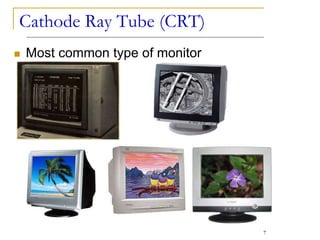
Cathode Ray Tube (CRT)
 Most common type of monitor
7
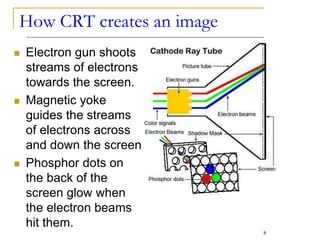
How CRT creates an image
 Electron gun shoots
streams of electrons
towards the screen.
 Magnetic yoke
guides the streams
of electrons across
and down the screen.
 Phosphor dots on
the back of the
screen glow when
the electron beams
hit them.
8
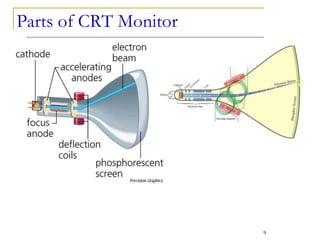
Parts of CRT Monitor
9
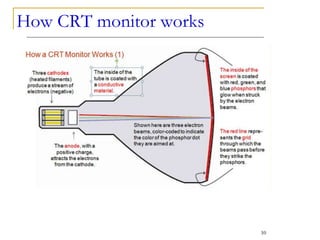
How CRT monitor works
10
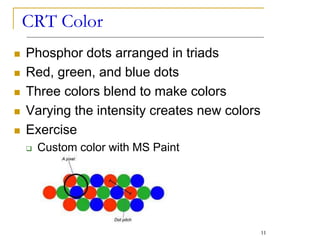
CRT Color
 Phosphor dots arranged in triads
 Red, green, and blue dots
 Three colors blend to make colors
 Varying the intensity creates new colors
 Exercise
 Custom color with MS Paint
11
CRT Disadvantages
 Very large
 Very heavy
 Use a lot of electricity
12
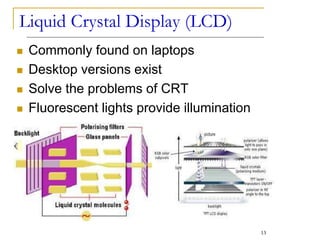
Liquid Crystal Display (LCD)
 Commonly found on laptops
 Desktop versions exist
 Solve the problems of CRT
 Fluorescent lights provide illumination
13
Types of LCD
 Passive Matrix LCD
 Active Matrix LCD
14
Passive Matrix LCD
 Pixels arranged in a grid
 Pixels are activated indirectly
 Row and column are activated
 Disadvantages
 Narrow viewing angle
 Don’t refresh pixels quickly
 Submarining
 Animation can be blurry
 Now uses dual scan LCD technology
15
Active Matrix LCD
16
 Each pixel is activated directly by a
transistor
 use Thin-Film Transistor (“TFT”)
technology,
o Pixels have 4 transistors
 One each for red, green, blue and
opaqueness
 Transistors arranged in a thin film
 Animation is crisp and clean
Drawbacks of LCD
 Image can be difficult to see in bright
light
 Smaller viewing angle
 Must sit directly in front of screen
 More expensive than CRT
 Can be more fragile than CRT
17
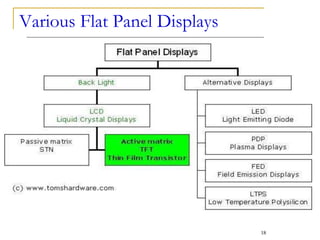
Various Flat Panel Displays
18
Plasma Display Panel (PDP)
 Utilizes small cells containing
electrically charged ionized gases called
fluorescent lamps
 Advantages
 Better picture quality
 Wider viewing angles
 Less visible motion blur
 Disadvantages
 Screen burn-in
 Uses more electricity than LCDs
19
Light Emitting Diodes (LED)
 uses light-emitting diodes as a video
display
 produce images with greater dynamic
contrast;
 can be extremely slim, some screens
less than half an inch (0.92 cm) thick;[6]
 produce less environmental pollution on
disposal;
 are more expensive;
 have typically 20 to 30% lower power
consumption
20
Other Types of Monitors
 Paper-white displays
 High contrast between fore and background
 Electro-luminescent displays (ELD)
 Similar to LCD
 phosphorescent film held between two
sheets of glass.
 A grid of wires sends current through the
film to create an image
21
Comparing Monitors
 Monitors impacts user effectiveness
 Monitors should have
 Crisp text
 Clear graphics
 Adjustable controls
 Clear edges
 Comparison specifications
 Size
 Resolution
 Refresh rate
 Dot Pitch
22
Size of Monitor
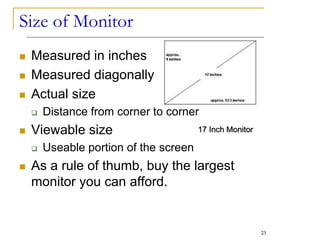
 Measured in inches
 Measured diagonally
 Actual size
 Distance from corner to corner
 Viewable size
 Useable portion of the screen
 As a rule of thumb, buy the largest
monitor you can afford.
17 Inch Monitor
23
Resolution
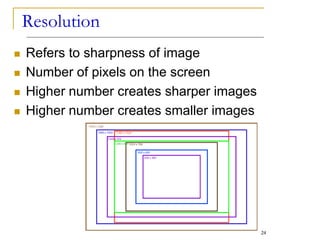
 Refers to sharpness of image
 Number of pixels on the screen
 Higher number creates sharper images
 Higher number creates smaller images
24
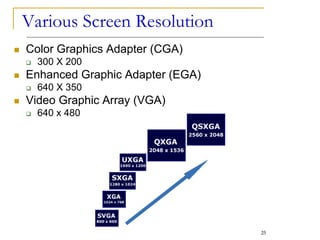
Various Screen Resolution
 Color Graphics Adapter (CGA)
 300 X 200
 Enhanced Graphic Adapter (EGA)
 640 X 350
 Video Graphic Array (VGA)
 640 x 480
25
Refresh Rate
 Number of time the screen is redrawn
 Measured in Hertz (Hz)
 Modern equipment sets this
automatically
 Improper settings can cause eyestrain
 Whenever a TV camera films a
computer monitor, the monitor seems to
have a line moving up the screen.
 This is the monitor refreshing the pixels.
 The camera films faster than the eye can
see, which is why the refresh is noticeable.
26
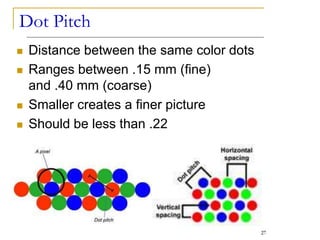
Dot Pitch
 Distance between the same color dots
 Ranges between .15 mm (fine)
and .40 mm (coarse)
 Smaller creates a finer picture
 Should be less than .22
27
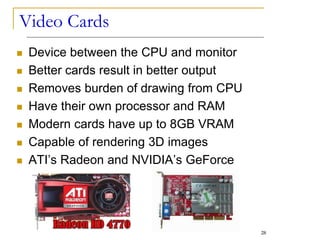
Video Cards
 Device between the CPU and monitor
 Better cards result in better output
 Removes burden of drawing from CPU
 Have their own processor and RAM
 Modern cards have up to 8GB VRAM
 Capable of rendering 3D images
 ATI’s Radeon and NVIDIA’s GeForce
28
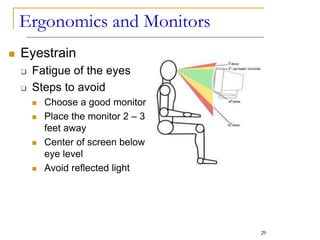
Ergonomics and Monitors
 Eyestrain
 Fatigue of the eyes
 Steps to avoid
 Choose a good monitor
 Place the monitor 2 – 3
feet away
 Center of screen below
eye level
 Avoid reflected light
29
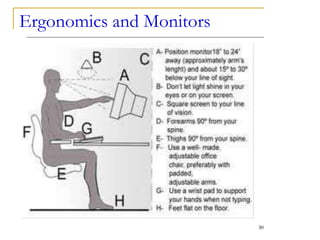
Ergonomics and Monitors
30
Electronic Magnetic field (EMF)
 Generated by all electronic devices
 EMF may be detrimental to health
 Steps to avoid
 Keep the computer at arms length
 Take frequent breaks
 Use an LCD monitor
31
Data Projectors
 Replaced overhead and slide projectors
 Project image onto wall or screen
 LCD projectors
 Most common type of projector
 Small LCD screen
 Very bright light
 Require a darkened room
32
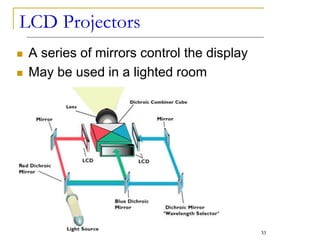
LCD Projectors
 A series of mirrors control the display
 May be used in a lighted room
33
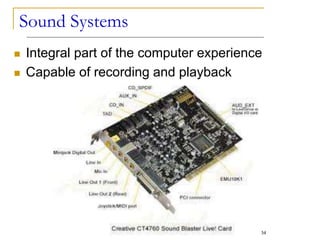
Sound Systems
 Integral part of the computer experience
 Capable of recording and playback
34
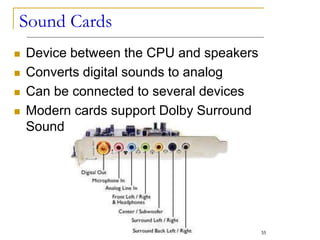
Sound Cards
 Device between the CPU and speakers
 Converts digital sounds to analog
 Can be connected to several devices
 Modern cards support Dolby Surround
Sound
35
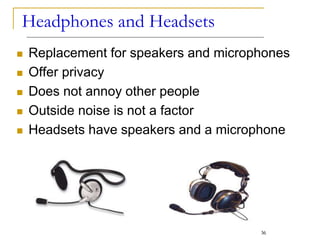
Headphones and Headsets
 Replacement for speakers and microphones
 Offer privacy
 Does not annoy other people
 Outside noise is not a factor
 Headsets have speakers and a microphone
36
37
Summary
 Output Devices
 Monitors
 CRT, LCD, PDP
 Comparing Monitors
 Size
 Resolution
 Refresh rate
 Dot pitch
38
Summary
 Video Cards
 Ergonomics and Monitors
 Electronic Magnetic Field (EMF)
 Data Projectors
 LCD Projector
 Speakers and Sound Systems
 Sound Cards
 Headphone and Headsets
Recommended Websites
39
 http://www.lynda.com/resources/hexpal
ette/hue.html
 https://en.wikipedia.org/wiki/Plasma_dis
play
 https://en.wikipedia.org/wiki/LED_displa
y
 https://en.wikipedia.org/wiki/Video_card
 http://www.tech-faq.com/how-lcd-
projectors-work.html
Thanks
Written By
Syed Ans Ali
40

Intro to computing

  • 1.
  • 2.
    2 Last Lecture SummaryI  Ergonomics and input devices  Repetitive Stress Injuries  Carpel Tunnel Syndrome  Avoiding Keyboard related injuries  How to sit at a computer  Techniques to avoid RSI
  • 3.
    3 Last Lecture SummaryII  Alternate Input devices  Devices for the hand  Pen, Touch Screens  Game controllers  Joystick Game pad  Optical Input Devices  Bar Code Reader, Image Scanners, OCR  Audio Input devices  Microphone, Sound Card, MIDI  Video input devices  Video Camera, Web Cam, Digital Camera
  • 4.
    Output Devices  Displayscreens were uncommon till 1960’s  Now, computers can communicate information to you in several ways  Reading, Seeing, watching and listening  Modern display and sound systems  computers are easier to use  data is easier to manage, and  information is easier to access  Monitors and Sound Systems 4
  • 5.
    Outline  Two mostcommonly used types of computer monitors.  How a CRT monitor displays images?  Two types of flat-panel monitors and explain their differences.  Various characteristics for comparing monitors.  How data projectors are used?  How a computer outputs sound? 5
  • 6.
    Monitors  Most commonoutput device  Connects to the video card or controller  Two types  Cathode Ray Tube (CRT)  Flat-panel  Categorized by color output  Monochrome  One color with black background  Grayscale  Varying degrees of gray  Color  Display 4 to 16 million colors 6
  • 7.
    Cathode Ray Tube(CRT)  Most common type of monitor 7
  • 8.
    How CRT createsan image  Electron gun shoots streams of electrons towards the screen.  Magnetic yoke guides the streams of electrons across and down the screen.  Phosphor dots on the back of the screen glow when the electron beams hit them. 8
  • 9.
    Parts of CRTMonitor 9
  • 10.
  • 11.
    CRT Color  Phosphordots arranged in triads  Red, green, and blue dots  Three colors blend to make colors  Varying the intensity creates new colors  Exercise  Custom color with MS Paint 11
  • 12.
    CRT Disadvantages  Verylarge  Very heavy  Use a lot of electricity 12
  • 13.
    Liquid Crystal Display(LCD)  Commonly found on laptops  Desktop versions exist  Solve the problems of CRT  Fluorescent lights provide illumination 13
  • 14.
    Types of LCD Passive Matrix LCD  Active Matrix LCD 14
  • 15.
    Passive Matrix LCD Pixels arranged in a grid  Pixels are activated indirectly  Row and column are activated  Disadvantages  Narrow viewing angle  Don’t refresh pixels quickly  Submarining  Animation can be blurry  Now uses dual scan LCD technology 15
  • 16.
    Active Matrix LCD 16 Each pixel is activated directly by a transistor  use Thin-Film Transistor (“TFT”) technology, o Pixels have 4 transistors  One each for red, green, blue and opaqueness  Transistors arranged in a thin film  Animation is crisp and clean
  • 17.
    Drawbacks of LCD Image can be difficult to see in bright light  Smaller viewing angle  Must sit directly in front of screen  More expensive than CRT  Can be more fragile than CRT 17
  • 18.
    Various Flat PanelDisplays 18
  • 19.
    Plasma Display Panel(PDP)  Utilizes small cells containing electrically charged ionized gases called fluorescent lamps  Advantages  Better picture quality  Wider viewing angles  Less visible motion blur  Disadvantages  Screen burn-in  Uses more electricity than LCDs 19
  • 20.
    Light Emitting Diodes(LED)  uses light-emitting diodes as a video display  produce images with greater dynamic contrast;  can be extremely slim, some screens less than half an inch (0.92 cm) thick;[6]  produce less environmental pollution on disposal;  are more expensive;  have typically 20 to 30% lower power consumption 20
  • 21.
    Other Types ofMonitors  Paper-white displays  High contrast between fore and background  Electro-luminescent displays (ELD)  Similar to LCD  phosphorescent film held between two sheets of glass.  A grid of wires sends current through the film to create an image 21
  • 22.
    Comparing Monitors  Monitorsimpacts user effectiveness  Monitors should have  Crisp text  Clear graphics  Adjustable controls  Clear edges  Comparison specifications  Size  Resolution  Refresh rate  Dot Pitch 22
  • 23.
    Size of Monitor Measured in inches  Measured diagonally  Actual size  Distance from corner to corner  Viewable size  Useable portion of the screen  As a rule of thumb, buy the largest monitor you can afford. 17 Inch Monitor 23
  • 24.
    Resolution  Refers tosharpness of image  Number of pixels on the screen  Higher number creates sharper images  Higher number creates smaller images 24
  • 25.
    Various Screen Resolution Color Graphics Adapter (CGA)  300 X 200  Enhanced Graphic Adapter (EGA)  640 X 350  Video Graphic Array (VGA)  640 x 480 25
  • 26.
    Refresh Rate  Numberof time the screen is redrawn  Measured in Hertz (Hz)  Modern equipment sets this automatically  Improper settings can cause eyestrain  Whenever a TV camera films a computer monitor, the monitor seems to have a line moving up the screen.  This is the monitor refreshing the pixels.  The camera films faster than the eye can see, which is why the refresh is noticeable. 26
  • 27.
    Dot Pitch  Distancebetween the same color dots  Ranges between .15 mm (fine) and .40 mm (coarse)  Smaller creates a finer picture  Should be less than .22 27
  • 28.
    Video Cards  Devicebetween the CPU and monitor  Better cards result in better output  Removes burden of drawing from CPU  Have their own processor and RAM  Modern cards have up to 8GB VRAM  Capable of rendering 3D images  ATI’s Radeon and NVIDIA’s GeForce 28
  • 29.
    Ergonomics and Monitors Eyestrain  Fatigue of the eyes  Steps to avoid  Choose a good monitor  Place the monitor 2 – 3 feet away  Center of screen below eye level  Avoid reflected light 29
  • 30.
  • 31.
    Electronic Magnetic field(EMF)  Generated by all electronic devices  EMF may be detrimental to health  Steps to avoid  Keep the computer at arms length  Take frequent breaks  Use an LCD monitor 31
  • 32.
    Data Projectors  Replacedoverhead and slide projectors  Project image onto wall or screen  LCD projectors  Most common type of projector  Small LCD screen  Very bright light  Require a darkened room 32
  • 33.
    LCD Projectors  Aseries of mirrors control the display  May be used in a lighted room 33
  • 34.
    Sound Systems  Integralpart of the computer experience  Capable of recording and playback 34
  • 35.
    Sound Cards  Devicebetween the CPU and speakers  Converts digital sounds to analog  Can be connected to several devices  Modern cards support Dolby Surround Sound 35
  • 36.
    Headphones and Headsets Replacement for speakers and microphones  Offer privacy  Does not annoy other people  Outside noise is not a factor  Headsets have speakers and a microphone 36
  • 37.
    37 Summary  Output Devices Monitors  CRT, LCD, PDP  Comparing Monitors  Size  Resolution  Refresh rate  Dot pitch
  • 38.
    38 Summary  Video Cards Ergonomics and Monitors  Electronic Magnetic Field (EMF)  Data Projectors  LCD Projector  Speakers and Sound Systems  Sound Cards  Headphone and Headsets
  • 39.
    Recommended Websites 39  http://www.lynda.com/resources/hexpal ette/hue.html https://en.wikipedia.org/wiki/Plasma_dis play  https://en.wikipedia.org/wiki/LED_displa y  https://en.wikipedia.org/wiki/Video_card  http://www.tech-faq.com/how-lcd- projectors-work.html
  • 40.