Input Devices
Keyboard And Mouse
The Keyboard
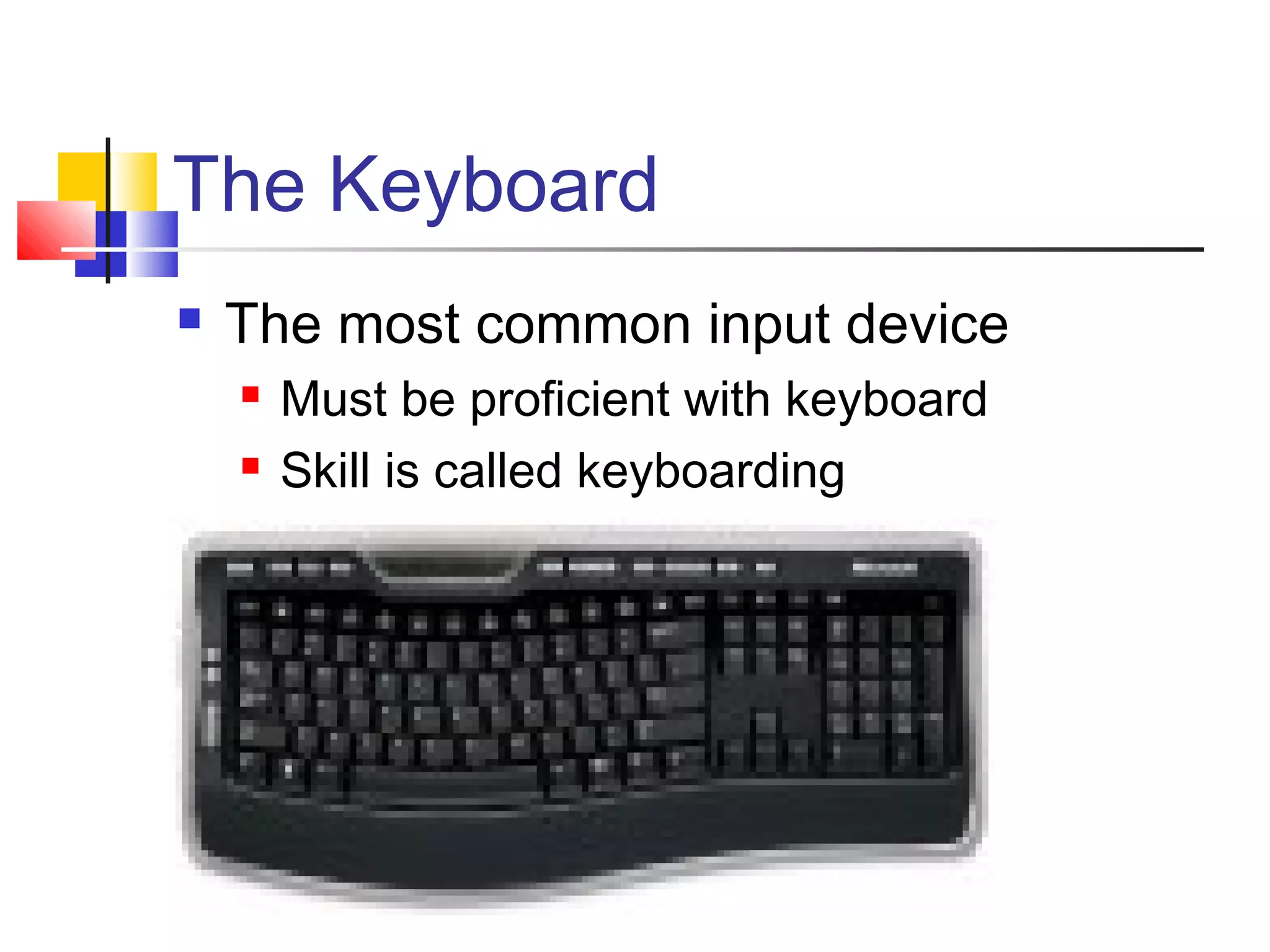
 The most common input device
 Must be proficient with keyboard
 Skill is called keyboarding
The Keyboard
 How keyboard works
 Keyboard controller detects a key press
 Controller sends a code to the CPU

Code represents the key pressed
 Controller notifies the operating system
 Operating system responds
 Controller repeats the letter if held
The Mouse
 All modern computers have a
variant
 Allows users to select objects
 Pointer moved by the mouse
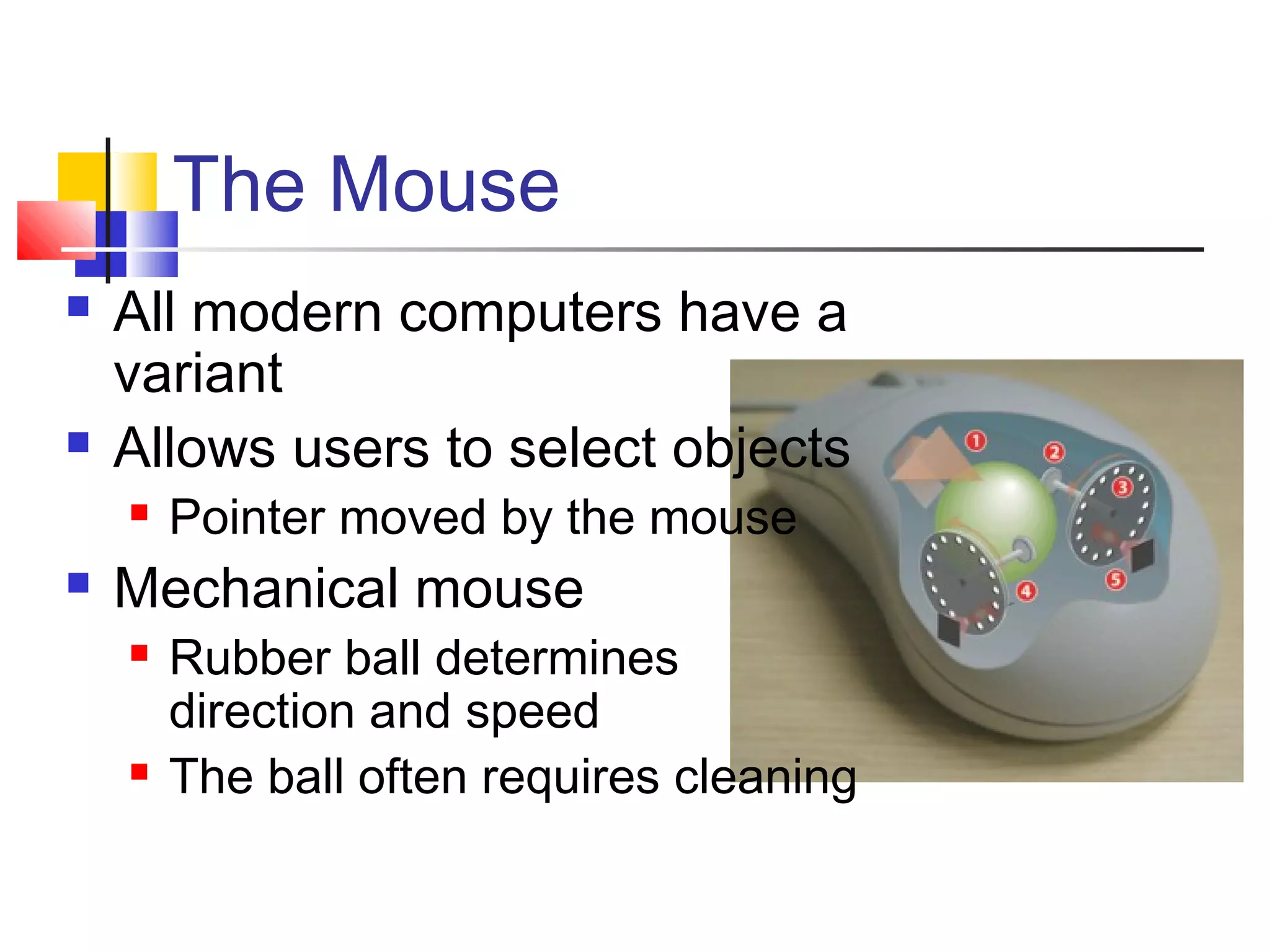
 Mechanical mouse
 Rubber ball determines
direction and speed
 The ball often requires cleaning
The Mouse
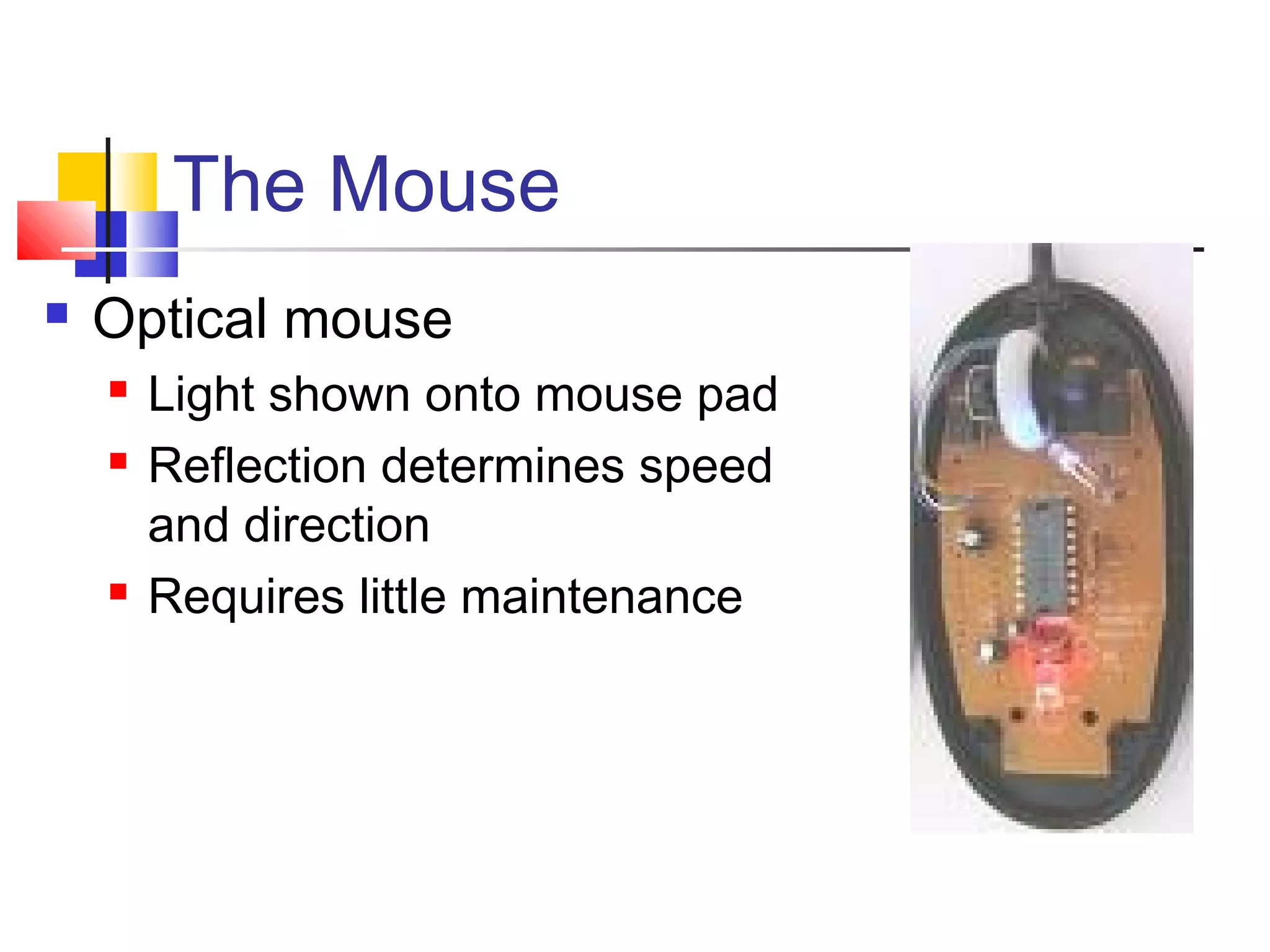
 Optical mouse
 Light shown onto mouse pad
 Reflection determines speed
and direction
 Requires little maintenance
The Mouse
 Interacting with a mouse
 Actions involve pointing to an object
 Clicking selects the object
 Clicking and holding drags the object
 Releasing an object is a drop
 Right clicking activates the shortcut menu
 Modern mice include a scroll wheel
The Mouse
 Benefits
 Pointer positioning is fast
 Menu interaction is easy
 Users can draw electronically
The Mouse
 Mouse button configuration
 Configured for a right-handed user

Can be reconfigured
 Between 1 and 6 buttons
 Extra buttons are configurable
Variants of the Mouse
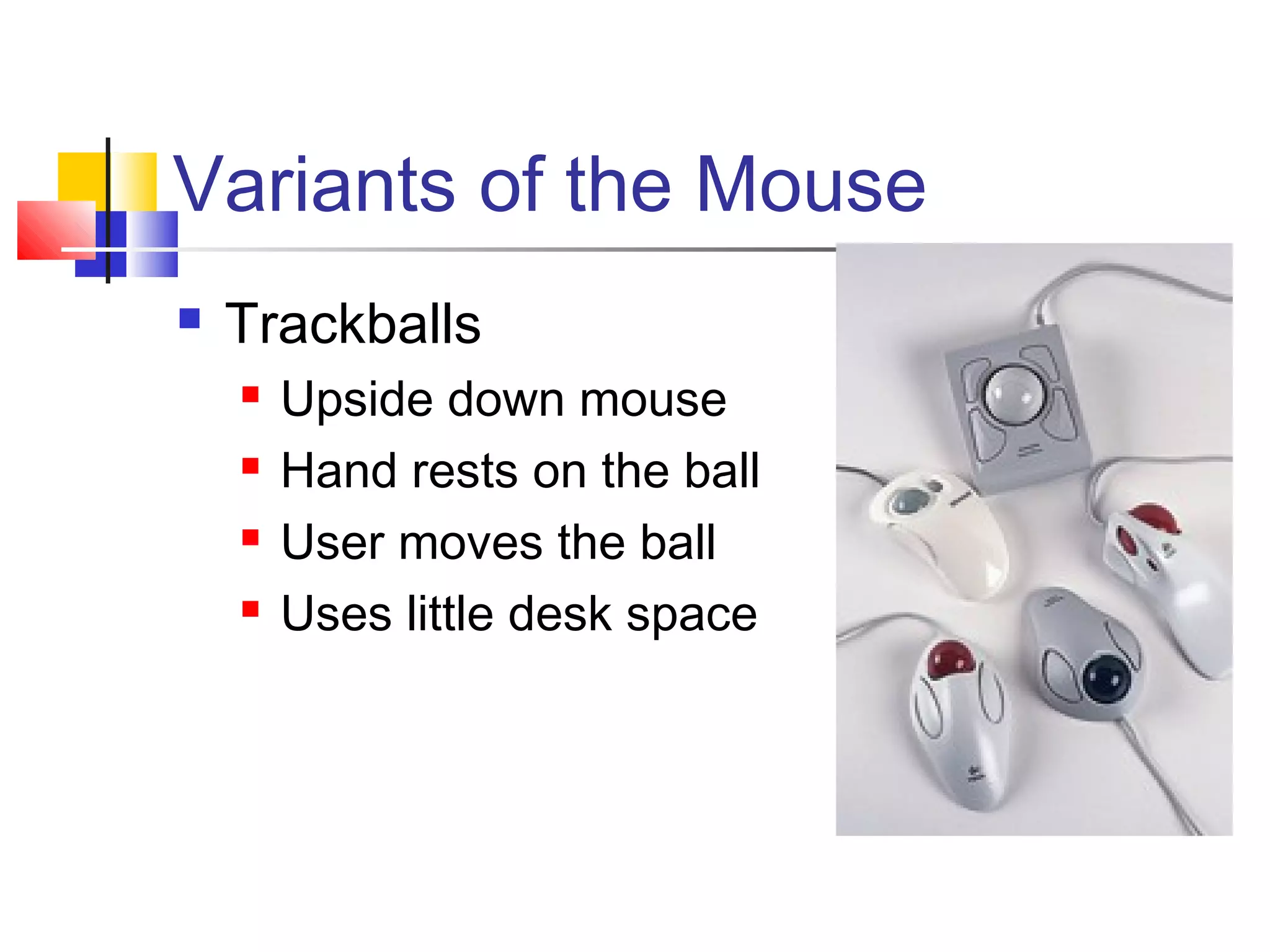
 Trackballs
 Upside down mouse
 Hand rests on the ball
 User moves the ball
 Uses little desk space
Variants of the Mouse
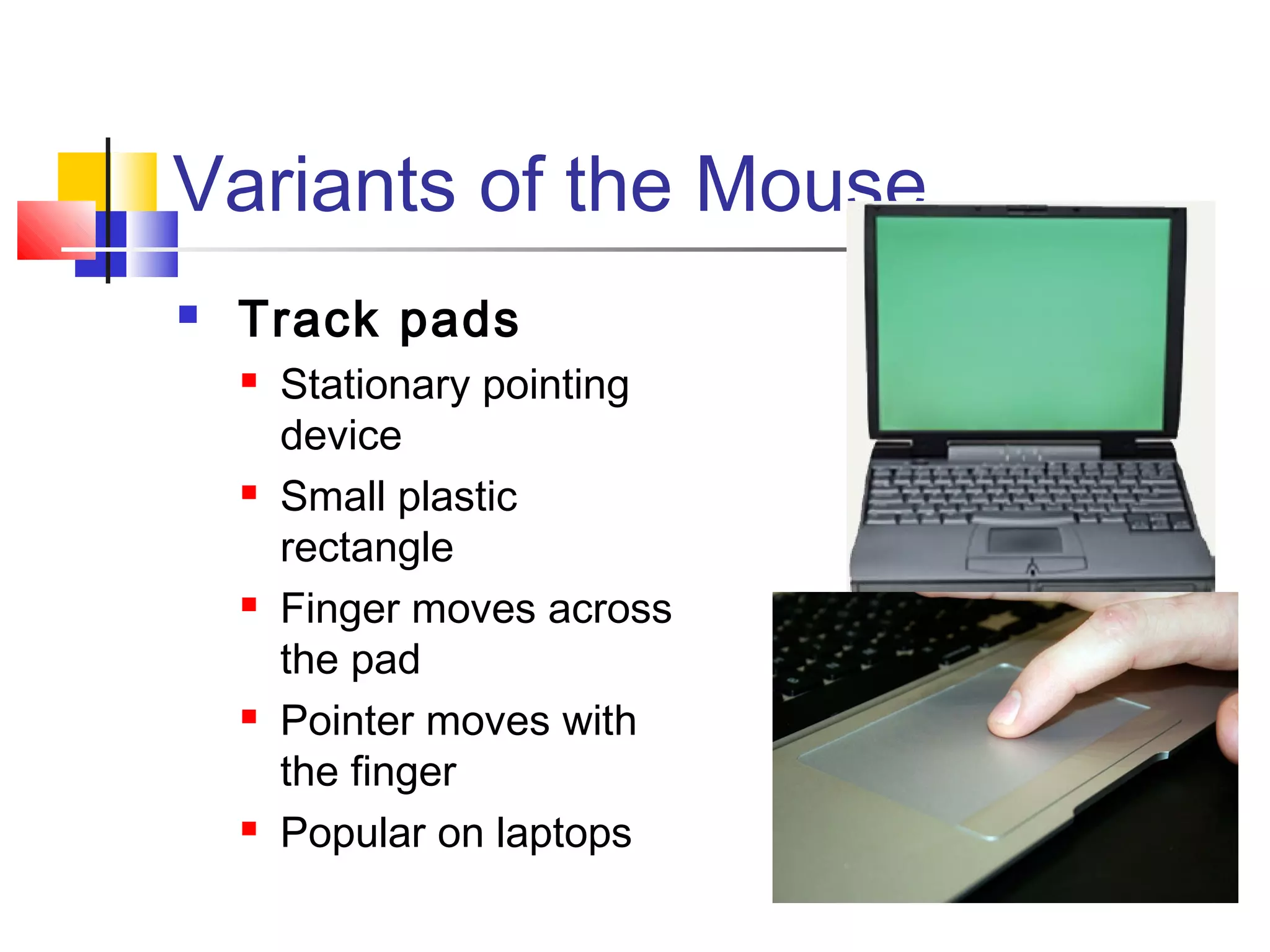
 Track pads
 Stationary pointing
device
 Small plastic
rectangle
 Finger moves across
the pad
 Pointer moves with
the finger
 Popular on laptops
Variants of the Mouse
 Track point
 Little joystick on the
keyboard
 Move pointer by
moving the joystick
Other Input Devices
Inputting Data In Other Ways
Devices for the Hand
 Pen based input
 Tablet PCs, PDA
 Pen used to write data
 Pen used as a pointer
 Handwriting recognition
 On screen keyboard
 Known as Stylus
Devices for the hand
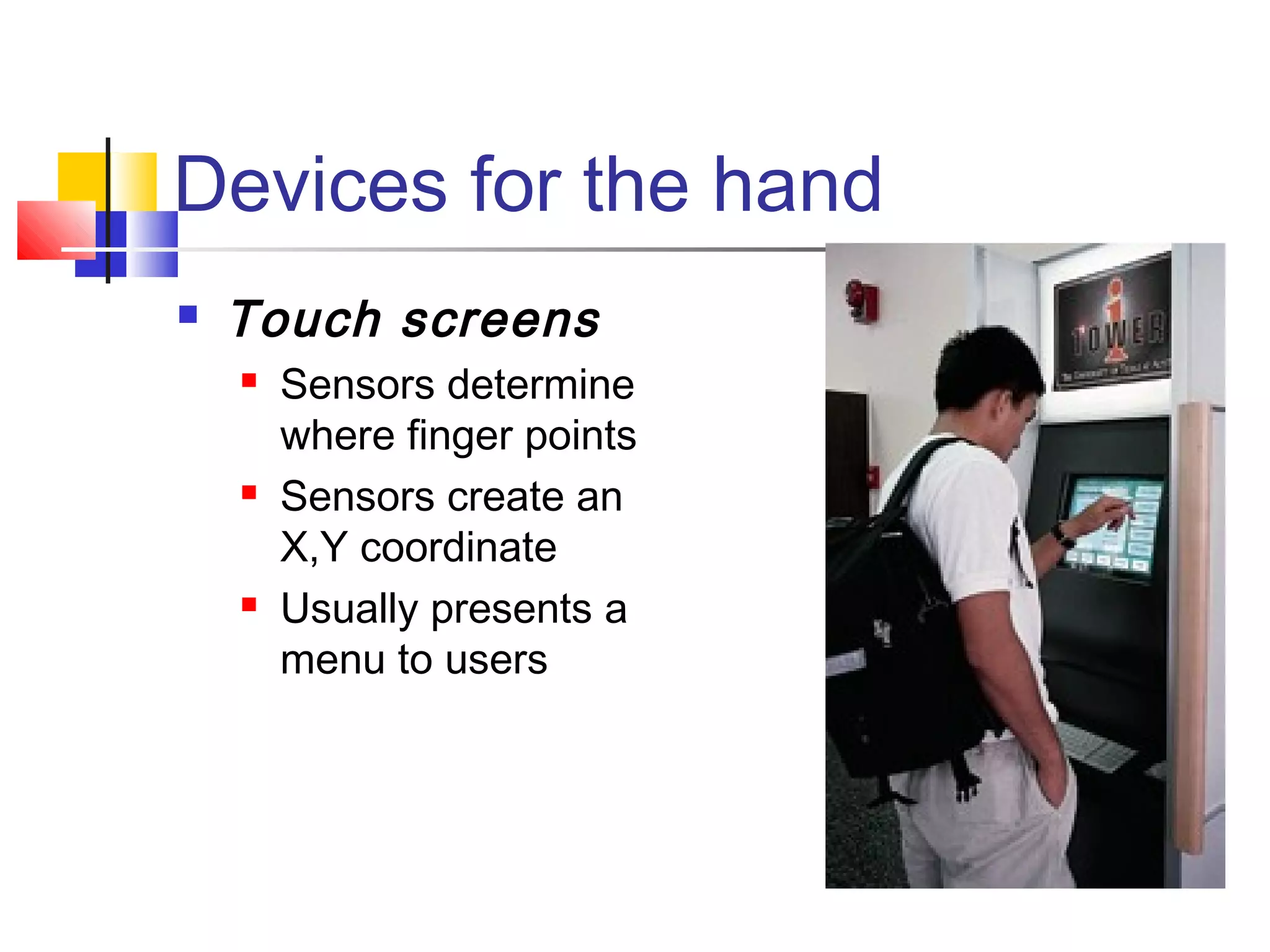
 Touch screens
 Sensors determine
where finger points
 Sensors create an
X,Y coordinate
 Usually presents a
menu to users
Devices for the hand
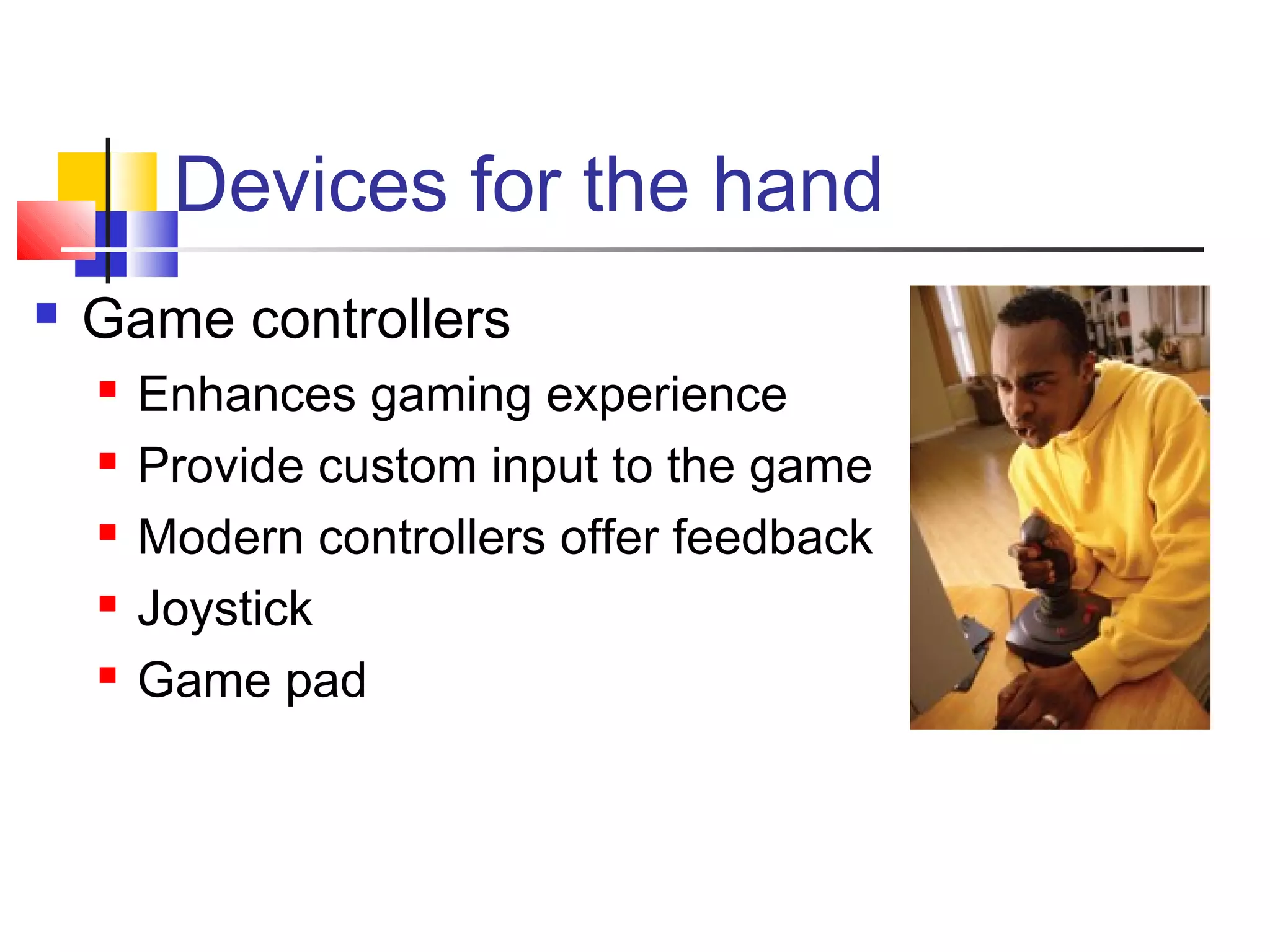
 Game controllers
 Enhances gaming experience
 Provide custom input to the game
 Modern controllers offer feedback
 Joystick
 Game pad
Optical Input Devices
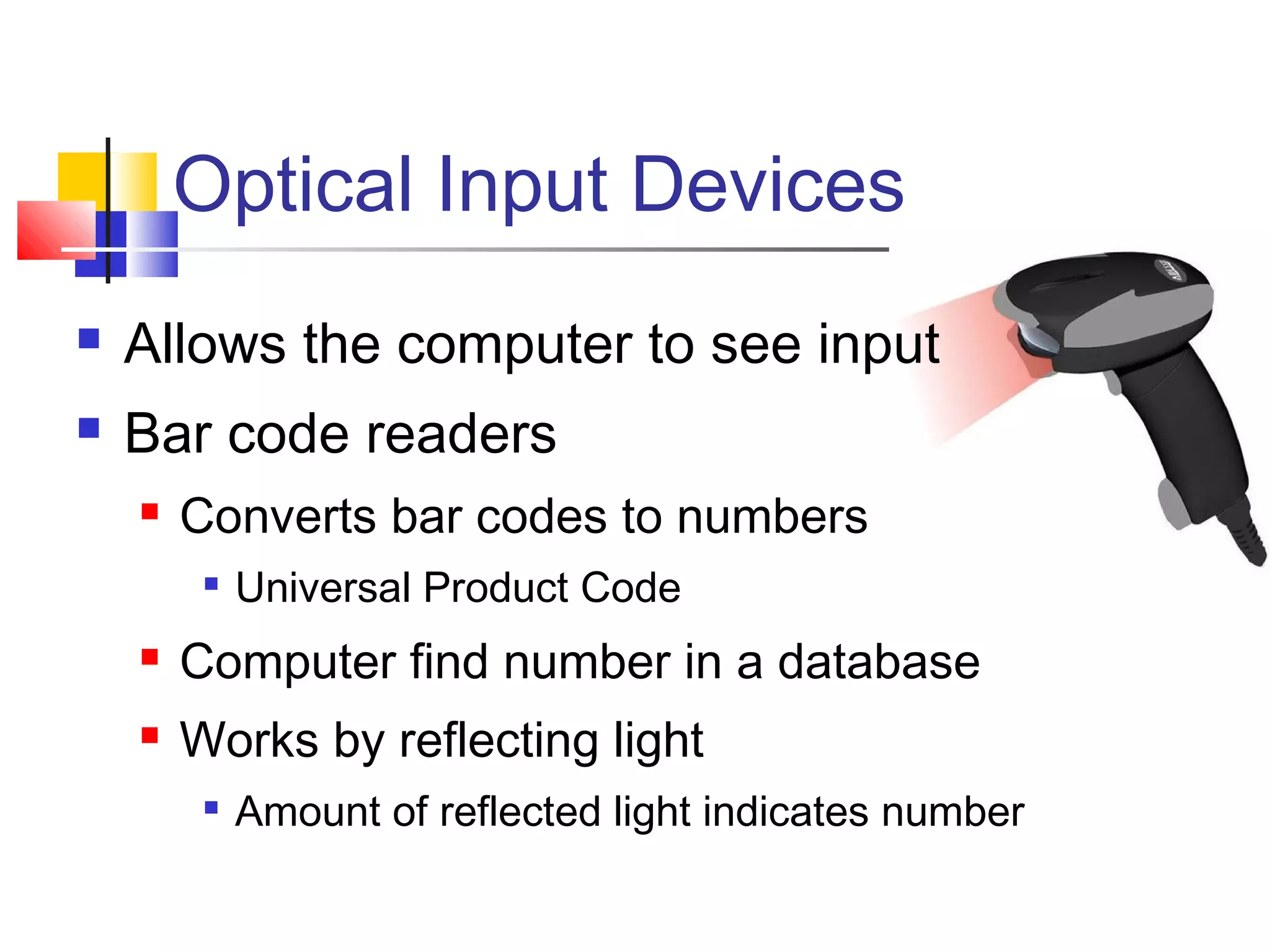
 Allows the computer to see input
 Bar code readers
 Converts bar codes to numbers

Universal Product Code
 Computer find number in a database
 Works by reflecting light

Amount of reflected light indicates number
Optical Input Devices
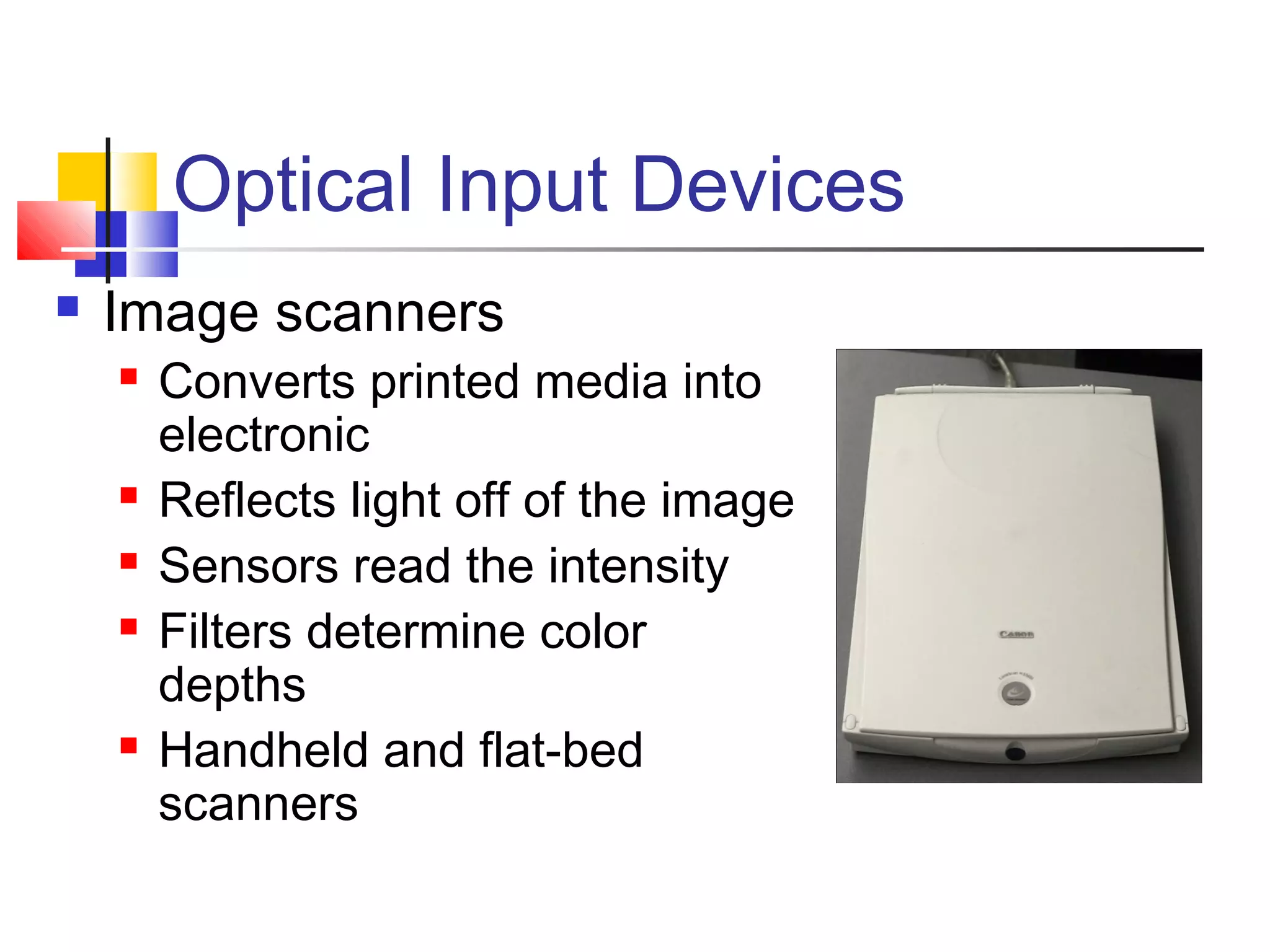
 Image scanners
 Converts printed media into
electronic
 Reflects light off of the image
 Sensors read the intensity
 Filters determine color
depths
 Handheld and flat-bed
scanners
Optical input devices
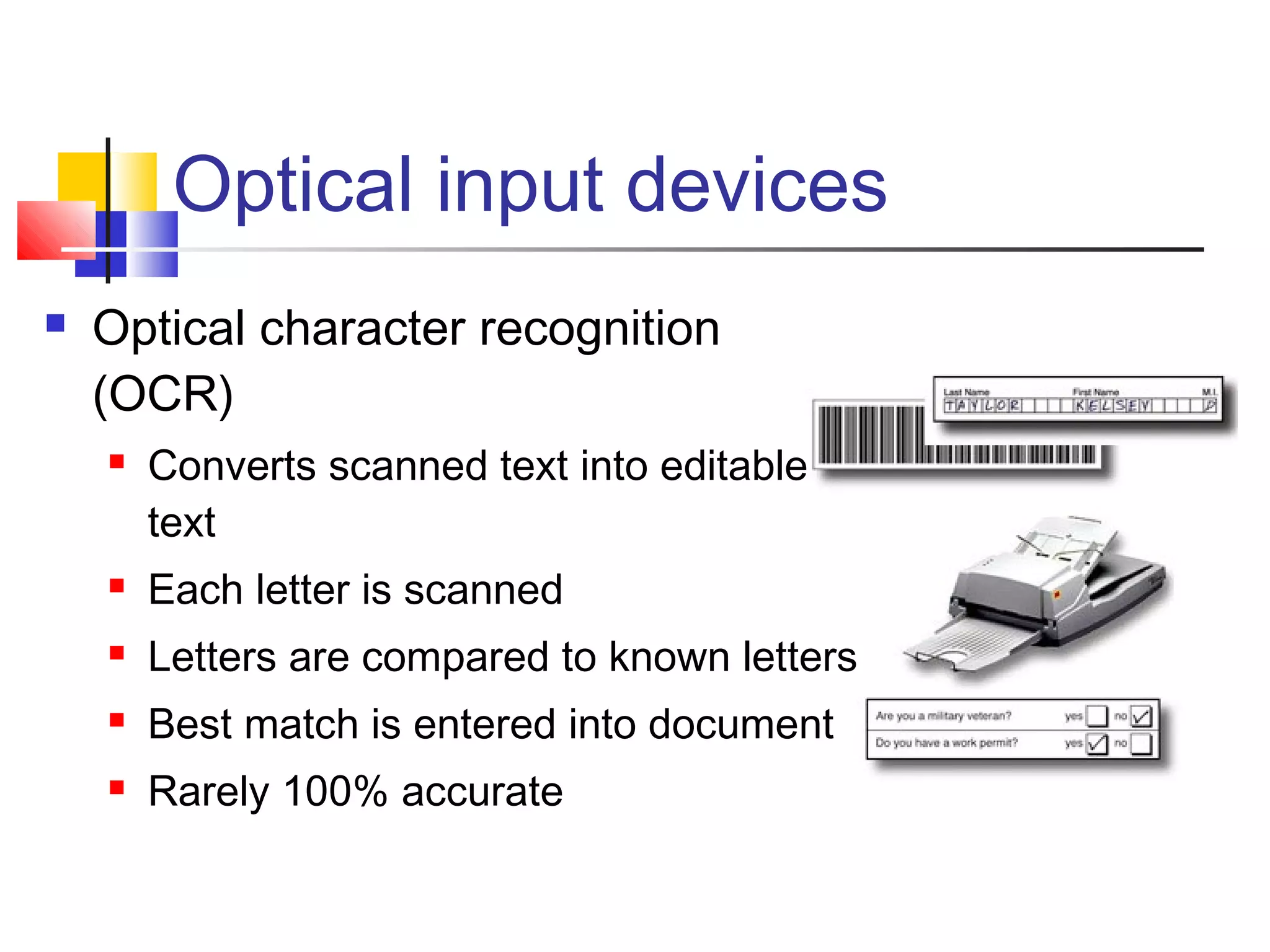
 Optical character recognition
(OCR)
 Converts scanned text into editable
text
 Each letter is scanned
 Letters are compared to known letters
 Best match is entered into document
 Rarely 100% accurate
Audiovisual Input Devices
 Microphones
 Used to record speech
 Speech recognition

“Understands” human speech

Allows dictation or control of computer

Enters best match into document
Audiovisual Input Devices
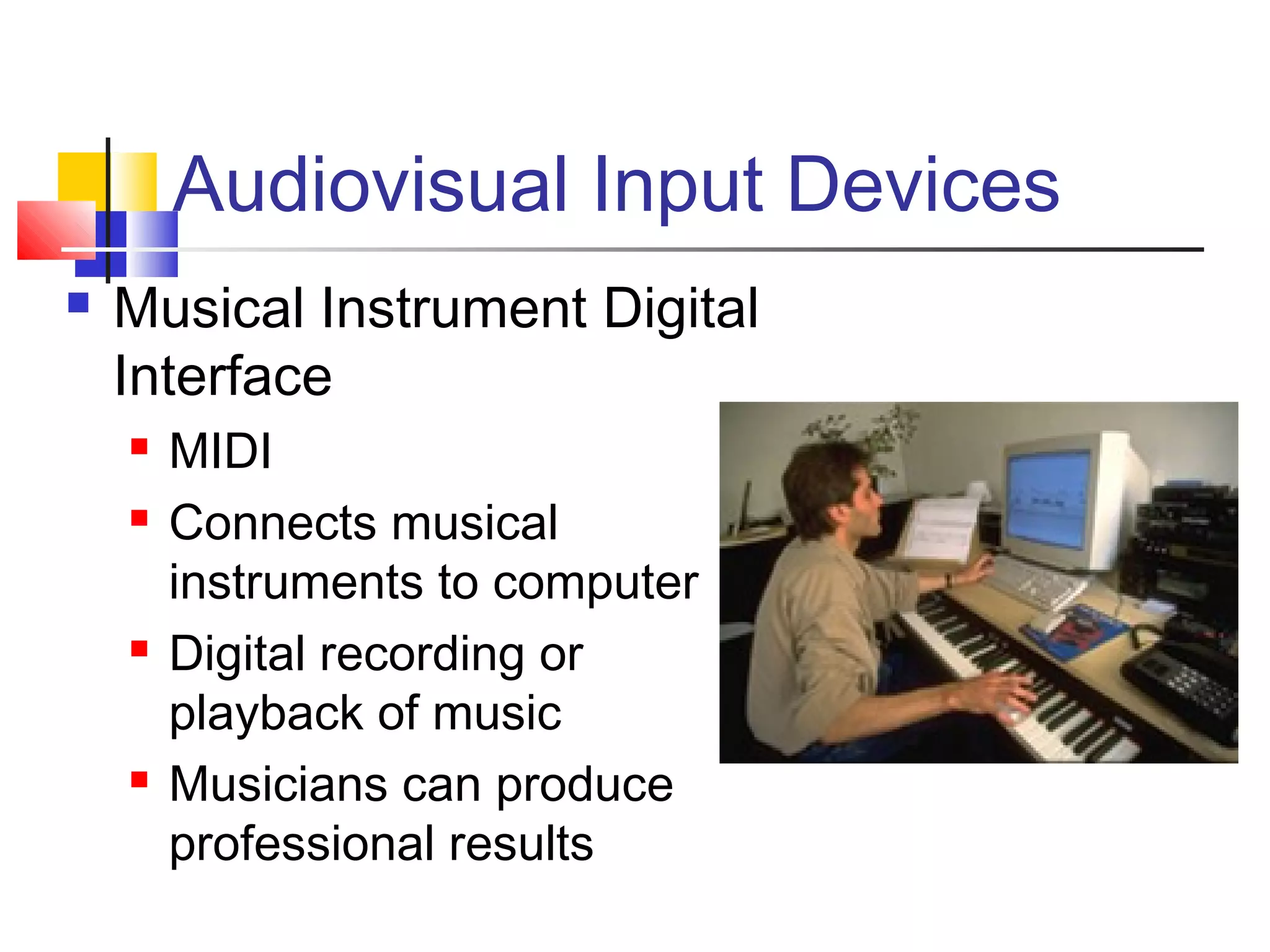
 Musical Instrument Digital
Interface
 MIDI
 Connects musical
instruments to computer
 Digital recording or
playback of music
 Musicians can produce
professional results
Audiovisual Input Devices
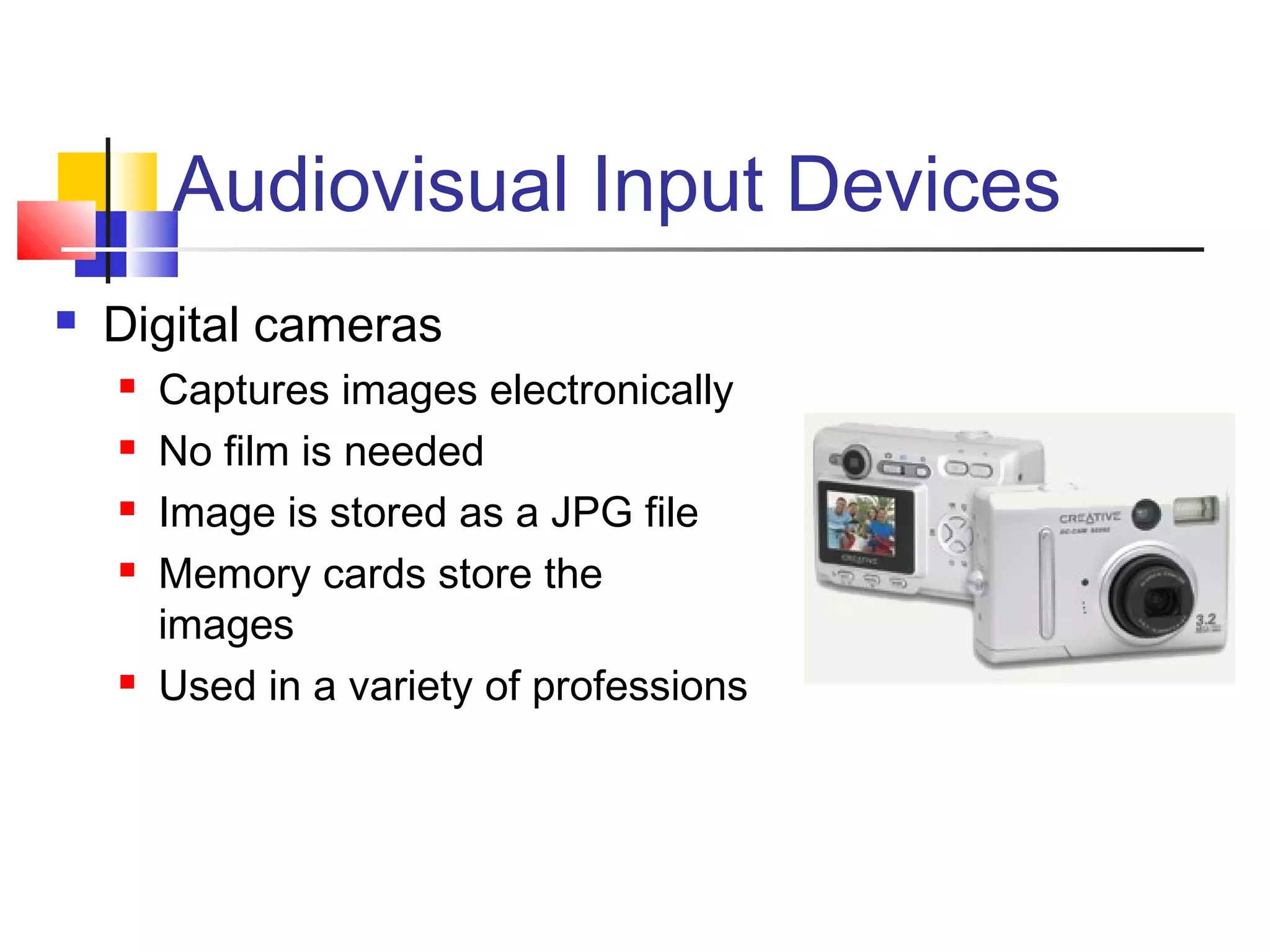
 Digital cameras
 Captures images electronically
 No film is needed
 Image is stored as a JPG file
 Memory cards store the
images
 Used in a variety of professions
Output Devices
Video and Sound
24
Monitors
 Most common output device
 Connects to the video card
 Categorized by color output
 Monochrome

One color with black background
 Grayscale

Varying degrees of gray
 Color

Display 4 to 16 million colors
Monitors
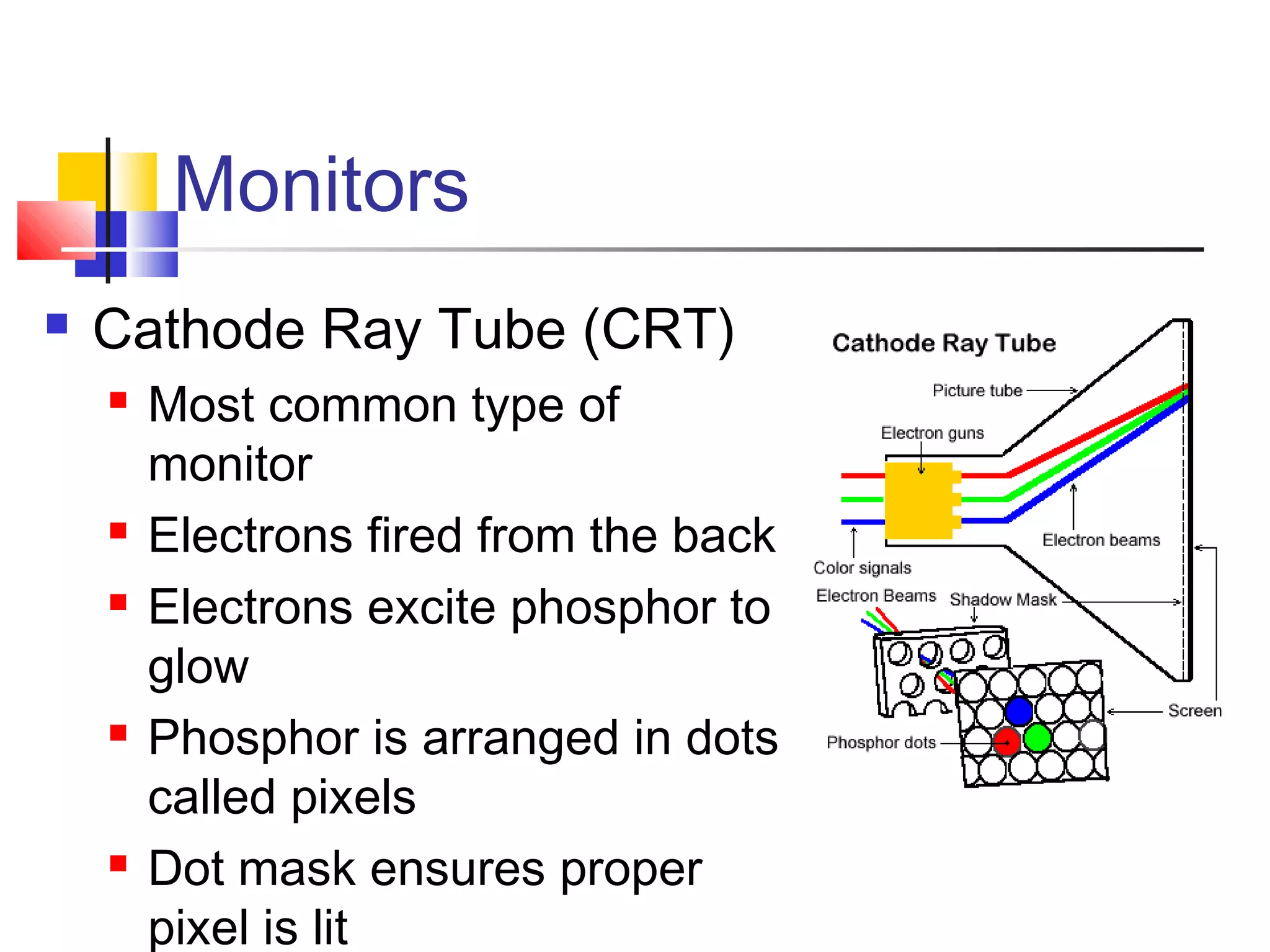
 Cathode Ray Tube (CRT)
 Most common type of
monitor
 Electrons fired from the back
 Electrons excite phosphor to
glow
 Phosphor is arranged in dots
called pixels
 Dot mask ensures proper
pixel is lit
Monitors
 CRT color
 Phosphor dots arranged
in triads
 Red, green, and blue dots
 Three colors blend to
make colors
 Varying the intensity
creates new colors
Monitors
 CRT drawbacks
 Very large
 Very heavy
 Use a lot of electricity
Monitors
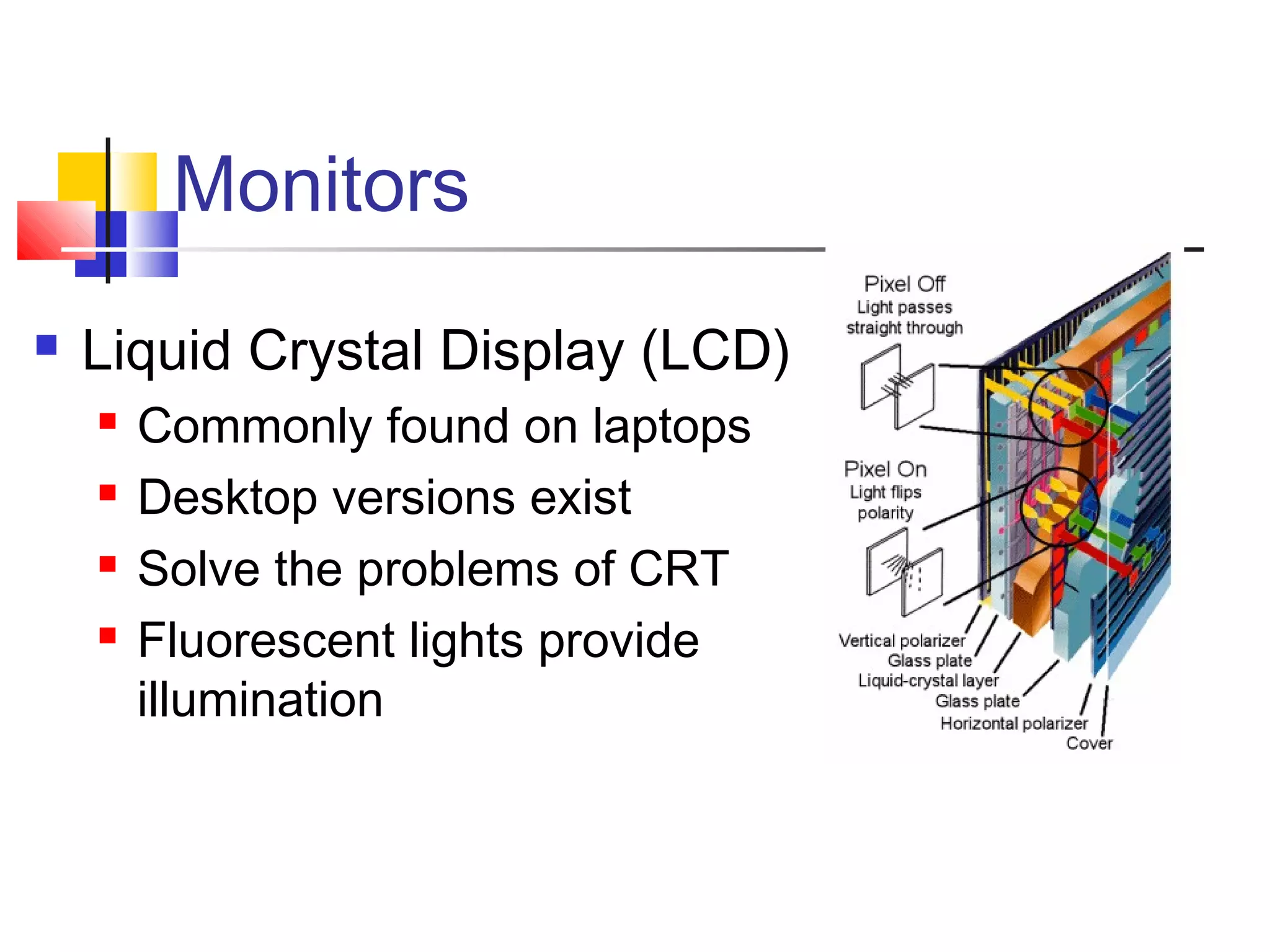
 Liquid Crystal Display (LCD)
 Commonly found on laptops
 Desktop versions exist
 Solve the problems of CRT
 Fluorescent lights provide
illumination
Monitors
 Drawbacks to LCD
 More expensive than CRT
 In Older Versions User Must sit directly in
front of screen
 Can be more weak than CRT
 Recent Models are designed in such a way
that user can see from 160 degree.
Monitors
 Paper-white displays
 High contrast between fore and
background
 Electro-luminescent displays
(ELD)
 Similar to LCD
 Uses phosphor to produce light
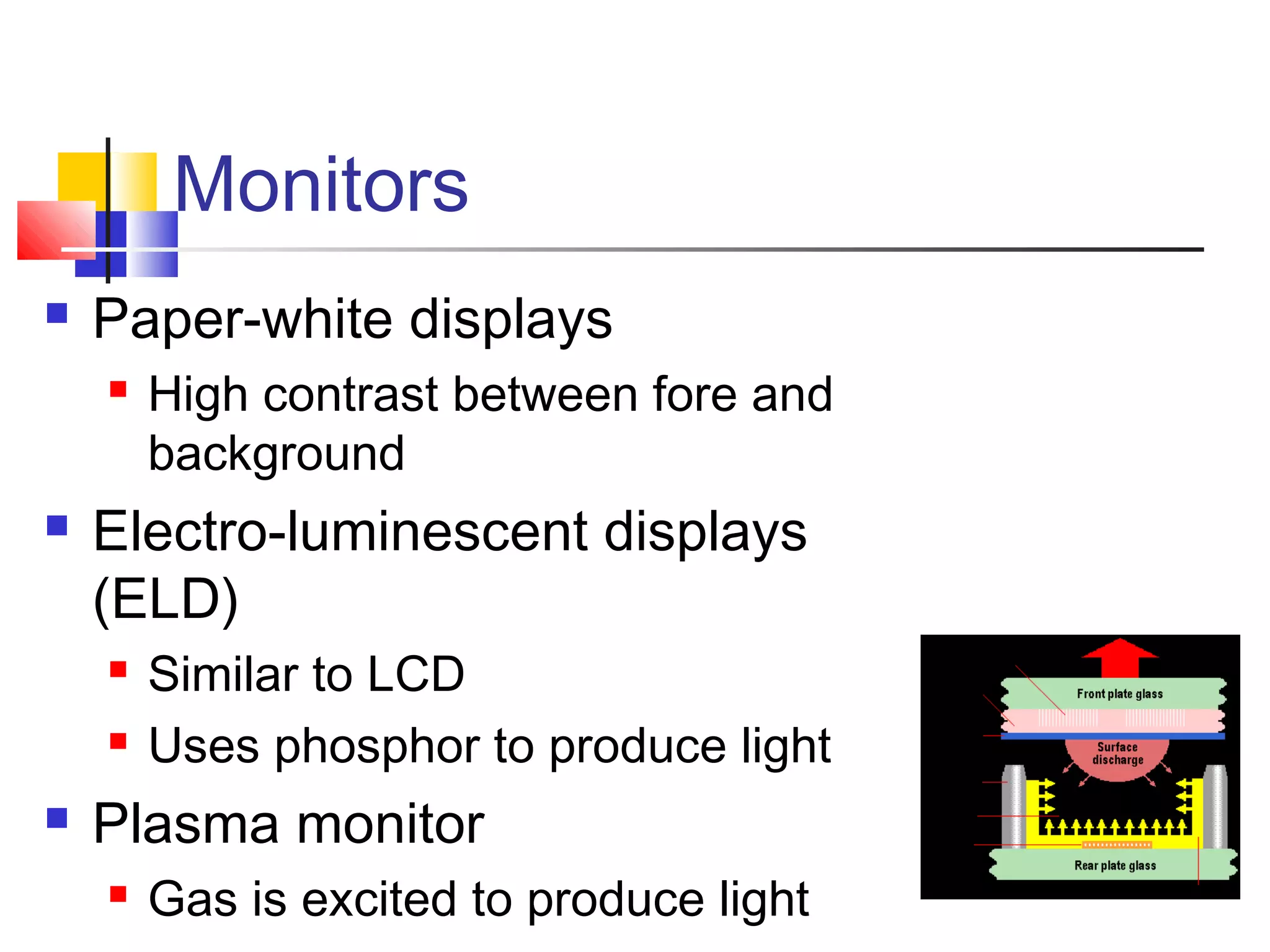
 Plasma monitor
 Gas is excited to produce light
Monitors and Video Cards
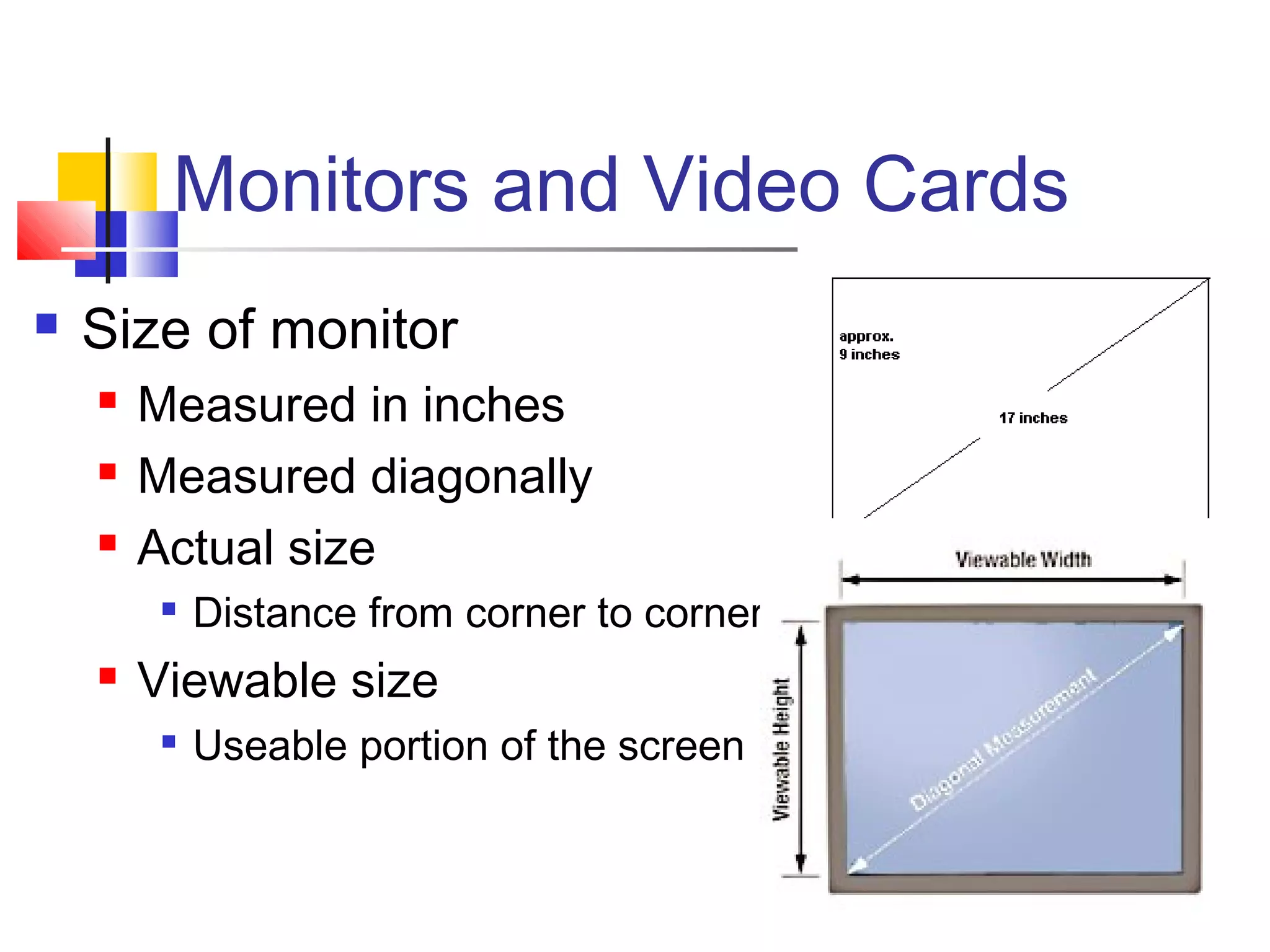
 Size of monitor
 Measured in inches
 Measured diagonally
 Actual size

Distance from corner to corner
 Viewable size

Useable portion of the screen
Monitors and Video Cards
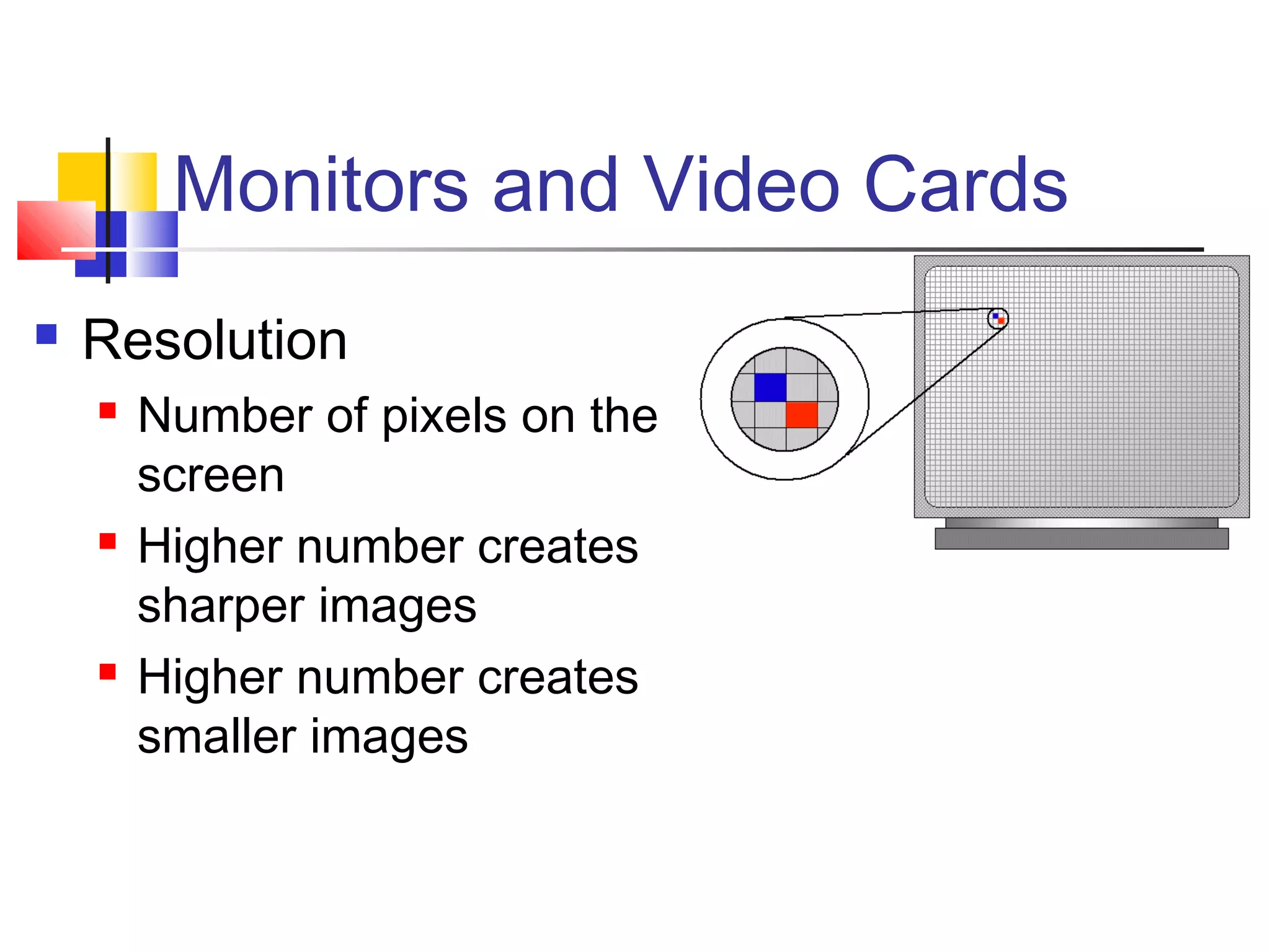
 Resolution
 Number of pixels on the
screen
 Higher number creates
sharper images
 Higher number creates
smaller images
Monitors and Video Cards
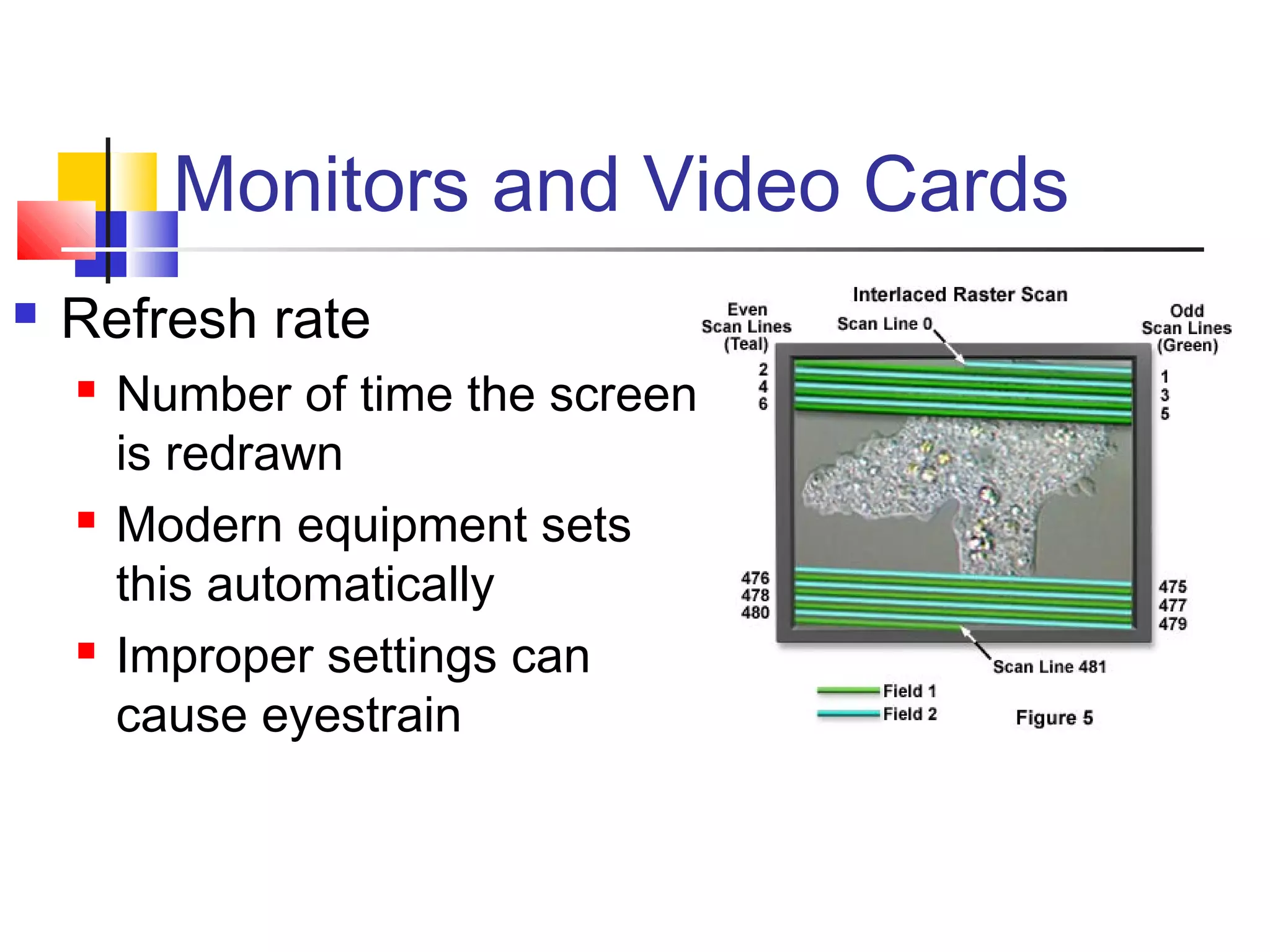
 Refresh rate
 Number of time the screen
is redrawn
 Modern equipment sets
this automatically
 Improper settings can
cause eyestrain
Monitors and Video Cards
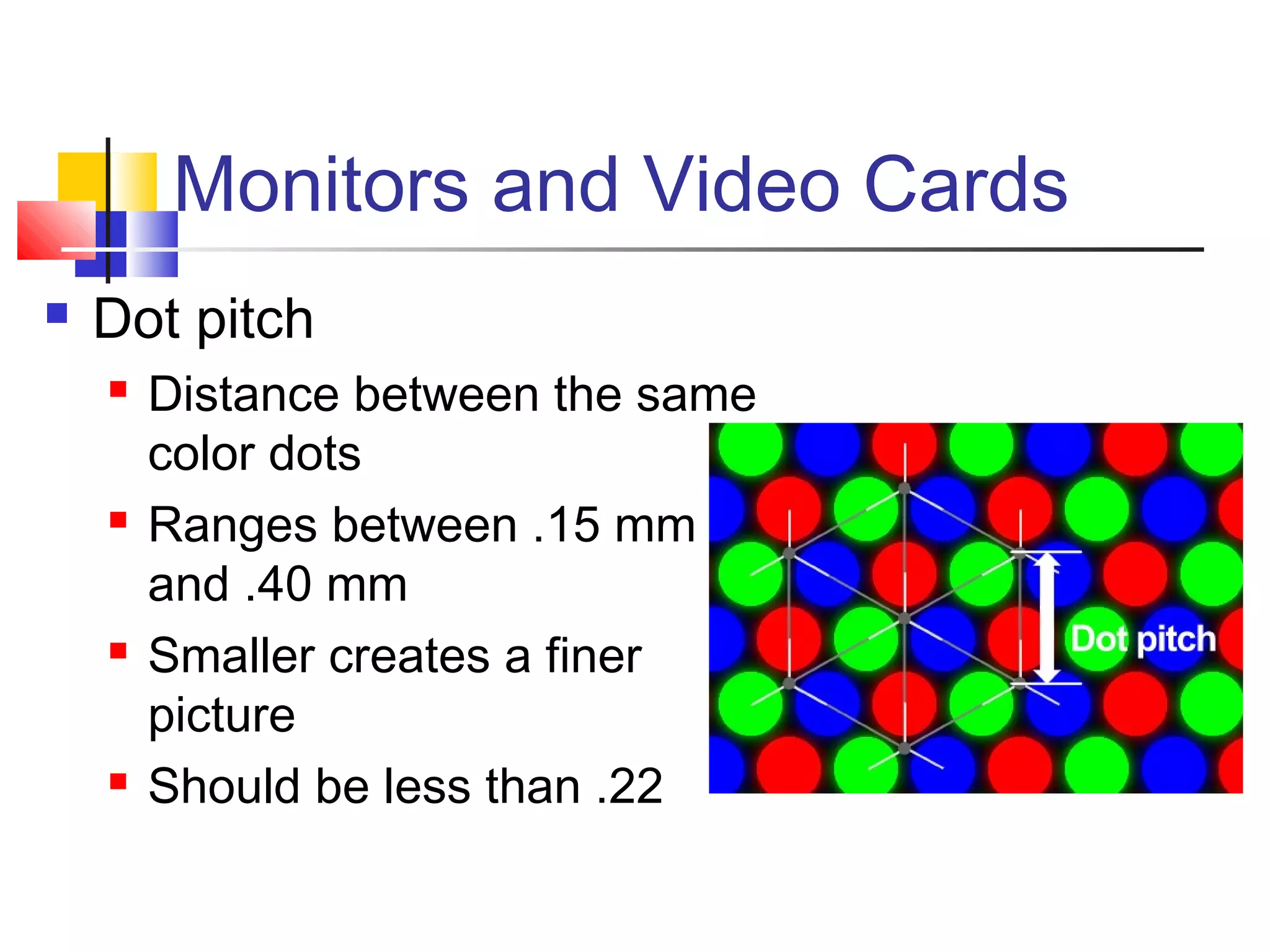
 Dot pitch
 Distance between the same
color dots
 Ranges between .15 mm
and .40 mm
 Smaller creates a finer
picture
 Should be less than .22
Data Projectors
 Replaced overhead and slide
projectors
 Project image onto wall or
screen
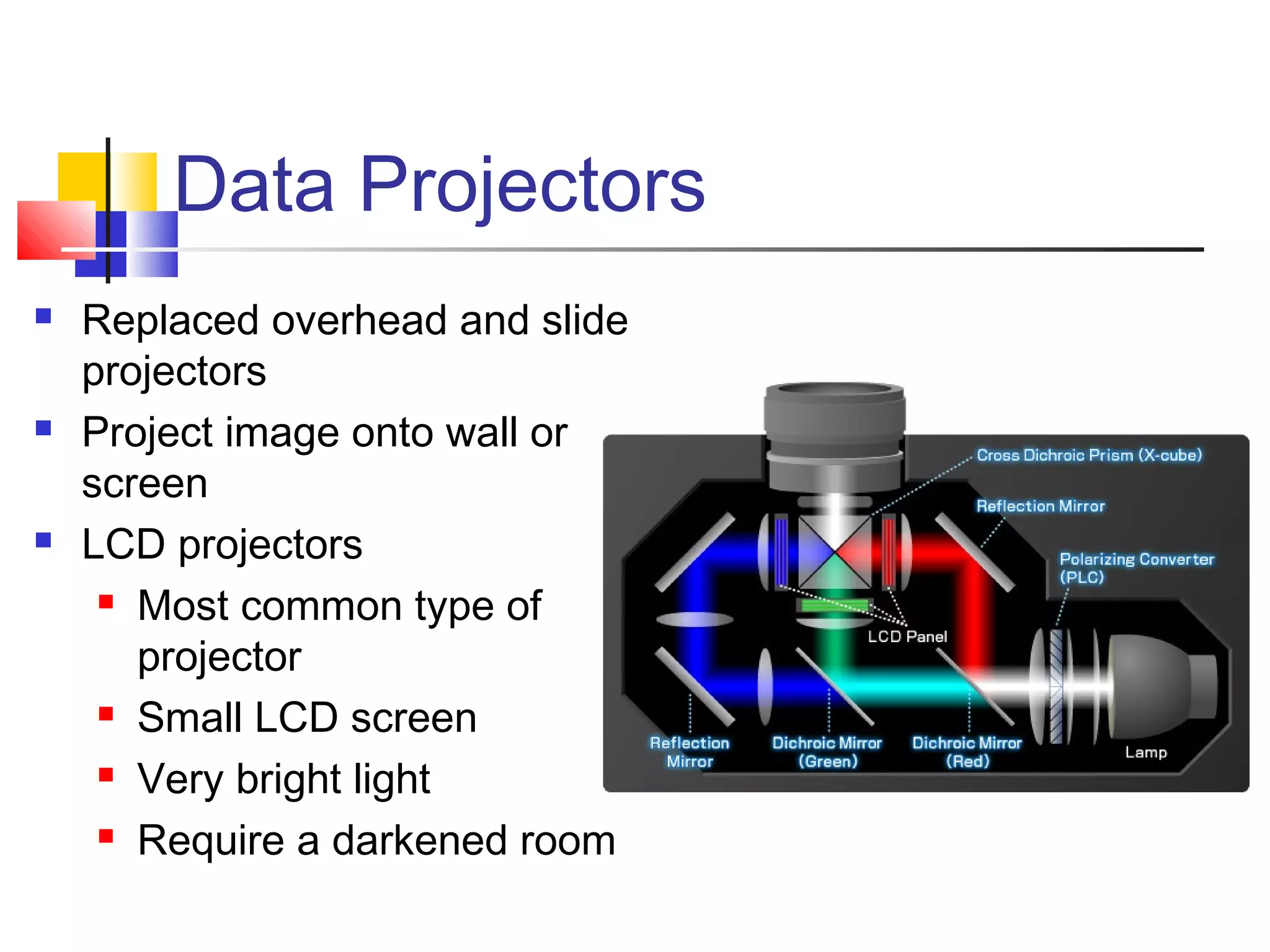
 LCD projectors
 Most common type of
projector
 Small LCD screen
 Very bright light
 Require a darkened room
Data Projectors
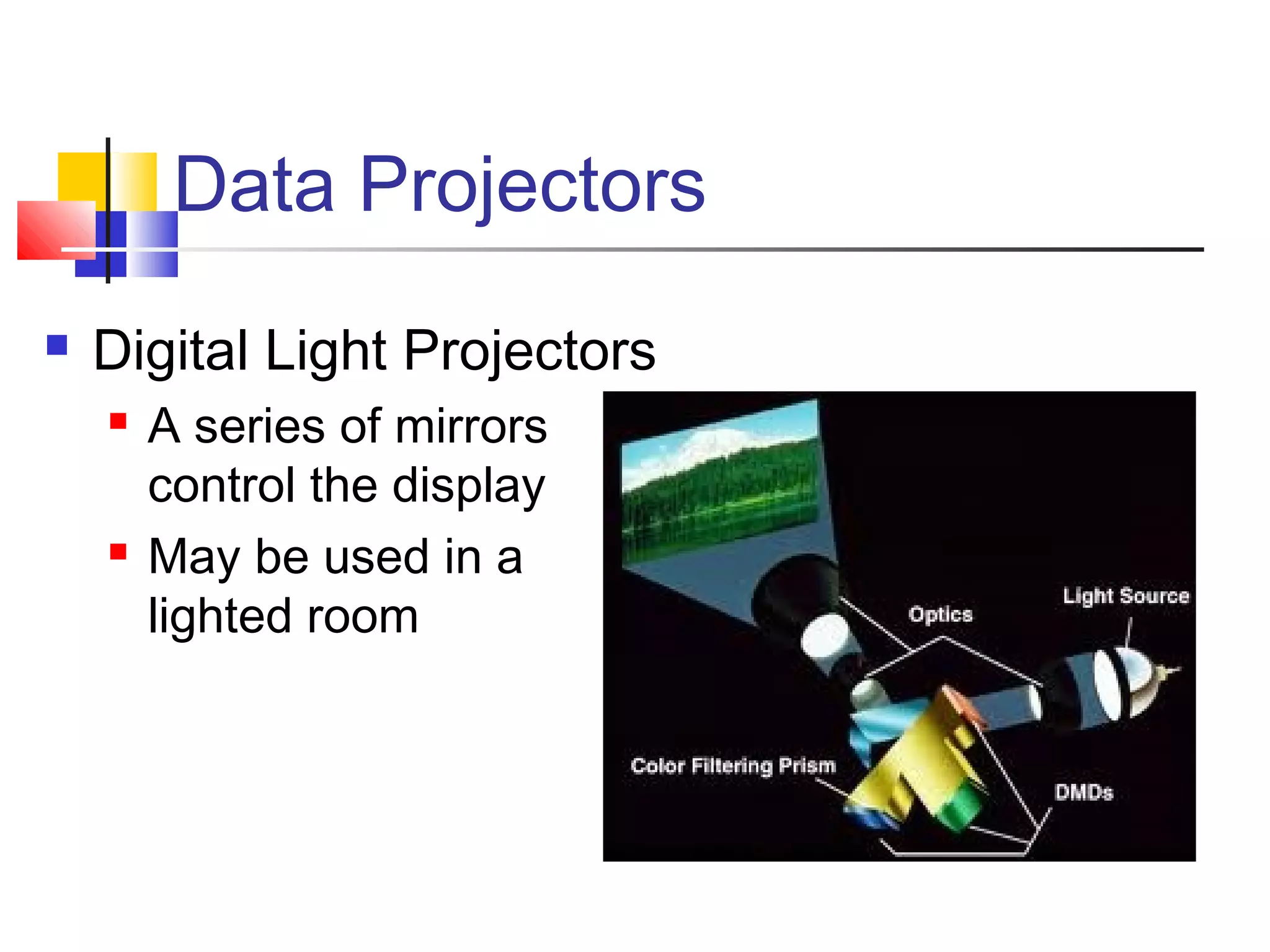
 Digital Light Projectors
 A series of mirrors
control the display
 May be used in a
lighted room
Video Cards
 Device between the CPU and monitor
 Better cards result in better output
 Removes burden of drawing from CPU
 Have their own processor and RAM
 Modern cards have up to 512 MB RAM
or more
 Capable of rendering 3D images
Sound Systems
 Sound card
 Device between the CPU and speakers
 Converts digital sounds to analog
 Can be connected to several devices
 Modern cards support Dolby Surround
Sound, DTS and other standards.
Output Device
Printing
Commonly Used Printers
 Impact printers
 Generate output by striking the paper
 Uses an inked ribbon
 Non-impact printers
 Use methods other than force
 Tend to be quiet and fast
Commonly Used Printers
 Dot matrix printers
 Impact printer
 Used to print to multi-sheet pages
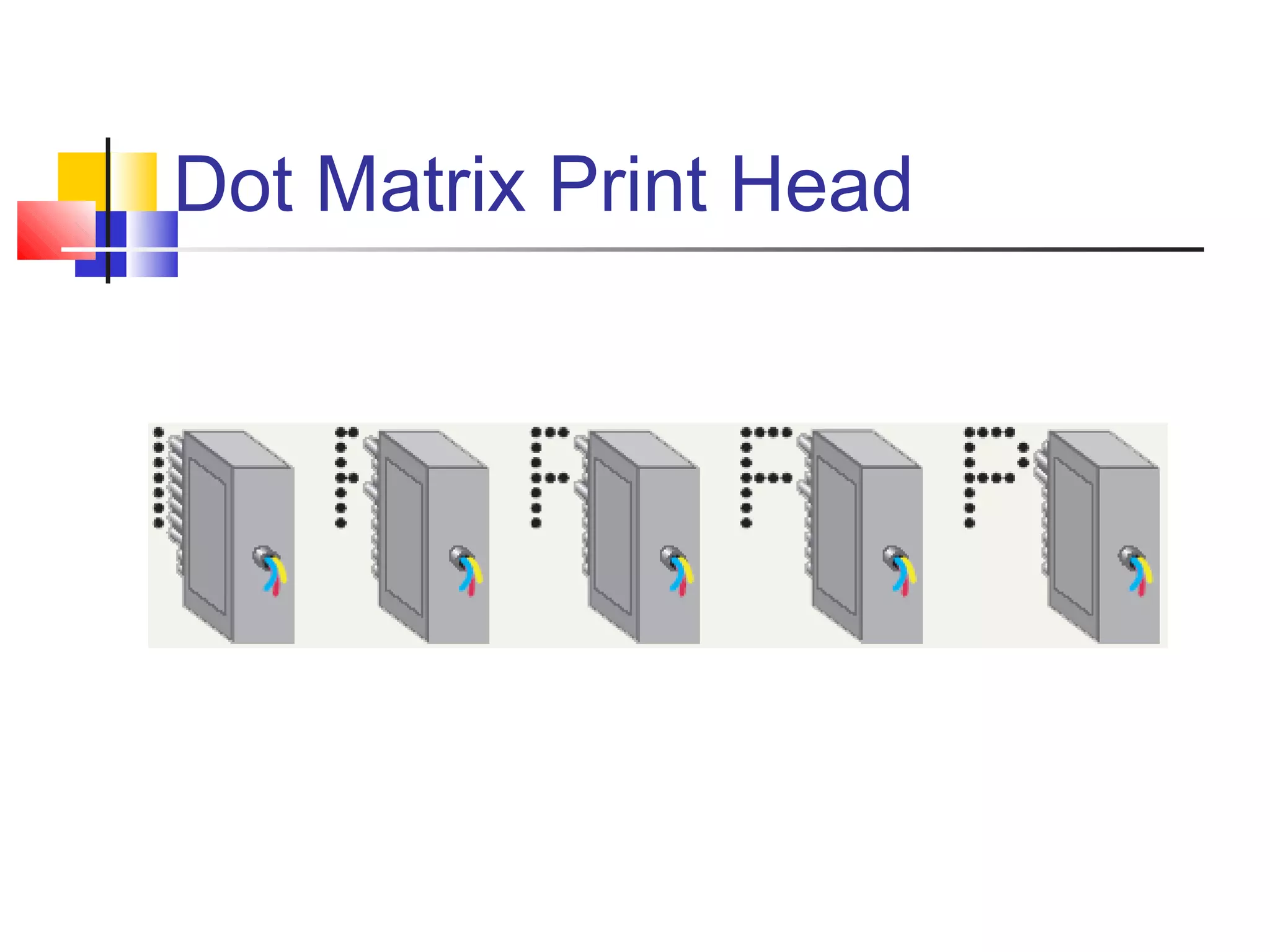
 Print head strikes inked ribbon
 Line printers
 Band printers
 Speed measured in characters per second
Dot Matrix Print Head
Commonly Used Printers
 Ink-jet printers
 Non-impact printer
 Inexpensive home printer
 Color output common using CMYK

Cyan, magenta, yellow, black
 Sprays ink onto paper
 Speed measured in pages per minute
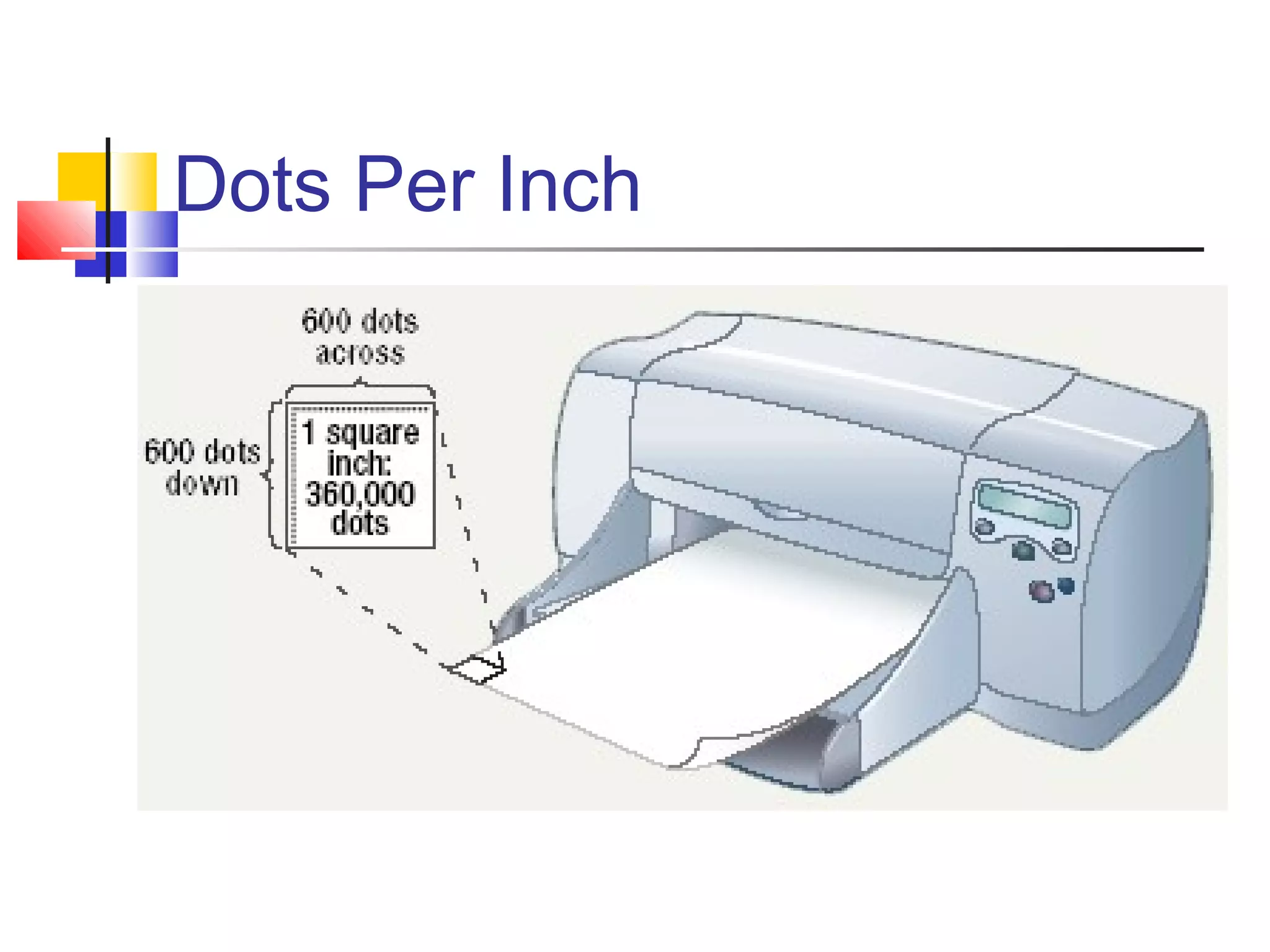
 Quality expressed as dots per inch
Dots Per Inch
Commonly Used Printers
 Laser printer
 Non-impact printer
 Produces high quality documents
 Color or black and white
 Print process

Laser draws text on page

Toner sticks to text

Toner melted to page
 Speed measured in pages per minute
 Quality expressed as dots per inch
Commonly Used Printers
 All-in-one
 Scanner, copier, printer and fax
 Popular in home offices
 Prices are very reasonable
High-Quality Printers
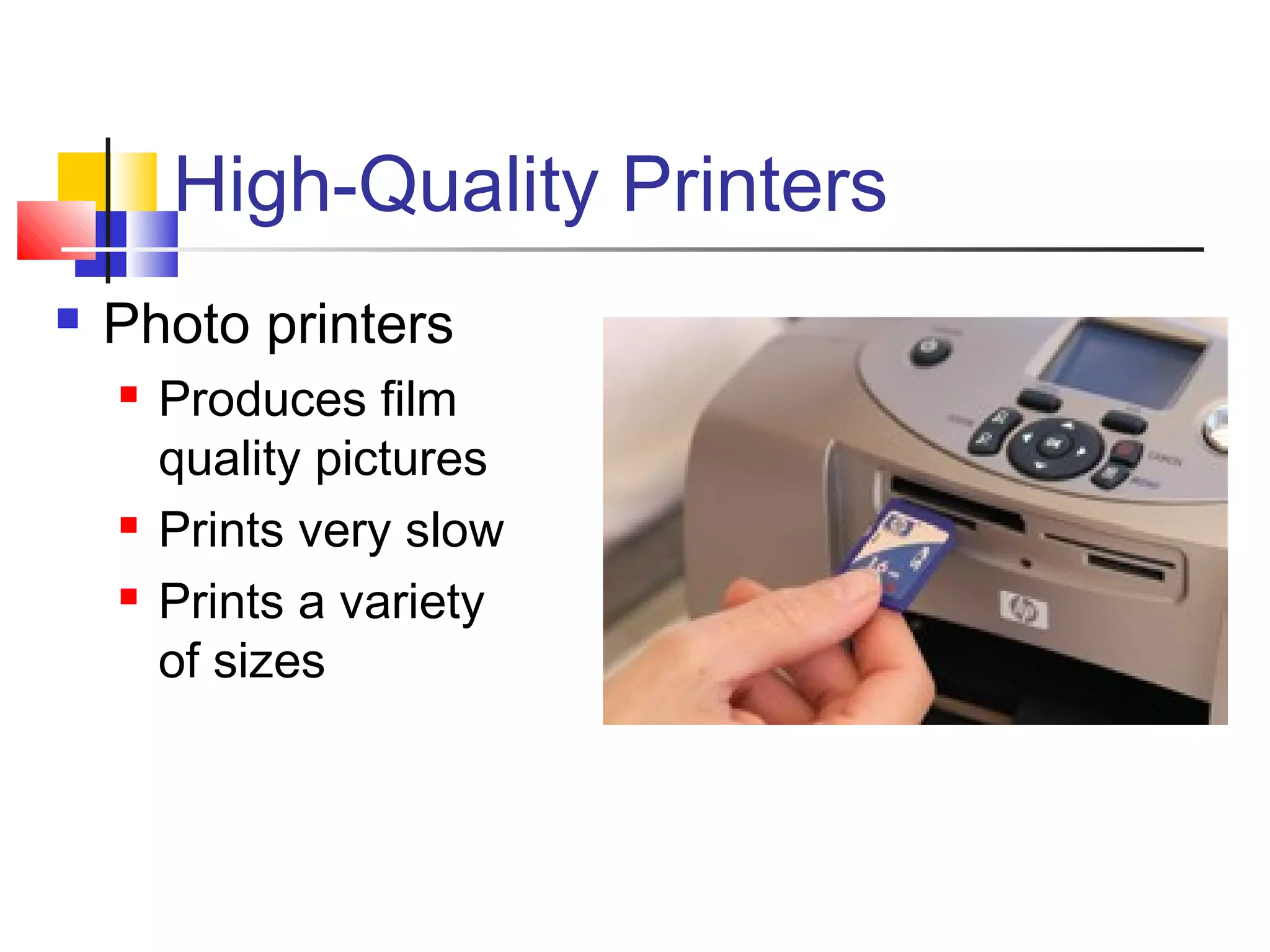
 Photo printers
 Produces film
quality pictures
 Prints very slow
 Prints a variety
of sizes
High-Quality Printers
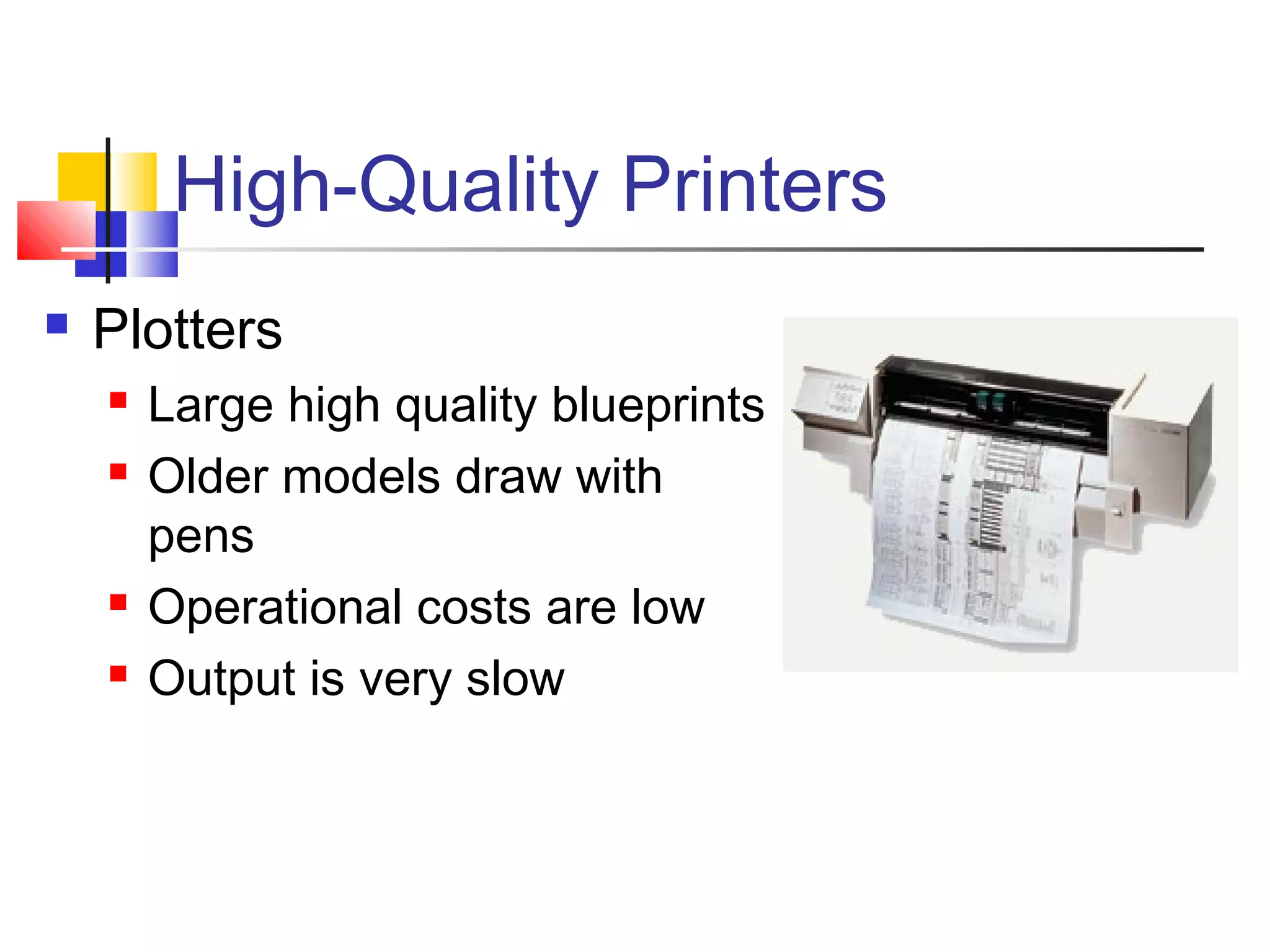
 Plotters
 Large high quality blueprints
 Older models draw with
pens
 Operational costs are low
 Output is very slow

computer components and devices

  • 1.
  • 2.
    The Keyboard  Themost common input device  Must be proficient with keyboard  Skill is called keyboarding
  • 3.
    The Keyboard  Howkeyboard works  Keyboard controller detects a key press  Controller sends a code to the CPU  Code represents the key pressed  Controller notifies the operating system  Operating system responds  Controller repeats the letter if held
  • 4.
    The Mouse  Allmodern computers have a variant  Allows users to select objects  Pointer moved by the mouse  Mechanical mouse  Rubber ball determines direction and speed  The ball often requires cleaning
  • 5.
    The Mouse  Opticalmouse  Light shown onto mouse pad  Reflection determines speed and direction  Requires little maintenance
  • 6.
    The Mouse  Interactingwith a mouse  Actions involve pointing to an object  Clicking selects the object  Clicking and holding drags the object  Releasing an object is a drop  Right clicking activates the shortcut menu  Modern mice include a scroll wheel
  • 7.
    The Mouse  Benefits Pointer positioning is fast  Menu interaction is easy  Users can draw electronically
  • 8.
    The Mouse  Mousebutton configuration  Configured for a right-handed user  Can be reconfigured  Between 1 and 6 buttons  Extra buttons are configurable
  • 9.
    Variants of theMouse  Trackballs  Upside down mouse  Hand rests on the ball  User moves the ball  Uses little desk space
  • 10.
    Variants of theMouse  Track pads  Stationary pointing device  Small plastic rectangle  Finger moves across the pad  Pointer moves with the finger  Popular on laptops
  • 11.
    Variants of theMouse  Track point  Little joystick on the keyboard  Move pointer by moving the joystick
  • 12.
  • 13.
    Devices for theHand  Pen based input  Tablet PCs, PDA  Pen used to write data  Pen used as a pointer  Handwriting recognition  On screen keyboard  Known as Stylus
  • 14.
    Devices for thehand  Touch screens  Sensors determine where finger points  Sensors create an X,Y coordinate  Usually presents a menu to users
  • 15.
    Devices for thehand  Game controllers  Enhances gaming experience  Provide custom input to the game  Modern controllers offer feedback  Joystick  Game pad
  • 16.
    Optical Input Devices Allows the computer to see input  Bar code readers  Converts bar codes to numbers  Universal Product Code  Computer find number in a database  Works by reflecting light  Amount of reflected light indicates number
  • 17.
    Optical Input Devices Image scanners  Converts printed media into electronic  Reflects light off of the image  Sensors read the intensity  Filters determine color depths  Handheld and flat-bed scanners
  • 18.
    Optical input devices Optical character recognition (OCR)  Converts scanned text into editable text  Each letter is scanned  Letters are compared to known letters  Best match is entered into document  Rarely 100% accurate
  • 19.
  • 20.
    Audiovisual Input Devices Microphones  Used to record speech  Speech recognition  “Understands” human speech  Allows dictation or control of computer  Enters best match into document
  • 21.
    Audiovisual Input Devices Musical Instrument Digital Interface  MIDI  Connects musical instruments to computer  Digital recording or playback of music  Musicians can produce professional results
  • 22.
    Audiovisual Input Devices Digital cameras  Captures images electronically  No film is needed  Image is stored as a JPG file  Memory cards store the images  Used in a variety of professions
  • 23.
  • 24.
    24 Monitors  Most commonoutput device  Connects to the video card  Categorized by color output  Monochrome  One color with black background  Grayscale  Varying degrees of gray  Color  Display 4 to 16 million colors
  • 25.
    Monitors  Cathode RayTube (CRT)  Most common type of monitor  Electrons fired from the back  Electrons excite phosphor to glow  Phosphor is arranged in dots called pixels  Dot mask ensures proper pixel is lit
  • 26.
    Monitors  CRT color Phosphor dots arranged in triads  Red, green, and blue dots  Three colors blend to make colors  Varying the intensity creates new colors
  • 27.
    Monitors  CRT drawbacks Very large  Very heavy  Use a lot of electricity
  • 28.
    Monitors  Liquid CrystalDisplay (LCD)  Commonly found on laptops  Desktop versions exist  Solve the problems of CRT  Fluorescent lights provide illumination
  • 29.
    Monitors  Drawbacks toLCD  More expensive than CRT  In Older Versions User Must sit directly in front of screen  Can be more weak than CRT  Recent Models are designed in such a way that user can see from 160 degree.
  • 30.
    Monitors  Paper-white displays High contrast between fore and background  Electro-luminescent displays (ELD)  Similar to LCD  Uses phosphor to produce light  Plasma monitor  Gas is excited to produce light
  • 31.
    Monitors and VideoCards  Size of monitor  Measured in inches  Measured diagonally  Actual size  Distance from corner to corner  Viewable size  Useable portion of the screen
  • 32.
    Monitors and VideoCards  Resolution  Number of pixels on the screen  Higher number creates sharper images  Higher number creates smaller images
  • 33.
    Monitors and VideoCards  Refresh rate  Number of time the screen is redrawn  Modern equipment sets this automatically  Improper settings can cause eyestrain
  • 34.
    Monitors and VideoCards  Dot pitch  Distance between the same color dots  Ranges between .15 mm and .40 mm  Smaller creates a finer picture  Should be less than .22
  • 35.
    Data Projectors  Replacedoverhead and slide projectors  Project image onto wall or screen  LCD projectors  Most common type of projector  Small LCD screen  Very bright light  Require a darkened room
  • 36.
    Data Projectors  DigitalLight Projectors  A series of mirrors control the display  May be used in a lighted room
  • 37.
    Video Cards  Devicebetween the CPU and monitor  Better cards result in better output  Removes burden of drawing from CPU  Have their own processor and RAM  Modern cards have up to 512 MB RAM or more  Capable of rendering 3D images
  • 38.
    Sound Systems  Soundcard  Device between the CPU and speakers  Converts digital sounds to analog  Can be connected to several devices  Modern cards support Dolby Surround Sound, DTS and other standards.
  • 39.
  • 40.
    Commonly Used Printers Impact printers  Generate output by striking the paper  Uses an inked ribbon  Non-impact printers  Use methods other than force  Tend to be quiet and fast
  • 41.
    Commonly Used Printers Dot matrix printers  Impact printer  Used to print to multi-sheet pages  Print head strikes inked ribbon  Line printers  Band printers  Speed measured in characters per second
  • 42.
  • 43.
    Commonly Used Printers Ink-jet printers  Non-impact printer  Inexpensive home printer  Color output common using CMYK  Cyan, magenta, yellow, black  Sprays ink onto paper  Speed measured in pages per minute  Quality expressed as dots per inch
  • 44.
  • 45.
    Commonly Used Printers Laser printer  Non-impact printer  Produces high quality documents  Color or black and white  Print process  Laser draws text on page  Toner sticks to text  Toner melted to page  Speed measured in pages per minute  Quality expressed as dots per inch
  • 46.
    Commonly Used Printers All-in-one  Scanner, copier, printer and fax  Popular in home offices  Prices are very reasonable
  • 47.
    High-Quality Printers  Photoprinters  Produces film quality pictures  Prints very slow  Prints a variety of sizes
  • 48.
    High-Quality Printers  Plotters Large high quality blueprints  Older models draw with pens  Operational costs are low  Output is very slow

Editor's Notes