Computer
           Systems
Jack Bishop
Backup Devices
Click to Find out more
Internal Computer Components
         CPU & Heat Sink
            Motherboard
     Power Supply & Cabling
          Cooling Options
           Graphics Card
               RAM
    Wireless Network Card (NIC)

                                  Home
The CPU (Central Processing Unit) controls
all of the commands of the computer and all
of its actions. The time it takes for these
actions to take place all depends on the
speed of the processor which is measured in
Ghz, with the higher the number indicating
a faster processor. Most processors have
more than one core within them which
allows them to process data a lot quicker,
with gaming computers using quad core or
more to get that enhanced performance.
The heat sink is located on top of the
processor and the main job of that is to
extract the heat that the processor makes
away from it, preventing it from overeating
and slowing down.

    CPU & Heat Sink
                                              Home
The motherboard is the skeleton of the
computer as it links all of the components
together, allowing them to communicate
with each other making an effective
system. The power for the motherboard is
provided by a 24-pin atx connector from
the psu (power supply unit) which powers
all of the connections on the motherboard,
including the processor, RAM, any
graphics cards unless they have separate
power from the psu and other components.
The motherboard can come in different
forms, depending on the computer or
proprietary devices it is going into. The
most common forms are ATX, Micro-ATX         Click the picture to show a basic
and E-ATX.                                   motherboard diagram and layout


    Motherboard
                                                                           Home
A. PCI Slot
B. PCI-E 16x Slot
C. PCI-E 1x Slot
D. Northbridge
E. ATX 12V 2X
F. CPU-Fan
G. Socket
H. Memory Slots
I. ATX Power Connector
J. IDE Connection
K. Southbridge
L. SATA Connections
M. Front Panel Connections
N. FDD Connection
O. External USB Connections
P. CMOS battery
The PSU (Power Supply Unit) powers the
whole pc. The power is uses is measured
in Watts and the higher this value, the
higher the wattage the psu has. The power
supply comes with many different types
of connectors such as SATA, Berg and
Molex connectors that are used to power
the different components within the pc.
Typically, the higher the power, the more
connectors the power comes with as
standard as it is able to power more
things. But gamers use power supplies
within the range of 700-1200 watts as this
will enable them to use higher end
components which need that extra power
to run effectively.


    Power Supply & Cabling
                                             Home
Cooling options
Click on each picture to find out more   Home
Air cooling is the most common way of
cooling a computer down as it is fairly simple
and it only uses fans to either bring colder air
into the case or to extract the warm air out of
the case. The fans are measured in mm
(millimetres) with the common sizes being
40mm, 80mm, 120mm or sometimes 200mm.
The speed of these are measured in RPM
(revolutions per Minute) and the higher this
number is, the faster the fan is spinning
therefore more air is being moved. This comes
at the consequence or a higher power output
being needed. With a number of fans being
placed into a case, can be a good cooling
system as it will create a simultaneous airflow
which is constantly moving air, keeping the
components cool.


    Air Cooling
                                                   Back
Water cooling is the new upcoming way
                of cooling down you pc. It is mainly used
                in high-end gaming pc’s because it keeps
                the processor and other components at a
                much lower temperature compared to fan
                cooling, therefore this allows gamers to
                overclock there processors, running them
                at higher speeds which require that extra
                cooling. The cooling liquid is ran through
                pipes and is powered by a pump which
                forces the liquid through the pipes.
                Sometimes fans and water cooling are
                combined as radiators can be used, so that
                the cold water passes through them which
                enables the fans to pull in cold air through
                them, providing even more cooling.


Water Cooling
                                                   Back
The graphics card work inline with the CPU to
develop the images that appear on your monitor
via the VGA cable. Some graphics cards are
integrated into the motherboard whereas some
can be installed separately if you want to upgrade
it. The higher the graphics card memory, the
more it is then able to process and the better the
images will be that are produced. The CPU sends
the information in binary or in the appropriate
format about the programs the computer is using
and then the graphics card will process this and
turn that information into an image which then
appears on your monitor. This action is
performed around 60 times a second (60Hz)
which is known as a refresh rate.


     Graphics Card
                                                     Home
When we use more than one program at once, we
end up minimizing one of the windows until we
are ready to use it, ever thought what happens to
that program? Well it is stored in the RAM
(Random Access Memory). And the main
function of RAM is to store the minimized
programs so that it reduces the load on the
processor, and when you maximize that
program, it is then transferred back onto the
processor which then deals with any further
requests. The RAM can come in many different
form factors as laptops, netbooks and desktop pc
all require different types of RAM because of
their motherboards. The most well known type is
DDR RAM. The storage of RAM is measured in
Mb and Gb, and the higher the value, the higher
the performance.


      RAM
                                                    Home
A network card is what is used to provide your
computer with wireless internet connectivity.
There are different forms of network card to
suit different purposes. If you have a desktop
pc then the most common NIC to use will
plug into the motherboard and it will be
wireless with an antenna. Another option
which is more portable is a USB Dongle
which provides network connectivity if you
are on the move around town or abroad etc.
Wireless NICs use IEEE 802.11 as it is the
standard for wireless networking, with
different letters after this standard
representing the different speeds. Click below
to view the these standards.
           IEEE 802.11 Table


    Network Card
                                                 Home
Standard    802.11a   802.11b        802.11g      802.11n


Speed       54Mbps    11Mbps         54Mbps       100Mbps


Range       150ft     300ft          300ft        300ft


Frequency   5GHz      2.4GHz         2.4GHz       2.4-5GHz

            SSID, MAC Filtering, WEP, WPA (TKIP), WPA2
Security
            (AES)


                                                          Back
Computer Peripherals
    Basic Information
   Printers and Scanners
    Keyboard and Mice
    Gaming Peripherals
         Speakers


                           Home
Computer Peripherals are
extra devices that can be
connected to any computer
system. There are many
different types of
peripherals that range from
the simplest mouse to a
gaming keyboard or
printers and scanners.


Basic Information
                              Back
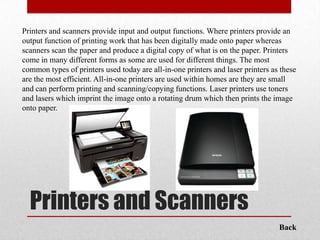
Printers and scanners provide input and output functions. Where printers provide an
output function of printing work that has been digitally made onto paper whereas
scanners scan the paper and produce a digital copy of what is on the paper. Printers
come in many different forms as some are used for different things. The most
common types of printers used today are all-in-one printers and laser printers as these
are the most efficient. All-in-one printers are used within homes are they are small
and can perform printing and scanning/copying functions. Laser printers use toners
and lasers which imprint the image onto a rotating drum which then prints the image
onto paper.


  Printers and Scanners
                                                                                 Back
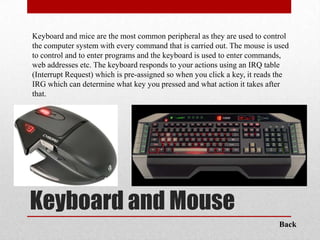
Keyboard and mice are the most common peripheral as they are used to control
the computer system with every command that is carried out. The mouse is used
to control and to enter programs and the keyboard is used to enter commands,
web addresses etc. The keyboard responds to your actions using an IRQ table
(Interrupt Request) which is pre-assigned so when you click a key, it reads the
IRG which can determine what key you pressed and what action it takes after
that.


Keyboard and Mouse
                                                                            Back
Gaming peripherals are used in combination with the game type you are playing.
There are many different game types and there are also specific peripherals for
them. For example, flight games use joysticks and flying instruments whereas first
person shooters or fighting games are able to use controllers that plug into the USB
ports. Other gaming devices can include a specially deigned keyboard or mouse
which is designed to improve the experience in specific ways.


Gaming peripherals
                                                                              Back
Speakers are used to produce sound
whilst using your system. This
could be because you are listening
to music, watching films or playing
a game and using sound for a better
experience. The speakers use an
AUX cable which plugs into the
audio out port in the motherboard.
Most sound systems in todays
market use one main subwoofer to
provide the bass sound and then
using other speakers which can be
placed around the area to provide a
‘surround sound’ effect, to improve
the experience and quality of the
sound


   Speakers
                                      Back
Backup Devices
Hard Drive Partition

External Hard Drive

     Data Disk

    Flash Drive

                       Home
A hard drive partition is where you can split the hard drive
into different sections and store different things on each
section. Partitions can be created at the first setup of the
hard drive (Formatting) or can be completed in the BIOS.
The Primary partition is the partition that is in use all of
the time and normally has the operating system stored
onto it. Any other partitions that are created are called
logical or extended partitions. These can be used for a
number of things. The main reason are to use it as a
backup partition, storing all your files in a safe place just
incase of the other partition becoming corrupted. Another       Click to Enlarge
popular choice is to use it for another operating system,
For e.g. if you have a mac pc, some programs that you
may want to use are only compatible with Windows,
therefore windows may have to be installed to use the
program on that pc.


Hard Drive Partition
                                                                           Back
Back
An external hard drive is basically a hard drive, but within casing and with a
usb or SATA connector and can be used in a similar way to a flash
drive, however an external hard drives contain a lot more storage space. The
most common size is 500gb as this is able to store a lot more files compared to
a flash drive. The disadvantage is that they are a little bit bigger therefore not as
portable and there also more expensive than the flash drive.


External Hard Drive
                                                                                   Back
Data disks can be used to store data whether it’s a game,
music or general computer files. The storage is measured in
MB and GB (Megabytes and Gigabytes) and the default sizes
are:
• 512mb
• 1Gb
• 4GB
• 8GB
• 25GB (Blue-ray)


Data Disks
                                                              Back
A flash drive is a small storage device
that is very portable and can be placed
into pockets to use on many machines
to transport work, files etc. For. E.g. a
student would complete a piece of
work at school, store it onto the flash
drive and take it hoke to then use on
the computer at home. These can also
come in various sizes ranging from
512mb to 64gb.


Flash Drive
                                            Back

Computer systems

  • 1.
    Computer Systems Jack Bishop
  • 2.
  • 3.
    Internal Computer Components CPU & Heat Sink Motherboard Power Supply & Cabling Cooling Options Graphics Card RAM Wireless Network Card (NIC) Home
  • 4.
    The CPU (CentralProcessing Unit) controls all of the commands of the computer and all of its actions. The time it takes for these actions to take place all depends on the speed of the processor which is measured in Ghz, with the higher the number indicating a faster processor. Most processors have more than one core within them which allows them to process data a lot quicker, with gaming computers using quad core or more to get that enhanced performance. The heat sink is located on top of the processor and the main job of that is to extract the heat that the processor makes away from it, preventing it from overeating and slowing down. CPU & Heat Sink Home
  • 5.
    The motherboard isthe skeleton of the computer as it links all of the components together, allowing them to communicate with each other making an effective system. The power for the motherboard is provided by a 24-pin atx connector from the psu (power supply unit) which powers all of the connections on the motherboard, including the processor, RAM, any graphics cards unless they have separate power from the psu and other components. The motherboard can come in different forms, depending on the computer or proprietary devices it is going into. The most common forms are ATX, Micro-ATX Click the picture to show a basic and E-ATX. motherboard diagram and layout Motherboard Home
  • 6.
    A. PCI Slot B.PCI-E 16x Slot C. PCI-E 1x Slot D. Northbridge E. ATX 12V 2X F. CPU-Fan G. Socket H. Memory Slots I. ATX Power Connector J. IDE Connection K. Southbridge L. SATA Connections M. Front Panel Connections N. FDD Connection O. External USB Connections P. CMOS battery
  • 7.
    The PSU (PowerSupply Unit) powers the whole pc. The power is uses is measured in Watts and the higher this value, the higher the wattage the psu has. The power supply comes with many different types of connectors such as SATA, Berg and Molex connectors that are used to power the different components within the pc. Typically, the higher the power, the more connectors the power comes with as standard as it is able to power more things. But gamers use power supplies within the range of 700-1200 watts as this will enable them to use higher end components which need that extra power to run effectively. Power Supply & Cabling Home
  • 8.
    Cooling options Click oneach picture to find out more Home
  • 9.
    Air cooling isthe most common way of cooling a computer down as it is fairly simple and it only uses fans to either bring colder air into the case or to extract the warm air out of the case. The fans are measured in mm (millimetres) with the common sizes being 40mm, 80mm, 120mm or sometimes 200mm. The speed of these are measured in RPM (revolutions per Minute) and the higher this number is, the faster the fan is spinning therefore more air is being moved. This comes at the consequence or a higher power output being needed. With a number of fans being placed into a case, can be a good cooling system as it will create a simultaneous airflow which is constantly moving air, keeping the components cool. Air Cooling Back
  • 10.
    Water cooling isthe new upcoming way of cooling down you pc. It is mainly used in high-end gaming pc’s because it keeps the processor and other components at a much lower temperature compared to fan cooling, therefore this allows gamers to overclock there processors, running them at higher speeds which require that extra cooling. The cooling liquid is ran through pipes and is powered by a pump which forces the liquid through the pipes. Sometimes fans and water cooling are combined as radiators can be used, so that the cold water passes through them which enables the fans to pull in cold air through them, providing even more cooling. Water Cooling Back
  • 11.
    The graphics cardwork inline with the CPU to develop the images that appear on your monitor via the VGA cable. Some graphics cards are integrated into the motherboard whereas some can be installed separately if you want to upgrade it. The higher the graphics card memory, the more it is then able to process and the better the images will be that are produced. The CPU sends the information in binary or in the appropriate format about the programs the computer is using and then the graphics card will process this and turn that information into an image which then appears on your monitor. This action is performed around 60 times a second (60Hz) which is known as a refresh rate. Graphics Card Home
  • 12.
    When we usemore than one program at once, we end up minimizing one of the windows until we are ready to use it, ever thought what happens to that program? Well it is stored in the RAM (Random Access Memory). And the main function of RAM is to store the minimized programs so that it reduces the load on the processor, and when you maximize that program, it is then transferred back onto the processor which then deals with any further requests. The RAM can come in many different form factors as laptops, netbooks and desktop pc all require different types of RAM because of their motherboards. The most well known type is DDR RAM. The storage of RAM is measured in Mb and Gb, and the higher the value, the higher the performance. RAM Home
  • 13.
    A network cardis what is used to provide your computer with wireless internet connectivity. There are different forms of network card to suit different purposes. If you have a desktop pc then the most common NIC to use will plug into the motherboard and it will be wireless with an antenna. Another option which is more portable is a USB Dongle which provides network connectivity if you are on the move around town or abroad etc. Wireless NICs use IEEE 802.11 as it is the standard for wireless networking, with different letters after this standard representing the different speeds. Click below to view the these standards. IEEE 802.11 Table Network Card Home
  • 14.
    Standard 802.11a 802.11b 802.11g 802.11n Speed 54Mbps 11Mbps 54Mbps 100Mbps Range 150ft 300ft 300ft 300ft Frequency 5GHz 2.4GHz 2.4GHz 2.4-5GHz SSID, MAC Filtering, WEP, WPA (TKIP), WPA2 Security (AES) Back
  • 15.
    Computer Peripherals Basic Information Printers and Scanners Keyboard and Mice Gaming Peripherals Speakers Home
  • 16.
    Computer Peripherals are extradevices that can be connected to any computer system. There are many different types of peripherals that range from the simplest mouse to a gaming keyboard or printers and scanners. Basic Information Back
  • 17.
    Printers and scannersprovide input and output functions. Where printers provide an output function of printing work that has been digitally made onto paper whereas scanners scan the paper and produce a digital copy of what is on the paper. Printers come in many different forms as some are used for different things. The most common types of printers used today are all-in-one printers and laser printers as these are the most efficient. All-in-one printers are used within homes are they are small and can perform printing and scanning/copying functions. Laser printers use toners and lasers which imprint the image onto a rotating drum which then prints the image onto paper. Printers and Scanners Back
  • 18.
    Keyboard and miceare the most common peripheral as they are used to control the computer system with every command that is carried out. The mouse is used to control and to enter programs and the keyboard is used to enter commands, web addresses etc. The keyboard responds to your actions using an IRQ table (Interrupt Request) which is pre-assigned so when you click a key, it reads the IRG which can determine what key you pressed and what action it takes after that. Keyboard and Mouse Back
  • 19.
    Gaming peripherals areused in combination with the game type you are playing. There are many different game types and there are also specific peripherals for them. For example, flight games use joysticks and flying instruments whereas first person shooters or fighting games are able to use controllers that plug into the USB ports. Other gaming devices can include a specially deigned keyboard or mouse which is designed to improve the experience in specific ways. Gaming peripherals Back
  • 20.
    Speakers are usedto produce sound whilst using your system. This could be because you are listening to music, watching films or playing a game and using sound for a better experience. The speakers use an AUX cable which plugs into the audio out port in the motherboard. Most sound systems in todays market use one main subwoofer to provide the bass sound and then using other speakers which can be placed around the area to provide a ‘surround sound’ effect, to improve the experience and quality of the sound Speakers Back
  • 21.
    Backup Devices Hard DrivePartition External Hard Drive Data Disk Flash Drive Home
  • 22.
    A hard drivepartition is where you can split the hard drive into different sections and store different things on each section. Partitions can be created at the first setup of the hard drive (Formatting) or can be completed in the BIOS. The Primary partition is the partition that is in use all of the time and normally has the operating system stored onto it. Any other partitions that are created are called logical or extended partitions. These can be used for a number of things. The main reason are to use it as a backup partition, storing all your files in a safe place just incase of the other partition becoming corrupted. Another Click to Enlarge popular choice is to use it for another operating system, For e.g. if you have a mac pc, some programs that you may want to use are only compatible with Windows, therefore windows may have to be installed to use the program on that pc. Hard Drive Partition Back
  • 23.
  • 24.
    An external harddrive is basically a hard drive, but within casing and with a usb or SATA connector and can be used in a similar way to a flash drive, however an external hard drives contain a lot more storage space. The most common size is 500gb as this is able to store a lot more files compared to a flash drive. The disadvantage is that they are a little bit bigger therefore not as portable and there also more expensive than the flash drive. External Hard Drive Back
  • 25.
    Data disks canbe used to store data whether it’s a game, music or general computer files. The storage is measured in MB and GB (Megabytes and Gigabytes) and the default sizes are: • 512mb • 1Gb • 4GB • 8GB • 25GB (Blue-ray) Data Disks Back
  • 26.
    A flash driveis a small storage device that is very portable and can be placed into pockets to use on many machines to transport work, files etc. For. E.g. a student would complete a piece of work at school, store it onto the flash drive and take it hoke to then use on the computer at home. These can also come in various sizes ranging from 512mb to 64gb. Flash Drive Back