Page Formatting
Margins

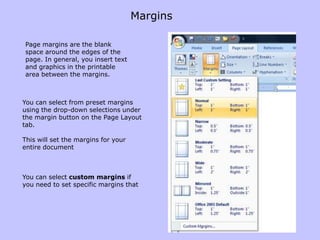
Page margins are the blank
space around the edges of the
page. In general, you insert text
and graphics in the printable
area between the margins.


You can select from preset margins
using the drop-down selections under
the margin button on the Page Layout
tab.

This will set the margins for your
entire document


You can select custom margins if
you need to set specific margins that
Page Orientation
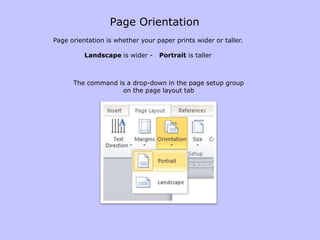
Page orientation is whether your paper prints wider or taller.

          Landscape is wider -    Portrait is taller


      The command is a drop-down in the page setup group
                   on the page layout tab
Headers and Footers
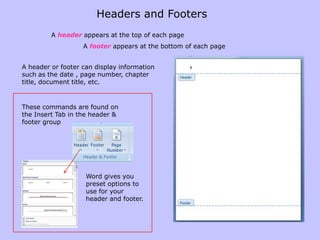
         A header appears at the top of each page
                   A footer appears at the bottom of each page


A header or footer can display information
such as the date , page number, chapter
title, document title, etc.


These commands are found on
the Insert Tab in the header &
footer group


                    Word gives you
                    preset options to
                    use for your
                    header and footer.
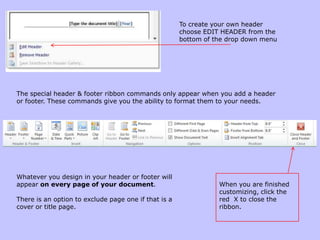
To create your own header
                                                      choose EDIT HEADER from the
                                                      bottom of the drop down menu


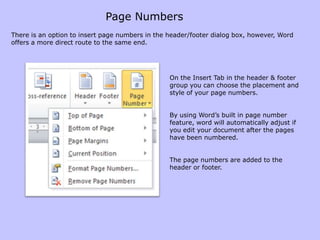
The special header & footer ribbon commands only appear when you add a header
or footer. These commands give you the ability to format them to your needs.


Whatever you design in your header or footer will
appear on every page of your document.                           When you are finished
                                                                 customizing, click the
There is an option to exclude page one if that is a              red X to close the
cover or title page.                                             ribbon.
Page Numbers
There is an option to insert page numbers in the header/footer dialog box, however, Word
offers a more direct route to the same end.


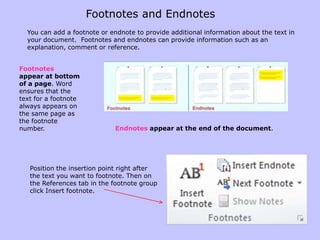
                                                 On the Insert Tab in the header & footer
                                                 group you can choose the placement and
                                                 style of your page numbers.


                                                 By using Word’s built in page number
                                                 feature, word will automatically adjust if
                                                 you edit your document after the pages
                                                 have been numbered.


                                                 The page numbers are added to the
                                                 header or footer.
Footnotes and Endnotes
  You can add a footnote or endnote to provide additional information about the text in
  your document. Footnotes and endnotes can provide information such as an
  explanation, comment or reference.


Footnotes
appear at bottom
of a page. Word
ensures that the
text for a footnote
always appears on
the same page as
the footnote
number.                      Endnotes appear at the end of the document.


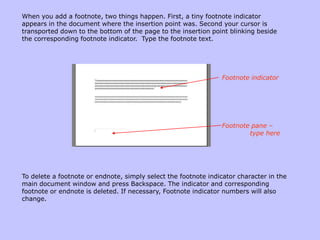
   Position the insertion point right after
   the text you want to footnote. Then on
   the References tab in the footnote group
   click Insert footnote.
When you add a footnote, two things happen. First, a tiny footnote indicator
appears in the document where the insertion point was. Second your cursor is
transported down to the bottom of the page to the insertion point blinking beside
the corresponding footnote indicator. Type the footnote text.


                                                                Footnote indicator


                                                                Footnote pane –
                                                                        type here


To delete a footnote or endnote, simply select the footnote indicator character in the
main document window and press Backspace. The indicator and corresponding
footnote or endnote is deleted. If necessary, Footnote indicator numbers will also
change.
Create Newspaper Columns
Certain kinds of information are best displayed using columns. (Think about your local
newspaper.) If you create newsletters, flyers, reports, announcements, school projects, or
other types of publications, you might want to use Word's column feature.
It's easier to enter document text into a single column and then convert it into multiple
columns. Focus on your writing first, then concentrate on design issues.


       First select the text that you
       would like to format into
       columns.

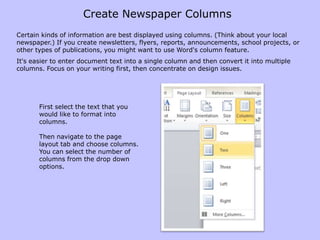
       Then navigate to the page
       layout tab and choose columns.
       You can select the number of
       columns from the drop down
       options.

06 page formatting

  • 1.
  • 2.
    Margins Page margins arethe blank space around the edges of the page. In general, you insert text and graphics in the printable area between the margins. You can select from preset margins using the drop-down selections under the margin button on the Page Layout tab. This will set the margins for your entire document You can select custom margins if you need to set specific margins that
  • 3.
    Page Orientation Page orientationis whether your paper prints wider or taller. Landscape is wider - Portrait is taller The command is a drop-down in the page setup group on the page layout tab
  • 4.
    Headers and Footers A header appears at the top of each page A footer appears at the bottom of each page A header or footer can display information such as the date , page number, chapter title, document title, etc. These commands are found on the Insert Tab in the header & footer group Word gives you preset options to use for your header and footer.
  • 5.
    To create yourown header choose EDIT HEADER from the bottom of the drop down menu The special header & footer ribbon commands only appear when you add a header or footer. These commands give you the ability to format them to your needs. Whatever you design in your header or footer will appear on every page of your document. When you are finished customizing, click the There is an option to exclude page one if that is a red X to close the cover or title page. ribbon.
  • 6.
    Page Numbers There isan option to insert page numbers in the header/footer dialog box, however, Word offers a more direct route to the same end. On the Insert Tab in the header & footer group you can choose the placement and style of your page numbers. By using Word’s built in page number feature, word will automatically adjust if you edit your document after the pages have been numbered. The page numbers are added to the header or footer.
  • 7.
    Footnotes and Endnotes You can add a footnote or endnote to provide additional information about the text in your document. Footnotes and endnotes can provide information such as an explanation, comment or reference. Footnotes appear at bottom of a page. Word ensures that the text for a footnote always appears on the same page as the footnote number. Endnotes appear at the end of the document. Position the insertion point right after the text you want to footnote. Then on the References tab in the footnote group click Insert footnote.
  • 8.
    When you adda footnote, two things happen. First, a tiny footnote indicator appears in the document where the insertion point was. Second your cursor is transported down to the bottom of the page to the insertion point blinking beside the corresponding footnote indicator. Type the footnote text. Footnote indicator Footnote pane – type here To delete a footnote or endnote, simply select the footnote indicator character in the main document window and press Backspace. The indicator and corresponding footnote or endnote is deleted. If necessary, Footnote indicator numbers will also change.
  • 9.
    Create Newspaper Columns Certainkinds of information are best displayed using columns. (Think about your local newspaper.) If you create newsletters, flyers, reports, announcements, school projects, or other types of publications, you might want to use Word's column feature. It's easier to enter document text into a single column and then convert it into multiple columns. Focus on your writing first, then concentrate on design issues. First select the text that you would like to format into columns. Then navigate to the page layout tab and choose columns. You can select the number of columns from the drop down options.