INPUTINPUT
DEVICESDEVICES
FUNDAMENTAL PARTS OFFUNDAMENTAL PARTS OF
THE COMPUTERTHE COMPUTER
INPUT DEVICESINPUT DEVICES
 IS ANY PERIPHERALIS ANY PERIPHERAL
APPLIANCEAPPLIANCE THATTHAT
GENERATES INPUTGENERATES INPUT
FOR THEFOR THE
COMPUTER ANDCOMPUTER AND
ALLOWS USERS TOALLOWS USERS TO
ENTERENTER
INFORMATION INTOINFORMATION INTO
THE COMPUTER.THE COMPUTER.
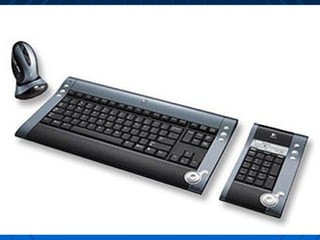
KEYBOARDKEYBOARD
 THE SET OF TYPEWRITERTHE SET OF TYPEWRITER
LIKES KEYS THATLIKES KEYS THAT
ENABLES YOU TO ENTERENABLES YOU TO ENTER
DATA INTO A COMPUTER.DATA INTO A COMPUTER.
IT IS SIMILAR TOIT IS SIMILAR TO
ELECTRIC TYPEWRITERELECTRIC TYPEWRITER
KEYBOARDS BUTKEYBOARDS BUT
CONTAIN ADDITIONALCONTAIN ADDITIONAL
KEYS.KEYS.
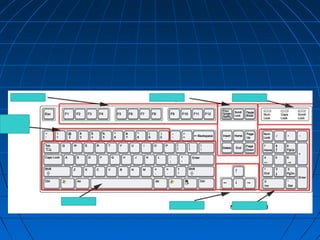
PARTS OF THE KEYBOARDPARTS OF THE KEYBOARD
 Alphanumeric keys-Alphanumeric keys-
letters and numbers.letters and numbers.
 Punctuation keys-Punctuation keys-
comma, period,comma, period,
semicolon, and so on.semicolon, and so on.
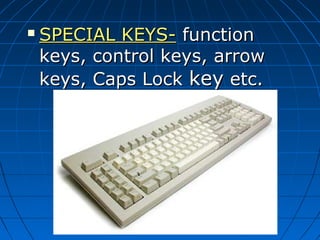
 SPECIAL KEYS-SPECIAL KEYS- functionfunction
keys, control keys, arrowkeys, control keys, arrow
keys, Caps Lockkeys, Caps Lock keykey etc.etc.
LAY-OUTLAY-OUT
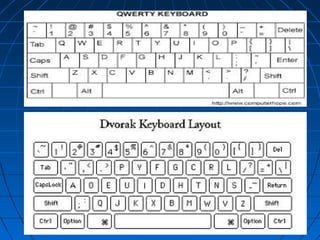
 QWERTYQWERTY-- the standardthe standard
lay-out of letters, numbers,lay-out of letters, numbers,
and punctuation of theand punctuation of the
keyboard.keyboard.
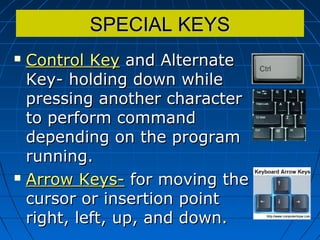
 DVORAKDVORAK- another keyboard- another keyboard
design, which has letterdesign, which has letter
positioned for speed typing.positioned for speed typing.
SPECIAL KEYSSPECIAL KEYS
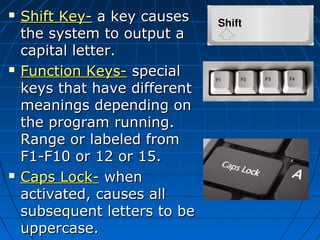
 Control KeyControl Key and Alternateand Alternate
Key- holding down whileKey- holding down while
pressing another characterpressing another character
to perform commandto perform command
depending on the programdepending on the program
running.running.
 Arrow Keys-Arrow Keys- for moving thefor moving the
cursor or insertion pointcursor or insertion point
right, left, up, and down.right, left, up, and down.
 Shift Key-Shift Key- a key causesa key causes
the system to output athe system to output a
capital letter.capital letter.
 Function Keys-Function Keys- specialspecial
keys that have differentkeys that have different
meanings depending onmeanings depending on
the program running.the program running.
Range or labeled fromRange or labeled from
F1-F10 or 12 or 15.F1-F10 or 12 or 15.
 Caps Lock-Caps Lock- whenwhen
activated, causes allactivated, causes all
subsequent letters to besubsequent letters to be
uppercase.uppercase.
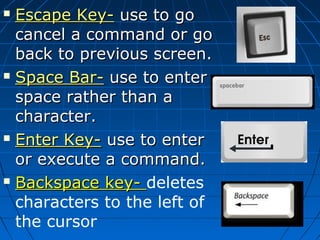
 Escape Key-Escape Key- use to gouse to go
cancel a command or gocancel a command or go
back to previous screen.back to previous screen.
 Space Bar-Space Bar- use to enteruse to enter
space rather than aspace rather than a
character.character.
 Enter Key-Enter Key- use to enteruse to enter
or execute a command.or execute a command.
 Backspace key-Backspace key- deletes
characters to the left of
the cursor
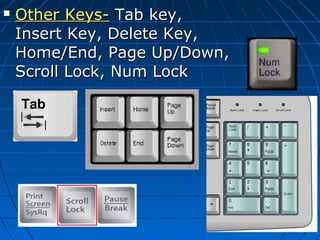
 Other Keys-Other Keys- Tab key,Tab key,
Insert Key, Delete Key,Insert Key, Delete Key,
Home/End, Page Up/Down,Home/End, Page Up/Down,
Scroll Lock, Num LockScroll Lock, Num Lock
MOUSEMOUSE
 Invented by Douglas Engelbert inInvented by Douglas Engelbert in
1963, and pioneered by Xerox in1963, and pioneered by Xerox in
1970.1970.
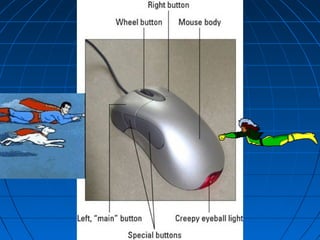
 The mouse is the device that controlsThe mouse is the device that controls
the movement of the cursor orthe movement of the cursor or
pointer on a display screen.pointer on a display screen.
 It serve as an extension of your handIt serve as an extension of your hand
into the computer screen.into the computer screen.
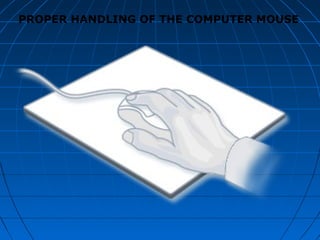
PROPER HANDLING OF THE COMPUTER MOUSE
MOUSE ACTIONMOUSE ACTION
 Pointing- moving the mouse to itsPointing- moving the mouse to its
specific place or destination.specific place or destination.
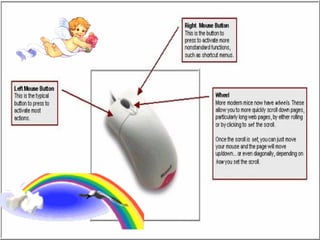
 Left clicking or clicking- pressing theLeft clicking or clicking- pressing the
left mouse button once.left mouse button once.
 Right clicking- pressing the rightRight clicking- pressing the right
mouse button once.mouse button once.
 Double clicking- pressing the leftDouble clicking- pressing the left
mouse button twice.mouse button twice.
 Dragging- holding the left mouseDragging- holding the left mouse
button while moving.button while moving.
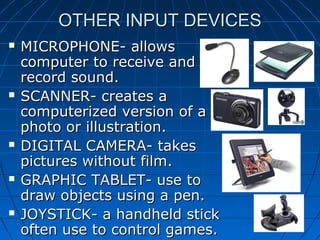
 MICROPHONE- allowsMICROPHONE- allows
computer to receive andcomputer to receive and
record sound.record sound.
 SCANNER- creates aSCANNER- creates a
computerized version of acomputerized version of a
photo or illustration.photo or illustration.
 DIGITAL CAMERA- takesDIGITAL CAMERA- takes
pictures without film.pictures without film.
 GRAPHIC TABLET- use toGRAPHIC TABLET- use to
draw objects using a pen.draw objects using a pen.
 JOYSTICK- a handheld stickJOYSTICK- a handheld stick
often use to control games.often use to control games.
OTHER INPUT DEVICESOTHER INPUT DEVICES

Input devices

  • 1.
  • 3.
    INPUT DEVICESINPUT DEVICES IS ANY PERIPHERALIS ANY PERIPHERAL APPLIANCEAPPLIANCE THATTHAT GENERATES INPUTGENERATES INPUT FOR THEFOR THE COMPUTER ANDCOMPUTER AND ALLOWS USERS TOALLOWS USERS TO ENTERENTER INFORMATION INTOINFORMATION INTO THE COMPUTER.THE COMPUTER.
  • 5.
    KEYBOARDKEYBOARD  THE SETOF TYPEWRITERTHE SET OF TYPEWRITER LIKES KEYS THATLIKES KEYS THAT ENABLES YOU TO ENTERENABLES YOU TO ENTER DATA INTO A COMPUTER.DATA INTO A COMPUTER. IT IS SIMILAR TOIT IS SIMILAR TO ELECTRIC TYPEWRITERELECTRIC TYPEWRITER KEYBOARDS BUTKEYBOARDS BUT CONTAIN ADDITIONALCONTAIN ADDITIONAL KEYS.KEYS.
  • 6.
    PARTS OF THEKEYBOARDPARTS OF THE KEYBOARD  Alphanumeric keys-Alphanumeric keys- letters and numbers.letters and numbers.  Punctuation keys-Punctuation keys- comma, period,comma, period, semicolon, and so on.semicolon, and so on.
  • 7.
     SPECIAL KEYS-SPECIALKEYS- functionfunction keys, control keys, arrowkeys, control keys, arrow keys, Caps Lockkeys, Caps Lock keykey etc.etc.
  • 9.
    LAY-OUTLAY-OUT  QWERTYQWERTY-- thestandardthe standard lay-out of letters, numbers,lay-out of letters, numbers, and punctuation of theand punctuation of the keyboard.keyboard.  DVORAKDVORAK- another keyboard- another keyboard design, which has letterdesign, which has letter positioned for speed typing.positioned for speed typing.
  • 11.
    SPECIAL KEYSSPECIAL KEYS Control KeyControl Key and Alternateand Alternate Key- holding down whileKey- holding down while pressing another characterpressing another character to perform commandto perform command depending on the programdepending on the program running.running.  Arrow Keys-Arrow Keys- for moving thefor moving the cursor or insertion pointcursor or insertion point right, left, up, and down.right, left, up, and down.
  • 12.
     Shift Key-ShiftKey- a key causesa key causes the system to output athe system to output a capital letter.capital letter.  Function Keys-Function Keys- specialspecial keys that have differentkeys that have different meanings depending onmeanings depending on the program running.the program running. Range or labeled fromRange or labeled from F1-F10 or 12 or 15.F1-F10 or 12 or 15.  Caps Lock-Caps Lock- whenwhen activated, causes allactivated, causes all subsequent letters to besubsequent letters to be uppercase.uppercase.
  • 13.
     Escape Key-EscapeKey- use to gouse to go cancel a command or gocancel a command or go back to previous screen.back to previous screen.  Space Bar-Space Bar- use to enteruse to enter space rather than aspace rather than a character.character.  Enter Key-Enter Key- use to enteruse to enter or execute a command.or execute a command.  Backspace key-Backspace key- deletes characters to the left of the cursor
  • 14.
     Other Keys-OtherKeys- Tab key,Tab key, Insert Key, Delete Key,Insert Key, Delete Key, Home/End, Page Up/Down,Home/End, Page Up/Down, Scroll Lock, Num LockScroll Lock, Num Lock
  • 15.
    MOUSEMOUSE  Invented byDouglas Engelbert inInvented by Douglas Engelbert in 1963, and pioneered by Xerox in1963, and pioneered by Xerox in 1970.1970.  The mouse is the device that controlsThe mouse is the device that controls the movement of the cursor orthe movement of the cursor or pointer on a display screen.pointer on a display screen.  It serve as an extension of your handIt serve as an extension of your hand into the computer screen.into the computer screen.
  • 18.
    PROPER HANDLING OFTHE COMPUTER MOUSE
  • 19.
    MOUSE ACTIONMOUSE ACTION Pointing- moving the mouse to itsPointing- moving the mouse to its specific place or destination.specific place or destination.  Left clicking or clicking- pressing theLeft clicking or clicking- pressing the left mouse button once.left mouse button once.  Right clicking- pressing the rightRight clicking- pressing the right mouse button once.mouse button once.  Double clicking- pressing the leftDouble clicking- pressing the left mouse button twice.mouse button twice.  Dragging- holding the left mouseDragging- holding the left mouse button while moving.button while moving.
  • 20.
     MICROPHONE- allowsMICROPHONE-allows computer to receive andcomputer to receive and record sound.record sound.  SCANNER- creates aSCANNER- creates a computerized version of acomputerized version of a photo or illustration.photo or illustration.  DIGITAL CAMERA- takesDIGITAL CAMERA- takes pictures without film.pictures without film.  GRAPHIC TABLET- use toGRAPHIC TABLET- use to draw objects using a pen.draw objects using a pen.  JOYSTICK- a handheld stickJOYSTICK- a handheld stick often use to control games.often use to control games. OTHER INPUT DEVICESOTHER INPUT DEVICES