Introduction to computer
What is a computer?
 A computer is an electronic device, operating under the
control of instructions stored in its own memory, that can
accept data, process the data according to specified
rules, produce results, and store the results for future use.
 Data and information
Computers process data(input) into information(output).
 Data is a collection of unprocessed items, which can
include text, numbers, images, audio, and video.
Continued …..
 Information conveys meaning and is useful to people (is
the data that is organized, meaningful and useful).for
example, in big shops( Maputo Mall or Shoprite)
computers process several data items to print information
in the form of a cash register receipt.
 To process data into information, a computer uses
hardware and software.
Definition of software and hardware
 Hardware is the electric, electronic and mechanical
equipment that makes up a computer.
 Software is the series of instructions that tells the
hardware how to perform tasks.
 Software, also called a program, consists of a series of
related instructions, organized for a common purpose,
that tells the computer what tasks to perform and how to
perform them.
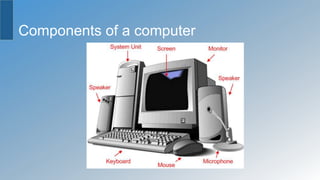
Components of a computer
 These components include :
input devices
output devices,
system unit
storage devices, and
communications devices
Components of a computer
Input devices
 An input device is any hardware component that allows
you to enter data and instructions into a computer.
 Five widely used input devices are the keyboard, mouse,
microphone, scanner, and Web cam
Input devices
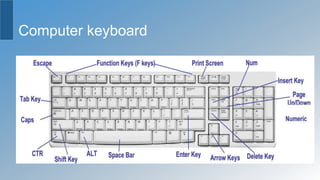
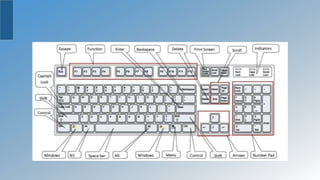
 Computer keyboard
 A computer keyboard contains keys you press to enter
data into the computer.
Computer keyboard
Keyboard vocabulary
 Shift Key. Press shift at the same time you are pressing
any other key and you will get a new character. For
instance, press shift at the same time you press a letter
and it will capitalize the letter. Press shift at the same time
you press a number and you will get a “%” or “$.”
 Tab Key. Just like a typewriter, the tab key helps you
indent your text
Keyboard vocabulary
 Function Keys. Sometimes referred to as “F keys,” they are not
as popular as they once were (with older DOS programs). But
there’s one F key you can pretty much always count on: the F1
key. It will most often bring up a help menu, no matter what
program you’re in.
 Enter Key. On your keyboard, the Enter key might be marked as
a “Return” key or with only a large arrow. It’s used to go down to a
new line when typing text. It also can be pressed any time a
button or choice is highlighted (within a software program or on
the Internet) to tell the computer you select that particular item.
Keyboard vocabulary
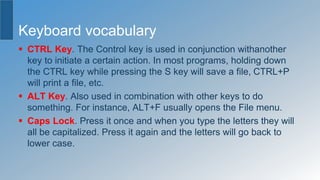
 CTRL Key. The Control key is used in conjunction withanother
key to initiate a certain action. In most programs, holding down
the CTRL key while pressing the S key will save a file, CTRL+P
will print a file, etc.
 ALT Key. Also used in combination with other keys to do
something. For instance, ALT+F usually opens the File menu.
 Caps Lock. Press it once and when you type the letters they will
all be capitalized. Press it again and the letters will go back to
lower case.
Keyboard vocabulary
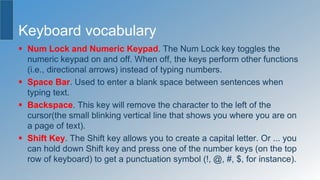
 Num Lock and Numeric Keypad. The Num Lock key toggles the
numeric keypad on and off. When off, the keys perform other functions
(i.e., directional arrows) instead of typing numbers.
 Space Bar. Used to enter a blank space between sentences when
typing text.
 Backspace. This key will remove the character to the left of the
cursor(the small blinking vertical line that shows you where you are on
a page of text).
 Shift Key. The Shift key allows you to create a capital letter. Or ... you
can hold down Shift key and press one of the number keys (on the top
row of keyboard) to get a punctuation symbol (!, @, #, $, for instance).
Keyboard vocabulary
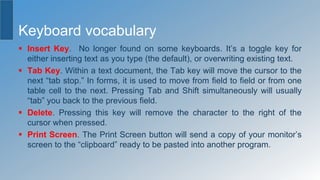
 Insert Key. No longer found on some keyboards. It’s a toggle key for
either inserting text as you type (the default), or overwriting existing text.
 Tab Key. Within a text document, the Tab key will move the cursor to the
next “tab stop.” In forms, it is used to move from field to field or from one
table cell to the next. Pressing Tab and Shift simultaneously will usually
“tab” you back to the previous field.
 Delete. Pressing this key will remove the character to the right of the
cursor when pressed.
 Print Screen. The Print Screen button will send a copy of your monitor’s
screen to the “clipboard” ready to be pasted into another program.
Input devices
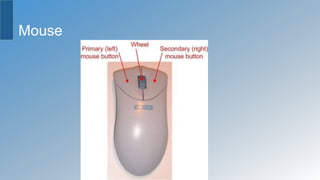
 A mouse is a small handheld device. With the mouse,
you control movement of a small symbol on the screen,
called the pointer, and you make selections from the
screen.
Mouse
Mouse vocabulary
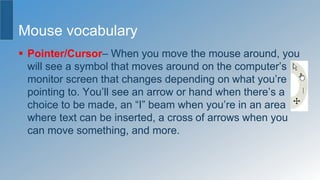
 Pointer/Cursor– When you move the mouse around, you
will see a symbol that moves around on the computer’s
monitor screen that changes depending on what you’re
pointing to. You’ll see an arrow or hand when there’s a
choice to be made, an “I” beam when you’re in an area
where text can be inserted, a cross of arrows when you
can move something, and more.
Mouse vocabulary
 Left-Click– (Select/Highlight) This is the standard click when
you’re choosing or selecting something. It’s done with your
pointer-finger on the left button (think about how it’s like you’re
pointing at something you want!).
 Double-Click– (Open/Start) By pointing to something and then
double-clicking (double-clicks are ALWAYS with the left mouse
button), you are telling the thing you’re clicking on to open or to
start. In text areas, however, double-clicking can select a whole
word. (Try triple-clicking in text to select a whole paragraph!)
Mouse vocabulary
 Right-Click– (Menu) If you remember only one thing,
remember that a right-click ALWAYS means MENU. By
right-clicking on an item or in a certain area, you’ll get
context menus, special menus specifically about whatever
you’re pointing to, letting you know what your options are.
It’s the secret weapon of expert computer users!
Mouse vocabulary
 Drag– You can also use the mouse to drag items (like pictures,
files, etc.) from one place to another or to resize windows or
boxes. Practice pointing to a shortcut icon (little picture) on the
computer desktop screen, holding down the left mouse button,
and then moving the mouse to drag the icon to another place—
then let go! Also, if you move your mouse arrow over an object
and see a cross with arrows pointing each direction, you’ve found
the “move” symbol, meaning you can move the object by holding
down the left button when you see the symbol and then dragging.
You’ll often see the “move” symbol in programs with pictures and
graphics.
Mouse vocabulary
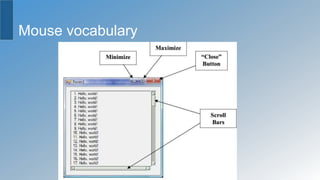
 Scroll Bars– In open windows you’ll sometimes see scroll bars
along the right side or along the bottom of the window. They’re
usually grey-colored bars with elevator-type boxes in them that
can be dragged up and down or sideways (at the bottom) to help
you see more of a screen or document. If you don’t see a
scrollbar, you know there is nothing more to see!
 Close Button– This “X” on a field of red is found in the upper
right-hand corner of your screen. One-click on the “X” closes out
what ever happens to be open on your screen.
Mouse vocabulary
 Minimize– This button on the upper right-hand corner of
your screen will shrink your work into a button so you can
work on something else. Click that button once to restore
your previous work to the full screen.
 Maximize– This button on the upper right-hand corner of
your screen will increase the size of the document that
you’re working on to fill the entire screen.
Mouse vocabulary
Input devices
 A microphone allows you to speak into the computer.
 A Web cam is a digital video camera that allows you to
create movies or take pictures and store them on the
computer instead of on tape or film.
Input device
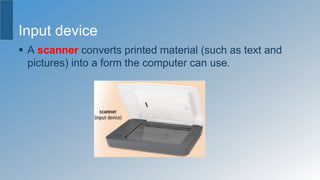
 A scanner converts printed material (such as text and
pictures) into a form the computer can use.
Output devices
 An output device is any hardware component that
conveys information to one or more people.
 Three commonly used output devices are
a printer,
a monitor, and
speakers
Output devices
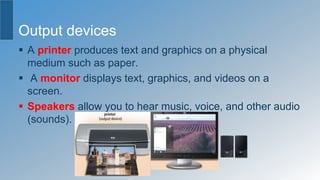
 A printer produces text and graphics on a physical
medium such as paper.
 A monitor displays text, graphics, and videos on a
screen.
 Speakers allow you to hear music, voice, and other audio
(sounds).
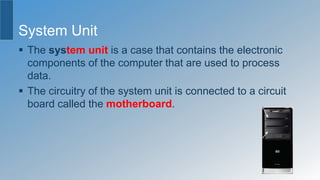
System Unit
 The system unit is a case that contains the electronic
components of the computer that are used to process
data.
 The circuitry of the system unit is connected to a circuit
board called the motherboard.
System Unit
 Two main components on the motherboard are the
processor and memory.
 The processor, also called a CPU (central processing
unit), is the electronic component that interprets and
carries out the basic instructions that operate the
computer.
 Memory consists of electronic components that store
instructions waiting to be executed and data needed by
those instructions.
PROCESSOR
 Processors contain a control unit and an arithmetic
logic unit (ALU). These two components work together to
perform processing operations.
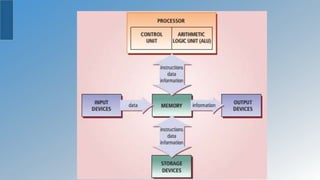
 The next slide illustrates how other devices connected to
the computer communicate with the processor to carry out
a task.
The processor
 Most devices connected to the computer communicate with
the processor to carry out a task. When a user starts a
program, for example, its instructions transfer from a storage
device to memory. Data needed by programs enters memory
from either an input device or a storage device. The control
unit interprets and executes instructions in memory, and the
ALU performs calculations on the data in memory. Resulting
information is stored in memory, from which it can be sent to
an output device or a storage device for future access, as
needed.
The processor
 The control unit is the component of the processor that
directs and coordinates most of the operations in the
computer.(it interprets each instruction issued by a
program and then initiates the appropriate action to carry
out the instruction.)
 The arithmetic logic unit(ALU), is the component of the
processor, that performs arithmetic(addition, subtraction,
multiplication, and division), comparison, and other
operations.
Memory
 The system unit contains two types of memory: volatile
and nonvolatile.
 Volatile memory loses its contents when the computer’s
power is turned off (temporary) . e.g. RAM
 Nonvolatile memory, by contrast, does not lose its
contents when power is removed from the
computer(permanent). ROM, flash memory, cache
 RAM(random access memory), also called main memory,
consists of memory chips that can be read from and written to by
the processor and other devices.
 When you turn on power to a computer, certain operating system
files (such as the files that determine how the desktop appears)
load into RAM from a storage device such as a hard disk. These
files remain in RAM as long as the computer has continuous
power. As additional programs and data are requested, they also
load into RAM from storage. The processor interprets and
executes a program’s instructions while the program is in RAM.
RAM can accommodate multiple programs simultaneously.
Cont..
 Read-only memory(ROM pronounced rahm) refers to
memory chips storing permanent data and instructions.
ROM chips cannot be modified — hence, the name read-
only.
 Flash memory is a type of nonvolatile memory that can be
erased electronically and rewritten. Flash memory chips
also store data and programs on many mobile computers
and devices, such as smart phones, portable media
players etc.
STORAGE
 Storage holds data, instructions, and information for
future use.(permanently)
 A storage medium(media is the plural) or(secondary
storage), is the physical material on which a computer
keeps data, instructions, and information. Examples of
storage media are hard disks, solid state drives, memory
cards, USB flash drives, Express Card modules, optical
discs, smart cards, magnetic stripe cards, and microfilm.
Cont.….
 A storage device is the computer hardware that
records(writes) and/or retrieves(reads) items to and from
storage media.
 Writing is the process of transferring data, instructions, and
information from memory to a storage medium. Reading is the
process of transferring these items from a storage medium into
memory. When storage devices write data on storage media, they
are creating output. Similarly, when storage devices read from
storage media, they function as a source of input. For example, a
DVD drive (storage device) accepts a DVD (storage media).
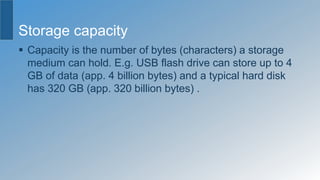
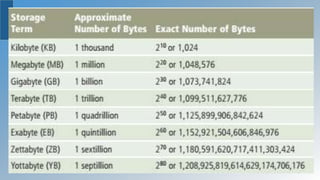
Storage capacity
 Capacity is the number of bytes (characters) a storage
medium can hold. E.g. USB flash drive can store up to 4
GB of data (app. 4 billion bytes) and a typical hard disk
has 320 GB (app. 320 billion bytes) .
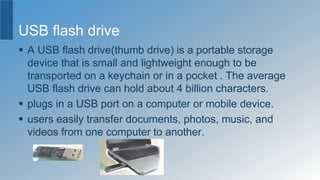
USB flash drive
 A USB flash drive(thumb drive) is a portable storage
device that is small and lightweight enough to be
transported on a keychain or in a pocket . The average
USB flash drive can hold about 4 billion characters.
 plugs in a USB port on a computer or mobile device.
 users easily transfer documents, photos, music, and
videos from one computer to another.
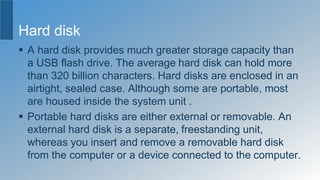
Hard disk
 A hard disk provides much greater storage capacity than
a USB flash drive. The average hard disk can hold more
than 320 billion characters. Hard disks are enclosed in an
airtight, sealed case. Although some are portable, most
are housed inside the system unit .
 Portable hard disks are either external or removable. An
external hard disk is a separate, freestanding unit,
whereas you insert and remove a removable hard disk
from the computer or a device connected to the computer.
Optical disc
 An optical disc is a flat, round, portable metal disc with a
plastic coating. CDs, DVDs, and Blu-ray Discs are three
types of optical discs. A CD can hold from 650 million to 1
billion characters. Some DVDs can store two full-length
movies or 17 billion characters . Blu-ray Discs can store
about 46 hours of standard video, or 100 billion
characters.
Memory cards
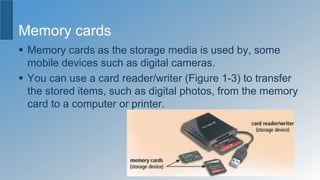
 Memory cards as the storage media is used by, some
mobile devices such as digital cameras.
 You can use a card reader/writer (Figure 1-3) to transfer
the stored items, such as digital photos, from the memory
card to a computer or printer.
Communication device
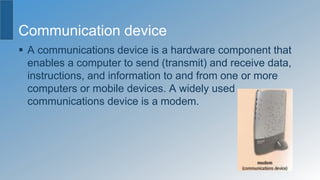
 A communications device is a hardware component that
enables a computer to send (transmit) and receive data,
instructions, and information to and from one or more
computers or mobile devices. A widely used
communications device is a modem.
Communication device
 Communications occur over cables, telephone lines,
cellular radio networks, satellites, and other transmission
media. Some transmission media, such as satellites and
cellular radio networks, are wireless, which means they
have no physical lines or wires.
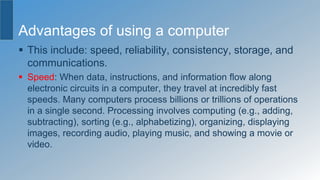
Advantages of using a computer
 This include: speed, reliability, consistency, storage, and
communications.
 Speed: When data, instructions, and information flow along
electronic circuits in a computer, they travel at incredibly fast
speeds. Many computers process billions or trillions of operations
in a single second. Processing involves computing (e.g., adding,
subtracting), sorting (e.g., alphabetizing), organizing, displaying
images, recording audio, playing music, and showing a movie or
video.
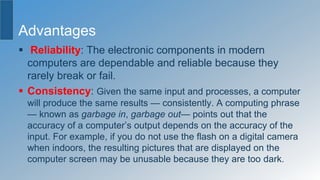
Advantages
 Reliability: The electronic components in modern
computers are dependable and reliable because they
rarely break or fail.
 Consistency: Given the same input and processes, a computer
will produce the same results — consistently. A computing phrase
— known as garbage in, garbage out— points out that the
accuracy of a computer’s output depends on the accuracy of the
input. For example, if you do not use the flash on a digital camera
when indoors, the resulting pictures that are displayed on the
computer screen may be unusable because they are too dark.
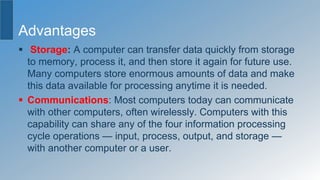
Advantages
 Storage: A computer can transfer data quickly from storage
to memory, process it, and then store it again for future use.
Many computers store enormous amounts of data and make
this data available for processing anytime it is needed.
 Communications: Most computers today can communicate
with other computers, often wirelessly. Computers with this
capability can share any of the four information processing
cycle operations — input, process, output, and storage —
with another computer or a user.
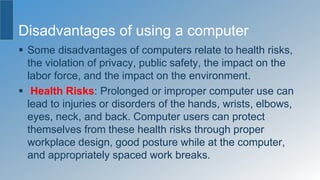
Disadvantages of using a computer
 Some disadvantages of computers relate to health risks,
the violation of privacy, public safety, the impact on the
labor force, and the impact on the environment.
 Health Risks: Prolonged or improper computer use can
lead to injuries or disorders of the hands, wrists, elbows,
eyes, neck, and back. Computer users can protect
themselves from these health risks through proper
workplace design, good posture while at the computer,
and appropriately spaced work breaks.
Disadvantages
 Violation of Privacy: Nearly every life event is stored in a
computer somewhere . . . in medical records, credit reports, tax
records, etc. In many instances, where personal and confidential
records were not protected properly, individuals have found their
privacy violated and identities stolen.
 Impact on Environment: Computer manufacturing processes
and computer waste are depleting natural resources and polluting
the environment. When computers are discarded in landfills, they
can release toxic materials and potentially dangerous levels of
lead, mercury, and flame retardants.
Disadvantages
 Public Safety: Adults, teens, and children around the world
are using computers to share publicly their photos, videos,
journals, music, and other personal information. Some of
these unsuspecting, innocent computer users have fallen
victim to crimes committed by dangerous strangers. Protect
yourself and your dependents from these criminals by being
cautious in e-mail messages and on Web sites. For example,
do not share information that would allow others to identify or
locate you and do not disclose identification numbers,
passwords, or other personal security details.
Disadvantages
 Impact on Labor Force: Although computers have
improved productivity in many ways and created an entire
industry with hundreds of thousands of new jobs, the skills
of millions of employees have been replaced by
computers. Thus, it is crucial that workers keep their
education up-to-date. A separate impact on the labor
force is that some companies are outsourcing jobs to
foreign countries instead of keeping their homeland labor
force employed.
Disadvantages
 Green computing involves reducing the electricity
consumed and environmental waste generated when
using a computer. Strategies that support green
computing include recycling, regulating manufacturing
processes, extending the life of computers, and
immediately donating or properly disposing of replaced
computers. When you purchase a new computer, some
retailers offer to dispose of your old computer properly.

Introduction to Computers Grade 6-8.pptx

  • 1.
  • 2.
    What is acomputer?  A computer is an electronic device, operating under the control of instructions stored in its own memory, that can accept data, process the data according to specified rules, produce results, and store the results for future use.  Data and information Computers process data(input) into information(output).  Data is a collection of unprocessed items, which can include text, numbers, images, audio, and video.
  • 3.
    Continued …..  Informationconveys meaning and is useful to people (is the data that is organized, meaningful and useful).for example, in big shops( Maputo Mall or Shoprite) computers process several data items to print information in the form of a cash register receipt.  To process data into information, a computer uses hardware and software.
  • 4.
    Definition of softwareand hardware  Hardware is the electric, electronic and mechanical equipment that makes up a computer.  Software is the series of instructions that tells the hardware how to perform tasks.  Software, also called a program, consists of a series of related instructions, organized for a common purpose, that tells the computer what tasks to perform and how to perform them.
  • 5.
    Components of acomputer  These components include : input devices output devices, system unit storage devices, and communications devices
  • 6.
  • 7.
    Input devices  Aninput device is any hardware component that allows you to enter data and instructions into a computer.  Five widely used input devices are the keyboard, mouse, microphone, scanner, and Web cam
  • 8.
    Input devices  Computerkeyboard  A computer keyboard contains keys you press to enter data into the computer.
  • 9.
  • 11.
    Keyboard vocabulary  ShiftKey. Press shift at the same time you are pressing any other key and you will get a new character. For instance, press shift at the same time you press a letter and it will capitalize the letter. Press shift at the same time you press a number and you will get a “%” or “$.”  Tab Key. Just like a typewriter, the tab key helps you indent your text
  • 12.
    Keyboard vocabulary  FunctionKeys. Sometimes referred to as “F keys,” they are not as popular as they once were (with older DOS programs). But there’s one F key you can pretty much always count on: the F1 key. It will most often bring up a help menu, no matter what program you’re in.  Enter Key. On your keyboard, the Enter key might be marked as a “Return” key or with only a large arrow. It’s used to go down to a new line when typing text. It also can be pressed any time a button or choice is highlighted (within a software program or on the Internet) to tell the computer you select that particular item.
  • 13.
    Keyboard vocabulary  CTRLKey. The Control key is used in conjunction withanother key to initiate a certain action. In most programs, holding down the CTRL key while pressing the S key will save a file, CTRL+P will print a file, etc.  ALT Key. Also used in combination with other keys to do something. For instance, ALT+F usually opens the File menu.  Caps Lock. Press it once and when you type the letters they will all be capitalized. Press it again and the letters will go back to lower case.
  • 14.
    Keyboard vocabulary  NumLock and Numeric Keypad. The Num Lock key toggles the numeric keypad on and off. When off, the keys perform other functions (i.e., directional arrows) instead of typing numbers.  Space Bar. Used to enter a blank space between sentences when typing text.  Backspace. This key will remove the character to the left of the cursor(the small blinking vertical line that shows you where you are on a page of text).  Shift Key. The Shift key allows you to create a capital letter. Or ... you can hold down Shift key and press one of the number keys (on the top row of keyboard) to get a punctuation symbol (!, @, #, $, for instance).
  • 15.
    Keyboard vocabulary  InsertKey. No longer found on some keyboards. It’s a toggle key for either inserting text as you type (the default), or overwriting existing text.  Tab Key. Within a text document, the Tab key will move the cursor to the next “tab stop.” In forms, it is used to move from field to field or from one table cell to the next. Pressing Tab and Shift simultaneously will usually “tab” you back to the previous field.  Delete. Pressing this key will remove the character to the right of the cursor when pressed.  Print Screen. The Print Screen button will send a copy of your monitor’s screen to the “clipboard” ready to be pasted into another program.
  • 16.
    Input devices  Amouse is a small handheld device. With the mouse, you control movement of a small symbol on the screen, called the pointer, and you make selections from the screen.
  • 17.
  • 18.
    Mouse vocabulary  Pointer/Cursor–When you move the mouse around, you will see a symbol that moves around on the computer’s monitor screen that changes depending on what you’re pointing to. You’ll see an arrow or hand when there’s a choice to be made, an “I” beam when you’re in an area where text can be inserted, a cross of arrows when you can move something, and more.
  • 19.
    Mouse vocabulary  Left-Click–(Select/Highlight) This is the standard click when you’re choosing or selecting something. It’s done with your pointer-finger on the left button (think about how it’s like you’re pointing at something you want!).  Double-Click– (Open/Start) By pointing to something and then double-clicking (double-clicks are ALWAYS with the left mouse button), you are telling the thing you’re clicking on to open or to start. In text areas, however, double-clicking can select a whole word. (Try triple-clicking in text to select a whole paragraph!)
  • 20.
    Mouse vocabulary  Right-Click–(Menu) If you remember only one thing, remember that a right-click ALWAYS means MENU. By right-clicking on an item or in a certain area, you’ll get context menus, special menus specifically about whatever you’re pointing to, letting you know what your options are. It’s the secret weapon of expert computer users!
  • 21.
    Mouse vocabulary  Drag–You can also use the mouse to drag items (like pictures, files, etc.) from one place to another or to resize windows or boxes. Practice pointing to a shortcut icon (little picture) on the computer desktop screen, holding down the left mouse button, and then moving the mouse to drag the icon to another place— then let go! Also, if you move your mouse arrow over an object and see a cross with arrows pointing each direction, you’ve found the “move” symbol, meaning you can move the object by holding down the left button when you see the symbol and then dragging. You’ll often see the “move” symbol in programs with pictures and graphics.
  • 22.
    Mouse vocabulary  ScrollBars– In open windows you’ll sometimes see scroll bars along the right side or along the bottom of the window. They’re usually grey-colored bars with elevator-type boxes in them that can be dragged up and down or sideways (at the bottom) to help you see more of a screen or document. If you don’t see a scrollbar, you know there is nothing more to see!  Close Button– This “X” on a field of red is found in the upper right-hand corner of your screen. One-click on the “X” closes out what ever happens to be open on your screen.
  • 23.
    Mouse vocabulary  Minimize–This button on the upper right-hand corner of your screen will shrink your work into a button so you can work on something else. Click that button once to restore your previous work to the full screen.  Maximize– This button on the upper right-hand corner of your screen will increase the size of the document that you’re working on to fill the entire screen.
  • 24.
  • 25.
    Input devices  Amicrophone allows you to speak into the computer.  A Web cam is a digital video camera that allows you to create movies or take pictures and store them on the computer instead of on tape or film.
  • 26.
    Input device  Ascanner converts printed material (such as text and pictures) into a form the computer can use.
  • 27.
    Output devices  Anoutput device is any hardware component that conveys information to one or more people.  Three commonly used output devices are a printer, a monitor, and speakers
  • 28.
    Output devices  Aprinter produces text and graphics on a physical medium such as paper.  A monitor displays text, graphics, and videos on a screen.  Speakers allow you to hear music, voice, and other audio (sounds).
  • 29.
    System Unit  Thesystem unit is a case that contains the electronic components of the computer that are used to process data.  The circuitry of the system unit is connected to a circuit board called the motherboard.
  • 30.
    System Unit  Twomain components on the motherboard are the processor and memory.  The processor, also called a CPU (central processing unit), is the electronic component that interprets and carries out the basic instructions that operate the computer.  Memory consists of electronic components that store instructions waiting to be executed and data needed by those instructions.
  • 31.
    PROCESSOR  Processors containa control unit and an arithmetic logic unit (ALU). These two components work together to perform processing operations.  The next slide illustrates how other devices connected to the computer communicate with the processor to carry out a task.
  • 33.
    The processor  Mostdevices connected to the computer communicate with the processor to carry out a task. When a user starts a program, for example, its instructions transfer from a storage device to memory. Data needed by programs enters memory from either an input device or a storage device. The control unit interprets and executes instructions in memory, and the ALU performs calculations on the data in memory. Resulting information is stored in memory, from which it can be sent to an output device or a storage device for future access, as needed.
  • 34.
    The processor  Thecontrol unit is the component of the processor that directs and coordinates most of the operations in the computer.(it interprets each instruction issued by a program and then initiates the appropriate action to carry out the instruction.)  The arithmetic logic unit(ALU), is the component of the processor, that performs arithmetic(addition, subtraction, multiplication, and division), comparison, and other operations.
  • 35.
    Memory  The systemunit contains two types of memory: volatile and nonvolatile.  Volatile memory loses its contents when the computer’s power is turned off (temporary) . e.g. RAM  Nonvolatile memory, by contrast, does not lose its contents when power is removed from the computer(permanent). ROM, flash memory, cache
  • 36.
     RAM(random accessmemory), also called main memory, consists of memory chips that can be read from and written to by the processor and other devices.  When you turn on power to a computer, certain operating system files (such as the files that determine how the desktop appears) load into RAM from a storage device such as a hard disk. These files remain in RAM as long as the computer has continuous power. As additional programs and data are requested, they also load into RAM from storage. The processor interprets and executes a program’s instructions while the program is in RAM. RAM can accommodate multiple programs simultaneously.
  • 37.
    Cont..  Read-only memory(ROMpronounced rahm) refers to memory chips storing permanent data and instructions. ROM chips cannot be modified — hence, the name read- only.  Flash memory is a type of nonvolatile memory that can be erased electronically and rewritten. Flash memory chips also store data and programs on many mobile computers and devices, such as smart phones, portable media players etc.
  • 38.
    STORAGE  Storage holdsdata, instructions, and information for future use.(permanently)  A storage medium(media is the plural) or(secondary storage), is the physical material on which a computer keeps data, instructions, and information. Examples of storage media are hard disks, solid state drives, memory cards, USB flash drives, Express Card modules, optical discs, smart cards, magnetic stripe cards, and microfilm.
  • 39.
    Cont.….  A storagedevice is the computer hardware that records(writes) and/or retrieves(reads) items to and from storage media.  Writing is the process of transferring data, instructions, and information from memory to a storage medium. Reading is the process of transferring these items from a storage medium into memory. When storage devices write data on storage media, they are creating output. Similarly, when storage devices read from storage media, they function as a source of input. For example, a DVD drive (storage device) accepts a DVD (storage media).
  • 40.
    Storage capacity  Capacityis the number of bytes (characters) a storage medium can hold. E.g. USB flash drive can store up to 4 GB of data (app. 4 billion bytes) and a typical hard disk has 320 GB (app. 320 billion bytes) .
  • 42.
    USB flash drive A USB flash drive(thumb drive) is a portable storage device that is small and lightweight enough to be transported on a keychain or in a pocket . The average USB flash drive can hold about 4 billion characters.  plugs in a USB port on a computer or mobile device.  users easily transfer documents, photos, music, and videos from one computer to another.
  • 43.
    Hard disk  Ahard disk provides much greater storage capacity than a USB flash drive. The average hard disk can hold more than 320 billion characters. Hard disks are enclosed in an airtight, sealed case. Although some are portable, most are housed inside the system unit .  Portable hard disks are either external or removable. An external hard disk is a separate, freestanding unit, whereas you insert and remove a removable hard disk from the computer or a device connected to the computer.
  • 44.
    Optical disc  Anoptical disc is a flat, round, portable metal disc with a plastic coating. CDs, DVDs, and Blu-ray Discs are three types of optical discs. A CD can hold from 650 million to 1 billion characters. Some DVDs can store two full-length movies or 17 billion characters . Blu-ray Discs can store about 46 hours of standard video, or 100 billion characters.
  • 45.
    Memory cards  Memorycards as the storage media is used by, some mobile devices such as digital cameras.  You can use a card reader/writer (Figure 1-3) to transfer the stored items, such as digital photos, from the memory card to a computer or printer.
  • 46.
    Communication device  Acommunications device is a hardware component that enables a computer to send (transmit) and receive data, instructions, and information to and from one or more computers or mobile devices. A widely used communications device is a modem.
  • 47.
    Communication device  Communicationsoccur over cables, telephone lines, cellular radio networks, satellites, and other transmission media. Some transmission media, such as satellites and cellular radio networks, are wireless, which means they have no physical lines or wires.
  • 48.
    Advantages of usinga computer  This include: speed, reliability, consistency, storage, and communications.  Speed: When data, instructions, and information flow along electronic circuits in a computer, they travel at incredibly fast speeds. Many computers process billions or trillions of operations in a single second. Processing involves computing (e.g., adding, subtracting), sorting (e.g., alphabetizing), organizing, displaying images, recording audio, playing music, and showing a movie or video.
  • 49.
    Advantages  Reliability: Theelectronic components in modern computers are dependable and reliable because they rarely break or fail.  Consistency: Given the same input and processes, a computer will produce the same results — consistently. A computing phrase — known as garbage in, garbage out— points out that the accuracy of a computer’s output depends on the accuracy of the input. For example, if you do not use the flash on a digital camera when indoors, the resulting pictures that are displayed on the computer screen may be unusable because they are too dark.
  • 50.
    Advantages  Storage: Acomputer can transfer data quickly from storage to memory, process it, and then store it again for future use. Many computers store enormous amounts of data and make this data available for processing anytime it is needed.  Communications: Most computers today can communicate with other computers, often wirelessly. Computers with this capability can share any of the four information processing cycle operations — input, process, output, and storage — with another computer or a user.
  • 51.
    Disadvantages of usinga computer  Some disadvantages of computers relate to health risks, the violation of privacy, public safety, the impact on the labor force, and the impact on the environment.  Health Risks: Prolonged or improper computer use can lead to injuries or disorders of the hands, wrists, elbows, eyes, neck, and back. Computer users can protect themselves from these health risks through proper workplace design, good posture while at the computer, and appropriately spaced work breaks.
  • 52.
    Disadvantages  Violation ofPrivacy: Nearly every life event is stored in a computer somewhere . . . in medical records, credit reports, tax records, etc. In many instances, where personal and confidential records were not protected properly, individuals have found their privacy violated and identities stolen.  Impact on Environment: Computer manufacturing processes and computer waste are depleting natural resources and polluting the environment. When computers are discarded in landfills, they can release toxic materials and potentially dangerous levels of lead, mercury, and flame retardants.
  • 53.
    Disadvantages  Public Safety:Adults, teens, and children around the world are using computers to share publicly their photos, videos, journals, music, and other personal information. Some of these unsuspecting, innocent computer users have fallen victim to crimes committed by dangerous strangers. Protect yourself and your dependents from these criminals by being cautious in e-mail messages and on Web sites. For example, do not share information that would allow others to identify or locate you and do not disclose identification numbers, passwords, or other personal security details.
  • 54.
    Disadvantages  Impact onLabor Force: Although computers have improved productivity in many ways and created an entire industry with hundreds of thousands of new jobs, the skills of millions of employees have been replaced by computers. Thus, it is crucial that workers keep their education up-to-date. A separate impact on the labor force is that some companies are outsourcing jobs to foreign countries instead of keeping their homeland labor force employed.
  • 55.
    Disadvantages  Green computinginvolves reducing the electricity consumed and environmental waste generated when using a computer. Strategies that support green computing include recycling, regulating manufacturing processes, extending the life of computers, and immediately donating or properly disposing of replaced computers. When you purchase a new computer, some retailers offer to dispose of your old computer properly.