

Improving Your Website’s Accessibility
June 2013
Introductions…
Laura Quinn
Executive Director
Idealware
Rachel Magario
Assistive Technology Specialist
PACER Center's Simon
Technology Center
Who Are You Excluding By Not
Making Your Website Accessible?
Why Worry About Accessibility?
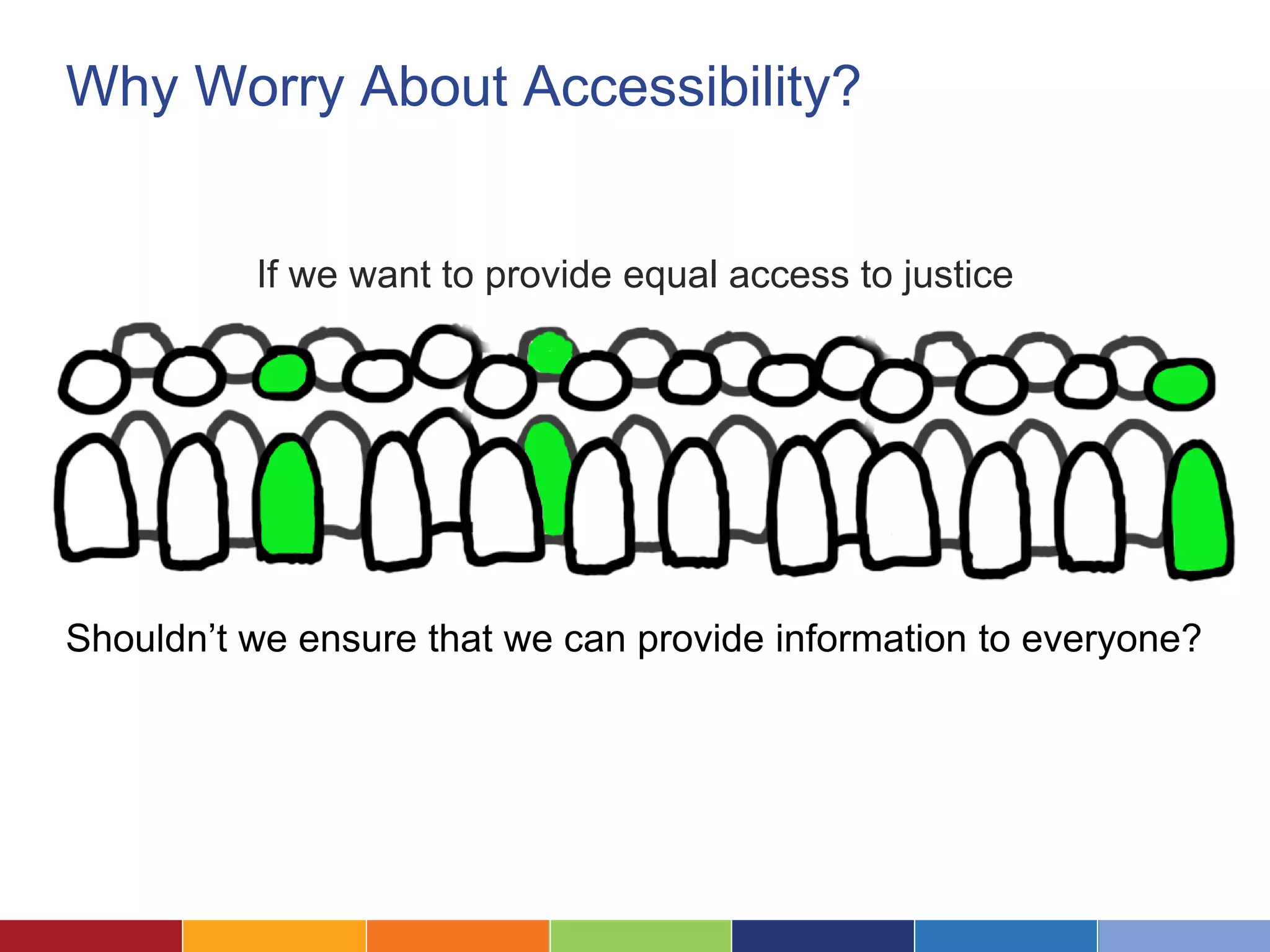
If we want to provide equal access to justice
Shouldn’t we ensure that we can provide information to everyone?
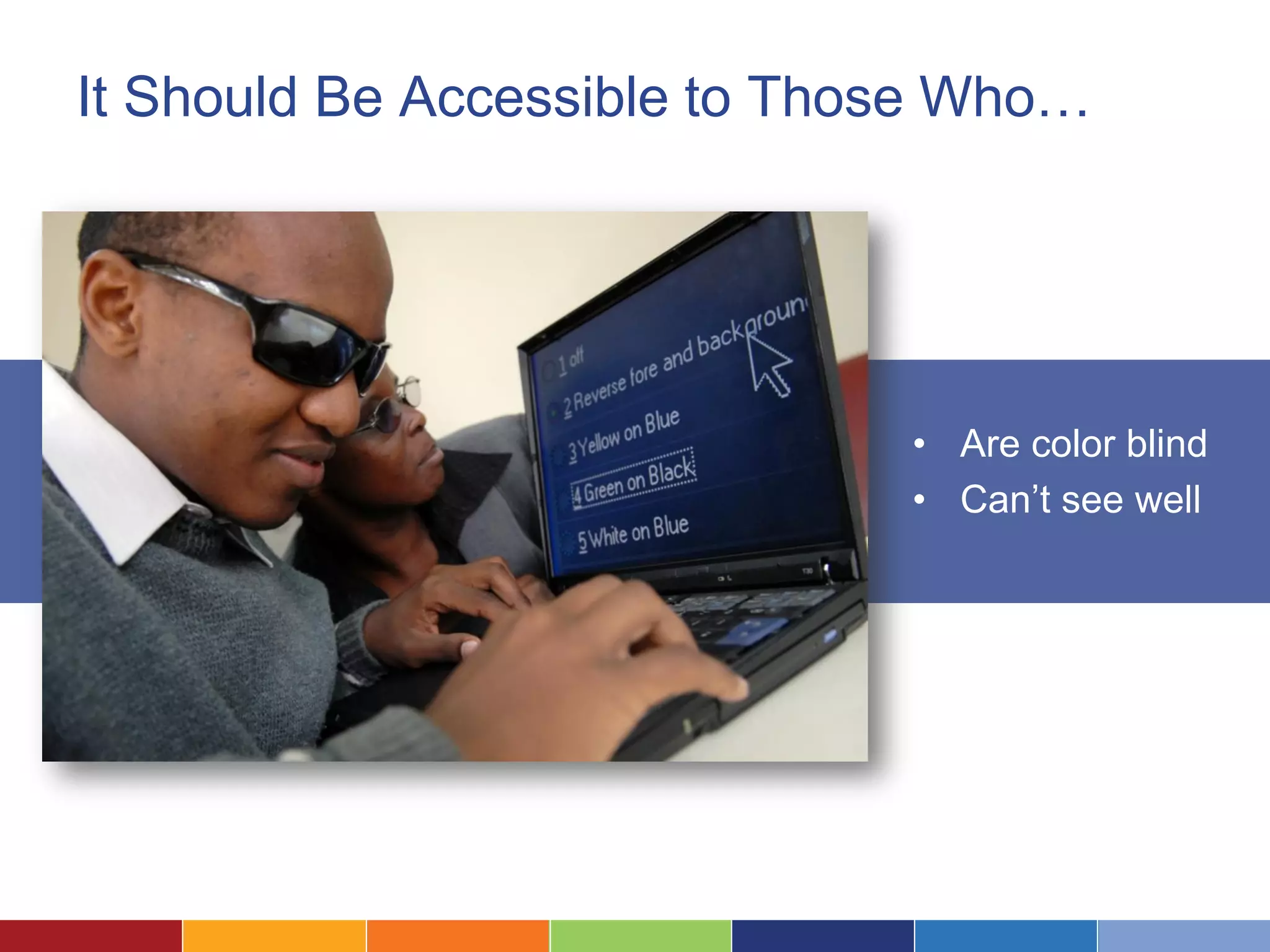
It Should Be Accessible to Those Who…
• Are color blind
• Can’t see well
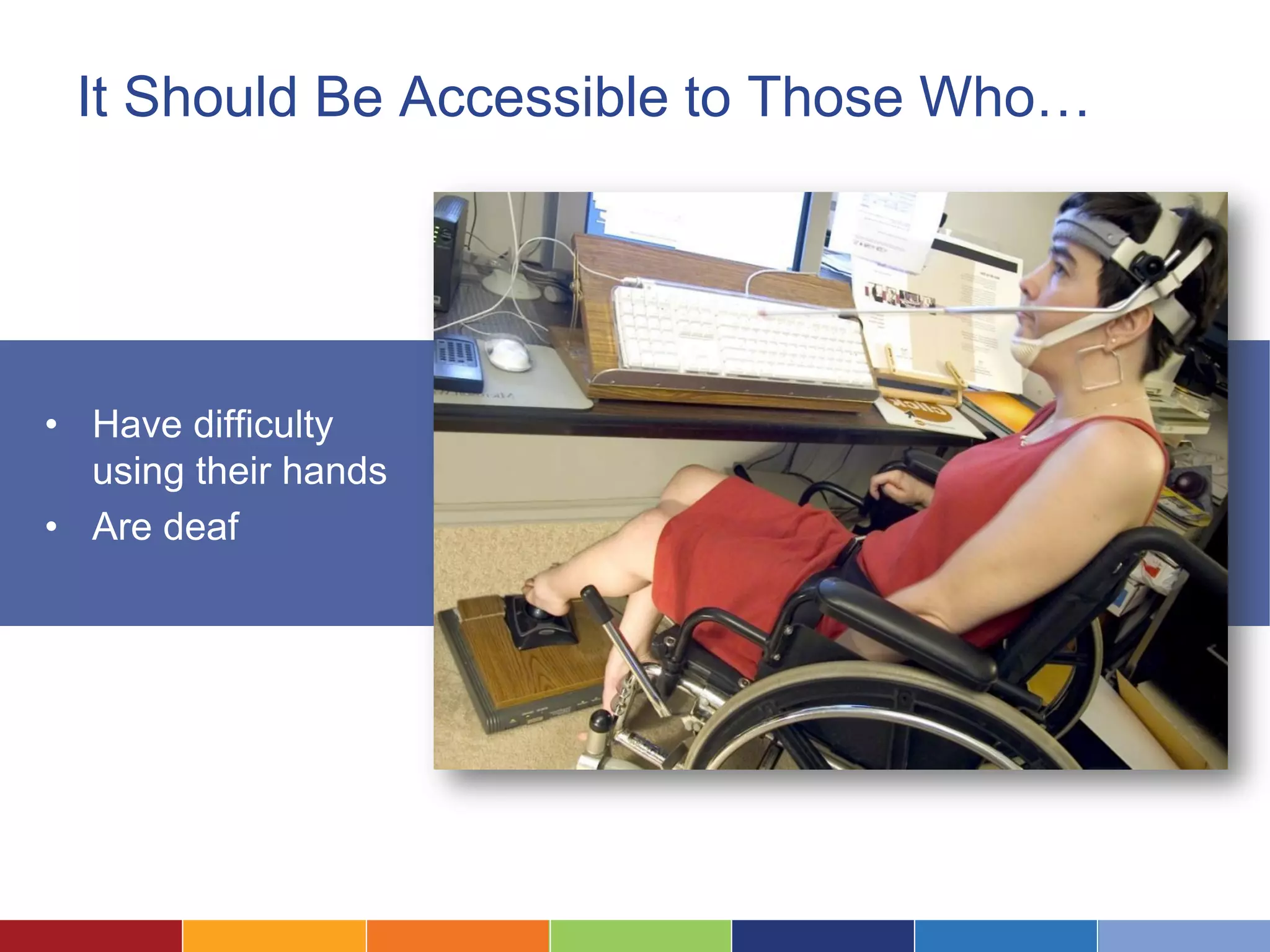
It Should Be Accessible to Those Who…
• Have difficulty
using their hands
• Are deaf
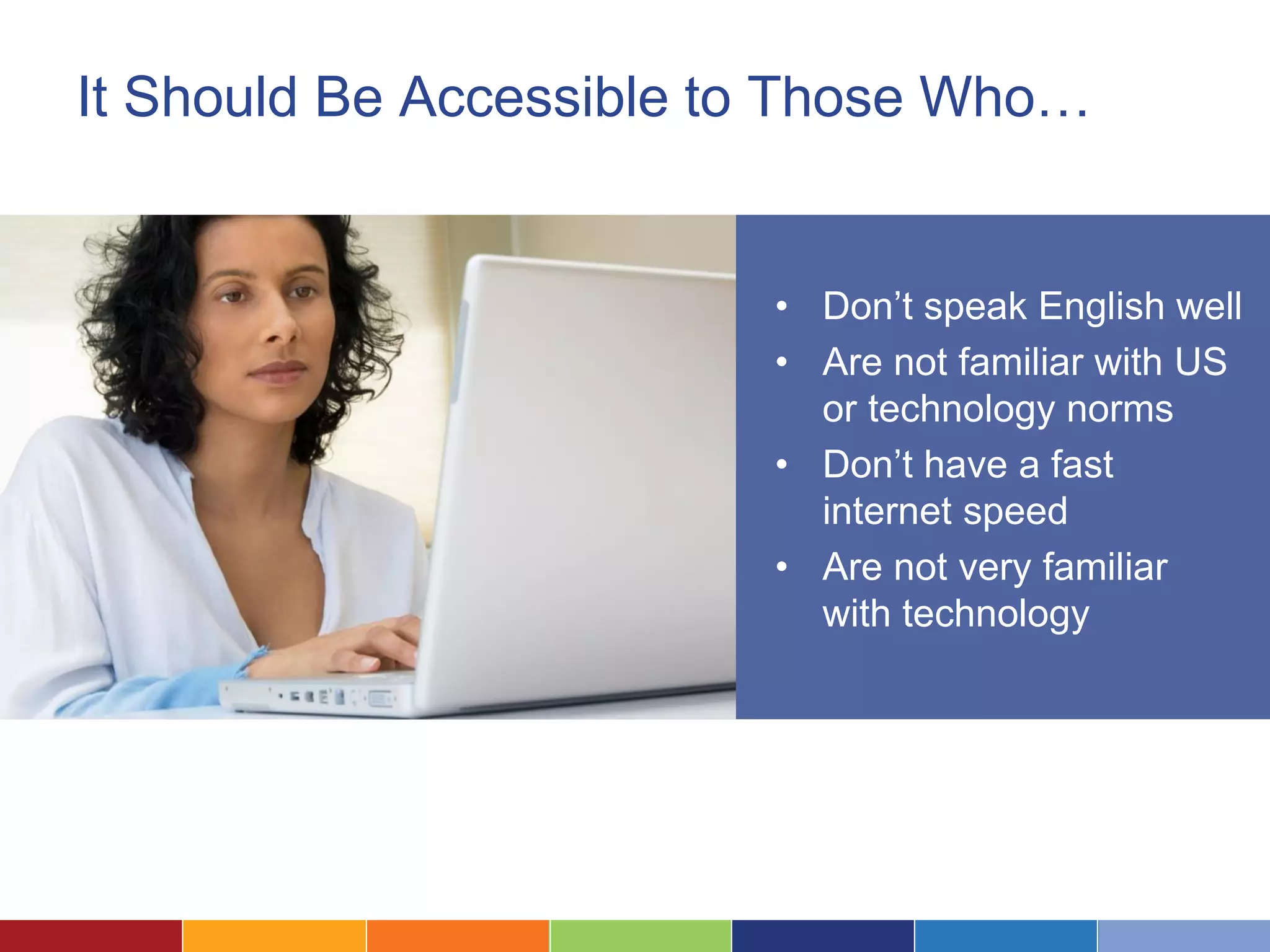
It Should Be Accessible to Those Who…
• Don’t speak English well
• Are not familiar with US
or technology norms
• Don’t have a fast
internet speed
• Are not very familiar
with technology
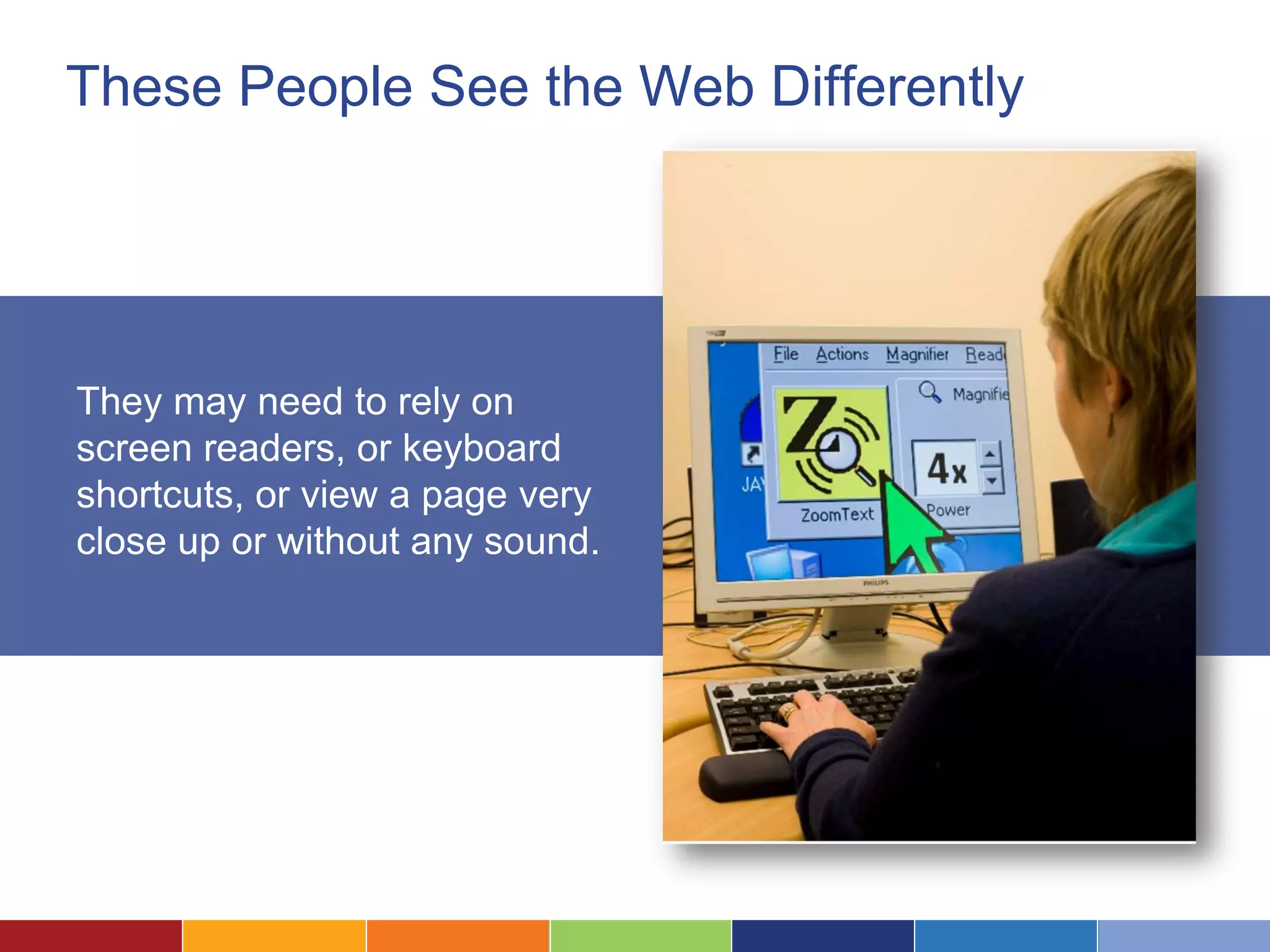
These People See the Web Differently
They may need to rely on
screen readers, or keyboard
shortcuts, or view a page very
close up or without any sound.
Six Steps to an
Accessible Website
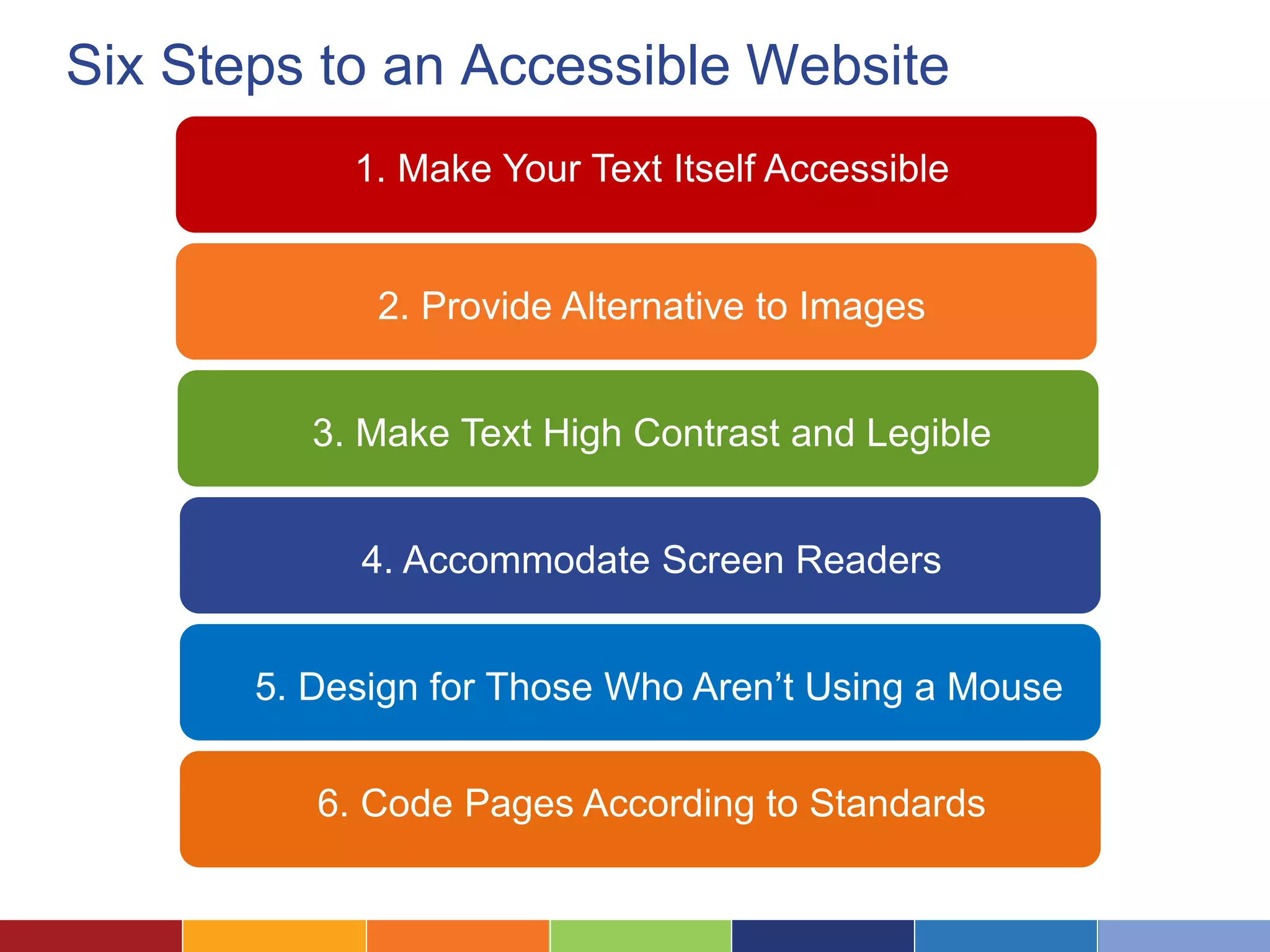
Six Steps to an Accessible Website
1. Make Your Text Itself Accessible
2. Provide Alternative to Images
3. Make Text High Contrast and Legible
4. Accommodate Screen Readers
5. Design for Those Who Aren’t Using a Mouse
6. Code Pages According to Standards
1Make Your Text Itself Accessible
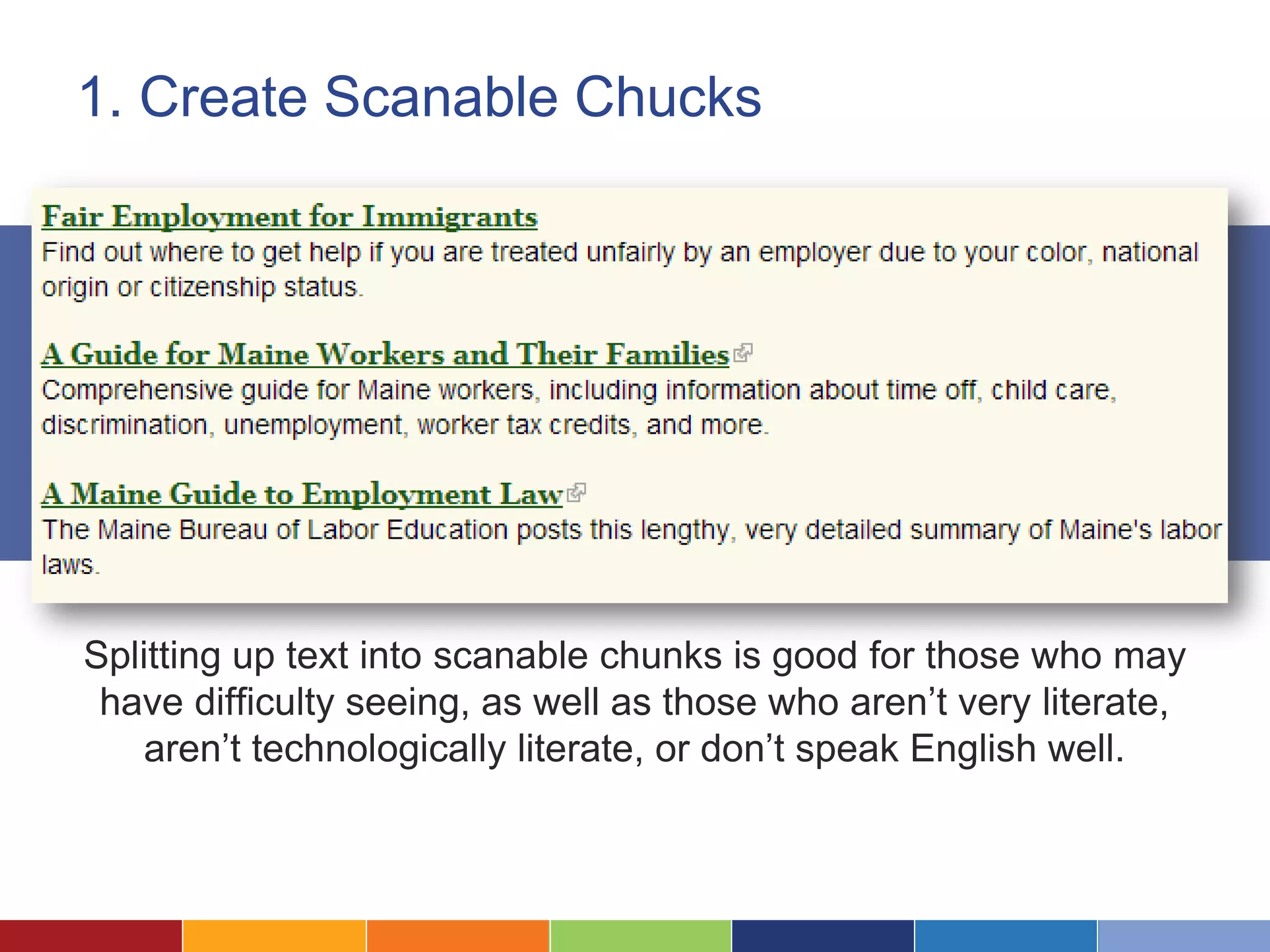
1. Create Scanable Chucks
Splitting up text into scanable chunks is good for those who may
have difficulty seeing, as well as those who aren’t very literate,
aren’t technologically literate, or don’t speak English well.
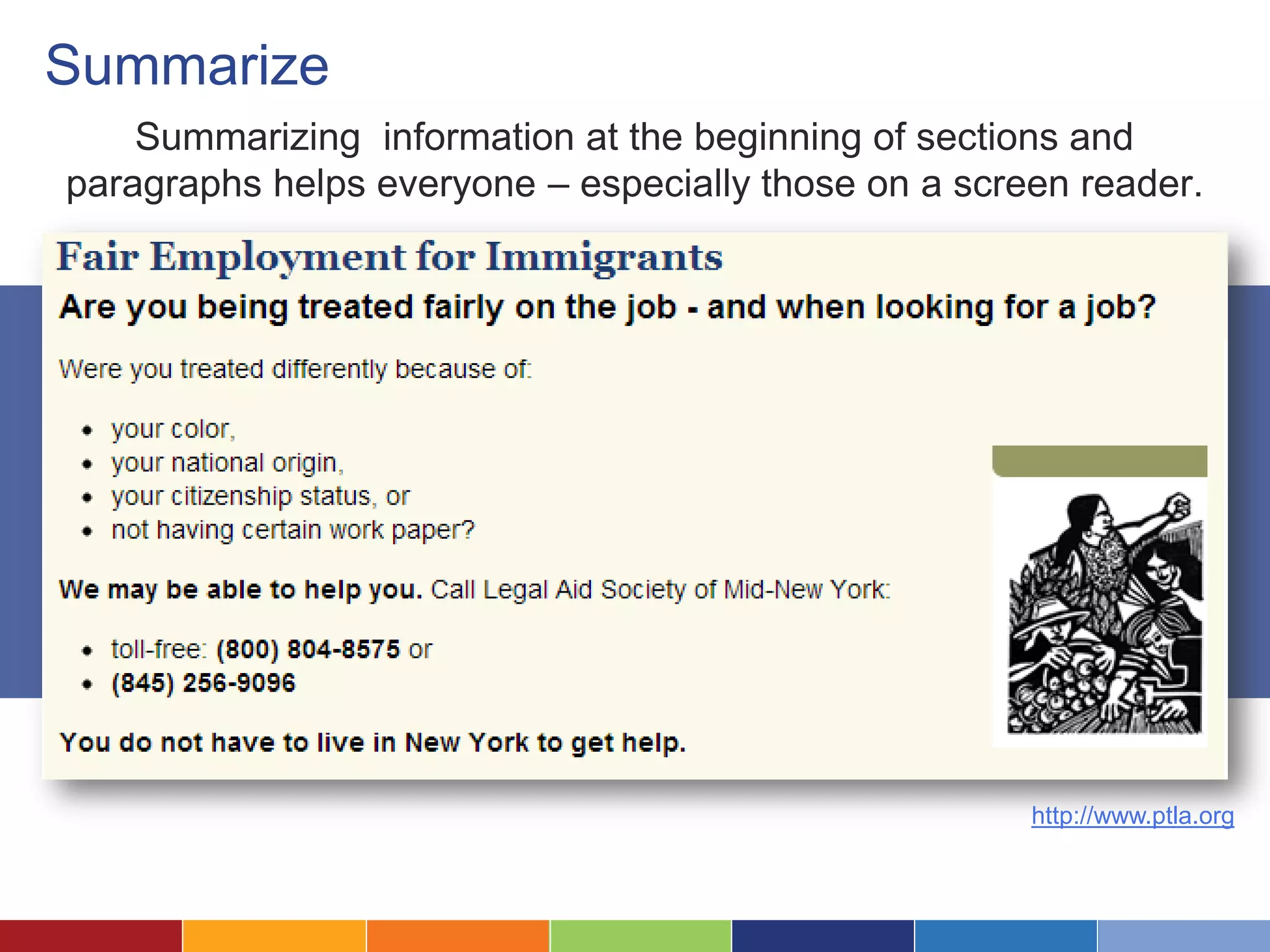
Summarize
Summarizing information at the beginning of sections and
paragraphs helps everyone – especially those on a screen reader.
http://www.ptla.org
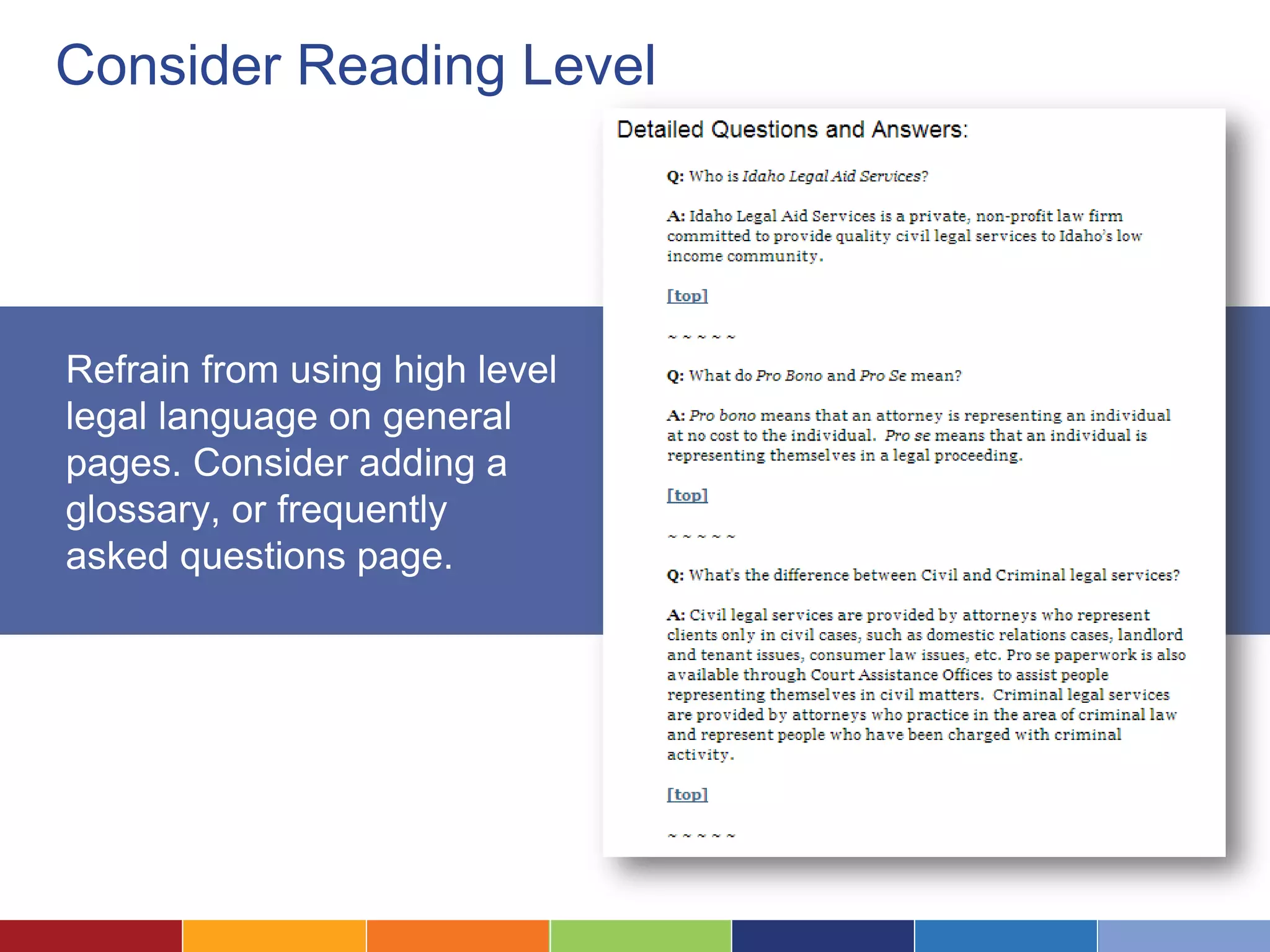
Consider Reading Level
Refrain from using high level
legal language on general
pages. Consider adding a
glossary, or frequently
asked questions page.
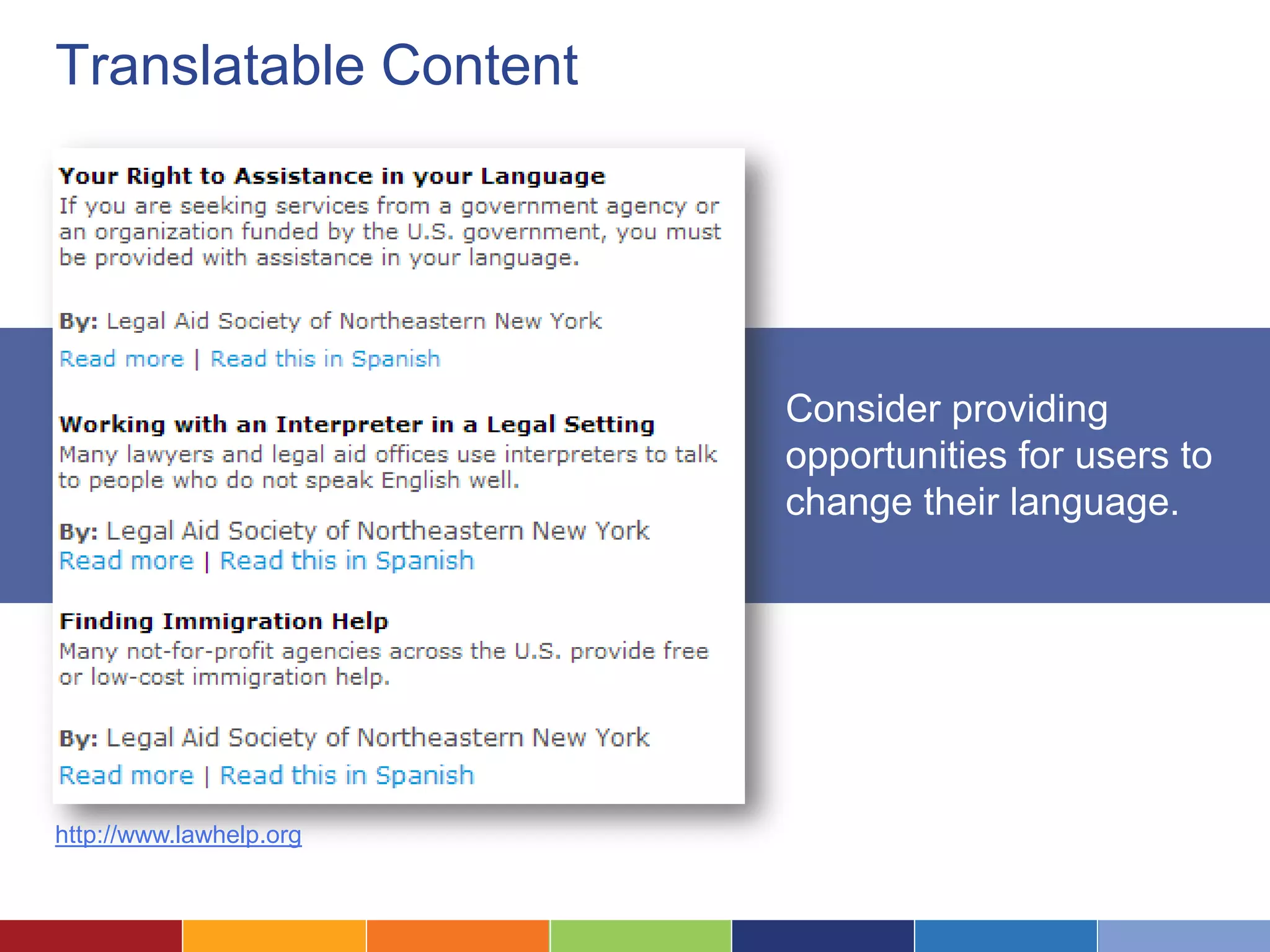
Translatable Content
Consider providing
opportunities for users to
change their language.
http://www.lawhelp.org
2Provide Alternative to Images
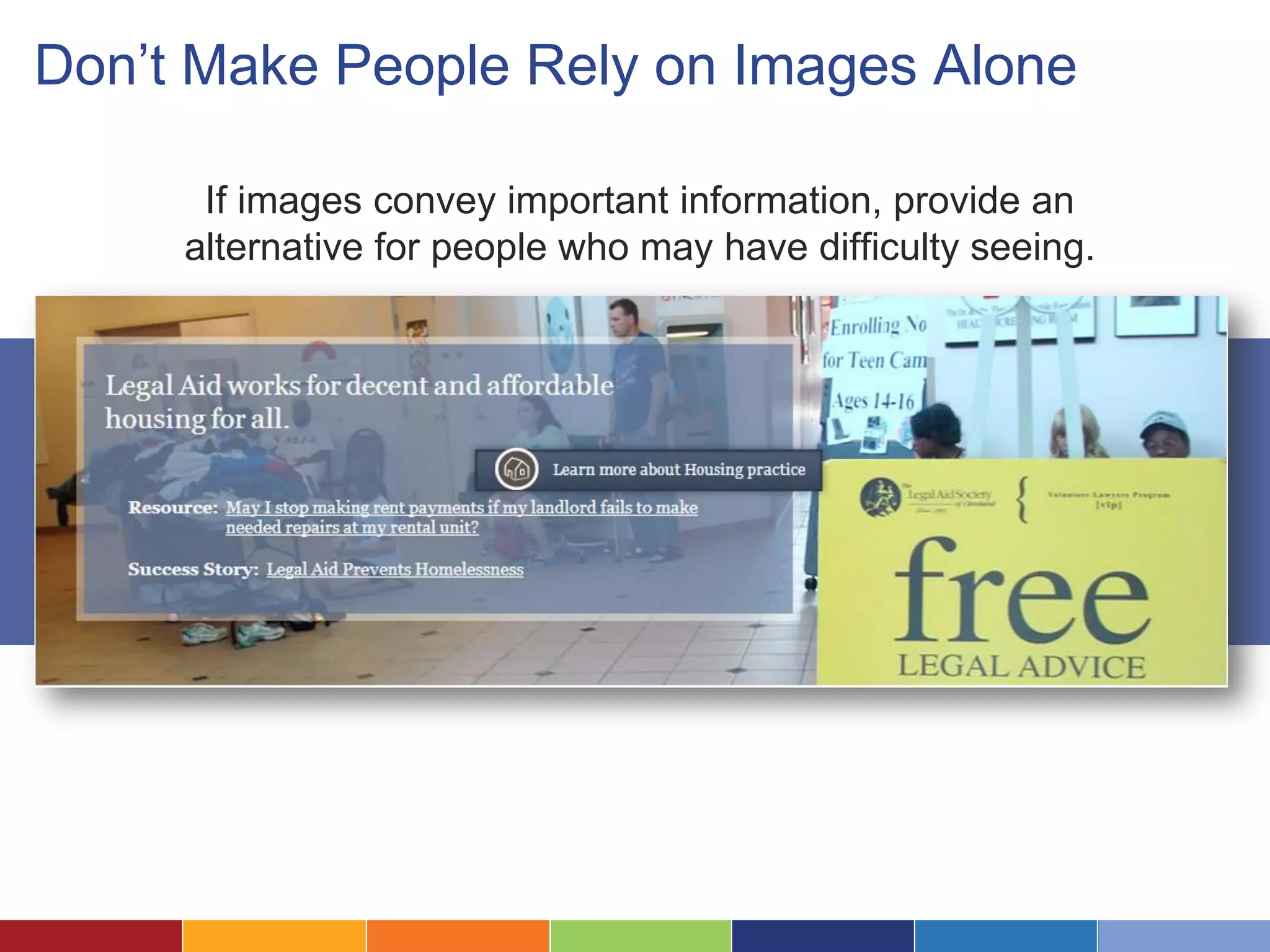
Don’t Make People Rely on Images Alone
If images convey important information, provide an
alternative for people who may have difficulty seeing.
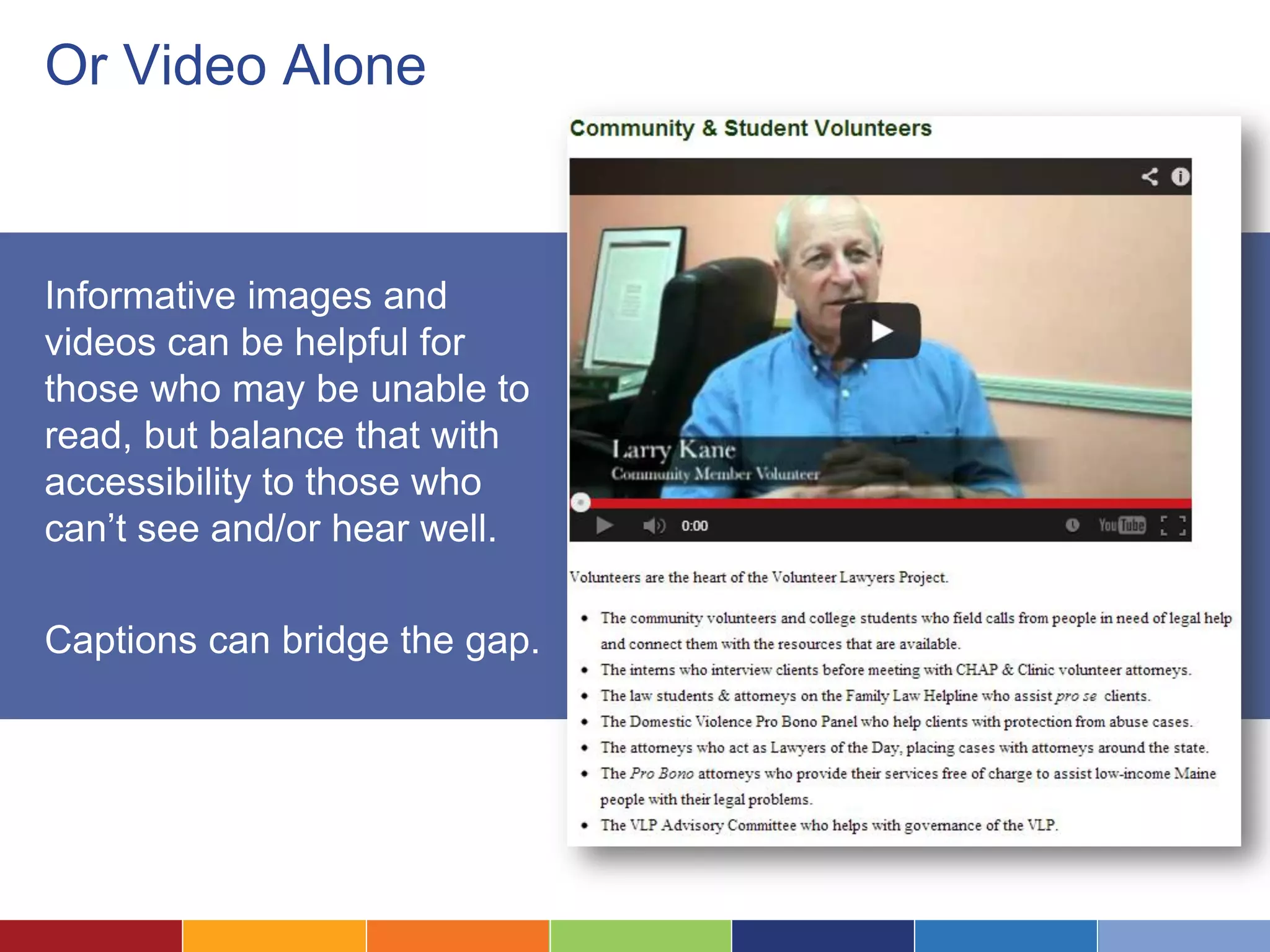
Or Video Alone
Informative images and
videos can be helpful for
those who may be unable to
read, but balance that with
accessibility to those who
can’t see and/or hear well.
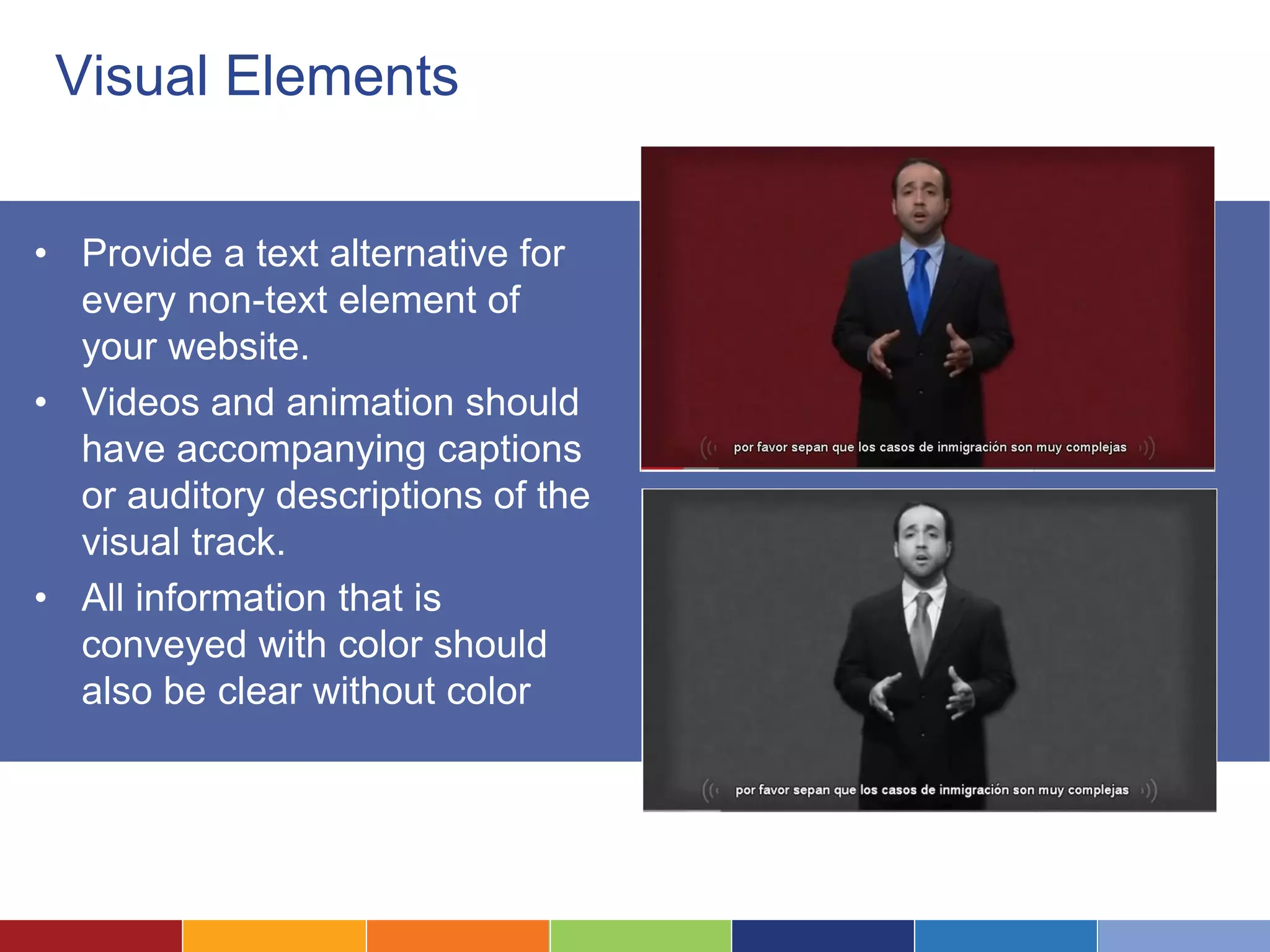
Captions can bridge the gap.
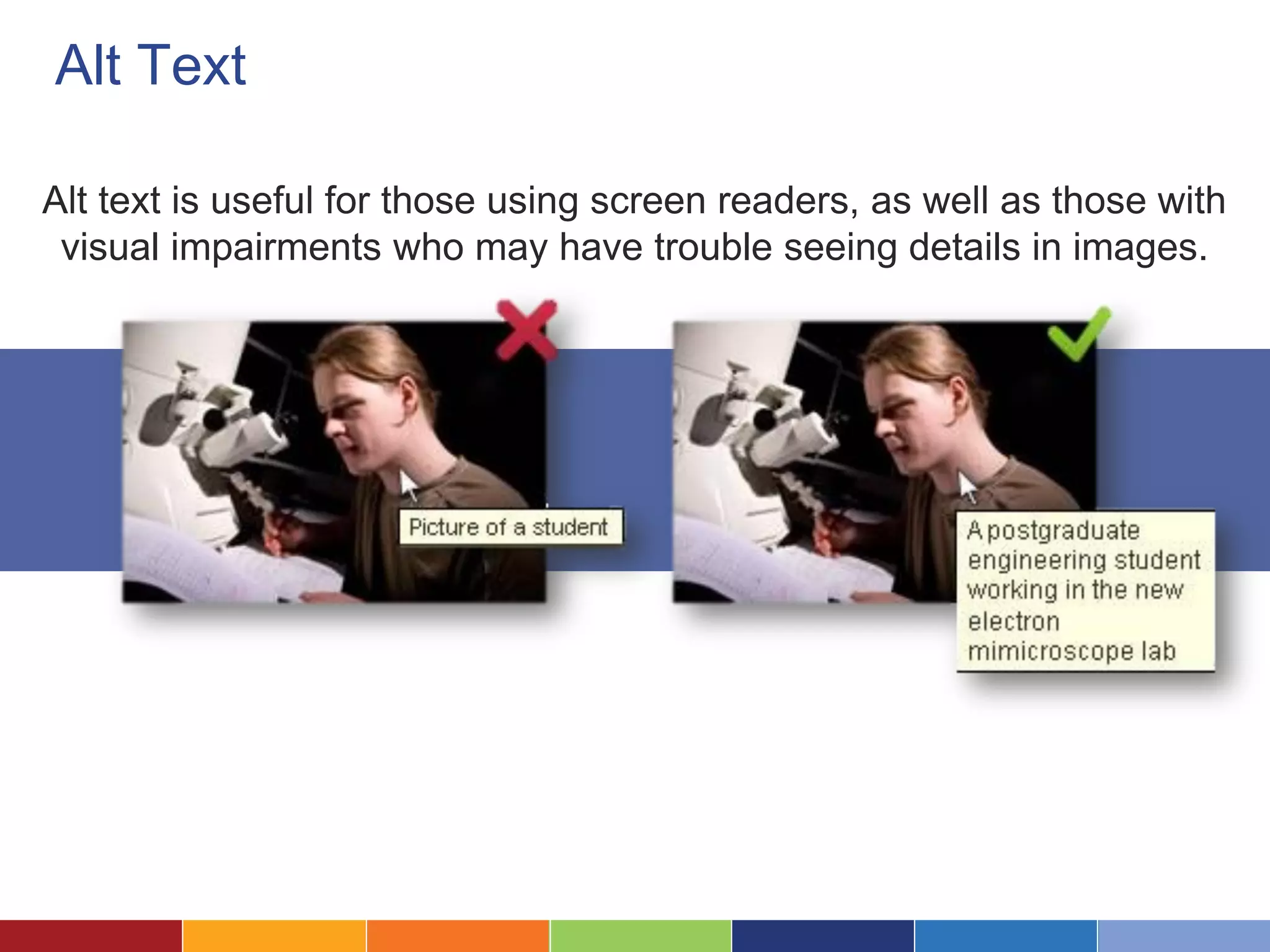
Alt Text
Alt text is useful for those using screen readers, as well as those with
visual impairments who may have trouble seeing details in images.
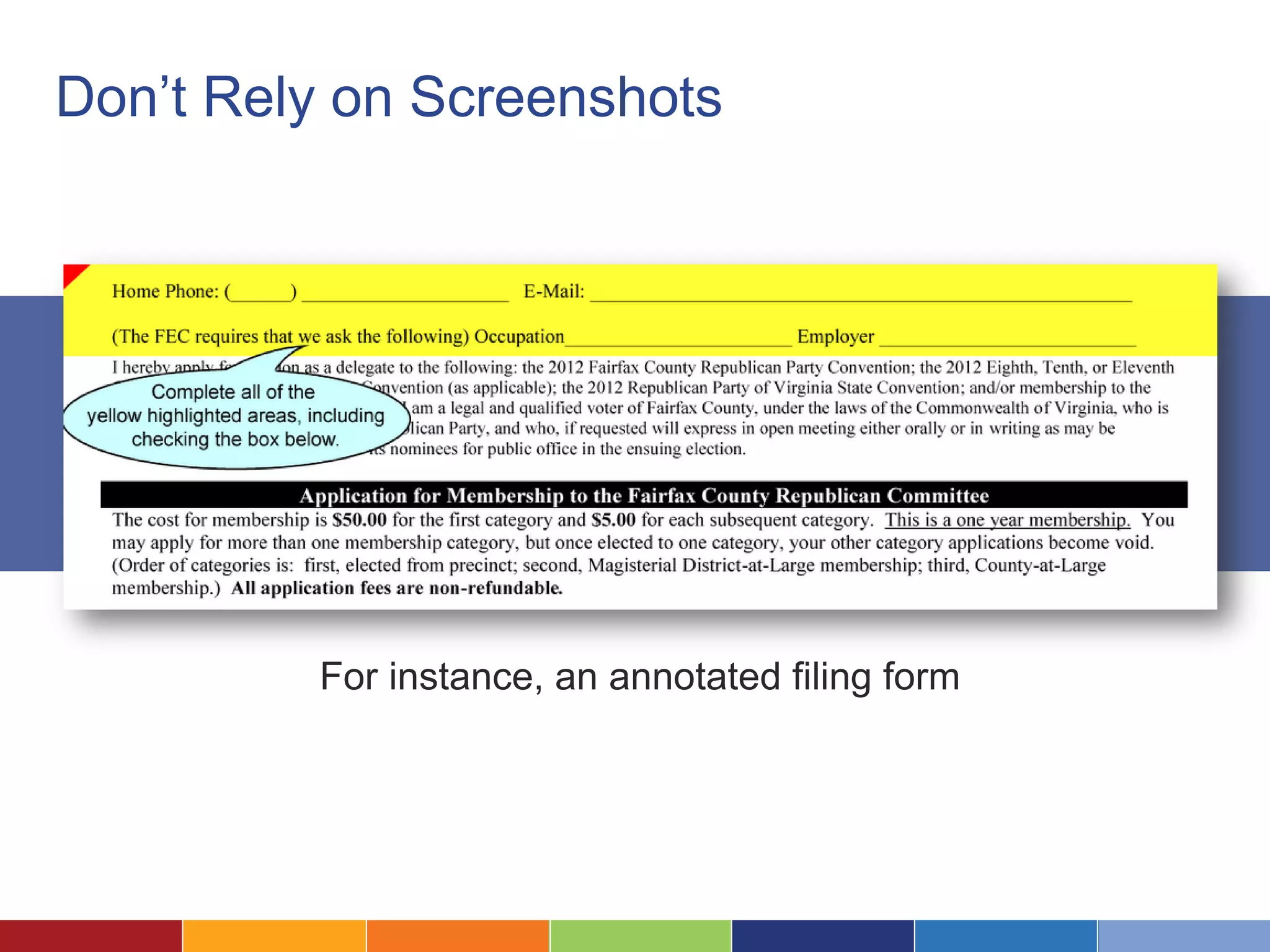
Don’t Rely on Screenshots
For instance, an annotated filing form
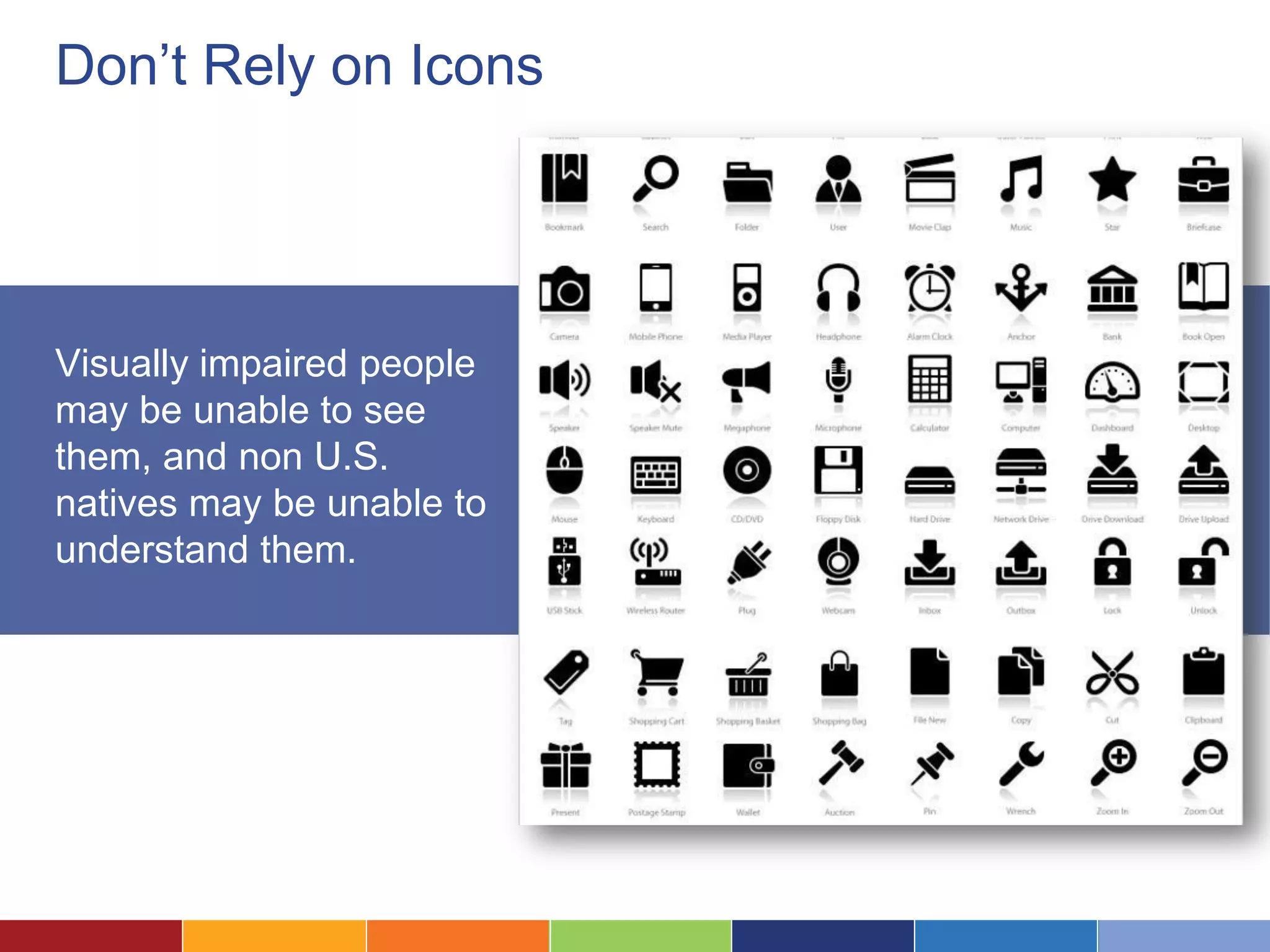
Don’t Rely on Icons
Visually impaired people
may be unable to see
them, and non U.S.
natives may be unable to
understand them.
3Make Text High Contrast and Legible
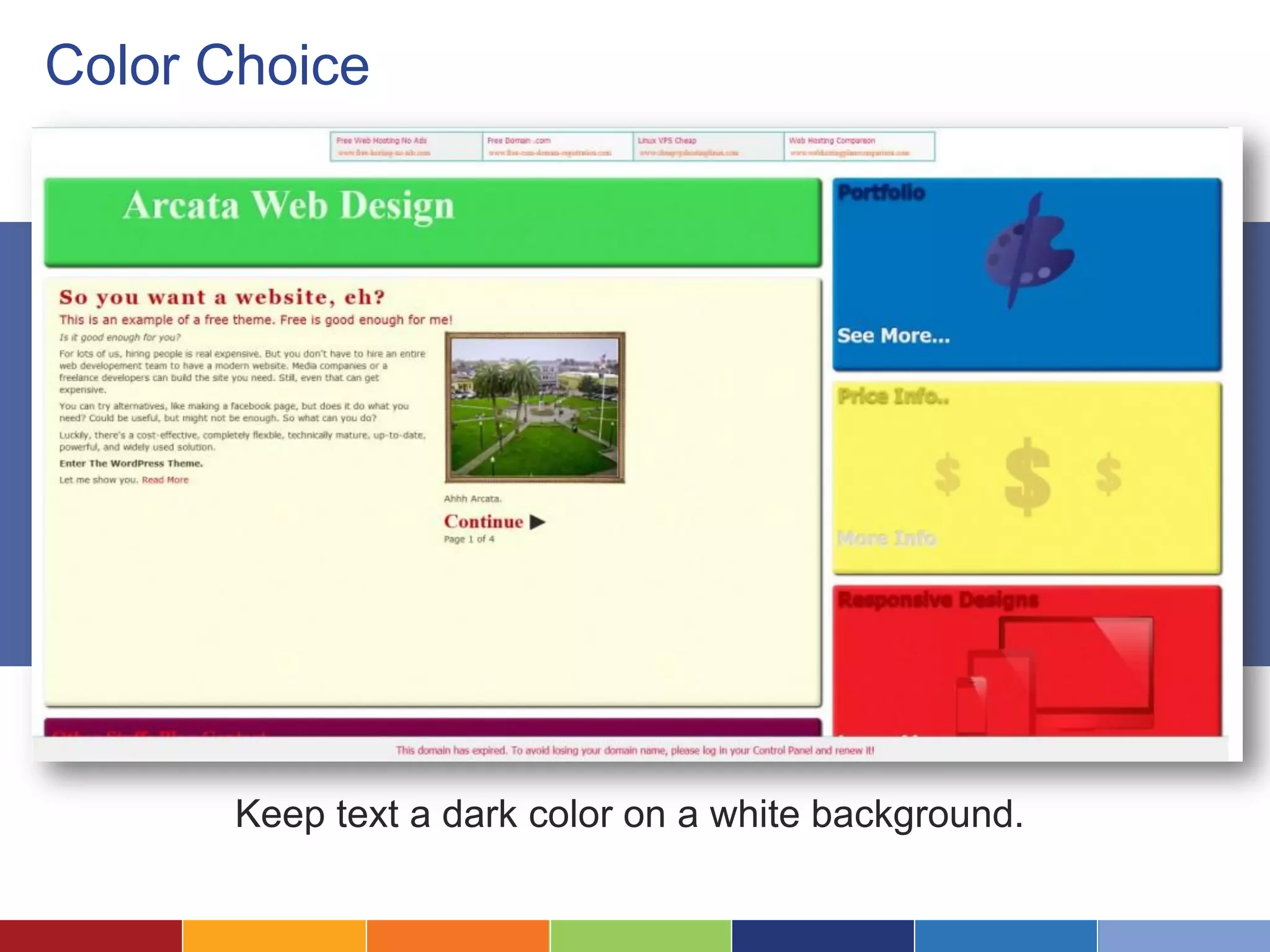
Color Choice
Keep text a dark color on a white background.
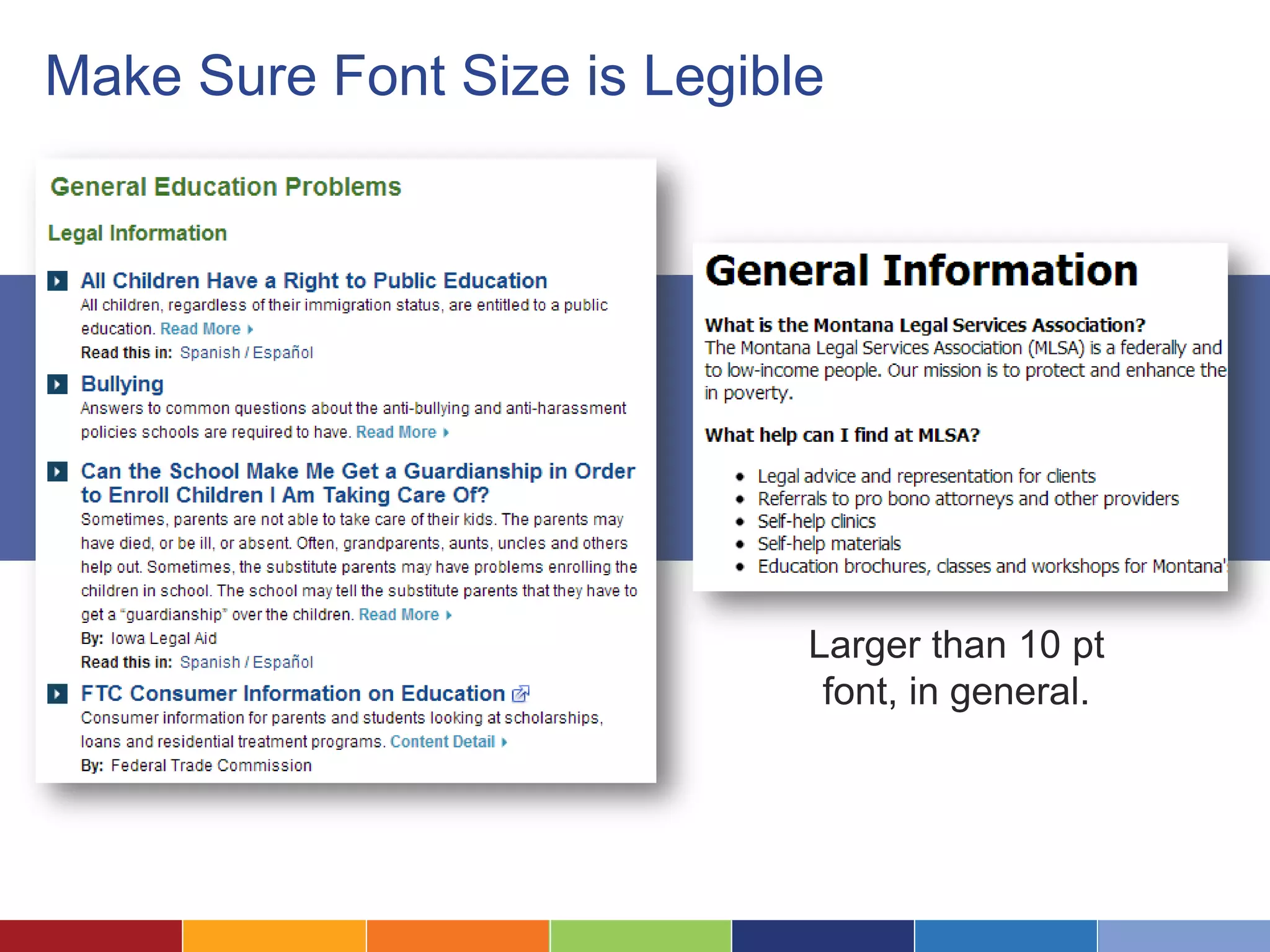
Make Sure Font Size is Legible
Larger than 10 pt
font, in general.
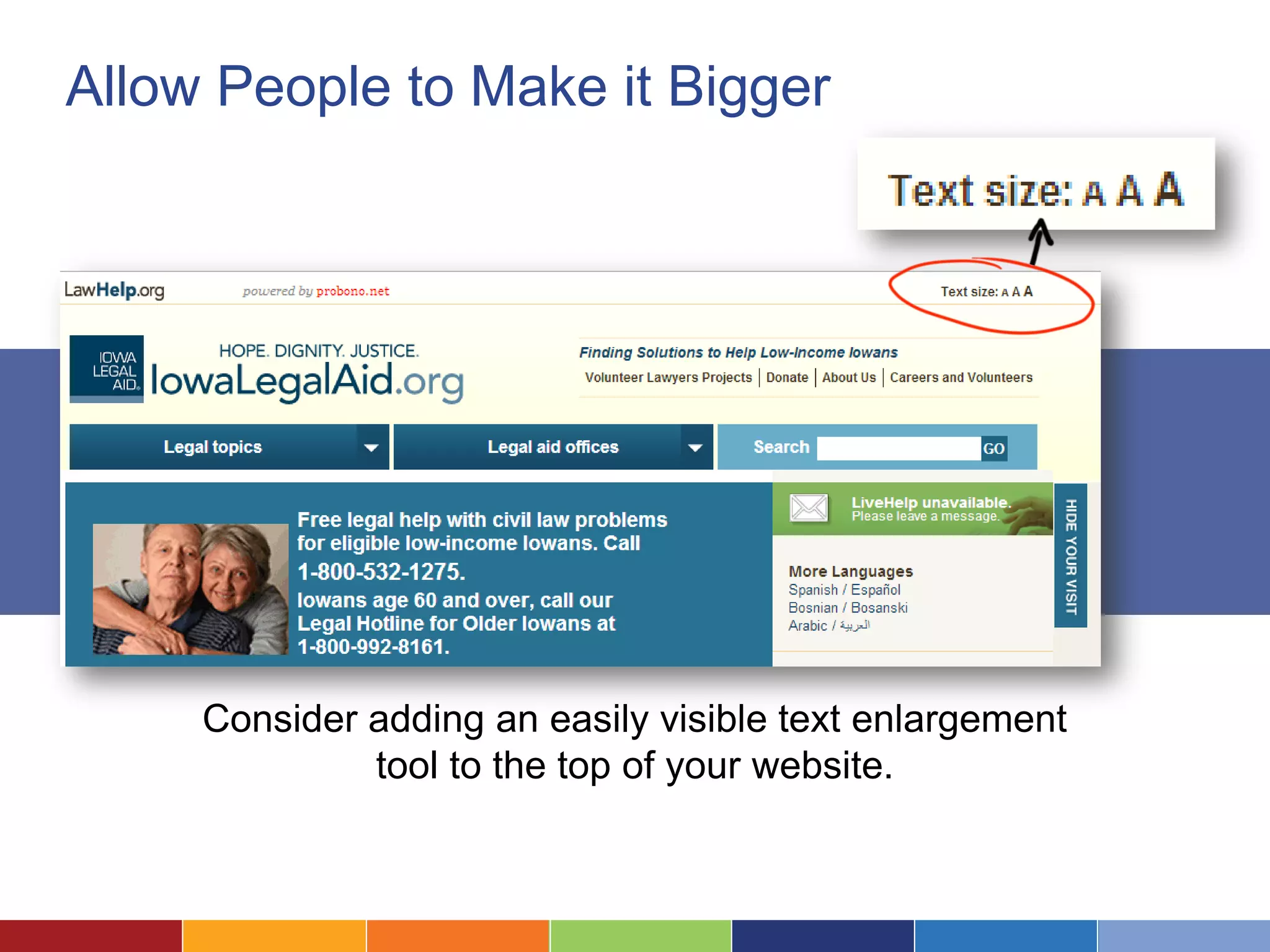
Allow People to Make it Bigger
Consider adding an easily visible text enlargement
tool to the top of your website.
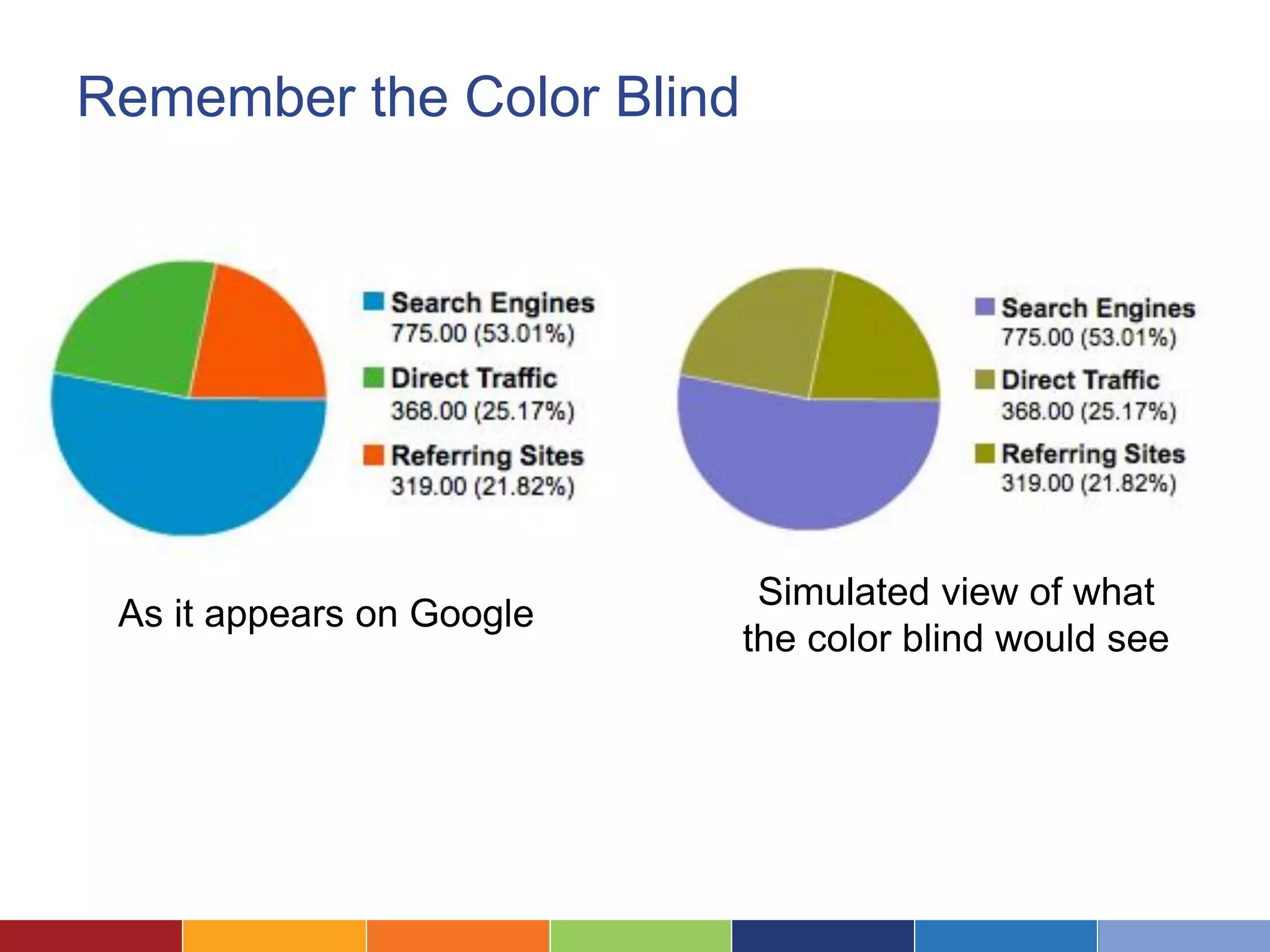
Remember the Color Blind
As it appears on Google
Simulated view of what
the color blind would see
4Accommodate Screen Readers
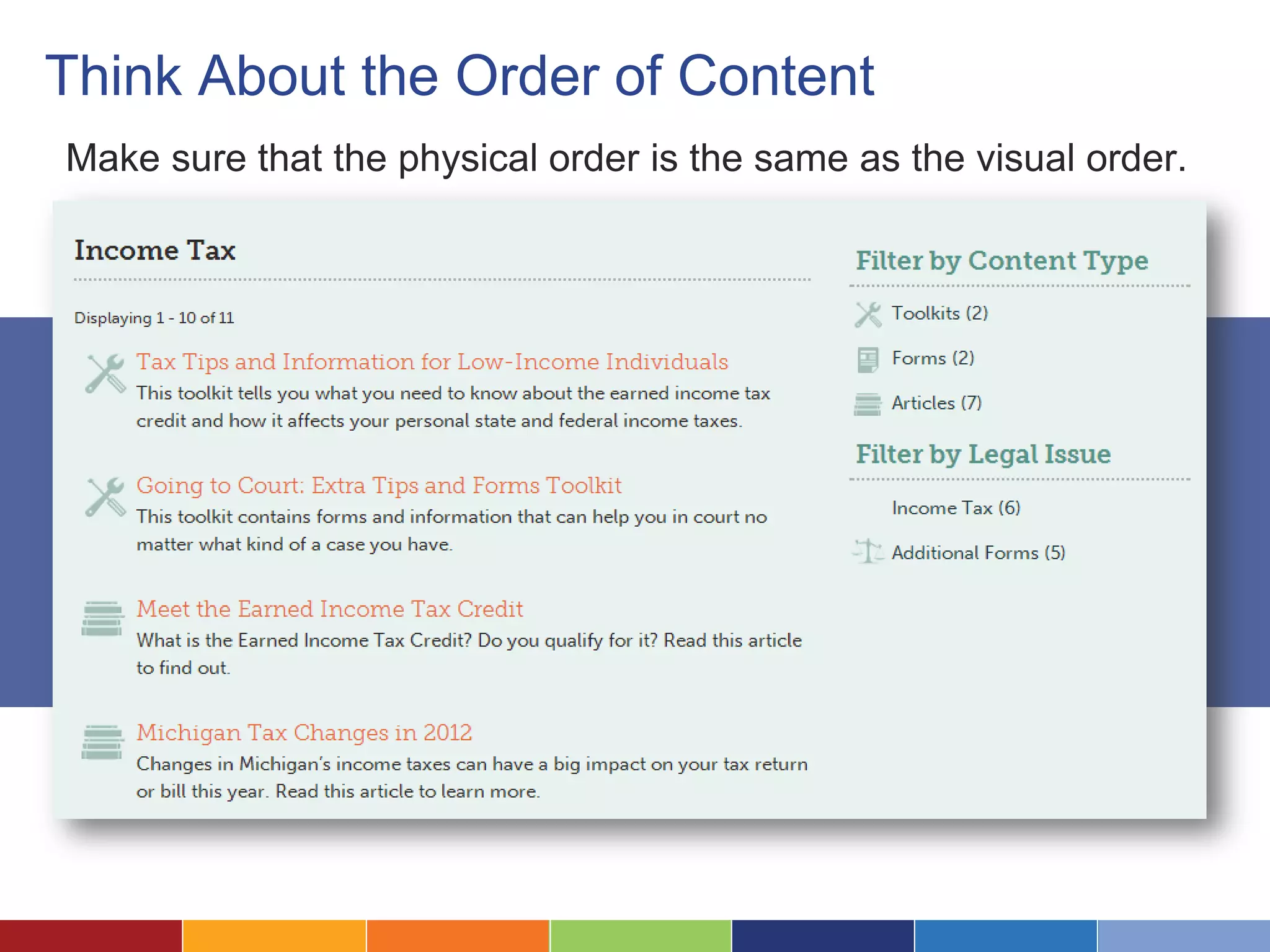
Think About the Order of Content
Make sure that the physical order is the same as the visual order.
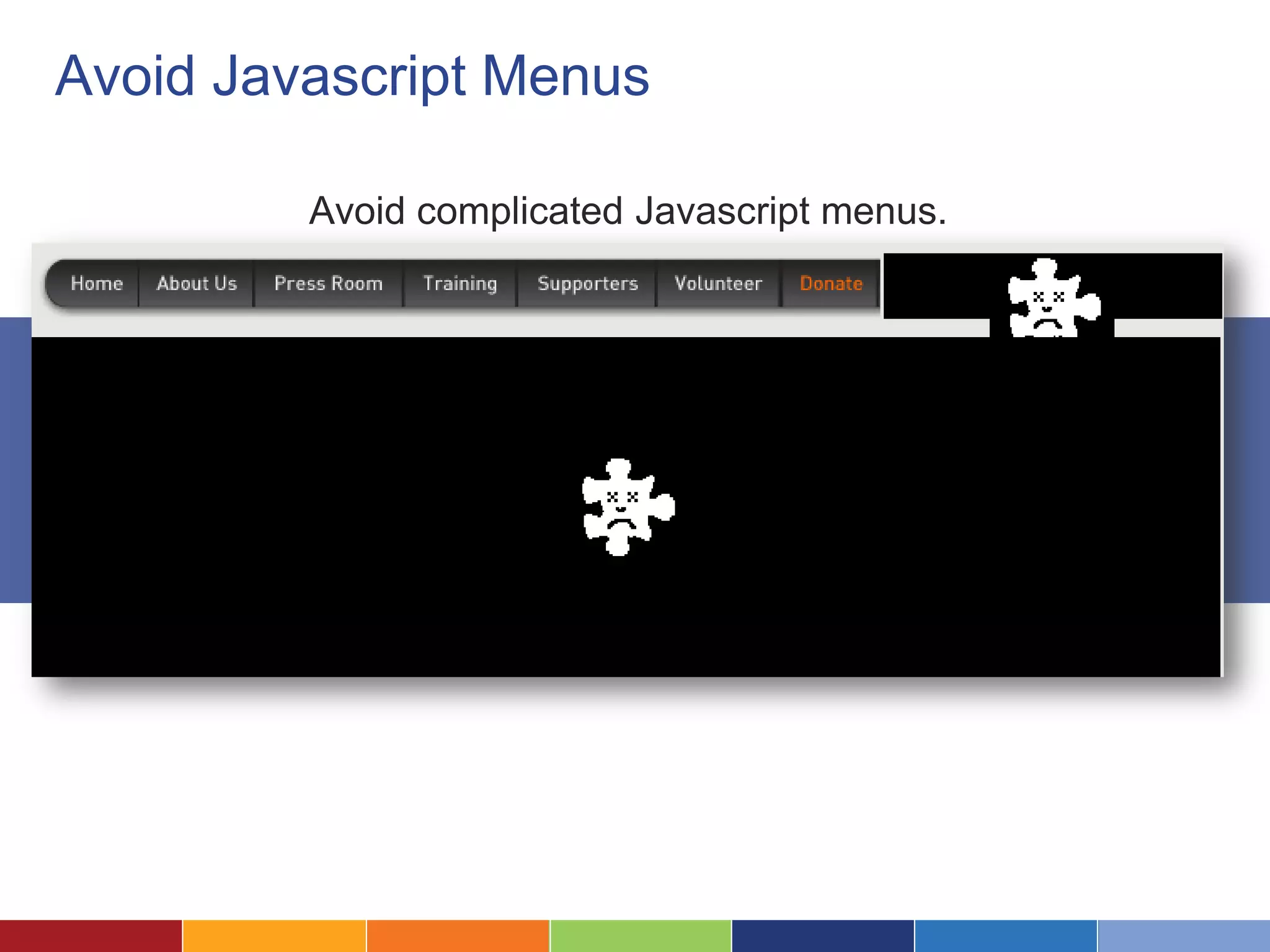
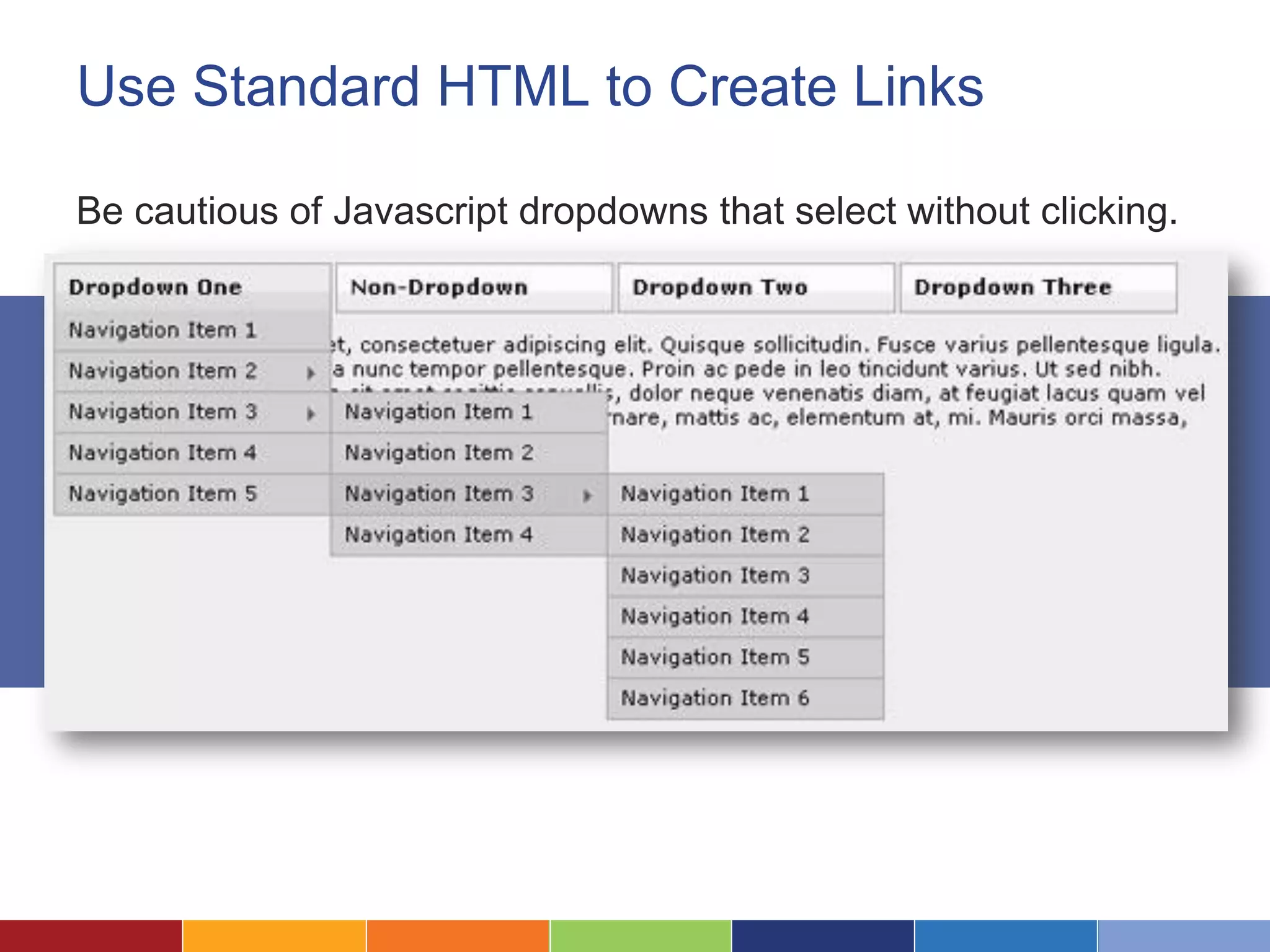
Avoid Javascript Menus
Avoid complicated Javascript menus.
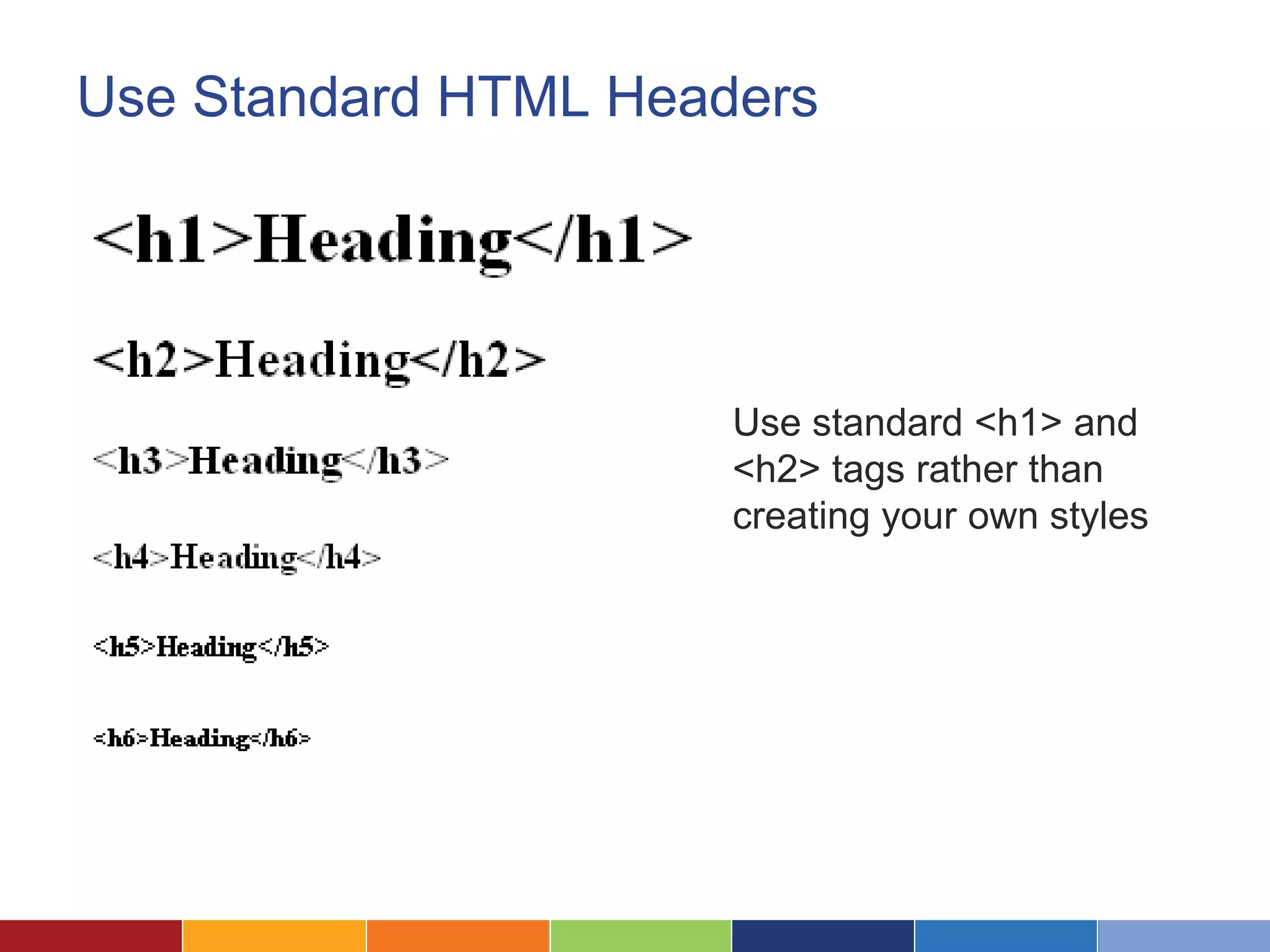
Use Standard HTML Headers
Use standard <h1> and
<h2> tags rather than
creating your own styles
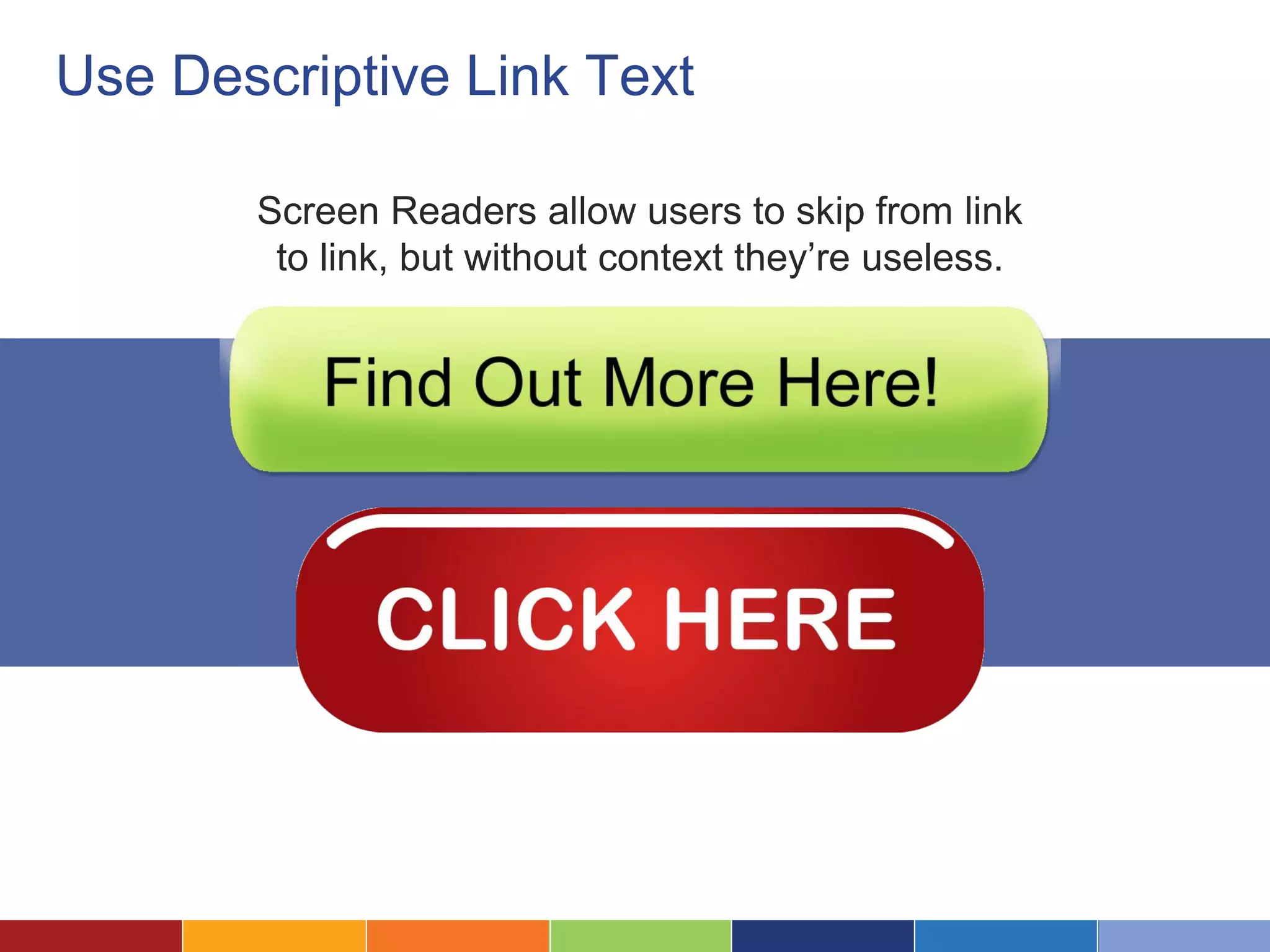
Use Descriptive Link Text
Screen Readers allow users to skip from link
to link, but without context they’re useless.
Consider “Skip Navigation”
Consider a “Skip Nav” link to let those using screen
readers or keyboards can skip to the content they want.
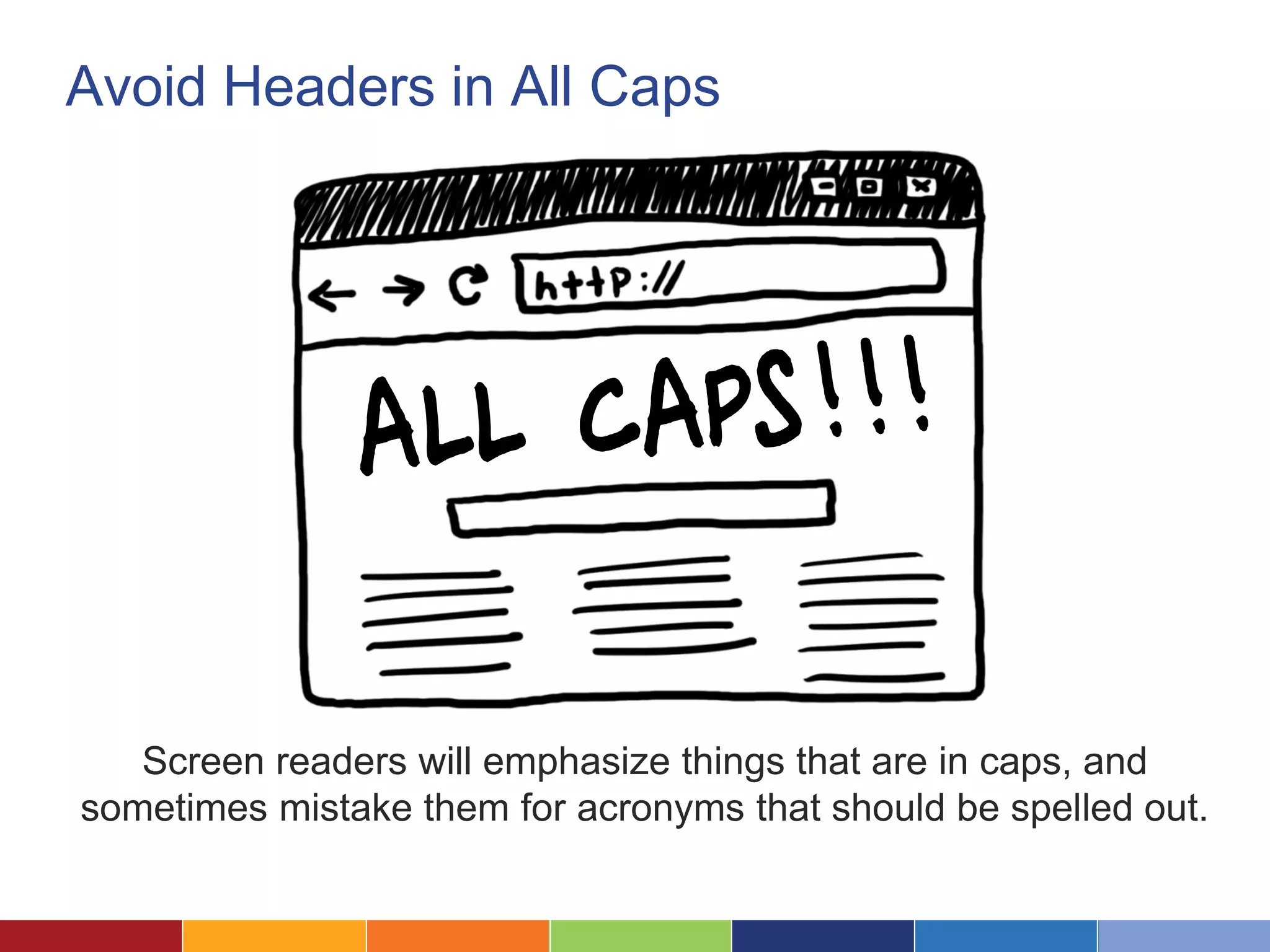
Avoid Headers in All Caps
Screen readers will emphasize things that are in caps, and
sometimes mistake them for acronyms that should be spelled out.
5 Design for Those Who Aren’t
Using a Mouse
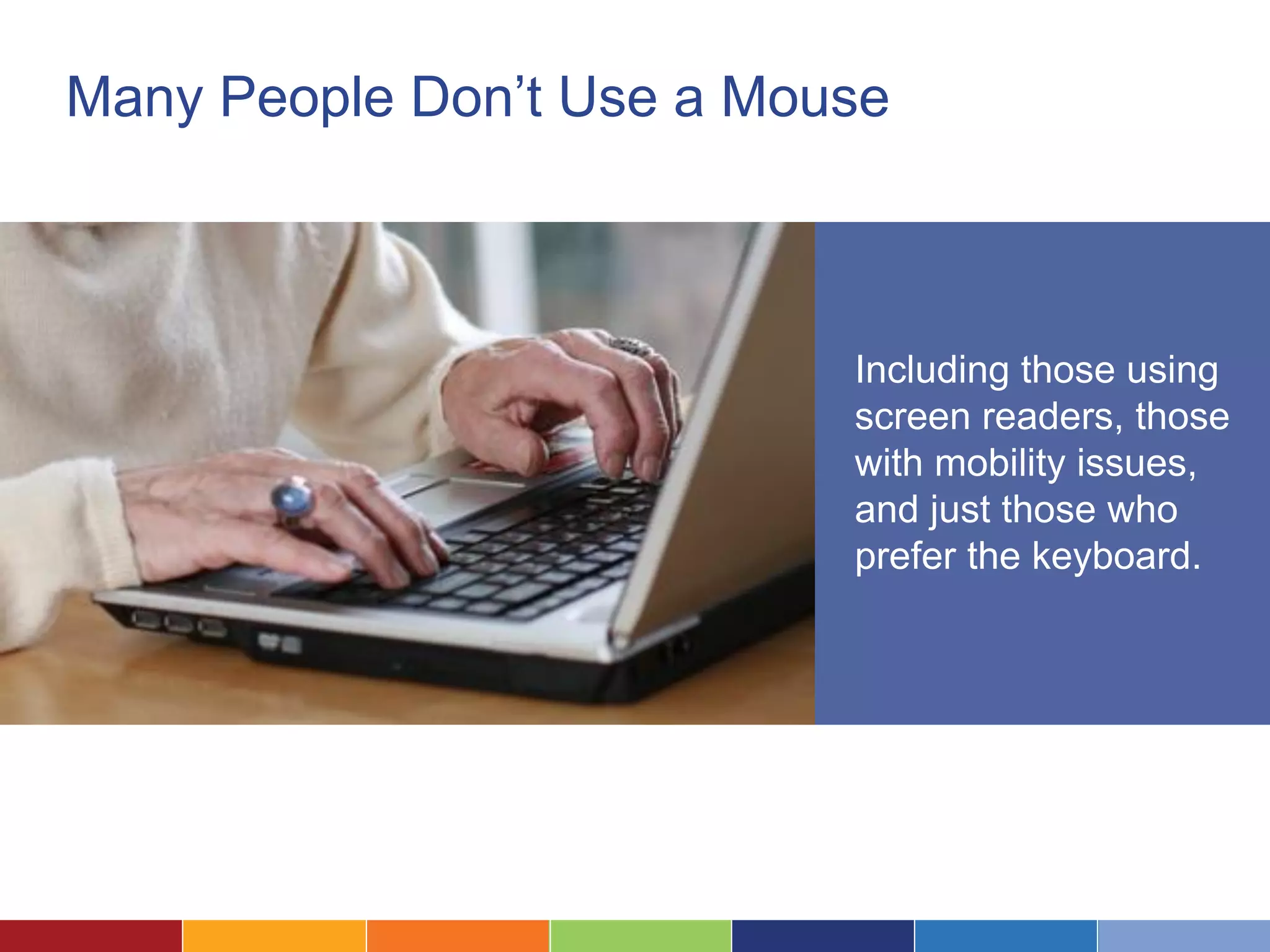
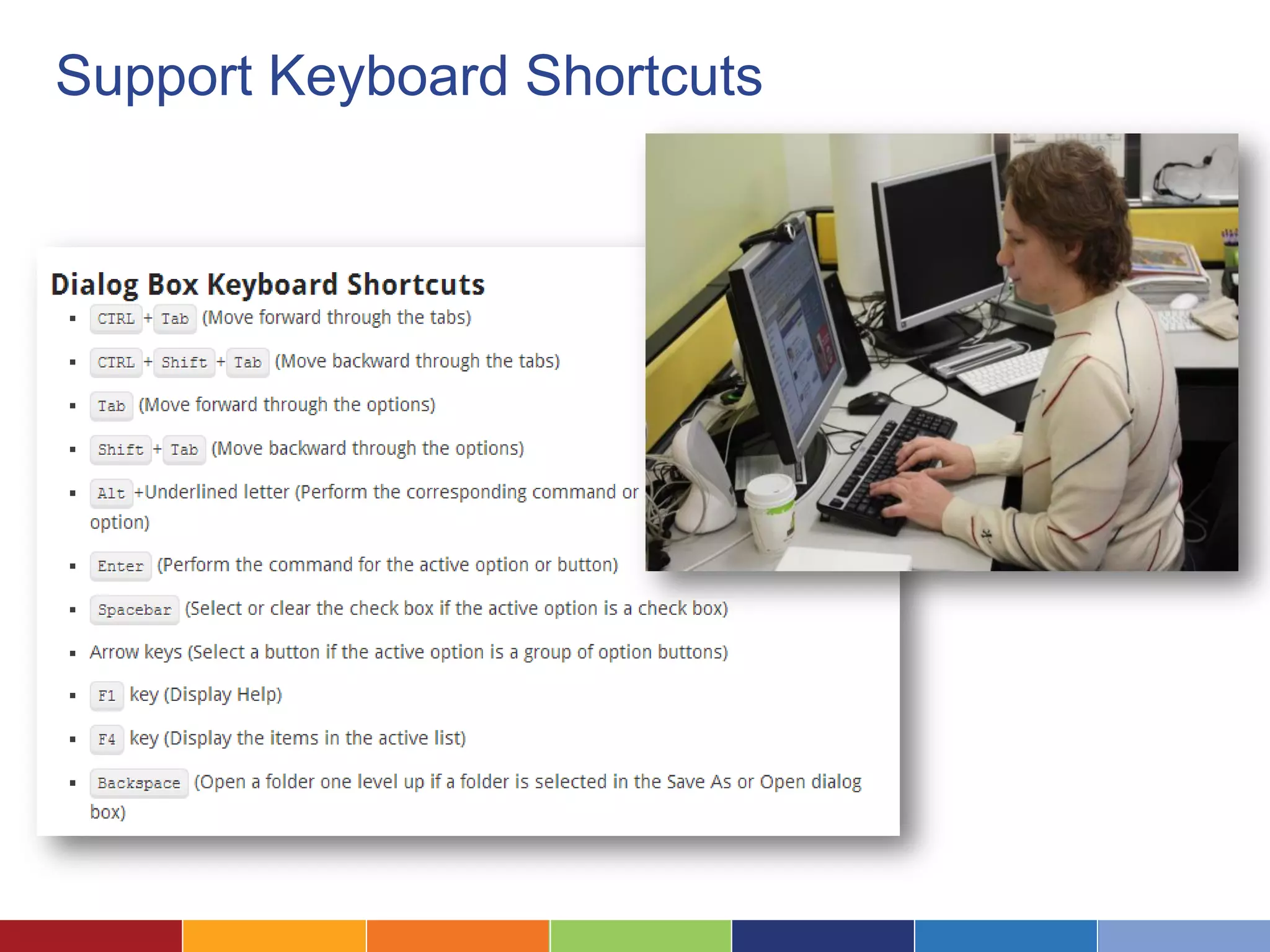
Many People Don’t Use a Mouse
Including those using
screen readers, those
with mobility issues,
and just those who
prefer the keyboard.
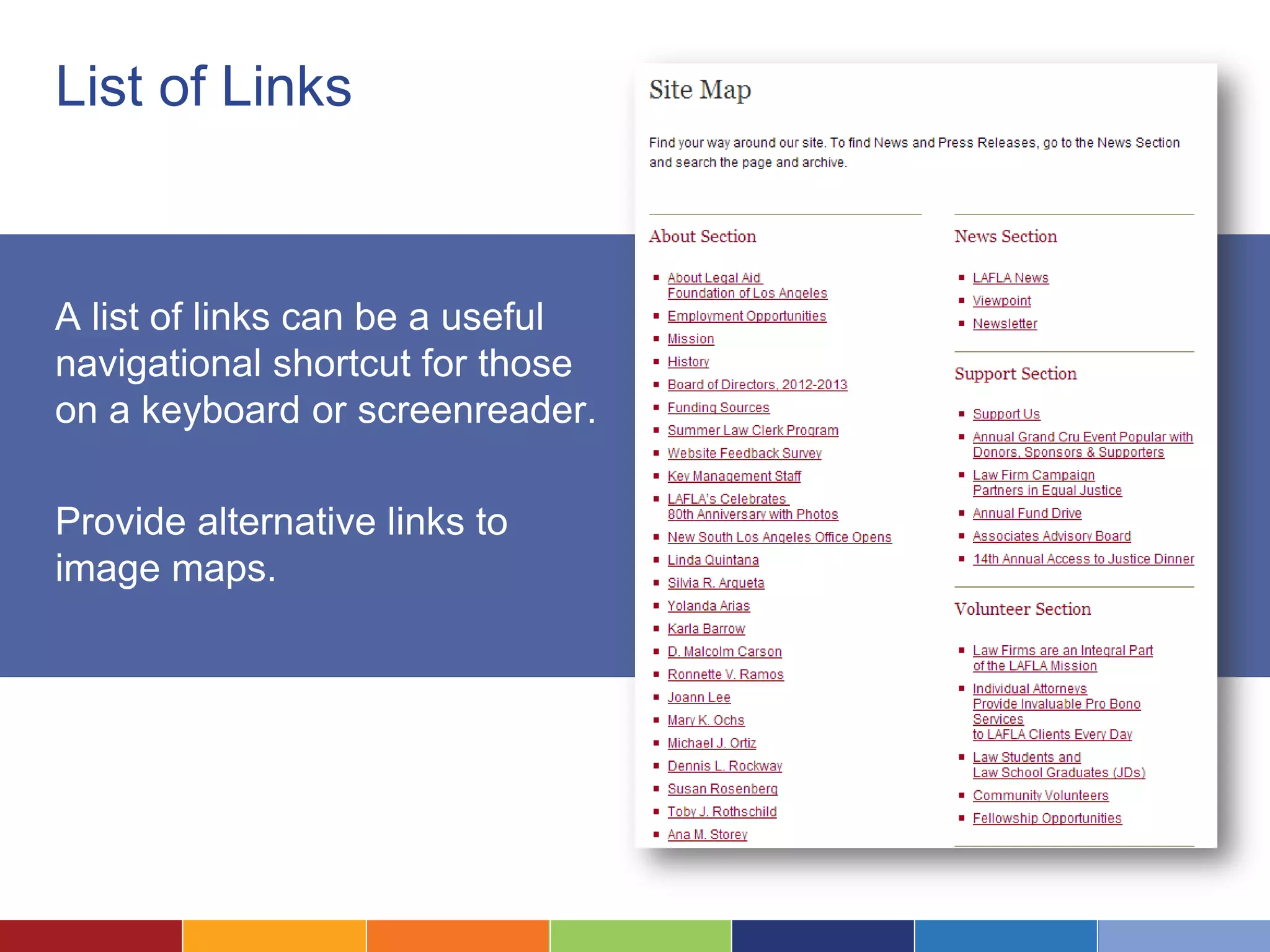
List of Links
A list of links can be a useful
navigational shortcut for those
on a keyboard or screenreader.
Provide alternative links to
image maps.
Support Keyboard Shortcuts
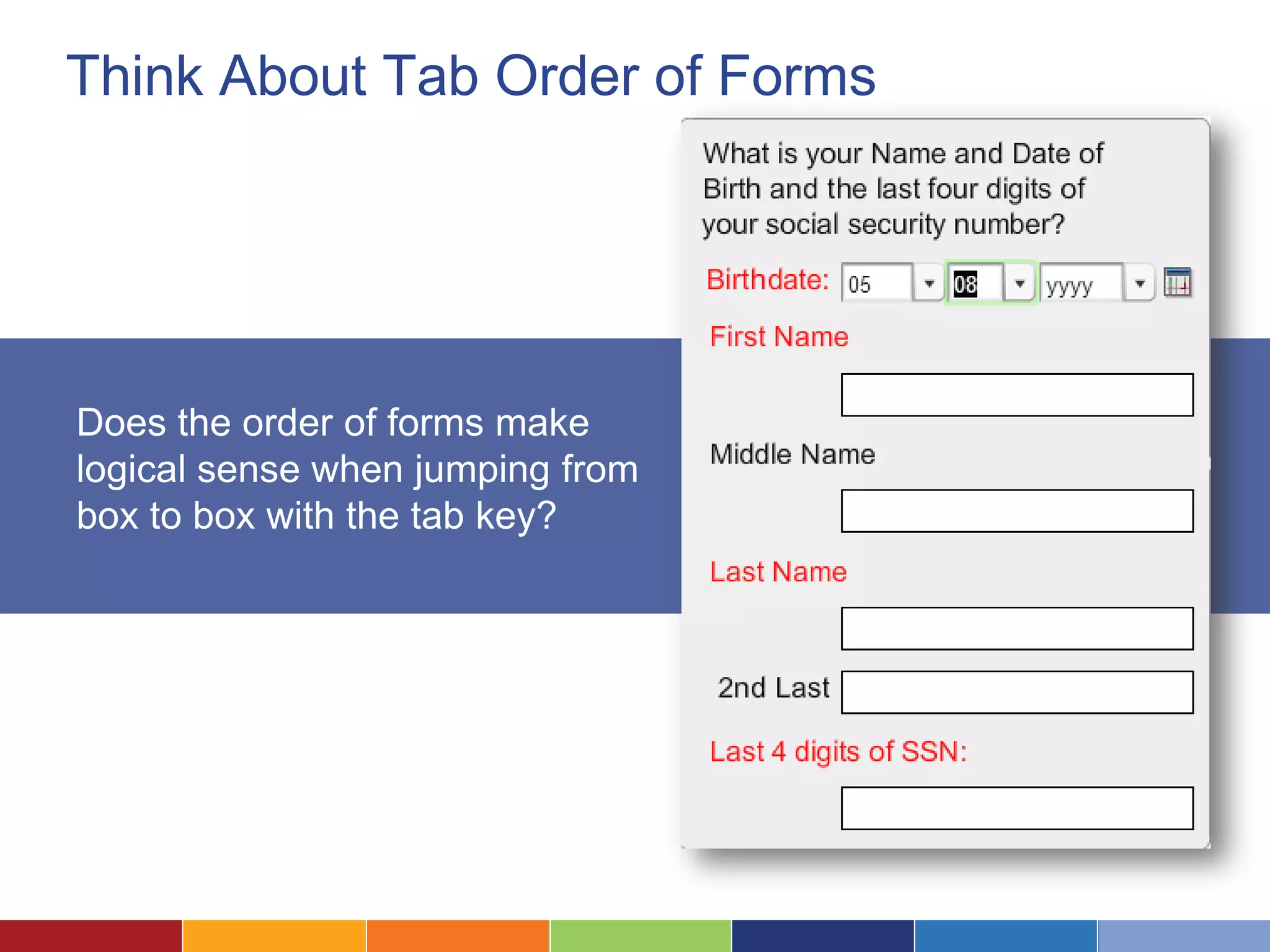
Think About Tab Order of Forms
Does the order of forms make
logical sense when jumping from
box to box with the tab key?
6Code Pages According to Standards
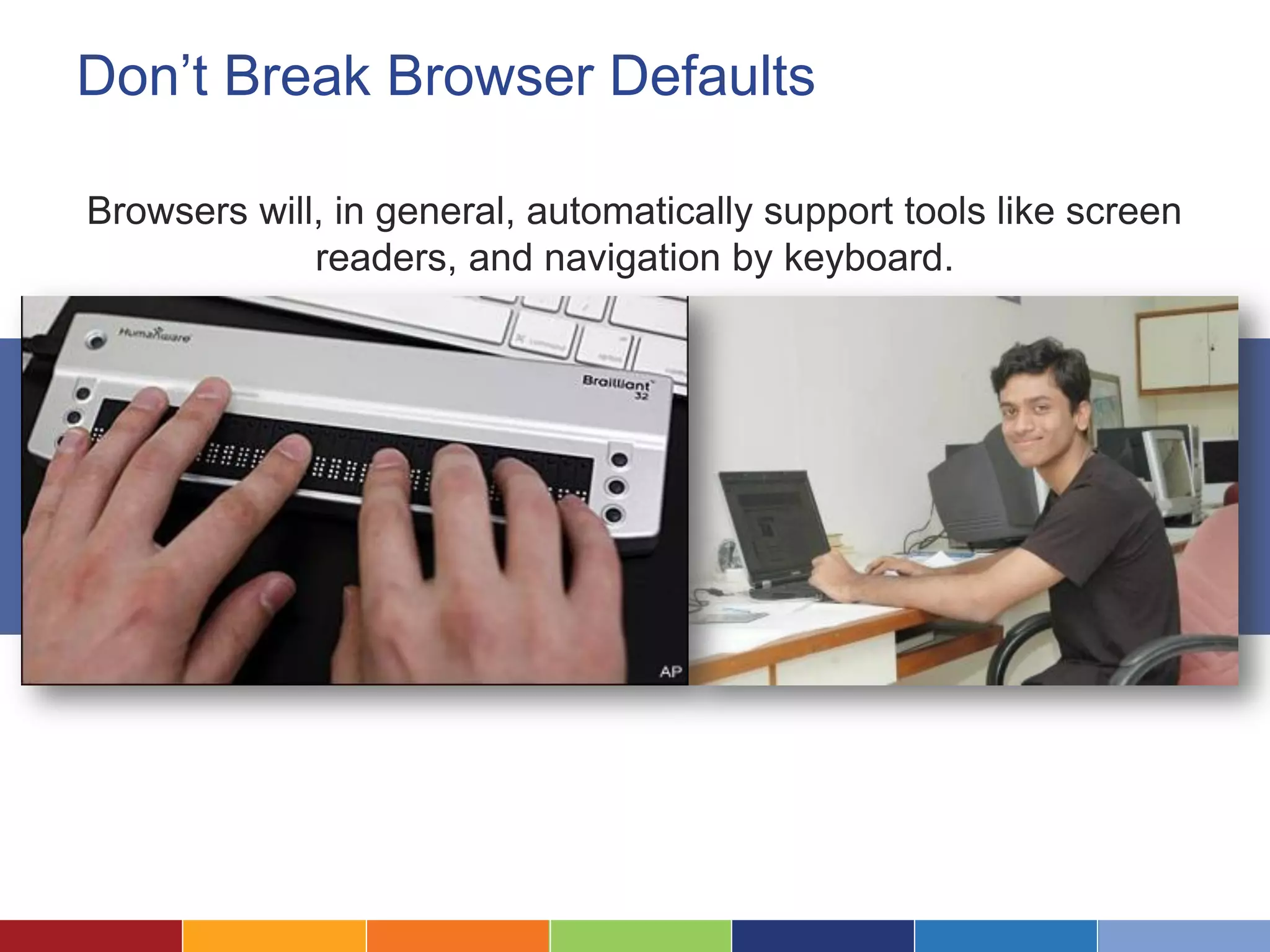
Don’t Break Browser Defaults
Browsers will, in general, automatically support tools like screen
readers, and navigation by keyboard.
Use Standard HTML to Create Links
Be cautious of Javascript dropdowns that select without clicking.
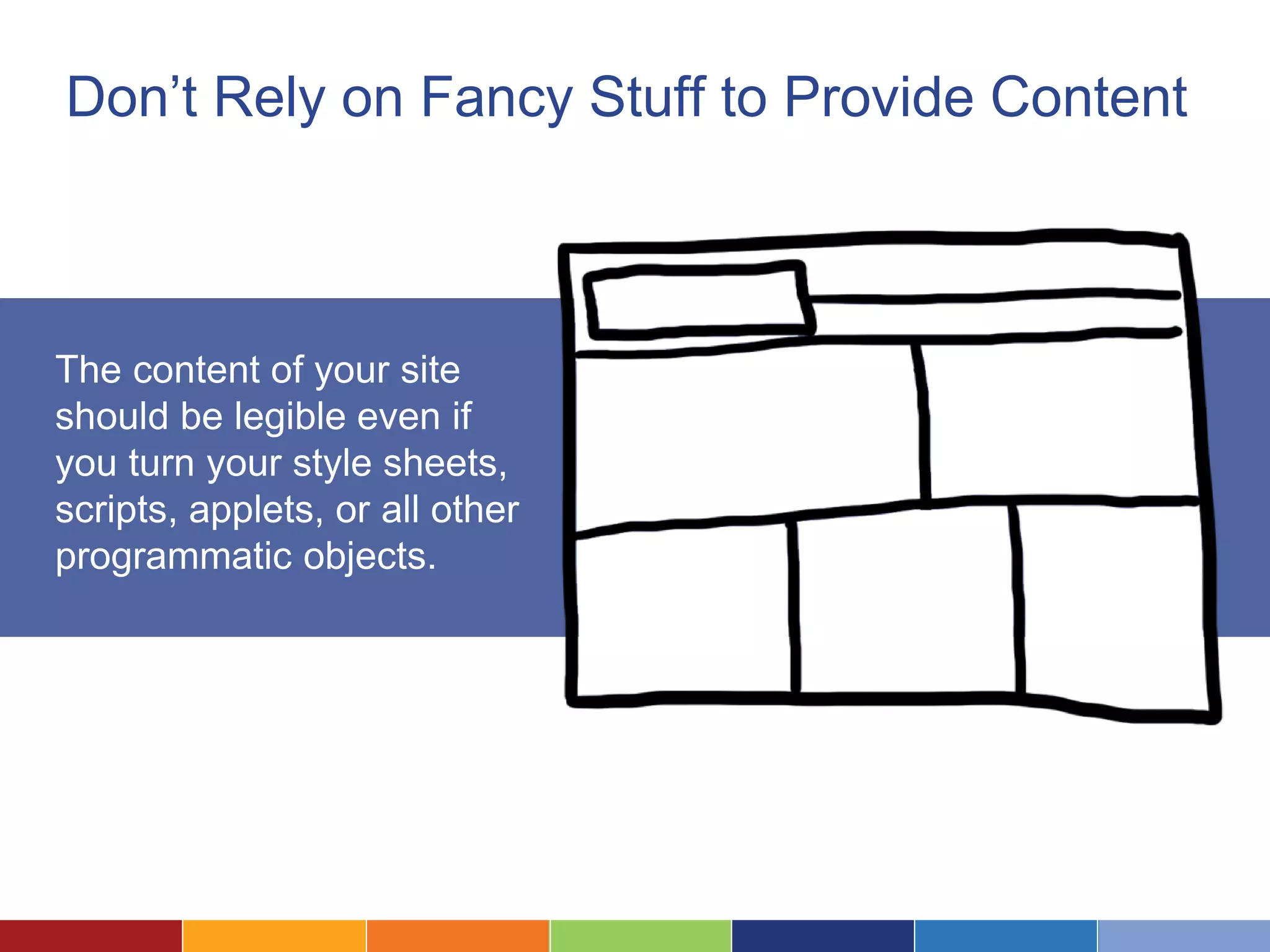
Don’t Rely on Fancy Stuff to Provide Content
The content of your site
should be legible even if
you turn your style sheets,
scripts, applets, or all other
programmatic objects.
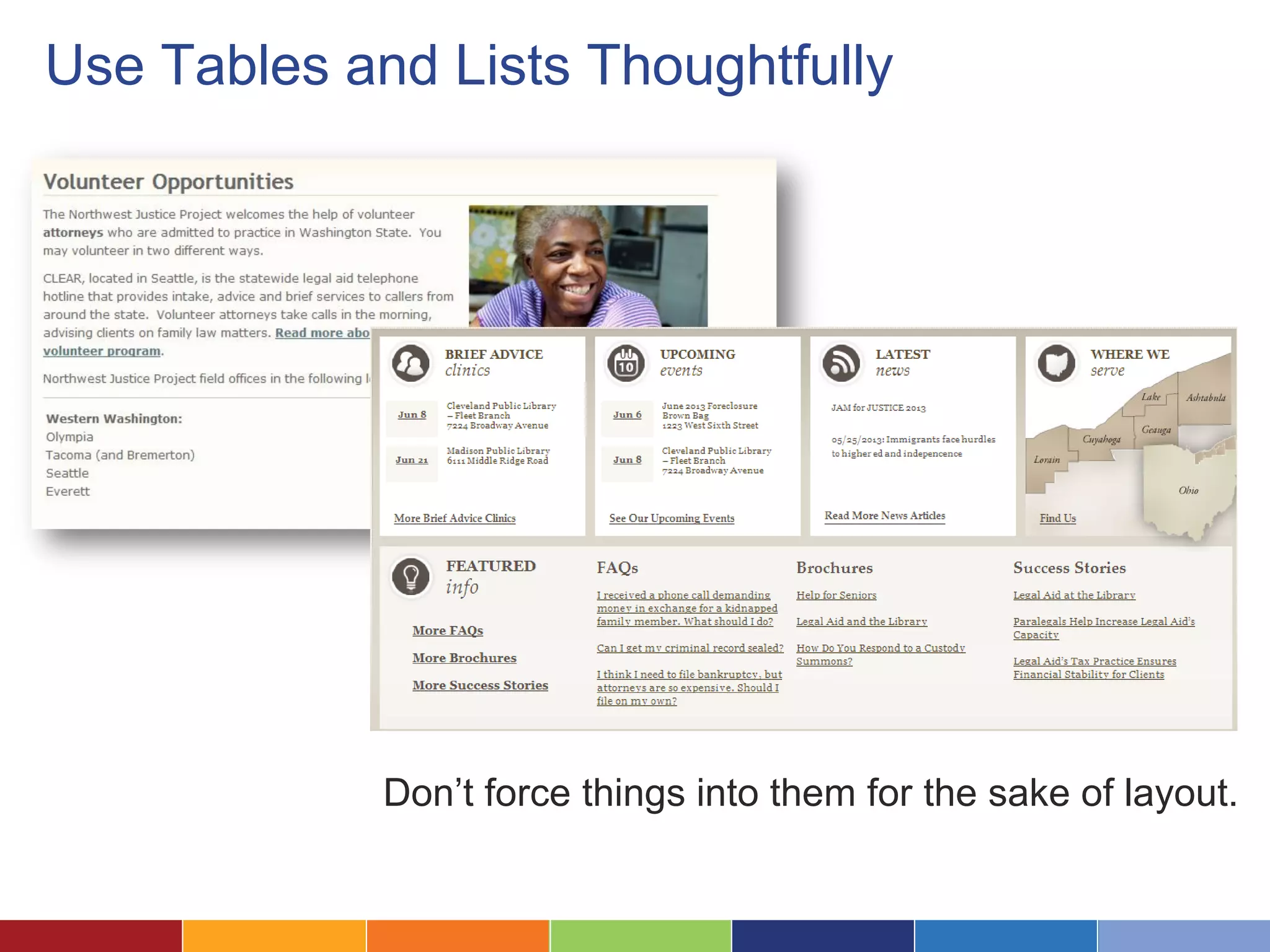
Use Tables and Lists Thoughtfully
Don’t force things into them for the sake of layout.
Tools for Testing Web Accessibility
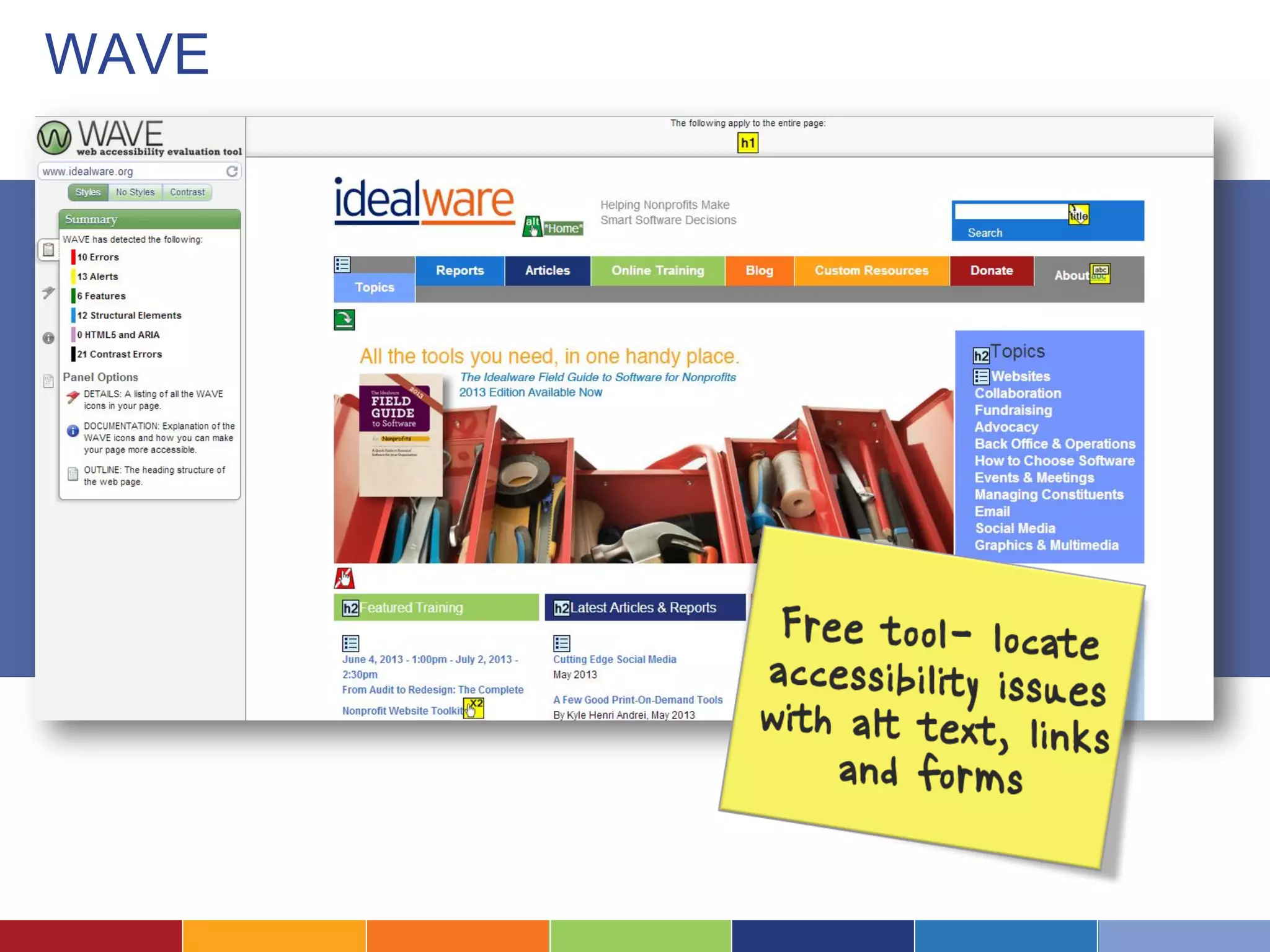
WAVE
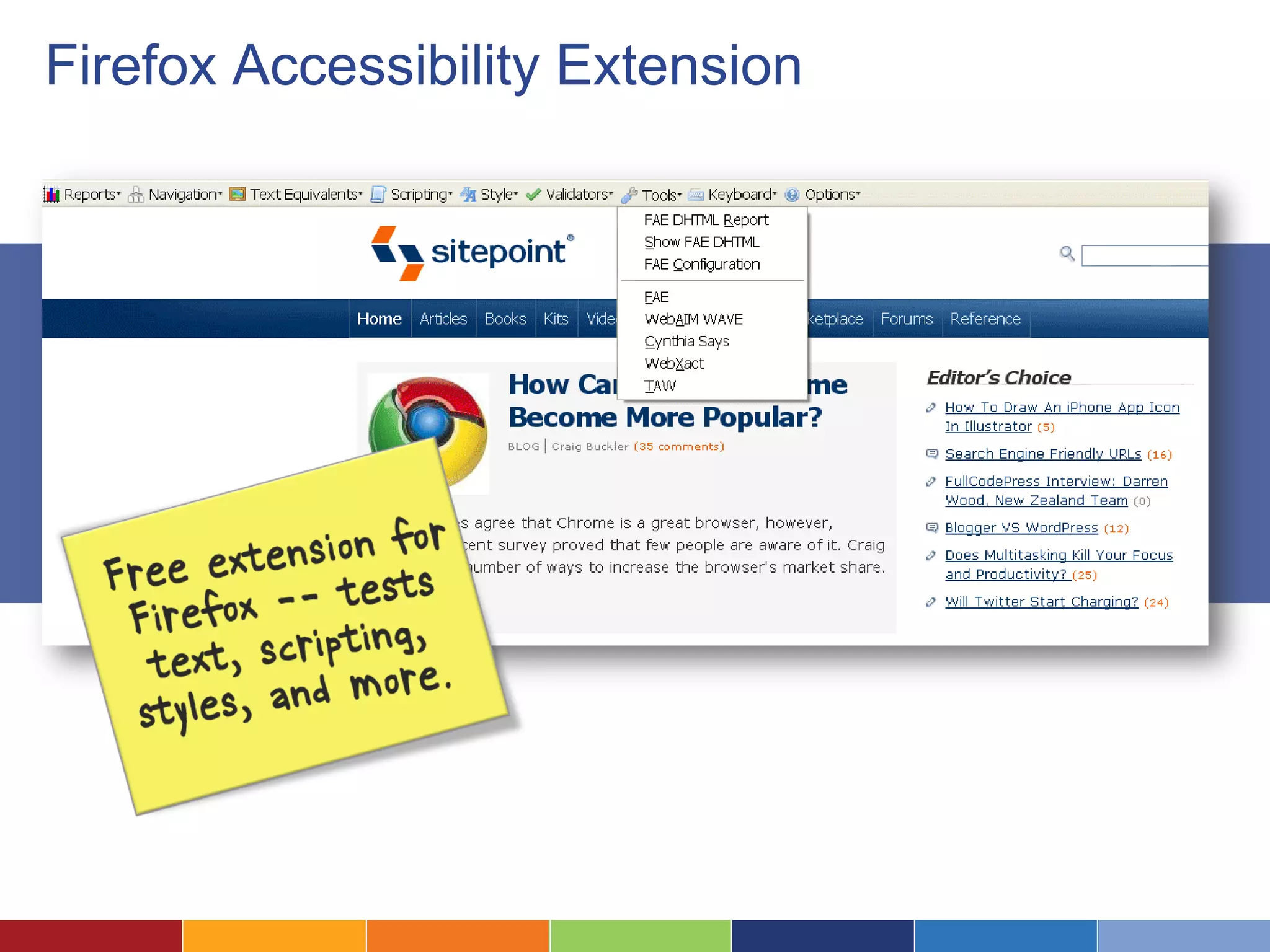
Firefox Accessibility Extension
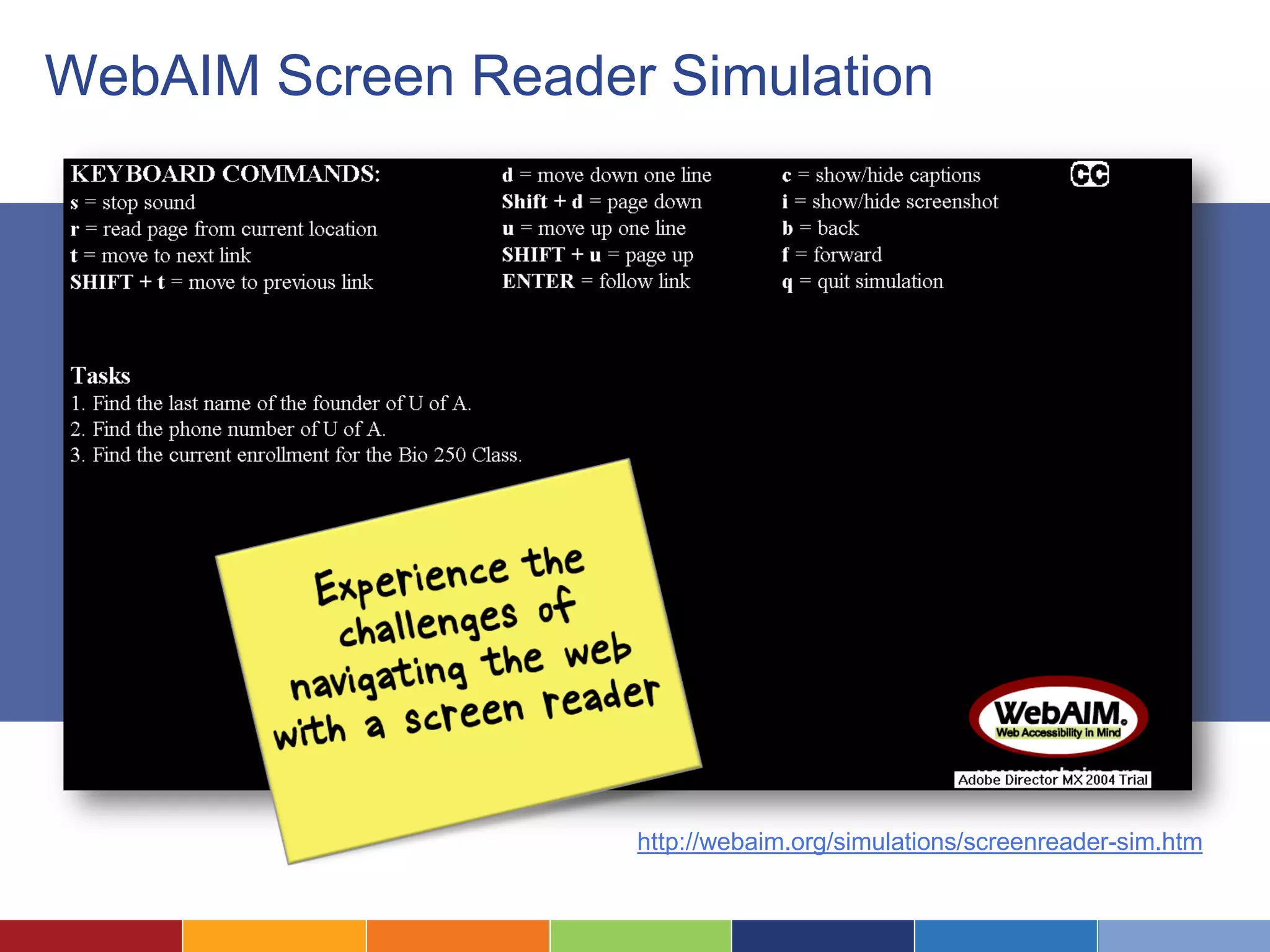
WebAIM Screen Reader Simulation
http://webaim.org/simulations/screenreader-sim.htm
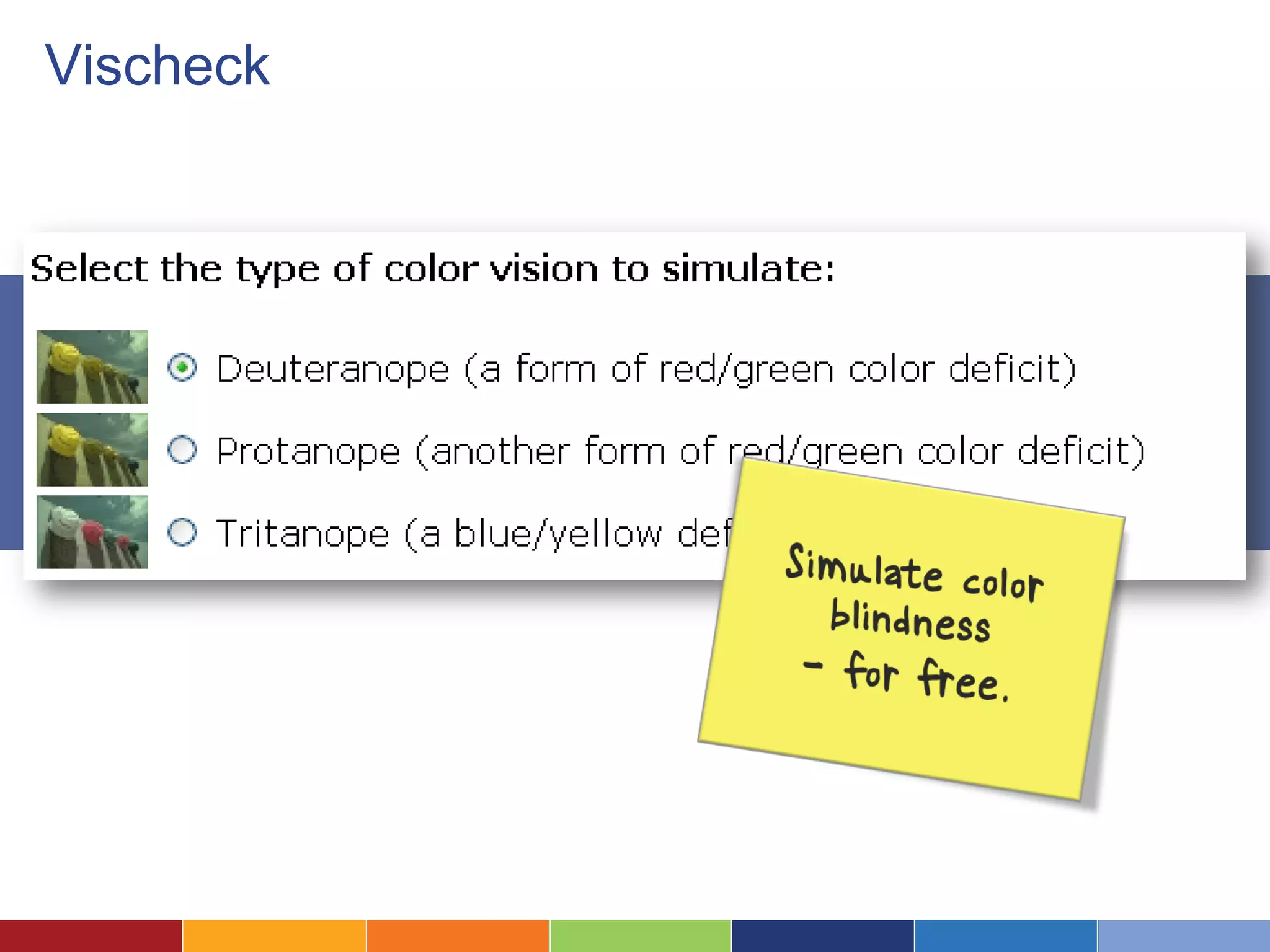
Vischeck
W3C and 508 Compliance
What Does 508 Compliance Mean?
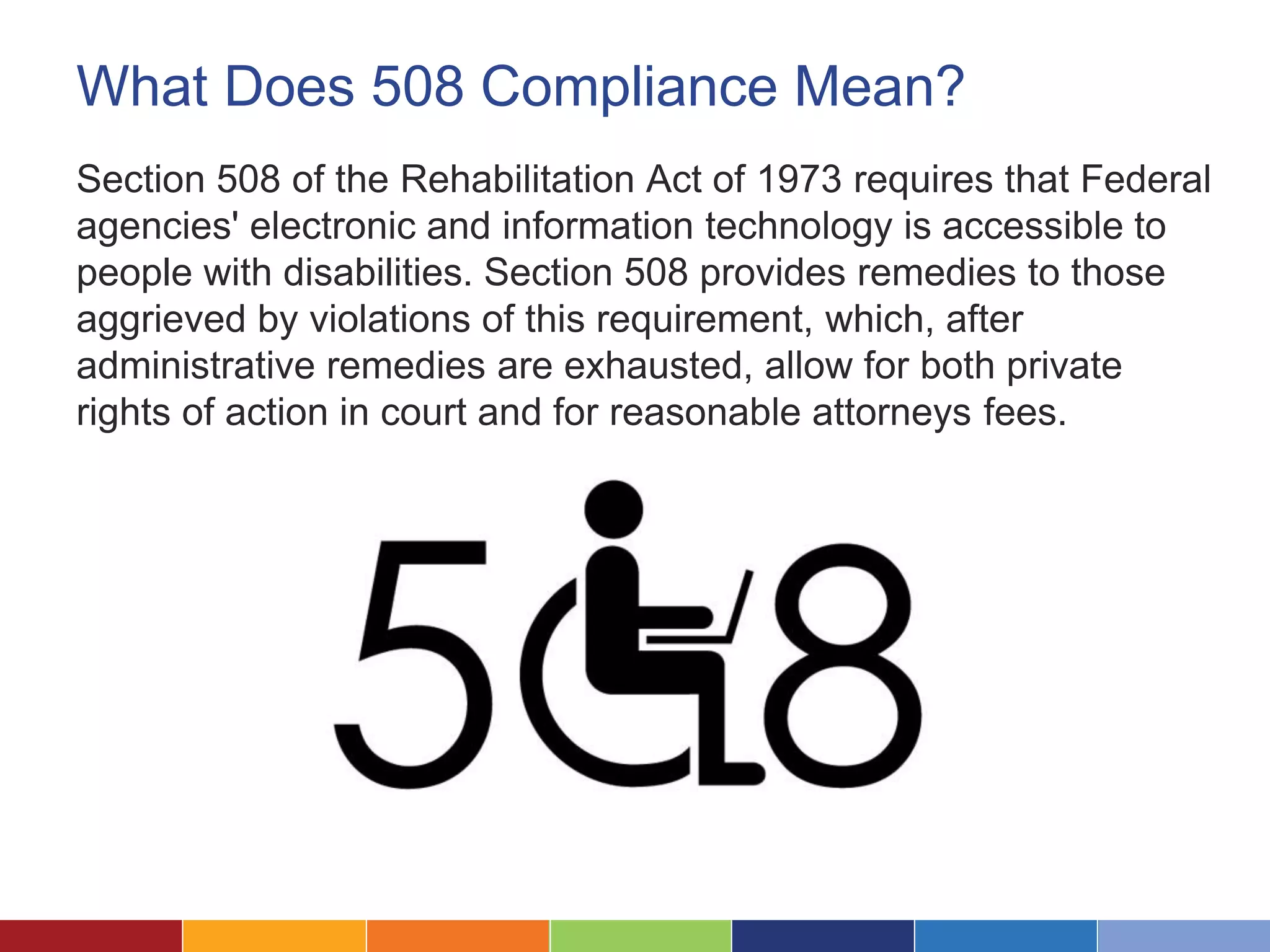
Section 508 of the Rehabilitation Act of 1973 requires that Federal
agencies' electronic and information technology is accessible to
people with disabilities. Section 508 provides remedies to those
aggrieved by violations of this requirement, which, after
administrative remedies are exhausted, allow for both private
rights of action in court and for reasonable attorneys fees.
What Does W3C Compliance Mean?
These guidelines, developed by the World Wide Web
Consortium, explain how to make Web content accessible to
people with disabilities. The guidelines are intended for all Web
content developers (page authors and site designers) and for
developers of authoring tools.
The Standards (in Simple Terms)
The requirements for both W3C and 508 Compliance are similar.
Occasionally, one has more strict rules than the other, but their
primary difference lies in the fact that W3C Compliance is not
required by any institution, but is rather an optional set of best
practices for web accessibility.
We’ll cover 508 compliance primarily.
Visual Elements
• Provide a text alternative for
every non-text element of
your website.
• Videos and animation should
have accompanying captions
or auditory descriptions of the
visual track.
• All information that is
conveyed with color should
also be clear without color
Interactive Elements
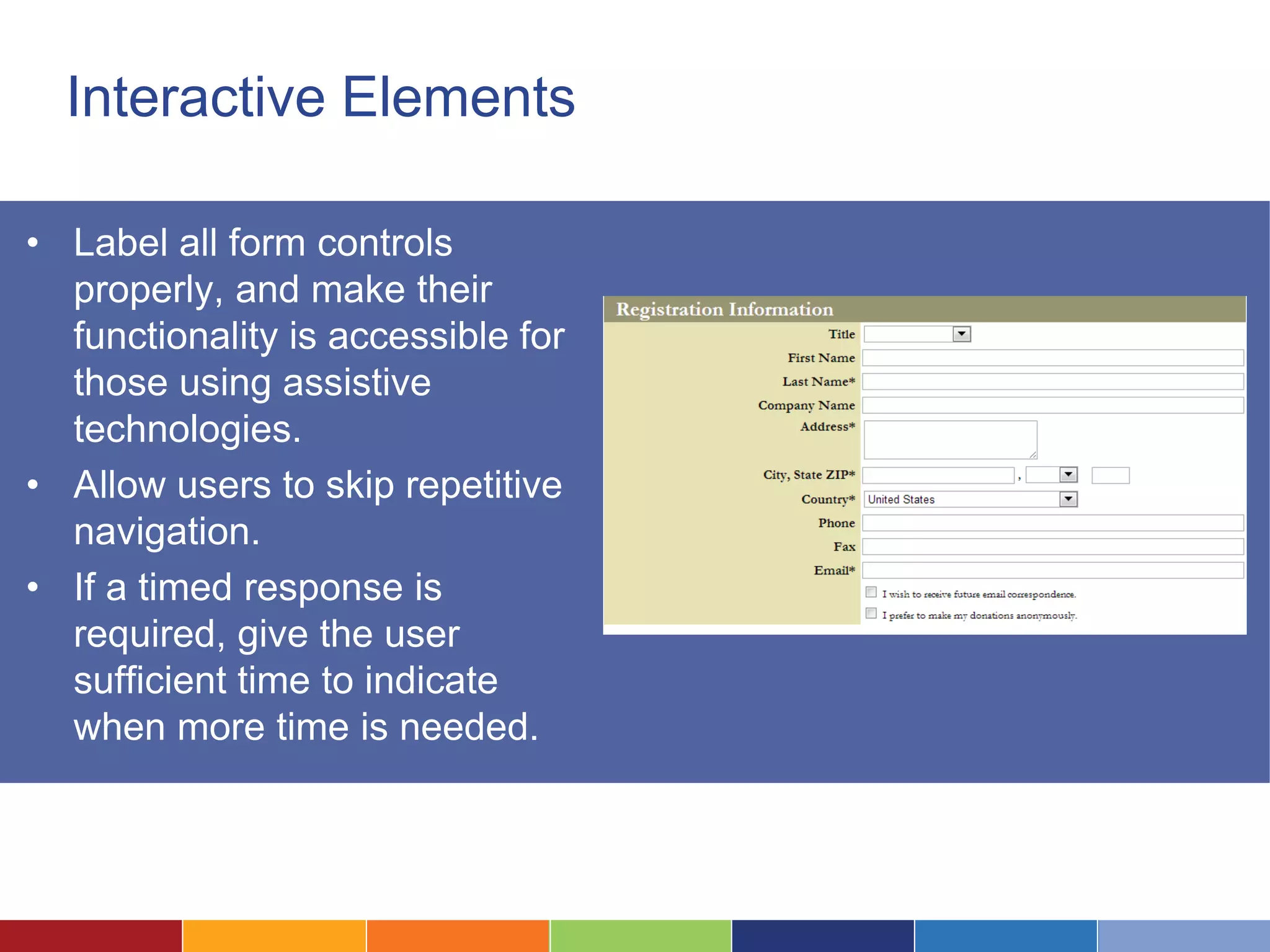
• Label all form controls
properly, and make their
functionality is accessible for
those using assistive
technologies.
• Allow users to skip repetitive
navigation.
• If a timed response is
required, give the user
sufficient time to indicate
when more time is needed.
Technical Elements
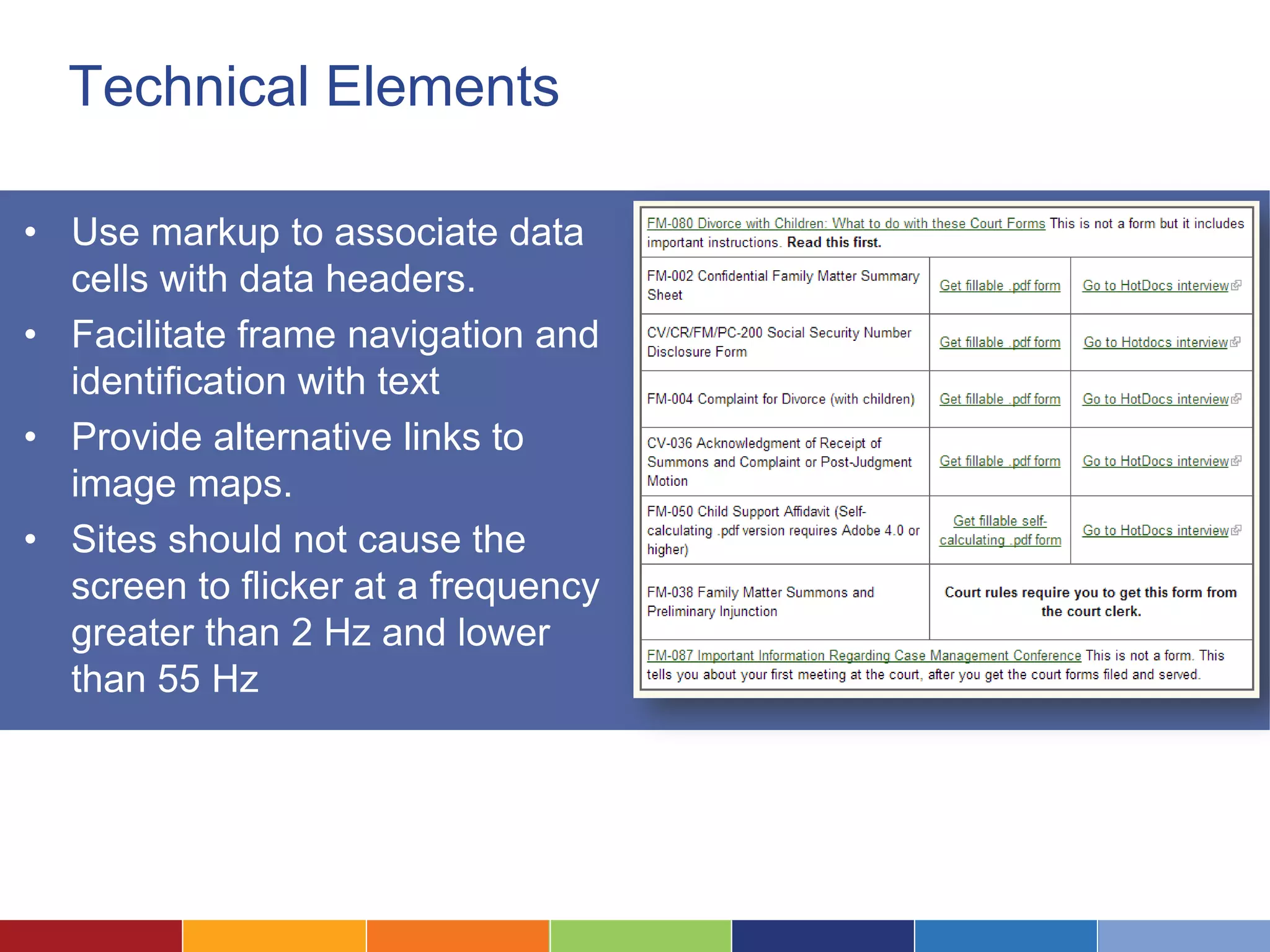
• Use markup to associate data
cells with data headers.
• Facilitate frame navigation and
identification with text
• Provide alternative links to
image maps.
• Sites should not cause the
screen to flicker at a frequency
greater than 2 Hz and lower
than 55 Hz
Ensure Content Is Always Legible
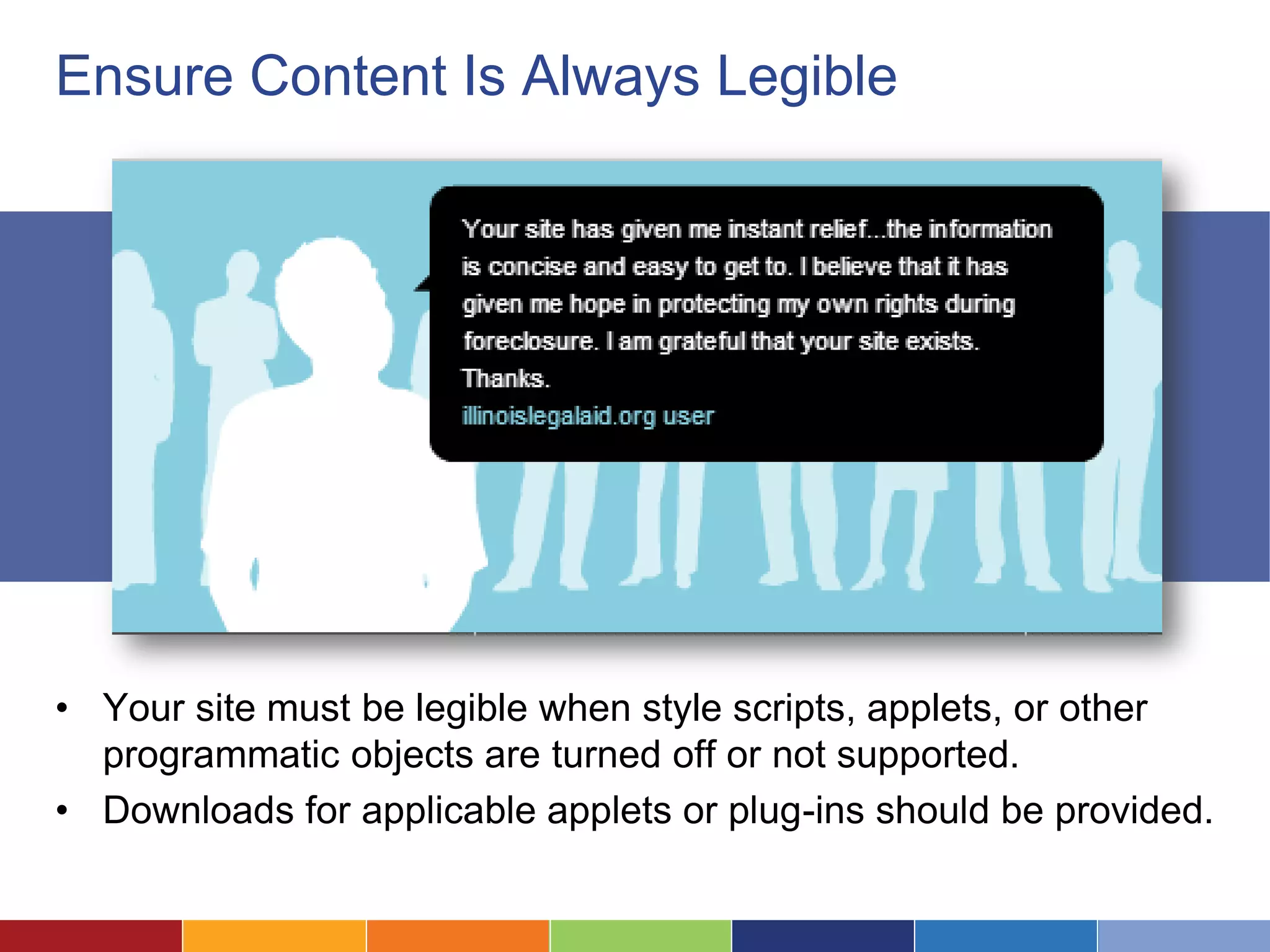
• Your site must be legible when style scripts, applets, or other
programmatic objects are turned off or not supported.
• Downloads for applicable applets or plug-ins should be provided.
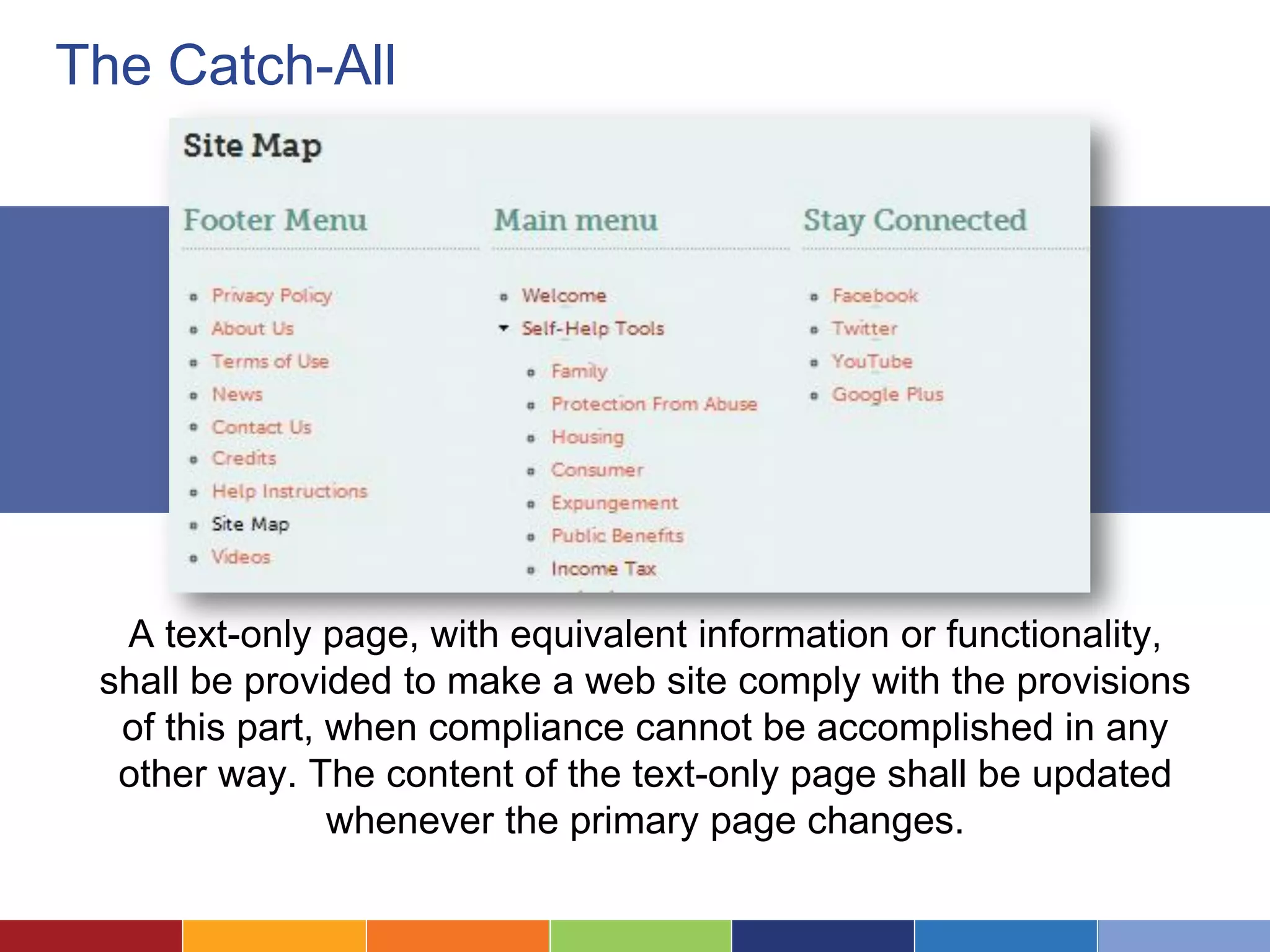
The Catch-All
A text-only page, with equivalent information or functionality,
shall be provided to make a web site comply with the provisions
of this part, when compliance cannot be accomplished in any
other way. The content of the text-only page shall be updated
whenever the primary page changes.
Balance Legal vs. Human Requirements
For example, should you spend time making complicated
navigation more accessible, or simply offer an alternative page,
or a skip navigation link?
What Changes Will You Make?
• Text
• Images
• Video
• Icons
• Forms
• Navigation
Let Everyone Benefit From Your Services
• Are color blind
• Can’t see well
Questions?

Improving Your Website's Accessibility

  • 1.
    Improving Your Website’sAccessibility June 2013
  • 3.
    Introductions… Laura Quinn Executive Director Idealware RachelMagario Assistive Technology Specialist PACER Center's Simon Technology Center
  • 4.
    Who Are YouExcluding By Not Making Your Website Accessible?
  • 5.
    Why Worry AboutAccessibility? If we want to provide equal access to justice Shouldn’t we ensure that we can provide information to everyone?
  • 6.
    It Should BeAccessible to Those Who… • Are color blind • Can’t see well
  • 7.
    It Should BeAccessible to Those Who… • Have difficulty using their hands • Are deaf
  • 8.
    It Should BeAccessible to Those Who… • Don’t speak English well • Are not familiar with US or technology norms • Don’t have a fast internet speed • Are not very familiar with technology
  • 9.
    These People Seethe Web Differently They may need to rely on screen readers, or keyboard shortcuts, or view a page very close up or without any sound.
  • 10.
    Six Steps toan Accessible Website
  • 11.
    Six Steps toan Accessible Website 1. Make Your Text Itself Accessible 2. Provide Alternative to Images 3. Make Text High Contrast and Legible 4. Accommodate Screen Readers 5. Design for Those Who Aren’t Using a Mouse 6. Code Pages According to Standards
  • 12.
    1Make Your TextItself Accessible
  • 13.
    1. Create ScanableChucks Splitting up text into scanable chunks is good for those who may have difficulty seeing, as well as those who aren’t very literate, aren’t technologically literate, or don’t speak English well.
  • 14.
    Summarize Summarizing information atthe beginning of sections and paragraphs helps everyone – especially those on a screen reader. http://www.ptla.org
  • 15.
    Consider Reading Level Refrainfrom using high level legal language on general pages. Consider adding a glossary, or frequently asked questions page.
  • 16.
    Translatable Content Consider providing opportunitiesfor users to change their language. http://www.lawhelp.org
  • 17.
  • 18.
    Don’t Make PeopleRely on Images Alone If images convey important information, provide an alternative for people who may have difficulty seeing.
  • 19.
    Or Video Alone Informativeimages and videos can be helpful for those who may be unable to read, but balance that with accessibility to those who can’t see and/or hear well. Captions can bridge the gap.
  • 20.
    Alt Text Alt textis useful for those using screen readers, as well as those with visual impairments who may have trouble seeing details in images.
  • 21.
    Don’t Rely onScreenshots For instance, an annotated filing form
  • 22.
    Don’t Rely onIcons Visually impaired people may be unable to see them, and non U.S. natives may be unable to understand them.
  • 23.
    3Make Text HighContrast and Legible
  • 24.
    Color Choice Keep texta dark color on a white background.
  • 25.
    Make Sure FontSize is Legible Larger than 10 pt font, in general.
  • 26.
    Allow People toMake it Bigger Consider adding an easily visible text enlargement tool to the top of your website.
  • 27.
    Remember the ColorBlind As it appears on Google Simulated view of what the color blind would see
  • 28.
  • 29.
    Think About theOrder of Content Make sure that the physical order is the same as the visual order.
  • 30.
    Avoid Javascript Menus Avoidcomplicated Javascript menus.
  • 31.
    Use Standard HTMLHeaders Use standard <h1> and <h2> tags rather than creating your own styles
  • 32.
    Use Descriptive LinkText Screen Readers allow users to skip from link to link, but without context they’re useless.
  • 33.
    Consider “Skip Navigation” Considera “Skip Nav” link to let those using screen readers or keyboards can skip to the content they want.
  • 34.
    Avoid Headers inAll Caps Screen readers will emphasize things that are in caps, and sometimes mistake them for acronyms that should be spelled out.
  • 35.
    5 Design forThose Who Aren’t Using a Mouse
  • 36.
    Many People Don’tUse a Mouse Including those using screen readers, those with mobility issues, and just those who prefer the keyboard.
  • 37.
    List of Links Alist of links can be a useful navigational shortcut for those on a keyboard or screenreader. Provide alternative links to image maps.
  • 38.
  • 39.
    Think About TabOrder of Forms Does the order of forms make logical sense when jumping from box to box with the tab key?
  • 40.
  • 41.
    Don’t Break BrowserDefaults Browsers will, in general, automatically support tools like screen readers, and navigation by keyboard.
  • 42.
    Use Standard HTMLto Create Links Be cautious of Javascript dropdowns that select without clicking.
  • 43.
    Don’t Rely onFancy Stuff to Provide Content The content of your site should be legible even if you turn your style sheets, scripts, applets, or all other programmatic objects.
  • 44.
    Use Tables andLists Thoughtfully Don’t force things into them for the sake of layout.
  • 45.
    Tools for TestingWeb Accessibility
  • 46.
  • 47.
  • 48.
    WebAIM Screen ReaderSimulation http://webaim.org/simulations/screenreader-sim.htm
  • 49.
  • 50.
    W3C and 508Compliance
  • 51.
    What Does 508Compliance Mean? Section 508 of the Rehabilitation Act of 1973 requires that Federal agencies' electronic and information technology is accessible to people with disabilities. Section 508 provides remedies to those aggrieved by violations of this requirement, which, after administrative remedies are exhausted, allow for both private rights of action in court and for reasonable attorneys fees.
  • 52.
    What Does W3CCompliance Mean? These guidelines, developed by the World Wide Web Consortium, explain how to make Web content accessible to people with disabilities. The guidelines are intended for all Web content developers (page authors and site designers) and for developers of authoring tools.
  • 53.
    The Standards (inSimple Terms) The requirements for both W3C and 508 Compliance are similar. Occasionally, one has more strict rules than the other, but their primary difference lies in the fact that W3C Compliance is not required by any institution, but is rather an optional set of best practices for web accessibility. We’ll cover 508 compliance primarily.
  • 54.
    Visual Elements • Providea text alternative for every non-text element of your website. • Videos and animation should have accompanying captions or auditory descriptions of the visual track. • All information that is conveyed with color should also be clear without color
  • 55.
    Interactive Elements • Labelall form controls properly, and make their functionality is accessible for those using assistive technologies. • Allow users to skip repetitive navigation. • If a timed response is required, give the user sufficient time to indicate when more time is needed.
  • 56.
    Technical Elements • Usemarkup to associate data cells with data headers. • Facilitate frame navigation and identification with text • Provide alternative links to image maps. • Sites should not cause the screen to flicker at a frequency greater than 2 Hz and lower than 55 Hz
  • 57.
    Ensure Content IsAlways Legible • Your site must be legible when style scripts, applets, or other programmatic objects are turned off or not supported. • Downloads for applicable applets or plug-ins should be provided.
  • 58.
    The Catch-All A text-onlypage, with equivalent information or functionality, shall be provided to make a web site comply with the provisions of this part, when compliance cannot be accomplished in any other way. The content of the text-only page shall be updated whenever the primary page changes.
  • 59.
    Balance Legal vs.Human Requirements For example, should you spend time making complicated navigation more accessible, or simply offer an alternative page, or a skip navigation link?
  • 60.
    What Changes WillYou Make? • Text • Images • Video • Icons • Forms • Navigation
  • 61.
    Let Everyone BenefitFrom Your Services • Are color blind • Can’t see well
  • 62.