
Accessibility 101
With particular reference to
visual impairment

Barry Briggs
User Experience Architect
Code Computerlove
04/03/2012
Accessibility != Blind
1.  Visual impairment
    •  Blind, colour-blind
2.  Audio impairment
    •  Deaf, hard of hearing
3.  Mobility impairment
    •  Restricted or impaired movement of hands, head etc
4.  Learning difficulties
5.  Other mental health considerations
    •  See the Mental Capacity Act 2005 for a better explanation
That said…
This presentation will focus on visual impairment
Visual Impairment
  The most common and the easiest to address
Colour–blindness
Colour blind
•  It’s a Male gene thing – Women have gotten off lightly
•  Different types of colour blindness, some more
   common than others
•  Effects 8% of the male population
•  Roughly 1 in 25 people looking at our websites
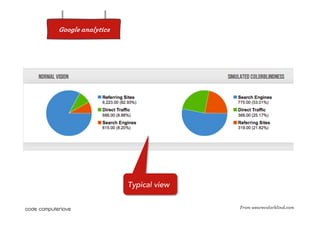
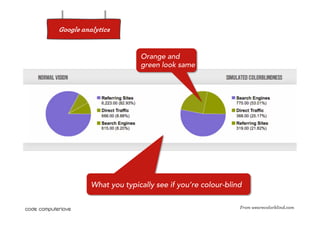
Google analytics


                   Typical view

                                  From wearecolorblind.com
Google analytics


                        Orange and
                        green look same


          What you typically see if you’re colour-blind

                                                      From wearecolorblind.com
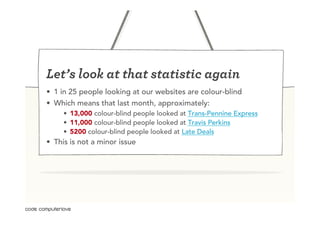
Let’s look at that statistic again
•  1 in 25 people looking at our websites are colour-blind
•  Which means that last month, approximately:
     •  13,000 colour-blind people looked at Trans-Pennine Express
     •  11,000 colour-blind people looked at Travis Perkins
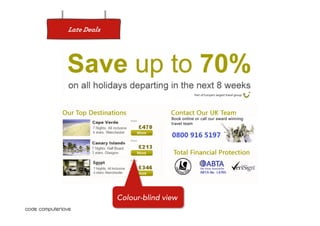
     •  5200 colour-blind people looked at Late Deals
•  This is not a minor issue
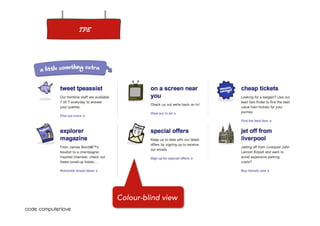
TPE


      Colour-blind view
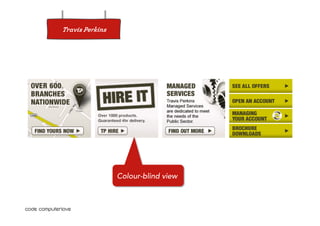
Travis Perkins


                 Colour-blind view
Late Deals


             Colour-blind view
Some key take-outs
•  Greens, reds, oranges and blues are virtually
   indistinguishable
•  It’s not safe to rely on colour and contrast levels to
   distinguish content
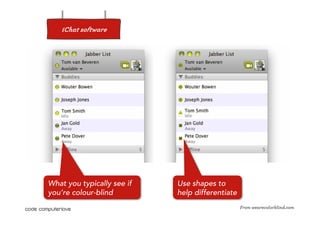
•  Whenever possible use shape as well as colour as a
   differentiator
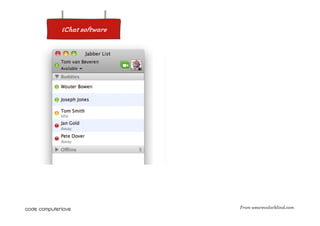
iChat software


                 From wearecolorblind.com
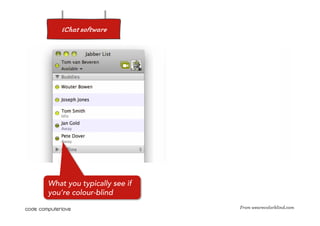
iChat software


What you typically see if
you’re colour-blind
                            From wearecolorblind.com
iChat software


What you typically see if   Use shapes to
you’re colour-blind         help differentiate
                                                 From wearecolorblind.com
Further reading on colour-blindness
•    http://wearecolorblind.com/
•    http://www.etre.com/tools/colourblindsimulator/
•    http://www.vischeck.com/
•    http://www.colourblindawareness.org/
•    http://en.wikipedia.org/wiki/Color_blindness
•    http://colorvisiontesting.com/
Blindness
Blindness
•  1 in 5 people likely to have some form of visual accessibility
   issue
•  Blind people look to buy stuff on internet just like everyone
   else
     •  Not always practical to go high street shopping
     •  They need and want to spend money like everyone else
     •  eCommerce in own home allows them to use their own assistive
        devices and shop at their own speed
     •  Estimated potential spend of £80m a year
•  This is a big potential audience
•  It’s also a big missed opportunity for eTailers failing to provide
   accessible browsing & purchasing options
Ignore at your peril
•  Equalities act 2010 bans “unfair treatment of people because of
   protected characteristics they have”
     •  Age, disability, gender reassignment, marriage and civil partnership,
        pregnancy and maternity, race, religion or belief, sex, sexual
        orientation
•  Disney class action lawsuit in USA
     •  Settled out of court so they didn’t have to fix the issues
     •  RNIB now suing them in the UK
•  RNIB also suing BMI Baby
•  Target sued in USA for about $10m
From jaws5.net
Screen readers
•  Screen reader software “reads” aloud what’s on the screen
•  JAWS is the most common screen reader
     •  75% market share
     •  Works on desktop applications and websites
     •  Has several “helper” features integrated into IE to make browsing
        easier

•  However…
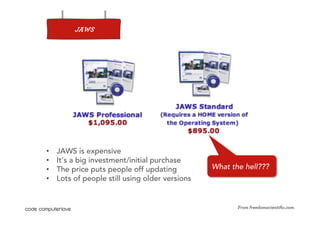
JAWS


•    JAWS is expensive
•    It’s a big investment/initial purchase
•    The price puts people off updating          What the hell???
•    Lots of people still using older versions


                                                        From freedomscientific.com
JAWS
•  Version 7
     •  was the first to work with Windows XP
     •  was the first version to receive mass adoption
     •  still has very large user base

•  Version 13 is the latest
     •  works with Vista and Windows 7
     •  can just about cope with very basic inline updates
     •  limited user base at present time
How do people use JAWS?
•  Pages are scanned, not read

1.  Page loads and screen reader reads out the <TITLE> tag
     •  Hence meaningful titles are critical

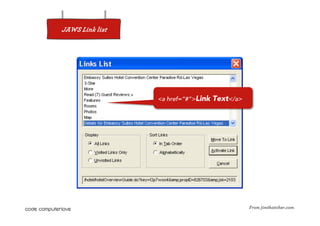
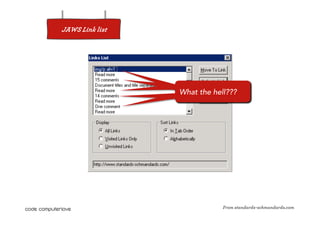
2.  While they’re navigating people will use a Link List
     •  A popup window that lists all inks on a page

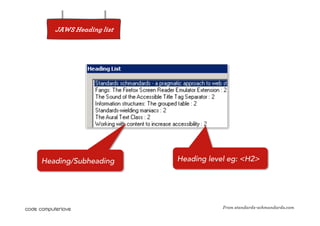
3.  Once they think they are on right page people will use a List of Headings
     •  A popup that lists all the <H?> tags on a page, along with their heading level
     •  Think of it like a simplified “document outline”

4.  Once an appropriate heading has been found, screen reader will read out
    the content under that heading

•  Advanced users speed up the voice to make page scanning faster
JAWS Link list


                 <a href=“#”>Link   Text</a>


                                               From jimthatcher.com
JAWS Heading list


Heading/Subheading     Heading level eg: <H2>


                                   From standards-schmandards.com
Common accessibility errors
•  Text alternatives – A
     •  Use alt tags for significant/relevent images
     •  Not for spacer images!
     •  Intelligent use of, not over used otherwise it's gibberish
•  Form labels and input fields – A
     •  Form layouts require fieldsets and legends to make sense
     •  eg: radio buttons – lots of yes/no options & no connected question
•  HTML Lang(uage) of page – A
     •  specify its English so screen readers get right pronunciations
     •  JAWS has automatic language detection – JAWS has an accent!
•  Link/anchor text – A
     •    “click here” & “find out more” are evil – remember the link list?
     •    Anchor text should contain descriptive copy
     •    Eg: “More about our accommodation”
     •    Link “title” attributes clash with link text – link text is preferred
JAWS Link list


                 What the hell???


                             From standards-schmandards.com
More common accessibility errors
•  Page titles – A
     •  First thing screen reader says and invaluable for orientation
     •  Should state page name, section name, and site name
•  Tables for layouts rather than tabular data – A
     •  If it’s not tabular data, tables are bad, mmmmm, okay?
     •  Reader says "table with x columns and x rows”
     •  If you MUST display other content in a table add summaries to
        explain what the table is about – sets expectations re: jumbled
        content, or allows the user to skip past it completely
•  Headings – AAA
     •  H1 and H2 quite common but not always used correctly
     •  Non-visually impaired users derive structure from colour and font
        size but visually impaired users need semantic mark-up
     •  Vital to give sense of structure to page
Some key take-outs
•  If screen reader can’t see it, blind users can’t either

•  Semantic mark-up, effective copywriting and well structured
   documents are vital
     •  Helps orientation, page scanning and content location
     •  Front-load paragraphs so can tell meaning from first few words
     •  Forms should use field sets and label tags to group questions and
        answers together semantically

•  DOM updates not detected by most popular screen readers
     •  Screen Reader tech lags far behind standard browser tech

•  AAA links to change font size are pointless
     •  Visually impaired users know how to change the font size!!
     •  Box ticking exercise
     •  Actually a hindrance – first thing screen readers says is “ay-ay-ay” –
        makes website sounds like a deranged Scouser
And some other interesting points
•  “Skip to content” vs “Skip to navigation”
      •  Why should every page have a skip to content link?
      •  Why not make the content first and have a skip to navigation?
      •  Screen readers can bypass all this anyway and bring up a Link Lists

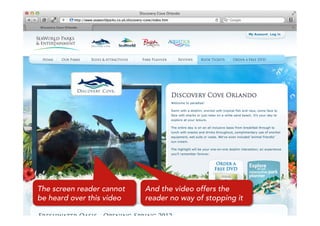
•  Automatically playing videos drown out screen reader
      •    If videos are Flash screen reader cannot stop or mute the video
      •    If videos are HTML5 screen reader probably can’t display it (yet)
      •    Traps the user on the page as they cant hear the Link List to navigate off the page
      •    And imagine the further horror if the video loops indefinitely!!

•  Flash sites and loading pages are the devil…
      •  Reader cannot detect any content - utter silence and no way off the page

•  “dot dot dot” is a really annoying convention
      •  See “ay-ay-ay” L

•  JAWS identifies itself as Internet Explorer
      •  Querying User Agent is pointless
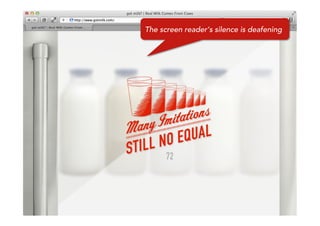
The screen reader’s silence is deafening
The screen reader cannot   And the video offers the
be heard over this video   reader no way of stopping it
Challenges for us as an agency
Potentially easy fixes
•  Content hierarchy, page layout & structure
    •    Meaningful page titles
    •    Relevant headings – even on the homepage
    •    Linear content-grouping so page can be scanned
    •    Sensible use of image alt tags
    •    Sensible use of link anchor text

•  How do we make all this fool-proof so clients using a CMS can’t
   break all our carefully planned content?
The trickier issues
•  Lack of triggers for DOM updates – how do we handle:
     •    Inline add to basket?
     •    Images & galleries in lightboxes?
     •    Login boxes as overlays?
     •    Smart/autocomplete search boxes
     •    Calendar & date picker controls

•  How do we provide a rich, interactive and engaging experience for
   non-visually impaired users while still making it a serviceable and
   usable experience for visually impaired users?
The end
         Thanks for listening J


A big thank you to Clare Davidson from SimpleUsability and
Barry Hill for an inspired talk on Accessibility In Practice; to
Northern User Experience (Leeds chapter) for hosting the
aforementioned talk; and to everyone who’s examples I have
pilfered (with credits) in this presentation.

Accessibility 101

  • 1.
    Accessibility 101 With particularreference to visual impairment Barry Briggs User Experience Architect Code Computerlove 04/03/2012
  • 2.
    Accessibility != Blind 1. Visual impairment •  Blind, colour-blind 2.  Audio impairment •  Deaf, hard of hearing 3.  Mobility impairment •  Restricted or impaired movement of hands, head etc 4.  Learning difficulties 5.  Other mental health considerations •  See the Mental Capacity Act 2005 for a better explanation
  • 3.
    That said… This presentationwill focus on visual impairment
  • 4.
    Visual Impairment The most common and the easiest to address
  • 5.
  • 6.
    Colour blind •  It’sa Male gene thing – Women have gotten off lightly •  Different types of colour blindness, some more common than others •  Effects 8% of the male population •  Roughly 1 in 25 people looking at our websites
  • 7.
    Google analytics Typical view From wearecolorblind.com
  • 8.
    Google analytics Orange and green look same What you typically see if you’re colour-blind From wearecolorblind.com
  • 9.
    Let’s look atthat statistic again •  1 in 25 people looking at our websites are colour-blind •  Which means that last month, approximately: •  13,000 colour-blind people looked at Trans-Pennine Express •  11,000 colour-blind people looked at Travis Perkins •  5200 colour-blind people looked at Late Deals •  This is not a minor issue
  • 10.
    TPE Colour-blind view
  • 11.
    Travis Perkins Colour-blind view
  • 12.
    Late Deals Colour-blind view
  • 13.
    Some key take-outs • Greens, reds, oranges and blues are virtually indistinguishable •  It’s not safe to rely on colour and contrast levels to distinguish content •  Whenever possible use shape as well as colour as a differentiator
  • 14.
    iChat software From wearecolorblind.com
  • 15.
    iChat software What youtypically see if you’re colour-blind From wearecolorblind.com
  • 16.
    iChat software What youtypically see if Use shapes to you’re colour-blind help differentiate From wearecolorblind.com
  • 17.
    Further reading oncolour-blindness •  http://wearecolorblind.com/ •  http://www.etre.com/tools/colourblindsimulator/ •  http://www.vischeck.com/ •  http://www.colourblindawareness.org/ •  http://en.wikipedia.org/wiki/Color_blindness •  http://colorvisiontesting.com/
  • 18.
  • 19.
    Blindness •  1 in5 people likely to have some form of visual accessibility issue •  Blind people look to buy stuff on internet just like everyone else •  Not always practical to go high street shopping •  They need and want to spend money like everyone else •  eCommerce in own home allows them to use their own assistive devices and shop at their own speed •  Estimated potential spend of £80m a year •  This is a big potential audience •  It’s also a big missed opportunity for eTailers failing to provide accessible browsing & purchasing options
  • 20.
    Ignore at yourperil •  Equalities act 2010 bans “unfair treatment of people because of protected characteristics they have” •  Age, disability, gender reassignment, marriage and civil partnership, pregnancy and maternity, race, religion or belief, sex, sexual orientation •  Disney class action lawsuit in USA •  Settled out of court so they didn’t have to fix the issues •  RNIB now suing them in the UK •  RNIB also suing BMI Baby •  Target sued in USA for about $10m
  • 21.
  • 22.
    Screen readers •  Screenreader software “reads” aloud what’s on the screen •  JAWS is the most common screen reader •  75% market share •  Works on desktop applications and websites •  Has several “helper” features integrated into IE to make browsing easier •  However…
  • 23.
    JAWS •  JAWS is expensive •  It’s a big investment/initial purchase •  The price puts people off updating What the hell??? •  Lots of people still using older versions From freedomscientific.com
  • 24.
    JAWS •  Version 7 •  was the first to work with Windows XP •  was the first version to receive mass adoption •  still has very large user base •  Version 13 is the latest •  works with Vista and Windows 7 •  can just about cope with very basic inline updates •  limited user base at present time
  • 25.
    How do peopleuse JAWS? •  Pages are scanned, not read 1.  Page loads and screen reader reads out the <TITLE> tag •  Hence meaningful titles are critical 2.  While they’re navigating people will use a Link List •  A popup window that lists all inks on a page 3.  Once they think they are on right page people will use a List of Headings •  A popup that lists all the <H?> tags on a page, along with their heading level •  Think of it like a simplified “document outline” 4.  Once an appropriate heading has been found, screen reader will read out the content under that heading •  Advanced users speed up the voice to make page scanning faster
  • 26.
    JAWS Link list <a href=“#”>Link Text</a> From jimthatcher.com
  • 27.
    JAWS Heading list Heading/Subheading Heading level eg: <H2> From standards-schmandards.com
  • 28.
    Common accessibility errors • Text alternatives – A •  Use alt tags for significant/relevent images •  Not for spacer images! •  Intelligent use of, not over used otherwise it's gibberish •  Form labels and input fields – A •  Form layouts require fieldsets and legends to make sense •  eg: radio buttons – lots of yes/no options & no connected question •  HTML Lang(uage) of page – A •  specify its English so screen readers get right pronunciations •  JAWS has automatic language detection – JAWS has an accent! •  Link/anchor text – A •  “click here” & “find out more” are evil – remember the link list? •  Anchor text should contain descriptive copy •  Eg: “More about our accommodation” •  Link “title” attributes clash with link text – link text is preferred
  • 29.
    JAWS Link list What the hell??? From standards-schmandards.com
  • 30.
    More common accessibilityerrors •  Page titles – A •  First thing screen reader says and invaluable for orientation •  Should state page name, section name, and site name •  Tables for layouts rather than tabular data – A •  If it’s not tabular data, tables are bad, mmmmm, okay? •  Reader says "table with x columns and x rows” •  If you MUST display other content in a table add summaries to explain what the table is about – sets expectations re: jumbled content, or allows the user to skip past it completely •  Headings – AAA •  H1 and H2 quite common but not always used correctly •  Non-visually impaired users derive structure from colour and font size but visually impaired users need semantic mark-up •  Vital to give sense of structure to page
  • 31.
    Some key take-outs • If screen reader can’t see it, blind users can’t either •  Semantic mark-up, effective copywriting and well structured documents are vital •  Helps orientation, page scanning and content location •  Front-load paragraphs so can tell meaning from first few words •  Forms should use field sets and label tags to group questions and answers together semantically •  DOM updates not detected by most popular screen readers •  Screen Reader tech lags far behind standard browser tech •  AAA links to change font size are pointless •  Visually impaired users know how to change the font size!! •  Box ticking exercise •  Actually a hindrance – first thing screen readers says is “ay-ay-ay” – makes website sounds like a deranged Scouser
  • 32.
    And some otherinteresting points •  “Skip to content” vs “Skip to navigation” •  Why should every page have a skip to content link? •  Why not make the content first and have a skip to navigation? •  Screen readers can bypass all this anyway and bring up a Link Lists •  Automatically playing videos drown out screen reader •  If videos are Flash screen reader cannot stop or mute the video •  If videos are HTML5 screen reader probably can’t display it (yet) •  Traps the user on the page as they cant hear the Link List to navigate off the page •  And imagine the further horror if the video loops indefinitely!! •  Flash sites and loading pages are the devil… •  Reader cannot detect any content - utter silence and no way off the page •  “dot dot dot” is a really annoying convention •  See “ay-ay-ay” L •  JAWS identifies itself as Internet Explorer •  Querying User Agent is pointless
  • 33.
    The screen reader’ssilence is deafening
  • 34.
    The screen readercannot And the video offers the be heard over this video reader no way of stopping it
  • 35.
    Challenges for usas an agency
  • 36.
    Potentially easy fixes • Content hierarchy, page layout & structure •  Meaningful page titles •  Relevant headings – even on the homepage •  Linear content-grouping so page can be scanned •  Sensible use of image alt tags •  Sensible use of link anchor text •  How do we make all this fool-proof so clients using a CMS can’t break all our carefully planned content?
  • 37.
    The trickier issues • Lack of triggers for DOM updates – how do we handle: •  Inline add to basket? •  Images & galleries in lightboxes? •  Login boxes as overlays? •  Smart/autocomplete search boxes •  Calendar & date picker controls •  How do we provide a rich, interactive and engaging experience for non-visually impaired users while still making it a serviceable and usable experience for visually impaired users?
  • 38.
    The end Thanks for listening J A big thank you to Clare Davidson from SimpleUsability and Barry Hill for an inspired talk on Accessibility In Practice; to Northern User Experience (Leeds chapter) for hosting the aforementioned talk; and to everyone who’s examples I have pilfered (with credits) in this presentation.