by Mike Wilcox, March 2019
Website
Accessibility for
Fun and Profit
What is Accessibility?
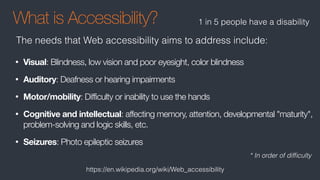
• Visual: Blindness, low vision and poor eyesight, color blindness
• Auditory: Deafness or hearing impairments
• Motor/mobility: Difficulty or inability to use the hands
• Cognitive and intellectual: affecting memory, attention, developmental "maturity",
problem-solving and logic skills, etc.
• Seizures: Photo epileptic seizures
The needs that Web accessibility aims to address include:
* In order of difficulty
https://en.wikipedia.org/wiki/Web_accessibility
1 in 5 people have a disability
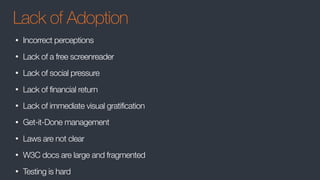
Lack of Adoption
• Incorrect perceptions
• Lack of a free screenreader
• Lack of social pressure
• Lack of financial return
• Lack of immediate visual gratification
• Get-it-Done management
• Laws are not clear
• W3C docs are large and fragmented
• Testing is hard
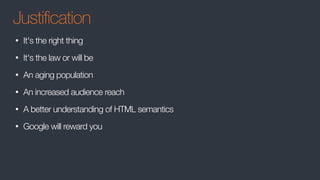
Justification
• It's the right thing
• It's the law or will be
• An aging population
• An increased audience reach
• A better understanding of HTML semantics
• Google will reward you
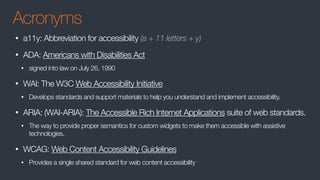
Acronyms
• a11y: Abbreviation for accessibility (a + 11 letters + y)
• ADA: Americans with Disabilities Act
• signed into law on July 26, 1990
• WAI: The W3C Web Accessibility Initiative
• Develops standards and support materials to help you understand and implement accessibility.
• ARIA: (WAI-ARIA): The Accessible Rich Internet Applications suite of web standards.
• The way to provide proper semantics for custom widgets to make them accessible with assistive
technologies.
• WCAG: Web Content Accessibility Guidelines
• Provides a single shared standard for web content accessibility
Screen Readers
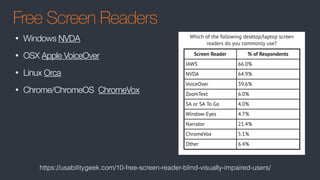
Free Screen Readers
• Windows NVDA
• OSX Apple VoiceOver
• Linux Orca
• Chrome/ChromeOS ChromeVox
https://usabilitygeek.com/10-free-screen-reader-blind-visually-impaired-users/
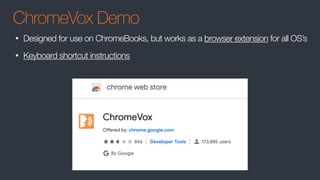
ChromeVox Demo
• Designed for use on ChromeBooks, but works as a browser extension for all OS’s
• Keyboard shortcut instructions
Legality
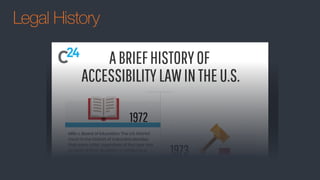
Legal History
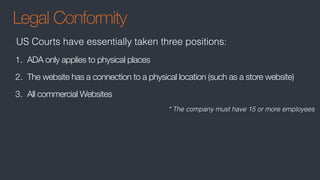
Legal Conformity
1. ADA only applies to physical places
2. The website has a connection to a physical location (such as a store website)
3. All commercial Websites
US Courts have essentially taken three positions:
* The company must have 15 or more employees
Legal Conformity
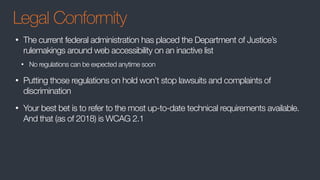
• The current federal administration has placed the Department of Justice’s
rulemakings around web accessibility on an inactive list
• No regulations can be expected anytime soon
• Putting those regulations on hold won’t stop lawsuits and complaints of
discrimination
• Your best bet is to refer to the most up-to-date technical requirements available.
And that (as of 2018) is WCAG 2.1
Legal Conformity
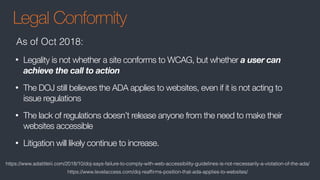
• Legality is not whether a site conforms to WCAG, but whether a user can
achieve the call to action
• The DOJ still believes the ADA applies to websites, even if it is not acting to
issue regulations
• The lack of regulations doesn’t release anyone from the need to make their
websites accessible
• Litigation will likely continue to increase.
As of Oct 2018:
https://www.adatitleiii.com/2018/10/doj-says-failure-to-comply-with-web-accessibility-guidelines-is-not-necessarily-a-violation-of-the-ada/
https://www.levelaccess.com/doj-reaffirms-position-that-ada-applies-to-websites/
Testing
WCAG 2.1 at a Glance
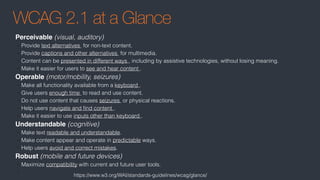
Perceivable (visual, auditory)
• Provide text alternatives  for non-text content.
• Provide captions and other alternatives  for multimedia.
• Content can be presented in different ways , including by assistive technologies, without losing meaning.
• Make it easier for users to see and hear content .
Operable (motor/mobility, seizures)
• Make all functionality available from a keyboard .
• Give users enough time  to read and use content.
• Do not use content that causes seizures  or physical reactions.
• Help users navigate and find content .
• Make it easier to use inputs other than keyboard .
Understandable (cognitive)
• Make text readable and understandable.
• Make content appear and operate in predictable ways.
• Help users avoid and correct mistakes.
Robust (mobile and future devices)
• Maximize compatibility with current and future user tools.
•
https://www.w3.org/WAI/standards-guidelines/wcag/glance/
Basic Checklist
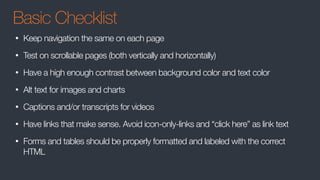
• Keep navigation the same on each page
• Test on scrollable pages (both vertically and horizontally)
• Have a high enough contrast between background color and text color
• Alt text for images and charts
• Captions and/or transcripts for videos
• Have links that make sense. Avoid icon-only-links and “click here” as link text
• Forms and tables should be properly formatted and labeled with the correct
HTML
Basic Checklist
• Relevant content for the page
• Relevant page titles
• Heading markup
• Correct HTML markup for relevant content
• Have an alternative way to access the information
• Offer information in plain text format when possible; PDFs are not easily
accessible
• Do not use different colored text to convey meaning
Basic Checklist
• Everything accessible without a mouse
• Errors are read by the screen reader
• New content (dialogs, tooltips) are announced
Official Checklists
• https://www.wuhcag.com/wcag-checklist/
• https://webaim.org/standards/wcag/checklist
• https://a11yproject.com/checklist
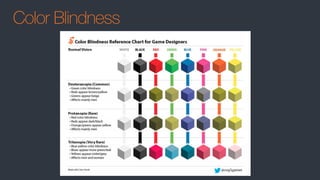
Color Blindness
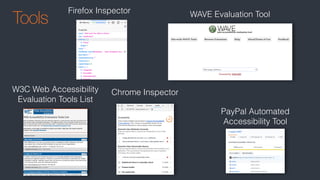
Tools
Chrome Inspector
WAVE Evaluation Tool
PayPal Automated
Accessibility Tool
W3C Web Accessibility
Evaluation Tools List
Firefox Inspector
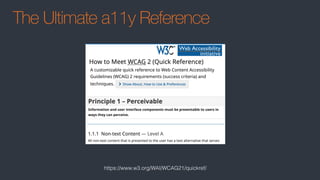
The Ultimate a11y Reference
https://www.w3.org/WAI/WCAG21/quickref/
Examples
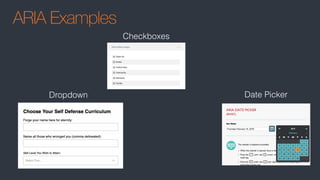
ARIA Examples
Date PickerDropdown
Checkboxes
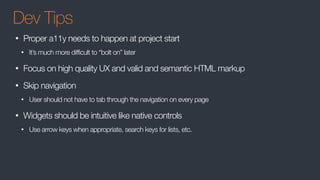
Dev Tips
Dev Tips
• Proper a11y needs to happen at project start
• It’s much more difficult to “bolt on” later
• Focus on high quality UX and valid and semantic HTML markup
• Skip navigation
• User should not have to tab through the navigation on every page
• Widgets should be intuitive like native controls
• Use arrow keys when appropriate, search keys for lists, etc.
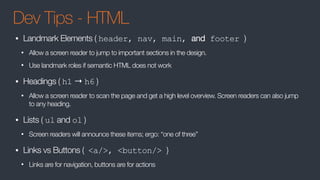
Dev Tips - HTML
• Landmark Elements ( header, nav, main, and footer )
• Allow a screen reader to jump to important sections in the design.
• Use landmark roles if semantic HTML does not work
• Headings ( h1 → h6 )
• Allow a screen reader to scan the page and get a high level overview. Screen readers can also jump
to any heading.
• Lists ( ul and ol )
• Screen readers will announce these items; ergo: “one of three”
• Links vs Buttons ( <a/>, <button/> )
• Links are for navigation, buttons are for actions
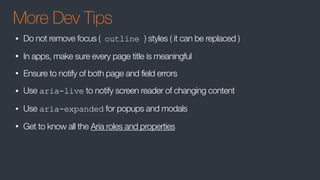
More Dev Tips
• Do not remove focus ( outline ) styles ( it can be replaced )
• In apps, make sure every page title is meaningful
• Ensure to notify of both page and field errors
• Use aria-live to notify screen reader of changing content
• Use aria-expanded for popups and modals
• Get to know all the Aria roles and properties
Live Walkthrough
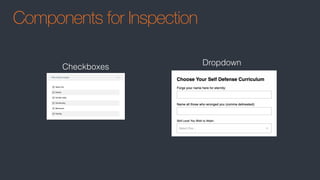
Components for Inspection
Dropdown
Checkboxes
References
https://www.w3.org/TR/WCAG/
https://www.w3.org/WAI/WCAG21/quickref/
https://www.w3.org/WAI/tips/developing/
https://www.w3.org/TR/wai-aria-1.1/#aria-errormessage
https://www.w3.org/WAI/fundamentals/accessibility-intro/
https://www.ada.gov/2010_regs.htm
https://a11yproject.com/posts/getting-started-aria/
https://a11yproject.com/posts/ARIA-states/
https://developer.paciellogroup.com/blog/2013/02/using-wai-aria-landmarks-2013/
https://developer.mozilla.org/en-US/docs/Web/Accessibility/ARIA/ARIA_Live_Regions
https://www.webdesignerdepot.com/2019/01/designing-mobile-websites-for-voice-search/
https://hackernoon.com/ada-compliance-lawsuits-and-your-web-presence-797ef03cdef2
http://www.karlgroves.com/2011/11/15/list-of-web-accessibility-related-litigation-and-settlements/
https://www.practicalecommerce.com/Absence-of-U-S-Regulation-Leads-to-Web-Accessibility-Lawsuits
https://www.dreamhost.com/blog/make-your-website-accessible/
http://adrianroselli.com/2017/10/dont-use-aria-menu-roles-for-site-nav.html
https://www.emedialaw.com/does-my-website-need-to-be-ada-compliant/
https://medium.com/@maxvanderschee/why-the-adoption-of-web-accessibility-keeps-failing-e78fe4c94149
https://medium.freecodecamp.org/how-you-can-easily-make-your-website-more-accessible-88dc7db90bd2
Accessibility for Fun and Profit

Accessibility for Fun and Profit