Tips tools and tricks for testing web accessibility Henny Swan Opera Software dev.opera.com www.opera.com/wsc
What we'll look at today: Scene setting Methodology Tools Testing Questions and chat
Scene setting
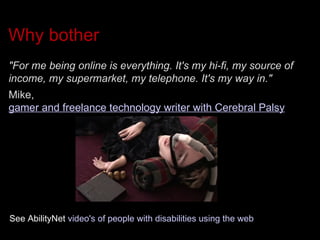
Why bother "For me being online is everything. It's my hi-fi, my source of income, my supermarket, my telephone. It's my way in."  Mike,  gamer and freelance technology writer with Cerebral Palsy See AbilityNet  video's of people with disabilities using the web
Accessibility – who, what, how? Who it affects, how people access and what makes it work: Who : sight, hearing, cognitive, mobility and ageing  What:  browsers, screen readers, screen magnification, voice input, text-to-speech... How:  Web Content Accessibility Guidelines (content), Authoring Tool Accessibility Guidelines (creation) and User Agent Accessibility Guidelines (rendering)‏ See W3C's  Web Accessibility Initiative   for details
Web Content Accessibility Guidelines  WCAG 1.0:  Published 1999, W3C technologies only, not scalable WCAG 2.0:  2008(!) testable, technology agnostic, updatable Mobile Web Best Practices:  2008, maps to WCAG
But I'm preaching to the converted right?
Methodology
Some key rules Test early and often Combine automated with manual testing and where possible user testing Use guidelines with common sense Understand the impact of issues on different users
Plan Establish  conformance levels i.e. WCAG 2.0 Level AA Assign  roles and responsibilities (editorial, build, design, QA)‏ Seperate  QA from the Webteam Document  everything
Evaluation Review  current site (if there is one)‏ Review  functional design documentation Assess  wireframes, prototypes and key deliverables Involve  disabled users Document  issues, solutions and responsibilities
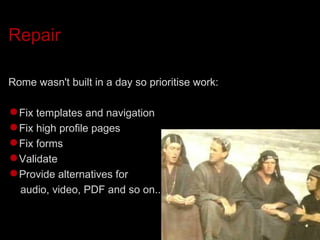
Repair Rome wasn't built in a day so prioritise work: Fix templates and navigation Fix high profile pages Fix forms Validate Provide alternatives for  audio, video, PDF and so on...
Maintenance Write  in-house guidelines, editorial style guides, code libraries... Train  developers, designers, editors... Review  regularly internal and external guidelines
Evaluation  the basics
Automated testing Ideal for large sites Tests only machine readable content Not a reliable test by itself (can pass awful sites and fail good ones)‏ Many tools including  HiSoftware ,  Lift ,  Wave  and  many more
User testing Involve varied users Set up tasks for people to complete Do not rely on user test results alone Case study user testing the Beijing 2008 Olympics site See  Integrating accessibility throughout design for more
“ Disability is nothing more than a hard core usability test of your product” -- Christian Heilmann, Yahoo! Evangelist
Manual testing Assess automated test results Check warnings, fails and unreported issues Assess user tests Balance personal preference v's all user needs Look under the bonnet of web pages Use browsers, free screen readers, toolbars and developer tools
Testing with Opera Tools available free within the browser are: Opera browser : in-built features for testing Opera Debug menu : handy toolbar addition Opera Dragonfly : in-browser developer tool
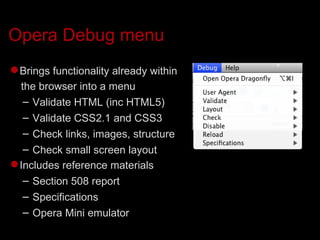
Opera Debug menu Brings functionality already within the browser into a menu Validate HTML (inc HTML5)‏ Validate CSS2.1 and CSS3 Check links, images, structure Check small screen layout Includes reference materials Section 508 report Specifications Opera Mini emulator
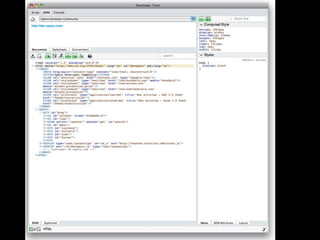
Opera Dragonfly Developer tool within the browser, alpha 3 release: Debug pages DOM inspector – on the fly Style inspector – style sheets, rules, computed styles Error console – CSS, SVG, network problems, mail Validation Opera 9.5 upwards  Tools > Advanced > Developer Tools
 
Opera downloads: Opera 9.5 upwards:  http://www.opera.com/discover/browser/   Downloaded Opera Dragonfly and the Debug menu:  http://www.opera.com/dragonfly/   Opera Dragonfly blogged about here:   http://my.opera.com/dragonfly/blog/ Tell us what you think! It's your tool after all.
Evaluation  the specifics
Validation Validation is a great place to start A useful debugging tool Reinforces adherence to specifications ...and therefore standards Ensures consistency across browsers (avoiding CSS issues, DOM Scripting Errors etc.)‏ ...most of the Web does not validate
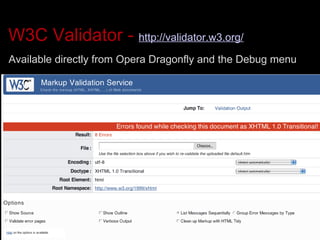
W3C Validator -  http://validator.w3.org/ Available directly from Opera Dragonfly and the Debug menu
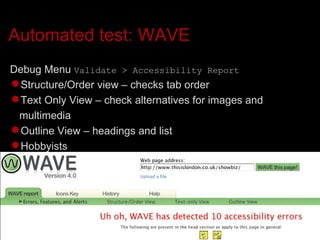
Automated test: WAVE Debug Menu  Validate > Accessibility Report Structure/Order view – checks tab order Text Only View – check alternatives for images and multimedia Outline View – headings and list  Hobbyists
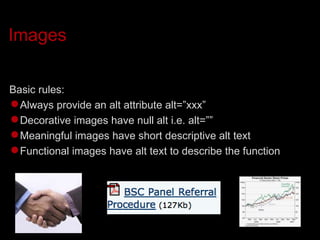
Images Basic rules: Always provide an alt attribute alt=”xxx” Decorative images have null alt i.e. alt=”” Meaningful images have short descriptive alt text Functional images have alt text to describe the function
Testing images Switch off images: Via the browser Via the Debug menu  Disable > Images Check for Appropriate alt text... ...that makes sense out of context
Colour Basic rules: Provide a contrast ratio minimum of 5:1 except for larger text that can be 3:1 Do not use colour alone to convey information
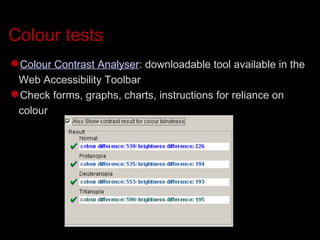
Colour tests Colour Contrast Analyser : downloadable tool available in the Web Accessibility Toolbar Check forms, graphs, charts, instructions for reliance on colour
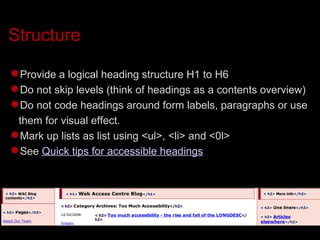
Structure Provide a logical heading structure H1 to H6 Do not skip levels (think of headings as a contents overview)‏ Do not code headings around form labels, paragraphs or use them for visual effect. Mark up lists as list using <ul>, <li> and <0l> See  Quick tips for accessible headings
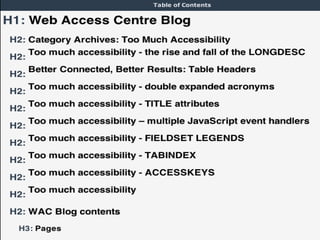
Testing structure Structure can be checked by:  Viewing the DOM in Opera Dragonfly In the Debug Menu select Layout > Table of contents Check for logical flow of headings Check paragraphs and form labels Ensure headings make sense out of context (as a screen reader user would hear them)‏ Lists use <ul> or <ol>
We’ve won!!!!  right? 1. Doesn’t everyone use web standards?
Fonts All font sizes should be in the CSS Provide flexible font sizes i.e. em, % not px or pts Use legible fonts i.e. arial, verdana etc
Testing fonts View source to check for  font Validate CSS Check styles Scale pages in the browser and check they do not truncate
Links Ensure the meaning of the link is contained within the link or is determined from the context of the link Keep text short and sweet Avoid “click here”, “more” etc Avoid un-necessary wording such as “Click here to...” Hobbyists
Testing link text Some automated tools can flag generic link text. Scan and read links out of context Download a Jaws demo and list links in a page  insert +F7
Multimedia Video/audio Where possible provide captions Always provide transcript/text description Flash Build accessible Flash (keyboard access, names, tab order)‏ Provide alternatives (i.e. accessible image replacement for banner ads PDF Create accessible PDF Provide HTML, Text or Word alternative
Keyboard access Ensure navigation does not rely on a mouse Ensure there is a logical tab order for links and form elements
Testing keyboard access Use tab key to follow tab order Debug menu: Validate > Accessibility Report > Structure order view Check Flash is tabbable Ensure a logical flow in forms
JavaScript Ensure links work without JavaScript (WCAG 1.0)‏ Ensure forms are submitted in absence of JavaScript Ensure content doesn't rely on JavaScript alone to render.
Testing JavaScript Disabled JavaScript in the browser  Opera > Quick preferences > Enable JavaScript (uncheck)‏ Check functionality links dynamically updating content Form element Non essential uses of JavaScript allowed Browser functions: print, bookmark, email this page
Resources
Opera Web Standards Curriculum www.opera.com/wsc Over 50 articles giving you all you need to learn client-side web development Testing for accessibility   article by Benjamin Hawkes-Lewis Licensed under creative commons
The WaSP web curriculum framework A set of competency checklists for different skill categories (such as front end development, information architecture, user science, etc.)‏ Also provides exam questions, lists of resources that teach these these skills, and more Doesn’t provide actual learning material, but this means it works nicely alongside the WSC
Resources Tools Web Access Centre Jaws for Windows demo Lynx text based browser Guidance DevOpera -  dev.opera.com   RNIB Web Access Centre - Design and Build WebAim
Thanks! Bug me :  hennys @ opera.com   or on Twitter:  iheni   or on my blog:  www.iheni.com

Web accessibility testing methodologies, tools and tips

  • 1.
    Tips tools andtricks for testing web accessibility Henny Swan Opera Software dev.opera.com www.opera.com/wsc
  • 2.
    What we'll lookat today: Scene setting Methodology Tools Testing Questions and chat
  • 3.
  • 4.
    Why bother &quot;Forme being online is everything. It's my hi-fi, my source of income, my supermarket, my telephone. It's my way in.&quot; Mike, gamer and freelance technology writer with Cerebral Palsy See AbilityNet video's of people with disabilities using the web
  • 5.
    Accessibility – who,what, how? Who it affects, how people access and what makes it work: Who : sight, hearing, cognitive, mobility and ageing What: browsers, screen readers, screen magnification, voice input, text-to-speech... How: Web Content Accessibility Guidelines (content), Authoring Tool Accessibility Guidelines (creation) and User Agent Accessibility Guidelines (rendering)‏ See W3C's Web Accessibility Initiative for details
  • 6.
    Web Content AccessibilityGuidelines WCAG 1.0: Published 1999, W3C technologies only, not scalable WCAG 2.0: 2008(!) testable, technology agnostic, updatable Mobile Web Best Practices: 2008, maps to WCAG
  • 7.
    But I'm preachingto the converted right?
  • 8.
  • 9.
    Some key rulesTest early and often Combine automated with manual testing and where possible user testing Use guidelines with common sense Understand the impact of issues on different users
  • 10.
    Plan Establish conformance levels i.e. WCAG 2.0 Level AA Assign roles and responsibilities (editorial, build, design, QA)‏ Seperate QA from the Webteam Document everything
  • 11.
    Evaluation Review current site (if there is one)‏ Review functional design documentation Assess wireframes, prototypes and key deliverables Involve disabled users Document issues, solutions and responsibilities
  • 12.
    Repair Rome wasn'tbuilt in a day so prioritise work: Fix templates and navigation Fix high profile pages Fix forms Validate Provide alternatives for audio, video, PDF and so on...
  • 13.
    Maintenance Write in-house guidelines, editorial style guides, code libraries... Train developers, designers, editors... Review regularly internal and external guidelines
  • 14.
  • 15.
    Automated testing Idealfor large sites Tests only machine readable content Not a reliable test by itself (can pass awful sites and fail good ones)‏ Many tools including HiSoftware , Lift , Wave and many more
  • 16.
    User testing Involvevaried users Set up tasks for people to complete Do not rely on user test results alone Case study user testing the Beijing 2008 Olympics site See Integrating accessibility throughout design for more
  • 17.
    “ Disability isnothing more than a hard core usability test of your product” -- Christian Heilmann, Yahoo! Evangelist
  • 18.
    Manual testing Assessautomated test results Check warnings, fails and unreported issues Assess user tests Balance personal preference v's all user needs Look under the bonnet of web pages Use browsers, free screen readers, toolbars and developer tools
  • 19.
    Testing with OperaTools available free within the browser are: Opera browser : in-built features for testing Opera Debug menu : handy toolbar addition Opera Dragonfly : in-browser developer tool
  • 20.
    Opera Debug menuBrings functionality already within the browser into a menu Validate HTML (inc HTML5)‏ Validate CSS2.1 and CSS3 Check links, images, structure Check small screen layout Includes reference materials Section 508 report Specifications Opera Mini emulator
  • 21.
    Opera Dragonfly Developertool within the browser, alpha 3 release: Debug pages DOM inspector – on the fly Style inspector – style sheets, rules, computed styles Error console – CSS, SVG, network problems, mail Validation Opera 9.5 upwards Tools > Advanced > Developer Tools
  • 22.
  • 23.
    Opera downloads: Opera9.5 upwards: http://www.opera.com/discover/browser/ Downloaded Opera Dragonfly and the Debug menu: http://www.opera.com/dragonfly/ Opera Dragonfly blogged about here: http://my.opera.com/dragonfly/blog/ Tell us what you think! It's your tool after all.
  • 24.
    Evaluation thespecifics
  • 25.
    Validation Validation isa great place to start A useful debugging tool Reinforces adherence to specifications ...and therefore standards Ensures consistency across browsers (avoiding CSS issues, DOM Scripting Errors etc.)‏ ...most of the Web does not validate
  • 26.
    W3C Validator - http://validator.w3.org/ Available directly from Opera Dragonfly and the Debug menu
  • 27.
    Automated test: WAVEDebug Menu Validate > Accessibility Report Structure/Order view – checks tab order Text Only View – check alternatives for images and multimedia Outline View – headings and list Hobbyists
  • 28.
    Images Basic rules:Always provide an alt attribute alt=”xxx” Decorative images have null alt i.e. alt=”” Meaningful images have short descriptive alt text Functional images have alt text to describe the function
  • 29.
    Testing images Switchoff images: Via the browser Via the Debug menu Disable > Images Check for Appropriate alt text... ...that makes sense out of context
  • 30.
    Colour Basic rules:Provide a contrast ratio minimum of 5:1 except for larger text that can be 3:1 Do not use colour alone to convey information
  • 31.
    Colour tests ColourContrast Analyser : downloadable tool available in the Web Accessibility Toolbar Check forms, graphs, charts, instructions for reliance on colour
  • 32.
    Structure Provide alogical heading structure H1 to H6 Do not skip levels (think of headings as a contents overview)‏ Do not code headings around form labels, paragraphs or use them for visual effect. Mark up lists as list using <ul>, <li> and <0l> See Quick tips for accessible headings
  • 33.
    Testing structure Structurecan be checked by: Viewing the DOM in Opera Dragonfly In the Debug Menu select Layout > Table of contents Check for logical flow of headings Check paragraphs and form labels Ensure headings make sense out of context (as a screen reader user would hear them)‏ Lists use <ul> or <ol>
  • 34.
    We’ve won!!!! right? 1. Doesn’t everyone use web standards?
  • 35.
    Fonts All fontsizes should be in the CSS Provide flexible font sizes i.e. em, % not px or pts Use legible fonts i.e. arial, verdana etc
  • 36.
    Testing fonts Viewsource to check for font Validate CSS Check styles Scale pages in the browser and check they do not truncate
  • 37.
    Links Ensure themeaning of the link is contained within the link or is determined from the context of the link Keep text short and sweet Avoid “click here”, “more” etc Avoid un-necessary wording such as “Click here to...” Hobbyists
  • 38.
    Testing link textSome automated tools can flag generic link text. Scan and read links out of context Download a Jaws demo and list links in a page insert +F7
  • 39.
    Multimedia Video/audio Wherepossible provide captions Always provide transcript/text description Flash Build accessible Flash (keyboard access, names, tab order)‏ Provide alternatives (i.e. accessible image replacement for banner ads PDF Create accessible PDF Provide HTML, Text or Word alternative
  • 40.
    Keyboard access Ensurenavigation does not rely on a mouse Ensure there is a logical tab order for links and form elements
  • 41.
    Testing keyboard accessUse tab key to follow tab order Debug menu: Validate > Accessibility Report > Structure order view Check Flash is tabbable Ensure a logical flow in forms
  • 42.
    JavaScript Ensure linkswork without JavaScript (WCAG 1.0)‏ Ensure forms are submitted in absence of JavaScript Ensure content doesn't rely on JavaScript alone to render.
  • 43.
    Testing JavaScript DisabledJavaScript in the browser Opera > Quick preferences > Enable JavaScript (uncheck)‏ Check functionality links dynamically updating content Form element Non essential uses of JavaScript allowed Browser functions: print, bookmark, email this page
  • 44.
  • 45.
    Opera Web StandardsCurriculum www.opera.com/wsc Over 50 articles giving you all you need to learn client-side web development Testing for accessibility article by Benjamin Hawkes-Lewis Licensed under creative commons
  • 46.
    The WaSP webcurriculum framework A set of competency checklists for different skill categories (such as front end development, information architecture, user science, etc.)‏ Also provides exam questions, lists of resources that teach these these skills, and more Doesn’t provide actual learning material, but this means it works nicely alongside the WSC
  • 47.
    Resources Tools WebAccess Centre Jaws for Windows demo Lynx text based browser Guidance DevOpera - dev.opera.com RNIB Web Access Centre - Design and Build WebAim
  • 48.
    Thanks! Bug me: hennys @ opera.com or on Twitter: iheni or on my blog: www.iheni.com

Editor's Notes