Week  1 Introduction to PC: PC History How Computer Work Componenents of a PC Output Device Input Device IMD203 : IT Maintenance & Support Service 1
Objectives Learn that a computer requires both hardware and software to work Learn about the many different hardware components inside of and connected to a computer IMD203 : IT Maintenance & Support Service 1
Where did HCI innovations and philosophy come from? Who were the major personalities? What were the important systems? How did ideas move from the laboratory to the market?
Input/output devices Input   Output Early days connecting wires lights on display paper tape & punch cards paper keyboard teletype Today   keyboard scrolling glass teletype   + cursor keys   character terminal   + mouse   bit-mapped screen   + microphone   audio Soon?   data gloves + suits head-mounted displays computer jewelry ubiquitous computing natural language   autonomous agents cameras multimedia The lesson keyboards & terminals are just artifacts of today’s technologies new input/output devices will change the way we interact with computers
From Image Shack web site //www.imageshack.us ; original source unknown
Eniac  (1943) A general view of the ENIAC, the world's first all electronic numerical integrator and computer .  From  IBM Archives.
Mark I (1944) The Mark I paper tape readers .  From Harvard University Cruft Photo Laboratory.
IBM SSEC (1948) From  IBM Archives.
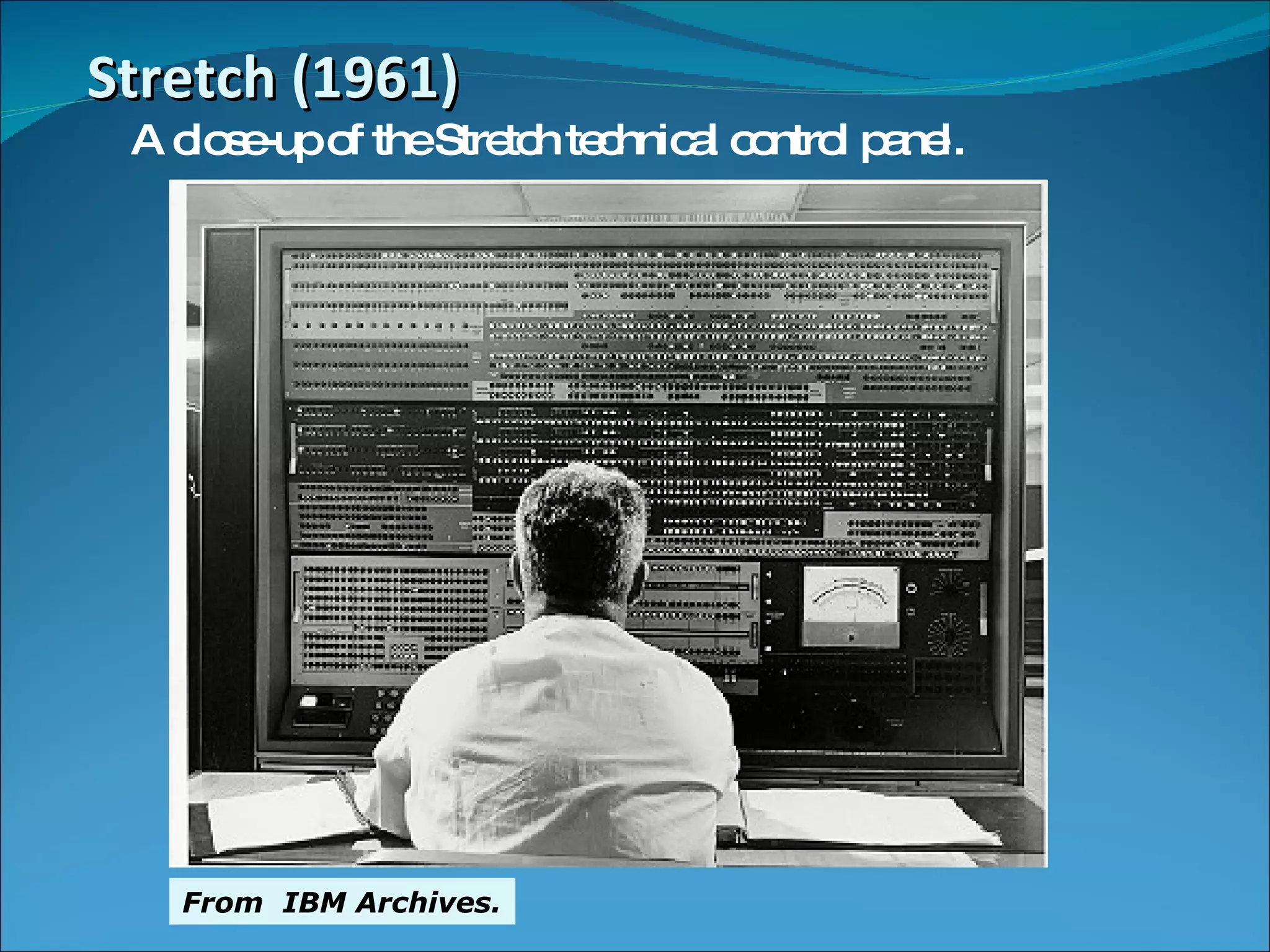
Stretch (1961) A close-up of the Stretch technical control panel.  From  IBM Archives.
Intellectual foundations Vannevar Bush (1945) “ As we may think” article in Atlantic Monthly Identified the information storage and retrieval problem: new knowledge does not reach the people who could benefit from it “ publication has been extended far beyond our present  ability to make real use of the record”
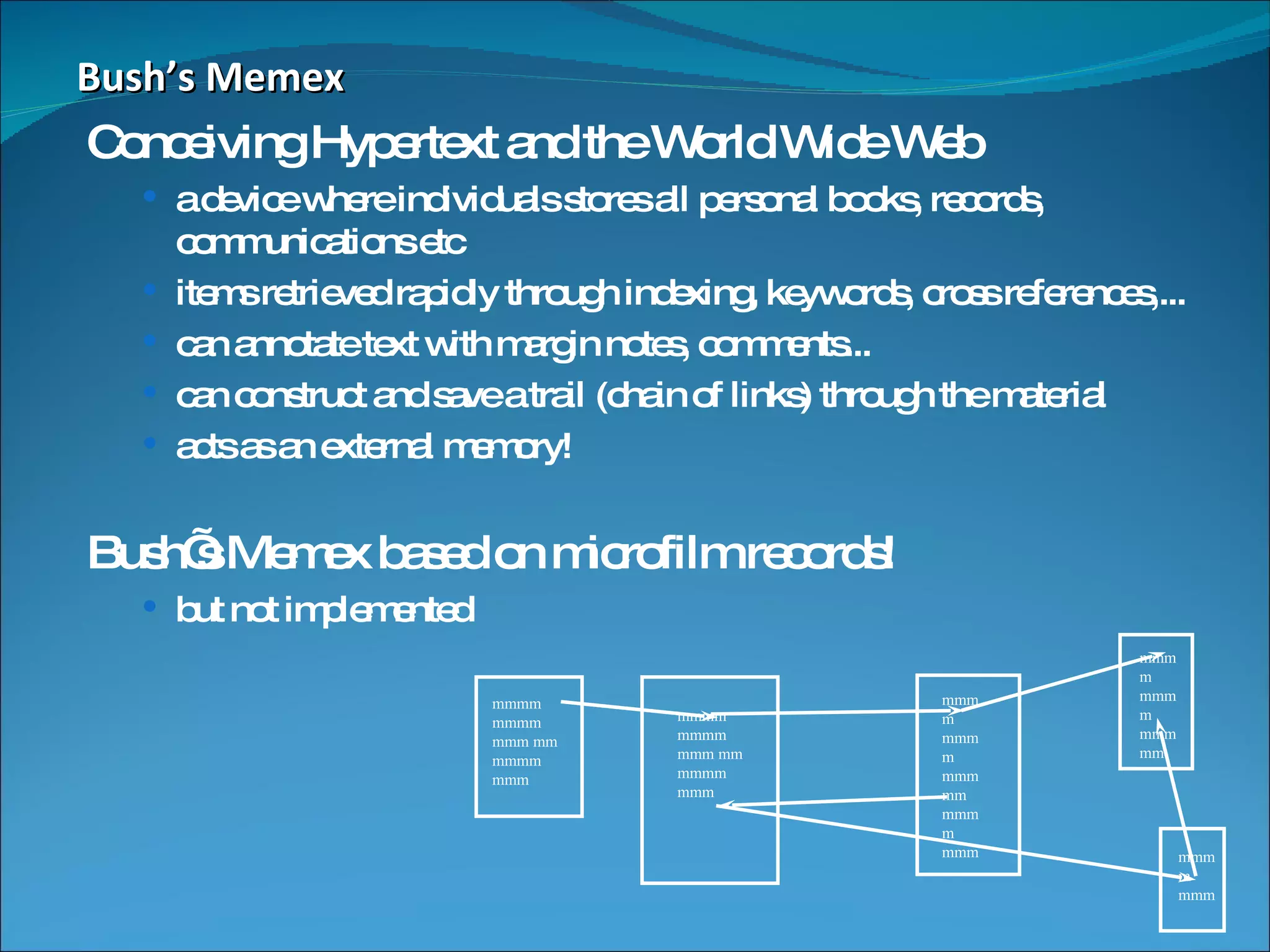
Bush’s Memex Conceiving Hypertext and the World Wide Web a device where individuals stores all personal books, records, communications etc items retrieved rapidly through indexing, keywords, cross references,... can annotate text with margin notes, comments... can construct and save a trail (chain of links) through the material acts as an external memory! Bush’s Memex based on microfilm records! but not implemented mmmm mmmm mmm mm mmmm mmm mmmm mmmm mmm mm mmmm mmm mmmm mmmm mmm mm mmmm mmm mmmm mmmm mmm mm mmmm mmm
J.C.R. Licklider (1960) Outlined “man-computer symbiosis” “ The hope is that, in not too many years, human brains and computing machines will be coupled together very tightly and that the resulting partnership will think as no human brain has ever thought and process data in a way not approached by the information-handling machines we know today.”
J.C.R. Licklider  (continued) Produced goals that are pre-requisite to “man-computer symbiosis” Immediate goals: time sharing of computers among many users electronic i/o for the display and communication of symbolic and pictorial information interactive real time system for information processing and programming large scale information storage and retrieval
J.C.R. Licklider (continued) intermediate goals: facilitation of human cooperation in the design & programming of large systems combined speech recognition, hand-printed character recognition & light-pen editing long term visions: natural language understanding (syntax, semantics, pragmatics) speech recognition of arbitrary computer users heuristic programming
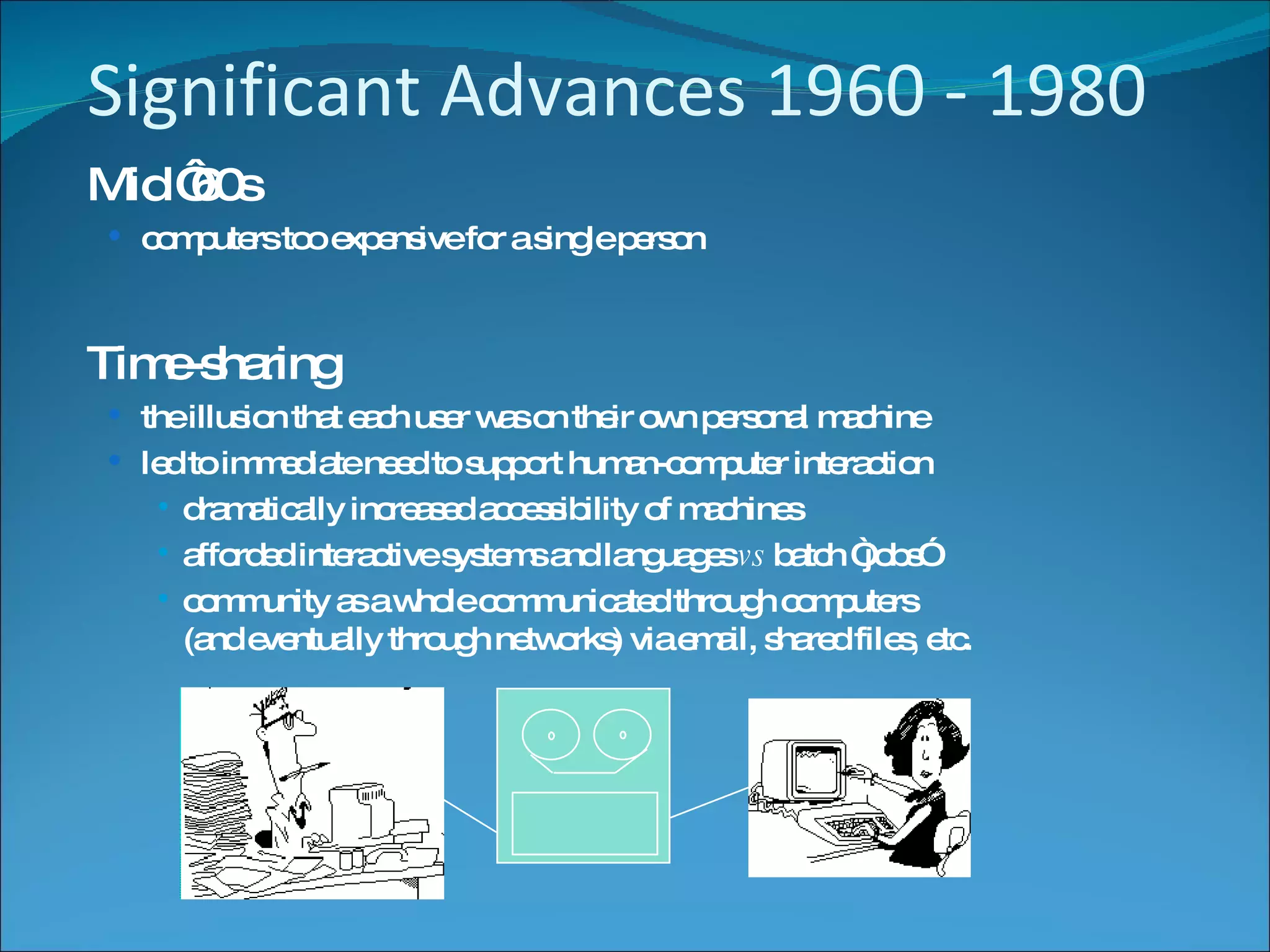
Significant Advances 1960 - 1980 Mid ‘60s  computers too expensive for a single person Time-sharing the illusion that each user was on their own personal machine led to immediate need to support human-computer interaction dramatically increased accessibility of machines afforded interactive systems and languages  vs  batch “jobs” community as a whole communicated through computers  (and eventually through networks) via email, shared files, etc.
Ivan Sutherland’s SketchPad-1963 PhD Sophisticated drawing package introduced many ideas/concepts now found in today’s interfaces hierarchical structures  defined pictures and sub-pictures object-oriented programming : master picture with instances constraints : specify details which the system maintains through changes icons : small pictures that represented more complex items  copying :  both pictures and constraints input techniques : efficient use of  light pen world coordinates :  separation of  screen from drawing coordinates recursive operations :  applied to  children of hierarchical objects From http://accad.osu.edu/~waynec/history/images/ivan-sutherland.jpg
Ivan Sutherland’s SketchPad-1963 PhD Parallel developments in hardware: “ low-cost” graphics terminals input devices such as data tablets (1964) display processors capable of real-time manipulation of images (1968)
Douglas Engelbart The Problem (early ‘50s) “ ...The world is getting more complex, and problems are getting more urgent. These must be dealt with collectively. However, human abilities to deal collectively with complex / urgent problems are not increasing as fast as these problems.  If you could do something to improve  human capability to deal with these  problems, then you'd really contribute  something basic.” ...Doug  Engelbart
Douglas  Engelbart The Vision (Early 50’s)  … I had the image of sitting at a big CRT screen with all kinds of symbols, new and different symbols, not restricted to our old ones. The computer could be manipulated, and you could be operating all kinds of things to drive the computer ... I also had a clear picture that one's colleagues could be sitting in other rooms with similar work stations, tied to the same computer complex, and could be sharing and working and collaborating very closely. And also the assumption that there'd be a lot of new skills, new ways of thinking that would evolve “   ...Doug Engelbart
Douglas Engelbart A Conceptual Framework for Augmenting Human Intellect (SRI Report, 1962) "By  augmenting man's intellect  we mean increasing the capability of a man to approach a complex problem situation, gain comprehension to suit his particular needs, and to derive solutions to problems.  One objective is to develop new techniques, procedures, and systems that will better adapt people's basic information-handling capabilities to the needs, problems, and progress of society."   ...Doug  Engelbart
 
Document Processing modern word processing outline processing hypermedia Input / Output the mouse and one-handed corded keyboard high resolution displays multiple windows specially designed furniture Shared work shared files and personal annotations electronic messaging shared displays with multiple pointers audio/video conferencing ideas of an Internet User testing, training
The Personal Computer Alan Kay (1969)  Dynabook vision (and cardboard prototype) of a notebook computer: “ Imagine having your own self-contained knowledge manipulator in a portable package the size and shape of an ordinary notebook. Suppose it had enough power to out-race your senses of sight and hearing, enough capacity to store for later retrieval thousands of page-equivalents of reference materials, poems, letters, recipes, records, drawings, animations, musical scores...” Ted Nelson 1974: “Computer Lib/Dream Machines” popular book describing what computers can do for people (instead of business!)
The Personal Computer Xerox PARC, mid-’70s Alto computer, a personal workstation  local processor, bit-mapped display, mouse modern graphical interfaces  text and drawing editing, electronic mail  windows, menus, scroll bars, mouse selection, etc local area networks (Ethernet) for personal workstations  could make use of shared resources ALTAIR 8800 (1975) Popular electronics article that showed people  how to build a computer for under $400
Commercial machines: Xerox Star-1981 First commercial personal computer designed for “business professionals” First comprehensive GUI used many ideas developed at Xerox PARC familiar user’s conceptual model (simulated desktop) promoted recognizing/pointing rather than remembering/typing property sheets to specify appearance/behavior of objects what you see is what you get (WYSIWYG) small set of generic commands that could be used throughout the system high degree of consistency and simplicity modeless interaction limited amount of user  tailor ability
Xerox Star (continued) First system based upon usability engineering inspired design extensive paper prototyping and usage analysis usability testing with potential users iterative refinement of interface Commercial failure cost ($15,000);  IBM had just announced a less expensive machine limited functionality e.g., no spreadsheet closed architecture,  3rd party vendors could not add applications perceived as slow  but really fast! slavish adherence to direct manipulation
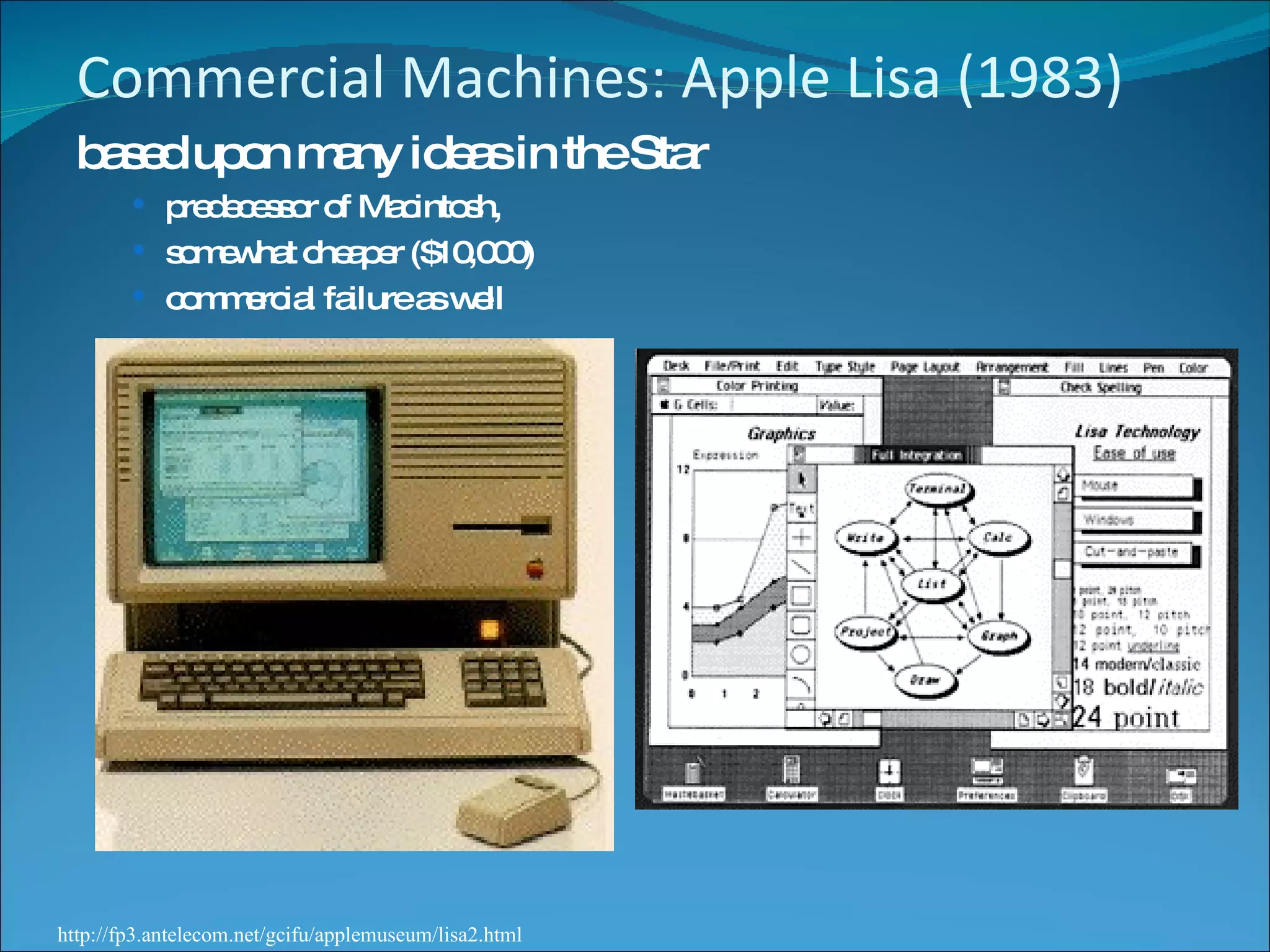
Commercial Machines: Apple Lisa (1983) based upon many ideas in the Star predecessor of Macintosh,  somewhat cheaper ($10,000) commercial failure as well http://fp3.antelecom.net/gcifu/applemuseum/lisa2.html
Commercial Machines: Apple Macintosh (1984) “ Old ideas” but well done! succeeded because: aggressive pricing ($2500) did not need to trail blaze  learnt from mistakes of Lisa and corrected them; ideas now “mature” market now ready for them developer’s toolkit encouraged 3rd party non-Apple software  interface guidelines encouraged consistency between applications domination in desktop publishing because of affordable laser printer  and excellent graphics
Commercial Machines: Apple Apple Macintosh (1984) “ old ideas” but well done! succeeded because: aggressive pricing ($2500) did not need to trail blaze  learnt from mistakes of Lisa and corrected them; ideas now “mature” market now ready for them developer’s toolkit encouraged 3rd party non-Apple software  interface guidelines encouraged consistency between applications domination in desktop publishing because of affordable laser printer  and excellent graphics
Other events: MIT Architecture Machine Group  Nicholas Negroponte (1969-1980+) many innovative inventions, including wall sized displays use of video disks use of artificial intelligence in interfaces (idea of agents) speech recognition merged with pointing  speech production multimedia hypertext .... ACM SIGCHI (1982) special interest group on computer-human interaction conferences draw between 2000-3000 people HCI Journals Int J Man Machine Studies (1969) many others since 1982
You know now: HCI importance result of: cheaper/available computers/workstations meant people more important than machines excellent interface ideas modeled after human needs instead of system needs (user centered design) evolution of ideas into products through several generations pioneer  systems developed innovative designs, but often commercially unviable settler  systems incorporated (many years later) well-researched designs  people no longer willing to accept products with poor interfaces
Introduction End users need not know how a computer works To add to your end user knowledge, study is needed  Studying this text will help you do the following: Install new hardware and software  Diagnose hardware and software problems Solve hardware and software problems Evaluate new hardware and operating systems Pass the A+ series of exams IMD203 : IT Maintenance & Support Service 1
Hardware Needs Software to Work Hardware: physical portion of a computer Components: monitor, keyboard, memory, hard drive Software: instructions used to manipulate hardware Requirements: input, processing, storage, output  All hardware operations are based on binary values Binary number system consists of two digits: 0 and 1 Fundamental groupings of binary numbers: Bit: binary digit that can take on values of 0 or 1 Nibble: four bits Byte: eight bits  IMD203 : IT Maintenance & Support Service 1
Figure 1-2  All communication, storage, and processing of data inside a computer are in binary form until presented as output to the user IMD203 : IT Maintenance & Support Service 1
PC Hardware Components Most input/output (I/O) devices are external to case  Most processing and storage devices are internal Central processing unit (CPU) Also called the processor or microprocessor Reads input, processes data, writes data to storage  Elements required by I/O and storage devices A method for CPU to communicate with the device Software to instruct and control the device Electricity to power the device IMD203 : IT Maintenance & Support Service 1
Hardware Used for Input and Output Connections to the case can be cabled or wireless Port: access point located in back or front of case Chief input devices: Keyboard: enhanced type holds 104 keys Mouse: pointing device used to select screen items  Chief output devices: Monitor: visually displays primary output of computer Printer: produces output on paper (hard copy) A+ Guide to Managing and Maintaining your PC, 6e
A+ Guide to Managing and Maintaining your PC, 6e Figure 1-6  The two most popular output devices are the monitor and the printer
Hardware Inside the Computer Case Most storage and processing occurs in the case Internal devices common to most computers: Motherboard containing CPU, memory, other parts  Floppy drive, hard drive, CD drive for persistent storage Power supply with power cords supplying electricity Circuit boards for internal and external communication Cables to connect devices to all circuit boards  Expansion cards are installed in expansion slots Two types of cables: data (communication) and power IMD203 : IT Maintenance & Support Service 1
Figure 1-8  Inside the computer case IMD203 : IT Maintenance & Support Service 1
The Motherboard The largest and most important circuit board Also known as the main board or system board Contains the CPU, expansion slots, other devices Categories used to group motherboard components  Processing, temporary storage, communication, power All devices communicate with CPU on motherboard  A peripheral device links to motherboard via cable Some motherboard ports outside of the case: Keyboard, mouse, parallel, USB ports, sound ports IMD203 : IT Maintenance & Support Service 1
A+ Guide to Managing and Maintaining your PC, 6e Figure 1-9  All hardware components are either located on the motherboard or directly or indirectly connected to it because they must all communicate with the CPU
A+ Guide to Managing and Maintaining your PC, 6e Figure 1-10  A motherboard provides ports for common I/O devices
The Processor and the Chipset CPU: chip that performs most data processing Chipset: group of microchips controlling data flow Personal computer (PC): chief focus of this text Major manufacturers of CPUs and chipsets for PCs Intel Corporation, AMD, VIA, SiS, and Cyrix A+ Guide to Managing and Maintaining your PC, 6e
A+ Guide to Managing and Maintaining your PC, 6e Figure 1-12  This motherboard uses two chips in its chipset (notice the bus lines coming from each chip used for communication)
Storage Devices Primary storage (main memory): Temporary storage used by the processor Example: RAM (random access memory) Secondary storage (permanent storage): Enables data to persist after the machine is turned off Examples: hard drive, CD, floppy disk Analogy to primary-secondary memory relationship Book stacks in a library are like permanent storage Books can be moved to a desk (temporary storage) A+ Guide to Managing and Maintaining your PC, 6e
A+ Guide to Managing and Maintaining your PC, 6e Figure 1-13  Memory is a temporary place to hold instructions and data while the CPU processes both
Primary Storage RAM (random access memory): Device providing temporary storage Located on motherboard and on other circuit boards Three types of RAM boards (memory modules): DIMM (dual inline memory module) RIMM (Rambus inline memory module) SIMM (single inline memory module) RAM is volatile (data does not persist) ROM (read-only memory) is nonvolatile  A+ Guide to Managing and Maintaining your PC, 6e
A+ Guide to Managing and Maintaining your PC, 6e Figure 1-14  A SIMM, DIMM, or RIMM holds RAM and is mounted directly on a motherboard
Secondary Storage Hard drive Case containing disks that rotate at high speeds An arm with a read/write head traverses the platter Integrated Drive Electronics (IDE) Technology used internally by a hard drive ATA (AT Attachment) standard Specifies motherboard-hard drive interface  Types: Serial ATA or parallel ATA (Enhanced IDE) Parallel ATA accommodates up to four IDE devices  A+ Guide to Managing and Maintaining your PC, 6e
A+ Guide to Managing and Maintaining your PC, 6e Figure 1-16  Hard drive with sealed cover removed
A+ Guide to Managing and Maintaining your PC, 6e Figure 1-18  Two IDE devices connected to a motherboard using both IDE connections and two cables
Secondary Storage (continued) Serial ATA standard  Allows for more than four drives in a system  Applies only to hard drives and not to other drives Some IDE devices: hard drives, Zip drives, CD drive Floppy drive 3.5-inch disk holding 1.44 MB of data Floppy drive connector is distinct from IDE connectors CD-ROM (compact disc read-only memory) drive Standard equipment for reading software distributions  A+ Guide to Managing and Maintaining your PC, 6e
A+ Guide to Managing and Maintaining your PC, 6e Figure 1-22  A motherboard usually provides a connection for a floppy drive cable
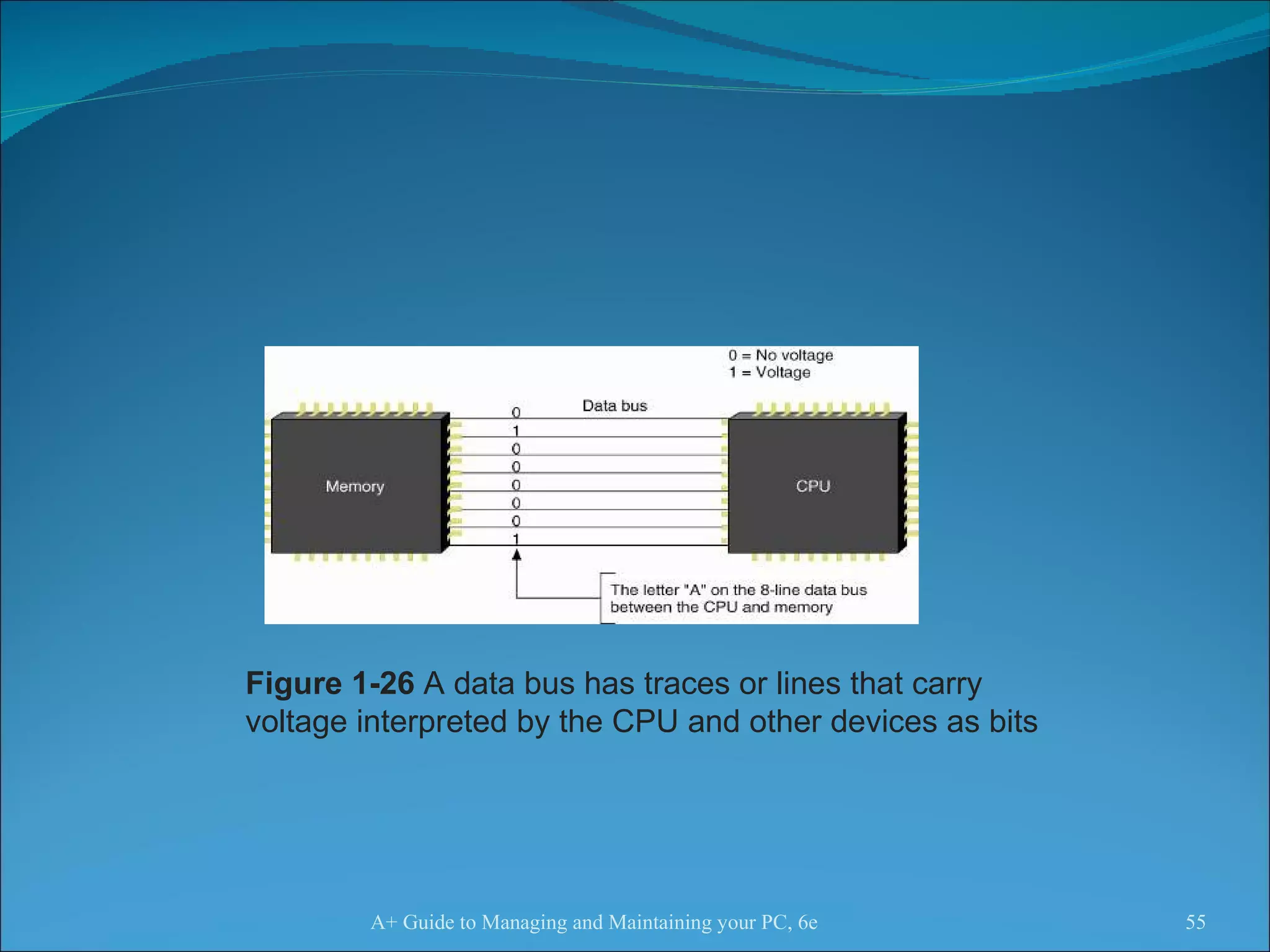
Motherboard Components Used For Communication Among Devices  Traces: circuits or paths that move data and power Bus: system of pathways and transmission protocols Data bus Lines in a bus that carry the data Binary bits correspond to voltage values of on or off Data path sizes: 8, 16, 32, 64, or 128 bits wide  Main bus on motherboard (system bus, memory bus)  Communicates with CPU, memory, and chipset Pulse of system clock carried by line on motherboard A+ Guide to Managing and Maintaining your PC, 6e
A+ Guide to Managing and Maintaining your PC, 6e Figure 1-26  A data bus has traces or lines that carry voltage interpreted by the CPU and other devices as bits
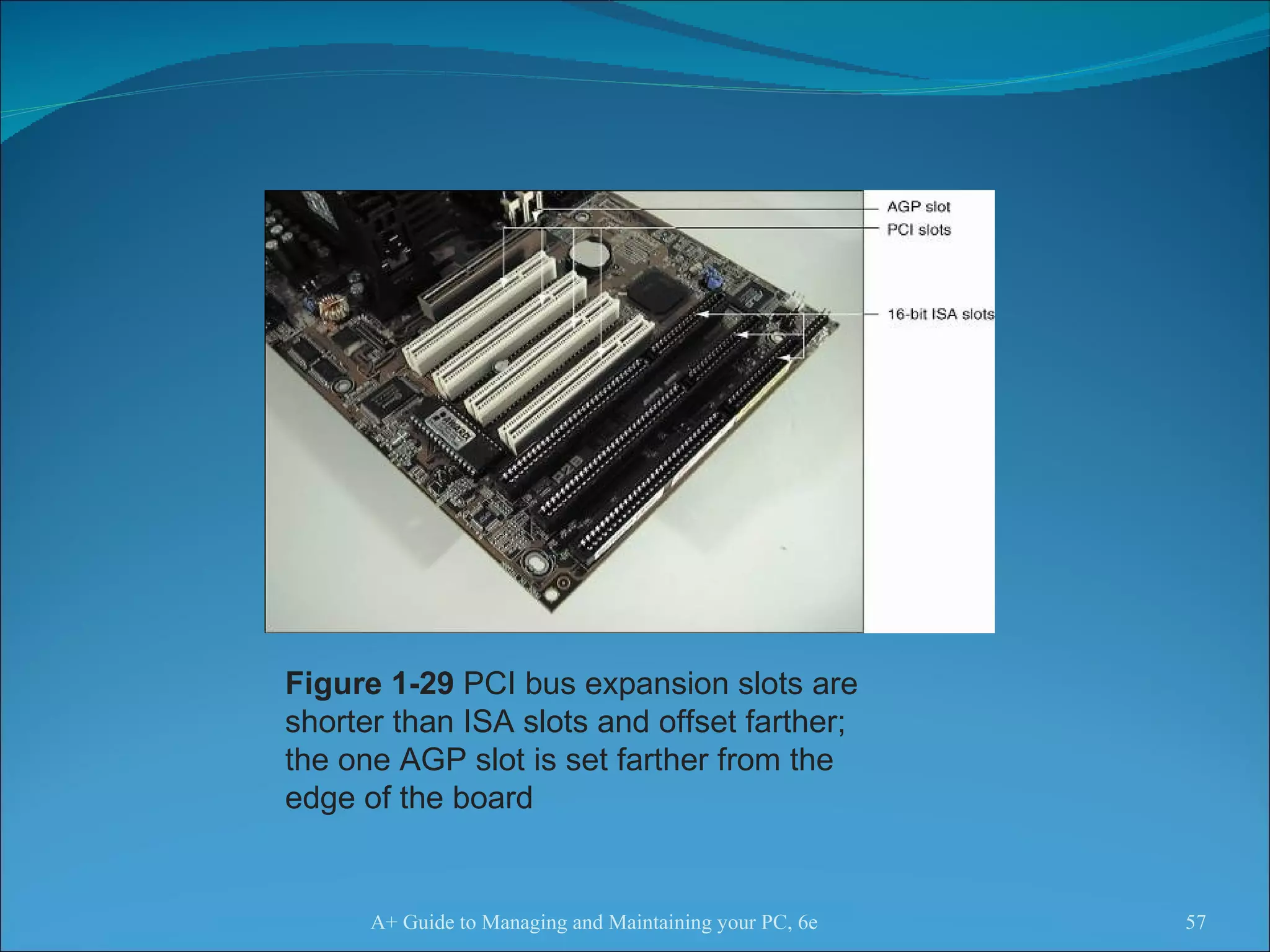
Motherboard Components Used For Communication Among Devices (continued)  Devices work according to beats (or cycles) Clock speed is measured in hertz (cycles/second)  One megahertz (MHz): one million cycles per second One gigahertz (GHz): one billion cycles per second Common ratings for motherboard buses 1066 MHz, 800 MHz, 533 MHz, or 400 MHz Range of CPU speeds: 166 MHz to 4 GHz Buses for expansion slots: PCI, AGP, ISA  A+ Guide to Managing and Maintaining your PC, 6e
A+ Guide to Managing and Maintaining your PC, 6e Figure 1-29  PCI bus expansion slots are shorter than ISA slots and offset farther; the one AGP slot is set farther from the edge of the board
Interface (Expansion) Cards Some names for circuits mounted in expansion slots: Circuit cards, adapter boards, expansion cards, cards  Cards that connect the CPU to an external device: Video: provides a port for the monitor Sound: provides ports for speakers and microphones Network: provides a port for a network cable Modem: provides ports for phone lines Determine a card’s function by identifying its port  A+ Guide to Managing and Maintaining your PC, 6e
A+ Guide to Managing and Maintaining your PC, 6e Figure 1-31  This circuit board is a modem card and is mounted in a PCI slot on the motherboard
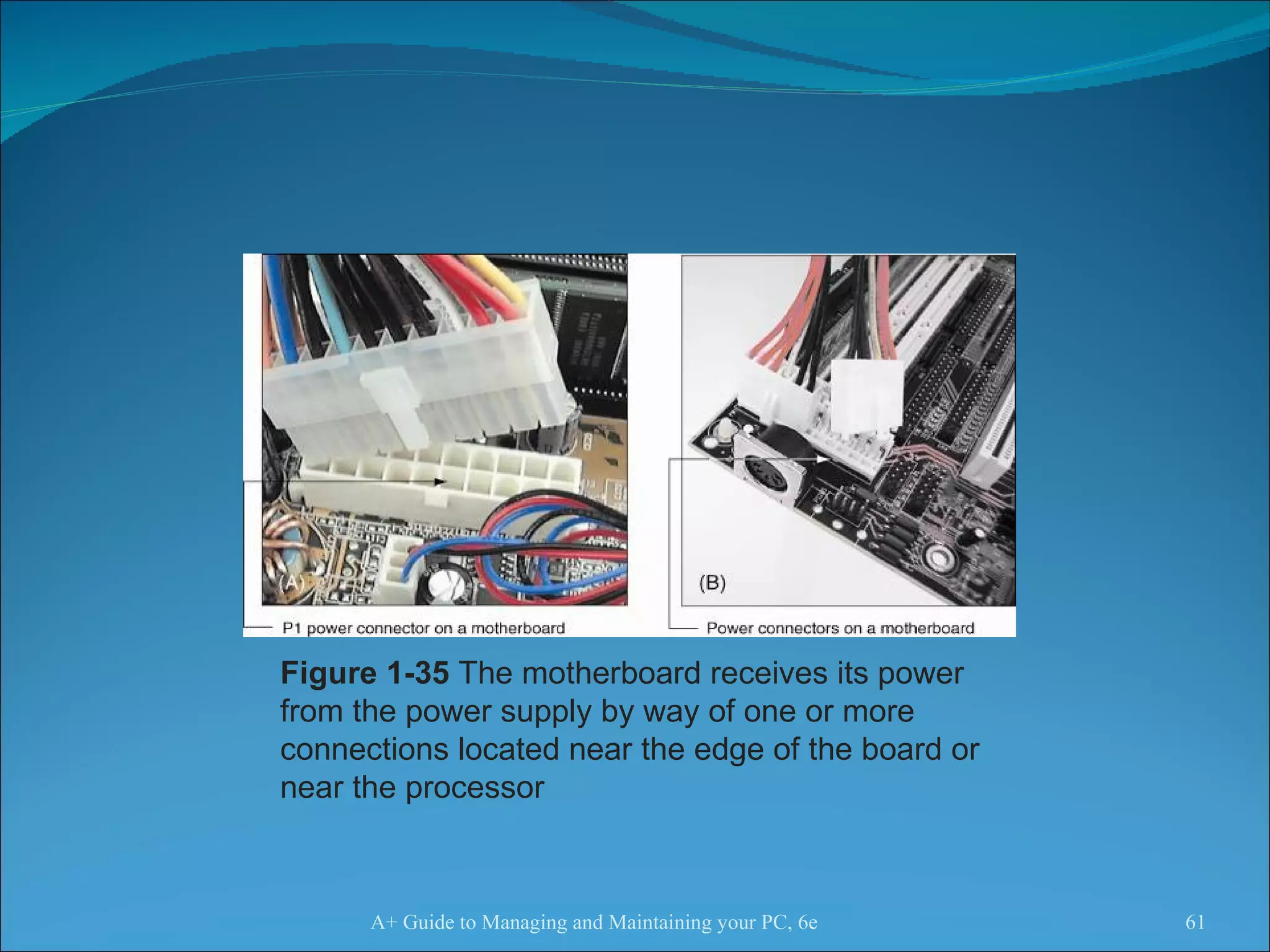
The Electrical System Power supply Most important electrical component Converts AC voltage external source to DC voltage  Reduces voltage from 110-120 volts to 12 volts or less Runs a fan to cool the inside of the computer case Temperatures > 185 °  F can cause component failure Motherboard has 1 or 2 connections to power supply A+ Guide to Managing and Maintaining your PC, 6e
A+ Guide to Managing and Maintaining your PC, 6e Figure 1-35  The motherboard receives its power from the power supply by way of one or more connections located near the edge of the board or near the processor
Instructions Stored on the Motherboard and Other Boards BIOS (basic input/output system) Data and instructions stored on ROM chips ROM BIOS chips are a type of firmware Three purposes served by motherboard ROM BIOS: System BIOS: used to manage simple devices Startup BIOS: used to start the computer CMOS setup: used to change motherboard settings CMOS RAM: includes date, time, port configurations Flash ROM: ROM chips the can be overwritten A+ Guide to Managing and Maintaining your PC, 6e
A+ Guide to Managing and Maintaining your PC, 6e Figure 1-36  This firmware chip contains flash ROM and CMOS RAM; CMOS RAM is powered by the coin battery located near the chip
Advanced Configuration and Power Interface Also known as ACPI  Standards specifying a power saving feature Enables a system to power up by a keyboard  Supported by most systems, such as Windows XP Advanced Power Management (APM) Older BIOS power management standard A+ Guide to Managing and Maintaining your PC, 6e
Plug and Play Also known as PnP Standard simplifying installation of hardware devices PnP BIOS begins process of configuring devices PnP-compliant operating system completes configuration ESCD (extended system configuration data) Plug and Play BIOS Enhanced version of PnP Stores manual configuration steps  A+ Guide to Managing and Maintaining your PC, 6e
Summary  A computer comprises hardware and software Main functions: input, output, processing, storage Data is stored in a binary format (1 or 0, on or off) Input/output devices: keyboard, mouse, printer, monitor Motherboard (system board): contains the CPU, access to other circuit boards and peripherals A+ Guide to Managing and Maintaining your PC, 6e
Summary (continued) Primary storage (RAM) is volatile (temporary) Secondary storage is nonvolatile (permanent) Parallel and serial ATA standards: enable secondary storage devices to interface with the motherboard  Computer bus: system of communication pathways and protocols  ROM BIOS helps start PCs, manage simple devices, and change some motherboard settings A+ Guide to Managing and Maintaining your PC, 6e

IMD 203 - Ch01

  • 1.
    Week 1Introduction to PC: PC History How Computer Work Componenents of a PC Output Device Input Device IMD203 : IT Maintenance & Support Service 1
  • 2.
    Objectives Learn thata computer requires both hardware and software to work Learn about the many different hardware components inside of and connected to a computer IMD203 : IT Maintenance & Support Service 1
  • 3.
    Where did HCIinnovations and philosophy come from? Who were the major personalities? What were the important systems? How did ideas move from the laboratory to the market?
  • 4.
    Input/output devices Input Output Early days connecting wires lights on display paper tape & punch cards paper keyboard teletype Today keyboard scrolling glass teletype + cursor keys character terminal + mouse bit-mapped screen + microphone audio Soon? data gloves + suits head-mounted displays computer jewelry ubiquitous computing natural language autonomous agents cameras multimedia The lesson keyboards & terminals are just artifacts of today’s technologies new input/output devices will change the way we interact with computers
  • 5.
    From Image Shackweb site //www.imageshack.us ; original source unknown
  • 6.
    Eniac (1943)A general view of the ENIAC, the world's first all electronic numerical integrator and computer . From IBM Archives.
  • 7.
    Mark I (1944)The Mark I paper tape readers . From Harvard University Cruft Photo Laboratory.
  • 8.
    IBM SSEC (1948)From IBM Archives.
  • 9.
    Stretch (1961) Aclose-up of the Stretch technical control panel. From IBM Archives.
  • 10.
    Intellectual foundations VannevarBush (1945) “ As we may think” article in Atlantic Monthly Identified the information storage and retrieval problem: new knowledge does not reach the people who could benefit from it “ publication has been extended far beyond our present ability to make real use of the record”
  • 11.
    Bush’s Memex ConceivingHypertext and the World Wide Web a device where individuals stores all personal books, records, communications etc items retrieved rapidly through indexing, keywords, cross references,... can annotate text with margin notes, comments... can construct and save a trail (chain of links) through the material acts as an external memory! Bush’s Memex based on microfilm records! but not implemented mmmm mmmm mmm mm mmmm mmm mmmm mmmm mmm mm mmmm mmm mmmm mmmm mmm mm mmmm mmm mmmm mmmm mmm mm mmmm mmm
  • 12.
    J.C.R. Licklider (1960)Outlined “man-computer symbiosis” “ The hope is that, in not too many years, human brains and computing machines will be coupled together very tightly and that the resulting partnership will think as no human brain has ever thought and process data in a way not approached by the information-handling machines we know today.”
  • 13.
    J.C.R. Licklider (continued) Produced goals that are pre-requisite to “man-computer symbiosis” Immediate goals: time sharing of computers among many users electronic i/o for the display and communication of symbolic and pictorial information interactive real time system for information processing and programming large scale information storage and retrieval
  • 14.
    J.C.R. Licklider (continued)intermediate goals: facilitation of human cooperation in the design & programming of large systems combined speech recognition, hand-printed character recognition & light-pen editing long term visions: natural language understanding (syntax, semantics, pragmatics) speech recognition of arbitrary computer users heuristic programming
  • 15.
    Significant Advances 1960- 1980 Mid ‘60s computers too expensive for a single person Time-sharing the illusion that each user was on their own personal machine led to immediate need to support human-computer interaction dramatically increased accessibility of machines afforded interactive systems and languages vs batch “jobs” community as a whole communicated through computers (and eventually through networks) via email, shared files, etc.
  • 16.
    Ivan Sutherland’s SketchPad-1963PhD Sophisticated drawing package introduced many ideas/concepts now found in today’s interfaces hierarchical structures defined pictures and sub-pictures object-oriented programming : master picture with instances constraints : specify details which the system maintains through changes icons : small pictures that represented more complex items copying : both pictures and constraints input techniques : efficient use of light pen world coordinates : separation of screen from drawing coordinates recursive operations : applied to children of hierarchical objects From http://accad.osu.edu/~waynec/history/images/ivan-sutherland.jpg
  • 17.
    Ivan Sutherland’s SketchPad-1963PhD Parallel developments in hardware: “ low-cost” graphics terminals input devices such as data tablets (1964) display processors capable of real-time manipulation of images (1968)
  • 18.
    Douglas Engelbart TheProblem (early ‘50s) “ ...The world is getting more complex, and problems are getting more urgent. These must be dealt with collectively. However, human abilities to deal collectively with complex / urgent problems are not increasing as fast as these problems. If you could do something to improve human capability to deal with these problems, then you'd really contribute something basic.” ...Doug Engelbart
  • 19.
    Douglas EngelbartThe Vision (Early 50’s) … I had the image of sitting at a big CRT screen with all kinds of symbols, new and different symbols, not restricted to our old ones. The computer could be manipulated, and you could be operating all kinds of things to drive the computer ... I also had a clear picture that one's colleagues could be sitting in other rooms with similar work stations, tied to the same computer complex, and could be sharing and working and collaborating very closely. And also the assumption that there'd be a lot of new skills, new ways of thinking that would evolve “ ...Doug Engelbart
  • 20.
    Douglas Engelbart AConceptual Framework for Augmenting Human Intellect (SRI Report, 1962) "By augmenting man's intellect we mean increasing the capability of a man to approach a complex problem situation, gain comprehension to suit his particular needs, and to derive solutions to problems. One objective is to develop new techniques, procedures, and systems that will better adapt people's basic information-handling capabilities to the needs, problems, and progress of society." ...Doug Engelbart
  • 21.
  • 22.
    Document Processing modernword processing outline processing hypermedia Input / Output the mouse and one-handed corded keyboard high resolution displays multiple windows specially designed furniture Shared work shared files and personal annotations electronic messaging shared displays with multiple pointers audio/video conferencing ideas of an Internet User testing, training
  • 23.
    The Personal ComputerAlan Kay (1969) Dynabook vision (and cardboard prototype) of a notebook computer: “ Imagine having your own self-contained knowledge manipulator in a portable package the size and shape of an ordinary notebook. Suppose it had enough power to out-race your senses of sight and hearing, enough capacity to store for later retrieval thousands of page-equivalents of reference materials, poems, letters, recipes, records, drawings, animations, musical scores...” Ted Nelson 1974: “Computer Lib/Dream Machines” popular book describing what computers can do for people (instead of business!)
  • 24.
    The Personal ComputerXerox PARC, mid-’70s Alto computer, a personal workstation local processor, bit-mapped display, mouse modern graphical interfaces text and drawing editing, electronic mail windows, menus, scroll bars, mouse selection, etc local area networks (Ethernet) for personal workstations could make use of shared resources ALTAIR 8800 (1975) Popular electronics article that showed people how to build a computer for under $400
  • 25.
    Commercial machines: XeroxStar-1981 First commercial personal computer designed for “business professionals” First comprehensive GUI used many ideas developed at Xerox PARC familiar user’s conceptual model (simulated desktop) promoted recognizing/pointing rather than remembering/typing property sheets to specify appearance/behavior of objects what you see is what you get (WYSIWYG) small set of generic commands that could be used throughout the system high degree of consistency and simplicity modeless interaction limited amount of user tailor ability
  • 26.
    Xerox Star (continued)First system based upon usability engineering inspired design extensive paper prototyping and usage analysis usability testing with potential users iterative refinement of interface Commercial failure cost ($15,000); IBM had just announced a less expensive machine limited functionality e.g., no spreadsheet closed architecture, 3rd party vendors could not add applications perceived as slow but really fast! slavish adherence to direct manipulation
  • 27.
    Commercial Machines: AppleLisa (1983) based upon many ideas in the Star predecessor of Macintosh, somewhat cheaper ($10,000) commercial failure as well http://fp3.antelecom.net/gcifu/applemuseum/lisa2.html
  • 28.
    Commercial Machines: AppleMacintosh (1984) “ Old ideas” but well done! succeeded because: aggressive pricing ($2500) did not need to trail blaze learnt from mistakes of Lisa and corrected them; ideas now “mature” market now ready for them developer’s toolkit encouraged 3rd party non-Apple software interface guidelines encouraged consistency between applications domination in desktop publishing because of affordable laser printer and excellent graphics
  • 29.
    Commercial Machines: AppleApple Macintosh (1984) “ old ideas” but well done! succeeded because: aggressive pricing ($2500) did not need to trail blaze learnt from mistakes of Lisa and corrected them; ideas now “mature” market now ready for them developer’s toolkit encouraged 3rd party non-Apple software interface guidelines encouraged consistency between applications domination in desktop publishing because of affordable laser printer and excellent graphics
  • 30.
    Other events: MITArchitecture Machine Group Nicholas Negroponte (1969-1980+) many innovative inventions, including wall sized displays use of video disks use of artificial intelligence in interfaces (idea of agents) speech recognition merged with pointing speech production multimedia hypertext .... ACM SIGCHI (1982) special interest group on computer-human interaction conferences draw between 2000-3000 people HCI Journals Int J Man Machine Studies (1969) many others since 1982
  • 31.
    You know now:HCI importance result of: cheaper/available computers/workstations meant people more important than machines excellent interface ideas modeled after human needs instead of system needs (user centered design) evolution of ideas into products through several generations pioneer systems developed innovative designs, but often commercially unviable settler systems incorporated (many years later) well-researched designs people no longer willing to accept products with poor interfaces
  • 32.
    Introduction End usersneed not know how a computer works To add to your end user knowledge, study is needed Studying this text will help you do the following: Install new hardware and software Diagnose hardware and software problems Solve hardware and software problems Evaluate new hardware and operating systems Pass the A+ series of exams IMD203 : IT Maintenance & Support Service 1
  • 33.
    Hardware Needs Softwareto Work Hardware: physical portion of a computer Components: monitor, keyboard, memory, hard drive Software: instructions used to manipulate hardware Requirements: input, processing, storage, output All hardware operations are based on binary values Binary number system consists of two digits: 0 and 1 Fundamental groupings of binary numbers: Bit: binary digit that can take on values of 0 or 1 Nibble: four bits Byte: eight bits IMD203 : IT Maintenance & Support Service 1
  • 34.
    Figure 1-2 All communication, storage, and processing of data inside a computer are in binary form until presented as output to the user IMD203 : IT Maintenance & Support Service 1
  • 35.
    PC Hardware ComponentsMost input/output (I/O) devices are external to case Most processing and storage devices are internal Central processing unit (CPU) Also called the processor or microprocessor Reads input, processes data, writes data to storage Elements required by I/O and storage devices A method for CPU to communicate with the device Software to instruct and control the device Electricity to power the device IMD203 : IT Maintenance & Support Service 1
  • 36.
    Hardware Used forInput and Output Connections to the case can be cabled or wireless Port: access point located in back or front of case Chief input devices: Keyboard: enhanced type holds 104 keys Mouse: pointing device used to select screen items Chief output devices: Monitor: visually displays primary output of computer Printer: produces output on paper (hard copy) A+ Guide to Managing and Maintaining your PC, 6e
  • 37.
    A+ Guide toManaging and Maintaining your PC, 6e Figure 1-6 The two most popular output devices are the monitor and the printer
  • 38.
    Hardware Inside theComputer Case Most storage and processing occurs in the case Internal devices common to most computers: Motherboard containing CPU, memory, other parts Floppy drive, hard drive, CD drive for persistent storage Power supply with power cords supplying electricity Circuit boards for internal and external communication Cables to connect devices to all circuit boards Expansion cards are installed in expansion slots Two types of cables: data (communication) and power IMD203 : IT Maintenance & Support Service 1
  • 39.
    Figure 1-8 Inside the computer case IMD203 : IT Maintenance & Support Service 1
  • 40.
    The Motherboard Thelargest and most important circuit board Also known as the main board or system board Contains the CPU, expansion slots, other devices Categories used to group motherboard components Processing, temporary storage, communication, power All devices communicate with CPU on motherboard A peripheral device links to motherboard via cable Some motherboard ports outside of the case: Keyboard, mouse, parallel, USB ports, sound ports IMD203 : IT Maintenance & Support Service 1
  • 41.
    A+ Guide toManaging and Maintaining your PC, 6e Figure 1-9 All hardware components are either located on the motherboard or directly or indirectly connected to it because they must all communicate with the CPU
  • 42.
    A+ Guide toManaging and Maintaining your PC, 6e Figure 1-10 A motherboard provides ports for common I/O devices
  • 43.
    The Processor andthe Chipset CPU: chip that performs most data processing Chipset: group of microchips controlling data flow Personal computer (PC): chief focus of this text Major manufacturers of CPUs and chipsets for PCs Intel Corporation, AMD, VIA, SiS, and Cyrix A+ Guide to Managing and Maintaining your PC, 6e
  • 44.
    A+ Guide toManaging and Maintaining your PC, 6e Figure 1-12 This motherboard uses two chips in its chipset (notice the bus lines coming from each chip used for communication)
  • 45.
    Storage Devices Primarystorage (main memory): Temporary storage used by the processor Example: RAM (random access memory) Secondary storage (permanent storage): Enables data to persist after the machine is turned off Examples: hard drive, CD, floppy disk Analogy to primary-secondary memory relationship Book stacks in a library are like permanent storage Books can be moved to a desk (temporary storage) A+ Guide to Managing and Maintaining your PC, 6e
  • 46.
    A+ Guide toManaging and Maintaining your PC, 6e Figure 1-13 Memory is a temporary place to hold instructions and data while the CPU processes both
  • 47.
    Primary Storage RAM(random access memory): Device providing temporary storage Located on motherboard and on other circuit boards Three types of RAM boards (memory modules): DIMM (dual inline memory module) RIMM (Rambus inline memory module) SIMM (single inline memory module) RAM is volatile (data does not persist) ROM (read-only memory) is nonvolatile A+ Guide to Managing and Maintaining your PC, 6e
  • 48.
    A+ Guide toManaging and Maintaining your PC, 6e Figure 1-14 A SIMM, DIMM, or RIMM holds RAM and is mounted directly on a motherboard
  • 49.
    Secondary Storage Harddrive Case containing disks that rotate at high speeds An arm with a read/write head traverses the platter Integrated Drive Electronics (IDE) Technology used internally by a hard drive ATA (AT Attachment) standard Specifies motherboard-hard drive interface Types: Serial ATA or parallel ATA (Enhanced IDE) Parallel ATA accommodates up to four IDE devices A+ Guide to Managing and Maintaining your PC, 6e
  • 50.
    A+ Guide toManaging and Maintaining your PC, 6e Figure 1-16 Hard drive with sealed cover removed
  • 51.
    A+ Guide toManaging and Maintaining your PC, 6e Figure 1-18 Two IDE devices connected to a motherboard using both IDE connections and two cables
  • 52.
    Secondary Storage (continued)Serial ATA standard Allows for more than four drives in a system Applies only to hard drives and not to other drives Some IDE devices: hard drives, Zip drives, CD drive Floppy drive 3.5-inch disk holding 1.44 MB of data Floppy drive connector is distinct from IDE connectors CD-ROM (compact disc read-only memory) drive Standard equipment for reading software distributions A+ Guide to Managing and Maintaining your PC, 6e
  • 53.
    A+ Guide toManaging and Maintaining your PC, 6e Figure 1-22 A motherboard usually provides a connection for a floppy drive cable
  • 54.
    Motherboard Components UsedFor Communication Among Devices Traces: circuits or paths that move data and power Bus: system of pathways and transmission protocols Data bus Lines in a bus that carry the data Binary bits correspond to voltage values of on or off Data path sizes: 8, 16, 32, 64, or 128 bits wide Main bus on motherboard (system bus, memory bus) Communicates with CPU, memory, and chipset Pulse of system clock carried by line on motherboard A+ Guide to Managing and Maintaining your PC, 6e
  • 55.
    A+ Guide toManaging and Maintaining your PC, 6e Figure 1-26 A data bus has traces or lines that carry voltage interpreted by the CPU and other devices as bits
  • 56.
    Motherboard Components UsedFor Communication Among Devices (continued) Devices work according to beats (or cycles) Clock speed is measured in hertz (cycles/second) One megahertz (MHz): one million cycles per second One gigahertz (GHz): one billion cycles per second Common ratings for motherboard buses 1066 MHz, 800 MHz, 533 MHz, or 400 MHz Range of CPU speeds: 166 MHz to 4 GHz Buses for expansion slots: PCI, AGP, ISA A+ Guide to Managing and Maintaining your PC, 6e
  • 57.
    A+ Guide toManaging and Maintaining your PC, 6e Figure 1-29 PCI bus expansion slots are shorter than ISA slots and offset farther; the one AGP slot is set farther from the edge of the board
  • 58.
    Interface (Expansion) CardsSome names for circuits mounted in expansion slots: Circuit cards, adapter boards, expansion cards, cards Cards that connect the CPU to an external device: Video: provides a port for the monitor Sound: provides ports for speakers and microphones Network: provides a port for a network cable Modem: provides ports for phone lines Determine a card’s function by identifying its port A+ Guide to Managing and Maintaining your PC, 6e
  • 59.
    A+ Guide toManaging and Maintaining your PC, 6e Figure 1-31 This circuit board is a modem card and is mounted in a PCI slot on the motherboard
  • 60.
    The Electrical SystemPower supply Most important electrical component Converts AC voltage external source to DC voltage Reduces voltage from 110-120 volts to 12 volts or less Runs a fan to cool the inside of the computer case Temperatures > 185 ° F can cause component failure Motherboard has 1 or 2 connections to power supply A+ Guide to Managing and Maintaining your PC, 6e
  • 61.
    A+ Guide toManaging and Maintaining your PC, 6e Figure 1-35 The motherboard receives its power from the power supply by way of one or more connections located near the edge of the board or near the processor
  • 62.
    Instructions Stored onthe Motherboard and Other Boards BIOS (basic input/output system) Data and instructions stored on ROM chips ROM BIOS chips are a type of firmware Three purposes served by motherboard ROM BIOS: System BIOS: used to manage simple devices Startup BIOS: used to start the computer CMOS setup: used to change motherboard settings CMOS RAM: includes date, time, port configurations Flash ROM: ROM chips the can be overwritten A+ Guide to Managing and Maintaining your PC, 6e
  • 63.
    A+ Guide toManaging and Maintaining your PC, 6e Figure 1-36 This firmware chip contains flash ROM and CMOS RAM; CMOS RAM is powered by the coin battery located near the chip
  • 64.
    Advanced Configuration andPower Interface Also known as ACPI Standards specifying a power saving feature Enables a system to power up by a keyboard Supported by most systems, such as Windows XP Advanced Power Management (APM) Older BIOS power management standard A+ Guide to Managing and Maintaining your PC, 6e
  • 65.
    Plug and PlayAlso known as PnP Standard simplifying installation of hardware devices PnP BIOS begins process of configuring devices PnP-compliant operating system completes configuration ESCD (extended system configuration data) Plug and Play BIOS Enhanced version of PnP Stores manual configuration steps A+ Guide to Managing and Maintaining your PC, 6e
  • 66.
    Summary Acomputer comprises hardware and software Main functions: input, output, processing, storage Data is stored in a binary format (1 or 0, on or off) Input/output devices: keyboard, mouse, printer, monitor Motherboard (system board): contains the CPU, access to other circuit boards and peripherals A+ Guide to Managing and Maintaining your PC, 6e
  • 67.
    Summary (continued) Primarystorage (RAM) is volatile (temporary) Secondary storage is nonvolatile (permanent) Parallel and serial ATA standards: enable secondary storage devices to interface with the motherboard Computer bus: system of communication pathways and protocols ROM BIOS helps start PCs, manage simple devices, and change some motherboard settings A+ Guide to Managing and Maintaining your PC, 6e