Prepared By: Er. Nawaraj
Bhandari
DESIGNING AND DEVELOPING A
WEBSITE
Topic 4:
Hyperlinks
 A key feature of the web is hyperlinks.
 Allows us to surf the web
 There is only one element responsible for creating
hyperlinks.
 The anchor element <a>
Hyperlinks
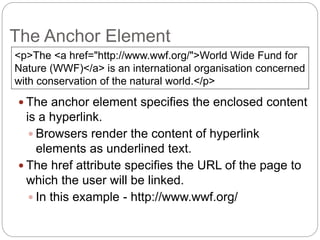
 The anchor element specifies the enclosed content
is a hyperlink.
 Browsers render the content of hyperlink
elements as underlined text.
 The href attribute specifies the URL of the page to
which the user will be linked.
 In this example - http://www.wwf.org/
The Anchor Element
<p>The <a href="http://www.wwf.org/">World Wide Fund for
Nature (WWF)</a> is an international organisation concerned
with conservation of the natural world.</p>
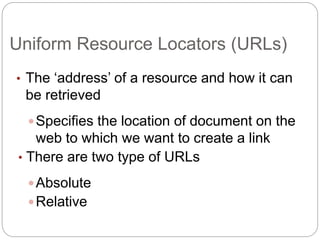
• The ‘address’ of a resource and how it can
be retrieved
Specifies the location of document on the
web to which we want to create a link
• There are two type of URLs
Absolute
Relative
Uniform Resource Locators (URLs)
 Protocol name
 The mechanism for accessing the resource - http
 Domain name
 The name of the web server where the web page
is stored - www.nhm.ac.uk
Absolute URLs - 1
http://www.nhm.ac.uk/about-us/index.html
protocol domain path
 Pathname
 Specifies the location of the page on the
server – about-us/index.html
 Absolute URLs are used when linking to
web pages in a separate website.
 External hyperlinks
 A website on a different web server
Absolute URLs - 2
 Relative URLs describe the location of a document
relative to the current document’s location.
 Relative URLs are when linking pages together in
the same site.
 Internal hyperlinks
 In your assessment, you will be expected to link
pages together using relative URLs.
Relative URLs - 1
 A hyperlink in the page
culture.html that links to the
page locations.html would look
like
Relative URLs - 2
root
careers news about index.html
benefits.html
locations.html
culture.html investors
financial.html
annual_reports.html
press.html
media.html contact_us.html
our_values.html
<a href="locations.html">locations</a>
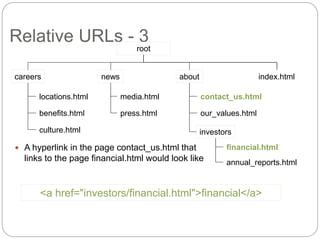
 A hyperlink in the page contact_us.html that
links to the page financial.html would look like
Relative URLs - 3
root
careers news about index.html
benefits.html
locations.html
culture.html investors
financial.html
annual_reports.html
press.html
media.html contact_us.html
our_values.html
<a href="investors/financial.html">financial</a>
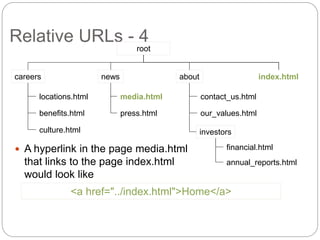
 A hyperlink in the page media.html
that links to the page index.html
would look like
Relative URLs - 4
root
careers news about index.html
benefits.html
locations.html
culture.html investors
financial.html
annual_reports.html
press.html
media.html contact_us.html
our_values.html
<a href="../index.html">Home</a>
 A hyperlink in the page benefits.html
that links to the page press.html
would look like
Relative URLs - 5
root
careers news about index.html
benefits.html
locations.html
culture.html investors
financial.html
annual_reports.html
press.html
media.html contact_us.html
our_values.html
<a href="../news/press.html">Press Releases</a>
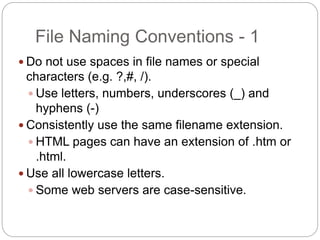
 Do not use spaces in file names or special
characters (e.g. ?,#, /).
 Use letters, numbers, underscores (_) and
hyphens (-)
 Consistently use the same filename extension.
 HTML pages can have an extension of .htm or
.html.
 Use all lowercase letters.
 Some web servers are case-sensitive.
File Naming Conventions - 1
 Keep filenames short.
 Easier to remember
 Place related files into subdirectories.
 Keeps the site organised.
 Name the homepage index.html (or
index.htm).
 Most web servers are configured to serve
a file named index.html as the default
page for a directory.
File Naming Conventions - 2
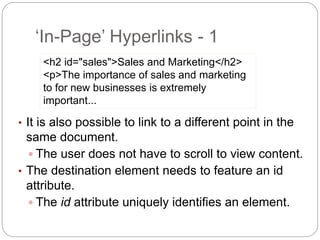
• It is also possible to link to a different point in the
same document.
 The user does not have to scroll to view content.
• The destination element needs to feature an id
attribute.
 The id attribute uniquely identifies an element.
‘In-Page’ Hyperlinks - 1
<h2 id="sales">Sales and Marketing</h2>
<p>The importance of sales and marketing
to for new businesses is extremely
important...
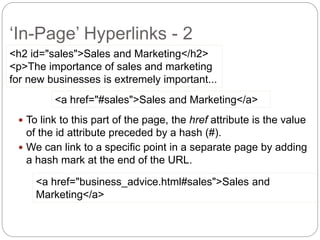
 To link to this part of the page, the href attribute is the value
of the id attribute preceded by a hash (#).
 We can link to a specific point in a separate page by adding
a hash mark at the end of the URL.
‘In-Page’ Hyperlinks - 2
<h2 id="sales">Sales and Marketing</h2>
<p>The importance of sales and marketing
for new businesses is extremely important...
<a href="#sales">Sales and Marketing</a>
<a href="business_advice.html#sales">Sales and
Marketing</a>
 The title attribute can be used to describe the
content that will be linked.
 Browsers often display the title as a ‘tooltip’.
 The title attribute is not visible by default.
 Should be used to provide additional information
 Important information should not be hidden in a
title attribute.
The Title Attribute
<a href="../news/press.html" title="Read our press
releases">Press Releases</a>
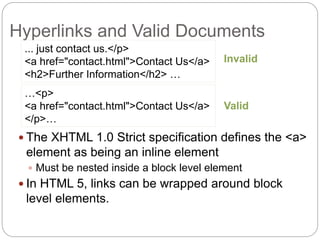
 The XHTML 1.0 Strict specification defines the <a>
element as being an inline element
 Must be nested inside a block level element
 In HTML 5, links can be wrapped around block
level elements.
Hyperlinks and Valid Documents
... just contact us.</p>
<a href="contact.html">Contact Us</a>
<h2>Further Information</h2> …
…<p>
<a href="contact.html">Contact Us</a>
</p>…
Invalid
Valid
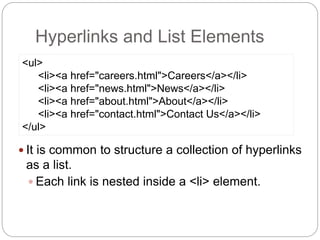
 It is common to structure a collection of hyperlinks
as a list.
 Each link is nested inside a <li> element.
Hyperlinks and List Elements
<ul>
<li><a href="careers.html">Careers</a></li>
<li><a href="news.html">News</a></li>
<li><a href="about.html">About</a></li>
<li><a href="contact.html">Contact Us</a></li>
</ul>
• HTML 5 introduces a new <nav> element for
grouping together hyperlinks.
 For grouping major navigation blocks
 Provide assistance to screen readers
The HTML 5 <nav> Element
<nav>
<ul>
<li><a href="careers.html">Careers</a></li>
<li><a href="news.html">News</a></li>
<li><a href="about.html">About</a></li>
<li><a href="contact.html">Contact Us</a></li>
</ul>
</nav>
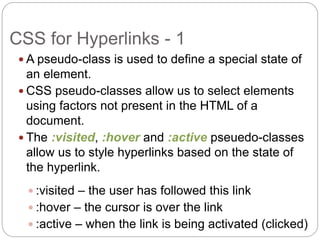
 A pseudo-class is used to define a special state of
an element.
 CSS pseudo-classes allow us to select elements
using factors not present in the HTML of a
document.
 The :visited, :hover and :active pseuedo-classes
allow us to style hyperlinks based on the state of
the hyperlink.
 :visited – the user has followed this link
 :hover – the cursor is over the link
 :active – when the link is being activated (clicked)
CSS for Hyperlinks - 1
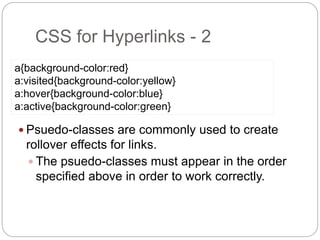
 Psuedo-classes are commonly used to create
rollover effects for links.
 The psuedo-classes must appear in the order
specified above in order to work correctly.
CSS for Hyperlinks - 2
a{background-color:red}
a:visited{background-color:yellow}
a:hover{background-color:blue}
a:active{background-color:green}
 Many disabled people surf the web using
their keyboard rather than the mouse.
 Using the Tab and Enter keys
 Link text should be understandable out of
context
 Bad example: ‘click here for more
information’
 Good example: ‘product information’
Accessibility and Hyperlinks
 Many websites have large navigation bars.
 Tabbing through these links for keyboard
users can be tedious.
 A skip link allows the user to jump directly to
the content of the page.
 Give a heading element for the content an
id attribute
 A hyperlink at the very top of the page
links directly to this heading element
Skip Links - 1
 The user does not have to tab through all
the navigation options.
 Many sites use CSS to visually hide the skip links.
 Screen readers will still read these links
out as the first elements on the page.
Skip Links - 2
 The accesskey attribute allows us to associate a
specific key with a hyperlink.
 Pressing a modifier key and the specified access
key will make the browser follow the hyperlink.
 In Firefox, the modifier keys are Alt+Shift.
 In IE and Chrome, the modifier key is Alt.
Access Keys - 1
<a href="careers.html" accesskey="c">Careers</a>
• Access keys suffer from a number of problems
 Different browsers use different modifier keys.
 Conflict with browser shortcuts
– Access keys often use numbers to avoid this.
 How does the user know what the access keys
are?
– Provide a list of hyperlinks and their access
keys.
– Use CSS to underline a specific letter in the link
text.
– Indicate the access key after the hyperlinks.
Access Keys - 2
• The tabindex attribute can be used to override the
default tabbing order in a browser.
• The tabindex attribute also has problems.
 Can be confusing for user if their tabbing jumps them
in an unexpected order.
 In above tab index tab first jump to About hyperlink.
Then move to News and then only other hyperlink
who doesn’t have tabindex.
Tab Order
<ul>
<li><a href="careers.html" accesskey="c" >Careers</a></li>
<li><a href="news.html" accesskey="n" tabindex="11">News</a></li>
<li><a href="about.html" accesskey="a" tabindex="10">About</a></li>
<li><a href="contact.html" accesskey="u">Contact Us</a></li>
</ul>
 Users with mobile devices often experience
similar problems as disabled users.
 E.g. navigating through the keypad
 Skip links can be useful
 Use of access keys is often recommended
for sites designed for mobile users.
 Using numbers
 Used consistently can make the site easier
to use
Mobile Devices and Hyperlinks
References
 Chisholm, W. & May, M. (2008). Universal
Design for Web Applications: Web
Applications That Reach Everyone. O'Reilly
Media.
 Lawson, B & Sharp, R. (2010). Introducing
HTML5. Pearson.
 Niederst, J. (2006). Web Design in a
Nutshell: A Desktop Quick Reference.
O'Reilly Media.
 Good link names, bad link names
 Link together all the examples so far
 In page links in the CV
 Link to favourite websites in CV example
 Skip links – find sites that use them; government
sites
Practical
Topic 4 – Hyperlinks
Any Questions?

Hyperlink

  • 1.
    Prepared By: Er.Nawaraj Bhandari DESIGNING AND DEVELOPING A WEBSITE Topic 4: Hyperlinks
  • 2.
     A keyfeature of the web is hyperlinks.  Allows us to surf the web  There is only one element responsible for creating hyperlinks.  The anchor element <a> Hyperlinks
  • 3.
     The anchorelement specifies the enclosed content is a hyperlink.  Browsers render the content of hyperlink elements as underlined text.  The href attribute specifies the URL of the page to which the user will be linked.  In this example - http://www.wwf.org/ The Anchor Element <p>The <a href="http://www.wwf.org/">World Wide Fund for Nature (WWF)</a> is an international organisation concerned with conservation of the natural world.</p>
  • 4.
    • The ‘address’of a resource and how it can be retrieved Specifies the location of document on the web to which we want to create a link • There are two type of URLs Absolute Relative Uniform Resource Locators (URLs)
  • 5.
     Protocol name The mechanism for accessing the resource - http  Domain name  The name of the web server where the web page is stored - www.nhm.ac.uk Absolute URLs - 1 http://www.nhm.ac.uk/about-us/index.html protocol domain path
  • 6.
     Pathname  Specifiesthe location of the page on the server – about-us/index.html  Absolute URLs are used when linking to web pages in a separate website.  External hyperlinks  A website on a different web server Absolute URLs - 2
  • 7.
     Relative URLsdescribe the location of a document relative to the current document’s location.  Relative URLs are when linking pages together in the same site.  Internal hyperlinks  In your assessment, you will be expected to link pages together using relative URLs. Relative URLs - 1
  • 8.
     A hyperlinkin the page culture.html that links to the page locations.html would look like Relative URLs - 2 root careers news about index.html benefits.html locations.html culture.html investors financial.html annual_reports.html press.html media.html contact_us.html our_values.html <a href="locations.html">locations</a>
  • 9.
     A hyperlinkin the page contact_us.html that links to the page financial.html would look like Relative URLs - 3 root careers news about index.html benefits.html locations.html culture.html investors financial.html annual_reports.html press.html media.html contact_us.html our_values.html <a href="investors/financial.html">financial</a>
  • 10.
     A hyperlinkin the page media.html that links to the page index.html would look like Relative URLs - 4 root careers news about index.html benefits.html locations.html culture.html investors financial.html annual_reports.html press.html media.html contact_us.html our_values.html <a href="../index.html">Home</a>
  • 11.
     A hyperlinkin the page benefits.html that links to the page press.html would look like Relative URLs - 5 root careers news about index.html benefits.html locations.html culture.html investors financial.html annual_reports.html press.html media.html contact_us.html our_values.html <a href="../news/press.html">Press Releases</a>
  • 12.
     Do notuse spaces in file names or special characters (e.g. ?,#, /).  Use letters, numbers, underscores (_) and hyphens (-)  Consistently use the same filename extension.  HTML pages can have an extension of .htm or .html.  Use all lowercase letters.  Some web servers are case-sensitive. File Naming Conventions - 1
  • 13.
     Keep filenamesshort.  Easier to remember  Place related files into subdirectories.  Keeps the site organised.  Name the homepage index.html (or index.htm).  Most web servers are configured to serve a file named index.html as the default page for a directory. File Naming Conventions - 2
  • 14.
    • It isalso possible to link to a different point in the same document.  The user does not have to scroll to view content. • The destination element needs to feature an id attribute.  The id attribute uniquely identifies an element. ‘In-Page’ Hyperlinks - 1 <h2 id="sales">Sales and Marketing</h2> <p>The importance of sales and marketing to for new businesses is extremely important...
  • 15.
     To linkto this part of the page, the href attribute is the value of the id attribute preceded by a hash (#).  We can link to a specific point in a separate page by adding a hash mark at the end of the URL. ‘In-Page’ Hyperlinks - 2 <h2 id="sales">Sales and Marketing</h2> <p>The importance of sales and marketing for new businesses is extremely important... <a href="#sales">Sales and Marketing</a> <a href="business_advice.html#sales">Sales and Marketing</a>
  • 16.
     The titleattribute can be used to describe the content that will be linked.  Browsers often display the title as a ‘tooltip’.  The title attribute is not visible by default.  Should be used to provide additional information  Important information should not be hidden in a title attribute. The Title Attribute <a href="../news/press.html" title="Read our press releases">Press Releases</a>
  • 17.
     The XHTML1.0 Strict specification defines the <a> element as being an inline element  Must be nested inside a block level element  In HTML 5, links can be wrapped around block level elements. Hyperlinks and Valid Documents ... just contact us.</p> <a href="contact.html">Contact Us</a> <h2>Further Information</h2> … …<p> <a href="contact.html">Contact Us</a> </p>… Invalid Valid
  • 18.
     It iscommon to structure a collection of hyperlinks as a list.  Each link is nested inside a <li> element. Hyperlinks and List Elements <ul> <li><a href="careers.html">Careers</a></li> <li><a href="news.html">News</a></li> <li><a href="about.html">About</a></li> <li><a href="contact.html">Contact Us</a></li> </ul>
  • 19.
    • HTML 5introduces a new <nav> element for grouping together hyperlinks.  For grouping major navigation blocks  Provide assistance to screen readers The HTML 5 <nav> Element <nav> <ul> <li><a href="careers.html">Careers</a></li> <li><a href="news.html">News</a></li> <li><a href="about.html">About</a></li> <li><a href="contact.html">Contact Us</a></li> </ul> </nav>
  • 20.
     A pseudo-classis used to define a special state of an element.  CSS pseudo-classes allow us to select elements using factors not present in the HTML of a document.  The :visited, :hover and :active pseuedo-classes allow us to style hyperlinks based on the state of the hyperlink.  :visited – the user has followed this link  :hover – the cursor is over the link  :active – when the link is being activated (clicked) CSS for Hyperlinks - 1
  • 21.
     Psuedo-classes arecommonly used to create rollover effects for links.  The psuedo-classes must appear in the order specified above in order to work correctly. CSS for Hyperlinks - 2 a{background-color:red} a:visited{background-color:yellow} a:hover{background-color:blue} a:active{background-color:green}
  • 22.
     Many disabledpeople surf the web using their keyboard rather than the mouse.  Using the Tab and Enter keys  Link text should be understandable out of context  Bad example: ‘click here for more information’  Good example: ‘product information’ Accessibility and Hyperlinks
  • 23.
     Many websiteshave large navigation bars.  Tabbing through these links for keyboard users can be tedious.  A skip link allows the user to jump directly to the content of the page.  Give a heading element for the content an id attribute  A hyperlink at the very top of the page links directly to this heading element Skip Links - 1
  • 24.
     The userdoes not have to tab through all the navigation options.  Many sites use CSS to visually hide the skip links.  Screen readers will still read these links out as the first elements on the page. Skip Links - 2
  • 25.
     The accesskeyattribute allows us to associate a specific key with a hyperlink.  Pressing a modifier key and the specified access key will make the browser follow the hyperlink.  In Firefox, the modifier keys are Alt+Shift.  In IE and Chrome, the modifier key is Alt. Access Keys - 1 <a href="careers.html" accesskey="c">Careers</a>
  • 26.
    • Access keyssuffer from a number of problems  Different browsers use different modifier keys.  Conflict with browser shortcuts – Access keys often use numbers to avoid this.  How does the user know what the access keys are? – Provide a list of hyperlinks and their access keys. – Use CSS to underline a specific letter in the link text. – Indicate the access key after the hyperlinks. Access Keys - 2
  • 27.
    • The tabindexattribute can be used to override the default tabbing order in a browser. • The tabindex attribute also has problems.  Can be confusing for user if their tabbing jumps them in an unexpected order.  In above tab index tab first jump to About hyperlink. Then move to News and then only other hyperlink who doesn’t have tabindex. Tab Order <ul> <li><a href="careers.html" accesskey="c" >Careers</a></li> <li><a href="news.html" accesskey="n" tabindex="11">News</a></li> <li><a href="about.html" accesskey="a" tabindex="10">About</a></li> <li><a href="contact.html" accesskey="u">Contact Us</a></li> </ul>
  • 28.
     Users withmobile devices often experience similar problems as disabled users.  E.g. navigating through the keypad  Skip links can be useful  Use of access keys is often recommended for sites designed for mobile users.  Using numbers  Used consistently can make the site easier to use Mobile Devices and Hyperlinks
  • 29.
    References  Chisholm, W.& May, M. (2008). Universal Design for Web Applications: Web Applications That Reach Everyone. O'Reilly Media.  Lawson, B & Sharp, R. (2010). Introducing HTML5. Pearson.  Niederst, J. (2006). Web Design in a Nutshell: A Desktop Quick Reference. O'Reilly Media.
  • 30.
     Good linknames, bad link names  Link together all the examples so far  In page links in the CV  Link to favourite websites in CV example  Skip links – find sites that use them; government sites Practical
  • 31.
    Topic 4 –Hyperlinks Any Questions?