WEB ENGINEERING LAB-3
 Working with links
 External  linking to another website
 Internal  linking to another webpage of the
same website.
 Fragment linking  linking different sections
of the same web page.
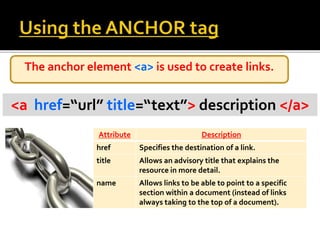
Attribute Description
href Specifies the destination of a link.
title Allows an advisory title that explains the
resource in more detail.
name Allows links to be able to point to a specific
section within a document (instead of links
always taking to the top of a document).
<a href=“url” title=“text”> description </a>
The anchor element <a> is used to create links.
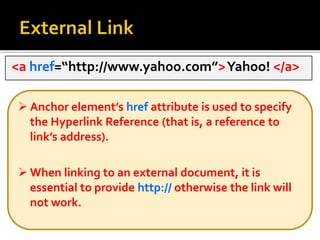
<a href=“http://www.yahoo.com”>Yahoo! </a>
 Anchor element’s href attribute is used to specify
the Hyperlink Reference (that is, a reference to
link’s address).
 When linking to an external document, it is
essential to provide http:// otherwise the link will
not work.
Did you notice that there is a space after heading but
not after the links?
9prepared by: Meer Sadaf Naeem
 There are two types of pathnames:
relative & absolute.
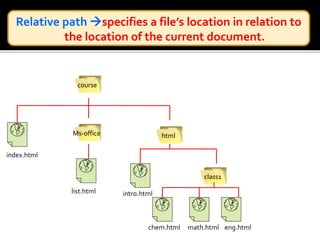
course
htmlMs-office
class1
index.html
list.html intro.html
chem.html math.html eng.html
Absolute path specifies a file’s precise location
within a computer’s entire folder structure.
C:/course/html/intro.html
course
htmlMsoffice
class1
index.html
list.html intro.html
chem.html math.html eng.html
Absolute path specifies a file’s precise location
within a computer’s entire folder structure.
C:/course/html/class1/eng.html
course
htmlMs-office
class1
index.html
list.html intro.html
chem.html math.html eng.html
Relative path specifies a file’s location in relation to
the location of the current document.
If the file is in same folder as the current document,
you do not specify the folder name.
contact.htmlcourse
htmlMs-office
class1
index.html
list.html intro.html contact.html
chem.html math.html eng.html
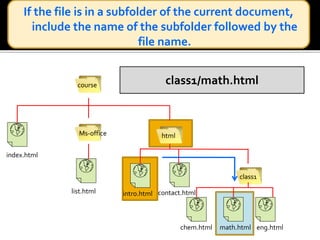
class1/math.htmlcourse
htmlMs-office
class1
index.html
list.html intro.html contact.html
chem.html math.html eng.html
If the file is in a subfolder of the current document,
include the name of the subfolder followed by the
file name.
To go one level up the folder tree, start the relative path
with a double period (..) & then provide the name of the
file
../index.htmlcourse
htmlMs-office
class1
index.html
list.html intro.html contact.html
chem.html math.html eng.html
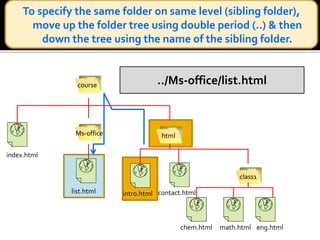
To specify the same folder on same level (sibling folder),
move up the folder tree using double period (..) & then
down the tree using the name of the sibling folder.
../Ms-office/list.htmlcourse
htmlMs-office
class1
index.html
list.html intro.html contact.html
chem.html math.html eng.html
links
Create a folder named as “links”
links
List.html ul.html
Create two html documents named as “list.html” and “ul.html” in the
folder “links”
links
List.html ul.html
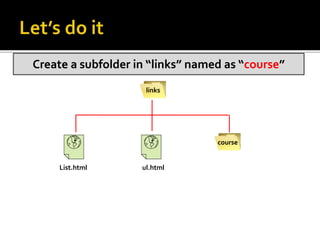
course
Create a subfolder in “links” named as “course”
links
List.html ul.html
course
ol.html
Create an html document name “ol.html” in subfolder “course”
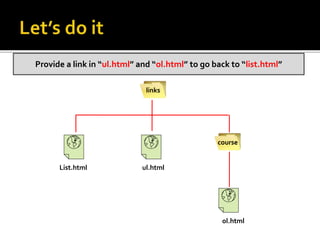
Give the relative path to the appropriate pages
links
List.html ul.html
course
ol.html
Provide a link in “ul.html” and “ol.html” to go back to “list.html”
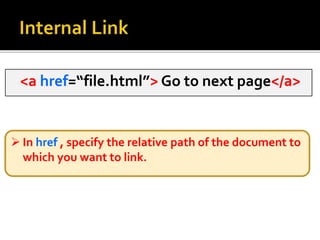
<a href=“file.html”> Go to next page</a>
 In href , specify the relative path of the document to
which you want to link.
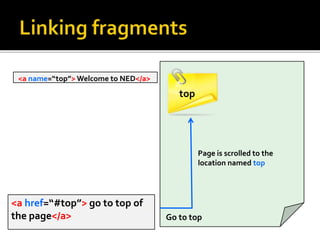
<a name=“top”> Welcome to NED</a>
top
<a href=“#top”> go to top of
the page</a>
Page is scrolled to the
location named top
Go to top
<a name=“top”>Welcome to NEDUET</a>
 the name attribute allows links to be able to point to a
specific section within a document (instead of links
always leading to the top of a document).
 Once you have named a location in the document, you
can go to that location taking a normal link tag & adding
a number sign (#) & the name assigned to the URL.
<a href=“#top”> go to top of the page</a>
<a href=“http://www.yahoo.com” title=“Yahoo
website”>Yahoo! </a>
 title attribute allows an advisory title that explains
the resource in more detail.
 Browsers may choose different methods of
showing the advisory title attribute, such as
displaying the title in a tool tip or balloon help.
 By default, each new page you open replaces the
content of the previous page in the browser
window.
 To return the previous page, one has to click their
browser’s Back button.
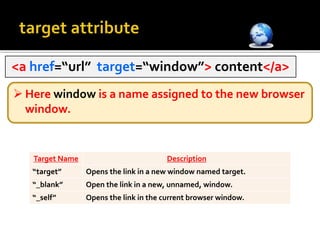
 target attribute indicates the name of window
where you would like the linked page to appear.
<a href=“url” target=“window”> content</a>
 Here window is a name assigned to the new browser
window.
Target Name Description
“target” Opens the link in a new window named target.
“_blank” Open the link in a new, unnamed, window.
“_self” Opens the link in the current browser window.
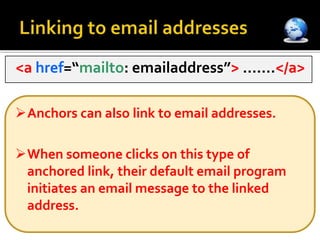
Anchors can also link to email addresses.
When someone clicks on this type of
anchored link, their default email program
initiates an email message to the linked
address.
<a href=“mailto: emailaddress”> …….</a>

Introduction to linking

  • 1.
  • 2.
  • 3.
     External linking to another website  Internal  linking to another webpage of the same website.  Fragment linking  linking different sections of the same web page.
  • 4.
    Attribute Description href Specifiesthe destination of a link. title Allows an advisory title that explains the resource in more detail. name Allows links to be able to point to a specific section within a document (instead of links always taking to the top of a document). <a href=“url” title=“text”> description </a> The anchor element <a> is used to create links.
  • 5.
    <a href=“http://www.yahoo.com”>Yahoo! </a> Anchor element’s href attribute is used to specify the Hyperlink Reference (that is, a reference to link’s address).  When linking to an external document, it is essential to provide http:// otherwise the link will not work.
  • 8.
    Did you noticethat there is a space after heading but not after the links?
  • 9.
    9prepared by: MeerSadaf Naeem  There are two types of pathnames: relative & absolute.
  • 10.
    course htmlMs-office class1 index.html list.html intro.html chem.html math.htmleng.html Absolute path specifies a file’s precise location within a computer’s entire folder structure. C:/course/html/intro.html
  • 11.
    course htmlMsoffice class1 index.html list.html intro.html chem.html math.htmleng.html Absolute path specifies a file’s precise location within a computer’s entire folder structure. C:/course/html/class1/eng.html
  • 12.
    course htmlMs-office class1 index.html list.html intro.html chem.html math.htmleng.html Relative path specifies a file’s location in relation to the location of the current document.
  • 13.
    If the fileis in same folder as the current document, you do not specify the folder name. contact.htmlcourse htmlMs-office class1 index.html list.html intro.html contact.html chem.html math.html eng.html
  • 14.
    class1/math.htmlcourse htmlMs-office class1 index.html list.html intro.html contact.html chem.htmlmath.html eng.html If the file is in a subfolder of the current document, include the name of the subfolder followed by the file name.
  • 15.
    To go onelevel up the folder tree, start the relative path with a double period (..) & then provide the name of the file ../index.htmlcourse htmlMs-office class1 index.html list.html intro.html contact.html chem.html math.html eng.html
  • 16.
    To specify thesame folder on same level (sibling folder), move up the folder tree using double period (..) & then down the tree using the name of the sibling folder. ../Ms-office/list.htmlcourse htmlMs-office class1 index.html list.html intro.html contact.html chem.html math.html eng.html
  • 17.
    links Create a foldernamed as “links”
  • 18.
    links List.html ul.html Create twohtml documents named as “list.html” and “ul.html” in the folder “links”
  • 19.
    links List.html ul.html course Create asubfolder in “links” named as “course”
  • 20.
    links List.html ul.html course ol.html Create anhtml document name “ol.html” in subfolder “course”
  • 23.
    Give the relativepath to the appropriate pages
  • 24.
    links List.html ul.html course ol.html Provide alink in “ul.html” and “ol.html” to go back to “list.html”
  • 25.
    <a href=“file.html”> Goto next page</a>  In href , specify the relative path of the document to which you want to link.
  • 26.
    <a name=“top”> Welcometo NED</a> top <a href=“#top”> go to top of the page</a> Page is scrolled to the location named top Go to top
  • 27.
    <a name=“top”>Welcome toNEDUET</a>  the name attribute allows links to be able to point to a specific section within a document (instead of links always leading to the top of a document).  Once you have named a location in the document, you can go to that location taking a normal link tag & adding a number sign (#) & the name assigned to the URL. <a href=“#top”> go to top of the page</a>
  • 28.
    <a href=“http://www.yahoo.com” title=“Yahoo website”>Yahoo!</a>  title attribute allows an advisory title that explains the resource in more detail.  Browsers may choose different methods of showing the advisory title attribute, such as displaying the title in a tool tip or balloon help.
  • 29.
     By default,each new page you open replaces the content of the previous page in the browser window.  To return the previous page, one has to click their browser’s Back button.  target attribute indicates the name of window where you would like the linked page to appear.
  • 30.
    <a href=“url” target=“window”>content</a>  Here window is a name assigned to the new browser window. Target Name Description “target” Opens the link in a new window named target. “_blank” Open the link in a new, unnamed, window. “_self” Opens the link in the current browser window.
  • 31.
    Anchors can alsolink to email addresses. When someone clicks on this type of anchored link, their default email program initiates an email message to the linked address. <a href=“mailto: emailaddress”> …….</a>

Editor's Notes

  • #10 Always try to use relative paths for your links. By doing so, even if you move your document or files to another computer, the link will still work.
  • #11 Always try to use relative paths for your links. By doing so, even if you move your document or files to another computer, the link will still work.
  • #12 Always try to use relative paths for your links. By doing so, even if you move your document or files to another computer, the link will still work.
  • #13 Always try to use relative paths for your links. By doing so, even if you move your document or files to another computer, the link will still work.
  • #14 Always try to use relative paths for your links. By doing so, even if you move your document or files to another computer, the link will still work.
  • #15 Always try to use relative paths for your links. By doing so, even if you move your document or files to another computer, the link will still work.
  • #16 Always try to use relative paths for your links. By doing so, even if you move your document or files to another computer, the link will still work.
  • #17 Always try to use relative paths for your links. By doing so, even if you move your document or files to another computer, the link will still work.