



Links and Navigation In HTML
visit this blog for more information
otaleem.blogspot.com
Links and Navigation
 What really distinguishes the Web from
other mediums is the way in which Web
pages can contain links that take you
directly to other pages (and even
specific parts of a given page). Known as
hyperlinks, these links are often attributed
to being the secret behind the Web’s
phenomenal success.
 Hyperlinks allow visitors to navigate
between Web sites by clicking on
words, phrases, and images.
Basic Links
 A link is specified using the <a> element.
 Anything between the opening <a> tag
and the closing </a> tag becomes part
of the link a user can click in a browser.
Linking to Other
Documents
 To link to another document, the opening <a> tag
must carry an attribute called href, whose value is
the
page you are linking to.
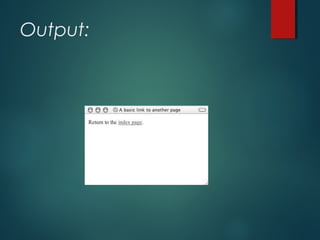
 As an example, here is the <body> of a document
called ch03_eg01.html. This page contains a link to
a second page called index.html:
<body>
Return to the <a href="index.html">index page</a>.
</body>
Output:
Types of Hyperlink
Hyperlinks can be of two types:
 Link to some other web page
 Links to the external document.
 Link to a specific place within the
same document.
External
Document
Reference
Link to a different site:
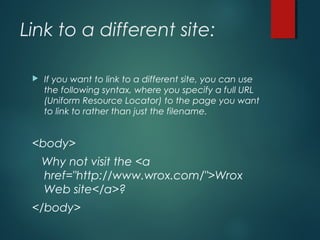
 If you want to link to a different site, you can use
the following syntax, where you specify a full URL
(Uniform Resource Locator) to the page you want
to link to rather than just the filename.
<body>
Why not visit the <a
href="http://www.wrox.com/">Wrox
Web site</a>?
</body>
Title attribute
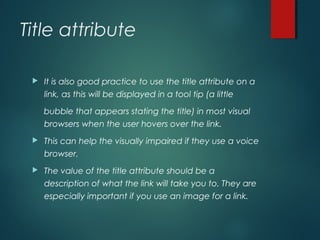
 It is also good practice to use the title attribute on a
link, as this will be displayed in a tool tip (a little
bubble that appears stating the title) in most visual
browsers when the user hovers over the link.
 This can help the visually impaired if they use a voice
browser.
 The value of the title attribute should be a
description of what the link will take you to. They are
especially important if you use an image for a link.
example,
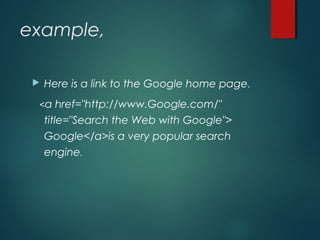
 Here is a link to the Google home page.
<a href="http://www.Google.com/"
title="Search the Web with Google">
Google</a>is a very popular search
engine.
Output
Linking to E-mail
Addresses
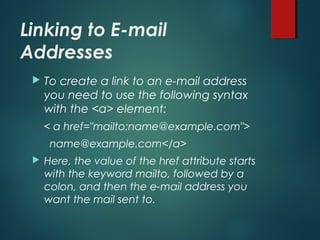
 To create a link to an e-mail address
you need to use the following syntax
with the <a> element:
< a href="mailto:name@example.com">
name@example.com</a>
 Here, the value of the href attribute starts
with the keyword mailto, followed by a
colon, and then the e-mail address you
want the mail sent to.
Linking to E-mail
Addresses
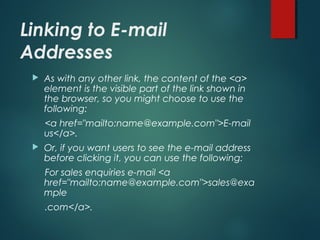
 As with any other link, the content of the <a>
element is the visible part of the link shown in
the browser, so you might choose to use the
following:
<a href="mailto:name@example.com">E-mail
us</a>.
 Or, if you want users to see the e-mail address
before clicking it, you can use the following:
For sales enquiries e-mail <a
href="mailto:name@example.com">sales@exa
mple
.com</a>.
Images As
Hyperlinks
Images as hyperlinks
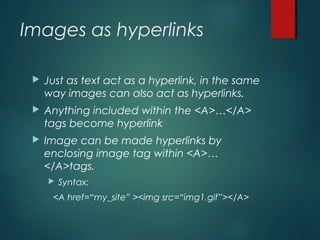
 Just as text act as a hyperlink, in the same
way images can also act as hyperlinks.
 Anything included within the <A>…</A>
tags become hyperlink
 Image can be made hyperlinks by
enclosing image tag within <A>…
</A>tags.
 Syntax:
<A href=“my_site” ><img src=“img1.gif”></A>
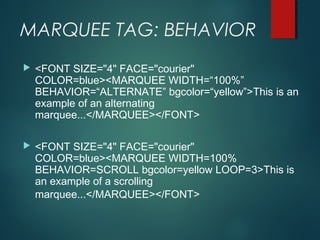
MARQUEE TAG: BEHAVIOR
 <FONT SIZE="4" FACE="courier"
COLOR=blue><MARQUEE WIDTH=“100%”
BEHAVIOR=“ALTERNATE” bgcolor=“yellow”>This is an
example of an alternating
marquee...</MARQUEE></FONT>
 <FONT SIZE="4" FACE="courier"
COLOR=blue><MARQUEE WIDTH=100%
BEHAVIOR=SCROLL bgcolor=yellow LOOP=3>This is
an example of a scrolling
marquee...</MARQUEE></FONT>
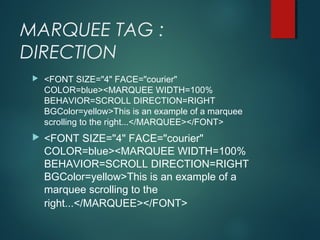
MARQUEE TAG :
DIRECTION
 <FONT SIZE="4" FACE="courier"
COLOR=blue><MARQUEE WIDTH=100%
BEHAVIOR=SCROLL DIRECTION=RIGHT
BGColor=yellow>This is an example of a marquee
scrolling to the right...</MARQUEE></FONT>
 <FONT SIZE="4" FACE="courier"
COLOR=blue><MARQUEE WIDTH=100%
BEHAVIOR=SCROLL DIRECTION=RIGHT
BGColor=yellow>This is an example of a
marquee scrolling to the
right...</MARQUEE></FONT>
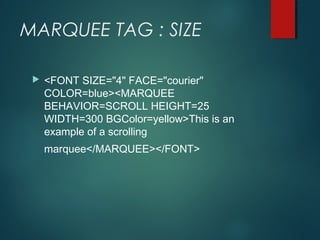
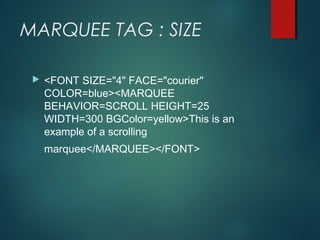
MARQUEE TAG : SIZE
 <FONT SIZE="4" FACE="courier"
COLOR=blue><MARQUEE
BEHAVIOR=SCROLL HEIGHT=25
WIDTH=300 BGColor=yellow>This is an
example of a scrolling
marquee</MARQUEE></FONT>
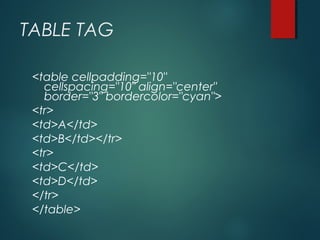
TABLE TAG
<table cellpadding="10"
cellspacing="10" align="center"
border="3" bordercolor="cyan">
<tr>
<td>A</td>
<td>B</td></tr>
<tr>
<td>C</td>
<td>D</td>
</tr>
</table>
MARQUEE TAG : SIZE
 <FONT SIZE="4" FACE="courier"
COLOR=blue><MARQUEE
BEHAVIOR=SCROLL HEIGHT=25
WIDTH=300 BGColor=yellow>This is an
example of a scrolling
marquee</MARQUEE></FONT>

Html for beginners part II

  • 1.
    Links and NavigationIn HTML visit this blog for more information otaleem.blogspot.com
  • 2.
    Links and Navigation What really distinguishes the Web from other mediums is the way in which Web pages can contain links that take you directly to other pages (and even specific parts of a given page). Known as hyperlinks, these links are often attributed to being the secret behind the Web’s phenomenal success.  Hyperlinks allow visitors to navigate between Web sites by clicking on words, phrases, and images.
  • 3.
    Basic Links  Alink is specified using the <a> element.  Anything between the opening <a> tag and the closing </a> tag becomes part of the link a user can click in a browser.
  • 4.
    Linking to Other Documents To link to another document, the opening <a> tag must carry an attribute called href, whose value is the page you are linking to.  As an example, here is the <body> of a document called ch03_eg01.html. This page contains a link to a second page called index.html: <body> Return to the <a href="index.html">index page</a>. </body>
  • 5.
  • 6.
    Types of Hyperlink Hyperlinkscan be of two types:  Link to some other web page  Links to the external document.  Link to a specific place within the same document.
  • 7.
  • 8.
    Link to adifferent site:  If you want to link to a different site, you can use the following syntax, where you specify a full URL (Uniform Resource Locator) to the page you want to link to rather than just the filename. <body> Why not visit the <a href="http://www.wrox.com/">Wrox Web site</a>? </body>
  • 9.
    Title attribute  Itis also good practice to use the title attribute on a link, as this will be displayed in a tool tip (a little bubble that appears stating the title) in most visual browsers when the user hovers over the link.  This can help the visually impaired if they use a voice browser.  The value of the title attribute should be a description of what the link will take you to. They are especially important if you use an image for a link.
  • 10.
    example,  Here isa link to the Google home page. <a href="http://www.Google.com/" title="Search the Web with Google"> Google</a>is a very popular search engine.
  • 11.
  • 12.
    Linking to E-mail Addresses To create a link to an e-mail address you need to use the following syntax with the <a> element: < a href="mailto:name@example.com"> name@example.com</a>  Here, the value of the href attribute starts with the keyword mailto, followed by a colon, and then the e-mail address you want the mail sent to.
  • 13.
    Linking to E-mail Addresses As with any other link, the content of the <a> element is the visible part of the link shown in the browser, so you might choose to use the following: <a href="mailto:name@example.com">E-mail us</a>.  Or, if you want users to see the e-mail address before clicking it, you can use the following: For sales enquiries e-mail <a href="mailto:name@example.com">sales@exa mple .com</a>.
  • 14.
  • 15.
    Images as hyperlinks Just as text act as a hyperlink, in the same way images can also act as hyperlinks.  Anything included within the <A>…</A> tags become hyperlink  Image can be made hyperlinks by enclosing image tag within <A>… </A>tags.  Syntax: <A href=“my_site” ><img src=“img1.gif”></A>
  • 16.
    MARQUEE TAG: BEHAVIOR <FONT SIZE="4" FACE="courier" COLOR=blue><MARQUEE WIDTH=“100%” BEHAVIOR=“ALTERNATE” bgcolor=“yellow”>This is an example of an alternating marquee...</MARQUEE></FONT>  <FONT SIZE="4" FACE="courier" COLOR=blue><MARQUEE WIDTH=100% BEHAVIOR=SCROLL bgcolor=yellow LOOP=3>This is an example of a scrolling marquee...</MARQUEE></FONT>
  • 17.
    MARQUEE TAG : DIRECTION <FONT SIZE="4" FACE="courier" COLOR=blue><MARQUEE WIDTH=100% BEHAVIOR=SCROLL DIRECTION=RIGHT BGColor=yellow>This is an example of a marquee scrolling to the right...</MARQUEE></FONT>  <FONT SIZE="4" FACE="courier" COLOR=blue><MARQUEE WIDTH=100% BEHAVIOR=SCROLL DIRECTION=RIGHT BGColor=yellow>This is an example of a marquee scrolling to the right...</MARQUEE></FONT>
  • 18.
    MARQUEE TAG :SIZE  <FONT SIZE="4" FACE="courier" COLOR=blue><MARQUEE BEHAVIOR=SCROLL HEIGHT=25 WIDTH=300 BGColor=yellow>This is an example of a scrolling marquee</MARQUEE></FONT>
  • 19.
    TABLE TAG <table cellpadding="10" cellspacing="10"align="center" border="3" bordercolor="cyan"> <tr> <td>A</td> <td>B</td></tr> <tr> <td>C</td> <td>D</td> </tr> </table>
  • 20.
    MARQUEE TAG :SIZE  <FONT SIZE="4" FACE="courier" COLOR=blue><MARQUEE BEHAVIOR=SCROLL HEIGHT=25 WIDTH=300 BGColor=yellow>This is an example of a scrolling marquee</MARQUEE></FONT>