Prepared By: Er. Nawaraj
Bhandari
Office Solution And Development
Chapter:7
Using Macros in Microsoft
Access
What is a Macro?
 A macro is made up of a series of instructions
which are recorded so that they can be played
back later and this can be done by a single
keystroke or command. These commands can act
as a shortcut to enable repetitive tasks to be
completed more efficiently and quickly.
 They can be run from a button, toolbar or menu.
How are Macros Developed?
 There are two ways to develop macros:
 The easiest method is use of built-in macro.
 Another method is for a user to write instructions
using the VBA programming language.
Uses of Macros in Microsoft Access
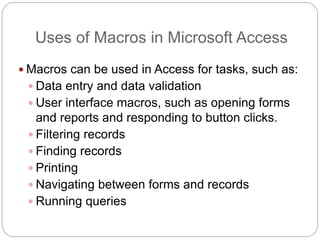
 Macros can be used in Access for tasks, such as:
 Data entry and data validation
 User interface macros, such as opening forms
and reports and responding to button clicks.
 Filtering records
 Finding records
 Printing
 Navigating between forms and records
 Running queries
Macro Sequence of Production and
Execution
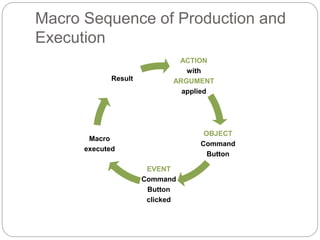
ACTION
with
ARGUMENT
applied
OBJECT
Command
Button
EVENT
Command
Button
clicked
Macro
executed
Result
Objects, Actions, Events, Arguments
and Conditions - 1
 A macro in Access contains an Action or list of
Actions (tasks) applied to an Object in the
database, e.g. a form or command button that
responds to certain Events, e.g. the clicking of a
command button.
 Arguments must be specified for the Actions which
provide information to the Action, e.g. if the
OpenForm Action is used, the Argument would tell
the action which form to open.
Objects, Actions, Events, Arguments
and Conditions - 2
 Conditions can also be set for each of the macro
actions and can be used to determine how the
macro will run, e.g. by testing whether a condition
is True or False.
 The macro is run by attaching it to the event
property of an Object, e.g. opening a form. When
the specified event occurs, the macro will run the
Actions. If any Actions have Conditions applied to
them, they will run providing they have passed the
conditional tests.
Macro Actions - 1
 A macro Action, or command, is an instruction that
informs Access what you want the macro to do.
 There are more than 50 different actions, such as
OpenForm.
Macro Actions - 2
 In Access 2010, they are contained in the
Action drop-down list of the Macro Designer
window and can be selected from the Add
New Action drop-down list or from the Action
Catalog. Actions in the Action Catalog are
grouped by their function.
 To add an Action from the Action Catalog to
the macro window, either double-click the
macro or click and drag it to the macro
window from the Action Catalog.
VBA & SQL
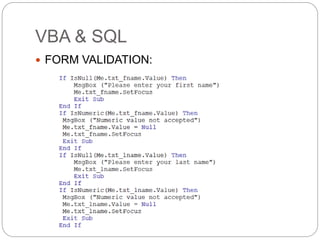
 FORM VALIDATION:
VBA & SQL
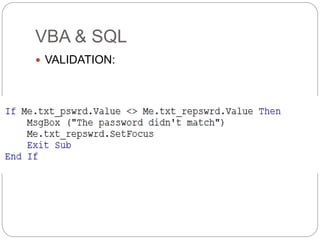
 VALIDATION:
VBA & SQL
 INSERTION USING DLOOK-UP:
VBA & SQL
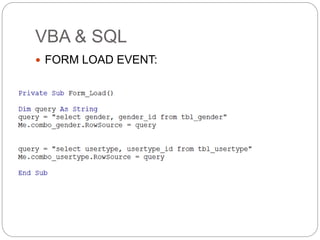
 FORM LOAD EVENT:
VBA & SQL
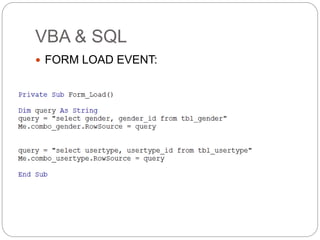
 FORM LOAD EVENT:
VBA & SQL
LOGIN:
VBA & SQL
LOGIN:
VBA & SQL
Combo box Filtering
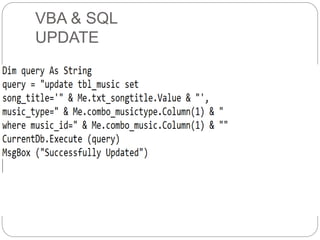
VBA & SQL
UPDATE
VBA & SQL
DELETE
Creating a Macro In Access - 1
 Plan your macro - you should plan the
steps that you want a macro to perform
before you record or write it (remember that
we discussed the importance of planning in
Topic 2, Slide 18).
 As in Microsoft Excel and Word, a macro
that is used often can be assigned to a
button.
 Unlike Excel and Word, there is no macro
recorder.
Creating a Macro in Access - 2
 Creating a macro in Access uses a different method to
creating one in Excel or Word, although they can also
be written in VBA in the VB Editor.
 In the 2007 version of Access, a new feature was
added to the interface (which was also new – the
ribbon) called the Macro Designer, which made it
easier to create, edit and automate database tasks.
 In the 2010 version, the Macro Designer was
developed further and the Data Macro feature was
introduced.
Uses of Data Macros
 Verifies that a customer’s payments are up-to-date
before allowing additional charges to be made to
their account
 Calculates the postage and packaging charges on
customers orders in a Sales table
 Calculates the new retail price of a product when
the cost of the product is increased
 Ensuring that an email is sent when a particular
product needs to be re-ordered
Creating a Macro in 2010 - 1
1. Click the Create tab on the Ribbon.
2. Click the Macro button on the Macros and Code
group on the Ribbon.
3. Click the drop-down arrow on the Add New Action
drop-down list and select the action, OR
double-click the action you wish to use in the
Action Catalog (click the plus or minus signs to
expand or collapse the Actions groups), OR
Drag an action from the Action Catalog to the
Macro window.
Creating a Macro in 2010 - 2
4. In the lower part of the window, enter any
Arguments for the Action.
5. To add more Actions to the macro, move to
the next blank Add New Action drop-down
list and repeat steps 3-4 above. The
macro Actions will be executed in the order
that they are listed in the Action column.
Macro Groups
 Several related macros can be stored together
in a macro group .
 Each macro in the macro group is given its own
unique name to identify where each macro
starts and ends.
 Each macro in the macro group must be run
separately by referring to the macro group
name, followed by the macro name, e.g.
mcrPayments. mcrPayments frmPayments
refers to the Open frmPayments macro in the
mcrPayments macro group.
Autoexec Macro
 This macro is used for running functions when the
database is opening, for example, it can
automatically open up a particular screen, display a
message to the user or output data to another
source, such as a spreadsheet.
 To create this type of macro, you need to add your
actions in the Macro Designer and save the macro
with the name ‘Autoexec’. This name is recognised
by Access and it will run the macro as soon as the
database is opened.
Data Entry and Validation
 Macros can be created to require that data be
entered into a control, or to display a dialogue box
that prompts a user for additional information or
informs them of an error that they may have made.
 A macro in a user entry form can set the value for
the control, field or property. This can make data
entry much easier, quicker and more accurate.
Filtering and Finding Fields and Records
 Macros can be written to allow automation
of filtering and finding records.
 Macros can also be used to produce
message boxes and dialogue boxes to be
displayed and allow interaction and help the
user.
Printing
 A macro can be created so that instead of
finding and opening a specific report,
printing it and closing it, a user can print the
report simply by clicking on a specific button
to which the macro has been assigned.
 A macro can also be created that enables a
number of reports to be printed at the same
time, instead of opening a report, printing it,
opening another report, printing it and so on.
Adding a Macro to a Command
Button
 To assign a macro to a Command Button, it must
be added to the Command Button’s On Click
Property. Thus, when a user clicks the button, the
macro is executed.
 Properties such as the OnClick and OnDoubleClick
are called events. An event is a specific action that
occurs on or with a certain object and is usually the
result of an action by a user, such as mouse clicks
or the opening or closing of forms.
Navigating between Forms and
Records
 Macros can be created to enable navigation
between forms and records.
 They can also be created to enable specific
control of records or pages in a form.
Running Queries
 Macros can be created that test whether conditions
are true or false and then execute particular
actions.
 Example: has the customer purchased a product
during the last six weeks? If they have not made a
purchase, a message will be displayed to the user
and the field will be highlighted in red. If they have
made a purchase, the field will be highlighted in
green.
Security and Macros
 Ensure that you set the security level to at least
medium when working with macros in Access.
 Read also the following information from Microsoft
Office website:
http://www.msoffice-tutorial.com/macro-security.php
References
 The Microsoft Office Blog for a demo of Data Macros.
(2010). [Available Online] http://tinyurl.com/6cwrumx
 The Microsoft Office Blog for a demo of the Macro
Designer. (2009). [Available Online]
http://tinyurl.com/67pp46o
 Accessible Data Solutions. (2011). [Available Online]
http://www.accessibledatasolutions.com/articles10/macrovba.htm
Topic 7 – Using Macros in Microsoft
Access
Any Questions?

Using macros in microsoft access

  • 1.
    Prepared By: Er.Nawaraj Bhandari Office Solution And Development Chapter:7 Using Macros in Microsoft Access
  • 2.
    What is aMacro?  A macro is made up of a series of instructions which are recorded so that they can be played back later and this can be done by a single keystroke or command. These commands can act as a shortcut to enable repetitive tasks to be completed more efficiently and quickly.  They can be run from a button, toolbar or menu.
  • 3.
    How are MacrosDeveloped?  There are two ways to develop macros:  The easiest method is use of built-in macro.  Another method is for a user to write instructions using the VBA programming language.
  • 4.
    Uses of Macrosin Microsoft Access  Macros can be used in Access for tasks, such as:  Data entry and data validation  User interface macros, such as opening forms and reports and responding to button clicks.  Filtering records  Finding records  Printing  Navigating between forms and records  Running queries
  • 5.
    Macro Sequence ofProduction and Execution ACTION with ARGUMENT applied OBJECT Command Button EVENT Command Button clicked Macro executed Result
  • 6.
    Objects, Actions, Events,Arguments and Conditions - 1  A macro in Access contains an Action or list of Actions (tasks) applied to an Object in the database, e.g. a form or command button that responds to certain Events, e.g. the clicking of a command button.  Arguments must be specified for the Actions which provide information to the Action, e.g. if the OpenForm Action is used, the Argument would tell the action which form to open.
  • 7.
    Objects, Actions, Events,Arguments and Conditions - 2  Conditions can also be set for each of the macro actions and can be used to determine how the macro will run, e.g. by testing whether a condition is True or False.  The macro is run by attaching it to the event property of an Object, e.g. opening a form. When the specified event occurs, the macro will run the Actions. If any Actions have Conditions applied to them, they will run providing they have passed the conditional tests.
  • 8.
    Macro Actions -1  A macro Action, or command, is an instruction that informs Access what you want the macro to do.  There are more than 50 different actions, such as OpenForm.
  • 9.
    Macro Actions -2  In Access 2010, they are contained in the Action drop-down list of the Macro Designer window and can be selected from the Add New Action drop-down list or from the Action Catalog. Actions in the Action Catalog are grouped by their function.  To add an Action from the Action Catalog to the macro window, either double-click the macro or click and drag it to the macro window from the Action Catalog.
  • 10.
    VBA & SQL FORM VALIDATION:
  • 11.
    VBA & SQL VALIDATION:
  • 12.
    VBA & SQL INSERTION USING DLOOK-UP:
  • 13.
    VBA & SQL FORM LOAD EVENT:
  • 14.
    VBA & SQL FORM LOAD EVENT:
  • 15.
  • 16.
  • 17.
    VBA & SQL Combobox Filtering
  • 18.
  • 19.
  • 20.
    Creating a MacroIn Access - 1  Plan your macro - you should plan the steps that you want a macro to perform before you record or write it (remember that we discussed the importance of planning in Topic 2, Slide 18).  As in Microsoft Excel and Word, a macro that is used often can be assigned to a button.  Unlike Excel and Word, there is no macro recorder.
  • 21.
    Creating a Macroin Access - 2  Creating a macro in Access uses a different method to creating one in Excel or Word, although they can also be written in VBA in the VB Editor.  In the 2007 version of Access, a new feature was added to the interface (which was also new – the ribbon) called the Macro Designer, which made it easier to create, edit and automate database tasks.  In the 2010 version, the Macro Designer was developed further and the Data Macro feature was introduced.
  • 22.
    Uses of DataMacros  Verifies that a customer’s payments are up-to-date before allowing additional charges to be made to their account  Calculates the postage and packaging charges on customers orders in a Sales table  Calculates the new retail price of a product when the cost of the product is increased  Ensuring that an email is sent when a particular product needs to be re-ordered
  • 23.
    Creating a Macroin 2010 - 1 1. Click the Create tab on the Ribbon. 2. Click the Macro button on the Macros and Code group on the Ribbon. 3. Click the drop-down arrow on the Add New Action drop-down list and select the action, OR double-click the action you wish to use in the Action Catalog (click the plus or minus signs to expand or collapse the Actions groups), OR Drag an action from the Action Catalog to the Macro window.
  • 24.
    Creating a Macroin 2010 - 2 4. In the lower part of the window, enter any Arguments for the Action. 5. To add more Actions to the macro, move to the next blank Add New Action drop-down list and repeat steps 3-4 above. The macro Actions will be executed in the order that they are listed in the Action column.
  • 25.
    Macro Groups  Severalrelated macros can be stored together in a macro group .  Each macro in the macro group is given its own unique name to identify where each macro starts and ends.  Each macro in the macro group must be run separately by referring to the macro group name, followed by the macro name, e.g. mcrPayments. mcrPayments frmPayments refers to the Open frmPayments macro in the mcrPayments macro group.
  • 26.
    Autoexec Macro  Thismacro is used for running functions when the database is opening, for example, it can automatically open up a particular screen, display a message to the user or output data to another source, such as a spreadsheet.  To create this type of macro, you need to add your actions in the Macro Designer and save the macro with the name ‘Autoexec’. This name is recognised by Access and it will run the macro as soon as the database is opened.
  • 27.
    Data Entry andValidation  Macros can be created to require that data be entered into a control, or to display a dialogue box that prompts a user for additional information or informs them of an error that they may have made.  A macro in a user entry form can set the value for the control, field or property. This can make data entry much easier, quicker and more accurate.
  • 28.
    Filtering and FindingFields and Records  Macros can be written to allow automation of filtering and finding records.  Macros can also be used to produce message boxes and dialogue boxes to be displayed and allow interaction and help the user.
  • 29.
    Printing  A macrocan be created so that instead of finding and opening a specific report, printing it and closing it, a user can print the report simply by clicking on a specific button to which the macro has been assigned.  A macro can also be created that enables a number of reports to be printed at the same time, instead of opening a report, printing it, opening another report, printing it and so on.
  • 30.
    Adding a Macroto a Command Button  To assign a macro to a Command Button, it must be added to the Command Button’s On Click Property. Thus, when a user clicks the button, the macro is executed.  Properties such as the OnClick and OnDoubleClick are called events. An event is a specific action that occurs on or with a certain object and is usually the result of an action by a user, such as mouse clicks or the opening or closing of forms.
  • 31.
    Navigating between Formsand Records  Macros can be created to enable navigation between forms and records.  They can also be created to enable specific control of records or pages in a form.
  • 32.
    Running Queries  Macroscan be created that test whether conditions are true or false and then execute particular actions.  Example: has the customer purchased a product during the last six weeks? If they have not made a purchase, a message will be displayed to the user and the field will be highlighted in red. If they have made a purchase, the field will be highlighted in green.
  • 33.
    Security and Macros Ensure that you set the security level to at least medium when working with macros in Access.  Read also the following information from Microsoft Office website: http://www.msoffice-tutorial.com/macro-security.php
  • 34.
    References  The MicrosoftOffice Blog for a demo of Data Macros. (2010). [Available Online] http://tinyurl.com/6cwrumx  The Microsoft Office Blog for a demo of the Macro Designer. (2009). [Available Online] http://tinyurl.com/67pp46o  Accessible Data Solutions. (2011). [Available Online] http://www.accessibledatasolutions.com/articles10/macrovba.htm
  • 35.
    Topic 7 –Using Macros in Microsoft Access Any Questions?