Document Version: 1.00
1
Hyper Text Markup Language
(HTML)
An Introduction
Document Version: 1.00
2
What is HTML
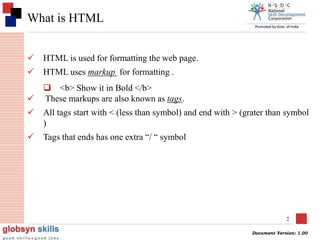
 HTML is used for formatting the web page.
 HTML uses markup for formatting .
 <b> Show it in Bold </b>
 These markups are also known as tags.
 All tags start with < (less than symbol) and end with > (grater than symbol
)
 Tags that ends has one extra “/ “ symbol
Document Version: 1.00
3
Some Tags
3
<HTML>, <BODY>, <TITLE>
</HTML>, </BODY>, </TITLE>
Sample Tags
Starting tags / elements
Ending tags / elements
Document Version: 1.00
4
Sample HTML
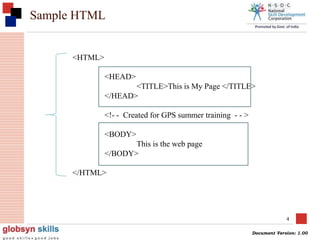
<HTML>
<HEAD>
<TITLE>This is My Page </TITLE>
</HEAD>
<!- - Created for GPS summer training - - >
<BODY>
This is the web page
</BODY>
</HTML>
Document Version: 1.00
5
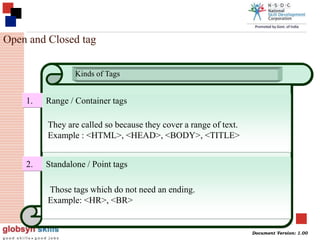
1. Range / Container tags
2. Standalone / Point tags
Kinds of Tags
They are called so because they cover a range of text.
Example : <HTML>, <HEAD>, <BODY>, <TITLE>
Those tags which do not need an ending.
Example: <HR>, <BR>
Open and Closed tag
Document Version: 1.00
6
Some Useful tags
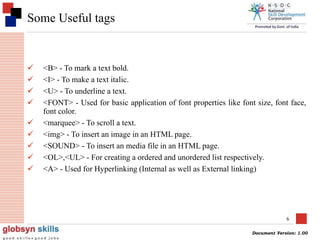
 <B> - To mark a text bold.
 <I> - To make a text italic.
 <U> - To underline a text.
 <FONT> - Used for basic application of font properties like font size, font face,
font color.
 <marquee> - To scroll a text.
 <img> - To insert an image in an HTML page.
 <SOUND> - To insert an media file in an HTML page.
 <OL>,<UL> - For creating a ordered and unordered list respectively.
 <A> - Used for Hyperlinking (Internal as well as External linking)
Document Version: 1.00
7
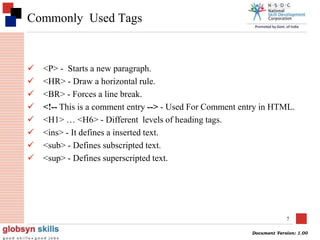
Commonly Used Tags
 <P> - Starts a new paragraph.
 <HR> - Draw a horizontal rule.
 <BR> - Forces a line break.
 <!-- This is a comment entry --> - Used For Comment entry in HTML.
 <H1> … <H6> - Different levels of heading tags.
 <ins> - It defines a inserted text.
 <sub> - Defines subscripted text.
 <sup> - Defines superscripted text.
Document Version: 1.00
8
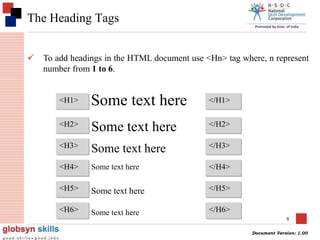
The Heading Tags
 To add headings in the HTML document use <Hn> tag where, n represent
number from 1 to 6.
<H1> </H1>Some text here
<H2> </H2>
<H3> </H3>
<H4> </H4>
<H5> </H5>
<H6> </H6>
Some text here
Some text here
Some text here
Some text here
Some text here
Document Version: 1.00
9
Listing In HTML
 A common applications of HTML is to display the list of items.
 The most popular types of lists that can be created using HTML are:
 Unordered List
 Ordered List
Document Version: 1.00
10
Unordered List
<HTML>
<BODY>
<H2>UNORDERED LIST</H2>
<UL>
<LI>FIRST ITEM</LI>
<LI>SECOND ITEM</LI>
</UL>
</BODY>
</HTML>
Document Version: 1.00
11
Ordered List
<HTML>
<BODY>
<H2>ORDERED LIST</H2>
<oL>
<LI>FIRST ITEM</LI>
<LI>SECOND ITEM</LI>
<LI>THIRD ITEM</LI>
<LI>FOURTH ITEM</LI>
<oL>
</BODY>
</HTML>
Document Version: 1.00
12
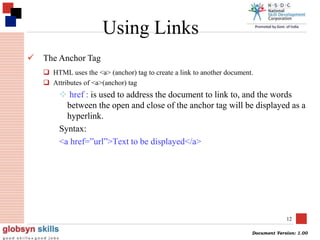
 The Anchor Tag
 HTML uses the <a> (anchor) tag to create a link to another document.
 Attributes of <a>(anchor) tag
 href : is used to address the document to link to, and the words
between the open and close of the anchor tag will be displayed as a
hyperlink.
Syntax:
<a href=”url”>Text to be displayed</a>
Using Links
Document Version: 1.00
13
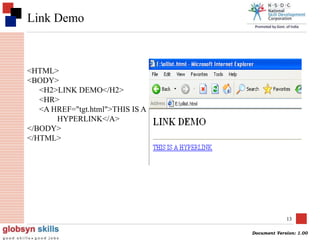
Link Demo
<HTML>
<BODY>
<H2>LINK DEMO</H2>
<HR>
<A HREF="tgt.html">THIS IS A
HYPERLINK</A>
</BODY>
</HTML>
Document Version: 1.00
14
HTML Table
 Table allows to organize and present data in an orderly and concise
manner.
 Tabular structures were introduces with HTML 3.2.
 A table can contains wide variety of information, such as headers, anchors,
lists, paragraphs, forms, images, preformatted text and even nested tables.
 HTML tables are composed of rows and columns.
Document Version: 1.00
15
Table
Document Version: 1.00
16
<TABLE> tag
<TABLE BORDER=“1”>
<CAPTION>STUDENT DATABASE</CAPTION>
<TR>
<TH>ROLLNO</TH>
<TH>NAME</TH>
</TR>
<TR>
<TD>10</TH>
<TD>SANJAY</TD>
</TR>
<TR>
<TD>20</TH>
<TD>JOHN</TD>
</TR>
</TABLE>
Document Version: 1.00
17
HTML Form
 Till now web page was used only to display information.
 No interactivity with user
 With the help of <form> tag , web page is now interactive.
 Data entry screen can be created , through which user can insert as well
as edit data.
 By HTML form , data can be accepted by browser then data are sent
across the internet to web server for processing.
 Some validation related code can be written using a scripting language
like , JavaScript
Document Version: 1.00
18
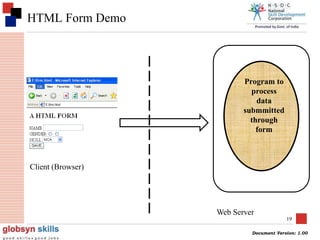
HTML Form Demo
Document Version: 1.00
19
HTML Form Demo
Program to
process
data
submmitted
through
form
Client (Browser)
Web Server
Document Version: 1.00
20
Processing FORM
 Data submitted through every FORM is processed by a program , that
runs in web server.
 This program has a name (URI)
 This name is mentioned in “action” attribute of the FORM tag
<FORM ACTION=“serverside program name”>
</FORM>
Document Version: 1.00
21
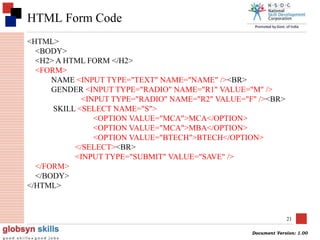
HTML Form Code
<HTML>
<BODY>
<H2> A HTML FORM </H2>
<FORM>
NAME <INPUT TYPE="TEXT" NAME="NAME" /><BR>
GENDER <INPUT TYPE="RADIO" NAME="R1" VALUE="M" />
<INPUT TYPE="RADIO" NAME="R2" VALUE="F" /><BR>
SKILL <SELECT NAME="S">
<OPTION VALUE="MCA">MCA</OPTION>
<OPTION VALUE="MCA">MBA</OPTION>
<OPTION VALUE="BTECH">BTECH</OPTION>
</SELECT><BR>
<INPUT TYPE="SUBMIT" VALUE="SAVE" />
</FORM>
</BODY>
</HTML>
Document Version: 1.00
22
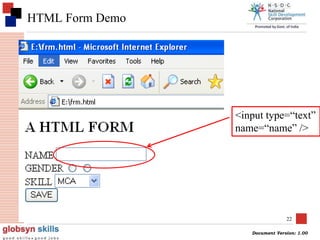
HTML Form Demo
<input type=“text”
name=“name” />

Hyper Text Markup Language (HTML)

  • 1.
    Document Version: 1.00 1 HyperText Markup Language (HTML) An Introduction
  • 2.
    Document Version: 1.00 2 Whatis HTML  HTML is used for formatting the web page.  HTML uses markup for formatting .  <b> Show it in Bold </b>  These markups are also known as tags.  All tags start with < (less than symbol) and end with > (grater than symbol )  Tags that ends has one extra “/ “ symbol
  • 3.
    Document Version: 1.00 3 SomeTags 3 <HTML>, <BODY>, <TITLE> </HTML>, </BODY>, </TITLE> Sample Tags Starting tags / elements Ending tags / elements
  • 4.
    Document Version: 1.00 4 SampleHTML <HTML> <HEAD> <TITLE>This is My Page </TITLE> </HEAD> <!- - Created for GPS summer training - - > <BODY> This is the web page </BODY> </HTML>
  • 5.
    Document Version: 1.00 5 1.Range / Container tags 2. Standalone / Point tags Kinds of Tags They are called so because they cover a range of text. Example : <HTML>, <HEAD>, <BODY>, <TITLE> Those tags which do not need an ending. Example: <HR>, <BR> Open and Closed tag
  • 6.
    Document Version: 1.00 6 SomeUseful tags  <B> - To mark a text bold.  <I> - To make a text italic.  <U> - To underline a text.  <FONT> - Used for basic application of font properties like font size, font face, font color.  <marquee> - To scroll a text.  <img> - To insert an image in an HTML page.  <SOUND> - To insert an media file in an HTML page.  <OL>,<UL> - For creating a ordered and unordered list respectively.  <A> - Used for Hyperlinking (Internal as well as External linking)
  • 7.
    Document Version: 1.00 7 CommonlyUsed Tags  <P> - Starts a new paragraph.  <HR> - Draw a horizontal rule.  <BR> - Forces a line break.  <!-- This is a comment entry --> - Used For Comment entry in HTML.  <H1> … <H6> - Different levels of heading tags.  <ins> - It defines a inserted text.  <sub> - Defines subscripted text.  <sup> - Defines superscripted text.
  • 8.
    Document Version: 1.00 8 TheHeading Tags  To add headings in the HTML document use <Hn> tag where, n represent number from 1 to 6. <H1> </H1>Some text here <H2> </H2> <H3> </H3> <H4> </H4> <H5> </H5> <H6> </H6> Some text here Some text here Some text here Some text here Some text here
  • 9.
    Document Version: 1.00 9 ListingIn HTML  A common applications of HTML is to display the list of items.  The most popular types of lists that can be created using HTML are:  Unordered List  Ordered List
  • 10.
    Document Version: 1.00 10 UnorderedList <HTML> <BODY> <H2>UNORDERED LIST</H2> <UL> <LI>FIRST ITEM</LI> <LI>SECOND ITEM</LI> </UL> </BODY> </HTML>
  • 11.
    Document Version: 1.00 11 OrderedList <HTML> <BODY> <H2>ORDERED LIST</H2> <oL> <LI>FIRST ITEM</LI> <LI>SECOND ITEM</LI> <LI>THIRD ITEM</LI> <LI>FOURTH ITEM</LI> <oL> </BODY> </HTML>
  • 12.
    Document Version: 1.00 12 The Anchor Tag  HTML uses the <a> (anchor) tag to create a link to another document.  Attributes of <a>(anchor) tag  href : is used to address the document to link to, and the words between the open and close of the anchor tag will be displayed as a hyperlink. Syntax: <a href=”url”>Text to be displayed</a> Using Links
  • 13.
    Document Version: 1.00 13 LinkDemo <HTML> <BODY> <H2>LINK DEMO</H2> <HR> <A HREF="tgt.html">THIS IS A HYPERLINK</A> </BODY> </HTML>
  • 14.
    Document Version: 1.00 14 HTMLTable  Table allows to organize and present data in an orderly and concise manner.  Tabular structures were introduces with HTML 3.2.  A table can contains wide variety of information, such as headers, anchors, lists, paragraphs, forms, images, preformatted text and even nested tables.  HTML tables are composed of rows and columns.
  • 15.
  • 16.
    Document Version: 1.00 16 <TABLE>tag <TABLE BORDER=“1”> <CAPTION>STUDENT DATABASE</CAPTION> <TR> <TH>ROLLNO</TH> <TH>NAME</TH> </TR> <TR> <TD>10</TH> <TD>SANJAY</TD> </TR> <TR> <TD>20</TH> <TD>JOHN</TD> </TR> </TABLE>
  • 17.
    Document Version: 1.00 17 HTMLForm  Till now web page was used only to display information.  No interactivity with user  With the help of <form> tag , web page is now interactive.  Data entry screen can be created , through which user can insert as well as edit data.  By HTML form , data can be accepted by browser then data are sent across the internet to web server for processing.  Some validation related code can be written using a scripting language like , JavaScript
  • 18.
  • 19.
    Document Version: 1.00 19 HTMLForm Demo Program to process data submmitted through form Client (Browser) Web Server
  • 20.
    Document Version: 1.00 20 ProcessingFORM  Data submitted through every FORM is processed by a program , that runs in web server.  This program has a name (URI)  This name is mentioned in “action” attribute of the FORM tag <FORM ACTION=“serverside program name”> </FORM>
  • 21.
    Document Version: 1.00 21 HTMLForm Code <HTML> <BODY> <H2> A HTML FORM </H2> <FORM> NAME <INPUT TYPE="TEXT" NAME="NAME" /><BR> GENDER <INPUT TYPE="RADIO" NAME="R1" VALUE="M" /> <INPUT TYPE="RADIO" NAME="R2" VALUE="F" /><BR> SKILL <SELECT NAME="S"> <OPTION VALUE="MCA">MCA</OPTION> <OPTION VALUE="MCA">MBA</OPTION> <OPTION VALUE="BTECH">BTECH</OPTION> </SELECT><BR> <INPUT TYPE="SUBMIT" VALUE="SAVE" /> </FORM> </BODY> </HTML>
  • 22.
    Document Version: 1.00 22 HTMLForm Demo <input type=“text” name=“name” />