CSE-312
Web Design and Programming Lab-I
Lab-4: HTML-II
Md. Rafsan Jani
Assistant Professor
Department of Computer Science and Engineering
Jahangirnagar University
Overview
 Introduction to HTML
 History
 Pros and Cons
 HTML Elements
 HTML Form
 HTMLTable
2
Introduction to HTML
 HTML, or HyperText Markup Language is designed
to specify the logical organization of a document,
with important hypertext extensions.
–hypertext refers to the fact thatWeb pages can contain
multimedia, provide links for jumping within & without
–markup refers to the fact that it works by augmenting
text with special symbols (tags) that identify structure
and content type
 HTML allows you to mark selections of text as titles
or paragraphs, and then leaves the interpretation of
these marked elements up to the browser.
–For example one browser may indent the beginning of a
paragraph, while another may only leave a blank line.
3
Introduction to HTML
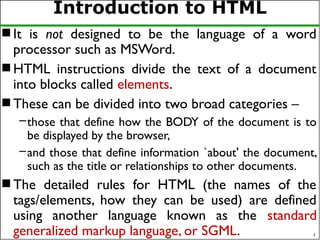
 It is not designed to be the language of a word
processor such as MSWord.
 HTML instructions divide the text of a document
into blocks called elements.
 These can be divided into two broad categories –
–those that define how the BODY of the document is to
be displayed by the browser,
–and those that define information `about' the document,
such as the title or relationships to other documents.
 The detailed rules for HTML (the names of the
tags/elements, how they can be used) are defined
using another language known as the standard
generalized markup language, or SGML. 4
Introduction to HTML
 SGML is wickedly difficult, and was designed for
massive document collections.
 Fortunately, HTML is much simpler! However, SGML
has useful features that HTML lacks.
 For this reason, markup language and software
experts have developed a new language, called XML
(the eXtensible markup language) which has most of
the useful features of HTML and SGML.
5
History of HTML
 HTML 1.0 was originally developed by Tim Berners-
Lee while at CERN, and popularized by the Mosaic
browser developed at National Center for
Supercomputing Applications (NCSA) in 1989.
 During the course of the 1990s it has blossomed
with the explosive growth of the Web and has been
extended in a number of ways.
 The Web depends on Web page authors and
vendors sharing the same conventions for HTML.
 HTML 2.0 was developed under the aegis of the
Internet Engineering Task Force (IETF) to codify
common practice in late 1994.
6
History of HTML
 In late 1994, Tim Berners-Lee, who developed the
initial version of HTML, started the World Wide
Web Consortium (W3C), whose primary purpose
was to develop and distribute standards for Web
technologies, starting with HTML.
 HTML 3.2 (1996) W3C proposed much richer
versions.
–Achieving interoperability lowers costs to content
providers since they must develop only one version of a
document.
–If the effort is not made, there is much greater risk that
the Web will devolve into a proprietary world of
incompatible formats, ultimately reducing the Web's
commercial potential for all participants. 7
History of HTML
 The HTML 4.0 was published in late 1997 by W3C
 The 4.01 version of HTML was approved by W3C in
late 1999
 HTML5 can be said for as an extended version of
HTML 4.01 which is the latest version, published in
the year 2014.
 Each version of HTML has attempted to reflect
greater consensus among industry players so that
the investment made by content providers will not
be wasted and that their documents will not
become unreadable in a short period of time
8
HTML Vision
 HTML has been developed with the vision that all
manner of devices should be able to use information
on theWeb:
–PCs with graphics displays of varying resolution and
color depth,
–cellular telephones,
–hand held devices,
–devices for speech for output and input,
–computers with high or low bandwidth, and so on.
9
Advantages
1. First advantage it is widely used.
2. Every browser supports HTML language.
3. Easy to learn and use.
4. It is by default in every operating system so you
don't need to purchase extra software.
10
Disadvantages
1. It can create only static and plain pages so if we
need dynamic pages then HTML is not useful.
2. Lots of code for making simple webpage.
3. Security features are not good in HTML.
4. Long code produces some complexity.
11
HTML Page Structure
12
HTML Tags
 HTML tags can be considered as hidden keywords
or commands incorporated in HTML which holds
the capability to define how your browser will
display the content and format of the web page.
 Most tags of HTML have two sections, an opening,
and a closing part, and any text written within that
has its effect based on the category of the tag.
 The most common example is the <html> tag which
has both starting tag and ending tag.
 HTML tag which is usually written as <html>….
</html> or <HTML>…. </HTML> is the only tag
which is a must for writing HTML pages
13
HTML Tags
 HTML tag has both a opening <html> and a closing
tag </html>.
 The closing of tags is done by a forward slash (/) at
the very start of the tag name.
 These types of tags having both opening and closing
tags are called container tags.
 Those who only have an opening tag and no closing
tag are called empty tags.
14
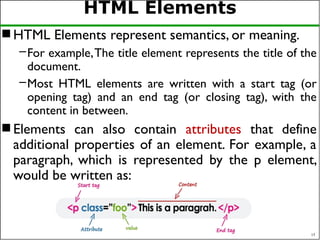
HTML Elements
 HTML Elements represent semantics, or meaning.
–For example,The title element represents the title of the
document.
–Most HTML elements are written with a start tag (or
opening tag) and an end tag (or closing tag), with the
content in between.
 Elements can also contain attributes that define
additional properties of an element. For example, a
paragraph, which is represented by the p element,
would be written as:
15
HTML Tags Vs Elements
 Technically, an HTML element is the collection of
start tag, its attributes, an end tag and everything in
between.
 On the other hand an HTML tag either opening or
closing is used to mark the start or end of an
element.
 However, in common usage the terms HTML
element and HTML tag are interchangeable i.e. a tag
is an element and element is a tag.
16
HTML Elements Types
 Block-Level Elements: Block-level elements start on a
new line and take up the full width available, stretching out to
the left and right as far as they can.These elements typically
contain other block-level elements or inline elements.
 Examples:
– <div>:A generic container for content.
– <p>: Defines a paragraph.
– <h1> to <h6>: Define headings, where <h1> is the highest level
and <h6> is the lowest.
– <ul>: Defines an unordered list.
– <ol>: Defines an ordered list.
– <article>: Represents a self-contained composition in a document.
– <section>: Defines a section in a document.
17
HTML Elements Types
 Inline Elements: Inline elements do not start on a new
line and only take up as much width as necessary. They
usually contain only data or other inline elements.
 Examples:
– <span>:A generic inline container for phrasing content.
– <a>: Defines a hyperlink.
– <img>: Embeds an image in the document.
– <strong>: Indicates strong emphasis, typically rendered in bold.
– <em>: Represents emphasized text, typically rendered in
italics.
– <label>: Defines a label for an <input> element.
– <br>: Inserts a line break.
18
HTML Elements Types
 Empty (Void) Elements: Empty or void elements
are HTML elements that do not have any content or
closing tag.
 Examples:
–<img>: Embeds an image in the document.
–<br>: Inserts a line break.
–<hr>: Represents a thematic break or horizontal rule.
–<input>: Represents an input control.
–<meta>: Provides metadata about the HTML document.
–<link>: Defines the relationship between a document and
an external resource, typically used to link to stylesheets.
19
HTML Elements Types
 Form Elements: These elements are used within
forms to collect user input.
 Examples:
–<form>: Defines an HTML form for user input.
–<input>: Represents an input field.
–<textarea>: Defines a multi-line text input control.
–<select>: Creates a drop-down list.
–<button>: Represents a clickable button.
–<label>: Defines a label for an <input> element.
20
HTML Elements Types
 Semantic Elements: Semantic elements clearly
describe their meaning in a human- and machine-
readable way.
 Examples:
–<header>: Represents the header section of a document
or section.
–<nav>: Defines a navigation section.
–<main>: Specifies the main content of the document.
–<footer>: Defines the footer for a section or document.
–<aside>: Represents a section of content that is
tangentially related to the content around it.
21
HTML Elements Types
 Interactive Elements: Elements that are
specifically used to interact with the user.
 Examples:
–<button>: Represents a clickable button.
–<details>: Defines additional details that the user can
view or hide.
–<summary>: Provides a summary, caption, or legend for
the content of a <details> element.
–<a>: Defines a hyperlink, which users can click to
navigate to another document or resource.
22
HTML Elements Types
 Metadata Elements: These elements provide
meta-information about the HTML document.
 Examples:
–<title>: Defines the title of the document.
–<meta>: Provides metadata about the document, such as
character set, description, keywords, etc.
–<link>: Defines relationships between the current
document and external resources (e.g., stylesheets).
–<style>: Contains internal CSS.
–<base>: Specifies the base URL for all relative URLs in
the document.
23
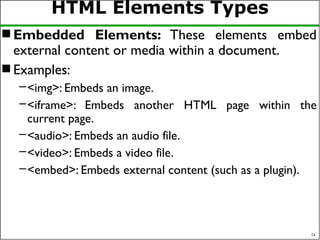
HTML Elements Types
 Embedded Elements: These elements embed
external content or media within a document.
 Examples:
–<img>: Embeds an image.
–<iframe>: Embeds another HTML page within the
current page.
–<audio>: Embeds an audio file.
–<video>: Embeds a video file.
–<embed>: Embeds external content (such as a plugin).
24
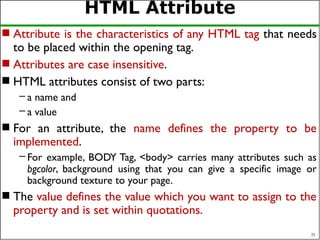
HTML Attribute
 Attribute is the characteristics of any HTML tag that needs
to be placed within the opening tag.
 Attributes are case insensitive.
 HTML attributes consist of two parts:
– a name and
– a value
 For an attribute, the name defines the property to be
implemented.
– For example, BODY Tag, <body> carries many attributes such as
bgcolor, background using that you can give a specific image or
background texture to your page.
 The value defines the value which you want to assign to the
property and is set within quotations.
25
HTML Attribute
 There are four essential attributes which you can
implement on almost all HTML elements:
–id
–title
–class
–style
26
id Attribute
 This attribute can be implemented for providing
unique identification to any element.
 There are two primary reasons that you might want
to use an id attribute on an element.
–The id attribute provides a unique identifier which
eventually makes possible in identifying the HTML
element.
–When you are containing two elements having the same
name within the same script, id attribute helps to
distinguish the two same elements via the unique ID.
<p id = "para1"> Paragraph 1 in your HTML document.</p>
<p id = "para2"> Paragraph 2 in your HTML document.</p>
27
title Attribute
 The title attribute gives a recommended title for
your element.
 Its behavior depends on the element upon which it's
implemented, even though this is often implemented
to display a tooltip if the cursor hovers (comes
over) the element.
<h3 title="Welcome to my Journal">Please visit</h3>
28
class Attribute
 This attribute is implemented by combining an
element through a stylesheet (CSS), and identify the
element's class.
 For more about class attribute, you can follow the
Cascading Style Sheet (CSS).
 Here's an example of class attribute:
<p class = "classname1">
This is a sample paragraph text.
</p>
29
style Attribute
 This attribute gives you a chance for specifying the
rules for Cascading Style Sheet (CSS) in your
element.
 Here's an example of style attribute:
<p style = "font-family:arial;">An example of style attribute.</p>
30
Example
<!DOCTYPE html>
<html>
<head>
<title>Page Title</title>
</head>
<body>
<h1>My First Heading</h1>
<p>My first paragraph.</p>
<p id="test">See It!!</p>
</body>
</html>
31
Example Anatomy
 The <!DOCTYPE html> declaration defines this
document to be HTML5
 The <html> element is the root element of an
HTML page
 The <head> element contains meta information
about the document
 The <title> element specifies a title for the
document
 The <body> element contains the visible page
content
 The <h1> element defines a large heading
 The <p> element defines a paragraph 32
<!DOCTYPE> Tag
 The <!DOCTYPE> declaration represents the
document type, and helps browsers to display web
pages correctly.
 It must only appear once, at the top of the page
(before any HTML tags).
 The <!DOCTYPE> declaration is not case sensitive.
 The <!DOCTYPE> declaration for HTML5 is:
<!DOCTYPE html>
33
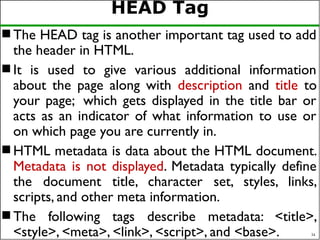
HEAD Tag
 The HEAD tag is another important tag used to add
the header in HTML.
 It is used to give various additional information
about the page along with description and title to
your page; which gets displayed in the title bar or
acts as an indicator of what information to use or
on which page you are currently in.
 HTML metadata is data about the HTML document.
Metadata is not displayed. Metadata typically define
the document title, character set, styles, links,
scripts, and other meta information.
 The following tags describe metadata: <title>,
<style>, <meta>, <link>, <script>, and <base>. 34
<title>Element
 The <title> element defines the title of the
document, and is required in all HTML/XHTML
documents.
 The <title> element:
–defines a title in the browser tab
–provides a title for the page when it is added to favorites
–displays a title for the page in search engine results
35
Body Element
 This tag is used to give the body, i.e., the visible
section of the HTML document.
 All formatting and writing of content are done in
the opening <body> and the closing </body> tag.
 If your HTML code does not have a body tag
associated with it, the HTML code will still run as
written in the above example (only show the title in
the title bar).
 It is to be noted that, together these three
necessary tags, <html>, <head> and <body> makes
up the skeleton of an HTML document and these
are the only foundation tags upon which all web
pages are created or developed. 36
<hn>Element
 Any content or article starts having a nice heading,
provides the headline or the topic name of any
document.
 Similarly, in HTML code also, different sizes of
heading can be given on your web page.
 HTML allows six sizes for heading that uses
elements name in the format of <hn>, where n
starts from 1 till 6; like this:
<h1>, <h2>, <h3>, <h4>, <h5>, and <h6>
37
Aligning Text
 The ALIGN attribute can be inserted in the <p>
and <hn> tags to right justify, center, or left justify
the text
 For example,
<h1 ALIGN=CENTER> The NewYork Times </h1>
would create a centered heading of the largest size
HTML Formatting
 Formatting is one of the crucial sections of every
development.
 For making any project or article or content looks
attractive, readable and user-intractable, formatting
plays a very important role.
 Formatting can be defined as the appearance of your
documentation or presentation of your HTML code
in a meaningful and nicer way.
 Formatting is mainly done for making the layout
attractable.
39
HTML Formatting Cont…
Tag Meanings
<u> For making text underlined.
<b> For making the text Bold.
<strong> Used in those texts which are important and
needs to highlight.
<i> For making the text italics.
<em> For emphasizing the texts.
<mark> To make the texts marked or highlighted.
<small> For making texts small in size than the regular
texts surrounded.
<big> For making texts bigger or larger than the rest
of the texts surrounded.
40
HTML Formatting Cont…
41
Tag Meanings
<del> To show texts that have been deleted or removed or
replaced.
<ins> To show texts that have been inserted or added
<sub> To give a subscript effect to any text.
<sup> To give a superscript effect to any text.
<strike> For displaying any text as strikethrough.
<tt> For displaying any font as a mono-spaced font.
This tag is abbreviated as typewriter type font tag.
HTML Comments
42
 Comments are an essential part of HTML; it helps
to provide the details of what is written in the
HTML source code.
 HTML comment tags are completely ignored to
display by the browsers. It's used to insert
comments into the source code.
–When more than one developers work on the same
application or web page, HTML comments can help to
understand the source code.
–Comment can be used anywhere to add information
about HTML, which will be helpful for developers to
understand the existing code in the future easily.
HTML Comments
43
 For writing comments in HTML, they begin with
the <! -- (starting comment tag) and ends with the
close comment tag, i.e. -->.
 Comments in HTML can be visible if and only if
anyone tries to view the source code of the page,
but anything is written within <!-- …. --> does not
get rendered when you will render your HTML
based web page through your browser.
<!-- This is a commented code -->
HTML IMG Tag
44
 For inserting pictures into our web page, we can
use the <img> tag.
 The <img> tag is an empty tag which mean it has
no ending tag (i.e. no </img>) associated with it.
 The syntax of using <img> tag is:
<img src = "path or URL" alt = "alternate_text">
HTML IMG Tag
45
 SRC attribute of IMGTag:
–This attribute helps in specifying the image's source,
which means this, instruct your web browser from
which location it must fetch the particular picture (in
other words specify the path). SRC attribute takes path
or URL as its value in quotes.
–The source's image may exist locally on your computer
(need a path to specify) or may reside somewhere in
the web server (need URL to specify).
–For images in your local PC, either you have to set the
entire path or bring that particular image's copy in a
particular folder in which your .html file (in which you
want to add image) is also residing
<img src="http://xyz.com/wallpaper.jpg" alt="Wallpaper">
HTML IMG Tag
46
 The alt attribute of IMGTag:
–This attribute of Image Tag or <img> tag allows you in
defining an alternative text in case your browser
becomes unsuccessful in loading the image.
–There may be situations when your browser might not
be able to display that particular image either because
of slow connection or server error or any other
reason.
–Moreover, search engines take up those alternate texts
given to images and help to find articles or content
related to that text.
<img src= “ju.jpg" alt =“Jahangirnagar University">
HTML IMG Tag
47
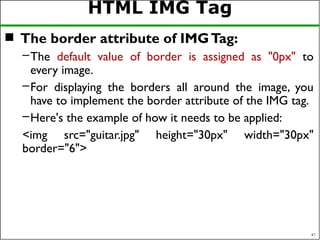
 The border attribute of IMGTag:
–The default value of border is assigned as "0px" to
every image.
–For displaying the borders all around the image, you
have to implement the border attribute of the IMG tag.
–Here's the example of how it needs to be applied:
<img src="guitar.jpg" height="30px" width="30px"
border="6">
HTML IMG Tag
48
 The hspace attribute
–Hspace attribute is used for providing horizontal
spacing all around your image. It takes value in the form:
20 or 20%.
 The vspace attribute
–Vspace attribute is used for providing vertical spacing all
around your image. It also takes value in the form: 20 or
20%.
 Both these attributes are used in situations where
you want to maintain some gapping between your
image and text.
HTML IMG Tag
49
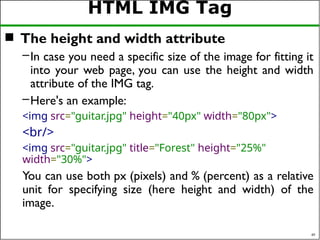
 The height and width attribute
–In case you need a specific size of the image for fitting it
into your web page, you can use the height and width
attribute of the IMG tag.
–Here's an example:
<img src="guitar.jpg" height="40px" width="80px">
<br/>
<img src="guitar.jpg" title="Forest" height="25%"
width="30%">
You can use both px (pixels) and % (percent) as a relative
unit for specifying size (here height and width) of the
image.
HTML Anchor Tag
50
 You might know that hyperlink which is a powerful
means of browsing from web pages and websites.
 It is developed for sending the readers or those
who will perform surfing from one web page to
another without opening a new tab or window.
 This is in general term said to as link and is given a
reference to jump to another page or document or
from one part of the same page to another using a
hypertext.
 The Anchor tag in HTML can be defined as a
means to create a hyperlink.
HTML Anchor Tag
51
 Anchor can link your current page on which the
text is being converted to hypertext via <a>
(anchor tag) to another page.
 This anchoring from one page to another is made
possible by the attribute "href", which can be
abbreviated as (hypertext reference).
 Example:
<a href = "URL">Text Here</a>
If the present url is www.xyz.com then clicking the
Text Here will link to www.xyz.com/URL
Anchor an Image
52
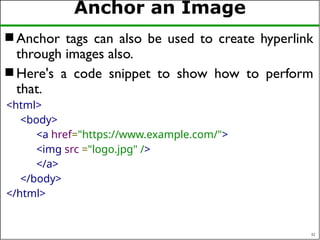
 Anchor tags can also be used to create hyperlink
through images also.
 Here's a code snippet to show how to perform
that.
<html>
<body>
<a href="https://www.example.com/">
<img src ="logo.jpg" />
</a>
</body>
</html>
Link to Email and Telephone
 To create a link to an email address, type
<a href="mailto:email_address"> Label</a>
–For example, to create a link to send email to myself, I
would type:
<a href="mailto:xya@juniv.edu">email Md. Rafsan</a>
 To create a link to a telephone number, type
<a href="tel:tel_number"> Label</a>
–For example, to create a telephone number, I would
type:
<a href="tel:+880-2-7791045">+880-2-7791045</a>
Anchors inside the page
 Anchors enable a user to jump to a specific place
on a Web site
 Two steps are necessary to create an anchor.
–First you must create the anchor itself.
–Then you must create a link to the anchor from another
point in the document.
 To create the anchor itself, type
–<a name=“anchor_name” ></a>
 To create the link, type
–<a href=“#anchor_name”>label</a>
at the point in the text where you want the link to
appear
Example: Anchor
<A HREF="#chap2">Chapter Two</A><BR>
<A NAME="chap2">Chapter 2</A>
Link
Anchor
HTML Links - The target Attribute
 The target attribute specifies where to open the
linked document.
 The target attribute can have one of the
following values:
 _blank - Opens the linked document in a new tab
 _self - Opens the linked document in the same window/tab
as it was clicked (this is default)
 _parent - Opens the linked document in the parent frame
 _top - Opens the linked document in the full body of the
window
 framename - Opens the linked document in a named frame
Ordered Lists
 Ordered lists are a list of numbered items.
 To create an ordered list, type:
<OL>
<LI> This is step one. </LI>
<LI> This is step two. </LI>
<LI> This is step three. </LI>
</OL>
Here’s how it would look on
theWeb:
More Ordered Lists….
 The type=x attribute allows you to change the kind
of symbol that appears in the list.
–A is for capital letters
–a is for lowercase letters
–I is for capital roman numerals
–i is for lowercase roman numerals
 start=number, Specifies the start value of an
ordered list
 reversed=reversed, Specifies that the list order
should be reversed (9,8,7...)
Unordered Lists
 An unordered list is a list
of bulleted items
 To create an unordered
list, type:
<UL>
<LI> First item in list </LI>
<LI> Second item in list </LI>
<LI> Third item in list </LI>
</UL>
Here’s how it would look on the Web:
More Unordered Lists...
 The type=shape attribute allows you to change the
type of bullet that appears
–circle corresponds to an empty round bullet
–square corresponds to a square bullet
–disc corresponds to a solid round bullet; this is the
default value
Description Lists
 HTML also supports description lists.
 A description list is a list of terms, with a
description of each term.
–<dl> tag defines the description list,
–<dt> tag defines the term (name), and
–<dd> tag describes each term
<dl>
<dt>Coffee</dt>
<dd>- black hot drink</dd>
<dt>Milk</dt>
<dd>- white cold drink</dd>
</dl>
Coffee
- black hot drink
Milk
- white cold drink
Nested Lists
<ul>
<li>Coffee</li>
<li>Tea
<ul>
<li>Black tea</li>
<li>Green tea</li>
</ul>
</li>
<li>Milk</li>
</ul>
HTML Semantic Elements
 What are Semantic Elements?
–A semantic element clearly describes its meaning to
both the browser and the developer.
–Examples of non-semantic elements: <div> and <span>
-Tells nothing about its content.
–Examples of semantic elements: <form>, <table>, and
<article> - Clearly defines its content.
HTML Semantic Elements
 Semantic Elements in HTML
–Many web sites contain HTML code like: <div id="nav">
<div class="header"> <div id="footer"> to indicate
navigation, header, and footer.
–In HTML there are some semantic elements that can be
used to define different parts of a web page:
• <article>
• <aside>
• <details>
• <figcaption>
• <figure>
• <footer>
• <header>
Forms
 What are forms?
–An HTML form is an area of the document that allows
users to enter information into fields.
–A form may be used to collect personal information,
opinions in polls, user preferences and other kinds of
information.
 There are two basic components of a Web form:
–the shell, the part that the user fills out, and
– the script which processes the information
 HTML tags are used to create the form shell. Using
HTML you can create text boxes, radio buttons,
checkboxes, drop-down menus, and more...
Example: Form
Text Box
Drop-down Menu
Radio Buttons
Checkboxes
Text Area
Submit Button
Reset Button
The Form Shell
 A form shell has three important parts:
– the <FORM> tag, which includes the address of the
script which will process the form
–the form elements, like text boxes and radio buttons
–the submit button which triggers the script to send the
entered information to the server
Creating the Shell
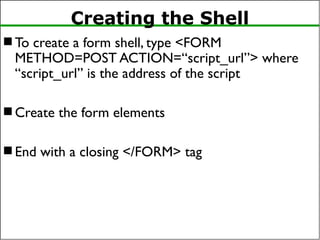
 To create a form shell, type <FORM
METHOD=POST ACTION=“script_url”> where
“script_url” is the address of the script
 Create the form elements
 End with a closing </FORM> tag
Creating Text Boxes
 To create a text box, type
<INPUT TYPE=“text” NAME=“name” VALUE=“value”
SIZE=n MAXLENGTH=n>
 The NAME,VALUE, SIZE, and MAXLENGTH
attributes are optional
Text Box Attributes
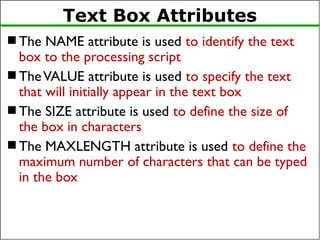
 The NAME attribute is used to identify the text
box to the processing script
 TheVALUE attribute is used to specify the text
that will initially appear in the text box
 The SIZE attribute is used to define the size of
the box in characters
 The MAXLENGTH attribute is used to define the
maximum number of characters that can be typed
in the box
Example: Text Box
First Name: <INPUTTYPE="text" NAME="FirstName"VALUE="First Name"
SIZE=20>
<BR><BR>
Last Name: <INPUT TYPE="text" NAME="LastName"VALUE="Last Name"
SIZE=20>
<BR><BR>
 Here’s how it would look on the Web:
Creating Larger Text Areas
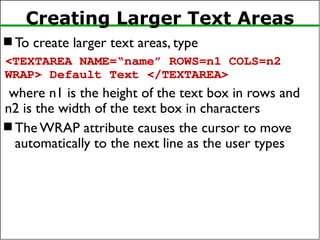
 To create larger text areas, type
<TEXTAREA NAME=“name” ROWS=n1 COLS=n2
WRAP> Default Text </TEXTAREA>
where n1 is the height of the text box in rows and
n2 is the width of the text box in characters
 The WRAP attribute causes the cursor to move
automatically to the next line as the user types
Example: Text Area
<B>Comments?</B>
<BR/>
<TEXTAREA NAME="Comments" ROWS=10 COLS=50
WRAP>
</TEXTAREA>
Creating Radio Buttons
 To create a radio button, type
<INPUT TYPE=“radio” NAME=“name”VALUE=“data”> Label
where “data” is the text that will be sent to the
server if the button is checked and “Label” is the
text that identifies the button to the user
Example: Radio Buttons
<B> Size: </B>
<INPUT TYPE="radio" NAME="Size"VALUE="Large"> Large
<INPUT TYPE="radio" NAME="Size"VALUE="Medium">Medium
<INPUT TYPE="radio" NAME="Size"VALUE="Small">Small
Creating Checkboxes
 To create a checkbox, type
<INPUT TYPE=“checkbox” NAME=“name”VALUE=“value”>Label
 If you give a group of radio buttons the same name,
the user will only be able to select one button at a
time
 Example:
<B> Color: </B>
<INPUT TYPE="checkbox" NAME="Color1“VALUE="Red">Red
<INPUT TYPE="checkbox" NAME="Color2"VALUE="Navy">Navy
<INPUT TYPE="checkbox" NAME="Color3" VALUE="Black">Black
Creating Drop-down Menus
 To create a drop-down menu, type
<SELECT NAME=“name” SIZE=n MULTIPLE>
 Then type
<OPTIONVALUE= “value”>Label
 In this case the SIZE attribute specifies the height of
the menu in lines and MULTIPLE allows users to
select more than one menu option
Example: Drop-down Menu
<B>WHICH IS FAVOURITE FRUIT:</B>
<SELECT>
<OPTION VALUE="MANGOES">MANGOES
<OPTION VALUE="PAPAYA">PAPAYA
<OPTION VALUE="GUAVA">GUAVA
<OPTION VALUE="BANANA"> BANANA
<OPTION VALUE="PINEAPPLE">PINEAPPLE
</SELECT>
Creating a Submit Button
 To create a submit button, type
<INPUT TYPE=“submit”>
 If you would like the button to say something other
than submit, use theVALUE attribute
 For example,
<INPUTTYPE=“submit”VALUE=“Buy Now!”>
would create a button that says “Buy Now!”
Creating a Reset Button
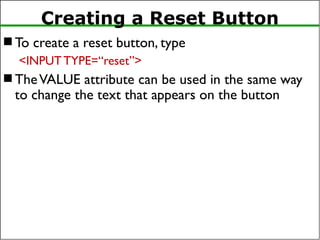
 To create a reset button, type
<INPUT TYPE=“reset”>
 TheVALUE attribute can be used in the same way
to change the text that appears on the button
81
Tables
 tables are common tools for arranging
complex layout on a Web page
–a table divides contents into rows and columns
–by default, column entries are left-justified, so
provide for alignment
<html>
<!-- Dave Reed page11.html -->
<head>
<title>Tables</title>
</head>
<body>
<table>
<tr>
<td>foo</td> <td>bar</td>
</tr>
<tr>
<td>bizbaz</td> <td>booboo</td>
</tr>
</table>
</body>
</html>
<table>…</table> specify a table
element
<tr>…</tr> specify a row in the table
<td>…</td> specify table data (i.e.,
each column entry in the table)
82
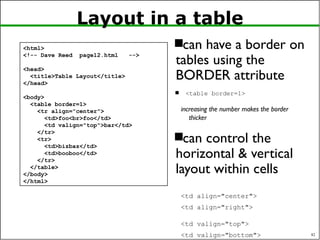
Layout in a table
can have a border on
tables using the
BORDER attribute
 <table border=1>
increasing the number makes the border
thicker
can control the
horizontal & vertical
layout within cells
<td align="center">
<td align="right">
<td valign="top">
<td valign="bottom">
<html>
<!-- Dave Reed page12.html -->
<head>
<title>Table Layout</title>
</head>
<body>
<table border=1>
<tr align="center">
<td>foo<br>foo</td>
<td valign="top">bar</td>
</tr>
<tr>
<td>bizbaz</td>
<td>booboo</td>
</tr>
</table>
</body>
</html>
83
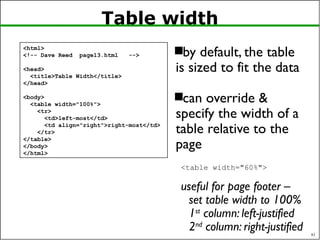
Table width
by default, the table
is sized to fit the data
can override &
specify the width of a
table relative to the
page
<table width="60%">
useful for page footer –
set table width to 100%
1st
column: left-justified
2nd
column: right-justified
<html>
<!-- Dave Reed page13.html -->
<head>
<title>Table Width</title>
</head>
<body>
<table width="100%">
<tr>
<td>left-most</td>
<td align="right">right-most</td>
</tr>
</table>
</body>
</html>
84
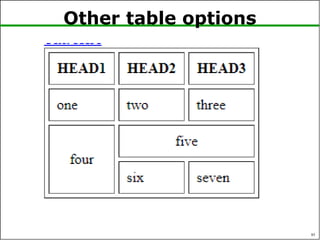
Other table options
can control the space
between cells & margins
within cells
<table cellspacing=5>
<table cellpadding=5>
can add headings
<th> is similar to <td> but
displays heading centered in bold
can have data that spans
more than one column
<td colspan=2>
similarly, can span more than
one row
<td rowspan=2>
<html>
<!-- Dave Reed page14.html 1/16/04 -->
<head>
<title>Table Formatting</title>
</head>
<body>
<table border=1 cellspacing=4 cellpadding=8>
<tr>
<th>HEAD1</th> <th>HEAD2</th> <th>HEAD3</th>
</tr>
<tr>
<td>one</td> <td>two</td> <td>three</td>
</tr>
<tr>
<td rowspan=2 align="center"> four </td>
<td colspan=2 align="center"> five </td>
</tr>
<tr>
<td> six </td>
<td> seven </td>
</tr>
</table>
</body>
</html>
85
Other table options
References
1. https://www.w3schools.com/html/default.asp
2. https://validator.w3.org/
3. https://caniuse.com/
4. https://jsfiddle.net/
5. https://www.w3schools.com/browsers/default.asp
86

Web Design and Programming-Lab-4-HTML-II-Exercise

  • 1.
    CSE-312 Web Design andProgramming Lab-I Lab-4: HTML-II Md. Rafsan Jani Assistant Professor Department of Computer Science and Engineering Jahangirnagar University
  • 2.
    Overview  Introduction toHTML  History  Pros and Cons  HTML Elements  HTML Form  HTMLTable 2
  • 3.
    Introduction to HTML HTML, or HyperText Markup Language is designed to specify the logical organization of a document, with important hypertext extensions. –hypertext refers to the fact thatWeb pages can contain multimedia, provide links for jumping within & without –markup refers to the fact that it works by augmenting text with special symbols (tags) that identify structure and content type  HTML allows you to mark selections of text as titles or paragraphs, and then leaves the interpretation of these marked elements up to the browser. –For example one browser may indent the beginning of a paragraph, while another may only leave a blank line. 3
  • 4.
    Introduction to HTML It is not designed to be the language of a word processor such as MSWord.  HTML instructions divide the text of a document into blocks called elements.  These can be divided into two broad categories – –those that define how the BODY of the document is to be displayed by the browser, –and those that define information `about' the document, such as the title or relationships to other documents.  The detailed rules for HTML (the names of the tags/elements, how they can be used) are defined using another language known as the standard generalized markup language, or SGML. 4
  • 5.
    Introduction to HTML SGML is wickedly difficult, and was designed for massive document collections.  Fortunately, HTML is much simpler! However, SGML has useful features that HTML lacks.  For this reason, markup language and software experts have developed a new language, called XML (the eXtensible markup language) which has most of the useful features of HTML and SGML. 5
  • 6.
    History of HTML HTML 1.0 was originally developed by Tim Berners- Lee while at CERN, and popularized by the Mosaic browser developed at National Center for Supercomputing Applications (NCSA) in 1989.  During the course of the 1990s it has blossomed with the explosive growth of the Web and has been extended in a number of ways.  The Web depends on Web page authors and vendors sharing the same conventions for HTML.  HTML 2.0 was developed under the aegis of the Internet Engineering Task Force (IETF) to codify common practice in late 1994. 6
  • 7.
    History of HTML In late 1994, Tim Berners-Lee, who developed the initial version of HTML, started the World Wide Web Consortium (W3C), whose primary purpose was to develop and distribute standards for Web technologies, starting with HTML.  HTML 3.2 (1996) W3C proposed much richer versions. –Achieving interoperability lowers costs to content providers since they must develop only one version of a document. –If the effort is not made, there is much greater risk that the Web will devolve into a proprietary world of incompatible formats, ultimately reducing the Web's commercial potential for all participants. 7
  • 8.
    History of HTML The HTML 4.0 was published in late 1997 by W3C  The 4.01 version of HTML was approved by W3C in late 1999  HTML5 can be said for as an extended version of HTML 4.01 which is the latest version, published in the year 2014.  Each version of HTML has attempted to reflect greater consensus among industry players so that the investment made by content providers will not be wasted and that their documents will not become unreadable in a short period of time 8
  • 9.
    HTML Vision  HTMLhas been developed with the vision that all manner of devices should be able to use information on theWeb: –PCs with graphics displays of varying resolution and color depth, –cellular telephones, –hand held devices, –devices for speech for output and input, –computers with high or low bandwidth, and so on. 9
  • 10.
    Advantages 1. First advantageit is widely used. 2. Every browser supports HTML language. 3. Easy to learn and use. 4. It is by default in every operating system so you don't need to purchase extra software. 10
  • 11.
    Disadvantages 1. It cancreate only static and plain pages so if we need dynamic pages then HTML is not useful. 2. Lots of code for making simple webpage. 3. Security features are not good in HTML. 4. Long code produces some complexity. 11
  • 12.
  • 13.
    HTML Tags  HTMLtags can be considered as hidden keywords or commands incorporated in HTML which holds the capability to define how your browser will display the content and format of the web page.  Most tags of HTML have two sections, an opening, and a closing part, and any text written within that has its effect based on the category of the tag.  The most common example is the <html> tag which has both starting tag and ending tag.  HTML tag which is usually written as <html>…. </html> or <HTML>…. </HTML> is the only tag which is a must for writing HTML pages 13
  • 14.
    HTML Tags  HTMLtag has both a opening <html> and a closing tag </html>.  The closing of tags is done by a forward slash (/) at the very start of the tag name.  These types of tags having both opening and closing tags are called container tags.  Those who only have an opening tag and no closing tag are called empty tags. 14
  • 15.
    HTML Elements  HTMLElements represent semantics, or meaning. –For example,The title element represents the title of the document. –Most HTML elements are written with a start tag (or opening tag) and an end tag (or closing tag), with the content in between.  Elements can also contain attributes that define additional properties of an element. For example, a paragraph, which is represented by the p element, would be written as: 15
  • 16.
    HTML Tags VsElements  Technically, an HTML element is the collection of start tag, its attributes, an end tag and everything in between.  On the other hand an HTML tag either opening or closing is used to mark the start or end of an element.  However, in common usage the terms HTML element and HTML tag are interchangeable i.e. a tag is an element and element is a tag. 16
  • 17.
    HTML Elements Types Block-Level Elements: Block-level elements start on a new line and take up the full width available, stretching out to the left and right as far as they can.These elements typically contain other block-level elements or inline elements.  Examples: – <div>:A generic container for content. – <p>: Defines a paragraph. – <h1> to <h6>: Define headings, where <h1> is the highest level and <h6> is the lowest. – <ul>: Defines an unordered list. – <ol>: Defines an ordered list. – <article>: Represents a self-contained composition in a document. – <section>: Defines a section in a document. 17
  • 18.
    HTML Elements Types Inline Elements: Inline elements do not start on a new line and only take up as much width as necessary. They usually contain only data or other inline elements.  Examples: – <span>:A generic inline container for phrasing content. – <a>: Defines a hyperlink. – <img>: Embeds an image in the document. – <strong>: Indicates strong emphasis, typically rendered in bold. – <em>: Represents emphasized text, typically rendered in italics. – <label>: Defines a label for an <input> element. – <br>: Inserts a line break. 18
  • 19.
    HTML Elements Types Empty (Void) Elements: Empty or void elements are HTML elements that do not have any content or closing tag.  Examples: –<img>: Embeds an image in the document. –<br>: Inserts a line break. –<hr>: Represents a thematic break or horizontal rule. –<input>: Represents an input control. –<meta>: Provides metadata about the HTML document. –<link>: Defines the relationship between a document and an external resource, typically used to link to stylesheets. 19
  • 20.
    HTML Elements Types Form Elements: These elements are used within forms to collect user input.  Examples: –<form>: Defines an HTML form for user input. –<input>: Represents an input field. –<textarea>: Defines a multi-line text input control. –<select>: Creates a drop-down list. –<button>: Represents a clickable button. –<label>: Defines a label for an <input> element. 20
  • 21.
    HTML Elements Types Semantic Elements: Semantic elements clearly describe their meaning in a human- and machine- readable way.  Examples: –<header>: Represents the header section of a document or section. –<nav>: Defines a navigation section. –<main>: Specifies the main content of the document. –<footer>: Defines the footer for a section or document. –<aside>: Represents a section of content that is tangentially related to the content around it. 21
  • 22.
    HTML Elements Types Interactive Elements: Elements that are specifically used to interact with the user.  Examples: –<button>: Represents a clickable button. –<details>: Defines additional details that the user can view or hide. –<summary>: Provides a summary, caption, or legend for the content of a <details> element. –<a>: Defines a hyperlink, which users can click to navigate to another document or resource. 22
  • 23.
    HTML Elements Types Metadata Elements: These elements provide meta-information about the HTML document.  Examples: –<title>: Defines the title of the document. –<meta>: Provides metadata about the document, such as character set, description, keywords, etc. –<link>: Defines relationships between the current document and external resources (e.g., stylesheets). –<style>: Contains internal CSS. –<base>: Specifies the base URL for all relative URLs in the document. 23
  • 24.
    HTML Elements Types Embedded Elements: These elements embed external content or media within a document.  Examples: –<img>: Embeds an image. –<iframe>: Embeds another HTML page within the current page. –<audio>: Embeds an audio file. –<video>: Embeds a video file. –<embed>: Embeds external content (such as a plugin). 24
  • 25.
    HTML Attribute  Attributeis the characteristics of any HTML tag that needs to be placed within the opening tag.  Attributes are case insensitive.  HTML attributes consist of two parts: – a name and – a value  For an attribute, the name defines the property to be implemented. – For example, BODY Tag, <body> carries many attributes such as bgcolor, background using that you can give a specific image or background texture to your page.  The value defines the value which you want to assign to the property and is set within quotations. 25
  • 26.
    HTML Attribute  Thereare four essential attributes which you can implement on almost all HTML elements: –id –title –class –style 26
  • 27.
    id Attribute  Thisattribute can be implemented for providing unique identification to any element.  There are two primary reasons that you might want to use an id attribute on an element. –The id attribute provides a unique identifier which eventually makes possible in identifying the HTML element. –When you are containing two elements having the same name within the same script, id attribute helps to distinguish the two same elements via the unique ID. <p id = "para1"> Paragraph 1 in your HTML document.</p> <p id = "para2"> Paragraph 2 in your HTML document.</p> 27
  • 28.
    title Attribute  Thetitle attribute gives a recommended title for your element.  Its behavior depends on the element upon which it's implemented, even though this is often implemented to display a tooltip if the cursor hovers (comes over) the element. <h3 title="Welcome to my Journal">Please visit</h3> 28
  • 29.
    class Attribute  Thisattribute is implemented by combining an element through a stylesheet (CSS), and identify the element's class.  For more about class attribute, you can follow the Cascading Style Sheet (CSS).  Here's an example of class attribute: <p class = "classname1"> This is a sample paragraph text. </p> 29
  • 30.
    style Attribute  Thisattribute gives you a chance for specifying the rules for Cascading Style Sheet (CSS) in your element.  Here's an example of style attribute: <p style = "font-family:arial;">An example of style attribute.</p> 30
  • 31.
    Example <!DOCTYPE html> <html> <head> <title>Page Title</title> </head> <body> <h1>MyFirst Heading</h1> <p>My first paragraph.</p> <p id="test">See It!!</p> </body> </html> 31
  • 32.
    Example Anatomy  The<!DOCTYPE html> declaration defines this document to be HTML5  The <html> element is the root element of an HTML page  The <head> element contains meta information about the document  The <title> element specifies a title for the document  The <body> element contains the visible page content  The <h1> element defines a large heading  The <p> element defines a paragraph 32
  • 33.
    <!DOCTYPE> Tag  The<!DOCTYPE> declaration represents the document type, and helps browsers to display web pages correctly.  It must only appear once, at the top of the page (before any HTML tags).  The <!DOCTYPE> declaration is not case sensitive.  The <!DOCTYPE> declaration for HTML5 is: <!DOCTYPE html> 33
  • 34.
    HEAD Tag  TheHEAD tag is another important tag used to add the header in HTML.  It is used to give various additional information about the page along with description and title to your page; which gets displayed in the title bar or acts as an indicator of what information to use or on which page you are currently in.  HTML metadata is data about the HTML document. Metadata is not displayed. Metadata typically define the document title, character set, styles, links, scripts, and other meta information.  The following tags describe metadata: <title>, <style>, <meta>, <link>, <script>, and <base>. 34
  • 35.
    <title>Element  The <title>element defines the title of the document, and is required in all HTML/XHTML documents.  The <title> element: –defines a title in the browser tab –provides a title for the page when it is added to favorites –displays a title for the page in search engine results 35
  • 36.
    Body Element  Thistag is used to give the body, i.e., the visible section of the HTML document.  All formatting and writing of content are done in the opening <body> and the closing </body> tag.  If your HTML code does not have a body tag associated with it, the HTML code will still run as written in the above example (only show the title in the title bar).  It is to be noted that, together these three necessary tags, <html>, <head> and <body> makes up the skeleton of an HTML document and these are the only foundation tags upon which all web pages are created or developed. 36
  • 37.
    <hn>Element  Any contentor article starts having a nice heading, provides the headline or the topic name of any document.  Similarly, in HTML code also, different sizes of heading can be given on your web page.  HTML allows six sizes for heading that uses elements name in the format of <hn>, where n starts from 1 till 6; like this: <h1>, <h2>, <h3>, <h4>, <h5>, and <h6> 37
  • 38.
    Aligning Text  TheALIGN attribute can be inserted in the <p> and <hn> tags to right justify, center, or left justify the text  For example, <h1 ALIGN=CENTER> The NewYork Times </h1> would create a centered heading of the largest size
  • 39.
    HTML Formatting  Formattingis one of the crucial sections of every development.  For making any project or article or content looks attractive, readable and user-intractable, formatting plays a very important role.  Formatting can be defined as the appearance of your documentation or presentation of your HTML code in a meaningful and nicer way.  Formatting is mainly done for making the layout attractable. 39
  • 40.
    HTML Formatting Cont… TagMeanings <u> For making text underlined. <b> For making the text Bold. <strong> Used in those texts which are important and needs to highlight. <i> For making the text italics. <em> For emphasizing the texts. <mark> To make the texts marked or highlighted. <small> For making texts small in size than the regular texts surrounded. <big> For making texts bigger or larger than the rest of the texts surrounded. 40
  • 41.
    HTML Formatting Cont… 41 TagMeanings <del> To show texts that have been deleted or removed or replaced. <ins> To show texts that have been inserted or added <sub> To give a subscript effect to any text. <sup> To give a superscript effect to any text. <strike> For displaying any text as strikethrough. <tt> For displaying any font as a mono-spaced font. This tag is abbreviated as typewriter type font tag.
  • 42.
    HTML Comments 42  Commentsare an essential part of HTML; it helps to provide the details of what is written in the HTML source code.  HTML comment tags are completely ignored to display by the browsers. It's used to insert comments into the source code. –When more than one developers work on the same application or web page, HTML comments can help to understand the source code. –Comment can be used anywhere to add information about HTML, which will be helpful for developers to understand the existing code in the future easily.
  • 43.
    HTML Comments 43  Forwriting comments in HTML, they begin with the <! -- (starting comment tag) and ends with the close comment tag, i.e. -->.  Comments in HTML can be visible if and only if anyone tries to view the source code of the page, but anything is written within <!-- …. --> does not get rendered when you will render your HTML based web page through your browser. <!-- This is a commented code -->
  • 44.
    HTML IMG Tag 44 For inserting pictures into our web page, we can use the <img> tag.  The <img> tag is an empty tag which mean it has no ending tag (i.e. no </img>) associated with it.  The syntax of using <img> tag is: <img src = "path or URL" alt = "alternate_text">
  • 45.
    HTML IMG Tag 45 SRC attribute of IMGTag: –This attribute helps in specifying the image's source, which means this, instruct your web browser from which location it must fetch the particular picture (in other words specify the path). SRC attribute takes path or URL as its value in quotes. –The source's image may exist locally on your computer (need a path to specify) or may reside somewhere in the web server (need URL to specify). –For images in your local PC, either you have to set the entire path or bring that particular image's copy in a particular folder in which your .html file (in which you want to add image) is also residing <img src="http://xyz.com/wallpaper.jpg" alt="Wallpaper">
  • 46.
    HTML IMG Tag 46 The alt attribute of IMGTag: –This attribute of Image Tag or <img> tag allows you in defining an alternative text in case your browser becomes unsuccessful in loading the image. –There may be situations when your browser might not be able to display that particular image either because of slow connection or server error or any other reason. –Moreover, search engines take up those alternate texts given to images and help to find articles or content related to that text. <img src= “ju.jpg" alt =“Jahangirnagar University">
  • 47.
    HTML IMG Tag 47 The border attribute of IMGTag: –The default value of border is assigned as "0px" to every image. –For displaying the borders all around the image, you have to implement the border attribute of the IMG tag. –Here's the example of how it needs to be applied: <img src="guitar.jpg" height="30px" width="30px" border="6">
  • 48.
    HTML IMG Tag 48 The hspace attribute –Hspace attribute is used for providing horizontal spacing all around your image. It takes value in the form: 20 or 20%.  The vspace attribute –Vspace attribute is used for providing vertical spacing all around your image. It also takes value in the form: 20 or 20%.  Both these attributes are used in situations where you want to maintain some gapping between your image and text.
  • 49.
    HTML IMG Tag 49 The height and width attribute –In case you need a specific size of the image for fitting it into your web page, you can use the height and width attribute of the IMG tag. –Here's an example: <img src="guitar.jpg" height="40px" width="80px"> <br/> <img src="guitar.jpg" title="Forest" height="25%" width="30%"> You can use both px (pixels) and % (percent) as a relative unit for specifying size (here height and width) of the image.
  • 50.
    HTML Anchor Tag 50 You might know that hyperlink which is a powerful means of browsing from web pages and websites.  It is developed for sending the readers or those who will perform surfing from one web page to another without opening a new tab or window.  This is in general term said to as link and is given a reference to jump to another page or document or from one part of the same page to another using a hypertext.  The Anchor tag in HTML can be defined as a means to create a hyperlink.
  • 51.
    HTML Anchor Tag 51 Anchor can link your current page on which the text is being converted to hypertext via <a> (anchor tag) to another page.  This anchoring from one page to another is made possible by the attribute "href", which can be abbreviated as (hypertext reference).  Example: <a href = "URL">Text Here</a> If the present url is www.xyz.com then clicking the Text Here will link to www.xyz.com/URL
  • 52.
    Anchor an Image 52 Anchor tags can also be used to create hyperlink through images also.  Here's a code snippet to show how to perform that. <html> <body> <a href="https://www.example.com/"> <img src ="logo.jpg" /> </a> </body> </html>
  • 53.
    Link to Emailand Telephone  To create a link to an email address, type <a href="mailto:email_address"> Label</a> –For example, to create a link to send email to myself, I would type: <a href="mailto:xya@juniv.edu">email Md. Rafsan</a>  To create a link to a telephone number, type <a href="tel:tel_number"> Label</a> –For example, to create a telephone number, I would type: <a href="tel:+880-2-7791045">+880-2-7791045</a>
  • 54.
    Anchors inside thepage  Anchors enable a user to jump to a specific place on a Web site  Two steps are necessary to create an anchor. –First you must create the anchor itself. –Then you must create a link to the anchor from another point in the document.  To create the anchor itself, type –<a name=“anchor_name” ></a>  To create the link, type –<a href=“#anchor_name”>label</a> at the point in the text where you want the link to appear
  • 55.
    Example: Anchor <A HREF="#chap2">ChapterTwo</A><BR> <A NAME="chap2">Chapter 2</A> Link Anchor
  • 56.
    HTML Links -The target Attribute  The target attribute specifies where to open the linked document.  The target attribute can have one of the following values:  _blank - Opens the linked document in a new tab  _self - Opens the linked document in the same window/tab as it was clicked (this is default)  _parent - Opens the linked document in the parent frame  _top - Opens the linked document in the full body of the window  framename - Opens the linked document in a named frame
  • 57.
    Ordered Lists  Orderedlists are a list of numbered items.  To create an ordered list, type: <OL> <LI> This is step one. </LI> <LI> This is step two. </LI> <LI> This is step three. </LI> </OL> Here’s how it would look on theWeb:
  • 58.
    More Ordered Lists…. The type=x attribute allows you to change the kind of symbol that appears in the list. –A is for capital letters –a is for lowercase letters –I is for capital roman numerals –i is for lowercase roman numerals  start=number, Specifies the start value of an ordered list  reversed=reversed, Specifies that the list order should be reversed (9,8,7...)
  • 59.
    Unordered Lists  Anunordered list is a list of bulleted items  To create an unordered list, type: <UL> <LI> First item in list </LI> <LI> Second item in list </LI> <LI> Third item in list </LI> </UL> Here’s how it would look on the Web:
  • 60.
    More Unordered Lists... The type=shape attribute allows you to change the type of bullet that appears –circle corresponds to an empty round bullet –square corresponds to a square bullet –disc corresponds to a solid round bullet; this is the default value
  • 61.
    Description Lists  HTMLalso supports description lists.  A description list is a list of terms, with a description of each term. –<dl> tag defines the description list, –<dt> tag defines the term (name), and –<dd> tag describes each term <dl> <dt>Coffee</dt> <dd>- black hot drink</dd> <dt>Milk</dt> <dd>- white cold drink</dd> </dl> Coffee - black hot drink Milk - white cold drink
  • 62.
  • 63.
    HTML Semantic Elements What are Semantic Elements? –A semantic element clearly describes its meaning to both the browser and the developer. –Examples of non-semantic elements: <div> and <span> -Tells nothing about its content. –Examples of semantic elements: <form>, <table>, and <article> - Clearly defines its content.
  • 64.
    HTML Semantic Elements Semantic Elements in HTML –Many web sites contain HTML code like: <div id="nav"> <div class="header"> <div id="footer"> to indicate navigation, header, and footer. –In HTML there are some semantic elements that can be used to define different parts of a web page: • <article> • <aside> • <details> • <figcaption> • <figure> • <footer> • <header>
  • 65.
    Forms  What areforms? –An HTML form is an area of the document that allows users to enter information into fields. –A form may be used to collect personal information, opinions in polls, user preferences and other kinds of information.  There are two basic components of a Web form: –the shell, the part that the user fills out, and – the script which processes the information  HTML tags are used to create the form shell. Using HTML you can create text boxes, radio buttons, checkboxes, drop-down menus, and more...
  • 66.
    Example: Form Text Box Drop-downMenu Radio Buttons Checkboxes Text Area Submit Button Reset Button
  • 67.
    The Form Shell A form shell has three important parts: – the <FORM> tag, which includes the address of the script which will process the form –the form elements, like text boxes and radio buttons –the submit button which triggers the script to send the entered information to the server
  • 68.
    Creating the Shell To create a form shell, type <FORM METHOD=POST ACTION=“script_url”> where “script_url” is the address of the script  Create the form elements  End with a closing </FORM> tag
  • 69.
    Creating Text Boxes To create a text box, type <INPUT TYPE=“text” NAME=“name” VALUE=“value” SIZE=n MAXLENGTH=n>  The NAME,VALUE, SIZE, and MAXLENGTH attributes are optional
  • 70.
    Text Box Attributes The NAME attribute is used to identify the text box to the processing script  TheVALUE attribute is used to specify the text that will initially appear in the text box  The SIZE attribute is used to define the size of the box in characters  The MAXLENGTH attribute is used to define the maximum number of characters that can be typed in the box
  • 71.
    Example: Text Box FirstName: <INPUTTYPE="text" NAME="FirstName"VALUE="First Name" SIZE=20> <BR><BR> Last Name: <INPUT TYPE="text" NAME="LastName"VALUE="Last Name" SIZE=20> <BR><BR>  Here’s how it would look on the Web:
  • 72.
    Creating Larger TextAreas  To create larger text areas, type <TEXTAREA NAME=“name” ROWS=n1 COLS=n2 WRAP> Default Text </TEXTAREA> where n1 is the height of the text box in rows and n2 is the width of the text box in characters  The WRAP attribute causes the cursor to move automatically to the next line as the user types
  • 73.
    Example: Text Area <B>Comments?</B> <BR/> <TEXTAREANAME="Comments" ROWS=10 COLS=50 WRAP> </TEXTAREA>
  • 74.
    Creating Radio Buttons To create a radio button, type <INPUT TYPE=“radio” NAME=“name”VALUE=“data”> Label where “data” is the text that will be sent to the server if the button is checked and “Label” is the text that identifies the button to the user
  • 75.
    Example: Radio Buttons <B>Size: </B> <INPUT TYPE="radio" NAME="Size"VALUE="Large"> Large <INPUT TYPE="radio" NAME="Size"VALUE="Medium">Medium <INPUT TYPE="radio" NAME="Size"VALUE="Small">Small
  • 76.
    Creating Checkboxes  Tocreate a checkbox, type <INPUT TYPE=“checkbox” NAME=“name”VALUE=“value”>Label  If you give a group of radio buttons the same name, the user will only be able to select one button at a time  Example: <B> Color: </B> <INPUT TYPE="checkbox" NAME="Color1“VALUE="Red">Red <INPUT TYPE="checkbox" NAME="Color2"VALUE="Navy">Navy <INPUT TYPE="checkbox" NAME="Color3" VALUE="Black">Black
  • 77.
    Creating Drop-down Menus To create a drop-down menu, type <SELECT NAME=“name” SIZE=n MULTIPLE>  Then type <OPTIONVALUE= “value”>Label  In this case the SIZE attribute specifies the height of the menu in lines and MULTIPLE allows users to select more than one menu option
  • 78.
    Example: Drop-down Menu <B>WHICHIS FAVOURITE FRUIT:</B> <SELECT> <OPTION VALUE="MANGOES">MANGOES <OPTION VALUE="PAPAYA">PAPAYA <OPTION VALUE="GUAVA">GUAVA <OPTION VALUE="BANANA"> BANANA <OPTION VALUE="PINEAPPLE">PINEAPPLE </SELECT>
  • 79.
    Creating a SubmitButton  To create a submit button, type <INPUT TYPE=“submit”>  If you would like the button to say something other than submit, use theVALUE attribute  For example, <INPUTTYPE=“submit”VALUE=“Buy Now!”> would create a button that says “Buy Now!”
  • 80.
    Creating a ResetButton  To create a reset button, type <INPUT TYPE=“reset”>  TheVALUE attribute can be used in the same way to change the text that appears on the button
  • 81.
    81 Tables  tables arecommon tools for arranging complex layout on a Web page –a table divides contents into rows and columns –by default, column entries are left-justified, so provide for alignment <html> <!-- Dave Reed page11.html --> <head> <title>Tables</title> </head> <body> <table> <tr> <td>foo</td> <td>bar</td> </tr> <tr> <td>bizbaz</td> <td>booboo</td> </tr> </table> </body> </html> <table>…</table> specify a table element <tr>…</tr> specify a row in the table <td>…</td> specify table data (i.e., each column entry in the table)
  • 82.
    82 Layout in atable can have a border on tables using the BORDER attribute  <table border=1> increasing the number makes the border thicker can control the horizontal & vertical layout within cells <td align="center"> <td align="right"> <td valign="top"> <td valign="bottom"> <html> <!-- Dave Reed page12.html --> <head> <title>Table Layout</title> </head> <body> <table border=1> <tr align="center"> <td>foo<br>foo</td> <td valign="top">bar</td> </tr> <tr> <td>bizbaz</td> <td>booboo</td> </tr> </table> </body> </html>
  • 83.
    83 Table width by default,the table is sized to fit the data can override & specify the width of a table relative to the page <table width="60%"> useful for page footer – set table width to 100% 1st column: left-justified 2nd column: right-justified <html> <!-- Dave Reed page13.html --> <head> <title>Table Width</title> </head> <body> <table width="100%"> <tr> <td>left-most</td> <td align="right">right-most</td> </tr> </table> </body> </html>
  • 84.
    84 Other table options cancontrol the space between cells & margins within cells <table cellspacing=5> <table cellpadding=5> can add headings <th> is similar to <td> but displays heading centered in bold can have data that spans more than one column <td colspan=2> similarly, can span more than one row <td rowspan=2> <html> <!-- Dave Reed page14.html 1/16/04 --> <head> <title>Table Formatting</title> </head> <body> <table border=1 cellspacing=4 cellpadding=8> <tr> <th>HEAD1</th> <th>HEAD2</th> <th>HEAD3</th> </tr> <tr> <td>one</td> <td>two</td> <td>three</td> </tr> <tr> <td rowspan=2 align="center"> four </td> <td colspan=2 align="center"> five </td> </tr> <tr> <td> six </td> <td> seven </td> </tr> </table> </body> </html>
  • 85.
  • 86.
    References 1. https://www.w3schools.com/html/default.asp 2. https://validator.w3.org/ 3.https://caniuse.com/ 4. https://jsfiddle.net/ 5. https://www.w3schools.com/browsers/default.asp 86