What is an HTML File? 
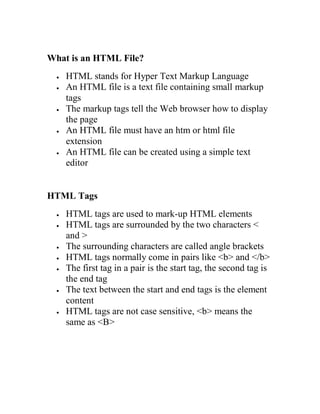
 HTML stands for Hyper Text Markup Language 
 An HTML file is a text file containing small markup tags 
 The markup tags tell the Web browser how to display the page 
 An HTML file must have an htm or html file extension 
 An HTML file can be created using a simple text editor 
HTML Tags 
 HTML tags are used to mark-up HTML elements 
 HTML tags are surrounded by the two characters < and > 
 The surrounding characters are called angle brackets 
 HTML tags normally come in pairs like <b> and </b> 
 The first tag in a pair is the start tag, the second tag is the end tag 
 The text between the start and end tags is the element content 
 HTML tags are not case sensitive, <b> means the same as <B>
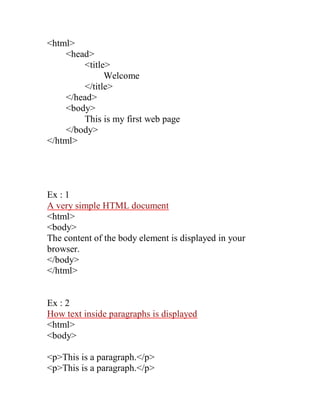
<html> 
<head> 
<title> 
Welcome 
</title> 
</head> 
<body> 
This is my first web page 
</body> 
</html> 
Ex : 1 
A very simple HTML document 
<html> 
<body> 
The content of the body element is displayed in your browser. 
</body> 
</html> 
Ex : 2 
How text inside paragraphs is displayed 
<html> 
<body> 
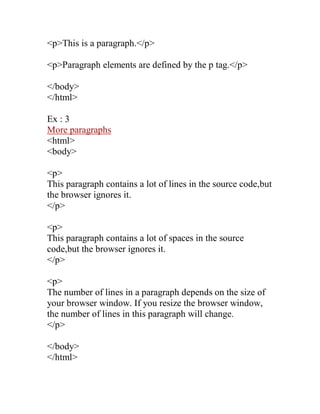
<p>This is a paragraph.</p> 
<p>This is a paragraph.</p>
<p>This is a paragraph.</p> 
<p>Paragraph elements are defined by the p tag.</p> 
</body> 
</html> 
Ex : 3 
More paragraphs 
<html> 
<body> 
<p> 
This paragraph contains a lot of lines in the source code,but the browser ignores it. 
</p> 
<p> 
This paragraph contains a lot of spaces in the source code,but the browser ignores it. 
</p> 
<p> 
The number of lines in a paragraph depends on the size of your browser window. If you resize the browser window, the number of lines in this paragraph will change. 
</p> 
</body> 
</html>
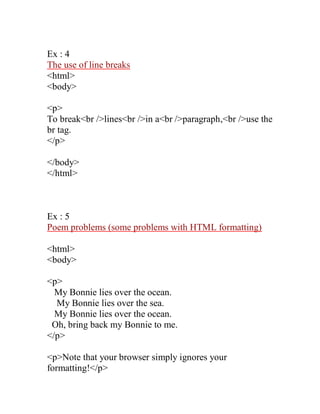
Ex : 4 
The use of line breaks 
<html> 
<body> 
<p> 
To break<br />lines<br />in a<br />paragraph,<br />use the br tag. 
</p> 
</body> 
</html> 
Ex : 5 
Poem problems (some problems with HTML formatting) 
<html> 
<body> 
<p> 
My Bonnie lies over the ocean. 
My Bonnie lies over the sea. 
My Bonnie lies over the ocean. 
Oh, bring back my Bonnie to me. 
</p> 
<p>Note that your browser simply ignores your formatting!</p>
</body> 
</html> 
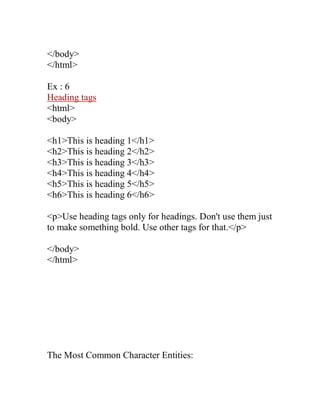
Ex : 6 
Heading tags 
<html> 
<body> 
<h1>This is heading 1</h1> 
<h2>This is heading 2</h2> 
<h3>This is heading 3</h3> 
<h4>This is heading 4</h4> 
<h5>This is heading 5</h5> 
<h6>This is heading 6</h6> 
<p>Use heading tags only for headings. Don't use them just to make something bold. Use other tags for that.</p> 
</body> 
</html> 
The Most Common Character Entities:
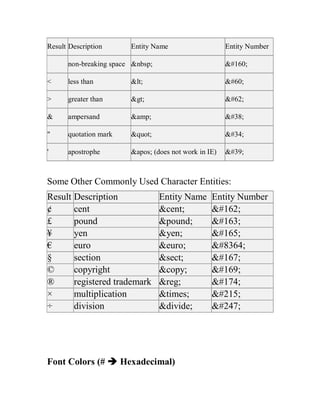
Result Description Entity Name Entity Number non-breaking space &nbsp; &#160; < less than &lt; &#60; > greater than &gt; &#62; & ampersand &amp; &#38; " quotation mark &quot; &#34; ' apostrophe &apos; (does not work in IE) &#39; 
Some Other Commonly Used Character Entities: Result Description Entity Name Entity Number ¢ cent &cent; &#162; £ pound &pound; &#163; ¥ yen &yen; &#165; € euro &euro; &#8364; § section &sect; &#167; © copyright &copy; &#169; ® registered trademark &reg; &#174; × multiplication &times; &#215; ÷ division &divide; &#247; 
Font Colors (#  Hexadecimal)
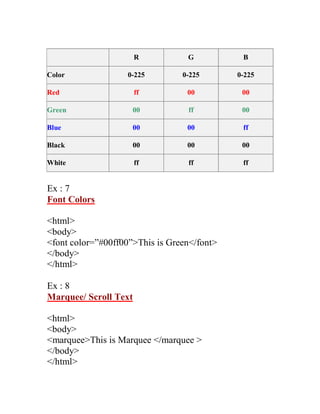
R G B Color 0-225 0-225 0-225 Red ff 00 00 Green 00 ff 00 Blue 00 00 ff Black 00 00 00 White ff ff ff 
Ex : 7 
Font Colors 
<html> 
<body> 
<font color=”#00ff00”>This is Green</font> 
</body> 
</html> 
Ex : 8 
Marquee/ Scroll Text 
<html> 
<body> 
<marquee>This is Marquee </marquee > 
</body> 
</html>
Ex : 9 
Center aligned heading 
<html> 
<body> 
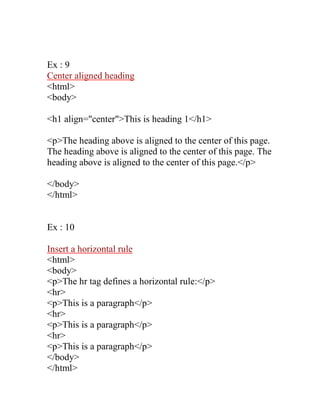
<h1 align="center">This is heading 1</h1> 
<p>The heading above is aligned to the center of this page. The heading above is aligned to the center of this page. The heading above is aligned to the center of this page.</p> 
</body> 
</html> 
Ex : 10 
Insert a horizontal rule 
<html> 
<body> 
<p>The hr tag defines a horizontal rule:</p> 
<hr> 
<p>This is a paragraph</p> 
<hr> 
<p>This is a paragraph</p> 
<hr> 
<p>This is a paragraph</p> 
</body> 
</html>
Ex : 11 
Comments in the HTML source 
<html> 
<body> 
<!--This comment will not be displayed--> 
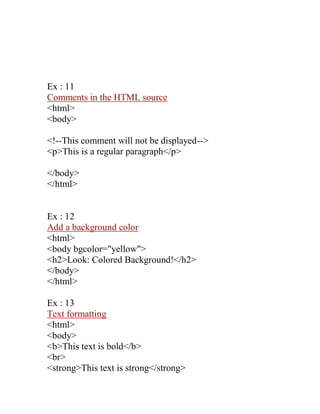
<p>This is a regular paragraph</p> 
</body> 
</html> 
Ex : 12 
Add a background color 
<html> 
<body bgcolor="yellow"> 
<h2>Look: Colored Background!</h2> 
</body> 
</html> 
Ex : 13 
Text formatting 
<html> 
<body> 
<b>This text is bold</b> 
<br> 
<strong>This text is strong</strong>
<br> 
<big>This text is big</big> 
<br> 
<em>This text is emphasized</em> 
<br> 
<i>This text is italic</i> 
<br> 
<small>This text is small</small> 
<br> 
This text contains 
<sub>subscript</sub> 
<br> 
This text contains 
<sup>superscript</sup> 
</body> 
</html> 
Ex : 14 
An unordered list 
<html> 
<body> 
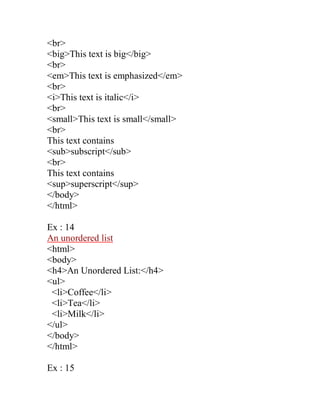
<h4>An Unordered List:</h4> 
<ul> 
<li>Coffee</li> 
<li>Tea</li> 
<li>Milk</li> 
</ul> 
</body> 
</html> 
Ex : 15
An ordered list 
<html> 
<body> 
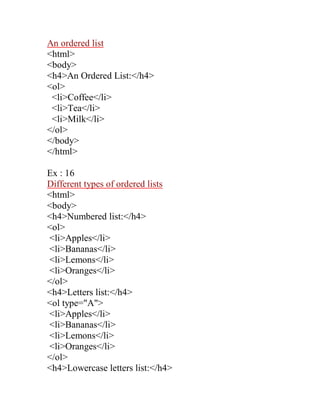
<h4>An Ordered List:</h4> 
<ol> 
<li>Coffee</li> 
<li>Tea</li> 
<li>Milk</li> 
</ol> 
</body> 
</html> 
Ex : 16 
Different types of ordered lists 
<html> 
<body> 
<h4>Numbered list:</h4> 
<ol> 
<li>Apples</li> 
<li>Bananas</li> 
<li>Lemons</li> 
<li>Oranges</li> 
</ol> 
<h4>Letters list:</h4> 
<ol type="A"> 
<li>Apples</li> 
<li>Bananas</li> 
<li>Lemons</li> 
<li>Oranges</li> 
</ol> 
<h4>Lowercase letters list:</h4>
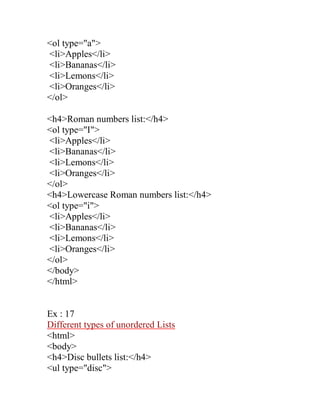
<ol type="a"> 
<li>Apples</li> 
<li>Bananas</li> 
<li>Lemons</li> 
<li>Oranges</li> 
</ol> 
<h4>Roman numbers list:</h4> 
<ol type="I"> 
<li>Apples</li> 
<li>Bananas</li> 
<li>Lemons</li> 
<li>Oranges</li> 
</ol> 
<h4>Lowercase Roman numbers list:</h4> 
<ol type="i"> 
<li>Apples</li> 
<li>Bananas</li> 
<li>Lemons</li> 
<li>Oranges</li> 
</ol> 
</body> 
</html> 
Ex : 17 
Different types of unordered Lists 
<html> 
<body> 
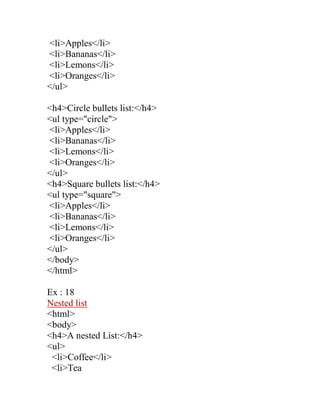
<h4>Disc bullets list:</h4> 
<ul type="disc">
<li>Apples</li> 
<li>Bananas</li> 
<li>Lemons</li> 
<li>Oranges</li> 
</ul> 
<h4>Circle bullets list:</h4> 
<ul type="circle"> 
<li>Apples</li> 
<li>Bananas</li> 
<li>Lemons</li> 
<li>Oranges</li> 
</ul> 
<h4>Square bullets list:</h4> 
<ul type="square"> 
<li>Apples</li> 
<li>Bananas</li> 
<li>Lemons</li> 
<li>Oranges</li> 
</ul> 
</body> 
</html> 
Ex : 18 
Nested list 
<html> 
<body> 
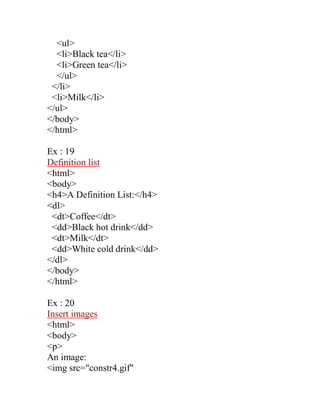
<h4>A nested List:</h4> 
<ul> 
<li>Coffee</li> 
<li>Tea
<ul> 
<li>Black tea</li> 
<li>Green tea</li> 
</ul> 
</li> 
<li>Milk</li> 
</ul> 
</body> 
</html> 
Ex : 19 
Definition list 
<html> 
<body> 
<h4>A Definition List:</h4> 
<dl> 
<dt>Coffee</dt> 
<dd>Black hot drink</dd> 
<dt>Milk</dt> 
<dd>White cold drink</dd> 
</dl> 
</body> 
</html> 
Ex : 20 
Insert images 
<html> 
<body> 
<p> 
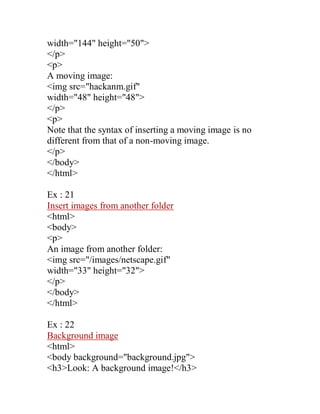
An image: 
<img src="constr4.gif"
width="144" height="50"> 
</p> 
<p> 
A moving image: 
<img src="hackanm.gif" 
width="48" height="48"> 
</p> 
<p> 
Note that the syntax of inserting a moving image is no different from that of a non-moving image. 
</p> 
</body> 
</html> 
Ex : 21 
Insert images from another folder 
<html> 
<body> 
<p> 
An image from another folder: 
<img src="/images/netscape.gif" 
width="33" height="32"> 
</p> 
</body> 
</html> 
Ex : 22 
Background image 
<html> 
<body background="background.jpg"> 
<h3>Look: A background image!</h3>
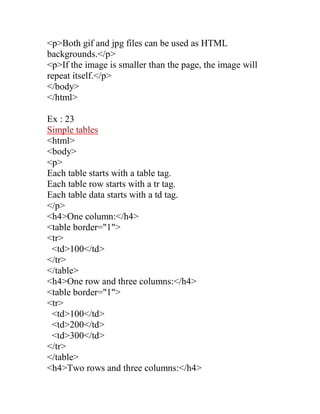
<p>Both gif and jpg files can be used as HTML backgrounds.</p> 
<p>If the image is smaller than the page, the image will repeat itself.</p> 
</body> 
</html> 
Ex : 23 
Simple tables 
<html> 
<body> 
<p> 
Each table starts with a table tag. 
Each table row starts with a tr tag. 
Each table data starts with a td tag. 
</p> 
<h4>One column:</h4> 
<table border="1"> 
<tr> 
<td>100</td> 
</tr> 
</table> 
<h4>One row and three columns:</h4> 
<table border="1"> 
<tr> 
<td>100</td> 
<td>200</td> 
<td>300</td> 
</tr> 
</table> 
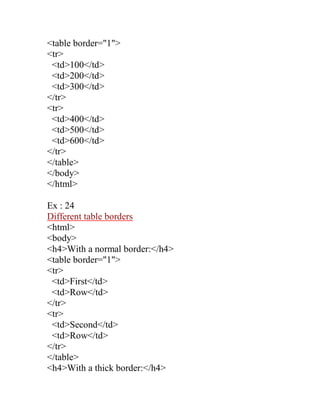
<h4>Two rows and three columns:</h4>
<table border="1"> 
<tr> 
<td>100</td> 
<td>200</td> 
<td>300</td> 
</tr> 
<tr> 
<td>400</td> 
<td>500</td> 
<td>600</td> 
</tr> 
</table> 
</body> 
</html> 
Ex : 24 
Different table borders 
<html> 
<body> 
<h4>With a normal border:</h4> 
<table border="1"> 
<tr> 
<td>First</td> 
<td>Row</td> 
</tr> 
<tr> 
<td>Second</td> 
<td>Row</td> 
</tr> 
</table> 
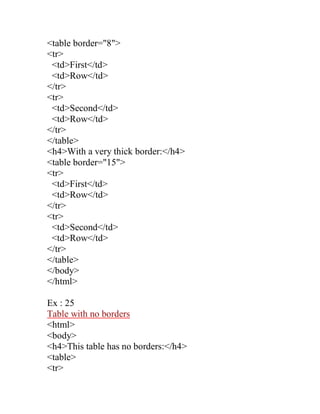
<h4>With a thick border:</h4>
<table border="8"> 
<tr> 
<td>First</td> 
<td>Row</td> 
</tr> 
<tr> 
<td>Second</td> 
<td>Row</td> 
</tr> 
</table> 
<h4>With a very thick border:</h4> 
<table border="15"> 
<tr> 
<td>First</td> 
<td>Row</td> 
</tr> 
<tr> 
<td>Second</td> 
<td>Row</td> 
</tr> 
</table> 
</body> 
</html> 
Ex : 25 
Table with no borders 
<html> 
<body> 
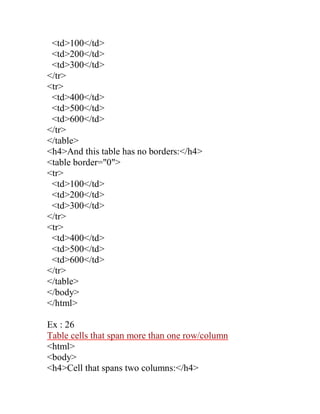
<h4>This table has no borders:</h4> 
<table> 
<tr>
<td>100</td> 
<td>200</td> 
<td>300</td> 
</tr> 
<tr> 
<td>400</td> 
<td>500</td> 
<td>600</td> 
</tr> 
</table> 
<h4>And this table has no borders:</h4> 
<table border="0"> 
<tr> 
<td>100</td> 
<td>200</td> 
<td>300</td> 
</tr> 
<tr> 
<td>400</td> 
<td>500</td> 
<td>600</td> 
</tr> 
</table> 
</body> 
</html> 
Ex : 26 
Table cells that span more than one row/column 
<html> 
<body> 
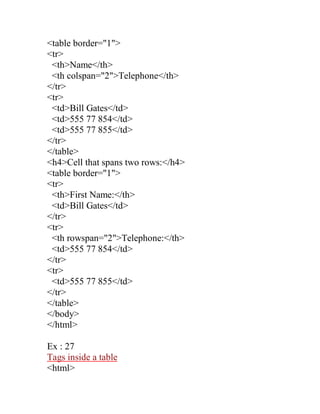
<h4>Cell that spans two columns:</h4>
<table border="1"> 
<tr> 
<th>Name</th> 
<th colspan="2">Telephone</th> 
</tr> 
<tr> 
<td>Bill Gates</td> 
<td>555 77 854</td> 
<td>555 77 855</td> 
</tr> 
</table> 
<h4>Cell that spans two rows:</h4> 
<table border="1"> 
<tr> 
<th>First Name:</th> 
<td>Bill Gates</td> 
</tr> 
<tr> 
<th rowspan="2">Telephone:</th> 
<td>555 77 854</td> 
</tr> 
<tr> 
<td>555 77 855</td> 
</tr> 
</table> 
</body> 
</html> 
Ex : 27 
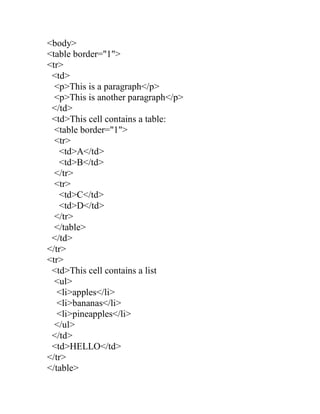
Tags inside a table 
<html>
<body> 
<table border="1"> 
<tr> 
<td> 
<p>This is a paragraph</p> 
<p>This is another paragraph</p> 
</td> 
<td>This cell contains a table: 
<table border="1"> 
<tr> 
<td>A</td> 
<td>B</td> 
</tr> 
<tr> 
<td>C</td> 
<td>D</td> 
</tr> 
</table> 
</td> 
</tr> 
<tr> 
<td>This cell contains a list 
<ul> 
<li>apples</li> 
<li>bananas</li> 
<li>pineapples</li> 
</ul> 
</td> 
<td>HELLO</td> 
</tr> 
</table>
</body> 
</html> 
Ex : 28 
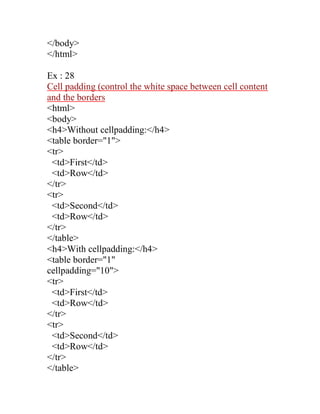
Cell padding (control the white space between cell content and the borders 
<html> 
<body> 
<h4>Without cellpadding:</h4> 
<table border="1"> 
<tr> 
<td>First</td> 
<td>Row</td> 
</tr> 
<tr> 
<td>Second</td> 
<td>Row</td> 
</tr> 
</table> 
<h4>With cellpadding:</h4> 
<table border="1" 
cellpadding="10"> 
<tr> 
<td>First</td> 
<td>Row</td> 
</tr> 
<tr> 
<td>Second</td> 
<td>Row</td> 
</tr> 
</table>
</body> 
</html> 
Ex : 29 
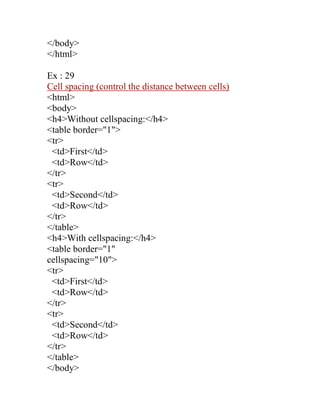
Cell spacing (control the distance between cells) 
<html> 
<body> 
<h4>Without cellspacing:</h4> 
<table border="1"> 
<tr> 
<td>First</td> 
<td>Row</td> 
</tr> 
<tr> 
<td>Second</td> 
<td>Row</td> 
</tr> 
</table> 
<h4>With cellspacing:</h4> 
<table border="1" 
cellspacing="10"> 
<tr> 
<td>First</td> 
<td>Row</td> 
</tr> 
<tr> 
<td>Second</td> 
<td>Row</td> 
</tr> 
</table> 
</body>
</html> 
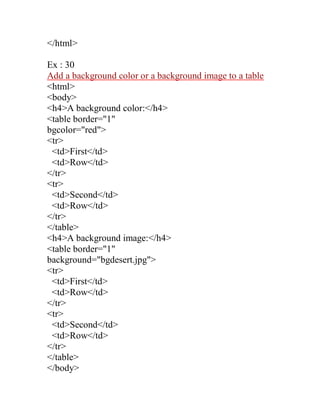
Ex : 30 
Add a background color or a background image to a table 
<html> 
<body> 
<h4>A background color:</h4> 
<table border="1" 
bgcolor="red"> 
<tr> 
<td>First</td> 
<td>Row</td> 
</tr> 
<tr> 
<td>Second</td> 
<td>Row</td> 
</tr> 
</table> 
<h4>A background image:</h4> 
<table border="1" 
background="bgdesert.jpg"> 
<tr> 
<td>First</td> 
<td>Row</td> 
</tr> 
<tr> 
<td>Second</td> 
<td>Row</td> 
</tr> 
</table> 
</body>
</html> 
Ex : 31 
Add a background color or a background image to a table cell 
<html> 
<body> 
<h4>Cell backgrounds:</h4> 
<table border="1"> 
<tr> 
<td bgcolor="red">First</td> 
<td>Row</td> 
</tr> 
<tr> 
<td 
background="bgdesert.jpg"> 
Second</td> 
<td>Row</td> 
</tr> 
</table> 
</body> 
</html> 
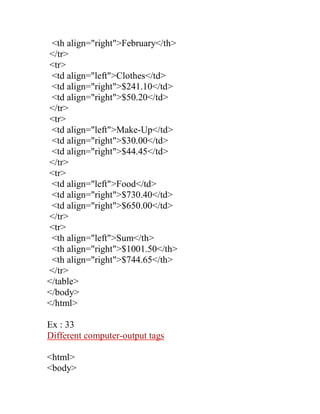
Ex : 32 
Align the content in a table cell 
<html> 
<body> 
<table width="400" border="1"> 
<tr> 
<th align="left">Money spent on....</th> 
<th align="right">January</th>
<th align="right">February</th> 
</tr> 
<tr> 
<td align="left">Clothes</td> 
<td align="right">$241.10</td> 
<td align="right">$50.20</td> 
</tr> 
<tr> 
<td align="left">Make-Up</td> 
<td align="right">$30.00</td> 
<td align="right">$44.45</td> 
</tr> 
<tr> 
<td align="left">Food</td> 
<td align="right">$730.40</td> 
<td align="right">$650.00</td> 
</tr> 
<tr> 
<th align="left">Sum</th> 
<th align="right">$1001.50</th> 
<th align="right">$744.65</th> 
</tr> 
</table> 
</body> 
</html> 
Ex : 33 
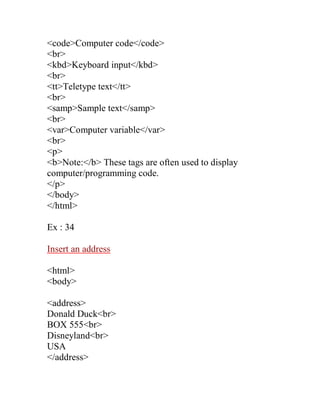
Different computer-output tags 
<html> 
<body>
<code>Computer code</code> 
<br> 
<kbd>Keyboard input</kbd> 
<br> 
<tt>Teletype text</tt> 
<br> 
<samp>Sample text</samp> 
<br> 
<var>Computer variable</var> 
<br> 
<p> 
<b>Note:</b> These tags are often used to display computer/programming code. 
</p> 
</body> 
</html> 
Ex : 34 
Insert an address 
<html> 
<body> 
<address> 
Donald Duck<br> 
BOX 555<br> 
Disneyland<br> 
USA 
</address>
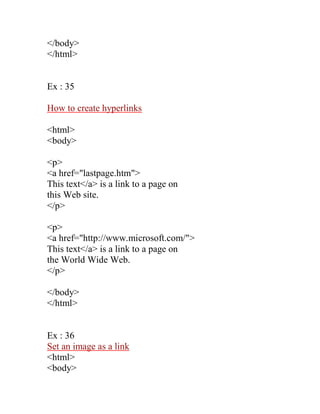
</body> 
</html> 
Ex : 35 
How to create hyperlinks 
<html> 
<body> 
<p> 
<a href="lastpage.htm"> 
This text</a> is a link to a page on 
this Web site. 
</p> 
<p> 
<a href="http://www.microsoft.com/"> 
This text</a> is a link to a page on 
the World Wide Web. 
</p> 
</body> 
</html> 
Ex : 36 
Set an image as a link 
<html> 
<body>
<p> 
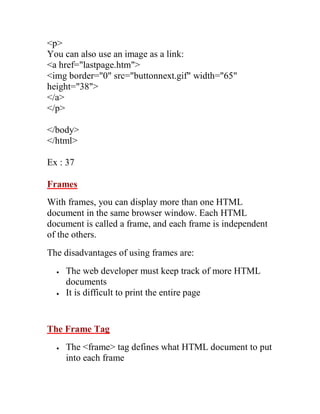
You can also use an image as a link: 
<a href="lastpage.htm"> 
<img border="0" src="buttonnext.gif" width="65" height="38"> 
</a> 
</p> 
</body> 
</html> 
Ex : 37 
Frames 
With frames, you can display more than one HTML document in the same browser window. Each HTML document is called a frame, and each frame is independent of the others. 
The disadvantages of using frames are: 
 The web developer must keep track of more HTML documents 
 It is difficult to print the entire page 
The Frame Tag 
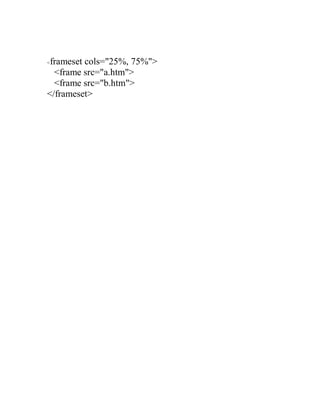
 The <frame> tag defines what HTML document to put into each frame
<frameset cols="25%, 75%"> 
<frame src="a.htm"> 
<frame src="b.htm"> 
</frameset>

HTML practical guide for O/L exam

  • 1.
    What is anHTML File?  HTML stands for Hyper Text Markup Language  An HTML file is a text file containing small markup tags  The markup tags tell the Web browser how to display the page  An HTML file must have an htm or html file extension  An HTML file can be created using a simple text editor HTML Tags  HTML tags are used to mark-up HTML elements  HTML tags are surrounded by the two characters < and >  The surrounding characters are called angle brackets  HTML tags normally come in pairs like <b> and </b>  The first tag in a pair is the start tag, the second tag is the end tag  The text between the start and end tags is the element content  HTML tags are not case sensitive, <b> means the same as <B>
  • 2.
    <html> <head> <title> Welcome </title> </head> <body> This is my first web page </body> </html> Ex : 1 A very simple HTML document <html> <body> The content of the body element is displayed in your browser. </body> </html> Ex : 2 How text inside paragraphs is displayed <html> <body> <p>This is a paragraph.</p> <p>This is a paragraph.</p>
  • 3.
    <p>This is aparagraph.</p> <p>Paragraph elements are defined by the p tag.</p> </body> </html> Ex : 3 More paragraphs <html> <body> <p> This paragraph contains a lot of lines in the source code,but the browser ignores it. </p> <p> This paragraph contains a lot of spaces in the source code,but the browser ignores it. </p> <p> The number of lines in a paragraph depends on the size of your browser window. If you resize the browser window, the number of lines in this paragraph will change. </p> </body> </html>
  • 4.
    Ex : 4 The use of line breaks <html> <body> <p> To break<br />lines<br />in a<br />paragraph,<br />use the br tag. </p> </body> </html> Ex : 5 Poem problems (some problems with HTML formatting) <html> <body> <p> My Bonnie lies over the ocean. My Bonnie lies over the sea. My Bonnie lies over the ocean. Oh, bring back my Bonnie to me. </p> <p>Note that your browser simply ignores your formatting!</p>
  • 5.
    </body> </html> Ex: 6 Heading tags <html> <body> <h1>This is heading 1</h1> <h2>This is heading 2</h2> <h3>This is heading 3</h3> <h4>This is heading 4</h4> <h5>This is heading 5</h5> <h6>This is heading 6</h6> <p>Use heading tags only for headings. Don't use them just to make something bold. Use other tags for that.</p> </body> </html> The Most Common Character Entities:
  • 6.
    Result Description EntityName Entity Number non-breaking space &nbsp; &#160; < less than &lt; &#60; > greater than &gt; &#62; & ampersand &amp; &#38; " quotation mark &quot; &#34; ' apostrophe &apos; (does not work in IE) &#39; Some Other Commonly Used Character Entities: Result Description Entity Name Entity Number ¢ cent &cent; &#162; £ pound &pound; &#163; ¥ yen &yen; &#165; € euro &euro; &#8364; § section &sect; &#167; © copyright &copy; &#169; ® registered trademark &reg; &#174; × multiplication &times; &#215; ÷ division &divide; &#247; Font Colors (#  Hexadecimal)
  • 7.
    R G BColor 0-225 0-225 0-225 Red ff 00 00 Green 00 ff 00 Blue 00 00 ff Black 00 00 00 White ff ff ff Ex : 7 Font Colors <html> <body> <font color=”#00ff00”>This is Green</font> </body> </html> Ex : 8 Marquee/ Scroll Text <html> <body> <marquee>This is Marquee </marquee > </body> </html>
  • 8.
    Ex : 9 Center aligned heading <html> <body> <h1 align="center">This is heading 1</h1> <p>The heading above is aligned to the center of this page. The heading above is aligned to the center of this page. The heading above is aligned to the center of this page.</p> </body> </html> Ex : 10 Insert a horizontal rule <html> <body> <p>The hr tag defines a horizontal rule:</p> <hr> <p>This is a paragraph</p> <hr> <p>This is a paragraph</p> <hr> <p>This is a paragraph</p> </body> </html>
  • 9.
    Ex : 11 Comments in the HTML source <html> <body> <!--This comment will not be displayed--> <p>This is a regular paragraph</p> </body> </html> Ex : 12 Add a background color <html> <body bgcolor="yellow"> <h2>Look: Colored Background!</h2> </body> </html> Ex : 13 Text formatting <html> <body> <b>This text is bold</b> <br> <strong>This text is strong</strong>
  • 10.
    <br> <big>This textis big</big> <br> <em>This text is emphasized</em> <br> <i>This text is italic</i> <br> <small>This text is small</small> <br> This text contains <sub>subscript</sub> <br> This text contains <sup>superscript</sup> </body> </html> Ex : 14 An unordered list <html> <body> <h4>An Unordered List:</h4> <ul> <li>Coffee</li> <li>Tea</li> <li>Milk</li> </ul> </body> </html> Ex : 15
  • 11.
    An ordered list <html> <body> <h4>An Ordered List:</h4> <ol> <li>Coffee</li> <li>Tea</li> <li>Milk</li> </ol> </body> </html> Ex : 16 Different types of ordered lists <html> <body> <h4>Numbered list:</h4> <ol> <li>Apples</li> <li>Bananas</li> <li>Lemons</li> <li>Oranges</li> </ol> <h4>Letters list:</h4> <ol type="A"> <li>Apples</li> <li>Bananas</li> <li>Lemons</li> <li>Oranges</li> </ol> <h4>Lowercase letters list:</h4>
  • 12.
    <ol type="a"> <li>Apples</li> <li>Bananas</li> <li>Lemons</li> <li>Oranges</li> </ol> <h4>Roman numbers list:</h4> <ol type="I"> <li>Apples</li> <li>Bananas</li> <li>Lemons</li> <li>Oranges</li> </ol> <h4>Lowercase Roman numbers list:</h4> <ol type="i"> <li>Apples</li> <li>Bananas</li> <li>Lemons</li> <li>Oranges</li> </ol> </body> </html> Ex : 17 Different types of unordered Lists <html> <body> <h4>Disc bullets list:</h4> <ul type="disc">
  • 13.
    <li>Apples</li> <li>Bananas</li> <li>Lemons</li> <li>Oranges</li> </ul> <h4>Circle bullets list:</h4> <ul type="circle"> <li>Apples</li> <li>Bananas</li> <li>Lemons</li> <li>Oranges</li> </ul> <h4>Square bullets list:</h4> <ul type="square"> <li>Apples</li> <li>Bananas</li> <li>Lemons</li> <li>Oranges</li> </ul> </body> </html> Ex : 18 Nested list <html> <body> <h4>A nested List:</h4> <ul> <li>Coffee</li> <li>Tea
  • 14.
    <ul> <li>Black tea</li> <li>Green tea</li> </ul> </li> <li>Milk</li> </ul> </body> </html> Ex : 19 Definition list <html> <body> <h4>A Definition List:</h4> <dl> <dt>Coffee</dt> <dd>Black hot drink</dd> <dt>Milk</dt> <dd>White cold drink</dd> </dl> </body> </html> Ex : 20 Insert images <html> <body> <p> An image: <img src="constr4.gif"
  • 15.
    width="144" height="50"> </p> <p> A moving image: <img src="hackanm.gif" width="48" height="48"> </p> <p> Note that the syntax of inserting a moving image is no different from that of a non-moving image. </p> </body> </html> Ex : 21 Insert images from another folder <html> <body> <p> An image from another folder: <img src="/images/netscape.gif" width="33" height="32"> </p> </body> </html> Ex : 22 Background image <html> <body background="background.jpg"> <h3>Look: A background image!</h3>
  • 16.
    <p>Both gif andjpg files can be used as HTML backgrounds.</p> <p>If the image is smaller than the page, the image will repeat itself.</p> </body> </html> Ex : 23 Simple tables <html> <body> <p> Each table starts with a table tag. Each table row starts with a tr tag. Each table data starts with a td tag. </p> <h4>One column:</h4> <table border="1"> <tr> <td>100</td> </tr> </table> <h4>One row and three columns:</h4> <table border="1"> <tr> <td>100</td> <td>200</td> <td>300</td> </tr> </table> <h4>Two rows and three columns:</h4>
  • 17.
    <table border="1"> <tr> <td>100</td> <td>200</td> <td>300</td> </tr> <tr> <td>400</td> <td>500</td> <td>600</td> </tr> </table> </body> </html> Ex : 24 Different table borders <html> <body> <h4>With a normal border:</h4> <table border="1"> <tr> <td>First</td> <td>Row</td> </tr> <tr> <td>Second</td> <td>Row</td> </tr> </table> <h4>With a thick border:</h4>
  • 18.
    <table border="8"> <tr> <td>First</td> <td>Row</td> </tr> <tr> <td>Second</td> <td>Row</td> </tr> </table> <h4>With a very thick border:</h4> <table border="15"> <tr> <td>First</td> <td>Row</td> </tr> <tr> <td>Second</td> <td>Row</td> </tr> </table> </body> </html> Ex : 25 Table with no borders <html> <body> <h4>This table has no borders:</h4> <table> <tr>
  • 19.
    <td>100</td> <td>200</td> <td>300</td> </tr> <tr> <td>400</td> <td>500</td> <td>600</td> </tr> </table> <h4>And this table has no borders:</h4> <table border="0"> <tr> <td>100</td> <td>200</td> <td>300</td> </tr> <tr> <td>400</td> <td>500</td> <td>600</td> </tr> </table> </body> </html> Ex : 26 Table cells that span more than one row/column <html> <body> <h4>Cell that spans two columns:</h4>
  • 20.
    <table border="1"> <tr> <th>Name</th> <th colspan="2">Telephone</th> </tr> <tr> <td>Bill Gates</td> <td>555 77 854</td> <td>555 77 855</td> </tr> </table> <h4>Cell that spans two rows:</h4> <table border="1"> <tr> <th>First Name:</th> <td>Bill Gates</td> </tr> <tr> <th rowspan="2">Telephone:</th> <td>555 77 854</td> </tr> <tr> <td>555 77 855</td> </tr> </table> </body> </html> Ex : 27 Tags inside a table <html>
  • 21.
    <body> <table border="1"> <tr> <td> <p>This is a paragraph</p> <p>This is another paragraph</p> </td> <td>This cell contains a table: <table border="1"> <tr> <td>A</td> <td>B</td> </tr> <tr> <td>C</td> <td>D</td> </tr> </table> </td> </tr> <tr> <td>This cell contains a list <ul> <li>apples</li> <li>bananas</li> <li>pineapples</li> </ul> </td> <td>HELLO</td> </tr> </table>
  • 22.
    </body> </html> Ex: 28 Cell padding (control the white space between cell content and the borders <html> <body> <h4>Without cellpadding:</h4> <table border="1"> <tr> <td>First</td> <td>Row</td> </tr> <tr> <td>Second</td> <td>Row</td> </tr> </table> <h4>With cellpadding:</h4> <table border="1" cellpadding="10"> <tr> <td>First</td> <td>Row</td> </tr> <tr> <td>Second</td> <td>Row</td> </tr> </table>
  • 23.
    </body> </html> Ex: 29 Cell spacing (control the distance between cells) <html> <body> <h4>Without cellspacing:</h4> <table border="1"> <tr> <td>First</td> <td>Row</td> </tr> <tr> <td>Second</td> <td>Row</td> </tr> </table> <h4>With cellspacing:</h4> <table border="1" cellspacing="10"> <tr> <td>First</td> <td>Row</td> </tr> <tr> <td>Second</td> <td>Row</td> </tr> </table> </body>
  • 24.
    </html> Ex :30 Add a background color or a background image to a table <html> <body> <h4>A background color:</h4> <table border="1" bgcolor="red"> <tr> <td>First</td> <td>Row</td> </tr> <tr> <td>Second</td> <td>Row</td> </tr> </table> <h4>A background image:</h4> <table border="1" background="bgdesert.jpg"> <tr> <td>First</td> <td>Row</td> </tr> <tr> <td>Second</td> <td>Row</td> </tr> </table> </body>
  • 25.
    </html> Ex :31 Add a background color or a background image to a table cell <html> <body> <h4>Cell backgrounds:</h4> <table border="1"> <tr> <td bgcolor="red">First</td> <td>Row</td> </tr> <tr> <td background="bgdesert.jpg"> Second</td> <td>Row</td> </tr> </table> </body> </html> Ex : 32 Align the content in a table cell <html> <body> <table width="400" border="1"> <tr> <th align="left">Money spent on....</th> <th align="right">January</th>
  • 26.
    <th align="right">February</th> </tr> <tr> <td align="left">Clothes</td> <td align="right">$241.10</td> <td align="right">$50.20</td> </tr> <tr> <td align="left">Make-Up</td> <td align="right">$30.00</td> <td align="right">$44.45</td> </tr> <tr> <td align="left">Food</td> <td align="right">$730.40</td> <td align="right">$650.00</td> </tr> <tr> <th align="left">Sum</th> <th align="right">$1001.50</th> <th align="right">$744.65</th> </tr> </table> </body> </html> Ex : 33 Different computer-output tags <html> <body>
  • 27.
    <code>Computer code</code> <br> <kbd>Keyboard input</kbd> <br> <tt>Teletype text</tt> <br> <samp>Sample text</samp> <br> <var>Computer variable</var> <br> <p> <b>Note:</b> These tags are often used to display computer/programming code. </p> </body> </html> Ex : 34 Insert an address <html> <body> <address> Donald Duck<br> BOX 555<br> Disneyland<br> USA </address>
  • 28.
    </body> </html> Ex: 35 How to create hyperlinks <html> <body> <p> <a href="lastpage.htm"> This text</a> is a link to a page on this Web site. </p> <p> <a href="http://www.microsoft.com/"> This text</a> is a link to a page on the World Wide Web. </p> </body> </html> Ex : 36 Set an image as a link <html> <body>
  • 29.
    <p> You canalso use an image as a link: <a href="lastpage.htm"> <img border="0" src="buttonnext.gif" width="65" height="38"> </a> </p> </body> </html> Ex : 37 Frames With frames, you can display more than one HTML document in the same browser window. Each HTML document is called a frame, and each frame is independent of the others. The disadvantages of using frames are:  The web developer must keep track of more HTML documents  It is difficult to print the entire page The Frame Tag  The <frame> tag defines what HTML document to put into each frame
  • 30.
    <frameset cols="25%, 75%"> <frame src="a.htm"> <frame src="b.htm"> </frameset>