HTML Images
Acknowledgements: www.w3schools.com
1
Computer Network & Web Technology
(SET, JU)
HTML Images
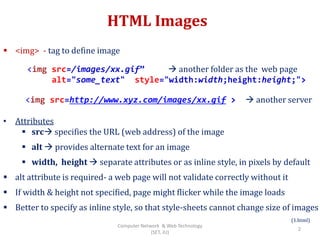
 <img> - tag to define image
<img src=http://www.xyz.com/images/xx.gif >  another server
• Attributes
 src specifies the URL (web address) of the image
 alt  provides alternate text for an image
 width, height  separate attributes or as inline style, in pixels by default
 alt attribute is required- a web page will not validate correctly without it
 If width & height not specified, page might flicker while the image loads
 Better to specify as inline style, so that style-sheets cannot change size of images
(1.html)
<img src=/images/xx.gif”  another folder as the web page
alt="some_text" style="width:width;height:height;">
2
Computer Network & Web Technology
(SET, JU)
Image Maps
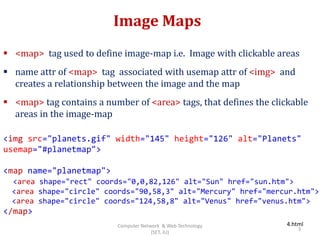
 <map> tag used to define image-map i.e. Image with clickable areas
 name attr of <map> tag associated with usemap attr of <img> and
creates a relationship between the image and the map
 <map> tag contains a number of <area> tags, that defines the clickable
areas in the image-map
<img src="planets.gif" width="145" height="126" alt="Planets"
usemap="#planetmap">
<map name="planetmap">
<area shape="rect" coords="0,0,82,126" alt="Sun" href="sun.htm">
<area shape="circle" coords="90,58,3" alt="Mercury" href="mercur.htm">
<area shape="circle" coords="124,58,8" alt="Venus" href="venus.htm">
</map>
4.html
3
Computer Network & Web Technology
(SET, JU)
Image Float Property
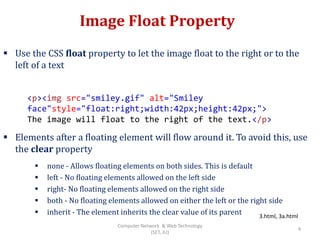
 Use the CSS float property to let the image float to the right or to the
left of a text
 Elements after a floating element will flow around it. To avoid this, use
the clear property
 none - Allows floating elements on both sides. This is default
 left - No floating elements allowed on the left side
 right- No floating elements allowed on the right side
 both - No floating elements allowed on either the left or the right side
 inherit - The element inherits the clear value of its parent
<p><img src="smiley.gif" alt="Smiley
face"style="float:right;width:42px;height:42px;">
The image will float to the right of the text.</p>
3.html, 3a.html
4
Computer Network & Web Technology
(SET, JU)
Background Image Property
Set Position, No Repeat
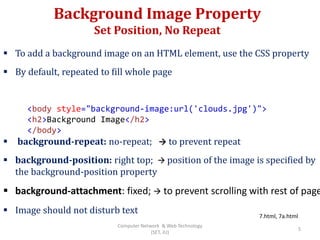
 To add a background image on an HTML element, use the CSS property
 By default, repeated to fill whole page
 background-repeat: no-repeat;  to prevent repeat
 background-position: right top;  position of the image is specified by
the background-position property
 background-attachment: fixed;  to prevent scrolling with rest of page
 Image should not disturb text
<body style="background-image:url('clouds.jpg')">
<h2>Background Image</h2>
</body>
7.html, 7a.html
5
Computer Network & Web Technology
(SET, JU)
Positioning
Absolute vs Relative
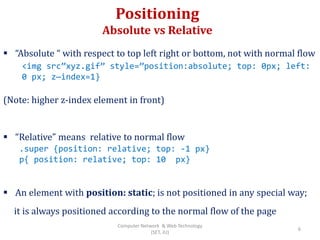
 “Absolute “ with respect to top left right or bottom, not with normal flow
(Note: higher z-index element in front)
 “Relative” means relative to normal flow
 An element with position: static; is not positioned in any special way;
it is always positioned according to the normal flow of the page
<img src”xyz.gif” style=”position:absolute; top: 0px; left:
0 px; z—index=1}
.super {position: relative; top: -1 px}
p{ position: relative; top: 10 px}
6
Computer Network & Web Technology
(SET, JU)
Background Image Property
Repeat Horizontal / Vertical
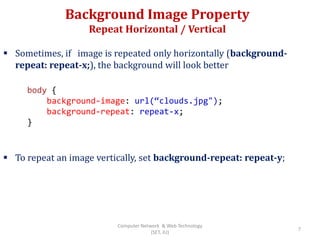
 Sometimes, if image is repeated only horizontally (background-
repeat: repeat-x;), the background will look better
 To repeat an image vertically, set background-repeat: repeat-y;
body {
background-image: url(“clouds.jpg");
background-repeat: repeat-x;
}
7
Computer Network & Web Technology
(SET, JU)
Background Shorthand
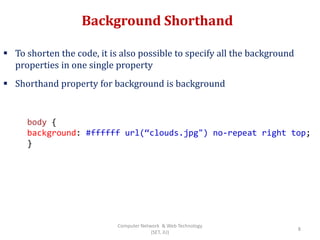
 To shorten the code, it is also possible to specify all the background
properties in one single property
 Shorthand property for background is background
body {
background: #ffffff url(“clouds.jpg") no-repeat right top;
}
8
Computer Network & Web Technology
(SET, JU)
HTML Link
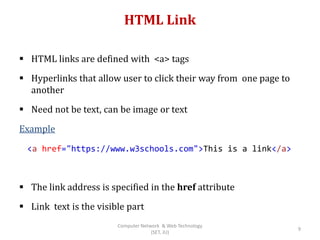
 HTML links are defined with <a> tags
 Hyperlinks that allow user to click their way from one page to
another
 Need not be text, can be image or text
Example
 The link address is specified in the href attribute
 Link text is the visible part
<a href="https://www.w3schools.com">This is a link</a>
9
Computer Network & Web Technology
(SET, JU)
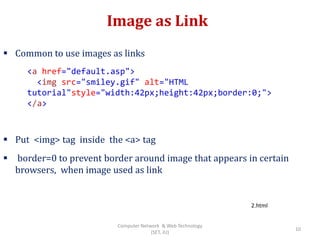
Image as Link
 Common to use images as links
 Put <img> tag inside the <a> tag
 border=0 to prevent border around image that appears in certain
browsers, when image used as link
<a href="default.asp">
<img src="smiley.gif" alt="HTML
tutorial"style="width:42px;height:42px;border:0;">
</a>
2.html
10
Computer Network & Web Technology
(SET, JU)
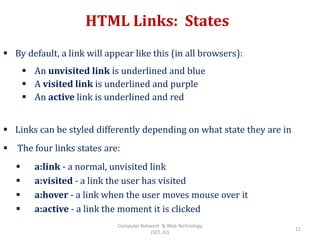
HTML Links: States
 By default, a link will appear like this (in all browsers):
 An unvisited link is underlined and blue
 A visited link is underlined and purple
 An active link is underlined and red
 Links can be styled differently depending on what state they are in
 The four links states are:
 a:link - a normal, unvisited link
 a:visited - a link the user has visited
 a:hover - a link when the user moves mouse over it
 a:active - a link the moment it is clicked
11
Computer Network & Web Technology
(SET, JU)
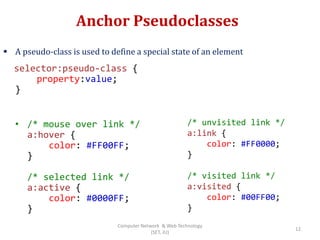
Anchor Pseudoclasses
 A pseudo-class is used to define a special state of an element
selector:pseudo-class {
property:value;
}
• /* mouse over link */
a:hover {
color: #FF00FF;
}
/* selected link */
a:active {
color: #0000FF;
}
/* unvisited link */
a:link {
color: #FF0000;
}
/* visited link */
a:visited {
color: #00FF00;
}
12
Computer Network & Web Technology
(SET, JU)
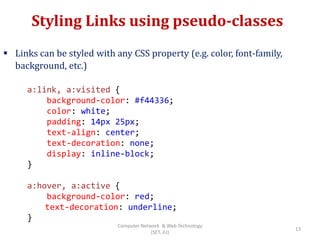
Styling Links using pseudo-classes
 Links can be styled with any CSS property (e.g. color, font-family,
background, etc.)
a:link, a:visited {
background-color: #f44336;
color: white;
padding: 14px 25px;
text-align: center;
text-decoration: none;
display: inline-block;
}
a:hover, a:active {
background-color: red;
text-decoration: underline;
}
13
Computer Network & Web Technology
(SET, JU)
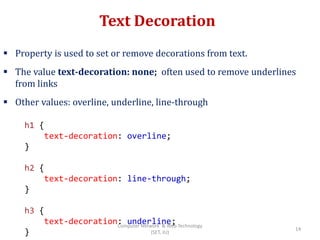
Text Decoration
 Property is used to set or remove decorations from text.
 The value text-decoration: none; often used to remove underlines
from links
 Other values: overline, underline, line-through
h1 {
text-decoration: overline;
}
h2 {
text-decoration: line-through;
}
h3 {
text-decoration: underline;
} 14
Computer Network & Web Technology
(SET, JU)
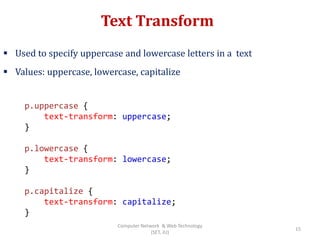
Text Transform
 Used to specify uppercase and lowercase letters in a text
 Values: uppercase, lowercase, capitalize
p.uppercase {
text-transform: uppercase;
}
p.lowercase {
text-transform: lowercase;
}
p.capitalize {
text-transform: capitalize;
}
15
Computer Network & Web Technology
(SET, JU)
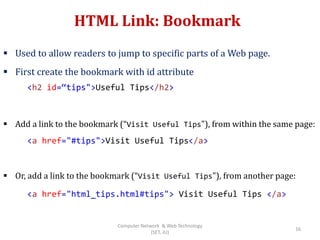
HTML Link: Bookmark
 Used to allow readers to jump to specific parts of a Web page.
 First create the bookmark with id attribute
 Add a link to the bookmark (“Visit Useful Tips"), from within the same page:
 Or, add a link to the bookmark (“Visit Useful Tips"), from another page:
<h2 id=“tips">Useful Tips</h2>
<a href="#tips">Visit Useful Tips</a>
<a href="html_tips.html#tips"> Visit Useful Tips </a>
16
Computer Network & Web Technology
(SET, JU)
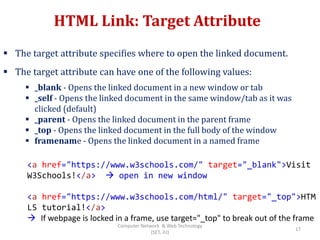
HTML Link: Target Attribute
 The target attribute specifies where to open the linked document.
 The target attribute can have one of the following values:
 _blank - Opens the linked document in a new window or tab
 _self - Opens the linked document in the same window/tab as it was
clicked (default)
 _parent - Opens the linked document in the parent frame
 _top - Opens the linked document in the full body of the window
 framename - Opens the linked document in a named frame
<a href="https://www.w3schools.com/" target="_blank">Visit
W3Schools!</a>  open in new window
<a href="https://www.w3schools.com/html/" target="_top">HTM
L5 tutorial!</a>
 If webpage is locked in a frame, use target="_top" to break out of the frame
17
Computer Network & Web Technology
(SET, JU)
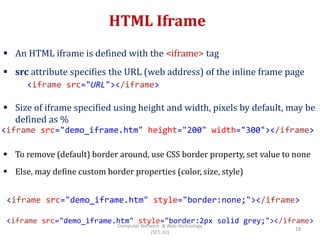
HTML Iframe
 An HTML iframe is defined with the <iframe> tag
 src attribute specifies the URL (web address) of the inline frame page
 Size of iframe specified using height and width, pixels by default, may be
defined as %
 To remove (default) border around, use CSS border property, set value to none
 Else, may define custom border properties (color, size, style)
<iframe src="URL"></iframe>
<iframe src="demo_iframe.htm" height="200" width="300"></iframe>
<iframe src="demo_iframe.htm" style="border:none;"></iframe>
<iframe src="demo_iframe.htm" style="border:2px solid grey;"></iframe>
18
Computer Network & Web Technology
(SET, JU)
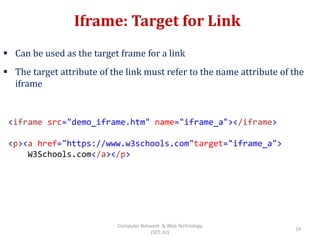
Iframe: Target for Link
 Can be used as the target frame for a link
 The target attribute of the link must refer to the name attribute of the
iframe
<iframe src="demo_iframe.htm" name="iframe_a"></iframe>
<p><a href="https://www.w3schools.com"target="iframe_a">
W3Schools.com</a></p>
19
Computer Network & Web Technology
(SET, JU)
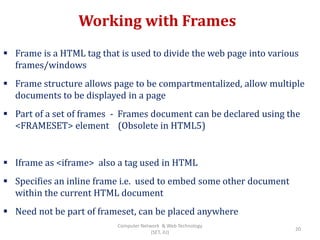
Working with Frames
 Frame is a HTML tag that is used to divide the web page into various
frames/windows
 Frame structure allows page to be compartmentalized, allow multiple
documents to be displayed in a page
 Part of a set of frames - Frames document can be declared using the
<FRAMESET> element (Obsolete in HTML5)
 Iframe as <iframe> also a tag used in HTML
 Specifies an inline frame i.e. used to embed some other document
within the current HTML document
 Need not be part of frameset, can be placed anywhere
20
Computer Network & Web Technology
(SET, JU)
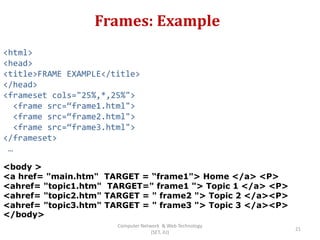
Frames: Example
<html>
<head>
<title>FRAME EXAMPLE</title>
</head>
<frameset cols="25%,*,25%">
<frame src=“frame1.html">
<frame src=“frame2.html">
<frame src=“frame3.html">
</frameset>
…
<body >
<a href= "main.htm" TARGET = “frame1"> Home </a> <P>
<ahref= "topic1.htm" TARGET=" frame1 "> Topic 1 </a> <P>
<ahref= "topic2.htm" TARGET = " frame2 "> Topic 2 </a><P>
<ahref= "topic3.htm" TARGET = " frame3 "> Topic 3 </a><P>
</body>
21
Computer Network & Web Technology
(SET, JU)
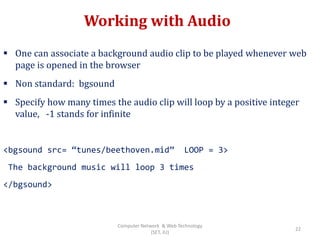
Working with Audio
 One can associate a background audio clip to be played whenever web
page is opened in the browser
 Non standard: bgsound
 Specify how many times the audio clip will loop by a positive integer
value, -1 stands for infinite
<bgsound src= “tunes/beethoven.mid” LOOP = 3>
The background music will loop 3 times
</bgsound>
22
Computer Network & Web Technology
(SET, JU)
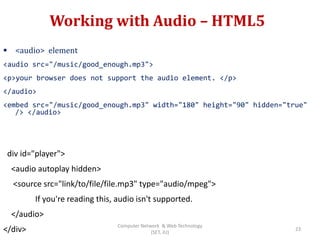
Working with Audio – HTML5
 <audio> element
<audio src="/music/good_enough.mp3">
<p>your browser does not support the audio element. </p>
</audio>
<embed src="/music/good_enough.mp3" width="180" height="90" hidden="true"
/> </audio>
div id="player">
<audio autoplay hidden>
<source src="link/to/file/file.mp3" type="audio/mpeg">
If you're reading this, audio isn't supported.
</audio>
</div> 23
Computer Network & Web Technology
(SET, JU)
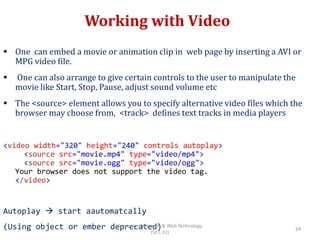
Working with Video
 One can embed a movie or animation clip in web page by inserting a AVI or
MPG video file.
 One can also arrange to give certain controls to the user to manipulate the
movie like Start, Stop, Pause, adjust sound volume etc
 The <source> element allows you to specify alternative video files which the
browser may choose from, <track> defines text tracks in media players
<video width="320" height="240" controls autoplay>
<source src="movie.mp4" type="video/mp4">
<source src="movie.ogg" type="video/ogg">
Your browser does not support the video tag.
</video>
Autoplay  start aautomatcally
(Using object or ember deprecated) 24
Computer Network & Web Technology
(SET, JU)
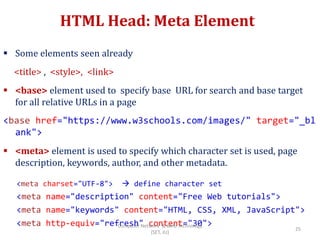
HTML Head: Meta Element
 Some elements seen already
<title> , <style>, <link>
 <base> element used to specify base URL for search and base target
for all relative URLs in a page
<base href="https://www.w3schools.com/images/" target="_bl
ank">
 <meta> element is used to specify which character set is used, page
description, keywords, author, and other metadata.
<meta charset="UTF-8">  define character set
<meta name="description" content="Free Web tutorials">
<meta name="keywords" content="HTML, CSS, XML, JavaScript">
<meta http-equiv="refresh" content="30">
25
Computer Network & Web Technology
(SET, JU)
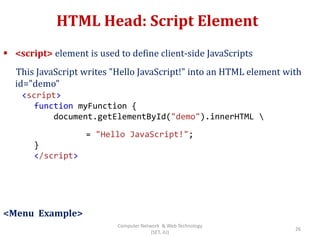
HTML Head: Script Element
 <script> element is used to define client-side JavaScripts
This JavaScript writes "Hello JavaScript!" into an HTML element with
id="demo"
<Menu Example>
<script>
function myFunction {
document.getElementById("demo").innerHTML 
= "Hello JavaScript!";
}
</script>
26
Computer Network & Web Technology
(SET, JU)

Html 5

  • 1.
  • 2.
    HTML Images  <img>- tag to define image <img src=http://www.xyz.com/images/xx.gif >  another server • Attributes  src specifies the URL (web address) of the image  alt  provides alternate text for an image  width, height  separate attributes or as inline style, in pixels by default  alt attribute is required- a web page will not validate correctly without it  If width & height not specified, page might flicker while the image loads  Better to specify as inline style, so that style-sheets cannot change size of images (1.html) <img src=/images/xx.gif”  another folder as the web page alt="some_text" style="width:width;height:height;"> 2 Computer Network & Web Technology (SET, JU)
  • 3.
    Image Maps  <map>tag used to define image-map i.e. Image with clickable areas  name attr of <map> tag associated with usemap attr of <img> and creates a relationship between the image and the map  <map> tag contains a number of <area> tags, that defines the clickable areas in the image-map <img src="planets.gif" width="145" height="126" alt="Planets" usemap="#planetmap"> <map name="planetmap"> <area shape="rect" coords="0,0,82,126" alt="Sun" href="sun.htm"> <area shape="circle" coords="90,58,3" alt="Mercury" href="mercur.htm"> <area shape="circle" coords="124,58,8" alt="Venus" href="venus.htm"> </map> 4.html 3 Computer Network & Web Technology (SET, JU)
  • 4.
    Image Float Property Use the CSS float property to let the image float to the right or to the left of a text  Elements after a floating element will flow around it. To avoid this, use the clear property  none - Allows floating elements on both sides. This is default  left - No floating elements allowed on the left side  right- No floating elements allowed on the right side  both - No floating elements allowed on either the left or the right side  inherit - The element inherits the clear value of its parent <p><img src="smiley.gif" alt="Smiley face"style="float:right;width:42px;height:42px;"> The image will float to the right of the text.</p> 3.html, 3a.html 4 Computer Network & Web Technology (SET, JU)
  • 5.
    Background Image Property SetPosition, No Repeat  To add a background image on an HTML element, use the CSS property  By default, repeated to fill whole page  background-repeat: no-repeat;  to prevent repeat  background-position: right top;  position of the image is specified by the background-position property  background-attachment: fixed;  to prevent scrolling with rest of page  Image should not disturb text <body style="background-image:url('clouds.jpg')"> <h2>Background Image</h2> </body> 7.html, 7a.html 5 Computer Network & Web Technology (SET, JU)
  • 6.
    Positioning Absolute vs Relative “Absolute “ with respect to top left right or bottom, not with normal flow (Note: higher z-index element in front)  “Relative” means relative to normal flow  An element with position: static; is not positioned in any special way; it is always positioned according to the normal flow of the page <img src”xyz.gif” style=”position:absolute; top: 0px; left: 0 px; z—index=1} .super {position: relative; top: -1 px} p{ position: relative; top: 10 px} 6 Computer Network & Web Technology (SET, JU)
  • 7.
    Background Image Property RepeatHorizontal / Vertical  Sometimes, if image is repeated only horizontally (background- repeat: repeat-x;), the background will look better  To repeat an image vertically, set background-repeat: repeat-y; body { background-image: url(“clouds.jpg"); background-repeat: repeat-x; } 7 Computer Network & Web Technology (SET, JU)
  • 8.
    Background Shorthand  Toshorten the code, it is also possible to specify all the background properties in one single property  Shorthand property for background is background body { background: #ffffff url(“clouds.jpg") no-repeat right top; } 8 Computer Network & Web Technology (SET, JU)
  • 9.
    HTML Link  HTMLlinks are defined with <a> tags  Hyperlinks that allow user to click their way from one page to another  Need not be text, can be image or text Example  The link address is specified in the href attribute  Link text is the visible part <a href="https://www.w3schools.com">This is a link</a> 9 Computer Network & Web Technology (SET, JU)
  • 10.
    Image as Link Common to use images as links  Put <img> tag inside the <a> tag  border=0 to prevent border around image that appears in certain browsers, when image used as link <a href="default.asp"> <img src="smiley.gif" alt="HTML tutorial"style="width:42px;height:42px;border:0;"> </a> 2.html 10 Computer Network & Web Technology (SET, JU)
  • 11.
    HTML Links: States By default, a link will appear like this (in all browsers):  An unvisited link is underlined and blue  A visited link is underlined and purple  An active link is underlined and red  Links can be styled differently depending on what state they are in  The four links states are:  a:link - a normal, unvisited link  a:visited - a link the user has visited  a:hover - a link when the user moves mouse over it  a:active - a link the moment it is clicked 11 Computer Network & Web Technology (SET, JU)
  • 12.
    Anchor Pseudoclasses  Apseudo-class is used to define a special state of an element selector:pseudo-class { property:value; } • /* mouse over link */ a:hover { color: #FF00FF; } /* selected link */ a:active { color: #0000FF; } /* unvisited link */ a:link { color: #FF0000; } /* visited link */ a:visited { color: #00FF00; } 12 Computer Network & Web Technology (SET, JU)
  • 13.
    Styling Links usingpseudo-classes  Links can be styled with any CSS property (e.g. color, font-family, background, etc.) a:link, a:visited { background-color: #f44336; color: white; padding: 14px 25px; text-align: center; text-decoration: none; display: inline-block; } a:hover, a:active { background-color: red; text-decoration: underline; } 13 Computer Network & Web Technology (SET, JU)
  • 14.
    Text Decoration  Propertyis used to set or remove decorations from text.  The value text-decoration: none; often used to remove underlines from links  Other values: overline, underline, line-through h1 { text-decoration: overline; } h2 { text-decoration: line-through; } h3 { text-decoration: underline; } 14 Computer Network & Web Technology (SET, JU)
  • 15.
    Text Transform  Usedto specify uppercase and lowercase letters in a text  Values: uppercase, lowercase, capitalize p.uppercase { text-transform: uppercase; } p.lowercase { text-transform: lowercase; } p.capitalize { text-transform: capitalize; } 15 Computer Network & Web Technology (SET, JU)
  • 16.
    HTML Link: Bookmark Used to allow readers to jump to specific parts of a Web page.  First create the bookmark with id attribute  Add a link to the bookmark (“Visit Useful Tips"), from within the same page:  Or, add a link to the bookmark (“Visit Useful Tips"), from another page: <h2 id=“tips">Useful Tips</h2> <a href="#tips">Visit Useful Tips</a> <a href="html_tips.html#tips"> Visit Useful Tips </a> 16 Computer Network & Web Technology (SET, JU)
  • 17.
    HTML Link: TargetAttribute  The target attribute specifies where to open the linked document.  The target attribute can have one of the following values:  _blank - Opens the linked document in a new window or tab  _self - Opens the linked document in the same window/tab as it was clicked (default)  _parent - Opens the linked document in the parent frame  _top - Opens the linked document in the full body of the window  framename - Opens the linked document in a named frame <a href="https://www.w3schools.com/" target="_blank">Visit W3Schools!</a>  open in new window <a href="https://www.w3schools.com/html/" target="_top">HTM L5 tutorial!</a>  If webpage is locked in a frame, use target="_top" to break out of the frame 17 Computer Network & Web Technology (SET, JU)
  • 18.
    HTML Iframe  AnHTML iframe is defined with the <iframe> tag  src attribute specifies the URL (web address) of the inline frame page  Size of iframe specified using height and width, pixels by default, may be defined as %  To remove (default) border around, use CSS border property, set value to none  Else, may define custom border properties (color, size, style) <iframe src="URL"></iframe> <iframe src="demo_iframe.htm" height="200" width="300"></iframe> <iframe src="demo_iframe.htm" style="border:none;"></iframe> <iframe src="demo_iframe.htm" style="border:2px solid grey;"></iframe> 18 Computer Network & Web Technology (SET, JU)
  • 19.
    Iframe: Target forLink  Can be used as the target frame for a link  The target attribute of the link must refer to the name attribute of the iframe <iframe src="demo_iframe.htm" name="iframe_a"></iframe> <p><a href="https://www.w3schools.com"target="iframe_a"> W3Schools.com</a></p> 19 Computer Network & Web Technology (SET, JU)
  • 20.
    Working with Frames Frame is a HTML tag that is used to divide the web page into various frames/windows  Frame structure allows page to be compartmentalized, allow multiple documents to be displayed in a page  Part of a set of frames - Frames document can be declared using the <FRAMESET> element (Obsolete in HTML5)  Iframe as <iframe> also a tag used in HTML  Specifies an inline frame i.e. used to embed some other document within the current HTML document  Need not be part of frameset, can be placed anywhere 20 Computer Network & Web Technology (SET, JU)
  • 21.
    Frames: Example <html> <head> <title>FRAME EXAMPLE</title> </head> <framesetcols="25%,*,25%"> <frame src=“frame1.html"> <frame src=“frame2.html"> <frame src=“frame3.html"> </frameset> … <body > <a href= "main.htm" TARGET = “frame1"> Home </a> <P> <ahref= "topic1.htm" TARGET=" frame1 "> Topic 1 </a> <P> <ahref= "topic2.htm" TARGET = " frame2 "> Topic 2 </a><P> <ahref= "topic3.htm" TARGET = " frame3 "> Topic 3 </a><P> </body> 21 Computer Network & Web Technology (SET, JU)
  • 22.
    Working with Audio One can associate a background audio clip to be played whenever web page is opened in the browser  Non standard: bgsound  Specify how many times the audio clip will loop by a positive integer value, -1 stands for infinite <bgsound src= “tunes/beethoven.mid” LOOP = 3> The background music will loop 3 times </bgsound> 22 Computer Network & Web Technology (SET, JU)
  • 23.
    Working with Audio– HTML5  <audio> element <audio src="/music/good_enough.mp3"> <p>your browser does not support the audio element. </p> </audio> <embed src="/music/good_enough.mp3" width="180" height="90" hidden="true" /> </audio> div id="player"> <audio autoplay hidden> <source src="link/to/file/file.mp3" type="audio/mpeg"> If you're reading this, audio isn't supported. </audio> </div> 23 Computer Network & Web Technology (SET, JU)
  • 24.
    Working with Video One can embed a movie or animation clip in web page by inserting a AVI or MPG video file.  One can also arrange to give certain controls to the user to manipulate the movie like Start, Stop, Pause, adjust sound volume etc  The <source> element allows you to specify alternative video files which the browser may choose from, <track> defines text tracks in media players <video width="320" height="240" controls autoplay> <source src="movie.mp4" type="video/mp4"> <source src="movie.ogg" type="video/ogg"> Your browser does not support the video tag. </video> Autoplay  start aautomatcally (Using object or ember deprecated) 24 Computer Network & Web Technology (SET, JU)
  • 25.
    HTML Head: MetaElement  Some elements seen already <title> , <style>, <link>  <base> element used to specify base URL for search and base target for all relative URLs in a page <base href="https://www.w3schools.com/images/" target="_bl ank">  <meta> element is used to specify which character set is used, page description, keywords, author, and other metadata. <meta charset="UTF-8">  define character set <meta name="description" content="Free Web tutorials"> <meta name="keywords" content="HTML, CSS, XML, JavaScript"> <meta http-equiv="refresh" content="30"> 25 Computer Network & Web Technology (SET, JU)
  • 26.
    HTML Head: ScriptElement  <script> element is used to define client-side JavaScripts This JavaScript writes "Hello JavaScript!" into an HTML element with id="demo" <Menu Example> <script> function myFunction { document.getElementById("demo").innerHTML = "Hello JavaScript!"; } </script> 26 Computer Network & Web Technology (SET, JU)

Editor's Notes

  • #13 a:hover MUST come after a:link and a:visited in the CSS definition in order to be effective! a:active MUST come after a:hover in the CSS definition in order to be effective! 
  • #16 Text-indent, text-shadow, letter-spacing, word-spacing,