HTML Collections
Collection Objects
• Group of related objects, array-like list
• images, links, forms, anchors
• getElementsByTagName() method returns an HTMLCollection object
var x = document.getElementsByTagName("p");
• elements in the collection can be accessed by an index number
y = linkColl[1];  access second element in links
collection
• length property of collection object
var myColl = document.getElementsByTagName("p");
document.getElementById("demo").innerHTML = myColl.length;
HTML Collection Example
• Find the innerHTML of the first anchor in a document
<script>
function myFunction() {
document.getElementById("demo").innerHTML =
document.anchors[0].innerHTML;
}
</script>
js_2_1
HTML Collection Example 2
• Change background of all <p> tags
<script>
var myColl = document.getElementsByTagName("p");
var i;
for (i = 0; i < myCollection.length; i++) {
myCollection[i].style.backgroundColor = "red";
}
</script>
Form Validation
Validate Form
• HTML form validation can be done by JavaScript
• If a form field (fname) is empty, this function alerts a message, and
returns false, to prevent the form from being submitted
function validateForm() {
var x = document.forms["Form1"][“fname"].value;
if (x == "") {
alert("Name must be filled out");
return false;
}
}
Validate Form (contd..)
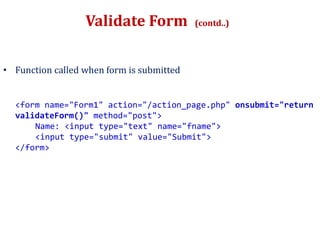
• Function called when form is submitted
<form name="Form1" action="/action_page.php" onsubmit="return
validateForm()" method="post">
Name: <input type="text" name="fname">
<input type="submit" value="Submit">
</form>
Range Overflow
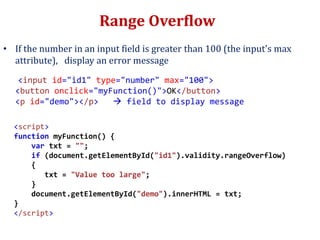
• If the number in an input field is greater than 100 (the input's max
attribute), display an error message
<input id="id1" type="number" max="100">
<button onclick="myFunction()">OK</button>
<p id="demo"></p>  field to display message
<script>
function myFunction() {
var txt = "";
if (document.getElementById("id1").validity.rangeOverflow)
{
txt = "Value too large";
}
document.getElementById("demo").innerHTML = txt;
}
</script>
Reacting to Events
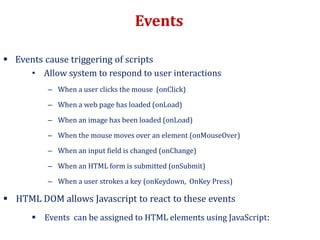
Events
 Events cause triggering of scripts
• Allow system to respond to user interactions
– When a user clicks the mouse (onClick)
– When a web page has loaded (onLoad)
– When an image has been loaded (onLoad)
– When the mouse moves over an element (onMouseOver)
– When an input field is changed (onChange)
– When an HTML form is submitted (onSubmit)
– When a user strokes a key (onKeydown, OnKey Press)
 HTML DOM allows Javascript to react to these events
 Events can be assigned to HTML elements using JavaScript:
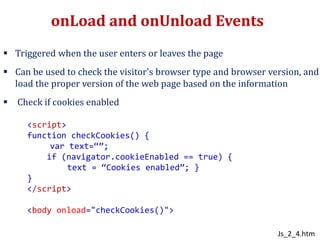
onLoad and onUnload Events
 Triggered when the user enters or leaves the page
 Can be used to check the visitor's browser type and browser version, and
load the proper version of the web page based on the information
 Check if cookies enabled
<script>
function checkCookies() {
var text=“”;
if (navigator.cookieEnabled == true) {
text = “Cookies enabled”; }
}
</script>
<body onload="checkCookies()">
Js_2_4.htm
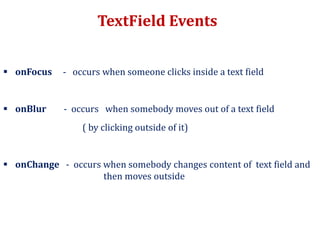
TextField Events
 onFocus - occurs when someone clicks inside a text field
 onBlur - occurs when somebody moves out of a text field
( by clicking outside of it)
 onChange - occurs when somebody changes content of text field and
then moves outside
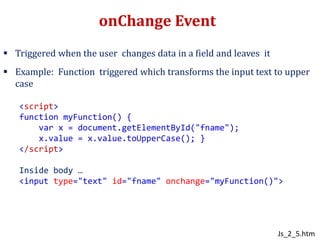
onChange Event
 Triggered when the user changes data in a field and leaves it
 Example: Function triggered which transforms the input text to upper
case
<script>
function myFunction() {
var x = document.getElementById("fname");
x.value = x.value.toUpperCase(); }
</script>
Inside body …
<input type="text" id="fname" onchange="myFunction()">
Js_2_5.htm
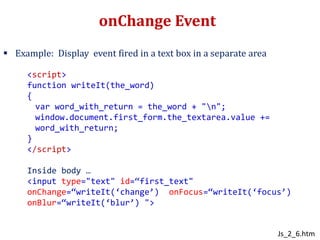
onChange Event
 Example: Display event fired in a text box in a separate area
<script>
function writeIt(the_word)
{
var word_with_return = the_word + "n";
window.document.first_form.the_textarea.value +=
word_with_return;
}
</script>
Inside body …
<input type="text" id=“first_text"
onChange=“writeIt(‘change’) onFocus=“writeIt(‘focus’)
onBlur=“writeIt(‘blur’) ">
Js_2_6.htm
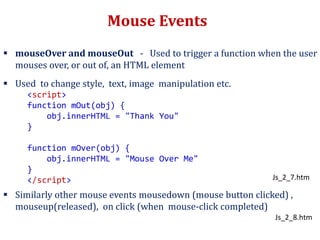
Mouse Events
 mouseOver and mouseOut - Used to trigger a function when the user
mouses over, or out of, an HTML element
 Used to change style, text, image manipulation etc.
 Similarly other mouse events mousedown (mouse button clicked) ,
mouseup(released), on click (when mouse-click completed)
<script>
function mOut(obj) {
obj.innerHTML = "Thank You"
}
function mOver(obj) {
obj.innerHTML = "Mouse Over Me"
}
</script> Js_2_7.htm
Js_2_8.htm
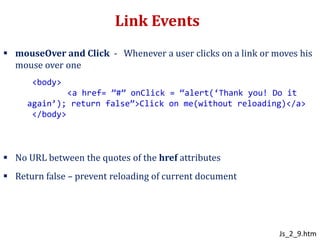
Link Events
 mouseOver and Click - Whenever a user clicks on a link or moves his
mouse over one
 No URL between the quotes of the href attributes
 Return false – prevent reloading of current document
<body>
<a href= ”#” onClick = “alert(‘Thank you! Do it
again’); return false”>Click on me(without reloading)</a>
</body>
Js_2_9.htm
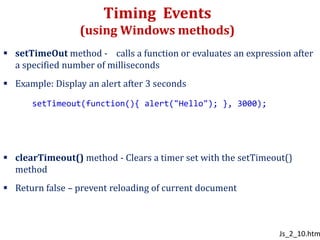
Timing Events
(using Windows methods)
 setTimeOut method - calls a function or evaluates an expression after
a specified number of milliseconds
 Example: Display an alert after 3 seconds
 clearTimeout() method - Clears a timer set with the setTimeout()
method
 Return false – prevent reloading of current document
setTimeout(function(){ alert("Hello"); }, 3000);
Js_2_10.htm
Timing Events
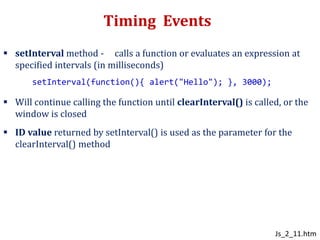
 setInterval method - calls a function or evaluates an expression at
specified intervals (in milliseconds)
 Will continue calling the function until clearInterval() is called, or the
window is closed
 ID value returned by setInterval() is used as the parameter for the
clearInterval() method
setInterval(function(){ alert("Hello"); }, 3000);
Js_2_11.htm
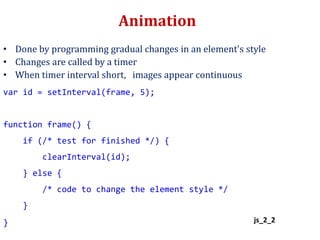
Animation
• Done by programming gradual changes in an element's style
• Changes are called by a timer
• When timer interval short, images appear continuous
var id = setInterval(frame, 5);
function frame() {
if (/* test for finished */) {
clearInterval(id);
} else {
/* code to change the element style */
}
} js_2_2
Handling Events
Handling Events
 Events cause Javascripts to be executed when they occur
 Functions that handle events – event handler
 Assigning an event handler to an event on a DOM node is called
registering an event handler
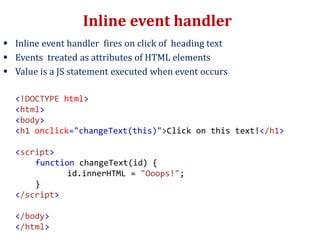
Inline event handler
 Inline event handler fires on click of heading text
 Events treated as attributes of HTML elements
 Value is a JS statement executed when event occurs
<!DOCTYPE html>
<html>
<body>
<h1 onclick="changeText(this)">Click on this text!</h1>
<script>
function changeText(id) {
id.innerHTML = "Ooops!";
}
</script>
</body>
</html>
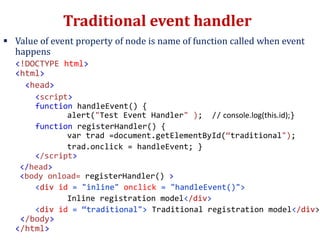
Traditional event handler
 Value of event property of node is name of function called when event
happens
<!DOCTYPE html>
<html>
<head>
<script>
function handleEvent() {
alert("Test Event Handler" ); // console.log(this.id);}
function registerHandler() {
var trad =document.getElementById(“traditional");
trad.onclick = handleEvent; }
</script>
</head>
<body onload= registerHandler() >
<div id = "inline" onclick = "handleEvent()">
Inline registration model</div>
<div id = “traditional"> Traditional registration model</div>
</body>
</html>
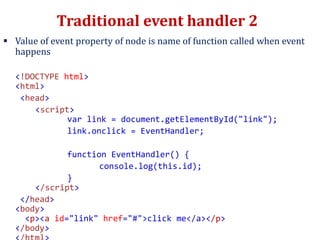
Traditional event handler 2
 Value of event property of node is name of function called when event
happens
<!DOCTYPE html>
<html>
<head>
<script>
var link = document.getElementById("link");
link.onclick = EventHandler;
function EventHandler() {
console.log(this.id);
}
</script>
</head>
<body>
<p><a id="link" href="#">click me</a></p>
</body>
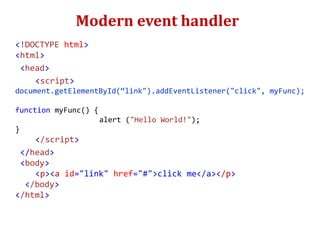
Modern event handler
<!DOCTYPE html>
<html>
<head>
<script>
document.getElementById(“link").addEventListener("click", myFunc);
function myFunc() {
alert ("Hello World!");
}
</script>
</head>
<body>
<p><a id="link" href="#">click me</a></p>
</body>
</html>
Modern event handler
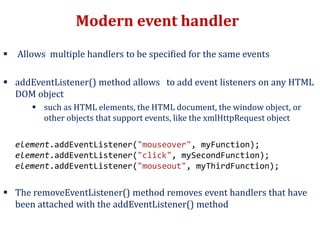
 Allows multiple handlers to be specified for the same events
 addEventListener() method allows to add event listeners on any HTML
DOM object
 such as HTML elements, the HTML document, the window object, or
other objects that support events, like the xmlHttpRequest object
element.addEventListener("mouseover", myFunction);
element.addEventListener("click", mySecondFunction);
element.addEventListener("mouseout", myThirdFunction);
 The removeEventListener() method removes event handlers that have
been attached with the addEventListener() method
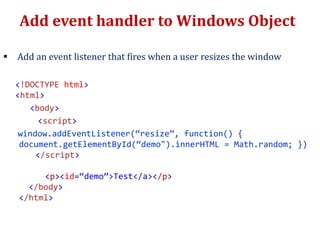
Add event handler to Windows Object
 Add an event listener that fires when a user resizes the window
<!DOCTYPE html>
<html>
<body>
<script>
window.addEventListener(“resize”, function() {
document.getElementById(“demo").innerHTML = Math.random; })
</script>
<p><id=“demo”>Test</a></p>
</body>
</html>
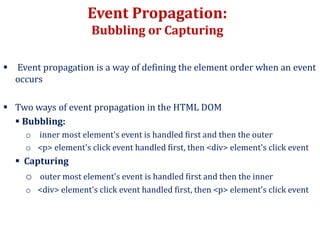
Event Propagation:
Bubbling or Capturing
 Event propagation is a way of defining the element order when an event
occurs
 Two ways of event propagation in the HTML DOM
 Bubbling:
o inner most element's event is handled first and then the outer
o <p> element's click event handled first, then <div> element's click event
 Capturing
o outer most element's event is handled first and then the inner
o <div> element's click event handled first, then <p> element's click event
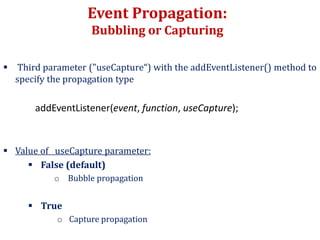
Event Propagation:
Bubbling or Capturing
 Third parameter ("useCapture“) with the addEventListener() method to
specify the propagation type
addEventListener(event, function, useCapture);
 Value of useCapture parameter:
 False (default)
o Bubble propagation
 True
o Capture propagation

Javascript 2

  • 1.
  • 2.
    Collection Objects • Groupof related objects, array-like list • images, links, forms, anchors • getElementsByTagName() method returns an HTMLCollection object var x = document.getElementsByTagName("p"); • elements in the collection can be accessed by an index number y = linkColl[1];  access second element in links collection • length property of collection object var myColl = document.getElementsByTagName("p"); document.getElementById("demo").innerHTML = myColl.length;
  • 3.
    HTML Collection Example •Find the innerHTML of the first anchor in a document <script> function myFunction() { document.getElementById("demo").innerHTML = document.anchors[0].innerHTML; } </script> js_2_1
  • 4.
    HTML Collection Example2 • Change background of all <p> tags <script> var myColl = document.getElementsByTagName("p"); var i; for (i = 0; i < myCollection.length; i++) { myCollection[i].style.backgroundColor = "red"; } </script>
  • 5.
  • 6.
    Validate Form • HTMLform validation can be done by JavaScript • If a form field (fname) is empty, this function alerts a message, and returns false, to prevent the form from being submitted function validateForm() { var x = document.forms["Form1"][“fname"].value; if (x == "") { alert("Name must be filled out"); return false; } }
  • 7.
    Validate Form (contd..) •Function called when form is submitted <form name="Form1" action="/action_page.php" onsubmit="return validateForm()" method="post"> Name: <input type="text" name="fname"> <input type="submit" value="Submit"> </form>
  • 8.
    Range Overflow • Ifthe number in an input field is greater than 100 (the input's max attribute), display an error message <input id="id1" type="number" max="100"> <button onclick="myFunction()">OK</button> <p id="demo"></p>  field to display message <script> function myFunction() { var txt = ""; if (document.getElementById("id1").validity.rangeOverflow) { txt = "Value too large"; } document.getElementById("demo").innerHTML = txt; } </script>
  • 9.
  • 10.
    Events  Events causetriggering of scripts • Allow system to respond to user interactions – When a user clicks the mouse (onClick) – When a web page has loaded (onLoad) – When an image has been loaded (onLoad) – When the mouse moves over an element (onMouseOver) – When an input field is changed (onChange) – When an HTML form is submitted (onSubmit) – When a user strokes a key (onKeydown, OnKey Press)  HTML DOM allows Javascript to react to these events  Events can be assigned to HTML elements using JavaScript:
  • 11.
    onLoad and onUnloadEvents  Triggered when the user enters or leaves the page  Can be used to check the visitor's browser type and browser version, and load the proper version of the web page based on the information  Check if cookies enabled <script> function checkCookies() { var text=“”; if (navigator.cookieEnabled == true) { text = “Cookies enabled”; } } </script> <body onload="checkCookies()"> Js_2_4.htm
  • 12.
    TextField Events  onFocus- occurs when someone clicks inside a text field  onBlur - occurs when somebody moves out of a text field ( by clicking outside of it)  onChange - occurs when somebody changes content of text field and then moves outside
  • 13.
    onChange Event  Triggeredwhen the user changes data in a field and leaves it  Example: Function triggered which transforms the input text to upper case <script> function myFunction() { var x = document.getElementById("fname"); x.value = x.value.toUpperCase(); } </script> Inside body … <input type="text" id="fname" onchange="myFunction()"> Js_2_5.htm
  • 14.
    onChange Event  Example:Display event fired in a text box in a separate area <script> function writeIt(the_word) { var word_with_return = the_word + "n"; window.document.first_form.the_textarea.value += word_with_return; } </script> Inside body … <input type="text" id=“first_text" onChange=“writeIt(‘change’) onFocus=“writeIt(‘focus’) onBlur=“writeIt(‘blur’) "> Js_2_6.htm
  • 15.
    Mouse Events  mouseOverand mouseOut - Used to trigger a function when the user mouses over, or out of, an HTML element  Used to change style, text, image manipulation etc.  Similarly other mouse events mousedown (mouse button clicked) , mouseup(released), on click (when mouse-click completed) <script> function mOut(obj) { obj.innerHTML = "Thank You" } function mOver(obj) { obj.innerHTML = "Mouse Over Me" } </script> Js_2_7.htm Js_2_8.htm
  • 16.
    Link Events  mouseOverand Click - Whenever a user clicks on a link or moves his mouse over one  No URL between the quotes of the href attributes  Return false – prevent reloading of current document <body> <a href= ”#” onClick = “alert(‘Thank you! Do it again’); return false”>Click on me(without reloading)</a> </body> Js_2_9.htm
  • 17.
    Timing Events (using Windowsmethods)  setTimeOut method - calls a function or evaluates an expression after a specified number of milliseconds  Example: Display an alert after 3 seconds  clearTimeout() method - Clears a timer set with the setTimeout() method  Return false – prevent reloading of current document setTimeout(function(){ alert("Hello"); }, 3000); Js_2_10.htm
  • 18.
    Timing Events  setIntervalmethod - calls a function or evaluates an expression at specified intervals (in milliseconds)  Will continue calling the function until clearInterval() is called, or the window is closed  ID value returned by setInterval() is used as the parameter for the clearInterval() method setInterval(function(){ alert("Hello"); }, 3000); Js_2_11.htm
  • 19.
    Animation • Done byprogramming gradual changes in an element's style • Changes are called by a timer • When timer interval short, images appear continuous var id = setInterval(frame, 5); function frame() { if (/* test for finished */) { clearInterval(id); } else { /* code to change the element style */ } } js_2_2
  • 20.
  • 21.
    Handling Events  Eventscause Javascripts to be executed when they occur  Functions that handle events – event handler  Assigning an event handler to an event on a DOM node is called registering an event handler
  • 22.
    Inline event handler Inline event handler fires on click of heading text  Events treated as attributes of HTML elements  Value is a JS statement executed when event occurs <!DOCTYPE html> <html> <body> <h1 onclick="changeText(this)">Click on this text!</h1> <script> function changeText(id) { id.innerHTML = "Ooops!"; } </script> </body> </html>
  • 23.
    Traditional event handler Value of event property of node is name of function called when event happens <!DOCTYPE html> <html> <head> <script> function handleEvent() { alert("Test Event Handler" ); // console.log(this.id);} function registerHandler() { var trad =document.getElementById(“traditional"); trad.onclick = handleEvent; } </script> </head> <body onload= registerHandler() > <div id = "inline" onclick = "handleEvent()"> Inline registration model</div> <div id = “traditional"> Traditional registration model</div> </body> </html>
  • 24.
    Traditional event handler2  Value of event property of node is name of function called when event happens <!DOCTYPE html> <html> <head> <script> var link = document.getElementById("link"); link.onclick = EventHandler; function EventHandler() { console.log(this.id); } </script> </head> <body> <p><a id="link" href="#">click me</a></p> </body>
  • 25.
    Modern event handler <!DOCTYPEhtml> <html> <head> <script> document.getElementById(“link").addEventListener("click", myFunc); function myFunc() { alert ("Hello World!"); } </script> </head> <body> <p><a id="link" href="#">click me</a></p> </body> </html>
  • 26.
    Modern event handler Allows multiple handlers to be specified for the same events  addEventListener() method allows to add event listeners on any HTML DOM object  such as HTML elements, the HTML document, the window object, or other objects that support events, like the xmlHttpRequest object element.addEventListener("mouseover", myFunction); element.addEventListener("click", mySecondFunction); element.addEventListener("mouseout", myThirdFunction);  The removeEventListener() method removes event handlers that have been attached with the addEventListener() method
  • 27.
    Add event handlerto Windows Object  Add an event listener that fires when a user resizes the window <!DOCTYPE html> <html> <body> <script> window.addEventListener(“resize”, function() { document.getElementById(“demo").innerHTML = Math.random; }) </script> <p><id=“demo”>Test</a></p> </body> </html>
  • 28.
    Event Propagation: Bubbling orCapturing  Event propagation is a way of defining the element order when an event occurs  Two ways of event propagation in the HTML DOM  Bubbling: o inner most element's event is handled first and then the outer o <p> element's click event handled first, then <div> element's click event  Capturing o outer most element's event is handled first and then the inner o <div> element's click event handled first, then <p> element's click event
  • 29.
    Event Propagation: Bubbling orCapturing  Third parameter ("useCapture“) with the addEventListener() method to specify the propagation type addEventListener(event, function, useCapture);  Value of useCapture parameter:  False (default) o Bubble propagation  True o Capture propagation

Editor's Notes

  • #23  Never use inline event handlers! Inline event handlers are limited, clunky, and can bulk up your HTML code. They cause maintenance complications since the invoking of the event and its handler are defined in different places Could be called when page loads, hence defines at top
  • #24 No quotes where event handler registered