Basic HTML tags
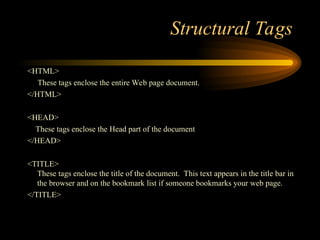
Structural Tags
<HTML>
These tags enclose the entire Web page document.
</HTML>
<HEAD>
These tags enclose the Head part of the document
</HEAD>
<TITLE>
These tags enclose the title of the document. This text appears in the title bar in
the browser and on the bookmark list if someone bookmarks your web page.
</TITLE>
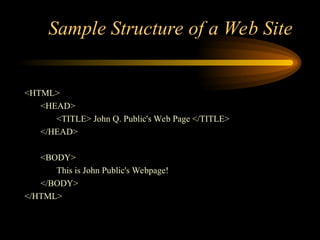
Sample Structure of a Web Site
<HTML>
<HEAD>
<TITLE> John Q. Public's Web Page </TITLE>
</HEAD>
<BODY>
This is John Public's Webpage!
</BODY>
</HTML>
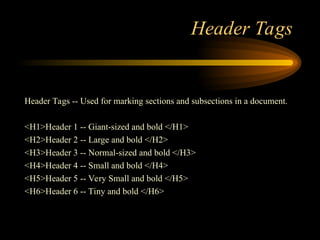
Header Tags
Header Tags -- Used for marking sections and subsections in a document.
<H1>Header 1 -- Giant-sized and bold </H1>
<H2>Header 2 -- Large and bold </H2>
<H3>Header 3 -- Normal-sized and bold </H3>
<H4>Header 4 -- Small and bold </H4>
<H5>Header 5 -- Very Small and bold </H5>
<H6>Header 6 -- Tiny and bold </H6>
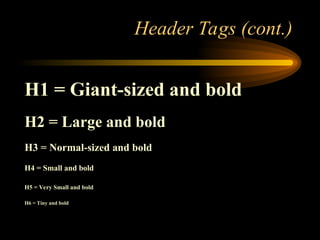
Header Tags (cont.)
H1 = Giant-sized and bold
H2 = Large and bold
H3 = Normal-sized and bold
H4 = Small and bold
H5 = Very Small and bold
H6 = Tiny and bold
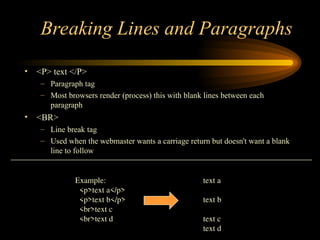
Breaking Lines and Paragraphs
• <P> text </P>
– Paragraph tag
– Most browsers render (process) this with blank lines between each
paragraph
• <BR>
– Line break tag
– Used when the webmaster wants a carriage return but doesn't want a blank
line to follow
Example: text a
<p>text a</p>
<p>text b</p> text b
<br>text c
<br>text d text c
text d
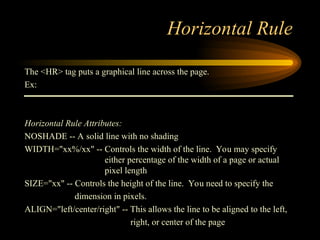
Horizontal Rule
The <HR> tag puts a graphical line across the page.
Ex:
Horizontal Rule Attributes:
NOSHADE -- A solid line with no shading
WIDTH="xx%/xx" -- Controls the width of the line. You may specify
either percentage of the width of a page or actual
pixel length
SIZE="xx" -- Controls the height of the line. You need to specify the
dimension in pixels.
ALIGN="left/center/right" -- This allows the line to be aligned to the left,
right, or center of the page
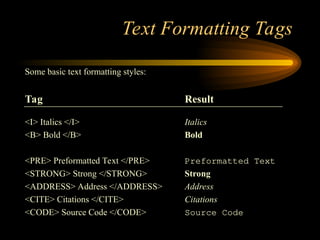
Text Formatting Tags
Some basic text formatting styles:
Tag Result
<I> Italics </I> Italics
<B> Bold </B> Bold
<PRE> Preformatted Text </PRE> Preformatted Text
<STRONG> Strong </STRONG> Strong
<ADDRESS> Address </ADDRESS> Address
<CITE> Citations </CITE> Citations
<CODE> Source Code </CODE> Source Code
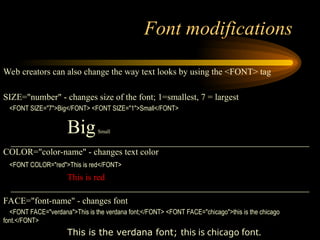
Font modifications
Web creators can also change the way text looks by using the <FONT> tag
SIZE="number" - changes size of the font; 1=smallest, 7 = largest
<FONT SIZE="7">Big</FONT> <FONT SIZE="1">Small</FONT>
BigSmall
COLOR="color-name" - changes text color
<FONT COLOR="red">This is red</FONT>
This is red
FACE="font-name" - changes font
<FONT FACE="verdana">This is the verdana font;</FONT> <FONT FACE="chicago">this is the chicago
font.</FONT>
This is the verdana font; this is chicago font.
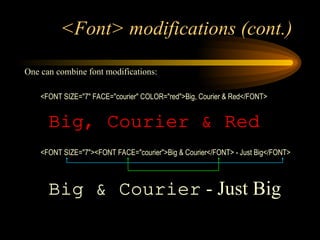
<Font> modifications (cont.)
One can combine font modifications:
<FONT SIZE="7" FACE="courier" COLOR="red">Big, Courier & Red</FONT>
Big, Courier & Red
<FONT SIZE="7"><FONT FACE="courier">Big & Courier</FONT> - Just Big</FONT>
Big & Courier - Just Big
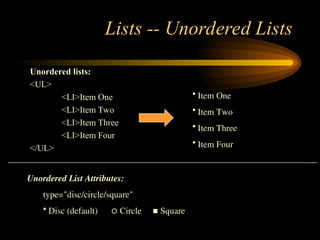
Lists -- Unordered Lists
Unordered lists:
<UL>
<LI>Item One
<LI>Item Two
<LI>Item Three
<LI>Item Four
</UL>
• Item One
• Item Two
• Item Three
• Item Four
Unordered List Attributes:
type="disc/circle/square"
• Disc (default)  Circle  Square
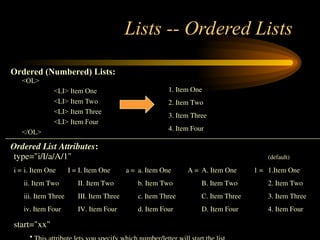
Lists -- Ordered Lists
<OL>
<LI> Item One
<LI> Item Two
<LI> Item Three
<LI> Item Four
</OL>
1. Item One
2. Item Two
3. Item Three
4. Item Four
type="i/I/a/A/1" (default)
i = i. Item One I = I. Item One a = a. Item One A = A. Item One 1 = 1.Item One
ii. Item Two II. Item Two b. Item Two B. Item Two 2. Item Two
iii. Item Three III. Item Three c. Item Three C. Item Three 3. Item Three
iv. Item Four IV. Item Four d. Item Four D. Item Four 4. Item Four
start="xx"
•
Ordered (Numbered) Lists:
Ordered List Attributes:
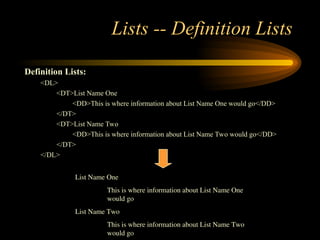
Lists -- Definition Lists
Definition Lists:
<DL>
<DT>List Name One
<DD>This is where information about List Name One would go</DD>
</DT>
<DT>List Name Two
<DD>This is where information about List Name Two would go</DD>
</DT>
</DL>
List Name One
This is where information about List Name One
would go
List Name Two
This is where information about List Name Two
would go
Links
The anchor tag <A> is used to link one document to another or from one part of a document
to another part of the same document.
Basic Links:
<A HREF="http://www.stanford.edu/">Stanford University</A>
Inter-document Links:
<A HREF="#spot">Point to 'spot' in this document</A>
Defining a point in a document:
<A NAME="spot">Spot</A>
Email links:
<A HREF="mailto:someone@somehost.com">Email someone@somehost.com</A>
Graphics
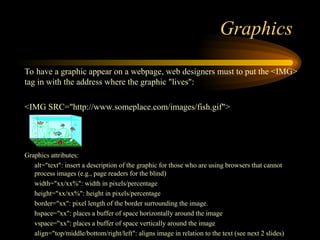
To have a graphic appear on a webpage, web designers must to put the <IMG>
tag in with the address where the graphic "lives":
<IMG SRC="http://www.someplace.com/images/fish.gif">
Graphics attributes:
alt="text": insert a description of the graphic for those who are using browsers that cannot
process images (e.g., page readers for the blind)
width="xx/xx%": width in pixels/percentage
height="xx/xx%": height in pixels/percentage
border="xx": pixel length of the border surrounding the image.
hspace="xx": places a buffer of space horizontally around the image
vspace="xx": places a buffer of space vertically around the image
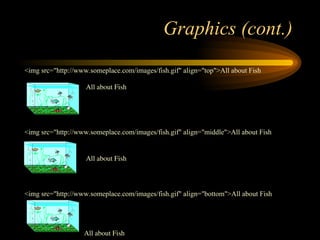
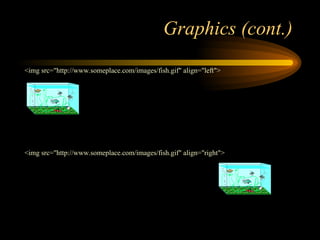
align="top/middle/bottom/right/left": aligns image in relation to the text (see next 2 slides)
Graphics (cont.)
<img src="http://www.someplace.com/images/fish.gif" align="top">All about Fish
<img src="http://www.someplace.com/images/fish.gif" align="middle">All about Fish
<img src="http://www.someplace.com/images/fish.gif" align="bottom">All about Fish
All about Fish
All about Fish
All about Fish
Graphics (cont.)
<img src="http://www.someplace.com/images/fish.gif" align="left">
<img src="http://www.someplace.com/images/fish.gif" align="right">
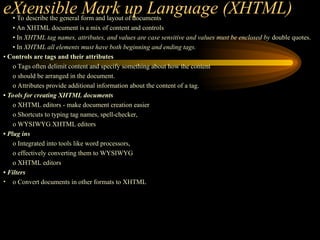
eXtensible Mark up Language (XHTML)
• To describe the general form and layout of documents
• An XHTML document is a mix of content and controls
• In XHTML tag names, attributes, and values are case sensitive and values must be enclosed by double quotes.
• In XHTML all elements must have both beginning and ending tags.
• Controls are tags and their attributes
o Tags often delimit content and specify something about how the content
o should be arranged in the document.
o Attributes provide additional information about the content of a tag.
• Tools for creating XHTML documents
o XHTML editors - make document creation easier
o Shortcuts to typing tag names, spell-checker,
o WYSIWYG XHTML editors
• Plug ins
o Integrated into tools like word processors,
o effectively converting them to WYSIWYG
o XHTML editors
• Filters
• o Convert documents in other formats to XHTML
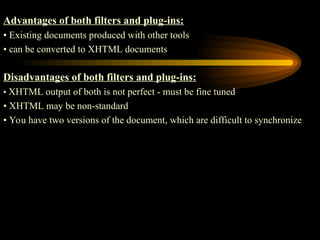
Advantages of both filters and plug-ins:
• Existing documents produced with other tools
• can be converted to XHTML documents
Disadvantages of both filters and plug-ins:
• XHTML output of both is not perfect - must be fine tuned
• XHTML may be non-standard
• You have two versions of the document, which are difficult to synchronize
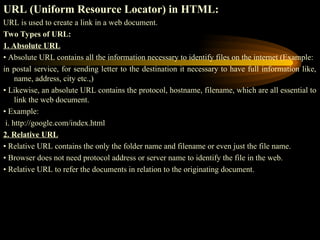
URL (Uniform Resource Locator) in HTML:
URL is used to create a link in a web document.
Two Types of URL:
1. Absolute URL
• Absolute URL contains all the information necessary to identify files on the internet (Example:
in postal service, for sending letter to the destination it necessary to have full information like,
name, address, city etc.,)
• Likewise, an absolute URL contains the protocol, hostname, filename, which are all essential to
link the web document.
• Example:
i. http://google.com/index.html
2. Relative URL
• Relative URL contains the only the folder name and filename or even just the file name.
• Browser does not need protocol address or server name to identify the file in the web.
• Relative URL to refer the documents in relation to the originating document.
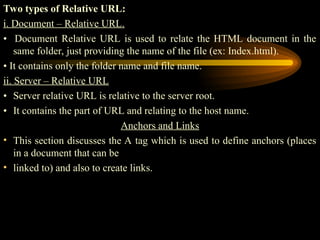
Two types of Relative URL:
i. Document – Relative URL.
• Document Relative URL is used to relate the HTML document in the
same folder, just providing the name of the file (ex: Index.html).
• It contains only the folder name and file name.
ii. Server – Relative URL
• Server relative URL is relative to the server root.
• It contains the part of URL and relating to the host name.
Anchors and Links
• This section discusses the A tag which is used to define anchors (places
in a document that can be
• linked to) and also to create links.
A - (anchor or link)
• The A tag lets you define anchors and links. An anchor defines a place in a document. A link
displays a hypertext link that the user can click to display an anchor or a document.
A as anchor
• An anchor identifies a place in an HTML document. To indicate that an <A> tag is being used
as an anchor, specify the NAME attribute.
• Note that you can also use the ID attribute of any tag to identify that tag as an anchor, as
discussed in UNIVERSAL Attributes.
• Do not nest an anchor within another A tag.
Syntax
<A
NAME="anchorName"
>.
..
</A>
Example
<A NAME=section2>
<H2>A Cold Autumn Day</H2></A>
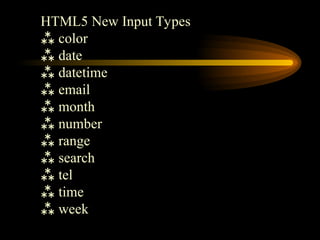
HTML5 New Input Types
 color
 date
 datetime
 email
 month
 number
 range
 search
 tel
 time
 week
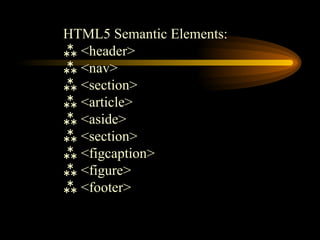
HTML5 Semantic Elements:
 <header>
 <nav>
 <section>
 <article>
 <aside>
 <section>
 <figcaption>
 <figure>
 <footer>
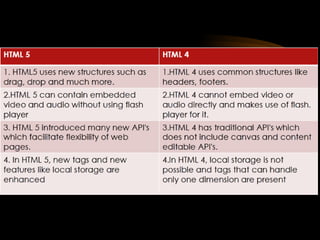
What is HTML 5
• HTML 5 is the latest and most enhanced version of HTML.
• HTML5 is a cooperation between the World Wide Web
Consortium (W3C) and the Web Hypertext Application
Technology Working Group (WHATWG).
• HTML5 is a standard for structuring and presenting content on the
World Wide Web.
• The latest versions of Apple Safari, Google Chrome, Mozilla
Firefox, and Opera all support many HTML5 features and Internet
Explorer, also have support for some HTML5 functionality.
• The mobile web browsers that come pre-installed on iPhones,
iPads, and Android phones all have excellent support for HTML5.
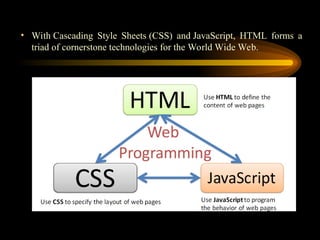
• With Cascading Style Sheets (CSS) and JavaScript, HTML forms a
triad of cornerstone technologies for the World Wide Web.
HTML Versions
• The Hypertext Mark-up Language (HTML) is an evolving
language, with different versions supporting different features
and each new version is given a version number.
• The first version of HTML did not have a version number and
it was just called HTML.
HTML Versions
• HTML (1989-1994):
– This was the bare bones version of HTML and the very first
release of the language.
– It was very limited in terms of styling and presentation of
content.
– Because of these limitations, every web page created with
HTML looked the same with similar background and the type
of font used.
– In HTML, it could not be possible to use tables or frames,
specify fonts, change page background, or use forms
– Because the World Wide Web Consortium (W3C) did not exist
at the time when HTML first appeared, W3C did not formally
specify the HTML specification.
– HTML was only supported by Lynx and Mosaic browsers.
HTML Versions(Cont..)
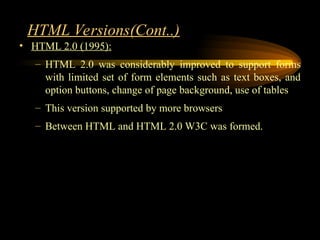
• HTML 2.0 (1995):
– HTML 2.0 was considerably improved to support forms
with limited set of form elements such as text boxes, and
option buttons, change of page background, use of tables
– This version supported by more browsers
– Between HTML and HTML 2.0 W3C was formed.
HTML Versions(Cont..)
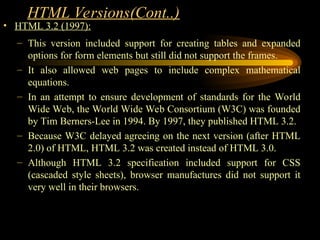
• HTML 3.2 (1997):
– This version included support for creating tables and expanded
options for form elements but still did not support the frames.
– It also allowed web pages to include complex mathematical
equations.
– In an attempt to ensure development of standards for the World
Wide Web, the World Wide Web Consortium (W3C) was founded
by Tim Berners-Lee in 1994. By 1997, they published HTML 3.2.
– Because W3C delayed agreeing on the next version (after HTML
2.0) of HTML, HTML 3.2 was created instead of HTML 3.0.
– Although HTML 3.2 specification included support for CSS
(cascaded style sheets), browser manufactures did not support it
very well in their browsers.
HTML Versions(Cont..)
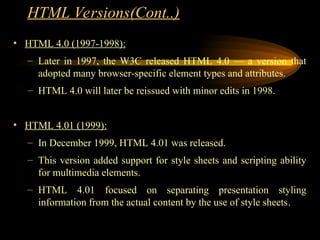
• HTML 4.0 (1997-1998):
– Later in 1997, the W3C released HTML 4.0 — a version that
adopted many browser-specific element types and attributes.
– HTML 4.0 will later be reissued with minor edits in 1998.
• HTML 4.01 (1999):
– In December 1999, HTML 4.01 was released.
– This version added support for style sheets and scripting ability
for multimedia elements.
– HTML 4.01 focused on separating presentation styling
information from the actual content by the use of style sheets.
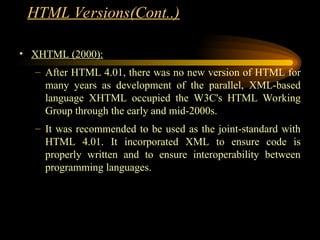
• XHTML (2000):
– After HTML 4.01, there was no new version of HTML for
many years as development of the parallel, XML-based
language XHTML occupied the W3C's HTML Working
Group through the early and mid-2000s.
– It was recommended to be used as the joint-standard with
HTML 4.01. It incorporated XML to ensure code is
properly written and to ensure interoperability between
programming languages.
HTML Versions(Cont..)
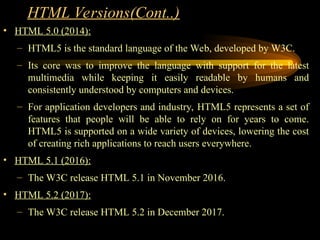
• HTML 5.0 (2014):
– HTML5 is the standard language of the Web, developed by W3C.
– Its core was to improve the language with support for the latest
multimedia while keeping it easily readable by humans and
consistently understood by computers and devices.
– For application developers and industry, HTML5 represents a set of
features that people will be able to rely on for years to come.
HTML5 is supported on a wide variety of devices, lowering the cost
of creating rich applications to reach users everywhere.
• HTML 5.1 (2016):
– The W3C release HTML 5.1 in November 2016.
• HTML 5.2 (2017):
– The W3C release HTML 5.2 in December 2017.
HTML Versions(Cont..)
HTML Comment Lines
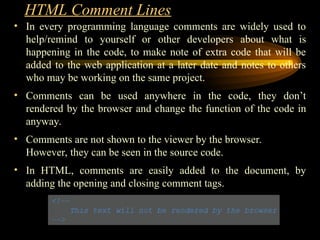
• In every programming language comments are widely used to
help/remind to yourself or other developers about what is
happening in the code, to make note of extra code that will be
added to the web application at a later date and notes to others
who may be working on the same project.
• Comments can be used anywhere in the code, they don’t
rendered by the browser and change the function of the code in
anyway.
• Comments are not shown to the viewer by the browser.
However, they can be seen in the source code.
• In HTML, comments are easily added to the document, by
adding the opening and closing comment tags.
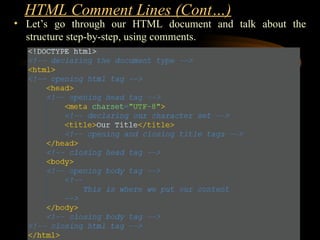
• Let’s go through our HTML document and talk about the
structure step-by-step, using comments.
HTML Comment Lines (Cont…)
HTML5 New Semantic/Structural Elements
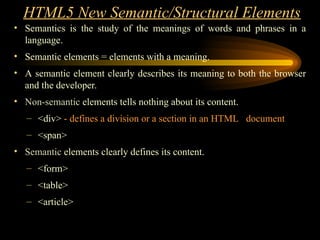
• Semantics is the study of the meanings of words and phrases in a
language.
• Semantic elements = elements with a meaning.
• A semantic element clearly describes its meaning to both the browser
and the developer.
• Non-semantic elements tells nothing about its content.
– <div> - defines a division or a section in an HTML document
– <span>
• Semantic elements clearly defines its content.
– <form>
– <table>
– <article>
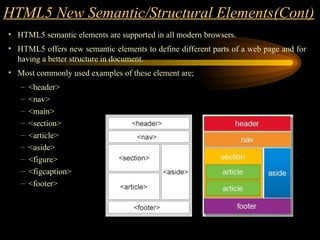
• HTML5 semantic elements are supported in all modern browsers.
• HTML5 offers new semantic elements to define different parts of a web page and for
having a better structure in document.
• Most commonly used examples of these element are;
– <header>
– <nav>
– <main>
– <section>
– <article>
– <aside>
– <figure>
– <figcaption>
– <footer>
HTML5 New Semantic/Structural Elements(Cont)
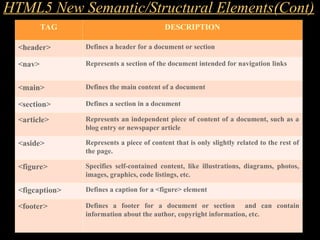
TAG DESCRIPTION
<header> Defines a header for a document or section
<nav> Represents a section of the document intended for navigation links
<main> Defines the main content of a document
<section> Defines a section in a document
<article> Represents an independent piece of content of a document, such as a
blog entry or newspaper article
<aside> Represents a piece of content that is only slightly related to the rest of
the page.
<figure> Specifies self-contained content, like illustrations, diagrams, photos,
images, graphics, code listings, etc.
<figcaption> Defines a caption for a <figure> element
<footer> Defines a footer for a document or section and can contain
information about the author, copyright information, etc.
HTML5 New Semantic/Structural Elements(Cont)
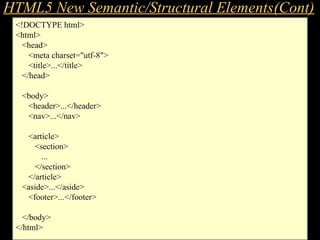
EXAMPLE - Structure
<!DOCTYPE html>
<html>
<head>
<meta charset="utf-8">
<title>...</title>
</head>
<body>
<header>...</header>
<nav>...</nav>
<article>
<section>
...
</section>
</article>
<aside>...</aside>
<footer>...</footer>
</body>
</html>
HTML5 New Semantic/Structural Elements(Cont)
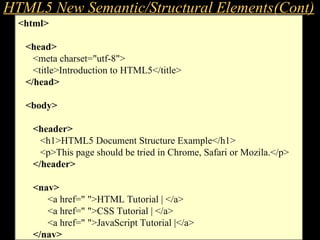
EXAMPLE – Structure & Content
<html>
<head>
<meta charset="utf-8">
<title>Introduction to HTML5</title>
</head>
<body>
<header>
<h1>HTML5 Document Structure Example</h1>
<p>This page should be tried in Chrome, Safari or Mozila.</p>
</header>
<nav>
<a href=" ">HTML Tutorial | </a>
<a href=" ">CSS Tutorial | </a>
<a href=" ">JavaScript Tutorial |</a>
</nav>
HTML5 New Semantic/Structural Elements(Cont)
EXAMPLE – Structure & Content
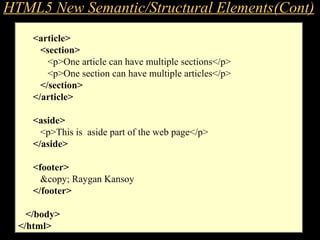
<article>
<section>
<p>One article can have multiple sections</p>
<p>One section can have multiple articles</p>
</section>
</article>
<aside>
<p>This is aside part of the web page</p>
</aside>
<footer>
&copy; Raygan Kansoy
</footer>
</body>
</html>
HTML5 New Semantic/Structural Elements(Cont)
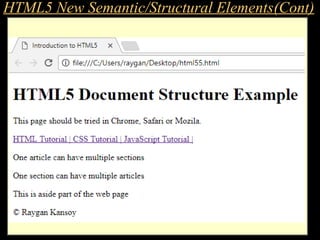
EXAMPLE – Output in a Browser
HTML5 New Semantic/Structural Elements(Cont)
Froms
• HTML Forms are required, when you want to collect some data from
the site visitor. For example, during user registration you would like
to collect information such as name, email address, credit card, etc.
• A form will take input from the site visitor and then will post it to a
back-end application such as PHP script etc. The back-end
application will perform required processing on the passed data based
on defined business logic inside the application.
• There are various form elements available like text fields, textarea
fields, drop-down menus, radio buttons, checkboxes, etc.
Form Syntax
<form action = "Script URL" method = "GET|
POST"> form elements like input, textarea etc.
</form>
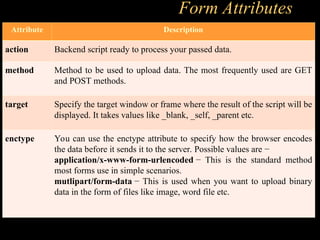
Form Attributes
Attribute Description
action Backend script ready to process your passed data.
method Method to be used to upload data. The most frequently used are GET
and POST methods.
target Specify the target window or frame where the result of the script will be
displayed. It takes values like _blank, _self, _parent etc.
enctype You can use the enctype attribute to specify how the browser encodes
the data before it sends it to the server. Possible values are −
application/x-www-form-urlencoded − This is the standard method
most forms use in simple scenarios.
mutlipart/form-data − This is used when you want to upload binary
data in the form of files like image, word file etc.
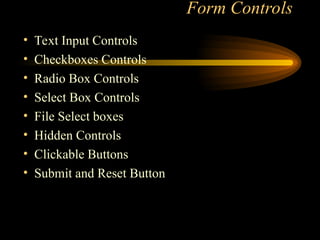
Form Controls
• Text Input Controls
• Checkboxes Controls
• Radio Box Controls
• Select Box Controls
• File Select boxes
• Hidden Controls
• Clickable Buttons
• Submit and Reset Button
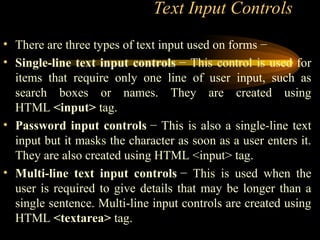
Text Input Controls
• There are three types of text input used on forms −
• Single-line text input controls − This control is used for
items that require only one line of user input, such as
search boxes or names. They are created using
HTML <input> tag.
• Password input controls − This is also a single-line text
input but it masks the character as soon as a user enters it.
They are also created using HTML <input> tag.
• Multi-line text input controls − This is used when the
user is required to give details that may be longer than a
single sentence. Multi-line input controls are created using
HTML <textarea> tag.
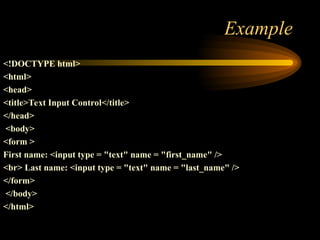
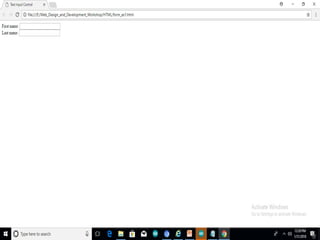
Example
<!DOCTYPE html>
<html>
<head>
<title>Text Input Control</title>
</head>
<body>
<form >
First name: <input type = "text" name = "first_name" />
<br> Last name: <input type = "text" name = "last_name" />
</form>
</body>
</html>
Multiple-Line Text Input
• This is used when the user is required to give
details that may be longer than a single sentence.
Multi-line input controls are created using HTML
<textarea> tag.
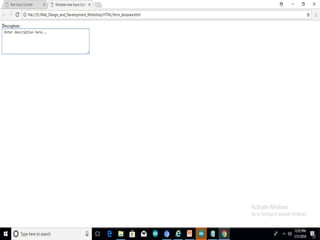
Example
<!DOCTYPE html>
<html>
<head>
<title>Multiple-Line Input Control</title>
</head>
<body>
<form> Description : <br />
<textarea rows = "5" cols = "50" name =
"description"> Enter description here... </textarea>
</form>
</body>
</html>
Example
Checkbox
• Checkboxes are used when more than one
option is required to be selected. They are
also created using HTML <input> tag but
type attribute is set to checkbox..
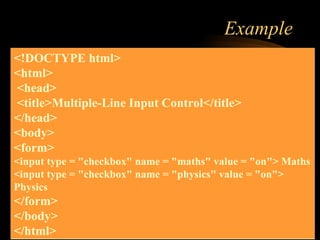
Example
<!DOCTYPE html>
<html>
<head>
<title>Multiple-Line Input Control</title>
</head>
<body>
<form>
<input type = "checkbox" name = "maths" value = "on"> Maths
<input type = "checkbox" name = "physics" value = "on">
Physics
</form>
</body>
</html>
Radio buttons
• Radio buttons are used when out of many
options, just one option is required to be
selected. They are also created using HTML
<input> tag but type attribute is set to radio.
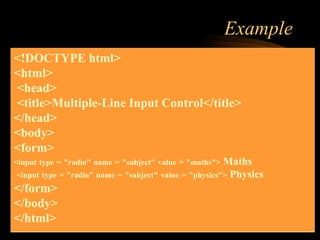
Example
<!DOCTYPE html>
<html>
<head>
<title>Multiple-Line Input Control</title>
</head>
<body>
<form>
<input type = "radio" name = "subject" value = "maths"> Maths
<input type = "radio" name = "subject" value = "physics"> Physics
</form>
</body>
</html>
Select Box Control
• A select box, also called drop down
box which provides option to list down
various options in the form of drop
down list, from where a user can select
one or more options.
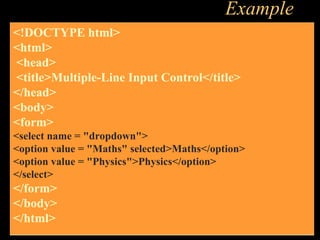
Example
<!DOCTYPE html>
<html>
<head>
<title>Multiple-Line Input Control</title>
</head>
<body>
<form>
<select name = "dropdown">
<option value = "Maths" selected>Maths</option>
<option value = "Physics">Physics</option>
</select>
</form>
</body>
</html>
File Upload Box
• If you want to allow a user to upload a file
to your web site, you will need to use a file
upload box, also known as a file select box.
This is also created using the <input>
element but type attribute is set to file.
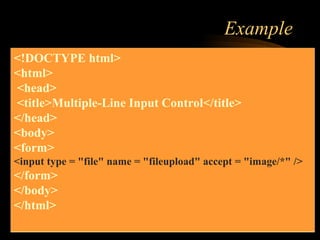
Example
<!DOCTYPE html>
<html>
<head>
<title>Multiple-Line Input Control</title>
</head>
<body>
<form>
<input type = "file" name = "fileupload" accept = "image/*" />
</form>
</body>
</html>
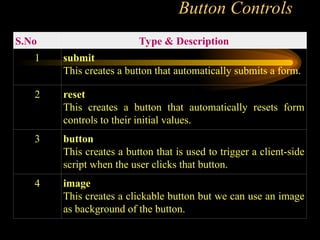
Button Controls
S.No Type & Description
1 submit
This creates a button that automatically submits a form.
2 reset
This creates a button that automatically resets form
controls to their initial values.
3 button
This creates a button that is used to trigger a client-side
script when the user clicks that button.
4 image
This creates a clickable button but we can use an image
as background of the button.
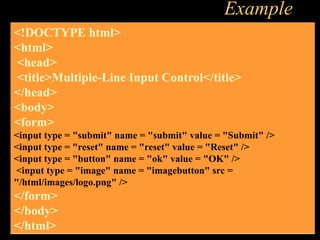
Example
<!DOCTYPE html>
<html>
<head>
<title>Multiple-Line Input Control</title>
</head>
<body>
<form>
<input type = "submit" name = "submit" value = "Submit" />
<input type = "reset" name = "reset" value = "Reset" />
<input type = "button" name = "ok" value = "OK" />
<input type = "image" name = "imagebutton" src =
"/html/images/logo.png" />
</form>
</body>
</html>
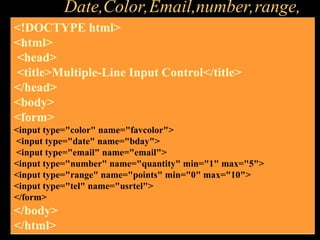
Date,Color,Email,number,range,
<!DOCTYPE html>
<html>
<head>
<title>Multiple-Line Input Control</title>
</head>
<body>
<form>
<input type="color" name="favcolor">
<input type="date" name="bday">
<input type="email" name="email">
<input type="number" name="quantity" min="1" max="5">
<input type="range" name="points" min="0" max="10">
<input type="tel" name="usrtel">
</form>
</body>
</html>

basic-html tags - Sample Structure of a Web Site

  • 1.
  • 2.
    Structural Tags <HTML> These tagsenclose the entire Web page document. </HTML> <HEAD> These tags enclose the Head part of the document </HEAD> <TITLE> These tags enclose the title of the document. This text appears in the title bar in the browser and on the bookmark list if someone bookmarks your web page. </TITLE>
  • 3.
    Sample Structure ofa Web Site <HTML> <HEAD> <TITLE> John Q. Public's Web Page </TITLE> </HEAD> <BODY> This is John Public's Webpage! </BODY> </HTML>
  • 4.
    Header Tags Header Tags-- Used for marking sections and subsections in a document. <H1>Header 1 -- Giant-sized and bold </H1> <H2>Header 2 -- Large and bold </H2> <H3>Header 3 -- Normal-sized and bold </H3> <H4>Header 4 -- Small and bold </H4> <H5>Header 5 -- Very Small and bold </H5> <H6>Header 6 -- Tiny and bold </H6>
  • 5.
    Header Tags (cont.) H1= Giant-sized and bold H2 = Large and bold H3 = Normal-sized and bold H4 = Small and bold H5 = Very Small and bold H6 = Tiny and bold
  • 6.
    Breaking Lines andParagraphs • <P> text </P> – Paragraph tag – Most browsers render (process) this with blank lines between each paragraph • <BR> – Line break tag – Used when the webmaster wants a carriage return but doesn't want a blank line to follow Example: text a <p>text a</p> <p>text b</p> text b <br>text c <br>text d text c text d
  • 7.
    Horizontal Rule The <HR>tag puts a graphical line across the page. Ex: Horizontal Rule Attributes: NOSHADE -- A solid line with no shading WIDTH="xx%/xx" -- Controls the width of the line. You may specify either percentage of the width of a page or actual pixel length SIZE="xx" -- Controls the height of the line. You need to specify the dimension in pixels. ALIGN="left/center/right" -- This allows the line to be aligned to the left, right, or center of the page
  • 8.
    Text Formatting Tags Somebasic text formatting styles: Tag Result <I> Italics </I> Italics <B> Bold </B> Bold <PRE> Preformatted Text </PRE> Preformatted Text <STRONG> Strong </STRONG> Strong <ADDRESS> Address </ADDRESS> Address <CITE> Citations </CITE> Citations <CODE> Source Code </CODE> Source Code
  • 9.
    Font modifications Web creatorscan also change the way text looks by using the <FONT> tag SIZE="number" - changes size of the font; 1=smallest, 7 = largest <FONT SIZE="7">Big</FONT> <FONT SIZE="1">Small</FONT> BigSmall COLOR="color-name" - changes text color <FONT COLOR="red">This is red</FONT> This is red FACE="font-name" - changes font <FONT FACE="verdana">This is the verdana font;</FONT> <FONT FACE="chicago">this is the chicago font.</FONT> This is the verdana font; this is chicago font.
  • 10.
    <Font> modifications (cont.) Onecan combine font modifications: <FONT SIZE="7" FACE="courier" COLOR="red">Big, Courier & Red</FONT> Big, Courier & Red <FONT SIZE="7"><FONT FACE="courier">Big & Courier</FONT> - Just Big</FONT> Big & Courier - Just Big
  • 11.
    Lists -- UnorderedLists Unordered lists: <UL> <LI>Item One <LI>Item Two <LI>Item Three <LI>Item Four </UL> • Item One • Item Two • Item Three • Item Four Unordered List Attributes: type="disc/circle/square" • Disc (default)  Circle  Square
  • 12.
    Lists -- OrderedLists <OL> <LI> Item One <LI> Item Two <LI> Item Three <LI> Item Four </OL> 1. Item One 2. Item Two 3. Item Three 4. Item Four type="i/I/a/A/1" (default) i = i. Item One I = I. Item One a = a. Item One A = A. Item One 1 = 1.Item One ii. Item Two II. Item Two b. Item Two B. Item Two 2. Item Two iii. Item Three III. Item Three c. Item Three C. Item Three 3. Item Three iv. Item Four IV. Item Four d. Item Four D. Item Four 4. Item Four start="xx" • Ordered (Numbered) Lists: Ordered List Attributes:
  • 13.
    Lists -- DefinitionLists Definition Lists: <DL> <DT>List Name One <DD>This is where information about List Name One would go</DD> </DT> <DT>List Name Two <DD>This is where information about List Name Two would go</DD> </DT> </DL> List Name One This is where information about List Name One would go List Name Two This is where information about List Name Two would go
  • 14.
    Links The anchor tag<A> is used to link one document to another or from one part of a document to another part of the same document. Basic Links: <A HREF="http://www.stanford.edu/">Stanford University</A> Inter-document Links: <A HREF="#spot">Point to 'spot' in this document</A> Defining a point in a document: <A NAME="spot">Spot</A> Email links: <A HREF="mailto:someone@somehost.com">Email someone@somehost.com</A>
  • 15.
    Graphics To have agraphic appear on a webpage, web designers must to put the <IMG> tag in with the address where the graphic "lives": <IMG SRC="http://www.someplace.com/images/fish.gif"> Graphics attributes: alt="text": insert a description of the graphic for those who are using browsers that cannot process images (e.g., page readers for the blind) width="xx/xx%": width in pixels/percentage height="xx/xx%": height in pixels/percentage border="xx": pixel length of the border surrounding the image. hspace="xx": places a buffer of space horizontally around the image vspace="xx": places a buffer of space vertically around the image align="top/middle/bottom/right/left": aligns image in relation to the text (see next 2 slides)
  • 16.
    Graphics (cont.) <img src="http://www.someplace.com/images/fish.gif"align="top">All about Fish <img src="http://www.someplace.com/images/fish.gif" align="middle">All about Fish <img src="http://www.someplace.com/images/fish.gif" align="bottom">All about Fish All about Fish All about Fish All about Fish
  • 17.
    Graphics (cont.) <img src="http://www.someplace.com/images/fish.gif"align="left"> <img src="http://www.someplace.com/images/fish.gif" align="right">
  • 18.
    eXtensible Mark upLanguage (XHTML) • To describe the general form and layout of documents • An XHTML document is a mix of content and controls • In XHTML tag names, attributes, and values are case sensitive and values must be enclosed by double quotes. • In XHTML all elements must have both beginning and ending tags. • Controls are tags and their attributes o Tags often delimit content and specify something about how the content o should be arranged in the document. o Attributes provide additional information about the content of a tag. • Tools for creating XHTML documents o XHTML editors - make document creation easier o Shortcuts to typing tag names, spell-checker, o WYSIWYG XHTML editors • Plug ins o Integrated into tools like word processors, o effectively converting them to WYSIWYG o XHTML editors • Filters • o Convert documents in other formats to XHTML
  • 19.
    Advantages of bothfilters and plug-ins: • Existing documents produced with other tools • can be converted to XHTML documents Disadvantages of both filters and plug-ins: • XHTML output of both is not perfect - must be fine tuned • XHTML may be non-standard • You have two versions of the document, which are difficult to synchronize
  • 20.
    URL (Uniform ResourceLocator) in HTML: URL is used to create a link in a web document. Two Types of URL: 1. Absolute URL • Absolute URL contains all the information necessary to identify files on the internet (Example: in postal service, for sending letter to the destination it necessary to have full information like, name, address, city etc.,) • Likewise, an absolute URL contains the protocol, hostname, filename, which are all essential to link the web document. • Example: i. http://google.com/index.html 2. Relative URL • Relative URL contains the only the folder name and filename or even just the file name. • Browser does not need protocol address or server name to identify the file in the web. • Relative URL to refer the documents in relation to the originating document.
  • 21.
    Two types ofRelative URL: i. Document – Relative URL. • Document Relative URL is used to relate the HTML document in the same folder, just providing the name of the file (ex: Index.html). • It contains only the folder name and file name. ii. Server – Relative URL • Server relative URL is relative to the server root. • It contains the part of URL and relating to the host name. Anchors and Links • This section discusses the A tag which is used to define anchors (places in a document that can be • linked to) and also to create links.
  • 22.
    A - (anchoror link) • The A tag lets you define anchors and links. An anchor defines a place in a document. A link displays a hypertext link that the user can click to display an anchor or a document. A as anchor • An anchor identifies a place in an HTML document. To indicate that an <A> tag is being used as an anchor, specify the NAME attribute. • Note that you can also use the ID attribute of any tag to identify that tag as an anchor, as discussed in UNIVERSAL Attributes. • Do not nest an anchor within another A tag. Syntax <A NAME="anchorName" >. .. </A> Example <A NAME=section2> <H2>A Cold Autumn Day</H2></A>
  • 24.
    HTML5 New InputTypes  color  date  datetime  email  month  number  range  search  tel  time  week
  • 25.
    HTML5 Semantic Elements: <header>  <nav>  <section>  <article>  <aside>  <section>  <figcaption>  <figure>  <footer>
  • 26.
    What is HTML5 • HTML 5 is the latest and most enhanced version of HTML. • HTML5 is a cooperation between the World Wide Web Consortium (W3C) and the Web Hypertext Application Technology Working Group (WHATWG). • HTML5 is a standard for structuring and presenting content on the World Wide Web. • The latest versions of Apple Safari, Google Chrome, Mozilla Firefox, and Opera all support many HTML5 features and Internet Explorer, also have support for some HTML5 functionality. • The mobile web browsers that come pre-installed on iPhones, iPads, and Android phones all have excellent support for HTML5.
  • 27.
    • With CascadingStyle Sheets (CSS) and JavaScript, HTML forms a triad of cornerstone technologies for the World Wide Web.
  • 28.
    HTML Versions • TheHypertext Mark-up Language (HTML) is an evolving language, with different versions supporting different features and each new version is given a version number. • The first version of HTML did not have a version number and it was just called HTML.
  • 29.
    HTML Versions • HTML(1989-1994): – This was the bare bones version of HTML and the very first release of the language. – It was very limited in terms of styling and presentation of content. – Because of these limitations, every web page created with HTML looked the same with similar background and the type of font used. – In HTML, it could not be possible to use tables or frames, specify fonts, change page background, or use forms – Because the World Wide Web Consortium (W3C) did not exist at the time when HTML first appeared, W3C did not formally specify the HTML specification. – HTML was only supported by Lynx and Mosaic browsers.
  • 30.
    HTML Versions(Cont..) • HTML2.0 (1995): – HTML 2.0 was considerably improved to support forms with limited set of form elements such as text boxes, and option buttons, change of page background, use of tables – This version supported by more browsers – Between HTML and HTML 2.0 W3C was formed.
  • 31.
    HTML Versions(Cont..) • HTML3.2 (1997): – This version included support for creating tables and expanded options for form elements but still did not support the frames. – It also allowed web pages to include complex mathematical equations. – In an attempt to ensure development of standards for the World Wide Web, the World Wide Web Consortium (W3C) was founded by Tim Berners-Lee in 1994. By 1997, they published HTML 3.2. – Because W3C delayed agreeing on the next version (after HTML 2.0) of HTML, HTML 3.2 was created instead of HTML 3.0. – Although HTML 3.2 specification included support for CSS (cascaded style sheets), browser manufactures did not support it very well in their browsers.
  • 32.
    HTML Versions(Cont..) • HTML4.0 (1997-1998): – Later in 1997, the W3C released HTML 4.0 — a version that adopted many browser-specific element types and attributes. – HTML 4.0 will later be reissued with minor edits in 1998. • HTML 4.01 (1999): – In December 1999, HTML 4.01 was released. – This version added support for style sheets and scripting ability for multimedia elements. – HTML 4.01 focused on separating presentation styling information from the actual content by the use of style sheets.
  • 33.
    • XHTML (2000): –After HTML 4.01, there was no new version of HTML for many years as development of the parallel, XML-based language XHTML occupied the W3C's HTML Working Group through the early and mid-2000s. – It was recommended to be used as the joint-standard with HTML 4.01. It incorporated XML to ensure code is properly written and to ensure interoperability between programming languages. HTML Versions(Cont..)
  • 34.
    • HTML 5.0(2014): – HTML5 is the standard language of the Web, developed by W3C. – Its core was to improve the language with support for the latest multimedia while keeping it easily readable by humans and consistently understood by computers and devices. – For application developers and industry, HTML5 represents a set of features that people will be able to rely on for years to come. HTML5 is supported on a wide variety of devices, lowering the cost of creating rich applications to reach users everywhere. • HTML 5.1 (2016): – The W3C release HTML 5.1 in November 2016. • HTML 5.2 (2017): – The W3C release HTML 5.2 in December 2017. HTML Versions(Cont..)
  • 35.
    HTML Comment Lines •In every programming language comments are widely used to help/remind to yourself or other developers about what is happening in the code, to make note of extra code that will be added to the web application at a later date and notes to others who may be working on the same project. • Comments can be used anywhere in the code, they don’t rendered by the browser and change the function of the code in anyway. • Comments are not shown to the viewer by the browser. However, they can be seen in the source code. • In HTML, comments are easily added to the document, by adding the opening and closing comment tags.
  • 36.
    • Let’s gothrough our HTML document and talk about the structure step-by-step, using comments. HTML Comment Lines (Cont…)
  • 37.
    HTML5 New Semantic/StructuralElements • Semantics is the study of the meanings of words and phrases in a language. • Semantic elements = elements with a meaning. • A semantic element clearly describes its meaning to both the browser and the developer. • Non-semantic elements tells nothing about its content. – <div> - defines a division or a section in an HTML document – <span> • Semantic elements clearly defines its content. – <form> – <table> – <article>
  • 38.
    • HTML5 semanticelements are supported in all modern browsers. • HTML5 offers new semantic elements to define different parts of a web page and for having a better structure in document. • Most commonly used examples of these element are; – <header> – <nav> – <main> – <section> – <article> – <aside> – <figure> – <figcaption> – <footer> HTML5 New Semantic/Structural Elements(Cont)
  • 39.
    TAG DESCRIPTION <header> Definesa header for a document or section <nav> Represents a section of the document intended for navigation links <main> Defines the main content of a document <section> Defines a section in a document <article> Represents an independent piece of content of a document, such as a blog entry or newspaper article <aside> Represents a piece of content that is only slightly related to the rest of the page. <figure> Specifies self-contained content, like illustrations, diagrams, photos, images, graphics, code listings, etc. <figcaption> Defines a caption for a <figure> element <footer> Defines a footer for a document or section and can contain information about the author, copyright information, etc. HTML5 New Semantic/Structural Elements(Cont)
  • 40.
    EXAMPLE - Structure <!DOCTYPEhtml> <html> <head> <meta charset="utf-8"> <title>...</title> </head> <body> <header>...</header> <nav>...</nav> <article> <section> ... </section> </article> <aside>...</aside> <footer>...</footer> </body> </html> HTML5 New Semantic/Structural Elements(Cont)
  • 41.
    EXAMPLE – Structure& Content <html> <head> <meta charset="utf-8"> <title>Introduction to HTML5</title> </head> <body> <header> <h1>HTML5 Document Structure Example</h1> <p>This page should be tried in Chrome, Safari or Mozila.</p> </header> <nav> <a href=" ">HTML Tutorial | </a> <a href=" ">CSS Tutorial | </a> <a href=" ">JavaScript Tutorial |</a> </nav> HTML5 New Semantic/Structural Elements(Cont)
  • 42.
    EXAMPLE – Structure& Content <article> <section> <p>One article can have multiple sections</p> <p>One section can have multiple articles</p> </section> </article> <aside> <p>This is aside part of the web page</p> </aside> <footer> &copy; Raygan Kansoy </footer> </body> </html> HTML5 New Semantic/Structural Elements(Cont)
  • 43.
    EXAMPLE – Outputin a Browser HTML5 New Semantic/Structural Elements(Cont)
  • 44.
    Froms • HTML Formsare required, when you want to collect some data from the site visitor. For example, during user registration you would like to collect information such as name, email address, credit card, etc. • A form will take input from the site visitor and then will post it to a back-end application such as PHP script etc. The back-end application will perform required processing on the passed data based on defined business logic inside the application. • There are various form elements available like text fields, textarea fields, drop-down menus, radio buttons, checkboxes, etc.
  • 45.
    Form Syntax <form action= "Script URL" method = "GET| POST"> form elements like input, textarea etc. </form>
  • 46.
    Form Attributes Attribute Description actionBackend script ready to process your passed data. method Method to be used to upload data. The most frequently used are GET and POST methods. target Specify the target window or frame where the result of the script will be displayed. It takes values like _blank, _self, _parent etc. enctype You can use the enctype attribute to specify how the browser encodes the data before it sends it to the server. Possible values are − application/x-www-form-urlencoded − This is the standard method most forms use in simple scenarios. mutlipart/form-data − This is used when you want to upload binary data in the form of files like image, word file etc.
  • 47.
    Form Controls • TextInput Controls • Checkboxes Controls • Radio Box Controls • Select Box Controls • File Select boxes • Hidden Controls • Clickable Buttons • Submit and Reset Button
  • 48.
    Text Input Controls •There are three types of text input used on forms − • Single-line text input controls − This control is used for items that require only one line of user input, such as search boxes or names. They are created using HTML <input> tag. • Password input controls − This is also a single-line text input but it masks the character as soon as a user enters it. They are also created using HTML <input> tag. • Multi-line text input controls − This is used when the user is required to give details that may be longer than a single sentence. Multi-line input controls are created using HTML <textarea> tag.
  • 49.
    Example <!DOCTYPE html> <html> <head> <title>Text InputControl</title> </head> <body> <form > First name: <input type = "text" name = "first_name" /> <br> Last name: <input type = "text" name = "last_name" /> </form> </body> </html>
  • 51.
    Multiple-Line Text Input •This is used when the user is required to give details that may be longer than a single sentence. Multi-line input controls are created using HTML <textarea> tag.
  • 52.
    Example <!DOCTYPE html> <html> <head> <title>Multiple-Line InputControl</title> </head> <body> <form> Description : <br /> <textarea rows = "5" cols = "50" name = "description"> Enter description here... </textarea> </form> </body> </html>
  • 53.
  • 54.
    Checkbox • Checkboxes areused when more than one option is required to be selected. They are also created using HTML <input> tag but type attribute is set to checkbox..
  • 55.
    Example <!DOCTYPE html> <html> <head> <title>Multiple-Line InputControl</title> </head> <body> <form> <input type = "checkbox" name = "maths" value = "on"> Maths <input type = "checkbox" name = "physics" value = "on"> Physics </form> </body> </html>
  • 56.
    Radio buttons • Radiobuttons are used when out of many options, just one option is required to be selected. They are also created using HTML <input> tag but type attribute is set to radio.
  • 57.
    Example <!DOCTYPE html> <html> <head> <title>Multiple-Line InputControl</title> </head> <body> <form> <input type = "radio" name = "subject" value = "maths"> Maths <input type = "radio" name = "subject" value = "physics"> Physics </form> </body> </html>
  • 58.
    Select Box Control •A select box, also called drop down box which provides option to list down various options in the form of drop down list, from where a user can select one or more options.
  • 59.
    Example <!DOCTYPE html> <html> <head> <title>Multiple-Line InputControl</title> </head> <body> <form> <select name = "dropdown"> <option value = "Maths" selected>Maths</option> <option value = "Physics">Physics</option> </select> </form> </body> </html>
  • 60.
    File Upload Box •If you want to allow a user to upload a file to your web site, you will need to use a file upload box, also known as a file select box. This is also created using the <input> element but type attribute is set to file.
  • 61.
    Example <!DOCTYPE html> <html> <head> <title>Multiple-Line InputControl</title> </head> <body> <form> <input type = "file" name = "fileupload" accept = "image/*" /> </form> </body> </html>
  • 62.
    Button Controls S.No Type& Description 1 submit This creates a button that automatically submits a form. 2 reset This creates a button that automatically resets form controls to their initial values. 3 button This creates a button that is used to trigger a client-side script when the user clicks that button. 4 image This creates a clickable button but we can use an image as background of the button.
  • 63.
    Example <!DOCTYPE html> <html> <head> <title>Multiple-Line InputControl</title> </head> <body> <form> <input type = "submit" name = "submit" value = "Submit" /> <input type = "reset" name = "reset" value = "Reset" /> <input type = "button" name = "ok" value = "OK" /> <input type = "image" name = "imagebutton" src = "/html/images/logo.png" /> </form> </body> </html>
  • 64.
    Date,Color,Email,number,range, <!DOCTYPE html> <html> <head> <title>Multiple-Line InputControl</title> </head> <body> <form> <input type="color" name="favcolor"> <input type="date" name="bday"> <input type="email" name="email"> <input type="number" name="quantity" min="1" max="5"> <input type="range" name="points" min="0" max="10"> <input type="tel" name="usrtel"> </form> </body> </html>