HTML
HTML Comments
 Comments inside the program, helps programmers to
understand specific portions of code
 In HTML, take the form <!– Commented text -->
<html>
<body>
<!- - Do not display this -->
<p> This is a para </p>
</body>
</html>
Styling & Formatting
HTML Style Attribute
 Used for setting the style of an HTML element
 Syntax:
<tagname style="property:value;">
 The property is a CSS property. The value is a CSS value.
<html>
<body style="background-color:powderblue;">
<h1 style="color:red;"> This is a heading.</h1>
<p style="color:black;"> This is a para </p>
</body>
</html>
Background Color
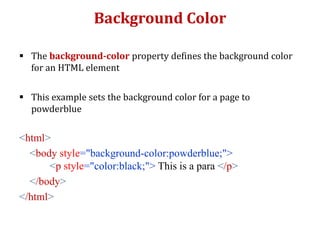
 The background-color property defines the background color
for an HTML element
 This example sets the background color for a page to
powderblue
<html>
<body style="background-color:powderblue;">
<p style="color:black;"> This is a para </p>
</body>
</html>
Text Color
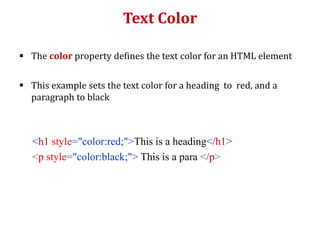
 The color property defines the text color for an HTML element
 This example sets the text color for a heading to red, and a
paragraph to black
<h1 style="color:red;">This is a heading</h1>
<p style="color:black;"> This is a para </p>
Fonts
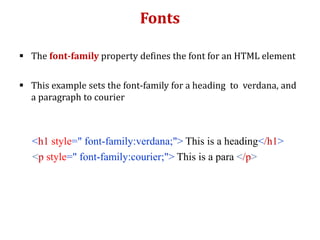
 The font-family property defines the font for an HTML element
 This example sets the font-family for a heading to verdana, and
a paragraph to courier
<h1 style=" font-family:verdana;"> This is a heading</h1>
<p style=" font-family:courier;"> This is a para </p>
Text Size
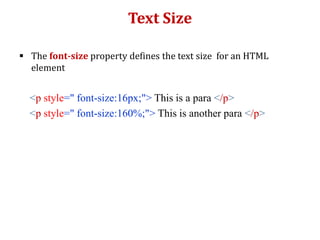
 The font-size property defines the text size for an HTML
element
<p style=" font-size:16px;"> This is a para </p>
<p style=" font-size:160%;"> This is another para </p>
Text Alignment
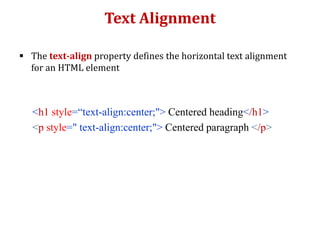
 The text-align property defines the horizontal text alignment
for an HTML element
<h1 style=“text-align:center;"> Centered heading</h1>
<p style=" text-align:center;"> Centered paragraph </p>
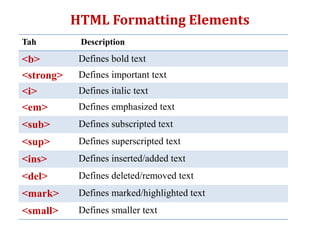
Tah Description
<b> Defines bold text
<strong> Defines important text
<i> Defines italic text
<em> Defines emphasized text
<sub> Defines subscripted text
<sup> Defines superscripted text
<ins> Defines inserted/added text
<del> Defines deleted/removed text
<mark> Defines marked/highlighted text
<small> Defines smaller text
HTML Formatting Elements
Quotation & Block Quote
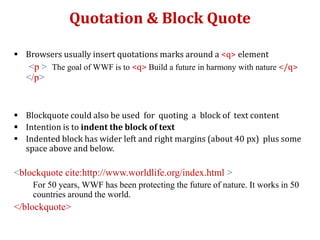
 Browsers usually insert quotations marks around a <q> element
<p > The goal of WWF is to <q> Build a future in harmony with nature </q>
</p>
 Blockquote could also be used for quoting a block of text content
 Intention is to indent the block of text
 Indented block has wider left and right margins (about 40 px) plus some
space above and below.
<blockquote cite:http://www.worldlife.org/index.html >
For 50 years, WWF has been protecting the future of nature. It works in 50
countries around the world.
</blockquote>
HTML Colors
HTML Colors
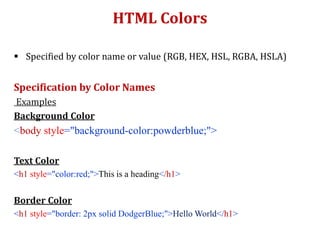
 Specified by color name or value (RGB, HEX, HSL, RGBA, HSLA)
Specification by Color Names
Examples
Background Color
<body style="background-color:powderblue;">
Text Color
<h1 style="color:red;">This is a heading</h1>
Border Color
<h1 style="border: 2px solid DodgerBlue;">Hello World</h1>
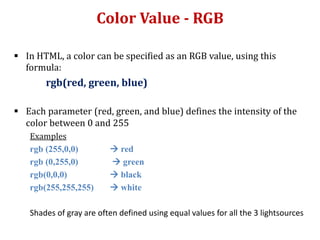
Color Value - RGB
 In HTML, a color can be specified as an RGB value, using this
formula:
rgb(red, green, blue)
 Each parameter (red, green, and blue) defines the intensity of the
color between 0 and 255
Examples
rgb (255,0,0)  red
rgb (0,255,0)  green
rgb(0,0,0)  black
rgb(255,255,255)  white
Shades of gray are often defined using equal values for all the 3 lightsources
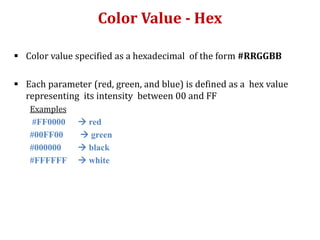
Color Value - Hex
 Color value specified as a hexadecimal of the form #RRGGBB
 Each parameter (red, green, and blue) is defined as a hex value
representing its intensity between 00 and FF
Examples
#FF0000  red
#00FF00  green
#000000  black
#FFFFFF  white
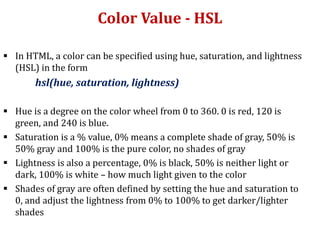
Color Value - HSL
 In HTML, a color can be specified using hue, saturation, and lightness
(HSL) in the form
hsl(hue, saturation, lightness)
 Hue is a degree on the color wheel from 0 to 360. 0 is red, 120 is
green, and 240 is blue.
 Saturation is a % value, 0% means a complete shade of gray, 50% is
50% gray and 100% is the pure color, no shades of gray
 Lightness is also a percentage, 0% is black, 50% is neither light or
dark, 100% is white – how much light given to the color
 Shades of gray are often defined by setting the hue and saturation to
0, and adjust the lightness from 0% to 100% to get darker/lighter
shades
Color Value – RGBA & HSLA
 RGBA color values are an extension of RGB color values with an
alpha channel - which specifies the opacity for a color
rgba(red, green, blue, alpha)
 HSLA color values are an extension of HSL color values with an
alpha channel - which specifies the opacity for a color
hsla(hue, saturation, lightness, alpha)
 The alpha parameter is a number between 0.0 (fully transparent)
and 1.0 (not transparent at all)
Styling HTML Elements
with CSS
Cascading Style Sheet (CSS)
 CSS describes how HTML elements are to be displayed
(on screen, paper or other media)
 Saves a lot of work – can control the layout of multiple pages at once
 Can be added to HTML in three ways:
i. Inline – using style attribute in HTML elements
ii. Internal – using <style> element in the <head> section
iii.External- using an external CSS file
Inline CSS
 Used to apply a unique style to a single HTML element
 Uses the style attribute of an HTML element
Example
<h1 style="color:blue;">This is a Blue Heading</h1>
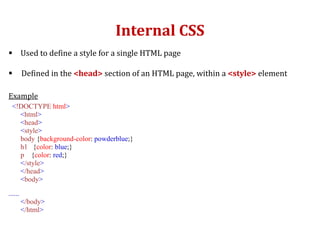
Internal CSS
 Used to define a style for a single HTML page
 Defined in the <head> section of an HTML page, within a <style> element
Example
<!DOCTYPE html>
<html>
<head>
<style>
body {background-color: powderblue;}
h1 {color: blue;}
p {color: red;}
</style>
</head>
<body>
......
</body>
</html>
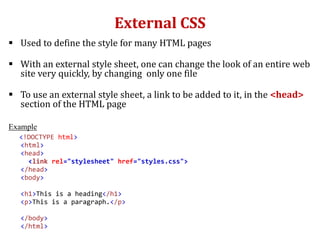
External CSS
 Used to define the style for many HTML pages
 With an external style sheet, one can change the look of an entire web
site very quickly, by changing only one file
 To use an external style sheet, a link to be added to it, in the <head>
section of the HTML page
Example
<!DOCTYPE html>
<html>
<head>
<link rel="stylesheet" href="styles.css">
</head>
<body>
<h1>This is a heading</h1>
<p>This is a paragraph.</p>
</body>
</html>
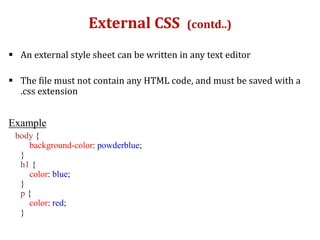
External CSS (contd..)
 An external style sheet can be written in any text editor
 The file must not contain any HTML code, and must be saved with a
.css extension
Example
body {
background-color: powderblue;
}
h1 {
color: blue;
}
p {
color: red;
}
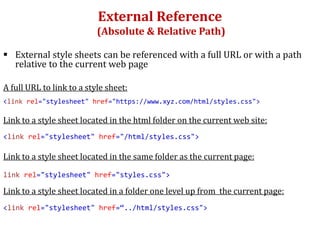
External Reference
(Absolute & Relative Path)
 External style sheets can be referenced with a full URL or with a path
relative to the current web page
A full URL to link to a style sheet:
<link rel="stylesheet" href="https://www.xyz.com/html/styles.css">
Link to a style sheet located in the html folder on the current web site:
<link rel="stylesheet" href="/html/styles.css">
Link to a style sheet located in the same folder as the current page:
link rel="stylesheet" href="styles.css">
Link to a style sheet located in a folder one level up from the current page:
<link rel="stylesheet" href=“../html/styles.css">
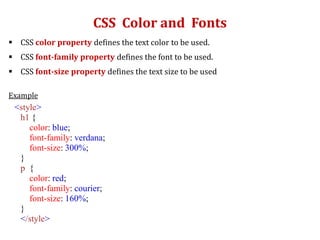
CSS Color and Fonts
 CSS color property defines the text color to be used.
 CSS font-family property defines the font to be used.
 CSS font-size property defines the text size to be used
Example
<style>
h1 {
color: blue;
font-family: verdana;
font-size: 300%;
}
p {
color: red;
font-family: courier;
font-size: 160%;
}
</style>
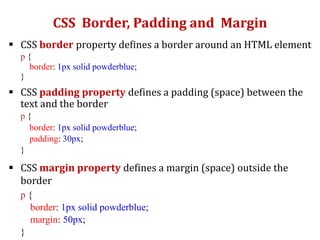
CSS Border, Padding and Margin
 CSS border property defines a border around an HTML element
p {
border: 1px solid powderblue;
}
 CSS padding property defines a padding (space) between the
text and the border
p {
border: 1px solid powderblue;
padding: 30px;
}
 CSS margin property defines a margin (space) outside the
border
p {
border: 1px solid powderblue;
margin: 50px;
}
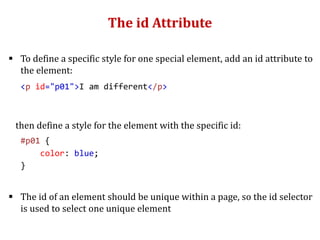
The id Attribute
 To define a specific style for one special element, add an id attribute to
the element:
<p id="p01">I am different</p>
then define a style for the element with the specific id:
#p01 {
color: blue;
}
 The id of an element should be unique within a page, so the id selector
is used to select one unique element
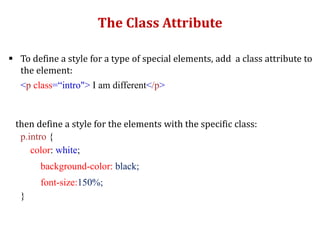
The Class Attribute
 To define a style for a type of special elements, add a class attribute to
the element:
<p class=“intro"> I am different</p>
then define a style for the elements with the specific class:
p.intro {
color: white;
background-color: black;
font-size:150%;
}
HTML Tables
HTML Tables
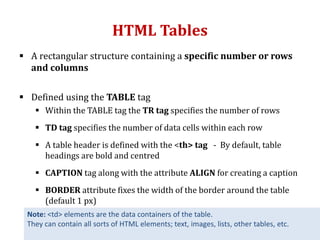
 A rectangular structure containing a specific number or rows
and columns
 Defined using the TABLE tag
 Within the TABLE tag the TR tag specifies the number of rows
 TD tag specifies the number of data cells within each row
 A table header is defined with the <th> tag - By default, table
headings are bold and centred
 CAPTION tag along with the attribute ALIGN for creating a caption
 BORDER attribute fixes the width of the border around the table
(default 1 px)
Note: <td> elements are the data containers of the table.
They can contain all sorts of HTML elements; text, images, lists, other tables, etc.
Adding Border
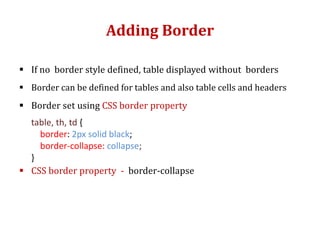
 If no border style defined, table displayed without borders
 Border can be defined for tables and also table cells and headers
 Border set using CSS border property
table, th, td {
border: 2px solid black;
border-collapse: collapse;
}
 CSS border property - border-collapse
Cell Padding & Border Spacing
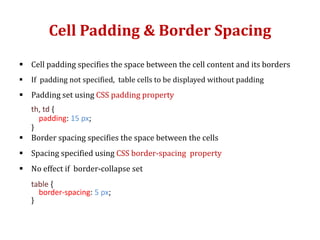
 Cell padding specifies the space between the cell content and its borders
 If padding not specified, table cells to be displayed without padding
 Padding set using CSS padding property
th, td {
padding: 15 px;
}
 Border spacing specifies the space between the cells
 Spacing specified using CSS border-spacing property
 No effect if border-collapse set
table {
border-spacing: 5 px;
}
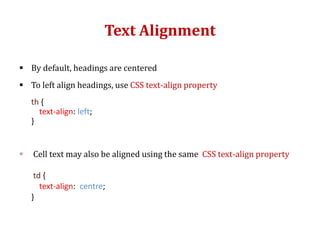
Text Alignment
 By default, headings are centered
 To left align headings, use CSS text-align property
th {
text-align: left;
}
 Cell text may also be aligned using the same CSS text-align property
td {
text-align: centre;
}
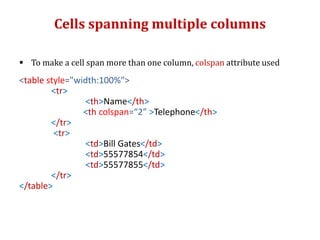
Cells spanning multiple columns
 To make a cell span more than one column, colspan attribute used
<table style="width:100%">
<tr>
<th>Name</th>
<th colspan=“2” >Telephone</th>
</tr>
<tr>
<td>Bill Gates</td>
<td>55577854</td>
<td>55577855</td>
</tr>
</table>
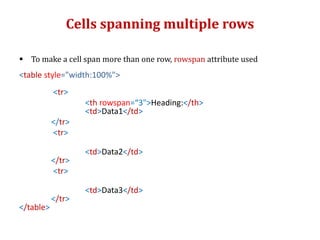
Cells spanning multiple rows
 To make a cell span more than one row, rowspan attribute used
<table style="width:100%">
<tr>
<th rowspan=“3">Heading:</th>
<td>Data1</td>
</tr>
<tr>
<td>Data2</td>
</tr>
<tr>
<td>Data3</td>
</tr>
</table>
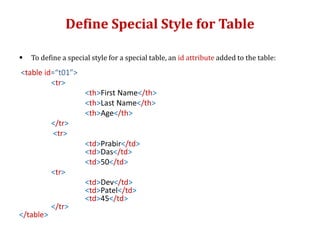
Define Special Style for Table
 To define a special style for a special table, an id attribute added to the table:
<table id=“t01”>
<tr>
<th>First Name</th>
<th>Last Name</th>
<th>Age</th>
</tr>
<tr>
<td>Prabir</td>
<td>Das</td>
<td>50</td>
<tr>
<td>Dev</td>
<td>Patel</td>
<td>45</td>
</tr>
</table>
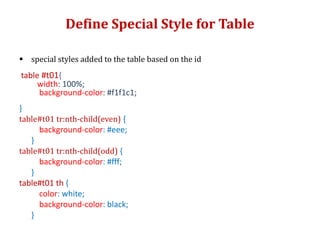
Define Special Style for Table
 special styles added to the table based on the id
table #t01{
width: 100%;
background-color: #f1f1c1;
}
table#t01 tr:nth-child(even) {
background-color: #eee;
}
table#t01 tr:nth-child(odd) {
background-color: #fff;
}
table#t01 th {
color: white;
background-color: black;
}
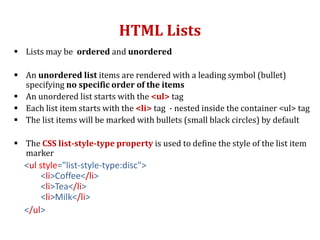
HTML Lists
HTML Lists
 Lists may be ordered and unordered
 An unordered list items are rendered with a leading symbol (bullet)
specifying no specific order of the items
 An unordered list starts with the <ul> tag
 Each list item starts with the <li> tag - nested inside the container <ul> tag
 The list items will be marked with bullets (small black circles) by default
 The CSS list-style-type property is used to define the style of the list item
marker
<ul style="list-style-type:disc">
<li>Coffee</li>
<li>Tea</li>
<li>Milk</li>
</ul>
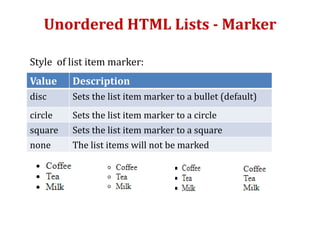
Unordered HTML Lists - Marker
Value Description
disc Sets the list item marker to a bullet (default)
circle Sets the list item marker to a circle
square Sets the list item marker to a square
none The list items will not be marked
Style of list item marker:
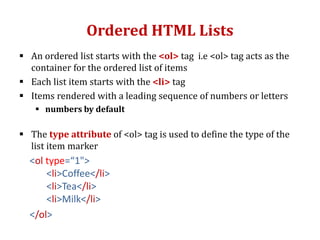
Ordered HTML Lists
 An ordered list starts with the <ol> tag i.e <ol> tag acts as the
container for the ordered list of items
 Each list item starts with the <li> tag
 Items rendered with a leading sequence of numbers or letters
 numbers by default
 The type attribute of <ol> tag is used to define the type of the
list item marker
<ol type=“1">
<li>Coffee</li>
<li>Tea</li>
<li>Milk</li>
</ol>
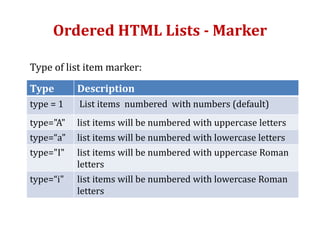
Ordered HTML Lists - Marker
Type Description
type = 1 List items numbered with numbers (default)
type="A" list items will be numbered with uppercase letters
type=“a" list items will be numbered with lowercase letters
type="I" list items will be numbered with uppercase Roman
letters
type=“i" list items will be numbered with lowercase Roman
letters
Type of list item marker:
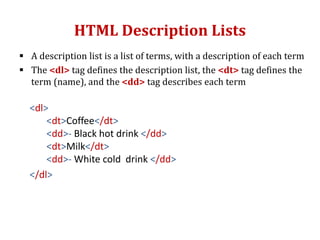
HTML Description Lists
 A description list is a list of terms, with a description of each term
 The <dl> tag defines the description list, the <dt> tag defines the
term (name), and the <dd> tag describes each term
<dl>
<dt>Coffee</dt>
<dd>- Black hot drink </dd>
<dt>Milk</dt>
<dd>- White cold drink </dd>
</dl>
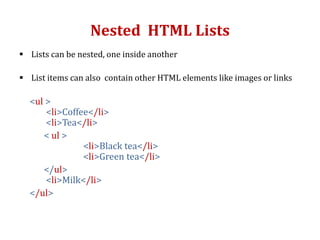
Nested HTML Lists
 Lists can be nested, one inside another
 List items can also contain other HTML elements like images or links
<ul >
<li>Coffee</li>
<li>Tea</li>
< ul >
<li>Black tea</li>
<li>Green tea</li>
</ul>
<li>Milk</li>
</ul>
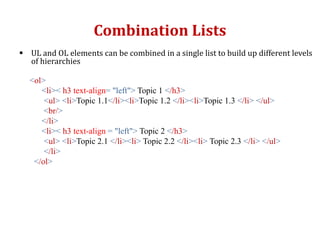
Combination Lists
 UL and OL elements can be combined in a single list to build up different levels
of hierarchies
<ol>
<li>< h3 text-align= "left"> Topic 1 </h3>
<ul> <li>Topic 1.1</li><li>Topic 1.2 </li><li>Topic 1.3 </li> </ul>
<br/>
</li>
<li>< h3 text-align = "left"> Topic 2 </h3>
<ul> <li>Topic 2.1 </li><li> Topic 2.2 </li><li> Topic 2.3 </li> </ul>
</li>
</ol>
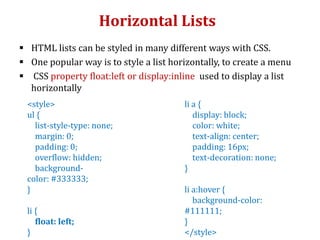
Horizontal Lists
 HTML lists can be styled in many different ways with CSS.
 One popular way is to style a list horizontally, to create a menu
 CSS property float:left or display:inline used to display a list
horizontally
<style>
ul {
list-style-type: none;
margin: 0;
padding: 0;
overflow: hidden;
background-
color: #333333;
}
li {
float: left;
}
li a {
display: block;
color: white;
text-align: center;
padding: 16px;
text-decoration: none;
}
li a:hover {
background-color:
#111111;
}
</style>

Html 2

  • 1.
  • 2.
    HTML Comments  Commentsinside the program, helps programmers to understand specific portions of code  In HTML, take the form <!– Commented text --> <html> <body> <!- - Do not display this --> <p> This is a para </p> </body> </html>
  • 3.
  • 4.
    HTML Style Attribute Used for setting the style of an HTML element  Syntax: <tagname style="property:value;">  The property is a CSS property. The value is a CSS value. <html> <body style="background-color:powderblue;"> <h1 style="color:red;"> This is a heading.</h1> <p style="color:black;"> This is a para </p> </body> </html>
  • 5.
    Background Color  Thebackground-color property defines the background color for an HTML element  This example sets the background color for a page to powderblue <html> <body style="background-color:powderblue;"> <p style="color:black;"> This is a para </p> </body> </html>
  • 6.
    Text Color  Thecolor property defines the text color for an HTML element  This example sets the text color for a heading to red, and a paragraph to black <h1 style="color:red;">This is a heading</h1> <p style="color:black;"> This is a para </p>
  • 7.
    Fonts  The font-familyproperty defines the font for an HTML element  This example sets the font-family for a heading to verdana, and a paragraph to courier <h1 style=" font-family:verdana;"> This is a heading</h1> <p style=" font-family:courier;"> This is a para </p>
  • 8.
    Text Size  Thefont-size property defines the text size for an HTML element <p style=" font-size:16px;"> This is a para </p> <p style=" font-size:160%;"> This is another para </p>
  • 9.
    Text Alignment  Thetext-align property defines the horizontal text alignment for an HTML element <h1 style=“text-align:center;"> Centered heading</h1> <p style=" text-align:center;"> Centered paragraph </p>
  • 10.
    Tah Description <b> Definesbold text <strong> Defines important text <i> Defines italic text <em> Defines emphasized text <sub> Defines subscripted text <sup> Defines superscripted text <ins> Defines inserted/added text <del> Defines deleted/removed text <mark> Defines marked/highlighted text <small> Defines smaller text HTML Formatting Elements
  • 11.
    Quotation & BlockQuote  Browsers usually insert quotations marks around a <q> element <p > The goal of WWF is to <q> Build a future in harmony with nature </q> </p>  Blockquote could also be used for quoting a block of text content  Intention is to indent the block of text  Indented block has wider left and right margins (about 40 px) plus some space above and below. <blockquote cite:http://www.worldlife.org/index.html > For 50 years, WWF has been protecting the future of nature. It works in 50 countries around the world. </blockquote>
  • 12.
  • 13.
    HTML Colors  Specifiedby color name or value (RGB, HEX, HSL, RGBA, HSLA) Specification by Color Names Examples Background Color <body style="background-color:powderblue;"> Text Color <h1 style="color:red;">This is a heading</h1> Border Color <h1 style="border: 2px solid DodgerBlue;">Hello World</h1>
  • 14.
    Color Value -RGB  In HTML, a color can be specified as an RGB value, using this formula: rgb(red, green, blue)  Each parameter (red, green, and blue) defines the intensity of the color between 0 and 255 Examples rgb (255,0,0)  red rgb (0,255,0)  green rgb(0,0,0)  black rgb(255,255,255)  white Shades of gray are often defined using equal values for all the 3 lightsources
  • 15.
    Color Value -Hex  Color value specified as a hexadecimal of the form #RRGGBB  Each parameter (red, green, and blue) is defined as a hex value representing its intensity between 00 and FF Examples #FF0000  red #00FF00  green #000000  black #FFFFFF  white
  • 16.
    Color Value -HSL  In HTML, a color can be specified using hue, saturation, and lightness (HSL) in the form hsl(hue, saturation, lightness)  Hue is a degree on the color wheel from 0 to 360. 0 is red, 120 is green, and 240 is blue.  Saturation is a % value, 0% means a complete shade of gray, 50% is 50% gray and 100% is the pure color, no shades of gray  Lightness is also a percentage, 0% is black, 50% is neither light or dark, 100% is white – how much light given to the color  Shades of gray are often defined by setting the hue and saturation to 0, and adjust the lightness from 0% to 100% to get darker/lighter shades
  • 17.
    Color Value –RGBA & HSLA  RGBA color values are an extension of RGB color values with an alpha channel - which specifies the opacity for a color rgba(red, green, blue, alpha)  HSLA color values are an extension of HSL color values with an alpha channel - which specifies the opacity for a color hsla(hue, saturation, lightness, alpha)  The alpha parameter is a number between 0.0 (fully transparent) and 1.0 (not transparent at all)
  • 18.
  • 19.
    Cascading Style Sheet(CSS)  CSS describes how HTML elements are to be displayed (on screen, paper or other media)  Saves a lot of work – can control the layout of multiple pages at once  Can be added to HTML in three ways: i. Inline – using style attribute in HTML elements ii. Internal – using <style> element in the <head> section iii.External- using an external CSS file
  • 20.
    Inline CSS  Usedto apply a unique style to a single HTML element  Uses the style attribute of an HTML element Example <h1 style="color:blue;">This is a Blue Heading</h1>
  • 21.
    Internal CSS  Usedto define a style for a single HTML page  Defined in the <head> section of an HTML page, within a <style> element Example <!DOCTYPE html> <html> <head> <style> body {background-color: powderblue;} h1 {color: blue;} p {color: red;} </style> </head> <body> ...... </body> </html>
  • 22.
    External CSS  Usedto define the style for many HTML pages  With an external style sheet, one can change the look of an entire web site very quickly, by changing only one file  To use an external style sheet, a link to be added to it, in the <head> section of the HTML page Example <!DOCTYPE html> <html> <head> <link rel="stylesheet" href="styles.css"> </head> <body> <h1>This is a heading</h1> <p>This is a paragraph.</p> </body> </html>
  • 23.
    External CSS (contd..) An external style sheet can be written in any text editor  The file must not contain any HTML code, and must be saved with a .css extension Example body { background-color: powderblue; } h1 { color: blue; } p { color: red; }
  • 24.
    External Reference (Absolute &Relative Path)  External style sheets can be referenced with a full URL or with a path relative to the current web page A full URL to link to a style sheet: <link rel="stylesheet" href="https://www.xyz.com/html/styles.css"> Link to a style sheet located in the html folder on the current web site: <link rel="stylesheet" href="/html/styles.css"> Link to a style sheet located in the same folder as the current page: link rel="stylesheet" href="styles.css"> Link to a style sheet located in a folder one level up from the current page: <link rel="stylesheet" href=“../html/styles.css">
  • 25.
    CSS Color andFonts  CSS color property defines the text color to be used.  CSS font-family property defines the font to be used.  CSS font-size property defines the text size to be used Example <style> h1 { color: blue; font-family: verdana; font-size: 300%; } p { color: red; font-family: courier; font-size: 160%; } </style>
  • 26.
    CSS Border, Paddingand Margin  CSS border property defines a border around an HTML element p { border: 1px solid powderblue; }  CSS padding property defines a padding (space) between the text and the border p { border: 1px solid powderblue; padding: 30px; }  CSS margin property defines a margin (space) outside the border p { border: 1px solid powderblue; margin: 50px; }
  • 27.
    The id Attribute To define a specific style for one special element, add an id attribute to the element: <p id="p01">I am different</p> then define a style for the element with the specific id: #p01 { color: blue; }  The id of an element should be unique within a page, so the id selector is used to select one unique element
  • 28.
    The Class Attribute To define a style for a type of special elements, add a class attribute to the element: <p class=“intro"> I am different</p> then define a style for the elements with the specific class: p.intro { color: white; background-color: black; font-size:150%; }
  • 29.
  • 30.
    HTML Tables  Arectangular structure containing a specific number or rows and columns  Defined using the TABLE tag  Within the TABLE tag the TR tag specifies the number of rows  TD tag specifies the number of data cells within each row  A table header is defined with the <th> tag - By default, table headings are bold and centred  CAPTION tag along with the attribute ALIGN for creating a caption  BORDER attribute fixes the width of the border around the table (default 1 px) Note: <td> elements are the data containers of the table. They can contain all sorts of HTML elements; text, images, lists, other tables, etc.
  • 31.
    Adding Border  Ifno border style defined, table displayed without borders  Border can be defined for tables and also table cells and headers  Border set using CSS border property table, th, td { border: 2px solid black; border-collapse: collapse; }  CSS border property - border-collapse
  • 32.
    Cell Padding &Border Spacing  Cell padding specifies the space between the cell content and its borders  If padding not specified, table cells to be displayed without padding  Padding set using CSS padding property th, td { padding: 15 px; }  Border spacing specifies the space between the cells  Spacing specified using CSS border-spacing property  No effect if border-collapse set table { border-spacing: 5 px; }
  • 33.
    Text Alignment  Bydefault, headings are centered  To left align headings, use CSS text-align property th { text-align: left; }  Cell text may also be aligned using the same CSS text-align property td { text-align: centre; }
  • 34.
    Cells spanning multiplecolumns  To make a cell span more than one column, colspan attribute used <table style="width:100%"> <tr> <th>Name</th> <th colspan=“2” >Telephone</th> </tr> <tr> <td>Bill Gates</td> <td>55577854</td> <td>55577855</td> </tr> </table>
  • 35.
    Cells spanning multiplerows  To make a cell span more than one row, rowspan attribute used <table style="width:100%"> <tr> <th rowspan=“3">Heading:</th> <td>Data1</td> </tr> <tr> <td>Data2</td> </tr> <tr> <td>Data3</td> </tr> </table>
  • 36.
    Define Special Stylefor Table  To define a special style for a special table, an id attribute added to the table: <table id=“t01”> <tr> <th>First Name</th> <th>Last Name</th> <th>Age</th> </tr> <tr> <td>Prabir</td> <td>Das</td> <td>50</td> <tr> <td>Dev</td> <td>Patel</td> <td>45</td> </tr> </table>
  • 37.
    Define Special Stylefor Table  special styles added to the table based on the id table #t01{ width: 100%; background-color: #f1f1c1; } table#t01 tr:nth-child(even) { background-color: #eee; } table#t01 tr:nth-child(odd) { background-color: #fff; } table#t01 th { color: white; background-color: black; }
  • 38.
  • 39.
    HTML Lists  Listsmay be ordered and unordered  An unordered list items are rendered with a leading symbol (bullet) specifying no specific order of the items  An unordered list starts with the <ul> tag  Each list item starts with the <li> tag - nested inside the container <ul> tag  The list items will be marked with bullets (small black circles) by default  The CSS list-style-type property is used to define the style of the list item marker <ul style="list-style-type:disc"> <li>Coffee</li> <li>Tea</li> <li>Milk</li> </ul>
  • 40.
    Unordered HTML Lists- Marker Value Description disc Sets the list item marker to a bullet (default) circle Sets the list item marker to a circle square Sets the list item marker to a square none The list items will not be marked Style of list item marker:
  • 41.
    Ordered HTML Lists An ordered list starts with the <ol> tag i.e <ol> tag acts as the container for the ordered list of items  Each list item starts with the <li> tag  Items rendered with a leading sequence of numbers or letters  numbers by default  The type attribute of <ol> tag is used to define the type of the list item marker <ol type=“1"> <li>Coffee</li> <li>Tea</li> <li>Milk</li> </ol>
  • 42.
    Ordered HTML Lists- Marker Type Description type = 1 List items numbered with numbers (default) type="A" list items will be numbered with uppercase letters type=“a" list items will be numbered with lowercase letters type="I" list items will be numbered with uppercase Roman letters type=“i" list items will be numbered with lowercase Roman letters Type of list item marker:
  • 43.
    HTML Description Lists A description list is a list of terms, with a description of each term  The <dl> tag defines the description list, the <dt> tag defines the term (name), and the <dd> tag describes each term <dl> <dt>Coffee</dt> <dd>- Black hot drink </dd> <dt>Milk</dt> <dd>- White cold drink </dd> </dl>
  • 44.
    Nested HTML Lists Lists can be nested, one inside another  List items can also contain other HTML elements like images or links <ul > <li>Coffee</li> <li>Tea</li> < ul > <li>Black tea</li> <li>Green tea</li> </ul> <li>Milk</li> </ul>
  • 45.
    Combination Lists  ULand OL elements can be combined in a single list to build up different levels of hierarchies <ol> <li>< h3 text-align= "left"> Topic 1 </h3> <ul> <li>Topic 1.1</li><li>Topic 1.2 </li><li>Topic 1.3 </li> </ul> <br/> </li> <li>< h3 text-align = "left"> Topic 2 </h3> <ul> <li>Topic 2.1 </li><li> Topic 2.2 </li><li> Topic 2.3 </li> </ul> </li> </ol>
  • 46.
    Horizontal Lists  HTMLlists can be styled in many different ways with CSS.  One popular way is to style a list horizontally, to create a menu  CSS property float:left or display:inline used to display a list horizontally <style> ul { list-style-type: none; margin: 0; padding: 0; overflow: hidden; background- color: #333333; } li { float: left; } li a { display: block; color: white; text-align: center; padding: 16px; text-decoration: none; } li a:hover { background-color: #111111; } </style>

Editor's Notes

  • #11 HTML also defines special elements for defining text with a special meaning
  • #31 Table1.html Change style = 100% - headings bold nd centred Caption – immediately after table tag Remove border attribute