HOW TO USE
EVERNOTE
Created By: Reginald Wadwadan
Email: reginaldwadwadan@yahoo.com
Let’s create an
account first
Open your favorite
Web Browser
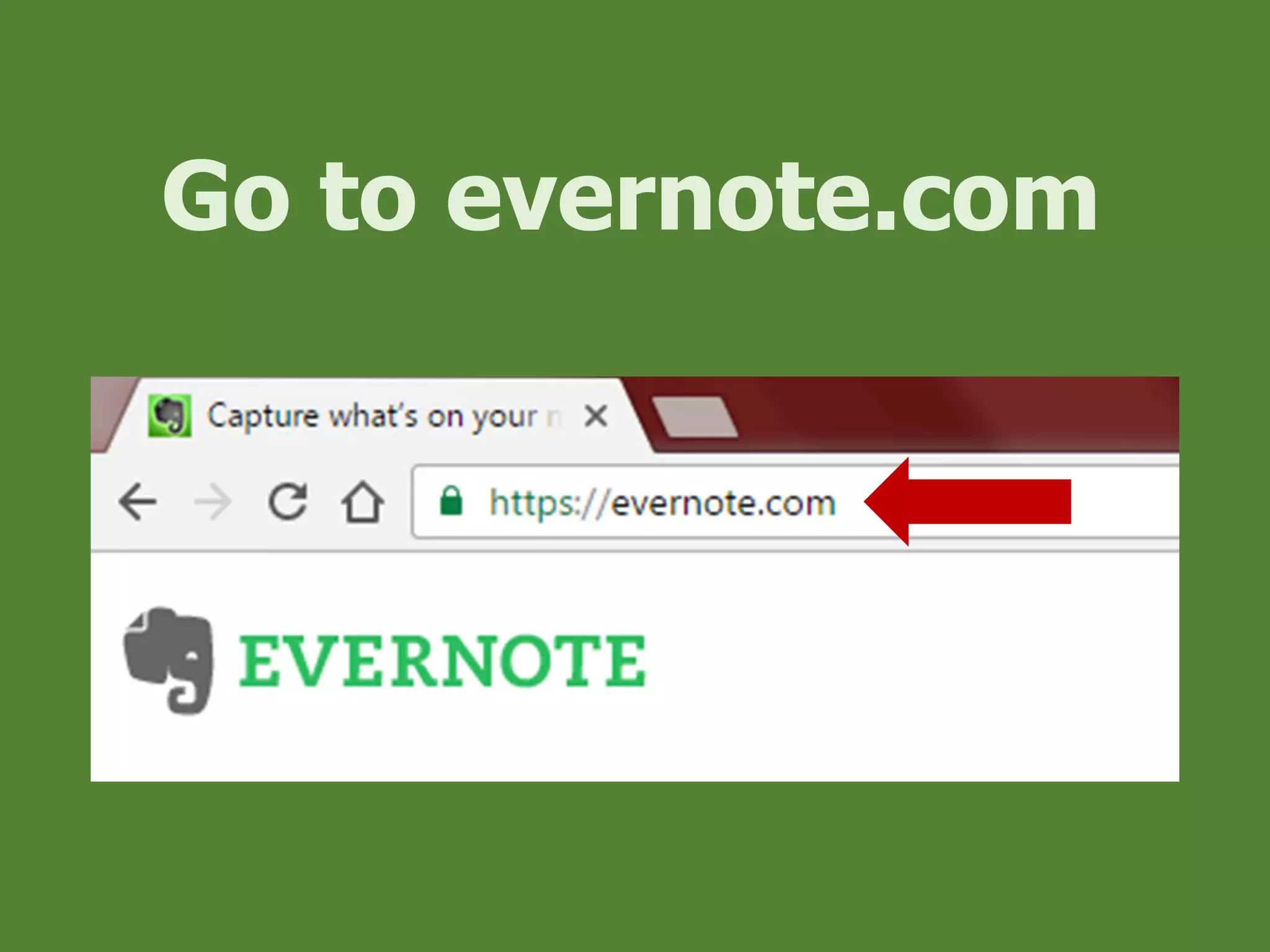
Go to evernote.com
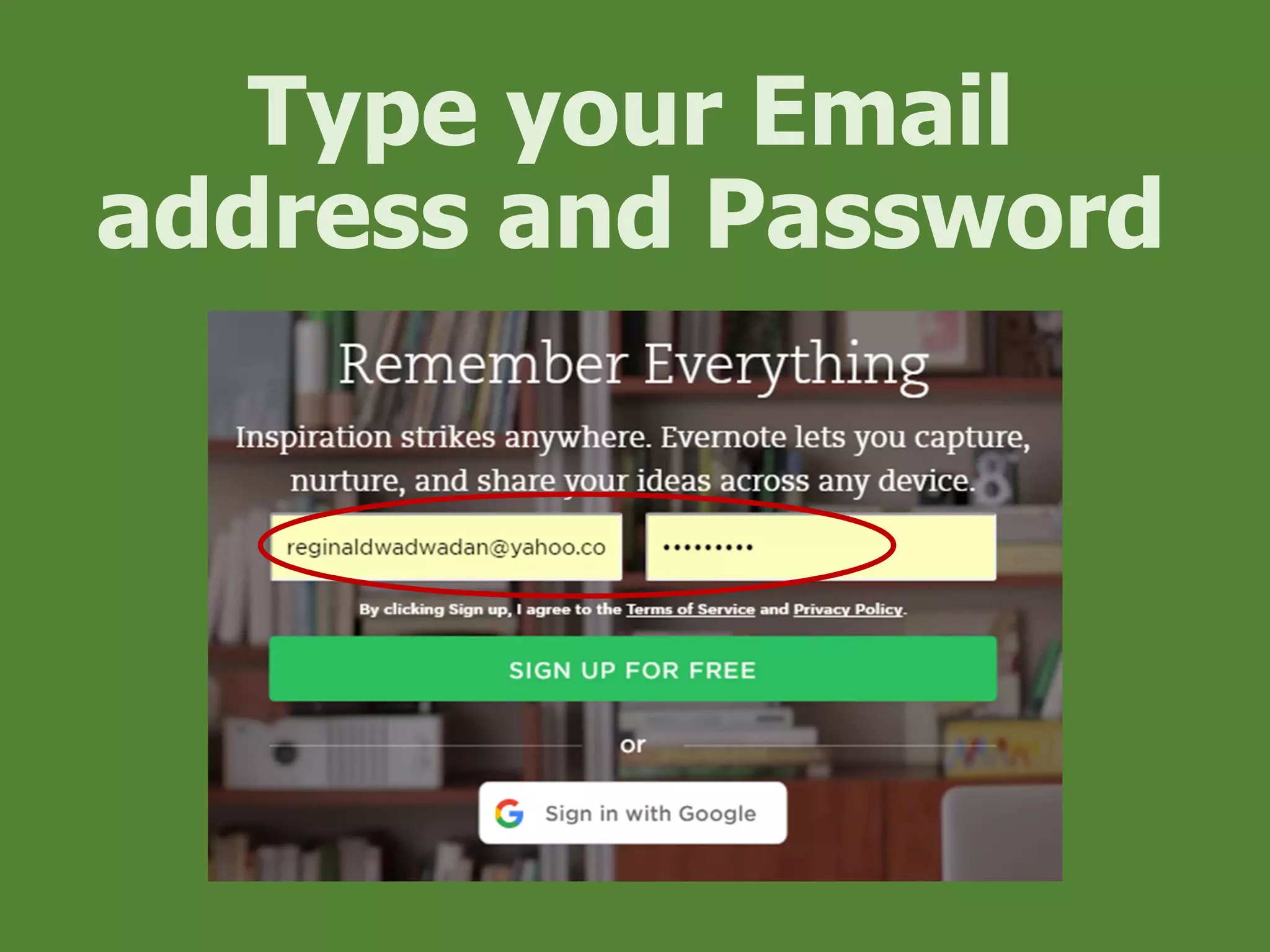
Type your Email
address and Password
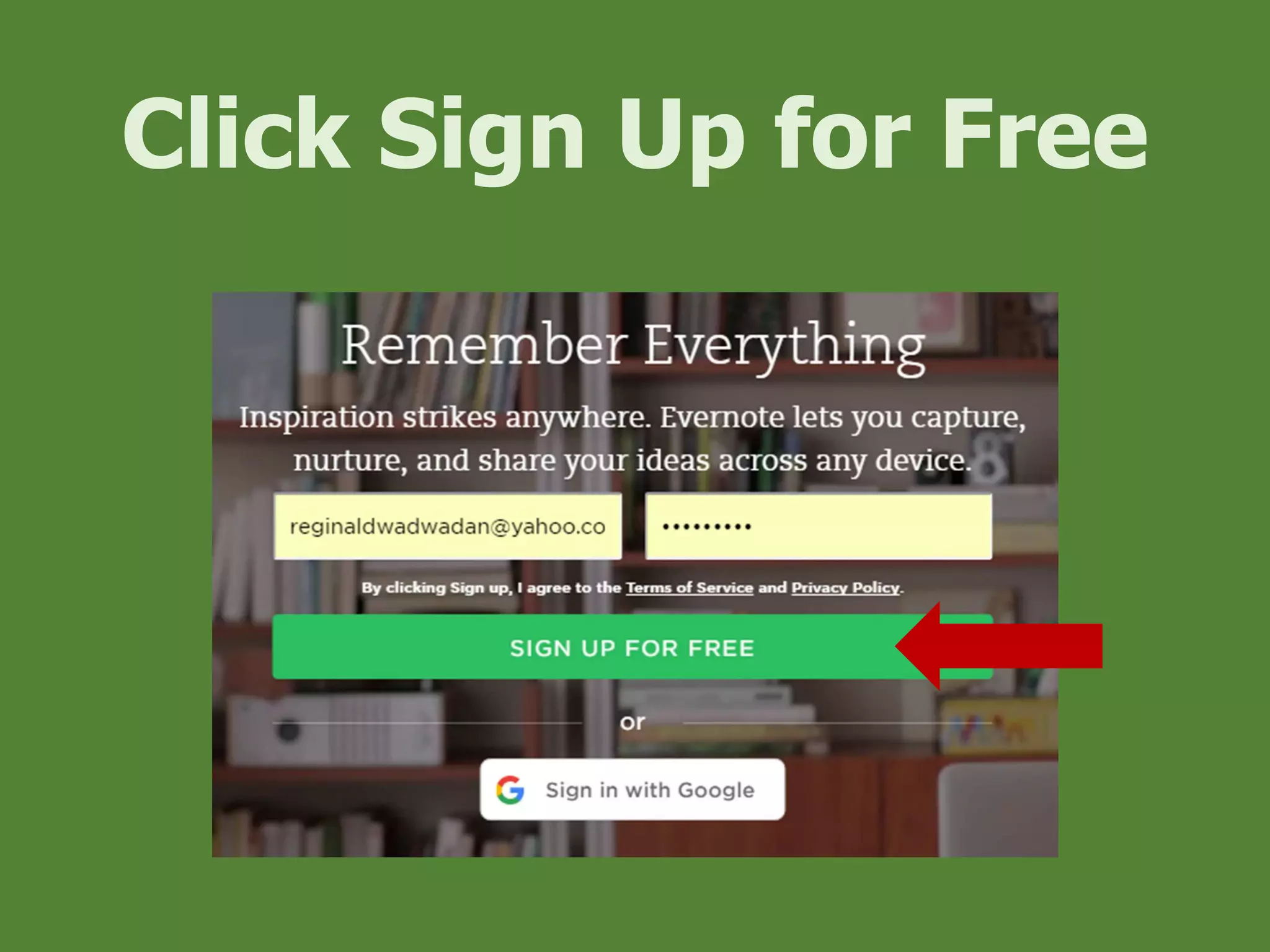
Click Sign Up for Free
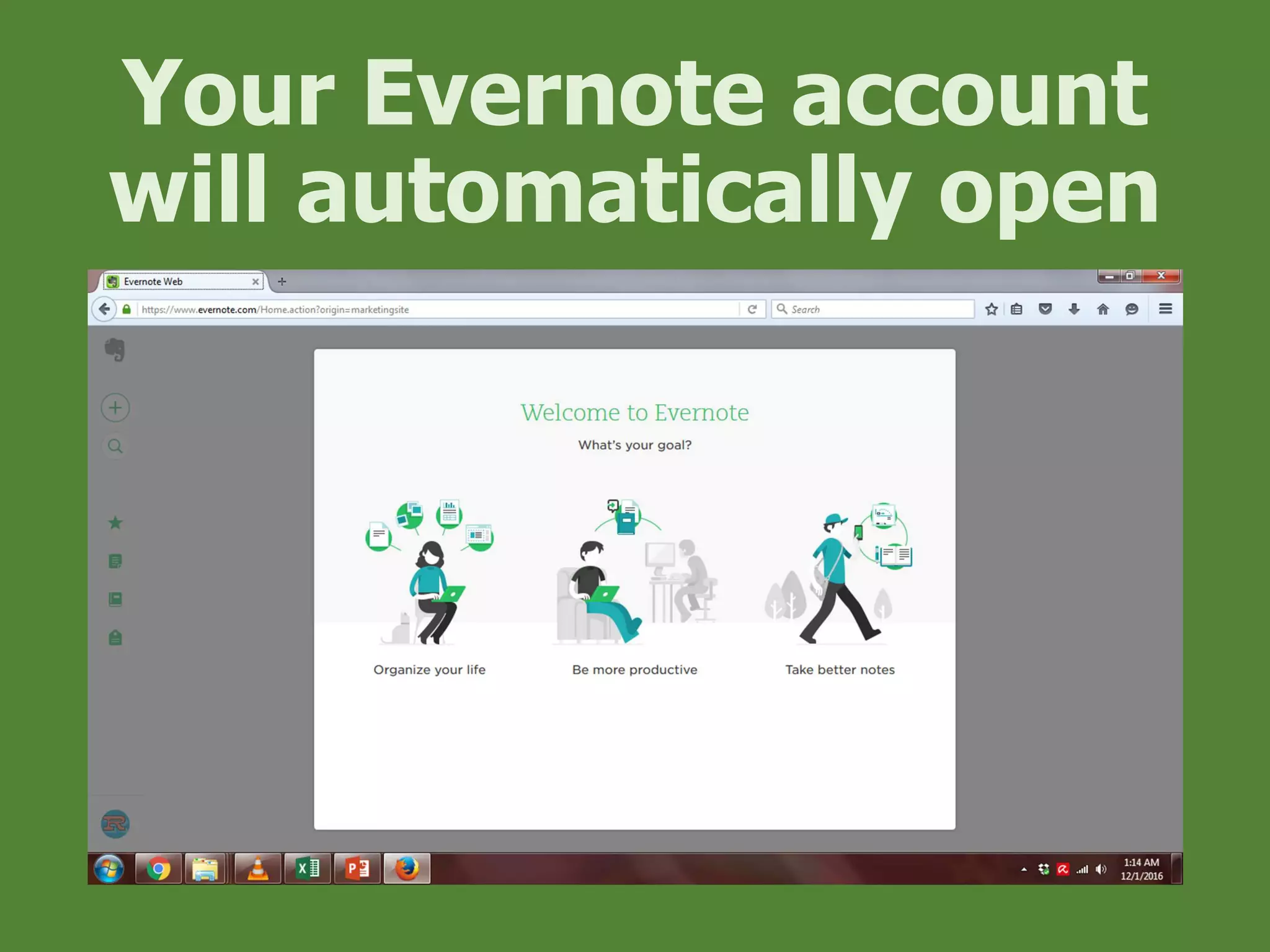
Your Evernote account
will automatically open
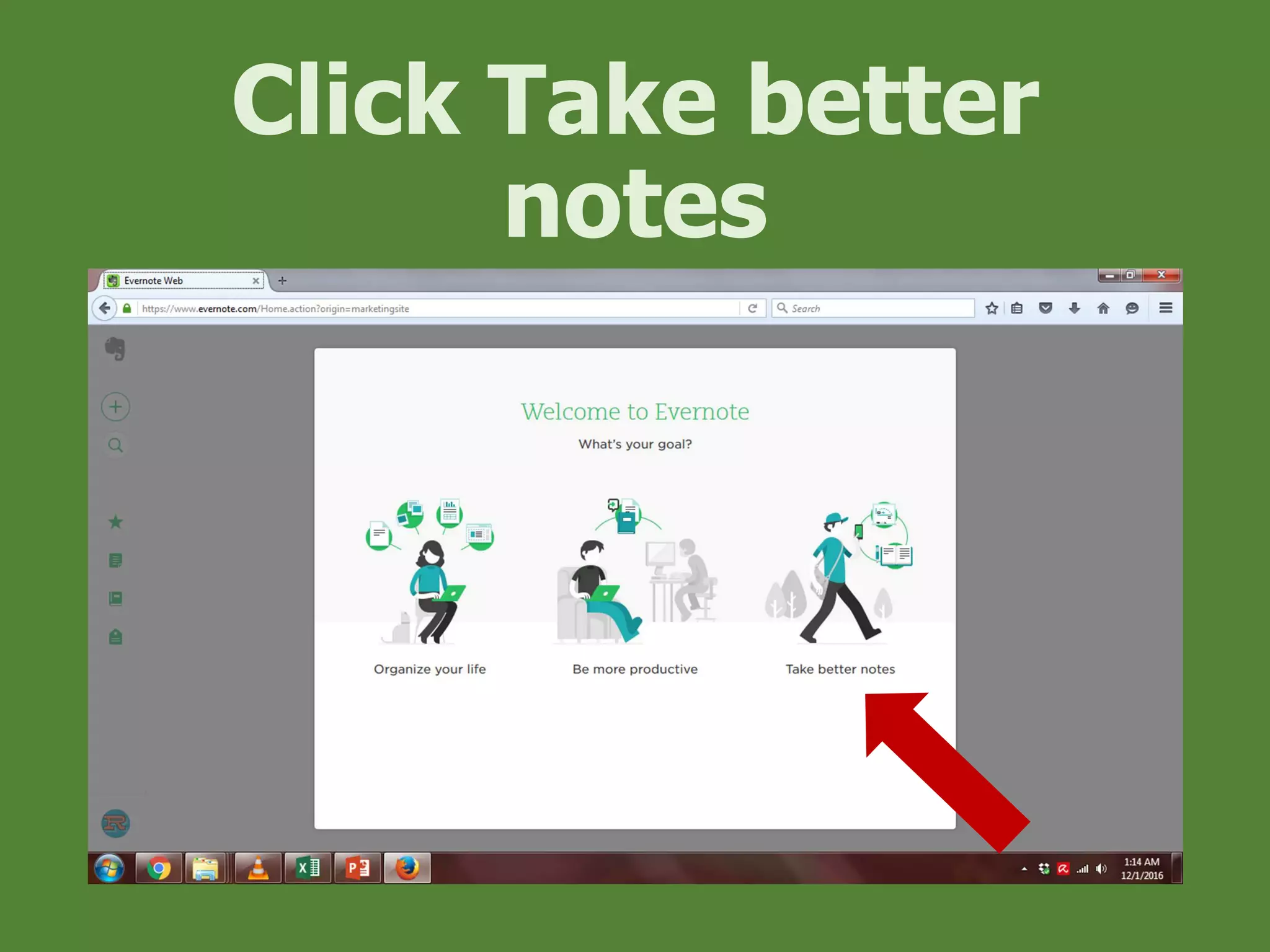
Click Take better
notes
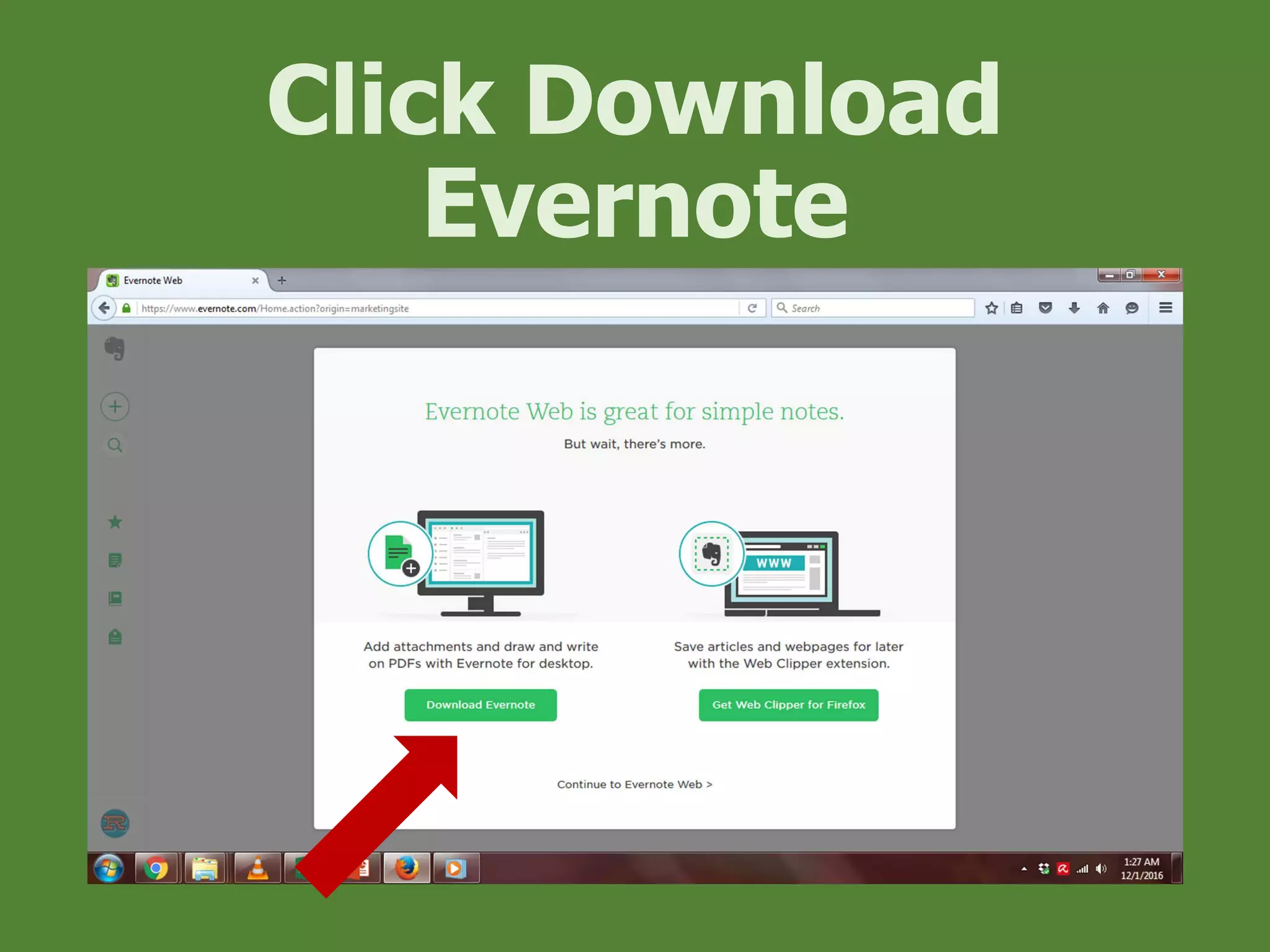
Click Download
Evernote
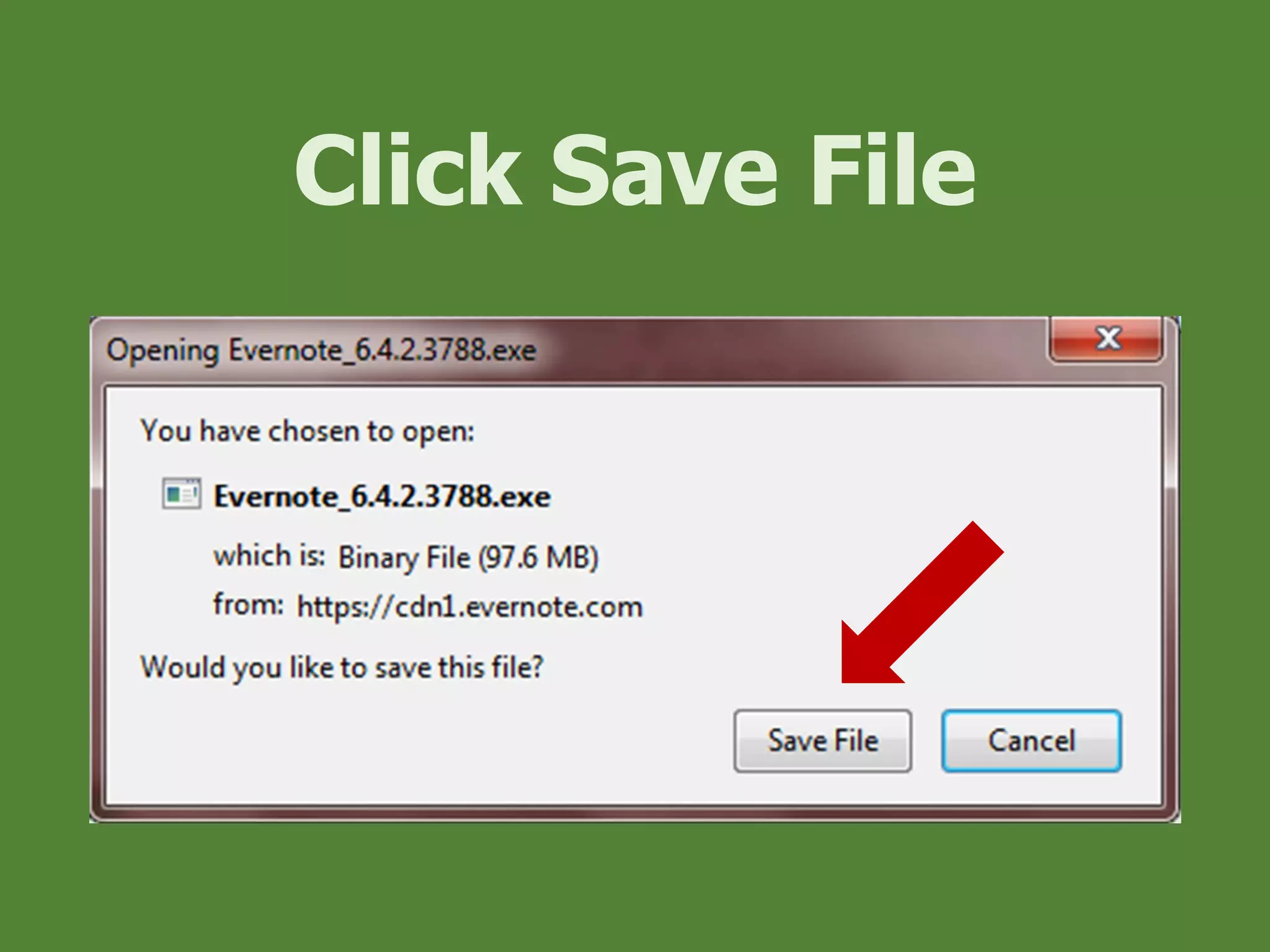
Click Save File
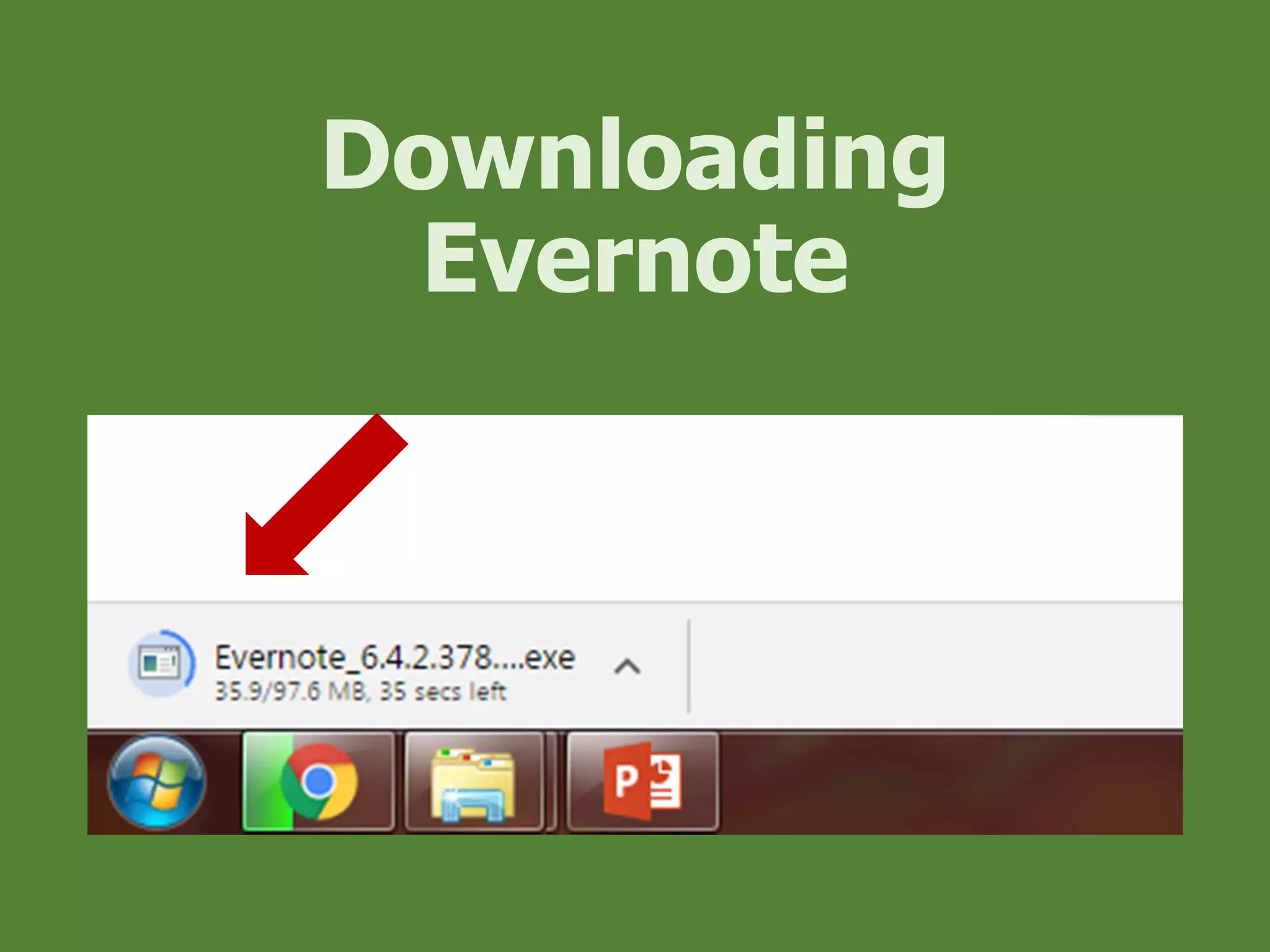
Downloading
Evernote
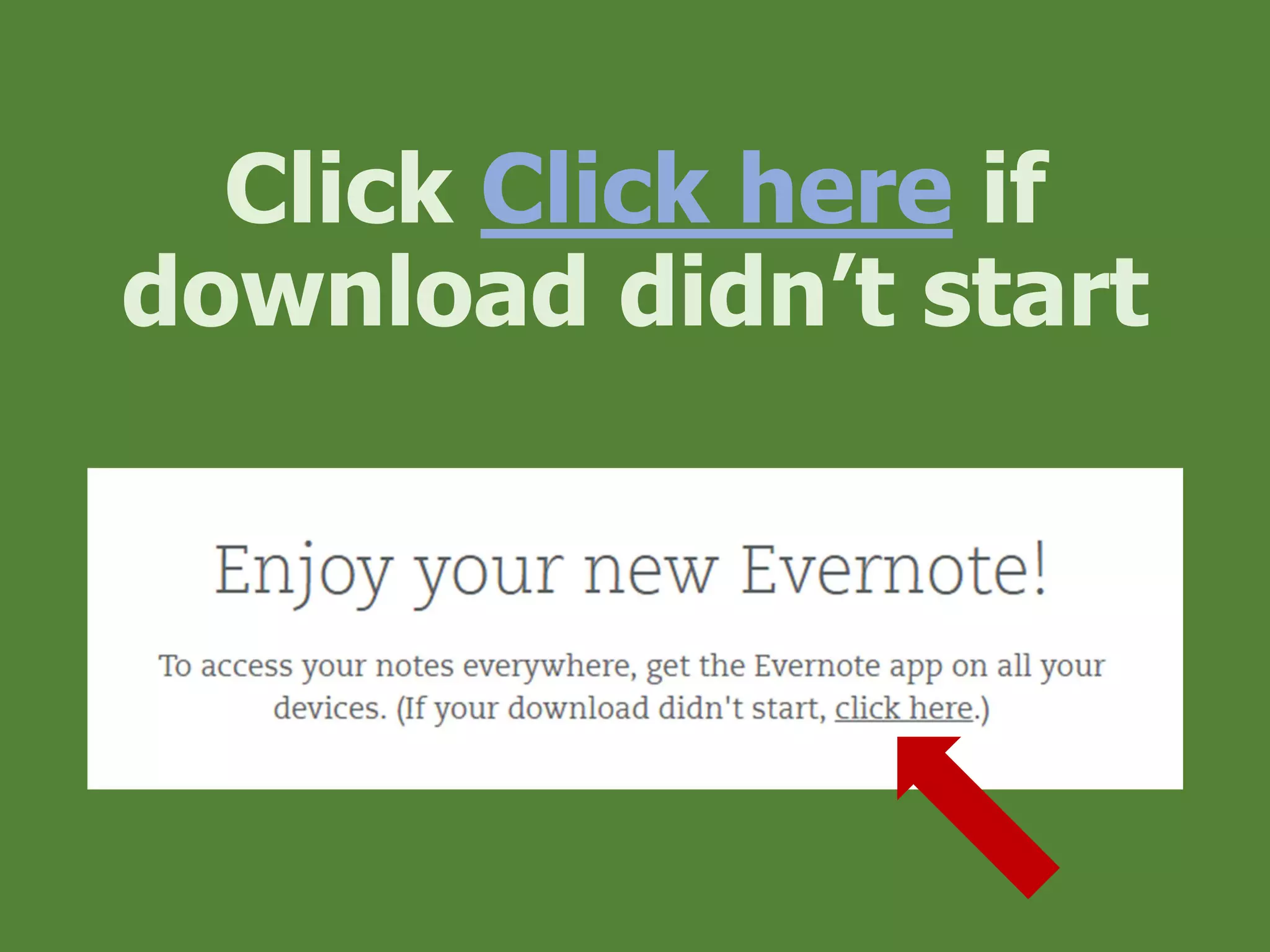
Click Click here if
download didn’t start
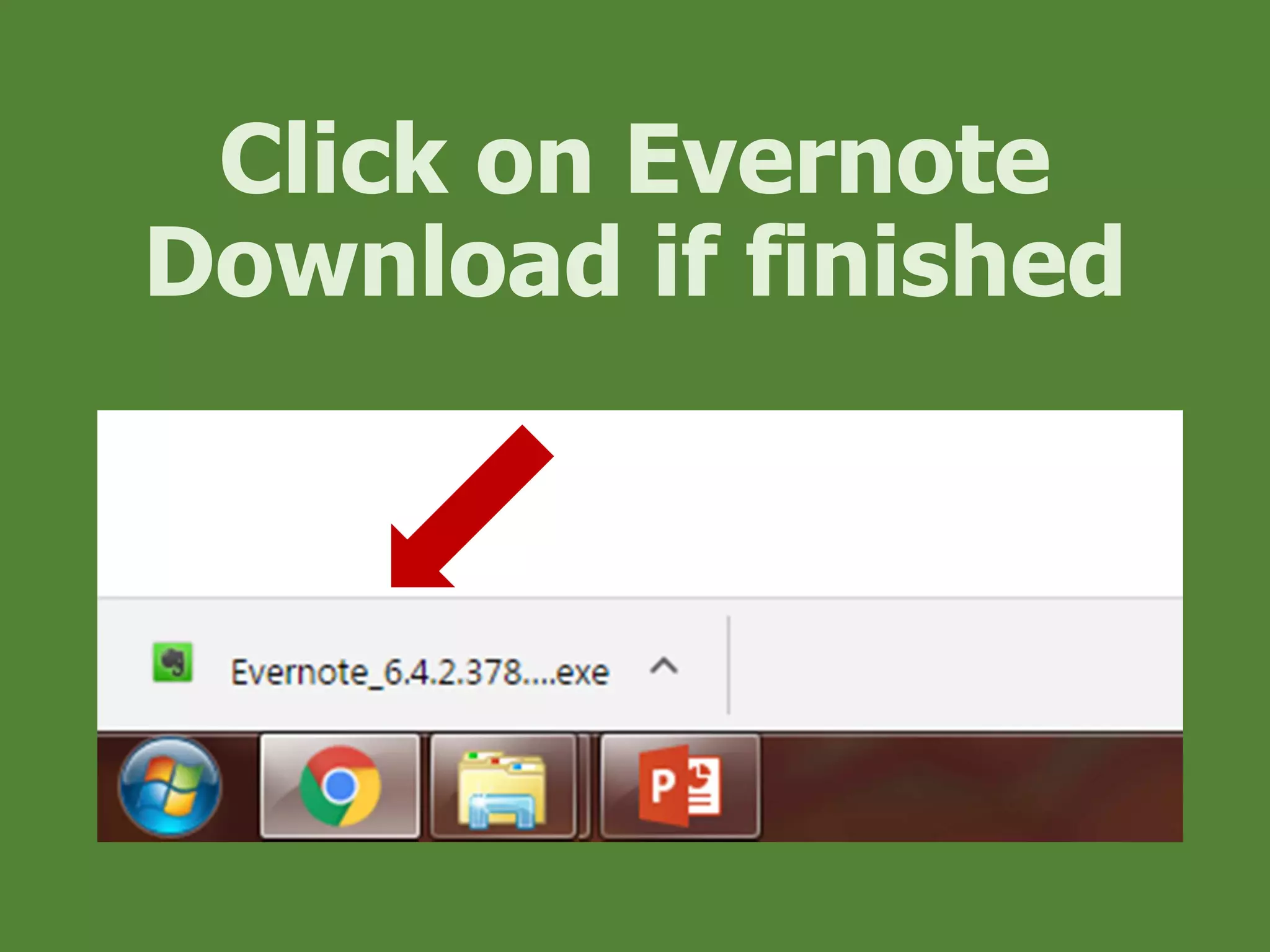
Click on Evernote
Download if finished
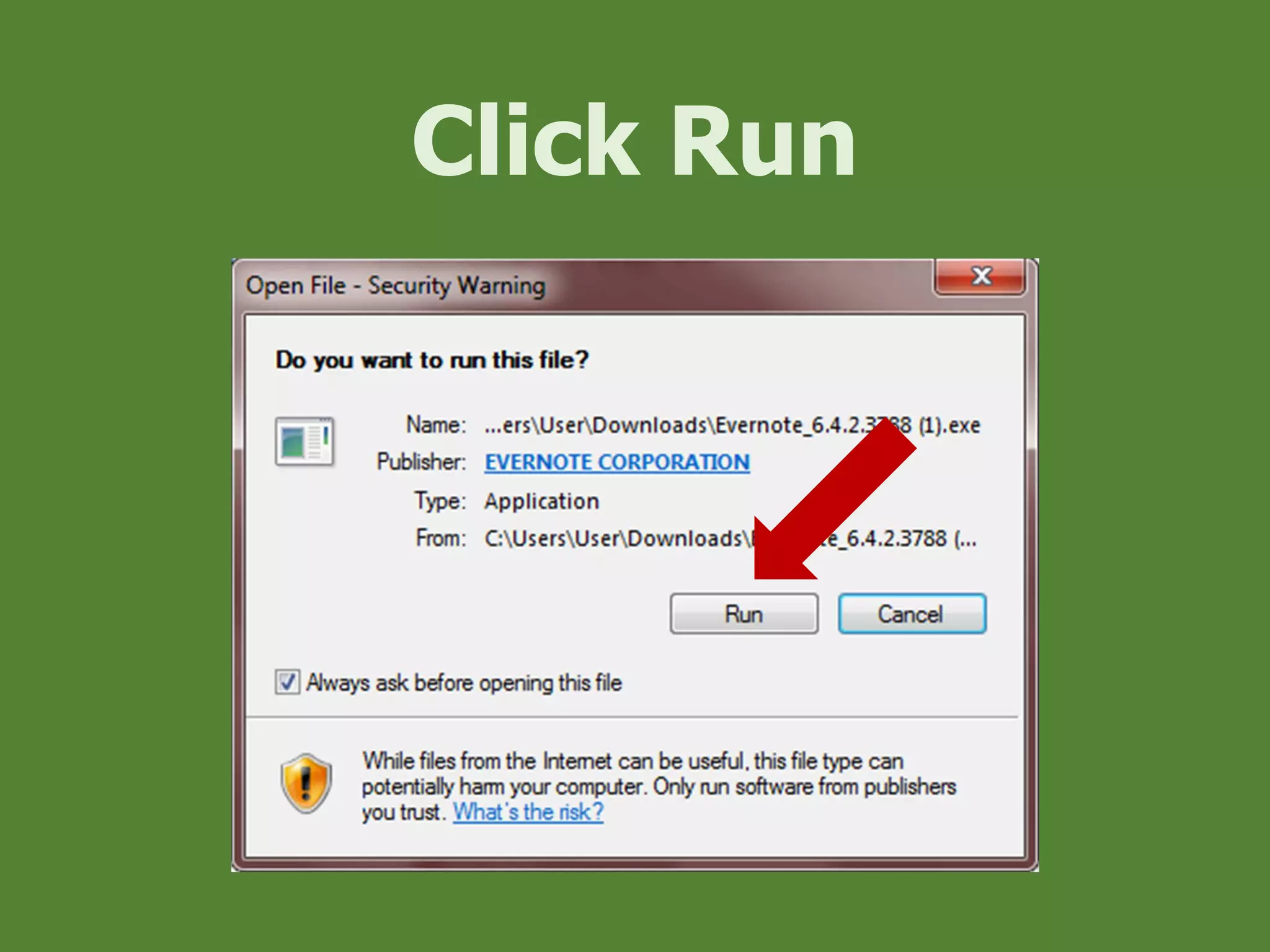
Click Run
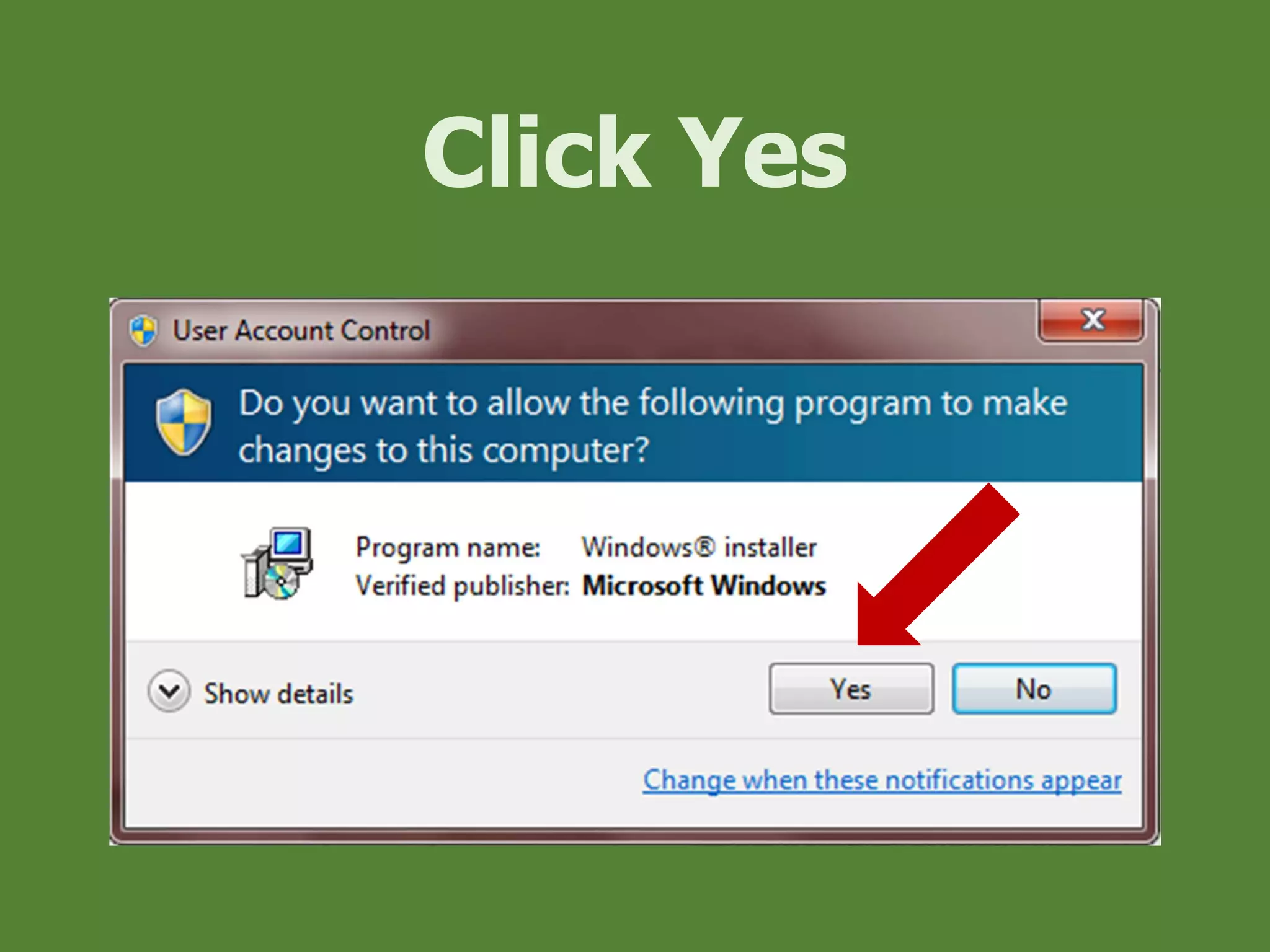
Click Yes
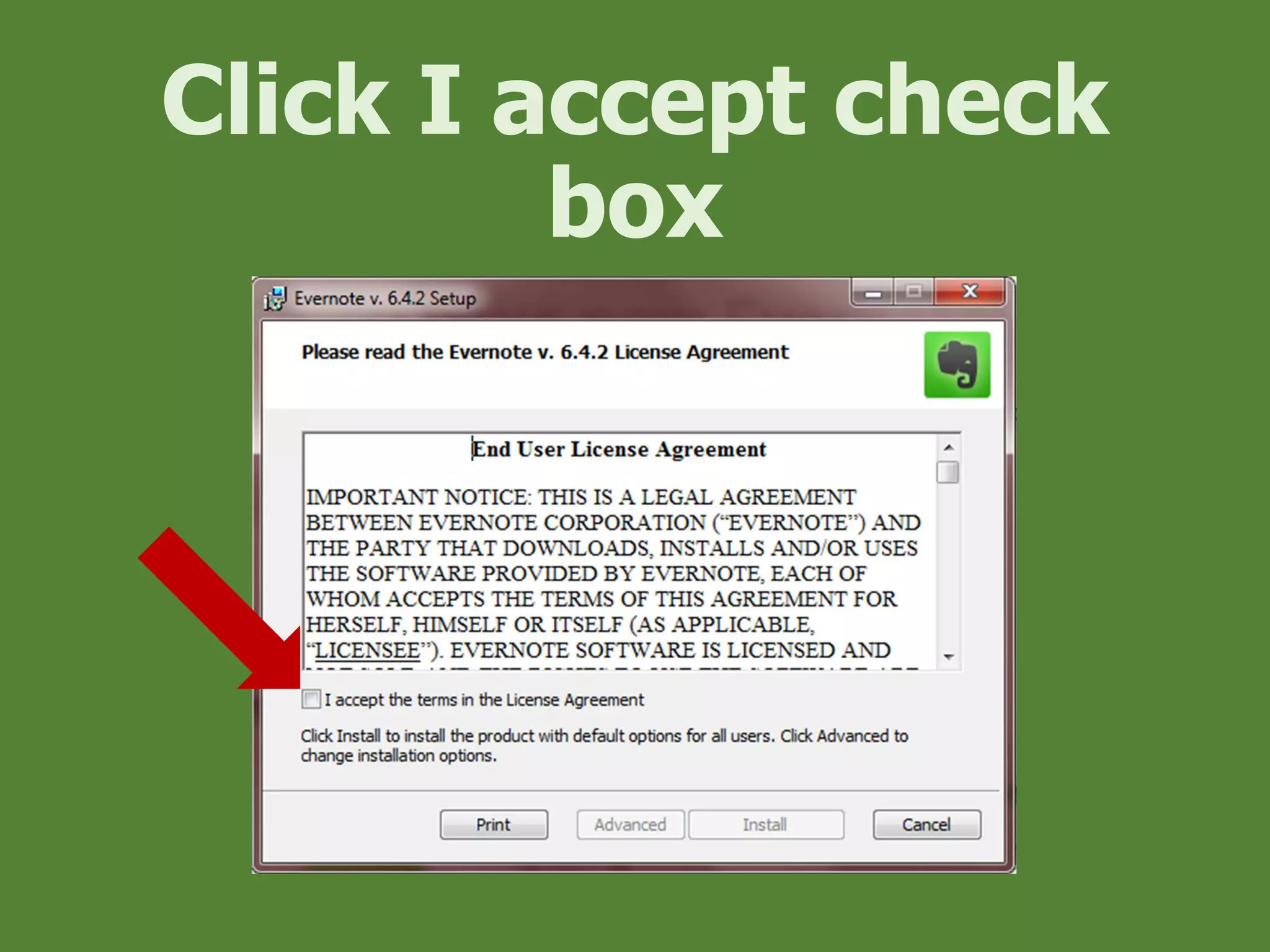
Click I accept check
box
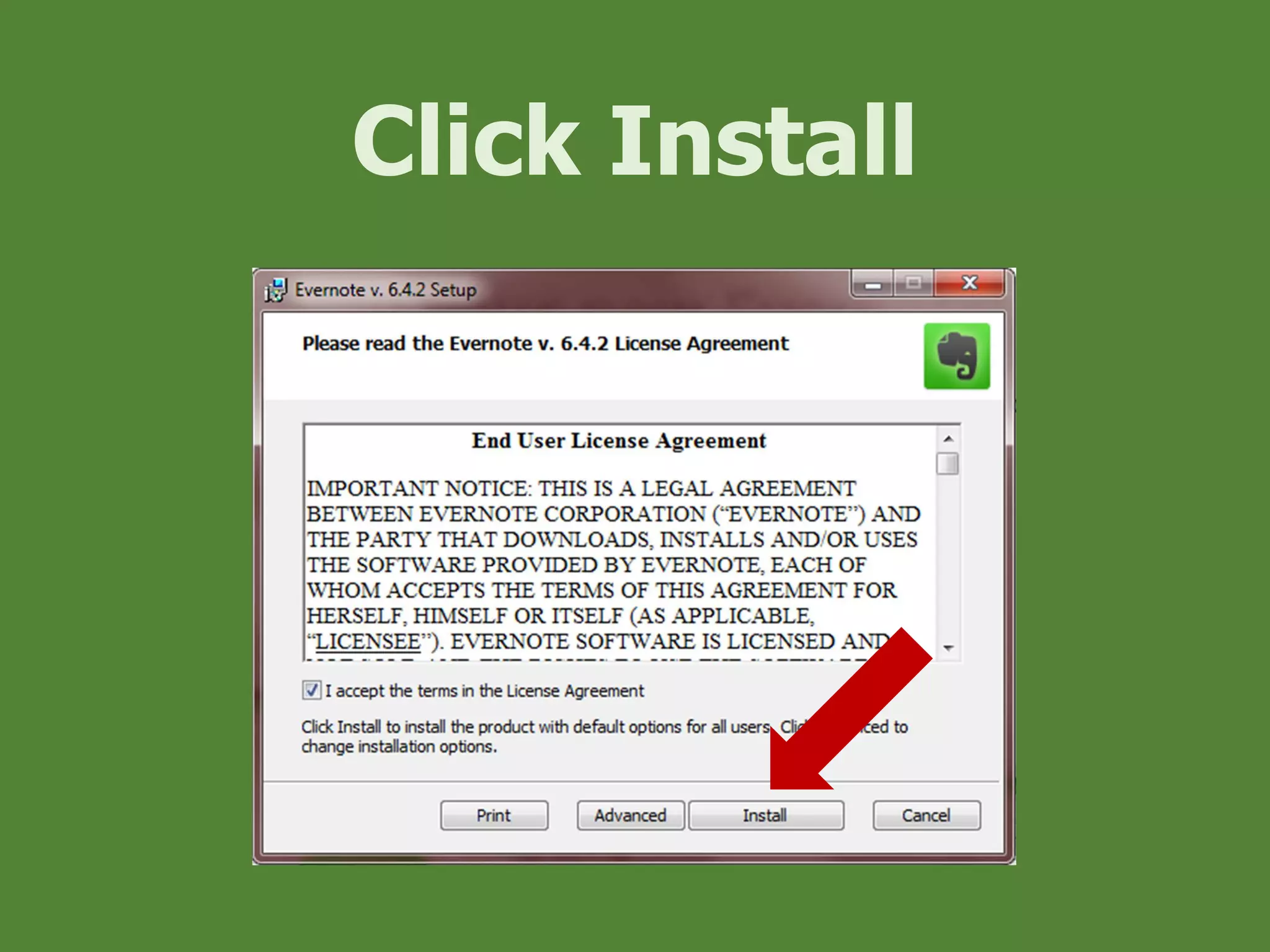
Click Install
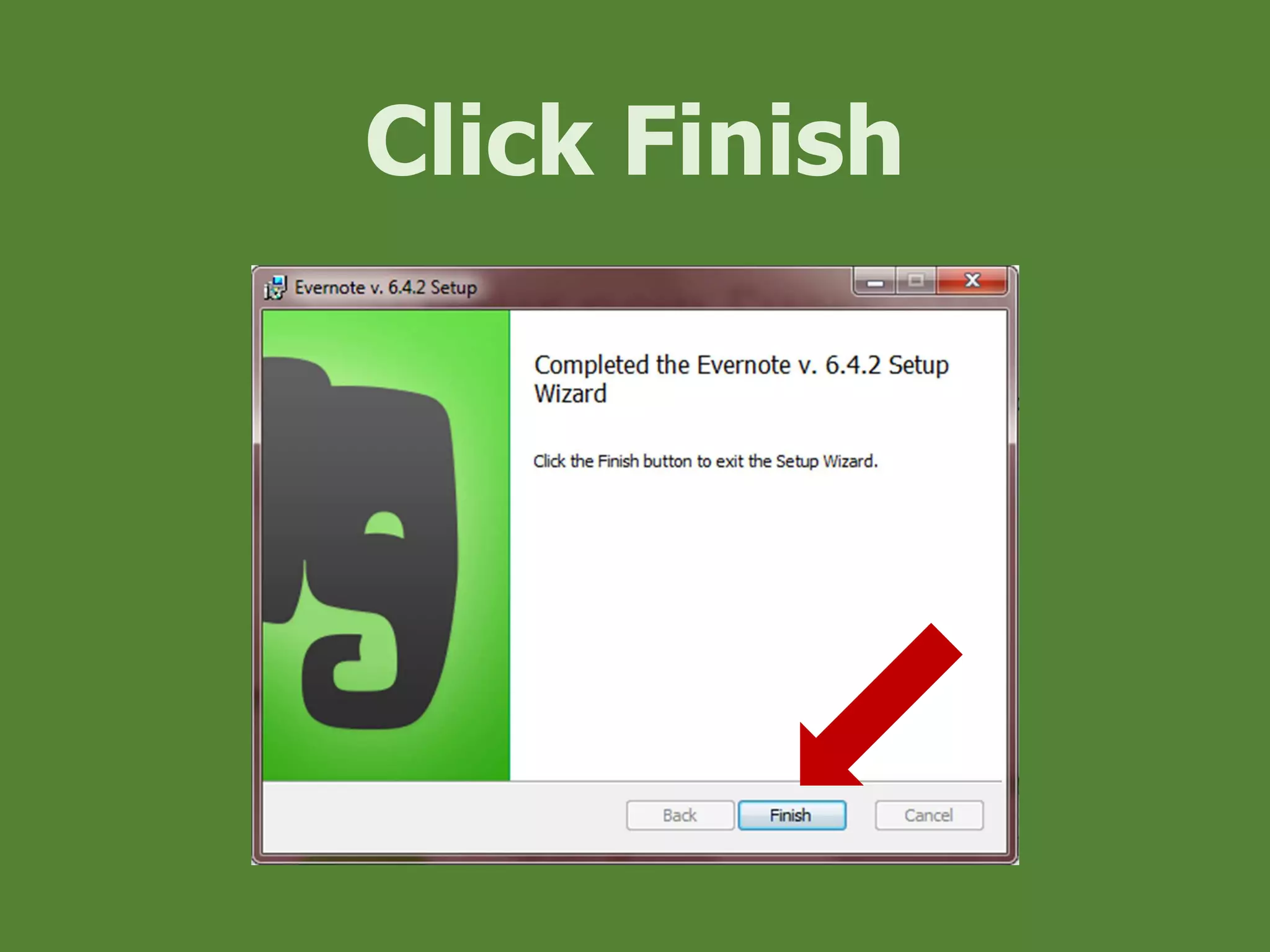
Click Finish
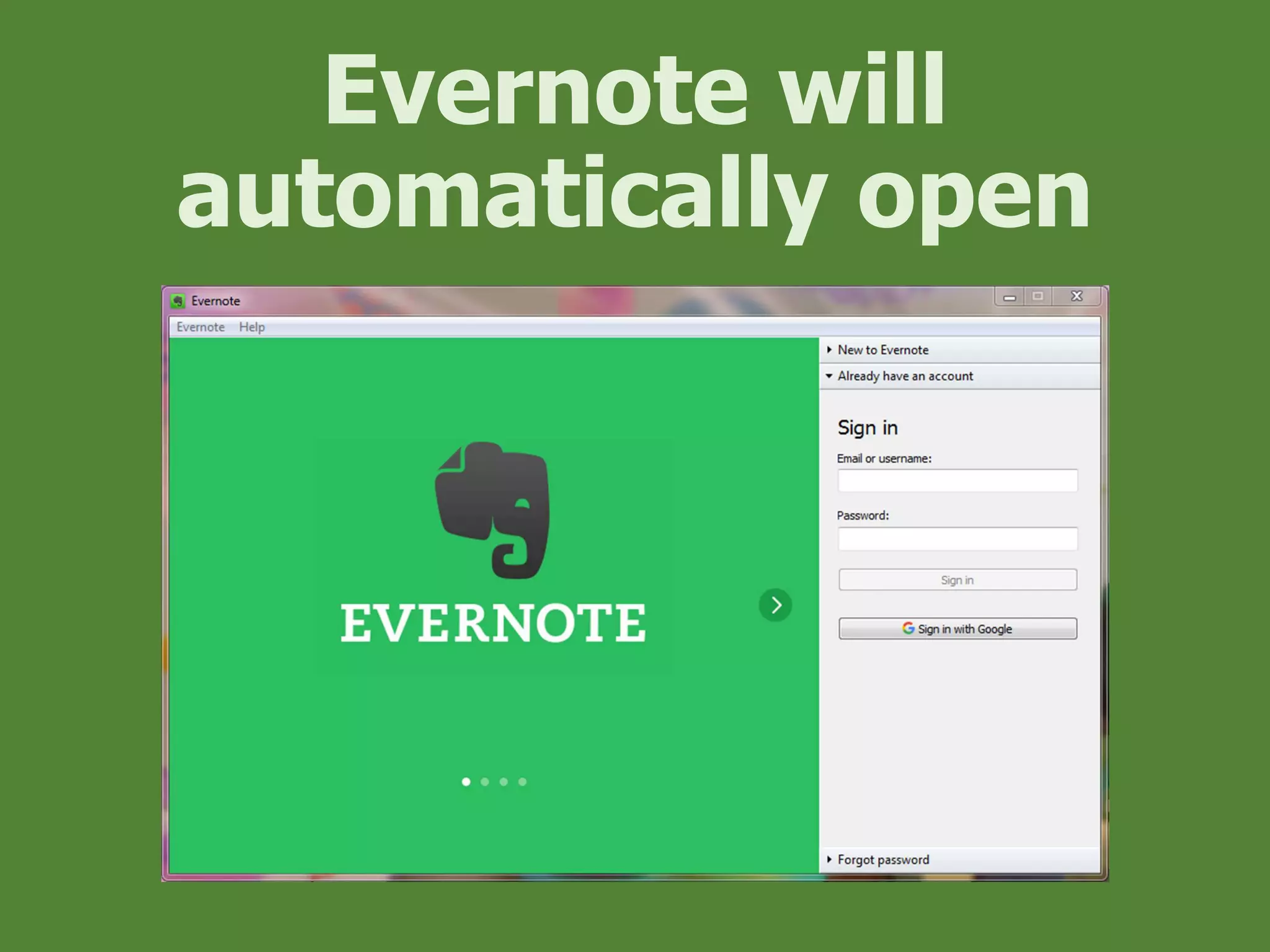
Evernote will
automatically open
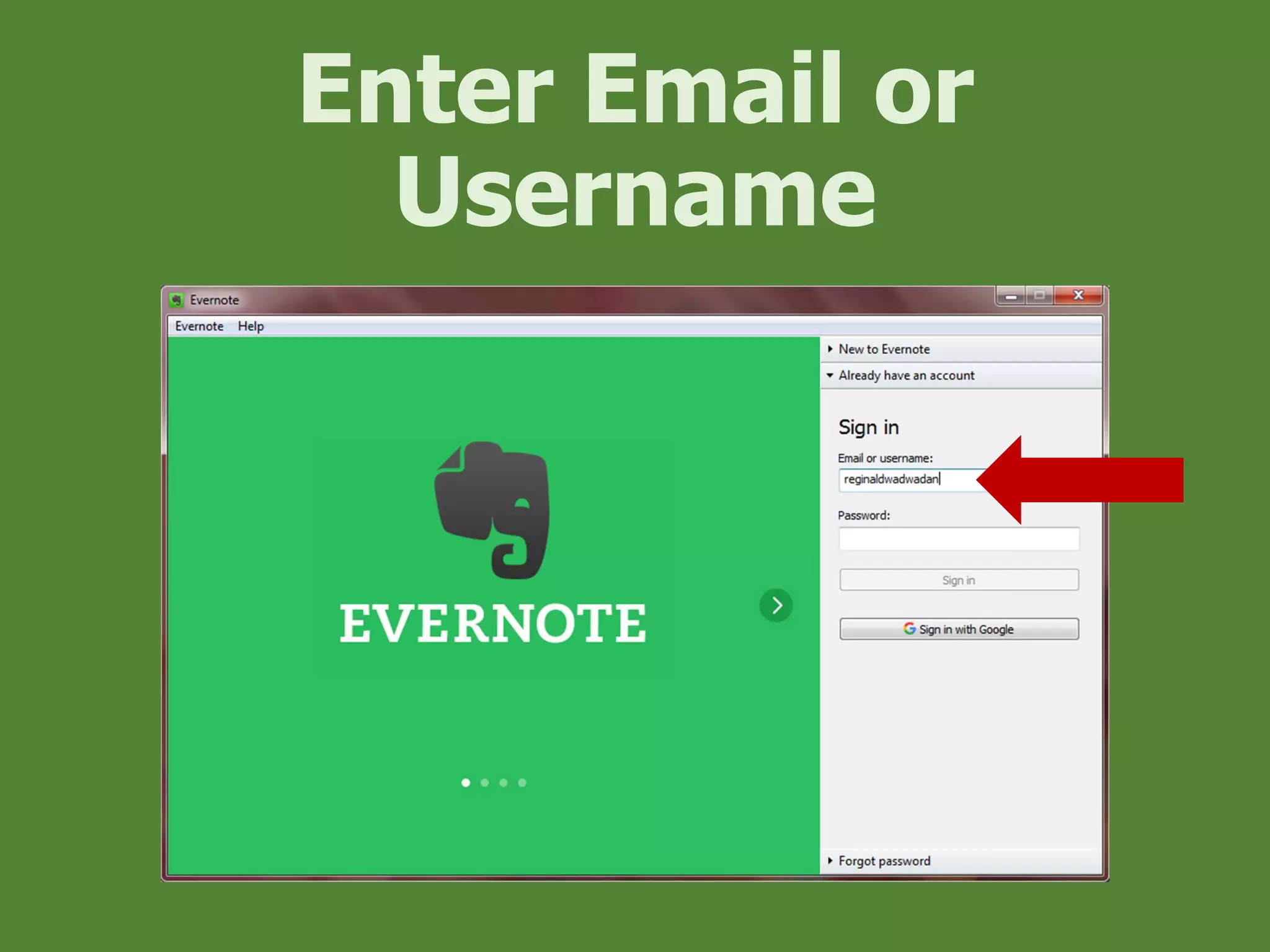
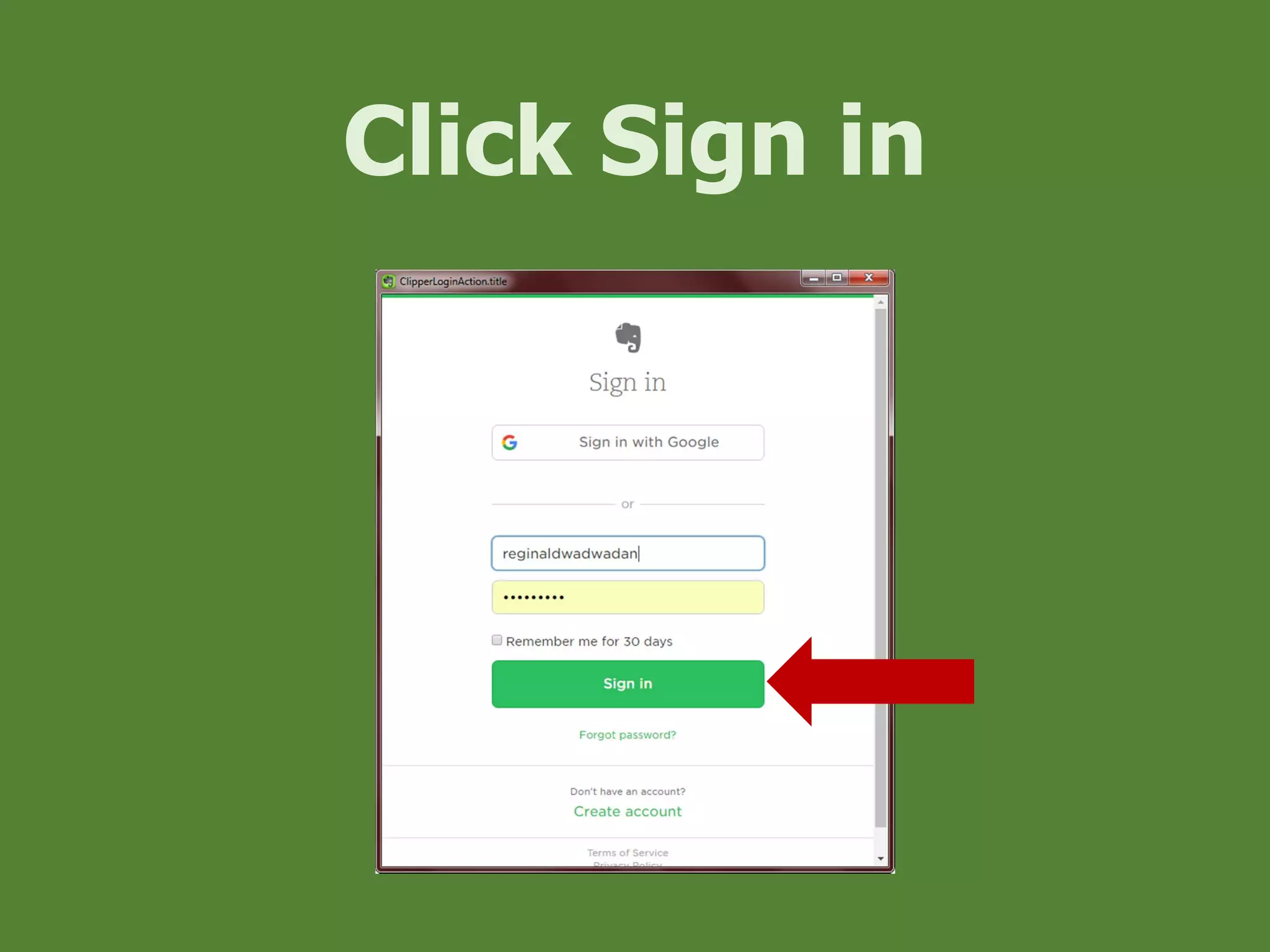
Enter Email or
Username
Enter Password
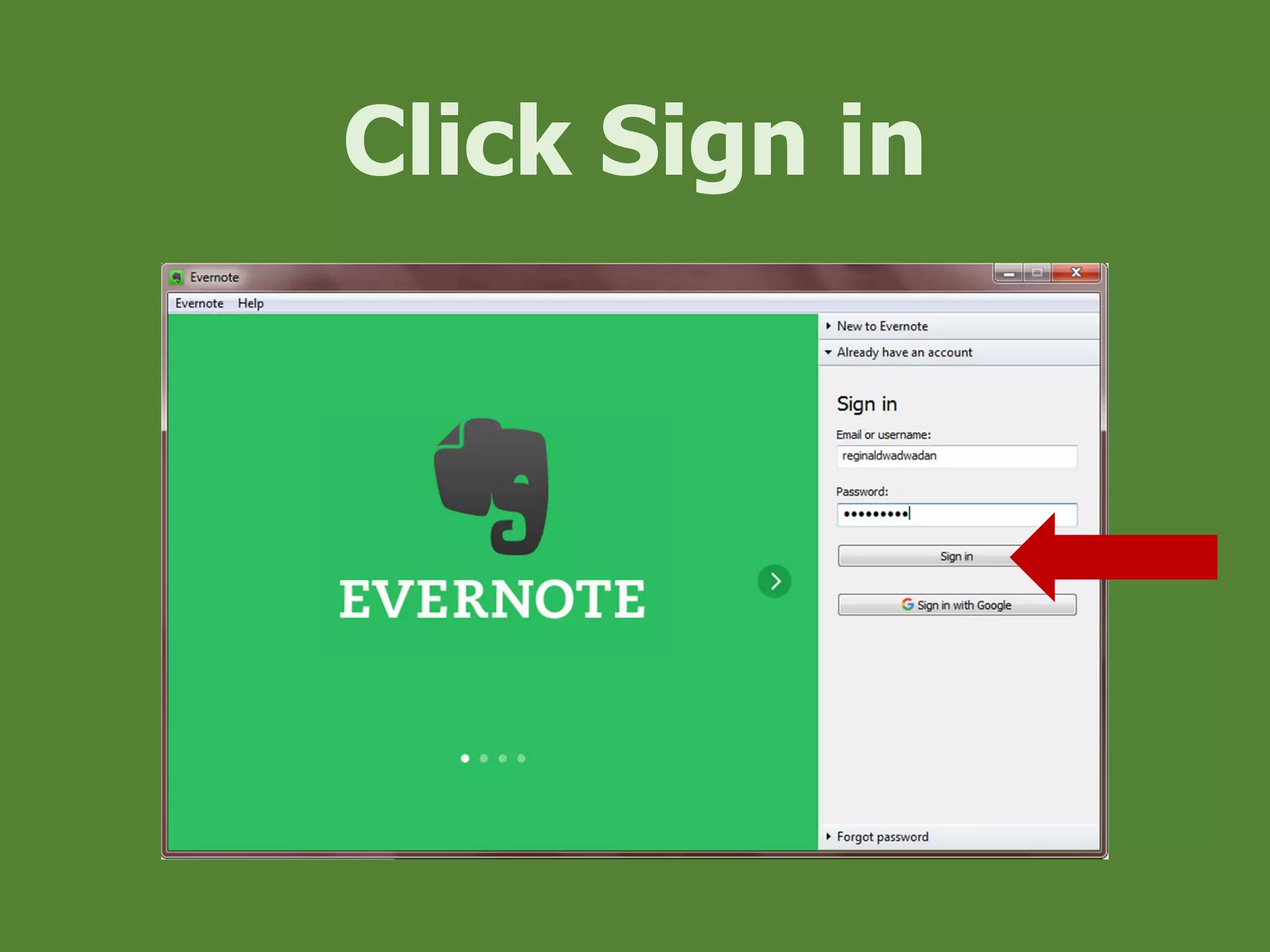
Click Sign in
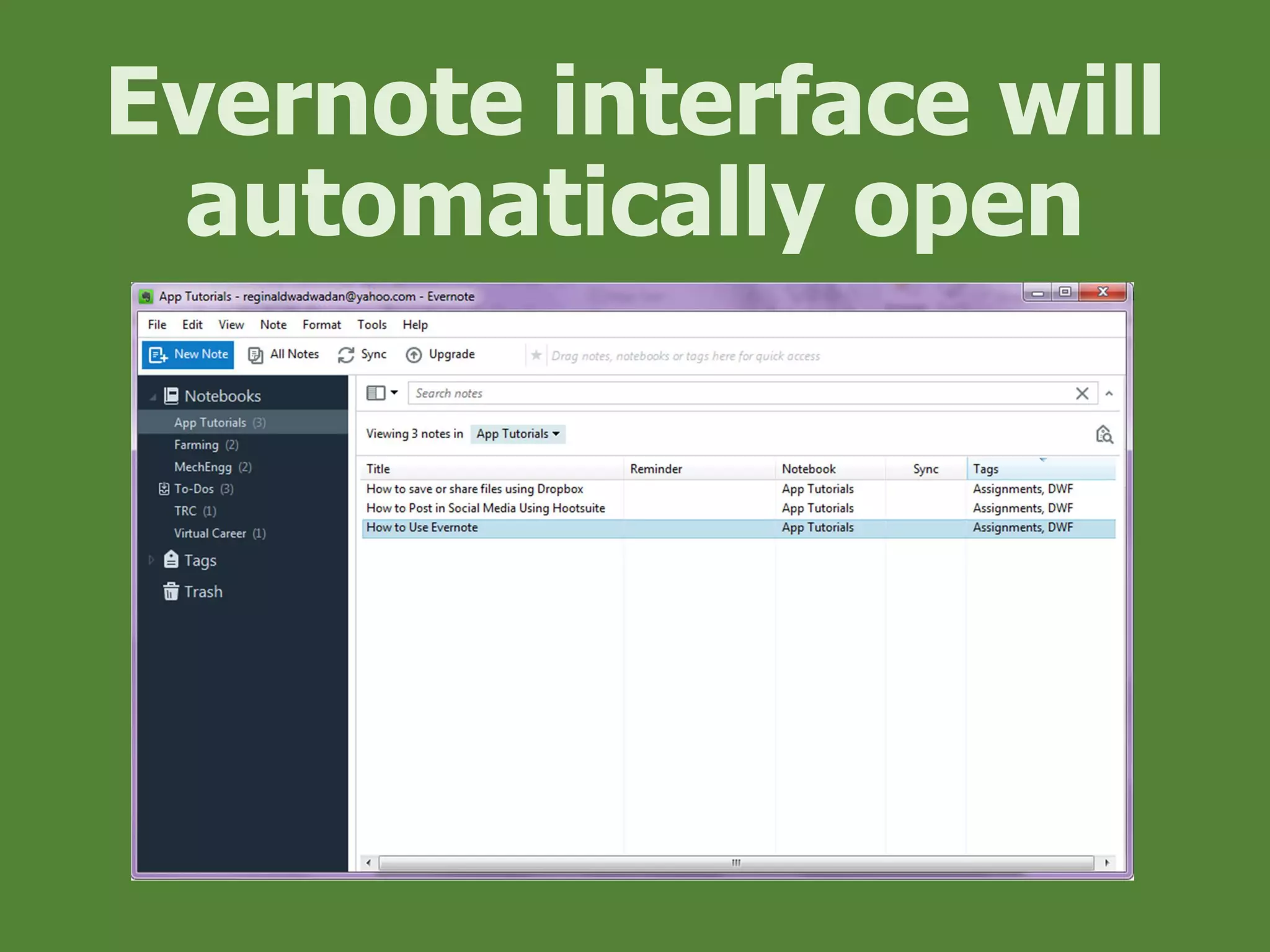
Evernote interface will
automatically open
Let’s create a
New Notebook
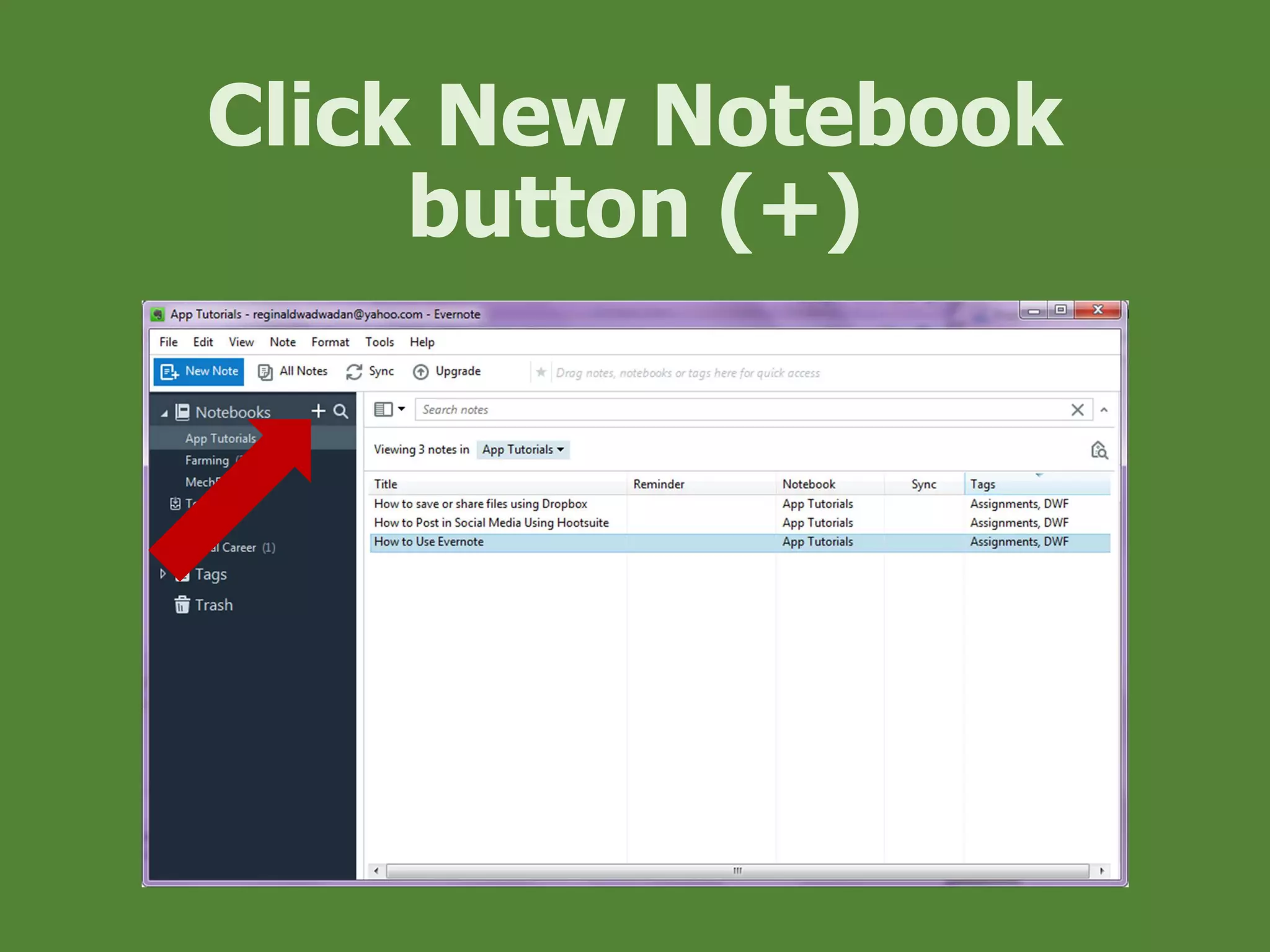
Click New Notebook
button (+)
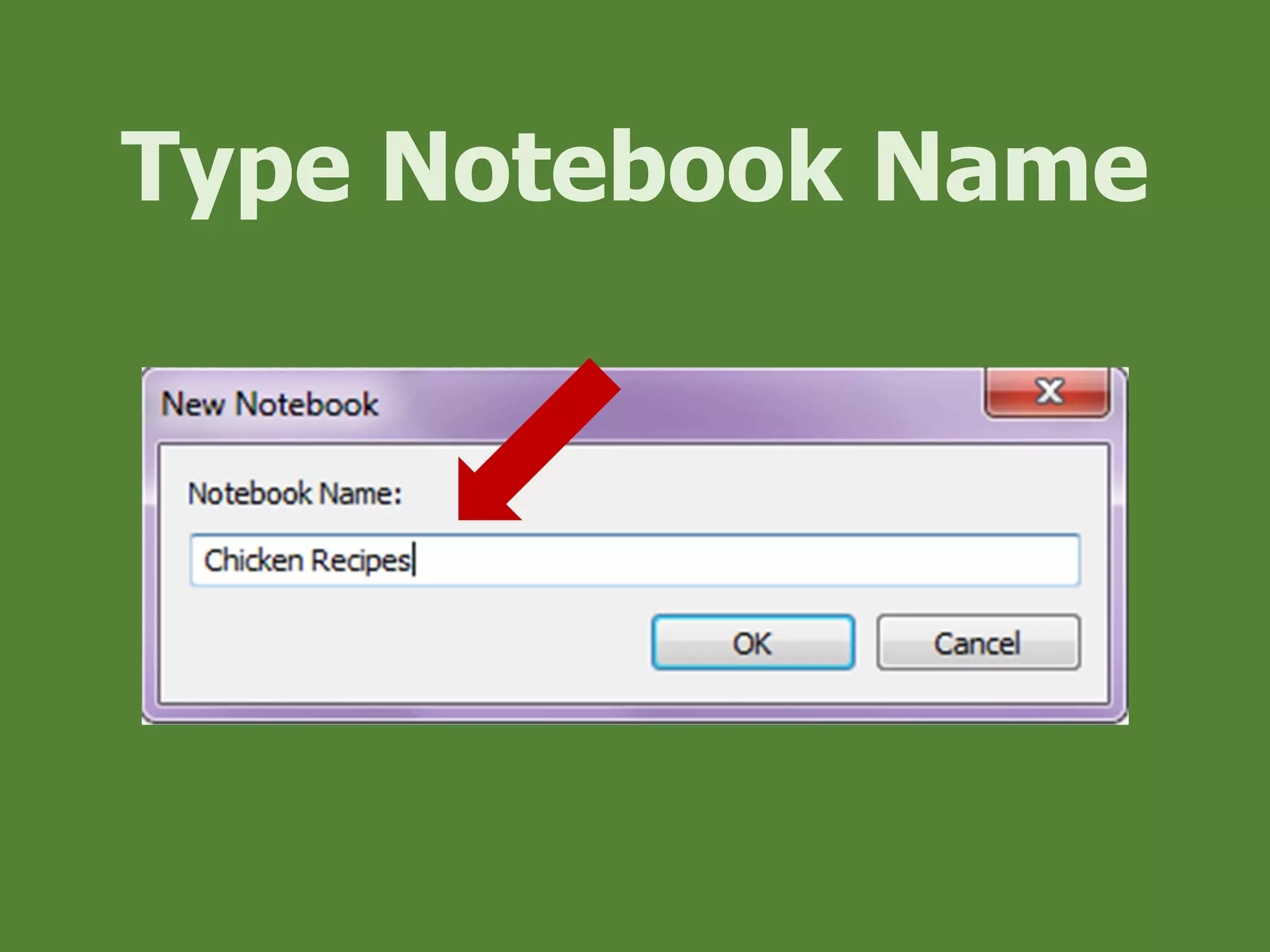
Type Notebook Name
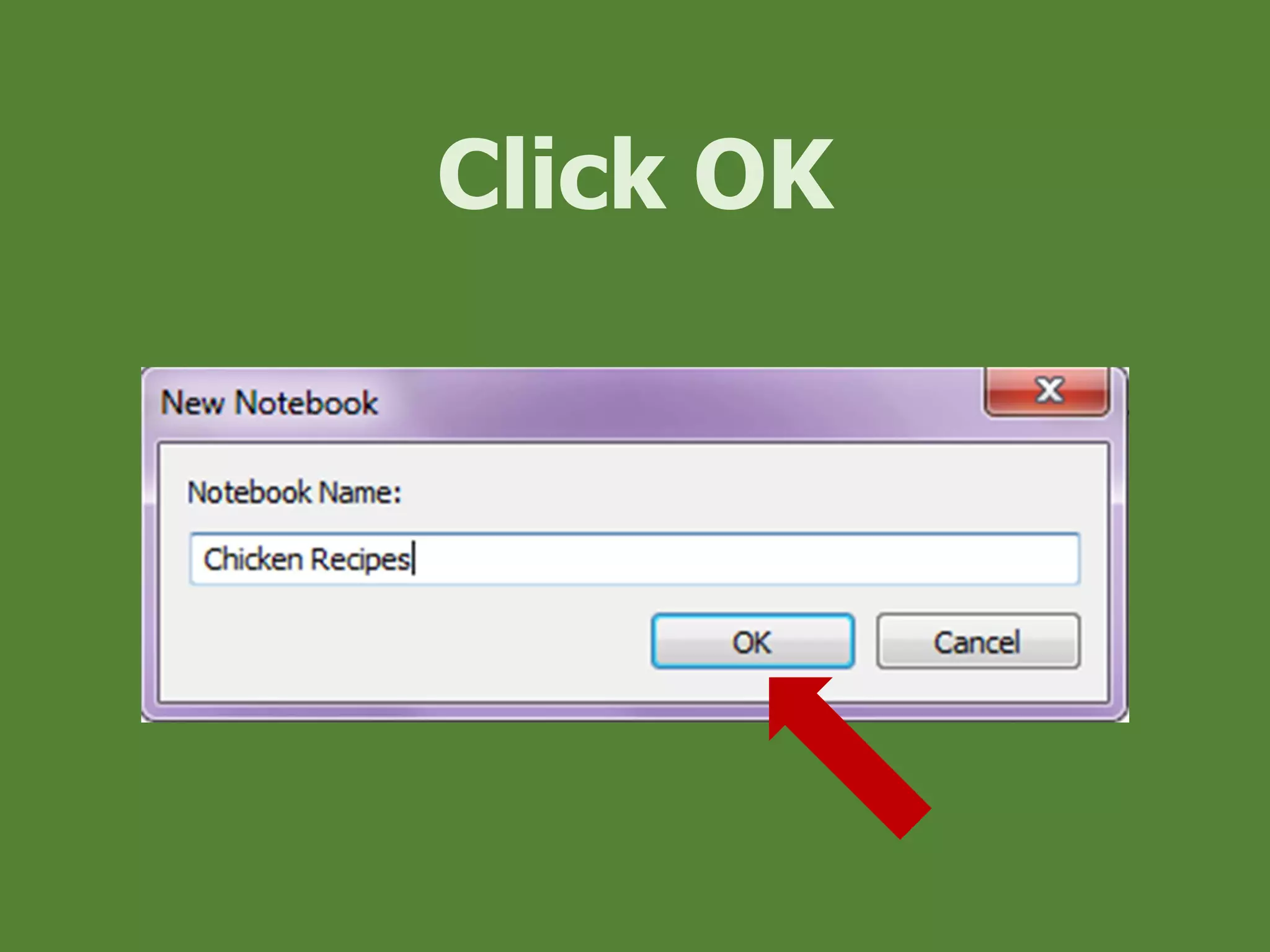
Click OK
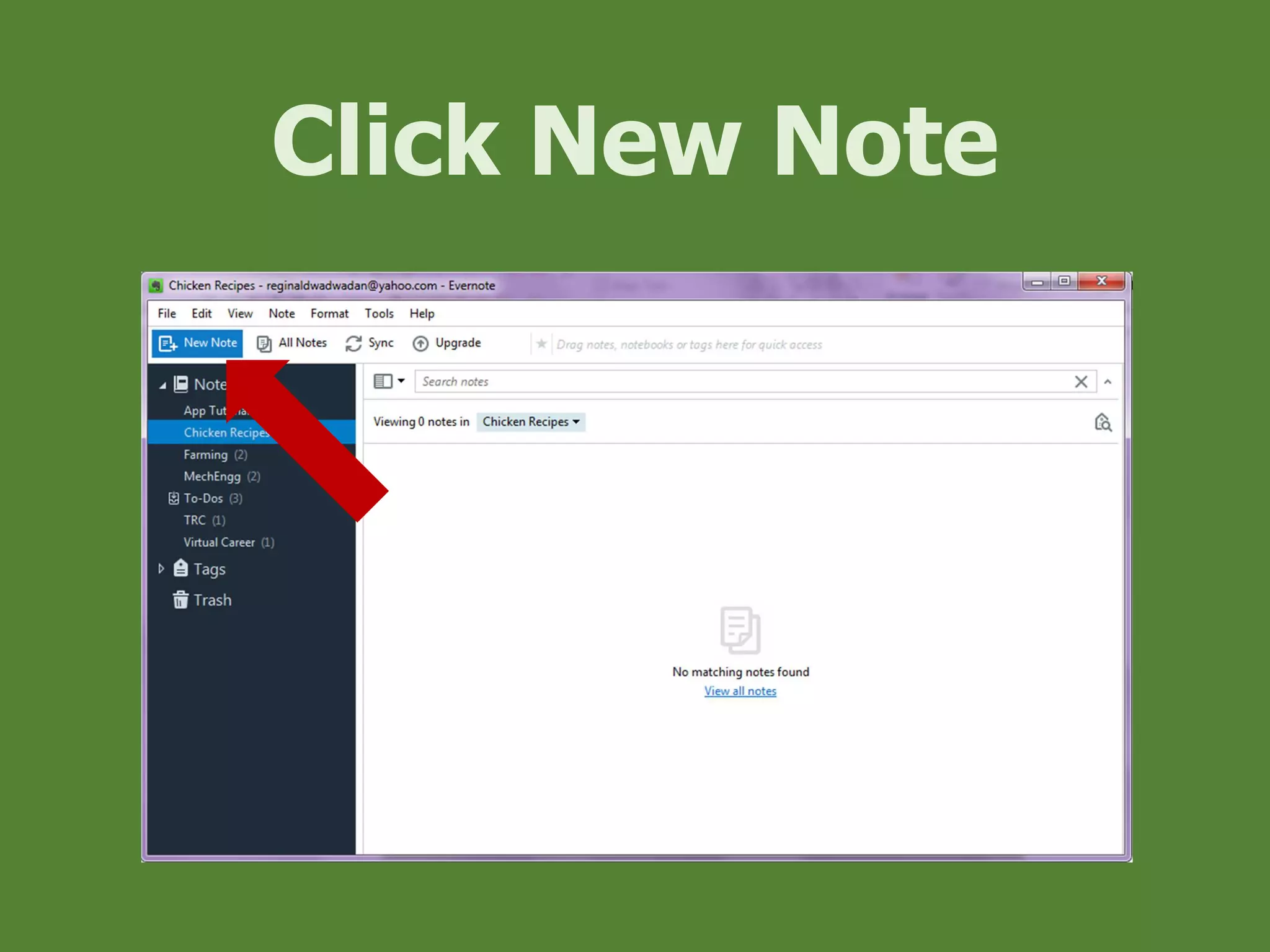
Let’s create a
New Note
Click New Note
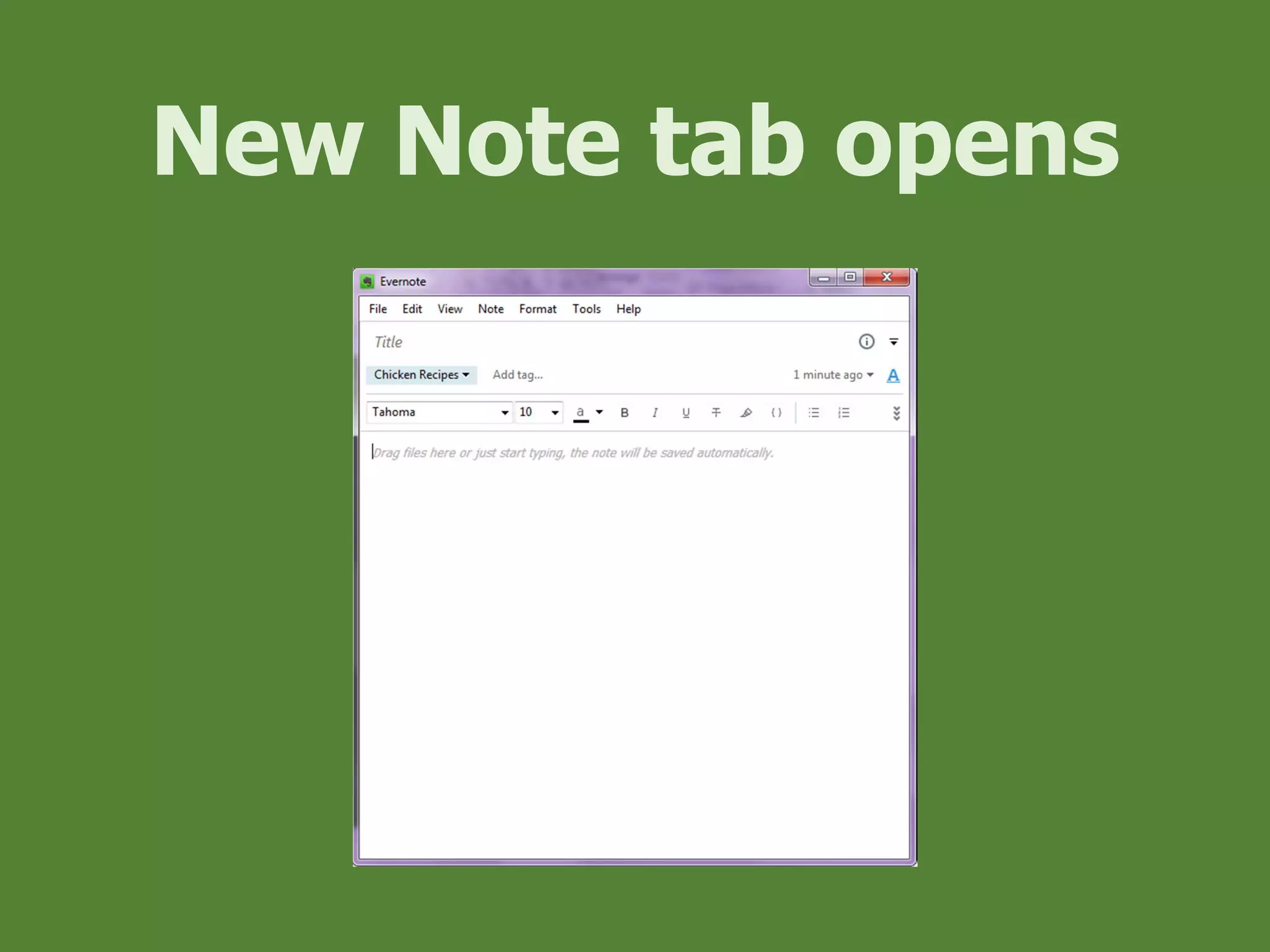
New Note tab opens
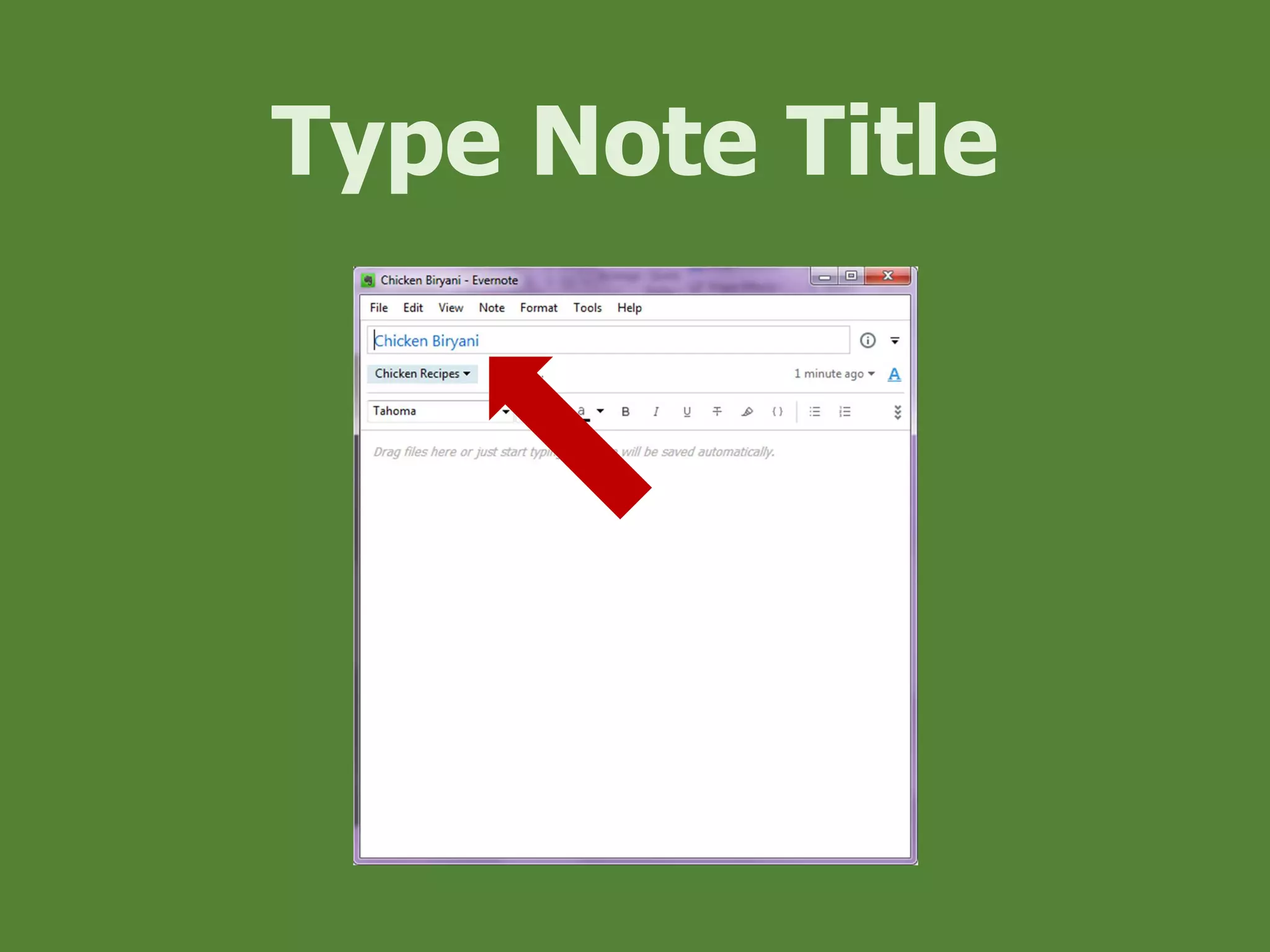
Type Note Title
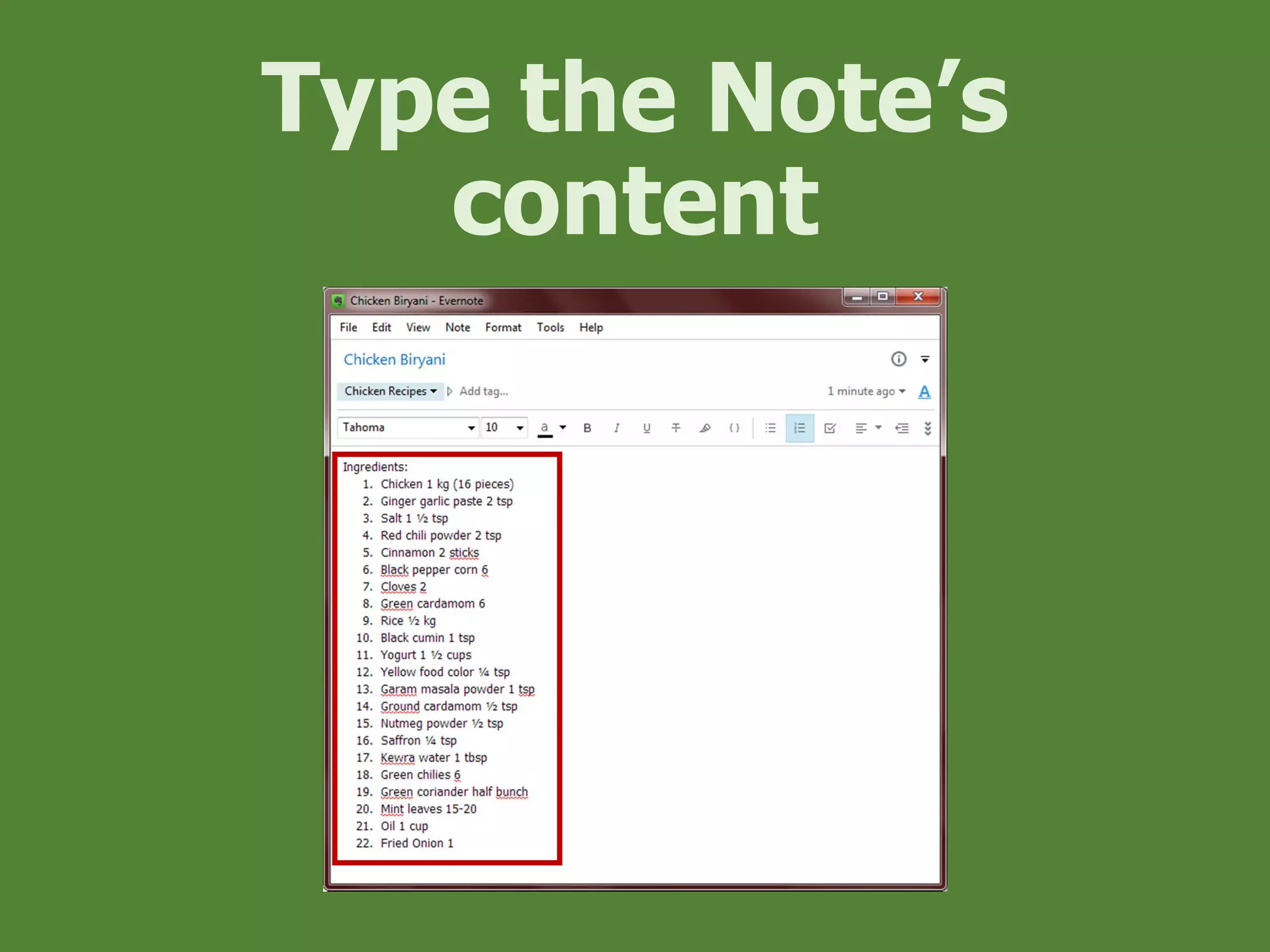
Type the Note’s
content
Let’s edit Note
Texts
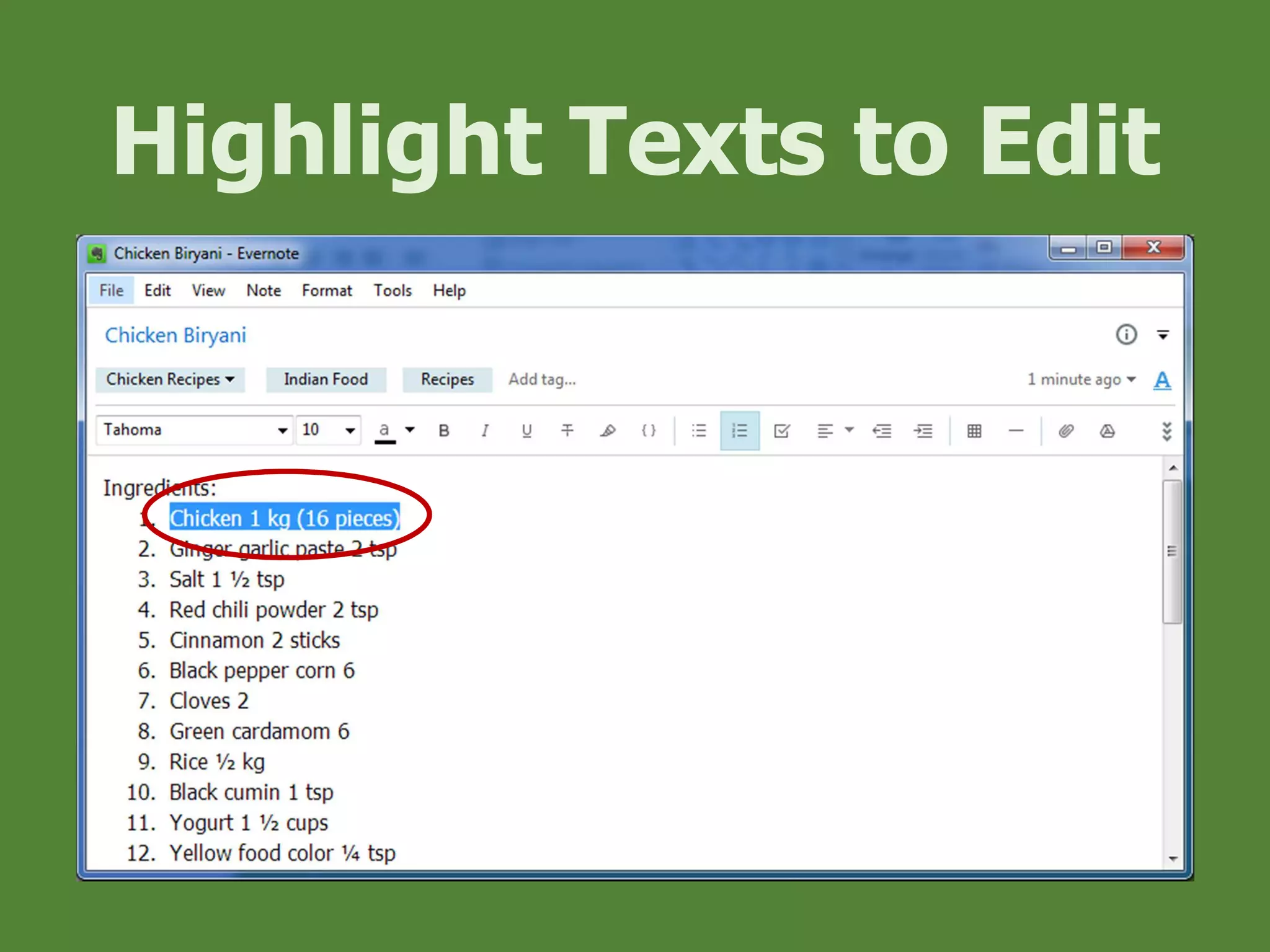
Highlight Texts to Edit
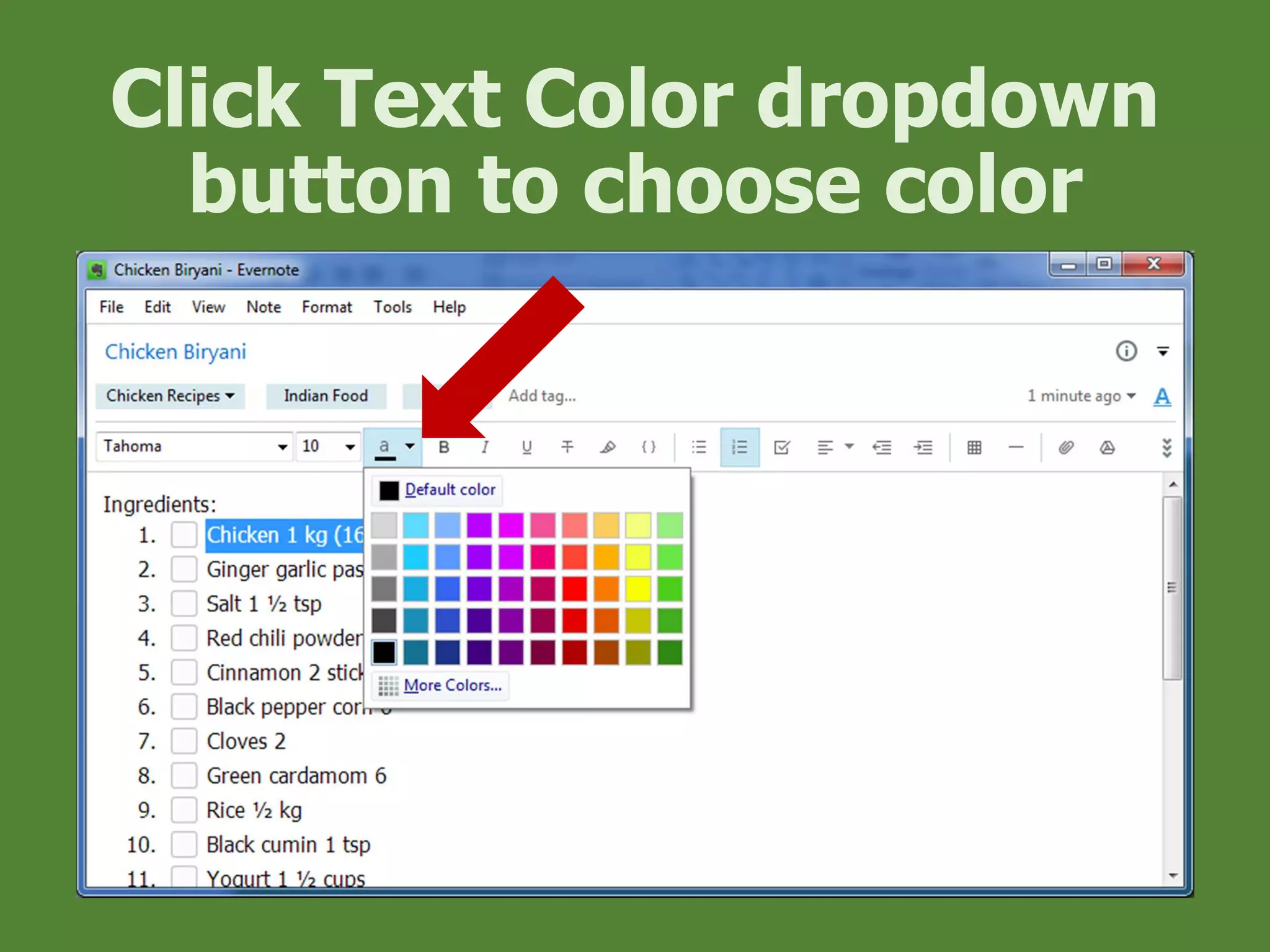
Click Text Color dropdown
button to choose color
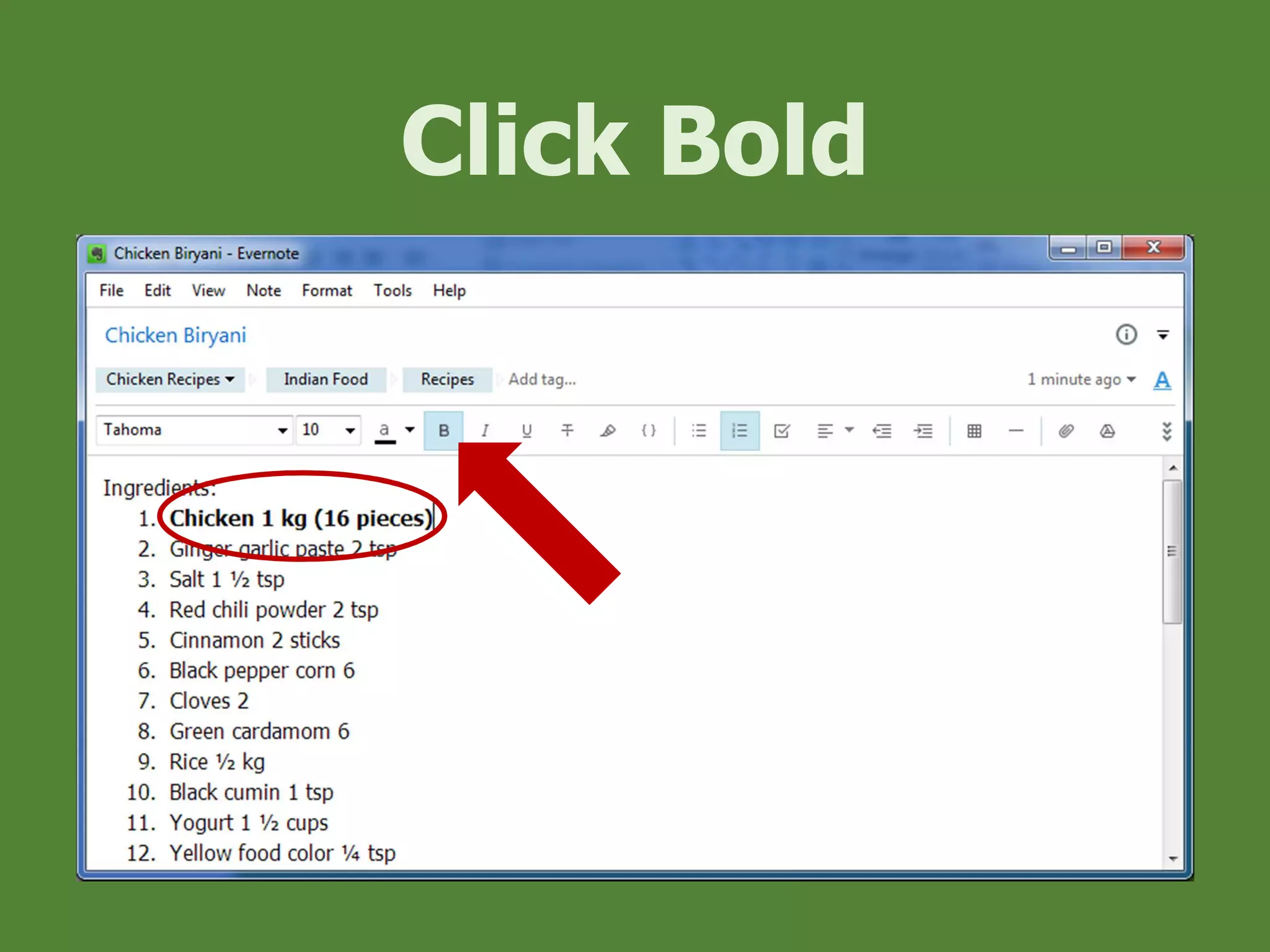
Click Bold
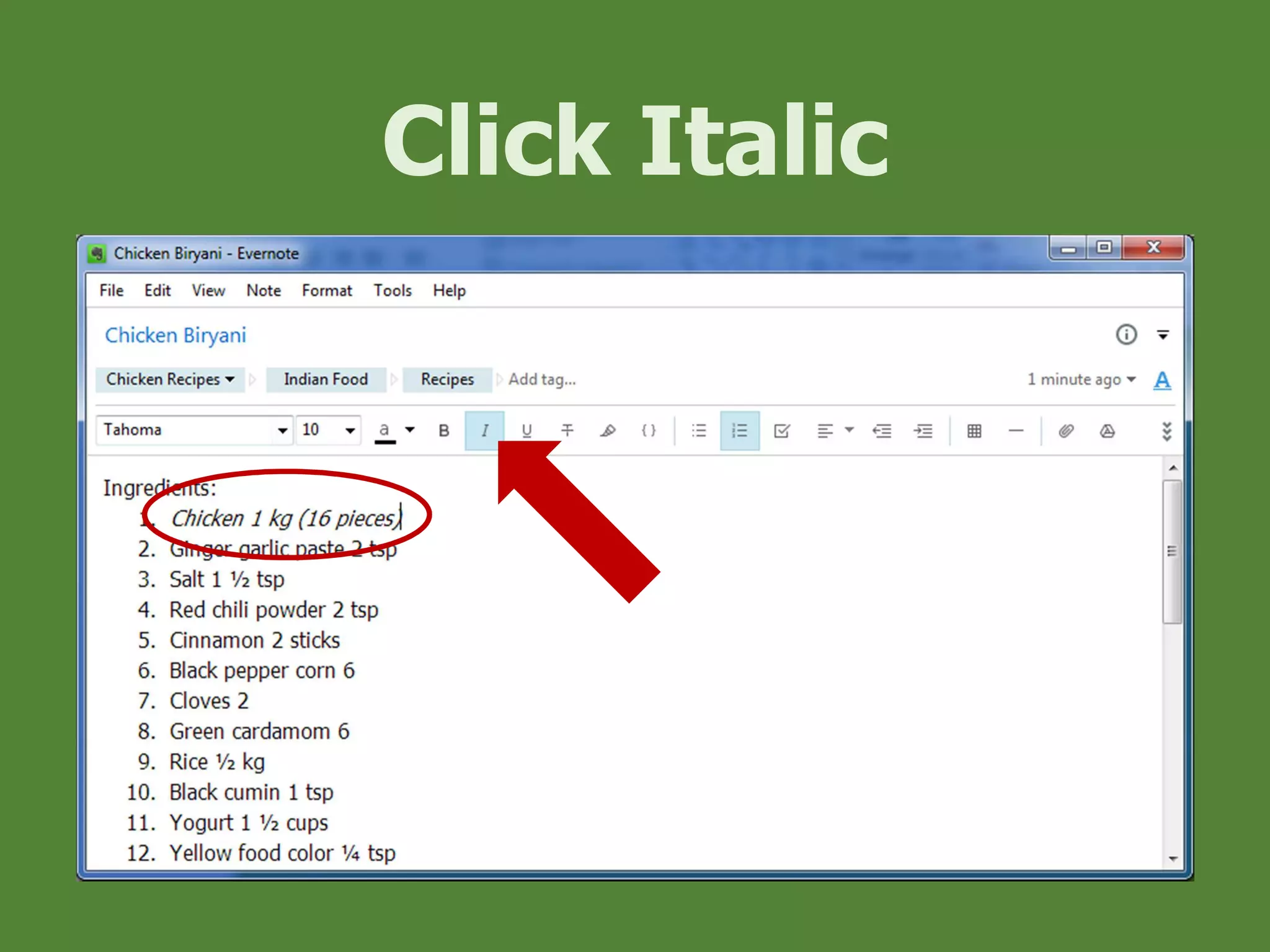
Click Italic
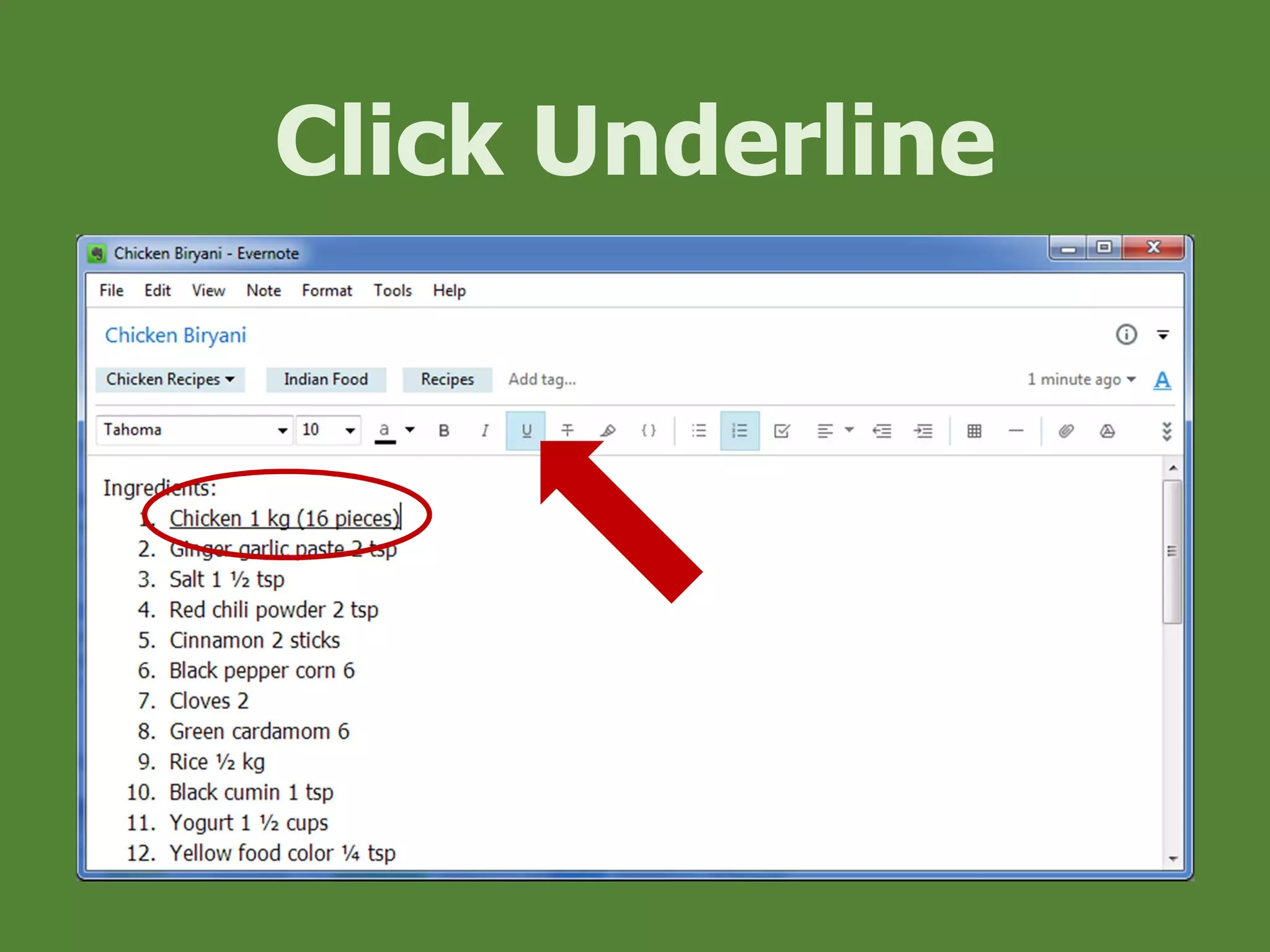
Click Underline
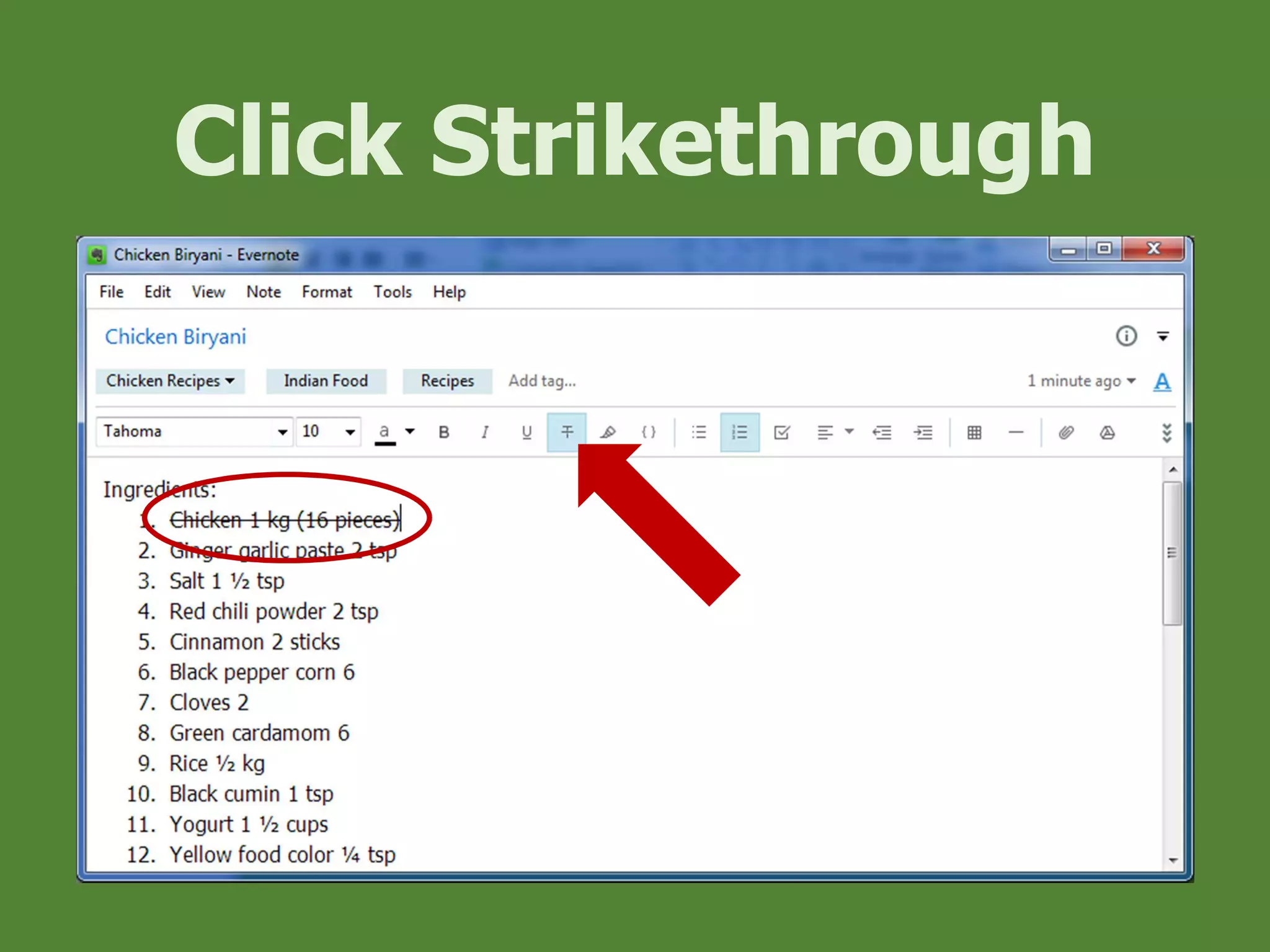
Click Strikethrough
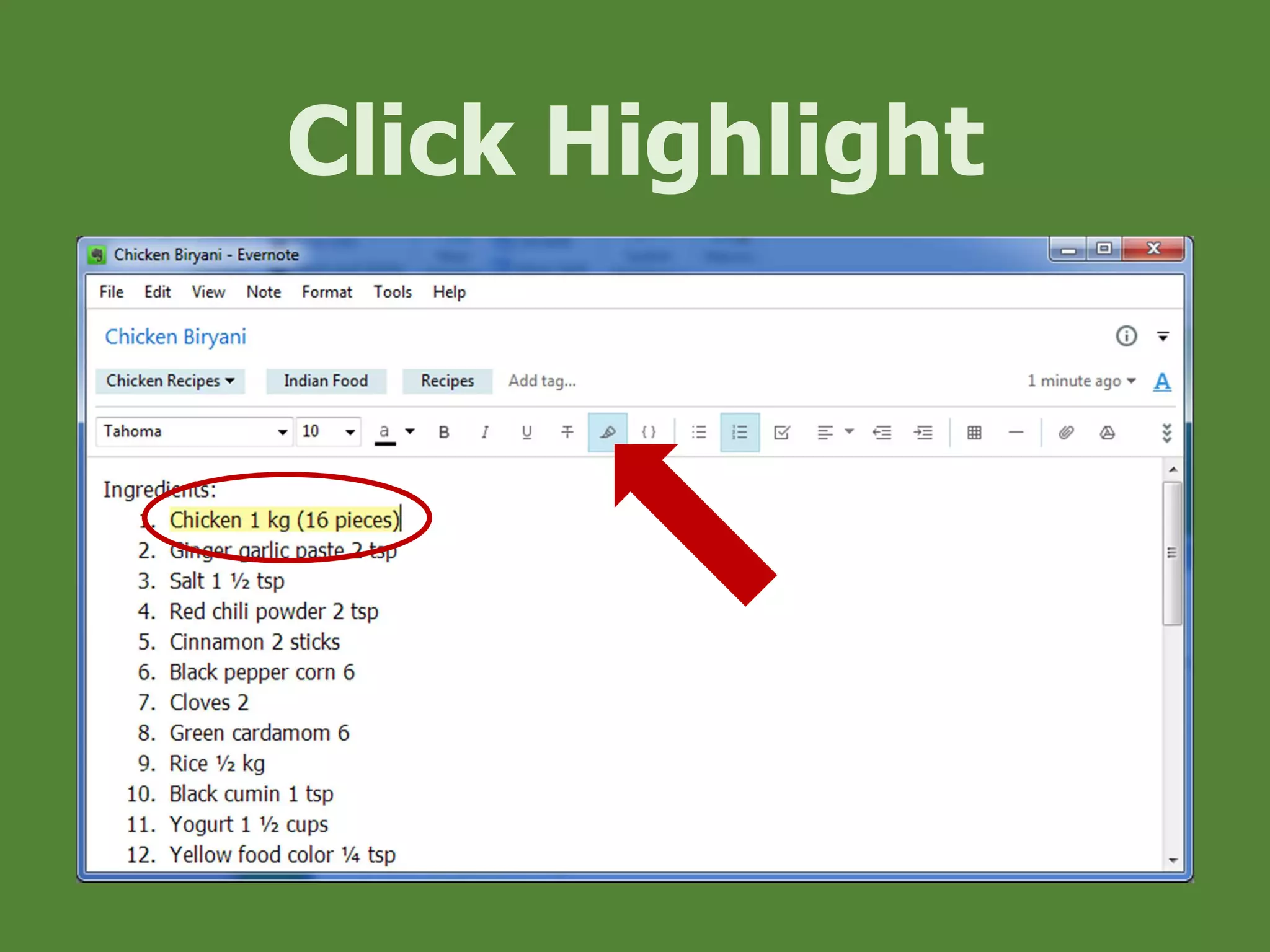
Click Highlight
Let’s create
Note Checkbox
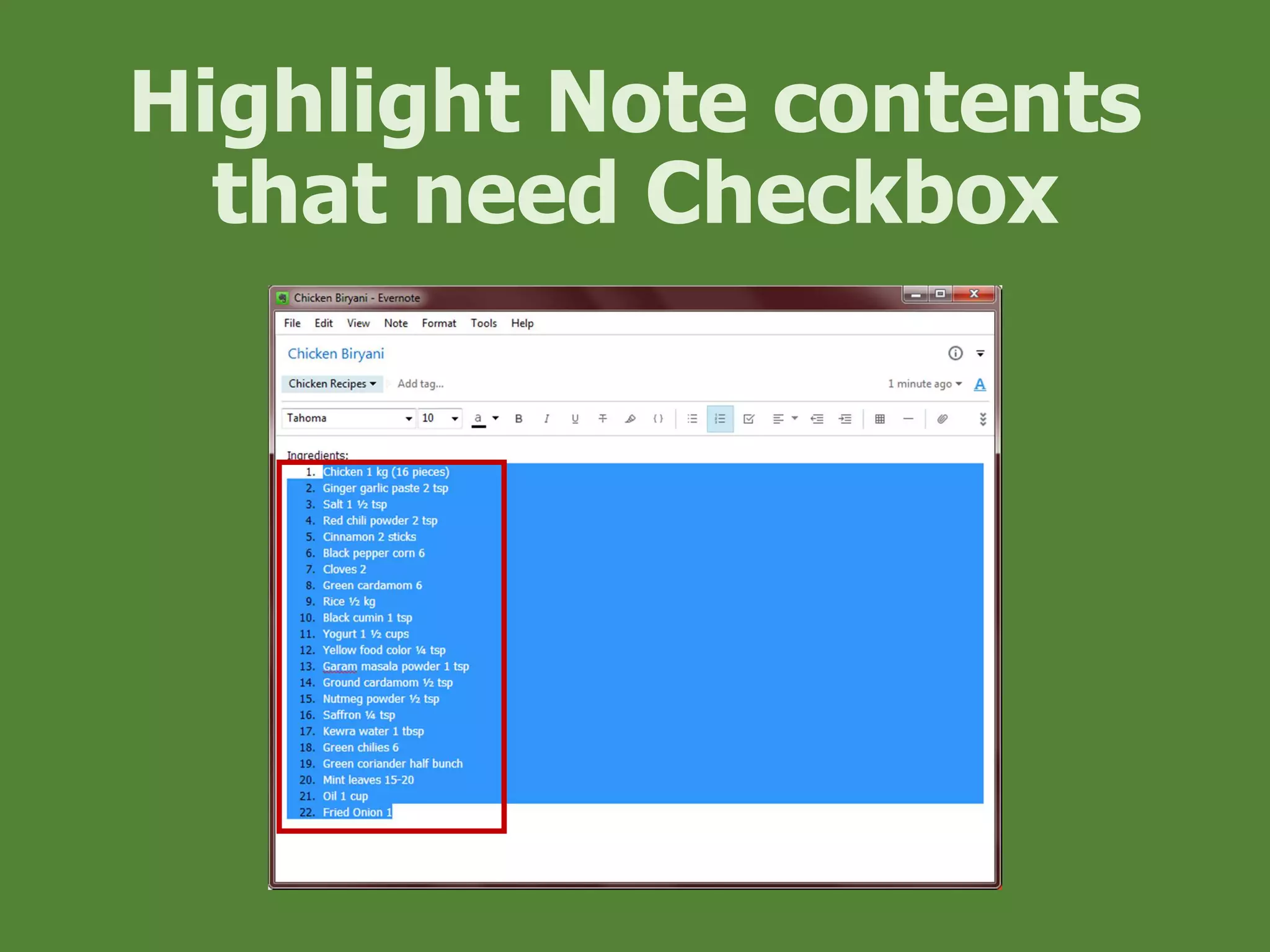
Highlight Note contents
that need Checkbox
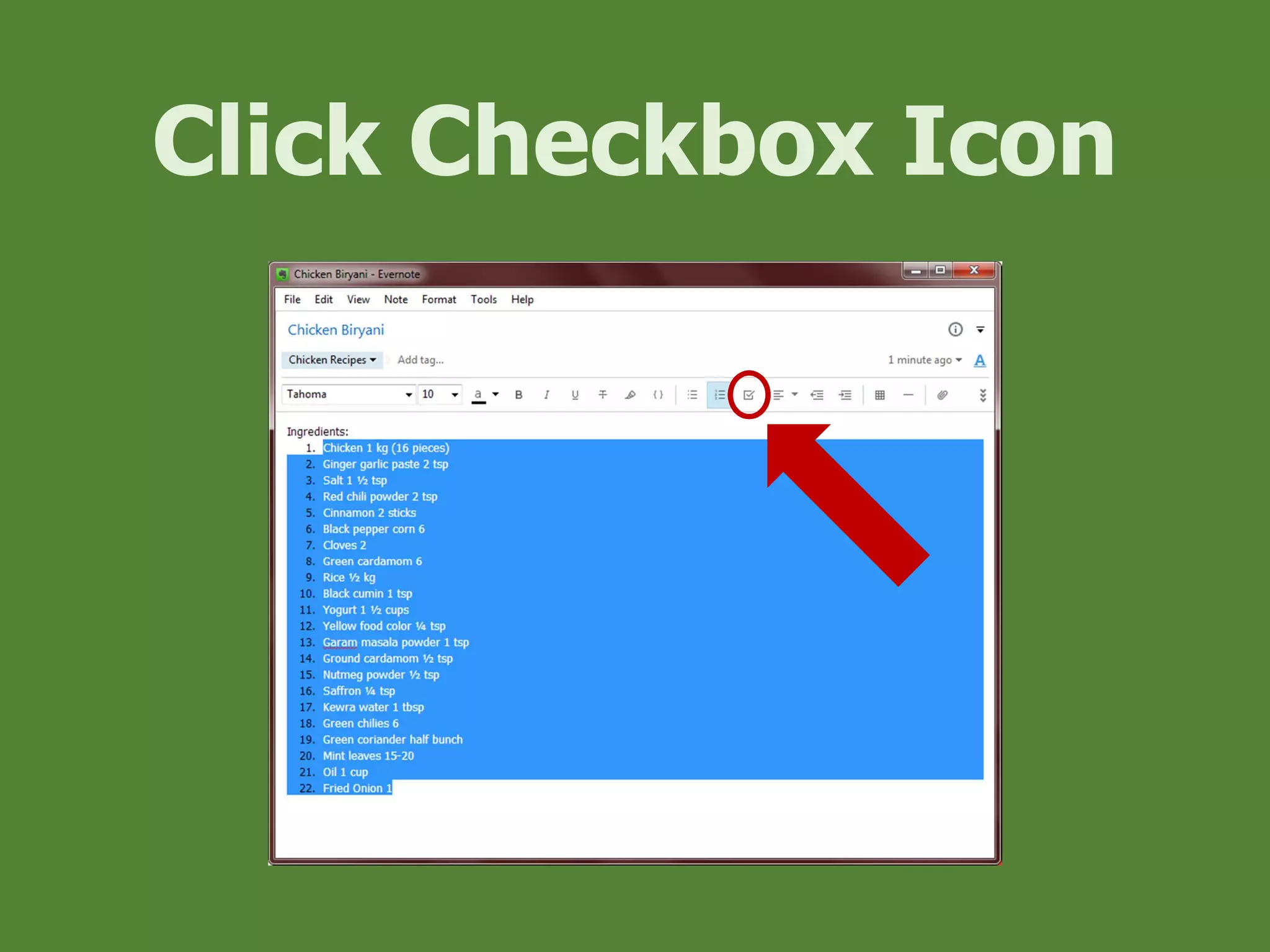
Click Checkbox Icon
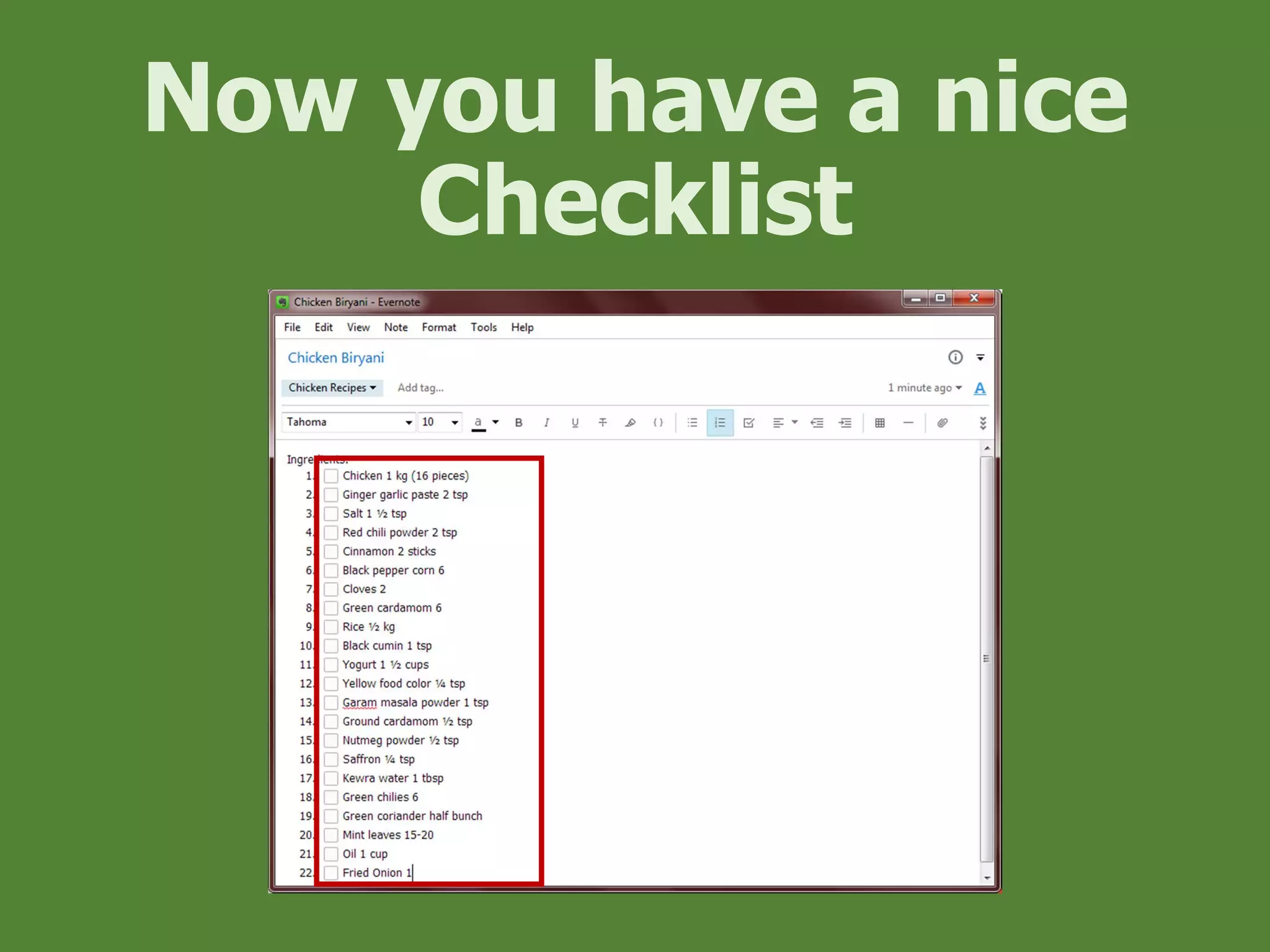
Now you have a nice
Checklist
Let’s create an
Ink Note
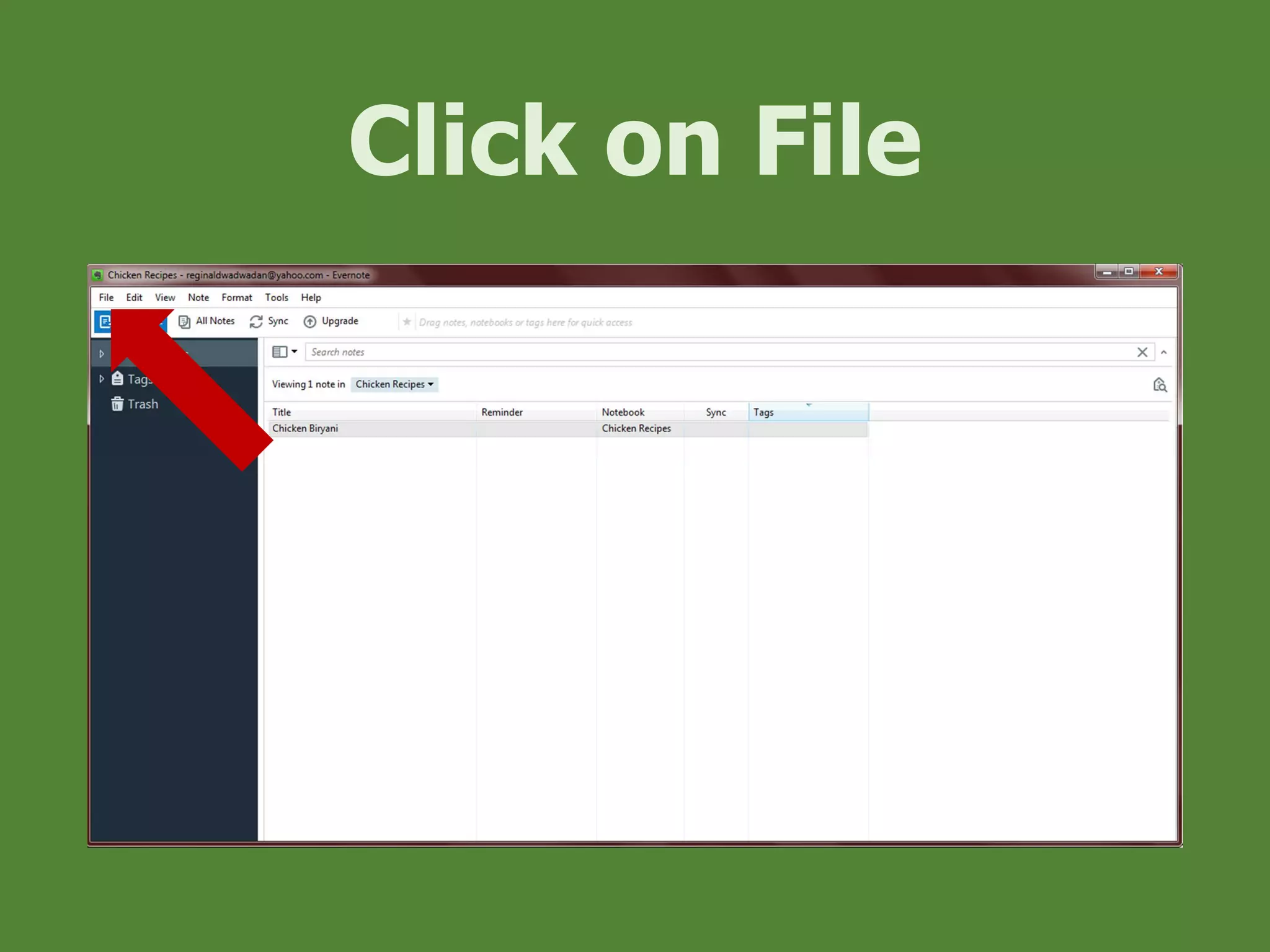
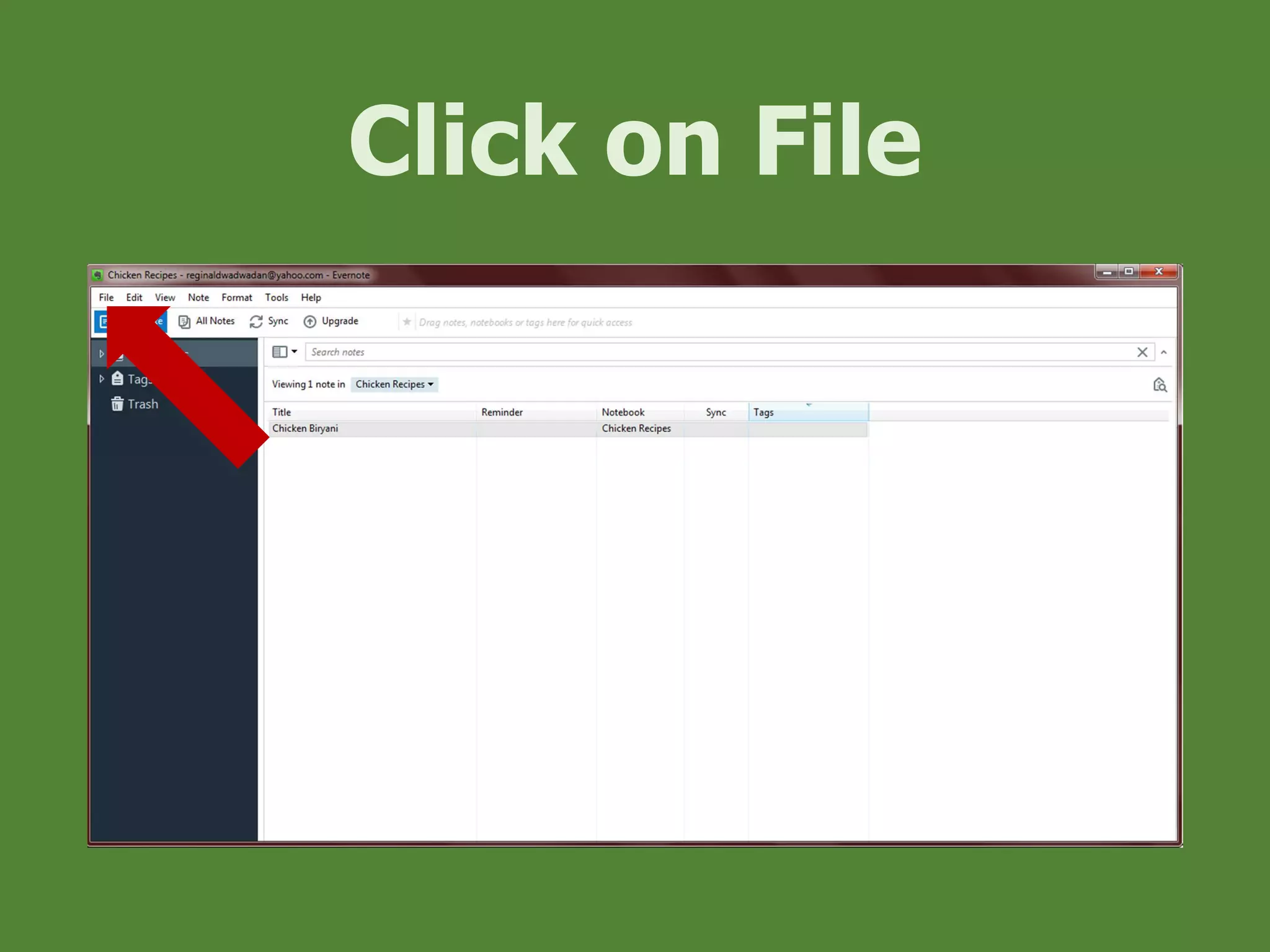
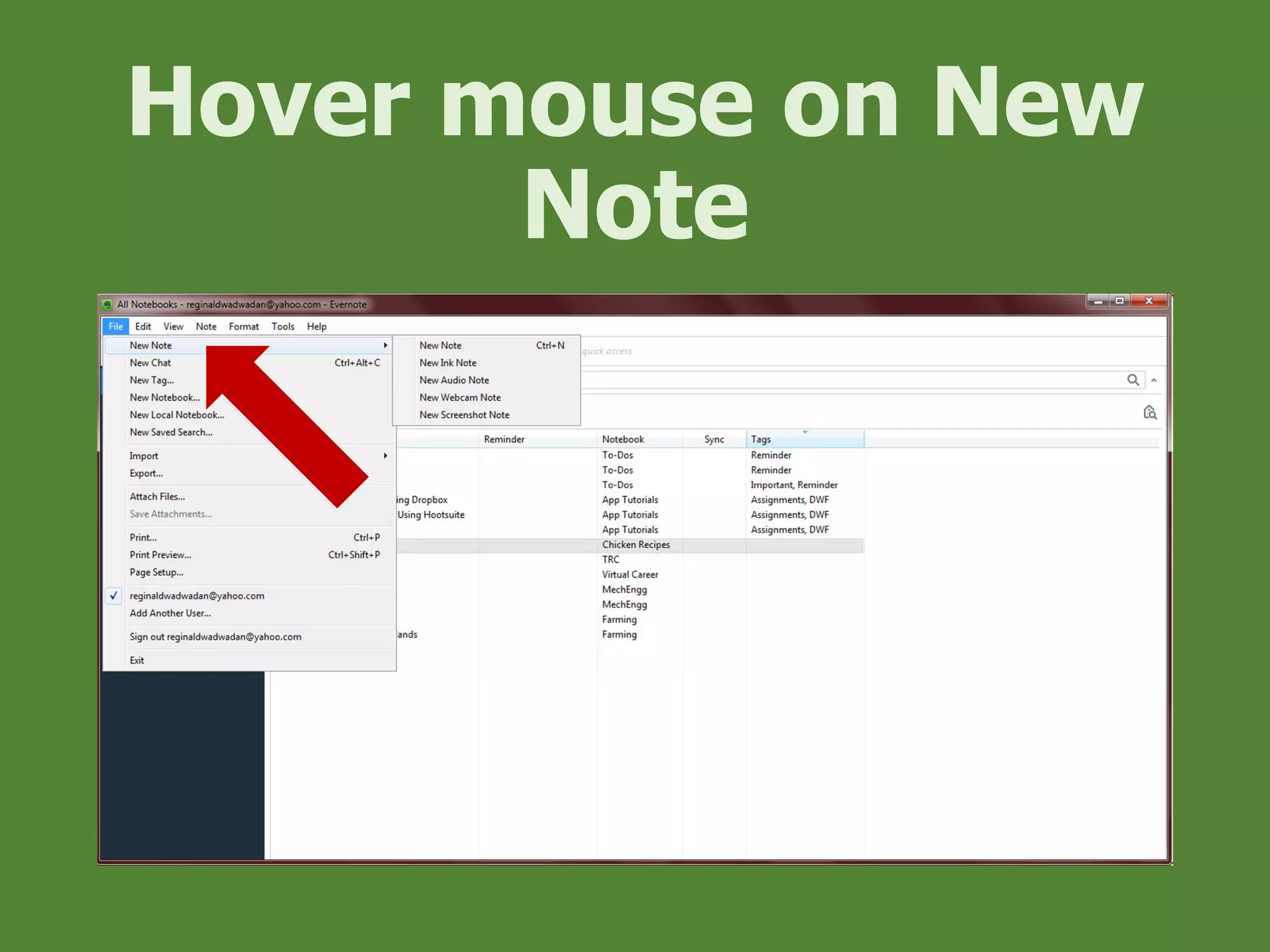
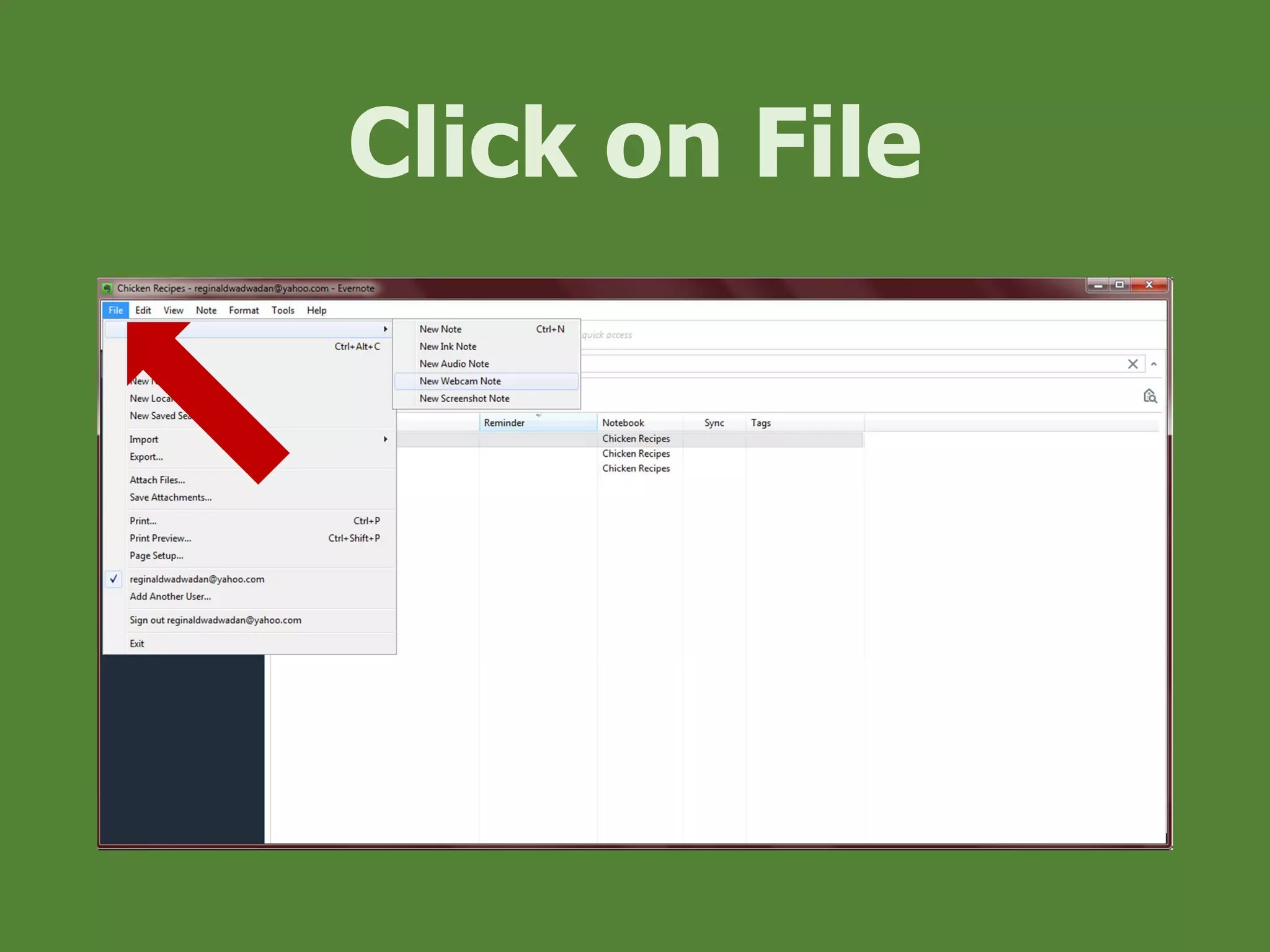
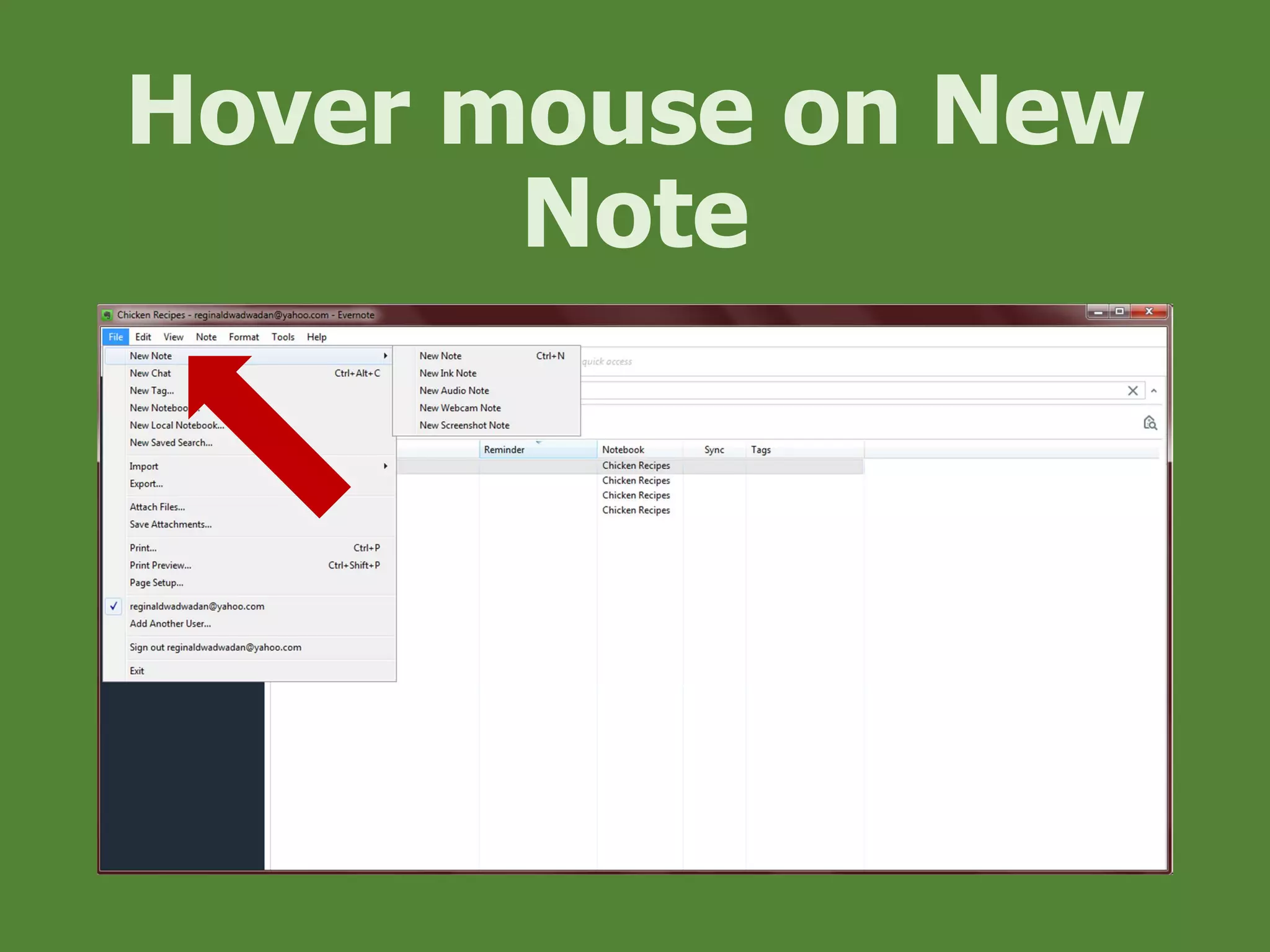
Click on File
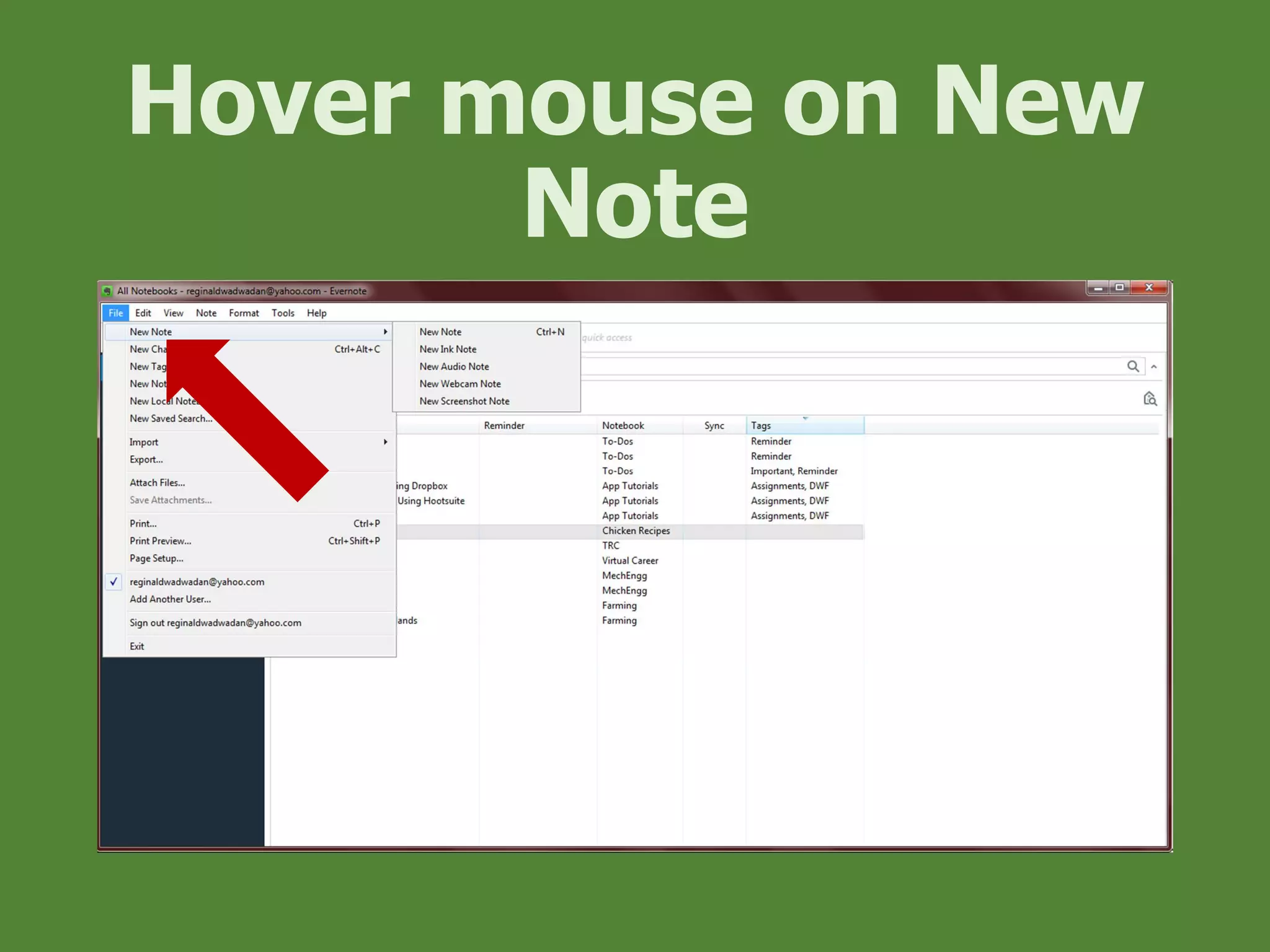
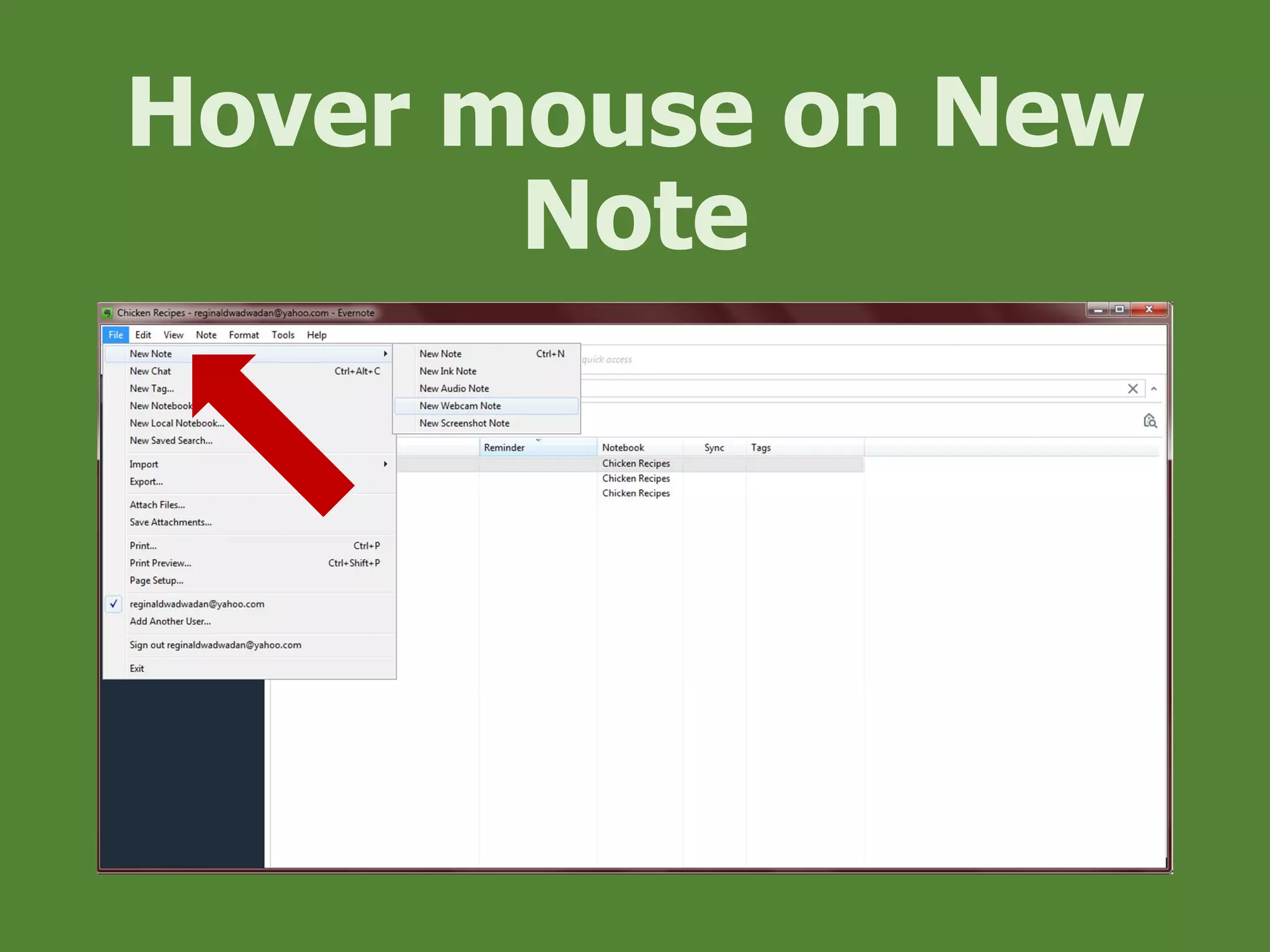
Hover mouse on New
Note
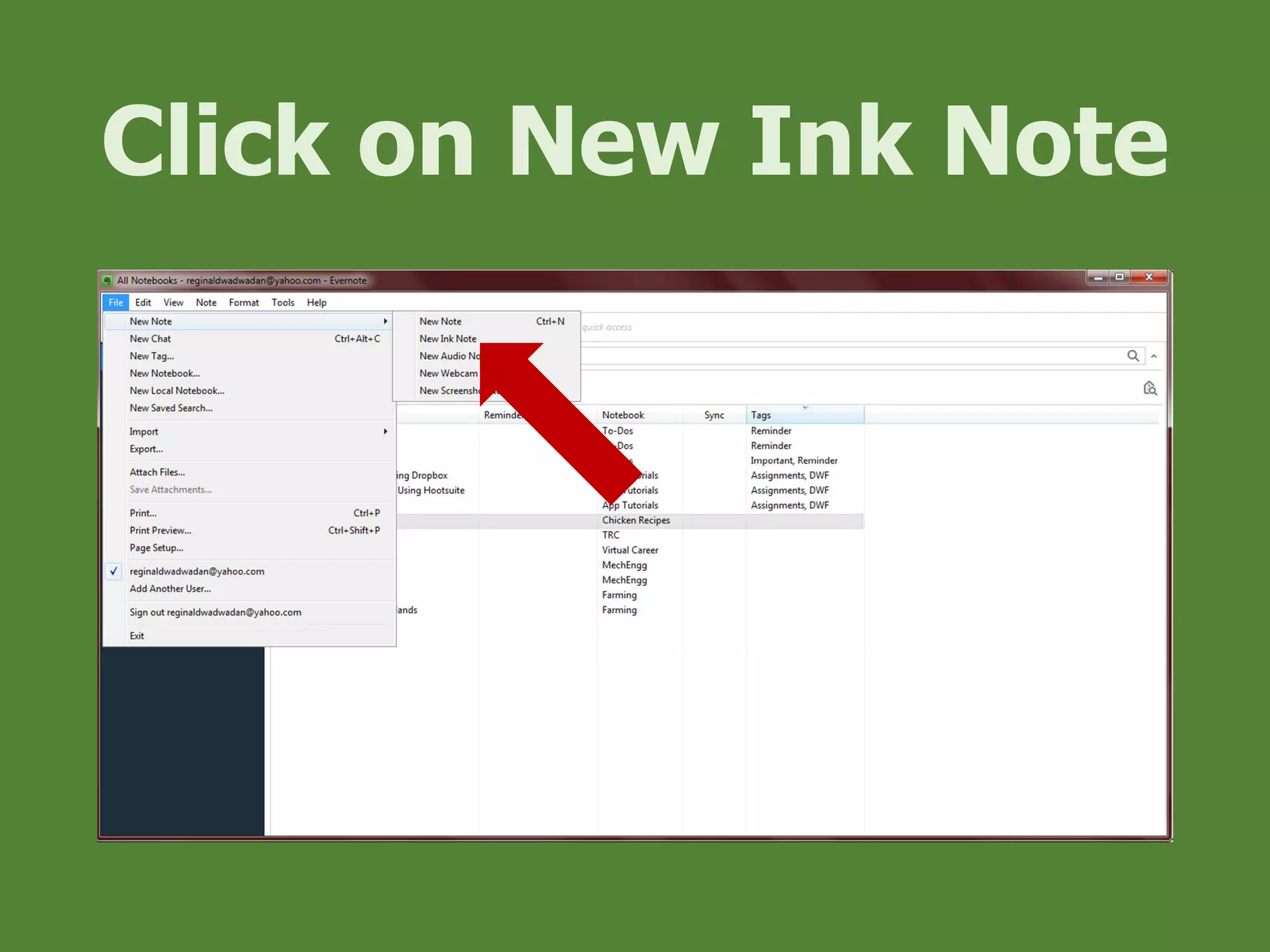
Click on New Ink Note
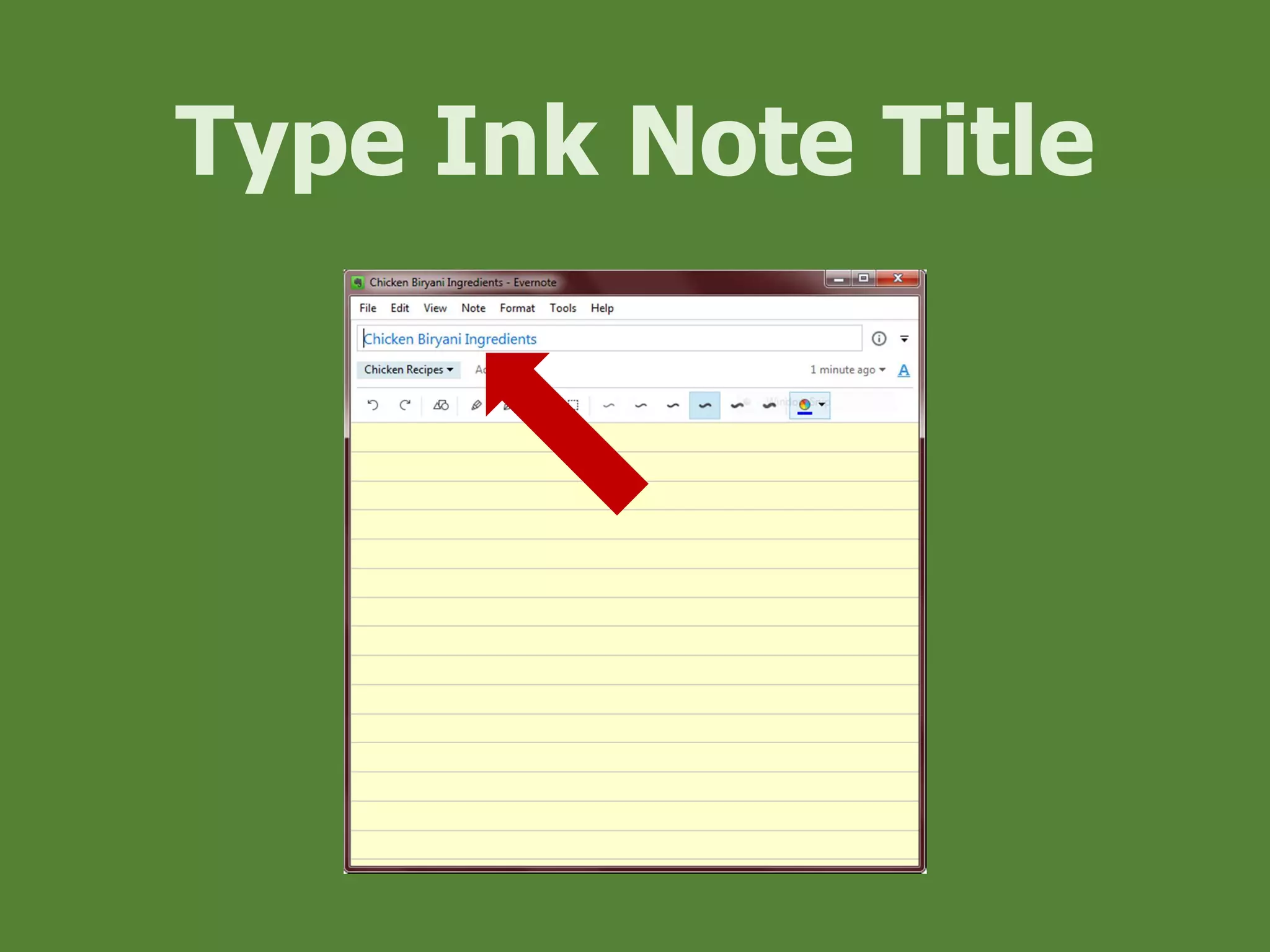
Type Ink Note Title
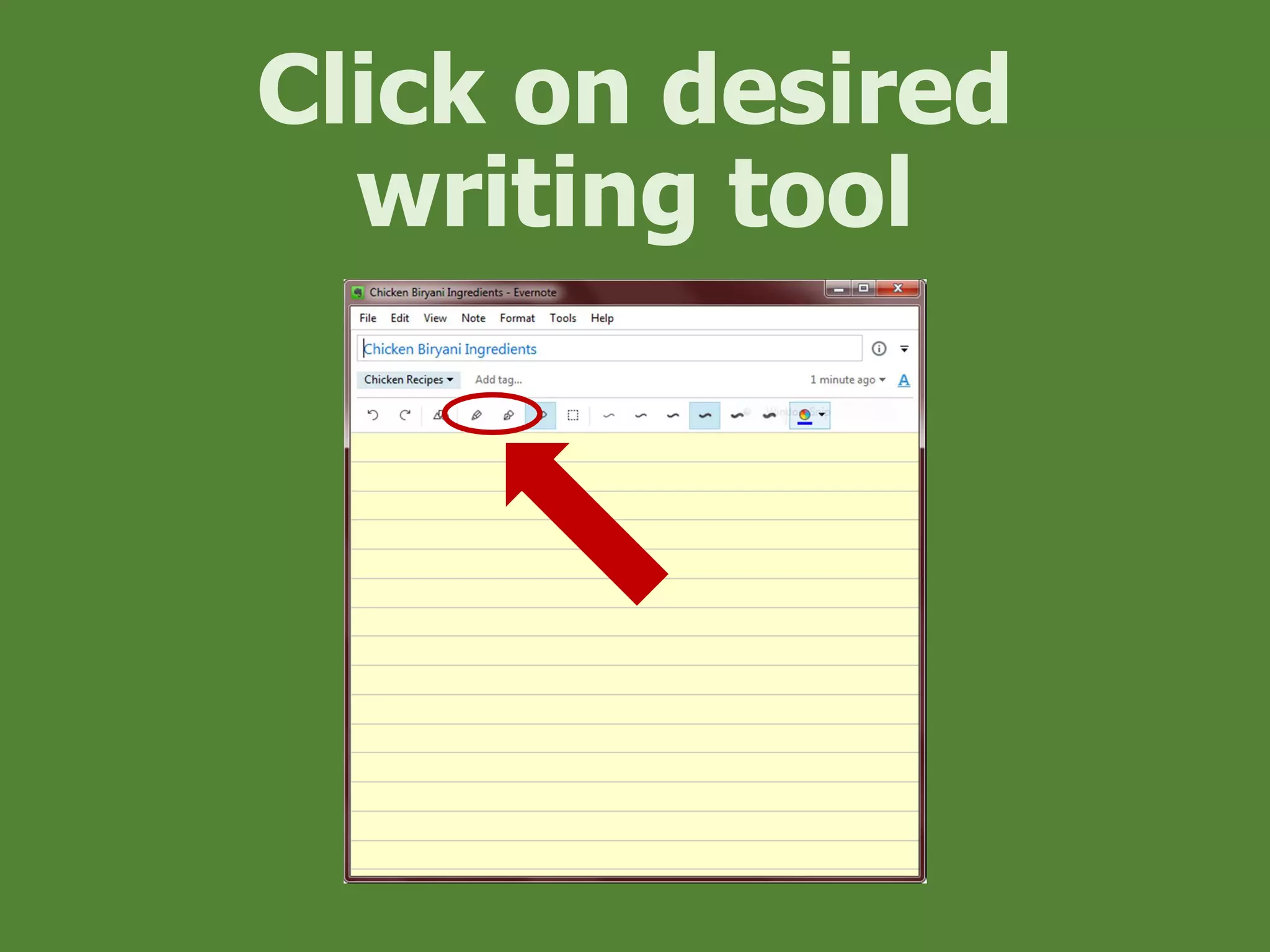
Click on desired
writing tool
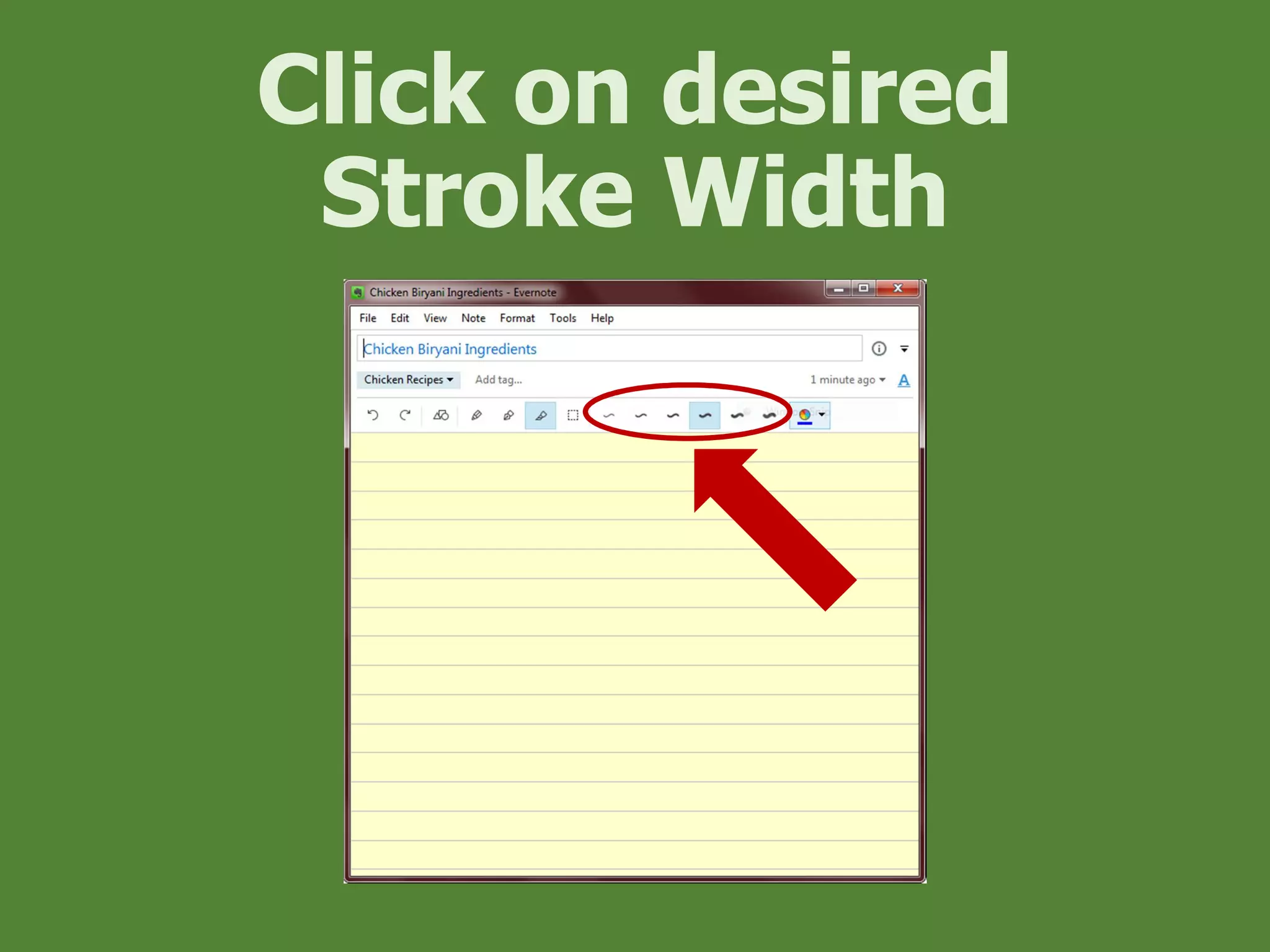
Click on desired
Stroke Width
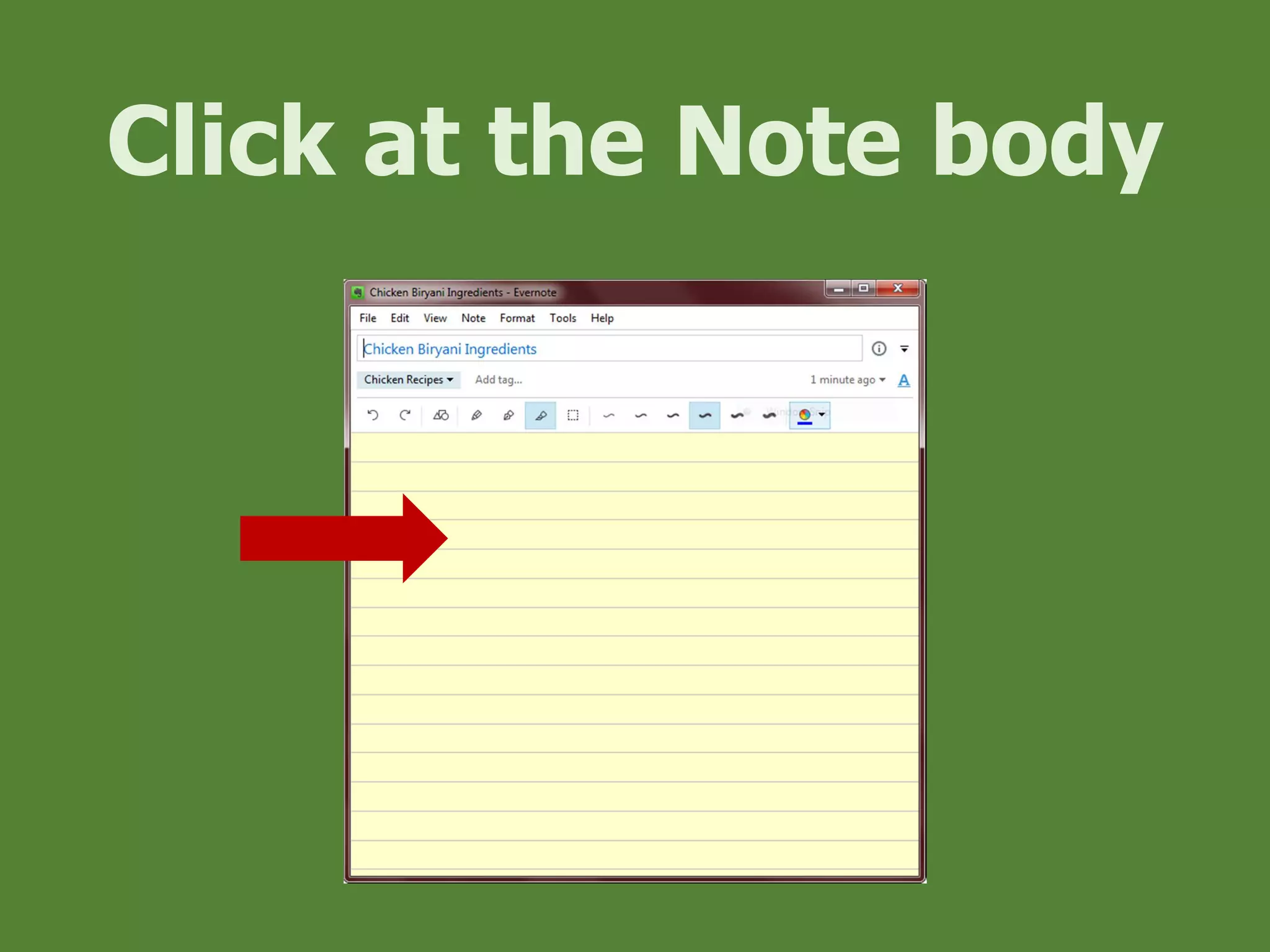
Click at the Note body
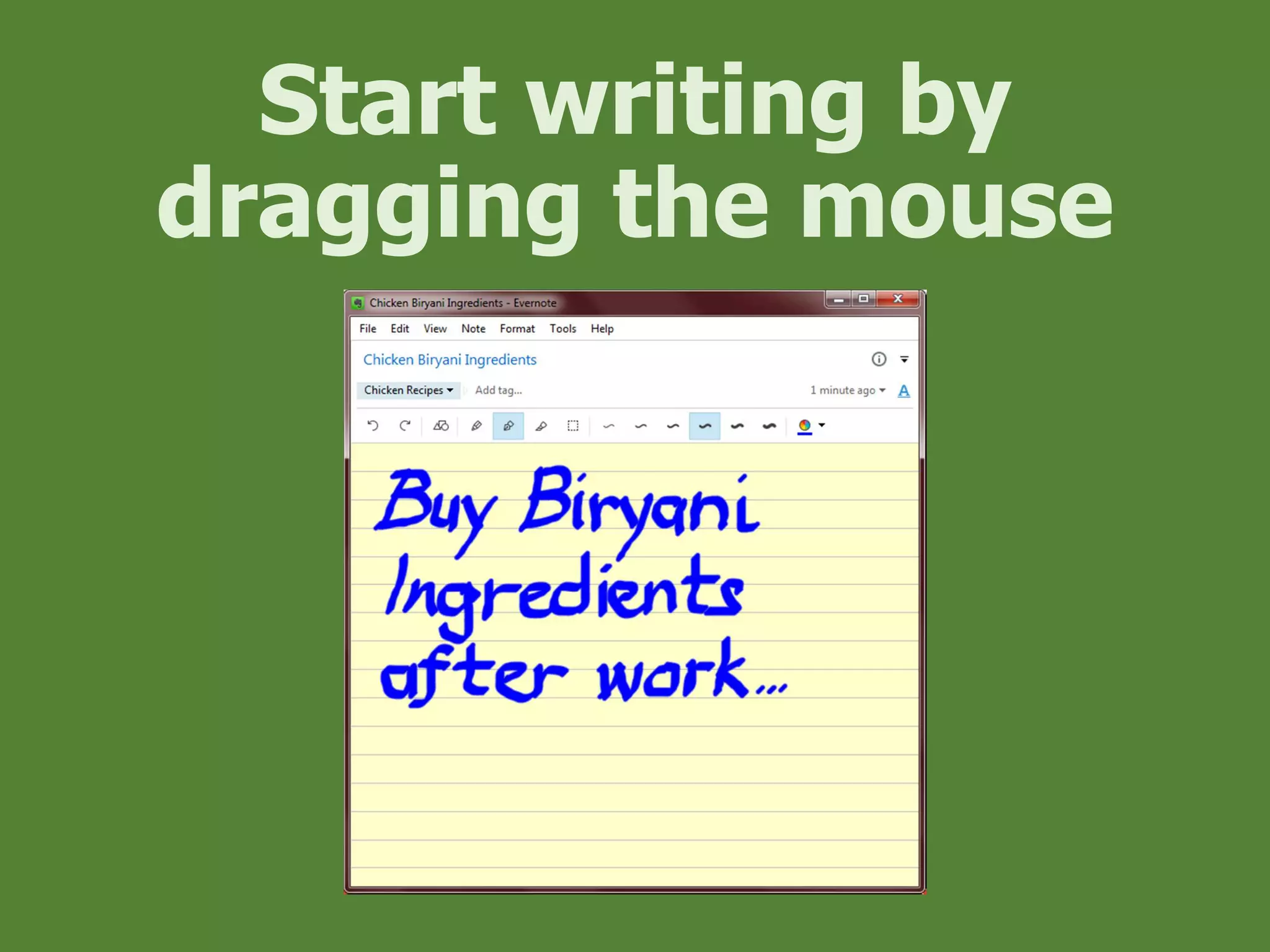
Start writing by
dragging the mouse
Let’s Create an
Audio Note
Click on File
Hover mouse on New
Note
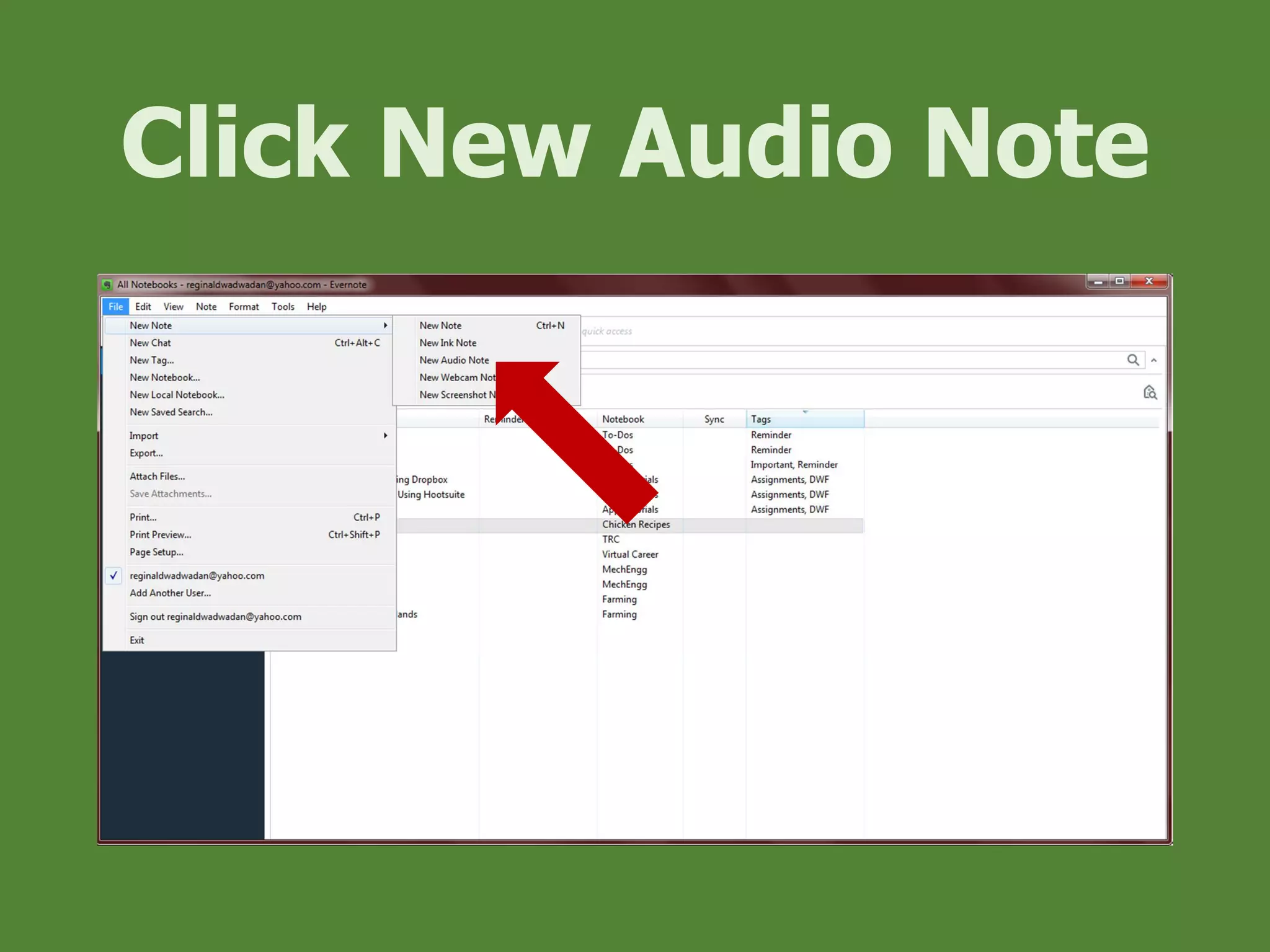
Click New Audio Note
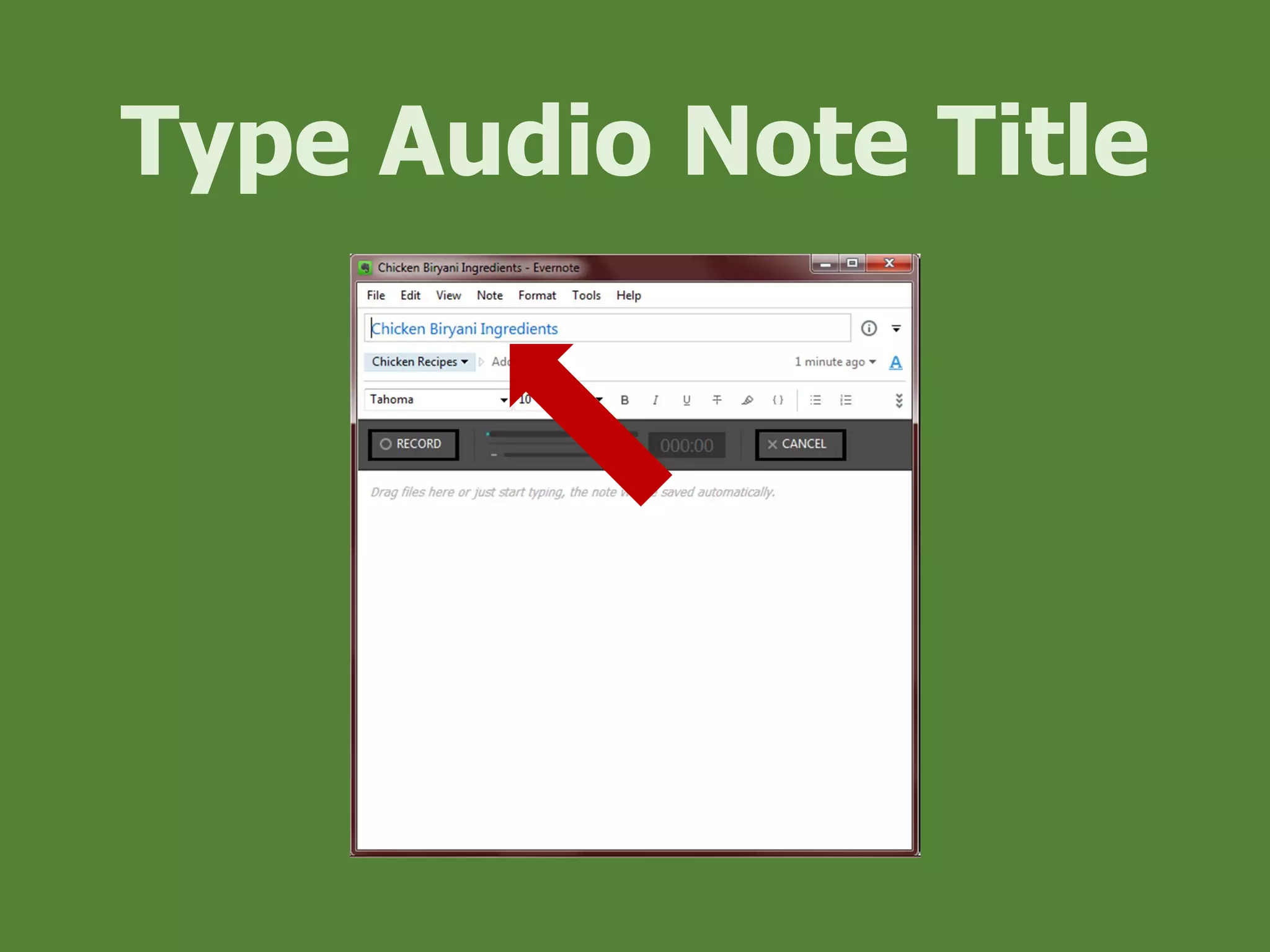
Type Audio Note Title
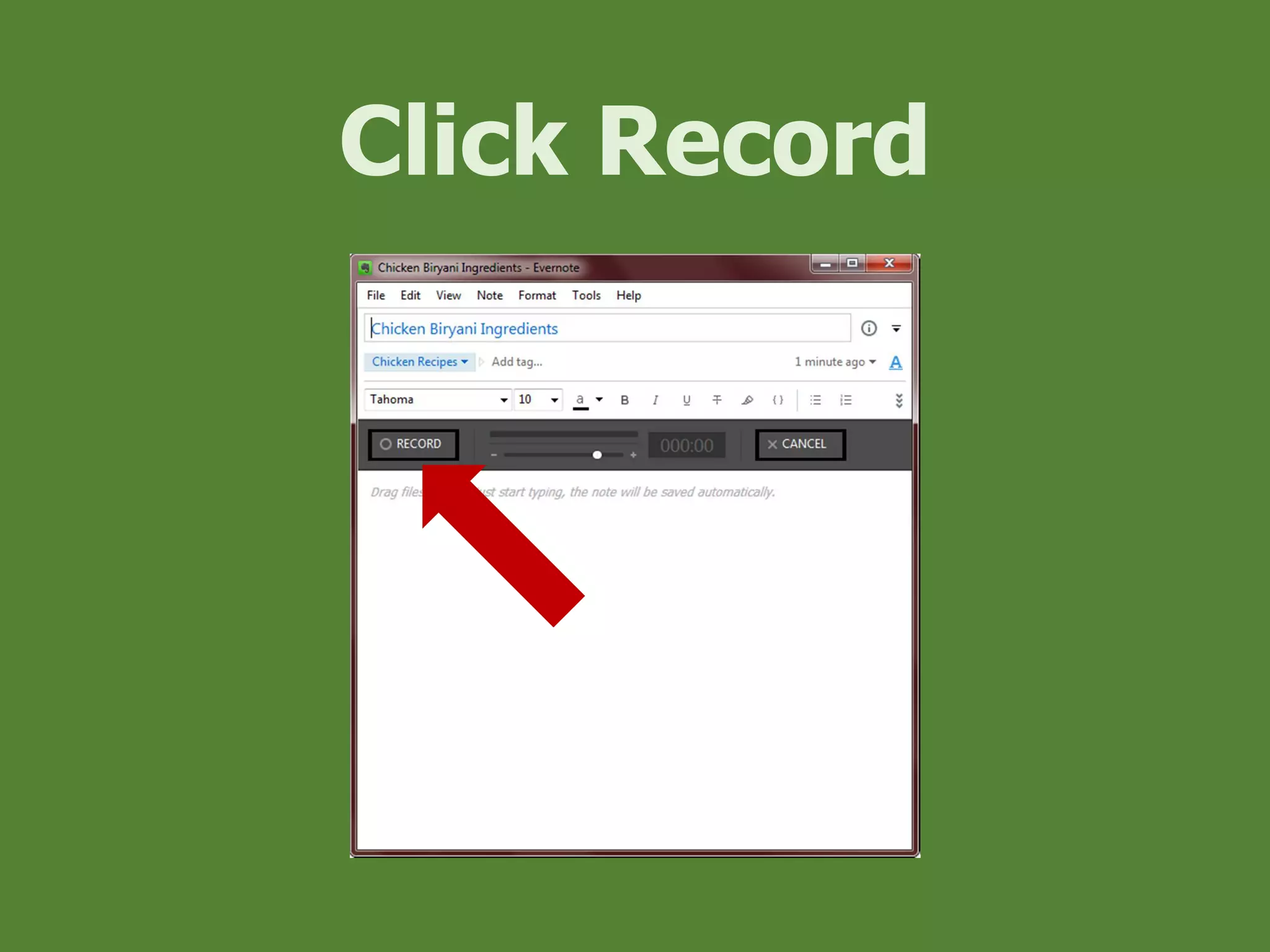
Click Record
Start Speaking
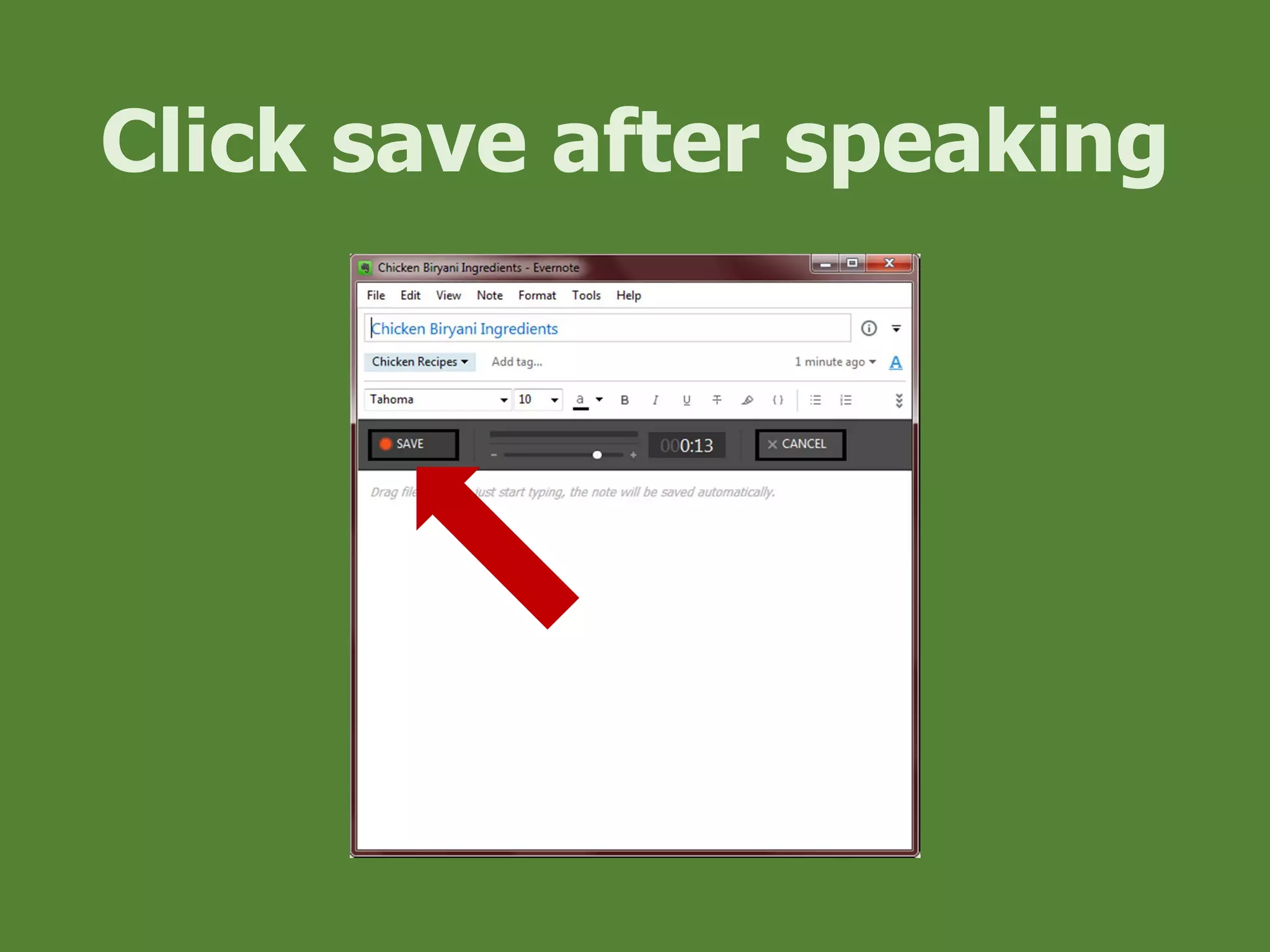
Click save after speaking
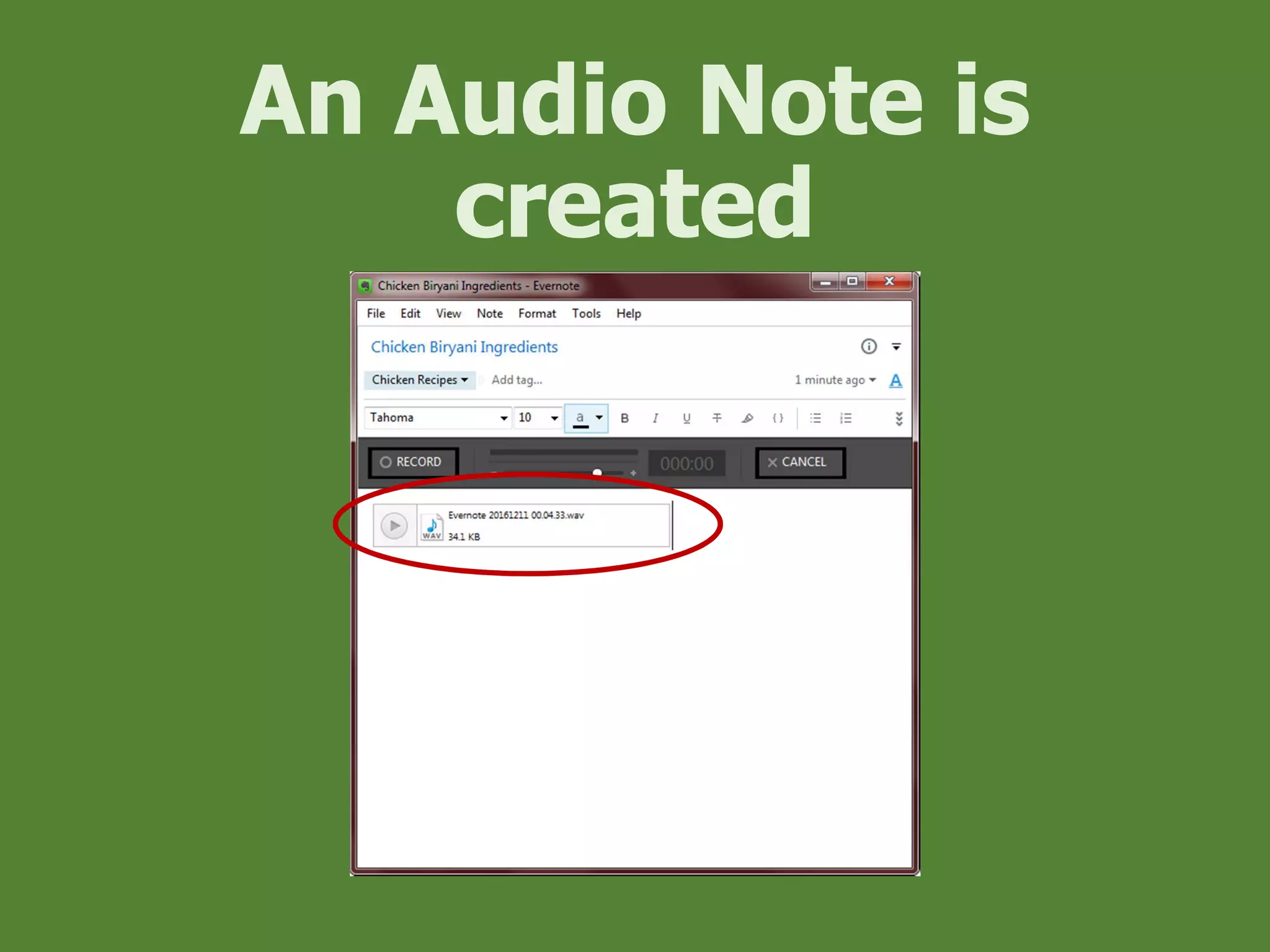
An Audio Note is
created
Creating a
Webcam Note
Click on File
Hover mouse on New
Note
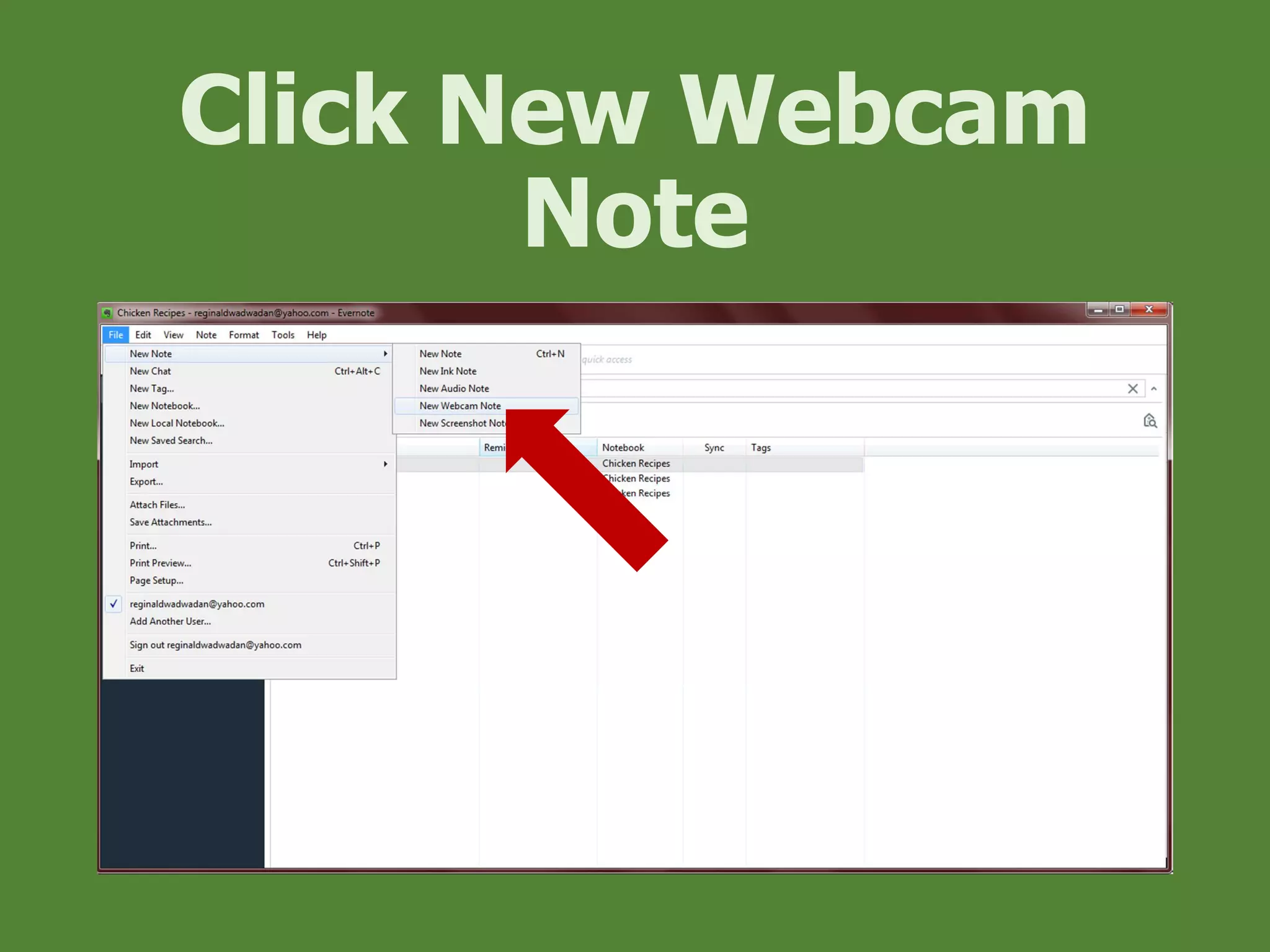
Click New Webcam
Note
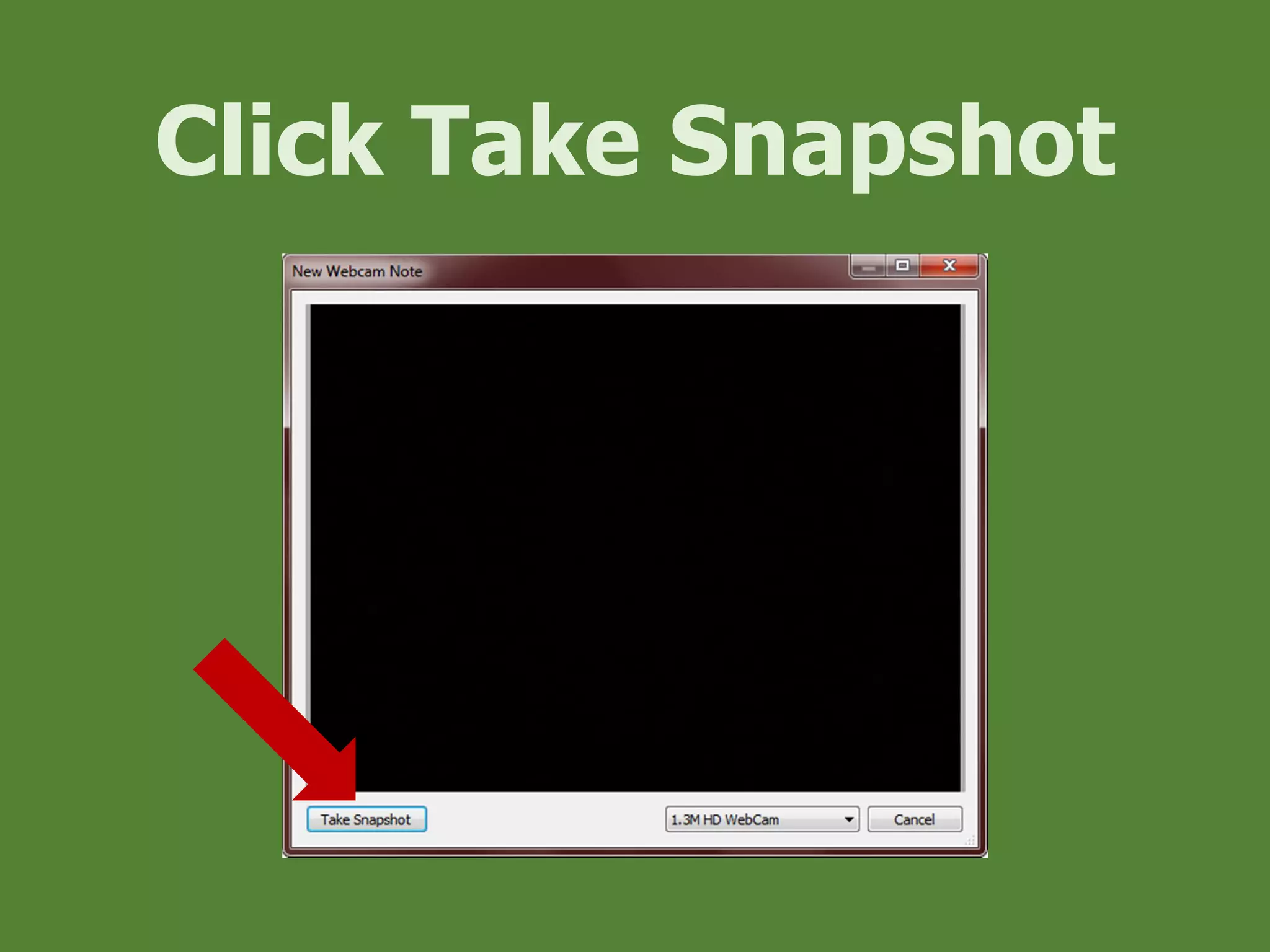
Click Take Snapshot
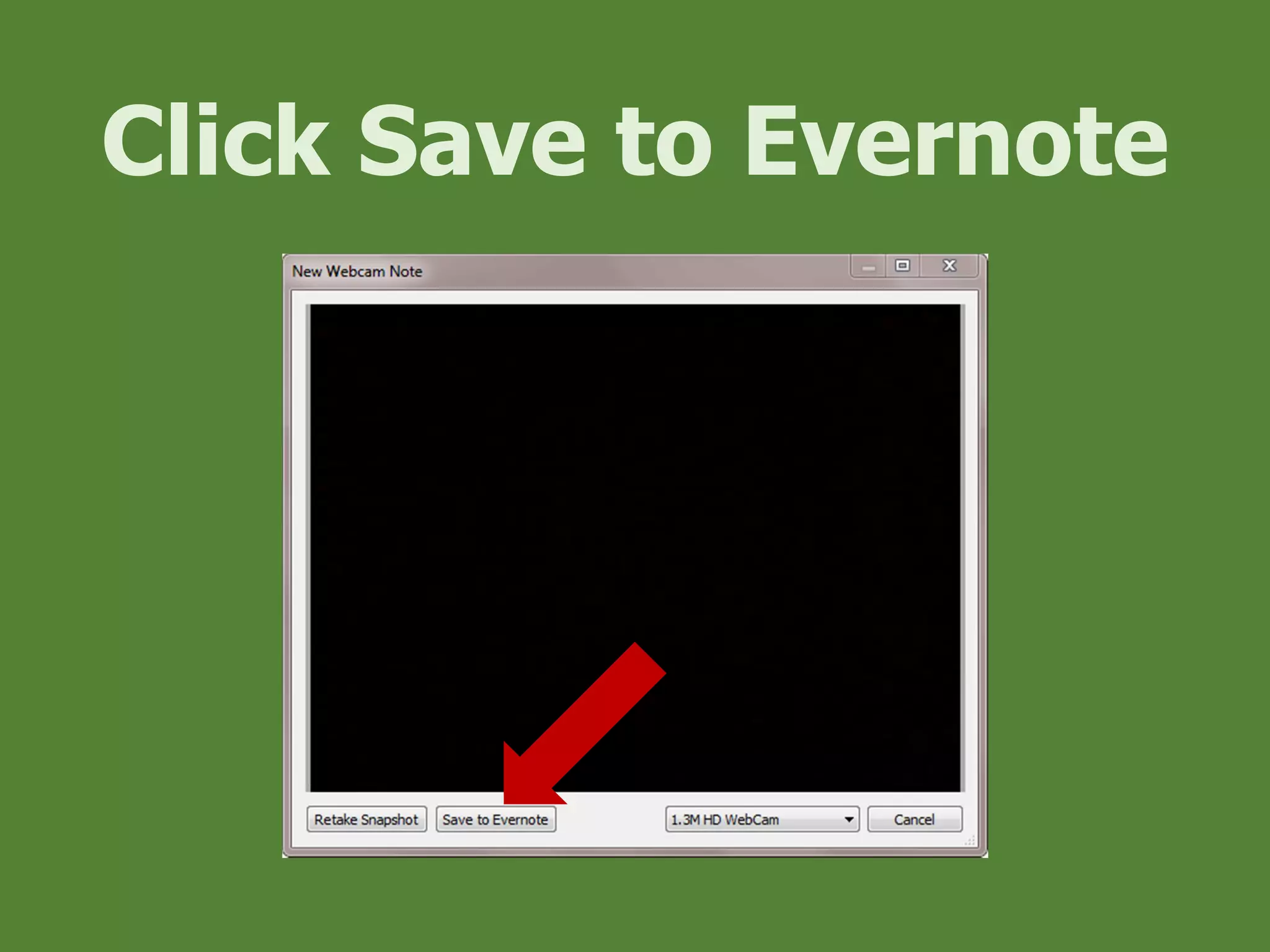
Click Save to Evernote
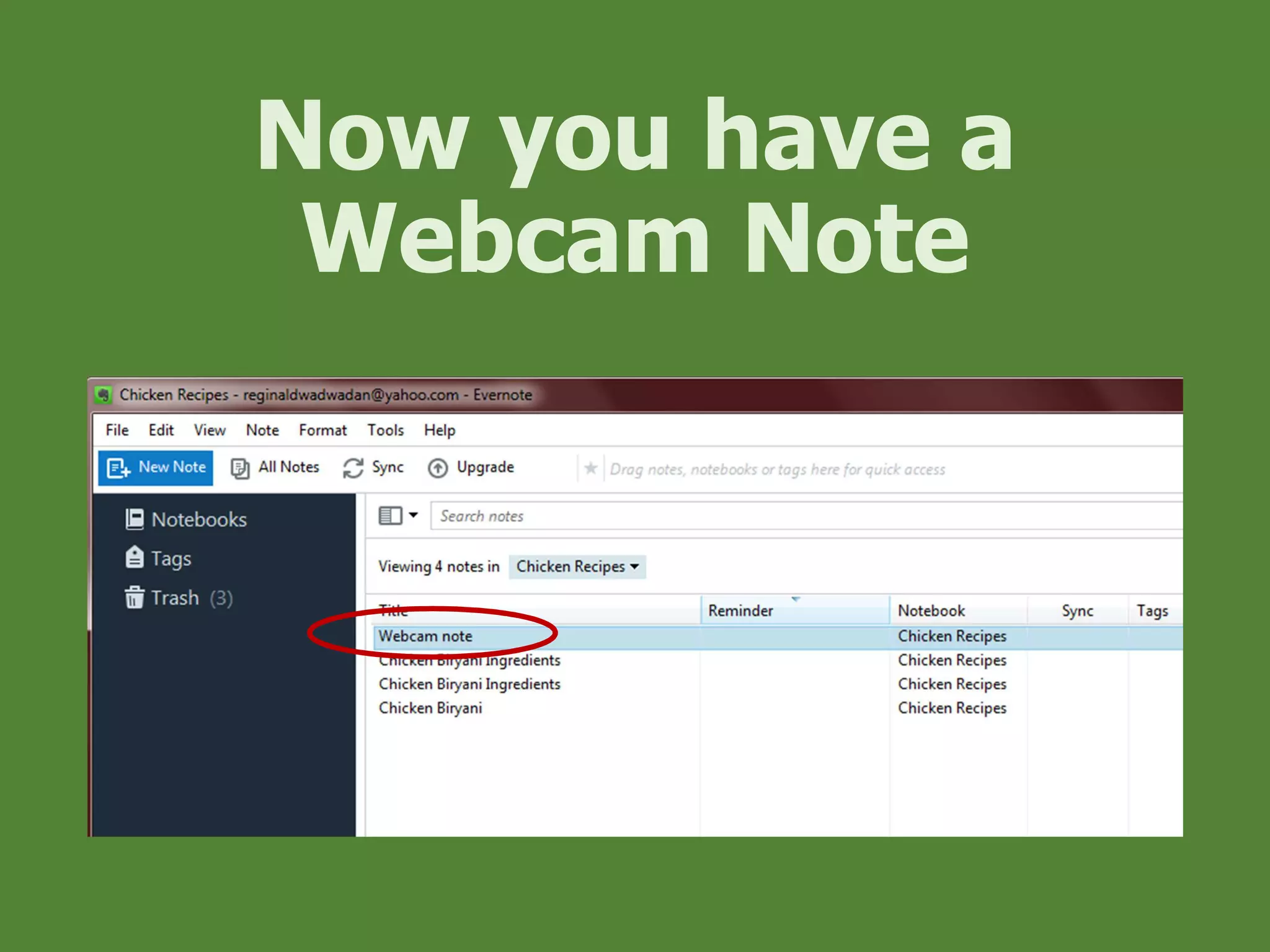
Now you have a
Webcam Note
Let’s create a
Screenshot Note
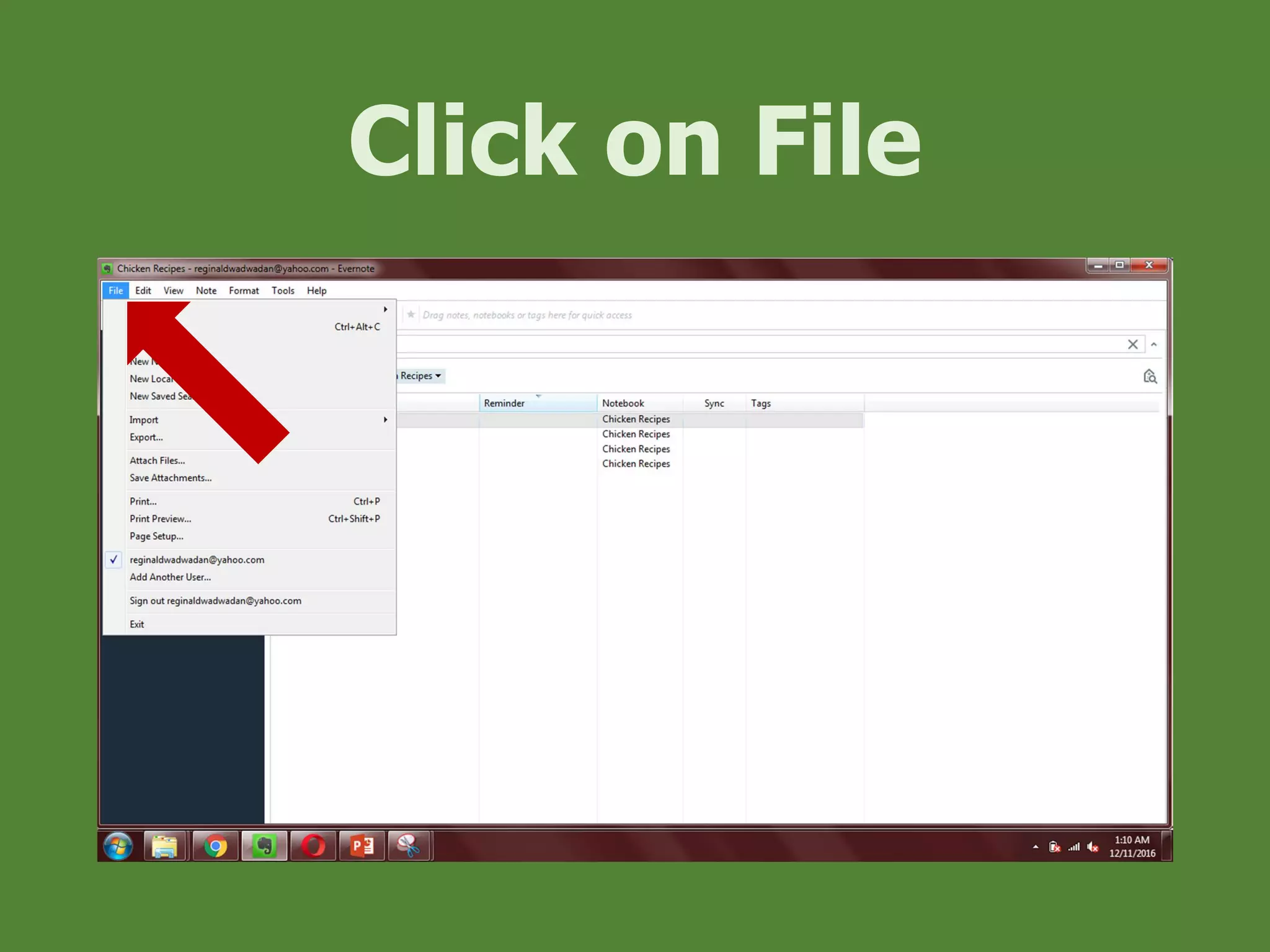
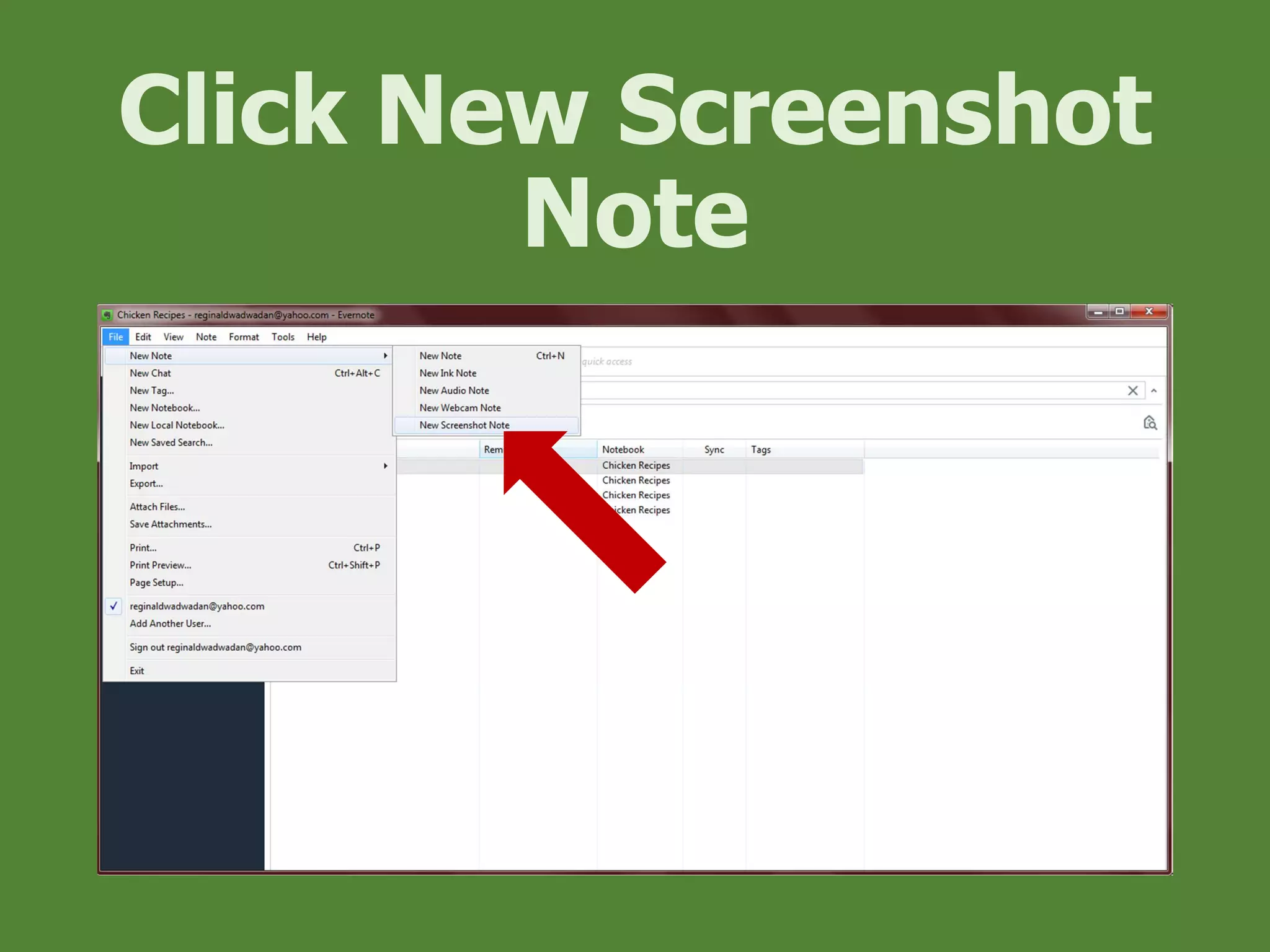
Click on File
Hover mouse on New
Note
Click New Screenshot
Note
Click at the first
corner
Drag to the other corner
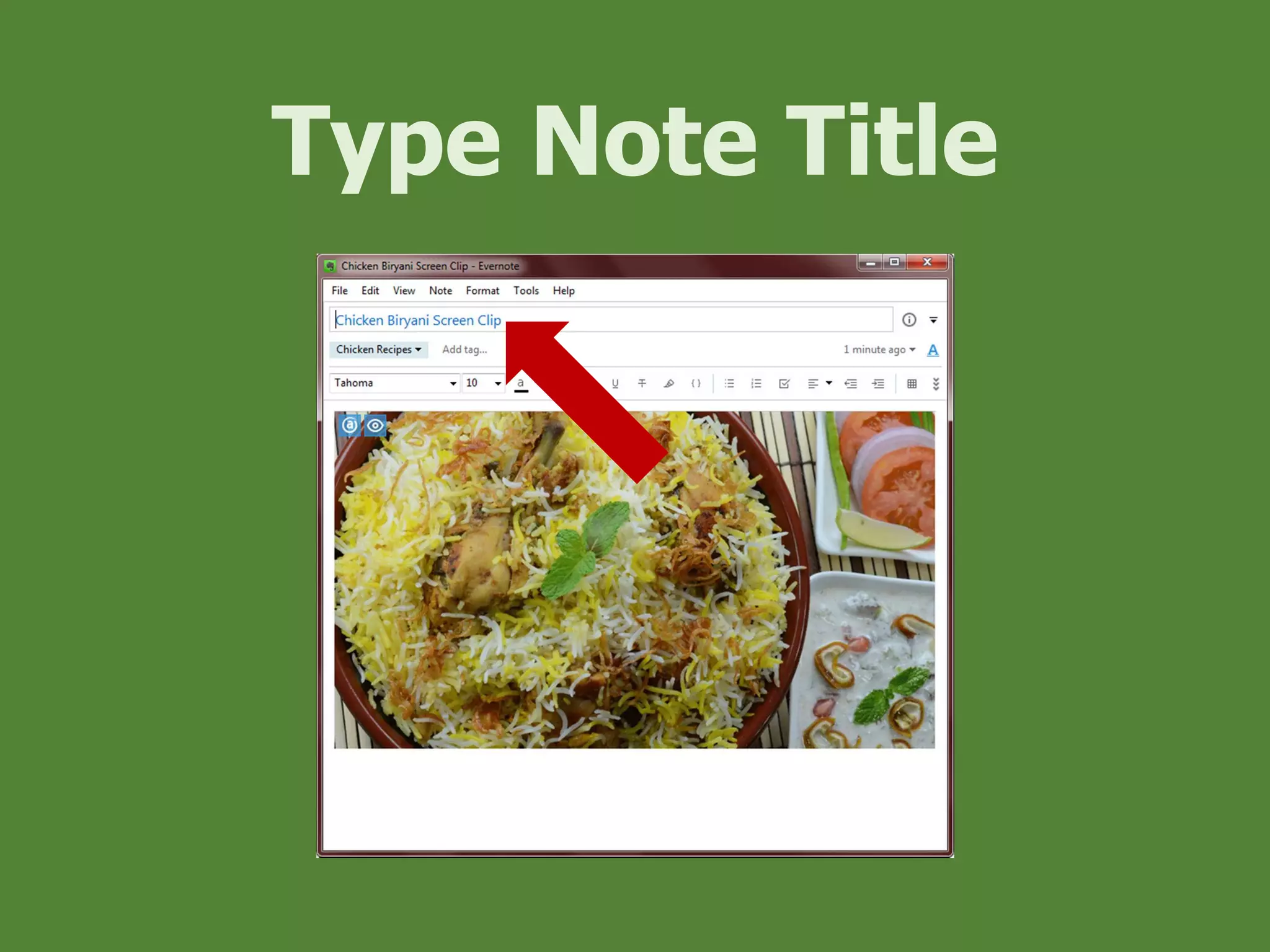
Type Note Title
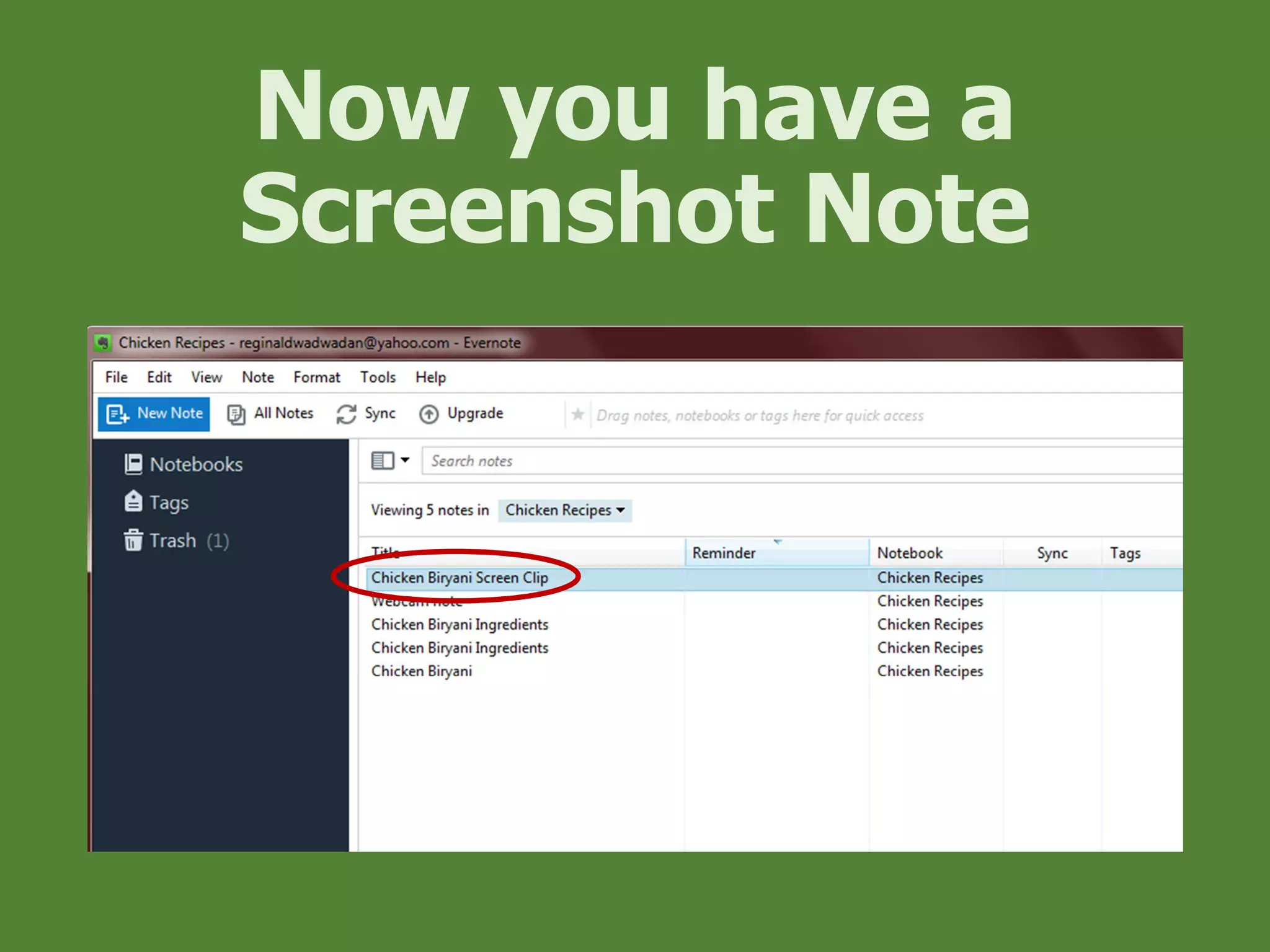
Now you have a
Screenshot Note
Let’s Tag the
Notes
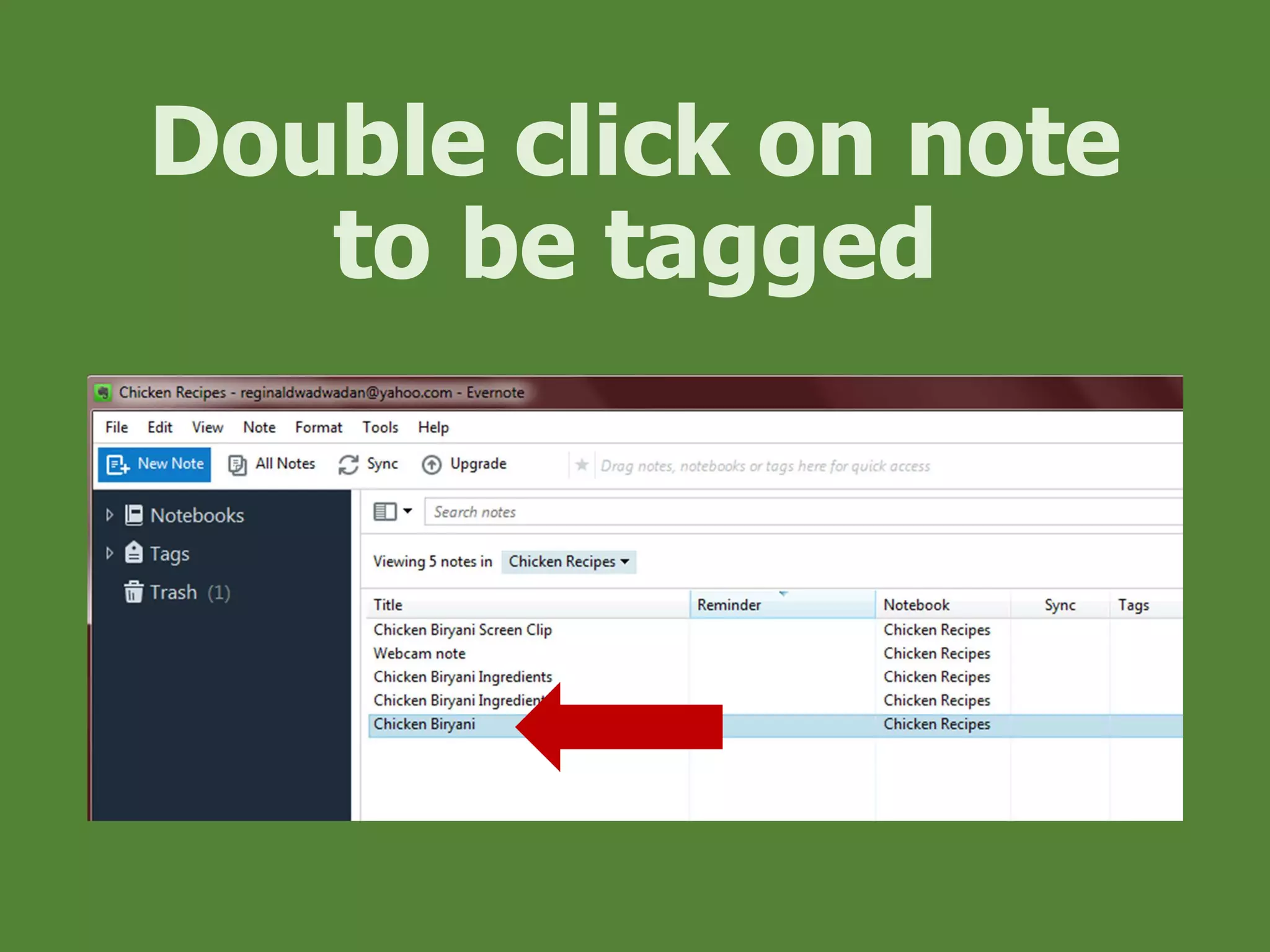
Double click on note
to be tagged
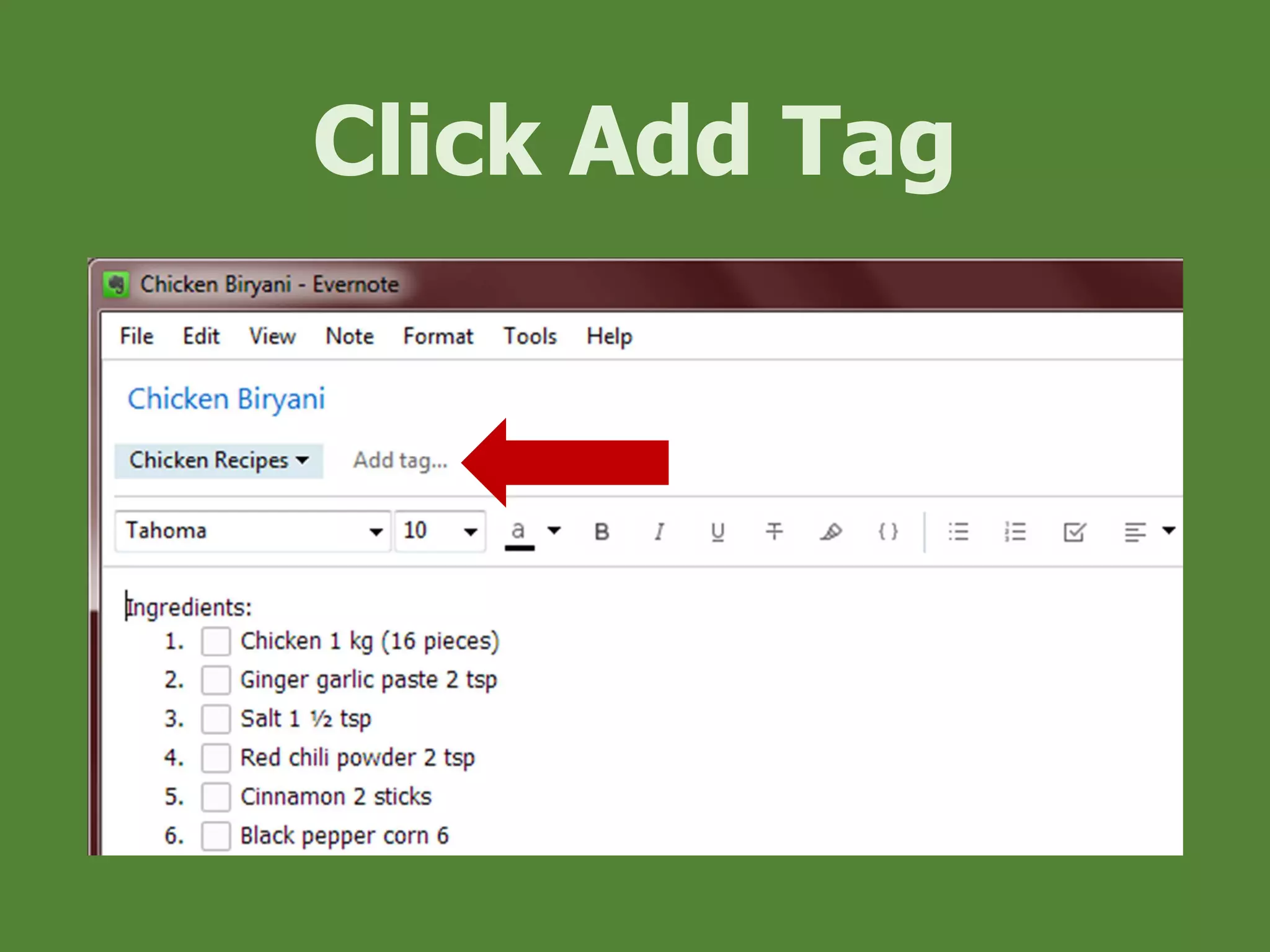
Click Add Tag
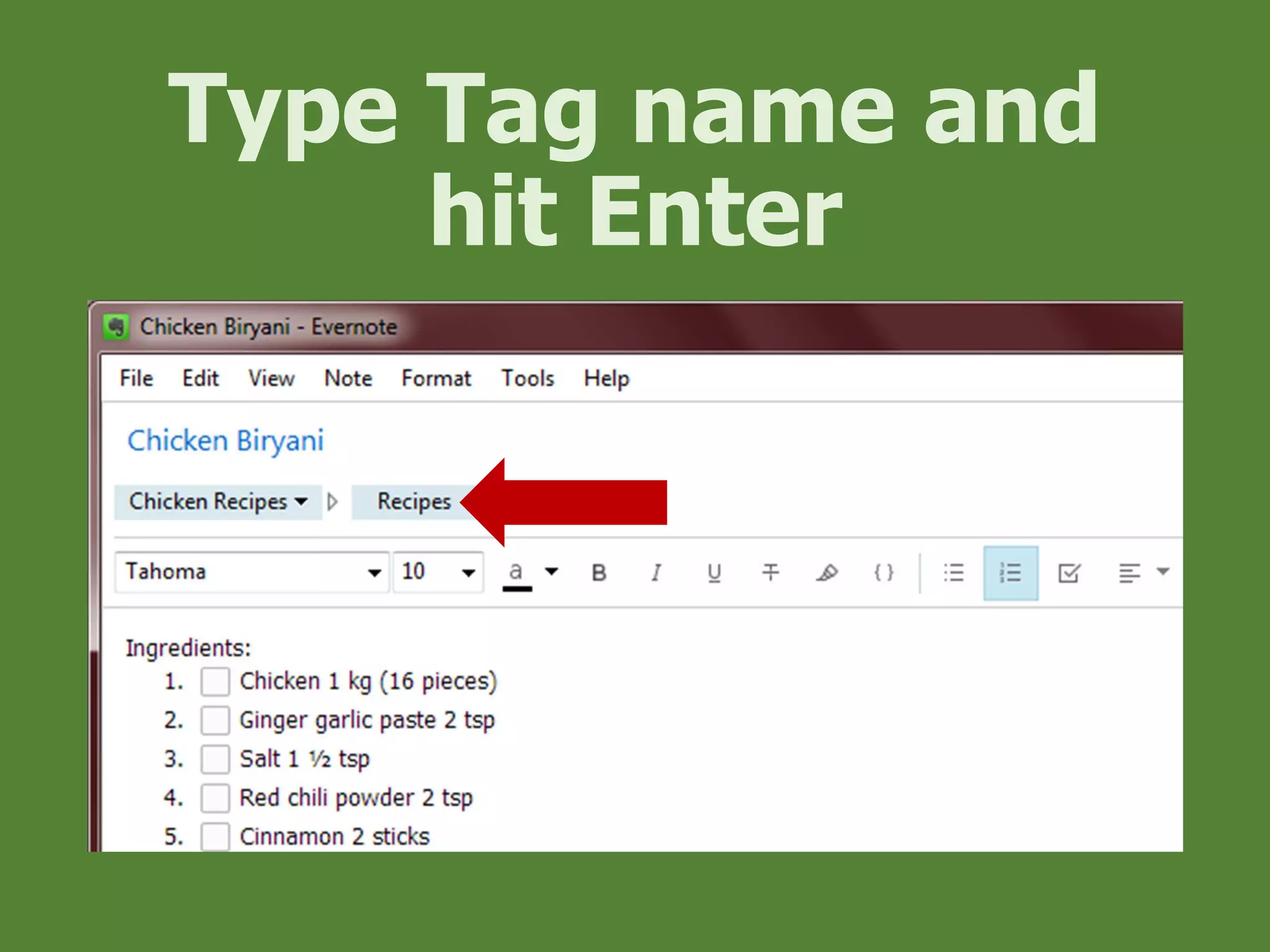
Type Tag name and
hit Enter
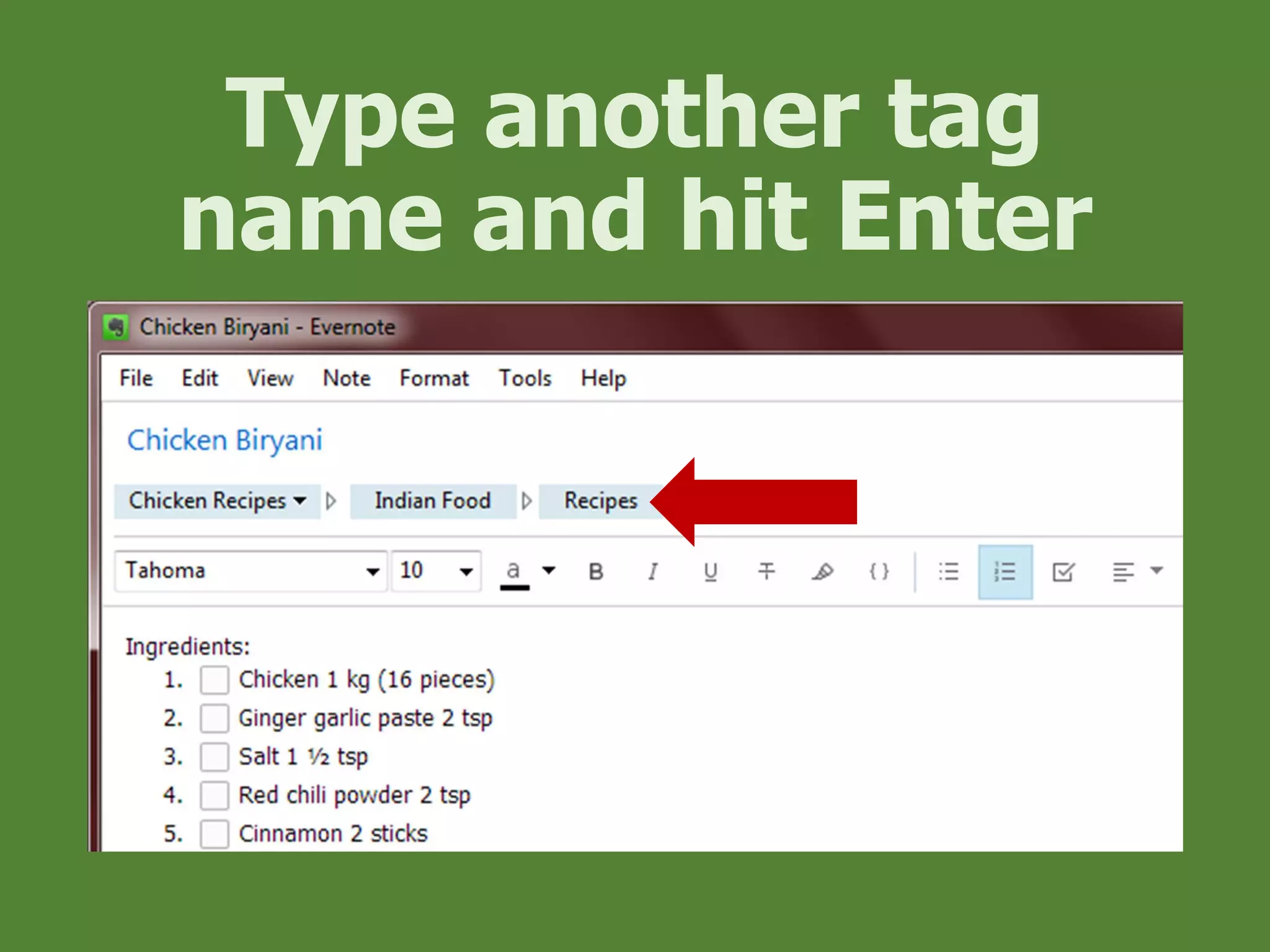
Type another tag
name and hit Enter
Using Evernote
Web Clipper
Let’s install Web
Clipper first
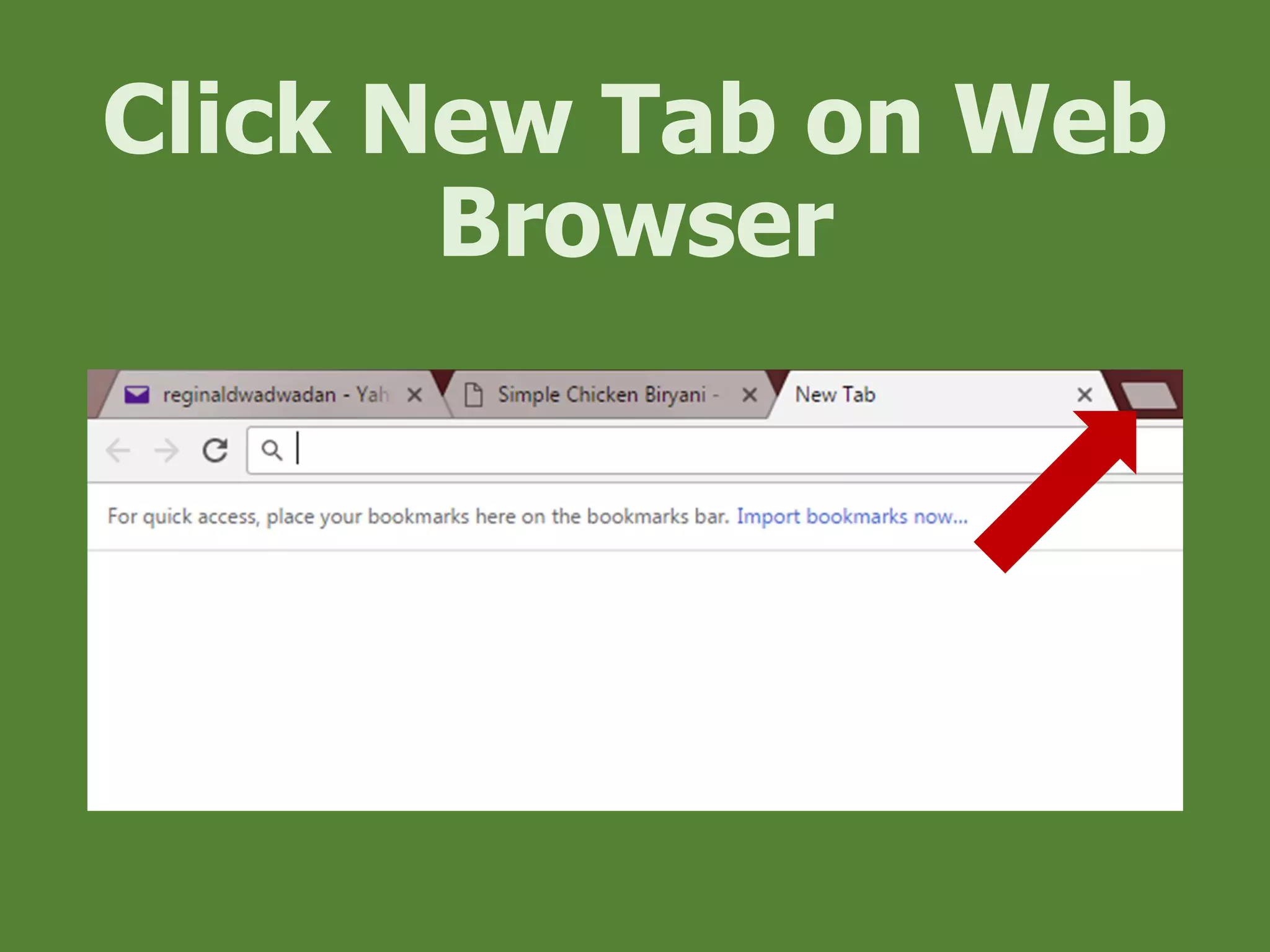
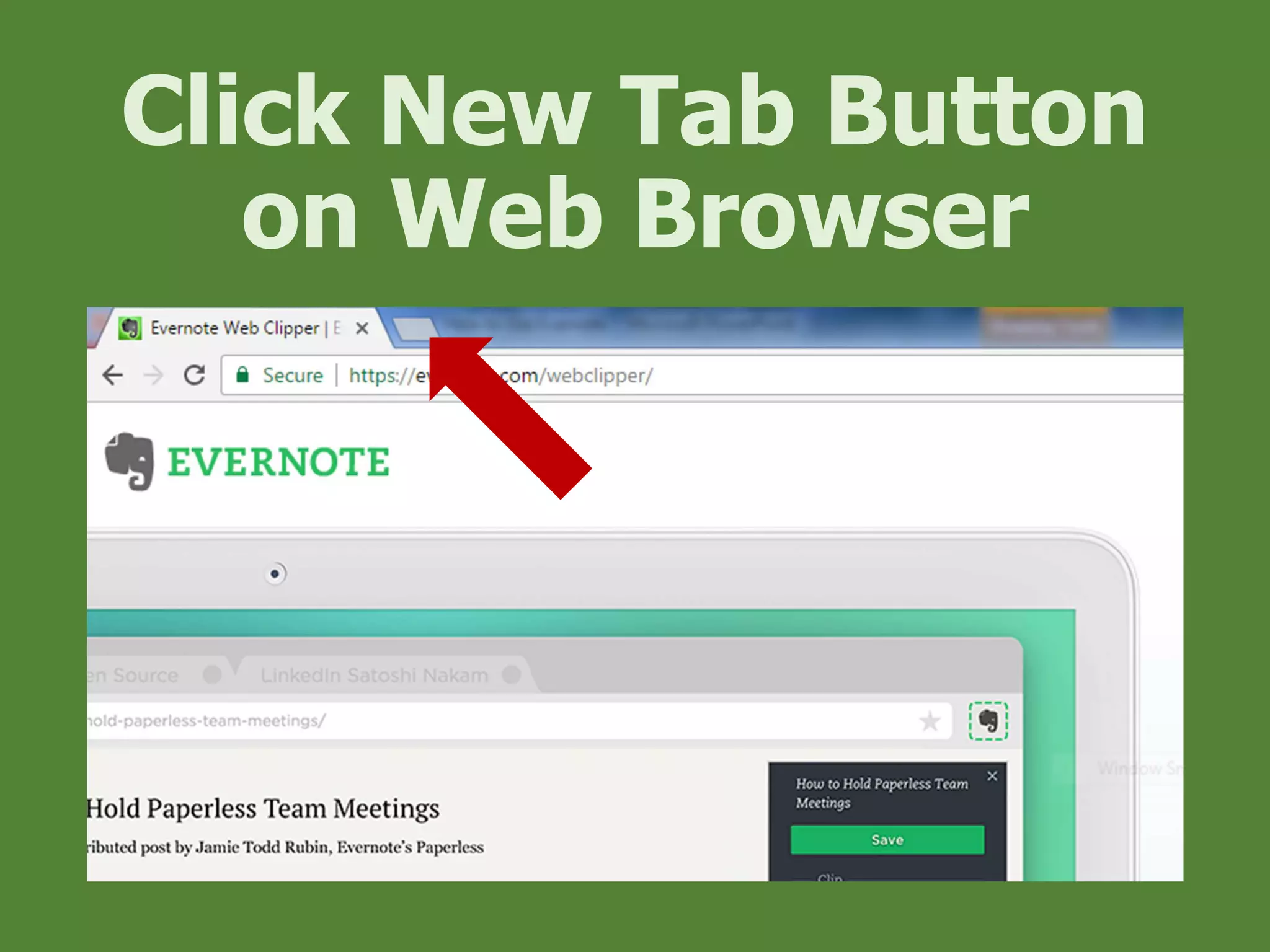
Click New Tab on Web
Browser
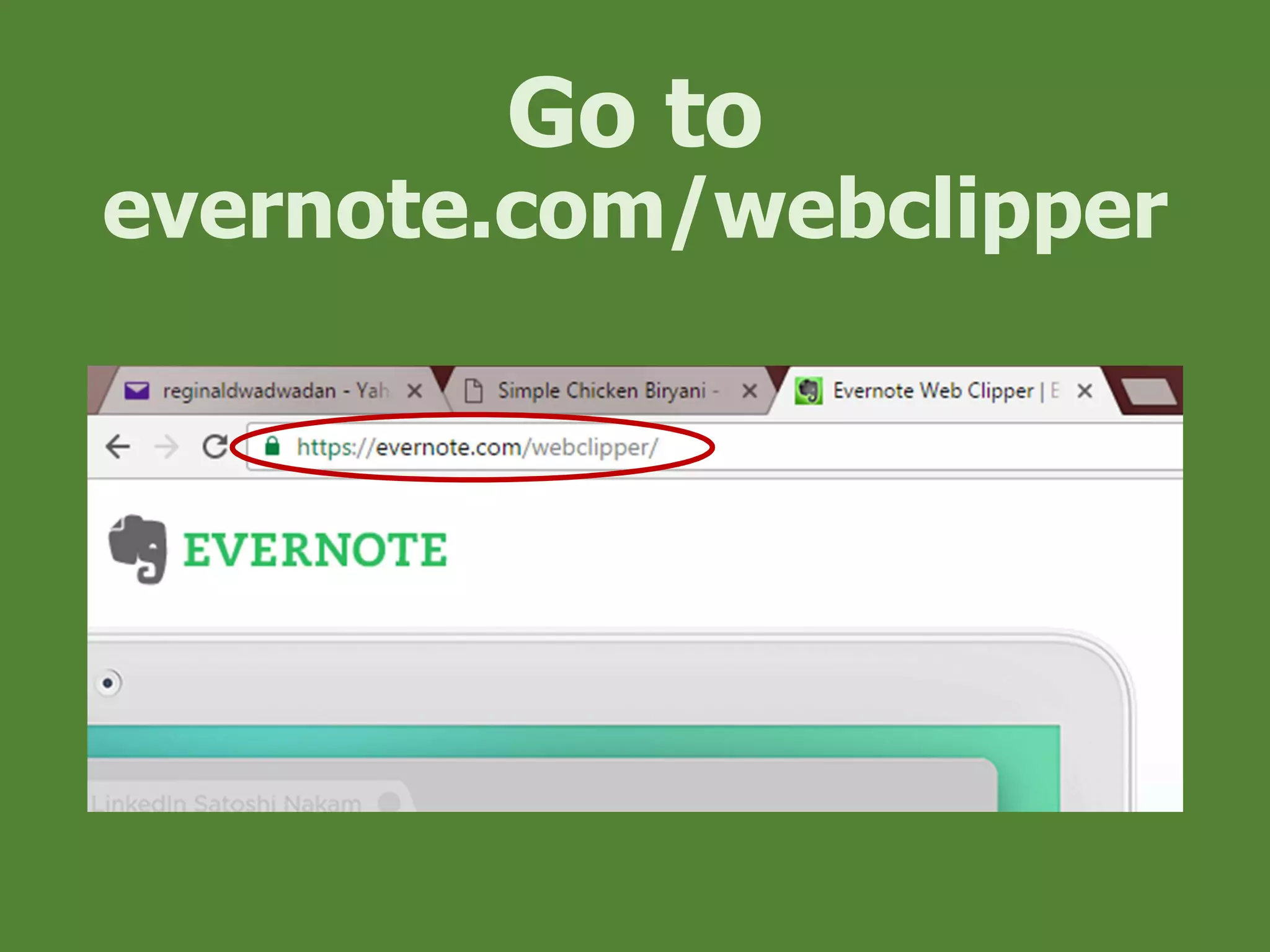
Go to
evernote.com/webclipper
Click Get Web Clipper
for Chrome
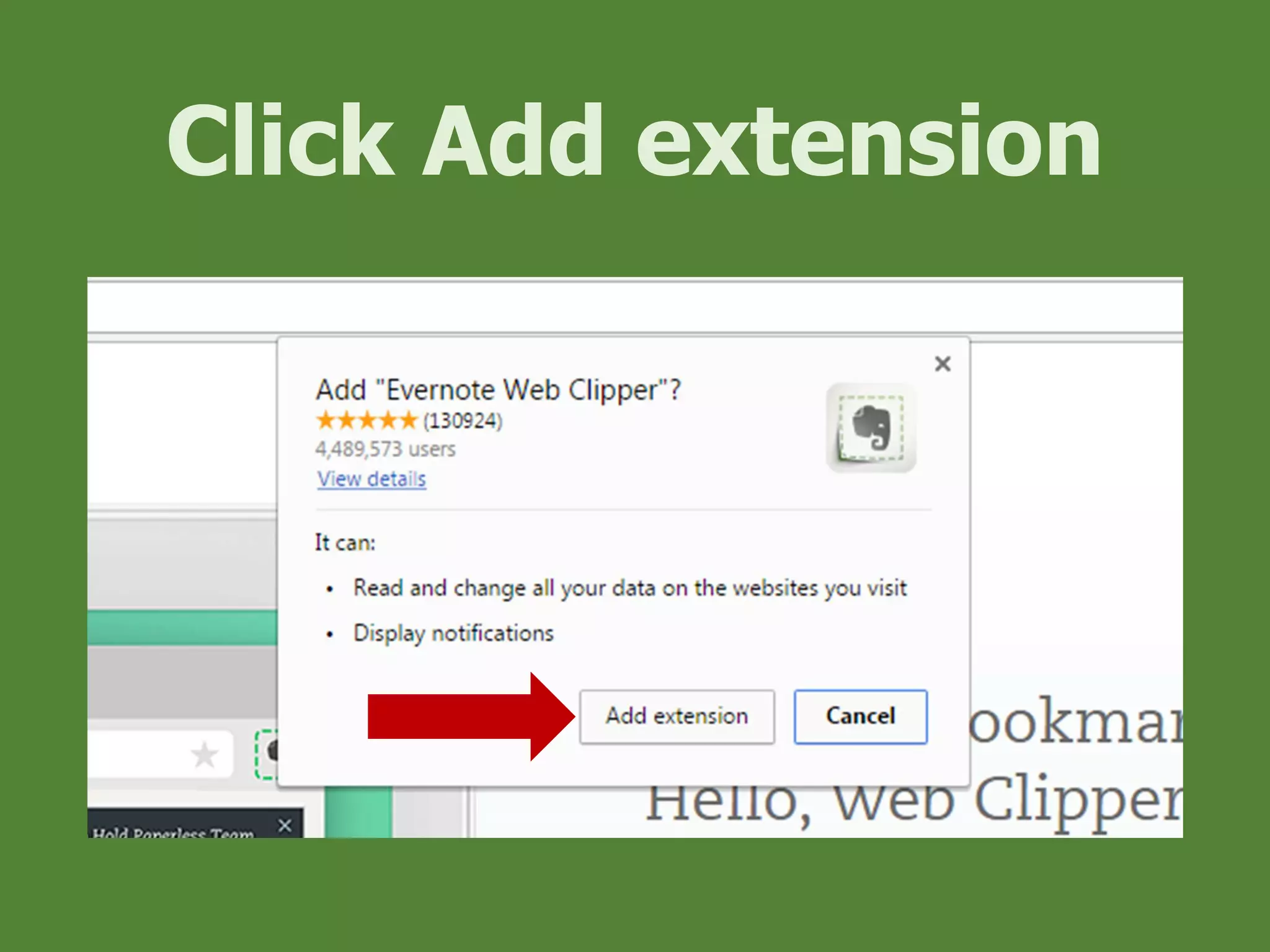
Click Add extension
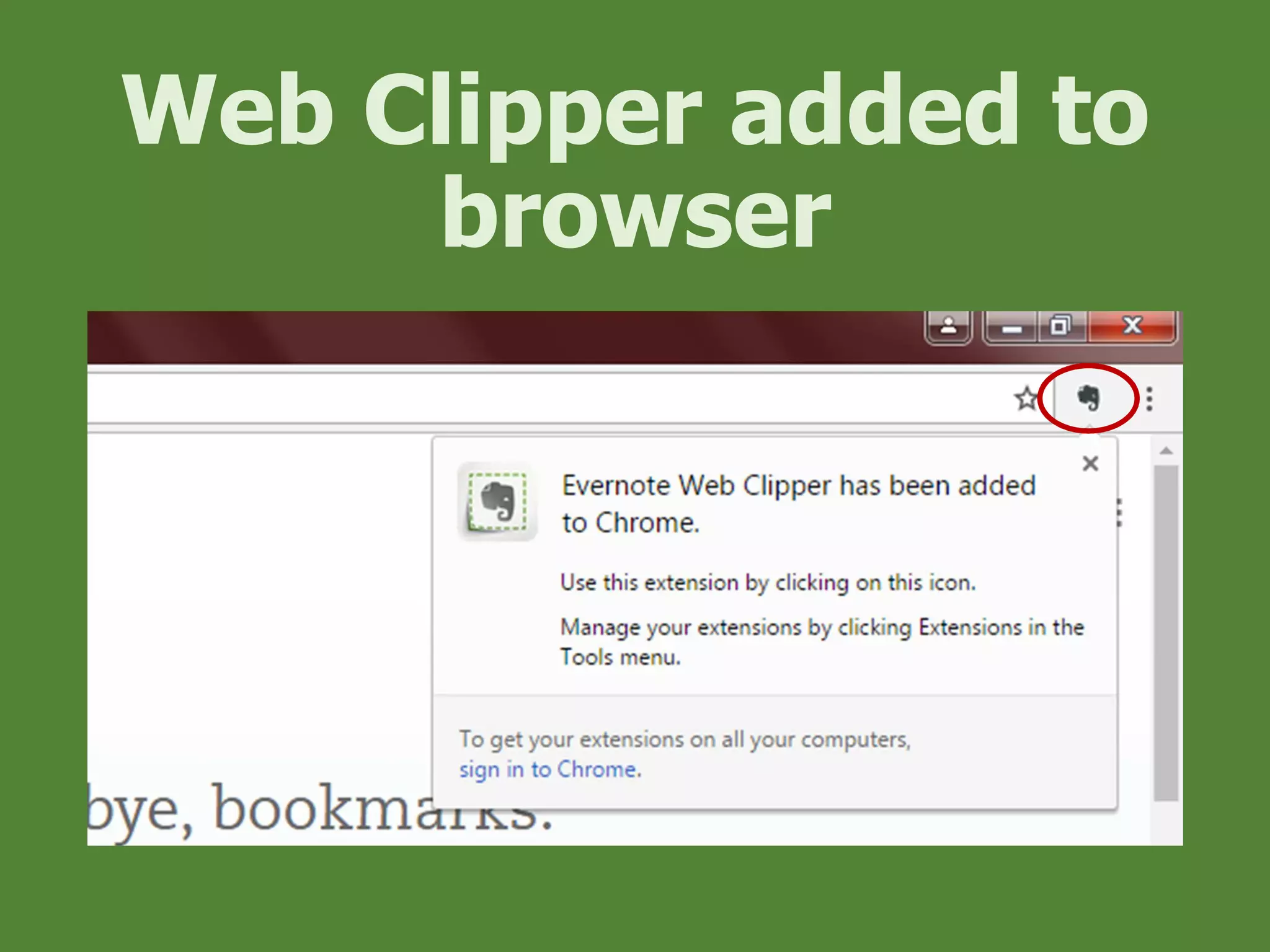
Web Clipper added to
browser
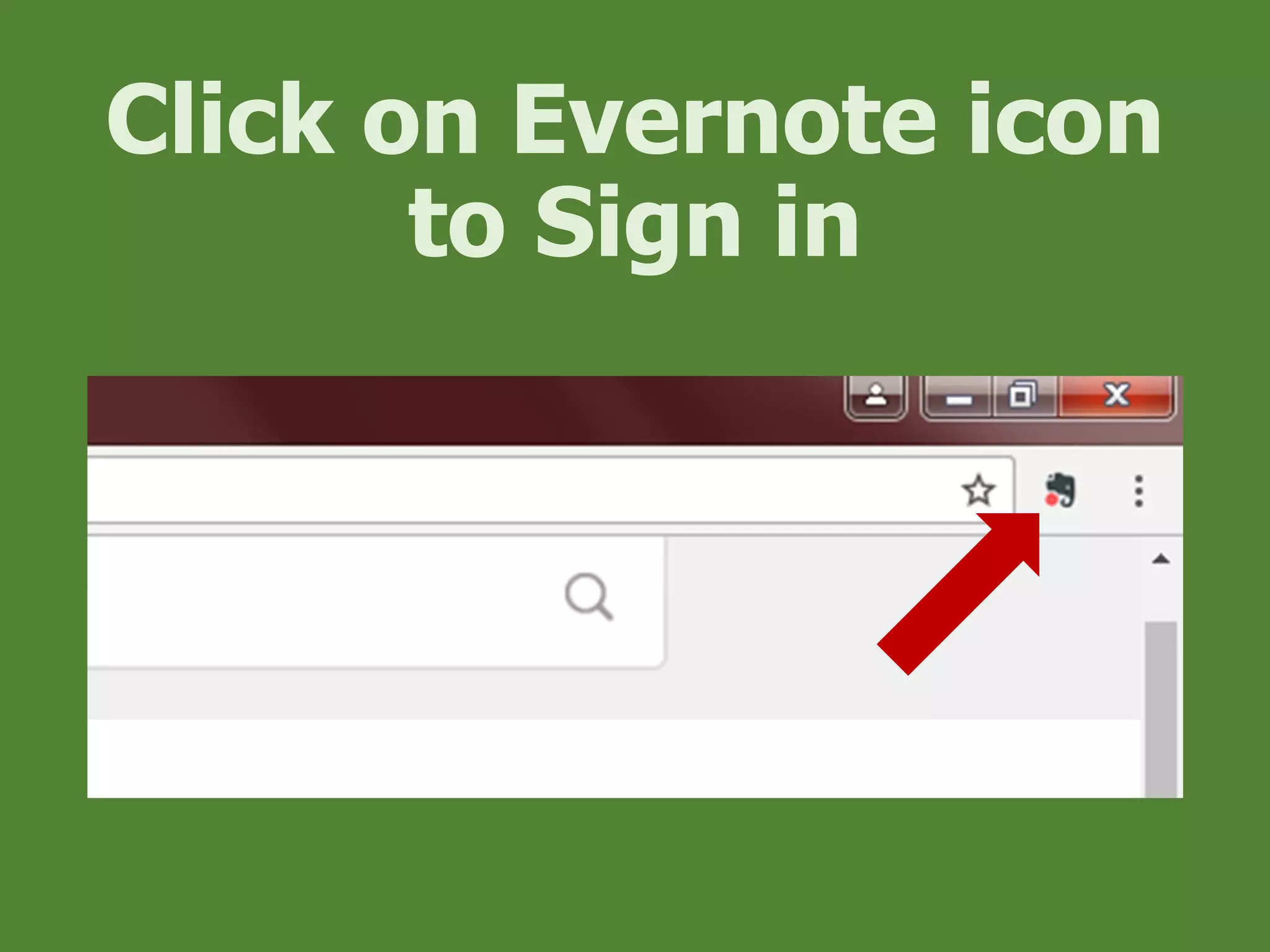
Click on Evernote icon
to Sign in
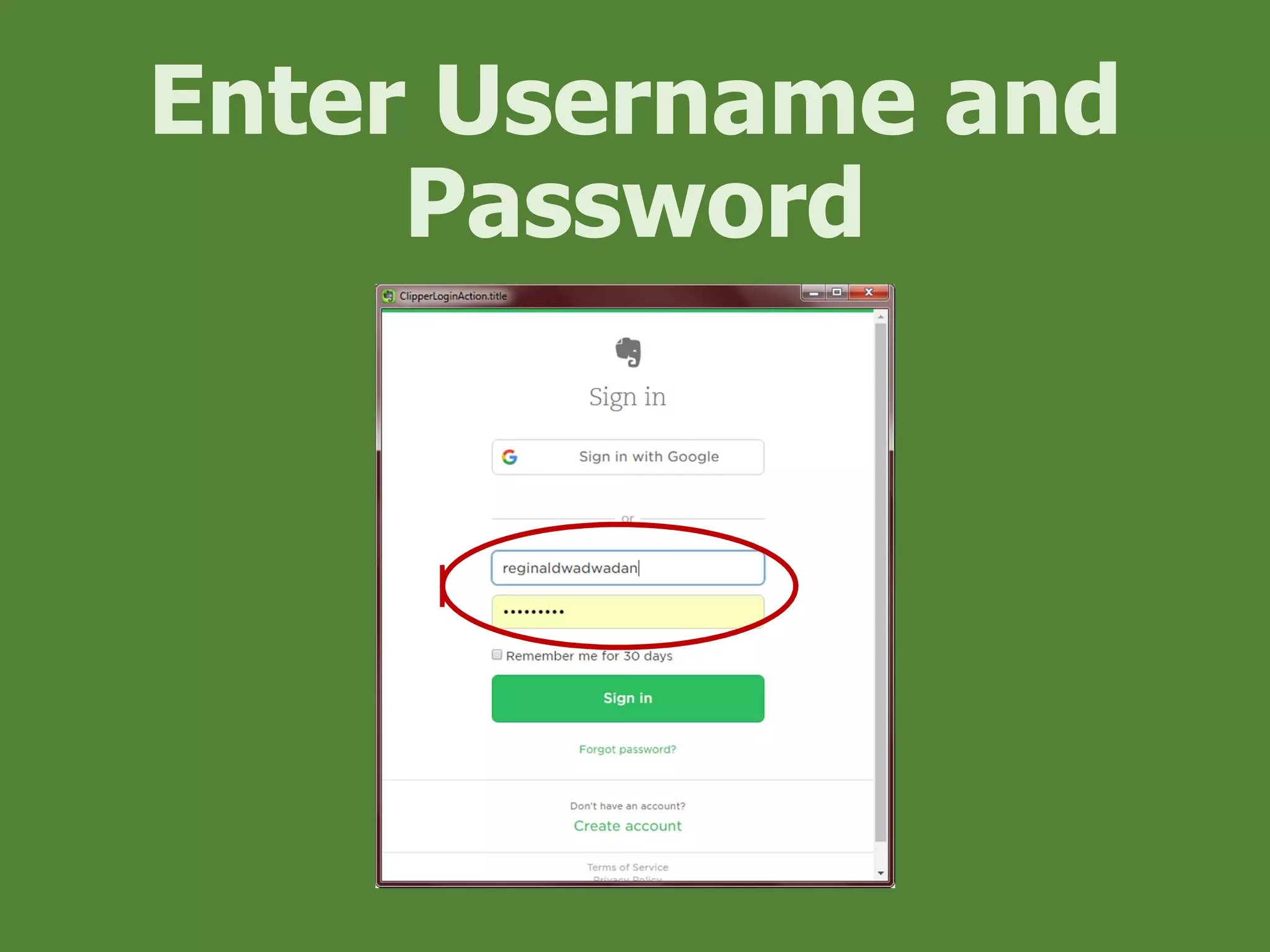
Enter Username and
Password
Click Sign in
Click New Tab Button
on Web Browser
Search for desired
topic
Click on any Search
Result
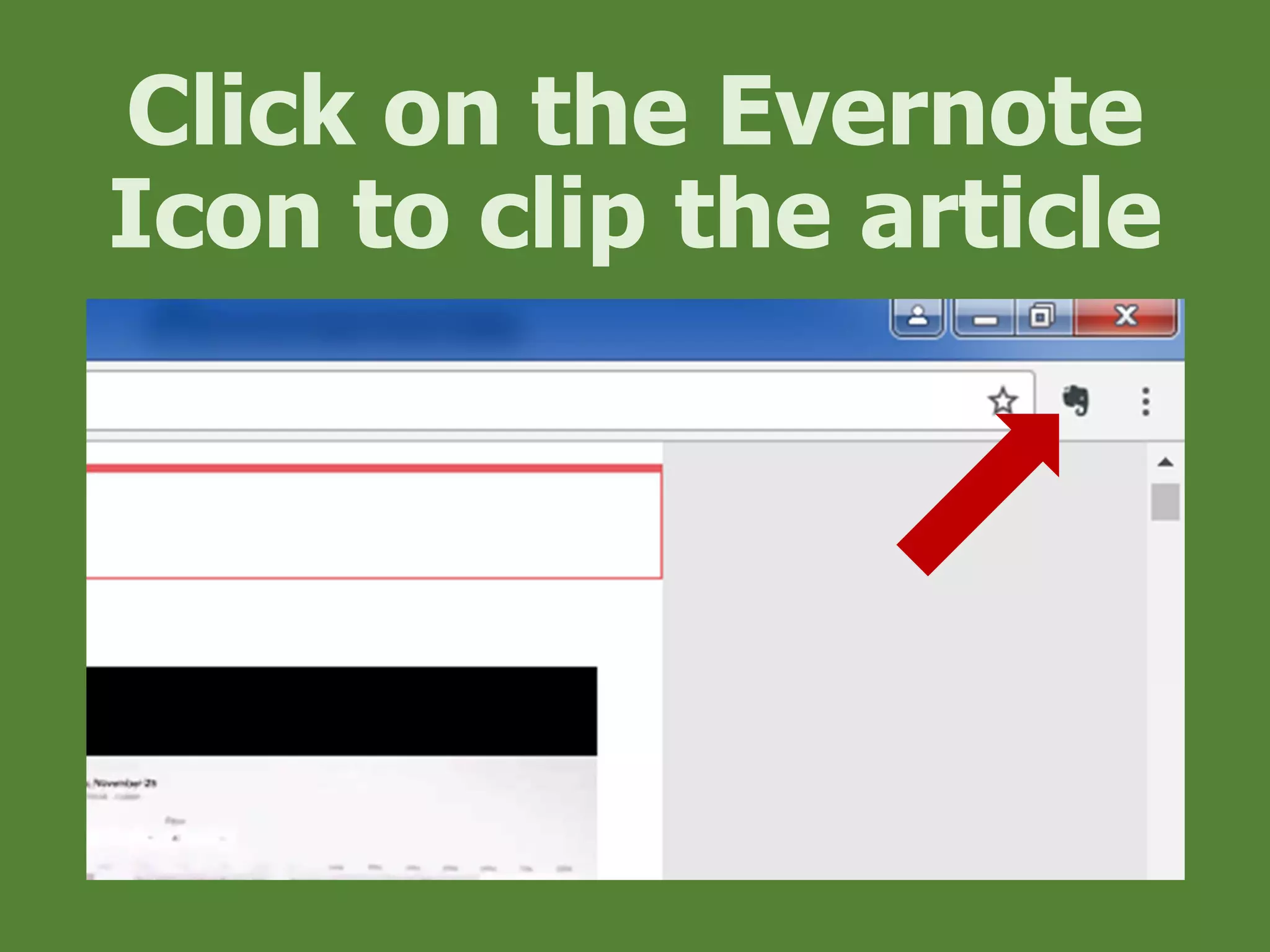
Click on the Evernote
Icon to clip the article
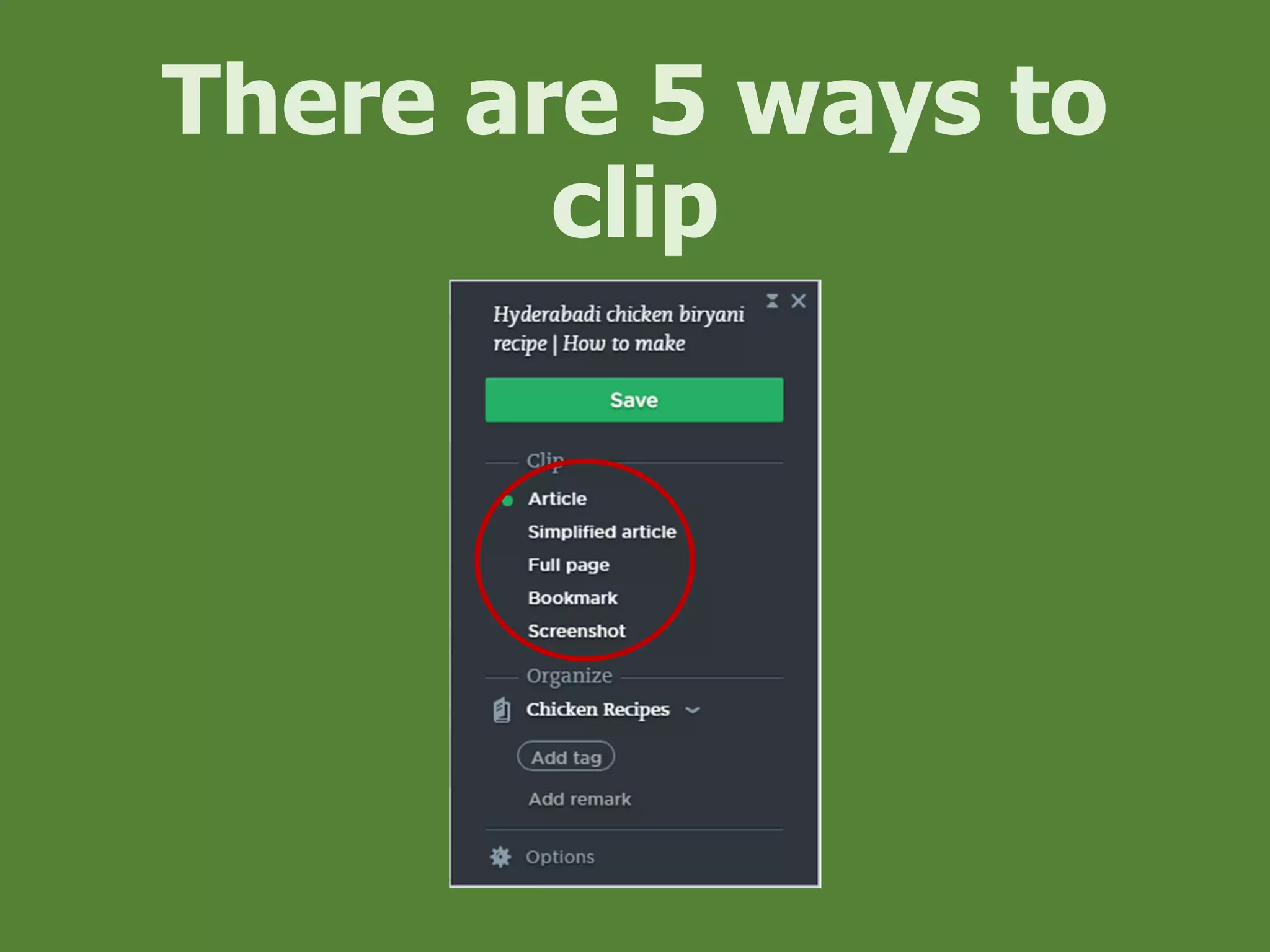
There are 5 ways to
clip
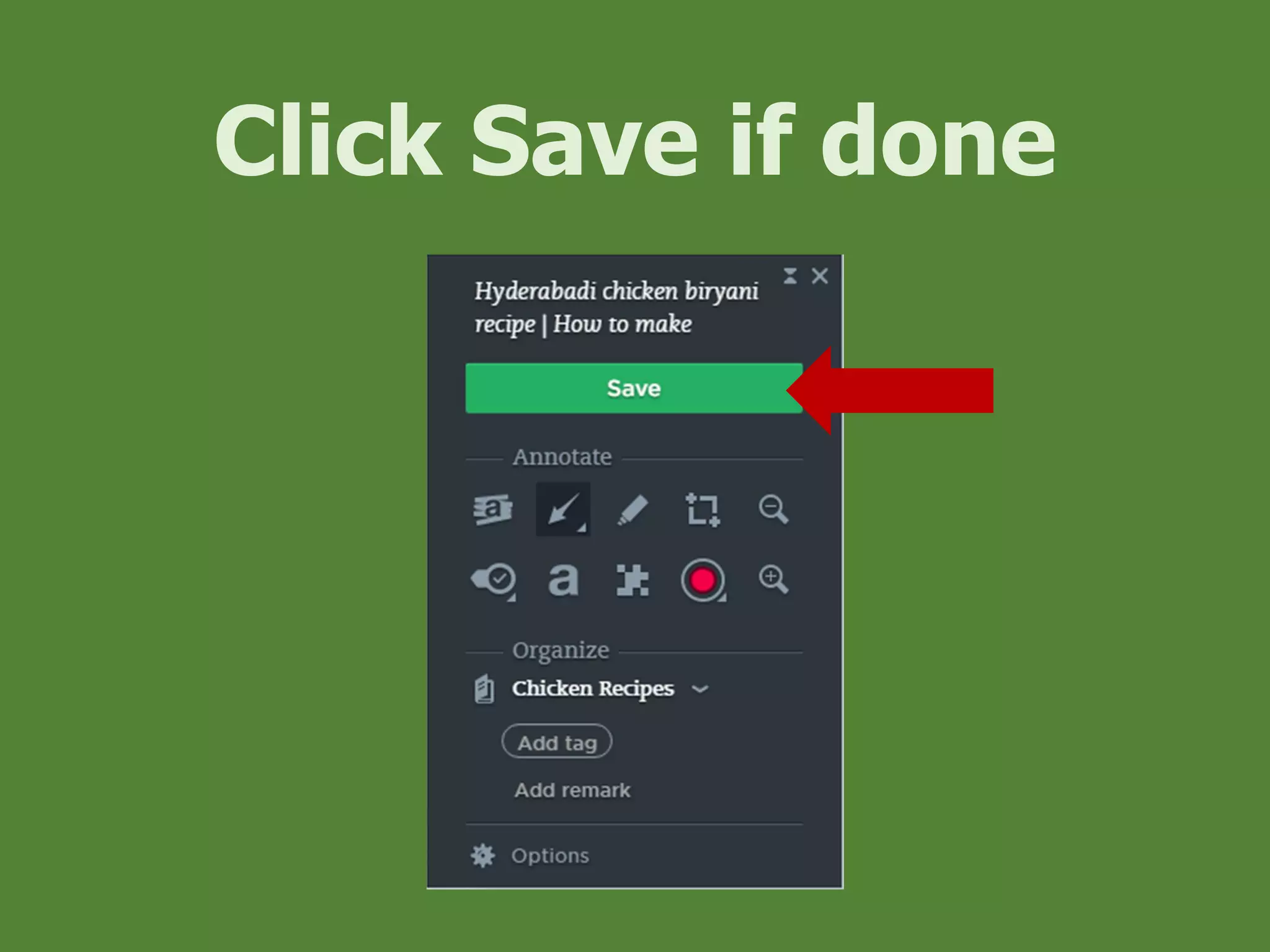
Click Save if done
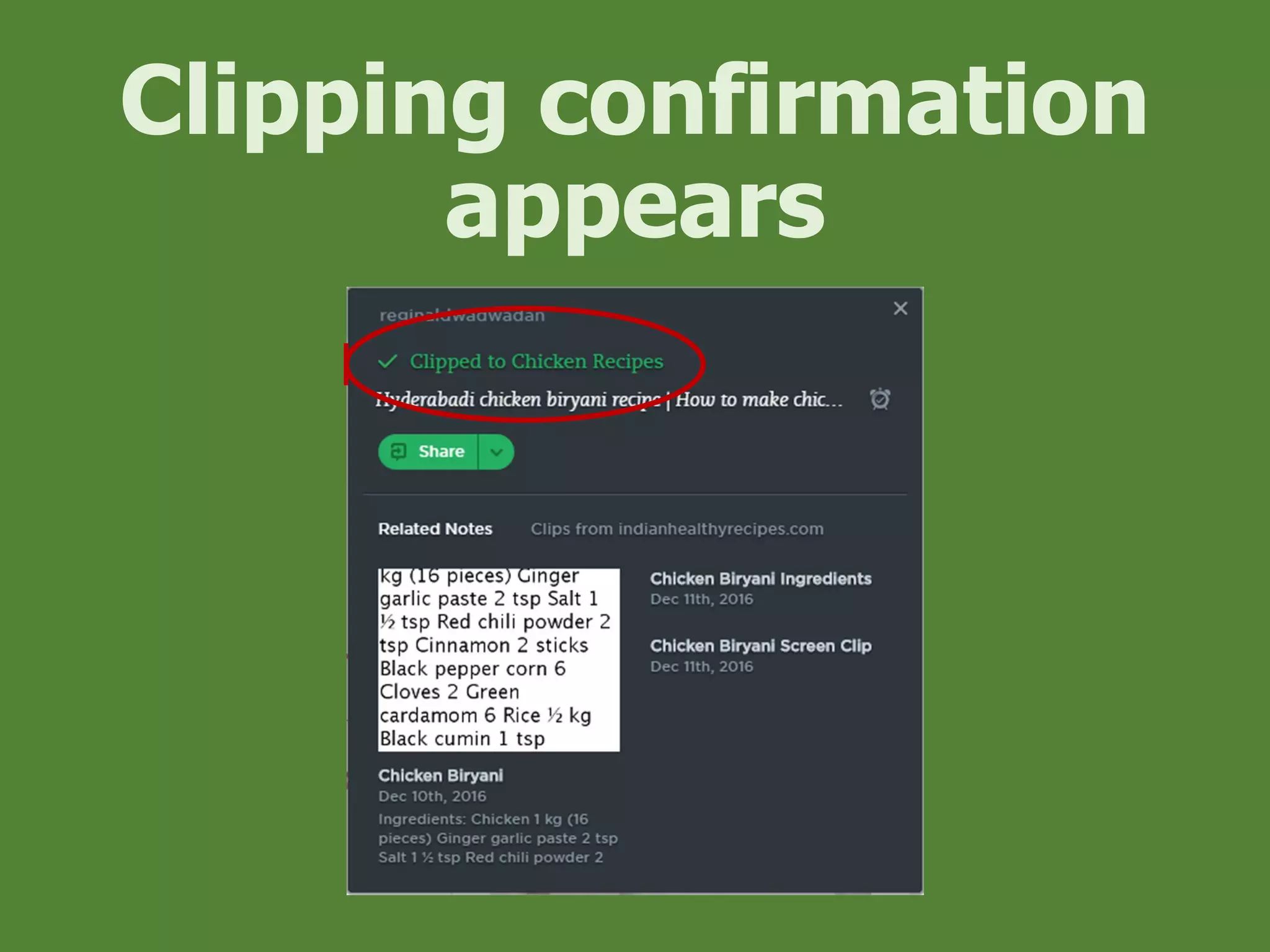
Clipping confirmation
appears
That’s it!
Remember everything
using
EVERNOTE.
How to Use Evernote