HOW TO USE
ANIMOTO
Created by: Reginald Wadwadan
Email: reginaldwadwadan@yahoo.com
Animoto is an
online video
creation tool.
Where we can
insert photos or
videos,
And customize
theme, text and
music.
Let’s start by
creating an
account.
Open your favorite
browser
Type in animoto.com
and press Enter
Click Sign up
We can sign up using
Facebook
Or by using Email
For this tutorial,
we’ll sign up
using Email.
Type in Email
Type in Full Name
Type in Password
Click Start Trial
Click dropdown button
Click on Selected
option
Click Submit
Choose from the two
option and click Create
Click chosen video style
Click Create Video
Click Start
Click Add pics & vids
Click Upload
Select pictures
Click Open
Click Add text
Type in Title
Type in Subtitle
Click Save
Click Preview Video
If finished editing, click
Produce
Type in Title
Click the Calendar icon
Click a date
Edit Producer name if
desired
Write some description
here
Click here to change
Cover Image
Choose and click an
image
Click Use this image
Select video quality
Click Finish
Wait to Finalize video
Let’s share our
video. We start by
Email.
Click Email
Type in recipients’
email
Type in message
Click Send Now
Or click Deliver on
Click calendar icon
Click a date
Click Share Video
Confirmation appears
Let’s share it on
Facebook.
Click Share
Click Continue
Click OK
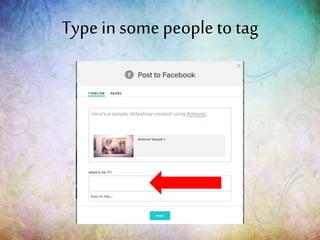
Type in something
about the video
Type in some people to
tag
Click Post
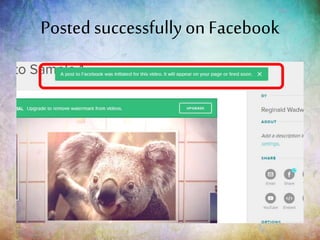
Posted successfully on
Facebook
How about
sharing it on
Twitter?
Click Tweet
Click Tweet
Confirmation appears
Click Close
How about
sharing it
through link?
Click Link
Click tickbox to hide
Animoto Branding
Click Copy to Clipboard
And paste it on
your status,
comment, email,
and so on.
Let’s share it on
Youtube.
Click YouTube
Click Begin Export
Click Allow
Export on Progress
Click Close button
How to share it
on your website?
Click Embed
Choose Size
Choose Quality
Click Copy to Clipboard
And paste it on
your Blog.
We can also post
it on our other
profiles.
Click More
Click Hide Animoto
Branding
Click on selected
service
That’s all about
sharing.
If we want to add
more things on
our video, we can
still edit it.
Click Edit Video
Click Edit
Let’s say we want
to change or add
song.
Click Change Song
Hover cursor on any
song
Click Select
To add another song,
click here
Click Change Song
And click Select
To remove a song, click
X button
If finished editing, click
Preview Video
Click Produce
Click Finish
Click Produce
How can we
download our
video?
Click Download
Click desired Quality
Download will start
automatically
How do we log
out?
Hover cursor on your
profile name
Click Log out
That’s it.
Congratulations
on your new skill.
Create amazing
and powerful
videos using

How to Use Animoto