LEARN MORE AT
WONDERANDSOAR.WORDPRESS.COM
How to Use
By RACHEL LIM
LIKE
COMMENT
SHARE
INVITE
What is Evernote?
Evernote is an app that
helps you in note taking,
organizing and archiving in
one place
You can find all the notes
everywhere,
in any devices, computers
and on the Web
Cool! Let’s start!
How to install Evernote?
In this tutorial, we will be
using Internet Explorer
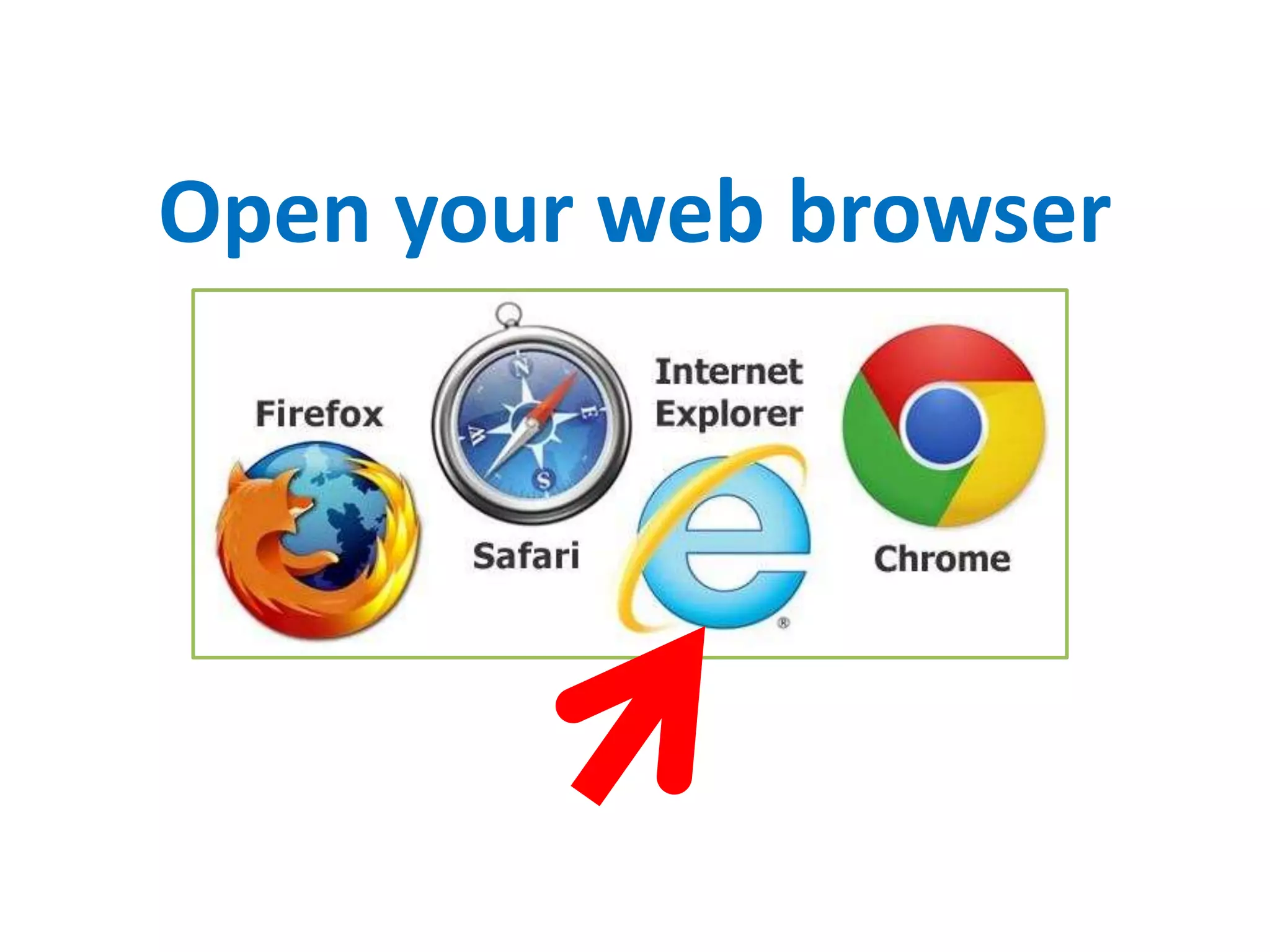
Open your web browser
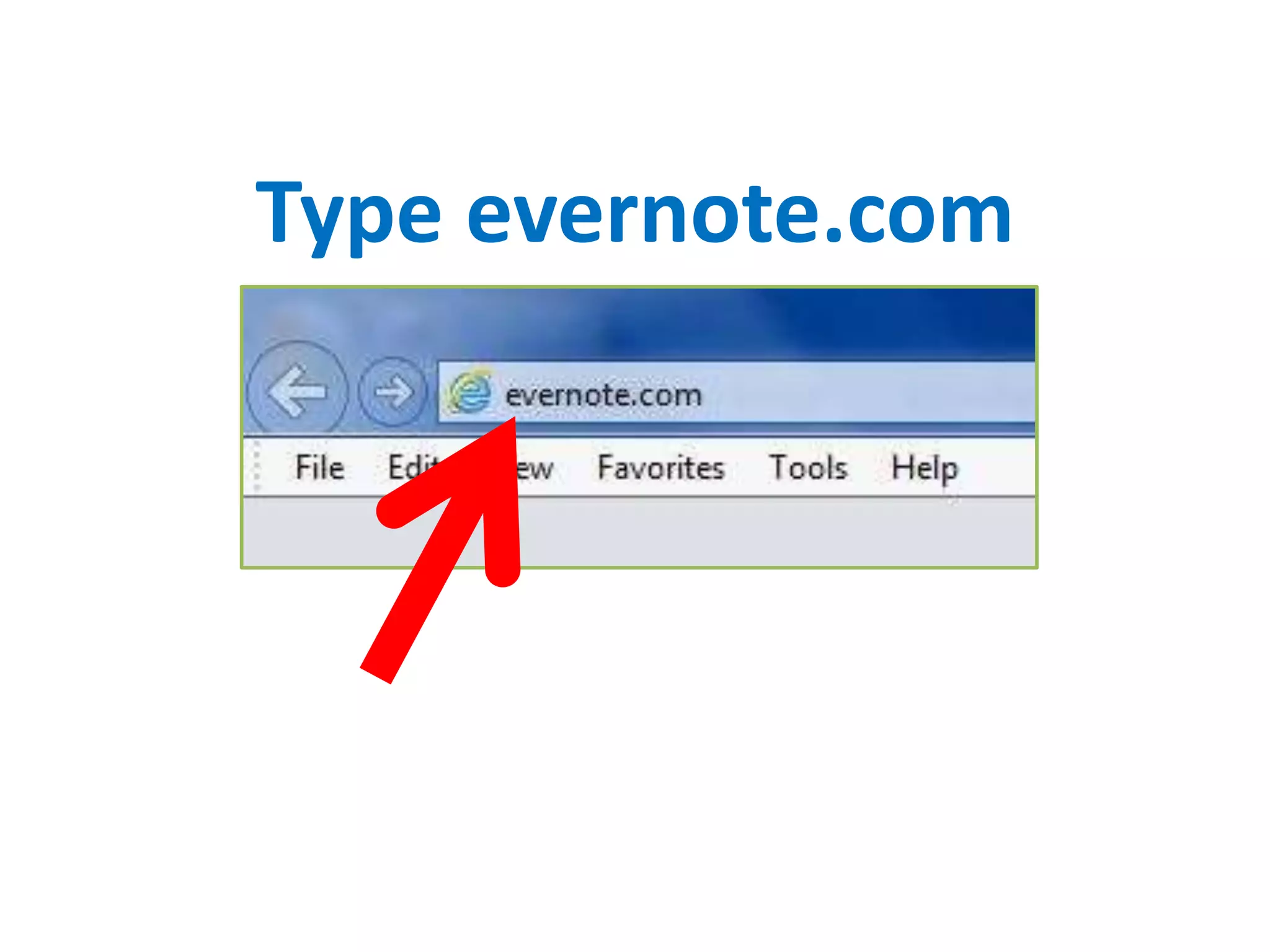
Type evernote.com
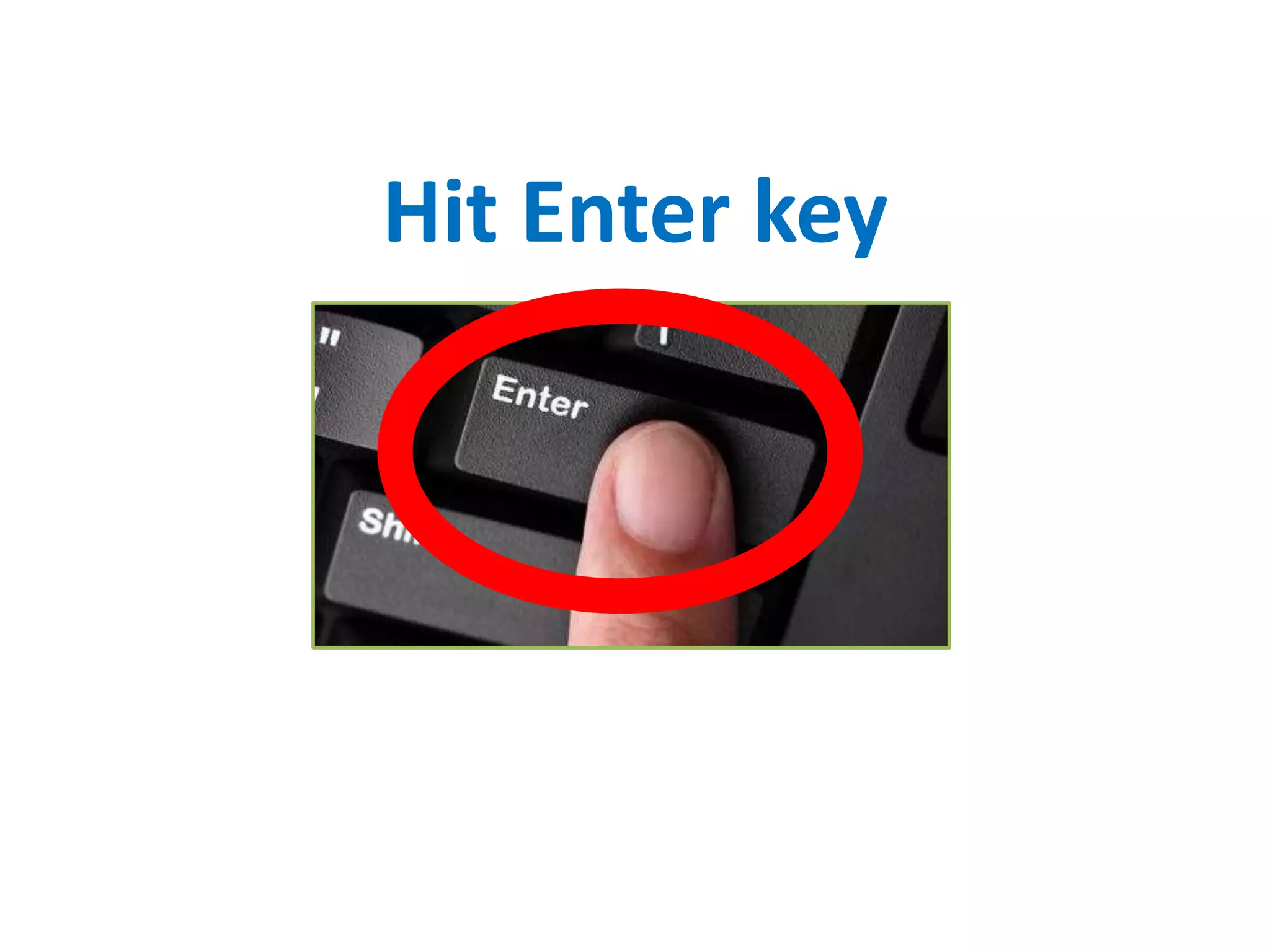
Hit Enter key
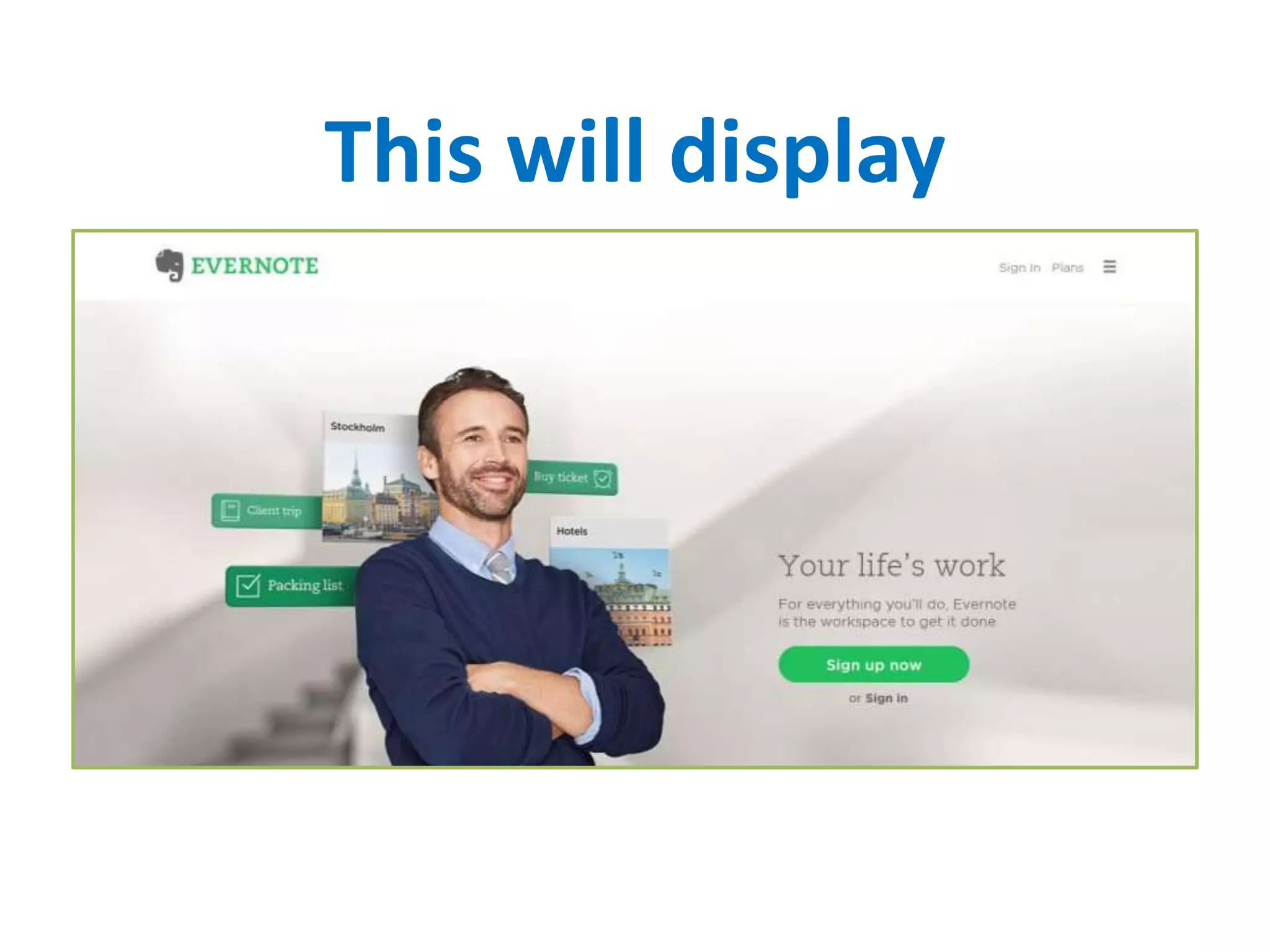
This will display
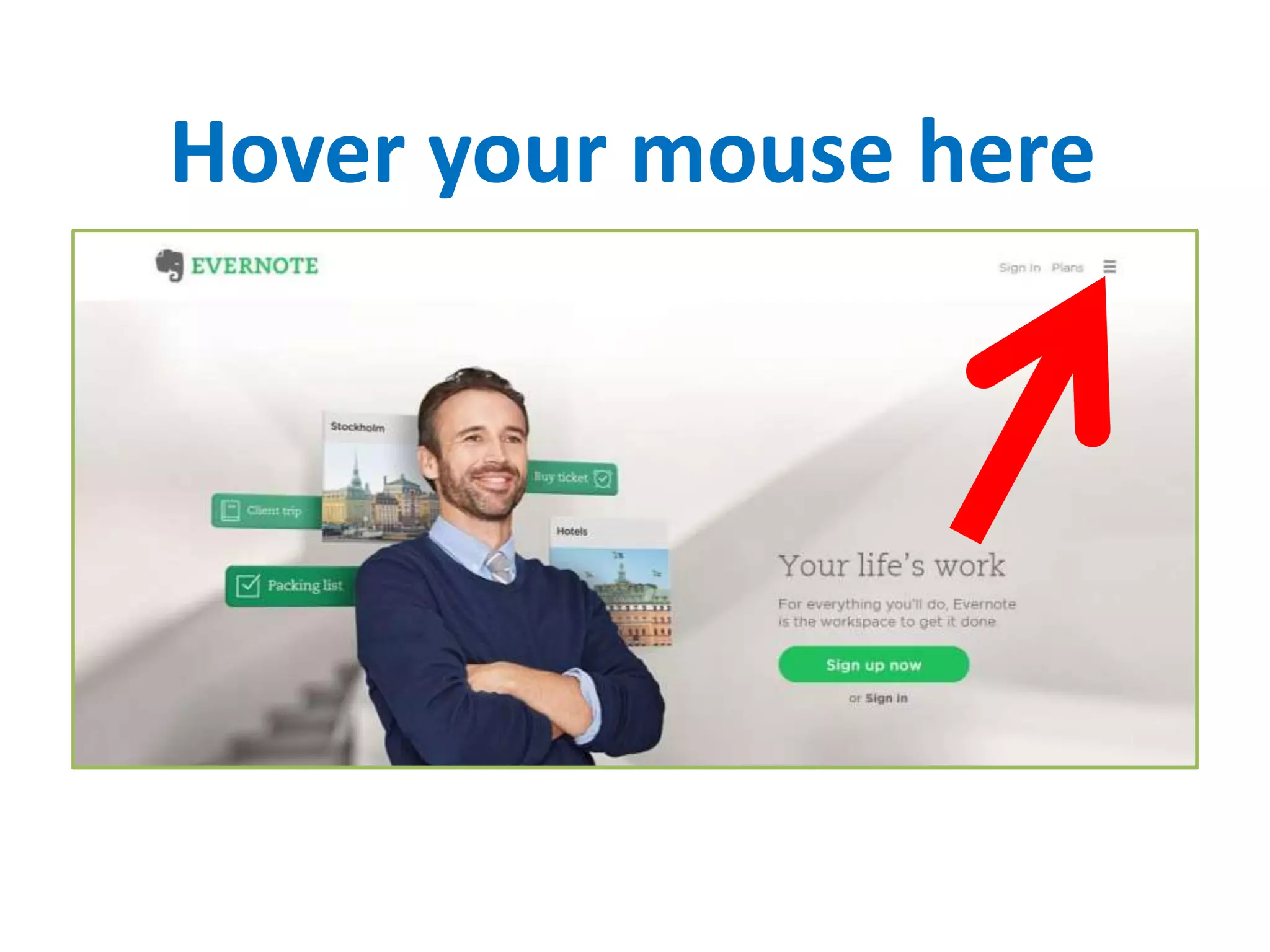
Hover your mouse here
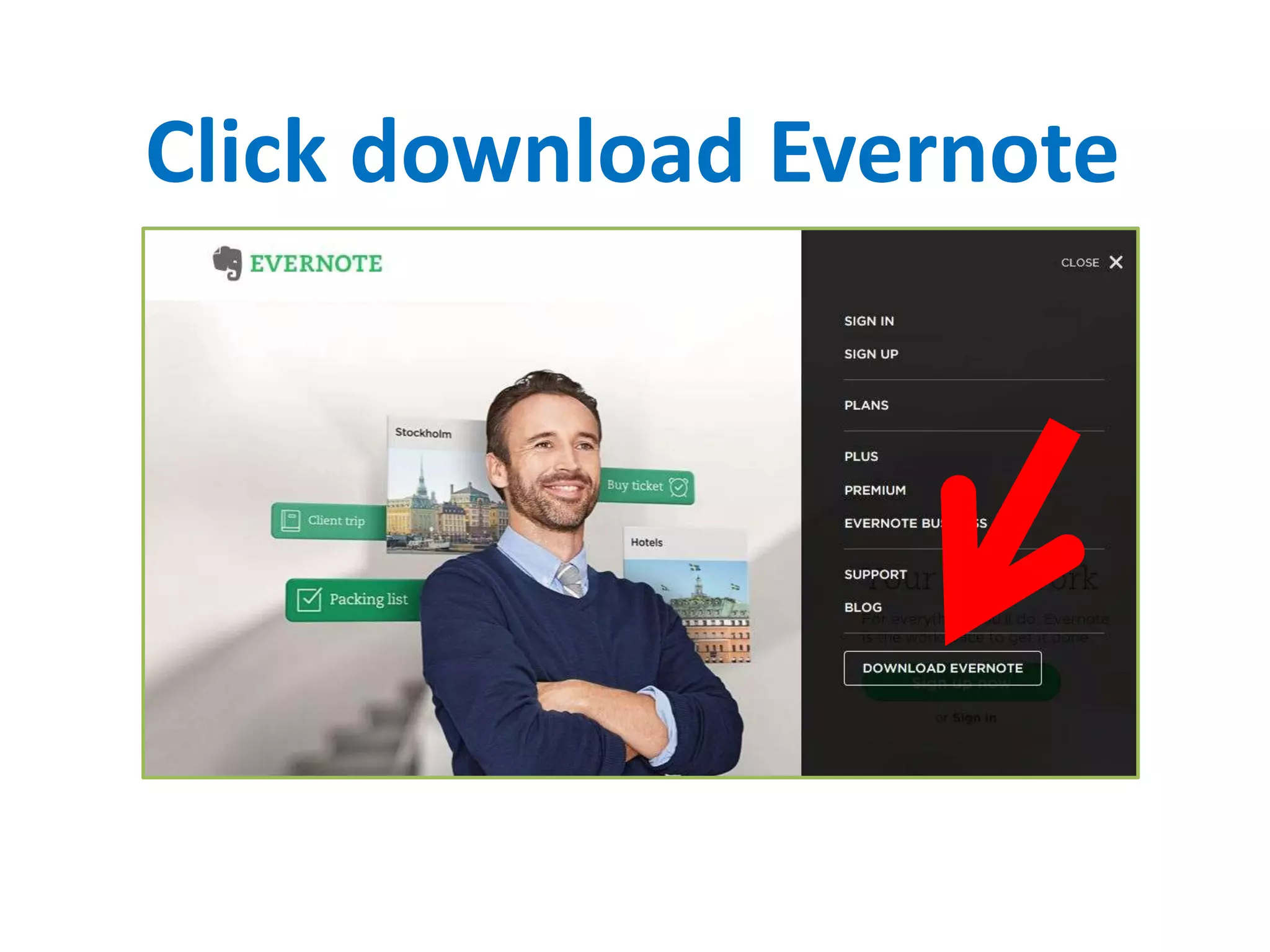
Click download Evernote
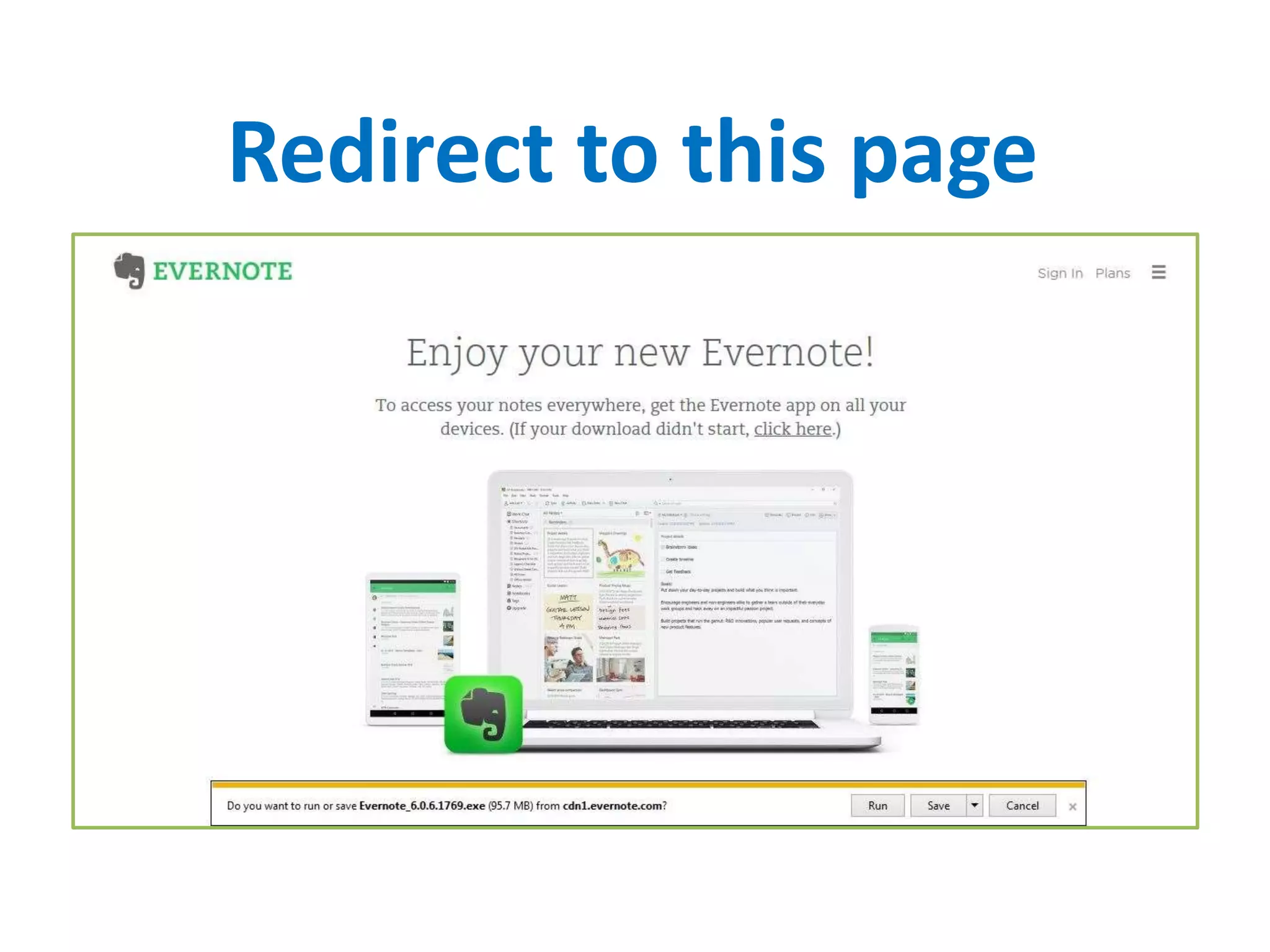
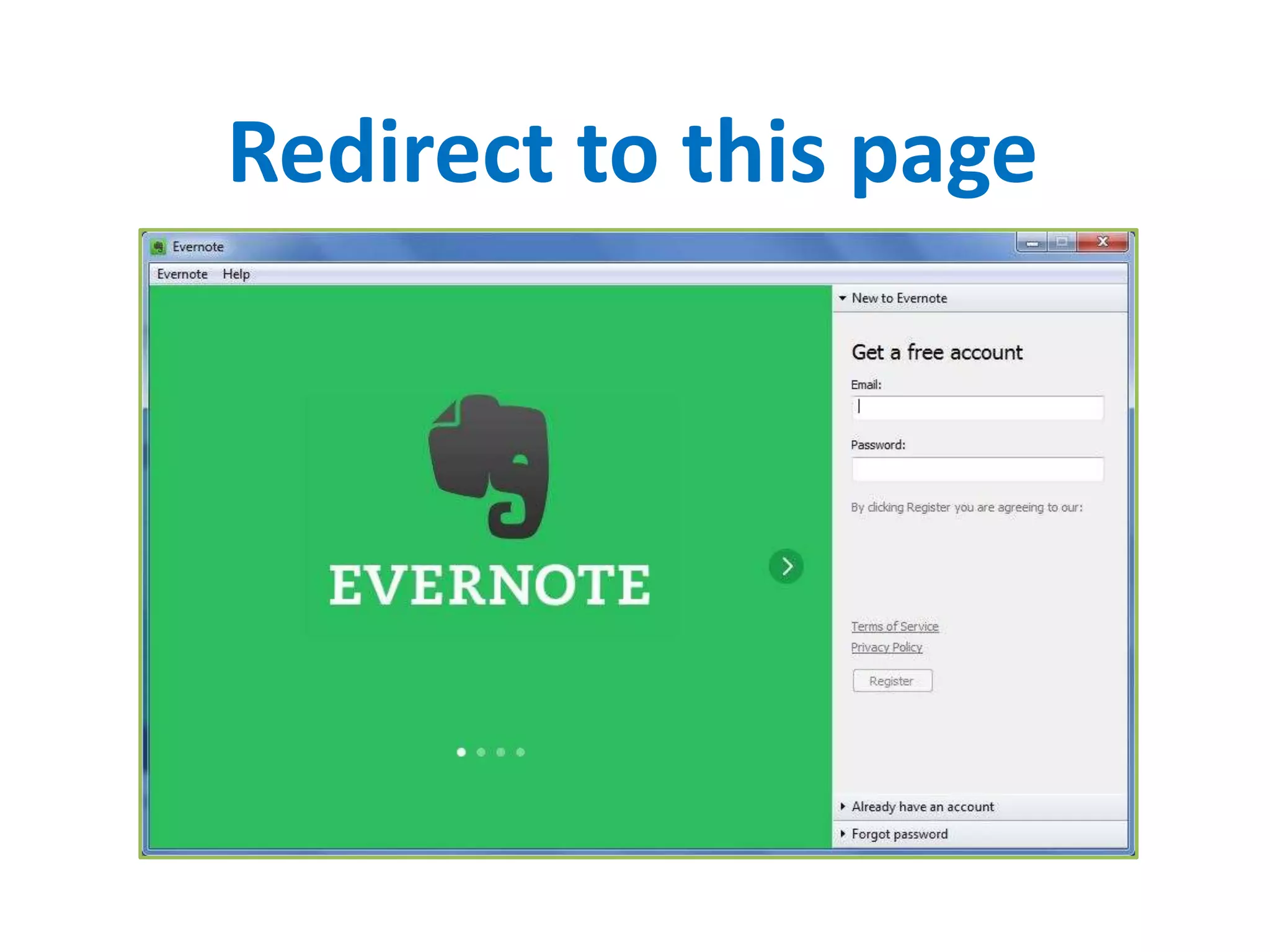
Redirect to this page
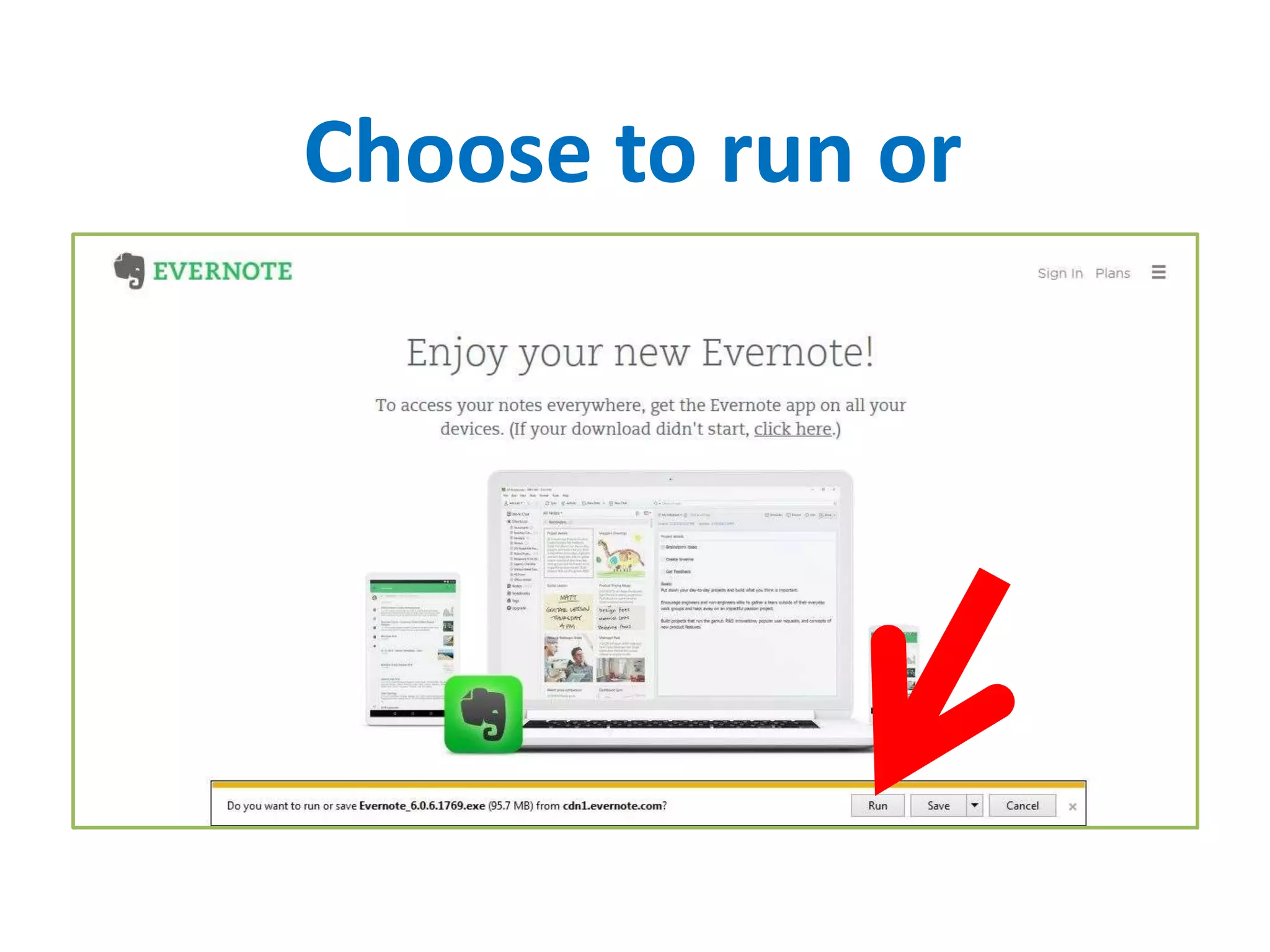
Choose to run or
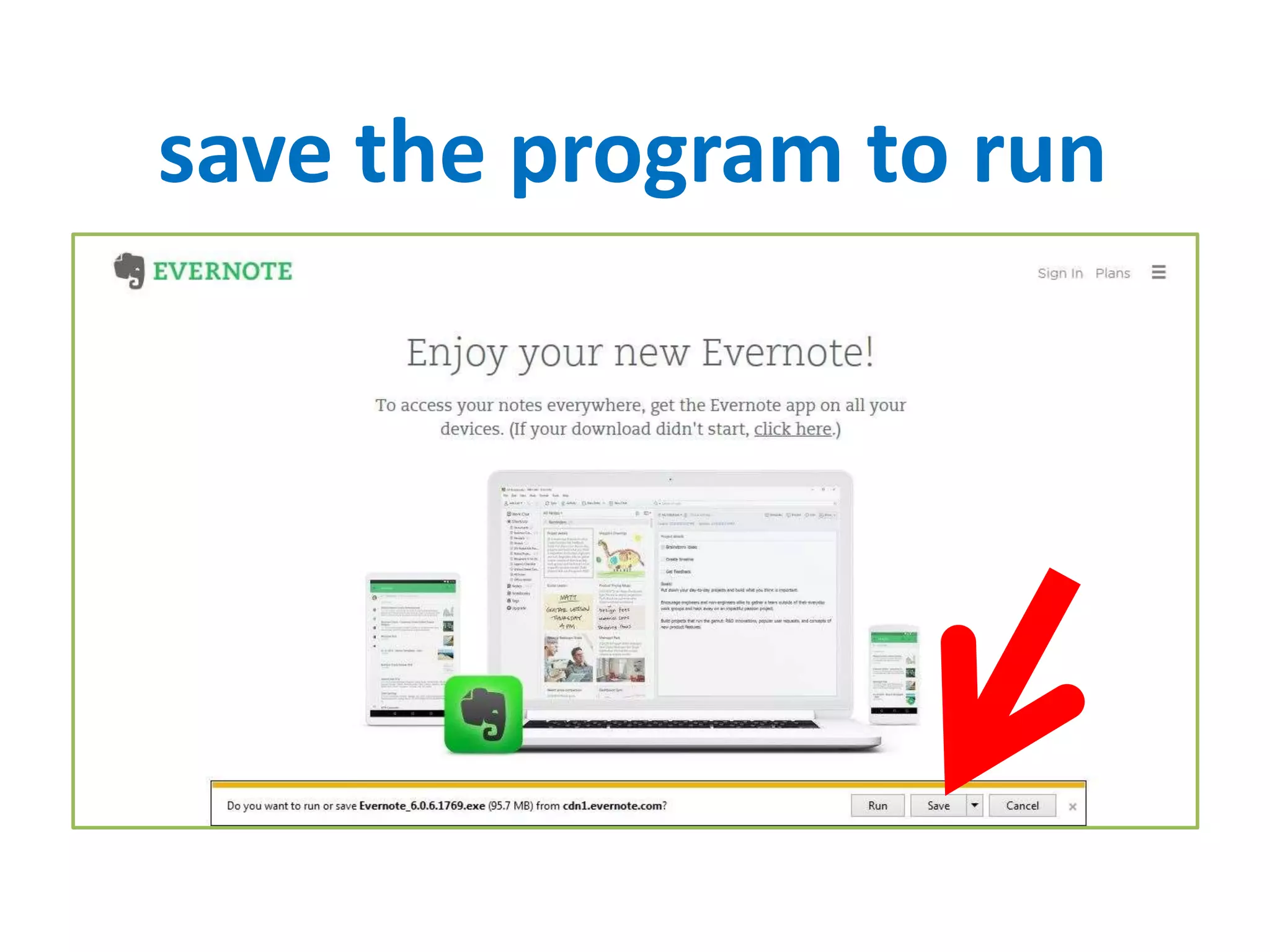
save the program to run
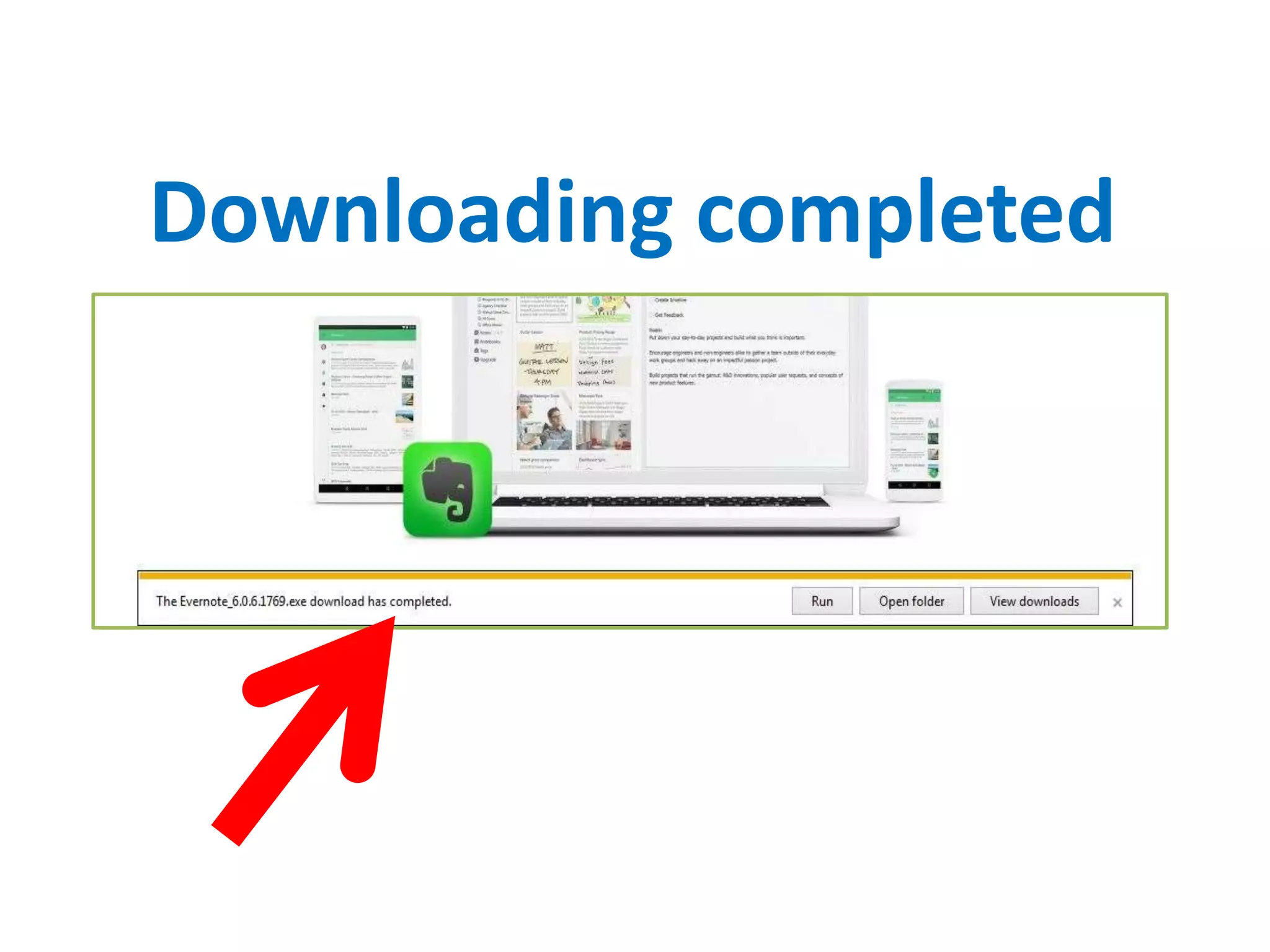
Downloading completed
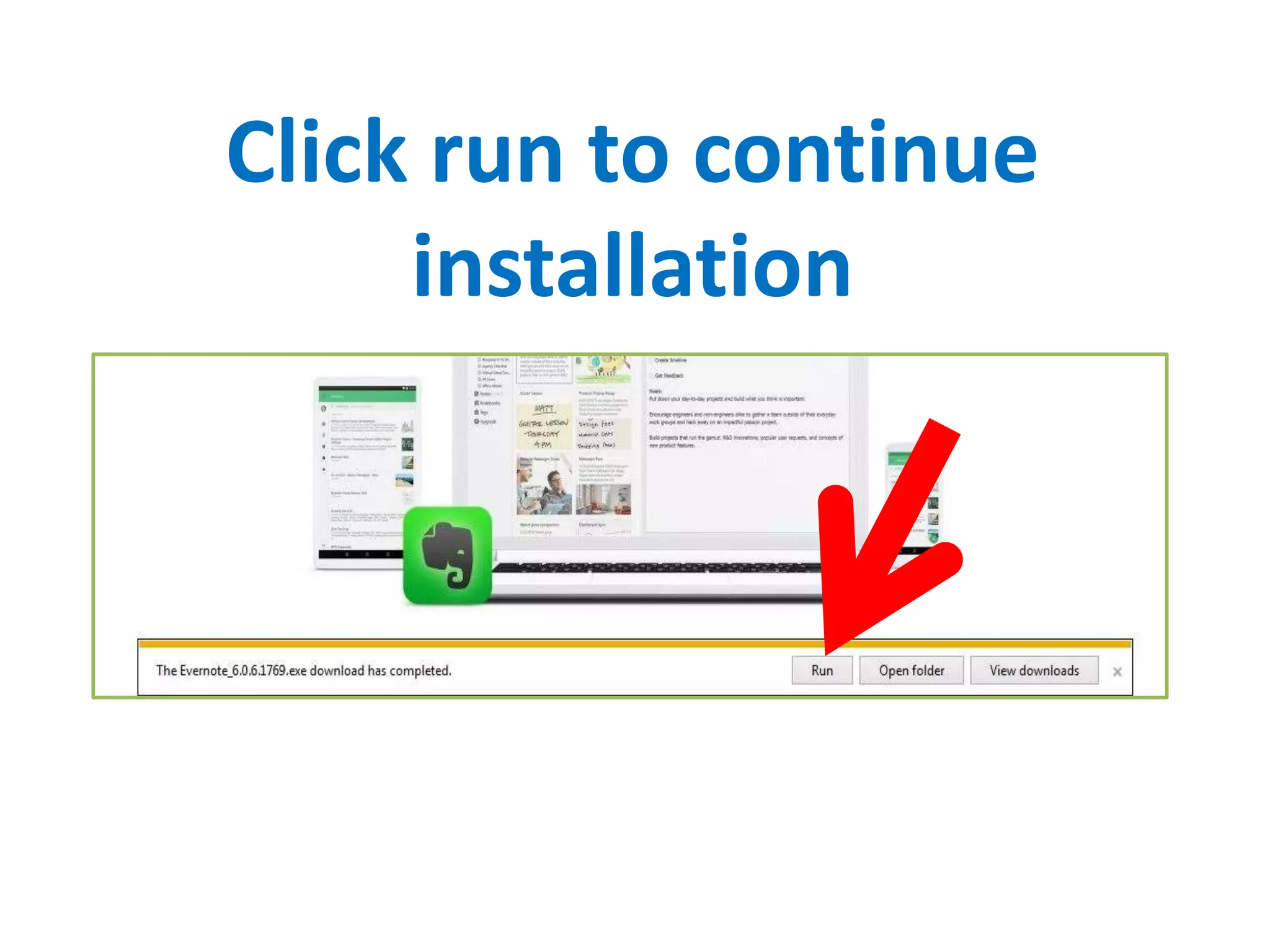
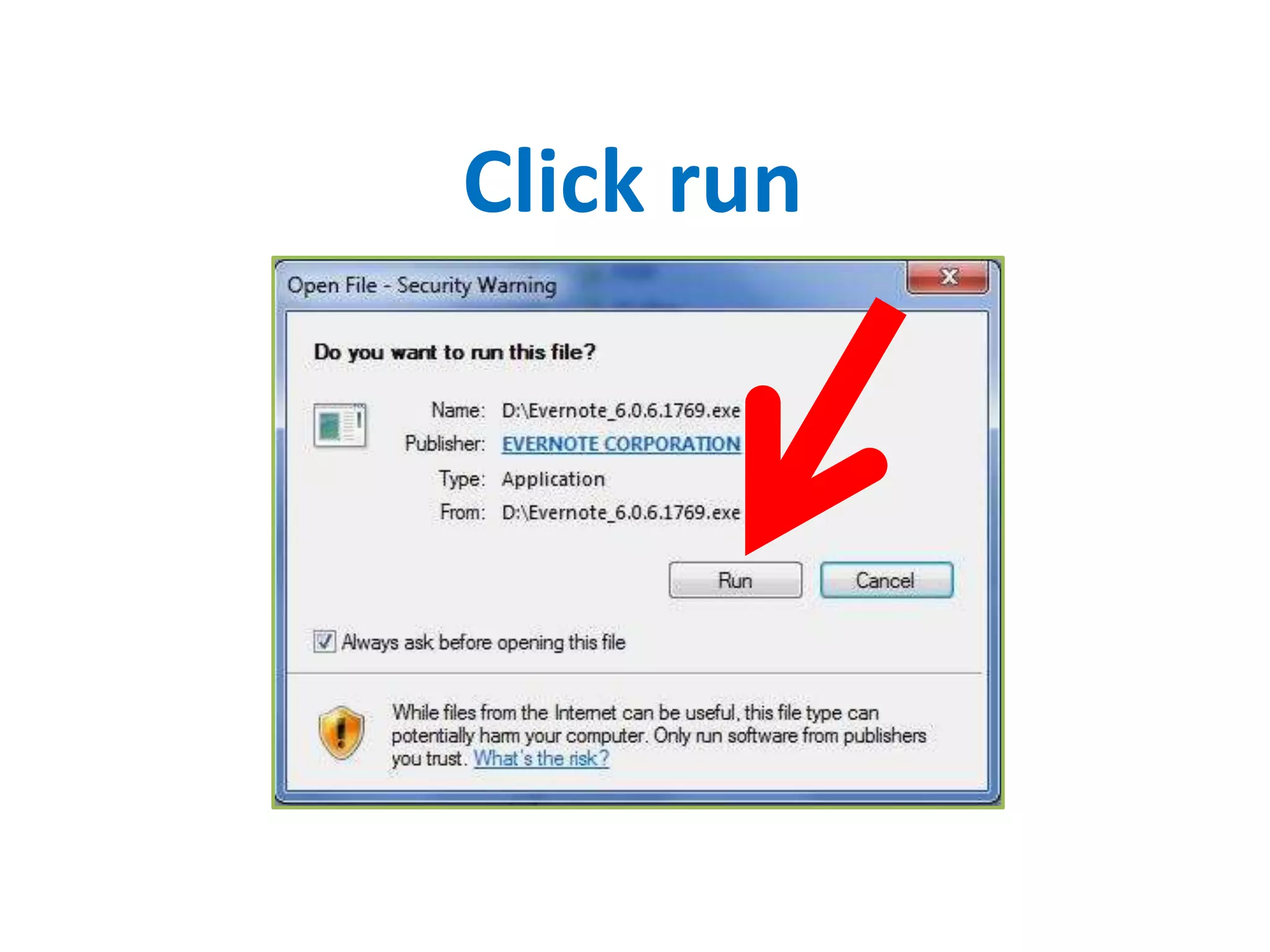
Click run to continue
installation
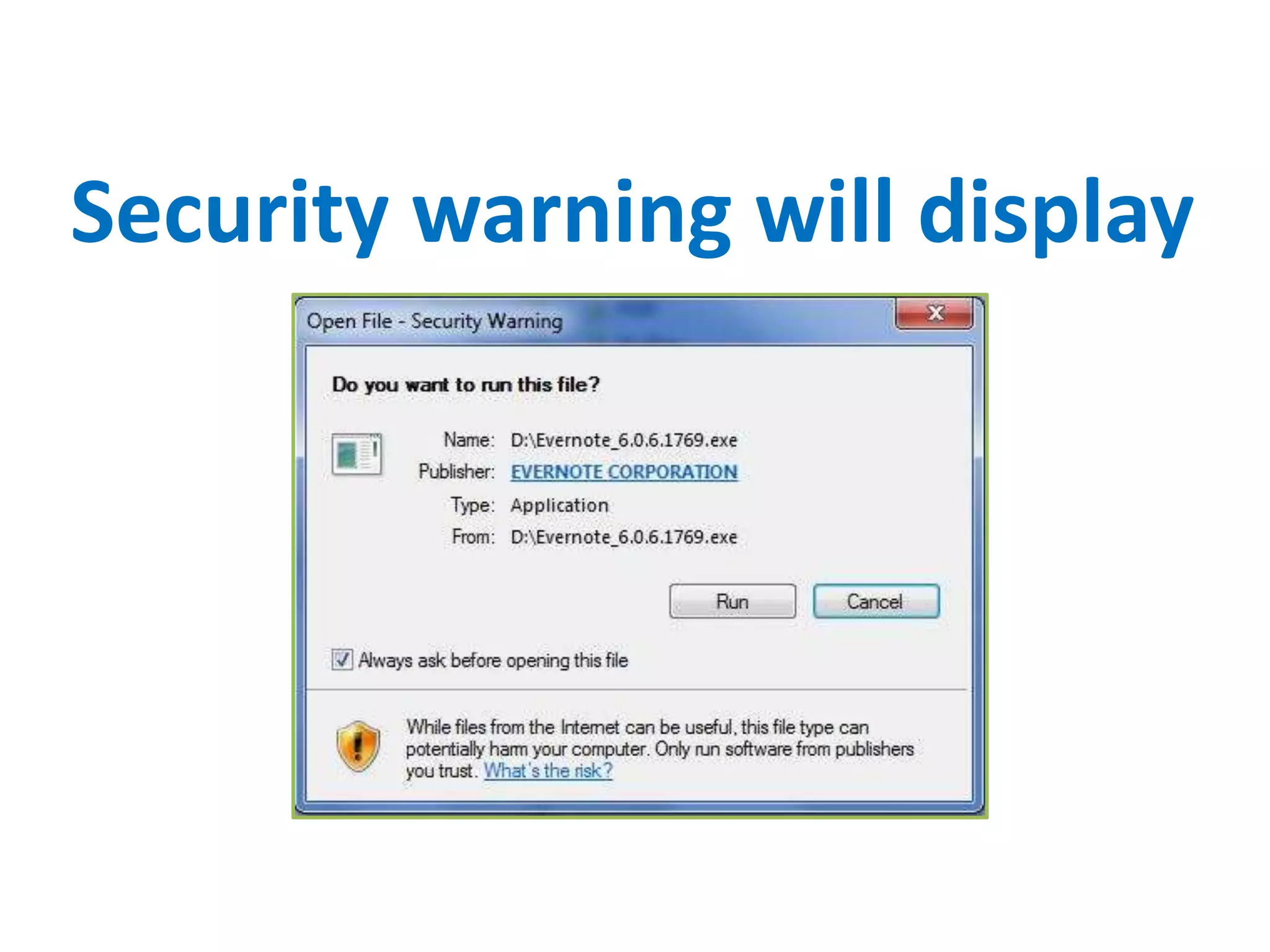
Security warning will display
Click run
Allow the program to
make changes to your
computer
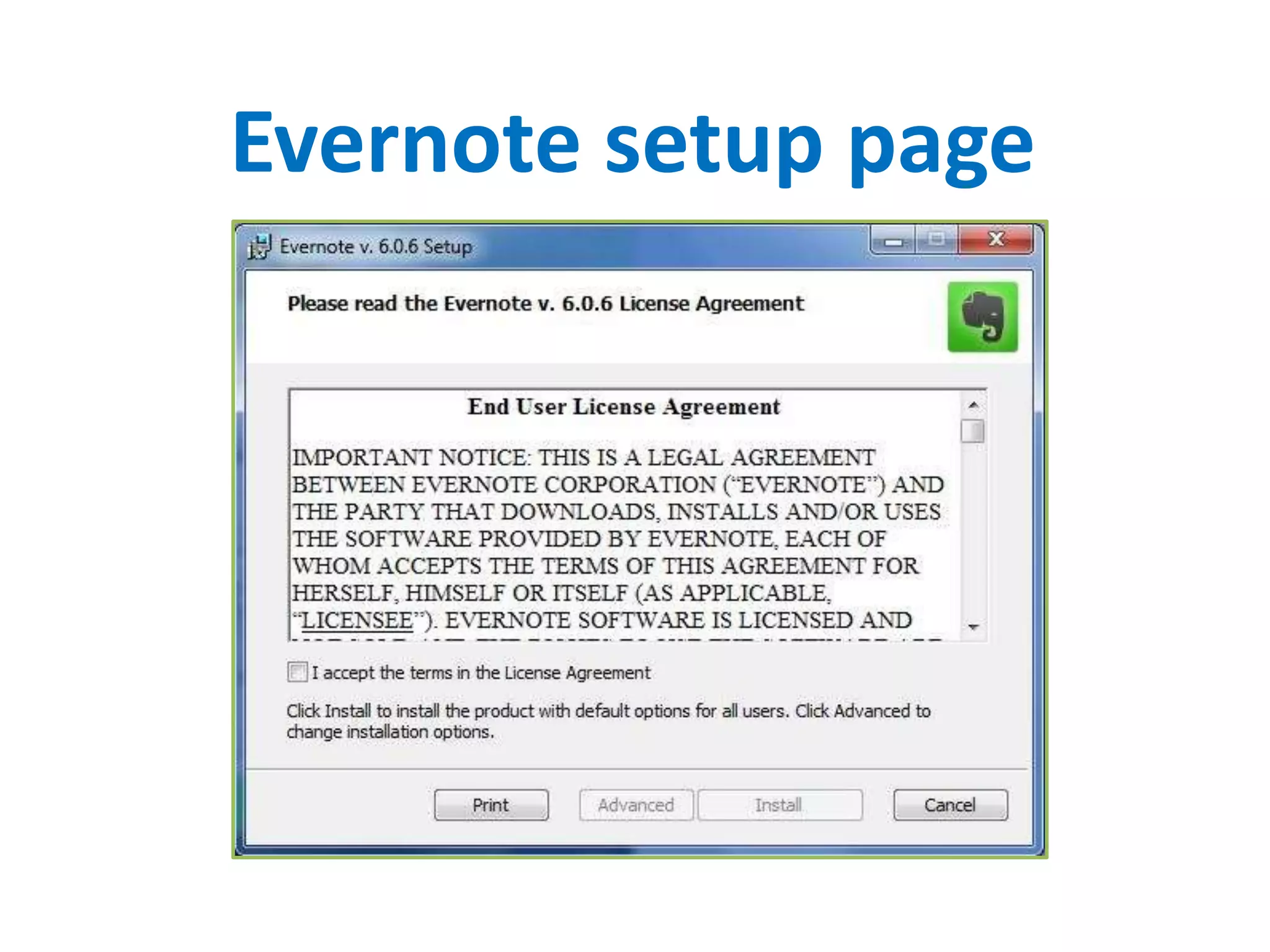
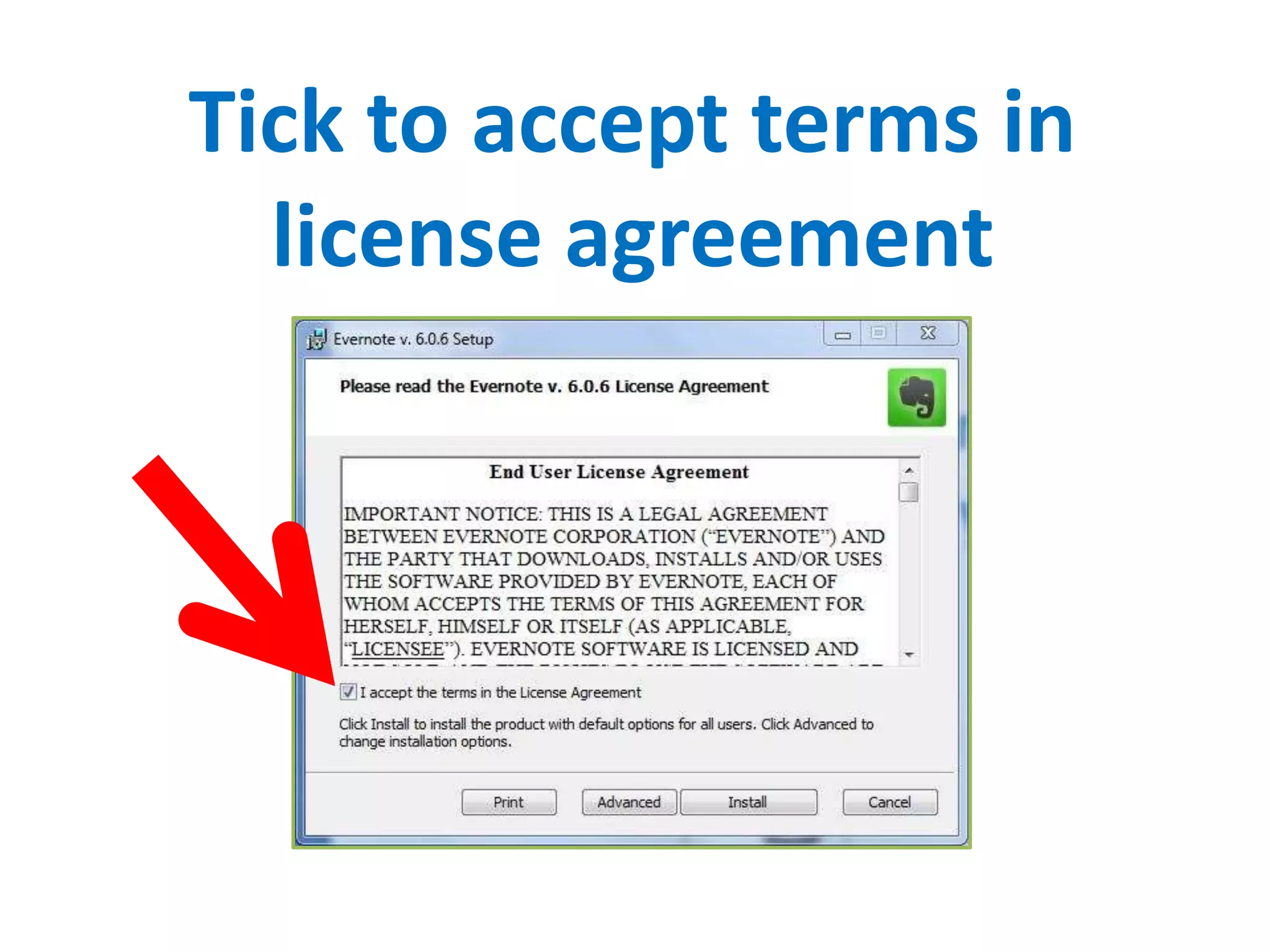
Evernote setup page
Tick to accept terms in
license agreement
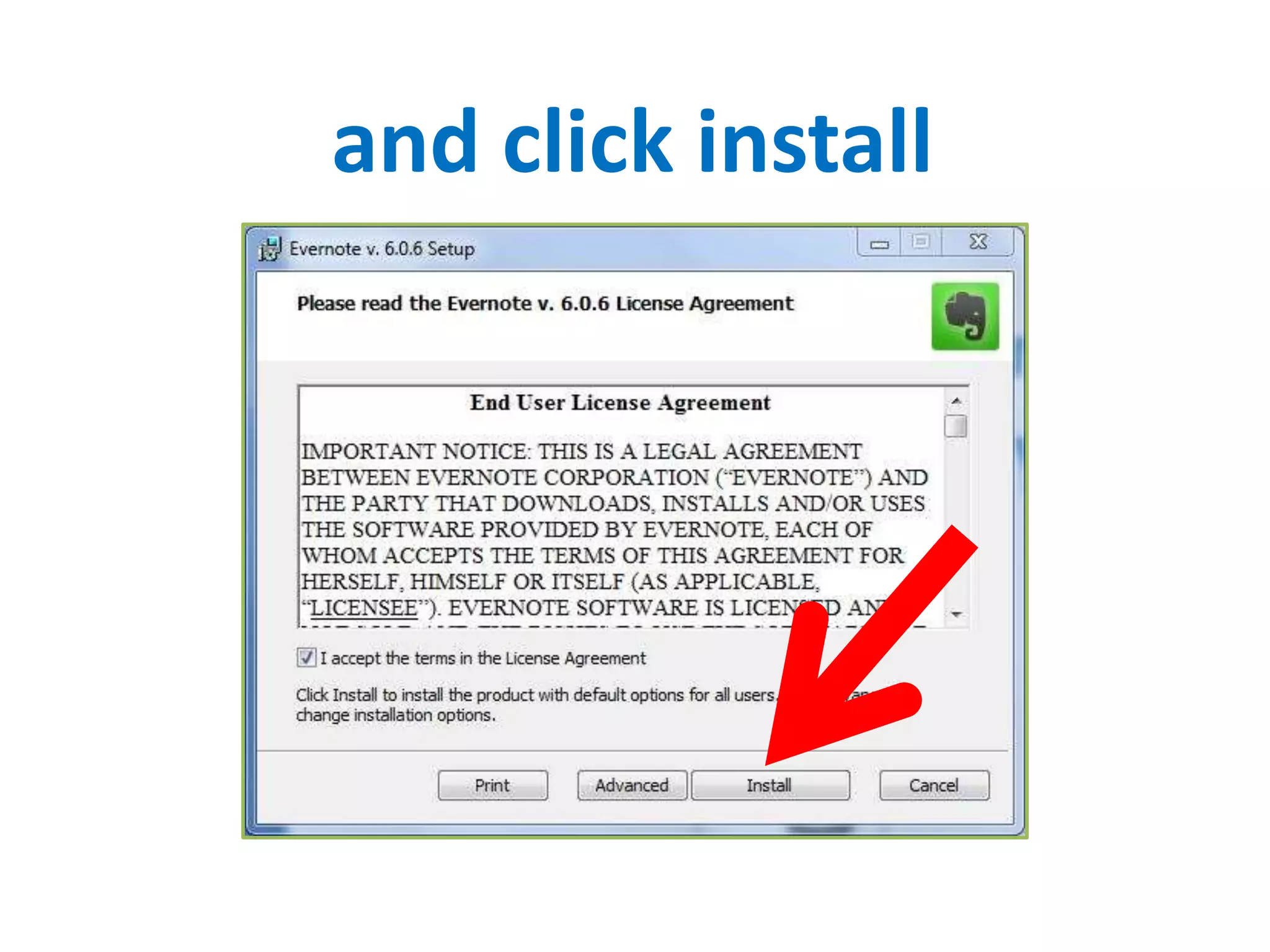
and click install
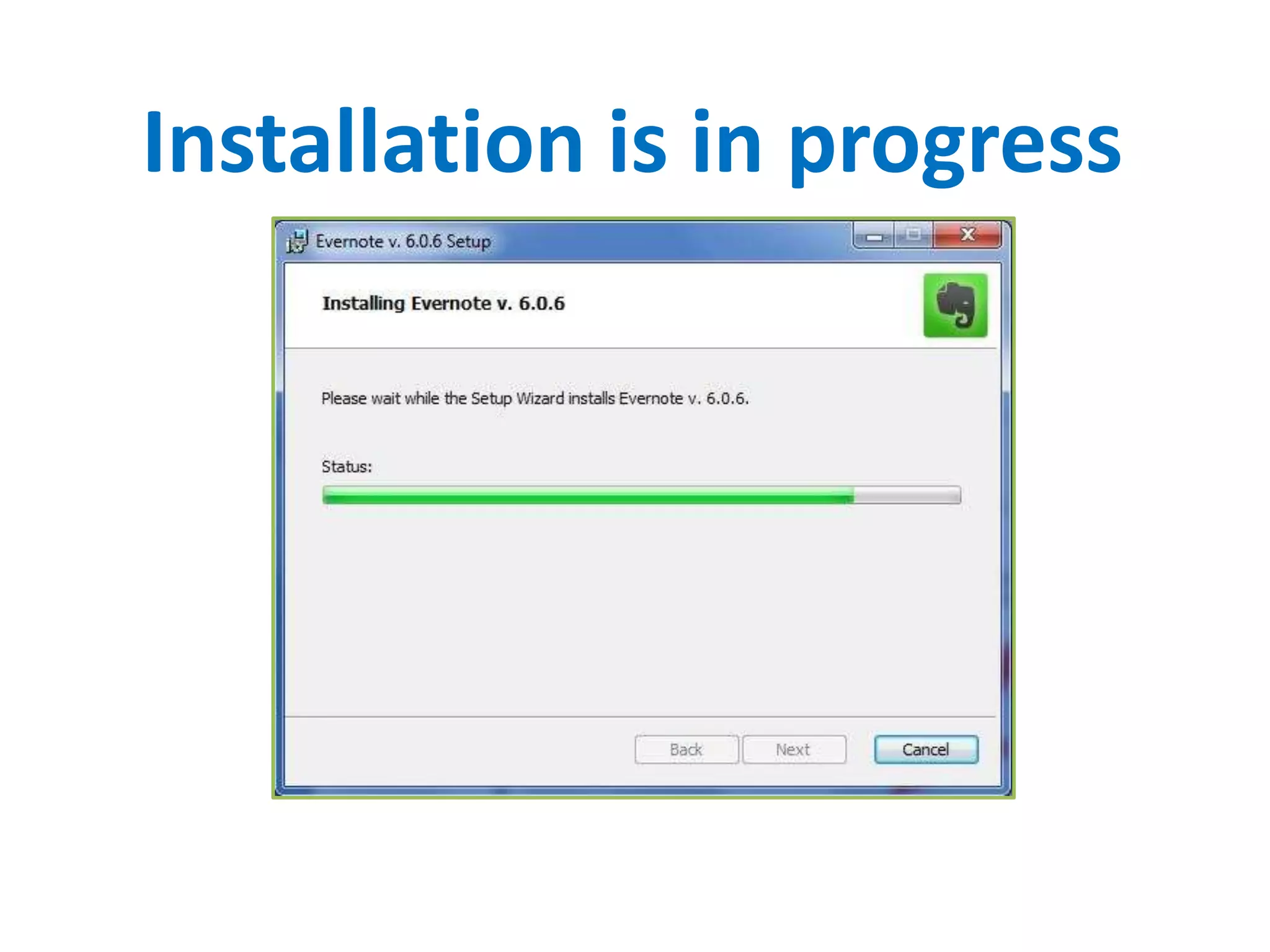
Installation is in progress
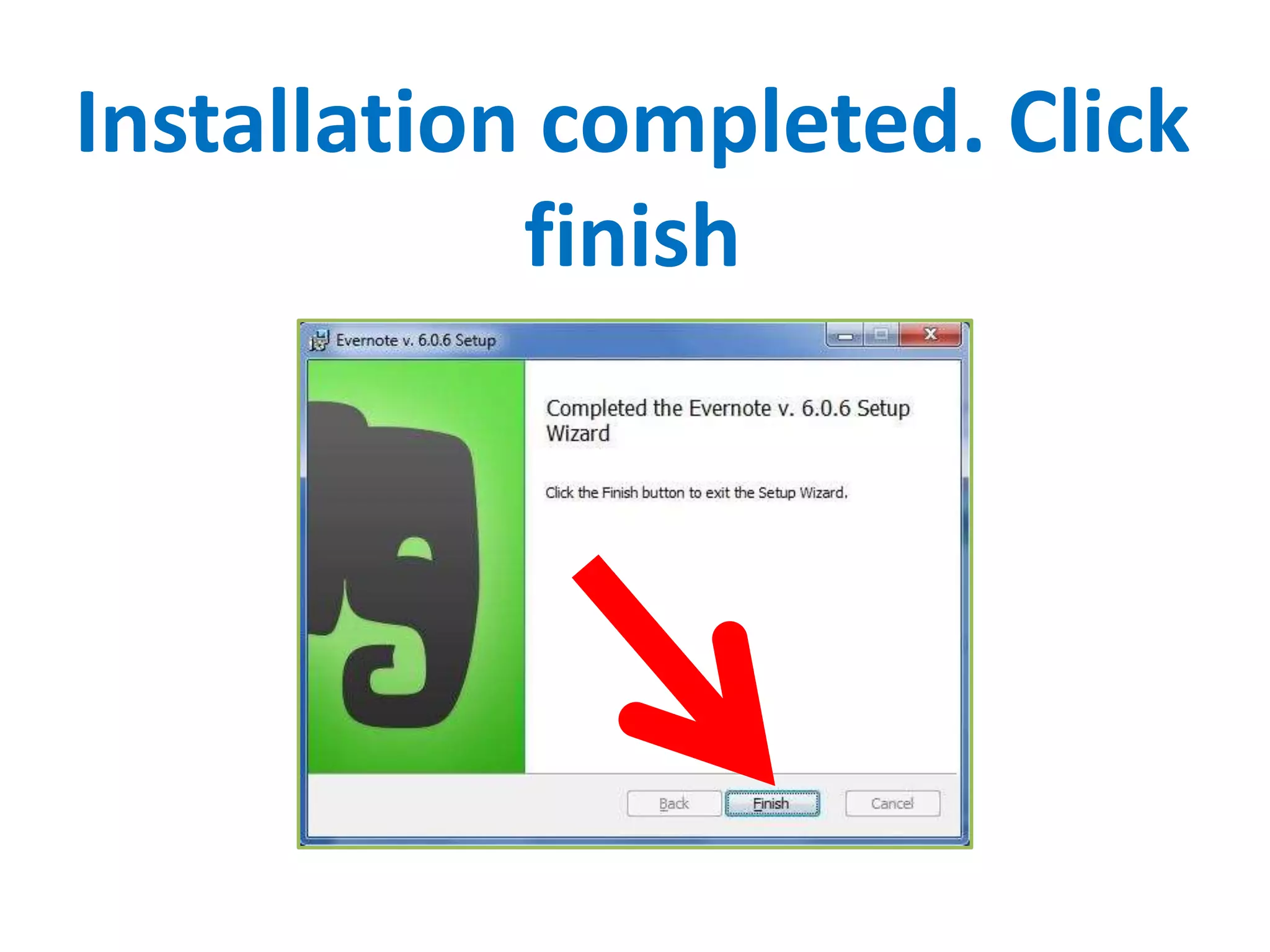
Installation completed. Click
finish
Redirect to this page
How to use Evernote?
In this tutorial, let’s assume
your Evernote account has
been created
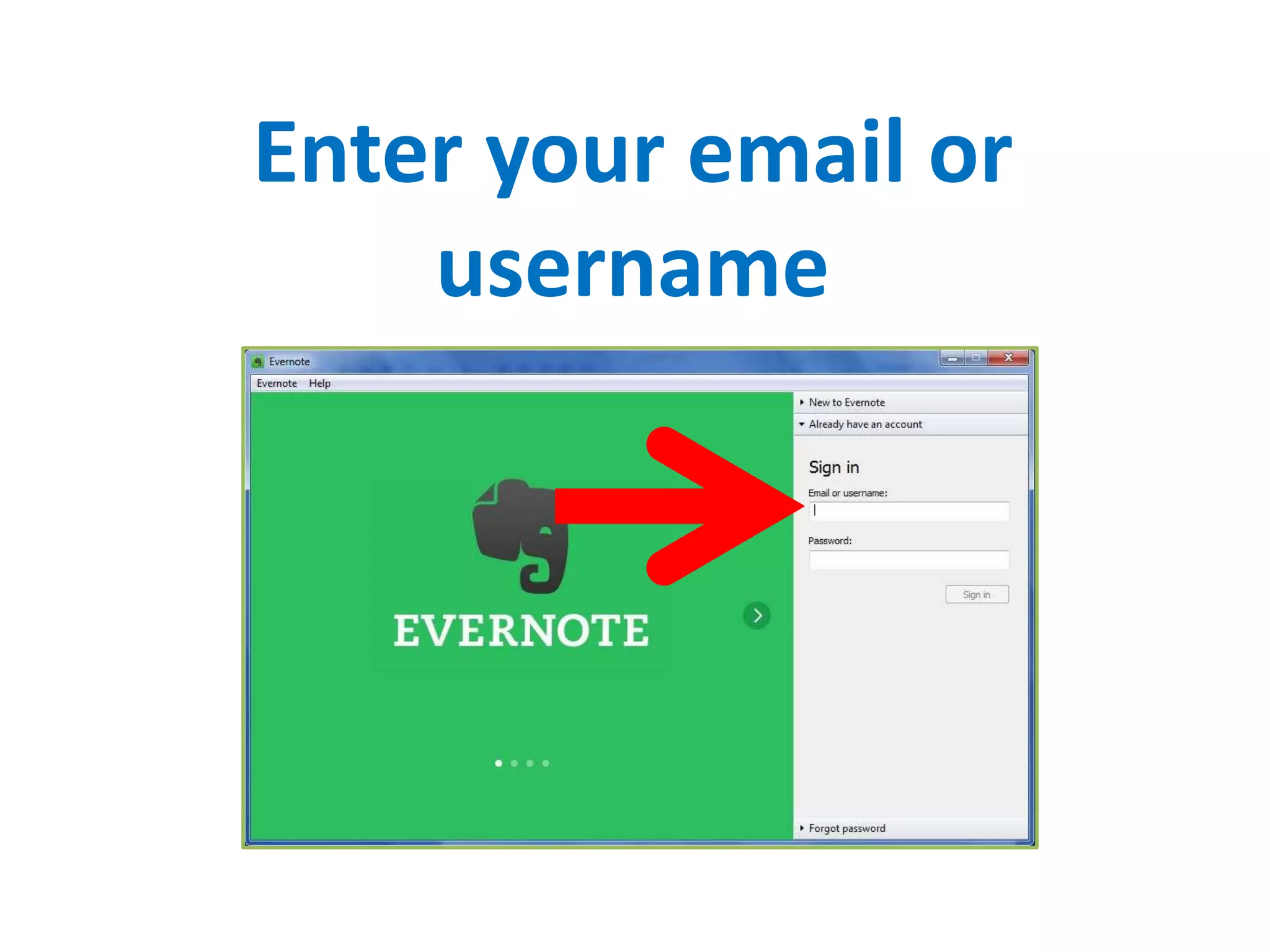
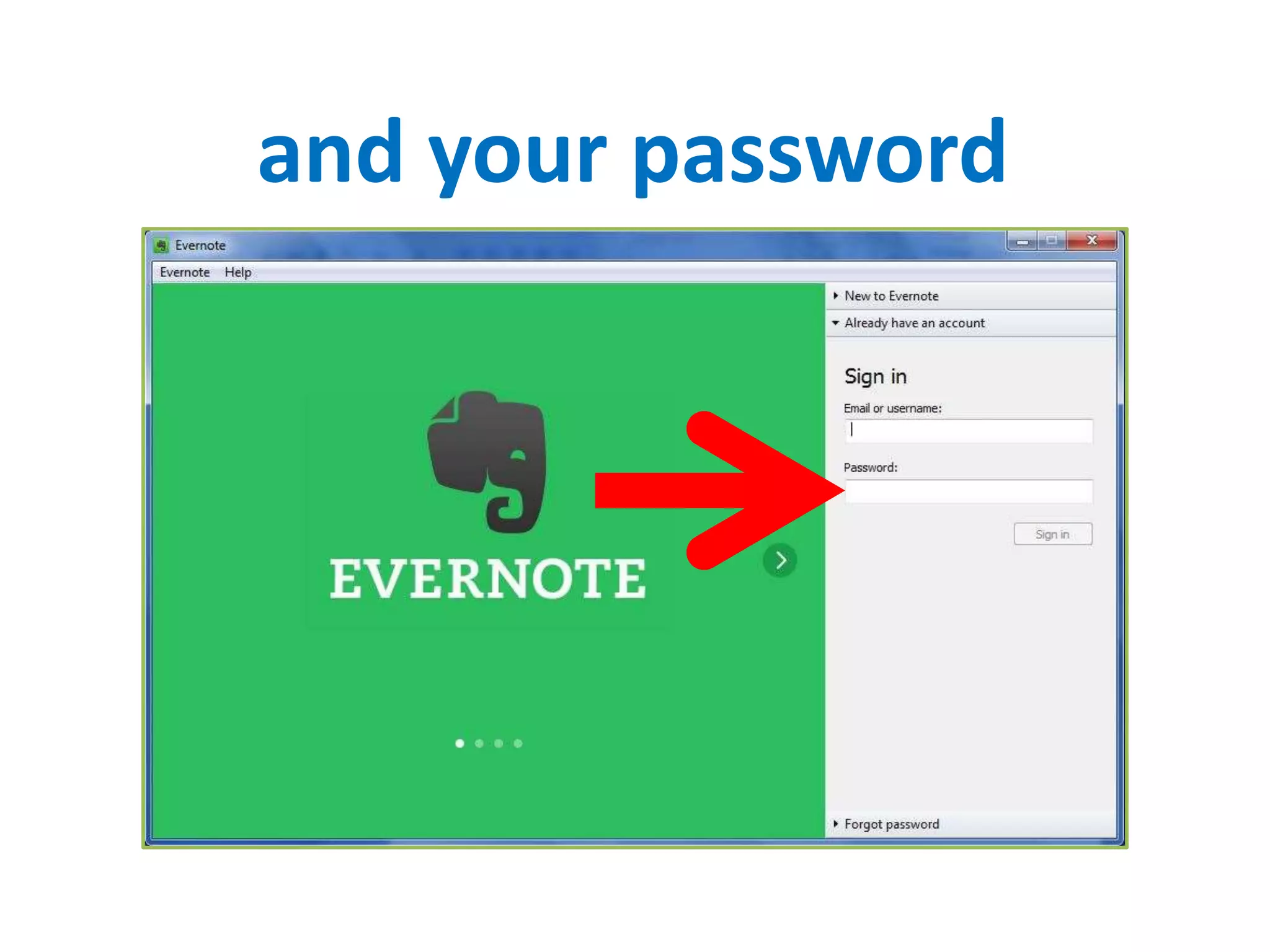
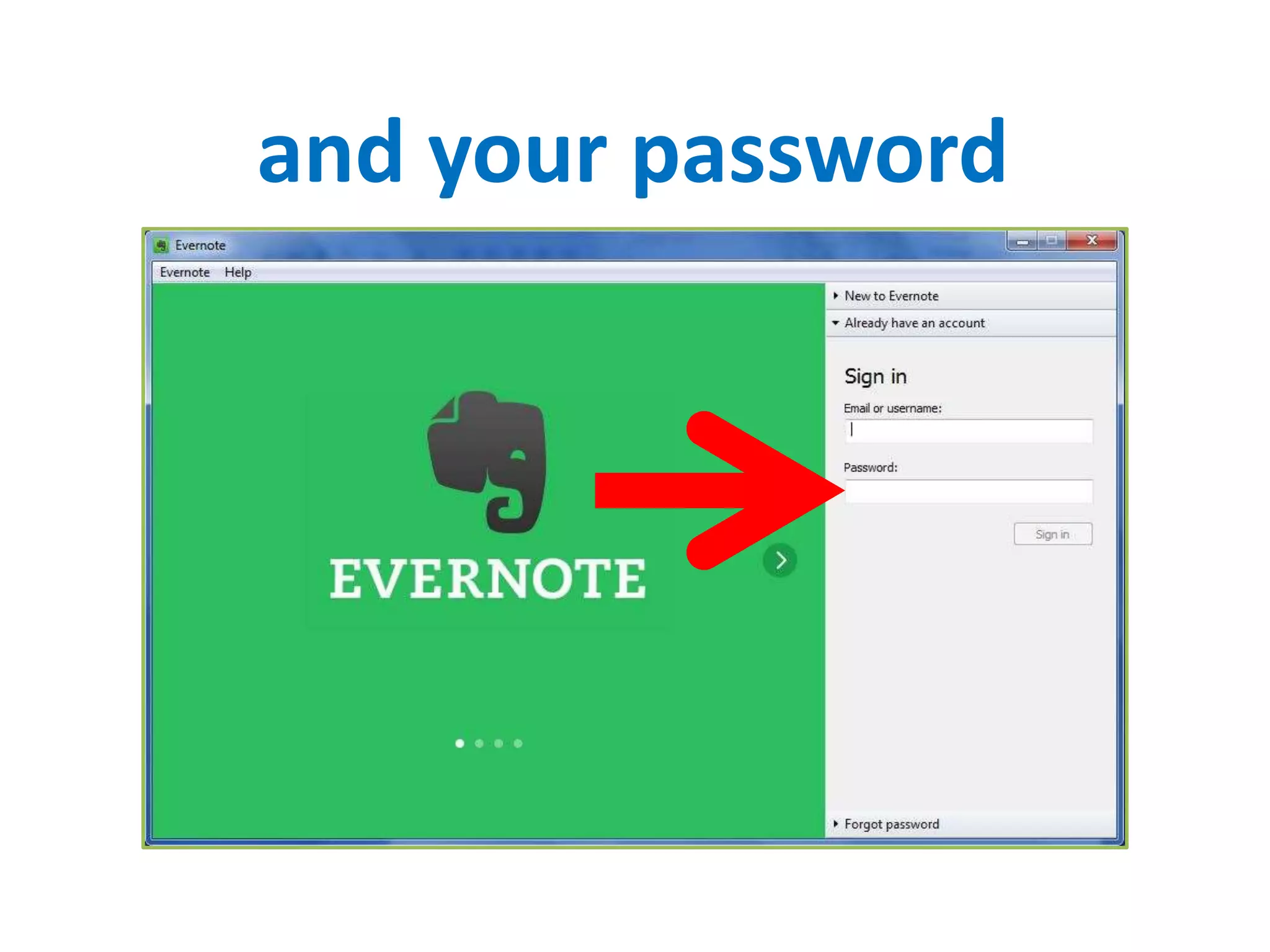
Enter your email or
username
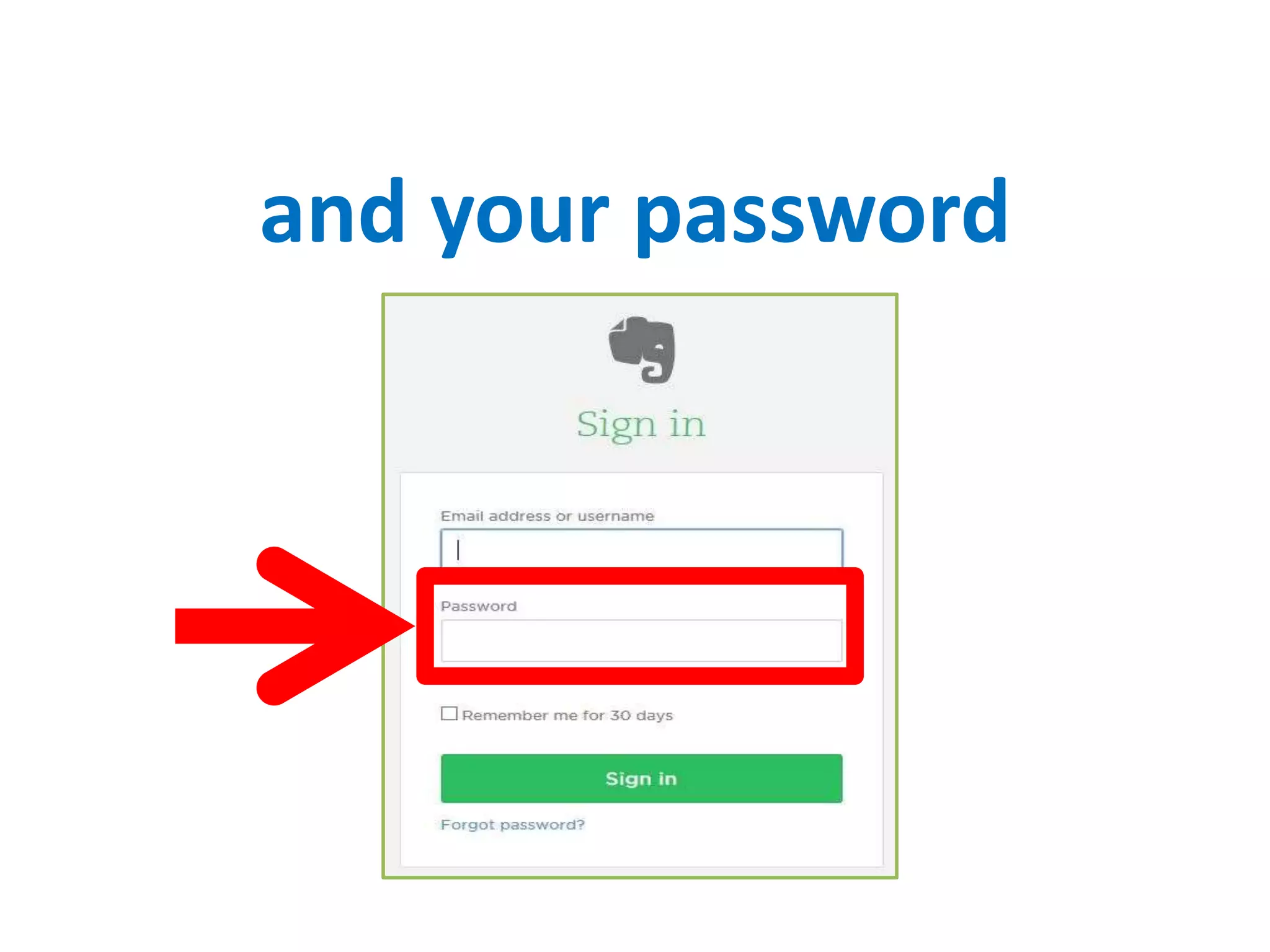
and your password
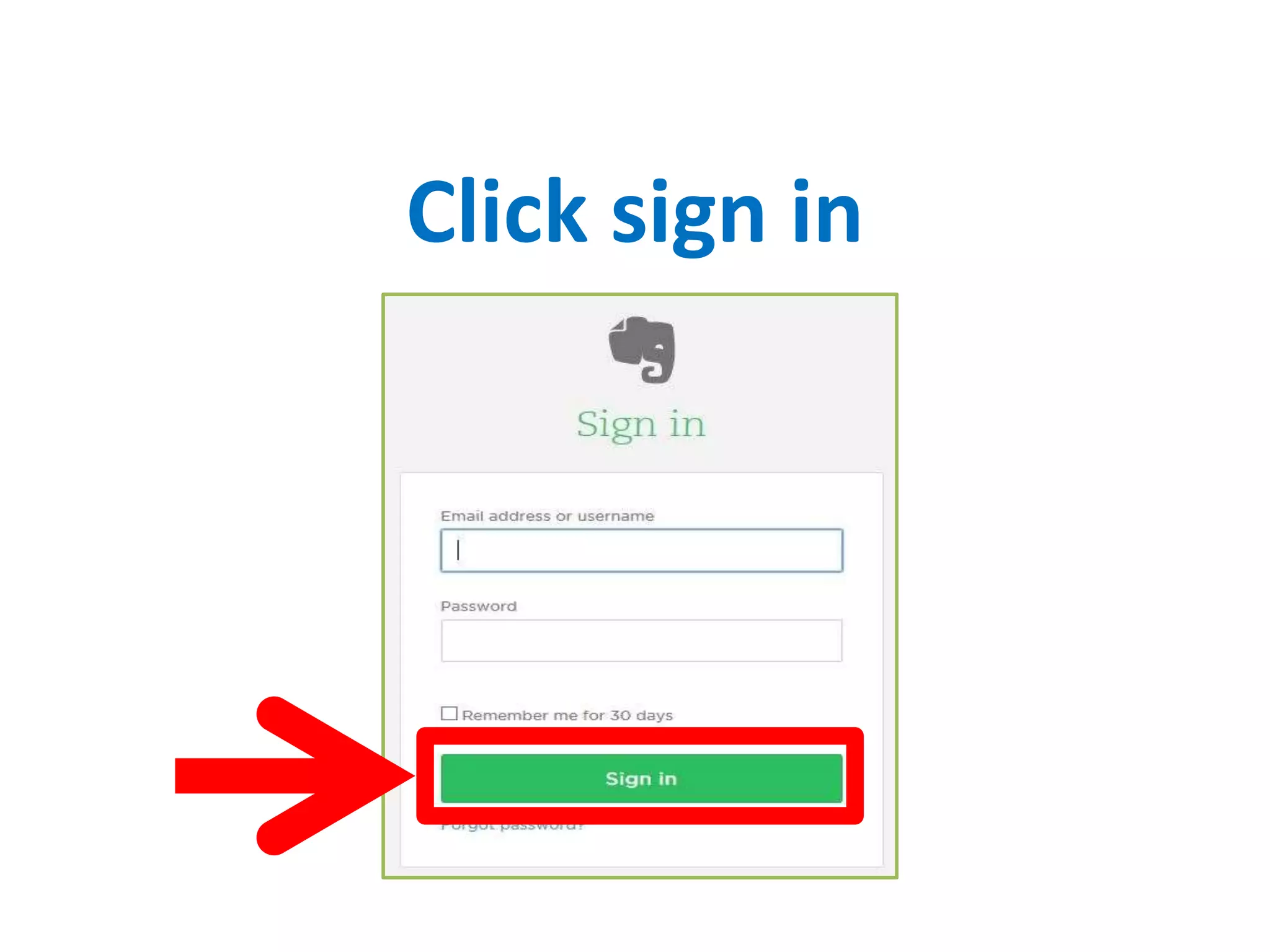
Click sign in
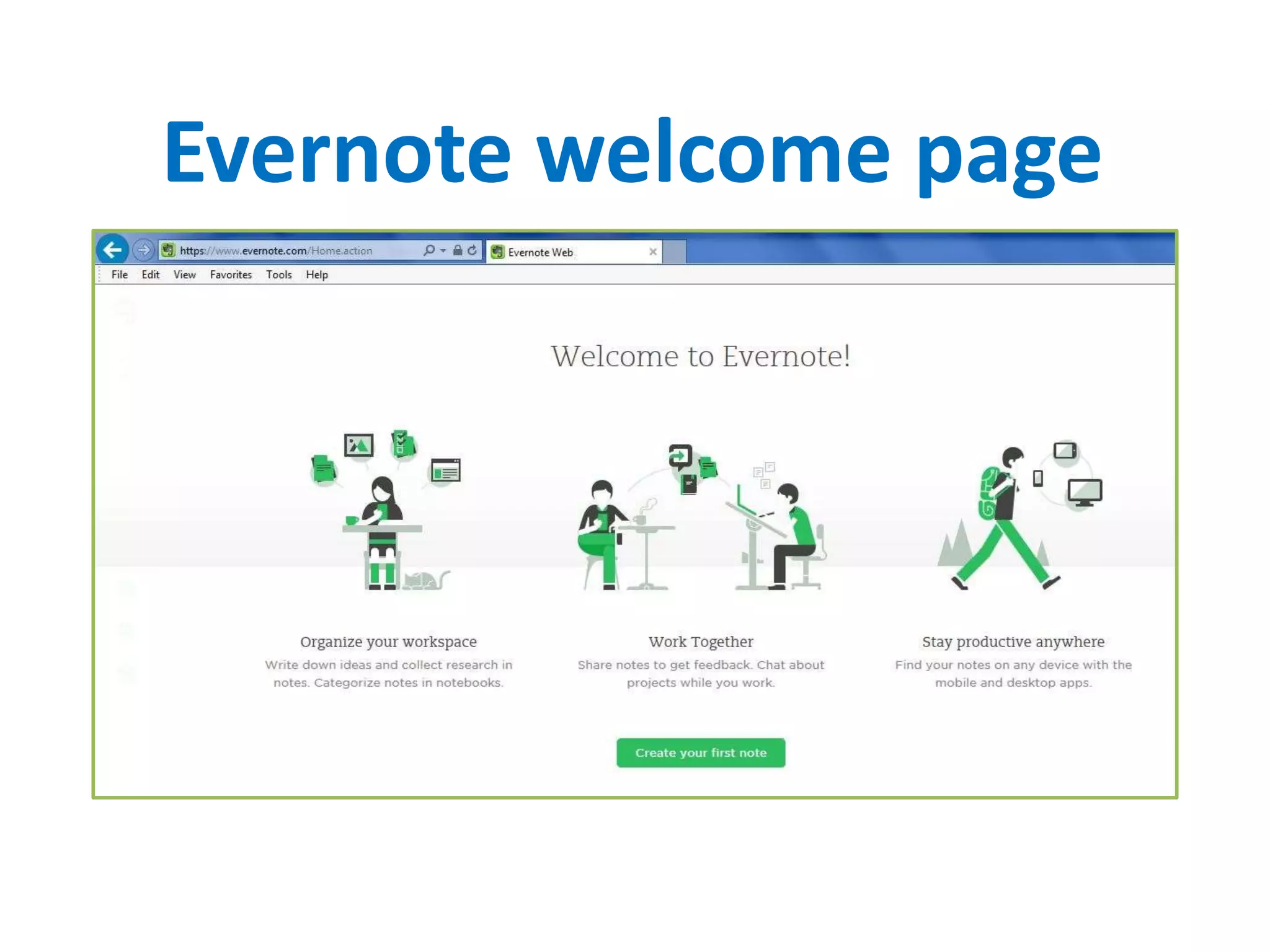
Evernote welcome page
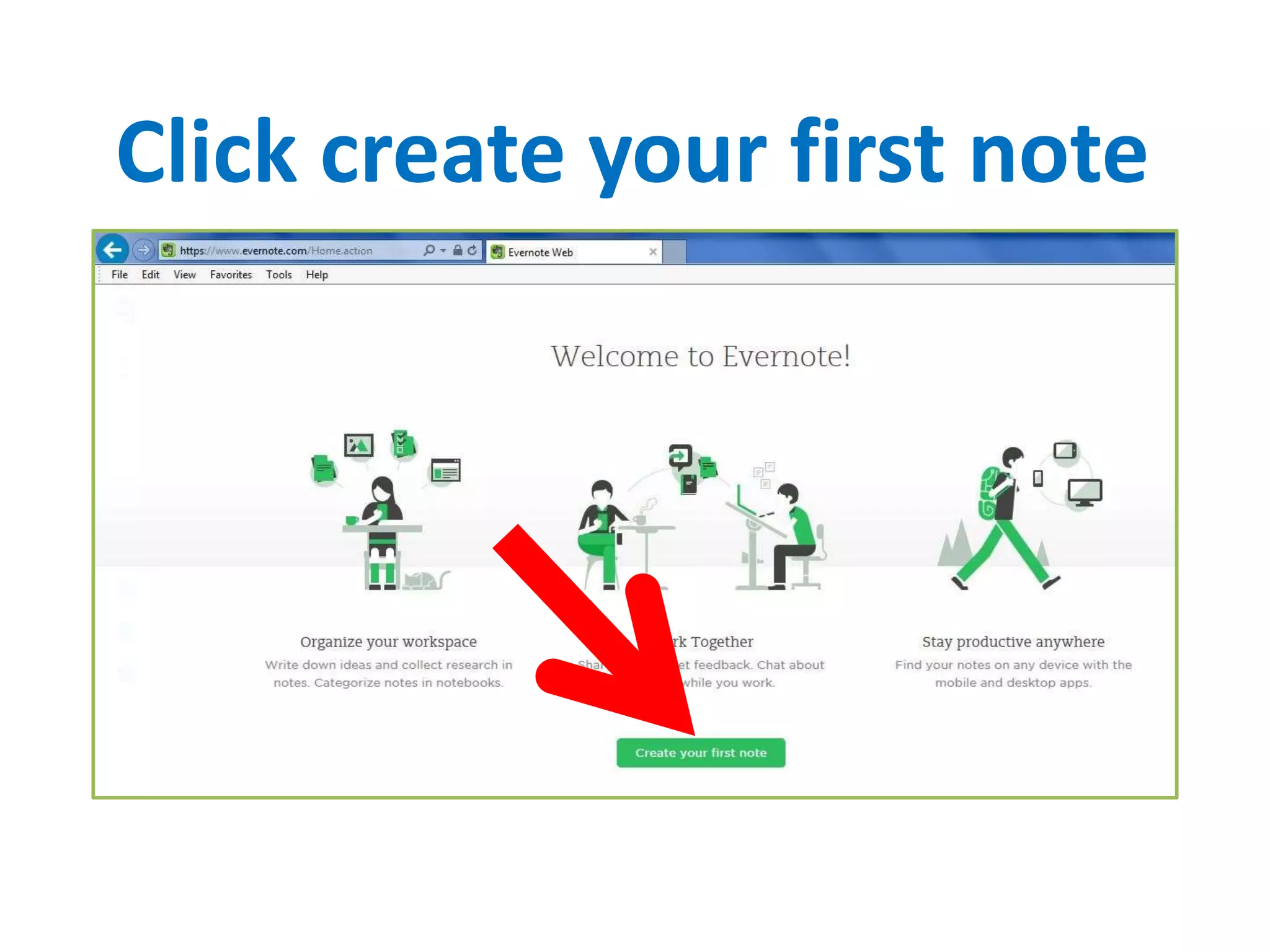
Click create your first note
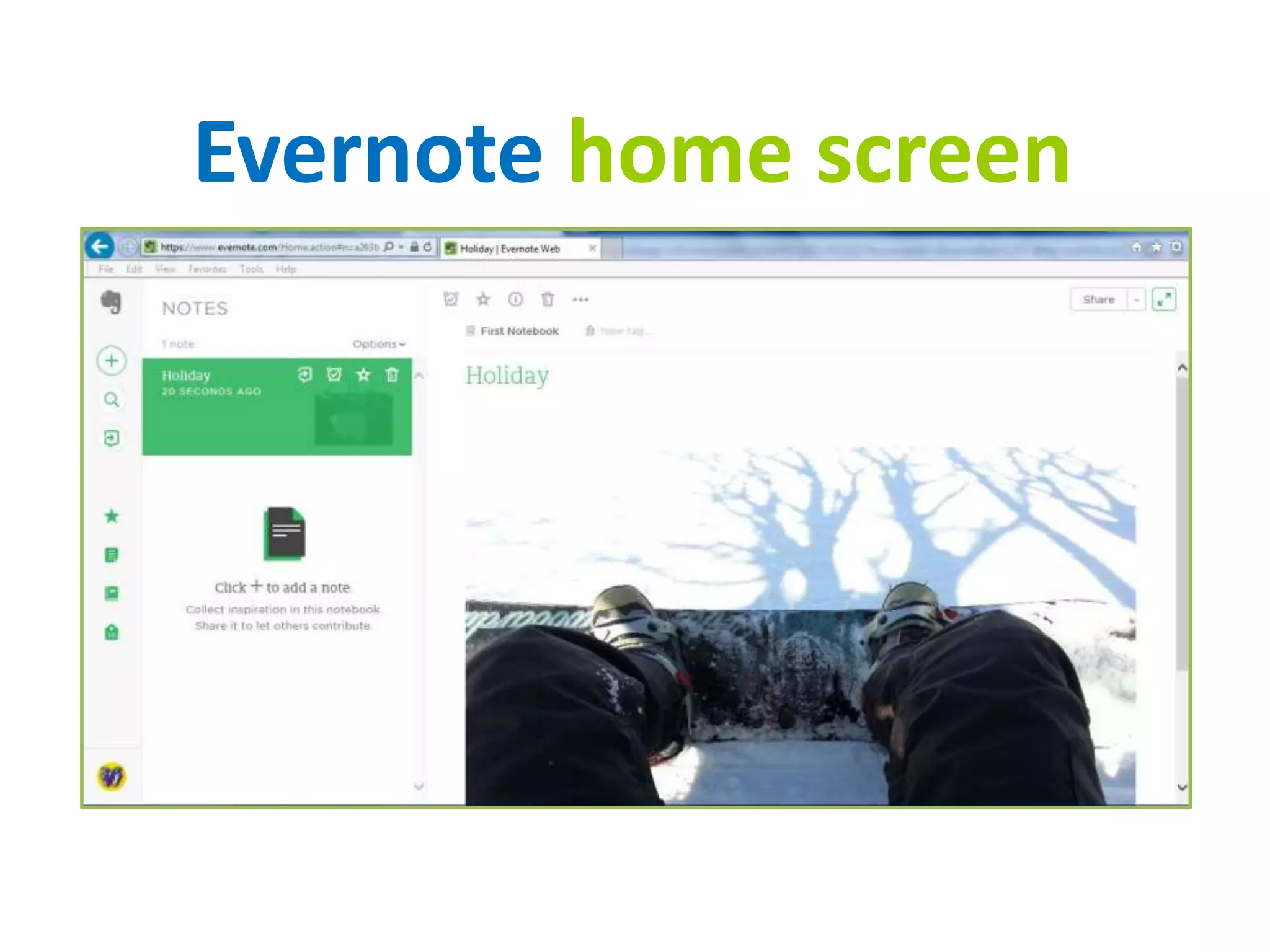
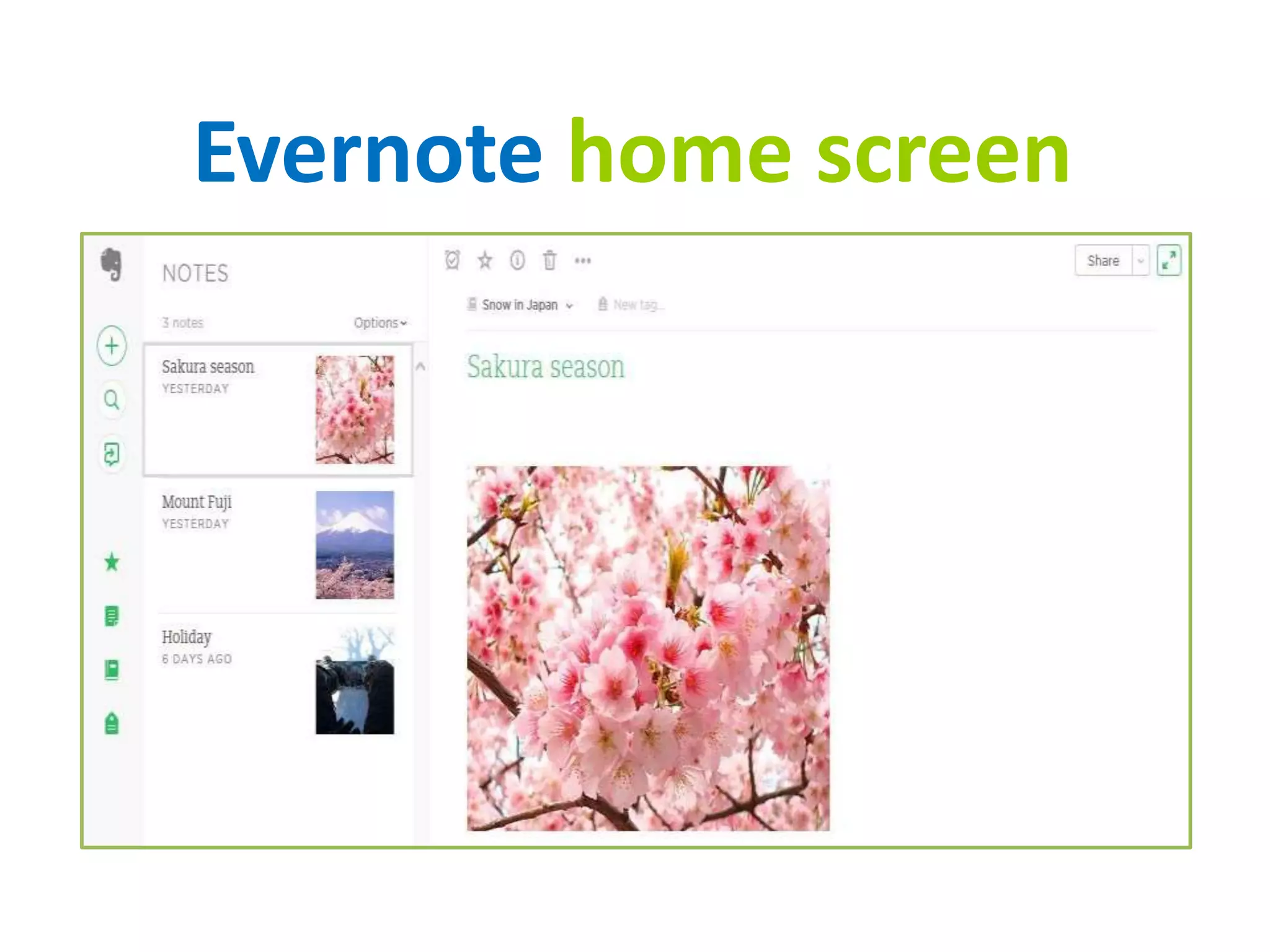
Evernote home screen
Now, let’s familiarize with
Evernote interface. Let’s go!!
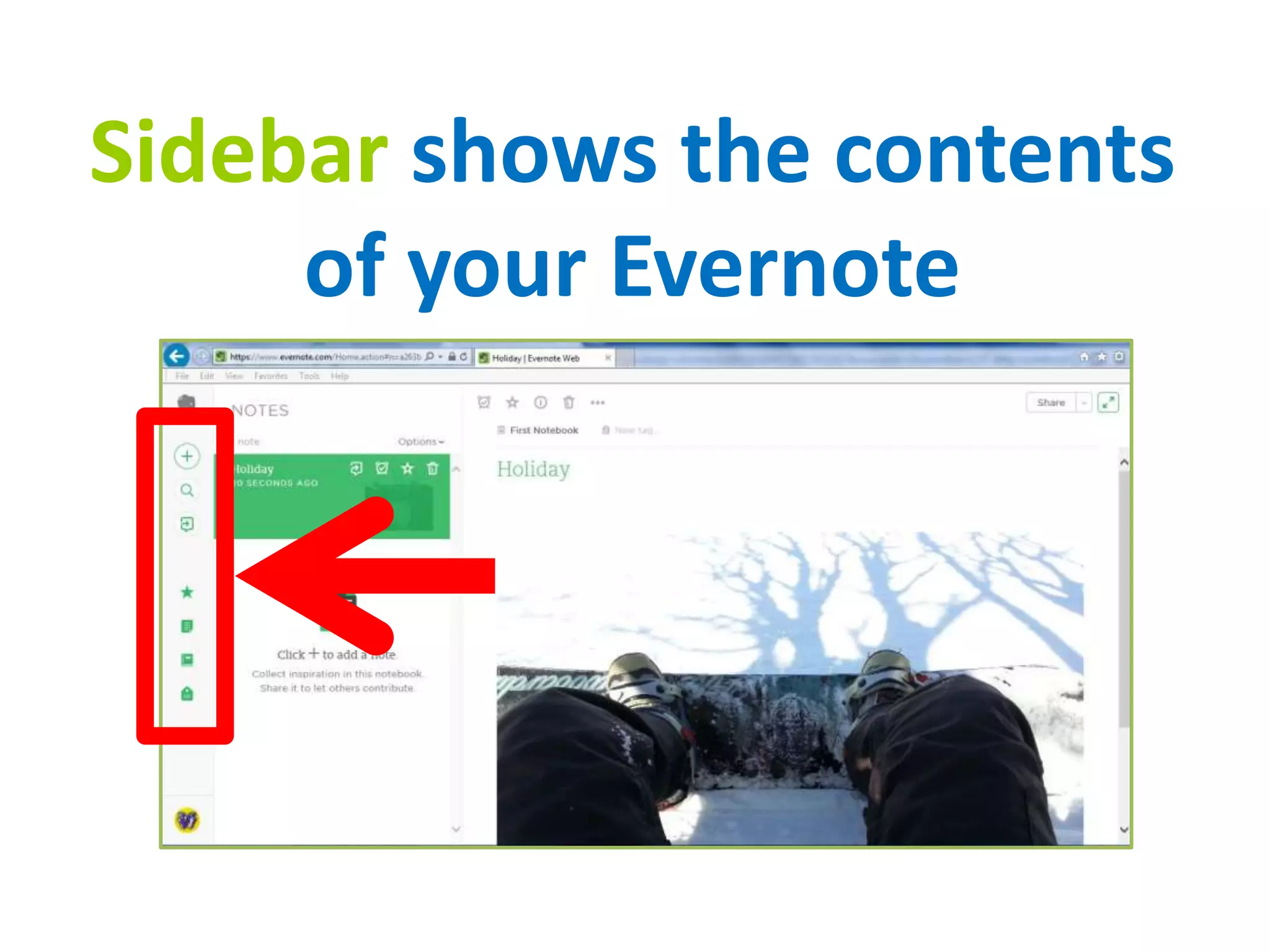
Sidebar shows the contents
of your Evernote
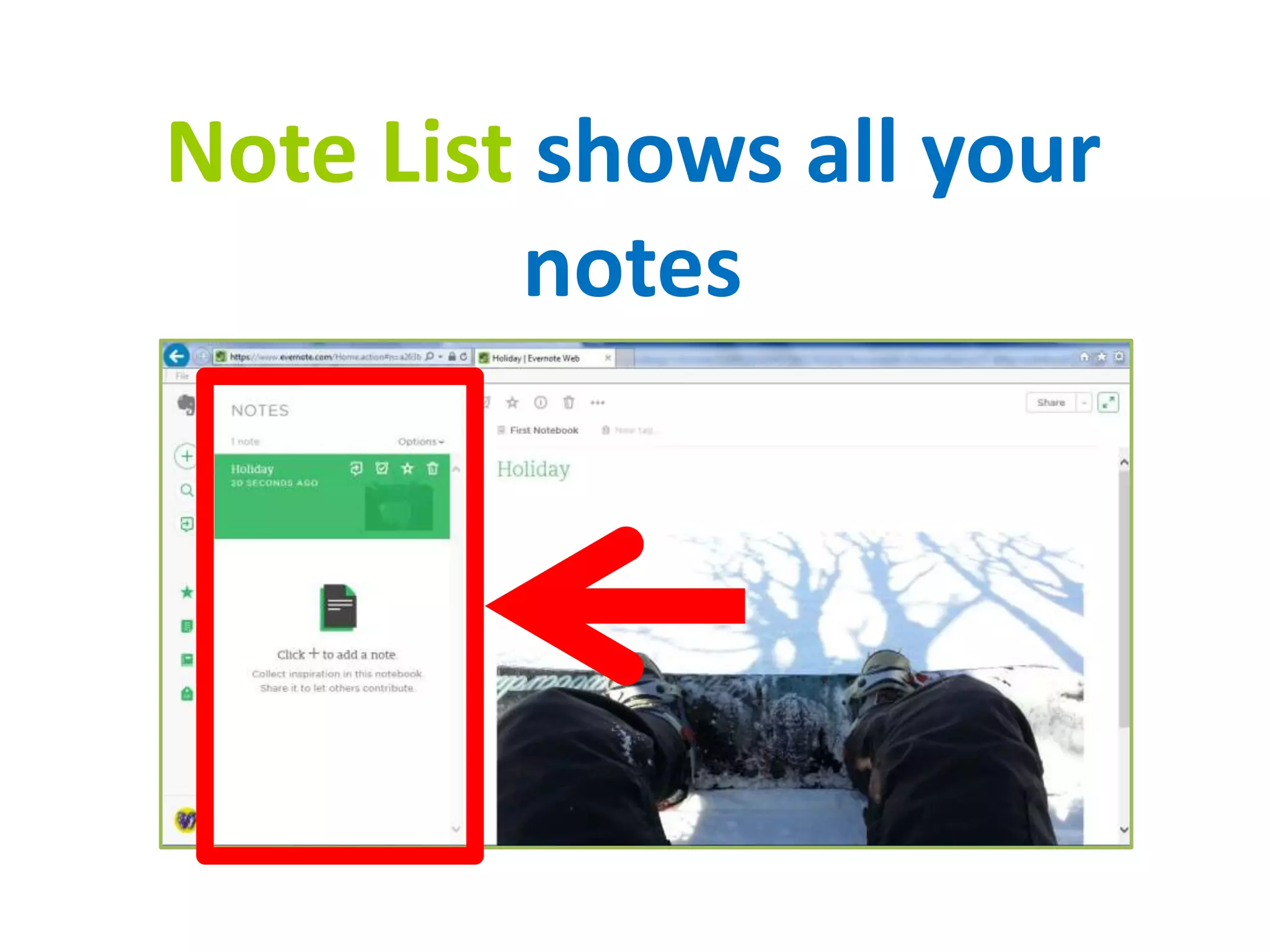
Note List shows all your
notes
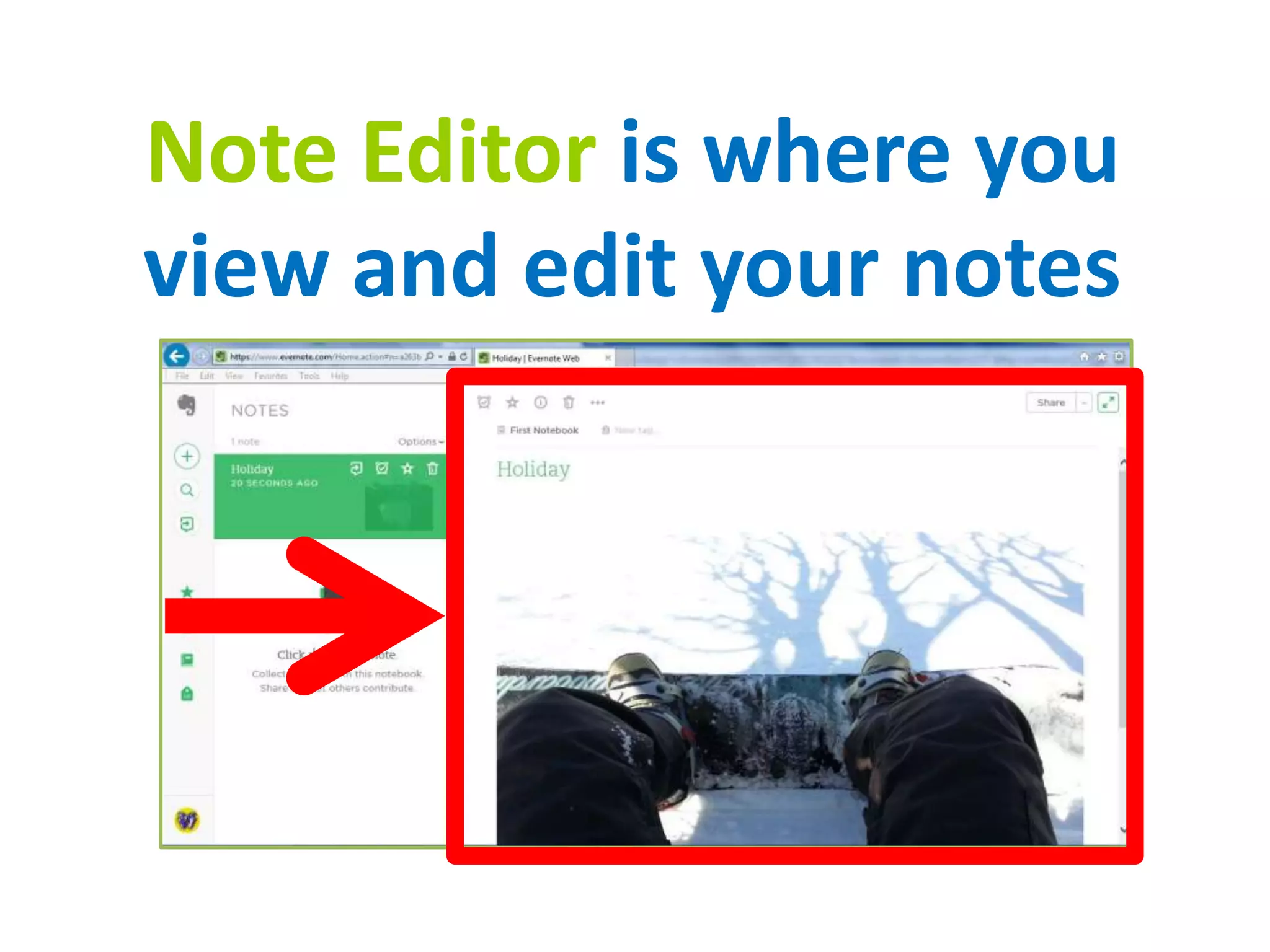
Note Editor is where you
view and edit your notes
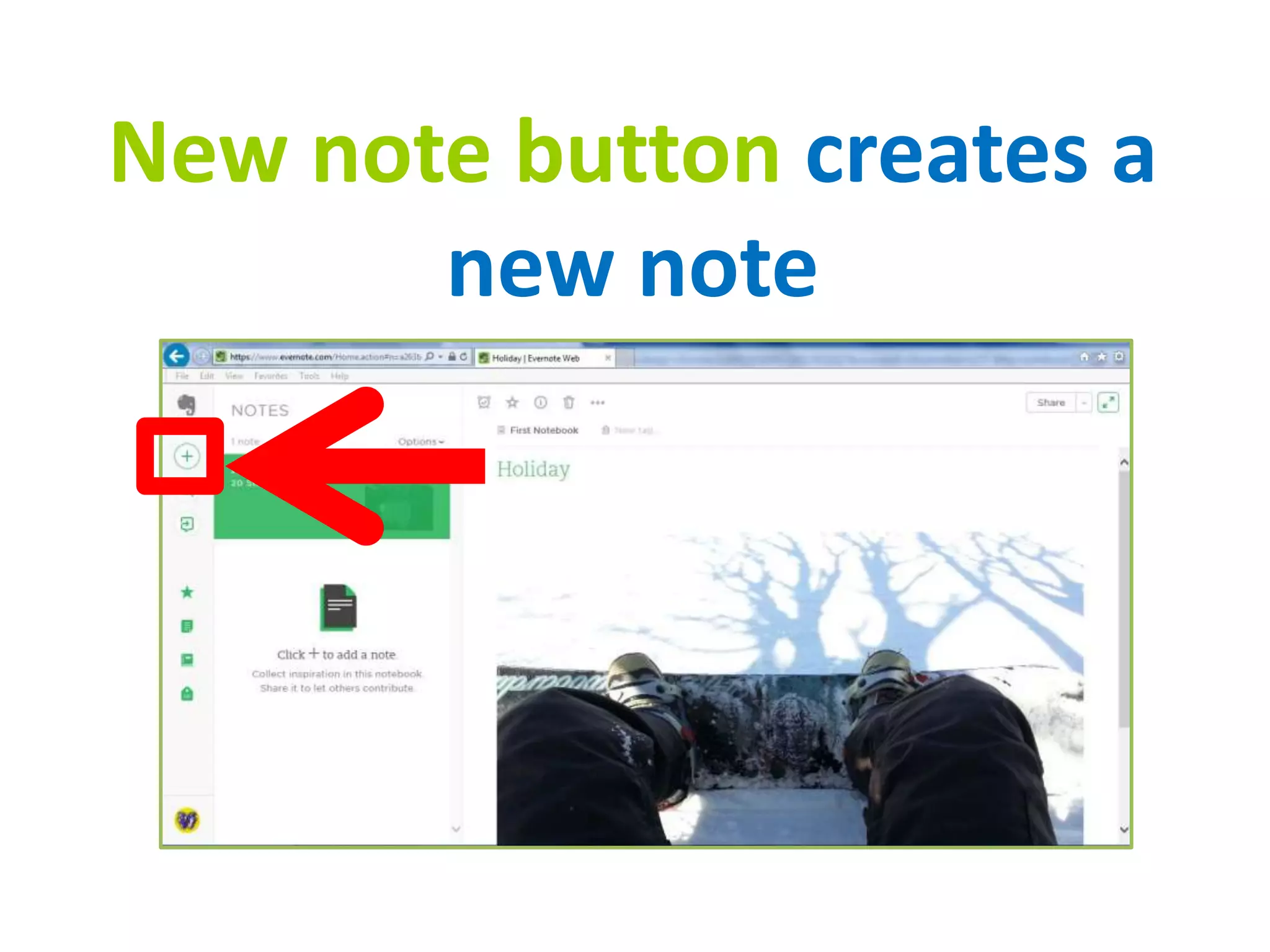
New note button creates a
new note
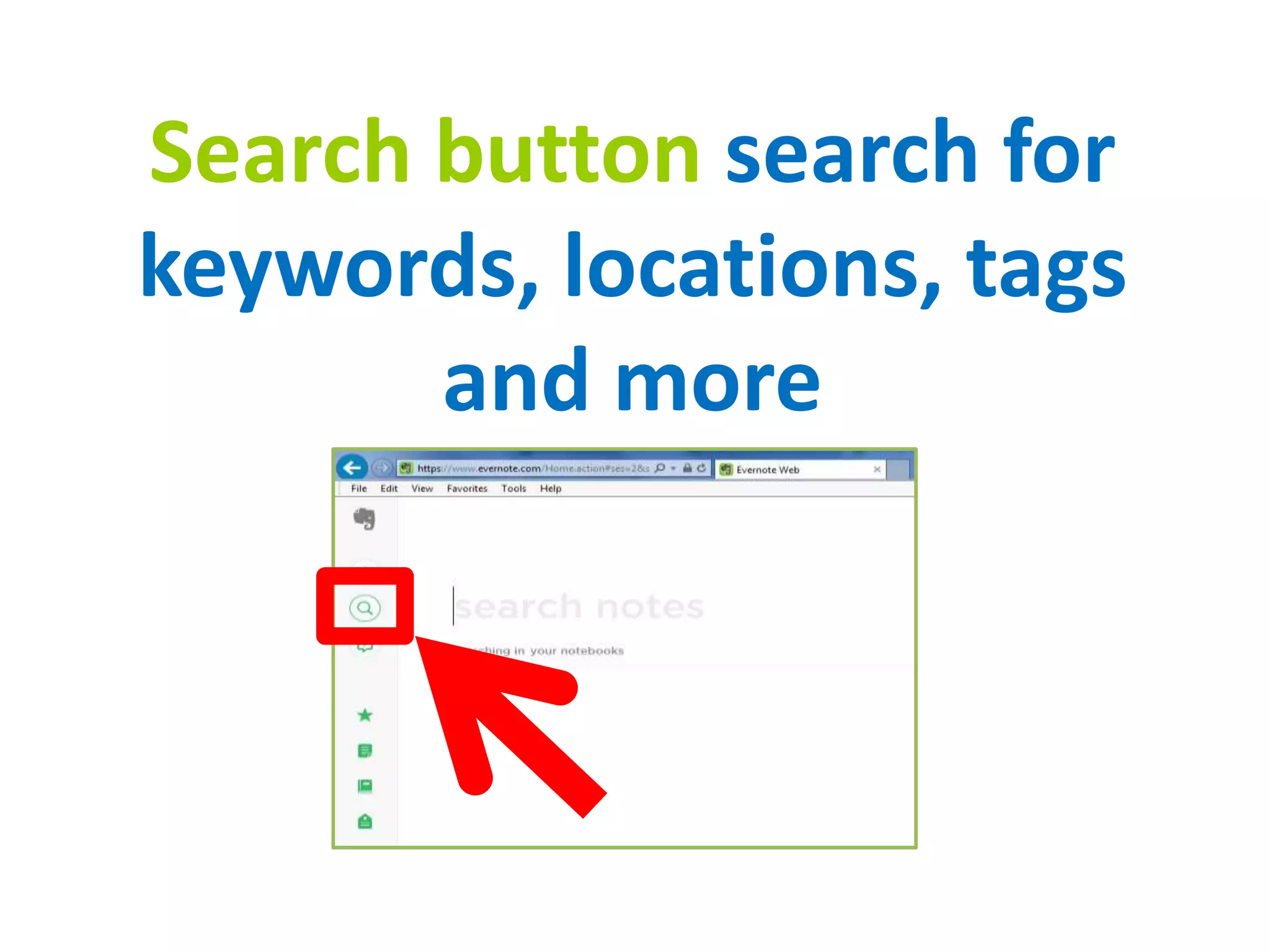
Search button search for
keywords, locations, tags
and more
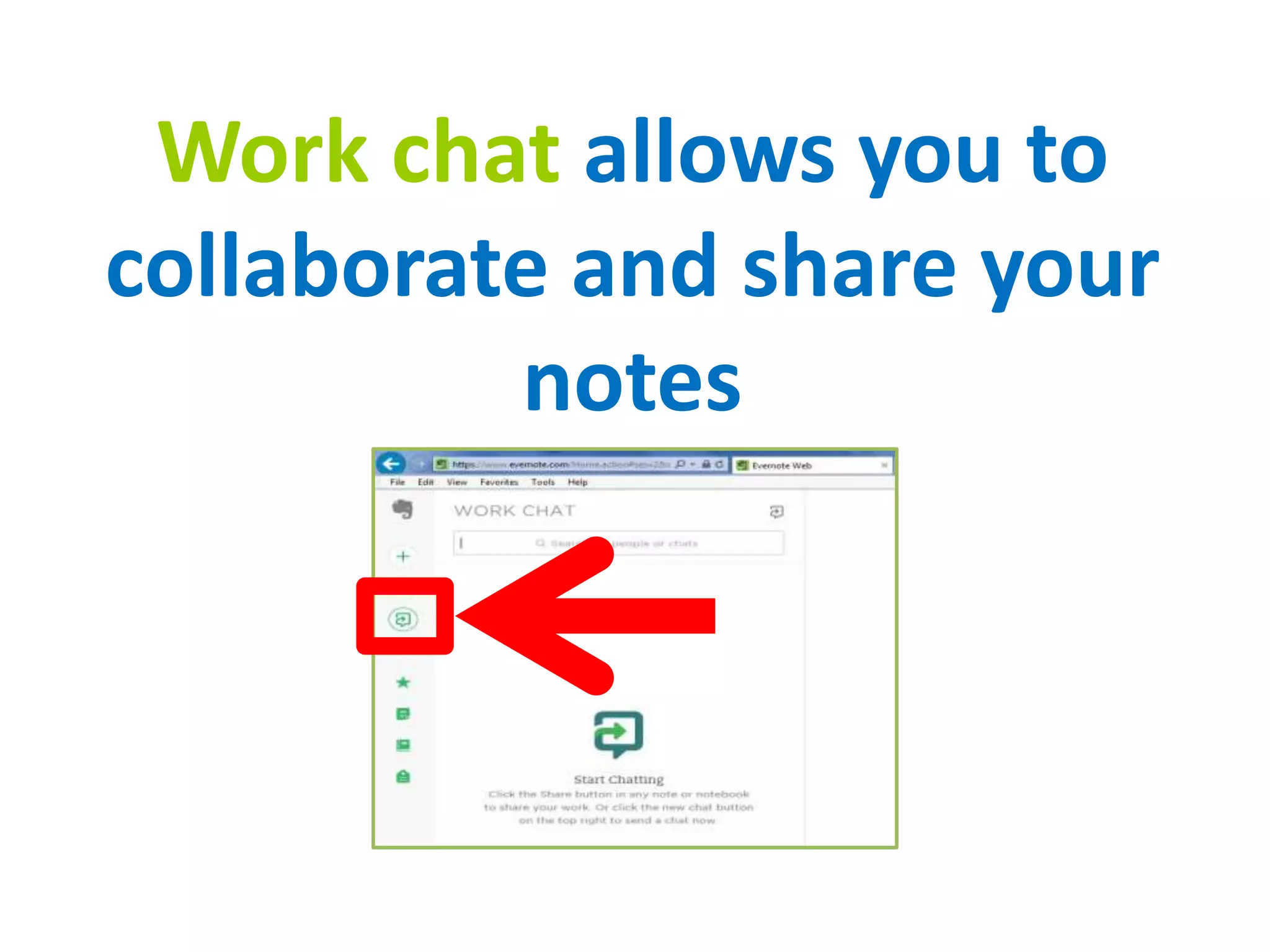
Work chat allows you to
collaborate and share your
notes
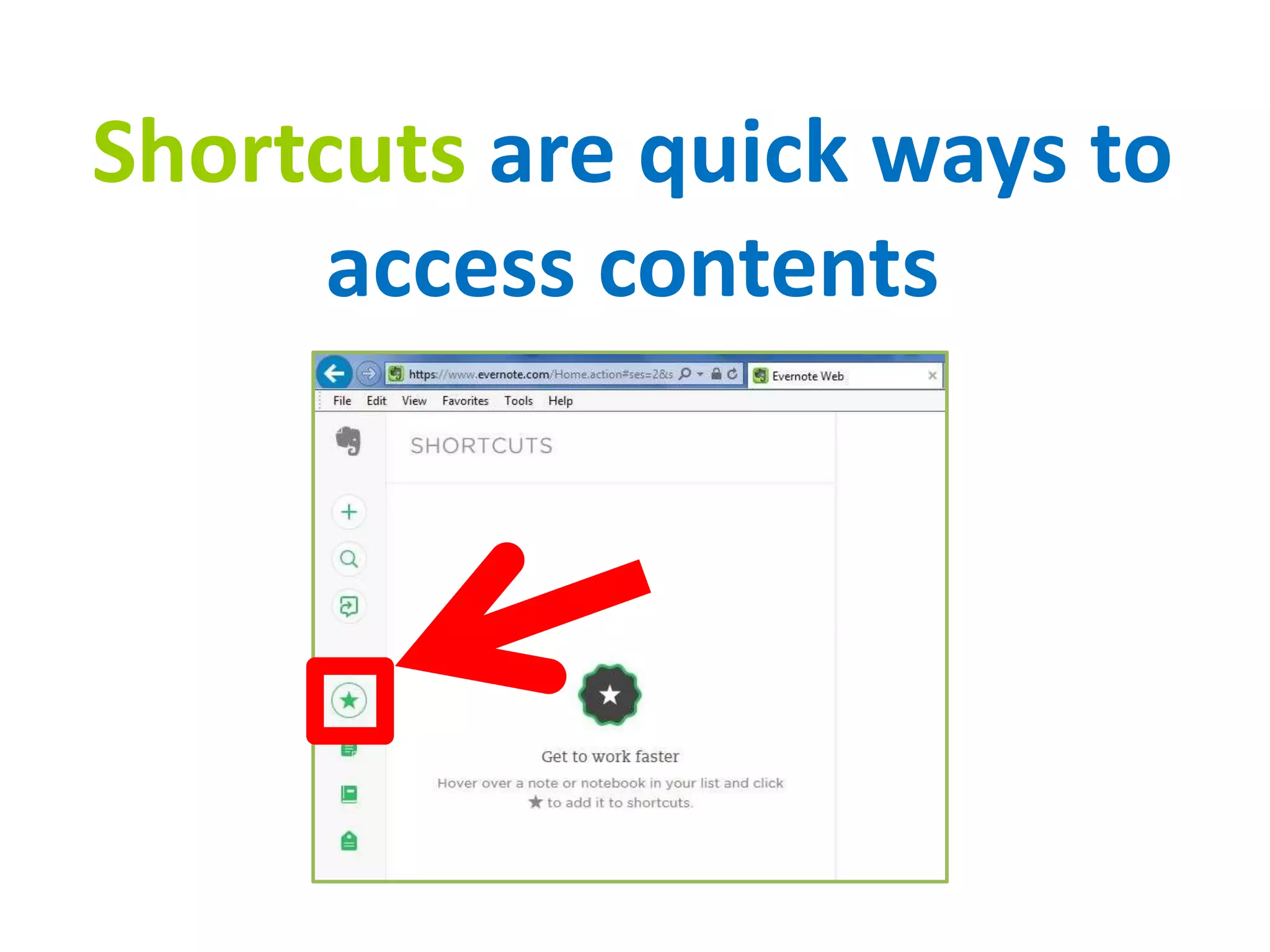
Shortcuts are quick ways to
access contents
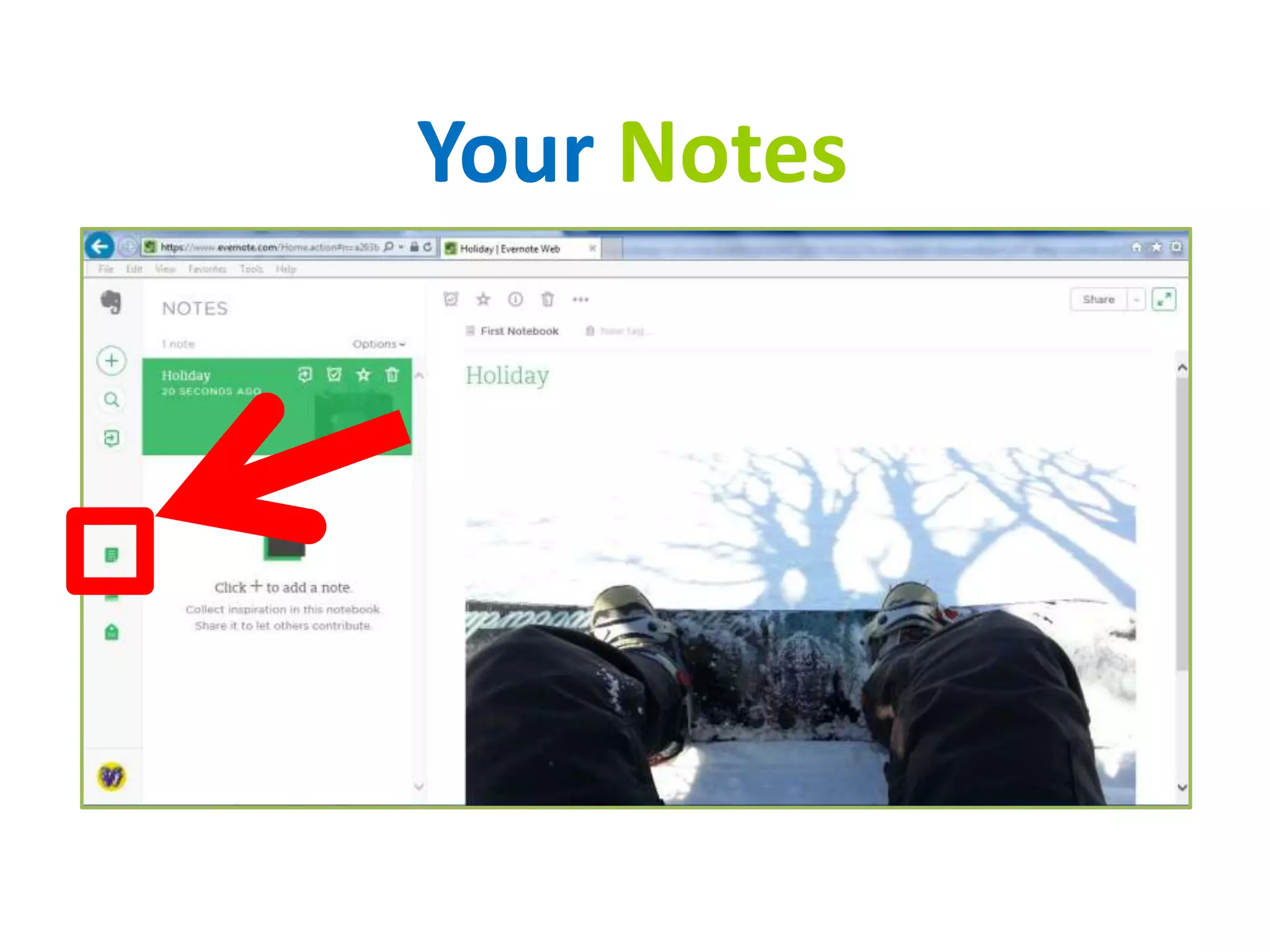
Your Notes
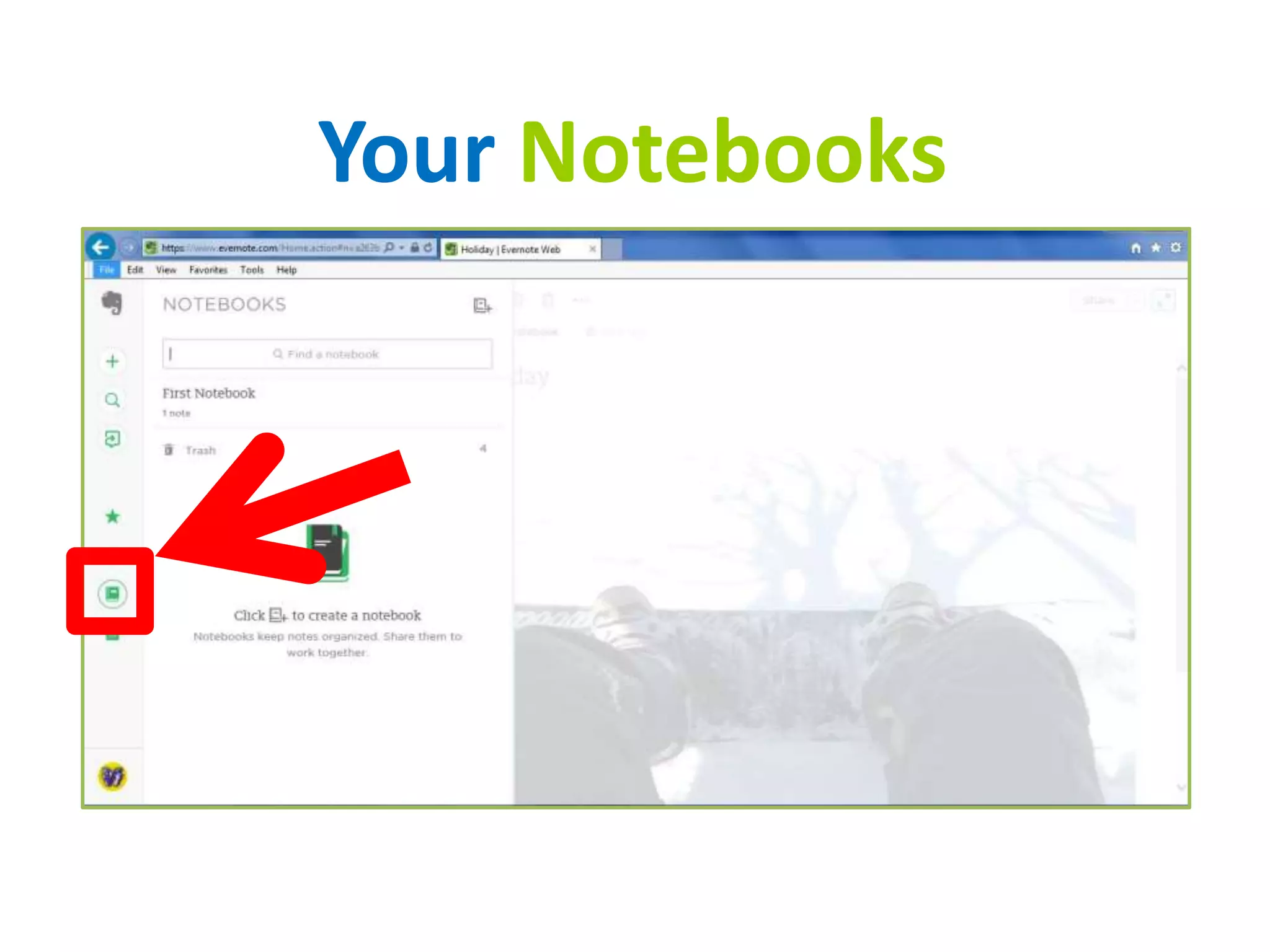
Your Notebooks
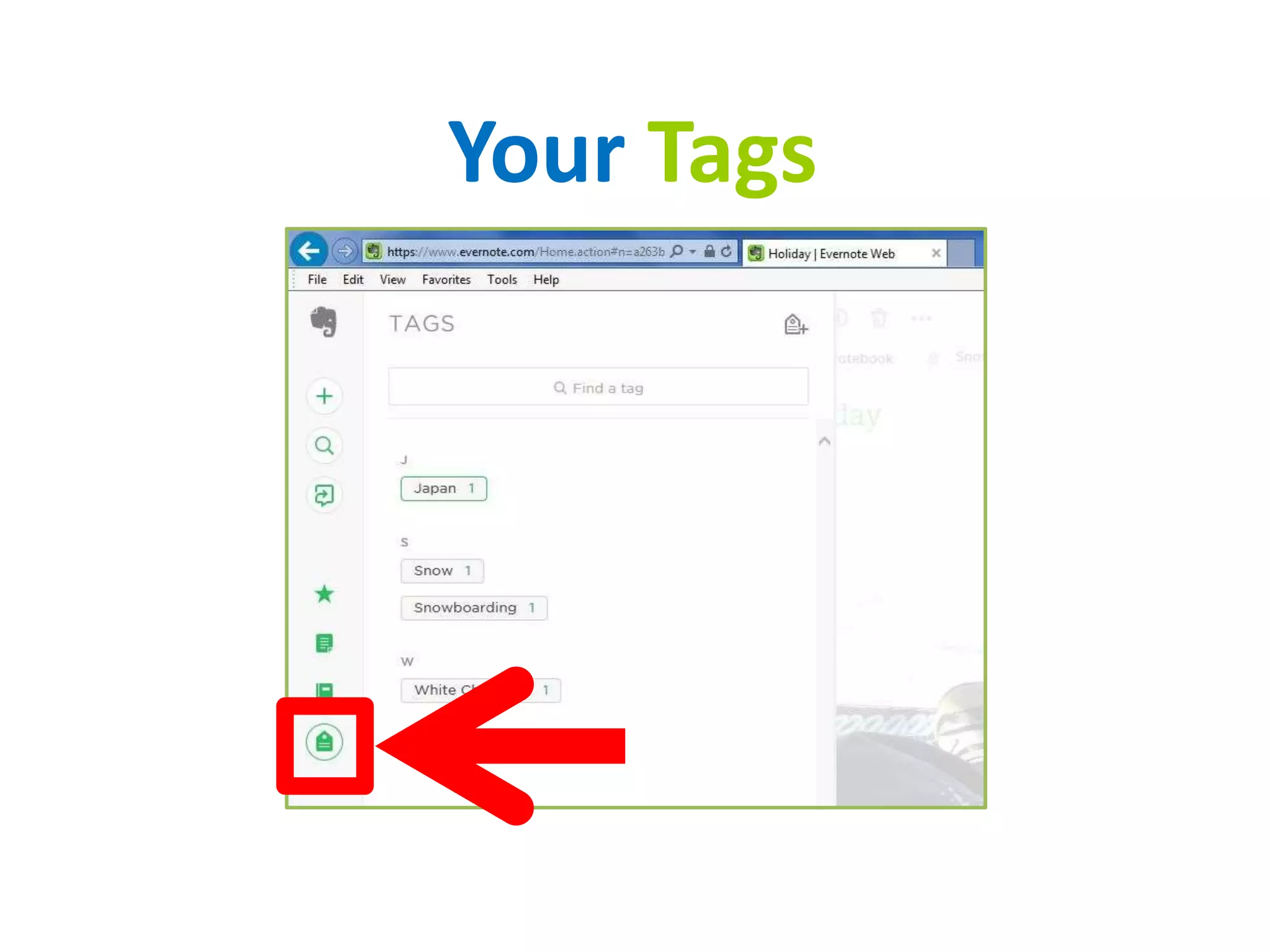
Your Tags
Now that you know how to
navigate the home screen
It’s time to create your
notebook
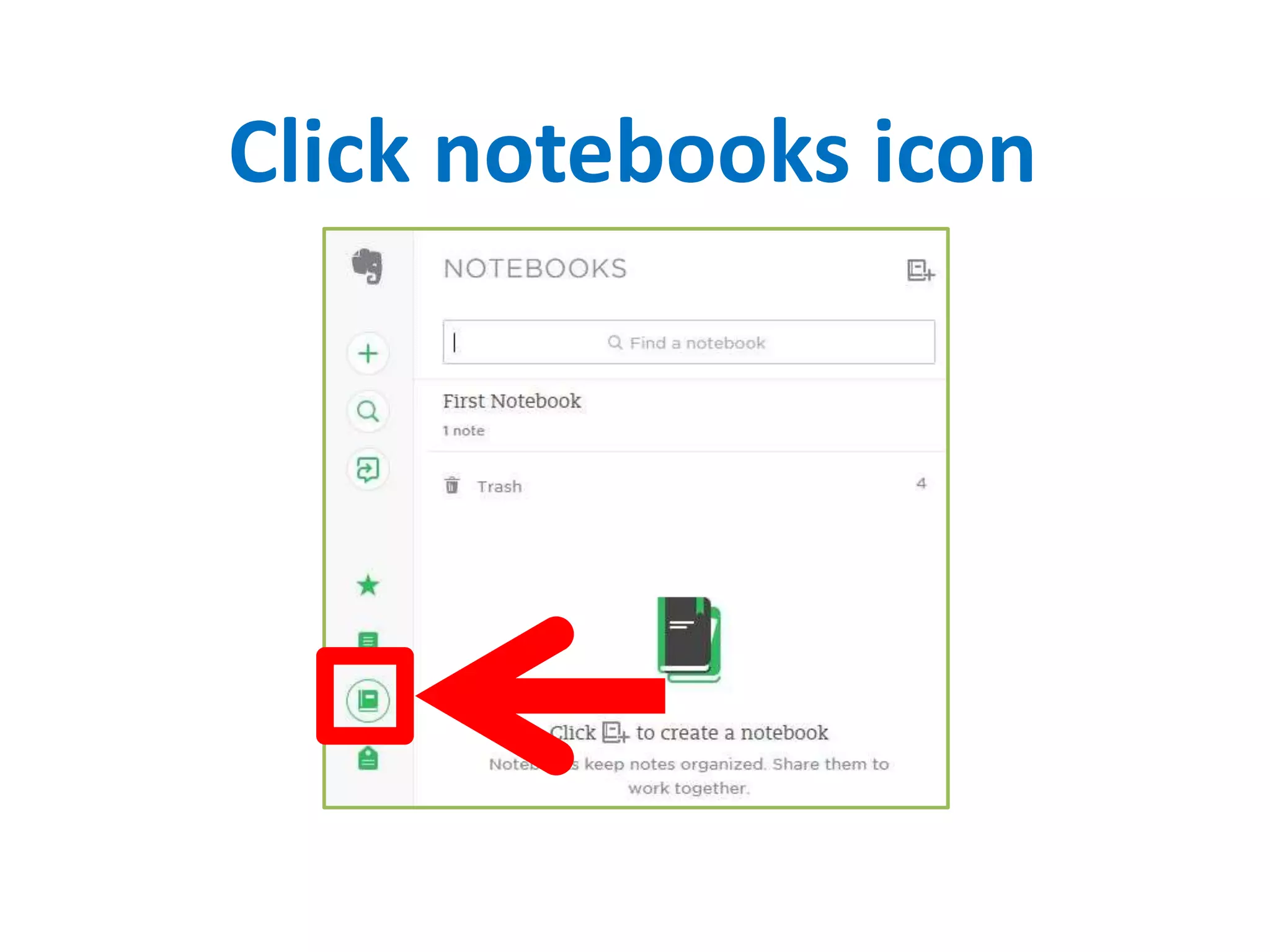
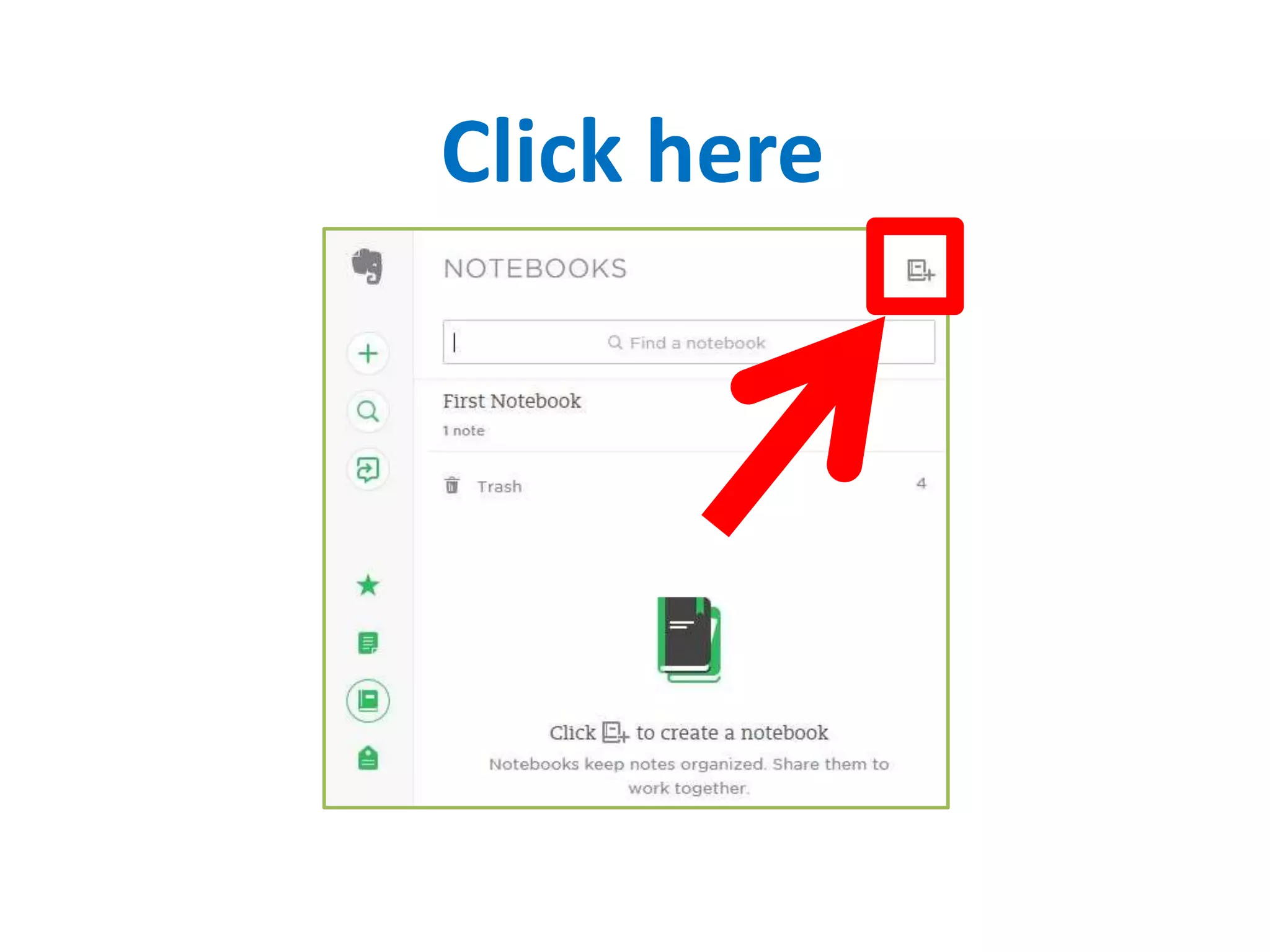
Click notebooks icon
Click here
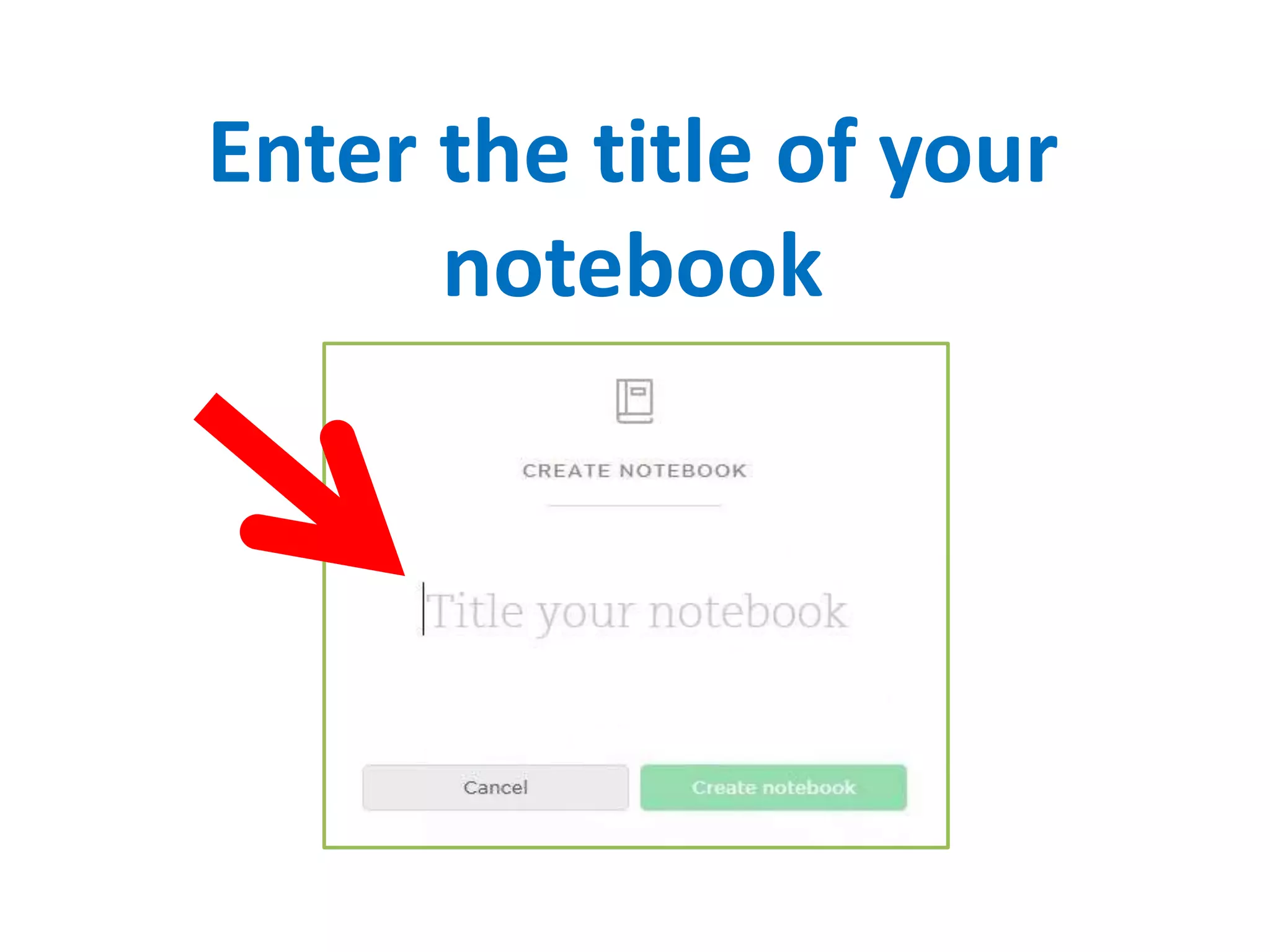
Enter the title of your
notebook
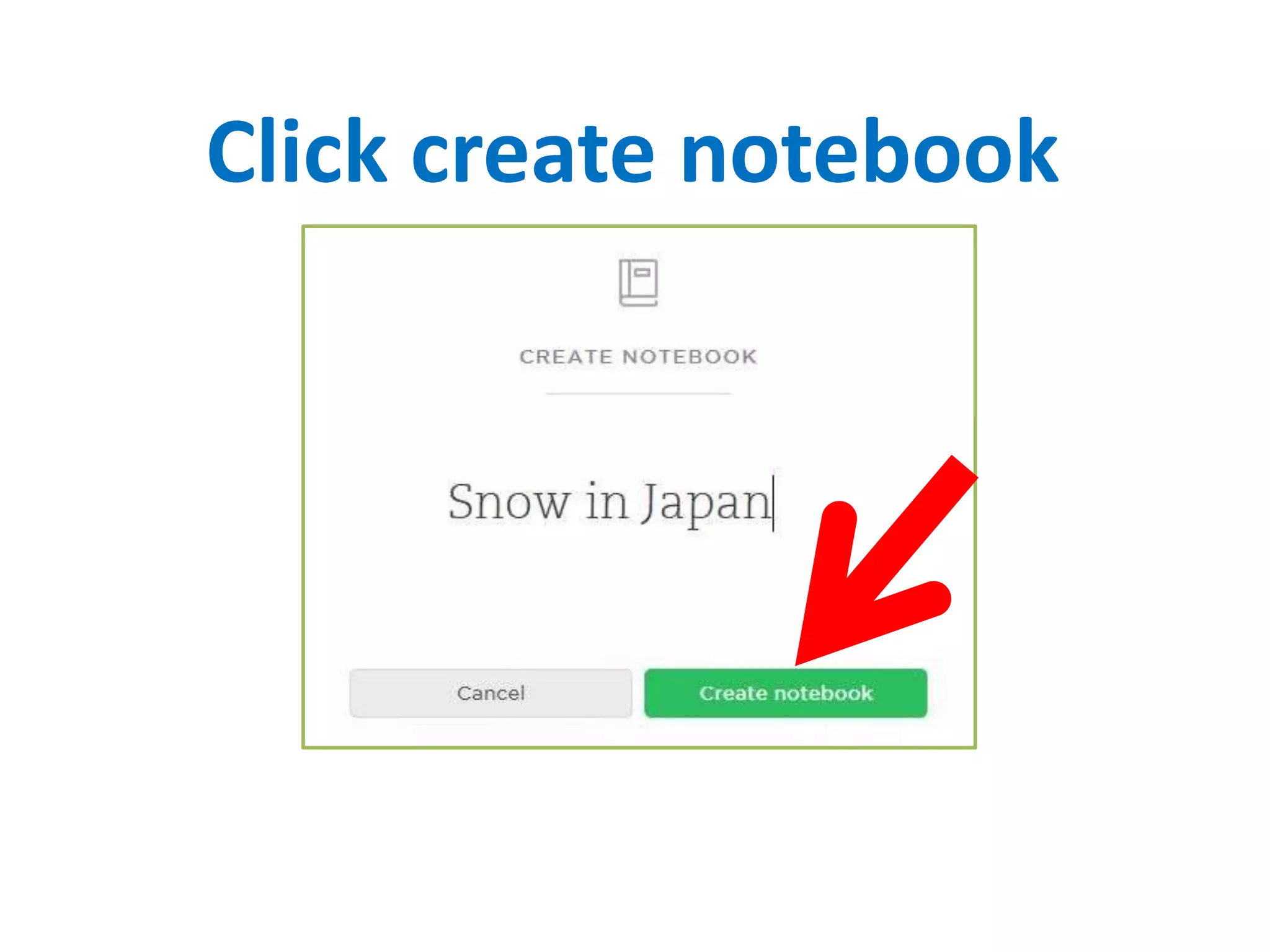
Click create notebook
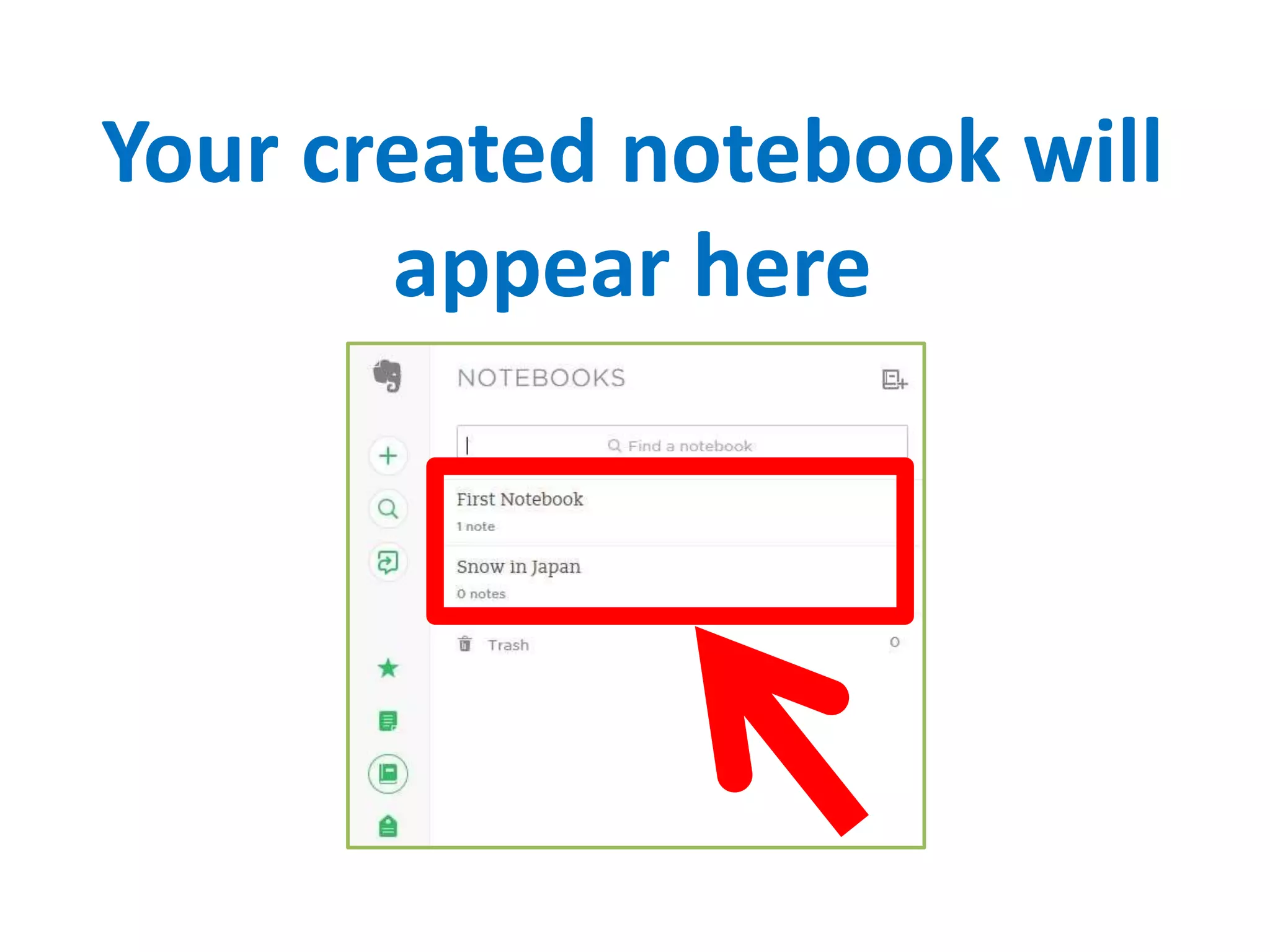
Your created notebook will
appear here
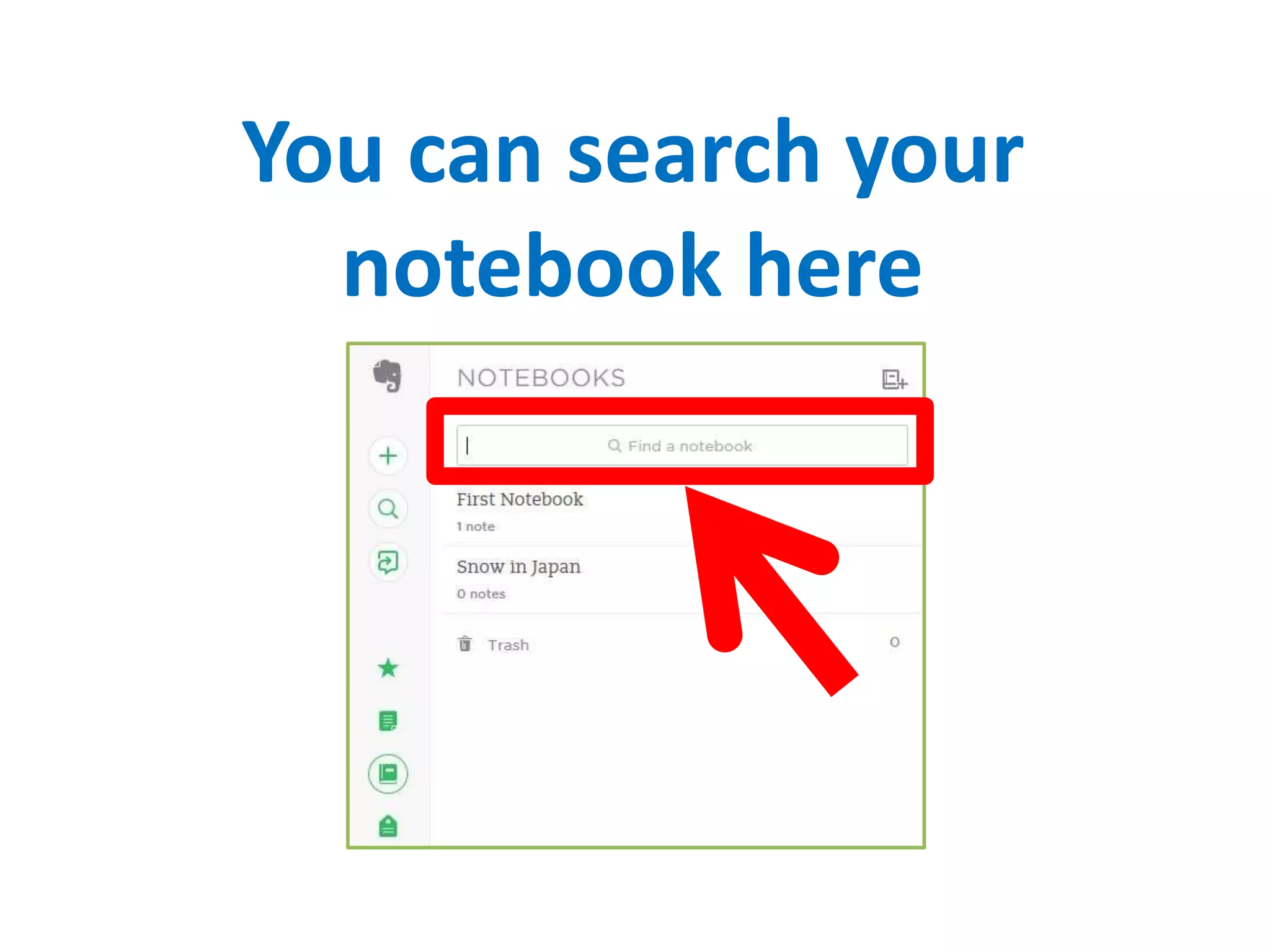
You can search your
notebook here
How to create notes?
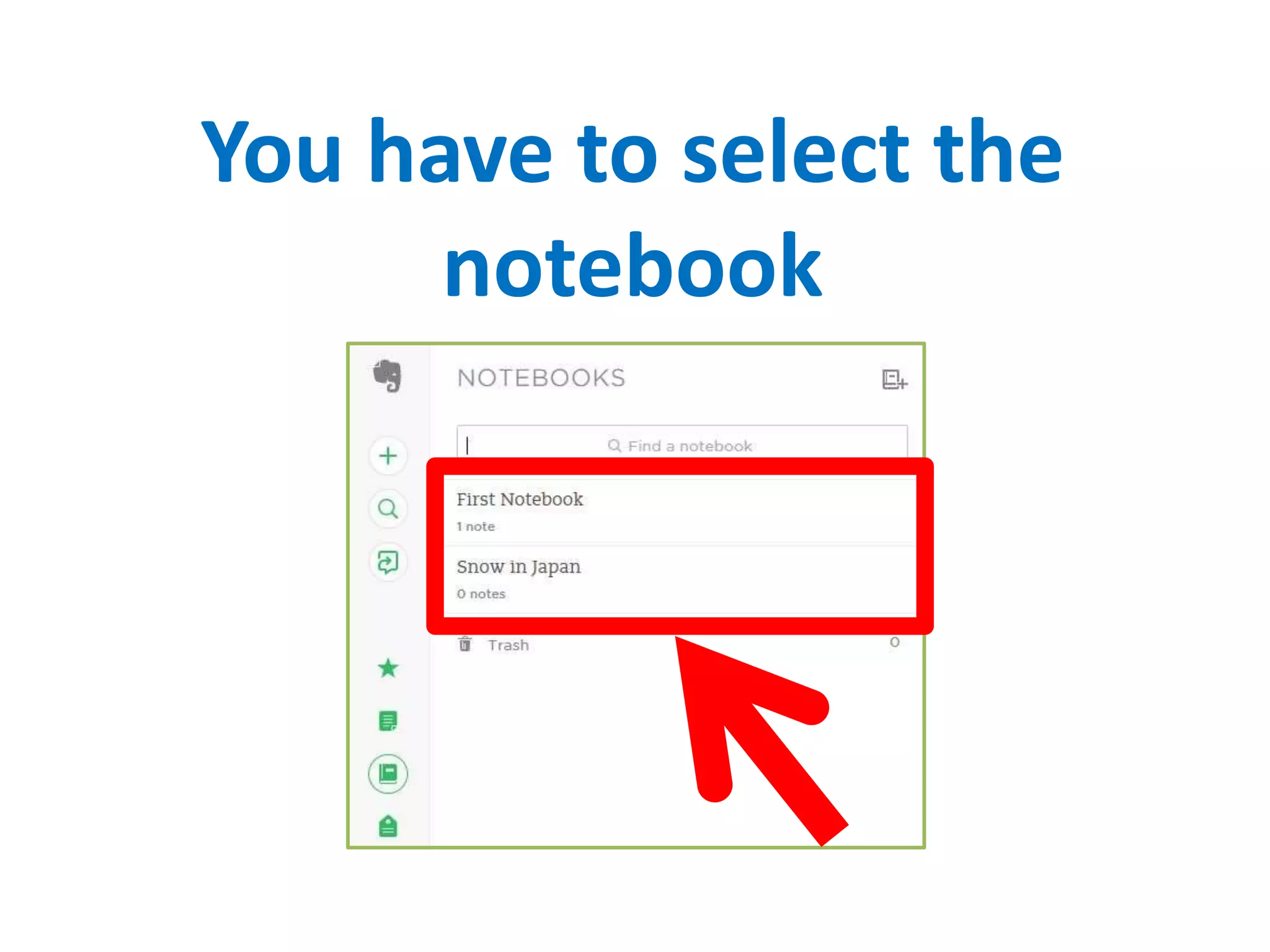
You have to select the
notebook
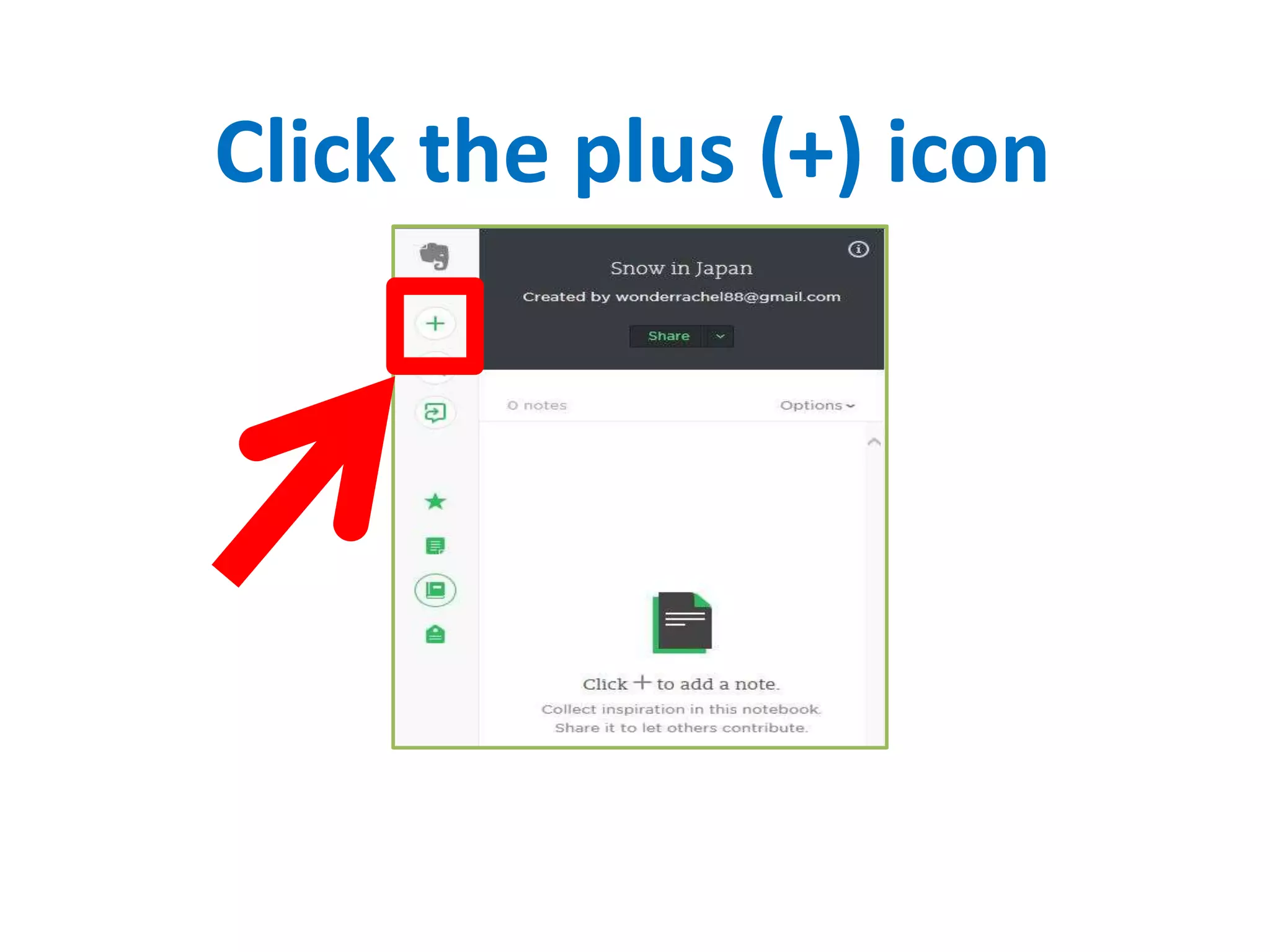
Click the plus (+) icon
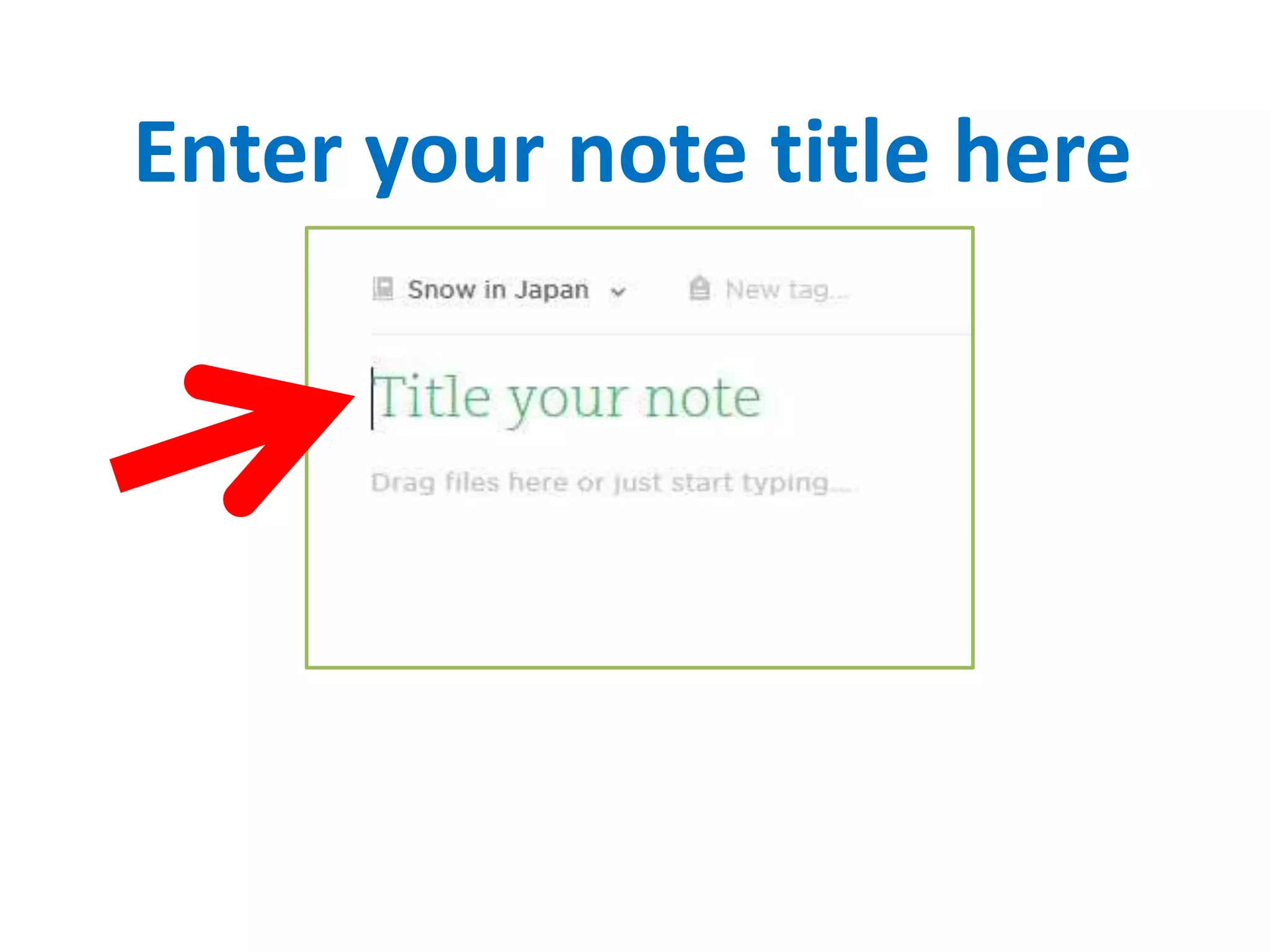
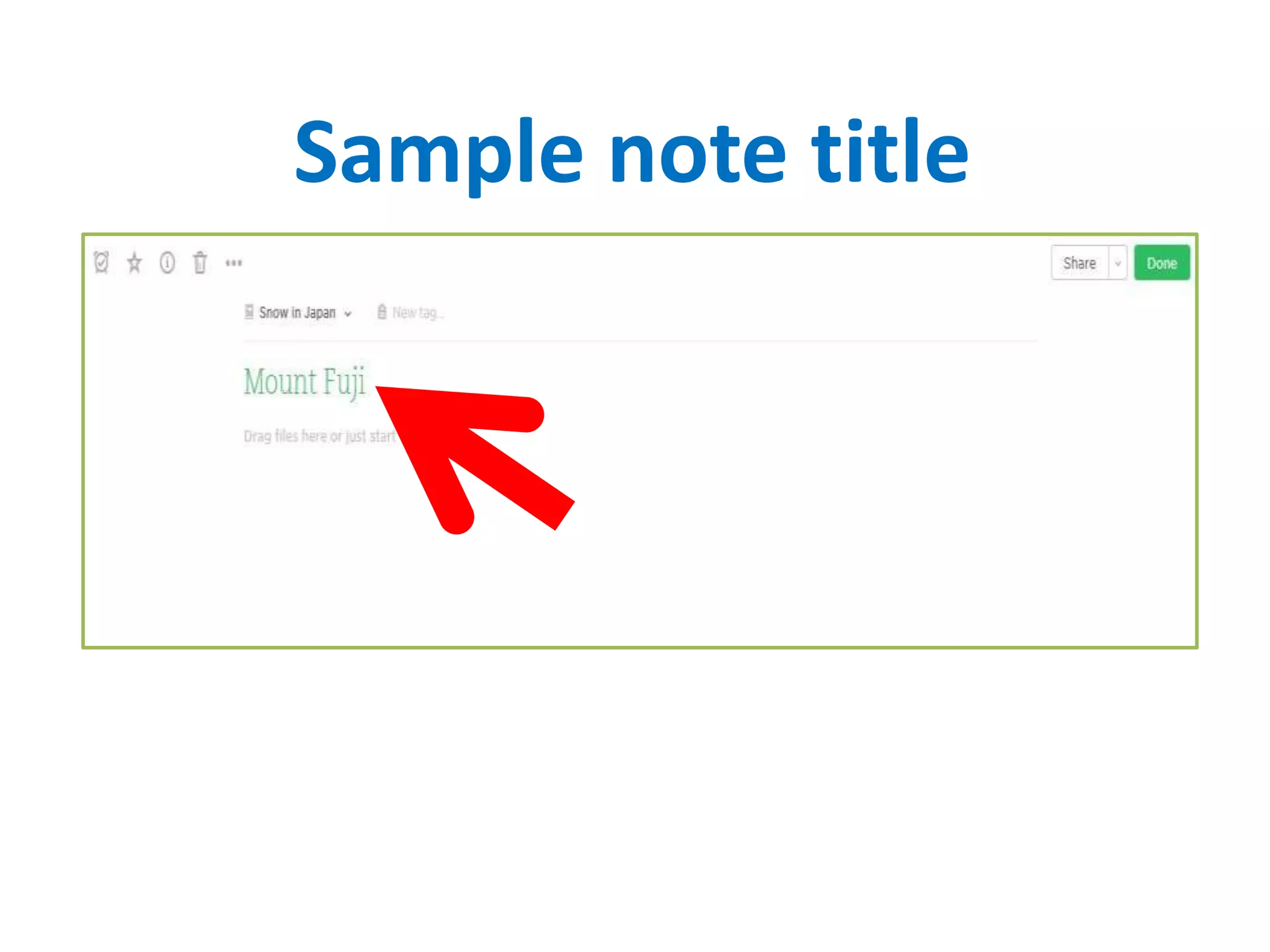
Enter your note title here
Sample note title
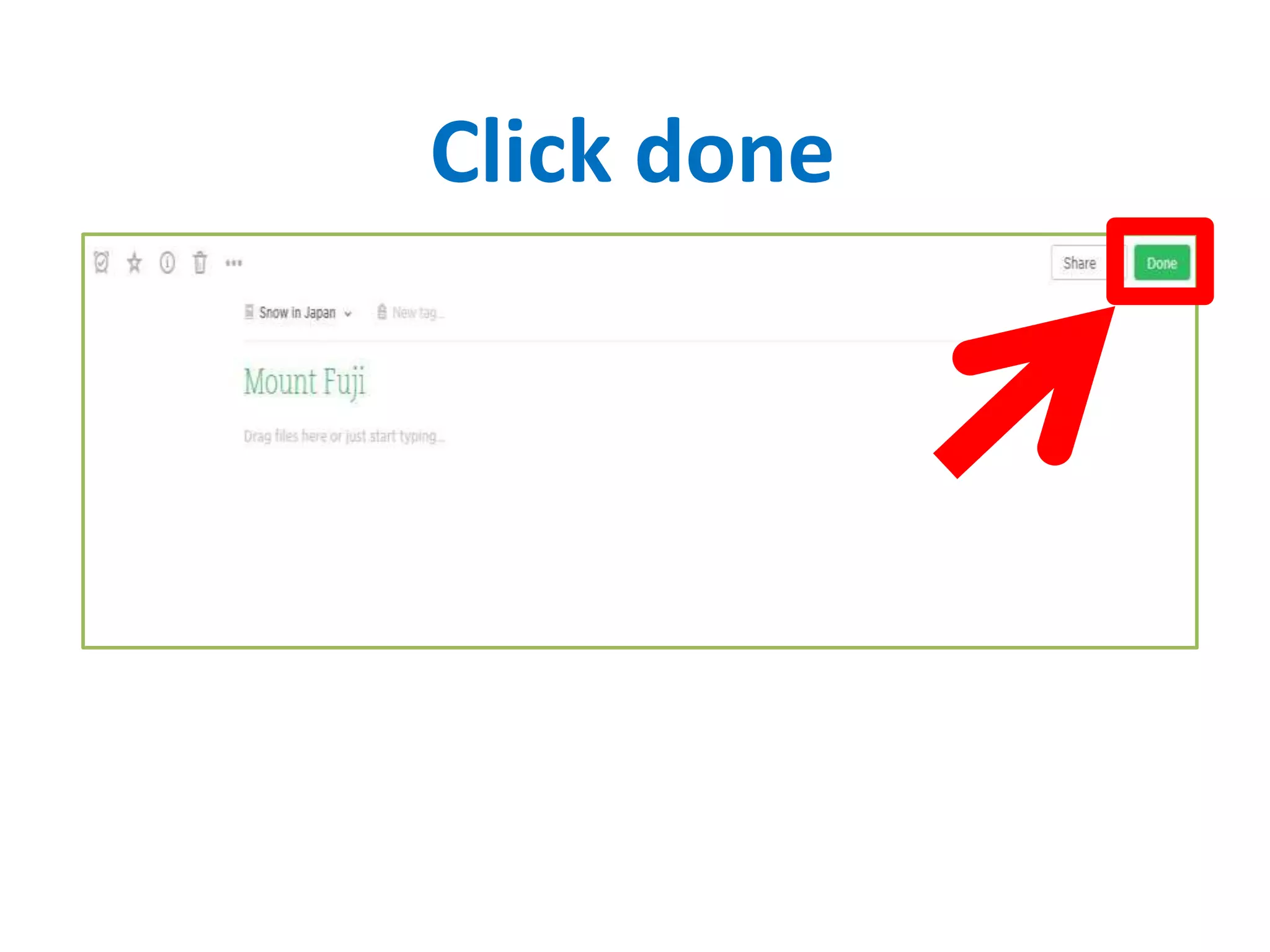
Click done
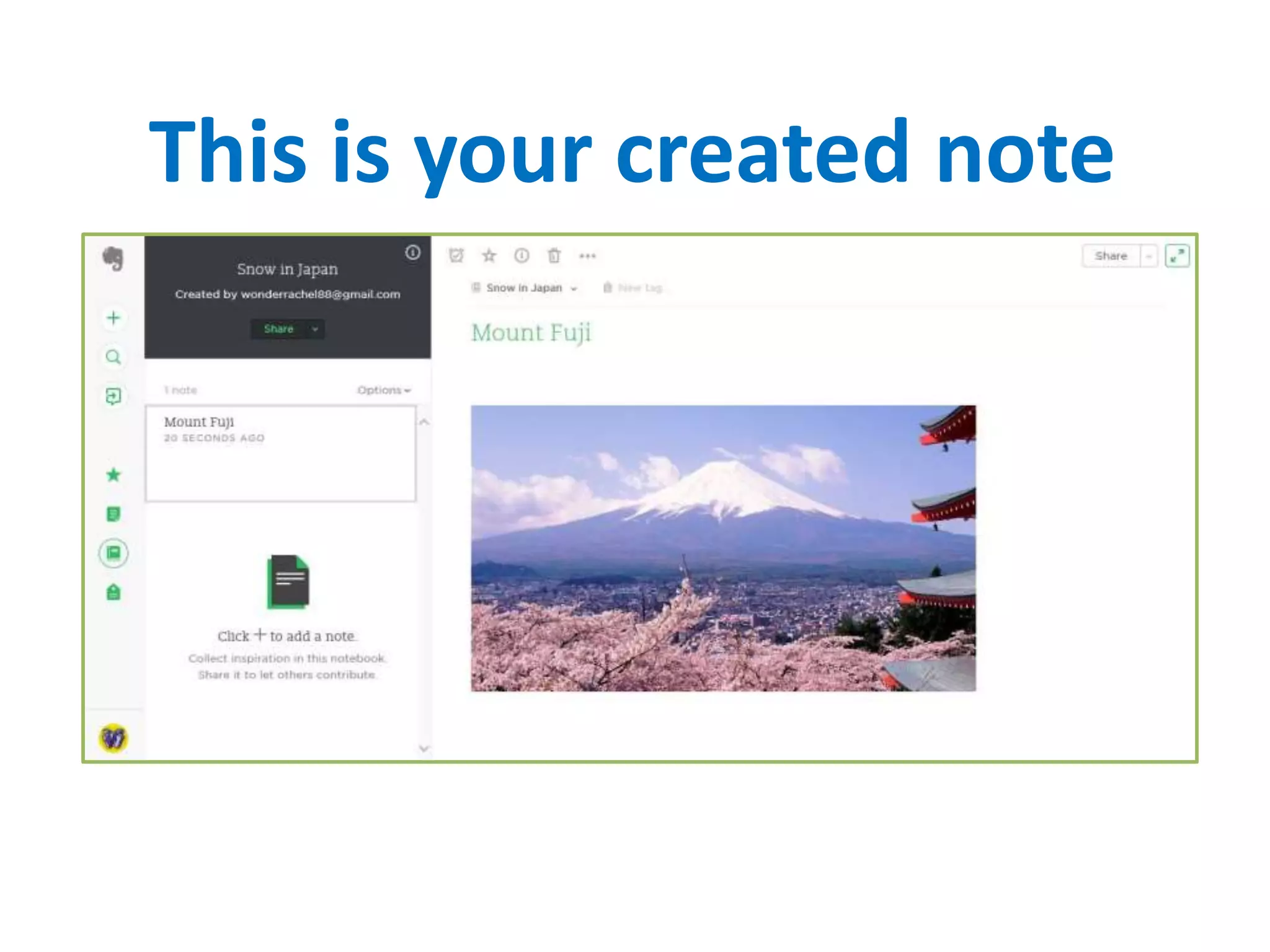
This is your created note
How to add attachments?
Anything can be attached
to a note
Including files, images and
audio
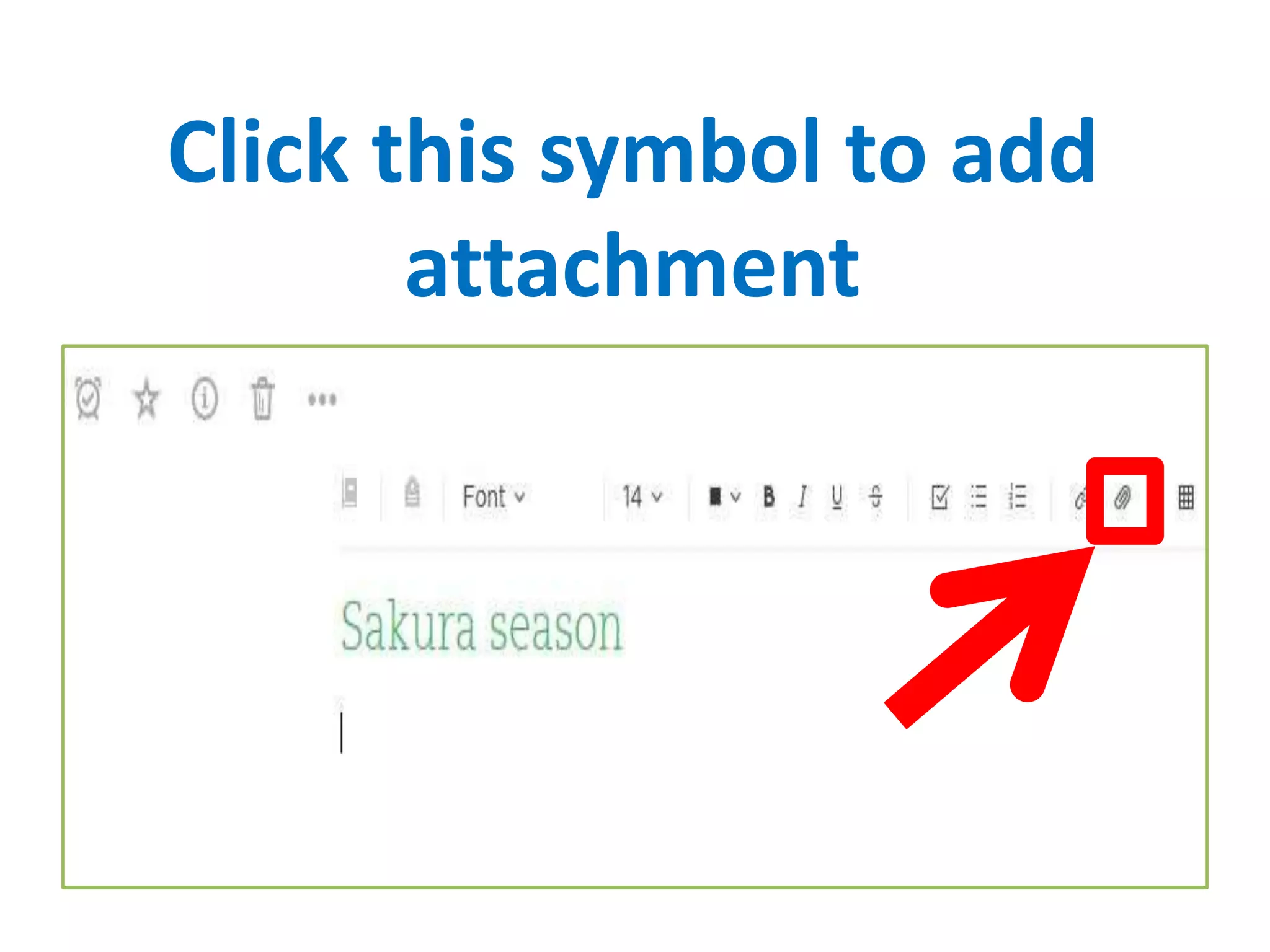
Click this symbol to add
attachment
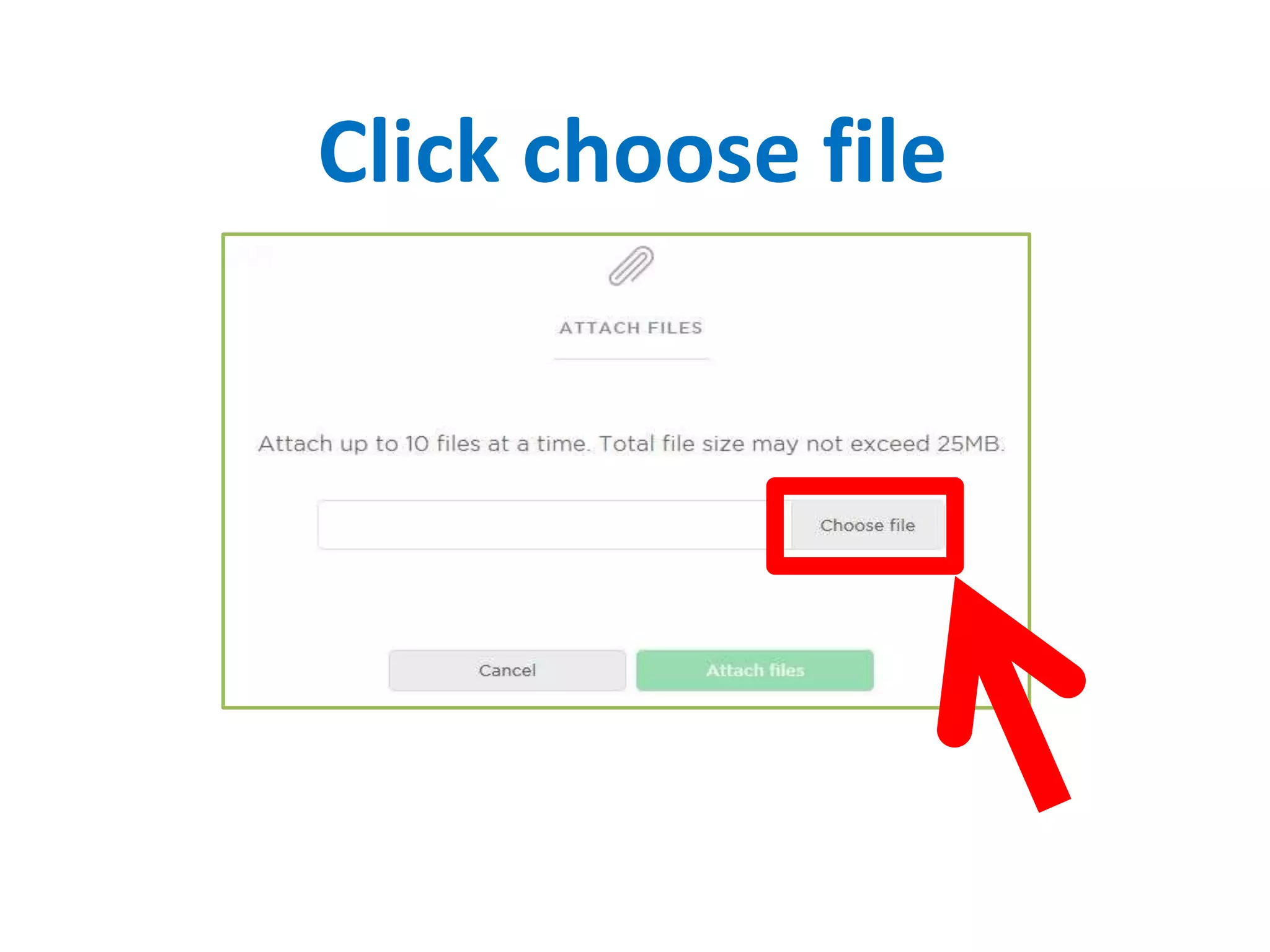
Click choose file
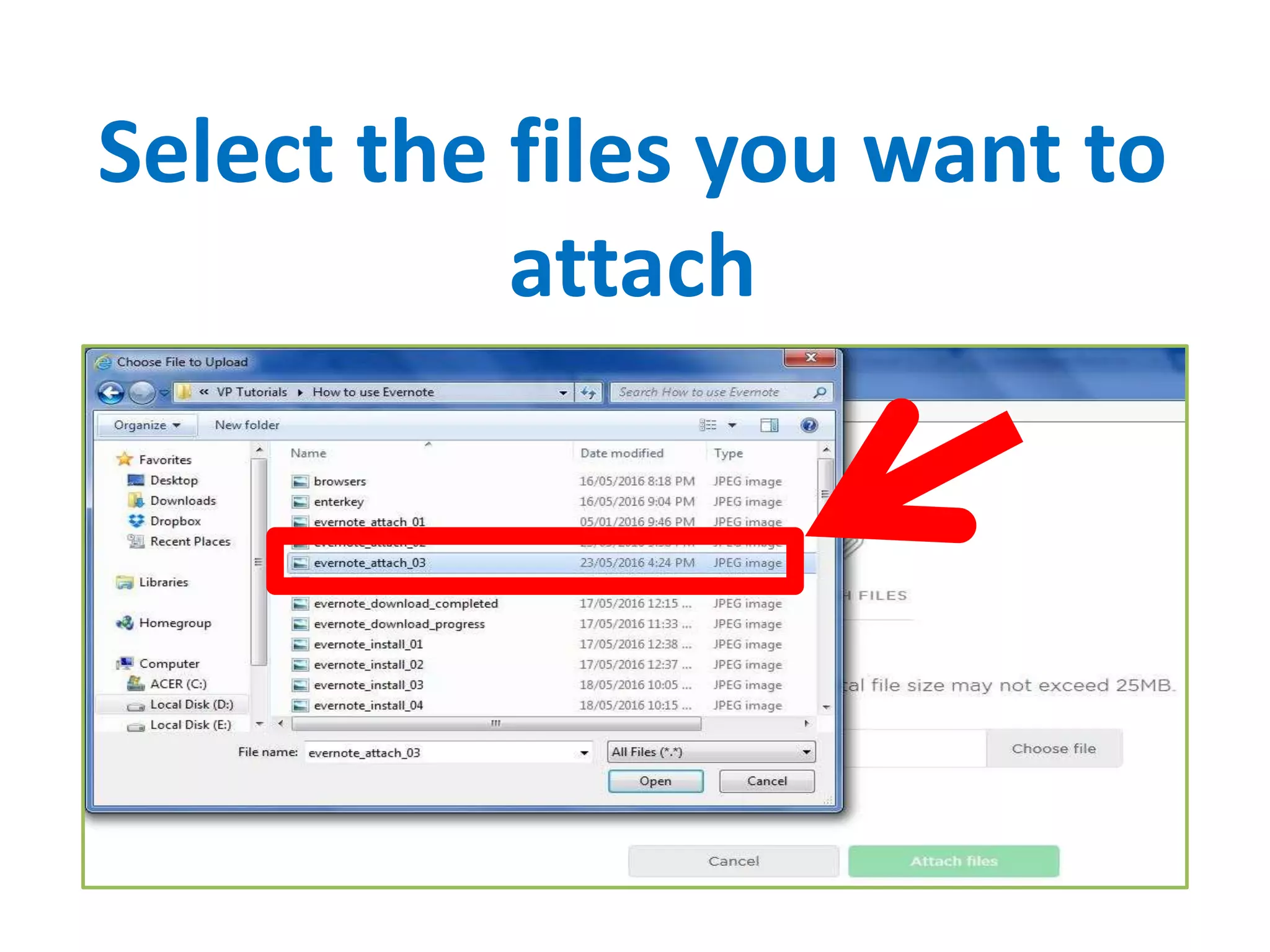
Select the files you want to
attach
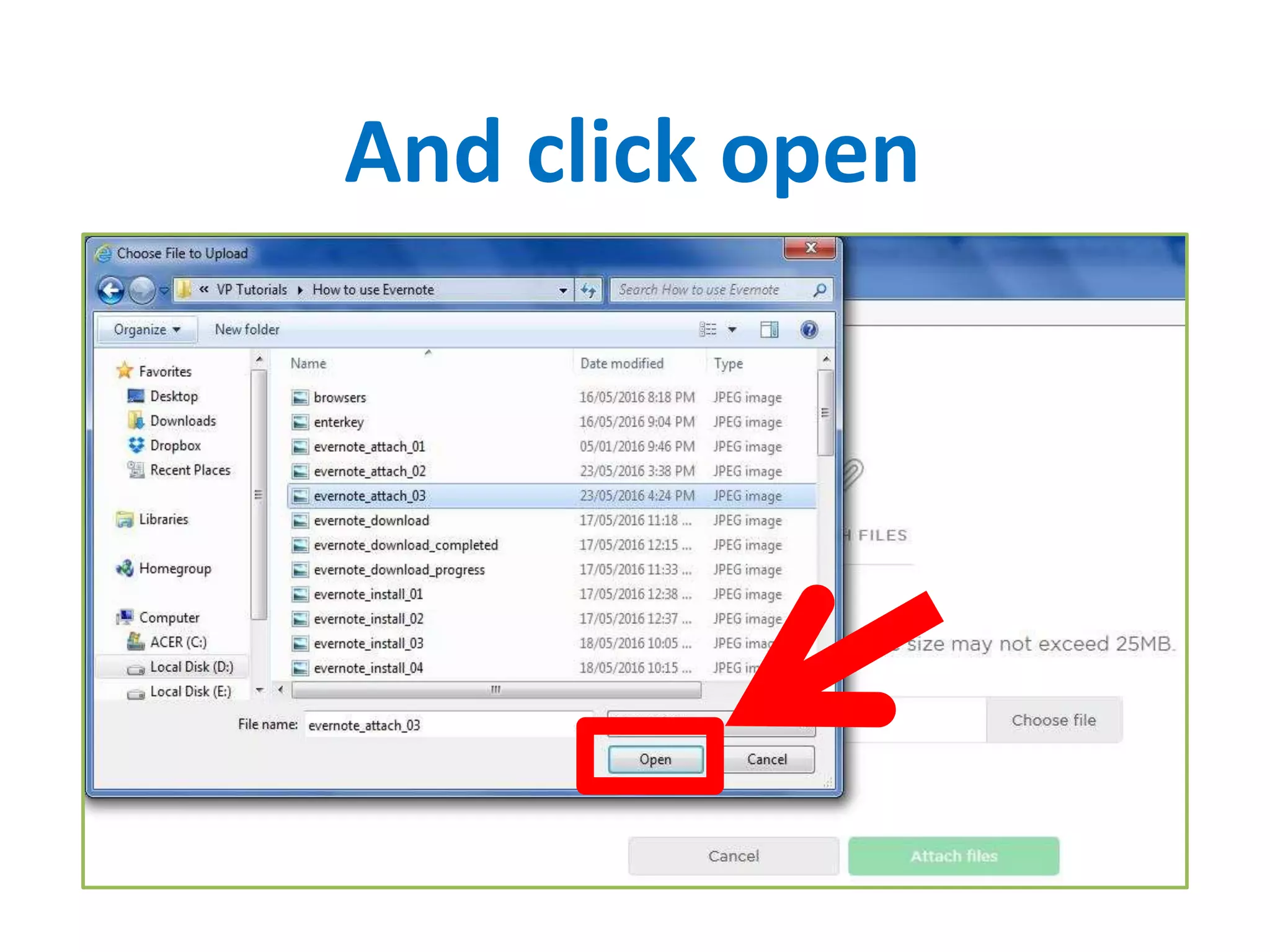
And click open
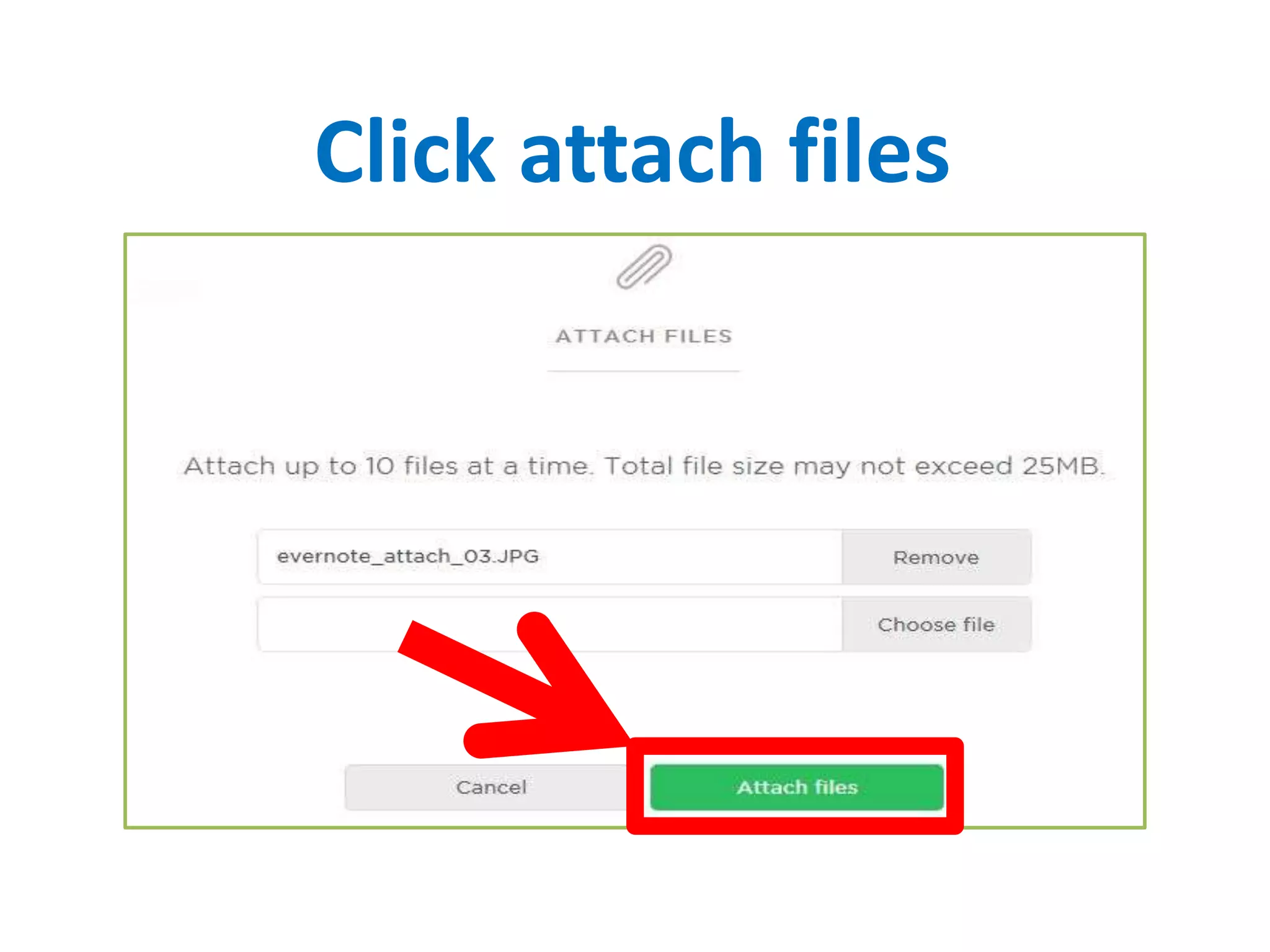
Click attach files
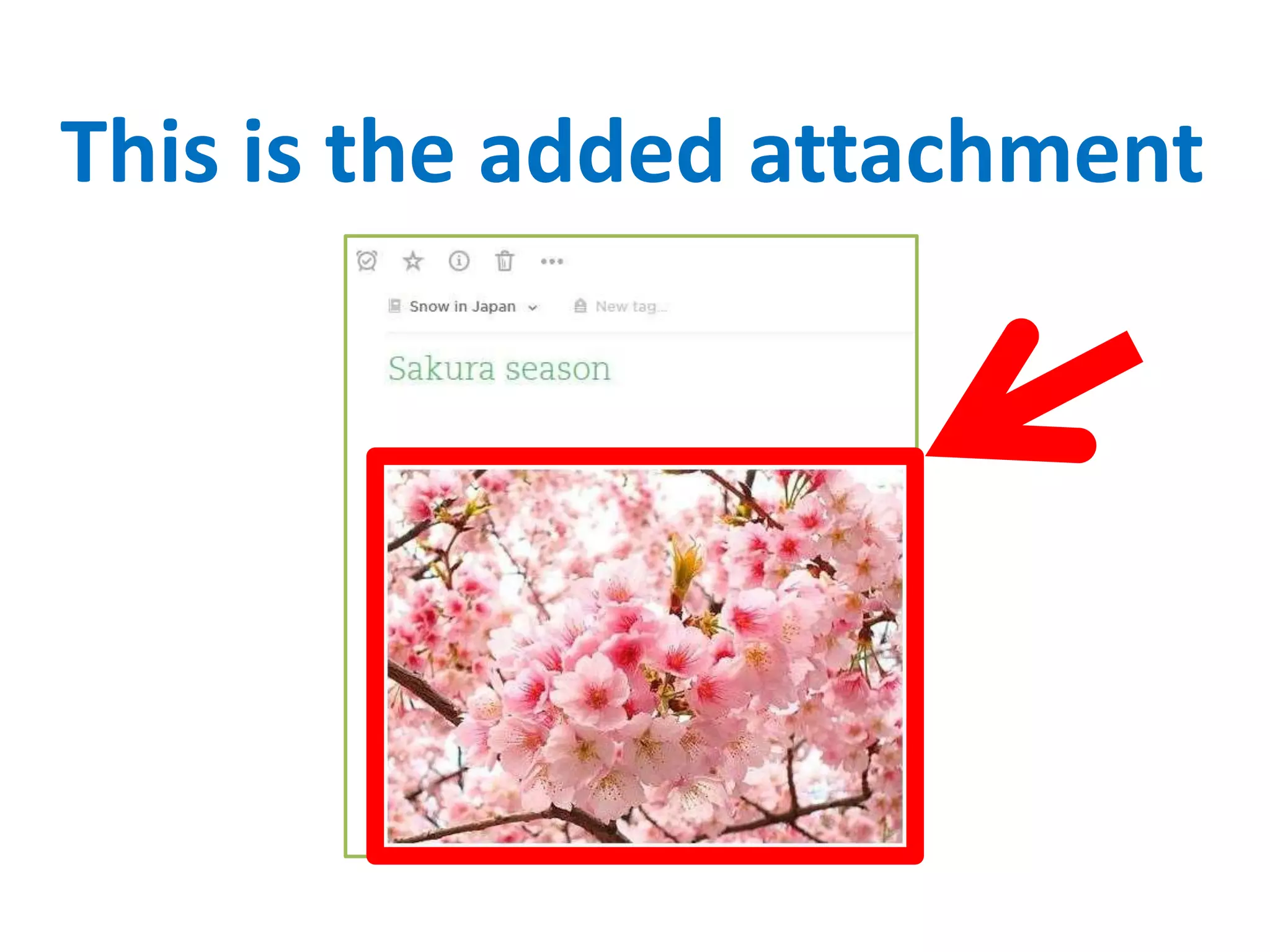
This is the added attachment
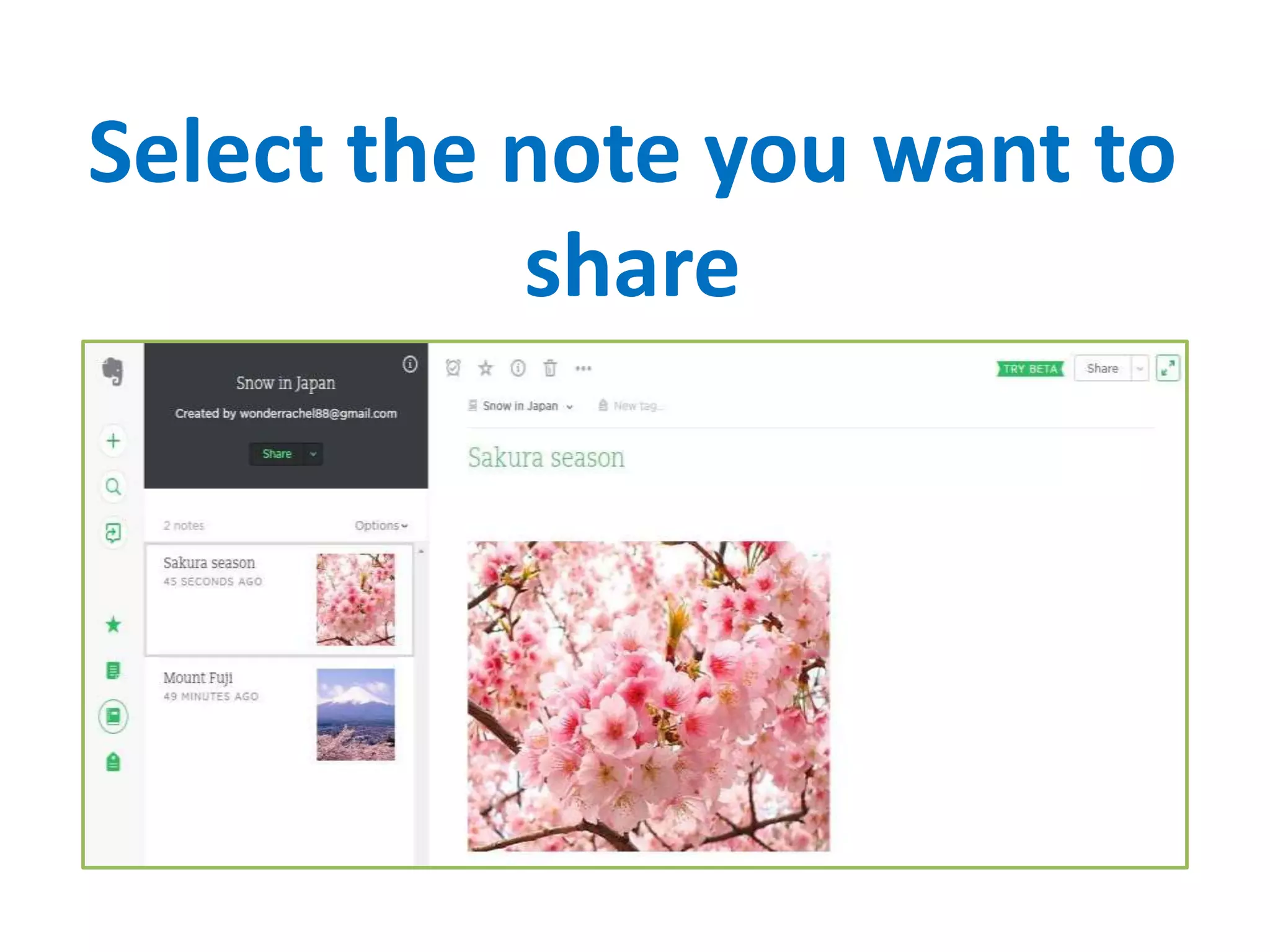
How to share a Note?
Select the note you want to
share
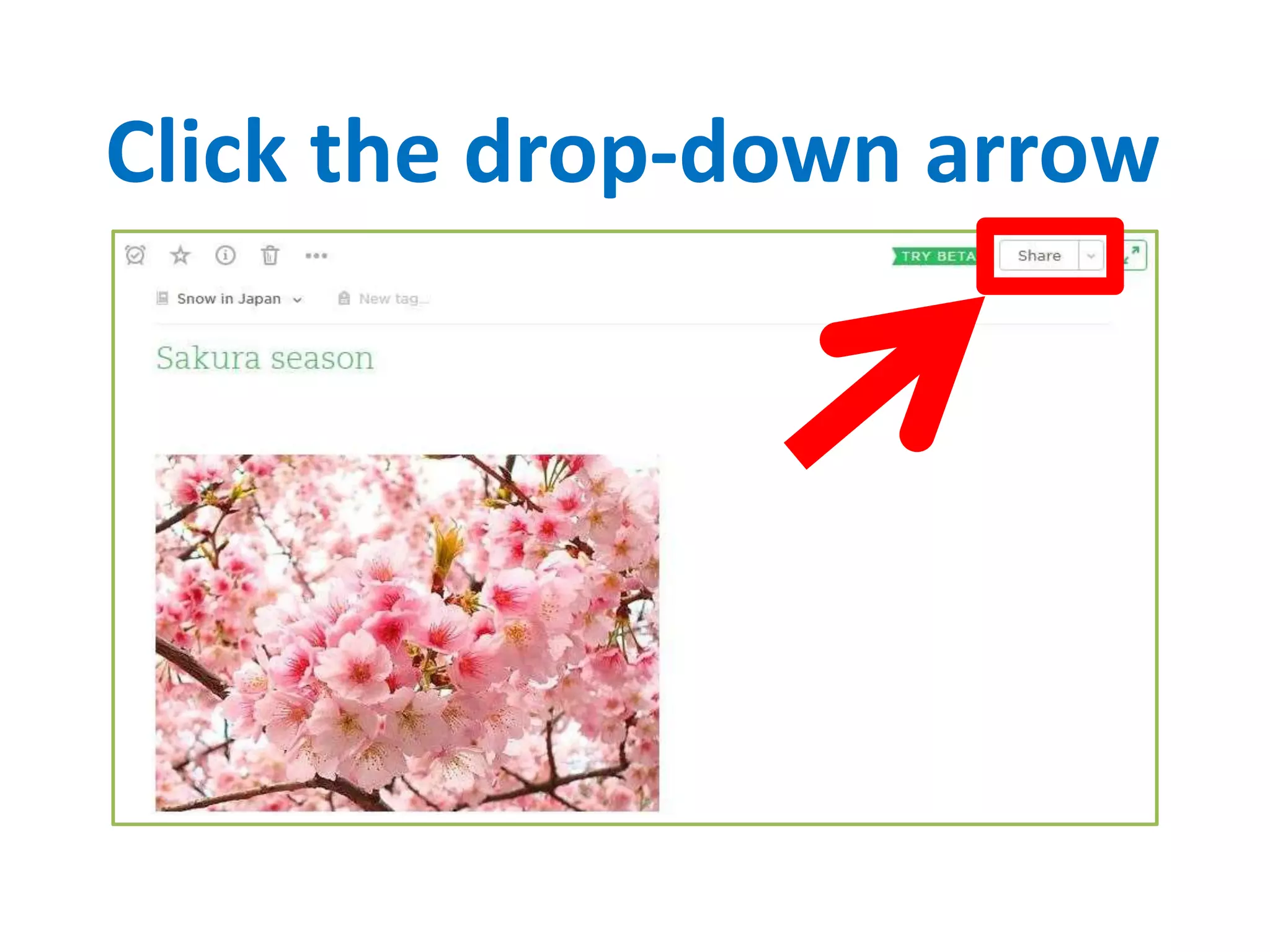
Click the drop-down arrow
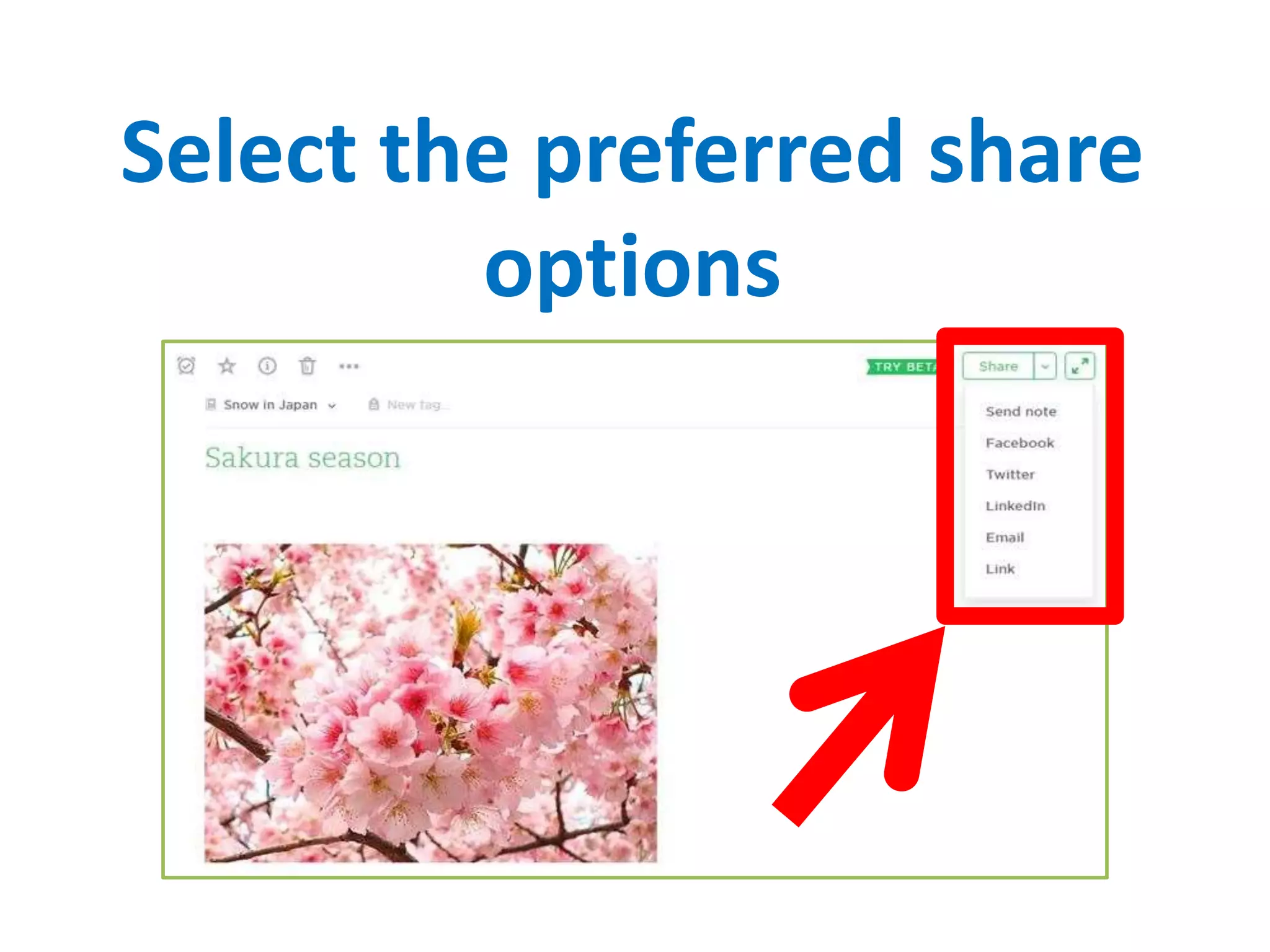
Select the preferred share
options
You can also share a note
with non Evernote users
How to add web contents
using Evernote Web
Clipper?
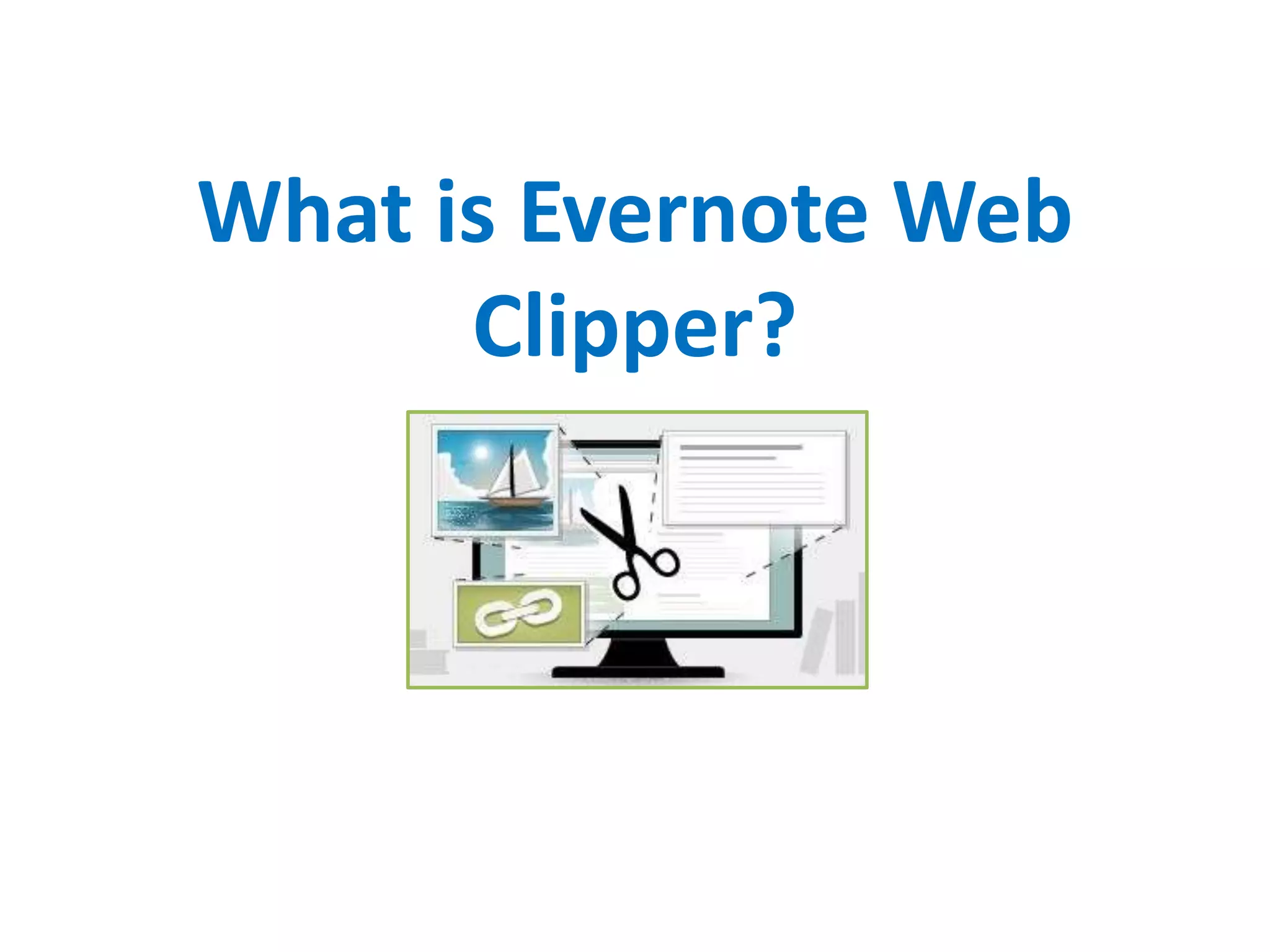
What is Evernote Web
Clipper?
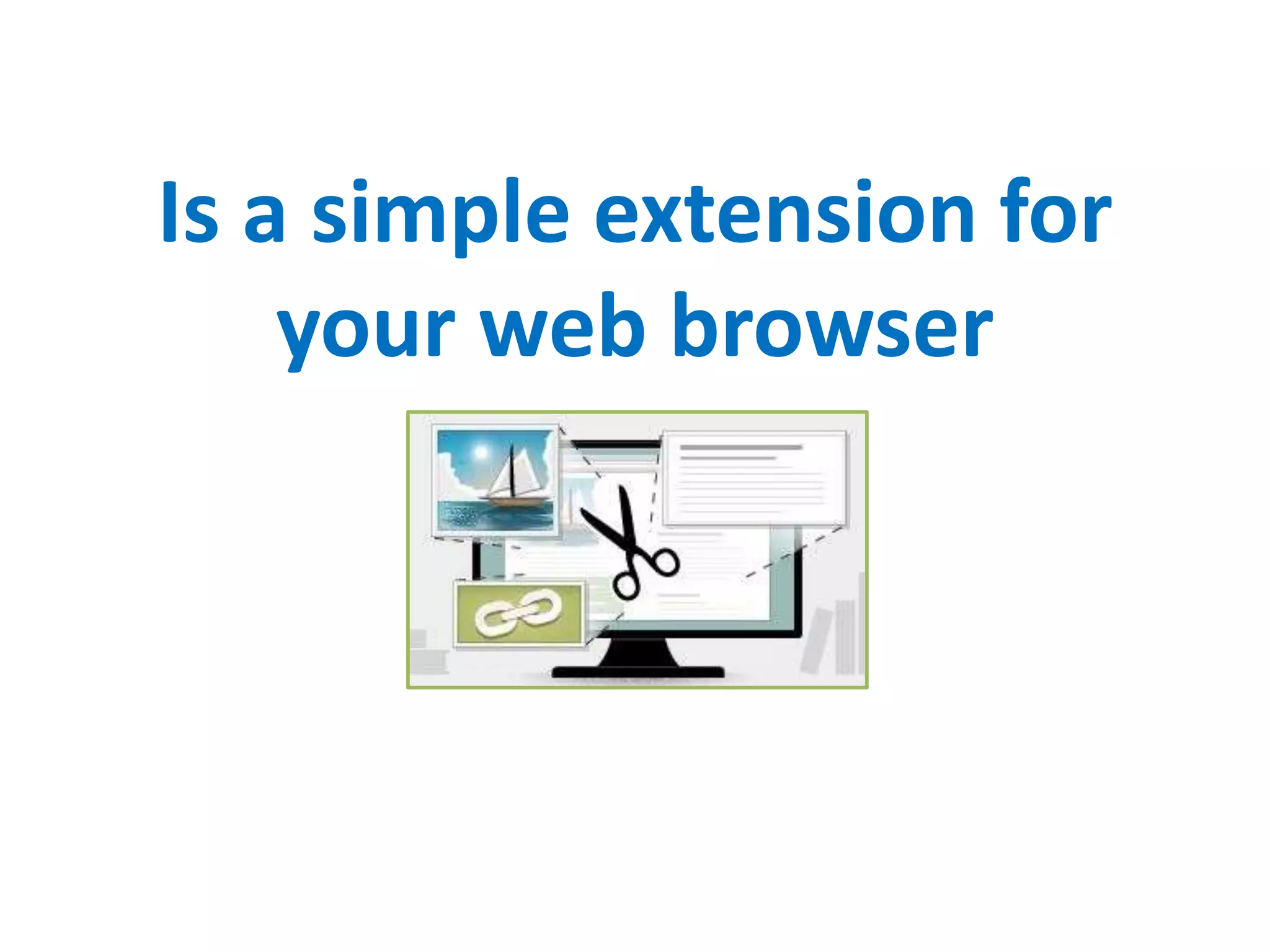
Is a simple extension for
your web browser
That lets you clip, store
and share any inspiring
web contents that you find
on the web
How to add Evernote Web
Clipper?
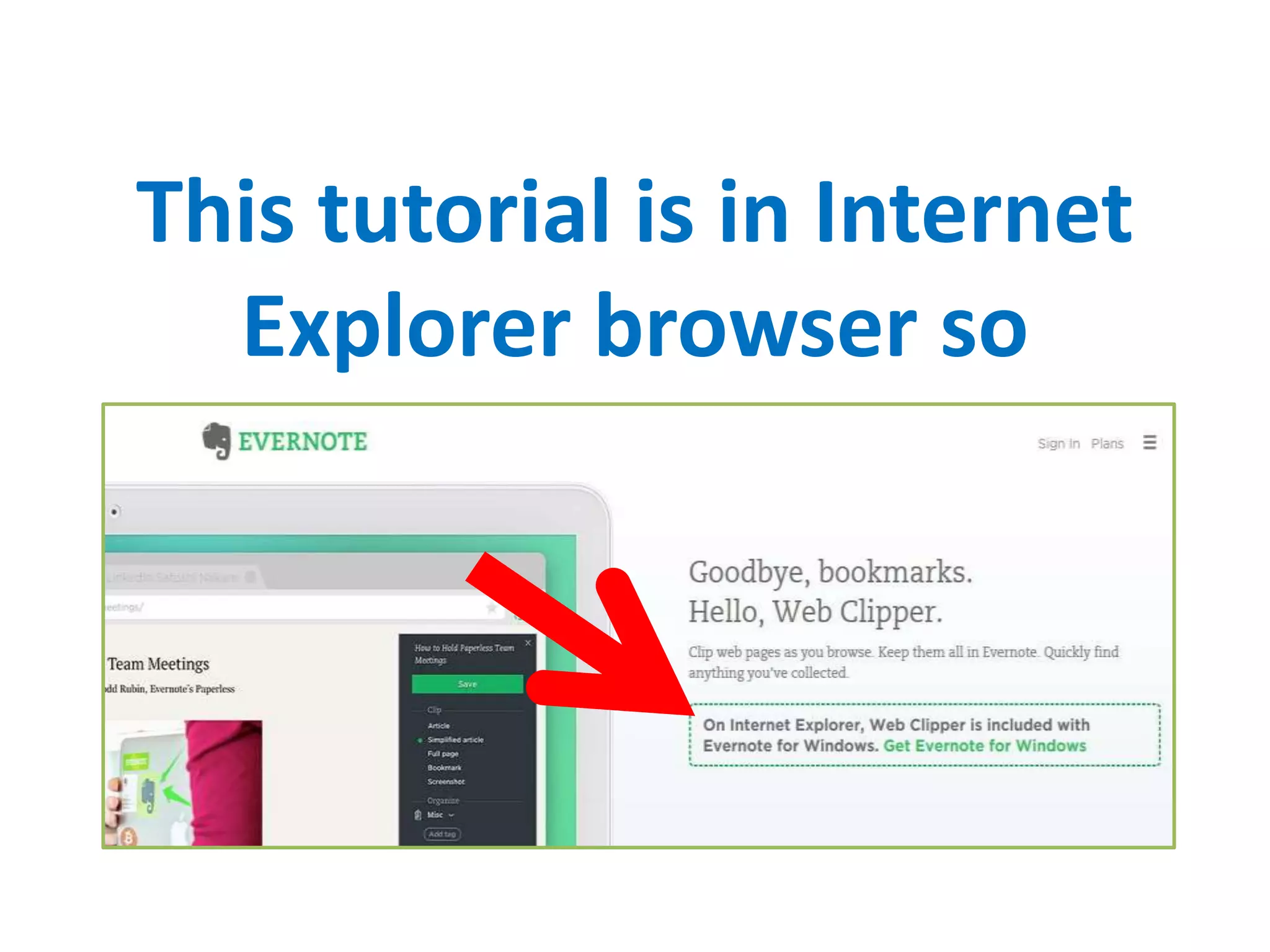
This tutorial is in Internet
Explorer browser so
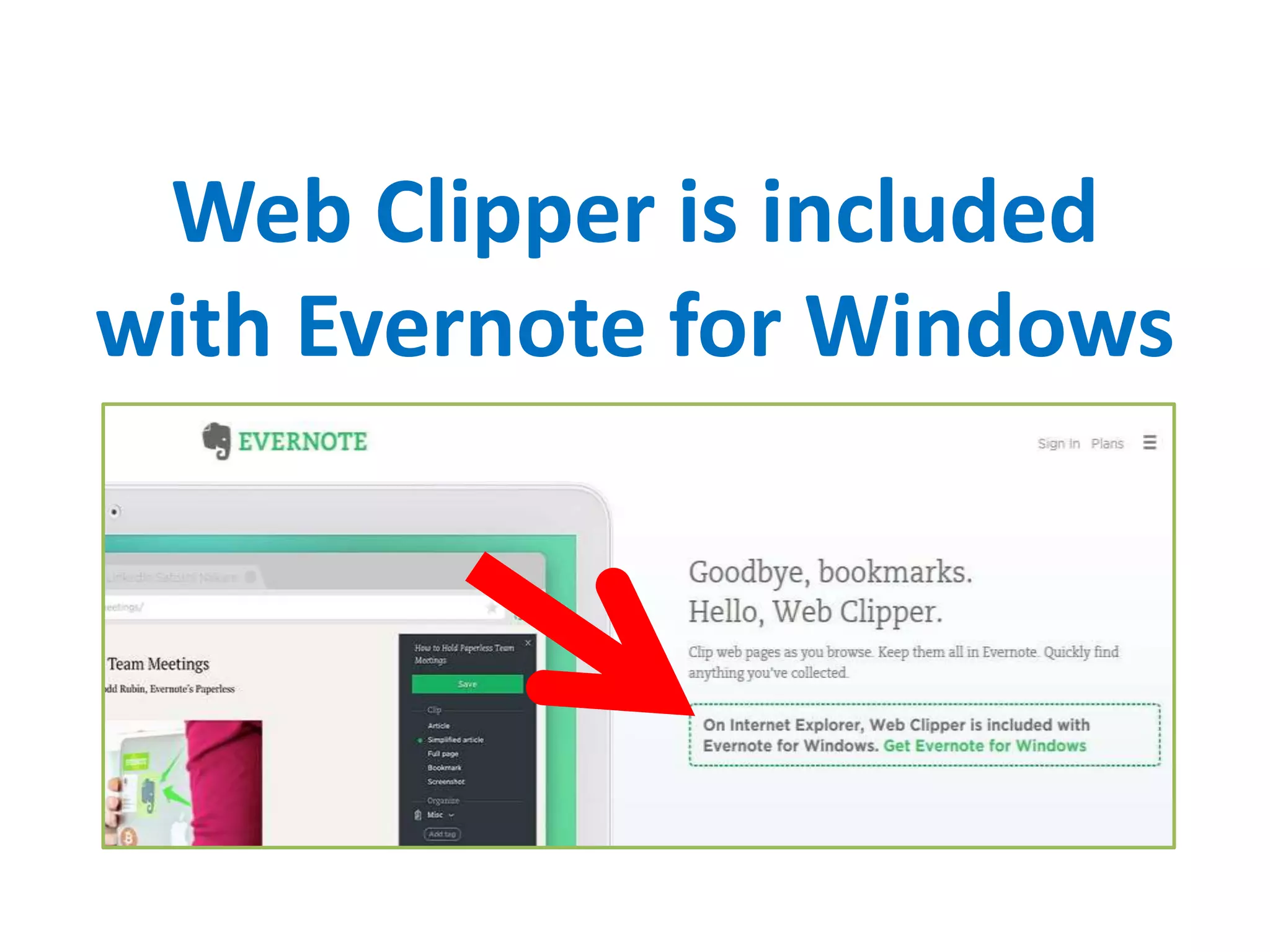
Web Clipper is included
with Evernote for Windows
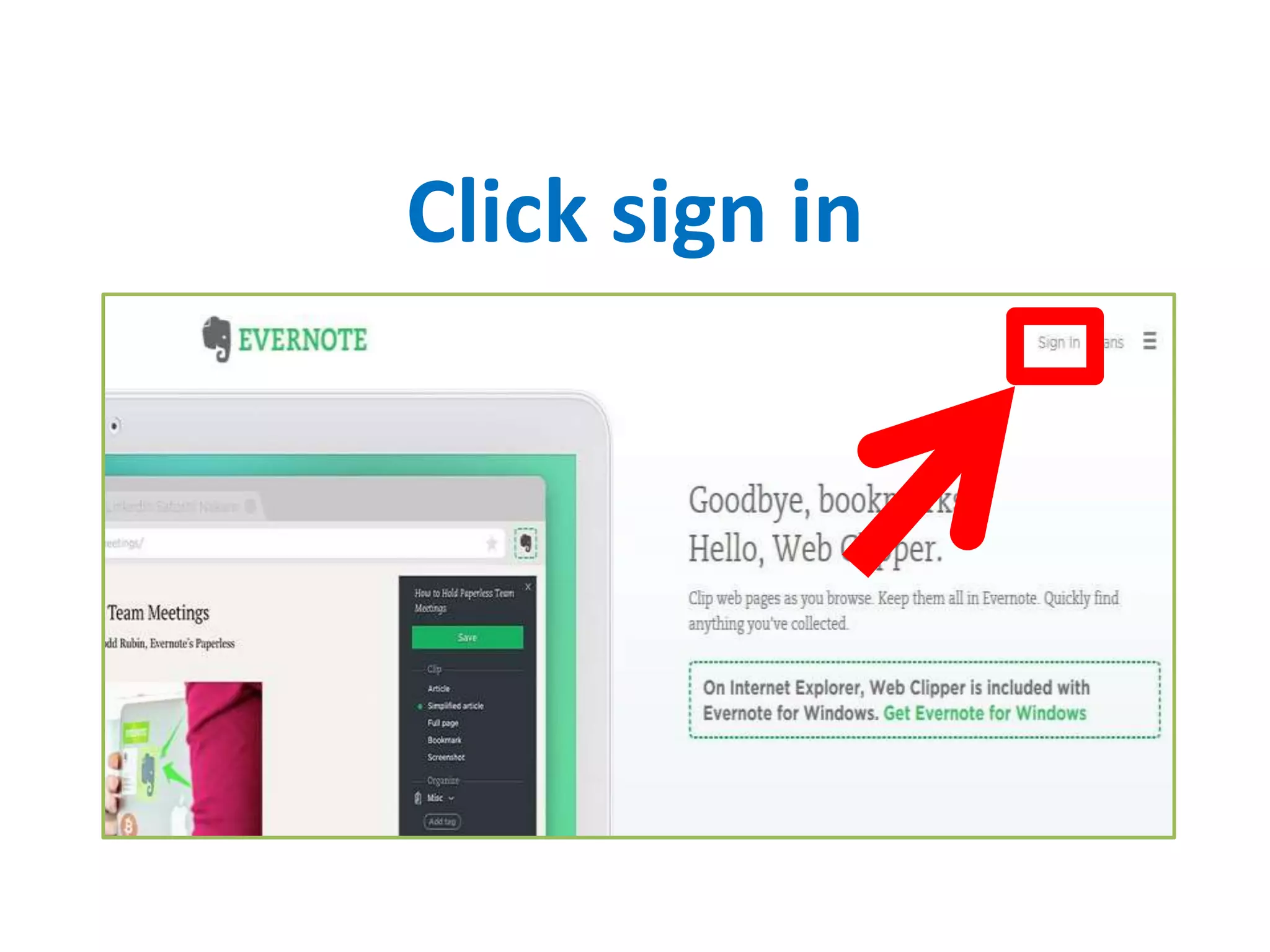
Click sign in
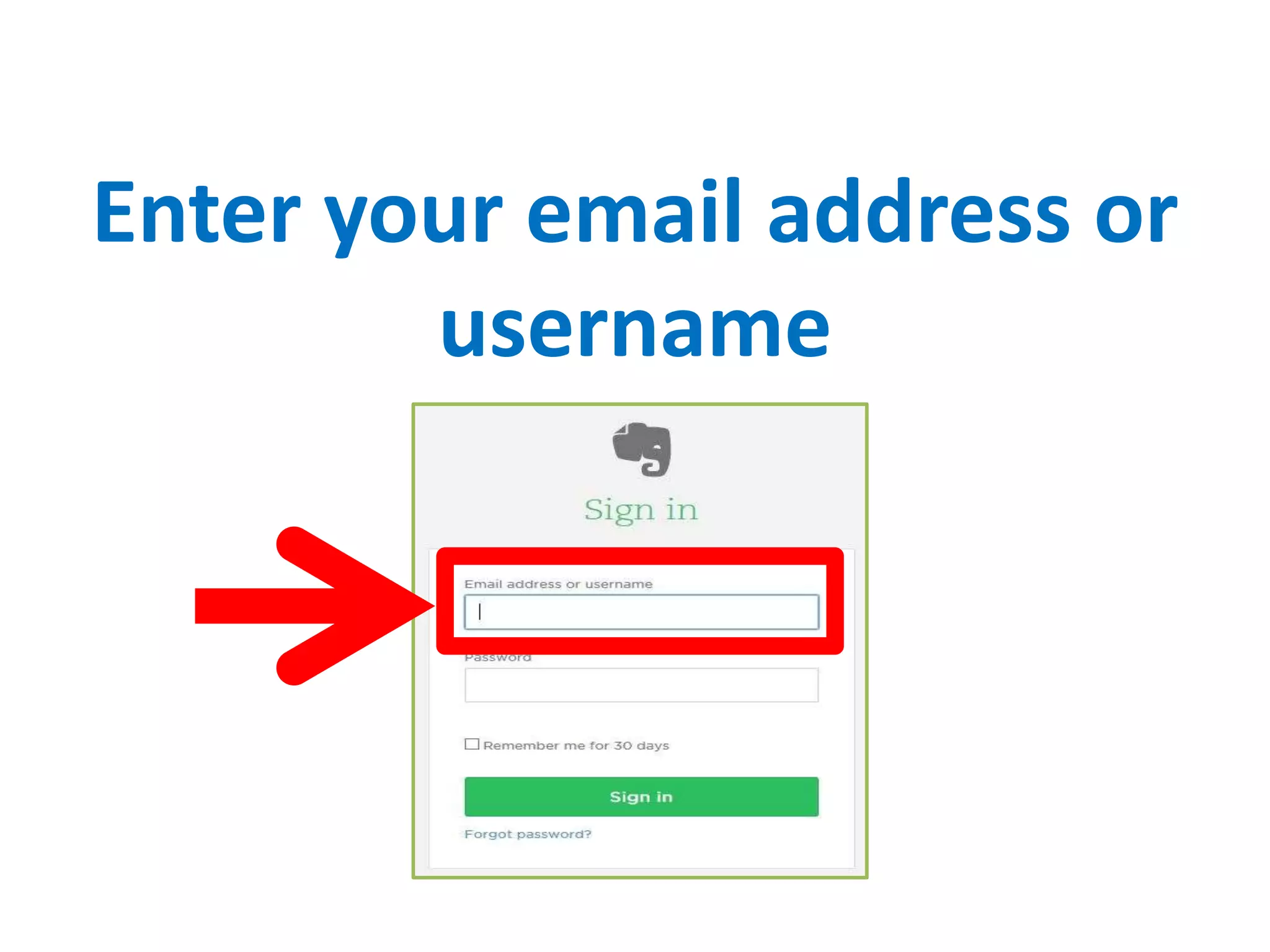
Enter your email address or
username
and your password
Click sign in
Evernote home screen
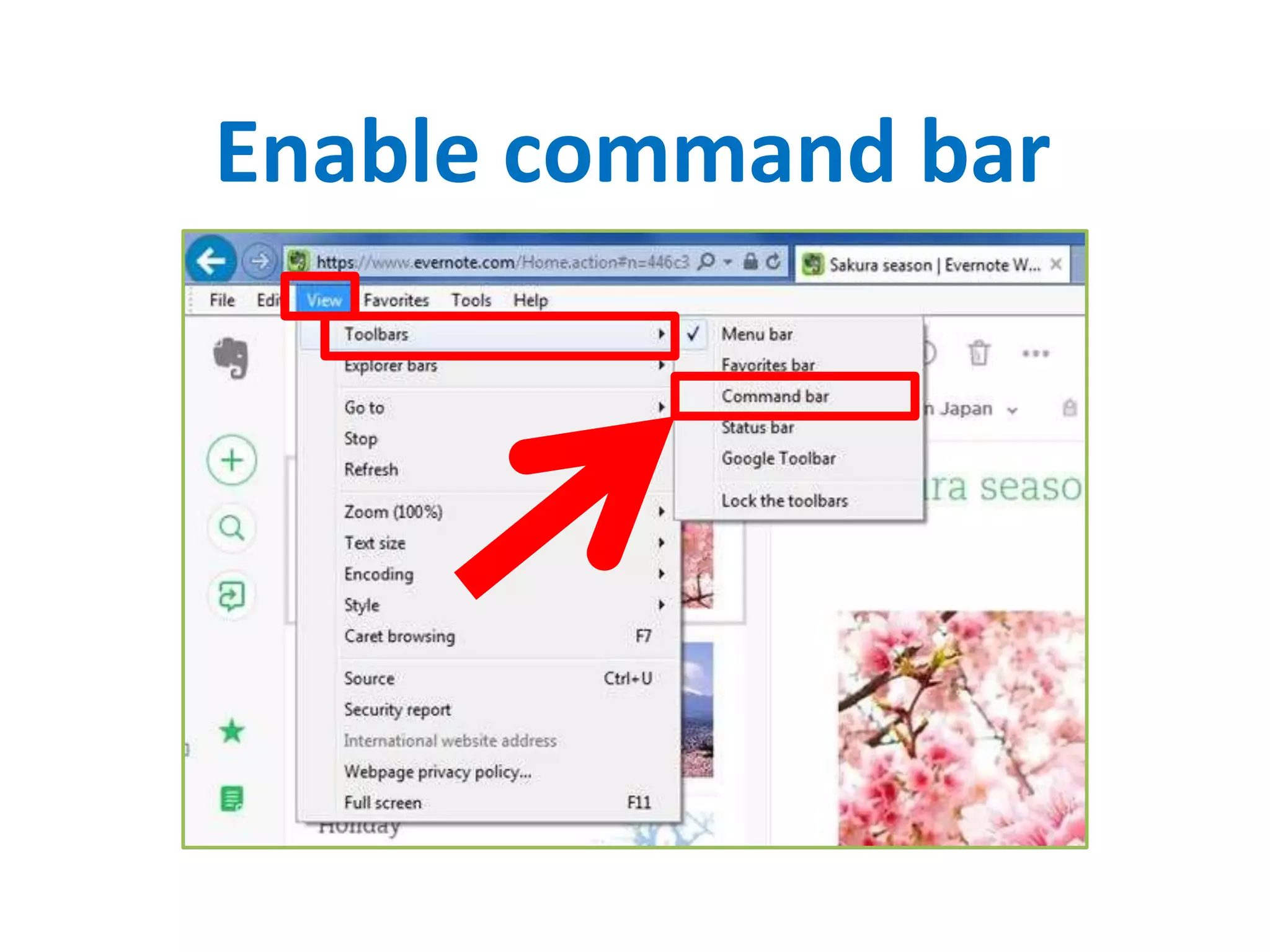
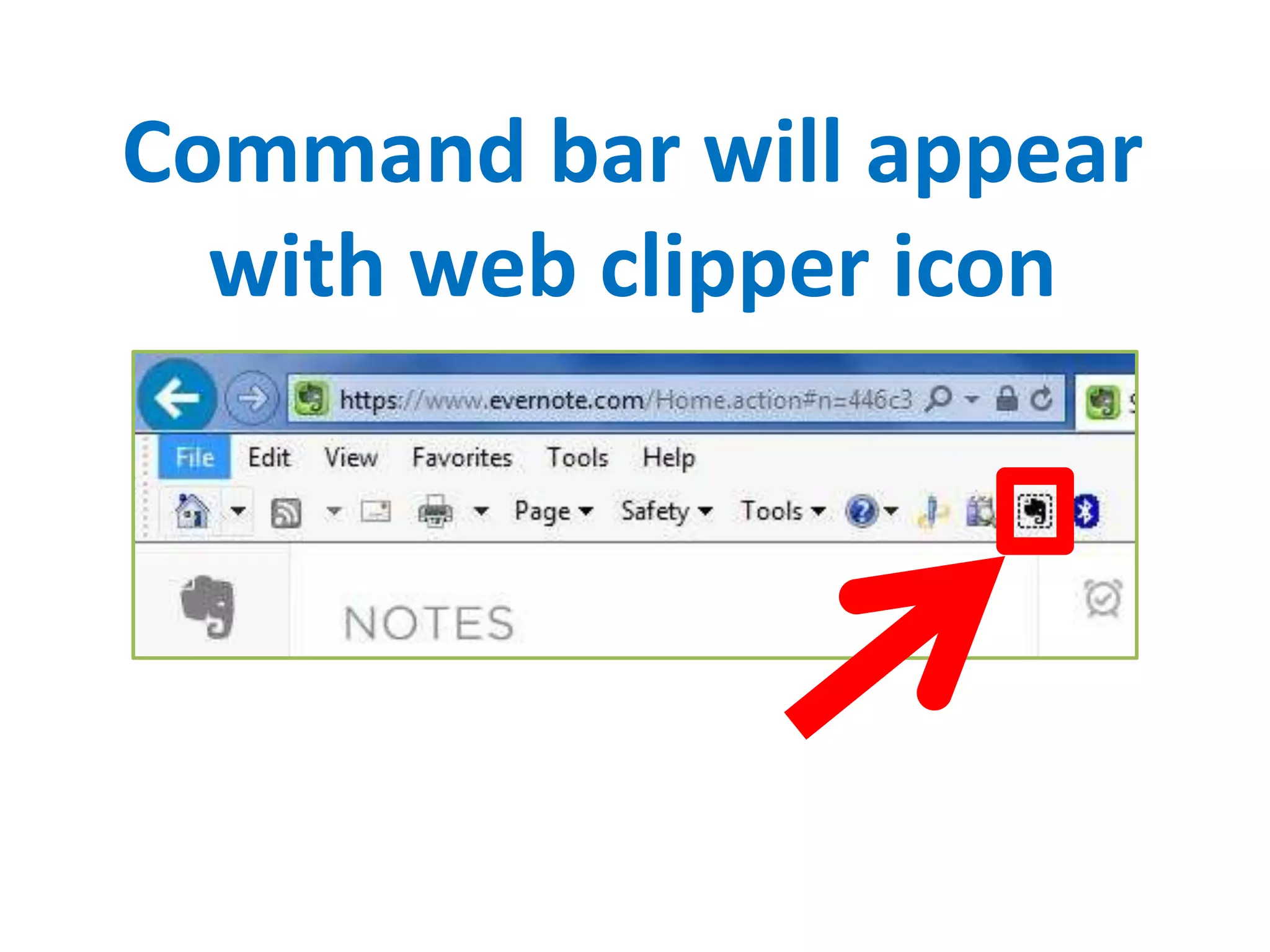
Go to View  Toolbars
Enable command bar
Command bar will appear
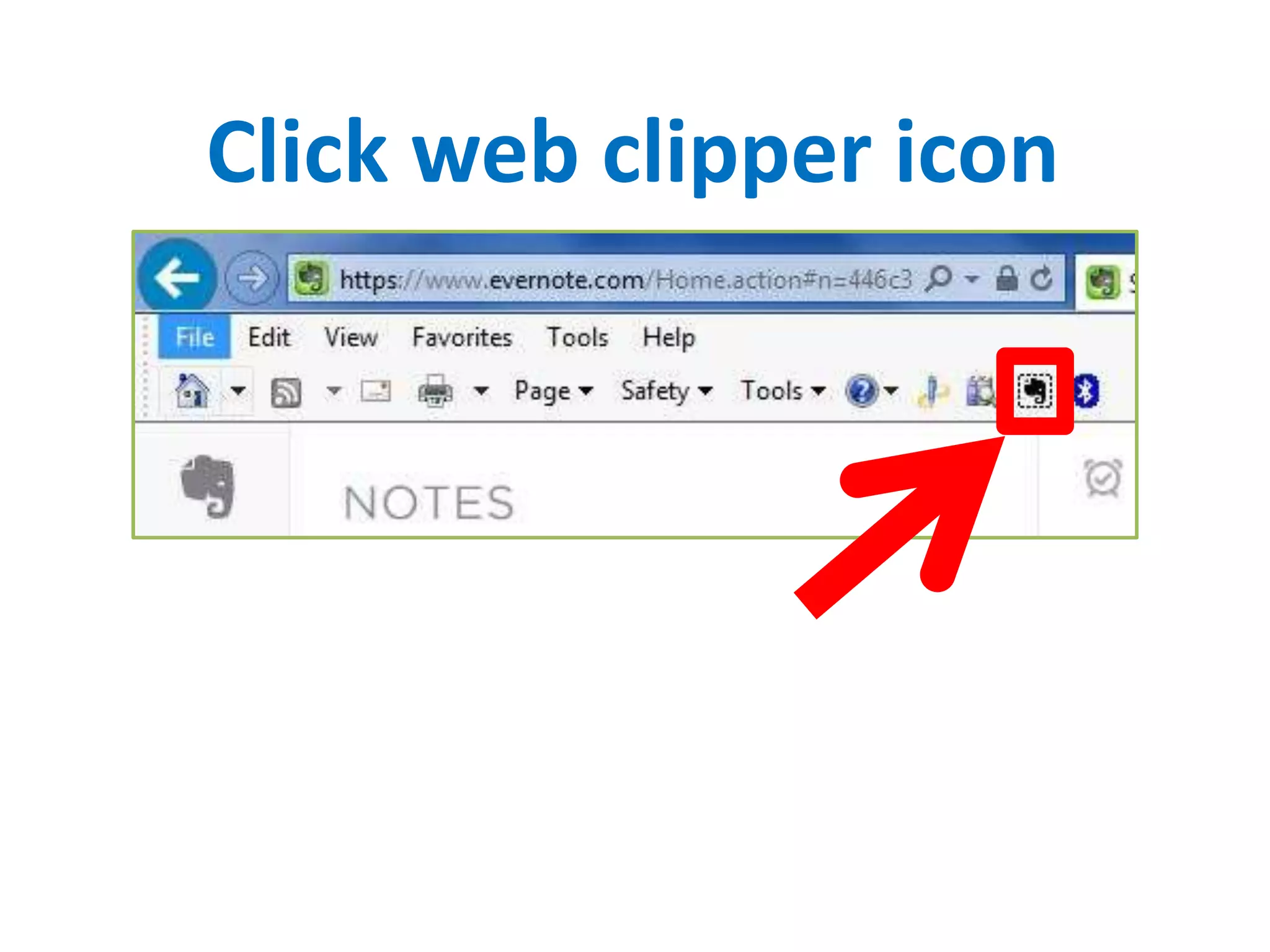
with web clipper icon
Now, let’s clip web pages
in Evernote
You need to login to
Evernote desktop to clip
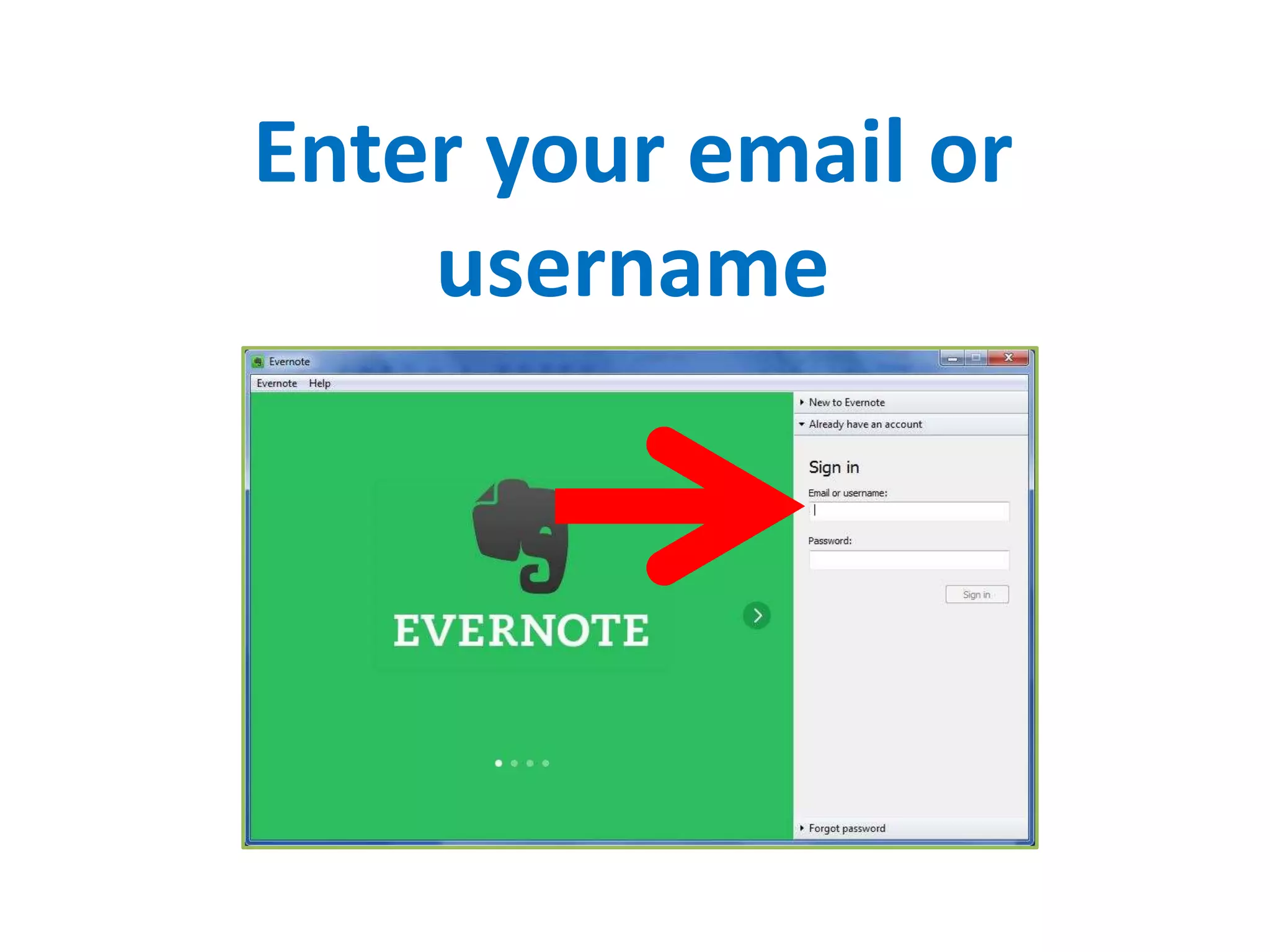
Enter your email or
username
and your password
Click sign in
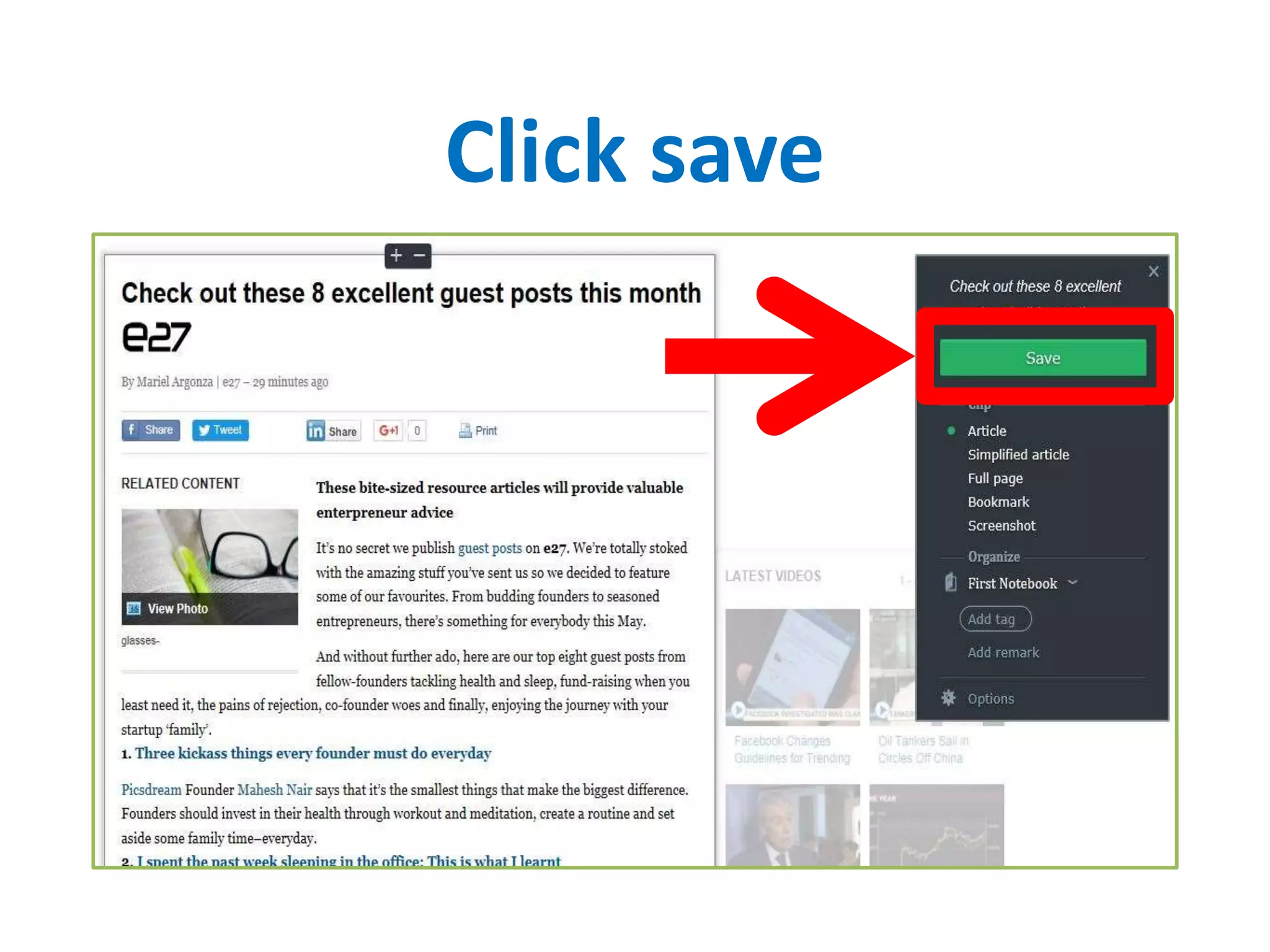
Click web clipper icon
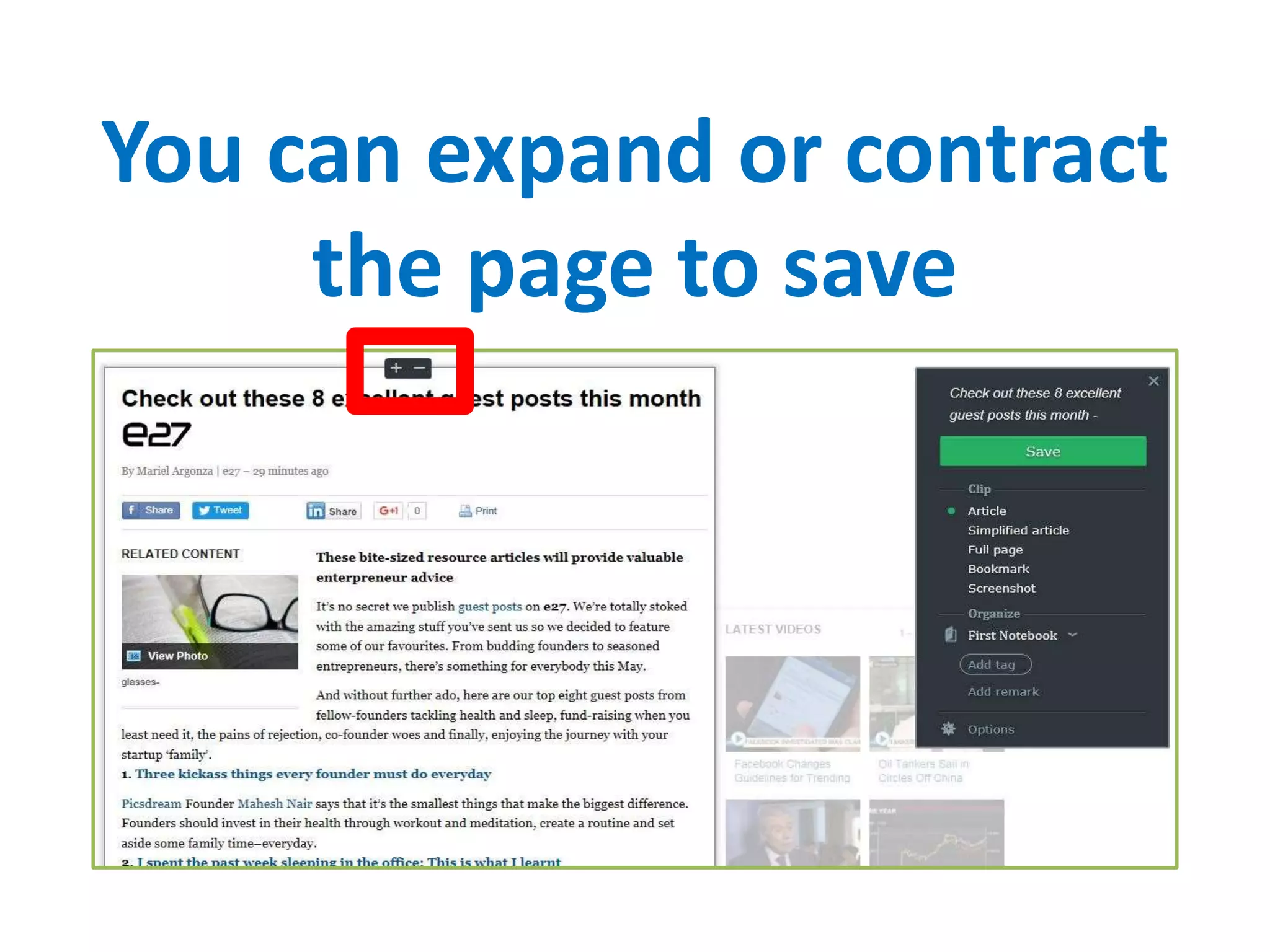
You can expand or contract
the page to save
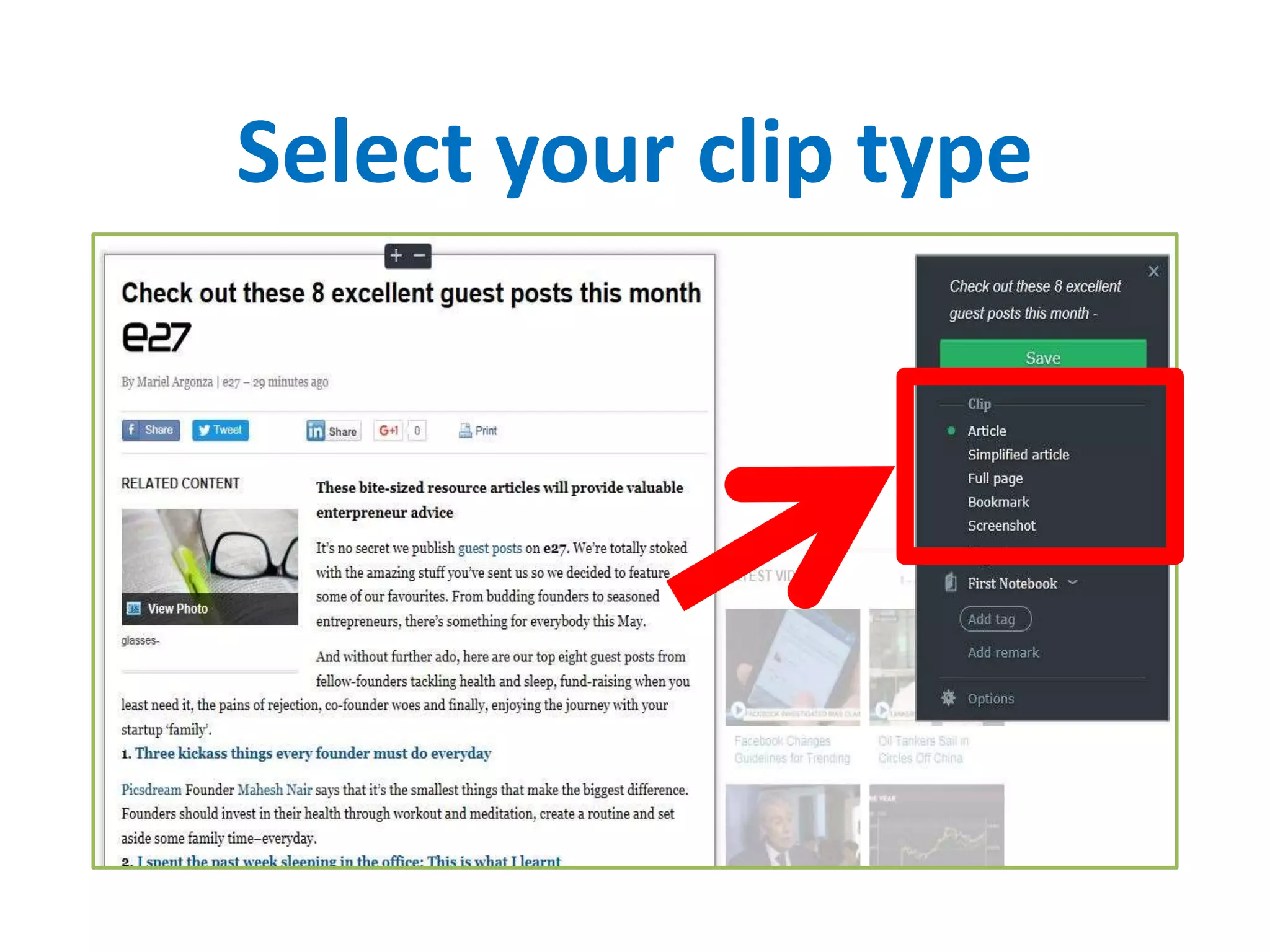
Select your clip type
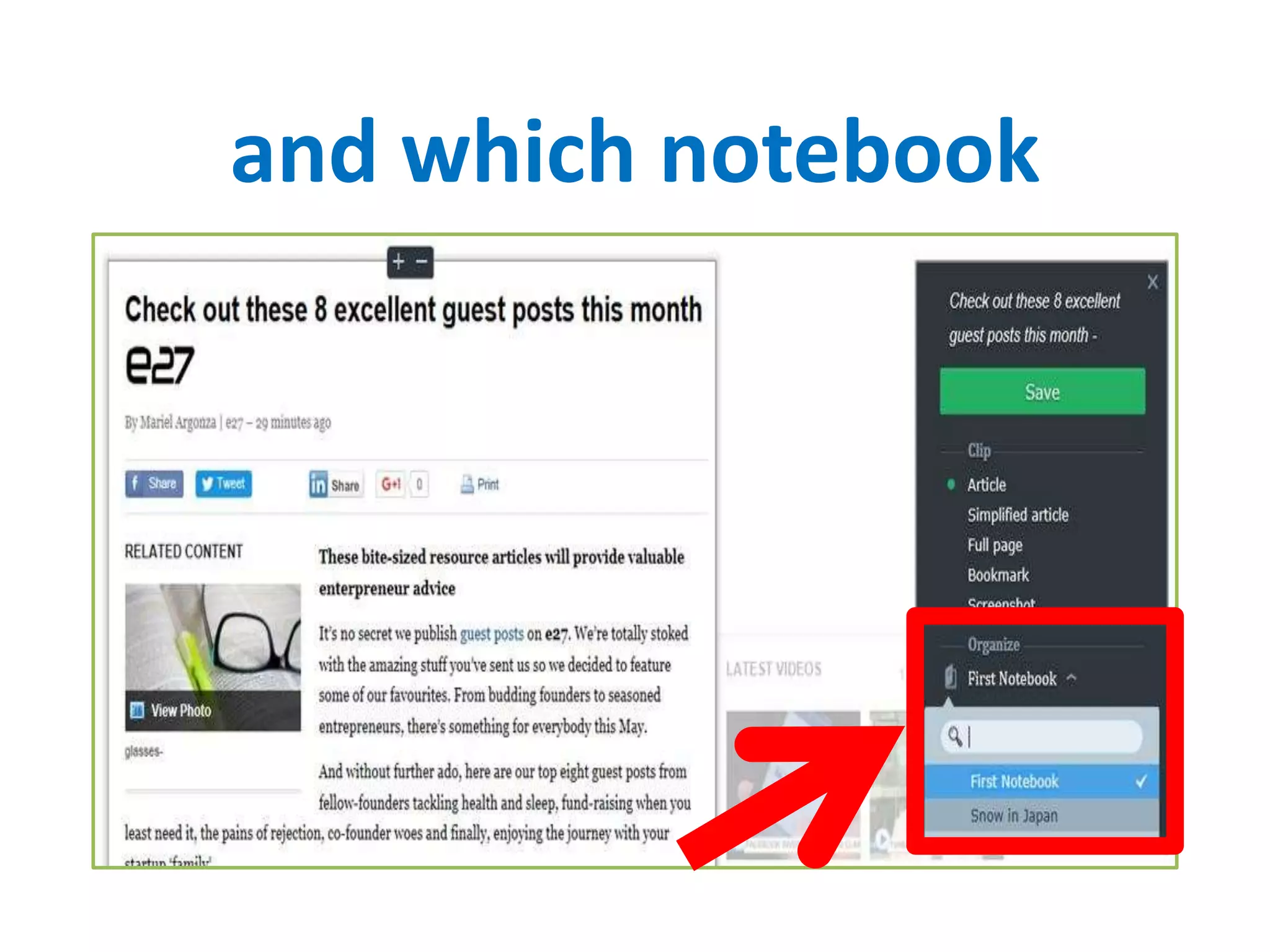
and which notebook
Click save
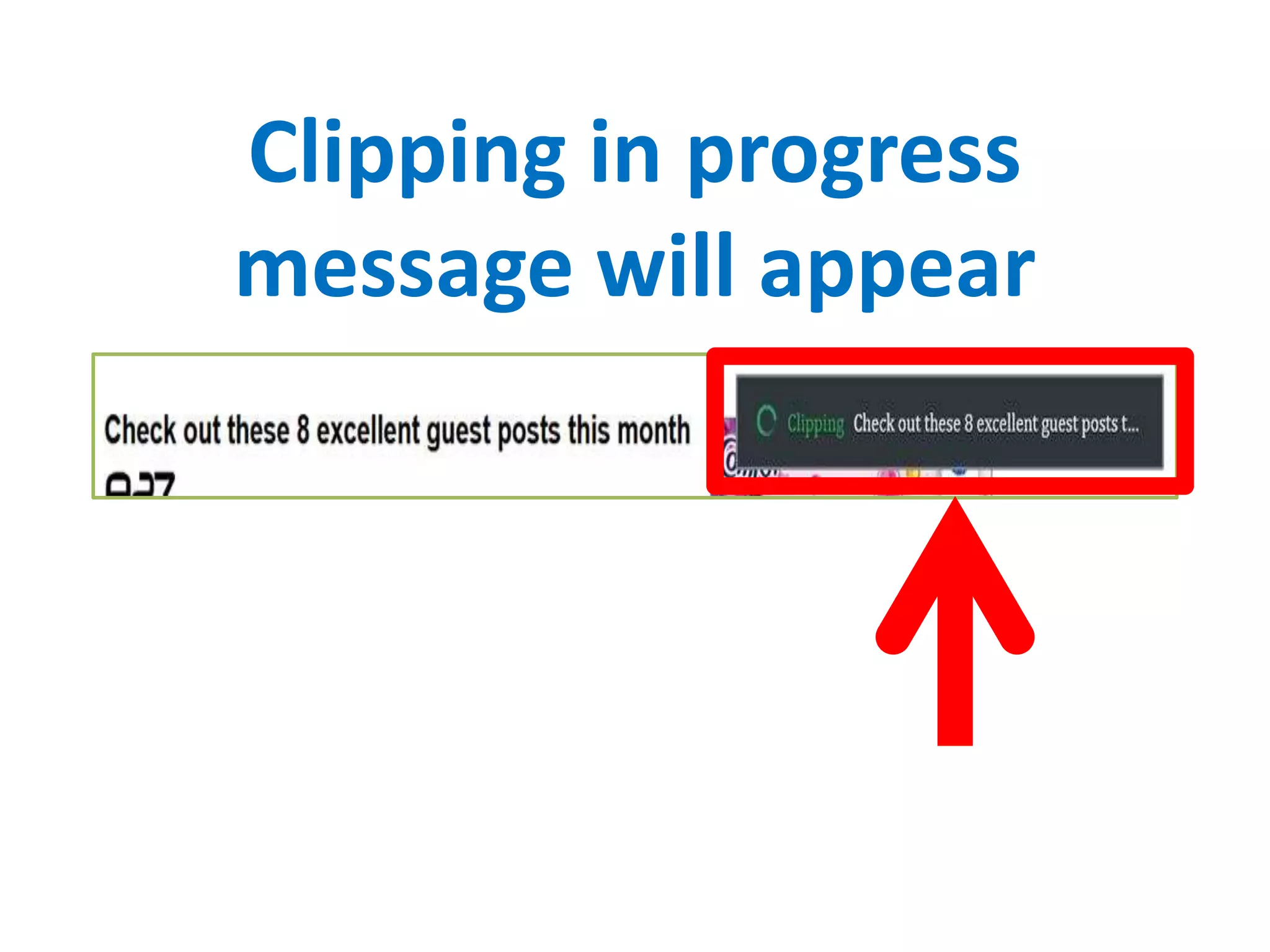
Clipping in progress
message will appear
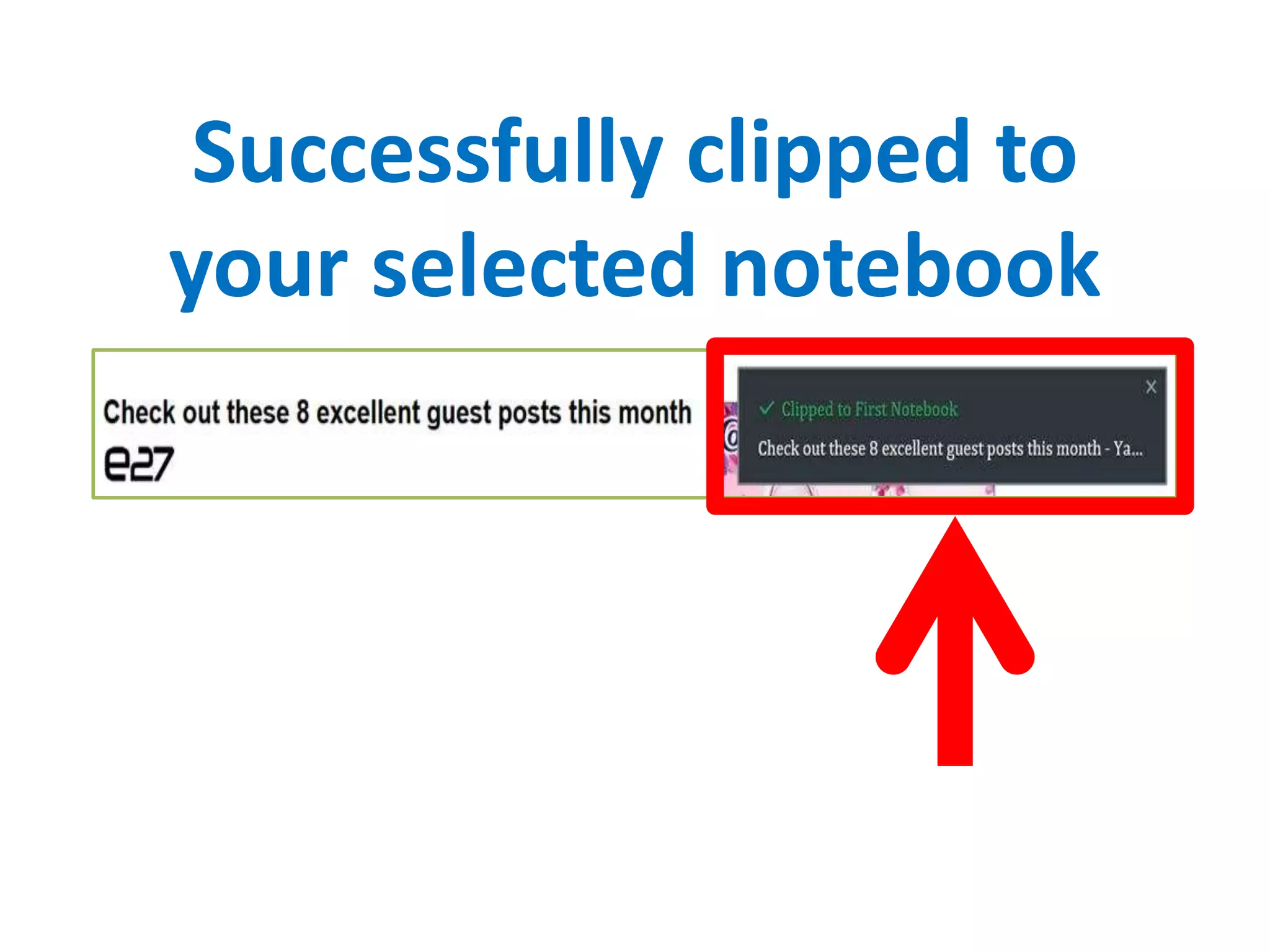
Successfully clipped to
your selected notebook
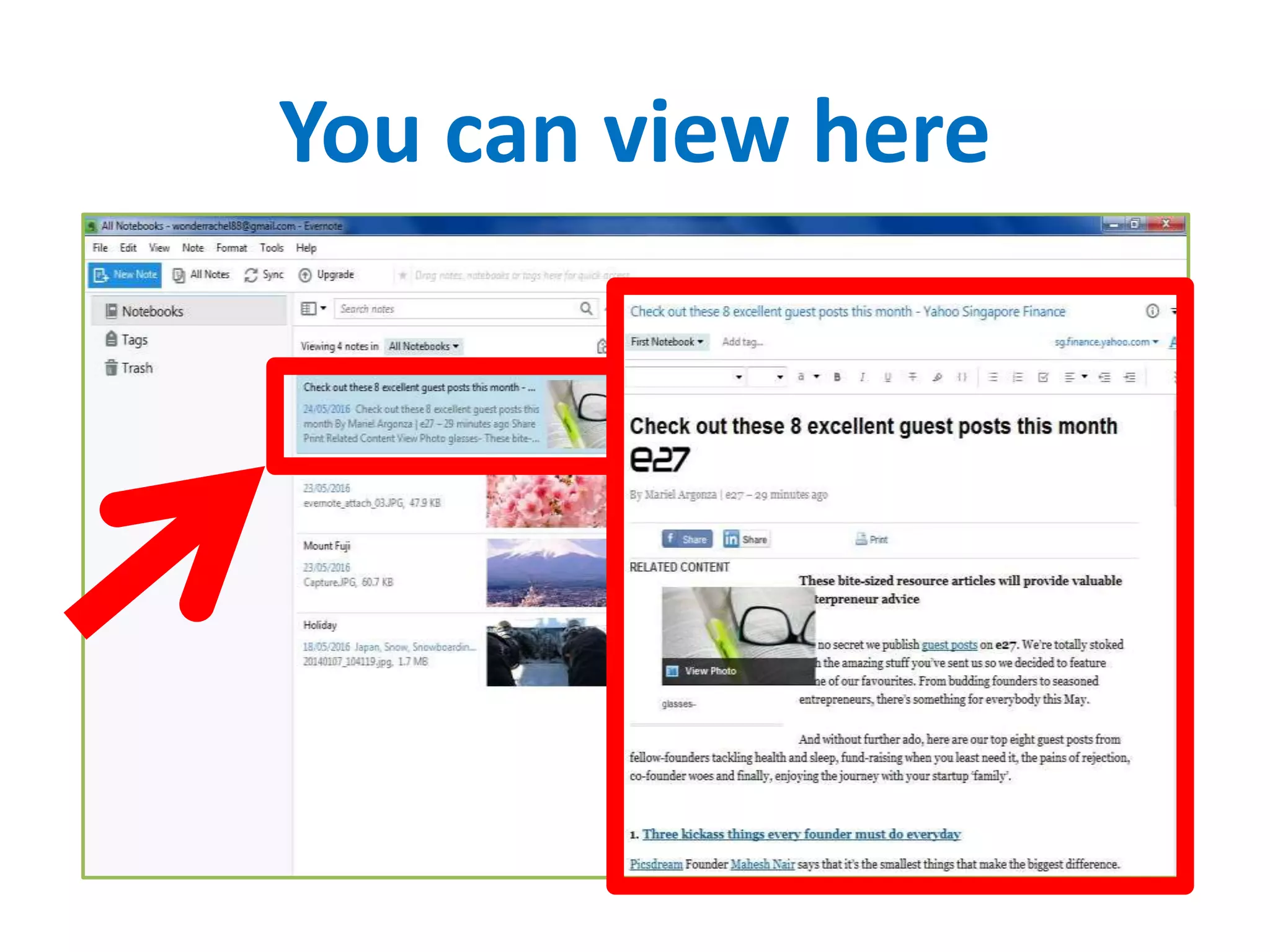
You can view here
The beautiful part of
Evernote is that
whatever you clip stays in
your Evernote account
That’s it and let’s start
with the best way to use
Evernote
“IF YOU DON’T BUILD
YOUR DREAMS,
SOMEONE WILL HIRE
YOU TO BUILD
THEIRS.”
TONY GASKIN

How to use Evernote