HOW
TO USE
BUFFER
Created By: Reginald Wadwadan
Email Address: reginaldwadwadan@yahoo.com
Buffer is a Social
Media publishing
platform,
Where you can
schedule posts to
various social
networks.
Let’s get started.
Let us first create
an account.
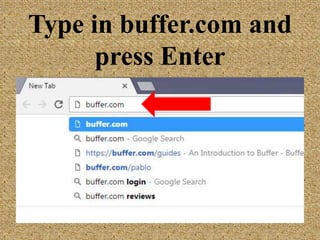
Open Browser
Type in buffer.com
and press Enter
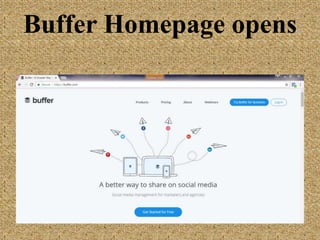
Buffer Homepage
opens
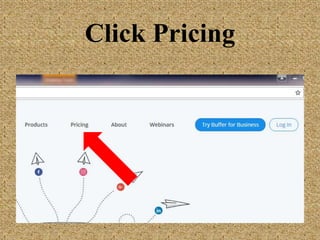
Click Pricing
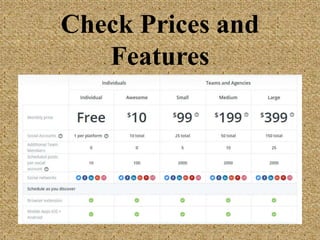
Check Prices and
Features
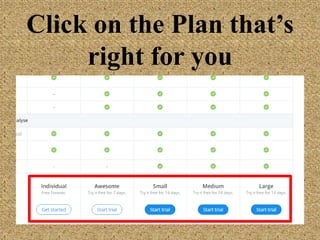
Click on the Plan
that’s right for you
For this tutorial,
we’ll use Free
Account.
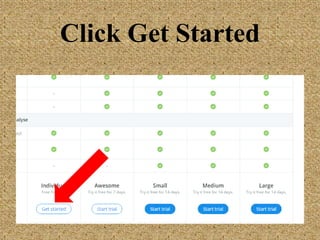
Click Get Started
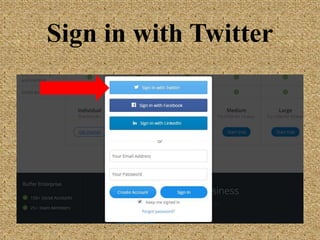
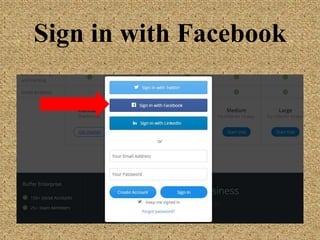
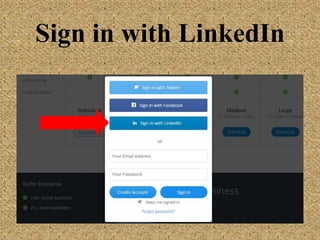
There are 4 ways to
create an account.
Sign in with Twitter
Sign in with Facebook
Sign in with LinkedIn
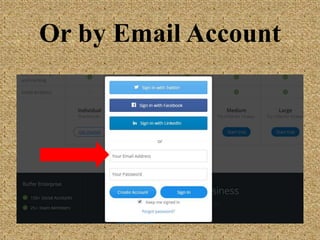
Or by Email Account
In this tutorial,
we’ll use Email.
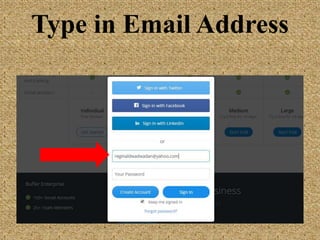
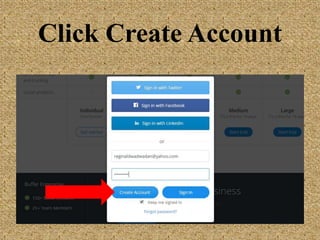
Type in Email
Address
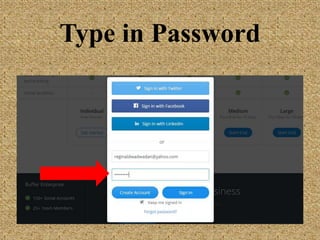
Type in Password
Click Create Account
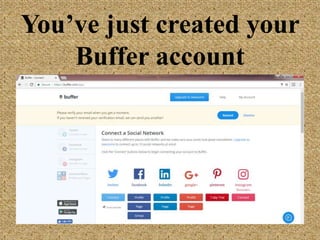
You’ve just created
your Buffer account
We need to open
Email to verify
account.
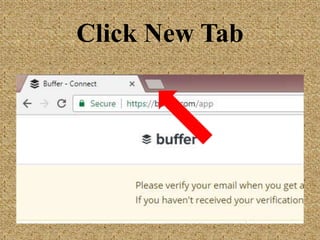
Click New Tab
Open Email
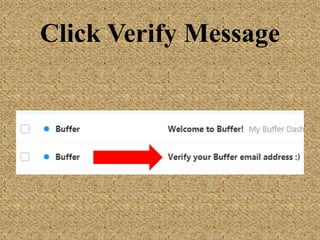
Click Verify
Message
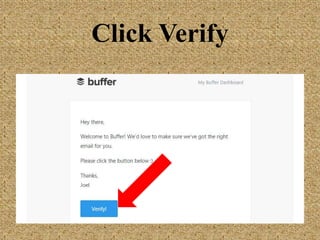
Click Verify
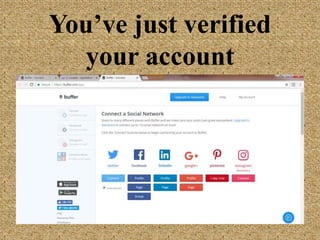
You’ve just verified
your account
Let’s connect to
Social Media. Let’s
start with Twitter.
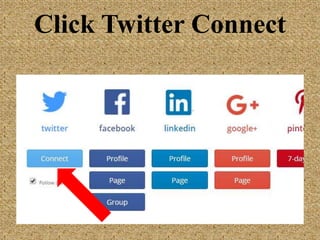
Click Twitter
Connect
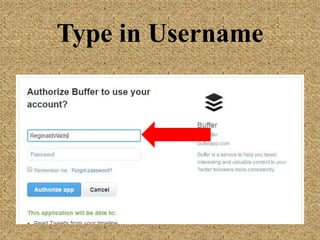
Type in Username
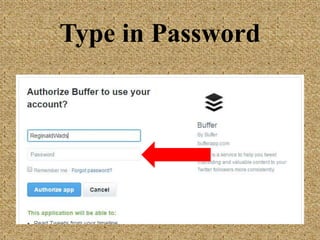
Type in Password
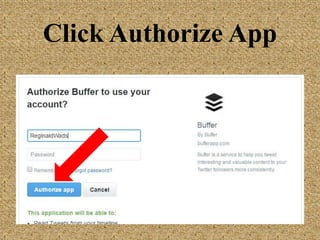
Click Authorize App
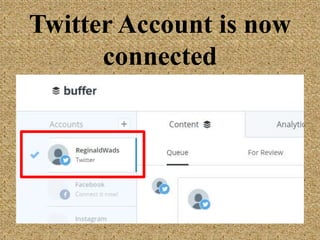
Twitter Account is
now connected
Let’s connect with
Facebook.
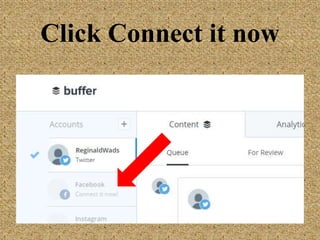
Click Connect it now
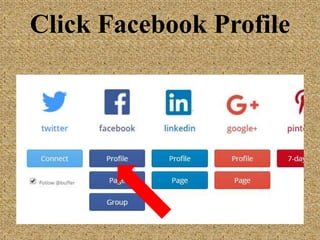
Click Facebook
Profile
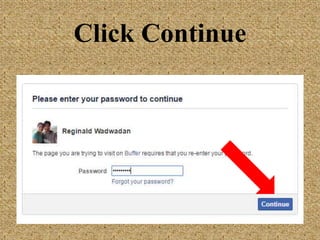
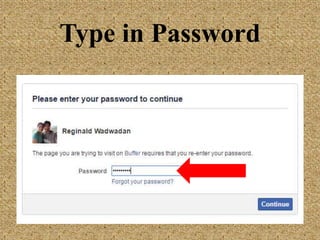
Type in Password
Click Continue
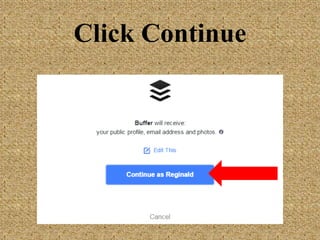
Click Continue
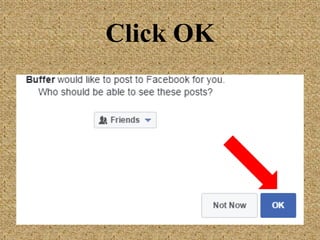
Click OK
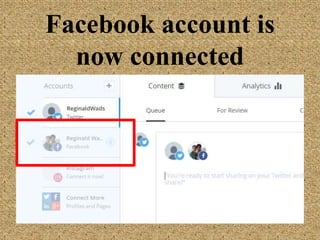
Facebook account is
now connected
Let’s create a post.
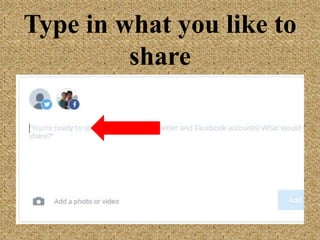
Type in what you like
to share
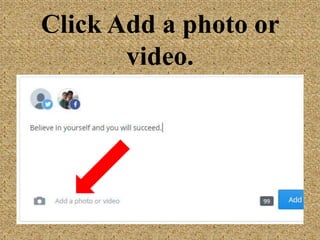
Click Add a photo or
video.
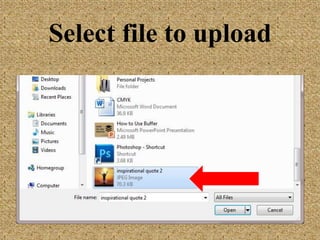
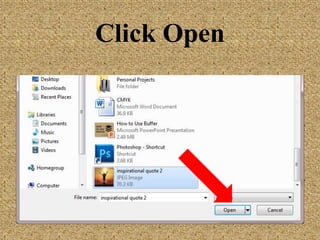
Select file to upload
Click Open
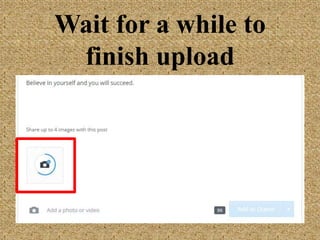
Wait for a while to
finish upload
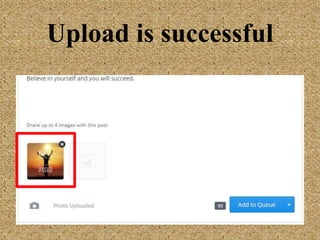
Upload is successful
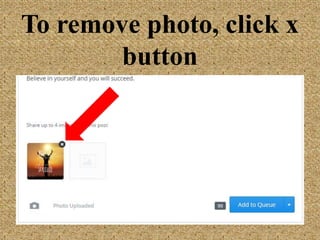
To remove photo,
click x button
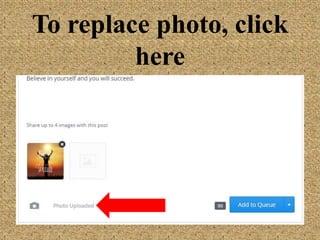
To replace photo,
click here
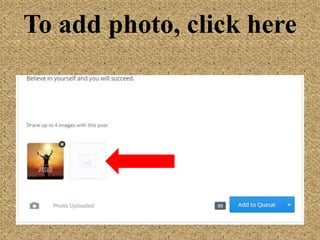
To add photo, click
here
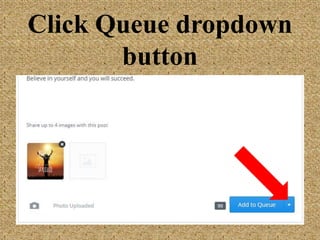
Click Queue
dropdown button
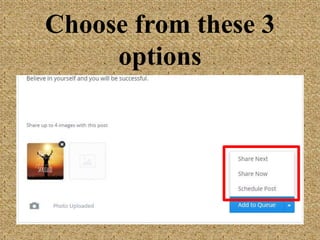
Choose from these 3
options
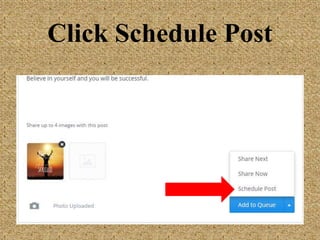
Let’s schedule this
post.
Click Schedule Post
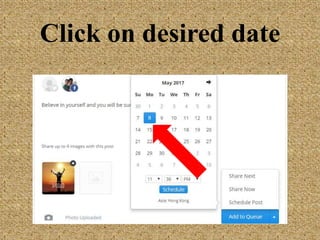
Click on desired date
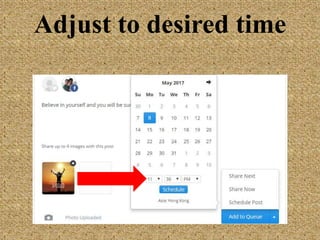
Adjust to desired
time
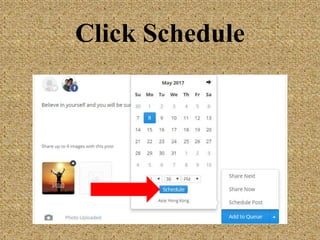
Click Schedule
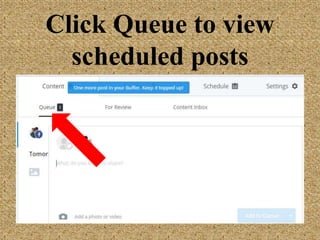
Click Queue to view
scheduled posts
How to change
schedule?
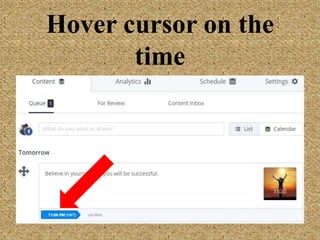
Hover cursor on the
time
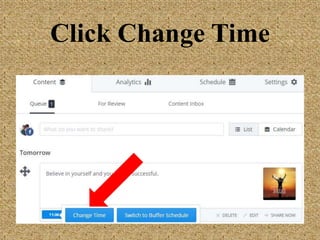
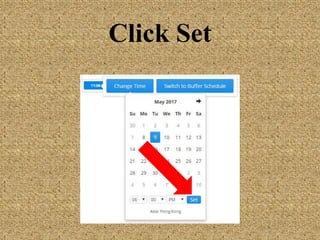
Click Change Time
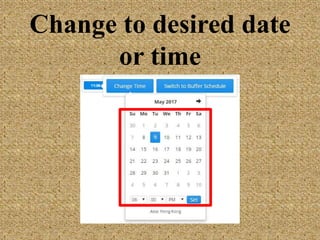
Change to desired
date or time
Click Set
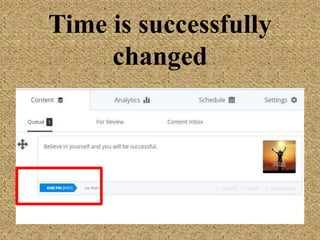
Time is successfully
changed
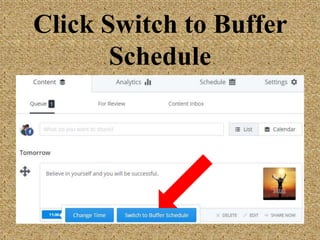
We can also set to
Buffer Schedule.
Click Switch to
Buffer Schedule
Post will be
automatically
scheduled on the
best times of the
day.
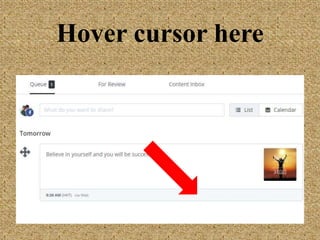
How to edit posts in
Queue?
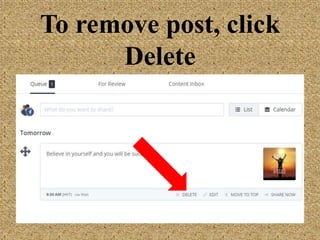
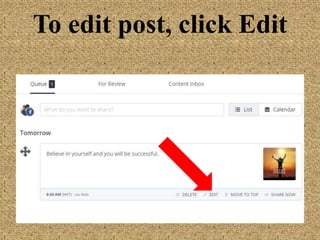
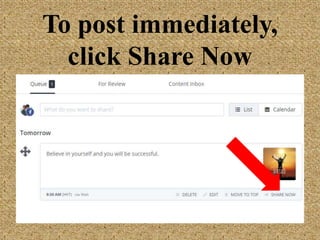
Hover cursor here
To remove post,
click Delete
To edit post, click
Edit
To post immediately,
click Share Now
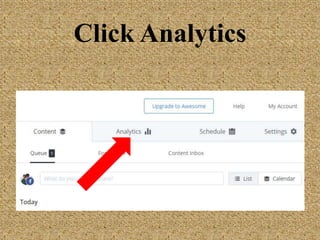
Let’s check Buffer
Analytics.
Click Analytics
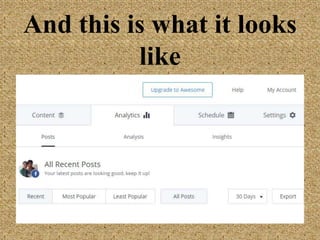
And this is what it
looks like
We can use post
filters if we
upgrade to
Business Plan.
And also upgrade
to Business Plan to
unlock its Analysis
and Insights.
That’s it for
Analytics. Let’s
install Browser
Extension.
Use Browser
Extension to easily
share links, photos
or videos from the
web.
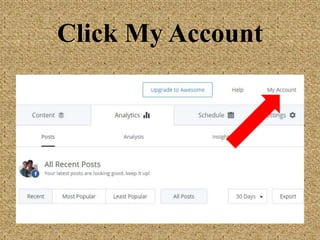
Click My Account
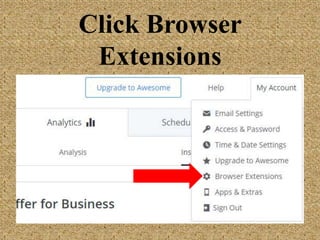
Click Browser
Extensions
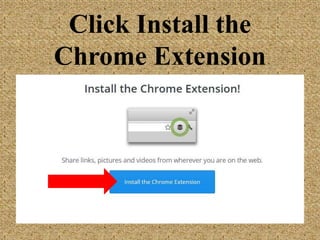
Click Install the
Chrome Extension
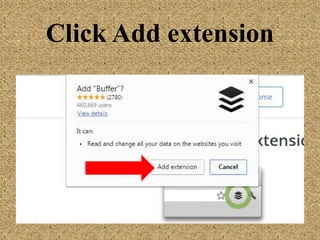
Click Add extension
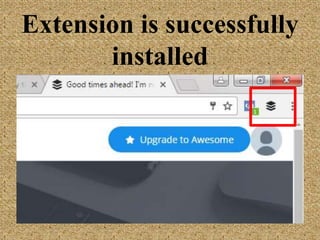
Extension is
successfully installed
How to use Browser
Extension?
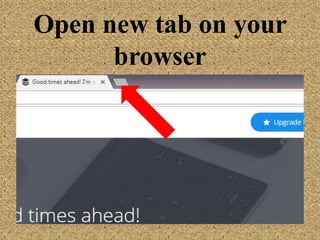
Open new tab on
your browser
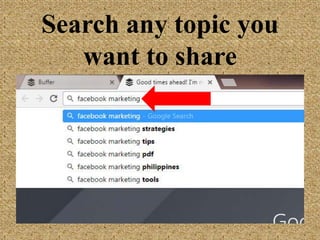
Search any topic you
want to share
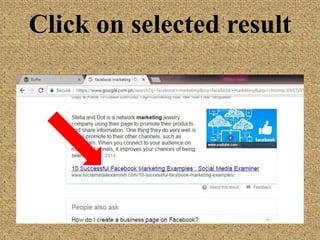
Click on selected
result
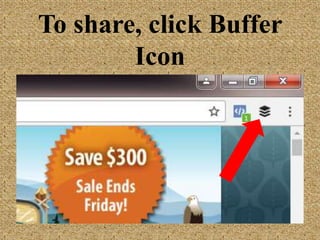
To share, click
Buffer Icon
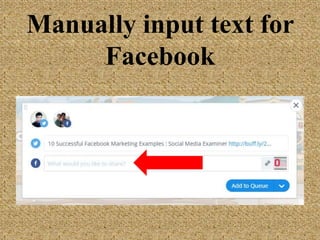
Manually input text
for Facebook
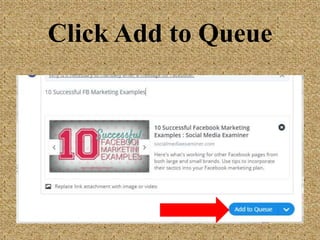
Click Add to Queue
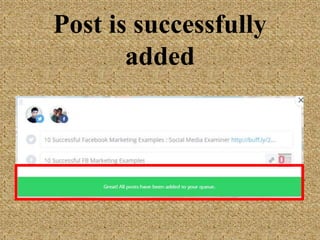
Post is successfully
added
Here’s another way
to use Browser
Extension.
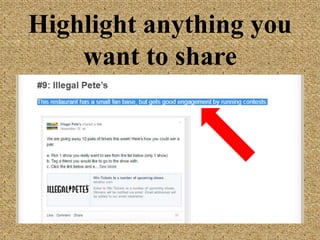
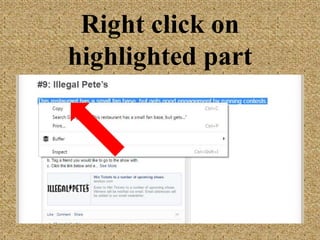
Highlight anything
you want to share
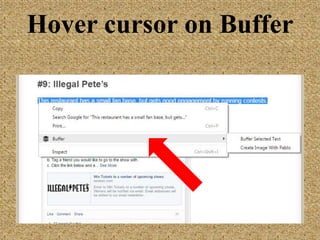
Right click on
highlighted part
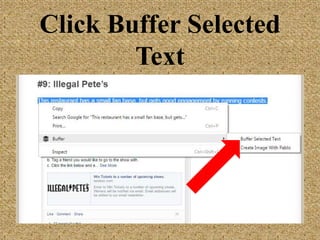
Hover cursor on
Buffer
Click Buffer Selected
Text
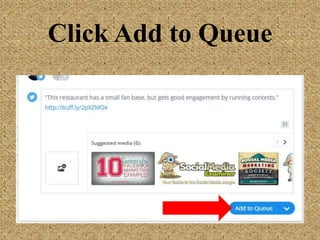
Click Add to Queue
And there you have it.
Share and schedule
posts on social media
easily using

How to Use Buffer