HOW TO USE
Created by: Reginald Wadwadan
Email: reginaldwadwadan@yahoo.com
Hootsuite
Let’s first create a
Hootsuite account
Open your favorite
browser
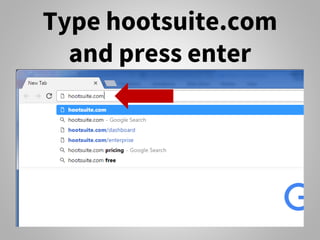
Type hootsuite.com
and press enter
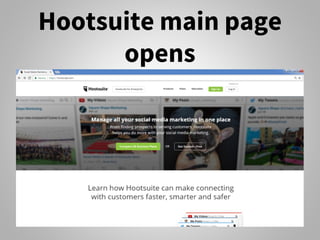
Hootsuite main page
opens
If you’re using
Hootsuite for
business, check
business plans
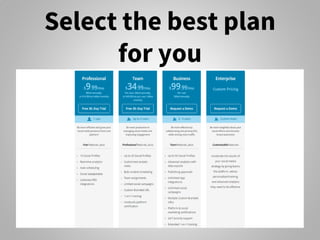
Click Compare All
Business Plans
Select the best plan
for you
For this tutorial,
we’ll use free
account
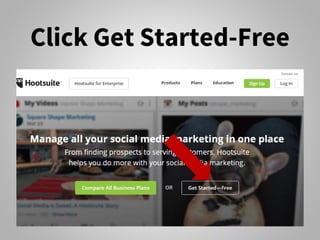
Click Get Started-Free
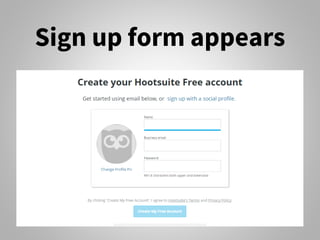
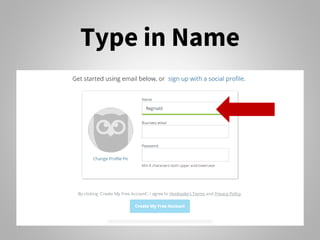
Sign up form appears
Type in Name
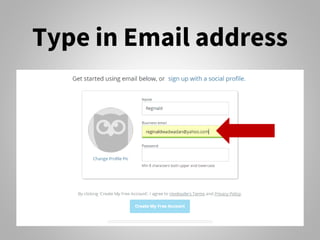
Type in Email address
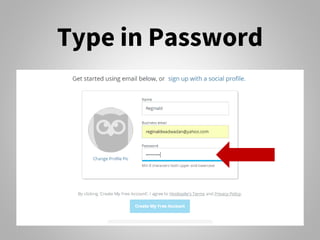
Type in Password
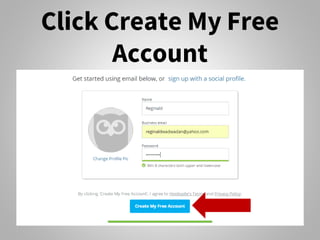
Click Create My Free
Account
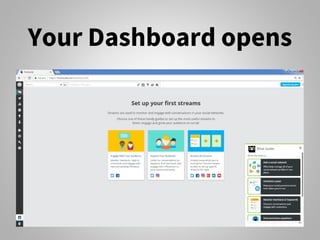
Your Dashboard opens
Let’s go over the
Dashboard menu
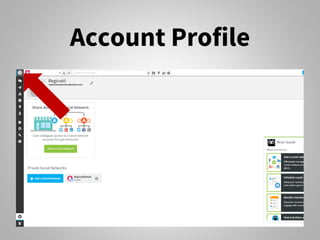
Account Profile
Account Profile is
where you add a
social network and
share access
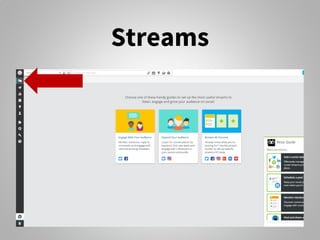
Streams
Streams is where
you easily monitor
your social
networks
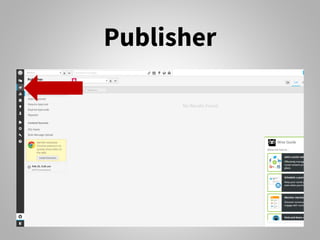
Publisher
Publisher is where
you create, edit and
view all scheduled
posts.
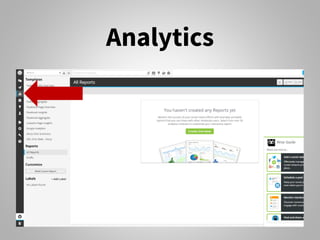
Analytics
Analytics is where
you monitor your
success and create
reports
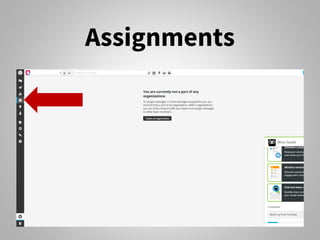
Assignments
Assignments is
where you assign
or be assigned
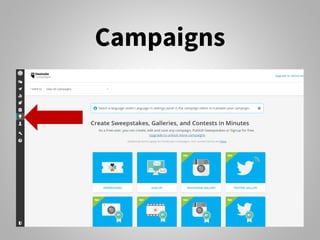
Campaigns
Campaigns is
where you create
sweepstakes,
galleries, and
contests
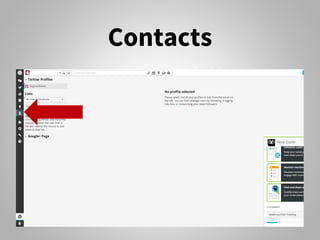
Contacts
Contacts is where
you see your social
media connections
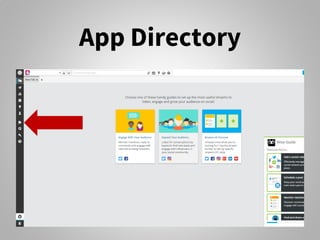
App Directory
App directory is
where you search
additional useful
apps
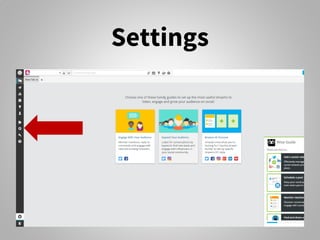
Settings
Settings is where
you add or change
your account info
and settings
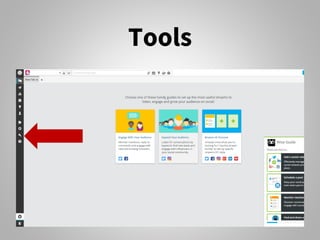
Tools
Tools is where you
get training and
certifications
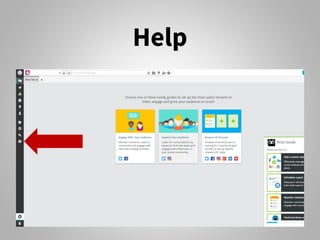
Help
Help is where you
find answers for
any Hootsuite
queries
Let’s start adding
social networks
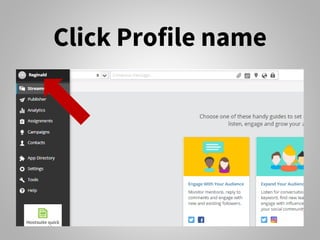
Click Profile name
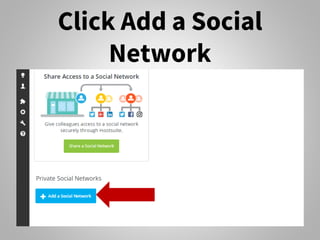
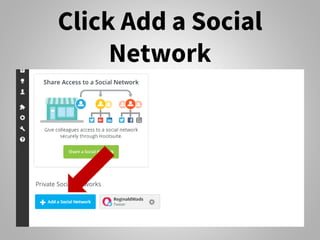
Click Add a Social
Network
Let’s add Twitter
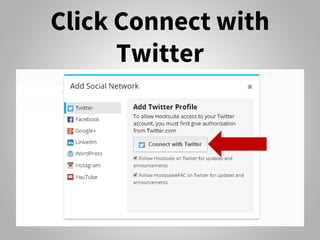
Click Connect with
Twitter
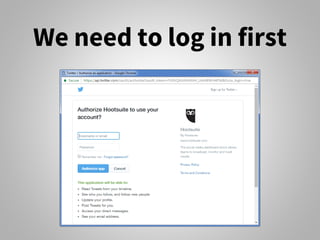
We need to log in first
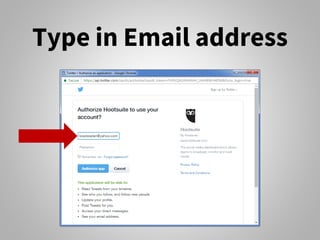
Type in Email address
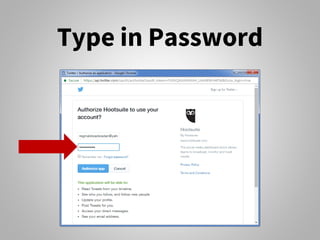
Type in Password
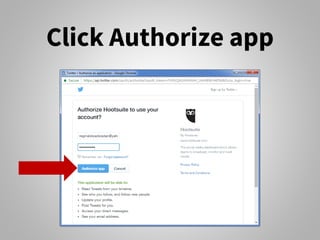
Click Authorize app
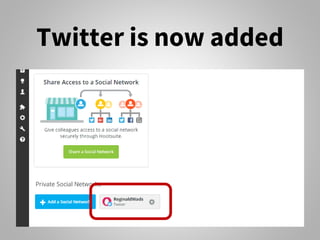
Twitter is now added
Let’s add Facebook
Click Add a Social
Network
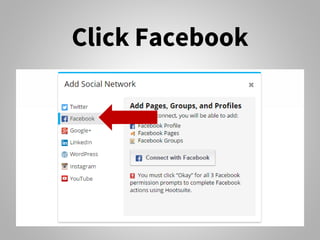
Click Facebook
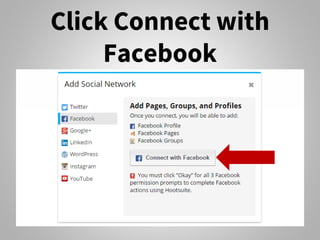
Click Connect with
Facebook
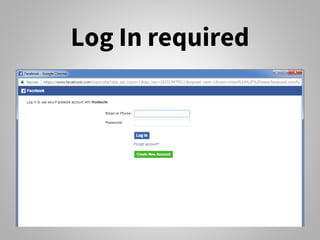
Log In required
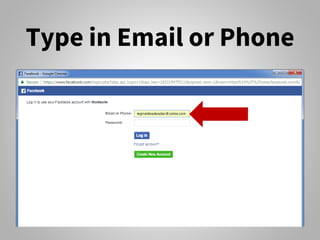
Type in Email or Phone
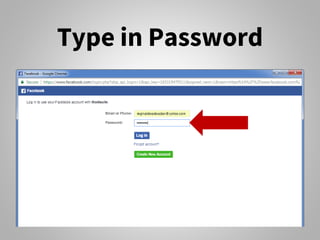
Type in Password
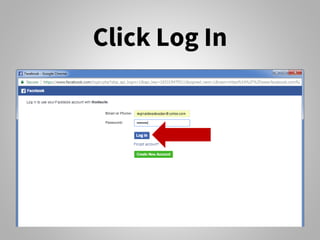
Click Log In
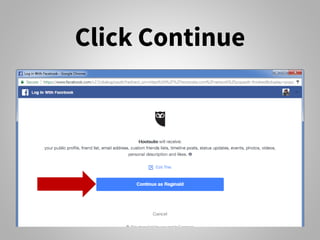
Click Continue
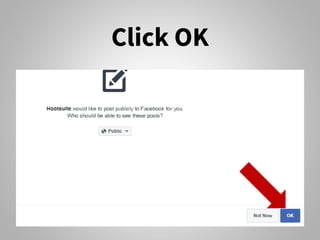
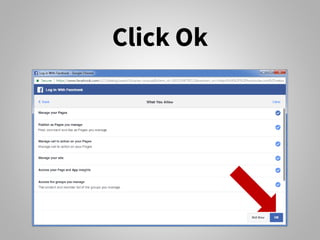
Click OK
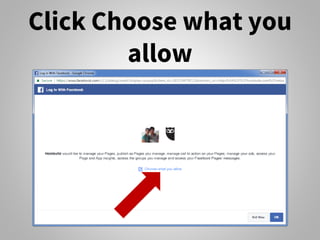
Click Choose what you
allow
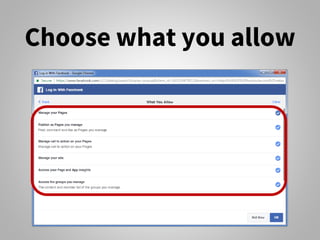
Choose what you allow
Click Ok
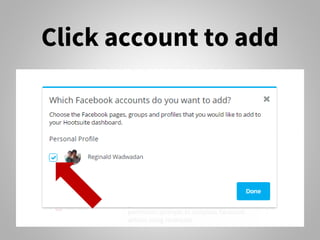
Click account to add
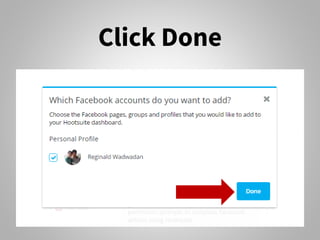
Click Done
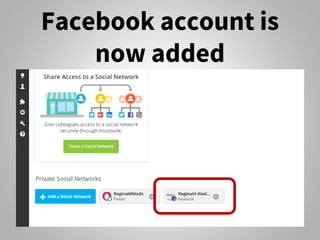
Facebook account is
now added
Free account can
let you manage 3
Social Networks
only
Let’s set up tabs
and streams
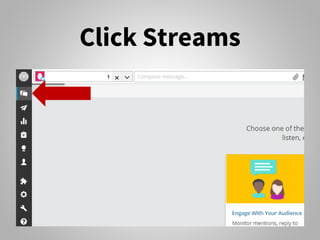
Click Streams
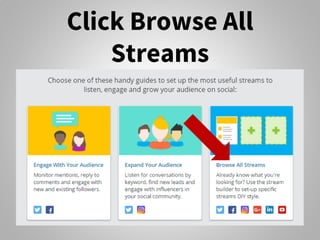
Click Browse All
Streams
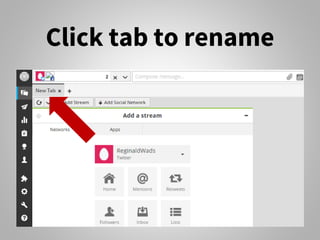
Click tab to rename
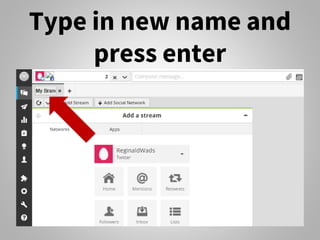
Type in new name and
press enter
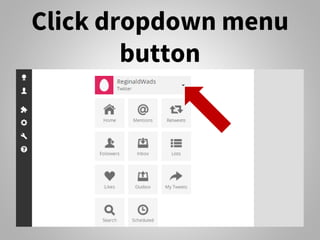
Click dropdown menu
button
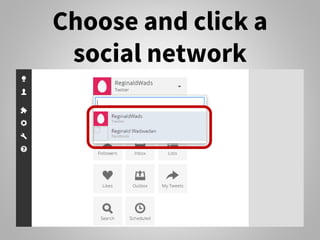
Choose and click a
social network
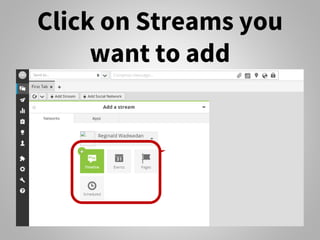
Click on Streams you
want to add
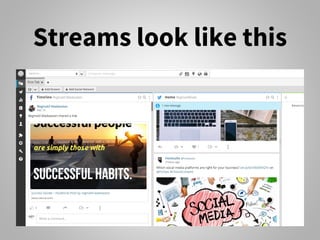
Streams look like this
Now let’s schedule
and publish
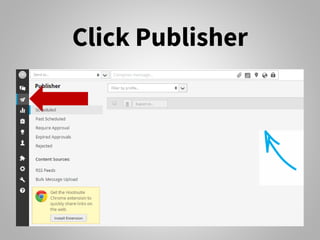
Click Publisher
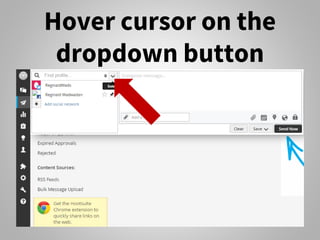
Hover cursor on the
dropdown button
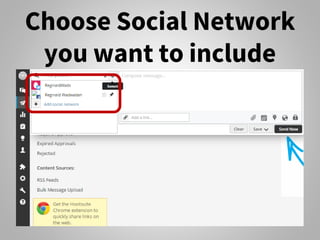
Choose Social Network
you want to include
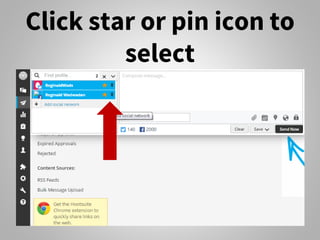
Click star or pin icon to
select
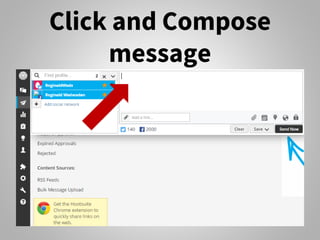
Click and Compose
message
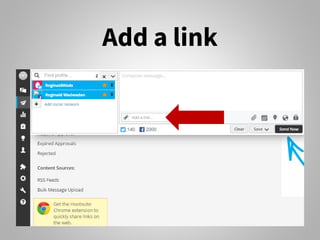
Add a link
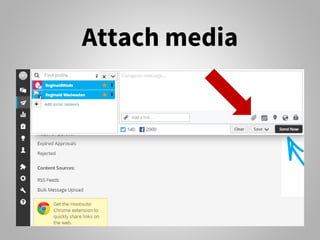
Attach media
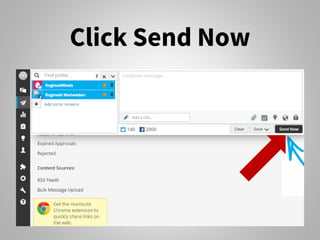
Click Send Now
You can send it
immediately or
schedule it to be
sent later
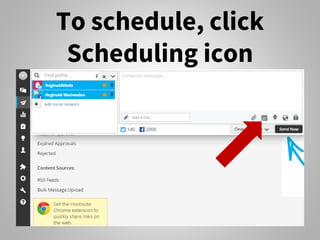
To schedule, click
Scheduling icon
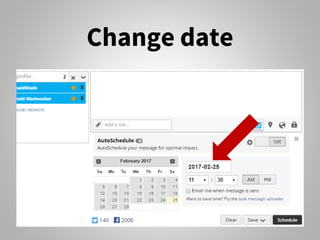
Change date
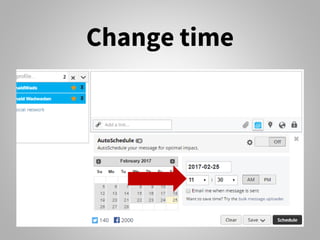
Change time
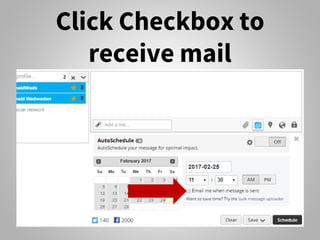
Click Checkbox to
receive mail
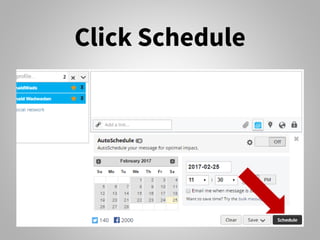
Click Schedule
You can
automatically
queue posts for
optimal times
Using the
AutoScheduler
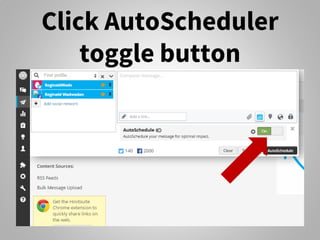
Click AutoScheduler
toggle button
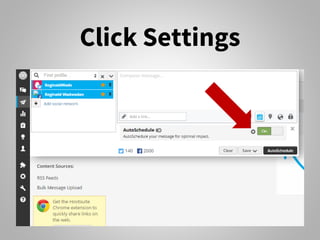
Click Settings
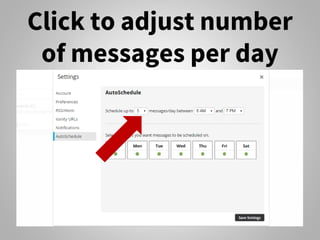
Click to adjust number
of messages per day
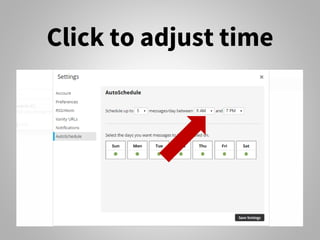
Click to adjust time
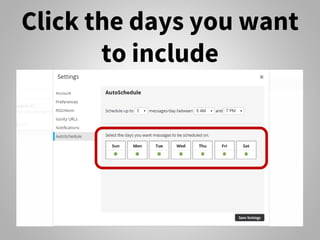
Click the days you want
to include
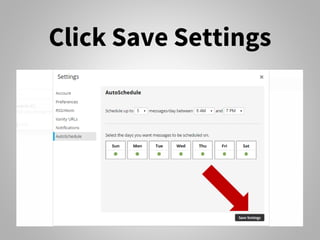
Click Save Settings
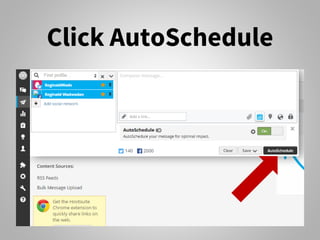
Click AutoSchedule
Congratulations!
Do more in lesser time
using

How to Use Hootsuite