How to Live Stream a
Classroom
Get the book
free at
StreamGeeks.
us/TechEDU
(free on Kindle
today)
Use coupon code “AUGUST” works today and tomorrow!
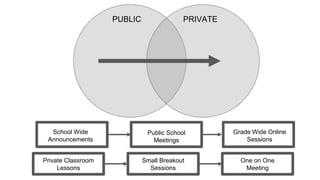
PUBLIC PRIVATE
School Wide
Announcements
Public School
Meetings
Grade Wide Online
Sessions
Small Breakout
Sessions
One on One
Meeting
Private Classroom
Lessons
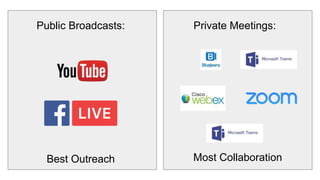
Public Broadcasts: Private Meetings:
Best Outreach Most Collaboration
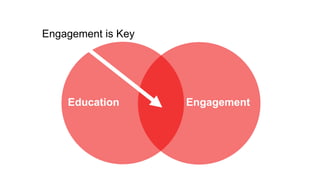
Education Engagement
Engagement is Key
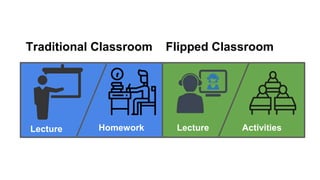
Lecture Homework Lecture Activities
Traditional Classroom Flipped Classroom
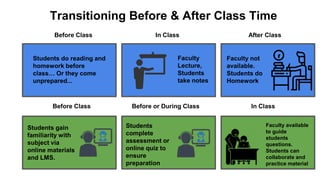
Transitioning Before & After Class Time
Before Class In Class After Class
Students do reading and
homework before
class… Or they come
unprepared...
Students gain
familiarity with
subject via
online materials
and LMS.
Students
complete
assessment or
online quiz to
ensure
preparation
Faculty
Lecture,
Students
take notes
Faculty not
available.
Students do
Homework
Before Class Before or During Class In Class
Faculty available
to guide
students
questions.
Students can
collaborate and
practice material
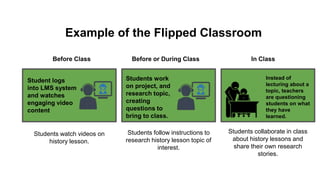
Example of the Flipped Classroom
Student logs
into LMS system
and watches
engaging video
content
Students work
on project, and
research topic,
creating
questions to
bring to class.
Before Class Before or During Class In Class
Instead of
lecturing about a
topic, teachers
are questioning
students on what
they have
learned.
Students watch videos on
history lesson.
Students follow instructions to
research history lesson topic of
interest.
Students collaborate in class
about history lessons and
share their own research
stories.
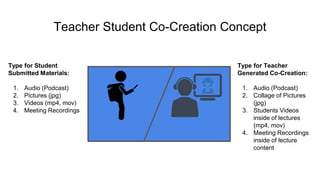
Teacher Student Co-Creation Concept
Type for Student
Submitted Materials:
1. Audio (Podcast)
2. Pictures (jpg)
3. Videos (mp4, mov)
4. Meeting Recordings
Type for Teacher
Generated Co-Creation:
1. Audio (Podcast)
2. Collage of Pictures
(jpg)
3. Students Videos
inside of lectures
(mp4, mov)
4. Meeting Recordings
inside of lecture
content
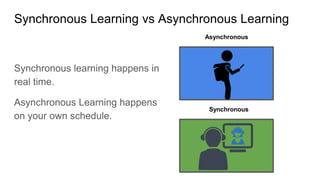
Synchronous Learning vs Asynchronous Learning
Synchronous learning happens in
real time.
Asynchronous Learning happens
on your own schedule.
Synchronous
Asynchronous
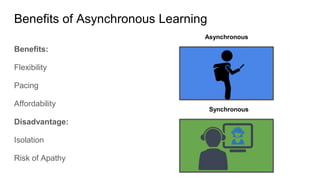
Benefits of Asynchronous Learning
Benefits:
Flexibility
Pacing
Affordability
Disadvantage:
Isolation
Risk of Apathy
Synchronous
Asynchronous
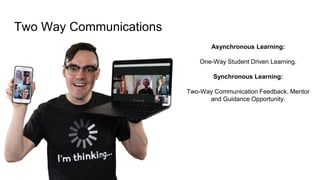
Two Way Communications
Asynchronous Learning:
One-Way Student Driven Learning.
Synchronous Learning:
Two-Way Communication Feedback. Mentor
and Guidance Opportunity.
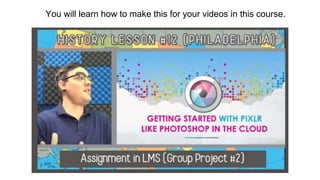
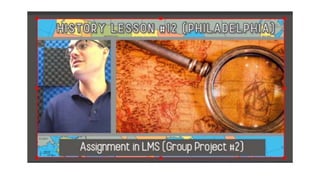
You will learn how to make this for your videos in this course.
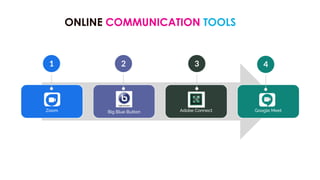
ONLINE COMMUNICATION TOOLS
1 2 3 4
Zoom Big Blue Button Adobe Connect Google Meet
1
2
3
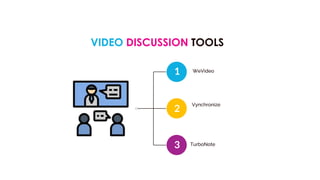
VIDEO DISCUSSION TOOLS
WeVideo
Vynchronize
TurboNote
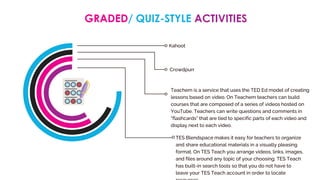
GRADED/ QUIZ-STYLE ACTIVITIES
Kahoot
Crowdpurr
Teachem is a service that uses the TED Ed model of creating
lessons based on video. On Teachem teachers can build
courses that are composed of a series of videos hosted on
YouTube. Teachers can write questions and comments in
“flashcards” that are tied to specific parts of each video and
display next to each video.
TES Blendspace makes it easy for teachers to organize
and share educational materials in a visually pleasing
format. On TES Teach you arrange videos, links, images,
and files around any topic of your choosing. TES Teach
has built-in search tools so that you do not have to
leave your TES Teach account in order to locate
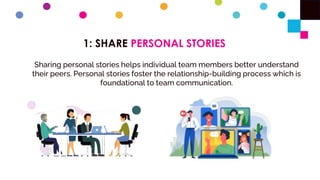
1: SHARE PERSONAL STORIES
Sharing personal stories helps individual team members better understand
their peers. Personal stories foster the relationship-building process which is
foundational to team communication.
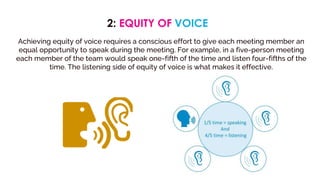
2: EQUITY OF VOICE
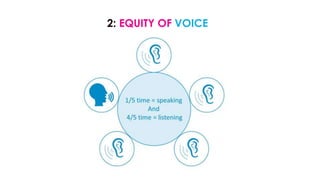
Achieving equity of voice requires a conscious effort to give each meeting member an
equal opportunity to speak during the meeting. For example, in a five-person meeting
each member of the team would speak one-fifth of the time and listen four-fifths of the
time. The listening side of equity of voice is what makes it effective.
2: EQUITY OF VOICE
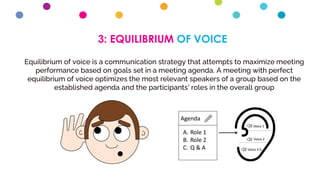
3: EQUILIBRIUM OF VOICE
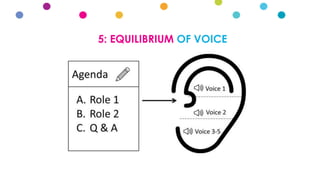
Equilibrium of voice is a communication strategy that attempts to maximize meeting
performance based on goals set in a meeting agenda. A meeting with perfect
equilibrium of voice optimizes the most relevant speakers of a group based on the
established agenda and the participants' roles in the overall group
5: EQUILIBRIUM OF VOICE
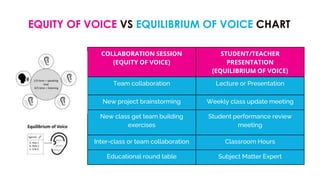
EQUITY OF VOICE VS EQUILIBRIUM OF VOICE CHART
COLLABORATION SESSION
(EQUITY OF VOICE)
STUDENT/TEACHER
PRESENTATION
(EQUILIBRIUM OF VOICE)
Team collaboration Lecture or Presentation
New project brainstorming Weekly class update meeting
New class get team building
exercises
Student performance review
meeting
Inter-class or team collaboration Classroom Hours
Educational round table Subject Matter Expert
AT THE CORE OF BOTH STRATEGIES,
ENGAGED LEARNING IS THE KEY TO
STUDENT DEVELOPMENT.
STUDENTS WANT TO USE
TECHNOLOGY
as a teacher it was my job to figure out how to get my lessons
on the technology they wanted to use.
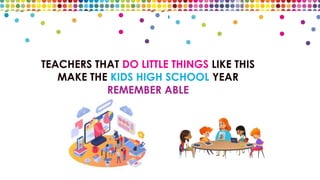
TEACHERS THAT DO LITTLE THINGS LIKE THIS
MAKE THE KIDS HIGH SCHOOL YEAR
REMEMBER ABLE
DON’T BE AFRAID
TO TRY ANYTHING
You never know what is going to connect with which student
JUST LIKE IN A CLASSROOM
don’t hesitate to set a guide of expectations of behavior but also understand
things will/can change quickly
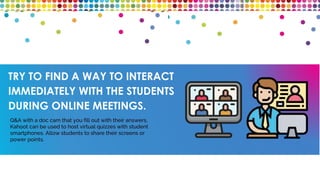
TRY TO FIND A WAY TO INTERACT
IMMEDIATELY WITH THE STUDENTS
DURING ONLINE MEETINGS.
Q&A with a doc cam that you fill out with their answers,
Kahoot can be used to host virtual quizzes with student
smartphones. Allow students to share their screens or
power points.
B-ROLL (VIDEO CLIPS)
Have b-roll (video clips) to catch their attention or break up the hour long lecture
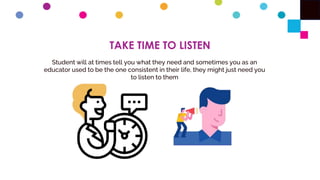
TAKE TIME TO LISTEN
Student will at times tell you what they need and sometimes you as an
educator used to be the one consistent in their life, they might just need you
to listen to them
PROVIDE INSTANT FEEDBACK.
With the technology we have they can turn something in through Google or email. There are
tools like ZipGrade and Google Forms that will grade a majority of work, do it quick and get it
back to the student, you will be surprised at how fast they return it with corrections if you allow
it.
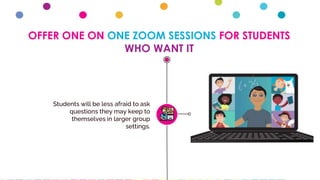
OFFER ONE ON ONE ZOOM SESSIONS FOR STUDENTS
WHO WANT IT
Students will be less afraid to ask
questions they may keep to
themselves in larger group
settings.
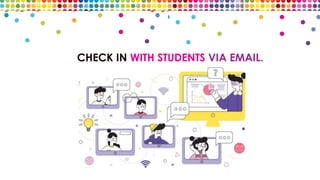
CHECK IN WITH STUDENTS VIA EMAIL.
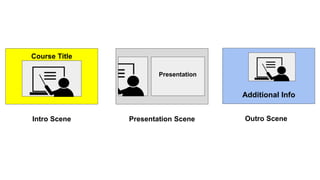
Presentation
Intro Scene Presentation Scene Outro Scene
Additional Info
Course Title
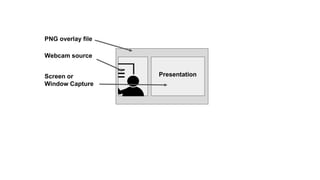
Presentation
PNG overlay file
Webcam source
Screen or
Window Capture
GETTING STARTED WITH OBS
OPEN BROADCASTER SOFTWARE
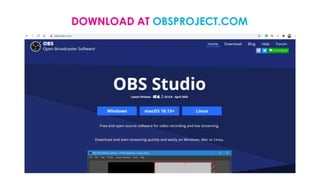
DOWNLOAD AT OBSPROJECT.COM
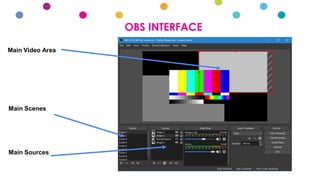
OBS INTERFACE
Main Video Area
Main Scenes
Main Sources
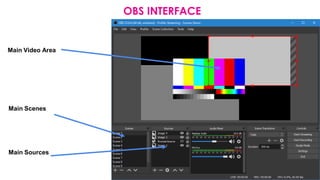
OBS INTERFACE
Main Video Area
Main Scenes
Main Sources
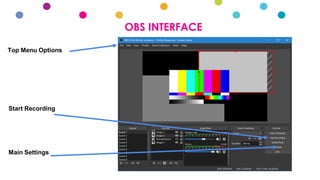
OBS INTERFACE
Top Menu Options
Start Recording
Main Settings
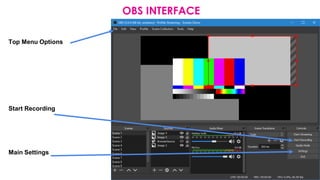
OBS INTERFACE
Top Menu Options
Start Recording
Main Settings
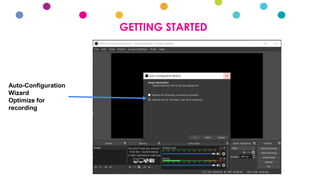
GETTING STARTED
Auto-Configuration
Wizard
Optimize for
recording
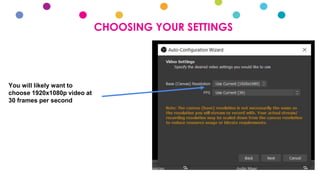
CHOOSING YOUR SETTINGS
You will likely want to
choose 1920x1080p video at
30 frames per second
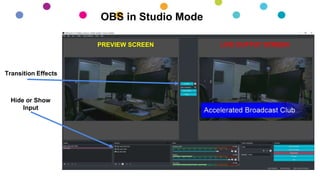
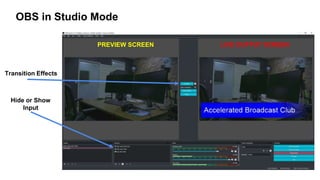
Hide or Show
Input
Transition Effects
PREVIEW SCREEN LIVE OUTPUT SCREEN
OBS in Studio Mode
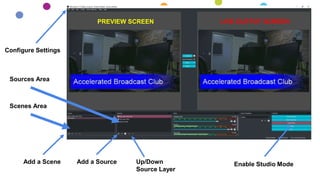
Sources Area
Scenes Area
Add a SourceAdd a Scene Up/Down
Source Layer
Enable Studio Mode
Configure Settings
PREVIEW SCREEN LIVE OUTPUT SCREEN
Hide or Show
Input
Transition Effects
PREVIEW SCREEN LIVE OUTPUT SCREEN
OBS in Studio Mode
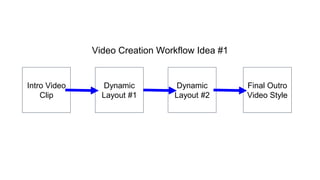
Video Creation Workflow Idea #1
Intro Video
Clip
Dynamic
Layout #1
Dynamic
Layout #2
Final Outro
Video Style
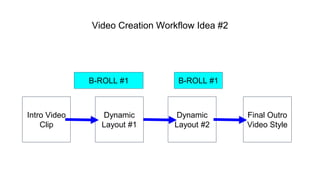
Video Creation Workflow Idea #2
Intro Video
Clip
Dynamic
Layout #1
Dynamic
Layout #2
Final Outro
Video Style
B-ROLL #1 B-ROLL #1
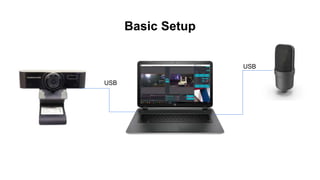
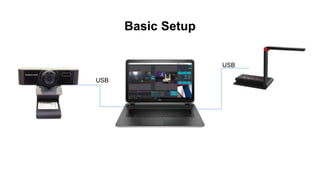
Basic Setup
USB
USB
Basic Setup
USB
USB
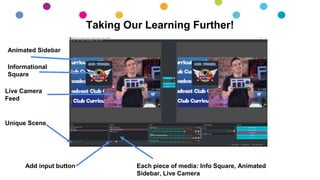
Taking Our Learning Further!
Animated Sidebar
Informational
Square
Live Camera
Feed
Unique Scene
Add input button Each piece of media: Info Square, Animated
Sidebar, Live Camera
How to live stream a classroom

How to live stream a classroom

  • 1.
    How to LiveStream a Classroom
  • 2.
    Get the book freeat StreamGeeks. us/TechEDU (free on Kindle today)
  • 3.
    Use coupon code“AUGUST” works today and tomorrow!
  • 4.
    PUBLIC PRIVATE School Wide Announcements PublicSchool Meetings Grade Wide Online Sessions Small Breakout Sessions One on One Meeting Private Classroom Lessons
  • 5.
    Public Broadcasts: PrivateMeetings: Best Outreach Most Collaboration
  • 6.
  • 7.
    Lecture Homework LectureActivities Traditional Classroom Flipped Classroom
  • 8.
    Transitioning Before &After Class Time Before Class In Class After Class Students do reading and homework before class… Or they come unprepared... Students gain familiarity with subject via online materials and LMS. Students complete assessment or online quiz to ensure preparation Faculty Lecture, Students take notes Faculty not available. Students do Homework Before Class Before or During Class In Class Faculty available to guide students questions. Students can collaborate and practice material
  • 9.
    Example of theFlipped Classroom Student logs into LMS system and watches engaging video content Students work on project, and research topic, creating questions to bring to class. Before Class Before or During Class In Class Instead of lecturing about a topic, teachers are questioning students on what they have learned. Students watch videos on history lesson. Students follow instructions to research history lesson topic of interest. Students collaborate in class about history lessons and share their own research stories.
  • 10.
    Teacher Student Co-CreationConcept Type for Student Submitted Materials: 1. Audio (Podcast) 2. Pictures (jpg) 3. Videos (mp4, mov) 4. Meeting Recordings Type for Teacher Generated Co-Creation: 1. Audio (Podcast) 2. Collage of Pictures (jpg) 3. Students Videos inside of lectures (mp4, mov) 4. Meeting Recordings inside of lecture content
  • 11.
    Synchronous Learning vsAsynchronous Learning Synchronous learning happens in real time. Asynchronous Learning happens on your own schedule. Synchronous Asynchronous
  • 12.
    Benefits of AsynchronousLearning Benefits: Flexibility Pacing Affordability Disadvantage: Isolation Risk of Apathy Synchronous Asynchronous
  • 13.
    Two Way Communications AsynchronousLearning: One-Way Student Driven Learning. Synchronous Learning: Two-Way Communication Feedback. Mentor and Guidance Opportunity.
  • 14.
    You will learnhow to make this for your videos in this course.
  • 16.
    ONLINE COMMUNICATION TOOLS 12 3 4 Zoom Big Blue Button Adobe Connect Google Meet
  • 17.
  • 18.
    GRADED/ QUIZ-STYLE ACTIVITIES Kahoot Crowdpurr Teachemis a service that uses the TED Ed model of creating lessons based on video. On Teachem teachers can build courses that are composed of a series of videos hosted on YouTube. Teachers can write questions and comments in “flashcards” that are tied to specific parts of each video and display next to each video. TES Blendspace makes it easy for teachers to organize and share educational materials in a visually pleasing format. On TES Teach you arrange videos, links, images, and files around any topic of your choosing. TES Teach has built-in search tools so that you do not have to leave your TES Teach account in order to locate
  • 19.
    1: SHARE PERSONALSTORIES Sharing personal stories helps individual team members better understand their peers. Personal stories foster the relationship-building process which is foundational to team communication.
  • 20.
    2: EQUITY OFVOICE Achieving equity of voice requires a conscious effort to give each meeting member an equal opportunity to speak during the meeting. For example, in a five-person meeting each member of the team would speak one-fifth of the time and listen four-fifths of the time. The listening side of equity of voice is what makes it effective.
  • 21.
  • 22.
    3: EQUILIBRIUM OFVOICE Equilibrium of voice is a communication strategy that attempts to maximize meeting performance based on goals set in a meeting agenda. A meeting with perfect equilibrium of voice optimizes the most relevant speakers of a group based on the established agenda and the participants' roles in the overall group
  • 23.
  • 24.
    EQUITY OF VOICEVS EQUILIBRIUM OF VOICE CHART COLLABORATION SESSION (EQUITY OF VOICE) STUDENT/TEACHER PRESENTATION (EQUILIBRIUM OF VOICE) Team collaboration Lecture or Presentation New project brainstorming Weekly class update meeting New class get team building exercises Student performance review meeting Inter-class or team collaboration Classroom Hours Educational round table Subject Matter Expert
  • 25.
    AT THE COREOF BOTH STRATEGIES, ENGAGED LEARNING IS THE KEY TO STUDENT DEVELOPMENT.
  • 28.
    STUDENTS WANT TOUSE TECHNOLOGY as a teacher it was my job to figure out how to get my lessons on the technology they wanted to use.
  • 29.
    TEACHERS THAT DOLITTLE THINGS LIKE THIS MAKE THE KIDS HIGH SCHOOL YEAR REMEMBER ABLE
  • 30.
    DON’T BE AFRAID TOTRY ANYTHING You never know what is going to connect with which student
  • 31.
    JUST LIKE INA CLASSROOM don’t hesitate to set a guide of expectations of behavior but also understand things will/can change quickly
  • 32.
    TRY TO FINDA WAY TO INTERACT IMMEDIATELY WITH THE STUDENTS DURING ONLINE MEETINGS. Q&A with a doc cam that you fill out with their answers, Kahoot can be used to host virtual quizzes with student smartphones. Allow students to share their screens or power points.
  • 33.
    B-ROLL (VIDEO CLIPS) Haveb-roll (video clips) to catch their attention or break up the hour long lecture
  • 34.
    TAKE TIME TOLISTEN Student will at times tell you what they need and sometimes you as an educator used to be the one consistent in their life, they might just need you to listen to them
  • 35.
    PROVIDE INSTANT FEEDBACK. Withthe technology we have they can turn something in through Google or email. There are tools like ZipGrade and Google Forms that will grade a majority of work, do it quick and get it back to the student, you will be surprised at how fast they return it with corrections if you allow it.
  • 36.
    OFFER ONE ONONE ZOOM SESSIONS FOR STUDENTS WHO WANT IT Students will be less afraid to ask questions they may keep to themselves in larger group settings.
  • 37.
    CHECK IN WITHSTUDENTS VIA EMAIL.
  • 38.
    Presentation Intro Scene PresentationScene Outro Scene Additional Info Course Title
  • 39.
    Presentation PNG overlay file Webcamsource Screen or Window Capture
  • 40.
    GETTING STARTED WITHOBS OPEN BROADCASTER SOFTWARE
  • 41.
  • 42.
    OBS INTERFACE Main VideoArea Main Scenes Main Sources
  • 43.
    OBS INTERFACE Main VideoArea Main Scenes Main Sources
  • 44.
    OBS INTERFACE Top MenuOptions Start Recording Main Settings
  • 45.
    OBS INTERFACE Top MenuOptions Start Recording Main Settings
  • 46.
  • 47.
    CHOOSING YOUR SETTINGS Youwill likely want to choose 1920x1080p video at 30 frames per second
  • 48.
    Hide or Show Input TransitionEffects PREVIEW SCREEN LIVE OUTPUT SCREEN OBS in Studio Mode
  • 49.
    Sources Area Scenes Area Adda SourceAdd a Scene Up/Down Source Layer Enable Studio Mode Configure Settings PREVIEW SCREEN LIVE OUTPUT SCREEN
  • 50.
    Hide or Show Input TransitionEffects PREVIEW SCREEN LIVE OUTPUT SCREEN OBS in Studio Mode
  • 51.
    Video Creation WorkflowIdea #1 Intro Video Clip Dynamic Layout #1 Dynamic Layout #2 Final Outro Video Style
  • 52.
    Video Creation WorkflowIdea #2 Intro Video Clip Dynamic Layout #1 Dynamic Layout #2 Final Outro Video Style B-ROLL #1 B-ROLL #1
  • 53.
  • 54.
  • 55.
    Taking Our LearningFurther! Animated Sidebar Informational Square Live Camera Feed Unique Scene Add input button Each piece of media: Info Square, Animated Sidebar, Live Camera