



Connect
OBS &
Zoom
Updated!
+
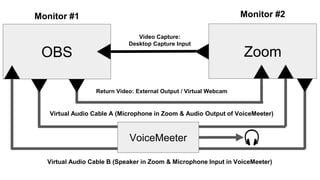
OBS
Return Video: External Output / Virtual Webcam
Zoom
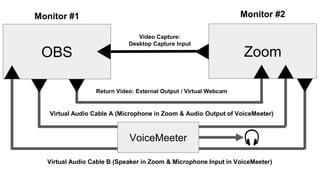
Virtual Audio Cable A (Microphone in Zoom & Audio Output of VoiceMeeter)
Virtual Audio Cable B (Speaker in Zoom & Microphone Input in VoiceMeeter)
Video Capture:
Desktop Capture Input
Monitor #1 Monitor #2
VoiceMeeter
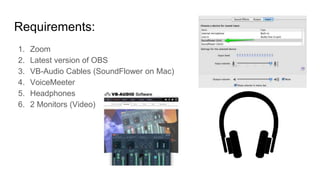
Requirements:
1. Zoom
2. Latest version of OBS
3. VB-Audio Cables (SoundFlower on Mac)
4. VoiceMeeter
5. Headphones
6. 2 Monitors (Video)
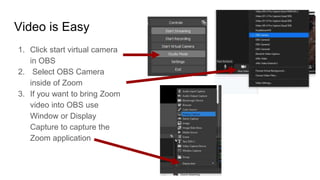
Video is Easy
1. Click start virtual camera
in OBS
2. Select OBS Camera
inside of Zoom
3. If you want to bring Zoom
video into OBS use
Window or Display
Capture to capture the
Zoom application
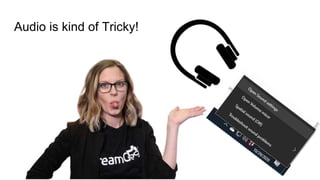
Audio is kind of Tricky!
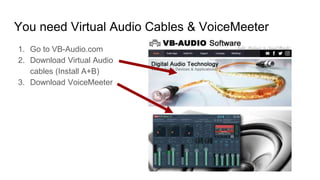
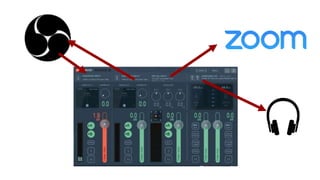
You need Virtual Audio Cables & VoiceMeeter
1. Go to VB-Audio.com
2. Download Virtual Audio
cables (Install A+B)
3. Download VoiceMeeter
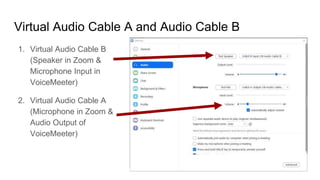
Virtual Audio Cable A and Audio Cable B
1. Virtual Audio Cable B
(Speaker in Zoom &
Microphone Input in
VoiceMeeter)
2. Virtual Audio Cable A
(Microphone in Zoom &
Audio Output of
VoiceMeeter)
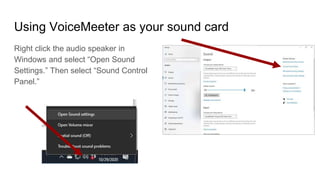
Using VoiceMeeter as your sound card
Right click the audio speaker in
Windows and select “Open Sound
Settings.” Then select “Sound Control
Panel.”
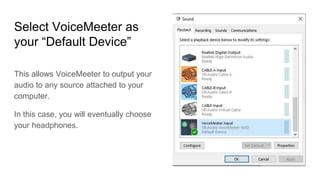
Select VoiceMeeter as
your “Default Device”
This allows VoiceMeeter to output your
audio to any source attached to your
computer.
In this case, you will eventually choose
your headphones.
OBS
Return Video: External Output / Virtual Webcam
Zoom
Virtual Audio Cable A (Microphone in Zoom & Audio Output of VoiceMeeter)
Virtual Audio Cable B (Speaker in Zoom & Microphone Input in VoiceMeeter)
Video Capture:
Desktop Capture Input
Monitor #1 Monitor #2
VoiceMeeter
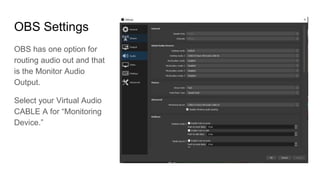
OBS Settings
OBS has one option for
routing audio out and that
is the Monitor Audio
Output.
Select your Virtual Audio
CABLE A for “Monitoring
Device.”
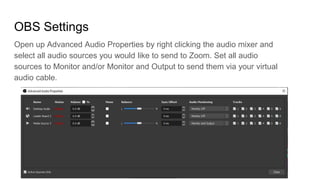
OBS Settings
Open up Advanced Audio Properties by right clicking the audio mixer and
select all audio sources you would like to send to Zoom. Set all audio
sources to Monitor and/or Monitor and Output to send them via your virtual
audio cable.
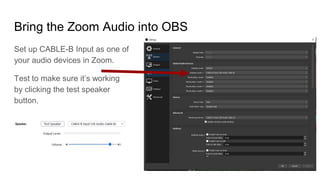
Bring the Zoom Audio into OBS
Set up CABLE-B Input as one of
your audio devices in Zoom.
Test to make sure it’s working
by clicking the test speaker
button.
You Did
it!
Get the Unofficial Guide to OBS
Get it free at StreamGeeks.us
Or order it on Amazon to get the paperback
copy!
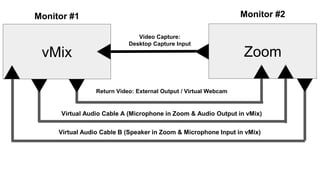
vMix
Return Video: External Output / Virtual Webcam
Zoom
Virtual Audio Cable A (Microphone in Zoom & Audio Output in vMix)
Virtual Audio Cable B (Speaker in Zoom & Microphone Input in vMix)
Video Capture:
Desktop Capture Input
Monitor #1 Monitor #2

Updated How to connect OBS and Zoom

  • 1.
  • 2.
  • 3.
    OBS Return Video: ExternalOutput / Virtual Webcam Zoom Virtual Audio Cable A (Microphone in Zoom & Audio Output of VoiceMeeter) Virtual Audio Cable B (Speaker in Zoom & Microphone Input in VoiceMeeter) Video Capture: Desktop Capture Input Monitor #1 Monitor #2 VoiceMeeter
  • 4.
    Requirements: 1. Zoom 2. Latestversion of OBS 3. VB-Audio Cables (SoundFlower on Mac) 4. VoiceMeeter 5. Headphones 6. 2 Monitors (Video)
  • 5.
    Video is Easy 1.Click start virtual camera in OBS 2. Select OBS Camera inside of Zoom 3. If you want to bring Zoom video into OBS use Window or Display Capture to capture the Zoom application
  • 6.
    Audio is kindof Tricky!
  • 7.
    You need VirtualAudio Cables & VoiceMeeter 1. Go to VB-Audio.com 2. Download Virtual Audio cables (Install A+B) 3. Download VoiceMeeter
  • 8.
    Virtual Audio CableA and Audio Cable B 1. Virtual Audio Cable B (Speaker in Zoom & Microphone Input in VoiceMeeter) 2. Virtual Audio Cable A (Microphone in Zoom & Audio Output of VoiceMeeter)
  • 9.
    Using VoiceMeeter asyour sound card Right click the audio speaker in Windows and select “Open Sound Settings.” Then select “Sound Control Panel.”
  • 10.
    Select VoiceMeeter as your“Default Device” This allows VoiceMeeter to output your audio to any source attached to your computer. In this case, you will eventually choose your headphones.
  • 11.
    OBS Return Video: ExternalOutput / Virtual Webcam Zoom Virtual Audio Cable A (Microphone in Zoom & Audio Output of VoiceMeeter) Virtual Audio Cable B (Speaker in Zoom & Microphone Input in VoiceMeeter) Video Capture: Desktop Capture Input Monitor #1 Monitor #2 VoiceMeeter
  • 12.
    OBS Settings OBS hasone option for routing audio out and that is the Monitor Audio Output. Select your Virtual Audio CABLE A for “Monitoring Device.”
  • 13.
    OBS Settings Open upAdvanced Audio Properties by right clicking the audio mixer and select all audio sources you would like to send to Zoom. Set all audio sources to Monitor and/or Monitor and Output to send them via your virtual audio cable.
  • 15.
    Bring the ZoomAudio into OBS Set up CABLE-B Input as one of your audio devices in Zoom. Test to make sure it’s working by clicking the test speaker button.
  • 16.
  • 17.
    Get the UnofficialGuide to OBS Get it free at StreamGeeks.us Or order it on Amazon to get the paperback copy!
  • 18.
    vMix Return Video: ExternalOutput / Virtual Webcam Zoom Virtual Audio Cable A (Microphone in Zoom & Audio Output in vMix) Virtual Audio Cable B (Speaker in Zoom & Microphone Input in vMix) Video Capture: Desktop Capture Input Monitor #1 Monitor #2