How to Install Gluster Storage
Platform
Installing Gluster Storage Platform

Steps
1. Insert USB install media into server and boot it
2. Select a boot drive for installation
3. Set-up your network configuration

Minimum Requirements
  1GB USB Disk as Install Media
  1 or more storage servers (or virtual machines) with the
  following minimum configuration:
    –   8GB Disk
    –   1GB Memory
    –   Intel/AMD 64bit hardware
    –   Networking options: 1GbE,10GbE, InfiniBand


                                                             2
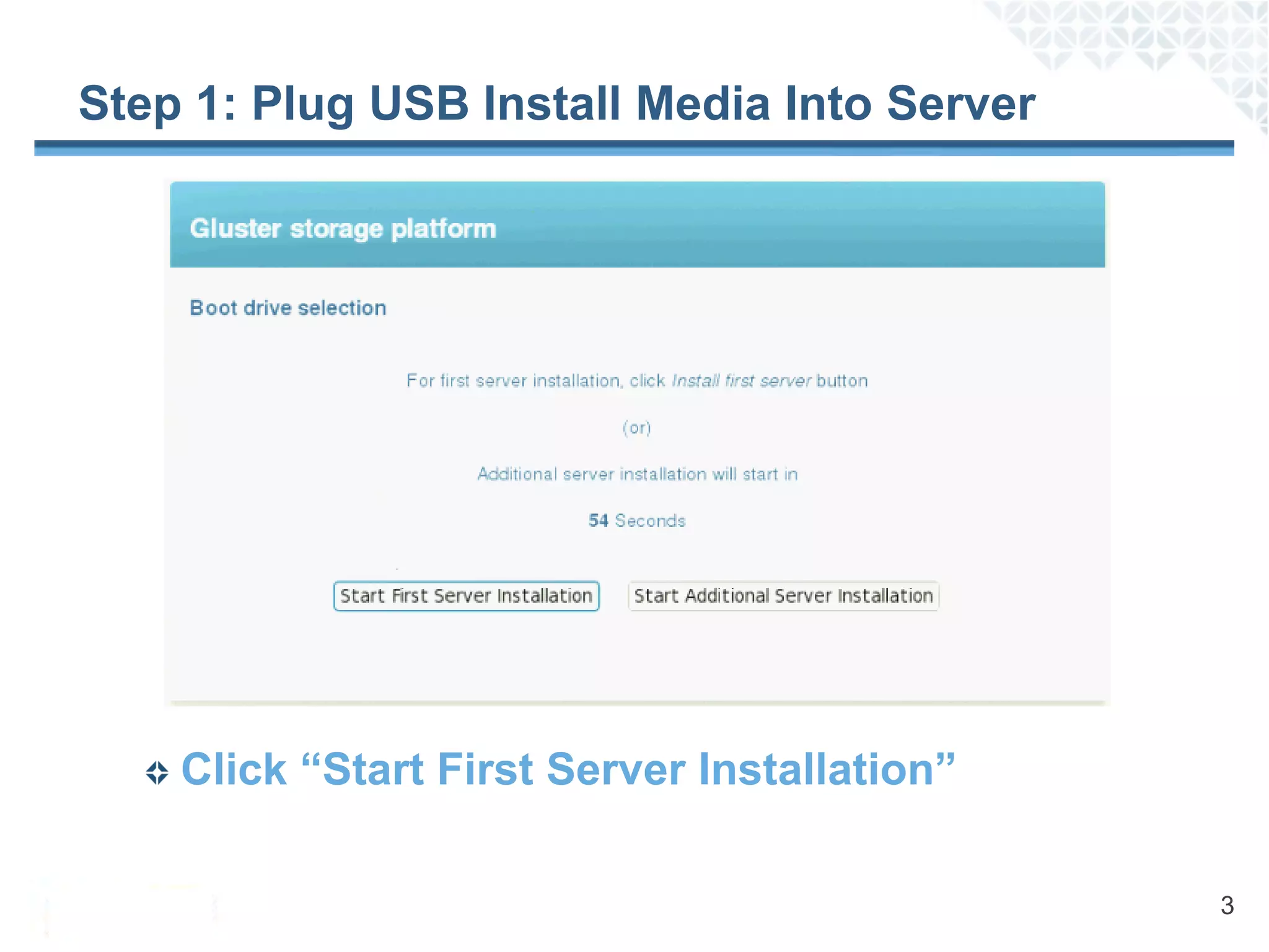
Step 1: Plug USB Install Media Into Server


    Click “Start First Server Installation”

                                              3
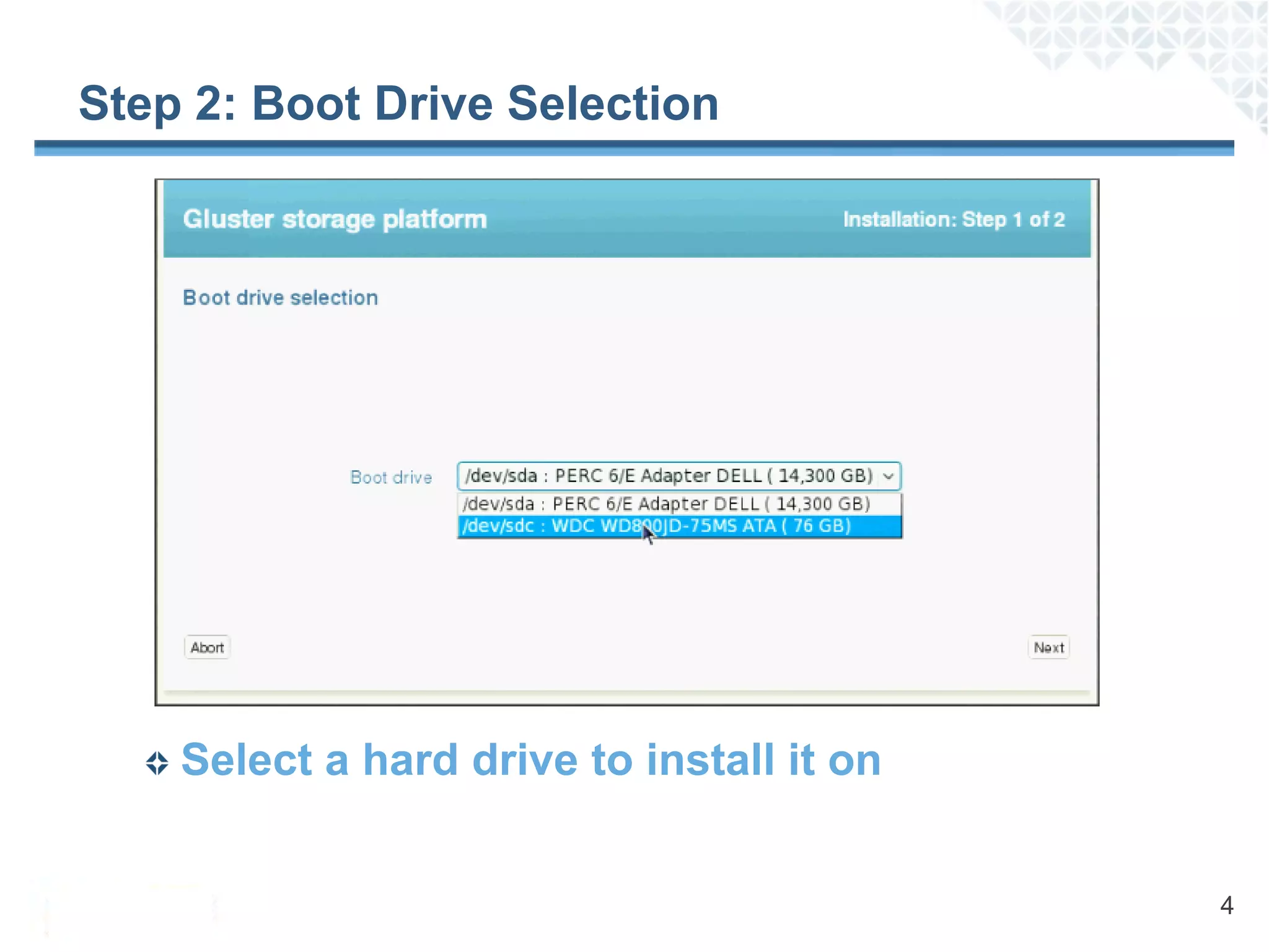
Step 2: Boot Drive Selection


    Select a hard drive to install it on


                                           4
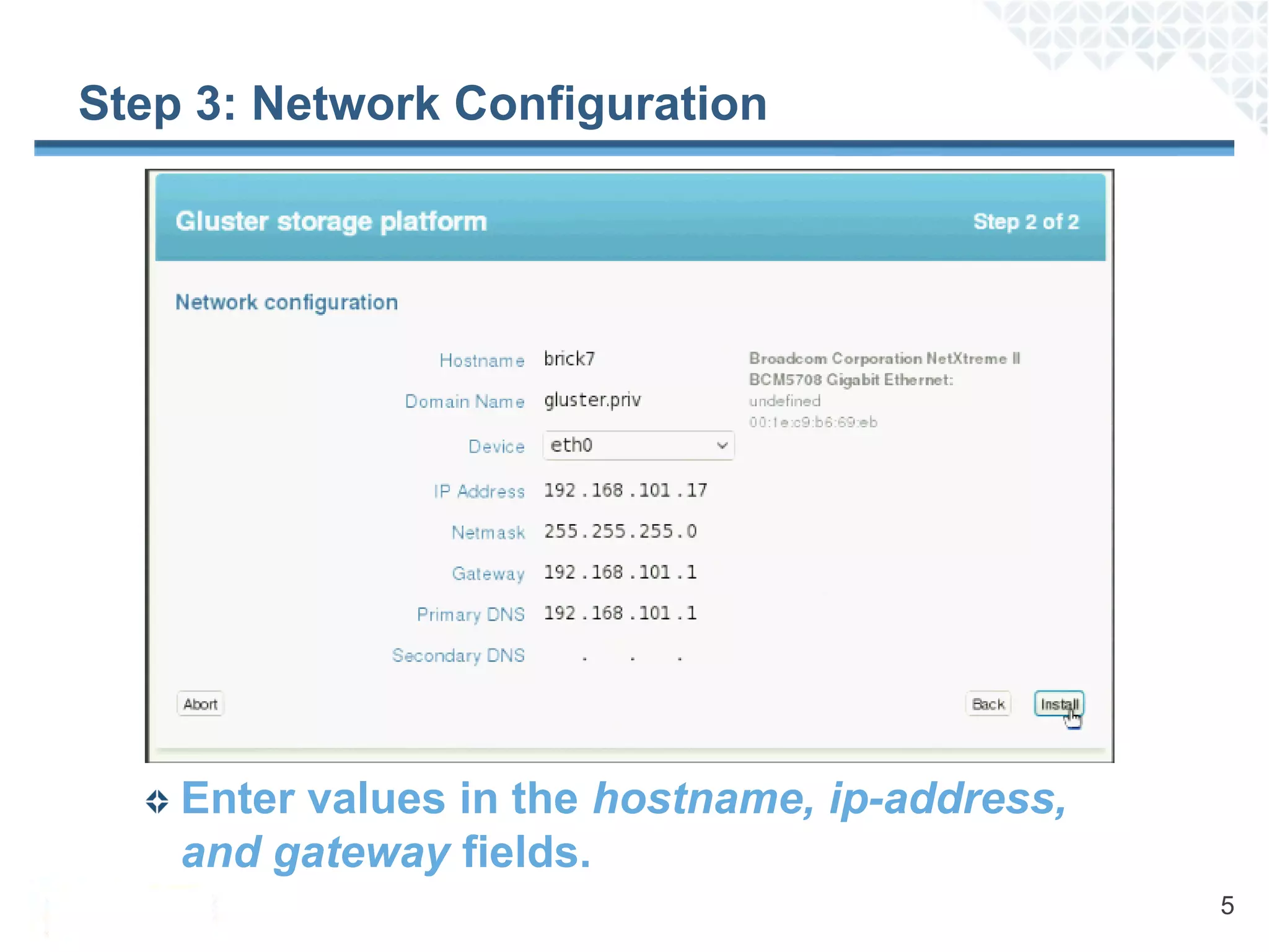
Step 3: Network Configuration


    Enter values in the hostname, ip-address,
    and gateway fields.
                                                5
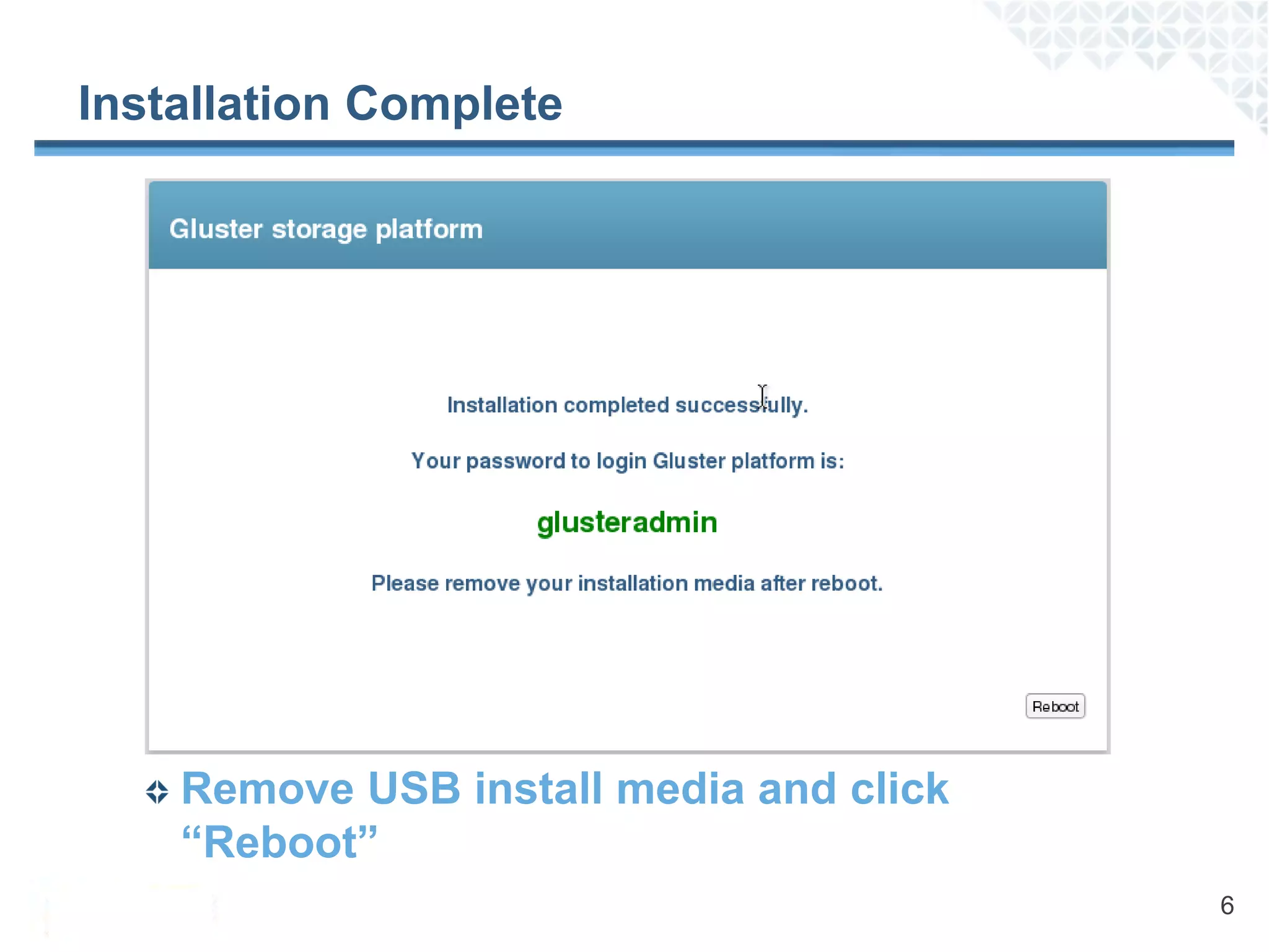
Installation Complete


    Remove USB install media and click
    “Reboot”
                                         6
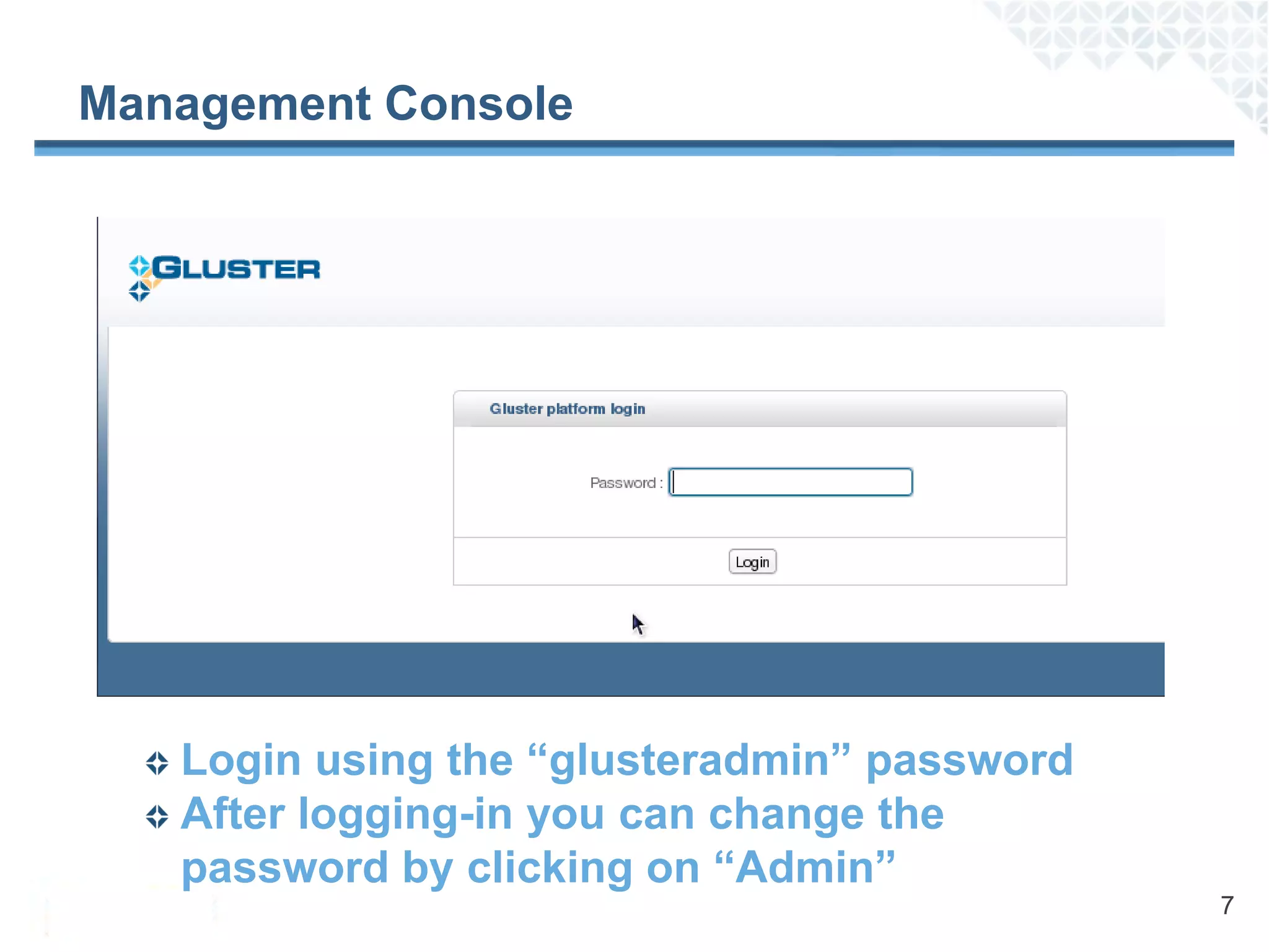
Management Console


   Login using the “glusteradmin” password
   After logging-in you can change the
   password by clicking on “Admin”
                                             7
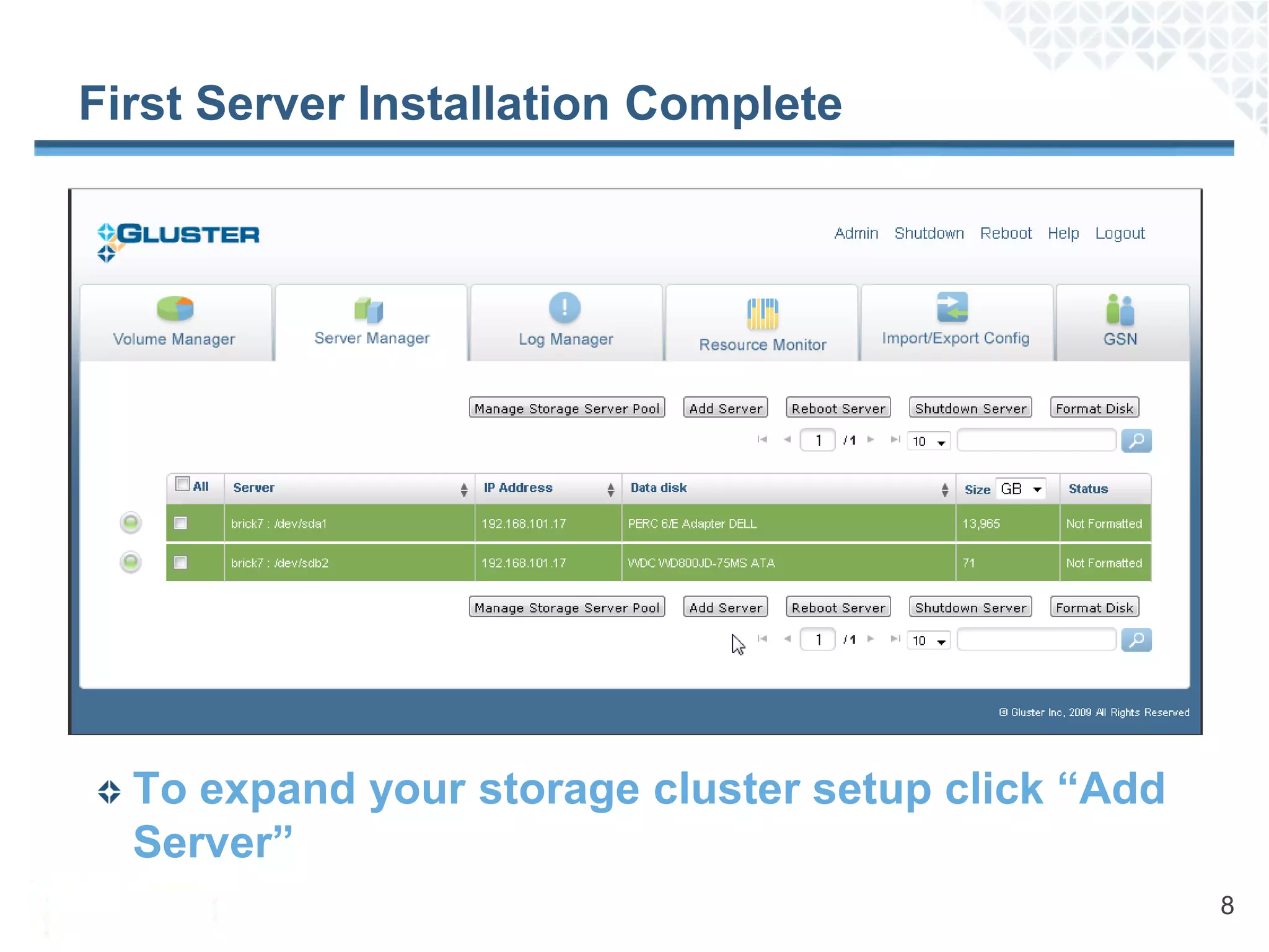
First Server Installation Complete


  To expand your storage cluster setup click “Add
  Server”
                                                    8
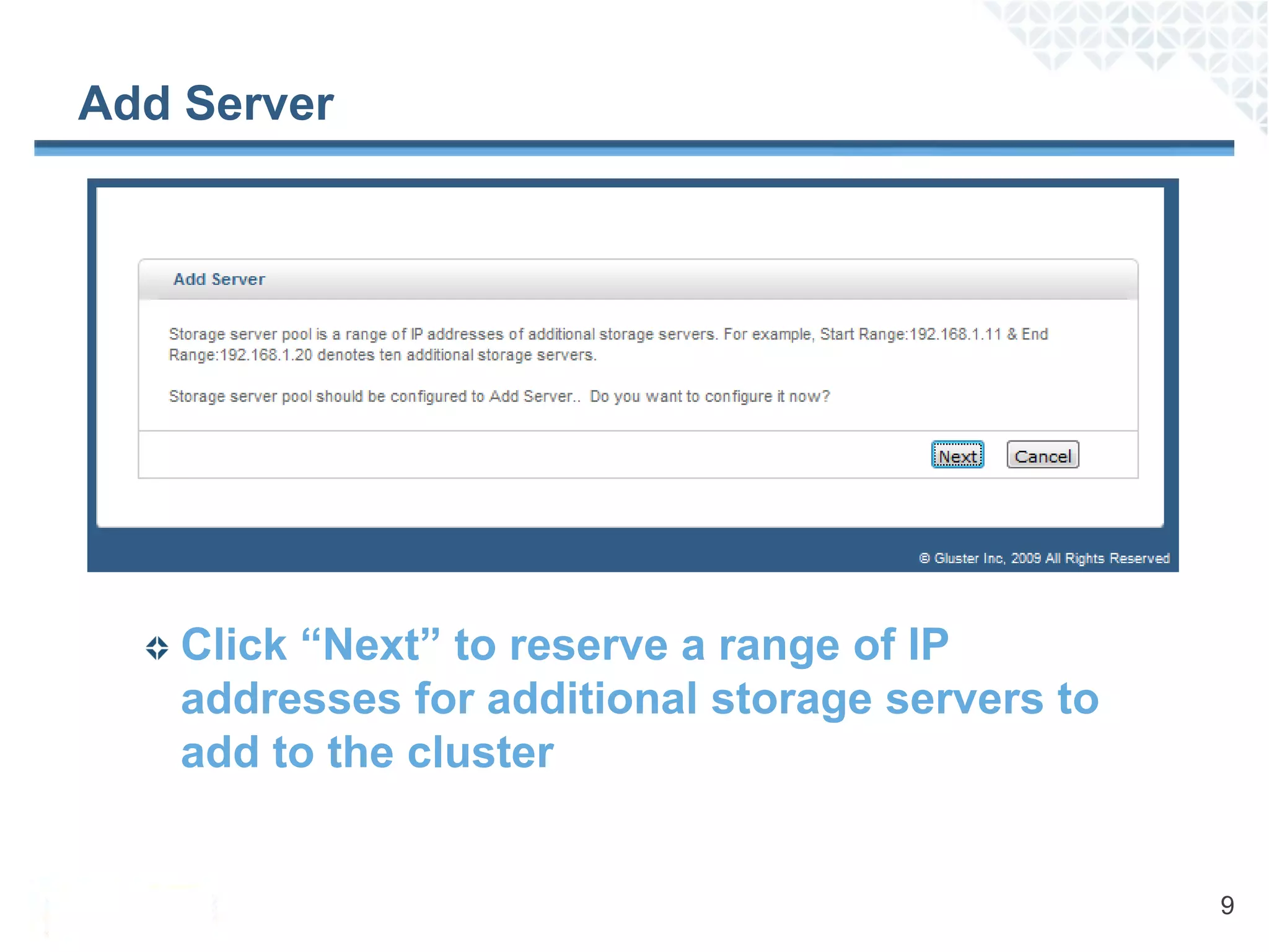
Add Server


    Click “Next” to reserve a range of IP
    addresses for additional storage servers to
    add to the cluster


                                                  9
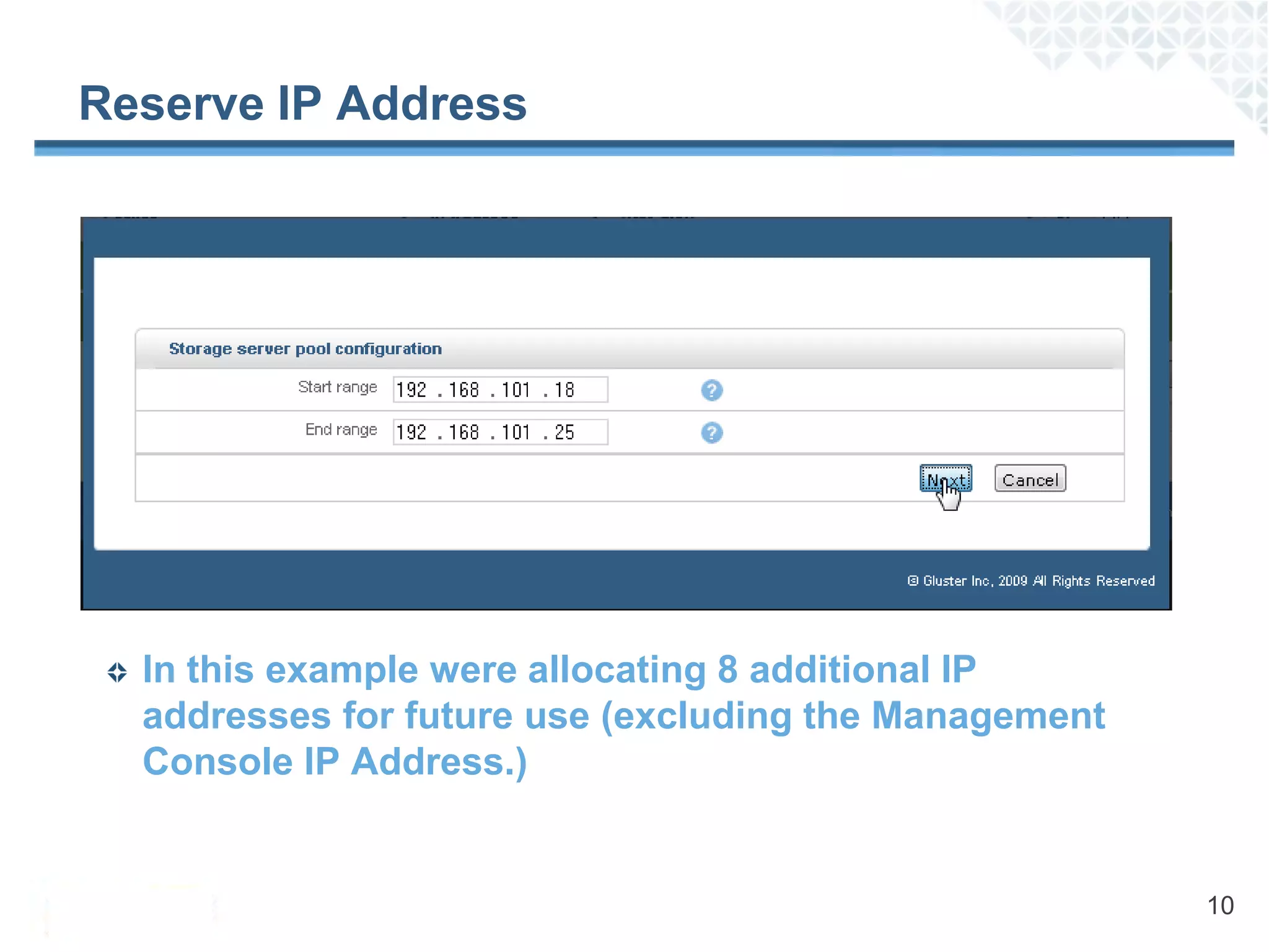
Reserve IP Address


  In this example were allocating 8 additional IP
  addresses for future use (excluding the Management
  Console IP Address.)


                                                       10
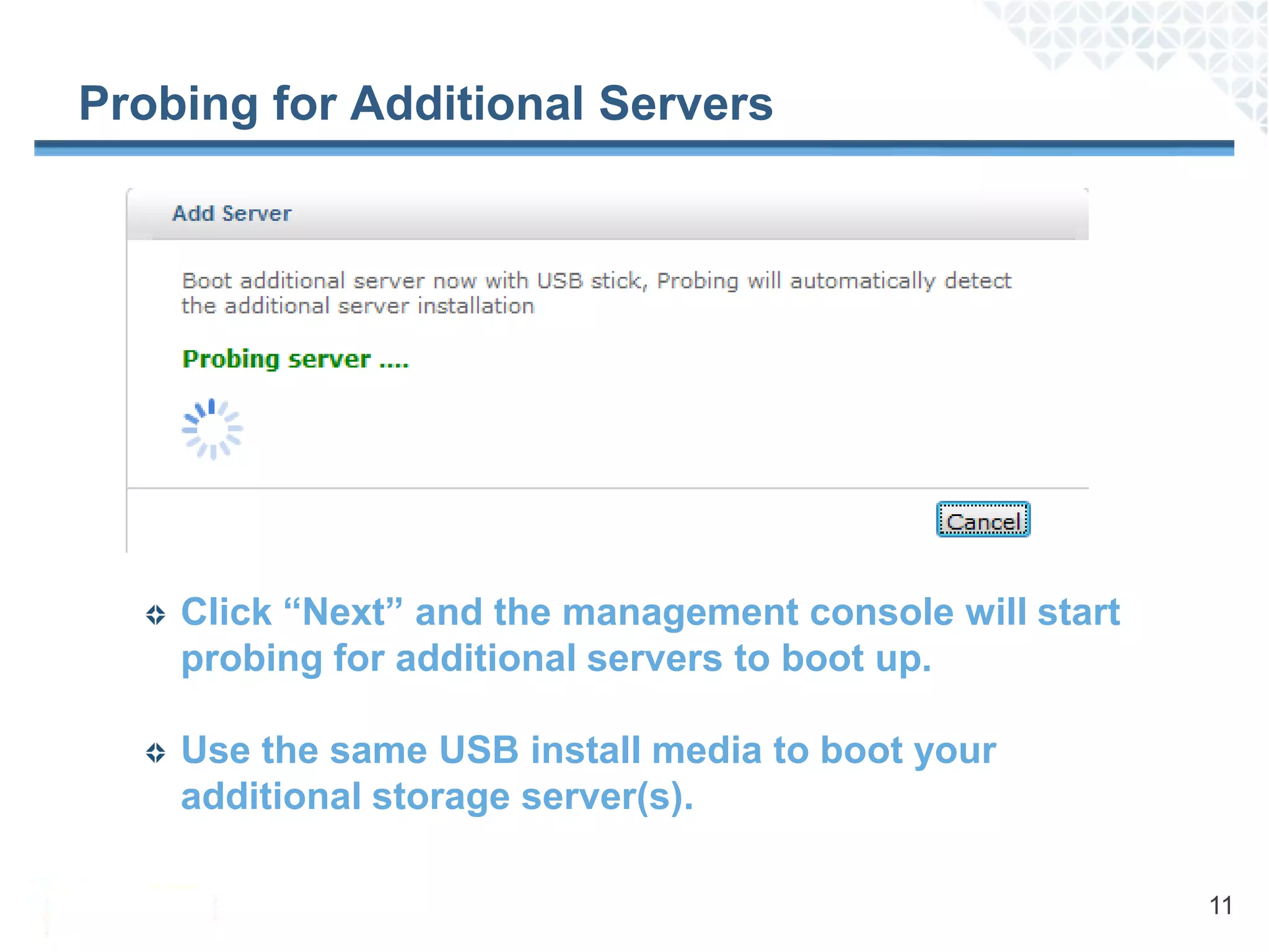
Probing for Additional Servers


    Click “Next” and the management console will start
    probing for additional servers to boot up.

    Use the same USB install media to boot your
    additional storage server(s).

                                                         11
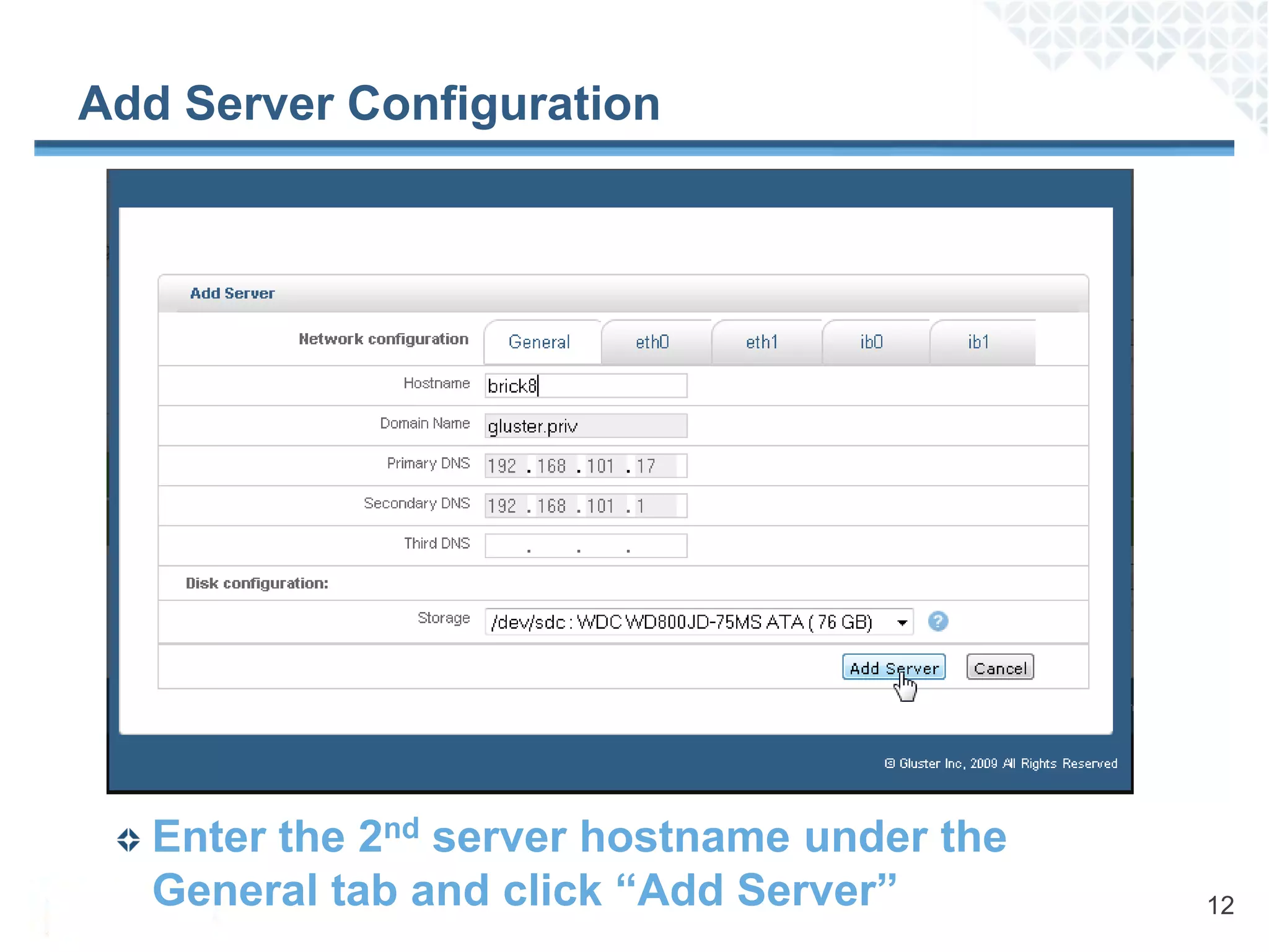
Add Server Configuration


   Enter the 2nd server hostname under the
   General tab and click “Add Server”        12
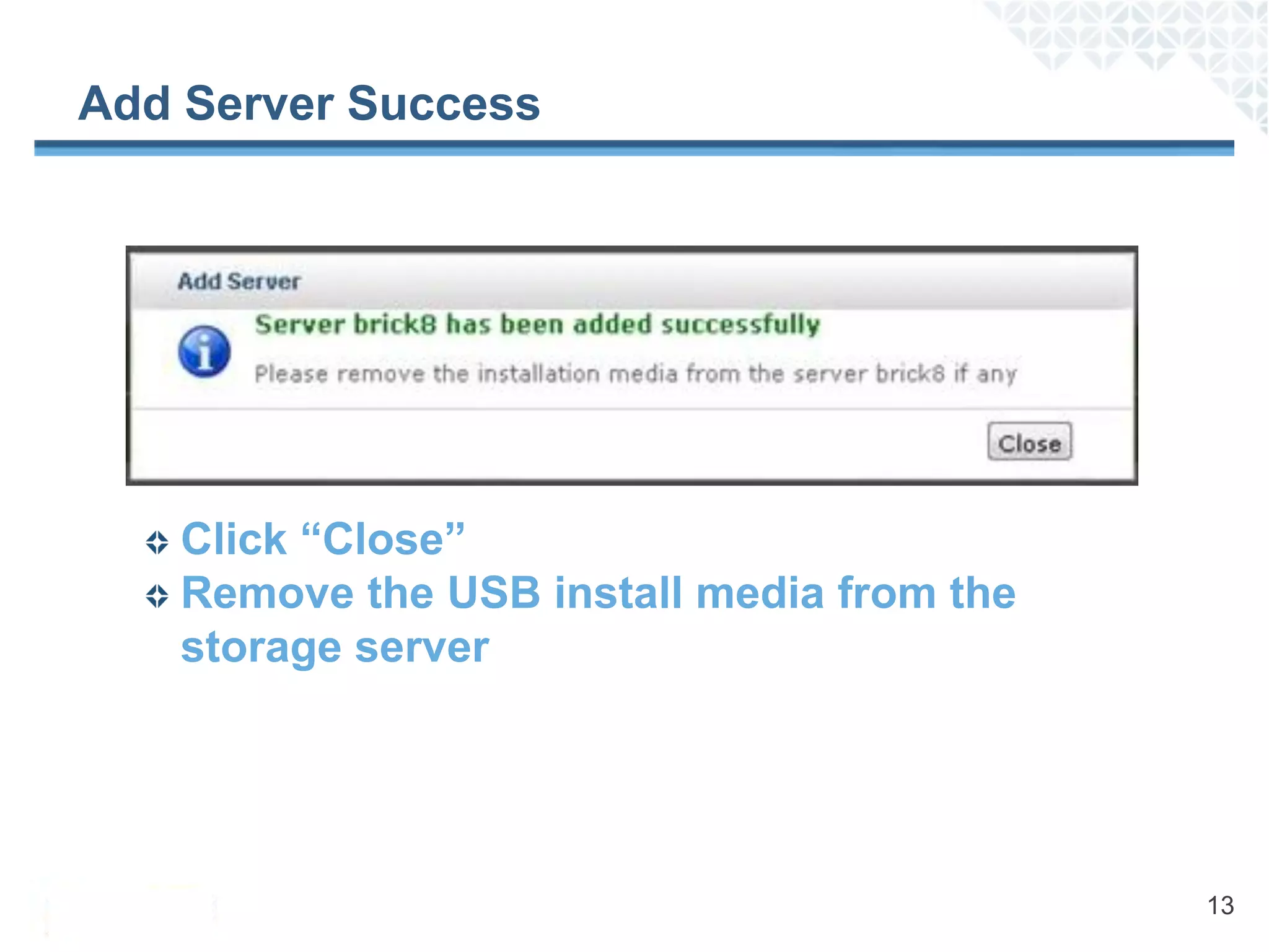
Add Server Success


   Click “Close”
   Remove the USB install media from the
   storage server


                                           13
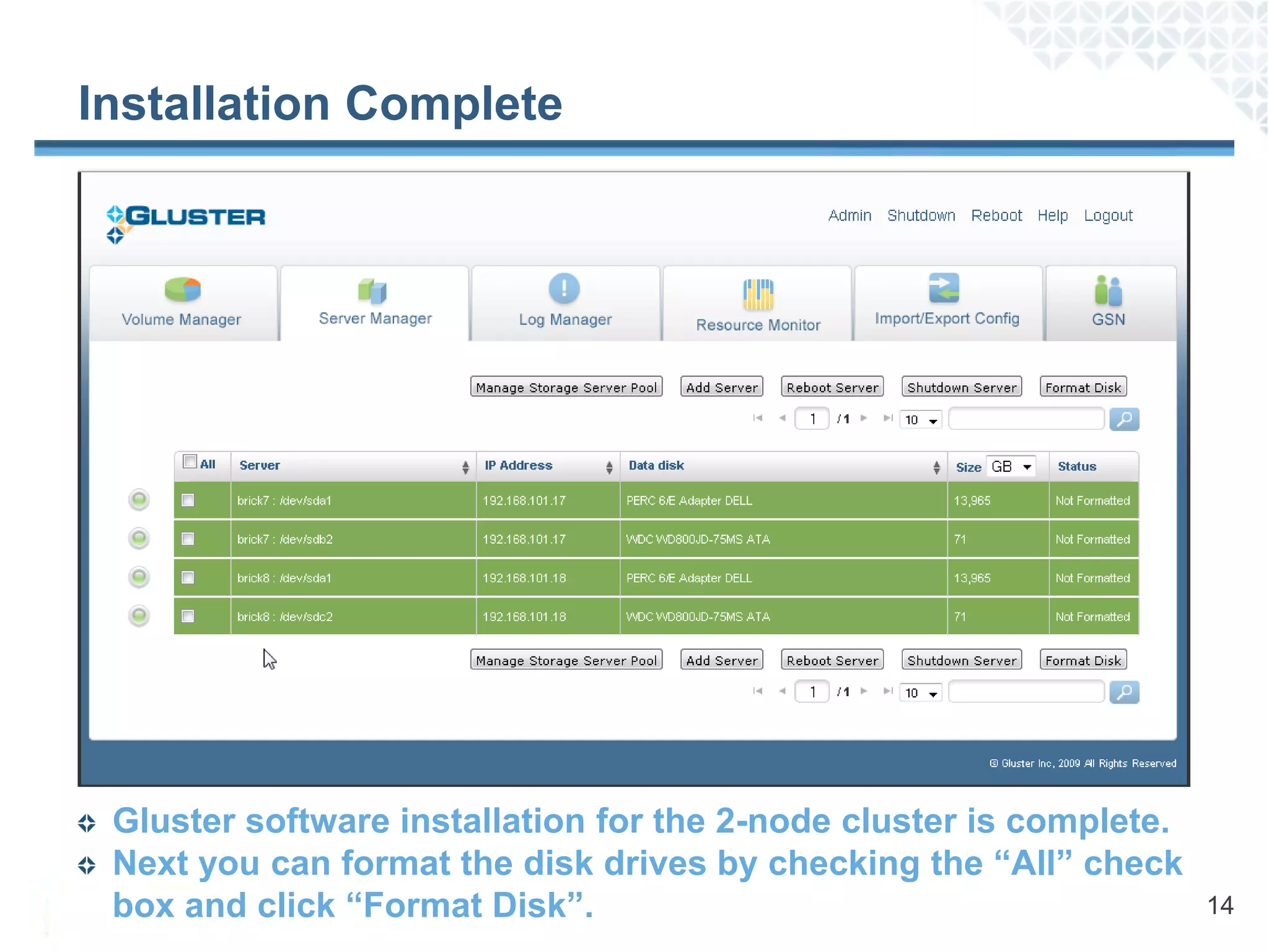
Installation Complete


 Gluster software installation for the 2-node cluster is complete.
 Next you can format the disk drives by checking the “All” check
 box and click “Format Disk”.                                        14
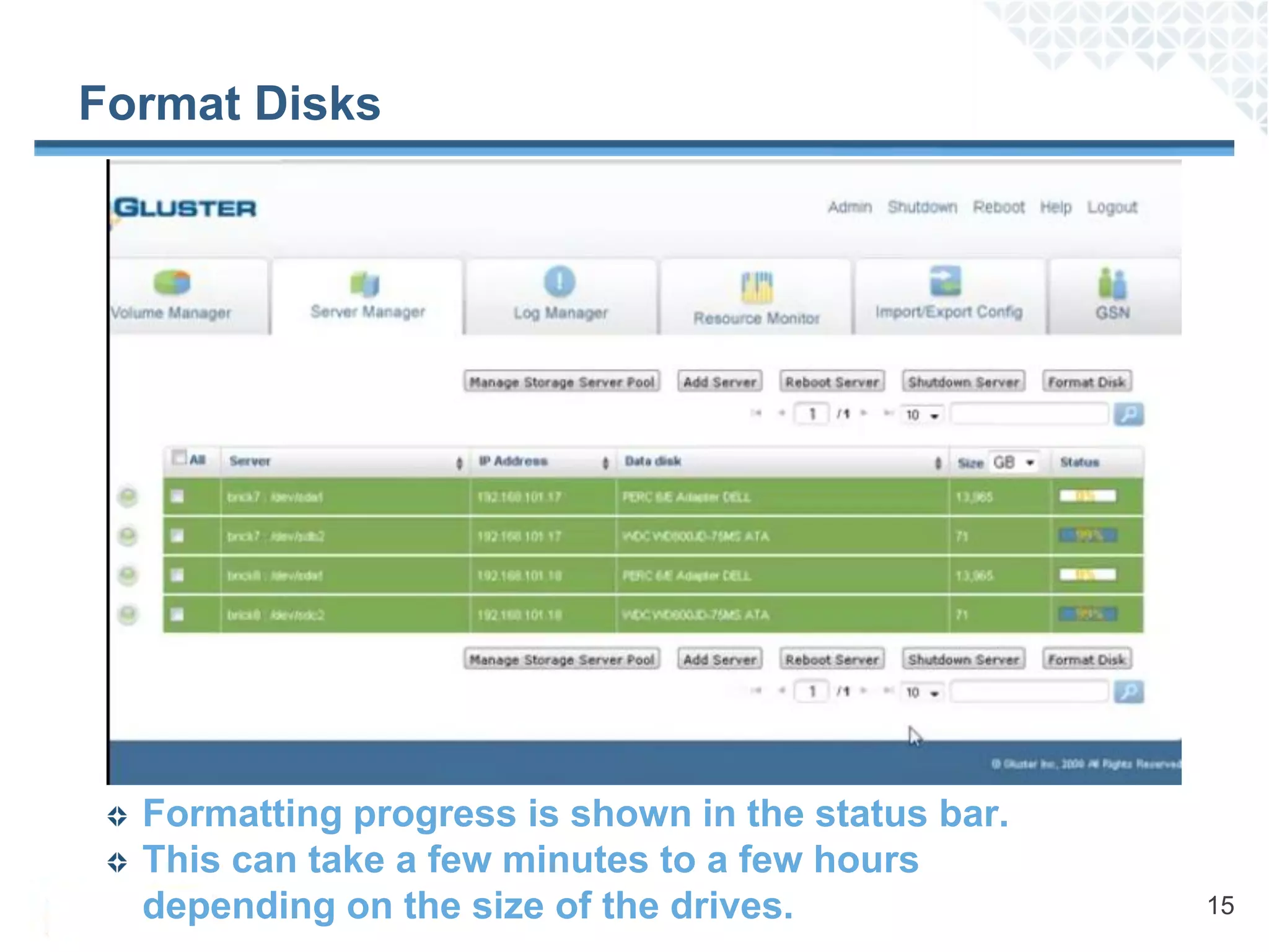
Format Disks


  Formatting progress is shown in the status bar.
  This can take a few minutes to a few hours
  depending on the size of the drives.              15
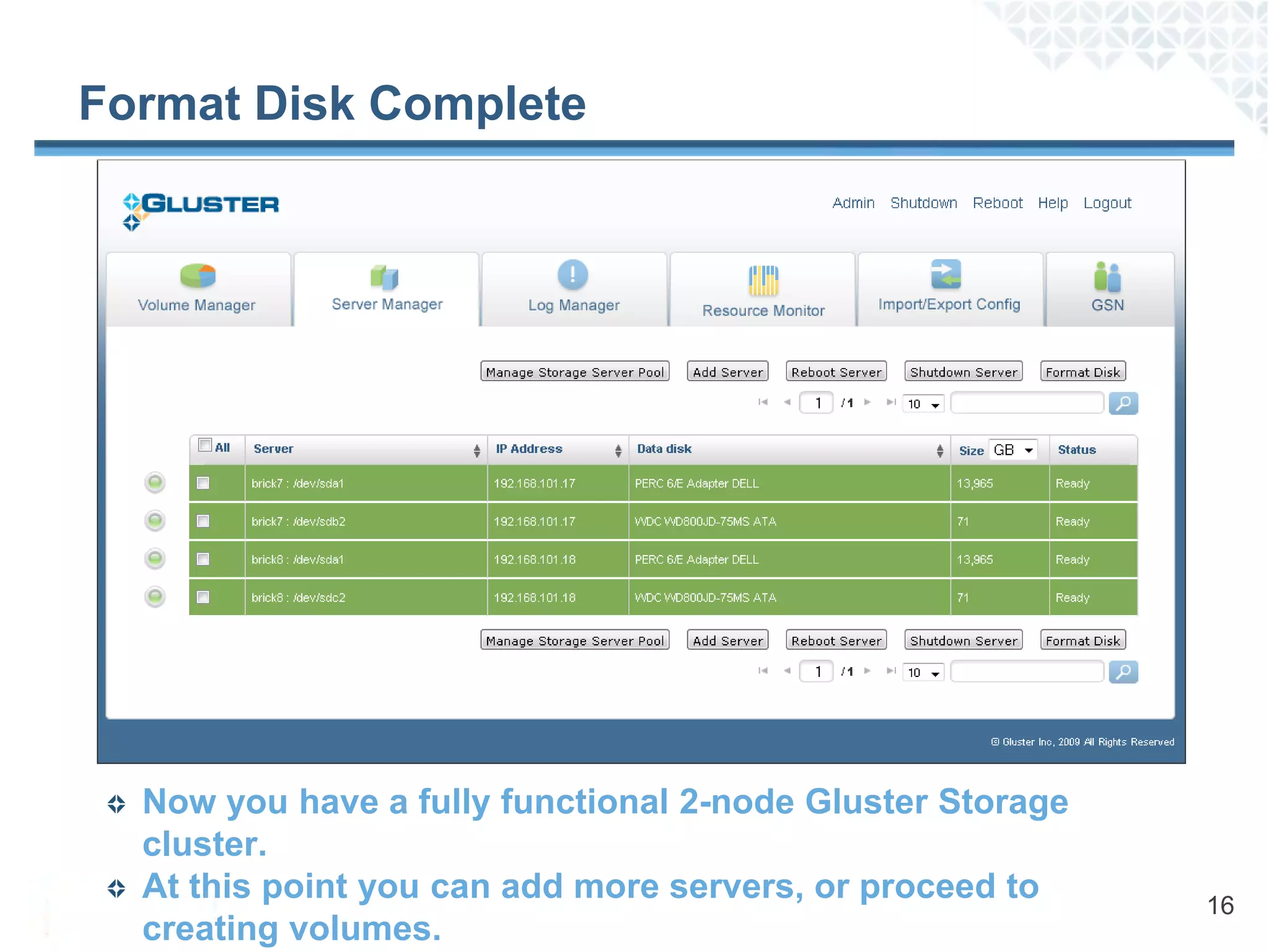
Format Disk Complete


  Now you have a fully functional 2-node Gluster Storage
  cluster.
  At this point you can add more servers, or proceed to    16
  creating volumes.
Thank You
Download Gluster Storage Platform or

Sign up for a free 30-day trial – www.gluster.com

Questions? – info@gluster.com

How to Install Gluster Storage Platform

  • 1.
    How to InstallGluster Storage Platform
  • 2.
    Installing Gluster StoragePlatform Steps 1. Insert USB install media into server and boot it 2. Select a boot drive for installation 3. Set-up your network configuration Minimum Requirements 1GB USB Disk as Install Media 1 or more storage servers (or virtual machines) with the following minimum configuration: – 8GB Disk – 1GB Memory – Intel/AMD 64bit hardware – Networking options: 1GbE,10GbE, InfiniBand 2
  • 3.
    Step 1: PlugUSB Install Media Into Server Click “Start First Server Installation” 3
  • 4.
    Step 2: BootDrive Selection Select a hard drive to install it on 4
  • 5.
    Step 3: NetworkConfiguration Enter values in the hostname, ip-address, and gateway fields. 5
  • 6.
    Installation Complete Remove USB install media and click “Reboot” 6
  • 7.
    Management Console Login using the “glusteradmin” password After logging-in you can change the password by clicking on “Admin” 7
  • 8.
    First Server InstallationComplete To expand your storage cluster setup click “Add Server” 8
  • 9.
    Add Server Click “Next” to reserve a range of IP addresses for additional storage servers to add to the cluster 9
  • 10.
    Reserve IP Address In this example were allocating 8 additional IP addresses for future use (excluding the Management Console IP Address.) 10
  • 11.
    Probing for AdditionalServers Click “Next” and the management console will start probing for additional servers to boot up. Use the same USB install media to boot your additional storage server(s). 11
  • 12.
    Add Server Configuration Enter the 2nd server hostname under the General tab and click “Add Server” 12
  • 13.
    Add Server Success Click “Close” Remove the USB install media from the storage server 13
  • 14.
    Installation Complete Glustersoftware installation for the 2-node cluster is complete. Next you can format the disk drives by checking the “All” check box and click “Format Disk”. 14
  • 15.
    Format Disks Formatting progress is shown in the status bar. This can take a few minutes to a few hours depending on the size of the drives. 15
  • 16.
    Format Disk Complete Now you have a fully functional 2-node Gluster Storage cluster. At this point you can add more servers, or proceed to 16 creating volumes.
  • 17.
    Thank You Download GlusterStorage Platform or Sign up for a free 30-day trial – www.gluster.com Questions? – info@gluster.com