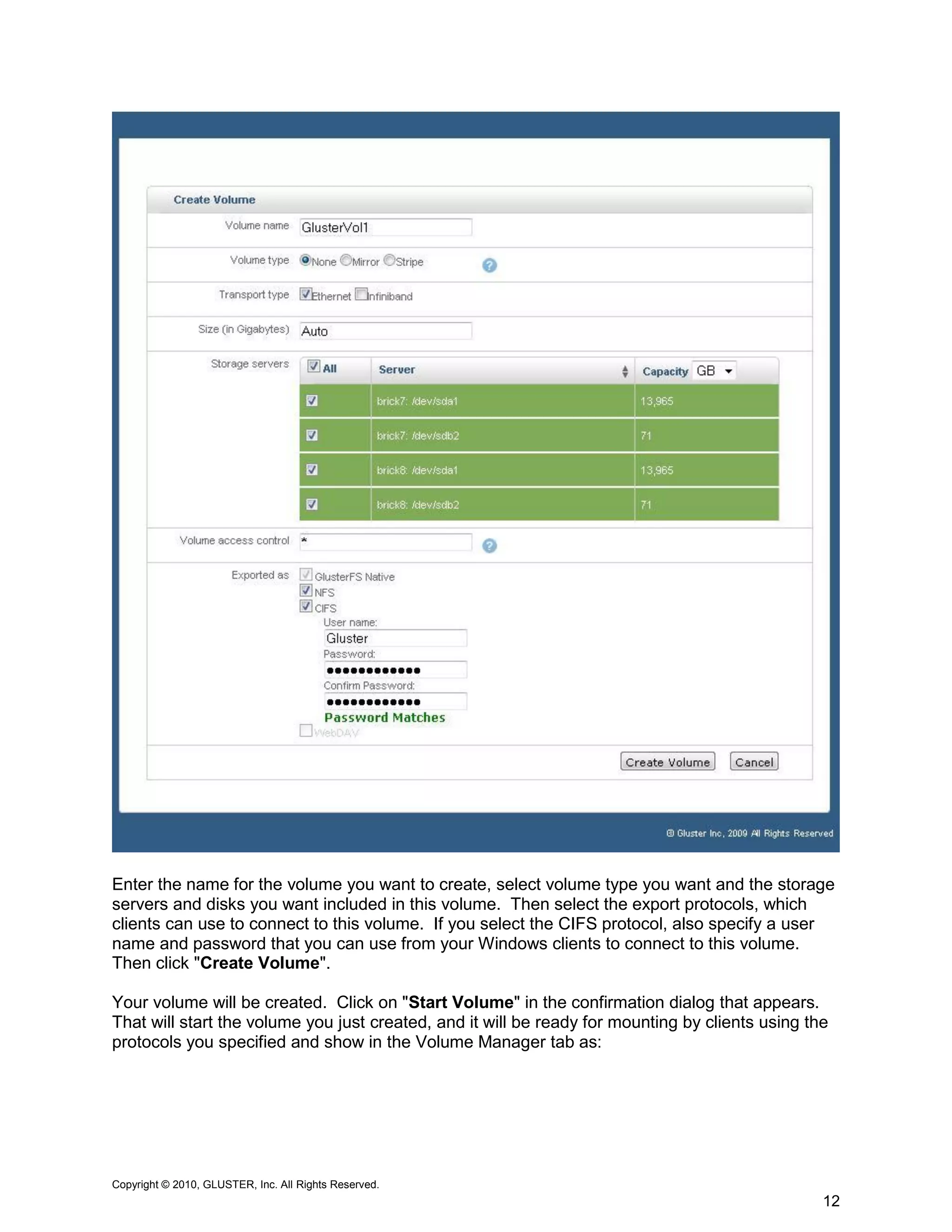
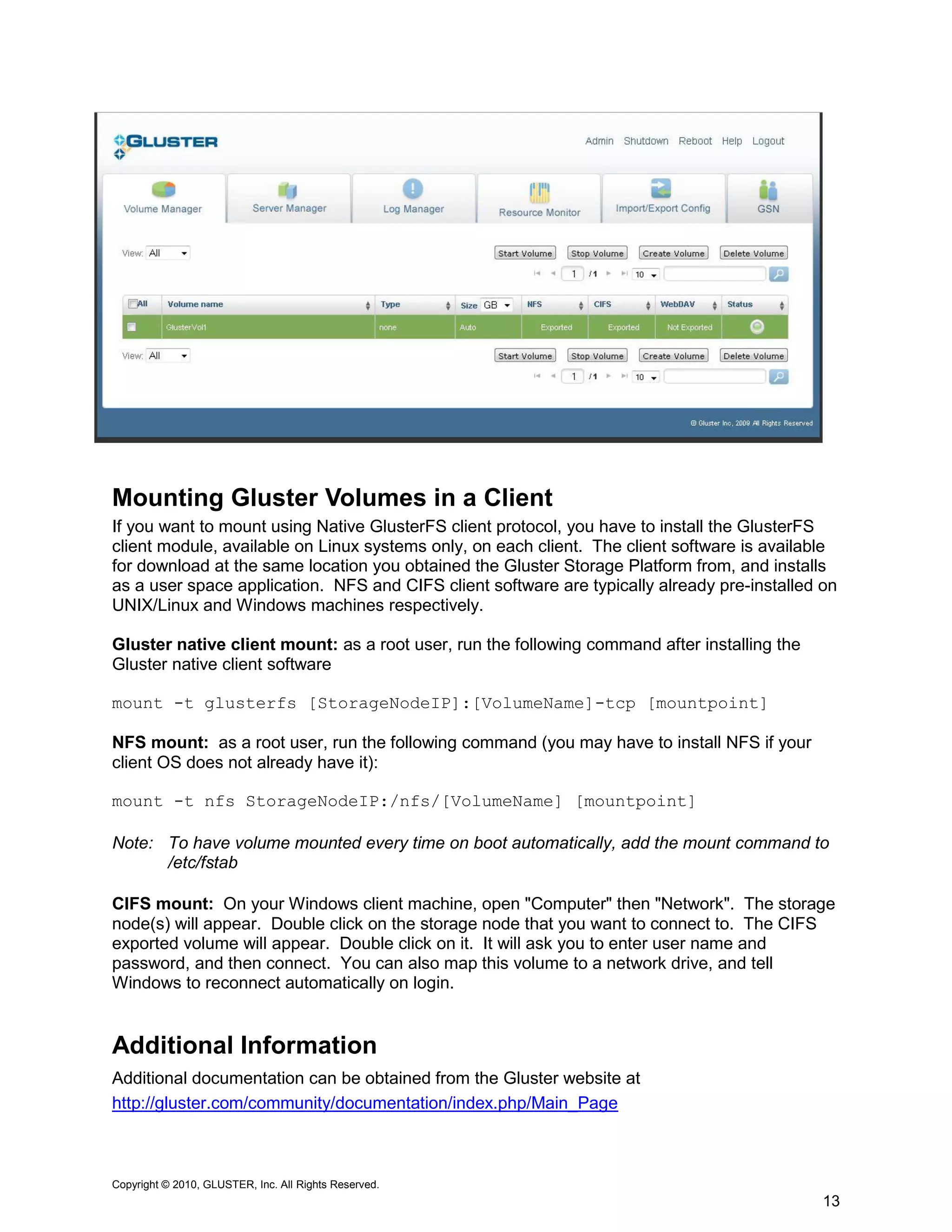
Gluster Storage Platform
Installation
About Gluster Storage Platform
Gluster Storage Platform is an open source clustered storage solution. The software is a
powerful and flexible storage solution that simplifies the task of managing unstructured file data
whether you have a few terabytes of storage or multiple petabytes. You can get started with
just a single system configured as a standalone NAS server, and scale from there on as needed
by adding new storage nodes into your configuration. You can then export the aggregate
storage capacity into a single global name space which multiple clients can access seamlessly.

Gluster Storage Platform integrates the Gluster File System (GlusterFS), which is a scalable
clustered file system, with a Linux operating system layer and a web-based management
interface and installer. Installation on a bare metal server takes less than 15 minutes. It
supports native GlusterFS, CIFS and NFS client access protocols and Infiniband, GigE, 10GigE
network interconnects/fabrics. The core component of Gluster Storage Platform, the GlusterFS
is completely implemented in user space, and has a modular stackable design that can be
easily configured to handle performance characteristics of different storage workloads.

More information is available at the Gluster web site:
http://www.gluster.com/

The Gluster Storage Platform documentation is available at:
http://gluster.com/community/documentation/index.php/Gluster_Storage_Platform

This document provides a detailed description of how to install Gluster Storage Platform in 15
minutes or less as outlined in the installation video. This guide will detail how to install a two-
node storage cluster, first we’ll add Storage Server 1 and then add Storage Server 2 to the
cluster. In subsequent videos we’ll show how to create a storage volume across these storage
servers in addition to detailing how to mount the volume created on a client machine. Once
servers are installed and volumes are created the clients can connect to the Storage Server and
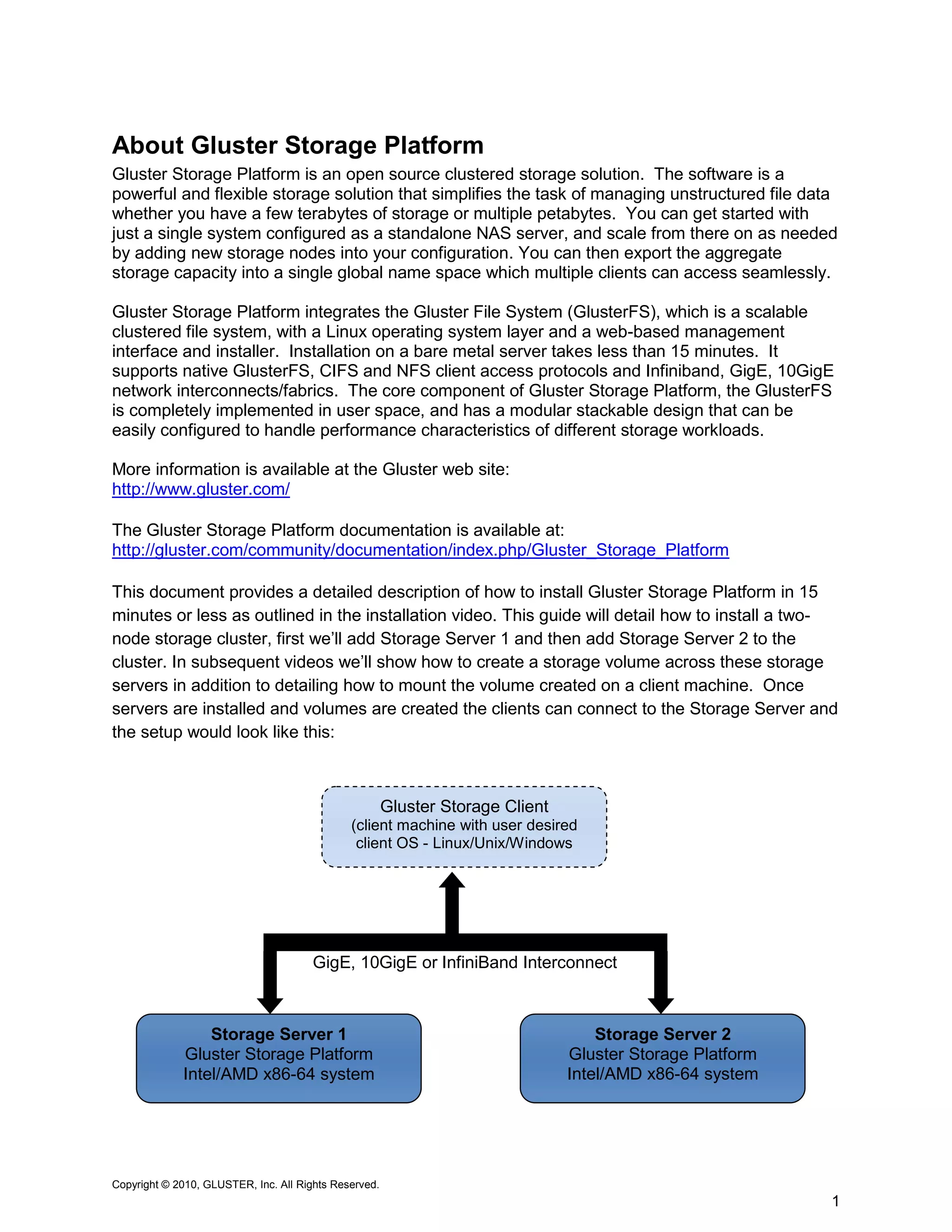
the setup would look like this:


                                                       Gluster Storage Client
                                              (client machine with user desired
                                               client OS - Linux/Unix/Windows


                                       GigE, 10GigE or InfiniBand Interconnect


                 Storage Server 1                                                   Storage Server 2
             Gluster Storage Platform                                           Gluster Storage Platform
             Intel/AMD x86-64 system                                            Intel/AMD x86-64 system


Copyright © 2010, GLUSTER, Inc. All Rights Reserved.
                                                                                                           1
Gluster Storage Platform Installation
Installation is all about preparing at least one server with the management console enabled, and
then adding more servers to create your desired cluster setup. Even if you have just one
system, you can still use Gluster Storage Platform as a standalone NAS server with its web
based management GUI. Later you can add more servers and turn the system into a powerful
storage cluster. Installation is simple - there are only two screens to take care of, disk selection
and network configuration (detailed below), and the whole process takes less than 15 minutes
to complete.

Obtaining Software
Gluster Storage Platform can be downloaded from
http://www.gluster.com/products/download.php
Gluster Storage Platform is released under GNU GPL v3 or later license.

Minimum Requirements
         1GB USB Disk as Install Media
         1 or more storage servers (or virtual machines) with minimum configuration as follows:
              o 8GB Disk
              o 1GB Memory
              o Intel/AMD 64bit hardware
              o 1GigE or 10GigE or Infiniband

Preparing Your Install Media
Gluster Storage Platform is released in the form of a compressed USB bootable disk image, and
an ISO image. The instructions show how to prepare the USB install image on a Linux
machine. After uncompressing the USB image, you transfer the platform image on to your USB
disk (without any partitions) using the standard dd disk-dump utility.

Note1: Most desktops will automatically mount the USB disks upon insertion. Unmount it manually before
       you transfer the image.

Note2: To determine the device name of your USB disk, you can type 'dmesg | tail' inside your terminal.
       Alternatively you can also find from your /proc/devices file.

Assuming your USB disk is detected as /dev/sdc, you type for following commands:

root$ wget http://ftp.gluster.com/pub/gluster/gluster-platform/3.0/Gluster-
3.0.img.gz
root$ gunzip Gluster-3.0.img.gz
root$ dd if=Gluster-3.0.img of=/dev/sdc bs=1M


Copyright © 2010, GLUSTER, Inc. All Rights Reserved.
                                                                                                          2
Management Console / First Server Installation
If you are starting fresh, this is your first step in the installation process once you have prepared
your install media (e.g. USB stick). You will install your first server, and management console
using the steps below. You can add more servers to your configuration later.

Insert the USB stick into the USB slot on the system you are installing on, and boot it.

Note:     The system motherboard needs to support booting from USB, and it needs to be enabled in the
          BIOS.

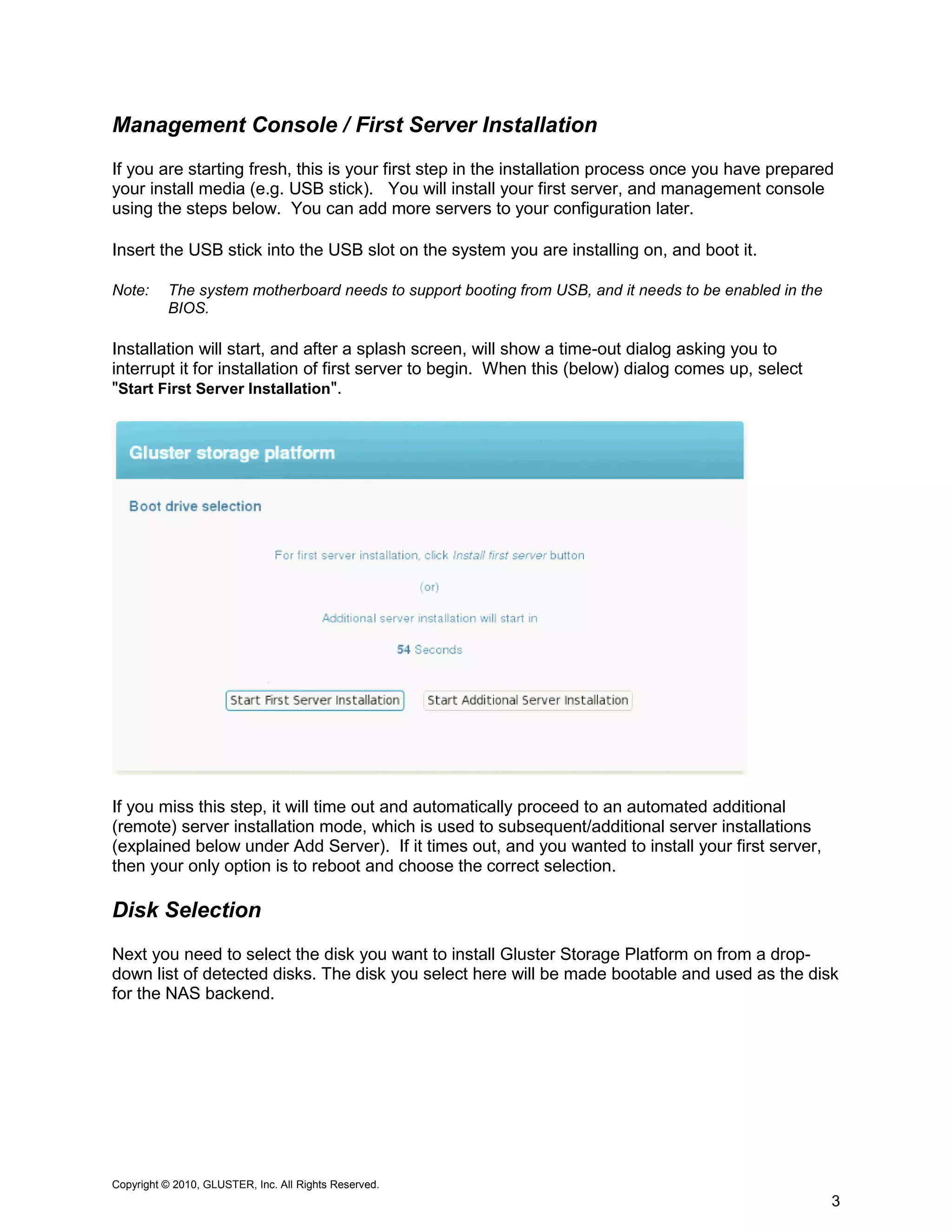
Installation will start, and after a splash screen, will show a time-out dialog asking you to
interrupt it for installation of first server to begin. When this (below) dialog comes up, select
"Start First Server Installation".


If you miss this step, it will time out and automatically proceed to an automated additional
(remote) server installation mode, which is used to subsequent/additional server installations
(explained below under Add Server). If it times out, and you wanted to install your first server,
then your only option is to reboot and choose the correct selection.

Disk Selection
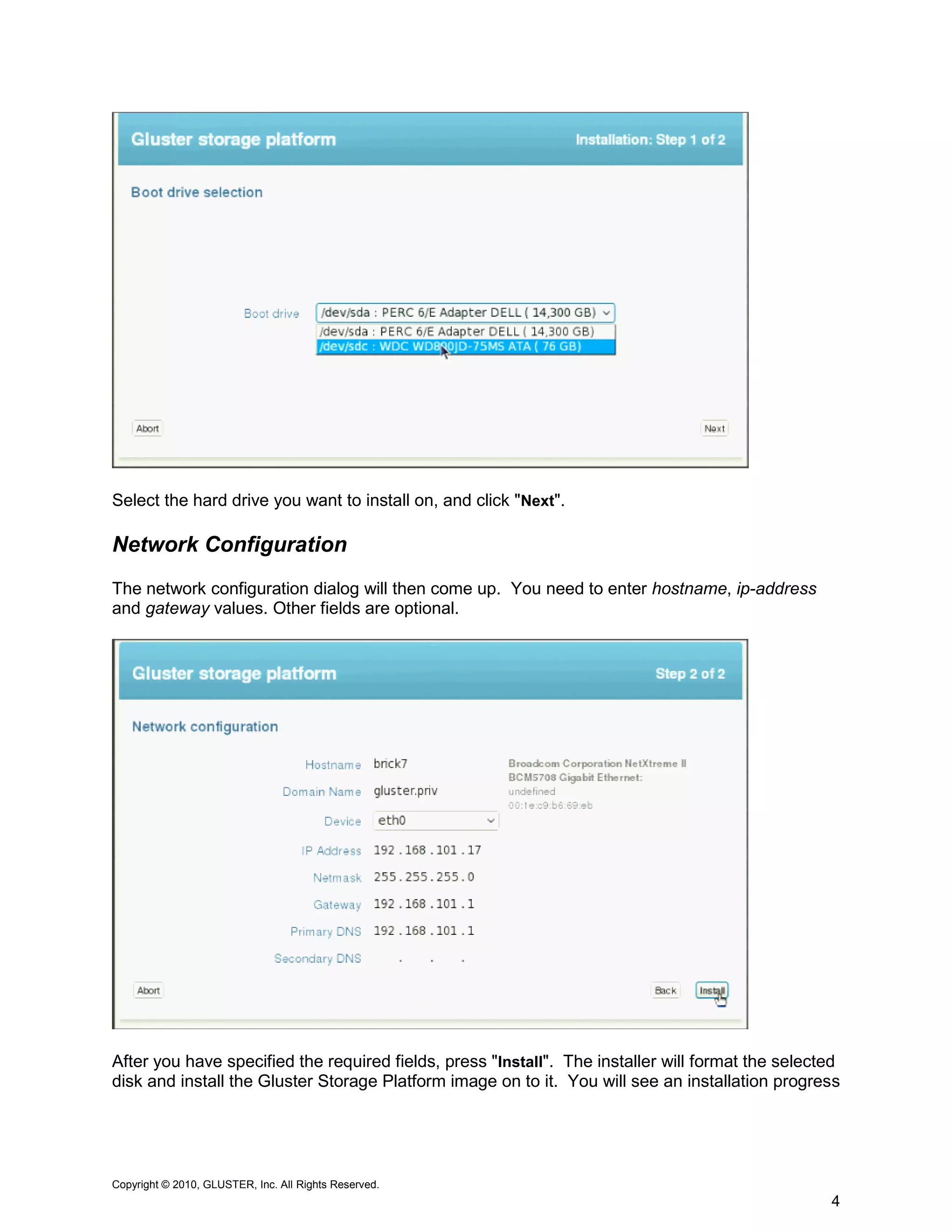
Next you need to select the disk you want to install Gluster Storage Platform on from a drop-
down list of detected disks. The disk you select here will be made bootable and used as the disk
for the NAS backend.


Copyright © 2010, GLUSTER, Inc. All Rights Reserved.
                                                                                                        3
Select the hard drive you want to install on, and click "Next".

Network Configuration
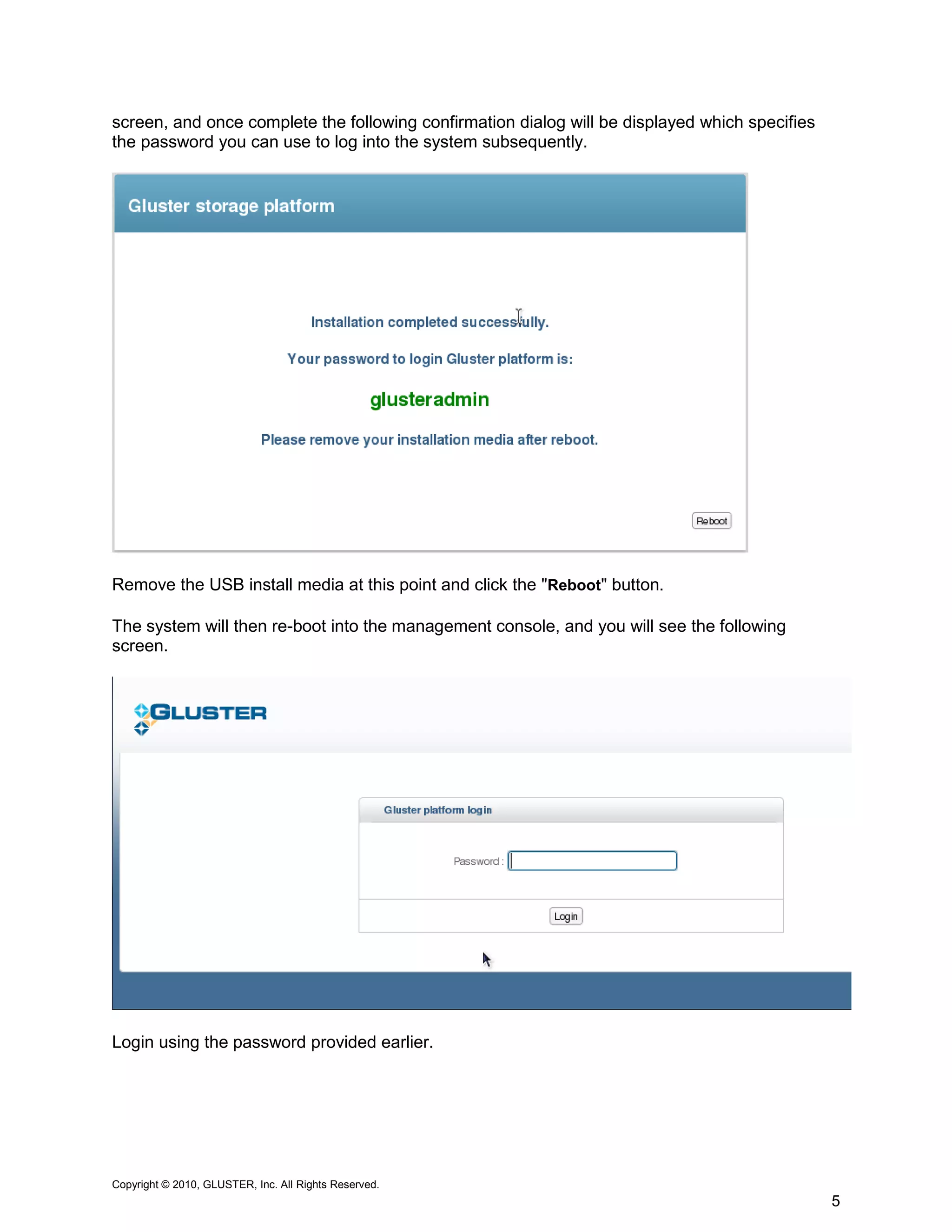
The network configuration dialog will then come up. You need to enter hostname, ip-address
and gateway values. Other fields are optional.


After you have specified the required fields, press "Install". The installer will format the selected
disk and install the Gluster Storage Platform image on to it. You will see an installation progress


Copyright © 2010, GLUSTER, Inc. All Rights Reserved.
                                                                                                   4
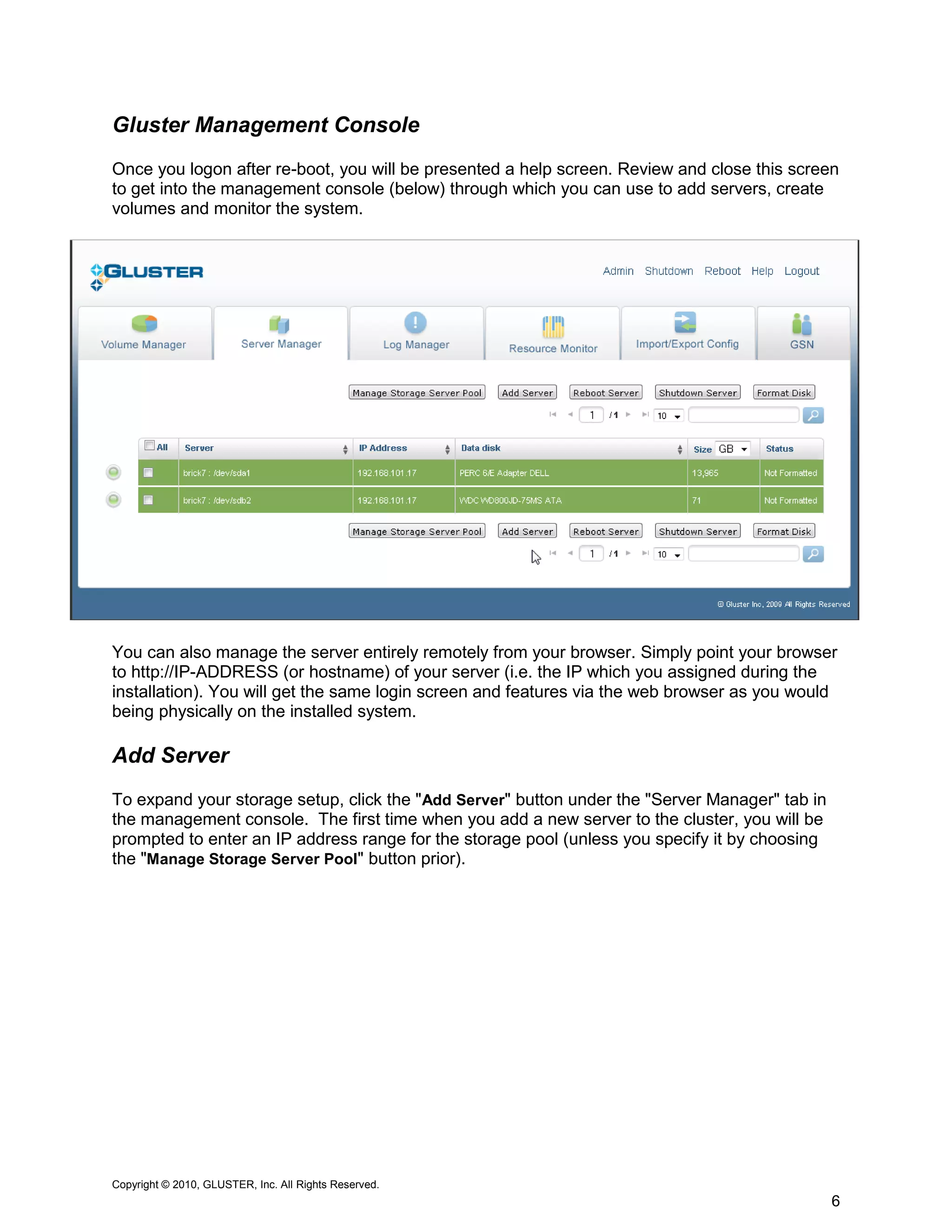
screen, and once complete the following confirmation dialog will be displayed which specifies
the password you can use to log into the system subsequently.


Remove the USB install media at this point and click the "Reboot" button.

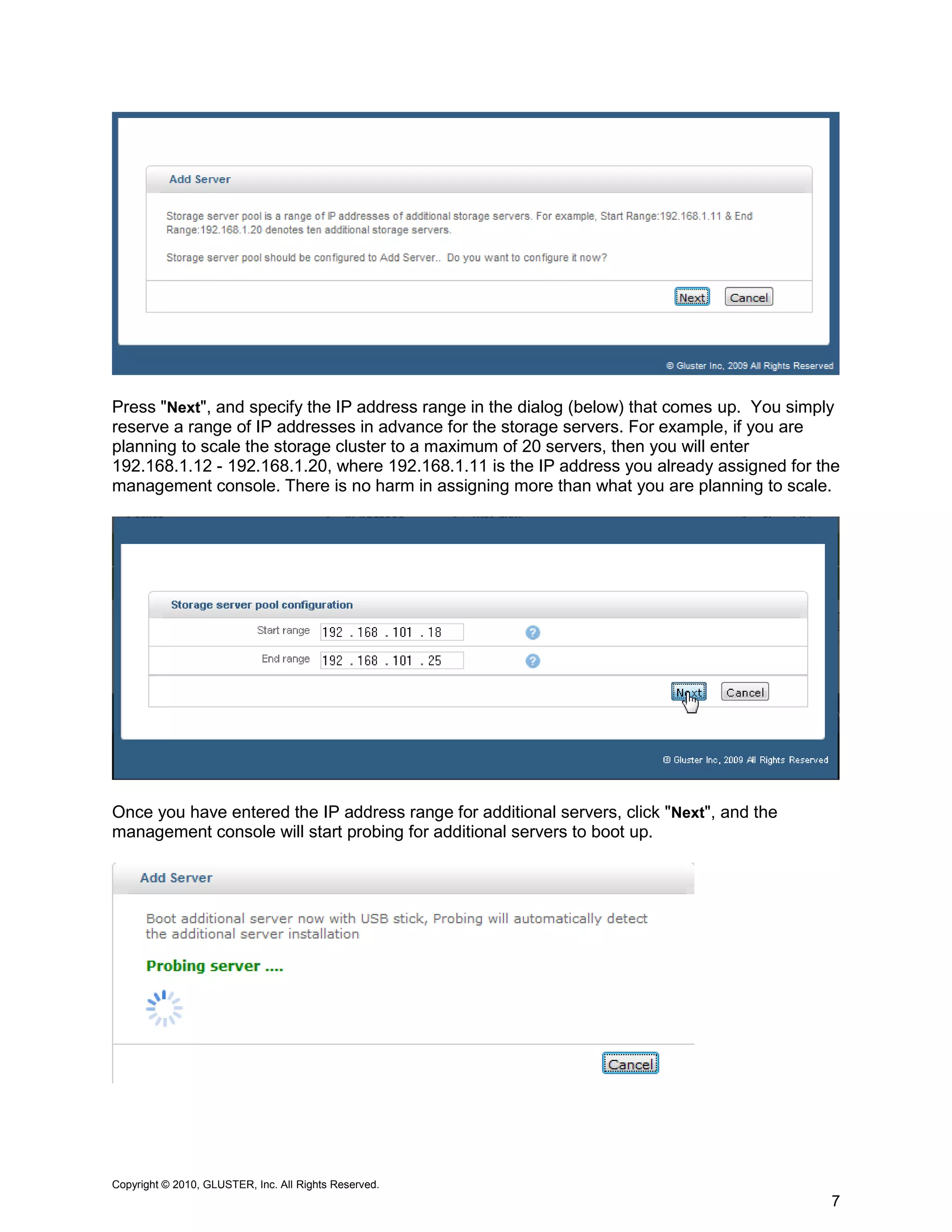
The system will then re-boot into the management console, and you will see the following
screen.


Login using the password provided earlier.


Copyright © 2010, GLUSTER, Inc. All Rights Reserved.
                                                                                                5
Gluster Management Console
Once you logon after re-boot, you will be presented a help screen. Review and close this screen
to get into the management console (below) through which you can use to add servers, create
volumes and monitor the system.


You can also manage the server entirely remotely from your browser. Simply point your browser
to http://IP-ADDRESS (or hostname) of your server (i.e. the IP which you assigned during the
installation). You will get the same login screen and features via the web browser as you would
being physically on the installed system.

Add Server
To expand your storage setup, click the "Add Server" button under the "Server Manager" tab in
the management console. The first time when you add a new server to the cluster, you will be
prompted to enter an IP address range for the storage pool (unless you specify it by choosing
the "Manage Storage Server Pool" button prior).


Copyright © 2010, GLUSTER, Inc. All Rights Reserved.
                                                                                                6
Press "Next", and specify the IP address range in the dialog (below) that comes up. You simply
reserve a range of IP addresses in advance for the storage servers. For example, if you are
planning to scale the storage cluster to a maximum of 20 servers, then you will enter
192.168.1.12 - 192.168.1.20, where 192.168.1.11 is the IP address you already assigned for the
management console. There is no harm in assigning more than what you are planning to scale.


Once you have entered the IP address range for additional servers, click "Next", and the
management console will start probing for additional servers to boot up.


Copyright © 2010, GLUSTER, Inc. All Rights Reserved.
                                                                                            7
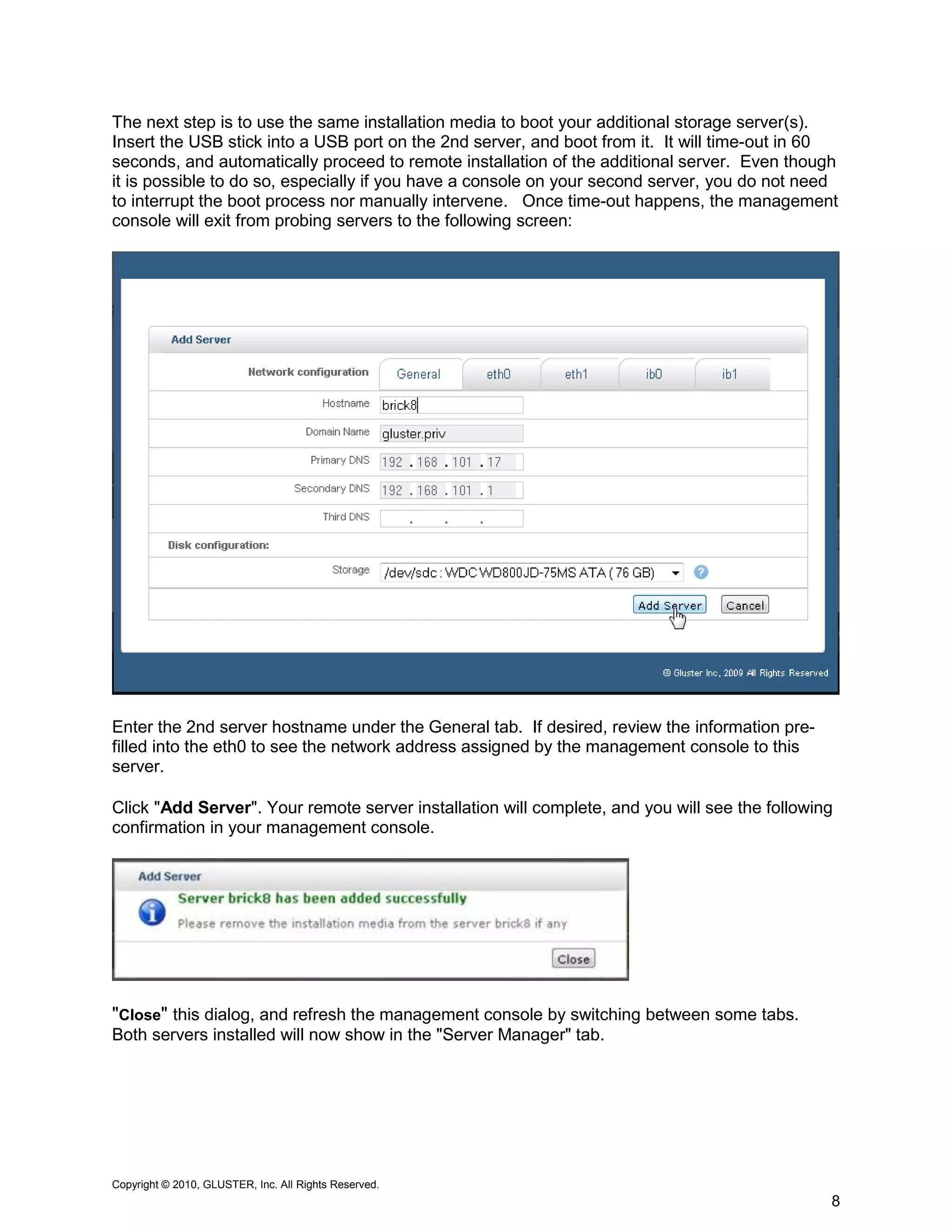
The next step is to use the same installation media to boot your additional storage server(s).
Insert the USB stick into a USB port on the 2nd server, and boot from it. It will time-out in 60
seconds, and automatically proceed to remote installation of the additional server. Even though
it is possible to do so, especially if you have a console on your second server, you do not need
to interrupt the boot process nor manually intervene. Once time-out happens, the management
console will exit from probing servers to the following screen:


Enter the 2nd server hostname under the General tab. If desired, review the information pre-
filled into the eth0 to see the network address assigned by the management console to this
server.

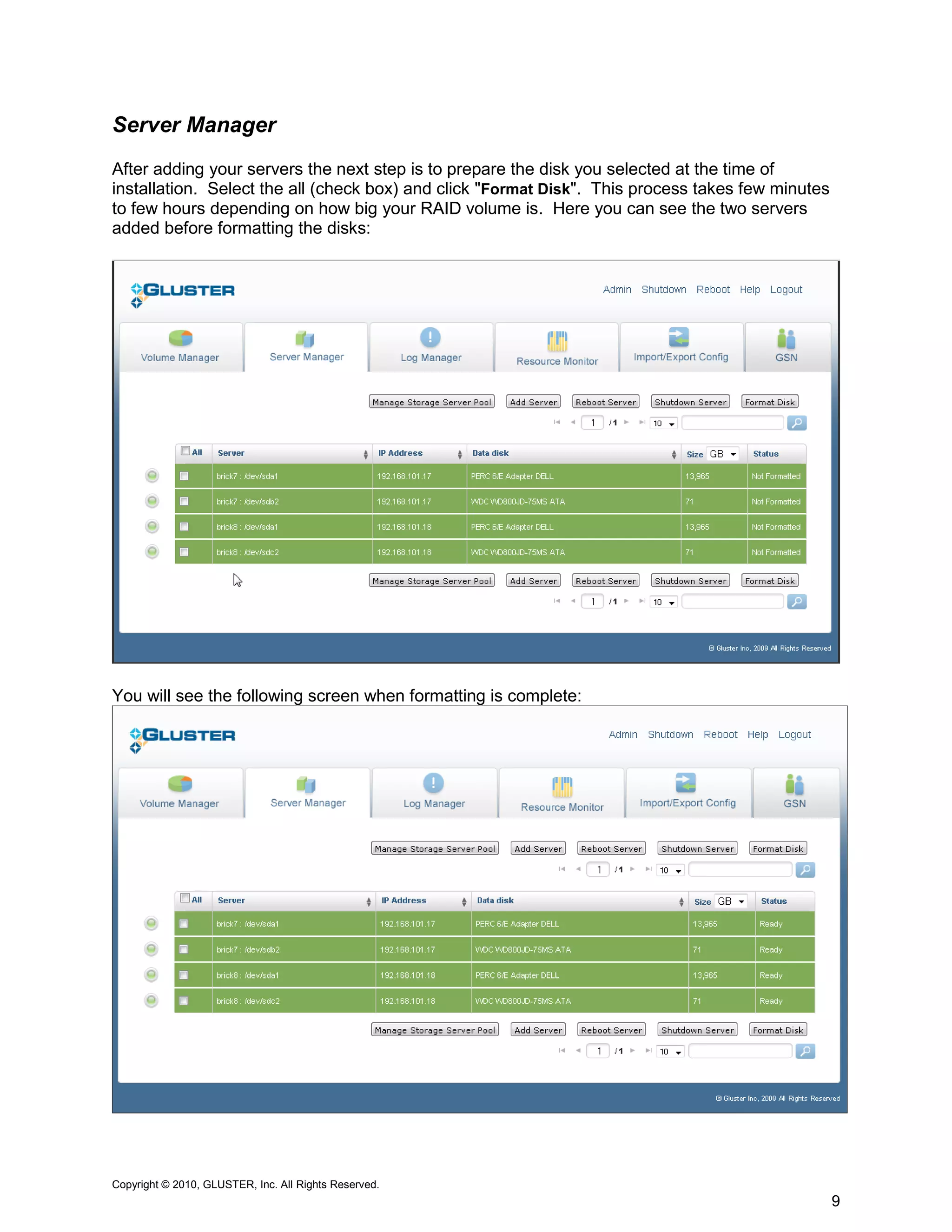
Click "Add Server". Your remote server installation will complete, and you will see the following
confirmation in your management console.


"Close" this dialog, and refresh the management console by switching between some tabs.
Both servers installed will now show in the "Server Manager" tab.


Copyright © 2010, GLUSTER, Inc. All Rights Reserved.
                                                                                                8
Server Manager
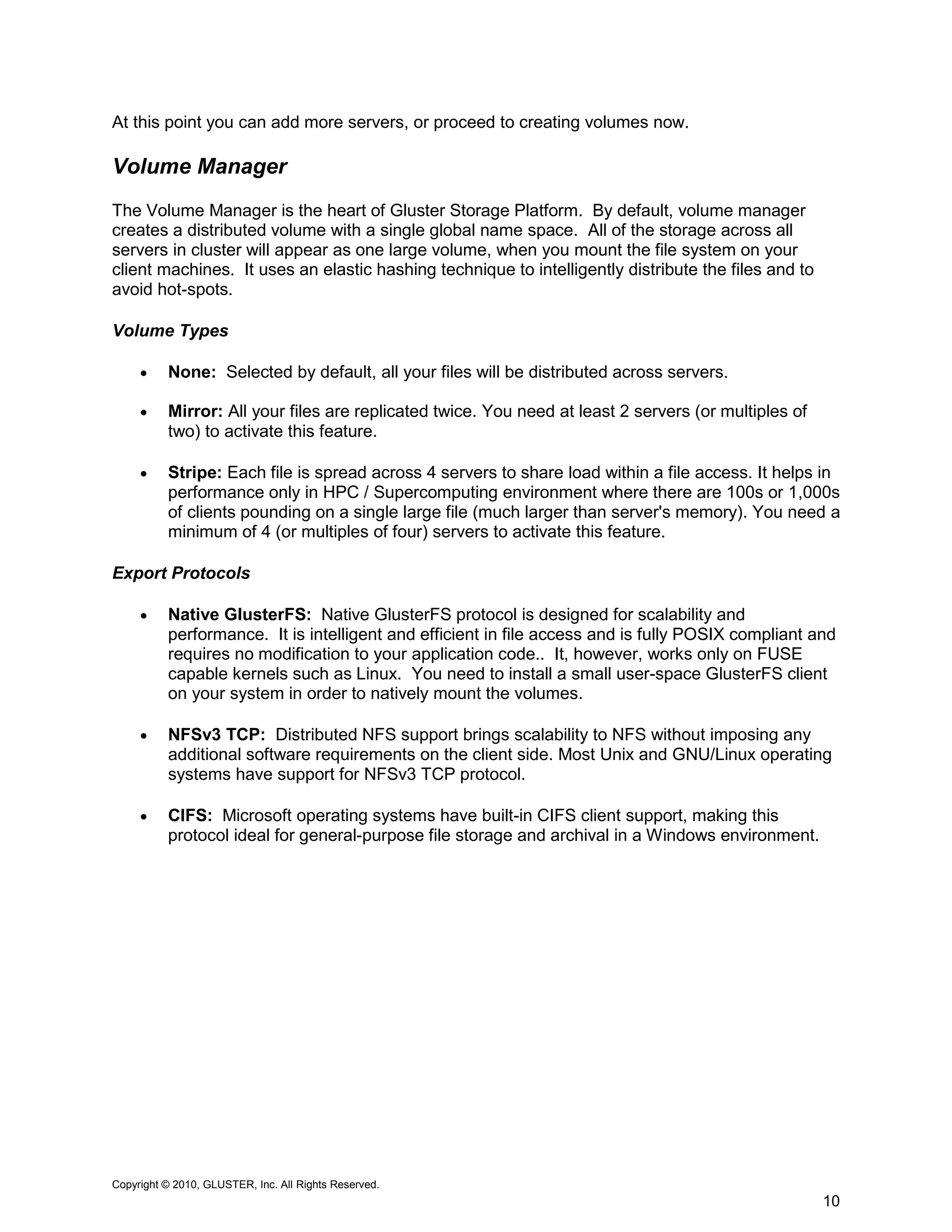
After adding your servers the next step is to prepare the disk you selected at the time of
installation. Select the all (check box) and click "Format Disk". This process takes few minutes
to few hours depending on how big your RAID volume is. Here you can see the two servers
added before formatting the disks:


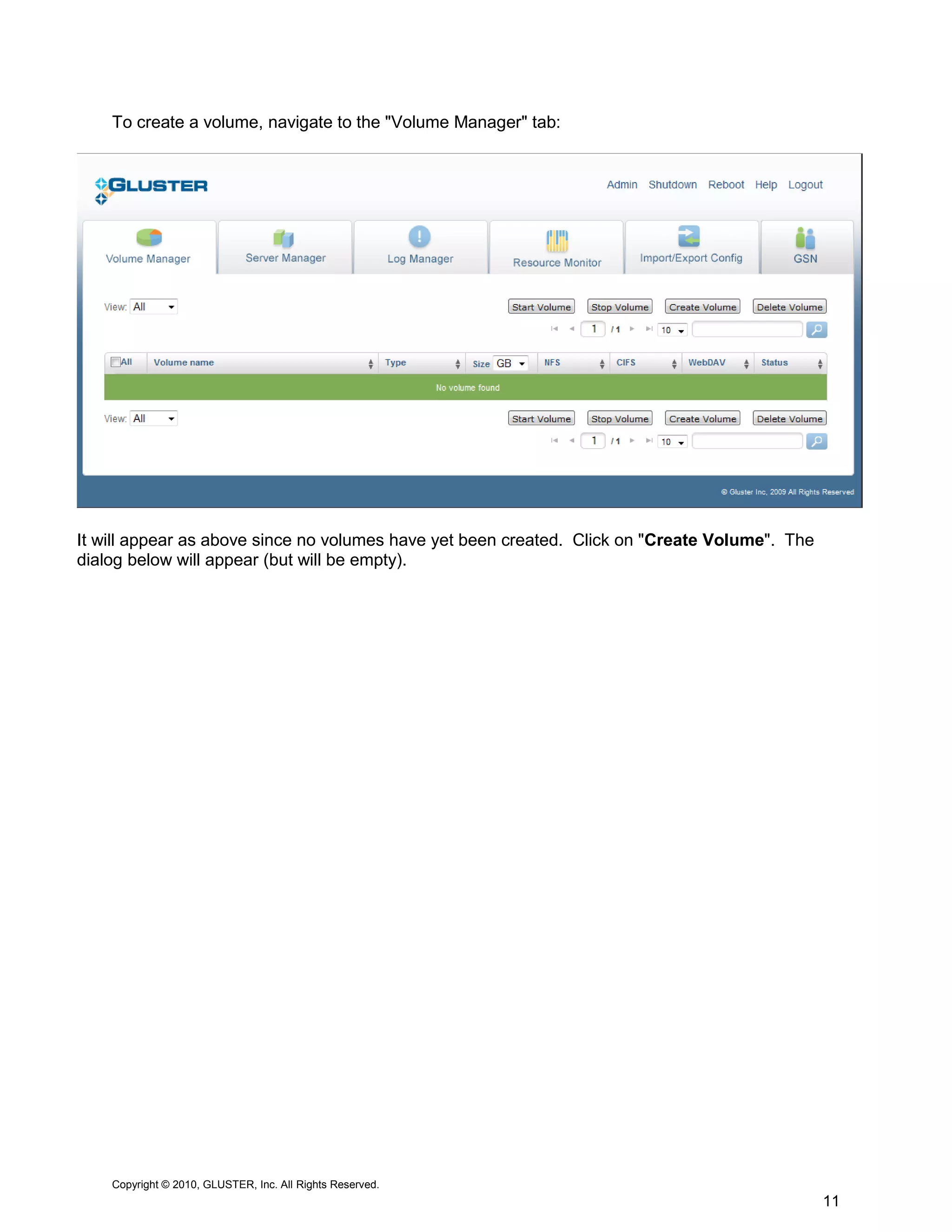
You will see the following screen when formatting is complete:


Copyright © 2010, GLUSTER, Inc. All Rights Reserved.
                                                                                                   9
At this point you can add more servers, or proceed to creating volumes now.

Additional Information
Additional documentation can be obtained from the Gluster website at
http://gluster.com/community/documentation/index.php/Main_Page


Copyright © 2010, GLUSTER, Inc. All Rights Reserved.
                                                                              10
Gluster Storage Platform Installation Guide

Gluster Storage Platform Installation Guide

  • 1.
  • 2.
    About Gluster StoragePlatform Gluster Storage Platform is an open source clustered storage solution. The software is a powerful and flexible storage solution that simplifies the task of managing unstructured file data whether you have a few terabytes of storage or multiple petabytes. You can get started with just a single system configured as a standalone NAS server, and scale from there on as needed by adding new storage nodes into your configuration. You can then export the aggregate storage capacity into a single global name space which multiple clients can access seamlessly. Gluster Storage Platform integrates the Gluster File System (GlusterFS), which is a scalable clustered file system, with a Linux operating system layer and a web-based management interface and installer. Installation on a bare metal server takes less than 15 minutes. It supports native GlusterFS, CIFS and NFS client access protocols and Infiniband, GigE, 10GigE network interconnects/fabrics. The core component of Gluster Storage Platform, the GlusterFS is completely implemented in user space, and has a modular stackable design that can be easily configured to handle performance characteristics of different storage workloads. More information is available at the Gluster web site: http://www.gluster.com/ The Gluster Storage Platform documentation is available at: http://gluster.com/community/documentation/index.php/Gluster_Storage_Platform This document provides a detailed description of how to install Gluster Storage Platform in 15 minutes or less as outlined in the installation video. This guide will detail how to install a two- node storage cluster, first we’ll add Storage Server 1 and then add Storage Server 2 to the cluster. In subsequent videos we’ll show how to create a storage volume across these storage servers in addition to detailing how to mount the volume created on a client machine. Once servers are installed and volumes are created the clients can connect to the Storage Server and the setup would look like this: Gluster Storage Client (client machine with user desired client OS - Linux/Unix/Windows GigE, 10GigE or InfiniBand Interconnect Storage Server 1 Storage Server 2 Gluster Storage Platform Gluster Storage Platform Intel/AMD x86-64 system Intel/AMD x86-64 system Copyright © 2010, GLUSTER, Inc. All Rights Reserved. 1
  • 3.
    Gluster Storage PlatformInstallation Installation is all about preparing at least one server with the management console enabled, and then adding more servers to create your desired cluster setup. Even if you have just one system, you can still use Gluster Storage Platform as a standalone NAS server with its web based management GUI. Later you can add more servers and turn the system into a powerful storage cluster. Installation is simple - there are only two screens to take care of, disk selection and network configuration (detailed below), and the whole process takes less than 15 minutes to complete. Obtaining Software Gluster Storage Platform can be downloaded from http://www.gluster.com/products/download.php Gluster Storage Platform is released under GNU GPL v3 or later license. Minimum Requirements  1GB USB Disk as Install Media  1 or more storage servers (or virtual machines) with minimum configuration as follows: o 8GB Disk o 1GB Memory o Intel/AMD 64bit hardware o 1GigE or 10GigE or Infiniband Preparing Your Install Media Gluster Storage Platform is released in the form of a compressed USB bootable disk image, and an ISO image. The instructions show how to prepare the USB install image on a Linux machine. After uncompressing the USB image, you transfer the platform image on to your USB disk (without any partitions) using the standard dd disk-dump utility. Note1: Most desktops will automatically mount the USB disks upon insertion. Unmount it manually before you transfer the image. Note2: To determine the device name of your USB disk, you can type 'dmesg | tail' inside your terminal. Alternatively you can also find from your /proc/devices file. Assuming your USB disk is detected as /dev/sdc, you type for following commands: root$ wget http://ftp.gluster.com/pub/gluster/gluster-platform/3.0/Gluster- 3.0.img.gz root$ gunzip Gluster-3.0.img.gz root$ dd if=Gluster-3.0.img of=/dev/sdc bs=1M Copyright © 2010, GLUSTER, Inc. All Rights Reserved. 2
  • 4.
    Management Console /First Server Installation If you are starting fresh, this is your first step in the installation process once you have prepared your install media (e.g. USB stick). You will install your first server, and management console using the steps below. You can add more servers to your configuration later. Insert the USB stick into the USB slot on the system you are installing on, and boot it. Note: The system motherboard needs to support booting from USB, and it needs to be enabled in the BIOS. Installation will start, and after a splash screen, will show a time-out dialog asking you to interrupt it for installation of first server to begin. When this (below) dialog comes up, select "Start First Server Installation". If you miss this step, it will time out and automatically proceed to an automated additional (remote) server installation mode, which is used to subsequent/additional server installations (explained below under Add Server). If it times out, and you wanted to install your first server, then your only option is to reboot and choose the correct selection. Disk Selection Next you need to select the disk you want to install Gluster Storage Platform on from a drop- down list of detected disks. The disk you select here will be made bootable and used as the disk for the NAS backend. Copyright © 2010, GLUSTER, Inc. All Rights Reserved. 3
  • 5.
    Select the harddrive you want to install on, and click "Next". Network Configuration The network configuration dialog will then come up. You need to enter hostname, ip-address and gateway values. Other fields are optional. After you have specified the required fields, press "Install". The installer will format the selected disk and install the Gluster Storage Platform image on to it. You will see an installation progress Copyright © 2010, GLUSTER, Inc. All Rights Reserved. 4
  • 6.
    screen, and oncecomplete the following confirmation dialog will be displayed which specifies the password you can use to log into the system subsequently. Remove the USB install media at this point and click the "Reboot" button. The system will then re-boot into the management console, and you will see the following screen. Login using the password provided earlier. Copyright © 2010, GLUSTER, Inc. All Rights Reserved. 5
  • 7.
    Gluster Management Console Onceyou logon after re-boot, you will be presented a help screen. Review and close this screen to get into the management console (below) through which you can use to add servers, create volumes and monitor the system. You can also manage the server entirely remotely from your browser. Simply point your browser to http://IP-ADDRESS (or hostname) of your server (i.e. the IP which you assigned during the installation). You will get the same login screen and features via the web browser as you would being physically on the installed system. Add Server To expand your storage setup, click the "Add Server" button under the "Server Manager" tab in the management console. The first time when you add a new server to the cluster, you will be prompted to enter an IP address range for the storage pool (unless you specify it by choosing the "Manage Storage Server Pool" button prior). Copyright © 2010, GLUSTER, Inc. All Rights Reserved. 6
  • 8.
    Press "Next", andspecify the IP address range in the dialog (below) that comes up. You simply reserve a range of IP addresses in advance for the storage servers. For example, if you are planning to scale the storage cluster to a maximum of 20 servers, then you will enter 192.168.1.12 - 192.168.1.20, where 192.168.1.11 is the IP address you already assigned for the management console. There is no harm in assigning more than what you are planning to scale. Once you have entered the IP address range for additional servers, click "Next", and the management console will start probing for additional servers to boot up. Copyright © 2010, GLUSTER, Inc. All Rights Reserved. 7
  • 9.
    The next stepis to use the same installation media to boot your additional storage server(s). Insert the USB stick into a USB port on the 2nd server, and boot from it. It will time-out in 60 seconds, and automatically proceed to remote installation of the additional server. Even though it is possible to do so, especially if you have a console on your second server, you do not need to interrupt the boot process nor manually intervene. Once time-out happens, the management console will exit from probing servers to the following screen: Enter the 2nd server hostname under the General tab. If desired, review the information pre- filled into the eth0 to see the network address assigned by the management console to this server. Click "Add Server". Your remote server installation will complete, and you will see the following confirmation in your management console. "Close" this dialog, and refresh the management console by switching between some tabs. Both servers installed will now show in the "Server Manager" tab. Copyright © 2010, GLUSTER, Inc. All Rights Reserved. 8
  • 10.
    Server Manager After addingyour servers the next step is to prepare the disk you selected at the time of installation. Select the all (check box) and click "Format Disk". This process takes few minutes to few hours depending on how big your RAID volume is. Here you can see the two servers added before formatting the disks: You will see the following screen when formatting is complete: Copyright © 2010, GLUSTER, Inc. All Rights Reserved. 9
  • 11.
    At this pointyou can add more servers, or proceed to creating volumes now. Additional Information Additional documentation can be obtained from the Gluster website at http://gluster.com/community/documentation/index.php/Main_Page Copyright © 2010, GLUSTER, Inc. All Rights Reserved. 10