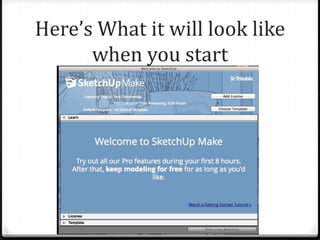
Here’s What it will look like
when you start
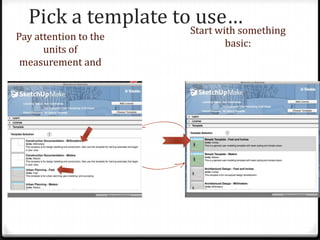
Pick a template to use…
Pay attention to the
units of
measurement and
Start with something
basic:
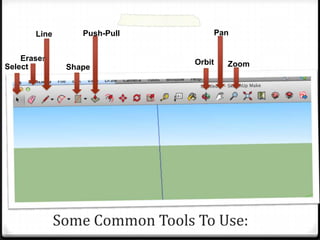
Some Common Tools To Use:
Select
Eraser
Line
Shape
Push-Pull
ZoomOrbit
Pan
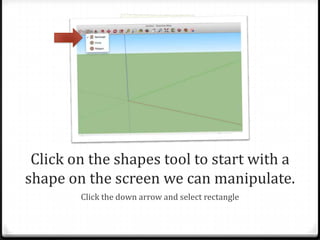
Click on the shapes tool to start with a
shape on the screen we can manipulate.
Click the down arrow and select rectangle
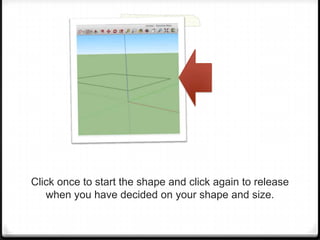
Click once to start the shape and click again to release
when you have decided on your shape and size.
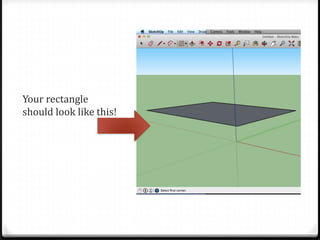
Your rectangle
should look like this!
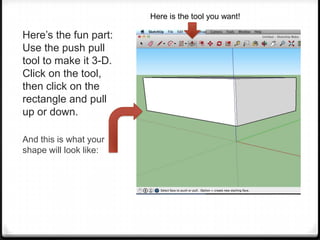
Here’s the fun part:
Use the push pull
tool to make it 3-D.
Click on the tool,
then click on the
rectangle and pull
up or down.
And this is what your
shape will look like:
Here is the tool you want!
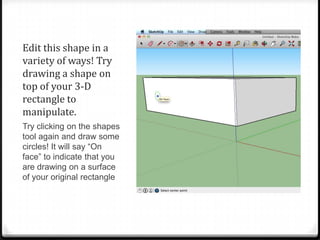
Edit this shape in a
variety of ways! Try
drawing a shape on
top of your 3-D
rectangle to
manipulate.
Try clicking on the shapes
tool again and draw some
circles! It will say “On
face” to indicate that you
are drawing on a surface
of your original rectangle
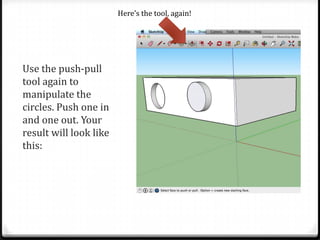
Use the push-pull
tool again to
manipulate the
circles. Push one in
and one out. Your
result will look like
this:
Here’s the tool, again!
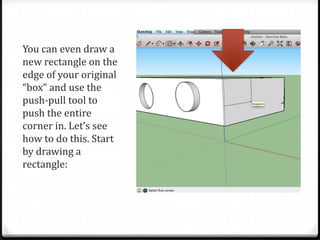
You can even draw a
new rectangle on the
edge of your original
“box” and use the
push-pull tool to
push the entire
corner in. Let’s see
how to do this. Start
by drawing a
rectangle:
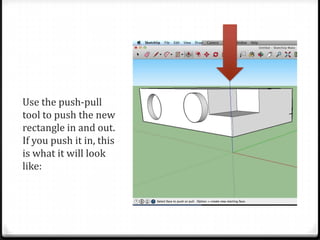
Use the push-pull
tool to push the new
rectangle in and out.
If you push it in, this
is what it will look
like:
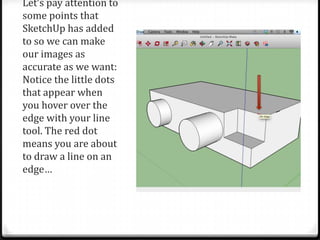
Let’s pay attention to
some points that
SketchUp has added
to so we can make
our images as
accurate as we want:
Notice the little dots
that appear when
you hover over the
edge with your line
tool. The red dot
means you are about
to draw a line on an
edge…
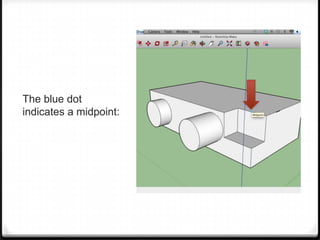
The blue dot
indicates a midpoint:
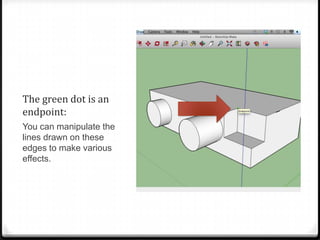
The green dot is an
endpoint:
You can manipulate the
lines drawn on these
edges to make various
effects.
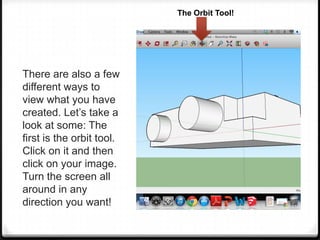
There are also a few
different ways to
view what you have
created. Let’s take a
look at some: The
first is the orbit tool.
Click on it and then
click on your image.
Turn the screen all
around in any
direction you want!
The Orbit Tool!
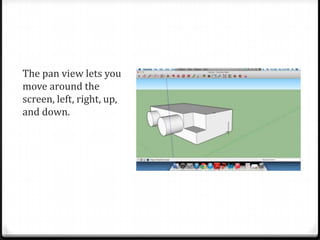
The pan view lets you
move around the
screen, left, right, up,
and down.
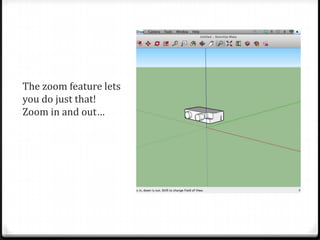
The zoom feature lets
you do just that!
Zoom in and out…
You can use some other
tools to help you fix anything
you want to edit.
The Select Tool will help you move things around.
The Eraser tool will erase any edges you don’t want.
But there is so much more to
SketchUp. This was just the
basics. Explore and Play
around even more to find out
how to manipulate
dimensions, scale, colors, add
models, and more!

Educ 215 final- how to guide

  • 2.
    Here’s What itwill look like when you start
  • 3.
    Pick a templateto use… Pay attention to the units of measurement and Start with something basic:
  • 4.
    Some Common ToolsTo Use: Select Eraser Line Shape Push-Pull ZoomOrbit Pan
  • 5.
    Click on theshapes tool to start with a shape on the screen we can manipulate. Click the down arrow and select rectangle
  • 6.
    Click once tostart the shape and click again to release when you have decided on your shape and size.
  • 7.
  • 8.
    Here’s the funpart: Use the push pull tool to make it 3-D. Click on the tool, then click on the rectangle and pull up or down. And this is what your shape will look like: Here is the tool you want!
  • 9.
    Edit this shapein a variety of ways! Try drawing a shape on top of your 3-D rectangle to manipulate. Try clicking on the shapes tool again and draw some circles! It will say “On face” to indicate that you are drawing on a surface of your original rectangle
  • 10.
    Use the push-pull toolagain to manipulate the circles. Push one in and one out. Your result will look like this: Here’s the tool, again!
  • 11.
    You can evendraw a new rectangle on the edge of your original “box” and use the push-pull tool to push the entire corner in. Let’s see how to do this. Start by drawing a rectangle:
  • 12.
    Use the push-pull toolto push the new rectangle in and out. If you push it in, this is what it will look like:
  • 13.
    Let’s pay attentionto some points that SketchUp has added to so we can make our images as accurate as we want: Notice the little dots that appear when you hover over the edge with your line tool. The red dot means you are about to draw a line on an edge…
  • 14.
  • 15.
    The green dotis an endpoint: You can manipulate the lines drawn on these edges to make various effects.
  • 16.
    There are alsoa few different ways to view what you have created. Let’s take a look at some: The first is the orbit tool. Click on it and then click on your image. Turn the screen all around in any direction you want! The Orbit Tool!
  • 17.
    The pan viewlets you move around the screen, left, right, up, and down.
  • 18.
    The zoom featurelets you do just that! Zoom in and out…
  • 19.
    You can usesome other tools to help you fix anything you want to edit. The Select Tool will help you move things around. The Eraser tool will erase any edges you don’t want.
  • 20.
    But there isso much more to SketchUp. This was just the basics. Explore and Play around even more to find out how to manipulate dimensions, scale, colors, add models, and more!