Google Draw
Basic instructions on how to use Google Draw
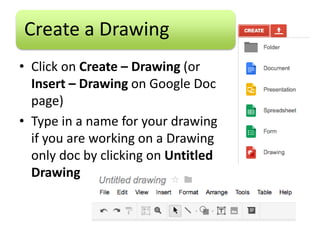
Create a Drawing
• Click on Create – Drawing (or
  Insert – Drawing on Google Doc
  page)
• Type in a name for your drawing
  if you are working on a Drawing
  only doc by clicking on Untitled
  Drawing
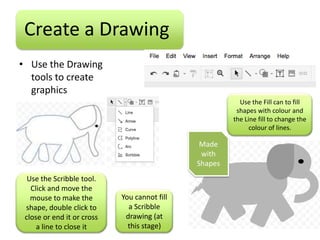
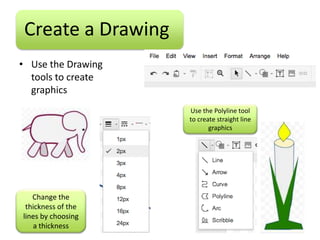
Create a Drawing
• Use the Drawing
  tools to create
  graphics
                                                         Use the Fill can to fill
                                                        shapes with colour and
                                                       the Line fill to change the
                                                             colour of lines.

                                               Made
                                               with
                                              Shapes
  Use the Scribble tool.
   Click and move the
   mouse to make the        You cannot fill
 shape, double click to       a Scribble
 close or end it or cross    drawing (at
     a line to close it       this stage)
Create a Drawing
• Use the Drawing
  tools to create
  graphics
                    Use the Polyline tool
                    to create straight line
                           graphics


   Change the
 thickness of the
lines by choosing
   a thickness
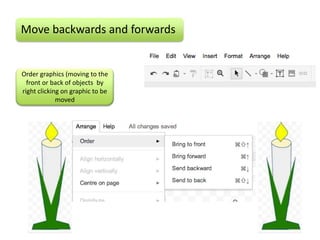
Move backwards and forwards


Order graphics (moving to the
  front or back of objects by
right clicking on graphic to be
             moved
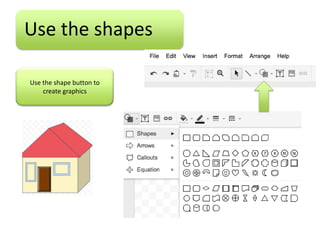
Use the shapes

Use the shape button to
    create graphics
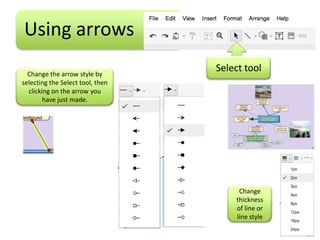
Using arrows
  Change the arrow style by
                                  Select tool
selecting the Select tool, then
  clicking on the arrow you
        have just made.


                                       Change
                                      thickness
                                      of line or
                                      line style
Add a Picture
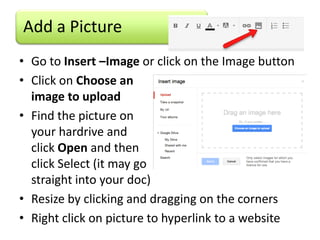
• Go to Insert –Image or click on the Image button
• Click on Choose an
  image to upload
• Find the picture on
  your hardrive and
  click Open and then
  click Select (it may go
  straight into your doc)
• Resize by clicking and dragging on the corners
• Right click on picture to hyperlink to a website
Add a Webcam picture

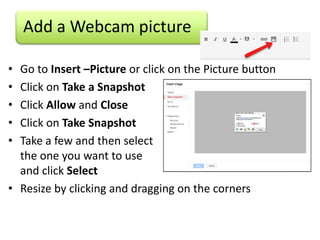
• Go to Insert –Picture or click on the Picture button
• Click on Take a Snapshot
• Click Allow and Close
• Click on Take Snapshot
• Take a few and then select
  the one you want to use
  and click Select
• Resize by clicking and dragging on the corners
Add a Picture from Google

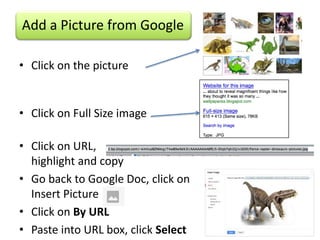
• Click on the picture


• Click on Full Size image

• Click on URL,
  highlight and copy
• Go back to Google Doc, click on
  Insert Picture
• Click on By URL
• Paste into URL box, click Select
Add a Picture from your album
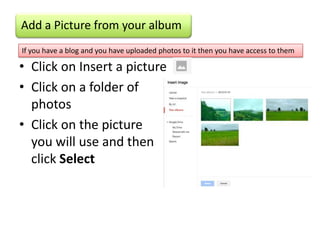
If you have a blog and you have uploaded photos to it then you have access to them

• Click on Insert a picture
• Click on a folder of
  photos
• Click on the picture
  you will use and then
  click Select
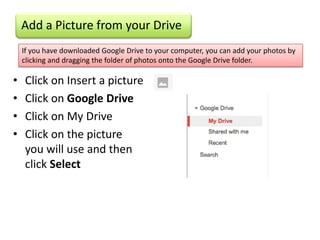
Add a Picture from your Drive
    If you have downloaded Google Drive to your computer, you can add your photos by
    clicking and dragging the folder of photos onto the Google Drive folder.

•   Click on Insert a picture
•   Click on Google Drive
•   Click on My Drive
•   Click on the picture
    you will use and then
    click Select
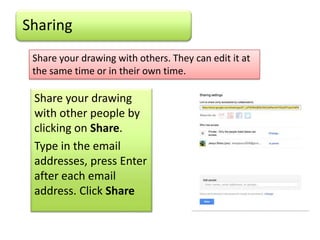
Sharing
 Share your drawing with others. They can edit it at
 the same time or in their own time.

 Share your drawing
 with other people by
 clicking on Share.
 Type in the email
 addresses, press Enter
 after each email
 address. Click Share

Google draw

  • 1.
    Google Draw Basic instructionson how to use Google Draw
  • 2.
    Create a Drawing •Click on Create – Drawing (or Insert – Drawing on Google Doc page) • Type in a name for your drawing if you are working on a Drawing only doc by clicking on Untitled Drawing
  • 3.
    Create a Drawing •Use the Drawing tools to create graphics Use the Fill can to fill shapes with colour and the Line fill to change the colour of lines. Made with Shapes Use the Scribble tool. Click and move the mouse to make the You cannot fill shape, double click to a Scribble close or end it or cross drawing (at a line to close it this stage)
  • 4.
    Create a Drawing •Use the Drawing tools to create graphics Use the Polyline tool to create straight line graphics Change the thickness of the lines by choosing a thickness
  • 5.
    Move backwards andforwards Order graphics (moving to the front or back of objects by right clicking on graphic to be moved
  • 6.
    Use the shapes Usethe shape button to create graphics
  • 7.
    Using arrows Change the arrow style by Select tool selecting the Select tool, then clicking on the arrow you have just made. Change thickness of line or line style
  • 8.
    Add a Picture •Go to Insert –Image or click on the Image button • Click on Choose an image to upload • Find the picture on your hardrive and click Open and then click Select (it may go straight into your doc) • Resize by clicking and dragging on the corners • Right click on picture to hyperlink to a website
  • 9.
    Add a Webcampicture • Go to Insert –Picture or click on the Picture button • Click on Take a Snapshot • Click Allow and Close • Click on Take Snapshot • Take a few and then select the one you want to use and click Select • Resize by clicking and dragging on the corners
  • 10.
    Add a Picturefrom Google • Click on the picture • Click on Full Size image • Click on URL, highlight and copy • Go back to Google Doc, click on Insert Picture • Click on By URL • Paste into URL box, click Select
  • 11.
    Add a Picturefrom your album If you have a blog and you have uploaded photos to it then you have access to them • Click on Insert a picture • Click on a folder of photos • Click on the picture you will use and then click Select
  • 12.
    Add a Picturefrom your Drive If you have downloaded Google Drive to your computer, you can add your photos by clicking and dragging the folder of photos onto the Google Drive folder. • Click on Insert a picture • Click on Google Drive • Click on My Drive • Click on the picture you will use and then click Select
  • 13.
    Sharing Share yourdrawing with others. They can edit it at the same time or in their own time. Share your drawing with other people by clicking on Share. Type in the email addresses, press Enter after each email address. Click Share