GOOGLE
APPS
for
Education
An Overview of Google Apps
and Program Features
Adv
1K.THIYAGU, Assistant Professor, Department of Education, Central University of Kerala, Kasaragod
Motives
Traditional Classrooms
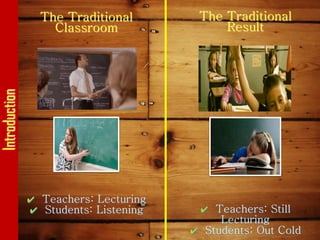
Introduction The Traditional
Classroom
✔ Teachers: Lecturing
✔ Students: Listening
The Traditional
Result
✔ Teachers: Still
Lecturing
✔ Students: Out Cold
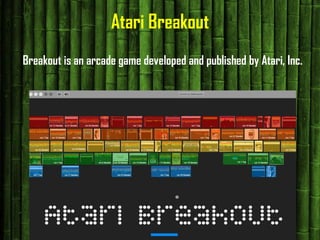
Atari Breakout
Breakout is an arcade game developed and published by Atari, Inc.
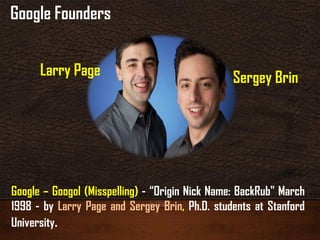
Google – Googol (Misspelling) - “Origin Nick Name: BackRub" March
1998 - by Larry Page and Sergey Brin, Ph.D. students at Stanford
University.
Larry Page Sergey Brin
Google Founders
Stay in Touch
10
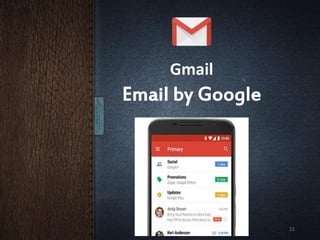
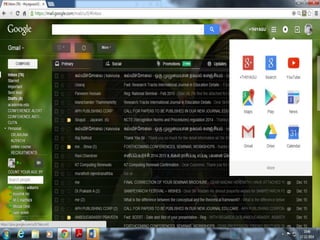
Gmail
Email by Google
11
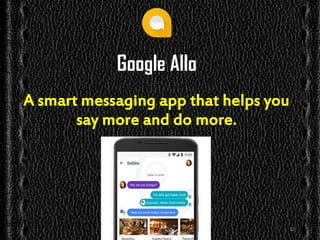
Google Allo
A smart messaging app that helps you
say more and do more.
12
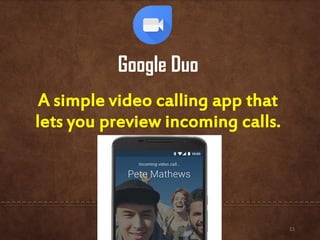
Google Duo
A simple video calling app that
lets you preview incoming calls.
13
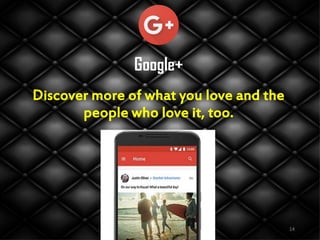
Google+
Discover more of what you love and the
people who love it, too.
14
Organise
Your
Stuff
15
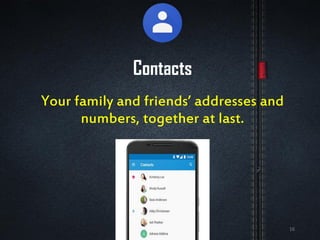
Contacts
Your family and friends’ addresses and
numbers, together at last.
16
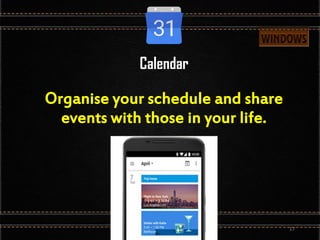
Calendar
Organise your schedule and share
events with those in your life.
17
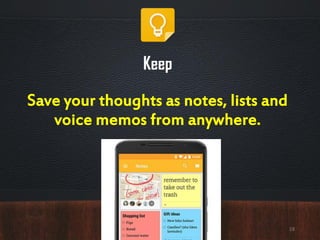
Keep
Save your thoughts as notes, lists and
voice memos from anywhere.
18
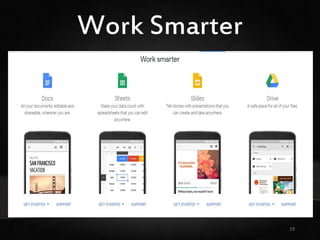
Work Smarter
19
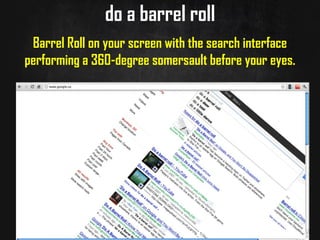
do a barrel roll
Barrel Roll on your screen with the search interface
performing a 360-degree somersault before your eyes.
Agenda
• Google Mission
• Google Drive
• Google Doc
• Google Sheet
• Google Slides
• Google Forms
• Google Drawing
• Google Mindmeister
• Google Sites
• Google Calendar
21
22
WebVideo
Books Personal/Internal
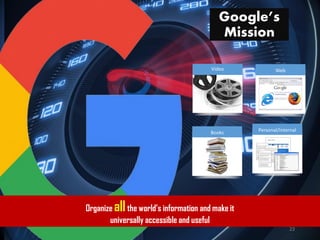
Google’s
Mission
Organize allthe world’s information and make it
universally accessible and useful
23
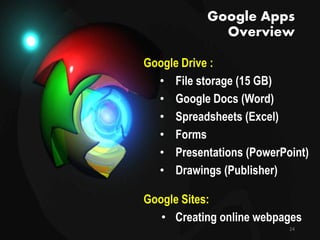
Google Apps
Overview
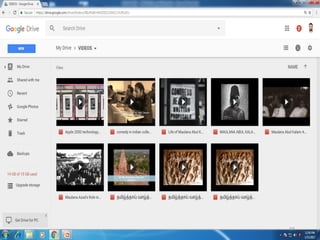
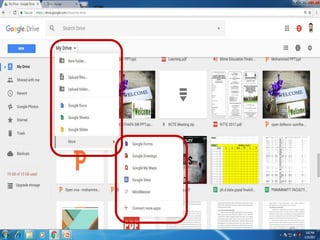
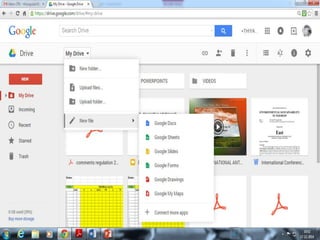
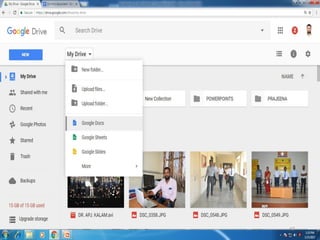
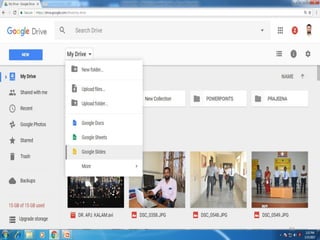
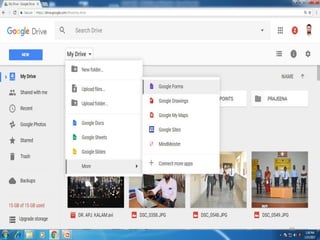
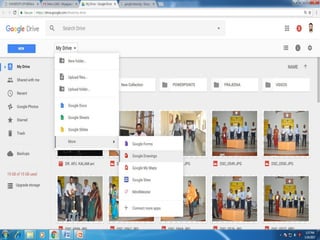
Google Drive :
• File storage (15 GB)
• Google Docs (Word)
• Spreadsheets (Excel)
• Forms
• Presentations (PowerPoint)
• Drawings (Publisher)
Google Sites:
• Creating online webpages
24
25
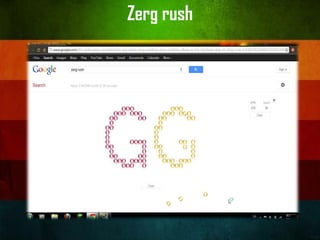
Zerg rush
27
28
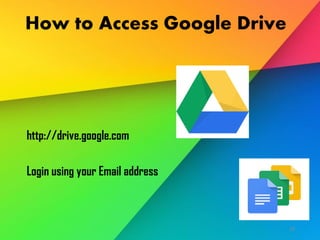
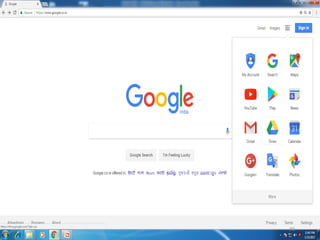
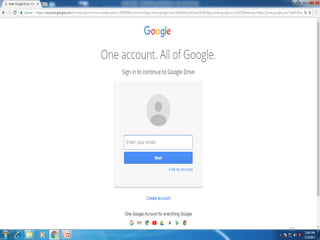
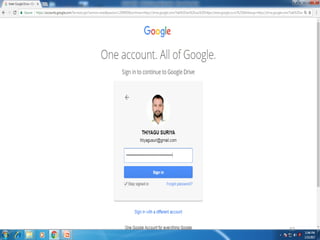
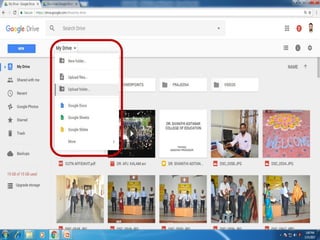
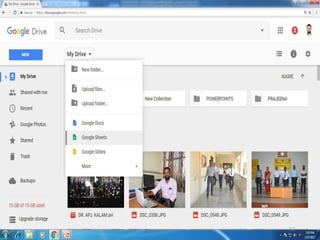
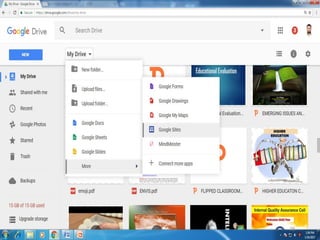
How to Access Google Drive
http://drive.google.com
Login using your Email address
29
30
31
32
33
34
35
36
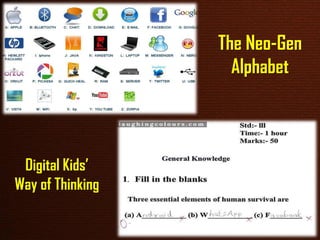
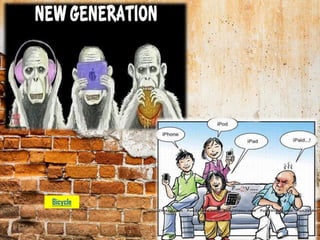
The Neo-Gen
Alphabet
Digital Kids’
Way of Thinking
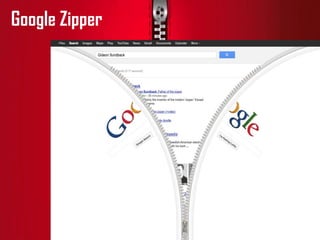
Google Zipper
40
41
42
Bicycle
43
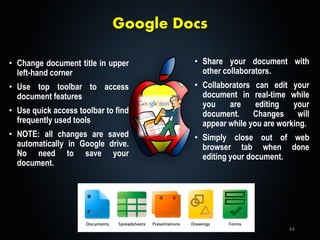
Google Docs
• Change document title in upper
left-hand corner
• Use top toolbar to access
document features
• Use quick access toolbar to find
frequently used tools
• NOTE: all changes are saved
automatically in Google drive.
No need to save your
document.
• Share your document with
other collaborators.
• Collaborators can edit your
document in real-time while
you are editing your
document. Changes will
appear while you are working.
• Simply close out of web
browser tab when done
editing your document.
44
Collaborating With
Others
• See who is working on your file.
• Watch users editing in real-time.
• Collaboration works in all Google
applications.
• Max 50 collaborators at one time.
45
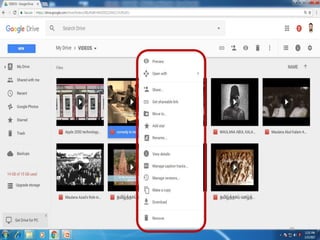
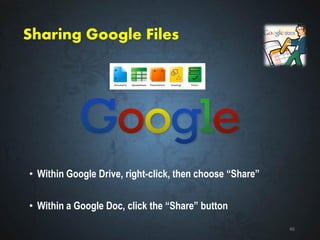
Sharing Google Files
• Within Google Drive, right-click, then choose “Share”
• Within a Google Doc, click the “Share” button
46
47
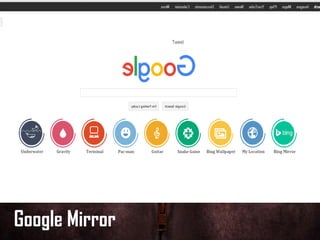
Google Mirror
Google
Spreadsheet
50
Google
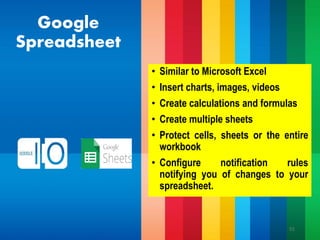
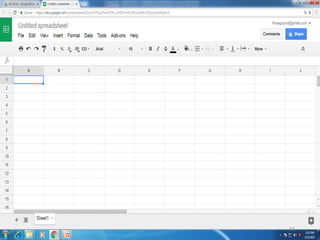
Spreadsheet
• Similar to Microsoft Excel
• Insert charts, images, videos
• Create calculations and formulas
• Create multiple sheets
• Protect cells, sheets or the entire
workbook
• Configure notification rules
notifying you of changes to your
spreadsheet.
51
52
53
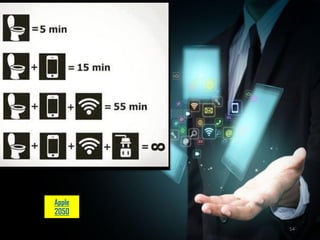
Apple
2050
54
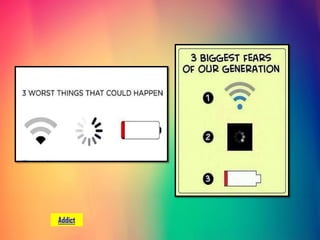
Addict
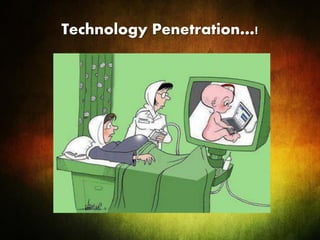
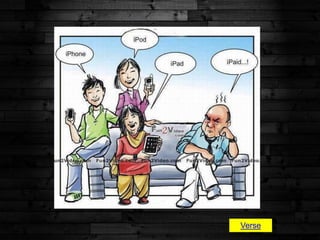
Technology Penetration…!
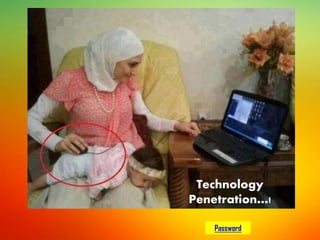
Technology
Penetration…!
Password
Verse
Google Slides
59
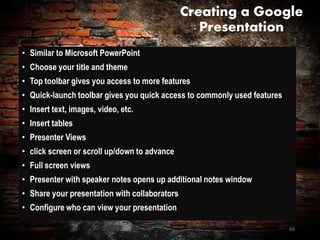
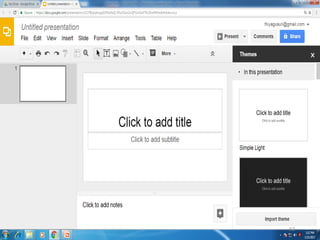
Creating a Google
Presentation
• Similar to Microsoft PowerPoint
• Choose your title and theme
• Top toolbar gives you access to more features
• Quick-launch toolbar gives you quick access to commonly used features
• Insert text, images, video, etc.
• Insert tables
• Presenter Views
• click screen or scroll up/down to advance
• Full screen views
• Presenter with speaker notes opens up additional notes window
• Share your presentation with collaborators
• Configure who can view your presentation
60
61
62
Specs
63
Google Forms
64
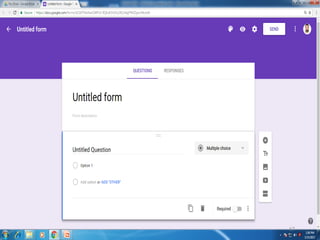
Google Forms
• Create simple questionnaire type forms
• Questions types such as:
 Text
 Multiple choice
 Dropdown boxes
 Grids
 Checkboxes
• Select different theme backgrounds
• Publish your form online
• Save form results to Google Spreadsheets
• Set notification rules to notify you of changes
65
66
67
68
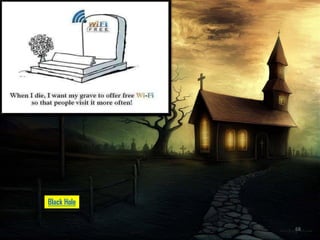
Black Hole
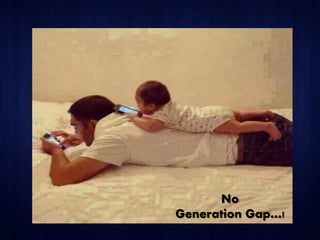
No
Generation Gap…!
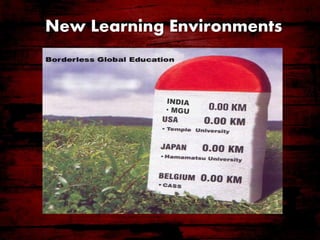
New Learning Environments
NET GENERATION LEARNERS
Google Drawing
71
Google Drawing
• Picture editing tool similar to Microsoft Publisher
• Create different kinds of boxes, arrows, lines,
scribbles, etc
• Change font colors or fill in shapes with different
colors
• Insert pictures and even take a snapshot using
your computer camera
• Other fun tools
72
73
74
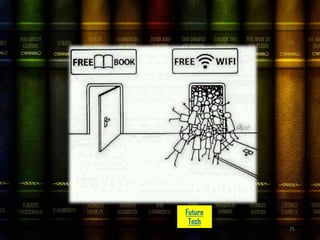
Future
Tech
75
Google Sites
76
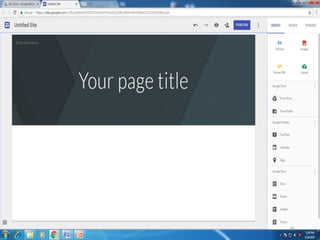
Google Sites
http://sites.google.com – login with email address
• Easily create websites to share with others
• Create announcement boards
• Post documents and link to other websites
• Embed YouTube videos
• Embed Google docs, forms, etc
77
78
79
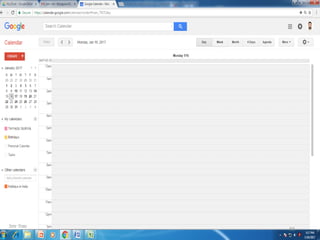
Google Calendar
80
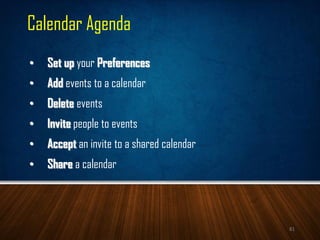
Calendar Agenda
• Set up your Preferences
• Add events to a calendar
• Delete events
• Invite people to events
• Accept an invite to a shared calendar
• Share a calendar
81
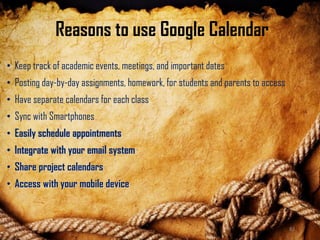
Reasons to use Google Calendar
• Keep track of academic events, meetings, and important dates
• Posting day-by-day assignments, homework, for students and parents to access
• Have separate calendars for each class
• Sync with Smartphones
• Easily schedule appointments
• Integrate with your email system
• Share project calendars
• Access with your mobile device
82
83
Features of Google Apps
84
Features Google Apps for Education
Cross Platform
85
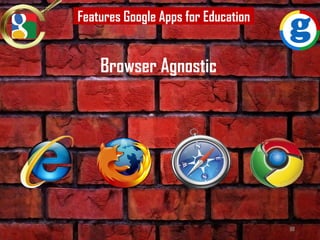
Browser Agnostic
Features Google Apps for Education
86
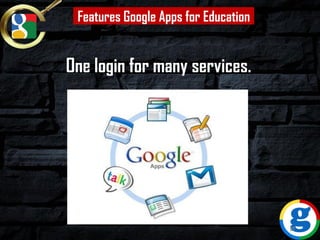
One login for many services.
Features Google Apps for Education
87
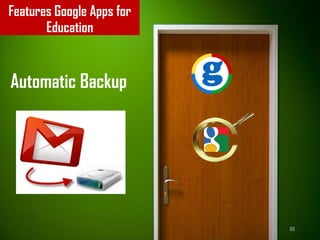
Automatic Backup
Features Google Apps for
Education
88
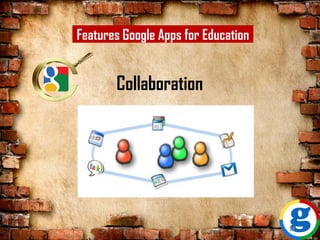
Collaboration
Features Google Apps for Education
89
HELPFUL RESOURCES
https://support.google.com/a/answer/1631886?hl=en
90
THANK YOU
Jai Bharath!
91
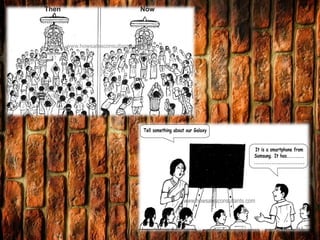
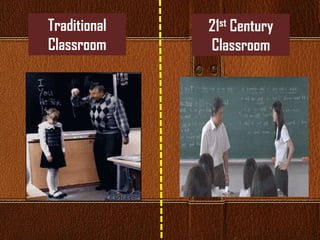
Traditional
Classroom
21st Century
Classroom
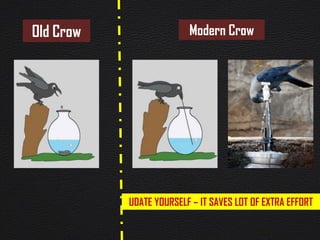
Old Crow Modern Crow
UDATE YOURSELF – IT SAVES LOT OF EXTRA EFFORT
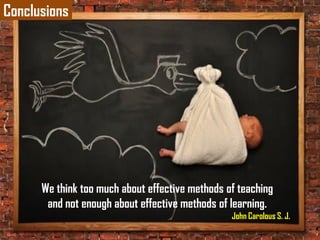
Conclusions
We think too much about effective methods of teaching
and not enough about effective methods of learning.
John Carolous S. J.
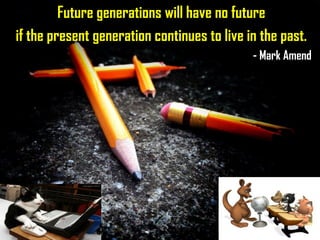
Future generations will have no future
if the present generation continues to live in the past.
- Mark Amend
Attitude is a little thing
that makes a big
difference.
Positive attitude
Creates a success
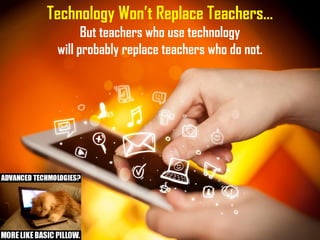
Technology Won’t Replace Teachers…
But teachers who use technology
will probably replace teachers who do not.
References
Anderson, C. (2006). The long tail: How endless choice is creating unlimited demand.
London, England: Random House.
Brown, J. S., Collins, A., & Duguid, P. (1989). Situated cognition and the culture of learning.
Educational Researcher, 18(1), 32-42.
El-Ghareeb, Haitham. (2011). Empowering Adaptive Lectures through Activation of
Intelligent and Web 2.0 Technologies. International Journal on E-Learning, 10(4),
365-391.
Richardson, W. (2006). Blogs, wikis, podcasts, and other powerful tools for classrooms.
Thousand Oaks, CA: Sage.
Thiyagu. K & Arulsekar, J.M. (2007). Information and Communication Technology,
Tamilnadu: Prophet Publishers.
Thiyagu.K. (2011). M-learning is the future learning. Edutracks, 8(6), 1-3.
Jai Hind !!!
Thank You…
Thank You…
Thank You…

Google apps for Education - Thiyagu