GOOGLE
ANALYTICS!
analytics.google.com
What is Google Analytics?
Google Analytics is a FREE web analytics tool that gives
detailed statistics on website activity.
Google’s Definition: “helps you analyze visitor traffic and
paint a complete picture of your audience and their needs,
wherever they are along the path to purchase/conversion.”
A Little History
● 2006 - Google launches Google Analytics to all Google
users
● 2011 - Real Time analytics launches allowing you to see
users on your site “real time”
● 2015 - Universal Analytics launches which organizes the
way data is collected in your Google Analytics
Why We Use Google Analytics
Google Analytics give us the ability to review data and
evaluate marketing efforts to show ROI.
A Marketer’s Dream!
Installing Google
Analytics
Installing Google Analytics
● Using Your Gmail Account Go To:
https://analytics.google.com
● Sign Up!
Installing Google Analytics
● Input your Company/
Website Information
● Click “Get Tracking ID”
● Accept Terms of Use
Installing Google Analytics
● Upload tracking
code right below
the <head> section
in the header.php
file of your website.
● This ensures all
pages will be
tracked
Installing Google Analytics
● Install at the top of the <head>
○ Using Wordpress CMS as an example.
○ Appearance > Editor > header.php > place code right below
<head>
● If you do not have Wordpress, same principles apply: add
Google Analytics tracking code to header.php, right below
<head>
Using Google
Analytics
Important Metrics & How To Access Them
Basic Navigation
1. Change Property and/ or Data View
2. Search or “pls halp im lost”
3. Dashboard
4. Customization, if you’re into that…
5. What’s happening on your site right now
6. Who is visiting your site?
7. Which marketing channel are people viewing your site from?
8. What are people doing once on your site?
9. Who is taking right actions on your site?
10. Resource center
11. Settings live here
1
2
3
4
5
6
7
8
9
10
11
Date Range!
*Can only see data post installing Google Analytics tracking
code
View site metrics on a month-to-month, week, year, etc. basis
to understand seasonality or when users are more likely to
frequent your site.
Section View Navigation
1. What’s being reported on
2. Additional breakdown controls
3. Change the graphic type (table, pie chart, bar chart, etc.)
4. Acquisition: how many users in each primary dimension got to your site?
5. Behavior: what did the user in each primary dimension do on your site?
6. Conversions: filter the primary dimension by Conversions
1
2
3
4 5 6
1. Real-time
Overview
● Pageviews
● Top Referrals
● Top Active Pages
● Top Social Traffic
● Top Locations
● Top Keywords
Locations
● Locations of real-time users.
Traffic Sources
● How the users are getting to your site.
Content
● Which page(s) are the users on
2. Audience
Quantitative insights into site visits.
● Sessions
○ Number of user engagements on website
● New Users
○ Number of first time users
● Bounce Rate
○ Percentage of single page interactions
● Pages/Session
○ Average number of pages viewed per session
● Average Session Duration
○ Average time spent on site per session
Stop & Think:
Why might we care how many site visitors are female vs. male?
Demographics
Age & gender of site visitors can be broken down by Key
Metrics that include:
● % New Sessions
● Avg. Session Duration
● Bounce Rate
● Pages / Session
● Sessions (most common)
!
Interests
This is where GA gets creepy.
Affinity Categories: groups individuals based on their
Google search history.
● Top of purchase funnel
In-Market Segments: based on what users are
actively seeking (see image)
● Bottom of purchase funnel
In-Market Segmentation
for Firetoss.com:
Is this good or
bad?
Geo
Useful for assessing your brand’s visibility. Especially useful
for Ecommerce stores.
Play around with
the dimensions!
Technology
What Browser are users using most when visiting your site?
Play around with primary dimensions! There are some really
cool insights on this page pertaining to UX.
Mobile
People have smartphones,
and they use them!
HUGE actionable insights!
More mobile users than
desktop? → place
importance on mobile UX
Benchmarking
See how your website compares to others in the industry
Channels:
● How do you stack up organically? Paid? Direct?
Location:
● Are you getting a significant portion of traffic in your
geographic area?
Devices:
● Mobile vs desktop traffic
3. Acquisition
Traffic channels are broken up into 7 “Channel Groupings”
1. Organic Search
2. Direct
3. Paid Search
4. Referral
5. Social
6. Email
7. Other (or “not set”)
All Traffic
Channels:
● Site visit data broken down into the previous 7 categories
Source/Medium:
● Granular view of specific traffic sources & accompanying
metrics. Two examples:
•Facebook Ad Traffic
•Organic Google Traffic vs. Bing Organic Traffic
Referrals:
● Did someone visit your site directly from another site? You
might like to know…(see previous slide)
Social
Network Referrals:
● What social network brought visitors to your site?
Landing Pages:
● Which site page did social referrals land on?
Conversions:
● Did social referrals contribute to your bottom line? (bottomlinearmy.com)
Plugins:
● Forget it
Users Flow:
● How do users from social networks interact?
4. Behavior
Granular view of site traffic metrics and how users are
engaging.
● Behavior flow
● Page engagement
● Site Speed
● Site Search
● Events
Behavior Flow
Shows the most popular “path” users take throw a website.
This is often messy data especially for larger websites.
● Are users dropping off the site on a specific page?
● Great way to help prioritize changes needed to be made
to the website
- Put billboards on your highways, not your streets
Page Views
What are your most popular pages?
Great data to understand which pages to put emphasis on
when making website changes.
Tell your users the most valuable information where they
visit the most!
Site Speed
Site speed is a factor for both SEO and UX. A slow site
makes you look bad and annoys users.
Resource: Pingdom (https://tools.pingdom.com/)
Avg. Page Load Times of <1sec are considered excellent.
3 - 4 sec load speed is good
Site Search
If your site has a search bar (most Ecommerce stores do),
the search data will display here.
Make sure most searched items are easily accessible within
navigation.
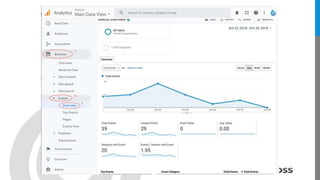
Events
Events are any site action
you care to track that
(usually) doesn’t contribute
to the client’s ROI, but are
useful for UX and tracking
your site’s effectiveness.
Types of Events:
1. Downloading a file
2. Scrolling down on a page
3. Viewing of a video
4. Clicking on a button
5. Clicking on an image
6. Logging in
7. Sharing content to social
media
8. And many more...
5. Conversions
Just when you thought things were getting interesting…
Advanced Google Analytics insights:
● Goal completions
● Product performance
○ # of transactions
○ Revenue
○ Much more
● Multi-Channel Analysis
○ How does your paid advertisements influence other
channels of traffic?
REPORTING
DATA STUDIO - A Google Tool
datastudio.google.com
Create Custom Reports
Create custom reports to tie relevant data together. Show the big
picture.
Transform data into more useful values → A Marketer’s Dream!
Parting Notes
● Don’t let the abundance of data overwhelm you. Start
with a question and find the solution!
● Use Google Analytics to provide data behind decision
making.
● If you can’t find the answer to your question Google it!
○ There are unlimited amounts of articles and videos to help
you find the answers you are looking for.
Questions?
Elan Maj
elan@firetoss.com
801.901.8408

Google analytics overview

  • 1.
  • 2.
    What is GoogleAnalytics? Google Analytics is a FREE web analytics tool that gives detailed statistics on website activity. Google’s Definition: “helps you analyze visitor traffic and paint a complete picture of your audience and their needs, wherever they are along the path to purchase/conversion.”
  • 3.
    A Little History ●2006 - Google launches Google Analytics to all Google users ● 2011 - Real Time analytics launches allowing you to see users on your site “real time” ● 2015 - Universal Analytics launches which organizes the way data is collected in your Google Analytics
  • 4.
    Why We UseGoogle Analytics Google Analytics give us the ability to review data and evaluate marketing efforts to show ROI. A Marketer’s Dream!
  • 5.
  • 6.
    Installing Google Analytics ●Using Your Gmail Account Go To: https://analytics.google.com ● Sign Up!
  • 7.
    Installing Google Analytics ●Input your Company/ Website Information ● Click “Get Tracking ID” ● Accept Terms of Use
  • 8.
    Installing Google Analytics ●Upload tracking code right below the <head> section in the header.php file of your website. ● This ensures all pages will be tracked
  • 9.
    Installing Google Analytics ●Install at the top of the <head> ○ Using Wordpress CMS as an example. ○ Appearance > Editor > header.php > place code right below <head> ● If you do not have Wordpress, same principles apply: add Google Analytics tracking code to header.php, right below <head>
  • 11.
  • 12.
    Basic Navigation 1. ChangeProperty and/ or Data View 2. Search or “pls halp im lost” 3. Dashboard 4. Customization, if you’re into that… 5. What’s happening on your site right now 6. Who is visiting your site? 7. Which marketing channel are people viewing your site from? 8. What are people doing once on your site? 9. Who is taking right actions on your site? 10. Resource center 11. Settings live here 1 2 3 4 5 6 7 8 9 10 11
  • 13.
    Date Range! *Can onlysee data post installing Google Analytics tracking code View site metrics on a month-to-month, week, year, etc. basis to understand seasonality or when users are more likely to frequent your site.
  • 14.
    Section View Navigation 1.What’s being reported on 2. Additional breakdown controls 3. Change the graphic type (table, pie chart, bar chart, etc.) 4. Acquisition: how many users in each primary dimension got to your site? 5. Behavior: what did the user in each primary dimension do on your site? 6. Conversions: filter the primary dimension by Conversions 1 2 3 4 5 6
  • 15.
    1. Real-time Overview ● Pageviews ●Top Referrals ● Top Active Pages ● Top Social Traffic ● Top Locations ● Top Keywords Locations ● Locations of real-time users. Traffic Sources ● How the users are getting to your site. Content ● Which page(s) are the users on
  • 17.
    2. Audience Quantitative insightsinto site visits. ● Sessions ○ Number of user engagements on website ● New Users ○ Number of first time users ● Bounce Rate ○ Percentage of single page interactions ● Pages/Session ○ Average number of pages viewed per session ● Average Session Duration ○ Average time spent on site per session
  • 18.
    Stop & Think: Whymight we care how many site visitors are female vs. male? Demographics Age & gender of site visitors can be broken down by Key Metrics that include: ● % New Sessions ● Avg. Session Duration ● Bounce Rate ● Pages / Session ● Sessions (most common) !
  • 20.
    Interests This is whereGA gets creepy. Affinity Categories: groups individuals based on their Google search history. ● Top of purchase funnel In-Market Segments: based on what users are actively seeking (see image) ● Bottom of purchase funnel In-Market Segmentation for Firetoss.com: Is this good or bad?
  • 22.
    Geo Useful for assessingyour brand’s visibility. Especially useful for Ecommerce stores. Play around with the dimensions!
  • 24.
    Technology What Browser areusers using most when visiting your site? Play around with primary dimensions! There are some really cool insights on this page pertaining to UX.
  • 25.
    Mobile People have smartphones, andthey use them! HUGE actionable insights! More mobile users than desktop? → place importance on mobile UX
  • 27.
    Benchmarking See how yourwebsite compares to others in the industry Channels: ● How do you stack up organically? Paid? Direct? Location: ● Are you getting a significant portion of traffic in your geographic area? Devices: ● Mobile vs desktop traffic
  • 29.
    3. Acquisition Traffic channelsare broken up into 7 “Channel Groupings” 1. Organic Search 2. Direct 3. Paid Search 4. Referral 5. Social 6. Email 7. Other (or “not set”)
  • 31.
    All Traffic Channels: ● Sitevisit data broken down into the previous 7 categories Source/Medium: ● Granular view of specific traffic sources & accompanying metrics. Two examples: •Facebook Ad Traffic •Organic Google Traffic vs. Bing Organic Traffic Referrals: ● Did someone visit your site directly from another site? You might like to know…(see previous slide)
  • 32.
    Social Network Referrals: ● Whatsocial network brought visitors to your site? Landing Pages: ● Which site page did social referrals land on? Conversions: ● Did social referrals contribute to your bottom line? (bottomlinearmy.com) Plugins: ● Forget it Users Flow: ● How do users from social networks interact?
  • 33.
    4. Behavior Granular viewof site traffic metrics and how users are engaging. ● Behavior flow ● Page engagement ● Site Speed ● Site Search ● Events
  • 34.
    Behavior Flow Shows themost popular “path” users take throw a website. This is often messy data especially for larger websites. ● Are users dropping off the site on a specific page? ● Great way to help prioritize changes needed to be made to the website - Put billboards on your highways, not your streets
  • 36.
    Page Views What areyour most popular pages? Great data to understand which pages to put emphasis on when making website changes. Tell your users the most valuable information where they visit the most!
  • 38.
    Site Speed Site speedis a factor for both SEO and UX. A slow site makes you look bad and annoys users. Resource: Pingdom (https://tools.pingdom.com/) Avg. Page Load Times of <1sec are considered excellent. 3 - 4 sec load speed is good
  • 40.
    Site Search If yoursite has a search bar (most Ecommerce stores do), the search data will display here. Make sure most searched items are easily accessible within navigation.
  • 42.
    Events Events are anysite action you care to track that (usually) doesn’t contribute to the client’s ROI, but are useful for UX and tracking your site’s effectiveness. Types of Events: 1. Downloading a file 2. Scrolling down on a page 3. Viewing of a video 4. Clicking on a button 5. Clicking on an image 6. Logging in 7. Sharing content to social media 8. And many more...
  • 44.
    5. Conversions Just whenyou thought things were getting interesting… Advanced Google Analytics insights: ● Goal completions ● Product performance ○ # of transactions ○ Revenue ○ Much more ● Multi-Channel Analysis ○ How does your paid advertisements influence other channels of traffic?
  • 45.
    REPORTING DATA STUDIO -A Google Tool datastudio.google.com
  • 46.
    Create Custom Reports Createcustom reports to tie relevant data together. Show the big picture. Transform data into more useful values → A Marketer’s Dream!
  • 48.
    Parting Notes ● Don’tlet the abundance of data overwhelm you. Start with a question and find the solution! ● Use Google Analytics to provide data behind decision making. ● If you can’t find the answer to your question Google it! ○ There are unlimited amounts of articles and videos to help you find the answers you are looking for.
  • 49.