GettingSta d
          rte

  Free Online Training!
Agenda

          What is ScienceDirect?
          Why ScienceDirect?
          Content
          Where to begin?
          Making ScienceDirect
           your own
          More Training Options
Agenda

          What is ScienceDirect?
          Why ScienceDirect?
          Content
          Where to begin?
          Making ScienceDirect
           your own
          More Training Options
What is ScienceDirect?


        •Thew rld m s a va e w b d live s te sfo s ie
             o 's o t d nc d e e ry ys m r c ntific   ,
        te hnic l a m d a info a n.
          c a nd e ic l       rm tio

        Thee s ntia info a n re o ea ila leto o r 11 m n
        •   se l        rm tio s urc va b      ve     illio
        re e rc rsa s ie tsa und thew rld
          s a he nd c ntis ro        o .


   E-books
   Book Series
   Reference Works
   Handbooks
   2,500+ Journal Titles
Why ScienceDirect?
  Write quality papers with access to peer-reviewed
   content
  Use innovative tools to stay up-to-date
         Example: Top 25 article e-mail alerts
 •   Find articles listed on a course syllabus
    Email articles to a project team
    Collect references for a term paper
    Offer a broader perspective on new subject areas
     with an unparralleled breadth and depth of content
    Track research of thought-leaders in a particular
     subject
    Link to the full text of references
    Build and maintain a personalized library of articles
    Use user-friendly search functionalities to refine
     research
Content
     9 million full-text articles from 2,500+ Elsevier
      journals
     23 Subject Collections
     Backfiles dating back to 1823
     Early access to preprints via Articles in Press
     70+ Reference Works
     141 Book Series in 6 packages (63 titles)
     6 series Handbooks (164 volumes)
     5,000 eBooks
     Free linking to other STM publishers via
      CrossRef™
Agenda

          What is ScienceDirect?
          Why ScienceDirect?
          Content
          Where to begin?
          Making ScienceDirect
           your own
          More Training Options
Agenda


          Where to begin?
            Browsing
            Searching
            Reviewing Search
             Results and Material
Browsing

      Bro s
         w ing   Se rc
                   a hing
Alerts


           Favorites
           Favorites
              RSS
              RSS
                      AIP Link
                      AIP Link
              Type
              Type
             Access
             Access
              Title
              Title
Browsing


                           Subject
Browsing


               Lim yo s a h b
                  it ur e rc y:
           • Ho ing , o
               ld s r
           • P lic tio typ s
              ub a n e
Browsing-Journal Home Page
Browsing-Articles in Press
 Ac e te Ma c t
   c p d nus rip   Unc rre te P o
                      o c d ro f    C rre te P o
                                     o c d ro f
Browsing-Articles in Press
                   •   Peer-reviewed article as it was originally
                       accepted
 Ac e te Ma c t
   c p d nus rip   •   Not copyedited
                   •   Not formatted

                   •   Copy edited and formatted peer-reviewed article
                   •   Not finalized
 Unc rre te P o
    o c d ro f
                   •   Not corrected by the authors


                   •   Copy edited and formatted peer-reviewed article
                   •   Corrected and approved by author
  C rre te P o
   o c d ro f
                   •   Not yet printed in a finalized issue
Browsing-Reference Works
Browsing-Books
Searching

               I don’t know what
                                                    Se rc
                                                      a hing
                   title to look
                                       All c nte in SD isfully s a ha le
                                             o nt                e rc b
                   in, what can I
                   do?                 Se rc
                                          a hingise s a intuitive
                                                   a y nd


   Us ‘ k
      e Quic
    Se rc o
      a h’ r
   De ile Se rc
      ta d a h
Advanced Search

    Limit your
    search by your
    criteria
   Subscribed
    content only

   Favorite journals
                        morphine
   Subject area
                        Pain management
   Date of
    publication

   Within keywords,
    abstracts, etc
Advanced Search


  hospice


 


 
Advanced Search


       Hint: Toc p
                a turea a c s a o
                       nd c e s ll f
       yo s a h q rie , lo in a turn
         ur e rc ue s g nd
       o theSe rc His ry.
        n      a h to
       Als a p a o p rs na ho e a e
          o p e rs n e o l m p g .
Quic Re w
    k vie
                  Use quick search for
                  quick and easy
                  searches

            Use search form to
            specify fields and
            search parameters


                  Turn on search
                  history to capture
                  and automatically
                  save searches
Searching Tip-Syntax Searching
 * findsaroot wordplusall thewordsmadeby addingletterstothe
   e o it
    nd f
    –Be v* find b ha , b ha ra b ha ur, e .
        ha     s e ve e vio l, e vio     tc
 ?replacesacharacter anywherein aword, except thefirst character
    –W m n find w m n a w m n
      o ?      s o a nd o e

   P xim C nne to
    ro ity o c rs
    –W  /nn
    –P RE/nn
   Bo le n “
     o a OR” sm rere o s
             find o c rd
Searching Tips-Phrase Searching
 •   There are two options for searching a phrase:
      – Loose phrase search – double quotes “ “
      – Exact phrase search – single quotes ‘ ‘

 •   Loose phrase search – enclose in double quotes
      – Will search for documents where the words are adjacent to each other
      – Does not insert the AND operator
      – Will ignore punctuation, e.g, hyphens or apostrophes,
          • e.g., “heart-attack” will find docs with and without the hyphen
          • “C++” or “C” will find the same results

 •   Exact phrase search – enclose in single quotes
      – Stop words, punctuation, special characters and wildcards are searched
      – ‘C++’ will only return docs with this exact character combination
      – ‘C’ will return different results
      – Searching for quotation marks requires a  before the actual quotation mark
          • ’best practice’
Agenda


          Where to begin?
            Browsing
            Searching
            Reviewing Search
             Results and Material
Reviewing Search Results

       How do I know
         which titles   Entitle e ic nsind a
                               m nt o       ic te
         we have            full-te a c s le l
                                   xt c e s ve
         access to?

                              = Full-te a ila le
                                       xt va b

                              = Ab tra t o
                                  s c nly


     J urna Le l
      o    l ve
Reviewing Search Results

        How do I know
          which titles   Entitle e ic nsind a
                                m nt o       ic te
          we have            full-te a c s le l
                                    xt c e s ve
          access to?

                               = Full-te a ila le
                                        xt va b

                               = Ab tra t o
                                   s c nly


    Vo e s Le l
      lum /Is ue ve
Reviewing Search Results

       How do I know
         which titles          Entitle e ic nsind a
                                      m nt o       ic te
         we have                   full-te a c s le l
                                          xt c e s ve
         access to?

                                     = Full-te a ila le
                                              xt va b
                  Ab tra t o
                    s c nly          = Ab tra t o
                                         s c nly
Reviewing Search Results

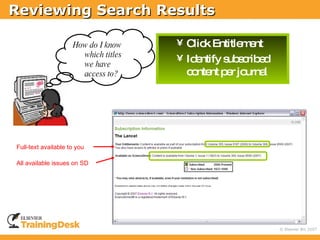
                     How do I know    • C k Entitle e
                                         lic       m nt
                       which titles   • Id ntify s s rib d
                                          e       ub c e
                       we have
                       access to?       c nte p r jo
                                         o nt e urna l


Full-text available to you

All available issues on SD
Reviewing Search Results

          I need this article, but
          it’s not part of our
          collection. What do I
          do?


                    Do um nt De ry
                      c e      live

                        Artic Cho e
                             le ic

                   Tra a tio l Ac e s
                      ns c na c s

                        P y P r Vie
                         a e       w
Transactional Access


                  Tra a tio l Ac e s
                     ns c na c s


                             Full-te linksa
                                    xt     re
                             vis leto theus r fo
                                ib          e r
                             no ub c e a le
                               n-s s rib d rtic s
Transactional Access

  •   This screen appears for users to select continue or cancel
  •   If user clicks continue, full-text appears and library is charged
      for the article


           http://info.admintool.elsevier.com/contactus/index.html
Pay Per View

             I need this article, but
             it’s not part of our
             collection. What do I
             do?


                           P y P r Vie
                            a e       w


              Ind ua p ha eb c d c rd
                  ivid l urc s y re it a
              Ins nt a c s
                  ta c e s
              P a HTML a ila lefo 2 ho
                DF nd    va b     r 4 urs
              C n b d w a e a s re
                a e o nlo d d nd to d
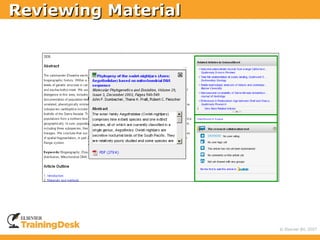
Reviewing Material

          Now that I have the
          article I need, what’s
          next?
Reviewing Material

            Preview article
Reviewing Material

          Click on the article title
Reviewing Material


                Choose View:
               Thumbnails
               Full-Sized Images
Reviewing Material


     Available only if
        subscribed
          material
Reviewing Material


       View as final printed
          publication would
               appear
Reviewing Material


           Article Toolbox
Reviewing Material

                Kno a Us theArtic To lb x
                   w nd e        le o o


                                            Export to your citation
                                            management program
 Stay Alerted                                 Bookmark in
                                              2collab
Reviewing Material


          Quic a c s to
              k c es
          s p m nta
           up le e ry
          m te l
            a ria
Reviewing Material
Document Download Manager

        Can I download
        several documents
        at once?
Reviewing Material
Reviewing Material
Reviewing Material
Reviewing Material
Agenda

          What is ScienceDirect?
          Why ScienceDirect?
          Content
          Where to begin?
            Browsing
            Searching
            Reviewing Search
             Results and Material
          Making ScienceDirect
           your own
          More Training Options
Making ScienceDirect your Own
 Tim s vingb ne
     ea      e fits
     C p sa re e a tio o ho e a e
       a ture ll c nt c ns n m p g
     C a ap rs na lis o fa ritejo
       re te e o l t f vo           urna title
                                        l     s
     Sa a re xe utep rs na s a h q rie
        ve nd -e c       e o l e rc ue s
     Ob in s a h up a sviae a
        ta e rc     d te      m il
     Sc d a rtsfo d c e c tio
        he ule le     r o um nt ita ns
     Re e ta leo c nte viae a fo ne jo
        c ive b f o nts         m il r w urna is ue
                                                l s s
     Ena les a h his ry toa m tic lly s ves a he
          b e rc     to     uto a a a e rc s
     C a q k linkso yo ho e a e
       re te uic        n ur m p g
     Ma in a p fe nc s
         inta ll re re e
 Ac e syo a c unt fro a he
    c s ur c o        m nyw re
Making ScienceDirect your Own
                How do I register?


•   Select ‘Not Registered?’
    at top of SD homepage


•   Free Registration
•   Create your own login
•   Quick and Simple
Making ScienceDirect your Own

                       Sto sre e
                           re c nt
                       a tio
                        c ns


C a a
  re te                C a q k links
                        re te uic
fa rite
  vo                   within SD
journa lis
       l t

                       C a q k links
                        re te uic
                       o id SD
                        uts e
Making ScienceDirect your Own

    Ad t yo s tting in o p c
      jus ur e     s    ne la e
Agenda

          What is ScienceDirect?
          Why ScienceDirect?
          Content
          Where to begin?
            Browsing
            Searching
            Reviewing Search
             Results and Material
          Making ScienceDirect
           your own
          More Training Options
Help and Training Options

• Click            from any screen
     • Context sensitive
• Use the                  link
     • Assistance with search forms and query writing syntax
• Click on        to send a question to an expert
• Visit the ScienceDirect InfoSite for more user tips
     • http://info.sciencedirect.com
     • Search tips, personalization/alerts, article display
       options, linking
     • Interactive tutorials, available in different languages
http://info.sciencedirect.com
Help and Training Options
http w .tra
               ://w w ining e k.e e r.c m
                           d s ls vie o


Thank you for joining us today!

Find more FREE training online:


 Contact us: TrainingDesk@elsevier.com

Getting Started With ScienceDirect

  • 1.
    GettingSta d rte Free Online Training!
  • 2.
    Agenda  What is ScienceDirect?  Why ScienceDirect?  Content  Where to begin?  Making ScienceDirect your own  More Training Options
  • 3.
    Agenda  What is ScienceDirect?  Why ScienceDirect?  Content  Where to begin?  Making ScienceDirect your own  More Training Options
  • 4.
    What is ScienceDirect? •Thew rld m s a va e w b d live s te sfo s ie o 's o t d nc d e e ry ys m r c ntific , te hnic l a m d a info a n. c a nd e ic l rm tio Thee s ntia info a n re o ea ila leto o r 11 m n • se l rm tio s urc va b ve illio re e rc rsa s ie tsa und thew rld s a he nd c ntis ro o . E-books Book Series Reference Works Handbooks 2,500+ Journal Titles
  • 5.
    Why ScienceDirect? Write quality papers with access to peer-reviewed content  Use innovative tools to stay up-to-date  Example: Top 25 article e-mail alerts • Find articles listed on a course syllabus  Email articles to a project team  Collect references for a term paper  Offer a broader perspective on new subject areas with an unparralleled breadth and depth of content  Track research of thought-leaders in a particular subject  Link to the full text of references  Build and maintain a personalized library of articles  Use user-friendly search functionalities to refine research
  • 6.
    Content  9 million full-text articles from 2,500+ Elsevier journals  23 Subject Collections  Backfiles dating back to 1823  Early access to preprints via Articles in Press  70+ Reference Works  141 Book Series in 6 packages (63 titles)  6 series Handbooks (164 volumes)  5,000 eBooks  Free linking to other STM publishers via CrossRef™
  • 7.
    Agenda  What is ScienceDirect?  Why ScienceDirect?  Content  Where to begin?  Making ScienceDirect your own  More Training Options
  • 8.
    Agenda  Where to begin?  Browsing  Searching  Reviewing Search Results and Material
  • 9.
    Browsing Bro s w ing Se rc a hing
  • 10.
    Alerts Favorites Favorites RSS RSS AIP Link AIP Link Type Type Access Access Title Title Browsing Subject
  • 11.
    Browsing Lim yo s a h b it ur e rc y: • Ho ing , o ld s r • P lic tio typ s ub a n e
  • 12.
  • 13.
    Browsing-Articles in Press Ac e te Ma c t c p d nus rip Unc rre te P o o c d ro f C rre te P o o c d ro f
  • 14.
    Browsing-Articles in Press • Peer-reviewed article as it was originally accepted Ac e te Ma c t c p d nus rip • Not copyedited • Not formatted • Copy edited and formatted peer-reviewed article • Not finalized Unc rre te P o o c d ro f • Not corrected by the authors • Copy edited and formatted peer-reviewed article • Corrected and approved by author C rre te P o o c d ro f • Not yet printed in a finalized issue
  • 15.
  • 16.
  • 17.
    Searching I don’t know what Se rc a hing title to look  All c nte in SD isfully s a ha le o nt e rc b in, what can I do?  Se rc a hingise s a intuitive a y nd  Us ‘ k e Quic Se rc o a h’ r  De ile Se rc ta d a h
  • 18.
    Advanced Search Limit your search by your criteria  Subscribed content only  Favorite journals morphine  Subject area Pain management  Date of publication  Within keywords, abstracts, etc
  • 19.
    Advanced Search hospice  
  • 20.
    Advanced Search Hint: Toc p a turea a c s a o nd c e s ll f yo s a h q rie , lo in a turn ur e rc ue s g nd o theSe rc His ry. n a h to Als a p a o p rs na ho e a e o p e rs n e o l m p g .
  • 21.
    Quic Re w k vie Use quick search for quick and easy searches Use search form to specify fields and search parameters Turn on search history to capture and automatically save searches
  • 22.
    Searching Tip-Syntax Searching * findsaroot wordplusall thewordsmadeby addingletterstothe e o it nd f –Be v* find b ha , b ha ra b ha ur, e . ha s e ve e vio l, e vio tc ?replacesacharacter anywherein aword, except thefirst character –W m n find w m n a w m n o ? s o a nd o e P xim C nne to ro ity o c rs –W /nn –P RE/nn Bo le n “ o a OR” sm rere o s find o c rd
  • 23.
    Searching Tips-Phrase Searching • There are two options for searching a phrase: – Loose phrase search – double quotes “ “ – Exact phrase search – single quotes ‘ ‘ • Loose phrase search – enclose in double quotes – Will search for documents where the words are adjacent to each other – Does not insert the AND operator – Will ignore punctuation, e.g, hyphens or apostrophes, • e.g., “heart-attack” will find docs with and without the hyphen • “C++” or “C” will find the same results • Exact phrase search – enclose in single quotes – Stop words, punctuation, special characters and wildcards are searched – ‘C++’ will only return docs with this exact character combination – ‘C’ will return different results – Searching for quotation marks requires a before the actual quotation mark • ’best practice’
  • 24.
    Agenda  Where to begin?  Browsing  Searching  Reviewing Search Results and Material
  • 25.
    Reviewing Search Results How do I know which titles Entitle e ic nsind a m nt o ic te we have full-te a c s le l xt c e s ve access to? = Full-te a ila le xt va b = Ab tra t o s c nly J urna Le l o l ve
  • 26.
    Reviewing Search Results How do I know which titles Entitle e ic nsind a m nt o ic te we have full-te a c s le l xt c e s ve access to? = Full-te a ila le xt va b = Ab tra t o s c nly Vo e s Le l lum /Is ue ve
  • 27.
    Reviewing Search Results How do I know which titles Entitle e ic nsind a m nt o ic te we have full-te a c s le l xt c e s ve access to? = Full-te a ila le xt va b Ab tra t o s c nly = Ab tra t o s c nly
  • 28.
    Reviewing Search Results How do I know • C k Entitle e lic m nt which titles • Id ntify s s rib d e ub c e we have access to? c nte p r jo o nt e urna l Full-text available to you All available issues on SD
  • 29.
    Reviewing Search Results I need this article, but it’s not part of our collection. What do I do? Do um nt De ry c e live Artic Cho e le ic Tra a tio l Ac e s ns c na c s P y P r Vie a e w
  • 30.
    Transactional Access Tra a tio l Ac e s ns c na c s Full-te linksa xt re vis leto theus r fo ib e r no ub c e a le n-s s rib d rtic s
  • 31.
    Transactional Access • This screen appears for users to select continue or cancel • If user clicks continue, full-text appears and library is charged for the article http://info.admintool.elsevier.com/contactus/index.html
  • 32.
    Pay Per View I need this article, but it’s not part of our collection. What do I do? P y P r Vie a e w  Ind ua p ha eb c d c rd ivid l urc s y re it a  Ins nt a c s ta c e s  P a HTML a ila lefo 2 ho DF nd va b r 4 urs  C n b d w a e a s re a e o nlo d d nd to d
  • 33.
    Reviewing Material Now that I have the article I need, what’s next?
  • 34.
    Reviewing Material Preview article
  • 35.
    Reviewing Material Click on the article title
  • 36.
    Reviewing Material Choose View:  Thumbnails  Full-Sized Images
  • 37.
    Reviewing Material Available only if subscribed material
  • 38.
    Reviewing Material View as final printed publication would appear
  • 39.
    Reviewing Material Article Toolbox
  • 40.
    Reviewing Material Kno a Us theArtic To lb x w nd e le o o Export to your citation management program Stay Alerted Bookmark in 2collab
  • 41.
    Reviewing Material Quic a c s to k c es s p m nta up le e ry m te l a ria
  • 42.
  • 43.
    Document Download Manager Can I download several documents at once?
  • 44.
  • 45.
  • 46.
  • 47.
  • 48.
    Agenda  What is ScienceDirect?  Why ScienceDirect?  Content  Where to begin?  Browsing  Searching  Reviewing Search Results and Material  Making ScienceDirect your own  More Training Options
  • 49.
    Making ScienceDirect yourOwn  Tim s vingb ne ea e fits  C p sa re e a tio o ho e a e a ture ll c nt c ns n m p g  C a ap rs na lis o fa ritejo re te e o l t f vo urna title l s  Sa a re xe utep rs na s a h q rie ve nd -e c e o l e rc ue s  Ob in s a h up a sviae a ta e rc d te m il  Sc d a rtsfo d c e c tio he ule le r o um nt ita ns  Re e ta leo c nte viae a fo ne jo c ive b f o nts m il r w urna is ue l s s  Ena les a h his ry toa m tic lly s ves a he b e rc to uto a a a e rc s  C a q k linkso yo ho e a e re te uic n ur m p g  Ma in a p fe nc s inta ll re re e  Ac e syo a c unt fro a he c s ur c o m nyw re
  • 50.
    Making ScienceDirect yourOwn How do I register? • Select ‘Not Registered?’ at top of SD homepage • Free Registration • Create your own login • Quick and Simple
  • 51.
    Making ScienceDirect yourOwn Sto sre e re c nt a tio c ns C a a re te C a q k links re te uic fa rite vo within SD journa lis l t C a q k links re te uic o id SD uts e
  • 52.
    Making ScienceDirect yourOwn Ad t yo s tting in o p c jus ur e s ne la e
  • 53.
    Agenda  What is ScienceDirect?  Why ScienceDirect?  Content  Where to begin?  Browsing  Searching  Reviewing Search Results and Material  Making ScienceDirect your own  More Training Options
  • 54.
    Help and TrainingOptions • Click from any screen • Context sensitive • Use the link • Assistance with search forms and query writing syntax • Click on to send a question to an expert • Visit the ScienceDirect InfoSite for more user tips • http://info.sciencedirect.com • Search tips, personalization/alerts, article display options, linking • Interactive tutorials, available in different languages
  • 55.
  • 56.
  • 57.
  • 58.
    http w .tra ://w w ining e k.e e r.c m d s ls vie o Thank you for joining us today! Find more FREE training online: Contact us: TrainingDesk@elsevier.com