Blogging for Business
What is a Blog? A blog is a type of website, usually maintained by an individual with regular entries of commentary, descriptions of events, or other material such as graphics or video. The ability of readers to leave comments in an interactive format is an important part of many blogs.
Types of Blogs Personal Blogs  - Individuals (ie: Dooce.com) Corporate or Organizational Blogs  - Companies  (ie: coca-colaconversations.com) Genre Blogs  - Political, Travel, Education, Music,  Legal, Family (ie: whitehouse.gov/blog) Media Type  - Video Blogs, Photo Blogs  (ie: photoblog.com) Device  - Mobile Device (aka: moblog),  Live Video (aka: vlogs)
Why Use a Business Blog? Blogs used internally to enhance the communication  and culture in a corporation or externally for marketing, branding or public relations purposes are called corporate blogs. See http://googleblog.blogspot.com/
Blogging Tools MovableType WordPress LiveJournal Joomla Drupal Blogger Some of the most popular include: WordPress, started in 2003, is the most popular blog software in use today, used by 202M websites internationally; 62.8M in the United States.
Companies Using WordPress Yahoo  - Powers many blogs they own. eBay  - Manages eBay’s official website. Digg  - Blog is powered by WordPress too. Ford  - Runs their official website, using custom themes and plugins. Wall Street Journal  - The most famous journal in the world trusts it’s business to a free tool like WordPress. Others include: People magazine, CNN, NY Times http://wordpress.org/showcase/tag/fortune-500/
WordPress Features Static pages and dynamic posts Themes (site layout) Commenting Spam protection tools User registration Password protection Hundreds of plugins (site features) Easy installation and upgrades Multiple authors  Support forums Works with most mobile devices like iPhone, Blackberry and Android Integrates with Twitter, Facebook and other social networking apps Open source ... and best of all it's FREE!
Types of WordPress Installations
WordPress.com It’s free and much easier to setup Everything is taken care of: setup, upgrades, spam, backups, security, etc. Your blog is on hundreds of servers, so it’s highly unlikely it will go down due to traffic Your posts are backed up automatically You get extra traffic from blogs of the day and tags You can find like-minded bloggers using tag and friend surfer Your login is secure (SSL) so no one can get into your account if you use wifi No custom plugins, themes or coding available
WordPress.org Ability to upload themes Ability to upload plugins Great community Complete control to change code if you’re technically minded You need a good web host, which generally costs $7-12 a month, or thousands of dollars per month for a high traffic site Requires more technical knowledge to set up and run You’re responsible for stopping spam You have to handle backups You must upgrade the software manually when a new version comes out http://en.support.wordpress.com/ com-vs-org/
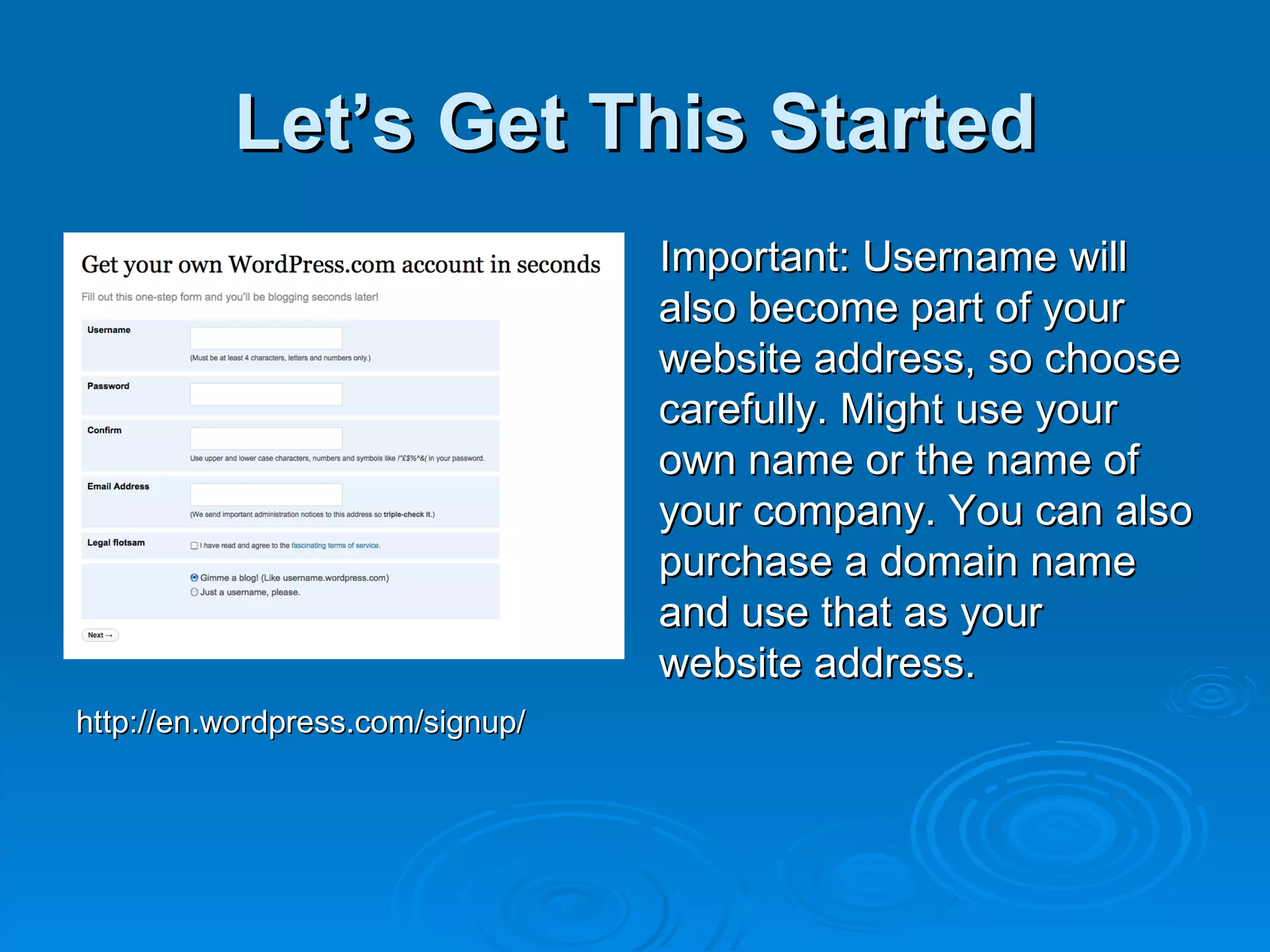
Let’s Get This Started Important: Username will also become part of your website address, so choose carefully. Might use your own name or the name of your company. You can also purchase a domain name and use that as your website address. http://en.wordpress.com/signup/
Administrative Functions Dashboard  - Stats, Comments, Subscriptions Upgrades  - Add a Domain, Upload Videos, Custom CSS, Add Space, No Ads, Unlimited Users Posts  - Edit Posts, Add Posts, Add Tags, Add Categories Media  - Upload images, MP3 files; Video upgrade allows video uploads Links  - Create a list of favorite websites Pages  - Edit and Add Static Pages Comments  - Administer Comments Ratings  - Enable/ Administer Ratings Polls  - Enable/Create/ Administer Polls
Administrative Functions Appearance  - Administer the look and feel of your website Users  - Administer your users, give permissions, invite users Tools  - Special tools, import/export posts Settings  - Main settings for your blogs
Working with Posts Title your post Type out your post Style posts Upload/insert media Tagging posts Create categories Publish
Working with Pages Create an "About" page Title the page Type out information Publish
Creating a Blogroll Add links to favorite sites Categorize links (ie: family blogs, news sites, search, social networking, etc.)
Changing the Appearance Hundreds of pre-designed templates that you can use for your blog. Click on any design to preview what your site would look like;  Click on "Activate" to choose it.  Search for "INove" and then activate it.
Working with Widgets In preview mode, the right hand sidebar is made up of widgets.  Widgets are a simple way to arrange various elements of your sidebar content.  Under Appearance, we'll click on the Widgets tab to control the order of our sidebar elements and what types of information we want to show up.  Drag sections from the left to the right side, where you can drop them and reorder them. Let's add a search, archives, Flickr, Twitter, Links and Meta. Other custom appearance controls include: extras, options, fonts and css.
Controlling Users Authors and Users  - allows you to control the type of access users will have for your website. Administrator  - Somebody who has access to all the administration feature; including deleting the entire website Editor  - Somebody who can publish posts, manage posts as well as manage other people's posts, etc. Author  - Somebody who can publish and manage their own posts Contributor  - Somebody who can write and manage their posts but not publish posts Subscriber  - Somebody who can read comments/comment/receive news letters, etc.
Using the Website Everyone goes to their own websites Comments on each others’ websites Editing the site and using RSS feeds Using the top dashboard
Publish to Facebook/Twitter Go to Dashboard --> My Blogs -->  Check Facebook and Twitter (need accounts)
Adding a Payment System If your business offers services, you can accept online payments through PayPal.  Need to set up an account and then add a payment button to your website.  The PayPal site will walk you through creating a "Buy Now" button and then will provide code to copy and paste into a page on your site.
Adding a Photo Gallery Earlier we added a Flickr widget to your sidebar.  Create a Flickr account and then add photos to your Flickr account.  Those photos will show up on your website.
AddThis Widget Goto the AddThis.com website, and go through the setup to Get a Button.  Then we'll add the code to the sidebar in a TEXT widget.  The title will be Share This and the code will go into the body of the widget.  Now the site can be shared with other social networking services.
Adding a YouTube Video Once you've added your videos to the YouTube site, you can post them into your website fairly easily.  You'll create a post for your site, using the media tool you can embed a video into your site by using the following format, from URL:  [youtube=URL]
Update from a  Blackberry or iPhone Download the app through your phone; you'll need to enter your Wordpress.com username/password to set the app up and then you can post simple posts from your phone to your blog.
Overview of WordPress.org For a more fuller featured version of Wordpress that includes the ability to host your own website, add any of the plugins available, any of the themes available, the first step is to find a host for your site: Bluehost.com or Dreamhost.com offer a one-click setup of Wordpress websites for a low price. These hosts provide full control of your website including the ability to create custom email addresses, domains, etc. You should only go this route if you're confident in your ability to navigate a hosting site. It can be very complex and there's a potential to lose your website; however, if you do this, you'll have the complete version of Wordpress with every feature available and full support of the Wordpress community.

Blog Pres

  • 1.
  • 2.
    What is aBlog? A blog is a type of website, usually maintained by an individual with regular entries of commentary, descriptions of events, or other material such as graphics or video. The ability of readers to leave comments in an interactive format is an important part of many blogs.
  • 3.
    Types of BlogsPersonal Blogs - Individuals (ie: Dooce.com) Corporate or Organizational Blogs - Companies (ie: coca-colaconversations.com) Genre Blogs - Political, Travel, Education, Music, Legal, Family (ie: whitehouse.gov/blog) Media Type - Video Blogs, Photo Blogs (ie: photoblog.com) Device - Mobile Device (aka: moblog), Live Video (aka: vlogs)
  • 4.
    Why Use aBusiness Blog? Blogs used internally to enhance the communication and culture in a corporation or externally for marketing, branding or public relations purposes are called corporate blogs. See http://googleblog.blogspot.com/
  • 5.
    Blogging Tools MovableTypeWordPress LiveJournal Joomla Drupal Blogger Some of the most popular include: WordPress, started in 2003, is the most popular blog software in use today, used by 202M websites internationally; 62.8M in the United States.
  • 6.
    Companies Using WordPressYahoo - Powers many blogs they own. eBay - Manages eBay’s official website. Digg - Blog is powered by WordPress too. Ford - Runs their official website, using custom themes and plugins. Wall Street Journal - The most famous journal in the world trusts it’s business to a free tool like WordPress. Others include: People magazine, CNN, NY Times http://wordpress.org/showcase/tag/fortune-500/
  • 7.
    WordPress Features Staticpages and dynamic posts Themes (site layout) Commenting Spam protection tools User registration Password protection Hundreds of plugins (site features) Easy installation and upgrades Multiple authors Support forums Works with most mobile devices like iPhone, Blackberry and Android Integrates with Twitter, Facebook and other social networking apps Open source ... and best of all it's FREE!
  • 8.
    Types of WordPressInstallations
  • 9.
    WordPress.com It’s freeand much easier to setup Everything is taken care of: setup, upgrades, spam, backups, security, etc. Your blog is on hundreds of servers, so it’s highly unlikely it will go down due to traffic Your posts are backed up automatically You get extra traffic from blogs of the day and tags You can find like-minded bloggers using tag and friend surfer Your login is secure (SSL) so no one can get into your account if you use wifi No custom plugins, themes or coding available
  • 10.
    WordPress.org Ability toupload themes Ability to upload plugins Great community Complete control to change code if you’re technically minded You need a good web host, which generally costs $7-12 a month, or thousands of dollars per month for a high traffic site Requires more technical knowledge to set up and run You’re responsible for stopping spam You have to handle backups You must upgrade the software manually when a new version comes out http://en.support.wordpress.com/ com-vs-org/
  • 11.
    Let’s Get ThisStarted Important: Username will also become part of your website address, so choose carefully. Might use your own name or the name of your company. You can also purchase a domain name and use that as your website address. http://en.wordpress.com/signup/
  • 12.
    Administrative Functions Dashboard - Stats, Comments, Subscriptions Upgrades - Add a Domain, Upload Videos, Custom CSS, Add Space, No Ads, Unlimited Users Posts - Edit Posts, Add Posts, Add Tags, Add Categories Media - Upload images, MP3 files; Video upgrade allows video uploads Links - Create a list of favorite websites Pages - Edit and Add Static Pages Comments - Administer Comments Ratings - Enable/ Administer Ratings Polls - Enable/Create/ Administer Polls
  • 13.
    Administrative Functions Appearance - Administer the look and feel of your website Users - Administer your users, give permissions, invite users Tools - Special tools, import/export posts Settings - Main settings for your blogs
  • 14.
    Working with PostsTitle your post Type out your post Style posts Upload/insert media Tagging posts Create categories Publish
  • 15.
    Working with PagesCreate an "About" page Title the page Type out information Publish
  • 16.
    Creating a BlogrollAdd links to favorite sites Categorize links (ie: family blogs, news sites, search, social networking, etc.)
  • 17.
    Changing the AppearanceHundreds of pre-designed templates that you can use for your blog. Click on any design to preview what your site would look like; Click on "Activate" to choose it. Search for "INove" and then activate it.
  • 18.
    Working with WidgetsIn preview mode, the right hand sidebar is made up of widgets. Widgets are a simple way to arrange various elements of your sidebar content. Under Appearance, we'll click on the Widgets tab to control the order of our sidebar elements and what types of information we want to show up. Drag sections from the left to the right side, where you can drop them and reorder them. Let's add a search, archives, Flickr, Twitter, Links and Meta. Other custom appearance controls include: extras, options, fonts and css.
  • 19.
    Controlling Users Authorsand Users - allows you to control the type of access users will have for your website. Administrator - Somebody who has access to all the administration feature; including deleting the entire website Editor - Somebody who can publish posts, manage posts as well as manage other people's posts, etc. Author - Somebody who can publish and manage their own posts Contributor - Somebody who can write and manage their posts but not publish posts Subscriber - Somebody who can read comments/comment/receive news letters, etc.
  • 20.
    Using the WebsiteEveryone goes to their own websites Comments on each others’ websites Editing the site and using RSS feeds Using the top dashboard
  • 21.
    Publish to Facebook/TwitterGo to Dashboard --> My Blogs --> Check Facebook and Twitter (need accounts)
  • 22.
    Adding a PaymentSystem If your business offers services, you can accept online payments through PayPal. Need to set up an account and then add a payment button to your website. The PayPal site will walk you through creating a "Buy Now" button and then will provide code to copy and paste into a page on your site.
  • 23.
    Adding a PhotoGallery Earlier we added a Flickr widget to your sidebar. Create a Flickr account and then add photos to your Flickr account. Those photos will show up on your website.
  • 24.
    AddThis Widget Gotothe AddThis.com website, and go through the setup to Get a Button. Then we'll add the code to the sidebar in a TEXT widget. The title will be Share This and the code will go into the body of the widget. Now the site can be shared with other social networking services.
  • 25.
    Adding a YouTubeVideo Once you've added your videos to the YouTube site, you can post them into your website fairly easily. You'll create a post for your site, using the media tool you can embed a video into your site by using the following format, from URL: [youtube=URL]
  • 26.
    Update from a Blackberry or iPhone Download the app through your phone; you'll need to enter your Wordpress.com username/password to set the app up and then you can post simple posts from your phone to your blog.
  • 27.
    Overview of WordPress.orgFor a more fuller featured version of Wordpress that includes the ability to host your own website, add any of the plugins available, any of the themes available, the first step is to find a host for your site: Bluehost.com or Dreamhost.com offer a one-click setup of Wordpress websites for a low price. These hosts provide full control of your website including the ability to create custom email addresses, domains, etc. You should only go this route if you're confident in your ability to navigate a hosting site. It can be very complex and there's a potential to lose your website; however, if you do this, you'll have the complete version of Wordpress with every feature available and full support of the Wordpress community.