TechLab IV:
Blogging Basics for
Career Services
Professionals
Melissa A. Venable, PhD
Education Writer/Blogger –
OnlineCollege.org@Melissa_Venable
National Career Development Association - 2013
#NCDABoston
We’ve got a lot to cover!
Part 1:
Create a live blog site with WordPress.com
Perform basic administrative tasks
Publish a blog post
Part 2:
Determine writing goals
Find your blogging “voice”
Develop content ideas
Align with other career-topic bloggers
Part 1: Getting Started
WordPress.com (vs. WordPress.org)
Account Set-up
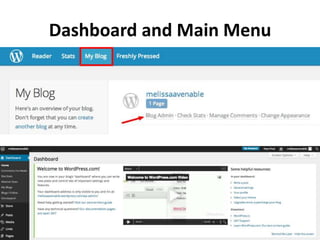
Dashboard and Main Menu
Publishing a Post
You should have:
• Ideas for a blog title
• Draft document (.doc, .docx, .txt)
• Image file – optional (.jpg, .jpeg, .gif, .png)
Account sign-up
https://en.wordpress.com/signup/
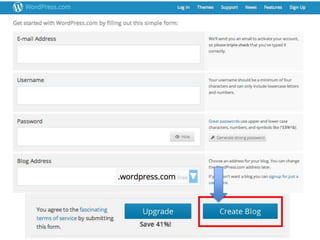
1. Choose a blog address. All accounts will end with ".wordpress.com". Since
there are millions of WordPress blogs, your first, second, and maybe even
third choices may be taken. Keep trying until you find a name that you like,
that is available, and remember you can change it later if you decide to do
so.
2. Choose a Username and Password. These will not appear on your blog
anywhere, but will allow you to access the administrative side of your new
site. You will also need to enter your email address here.
4. Click on "Create Blog" to open your free account. The next screen will
prompt you to check your email to complete the registration process. You
will also be prompted to enter information to create your profile, you can
complete this now, but you'll also have the opportunity to do this later.
5. Activate your blog. You can do this from your email (you will receive an
activation message from WordPress). Once you activate your blog, you will
be taken to the next steps…
Dashboard and Main Menu
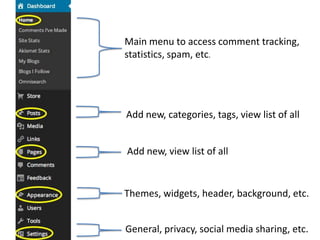
Main menu to access comment tracking,
statistics, spam, etc.
Add new, categories, tags, view list of all
Add new, view list of all
Themes, widgets, header, background, etc.
General, privacy, social media sharing, etc.
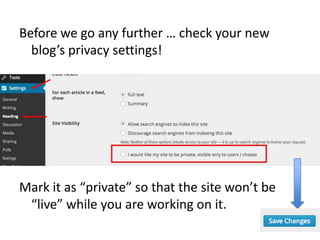
Before we go any further … check your new
blog’s privacy settings!
Mark it as “private” so that the site won’t be
“live” while you are working on it.
Publishing a New Post
1. Open new post draft
2. Enter title
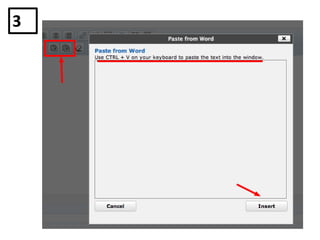
3. Copy/Paste from existing document
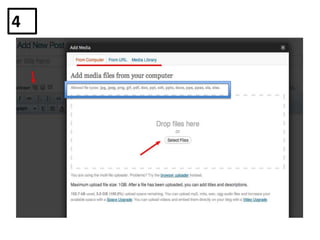
4. Upload image
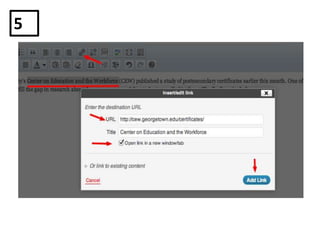
5. Add a link
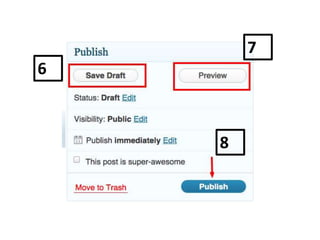
6. Save draft
7. Preview
8. Publish!
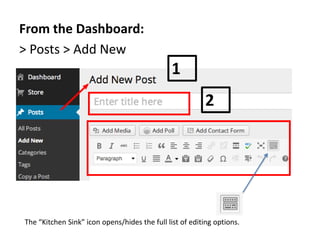
From the Dashboard:
> Posts > Add New
1
2
The “Kitchen Sink” icon opens/hides the full list of editing options.
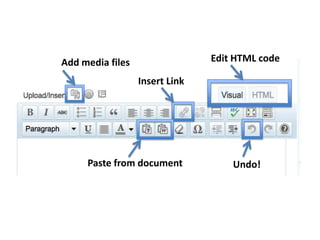
Add media files Edit HTML code
Paste from document
Insert Link
Undo!
3
4
5
6
7
8
Let’s check in … How is it going so far?
Part 2: Content Creation
What is “content, exactly?”
• Determine writing goals
• Find your blogging “voice”
• Develop content ideas
• Join the career blogging community
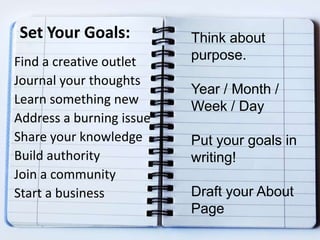
Set Your Goals:
Find a creative outlet
Journal your thoughts
Learn something new
Address a burning issue
Share your knowledge
Build authority
Join a community
Start a business
Think about
purpose.
Year / Month /
Week / Day
Put your goals in
writing!
Draft your About
Page
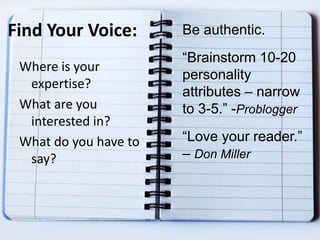
Find Your Voice:
Where is your
expertise?
What are you
interested in?
What do you have to
say?
Be authentic.
“Brainstorm 10-20
personality
attributes – narrow
to 3-5.” -Problogger
“Love your reader.”
– Don Miller
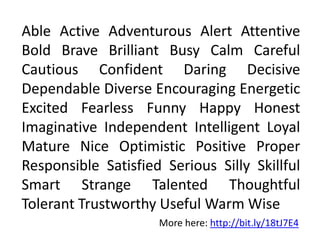
Able Active Adventurous Alert Attentive
Bold Brave Brilliant Busy Calm Careful
Cautious Confident Daring Decisive
Dependable Diverse Encouraging Energetic
Excited Fearless Funny Happy Honest
Imaginative Independent Intelligent Loyal
Mature Nice Optimistic Positive Proper
Responsible Satisfied Serious Silly Skillful
Smart Strange Talented Thoughtful
Tolerant Trustworthy Useful Warm Wise
More here: http://bit.ly/18tJ7E4
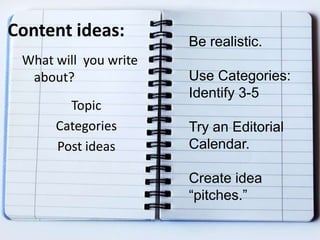
Content ideas:
What will you write
about?
Topic
Categories
Post ideas
Be realistic.
Use Categories:
Identify 3-5
Try an Editorial
Calendar.
Create idea
“pitches.”
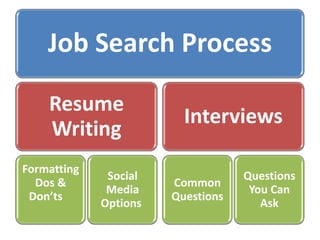
Job Search Process
Resume
Writing
Formatting
Dos &
Don’ts
Social
Media
Options
Interviews
Common
Questions
Questions
You Can
Ask
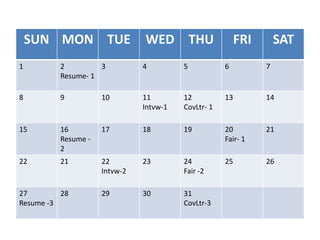
SUN MON TUE WED THU FRI SAT
1 2
Resume- 1
3 4 5 6 7
8 9 10 11
Intvw-1
12
CovLtr- 1
13 14
15 16
Resume -
2
17 18 19 20
Fair- 1
21
22 21 22
Intvw-2
23 24
Fair -2
25 26
27
Resume -3
28 29 30 31
CovLtr-3
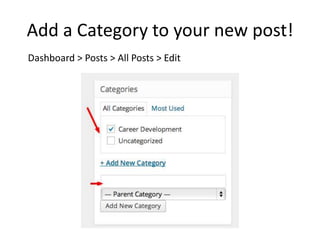
Add a Category to your new post!
Dashboard > Posts > All Posts > Edit
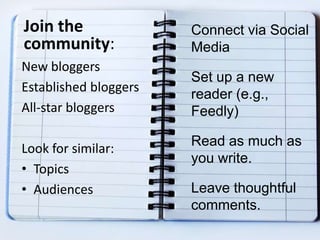
Join the
community:
New bloggers
Established bloggers
All-star bloggers
Look for similar:
• Topics
• Audiences
Connect via Social
Media
Set up a new
reader (e.g.,
Feedly)
Read as much as
you write.
Leave thoughtful
comments.
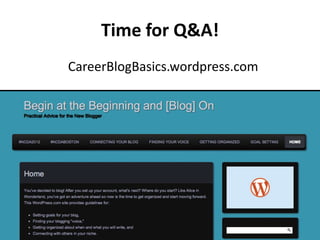
Time for Q&A!
CareerBlogBasics.wordpress.com
Thank you!!
Contact me:
Melissa A. Venable, PhD
melissa@onlinecollege.org
melissa.venable@yahoo.com
@Melissa_Venable
Inside Online Learning Blog: http://bit.ly/V89jL6
#IOLchat: http://bit.ly/IOLchat
Resources: CareerBlogBasics.wordpress.com

NCDA TechLab: Blogging Basics for Career Services Professionals

  • 1.
    TechLab IV: Blogging Basicsfor Career Services Professionals Melissa A. Venable, PhD Education Writer/Blogger – OnlineCollege.org@Melissa_Venable National Career Development Association - 2013 #NCDABoston
  • 3.
    We’ve got alot to cover! Part 1: Create a live blog site with WordPress.com Perform basic administrative tasks Publish a blog post Part 2: Determine writing goals Find your blogging “voice” Develop content ideas Align with other career-topic bloggers
  • 4.
    Part 1: GettingStarted WordPress.com (vs. WordPress.org) Account Set-up Dashboard and Main Menu Publishing a Post You should have: • Ideas for a blog title • Draft document (.doc, .docx, .txt) • Image file – optional (.jpg, .jpeg, .gif, .png)
  • 5.
    Account sign-up https://en.wordpress.com/signup/ 1. Choosea blog address. All accounts will end with ".wordpress.com". Since there are millions of WordPress blogs, your first, second, and maybe even third choices may be taken. Keep trying until you find a name that you like, that is available, and remember you can change it later if you decide to do so. 2. Choose a Username and Password. These will not appear on your blog anywhere, but will allow you to access the administrative side of your new site. You will also need to enter your email address here. 4. Click on "Create Blog" to open your free account. The next screen will prompt you to check your email to complete the registration process. You will also be prompted to enter information to create your profile, you can complete this now, but you'll also have the opportunity to do this later. 5. Activate your blog. You can do this from your email (you will receive an activation message from WordPress). Once you activate your blog, you will be taken to the next steps…
  • 9.
  • 10.
    Main menu toaccess comment tracking, statistics, spam, etc. Add new, categories, tags, view list of all Add new, view list of all Themes, widgets, header, background, etc. General, privacy, social media sharing, etc.
  • 11.
    Before we goany further … check your new blog’s privacy settings! Mark it as “private” so that the site won’t be “live” while you are working on it.
  • 12.
    Publishing a NewPost 1. Open new post draft 2. Enter title 3. Copy/Paste from existing document 4. Upload image 5. Add a link 6. Save draft 7. Preview 8. Publish!
  • 13.
    From the Dashboard: >Posts > Add New 1 2 The “Kitchen Sink” icon opens/hides the full list of editing options.
  • 14.
    Add media filesEdit HTML code Paste from document Insert Link Undo!
  • 15.
  • 16.
  • 17.
  • 18.
  • 19.
    Let’s check in… How is it going so far?
  • 20.
    Part 2: ContentCreation What is “content, exactly?” • Determine writing goals • Find your blogging “voice” • Develop content ideas • Join the career blogging community
  • 21.
    Set Your Goals: Finda creative outlet Journal your thoughts Learn something new Address a burning issue Share your knowledge Build authority Join a community Start a business Think about purpose. Year / Month / Week / Day Put your goals in writing! Draft your About Page
  • 22.
    Find Your Voice: Whereis your expertise? What are you interested in? What do you have to say? Be authentic. “Brainstorm 10-20 personality attributes – narrow to 3-5.” -Problogger “Love your reader.” – Don Miller
  • 23.
    Able Active AdventurousAlert Attentive Bold Brave Brilliant Busy Calm Careful Cautious Confident Daring Decisive Dependable Diverse Encouraging Energetic Excited Fearless Funny Happy Honest Imaginative Independent Intelligent Loyal Mature Nice Optimistic Positive Proper Responsible Satisfied Serious Silly Skillful Smart Strange Talented Thoughtful Tolerant Trustworthy Useful Warm Wise More here: http://bit.ly/18tJ7E4
  • 24.
    Content ideas: What willyou write about? Topic Categories Post ideas Be realistic. Use Categories: Identify 3-5 Try an Editorial Calendar. Create idea “pitches.”
  • 25.
    Job Search Process Resume Writing Formatting Dos& Don’ts Social Media Options Interviews Common Questions Questions You Can Ask
  • 26.
    SUN MON TUEWED THU FRI SAT 1 2 Resume- 1 3 4 5 6 7 8 9 10 11 Intvw-1 12 CovLtr- 1 13 14 15 16 Resume - 2 17 18 19 20 Fair- 1 21 22 21 22 Intvw-2 23 24 Fair -2 25 26 27 Resume -3 28 29 30 31 CovLtr-3
  • 27.
    Add a Categoryto your new post! Dashboard > Posts > All Posts > Edit
  • 28.
    Join the community: New bloggers Establishedbloggers All-star bloggers Look for similar: • Topics • Audiences Connect via Social Media Set up a new reader (e.g., Feedly) Read as much as you write. Leave thoughtful comments.
  • 30.
  • 31.
    Thank you!! Contact me: MelissaA. Venable, PhD melissa@onlinecollege.org melissa.venable@yahoo.com @Melissa_Venable Inside Online Learning Blog: http://bit.ly/V89jL6 #IOLchat: http://bit.ly/IOLchat Resources: CareerBlogBasics.wordpress.com

Editor's Notes

  • #3 I have been working with WordPress since late 2008 when I set up my first blog (Design Doc) as a creative outlet and way to represent myself as an independent professional in the field of instructional design. I have been employed as a full-time Education Writer/Blogger since April 2011, writing the Inside Online Learning blog (a WordPress.org site with around 2000 visitors per month), which draws on my background as an instructional designer and online instructor,
  • #5 Why WORDPRESS?Free account optionsEasy and intuitive administrative sideFuture options - pro version, self-hosted version, custom optionsBlogging communityKeep in mind that everything we do today can be edited, revised, modified, and fully deleted! As I mentioned in my email to you before the conference, I just want you to get comfortable with the platform and have a few writing ideas when we are done .
  • #6 If you’ve already set up a Wordpress account, go ahead and sign in! These steps are in your handout also! So, let’s look at the screens …If not, we’ll do that now.
  • #7 Go to email and click on “activate blog”Then to wordpress to login with your new account info.
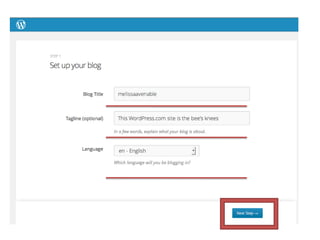
  • #8 Set up Your blogCan change blog title if you like – always an option in your account settingsTagline – default included, but you can edit this later Choose a languageNextChoose a them – we could spend the afternoon browsing – I recommend just selecting one for now, can go back and experiment later on. Some themes have customization options – layout number of columns some color tweaks, font choices, etc…. Let’s keep moving!
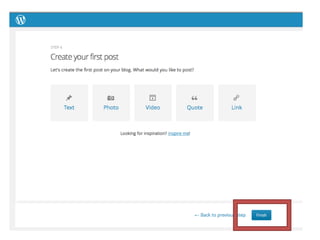
  • #9 Create your first post – choose Finish and we’ll move on to the Dashboard
  • #10 Different ways to get to the dashboard
  • #11 Quick tour of some of the Dashboard menus you will likely need to use first, and more frequently moving forward.Go to Privacy – select: I would like my site to be private…. Save changes = if you don’t want the site to be ‘live’ while you are working on it this morning.Settings:General - blog title, email, time zone, …Reading – page display, # of posts, …Appearance:Themes – colors, columns, features, custom options, …Widgets – drag and drop to add to interface (Recent Posts, Search, Twitter, …)
  • #12 Go to Privacy – select: I would like my site to be private…. Save changes = if you don’t want the site to be ‘live’ while you are working on it.Helpful setting – you can build the blog adding lots of content before you launch it for public view!
  • #14 - Initiate new post- Type in a draft title – you can change it later! – this will be part of your automated URL
  • #15 This should look like a familiar set of tools – formatting, etc. Highlighted the ones we are going to use.
  • #17 Upload/insert – Media – Polls - Forms
  • #22 Goal Setting Worksheet
  • #26 Example Categories and Ideas
  • #27 Example Editorial CalendarWP Editorial Calendar plug-in Templates out there - simple or as complex as you want it to be – use something you are already using – excel, calendar system, planner…Two very important decisions taken care of at the beginning of each month:What?When?Of course changeable, this is your blpg, but gives you a starting point.
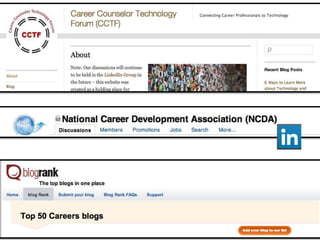
  • #30 CCTFLinkedIn GroupsNMX