Your Blog
Creating Posts in your
Comm 1400 Social Media blog
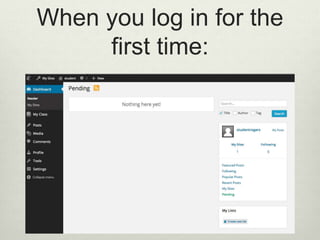
When you log in for the
first time:
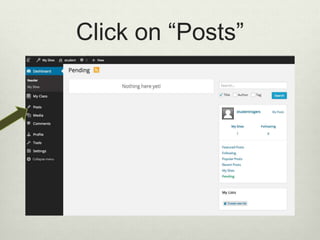
Click on “Posts”
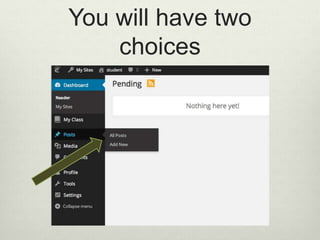
You will have two
choices
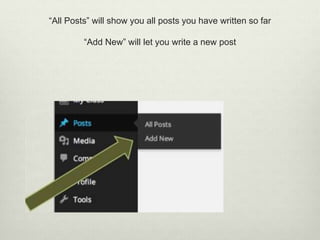
“All Posts” will show you all posts you have written so far
“Add New” will let you write a new post
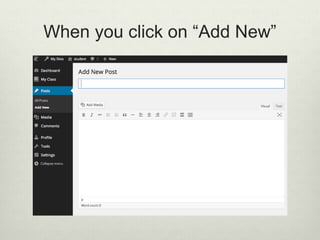
When you click on “Add New”
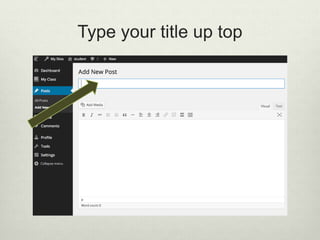
Type your title up top
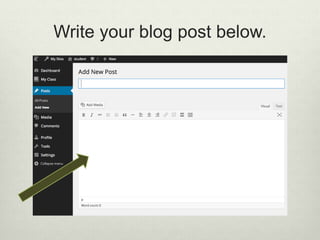
Write your blog post below.
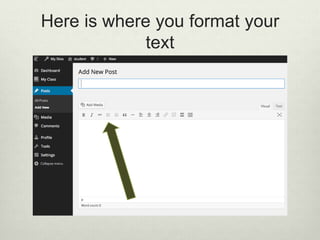
Here is where you format your
text
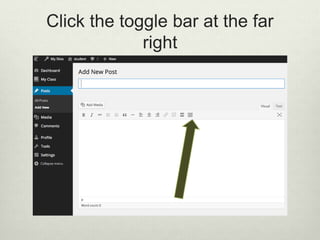
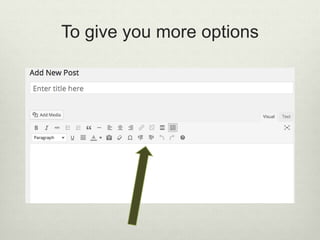
Click the toggle bar at the far
right
To give you more options
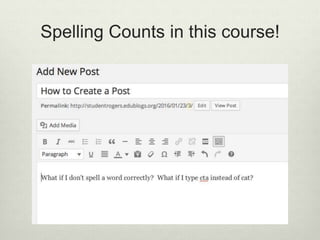
Spelling Counts in this course!
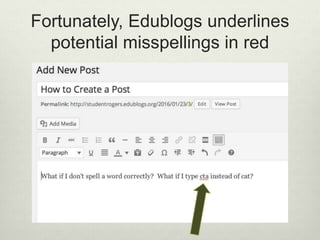
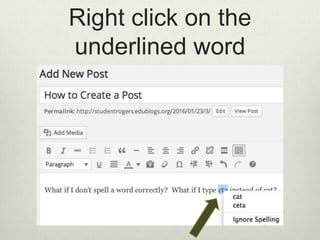
Fortunately, Edublogs underlines
potential misspellings in red
Right click on the
underlined word
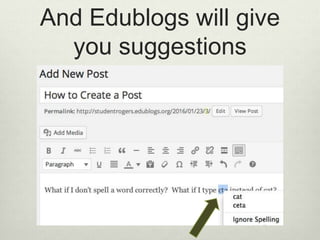
And Edublogs will give
you suggestions
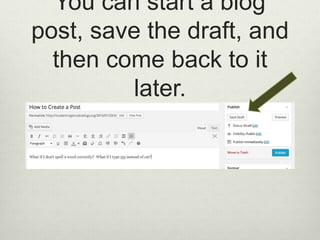
You can start a blog
post, save the draft, and
then come back to it
later.
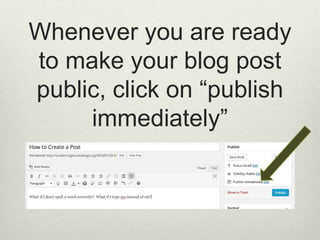
Whenever you are ready
to make your blog post
public, click on “publish
immediately”
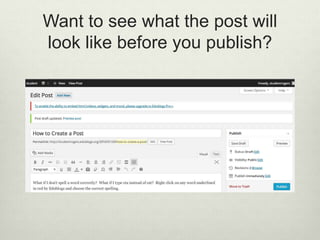
Want to see what the post will
look like before you publish?
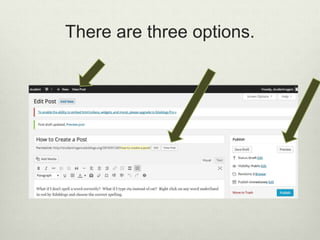
There are three options.
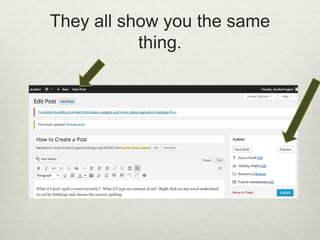
They all show you the same
thing.
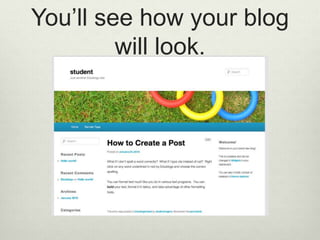
You’ll see how your blog
will look.
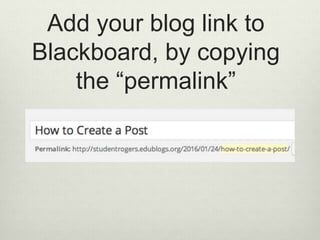
Add your blog link to
Blackboard, by copying
the “permalink”
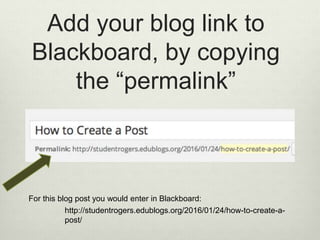
Add your blog link to
Blackboard, by copying
the “permalink”
http://studentrogers.edublogs.org/2016/01/24/how-to-create-a-
post/
For this blog post you would enter in Blackboard:
Want more information?
 https://learn.wordpress.com/
 Or email me at lcrogers@ccri.edu
 A video tutorial on creating and editing posts is on
our class blog at:
http://ccrisocialmediaspring2016.edublogs.org/201
6/01/23/welcome/

Creating blog posts