Features – General Usage
Screen Sub-Grids Include Charts
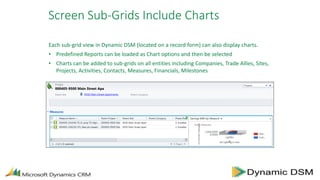
Each sub-grid view in Dynamic DSM (located on a record form) can also display charts.
• Predefined Reports can be loaded as Chart options and then be selected
• Charts can be added to sub-grids on all entities including Companies, Trade Allies, Sites,
Projects, Activities, Contacts, Measures, Financials, Milestones
Conditional Formatting of Sub-Grids
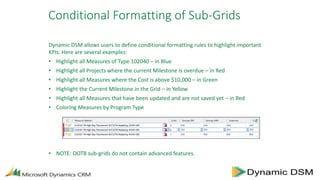
Dynamic DSM allows users to define conditional formatting rules to highlight important
KPIs. Here are several examples:
• Highlight all Measures of Type 102040 – in Blue
• Highlight all Projects where the current Milestone is overdue – in Red
• Highlight all Measures where the Cost is above $10,000 – in Green
• Highlight the Current Milestone in the Grid – in Yellow
• Highlight all Measures that have been updated and are not saved yet – in Red
• Coloring Measures by Program Type
• NOTE: OOTB sub-grids do not contain advanced features.
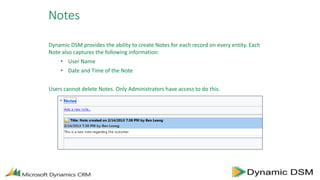
Notes
Dynamic DSM provides the ability to create Notes for each record on every entity. Each
Note also captures the following information:
• User Name
• Date and Time of the Note
Users cannot delete Notes. Only Administrators have access to do this.
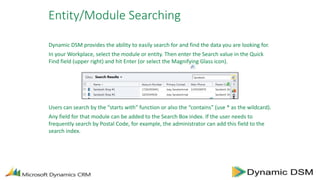
Entity/Module Searching
Dynamic DSM provides the ability to easily search for and find the data you are looking for.
In your Workplace, select the module or entity. Then enter the Search value in the Quick
Find field (upper right) and hit Enter (or select the Magnifying Glass icon).
Users can search by the “starts with” function or also the “contains” (use * as the wildcard).
Any field for that module can be added to the Search Box index. If the user needs to
frequently search by Postal Code, for example, the administrator can add this field to the
search index.
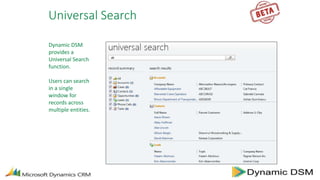
Universal Search
Dynamic DSM
provides a
Universal Search
function.
Users can search
in a single
window for
records across
multiple entities.
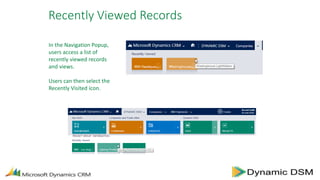
Recently Viewed Records
In the Navigation Popup,
users access a list of
recently viewed records
and views.
Users can then select the
Recently Visited icon.
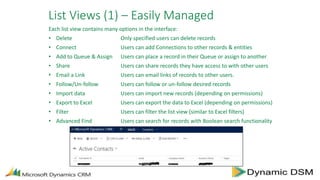
List Views (1) – Easily Managed
Each list view contains many options in the interface:
• Delete Only specified users can delete records
• Connect Users can add Connections to other records & entities
• Add to Queue & Assign Users can place a record in their Queue or assign to another
• Share Users can share records they have access to with other users
• Email a Link Users can email links of records to other users.
• Follow/Un-follow Users can follow or un-follow desired records
• Import data Users can import new records (depending on permissions)
• Export to Excel Users can export the data to Excel (depending on permissions)
• Filter Users can filter the list view (similar to Excel filters)
• Advanced Find Users can search for records with Boolean search functionality
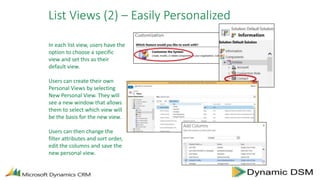
List Views (2) – Easily Personalized
In each list view, users have the
option to choose a specific
view and set this as their
default view.
Users can create their own
Personal Views by selecting
New Personal View. They will
see a new window that allows
them to select which view will
be the basis for the new view.
Users can then change the
filter attributes and sort order,
edit the columns and save the
new personal view.
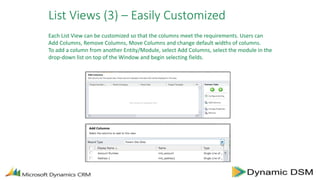
List Views (3) – Easily Customized
Each List View can be customized so that the columns meet the requirements. Users can
Add Columns, Remove Columns, Move Columns and change default widths of columns.
To add a column from another Entity/Module, select Add Columns, select the module in the
drop-down list on top of the Window and begin selecting fields.
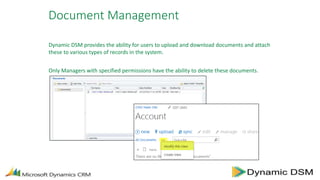
Document Management
Dynamic DSM provides the ability for users to upload and download documents and attach
these to various types of records in the system.
Only Managers with specified permissions have the ability to delete these documents.
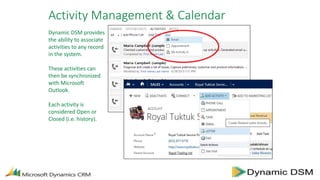
Activity Management & Calendar
Dynamic DSM provides
the ability to associate
activities to any record
in the system.
These activities can
then be synchronized
with Microsoft
Outlook.
Each activity is
considered Open or
Closed (i.e. history).
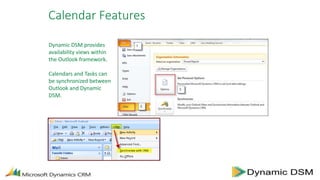
Calendar Features
Dynamic DSM provides
availability views within
the Outlook framework.
Calendars and Tasks can
be synchronized between
Outlook and Dynamic
DSM.
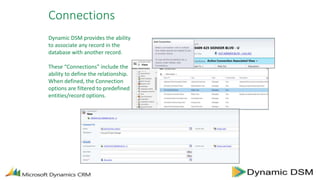
Connections
Dynamic DSM provides the ability
to associate any record in the
database with another record.
These “Connections” include the
ability to define the relationship.
When defined, the Connection
options are filtered to predefined
entities/record options.
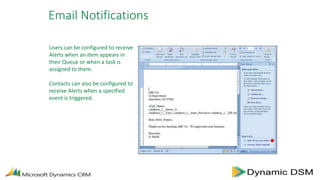
Email Notifications
Users can be configured to receive
Alerts when an item appears in
their Queue or when a task is
assigned to them.
Contacts can also be configured to
receive Alerts when a specified
event is triggered.
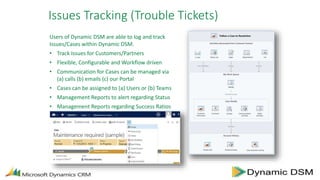
Issues Tracking (Trouble Tickets)
Users of Dynamic DSM are able to log and track
Issues/Cases within Dynamic DSM.
• Track Issues for Customers/Partners
• Flexible, Configurable and Workflow driven
• Communication for Cases can be managed via
(a) calls (b) emails (c) our Portal
• Cases can be assigned to (a) Users or (b) Teams
• Management Reports to alert regarding Status
• Management Reports regarding Success Ratios

Dynamic DSM - General Usage

  • 1.
  • 2.
    Screen Sub-Grids IncludeCharts Each sub-grid view in Dynamic DSM (located on a record form) can also display charts. • Predefined Reports can be loaded as Chart options and then be selected • Charts can be added to sub-grids on all entities including Companies, Trade Allies, Sites, Projects, Activities, Contacts, Measures, Financials, Milestones
  • 3.
    Conditional Formatting ofSub-Grids Dynamic DSM allows users to define conditional formatting rules to highlight important KPIs. Here are several examples: • Highlight all Measures of Type 102040 – in Blue • Highlight all Projects where the current Milestone is overdue – in Red • Highlight all Measures where the Cost is above $10,000 – in Green • Highlight the Current Milestone in the Grid – in Yellow • Highlight all Measures that have been updated and are not saved yet – in Red • Coloring Measures by Program Type • NOTE: OOTB sub-grids do not contain advanced features.
  • 4.
    Notes Dynamic DSM providesthe ability to create Notes for each record on every entity. Each Note also captures the following information: • User Name • Date and Time of the Note Users cannot delete Notes. Only Administrators have access to do this.
  • 5.
    Entity/Module Searching Dynamic DSMprovides the ability to easily search for and find the data you are looking for. In your Workplace, select the module or entity. Then enter the Search value in the Quick Find field (upper right) and hit Enter (or select the Magnifying Glass icon). Users can search by the “starts with” function or also the “contains” (use * as the wildcard). Any field for that module can be added to the Search Box index. If the user needs to frequently search by Postal Code, for example, the administrator can add this field to the search index.
  • 6.
    Universal Search Dynamic DSM providesa Universal Search function. Users can search in a single window for records across multiple entities.
  • 7.
    Recently Viewed Records Inthe Navigation Popup, users access a list of recently viewed records and views. Users can then select the Recently Visited icon.
  • 8.
    List Views (1)– Easily Managed Each list view contains many options in the interface: • Delete Only specified users can delete records • Connect Users can add Connections to other records & entities • Add to Queue & Assign Users can place a record in their Queue or assign to another • Share Users can share records they have access to with other users • Email a Link Users can email links of records to other users. • Follow/Un-follow Users can follow or un-follow desired records • Import data Users can import new records (depending on permissions) • Export to Excel Users can export the data to Excel (depending on permissions) • Filter Users can filter the list view (similar to Excel filters) • Advanced Find Users can search for records with Boolean search functionality
  • 9.
    List Views (2)– Easily Personalized In each list view, users have the option to choose a specific view and set this as their default view. Users can create their own Personal Views by selecting New Personal View. They will see a new window that allows them to select which view will be the basis for the new view. Users can then change the filter attributes and sort order, edit the columns and save the new personal view.
  • 10.
    List Views (3)– Easily Customized Each List View can be customized so that the columns meet the requirements. Users can Add Columns, Remove Columns, Move Columns and change default widths of columns. To add a column from another Entity/Module, select Add Columns, select the module in the drop-down list on top of the Window and begin selecting fields.
  • 11.
    Document Management Dynamic DSMprovides the ability for users to upload and download documents and attach these to various types of records in the system. Only Managers with specified permissions have the ability to delete these documents.
  • 12.
    Activity Management &Calendar Dynamic DSM provides the ability to associate activities to any record in the system. These activities can then be synchronized with Microsoft Outlook. Each activity is considered Open or Closed (i.e. history).
  • 13.
    Calendar Features Dynamic DSMprovides availability views within the Outlook framework. Calendars and Tasks can be synchronized between Outlook and Dynamic DSM.
  • 14.
    Connections Dynamic DSM providesthe ability to associate any record in the database with another record. These “Connections” include the ability to define the relationship. When defined, the Connection options are filtered to predefined entities/record options.
  • 15.
    Email Notifications Users canbe configured to receive Alerts when an item appears in their Queue or when a task is assigned to them. Contacts can also be configured to receive Alerts when a specified event is triggered.
  • 16.
    Issues Tracking (TroubleTickets) Users of Dynamic DSM are able to log and track Issues/Cases within Dynamic DSM. • Track Issues for Customers/Partners • Flexible, Configurable and Workflow driven • Communication for Cases can be managed via (a) calls (b) emails (c) our Portal • Cases can be assigned to (a) Users or (b) Teams • Management Reports to alert regarding Status • Management Reports regarding Success Ratios