Features - Measures
Measures (1) – Measure Templates
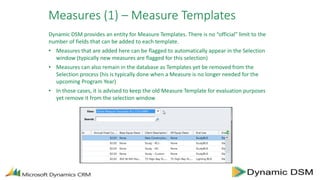
Dynamic DSM provides an entity for Measure Templates. There is no “official” limit to the
number of fields that can be added to each template.
• Measures that are added here can be flagged to automatically appear in the Selection
window (typically new measures are flagged for this selection)
• Measures can also remain in the database as Templates yet be removed from the
Selection process (his is typically done when a Measure is no longer needed for the
upcoming Program Year)
• In those cases, it is advised to keep the old Measure Template for evaluation purposes
yet remove it from the selection window
Measures (1b) – Templates (Deemed Data)
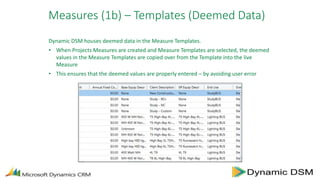
Dynamic DSM houses deemed data in the Measure Templates.
• When Projects Measures are created and Measure Templates are selected, the deemed
values in the Measure Templates are copied over from the Template into the live
Measure
• This ensures that the deemed values are properly entered – by avoiding user error
Measures (2) – Ability to Add Templates
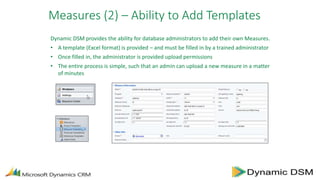
Dynamic DSM provides the ability for database administrators to add their own Measures.
• A template (Excel format) is provided – and must be filled in by a trained administrator
• Once filled in, the administrator is provided upload permissions
• The entire process is simple, such that an admin can upload a new measure in a matter
of minutes
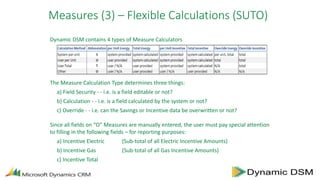
Dynamic DSM contains 4 types of Measure Calculators
The Measure Calculation Type determines three things:
a) Field Security - - i.e. is a field editable or not?
b) Calculation - - i.e. is a field calculated by the system or not?
c) Override - - i.e. can the Savings or Incentive data be overwritten or not?
Since all fields on “O” Measures are manually entered, the user must pay special attention
to filling in the following fields – for reporting purposes:
a) Incentive Electric (Sub-total of all Electric Incentive Amounts)
b) Incentive Gas (Sub-total of all Gas Incentive Amounts)
c) Incentive Total
Measures (3) – Flexible Calculations (SUTO)
Measures (4) – Flexible Measure Selection
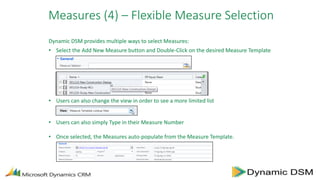
Dynamic DSM provides multiple ways to select Measures:
• Select the Add New Measure button and Double-Click on the desired Measure Template
• Users can also change the view in order to see a more limited list
• Users can also simply Type in their Measure Number
• Once selected, the Measures auto-populate from the Measure Template.
Measures (4b) – Flexible Measure Selection
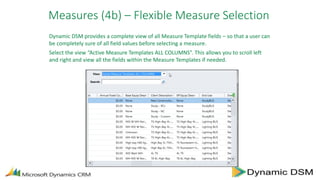
Dynamic DSM provides a complete view of all Measure Template fields – so that a user can
be completely sure of all field values before selecting a measure.
Select the view “Active Measure Templates ALL COLUMNS”. This allows you to scroll left
and right and view all the fields within the Measure Templates if needed.
Measures (5) – Measure Screens & Fields
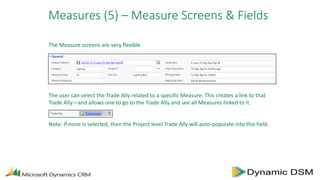
The Measure screens are very flexible
The user can select the Trade Ally related to a specific Measure. This creates a link to that
Trade Ally—and allows one to go to the Trade Ally and see all Measures linked to it.
Note: If none is selected, then the Project level Trade Ally will auto-populate into this field.
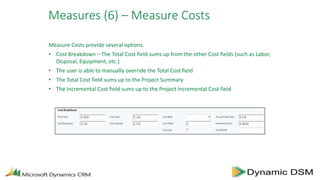
Measure Costs provide several options.
• Cost Breakdown – The Total Cost field sums up from the other Cost fields (such as Labor,
Disposal, Equipment, etc.)
• The user is able to manually override the Total Cost field
• The Total Cost field sums up to the Project Summary
• The Incremental Cost field sums up to the Project Incremental Cost field
Measures (6) – Measure Costs
Measures (7) – Tracking by Phase
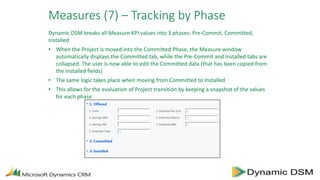
Dynamic DSM breaks all Measure KPI values into 3 phases: Pre-Commit, Committed,
Installed
• When the Project is moved into the Committed Phase, the Measure window
automatically displays the Committed tab, while the Pre-Commit and Installed tabs are
collapsed. The user is now able to edit the Committed data (that has been copied from
the Installed fields)
• The same logic takes place when moving from Committed to Installed
• This allows for the evaluation of Project transition by keeping a snapshot of the values
for each phase
Measures (8) – Security
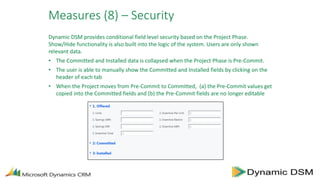
Dynamic DSM provides conditional field level security based on the Project Phase.
Show/Hide functionality is also built into the logic of the system. Users are only shown
relevant data.
• The Committed and Installed data is collapsed when the Project Phase is Pre-Commit.
• The user is able to manually show the Committed and Installed fields by clicking on the
header of each tab
• When the Project moves from Pre-Commit to Committed, (a) the Pre-Commit values get
copied into the Committed fields and (b) the Pre-Commit fields are no longer editable
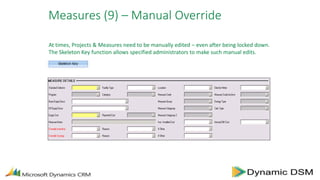
Measures (9) – Manual Override
At times, Projects & Measures need to be manually edited – even after being locked down.
The Skeleton Key function allows specified administrators to make such manual edits.
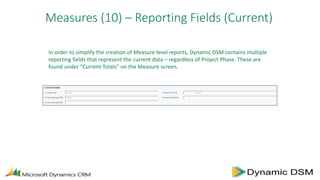
Measures (10) – Reporting Fields (Current)
In order to simplify the creation of Measure level reports, Dynamic DSM contains multiple
reporting fields that represent the current data – regardless of Project Phase. These are
found under “Current Totals” on the Measure screen.
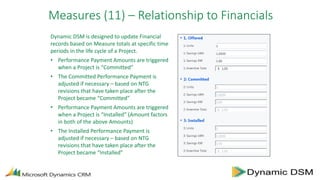
Measures (11) – Relationship to Financials
Dynamic DSM is designed to update Financial
records based on Measure totals at specific time
periods in the life cycle of a Project.
• Performance Payment Amounts are triggered
when a Project is “Committed”
• The Committed Performance Payment is
adjusted if necessary – based on NTG
revisions that have taken place after the
Project became “Committed”
• Performance Payment Amounts are triggered
when a Project is “Installed” (Amount factors
in both of the above Amounts)
• The Installed Performance Payment is
adjusted if necessary – based on NTG
revisions that have taken place after the
Project became “Installed”
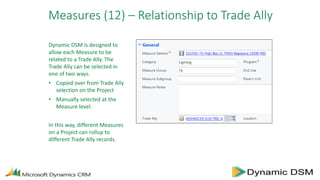
Measures (12) – Relationship to Trade Ally
Dynamic DSM is designed to
allow each Measure to be
related to a Trade Ally. The
Trade Ally can be selected in
one of two ways.
• Copied over from Trade Ally
selection on the Project
• Manually selected at the
Measure level.
In this way, different Measures
on a Project can rollup to
different Trade Ally records.
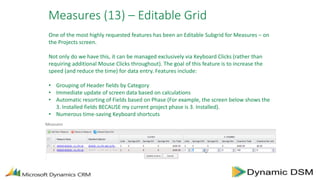
Measures (13) – Editable Grid
One of the most highly requested features has been an Editable Subgrid for Measures – on
the Projects screen.
Not only do we have this, it can be managed exclusively via Keyboard Clicks (rather than
requiring additional Mouse Clicks throughout). The goal of this feature is to increase the
speed (and reduce the time) for data entry. Features include:
• Grouping of Header fields by Category
• Immediate update of screen data based on calculations
• Automatic resorting of Fields based on Phase (For example, the screen below shows the
3. Installed fields BECAUSE my current project phase is 3. Installed).
• Numerous time-saving Keyboard shortcuts

Dynamic DSM Features - Measures

  • 1.
  • 2.
    Measures (1) –Measure Templates Dynamic DSM provides an entity for Measure Templates. There is no “official” limit to the number of fields that can be added to each template. • Measures that are added here can be flagged to automatically appear in the Selection window (typically new measures are flagged for this selection) • Measures can also remain in the database as Templates yet be removed from the Selection process (his is typically done when a Measure is no longer needed for the upcoming Program Year) • In those cases, it is advised to keep the old Measure Template for evaluation purposes yet remove it from the selection window
  • 3.
    Measures (1b) –Templates (Deemed Data) Dynamic DSM houses deemed data in the Measure Templates. • When Projects Measures are created and Measure Templates are selected, the deemed values in the Measure Templates are copied over from the Template into the live Measure • This ensures that the deemed values are properly entered – by avoiding user error
  • 4.
    Measures (2) –Ability to Add Templates Dynamic DSM provides the ability for database administrators to add their own Measures. • A template (Excel format) is provided – and must be filled in by a trained administrator • Once filled in, the administrator is provided upload permissions • The entire process is simple, such that an admin can upload a new measure in a matter of minutes
  • 5.
    Dynamic DSM contains4 types of Measure Calculators The Measure Calculation Type determines three things: a) Field Security - - i.e. is a field editable or not? b) Calculation - - i.e. is a field calculated by the system or not? c) Override - - i.e. can the Savings or Incentive data be overwritten or not? Since all fields on “O” Measures are manually entered, the user must pay special attention to filling in the following fields – for reporting purposes: a) Incentive Electric (Sub-total of all Electric Incentive Amounts) b) Incentive Gas (Sub-total of all Gas Incentive Amounts) c) Incentive Total Measures (3) – Flexible Calculations (SUTO)
  • 6.
    Measures (4) –Flexible Measure Selection Dynamic DSM provides multiple ways to select Measures: • Select the Add New Measure button and Double-Click on the desired Measure Template • Users can also change the view in order to see a more limited list • Users can also simply Type in their Measure Number • Once selected, the Measures auto-populate from the Measure Template.
  • 7.
    Measures (4b) –Flexible Measure Selection Dynamic DSM provides a complete view of all Measure Template fields – so that a user can be completely sure of all field values before selecting a measure. Select the view “Active Measure Templates ALL COLUMNS”. This allows you to scroll left and right and view all the fields within the Measure Templates if needed.
  • 8.
    Measures (5) –Measure Screens & Fields The Measure screens are very flexible The user can select the Trade Ally related to a specific Measure. This creates a link to that Trade Ally—and allows one to go to the Trade Ally and see all Measures linked to it. Note: If none is selected, then the Project level Trade Ally will auto-populate into this field.
  • 9.
    Measure Costs provideseveral options. • Cost Breakdown – The Total Cost field sums up from the other Cost fields (such as Labor, Disposal, Equipment, etc.) • The user is able to manually override the Total Cost field • The Total Cost field sums up to the Project Summary • The Incremental Cost field sums up to the Project Incremental Cost field Measures (6) – Measure Costs
  • 10.
    Measures (7) –Tracking by Phase Dynamic DSM breaks all Measure KPI values into 3 phases: Pre-Commit, Committed, Installed • When the Project is moved into the Committed Phase, the Measure window automatically displays the Committed tab, while the Pre-Commit and Installed tabs are collapsed. The user is now able to edit the Committed data (that has been copied from the Installed fields) • The same logic takes place when moving from Committed to Installed • This allows for the evaluation of Project transition by keeping a snapshot of the values for each phase
  • 11.
    Measures (8) –Security Dynamic DSM provides conditional field level security based on the Project Phase. Show/Hide functionality is also built into the logic of the system. Users are only shown relevant data. • The Committed and Installed data is collapsed when the Project Phase is Pre-Commit. • The user is able to manually show the Committed and Installed fields by clicking on the header of each tab • When the Project moves from Pre-Commit to Committed, (a) the Pre-Commit values get copied into the Committed fields and (b) the Pre-Commit fields are no longer editable
  • 12.
    Measures (9) –Manual Override At times, Projects & Measures need to be manually edited – even after being locked down. The Skeleton Key function allows specified administrators to make such manual edits.
  • 13.
    Measures (10) –Reporting Fields (Current) In order to simplify the creation of Measure level reports, Dynamic DSM contains multiple reporting fields that represent the current data – regardless of Project Phase. These are found under “Current Totals” on the Measure screen.
  • 14.
    Measures (11) –Relationship to Financials Dynamic DSM is designed to update Financial records based on Measure totals at specific time periods in the life cycle of a Project. • Performance Payment Amounts are triggered when a Project is “Committed” • The Committed Performance Payment is adjusted if necessary – based on NTG revisions that have taken place after the Project became “Committed” • Performance Payment Amounts are triggered when a Project is “Installed” (Amount factors in both of the above Amounts) • The Installed Performance Payment is adjusted if necessary – based on NTG revisions that have taken place after the Project became “Installed”
  • 15.
    Measures (12) –Relationship to Trade Ally Dynamic DSM is designed to allow each Measure to be related to a Trade Ally. The Trade Ally can be selected in one of two ways. • Copied over from Trade Ally selection on the Project • Manually selected at the Measure level. In this way, different Measures on a Project can rollup to different Trade Ally records.
  • 16.
    Measures (13) –Editable Grid One of the most highly requested features has been an Editable Subgrid for Measures – on the Projects screen. Not only do we have this, it can be managed exclusively via Keyboard Clicks (rather than requiring additional Mouse Clicks throughout). The goal of this feature is to increase the speed (and reduce the time) for data entry. Features include: • Grouping of Header fields by Category • Immediate update of screen data based on calculations • Automatic resorting of Fields based on Phase (For example, the screen below shows the 3. Installed fields BECAUSE my current project phase is 3. Installed). • Numerous time-saving Keyboard shortcuts