© 2015 Ooluk Corporation
www.ooluk.com
INTRODUCTION
KEY CONCEPTS
FEATURES
INSTALLATION & CONFIGURATION
AGENDA
INTRODUCTION
INTRODUCTION: What is Data Dictionary Manager?
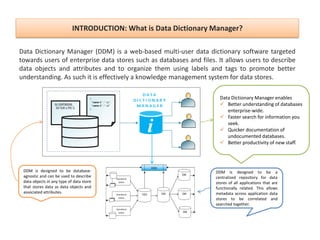
Data Dictionary Manager (DDM) is a web-based multi-user data dictionary software targeted
towards users of enterprise data stores such as databases and files. It allows users to describe
data objects and attributes and to organize them using labels and tags to promote better
understanding. As such it is effectively a knowledge management system for data stores.
DDM is designed to be database-
agnostic and can be used to describe
data objects in any type of data store
that stores data as data objects and
associated attributes.
DDM is designed to be a
centralized repository for data
stores of all applications that are
functionally related. This allows
metadata across application data
stores to be correlated and
searched together.
Data Dictionary Manager enables
 Better understanding of databases
enterprise-wide.
 Faster search for information you
seek.
 Quicker documentation of
undocumented databases.
 Better productivity of new staff.
INTRODUCTION: Target Users
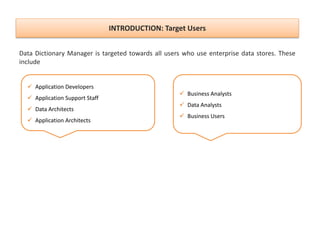
Data Dictionary Manager is targeted towards all users who use enterprise data stores. These
include
 Business Analysts
 Data Analysts
 Business Users
 Application Developers
 Application Support Staff
 Data Architects
 Application Architects
INTRODUCTION: How Does DDM Help?
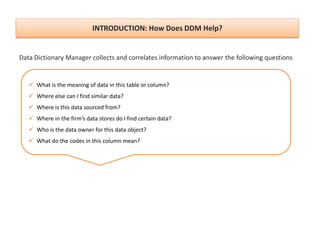
Data Dictionary Manager collects and correlates information to answer the following questions
 What is the meaning of data in this table or column?
 Where else can I find similar data?
 Where is this data sourced from?
 Where in the firm’s data stores do I find certain data?
 Who is the data owner for this data object?
 What do the codes in this column mean?
INTRODUCTION: What Information does DDM Store?
Data Object Information
Properties
 Namespace
 Name
 Logical Name
 Key Attributes
 Summary
 Description
 Local Sources
 External Sources
 Tags
Supplemental Data
 Notes
 Application Labels
 Technology Labels
 Business Labels
 Custom Labels
Attribute Information
Properties
 Name
 Logical Name
 Position
 Data Type
 Common Type
 Parent Attribute [Foreign Key Relationship]
 Is Required
 Is Key
 Default Value
 Summary
 Description
 Local Sources
 External Sources
 Tags
Supplemental Data
 Notes
 Custom Labels
 Codes
Built-in information can be extended using custom fields / extended properties.
KEY CONCEPTS
KEY CONCEPTS: Namespaces, Data Objects & Attributes
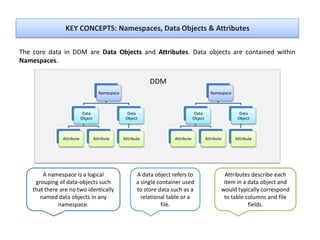
The core data in DDM are Data Objects and Attributes. Data objects are contained within
Namespaces.
A data object refers to
a single container used
to store data such as a
relational table or a
file.
Namespace
Data
Object
Attribute Attribute
Data
Object
Attribute
Namespace
Data
Object
Attribute Attribute
Data
Object
Attribute
DDM
Attributes describe each
item in a data object and
would typically correspond
to table columns and file
fields.
A namespace is a logical
grouping of data-objects such
that there are no two identically
named data objects in any
namespace.
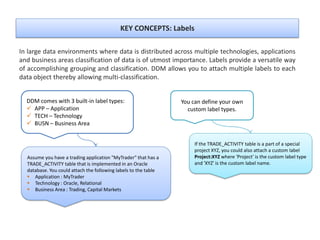
KEY CONCEPTS: Labels
In large data environments where data is distributed across multiple technologies, applications
and business areas classification of data is of utmost importance. Labels provide a versatile way
of accomplishing grouping and classification. DDM allows you to attach multiple labels to each
data object thereby allowing multi-classification.
You can define your own
custom label types.
DDM comes with 3 built-in label types:
 APP – Application
 TECH – Technology
 BUSN – Business Area
Assume you have a trading application "MyTrader" that has a
TRADE_ACTIVITY table that is implemented in an Oracle
database. You could attach the following labels to the table
 Application : MyTrader
 Technology : Oracle, Relational
 Business Area : Trading, Capital Markets
If the TRADE_ACTIVITY table is a part of a special
project XYZ, you could also attach a custom label
Project:XYZ where 'Project' is the custom label type
and 'XYZ' is the custom label name.
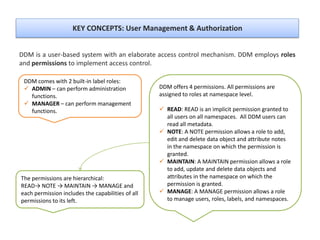
KEY CONCEPTS: User Management & Authorization
DDM is a user-based system with an elaborate access control mechanism. DDM employs roles
and permissions to implement access control.
DDM offers 4 permissions. All permissions are
assigned to roles at namespace level.
 READ: READ is an implicit permission granted to
all users on all namespaces. All DDM users can
read all metadata.
 NOTE: A NOTE permission allows a role to add,
edit and delete data object and attribute notes
in the namespace on which the permission is
granted.
 MAINTAIN: A MAINTAIN permission allows a role
to add, update and delete data objects and
attributes in the namespace on which the
permission is granted.
 MANAGE: A MANAGE permission allows a role
to manage users, roles, labels, and namespaces.
DDM comes with 2 built-in label roles:
 ADMIN – can perform administration
functions.
 MANAGER – can perform management
functions.
The permissions are hierarchical:
READ→ NOTE → MAINTAIN → MANAGE and
each permission includes the capabilities of all
permissions to its left.
FEATURES
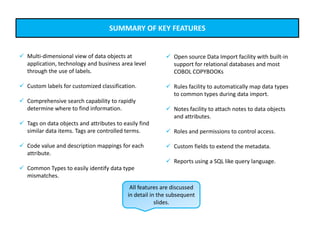
SUMMARY OF KEY FEATURES
 Multi-dimensional view of data objects at
application, technology and business area level
through the use of labels.
 Custom labels for customized classification.
 Comprehensive search capability to rapidly
determine where to find information.
 Tags on data objects and attributes to easily find
similar data items. Tags are controlled terms.
 Code value and description mappings for each
attribute.
 Common Types to easily identify data type
mismatches.
 Open source Data Import facility with built-in
support for relational databases and most
COBOL COPYBOOKs
 Rules facility to automatically map data types
to common types during data import.
 Notes facility to attach notes to data objects
and attributes.
 Roles and permissions to control access.
 Custom fields to extend the metadata.
 Reports using a SQL like query language.
All features are discussed
in detail in the subsequent
slides.
LOGIN & APPLICATION MENU
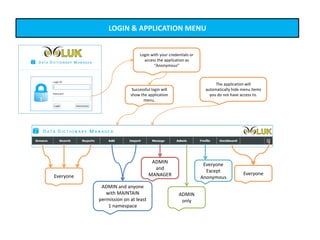
Login with your credentials or
access the application as
“Anonymous”
The application will
automatically hide menu items
you do not have access to.
ADMIN and anyone
with MAINTAIN
permission on at least
1 namespace
Everyone
ADMIN
and
MANAGER
ADMIN
only
Everyone
Everyone
Except
Anonymous
Successful login will
show the application
menu.
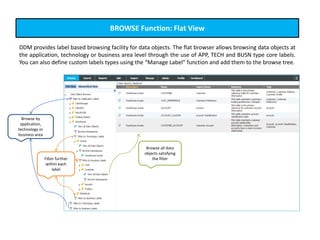
Browse by
application,
technology or
business area
Filter further
within each
label
Browse all data
objects satisfying
the filter
BROWSE Function: Flat View
DDM provides label based browsing facility for data objects. The flat browser allows browsing data objects at
the application, technology or business area level through the use of APP, TECH and BUSN type core labels.
You can also define custom labels types using the “Manage Label” function and add them to the browse tree.
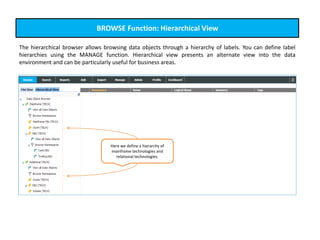
BROWSE Function: Hierarchical View
The hierarchical browser allows browsing data objects through a hierarchy of labels. You can define label
hierarchies using the MANAGE function. Hierarchical view presents an alternate view into the data
environment and can be particularly useful for business areas.
Here we define a hierarchy of
mainframe technologies and
relational technologies.
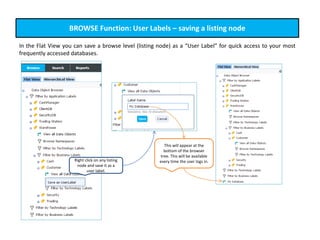
This will appear at the
bottom of the browser
tree. This will be available
every time the user logs in.
BROWSE Function: User Labels – saving a listing node
In the Flat View you can save a browse level (listing node) as a “User Label” for quick access to your most
frequently accessed databases.
Right click on any listing
node and save it as a
user label.
This will appear at the
bottom of the browser
tree. This will be available
every time the user logs in.
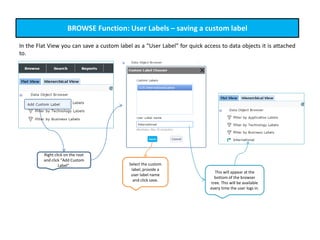
BROWSE Function: User Labels – saving a custom label
Right click on the root
and click “Add Custom
Label”.
In the Flat View you can save a custom label as a “User Label” for quick access to data objects it is attached
to.
Select the custom
label, provide a
user label name
and click save.
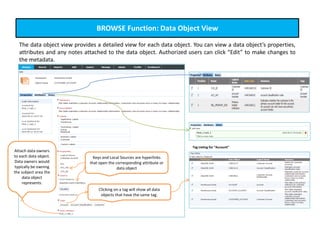
BROWSE Function: Data Object View
The data object view provides a detailed view for each data object. You can view a data object’s properties,
attributes and any notes attached to the data object. Authorized users can click “Edit” to make changes to
the metadata.
Keys and Local Sources are hyperlinks
that open the corresponding attribute or
data object
Clicking on a tag will show all data
objects that have the same tag.
Tag Listing for “Account”
Attach data owners
to each data object.
Data owners would
typically be owning
the subject area the
data object
represents.
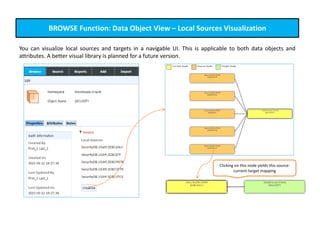
BROWSE Function: Data Object View – Local Sources Visualization
You can visualize local sources and targets in a navigable UI. This is applicable to both data objects and
attributes. A better visual library is planned for a future version.
Clicking on this node yields this source-
current-target mapping
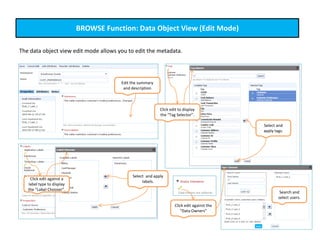
BROWSE Function: Data Object View (Edit Mode)
The data object view edit mode allows you to edit the metadata.
Edit the summary
and description
Select and apply
labels.
Click edit against a
label type to display
the “Label Chooser”.
Click edit to display
the “Tag Selector”.
Select and
apply tags.
Click edit against the
“Data Owners”
Search and
select users.
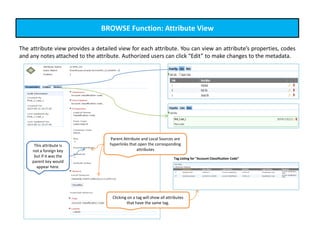
BROWSE Function: Attribute View
The attribute view provides a detailed view for each attribute. You can view an attribute’s properties, codes
and any notes attached to the attribute. Authorized users can click “Edit” to make changes to the metadata.
Parent Attribute and Local Sources are
hyperlinks that open the corresponding
attributes
Clicking on a tag will show all attributes
that have the same tag.
Tag Listing for “Account Classification Code”
This attribute is
not a foreign key
but if it was the
parent key would
appear here.
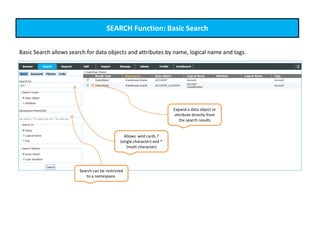
SEARCH Function: Basic Search
Basic Search allows search for data objects and attributes by name, logical name and tags.
Allows wild cards ?
(single character) and *
(multi character)
Search can be restricted
to a namespace.
Expand a data object or
attribute directly from
the search results
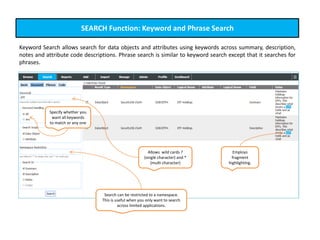
SEARCH Function: Keyword and Phrase Search
Keyword Search allows search for data objects and attributes using keywords across summary, description,
notes and attribute code descriptions. Phrase search is similar to keyword search except that it searches for
phrases.
Allows wild cards ?
(single character) and *
(multi character)
Search can be restricted to a namespace.
This is useful when you only want to search
across limited applications.
Employs
fragment
highlighting.
Specify whether you
want all keywords
to match or any one
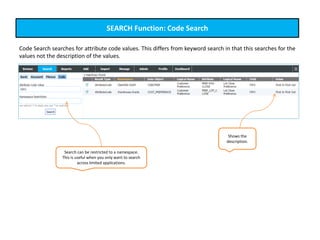
SEARCH Function: Code Search
Code Search searches for attribute code values. This differs from keyword search in that this searches for the
values not the description of the values.
Search can be restricted to a namespace.
This is useful when you only want to search
across limited applications.
Shows the
description.
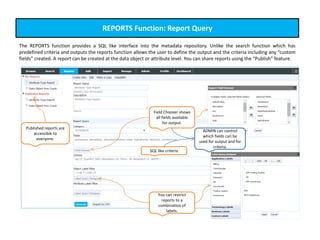
REPORTS Function: Report Query
The REPORTS function provides a SQL like interface into the metadata repository. Unlike the search function which has
predefined criteria and outputs the reports function allows the user to define the output and the criteria including any “custom
fields” created. A report can be created at the data object or attribute level. You can share reports using the “Publish” feature.
Published reports are
accessible to
everyone.
Field Chooser shows
all fields available
for output.
SQL like criteria
You can restrict
reports to a
combination of
labels.
ADMIN can control
which fields can be
used for output and for
criteria.
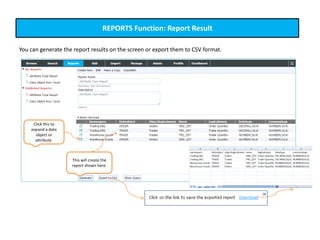
REPORTS Function: Report Result
You can generate the report results on the screen or export them to CSV format.
This will create the
report shown here.
Click this to
expand a data
object or
attribute.
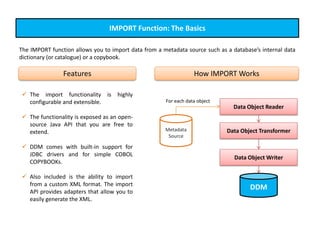
IMPORT Function: The Basics
The IMPORT function allows you to import data from a metadata source such as a database’s internal data
dictionary (or catalogue) or a copybook.
 The import functionality is highly
configurable and extensible.
 The functionality is exposed as an open-
source Java API that you are free to
extend.
 DDM comes with built-in support for
JDBC drivers and for simple COBOL
COPYBOOKs.
 Also included is the ability to import
from a custom XML format. The import
API provides adapters that allow you to
easily generate the XML.
Features How IMPORT Works
Data Object Reader
Data Object Transformer
Data Object Writer
DDM
Metadata
Source
For each data object
IMPORT Function: JDBC Data Object Reader
Relational databases are some of the most widely used data stores. The JDBC Data Object Reader is therefore
specifically discussed here.
 Configure data sources using configuration objects [see next slide].
 Import an entire database, select schemas or a single table.
 Choose what you wish to import – tables, views, system tables. This is configurable depending on
the JDBC driver.
 Automatically import
 For tables: table name, description (comments / remarks) if present on the table and
columns.
 For columns: column name, description (comment / remark) if present on the table, NOT
NULL characteristic, default value, foreign key and data type.
 The JDBC Data Object Reader is open source. If you need additional information you can define
custom fields (extended properties) and modify the reader code to automatically populate the
extended properties.
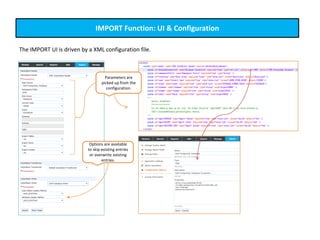
IMPORT Function: UI & Configuration
The IMPORT UI is driven by a XML configuration file.
Options are available
to skip existing entries
or overwrite existing
entries.
Parameters are
picked up from the
configuration.
IMPORT Function: Rules
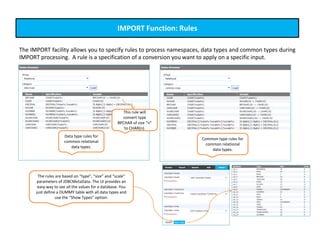
The IMPORT facility allows you to specify rules to process namespaces, data types and common types during
IMPORT processing. A rule is a specification of a conversion you want to apply on a specific input.
Data type rules for
common relational
data types.
Common type rules for
common relational
data types.
The rules are based on “type”, “size” and “scale”
parameters of JDBCMetaData. The UI provides an
easy way to see all the values for a database. You
just define a DUMMY table with all data types and
use the “Show Types” option.
This rule will
convert type
BPCHAR of size “n”
to CHAR(n).
MANAGE Function: Labels
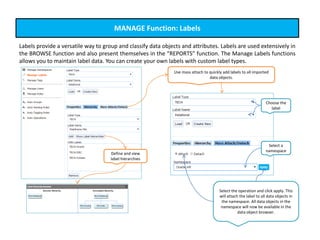
Labels provide a versatile way to group and classify data objects and attributes. Labels are used extensively in
the BROWSE function and also present themselves in the “REPORTS” function. The Manage Labels functions
allows you to maintain label data. You can create your own labels with custom label types.
Define and view
label hierarchies
Use mass attach to quickly add labels to all imported
data objects.
Select a
namespace
Choose the
label
Select the operation and click apply. This
will attach the label to all data objects in
the namespace. All data objects in the
namespace will now be available in the
data object browser.
MANAGE Function: Tags
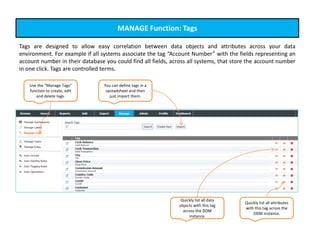
Tags are designed to allow easy correlation between data objects and attributes across your data
environment. For example if all systems associate the tag “Account Number” with the fields representing an
account number in their database you could find all fields, across all systems, that store the account number
in one click. Tags are controlled terms.
Use the “Manage Tags”
function to create, edit
and delete tags.
You can define tags in a
spreadsheet and then
just import them.
Quickly list all data
objects with this tag
across the DDM
instance.
Quickly list all attributes
with this tag across the
DDM instance.
MANAGE Function: Auto Functions [Auto Groups]
Auto functions are designed to automatically deduce some metadata attributes. The current version allows
automatic deduction of Logical Names and Tags for data objects and attributes based on naming
conventions. This feature is very handy in assigning quick meanings to undocumented data stores.
How Auto Functions are Organized
Auto Groups
Auto Rules
Logical Name
Rules
Tagging
Rules
Provide a grouping of
auto rules
Specify the delimiter
used in naming
conventions
MANAGE Function: Auto Functions [Auto Naming]
Auto naming rules allow you to map technical names to logical names that users that easily understand.
Auto Groups
Auto Rules
Logical Name
Rules
Tagging
Rules
Define fragment mappings Example: this would assign a
table with name “obj_extn”
the logical name “Data Object
Extension”
You can import these from
a delimited file.
To perform auto naming, choose the
auto group, the namespace and the
“Autoname” action. This will
autoname all data objects and
attributes in the namespace.
MANAGE Function: Auto Functions [Auto Tagging]
Auto tagging rules allow you to assign tags to data objects and attributes by matching their technical names
against regular expressions.
Auto Groups
Auto Rules
Logical Name
Rules
Tagging
Rules
To perform auto tagging, choose
the auto group, the namespace
and the “Autotag” action. This
will autotag all data objects and
attributes in the namespace.
Auto tagging is based on
powerful regular
expressions.
You can import
these from a
delimited file.
Any table or
column beginning
with “obj_” would
be assigned “Data
Object” tag.
MANAGE Function: Roles
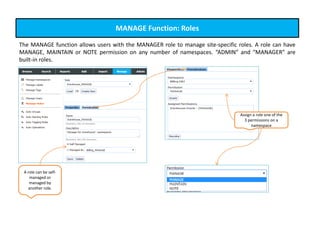
The MANAGE function allows users with the MANAGER role to manage site-specific roles. A role can have
MANAGE, MAINTAIN or NOTE permission on any number of namespaces. “ADMIN” and “MANAGER” are
built-in roles.
A role can be self-
managed or
managed by
another role.
Assign a role one of the
3 permissions on a
namespace
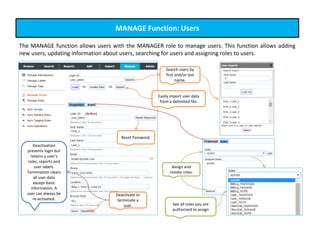
MANAGE Function: Users
The MANAGE function allows users with the MANAGER role to manage users. This function allows adding
new users, updating information about users, searching for users and assigning roles to users.
Easily import user data
from a delimited file.
Assign and
revoke roles.
Search users by
first and/or last
name.
Reset Password.
Deactivation
prevents login but
retains a user’s
roles, reports and
user labels.
Termination clears
all user data
except basic
information. A
user can always be
re-activated.
Deactivate or
terminate a
user. See all roles you are
authorized to assign
ADMIN Function: Custom Fields [Supported Types]
The metadata properties for data objects and attributes can be extended using custom fields a.k.a. extended
properties.
The current version supports the following custom field types
 String (single-line string)
 Text (multi-line string)
 Date (only Year, Month, Date)
 Yes-No (boolean)
 Number (integer)
 Value-list (single-value) - property that can take exactly one value from a fixed list of string values
 Value list (multi-value) - property that can take zero or more values from a fixed list of string values
 Hyperlink
Click here to see details.
(See Next Slide)
ADMIN Function: Custom Fields [Properties]
You can specify several properties for each custom field including format, default values, validation rules.
Validation rules.
Name of
the field.
A requirements
message for the field.
A tool tip
for the
field.
How the custom field properties will appear in the EDIT view
The order in which this field
will appear relative to other
custom fields.
ADMIN Function: Custom Fields [How they Appear]
The custom fields are visible in the “Properties” section of the data object and attribute view.
Custom fields in Data Object BROWSE view Custom fields in Data Object EDIT view“String” type
“Date” type
“Text” type
“Yes-No” type
“Number” type
“Single Value List”
type
“Multi Value List”
type
“Hyperlink” type
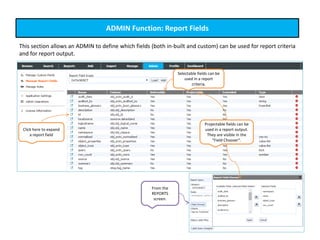
ADMIN Function: Report Fields
This section allows an ADMIN to define which fields (both in-built and custom) can be used for report criteria
and for report output.
Selectable fields can be
used in a report
criteria.
Projectable fields can be
used in a report output.
They are visible in the
“Field Chooser”.
Click here to expand
a report field
From the
REPORTS
screen.
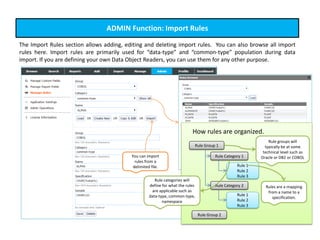
ADMIN Function: Import Rules
The Import Rules section allows adding, editing and deleting import rules. You can also browse all import
rules here. Import rules are primarily used for “data-type” and “common-type” population during data
import. If you are defining your own Data Object Readers, you can use them for any other purpose.
You can import
rules from a
delimited file.
Rule Group 1
Rule Category 1
Rule 1
Rule 2
Rule 3
Rule Category 2
Rule 1
Rule 2
Rule 3
Rule Group 2
Rule groups will
typically be at some
technical level such as
Oracle or DB2 or COBOL
Rules are a mapping
from a name to a
specification.
Rule categories will
define for what the rules
are applicable such as
data-type, common-type,
namespace
How rules are organized.
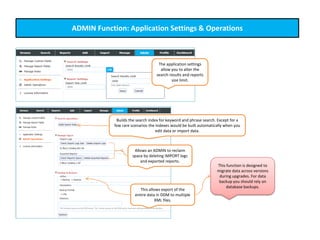
ADMIN Function: Application Settings & Operations
A
The application settings
allow you to alter the
search results and reports
size limit.
Builds the search index for keyword and phrase search. Except for a
few rare scenarios the indexes would be built automatically when you
edit data or import data.
Allows an ADMIN to reclaim
space by deleting IMPORT logs
and exported reports.
This allows export of the
entire data in DDM to multiple
XML files.
This function is designed to
migrate data across versions
during upgrades. For data
backup you should rely on
database backups.
PROFILE & DASHBOARD Function
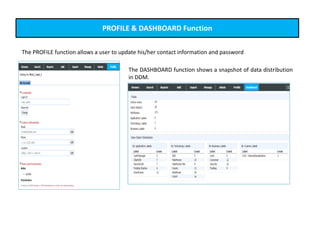
AThe PROFILE function allows a user to update his/her contact information and password
The DASHBOARD function shows a snapshot of data distribution
in DDM.
ERD SUPPORT
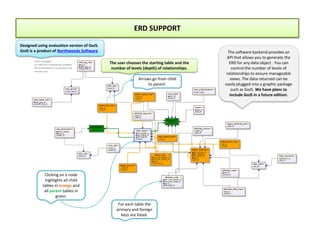
Clicking on a node
highlights all child
tables in orange and
all parent tables in
green.
The user chooses the starting table and the
number of levels (depth) of relationships.
Arrows go from child
to parent.
For each table the
primary and foreign
keys are listed.
The software backend provides an
API that allows you to generate the
ERD for any data object . You can
control the number of levels of
relationships to ensure manageable
views. The data returned can be
easily plugged into a graphic package
such as GoJS. We have plans to
include GoJS in a future edition.
Designed using evaluation version of GoJS.
GoJS is a product of Northwoods Software
INSTALLATION
&
CONFIGURATION
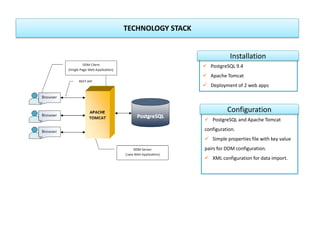
TECHNOLOGY STACK
 PostgreSQL 9.4
 Apache Tomcat
 Deployment of 2 web apps
Installation
 PostgreSQL and Apache Tomcat
configuration.
 Simple properties file with key value
pairs for DDM configuration.
 XML configuration for data import.
Configuration
END

Ooluk Data Dictionary Manager

  • 1.
    © 2015 OolukCorporation www.ooluk.com
  • 2.
  • 3.
  • 4.
    INTRODUCTION: What isData Dictionary Manager? Data Dictionary Manager (DDM) is a web-based multi-user data dictionary software targeted towards users of enterprise data stores such as databases and files. It allows users to describe data objects and attributes and to organize them using labels and tags to promote better understanding. As such it is effectively a knowledge management system for data stores. DDM is designed to be database- agnostic and can be used to describe data objects in any type of data store that stores data as data objects and associated attributes. DDM is designed to be a centralized repository for data stores of all applications that are functionally related. This allows metadata across application data stores to be correlated and searched together. Data Dictionary Manager enables  Better understanding of databases enterprise-wide.  Faster search for information you seek.  Quicker documentation of undocumented databases.  Better productivity of new staff.
  • 5.
    INTRODUCTION: Target Users DataDictionary Manager is targeted towards all users who use enterprise data stores. These include  Business Analysts  Data Analysts  Business Users  Application Developers  Application Support Staff  Data Architects  Application Architects
  • 6.
    INTRODUCTION: How DoesDDM Help? Data Dictionary Manager collects and correlates information to answer the following questions  What is the meaning of data in this table or column?  Where else can I find similar data?  Where is this data sourced from?  Where in the firm’s data stores do I find certain data?  Who is the data owner for this data object?  What do the codes in this column mean?
  • 7.
    INTRODUCTION: What Informationdoes DDM Store? Data Object Information Properties  Namespace  Name  Logical Name  Key Attributes  Summary  Description  Local Sources  External Sources  Tags Supplemental Data  Notes  Application Labels  Technology Labels  Business Labels  Custom Labels Attribute Information Properties  Name  Logical Name  Position  Data Type  Common Type  Parent Attribute [Foreign Key Relationship]  Is Required  Is Key  Default Value  Summary  Description  Local Sources  External Sources  Tags Supplemental Data  Notes  Custom Labels  Codes Built-in information can be extended using custom fields / extended properties.
  • 8.
  • 9.
    KEY CONCEPTS: Namespaces,Data Objects & Attributes The core data in DDM are Data Objects and Attributes. Data objects are contained within Namespaces. A data object refers to a single container used to store data such as a relational table or a file. Namespace Data Object Attribute Attribute Data Object Attribute Namespace Data Object Attribute Attribute Data Object Attribute DDM Attributes describe each item in a data object and would typically correspond to table columns and file fields. A namespace is a logical grouping of data-objects such that there are no two identically named data objects in any namespace.
  • 10.
    KEY CONCEPTS: Labels Inlarge data environments where data is distributed across multiple technologies, applications and business areas classification of data is of utmost importance. Labels provide a versatile way of accomplishing grouping and classification. DDM allows you to attach multiple labels to each data object thereby allowing multi-classification. You can define your own custom label types. DDM comes with 3 built-in label types:  APP – Application  TECH – Technology  BUSN – Business Area Assume you have a trading application "MyTrader" that has a TRADE_ACTIVITY table that is implemented in an Oracle database. You could attach the following labels to the table  Application : MyTrader  Technology : Oracle, Relational  Business Area : Trading, Capital Markets If the TRADE_ACTIVITY table is a part of a special project XYZ, you could also attach a custom label Project:XYZ where 'Project' is the custom label type and 'XYZ' is the custom label name.
  • 11.
    KEY CONCEPTS: UserManagement & Authorization DDM is a user-based system with an elaborate access control mechanism. DDM employs roles and permissions to implement access control. DDM offers 4 permissions. All permissions are assigned to roles at namespace level.  READ: READ is an implicit permission granted to all users on all namespaces. All DDM users can read all metadata.  NOTE: A NOTE permission allows a role to add, edit and delete data object and attribute notes in the namespace on which the permission is granted.  MAINTAIN: A MAINTAIN permission allows a role to add, update and delete data objects and attributes in the namespace on which the permission is granted.  MANAGE: A MANAGE permission allows a role to manage users, roles, labels, and namespaces. DDM comes with 2 built-in label roles:  ADMIN – can perform administration functions.  MANAGER – can perform management functions. The permissions are hierarchical: READ→ NOTE → MAINTAIN → MANAGE and each permission includes the capabilities of all permissions to its left.
  • 12.
  • 13.
    SUMMARY OF KEYFEATURES  Multi-dimensional view of data objects at application, technology and business area level through the use of labels.  Custom labels for customized classification.  Comprehensive search capability to rapidly determine where to find information.  Tags on data objects and attributes to easily find similar data items. Tags are controlled terms.  Code value and description mappings for each attribute.  Common Types to easily identify data type mismatches.  Open source Data Import facility with built-in support for relational databases and most COBOL COPYBOOKs  Rules facility to automatically map data types to common types during data import.  Notes facility to attach notes to data objects and attributes.  Roles and permissions to control access.  Custom fields to extend the metadata.  Reports using a SQL like query language. All features are discussed in detail in the subsequent slides.
  • 14.
    LOGIN & APPLICATIONMENU Login with your credentials or access the application as “Anonymous” The application will automatically hide menu items you do not have access to. ADMIN and anyone with MAINTAIN permission on at least 1 namespace Everyone ADMIN and MANAGER ADMIN only Everyone Everyone Except Anonymous Successful login will show the application menu.
  • 15.
    Browse by application, technology or businessarea Filter further within each label Browse all data objects satisfying the filter BROWSE Function: Flat View DDM provides label based browsing facility for data objects. The flat browser allows browsing data objects at the application, technology or business area level through the use of APP, TECH and BUSN type core labels. You can also define custom labels types using the “Manage Label” function and add them to the browse tree.
  • 16.
    BROWSE Function: HierarchicalView The hierarchical browser allows browsing data objects through a hierarchy of labels. You can define label hierarchies using the MANAGE function. Hierarchical view presents an alternate view into the data environment and can be particularly useful for business areas. Here we define a hierarchy of mainframe technologies and relational technologies.
  • 17.
    This will appearat the bottom of the browser tree. This will be available every time the user logs in. BROWSE Function: User Labels – saving a listing node In the Flat View you can save a browse level (listing node) as a “User Label” for quick access to your most frequently accessed databases. Right click on any listing node and save it as a user label.
  • 18.
    This will appearat the bottom of the browser tree. This will be available every time the user logs in. BROWSE Function: User Labels – saving a custom label Right click on the root and click “Add Custom Label”. In the Flat View you can save a custom label as a “User Label” for quick access to data objects it is attached to. Select the custom label, provide a user label name and click save.
  • 19.
    BROWSE Function: DataObject View The data object view provides a detailed view for each data object. You can view a data object’s properties, attributes and any notes attached to the data object. Authorized users can click “Edit” to make changes to the metadata. Keys and Local Sources are hyperlinks that open the corresponding attribute or data object Clicking on a tag will show all data objects that have the same tag. Tag Listing for “Account” Attach data owners to each data object. Data owners would typically be owning the subject area the data object represents.
  • 20.
    BROWSE Function: DataObject View – Local Sources Visualization You can visualize local sources and targets in a navigable UI. This is applicable to both data objects and attributes. A better visual library is planned for a future version. Clicking on this node yields this source- current-target mapping
  • 21.
    BROWSE Function: DataObject View (Edit Mode) The data object view edit mode allows you to edit the metadata. Edit the summary and description Select and apply labels. Click edit against a label type to display the “Label Chooser”. Click edit to display the “Tag Selector”. Select and apply tags. Click edit against the “Data Owners” Search and select users.
  • 22.
    BROWSE Function: AttributeView The attribute view provides a detailed view for each attribute. You can view an attribute’s properties, codes and any notes attached to the attribute. Authorized users can click “Edit” to make changes to the metadata. Parent Attribute and Local Sources are hyperlinks that open the corresponding attributes Clicking on a tag will show all attributes that have the same tag. Tag Listing for “Account Classification Code” This attribute is not a foreign key but if it was the parent key would appear here.
  • 23.
    SEARCH Function: BasicSearch Basic Search allows search for data objects and attributes by name, logical name and tags. Allows wild cards ? (single character) and * (multi character) Search can be restricted to a namespace. Expand a data object or attribute directly from the search results
  • 24.
    SEARCH Function: Keywordand Phrase Search Keyword Search allows search for data objects and attributes using keywords across summary, description, notes and attribute code descriptions. Phrase search is similar to keyword search except that it searches for phrases. Allows wild cards ? (single character) and * (multi character) Search can be restricted to a namespace. This is useful when you only want to search across limited applications. Employs fragment highlighting. Specify whether you want all keywords to match or any one
  • 25.
    SEARCH Function: CodeSearch Code Search searches for attribute code values. This differs from keyword search in that this searches for the values not the description of the values. Search can be restricted to a namespace. This is useful when you only want to search across limited applications. Shows the description.
  • 26.
    REPORTS Function: ReportQuery The REPORTS function provides a SQL like interface into the metadata repository. Unlike the search function which has predefined criteria and outputs the reports function allows the user to define the output and the criteria including any “custom fields” created. A report can be created at the data object or attribute level. You can share reports using the “Publish” feature. Published reports are accessible to everyone. Field Chooser shows all fields available for output. SQL like criteria You can restrict reports to a combination of labels. ADMIN can control which fields can be used for output and for criteria.
  • 27.
    REPORTS Function: ReportResult You can generate the report results on the screen or export them to CSV format. This will create the report shown here. Click this to expand a data object or attribute.
  • 28.
    IMPORT Function: TheBasics The IMPORT function allows you to import data from a metadata source such as a database’s internal data dictionary (or catalogue) or a copybook.  The import functionality is highly configurable and extensible.  The functionality is exposed as an open- source Java API that you are free to extend.  DDM comes with built-in support for JDBC drivers and for simple COBOL COPYBOOKs.  Also included is the ability to import from a custom XML format. The import API provides adapters that allow you to easily generate the XML. Features How IMPORT Works Data Object Reader Data Object Transformer Data Object Writer DDM Metadata Source For each data object
  • 29.
    IMPORT Function: JDBCData Object Reader Relational databases are some of the most widely used data stores. The JDBC Data Object Reader is therefore specifically discussed here.  Configure data sources using configuration objects [see next slide].  Import an entire database, select schemas or a single table.  Choose what you wish to import – tables, views, system tables. This is configurable depending on the JDBC driver.  Automatically import  For tables: table name, description (comments / remarks) if present on the table and columns.  For columns: column name, description (comment / remark) if present on the table, NOT NULL characteristic, default value, foreign key and data type.  The JDBC Data Object Reader is open source. If you need additional information you can define custom fields (extended properties) and modify the reader code to automatically populate the extended properties.
  • 30.
    IMPORT Function: UI& Configuration The IMPORT UI is driven by a XML configuration file. Options are available to skip existing entries or overwrite existing entries. Parameters are picked up from the configuration.
  • 31.
    IMPORT Function: Rules TheIMPORT facility allows you to specify rules to process namespaces, data types and common types during IMPORT processing. A rule is a specification of a conversion you want to apply on a specific input. Data type rules for common relational data types. Common type rules for common relational data types. The rules are based on “type”, “size” and “scale” parameters of JDBCMetaData. The UI provides an easy way to see all the values for a database. You just define a DUMMY table with all data types and use the “Show Types” option. This rule will convert type BPCHAR of size “n” to CHAR(n).
  • 32.
    MANAGE Function: Labels Labelsprovide a versatile way to group and classify data objects and attributes. Labels are used extensively in the BROWSE function and also present themselves in the “REPORTS” function. The Manage Labels functions allows you to maintain label data. You can create your own labels with custom label types. Define and view label hierarchies Use mass attach to quickly add labels to all imported data objects. Select a namespace Choose the label Select the operation and click apply. This will attach the label to all data objects in the namespace. All data objects in the namespace will now be available in the data object browser.
  • 33.
    MANAGE Function: Tags Tagsare designed to allow easy correlation between data objects and attributes across your data environment. For example if all systems associate the tag “Account Number” with the fields representing an account number in their database you could find all fields, across all systems, that store the account number in one click. Tags are controlled terms. Use the “Manage Tags” function to create, edit and delete tags. You can define tags in a spreadsheet and then just import them. Quickly list all data objects with this tag across the DDM instance. Quickly list all attributes with this tag across the DDM instance.
  • 34.
    MANAGE Function: AutoFunctions [Auto Groups] Auto functions are designed to automatically deduce some metadata attributes. The current version allows automatic deduction of Logical Names and Tags for data objects and attributes based on naming conventions. This feature is very handy in assigning quick meanings to undocumented data stores. How Auto Functions are Organized Auto Groups Auto Rules Logical Name Rules Tagging Rules Provide a grouping of auto rules Specify the delimiter used in naming conventions
  • 35.
    MANAGE Function: AutoFunctions [Auto Naming] Auto naming rules allow you to map technical names to logical names that users that easily understand. Auto Groups Auto Rules Logical Name Rules Tagging Rules Define fragment mappings Example: this would assign a table with name “obj_extn” the logical name “Data Object Extension” You can import these from a delimited file. To perform auto naming, choose the auto group, the namespace and the “Autoname” action. This will autoname all data objects and attributes in the namespace.
  • 36.
    MANAGE Function: AutoFunctions [Auto Tagging] Auto tagging rules allow you to assign tags to data objects and attributes by matching their technical names against regular expressions. Auto Groups Auto Rules Logical Name Rules Tagging Rules To perform auto tagging, choose the auto group, the namespace and the “Autotag” action. This will autotag all data objects and attributes in the namespace. Auto tagging is based on powerful regular expressions. You can import these from a delimited file. Any table or column beginning with “obj_” would be assigned “Data Object” tag.
  • 37.
    MANAGE Function: Roles TheMANAGE function allows users with the MANAGER role to manage site-specific roles. A role can have MANAGE, MAINTAIN or NOTE permission on any number of namespaces. “ADMIN” and “MANAGER” are built-in roles. A role can be self- managed or managed by another role. Assign a role one of the 3 permissions on a namespace
  • 38.
    MANAGE Function: Users TheMANAGE function allows users with the MANAGER role to manage users. This function allows adding new users, updating information about users, searching for users and assigning roles to users. Easily import user data from a delimited file. Assign and revoke roles. Search users by first and/or last name. Reset Password. Deactivation prevents login but retains a user’s roles, reports and user labels. Termination clears all user data except basic information. A user can always be re-activated. Deactivate or terminate a user. See all roles you are authorized to assign
  • 39.
    ADMIN Function: CustomFields [Supported Types] The metadata properties for data objects and attributes can be extended using custom fields a.k.a. extended properties. The current version supports the following custom field types  String (single-line string)  Text (multi-line string)  Date (only Year, Month, Date)  Yes-No (boolean)  Number (integer)  Value-list (single-value) - property that can take exactly one value from a fixed list of string values  Value list (multi-value) - property that can take zero or more values from a fixed list of string values  Hyperlink Click here to see details. (See Next Slide)
  • 40.
    ADMIN Function: CustomFields [Properties] You can specify several properties for each custom field including format, default values, validation rules. Validation rules. Name of the field. A requirements message for the field. A tool tip for the field. How the custom field properties will appear in the EDIT view The order in which this field will appear relative to other custom fields.
  • 41.
    ADMIN Function: CustomFields [How they Appear] The custom fields are visible in the “Properties” section of the data object and attribute view. Custom fields in Data Object BROWSE view Custom fields in Data Object EDIT view“String” type “Date” type “Text” type “Yes-No” type “Number” type “Single Value List” type “Multi Value List” type “Hyperlink” type
  • 42.
    ADMIN Function: ReportFields This section allows an ADMIN to define which fields (both in-built and custom) can be used for report criteria and for report output. Selectable fields can be used in a report criteria. Projectable fields can be used in a report output. They are visible in the “Field Chooser”. Click here to expand a report field From the REPORTS screen.
  • 43.
    ADMIN Function: ImportRules The Import Rules section allows adding, editing and deleting import rules. You can also browse all import rules here. Import rules are primarily used for “data-type” and “common-type” population during data import. If you are defining your own Data Object Readers, you can use them for any other purpose. You can import rules from a delimited file. Rule Group 1 Rule Category 1 Rule 1 Rule 2 Rule 3 Rule Category 2 Rule 1 Rule 2 Rule 3 Rule Group 2 Rule groups will typically be at some technical level such as Oracle or DB2 or COBOL Rules are a mapping from a name to a specification. Rule categories will define for what the rules are applicable such as data-type, common-type, namespace How rules are organized.
  • 44.
    ADMIN Function: ApplicationSettings & Operations A The application settings allow you to alter the search results and reports size limit. Builds the search index for keyword and phrase search. Except for a few rare scenarios the indexes would be built automatically when you edit data or import data. Allows an ADMIN to reclaim space by deleting IMPORT logs and exported reports. This allows export of the entire data in DDM to multiple XML files. This function is designed to migrate data across versions during upgrades. For data backup you should rely on database backups.
  • 45.
    PROFILE & DASHBOARDFunction AThe PROFILE function allows a user to update his/her contact information and password The DASHBOARD function shows a snapshot of data distribution in DDM.
  • 46.
    ERD SUPPORT Clicking ona node highlights all child tables in orange and all parent tables in green. The user chooses the starting table and the number of levels (depth) of relationships. Arrows go from child to parent. For each table the primary and foreign keys are listed. The software backend provides an API that allows you to generate the ERD for any data object . You can control the number of levels of relationships to ensure manageable views. The data returned can be easily plugged into a graphic package such as GoJS. We have plans to include GoJS in a future edition. Designed using evaluation version of GoJS. GoJS is a product of Northwoods Software
  • 47.
  • 48.
    TECHNOLOGY STACK  PostgreSQL9.4  Apache Tomcat  Deployment of 2 web apps Installation  PostgreSQL and Apache Tomcat configuration.  Simple properties file with key value pairs for DDM configuration.  XML configuration for data import. Configuration
  • 49.