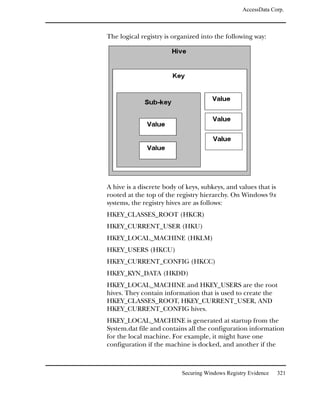
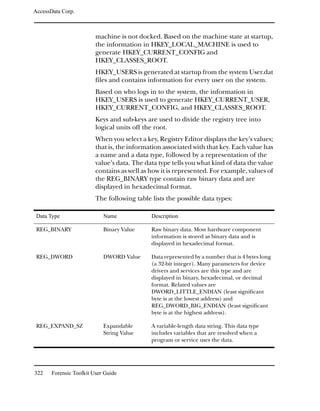
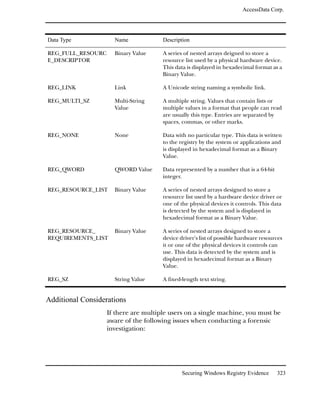
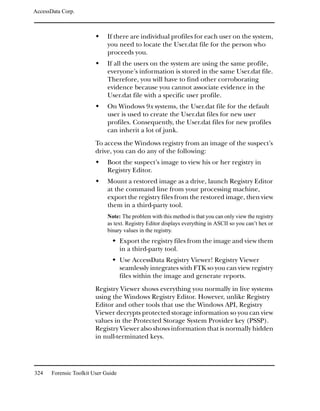
AccessData Corp.


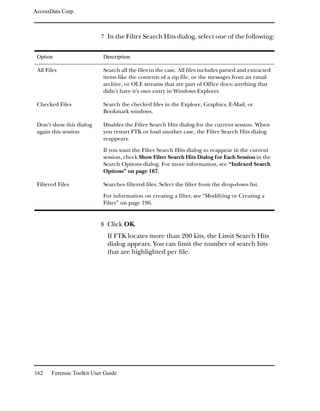
Legal Notices
AccessData Corp. makes no representations or warranties with respect to the contents or use of
this documentation, and specifically disclaims any express or implied warranties of
merchantability or fitness for any particular purpose. Further, AccessData Corp. reserves the right
to revise this publication and to make changes to its content, at any time, without obligation to
notify any person or entity of such revisions or changes.

Further, AccessData Corp. makes no representations or warranties with respect to any software,
and specifically disclaims any express or implied warranties of merchantability or fitness for any
particular purpose. Further, AccessData Corp. reserves the right to make changes to any and all
parts of AccessData software, at any time, without any obligation to notify any person or entity of
such changes.

You may not export or re-export this product in violation of any applicable laws or regulations
including, without limitation, U.S. export regulations or the laws of the country in which you
reside.

© 2008 AccessData Corp. All rights reserved. No part of this publication may be reproduced,
photocopied, stored on a retrieval system, or transmitted without the express written consent of
the publisher.


Version 1.80.0
May 22, 2008


AccessData Corp.
384 South 400 West
Lindon, Utah 84042
U.S.A.
www.accessdata.com


ii     Forensic Toolkit User Guide
AccessData Corp.


AccessData Trademarks
AccessData is a registered trademark of AccessData Corp.
Distributed Network Attack is a registered trademark of AccessData Corp.
DNA is a registered trademark of AccessData Corp.
Forensic Toolkit is a registered trademark of AccessData Corp.
FTK is a trademark of AccessData Corp.
FTK Imager is a trademark of AccessData Corp.
Known File Filter is a trademark of AccessData Corp.
KFF is a trademark of AccessData Corp.
LicenseManager is a trademark of AccessData Corp.
Password Recovery Toolkit is a trademark of AccessData Corp.
PRTK is a trademark of AccessData Corp.
Registry Viewer is a trademark of AccessData Corp.
Ultimate Toolkit is a trademark of AccessData Corp.


Third-Party Trademarks
All third-party trademarks are the property of their respective owners.


                                                                                         iii
AccessData Corp.


iv     Forensic Toolkit User Guide
CONTENTS


     Audience . . . . . . . . . . . .   .   .   .   .   .   .   .   .   .   .   .   .   .   .   .   .   .   .   .   .   .   .   .   .   .   .   .   2
     Handling Evidence. . . . . . .     .   .   .   .   .   .   .   .   .   .   .   .   .   .   .   .   .   .   .   .   .   .   .   .   .   .   .   2
     Role of Forensic Toolkit . . . .   .   .   .   .   .   .   .   .   .   .   .   .   .   .   .   .   .   .   .   .   .   .   .   .   .   .   .   3
     Other AccessData Products . .      .   .   .   .   .   .   .   .   .   .   .   .   .   .   .   .   .   .   .   .   .   .   .   .   .   .   .   3
       Password Recovery Software       .   .   .   .   .   .   .   .   .   .   .   .   .   .   .   .   .   .   .   .   .   .   .   .   .   .   .   4
       FTK 2.0 . . . . . . . . . . .    .   .   .   .   .   .   .   .   .   .   .   .   .   .   .   .   .   .   .   .   .   .   .   .   .   .   .   4
Chapter 1 FTK Overview
     The Big Picture. . . . . . . . . . . . . .             .   .   .   .   .   .   .   .   .   .   .   .   .   .   .   .   .   .   .   .   .   . 6
     Acquiring and Preserving the Evidence.                 .   .   .   .   .   .   .   .   .   .   .   .   .   .   .   .   .   .   .   .   .   . 7
     Analyzing the Evidence . . . . . . . . .               .   .   .   .   .   .   .   .   .   .   .   .   .   .   .   .   .   .   .   .   .   . 8
        Hashing . . . . . . . . . . . . . . . .             .   .   .   .   .   .   .   .   .   .   .   .   .   .   .   .   .   .   .   .   .   . 8
        Known File Filter . . . . . . . . . . .             .   .   .   .   .   .   .   .   .   .   .   .   .   .   .   .   .   .   .   .   .   . 9
        Searching . . . . . . . . . . . . . . .             .   .   .   .   .   .   .   .   .   .   .   .   .   .   .   .   .   .   .   .   .   . 9
     Presenting the Evidence . . . . . . . . .              .   .   .   .   .   .   .   .   .   .   .   .   .   .   .   .   .   .   .   .   .    10
Chapter 2 Installing the Forensic Toolkit
      . . . . . . . . . . . . . . . . . . . . . . . .               .   .   .   .   .   .   .   .   .   .   .   .   .   .   .   .   .   .   .   11
     System Requirements . . . . . . . . . . . .                    .   .   .   .   .   .   .   .   .   .   .   .   .   .   .   .   .   .   .   12
     Supported File Systems and Image Formats                       .   .   .   .   .   .   .   .   .   .   .   .   .   .   .   .   .   .   .   13
     System Preparation. . . . . . . . . . . . . .                  .   .   .   .   .   .   .   .   .   .   .   .   .   .   .   .   .   .   .   14
     Basic Installation . . . . . . . . . . . . . . .               .   .   .   .   .   .   .   .   .   .   .   .   .   .   .   .   .   .   .   15
        Basic Install from CD . . . . . . . . . . .                 .   .   .   .   .   .   .   .   .   .   .   .   .   .   .   .   .   .   .   16
        Basic Install from Downloadable Files . .                   .   .   .   .   .   .   .   .   .   .   .   .   .   .   .   .   .   .   .   19
     Upgrade Instructions . . . . . . . . . . . .                   .   .   .   .   .   .   .   .   .   .   .   .   .   .   .   .   .   .   .   27
        Upgrading from CD . . . . . . . . . . .                     .   .   .   .   .   .   .   .   .   .   .   .   .   .   .   .   .   .   .   27
        Upgrading from Downloadable Files . .                       .   .   .   .   .   .   .   .   .   .   .   .   .   .   .   .   .   .   .   28
     Uninstalling . . . . . . . . . . . . . . . . .                 .   .   .   .   .   .   .   .   .   .   .   .   .   .   .   .   .   .   .   30
Chapter 3 Getting Started
     Starting FTK . . . . . . . . . . . . . . . . . . . . . . . . . . . . . . . . . . . . 32


                                                                                                                                                    v
AccessData Corp.


         Using the Start Menu . . . . .      .   .   .   .   .   .   .   .   .   .   .   .   .   .   .   .   .   .   .   .   .   .   .   .   .   32
         Using the Command Line . .          .   .   .   .   .   .   .   .   .   .   .   .   .   .   .   .   .   .   .   .   .   .   .   .   .   32
         Using the Case File . . . . . .     .   .   .   .   .   .   .   .   .   .   .   .   .   .   .   .   .   .   .   .   .   .   .   .   .   33
         Using the Dongle . . . . . . .      .   .   .   .   .   .   .   .   .   .   .   .   .   .   .   .   .   .   .   .   .   .   .   .   .   33
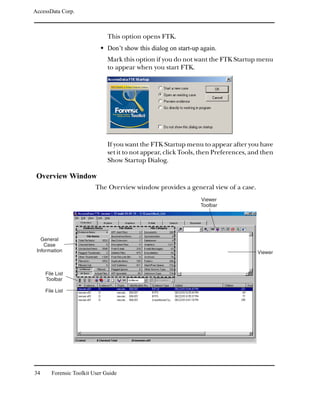
         Using the FTK Startup Menu .        .   .   .   .   .   .   .   .   .   .   .   .   .   .   .   .   .   .   .   .   .   .   .   .   .   33
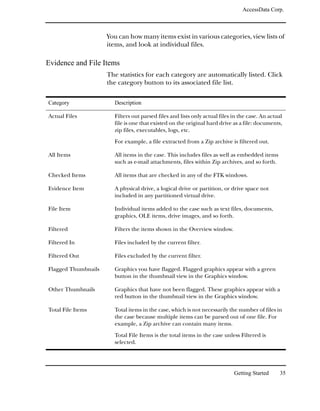
     Overview Window . . . . . . . .         .   .   .   .   .   .   .   .   .   .   .   .   .   .   .   .   .   .   .   .   .   .   .   .   .   34
         Evidence and File Items. . . .      .   .   .   .   .   .   .   .   .   .   .   .   .   .   .   .   .   .   .   .   .   .   .   .   .   35
         File Status . . . . . . . . . . .   .   .   .   .   .   .   .   .   .   .   .   .   .   .   .   .   .   .   .   .   .   .   .   .   .   36
         File Category. . . . . . . . . .    .   .   .   .   .   .   .   .   .   .   .   .   .   .   .   .   .   .   .   .   .   .   .   .   .   37
     Explore Window . . . . . . . . .        .   .   .   .   .   .   .   .   .   .   .   .   .   .   .   .   .   .   .   .   .   .   .   .   .   39
     Graphics Window . . . . . . . . .       .   .   .   .   .   .   .   .   .   .   .   .   .   .   .   .   .   .   .   .   .   .   .   .   .   40
     E-mail Window . . . . . . . . . .       .   .   .   .   .   .   .   .   .   .   .   .   .   .   .   .   .   .   .   .   .   .   .   .   .   41
     Search Window . . . . . . . . . .       .   .   .   .   .   .   .   .   .   .   .   .   .   .   .   .   .   .   .   .   .   .   .   .   .   42
         Indexed Search . . . . . . . .      .   .   .   .   .   .   .   .   .   .   .   .   .   .   .   .   .   .   .   .   .   .   .   .   .   43
         Live Search . . . . . . . . . .     .   .   .   .   .   .   .   .   .   .   .   .   .   .   .   .   .   .   .   .   .   .   .   .   .   44
     Bookmark Window . . . . . . . .         .   .   .   .   .   .   .   .   .   .   .   .   .   .   .   .   .   .   .   .   .   .   .   .   .   45
     Toolbar Components . . . . . . .        .   .   .   .   .   .   .   .   .   .   .   .   .   .   .   .   .   .   .   .   .   .   .   .   .   48
         Viewer Toolbar . . . . . . . .      .   .   .   .   .   .   .   .   .   .   .   .   .   .   .   .   .   .   .   .   .   .   .   .   .   48
         Tree List Toolbar . . . . . . .     .   .   .   .   .   .   .   .   .   .   .   .   .   .   .   .   .   .   .   .   .   .   .   .   .   49
         File List Toolbar . . . . . . . .   .   .   .   .   .   .   .   .   .   .   .   .   .   .   .   .   .   .   .   .   .   .   .   .   .   50
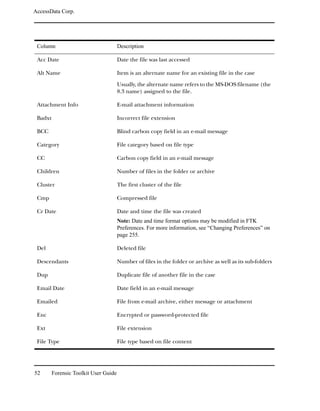
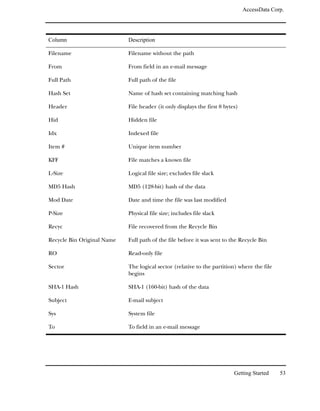
     File List Columns . . . . . . . . .     .   .   .   .   .   .   .   .   .   .   .   .   .   .   .   .   .   .   .   .   .   .   .   .   .   51
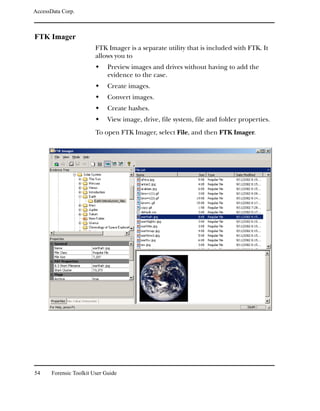
     FTK Imager . . . . . . . . . . . .      .   .   .   .   .   .   .   .   .   .   .   .   .   .   .   .   .   .   .   .   .   .   .   .   .   54
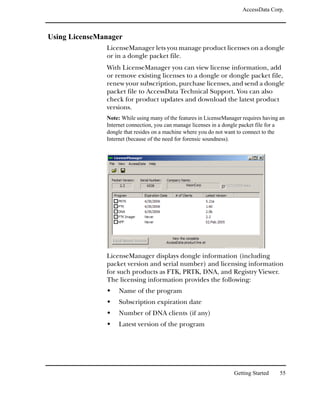
     Using LicenseManager . . . . .          .   .   .   .   .   .   .   .   .   .   .   .   .   .   .   .   .   .   .   .   .   .   .   .   .   55
         Starting LicenseManager . . .       .   .   .   .   .   .   .   .   .   .   .   .   .   .   .   .   .   .   .   .   .   .   .   .   .   56
Chapter 4 Starting a New Case
     Starting a Case . . . . . . . . . . . . . . .               .   .   .   .   .   .   .   .   .   .   .   .   .   .   .   .   .   .   .   .   60
     Completing the New Case Form . . . . . .                    .   .   .   .   .   .   .   .   .   .   .   .   .   .   .   .   .   .   .   .   61
     Entering Forensic Examiner Information .                    .   .   .   .   .   .   .   .   .   .   .   .   .   .   .   .   .   .   .   .   63
     Selecting Case Log Options . . . . . . . .                  .   .   .   .   .   .   .   .   .   .   .   .   .   .   .   .   .   .   .   .   64
     Selecting Evidence Processes. . . . . . . .                 .   .   .   .   .   .   .   .   .   .   .   .   .   .   .   .   .   .   .   .   65
     Refining the Case . . . . . . . . . . . . . .               .   .   .   .   .   .   .   .   .   .   .   .   .   .   .   .   .   .   .   .   69
     Refining the Index . . . . . . . . . . . . .                .   .   .   .   .   .   .   .   .   .   .   .   .   .   .   .   .   .   .   .   74
     Managing Evidence . . . . . . . . . . . . .                 .   .   .   .   .   .   .   .   .   .   .   .   .   .   .   .   .   .   .   .   78
        Adding Evidence . . . . . . . . . . . .                  .   .   .   .   .   .   .   .   .   .   .   .   .   .   .   .   .   .   .   .   78
        Editing Evidence . . . . . . . . . . . .                 .   .   .   .   .   .   .   .   .   .   .   .   .   .   .   .   .   .   .   .   81
        Removing Evidence . . . . . . . . . . .                  .   .   .   .   .   .   .   .   .   .   .   .   .   .   .   .   .   .   .   .   81
        Refining Evidence . . . . . . . . . . . .                .   .   .   .   .   .   .   .   .   .   .   .   .   .   .   .   .   .   .   .   81
     Reviewing Case Summary . . . . . . . . .                    .   .   .   .   .   .   .   .   .   .   .   .   .   .   .   .   .   .   .   .   88
     Processing the Evidence . . . . . . . . . .                 .   .   .   .   .   .   .   .   .   .   .   .   .   .   .   .   .   .   .   .   89


vi     Forensic Toolkit User Guide
AccessData Corp.


    Backing Up the Case . . . . . . . . . . . . . . .                   .   .   .   .   .   .   .   .   .   .   .   .   .   .   .   .   .   90
       Storing Your Case Files . . . . . . . . . . . .                  .   .   .   .   .   .   .   .   .   .   .   .   .   .   .   .   .   90
       Recovering Evidence from a System Failure                        .   .   .   .   .   .   .   .   .   .   .   .   .   .   .   .   .   90
       Backing Up Cases Automatically . . . . . . .                     .   .   .   .   .   .   .   .   .   .   .   .   .   .   .   .   .   91
Chapter 5 Working with Existing Cases
    Opening an Existing Case . . . . . . . . . . . . . . . . .                              .   .   .   .   .   .   .   .   .   .   .   . 94
       Opening an Existing Case from a Different Location                                   .   .   .   .   .   .   .   .   .   .   .   . 94
    Opening a Case in Case Agent Mode (Read-only) . . . .                                   .   .   .   .   .   .   .   .   .   .   .   . 95
       Using the Case Agent Mode Manager . . . . . . . . .                                  .   .   .   .   .   .   .   .   .   .   .   . 95
    Adding Evidence . . . . . . . . . . . . . . . . . . . . . .                             .   .   .   .   .   .   .   .   .   .   .   . 99
       Completing the Add Evidence Form . . . . . . . . .                                   .   .   .   .   .   .   .   .   .   .   .   . 100
       Selecting Evidence Processes. . . . . . . . . . . . . .                              .   .   .   .   .   .   .   .   .   .   .   . 101
       Managing Evidence. . . . . . . . . . . . . . . . . . .                               .   .   .   .   .   .   .   .   .   .   .   . 103
       Refining the Index . . . . . . . . . . . . . . . . . . .                             .   .   .   .   .   .   .   .   .   .   .   . 113
       Reviewing Evidence Setup . . . . . . . . . . . . . . .                               .   .   .   .   .   .   .   .   .   .   .   . 117
       Processing the Evidence . . . . . . . . . . . . . . . .                              .   .   .   .   .   .   .   .   .   .   .   . 118
    Viewing File Properties . . . . . . . . . . . . . . . . . .                             .   .   .   .   .   .   .   .   .   .   .   . 119
       General Info . . . . . . . . . . . . . . . . . . . . . .                             .   .   .   .   .   .   .   .   .   .   .   . 120
       File Source Info . . . . . . . . . . . . . . . . . . . . .                           .   .   .   .   .   .   .   .   .   .   .   . 121
       File Content Info . . . . . . . . . . . . . . . . . . . .                            .   .   .   .   .   .   .   .   .   .   .   . 122
       Case-Specific Info . . . . . . . . . . . . . . . . . . . .                           .   .   .   .   .   .   .   .   .   .   .   . 123
       E-mail Info . . . . . . . . . . . . . . . . . . . . . . .                            .   .   .   .   .   .   .   .   .   .   .   . 125
    Setting Up Multiple Temporary Files . . . . . . . . . . .                               .   .   .   .   .   .   .   .   .   .   .   . 126
Chapter 6 Processing Evidence
    Using Bookmarks . . . . . . . . .       .   .   .   .   .   .   .   .   .   .   .   .   .   .   .   .   .   .   .   .   .   .   .   . 128
       Creating a Bookmark . . . . . .      .   .   .   .   .   .   .   .   .   .   .   .   .   .   .   .   .   .   .   .   .   .   .   . 128
       Adding Files to a Bookmark . .       .   .   .   .   .   .   .   .   .   .   .   .   .   .   .   .   .   .   .   .   .   .   .   . 130
       Removing a Bookmark . . . . .        .   .   .   .   .   .   .   .   .   .   .   .   .   .   .   .   .   .   .   .   .   .   .   . 131
    Creating Thumbnails . . . . . . .       .   .   .   .   .   .   .   .   .   .   .   .   .   .   .   .   .   .   .   .   .   .   .   . 131
    Importing KFF Hashes . . . . . . .      .   .   .   .   .   .   .   .   .   .   .   .   .   .   .   .   .   .   .   .   .   .   .   . 132
    Verifying Image Integrity . . . . .     .   .   .   .   .   .   .   .   .   .   .   .   .   .   .   .   .   .   .   .   .   .   .   . 133
    Using Analysis Tools . . . . . . . .    .   .   .   .   .   .   .   .   .   .   .   .   .   .   .   .   .   .   .   .   .   .   .   . 135
    Using the Case Log. . . . . . . . .     .   .   .   .   .   .   .   .   .   .   .   .   .   .   .   .   .   .   .   .   .   .   .   . 137
       Viewing the Case Log. . . . . .      .   .   .   .   .   .   .   .   .   .   .   .   .   .   .   .   .   .   .   .   .   .   .   . 139
       Adding Entries to the Case Log       .   .   .   .   .   .   .   .   .   .   .   .   .   .   .   .   .   .   .   .   .   .   .   . 140
    Copying Information from FTK . .        .   .   .   .   .   .   .   .   .   .   .   .   .   .   .   .   .   .   .   .   .   .   .   . 140
    Exporting Files . . . . . . . . . . .   .   .   .   .   .   .   .   .   .   .   .   .   .   .   .   .   .   .   .   .   .   .   .   . 143
       About Recursive File Exporting       .   .   .   .   .   .   .   .   .   .   .   .   .   .   .   .   .   .   .   .   .   .   .   . 146


                                                                                                                    Contents                vii
AccessData Corp.


       Exporting the Word List . . . . . . . . . . . . . . . . . . . . . . . . . . . . . 147
Chapter 7 Searching a Case
       Conducting a Live Search . . . . . . . . . . . . . .                             .   .   .   .   .   .   .   .   .   .   .   .   .   .   149
       Conducting an Indexed Search . . . . . . . . . . .                               .   .   .   .   .   .   .   .   .   .   .   .   .   .   154
         Single-Term Searches . . . . . . . . . . . . . . .                             .   .   .   .   .   .   .   .   .   .   .   .   .   .   156
         Multi-Term Searches . . . . . . . . . . . . . . .                              .   .   .   .   .   .   .   .   .   .   .   .   .   .   160
         Importing Search Terms . . . . . . . . . . . . .                               .   .   .   .   .   .   .   .   .   .   .   .   .   .   163
         Viewing Search Results . . . . . . . . . . . . . .                             .   .   .   .   .   .   .   .   .   .   .   .   .   .   164
         Reloading a Search Query . . . . . . . . . . . .                               .   .   .   .   .   .   .   .   .   .   .   .   .   .   164
         Wildcard Characters. . . . . . . . . . . . . . . .                             .   .   .   .   .   .   .   .   .   .   .   .   .   .   165
         Indexed Search Options . . . . . . . . . . . . .                               .   .   .   .   .   .   .   .   .   .   .   .   .   .   167
       Documenting Your Search Results. . . . . . . . . .                               .   .   .   .   .   .   .   .   .   .   .   .   .   .   170
         Copying Search Results to the Clipboard . . . .                                .   .   .   .   .   .   .   .   .   .   .   .   .   .   170
         Using Copy Special to Document Search Results                                  .   .   .   .   .   .   .   .   .   .   .   .   .   .   171
         Bookmarking Search Results . . . . . . . . . . .                               .   .   .   .   .   .   .   .   .   .   .   .   .   .   172
Chapter 8 Advanced Searching
       Searching the Main Viewer. . . . . . . . . . . . . . .                               .   .   .   .   .   .   .   .   .   .   .   .   .   176
       Searching the File List Columns . . . . . . . . . . . .                              .   .   .   .   .   .   .   .   .   .   .   .   .   176
       Searching for Internet Keywords. . . . . . . . . . . .                               .   .   .   .   .   .   .   .   .   .   .   .   .   177
          Viewing Internet Addresses . . . . . . . . . . . . .                              .   .   .   .   .   .   .   .   .   .   .   .   .   178
          Saving Internet Keyword Search Lists to the Case .                                .   .   .   .   .   .   .   .   .   .   .   .   .   179
          Bookmarking Internet Keyword Search Items . . .                                   .   .   .   .   .   .   .   .   .   .   .   .   .   180
Chapter 9 Data Carving
       Searching for Embedded and Deleted Files (Data Carving) . . . .                                                  .   .   .   .   .   .   182
          Data Carving Files During Evidence Processing in a New Case .                                                 .   .   .   .   .   .   183
          Data Carving Files in an Existing Case . . . . . . . . . . . . . .                                            .   .   .   .   .   .   184
       Adding Carved Files to the Case . . . . . . . . . . . . . . . . . . .                                            .   .   .   .   .   .   186
       Bookmarking Carved Files . . . . . . . . . . . . . . . . . . . . . .                                             .   .   .   .   .   .   187
Chapter 10 Using Filters
       Applying an Existing Filter . . .    .   .   .   .   .   .   .   .   .   .   .   .   .   .   .   .   .   .   .   .   .   .   .   .   .   190
       Using The File Filter Manager .      .   .   .   .   .   .   .   .   .   .   .   .   .   .   .   .   .   .   .   .   .   .   .   .   .   190
       Modifying or Creating a Filter .     .   .   .   .   .   .   .   .   .   .   .   .   .   .   .   .   .   .   .   .   .   .   .   .   .   196
       Deleting a Filter. . . . . . . . .   .   .   .   .   .   .   .   .   .   .   .   .   .   .   .   .   .   .   .   .   .   .   .   .   .   197
Chapter 11 Searching the Registry
       Starting Registry Viewer . . . . . . . . . . . . . . . . . . . . . . . . . . . . . 200
          Launching Registry Viewer as a Separate Application. . . . . . . . . . . . 200


viii    Forensic Toolkit User Guide
AccessData Corp.


       Launching Registry Viewer from FTK . . . . . . . . . .                    .   .   .   .   .   .   .   .   .   .   . 200
    Understanding the Registry Viewer Windows . . . . . . .                      .   .   .   .   .   .   .   .   .   .   . 201
       The Full Registry Window . . . . . . . . . . . . . . . .                  .   .   .   .   .   .   .   .   .   .   . 201
       The Common Areas Window . . . . . . . . . . . . . .                       .   .   .   .   .   .   .   .   .   .   . 202
       The Report Window . . . . . . . . . . . . . . . . . . .                   .   .   .   .   .   .   .   .   .   .   . 203
    Opening Registry Files . . . . . . . . . . . . . . . . . . . .               .   .   .   .   .   .   .   .   .   .   . 204
       Opening a Registry File in Registry Viewer . . . . . . .                  .   .   .   .   .   .   .   .   .   .   . 204
       Opening Registry Files within FTK . . . . . . . . . . .                   .   .   .   .   .   .   .   .   .   .   . 205
       Obtaining Protected Registry Files Using FTK Imager .                     .   .   .   .   .   .   .   .   .   .   . 205
    Working with Registry Evidence . . . . . . . . . . . . . . .                 .   .   .   .   .   .   .   .   .   .   . 206
       Adding Keys to the Common Areas Window . . . . . .                        .   .   .   .   .   .   .   .   .   .   . 207
       Deleting Keys from the Common Areas Window . . . .                        .   .   .   .   .   .   .   .   .   .   . 207
       Adding Keys to the Report Window . . . . . . . . . . .                    .   .   .   .   .   .   .   .   .   .   . 207
       Deleting Keys from the Report Window . . . . . . . . .                    .   .   .   .   .   .   .   .   .   .   . 208
    Creating Registry Summary Reports . . . . . . . . . . . .                    .   .   .   .   .   .   .   .   .   .   . 208
       Using Pre-defined AccessData Templates . . . . . . . .                    .   .   .   .   .   .   .   .   .   .   . 210
       Creating Your Own Registry Report Templates . . . . .                     .   .   .   .   .   .   .   .   .   .   . 210
       Changing RSR Settings in the FtkSettings.0.ini File . .                   .   .   .   .   .   .   .   .   .   .   . 210
    Searching for Specific Data . . . . . . . . . . . . . . . . .                .   .   .   .   .   .   .   .   .   .   . 211
    Generating a Report . . . . . . . . . . . . . . . . . . . . .                .   .   .   .   .   .   .   .   .   .   . 213
    Exporting a Word List . . . . . . . . . . . . . . . . . . . .                .   .   .   .   .   .   .   .   .   .   . 214
     . . . . . . . . . . . . . . . . . . . . . . . . . . . . . . . .             .   .   .   .   .   .   .   .   .   .   . 215
Chapter 12 Decrypting EFS
    Understanding EFS . . . . . . . . . . . . . . .      .   .   .   .   .   .   .   .   .   .   .   .   .   .   .   .   . 218
    Decrypting EFS Files and Folders . . . . . . . .     .   .   .   .   .   .   .   .   .   .   .   .   .   .   .   .   . 218
       Windows 2000 and XP Systems Prior to SP1          .   .   .   .   .   .   .   .   .   .   .   .   .   .   .   .   . 218
       Windows XP SP1 or Later . . . . . . . . . .       .   .   .   .   .   .   .   .   .   .   .   .   .   .   .   .   . 218
    Viewing the Decrypted Files in FTK . . . . . . .     .   .   .   .   .   .   .   .   .   .   .   .   .   .   .   .   . 219
Chapter 13 Working with Reports
    Creating a Report . . . . . . . . . . . . . . . . . . . .            .   .   .   .   .   .   .   .   .   .   .   .   . 222
       Entering Basic Case Information . . . . . . . . . .               .   .   .   .   .   .   .   .   .   .   .   .   . 223
       Managing Bookmarks . . . . . . . . . . . . . . . .                .   .   .   .   .   .   .   .   .   .   .   .   . 224
       Selecting the Properties of Bookmarked Files . . .                .   .   .   .   .   .   .   .   .   .   .   .   . 226
       Managing Thumbnails . . . . . . . . . . . . . . . .               .   .   .   .   .   .   .   .   .   .   .   .   . 229
       Selecting a File Path List . . . . . . . . . . . . . . .          .   .   .   .   .   .   .   .   .   .   .   .   . 230
       Selecting a File Properties List . . . . . . . . . . . .          .   .   .   .   .   .   .   .   .   .   .   .   . 232
       Selecting the Properties of the File Properties List .            .   .   .   .   .   .   .   .   .   .   .   .   . 233
       Adding Supplementary Files and the Case Log . . .                 .   .   .   .   .   .   .   .   .   .   .   .   . 235


                                                                                                     Contents               ix
AccessData Corp.


        Selecting the Report Location . . . . . . . . .     .   .   .   .   .   .   .   .   .   .   .   .   .   .   .   238
     Viewing and Distributing a Report. . . . . . . . .     .   .   .   .   .   .   .   .   .   .   .   .   .   .   .   239
     Updating a Report . . . . . . . . . . . . . . . . .    .   .   .   .   .   .   .   .   .   .   .   .   .   .   .   241
     Modifying a Report . . . . . . . . . . . . . . . . .   .   .   .   .   .   .   .   .   .   .   .   .   .   .   .   242
        Modifying a Report in the Same FTK Session .        .   .   .   .   .   .   .   .   .   .   .   .   .   .   .   242
        Modifying a Report in a Different FTK Session       .   .   .   .   .   .   .   .   .   .   .   .   .   .   .   243
Chapter 14 Customizing FTK
     Customizing Fonts and Colors . . . . . . . . . . . . . . . . . . . . . . . . .                                 .   245
     Customizing Columns . . . . . . . . . . . . . . . . . . . . . . . . . . . . .                                  .   249
       Modifying the File Listing Database . . . . . . . . . . . . . . . . . . . .                                  .   251
       Creating and Modifying Column Settings . . . . . . . . . . . . . . . . .                                     .   252
       Deleting Column Settings. . . . . . . . . . . . . . . . . . . . . . . . . .                                  .   253
     Changing the Viewer Settings . . . . . . . . . . . . . . . . . . . . . . . . .                                 .   253
     Changing Preferences . . . . . . . . . . . . . . . . . . . . . . . . . . . . .                                 .   255
       Date and Time Format Options . . . . . . . . . . . . . . . . . . . . . .                                     .   256
       File Viewing Options . . . . . . . . . . . . . . . . . . . . . . . . . . . .                                 .   257
       Case Log Options . . . . . . . . . . . . . . . . . . . . . . . . . . . . . .                                 .   257
       Evidence Cache Size . . . . . . . . . . . . . . . . . . . . . . . . . . . .                                  .   259
       Temporary File Folder . . . . . . . . . . . . . . . . . . . . . . . . . . .                                  .   259
       KFF Database Location . . . . . . . . . . . . . . . . . . . . . . . . . . .                                  .   259
       Post Processing Backup Location. . . . . . . . . . . . . . . . . . . . . .                                   .   259
       Show Reminder when Exporting or Creating a Report with Filter Active                                         .   260
       Show Startup Dialog. . . . . . . . . . . . . . . . . . . . . . . . . . . . .                                 .   260
Chapter 15 Managing Licenses
     Managing Licenses with LicenseManager . . . . . . . . . .                  .   .   .   .   .   .   .   .   .   .   263
        Starting LicenseManager . . . . . . . . . . . . . . . . .               .   .   .   .   .   .   .   .   .   .   264
     LicenseManager Interface . . . . . . . . . . . . . . . . . .               .   .   .   .   .   .   .   .   .   .   264
        The Installed Components Tab . . . . . . . . . . . . .                  .   .   .   .   .   .   .   .   .   .   265
        The Licenses Tab . . . . . . . . . . . . . . . . . . . . .              .   .   .   .   .   .   .   .   .   .   267
     Opening and Saving Dongle Packet Files . . . . . . . . . .                 .   .   .   .   .   .   .   .   .   .   269
     Viewing Product Licenses . . . . . . . . . . . . . . . . . .               .   .   .   .   .   .   .   .   .   .   269
     Adding and Removing Product Licenses . . . . . . . . . .                   .   .   .   .   .   .   .   .   .   .   269
     Managing Product Licenses on Isolated Machines . . . . .                   .   .   .   .   .   .   .   .   .   .   270
        Adding a Product License to an Isolated Machine . . .                   .   .   .   .   .   .   .   .   .   .   271
        Removing a Product License from an Isolated Machine                     .   .   .   .   .   .   .   .   .   .   272
     Updating Products . . . . . . . . . . . . . . . . . . . . . .              .   .   .   .   .   .   .   .   .   .   273
        Checking for Product Updates . . . . . . . . . . . . . .                .   .   .   .   .   .   .   .   .   .   273
        Downloading Product Updates . . . . . . . . . . . . . .                 .   .   .   .   .   .   .   .   .   .   273


x      Forensic Toolkit User Guide
AccessData Corp.


    Purchasing Product Licenses . . . . . . . . . . . . . . . . . . . . . . . . . . . 274
    Sending a Dongle Packet File to Support . . . . . . . . . . . . . . . . . . . . . 274
Chapter 16 Troubleshooting
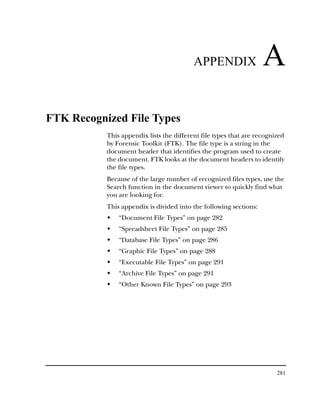
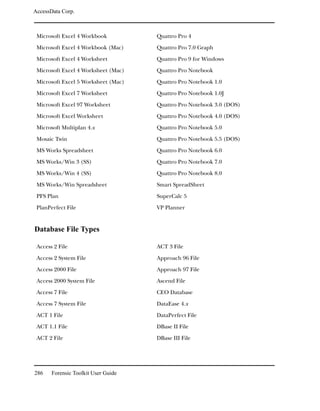
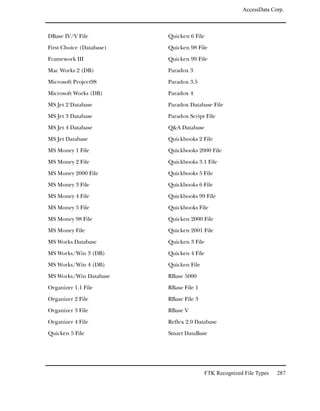
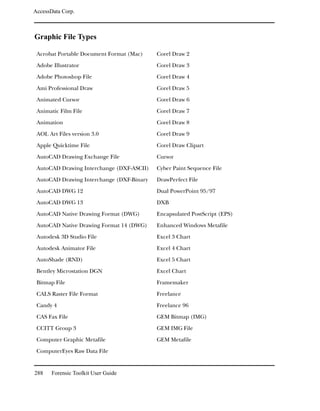
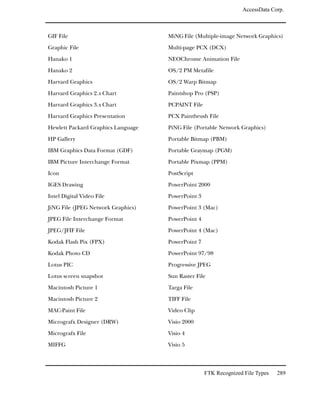
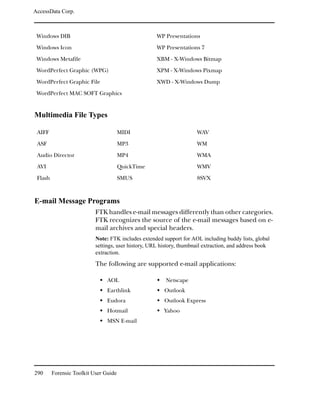
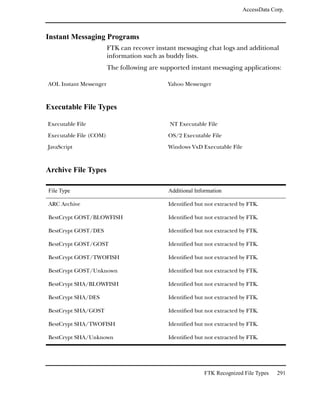
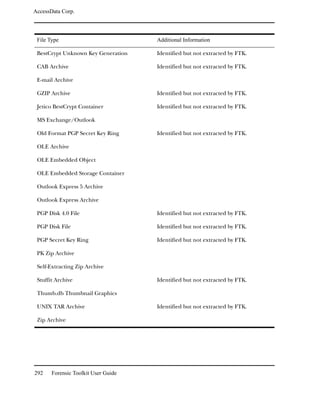
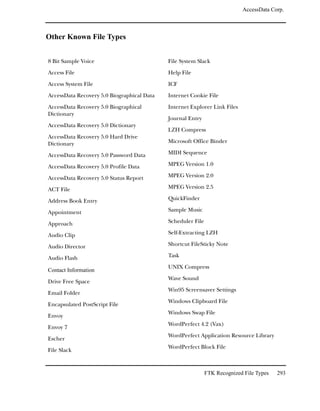
Chapter A FTK Recognized File Types
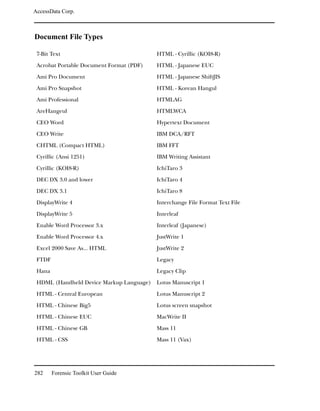
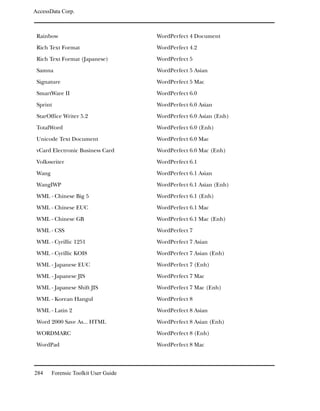
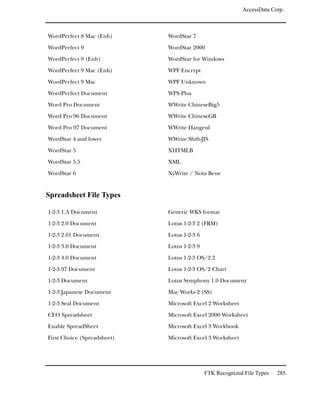
    Document File Types . . . .                  .   .   .   .   .   .   .   .   .   .   .   .   .   .   .   .   .   .   .   .   .   .   .   .   .   .   . 282
    Spreadsheet File Types. . . .                .   .   .   .   .   .   .   .   .   .   .   .   .   .   .   .   .   .   .   .   .   .   .   .   .   .   . 285
    Database File Types . . . . .                .   .   .   .   .   .   .   .   .   .   .   .   .   .   .   .   .   .   .   .   .   .   .   .   .   .   . 286
    Graphic File Types . . . . . .               .   .   .   .   .   .   .   .   .   .   .   .   .   .   .   .   .   .   .   .   .   .   .   .   .   .   . 288
    Multimedia File Types . . . .                .   .   .   .   .   .   .   .   .   .   .   .   .   .   .   .   .   .   .   .   .   .   .   .   .   .   . 290
    E-mail Message Programs . .                  .   .   .   .   .   .   .   .   .   .   .   .   .   .   .   .   .   .   .   .   .   .   .   .   .   .   . 290
    Instant Messaging Programs .                 .   .   .   .   .   .   .   .   .   .   .   .   .   .   .   .   .   .   .   .   .   .   .   .   .   .   . 291
    Executable File Types . . . .                .   .   .   .   .   .   .   .   .   .   .   .   .   .   .   .   .   .   .   .   .   .   .   .   .   .   . 291
    Archive File Types . . . . . .               .   .   .   .   .   .   .   .   .   .   .   .   .   .   .   .   .   .   .   .   .   .   .   .   .   .   . 291
    Other Known File Types . . .                 .   .   .   .   .   .   .   .   .   .   .   .   .   .   .   .   .   .   .   .   .   .   .   .   .   .   . 293
Chapter B Regular Expression Searching
    Understanding Regular Expressions . . . . . . . . . . . . . . . . .                                                              .   .   .   .   .   . 296
       Simple Regular Expressions . . . . . . . . . . . . . . . . . . . .                                                            .   .   .   .   .   . 296
       Complex Regular Expressions—Visa and MasterCard Numbers.                                                                      .   .   .   .   .   . 297
    Predefined Regular Expressions. . . . . . . . . . . . . . . . . . . .                                                            .   .   .   .   .   . 300
       Social Security Number . . . . . . . . . . . . . . . . . . . . . .                                                            .   .   .   .   .   . 300
       U.S. Phone Number . . . . . . . . . . . . . . . . . . . . . . . .                                                             .   .   .   .   .   . 300
       IP Address . . . . . . . . . . . . . . . . . . . . . . . . . . . . . .                                                        .   .   .   .   .   . 302
    Going Farther with Regular Expressions . . . . . . . . . . . . . . .                                                             .   .   .   .   .   . 302
       Locating More Information on Regular Expressions . . . . . . .                                                                .   .   .   .   .   . 303
       Common Operators . . . . . . . . . . . . . . . . . . . . . . . .                                                              .   .   .   .   .   . 303
Chapter C Recovering Deleted Material
    FAT 12, 16, and 32 .     .   .   .   .   .   .   .   .   .   .   .   .   .   .   .   .   .   .   .   .   .   .   .   .   .   .   .   .   .   .   .   . 306
    NTFS . . . . . . . .     .   .   .   .   .   .   .   .   .   .   .   .   .   .   .   .   .   .   .   .   .   .   .   .   .   .   .   .   .   .   .   . 306
    ext2 . . . . . . . . .   .   .   .   .   .   .   .   .   .   .   .   .   .   .   .   .   .   .   .   .   .   .   .   .   .   .   .   .   .   .   .   . 307
    ext3 . . . . . . . . .   .   .   .   .   .   .   .   .   .   .   .   .   .   .   .   .   .   .   .   .   .   .   .   .   .   .   .   .   .   .   .   . 307
Chapter D Program Files
Chapter E Securing Windows Registry Evidence
    Understanding the Windows Registry.                              .   .   .   .   .   .   .   .   .   .   .   .   .   .   .   .   .   .   .   .   .   . 316
      Additional Considerations . . . . .                            .   .   .   .   .   .   .   .   .   .   .   .   .   .   .   .   .   .   .   .   .   . 323
    Registry Quick Find Chart . . . . . .                            .   .   .   .   .   .   .   .   .   .   .   .   .   .   .   .   .   .   .   .   .   . 325
      System Information. . . . . . . . .                            .   .   .   .   .   .   .   .   .   .   .   .   .   .   .   .   .   .   .   .   .   . 325


                                                                                                                                     Contents               xi
AccessData Corp.


         Networking . . . . . . . . . . . . . . . . . . . . . . . . . . . . . . . . . . 327
         User Data . . . . . . . . . . . . . . . . . . . . . . . . . . . . . . . . . . . 328
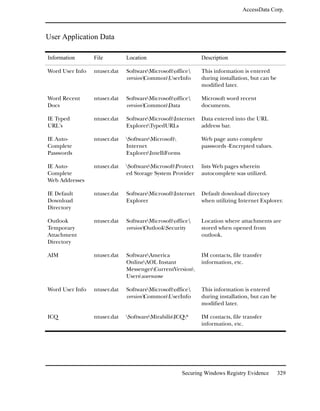
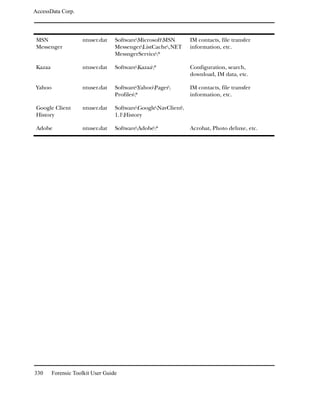
         User Application Data. . . . . . . . . . . . . . . . . . . . . . . . . . . . . 329
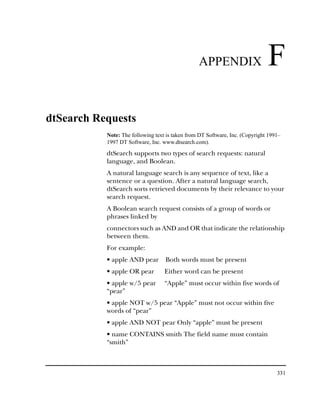
Chapter F dtSearch Requests
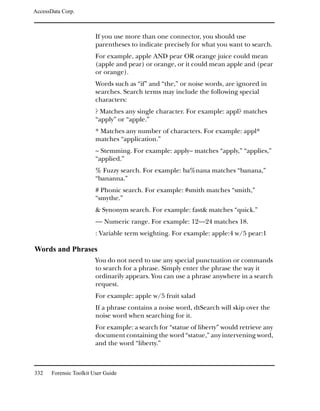
      Words and Phrases . . . . . .     .   .   .   .   .   .   .   .   .   .   .   .   .   .   .   .   .   .   .   .   .   .   .   .   .   .   332
      Wildcards (* and ?) . . . . . .   .   .   .   .   .   .   .   .   .   .   .   .   .   .   .   .   .   .   .   .   .   .   .   .   .   .   333
      Natural Language Searching .      .   .   .   .   .   .   .   .   .   .   .   .   .   .   .   .   .   .   .   .   .   .   .   .   .   .   333
      Synonym Searching . . . . . .     .   .   .   .   .   .   .   .   .   .   .   .   .   .   .   .   .   .   .   .   .   .   .   .   .   .   334
      Fuzzy Searching . . . . . . . .   .   .   .   .   .   .   .   .   .   .   .   .   .   .   .   .   .   .   .   .   .   .   .   .   .   .   334
      Phonic Searching . . . . . . .    .   .   .   .   .   .   .   .   .   .   .   .   .   .   .   .   .   .   .   .   .   .   .   .   .   .   335
      Stemming . . . . . . . . . . .    .   .   .   .   .   .   .   .   .   .   .   .   .   .   .   .   .   .   .   .   .   .   .   .   .   .   335
      Variable Term Weighting . .       .   .   .   .   .   .   .   .   .   .   .   .   .   .   .   .   .   .   .   .   .   .   .   .   .   .   335
      AND Connector. . . . . . . .      .   .   .   .   .   .   .   .   .   .   .   .   .   .   .   .   .   .   .   .   .   .   .   .   .   .   336
      OR Connector . . . . . . . .      .   .   .   .   .   .   .   .   .   .   .   .   .   .   .   .   .   .   .   .   .   .   .   .   .   .   336
      W/N Connector . . . . . . .       .   .   .   .   .   .   .   .   .   .   .   .   .   .   .   .   .   .   .   .   .   .   .   .   .   .   336
      NOT and NOT W/N . . . . .         .   .   .   .   .   .   .   .   .   .   .   .   .   .   .   .   .   .   .   .   .   .   .   .   .   .   337
      Numeric Range Searching . .       .   .   .   .   .   .   .   .   .   .   .   .   .   .   .   .   .   .   .   .   .   .   .   .   .   .   338
Chapter G Corporate Information
      Subscriptions . . . . . . . . . . . . . . . . . . . . . . . . . . . . . . . . . . . 341
      Technical Support . . . . . . . . . . . . . . . . . . . . . . . . . . . . . . . . 341
      Product Returns . . . . . . . . . . . . . . . . . . . . . . . . . . . . . . . . . 342


xii    Forensic Toolkit User Guide
PREFACE


Welcome to AccessData® Forensic Toolkit® (FTK®). FTK
enables law enforcement and corporate security professionals
to perform complete and thorough computer forensic
examinations. FTK features powerful file filtering and search
functionality and is recognized as the leading forensic tool for
e-mail analysis.
This chapter contains the following sections:
    “Audience” on page 2
    “Handling Evidence” on page 2
    “Role of Forensic Toolkit” on page 3
    “Other AccessData Products” on page 3


                                                               1
AccessData Corp.


Audience
                         The Forensic Toolkit User Guide is written for law enforcement
                         and corporate security professionals with the following
                         competencies:
                              Basic knowledge of and training in forensic policies and
                              procedures
                              Basic knowledge of and experience with personal
                              computers
                              Familiarity with the fundamentals of collecting digital
                              evidence
                              Understanding of forensic images and how to acquire
                              forensically sound images
                              Experience with case studies and reports
                              Familiarity with the Microsoft Windows environment

Handling Evidence
                         Computer forensics involves the acquisition, preservation,
                         analysis, and presentation of computer evidence. This type of
                         evidence is fragile and can easily, even inadvertently, be
                         altered, destroyed, or rendered inadmissible as evidence.
                         Computer evidence must be properly obtained, preserved,
                         and analyzed to be accepted as reliable and valid in a court of
                         law.
                         To preserve the integrity of case evidence, forensic
                         investigators do not work on the original files themselves.
                         Instead, they create an exact replica of the files and work on
                         this image to ensure that the original files remain intact.
                         To verify the files they are working on have not been altered,
                         investigators can compare a hash of the original files at the
                         time they were seized with a hash of the imaged files used in
                         the investigation. Hashing provides mathematical validation
                         that a forensic image exactly matches the contents of the
                         original computer.
                         Another important legal element in computer forensics is the
                         continuity, or chain of custody, of computer evidence. The


2      Forensic Toolkit User Guide
AccessData Corp.


                  chain of custody deals with who has supervised, acquired,
                  analyzed, and controlled the evidence. Forensic investigators
                  must be able to account for all that has happened to the
                  evidence between its point of acquisition or seizure and its
                  eventual appearance in court.
                  There are many cases in which personnel trained in
                  information technology have made incriminating computer
                  evidence legally inadmissible because of their reckless or ill-
                  conceived examinations. Only properly trained computer
                  forensics specialists should obtain and examine computer
                  evidence.

Role of Forensic Toolkit
                  When you acquire computer evidence, you can use FTK
                  ImagerTM to create an image of the source drives or files. You
                  can also create a hash of the original image that you can later
                  use as a benchmark to prove the validity of your case evidence.
                  FTK Imager verifies that the image hash and the drive hash
                  match when the image is created.
                  After you create the image and hash the data, you can then use
                  FTK to perform a complete and thorough computer forensic
                  examination and create a report of your findings.
                  For a big-picture view of FTK, see“FTK Overview” on page 5.

Other AccessData Products
                  In addition to FTK and FTK Imager, AccessData offers other
                  industry-leading products.


                                                                      Preface       3
AccessData Corp.


Password Recovery Software
                         AccessData has been the leader in the field of commercial
                         software decryption since 1987. AccessData has multiple tools
                         available for password recovery:
                              Password Recovery ToolkitTM (PRTKTM) has a wide variety
                              of individual password-breaking modules that can help
                              you recover lost passwords.
                              For more information about PRTK, the AccessData Website
                              (http://www.accessdata.com).
                              Distributed Network Attack® (DNA®) provides a new
                              approach to recovering password-protected files. Rather
                              than using a single machine, DNA uses machines across
                              the network or across the world to conduct key space and
                              dictionary attacks.
                              For more information about DNA, the AccessData Website
                              (http://www.accessdata.com).

FTK 2.0
                         The most comprehensive AccessData product for forensic
                         investigation is FTK 2.0. It includes all the PRTK recovery
                         modules, a 50-client license for DNA, and a one-year upgrade
                         subscription for all of the included products. Any products and
                         upgrades purchased in that year do not expire.
                         For more information about FTK 2.0, the AccessData Website
                         (http://www.accessdata.com).


4      Forensic Toolkit User Guide
CHAPTER               1
FTK Overview
         This chapter provides a big-picture overview of how Forensic
         Toolkit (FTK) can be used to acquire, preserve, analyze, and
         present computer evidence.
         The chapter contains the following sections:
             “The Big Picture” on page 6
             “Acquiring and Preserving the Evidence” on page 7
             “Analyzing the Evidence” on page 8
             “Presenting the Evidence” on page 10


                                                                        5
AccessData Corp.


The Big Picture
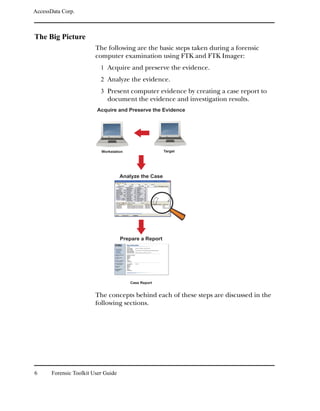
                         The following are the basic steps taken during a forensic
                         computer examination using FTK and FTK Imager:
                           1 Acquire and preserve the evidence.
                           2 Analyze the evidence.
                           3 Present computer evidence by creating a case report to
                              document the evidence and investigation results.
                         Acquire and Preserve the Evidence


                           Workstation                  Target


                                     Analyze the Case


                                     Prepare a Report


                                         Case Report


                         The concepts behind each of these steps are discussed in the
                         following sections.


6      Forensic Toolkit User Guide
AccessData Corp.


Acquiring and Preserving the Evidence
                 For digital computer evidence to be valid, it must be preserved
                 in its original form. There are two ways to achieve this: by
                 creating an image of the suspect drive using hardware devices
                 or by using software applications.
                 Hardware acquisition tools duplicate disk drives or allow read-
                 only mode access to a hard drive. For more information about
                 hardware tools, see “Industry and Third-Party Contacts” on
                 page 321.
                 Software acquisition tools create a forensically sound image
                 that makes no changes to the data or information on the
                 suspect hard drive. The forensic image must be identical in
                 every way to the original. As a rule, no changes to the evidence
                 should be made.
                 FTK Imager is a software acquisition tool. It can be used to
                 quickly preview evidence and, if the evidence warrants further
                 investigation, create a forensically sound image of the disk. To
                 prevent against accidental or intentional manipulation of
                 evidence, FTK Imager makes a bit-by-bit duplicate image of the
                 media. The forensic image is identical in every way to the
                 original, including file slack and unallocated space or free
                 space. For information about file slack and unallocated space,
                 see the Glossary on page 343.


                                                              FTK Overview      7
AccessData Corp.


Analyzing the Evidence
                         To analyze the evidence, FTK uses a variety of tools, including
                         hashing, the Known File FilterTM (KFFTM) database, and
                         searching.

Hashing
                         Hashing a file or files refers to the process of generating a
                         unique value based on a file’s contents. Hash values are used
                         to verify file integrity and identify duplicate and known files.
                         (Known files are standard system files that can be ignored in
                         your investigation as well as known illicit or dangerous files.)
                         Two hash functions are available in FTK and FTK Imager:
                         Message Digest 5 (MD5) and Secure Hash Algorithm (SHA-1).
                         By default, FTK creates MD5 hashes.
                         The hashing options are selected automatically by FTK based
                         on the KFF databases that are available. For more information
                         about KFF, see “Known File Filter” on page 9.
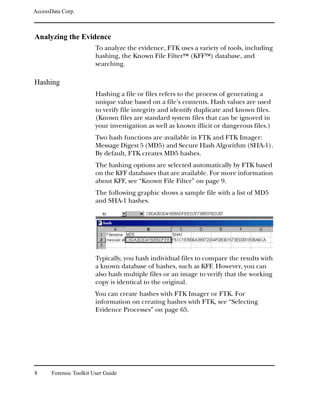
                         The following graphic shows a sample file with a list of MD5
                         and SHA-1 hashes.


                         Typically, you hash individual files to compare the results with
                         a known database of hashes, such as KFF. However, you can
                         also hash multiple files or an image to verify that the working
                         copy is identical to the original.
                         You can create hashes with FTK Imager or FTK. For
                         information on creating hashes with FTK, see “Selecting
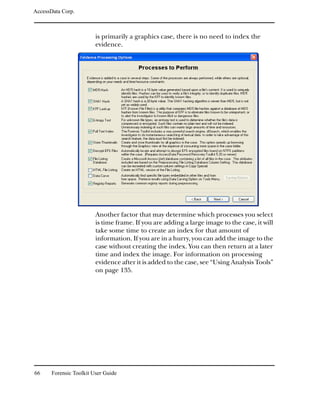
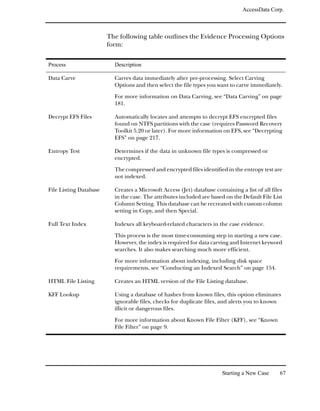
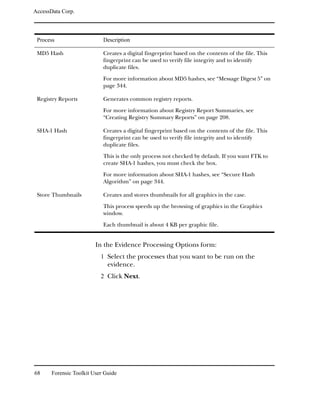
                         Evidence Processes” on page 65.


8      Forensic Toolkit User Guide
AccessData Corp.


Known File Filter
                    KFF is an FTK utility that compares file hashes against a
                    database of hashes from known files. The purpose of KFF is to
                    eliminate ignorable files (such as known system and program
                    files) or to alert you to known illicit or dangerous files. It also
                    checks for duplicate files.
                    Files which contain other files, such as Zip and e-mail files with
                    attachments, are called container files. When KFF identifies a
                    container file as ignorable, FTK does not extract its
                    component files.
                    When KFF is used, the evidence is separated into ignored files
                    (such as system files) and evidence that you continue to
                    examine.
                    KFF includes the HashKeeper database, which is updated
                    periodically and is available for download on the FTK update
                    page (http://www.accessdata.com). For information on
                    defining the location of the KFF database, see “KFF Database
                    Location” on page 259.

Searching
                    With FTK, you can conduct a live search or an indexed search.
                    A live search is a time-consuming process involving an item-by-
                    item comparison with the search term. Live searches allow you
                    to search non-alphanumeric characters and perform regular
                    expression searches.
                    Note: Regular expressions are mathematical statements that describe a data
                    pattern such as a credit card or social security number. Regular expression
                    searches allow you to find data items that conform to the pattern described by
                    the expression. FTK provides several pre-defined regular expressions such as
                    U.S. phone number, U.K. phone number, credit card number, social security
                    number, and IP address.
                    The indexed search uses the index file to find a search term.
                    The index file contains all discrete words or number strings
                    found in both the allocated and unallocated space in the case
                    evidence.


                                                                           FTK Overview          9
AccessData Corp.


                         FTK uses dtSearch as its index search engine. dtSearch, one of
                         the leading search tools available, can quickly search gigabytes
                         of text.
                         For more information on searching, see “Searching a Case” on
                         page 149.

Presenting the Evidence
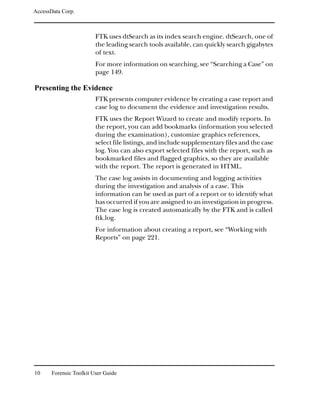
                         FTK presents computer evidence by creating a case report and
                         case log to document the evidence and investigation results.
                         FTK uses the Report Wizard to create and modify reports. In
                         the report, you can add bookmarks (information you selected
                         during the examination), customize graphics references,
                         select file listings, and include supplementary files and the case
                         log. You can also export selected files with the report, such as
                         bookmarked files and flagged graphics, so they are available
                         with the report. The report is generated in HTML.
                         The case log assists in documenting and logging activities
                         during the investigation and analysis of a case. This
                         information can be used as part of a report or to identify what
                         has occurred if you are assigned to an investigation in progress.
                         The case log is created automatically by the FTK and is called
                         ftk.log.
                         For information about creating a report, see “Working with
                         Reports” on page 221.


10     Forensic Toolkit User Guide
CHAPTER              2
Installing the Forensic Toolkit
            This chapter explains how to install and upgrade Forensic
            Toolkit (FTK). The chapter is divided into the following
            sections:
                “Supported File Systems and Image Formats” on page 13
                “System Preparation” on page 14
                “Basic Installation” on page 15
                “Upgrade Instructions” on page 27
                “Uninstalling” on page 30


                                                                        11
AccessData Corp.


System Requirements
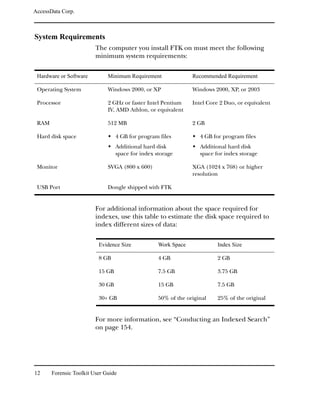
                         The computer you install FTK on must meet the following
                         minimum system requirements:

 Hardware or Software         Minimum Requirement               Recommended Requirement

 Operating System             Windows 2000, or XP               Windows 2000, XP, or 2003

 Processor                    2 GHz or faster Intel Pentium     Intel Core 2 Duo, or equivalent
                              IV, AMD Athlon, or equivalent

 RAM                          512 MB                            2 GB

 Hard disk space                  4 GB for program files           4 GB for program files
                                  Additional hard disk             Additional hard disk
                                  space for index storage          space for index storage

 Monitor                      SVGA (800 x 600)                  XGA (1024 x 768) or higher
                                                                resolution

 USB Port                     Dongle shipped with FTK


                         For additional information about the space required for
                         indexes, use this table to estimate the disk space required to
                         index different sizes of data:

                          Evidence Size            Work Space             Index Size

                          8 GB                     4 GB                   2 GB

                          15 GB                    7.5 GB                 3.75 GB

                          30 GB                    15 GB                  7.5 GB

                          30+ GB                   50% of the original    25% of the original


                         For more information, see “Conducting an Indexed Search”
                         on page 154.


12     Forensic Toolkit User Guide
AccessData Corp.


Supported File Systems and Image Formats
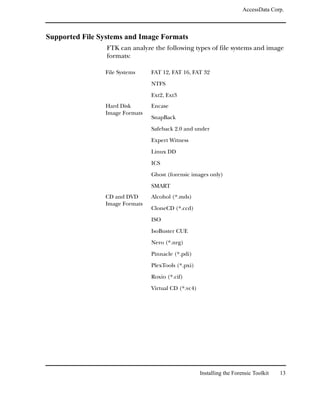
                 FTK can analyze the following types of file systems and image
                 formats:

                File Systems    FAT 12, FAT 16, FAT 32

                                NTFS

                                Ext2, Ext3
                Hard Disk       Encase
                Image Formats
                                SnapBack

                                Safeback 2.0 and under

                                Expert Witness

                                Linux DD

                                ICS

                                Ghost (forensic images only)

                                SMART
                CD and DVD      Alcohol (*.mds)
                Image Formats
                                CloneCD (*.ccd)

                                ISO

                                IsoBuster CUE

                                Nero (*.nrg)

                                Pinnacle (*.pdi)

                                PlexTools (*.pxi)

                                Roxio (*.cif)

                                Virtual CD (*.vc4)


                                                     Installing the Forensic Toolkit   13
AccessData Corp.


System Preparation
                         Before installing FTK, you should evaluate the workstation and
                         its current software. A good understanding of the workstation
                         and its configured devices will help ensure that FTK runs at its
                         best.
                         Consider the following:
                              Role of the workstation
                              Determine if it will be used as a regular user workstation, a
                              forensic analysis workstation, or a password recovery
                              workstation.
                              Access policy
                              Identify where the workstation will be located, who can
                              access the information, and when the cases can be worked
                              on.
                              Hardware and software requirements
                              For the hardware and software requirements, see “System
                              Requirements” on page 12.
                              Application relationships
                              Verify that the applications can work simultaneously. Do
                              not run so many applications that you compromise overall
                              performance.
                              Network and Internet issues
                              Determine if the workstation should be connected to a
                              network or the Internet. Under normal circumstances, the
                              forensic analysis workstation will not be connected to the
                              Internet to avoid the possible tainting of evidence.
                              System policies and procedures
                              Check with your system administrator about any specific
                              policies and procedures that may exist.


14     Forensic Toolkit User Guide
AccessData Corp.


Basic Installation
                     You can install FTK from a CD or from downloadable files
                     available on the AccessData Website
                     (http://www.accessdata.com).
                     The installation is divided into three parts:
                         Install the Forensic Toolkit: FTK 1.70.0 and later will
                         install in locations separate from FTK 1.6 or earlier. Your
                         older versions of FTK and their cases will not be affected
                         by installing FTK 1.70.
                         Warning: FTK 1.70.0 has an upgraded database, increasing the limit on
                         how many items a case can contain. This enhancement, however, renders
                         FTK 1.70.0 incompatible with earlier versions. Cases processed in earlier
                         versions of FTK cannot be opened in FTK 1.70.0, and cases processed in
                         1.70.0 cannot be opened in earlier FTK versions.
                         FTK Imager is now a separate installation.
                         Install the Known File Filter Library: Installs the Known
                         File Filter (KFF) database, a utility that compares file
                         hashes in your case against a database of hashes for known
                         system and program files as well as known illicit and
                         contraband files.
                         To preserve work done on earlier versions of FTK, your
                         1.70.0 KFF will be installed in the 1.70.0 directory without
                         overwriting any previously installed KFFs. To economize
                         disk space, you may choose to manually delete older
                         versions of your KFF.
                         To point any version of FTK to the new KFF, go to the Tools
                         menu, then type in the path in the Preferences dialog.
                         For additional information about KFF, see “Known File
                         Filter” on page 9.
                         Launch Dongle Driver Setup: Installs the driver for either
                         the USB or parallel port dongle.
                         The dongle is required to use FTK and it should be stored
                         in a secure location when not in use.
                     Each part can be independently installed, although FTK and
                     the dongle driver must be installed for FTK to work properly.
                     If you want to eliminate ignorable and duplicate files, and be


                                                            Installing the Forensic Toolkit    15
AccessData Corp.


                         alerted of known illicit or contraband files, you need to install
                         KFF.
                         For troubleshooting information on the FTK install, see
                         “Troubleshooting” on page 275.

Basic Install from CD
                         The following sections review installing FTK, the dongle
                         drivers, and KFF from CD.

Installing FTK from CD
                         To install FTK from CD:
                           1 Insert the CD into the CD-ROM drive and click Install the
                              Forensic Toolkit.
                              If auto-run is not enabled, select Start, and then Run.
                              Browse to the CD-ROM drive and select Autorun.exe.
                           2 Click Next on the Welcome screen.
                           3 Select I Accept the Terms of the License Agreement and
                              then click Next.
                           4 Designate the program directory by doing one of the
                              following:
                                     To accept the default directory, click Next. The
                                     default directory is c:Program
                                     FilesAccessDataAccessData Forensic Toolkit.
                                     To specify a different directory, click Browse, select
                                     the location, and click OK.
                           5 Click Next.
                           6 Check the box to run FTK if you want it to automatically
                              start after you complete the installation.
                              If you check the box to run FTK but haven’t installed the
                              dongle drivers, you will receive an error message and FTK
                              will not start.
                              If you run FTK but haven’t installed the KFF database, you
                              will receive an error message at the end of the installation


16     Forensic Toolkit User Guide
AccessData Corp.


                           saying that the KFF Hash Library is not found and certain
                           features will be disabled.
                           You can install the dongle drivers and KFF from the CD.
                           For installation instructions, see “Installing the Dongle
                           Driver from CD” on page 17 and “Installing KFF from CD”
                           on page 18.
                        7 Check the box to run LicenseManager if you want it to
                           automatically check for updates.
                           LicenseManager automatically checks the AccessData
                           Website for software updates. For more information on
                           LicenseManager, see “Managing Licenses” on page 263.
                           If LicenseManager is not installed, a warning is displayed.
                           See “Installing LicenseManager from CD” on page 23 or
                           “Installing LicenseManager from Downloadable Files” on
                           page 26.
                        8 Click Finish.

Installing the Dongle Driver from CD

                      Installing the KEYLOK (green) Dongle Driver
                        1 Insert the CD into the CD-ROM drive and click Launch
                           Dongle Driver Setup.
                           If auto-run is not enabled, select Start, and then Run.
                           Browse to the CD-ROM drive and select Autorun.exe.
                        2 Click Next to install the driver.
                        3 If you have a USB dongle, verify that it is not plugged in. If
                           you have a parallel port dongle, verify that it is plugged in.
                           Click Next after meeting the above conditions.
                        4 Designate the dongle driver directory by doing one of the
                           following:
                               To accept the default directory, click Next. The default
                               directory is c:Program FilesAccessDataDongle Driver.
                               To specify a different directory, click Browse, select the
                               location, and click OK.


                                                         Installing the Forensic Toolkit   17
AccessData Corp.


                           5 Click Next.
                           6 If you have a USB dongle, plug it in.
                           7 Click Finish.

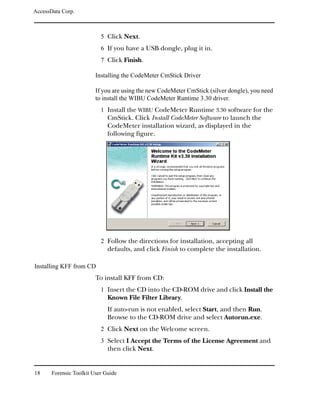
                         Installing the CodeMeter CmStick Driver

                         If you are using the new CodeMeter CmStick (silver dongle), you need
                         to install the WIBU CodeMeter Runtime 3.30 driver.
                           1 Install the WIBU CodeMeter Runtime 3.30 software for the
                              CmStick. Click Install CodeMeter Software to launch the
                              CodeMeter installation wizard, as displayed in the
                              following figure.


                           2 Follow the directions for installation, accepting all
                              defaults, and click Finish to complete the installation.

Installing KFF from CD
                         To install KFF from CD:
                           1 Insert the CD into the CD-ROM drive and click Install the
                              Known File Filter Library.
                              If auto-run is not enabled, select Start, and then Run.
                              Browse to the CD-ROM drive and select Autorun.exe.
                           2 Click Next on the Welcome screen.
                           3 Select I Accept the Terms of the License Agreement and
                              then click Next.


18     Forensic Toolkit User Guide
AccessData Corp.


                        4 Designate the KFF directory by doing one of the following:
                               To accept the default directory, click Next. The default
                               directory is c:Program FilesAccessDataAccessData
                               Forensic ToolkitProgram.
                               To specify a different directory, click Browse, select the
                               location, and click OK.

                               Important: If you install KFF to another directory, you must
                               indicate the new location in FTK Preferences. For more information,
                               see “KFF Database Location” on page 259.
                        5 Click Next.
                        6 Click Finish.

Basic Install from Downloadable Files
                      FTK downloadable files are available from the AccessData
                      Website (http://www.accessdata.com).
                      To download the FTK program files:
                        1 Go to the AccessData downloads page.
                        2 Under Forensic Toolkit, click Updates.
                        3 Download the program files you would like to install.
                          If this is the first time you have installed FTK, download
                          both FTK and the dongle driver. If you want to eliminate
                          ignorable and duplicate files, and be alerted of known
                          illicit or contraband files, you also need to download the
                          KFF database.
                          the following sections for more information on installing
                          FTK, the dongle drivers, and the KFF database from
                          downloadable files.

Installing FTK from Downloadable Files
                      To install FTK from downloadable files:
                        1 On the Forensic Toolkit Download page, click
                          FTKInstall.exe.


                                                             Installing the Forensic Toolkit   19
AccessData Corp.


                           2 Save the FTK install file (FTKInstall-version.exe) to a
                              temporary directory on your drive.
                           3 To launch the install program, go to the temporary
                              directory and double-click the FTK install file (FTKInstall-
                              version.exe).
                           4 Click Install.
                           5 Click Next on the Welcome screen.
                           6 Select I Accept the Terms of the License Agreement and
                              then click Next.
                           7 Designate the program directory by doing one of the
                              following:
                                     To accept the default directory, click Next. The default
                                     directory is c:Program FilesAccessDataAccessData
                                     Forensic Toolkit.
                                     To specify a different directory, click Browse, select the
                                     location, and click OK.
                           8 Click Next.
                           9 Check the box to run FTK if you want it to automatically
                              start after you complete the installation.
                              If you check the box to run FTK but haven’t installed the
                              dongle drivers, you will receive an error message and FTK
                              will not start.
                              If you run FTK but haven’t installed the KFF database, you
                              will receive an error message at the end of the installation
                              saying that the KFF Hash Library is not found and certain
                              features will be disabled.
                              You can install the dongle drivers and KFF from the
                              downloadable files. For installation instructions, see
                              “Installing the Dongle Drivers from Downloadable Files”
                              on page 21.
                          10 Check the box to run LicenseManager if you want it to
                              automatically check for updates.


20     Forensic Toolkit User Guide
AccessData Corp.


                           LicenseManager automatically checks the AccessData
                           Website for software updates. For more information on
                           LicenseManager, see “Managing Licenses” on page 263.
                           If LicenseManager is not installed, a warning is displayed.
                           See “Installing LicenseManager from CD” on page 23 or
                           “Installing LicenseManager from Downloadable Files” on
                           page 26.
                       11 Click Finish.

Installing the Dongle Drivers from Downloadable Files

                      Installing the KEYLOK (green) Dongle Driver
                      To install the dongle drivers from downloadable files:
                         1 On the Forensic Toolkit Download page, click the dongle
                           drivers install.
                         2 Save the dongle install file (dongle.exe) to a temporary
                           directory on your drive.
                         3 To launch the install program, go to the temporary
                           directory and double-click the dongle install file
                           (dongle.exe).
                         4 Click Install.
                         5 Click Next to install the driver.
                         6 If you have a USB dongle, verify that it is not plugged in. If
                           you have a parallel port dongle, verify that it is plugged in.
                         7 Designate the dongle driver directory by doing one of the
                           following:
                                To accept the default directory, click Next. The default
                                directory is c:Program FilesAccessDataDongle Driver.
                                To specify a different directory, click Browse, select the
                                location, and click OK.
                         8 Click Next.
                         9 If you have a USB dongle, plug it in.
                       10 Click Finish.


                                                          Installing the Forensic Toolkit   21
AccessData Corp.


                         Installing the CodeMeter CmStick Driver

                         If you are using the new CodeMeter CmStick (silver dongle), you need
                         to install the WIBU CodeMeter Runtime 3.30 driver.
                           1 On the Forensic Toolkit Download page, click the
                              CodeMeter Runtime 3.30 install.
                           2 Save the dongle install file to a temporary directory on
                              your drive.
                           3 To launch the install program, go to the temporary
                              directory and double-click the dongle install file.
                           4 Install the WIBU CodeMeter Runtime 3.30 software for the
                              CmStick. Click Install CodeMeter Software to launch the
                              CodeMeter installation wizard, as displayed in the
                              following figure.CodeMeter Installation Wizard


                           5 Follow the directions for installation, accepting all
                              defaults, and click Finish to complete the installation.

Installing KFF from Downloadable Files
                         To install KFF from downloadable files:
                           1 On the Forensic Toolkit Download page, click
                              KFFInstall.exe.
                           2 Save the KFF install file (kffinstall.exe) to a temporary
                              directory on your drive.


22     Forensic Toolkit User Guide
AccessData Corp.


                       3 To launch the install program, go to the temporary
                          directory and double-click the KFF install file
                          (kffinstall.exe).
                       4 Click Next on the Welcome screen.
                       5 Select I Accept the Terms of the License Agreement and
                          then click Next.
                       6 Designate the KFF directory by doing one of the following:
                              To accept the default directory, click Next. The default
                              directory is c:Program FilesAccessDataAccessData
                              Forensic ToolkitProgram.
                              To specify a different directory, click Browse, select the
                              location, and click OK.

                              Important: If you install KFF to another directory, you must
                              indicate the new location in FTK Preferences. For more information,
                              see “KFF Database Location” on page 259.
                       7 Click Next, then click Finish.

Installing LicenseManager from CD
                     LicenseManager lets you manage product and license
                     subscriptions using a dongle or dongle packet file. For more
                     information, see “Using LicenseManager” on page 55.
                     To install LicenseManager:
                       1 Insert the CD into the CD-ROM drive and click Install
                          LicenseManager.
                          If auto-run is not enabled, select Start, and then Run.
                          Browse to the CD-ROM drive and select Autorun.exe.


                                                            Installing the Forensic Toolkit   23
AccessData Corp.


                           2 Click Next on the Welcome screen.


                           3 Click Yes to accept the license agreement.


24     Forensic Toolkit User Guide
AccessData Corp.


4 Designate the program directory:


      To accept the default directory, click Next. The default
      directory is C:Program FilesAccessDataAccessData
      LicenseManager.
      To specify a different location, click Browse, select the
      location, click OK, and the click Next.
5 If you want to launch LicenseManager after completing
  the installation, select Run LicenseManager.


                                Installing the Forensic Toolkit   25
AccessData Corp.


                                     You can start LicenseManager later by clicking Start,
                                     then Programs, then AccessData, then
                                     LicenseManager, and then LicenseManager. You can
                                     also start LicenseManager in FTK, by clicking Help,
                                     and then Launch LicenseManager.

Installing LicenseManager from Downloadable Files
                         LicenseManager lets you manage product and license
                         subscriptions using a dongle or dongle packet file. For more
                         information, see “Using LicenseManager” on page 55.
                         To install LicenseManager:
                           1 Go to the AccessData download page
                              (http://www.accessdata.com).
                           2 On the download page, click LicenseManager.
                           3 Save the dongle installation file (LicenseManager.exe) to
                              a temporary directory on your drive.
                           4 To launch the installation program, go to the temporary
                              directory and double-click the dongle installation file
                              (LicenseManager.exe).
                           5 Click Install.


26     Forensic Toolkit User Guide
AccessData Corp.


                   Follow the same instructions for installing from CD beginning
                   with Step 2 on page 24.

Upgrade Instructions
                   You do not have to upgrade FTK and KFF at the same time. For
                   example, you can upgrade to a newer version of FTK without
                   upgrading the KFF database.

                   Important: You do not need to upgrade the dongle drivers unless notified by
                   AccessData.
                   You can upgrade the version of FTK from a CD or from
                   downloadable files available on the AccessData Website
                   (http://www.accessdata.com).
                   To be notified via e-mail when FTK upgrades are available, go
                   to the Update Notification page on the AccessData Website
                   (http://www.accessdata.com).
                   For troubleshooting information on upgrading FTK, see
                   “Troubleshooting” on page 275.

Upgrading from CD
                   Typically you will upgrade from downloadable files. If you want
                   to upgrade from CD, contact AccessData. For contact
                   information, see “Technical Support” on page 341.

Upgrading FTK from CD
                   To upgrade FTK from CD:
                        1 Insert the CD into the CD-ROM drive and click Install the
                          Forensic Toolkit.
                          If auto-run is not enabled, select Start, and then Run.
                          Browse to the CD-ROM drive and select Autorun.exe.
                        2 Select Install the Newer Version and click Next.
                        3 Check the box to run FTK if you want it to automatically
                          start after you complete the installation.
                        4 Check the box to run LicenseManager if you want it to
                          automatically check for updates.


                                                          Installing the Forensic Toolkit   27
AccessData Corp.


                              LicenseManager automatically checks the AccessData
                              Website for software updates. For more information on
                              LicenseManager, see “Managing Licenses” on page 263.
                              If LicenseManager is not installed, a warning is displayed.
                              See “Installing LicenseManager from CD” on page 23 or
                              “Installing LicenseManager from Downloadable Files” on
                              page 26.
                           5 Click Finish.

Upgrading KFF from CD
                         If you have added your own hashes to the KFF database, see
                         “Upgrading a Customized KFF” on page 30 for instructions on
                         how to upgrade the KFF database without overwriting the
                         hashes you have added.
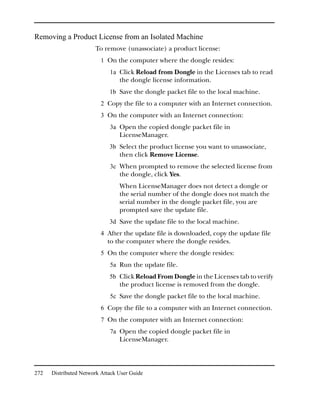
                         If you have not customized the KFF library, simply re-install the
                         KFF from CD.
                         To upgrade a basic KFF from CD:
                           1 Insert the CD into the CD-ROM drive and click Install the
                              Known File Filter Library.
                           2 Select Replace My KFF with This Version and click Next.
                           3 Click Finish.

Upgrading from Downloadable Files
                         FTK downloadable files are available from the AccessData
                         Website (http://www.accessdata.com).
                         To download the FTK program files:
                           1 Go to the AccessData downloads page.
                           2 Under Forensic Toolkit, click Updates.
                           3 Download the program files you would like to install.

Upgrading FTK from Downloadable Files
                         To upgrade FTK from downloadable files:


28     Forensic Toolkit User Guide
AccessData Corp.


                      1 On the Forensic Toolkit Download page, click
                         FTKInstall.exe.
                      2 Save the FTK install file (FTKInstall-version.exe) to a
                         temporary directory on your drive.
                      3 To launch the install program, go to the temporary
                         directory and double-click the FTK install file (FTKInstall-
                         version.exe).
                      4 Click Install.
                      5 Click Yes to All to replace all files.
                         Note: Your custom column settings and filters are not overwritten.

                      6 In the install program, select Install the Newer Version and
                         click Next.
                      7 Check the box to run FTK if you want it to automatically
                         start after you complete the installation.
                      8 Check the box to run LicenseManager if you want it to
                         automatically check for updates.
                         LicenseManager automatically checks the AccessData
                         Website for software updates. For more information on
                         LicenseManager, see “Managing Licenses” on page 263.
                         If LicenseManager is not installed, a warning is displayed.
                         See “Installing LicenseManager from CD” on page 23 or
                         “Installing LicenseManager from Downloadable Files” on
                         page 26.
                      9 Click Finish.

Upgrading KFF from Downloadable Files
                     If you have customized the KFF library by adding your own
                     hashes, you need to follow the instructions in “Upgrading a
                     Customized KFF” on page 30. These instructions will prevent
                     the overwriting of the hashes you have added.
                     If you have not customized the KFF library, simply re-install the
                     KFF from the downloadable files.
                     To upgrade a basic KFF from downloadable files:


                                                            Installing the Forensic Toolkit   29
AccessData Corp.


                           1 On the Forensic Toolkit Download page, click
                              KFFInstall.exe.
                           2 Save the KFF install file (kffinstall.exe) to a temporary
                              directory on your drive.
                           3 To launch the install program, go to the temporary
                              directory and double-click the KFF install file
                              (kffinstall.exe).
                           4 Select Replace my KFF with This Version and click Next.
                           5 Click Finish.

                         Upgrading a Customized KFF
                         To upgrade a customized KFF:
                           1 On the Forensic Toolkit Download page, click
                              kfflibrary.zip.
                           2 Save kfflibrary.zip to a temporary directory on your drive.
                           3 Extract ADKFFLibrary.hdb to the temporary directory.
                           4 Open FTK.
                           5 Click Tools, and then Import KFF Hashes.
                           6 Browse to the ADKFFLibrary.hdb file located in your
                              temporary directory and click Open.
                         The new and updated KFF files are added to your KFF library
                         without overwriting your custom hashes.

Uninstalling
                         Use the Windows Add/Remove Programs utility to uninstall
                         FTK, the dongle drivers, KFF database, and the
                         LicenseManager.


30     Forensic Toolkit User Guide
CHAPTER                      3
Getting Started
            Before working in Forensic Toolkit (FTK), you should
            familiarize yourself with the FTK interface. The FTK interface
            contains six main windows, organized like tabbed pages, each
            with a particular focus or function. Most windows also contain
            a common toolbar and file list with columns.
            Note: Viewing large items in their native applications is often faster than
            waiting for them to be rendered in an FTK viewer.

            This chapter discusses the interface in the following sections:
                 “Starting FTK” on page 32
                 “Overview Window” on page 34
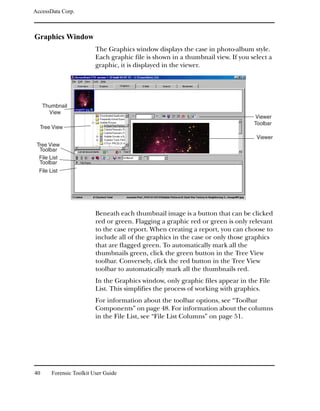
                 “Explore Window” on page 39
                 “Graphics Window” on page 40
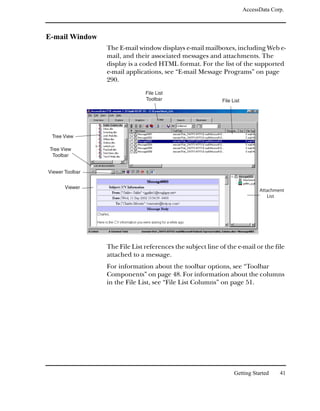
                 “E-mail Window” on page 41
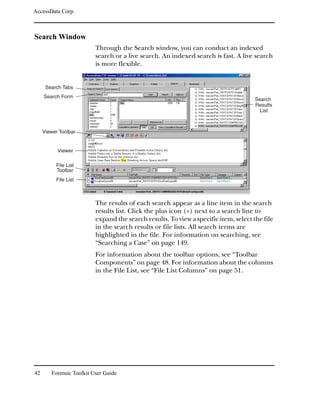
                 “Search Window” on page 42
                 “Bookmark Window” on page 45
                 “Toolbar Components” on page 48
                 “File List Columns” on page 51
                 “FTK Imager” on page 54
                 “Using LicenseManager” on page 55


                                                                                          31
AccessData Corp.


Starting FTK
                         After you complete the installation, you can start FTK from the
                         Start menu, from the command line, or by double-click the
                         case file.

Using the Start Menu
                         Select Start, then Programs, then AccessData, then Forensic
                         Toolkit, and then Forensic Toolkit, or click the Forensic
                         Toolkit shortcut on your desktop.

Using the Command Line
                         You can also start FTK from the command line by typing the
                         following command:
                              path_to_ftk_program_fileftk.exe
                         Note: The default location for the FTK program is C:Program
                         FilesAccessDataAccessData Forensic ToolkitProgramftk.exe.
                         To start FTK with existing case, type the following command at
                         the command line:
                              path_to_ftk_program_fileftk.exe /OpenCase target_case_directory
                         If you want to preserve evidence in a case but still allow other
                         investigators to look at the case, you can also start FTK in Case
                         Agent Mode by typing the following command at the
                         command line:
                              path_to_ftk_program_fileftk.exe /CaseAgent
                         If you want to open a specific case in Case Agent Mode, type
                         the following command:
                              path_to_ftk_program_fileftk.exe /CaseAgent /OpenCase
                                 target_case_directory
                         For more information on Case Agent Mode, see “Opening a
                         Case in Case Agent Mode (Read-only)” on page 95.

                         Important: Close down any virus scanner while running FTK and processing
                         evidence. Virus scanners can slow FTK performance significantly.


32     Forensic Toolkit User Guide
AccessData Corp.


Using the Case File
                      FTK automatically launches the appropriate version for your
                      case. Click the case file (name_of_case.ftk) in the case folder,
                      and FTK will automatically open the case in the appropriate
                      version.
                      If the correct version isn’t found, an error message will display.

Using the Dongle
                      AccessData provides a parallel or USB dongle with FTK. The
                      dongle is a security compliance device that you insert into the
                      parallel or USB port during installation. It maintains your FTK
                      licensing and subscription information and is required to use
                      FTK. For information on installing the dongle drivers, see
                      “Installing the Dongle Driver from CD” on page 17 or
                      “Installing the Dongle Drivers from Downloadable Files” on
                      page 21.
                      You can use the License Manager to monitor your FTK
                      subscription. For more information, see “Using
                      LicenseManager” on page 55.

Using the FTK Startup Menu
                      When you start FTK, the Simple Start menu appears with the
                      following options:
                          Start a new case
                          For detailed information on starting a new case, see
                          “Starting a New Case” on page 59.
                          Open an existing case
                          For detailed information on working with existing cases,
                          see “Working with Existing Cases” on page 93.
                          Preview evidence
                          This option opens FTK Imager. For more information, see
                          “FTK Imager” on page 54.
                          Go directly to working in program


                                                                    Getting Started   33
AccessData Corp.


                               This option opens FTK.
                               Don’t show this dialog on start-up again.
                               Mark this option if you do not want the FTK Startup menu
                               to appear when you start FTK.


                               If you want the FTK Startup menu to appear after you have
                               set it to not appear, click Tools, then Preferences, and then
                               Show Startup Dialog.

 Overview Window
                          The Overview window provides a general view of a case.
                                                                  Viewer
                                                                  Toolbar


   General
    Case
 Information                                                                          Viewer


     File List
     Toolbar

     File List


34      Forensic Toolkit User Guide
AccessData Corp.


                     You can how many items exist in various categories, view lists of
                     items, and look at individual files.

Evidence and File Items
                     The statistics for each category are automatically listed. Click
                     the category button to its associated file list.

Category               Description

Actual Files           Filters out parsed files and lists only actual files in the case. An actual
                       file is one that existed on the original hard drive as a file: documents,
                       zip files, executables, logs, etc.

                       For example, a file extracted from a Zip archive is filtered out.

All Items              All items in the case. This includes files as well as embedded items
                       such as e-mail attachments, files within Zip archives, and so forth.

Checked Items          All items that are checked in any of the FTK windows.

Evidence Item          A physical drive, a logical drive or partition, or drive space not
                       included in any partitioned virtual drive.

File Item              Individual items added to the case such as text files, documents,
                       graphics, OLE items, drive images, and so forth.

Filtered               Filters the items shown in the Overview window.

Filtered In            Files included by the current filter.

Filtered Out           Files excluded by the current filter.

Flagged Thumbnails     Graphics you have flagged. Flagged graphics appear with a green
                       button in the thumbnail view in the Graphics window.

Other Thumbnails       Graphics that have not been flagged. These graphics appear with a
                       red button in the thumbnail view in the Graphics window.

Total File Items       Total items in the case, which is not necessarily the number of files in
                       the case because multiple items can be parsed out of one file. For
                       example, a Zip archive can contain many items.

                       Total File Items is the total items in the case unless Filtered is
                       selected.


                                                                            Getting Started     35
AccessData Corp.


 Category                   Description

 Unchecked Items            All items that are left unchecked.

 Unfiltered                 A filter that overrides normal filters. This filter is specific to the
                            Overview window.


File Status
                         File Status covers a number of file categories that can alert you
                         to problem files or help you narrow down a search.
                         The statistics for each category are automatically listed. Click
                         the category button to the file list associated with it.

 Category                   Description

 Bad Extension              Files with an extension that does not match the file type identified in
                            the file header, for example, a GIF image renamed as graphic.txt.

 Bookmarked Items           Files that you bookmarked in FTK.

 Deleted Files              Complete files or folders recovered from slack or free space.

 Duplicate Items            Any items that have an identical hash.

                            Because the filename is not part of the hash, identical files may
                            actually have different filenames.

                            The primary item is the first one found by FTK.

 Encrypted Files            Files that are encrypted or have a password. This includes files that
                            have a read-only password; that is, they may be opened and viewed,
                            but not modified by the reader.

                            If the files have been decrypted with EFS and you have access to the
                            user’s login password, you can decrypt these files. See “Decrypting
                            EFS” on page 217.

 Flagged Ignore             Files that are flagged to be ignored.

 From E-mail                All e-mail related files including e-mail messages, archives, and
                            attachments.

 From Recycle Bin           Files retrieved from the Windows Recycle Bin.


36     Forensic Toolkit User Guide
AccessData Corp.


Category            Description

KFF Alert Files     Files identified by the HashKeeper Website as contraband or illicit
                    files.

KFF Ignorable       Files identified by the HashKeeper and NIST databases as common,
                    known files such as program files.

OLE Subitems        Items or pieces of information that are embedded in a file, such as
                    text, graphics, or an entire file. This includes file summary
                    information (also known as metadata) included in documents,
                    spreadsheets, and presentations.


File Category
                  File Category itemizes the files by function, for example, a
                  word processing document, graphics, e-mail, executable
                  (program file), or folder.
                  The statistics for each category are automatically listed. Click
                  the category button to the file list associated with it.

Category            Description

Archives            Archive files include e-mail archive files, Zip, Stuffit,Thumbs.db
                    thumbnail graphics, and other archive formats.

                    For a complete list of archive file types recognized by FTK, see
                    “Archive File Types” on page 291.

Databases           Includes databases from Access, Quicken, Microsoft Money,
                    QuickBooks, and others.

                    For a complete list of database file types recognized by FTK, see
                    “Database File Types” on page 286.

Documents           Includes most word processing, HTML, WML, HDML, or text files.

                    For a complete list of document file types recognized by FTK, see
                    “Document File Types” on page 282.


                                                                      Getting Started     37
AccessData Corp.


 Category                   Description

 E-mail Message             Includes e-mail messages from Outlook, Outlook Express, AOL,
                            Netscape, Yahoo, Earthlink, Eudora, Hotmail, and MSN.

                            For a complete list of e-mail message file types recognized by FTK,
                            see “E-mail Message Programs” on page 290.

 Executables                Includes executables from Win32 executables and DLLs, OS/2,
                            Windows VxD, Windows NT, JavaScript, and other executable
                            formats.

                            For a complete list of executable file types recognized by FTK, see
                            “Executable File Types” on page 291.

 Folders                    Folders or directories that are located in the evidence.

 Graphics                   Includes the standard graphic formats like .tif, .gif, .jpeg, and .bmp.

                            For a complete list of graphic file types recognized by FTK, see
                            “Graphic File Types” on page 288.

 Multimedia                 Includes the multimedia formats such as: MP3, Flash, QuickTime,
                            WAV, and MIDI.

                            Important: This feature may not place every multimedia type, including
                            supported types, in the Multimedia container. You should still search for
                            any known multimedia types.

                            For a complete list of graphic file types recognized by FTK, see
                            “Multimedia File Types” on page 290.

 Other Known Type           A miscellaneous category that includes audio files, help files,
                            dictionaries, clipboard files, link files, etc.

                            For a complete list of other file types recognized by FTK, see “Other
                            Known File Types” on page 293.

 Slack/Free Space           Fragments of files that have not been completely overwritten.

 Spreadsheets               Includes spreadsheets from Lotus, Microsoft Excel, Quattro Pro, and
                            others.

                            For a complete list of spreadsheet file types recognized by FTK, see
                            “Spreadsheet File Types” on page 285.

 Unknown Type               File types that FTK cannot identify.


38     Forensic Toolkit User Guide
AccessData Corp.


Explore Window
                 The Explore window displays all the contents of the case files
                 and drives.
                                          Viewer
                                          Toolbar


 Tree View

                                                                                 Viewer
 Tree View
  Toolbar

 File List
 Toolbar

 File List


                 The Explore window contains the following:
                     Tree view: Lists directory structure of each evidence item,
                     similar to the way one would view directory structure in
                     Windows Explorer. An evidence item is a physical drive, a
                     logical drive or partition, or drive space not included in
                     any partitioned virtual drive. The List All Descendants
                     option on the Tree View toolbar displays all the currently
                     selected folder’s files in the File List.
                     Viewer: Displays the contents of the currently selected file.
                     The Viewer toolbar allows you to choose different view
                     formats.
                     File List: Displays information about a file, such as
                     filename, file path, and file type.
                 For information about the toolbar options, see “Toolbar
                 Components” on page 48. For information about the columns
                 in the File List, see “File List Columns” on page 51.


                                                               Getting Started       39
AccessData Corp.


Graphics Window
                          The Graphics window displays the case in photo-album style.
                          Each graphic file is shown in a thumbnail view. If you select a
                          graphic, it is displayed in the viewer.


     Thumbnail
       View
                                                                                  Viewer
                                                                                  Toolbar
  Tree View
                                                                                   Viewer
 Tree View
  Toolbar
  File List
  Toolbar
  File List


                          Beneath each thumbnail image is a button that can be clicked
                          red or green. Flagging a graphic red or green is only relevant
                          to the case report. When creating a report, you can choose to
                          include all of the graphics in the case or only those graphics
                          that are flagged green. To automatically mark all the
                          thumbnails green, click the green button in the Tree View
                          toolbar. Conversely, click the red button in the Tree View
                          toolbar to automatically mark all the thumbnails red.
                          In the Graphics window, only graphic files appear in the File
                          List. This simplifies the process of working with graphics.
                          For information about the toolbar options, see “Toolbar
                          Components” on page 48. For information about the columns
                          in the File List, see “File List Columns” on page 51.


40      Forensic Toolkit User Guide
AccessData Corp.


E-mail Window
                 The E-mail window displays e-mail mailboxes, including Web e-
                 mail, and their associated messages and attachments. The
                 display is a coded HTML format. For the list of the supported
                 e-mail applications, see “E-mail Message Programs” on page
                 290.
                               File List
                               Toolbar                      File List


 Tree View

Tree View
 Toolbar


Viewer Toolbar


       Viewer
                                                                              Attachment
                                                                                 List


                 The File List references the subject line of the e-mail or the file
                 attached to a message.
                 For information about the toolbar options, see “Toolbar
                 Components” on page 48. For information about the columns
                 in the File List, see “File List Columns” on page 51.


                                                                  Getting Started     41
AccessData Corp.


Search Window
                          Through the Search window, you can conduct an indexed
                          search or a live search. An indexed search is fast. A live search
                          is more flexible.


      Search Tabs
     Search Form
                                                                                      Search
                                                                                      Results
                                                                                       List


     Viewer Toolbar


           Viewer

          File List
          Toolbar
          File List


                          The results of each search appear as a line item in the search
                          results list. Click the plus icon (+) next to a search line to
                          expand the search results. To view a specific item, select the file
                          in the search results or file lists. All search terms are
                          highlighted in the file. For information on searching, see
                          “Searching a Case” on page 149.
                          For information about the toolbar options, see “Toolbar
                          Components” on page 48. For information about the columns
                          in the File List, see “File List Columns” on page 51.


42      Forensic Toolkit User Guide
AccessData Corp.


Indexed Search
                       The following table describes the interface options on the
                       Indexed Search tab.

Interface Option          Description

Add                       Adds the search term to Search Items. You can add multiple terms to
                          one search.

Count                     The number of times the indexed word is found in the case.
Cumulative Operator:      This operator is specific to multi-term searches. FTK looks for items
And                       that contain all the search terms listed in the search list.

Cumulative Operator:      This operator is specific to multi-term searches. FTK looks for items
Or                        that contain any of the search terms listed in the search list.

Edit Item                 Allows you to edit the currently selected search term.

Files                     The number of files the search term is found in.

Hits                      The number of times the search term is found in the case.
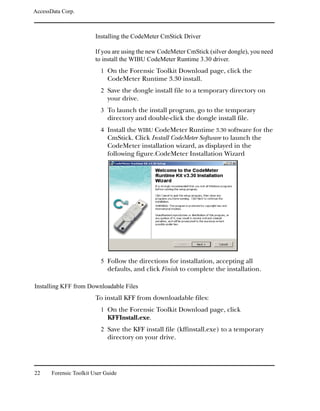
Import                    Imports search terms from text files.

Indexed Words             This column displays the index. When a search term is entered in the
                          search field, this column scrolls to display the term in the index.

Options                   Options that allow you to broaden or narrow the search.

Remove All                Removes all search terms from the search list.

Remove Item               Removes the currently selected search term from the search list.

Search Items              Lists the search terms.

Search Term field         The field in which you enter the term you want to search for.

View Cumulative Results   Initiates a multi-term search.

                          For more information, see “Multi-Term Searches” on page 160.

View Item Results         Initiates a single term search.

                          For more information, see “Single-Term Searches” on page 156.


                                                                           Getting Started    43
AccessData Corp.


Live Search
                         The following table describes the interface options on the Live
                         Search tab.


  Search Tabs
                                                                                              Search
  Search Form                                                                                 Results
                                                                                                List


 Viewer Toolbar


       Viewer


       File List
       Toolbar

       File List


 Interface Option           Description

 Add                        Adds the search term to the search list. You can add multiple terms
                            to one search.

 ASCII                      Searches any text in the same single-byte character set that your
                            Windows version natively uses.

                            For example, the English version of Windows uses the ISO 8859-1
                            character set; therefore, on English systems, you can find words in
                            any ISO 8859-1 language.
                            Note: For a listing of character sets used by common languages, visit
                            http://www.w3.org/International/O-charset-lang.html.

 Case Sensitive             Searches for the term exactly as it is typed in the Search Term field.

 Delete Item                Deletes the currently selected search term from the search list.

 Edit Item                  Allows you to edit the currently selected search term.


44     Forensic Toolkit User Guide
AccessData Corp.


Interface Option       Description

Hexadecimal            Searches in hexadecimal. It can be used to find embedded
                       information that doesn’t display in text.

Max Hits Per File      Lists the maximum number of search hits that will be returned in a
                       search.

Regular Expression     Searches patterns in files, such as, any numbers that are in a phone
                       number pattern.

                       When selected, the arrow next to the Search Term field is activated.
                       Clicking the arrow displays the predefined regular expressions and
                       the option to edit the expressions.
                       For regular expression syntax, see “Regular Expression Searching”
                       on page 295.

Reset                  Clears all search terms from the search list.

Search                 Searches all files or filtered files (depending on what you select) for
                       the terms listed in Search Items.

Search Items           Lists the search terms.

Search Term field      The field in which you enter the term you want to search for.

Text                   Searches text.

Type                   Lists what was selected under Item Type.

Unicode                Converts the ASCII/ISO 8859-1 text typed in the Search Term field
                       to Unicode (the UCS-2 little endian form) and searches the Unicode
                       version of the text.
                       This search cannot be used to find Unicode text, because there is
                       no way to type Unicode text in the Search Term field. So, while
                       the Unicode search doesn't search any additional languages, it does
                       let you find ASCII/ISO 8859-1 strings that are being stored in
                       Unicode.


Bookmark Window
                     On the Bookmark window, you can view all the items you have
                     bookmarked as important items in the case. You can also add
                     comments and mark them for inclusion in the report. For


                                                                         Getting Started     45
AccessData Corp.


                           more information about bookmarking, see “Using
                           Bookmarks” on page 128.


     Bookmark List

       Bookmark                                                                           Bookmark
        Toolbar                                                                          Information


 Viewer Toolbar

          Viewer

         File List
         Toolbar
         File List


                           The following table describes the interface options specific to
                           the Bookmark window.

 Interface Option             Description

 Bookmark Comment             Displays comments included with a bookmark.

 Bookmark Name                Displays the name given to a bookmark when it was created.

 Bookmarked Files             Number of bookmarked files.

 Clear Changes                Resets the Include in Report and Export Files settings in the current
                              bookmark.

 Export Files                 If checked, the files included in the bookmark are exported when a
                              report is generated.

 File Path                    Displays the paths of bookmarked files.

 Filename                     Displays the bookmarked files’ filenames.

 Include in Report            If checked, includes the bookmark and its files in case reports.


46       Forensic Toolkit User Guide
AccessData Corp.


Interface Option       Description

Remember File          Remembers the highlighted text in the first bookmarked file and
Position/Selection     automatically highlights it when you return to the bookmark. The
                       highlighted text also prints in the report.

                       This option is disabled if there is more than one file in the bookmark.

Save Changes           Saves the Include in Report and Export Files settings for the current
                       bookmark.

Update to Current      Use this option to change which text is highlighted in the
Position/Selection     bookmarked file.

                       To change which text is highlighted in the bookmarked file:
                       1. Select the text you want highlighted when you return to the bookmark.
                       2. Click Update to Current Position/Selection.

                       This option is disabled if there is more than one file in the bookmark.


                     For information about the toolbar options, see “Toolbar
                     Components” on page 48. For information about the columns
                     in the File List, see “File List Columns” on page 51.


                                                                         Getting Started     47
AccessData Corp.


Toolbar Components
                         The FTK interface contains several different toolbars. The
                         following section lists the toolbars and their components.

Viewer Toolbar


                         The Viewer toolbar, shown above, appears in each window.
                         The following table identifies and describes the toolbar
                         components:

 Component                           Description

                                     In the text field, enter the text string you want to search for in
                                     the viewer. To initiate the search, click the Find Next      or
                                     Find Previous button       .

                                     Searches backward in the current file. It highlights the previous
                                     instance of the search string in the viewer.

                                     This option does not search the previous file.

                                     Searches forward in the current file. It highlights the next
                                     instance of the search string in the viewer.

                                     This option does not search the next file.

                                     Displays the file in its native format. Typically, the file is viewed
                                     in Outside In (the viewer). However, FTK uses Internet
                                     Explorer to display HTML and graphics when possible.

                                     Displays the file in filtered text mode. Readable text is filtered
                                     out of binary files.


                                     Displays the file in the viewer in text format.


                                     Displays the file in the viewer in hex format.


48     Forensic Toolkit User Guide
AccessData Corp.


Component                  Description

                           Disables the viewer.


                           Displays the file in the Outside In viewer.

                           Outside In can display 270 different file formats.


                           Uses embedded Internet Explorer to view the file.


Tree List Toolbar
                    The Tree List toolbar appears in the Explore, Graphics, Email,
                    and Bookmark windows. The components of the toolbar vary
                    in each window.
                    The following table lists and describes all components:

Component                  Description

                           This option appears in the Explore, Graphics, and E-mail
                           windows.

                           If checked, File List displays contents of all folders or
                           directories.

                           This button is specific to the Graphics window.

                           It marks all thumbnails green. When creating a report, you can
                           choose to include all of the graphics in the case or only those
                           graphics that are flagged green.
                           The number next to the green button indicates how many
                           thumbnails are marked.


                                                                         Getting Started   49
AccessData Corp.


                                     This button is specific to the Graphics window.

                                     It marks all thumbnails red. When creating a report, you can
                                     choose to include all of the graphics in the case or only those
                                     graphics that are flagged green.

                                     The number next to the red button indicates how many
                                     thumbnails are excluded.

                                     This button is specific to the Bookmark window.

                                     It displays bookmark names in the bookmark list. Bookmarked
                                     items are listed under their associated bookmark.

                                     This button is specific to the Bookmark window.

                                     It displays the filenames of bookmarked items in the bookmark
                                     list. Each item lists its associated bookmark.


File List Toolbar
                         The File List toolbar appears in each window.


                         The following table identifies and describes the toolbar
                         components:

 Component                           Description

                                     Checks all files in the current file list.


                                     Unchecks all files in the current file list.


                                     Unchecks all files in the case.


                                     Opens a page to select colors and fonts for FTK categories.

                                     For more information about changing colors and fonts, see
                                     “Customizing Fonts and Colors” on page 245.


50     Forensic Toolkit User Guide
AccessData Corp.


                             Opens a page to create a new bookmark.


                             Lists all items, including Zip contents, e-mail messages, and
                             OLE streams.


                             Lists only actual files.


                             Opens File Filter Manager.


                             Displays “Off” if no file filter is active. Displays “On” if a file
                             filter is active.

                             Drop-down list that contains different filters.


                             Displays the File List column settings, including description of
                             each column.


                             Drop-down list that contains different column views.


File List Columns
                    The following table describes all available columns in the File
                    List. The columns you actually depend on what window and
                    category you are in.

                    Hint: When viewing data in the File List, use the type-down control feature to
                    locate the information you are looking for. Select the first item in the list and
                    then type the first letter of the what you are searching for. FTK will move down
                    the list to the first file containing that letter.
                    You can change which columns display, as well as the order of
                    those columns. For more information, see “Customizing
                    Columns” on page 249.


                                                                             Getting Started       51
AccessData Corp.


 Column                                Description

 Acc Date                              Date the file was last accessed

 Alt Name                              Item is an alternate name for an existing file in the case

                                       Usually, the alternate name refers to the MS-DOS filename (the
                                       8.3 name) assigned to the file.

 Attachment Info                       E-mail attachment information

 Badxt                                 Incorrect file extension

 BCC                                   Blind carbon copy field in an e-mail message

 Category                              File category based on file type

 CC                                    Carbon copy field in an e-mail message

 Children                              Number of files in the folder or archive

 Cluster                               The first cluster of the file

 Cmp                                   Compressed file

 Cr Date                               Date and time the file was created
                                       Note: Date and time format options may be modified in FTK
                                       Preferences. For more information, see “Changing Preferences” on
                                       page 255.

 Del                                   Deleted file

 Descendants                           Number of files in the folder or archive as well as its sub-folders

 Dup                                   Duplicate file of another file in the case

 Email Date                            Date field in an e-mail message

 Emailed                               File from e-mail archive, either message or attachment

 Enc                                   Encrypted or password-protected file

 Ext                                   File extension

 File Type                             File type based on file content


52       Forensic Toolkit User Guide
AccessData Corp.


Column                      Description

Filename                    Filename without the path

From                        From field in an e-mail message

Full Path                   Full path of the file

Hash Set                    Name of hash set containing matching hash

Header                      File header (it only displays the first 8 bytes)

Hid                         Hidden file

Idx                         Indexed file

Item #                      Unique item number

KFF                         File matches a known file

L-Size                      Logical file size; excludes file slack

MD5 Hash                    MD5 (128-bit) hash of the data

Mod Date                    Date and time the file was last modified

P-Size                      Physical file size; includes file slack

Recyc                       File recovered from the Recycle Bin

Recycle Bin Original Name   Full path of the file before it was sent to the Recycle Bin

RO                          Read-only file

Sector                      The logical sector (relative to the partition) where the file
                            begins

SHA-1 Hash                  SHA-1 (160-bit) hash of the data

Subject                     E-mail subject

Sys                         System file

To                          To field in an e-mail message


                                                                          Getting Started    53
AccessData Corp.


FTK Imager
                         FTK Imager is a separate utility that is included with FTK. It
                         allows you to
                              Preview images and drives without having to add the
                              evidence to the case.
                              Create images.
                              Convert images.
                              Create hashes.
                              View image, drive, file system, file and folder properties.
                         To open FTK Imager, select File, and then FTK Imager.


54     Forensic Toolkit User Guide
AccessData Corp.


Using LicenseManager
               LicenseManager lets you manage product licenses on a dongle
               or in a dongle packet file.
               With LicenseManager you can view license information, add
               or remove existing licenses to a dongle or dongle packet file,
               renew your subscription, purchase licenses, and send a dongle
               packet file to AccessData Technical Support. You can also
               check for product updates and download the latest product
               versions.
               Note: While using many of the features in LicenseManager requires having an
               Internet connection, you can manage licenses in a dongle packet file for a
               dongle that resides on a machine where you do not want to connect to the
               Internet (because of the need for forensic soundness).


               LicenseManager displays dongle information (including
               packet version and serial number) and licensing information
               for such products as FTK, PRTK, DNA, and Registry Viewer.
               The licensing information provides the following:
                    Name of the program
                    Subscription expiration date
                    Number of DNA clients (if any)
                    Latest version of the program


                                                                    Getting Started     55
AccessData Corp.


Starting LicenseManager
                         To start LicenseManager, click Help, then Launch
                         LicenseManager, or Click Start, then Programs, then
                         AccessData, then LicenseManager, and then LicenseManager.
                         Note: LicenseManager.exe is located in the C:Program
                         FilesAccessDataCommon FilesAccessData LicenseManager directory.

                         When you start LicenseManager, it reads licensing and
                         subscription information from your dongle.
                         If you are using a dongle and LicenseManager either does not
                         open or it displays the message “Dongle not Found.”
                              Make sure the dongle drivers are installed.
                              For more information, see “Installing the Dongle Driver
                              from CD” on page 17 or “Installing the Dongle Drivers
                              from Downloadable Files” on page 21.
                              Make sure the dongle is connected to the USB or parallel
                              port.
                              In LicenseManager, click File, then Reload from Dongle.
                         If you do not have a dongle installed, LicenseManager lets you
                         manage licenses using a dongle packet file.
                         To open LicenseManager without a dongle installed:
                           1 Run LicenseManager by clicking Start, then Programs,
                              then AccessData, then LicenseManager, and then
                              LicenseManager.
                              LicenseManager displays the message “Dongle not
                              Found.”
                           2 Click OK and browse for a dongle packet file to open.
                         When you start LicenseManager, you are prompted whether to
                         check the update site for the latest product versions. You can
                         also choose not to be prompted to check for updates when
                         starting LicenseManager.
                         Note: If you disable displaying this prompt at startup, you cannot turn it back
                         on. However, you can still check the update site for latest product versions by
                         clicking AccessData, and then Check for Updates.


56     Forensic Toolkit User Guide
AccessData Corp.


For more information about LicenseManager, see “Managing
Licenses” on page 263.


                                        Getting Started   57
AccessData Corp.


58     Forensic Toolkit User Guide
CHAPTER                4
Starting a New Case
           After you image the files or drives you want to examine, you are
           ready to start a new case. To simplify the process of starting a
           new case, Forensic Toolkit (FTK) uses the New Case Wizard.
           The following sections review the options in the New Case
           Wizard:
               “Starting a Case” on page 60
               “Entering Forensic Examiner Information” on page 63
               “Completing the New Case Form” on page 61
               “Selecting Case Log Options” on page 64
               “Selecting Evidence Processes” on page 65
               “Refining the Case” on page 69
               “Refining the Index” on page 74
               “Managing Evidence” on page 78
               “Reviewing Case Summary” on page 88
               “Processing the Evidence” on page 89


                                                                         59
AccessData Corp.


Starting a Case
                         You access the New Case Wizard by selecting File, and then
                         New Case. If this is your first time opening FTK or if you have
                         chosen to always display the FTK Startup screen, select Start a
                         New Case and click OK.
                         To start a new case, you must complete the following steps.
                         Each step is discussed in detail in the following sections.
                           1 Enter basic case information.
                           2 Check what you want included in the case log.
                           3 Check the processes that you want run on the evidence.
                           4 Select the criteria for adding evidence to the case.
                           5 Select the criteria for creating the index.
                           6 Add the evidence.
                           7 Review your case selections.
                           8 Complete the wizard to launch the processing of evidence.


60     Forensic Toolkit User Guide
AccessData Corp.


Completing the New Case Form
                The New Case form provides fields for basic case information,
                such as the case name and its investigator.


                To provide the new case information:
                 1 In the Investigator Name field, type the name of the
                    investigator.
                    The drop-down list contains the name of investigators that
                    have been entered in prior cases. If the investigator has
                    worked on other cases in FTK, select the name from the
                    list.
                 2 In the Case Number field, enter the case number for
                    reference.


                                                        Starting a New Case   61
AccessData Corp.


                           3 In the Case Name field, enter the name of the case.
                              The name cannot contain the following characters:
                              “> ?/:|<
                              The case name also becomes the name of the folder where
                              all case information will be stored.
                           4 Next to the Case Path field, click Browse to select the path
                              where the evidence will be stored.
                              By default, all FTK cases are stored in that directory.
                           5 Verify that the Case Folder field lists the folder where you
                              want the case to be stored.
                              Each case is stored in a separate folder and should be kept
                              distinct from other cases.
                              The Case Folder field is based on the Case Name and Case
                              Path fields. To make changes to the Case Folder, change
                              the Case Name and Case Path fields.
                           6 (Optional) In the Case Description field, add information
                              that will be helpful to the analysis of the case.
                              This field is particularly useful if several people work on
                              the case.
                              This field is included in the report created at the end of
                              the case investigation. For more information about the
                              report, see “Working with Reports” on page 221.
                           7 Click Next.


62     Forensic Toolkit User Guide
AccessData Corp.


Entering Forensic Examiner Information
                 The Forensic Examiner Information form allows you to enter
                 information about the forensic examiner. This information
                 then appears on the Case Information page of the report


                 To provide the forensic examiner information:
                  1 In the Agency/Company field, type the name of the
                     agency or company.
                  2 In the Examiner’s Name field, type the name of the
                     examiner.
                     The drop-down list contains the name of examiners that
                     have been entered in prior cases. If the examiner has
                     worked on other cases in FTK, select the name from the
                     list.
                  3 In the Address field, enter the address for the
                     agency/company.
                  4 In the Phone field, enter the phone number for the
                     agency/company.


                                                        Starting a New Case    63
AccessData Corp.


                           5 In the E-Mail field, enter the examiner’s e-mail address.
                           6 In the Comments field, enter any necessary comments.

Selecting Case Log Options
                         The Case Log Options form allows you to select which events
                         you want FTK to log for the current case. FTK maintains a log
                         file of FTK events such as bookmarking items, searches, and
                         error messages for each case.


                         The following table outlines the Case Log Options form:

 Option                     Description

 Bookmarking Events         Events related to the addition and modification of bookmarks.

 Case and Evidence          Events related to the addition and processing of file items when
 Events                     evidence is added or when using the Analysis Tools.

 Data Carving/Internet      Events related to data carving or Internet keyword searches that are
 Searches                   performed during the case.


64     Forensic Toolkit User Guide
AccessData Corp.


Option               Description

Error Messages       Events related to any errors encountered during the case.

Other Events         The following events:
                        Copy special
                        Exporting files
                        Viewing items in the detached viewer
                        Ignoring and unignoring files

Searching Events     All search queries and resulting hit counts.


                   The case log file is named ftk.log. This file is created
                   automatically by FTK and is placed in the case folder, which is
                   specified during the selection of the case name and case path.
                   The case log can be used as part of a report or to identify what
                   has occurred on the case if you are assigned to an investigation
                   in progress.
                   In the Case Log Options form:
                    1 Select what you want to include in the case log.
                    2 Click Next.
                   You can also add entries to the case log. For more information,
                   see “Adding Entries to the Case Log” on page 140.

Selecting Evidence Processes
                   The Evidence Processing Options form allows you to select
                   which processes you want to perform on the current evidence.
                   You only need to select those processes that are relevant to the
                   evidence you are adding to the case. For example, if your case


                                                                    Starting a New Case   65
AccessData Corp.


                         is primarily a graphics case, there is no need to index the
                         evidence.


                         Another factor that may determine which processes you select
                         is time frame. If you are adding a large image to the case, it will
                         take some time to create an index for that amount of
                         information. If you are in a hurry, you can add the image to the
                         case without creating the index. You can then return at a later
                         time and index the image. For information on processing
                         evidence after it is added to the case, see “Using Analysis Tools”
                         on page 135.


66     Forensic Toolkit User Guide
AccessData Corp.


                        The following table outlines the Evidence Processing Options
                        form:

Process                   Description

Data Carve                Carves data immediately after pre-processing. Select Carving
                          Options and then select the file types you want to carve immediately.

                          For more information on Data Carving, see “Data Carving” on page
                          181.

Decrypt EFS Files         Automatically locates and attempts to decrypt EFS encrypted files
                          found on NTFS partitions with the case (requires Password Recovery
                          Toolkit 5.20 or later). For more information on EFS, see “Decrypting
                          EFS” on page 217.

Entropy Test              Determines if the data in unknown file types is compressed or
                          encrypted.

                          The compressed and encrypted files identified in the entropy test are
                          not indexed.

File Listing Database     Creates a Microsoft Access (Jet) database containing a list of all files
                          in the case. The attributes included are based on the Default File List
                          Column Setting. This database can be recreated with custom column
                          setting in Copy, and then Special.

Full Text Index           Indexes all keyboard-related characters in the case evidence.

                          This process is the most time-consuming step in starting a new case.
                          However, the index is required for data carving and Internet keyword
                          searches. It also makes searching much more efficient.

                          For more information about indexing, including disk space
                          requirements, see “Conducting an Indexed Search” on page 154.

HTML File Listing         Creates an HTML version of the File Listing database.

KFF Lookup                Using a database of hashes from known files, this option eliminates
                          ignorable files, checks for duplicate files, and alerts you to known
                          illicit or dangerous files.

                          For more information about Known File Filter (KFF), see “Known
                          File Filter” on page 9.


                                                                        Starting a New Case      67
AccessData Corp.


 Process                    Description

 MD5 Hash                   Creates a digital fingerprint based on the contents of the file. This
                            fingerprint can be used to verify file integrity and to identify
                            duplicate files.

                            For more information about MD5 hashes, see “Message Digest 5” on
                            page 344.

 Registry Reports           Generates common registry reports.

                            For more information about Registry Report Summaries, see
                            “Creating Registry Summary Reports” on page 208.

 SHA-1 Hash                 Creates a digital fingerprint based on the contents of the file. This
                            fingerprint can be used to verify file integrity and to identify
                            duplicate files.

                            This is the only process not checked by default. If you want FTK to
                            create SHA-1 hashes, you must check the box.

                            For more information about SHA-1 hashes, see “Secure Hash
                            Algorithm” on page 344.

 Store Thumbnails           Creates and stores thumbnails for all graphics in the case.

                            This process speeds up the browsing of graphics in the Graphics
                            window.

                            Each thumbnail is about 4 KB per graphic file.


                         In the Evidence Processing Options form:
                           1 Select the processes that you want to be run on the
                              evidence.
                           2 Click Next.


68     Forensic Toolkit User Guide
AccessData Corp.


Refining the Case
                    The Refine Case form allows you to exclude certain kinds of
                    data from the case.


                    FTK contains five default exclusion templates:
                         Include All Items
                         Optimal Settings
                         Email Emphasis
                         Text Emphasis
                         Graphics Emphasis
                    The default templates cannot be modified. However, you can
                    modify the default template settings. Note that your settings
                    cannot be saved for future use, so be sure to document any
                    settings that you want to re-use.
                    AccessData strongly recommends that you include all items
                    when adding evidence to a case.

                    Important: After data is excluded from an evidence item, you cannot go back
                    and add it to the case. An evidence item is a physical drive, a logical drive or


                                                                       Starting a New Case       69
AccessData Corp.


                         partition, or drive space not included in any partitioned virtual drive.
                         FTK does not allow you to add the same evidence item more than once. If you
                         discover that you need data that was previously excluded, you must create a
                         new case. Consequently, AccessData strongly recommends that you use the
                         Include All Items template unless you are absolutely certain that you will not
                         need any of the excluded items.
                         The following tables outline the options in the Refine Case
                         form:

Template Options

 Template                   Description

 E-mail Emphasis            Includes only e-mail related files. Excludes file slack, free space, KFF
                            ignorable files, duplicate files, OLE streams, executables, and
                            folders.

                            Important: Using the Data Carving feature, it is possible to retrieve
                            graphics, documents and other files from file slack; therefore, you may not
                            want to exclude file slack or unallocated space from your cases.

 Graphics Emphasis          Excludes file slack, KFF ignorable files, duplicate files, OLE streams,
                            executables, folders, and other file types such as audio and unknown
                            files.

                            Important: Using the Data Carving feature, it is possible to retrieve
                            graphics, documents, and other files from file slack; therefore, you may not
                            want to exclude file slack or unallocated space from your cases.

 Include All Items          Includes all categories of files of any file status from any location in
                            the image.

 Optimal Settings           Created for smaller cases. Excludes KFF ignorable files, duplicate
                            files, and executables.

 Text Emphasis              Excludes KFF ignorable files, duplicate files, graphics, and
                            executables.


70     Forensic Toolkit User Guide
AccessData Corp.


Unconditionally Add Options

 Option                       Description

 Extract Files from KFF       Files within KFF ignorable containers.
 Ignorable Containers         Note: A container is a file that contains other files such as Zip files, e-mail
                              archives, TAR files, and so forth.

                              Containers that are flagged ignorable by the KFF include Windows
                              .cab files and known DOOM level packs.

                              Files that are extracted from containers have a double angle bracket
                              (>>) in their path name. For example,
                              c:My Documentsletters.zip>>letter1.doc.

 File Slack                   Data beyond the end of the logical file but within the area allocated
                              to that file by the file system.

 Free Space                   Areas in the file system not currently allocated to any file but that
                              could contain deleted file data.

 KFF Ignorable Files          Files identified by the HashKeeper database as common, known files,
                              such as program files.


File Status Criteria

 Status                       Description

 Deletion Status              Allows you to exclude or include deleted items.

 Duplicate Files              Allows you to include or exclude duplicate files.

 Email Status                 Allows you to include or exclude files associated with e-mail.

 Encryption Status            Allows you to exclude or include encrypted or password-protected
                              files.

 OLE Streams                  Allows you to include or exclude OLE elements embedded in a file.


                                                                                Starting a New Case        71
AccessData Corp.


File Type Criteria

 Category                    Description

 Archives                    Archive files include e-mail archive files, Zip, Stuffit,Thumbs.db
                             thumbnail graphics, and other archive formats.

                             For a complete list of archive file types recognized by FTK, see
                             “Archive File Types” on page 291.

 Databases                   Includes databases from Access, Quicken, Microsoft Money,
                             QuickBooks, and others.

                             For a complete list of database file types recognized by FTK, see
                             “Database File Types” on page 286.

 Documents                   Includes most word processing, HTML, WML, HDML, or text files.

                             For a complete list of document file types recognized by FTK, see
                             “Document File Types” on page 282.

 E-mail Message              Includes e-mail messages from Outlook, Outlook Express, AOL,
                             Netscape, Yahoo, Earthlink, Eudora, Hotmail, and MSN.

                             For a complete list of e-mail message file types recognized by FTK,
                             see “E-mail Message Programs” on page 290.

 Executables                 Includes executables from Win32 executables and DLLs, OS/2,
                             Windows VxD, Windows NT, JavaScript, and other executable
                             formats.

                             For a complete list of executable file types recognized by FTK, see
                             “Executable File Types” on page 291.

 Folders                     Folders or directories located on the image.

 Graphics                    Includes the standard graphic formats like .tif, .gif, .jpeg, and .bmp.

                             For a complete list of graphic file types recognized by FTK, see
                             “Graphic File Types” on page 288.

 Other Recognized            A miscellaneous category that includes audio files, help files,
                             dictionaries, clipboard files, etc.

                             For a complete list of other file types recognized by FTK, see “Other
                             Known File Types” on page 293.


72      Forensic Toolkit User Guide
AccessData Corp.


File Type Criteria

 Category              Description

 Spreadsheets          Includes spreadsheets from Lotus, Microsoft Excel, Quattro Pro, and
                       others.

                       For a complete list of spreadsheet file types recognized by FTK, see
                       “Spreadsheet File Types” on page 285.

 Unknown               File types that FTK cannot identify.


                     In the Refine Case form:
                      1 Select the default template that you want to use.
                         See the "Template Options" table on page 70.
                         Each template has different pre-defined settings; however,
                         you can modify any of the default settings by selecting
                         different options in the Refine Case form.
                      2 To modify the default options:
                         2a Select which items you want to unconditionally add to
                             the case.
                             See the "Unconditionally Add Options" table on page
                             71.

                             Important: To use the data carving feature, you must add file slack
                             and free space. For more information, see “Data Carving” on page
                             181.
                         2b From the drop-down list, indicate whether you want to
                             add items that satisfy BOTH the File Status and File
                             Type criteria or items that satisfy EITHER the File
                             Status or File Type criteria.
                         2c Select the File Status criteria.
                             See the "File Status Criteria" table on page 71.
                         2d Select the File Type criteria.
                             See the "File Type Criteria" table on page 72.
                      3 Click Next.


                                                                    Starting a New Case      73
AccessData Corp.


Refining the Index
                         The Refine Index form allows you to specify types of data that
                         you do not want to index. You might choose to exclude data to
                         save time and resources and to increase searching efficiency.


                         Important: AccessData strongly recommends that you use the default index
                         settings.
                         Indexing can be quite time-consuming. However the index is
                         required for data carving and Internet keyword searches. It
                         also makes searching much more efficient. Generally
                         AccessData recommends that you accept the default index
                         settings to create the most efficient index possible.
                         The index file is generated after the creation of a case;
                         however, an evidence item can actually be indexed at any time.
                         An evidence item is a physical drive, a logical drive or partition,
                         or drive space not included in any partitioned virtual drive. For
                         more information about indexing an evidence item, see
                         “Using Analysis Tools” on page 135.
                         The index file contains all discrete words or number strings
                         found in both the allocated and unallocated space in the case
                         evidence.

74     Forensic Toolkit User Guide
AccessData Corp.


                          After an evidence item is indexed, it is merged into the existing
                          index and can no longer be removed from the case. For more
                          information about indexing, see “Conducting an Indexed
                          Search” on page 154.
                          The following tables outline the options in the Refine Index
                          form:

Unconditionally Index Options

 Option                         Description

 File Slack                     Data beyond the end of the logical file but within the area allocated
                                to that file by the file system.

 Free Space                     Areas in the file system not currently allocated to any file but that
                                could contain deleted file data.

 KFF Ignorable Files            Files identified by the HashKeeper database as common, known files,
                                such as program files.


File Status Criteria

 Status                         Description

 Deletion Status                Allows you to exclude or include deleted items.

 Encryption Status              Allows you to exclude or include encrypted or password-protected
                                files.

 Email Status                   Allows you to include or exclude files associated with e-mail.

 Duplicate Files                Allows you to include or exclude duplicate files.

 OLE Streams                    Allows you to include or exclude OLE elements embedded in a file.


                                                                             Starting a New Case        75
AccessData Corp.


File Type Criteria

 Category                    Description

 Archives                    Archive files include e-mail archive files, Zip, Stuffit,Thumbs.db
                             thumbnail graphics, and other archive formats.

                             For a complete list of archive file types recognized by FTK, see
                             “Archive File Types” on page 291.

 Databases                   Includes databases from Access, Quicken, Microsoft Money,
                             QuickBooks, and others.

                             For a complete list of database file types recognized by FTK, see
                             “Database File Types” on page 286.

 Documents                   Includes most word processing, HTML, WML, HDML, or text files.

                             For a complete list of document file types recognized by FTK, see
                             “Document File Types” on page 282.

 E-mail Message              Includes e-mail messages from Outlook, Outlook Express, AOL,
                             Netscape, Yahoo, Earthlink, Eudora, Hotmail, and MSN.

                             For a complete list of e-mail message file types recognized by FTK,
                             see “E-mail Message Programs” on page 290.

 Executables                 Includes executables from Win32 executables and DLLs, OS/2,
                             Windows VxD, Windows NT, JavaScript, and other executable
                             formats.

                             For a complete list of executable file types recognized by FTK, see
                             “Executable File Types” on page 291.

 Folders                     Folders and directories.

 Graphics                    Includes the standard graphic formats like .tif, .gif, .jpeg, and .bmp.

                             For a complete list of graphic file types recognized by FTK, see
                             “Graphic File Types” on page 288.

 Other Recognized            A miscellaneous category that includes audio files, help files,
                             dictionaries, clipboard files, etc.

                             For a complete list of other file types recognized by FTK, see “Other
                             Known File Types” on page 293.


76      Forensic Toolkit User Guide
AccessData Corp.


File Type Criteria

 Category              Description

 Spreadsheets          Includes spreadsheets from Lotus, Microsoft Excel, Quattro Pro, and
                       others.

                       For a complete list of spreadsheet file types recognized by FTK, see
                       “Spreadsheet File Types” on page 285.

 Unknown               File types that FTK cannot identify.


                     The Refine Index form has pre-defined settings; however, you
                     can modify the default settings by selecting different options in
                     the Refine Index form.
                     To modify the default index settings in the Refine Index form:
                      1 Select the types of files that you want to index.
                          1a Select which items you want to unconditionally index.
                             See the "Unconditionally Index Options" table on
                             page 75.

                             Important: To use the data carving feature, you must index file
                             slack and free space. For more information, see “Data Carving” on
                             page 181.
                          1b From the drop-down list, indicate whether you want to
                             index items that satisfy both the File Status and File
                             Type criteria or items that satisfy either the File Status
                             or File Type criteria.
                          1c Select the File Status criteria.
                             See the "File Status Criteria" table on page 75.
                          1d Select the File Type criteria.
                             See the "File Type Criteria" table on page 76.
                      2 Click Next.


                                                                   Starting a New Case      77
AccessData Corp.


Managing Evidence
                         As your investigation progresses, you will want to edit the
                         information you entered for your evidence. Evidence is
                         managed through the Add Evidence forms.


                         The Add Evidence form allows you to perform the following
                         functions:
                              Add evidence.
                              Remove evidence.
                              Edit basic information about the evidence.
                              Create parameters for adding evidence to the case.
                         The following sections review each function.

Adding Evidence
                         Evidence added during the same session of the New Case
                         Wizard is created as part of one complete case. For example,


78     Forensic Toolkit User Guide
AccessData Corp.


                       you can add evidence from multiple floppies, a ZIP disk, and a
                       hard drive.
                       Note: To protect the integrity of case evidence, all items are added as read-only.

                       You can add the same evidence item to multiple cases. An
                       evidence item is a physical drive, a logical drive or partition, or
                       drive space not included in any partitioned virtual drive.
                       To add evidence to the case:
                         1 In the Add Evidence Case form, click Add Evidence.
                         2 Select one of the following evidence types and click
                            Continue:

Evidence Type             Description

Acquired Image of Drive A forensic image of a logical or physical drive.

                          If the image is segmented, select the first segment.

                          Important: All the image segments must be placed in a single directory
                          for FTK to process them properly.

                          For a list of supported image formats, see “Supported File Systems
                          and Image Formats” on page 13.

                          When you add evidence using this type, you can successfully move
                          the evidence later if necessary.

Contents of a Folder      A specific folder, any accompanying sub-folders, and files.

                          The contents of a folder are always added in logical form; that is, they
                          do not include file slack or deleted files.
                          When you add evidence using this type, you should find a a
                          permanent location for this folder because this evidence cannot be
                          moved later.


                                                                            Starting a New Case       79
AccessData Corp.


 Evidence Type              Description

 Individual File            A specific file.

                            Individual files are always added in a logical form; that is, they do not
                            include file slack.
                            Note: If you export an encrypted file for decryption, you can use this
                            option to add the decrypted file back to the case.

                            When you add evidence using this type, you should find a a
                            permanent location for this folder because this evidence cannot be
                            moved later.

 Local Drive                A logical or physical drive.

                            If you are running FTK on Windows NT, 2000, or XP, make sure that
                            you are logged in on an account with administrative rights.


                           3 Browse to and select the evidence.
                              If you add an unidentified evidence item that is larger
                              than 25 MB, it will be chunked into 25 MB pieces.
                           4 In the Evidence Information form, enter the following
                              information and click OK:


 Information Field          Description

 Comment                    Optional area for any additional information or clarification.

 Evidence Display Name      The name used in FTK for the evidence item.

 Evidence Identification    The unique name or number by which this item will be known in the
 Name/Number                case.

 Evidence Location          The same location that you selected when you added this item.

                            If you move the item during the investigation, FTK will prompt you
                            for the new location of the evidence when you load the case.


80     Forensic Toolkit User Guide
AccessData Corp.


Information Field        Description

Local Evidence Time      The time zone associated with the evidence.
Zone
                         Local Evidence Time Zone is enabled when the evidence item is on
                         the FAT file system. NTFS images store the created, accessed, and
                         modified times in Universal Coordinated Time (UTC) (previously
                         known as GMT or Greenwich Mean Time).


                           The information and the evidence item is added to the
                           File List. The file format and any refinements are also
                           listed. For information about refining case evidence, see
                           “Refining Evidence” on page 81.

Editing Evidence
                      The Edit Evidence option allows you to modify the
                      information you entered in the Evidence Information form.
                      To modify the evidence information for a particular item:
                        1 Select an evidence item in the File List.
                        2 Click Edit Evidence.
                        3 Modify the information in the Evidence Information
                           form.
                        4 Click OK.

Removing Evidence
                      You can remove an item from the File List in the Add Evidence
                      form only. You cannot remove an item from your case after it
                      has been processed.

Refining Evidence
                      The Refine Evidence-Advanced option allows you to exclude
                      specific data from an individual evidence item.
                      Note: You cannot refine evidence items after they are added to the case. This
                      has to be done while adding the item.


                                                                        Starting a New Case      81
AccessData Corp.


                         AccessData strongly recommends that you include all items
                         when adding evidence to a case.

                         Important: After data is excluded from an evidence item, you cannot go back
                         and add it to the case. FTK does not allow you to add the same evidence item
                         more than once. If you discover that you need data that was previously
                         excluded, you must create a new case. Consequently, AccessData strongly
                         recommends that you use include all items unless you are absolutely certain that
                         you will not need any of the excluded items.
                         To refine case evidence:
                           1 Select the evidence item in the File List.
                           2 Click Refine Evidence-Advanced.
                              The Refine Case-Advanced menu is organized into three
                              windows:
                                     Refine Evidence by File Status/Type
                                     Refine Evidence by File Date/Size
                                     Refine Evidence by File Path
                           3 Click the corresponding tab to access each window.
                           4 Define the refinements you want for the current evidence
                              item.
                              If you want to reset the menu to the default settings, click
                              Reset to Defaults.
                           5 Click Next.
                         The following sections review each window in the Refine
                         Evidence-Advanced menu.


82     Forensic Toolkit User Guide
AccessData Corp.


Refining Evidence—File Status/Type
                                    The following tables outline the options in the Refine
                                    Evidence by File Status/Type window:


Unconditionally Add Options

 Option                       Description

 File Slack                   Data beyond the end of the logical file but within the area allocated
                              to that file by the file system.

 Free Space                   Areas in the file system not currently allocated to any file but that
                              could contain deleted file data.

 KFF Ignorable Files          Files identified by the HashKeeper database as common, known files,
                              such as program files.


                                                                           Starting a New Case        83
AccessData Corp.


File Status Criteria

 Status                        Description

 Deletion Status               Allows you to include or exclude deleted items.

 Encryption Status             Allows you to include or exclude encrypted or password-protected
                               files.

 Email Status                  Allows you to include or exclude files associated with e-mail.

 Duplicate Files               Allows you to include or exclude duplicate files.

 OLE Streams                   Allows you to include or exclude OLE elements embedded in a file.


File Type Criteria

 Category                      Description

 Archives                      Archive files include e-mail archive files, Zip, Stuffit,Thumbs.db
                               thumbnail graphics, and other archive formats.

                               For a complete list of archive file types recognized by FTK, see
                               “Archive File Types” on page 291.

 Databases                     Includes databases from Access, Quicken, Microsoft Money,
                               QuickBooks, and others.

                               For a complete list of database file types recognized by FTK, see
                               “Database File Types” on page 286.

 Documents                     Includes most word processing, HTML, WML, HDML, or text files.

                               For a complete list of document file types recognized by FTK, see
                               “Document File Types” on page 282.

 E-mail Message                Includes e-mail messages from Outlook, Outlook Express, AOL,
                               Netscape, Yahoo, Earthlink, Eudora, Hotmail, and MSN.

                               For a complete list of e-mail message file types recognized by FTK,
                               see “E-mail Message Programs” on page 290.


84        Forensic Toolkit User Guide
AccessData Corp.


File Type Criteria

 Category            Description

 Executables         Includes executables from Win32 executables and DLLs, OS/2,
                     Windows VxD, Windows NT, JavaScript, and other executable
                     formats.

                     For a complete list of executable file types recognized by FTK, see
                     “Executable File Types” on page 291.

 Folders             Folders and directories.

 Graphics            Includes the standard graphic formats like .tif, .gif, .jpeg, and .bmp.

                     For a complete list of graphic file types recognized by FTK, see
                     “Graphic File Types” on page 288.

 Other Recognized    A miscellaneous category that includes audio files, help files,
                     dictionaries, clipboard files, etc.

                     For a complete list of other file types recognized by FTK, see “Other
                     Known File Types” on page 293.

 Spreadsheets        Includes spreadsheets from Lotus, Microsoft Excel, Quattro Pro, and
                     others.

                     For a complete list of spreadsheet file types recognized by FTK, see
                     “Spreadsheet File Types” on page 285.

 Unknown             File types that FTK cannot identify.


                                                                  Starting a New Case      85
AccessData Corp.


Refining Evidence—File Date/Size
                                     The following table outlines the options in the Refine
                                     Evidence by File Date/Size window:


Refine Evidence by File Date/Size

 Exclusion                   Description

 Refine Evidence by File     Check to make the addition of evidence items dependent on a date
 Date                        range that you specify.

                             To refine evidence by file date:
                             1. From the drop-down list, select Created, Last Modified, or Last
                                Accessed.
                             2. In the two date fields, enter the beginning and ending dates that you
                                want.


86     Forensic Toolkit User Guide
AccessData Corp.


Refine Evidence by File Date/Size

 Exclusion                   Description

 Refine Evidence by File     Check to make the addition of evidence items dependent on a file
 Size                        size that you specify.

                             To refine evidence by file size:
                             1. In the two size fields, enter the minimum and maximum sizes that you
                                want.
                             2. In the drop-down list, select Bytes, KB, or MB.


Refining Evidence—File Path
                           In the Refine Evidence by File Path window, mark the folders
                           that you want to add to the case. The contents of any folders
                           that are not marked will not be added to the case.


                                                                          Starting a New Case      87
AccessData Corp.


Reviewing Case Summary
                         The Case Summary form allows you to review the evidence
                         directory, number of evidence items, and evidence processes
                         that you selected during the New Case Wizard.


                         If you want to change or review any selections, click Back to
                         return to the appropriate form. After you make your changes,
                         click Next to return to the Case Summary form.
                         To accept the current settings and start the processing of the
                         evidence, click Finish.


88     Forensic Toolkit User Guide
AccessData Corp.


Processing the Evidence
                 After you click Finish, the Processing Files form appears and
                 displays the status of the processes you selected in the wizard.


                 The Processing Files form allows you to select the interval for
                 system status entries in the case log. You can also choose to log
                 extended information. Extended information includes
                 information about file identification, indexing, hashing, and
                 rendering graphic thumbnails for each evidence item.
                 The time required to complete the processes depends on the
                 size of the evidence, the processor type, and the amount of
                 available RAM. Because of the complexity and variance of
                 evidence items, it is not possible to predict how much time it will
                 take to execute and perform the various processes. However, as
                 a benchmark statistic, a Pentium 1 system running at 133 Mhz
                 with 128 MB of RAM will take 115 minutes to process a 500 MB
                 image. A Pentium 4 system running at 1.6 Ghz with 256 MB of
                 RAM will take eight minutes to process the same 500 MB image.
                 The forensic workstation is heavily taxed while the evidence is
                 being processed. Therefore, AccessData strongly recommends
                 that you exit all other programs so that no other applications
                 or processes are competing for system resources during file
                 processing.


                                                            Starting a New Case   89
AccessData Corp.


Backing Up the Case
                         You can back up your case at any time during your evidence
                         processing. In addition, you will be asked to back up the case
                         before exiting FTK.
                         To back up the case manually, click File, and then Backup Case
                         and then select an empty directory where you want the backup
                         to be created. Subsequent backups will be made to this
                         directory unless another directory is specified.

Storing Your Case Files
                         Storing your case file and evidence on the same drive
                         substantially taxes you processors’ throughput. Your system
                         slows as it saves and reads huge files. For desktop systems in
                         laboratories, you can increase your processors’ speed by saving
                         evidence files to a separate server.
                         If you are taking the case out of the lab, you may choose to
                         compromise some processor speed for the convenience of
                         having your evidence and case on the same drive.

Recovering Evidence from a System Failure
                         Processed data from which you gather evidence is saved in the
                         DefaultCase folder. This folder is intended to be temporary,
                         and will be erased each time you start an FTK session. You must
                         save data you are processing to a named case folder to avoid
                         being erased each time you start the program.
                         Do not process evidence without starting a case to which you
                         can save it. If you have processed evidence outside of a case,
                         and FTK closes before you save it, you will be prompted to save
                         the evidence to a file.


90     Forensic Toolkit User Guide
AccessData Corp.


                 Click Yes to open the Case Information dialog, and name the
                 data you want to save.


                 Click No to exit FTK. The data will be deleted.

Backing Up Cases Automatically
                 The FTK program can automatically backup a case following
                 preprocessing. The backup is saved in a directory named after
                 the case that’s running, but with “_bak” appended to the case
                 name. For example, if you were processing a case saved on
                 c:casefilescase1etc., your automatic backup would be created
                 in the directory c:casefilescase1_baketc.


                 The automatic backup feature creates backups for the case on
                 which you’re currently working. To speed up the copying
                 process, the backup does not include the Thmbldx directory.
                 A successful backup will complete without any notice other
                 than a log entry. If the automatic backup fails, a message box
                 will pop up notifying you, and details of the failure will be
                 entered in the case log.


                                                         Starting a New Case     91
AccessData Corp.


                         For more information, see “Post Processing Backup Location”
                         on page 259.


92     Forensic Toolkit User Guide
CHAPTER                5
Working with Existing Cases
           In working with cases, you might need to open an existing case,
           add evidence, or view the file properties.
           This chapter contains the following information:
               “Opening an Existing Case” on page 94
               “Adding Evidence” on page 99
               “Opening a Case in Case Agent Mode (Read-only)” on
               page 95
               “Viewing File Properties” on page 119
               “Setting Up Multiple Temporary Files” on page 126


                                                                        93
AccessData Corp.


Opening an Existing Case
                         You can open an existing case from FTK or from the command
                         line.
                         To open an existing case from FTK:
                           1 In Forensic Toolkit (FTK), select File, and then Open
                              Case.
                              Or if you have chosen to always display the FTK Startup
                              screen, select Open an Existing Case and click OK.
                           2 Select the case you want to open.
                              Remember, all case files are named case.ftk. The case.ftk
                              file for each case is stored in the applicable case folder.
                         To open an existing case from the command line, type the
                         following command at the command line:
                              path_to_ftk_program_fileftk.exe /OpenCase target_case_directory


Opening an Existing Case from a Different Location
                         If you have processed a case, then move the files to another
                         location, FTK will prompt you to redirect the program to the
                         new path.

                         Important: Do not add the processed evidence to FTK; the program will
                         reprocess the data.

                         To open an existing case from a different location:
                           1 Start the FTK program, and select Open an Existing Case.
                              The FTK program will not find the case data in the old
                              location, and will prompt you to browse to the new
                              location.
                           2 Click OK to browse to the new location, and then choose
                              the case file. The FTK program will prompt you to make
                              this new path the permanent path for this case.
                           3 Click Yes. The FTK program will automatically open the
                              case from that location.


94     Forensic Toolkit User Guide
AccessData Corp.


Opening a Case in Case Agent Mode (Read-only)
                 You can open a case in Read-only mode so that evidence
                 cannot be added or deleted. This is called Case Agent Mode.
                 When FTK is in Case Agent Mode, the following occurs:
                     No evidence can be added to the case.
                     No items flagged with Ignore Status are displayed,
                     including items within bookmarks.
                     The Flagged Ignore container is always empty.
                     The evidence item numbers displayed in the Overview
                     window may not reflect the available files because files
                     flagged with an Ignore Status are not displayed.
                     The Ignore Status flag cannot be removed.
                     A new case cannot be created from this case.
                     The live search does not show files flagged with the Ignore
                     Status.
                     Index Search results does not display hits in files flagged
                     with the Ignore Status.
                     Note: The hit count displays the total hits; however the Results window
                     does not display hits in ignored files. Therefore the number of hits in the
                     Results window may be different than the total number of hits reported
                     when you enter the search term.
                 To open FTK in Case Agent Mode, type the following
                 command:
                      path_to_ftk_program_fileftk.exe /CaseAgent
                 If you want to open a specific case in Case Agent Mode, type
                 the following command:
                      path_to_ftk_program_fileftk.exe /CaseAgent /OpenCase
                         target_case_directory
                 Note: The default location for the FTK program is C:Program
                 FilesAccessDataAccessData Forensic ToolkitProgramftk.exe.


Using the Case Agent Mode Manager
                 Case Agent Mode Manager has been enhanced to give forensic
                 examiners more control over the FTK features that will be


                                                          Working with Existing Cases        95
AccessData Corp.


                         available to forensic investigators for a given FTK case. This
                         feature set is configured by the forensic examiner in the Case
                         Mode Manager.
                         Case Agent Mode Manager has the following features:
                              Password Protection: Case Agent Mode Manager is
                              password-protected so that forensic examiners can control
                              what FTK features forensic investigators have access to. If
                              you administer FTK, you have the password needed to set
                              these settings. If you are a forensic investigator using FTK,
                              Case Agent Mode Manager has been customized for your
                              work environment and it is unnecessary for you to access
                              this tool.
                              Reports: As the forensic examiner and FTK administrator,
                              you can select to include the registry viewer reports, case
                              log, all bookmarks, export all bookmarked files, exporting
                              thumbnails of bookmarked graphics and listing certain
                              file properties for bookmarks.
                              Filters: An investigator using FTK in Case Agent Mode is
                              not permitted to create custom filters. When an
                              investigator creates a report or exports a report when a
                              filter is applied, a warning will prompt him that he may be
                              excluding important information due to the filter.
                              Case Log Options: Case Agent Mode Manager allows you
                              to determine which events are included in the case log
                              while in Case Agent Mode. By default, Bookmarking
                              Events, Searching Events, and Special Searches are
                              selected.
                         To set Case Agent settings:
                           1 Start FTK in Case Agent Mode.
                           2 Select Tools, and then Case Agent Mode Manager.


96     Forensic Toolkit User Guide
AccessData Corp.


3 From the Features tab, select the FTK tools that will be
  available when FTK is in Case Agent Mode.


4 From the Logging tab, select the events to include in the
  case log when FTK is in Case Agent Mode.


                               Working with Existing Cases   97
AccessData Corp.


                           5 From the Report Wizard tab, select what Report Wizard
                              options will be available to the investigator when FTK is in
                              Case Agent Mode.


                           6 From the Password tab, set the password for the Case
                              Agent Mode Manager. When you start Case Agent Mode
                              Manager the next time, this is the password that will be
                              used.


                           7 Click Apply.


98     Forensic Toolkit User Guide
AccessData Corp.


Adding Evidence
                  During the case investigation, you might need to add a file,
                  folder, drive, or image to a case. FTK uses the Add Evidence
                  Wizard to add evidence to a case.
                      Note: When adding large evidence images such as large email archives,
                      you should set up the Temporary Files Manager settings before adding the
                      large evidence images so that FTK can divide large images in to several
                      folders to meet Microsoft folder limitations. For more information, see
                      “Setting Up Multiple Temporary Files” on page 126.
                  You can add the same evidence item to multiple cases.
                  Remember to use your organization’s policies and procedures
                  in working with existing cases.
                  To add evidence to a case, you must complete the following
                  steps. Steps 3–7 are discussed in detail in the following
                  sections.
                   1 Open the case to which you want to add evidence. Click
                      File, and then Open. Select the case.ftk file for the
                      appropriate case.
                      For more information on opening a case, see “Opening an
                      Existing Case” on page 94.
                   2 Click File, and then Add Evidence. The Add Evidence
                      Wizard opens.
                   3 Enter the investigator’s name.
                   4 Check the processes that you want run on the evidence.
                   5 Add the evidence.
                   6 Review your evidence selections.
                   7 Complete the wizard to launch the processing of evidence.


                                                          Working with Existing Cases      99
AccessData Corp.


Completing the Add Evidence Form
                         The Add Evidence form provides information about the case
                         investigator and other case basics. The Case Information and
                         Description fields contain the data that you entered when you
                         created the case. The only field you can modify in this wizard
                         is the investigator’s name.


                         In the Investigator Name field, type the name of the
                         investigator.
                         The drop-down list contains the names of investigators that
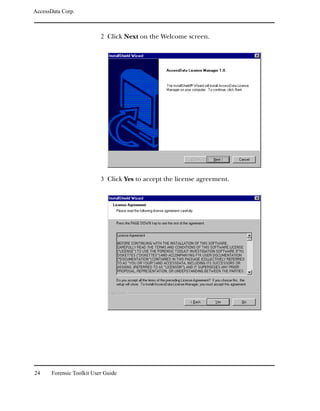
                         have been entered in prior cases. If the investigator has worked
                         on other cases in FTK, select the name from the list.
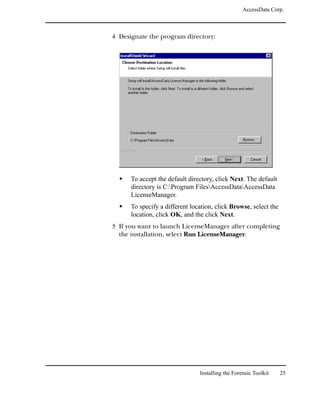


100    Forensic Toolkit User Guide
AccessData Corp.


Selecting Evidence Processes
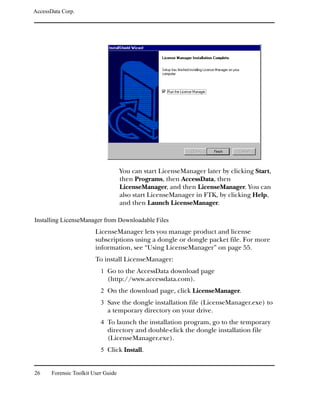
                  The Evidence Processing Options form allows you to specify
                  how you want the evidence processed. These processes can
                  shape the scope of your analysis and the outcome of your case.


                  Many factors can affect which processes you decide to select.
                  For example, if you have specific information available, you
                  may not need to perform a full text index. Or, if you know that
                  compression or encryption are not used, you may not need an
                  entropy test.


                                                   Working with Existing Cases   101
AccessData Corp.


                         The following table outlines the Evidence Processing Options
                         form:

 Process                    Description

 Data Carve                 Carves data immediately after pre-processing. The data carve is then
                            accessed when the Data Carve option is selected.

                            To select the type of file to carve, click Carving Options.

 Decrypt EFS Files          Automatically locates and attempts to decrypt EFS encrypted files
                            found on NTFS partitions within the case.

                            Using this option requires AccessData Password Recovery Toolkit
                            5.20 or later to decrypt files.

 Entropy Test               Determines if the data in unknown file types is compressed or
                            encrypted.

                            The compressed and encrypted files identified in the entropy test are
                            not indexed.

 File Listing Database      Creates a Microsoft Access database containing a list of all files in the
                            case. The attributes included in the database are based on the
                            Default File List Column Setting.

                            You can recreate the database with custom column settings by
                            selecting Copy, and then Special.

 Full Text Index            Indexes all keyboard-related characters in the case evidence.

                            This process is the most time-consuming step in adding evidence to
                            a case. However, the index is required for data carving and Internet
                            keyword searches. It also makes searching much more efficient.
                            For more information about indexing, including disk space
                            requirements, see “Conducting an Indexed Search” on page 154.

 HTML File Listing          Creates an HTML version of the File Listing database.

 KFF Lookup                 Using a database of hashes from known files, this option eliminates
                            ignorable files (such as known system and program files), checks for
                            duplicate files, and alerts you to known illicit or dangerous files.

                            For more information about KFF, see “Known File Filter” on page 9.


102    Forensic Toolkit User Guide
AccessData Corp.


Process              Description

MD5 Hash             Creates a digital fingerprint based on the contents of the file. This
                     fingerprint can be used to verify file integrity and to identify
                     duplicate files.

                     For more information about MD5 hashes, see “Message Digest 5” on
                     page 344.

Registry Reports     Generates common registry reports during preprocessing.

SHA-1 Hash           Creates a digital fingerprint based on the contents of the file. This
                     fingerprint can be used to verify file integrity and to identify
                     duplicate files.

                     This process is not checked by default. If you want FTK to create
                     SHA-1 hashes, you must check the box.

                     For more information about SHA-1 hashes, see “Secure Hash
                     Algorithm” on page 344.

Store Thumbnails     Creates and stores thumbnails for all graphics in the case.

                     This process speeds up the browsing of graphics in the Graphics
                     window.

                     Each thumbnail is about 4 KB per graphic file, so verify that you have
                     space available.

                     This process is not checked by default. If the evidence item is a
                     graphic and you want to store its thumbnail, you must check the box.


                   In the Evidence Processing Options form:
                    1 Select the processes that you want to be run on the
                       evidence.
                    2 Click Next.

Managing Evidence
                   The Add Evidence form allows you to select the following
                   functions:
                       Add evidence.
                       Remove evidence.


                                                         Working with Existing Cases     103
AccessData Corp.


                              Edit basic information about the evidence.
                              Create parameters for adding evidence to the case.


                         The following sections review each function.

Adding Evidence
                         Evidence added during the same session of the New Case
                         Wizard is created as part of one complete case. For example,
                         you can add evidence from multiple floppies, a ZIP disk, and a
                         hard drive.
                         Note: To protect the integrity of case evidence, all items are added as read-only.

                         You can add the same evidence item to multiple cases.
                         To add evidence to the case:
                           1 In the Add Evidence to Case form, click Add Evidence.


104    Forensic Toolkit User Guide
AccessData Corp.


                         2 Select one of the following evidence types and click
                            Continue:

Evidence Type             Description

Acquired Image of Drive A forensic image of a logical or physical drive.

                          If the image is segmented, select the first segment.

                          Important: All the image segments must be placed in a single directory
                          for FTK to process them properly.

                          For a list of supported image formats, see “Supported File Systems
                          and Image Formats” on page 13.

Contents of a Folder      A specific folder, any accompanying sub-folders, and files.

                          The contents of a folder are always added in logical form; that is, they
                          do not include file slack or deleted files.

Individual File           A specific file.

                          Individual files are always added in a logical form; that is, they do not
                          include file slack.
                          Note: If you export an encrypted file for decryption, you can use this
                          option to add the decrypted file back to the case.

Local Drive               A logical or physical drive.

                          If you are running FTK on Windows NT, 2000, or XP, make sure that
                          you are logged in on an account with administrative rights.


                         3 Browse to and select the evidence.
                            If you add an unidentified evidence item that is larger
                            than 25 MB, it will be chunked into 25 MB pieces.
                         4 In the Evidence Information form, enter the following
                            information and click OK:

Information Field         Description

Evidence Location         The same location that you selected when you added this item.

                          If you move the item during the investigation, FTK will prompt you
                          for the new location of the evidence when you load the case.


                                                                Working with Existing Cases        105
AccessData Corp.


 Information Field           Description

 Evidence Display Name       The name used in FTK for the evidence item.

 Evidence Identification     The unique name or number by which this item will be known in the
 Name/Number                 case.

 Comment                     Optional area for any additional information or clarification.

 Local Evidence Time         Select the time zone for the evidence item.
 Zone
                             Local Evidence Time Zone is enabled when the evidence item is on
                             the FAT file system. NTFS images store the created, accessed, and
                             modified times in Universal Coordinated Time (UTC) (previously
                             known as GMT or Greenwich Mean Time).


                               The information and the evidence item is added to the
                               File List. The file format and any refinements are also
                               listed. For information about refining case evidence, see
                               “Refining Evidence” on page 107.

Editing Case Evidence
                           The Edit Evidence option allows you to modify the
                           information you entered in the Evidence Information form.
                           To modify the Evidence Information for a particular item:
                            1 Select an evidence item in the File List.
                            2 Click Edit Evidence.
                            3 Modify the information in the Evidence Information
                               form.
                            4 Click OK.


106    Forensic Toolkit User Guide
AccessData Corp.


Removing Case Evidence
                    The Remove Evidence option allows you to remove an
                    evidence item from the File List.

                    Important: You can remove an item only from the File List in the Add
                    Evidence form. You cannot remove an item after it has been processed.

                    To remove an evidence item from the File List, click Remove
                    Evidence.

Refining Evidence
                    The Refine Evidence-Advanced option allows you to exclude
                    specific data from an individual evidence item.
                    Note: You cannot refine evidence items once they are added to the case. This
                    must be done while adding the item.

                    AccessData strongly recommends that you include all items
                    when adding evidence to a case.

                    Important: After data is excluded from an evidence item, you cannot go back
                    and add it to the case. FTK does not allow you to add the same evidence item
                    more than once. If you discover that you need data that was previously
                    excluded, you must create a new case. Consequently, AccessData strongly
                    recommends that you use include all items unless you are absolutely certain that
                    you will not need any of the excluded items.
                    To refine case evidence:
                         1 Select the evidence item in the File List.
                         2 Click Refine Evidence-Advanced.
                           The Refine Case-Advanced menu is organized into three
                           windows:
                               Refine Evidence by File Status/Type
                               Refine Evidence by File Date/Size
                               Refine Evidence by File Path
                         3 Click the corresponding tab to access each window.


                                                              Working with Existing Cases       107
AccessData Corp.


                              4 Define the refinements you want for the current evidence
                                item.
                                If you want to reset the menu to the default settings, click
                                Reset to Defaults.
                              5 Click Next.
                         The following sections review each window in the Refine
                         Evidence-Advanced menu.

                         Refining Evidence by File Status/Type


                                The following tables outline the options in the Refine
                                Evidence by File Status/Type window:

Unconditionally Add Options

 Option                       Description

 File Slack                   Data beyond the end of the logical file but within the area allocated
                              to that file by the file system.


108    Forensic Toolkit User Guide
AccessData Corp.


Unconditionally Add Options

 Option                       Description

 Free Space                   Areas in the file system not currently allocated to any file but that
                              could contain deleted file data.

 KFF Ignorable Files          Files identified by the HashKeeper database as common, known files,
                              such as program files.


File Status Criteria

 Status                       Description

 Deletion Status              Allows you to include or exclude deleted items.

 Duplicate Files              Allows you to include or exclude duplicate files.

 Email Status                 Allows you to include or exclude files associated with e-mail.

 Encryption Status            Allows you to include or exclude encrypted or password-protected
                              files.

 OLE Streams                  Allows you to include or exclude OLE elements embedded in a file.


File Type Criteria

 Category                     Description

 Archives                     Archive files include e-mail archive files, Zip, Stuffit,Thumbs.db
                              thumbnail graphics, and other archive formats.

                              For a complete list of archive file types recognized by FTK, see
                              “Archive File Types” on page 291.

 Databases                    Includes databases from Access, Quicken, Microsoft Money,
                              QuickBooks, and others.

                              For a complete list of database file types recognized by FTK, see
                              “Database File Types” on page 286.

 Documents                    Includes most word processing, HTML, WML, HDML, or text files.

                              For a complete list of document file types recognized by FTK, see
                              “Document File Types” on page 282.


                                                                   Working with Existing Cases        109
AccessData Corp.


File Type Criteria

 Category                    Description

 E-mail Message              Includes e-mail messages from Outlook, Outlook Express, AOL,
                             Netscape, Yahoo, Earthlink, Eudora, Hotmail, and MSN.

                             For a complete list of e-mail message file types recognized by FTK,
                             see “E-mail Message Programs” on page 290.

 Executables                 Includes executables from Win32 executables and DLLs, OS/2,
                             Windows VxD, Windows NT, JavaScript, and other executable
                             formats.

                             For a complete list of executable file types recognized by FTK, see
                             “Executable File Types” on page 291.

 Folders                     Folders and directories.

 Graphics                    Includes the standard graphic formats like .tif, .gif, .jpeg, and .bmp.

                             For a complete list of graphic file types recognized by FTK, see
                             “Graphic File Types” on page 288.

 Other Recognized            A miscellaneous category that includes audio files, help files,
                             dictionaries, clipboard files, etc.
                             For a complete list of other file types recognized by FTK, see “Other
                             Known File Types” on page 293.

 Spreadsheets                Includes spreadsheets from Lotus, Microsoft Excel, Quattro Pro, and
                             others.

                             For a complete list of spreadsheet file types recognized by FTK, see
                             “Spreadsheet File Types” on page 285.

 Unknown                     File types that FTK cannot identify.


110     Forensic Toolkit User Guide
AccessData Corp.


                           Refining Evidence by File Date/Size
                           The following table outlines the options in the Refine
                           Evidence by File Date/Size window:


Refine Evidence by File Date/Size

 Exclusion                   Description

 Refine Evidence by File     Check to make the addition of evidence items dependent on a date
 Date                        range that you specify.

                             To refine evidence by file date:
                             1. From the drop-down list, select Created, Last Modified, or Last
                                Accessed.
                             2. In the two date fields, enter the beginning and ending dates that you
                                want.


                                                                   Working with Existing Cases          111
AccessData Corp.


Refine Evidence by File Date/Size

 Exclusion                   Description

 Refine Evidence by File     Check to make the addition of evidence items dependent on a file
 Size                        size that you specify.

                             To refine evidence by file size:
                             1. In the two size fields, enter the minimum and maximum sizes that you
                                want.
                             2. In the drop-down list, select Bytes, KB, or MB.


                           Refining Evidence by File Path
                           In the Refine Evidence by File Path window, mark the folders
                           that you want to add to the case. The contents of any folders
                           that are not marked will not be added to the case.


112    Forensic Toolkit User Guide
AccessData Corp.


Refining the Index
                     When you click Next in the Refine Case-Advanced form, FTK
                     brings up the Refine Index-Advanced form.
                     Note: The Refine Index-Advanced form only appears when you click Next in
                     the Refine Case-Advanced form. It does not appear if you simply click Next in
                     the Add Evidence form.


                     The Refine Index form allows you to specify types of data that
                     you do not want to index. You might choose to exclude data to
                     save time and resources and to increase searching efficiency.

                     Important: AccessData strongly recommends that you use the default index
                     settings.

                     Indexing can be quite time-consuming. However the index is
                     required for data carving and Internet keyword searches. It
                     also makes searching much more efficient. Generally
                     AccessData recommends that you accept the default index
                     settings to create the most efficient index possible.


                                                              Working with Existing Cases     113
AccessData Corp.


                            The index file is generated after the creation of a case;
                            however, an evidence item can actually be indexed at any time.
                            For more information about indexing an evidence item, see
                            “Using Analysis Tools” on page 135.
                            The index file contains all discrete words or number strings
                            found in both the allocated and unallocated space in the case
                            evidence.
                            After an evidence item is indexed, it is merged into the existing
                            index and can no longer be removed from the case. For more
                            information about indexing, see “Conducting an Indexed
                            Search” on page 154.
                            The following tables outline the options in the Refine Index
                            form:

Unconditionally Index Options

 Option                         Description

 File Slack                     Data beyond the end of the logical file but within the area allocated
                                to that file by the file system.

 Free Space                     Areas in the file system not currently allocated to any file but that
                                could contain deleted file data.

 KFF Ignorable Files            Files identified by the HashKeeper database as common, known files,
                                such as program files.


File Status Criteria

 Status                         Description

 Deletion Status                Allows you to include or exclude deleted items.

 Duplicate Files                Allows you to include or exclude duplicate files.

 Email Status                   Allows you to include or exclude files associated with e-mail.

 Encryption Status              Allows you to include or exclude encrypted or password-protected
                                files.

 OLE Streams                    Allows you to include or exclude OLE elements embedded in a file.


114       Forensic Toolkit User Guide
AccessData Corp.


File Type Criteria

 Category            Description

 Archives            Archive files include e-mail archive files, Zip, Stuffit,Thumbs.db
                     thumbnail graphics, and other archive formats.

                     For a complete list of archive file types recognized by FTK, see
                     “Archive File Types” on page 291.

 Databases           Includes databases from Access, Quicken, Microsoft Money,
                     QuickBooks, and others.

                     For a complete list of database file types recognized by FTK, see
                     “Database File Types” on page 286.

 Documents           Includes most word processing, HTML, WML, HDML, or text files.

                     For a complete list of document file types recognized by FTK, see
                     “Document File Types” on page 282.

 E-mail Message      Includes e-mail messages from Outlook, Outlook Express, AOL,
                     Netscape, Yahoo, Earthlink, Eudora, Hotmail, and MSN.

                     For a complete list of e-mail message file types recognized by FTK,
                     see “E-mail Message Programs” on page 290.

 Executables         Includes executables from Win32 executables and DLLs, OS/2,
                     Windows VxD, Windows NT, JavaScript, and other executable
                     formats.

                     For a complete list of executable file types recognized by FTK, see
                     “Executable File Types” on page 291.

 Folders             Folders and directories.

 Graphics            Includes the standard graphic formats like .tif, .gif, .jpeg, and .bmp.

                     For a complete list of graphic file types recognized by FTK, see
                     “Graphic File Types” on page 288.

 Other Recognized    A miscellaneous category that includes audio files, help files,
                     dictionaries, clipboard files, etc.

                     For a complete list of other file types recognized by FTK, see “Other
                     Known File Types” on page 293.


                                                          Working with Existing Cases     115
AccessData Corp.


File Type Criteria

 Category                    Description

 Spreadsheets                Includes spreadsheets from Lotus, Microsoft Excel, Quattro Pro, and
                             others.

                             For a complete list of spreadsheet file types recognized by FTK, see
                             “Spreadsheet File Types” on page 285.

 Unknown                     File types that FTK cannot identify.


                          The Refine Index form has pre-defined settings; however, you
                          can modify the default settings by selecting different options in
                          the Refine Index form.
                          In the Refine Index form:
                            1 To modify the default index settings, select the types of
                               files that you want to index.
                                1a Select which items you want to unconditionally index.
                                      See the "Unconditionally Index Options" table on
                                      page 114.

                                      Important: To use the data carving feature, you must index file
                                      slack and free space. For more information, see “Data Carving” on
                                      page 181.
                                1b From the drop-down list, indicate whether you want to
                                      index items that satisfy BOTH the File Status and File
                                      Type criteria or items that satisfy EITHER the File
                                      Status or File Type criteria.
                                1c Select the File Status criteria.
                                      See the "File Status Criteria" table on page 114.
                                1d Select the File Type criteria.
                                      See the "File Type Criteria" table on page 115.
                            2 Click Next.
                               When you click Next, FTK returns you to the Add
                               Evidence form.
                            3 Click Next in the Add Evidence form.


116     Forensic Toolkit User Guide
AccessData Corp.


Reviewing Evidence Setup
                 The Case Summary form allows you to review the number of
                 evidence items and evidence processes that you selected
                 during the Add Evidence Wizard.


                 If you want to change or review any selections, click Back to
                 return to the appropriate form. After you make your changes,
                 click Next to return to the Case Summary form.
                 To accept the current settings and start the processing of the
                 evidence, click Finish.


                                                  Working with Existing Cases   117
AccessData Corp.


Processing the Evidence
                         After you click Finish, the Processing Files form appears and
                         displays the status of the processes you selected in the wizard.


                         The Processing Files form allows you to select the interval for
                         system status entries in the case log. You can also choose to log
                         extended information. Extended information includes
                         information about file identification, indexing, hashing, and
                         rendering graphic thumbnails for each evidence item.
                         The time required to complete the processes depends on the
                         size of the evidence, the processor type, and the amount of
                         available RAM. Because of the complexity and variance of
                         evidence items, it is not possible to predict how much time it
                         will take to execute and perform the various processes.
                         However, as a benchmark statistic, a Pentium 1 system running
                         at 133 Mhz with 128 MB of RAM will take 115 minutes to
                         process a 500 MB image. A Pentium 4 system running at 1.6
                         Ghz with 256 MB of RAM will take eight minutes to process the
                         same 500 MB image.
                         The forensic workstation is heavily taxed while the evidence is
                         being processed. Therefore, AccessData strongly recommends
                         that you exit all other programs so that no other applications
                         or processes are competing for system resources during file
                         processing.


118    Forensic Toolkit User Guide
AccessData Corp.


Viewing File Properties
                  To view a file’s properties:
                    1 Highlight a file in the File List.
                    2 Select Tools, and then File Properties.
                  The File Properties menu is organized into five information
                  windows:
                      General
                      File Source
                      File Content
                      Case-specific
                      E-mail (appears only when viewing file properties for e-
                      mail messages and attachments)
                  Click on the corresponding tab to access each window. Each
                  window contains the following file information:

Property            Description

Alias               Typically, this field indicates the name and path of a recycled file
                    before it was recycled.

                    Recycled files are usually renamed to “Dc1”, “Dc2”, etc.

Category            The item’s file type category.

                    File type categories are Documents, Spreadsheets, Databases,
                    Graphics, Email Message, Executables, Archives, Folders, Other
                    Recognized, and Unknown.

Extension           The file extension.

File Type           The file type, such as an HTML file or a Microsoft Word 98
                    document.

                    FTK uses the file header to identify each item’s file type.

Filename            The name of the file.

Item Number         The unique number assigned to the item.


                                                         Working with Existing Cases       119
AccessData Corp.


 Property                    Description

 Path                        The full file path.


                          The unique information in each window is discussed in the
                          following sections.

General Info
                          On the General Info window, you can view the following
                          information:


 Property                    Description

 Accessed                    The date that the file was last accessed.

 Compressed                  Yes or No, depending on if the file is a compressed file.

 Created                     The date that the file was created.

 Hidden                      Yes or No, depending on if the file is a hidden file.

 Logical Size                The logical file size. This value excludes file slack.

 Modified                    The date that the file was last modified.

 Physical Size               The physical file size. This value includes file slack.


120     Forensic Toolkit User Guide
AccessData Corp.


Property             Description

Read Only            Yes or No, depending on if the file is flagged read-only.

System               Yes or No, depending on if the file is a system file.


File Source Info
                   On the File Source Info window, you can view the following
                   information:


Property             Description

Alternate Name       Yes or No, depending on if a copy of an existing file has been given
                     an alternate name. Usually, the alternate name refers to the MS-DOS
                     filename (the 8.3 name) assigned to the file.

Deleted              Yes or No, depending on if the file was deleted.

Evidence Name        Name of the evidence item that the file belongs to.

Evidence Path        The full path that FTK uses to access the evidence files.

Evidence Type        The type of evidence item the file belongs to. For an acquired image
                     or drive, this field identifies the associated file system (for example,
                     FAT16, FAT32, or NTFS). Otherwise, it indicates if the evidence is an
                     individual file or the contents of a folder.


                                                          Working with Existing Cases     121
AccessData Corp.


 Property                    Description

 From E-mail                 Yes or No, depending on if the item is an e-mail item such as a
                             message, archive, or attachment.

 From Recycle Bin            Yes or No, depending on if the file was recovered from the Recycle
                             Bin.

 From Zip File               Yes or No, depending on if the file is from a Zip file.

 Starting Cluster            The first cluster of the file.

 Starting Sector             The logical sector (relative to the partition) where the file begins.


File Content Info
                         On the File Content Info window, you can view the following
                         information:


 Property           Description

 Children           The number of files in the folder or archive.

 Descendants        The number of files and descendants in the folder or archive.

 Duplicate          Yes or No, depending on if another file matches the current file’s hash.

 Encryption         Yes or No, depending on if the file is encrypted.


122    Forensic Toolkit User Guide
AccessData Corp.


Property         Description

File Header      The first 8 bytes of the file header.

Hash Set         The name of the hash set that contains a matching hash.

KFF Status       Indicates if the file is identified by the KFF as an illicit or contraband file.

MD5 Hash         The MD5 (16 bytes) hash of the file, if performed.

Password         Yes or No, depending on if the file has a password. This includes files that have
                 a read-only password; that is, they may be opened and viewed, but not
                 modified by the reader.

SHA-1 Hash       The SHA-1 (20 bytes) hash of the file, if performed.


Case-Specific Info
                       On the Case-Specific Info window, you can view the following
                       information:


Property                  Description

Alternate Name            Yes or No, depending on if a copy of an existing file has been given
                          an alternate name.

                          Usually, the alternate name refers to the MS-DOS filename (the 8.3
                          name) assigned to the file.


                                                                 Working with Existing Cases        123
AccessData Corp.


 Property                   Description

 Bookmarks                  Displays the number of bookmarks the item belongs to.

 Check Status               Indicates if the item is currently checked in the File List.

 Deleted                    Yes or No, depending on if the item was deleted.

 Duplicate                  Yes or No, depending on if another file matches the current file’s
                            hash.

 File Extension             Indicates if the file extension matches the file header.

 Filter Status              Indicates if the item is currently filtered in or out.

 From Recycle Bin           Yes or No, depending on if the item was recovered from the Recycle
                            Bin.

 Ignore Status              Indicates if the item is currently flagged to be ignored.

 Indexing                   Displays the type of indexing that was performed on the item. The
                            available options are as follows:
                               Full indicates that the evidence item was fully indexed.
                               Name Only indicates that only the filename was indexed because
                               the file type is one that FTK does not index, such as graphics.
                               Not Yet indicates that you disabled indexing when you added the
                               evidence item to the case.

 KFF Status                 Indicates if the file is identified by KFF as an illicit or contraband file.

 MD5 Hash                   Indicates if an MD5 hash was performed.

 SHA-1 Hash                 Indicates if an SHA-1 hash was performed.

 Thumbnail                  If the item is a graphics file, this property indicates if the item is
                            included in the report. If the item is flagged green, the Thumbnail
                            property reads “In Report.” If the item is marked red, the Thumbnail
                            property reads “Not in Report.”


124    Forensic Toolkit User Guide
AccessData Corp.


E-mail Info
              The E-mail Info tab only appears in the File Properties menu
              if you are viewing e-mail messages or attachments.


              The information in the E-mail Info window varies, depending
              on if you are viewing an e-mail message or an attachment.
              If you are viewing an e-mail message, the E-mail Info window
              displays the following information:
                  The message subject
                  The date the message was sent
                  Who sent the message
                  Who received the message
                  The copied recipients
              If you are viewing an e-mail attachment, the E-mail Info
              window indicates the attachment’s corresponding mailbox file
              and message.


                                              Working with Existing Cases   125
AccessData Corp.


Setting Up Multiple Temporary Files
                         When FTK processes large evidence images, particularly those
                         containing large e-mail archives, it requires significant disk
                         space for creating and using temporary files. If the drive
                         containing FTK's current temp folder fills to capacity while
                         FTK is processing evidence, FTK will pause and prompt you to
                         choose one (or more) alternate drives where temp files can be
                         written. Temp files are deleted immediately after their use. Any
                         stray files in the temp area are deleted when FTK is
                         relaunched.
                         If you are adding large evidence to a case, you can select a
                         location for the temp files prior to adding the large evidence
                         files using the Temporary Files Manager.
                           1 Click Tools, and then Preferences.
                           2 In the Temporary File Folder area, click the Browse
                              button.
                           3 Click the Folder button, and then select the folder.
                              The path and folder name appear in the Temporary Files
                              Areas In Order of Use list. Folders are used in the order
                              listed here.
                           4 To change the order of use, select the folder and click the
                              Up or Down arrows to change the order.
                           5 Click OK.


126    Forensic Toolkit User Guide
CHAPTER              6
Processing Evidence
           After you add evidence to a case, you can process it by
           bookmarking and exporting files that are relevant to the case,
           verifying the image integrity, analyzing the evidence, and so
           forth.
           This chapter contains the information that you need to
           process your case. It includes the following:
               “Using Bookmarks” on page 128
               “Creating Thumbnails” on page 131
               “Importing KFF Hashes” on page 132
               “Verifying Image Integrity” on page 133
               “Using Analysis Tools” on page 135
               “Using the Case Log” on page 137
               “Adding Entries to the Case Log” on page 140
               “Copying Information from FTK” on page 140
               “Exporting Files” on page 143
               “Exporting the Word List” on page 147


                                                                      127
AccessData Corp.


Using Bookmarks
                         A bookmark contains a group of files that you want to
                         reference in your case.
                         Bookmarks help organize the case evidence by grouping
                         related or similar files. For example, you can create a
                         bookmark of graphics that contain similar images.
                         The Bookmark window lists all bookmarks that have been
                         created in the current case, as shown below:


Creating a Bookmark
                         To create a bookmark:
                           1 Select Tools, and then Create Bookmark.
                              The Create New Bookmark form appears.
                           2 In the Bookmark Name field, enter the name of the
                              bookmark.
                           3 (Optional) In the Bookmark Comment field, enter
                              comments about the bookmark or its contents.


128    Forensic Toolkit User Guide
AccessData Corp.


                        4 Click one of the following to specify which files to add to
                          the bookmark:

Option                  Description

All Checked Items       All items checked in all file lists.

                        You can check files in multiple lists.

All Currently Listed    All items in the current file list.
Items

All Highlighted Items   All items highlighted in the current file list.

                        Items remain highlighted only as long as the same window is displayed.


                        5 If you want FTK to remember the highlighted text in the
                          first file and automatically highlight it for you when you
                          return to the bookmark, check Remember File
                          Position/Selection. (The highlighted text will also print in
                          the report.)
                          Note: This option is disabled if there is more than one file in the
                          bookmark.

                        6 Check Include in Report to include the bookmark in the
                          report.
                        7 If you choose to include the bookmark in the report, you
                          can check Export to export the bookmark’s files with the
                          report.
                        8 Click OK.


                                                                        Processing Evidence     129
AccessData Corp.


Adding Files to a Bookmark
                         To add files to a bookmark:
                           1 In a file list, highlight the file that you want to add to the
                              bookmark.
                              Shift+click to select multiple contiguous files.
                              Ctrl+click to select multiple discontiguous files.
                           2 Right-click and select Add to Bookmark.
                              The Add Files to Bookmark form appears and displays the
                              filename and full path of the file you selected.
                           3 Do one of the following:
                                     To add to the last-used bookmark, go to Step 4.
                                     For convenience, FTK remembers the last-used bookmark.
                                     You can add several files to the bookmark without having
                                     to select the bookmark.
                                     To select a different bookmark or select several
                                     bookmarks, select the bookmarks to add the file to in the
                                     Bookmark Name column.
                                     Shift+click to select multiple contiguous bookmarks.
                                     Ctrl+click to select multiple discontiguous bookmarks.
                                     The Bookmark Comment column displays the comments
                                     entered when the bookmark was created.
                           4 Click OK.
                         You can add checked files, highlighted files, and currently
                         listed files to the last-accessed bookmark without having to
                         select the bookmark from the Bookmark Name column. When
                         you select additional files to add to a bookmark, FTK defaults
                         to the last-accessed bookmark.


130    Forensic Toolkit User Guide
AccessData Corp.


Removing a Bookmark
                You can remove both a bookmark and individual files within
                bookmarks.
                To remove a bookmark or an individual file:
                  1 In the Bookmark window, expand the bookmark list and
                      highlight the bookmark or file that you want to remove.
                  2 To remove a bookmark, right-click and select Delete
                      Bookmark.
                  3 To remove a file, right-click and select Remove This File
                      From the Bookmark.

Creating Thumbnails
                If you did not check the Store Thumbnails box when you
                added graphic files to the case, thumbnails aren’t created
                before the graphics are viewed.
                Thumbnails can be created spontaneously the first time
                graphics are viewed, but the creation of the thumbnail slows
                the display of the graphic. To create the thumbnails after you
                have added the graphics to the case, click Tools, and then
                Prerender Thumbnails.
                The Prerender Thumbnails Processing Files form lists each
                graphic as it is being processed and reflects the overall process
                status.


                                                         Processing Evidence   131
AccessData Corp.


                         The Processing Files form also allows you to designate the
                         interval at which you want the prerendering events logged to
                         the case log. You can also choose to log extended information.
                         Note: The extended information includes information about file identification,
                         indexing, hashing, and rendering graphic thumbnails for each evidence item.
                         Completing the processes may take some time, depending on
                         the size of the evidence, the processor type, and the amount of
                         available RAM.

Importing KFF Hashes
                         Using the Import KFF Hashes feature, you can import hashes
                         from other databases or update the KFF database.
                         Note: The HashKeeper database is updated periodically and is available for
                         download on the FTK update page (http://www.accessdata.com). For specific
                         instructions on updating the KFF database, see “Upgrading a Customized KFF”
                         on page 30.
                         To import hashes to the KFF database:
                           1 Click Tools, and then Import KFF Hashes.
                           2 Browse to and select one of the following file types:
                                     AccessData Hash Database (.hdb)
                                     FTK Imager Hash List (.csv)
                                     Hashkeeper Hash Set (.hke, hke.txt)
                           3 Designate the hash set’s KFF Status as either Alert or
                              Ignore.
                           4 When finished, click OK.
                              The imported hash set is merged into the existing hash set
                              and saved. Duplicate hashes are overwritten.


132    Forensic Toolkit User Guide
AccessData Corp.


Verifying Image Integrity
                    An image can be altered due to bad media or deliberate
                    tampering. To validate the integrity of your case evidence, FTK
                    allows you to determine if an image has changed from the
                    original acquired image. This feature only works with images
                    that store the hash within the image itself, such as EnCase and
                    SMART images.
                    To verify an image’s integrity, FTK generates an hash of the
                    current file and compares that to the hash of the original
                    acquired image.
                    To verify that an image has not changed:
                     1 Select Tools, and then Verify Image Integrity.
                        The Verify Image Integrity menu appears.


                        The Verify Image Integrity form contains the following
                        information:

Column                Description

Added                 Date when image was added to the case.

Comment               Additional information entered about the image when it was added
                      to the case.

Evidence filename     The name of the image.


                                                               Processing Evidence   133
AccessData Corp.


 Column                     Description

 Evidence Path              The full path FTK uses to access the image file.

 Evidence Type              The image format.

 Identification             The evidence number that was entered when the image was added to
                            the case.

 Investigator’s Name        The investigator assigned to the case.


                           2 In the Evidence Filename column, select the image and
                              click Verify.
                           3 Click Yes to confirm.

                         The Processing Files form appears and displays the status of
                         the verification.


                         The Processing Files form reflects the overall process status.
                         The Processing Files form also allows you to designate the
                         interval at which you want the verification events logged to the
                         case log. You can also choose to log extended information.
                         Note: The extended information includes information about file identification,
                         indexing, and hashing.

                         Completing the processes may take some time, depending on
                         the size of the evidence, the processor type, and the amount of
                         available RAM.


134    Forensic Toolkit User Guide
AccessData Corp.


Using Analysis Tools
                       If any evidence item is added to the case without being fully
                       analyzed, you can run analysis processes at a later time. The
                       Analysis Tools form allows you to generate hashes, compare
                       hashes to the KFF database, or index files.


                       The following tables outline the options in the Analysis Tools
                       menu:

Processes to Perform

 Process                 Description

 Entropy Test            Determines if the data in unknown file types is compressed or
                         encrypted.

                         The compressed and encrypted files identified in the entropy test are
                         not indexed.


                                                                    Processing Evidence    135
AccessData Corp.


Processes to Perform

 Process                    Description

 Full Text Indexing         Indexes all keyboard-related characters in the case evidence.

                            This process is a time-consuming step. However, the index is
                            required for data carving and Internet keyword searches. It also
                            makes searching much more efficient.

                            If you do not want to re-index items that have already been indexed,
                            select Don’t Re-index Previously Indexed Files.

                            If you want to re-index all items in the case, select Re-index Files.

                            For more information about indexing, including disk space
                            requirements, see “Conducting an Indexed Search” on page 154.

 KFF Lookup                 Using a database of hashes from known files, this option eliminates
                            ignorable files (such as known system or program files), checks for
                            duplicate files, and alerts you to known illicit or dangerous files.

                            If you do not want to recheck items that have already been checked,
                            select Don’t Recheck Previously Selected Files.

                            If you want to recheck all items in the case, select Recheck Files.

                            For more information about KFF, see “Known File Filter” on page 9.

 MD5 Hash                   Creates a digital fingerprint based on the contents of the file. This
                            fingerprint can be used to verify file integrity and to identify
                            duplicate files.

                            For more information about MD5 hashes, see “Message Digest 5” on
                            page 344.

 SHA-1 Hash                 Creates a digital fingerprint based on the contents of the file. This
                            fingerprint can be used to verify file integrity and to identify
                            duplicate files.

                            This is the only process not checked by default. If you want FTK to
                            create SHA-1 hashes, you must check the box.

                            For more information about SHA-1 hashes, see “Secure Hash
                            Algorithm” on page 344.


136    Forensic Toolkit User Guide
AccessData Corp.


Target Items

 Items to be Analyzed      Description

 All Checked Items         All items checked in all file lists.

                           You can check files in multiple lists.

 All Currently Listed      All items highlighted in the current file list.
 Items
                           Items remain highlighted only as long as the same window is displayed.

 All Highlighted Items     All items highlighted in the current file list.

                           Items remain highlighted only as long as the same window is displayed.

 All Items                 All items checked in all file lists.

                           You can check files in multiple lists.


                         To run these processes:
                           1 Select Tools, and then Analysis Tools.
                           2 Check the processes you want to perform.
                           3 Select the files to process.
                           4 Click OK.
                         The Processing Files form appears and displays the status of
                         the processes.

Using the Case Log
                         The case log documents activities that occur on the case
                         during its investigation and analysis. The case log file, ftk.log,
                         is automatically created in the case folder when you start a new
                         case.
                         The contents of the case log depends on what you checked
                         when you used the New Case Wizard. The Case Log Options


                                                                         Processing Evidence   137
AccessData Corp.


                         form in the New Case Wizard allows you to determine which of
                         the following events you want to record in the case log.

 Option                     Description

 Bookmarking Events         Events related to the addition and modification of bookmarks.

 Case and Evidence          Events related to the addition and processing of file items when
 Events                     evidence is added or when using the Analysis Tools at a later time.

 Data Carving/Internet      Events related to data carving or Internet keyword searches
 Searches                   performed during the case.

 Error Messages             Events related to any error conditions encountered during the case.

 Other Events               The following events:
                               Using copy special feature
                               Exporting files
                               Viewing items in the detached viewer
                               Ignoring and unignoring files

 Searching Events           All search queries and resulting hit counts.


                         The case log also reflects the examiner’s if that information is
                         available. If no examiner’s name is available, the investigator’s
                         name appears as the person who started the case.
                         For more information about defining which events are logged
                         to the case log, see “Selecting Case Log Options” on page 64.
                         In addition to specific events, the case log can contain user
                         entries. You can manually add information to the case log. For
                         more information, see “Adding Entries to the Case Log” on
                         page 140.
                         The case log can be used to identify what has occurred on the
                         case and it can be included in a case report. For information
                         on viewing the case log, see “Viewing the Case Log” on page
                         139. For information on including the case log in a report, see
                         “Adding Supplementary Files and the Case Log” on page 235.


138    Forensic Toolkit User Guide
AccessData Corp.


Viewing the Case Log


                 To view the case log:
                   1 Select Tools, and then View Case Log.
                   2 You can search for an event using the following options:


Option                 Description

                       In the text field, enter the string that you want to search for in the
                       case log.


                       Highlights the previous instance of the search string in the case log.

                       Searches backward in the current file.

                       Highlights the next instance of the search string in the viewer.

                       Searches forward in the current file.


                                                                    Processing Evidence     139
AccessData Corp.


Adding Entries to the Case Log
                         During the case investigation and analysis, you can manually
                         add information to the case log (ftk.log). You can add any
                         information that you want included in the audit trail.
                         To add an entry to the case log:
                           1 Select Tools, and then Add Case Log Entry.
                           2 In the Investigator’s Name field, enter the name of the
                              investigator or select the name from the drop-down list.
                           3 In the Case Log Entry field, enter the information that you
                              want to add.
                           4 Click OK.

Copying Information from FTK


140    Forensic Toolkit User Guide
AccessData Corp.


                        The Copy Special form allows you to copy information about
                        the files in your case. The file information can include any
                        column item, such as filename, file path, file category and so
                        forth. The data is copied in a tab-delimited format.
                        In addition, the information about the files contained in the
                        case can be exported to an MS Access Database that lists all the
                        files in the case. The MS Access Database export can be
                        customized to include slack files, image names, and OLE-
                        embedded items. MS Access Databases can be sorted in
                        ascending or descending order by date.
                        Note: If you want to copy the actual items, use the Export Files feature. For
                        more information about exporting, see “Exporting Files” on page 143.
                        To copy file information:
                          1 In the file list on any window, select the files that you want
                             to copy information about.
                          2 Select Edit, and then Copy Special.
                          3 In the File Items to Copy list, select one of the following:


Item                         Description

All Checked Items            All items checked in all file lists.

                             You can check files in multiple lists.

All Currently Listed Items All items in the current file list.

All Highlighted Items        All items highlighted in the current file list.

                             Items remain highlighted only as long as the same window is
                             displayed.

All Items                    All items in the case.


                          4 In the Load from Stored Column Settings drop-down list,
                             select the template that contains the file information that
                             you want to copy.


                                                                           Processing Evidence      141
AccessData Corp.


                            5 If you want to define a new column settings template:
                                5a Check or uncheck the Column Names, depending on
                                      which ones you want to include in the setting.
                                      You can click Select All or Unselect All to mark or
                                      unmark all the columns.
                                5b To change the order in which the columns appear in
                                      the File List, select a column name and click Move Up
                                      or Move Down.
                                5c To create a new column setting, click Save As, enter a
                                      name in the field, and click OK.
                            6 If you want to modify an existing template:
                                6a Click Columns.
                                6b Select the column setting you want to modify.
                                6c Modify the Column Settings form.
                                6d Click Save, and then Close.
                               For more information about the Column Settings form,
                               see “Customizing Columns” on page 249.
                            7 Under Copy Destination, select one of the following:


 Destination                 Description

 Clipboard                   Copies the selected data to the Windows Clipboard where it can be
                             copied to another Windows application, such as an Excel
                             spreadsheet.

                             The maximum number of evidence items that can be copied is
                             10,000.

 File                        Copies information to a file. The default filename is ftkfileinfo.txt.

                             Browse to and select the location for the information file.


142     Forensic Toolkit User Guide
AccessData Corp.


Destination            Description

MS Access Database     Creates an MS Access Database File based on the selected data.

                       Browse to and select the location for the database file, then select the
                       MS Access database Options including:
                          Include Slack Files
                          Include OLE-embedded items
                          Include image name in filename


                      8 Do one of the following:
                             For Clipboard and general File copies, click Copy.
                             For MS Access Database copies, click Create Database.

Exporting Files
                     FTK allows you to export any evidence item. Files can be
                     exported for additional processing or distribution to other
                     parties. For example, encrypted files may be exported so you
                     can decrypt them using Password Recovery Toolkit (PRTK).
                     Similarly, registry files may be exported so you can analyze
                     them using the Registry Viewer. (Neither PRTK or Registry
                     Viewer can read files within an image.)


                                                                    Processing Evidence     143
AccessData Corp.


                          The FTK program exports files in raw format, but includes an
                          HTML view when it’s available for that file.


                          Note: Bookmarked files and graphics can be automatically exported with
                          reports. For more information about exporting files with a report, see “Creating
                          a Report” on page 222.
                          You can export folders while maintaining the original
                          directory structure (Recursive File Export) or not.
                          To manually export files without maintaining the directory
                          structure:
                            1 Select File, and then Export Files.
                            2 Select the files to export.


 Target Item                 Description

 All Checked Files           All items checked in all file lists. You can check files in multiple lists.

 All Currently Listed Files All items in the current file list.


144    Forensic Toolkit User Guide
AccessData Corp.


Target Item               Description

All Files                 All items in the case. All files includes parsed and extracted items
                          like the contents of a zip file, or the messages from an email archive,
                          or OLE streams that are part of Office docs, anything that didn't have
                          it's own entry in Windows Explorer.

All Highlighted Files     All items highlighted in the current file list. Items remain
                          highlighted only as long as the same window is displayed.


                            The filenames and paths are displayed.
                         3 If you want to export e-mail attachments, check Include
                            Email Attachments With Email Messages.
                         4 In the Destination Path field, browse to and select the
                            location where you want to export the files.
                            The default path is the case_folderReportExport
                            directory.
                         5 If you want to add the archive name to the filename, check
                            Prepend Archive Name to filename.
                         6 If you want to add the item number after the filename,
                            check Append Item Number to filename to Guarantee
                            Uniqueness.
                         7 If you want to add an appropriate extension to a file that is
                            missing an extension or has a bad extension, check Append
                            Appropriate Extension to filename if Bad/Absent.
                         8 To export the file in the same formatting as seen in the
                            FTK program, check Export HTML View if Available.
                            Some files may not be available in this view.
                         9 To export files in which readable text is filtered out of
                            binary files, check Export Filtered Text View.
                        10 Click OK.
                        To manually export files while maintaing the directory
                        structure:
                         1 Select and highlight the files to export.


                                                                       Processing Evidence    145
AccessData Corp.


                           2 Right-click the files and then select Recursive File Export.
                           3 Select the destination for these files. The Recursive Export
                              dialog opens.


                           4 If you want to include the path of the exported file, click
                              Yes.
                              The recursive path will include everything from image
                              name down to the file or folder itself. If the path is too
                              long, the file will still be dropped into the destination
                              directory specified.
                              It will not truncate long file paths to make them fit. You
                              will get a case log entry indicating that the file name was
                              too long and the destination path was not created.
                         Recursive exported files have a Unique Item ID number
                         appended to the filename to prevent them overwriting files
                         with similar names.

About Recursive File Exporting
                         In versions of FTK before 1.80, the Recursive File Export
                         function allows users to export a folder with all of its children
                         and descendants. FTK 1.80 includes new functionality that
                         allows users to also export upwardly or outwardly, rebuilding
                         the original folder structure from the root of the image down
                         to the selected file or folder, then exporting the descendants
                         of the selected file or folder.
                         If the original path of the exported file is longer than that
                         allowed by Windows, FTK will not be able to export it. In this
                         case, FTK will notify the user and add an entry to the case log.
                         This problem can often be avoided by exporting to a location
                         near the root of the destination drive.


146    Forensic Toolkit User Guide
AccessData Corp.


Exporting the Word List
                 If you are using PRTK, you can export the case index to use as
                 a dictionary in the password recovery process.
                 To export the word list:
                   1 Select Tools, and then Export Word List.
                   2 Select the file and location that you want to write the word
                     list to.
                     The default filename is case_name.txt.
                   3 To add registry files, click Add Files and then select the
                     registry files to add to the word list.
                     This option is only available if you are using PRTK version
                     5.21a or later and you have Registry Viewer installed.
                   4 Click Save.


                                                               Processing Evidence   147
AccessData Corp.


148    Forensic Toolkit User Guide
CHAPTER                 7
Searching a Case
                 Searching evidence for information pertaining to a case can be
                 one of the most crucial steps in the examination. Forensic
                 Toolkit (FTK) provides both live and indexed searches.
                 This chapter contains the information that allows you to
                 successfully search your case evidence:
                     “Conducting a Live Search” on page 149
                     “Conducting an Indexed Search” on page 154
                     “Documenting Your Search Results” on page 170
                 In addition to basic searches, you can also do several types of
                 advanced searches. See “Advanced Searching” on page 175
                 and “Data Carving” on page 181 for more information.

Conducting a Live Search
                 The live search is a time-consuming process involving an item-
                 by-item comparison with the search term. A live search is
                 flexible because it can find patterns of non-alphanumeric
                 characters.
                 Live search also supports regular expression searches. Regular
                 expressions are mathematical statements that describe a data
                 pattern such as a credit card or social security number. Regular
                 expression searches allow you to find data items that conform
                 to the pattern described by the expression. For more


                                                                              149
AccessData Corp.


                         information about regular expressions and syntax, see
                         “Regular Expression Searching” on page 295.


                         AccessData recommends live searching only if you do not have
                         time to index the evidence.
                         To perform a live search:
                           1 In the Search window, click Live Search.
                           2 In the Search Term field, enter the term you want to
                              search for.
                              You can also enter a regular expression in this field if the
                              Regular Expression box is checked. For more information
                              about regular expressions and syntax, see “Regular
                              Expression Searching” on page 295.
                           3 In the Item Type column, specify if you want FTK to search
                              in Text or Hexadecimal.


150    Forensic Toolkit User Guide
AccessData Corp.


                        If you select Text, check any of the following search
                        criteria:

Text Search Criteria

 Criteria              Description

 ASCII                 Searches any text in the same single-byte character set that your
                       Windows version natively uses.

                       For example, the English version of Windows uses the ISO 8859-1
                       character set; therefore, on English systems, you can find words in
                       any ISO 8859-1 language.
                       Note: For a listing of character sets used by common languages, visit
                       http://www.w3.org/International/O-charset-lang.html.

 Case Sensitive        Searches for text matching the case (uppercase or lowercase) of the
                       search string.

                       If unchecked, FTK ignores case when searching a term.

 Regular Expression    Searches patterns in files, such as any numbers that are in a phone
                       number pattern.

                       If you select Regular Expression, the arrow next to the Search Term
                       field is activated.

                       Click the arrow and select one of the following predefined regular
                       expressions:
                          U.S. Phone Number
                          U.K. Phone Number
                          Credit Card Number
                          Social Security Number
                          IP Address

                       Click Edit Expressions to edit the expressions in a text editor.

                       For more information about regular expressions and syntax, see
                       “Regular Expression Searching” on page 295.


                                                                         Searching a Case      151
AccessData Corp.


Text Search Criteria

 Unicode                    Converts the ASCII/ISO 8859-1 text typed in the Search Term field
                            to Unicode (the UCS-2 little endian form) and searches the Unicode
                            version of the text.

                            This search cannot be used to find Unicode text because there is
                            no way to type Unicode text in the Search Term field. So
                            although the Unicode search doesn't search any additional
                            languages, it does let you find ASCII/ISO 8859-1 strings that are
                            being stored in Unicode.


                           4 Click Add to add the search term to the Search Items
                              column.
                              You can add as many terms as you want to the Search Items
                              column. FTK searches for all terms listed in this column.
                              After a term is added to the search list, you can click Edit
                              Item to modify the term or Delete Item to remove the
                              term. Click Reset to clear the search list.
                           5 In the Max Hits Per File field, enter the maximum number
                              of times you want a search hit to be listed per file. The
                              default is 200.
                           6 Click Search.
                              The Filter Search Hits dialog appears.


152    Forensic Toolkit User Guide
AccessData Corp.


                 7 In the Filter Search Hits dialog, select one of the
                   following:

Option           Description

All Files        Search all the files in the case. All files includes parsed and extracted
                 items like the contents of a zip file, or the messages from an email
                 archive, or OLE streams that are part of Office docs; anything that
                 didn't have it's own entry in Windows Explorer.

Checked Files    Search the checked files in the Explore, Graphics, E-Mail, or
                 Bookmark windows.

Filtered Files   Search files selected by a filter. Select the filter from the drop-down
                 list.

                 For information on creating a filter, see “Modifying or Creating a
                 Filter” on page 196.


                 8 Click OK.
                   The Live Search Progress dialog displays the progress of
                   the search. You can choose to pause, resume, or cancel the
                   search.


                                                                   Searching a Case    153
AccessData Corp.


                            9 Click View Results to the results.
                               When the search is complete, the search is added to the
                               search results list. The results of each search appear as
                               separate line items in the search results list.
                           10 Select the search results you want to in the search or file
                               lists.

      Search Line


                          Click the plus icon (+) next to a search line to expand the
                          search results. Individual search results are listed in the search
                          and file lists. To view a specific item, select the file in the search
                          results or file lists. All search results are highlighted in the file.
                          If this search does not display the needed information, you can
                          conduct several types of advanced searches. See “Advanced
                          Searching” on page 175 and “Data Carving” on page 181 for
                          more information.

Conducting an Indexed Search
                          The indexed search uses the index file to find the search term.
                          Evidence items may be indexed when they are first added to
                          the case or at a later time. For more information about
                          indexing an evidence item, see “Using Analysis Tools” on page
                          135.
                          The index file contains all discrete words or number strings
                          found in both the allocated and unallocated space in the case
                          evidence. It does not capture spaces or symbols, including the
                          following:
                          .,:;"’~!@#$%^& =+.
                          Note: The at symbol (@) can be included in Internet keyword searches. For
                          more information, see “Searching for Internet Keywords” on page 177.


154     Forensic Toolkit User Guide
AccessData Corp.


FTK uses the search engine, dtSearch, to perform all indexed
searches. For more information on performing searches using
dtSearch, see “dtSearch Requests” on page 331. For a listing of
the wildcard characters that may be used with dtSearch, see
“Wildcard Characters” on page 165.
In addition to performing searches within the case, you can
also use the index as a dictionary for password recovery
processes in the Password Recovery Toolkit (PRTK). You can
export the index by selecting Tools, and then Export Word
List.
All evidence should be indexed so that the index is accurate
and complete. To index evidence when it is added to the case,
check the Full Text Index box on the Evidence Processing
Options form. To index evidence after it is added to the case,
select Tools, then Analysis Tools, and then Full Text Indexing.
To generate the index file, FTK requires free space equivalent
to approximately 50% of the total size of your evidence files.
After they are generated, the index files are typically 25% of
the total size of your evidence files.
The following table illustrates the disk space required to index
different sizes of data:

 Evidence Size        Work Space            Index Size

 8 GB                 4 GB                  2 GB

 15 GB                7.5 GB                3.75 GB

 30 GB                15 GB                 7.5 GB

 30+ GB               50% of the original   25% of the original


                                            Searching a Case      155
AccessData Corp.


Single-Term Searches


                         To perform a single-term indexed search:
                           1 In the Search window, click Indexed Search.
                           2 In the Search Term field, enter the term you want to
                              search for, including any wildcard characters.
                              Note: For a listing of supported wildcard characters, see “Wildcard
                              Characters” on page 165. For more information about supported search
                              requests, see “dtSearch Requests” on page 331.
                              As you type your search term in the field, the Indexed
                              Words list scrolls to match the term. The Count column
                              displays the number of times each indexed word is found
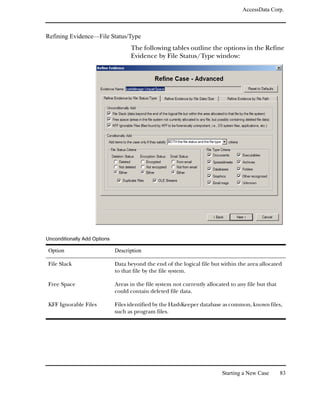
                              in the case.
                           3 Click Add to add the search term to the search list.
                              The Search Items column displays the number of hits and
                              the number of files that contain the search term. When a
                              term is added to the search list, you can click Edit Item to
                              modify the term or Remove Item to remove the term.


156    Forensic Toolkit User Guide
AccessData Corp.


4 To refine the search, click Options.
  For more information on the options in this menu, see
  “Indexed Search Options” on page 167.
5 In the Search Items column, select the index term you
  want to search.
6 Click View Item Results to initiate the search. The Filter
  Search Hits dialog appears.


                                         Searching a Case   157
AccessData Corp.


                           7 In the Filter Search Hits dialog, select one of the following:


 Option                     Description

 All Files                  Search all the files in the case. All files includes parsed and extracted
                            items like the contents of a zip file, or the messages from an email
                            archive, or OLE streams that are part of Office docs; anything that
                            didn't have it's own entry in Windows Explorer.

 Checked Files              Search the checked files in the Explore, Graphics, E-Mail, or
                            Bookmark windows.

 Don’t show this dialog     Disables the Filter Search Hits dialog for the current session. When
 again this session         you restart FTK or load another case, the Filter Search Hits dialog
                            reappears.

                            If you want the Filter Search Hits dialog to reappear in the current
                            session, check Show Filter Search Hits Dialog for Each Session in the
                            Search Options dialog. For more information, see “Indexed Search
                            Options” on page 167.

 Filtered Files             Search files selected by a filter. Select the filter from the drop-down
                            list.
                            For information on creating a filter, see “Modifying or Creating a
                            Filter” on page 196.


                           8 Click OK.


158    Forensic Toolkit User Guide
AccessData Corp.


    If FTK locates more than 200 kits, the Limit Search Hits
    dialog appears. You can limit the number of search hits
    that are highlighted per file.


 9 Select the number of search hits to display per file. Check
    Apply to All to use your settings for all files.
When the single item search is complete, the query is added to
the query list. (Each query is listed separately.)


                                              Searching a Case   159
AccessData Corp.


Multi-Term Searches


                         To perform a multi-term indexed search:
                           1 In the Search window, click Indexed Search.
                           2 In the Search Term field, enter a term you want to search
                              for, including any wildcard characters.
                              Note: For a listing of supported wildcard characters, see “Wildcard
                              Characters” on page 165. For more information about supported search
                              requests, see “dtSearch Requests” on page 331.
                              As you type your search term in the field, the Indexed
                              Words list scrolls to match the term. The Count column
                              displays the number of times the indexed word is found in
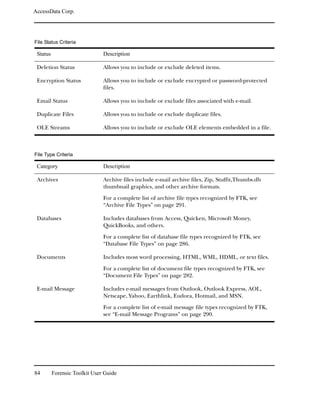
                              the case.
                           3 Click Add to add a search term to the search list.
                              The Search Items column lists the terms you have added
                              to the search. It also displays the number of hits and the
                              number of files that contain each search term as well as the
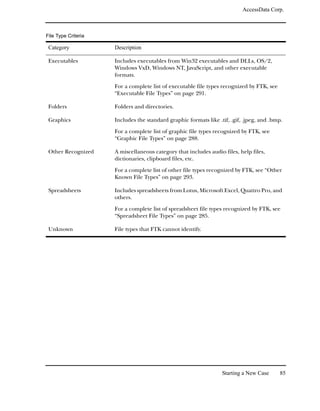
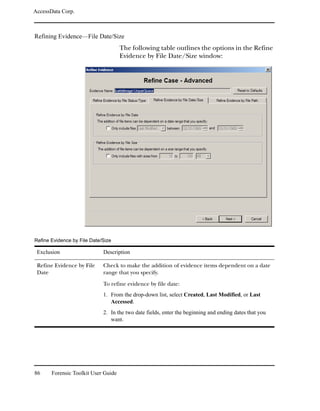
                              cumulative results for all search terms.


160    Forensic Toolkit User Guide
AccessData Corp.


  After a term is added to the search list, you can click Edit
  Item to modify the term or Delete Item to remove the
  term.
4 To refine the search, click Options.
  For more information on the options in this menu, see
  “Indexed Search Options” on page 167.
5 Define your search operators.
   5a Click And to search for items containing all the terms.
   5b Click Or to search for items containing any of the
      terms.
6 Click View Cumulative Results to initiate the search. The
  Filter Search Hits dialog appears.


                                          Searching a Case   161
AccessData Corp.


                           7 In the Filter Search Hits dialog, select one of the following:


 Option                     Description

 All Files                  Search all the files in the case. All files includes parsed and extracted
                            items like the contents of a zip file, or the messages from an email
                            archive, or OLE streams that are part of Office docs; anything that
                            didn't have it's own entry in Windows Explorer.

 Checked Files              Search the checked files in the Explore, Graphics, E-Mail, or
                            Bookmark windows.

 Don’t show this dialog     Disables the Filter Search Hits dialog for the current session. When
 again this session         you restart FTK or load another case, the Filter Search Hits dialog
                            reappears.

                            If you want the Filter Search Hits dialog to reappear in the current
                            session, check Show Filter Search Hits Dialog for Each Session in the
                            Search Options dialog. For more information, see “Indexed Search
                            Options” on page 167.

 Filtered Files             Searches filtered files. Select the filter from the drop-down list.

                            For information on creating a filter, see “Modifying or Creating a
                            Filter” on page 196.


                           8 Click OK.
                              If FTK locates more than 200 kits, the Limit Search Hits
                              dialog appears. You can limit the number of search hits
                              that are highlighted per file.


162    Forensic Toolkit User Guide
AccessData Corp.


                    9 Select the number of search hits to display per file. Check
                       Apply to All to use your settings for all files.
                  When the cumulative search is complete, the query is added to
                  the search results list. (Each query is listed separately.)

Importing Search Terms
                  In addition to individually adding index terms to the search
                  list, you can also import search terms from text files. This is a
                  quick and easy way to add multiple search terms to your
                  indexed search list.
                  Note: Text files containing search terms must only have one search term per
                  line.
                  To import search terms:
                    1 In the Search window, click Indexed Search.
                    2 Click Import.
                    3 Select the text file containing the search terms.

                       Important: The text file must only contain one search term per line.

                    4 Select Yes or No to display terms that have zero hits.
                  The terms are added to the search list.


                                                                      Searching a Case        163
AccessData Corp.


Viewing Search Results
                          When you complete either a single term search or a multi-term
                          search, the results of each search appear as separate line items
                          in the search results list.
                          For more information on searching, see “Single-Term
                          Searches” on page 156 or “Multi-Term Searches” on page 160.

      Search Line


                          Click the plus icon (+) next to a search line to expand the
                          search results. Individual search results are listed in the search
                          and file lists.
                          To view a specific item, select the file in the search results or
                          file lists. All search results are highlighted in the file.

Reloading a Search Query
                          After you perform an indexed search, the search terms are
                          removed from the search list. However, it is possible to reload
                          the search terms from any query.
                          To reload a query:
                            1 Select the query in the search results list.
                            2 Right-click and select Reload Search Query from the quick
                               menu.
                               All the search terms for the selected query are added to
                               the search list.
                          You can reload multiple queries at a time.


164     Forensic Toolkit User Guide
AccessData Corp.


Wildcard Characters
                         dtSearch supports the following wildcard characters for
                        indexed searches:

Wildcard      Description

?             Matches any single character.

              For example, “appl?” matches “apply” or “apple.”

              Matches any number of characters.

              For example, “appl” matches “application.”

~             Matches words that contain the same root. This is called stemming.

              For example, “apply~” matches “apply”, “applies”, and “applied.”

              You can also select stemming by clicking Options and checking the
              appropriate box.

%             Matches words that have similar spellings. This is called a fuzzy search.

              For example, “ba%nana” matches “banana” and “bananna.”

              You can also select a fuzzy search by clicking Options and checking the
              appropriate box.

#             Matches words that sound the same. This is called a phonic search.

              For example, “#smith” matches “smith” and “smythe.”

              You can also select a phonic search by clicking Options and checking the
              appropriate box.

&             Matches words that have similar meaning. This is called a synonym search.
              For example, “fast&” matches “quick.”

              You can also select a synonym search by clicking Options and checking the
              appropriate box.

~~            Matches a numeric range.

              For example, “12~~24” matches “18.”


                                                                      Searching a Case    165
AccessData Corp.


 Wildcard          Description

 :                 Matches variable term weighting, for example, “apple:4 w/5 pear:1.”

                   “w/5” means within five words.


166    Forensic Toolkit User Guide
AccessData Corp.


Indexed Search Options
                             When you are conducting an indexed search, you can use
                             the Options menu to refine the search.


                        The following tables review the individual search options:

Search Broadening Options

Option                      Description

Fuzzy                       Words that have similar spellings, such as raise and raize.
                            Click the arrows to increase or decrease the number of letters in a
                            word that can be different from the original search term.

Phonic                      Words that sound the same, such as raise and raze.

Stemming                    Words that contain the same root, such as raise and raising.

Synonym                     Words that have similar meanings, such as raise and lift.


                                                                             Searching a Case   167
AccessData Corp.


Search Limiting Options

 Option                     Description

 Created Between            Beginning and ending dates for the creation of a file.
                            1. Check the box.
                            2. In the date fields, enter the beginning and ending dates that you want to
                               search.

 File Size Between          Minimum and maximum file sizes, specified in KB.
                            1. Check the box.
                            2. In the size fields, enter the minimum and maximum size in KB of the
                               files that you want to search.

 Filename Pattern           Limits the search to files that match the filename pattern.

                            The pattern can include “?” to match a single character or “*” to
                            match zero or more characters.
                            For example, if you set the filename pattern to “?b”, only files whose
                            second letter is “b” are searched.

                            To enter a filename pattern:
                            1. Check the box.
                            2. In the field, enter the filename pattern.

 Last Saved Between         Beginning and ending dates for the last time a file was saved.
                            1. Check the box.
                            2. In the date fields, enter the beginning and ending dates that you want to
                               search.


168    Forensic Toolkit User Guide
AccessData Corp.


Search Results Options

 Option                      Description

 Max Files To List           Maximum number of files that are listed in the results. The default is
                             10,000 and the maximum is 32,767. (The results are displayed in the
                             search results list.)

                             You can change the maximum number in the field.

                             If you want to be prompted if there are more files than the specified
                             maximum, check the box.

 Max Hits Per File           Maximum number of hits per file. The default is 200.

                             You can change the maximum number in the field.

                             If you want to be prompted if there are more hits than the specified
                             maximum, check the box.


Miscellaneous Options

 Option                      Description

 Save as Permanent           Saves the current settings as your default search options. These
 Defaults                    options are applied to all searches.

 Show Filter Search Hits     Displays the Filter Search Hits dialog every time you perform a
 Dialog for Each Search      search. If this option is not selected, the default values are assumed
                             for every search.

                             This is the default option; however, if you check Don’t Show This
                             Dialog Again This Session in the Filter Search Hits dialog, the Filter
                             Search hits dialog does not appear again until you select this option
                             again. See page 158 for more information on the Filter Search Hits
                             dialog.


                           When you select any options on the Search Option dialog, the
                           Search Options button turns red to indicate that non-default
                           options are applied. If you save these selections as the new
                           permanent defaults, the button returns to its original color.


                                                                             Searching a Case    169
AccessData Corp.


Documenting Your Search Results
                         The following sections review the ways you can document the
                         results of your Indexed and Live searches:
                              “Copying Search Results to the Clipboard” on page 170
                              “Using Copy Special to Document Search Results” on page
                              171
                              “Bookmarking Search Results” on page 172

Copying Search Results to the Clipboard
                         When you right-click in the search results list, the quick menu
                         displays the following options:
                              Copy to Clipboard (including all hits)
                              Copy to Clipboard (visible information only)
                         Copy to Clipboard (including all hits) copies all the
                         information for all the searches to the clipboard. This means
                         that even if a search line is not expanded, the results of that
                         search are copied to the clipboard.
                         Copy to Clipboard (visible information only) only copies the
                         currently viewed information to the clipboard. This means that
                         search results are not copied to the clipboard unless the search
                         line is expanded.
                         After the information is copied to the clipboard, it can be
                         pasted into a text editor or word processing program and
                         saved. Then this information can be added to the case report
                         as an supplementary file. For more information, see “Adding
                         Supplementary Files and the Case Log” on page 235.


170    Forensic Toolkit User Guide
AccessData Corp.


Using Copy Special to Document Search Results
                  The Copy Special feature allows you to copy specific
                  information about files to the clipboard or a file.
                  To copy information about the files in your search results:
                   1 In the search results list, highlight the search you want to
                      document.
                   2 Select Edit, and then Copy Special.
                   3 In the File Items to Copy list, select All Highlighted Items.
                   4 In the Load from Stored Column Settings drop-down list,
                      select the template that contains the file information that
                      you want to copy.
                   5 If you want to define a new column settings template:
                       5a Check or uncheck the Column Names, depending on
                          which ones you want to include in the setting.
                          You can click Select All or Unselect All to mark or
                          unmark all the columns.
                       5b To change the order that the columns appear in the
                          File List, select a column name and click Move Up or
                          Move Down.
                       5c To create a new column setting, click Save As, enter a
                          name in the field, and click OK.
                   6 If you want to modify an existing template:
                       6a Click Columns.
                       6b Select the column setting you want to modify.
                       6c Modify the Column Settings form.
                       6d Click Save, and then Close.
                      For more information about the Column Settings form,
                      see “Customizing Columns” on page 249.


                                                             Searching a Case   171
AccessData Corp.


                            7 Under Copy Destination, select one of the following:


 Destination                 Description

 Clipboard                   Copies the selected data to the Windows Clipboard where it can be
                             copied to another Windows application, such as an Excel spreadsheet.

                             The maximum number of evidence items that can be copied is 10,000.

 File                        Copies information to a file. The default filename is ftkfileinfo.txt.

                             Browse to and select the location for the information file.

 MS Access Database          Creates an MS Access Database File based on the selected data.

                             Browse to and select the location for the database file, then select the
                             MS Access database Options including:
                                Include Slack Files
                                Include OLE-embedded items
                                Include image name in filename


                            8 Do one of the following:
                                      For Clipboard and general File copies, click Copy. For
                                      MS Access Database copies, click Create Database.

Bookmarking Search Results
                          To keep track of the files that were returned in a particular
                          search, you can bookmark the search results. You can create a
                          bookmark from the search results list or the file list.
                          To create a bookmark from the search results list:
                            1 Select the search you want to bookmark.
                            2 Right-click and select Bookmark Search Query Result
                               from the quick menu.


172     Forensic Toolkit User Guide
AccessData Corp.


                      3 In the Create New Bookmark form, enter the following:


Interface              Description

Apply Bookmark To      Displays the filename and path of the bookmarked file.

Bookmark Comment       Information you want to document about the bookmark.

Bookmark Name          The name of the bookmark.

Export Files           If checked, the files included in the bookmark are exported when a
                       report is generated.

Include In Report      If checked, includes the bookmark and its files in case reports.

Remember File          Remembers the highlighted text in the first bookmarked file, and
Position/Selection     automatically highlights it when you return to the bookmark. The
                       highlighted text also prints in the report.

                       This option is available only if the first file in a bookmark is selected.


                      4 Click OK.
                     To create a bookmark from the file list:
                      1 Select the files you want to include in the bookmark.
                      2 Click the bookmark icon    or right-click and select
                         Create Bookmark from the quick menu.
                      3 In the Create New Bookmark form, enter the following:


Interface              Description

Apply Bookmark To      Displays the filename and path of the bookmarked file.

Bookmark Comment       Information you want to document about the bookmark.

Bookmark Name          The name of the bookmark.

Export Files           If checked, the files included in the bookmark are exported when a
                       report is generated.

Include In Report      If checked, includes the bookmark and its files in case reports.


                                                                         Searching a Case     173
AccessData Corp.


 Interface                  Description

 Remember File              Remembers the highlighted text in the bookmarked file and
 Position/Selection         automatically highlights it when you return to the bookmark. The
                            highlighted text also prints in the report.

                            This option is available only if the first file in a bookmark is selected.


                           4 Click OK.
                         The bookmark now appears in the Bookmark window.


174    Forensic Toolkit User Guide
CHAPTER                8
Advanced Searching
          Forensic Toolkit (FTK) includes several advanced search
          features, such as searching file list columns and for Internet
          keywords.
          This chapter contains the following information about
          advanced searching:
              “Searching the Main Viewer” on page 176
              “Searching the File List Columns” on page 176
              “Searching for Internet Keywords” on page 177


                                                                      175
AccessData Corp.


Searching the Main Viewer
                         If you want to search the file currently displayed in the main
                         viewer, you can use the following options in the viewer toolbar:
                         Note: These options are only available when viewing text-based items.


 Option                     Description

                            In the text field, enter the string that you want to search for in the
                            currently displayed item.


                            Highlights the previous instance of the search string in the viewer.

                            Searches backward in the current file. Does not search the previous
                            file.

                            Highlights the next instance of the search string in the viewer.

                            Searches forward in the current file. Does not search the next file.


Searching the File List Columns
                         You can search for a term, such as a filename, in the File List.
                         To search for a term:
                           1 Select Edit, and then Find File in List.
                           2 In the Find What field, enter the term that you want to
                              find.
                           3 In the Column drop-down list, select the columns to
                              search.
                           4 Click Find Next.
                              The first match is highlighted in the File List.
                           5 Continue to click Find Next to locate all matches.


176    Forensic Toolkit User Guide
AccessData Corp.


Searching for Internet Keywords
                 The Internet keyword search finds Internet keywords, such as
                 http, www, com, net, and org. You can search for both URL and e-
                 mail related strings.

                 Important: Evidence items must be indexed before you can perform an
                 Internet keyword search.

                 The following table outlines the URL search options:


                  URL Option                Description

                  http://...                Searches for text that starts with http://.

                  www. ...                  Searches for text that starts with www.

                  ... .com                  Searches for text that ends with .com.

                  ... .org                  Searches for text that ends with .org.

                  ... .net                  Searches for text that ends with .net.

                  ... .[empty field]        Searches for text that ends with the domain
                                            name that you enter in the box.


                             The following table outlines the e-mail address search
                             options:

                  E-mail Address Option     Description

                  ...@... .com              Searches for e-mail address that ends
                                            with.com.

                  ...@... .org              Searches for e-mail address that ends with
                                            .org.

                  ...@... .net              Searches for e-mail address that ends with
                                            .net.

                  ...@... .[empty field]    Searches for e-mail address that ends with
                                            the domain name that you enter in the box.


                                                                Advanced Searching        177
AccessData Corp.


                         To search for Internet keywords:
                           1 Select Tools, and then Internet Keyword Search.
                           2 Select the URL-related strings you want to search.
                           3 Select the e-mail related strings you want to search.
                              Because the index only captures discrete words, you
                              cannot search for full e-mail addresses, such as
                              john@abc.com. You must search for discrete components
                              within the e-mail address.
                              You can check options in both the URL and E-mail
                              columns.
                           4 Click OK.

Viewing Internet Addresses
                         When the process is complete, the detached viewer appears
                         with the Internet address search results.


178    Forensic Toolkit User Guide
AccessData Corp.


                   The Internet Search Results window contains the following
                   information:

Column               Description

File Type            The type of file, for example, an e-mail message or an unknown file
                     type.

Filename             The filename.

                     When a filename is not recoverable, the file is listed with a default
                     name.

Full Path            The full path of the file.

Internet Address     Displays the full Internet address that contains the keyword being
                     searched for.


                   To view an item, select the Internet address you want to
                   examine. The item containing the Internet address appears in
                   the viewer with the address highlighted.
                   You can save the entire list of Internet keywords or you can
                   bookmark specific Internet addresses and save them to your
                   case. See “Saving Internet Keyword Search Lists to the Case”
                   on page 179 and “Bookmarking Internet Keyword Search
                   Items” on page 180.

Saving Internet Keyword Search Lists to the Case
                   If you want to save an Internet Keyword Search List to the case:
                    1 In the Internet Search Results window, click Add List to
                       Evidence.
                    2 Click OK.
                   The list is saved as an HTML file to the case_nameAttach folder.
                   FTK names the file using the following date and time format:
                   Web Scan YYYYMMDD-HHMMSS.htm.
                   For example,
                   Web Scan 20040421-205740.htm.


                                                                  Advanced Searching     179
AccessData Corp.


                         The file is also added to the case and can be viewed in the
                         Documents container in the Overview window.

Bookmarking Internet Keyword Search Items
                         If you want to bookmark an item containing Internet
                         keywords:
                           1 Select an Internet Address.
                           2 Click Create Bookmark.
                           3 In the Create New Bookmark form, enter the following:


 Interface                  Description

 Bookmark Name              The name of the bookmark.

 Bookmark Comment           Any additional information about the bookmark and file.

 Apply Bookmark To          Displays filename and path of the bookmarked file.

 Remember File              Remembers the highlighted text in the bookmarked file and
 Position/Selection         automatically highlights it when you return to the bookmark. The
                            highlighted text also prints in the report.

                            This option is available only if the first file in a bookmark is selected.

 Include In Report          If checked, includes the bookmark and its files in case reports.

 Export Files               If checked, the files included in the bookmark are exported when a
                            report is generated.


                           4 Click OK.


180    Forensic Toolkit User Guide
CHAPTER                 9
Data Carving
           Data carving is the ability to locate files that have been deleted
           or that are embedded in other files.
           This chapter contains the information that allows you to
           successfully locate deleted or embedded files:
               “Searching for Embedded and Deleted Files (Data
               Carving)” on page 182
               “Adding Carved Files to the Case” on page 186
               “Bookmarking Carved Files” on page 187


                                                                          181
AccessData Corp.


Searching for Embedded and Deleted Files (Data Carving)
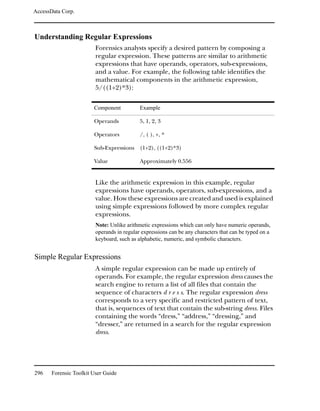
                         Because embedded items and deleted files contain
                         information that may be helpful in forensic investigations,
                         Forensic Toolkit (FTK) simplifies the process of recovering
                         these items and adding them to the case.
                         The data carving feature allows you to search for items, such as
                         graphics embedded in other files. It also allows you to recover
                         previously deleted files located in unallocated space.
                         To recover embedded or deleted files, FTK searches the index
                         for specific file headers. When it finds a file header for a
                         recognized file type, FTK carves the file’s associated data. FTK
                         can find any embedded or deleted item as long as the file
                         header still exists.
                         You can data carve the following file types:

 Interface                  Description

 AOL/AIM Buddy Lists        Searches for embedded AOL or AIM buddy lists.

 BMP Files                  Searches for embedded or deleted BMP files.

 Enhanced WIndows           Searches for deleted EMF files.
 Metafiles (EMF)

 GIF Files                  Searches for embedded or deleted GIF files.

 HTML Files                 Searches for embedded HTML files.

 JPEG Files                 Searches for embedded or deleted JPEG files, even JPEG files
                            embedded in other JPEG files.

 OLE Archive Files          Searches for any embedded Microsoft Office document, such as
 (Office Documents)         PowerPoint slide shows, Excel spreadsheets, and Word doc files.

 PDF Files                  Searches for embedded PDF files.


                         Data carving can be done either during evidence processing
                         (when a new case is added) or it can be done in an existing
                         case.


182    Forensic Toolkit User Guide
AccessData Corp.


                  Versions of FTK before 1.80 used an index granularity of 4
                  characters when indexing unknown file types. FTK 1.80 can be
                  set to use an index granularity of 3 or 2 characters for
                  unknown file types. Lowering the index granularity will
                  sometimes make it possible for FTK to carve more .bmp, .png,
                  and .emf files, at the cost of increased pre-processing time. To
                  lower the index granularity, change the value of the
                  IndexGranularity entry in the [Global] section of the
                  FtkSettings.0.ini file to 3 or 2.
                  Note: Make any change to the .ini file while FTK is closed. If FTK is open
                  when a change is made, closing FTK will rewrite the old setting to the file and
                  the change will not be saved.


Data Carving Files During Evidence Processing in a New Case
                  You can select to data carve when a case is added by selecting
                  Data Carve in the Process to Perform Screen during the New
                  Case Wizard. FTK carves data immediately after pre-
                  processing. Select Carving Options and then select the file
                  types you want to carve immediately.

                  Important: Full-text indexing must be enabled in order to the Data Carve
                  option.
                  For more information, see “Selecting Evidence Processes” on
                  page 65.
                  When you select to data carve when creating a new case, FTK
                  creates a cache for the carved data. If data is located, the cache
                  is saved.
                  To access the cache:
                    1 Select Tools, and then Data Carving.
                    2 Check the file types to carve.
                       You can click Select All or Select None to speed up the
                       selection process.
                    3 Click OK.


                                                                            Data Carving     183
AccessData Corp.


                         When the process is complete, the detached viewer appears
                         with the data carving results. A message appears if no data was
                         located.

Data Carving Files in an Existing Case
                         When FTK finds embedded or previously deleted items, it
                         displays them in a detached viewer. You can then review the
                         items and determine if you want to add them back into the
                         case.

                         Important: Evidence items must be indexed before the data carving feature is
                         available.
                         The results of the data carving search are temporarily saved in
                         the case cache directory. Each file type has its own temporary
                         file, such as PDF_cache.dat and JPEG_cache.dat.
                         To search for embedded and deleted files:
                           1 Select Tools, and then Data Carving.
                           2 Check the file types to carve.
                              You can click Select All or Select None to speed up the
                              selection process.


184    Forensic Toolkit User Guide
AccessData Corp.


                    3 (Optional) Check the Automatically Add Carved Items to
                      Case option. The the Minimum Image Size fields activate.
                       3a Specify a minimum size in pixels in which to display
                           images. The program will question you about
                           minimum sizes over 480 pixels.
                    4 Click OK.

                   When the process is complete, the detached viewer appears
                   with the data carving results.


                   The Data Carving Results window contains the following
                   information:

Column               Description

Added to Case As     The item’s filename when it is added back to the case.

Bookmarked           Indicates if the file is bookmarked.

File Type            The file type, such as GIF or PDF.


                                                                      Data Carving   185
AccessData Corp.


 Column                     Description

 Filename                   The filename.

                            When a filename cannot be recovered, FTK generates a filename
                            based on the item’s location.

 Full Path                  The full path of the file.

 Offset                     The logical position of the file in the evidence item.

 Size (Bytes)               The size (in bytes) of the embedded file.


Adding Carved Files to the Case
                         To add a carved file to the case:
                           1 Select the files you want to add to the case.
                              You can Shift+click to select multiple contiguous files. or
                              Ctrl+click to select multiple discontiguous files.
                           2 Click Add Items to Case.
                           3 Click Yes to accept the default name.
                              or
                              Click No, enter a different name, and click OK.
                         After a file is added to a case, FTK will not find it in subsequent
                         data carving procedures. In other words, there is no
                         redundancy. If a file is identified as case evidence, the data
                         carving feature ignores it. The data carving feature only looks
                         for files that are not individually identified in the body of
                         evidence.


186    Forensic Toolkit User Guide
AccessData Corp.


Bookmarking Carved Files
                     After the files are added to the case, they are moved into their
                     associated categories, such as documents or graphics, and are
                     not distinguished from any other file. Therefore, if you want to
                     track files that were retrieved using the data carving feature,
                     you can create a bookmark.
                     To bookmark a carved file:
                      1 Select the files you want to include in the bookmark and
                         click Create Bookmark.
                         Files must be added to the case before they can be
                         bookmarked. See "Adding Carved Files to the Case" table
                         on page 186.
                      2 In the Create New Bookmark form, enter the following:


Interface              Description

Apply Bookmark To      Displays the filename and path of the bookmarked file.

Bookmark Comment       Information you want to document about the bookmark.

Bookmark Name          The name of the bookmark.

Export Files           If checked, the files included in the bookmark are exported when a
                       report is generated.

Include In Report      If checked, includes the bookmark and its files in case reports.

Remember File          Remembers the highlighted text in the bookmarked file and
Position/Selection     automatically highlights it when you return to the bookmark. The
                       highlighted text also prints in the report.

                       This option is available only if the file has text to select (such as an
                       HTML file or Word), and only if the first file in a bookmark is
                       selected.


                      3 Click OK.


                                                                            Data Carving     187
AccessData Corp.


188    Forensic Toolkit User Guide
CHAPTER                 10
Using Filters
            If you want to minimize the number of evidence items to
            examine, you can apply an existing filter or create a
            customized filter to exclude unwanted items. Forensic Toolkit
            (FTK) allows you to filter your case evidence by file status, type,
            size, and date parameters.
            This chapter contains the information that allows you to
            successfully filter your case evidence:
                “Applying an Existing Filter” on page 190
                “Using The File Filter Manager” on page 190
                “Modifying or Creating a Filter” on page 196
                “Deleting a Filter” on page 197


                                                                            189
AccessData Corp.


Applying an Existing Filter
                            FTK contains the following predefined filters:


 Filter                        Description

 E-mailed Items                Shows e-mail items such as e-mail messages, archive files, and
                               attachments.

 Encrypted Files               Shows encrypted files that are possibly in all file types.

 Graphic Files                 Only shows graphic files.

 KFF Alert Files               Shows KFF alert files that are possibly in all file types.

 No Deleted                    Hides deleted items.

 No Duplicates                 Hides duplicate items.

 No Ignorable                  Hides duplicate items, KFF ignorable files, and files that were flagged
                               ignorable.

 No OLE                        Hides items or pieces of information that were embedded in a file,
                               such as text, graphics, or an entire file.

 Unfiltered                    Displays all items in the case.


                            To apply an existing filter, use the Filter drop-down list on the
                            File List toolbar, shown below:

                                                                Filter
                                                             Drop-Down
                                                                 List


                                        File Filter
                                        Manager


Using The File Filter Manager
                            The File Filter Manager allows you to create or modify file
                            filters. To access this menu, select View, and then File Filter


190       Forensic Toolkit User Guide
AccessData Corp.


Manager or click the File Filter Manager icon        on the File
List toolbar.


The following sections review the categories in the File Filter
Manager menu:
    “Legend” on page 192
    “File Status” on page 192
    “File Type” on page 193
    “File Size” on page 195
    “File Date” on page 195


                                                Using Filters   191
AccessData Corp.


Legend
                          The Legend identifies the individual filter settings that can be
                          selected for each item. Click an item in the Legend to apply
                          the setting to all items in the File Status and File Type columns.
                          The following table reviews the available filter settings:

 Icon                        Description

                             Hide: Never shows files meeting selected criteria.

                             If you click this icon in the Legend column, all file statuses and types
                             are marked Hide.

                             Show: Always shows files meeting selected criteria unless overridden
                             by Hide.

                             If you click this icon in the Legend column, all file statuses and types
                             are marked Show.

                             Conditional Hide: Doesn’t show files meeting selected criteria unless
                             overridden by Show.

                             If you click this icon in the Legend column, all file statuses and types
                             are marked Conditional Hide.

                             Conditional Show: Shows selected criteria unless otherwise
                             overridden.

                             If you click this icon in the Legend column, all file statuses and types
                             are marked Conditional Show.


File Status
                          The following table outlines the file status categories you can
                          use to filter items in FTK.
                          Item buttons toggle between filter settings; simply click an item
                          button multiple times to rotate through the filter settings.

 Category                    Description

 Bad Extension               Files with an extension that does not match the file type identified in
                             the file header, for example, a GIF image renamed as graphic.txt.


192     Forensic Toolkit User Guide
AccessData Corp.


Category             Description

Bookmarked Items     Files that you bookmarked in FTK.

Deleted Files        Complete files or folders recovered from slack or free space.

Duplicate Items      Any items that have an identical hash.
                     Because the filename is not part of the hash, identical files may
                     actually have different filenames.

                     The primary item is the first one found by FTK. The secondary item
                     is any file that has an identical hash of the primary item.

Encrypted Files      Files that are encrypted or have a password. This includes files that
                     have a read-only password. Files with a read-only password may be
                     opened and viewed, but not modified by the reader.

Flagged Ignore       Files that you flagged to ignore.

From E-mail          Files that were embedded in an e-mail message, such as an
                     attachment.

From Recycle Bin     Files derived from the recycled/recycler file structure.

KFF Alert Files      Files identified by the current hash set as illicit or contraband files.

KFF Ignorable        Files identified by the HashKeeper database as common, known files,
                     such as program files.

OLE Subitems         Items or pieces of information that were embedded in a file, such as
                     text, graphics, or an entire file.


File Type
                   The following table outlines the file types you can use to filter
                   items in FTK.


                                                                           Using Filters   193
AccessData Corp.


                         Item buttons toggle between filter settings; simply click an item
                         button multiple times to rotate through the filter settings.

 Category                   Description

 Archives                   Archive files include e-mail archive files, Zip, Stuffit,Thumbs.db
                            thumbnail graphics, and other archive formats.

                            For a complete list of archive file types recognized by FTK, see
                            “Archive File Types” on page 291.

 Databases                  Includes databases from Access, Quicken, Microsoft Money,
                            Quickbooks, and others.

                            For a complete list of database file types recognized by FTK, see
                            “Database File Types” on page 286.

 Documents                  Includes most word processing, HTML, WML, HDML, or text files.

                            For a complete list of document file types recognized by FTK, see
                            “Document File Types” on page 282.

 E-mail Messages            Includes e-mail messages from Outlook, Outlook Express, AOL,
                            Netscape, Yahoo, Earthlink, Eudora, Hotmail, and MSN.

                            For a complete list of e-mail message file types recognized by FTK,
                            see “E-mail Message Programs” on page 290.

 Executable Files           Includes executables from Win32 executables and DLLs, OS/2,
                            Windows VxD, Windows NT, JavaScript, and other executable
                            formats.

                            For a complete list of executable file types recognized by FTK, see
                            “Executable File Types” on page 291.

 Folders                    Folders and directories.

 Graphics                   Includes the standard graphic formats like .tif, .gif, .jpeg, and .bmp.

                            For a complete list of graphic file types recognized by FTK, see
                            “Graphic File Types” on page 288.

 Other Known Files          A miscellaneous category that includes audio files, help files,
                            dictionaries, clipboard files, etc.

                            For a complete list of other file types recognized by FTK, see “Other
                            Known File Types” on page 293.


194    Forensic Toolkit User Guide
AccessData Corp.


Category              Description

Slack/Free Space      Fragments of files that have not been completely overwritten.

Spreadsheets          Includes spreadsheets from Lotus, Microsoft Excel, Quattro Pro, and
                      others.

                      For a complete list of spreadsheet file types recognized by FTK, see
                      “Spreadsheet File Types” on page 285.

Thumbs.db Files       Files used in Microsoft Windows to store caches for Windows
                      Explorer's thumbnail view.

Unknown Files         File types that FTK cannot identify.


File Size
                   To filter items by file size:
                       You define the file size range you want to use to filter
                       items.
                       You determine if you want to measure file size using the
                       logical or physical file size. Logical file size is the size of the
                       file itself. Physical file size is the size of the clusters
                       occupied by the file; that is, it includes the file and the file
                       slack.

File Date
                   FTK allows you to filter items by a specific range of file dates or
                   by a specific number of days, weeks, months, or years.
                   Because the operating system tracks multiple dates for a given
                   item, FTK allows you to filter on different types of file dates.
                   The following table identifies which file dates you can use to
                   filter items in FTK:

                    Option                    Description

                    Accessed                  The date the file was last accessed.

                    Created                   The date the file was created.


                                                                         Using Filters   195
AccessData Corp.


                          Option                       Description

                          Modified                     The date the file was last modified.

                          With Any Date                Any date.


Modifying or Creating a Filter
                         Custom file filters are saved in the FtkFileFilters.ini file. This
                         file is located in the AccessDataAccessData Forensic
                         ToolkitProgram directory.
                         Note: You can access your custom file filters on other machines by copying the
                         FtkFileFilters.ini file to the computer’s AccessDataAccessData Forensic
                         ToolkitProgram directory. This will, however, overwrite the custom file filters
                         on the target machine. (This does not impact the default file filters.)
                         To modify or create a filter:
                           1 Select View, and then File Filter Manager.
                              or
                              Click the File Filter Manager icon on the File List toolbar.
                           2 In the Selected Filter drop-down list, enter the name of
                              your new filter.
                              or
                              Select the filter that you want to modify.
                           3 To filter by file status and type:
                               3a Click the button for each File Status item to rotate
                                     through the available filter settings.
                                     See page 192 for an explanation of each file status.
                               3b Click the button for each File Type item to rotate
                                     through the available filter settings.
                                     See page 193 for an explanation of each file type.
                               3c You can also click a filter setting in the Legend to
                                     unilaterally apply the setting to all items in the File
                                     Type and File Status columns.
                           4 To filter by file size:


196    Forensic Toolkit User Guide
AccessData Corp.


                         4a Click the File Size button to rotate through the
                             available filter settings.
                         4b Determine if you want to measure file size using the
                             Logical or Physical file size.
                             Logical file size is the size of the file itself. Physical file
                             size is the size of the clusters occupied by the file; that
                             is, it includes the file and the file slack.
                         4c In the From field, select the minimum file size.
                         4d In the To field, select the maximum file size.
                         4e To filter by file date:
                         4f Click the File Date button to rotate through the
                             available filter settings.
                         4g Select which file date you want to use to filter items.
                             See page 195 for an explanation of each file date.
                         4h Select Between and enter the beginning and ending
                             dates.
                             or
                             Select In The Last, enter the number in the box, and
                             select Days, Weeks, Months, or Years.
                      5 If you are modifying an existing filter, click Save/Apply.
                        or
                        If you are creating a new filter, click Save As, enter the
                        name, and click OK.

Deleting a Filter
                    You can delete a filter if you no longer need it.
                    To delete a filter:
                      1 Select View, and then File Filter Manager.
                        or
                        Click the Filter Manager icon on the File List toolbar.


                                                                         Using Filters   197
AccessData Corp.


                           2 In the Selected Filter drop-down list, select the filter that
                              you want to delete.
                           3 Click Delete.


198    Forensic Toolkit User Guide
CHAPTER                 11
Searching the Registry
            The Windows Registry allows the Windows operating system to
            control hardware, software, user information, and the overall
            functionality of the Windows interface. Unlike Windows
            Registry Editor, which only displays the current system’s
            registry, Registry Viewer lets you examine registry files from
            any system. Registry Viewer also provides access to a registry’s
            protected storage, which contains passwords, usernames, and
            other information not accessible in Windows Registry Editor.
            This chapter contains the information that allows you to
            successfully search the registry for additional evidence to build
            your case evidence:
                “Starting Registry Viewer” on page 200
                “Understanding the Registry Viewer Windows” on page
                201
                “Opening a Registry File in Registry Viewer” on page 204
                “Working with Registry Evidence” on page 206
                “Creating Registry Summary Reports” on page 208
                “Generating a Report” on page 213
                “Exporting a Word List” on page 214
            Detailed information on Registry Viewer functionality is
            available in the Registry Viewer help. Click Help, and then
            Help Topics.


                                                                          199
AccessData Corp.


Starting Registry Viewer
                         You can run Registry Viewer as a separate application or you
                         can launch it directly within Forensic Toolkit (FTK).

Launching Registry Viewer as a Separate Application
                         To run Registry Viewer as a separate application, select Start,
                         then Programs, then AccessData, and then Registry Viewer,
                         and then Registry Viewer.

Launching Registry Viewer from FTK
                         Integrating Registry Viewer with FTK allows you to seamlessly
                         view registry files and create registry reports from within FTK.
                         Any created reports are saved by default in the current FTK
                         case file.
                         Integration also allows you to extract and open registry files on
                         the fly from hard drive images. FTK automatically creates a
                         temporary registry file from the image and opens it in Registry
                         Viewer; after you’re finished, FTK deletes the temporary file.
                         To run Registry Viewer from FTK:
                           1 In FTK, open an existing case by selecting File, and then
                              Open Case.
                              Or if you have chosen to always display the FTK Startup
                              screen, select Open an Existing Case and click OK.
                           2 Select the case you want to open.
                           3 Select File, and then Registry Viewer to open Registry
                              Viewer.
                           4 Select the registry file you want to view and then click View
                              File.
                         Note: If you have located registry files in the case in FTK, you can right-click
                         on a file and then select View in Registry Viewer. Registry Viewer
                         automatically launches.


200    Forensic Toolkit User Guide
AccessData Corp.


Understanding the Registry Viewer Windows
                 Registry Viewer has three viewing windows to help you obtain
                 and report important registry information. All windows
                 contain a hex viewer that displays a selected key’s values in
                 hexadecimal format.
                 Note: For more information on the files that comprise the registry, see
                 “Securing Windows Registry Evidence” on page 315.


The Full Registry Window
                 The Full Registry window shows all the contents of a registry
                 file. From this window, you can select a keys or subkeys to add
                 to a report. Registry Viewer opens one file at a time.
                 Note: You can extend the Registry Viewer by dragging it to the right so that you
                 can the entire registry path.

                 To view the Full Registry window, select View, and then Full
                 Registry or click the           button on the toolbar to open the
                 Full Registry window
.


                                                                  Searching the Registry     201
AccessData Corp.


The Common Areas Window
                         The Common Areas window helps you quickly access those
                         areas of a registry file most likely to contain important
                         information.
                         To view the Common Areas window, select View, and then
                         Common Areas from the menu or click the          button on the
                         toolbar.


                         Unlike the Full Registry window, which displays all the
                         contents of a registry file, the Common Areas window only
                         shows those keys that commonly contain information of
                         forensic interest such as usernames, passwords, browser
                         history, and so forth. Of course, the various files that make up
                         the registry each contain different information; therefore, the
                         keys that appear by default in the Common Areas window
                         depend upon which registry file you open.


202    Forensic Toolkit User Guide
AccessData Corp.


The Report Window
                The Report window displays the selected keys, allowing you to
                print only relevant information. After you have finished
                adding keys, you can generate a printable HTML report file
                containing all the selected keys and their associated
                information. If you integrate Registry Viewer with FTK,
                Registry Viewer uses the case report location defined in FTK as
                the default location for the generated report.
                To view the Report window, select View, and then Report from

                the menu, or click the      button on the toolbar.


                                                      Searching the Registry   203
AccessData Corp.


Opening Registry Files
                         Registry Viewer allows you to open and view archived Windows
                         registry files.
                         Note: Registry Viewer cannot open active Windows registry files.

                         The following sections review different ways to open Windows
                         registry files:
                              “Opening a Registry File in Registry Viewer” on page 204
                              “Opening Registry Files within FTK” on page 205
                              “Obtaining Protected Registry Files Using FTK Imager” on
                              page 205

Opening a Registry File in Registry Viewer
                         To open a registry file in Registry Viewer:
                          1. Select File, and then Open or click the              button.
                              Note: Registry Viewer cannot open registry files within an image. You
                              must export registry files from an image before they can be opened in
                              Registry Viewer.
                          2. Select the registry file and then click Open.
                              Or
                              You can open a recently used file by selecting File, and
                              then filename from the menu.
                         The file opens in the Full Registry Window.
                         You can open only one registry file at a time in Registry Viewer.
                         If you want to open another file, you must first close the
                         current file or run a second instance of Registry Viewer. You
                         can run multiple instances of Registry Viewer.


204    Forensic Toolkit User Guide
AccessData Corp.


Opening Registry Files within FTK
                  To open a registry file from FTK,
                    1 Click File, and then Registry Viewer.
                      FTK opens a Registry File List that includes all the registry
                      files in the current body of evidence.
                      Note: If the registry files are part of an image file, FTK automatically
                      exports the registry files to a temporary registry file so they can be viewed
                      in Registry Viewer. When you are finished, FTK deletes the temporary
                      registry file.
                    2 Double-click a file in the Registry File List to open it in
                      Registry Viewer.
                      Or
                      Click View File.
                  You can also open registry files in FTK as follows:
                    1 Select an individual registry file in the file list.
                    2 Right-click, then select Registry Viewer from the quick
                      menu.

Obtaining Protected Registry Files Using FTK Imager
                  The Windows operating system does not allow you to copy or
                  save live registry files. Therefore, users have had to image their
                  hard drive and then extract the registry files or boot their
                  computer from a boot disk and copy the registry files from the
                  inactive drive.
                  FTK Imager provides a much easier solution. It bypasses the
                  Windows operating system and allows you to copy registry files
                  underneath the Windows file lock.
                  To obtain the protected registry files using FTK Imager:
                    1 Launch FTK Imager.
                    2 Click File, and then Obtain Protected Files, or click the
                           button on the toolbar.
                    3 Designate a destination directory and file options, then
                      click OK.


                                                                   Searching the Registry      205
AccessData Corp.


                           4 FTK Imager exports the selected files to the designated
                              location.
                           5 Add the files to the case in FTK (see “Adding Evidence” on
                              page 99).
                           6 To open the registry files, click File, and then Registry
                              Viewer
                              or
                              Right-click on a registry file in the file list, then select
                              Registry Viewer.

Working with Registry Evidence
                         You can add keys to the Common Areas and Report windows.
                         This section reviews how to manage keys within Registry
                         Viewer:
                              “Adding Keys to the Common Areas Window” on page 207
                              “Deleting Keys from the Common Areas Window” on page
                              207
                              “Adding Keys to the Report Window” on page 207
                              “Deleting Keys from the Report Window” on page 208


206    Forensic Toolkit User Guide
AccessData Corp.


Adding Keys to the Common Areas Window
                 Once you add a key to the Common Areas window, Registry
                 Viewer keeps track of each key you add, remembering them
                 between registry files and between sessions.
                 To add a key to the Common Areas window
                   1 Select View, and then Full Registry or click the                  button
                      on the toolbar to open the Full Registry window.
                   2 In the registry tree, locate and select the key you want to
                      add.
                   3 From the menu, select Edit, and then Add to Common
                      Areas or click the   button on the toolbar to add the
                      selected key to Common Areas window.

Deleting Keys from the Common Areas Window
                 To delete keys from the Common Areas Window:
                   1 In the registry tree, locate and select the key you want to
                      delete.
                   2 From the menu, select Edit. and then Remove from
                      Common Areas or click the     button on the toolbar to
                      remove the selected key from Common Areas window.

Adding Keys to the Report Window
                 The Report window displays only those keys that you select to
                 be added to a report. Registry Viewer lets you select keys in the
                 Full Registry and Common Areas windows and add them to the
                 Report window.
                 Note: Keys added to the Report window are not saved between sessions or
                 between registry files. To save a record of this information, you must generate
                 a report file before closing the registry file or exiting Registry Viewer.


                                                                 Searching the Registry     207
AccessData Corp.


                         To add keys to the Report window:
                           1 In the registry tree, locate and select the key you want to
                              add.
                           2 From the menu, select Report, and then Add to Report
                              with Children or click the      button to add the selected
                              key and all its subkeys to the Report window.
                         Keys that have been added to a report are denoted by a
                         checked folder icon in the Full Registry and Common Areas
                         windows.
                         After a report has been generated, it can be added to a case in
                         FTK. When FTK reports are generated, the Registry Viewer
                         reports can be included by checking the Include Registry
                         Viewer Reports box in the Report Wizard’s Report Location
                         window.

Deleting Keys from the Report Window
                         To remove a key from the Report window:
                           1 In the Report window, locate and select the key you want
                              to remove.
                           2 From the menu, select Report, and then Remove from
                              Report or click the     button on the toolbar.

Creating Registry Summary Reports
                         You can create Registry Summary Reports (RSRs) in FTK 1.80.
                         An RSR file is simply a template list of desired registry
                         key/value locations, along with section headings. FTK can use
                         these templates to quickly generate reports, saving a significant
                         amount of time in cases where the keys/values you are
                         reporting are in a static location.
                         FTK creates registry reports for the following Registry Files:
                              NTuser.dat
                              SAM
                              Security
                              Software


208    Forensic Toolkit User Guide
AccessData Corp.


     System
To create RSRs, select the Registry Reports check box in the
Evidence Processing Options (Processes to Perform) window
when you set up your case (see “Selecting Evidence Processes”
on page 65).
Note: If you would like this check box to be selected by default, see “Changing
RSR Settings in the FtkSettings.0.ini File” on page 210.

If you want to add additional RSRs to your case, or if you didn’t
select the Registry Reports check box when you set up the
case, you can still create or add new RSRs by clicking Tools and
then Preliminary Registry Reports.
Note: This does not replace exiting files, but adds new files with new
filenames.
A series of report dialogs (one for each RSR) indicates that the
RSRs are being created.
If you would like to preview the RSRs and add them to your
case report, do the following:
  1 From the Menu bar, click Tools and then Select Registry
     Reports.


  2 Select the RSRs you want to include in your report.
     A check appears in the box next to the selected reports.
     If you have modified your .ini file to add RSRs as evidence
     items to every new case (see “Changing RSR Settings in the
     FtkSettings.0.ini File” on page 210). These items are


                                                Searching the Registry     209
AccessData Corp.


                              automatically included in the Registry Reports section of
                              the case report.
                              The highlighted report appears in the View pane.
                           3 Click OK.


Using Pre-defined AccessData Templates
                         AccessData provides a list of registry report template files. The
                         RSR files available from AccessData have been collected from
                         both internal and external sources. Each of these files has been
                         reviewed by AccessData for basic functionality only. Since every
                         investigation varies, Accessdata cannot guarantee that these
                         templates will report on the information you are targeting.
                         AccessData recommends that you review the RSR files
                         intended output prior to using it in a case or relying on it as
                         the basis for any professional opinion.

Creating Your Own Registry Report Templates
                         In addition to the template set that comes with the program,
                         FTK can also use custom registry report templates that you
                         have created in Registry Viewer (see “Changing RSR Settings
                         in the FtkSettings.0.ini File” on page 210). The filename of a
                         custom template must begin with the registry file type (for
                         example, NTUser, Software, System, etc.) and have a .rsr
                         extension.

Changing RSR Settings in the FtkSettings.0.ini File
                         You can make the following changes to RSR settings in the
                         FtkSettings.0.ini file:
                              Select the Registry Reports check box by default in the
                              Evidence Processing Options window.
                              Add Registry Summary Reports as evidence items to every
                              new case.


210    Forensic Toolkit User Guide
AccessData Corp.


                       Change the default directory for RSRs.
                  To Change RSR settings in the FtkSettings.0.ini file, do the
                  following:
                    1 Close FTK.
                    2 Browse to the Program FilesAccessDataAccessData
                       Forensic Toolkit 1.80.0ProgramFtkSettings.0.ini
                       (configuration) file.
                    3 Open the file with a text editor.
                    4 Scroll to the [Global] section near the end of the file.
                    5 Change the settings:

                     To                           Do this
                     Select the Registry          Change PreprocessRegistryFiles=0 to
                     Reports check box by         PreprocessRegistryFiles=1
                     default in the Evidence
                     Processing Options
                     form.
                     Add Registry Summary         Change AddRegistryReportsToCase=0 to
                     Reports as evidence          AddRegistryReportsToCase=1
                     items to every case.

                     Change the default           Change RVRSRDirectory= to
                     location for RSRs.           RVRSRDirectory=[default directory path]


                    6 Save and close the FtkSettings.0.ini file.

Searching for Specific Data
                  Registry Viewer lets you perform live searches for specific
                  information in a registry file.
                  Note: Registry Viewer performs searches in the currently open window.
                  Therefore, if you want to search the entire registry file, you must search from
                  the Full Registry window. Likewise, if you want to search only in common
                  areas, you must search from the Common Areas window, and so forth.
                  To search for specific data:


                                                                   Searching the Registry     211
AccessData Corp.


                           1 Open the window that contains the keys you want to
                              search.
                               1a To open the Full Registry window, select View, and
                                     then Full Registry from the menu or click the
                                     button on the toolbar.
                               1b To open the Report window, select View, and then
                                     Report from the menu or click the     button on the
                                     toolbar.
                               1c To open the Common Areas window, select View, and
                                     then Common Areas from the menu or click the
                                     button on the toolbar.
                           2 From the menu, select Edit, and then Find.
                           3 The Find dialog appears.
                           4 In the Find What field, enter the text string you want to
                              search for.
                           5 Select the registry file areas you want to search.
                               5a Check the Keys box to search for the specified string
                                     in all key names.
                               5b Check the Values box to search for the specified string
                                     in all value names.
                               5c Check the Data box to search for the specified string
                                     in all value data.
                           6 Check the Match Whole String Only box to only find data
                              that matches the entire specified string.
                           7 Click Find Next to search for the specified string.
                           8 When Registry Viewer finds a match to the specified string,
                              it expands the registry tree and highlights the matching
                              data.
                           9 To search for the next instance of the specified string,
                              select Edit, and then Find from the menu and click Find
                              Next again.


212    Forensic Toolkit User Guide
AccessData Corp.


Generating a Report
                 After you have finished adding keys to the Report window, you
                 can generate a printable HTML report file containing all the
                 selected keys and their associated information.


                 To generate a report file,
                  1 From the menu, select Report, and then Generate Report
                      or click the    button on the toolbar.
                  2 The Create Report dialog appears.
                  3 In the Report Title field, enter a name for the report file.
                  4 In the Report Location field, enter the location where you
                      want to save the report file or click Browse to navigate to
                      the desired location.


                                                         Searching the Registry   213
AccessData Corp.


                           5 Check the View Report When Created box to
                              automatically open the newly-created report file (*.htm)
                              in your Internet browser.
                           6 Click OK to generate the report file.
                         Registry Viewer uses the case report location defined in FTK as
                         the default location for the generated report.

Exporting a Word List
                         Registry Viewer lets you create and export a word list
                         containing all the strings in a registry file. The word list can
                         then be used in PRTK as a dictionary for decoding passwords
                         and pass phrases.
                         When you export a word list, Registry Viewer searches the
                         registry file for key values that are stored as strings. Each string
                         it finds is exported into a text file as a separate line. Thus the
                         resulting file contains a list of every string value in the registry.
                         If you save or copy the word list file into the PRTK dictionary
                         folder (AccessDataDictionaries), PRTK automatically adds it
                         to its list of available user-defined dictionaries. PRTK can then
                         use each line in the file as a possible password or pass phrase
                         in a password recovery operation. For more information on
                         PRTK user dictionaries or on password recovery, the Password
                         Recovery Toolkit User Guide.
                         To export a word list:
                           1 From the menu, select Report, and then Export Word List.
                           2 The Export Word List dialog appears.
                           3 In the Filename field, enter a name for the word list file.
                              The file (*.txt) is saved in plain-text format.
                           4 In the Path field, enter the location where you want to save
                              the word list file or click Browse to navigate to the desired
                              directory location.
                           5 The default path for word list files is AccessDataRegistry
                              Viewer.
                           6 Click OK to export the word list.


214    Forensic Toolkit User Guide
AccessData Corp.


Searching the Registry   215
AccessData Corp.


216    Forensic Toolkit User Guide
CHAPTER                12
Decrypting EFS
          Windows 2000 and XP Professional include the ability to
          encrypt files and folders. Forensic Toolkit (FTK) can break the
          file encryption so that additional evidence can be uncovered.
          This chapter contains the information that allows you to
          understand the Encrypting File System (EFS) and how FTK
          breaks the encryption:
              “Understanding EFS” on page 218
              “Decrypting EFS Files and Folders” on page 218
              “Viewing the Decrypted Files in FTK” on page 219


                                                                      217
AccessData Corp.


Understanding EFS
                         EFS is built in to Windows 2000 and Windows XP Professional.
                         It is not supported in Windows XP Home Edition.
                         EFS can be used to encrypt files or folders. EFS files or folders
                         can be viewed only by the user who encrypted them or by the
                         user who is the authorized Recovery Agent. When the user logs
                         in, encrypted files and folders are seamlessly decrypted and
                         the files are automatically displayed.
                         Note: There are certain files that cannot be encrypted, including system files,
                         NTFS compressed files, and files in the C:Windows_System_Root and its
                         subdirectories.

Decrypting EFS Files and Folders
                         When evidence is added to a case and Decrypt EFS Files is
                         selected in the New Case Wizard, FTK launches PRTK and
                         decrypts EFS files.
                         The following sections review the requirements to decrypt EFS
                         files on Windows 2000 and XP systems.

Windows 2000 and XP Systems Prior to SP1
                         FTK automatically decrypts EFS files on Windows 2000 systems
                         and Windows XP systems prior to Service Pack 1. Simply select
                         the Decrypt EFS Files option when adding evidence to a case
                         and FTK will launch PRTK and decrypt the EFS files.

Windows XP SP1 or Later
                         For Windows XP systems with Service Pack 1 or later, FTK
                         needs the user’s or Recovery Agent’s password before it can
                         decrypt EFS files.
                         Depending on what version of PRTK you have, there are
                         different steps that need to be followed to decrypt EFS files.
                         The Password Recovery Toolkit User Guide associated with the
                         version of PRTK that you are running contains a chapter
                         entitled “Specialized Password Recoveries.” This chapter
                         includes information on recovering EFS files. Follow the steps
                         in this section to decrypt the files.


218    Forensic Toolkit User Guide
AccessData Corp.


Viewing the Decrypted Files in FTK
                 The decrypted information is displayed in the Explore
                 window. The decrypted file is displayed as a subitem below the
                 encrypted file, the metadata is displayed, and the full path
                 name is displayed, including a note that shows that the file is
                 decrypted.


                 For example, if you have a decrypted file named Jupiter
                 Statistics.xls, then Jupiter Statistics[decrypted].xls is listed as a
                 child of Jupiter Statistics.xls in the File List.


                                                                    Decrypting EFS       219
AccessData Corp.


220    Forensic Toolkit User Guide
CHAPTER                13
Working with Reports
           After you complete the case investigation, you can create a
           report that summarizes the relevant evidence of the case. The
           final report is in HTML format and is viewable in a standard
           Web browser.
           This chapter contains the following sections about reports:
               “Creating a Report” on page 222
               “Viewing and Distributing a Report” on page 239
               “Updating a Report” on page 241
               “Modifying a Report” on page 242


                                                                         221
AccessData Corp.


Creating a Report
                         You create a report with the Report Wizard. You access the
                         Report Wizard by selecting File, and then Report Wizard.
                         To create a report:
                           1 Enter basic case information.
                           2 Decide how to handle bookmarks.
                           3 Select the properties of bookmarks.
                           4 Decide how to handle graphic thumbnails.
                           5 Decide if you want a file path list.
                           6 Decide if you want a file properties list.
                           7 Select the properties of the file properties list.
                           8 Add supplementary files and the case log.
                           9 Add the Registry Viewer report or a custom graphic to the
                              report and select the report location.
                         Most of the steps are optional. Each step is discussed in detail
                         in the following sections.


222    Forensic Toolkit User Guide
AccessData Corp.


Entering Basic Case Information
                  The Case Information form provides fields for basic case
                  information, such as the investigator and the organization that
                  analyzed the case.


                  To provide basic case information:
                    1 If you want to include the investigator information, check
                      the Include Investigator Information in Report box.
                    2 In the Agency/Company field, enter the name of the
                      organization that analyzed the case.
                    3 In the Investigator Name field, type the name of the
                      investigator.
                      The drop-down list contains the name of investigators that
                      have been entered in prior cases. If the investigator has
                      worked on other cases in FTK, select the name from the
                      list.
                    4 In the Address field, enter the investigator’s address.
                    5 In the Phone field, enter the investigator’s phone number.
                    6 In the Fax field, enter the investigator’s fax number.


                                                          Working with Reports   223
AccessData Corp.


                           7 In the E-mail Address field, enter the investigator’s e-mail
                              address.
                           8 In the Comments field, enter the comments pertinent to
                              the report.
                           9 Click Next.

Managing Bookmarks
                         The Bookmarks-A form allows you to create a section in the
                         report that lists the bookmarks that were created during the
                         case investigation. You can also choose to not create a
                         bookmark section.


224    Forensic Toolkit User Guide
AccessData Corp.


                          The following sections explain the options in the Bookmarks-
                          A form:

Would you like to include a Bookmark section in the report?

Option                                   Description

Yes, Include All Bookmarks               Includes all bookmarks listed in the Bookmark window.
                                         Note: This option overrides individual bookmark settings.

Yes, Include Only Bookmarks              Includes only bookmarks that are specifically marked to
Marked “Include In Report”               include in the report.

                                         When you create a bookmark, you can check to include it in
                                         the report. If you decide later to include the bookmark in
                                         the report, you can check the box in the Bookmark window.

No, Do Not Include a Bookmark            Does not include bookmarks in the Bookmark section of
Section                                  the report.
                                         Note: This option overrides individual bookmark settings.

                                         A bookmark header still appears on the report; although,
                                         there is no content beneath the header.


Would you like to include a thumbnail image for each bookmarked graphic file?

Option                                   Description

Include Thumbnails of                    Includes a thumbnail for each bookmarked graphic under
Bookmarked Graphics                      the Bookmarked Graphics section.

Export Full-Size Graphics and Link       Exports the bookmarked graphic files to the ReportExport
Them to the Thumbnails                   directory. Also includes a thumbnail for each bookmarked
                                         graphic in the report that links to the full-size file.

                                         You cannot select this option unless you also choose to
                                         include the thumbnails.

                                         If you choose to not include a bookmark section, you can
                                         still select this option to export the graphic files.

Include Thumbnail Summary of             Displays each graphic bookmark as a thumbnail and path
Bookmarked Graphic                       under the Bookmarked Graphics section.


                                                                           Working with Reports      225
AccessData Corp.


Would you like to export the bookmarked files to the report?

Option                                   Description

Yes, Export All Bookmarked Files         Exports all bookmarked files to the ReportExport
                                         directory.
                                         Note: This option overrides individual bookmark settings.

Yes, Export Only Files from              Exports only bookmarked files that are checked to export.
Bookmarks Marked “Export to
Report”                                  When you create a bookmark, you can check it to export its
                                         files. If you decide later to export the bookmarked files,
                                         you can check the box in the Bookmark window.

No, Do Not Export Bookmarked             Does not export bookmarked files, even if they are checked
Files                                    to be exported.
                                         Note: This option overrides individual bookmark settings.


                            10 Click Next.

Selecting the Properties of Bookmarked Files
                           The Bookmarks-B form allows you to select which file
                           properties to include for each bookmarked file. If you chose to


226    Forensic Toolkit User Guide
AccessData Corp.


not include a bookmark section, this form does not appear in
the wizard.


In the Bookmarks-B form:
 1 Review the file properties to be included in the report.
    The scrolling list contains the property name and
    explanation for each file property. For more information
    about the file properties, see “File List Columns” on page
    51.
 2 If you want to modify the file property list, click
    Add/Remove File Properties.
 3 In the Load from Stored Column Settings drop-down list,
    select the template that contains the file information that
    you want to include in the Bookmark section of the report.


                                        Working with Reports   227
AccessData Corp.


                           4 If you want to define a new column settings template:
                               4a Check or uncheck the Column Names, depending on
                                     which ones you want to include in the setting.
                                     You can click Select All or Unselect All to mark or
                                     unmark all the columns.
                               4b To change the order in which the columns appear in
                                     the File List, select a column name and click Move Up
                                     or Move Down.
                               4c To create a new column setting, click Save As, enter a
                                     name in the field, and click OK.
                           5 If you want to modify an existing template:
                               5a Click Columns.
                               5b Select the column setting you want to modify.
                               5c Modify the Column Settings form.
                               5d Click Save, then Close, and then OK.
                              For more information about the Column Settings form,
                              see “Customizing Columns” on page 249.
                           6 Click Next.


228    Forensic Toolkit User Guide
AccessData Corp.


Managing Thumbnails
                           The Graphic Thumbnails form allows you to create a section
                           in the report that displays thumbnail images of the case
                           graphics.


                           The following tables outline the options in the Graphic
                           Thumbnails form:

Would you like to include a separate section for graphic thumbnails?

Option                                   Description

Yes, Include all Graphics in the         Includes thumbnails for every graphic in the case.
Case

Yes, Include Only Graphics               Includes thumbnails only for the graphics that are marked
Flagged Green in the Graphics            green in the Thumbnail view of the Graphics window.
View

No, Do Not Include a Graphic             Does not include thumbnails for the graphics that are
Thumbnail Section                        included in the report.


                                                                         Working with Reports    229
AccessData Corp.


Arrangement                          Description

Export Full-Size Graphics and Link   If you include a Graphic Thumbnails section in the report,
Them to the Thumbnails               this option allows you to export and link to the thumbnails’
                                     associated graphic files.


Graphic Thumbnails Arrangement

Arrangement                          Description

1 Per Row                            Displays thumbnails in one column.

                                     The file paths and names are displayed next to the
                                     thumbnail.

6 Per Row                            Displays thumbnails in six columns.

                                     If you want to group all the file paths and names together,
                                     check the Group All Filenames at End of Report box.

                                     If you do not check this box, each file path and name is
                                     displayed next to its thumbnail.


                           7 Click Next.

Selecting a File Path List
                         The List by File Path form allows you to create a section in the
                         report that lists the file paths of files in selected categories. The
                         List by File Path section simply displays the files and their file
                         paths; it does not contain any additional information.
                         However, you can export and link to the files in the File Path
                         list by checking the Export to the Report box.


230    Forensic Toolkit User Guide
AccessData Corp.


In the List by File Path form:
 1 If you want to include the list, check the Include a List by
    File Path Section in the Report box.
    If you do not want to include the list, click Next.
 2 If you want to include the MS Access database in the
    report, check the Include MS Access database in report
    box.
 3 In the Categories of Lists that Can Be Included list, select
    which file categories to include in the list.
    For more information about the categories, see “Getting
    Started” on page 31. Check the Include in the Report box.
    The Include column of the selected categories changes to
    “YES.”
 4 If you want to export and link to the files in the File Path
    list, check the Export to the Report box.


                                        Working with Reports     231
AccessData Corp.


                           5 If you want to use a filter to manage which files appear in
                              the File Path list, check the Apply a File Filter to the List
                              box and select the filter from the Filter Name drop-down
                              list.
                           6 Click Next.

Selecting a File Properties List
                         The List File Properties-A form allows you to create a section
                         in the report that lists file properties for files in selected
                         categories.


                         Note: You designate which file properties will be listed for each file in the next
                         step of the wizard.

                         In the List File Properties form:
                           1 If you want to include the list, check the Include a List File
                              Properties Section in the Report box.
                              If you do not want to include the list, click Next.


232    Forensic Toolkit User Guide
AccessData Corp.


                      2 If you want to include an MS Access database, check the
                        Include MS Access database in Report box.
                      3 In the Categories of Lists to Be Included in the Report list,
                        select which file categories to include in the list.
                        For more information about the categories, see “Getting
                        Started” on page 31.
                      4 Check the Include in the Report box.
                        The Include column of the selected categories changes to
                        “YES.”
                      5 If you want to export and link to the files in the File
                        Properties list, check the Export to the Report box.
                      6 If you want to use a filter to manage which files appear in
                        the File Properties list, check the Apply a File Filter to the
                        List box and select the filter from the Filter Name drop-
                        down list.
                      7 Click Next.

Selecting the Properties of the File Properties List
                    The List File Properties-B form allows you to select which file
                    properties are displayed for files in the categories specified in
                    the previous form. This form only appears if you chose to
                    create the List File Properties section in the report.


                                                             Working with Reports   233
AccessData Corp.


                         In the List File Properties-B form:
                           1 From the List Categories column, select the category that
                              you want to specify file properties for and review the
                              properties listed for it.
                              You can specify different file properties for each category.
                           2 In the Load from Stored Column Settings drop-down list,
                              select the template that contains the file information that
                              you want to include in the report.


234    Forensic Toolkit User Guide
AccessData Corp.


                    3 If you want to define a new column settings template:
                        3a Check or uncheck the Column Names, depending on
                             which ones you want to include in the setting.
                             You can click Select All or Unselect All to mark or
                             unmark all the columns.
                        3b To change the order in which the columns appear in
                             the File List, select a column name and click Move Up
                             or Move Down.
                        3c To create a new column setting, click Save As, enter a
                             name in the field, and click OK.
                    4 If you want to modify an existing template:
                        4a Click Columns.
                        4b Select the column setting you want to modify.
                        4c Modify the Column Settings form.
                        4d Click Save, then Close, and then OK.
                       For more information about the Column Settings form,
                       see “Customizing Columns” on page 249.
                    5 Click Next.
                  Note: If the exported item has a bad or missing extension and FTK is able to
                  determine the correct extension, FTK appends the correct extension to the
                  exported file. The description of the file in the report is unchanged, but the
                  actual exported file and the link in the report to the exported file have the correct
                  extension appended. The person viewing the report clicks the link to have
                  Windows detect the correct application with which to open the exported file.


Adding Supplementary Files and the Case Log
                  The Supplementary Files form allows you to add files such as
                  hash lists or search results to the report.


                                                                       Working with Reports        235
AccessData Corp.


                         You can also add the case log to the report. The case log
                         documents activities that occur on the case during its
                         investigation and analysis.


                         In the Supplementary Files form:
                           1 If you want to add an supplementary file, click Add Files
                              and browse to the file you want to include in the report.
                              Files listed in the Supplementary Files window are copied
                              to the report folder so they are available within the report.
                           2 If you want to remove a file, select the file in the
                              Supplementary Files window and click Remove File.
                           3 If you want to add the case log to the report, check the
                              Include Case Log in Report box.


236    Forensic Toolkit User Guide
AccessData Corp.


  4 If you created an HTML file list in preprocessing, you can
     add it to your reports.


  5 Click Next.
Note: The case log is best viewed through a text editor capable of large files.


                                                  Working with Reports      237
AccessData Corp.


Selecting the Report Location
                         The Report Location form allows you to select the location of
                         the report. You can also add a customized graphic, such as the
                         logo of your organization, and include Registry Viewer reports.


                         Note: For more information on Registry Viewer, see “Securing Windows
                         Registry Evidence” on page 315.

                         In the Report Location form:
                           1 In the Report Folder field, browse to and select the
                              location for the report folder.
                              The default location is the case_namereport directory. The
                              report consists of several files with default filenames. If you
                              select a different directory, the directory must be empty.
                              If you are exporting a large number of files, make sure that
                              there is sufficient drive space in the destination directory.
                           2 If you have created registry reports in Registry Viewer or
                              FTK, check the Include Registry Viewer Reports box to
                              include those reports in your FTK case report. This


238    Forensic Toolkit User Guide
AccessData Corp.


                     includes any Registry Summary Reports (RSRs) you have
                     created and selected in FTK.
                   3 If you want to include a custom graphic in the report,
                     check the Custom Graphic for the Report box. Click
                     Browse to select the graphic from the directory tree.
                     The graphic appears at the top of the report’s left frame.
                     The recommended maximum width of the graphic is 183
                     pixels.
                   4 Select the language for the report from the Report
                     Language drop-down list.
                   5 Click Finish.

Viewing and Distributing a Report
                 The report contains the information that you selected in the
                 Report Wizard. An example of the main page of the report
                 (index.htm) is shown above. When bookmarked for inclusion
                 in the report, files appear in both raw data format and in
                 HTML format depending on the file type. A link also allows
                 any RSRs you created to be viewed by clicking on the Registry
                 Report link.


                                                        Working with Reports   239
AccessData Corp.


240    Forensic Toolkit User Guide
AccessData Corp.


                    To view the report in FTK:
                        Immediately after creating the report, click Yes to view the
                        report.
                        Select File, and then View Report. Browse to and select the
                        case_namereport directory.
                    To view the report outside FTK, you can browse to the Report
                    directory and open index.htm in your Web browser.
                    To disseminate the report, you must include all the files within
                    the case Report directory. To view the report, users can simply
                    open index.htm in their browsers.
                    If you are distributing the report via CD, copy the contents of
                    the Report directory and burn the files to the root of the CD.
                    This allows you to leverage the FTK report autorun. The
                    autorun automatically launches the report’s main page
                    (index.htm) in the user’s default browser when the CD is read
                    on a Windows computer.
                    Note: The Windows computer must be configured to automatically execute
                    autorun files.

Updating a Report
                    If you have already created a report and then modify the case
                    in any way, such as adding an evidence item, you need to
                    update the report.
                    When you update the report, only sections you originally
                    included in the Report Wizard will be updated. For example,
                    if you add a graphic to the case and you chose to add a
                    thumbnail of all graphics in the Report Wizard, the update will
                    add only the thumbnail of the new graphic.
                    To update a report, select File, and then Update Report. You
                    can select Update Report only if a report has been created.
                    If you want to change the sections that you included in the
                    report, see “Modifying a Report” on page 242.


                                                                 Working with Reports    241
AccessData Corp.


Modifying a Report
                         If you want to change any of the selections that you made in
                         the Report Wizard, you can modify the report.
                         You can modify reports in the same FTK session, or from a
                         different FTK session.
                         Note: To be in the same FTK session means that you haven’t closed the case,
                         you haven’t exited FTK, and you haven’t turned off the computer.

                         Each option is discussed in the following sections.

Modifying a Report in the Same FTK Session
                         If you are in the same FTK session as the initial report creation,
                         your report settings are still listed in the Report Wizard. You
                         can modify the report by changing your listed selections.
                         To modify the report:
                           1 Select File, and then Report Wizard.
                           2 Make the changes that you want as you complete the
                              wizard.
                              For instructions on using the wizard, see “Creating a
                              Report” on page 222.
                           3 On the Report Location form, click Finish to overwrite the
                              existing report with the new version.
                              If you want to keep the existing report and create a new
                              report, browse to and select a different report folder. You
                              cannot simply rename the report file and keep it in the
                              same directory because you cannot define the filenames.


242    Forensic Toolkit User Guide
AccessData Corp.


Modifying a Report in a Different FTK Session
                  If you are in a different FTK session from that in which the
                  report was created, you need to create a new report. The
                  existing Report Wizard settings are not listed by default.
                  To modify the report:
                    1 Select File, and then Report Wizard.
                    2 Complete the wizard.
                      For instructions on using the wizard, see “Creating a
                      Report” on page 222.
                    3 On the Report Location form, click Finish if you want to
                      overwrite the existing report with the new version.
                      If you want to keep the existing report and create a new
                      report, browse to and select a different report folder.


                                                         Working with Reports   243
AccessData Corp.


244    Forensic Toolkit User Guide
CHAPTER                14
Customizing FTK
                 You can customize certain parts of the Forensic Toolkit (FTK)
                 interface. You can also change some default settings, such as
                 the temporary file location.
                 The customization features are discussed in the following
                 sections:
                     “Customizing Fonts and Colors” on page 245
                     “Customizing Columns” on page 249
                     “Changing the Viewer Settings” on page 253
                     “Changing Preferences” on page 255

Customizing Fonts and Colors
                 The Select Colors and Fonts form allows you to customize the
                 fonts and font colors used to designate file status or file
                 categories. Changing the font or color of a file status or
                 category is an easy way to flag files of interest.
                 The FTK font selections are hierarchical, so some selections
                 override others. Items at the top of the form have the highest


                                                                             245
AccessData Corp.


                         priority while items at the bottom of the form have the lowest
                         priority.


                         All color and font settings are saved in the ftksettings.ini file,
                         located in the AccessDataAccessData Forensic
                         ToolkitProgram directory.


246    Forensic Toolkit User Guide
AccessData Corp.


                   You can select the colors and fonts by clicking on the following
                   icon on the File List toolbar, shown below:
                          Fonts and Colors


                   The following tables outline the file status and categories to
                   which you can assign custom fonts and colors:


File Status          Description

Alert Status         Files that are a KFF alert hash or encrypted or that have an incorrect
                     extension.

Bookmarked           Files that you bookmarked in FTK.

Deleted Files        Complete files or folders recovered from slack or free space.

Ignorable Status     Files that are a KFF ignorable hash or a duplicate file or that are
                     marked ignorable.

OLE Streams          Items or pieces of information, such as text or graphics, that were
                     embedded in a file or an entire file.

Recycled Files       Files retrieved from the Windows recycled/recycler file structure.


Category             Description

Archives             Archive files include e-mail archive files, Zip, Stuffit,Thumbs.db
                     thumbnail graphics, and other archive formats.
                     For a complete list of file types recognized by FTK, see “Archive File
                     Types” on page 291.

Databases            Includes databases from Access, Quicken, Microsoft Money,
                     QuickBooks, and others.

                     For a complete list of database file types recognized by FTK, see
                     “Database File Types” on page 286.


                                                                    Customizing FTK        247
AccessData Corp.


 Category                   Description

 Documents                  Includes most word processing, HTML, WML, HDML, or text files.

                            For a complete list of document file types recognized by FTK, see
                            “Document File Types” on page 282.

 E-mail Messages            Includes e-mail messages from Outlook, Outlook Express, AOL,
                            Netscape, Yahoo, Earthlink, Eudora, Hotmail, and MSN.

                            For a complete list of e-mail message file types recognized by FTK,
                            see “E-mail Message Programs” on page 290.

 Executable Files           Includes executables from Win32 executables and DLLs, OS/2,
                            Windows VxD, Windows NT, JavaScript, and other executable
                            formats.

                            For a complete list of executable file types recognized by FTK, see
                            “Executable File Types” on page 291.

 Folders                    Folders and directories.

 Graphics                   Includes the standard graphic formats like .tif, .gif, .jpeg, and .bmp.

                            For a complete list of graphic file types recognized by FTK, see
                            “Graphic File Types” on page 288.

 Other File Types           A miscellaneous category that includes audio files, help files,
                            dictionaries, clipboard files, etc.

                            For a complete list of other file types recognized by FTK, see “Other
                            Known File Types” on page 293.

 Slack/Free Space           Fragments of files that have not been completely overwritten.

 Spreadsheets               Includes spreadsheets from Lotus, Microsoft Excel, Quattro Pro, and
                            others.

                            For a complete list of spreadsheet file types recognized by FTK, see
                            “Spreadsheet File Types” on page 285.

 Unknown File Types         File types that FTK cannot identify.


248    Forensic Toolkit User Guide
AccessData Corp.


                To customize the fonts and colors used to display file status or
                category:
                 1 Select View, and then Colors and Fonts, or click the Colors
                      and Fonts icon on the File List toolbar.
                 2 To change the default font:
                      2a Click Default Font.
                      2b In the Font dialog, select the font options you want to
                          use as the general default display.
                      2c Click OK.
                 3 To change the font or color for a specific file status or
                      category:
                      3a Click the file status or category button.
                      3b In the Font dialog, select the font options you want to
                          use to display the current file status or category.
                 4 To reset the display font for any option, click the X button
                      next to the option.
                 5 Click OK.

Customizing Columns
                The Column Settings form allows you to modify existing
                column settings or create new column settings. Column
                settings define what information is displayed in the File List,
                and in what order it is displayed. Column settings also define
                what file information appears in the Bookmark and List File
                Properties sections of case reports.


                                                             Customizing FTK    249
AccessData Corp.


                         The File List properties also create a Microsoft Access (JET)
                         database containing the files of the case. The attributes
                         included are based on the column settings you choose.


                         Using custom column settings, you can narrow the
                         information provided in the File List and case reports. For
                         example, if you are analyzing e-mail, you can choose to only
                         display columns that are relevant to e-mail.
                         Custom column settings are saved in the ftkcolumnsettings.ini
                         file, located in the AccessDataAccessData Forensic
                         ToolkitProgram directory.
                         Note: You can access your custom column settings on other machines by
                         copying the ftkcolumnsettings.ini file to the computer’s
                         AccessDataAccessData Forensic ToolkitProgram directory. This will,
                         however, overwrite the custom column settings on the target machine. (This
                         does not impact the default column settings.)


250    Forensic Toolkit User Guide
AccessData Corp.


                   You can create and apply column settings by clicking on the
                   following icons on the File List toolbar, shown below:
                                                              Create Column Settings


                                                               Select Column Settings

                   Note: You can apply a different column setting in each window.

                   The column setting “Preprocessing File Listing Database
                   Column Setting” is available when you select the File Listing
                   Database option from the Processes to Perform dialog in the
                   evidence wizard. With this setting, you can modify your
                   columns and then return to your default set.
                   To return to the default set of values, delete the entry from the
                   column settings manager, and restart FTK. The Default File
                   List Column Settings entry is applied again.

Modifying the File Listing Database
                   The Microsoft Access (Jet) database containing a list of only
                   actual files in the case, or files that existed on the original hard
                   drive as files: documents, zip files, executables, logs, etc.
                   You can expand the File Listing database to contain all files in
                   the case, or those items parsed and extracted such as the
                   contents of a zip file, or the messages from an email archive, or
                   OLE streams that are part of Office docs; anything that didn't
                   have it's own entry in Windows Explorer.
                   To increase the files listed in the File Listing database, you
                   must shut down the FTK program, and then edit the
                   FtkSettings.0.ini file:
                     1 Open the FtkSettings.0.ini file, and find the [Global]
                        section.
                     2 In the [Global] section, find the PreprocessListsAllFiles
                        key, and then set the value from 0 to 1.
                     3 Save the changes, and restart FTK.


                                                                       Customizing FTK      251
AccessData Corp.


                         The new File Listing database and the HTML version will now
                         include all files.

                         Important: The File Listing database file’s size will increase substantially.


Creating and Modifying Column Settings
                         To modify or create a column setting:
                           1 Select View, and then Column Settings, or click on the
                              Column Settings icon in the File List toolbar.
                              Note: You cannot access the Column Settings form when viewing
                              Evidence Items in the Overview window.
                           2 In the Loaded Column Setting drop-down list, select the
                              column setting that you want to modify, or select the
                              column setting that you want to use as a baseline for your
                              new column setting.
                           3 Mark the columns that you want to display in the File List.
                              You can click Select All or Unselect All to quickly mark or
                              unmark all the columns.
                           4 Select a column name and click Move Up or Move Down
                              to change the order that the columns appear in the File
                              List.
                           5 Save your column setting:
                               5a To save your changes to an existing column setting,
                                     click Save.
                               5b To save your changes and immediately apply a column
                                     setting, click Save and Apply.
                                     Note: You can also apply the column setting from the Column
                                     Setting drop-down list on the File List toolbar.

                               5c To create a new column setting, click Save As, enter
                                     the column setting name, and click OK.
                           6 Click Close.


252    Forensic Toolkit User Guide
AccessData Corp.


Deleting Column Settings
                  To delete a column setting:
                    1 Select View, and then Column Settings, or click on the
                      Column Settings icon in the File List toolbar.
                      Note: You cannot access the Column Settings form when viewing
                      Evidence Items in the Overview window.

                    2 In the Loaded Column Setting drop-down list, select the
                      column setting that you want to delete.
                    3 Click Delete, and then Close.

Changing the Viewer Settings
                  By default, the main viewer in FTK is set to view items as if they
                  were in their native application. However, you can change the
                  default to view items in hex, raw (text), or filtered views. You
                  can also turn off the viewer to speed up FTK performance
                  because it can be time-consuming to load large files in the
                  viewer.


                  To change the viewer settings, select View, and then Viewer
                  and select one of the following:

Setting             Description

Built-in Viewer     Displays the file using the Outside In Viewer (built-in viewer).

Filtered View       Displays the file in filtered text mode. Readable text is filtered out of
                    binary files.

Hex View            Displays the file in the viewer in hex format.


                                                                     Customizing FTK      253
AccessData Corp.


 Setting                    Description

 Internet Explorer          Uses embedded Internet Explorer to view the file.

 Native View                Displays the file in the viewer as if in native format.

 Raw View                   Displays the file in the viewer in text format.

 Viewer Off                 Disables the viewer.


254    Forensic Toolkit User Guide
AccessData Corp.


                 To change the view, you can also click on the appropriate icon
                 in the Viewer toolbar, shown below:
                                             Filtered View         Viewer Off       Built-in Viewer


                                         Native View   Raw (Text) View   Hex View       Embedded
                                                                                        Internet
                                                                                        Explorer


Changing Preferences
                 To change FTK Preferences, click Tools, and then
                 Preferences.
                 On the Preferences form, you can change various options,
                 such as how the date and time are displayed for evidence items
                 or the location of a temporary file folder.


                                                                   Customizing FTK              255
AccessData Corp.


                         Preference settings are saved in the ftksettings.ini file. This file
                         is located in the AccessDataAccessData Forensic
                         ToolkitProgram directory.
                         The following sections review the options on the Preferences
                         form.

Date and Time Format Options
                         The Date and Time Format Options determines what
                         information FTK provides in evidence items’ time and date
                         fields.
                         The following table outlines the available options:

 Option                     Description

 Show Both Date and         Displays both date and time (such as the creation and modification
 Time                       dates and times) for an evidence item in the appropriate file list
                            columns.

 Show Date Only             Displays only the date (such as the creation and modification dates)
                            for an evidence item in the appropriate file list columns.

                            Select this option if you only need to view the evidence dates.

 Show Time Only             Displays only time (such as the creation and modification times) for
                            an evidence item in the appropriate file list columns.

                            You may select this option if the evidence is primarily from one day
                            and you are investigating the times.


256    Forensic Toolkit User Guide
AccessData Corp.


File Viewing Options
                        The File Viewing Options determines how FTK uses Internet
                        Explorer to view files.
                        The following table outlines the available options:

Option                    Description

Don’t Use Internet        Doesn’t display any evidence items in the embedded Internet
Explorer                  Explorer viewer.

Use Internet Explorer     Displays HTML files in the embedded Internet Explorer viewer.
for HTML Only

Use Internet Explorer     Displays evidence items in an embedded Internet Explorer viewer if
When Possible             the item can be displayed in a browser. This option is good for
                          animated graphics.


Case Log Options
                        The Case Log Options determine what items are included in
                        the case log.
                        The following table outlines the available options:

Option                    Description

Bookmarking Events        Events related to the addition and modification of bookmarks.

Case and Evidence         Events related to adding and processing file items when evidence is
Events                    added or related to using the Analysis Tools at a later time.

Error Messages            Events related to any error conditions encountered during the case.

Other Misc Events         The following events:
                             Using the copy special feature
                             Exporting files
                             Viewing items in the detached viewer
                             Ignoring and unignoring files

Searching Events          All search queries and resulting hit counts.


                                                                         Customizing FTK   257
AccessData Corp.


 Option                     Description

 Special Searches           Events related to data carving or Internet keyword searches
                            performed during the case.


Creating a Mini Log

                         You can create a log file with fewer entries than the more
                         comprehensive FTK.log file. This smaller log contains:

                            Added Bookmarks                     FTK Version
                            Addition to Bookmarks               Internet Keyword Search
                            Case Closings                       Investigator’s Name
                            Case Loadings                       KFF Databases
                            Case Path                           List Bookmarked Files
                            Case Start                          List Bookmarked Terms
                            Case Title                          List Search Terms
                            Data CarveExported Files            Live Search Terms
                            Deleted Bookmarks                   Search Terms
                            Examiner’s Name


                         To create a mini log file, you must shut down the FTK
                         program, and then edit the FtkSettings.0.ini file:
                           1 Open the FtkSettings.0.ini file, and find the [Global]
                              section.
                           2 In the [Global] section, find the CreateMiniLog key, and
                              then set the value from 0 to 1.
                           3 Save the changes, and restart FTK.

                         The new mini log will be generated with the regular FTK log,
                         and saved in the same directory.


258    Forensic Toolkit User Guide
AccessData Corp.


Evidence Cache Size
                     The evidence cache increases performance when viewing case
                     files on a local drive. This setting determines how much RAM
                     is allocated for the evidence cache.

Temporary File Folder
                     The temporary file folder stores temporary files, including files
                     extracted from Zip and e-mail archives. The folder is also used
                     as scratch space during text filtering and indexing. FTK
                     frequently uses the temporary file folder.

KFF Database Location
                     By default, the KFF database (ADKFFLibrary.hdb) installs to
                     the FTK program folder (AccessDataAccessData Forensic
                     ToolkitProgram). If you install the KFF database to another
                     location, you must specify where to find it.
                     The following table outlines the available options:

Location                Description

FTK Program Folder      The KFF database is placed in the same directory as the FTK
                        program.

                        This is the default setting.

User-Specified          Browse to and select the location for the KFF database.


Post Processing Backup Location
                     The FTK program can automatically backup a case following
                     preprocessing. The backup is saved in a directory named after
                     the case directory, but with “_bak” appended to the case name.


                                                                     Customizing FTK    259
AccessData Corp.


                          You can use the default location to store your backup, or you
                          can select another location.

 Option                      Description

 None                        Does not make a backup automatically.

 Default Folder              Makes a backup automatically, and saves it to a sibling folder with
                             “_bak” appended to the case name.

 User-Specified              Makes a backup automatically, and saves it to the location specified
                             with “_bak” appended to the case name.


                          Important: To speed up the copying process, the backup does not include the
                          Thmbldx directory.


Show Reminder when Exporting or Creating a Report with Filter Active
                          If you want to display a remider that there is an active filter
                          applied to the case when you are exporting or creating a
                          report, check the Show Reminder When Exporting or Creating
                          a Report with a Filter Active box.

Show Startup Dialog
                          If you want the Startup dialog box to appear each time that you
                          open FTK, check the Show Startup Dialog box.
                          The Startup dialog includes the following options:

 Option                      Description

 Do Not Show This            Disables the Startup dialog box on all subsequent openings of FTK.
 Dialog on Startup

 Go Directly to Working      Opens FTK with no case loaded.
 in Program

 Open an Existing Case       Opens a window to browse to and select the case.ftk file for the case
                             that you want to work on.

 Preview Evidence            Launches FTK Imager.


260     Forensic Toolkit User Guide
AccessData Corp.


Option             Description

Start a New Case   Starts the New Case Wizard.


                                                 Customizing FTK   261
AccessData Corp.


262    Forensic Toolkit User Guide
CHAPTER                  15
Managing Licenses
                This chapter acquaints you with the LicenseManager interface
                and describes how to manage licenses and update products
                using LicenseManager.
                The chapter is divided into the following sections:
                    “Managing Licenses with LicenseManager” on page 263
                    “LicenseManager Interface” on page 264
                    “Managing Product Licenses on Isolated Machines” on
                    page 270
                    “Updating Products” on page 273
                    “Purchasing Product Licenses” on page 274

Managing Licenses with LicenseManager
                LicenseManager lets you manage product licenses on a dongle
                or in a dongle packet file.
                With LicenseManager, you can view license information, add
                or remove existing licenses to a dongle or dongle packet file,
                renew subscriptions, purchase licenses, and send a dongle
                packet file to AccessData support. You can also check for
                product updates and download the latest product versions.
                LicenseManager displays dongle information (including
                packet version and serial number) and licensing information
                for such products as FTK, PRTK, DNA, and Registry Viewer.
                The licensing information provides the following:
                        Name of programs

                                                                           263
Versions of programs
                                 Subscription expiration date
                                 Number clients

Starting LicenseManager
                       LicenseManager.exe is located in the C:Program
                       FilesAccessDataCommon FilesAccessData LicenseManager
                       directory. When you start LicenseManager, it reads licensing
                       and subscription information from your dongle.
                       From the Tools menu, click LicenseManager. The
                       LicenseManager program opens.
                       If you are using a dongle, and LicenseManager either does not
                       open or display the message, Dongle Not Found:
                            Make sure the dongle drivers are installed.
                            Make sure the dongle is connected to the USB port.
                       If you do not have a dongle installed, LicenseManager lets you
                       manage licenses using a dongle packet file.
                       To open LicenseManager without a dongle installed:
                         1 From the Tools menu, click LicenseManager.
                            LicenseManager displays the message: “Dongle not
                            Found.”
                         2 Click OK, then browse for a dongle packet file to open.

LicenseManager Interface
                       The LicenseManager interface consists of two tabs that
                       organize the options in the LicenseManager window: the
                       Installed Components tab, and the Licenses tab.


264   Distributed Network Attack User Guide
The Installed Components Tab
                    The Installed Components tab lists the AccessData programs
                    installed on your machine.


                    From the Installed Components tab, you can the following
                    information:


Item                    Description

Program                 Shows a list of AccessData products installed on the host.

Installed Version       Shows the version of each AccessData product installed on the
                        host.

Newest Version          Shows the latest version available of each AccessData product
                        installed on the host.

Product Notes           Displays notes and information about the product selected in the
                        product window


                                                                  Managing Licenses     265
Item                          Description

AccessData Link               Brings up the AccessData product page from which you can learn
                              more about AccessData products.

Install Newest Button         Installs the newest version of the programs checked in the product
                              window.

Newest Button                 Downloads a list of AccessData’s available products and their latest
                              versions.


                        Use the Installed Components tab to manage your AccessData
                        products and stay up to date on new releases.


266    Distributed Network Attack User Guide
The Licenses Tab
                   The Licenses tab displays dongle information for the current
                   dongle packet file and licensing information for available
                   AccessData products.


                   The Licenses tab provides the following information:


Column                    Description

Program                   Shows the AccessData products for which you own a license.

Expiration                Shows the date on which your current license expires.

Status                    Shows these statuses:
                             None: the product license isn’t currently owned
                             Days Left: displays when less than 31 days remain
                             Never: you own the license permanently


                                                                Managing Licenses      267
Column                            Description

Name                              Shows the name of additional parameters or information a
                                  product requires for its license.

Value                             Shows the values of additional parameters or information a
                                  product requires for its license.

Show Unlicensed Checkbox          When checked, the License window displays products for which
                                  you don’t currently own a license.


                         You can perform the following license management in the
                         License tab:


Button                            Function

Remove License                    Removes a license from the Licenses window.

Reload Dongle                     Click to start the program reading the dongle attached to your
                                  machine (Release Dongle).

Refresh Dongle                    Loads the information from the Licenses window to the
                                  dongle.

Release Dongle                    Click to stop the program reading the dongle attached to your
                                  machine, much like Windows’ Safely Remove Hardware
                                  feature. Click this button before removing a dongle.

Open Packet File                  Opens Windows Explorer, allowing you to navigate to a .pkt file
                                  containing your license information.

Save to File                      Opens Windows Explorer, allowing you to save a .pkt file
                                  containing your license information.

Finalize Removal                  Removes any licenses you checked in the Licenses window.

View Registration Info            Displays an HTML page with your Dongle number and other
                                  license information.

Add Existing License              Allows you to associate a new license to your dongle, and
                                  download it from AccessData.

Purchase License                  Brings up the AccessData product page from which you can
                                  learn more about AccessData products.


268     Distributed Network Attack User Guide
Opening and Saving Dongle Packet Files
                 You can open or save dongle packet files using
                 LicenseManager.
                 To open a dongle packet file:
                   1 From the Licenses tab, click Open Packet File.
                   2 Browse for a dongle packet file to open, then click Open.
                 To save a dongle packet file:
                   1 From the Licenses tab, click Save to File.
                   2 Specify the folder and name of the .pkt file, then click
                      Save.
                 Note: When started, LicenseManager attempts to read licensing and
                 subscription information from your dongle. If you do not have a dongle
                 installed, LicenseManager lets you browse to open a dongle packet file.

Viewing Product Licenses
                 LicenseManager lets you view product license information for
                 products registered (or associated) with your dongle or dongle
                 packet file.
                 To view product licenses that are associated with a dongle, click
                 Reload from Dongle.
                 To view all available product licenses that are or can be
                 associated with a dongle (according to Website database), click
                 View Registration Info.
                 To synchronize your dongle with the product license
                 information in the AccessData Website database, click
                 Refresh Dongle.

Adding and Removing Product Licenses
                 On a computer with an Internet connection, LicenseManager
                 lets you add or remove available product licenses on a dongle.
                 To add, or “associate,” a product license:
                   1 From the Licensing tab, click Add Existing License.


                                                                   Managing Licenses       269
2 On the Website page, select the product license you want
                            to add. After an update file downloads and installs, click
                            OK.
                         3 Click Yes when the LicenseManager prompts, “Were you
                            able to associate a new product with this dongle?”
                       To remove, or “unassociate,” a product license, check the
                       program licenses you want to remove, and then click Finalize
                       Removal.
                       The message, “Removal of licenses from dongle (your dongle
                       number) was successful” is displayed.

Managing Product Licenses on Isolated Machines
                       While LicenseManager requires an Internet connection to use
                       some features, you can add or remove licenses from a dongle
                       packet file for a dongle that resides on a computer that does
                       not have an Internet connection, such as a lab computer.
                       When you cannot connect to the Internet, the easiest way to
                       move licenses from one dongle to another is to physically move
                       the dongle to a computer with an Internet connection, add or
                       remove product licenses as necessary using LicenseManager,
                       then physically move the dongle back to the original
                       computer. However, if you cannot move the dongle—due to
                       organization policies or a need for forensic soundness—then
                       transfer the packet files and update files remotely.
                       To remotely add or remove product licenses, you must transfer
                       the dongle packet file to a computer with an Internet connection
                       so you can open the dongle packet file and add or remove
                       product licenses. You must then copy and run the update file on
                       the original computer where the dongle resides.
                       To remotely move a product license from one dongle to
                       another dongle, first remove the product license from the
                       dongle packet file to a computer with an Internet connection,
                       copy and update the file on the computer where the dongle
                       you want to change resides, then add the unassociated product
                       license to the other dongle.


270   Distributed Network Attack User Guide
Adding a Product License to an Isolated Machine
                  To add (associate) a product license:
                    1 On the computer where the dongle resides:
                       1a Click Reload from Dongle in the Licenses tab to read
                           the dongle license information.
                       1b Save the dongle packet file to the local machine.
                    2 Copy the dongle packet file to a computer with an Internet
                      connection.
                    3 On the computer with an Internet connection:
                       3a Open the copied dongle packet file in
                           LicenseManager.
                       3b Click Add Existing License. Do not answer the
                           prompt; complete instead the process to add a
                           product license on the Website page.
                       3c Click Yes when the LicenseManager prompts, “Were
                           you able to associate a new product with this dongle?”
                           When LicenseManager does not detect a dongle or
                           the serial number of the dongle does not match the
                           serial number in the dongle packet file, you are
                           prompted to save the update file (an executable).
                    4 After the update file is downloaded, copy the update file
                      to the computer where the dongle resides:
                    5 On the computer where the dongle resides:
                       5a Run the update file.
                       5b Click Reload From Dongle in the Licenses tab to verify
                           the product license has been added to the dongle.
                      Note: On the computer with an Internet connection, click View, and then
                      Registration Info in LicenseManager to license information for associated
                      and unassociated product licenses.


                                                                    Managing Licenses       271
Removing a Product License from an Isolated Machine
                       To remove (unassociate) a product license:
                         1 On the computer where the dongle resides:
                             1a Click Reload from Dongle in the Licenses tab to read
                                 the dongle license information.
                             1b Save the dongle packet file to the local machine.
                         2 Copy the file to a computer with an Internet connection.
                         3 On the computer with an Internet connection:
                             3a Open the copied dongle packet file in
                                 LicenseManager.
                             3b Select the product license you want to unassociate,
                                 then click Remove License.
                             3c When prompted to remove the selected license from
                                 the dongle, click Yes.
                                 When LicenseManager does not detect a dongle or
                                 the serial number of the dongle does not match the
                                 serial number in the dongle packet file, you are
                                 prompted save the update file.
                             3d Save the update file to the local machine.
                         4 After the update file is downloaded, copy the update file
                            to the computer where the dongle resides.
                         5 On the computer where the dongle resides:
                             5a Run the update file.
                             5b Click Reload From Dongle in the Licenses tab to verify
                                 the product license is removed from the dongle.
                             5c Save the dongle packet file to the local machine.
                         6 Copy the file to a computer with an Internet connection.
                         7 On the computer with an Internet connection:
                             7a Open the copied dongle packet file in
                                 LicenseManager.


272   Distributed Network Attack User Guide
7b Click Finalize Removal.
                      On the computer with an Internet connection, click
                      Registration Info in License Manager to license
                      information for associated and unassociated product
                      licenses.

Updating Products
                  You can use LicenseManager to check for product updates and
                  download the latest product versions.
                  For more information on the general features of the
                  subscription service, the AccessData Website (http://
                  www.accessdata.com).

Checking for Product Updates
                  When checking for updates, LicenseManager checks for an
                  updated version of LicenseManager. If there is one, a prompt
                  appears. When prompted whether to update LicenseManager,
                  click Yes to download and install the latest product version of
                  LicenseManager, or click No to update product version
                  information for the products listed in the LicenseManager
                  window.
                  To check for product updates, click Newest from the Installed
                  Components tab.
                  To determine whether you have the latest version of a product,
                  check for updates, and then compare the product version with
                  the latest version number listed in the Products window.

Downloading Product Updates
                  To download a product update:
                    1 Ensure that LicenseManager displays the latest product
                      information.
                    2 Check the programs you want to download, and then click
                      Install Newest.


                                                           Managing Licenses   273
3 When prompted, click Yes to download the latest install
                            program of the product.
                         4 Follow the installation wizard to install the product
                            update.

Purchasing Product Licenses
                       You can use LicenseManager to link to the AccessData website
                       where you can purchase products.
                       To purchase a product, click Purchase Licenses from the
                       Licenses tab.
                       Note: Once a product has been purchased and appears in the AccessData
                       Website database, you can add the product license to a dongle or dongle packet
                       file by clicking Refresh Dongle.

Sending a Dongle Packet File to Support
                       Send a dongle packet file only when specifically directed to do
                       so by AccessData support.
                       To send a dongle packet file, e-mail a dongle packet file to
                       support@accessdata.com.


274   Distributed Network Attack User Guide
CHAPTER                   16
Troubleshooting
                        This chapter contains solutions to the following commonly
                        asked questions:

Problem                          Cause                             Action

I installed Forensic Toolkit     The dongle driver is not      Install the dongle driver on the
(FTK) on a new machine and       installed on the new machine. new machine.
my dongle is not working.
                                                                   For information on installing
                                                                   the dongle driver, see
                                                                   “Installing the Dongle Driver
                                                                   from CD” on page 17 or
                                                                   “Installing the Dongle Drivers
                                                                   from Downloadable Files” on
                                                                   page 21.

I downloaded the latest          The dongle driver is a separate   On the FTK Download page,
version of FTK on a new          download.                         click the link to download the
machine, but I cannot find the                                     dongle drivers.
dongle drivers.
                                                                   For information on installing
                                                                   the dongle drivers, see
                                                                   “Installing the Dongle Drivers
                                                                   from Downloadable Files” on
                                                                   page 21.


                                                                                               275
AccessData Corp.


 Problem                           Cause                            Action

 FTK cannot find the KFF           The KFF database file,           1. Search the computer drive
 library.                          ADKFFLibrary.hdb, is not in         for ADKFFLibrary.hdb.
                                   the same directory as ftk.exe.
                                                                    2. After finding
                                                                       ADKFFLibrary.hdb, copy
                                                                       it into the same directory
                                                                       as ftk.exe.

                                                                    By default, this directory is
                                                                    AccessDataAccessData
                                                                    Forensic ToolkitProgram.

                                                                    If you want to keep KFF in a
                                                                    different directory:
                                                                    1. In FTK, select Tools, and
                                                                       then Preferences.
                                                                    2. In the KFF Database
                                                                       Location list, select User-
                                                                       Specified and browse to
                                                                       the location of
                                                                       ADKFFLibrary.hdb.

  FTK isn't extracting the files   FTK cannot currently extract     Uncompress the drive before
 from a compressed drive.          files from drives encrypted or   adding it to FTK.
                                   compressed with programs
                                   like Double Space or Stacker.


276    Forensic Toolkit User Guide
AccessData Corp.


Problem                          Cause                             Action

FTK shuts down when it adds      The segments are not in the       To put the segments in the
segmented image files to a       same directory.                   same directory:
case.
                                                                   1. Verify that all the image files
                                                                      are in one directory.
                                                                   2. In FTK, click File, and then
                                                                      Add Evidence.
                                                                   3. On the Add Evidence to
                                                                      Case form, click Add
                                                                      Evidence and select the
                                                                      acquired image of the drive.
                                                                   4. Select Acquired Image of
                                                                      Drive and then select the first
                                                                      image segment.

                                                                   The other segments are
                                                                   automatically added.

I was looking at some evidence   Evidence is saved in a default    Before you start another
not assigned to a case when my   case folder until you save it     session of FTK, rename or
system crashed. Can I recover    with a specific name. This        move the default case folder.
that evidence?                   folder is intended to be          When you start FTK again,
                                 temporary, and will be erased     browse to the newly named
                                 when you start a new session of   case folder, and open the
                                 FTK.                              DefaultCase.ftk file. You
                                                                   should then save the data.


                                                                             Troubleshooting      277
AccessData Corp.


 Problem                         Cause                             Action

 FTK cannot find the evidence    FTK must always have access to    To view the evidence, keep the
 when opening a case. If the     the evidence files in order to    evidence in its original
 case is opened anyway, the      display them.                     location or, when opening a
 evidence isn't viewable.                                          case, browse to and select the
                                 When evidence is added to         new location.
                                 FTK, the filenames, file types,
                                 and search information are
                                 the only items recorded in the
                                 case file (the index).

                                 When the evidence is moved,
                                 the way the evidence was
                                 added to the case affects
                                 whether or not it is viewable.

                                 Evidence that was added as an
                                 Acquired Image can be moved
                                 successfully and remains
                                 viewable.
                                 Evidence that was added as
                                 Contents of a Folder or
                                 Individual File should not be
                                 moved and will not be
                                 viewable if moved. See
                                 “Adding Evidence” on page
                                 78.


278    Forensic Toolkit User Guide
AccessData Corp.


Problem                         Cause                               Action

FTK doesn’t show any            The List All Descendants box        Check the List All Descendants
attachments for e-mails.        in the Tree View toolbar must       box in the Tree View toolbar.
                                be checked in order to display
                                attachments.                        Make sure a filter is not
                                                                    filtering out attachments in
                                Also, a filter that is applied to   the File List.
                                the File List may be filtering
                                out the attachments.                To view the properties of a
                                                                    filter:
                                                                    1. Click View, and then File
                                                                       Filter Manager.
                                                                    2. In the Selected Filter drop-
                                                                       down list, select the filter you
                                                                       want to check.
                                                                    3. Review and change any
                                                                       necessary selections.

                                                                    For more information about
                                                                    the File Filter Manager, see
                                                                    “Using The File Filter
                                                                    Manager” on page 190.

There are several               ftkcrashvalue.txt files are the     The contents of the crash files
ftkcrashvalue.txt files in my   FTK crash logs. If FTK crashes,     can be useful to AccessData
AccessDataAccessData          it creates a crash file in the      Technical Support in
Forensic ToolkitProgram       program directory.                  determining what happened
directory.                                                          on your system.


                                                                               Troubleshooting      279
AccessData Corp.


280    Forensic Toolkit User Guide
APPENDIX                 A
FTK Recognized File Types
           This appendix lists the different file types that are recognized
           by Forensic Toolkit (FTK). The file type is a string in the
           document header that identifies the program used to create
           the document. FTK looks at the document headers to identify
           the file types.
           Because of the large number of recognized files types, use the
           Search function in the document viewer to quickly find what
           you are looking for.
           This appendix is divided into the following sections:
               “Document File Types” on page 282
               “Spreadsheet File Types” on page 285
               “Database File Types” on page 286
               “Graphic File Types” on page 288
               “Executable File Types” on page 291
               “Archive File Types” on page 291
               “Other Known File Types” on page 293


                                                                        281
AccessData Corp.


Document File Types

 7-Bit Text                               HTML - Cyrillic (KOI8-R)

 Acrobat Portable Document Format (PDF)   HTML - Japanese EUC

 Ami Pro Document                         HTML - Japanese ShiftJIS

 Ami Pro Snapshot                         HTML - Korean Hangul

 Ami Professional                         HTMLAG

 AreHangeul                               HTMLWCA

 CEO Word                                 Hypertext Document

 CEO Write                                IBM DCA/RFT

 CHTML (Compact HTML)                     IBM FFT

 Cyrillic (Ansi 1251)                     IBM Writing Assistant

 Cyrillic (KOI8-R)                        IchiTaro 3

 DEC DX 3.0 and lower                     IchiTaro 4

 DEC DX 3.1                               IchiTaro 8

 DisplayWrite 4                           Interchange File Format Text File

 DisplayWrite 5                           Interleaf

 Enable Word Processor 3.x                Interleaf (Japanese)

 Enable Word Processor 4.x                JustWrite 1

 Excel 2000 Save As... HTML               JustWrite 2

 FTDF                                     Legacy

 Hana                                     Legacy Clip

 HDML (Handheld Device Markup Language)   Lotus Manuscript 1

 HTML - Central European                  Lotus Manuscript 2

 HTML - Chinese Big5                      Lotus screen snapshot

 HTML - Chinese EUC                       MacWrite II

 HTML - Chinese GB                        Mass 11

 HTML - CSS                               Mass 11 (Vax)


282     Forensic Toolkit User Guide
AccessData Corp.


Matsu 4                                MIFF 5

Matsu 5                                MIFF 5 (Japanese)

Microsoft Windows Write                MIFF 5.5

Microsoft Word 1 Document              MIFF 6

Microsoft Word 2 Document              MIFF 6 Japanese

Microsoft Word 2000 Document           MS Works/Win 3 (Windows)

Microsoft Word 3 Document (Mac)        MS Works/Win 4

Microsoft Word 4 Document (DOS)        MultiMate 3.6

Microsoft Word 4 Document (Mac)        MultiMate 4

Microsoft Word 5 Document (DOS)        MultiMate Advantage II

Microsoft Word 5 Document (Japanese)   MultiMate Note

Microsoft Word 5 Document (Mac)        Navy DIF

Microsoft Word 6 Document              OfficeWriter

Microsoft Word 6 Document (DOS)        P1

Microsoft Word 6 Document (Mac)        PC File 5.0 - Letter

Microsoft Word 7 Document              Perfect Works 1

Microsoft Word 8 Document (Mac)        PFS: First Choice 2.0

Microsoft Word 97 Document             PFS: First Choice 3.0

Microsoft Word Document                PFS: WRITE A

Microsoft Works (Windows)              PFS: WRITE B

Microsoft Works 1                      Pocket Word

Microsoft Works 2                      PowerPoint 2000 Save As... HTML

Microsoft Works 2 (Mac)                Professional Write 1

MIFF                                   Professional Write 2

MIFF 3                                 Professional Write PLUS

MIFF 3 (Japanese)                      Professional Write PLUS Clip

MiFF 4                                 Q&A Write

MIFF 4 (Japanese)                      Q&A Write 3


                                                       FTK Recognized File Types   283
AccessData Corp.


 Rainbow                              WordPerfect 4 Document

 Rich Text Format                     WordPerfect 4.2

 Rich Text Format (Japanese)          WordPerfect 5

 Samna                                WordPerfect 5 Asian

 Signature                            WordPerfect 5 Mac

 SmartWare II                         WordPerfect 6.0

 Sprint                               WordPerfect 6.0 Asian

 StarOffice Writer 5.2                WordPerfect 6.0 Asian (Enh)

 TotalWord                            WordPerfect 6.0 (Enh)

 Unicode Text Document                WordPerfect 6.0 Mac

 vCard Electronic Business Card       WordPerfect 6.0 Mac (Enh)

 Volkswriter                          WordPerfect 6.1

 Wang                                 WordPerfect 6.1 Asian

 WangIWP                              WordPerfect 6.1 Asian (Enh)

 WML - Chinese Big 5                  WordPerfect 6.1 (Enh)

 WML - Chinese EUC                    WordPerfect 6.1 Mac

 WML - Chinese GB                     WordPerfect 6.1 Mac (Enh)

 WML - CSS                            WordPerfect 7

 WML - Cyrillic 1251                  WordPerfect 7 Asian

 WML - Cyrillic KOI8                  WordPerfect 7 Asian (Enh)

 WML - Japanese EUC                   WordPerfect 7 (Enh)

 WML - Japanese JIS                   WordPerfect 7 Mac

 WML - Japanese Shift JIS             WordPerfect 7 Mac (Enh)

 WML - Korean Hangul                  WordPerfect 8

 WML - Latin 2                        WordPerfect 8 Asian

 Word 2000 Save As... HTML            WordPerfect 8 Asian (Enh)

 WORDMARC                             WordPerfect 8 (Enh)

 WordPad                              WordPerfect 8 Mac


284     Forensic Toolkit User Guide
AccessData Corp.


WordPerfect 8 Mac (Enh)      WordStar 7

WordPerfect 9                WordStar 2000

WordPerfect 9 (Enh)          WordStar for Windows

WordPerfect 9 Mac (Enh)      WPF Encrypt

WordPerfect 9 Mac            WPF Unknown

WordPerfect Document         WPS Plus

Word Pro Document            WWrite ChineseBig5

Word Pro 96 Document         WWrite ChineseGB

Word Pro 97 Document         WWrite Hangeul

WordStar 4 and lower         WWrite Shift-JIS

WordStar 5                   XHTMLB

WordStar 5.5                 XML

WordStar 6                   XyWrite / Nota Bene


Spreadsheet File Types

1-2-3 1.A Document           Generic WKS format

1-2-3 2.0 Document           Lotus 1-2-3 2 (FRM)

1-2-3 2.01 Document          Lotus 1-2-3 6

1-2-3 3.0 Document           Lotus 1-2-3 9

1-2-3 4.0 Document           Lotus 1-2-3 OS/2 2

1-2-3 97 Document            Lotus 1-2-3 OS/2 Chart

1-2-3 Document               Lotus Symphony 1.0 Document

1-2-3 Japanese Document      Mac Works 2 (SS)

1-2-3 Seal Document          Microsoft Excel 2 Worksheet

CEO Spreadsheet              Microsoft Excel 2000 Worksheet

Enable SpreadSheet           Microsoft Excel 3 Workbook

First Choice (Spreadsheet)   Microsoft Excel 3 Worksheet


                                             FTK Recognized File Types   285
AccessData Corp.


 Microsoft Excel 4 Workbook          Quattro Pro 4

 Microsoft Excel 4 Workbook (Mac)    Quattro Pro 7.0 Graph

 Microsoft Excel 4 Worksheet         Quattro Pro 9 for Windows

 Microsoft Excel 4 Worksheet (Mac)   Quattro Pro Notebook

 Microsoft Excel 5 Worksheet (Mac)   Quattro Pro Notebook 1.0

 Microsoft Excel 7 Worksheet         Quattro Pro Notebook 1.0J

 Microsoft Excel 97 Worksheet        Quattro Pro Notebook 3.0 (DOS)

 Microsoft Excel Worksheet           Quattro Pro Notebook 4.0 (DOS)

 Microsoft Multiplan 4.x             Quattro Pro Notebook 5.0

 Mosaic Twin                         Quattro Pro Notebook 5.5 (DOS)

 MS Works Spreadsheet                Quattro Pro Notebook 6.0

 MS Works/Win 3 (SS)                 Quattro Pro Notebook 7.0

 MS Works/Win 4 (SS)                 Quattro Pro Notebook 8.0

 MS Works/Win Spreadsheet            Smart SpreadSheet

 PFS Plan                            SuperCalc 5

 PlanPerfect File                    VP Planner


Database File Types

 Access 2 File                       ACT 3 File

 Access 2 System File                Approach 96 File

 Access 2000 File                    Approach 97 File

 Access 2000 System File             Ascend File

 Access 7 File                       CEO Database

 Access 7 System File                DataEase 4.x

 ACT 1 File                          DataPerfect File

 ACT 1.1 File                        DBase II File

 ACT 2 File                          DBase III File


286    Forensic Toolkit User Guide
AccessData Corp.


DBase IV/V File           Quicken 6 File

First Choice (Database)   Quicken 98 File

Framework III             Quicken 99 File

Mac Works 2 (DB)          Paradox 3

Microsoft Project98       Paradox 3.5

Microsoft Works (DB)      Paradox 4

MS Jet 2 Database         Paradox Database File

MS Jet 3 Database         Paradox Script File

MS Jet 4 Database         Q&A Database

MS Jet Database           Quickbooks 2 File

MS Money 1 File           Quickbooks 2000 File

MS Money 2 File           Quickbooks 3.1 File

MS Money 2000 File        Quickbooks 5 File

MS Money 3 File           Quickbooks 6 File

MS Money 4 File           Quickbooks 99 File

MS Money 5 File           Quickbooks File

MS Money 98 File          Quicken 2000 File

MS Money File             Quicken 2001 File

MS Works Database         Quicken 3 File

MS Works/Win 3 (DB)       Quicken 4 File

MS Works/Win 4 (DB)       Quicken File

MS Works/Win Database     RBase 5000

Organizer 1.1 File        RBase File 1

Organizer 2 File          RBase File 3

Organizer 3 File          RBase V

Organizer 4 File          Reflex 2.0 Database

Quicken 5 File            Smart DataBase


                                         FTK Recognized File Types   287
AccessData Corp.


Graphic File Types

 Acrobat Portable Document Format (Mac)    Corel Draw 2

 Adobe Illustrator                         Corel Draw 3

 Adobe Photoshop File                      Corel Draw 4

 Ami Professional Draw                     Corel Draw 5

 Animated Cursor                           Corel Draw 6

 Animatic Film File                        Corel Draw 7

 Animation                                 Corel Draw 8

 AOL Art Files version 3.0                 Corel Draw 9

 Apple Quicktime File                      Corel Draw Clipart

 AutoCAD Drawing Exchange File             Cursor

 AutoCAD Drawing Interchange (DXF-ASCII)   Cyber Paint Sequence File

 AutoCAD Drawing Interchange (DXF-Binary   DrawPerfect File

 AutoCAD DWG 12                            Dual PowerPoint 95/97

 AutoCAD DWG 13                            DXB

 AutoCAD Native Drawing Format (DWG)       Encapsulated PostScript (EPS)

 AutoCAD Native Drawing Format 14 (DWG)    Enhanced Windows Metafile

 Autodesk 3D Studio File                   Excel 3 Chart

 Autodesk Animator File                    Excel 4 Chart

 AutoShade (RND)                           Excel 5 Chart

 Bentley Microstation DGN                  Excel Chart

 Bitmap File                               Framemaker

 CALS Raster File Format                   Freelance

 Candy 4                                   Freelance 96

 CAS Fax File                              GEM Bitmap (IMG)

 CCITT Group 3                             GEM IMG File

 Computer Graphic Metafile                 GEM Metafile

 ComputerEyes Raw Data File


288    Forensic Toolkit User Guide
AccessData Corp.


GIF File                            MiNG File (Multiple-image Network Graphics)

Graphic File                        Multi-page PCX (DCX)

Hanako 1                            NEOChrome Animation File

Hanako 2                            OS/2 PM Metafile

Harvard Graphics                    OS/2 Warp Bitmap

Harvard Graphics 2.x Chart          Paintshop Pro (PSP)

Harvard Graphics 3.x Chart          PCPAINT File

Harvard Graphics Presentation       PCX Paintbrush File

Hewlett Packard Graphics Language   PiNG File (Portable Network Graphics)

HP Gallery                          Portable Bitmap (PBM)

IBM Graphics Data Format (GDF)      Portable Graymap (PGM)

IBM Picture Interchange Format      Portable Pixmap (PPM)

Icon                                PostScript

IGES Drawing                        PowerPoint 2000

Intel Digital Video File            PowerPoint 3

JiNG File (JPEG Network Graphics)   PowerPoint 3 (Mac)

JPEG File Interchange Format        PowerPoint 4

JPEG/JFIF File                      PowerPoint 4 (Mac)

Kodak Flash Pix (FPX)               PowerPoint 7

Kodak Photo CD                      PowerPoint 97/98

Lotus PIC                           Progressive JPEG

Lotus screen snapshot               Sun Raster File

Macintosh Picture 1                 Targa File

Macintosh Picture 2                 TIFF File

MAC-Paint File                      Video Clip

Micrografx Designer (DRW)           Visio 2000

Micrografx File                     Visio 4

MIFFG                               Visio 5


                                                   FTK Recognized File Types   289
AccessData Corp.


 Windows DIB                                         WP Presentations

 Windows Icon                                        WP Presentations 7

 Windows Metafile                                    XBM - X-Windows Bitmap

 WordPerfect Graphic (WPG)                           XPM - X-Windows Pixmap

 WordPerfect Graphic File                            XWD - X-Windows Dump

 WordPerfect MAC SOFT Graphics


Multimedia File Types

 AIFF                                  MIDI                           WAV

 ASF                                   MP3                            WM

 Audio Director                        MP4                            WMA

 AVI                                   QuickTime                      WMV

 Flash                                 SMUS                           8SVX


E-mail Message Programs
                           FTK handles e-mail messages differently than other categories.
                           FTK recognizes the source of the e-mail messages based on e-
                           mail archives and special headers.
                           Note: FTK includes extended support for AOL including buddy lists, global
                           settings, user history, URL history, thumbnail extraction, and address book
                           extraction.

                           The following are supported e-mail applications:

                                AOL                      Netscape
                                Earthlink               Outlook
                                Eudora                  Outlook Express
                                Hotmail                 Yahoo
                                MSN E-mail


290      Forensic Toolkit User Guide
AccessData Corp.


Instant Messaging Programs
                        FTK can recover instant messaging chat logs and additional
                        information such as buddy lists.
                        The following are supported instant messaging applications:

AOL Instant Messenger                       Yahoo Messenger


Executable File Types

Executable File                              NT Executable File

Executable File (COM)                       OS/2 Executable File

JavaScript                                  Windows VxD Executable File


Archive File Types

File Type                                   Additional Information

ARC Archive                                 Identified but not extracted by FTK.

BestCrypt GOST/BLOWFISH                     Identified but not extracted by FTK.

BestCrypt GOST/DES                          Identified but not extracted by FTK.

BestCrypt GOST/GOST                         Identified but not extracted by FTK.

BestCrypt GOST/TWOFISH                      Identified but not extracted by FTK.

BestCrypt GOST/Unknown                      Identified but not extracted by FTK.

BestCrypt SHA/BLOWFISH                      Identified but not extracted by FTK.

BestCrypt SHA/DES                           Identified but not extracted by FTK.

BestCrypt SHA/GOST                          Identified but not extracted by FTK.

BestCrypt SHA/TWOFISH                       Identified but not extracted by FTK.

BestCrypt SHA/Unknown                       Identified but not extracted by FTK.


                                                          FTK Recognized File Types    291
AccessData Corp.


 File Type                           Additional Information

 BestCrypt Unknown Key Generation    Identified but not extracted by FTK.

 CAB Archive                         Identified but not extracted by FTK.

 E-mail Archive

 GZIP Archive                        Identified but not extracted by FTK.

 Jetico BestCrypt Container          Identified but not extracted by FTK.

 MS Exchange/Outlook

 Old Format PGP Secret Key Ring      Identified but not extracted by FTK.

 OLE Archive

 OLE Embedded Object

 OLE Embedded Storage Container

 Outlook Express 5 Archive

 Outlook Express Archive

 PGP Disk 4.0 File                   Identified but not extracted by FTK.

 PGP Disk File                       Identified but not extracted by FTK.

 PGP Secret Key Ring                 Identified but not extracted by FTK.

 PK Zip Archive

 Self-Extracting Zip Archive

 Stuffit Archive                     Identified but not extracted by FTK.

 Thumb.db Thumbnail Graphics

 UNIX TAR Archive                    Identified but not extracted by FTK.

 Zip Archive


292    Forensic Toolkit User Guide
AccessData Corp.


Other Known File Types


8 Bit Sample Voice                          File System Slack

Access File                                 Help File

Access System File                          ICF

AccessData Recovery 5.0 Biographical Data   Internet Cookie File

AccessData Recovery 5.0 Biographical        Internet Explorer Link Files
Dictionary
                                            Journal Entry
AccessData Recovery 5.0 Dictionary
                                            LZH Compress
AccessData Recovery 5.0 Hard Drive
Dictionary                                  Microsoft Office Binder

AccessData Recovery 5.0 Password Data       MIDI Sequence

AccessData Recovery 5.0 Profile Data        MPEG Version 1.0

AccessData Recovery 5.0 Status Report       MPEG Version 2.0

ACT File                                    MPEG Version 2.5

Address Book Entry                          QuickFinder

Appointment                                 Sample Music

Approach                                    Scheduler File

Audio Clip                                  Self-Extracting LZH

Audio Director                              Shortcut FileSticky Note

Audio Flash                                 Task

                                            UNIX Compress
Contact Information
                                            Wave Sound
Drive Free Space
                                            Win95 Screensaver Settings
Email Folder
                                            Windows Clipboard File
Encapsulated PostScript File
                                            Windows Swap File
Envoy
                                            WordPerfect 4.2 (Vax)
Envoy 7
                                            WordPerfect Application Resource Library
Escher
                                            WordPerfect Block File
File Slack


                                                             FTK Recognized File Types   293
AccessData Corp.


 WordPerfect Calculator                   WordPerfect Macro Resource
 WordPerfect Calendar                     WordPerfect Mouse Driver
 WordPerfect Character Map                WordPerfect Notebook
 WordPerfect Column Block                 WordPerfect Office
 WordPerfect Dictionary                   WordPerfect Overlay File
 WordPerfect Dictionary -- Rules          WordPerfect Printer
 WordPerfect Display Resource File        WordPerfect Printer Q Codes
 WordPerfect Equation Resource            WordPerfect Printer Resource File
 WordPerfect External Spell Code Module   WordPerfect Program Editor
 WordPerfect External Spell Dictionary    WordPerfect Rectangular Block
 WordPerfect File Manager                 WordPerfect Rhymer Pronunciation
 WordPerfect Graphic Driver               WordPerfect Rhymer Word File
 WordPerfect Help File                    WordPerfect Scheduler
 WordPerfect Hyph Lex Module              WordPerfect Setup File
 WordPerfect Hyphenation Code Module      WordPerfect Shell
 WordPerfect Hyphenation Data Module      WordPerfect Spell Code Module -- Rules
 WordPerfect InForms 1                    WordPerfect Spell Code Module -- Word List
 WordPerfect Install Options              WordPerfect Thesaurus
 WordPerfect Keyboard Definition          WordPerfect Unix Setup File
 WordPerfect Macro Editor                 WordPerfect Vax Keyboard Definition
 WordPerfect Macro File                   WordPerfect Vax Setup


294    Forensic Toolkit User Guide
APPENDIX                 B
Regular Expression Searching
           Regular expressions allow forensics analysts to search through
           large quantities of text information for patterns of data such as
           the following:
               Telephone Numbers
               Social Security Numbers
               Computer IP Addresses
               Credit Card Numbers
           This data can be extracted because it occurs in known
           patterns. For example, credit card numbers are typically
           sixteen digits in length and are often stored in the following
           pattern or format: xxxx–xxxx–xxxx–xxxx.
           This appendix explains the following:
               “Understanding Regular Expressions” on page 296
               “Predefined Regular Expressions” on page 300
               “Going Farther with Regular Expressions” on page 302


                                                                         295
AccessData Corp.


Understanding Regular Expressions
                         Forensics analysts specify a desired pattern by composing a
                         regular expression. These patterns are similar to arithmetic
                         expressions that have operands, operators, sub-expressions,
                         and a value. For example, the following table identifies the
                         mathematical components in the arithmetic expression,
                         5/((1+2)*3):

                        Component           Example

                        Operands            5, 1, 2, 3

                        Operators           /, ( ), +, *

                        Sub-Expressions (1+2), ((1+2)*3)

                        Value               Approximately 0.556


                         Like the arithmetic expression in this example, regular
                         expressions have operands, operators, sub-expressions, and a
                         value. How these expressions are created and used is explained
                         using simple expressions followed by more complex regular
                         expressions.
                         Note: Unlike arithmetic expressions which can only have numeric operands,
                         operands in regular expressions can be any characters that can be typed on a
                         keyboard, such as alphabetic, numeric, and symbolic characters.


Simple Regular Expressions
                         A simple regular expression can be made up entirely of
                         operands. For example, the regular expression dress causes the
                         search engine to return a list of all files that contain the
                         sequence of characters d r e s s. The regular expression dress
                         corresponds to a very specific and restricted pattern of text,
                         that is, sequences of text that contain the sub-string dress. Files
                         containing the words “dress,” “address,” “dressing,” and
                         “dresser,” are returned in a search for the regular expression
                         dress.


296    Forensic Toolkit User Guide
AccessData Corp.


                 The search engine searches left to right. So in searching the
                 regular expression dress, the search engine opens each file and
                 scans its contents line by line, looking for a d, followed by an r,
                 followed by an e, and so on.

Complex Regular Expressions—Visa and MasterCard Numbers
                 Operators allow regular expressions to search patterns of data
                 rather than specific values. For example, the operators in the
                 following expression enables the FTK's search engine to find
                 all Visa and MasterCard credit card numbers in case evidence
                 files:
                 <((dddd)[– ]){3}dddd>
                 Without the use of operators, the search engine could look for
                 only one credit card number at a time.
                 Note: The credit card expression discussion in this section is included in FTK
                 and is used here primarily for the explanation of advanced regular expressions.
                 The following table identifies the components in the Visa and
                 MasterCard regular expression:

                 Component                 Example

                 Operands                  d, –, spacebar space

                 Operators                 d, , <, ( ), [ ], {3}, >

                 Sub-Expressions           (dddd), ((dddd)[– ])

                 Value                     Any sequence of sixteen decimal digits that is
                                           delimited by three hyphens and bound on both
                                           sides by non-word characters (xxxx–xxxx–
                                           xxxx–xxxx).


                 As the regular expression search engine evaluates an
                 expression in left-to-right order, the first operand it
                 encounters is the backslash less-than combination (<). This
                 combination is also known as the begin-a-word operator. This
                 operator tells the search engine that the first character in any


                                                             Regular Expression Searching   297
AccessData Corp.


                         search hit immediately follows a non-word character such as
                         white space or other word delimiter.
                         Tip: A precise definition of non-word characters and constituent-word
                         characters in regular expressions is difficult to find. Consequently,
                         experimentation by FTK users may be the best way to determine if the forward
                         slash less-than (<) and forward slash greater-than (>) operators help find the
                         data patterns relevant to a specific searching task. The hyphen and the period
                         are examples of valid delimiters or non-word characters.
                         The begin-a-word operator illustrates one of two uses of the
                         backslash character (), often called the escape character: the
                         modification of operands and the modification of operators.
                         On its own, the left angle bracket (<) would be evaluated as an
                         operand, requiring the search engine to look next for a left
                         angle bracket character. However, when the escape character
                         immediately precedes the (<), the two characters are
                         interpreted together as the begin-a-word operator by the
                         search engine. When an escape character precedes a hyphen
                         (–) character, which is normally considered to be an operator,
                         the two characters ( –) require the search engine to look next
                         for a hyphen character and not apply the hyphen operator
                         (the meaning of the hyphen operator is discussed below).
                         The next operator is the parentheses ( ). The parentheses
                         group together a sub-expression, that is, a sequence of
                         characters that must be treated as a group and not as
                         individual operands.
                         The next operator is the  d. This operator, which is another
                         instance of an operand being modified by the escape
                         character, is interpreted by the search engine to mean that the
                         next character in search hits found may be any decimal digit
                         character from 0–9.
                         The square brackets ([ ]) indicate that the next character in
                         the sequence must be one of the characters listed between the
                         brackets or escaped characters. In the case of the credit card
                         expression, the backslash-hyphen-spacebar space ([-spacebar
                         space]) means that the four decimal digits must be followed by
                         a hyphen or a spacebar space.


298    Forensic Toolkit User Guide
AccessData Corp.


                      Next, the {3} means that the preceding sub-expression must
                      repeat three times, back to back. The number in the curly
                      brackets ({ }) can be any positive number.
                      Finally, the forward slash greater-than combination ( >), also
                      know as the end-a-word operator, means that the preceding
                      expression must be followed by a non-word character.

Other Variations on the Same Expression
                      Sometimes there are ways to search for the same data using
                      different expressions. It should be noted that there is no one-
                      to-one correspondence between the expression and the
                      pattern it is supposed to find. Thus the preceding credit card
                      regular expression is not the only way to search for Visa or
                      MasterCard credit card numbers. Because some regular
                      expression operators have related meanings, there is more
                      than one way to compose a regular expression to find a specific
                      pattern of text. For instance, the following regular expression
                      has the same meaning as the preceding credit card expression:
                      <((dddd)(–| )){3}dddd>
                      The difference here is the use of the pipe, ( | ) or union
                      operator. The union operator means that the next character to
                      match is either the left operand (the hyphen) or the right
                      operand (the spacebar space). The similar meaning of the
                      pipe ( | ) and square bracket ([ ]) operators give both
                      expressions equivalent functions.
                      In addition to the previous two examples, the credit card
                      regular expression could be composed as follows:
                      <dddd(–| )dddd(–| )dddd(–| )dddd>
                      This expression explicitly states each element of the data
                      pattern, whereas the {3} operator in the first two examples
                      provides a type of mathematical shorthand for more succinct
                      regular expressions.


                                                          Regular Expression Searching   299
AccessData Corp.


Predefined Regular Expressions
                         FTK provides the following predefined regular expressions:
                              U.S. Social Security Numbers
                              U.S. Phone Numbers
                              U.K. Phone Numbers
                              IP Addresses
                              Visa and MasterCard Numbers
                         The Social Security Number, U.S. Phone Number, and IP
                         Address expressions are discussed in the following sections.
                         Note: The U.K. Phone Number expression is similar enough to the U.S. Phone
                         Number that it does not warrant a separate discussion.


Social Security Number
                         The regular expression for Social Security numbers follows a
                         relatively simple pattern:
                         <ddd[– ]dd[– ]dddd>
                         This expression reads as follows: find a sequence of text that
                         begins with three decimal digits, followed by a hyphen or
                         spacebar space. This sequence is followed by two more decimal
                         digits and a hyphen or spacebar space, followed by four more
                         decimal digits. This entire sequence must be bounded on both
                         ends by non-word characters.

U.S. Phone Number
                         The regular expression for U.S. phone numbers is more
                         complex:
                         ((<1[–. ])?((|<)ddd[).–/ ] ?)?<ddd[.– ]dddd>
                         This expression demonstrates that regular expressions can be
                         used to find more complex data patterns than simple credit
                         card and Social Security number patterns.
                         The first part of the above expression,
                         ((<1[–. ])?((|<)ddd[).–/ ] ?)?,
                         means, in effect, that an area code may or may not precede the


300    Forensic Toolkit User Guide
AccessData Corp.


seven digit phone number. This meaning is achieved through
the use of the question mark (?) operator. This operator
requires that the sub-expression immediately to its left appear
exactly zero or one times in any search hits. Therefore, the
U.S. Phone Number expression finds telephone numbers with
or without area codes.
This expression also indicates that if an area code is present, a
number one (1) may or may not precede the area code. This
meaning is achieved through the sub-expression (<1[–. ])?,
which says that if there is a “1” before the area code, it will
follow a non-word character and be separated from the area
code by a delimiter (period, hyphen, or spacebar space).
The next sub-expression, ((|<)ddd[).–/ ] ?, specifies how
the area code must appear in any search hits. The (|<)
requires that the area code begin with a left parenthesis or
other delimiter. (Note that the left parenthesis is, of necessity,
escaped.) The initial delimiter is followed by three decimal
digits, then another delimiter—namely, a right parenthesis, a
period, a hyphen, a forward slash, or a spacebar space. Lastly,
the question mark ( ? ) means that there may or may not be
one spacebar space after the final delimiter.
The latter portion of this expression, <ddd[.– ]dddd>,
requests a seven-digit phone number with a delimiter (period,
hyphen, or spacebar space) between the third and fourth
decimal digit characters. Note that typically, the period is an
operator. It means that the next character in the pattern can
be any valid character. To specify an actual period (.), the
character must be escaped ( .). The backslash period
combination is included in the expression to catch phone
numbers delimited by a period character.


                                  Regular Expression Searching   301
AccessData Corp.


IP Address
                         An IP address is a 32-bit value that uniquely identifies a
                         computer on a TCP/IP network, including the Internet.
                         Currently, all IP addresses are represented by a numeric
                         sequence of four fields separated by the period character. Each
                         field can contain any number from 0 to 255. The following
                         regular expression locates IP addresses:
                         <[1-2]?[0-9]?[0-9].[1-2]?[0-9]?[0-9].[1-2]?[0-9]?[0-9].[1-
                         2]?[0-9]?[0-9]>
                         The IP Address expression requires the search engine to find
                         a sequence of data with four fields separated by periods (.).
                         The data sequence must also be bound on both sides by non-
                         word characters.
                         Note that the square brackets ([ ]) still behave as a set
                         operator, meaning that the next character in the sequence can
                         be any one of the values specified in the square brackets ([ ]).
                         Also note that the hyphen (–) is not escaped; it is an operator
                         that expresses ranges of characters.
                         Each field in an IP address can contain up to three characters.
                         Reading the expression left to right, the first character, if
                         present, must be a 1 or a 2. The second character, if present,
                         can be any value 0–9. The square brackets ([ ]) indicate the
                         possible range of characters and the question mark (?)
                         indicates that the value is optional; that is, it may or may not be
                         present. The third character is required; therefore, there is no
                         question mark. However, the value can still be any number 0–9.

Going Farther with Regular Expressions
                         You can begin building your own regular expressions by
                         experimenting with the default expressions in FTK. You can
                         modify the default expressions to fine-tune your data searches
                         or to create your own expressions.


302    Forensic Toolkit User Guide
AccessData Corp.


Locating More Information on Regular Expressions
                     The World Wide Web contains many other reference materials
                     and tutorials for regular expression searching. For example,
                     the Website http://www.regular-expressions.info/ provides a
                     regular expression for finding e-mail addresses. Keep in mind,
                     however, that there is some variation among the search
                     engines. Some of them differ in expression syntax, i.e., in the
                     way that they form and use operands and operators.
                     Tip: Regular expression operators are often referred to as metacharacters in the
                     regular expression literature.
                     http://www.boost.org/libs/regex/syntax.htm#syntax for a
                     definitive reference on the syntax employed by Regex++, the
                     regular expression search engine bundled with FTK.
                     Note: The regular expression search engine used by FTK is called Regex++. It
                     was created by Dr. John Maddock, a contributor to www.boost.org.


Common Operators
                     The following is a list of common operators:


Operator   Description

+          Matches the preceding sub-expression one or more times. For example, “ba+” will
           find all instances of “ba,” “baa,” “baaa,” and so forth; but it will not find “b.”

$          Matches the end of a line.

*          Matches the preceding sub-expression zero or more times. For example, “ba*” will
           find all instances of “b,” “ba,” “baa,” “baaa,” and so forth.

?          Matches the preceding sub-expression zero or one times.

[]         Matches any single value within the square brackets. For example, “ab[xyz]” will
           find “abx,” “aby,” and “abz.”

           A hyphen (-) specifies ranges of characters with the brackets. For example, “ab[0-
           3]” will find “ab0,” “ab1,” “ab2,” and “ab3.” You can also specify case specific ranges
           such as [a-r], or [B-M].

[^ftk]     Matches any character except those bound by the [^ and the].


                                                              Regular Expression Searching       303
AccessData Corp.


 Operator       Description

 <             Matches the beginning of a word. In other words, the next character in any search
                hit must immediately follow a non-word character.

 >             Matches the end of a word.

 |              Matches either the sub-expression on the left or the right. For example, A|u will
                requires that the next character in a search hit be “A” or “u.”

 d             Matches any decimal digit.

 l             Matches any lowercase letter.

 s             Matches any white space character such as a space or a tab.

 u             Matches any uppercase letter.

 w             Matches any whole word.

 ^              Matches the start of a line.

 {n,m}          Matches the preceding sub-expression at least n times, but no more than m times.

 {n}            Matches the preceding sub-expression n times.


304      Forensic Toolkit User Guide
APPENDIX                 C
Recovering Deleted Material
           Forensic Toolkit (FTK) finds deleted files on the supported file
           systems by their file header. This appendix discusses how
           deleted files are recovered on the following file systems:
               “FAT 12, 16, and 32” on page 306
               “NTFS” on page 306
               “ext2” on page 307
               “ext3” on page 307


                                                                        305
AccessData Corp.


FAT 12, 16, and 32
                         When parsing FAT directories, FTK identifies deleted files by
                         their names. In a deleted file, the first character of the 8.3
                         filename is replaced by the hex character 0xE5.
                         The file's directory entry provides the files's starting cluster (C)
                         and size. From the size of the file and the starting cluster, FTK
                         computes the total number of clusters (N) occupied by the file.
                         FTK then examines the File Allocation Table (FAT) and counts
                         the number of unallocated clusters starting at C (U). FTK then
                         assigns the recovered file [min (N, U)] clusters starting at C.
                         If the deleted file was fragmented, the recovered file is likely to
                         be incorrect and incomplete because the information that is
                         needed to find subsequent fragments was wiped from the FAT
                         system when the file was deleted.
                         FTK uses the long filename (LFN) entries, if present, to
                         recover the first letter of the deleted file's short filename. If the
                         LFN entries are incomplete or absent, FTK uses an
                         exclamation mark (“!”) as the first letter of the filename.
                         FTK does not search the volume free space for deleted
                         directories that have been orphaned. An orphaned directory is
                         a directory whose parent directory or whose entry in its parent
                         directory has been overwritten.

NTFS
                         FTK examines the Master File Table (MFT) to find files that
                         are marked deleted because the allocation byte in a record
                         header indicates a deleted file or folder. FTK then recovers the
                         file’s data using the MFT record’s data attribute extent list if
                         the data is non-resident.
                         If the deleted file's parent directory exists, the recovered file is
                         shown in the directory where it originally existed. Deleted files
                         whose parent directories were deleted are shown in their
                         proper place as long as their parent directory's MFT entry has
                         not been recycled.


306    Forensic Toolkit User Guide
AccessData Corp.


ext2
       FTK searches to find inodes that are marked deleted. The link
       count is zero and the deletion timestamp is nonzero.
       For each deleted inode, FTK processes the block pointers as it
       does for a normal file and adds blocks to the deleted file.
       However, if an indirect block is marked allocated or references
       an invalid block number, the recovered file is truncated at that
       point because the block no longer contains a list of blocks for
       the file that FTK is attempting to recover.
       FTK does not recover the filenames for files deleted on ext2
       systems. Instead, deleted files are identified by inode number
       because ext2 uses variable-length directory entries organized
       in a linked list structure. When a file is deleted, its directory
       entry is unlinked from the list, and the space it occupied
       becomes free to be partially or completely overwritten by new
       directory entries. There is no reliable way to identify and
       extract completely deleted directory entries.

ext3
       FTK does not support recovering deleted files from ext3
       volumes because ext3 zeroes out a file's indirect block pointers
       when it is deleted.


                                          Recovering Deleted Material   307
AccessData Corp.


308    Forensic Toolkit User Guide
APPENDIX                        D
Program Files
               The following table identifies key program files, their
               functions, and their locations.

Filename       Directory Location           Function

cache folder   Located in the case folder   This folder is used to store FTKINDEX files
               defined by the user when     that direct Forensic Toolkit (FTK) on
               creating the case.           where to find items within a disk image.
                                            They do not contain any actual data from
                                            the disk image. The folder should not be
                                            moved or deleted. If you delete any of these
                                            files, it may render FTK unable to open the
                                            associated disk image.

case.ftk       The case folder defined by   All case files are named case.ftk. The case.ftk
               the user when creating the   file for each case is stored in the applicable
               case.                        case folder.

case.idx       The case folder defined by   All case index files are named case.idx. The
               the user when creating the   case.idx file for each case is stored in the
               case.                        applicable case folder.

efs folder     Located in the case folder   This folder is used to store the keys for
               defined by the user when     decrypting EFS files. This folder may not
               creating the case.           exist if Password Recovery Toolkit (PRTK)
                                            is not installed or if there are no EFS files in
                                            the case.

                                            For more information, see “Decrypting
                                            EFS” on page 217.


                                                                                         309
AccessData Corp.


 Filename                Directory Location           Function

 ftk.log                 The case folder defined by   ftk.log is the case log for the specified case.
                         the user when creating the
                         case.

 ftk.log                 The case folder defined by   The case log file. When you create a new
                         the user when creating the   case, FTK automatically creates the ftk.log
                         case.                        file.

                                                      The case log documents activities that
                                                      occur on the case during its investigation
                                                      and analysis. When creating a new case, you
                                                      define which events you want FTK to log for
                                                      the current case. You can also manually add
                                                      any information that you want included in
                                                      the audit trail.

                                                      The case log can be included in reports to
                                                      identify what has occurred on the case.

 ftkcolumnsettings.ini   AccessDataAccessData       Custom column settings are saved in the
                         Forensic ToolkitProgram     ftkcolumnsettings.ini file.

                                                      You can access your custom column
                                                      settings on other machines by copying the
                                                      ftkcolumnsettings.ini file to the computer’s
                                                      AccessDataAccessData Forensic
                                                      ToolkitProgram directory. This will,
                                                      however, overwrite the custom column
                                                      settings on the target machine. (This does
                                                      not impact the default column settings.)

                                                      For more information, see “Creating and
                                                      Modifying Column Settings” on page 252.

 ftkcrashnvalue.txt      AccessDataAccessData       ftkcrashvalue.txt files are the FTK crash
                         Forensic ToolkitProgram     logs. If FTK crashes, it creates a crash file in
                                                      the program directory.

                                                      The contents of the crash files can be useful
                                                      to AccessData Technical Support in
                                                      determining what happened on your
                                                      system.


310    Forensic Toolkit User Guide
AccessData Corp.


Filename             Directory Location           Function

ftkfilefilters.ini   AccessDataAccessData       Custom file filters are saved in the
                     Forensic ToolkitProgram     ftkfilefilters.ini file.

                                                  You can access your custom file filters on
                                                  other machines by copying the
                                                  ftkfilefilters.ini file to the computer’s
                                                  AccessDataAccessData Forensic
                                                  ToolkitProgram directory. This will,
                                                  however, overwrite the custom file filters on
                                                  the target machine. (This does not impact
                                                  the default file filters.)

                                                  For more information, see “Modifying or
                                                  Creating a Filter” on page 196.

ftkfileinfo.txt      The case folder selected     If the user selects File as a copy destination
                     by the user during a Copy    during a Copy Special procedure, the file
                     Special procedure.           information is copied to the ftkfileinfo.txt
                                                  file.

ftksettings.ini      AccessDataAccessData       The ftksettings.ini file contains the
                     Forensic ToolkitProgram     following settings:
                                                     Preference
                                                     Default case
                                                     Default report
                                                     Default export
                                                     Indexed search options
                                                     Default column
                                                     Default file filters
                                                     Color and font
                                                     Log and File Listing size

                                                  For more information, see “Customizing
                                                  Fonts and Colors” on page 245 and
                                                  “Changing Preferences” on page 255.

index folder         Located in the case folder   This folder is used to store the dtSearch
                     defined by the user when     text index files. The folder should not be
                     creating the case.           moved or deleted.


                                                                            Program Files    311
AccessData Corp.


 Filename                Directory Location         Function

 LicenseManager.exe      AccessDataAccessData     With LicenseManager you can view license
                         Forensic ToolkitProgram   information, add or remove existing
                                                    licenses to a dongle or dongle packet file,
                                                    renew your subscription, purchase licenses,
                                                    and send a dongle packet file to AccessData
                                                    Technical Support. You can also check for
                                                    product updates and download the latest
                                                    product versions.

                                                    For more information, see “Using
                                                    LicenseManager” on page 55.

 regexlist.ini           AccessDataAccessData     All regular expressions are saved in the
                         Forensic ToolkitProgram   regexlist.ini file.

                                                    Four regular expressions are provided by
                                                    default:
                                                       U.S. Phone Number
                                                       U.K. Phone Number
                                                       Credit Card Number
                                                       Social Security Number
                                                       IP Address

                                                    When you select the Edit Expressions
                                                    option in the Live Search form, the
                                                    regexlist.ini file is opened in Notepad.
                                                    From Notepad, you can create, modify, or
                                                    delete expressions from the regexlist.ini
                                                    file.


312    Forensic Toolkit User Guide
AccessData Corp.


Filename             Directory Location           Function

registryviewer.exe   AccessDataAccessData       Registry Viewer allows you to view the
                     Forensic ToolkitProgram     contents of Windows operating system
                                                  registry files. Unlike Windows Registry
                                                  Editor, which only displays the current
                                                  system’s registry, Registry Viewer lets you
                                                  examine registry files from any system.
                                                  Registry Viewer also provides access to a
                                                  registry’s protected storage, which contains
                                                  passwords, usernames, and other
                                                  information not accessible in Windows
                                                  Registry Editor.

                                                  For more information, see “Searching the
                                                  Registry” on page 199.

ThumbIdx folder      Located in the case folder   This folder is used to store prerendered
                     defined by the user when     thumbnails. The folder should not be
                     creating the case.           moved or deleted.

                                                  For more information, see “Creating
                                                  Thumbnails” on page 131.


                                                                          Program Files      313
AccessData Corp.


314    Forensic Toolkit User Guide
APPENDIX               E
Securing Windows Registry Evidence
           This appendix contains information about the Windows
           Registry and what information can be gathered for evidence.
           This appendix includes the following sections:
               “Understanding the Windows Registry” on page 316
               “Registry Quick Find Chart” on page 325


                                                                    315
AccessData Corp.


Understanding the Windows Registry
                         For forensic work, registry files are particularly useful because
                         they can contain important information such as
                              Usernames and passwords for programs, e-mail, and
                              Internet sites.
                              A history of Internet sites accessed, including date and
                              time.
                              A record of Internet queries (i.e., searches performed on
                              Internet search engines like Google, Yahoo, etc.).
                              Lists of recently accessed files (e.g., documents, images,
                              etc.).
                              A list of all programs installed on the system.
                         Registry Viewer allows you to view the contents of Windows
                         operating system registries. Unlike the standard Windows
                         Registry Editor, which only displays the current system’s
                         registry, Registry Viewer lets you examine registry files from
                         any system. Registry Viewer also provides access to a registry’s
                         protected storage, which contains passwords, usernames, and
                         other information not accessible in Windows Registry Editor.
                         The files that make up the registry differ depending on the
                         version of Windows. The tables below list the registry files for
                         each version of Windows, along with their locations and the
                         information they contain.


316    Forensic Toolkit User Guide
AccessData Corp.


                        The following table describes each item on the Windows 9x
                        registry files:

Filename     Location                     Contents

system.dat   Windows                        Protected storage for all users on the system.
                                             Protected Storage is an access-restricted area of
                                             the registry that stores confidential user
                                             information including usernames and
                                             passwords for Internet Websites, e-mail
                                             passwords for Microsoft Outlook or Outlook
                                             Express, and a record of Internet queries (i.e.,
                                             searches performed on Internet search engines
                                             like Google, Yahoo, etc.), including the time
                                             and date when they were performed.
                                             All installed programs, their settings, and any
                                             usernames and passwords associated with them
                                             System settings

user.dat     Windows                        MRU (Most Recently Used) list of files. MRU
             Note: If there are              Lists maintain a list of files so users can quickly
             multiple user accounts on       re-access files. Registry Viewer allows you to
             the system, each user has       examine these lists to what files have been
             a user.dat file located in      recently used and where they are located.
             Windowsprofilesuser          Registry Viewer lists each program’s MRU files
             account                         in order from most recently accessed to least
                                             recently accessed.
                                             User preference settings (desktop
                                             configuration, etc.


                                                        Securing Windows Registry Evidence         317
AccessData Corp.


                           The following table describes each item on the Windows NT
                           and 2000 registry files:

 Filename       Location                    Contents

 Default        Winntsystem32config      System settings

 ntuser.dat     Documents and                 Protected storage for all users on the system.
                Settingsuser account          Protected Storage is an access-restricted area of
                Note: If there are             the registry that stores confidential user
                multiple user accounts on      information including usernames and
                the system, each user has      passwords for Internet Websites, e-mail
                an ntuser.dat file.            passwords for Microsoft Outlook or Outlook
                                               Express, and a record of Internet queries (i.e.,
                                               searches performed on Internet search engines
                                               like Google, Yahoo, etc.), including the time
                                               and date when they were performed.
                                               All installed programs, their settings, and any
                                               usernames and passwords associated with them
                                               User preference settings (desktop
                                               configuration, etc.)

 SAM            Winntsystem32config      User account management and security settings

 Security       Winntsystem32config      Security settings

 Software       Winntsystem32config      All installed programs, their settings, and any
                                            usernames and passwords associated with them

 System         Winntsystem32config      System settings


318    Forensic Toolkit User Guide
AccessData Corp.


                        The following table describes each item on the Windows XP
                        registry files:

Filename     Location                    Contents

ntuser.dat   Documents and                 Protected storage for all users on the system.
             Settingsuser account          Protected Storage is an access-restricted area of
             Note: If there are             the registry that stores confidential user
             multiple user accounts on      information including usernames and
             the system, each user has      passwords for Internet Websites, e-mail
             an ntuser.dat file.            passwords for Microsoft Outlook or Outlook
                                            Express, and a record of Internet queries (i.e.,
                                            searches performed on Internet search engines
                                            like Google, Yahoo, etc.), including the time
                                            and date when they were performed.
                                            All installed programs, their settings, and any
                                            usernames and passwords associated with them
                                            User preference settings (desktop
                                            configuration, etc.)

Default      Winntsystem32config      System settings

SAM          Winntsystem32config      User account management and security settings

Security     Winntsystem32config      Security settings

Software     Winntsystem32config      All installed programs, their settings, and any
                                         usernames and passwords associated with them

System       Winntsystem32config      System settings


                                                       Securing Windows Registry Evidence       319
AccessData Corp.


                         When you open one of the above files in Registry Viewer, a
                         registry tree appears in the left pane of the Full Registry
                         window. The tree is organized in a hierarchical structure,
                         similar in appearance to the folder and file structure of the
                         Windows file system.


                         Each registry entry, denoted by a folder icon, is called a key.
                         Some keys contain subkeys, which may in turn contain other
                         subkeys.
                         This is how Windows presents the registry to you and the
                         applications that use it; however, this structure only exists while
                         Windows is running. When you boot your machine, Windows
                         pulls information from the system to create this virtual
                         representation of the registry.
                         When you select a key, the top right pane displays the key’s
                         value(s) or the information associated with that key. Each
                         value has a name and a data type, followed by a representation
                         of the value’s data. The data type tells you what kind of data the
                         value contains as well as how it is represented. For example,
                         values of the REG_BINARY type contain raw binary data and
                         are displayed in hexadecimal format.


320    Forensic Toolkit User Guide
AccessData Corp.


The logical registry is organized into the following way:


A hive is a discrete body of keys, subkeys, and values that is
rooted at the top of the registry hierarchy. On Windows 9x
systems, the registry hives are as follows:
HKEY_CLASSES_ROOT (HKCR)
HKEY_CURRENT_USER (HKU)
HKEY_LOCAL_MACHINE (HKLM)
HKEY_USERS (HKCU)
HKEY_CURRENT_CONFIG (HKCC)
HKEY_KYN_DATA (HKDD)
HKEY_LOCAL_MACHINE and HKEY_USERS are the root
hives. They contain information that is used to create the
HKEY_CLASSES_ROOT, HKEY_CURRENT_USER, AND
HKEY_CURRENT_CONFIG hives.
HKEY_LOCAL_MACHINE is generated at startup from the
System.dat file and contains all the configuration information
for the local machine. For example, it might have one
configuration if the machine is docked, and another if the


                           Securing Windows Registry Evidence    321
AccessData Corp.


                         machine is not docked. Based on the machine state at startup,
                         the information in HKEY_LOCAL_MACHINE is used to
                         generate HKEY_CURRENT_CONFIG and
                         HKEY_CLASSES_ROOT.
                         HKEY_USERS is generated at startup from the system User.dat
                         files and contains information for every user on the system.
                         Based on who logs in to the system, the information in
                         HKEY_USERS is used to generate HKEY_CURRENT_USER,
                         HKEY_CURRENT_CONFIG, and HKEY_CLASSES_ROOT.
                         Keys and sub-keys are used to divide the registry tree into
                         logical units off the root.
                         When you select a key, Registry Editor displays the key’s values;
                         that is, the information associated with that key. Each value has
                         a name and a data type, followed by a representation of the
                         value’s data. The data type tells you what kind of data the value
                         contains as well as how it is represented. For example, values of
                         the REG_BINARY type contain raw binary data and are
                         displayed in hexadecimal format.
                         The following table lists the possible data types:

 Data Type                  Name             Description

 REG_BINARY                 Binary Value     Raw binary data. Most hardware component
                                             information is stored as binary data and is
                                             displayed in hexadecimal format.

 REG_DWORD                  DWORD Value      Data represented by a number that is 4 bytes long
                                             (a 32-bit integer). Many parameters for device
                                             drivers and services are this type and are
                                             displayed in binary, hexadecimal, or decimal
                                             format. Related values are
                                             DWORD_LITTLE_ENDIAN (least significant
                                             byte is at the lowest address) and
                                             REG_DWORD_BIG_ENDIAN (least significant
                                             byte is at the highest address).

 REG_EXPAND_SZ              Expandable       A variable-length data string. This data type
                            String Value     includes variables that are resolved when a
                                             program or service uses the data.


322    Forensic Toolkit User Guide
AccessData Corp.


Data Type            Name             Description

REG_FULL_RESOURC     Binary Value     A series of nested arrays deigned to store a
E_DESCRIPTOR                          resource list used by a physical hardware device.
                                      This data is displayed in hexadecimal format as a
                                      Binary Value.

REG_LINK             Link             A Unicode string naming a symbolic link.

REG_MULTI_SZ         Multi-String     A multiple string. Values that contain lists or
                     Value            multiple values in a format that people can read
                                      are usually this type. Entries are separated by
                                      spaces, commas, or other marks.

REG_NONE             None             Data with no particular type. This data is written
                                      to the registry by the system or applications and
                                      is displayed in hexadecimal format as a Binary
                                      Value.

REG_QWORD            QWORD Value      Data represented by a number that is a 64-bit
                                      integer.

REG_RESOURCE_LIST    Binary Value     A series of nested arrays designed to store a
                                      resource list used by a hardware device driver or
                                      one of the physical devices it controls. This data
                                      is detected by the system and is displayed in
                                      hexadecimal format as a Binary Value.

REG_RESOURCE_        Binary Value     A series of nested arrays designed to store a
REQUIREMENTS_LIST                     device driver's list of possible hardware resources
                                      it or one of the physical devices it controls can
                                      use. This data is detected by the system and is
                                      displayed in hexadecimal format as a Binary
                                      Value.

REG_SZ               String Value     A fixed-length text string.


Additional Considerations
                   If there are multiple users on a single machine, you must be
                   aware of the following issues when conducting a forensic
                   investigation:


                                              Securing Windows Registry Evidence      323
AccessData Corp.


                              If there are individual profiles for each user on the system,
                              you need to locate the User.dat file for the person who
                              proceeds you.
                              If all the users on the system are using the same profile,
                              everyone’s information is stored in the same User.dat file.
                              Therefore, you will have to find other corroborating
                              evidence because you cannot associate evidence in the
                              User.dat file with a specific user profile.
                              On Windows 9x systems, the User.dat file for the default
                              user is used to create the User.dat files for new user
                              profiles. Consequently, the User.dat files for new profiles
                              can inherit a lot of junk.
                         To access the Windows registry from an image of the suspect’s
                         drive, you can do any of the following:
                              Boot the suspect’s image to view his or her registry in
                              Registry Editor.
                              Mount a restored image as a drive, launch Registry Editor
                              at the command line from your processing machine,
                              export the registry files from the restored image, then view
                              them in a third-party tool.
                              Note: The problem with this method is that you can only view the registry
                              as text. Registry Editor displays everything in ASCII so you can’t hex or
                              binary values in the registry.
                                     Export the registry files from the image and view them
                                     in a third-party tool.
                                     Use AccessData Registry Viewer! Registry Viewer
                                     seamlessly integrates with FTK so you can view registry
                                     files within the image and generate reports.
                         Registry Viewer shows everything you normally in live systems
                         using the Windows Registry Editor. However, unlike Registry
                         Editor and other tools that use the Windows API, Registry
                         Viewer decrypts protected storage information so you can view
                         values in the Protected Storage System Provider key (PSSP).
                         Registry Viewer also shows information that is normally hidden
                         in null-terminated keys.


324    Forensic Toolkit User Guide
AccessData Corp.


Seizing Windows Systems

                       Information stored in the registry—Internet Messenger
                       sessions, Microsoft Office MRU lists, usernames and passwords
                       for Internet Websites accessed through Internet Explorer, and
                       so forth—are temporarily stored in HKEY_CURRENT_USER.
                       When the user closes an application or logs out, the hive’s
                       cached information is pulled out of memory and written to the
                       user’s corresponding User.dat file.
                       Passwords and MRU lists are not saved unless these options are
                       enabled.

                       Important: Because normal seizure procedures require that you not alter the
                       suspect machine in any way, you must be able to articulate why you closed any
                       active applications before pulling the plug on the suspect’s computer.

Registry Quick Find Chart
                       The following charts discuss common locations where you can
                       find data of forensic interest in the registry.
                            “System Information” on page 325
                            “Networking” on page 327
                            “User Data” on page 328
                            “User Application Data” on page 329

System Information

Current       System      Select                                  Identifies the which control
Control Set                                                       set is current.

Dynamic       System      ControlSetXXXServicesDMIO            Identified the most recent
Disk                      Boot InfoPrimary Disk Group            dynamic disk mounted in the
                                                                  system.

Event Logs    System      ControlSetXXXServicesEventlog         Location of Event logs.

Information   File        Location                                Description

Last User     Software    MicrosoftWindows NT                   Last user logged in - can be
Logged In                 CurrentVersionWinlogon                 local or domain account.


                                                       Securing Windows Registry Evidence        325
AccessData Corp.


Logon           Software    MicrosoftWindowsCurrent       This is a banner that users
Banner                      VersionPoliciesSystemLegal   must click through to log on to
Message                     NoticeText                      a system.

Logon           Software    MicrosoftWindowsCurrent       User defined data.
Banner                      VersionPoliciesSystemLegal
Message                     NoticeCaption

Logon           Software    MicrosoftWindowsCurrent       User defined data.
Banner Title                VersionPoliciesSystemLegal
                            NoticeCaption

Mounted         System      MountedDevices                  Database of current and prior
Devices                                                     mounted devices that received
                                                            a drive letter.

OS Version     Software    MicrosoftWindows NT
                            CurrentVersion

Pagefile        System      ControlSetXXXControl          Location, size, set to wipe, etc.
                            Session ManagerMemory
                            Management

Product ID      Software    MicrosoftWindows NT
                            CurrentVersion

Registered   Software       MicrosoftWindows NT           This information is entered
Organization                CurrentVersion                  during installation, but can be
                                                            modified later.

Registered      Software    MicrosoftWindows NT           This information is entered
Owner                       CurrentVersion                  during installation, but can be
                                                            modified later.

Run             Software    MicrosoftWindowsCurrent       Programs that appear in this
                            VersionRun                     key run automatically when
                                                            the system boots.

Shutdown        System      ControlSetXXXControlWindows   System shutdown time.
Time

Time Zone       System      ControlSet001(or002)Control   This information is entered
                            TimeZoneInformationStandard    during installation, but can be
                            Name                            modified later.


326    Forensic Toolkit User Guide
AccessData Corp.


Networking

Information     File         Location                         Description

Map Network     ntuser.dat   SoftwareMicrosoftWindows      Most recently used list
Drive MRU                    CurrentVersionExplorerMap      mapped network drives.
                             Network Drive MRU

TCPIP data     System       ControlSetXXXServices          Domain, hostname data.
                             TCPIPParameters

TCPIP          System       ControlSetXXXServices          IP address, gateway
Settings of a                adapterParametersTCPIP         information.
Network
Adapter

Default         ntuser.dat   SoftwareMicrosoftWindows       Current default printer.
Printer                      NTCurrentVersionWindows

Default         ntuser.dat   printers                        Current default printer.
Printer

Local Users     SAM          DomainsAccountUsers           Local account security
                             Names                            identifiers.

Local Groups    SAM          DomainsBuiltinAliases         Local account security
                             Names                            identifiers.

Profile list    Software     MicrosoftWindows                Contain user security
                             NTCurrentVersionProfileList    identifier (only users with
                                                              profile on the system).

Network Map     ntuser.dat


                                                    Securing Windows Registry Evidence      327
AccessData Corp.


User Data

 Information        File         Location                        Description

 Run                ntuser.dat   SoftwareMicrosoftWindows     Programs that appear in this
                                 CurrentVersionRun              key run automatically when
                                                                 the user logs on.

 Media Player       ntuser.dat   SoftwareMicrosoftMedia        This key contains the user's
 Recent List                     PlayerPlayer RecentFileList   most recently used list for
                                                                 Windows Media Player.

 OS Recent         ntuser.dat   SoftwareMicrosoftWindows     MRU list pointing to
 Docs                            CurrentVersionExplorer        shortcuts located in the
                                 RecentDocs                      recent directory.

 Run MRU            ntuser.dat   SoftwareMicrosoftWindows MRU list of commands
                                 CurrentVersionExplorerRunM entered in the “run” box.
                                 RU

 Open And Save      ntuser.dat   SoftwareMicrosoftWindows    MRU lists of programsfiles
 As Dialog                       CurrentVersionExplorer        opened with or saved with the
 Boxes MRU                       ComDlg32                        “open” or “save as” dialog
                                                                 box(es).

 Current Theme      ntuser.dat   SoftwareMicrosoftWindows     Desktop themewallpaper.
                                 CurrentVersionThemes

 Last Theme         ntuser.dat   SoftwareMicrosoftWindows     Desktop themewallpaper.
                                 CurrentVersionThemesLast
                                 Theme

 File Extensions   ntuser.dat   SoftwareMicrosoftWindows     Identifies associated
 Program                         CurrentVersionExplorer        programs with file
 Association                     FileExts                        extensions.


328    Forensic Toolkit User Guide
AccessData Corp.


User Application Data

Information      File         Location                       Description

Word User Info   ntuser.dat   SoftwareMicrosoftoffice     This information is entered
                              versionCommonUserInfo        during installation, but can be
                                                             modified later.

Word Recent      ntuser.dat   SoftwareMicrosoftoffice     Microsoft word recent
Docs                          versionCommonData            documents.

IE Typed         ntuser.dat   SoftwareMicrosoftInternet    Data entered into the URL
URL's                         ExplorerTypedURLs             address bar.

IE Auto-         ntuser.dat   SoftwareMicrosoft           Web page auto complete
Complete                      Internet                       passwords -Encrypted values.
Passwords                     ExplorerIntelliForms

IE Auto-         ntuser.dat   SoftwareMicrosoftProtect    lists Web pages wherein
Complete                      ed Storage System Provider     autocomplete was utilized.
Web Addresses

IE Default       ntuser.dat   SoftwareMicrosoftInternet    Default download directory
Download                      Explorer                       when utilizing Internet Explorer.
Directory

Outlook          ntuser.dat   SoftwareMicrosoftoffice     Location where attachments are
Temporary                     versionOutlookSecurity       stored when opened from
Attachment                                                   outlook.
Directory

AIM              ntuser.dat   SoftwareAmerica               IM contacts, file transfer
                              OnlineAOL Instant             information, etc.
                              MessengerCurrentVersion
                              Usersusername

Word User Info   ntuser.dat   SoftwareMicrosoftoffice     This information is entered
                              versionCommonUserInfo        during installation, but can be
                                                             modified later.

ICQ              ntuser.dat   SoftwareMirabilisICQ*      IM contacts, file transfer
                                                             information, etc.


                                                      Securing Windows Registry Evidence       329
AccessData Corp.


 MSN                 ntuser.dat    SoftwareMicrosoftMSN       IM contacts, file transfer
 Messenger                         MessengerListCache.NET     information, etc.
                                   MessngerService*

 Kazaa               ntuser.dat    SoftwareKazaa*             Configuration, search,
                                                                download, IM data, etc.

 Yahoo               ntuser.dat    SoftwareYahooPager        IM contacts, file transfer
                                   Profiles*                   information, etc.

 Google Client       ntuser.dat    SoftwareGoogleNavClient
 History                           1.1History

 Adobe               ntuser.dat    SoftwareAdobe*             Acrobat, Photo deluxe, etc.


330      Forensic Toolkit User Guide
APPENDIX                     F
dtSearch Requests
           Note: The following text is taken from DT Software, Inc. (Copyright 1991–
           1997 DT Software, Inc. www.dtsearch.com).

           dtSearch supports two types of search requests: natural
           language, and Boolean.
           A natural language search is any sequence of text, like a
           sentence or a question. After a natural language search,
           dtSearch sorts retrieved documents by their relevance to your
           search request.
           A Boolean search request consists of a group of words or
           phrases linked by
           connectors such as AND and OR that indicate the relationship
           between them.
           For example:
           • apple AND pear        Both words must be present
           • apple OR pear         Either word can be present
           • apple w/5 pear        “Apple” must occur within five words of
           “pear”
           • apple NOT w/5 pear “Apple” must not occur within five
           words of “pear”
           • apple AND NOT pear Only “apple” must be present
           • name CONTAINS smith The field name must contain
           “smith”


                                                                                  331
AccessData Corp.


                         If you use more than one connector, you should use
                         parentheses to indicate precisely for what you want to search.
                         For example, apple AND pear OR orange juice could mean
                         (apple and pear) or orange, or it could mean apple and (pear
                         or orange).
                         Words such as “if” and “the,” or noise words, are ignored in
                         searches. Search terms may include the following special
                         characters:
                         ? Matches any single character. For example: appl? matches
                         “apply” or “apple.”
                         * Matches any number of characters. For example: appl*
                         matches “application.”
                         ~ Stemming. For example: apply~ matches “apply,” “applies,”
                         “applied.”
                         % Fuzzy search. For example: ba%nana matches “banana,”
                         “bananna.”
                         # Phonic search. For example: #smith matches “smith,”
                         “smythe.”
                         & Synonym search. For example: fast& matches “quick.”
                         ~~ Numeric range. For example: 12~~24 matches 18.
                         : Variable term weighting. For example: apple:4 w/5 pear:1

Words and Phrases
                         You do not need to use any special punctuation or commands
                         to search for a phrase. Simply enter the phrase the way it
                         ordinarily appears. You can use a phrase anywhere in a search
                         request.
                         For example: apple w/5 fruit salad
                         If a phrase contains a noise word, dtSearch will skip over the
                         noise word when searching for it.
                         For example: a search for “statue of liberty” would retrieve any
                         document containing the word “statue,” any intervening word,
                         and the word “liberty.”


332    Forensic Toolkit User Guide
AccessData Corp.


                 Punctuation inside of a search word is treated as a space.
                 For example:
                 • “can't” would be treated as a phrase consisting of two words:
                 “can” and “t”
                 • “1843(c)(8)(ii)” would become “1843 c 8 ii” (four words)

Wildcards (* and ?)
                 A search word can contain the wildcard characters asterisk (*)
                 and question mark(?). A question mark in a word matches any
                 single character, and an asterisk matches any number of
                 characters. The wildcard characters can be in any position in a
                 word.
                 For example:
                 • appl* would match “apple,” “application,” etc.
                 • *cipl* would match “principle,” “participle,” etc.
                 • appl? would match “apply” and “apple,” but not “apples.”
                 • ap*ed would match “applied,” “approved,” etc.
                 Use of the asterisk (*) wildcard character near the beginning
                 of a word will slow searches.

Natural Language Searching
                 A natural language search request is any combination of
                 words, phrases, or sentences. After a natural language search,
                 dtSearch sorts retrieved documents by their relevance to your
                 search request. Weighting of retrieved documents takes into
                 account
                 • The number of documents in which each word in your
                 search request appears (the more documents a word appears
                 in, the less useful it is in distinguishing relevant from irrelevant
                 documents)
                 • The number of times each word in the request appears in the
                 documents


                                                              dtSearch Requests   333
AccessData Corp.


                         • The density of hits in each document; noise words and search
                         connectors like NOT and OR are ignored

Synonym Searching
                         Synonym searching finds synonyms of a word in a search
                         request.
                         For example, a search for “fast” would also find “quick.”
                         You can enable synonym searching for all words in a request,
                         or you can enable synonym searching selectively by adding the
                         ampersand (&) character after certain words in a request.
                         For example: fast& w/5 search.

Fuzzy Searching
                         Fuzzy searching will find a word even if it is misspelled.
                         For example, a fuzzy search for “apple” will find “appple.”
                         Fuzzy searching can be useful when you are searching text that
                         may contain typographical errors. There are two ways to add
                         fuzziness to searches:
                         1. Enable fuzziness for all of the words in your search request.
                         You can adjust the level of fuzziness from 1 to 10.
                         2. You can also add fuzziness selectively using the percentage
                         (%) character. The number of percentage characters you add
                         determines the number of differences dtSearch will ignore
                         when searching for a word. The position of the percentage
                         characters determines how many letters at the start of the word
                         have to match exactly.
                         For example:
                         • ba%nana will find words that begin with ba and have at most
                         one difference between it and banana.
                         • b%%anana will find words that begin with b and have at most
                         two differences between it and banana.


334    Forensic Toolkit User Guide
AccessData Corp.


Phonic Searching
                   Phonic searching looks for a word that sounds like the word
                   you are searching for and begins with the same letter.
                   For example, a phonic search for “Smith” will also find
                   “Smithe” and “Smythe.”
                   To ask dtSearch to search for a word phonically, put a pound
                   sign (#) in front of the word in your search request.
                   For example: #smith, #Johnson
                   You can also check the Phonic searching box in the search
                   form to enable phonic searching for all words in your search
                   request. Phonic searching is somewhat slower than other types
                   of searching and tends to make searches over-inclusive, so it is
                   usually better to use the pound symbol to do phonic searches
                   selectively.

Stemming
                   Stemming extends a search to cover grammatical variations on
                   a word.
                   For example:
                   • “fish” would also find “fishing.”
                   • “applied” would also find “applying,” “applies,” and “apply.”
                   There are two ways to add stemming to your searches:
                   1. Check the Stemming box in the search form to enable
                   stemming for all of the words in your search request.
                   Stemming does not slow searches noticeably and is almost
                   always helpful in making sure you find what you want.
                   2. If you want to add stemming selectively, add a tilde (~) at the
                   end of words that you want stemmed in a search.
                   For example: apply~

Variable Term Weighting
                   When dtSearch sorts search results after a search, by default all
                   words in a request count equally in counting hits. However,


                                                               dtSearch Requests   335
AccessData Corp.


                         you can change this by specifying the relative weights for each
                         term in your search request.
                         For example: apple:5 and pear:1 would retrieve the same
                         documents as “apple” and “pear” but dtSearch would weigh
                         “apple” five times as heavily as “pear” when sorting the results.
                         In a natural language search, dtSearch automatically weights
                         terms based on an analysis of their distribution in your
                         documents. If you provide specific term weights in a natural
                         language search, these weights will override the weights
                         dtSearch would otherwise assign.

AND Connector
                         Use the AND connector in a search request to connect two
                         expressions, both of which must be found in any document
                         retrieved.
                         For example:
                         • “apple pie” and “poached pear” would retrieve any
                         document that contained both phrases.
                         • (apple or banana) and (pear w/5 grape) would retrieve any
                         document that contained either “apple” or “banana,” and
                         contained “pear” within five words of “grape.”

OR Connector
                         Use the OR connector in a search request to connect two
                         expressions, at least one of which must be found in any
                         document retrieved.
                         For example: “apple pie” or “poached pear” would retrieve any
                         document that contained “apple pie,” “poached pear,” or
                         both.

W/N Connector
                         Use the W/N connector in a search request to specify that one
                         word or phrase must occur within a number of words of the
                         other.
                         For example:


336    Forensic Toolkit User Guide
AccessData Corp.


             • “apple w/5 pear” would retrieve any document that
             contained “apple” within five words of “pear.”
             • (apple or pear) w/5 banana
             • (apple w/5 banana) w/10 pear
             • (apple and banana) w/10 pear
             Some types of complex expressions using the W/N connector
             will produce ambiguous results and should not be used.
             For example:
             • (apple and banana) w/10 (pear and grape)
             • (apple w/10 banana) w/10 (pear and grape)
             In general, at least one of the two expressions connected by
             W/N must be a single word or phrase or a group of words and
             phrases connected by OR.
             For example:
             • (apple and banana) w/10 (pear or grape)
             • (apple and banana) w/10 orange tree
             dtSearch uses two built in search words to mark the beginning
             and end of a file: xfirstword and xlastword. The terms are
             useful if you want to limit a search to the beginning or end of
             a file.
             For example: “apple w/10 xlastword” would search for apple
             within ten words of the end of a document.

NOT and NOT W/N
             Use NOT in front of any search expression to reverse its
             meaning. This allows you to exclude documents from a search.
             For example: apple sauce AND NOT pear
             NOT standing alone can be the start of a search request.
             For example: “NOT pear” would retrieve all documents that
             did not contain “pear.”


                                                       dtSearch Requests   337
AccessData Corp.


                         If NOT is not the first connector in a request, you need to use
                         either AND or OR with NOT.
                         For example:
                         • apple OR NOT pear
                         • NOT (apple w/5 pear)
                         The NOT W/ ("not within") operator allows you to search for
                         a word or phrase not in association with another word or
                         phrase.
                         For example: apple not w/20 pear
                         Unlike the W/ operator, NOT W/ is not symmetrical. That is,
                         apple not w/20 pear is not the same as pear not w/20 apple. In
                         the apple not w/20 pear request, dtSearch searches for apple
                         and excludes cases where apple is too close to pear. In the pear
                         not w/20 apple request, dtSearch searches for pear and
                         excludes cases where pear is too close to apple.

Numeric Range Searching
                         A numeric range search is a search for any numbers that fall
                         within a range. To add a numeric range component to a search
                         request, enter the upper and lower bounds of the search
                         separated by two tildes (~~).
                         For example: apple w/5 12~~17 would find any document
                         containing “apple” within five words of a number between 12
                         and 17.
                         Numeric range searches only work with positive integers. A
                         numeric range search includes the upper and lower bounds
                         (so 12 and 17 would be retrieved in the above example).
                         For purposes of numeric range searching, decimal points and
                         commas are treated as spaces, and minus signs are ignored.
                         For example: –123,456.78 would be interpreted as: 123 456 78
                         (three numbers).
                         Using alphabet customization, the interpretation of
                         punctuation characters can be changed.
                         For example: 123,456.78 would be interpreted as 12345678.


338    Forensic Toolkit User Guide
AccessData Corp.


dtSearch Requests   339
AccessData Corp.


340    Forensic Toolkit User Guide
APPENDIX                 G
Corporate Information
                    This appendix contains information about AccessData and its
                    products.
                    This appendix includes the following sections:
                        “Subscriptions” on page 341
                        “Technical Support” on page 341
                        “Product Returns” on page 342

Subscriptions
                    A yearly subscription is now offered on all AccessData software.
                    A subscription is good for one year from the date of purchase.
                    The AccessData subscription service allows you to download
                    updates from the AccessData Website at any time.
                    For more information on the general features of the
                    subscription service, the AccessData Website
                    (http://www.accessdata.com).

Technical Support
                    AccessData offers free technical support on all of its software
                    from 8:00 a.m. to 5:30 p.m. MST.


                                                                                 341
AccessData Corp.


                         The following table identifies the different ways to receive
                         technical support.

                        Phone        Long distance: 1-800-658-5199

                                     Local: 1-801-377-5410
                        Fax          1-801-377-5426
                        Website      http://www.accessdata.com
                                       Product-specific FAQs that list common questions and
                                       their quick fixes.
                                       Online Support Form to submit for support. All
                                       support inquiries are typically answered within 24
                                       hours. If there is an urgent need for support, contact
                                       AccessData via phone.
                                       Forensic Bulletin Board provides a forum to share
                                       questions and answers with other AccessData users.
                        E-mail       support@accessdata.com


Product Returns
                         AccessData has a strict return policy because of the nature of
                         the products. The return policy of AccessData follows directly
                         along with the license agreement. If the utility is unopened
                         and AccessData has not sent an electronic copy of the
                         program, it can be returned at any time within 30 days of
                         purchase. Otherwise, no returns will be accepted unless the
                         product is found to be defective.


342    Forensic Toolkit User Guide
GLOSSARY


Cluster
                Fixed-length blocks that store files. Each cluster is assigned a
                unique number by the computer operating system.

Evidence Item
                A physical drive, a logical drive or partition, or drive space not
                included in any partitioned virtual drive.

File Item
                A file in the case. An evidence item can contain multiple file
                items. A file item can contain multiple file items, such as a Zip file
                that can contain many file items.

File Slack
                Unused space. Operating systems store files in fixed-length blocks
                called clusters. Because few files are a size that is an exact multiple
                of the cluster size, there is typically unused space between the end
                of the file and the end of the last cluster used by that file.

Hashing
                Generating a unique alphanumeric value based on a file’s
                contents. The alphanumeric value can be used to prove that a file
                copy has not been altered in any way from the original. It is
                statistically impossible for an altered file to generate the same
                hash number.


                                                                                   343
AccessData Corp.


Message Digest 5
                         A 128-bit digital fingerprint based on a file's content that was
                         designed by Ron Rivest of RSA. Message Digest 5 (MD5) takes as
                         input an arbitrary-length file and outputs a fixed-length number
                         referred to as a hash or digest. The number is derived from the
                         input in such a way that it is computationally infeasible to derive
                         any information about the input from the hash. It is also
                         computationally infeasible to find another file that will produce
                         the same output.
                         MD5 hashes are used by the KFF to identify known files.

Secure Hash Algorithm
                    A 160-bit digital fingerprint based on a file’s content that was
                    designed by the National Institute of Standards and Technology
                    (NIST). Secure Hash Algorithm (SHA) takes as input an
                    arbitrary-length file and outputs a fixed-length number referred
                    to as a hash or digest. The number is derived from the input in such
                    a way that it is computationally infeasible to derive any
                    information about the input from the hash. It is also
                    computationally infeasible to find another file that will produce
                    the same output.
                         FTK uses SHA-1. The KFF library contains some A hashes.

Sector
                         During a low-level format, hard disks are divided into tracks and
                         sectors. The tracks are concentric circles around the disk and the
                         sectors are segments within each circle. For example, a formatted
                         disk might have 40 tracks, with each track divided into 10 sectors.
                         Physical sectors are relative to the entire drive. Logical sectors are
                         relative to the partition.

Thumbnail
                         Smaller size version of graphic image.

Unallocated Space
                         All the clusters on a drive that are not currently assigned to a file.
                         Also called free space. Some of these clusters may still contain data
                         from files that were deleted but have not yet been overwritten by
                         other files.


344    Forensic Toolkit User Guide
INDEX


A                                             carved files
                                                 adding 64, 67, 102, 183, 186
acquiring evidence 7
                                                 bookmarking 187
Add Evidence Wizard 99
                                                 in existing case 184
adding
                                              case
   carved files 186
                                                 advanced searching 175, 181
   entries to case log 140
                                                 entering information in a report 223
   evidence 78, 99, 103
                                                 opening existing 94
   files to bookmark 130
                                                 processing of 89
   Internet Keyword Search List to case 179
                                                 processing of evidence 65, 101, 137
   keys to the Common Areas window 207
                                                 searching 149, 199
   keys to the Report window 207
                                                 starting 60
Analysis Tools 135
                                              Case Agent Mode 32, 95
analyzing evidence 8
                                              Case Agent Mode Manager 95
applying existing filter 190
                                              case log 137
archive file types 291
                                                 adding entries to 140
audience 2
                                                 including in report 235
audit files, including in report 235
                                                 sample of 139
                                                 selecting content of 64, 257
B                                                viewing 139
backing up case 90                            case preferences 255
bookmark                                      case.ftk 94, 99, 260, 309, 311, 313
   adding files to 130                        changing viewer settings 253
   carved files 187                           colors, customizing 245
   creating 128                               columns, customizing 249
   explanation of 128                         Common Areas window
   export files to report 224                    adding keys 207
   including in report 224                       deleting keys 207
   Internet keywords 180                      common operators in regular expressions 303
   removing 131                               competencies 2
   selecting properties for report 226        complex regular expression 297
   window 45                                  compressed drive, files not extracted from 276
                                              Copy Special 140, 141, 171
C                                             copying information from FTK 140


                                                                                        345
AccessData Corp.


creating                                         e-mail
   bookmark 128                                     attachments not shown 279
   filter 196                                       file types 290
   report 222                                       searching for address 177
credit card number, searching 295, 297              window 41
customizing                                      embedded files, searching for 182
   colors and fonts 245                          evidence
   column settings 249                              acquiring 7
                                                    adding 78, 99, 103
D                                                   analyzing 8
                                                    editing 81
data carving 182                                    excluding 69
   adding files to a new case 64, 67, 102, 183      excluding from index 74, 113
   in existing case 184                             FAT 121
database file types 286                             handling of 2
decrypted files                                     not found 278
   automatically locating 67, 102                   not viewable 278
   EFS 217                                          NTFS 121
   viewing 219                                      presenting 10
deleted material                                    preserving 2, 7
   recovering 305                                   previewing 54
   searching for 182                                processing at later time 135
deleting                                            processing of 65, 101, 118, 137
   filter 197                                       refining 83
   keys from the Common Areas window 207            removing 81
   keys from the Report window 208               evidence cache size 259
Distributed Network Attack (DNA) 4               evidence items 35
document file types 282                          examiner information, entering 63
Dongle 33                                        excluding
dongle driver                                       evidence 69
   installing from CD 17                            evidence from index 74, 113
   installing from downloadable files 21         executables file types 291
dongle packet file                               explore window 39
   opening and saving 269                        exporting
   sending to support 273                           bookmarked files to report 224
Dongle Viewer 55                                    files 143
dongleviewer.exe 312, 313                           index 155
dtSearch 9, 155                                     registry files 147
                                                    word list 147
E                                                   word list in Registry Viewer 214
editing evidence 81                              extracting files from compressed drive 276
EFS 217
   decrypting files 67, 102, 218                 F
   understanding 218                             FAT 121, 306
   viewing decrypted files 219                   file category 37


346    Forensic Toolkit User Guide
AccessData Corp.


File Filter Manager 190                             generating a report in Registry Viewer 213
file items 35                                       graphics
file list                                              file types 288
    columns 51                                         searching for 182
    including in report 230                            window 40
    searching columns 176
    toolbar 50                                      H
file listing database 67, 102, 141, 143, 172, 231
file properties                                     handling evidence 2
    in report 232, 233                              hardware acquisition tools 7
    viewing 119                                     hardware requirements for index 155
file status 36                                      hash
file systems 13                                        databases of 9, 132
file types                                             importing KFF 132
    archive 291                                        overview of 8
    database 286                                       sample of 8
    document 282                                    Hashing 2
    e-mail message 290                              HashKeeper database 9, 132
    executables 291                                 HTML file listing 67, 102
    graphic 288
    instant messages message 291                    I
    known 293                                       image
    list of recognized 281                             adding segments to 277
    spreadsheet 285                                    formats 13
files, exporting 143                                   verifying integrity of 133
filter                                              importing KFF hashes 132
    applying an existing 190                        index
    creating 196                                       contents of 154
    deleting 197                                       selecting 65, 101, 137
    modifying 196                                   indexed search 43
    using 189                                          conducting 154
Filter Search Hits dialog 153                       installing
fonts, customizing 245                                 dongle driver from CD 17
forensic examiner information, entering 63             dongle driver from downloadable files 21
FTK Imager 54                                          FTK from CD 16
    opening a registry file 205                        FTK from downloadable files 19
    overview of 7                                      KFF from CD 18
ftk.log 310                                            KFF from downloadable files 22
ftkcolumnsettings.ini 250, 310                         LicenseManager from CD 23
ftkcrash files 310                                     LicenseManager from downloadable files
ftkfilefilters.ini 196, 279, 311                               26
ftkfileinfo.txt 311                                    preparation for 14
ftksettings.ini 246, 256, 311                          troubleshooting 275
                                                    instant message
G                                                      file types 291


                                                                                     Index       347
AccessData Corp.


interface, understanding 31                      local evidence time zone 81, 106
Internet address
   viewing 178                                   M
Internet keywords 177
   adding list to case 179                       managing licenses 263
   bookmarking 180                               marking thumbnail 40
IP address, searching 295, 302                   MD5
                                                   see Message Digest 5
                                                 Message Digest 5 8
K                                                  selecting 65, 101, 137
key program files 309                            Microsoft Access database
KFF                                                creating 67, 102, 143
   see Known File Filter                           exporting files to 141
Known File Filter 9                                including in report 231
   installing from CD 18                           search results 172
   installing from downloadable files 22         Mini Log 258
   location of 259                               modifying
   upgrading basic from CD 28                      filter 196
   upgrading basic from downloadable files 29      report 242
   upgrading customized from downloadable
          files 30                               N
   upgrading from CD 28
   upgrading from downloadable files 29          New Case Wizard 60
                                                 NTFS 13, 81, 218, 306
                                                   decrypt EFS files 67, 102
L                                                  evidence type 121
LicenseManager 55                                  local time zone 106
    adding and removing licenses 269
    installing from CD 23                        O
    installing from downloadable files 26
    interface 264                                obtaining protected files 205
    managing licenses with 263                   online support 342
    opening and saving dongle packet files 269   opening existing case
    purchasing licenses 274                         in Case Agent Mode 32, 95
    removing licenses remotely 270                  with FTK 94
    sending packet to support 273                overview of FTK 6
    starting 264                                 overview window 34
    updating products 273
    using 263                                    P
    viewing licenses with 269                    partition
licenses                                            evidence item 35, 74, 343
    adding and removing 269                         FAT 306
    purchasing 274                                  NTFS 13, 67, 81, 102, 106, 121, 306
    viewing 269                                  password protection in Case Agent Mode 96
live search 44                                   password recovery 4
    conducting 149                               Password Recovery Toolkit 155


348    Forensic Toolkit User Guide
AccessData Corp.


   overview of 4                            report
preferences 255                                creating 222
Prerender Thumbnails 131                       entering case information 223
presenting evidence 10                         file list in 230
preserving evidence 2, 7                       including audit files in 235
previewing evidence 54                         including bookmarks in 224
processing                                     including case log in 235
   case 89                                     including graphic thumbnails in 229
   evidence 118                                including list of file properties in 232, 233
   evidence at later time 135                  modifying 242
product                                        overview of 10
   updating 273                                sample of 239
product returns 342                            selecting bookmarked file properties 226
program files 309                              selecting location of 238
protected files, obtaining 205                 updating 241
PRTK                                           viewing 239
   see Password Recovery Toolkit            Report window
                                               adding keys 207
R                                              deleting keys 208
                                            Report Wizard 222
recovering                                  requirements
   deleted material 305                        hardware for index 155
   passwords 4                              requirements, minimum and recommended
regexlist.ini 312                                  12
registry file                               returns, product 342
   opening with FTK Imager 205
Registry Viewer 199, 316
   adding keys to Common Areas window 207   S
   deleting keys from the Common Areas      search window 42
           window 207                       searching
   exporting word list 214                     conducting indexed 154
   generating a report 213                     conducting live 149
   main window 201                             credit card number 295, 297
   Report window 207, 208                      defining limits of 157, 161
   searching for specific data 211             deleted material 182
   starting 200                                e-mail address 177
regular expression                             embedded files 182
   common operators 303                        file list columns 176
   complex 297                                 graphics 182
   explanation of 295                          importing terms 163
   predefined 300                              in viewer 176
   simple 296                                  interface of indexed 43
   using 149                                   interface of live 44
removing                                       Internet keywords 177
   bookmark 131                                IP address 295, 302
   evidence 81                                 main viewer 176


                                                                               Index     349
AccessData Corp.


    overview of 9                                time zone 81, 106
    Registry Viewer for data 211                 toolbar
    regular expressions 295                         file list 50
    reloading query 164                             tree list 49
    social security number 295, 300                 viewer 48
    telephone number 295, 300                    tree list toolbar 49
    viewing results 164                          troubleshooting 275
    Windows Registry 199
    with wildcards 165                           U
Secure Hash Algorithim
    selecting 65, 101, 137                       U.K. telephone number, searching for 300
securing registry evidence 315                   U.S. telephone number, searching for 300
segmented images, adding to case 277             updating report 241
setting multiple temp files 126                  upgrading
SHA-1                                               basic KFF from CD 28
    see Secure Hash Algorithim                      basic KFF from downloadable files 29
simple regular expression 296                       customized KFF from downloadable files 30
social security number, searching for 295, 300      FTK from CD 27
software acquisition tools 7                        FTK from downloadable files 28
spreadsheet file types 285                          KFF from CD 28
starting                                            KFF from downloadable files 29
    case 60                                      user competencies 2
    case in Case Agent Mode 32, 95               using
    FTK 32                                          File Filter Manager 190
    LicenseManager 56                               filter 189
    Registry Viewer 200
Startup Dialog box 260                           V
subscription, product 341                        verifying image integrity 133
support                                          viewer
    online 342                                      changing settings of 253
    receiving technical 341                         searching 176
system                                              toolbar 48
    preparation 14                               viewing
    requirements 12                                 case log 139
                                                    EFS files 219
T                                                   file properties 119
technical support 341                               Internet address 178
telephone number, searching for 295, 300            report 239
temp files, setting up multiple 126                 Windows Registry 199
thumbnail
   creating 65, 101, 131                         W
   including in report 229                       wildcards 165
   marking 40                                    window
thumbnails                                          bookmark 45
   prerender 131                                    e-mail 41


350    Forensic Toolkit User Guide
AccessData Corp.


  explore 39                                 securing evidence 315
  graphics 40                                viewing 199
  overview 34                                Windows 9x file types 317
  Registry Viewer main window 201            Windows NT and 2000 file types 318
  Registry Viewer Report window 207, 208     Windows XP file types 319
  search 42                                word list
Windows Registry                             exporting in FTK 147
  file types 316                             exporting in Registry Viewer 214
  searching 199                            workstation, preparing 14


                                                                          Index   351
AccessData Corp.


352    Forensic Toolkit User Guide

Ftk 1.80 manual

  • 3.
    AccessData Corp. Legal Notices AccessDataCorp. makes no representations or warranties with respect to the contents or use of this documentation, and specifically disclaims any express or implied warranties of merchantability or fitness for any particular purpose. Further, AccessData Corp. reserves the right to revise this publication and to make changes to its content, at any time, without obligation to notify any person or entity of such revisions or changes. Further, AccessData Corp. makes no representations or warranties with respect to any software, and specifically disclaims any express or implied warranties of merchantability or fitness for any particular purpose. Further, AccessData Corp. reserves the right to make changes to any and all parts of AccessData software, at any time, without any obligation to notify any person or entity of such changes. You may not export or re-export this product in violation of any applicable laws or regulations including, without limitation, U.S. export regulations or the laws of the country in which you reside. © 2008 AccessData Corp. All rights reserved. No part of this publication may be reproduced, photocopied, stored on a retrieval system, or transmitted without the express written consent of the publisher. Version 1.80.0 May 22, 2008 AccessData Corp. 384 South 400 West Lindon, Utah 84042 U.S.A. www.accessdata.com ii Forensic Toolkit User Guide
  • 4.
    AccessData Corp. AccessData Trademarks AccessDatais a registered trademark of AccessData Corp. Distributed Network Attack is a registered trademark of AccessData Corp. DNA is a registered trademark of AccessData Corp. Forensic Toolkit is a registered trademark of AccessData Corp. FTK is a trademark of AccessData Corp. FTK Imager is a trademark of AccessData Corp. Known File Filter is a trademark of AccessData Corp. KFF is a trademark of AccessData Corp. LicenseManager is a trademark of AccessData Corp. Password Recovery Toolkit is a trademark of AccessData Corp. PRTK is a trademark of AccessData Corp. Registry Viewer is a trademark of AccessData Corp. Ultimate Toolkit is a trademark of AccessData Corp. Third-Party Trademarks All third-party trademarks are the property of their respective owners. iii
  • 5.
    AccessData Corp. iv Forensic Toolkit User Guide
  • 6.
    CONTENTS Audience . . . . . . . . . . . . . . . . . . . . . . . . . . . . . . . . . . . . . . . 2 Handling Evidence. . . . . . . . . . . . . . . . . . . . . . . . . . . . . . . . . . 2 Role of Forensic Toolkit . . . . . . . . . . . . . . . . . . . . . . . . . . . . . . . 3 Other AccessData Products . . . . . . . . . . . . . . . . . . . . . . . . . . . . . 3 Password Recovery Software . . . . . . . . . . . . . . . . . . . . . . . . . . . 4 FTK 2.0 . . . . . . . . . . . . . . . . . . . . . . . . . . . . . . . . . . . . . . 4 Chapter 1 FTK Overview The Big Picture. . . . . . . . . . . . . . . . . . . . . . . . . . . . . . . . . . . . 6 Acquiring and Preserving the Evidence. . . . . . . . . . . . . . . . . . . . . . . 7 Analyzing the Evidence . . . . . . . . . . . . . . . . . . . . . . . . . . . . . . . 8 Hashing . . . . . . . . . . . . . . . . . . . . . . . . . . . . . . . . . . . . . . 8 Known File Filter . . . . . . . . . . . . . . . . . . . . . . . . . . . . . . . . . 9 Searching . . . . . . . . . . . . . . . . . . . . . . . . . . . . . . . . . . . . . 9 Presenting the Evidence . . . . . . . . . . . . . . . . . . . . . . . . . . . . . . 10 Chapter 2 Installing the Forensic Toolkit . . . . . . . . . . . . . . . . . . . . . . . . . . . . . . . . . . . . . . . . . . . 11 System Requirements . . . . . . . . . . . . . . . . . . . . . . . . . . . . . . . 12 Supported File Systems and Image Formats . . . . . . . . . . . . . . . . . . . 13 System Preparation. . . . . . . . . . . . . . . . . . . . . . . . . . . . . . . . . 14 Basic Installation . . . . . . . . . . . . . . . . . . . . . . . . . . . . . . . . . . 15 Basic Install from CD . . . . . . . . . . . . . . . . . . . . . . . . . . . . . . 16 Basic Install from Downloadable Files . . . . . . . . . . . . . . . . . . . . . 19 Upgrade Instructions . . . . . . . . . . . . . . . . . . . . . . . . . . . . . . . 27 Upgrading from CD . . . . . . . . . . . . . . . . . . . . . . . . . . . . . . 27 Upgrading from Downloadable Files . . . . . . . . . . . . . . . . . . . . . 28 Uninstalling . . . . . . . . . . . . . . . . . . . . . . . . . . . . . . . . . . . . 30 Chapter 3 Getting Started Starting FTK . . . . . . . . . . . . . . . . . . . . . . . . . . . . . . . . . . . . 32 v
  • 7.
    AccessData Corp. Using the Start Menu . . . . . . . . . . . . . . . . . . . . . . . . . . . . . . 32 Using the Command Line . . . . . . . . . . . . . . . . . . . . . . . . . . . 32 Using the Case File . . . . . . . . . . . . . . . . . . . . . . . . . . . . . . . 33 Using the Dongle . . . . . . . . . . . . . . . . . . . . . . . . . . . . . . . . 33 Using the FTK Startup Menu . . . . . . . . . . . . . . . . . . . . . . . . . . 33 Overview Window . . . . . . . . . . . . . . . . . . . . . . . . . . . . . . . . . 34 Evidence and File Items. . . . . . . . . . . . . . . . . . . . . . . . . . . . . 35 File Status . . . . . . . . . . . . . . . . . . . . . . . . . . . . . . . . . . . . 36 File Category. . . . . . . . . . . . . . . . . . . . . . . . . . . . . . . . . . . 37 Explore Window . . . . . . . . . . . . . . . . . . . . . . . . . . . . . . . . . . 39 Graphics Window . . . . . . . . . . . . . . . . . . . . . . . . . . . . . . . . . . 40 E-mail Window . . . . . . . . . . . . . . . . . . . . . . . . . . . . . . . . . . . 41 Search Window . . . . . . . . . . . . . . . . . . . . . . . . . . . . . . . . . . . 42 Indexed Search . . . . . . . . . . . . . . . . . . . . . . . . . . . . . . . . . 43 Live Search . . . . . . . . . . . . . . . . . . . . . . . . . . . . . . . . . . . 44 Bookmark Window . . . . . . . . . . . . . . . . . . . . . . . . . . . . . . . . . 45 Toolbar Components . . . . . . . . . . . . . . . . . . . . . . . . . . . . . . . . 48 Viewer Toolbar . . . . . . . . . . . . . . . . . . . . . . . . . . . . . . . . . 48 Tree List Toolbar . . . . . . . . . . . . . . . . . . . . . . . . . . . . . . . . 49 File List Toolbar . . . . . . . . . . . . . . . . . . . . . . . . . . . . . . . . . 50 File List Columns . . . . . . . . . . . . . . . . . . . . . . . . . . . . . . . . . . 51 FTK Imager . . . . . . . . . . . . . . . . . . . . . . . . . . . . . . . . . . . . . 54 Using LicenseManager . . . . . . . . . . . . . . . . . . . . . . . . . . . . . . 55 Starting LicenseManager . . . . . . . . . . . . . . . . . . . . . . . . . . . . 56 Chapter 4 Starting a New Case Starting a Case . . . . . . . . . . . . . . . . . . . . . . . . . . . . . . . . . . . 60 Completing the New Case Form . . . . . . . . . . . . . . . . . . . . . . . . . . 61 Entering Forensic Examiner Information . . . . . . . . . . . . . . . . . . . . . 63 Selecting Case Log Options . . . . . . . . . . . . . . . . . . . . . . . . . . . . 64 Selecting Evidence Processes. . . . . . . . . . . . . . . . . . . . . . . . . . . . 65 Refining the Case . . . . . . . . . . . . . . . . . . . . . . . . . . . . . . . . . . 69 Refining the Index . . . . . . . . . . . . . . . . . . . . . . . . . . . . . . . . . 74 Managing Evidence . . . . . . . . . . . . . . . . . . . . . . . . . . . . . . . . . 78 Adding Evidence . . . . . . . . . . . . . . . . . . . . . . . . . . . . . . . . 78 Editing Evidence . . . . . . . . . . . . . . . . . . . . . . . . . . . . . . . . 81 Removing Evidence . . . . . . . . . . . . . . . . . . . . . . . . . . . . . . . 81 Refining Evidence . . . . . . . . . . . . . . . . . . . . . . . . . . . . . . . . 81 Reviewing Case Summary . . . . . . . . . . . . . . . . . . . . . . . . . . . . . 88 Processing the Evidence . . . . . . . . . . . . . . . . . . . . . . . . . . . . . . 89 vi Forensic Toolkit User Guide
  • 8.
    AccessData Corp. Backing Up the Case . . . . . . . . . . . . . . . . . . . . . . . . . . . . . . . . 90 Storing Your Case Files . . . . . . . . . . . . . . . . . . . . . . . . . . . . . 90 Recovering Evidence from a System Failure . . . . . . . . . . . . . . . . . 90 Backing Up Cases Automatically . . . . . . . . . . . . . . . . . . . . . . . . 91 Chapter 5 Working with Existing Cases Opening an Existing Case . . . . . . . . . . . . . . . . . . . . . . . . . . . . . 94 Opening an Existing Case from a Different Location . . . . . . . . . . . . 94 Opening a Case in Case Agent Mode (Read-only) . . . . . . . . . . . . . . . . 95 Using the Case Agent Mode Manager . . . . . . . . . . . . . . . . . . . . . 95 Adding Evidence . . . . . . . . . . . . . . . . . . . . . . . . . . . . . . . . . . 99 Completing the Add Evidence Form . . . . . . . . . . . . . . . . . . . . . 100 Selecting Evidence Processes. . . . . . . . . . . . . . . . . . . . . . . . . . 101 Managing Evidence. . . . . . . . . . . . . . . . . . . . . . . . . . . . . . . 103 Refining the Index . . . . . . . . . . . . . . . . . . . . . . . . . . . . . . . 113 Reviewing Evidence Setup . . . . . . . . . . . . . . . . . . . . . . . . . . . 117 Processing the Evidence . . . . . . . . . . . . . . . . . . . . . . . . . . . . 118 Viewing File Properties . . . . . . . . . . . . . . . . . . . . . . . . . . . . . . 119 General Info . . . . . . . . . . . . . . . . . . . . . . . . . . . . . . . . . . 120 File Source Info . . . . . . . . . . . . . . . . . . . . . . . . . . . . . . . . . 121 File Content Info . . . . . . . . . . . . . . . . . . . . . . . . . . . . . . . . 122 Case-Specific Info . . . . . . . . . . . . . . . . . . . . . . . . . . . . . . . . 123 E-mail Info . . . . . . . . . . . . . . . . . . . . . . . . . . . . . . . . . . . 125 Setting Up Multiple Temporary Files . . . . . . . . . . . . . . . . . . . . . . . 126 Chapter 6 Processing Evidence Using Bookmarks . . . . . . . . . . . . . . . . . . . . . . . . . . . . . . . . . 128 Creating a Bookmark . . . . . . . . . . . . . . . . . . . . . . . . . . . . . . 128 Adding Files to a Bookmark . . . . . . . . . . . . . . . . . . . . . . . . . . 130 Removing a Bookmark . . . . . . . . . . . . . . . . . . . . . . . . . . . . . 131 Creating Thumbnails . . . . . . . . . . . . . . . . . . . . . . . . . . . . . . . 131 Importing KFF Hashes . . . . . . . . . . . . . . . . . . . . . . . . . . . . . . . 132 Verifying Image Integrity . . . . . . . . . . . . . . . . . . . . . . . . . . . . . 133 Using Analysis Tools . . . . . . . . . . . . . . . . . . . . . . . . . . . . . . . . 135 Using the Case Log. . . . . . . . . . . . . . . . . . . . . . . . . . . . . . . . . 137 Viewing the Case Log. . . . . . . . . . . . . . . . . . . . . . . . . . . . . . 139 Adding Entries to the Case Log . . . . . . . . . . . . . . . . . . . . . . . . 140 Copying Information from FTK . . . . . . . . . . . . . . . . . . . . . . . . . . 140 Exporting Files . . . . . . . . . . . . . . . . . . . . . . . . . . . . . . . . . . . 143 About Recursive File Exporting . . . . . . . . . . . . . . . . . . . . . . . . 146 Contents vii
  • 9.
    AccessData Corp. Exporting the Word List . . . . . . . . . . . . . . . . . . . . . . . . . . . . . 147 Chapter 7 Searching a Case Conducting a Live Search . . . . . . . . . . . . . . . . . . . . . . . . . . . . 149 Conducting an Indexed Search . . . . . . . . . . . . . . . . . . . . . . . . . 154 Single-Term Searches . . . . . . . . . . . . . . . . . . . . . . . . . . . . . 156 Multi-Term Searches . . . . . . . . . . . . . . . . . . . . . . . . . . . . . 160 Importing Search Terms . . . . . . . . . . . . . . . . . . . . . . . . . . . 163 Viewing Search Results . . . . . . . . . . . . . . . . . . . . . . . . . . . . 164 Reloading a Search Query . . . . . . . . . . . . . . . . . . . . . . . . . . 164 Wildcard Characters. . . . . . . . . . . . . . . . . . . . . . . . . . . . . . 165 Indexed Search Options . . . . . . . . . . . . . . . . . . . . . . . . . . . 167 Documenting Your Search Results. . . . . . . . . . . . . . . . . . . . . . . . 170 Copying Search Results to the Clipboard . . . . . . . . . . . . . . . . . . 170 Using Copy Special to Document Search Results . . . . . . . . . . . . . . 171 Bookmarking Search Results . . . . . . . . . . . . . . . . . . . . . . . . . 172 Chapter 8 Advanced Searching Searching the Main Viewer. . . . . . . . . . . . . . . . . . . . . . . . . . . . 176 Searching the File List Columns . . . . . . . . . . . . . . . . . . . . . . . . . 176 Searching for Internet Keywords. . . . . . . . . . . . . . . . . . . . . . . . . 177 Viewing Internet Addresses . . . . . . . . . . . . . . . . . . . . . . . . . . 178 Saving Internet Keyword Search Lists to the Case . . . . . . . . . . . . . . 179 Bookmarking Internet Keyword Search Items . . . . . . . . . . . . . . . . 180 Chapter 9 Data Carving Searching for Embedded and Deleted Files (Data Carving) . . . . . . . . . . 182 Data Carving Files During Evidence Processing in a New Case . . . . . . . 183 Data Carving Files in an Existing Case . . . . . . . . . . . . . . . . . . . . 184 Adding Carved Files to the Case . . . . . . . . . . . . . . . . . . . . . . . . . 186 Bookmarking Carved Files . . . . . . . . . . . . . . . . . . . . . . . . . . . . 187 Chapter 10 Using Filters Applying an Existing Filter . . . . . . . . . . . . . . . . . . . . . . . . . . . . 190 Using The File Filter Manager . . . . . . . . . . . . . . . . . . . . . . . . . . 190 Modifying or Creating a Filter . . . . . . . . . . . . . . . . . . . . . . . . . . 196 Deleting a Filter. . . . . . . . . . . . . . . . . . . . . . . . . . . . . . . . . . 197 Chapter 11 Searching the Registry Starting Registry Viewer . . . . . . . . . . . . . . . . . . . . . . . . . . . . . 200 Launching Registry Viewer as a Separate Application. . . . . . . . . . . . 200 viii Forensic Toolkit User Guide
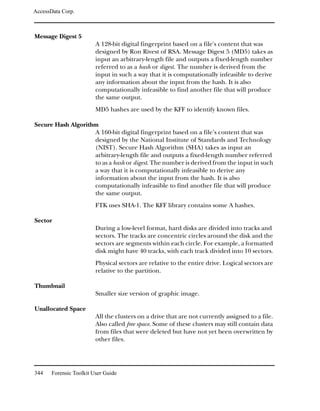
  • 10.
    AccessData Corp. Launching Registry Viewer from FTK . . . . . . . . . . . . . . . . . . . . . 200 Understanding the Registry Viewer Windows . . . . . . . . . . . . . . . . . . 201 The Full Registry Window . . . . . . . . . . . . . . . . . . . . . . . . . . . 201 The Common Areas Window . . . . . . . . . . . . . . . . . . . . . . . . . 202 The Report Window . . . . . . . . . . . . . . . . . . . . . . . . . . . . . . 203 Opening Registry Files . . . . . . . . . . . . . . . . . . . . . . . . . . . . . . . 204 Opening a Registry File in Registry Viewer . . . . . . . . . . . . . . . . . . 204 Opening Registry Files within FTK . . . . . . . . . . . . . . . . . . . . . . 205 Obtaining Protected Registry Files Using FTK Imager . . . . . . . . . . . . 205 Working with Registry Evidence . . . . . . . . . . . . . . . . . . . . . . . . . . 206 Adding Keys to the Common Areas Window . . . . . . . . . . . . . . . . . 207 Deleting Keys from the Common Areas Window . . . . . . . . . . . . . . . 207 Adding Keys to the Report Window . . . . . . . . . . . . . . . . . . . . . . 207 Deleting Keys from the Report Window . . . . . . . . . . . . . . . . . . . . 208 Creating Registry Summary Reports . . . . . . . . . . . . . . . . . . . . . . . 208 Using Pre-defined AccessData Templates . . . . . . . . . . . . . . . . . . . 210 Creating Your Own Registry Report Templates . . . . . . . . . . . . . . . . 210 Changing RSR Settings in the FtkSettings.0.ini File . . . . . . . . . . . . . 210 Searching for Specific Data . . . . . . . . . . . . . . . . . . . . . . . . . . . . 211 Generating a Report . . . . . . . . . . . . . . . . . . . . . . . . . . . . . . . . 213 Exporting a Word List . . . . . . . . . . . . . . . . . . . . . . . . . . . . . . . 214 . . . . . . . . . . . . . . . . . . . . . . . . . . . . . . . . . . . . . . . . . . . 215 Chapter 12 Decrypting EFS Understanding EFS . . . . . . . . . . . . . . . . . . . . . . . . . . . . . . . . 218 Decrypting EFS Files and Folders . . . . . . . . . . . . . . . . . . . . . . . . . 218 Windows 2000 and XP Systems Prior to SP1 . . . . . . . . . . . . . . . . . 218 Windows XP SP1 or Later . . . . . . . . . . . . . . . . . . . . . . . . . . . 218 Viewing the Decrypted Files in FTK . . . . . . . . . . . . . . . . . . . . . . . . 219 Chapter 13 Working with Reports Creating a Report . . . . . . . . . . . . . . . . . . . . . . . . . . . . . . . . . 222 Entering Basic Case Information . . . . . . . . . . . . . . . . . . . . . . . 223 Managing Bookmarks . . . . . . . . . . . . . . . . . . . . . . . . . . . . . 224 Selecting the Properties of Bookmarked Files . . . . . . . . . . . . . . . . 226 Managing Thumbnails . . . . . . . . . . . . . . . . . . . . . . . . . . . . . 229 Selecting a File Path List . . . . . . . . . . . . . . . . . . . . . . . . . . . . 230 Selecting a File Properties List . . . . . . . . . . . . . . . . . . . . . . . . . 232 Selecting the Properties of the File Properties List . . . . . . . . . . . . . . 233 Adding Supplementary Files and the Case Log . . . . . . . . . . . . . . . . 235 Contents ix
  • 11.
    AccessData Corp. Selecting the Report Location . . . . . . . . . . . . . . . . . . . . . . . . 238 Viewing and Distributing a Report. . . . . . . . . . . . . . . . . . . . . . . . 239 Updating a Report . . . . . . . . . . . . . . . . . . . . . . . . . . . . . . . . 241 Modifying a Report . . . . . . . . . . . . . . . . . . . . . . . . . . . . . . . . 242 Modifying a Report in the Same FTK Session . . . . . . . . . . . . . . . . 242 Modifying a Report in a Different FTK Session . . . . . . . . . . . . . . . 243 Chapter 14 Customizing FTK Customizing Fonts and Colors . . . . . . . . . . . . . . . . . . . . . . . . . . 245 Customizing Columns . . . . . . . . . . . . . . . . . . . . . . . . . . . . . . 249 Modifying the File Listing Database . . . . . . . . . . . . . . . . . . . . . 251 Creating and Modifying Column Settings . . . . . . . . . . . . . . . . . . 252 Deleting Column Settings. . . . . . . . . . . . . . . . . . . . . . . . . . . 253 Changing the Viewer Settings . . . . . . . . . . . . . . . . . . . . . . . . . . 253 Changing Preferences . . . . . . . . . . . . . . . . . . . . . . . . . . . . . . 255 Date and Time Format Options . . . . . . . . . . . . . . . . . . . . . . . 256 File Viewing Options . . . . . . . . . . . . . . . . . . . . . . . . . . . . . 257 Case Log Options . . . . . . . . . . . . . . . . . . . . . . . . . . . . . . . 257 Evidence Cache Size . . . . . . . . . . . . . . . . . . . . . . . . . . . . . 259 Temporary File Folder . . . . . . . . . . . . . . . . . . . . . . . . . . . . 259 KFF Database Location . . . . . . . . . . . . . . . . . . . . . . . . . . . . 259 Post Processing Backup Location. . . . . . . . . . . . . . . . . . . . . . . 259 Show Reminder when Exporting or Creating a Report with Filter Active . 260 Show Startup Dialog. . . . . . . . . . . . . . . . . . . . . . . . . . . . . . 260 Chapter 15 Managing Licenses Managing Licenses with LicenseManager . . . . . . . . . . . . . . . . . . . . 263 Starting LicenseManager . . . . . . . . . . . . . . . . . . . . . . . . . . . 264 LicenseManager Interface . . . . . . . . . . . . . . . . . . . . . . . . . . . . 264 The Installed Components Tab . . . . . . . . . . . . . . . . . . . . . . . 265 The Licenses Tab . . . . . . . . . . . . . . . . . . . . . . . . . . . . . . . 267 Opening and Saving Dongle Packet Files . . . . . . . . . . . . . . . . . . . . 269 Viewing Product Licenses . . . . . . . . . . . . . . . . . . . . . . . . . . . . 269 Adding and Removing Product Licenses . . . . . . . . . . . . . . . . . . . . 269 Managing Product Licenses on Isolated Machines . . . . . . . . . . . . . . . 270 Adding a Product License to an Isolated Machine . . . . . . . . . . . . . 271 Removing a Product License from an Isolated Machine . . . . . . . . . . 272 Updating Products . . . . . . . . . . . . . . . . . . . . . . . . . . . . . . . . 273 Checking for Product Updates . . . . . . . . . . . . . . . . . . . . . . . . 273 Downloading Product Updates . . . . . . . . . . . . . . . . . . . . . . . . 273 x Forensic Toolkit User Guide
  • 12.
    AccessData Corp. Purchasing Product Licenses . . . . . . . . . . . . . . . . . . . . . . . . . . . 274 Sending a Dongle Packet File to Support . . . . . . . . . . . . . . . . . . . . . 274 Chapter 16 Troubleshooting Chapter A FTK Recognized File Types Document File Types . . . . . . . . . . . . . . . . . . . . . . . . . . . . . . . 282 Spreadsheet File Types. . . . . . . . . . . . . . . . . . . . . . . . . . . . . . . 285 Database File Types . . . . . . . . . . . . . . . . . . . . . . . . . . . . . . . . 286 Graphic File Types . . . . . . . . . . . . . . . . . . . . . . . . . . . . . . . . . 288 Multimedia File Types . . . . . . . . . . . . . . . . . . . . . . . . . . . . . . . 290 E-mail Message Programs . . . . . . . . . . . . . . . . . . . . . . . . . . . . . 290 Instant Messaging Programs . . . . . . . . . . . . . . . . . . . . . . . . . . . . 291 Executable File Types . . . . . . . . . . . . . . . . . . . . . . . . . . . . . . . 291 Archive File Types . . . . . . . . . . . . . . . . . . . . . . . . . . . . . . . . . 291 Other Known File Types . . . . . . . . . . . . . . . . . . . . . . . . . . . . . . 293 Chapter B Regular Expression Searching Understanding Regular Expressions . . . . . . . . . . . . . . . . . . . . . . . 296 Simple Regular Expressions . . . . . . . . . . . . . . . . . . . . . . . . . . 296 Complex Regular Expressions—Visa and MasterCard Numbers. . . . . . . 297 Predefined Regular Expressions. . . . . . . . . . . . . . . . . . . . . . . . . . 300 Social Security Number . . . . . . . . . . . . . . . . . . . . . . . . . . . . 300 U.S. Phone Number . . . . . . . . . . . . . . . . . . . . . . . . . . . . . . 300 IP Address . . . . . . . . . . . . . . . . . . . . . . . . . . . . . . . . . . . . 302 Going Farther with Regular Expressions . . . . . . . . . . . . . . . . . . . . . 302 Locating More Information on Regular Expressions . . . . . . . . . . . . . 303 Common Operators . . . . . . . . . . . . . . . . . . . . . . . . . . . . . . 303 Chapter C Recovering Deleted Material FAT 12, 16, and 32 . . . . . . . . . . . . . . . . . . . . . . . . . . . . . . . . . 306 NTFS . . . . . . . . . . . . . . . . . . . . . . . . . . . . . . . . . . . . . . . . 306 ext2 . . . . . . . . . . . . . . . . . . . . . . . . . . . . . . . . . . . . . . . . . 307 ext3 . . . . . . . . . . . . . . . . . . . . . . . . . . . . . . . . . . . . . . . . . 307 Chapter D Program Files Chapter E Securing Windows Registry Evidence Understanding the Windows Registry. . . . . . . . . . . . . . . . . . . . . . . 316 Additional Considerations . . . . . . . . . . . . . . . . . . . . . . . . . . . 323 Registry Quick Find Chart . . . . . . . . . . . . . . . . . . . . . . . . . . . . 325 System Information. . . . . . . . . . . . . . . . . . . . . . . . . . . . . . . 325 Contents xi
  • 13.
    AccessData Corp. Networking . . . . . . . . . . . . . . . . . . . . . . . . . . . . . . . . . . 327 User Data . . . . . . . . . . . . . . . . . . . . . . . . . . . . . . . . . . . 328 User Application Data. . . . . . . . . . . . . . . . . . . . . . . . . . . . . 329 Chapter F dtSearch Requests Words and Phrases . . . . . . . . . . . . . . . . . . . . . . . . . . . . . . . . 332 Wildcards (* and ?) . . . . . . . . . . . . . . . . . . . . . . . . . . . . . . . . 333 Natural Language Searching . . . . . . . . . . . . . . . . . . . . . . . . . . . 333 Synonym Searching . . . . . . . . . . . . . . . . . . . . . . . . . . . . . . . . 334 Fuzzy Searching . . . . . . . . . . . . . . . . . . . . . . . . . . . . . . . . . . 334 Phonic Searching . . . . . . . . . . . . . . . . . . . . . . . . . . . . . . . . . 335 Stemming . . . . . . . . . . . . . . . . . . . . . . . . . . . . . . . . . . . . . 335 Variable Term Weighting . . . . . . . . . . . . . . . . . . . . . . . . . . . . 335 AND Connector. . . . . . . . . . . . . . . . . . . . . . . . . . . . . . . . . . 336 OR Connector . . . . . . . . . . . . . . . . . . . . . . . . . . . . . . . . . . 336 W/N Connector . . . . . . . . . . . . . . . . . . . . . . . . . . . . . . . . . 336 NOT and NOT W/N . . . . . . . . . . . . . . . . . . . . . . . . . . . . . . . 337 Numeric Range Searching . . . . . . . . . . . . . . . . . . . . . . . . . . . . 338 Chapter G Corporate Information Subscriptions . . . . . . . . . . . . . . . . . . . . . . . . . . . . . . . . . . . 341 Technical Support . . . . . . . . . . . . . . . . . . . . . . . . . . . . . . . . 341 Product Returns . . . . . . . . . . . . . . . . . . . . . . . . . . . . . . . . . 342 xii Forensic Toolkit User Guide
  • 14.
    PREFACE Welcome to AccessData®Forensic Toolkit® (FTK®). FTK enables law enforcement and corporate security professionals to perform complete and thorough computer forensic examinations. FTK features powerful file filtering and search functionality and is recognized as the leading forensic tool for e-mail analysis. This chapter contains the following sections: “Audience” on page 2 “Handling Evidence” on page 2 “Role of Forensic Toolkit” on page 3 “Other AccessData Products” on page 3 1
  • 15.
    AccessData Corp. Audience The Forensic Toolkit User Guide is written for law enforcement and corporate security professionals with the following competencies: Basic knowledge of and training in forensic policies and procedures Basic knowledge of and experience with personal computers Familiarity with the fundamentals of collecting digital evidence Understanding of forensic images and how to acquire forensically sound images Experience with case studies and reports Familiarity with the Microsoft Windows environment Handling Evidence Computer forensics involves the acquisition, preservation, analysis, and presentation of computer evidence. This type of evidence is fragile and can easily, even inadvertently, be altered, destroyed, or rendered inadmissible as evidence. Computer evidence must be properly obtained, preserved, and analyzed to be accepted as reliable and valid in a court of law. To preserve the integrity of case evidence, forensic investigators do not work on the original files themselves. Instead, they create an exact replica of the files and work on this image to ensure that the original files remain intact. To verify the files they are working on have not been altered, investigators can compare a hash of the original files at the time they were seized with a hash of the imaged files used in the investigation. Hashing provides mathematical validation that a forensic image exactly matches the contents of the original computer. Another important legal element in computer forensics is the continuity, or chain of custody, of computer evidence. The 2 Forensic Toolkit User Guide
  • 16.
    AccessData Corp. chain of custody deals with who has supervised, acquired, analyzed, and controlled the evidence. Forensic investigators must be able to account for all that has happened to the evidence between its point of acquisition or seizure and its eventual appearance in court. There are many cases in which personnel trained in information technology have made incriminating computer evidence legally inadmissible because of their reckless or ill- conceived examinations. Only properly trained computer forensics specialists should obtain and examine computer evidence. Role of Forensic Toolkit When you acquire computer evidence, you can use FTK ImagerTM to create an image of the source drives or files. You can also create a hash of the original image that you can later use as a benchmark to prove the validity of your case evidence. FTK Imager verifies that the image hash and the drive hash match when the image is created. After you create the image and hash the data, you can then use FTK to perform a complete and thorough computer forensic examination and create a report of your findings. For a big-picture view of FTK, see“FTK Overview” on page 5. Other AccessData Products In addition to FTK and FTK Imager, AccessData offers other industry-leading products. Preface 3
  • 17.
    AccessData Corp. Password RecoverySoftware AccessData has been the leader in the field of commercial software decryption since 1987. AccessData has multiple tools available for password recovery: Password Recovery ToolkitTM (PRTKTM) has a wide variety of individual password-breaking modules that can help you recover lost passwords. For more information about PRTK, the AccessData Website (http://www.accessdata.com). Distributed Network Attack® (DNA®) provides a new approach to recovering password-protected files. Rather than using a single machine, DNA uses machines across the network or across the world to conduct key space and dictionary attacks. For more information about DNA, the AccessData Website (http://www.accessdata.com). FTK 2.0 The most comprehensive AccessData product for forensic investigation is FTK 2.0. It includes all the PRTK recovery modules, a 50-client license for DNA, and a one-year upgrade subscription for all of the included products. Any products and upgrades purchased in that year do not expire. For more information about FTK 2.0, the AccessData Website (http://www.accessdata.com). 4 Forensic Toolkit User Guide
  • 18.
    CHAPTER 1 FTK Overview This chapter provides a big-picture overview of how Forensic Toolkit (FTK) can be used to acquire, preserve, analyze, and present computer evidence. The chapter contains the following sections: “The Big Picture” on page 6 “Acquiring and Preserving the Evidence” on page 7 “Analyzing the Evidence” on page 8 “Presenting the Evidence” on page 10 5
  • 19.
    AccessData Corp. The BigPicture The following are the basic steps taken during a forensic computer examination using FTK and FTK Imager: 1 Acquire and preserve the evidence. 2 Analyze the evidence. 3 Present computer evidence by creating a case report to document the evidence and investigation results. Acquire and Preserve the Evidence Workstation Target Analyze the Case Prepare a Report Case Report The concepts behind each of these steps are discussed in the following sections. 6 Forensic Toolkit User Guide
  • 20.
    AccessData Corp. Acquiring andPreserving the Evidence For digital computer evidence to be valid, it must be preserved in its original form. There are two ways to achieve this: by creating an image of the suspect drive using hardware devices or by using software applications. Hardware acquisition tools duplicate disk drives or allow read- only mode access to a hard drive. For more information about hardware tools, see “Industry and Third-Party Contacts” on page 321. Software acquisition tools create a forensically sound image that makes no changes to the data or information on the suspect hard drive. The forensic image must be identical in every way to the original. As a rule, no changes to the evidence should be made. FTK Imager is a software acquisition tool. It can be used to quickly preview evidence and, if the evidence warrants further investigation, create a forensically sound image of the disk. To prevent against accidental or intentional manipulation of evidence, FTK Imager makes a bit-by-bit duplicate image of the media. The forensic image is identical in every way to the original, including file slack and unallocated space or free space. For information about file slack and unallocated space, see the Glossary on page 343. FTK Overview 7
  • 21.
    AccessData Corp. Analyzing theEvidence To analyze the evidence, FTK uses a variety of tools, including hashing, the Known File FilterTM (KFFTM) database, and searching. Hashing Hashing a file or files refers to the process of generating a unique value based on a file’s contents. Hash values are used to verify file integrity and identify duplicate and known files. (Known files are standard system files that can be ignored in your investigation as well as known illicit or dangerous files.) Two hash functions are available in FTK and FTK Imager: Message Digest 5 (MD5) and Secure Hash Algorithm (SHA-1). By default, FTK creates MD5 hashes. The hashing options are selected automatically by FTK based on the KFF databases that are available. For more information about KFF, see “Known File Filter” on page 9. The following graphic shows a sample file with a list of MD5 and SHA-1 hashes. Typically, you hash individual files to compare the results with a known database of hashes, such as KFF. However, you can also hash multiple files or an image to verify that the working copy is identical to the original. You can create hashes with FTK Imager or FTK. For information on creating hashes with FTK, see “Selecting Evidence Processes” on page 65. 8 Forensic Toolkit User Guide
  • 22.
    AccessData Corp. Known FileFilter KFF is an FTK utility that compares file hashes against a database of hashes from known files. The purpose of KFF is to eliminate ignorable files (such as known system and program files) or to alert you to known illicit or dangerous files. It also checks for duplicate files. Files which contain other files, such as Zip and e-mail files with attachments, are called container files. When KFF identifies a container file as ignorable, FTK does not extract its component files. When KFF is used, the evidence is separated into ignored files (such as system files) and evidence that you continue to examine. KFF includes the HashKeeper database, which is updated periodically and is available for download on the FTK update page (http://www.accessdata.com). For information on defining the location of the KFF database, see “KFF Database Location” on page 259. Searching With FTK, you can conduct a live search or an indexed search. A live search is a time-consuming process involving an item-by- item comparison with the search term. Live searches allow you to search non-alphanumeric characters and perform regular expression searches. Note: Regular expressions are mathematical statements that describe a data pattern such as a credit card or social security number. Regular expression searches allow you to find data items that conform to the pattern described by the expression. FTK provides several pre-defined regular expressions such as U.S. phone number, U.K. phone number, credit card number, social security number, and IP address. The indexed search uses the index file to find a search term. The index file contains all discrete words or number strings found in both the allocated and unallocated space in the case evidence. FTK Overview 9
  • 23.
    AccessData Corp. FTK uses dtSearch as its index search engine. dtSearch, one of the leading search tools available, can quickly search gigabytes of text. For more information on searching, see “Searching a Case” on page 149. Presenting the Evidence FTK presents computer evidence by creating a case report and case log to document the evidence and investigation results. FTK uses the Report Wizard to create and modify reports. In the report, you can add bookmarks (information you selected during the examination), customize graphics references, select file listings, and include supplementary files and the case log. You can also export selected files with the report, such as bookmarked files and flagged graphics, so they are available with the report. The report is generated in HTML. The case log assists in documenting and logging activities during the investigation and analysis of a case. This information can be used as part of a report or to identify what has occurred if you are assigned to an investigation in progress. The case log is created automatically by the FTK and is called ftk.log. For information about creating a report, see “Working with Reports” on page 221. 10 Forensic Toolkit User Guide
  • 24.
    CHAPTER 2 Installing the Forensic Toolkit This chapter explains how to install and upgrade Forensic Toolkit (FTK). The chapter is divided into the following sections: “Supported File Systems and Image Formats” on page 13 “System Preparation” on page 14 “Basic Installation” on page 15 “Upgrade Instructions” on page 27 “Uninstalling” on page 30 11
  • 25.
    AccessData Corp. System Requirements The computer you install FTK on must meet the following minimum system requirements: Hardware or Software Minimum Requirement Recommended Requirement Operating System Windows 2000, or XP Windows 2000, XP, or 2003 Processor 2 GHz or faster Intel Pentium Intel Core 2 Duo, or equivalent IV, AMD Athlon, or equivalent RAM 512 MB 2 GB Hard disk space 4 GB for program files 4 GB for program files Additional hard disk Additional hard disk space for index storage space for index storage Monitor SVGA (800 x 600) XGA (1024 x 768) or higher resolution USB Port Dongle shipped with FTK For additional information about the space required for indexes, use this table to estimate the disk space required to index different sizes of data: Evidence Size Work Space Index Size 8 GB 4 GB 2 GB 15 GB 7.5 GB 3.75 GB 30 GB 15 GB 7.5 GB 30+ GB 50% of the original 25% of the original For more information, see “Conducting an Indexed Search” on page 154. 12 Forensic Toolkit User Guide
  • 26.
    AccessData Corp. Supported FileSystems and Image Formats FTK can analyze the following types of file systems and image formats: File Systems FAT 12, FAT 16, FAT 32 NTFS Ext2, Ext3 Hard Disk Encase Image Formats SnapBack Safeback 2.0 and under Expert Witness Linux DD ICS Ghost (forensic images only) SMART CD and DVD Alcohol (*.mds) Image Formats CloneCD (*.ccd) ISO IsoBuster CUE Nero (*.nrg) Pinnacle (*.pdi) PlexTools (*.pxi) Roxio (*.cif) Virtual CD (*.vc4) Installing the Forensic Toolkit 13
  • 27.
    AccessData Corp. System Preparation Before installing FTK, you should evaluate the workstation and its current software. A good understanding of the workstation and its configured devices will help ensure that FTK runs at its best. Consider the following: Role of the workstation Determine if it will be used as a regular user workstation, a forensic analysis workstation, or a password recovery workstation. Access policy Identify where the workstation will be located, who can access the information, and when the cases can be worked on. Hardware and software requirements For the hardware and software requirements, see “System Requirements” on page 12. Application relationships Verify that the applications can work simultaneously. Do not run so many applications that you compromise overall performance. Network and Internet issues Determine if the workstation should be connected to a network or the Internet. Under normal circumstances, the forensic analysis workstation will not be connected to the Internet to avoid the possible tainting of evidence. System policies and procedures Check with your system administrator about any specific policies and procedures that may exist. 14 Forensic Toolkit User Guide
  • 28.
    AccessData Corp. Basic Installation You can install FTK from a CD or from downloadable files available on the AccessData Website (http://www.accessdata.com). The installation is divided into three parts: Install the Forensic Toolkit: FTK 1.70.0 and later will install in locations separate from FTK 1.6 or earlier. Your older versions of FTK and their cases will not be affected by installing FTK 1.70. Warning: FTK 1.70.0 has an upgraded database, increasing the limit on how many items a case can contain. This enhancement, however, renders FTK 1.70.0 incompatible with earlier versions. Cases processed in earlier versions of FTK cannot be opened in FTK 1.70.0, and cases processed in 1.70.0 cannot be opened in earlier FTK versions. FTK Imager is now a separate installation. Install the Known File Filter Library: Installs the Known File Filter (KFF) database, a utility that compares file hashes in your case against a database of hashes for known system and program files as well as known illicit and contraband files. To preserve work done on earlier versions of FTK, your 1.70.0 KFF will be installed in the 1.70.0 directory without overwriting any previously installed KFFs. To economize disk space, you may choose to manually delete older versions of your KFF. To point any version of FTK to the new KFF, go to the Tools menu, then type in the path in the Preferences dialog. For additional information about KFF, see “Known File Filter” on page 9. Launch Dongle Driver Setup: Installs the driver for either the USB or parallel port dongle. The dongle is required to use FTK and it should be stored in a secure location when not in use. Each part can be independently installed, although FTK and the dongle driver must be installed for FTK to work properly. If you want to eliminate ignorable and duplicate files, and be Installing the Forensic Toolkit 15
  • 29.
    AccessData Corp. alerted of known illicit or contraband files, you need to install KFF. For troubleshooting information on the FTK install, see “Troubleshooting” on page 275. Basic Install from CD The following sections review installing FTK, the dongle drivers, and KFF from CD. Installing FTK from CD To install FTK from CD: 1 Insert the CD into the CD-ROM drive and click Install the Forensic Toolkit. If auto-run is not enabled, select Start, and then Run. Browse to the CD-ROM drive and select Autorun.exe. 2 Click Next on the Welcome screen. 3 Select I Accept the Terms of the License Agreement and then click Next. 4 Designate the program directory by doing one of the following: To accept the default directory, click Next. The default directory is c:Program FilesAccessDataAccessData Forensic Toolkit. To specify a different directory, click Browse, select the location, and click OK. 5 Click Next. 6 Check the box to run FTK if you want it to automatically start after you complete the installation. If you check the box to run FTK but haven’t installed the dongle drivers, you will receive an error message and FTK will not start. If you run FTK but haven’t installed the KFF database, you will receive an error message at the end of the installation 16 Forensic Toolkit User Guide
  • 30.
    AccessData Corp. saying that the KFF Hash Library is not found and certain features will be disabled. You can install the dongle drivers and KFF from the CD. For installation instructions, see “Installing the Dongle Driver from CD” on page 17 and “Installing KFF from CD” on page 18. 7 Check the box to run LicenseManager if you want it to automatically check for updates. LicenseManager automatically checks the AccessData Website for software updates. For more information on LicenseManager, see “Managing Licenses” on page 263. If LicenseManager is not installed, a warning is displayed. See “Installing LicenseManager from CD” on page 23 or “Installing LicenseManager from Downloadable Files” on page 26. 8 Click Finish. Installing the Dongle Driver from CD Installing the KEYLOK (green) Dongle Driver 1 Insert the CD into the CD-ROM drive and click Launch Dongle Driver Setup. If auto-run is not enabled, select Start, and then Run. Browse to the CD-ROM drive and select Autorun.exe. 2 Click Next to install the driver. 3 If you have a USB dongle, verify that it is not plugged in. If you have a parallel port dongle, verify that it is plugged in. Click Next after meeting the above conditions. 4 Designate the dongle driver directory by doing one of the following: To accept the default directory, click Next. The default directory is c:Program FilesAccessDataDongle Driver. To specify a different directory, click Browse, select the location, and click OK. Installing the Forensic Toolkit 17
  • 31.
    AccessData Corp. 5 Click Next. 6 If you have a USB dongle, plug it in. 7 Click Finish. Installing the CodeMeter CmStick Driver If you are using the new CodeMeter CmStick (silver dongle), you need to install the WIBU CodeMeter Runtime 3.30 driver. 1 Install the WIBU CodeMeter Runtime 3.30 software for the CmStick. Click Install CodeMeter Software to launch the CodeMeter installation wizard, as displayed in the following figure. 2 Follow the directions for installation, accepting all defaults, and click Finish to complete the installation. Installing KFF from CD To install KFF from CD: 1 Insert the CD into the CD-ROM drive and click Install the Known File Filter Library. If auto-run is not enabled, select Start, and then Run. Browse to the CD-ROM drive and select Autorun.exe. 2 Click Next on the Welcome screen. 3 Select I Accept the Terms of the License Agreement and then click Next. 18 Forensic Toolkit User Guide
  • 32.
    AccessData Corp. 4 Designate the KFF directory by doing one of the following: To accept the default directory, click Next. The default directory is c:Program FilesAccessDataAccessData Forensic ToolkitProgram. To specify a different directory, click Browse, select the location, and click OK. Important: If you install KFF to another directory, you must indicate the new location in FTK Preferences. For more information, see “KFF Database Location” on page 259. 5 Click Next. 6 Click Finish. Basic Install from Downloadable Files FTK downloadable files are available from the AccessData Website (http://www.accessdata.com). To download the FTK program files: 1 Go to the AccessData downloads page. 2 Under Forensic Toolkit, click Updates. 3 Download the program files you would like to install. If this is the first time you have installed FTK, download both FTK and the dongle driver. If you want to eliminate ignorable and duplicate files, and be alerted of known illicit or contraband files, you also need to download the KFF database. the following sections for more information on installing FTK, the dongle drivers, and the KFF database from downloadable files. Installing FTK from Downloadable Files To install FTK from downloadable files: 1 On the Forensic Toolkit Download page, click FTKInstall.exe. Installing the Forensic Toolkit 19
  • 33.
    AccessData Corp. 2 Save the FTK install file (FTKInstall-version.exe) to a temporary directory on your drive. 3 To launch the install program, go to the temporary directory and double-click the FTK install file (FTKInstall- version.exe). 4 Click Install. 5 Click Next on the Welcome screen. 6 Select I Accept the Terms of the License Agreement and then click Next. 7 Designate the program directory by doing one of the following: To accept the default directory, click Next. The default directory is c:Program FilesAccessDataAccessData Forensic Toolkit. To specify a different directory, click Browse, select the location, and click OK. 8 Click Next. 9 Check the box to run FTK if you want it to automatically start after you complete the installation. If you check the box to run FTK but haven’t installed the dongle drivers, you will receive an error message and FTK will not start. If you run FTK but haven’t installed the KFF database, you will receive an error message at the end of the installation saying that the KFF Hash Library is not found and certain features will be disabled. You can install the dongle drivers and KFF from the downloadable files. For installation instructions, see “Installing the Dongle Drivers from Downloadable Files” on page 21. 10 Check the box to run LicenseManager if you want it to automatically check for updates. 20 Forensic Toolkit User Guide
  • 34.
    AccessData Corp. LicenseManager automatically checks the AccessData Website for software updates. For more information on LicenseManager, see “Managing Licenses” on page 263. If LicenseManager is not installed, a warning is displayed. See “Installing LicenseManager from CD” on page 23 or “Installing LicenseManager from Downloadable Files” on page 26. 11 Click Finish. Installing the Dongle Drivers from Downloadable Files Installing the KEYLOK (green) Dongle Driver To install the dongle drivers from downloadable files: 1 On the Forensic Toolkit Download page, click the dongle drivers install. 2 Save the dongle install file (dongle.exe) to a temporary directory on your drive. 3 To launch the install program, go to the temporary directory and double-click the dongle install file (dongle.exe). 4 Click Install. 5 Click Next to install the driver. 6 If you have a USB dongle, verify that it is not plugged in. If you have a parallel port dongle, verify that it is plugged in. 7 Designate the dongle driver directory by doing one of the following: To accept the default directory, click Next. The default directory is c:Program FilesAccessDataDongle Driver. To specify a different directory, click Browse, select the location, and click OK. 8 Click Next. 9 If you have a USB dongle, plug it in. 10 Click Finish. Installing the Forensic Toolkit 21
  • 35.
    AccessData Corp. Installing the CodeMeter CmStick Driver If you are using the new CodeMeter CmStick (silver dongle), you need to install the WIBU CodeMeter Runtime 3.30 driver. 1 On the Forensic Toolkit Download page, click the CodeMeter Runtime 3.30 install. 2 Save the dongle install file to a temporary directory on your drive. 3 To launch the install program, go to the temporary directory and double-click the dongle install file. 4 Install the WIBU CodeMeter Runtime 3.30 software for the CmStick. Click Install CodeMeter Software to launch the CodeMeter installation wizard, as displayed in the following figure.CodeMeter Installation Wizard 5 Follow the directions for installation, accepting all defaults, and click Finish to complete the installation. Installing KFF from Downloadable Files To install KFF from downloadable files: 1 On the Forensic Toolkit Download page, click KFFInstall.exe. 2 Save the KFF install file (kffinstall.exe) to a temporary directory on your drive. 22 Forensic Toolkit User Guide
  • 36.
    AccessData Corp. 3 To launch the install program, go to the temporary directory and double-click the KFF install file (kffinstall.exe). 4 Click Next on the Welcome screen. 5 Select I Accept the Terms of the License Agreement and then click Next. 6 Designate the KFF directory by doing one of the following: To accept the default directory, click Next. The default directory is c:Program FilesAccessDataAccessData Forensic ToolkitProgram. To specify a different directory, click Browse, select the location, and click OK. Important: If you install KFF to another directory, you must indicate the new location in FTK Preferences. For more information, see “KFF Database Location” on page 259. 7 Click Next, then click Finish. Installing LicenseManager from CD LicenseManager lets you manage product and license subscriptions using a dongle or dongle packet file. For more information, see “Using LicenseManager” on page 55. To install LicenseManager: 1 Insert the CD into the CD-ROM drive and click Install LicenseManager. If auto-run is not enabled, select Start, and then Run. Browse to the CD-ROM drive and select Autorun.exe. Installing the Forensic Toolkit 23
  • 37.
    AccessData Corp. 2 Click Next on the Welcome screen. 3 Click Yes to accept the license agreement. 24 Forensic Toolkit User Guide
  • 38.
    AccessData Corp. 4 Designatethe program directory: To accept the default directory, click Next. The default directory is C:Program FilesAccessDataAccessData LicenseManager. To specify a different location, click Browse, select the location, click OK, and the click Next. 5 If you want to launch LicenseManager after completing the installation, select Run LicenseManager. Installing the Forensic Toolkit 25
  • 39.
    AccessData Corp. You can start LicenseManager later by clicking Start, then Programs, then AccessData, then LicenseManager, and then LicenseManager. You can also start LicenseManager in FTK, by clicking Help, and then Launch LicenseManager. Installing LicenseManager from Downloadable Files LicenseManager lets you manage product and license subscriptions using a dongle or dongle packet file. For more information, see “Using LicenseManager” on page 55. To install LicenseManager: 1 Go to the AccessData download page (http://www.accessdata.com). 2 On the download page, click LicenseManager. 3 Save the dongle installation file (LicenseManager.exe) to a temporary directory on your drive. 4 To launch the installation program, go to the temporary directory and double-click the dongle installation file (LicenseManager.exe). 5 Click Install. 26 Forensic Toolkit User Guide
  • 40.
    AccessData Corp. Follow the same instructions for installing from CD beginning with Step 2 on page 24. Upgrade Instructions You do not have to upgrade FTK and KFF at the same time. For example, you can upgrade to a newer version of FTK without upgrading the KFF database. Important: You do not need to upgrade the dongle drivers unless notified by AccessData. You can upgrade the version of FTK from a CD or from downloadable files available on the AccessData Website (http://www.accessdata.com). To be notified via e-mail when FTK upgrades are available, go to the Update Notification page on the AccessData Website (http://www.accessdata.com). For troubleshooting information on upgrading FTK, see “Troubleshooting” on page 275. Upgrading from CD Typically you will upgrade from downloadable files. If you want to upgrade from CD, contact AccessData. For contact information, see “Technical Support” on page 341. Upgrading FTK from CD To upgrade FTK from CD: 1 Insert the CD into the CD-ROM drive and click Install the Forensic Toolkit. If auto-run is not enabled, select Start, and then Run. Browse to the CD-ROM drive and select Autorun.exe. 2 Select Install the Newer Version and click Next. 3 Check the box to run FTK if you want it to automatically start after you complete the installation. 4 Check the box to run LicenseManager if you want it to automatically check for updates. Installing the Forensic Toolkit 27
  • 41.
    AccessData Corp. LicenseManager automatically checks the AccessData Website for software updates. For more information on LicenseManager, see “Managing Licenses” on page 263. If LicenseManager is not installed, a warning is displayed. See “Installing LicenseManager from CD” on page 23 or “Installing LicenseManager from Downloadable Files” on page 26. 5 Click Finish. Upgrading KFF from CD If you have added your own hashes to the KFF database, see “Upgrading a Customized KFF” on page 30 for instructions on how to upgrade the KFF database without overwriting the hashes you have added. If you have not customized the KFF library, simply re-install the KFF from CD. To upgrade a basic KFF from CD: 1 Insert the CD into the CD-ROM drive and click Install the Known File Filter Library. 2 Select Replace My KFF with This Version and click Next. 3 Click Finish. Upgrading from Downloadable Files FTK downloadable files are available from the AccessData Website (http://www.accessdata.com). To download the FTK program files: 1 Go to the AccessData downloads page. 2 Under Forensic Toolkit, click Updates. 3 Download the program files you would like to install. Upgrading FTK from Downloadable Files To upgrade FTK from downloadable files: 28 Forensic Toolkit User Guide
  • 42.
    AccessData Corp. 1 On the Forensic Toolkit Download page, click FTKInstall.exe. 2 Save the FTK install file (FTKInstall-version.exe) to a temporary directory on your drive. 3 To launch the install program, go to the temporary directory and double-click the FTK install file (FTKInstall- version.exe). 4 Click Install. 5 Click Yes to All to replace all files. Note: Your custom column settings and filters are not overwritten. 6 In the install program, select Install the Newer Version and click Next. 7 Check the box to run FTK if you want it to automatically start after you complete the installation. 8 Check the box to run LicenseManager if you want it to automatically check for updates. LicenseManager automatically checks the AccessData Website for software updates. For more information on LicenseManager, see “Managing Licenses” on page 263. If LicenseManager is not installed, a warning is displayed. See “Installing LicenseManager from CD” on page 23 or “Installing LicenseManager from Downloadable Files” on page 26. 9 Click Finish. Upgrading KFF from Downloadable Files If you have customized the KFF library by adding your own hashes, you need to follow the instructions in “Upgrading a Customized KFF” on page 30. These instructions will prevent the overwriting of the hashes you have added. If you have not customized the KFF library, simply re-install the KFF from the downloadable files. To upgrade a basic KFF from downloadable files: Installing the Forensic Toolkit 29
  • 43.
    AccessData Corp. 1 On the Forensic Toolkit Download page, click KFFInstall.exe. 2 Save the KFF install file (kffinstall.exe) to a temporary directory on your drive. 3 To launch the install program, go to the temporary directory and double-click the KFF install file (kffinstall.exe). 4 Select Replace my KFF with This Version and click Next. 5 Click Finish. Upgrading a Customized KFF To upgrade a customized KFF: 1 On the Forensic Toolkit Download page, click kfflibrary.zip. 2 Save kfflibrary.zip to a temporary directory on your drive. 3 Extract ADKFFLibrary.hdb to the temporary directory. 4 Open FTK. 5 Click Tools, and then Import KFF Hashes. 6 Browse to the ADKFFLibrary.hdb file located in your temporary directory and click Open. The new and updated KFF files are added to your KFF library without overwriting your custom hashes. Uninstalling Use the Windows Add/Remove Programs utility to uninstall FTK, the dongle drivers, KFF database, and the LicenseManager. 30 Forensic Toolkit User Guide
  • 44.
    CHAPTER 3 Getting Started Before working in Forensic Toolkit (FTK), you should familiarize yourself with the FTK interface. The FTK interface contains six main windows, organized like tabbed pages, each with a particular focus or function. Most windows also contain a common toolbar and file list with columns. Note: Viewing large items in their native applications is often faster than waiting for them to be rendered in an FTK viewer. This chapter discusses the interface in the following sections: “Starting FTK” on page 32 “Overview Window” on page 34 “Explore Window” on page 39 “Graphics Window” on page 40 “E-mail Window” on page 41 “Search Window” on page 42 “Bookmark Window” on page 45 “Toolbar Components” on page 48 “File List Columns” on page 51 “FTK Imager” on page 54 “Using LicenseManager” on page 55 31
  • 45.
    AccessData Corp. Starting FTK After you complete the installation, you can start FTK from the Start menu, from the command line, or by double-click the case file. Using the Start Menu Select Start, then Programs, then AccessData, then Forensic Toolkit, and then Forensic Toolkit, or click the Forensic Toolkit shortcut on your desktop. Using the Command Line You can also start FTK from the command line by typing the following command: path_to_ftk_program_fileftk.exe Note: The default location for the FTK program is C:Program FilesAccessDataAccessData Forensic ToolkitProgramftk.exe. To start FTK with existing case, type the following command at the command line: path_to_ftk_program_fileftk.exe /OpenCase target_case_directory If you want to preserve evidence in a case but still allow other investigators to look at the case, you can also start FTK in Case Agent Mode by typing the following command at the command line: path_to_ftk_program_fileftk.exe /CaseAgent If you want to open a specific case in Case Agent Mode, type the following command: path_to_ftk_program_fileftk.exe /CaseAgent /OpenCase target_case_directory For more information on Case Agent Mode, see “Opening a Case in Case Agent Mode (Read-only)” on page 95. Important: Close down any virus scanner while running FTK and processing evidence. Virus scanners can slow FTK performance significantly. 32 Forensic Toolkit User Guide
  • 46.
    AccessData Corp. Using theCase File FTK automatically launches the appropriate version for your case. Click the case file (name_of_case.ftk) in the case folder, and FTK will automatically open the case in the appropriate version. If the correct version isn’t found, an error message will display. Using the Dongle AccessData provides a parallel or USB dongle with FTK. The dongle is a security compliance device that you insert into the parallel or USB port during installation. It maintains your FTK licensing and subscription information and is required to use FTK. For information on installing the dongle drivers, see “Installing the Dongle Driver from CD” on page 17 or “Installing the Dongle Drivers from Downloadable Files” on page 21. You can use the License Manager to monitor your FTK subscription. For more information, see “Using LicenseManager” on page 55. Using the FTK Startup Menu When you start FTK, the Simple Start menu appears with the following options: Start a new case For detailed information on starting a new case, see “Starting a New Case” on page 59. Open an existing case For detailed information on working with existing cases, see “Working with Existing Cases” on page 93. Preview evidence This option opens FTK Imager. For more information, see “FTK Imager” on page 54. Go directly to working in program Getting Started 33
  • 47.
    AccessData Corp. This option opens FTK. Don’t show this dialog on start-up again. Mark this option if you do not want the FTK Startup menu to appear when you start FTK. If you want the FTK Startup menu to appear after you have set it to not appear, click Tools, then Preferences, and then Show Startup Dialog. Overview Window The Overview window provides a general view of a case. Viewer Toolbar General Case Information Viewer File List Toolbar File List 34 Forensic Toolkit User Guide
  • 48.
    AccessData Corp. You can how many items exist in various categories, view lists of items, and look at individual files. Evidence and File Items The statistics for each category are automatically listed. Click the category button to its associated file list. Category Description Actual Files Filters out parsed files and lists only actual files in the case. An actual file is one that existed on the original hard drive as a file: documents, zip files, executables, logs, etc. For example, a file extracted from a Zip archive is filtered out. All Items All items in the case. This includes files as well as embedded items such as e-mail attachments, files within Zip archives, and so forth. Checked Items All items that are checked in any of the FTK windows. Evidence Item A physical drive, a logical drive or partition, or drive space not included in any partitioned virtual drive. File Item Individual items added to the case such as text files, documents, graphics, OLE items, drive images, and so forth. Filtered Filters the items shown in the Overview window. Filtered In Files included by the current filter. Filtered Out Files excluded by the current filter. Flagged Thumbnails Graphics you have flagged. Flagged graphics appear with a green button in the thumbnail view in the Graphics window. Other Thumbnails Graphics that have not been flagged. These graphics appear with a red button in the thumbnail view in the Graphics window. Total File Items Total items in the case, which is not necessarily the number of files in the case because multiple items can be parsed out of one file. For example, a Zip archive can contain many items. Total File Items is the total items in the case unless Filtered is selected. Getting Started 35
  • 49.
    AccessData Corp. Category Description Unchecked Items All items that are left unchecked. Unfiltered A filter that overrides normal filters. This filter is specific to the Overview window. File Status File Status covers a number of file categories that can alert you to problem files or help you narrow down a search. The statistics for each category are automatically listed. Click the category button to the file list associated with it. Category Description Bad Extension Files with an extension that does not match the file type identified in the file header, for example, a GIF image renamed as graphic.txt. Bookmarked Items Files that you bookmarked in FTK. Deleted Files Complete files or folders recovered from slack or free space. Duplicate Items Any items that have an identical hash. Because the filename is not part of the hash, identical files may actually have different filenames. The primary item is the first one found by FTK. Encrypted Files Files that are encrypted or have a password. This includes files that have a read-only password; that is, they may be opened and viewed, but not modified by the reader. If the files have been decrypted with EFS and you have access to the user’s login password, you can decrypt these files. See “Decrypting EFS” on page 217. Flagged Ignore Files that are flagged to be ignored. From E-mail All e-mail related files including e-mail messages, archives, and attachments. From Recycle Bin Files retrieved from the Windows Recycle Bin. 36 Forensic Toolkit User Guide
  • 50.
    AccessData Corp. Category Description KFF Alert Files Files identified by the HashKeeper Website as contraband or illicit files. KFF Ignorable Files identified by the HashKeeper and NIST databases as common, known files such as program files. OLE Subitems Items or pieces of information that are embedded in a file, such as text, graphics, or an entire file. This includes file summary information (also known as metadata) included in documents, spreadsheets, and presentations. File Category File Category itemizes the files by function, for example, a word processing document, graphics, e-mail, executable (program file), or folder. The statistics for each category are automatically listed. Click the category button to the file list associated with it. Category Description Archives Archive files include e-mail archive files, Zip, Stuffit,Thumbs.db thumbnail graphics, and other archive formats. For a complete list of archive file types recognized by FTK, see “Archive File Types” on page 291. Databases Includes databases from Access, Quicken, Microsoft Money, QuickBooks, and others. For a complete list of database file types recognized by FTK, see “Database File Types” on page 286. Documents Includes most word processing, HTML, WML, HDML, or text files. For a complete list of document file types recognized by FTK, see “Document File Types” on page 282. Getting Started 37
  • 51.
    AccessData Corp. Category Description E-mail Message Includes e-mail messages from Outlook, Outlook Express, AOL, Netscape, Yahoo, Earthlink, Eudora, Hotmail, and MSN. For a complete list of e-mail message file types recognized by FTK, see “E-mail Message Programs” on page 290. Executables Includes executables from Win32 executables and DLLs, OS/2, Windows VxD, Windows NT, JavaScript, and other executable formats. For a complete list of executable file types recognized by FTK, see “Executable File Types” on page 291. Folders Folders or directories that are located in the evidence. Graphics Includes the standard graphic formats like .tif, .gif, .jpeg, and .bmp. For a complete list of graphic file types recognized by FTK, see “Graphic File Types” on page 288. Multimedia Includes the multimedia formats such as: MP3, Flash, QuickTime, WAV, and MIDI. Important: This feature may not place every multimedia type, including supported types, in the Multimedia container. You should still search for any known multimedia types. For a complete list of graphic file types recognized by FTK, see “Multimedia File Types” on page 290. Other Known Type A miscellaneous category that includes audio files, help files, dictionaries, clipboard files, link files, etc. For a complete list of other file types recognized by FTK, see “Other Known File Types” on page 293. Slack/Free Space Fragments of files that have not been completely overwritten. Spreadsheets Includes spreadsheets from Lotus, Microsoft Excel, Quattro Pro, and others. For a complete list of spreadsheet file types recognized by FTK, see “Spreadsheet File Types” on page 285. Unknown Type File types that FTK cannot identify. 38 Forensic Toolkit User Guide
  • 52.
    AccessData Corp. Explore Window The Explore window displays all the contents of the case files and drives. Viewer Toolbar Tree View Viewer Tree View Toolbar File List Toolbar File List The Explore window contains the following: Tree view: Lists directory structure of each evidence item, similar to the way one would view directory structure in Windows Explorer. An evidence item is a physical drive, a logical drive or partition, or drive space not included in any partitioned virtual drive. The List All Descendants option on the Tree View toolbar displays all the currently selected folder’s files in the File List. Viewer: Displays the contents of the currently selected file. The Viewer toolbar allows you to choose different view formats. File List: Displays information about a file, such as filename, file path, and file type. For information about the toolbar options, see “Toolbar Components” on page 48. For information about the columns in the File List, see “File List Columns” on page 51. Getting Started 39
  • 53.
    AccessData Corp. Graphics Window The Graphics window displays the case in photo-album style. Each graphic file is shown in a thumbnail view. If you select a graphic, it is displayed in the viewer. Thumbnail View Viewer Toolbar Tree View Viewer Tree View Toolbar File List Toolbar File List Beneath each thumbnail image is a button that can be clicked red or green. Flagging a graphic red or green is only relevant to the case report. When creating a report, you can choose to include all of the graphics in the case or only those graphics that are flagged green. To automatically mark all the thumbnails green, click the green button in the Tree View toolbar. Conversely, click the red button in the Tree View toolbar to automatically mark all the thumbnails red. In the Graphics window, only graphic files appear in the File List. This simplifies the process of working with graphics. For information about the toolbar options, see “Toolbar Components” on page 48. For information about the columns in the File List, see “File List Columns” on page 51. 40 Forensic Toolkit User Guide
  • 54.
    AccessData Corp. E-mail Window The E-mail window displays e-mail mailboxes, including Web e- mail, and their associated messages and attachments. The display is a coded HTML format. For the list of the supported e-mail applications, see “E-mail Message Programs” on page 290. File List Toolbar File List Tree View Tree View Toolbar Viewer Toolbar Viewer Attachment List The File List references the subject line of the e-mail or the file attached to a message. For information about the toolbar options, see “Toolbar Components” on page 48. For information about the columns in the File List, see “File List Columns” on page 51. Getting Started 41
  • 55.
    AccessData Corp. Search Window Through the Search window, you can conduct an indexed search or a live search. An indexed search is fast. A live search is more flexible. Search Tabs Search Form Search Results List Viewer Toolbar Viewer File List Toolbar File List The results of each search appear as a line item in the search results list. Click the plus icon (+) next to a search line to expand the search results. To view a specific item, select the file in the search results or file lists. All search terms are highlighted in the file. For information on searching, see “Searching a Case” on page 149. For information about the toolbar options, see “Toolbar Components” on page 48. For information about the columns in the File List, see “File List Columns” on page 51. 42 Forensic Toolkit User Guide
  • 56.
    AccessData Corp. Indexed Search The following table describes the interface options on the Indexed Search tab. Interface Option Description Add Adds the search term to Search Items. You can add multiple terms to one search. Count The number of times the indexed word is found in the case. Cumulative Operator: This operator is specific to multi-term searches. FTK looks for items And that contain all the search terms listed in the search list. Cumulative Operator: This operator is specific to multi-term searches. FTK looks for items Or that contain any of the search terms listed in the search list. Edit Item Allows you to edit the currently selected search term. Files The number of files the search term is found in. Hits The number of times the search term is found in the case. Import Imports search terms from text files. Indexed Words This column displays the index. When a search term is entered in the search field, this column scrolls to display the term in the index. Options Options that allow you to broaden or narrow the search. Remove All Removes all search terms from the search list. Remove Item Removes the currently selected search term from the search list. Search Items Lists the search terms. Search Term field The field in which you enter the term you want to search for. View Cumulative Results Initiates a multi-term search. For more information, see “Multi-Term Searches” on page 160. View Item Results Initiates a single term search. For more information, see “Single-Term Searches” on page 156. Getting Started 43
  • 57.
    AccessData Corp. Live Search The following table describes the interface options on the Live Search tab. Search Tabs Search Search Form Results List Viewer Toolbar Viewer File List Toolbar File List Interface Option Description Add Adds the search term to the search list. You can add multiple terms to one search. ASCII Searches any text in the same single-byte character set that your Windows version natively uses. For example, the English version of Windows uses the ISO 8859-1 character set; therefore, on English systems, you can find words in any ISO 8859-1 language. Note: For a listing of character sets used by common languages, visit http://www.w3.org/International/O-charset-lang.html. Case Sensitive Searches for the term exactly as it is typed in the Search Term field. Delete Item Deletes the currently selected search term from the search list. Edit Item Allows you to edit the currently selected search term. 44 Forensic Toolkit User Guide
  • 58.
    AccessData Corp. Interface Option Description Hexadecimal Searches in hexadecimal. It can be used to find embedded information that doesn’t display in text. Max Hits Per File Lists the maximum number of search hits that will be returned in a search. Regular Expression Searches patterns in files, such as, any numbers that are in a phone number pattern. When selected, the arrow next to the Search Term field is activated. Clicking the arrow displays the predefined regular expressions and the option to edit the expressions. For regular expression syntax, see “Regular Expression Searching” on page 295. Reset Clears all search terms from the search list. Search Searches all files or filtered files (depending on what you select) for the terms listed in Search Items. Search Items Lists the search terms. Search Term field The field in which you enter the term you want to search for. Text Searches text. Type Lists what was selected under Item Type. Unicode Converts the ASCII/ISO 8859-1 text typed in the Search Term field to Unicode (the UCS-2 little endian form) and searches the Unicode version of the text. This search cannot be used to find Unicode text, because there is no way to type Unicode text in the Search Term field. So, while the Unicode search doesn't search any additional languages, it does let you find ASCII/ISO 8859-1 strings that are being stored in Unicode. Bookmark Window On the Bookmark window, you can view all the items you have bookmarked as important items in the case. You can also add comments and mark them for inclusion in the report. For Getting Started 45
  • 59.
    AccessData Corp. more information about bookmarking, see “Using Bookmarks” on page 128. Bookmark List Bookmark Bookmark Toolbar Information Viewer Toolbar Viewer File List Toolbar File List The following table describes the interface options specific to the Bookmark window. Interface Option Description Bookmark Comment Displays comments included with a bookmark. Bookmark Name Displays the name given to a bookmark when it was created. Bookmarked Files Number of bookmarked files. Clear Changes Resets the Include in Report and Export Files settings in the current bookmark. Export Files If checked, the files included in the bookmark are exported when a report is generated. File Path Displays the paths of bookmarked files. Filename Displays the bookmarked files’ filenames. Include in Report If checked, includes the bookmark and its files in case reports. 46 Forensic Toolkit User Guide
  • 60.
    AccessData Corp. Interface Option Description Remember File Remembers the highlighted text in the first bookmarked file and Position/Selection automatically highlights it when you return to the bookmark. The highlighted text also prints in the report. This option is disabled if there is more than one file in the bookmark. Save Changes Saves the Include in Report and Export Files settings for the current bookmark. Update to Current Use this option to change which text is highlighted in the Position/Selection bookmarked file. To change which text is highlighted in the bookmarked file: 1. Select the text you want highlighted when you return to the bookmark. 2. Click Update to Current Position/Selection. This option is disabled if there is more than one file in the bookmark. For information about the toolbar options, see “Toolbar Components” on page 48. For information about the columns in the File List, see “File List Columns” on page 51. Getting Started 47
  • 61.
    AccessData Corp. Toolbar Components The FTK interface contains several different toolbars. The following section lists the toolbars and their components. Viewer Toolbar The Viewer toolbar, shown above, appears in each window. The following table identifies and describes the toolbar components: Component Description In the text field, enter the text string you want to search for in the viewer. To initiate the search, click the Find Next or Find Previous button . Searches backward in the current file. It highlights the previous instance of the search string in the viewer. This option does not search the previous file. Searches forward in the current file. It highlights the next instance of the search string in the viewer. This option does not search the next file. Displays the file in its native format. Typically, the file is viewed in Outside In (the viewer). However, FTK uses Internet Explorer to display HTML and graphics when possible. Displays the file in filtered text mode. Readable text is filtered out of binary files. Displays the file in the viewer in text format. Displays the file in the viewer in hex format. 48 Forensic Toolkit User Guide
  • 62.
    AccessData Corp. Component Description Disables the viewer. Displays the file in the Outside In viewer. Outside In can display 270 different file formats. Uses embedded Internet Explorer to view the file. Tree List Toolbar The Tree List toolbar appears in the Explore, Graphics, Email, and Bookmark windows. The components of the toolbar vary in each window. The following table lists and describes all components: Component Description This option appears in the Explore, Graphics, and E-mail windows. If checked, File List displays contents of all folders or directories. This button is specific to the Graphics window. It marks all thumbnails green. When creating a report, you can choose to include all of the graphics in the case or only those graphics that are flagged green. The number next to the green button indicates how many thumbnails are marked. Getting Started 49
  • 63.
    AccessData Corp. This button is specific to the Graphics window. It marks all thumbnails red. When creating a report, you can choose to include all of the graphics in the case or only those graphics that are flagged green. The number next to the red button indicates how many thumbnails are excluded. This button is specific to the Bookmark window. It displays bookmark names in the bookmark list. Bookmarked items are listed under their associated bookmark. This button is specific to the Bookmark window. It displays the filenames of bookmarked items in the bookmark list. Each item lists its associated bookmark. File List Toolbar The File List toolbar appears in each window. The following table identifies and describes the toolbar components: Component Description Checks all files in the current file list. Unchecks all files in the current file list. Unchecks all files in the case. Opens a page to select colors and fonts for FTK categories. For more information about changing colors and fonts, see “Customizing Fonts and Colors” on page 245. 50 Forensic Toolkit User Guide
  • 64.
    AccessData Corp. Opens a page to create a new bookmark. Lists all items, including Zip contents, e-mail messages, and OLE streams. Lists only actual files. Opens File Filter Manager. Displays “Off” if no file filter is active. Displays “On” if a file filter is active. Drop-down list that contains different filters. Displays the File List column settings, including description of each column. Drop-down list that contains different column views. File List Columns The following table describes all available columns in the File List. The columns you actually depend on what window and category you are in. Hint: When viewing data in the File List, use the type-down control feature to locate the information you are looking for. Select the first item in the list and then type the first letter of the what you are searching for. FTK will move down the list to the first file containing that letter. You can change which columns display, as well as the order of those columns. For more information, see “Customizing Columns” on page 249. Getting Started 51
  • 65.
    AccessData Corp. Column Description Acc Date Date the file was last accessed Alt Name Item is an alternate name for an existing file in the case Usually, the alternate name refers to the MS-DOS filename (the 8.3 name) assigned to the file. Attachment Info E-mail attachment information Badxt Incorrect file extension BCC Blind carbon copy field in an e-mail message Category File category based on file type CC Carbon copy field in an e-mail message Children Number of files in the folder or archive Cluster The first cluster of the file Cmp Compressed file Cr Date Date and time the file was created Note: Date and time format options may be modified in FTK Preferences. For more information, see “Changing Preferences” on page 255. Del Deleted file Descendants Number of files in the folder or archive as well as its sub-folders Dup Duplicate file of another file in the case Email Date Date field in an e-mail message Emailed File from e-mail archive, either message or attachment Enc Encrypted or password-protected file Ext File extension File Type File type based on file content 52 Forensic Toolkit User Guide
  • 66.
    AccessData Corp. Column Description Filename Filename without the path From From field in an e-mail message Full Path Full path of the file Hash Set Name of hash set containing matching hash Header File header (it only displays the first 8 bytes) Hid Hidden file Idx Indexed file Item # Unique item number KFF File matches a known file L-Size Logical file size; excludes file slack MD5 Hash MD5 (128-bit) hash of the data Mod Date Date and time the file was last modified P-Size Physical file size; includes file slack Recyc File recovered from the Recycle Bin Recycle Bin Original Name Full path of the file before it was sent to the Recycle Bin RO Read-only file Sector The logical sector (relative to the partition) where the file begins SHA-1 Hash SHA-1 (160-bit) hash of the data Subject E-mail subject Sys System file To To field in an e-mail message Getting Started 53
  • 67.
    AccessData Corp. FTK Imager FTK Imager is a separate utility that is included with FTK. It allows you to Preview images and drives without having to add the evidence to the case. Create images. Convert images. Create hashes. View image, drive, file system, file and folder properties. To open FTK Imager, select File, and then FTK Imager. 54 Forensic Toolkit User Guide
  • 68.
    AccessData Corp. Using LicenseManager LicenseManager lets you manage product licenses on a dongle or in a dongle packet file. With LicenseManager you can view license information, add or remove existing licenses to a dongle or dongle packet file, renew your subscription, purchase licenses, and send a dongle packet file to AccessData Technical Support. You can also check for product updates and download the latest product versions. Note: While using many of the features in LicenseManager requires having an Internet connection, you can manage licenses in a dongle packet file for a dongle that resides on a machine where you do not want to connect to the Internet (because of the need for forensic soundness). LicenseManager displays dongle information (including packet version and serial number) and licensing information for such products as FTK, PRTK, DNA, and Registry Viewer. The licensing information provides the following: Name of the program Subscription expiration date Number of DNA clients (if any) Latest version of the program Getting Started 55
  • 69.
    AccessData Corp. Starting LicenseManager To start LicenseManager, click Help, then Launch LicenseManager, or Click Start, then Programs, then AccessData, then LicenseManager, and then LicenseManager. Note: LicenseManager.exe is located in the C:Program FilesAccessDataCommon FilesAccessData LicenseManager directory. When you start LicenseManager, it reads licensing and subscription information from your dongle. If you are using a dongle and LicenseManager either does not open or it displays the message “Dongle not Found.” Make sure the dongle drivers are installed. For more information, see “Installing the Dongle Driver from CD” on page 17 or “Installing the Dongle Drivers from Downloadable Files” on page 21. Make sure the dongle is connected to the USB or parallel port. In LicenseManager, click File, then Reload from Dongle. If you do not have a dongle installed, LicenseManager lets you manage licenses using a dongle packet file. To open LicenseManager without a dongle installed: 1 Run LicenseManager by clicking Start, then Programs, then AccessData, then LicenseManager, and then LicenseManager. LicenseManager displays the message “Dongle not Found.” 2 Click OK and browse for a dongle packet file to open. When you start LicenseManager, you are prompted whether to check the update site for the latest product versions. You can also choose not to be prompted to check for updates when starting LicenseManager. Note: If you disable displaying this prompt at startup, you cannot turn it back on. However, you can still check the update site for latest product versions by clicking AccessData, and then Check for Updates. 56 Forensic Toolkit User Guide
  • 70.
    AccessData Corp. For moreinformation about LicenseManager, see “Managing Licenses” on page 263. Getting Started 57
  • 71.
    AccessData Corp. 58 Forensic Toolkit User Guide
  • 72.
    CHAPTER 4 Starting a New Case After you image the files or drives you want to examine, you are ready to start a new case. To simplify the process of starting a new case, Forensic Toolkit (FTK) uses the New Case Wizard. The following sections review the options in the New Case Wizard: “Starting a Case” on page 60 “Entering Forensic Examiner Information” on page 63 “Completing the New Case Form” on page 61 “Selecting Case Log Options” on page 64 “Selecting Evidence Processes” on page 65 “Refining the Case” on page 69 “Refining the Index” on page 74 “Managing Evidence” on page 78 “Reviewing Case Summary” on page 88 “Processing the Evidence” on page 89 59
  • 73.
    AccessData Corp. Starting aCase You access the New Case Wizard by selecting File, and then New Case. If this is your first time opening FTK or if you have chosen to always display the FTK Startup screen, select Start a New Case and click OK. To start a new case, you must complete the following steps. Each step is discussed in detail in the following sections. 1 Enter basic case information. 2 Check what you want included in the case log. 3 Check the processes that you want run on the evidence. 4 Select the criteria for adding evidence to the case. 5 Select the criteria for creating the index. 6 Add the evidence. 7 Review your case selections. 8 Complete the wizard to launch the processing of evidence. 60 Forensic Toolkit User Guide
  • 74.
    AccessData Corp. Completing theNew Case Form The New Case form provides fields for basic case information, such as the case name and its investigator. To provide the new case information: 1 In the Investigator Name field, type the name of the investigator. The drop-down list contains the name of investigators that have been entered in prior cases. If the investigator has worked on other cases in FTK, select the name from the list. 2 In the Case Number field, enter the case number for reference. Starting a New Case 61
  • 75.
    AccessData Corp. 3 In the Case Name field, enter the name of the case. The name cannot contain the following characters: “> ?/:|< The case name also becomes the name of the folder where all case information will be stored. 4 Next to the Case Path field, click Browse to select the path where the evidence will be stored. By default, all FTK cases are stored in that directory. 5 Verify that the Case Folder field lists the folder where you want the case to be stored. Each case is stored in a separate folder and should be kept distinct from other cases. The Case Folder field is based on the Case Name and Case Path fields. To make changes to the Case Folder, change the Case Name and Case Path fields. 6 (Optional) In the Case Description field, add information that will be helpful to the analysis of the case. This field is particularly useful if several people work on the case. This field is included in the report created at the end of the case investigation. For more information about the report, see “Working with Reports” on page 221. 7 Click Next. 62 Forensic Toolkit User Guide
  • 76.
    AccessData Corp. Entering ForensicExaminer Information The Forensic Examiner Information form allows you to enter information about the forensic examiner. This information then appears on the Case Information page of the report To provide the forensic examiner information: 1 In the Agency/Company field, type the name of the agency or company. 2 In the Examiner’s Name field, type the name of the examiner. The drop-down list contains the name of examiners that have been entered in prior cases. If the examiner has worked on other cases in FTK, select the name from the list. 3 In the Address field, enter the address for the agency/company. 4 In the Phone field, enter the phone number for the agency/company. Starting a New Case 63
  • 77.
    AccessData Corp. 5 In the E-Mail field, enter the examiner’s e-mail address. 6 In the Comments field, enter any necessary comments. Selecting Case Log Options The Case Log Options form allows you to select which events you want FTK to log for the current case. FTK maintains a log file of FTK events such as bookmarking items, searches, and error messages for each case. The following table outlines the Case Log Options form: Option Description Bookmarking Events Events related to the addition and modification of bookmarks. Case and Evidence Events related to the addition and processing of file items when Events evidence is added or when using the Analysis Tools. Data Carving/Internet Events related to data carving or Internet keyword searches that are Searches performed during the case. 64 Forensic Toolkit User Guide
  • 78.
    AccessData Corp. Option Description Error Messages Events related to any errors encountered during the case. Other Events The following events: Copy special Exporting files Viewing items in the detached viewer Ignoring and unignoring files Searching Events All search queries and resulting hit counts. The case log file is named ftk.log. This file is created automatically by FTK and is placed in the case folder, which is specified during the selection of the case name and case path. The case log can be used as part of a report or to identify what has occurred on the case if you are assigned to an investigation in progress. In the Case Log Options form: 1 Select what you want to include in the case log. 2 Click Next. You can also add entries to the case log. For more information, see “Adding Entries to the Case Log” on page 140. Selecting Evidence Processes The Evidence Processing Options form allows you to select which processes you want to perform on the current evidence. You only need to select those processes that are relevant to the evidence you are adding to the case. For example, if your case Starting a New Case 65
  • 79.
    AccessData Corp. is primarily a graphics case, there is no need to index the evidence. Another factor that may determine which processes you select is time frame. If you are adding a large image to the case, it will take some time to create an index for that amount of information. If you are in a hurry, you can add the image to the case without creating the index. You can then return at a later time and index the image. For information on processing evidence after it is added to the case, see “Using Analysis Tools” on page 135. 66 Forensic Toolkit User Guide
  • 80.
    AccessData Corp. The following table outlines the Evidence Processing Options form: Process Description Data Carve Carves data immediately after pre-processing. Select Carving Options and then select the file types you want to carve immediately. For more information on Data Carving, see “Data Carving” on page 181. Decrypt EFS Files Automatically locates and attempts to decrypt EFS encrypted files found on NTFS partitions with the case (requires Password Recovery Toolkit 5.20 or later). For more information on EFS, see “Decrypting EFS” on page 217. Entropy Test Determines if the data in unknown file types is compressed or encrypted. The compressed and encrypted files identified in the entropy test are not indexed. File Listing Database Creates a Microsoft Access (Jet) database containing a list of all files in the case. The attributes included are based on the Default File List Column Setting. This database can be recreated with custom column setting in Copy, and then Special. Full Text Index Indexes all keyboard-related characters in the case evidence. This process is the most time-consuming step in starting a new case. However, the index is required for data carving and Internet keyword searches. It also makes searching much more efficient. For more information about indexing, including disk space requirements, see “Conducting an Indexed Search” on page 154. HTML File Listing Creates an HTML version of the File Listing database. KFF Lookup Using a database of hashes from known files, this option eliminates ignorable files, checks for duplicate files, and alerts you to known illicit or dangerous files. For more information about Known File Filter (KFF), see “Known File Filter” on page 9. Starting a New Case 67
  • 81.
    AccessData Corp. Process Description MD5 Hash Creates a digital fingerprint based on the contents of the file. This fingerprint can be used to verify file integrity and to identify duplicate files. For more information about MD5 hashes, see “Message Digest 5” on page 344. Registry Reports Generates common registry reports. For more information about Registry Report Summaries, see “Creating Registry Summary Reports” on page 208. SHA-1 Hash Creates a digital fingerprint based on the contents of the file. This fingerprint can be used to verify file integrity and to identify duplicate files. This is the only process not checked by default. If you want FTK to create SHA-1 hashes, you must check the box. For more information about SHA-1 hashes, see “Secure Hash Algorithm” on page 344. Store Thumbnails Creates and stores thumbnails for all graphics in the case. This process speeds up the browsing of graphics in the Graphics window. Each thumbnail is about 4 KB per graphic file. In the Evidence Processing Options form: 1 Select the processes that you want to be run on the evidence. 2 Click Next. 68 Forensic Toolkit User Guide
  • 82.
    AccessData Corp. Refining theCase The Refine Case form allows you to exclude certain kinds of data from the case. FTK contains five default exclusion templates: Include All Items Optimal Settings Email Emphasis Text Emphasis Graphics Emphasis The default templates cannot be modified. However, you can modify the default template settings. Note that your settings cannot be saved for future use, so be sure to document any settings that you want to re-use. AccessData strongly recommends that you include all items when adding evidence to a case. Important: After data is excluded from an evidence item, you cannot go back and add it to the case. An evidence item is a physical drive, a logical drive or Starting a New Case 69
  • 83.
    AccessData Corp. partition, or drive space not included in any partitioned virtual drive. FTK does not allow you to add the same evidence item more than once. If you discover that you need data that was previously excluded, you must create a new case. Consequently, AccessData strongly recommends that you use the Include All Items template unless you are absolutely certain that you will not need any of the excluded items. The following tables outline the options in the Refine Case form: Template Options Template Description E-mail Emphasis Includes only e-mail related files. Excludes file slack, free space, KFF ignorable files, duplicate files, OLE streams, executables, and folders. Important: Using the Data Carving feature, it is possible to retrieve graphics, documents and other files from file slack; therefore, you may not want to exclude file slack or unallocated space from your cases. Graphics Emphasis Excludes file slack, KFF ignorable files, duplicate files, OLE streams, executables, folders, and other file types such as audio and unknown files. Important: Using the Data Carving feature, it is possible to retrieve graphics, documents, and other files from file slack; therefore, you may not want to exclude file slack or unallocated space from your cases. Include All Items Includes all categories of files of any file status from any location in the image. Optimal Settings Created for smaller cases. Excludes KFF ignorable files, duplicate files, and executables. Text Emphasis Excludes KFF ignorable files, duplicate files, graphics, and executables. 70 Forensic Toolkit User Guide
  • 84.
    AccessData Corp. Unconditionally AddOptions Option Description Extract Files from KFF Files within KFF ignorable containers. Ignorable Containers Note: A container is a file that contains other files such as Zip files, e-mail archives, TAR files, and so forth. Containers that are flagged ignorable by the KFF include Windows .cab files and known DOOM level packs. Files that are extracted from containers have a double angle bracket (>>) in their path name. For example, c:My Documentsletters.zip>>letter1.doc. File Slack Data beyond the end of the logical file but within the area allocated to that file by the file system. Free Space Areas in the file system not currently allocated to any file but that could contain deleted file data. KFF Ignorable Files Files identified by the HashKeeper database as common, known files, such as program files. File Status Criteria Status Description Deletion Status Allows you to exclude or include deleted items. Duplicate Files Allows you to include or exclude duplicate files. Email Status Allows you to include or exclude files associated with e-mail. Encryption Status Allows you to exclude or include encrypted or password-protected files. OLE Streams Allows you to include or exclude OLE elements embedded in a file. Starting a New Case 71
  • 85.
    AccessData Corp. File TypeCriteria Category Description Archives Archive files include e-mail archive files, Zip, Stuffit,Thumbs.db thumbnail graphics, and other archive formats. For a complete list of archive file types recognized by FTK, see “Archive File Types” on page 291. Databases Includes databases from Access, Quicken, Microsoft Money, QuickBooks, and others. For a complete list of database file types recognized by FTK, see “Database File Types” on page 286. Documents Includes most word processing, HTML, WML, HDML, or text files. For a complete list of document file types recognized by FTK, see “Document File Types” on page 282. E-mail Message Includes e-mail messages from Outlook, Outlook Express, AOL, Netscape, Yahoo, Earthlink, Eudora, Hotmail, and MSN. For a complete list of e-mail message file types recognized by FTK, see “E-mail Message Programs” on page 290. Executables Includes executables from Win32 executables and DLLs, OS/2, Windows VxD, Windows NT, JavaScript, and other executable formats. For a complete list of executable file types recognized by FTK, see “Executable File Types” on page 291. Folders Folders or directories located on the image. Graphics Includes the standard graphic formats like .tif, .gif, .jpeg, and .bmp. For a complete list of graphic file types recognized by FTK, see “Graphic File Types” on page 288. Other Recognized A miscellaneous category that includes audio files, help files, dictionaries, clipboard files, etc. For a complete list of other file types recognized by FTK, see “Other Known File Types” on page 293. 72 Forensic Toolkit User Guide
  • 86.
    AccessData Corp. File TypeCriteria Category Description Spreadsheets Includes spreadsheets from Lotus, Microsoft Excel, Quattro Pro, and others. For a complete list of spreadsheet file types recognized by FTK, see “Spreadsheet File Types” on page 285. Unknown File types that FTK cannot identify. In the Refine Case form: 1 Select the default template that you want to use. See the "Template Options" table on page 70. Each template has different pre-defined settings; however, you can modify any of the default settings by selecting different options in the Refine Case form. 2 To modify the default options: 2a Select which items you want to unconditionally add to the case. See the "Unconditionally Add Options" table on page 71. Important: To use the data carving feature, you must add file slack and free space. For more information, see “Data Carving” on page 181. 2b From the drop-down list, indicate whether you want to add items that satisfy BOTH the File Status and File Type criteria or items that satisfy EITHER the File Status or File Type criteria. 2c Select the File Status criteria. See the "File Status Criteria" table on page 71. 2d Select the File Type criteria. See the "File Type Criteria" table on page 72. 3 Click Next. Starting a New Case 73
  • 87.
    AccessData Corp. Refining theIndex The Refine Index form allows you to specify types of data that you do not want to index. You might choose to exclude data to save time and resources and to increase searching efficiency. Important: AccessData strongly recommends that you use the default index settings. Indexing can be quite time-consuming. However the index is required for data carving and Internet keyword searches. It also makes searching much more efficient. Generally AccessData recommends that you accept the default index settings to create the most efficient index possible. The index file is generated after the creation of a case; however, an evidence item can actually be indexed at any time. An evidence item is a physical drive, a logical drive or partition, or drive space not included in any partitioned virtual drive. For more information about indexing an evidence item, see “Using Analysis Tools” on page 135. The index file contains all discrete words or number strings found in both the allocated and unallocated space in the case evidence. 74 Forensic Toolkit User Guide
  • 88.
    AccessData Corp. After an evidence item is indexed, it is merged into the existing index and can no longer be removed from the case. For more information about indexing, see “Conducting an Indexed Search” on page 154. The following tables outline the options in the Refine Index form: Unconditionally Index Options Option Description File Slack Data beyond the end of the logical file but within the area allocated to that file by the file system. Free Space Areas in the file system not currently allocated to any file but that could contain deleted file data. KFF Ignorable Files Files identified by the HashKeeper database as common, known files, such as program files. File Status Criteria Status Description Deletion Status Allows you to exclude or include deleted items. Encryption Status Allows you to exclude or include encrypted or password-protected files. Email Status Allows you to include or exclude files associated with e-mail. Duplicate Files Allows you to include or exclude duplicate files. OLE Streams Allows you to include or exclude OLE elements embedded in a file. Starting a New Case 75
  • 89.
    AccessData Corp. File TypeCriteria Category Description Archives Archive files include e-mail archive files, Zip, Stuffit,Thumbs.db thumbnail graphics, and other archive formats. For a complete list of archive file types recognized by FTK, see “Archive File Types” on page 291. Databases Includes databases from Access, Quicken, Microsoft Money, QuickBooks, and others. For a complete list of database file types recognized by FTK, see “Database File Types” on page 286. Documents Includes most word processing, HTML, WML, HDML, or text files. For a complete list of document file types recognized by FTK, see “Document File Types” on page 282. E-mail Message Includes e-mail messages from Outlook, Outlook Express, AOL, Netscape, Yahoo, Earthlink, Eudora, Hotmail, and MSN. For a complete list of e-mail message file types recognized by FTK, see “E-mail Message Programs” on page 290. Executables Includes executables from Win32 executables and DLLs, OS/2, Windows VxD, Windows NT, JavaScript, and other executable formats. For a complete list of executable file types recognized by FTK, see “Executable File Types” on page 291. Folders Folders and directories. Graphics Includes the standard graphic formats like .tif, .gif, .jpeg, and .bmp. For a complete list of graphic file types recognized by FTK, see “Graphic File Types” on page 288. Other Recognized A miscellaneous category that includes audio files, help files, dictionaries, clipboard files, etc. For a complete list of other file types recognized by FTK, see “Other Known File Types” on page 293. 76 Forensic Toolkit User Guide
  • 90.
    AccessData Corp. File TypeCriteria Category Description Spreadsheets Includes spreadsheets from Lotus, Microsoft Excel, Quattro Pro, and others. For a complete list of spreadsheet file types recognized by FTK, see “Spreadsheet File Types” on page 285. Unknown File types that FTK cannot identify. The Refine Index form has pre-defined settings; however, you can modify the default settings by selecting different options in the Refine Index form. To modify the default index settings in the Refine Index form: 1 Select the types of files that you want to index. 1a Select which items you want to unconditionally index. See the "Unconditionally Index Options" table on page 75. Important: To use the data carving feature, you must index file slack and free space. For more information, see “Data Carving” on page 181. 1b From the drop-down list, indicate whether you want to index items that satisfy both the File Status and File Type criteria or items that satisfy either the File Status or File Type criteria. 1c Select the File Status criteria. See the "File Status Criteria" table on page 75. 1d Select the File Type criteria. See the "File Type Criteria" table on page 76. 2 Click Next. Starting a New Case 77
  • 91.
    AccessData Corp. Managing Evidence As your investigation progresses, you will want to edit the information you entered for your evidence. Evidence is managed through the Add Evidence forms. The Add Evidence form allows you to perform the following functions: Add evidence. Remove evidence. Edit basic information about the evidence. Create parameters for adding evidence to the case. The following sections review each function. Adding Evidence Evidence added during the same session of the New Case Wizard is created as part of one complete case. For example, 78 Forensic Toolkit User Guide
  • 92.
    AccessData Corp. you can add evidence from multiple floppies, a ZIP disk, and a hard drive. Note: To protect the integrity of case evidence, all items are added as read-only. You can add the same evidence item to multiple cases. An evidence item is a physical drive, a logical drive or partition, or drive space not included in any partitioned virtual drive. To add evidence to the case: 1 In the Add Evidence Case form, click Add Evidence. 2 Select one of the following evidence types and click Continue: Evidence Type Description Acquired Image of Drive A forensic image of a logical or physical drive. If the image is segmented, select the first segment. Important: All the image segments must be placed in a single directory for FTK to process them properly. For a list of supported image formats, see “Supported File Systems and Image Formats” on page 13. When you add evidence using this type, you can successfully move the evidence later if necessary. Contents of a Folder A specific folder, any accompanying sub-folders, and files. The contents of a folder are always added in logical form; that is, they do not include file slack or deleted files. When you add evidence using this type, you should find a a permanent location for this folder because this evidence cannot be moved later. Starting a New Case 79
  • 93.
    AccessData Corp. EvidenceType Description Individual File A specific file. Individual files are always added in a logical form; that is, they do not include file slack. Note: If you export an encrypted file for decryption, you can use this option to add the decrypted file back to the case. When you add evidence using this type, you should find a a permanent location for this folder because this evidence cannot be moved later. Local Drive A logical or physical drive. If you are running FTK on Windows NT, 2000, or XP, make sure that you are logged in on an account with administrative rights. 3 Browse to and select the evidence. If you add an unidentified evidence item that is larger than 25 MB, it will be chunked into 25 MB pieces. 4 In the Evidence Information form, enter the following information and click OK: Information Field Description Comment Optional area for any additional information or clarification. Evidence Display Name The name used in FTK for the evidence item. Evidence Identification The unique name or number by which this item will be known in the Name/Number case. Evidence Location The same location that you selected when you added this item. If you move the item during the investigation, FTK will prompt you for the new location of the evidence when you load the case. 80 Forensic Toolkit User Guide
  • 94.
    AccessData Corp. Information Field Description Local Evidence Time The time zone associated with the evidence. Zone Local Evidence Time Zone is enabled when the evidence item is on the FAT file system. NTFS images store the created, accessed, and modified times in Universal Coordinated Time (UTC) (previously known as GMT or Greenwich Mean Time). The information and the evidence item is added to the File List. The file format and any refinements are also listed. For information about refining case evidence, see “Refining Evidence” on page 81. Editing Evidence The Edit Evidence option allows you to modify the information you entered in the Evidence Information form. To modify the evidence information for a particular item: 1 Select an evidence item in the File List. 2 Click Edit Evidence. 3 Modify the information in the Evidence Information form. 4 Click OK. Removing Evidence You can remove an item from the File List in the Add Evidence form only. You cannot remove an item from your case after it has been processed. Refining Evidence The Refine Evidence-Advanced option allows you to exclude specific data from an individual evidence item. Note: You cannot refine evidence items after they are added to the case. This has to be done while adding the item. Starting a New Case 81
  • 95.
    AccessData Corp. AccessData strongly recommends that you include all items when adding evidence to a case. Important: After data is excluded from an evidence item, you cannot go back and add it to the case. FTK does not allow you to add the same evidence item more than once. If you discover that you need data that was previously excluded, you must create a new case. Consequently, AccessData strongly recommends that you use include all items unless you are absolutely certain that you will not need any of the excluded items. To refine case evidence: 1 Select the evidence item in the File List. 2 Click Refine Evidence-Advanced. The Refine Case-Advanced menu is organized into three windows: Refine Evidence by File Status/Type Refine Evidence by File Date/Size Refine Evidence by File Path 3 Click the corresponding tab to access each window. 4 Define the refinements you want for the current evidence item. If you want to reset the menu to the default settings, click Reset to Defaults. 5 Click Next. The following sections review each window in the Refine Evidence-Advanced menu. 82 Forensic Toolkit User Guide
  • 96.
    AccessData Corp. Refining Evidence—FileStatus/Type The following tables outline the options in the Refine Evidence by File Status/Type window: Unconditionally Add Options Option Description File Slack Data beyond the end of the logical file but within the area allocated to that file by the file system. Free Space Areas in the file system not currently allocated to any file but that could contain deleted file data. KFF Ignorable Files Files identified by the HashKeeper database as common, known files, such as program files. Starting a New Case 83
  • 97.
    AccessData Corp. File StatusCriteria Status Description Deletion Status Allows you to include or exclude deleted items. Encryption Status Allows you to include or exclude encrypted or password-protected files. Email Status Allows you to include or exclude files associated with e-mail. Duplicate Files Allows you to include or exclude duplicate files. OLE Streams Allows you to include or exclude OLE elements embedded in a file. File Type Criteria Category Description Archives Archive files include e-mail archive files, Zip, Stuffit,Thumbs.db thumbnail graphics, and other archive formats. For a complete list of archive file types recognized by FTK, see “Archive File Types” on page 291. Databases Includes databases from Access, Quicken, Microsoft Money, QuickBooks, and others. For a complete list of database file types recognized by FTK, see “Database File Types” on page 286. Documents Includes most word processing, HTML, WML, HDML, or text files. For a complete list of document file types recognized by FTK, see “Document File Types” on page 282. E-mail Message Includes e-mail messages from Outlook, Outlook Express, AOL, Netscape, Yahoo, Earthlink, Eudora, Hotmail, and MSN. For a complete list of e-mail message file types recognized by FTK, see “E-mail Message Programs” on page 290. 84 Forensic Toolkit User Guide
  • 98.
    AccessData Corp. File TypeCriteria Category Description Executables Includes executables from Win32 executables and DLLs, OS/2, Windows VxD, Windows NT, JavaScript, and other executable formats. For a complete list of executable file types recognized by FTK, see “Executable File Types” on page 291. Folders Folders and directories. Graphics Includes the standard graphic formats like .tif, .gif, .jpeg, and .bmp. For a complete list of graphic file types recognized by FTK, see “Graphic File Types” on page 288. Other Recognized A miscellaneous category that includes audio files, help files, dictionaries, clipboard files, etc. For a complete list of other file types recognized by FTK, see “Other Known File Types” on page 293. Spreadsheets Includes spreadsheets from Lotus, Microsoft Excel, Quattro Pro, and others. For a complete list of spreadsheet file types recognized by FTK, see “Spreadsheet File Types” on page 285. Unknown File types that FTK cannot identify. Starting a New Case 85
  • 99.
    AccessData Corp. Refining Evidence—FileDate/Size The following table outlines the options in the Refine Evidence by File Date/Size window: Refine Evidence by File Date/Size Exclusion Description Refine Evidence by File Check to make the addition of evidence items dependent on a date Date range that you specify. To refine evidence by file date: 1. From the drop-down list, select Created, Last Modified, or Last Accessed. 2. In the two date fields, enter the beginning and ending dates that you want. 86 Forensic Toolkit User Guide
  • 100.
    AccessData Corp. Refine Evidenceby File Date/Size Exclusion Description Refine Evidence by File Check to make the addition of evidence items dependent on a file Size size that you specify. To refine evidence by file size: 1. In the two size fields, enter the minimum and maximum sizes that you want. 2. In the drop-down list, select Bytes, KB, or MB. Refining Evidence—File Path In the Refine Evidence by File Path window, mark the folders that you want to add to the case. The contents of any folders that are not marked will not be added to the case. Starting a New Case 87
  • 101.
    AccessData Corp. Reviewing CaseSummary The Case Summary form allows you to review the evidence directory, number of evidence items, and evidence processes that you selected during the New Case Wizard. If you want to change or review any selections, click Back to return to the appropriate form. After you make your changes, click Next to return to the Case Summary form. To accept the current settings and start the processing of the evidence, click Finish. 88 Forensic Toolkit User Guide
  • 102.
    AccessData Corp. Processing theEvidence After you click Finish, the Processing Files form appears and displays the status of the processes you selected in the wizard. The Processing Files form allows you to select the interval for system status entries in the case log. You can also choose to log extended information. Extended information includes information about file identification, indexing, hashing, and rendering graphic thumbnails for each evidence item. The time required to complete the processes depends on the size of the evidence, the processor type, and the amount of available RAM. Because of the complexity and variance of evidence items, it is not possible to predict how much time it will take to execute and perform the various processes. However, as a benchmark statistic, a Pentium 1 system running at 133 Mhz with 128 MB of RAM will take 115 minutes to process a 500 MB image. A Pentium 4 system running at 1.6 Ghz with 256 MB of RAM will take eight minutes to process the same 500 MB image. The forensic workstation is heavily taxed while the evidence is being processed. Therefore, AccessData strongly recommends that you exit all other programs so that no other applications or processes are competing for system resources during file processing. Starting a New Case 89
  • 103.
    AccessData Corp. Backing Upthe Case You can back up your case at any time during your evidence processing. In addition, you will be asked to back up the case before exiting FTK. To back up the case manually, click File, and then Backup Case and then select an empty directory where you want the backup to be created. Subsequent backups will be made to this directory unless another directory is specified. Storing Your Case Files Storing your case file and evidence on the same drive substantially taxes you processors’ throughput. Your system slows as it saves and reads huge files. For desktop systems in laboratories, you can increase your processors’ speed by saving evidence files to a separate server. If you are taking the case out of the lab, you may choose to compromise some processor speed for the convenience of having your evidence and case on the same drive. Recovering Evidence from a System Failure Processed data from which you gather evidence is saved in the DefaultCase folder. This folder is intended to be temporary, and will be erased each time you start an FTK session. You must save data you are processing to a named case folder to avoid being erased each time you start the program. Do not process evidence without starting a case to which you can save it. If you have processed evidence outside of a case, and FTK closes before you save it, you will be prompted to save the evidence to a file. 90 Forensic Toolkit User Guide
  • 104.
    AccessData Corp. Click Yes to open the Case Information dialog, and name the data you want to save. Click No to exit FTK. The data will be deleted. Backing Up Cases Automatically The FTK program can automatically backup a case following preprocessing. The backup is saved in a directory named after the case that’s running, but with “_bak” appended to the case name. For example, if you were processing a case saved on c:casefilescase1etc., your automatic backup would be created in the directory c:casefilescase1_baketc. The automatic backup feature creates backups for the case on which you’re currently working. To speed up the copying process, the backup does not include the Thmbldx directory. A successful backup will complete without any notice other than a log entry. If the automatic backup fails, a message box will pop up notifying you, and details of the failure will be entered in the case log. Starting a New Case 91
  • 105.
    AccessData Corp. For more information, see “Post Processing Backup Location” on page 259. 92 Forensic Toolkit User Guide
  • 106.
    CHAPTER 5 Working with Existing Cases In working with cases, you might need to open an existing case, add evidence, or view the file properties. This chapter contains the following information: “Opening an Existing Case” on page 94 “Adding Evidence” on page 99 “Opening a Case in Case Agent Mode (Read-only)” on page 95 “Viewing File Properties” on page 119 “Setting Up Multiple Temporary Files” on page 126 93
  • 107.
    AccessData Corp. Opening anExisting Case You can open an existing case from FTK or from the command line. To open an existing case from FTK: 1 In Forensic Toolkit (FTK), select File, and then Open Case. Or if you have chosen to always display the FTK Startup screen, select Open an Existing Case and click OK. 2 Select the case you want to open. Remember, all case files are named case.ftk. The case.ftk file for each case is stored in the applicable case folder. To open an existing case from the command line, type the following command at the command line: path_to_ftk_program_fileftk.exe /OpenCase target_case_directory Opening an Existing Case from a Different Location If you have processed a case, then move the files to another location, FTK will prompt you to redirect the program to the new path. Important: Do not add the processed evidence to FTK; the program will reprocess the data. To open an existing case from a different location: 1 Start the FTK program, and select Open an Existing Case. The FTK program will not find the case data in the old location, and will prompt you to browse to the new location. 2 Click OK to browse to the new location, and then choose the case file. The FTK program will prompt you to make this new path the permanent path for this case. 3 Click Yes. The FTK program will automatically open the case from that location. 94 Forensic Toolkit User Guide
  • 108.
    AccessData Corp. Opening aCase in Case Agent Mode (Read-only) You can open a case in Read-only mode so that evidence cannot be added or deleted. This is called Case Agent Mode. When FTK is in Case Agent Mode, the following occurs: No evidence can be added to the case. No items flagged with Ignore Status are displayed, including items within bookmarks. The Flagged Ignore container is always empty. The evidence item numbers displayed in the Overview window may not reflect the available files because files flagged with an Ignore Status are not displayed. The Ignore Status flag cannot be removed. A new case cannot be created from this case. The live search does not show files flagged with the Ignore Status. Index Search results does not display hits in files flagged with the Ignore Status. Note: The hit count displays the total hits; however the Results window does not display hits in ignored files. Therefore the number of hits in the Results window may be different than the total number of hits reported when you enter the search term. To open FTK in Case Agent Mode, type the following command: path_to_ftk_program_fileftk.exe /CaseAgent If you want to open a specific case in Case Agent Mode, type the following command: path_to_ftk_program_fileftk.exe /CaseAgent /OpenCase target_case_directory Note: The default location for the FTK program is C:Program FilesAccessDataAccessData Forensic ToolkitProgramftk.exe. Using the Case Agent Mode Manager Case Agent Mode Manager has been enhanced to give forensic examiners more control over the FTK features that will be Working with Existing Cases 95
  • 109.
    AccessData Corp. available to forensic investigators for a given FTK case. This feature set is configured by the forensic examiner in the Case Mode Manager. Case Agent Mode Manager has the following features: Password Protection: Case Agent Mode Manager is password-protected so that forensic examiners can control what FTK features forensic investigators have access to. If you administer FTK, you have the password needed to set these settings. If you are a forensic investigator using FTK, Case Agent Mode Manager has been customized for your work environment and it is unnecessary for you to access this tool. Reports: As the forensic examiner and FTK administrator, you can select to include the registry viewer reports, case log, all bookmarks, export all bookmarked files, exporting thumbnails of bookmarked graphics and listing certain file properties for bookmarks. Filters: An investigator using FTK in Case Agent Mode is not permitted to create custom filters. When an investigator creates a report or exports a report when a filter is applied, a warning will prompt him that he may be excluding important information due to the filter. Case Log Options: Case Agent Mode Manager allows you to determine which events are included in the case log while in Case Agent Mode. By default, Bookmarking Events, Searching Events, and Special Searches are selected. To set Case Agent settings: 1 Start FTK in Case Agent Mode. 2 Select Tools, and then Case Agent Mode Manager. 96 Forensic Toolkit User Guide
  • 110.
    AccessData Corp. 3 Fromthe Features tab, select the FTK tools that will be available when FTK is in Case Agent Mode. 4 From the Logging tab, select the events to include in the case log when FTK is in Case Agent Mode. Working with Existing Cases 97
  • 111.
    AccessData Corp. 5 From the Report Wizard tab, select what Report Wizard options will be available to the investigator when FTK is in Case Agent Mode. 6 From the Password tab, set the password for the Case Agent Mode Manager. When you start Case Agent Mode Manager the next time, this is the password that will be used. 7 Click Apply. 98 Forensic Toolkit User Guide
  • 112.
    AccessData Corp. Adding Evidence During the case investigation, you might need to add a file, folder, drive, or image to a case. FTK uses the Add Evidence Wizard to add evidence to a case. Note: When adding large evidence images such as large email archives, you should set up the Temporary Files Manager settings before adding the large evidence images so that FTK can divide large images in to several folders to meet Microsoft folder limitations. For more information, see “Setting Up Multiple Temporary Files” on page 126. You can add the same evidence item to multiple cases. Remember to use your organization’s policies and procedures in working with existing cases. To add evidence to a case, you must complete the following steps. Steps 3–7 are discussed in detail in the following sections. 1 Open the case to which you want to add evidence. Click File, and then Open. Select the case.ftk file for the appropriate case. For more information on opening a case, see “Opening an Existing Case” on page 94. 2 Click File, and then Add Evidence. The Add Evidence Wizard opens. 3 Enter the investigator’s name. 4 Check the processes that you want run on the evidence. 5 Add the evidence. 6 Review your evidence selections. 7 Complete the wizard to launch the processing of evidence. Working with Existing Cases 99
  • 113.
    AccessData Corp. Completing theAdd Evidence Form The Add Evidence form provides information about the case investigator and other case basics. The Case Information and Description fields contain the data that you entered when you created the case. The only field you can modify in this wizard is the investigator’s name. In the Investigator Name field, type the name of the investigator. The drop-down list contains the names of investigators that have been entered in prior cases. If the investigator has worked on other cases in FTK, select the name from the list. 100 Forensic Toolkit User Guide
  • 114.
    AccessData Corp. Selecting EvidenceProcesses The Evidence Processing Options form allows you to specify how you want the evidence processed. These processes can shape the scope of your analysis and the outcome of your case. Many factors can affect which processes you decide to select. For example, if you have specific information available, you may not need to perform a full text index. Or, if you know that compression or encryption are not used, you may not need an entropy test. Working with Existing Cases 101
  • 115.
    AccessData Corp. The following table outlines the Evidence Processing Options form: Process Description Data Carve Carves data immediately after pre-processing. The data carve is then accessed when the Data Carve option is selected. To select the type of file to carve, click Carving Options. Decrypt EFS Files Automatically locates and attempts to decrypt EFS encrypted files found on NTFS partitions within the case. Using this option requires AccessData Password Recovery Toolkit 5.20 or later to decrypt files. Entropy Test Determines if the data in unknown file types is compressed or encrypted. The compressed and encrypted files identified in the entropy test are not indexed. File Listing Database Creates a Microsoft Access database containing a list of all files in the case. The attributes included in the database are based on the Default File List Column Setting. You can recreate the database with custom column settings by selecting Copy, and then Special. Full Text Index Indexes all keyboard-related characters in the case evidence. This process is the most time-consuming step in adding evidence to a case. However, the index is required for data carving and Internet keyword searches. It also makes searching much more efficient. For more information about indexing, including disk space requirements, see “Conducting an Indexed Search” on page 154. HTML File Listing Creates an HTML version of the File Listing database. KFF Lookup Using a database of hashes from known files, this option eliminates ignorable files (such as known system and program files), checks for duplicate files, and alerts you to known illicit or dangerous files. For more information about KFF, see “Known File Filter” on page 9. 102 Forensic Toolkit User Guide
  • 116.
    AccessData Corp. Process Description MD5 Hash Creates a digital fingerprint based on the contents of the file. This fingerprint can be used to verify file integrity and to identify duplicate files. For more information about MD5 hashes, see “Message Digest 5” on page 344. Registry Reports Generates common registry reports during preprocessing. SHA-1 Hash Creates a digital fingerprint based on the contents of the file. This fingerprint can be used to verify file integrity and to identify duplicate files. This process is not checked by default. If you want FTK to create SHA-1 hashes, you must check the box. For more information about SHA-1 hashes, see “Secure Hash Algorithm” on page 344. Store Thumbnails Creates and stores thumbnails for all graphics in the case. This process speeds up the browsing of graphics in the Graphics window. Each thumbnail is about 4 KB per graphic file, so verify that you have space available. This process is not checked by default. If the evidence item is a graphic and you want to store its thumbnail, you must check the box. In the Evidence Processing Options form: 1 Select the processes that you want to be run on the evidence. 2 Click Next. Managing Evidence The Add Evidence form allows you to select the following functions: Add evidence. Remove evidence. Working with Existing Cases 103
  • 117.
    AccessData Corp. Edit basic information about the evidence. Create parameters for adding evidence to the case. The following sections review each function. Adding Evidence Evidence added during the same session of the New Case Wizard is created as part of one complete case. For example, you can add evidence from multiple floppies, a ZIP disk, and a hard drive. Note: To protect the integrity of case evidence, all items are added as read-only. You can add the same evidence item to multiple cases. To add evidence to the case: 1 In the Add Evidence to Case form, click Add Evidence. 104 Forensic Toolkit User Guide
  • 118.
    AccessData Corp. 2 Select one of the following evidence types and click Continue: Evidence Type Description Acquired Image of Drive A forensic image of a logical or physical drive. If the image is segmented, select the first segment. Important: All the image segments must be placed in a single directory for FTK to process them properly. For a list of supported image formats, see “Supported File Systems and Image Formats” on page 13. Contents of a Folder A specific folder, any accompanying sub-folders, and files. The contents of a folder are always added in logical form; that is, they do not include file slack or deleted files. Individual File A specific file. Individual files are always added in a logical form; that is, they do not include file slack. Note: If you export an encrypted file for decryption, you can use this option to add the decrypted file back to the case. Local Drive A logical or physical drive. If you are running FTK on Windows NT, 2000, or XP, make sure that you are logged in on an account with administrative rights. 3 Browse to and select the evidence. If you add an unidentified evidence item that is larger than 25 MB, it will be chunked into 25 MB pieces. 4 In the Evidence Information form, enter the following information and click OK: Information Field Description Evidence Location The same location that you selected when you added this item. If you move the item during the investigation, FTK will prompt you for the new location of the evidence when you load the case. Working with Existing Cases 105
  • 119.
    AccessData Corp. InformationField Description Evidence Display Name The name used in FTK for the evidence item. Evidence Identification The unique name or number by which this item will be known in the Name/Number case. Comment Optional area for any additional information or clarification. Local Evidence Time Select the time zone for the evidence item. Zone Local Evidence Time Zone is enabled when the evidence item is on the FAT file system. NTFS images store the created, accessed, and modified times in Universal Coordinated Time (UTC) (previously known as GMT or Greenwich Mean Time). The information and the evidence item is added to the File List. The file format and any refinements are also listed. For information about refining case evidence, see “Refining Evidence” on page 107. Editing Case Evidence The Edit Evidence option allows you to modify the information you entered in the Evidence Information form. To modify the Evidence Information for a particular item: 1 Select an evidence item in the File List. 2 Click Edit Evidence. 3 Modify the information in the Evidence Information form. 4 Click OK. 106 Forensic Toolkit User Guide
  • 120.
    AccessData Corp. Removing CaseEvidence The Remove Evidence option allows you to remove an evidence item from the File List. Important: You can remove an item only from the File List in the Add Evidence form. You cannot remove an item after it has been processed. To remove an evidence item from the File List, click Remove Evidence. Refining Evidence The Refine Evidence-Advanced option allows you to exclude specific data from an individual evidence item. Note: You cannot refine evidence items once they are added to the case. This must be done while adding the item. AccessData strongly recommends that you include all items when adding evidence to a case. Important: After data is excluded from an evidence item, you cannot go back and add it to the case. FTK does not allow you to add the same evidence item more than once. If you discover that you need data that was previously excluded, you must create a new case. Consequently, AccessData strongly recommends that you use include all items unless you are absolutely certain that you will not need any of the excluded items. To refine case evidence: 1 Select the evidence item in the File List. 2 Click Refine Evidence-Advanced. The Refine Case-Advanced menu is organized into three windows: Refine Evidence by File Status/Type Refine Evidence by File Date/Size Refine Evidence by File Path 3 Click the corresponding tab to access each window. Working with Existing Cases 107
  • 121.
    AccessData Corp. 4 Define the refinements you want for the current evidence item. If you want to reset the menu to the default settings, click Reset to Defaults. 5 Click Next. The following sections review each window in the Refine Evidence-Advanced menu. Refining Evidence by File Status/Type The following tables outline the options in the Refine Evidence by File Status/Type window: Unconditionally Add Options Option Description File Slack Data beyond the end of the logical file but within the area allocated to that file by the file system. 108 Forensic Toolkit User Guide
  • 122.
    AccessData Corp. Unconditionally AddOptions Option Description Free Space Areas in the file system not currently allocated to any file but that could contain deleted file data. KFF Ignorable Files Files identified by the HashKeeper database as common, known files, such as program files. File Status Criteria Status Description Deletion Status Allows you to include or exclude deleted items. Duplicate Files Allows you to include or exclude duplicate files. Email Status Allows you to include or exclude files associated with e-mail. Encryption Status Allows you to include or exclude encrypted or password-protected files. OLE Streams Allows you to include or exclude OLE elements embedded in a file. File Type Criteria Category Description Archives Archive files include e-mail archive files, Zip, Stuffit,Thumbs.db thumbnail graphics, and other archive formats. For a complete list of archive file types recognized by FTK, see “Archive File Types” on page 291. Databases Includes databases from Access, Quicken, Microsoft Money, QuickBooks, and others. For a complete list of database file types recognized by FTK, see “Database File Types” on page 286. Documents Includes most word processing, HTML, WML, HDML, or text files. For a complete list of document file types recognized by FTK, see “Document File Types” on page 282. Working with Existing Cases 109
  • 123.
    AccessData Corp. File TypeCriteria Category Description E-mail Message Includes e-mail messages from Outlook, Outlook Express, AOL, Netscape, Yahoo, Earthlink, Eudora, Hotmail, and MSN. For a complete list of e-mail message file types recognized by FTK, see “E-mail Message Programs” on page 290. Executables Includes executables from Win32 executables and DLLs, OS/2, Windows VxD, Windows NT, JavaScript, and other executable formats. For a complete list of executable file types recognized by FTK, see “Executable File Types” on page 291. Folders Folders and directories. Graphics Includes the standard graphic formats like .tif, .gif, .jpeg, and .bmp. For a complete list of graphic file types recognized by FTK, see “Graphic File Types” on page 288. Other Recognized A miscellaneous category that includes audio files, help files, dictionaries, clipboard files, etc. For a complete list of other file types recognized by FTK, see “Other Known File Types” on page 293. Spreadsheets Includes spreadsheets from Lotus, Microsoft Excel, Quattro Pro, and others. For a complete list of spreadsheet file types recognized by FTK, see “Spreadsheet File Types” on page 285. Unknown File types that FTK cannot identify. 110 Forensic Toolkit User Guide
  • 124.
    AccessData Corp. Refining Evidence by File Date/Size The following table outlines the options in the Refine Evidence by File Date/Size window: Refine Evidence by File Date/Size Exclusion Description Refine Evidence by File Check to make the addition of evidence items dependent on a date Date range that you specify. To refine evidence by file date: 1. From the drop-down list, select Created, Last Modified, or Last Accessed. 2. In the two date fields, enter the beginning and ending dates that you want. Working with Existing Cases 111
  • 125.
    AccessData Corp. Refine Evidenceby File Date/Size Exclusion Description Refine Evidence by File Check to make the addition of evidence items dependent on a file Size size that you specify. To refine evidence by file size: 1. In the two size fields, enter the minimum and maximum sizes that you want. 2. In the drop-down list, select Bytes, KB, or MB. Refining Evidence by File Path In the Refine Evidence by File Path window, mark the folders that you want to add to the case. The contents of any folders that are not marked will not be added to the case. 112 Forensic Toolkit User Guide
  • 126.
    AccessData Corp. Refining theIndex When you click Next in the Refine Case-Advanced form, FTK brings up the Refine Index-Advanced form. Note: The Refine Index-Advanced form only appears when you click Next in the Refine Case-Advanced form. It does not appear if you simply click Next in the Add Evidence form. The Refine Index form allows you to specify types of data that you do not want to index. You might choose to exclude data to save time and resources and to increase searching efficiency. Important: AccessData strongly recommends that you use the default index settings. Indexing can be quite time-consuming. However the index is required for data carving and Internet keyword searches. It also makes searching much more efficient. Generally AccessData recommends that you accept the default index settings to create the most efficient index possible. Working with Existing Cases 113
  • 127.
    AccessData Corp. The index file is generated after the creation of a case; however, an evidence item can actually be indexed at any time. For more information about indexing an evidence item, see “Using Analysis Tools” on page 135. The index file contains all discrete words or number strings found in both the allocated and unallocated space in the case evidence. After an evidence item is indexed, it is merged into the existing index and can no longer be removed from the case. For more information about indexing, see “Conducting an Indexed Search” on page 154. The following tables outline the options in the Refine Index form: Unconditionally Index Options Option Description File Slack Data beyond the end of the logical file but within the area allocated to that file by the file system. Free Space Areas in the file system not currently allocated to any file but that could contain deleted file data. KFF Ignorable Files Files identified by the HashKeeper database as common, known files, such as program files. File Status Criteria Status Description Deletion Status Allows you to include or exclude deleted items. Duplicate Files Allows you to include or exclude duplicate files. Email Status Allows you to include or exclude files associated with e-mail. Encryption Status Allows you to include or exclude encrypted or password-protected files. OLE Streams Allows you to include or exclude OLE elements embedded in a file. 114 Forensic Toolkit User Guide
  • 128.
    AccessData Corp. File TypeCriteria Category Description Archives Archive files include e-mail archive files, Zip, Stuffit,Thumbs.db thumbnail graphics, and other archive formats. For a complete list of archive file types recognized by FTK, see “Archive File Types” on page 291. Databases Includes databases from Access, Quicken, Microsoft Money, QuickBooks, and others. For a complete list of database file types recognized by FTK, see “Database File Types” on page 286. Documents Includes most word processing, HTML, WML, HDML, or text files. For a complete list of document file types recognized by FTK, see “Document File Types” on page 282. E-mail Message Includes e-mail messages from Outlook, Outlook Express, AOL, Netscape, Yahoo, Earthlink, Eudora, Hotmail, and MSN. For a complete list of e-mail message file types recognized by FTK, see “E-mail Message Programs” on page 290. Executables Includes executables from Win32 executables and DLLs, OS/2, Windows VxD, Windows NT, JavaScript, and other executable formats. For a complete list of executable file types recognized by FTK, see “Executable File Types” on page 291. Folders Folders and directories. Graphics Includes the standard graphic formats like .tif, .gif, .jpeg, and .bmp. For a complete list of graphic file types recognized by FTK, see “Graphic File Types” on page 288. Other Recognized A miscellaneous category that includes audio files, help files, dictionaries, clipboard files, etc. For a complete list of other file types recognized by FTK, see “Other Known File Types” on page 293. Working with Existing Cases 115
  • 129.
    AccessData Corp. File TypeCriteria Category Description Spreadsheets Includes spreadsheets from Lotus, Microsoft Excel, Quattro Pro, and others. For a complete list of spreadsheet file types recognized by FTK, see “Spreadsheet File Types” on page 285. Unknown File types that FTK cannot identify. The Refine Index form has pre-defined settings; however, you can modify the default settings by selecting different options in the Refine Index form. In the Refine Index form: 1 To modify the default index settings, select the types of files that you want to index. 1a Select which items you want to unconditionally index. See the "Unconditionally Index Options" table on page 114. Important: To use the data carving feature, you must index file slack and free space. For more information, see “Data Carving” on page 181. 1b From the drop-down list, indicate whether you want to index items that satisfy BOTH the File Status and File Type criteria or items that satisfy EITHER the File Status or File Type criteria. 1c Select the File Status criteria. See the "File Status Criteria" table on page 114. 1d Select the File Type criteria. See the "File Type Criteria" table on page 115. 2 Click Next. When you click Next, FTK returns you to the Add Evidence form. 3 Click Next in the Add Evidence form. 116 Forensic Toolkit User Guide
  • 130.
    AccessData Corp. Reviewing EvidenceSetup The Case Summary form allows you to review the number of evidence items and evidence processes that you selected during the Add Evidence Wizard. If you want to change or review any selections, click Back to return to the appropriate form. After you make your changes, click Next to return to the Case Summary form. To accept the current settings and start the processing of the evidence, click Finish. Working with Existing Cases 117
  • 131.
    AccessData Corp. Processing theEvidence After you click Finish, the Processing Files form appears and displays the status of the processes you selected in the wizard. The Processing Files form allows you to select the interval for system status entries in the case log. You can also choose to log extended information. Extended information includes information about file identification, indexing, hashing, and rendering graphic thumbnails for each evidence item. The time required to complete the processes depends on the size of the evidence, the processor type, and the amount of available RAM. Because of the complexity and variance of evidence items, it is not possible to predict how much time it will take to execute and perform the various processes. However, as a benchmark statistic, a Pentium 1 system running at 133 Mhz with 128 MB of RAM will take 115 minutes to process a 500 MB image. A Pentium 4 system running at 1.6 Ghz with 256 MB of RAM will take eight minutes to process the same 500 MB image. The forensic workstation is heavily taxed while the evidence is being processed. Therefore, AccessData strongly recommends that you exit all other programs so that no other applications or processes are competing for system resources during file processing. 118 Forensic Toolkit User Guide
  • 132.
    AccessData Corp. Viewing FileProperties To view a file’s properties: 1 Highlight a file in the File List. 2 Select Tools, and then File Properties. The File Properties menu is organized into five information windows: General File Source File Content Case-specific E-mail (appears only when viewing file properties for e- mail messages and attachments) Click on the corresponding tab to access each window. Each window contains the following file information: Property Description Alias Typically, this field indicates the name and path of a recycled file before it was recycled. Recycled files are usually renamed to “Dc1”, “Dc2”, etc. Category The item’s file type category. File type categories are Documents, Spreadsheets, Databases, Graphics, Email Message, Executables, Archives, Folders, Other Recognized, and Unknown. Extension The file extension. File Type The file type, such as an HTML file or a Microsoft Word 98 document. FTK uses the file header to identify each item’s file type. Filename The name of the file. Item Number The unique number assigned to the item. Working with Existing Cases 119
  • 133.
    AccessData Corp. Property Description Path The full file path. The unique information in each window is discussed in the following sections. General Info On the General Info window, you can view the following information: Property Description Accessed The date that the file was last accessed. Compressed Yes or No, depending on if the file is a compressed file. Created The date that the file was created. Hidden Yes or No, depending on if the file is a hidden file. Logical Size The logical file size. This value excludes file slack. Modified The date that the file was last modified. Physical Size The physical file size. This value includes file slack. 120 Forensic Toolkit User Guide
  • 134.
    AccessData Corp. Property Description Read Only Yes or No, depending on if the file is flagged read-only. System Yes or No, depending on if the file is a system file. File Source Info On the File Source Info window, you can view the following information: Property Description Alternate Name Yes or No, depending on if a copy of an existing file has been given an alternate name. Usually, the alternate name refers to the MS-DOS filename (the 8.3 name) assigned to the file. Deleted Yes or No, depending on if the file was deleted. Evidence Name Name of the evidence item that the file belongs to. Evidence Path The full path that FTK uses to access the evidence files. Evidence Type The type of evidence item the file belongs to. For an acquired image or drive, this field identifies the associated file system (for example, FAT16, FAT32, or NTFS). Otherwise, it indicates if the evidence is an individual file or the contents of a folder. Working with Existing Cases 121
  • 135.
    AccessData Corp. Property Description From E-mail Yes or No, depending on if the item is an e-mail item such as a message, archive, or attachment. From Recycle Bin Yes or No, depending on if the file was recovered from the Recycle Bin. From Zip File Yes or No, depending on if the file is from a Zip file. Starting Cluster The first cluster of the file. Starting Sector The logical sector (relative to the partition) where the file begins. File Content Info On the File Content Info window, you can view the following information: Property Description Children The number of files in the folder or archive. Descendants The number of files and descendants in the folder or archive. Duplicate Yes or No, depending on if another file matches the current file’s hash. Encryption Yes or No, depending on if the file is encrypted. 122 Forensic Toolkit User Guide
  • 136.
    AccessData Corp. Property Description File Header The first 8 bytes of the file header. Hash Set The name of the hash set that contains a matching hash. KFF Status Indicates if the file is identified by the KFF as an illicit or contraband file. MD5 Hash The MD5 (16 bytes) hash of the file, if performed. Password Yes or No, depending on if the file has a password. This includes files that have a read-only password; that is, they may be opened and viewed, but not modified by the reader. SHA-1 Hash The SHA-1 (20 bytes) hash of the file, if performed. Case-Specific Info On the Case-Specific Info window, you can view the following information: Property Description Alternate Name Yes or No, depending on if a copy of an existing file has been given an alternate name. Usually, the alternate name refers to the MS-DOS filename (the 8.3 name) assigned to the file. Working with Existing Cases 123
  • 137.
    AccessData Corp. Property Description Bookmarks Displays the number of bookmarks the item belongs to. Check Status Indicates if the item is currently checked in the File List. Deleted Yes or No, depending on if the item was deleted. Duplicate Yes or No, depending on if another file matches the current file’s hash. File Extension Indicates if the file extension matches the file header. Filter Status Indicates if the item is currently filtered in or out. From Recycle Bin Yes or No, depending on if the item was recovered from the Recycle Bin. Ignore Status Indicates if the item is currently flagged to be ignored. Indexing Displays the type of indexing that was performed on the item. The available options are as follows: Full indicates that the evidence item was fully indexed. Name Only indicates that only the filename was indexed because the file type is one that FTK does not index, such as graphics. Not Yet indicates that you disabled indexing when you added the evidence item to the case. KFF Status Indicates if the file is identified by KFF as an illicit or contraband file. MD5 Hash Indicates if an MD5 hash was performed. SHA-1 Hash Indicates if an SHA-1 hash was performed. Thumbnail If the item is a graphics file, this property indicates if the item is included in the report. If the item is flagged green, the Thumbnail property reads “In Report.” If the item is marked red, the Thumbnail property reads “Not in Report.” 124 Forensic Toolkit User Guide
  • 138.
    AccessData Corp. E-mail Info The E-mail Info tab only appears in the File Properties menu if you are viewing e-mail messages or attachments. The information in the E-mail Info window varies, depending on if you are viewing an e-mail message or an attachment. If you are viewing an e-mail message, the E-mail Info window displays the following information: The message subject The date the message was sent Who sent the message Who received the message The copied recipients If you are viewing an e-mail attachment, the E-mail Info window indicates the attachment’s corresponding mailbox file and message. Working with Existing Cases 125
  • 139.
    AccessData Corp. Setting UpMultiple Temporary Files When FTK processes large evidence images, particularly those containing large e-mail archives, it requires significant disk space for creating and using temporary files. If the drive containing FTK's current temp folder fills to capacity while FTK is processing evidence, FTK will pause and prompt you to choose one (or more) alternate drives where temp files can be written. Temp files are deleted immediately after their use. Any stray files in the temp area are deleted when FTK is relaunched. If you are adding large evidence to a case, you can select a location for the temp files prior to adding the large evidence files using the Temporary Files Manager. 1 Click Tools, and then Preferences. 2 In the Temporary File Folder area, click the Browse button. 3 Click the Folder button, and then select the folder. The path and folder name appear in the Temporary Files Areas In Order of Use list. Folders are used in the order listed here. 4 To change the order of use, select the folder and click the Up or Down arrows to change the order. 5 Click OK. 126 Forensic Toolkit User Guide
  • 140.
    CHAPTER 6 Processing Evidence After you add evidence to a case, you can process it by bookmarking and exporting files that are relevant to the case, verifying the image integrity, analyzing the evidence, and so forth. This chapter contains the information that you need to process your case. It includes the following: “Using Bookmarks” on page 128 “Creating Thumbnails” on page 131 “Importing KFF Hashes” on page 132 “Verifying Image Integrity” on page 133 “Using Analysis Tools” on page 135 “Using the Case Log” on page 137 “Adding Entries to the Case Log” on page 140 “Copying Information from FTK” on page 140 “Exporting Files” on page 143 “Exporting the Word List” on page 147 127
  • 141.
    AccessData Corp. Using Bookmarks A bookmark contains a group of files that you want to reference in your case. Bookmarks help organize the case evidence by grouping related or similar files. For example, you can create a bookmark of graphics that contain similar images. The Bookmark window lists all bookmarks that have been created in the current case, as shown below: Creating a Bookmark To create a bookmark: 1 Select Tools, and then Create Bookmark. The Create New Bookmark form appears. 2 In the Bookmark Name field, enter the name of the bookmark. 3 (Optional) In the Bookmark Comment field, enter comments about the bookmark or its contents. 128 Forensic Toolkit User Guide
  • 142.
    AccessData Corp. 4 Click one of the following to specify which files to add to the bookmark: Option Description All Checked Items All items checked in all file lists. You can check files in multiple lists. All Currently Listed All items in the current file list. Items All Highlighted Items All items highlighted in the current file list. Items remain highlighted only as long as the same window is displayed. 5 If you want FTK to remember the highlighted text in the first file and automatically highlight it for you when you return to the bookmark, check Remember File Position/Selection. (The highlighted text will also print in the report.) Note: This option is disabled if there is more than one file in the bookmark. 6 Check Include in Report to include the bookmark in the report. 7 If you choose to include the bookmark in the report, you can check Export to export the bookmark’s files with the report. 8 Click OK. Processing Evidence 129
  • 143.
    AccessData Corp. Adding Filesto a Bookmark To add files to a bookmark: 1 In a file list, highlight the file that you want to add to the bookmark. Shift+click to select multiple contiguous files. Ctrl+click to select multiple discontiguous files. 2 Right-click and select Add to Bookmark. The Add Files to Bookmark form appears and displays the filename and full path of the file you selected. 3 Do one of the following: To add to the last-used bookmark, go to Step 4. For convenience, FTK remembers the last-used bookmark. You can add several files to the bookmark without having to select the bookmark. To select a different bookmark or select several bookmarks, select the bookmarks to add the file to in the Bookmark Name column. Shift+click to select multiple contiguous bookmarks. Ctrl+click to select multiple discontiguous bookmarks. The Bookmark Comment column displays the comments entered when the bookmark was created. 4 Click OK. You can add checked files, highlighted files, and currently listed files to the last-accessed bookmark without having to select the bookmark from the Bookmark Name column. When you select additional files to add to a bookmark, FTK defaults to the last-accessed bookmark. 130 Forensic Toolkit User Guide
  • 144.
    AccessData Corp. Removing aBookmark You can remove both a bookmark and individual files within bookmarks. To remove a bookmark or an individual file: 1 In the Bookmark window, expand the bookmark list and highlight the bookmark or file that you want to remove. 2 To remove a bookmark, right-click and select Delete Bookmark. 3 To remove a file, right-click and select Remove This File From the Bookmark. Creating Thumbnails If you did not check the Store Thumbnails box when you added graphic files to the case, thumbnails aren’t created before the graphics are viewed. Thumbnails can be created spontaneously the first time graphics are viewed, but the creation of the thumbnail slows the display of the graphic. To create the thumbnails after you have added the graphics to the case, click Tools, and then Prerender Thumbnails. The Prerender Thumbnails Processing Files form lists each graphic as it is being processed and reflects the overall process status. Processing Evidence 131
  • 145.
    AccessData Corp. The Processing Files form also allows you to designate the interval at which you want the prerendering events logged to the case log. You can also choose to log extended information. Note: The extended information includes information about file identification, indexing, hashing, and rendering graphic thumbnails for each evidence item. Completing the processes may take some time, depending on the size of the evidence, the processor type, and the amount of available RAM. Importing KFF Hashes Using the Import KFF Hashes feature, you can import hashes from other databases or update the KFF database. Note: The HashKeeper database is updated periodically and is available for download on the FTK update page (http://www.accessdata.com). For specific instructions on updating the KFF database, see “Upgrading a Customized KFF” on page 30. To import hashes to the KFF database: 1 Click Tools, and then Import KFF Hashes. 2 Browse to and select one of the following file types: AccessData Hash Database (.hdb) FTK Imager Hash List (.csv) Hashkeeper Hash Set (.hke, hke.txt) 3 Designate the hash set’s KFF Status as either Alert or Ignore. 4 When finished, click OK. The imported hash set is merged into the existing hash set and saved. Duplicate hashes are overwritten. 132 Forensic Toolkit User Guide
  • 146.
    AccessData Corp. Verifying ImageIntegrity An image can be altered due to bad media or deliberate tampering. To validate the integrity of your case evidence, FTK allows you to determine if an image has changed from the original acquired image. This feature only works with images that store the hash within the image itself, such as EnCase and SMART images. To verify an image’s integrity, FTK generates an hash of the current file and compares that to the hash of the original acquired image. To verify that an image has not changed: 1 Select Tools, and then Verify Image Integrity. The Verify Image Integrity menu appears. The Verify Image Integrity form contains the following information: Column Description Added Date when image was added to the case. Comment Additional information entered about the image when it was added to the case. Evidence filename The name of the image. Processing Evidence 133
  • 147.
    AccessData Corp. Column Description Evidence Path The full path FTK uses to access the image file. Evidence Type The image format. Identification The evidence number that was entered when the image was added to the case. Investigator’s Name The investigator assigned to the case. 2 In the Evidence Filename column, select the image and click Verify. 3 Click Yes to confirm. The Processing Files form appears and displays the status of the verification. The Processing Files form reflects the overall process status. The Processing Files form also allows you to designate the interval at which you want the verification events logged to the case log. You can also choose to log extended information. Note: The extended information includes information about file identification, indexing, and hashing. Completing the processes may take some time, depending on the size of the evidence, the processor type, and the amount of available RAM. 134 Forensic Toolkit User Guide
  • 148.
    AccessData Corp. Using AnalysisTools If any evidence item is added to the case without being fully analyzed, you can run analysis processes at a later time. The Analysis Tools form allows you to generate hashes, compare hashes to the KFF database, or index files. The following tables outline the options in the Analysis Tools menu: Processes to Perform Process Description Entropy Test Determines if the data in unknown file types is compressed or encrypted. The compressed and encrypted files identified in the entropy test are not indexed. Processing Evidence 135
  • 149.
    AccessData Corp. Processes toPerform Process Description Full Text Indexing Indexes all keyboard-related characters in the case evidence. This process is a time-consuming step. However, the index is required for data carving and Internet keyword searches. It also makes searching much more efficient. If you do not want to re-index items that have already been indexed, select Don’t Re-index Previously Indexed Files. If you want to re-index all items in the case, select Re-index Files. For more information about indexing, including disk space requirements, see “Conducting an Indexed Search” on page 154. KFF Lookup Using a database of hashes from known files, this option eliminates ignorable files (such as known system or program files), checks for duplicate files, and alerts you to known illicit or dangerous files. If you do not want to recheck items that have already been checked, select Don’t Recheck Previously Selected Files. If you want to recheck all items in the case, select Recheck Files. For more information about KFF, see “Known File Filter” on page 9. MD5 Hash Creates a digital fingerprint based on the contents of the file. This fingerprint can be used to verify file integrity and to identify duplicate files. For more information about MD5 hashes, see “Message Digest 5” on page 344. SHA-1 Hash Creates a digital fingerprint based on the contents of the file. This fingerprint can be used to verify file integrity and to identify duplicate files. This is the only process not checked by default. If you want FTK to create SHA-1 hashes, you must check the box. For more information about SHA-1 hashes, see “Secure Hash Algorithm” on page 344. 136 Forensic Toolkit User Guide
  • 150.
    AccessData Corp. Target Items Items to be Analyzed Description All Checked Items All items checked in all file lists. You can check files in multiple lists. All Currently Listed All items highlighted in the current file list. Items Items remain highlighted only as long as the same window is displayed. All Highlighted Items All items highlighted in the current file list. Items remain highlighted only as long as the same window is displayed. All Items All items checked in all file lists. You can check files in multiple lists. To run these processes: 1 Select Tools, and then Analysis Tools. 2 Check the processes you want to perform. 3 Select the files to process. 4 Click OK. The Processing Files form appears and displays the status of the processes. Using the Case Log The case log documents activities that occur on the case during its investigation and analysis. The case log file, ftk.log, is automatically created in the case folder when you start a new case. The contents of the case log depends on what you checked when you used the New Case Wizard. The Case Log Options Processing Evidence 137
  • 151.
    AccessData Corp. form in the New Case Wizard allows you to determine which of the following events you want to record in the case log. Option Description Bookmarking Events Events related to the addition and modification of bookmarks. Case and Evidence Events related to the addition and processing of file items when Events evidence is added or when using the Analysis Tools at a later time. Data Carving/Internet Events related to data carving or Internet keyword searches Searches performed during the case. Error Messages Events related to any error conditions encountered during the case. Other Events The following events: Using copy special feature Exporting files Viewing items in the detached viewer Ignoring and unignoring files Searching Events All search queries and resulting hit counts. The case log also reflects the examiner’s if that information is available. If no examiner’s name is available, the investigator’s name appears as the person who started the case. For more information about defining which events are logged to the case log, see “Selecting Case Log Options” on page 64. In addition to specific events, the case log can contain user entries. You can manually add information to the case log. For more information, see “Adding Entries to the Case Log” on page 140. The case log can be used to identify what has occurred on the case and it can be included in a case report. For information on viewing the case log, see “Viewing the Case Log” on page 139. For information on including the case log in a report, see “Adding Supplementary Files and the Case Log” on page 235. 138 Forensic Toolkit User Guide
  • 152.
    AccessData Corp. Viewing theCase Log To view the case log: 1 Select Tools, and then View Case Log. 2 You can search for an event using the following options: Option Description In the text field, enter the string that you want to search for in the case log. Highlights the previous instance of the search string in the case log. Searches backward in the current file. Highlights the next instance of the search string in the viewer. Searches forward in the current file. Processing Evidence 139
  • 153.
    AccessData Corp. Adding Entriesto the Case Log During the case investigation and analysis, you can manually add information to the case log (ftk.log). You can add any information that you want included in the audit trail. To add an entry to the case log: 1 Select Tools, and then Add Case Log Entry. 2 In the Investigator’s Name field, enter the name of the investigator or select the name from the drop-down list. 3 In the Case Log Entry field, enter the information that you want to add. 4 Click OK. Copying Information from FTK 140 Forensic Toolkit User Guide
  • 154.
    AccessData Corp. The Copy Special form allows you to copy information about the files in your case. The file information can include any column item, such as filename, file path, file category and so forth. The data is copied in a tab-delimited format. In addition, the information about the files contained in the case can be exported to an MS Access Database that lists all the files in the case. The MS Access Database export can be customized to include slack files, image names, and OLE- embedded items. MS Access Databases can be sorted in ascending or descending order by date. Note: If you want to copy the actual items, use the Export Files feature. For more information about exporting, see “Exporting Files” on page 143. To copy file information: 1 In the file list on any window, select the files that you want to copy information about. 2 Select Edit, and then Copy Special. 3 In the File Items to Copy list, select one of the following: Item Description All Checked Items All items checked in all file lists. You can check files in multiple lists. All Currently Listed Items All items in the current file list. All Highlighted Items All items highlighted in the current file list. Items remain highlighted only as long as the same window is displayed. All Items All items in the case. 4 In the Load from Stored Column Settings drop-down list, select the template that contains the file information that you want to copy. Processing Evidence 141
  • 155.
    AccessData Corp. 5 If you want to define a new column settings template: 5a Check or uncheck the Column Names, depending on which ones you want to include in the setting. You can click Select All or Unselect All to mark or unmark all the columns. 5b To change the order in which the columns appear in the File List, select a column name and click Move Up or Move Down. 5c To create a new column setting, click Save As, enter a name in the field, and click OK. 6 If you want to modify an existing template: 6a Click Columns. 6b Select the column setting you want to modify. 6c Modify the Column Settings form. 6d Click Save, and then Close. For more information about the Column Settings form, see “Customizing Columns” on page 249. 7 Under Copy Destination, select one of the following: Destination Description Clipboard Copies the selected data to the Windows Clipboard where it can be copied to another Windows application, such as an Excel spreadsheet. The maximum number of evidence items that can be copied is 10,000. File Copies information to a file. The default filename is ftkfileinfo.txt. Browse to and select the location for the information file. 142 Forensic Toolkit User Guide
  • 156.
    AccessData Corp. Destination Description MS Access Database Creates an MS Access Database File based on the selected data. Browse to and select the location for the database file, then select the MS Access database Options including: Include Slack Files Include OLE-embedded items Include image name in filename 8 Do one of the following: For Clipboard and general File copies, click Copy. For MS Access Database copies, click Create Database. Exporting Files FTK allows you to export any evidence item. Files can be exported for additional processing or distribution to other parties. For example, encrypted files may be exported so you can decrypt them using Password Recovery Toolkit (PRTK). Similarly, registry files may be exported so you can analyze them using the Registry Viewer. (Neither PRTK or Registry Viewer can read files within an image.) Processing Evidence 143
  • 157.
    AccessData Corp. The FTK program exports files in raw format, but includes an HTML view when it’s available for that file. Note: Bookmarked files and graphics can be automatically exported with reports. For more information about exporting files with a report, see “Creating a Report” on page 222. You can export folders while maintaining the original directory structure (Recursive File Export) or not. To manually export files without maintaining the directory structure: 1 Select File, and then Export Files. 2 Select the files to export. Target Item Description All Checked Files All items checked in all file lists. You can check files in multiple lists. All Currently Listed Files All items in the current file list. 144 Forensic Toolkit User Guide
  • 158.
    AccessData Corp. Target Item Description All Files All items in the case. All files includes parsed and extracted items like the contents of a zip file, or the messages from an email archive, or OLE streams that are part of Office docs, anything that didn't have it's own entry in Windows Explorer. All Highlighted Files All items highlighted in the current file list. Items remain highlighted only as long as the same window is displayed. The filenames and paths are displayed. 3 If you want to export e-mail attachments, check Include Email Attachments With Email Messages. 4 In the Destination Path field, browse to and select the location where you want to export the files. The default path is the case_folderReportExport directory. 5 If you want to add the archive name to the filename, check Prepend Archive Name to filename. 6 If you want to add the item number after the filename, check Append Item Number to filename to Guarantee Uniqueness. 7 If you want to add an appropriate extension to a file that is missing an extension or has a bad extension, check Append Appropriate Extension to filename if Bad/Absent. 8 To export the file in the same formatting as seen in the FTK program, check Export HTML View if Available. Some files may not be available in this view. 9 To export files in which readable text is filtered out of binary files, check Export Filtered Text View. 10 Click OK. To manually export files while maintaing the directory structure: 1 Select and highlight the files to export. Processing Evidence 145
  • 159.
    AccessData Corp. 2 Right-click the files and then select Recursive File Export. 3 Select the destination for these files. The Recursive Export dialog opens. 4 If you want to include the path of the exported file, click Yes. The recursive path will include everything from image name down to the file or folder itself. If the path is too long, the file will still be dropped into the destination directory specified. It will not truncate long file paths to make them fit. You will get a case log entry indicating that the file name was too long and the destination path was not created. Recursive exported files have a Unique Item ID number appended to the filename to prevent them overwriting files with similar names. About Recursive File Exporting In versions of FTK before 1.80, the Recursive File Export function allows users to export a folder with all of its children and descendants. FTK 1.80 includes new functionality that allows users to also export upwardly or outwardly, rebuilding the original folder structure from the root of the image down to the selected file or folder, then exporting the descendants of the selected file or folder. If the original path of the exported file is longer than that allowed by Windows, FTK will not be able to export it. In this case, FTK will notify the user and add an entry to the case log. This problem can often be avoided by exporting to a location near the root of the destination drive. 146 Forensic Toolkit User Guide
  • 160.
    AccessData Corp. Exporting theWord List If you are using PRTK, you can export the case index to use as a dictionary in the password recovery process. To export the word list: 1 Select Tools, and then Export Word List. 2 Select the file and location that you want to write the word list to. The default filename is case_name.txt. 3 To add registry files, click Add Files and then select the registry files to add to the word list. This option is only available if you are using PRTK version 5.21a or later and you have Registry Viewer installed. 4 Click Save. Processing Evidence 147
  • 161.
    AccessData Corp. 148 Forensic Toolkit User Guide
  • 162.
    CHAPTER 7 Searching a Case Searching evidence for information pertaining to a case can be one of the most crucial steps in the examination. Forensic Toolkit (FTK) provides both live and indexed searches. This chapter contains the information that allows you to successfully search your case evidence: “Conducting a Live Search” on page 149 “Conducting an Indexed Search” on page 154 “Documenting Your Search Results” on page 170 In addition to basic searches, you can also do several types of advanced searches. See “Advanced Searching” on page 175 and “Data Carving” on page 181 for more information. Conducting a Live Search The live search is a time-consuming process involving an item- by-item comparison with the search term. A live search is flexible because it can find patterns of non-alphanumeric characters. Live search also supports regular expression searches. Regular expressions are mathematical statements that describe a data pattern such as a credit card or social security number. Regular expression searches allow you to find data items that conform to the pattern described by the expression. For more 149
  • 163.
    AccessData Corp. information about regular expressions and syntax, see “Regular Expression Searching” on page 295. AccessData recommends live searching only if you do not have time to index the evidence. To perform a live search: 1 In the Search window, click Live Search. 2 In the Search Term field, enter the term you want to search for. You can also enter a regular expression in this field if the Regular Expression box is checked. For more information about regular expressions and syntax, see “Regular Expression Searching” on page 295. 3 In the Item Type column, specify if you want FTK to search in Text or Hexadecimal. 150 Forensic Toolkit User Guide
  • 164.
    AccessData Corp. If you select Text, check any of the following search criteria: Text Search Criteria Criteria Description ASCII Searches any text in the same single-byte character set that your Windows version natively uses. For example, the English version of Windows uses the ISO 8859-1 character set; therefore, on English systems, you can find words in any ISO 8859-1 language. Note: For a listing of character sets used by common languages, visit http://www.w3.org/International/O-charset-lang.html. Case Sensitive Searches for text matching the case (uppercase or lowercase) of the search string. If unchecked, FTK ignores case when searching a term. Regular Expression Searches patterns in files, such as any numbers that are in a phone number pattern. If you select Regular Expression, the arrow next to the Search Term field is activated. Click the arrow and select one of the following predefined regular expressions: U.S. Phone Number U.K. Phone Number Credit Card Number Social Security Number IP Address Click Edit Expressions to edit the expressions in a text editor. For more information about regular expressions and syntax, see “Regular Expression Searching” on page 295. Searching a Case 151
  • 165.
    AccessData Corp. Text SearchCriteria Unicode Converts the ASCII/ISO 8859-1 text typed in the Search Term field to Unicode (the UCS-2 little endian form) and searches the Unicode version of the text. This search cannot be used to find Unicode text because there is no way to type Unicode text in the Search Term field. So although the Unicode search doesn't search any additional languages, it does let you find ASCII/ISO 8859-1 strings that are being stored in Unicode. 4 Click Add to add the search term to the Search Items column. You can add as many terms as you want to the Search Items column. FTK searches for all terms listed in this column. After a term is added to the search list, you can click Edit Item to modify the term or Delete Item to remove the term. Click Reset to clear the search list. 5 In the Max Hits Per File field, enter the maximum number of times you want a search hit to be listed per file. The default is 200. 6 Click Search. The Filter Search Hits dialog appears. 152 Forensic Toolkit User Guide
  • 166.
    AccessData Corp. 7 In the Filter Search Hits dialog, select one of the following: Option Description All Files Search all the files in the case. All files includes parsed and extracted items like the contents of a zip file, or the messages from an email archive, or OLE streams that are part of Office docs; anything that didn't have it's own entry in Windows Explorer. Checked Files Search the checked files in the Explore, Graphics, E-Mail, or Bookmark windows. Filtered Files Search files selected by a filter. Select the filter from the drop-down list. For information on creating a filter, see “Modifying or Creating a Filter” on page 196. 8 Click OK. The Live Search Progress dialog displays the progress of the search. You can choose to pause, resume, or cancel the search. Searching a Case 153
  • 167.
    AccessData Corp. 9 Click View Results to the results. When the search is complete, the search is added to the search results list. The results of each search appear as separate line items in the search results list. 10 Select the search results you want to in the search or file lists. Search Line Click the plus icon (+) next to a search line to expand the search results. Individual search results are listed in the search and file lists. To view a specific item, select the file in the search results or file lists. All search results are highlighted in the file. If this search does not display the needed information, you can conduct several types of advanced searches. See “Advanced Searching” on page 175 and “Data Carving” on page 181 for more information. Conducting an Indexed Search The indexed search uses the index file to find the search term. Evidence items may be indexed when they are first added to the case or at a later time. For more information about indexing an evidence item, see “Using Analysis Tools” on page 135. The index file contains all discrete words or number strings found in both the allocated and unallocated space in the case evidence. It does not capture spaces or symbols, including the following: .,:;"’~!@#$%^& =+. Note: The at symbol (@) can be included in Internet keyword searches. For more information, see “Searching for Internet Keywords” on page 177. 154 Forensic Toolkit User Guide
  • 168.
    AccessData Corp. FTK usesthe search engine, dtSearch, to perform all indexed searches. For more information on performing searches using dtSearch, see “dtSearch Requests” on page 331. For a listing of the wildcard characters that may be used with dtSearch, see “Wildcard Characters” on page 165. In addition to performing searches within the case, you can also use the index as a dictionary for password recovery processes in the Password Recovery Toolkit (PRTK). You can export the index by selecting Tools, and then Export Word List. All evidence should be indexed so that the index is accurate and complete. To index evidence when it is added to the case, check the Full Text Index box on the Evidence Processing Options form. To index evidence after it is added to the case, select Tools, then Analysis Tools, and then Full Text Indexing. To generate the index file, FTK requires free space equivalent to approximately 50% of the total size of your evidence files. After they are generated, the index files are typically 25% of the total size of your evidence files. The following table illustrates the disk space required to index different sizes of data: Evidence Size Work Space Index Size 8 GB 4 GB 2 GB 15 GB 7.5 GB 3.75 GB 30 GB 15 GB 7.5 GB 30+ GB 50% of the original 25% of the original Searching a Case 155
  • 169.
    AccessData Corp. Single-Term Searches To perform a single-term indexed search: 1 In the Search window, click Indexed Search. 2 In the Search Term field, enter the term you want to search for, including any wildcard characters. Note: For a listing of supported wildcard characters, see “Wildcard Characters” on page 165. For more information about supported search requests, see “dtSearch Requests” on page 331. As you type your search term in the field, the Indexed Words list scrolls to match the term. The Count column displays the number of times each indexed word is found in the case. 3 Click Add to add the search term to the search list. The Search Items column displays the number of hits and the number of files that contain the search term. When a term is added to the search list, you can click Edit Item to modify the term or Remove Item to remove the term. 156 Forensic Toolkit User Guide
  • 170.
    AccessData Corp. 4 Torefine the search, click Options. For more information on the options in this menu, see “Indexed Search Options” on page 167. 5 In the Search Items column, select the index term you want to search. 6 Click View Item Results to initiate the search. The Filter Search Hits dialog appears. Searching a Case 157
  • 171.
    AccessData Corp. 7 In the Filter Search Hits dialog, select one of the following: Option Description All Files Search all the files in the case. All files includes parsed and extracted items like the contents of a zip file, or the messages from an email archive, or OLE streams that are part of Office docs; anything that didn't have it's own entry in Windows Explorer. Checked Files Search the checked files in the Explore, Graphics, E-Mail, or Bookmark windows. Don’t show this dialog Disables the Filter Search Hits dialog for the current session. When again this session you restart FTK or load another case, the Filter Search Hits dialog reappears. If you want the Filter Search Hits dialog to reappear in the current session, check Show Filter Search Hits Dialog for Each Session in the Search Options dialog. For more information, see “Indexed Search Options” on page 167. Filtered Files Search files selected by a filter. Select the filter from the drop-down list. For information on creating a filter, see “Modifying or Creating a Filter” on page 196. 8 Click OK. 158 Forensic Toolkit User Guide
  • 172.
    AccessData Corp. If FTK locates more than 200 kits, the Limit Search Hits dialog appears. You can limit the number of search hits that are highlighted per file. 9 Select the number of search hits to display per file. Check Apply to All to use your settings for all files. When the single item search is complete, the query is added to the query list. (Each query is listed separately.) Searching a Case 159
  • 173.
    AccessData Corp. Multi-Term Searches To perform a multi-term indexed search: 1 In the Search window, click Indexed Search. 2 In the Search Term field, enter a term you want to search for, including any wildcard characters. Note: For a listing of supported wildcard characters, see “Wildcard Characters” on page 165. For more information about supported search requests, see “dtSearch Requests” on page 331. As you type your search term in the field, the Indexed Words list scrolls to match the term. The Count column displays the number of times the indexed word is found in the case. 3 Click Add to add a search term to the search list. The Search Items column lists the terms you have added to the search. It also displays the number of hits and the number of files that contain each search term as well as the cumulative results for all search terms. 160 Forensic Toolkit User Guide
  • 174.
    AccessData Corp. After a term is added to the search list, you can click Edit Item to modify the term or Delete Item to remove the term. 4 To refine the search, click Options. For more information on the options in this menu, see “Indexed Search Options” on page 167. 5 Define your search operators. 5a Click And to search for items containing all the terms. 5b Click Or to search for items containing any of the terms. 6 Click View Cumulative Results to initiate the search. The Filter Search Hits dialog appears. Searching a Case 161
  • 175.
    AccessData Corp. 7 In the Filter Search Hits dialog, select one of the following: Option Description All Files Search all the files in the case. All files includes parsed and extracted items like the contents of a zip file, or the messages from an email archive, or OLE streams that are part of Office docs; anything that didn't have it's own entry in Windows Explorer. Checked Files Search the checked files in the Explore, Graphics, E-Mail, or Bookmark windows. Don’t show this dialog Disables the Filter Search Hits dialog for the current session. When again this session you restart FTK or load another case, the Filter Search Hits dialog reappears. If you want the Filter Search Hits dialog to reappear in the current session, check Show Filter Search Hits Dialog for Each Session in the Search Options dialog. For more information, see “Indexed Search Options” on page 167. Filtered Files Searches filtered files. Select the filter from the drop-down list. For information on creating a filter, see “Modifying or Creating a Filter” on page 196. 8 Click OK. If FTK locates more than 200 kits, the Limit Search Hits dialog appears. You can limit the number of search hits that are highlighted per file. 162 Forensic Toolkit User Guide
  • 176.
    AccessData Corp. 9 Select the number of search hits to display per file. Check Apply to All to use your settings for all files. When the cumulative search is complete, the query is added to the search results list. (Each query is listed separately.) Importing Search Terms In addition to individually adding index terms to the search list, you can also import search terms from text files. This is a quick and easy way to add multiple search terms to your indexed search list. Note: Text files containing search terms must only have one search term per line. To import search terms: 1 In the Search window, click Indexed Search. 2 Click Import. 3 Select the text file containing the search terms. Important: The text file must only contain one search term per line. 4 Select Yes or No to display terms that have zero hits. The terms are added to the search list. Searching a Case 163
  • 177.
    AccessData Corp. Viewing SearchResults When you complete either a single term search or a multi-term search, the results of each search appear as separate line items in the search results list. For more information on searching, see “Single-Term Searches” on page 156 or “Multi-Term Searches” on page 160. Search Line Click the plus icon (+) next to a search line to expand the search results. Individual search results are listed in the search and file lists. To view a specific item, select the file in the search results or file lists. All search results are highlighted in the file. Reloading a Search Query After you perform an indexed search, the search terms are removed from the search list. However, it is possible to reload the search terms from any query. To reload a query: 1 Select the query in the search results list. 2 Right-click and select Reload Search Query from the quick menu. All the search terms for the selected query are added to the search list. You can reload multiple queries at a time. 164 Forensic Toolkit User Guide
  • 178.
    AccessData Corp. Wildcard Characters dtSearch supports the following wildcard characters for indexed searches: Wildcard Description ? Matches any single character. For example, “appl?” matches “apply” or “apple.” Matches any number of characters. For example, “appl” matches “application.” ~ Matches words that contain the same root. This is called stemming. For example, “apply~” matches “apply”, “applies”, and “applied.” You can also select stemming by clicking Options and checking the appropriate box. % Matches words that have similar spellings. This is called a fuzzy search. For example, “ba%nana” matches “banana” and “bananna.” You can also select a fuzzy search by clicking Options and checking the appropriate box. # Matches words that sound the same. This is called a phonic search. For example, “#smith” matches “smith” and “smythe.” You can also select a phonic search by clicking Options and checking the appropriate box. & Matches words that have similar meaning. This is called a synonym search. For example, “fast&” matches “quick.” You can also select a synonym search by clicking Options and checking the appropriate box. ~~ Matches a numeric range. For example, “12~~24” matches “18.” Searching a Case 165
  • 179.
    AccessData Corp. Wildcard Description : Matches variable term weighting, for example, “apple:4 w/5 pear:1.” “w/5” means within five words. 166 Forensic Toolkit User Guide
  • 180.
    AccessData Corp. Indexed SearchOptions When you are conducting an indexed search, you can use the Options menu to refine the search. The following tables review the individual search options: Search Broadening Options Option Description Fuzzy Words that have similar spellings, such as raise and raize. Click the arrows to increase or decrease the number of letters in a word that can be different from the original search term. Phonic Words that sound the same, such as raise and raze. Stemming Words that contain the same root, such as raise and raising. Synonym Words that have similar meanings, such as raise and lift. Searching a Case 167
  • 181.
    AccessData Corp. Search LimitingOptions Option Description Created Between Beginning and ending dates for the creation of a file. 1. Check the box. 2. In the date fields, enter the beginning and ending dates that you want to search. File Size Between Minimum and maximum file sizes, specified in KB. 1. Check the box. 2. In the size fields, enter the minimum and maximum size in KB of the files that you want to search. Filename Pattern Limits the search to files that match the filename pattern. The pattern can include “?” to match a single character or “*” to match zero or more characters. For example, if you set the filename pattern to “?b”, only files whose second letter is “b” are searched. To enter a filename pattern: 1. Check the box. 2. In the field, enter the filename pattern. Last Saved Between Beginning and ending dates for the last time a file was saved. 1. Check the box. 2. In the date fields, enter the beginning and ending dates that you want to search. 168 Forensic Toolkit User Guide
  • 182.
    AccessData Corp. Search ResultsOptions Option Description Max Files To List Maximum number of files that are listed in the results. The default is 10,000 and the maximum is 32,767. (The results are displayed in the search results list.) You can change the maximum number in the field. If you want to be prompted if there are more files than the specified maximum, check the box. Max Hits Per File Maximum number of hits per file. The default is 200. You can change the maximum number in the field. If you want to be prompted if there are more hits than the specified maximum, check the box. Miscellaneous Options Option Description Save as Permanent Saves the current settings as your default search options. These Defaults options are applied to all searches. Show Filter Search Hits Displays the Filter Search Hits dialog every time you perform a Dialog for Each Search search. If this option is not selected, the default values are assumed for every search. This is the default option; however, if you check Don’t Show This Dialog Again This Session in the Filter Search Hits dialog, the Filter Search hits dialog does not appear again until you select this option again. See page 158 for more information on the Filter Search Hits dialog. When you select any options on the Search Option dialog, the Search Options button turns red to indicate that non-default options are applied. If you save these selections as the new permanent defaults, the button returns to its original color. Searching a Case 169
  • 183.
    AccessData Corp. Documenting YourSearch Results The following sections review the ways you can document the results of your Indexed and Live searches: “Copying Search Results to the Clipboard” on page 170 “Using Copy Special to Document Search Results” on page 171 “Bookmarking Search Results” on page 172 Copying Search Results to the Clipboard When you right-click in the search results list, the quick menu displays the following options: Copy to Clipboard (including all hits) Copy to Clipboard (visible information only) Copy to Clipboard (including all hits) copies all the information for all the searches to the clipboard. This means that even if a search line is not expanded, the results of that search are copied to the clipboard. Copy to Clipboard (visible information only) only copies the currently viewed information to the clipboard. This means that search results are not copied to the clipboard unless the search line is expanded. After the information is copied to the clipboard, it can be pasted into a text editor or word processing program and saved. Then this information can be added to the case report as an supplementary file. For more information, see “Adding Supplementary Files and the Case Log” on page 235. 170 Forensic Toolkit User Guide
  • 184.
    AccessData Corp. Using CopySpecial to Document Search Results The Copy Special feature allows you to copy specific information about files to the clipboard or a file. To copy information about the files in your search results: 1 In the search results list, highlight the search you want to document. 2 Select Edit, and then Copy Special. 3 In the File Items to Copy list, select All Highlighted Items. 4 In the Load from Stored Column Settings drop-down list, select the template that contains the file information that you want to copy. 5 If you want to define a new column settings template: 5a Check or uncheck the Column Names, depending on which ones you want to include in the setting. You can click Select All or Unselect All to mark or unmark all the columns. 5b To change the order that the columns appear in the File List, select a column name and click Move Up or Move Down. 5c To create a new column setting, click Save As, enter a name in the field, and click OK. 6 If you want to modify an existing template: 6a Click Columns. 6b Select the column setting you want to modify. 6c Modify the Column Settings form. 6d Click Save, and then Close. For more information about the Column Settings form, see “Customizing Columns” on page 249. Searching a Case 171
  • 185.
    AccessData Corp. 7 Under Copy Destination, select one of the following: Destination Description Clipboard Copies the selected data to the Windows Clipboard where it can be copied to another Windows application, such as an Excel spreadsheet. The maximum number of evidence items that can be copied is 10,000. File Copies information to a file. The default filename is ftkfileinfo.txt. Browse to and select the location for the information file. MS Access Database Creates an MS Access Database File based on the selected data. Browse to and select the location for the database file, then select the MS Access database Options including: Include Slack Files Include OLE-embedded items Include image name in filename 8 Do one of the following: For Clipboard and general File copies, click Copy. For MS Access Database copies, click Create Database. Bookmarking Search Results To keep track of the files that were returned in a particular search, you can bookmark the search results. You can create a bookmark from the search results list or the file list. To create a bookmark from the search results list: 1 Select the search you want to bookmark. 2 Right-click and select Bookmark Search Query Result from the quick menu. 172 Forensic Toolkit User Guide
  • 186.
    AccessData Corp. 3 In the Create New Bookmark form, enter the following: Interface Description Apply Bookmark To Displays the filename and path of the bookmarked file. Bookmark Comment Information you want to document about the bookmark. Bookmark Name The name of the bookmark. Export Files If checked, the files included in the bookmark are exported when a report is generated. Include In Report If checked, includes the bookmark and its files in case reports. Remember File Remembers the highlighted text in the first bookmarked file, and Position/Selection automatically highlights it when you return to the bookmark. The highlighted text also prints in the report. This option is available only if the first file in a bookmark is selected. 4 Click OK. To create a bookmark from the file list: 1 Select the files you want to include in the bookmark. 2 Click the bookmark icon or right-click and select Create Bookmark from the quick menu. 3 In the Create New Bookmark form, enter the following: Interface Description Apply Bookmark To Displays the filename and path of the bookmarked file. Bookmark Comment Information you want to document about the bookmark. Bookmark Name The name of the bookmark. Export Files If checked, the files included in the bookmark are exported when a report is generated. Include In Report If checked, includes the bookmark and its files in case reports. Searching a Case 173
  • 187.
    AccessData Corp. Interface Description Remember File Remembers the highlighted text in the bookmarked file and Position/Selection automatically highlights it when you return to the bookmark. The highlighted text also prints in the report. This option is available only if the first file in a bookmark is selected. 4 Click OK. The bookmark now appears in the Bookmark window. 174 Forensic Toolkit User Guide
  • 188.
    CHAPTER 8 Advanced Searching Forensic Toolkit (FTK) includes several advanced search features, such as searching file list columns and for Internet keywords. This chapter contains the following information about advanced searching: “Searching the Main Viewer” on page 176 “Searching the File List Columns” on page 176 “Searching for Internet Keywords” on page 177 175
  • 189.
    AccessData Corp. Searching theMain Viewer If you want to search the file currently displayed in the main viewer, you can use the following options in the viewer toolbar: Note: These options are only available when viewing text-based items. Option Description In the text field, enter the string that you want to search for in the currently displayed item. Highlights the previous instance of the search string in the viewer. Searches backward in the current file. Does not search the previous file. Highlights the next instance of the search string in the viewer. Searches forward in the current file. Does not search the next file. Searching the File List Columns You can search for a term, such as a filename, in the File List. To search for a term: 1 Select Edit, and then Find File in List. 2 In the Find What field, enter the term that you want to find. 3 In the Column drop-down list, select the columns to search. 4 Click Find Next. The first match is highlighted in the File List. 5 Continue to click Find Next to locate all matches. 176 Forensic Toolkit User Guide
  • 190.
    AccessData Corp. Searching forInternet Keywords The Internet keyword search finds Internet keywords, such as http, www, com, net, and org. You can search for both URL and e- mail related strings. Important: Evidence items must be indexed before you can perform an Internet keyword search. The following table outlines the URL search options: URL Option Description http://... Searches for text that starts with http://. www. ... Searches for text that starts with www. ... .com Searches for text that ends with .com. ... .org Searches for text that ends with .org. ... .net Searches for text that ends with .net. ... .[empty field] Searches for text that ends with the domain name that you enter in the box. The following table outlines the e-mail address search options: E-mail Address Option Description ...@... .com Searches for e-mail address that ends with.com. ...@... .org Searches for e-mail address that ends with .org. ...@... .net Searches for e-mail address that ends with .net. ...@... .[empty field] Searches for e-mail address that ends with the domain name that you enter in the box. Advanced Searching 177
  • 191.
    AccessData Corp. To search for Internet keywords: 1 Select Tools, and then Internet Keyword Search. 2 Select the URL-related strings you want to search. 3 Select the e-mail related strings you want to search. Because the index only captures discrete words, you cannot search for full e-mail addresses, such as john@abc.com. You must search for discrete components within the e-mail address. You can check options in both the URL and E-mail columns. 4 Click OK. Viewing Internet Addresses When the process is complete, the detached viewer appears with the Internet address search results. 178 Forensic Toolkit User Guide
  • 192.
    AccessData Corp. The Internet Search Results window contains the following information: Column Description File Type The type of file, for example, an e-mail message or an unknown file type. Filename The filename. When a filename is not recoverable, the file is listed with a default name. Full Path The full path of the file. Internet Address Displays the full Internet address that contains the keyword being searched for. To view an item, select the Internet address you want to examine. The item containing the Internet address appears in the viewer with the address highlighted. You can save the entire list of Internet keywords or you can bookmark specific Internet addresses and save them to your case. See “Saving Internet Keyword Search Lists to the Case” on page 179 and “Bookmarking Internet Keyword Search Items” on page 180. Saving Internet Keyword Search Lists to the Case If you want to save an Internet Keyword Search List to the case: 1 In the Internet Search Results window, click Add List to Evidence. 2 Click OK. The list is saved as an HTML file to the case_nameAttach folder. FTK names the file using the following date and time format: Web Scan YYYYMMDD-HHMMSS.htm. For example, Web Scan 20040421-205740.htm. Advanced Searching 179
  • 193.
    AccessData Corp. The file is also added to the case and can be viewed in the Documents container in the Overview window. Bookmarking Internet Keyword Search Items If you want to bookmark an item containing Internet keywords: 1 Select an Internet Address. 2 Click Create Bookmark. 3 In the Create New Bookmark form, enter the following: Interface Description Bookmark Name The name of the bookmark. Bookmark Comment Any additional information about the bookmark and file. Apply Bookmark To Displays filename and path of the bookmarked file. Remember File Remembers the highlighted text in the bookmarked file and Position/Selection automatically highlights it when you return to the bookmark. The highlighted text also prints in the report. This option is available only if the first file in a bookmark is selected. Include In Report If checked, includes the bookmark and its files in case reports. Export Files If checked, the files included in the bookmark are exported when a report is generated. 4 Click OK. 180 Forensic Toolkit User Guide
  • 194.
    CHAPTER 9 Data Carving Data carving is the ability to locate files that have been deleted or that are embedded in other files. This chapter contains the information that allows you to successfully locate deleted or embedded files: “Searching for Embedded and Deleted Files (Data Carving)” on page 182 “Adding Carved Files to the Case” on page 186 “Bookmarking Carved Files” on page 187 181
  • 195.
    AccessData Corp. Searching forEmbedded and Deleted Files (Data Carving) Because embedded items and deleted files contain information that may be helpful in forensic investigations, Forensic Toolkit (FTK) simplifies the process of recovering these items and adding them to the case. The data carving feature allows you to search for items, such as graphics embedded in other files. It also allows you to recover previously deleted files located in unallocated space. To recover embedded or deleted files, FTK searches the index for specific file headers. When it finds a file header for a recognized file type, FTK carves the file’s associated data. FTK can find any embedded or deleted item as long as the file header still exists. You can data carve the following file types: Interface Description AOL/AIM Buddy Lists Searches for embedded AOL or AIM buddy lists. BMP Files Searches for embedded or deleted BMP files. Enhanced WIndows Searches for deleted EMF files. Metafiles (EMF) GIF Files Searches for embedded or deleted GIF files. HTML Files Searches for embedded HTML files. JPEG Files Searches for embedded or deleted JPEG files, even JPEG files embedded in other JPEG files. OLE Archive Files Searches for any embedded Microsoft Office document, such as (Office Documents) PowerPoint slide shows, Excel spreadsheets, and Word doc files. PDF Files Searches for embedded PDF files. Data carving can be done either during evidence processing (when a new case is added) or it can be done in an existing case. 182 Forensic Toolkit User Guide
  • 196.
    AccessData Corp. Versions of FTK before 1.80 used an index granularity of 4 characters when indexing unknown file types. FTK 1.80 can be set to use an index granularity of 3 or 2 characters for unknown file types. Lowering the index granularity will sometimes make it possible for FTK to carve more .bmp, .png, and .emf files, at the cost of increased pre-processing time. To lower the index granularity, change the value of the IndexGranularity entry in the [Global] section of the FtkSettings.0.ini file to 3 or 2. Note: Make any change to the .ini file while FTK is closed. If FTK is open when a change is made, closing FTK will rewrite the old setting to the file and the change will not be saved. Data Carving Files During Evidence Processing in a New Case You can select to data carve when a case is added by selecting Data Carve in the Process to Perform Screen during the New Case Wizard. FTK carves data immediately after pre- processing. Select Carving Options and then select the file types you want to carve immediately. Important: Full-text indexing must be enabled in order to the Data Carve option. For more information, see “Selecting Evidence Processes” on page 65. When you select to data carve when creating a new case, FTK creates a cache for the carved data. If data is located, the cache is saved. To access the cache: 1 Select Tools, and then Data Carving. 2 Check the file types to carve. You can click Select All or Select None to speed up the selection process. 3 Click OK. Data Carving 183
  • 197.
    AccessData Corp. When the process is complete, the detached viewer appears with the data carving results. A message appears if no data was located. Data Carving Files in an Existing Case When FTK finds embedded or previously deleted items, it displays them in a detached viewer. You can then review the items and determine if you want to add them back into the case. Important: Evidence items must be indexed before the data carving feature is available. The results of the data carving search are temporarily saved in the case cache directory. Each file type has its own temporary file, such as PDF_cache.dat and JPEG_cache.dat. To search for embedded and deleted files: 1 Select Tools, and then Data Carving. 2 Check the file types to carve. You can click Select All or Select None to speed up the selection process. 184 Forensic Toolkit User Guide
  • 198.
    AccessData Corp. 3 (Optional) Check the Automatically Add Carved Items to Case option. The the Minimum Image Size fields activate. 3a Specify a minimum size in pixels in which to display images. The program will question you about minimum sizes over 480 pixels. 4 Click OK. When the process is complete, the detached viewer appears with the data carving results. The Data Carving Results window contains the following information: Column Description Added to Case As The item’s filename when it is added back to the case. Bookmarked Indicates if the file is bookmarked. File Type The file type, such as GIF or PDF. Data Carving 185
  • 199.
    AccessData Corp. Column Description Filename The filename. When a filename cannot be recovered, FTK generates a filename based on the item’s location. Full Path The full path of the file. Offset The logical position of the file in the evidence item. Size (Bytes) The size (in bytes) of the embedded file. Adding Carved Files to the Case To add a carved file to the case: 1 Select the files you want to add to the case. You can Shift+click to select multiple contiguous files. or Ctrl+click to select multiple discontiguous files. 2 Click Add Items to Case. 3 Click Yes to accept the default name. or Click No, enter a different name, and click OK. After a file is added to a case, FTK will not find it in subsequent data carving procedures. In other words, there is no redundancy. If a file is identified as case evidence, the data carving feature ignores it. The data carving feature only looks for files that are not individually identified in the body of evidence. 186 Forensic Toolkit User Guide
  • 200.
    AccessData Corp. Bookmarking CarvedFiles After the files are added to the case, they are moved into their associated categories, such as documents or graphics, and are not distinguished from any other file. Therefore, if you want to track files that were retrieved using the data carving feature, you can create a bookmark. To bookmark a carved file: 1 Select the files you want to include in the bookmark and click Create Bookmark. Files must be added to the case before they can be bookmarked. See "Adding Carved Files to the Case" table on page 186. 2 In the Create New Bookmark form, enter the following: Interface Description Apply Bookmark To Displays the filename and path of the bookmarked file. Bookmark Comment Information you want to document about the bookmark. Bookmark Name The name of the bookmark. Export Files If checked, the files included in the bookmark are exported when a report is generated. Include In Report If checked, includes the bookmark and its files in case reports. Remember File Remembers the highlighted text in the bookmarked file and Position/Selection automatically highlights it when you return to the bookmark. The highlighted text also prints in the report. This option is available only if the file has text to select (such as an HTML file or Word), and only if the first file in a bookmark is selected. 3 Click OK. Data Carving 187
  • 201.
    AccessData Corp. 188 Forensic Toolkit User Guide
  • 202.
    CHAPTER 10 Using Filters If you want to minimize the number of evidence items to examine, you can apply an existing filter or create a customized filter to exclude unwanted items. Forensic Toolkit (FTK) allows you to filter your case evidence by file status, type, size, and date parameters. This chapter contains the information that allows you to successfully filter your case evidence: “Applying an Existing Filter” on page 190 “Using The File Filter Manager” on page 190 “Modifying or Creating a Filter” on page 196 “Deleting a Filter” on page 197 189
  • 203.
    AccessData Corp. Applying anExisting Filter FTK contains the following predefined filters: Filter Description E-mailed Items Shows e-mail items such as e-mail messages, archive files, and attachments. Encrypted Files Shows encrypted files that are possibly in all file types. Graphic Files Only shows graphic files. KFF Alert Files Shows KFF alert files that are possibly in all file types. No Deleted Hides deleted items. No Duplicates Hides duplicate items. No Ignorable Hides duplicate items, KFF ignorable files, and files that were flagged ignorable. No OLE Hides items or pieces of information that were embedded in a file, such as text, graphics, or an entire file. Unfiltered Displays all items in the case. To apply an existing filter, use the Filter drop-down list on the File List toolbar, shown below: Filter Drop-Down List File Filter Manager Using The File Filter Manager The File Filter Manager allows you to create or modify file filters. To access this menu, select View, and then File Filter 190 Forensic Toolkit User Guide
  • 204.
    AccessData Corp. Manager orclick the File Filter Manager icon on the File List toolbar. The following sections review the categories in the File Filter Manager menu: “Legend” on page 192 “File Status” on page 192 “File Type” on page 193 “File Size” on page 195 “File Date” on page 195 Using Filters 191
  • 205.
    AccessData Corp. Legend The Legend identifies the individual filter settings that can be selected for each item. Click an item in the Legend to apply the setting to all items in the File Status and File Type columns. The following table reviews the available filter settings: Icon Description Hide: Never shows files meeting selected criteria. If you click this icon in the Legend column, all file statuses and types are marked Hide. Show: Always shows files meeting selected criteria unless overridden by Hide. If you click this icon in the Legend column, all file statuses and types are marked Show. Conditional Hide: Doesn’t show files meeting selected criteria unless overridden by Show. If you click this icon in the Legend column, all file statuses and types are marked Conditional Hide. Conditional Show: Shows selected criteria unless otherwise overridden. If you click this icon in the Legend column, all file statuses and types are marked Conditional Show. File Status The following table outlines the file status categories you can use to filter items in FTK. Item buttons toggle between filter settings; simply click an item button multiple times to rotate through the filter settings. Category Description Bad Extension Files with an extension that does not match the file type identified in the file header, for example, a GIF image renamed as graphic.txt. 192 Forensic Toolkit User Guide
  • 206.
    AccessData Corp. Category Description Bookmarked Items Files that you bookmarked in FTK. Deleted Files Complete files or folders recovered from slack or free space. Duplicate Items Any items that have an identical hash. Because the filename is not part of the hash, identical files may actually have different filenames. The primary item is the first one found by FTK. The secondary item is any file that has an identical hash of the primary item. Encrypted Files Files that are encrypted or have a password. This includes files that have a read-only password. Files with a read-only password may be opened and viewed, but not modified by the reader. Flagged Ignore Files that you flagged to ignore. From E-mail Files that were embedded in an e-mail message, such as an attachment. From Recycle Bin Files derived from the recycled/recycler file structure. KFF Alert Files Files identified by the current hash set as illicit or contraband files. KFF Ignorable Files identified by the HashKeeper database as common, known files, such as program files. OLE Subitems Items or pieces of information that were embedded in a file, such as text, graphics, or an entire file. File Type The following table outlines the file types you can use to filter items in FTK. Using Filters 193
  • 207.
    AccessData Corp. Item buttons toggle between filter settings; simply click an item button multiple times to rotate through the filter settings. Category Description Archives Archive files include e-mail archive files, Zip, Stuffit,Thumbs.db thumbnail graphics, and other archive formats. For a complete list of archive file types recognized by FTK, see “Archive File Types” on page 291. Databases Includes databases from Access, Quicken, Microsoft Money, Quickbooks, and others. For a complete list of database file types recognized by FTK, see “Database File Types” on page 286. Documents Includes most word processing, HTML, WML, HDML, or text files. For a complete list of document file types recognized by FTK, see “Document File Types” on page 282. E-mail Messages Includes e-mail messages from Outlook, Outlook Express, AOL, Netscape, Yahoo, Earthlink, Eudora, Hotmail, and MSN. For a complete list of e-mail message file types recognized by FTK, see “E-mail Message Programs” on page 290. Executable Files Includes executables from Win32 executables and DLLs, OS/2, Windows VxD, Windows NT, JavaScript, and other executable formats. For a complete list of executable file types recognized by FTK, see “Executable File Types” on page 291. Folders Folders and directories. Graphics Includes the standard graphic formats like .tif, .gif, .jpeg, and .bmp. For a complete list of graphic file types recognized by FTK, see “Graphic File Types” on page 288. Other Known Files A miscellaneous category that includes audio files, help files, dictionaries, clipboard files, etc. For a complete list of other file types recognized by FTK, see “Other Known File Types” on page 293. 194 Forensic Toolkit User Guide
  • 208.
    AccessData Corp. Category Description Slack/Free Space Fragments of files that have not been completely overwritten. Spreadsheets Includes spreadsheets from Lotus, Microsoft Excel, Quattro Pro, and others. For a complete list of spreadsheet file types recognized by FTK, see “Spreadsheet File Types” on page 285. Thumbs.db Files Files used in Microsoft Windows to store caches for Windows Explorer's thumbnail view. Unknown Files File types that FTK cannot identify. File Size To filter items by file size: You define the file size range you want to use to filter items. You determine if you want to measure file size using the logical or physical file size. Logical file size is the size of the file itself. Physical file size is the size of the clusters occupied by the file; that is, it includes the file and the file slack. File Date FTK allows you to filter items by a specific range of file dates or by a specific number of days, weeks, months, or years. Because the operating system tracks multiple dates for a given item, FTK allows you to filter on different types of file dates. The following table identifies which file dates you can use to filter items in FTK: Option Description Accessed The date the file was last accessed. Created The date the file was created. Using Filters 195
  • 209.
    AccessData Corp. Option Description Modified The date the file was last modified. With Any Date Any date. Modifying or Creating a Filter Custom file filters are saved in the FtkFileFilters.ini file. This file is located in the AccessDataAccessData Forensic ToolkitProgram directory. Note: You can access your custom file filters on other machines by copying the FtkFileFilters.ini file to the computer’s AccessDataAccessData Forensic ToolkitProgram directory. This will, however, overwrite the custom file filters on the target machine. (This does not impact the default file filters.) To modify or create a filter: 1 Select View, and then File Filter Manager. or Click the File Filter Manager icon on the File List toolbar. 2 In the Selected Filter drop-down list, enter the name of your new filter. or Select the filter that you want to modify. 3 To filter by file status and type: 3a Click the button for each File Status item to rotate through the available filter settings. See page 192 for an explanation of each file status. 3b Click the button for each File Type item to rotate through the available filter settings. See page 193 for an explanation of each file type. 3c You can also click a filter setting in the Legend to unilaterally apply the setting to all items in the File Type and File Status columns. 4 To filter by file size: 196 Forensic Toolkit User Guide
  • 210.
    AccessData Corp. 4a Click the File Size button to rotate through the available filter settings. 4b Determine if you want to measure file size using the Logical or Physical file size. Logical file size is the size of the file itself. Physical file size is the size of the clusters occupied by the file; that is, it includes the file and the file slack. 4c In the From field, select the minimum file size. 4d In the To field, select the maximum file size. 4e To filter by file date: 4f Click the File Date button to rotate through the available filter settings. 4g Select which file date you want to use to filter items. See page 195 for an explanation of each file date. 4h Select Between and enter the beginning and ending dates. or Select In The Last, enter the number in the box, and select Days, Weeks, Months, or Years. 5 If you are modifying an existing filter, click Save/Apply. or If you are creating a new filter, click Save As, enter the name, and click OK. Deleting a Filter You can delete a filter if you no longer need it. To delete a filter: 1 Select View, and then File Filter Manager. or Click the Filter Manager icon on the File List toolbar. Using Filters 197
  • 211.
    AccessData Corp. 2 In the Selected Filter drop-down list, select the filter that you want to delete. 3 Click Delete. 198 Forensic Toolkit User Guide
  • 212.
    CHAPTER 11 Searching the Registry The Windows Registry allows the Windows operating system to control hardware, software, user information, and the overall functionality of the Windows interface. Unlike Windows Registry Editor, which only displays the current system’s registry, Registry Viewer lets you examine registry files from any system. Registry Viewer also provides access to a registry’s protected storage, which contains passwords, usernames, and other information not accessible in Windows Registry Editor. This chapter contains the information that allows you to successfully search the registry for additional evidence to build your case evidence: “Starting Registry Viewer” on page 200 “Understanding the Registry Viewer Windows” on page 201 “Opening a Registry File in Registry Viewer” on page 204 “Working with Registry Evidence” on page 206 “Creating Registry Summary Reports” on page 208 “Generating a Report” on page 213 “Exporting a Word List” on page 214 Detailed information on Registry Viewer functionality is available in the Registry Viewer help. Click Help, and then Help Topics. 199
  • 213.
    AccessData Corp. Starting RegistryViewer You can run Registry Viewer as a separate application or you can launch it directly within Forensic Toolkit (FTK). Launching Registry Viewer as a Separate Application To run Registry Viewer as a separate application, select Start, then Programs, then AccessData, and then Registry Viewer, and then Registry Viewer. Launching Registry Viewer from FTK Integrating Registry Viewer with FTK allows you to seamlessly view registry files and create registry reports from within FTK. Any created reports are saved by default in the current FTK case file. Integration also allows you to extract and open registry files on the fly from hard drive images. FTK automatically creates a temporary registry file from the image and opens it in Registry Viewer; after you’re finished, FTK deletes the temporary file. To run Registry Viewer from FTK: 1 In FTK, open an existing case by selecting File, and then Open Case. Or if you have chosen to always display the FTK Startup screen, select Open an Existing Case and click OK. 2 Select the case you want to open. 3 Select File, and then Registry Viewer to open Registry Viewer. 4 Select the registry file you want to view and then click View File. Note: If you have located registry files in the case in FTK, you can right-click on a file and then select View in Registry Viewer. Registry Viewer automatically launches. 200 Forensic Toolkit User Guide
  • 214.
    AccessData Corp. Understanding theRegistry Viewer Windows Registry Viewer has three viewing windows to help you obtain and report important registry information. All windows contain a hex viewer that displays a selected key’s values in hexadecimal format. Note: For more information on the files that comprise the registry, see “Securing Windows Registry Evidence” on page 315. The Full Registry Window The Full Registry window shows all the contents of a registry file. From this window, you can select a keys or subkeys to add to a report. Registry Viewer opens one file at a time. Note: You can extend the Registry Viewer by dragging it to the right so that you can the entire registry path. To view the Full Registry window, select View, and then Full Registry or click the button on the toolbar to open the Full Registry window . Searching the Registry 201
  • 215.
    AccessData Corp. The CommonAreas Window The Common Areas window helps you quickly access those areas of a registry file most likely to contain important information. To view the Common Areas window, select View, and then Common Areas from the menu or click the button on the toolbar. Unlike the Full Registry window, which displays all the contents of a registry file, the Common Areas window only shows those keys that commonly contain information of forensic interest such as usernames, passwords, browser history, and so forth. Of course, the various files that make up the registry each contain different information; therefore, the keys that appear by default in the Common Areas window depend upon which registry file you open. 202 Forensic Toolkit User Guide
  • 216.
    AccessData Corp. The ReportWindow The Report window displays the selected keys, allowing you to print only relevant information. After you have finished adding keys, you can generate a printable HTML report file containing all the selected keys and their associated information. If you integrate Registry Viewer with FTK, Registry Viewer uses the case report location defined in FTK as the default location for the generated report. To view the Report window, select View, and then Report from the menu, or click the button on the toolbar. Searching the Registry 203
  • 217.
    AccessData Corp. Opening RegistryFiles Registry Viewer allows you to open and view archived Windows registry files. Note: Registry Viewer cannot open active Windows registry files. The following sections review different ways to open Windows registry files: “Opening a Registry File in Registry Viewer” on page 204 “Opening Registry Files within FTK” on page 205 “Obtaining Protected Registry Files Using FTK Imager” on page 205 Opening a Registry File in Registry Viewer To open a registry file in Registry Viewer: 1. Select File, and then Open or click the button. Note: Registry Viewer cannot open registry files within an image. You must export registry files from an image before they can be opened in Registry Viewer. 2. Select the registry file and then click Open. Or You can open a recently used file by selecting File, and then filename from the menu. The file opens in the Full Registry Window. You can open only one registry file at a time in Registry Viewer. If you want to open another file, you must first close the current file or run a second instance of Registry Viewer. You can run multiple instances of Registry Viewer. 204 Forensic Toolkit User Guide
  • 218.
    AccessData Corp. Opening RegistryFiles within FTK To open a registry file from FTK, 1 Click File, and then Registry Viewer. FTK opens a Registry File List that includes all the registry files in the current body of evidence. Note: If the registry files are part of an image file, FTK automatically exports the registry files to a temporary registry file so they can be viewed in Registry Viewer. When you are finished, FTK deletes the temporary registry file. 2 Double-click a file in the Registry File List to open it in Registry Viewer. Or Click View File. You can also open registry files in FTK as follows: 1 Select an individual registry file in the file list. 2 Right-click, then select Registry Viewer from the quick menu. Obtaining Protected Registry Files Using FTK Imager The Windows operating system does not allow you to copy or save live registry files. Therefore, users have had to image their hard drive and then extract the registry files or boot their computer from a boot disk and copy the registry files from the inactive drive. FTK Imager provides a much easier solution. It bypasses the Windows operating system and allows you to copy registry files underneath the Windows file lock. To obtain the protected registry files using FTK Imager: 1 Launch FTK Imager. 2 Click File, and then Obtain Protected Files, or click the button on the toolbar. 3 Designate a destination directory and file options, then click OK. Searching the Registry 205
  • 219.
    AccessData Corp. 4 FTK Imager exports the selected files to the designated location. 5 Add the files to the case in FTK (see “Adding Evidence” on page 99). 6 To open the registry files, click File, and then Registry Viewer or Right-click on a registry file in the file list, then select Registry Viewer. Working with Registry Evidence You can add keys to the Common Areas and Report windows. This section reviews how to manage keys within Registry Viewer: “Adding Keys to the Common Areas Window” on page 207 “Deleting Keys from the Common Areas Window” on page 207 “Adding Keys to the Report Window” on page 207 “Deleting Keys from the Report Window” on page 208 206 Forensic Toolkit User Guide
  • 220.
    AccessData Corp. Adding Keysto the Common Areas Window Once you add a key to the Common Areas window, Registry Viewer keeps track of each key you add, remembering them between registry files and between sessions. To add a key to the Common Areas window 1 Select View, and then Full Registry or click the button on the toolbar to open the Full Registry window. 2 In the registry tree, locate and select the key you want to add. 3 From the menu, select Edit, and then Add to Common Areas or click the button on the toolbar to add the selected key to Common Areas window. Deleting Keys from the Common Areas Window To delete keys from the Common Areas Window: 1 In the registry tree, locate and select the key you want to delete. 2 From the menu, select Edit. and then Remove from Common Areas or click the button on the toolbar to remove the selected key from Common Areas window. Adding Keys to the Report Window The Report window displays only those keys that you select to be added to a report. Registry Viewer lets you select keys in the Full Registry and Common Areas windows and add them to the Report window. Note: Keys added to the Report window are not saved between sessions or between registry files. To save a record of this information, you must generate a report file before closing the registry file or exiting Registry Viewer. Searching the Registry 207
  • 221.
    AccessData Corp. To add keys to the Report window: 1 In the registry tree, locate and select the key you want to add. 2 From the menu, select Report, and then Add to Report with Children or click the button to add the selected key and all its subkeys to the Report window. Keys that have been added to a report are denoted by a checked folder icon in the Full Registry and Common Areas windows. After a report has been generated, it can be added to a case in FTK. When FTK reports are generated, the Registry Viewer reports can be included by checking the Include Registry Viewer Reports box in the Report Wizard’s Report Location window. Deleting Keys from the Report Window To remove a key from the Report window: 1 In the Report window, locate and select the key you want to remove. 2 From the menu, select Report, and then Remove from Report or click the button on the toolbar. Creating Registry Summary Reports You can create Registry Summary Reports (RSRs) in FTK 1.80. An RSR file is simply a template list of desired registry key/value locations, along with section headings. FTK can use these templates to quickly generate reports, saving a significant amount of time in cases where the keys/values you are reporting are in a static location. FTK creates registry reports for the following Registry Files: NTuser.dat SAM Security Software 208 Forensic Toolkit User Guide
  • 222.
    AccessData Corp. System To create RSRs, select the Registry Reports check box in the Evidence Processing Options (Processes to Perform) window when you set up your case (see “Selecting Evidence Processes” on page 65). Note: If you would like this check box to be selected by default, see “Changing RSR Settings in the FtkSettings.0.ini File” on page 210. If you want to add additional RSRs to your case, or if you didn’t select the Registry Reports check box when you set up the case, you can still create or add new RSRs by clicking Tools and then Preliminary Registry Reports. Note: This does not replace exiting files, but adds new files with new filenames. A series of report dialogs (one for each RSR) indicates that the RSRs are being created. If you would like to preview the RSRs and add them to your case report, do the following: 1 From the Menu bar, click Tools and then Select Registry Reports. 2 Select the RSRs you want to include in your report. A check appears in the box next to the selected reports. If you have modified your .ini file to add RSRs as evidence items to every new case (see “Changing RSR Settings in the FtkSettings.0.ini File” on page 210). These items are Searching the Registry 209
  • 223.
    AccessData Corp. automatically included in the Registry Reports section of the case report. The highlighted report appears in the View pane. 3 Click OK. Using Pre-defined AccessData Templates AccessData provides a list of registry report template files. The RSR files available from AccessData have been collected from both internal and external sources. Each of these files has been reviewed by AccessData for basic functionality only. Since every investigation varies, Accessdata cannot guarantee that these templates will report on the information you are targeting. AccessData recommends that you review the RSR files intended output prior to using it in a case or relying on it as the basis for any professional opinion. Creating Your Own Registry Report Templates In addition to the template set that comes with the program, FTK can also use custom registry report templates that you have created in Registry Viewer (see “Changing RSR Settings in the FtkSettings.0.ini File” on page 210). The filename of a custom template must begin with the registry file type (for example, NTUser, Software, System, etc.) and have a .rsr extension. Changing RSR Settings in the FtkSettings.0.ini File You can make the following changes to RSR settings in the FtkSettings.0.ini file: Select the Registry Reports check box by default in the Evidence Processing Options window. Add Registry Summary Reports as evidence items to every new case. 210 Forensic Toolkit User Guide
  • 224.
    AccessData Corp. Change the default directory for RSRs. To Change RSR settings in the FtkSettings.0.ini file, do the following: 1 Close FTK. 2 Browse to the Program FilesAccessDataAccessData Forensic Toolkit 1.80.0ProgramFtkSettings.0.ini (configuration) file. 3 Open the file with a text editor. 4 Scroll to the [Global] section near the end of the file. 5 Change the settings: To Do this Select the Registry Change PreprocessRegistryFiles=0 to Reports check box by PreprocessRegistryFiles=1 default in the Evidence Processing Options form. Add Registry Summary Change AddRegistryReportsToCase=0 to Reports as evidence AddRegistryReportsToCase=1 items to every case. Change the default Change RVRSRDirectory= to location for RSRs. RVRSRDirectory=[default directory path] 6 Save and close the FtkSettings.0.ini file. Searching for Specific Data Registry Viewer lets you perform live searches for specific information in a registry file. Note: Registry Viewer performs searches in the currently open window. Therefore, if you want to search the entire registry file, you must search from the Full Registry window. Likewise, if you want to search only in common areas, you must search from the Common Areas window, and so forth. To search for specific data: Searching the Registry 211
  • 225.
    AccessData Corp. 1 Open the window that contains the keys you want to search. 1a To open the Full Registry window, select View, and then Full Registry from the menu or click the button on the toolbar. 1b To open the Report window, select View, and then Report from the menu or click the button on the toolbar. 1c To open the Common Areas window, select View, and then Common Areas from the menu or click the button on the toolbar. 2 From the menu, select Edit, and then Find. 3 The Find dialog appears. 4 In the Find What field, enter the text string you want to search for. 5 Select the registry file areas you want to search. 5a Check the Keys box to search for the specified string in all key names. 5b Check the Values box to search for the specified string in all value names. 5c Check the Data box to search for the specified string in all value data. 6 Check the Match Whole String Only box to only find data that matches the entire specified string. 7 Click Find Next to search for the specified string. 8 When Registry Viewer finds a match to the specified string, it expands the registry tree and highlights the matching data. 9 To search for the next instance of the specified string, select Edit, and then Find from the menu and click Find Next again. 212 Forensic Toolkit User Guide
  • 226.
    AccessData Corp. Generating aReport After you have finished adding keys to the Report window, you can generate a printable HTML report file containing all the selected keys and their associated information. To generate a report file, 1 From the menu, select Report, and then Generate Report or click the button on the toolbar. 2 The Create Report dialog appears. 3 In the Report Title field, enter a name for the report file. 4 In the Report Location field, enter the location where you want to save the report file or click Browse to navigate to the desired location. Searching the Registry 213
  • 227.
    AccessData Corp. 5 Check the View Report When Created box to automatically open the newly-created report file (*.htm) in your Internet browser. 6 Click OK to generate the report file. Registry Viewer uses the case report location defined in FTK as the default location for the generated report. Exporting a Word List Registry Viewer lets you create and export a word list containing all the strings in a registry file. The word list can then be used in PRTK as a dictionary for decoding passwords and pass phrases. When you export a word list, Registry Viewer searches the registry file for key values that are stored as strings. Each string it finds is exported into a text file as a separate line. Thus the resulting file contains a list of every string value in the registry. If you save or copy the word list file into the PRTK dictionary folder (AccessDataDictionaries), PRTK automatically adds it to its list of available user-defined dictionaries. PRTK can then use each line in the file as a possible password or pass phrase in a password recovery operation. For more information on PRTK user dictionaries or on password recovery, the Password Recovery Toolkit User Guide. To export a word list: 1 From the menu, select Report, and then Export Word List. 2 The Export Word List dialog appears. 3 In the Filename field, enter a name for the word list file. The file (*.txt) is saved in plain-text format. 4 In the Path field, enter the location where you want to save the word list file or click Browse to navigate to the desired directory location. 5 The default path for word list files is AccessDataRegistry Viewer. 6 Click OK to export the word list. 214 Forensic Toolkit User Guide
  • 228.
  • 229.
    AccessData Corp. 216 Forensic Toolkit User Guide
  • 230.
    CHAPTER 12 Decrypting EFS Windows 2000 and XP Professional include the ability to encrypt files and folders. Forensic Toolkit (FTK) can break the file encryption so that additional evidence can be uncovered. This chapter contains the information that allows you to understand the Encrypting File System (EFS) and how FTK breaks the encryption: “Understanding EFS” on page 218 “Decrypting EFS Files and Folders” on page 218 “Viewing the Decrypted Files in FTK” on page 219 217
  • 231.
    AccessData Corp. Understanding EFS EFS is built in to Windows 2000 and Windows XP Professional. It is not supported in Windows XP Home Edition. EFS can be used to encrypt files or folders. EFS files or folders can be viewed only by the user who encrypted them or by the user who is the authorized Recovery Agent. When the user logs in, encrypted files and folders are seamlessly decrypted and the files are automatically displayed. Note: There are certain files that cannot be encrypted, including system files, NTFS compressed files, and files in the C:Windows_System_Root and its subdirectories. Decrypting EFS Files and Folders When evidence is added to a case and Decrypt EFS Files is selected in the New Case Wizard, FTK launches PRTK and decrypts EFS files. The following sections review the requirements to decrypt EFS files on Windows 2000 and XP systems. Windows 2000 and XP Systems Prior to SP1 FTK automatically decrypts EFS files on Windows 2000 systems and Windows XP systems prior to Service Pack 1. Simply select the Decrypt EFS Files option when adding evidence to a case and FTK will launch PRTK and decrypt the EFS files. Windows XP SP1 or Later For Windows XP systems with Service Pack 1 or later, FTK needs the user’s or Recovery Agent’s password before it can decrypt EFS files. Depending on what version of PRTK you have, there are different steps that need to be followed to decrypt EFS files. The Password Recovery Toolkit User Guide associated with the version of PRTK that you are running contains a chapter entitled “Specialized Password Recoveries.” This chapter includes information on recovering EFS files. Follow the steps in this section to decrypt the files. 218 Forensic Toolkit User Guide
  • 232.
    AccessData Corp. Viewing theDecrypted Files in FTK The decrypted information is displayed in the Explore window. The decrypted file is displayed as a subitem below the encrypted file, the metadata is displayed, and the full path name is displayed, including a note that shows that the file is decrypted. For example, if you have a decrypted file named Jupiter Statistics.xls, then Jupiter Statistics[decrypted].xls is listed as a child of Jupiter Statistics.xls in the File List. Decrypting EFS 219
  • 233.
    AccessData Corp. 220 Forensic Toolkit User Guide
  • 234.
    CHAPTER 13 Working with Reports After you complete the case investigation, you can create a report that summarizes the relevant evidence of the case. The final report is in HTML format and is viewable in a standard Web browser. This chapter contains the following sections about reports: “Creating a Report” on page 222 “Viewing and Distributing a Report” on page 239 “Updating a Report” on page 241 “Modifying a Report” on page 242 221
  • 235.
    AccessData Corp. Creating aReport You create a report with the Report Wizard. You access the Report Wizard by selecting File, and then Report Wizard. To create a report: 1 Enter basic case information. 2 Decide how to handle bookmarks. 3 Select the properties of bookmarks. 4 Decide how to handle graphic thumbnails. 5 Decide if you want a file path list. 6 Decide if you want a file properties list. 7 Select the properties of the file properties list. 8 Add supplementary files and the case log. 9 Add the Registry Viewer report or a custom graphic to the report and select the report location. Most of the steps are optional. Each step is discussed in detail in the following sections. 222 Forensic Toolkit User Guide
  • 236.
    AccessData Corp. Entering BasicCase Information The Case Information form provides fields for basic case information, such as the investigator and the organization that analyzed the case. To provide basic case information: 1 If you want to include the investigator information, check the Include Investigator Information in Report box. 2 In the Agency/Company field, enter the name of the organization that analyzed the case. 3 In the Investigator Name field, type the name of the investigator. The drop-down list contains the name of investigators that have been entered in prior cases. If the investigator has worked on other cases in FTK, select the name from the list. 4 In the Address field, enter the investigator’s address. 5 In the Phone field, enter the investigator’s phone number. 6 In the Fax field, enter the investigator’s fax number. Working with Reports 223
  • 237.
    AccessData Corp. 7 In the E-mail Address field, enter the investigator’s e-mail address. 8 In the Comments field, enter the comments pertinent to the report. 9 Click Next. Managing Bookmarks The Bookmarks-A form allows you to create a section in the report that lists the bookmarks that were created during the case investigation. You can also choose to not create a bookmark section. 224 Forensic Toolkit User Guide
  • 238.
    AccessData Corp. The following sections explain the options in the Bookmarks- A form: Would you like to include a Bookmark section in the report? Option Description Yes, Include All Bookmarks Includes all bookmarks listed in the Bookmark window. Note: This option overrides individual bookmark settings. Yes, Include Only Bookmarks Includes only bookmarks that are specifically marked to Marked “Include In Report” include in the report. When you create a bookmark, you can check to include it in the report. If you decide later to include the bookmark in the report, you can check the box in the Bookmark window. No, Do Not Include a Bookmark Does not include bookmarks in the Bookmark section of Section the report. Note: This option overrides individual bookmark settings. A bookmark header still appears on the report; although, there is no content beneath the header. Would you like to include a thumbnail image for each bookmarked graphic file? Option Description Include Thumbnails of Includes a thumbnail for each bookmarked graphic under Bookmarked Graphics the Bookmarked Graphics section. Export Full-Size Graphics and Link Exports the bookmarked graphic files to the ReportExport Them to the Thumbnails directory. Also includes a thumbnail for each bookmarked graphic in the report that links to the full-size file. You cannot select this option unless you also choose to include the thumbnails. If you choose to not include a bookmark section, you can still select this option to export the graphic files. Include Thumbnail Summary of Displays each graphic bookmark as a thumbnail and path Bookmarked Graphic under the Bookmarked Graphics section. Working with Reports 225
  • 239.
    AccessData Corp. Would youlike to export the bookmarked files to the report? Option Description Yes, Export All Bookmarked Files Exports all bookmarked files to the ReportExport directory. Note: This option overrides individual bookmark settings. Yes, Export Only Files from Exports only bookmarked files that are checked to export. Bookmarks Marked “Export to Report” When you create a bookmark, you can check it to export its files. If you decide later to export the bookmarked files, you can check the box in the Bookmark window. No, Do Not Export Bookmarked Does not export bookmarked files, even if they are checked Files to be exported. Note: This option overrides individual bookmark settings. 10 Click Next. Selecting the Properties of Bookmarked Files The Bookmarks-B form allows you to select which file properties to include for each bookmarked file. If you chose to 226 Forensic Toolkit User Guide
  • 240.
    AccessData Corp. not includea bookmark section, this form does not appear in the wizard. In the Bookmarks-B form: 1 Review the file properties to be included in the report. The scrolling list contains the property name and explanation for each file property. For more information about the file properties, see “File List Columns” on page 51. 2 If you want to modify the file property list, click Add/Remove File Properties. 3 In the Load from Stored Column Settings drop-down list, select the template that contains the file information that you want to include in the Bookmark section of the report. Working with Reports 227
  • 241.
    AccessData Corp. 4 If you want to define a new column settings template: 4a Check or uncheck the Column Names, depending on which ones you want to include in the setting. You can click Select All or Unselect All to mark or unmark all the columns. 4b To change the order in which the columns appear in the File List, select a column name and click Move Up or Move Down. 4c To create a new column setting, click Save As, enter a name in the field, and click OK. 5 If you want to modify an existing template: 5a Click Columns. 5b Select the column setting you want to modify. 5c Modify the Column Settings form. 5d Click Save, then Close, and then OK. For more information about the Column Settings form, see “Customizing Columns” on page 249. 6 Click Next. 228 Forensic Toolkit User Guide
  • 242.
    AccessData Corp. Managing Thumbnails The Graphic Thumbnails form allows you to create a section in the report that displays thumbnail images of the case graphics. The following tables outline the options in the Graphic Thumbnails form: Would you like to include a separate section for graphic thumbnails? Option Description Yes, Include all Graphics in the Includes thumbnails for every graphic in the case. Case Yes, Include Only Graphics Includes thumbnails only for the graphics that are marked Flagged Green in the Graphics green in the Thumbnail view of the Graphics window. View No, Do Not Include a Graphic Does not include thumbnails for the graphics that are Thumbnail Section included in the report. Working with Reports 229
  • 243.
    AccessData Corp. Arrangement Description Export Full-Size Graphics and Link If you include a Graphic Thumbnails section in the report, Them to the Thumbnails this option allows you to export and link to the thumbnails’ associated graphic files. Graphic Thumbnails Arrangement Arrangement Description 1 Per Row Displays thumbnails in one column. The file paths and names are displayed next to the thumbnail. 6 Per Row Displays thumbnails in six columns. If you want to group all the file paths and names together, check the Group All Filenames at End of Report box. If you do not check this box, each file path and name is displayed next to its thumbnail. 7 Click Next. Selecting a File Path List The List by File Path form allows you to create a section in the report that lists the file paths of files in selected categories. The List by File Path section simply displays the files and their file paths; it does not contain any additional information. However, you can export and link to the files in the File Path list by checking the Export to the Report box. 230 Forensic Toolkit User Guide
  • 244.
    AccessData Corp. In theList by File Path form: 1 If you want to include the list, check the Include a List by File Path Section in the Report box. If you do not want to include the list, click Next. 2 If you want to include the MS Access database in the report, check the Include MS Access database in report box. 3 In the Categories of Lists that Can Be Included list, select which file categories to include in the list. For more information about the categories, see “Getting Started” on page 31. Check the Include in the Report box. The Include column of the selected categories changes to “YES.” 4 If you want to export and link to the files in the File Path list, check the Export to the Report box. Working with Reports 231
  • 245.
    AccessData Corp. 5 If you want to use a filter to manage which files appear in the File Path list, check the Apply a File Filter to the List box and select the filter from the Filter Name drop-down list. 6 Click Next. Selecting a File Properties List The List File Properties-A form allows you to create a section in the report that lists file properties for files in selected categories. Note: You designate which file properties will be listed for each file in the next step of the wizard. In the List File Properties form: 1 If you want to include the list, check the Include a List File Properties Section in the Report box. If you do not want to include the list, click Next. 232 Forensic Toolkit User Guide
  • 246.
    AccessData Corp. 2 If you want to include an MS Access database, check the Include MS Access database in Report box. 3 In the Categories of Lists to Be Included in the Report list, select which file categories to include in the list. For more information about the categories, see “Getting Started” on page 31. 4 Check the Include in the Report box. The Include column of the selected categories changes to “YES.” 5 If you want to export and link to the files in the File Properties list, check the Export to the Report box. 6 If you want to use a filter to manage which files appear in the File Properties list, check the Apply a File Filter to the List box and select the filter from the Filter Name drop- down list. 7 Click Next. Selecting the Properties of the File Properties List The List File Properties-B form allows you to select which file properties are displayed for files in the categories specified in the previous form. This form only appears if you chose to create the List File Properties section in the report. Working with Reports 233
  • 247.
    AccessData Corp. In the List File Properties-B form: 1 From the List Categories column, select the category that you want to specify file properties for and review the properties listed for it. You can specify different file properties for each category. 2 In the Load from Stored Column Settings drop-down list, select the template that contains the file information that you want to include in the report. 234 Forensic Toolkit User Guide
  • 248.
    AccessData Corp. 3 If you want to define a new column settings template: 3a Check or uncheck the Column Names, depending on which ones you want to include in the setting. You can click Select All or Unselect All to mark or unmark all the columns. 3b To change the order in which the columns appear in the File List, select a column name and click Move Up or Move Down. 3c To create a new column setting, click Save As, enter a name in the field, and click OK. 4 If you want to modify an existing template: 4a Click Columns. 4b Select the column setting you want to modify. 4c Modify the Column Settings form. 4d Click Save, then Close, and then OK. For more information about the Column Settings form, see “Customizing Columns” on page 249. 5 Click Next. Note: If the exported item has a bad or missing extension and FTK is able to determine the correct extension, FTK appends the correct extension to the exported file. The description of the file in the report is unchanged, but the actual exported file and the link in the report to the exported file have the correct extension appended. The person viewing the report clicks the link to have Windows detect the correct application with which to open the exported file. Adding Supplementary Files and the Case Log The Supplementary Files form allows you to add files such as hash lists or search results to the report. Working with Reports 235
  • 249.
    AccessData Corp. You can also add the case log to the report. The case log documents activities that occur on the case during its investigation and analysis. In the Supplementary Files form: 1 If you want to add an supplementary file, click Add Files and browse to the file you want to include in the report. Files listed in the Supplementary Files window are copied to the report folder so they are available within the report. 2 If you want to remove a file, select the file in the Supplementary Files window and click Remove File. 3 If you want to add the case log to the report, check the Include Case Log in Report box. 236 Forensic Toolkit User Guide
  • 250.
    AccessData Corp. 4 If you created an HTML file list in preprocessing, you can add it to your reports. 5 Click Next. Note: The case log is best viewed through a text editor capable of large files. Working with Reports 237
  • 251.
    AccessData Corp. Selecting theReport Location The Report Location form allows you to select the location of the report. You can also add a customized graphic, such as the logo of your organization, and include Registry Viewer reports. Note: For more information on Registry Viewer, see “Securing Windows Registry Evidence” on page 315. In the Report Location form: 1 In the Report Folder field, browse to and select the location for the report folder. The default location is the case_namereport directory. The report consists of several files with default filenames. If you select a different directory, the directory must be empty. If you are exporting a large number of files, make sure that there is sufficient drive space in the destination directory. 2 If you have created registry reports in Registry Viewer or FTK, check the Include Registry Viewer Reports box to include those reports in your FTK case report. This 238 Forensic Toolkit User Guide
  • 252.
    AccessData Corp. includes any Registry Summary Reports (RSRs) you have created and selected in FTK. 3 If you want to include a custom graphic in the report, check the Custom Graphic for the Report box. Click Browse to select the graphic from the directory tree. The graphic appears at the top of the report’s left frame. The recommended maximum width of the graphic is 183 pixels. 4 Select the language for the report from the Report Language drop-down list. 5 Click Finish. Viewing and Distributing a Report The report contains the information that you selected in the Report Wizard. An example of the main page of the report (index.htm) is shown above. When bookmarked for inclusion in the report, files appear in both raw data format and in HTML format depending on the file type. A link also allows any RSRs you created to be viewed by clicking on the Registry Report link. Working with Reports 239
  • 253.
    AccessData Corp. 240 Forensic Toolkit User Guide
  • 254.
    AccessData Corp. To view the report in FTK: Immediately after creating the report, click Yes to view the report. Select File, and then View Report. Browse to and select the case_namereport directory. To view the report outside FTK, you can browse to the Report directory and open index.htm in your Web browser. To disseminate the report, you must include all the files within the case Report directory. To view the report, users can simply open index.htm in their browsers. If you are distributing the report via CD, copy the contents of the Report directory and burn the files to the root of the CD. This allows you to leverage the FTK report autorun. The autorun automatically launches the report’s main page (index.htm) in the user’s default browser when the CD is read on a Windows computer. Note: The Windows computer must be configured to automatically execute autorun files. Updating a Report If you have already created a report and then modify the case in any way, such as adding an evidence item, you need to update the report. When you update the report, only sections you originally included in the Report Wizard will be updated. For example, if you add a graphic to the case and you chose to add a thumbnail of all graphics in the Report Wizard, the update will add only the thumbnail of the new graphic. To update a report, select File, and then Update Report. You can select Update Report only if a report has been created. If you want to change the sections that you included in the report, see “Modifying a Report” on page 242. Working with Reports 241
  • 255.
    AccessData Corp. Modifying aReport If you want to change any of the selections that you made in the Report Wizard, you can modify the report. You can modify reports in the same FTK session, or from a different FTK session. Note: To be in the same FTK session means that you haven’t closed the case, you haven’t exited FTK, and you haven’t turned off the computer. Each option is discussed in the following sections. Modifying a Report in the Same FTK Session If you are in the same FTK session as the initial report creation, your report settings are still listed in the Report Wizard. You can modify the report by changing your listed selections. To modify the report: 1 Select File, and then Report Wizard. 2 Make the changes that you want as you complete the wizard. For instructions on using the wizard, see “Creating a Report” on page 222. 3 On the Report Location form, click Finish to overwrite the existing report with the new version. If you want to keep the existing report and create a new report, browse to and select a different report folder. You cannot simply rename the report file and keep it in the same directory because you cannot define the filenames. 242 Forensic Toolkit User Guide
  • 256.
    AccessData Corp. Modifying aReport in a Different FTK Session If you are in a different FTK session from that in which the report was created, you need to create a new report. The existing Report Wizard settings are not listed by default. To modify the report: 1 Select File, and then Report Wizard. 2 Complete the wizard. For instructions on using the wizard, see “Creating a Report” on page 222. 3 On the Report Location form, click Finish if you want to overwrite the existing report with the new version. If you want to keep the existing report and create a new report, browse to and select a different report folder. Working with Reports 243
  • 257.
    AccessData Corp. 244 Forensic Toolkit User Guide
  • 258.
    CHAPTER 14 Customizing FTK You can customize certain parts of the Forensic Toolkit (FTK) interface. You can also change some default settings, such as the temporary file location. The customization features are discussed in the following sections: “Customizing Fonts and Colors” on page 245 “Customizing Columns” on page 249 “Changing the Viewer Settings” on page 253 “Changing Preferences” on page 255 Customizing Fonts and Colors The Select Colors and Fonts form allows you to customize the fonts and font colors used to designate file status or file categories. Changing the font or color of a file status or category is an easy way to flag files of interest. The FTK font selections are hierarchical, so some selections override others. Items at the top of the form have the highest 245
  • 259.
    AccessData Corp. priority while items at the bottom of the form have the lowest priority. All color and font settings are saved in the ftksettings.ini file, located in the AccessDataAccessData Forensic ToolkitProgram directory. 246 Forensic Toolkit User Guide
  • 260.
    AccessData Corp. You can select the colors and fonts by clicking on the following icon on the File List toolbar, shown below: Fonts and Colors The following tables outline the file status and categories to which you can assign custom fonts and colors: File Status Description Alert Status Files that are a KFF alert hash or encrypted or that have an incorrect extension. Bookmarked Files that you bookmarked in FTK. Deleted Files Complete files or folders recovered from slack or free space. Ignorable Status Files that are a KFF ignorable hash or a duplicate file or that are marked ignorable. OLE Streams Items or pieces of information, such as text or graphics, that were embedded in a file or an entire file. Recycled Files Files retrieved from the Windows recycled/recycler file structure. Category Description Archives Archive files include e-mail archive files, Zip, Stuffit,Thumbs.db thumbnail graphics, and other archive formats. For a complete list of file types recognized by FTK, see “Archive File Types” on page 291. Databases Includes databases from Access, Quicken, Microsoft Money, QuickBooks, and others. For a complete list of database file types recognized by FTK, see “Database File Types” on page 286. Customizing FTK 247
  • 261.
    AccessData Corp. Category Description Documents Includes most word processing, HTML, WML, HDML, or text files. For a complete list of document file types recognized by FTK, see “Document File Types” on page 282. E-mail Messages Includes e-mail messages from Outlook, Outlook Express, AOL, Netscape, Yahoo, Earthlink, Eudora, Hotmail, and MSN. For a complete list of e-mail message file types recognized by FTK, see “E-mail Message Programs” on page 290. Executable Files Includes executables from Win32 executables and DLLs, OS/2, Windows VxD, Windows NT, JavaScript, and other executable formats. For a complete list of executable file types recognized by FTK, see “Executable File Types” on page 291. Folders Folders and directories. Graphics Includes the standard graphic formats like .tif, .gif, .jpeg, and .bmp. For a complete list of graphic file types recognized by FTK, see “Graphic File Types” on page 288. Other File Types A miscellaneous category that includes audio files, help files, dictionaries, clipboard files, etc. For a complete list of other file types recognized by FTK, see “Other Known File Types” on page 293. Slack/Free Space Fragments of files that have not been completely overwritten. Spreadsheets Includes spreadsheets from Lotus, Microsoft Excel, Quattro Pro, and others. For a complete list of spreadsheet file types recognized by FTK, see “Spreadsheet File Types” on page 285. Unknown File Types File types that FTK cannot identify. 248 Forensic Toolkit User Guide
  • 262.
    AccessData Corp. To customize the fonts and colors used to display file status or category: 1 Select View, and then Colors and Fonts, or click the Colors and Fonts icon on the File List toolbar. 2 To change the default font: 2a Click Default Font. 2b In the Font dialog, select the font options you want to use as the general default display. 2c Click OK. 3 To change the font or color for a specific file status or category: 3a Click the file status or category button. 3b In the Font dialog, select the font options you want to use to display the current file status or category. 4 To reset the display font for any option, click the X button next to the option. 5 Click OK. Customizing Columns The Column Settings form allows you to modify existing column settings or create new column settings. Column settings define what information is displayed in the File List, and in what order it is displayed. Column settings also define what file information appears in the Bookmark and List File Properties sections of case reports. Customizing FTK 249
  • 263.
    AccessData Corp. The File List properties also create a Microsoft Access (JET) database containing the files of the case. The attributes included are based on the column settings you choose. Using custom column settings, you can narrow the information provided in the File List and case reports. For example, if you are analyzing e-mail, you can choose to only display columns that are relevant to e-mail. Custom column settings are saved in the ftkcolumnsettings.ini file, located in the AccessDataAccessData Forensic ToolkitProgram directory. Note: You can access your custom column settings on other machines by copying the ftkcolumnsettings.ini file to the computer’s AccessDataAccessData Forensic ToolkitProgram directory. This will, however, overwrite the custom column settings on the target machine. (This does not impact the default column settings.) 250 Forensic Toolkit User Guide
  • 264.
    AccessData Corp. You can create and apply column settings by clicking on the following icons on the File List toolbar, shown below: Create Column Settings Select Column Settings Note: You can apply a different column setting in each window. The column setting “Preprocessing File Listing Database Column Setting” is available when you select the File Listing Database option from the Processes to Perform dialog in the evidence wizard. With this setting, you can modify your columns and then return to your default set. To return to the default set of values, delete the entry from the column settings manager, and restart FTK. The Default File List Column Settings entry is applied again. Modifying the File Listing Database The Microsoft Access (Jet) database containing a list of only actual files in the case, or files that existed on the original hard drive as files: documents, zip files, executables, logs, etc. You can expand the File Listing database to contain all files in the case, or those items parsed and extracted such as the contents of a zip file, or the messages from an email archive, or OLE streams that are part of Office docs; anything that didn't have it's own entry in Windows Explorer. To increase the files listed in the File Listing database, you must shut down the FTK program, and then edit the FtkSettings.0.ini file: 1 Open the FtkSettings.0.ini file, and find the [Global] section. 2 In the [Global] section, find the PreprocessListsAllFiles key, and then set the value from 0 to 1. 3 Save the changes, and restart FTK. Customizing FTK 251
  • 265.
    AccessData Corp. The new File Listing database and the HTML version will now include all files. Important: The File Listing database file’s size will increase substantially. Creating and Modifying Column Settings To modify or create a column setting: 1 Select View, and then Column Settings, or click on the Column Settings icon in the File List toolbar. Note: You cannot access the Column Settings form when viewing Evidence Items in the Overview window. 2 In the Loaded Column Setting drop-down list, select the column setting that you want to modify, or select the column setting that you want to use as a baseline for your new column setting. 3 Mark the columns that you want to display in the File List. You can click Select All or Unselect All to quickly mark or unmark all the columns. 4 Select a column name and click Move Up or Move Down to change the order that the columns appear in the File List. 5 Save your column setting: 5a To save your changes to an existing column setting, click Save. 5b To save your changes and immediately apply a column setting, click Save and Apply. Note: You can also apply the column setting from the Column Setting drop-down list on the File List toolbar. 5c To create a new column setting, click Save As, enter the column setting name, and click OK. 6 Click Close. 252 Forensic Toolkit User Guide
  • 266.
    AccessData Corp. Deleting ColumnSettings To delete a column setting: 1 Select View, and then Column Settings, or click on the Column Settings icon in the File List toolbar. Note: You cannot access the Column Settings form when viewing Evidence Items in the Overview window. 2 In the Loaded Column Setting drop-down list, select the column setting that you want to delete. 3 Click Delete, and then Close. Changing the Viewer Settings By default, the main viewer in FTK is set to view items as if they were in their native application. However, you can change the default to view items in hex, raw (text), or filtered views. You can also turn off the viewer to speed up FTK performance because it can be time-consuming to load large files in the viewer. To change the viewer settings, select View, and then Viewer and select one of the following: Setting Description Built-in Viewer Displays the file using the Outside In Viewer (built-in viewer). Filtered View Displays the file in filtered text mode. Readable text is filtered out of binary files. Hex View Displays the file in the viewer in hex format. Customizing FTK 253
  • 267.
    AccessData Corp. Setting Description Internet Explorer Uses embedded Internet Explorer to view the file. Native View Displays the file in the viewer as if in native format. Raw View Displays the file in the viewer in text format. Viewer Off Disables the viewer. 254 Forensic Toolkit User Guide
  • 268.
    AccessData Corp. To change the view, you can also click on the appropriate icon in the Viewer toolbar, shown below: Filtered View Viewer Off Built-in Viewer Native View Raw (Text) View Hex View Embedded Internet Explorer Changing Preferences To change FTK Preferences, click Tools, and then Preferences. On the Preferences form, you can change various options, such as how the date and time are displayed for evidence items or the location of a temporary file folder. Customizing FTK 255
  • 269.
    AccessData Corp. Preference settings are saved in the ftksettings.ini file. This file is located in the AccessDataAccessData Forensic ToolkitProgram directory. The following sections review the options on the Preferences form. Date and Time Format Options The Date and Time Format Options determines what information FTK provides in evidence items’ time and date fields. The following table outlines the available options: Option Description Show Both Date and Displays both date and time (such as the creation and modification Time dates and times) for an evidence item in the appropriate file list columns. Show Date Only Displays only the date (such as the creation and modification dates) for an evidence item in the appropriate file list columns. Select this option if you only need to view the evidence dates. Show Time Only Displays only time (such as the creation and modification times) for an evidence item in the appropriate file list columns. You may select this option if the evidence is primarily from one day and you are investigating the times. 256 Forensic Toolkit User Guide
  • 270.
    AccessData Corp. File ViewingOptions The File Viewing Options determines how FTK uses Internet Explorer to view files. The following table outlines the available options: Option Description Don’t Use Internet Doesn’t display any evidence items in the embedded Internet Explorer Explorer viewer. Use Internet Explorer Displays HTML files in the embedded Internet Explorer viewer. for HTML Only Use Internet Explorer Displays evidence items in an embedded Internet Explorer viewer if When Possible the item can be displayed in a browser. This option is good for animated graphics. Case Log Options The Case Log Options determine what items are included in the case log. The following table outlines the available options: Option Description Bookmarking Events Events related to the addition and modification of bookmarks. Case and Evidence Events related to adding and processing file items when evidence is Events added or related to using the Analysis Tools at a later time. Error Messages Events related to any error conditions encountered during the case. Other Misc Events The following events: Using the copy special feature Exporting files Viewing items in the detached viewer Ignoring and unignoring files Searching Events All search queries and resulting hit counts. Customizing FTK 257
  • 271.
    AccessData Corp. Option Description Special Searches Events related to data carving or Internet keyword searches performed during the case. Creating a Mini Log You can create a log file with fewer entries than the more comprehensive FTK.log file. This smaller log contains: Added Bookmarks FTK Version Addition to Bookmarks Internet Keyword Search Case Closings Investigator’s Name Case Loadings KFF Databases Case Path List Bookmarked Files Case Start List Bookmarked Terms Case Title List Search Terms Data CarveExported Files Live Search Terms Deleted Bookmarks Search Terms Examiner’s Name To create a mini log file, you must shut down the FTK program, and then edit the FtkSettings.0.ini file: 1 Open the FtkSettings.0.ini file, and find the [Global] section. 2 In the [Global] section, find the CreateMiniLog key, and then set the value from 0 to 1. 3 Save the changes, and restart FTK. The new mini log will be generated with the regular FTK log, and saved in the same directory. 258 Forensic Toolkit User Guide
  • 272.
    AccessData Corp. Evidence CacheSize The evidence cache increases performance when viewing case files on a local drive. This setting determines how much RAM is allocated for the evidence cache. Temporary File Folder The temporary file folder stores temporary files, including files extracted from Zip and e-mail archives. The folder is also used as scratch space during text filtering and indexing. FTK frequently uses the temporary file folder. KFF Database Location By default, the KFF database (ADKFFLibrary.hdb) installs to the FTK program folder (AccessDataAccessData Forensic ToolkitProgram). If you install the KFF database to another location, you must specify where to find it. The following table outlines the available options: Location Description FTK Program Folder The KFF database is placed in the same directory as the FTK program. This is the default setting. User-Specified Browse to and select the location for the KFF database. Post Processing Backup Location The FTK program can automatically backup a case following preprocessing. The backup is saved in a directory named after the case directory, but with “_bak” appended to the case name. Customizing FTK 259
  • 273.
    AccessData Corp. You can use the default location to store your backup, or you can select another location. Option Description None Does not make a backup automatically. Default Folder Makes a backup automatically, and saves it to a sibling folder with “_bak” appended to the case name. User-Specified Makes a backup automatically, and saves it to the location specified with “_bak” appended to the case name. Important: To speed up the copying process, the backup does not include the Thmbldx directory. Show Reminder when Exporting or Creating a Report with Filter Active If you want to display a remider that there is an active filter applied to the case when you are exporting or creating a report, check the Show Reminder When Exporting or Creating a Report with a Filter Active box. Show Startup Dialog If you want the Startup dialog box to appear each time that you open FTK, check the Show Startup Dialog box. The Startup dialog includes the following options: Option Description Do Not Show This Disables the Startup dialog box on all subsequent openings of FTK. Dialog on Startup Go Directly to Working Opens FTK with no case loaded. in Program Open an Existing Case Opens a window to browse to and select the case.ftk file for the case that you want to work on. Preview Evidence Launches FTK Imager. 260 Forensic Toolkit User Guide
  • 274.
    AccessData Corp. Option Description Start a New Case Starts the New Case Wizard. Customizing FTK 261
  • 275.
    AccessData Corp. 262 Forensic Toolkit User Guide
  • 276.
    CHAPTER 15 Managing Licenses This chapter acquaints you with the LicenseManager interface and describes how to manage licenses and update products using LicenseManager. The chapter is divided into the following sections: “Managing Licenses with LicenseManager” on page 263 “LicenseManager Interface” on page 264 “Managing Product Licenses on Isolated Machines” on page 270 “Updating Products” on page 273 “Purchasing Product Licenses” on page 274 Managing Licenses with LicenseManager LicenseManager lets you manage product licenses on a dongle or in a dongle packet file. With LicenseManager, you can view license information, add or remove existing licenses to a dongle or dongle packet file, renew subscriptions, purchase licenses, and send a dongle packet file to AccessData support. You can also check for product updates and download the latest product versions. LicenseManager displays dongle information (including packet version and serial number) and licensing information for such products as FTK, PRTK, DNA, and Registry Viewer. The licensing information provides the following: Name of programs 263
  • 277.
    Versions of programs Subscription expiration date Number clients Starting LicenseManager LicenseManager.exe is located in the C:Program FilesAccessDataCommon FilesAccessData LicenseManager directory. When you start LicenseManager, it reads licensing and subscription information from your dongle. From the Tools menu, click LicenseManager. The LicenseManager program opens. If you are using a dongle, and LicenseManager either does not open or display the message, Dongle Not Found: Make sure the dongle drivers are installed. Make sure the dongle is connected to the USB port. If you do not have a dongle installed, LicenseManager lets you manage licenses using a dongle packet file. To open LicenseManager without a dongle installed: 1 From the Tools menu, click LicenseManager. LicenseManager displays the message: “Dongle not Found.” 2 Click OK, then browse for a dongle packet file to open. LicenseManager Interface The LicenseManager interface consists of two tabs that organize the options in the LicenseManager window: the Installed Components tab, and the Licenses tab. 264 Distributed Network Attack User Guide
  • 278.
    The Installed ComponentsTab The Installed Components tab lists the AccessData programs installed on your machine. From the Installed Components tab, you can the following information: Item Description Program Shows a list of AccessData products installed on the host. Installed Version Shows the version of each AccessData product installed on the host. Newest Version Shows the latest version available of each AccessData product installed on the host. Product Notes Displays notes and information about the product selected in the product window Managing Licenses 265
  • 279.
    Item Description AccessData Link Brings up the AccessData product page from which you can learn more about AccessData products. Install Newest Button Installs the newest version of the programs checked in the product window. Newest Button Downloads a list of AccessData’s available products and their latest versions. Use the Installed Components tab to manage your AccessData products and stay up to date on new releases. 266 Distributed Network Attack User Guide
  • 280.
    The Licenses Tab The Licenses tab displays dongle information for the current dongle packet file and licensing information for available AccessData products. The Licenses tab provides the following information: Column Description Program Shows the AccessData products for which you own a license. Expiration Shows the date on which your current license expires. Status Shows these statuses: None: the product license isn’t currently owned Days Left: displays when less than 31 days remain Never: you own the license permanently Managing Licenses 267
  • 281.
    Column Description Name Shows the name of additional parameters or information a product requires for its license. Value Shows the values of additional parameters or information a product requires for its license. Show Unlicensed Checkbox When checked, the License window displays products for which you don’t currently own a license. You can perform the following license management in the License tab: Button Function Remove License Removes a license from the Licenses window. Reload Dongle Click to start the program reading the dongle attached to your machine (Release Dongle). Refresh Dongle Loads the information from the Licenses window to the dongle. Release Dongle Click to stop the program reading the dongle attached to your machine, much like Windows’ Safely Remove Hardware feature. Click this button before removing a dongle. Open Packet File Opens Windows Explorer, allowing you to navigate to a .pkt file containing your license information. Save to File Opens Windows Explorer, allowing you to save a .pkt file containing your license information. Finalize Removal Removes any licenses you checked in the Licenses window. View Registration Info Displays an HTML page with your Dongle number and other license information. Add Existing License Allows you to associate a new license to your dongle, and download it from AccessData. Purchase License Brings up the AccessData product page from which you can learn more about AccessData products. 268 Distributed Network Attack User Guide
  • 282.
    Opening and SavingDongle Packet Files You can open or save dongle packet files using LicenseManager. To open a dongle packet file: 1 From the Licenses tab, click Open Packet File. 2 Browse for a dongle packet file to open, then click Open. To save a dongle packet file: 1 From the Licenses tab, click Save to File. 2 Specify the folder and name of the .pkt file, then click Save. Note: When started, LicenseManager attempts to read licensing and subscription information from your dongle. If you do not have a dongle installed, LicenseManager lets you browse to open a dongle packet file. Viewing Product Licenses LicenseManager lets you view product license information for products registered (or associated) with your dongle or dongle packet file. To view product licenses that are associated with a dongle, click Reload from Dongle. To view all available product licenses that are or can be associated with a dongle (according to Website database), click View Registration Info. To synchronize your dongle with the product license information in the AccessData Website database, click Refresh Dongle. Adding and Removing Product Licenses On a computer with an Internet connection, LicenseManager lets you add or remove available product licenses on a dongle. To add, or “associate,” a product license: 1 From the Licensing tab, click Add Existing License. Managing Licenses 269
  • 283.
    2 On theWebsite page, select the product license you want to add. After an update file downloads and installs, click OK. 3 Click Yes when the LicenseManager prompts, “Were you able to associate a new product with this dongle?” To remove, or “unassociate,” a product license, check the program licenses you want to remove, and then click Finalize Removal. The message, “Removal of licenses from dongle (your dongle number) was successful” is displayed. Managing Product Licenses on Isolated Machines While LicenseManager requires an Internet connection to use some features, you can add or remove licenses from a dongle packet file for a dongle that resides on a computer that does not have an Internet connection, such as a lab computer. When you cannot connect to the Internet, the easiest way to move licenses from one dongle to another is to physically move the dongle to a computer with an Internet connection, add or remove product licenses as necessary using LicenseManager, then physically move the dongle back to the original computer. However, if you cannot move the dongle—due to organization policies or a need for forensic soundness—then transfer the packet files and update files remotely. To remotely add or remove product licenses, you must transfer the dongle packet file to a computer with an Internet connection so you can open the dongle packet file and add or remove product licenses. You must then copy and run the update file on the original computer where the dongle resides. To remotely move a product license from one dongle to another dongle, first remove the product license from the dongle packet file to a computer with an Internet connection, copy and update the file on the computer where the dongle you want to change resides, then add the unassociated product license to the other dongle. 270 Distributed Network Attack User Guide
  • 284.
    Adding a ProductLicense to an Isolated Machine To add (associate) a product license: 1 On the computer where the dongle resides: 1a Click Reload from Dongle in the Licenses tab to read the dongle license information. 1b Save the dongle packet file to the local machine. 2 Copy the dongle packet file to a computer with an Internet connection. 3 On the computer with an Internet connection: 3a Open the copied dongle packet file in LicenseManager. 3b Click Add Existing License. Do not answer the prompt; complete instead the process to add a product license on the Website page. 3c Click Yes when the LicenseManager prompts, “Were you able to associate a new product with this dongle?” When LicenseManager does not detect a dongle or the serial number of the dongle does not match the serial number in the dongle packet file, you are prompted to save the update file (an executable). 4 After the update file is downloaded, copy the update file to the computer where the dongle resides: 5 On the computer where the dongle resides: 5a Run the update file. 5b Click Reload From Dongle in the Licenses tab to verify the product license has been added to the dongle. Note: On the computer with an Internet connection, click View, and then Registration Info in LicenseManager to license information for associated and unassociated product licenses. Managing Licenses 271
  • 285.
    Removing a ProductLicense from an Isolated Machine To remove (unassociate) a product license: 1 On the computer where the dongle resides: 1a Click Reload from Dongle in the Licenses tab to read the dongle license information. 1b Save the dongle packet file to the local machine. 2 Copy the file to a computer with an Internet connection. 3 On the computer with an Internet connection: 3a Open the copied dongle packet file in LicenseManager. 3b Select the product license you want to unassociate, then click Remove License. 3c When prompted to remove the selected license from the dongle, click Yes. When LicenseManager does not detect a dongle or the serial number of the dongle does not match the serial number in the dongle packet file, you are prompted save the update file. 3d Save the update file to the local machine. 4 After the update file is downloaded, copy the update file to the computer where the dongle resides. 5 On the computer where the dongle resides: 5a Run the update file. 5b Click Reload From Dongle in the Licenses tab to verify the product license is removed from the dongle. 5c Save the dongle packet file to the local machine. 6 Copy the file to a computer with an Internet connection. 7 On the computer with an Internet connection: 7a Open the copied dongle packet file in LicenseManager. 272 Distributed Network Attack User Guide
  • 286.
    7b Click FinalizeRemoval. On the computer with an Internet connection, click Registration Info in License Manager to license information for associated and unassociated product licenses. Updating Products You can use LicenseManager to check for product updates and download the latest product versions. For more information on the general features of the subscription service, the AccessData Website (http:// www.accessdata.com). Checking for Product Updates When checking for updates, LicenseManager checks for an updated version of LicenseManager. If there is one, a prompt appears. When prompted whether to update LicenseManager, click Yes to download and install the latest product version of LicenseManager, or click No to update product version information for the products listed in the LicenseManager window. To check for product updates, click Newest from the Installed Components tab. To determine whether you have the latest version of a product, check for updates, and then compare the product version with the latest version number listed in the Products window. Downloading Product Updates To download a product update: 1 Ensure that LicenseManager displays the latest product information. 2 Check the programs you want to download, and then click Install Newest. Managing Licenses 273
  • 287.
    3 When prompted,click Yes to download the latest install program of the product. 4 Follow the installation wizard to install the product update. Purchasing Product Licenses You can use LicenseManager to link to the AccessData website where you can purchase products. To purchase a product, click Purchase Licenses from the Licenses tab. Note: Once a product has been purchased and appears in the AccessData Website database, you can add the product license to a dongle or dongle packet file by clicking Refresh Dongle. Sending a Dongle Packet File to Support Send a dongle packet file only when specifically directed to do so by AccessData support. To send a dongle packet file, e-mail a dongle packet file to support@accessdata.com. 274 Distributed Network Attack User Guide
  • 288.
    CHAPTER 16 Troubleshooting This chapter contains solutions to the following commonly asked questions: Problem Cause Action I installed Forensic Toolkit The dongle driver is not Install the dongle driver on the (FTK) on a new machine and installed on the new machine. new machine. my dongle is not working. For information on installing the dongle driver, see “Installing the Dongle Driver from CD” on page 17 or “Installing the Dongle Drivers from Downloadable Files” on page 21. I downloaded the latest The dongle driver is a separate On the FTK Download page, version of FTK on a new download. click the link to download the machine, but I cannot find the dongle drivers. dongle drivers. For information on installing the dongle drivers, see “Installing the Dongle Drivers from Downloadable Files” on page 21. 275
  • 289.
    AccessData Corp. Problem Cause Action FTK cannot find the KFF The KFF database file, 1. Search the computer drive library. ADKFFLibrary.hdb, is not in for ADKFFLibrary.hdb. the same directory as ftk.exe. 2. After finding ADKFFLibrary.hdb, copy it into the same directory as ftk.exe. By default, this directory is AccessDataAccessData Forensic ToolkitProgram. If you want to keep KFF in a different directory: 1. In FTK, select Tools, and then Preferences. 2. In the KFF Database Location list, select User- Specified and browse to the location of ADKFFLibrary.hdb. FTK isn't extracting the files FTK cannot currently extract Uncompress the drive before from a compressed drive. files from drives encrypted or adding it to FTK. compressed with programs like Double Space or Stacker. 276 Forensic Toolkit User Guide
  • 290.
    AccessData Corp. Problem Cause Action FTK shuts down when it adds The segments are not in the To put the segments in the segmented image files to a same directory. same directory: case. 1. Verify that all the image files are in one directory. 2. In FTK, click File, and then Add Evidence. 3. On the Add Evidence to Case form, click Add Evidence and select the acquired image of the drive. 4. Select Acquired Image of Drive and then select the first image segment. The other segments are automatically added. I was looking at some evidence Evidence is saved in a default Before you start another not assigned to a case when my case folder until you save it session of FTK, rename or system crashed. Can I recover with a specific name. This move the default case folder. that evidence? folder is intended to be When you start FTK again, temporary, and will be erased browse to the newly named when you start a new session of case folder, and open the FTK. DefaultCase.ftk file. You should then save the data. Troubleshooting 277
  • 291.
    AccessData Corp. Problem Cause Action FTK cannot find the evidence FTK must always have access to To view the evidence, keep the when opening a case. If the the evidence files in order to evidence in its original case is opened anyway, the display them. location or, when opening a evidence isn't viewable. case, browse to and select the When evidence is added to new location. FTK, the filenames, file types, and search information are the only items recorded in the case file (the index). When the evidence is moved, the way the evidence was added to the case affects whether or not it is viewable. Evidence that was added as an Acquired Image can be moved successfully and remains viewable. Evidence that was added as Contents of a Folder or Individual File should not be moved and will not be viewable if moved. See “Adding Evidence” on page 78. 278 Forensic Toolkit User Guide
  • 292.
    AccessData Corp. Problem Cause Action FTK doesn’t show any The List All Descendants box Check the List All Descendants attachments for e-mails. in the Tree View toolbar must box in the Tree View toolbar. be checked in order to display attachments. Make sure a filter is not filtering out attachments in Also, a filter that is applied to the File List. the File List may be filtering out the attachments. To view the properties of a filter: 1. Click View, and then File Filter Manager. 2. In the Selected Filter drop- down list, select the filter you want to check. 3. Review and change any necessary selections. For more information about the File Filter Manager, see “Using The File Filter Manager” on page 190. There are several ftkcrashvalue.txt files are the The contents of the crash files ftkcrashvalue.txt files in my FTK crash logs. If FTK crashes, can be useful to AccessData AccessDataAccessData it creates a crash file in the Technical Support in Forensic ToolkitProgram program directory. determining what happened directory. on your system. Troubleshooting 279
  • 293.
    AccessData Corp. 280 Forensic Toolkit User Guide
  • 294.
    APPENDIX A FTK Recognized File Types This appendix lists the different file types that are recognized by Forensic Toolkit (FTK). The file type is a string in the document header that identifies the program used to create the document. FTK looks at the document headers to identify the file types. Because of the large number of recognized files types, use the Search function in the document viewer to quickly find what you are looking for. This appendix is divided into the following sections: “Document File Types” on page 282 “Spreadsheet File Types” on page 285 “Database File Types” on page 286 “Graphic File Types” on page 288 “Executable File Types” on page 291 “Archive File Types” on page 291 “Other Known File Types” on page 293 281
  • 295.
    AccessData Corp. Document FileTypes 7-Bit Text HTML - Cyrillic (KOI8-R) Acrobat Portable Document Format (PDF) HTML - Japanese EUC Ami Pro Document HTML - Japanese ShiftJIS Ami Pro Snapshot HTML - Korean Hangul Ami Professional HTMLAG AreHangeul HTMLWCA CEO Word Hypertext Document CEO Write IBM DCA/RFT CHTML (Compact HTML) IBM FFT Cyrillic (Ansi 1251) IBM Writing Assistant Cyrillic (KOI8-R) IchiTaro 3 DEC DX 3.0 and lower IchiTaro 4 DEC DX 3.1 IchiTaro 8 DisplayWrite 4 Interchange File Format Text File DisplayWrite 5 Interleaf Enable Word Processor 3.x Interleaf (Japanese) Enable Word Processor 4.x JustWrite 1 Excel 2000 Save As... HTML JustWrite 2 FTDF Legacy Hana Legacy Clip HDML (Handheld Device Markup Language) Lotus Manuscript 1 HTML - Central European Lotus Manuscript 2 HTML - Chinese Big5 Lotus screen snapshot HTML - Chinese EUC MacWrite II HTML - Chinese GB Mass 11 HTML - CSS Mass 11 (Vax) 282 Forensic Toolkit User Guide
  • 296.
    AccessData Corp. Matsu 4 MIFF 5 Matsu 5 MIFF 5 (Japanese) Microsoft Windows Write MIFF 5.5 Microsoft Word 1 Document MIFF 6 Microsoft Word 2 Document MIFF 6 Japanese Microsoft Word 2000 Document MS Works/Win 3 (Windows) Microsoft Word 3 Document (Mac) MS Works/Win 4 Microsoft Word 4 Document (DOS) MultiMate 3.6 Microsoft Word 4 Document (Mac) MultiMate 4 Microsoft Word 5 Document (DOS) MultiMate Advantage II Microsoft Word 5 Document (Japanese) MultiMate Note Microsoft Word 5 Document (Mac) Navy DIF Microsoft Word 6 Document OfficeWriter Microsoft Word 6 Document (DOS) P1 Microsoft Word 6 Document (Mac) PC File 5.0 - Letter Microsoft Word 7 Document Perfect Works 1 Microsoft Word 8 Document (Mac) PFS: First Choice 2.0 Microsoft Word 97 Document PFS: First Choice 3.0 Microsoft Word Document PFS: WRITE A Microsoft Works (Windows) PFS: WRITE B Microsoft Works 1 Pocket Word Microsoft Works 2 PowerPoint 2000 Save As... HTML Microsoft Works 2 (Mac) Professional Write 1 MIFF Professional Write 2 MIFF 3 Professional Write PLUS MIFF 3 (Japanese) Professional Write PLUS Clip MiFF 4 Q&A Write MIFF 4 (Japanese) Q&A Write 3 FTK Recognized File Types 283
  • 297.
    AccessData Corp. Rainbow WordPerfect 4 Document Rich Text Format WordPerfect 4.2 Rich Text Format (Japanese) WordPerfect 5 Samna WordPerfect 5 Asian Signature WordPerfect 5 Mac SmartWare II WordPerfect 6.0 Sprint WordPerfect 6.0 Asian StarOffice Writer 5.2 WordPerfect 6.0 Asian (Enh) TotalWord WordPerfect 6.0 (Enh) Unicode Text Document WordPerfect 6.0 Mac vCard Electronic Business Card WordPerfect 6.0 Mac (Enh) Volkswriter WordPerfect 6.1 Wang WordPerfect 6.1 Asian WangIWP WordPerfect 6.1 Asian (Enh) WML - Chinese Big 5 WordPerfect 6.1 (Enh) WML - Chinese EUC WordPerfect 6.1 Mac WML - Chinese GB WordPerfect 6.1 Mac (Enh) WML - CSS WordPerfect 7 WML - Cyrillic 1251 WordPerfect 7 Asian WML - Cyrillic KOI8 WordPerfect 7 Asian (Enh) WML - Japanese EUC WordPerfect 7 (Enh) WML - Japanese JIS WordPerfect 7 Mac WML - Japanese Shift JIS WordPerfect 7 Mac (Enh) WML - Korean Hangul WordPerfect 8 WML - Latin 2 WordPerfect 8 Asian Word 2000 Save As... HTML WordPerfect 8 Asian (Enh) WORDMARC WordPerfect 8 (Enh) WordPad WordPerfect 8 Mac 284 Forensic Toolkit User Guide
  • 298.
    AccessData Corp. WordPerfect 8Mac (Enh) WordStar 7 WordPerfect 9 WordStar 2000 WordPerfect 9 (Enh) WordStar for Windows WordPerfect 9 Mac (Enh) WPF Encrypt WordPerfect 9 Mac WPF Unknown WordPerfect Document WPS Plus Word Pro Document WWrite ChineseBig5 Word Pro 96 Document WWrite ChineseGB Word Pro 97 Document WWrite Hangeul WordStar 4 and lower WWrite Shift-JIS WordStar 5 XHTMLB WordStar 5.5 XML WordStar 6 XyWrite / Nota Bene Spreadsheet File Types 1-2-3 1.A Document Generic WKS format 1-2-3 2.0 Document Lotus 1-2-3 2 (FRM) 1-2-3 2.01 Document Lotus 1-2-3 6 1-2-3 3.0 Document Lotus 1-2-3 9 1-2-3 4.0 Document Lotus 1-2-3 OS/2 2 1-2-3 97 Document Lotus 1-2-3 OS/2 Chart 1-2-3 Document Lotus Symphony 1.0 Document 1-2-3 Japanese Document Mac Works 2 (SS) 1-2-3 Seal Document Microsoft Excel 2 Worksheet CEO Spreadsheet Microsoft Excel 2000 Worksheet Enable SpreadSheet Microsoft Excel 3 Workbook First Choice (Spreadsheet) Microsoft Excel 3 Worksheet FTK Recognized File Types 285
  • 299.
    AccessData Corp. MicrosoftExcel 4 Workbook Quattro Pro 4 Microsoft Excel 4 Workbook (Mac) Quattro Pro 7.0 Graph Microsoft Excel 4 Worksheet Quattro Pro 9 for Windows Microsoft Excel 4 Worksheet (Mac) Quattro Pro Notebook Microsoft Excel 5 Worksheet (Mac) Quattro Pro Notebook 1.0 Microsoft Excel 7 Worksheet Quattro Pro Notebook 1.0J Microsoft Excel 97 Worksheet Quattro Pro Notebook 3.0 (DOS) Microsoft Excel Worksheet Quattro Pro Notebook 4.0 (DOS) Microsoft Multiplan 4.x Quattro Pro Notebook 5.0 Mosaic Twin Quattro Pro Notebook 5.5 (DOS) MS Works Spreadsheet Quattro Pro Notebook 6.0 MS Works/Win 3 (SS) Quattro Pro Notebook 7.0 MS Works/Win 4 (SS) Quattro Pro Notebook 8.0 MS Works/Win Spreadsheet Smart SpreadSheet PFS Plan SuperCalc 5 PlanPerfect File VP Planner Database File Types Access 2 File ACT 3 File Access 2 System File Approach 96 File Access 2000 File Approach 97 File Access 2000 System File Ascend File Access 7 File CEO Database Access 7 System File DataEase 4.x ACT 1 File DataPerfect File ACT 1.1 File DBase II File ACT 2 File DBase III File 286 Forensic Toolkit User Guide
  • 300.
    AccessData Corp. DBase IV/VFile Quicken 6 File First Choice (Database) Quicken 98 File Framework III Quicken 99 File Mac Works 2 (DB) Paradox 3 Microsoft Project98 Paradox 3.5 Microsoft Works (DB) Paradox 4 MS Jet 2 Database Paradox Database File MS Jet 3 Database Paradox Script File MS Jet 4 Database Q&A Database MS Jet Database Quickbooks 2 File MS Money 1 File Quickbooks 2000 File MS Money 2 File Quickbooks 3.1 File MS Money 2000 File Quickbooks 5 File MS Money 3 File Quickbooks 6 File MS Money 4 File Quickbooks 99 File MS Money 5 File Quickbooks File MS Money 98 File Quicken 2000 File MS Money File Quicken 2001 File MS Works Database Quicken 3 File MS Works/Win 3 (DB) Quicken 4 File MS Works/Win 4 (DB) Quicken File MS Works/Win Database RBase 5000 Organizer 1.1 File RBase File 1 Organizer 2 File RBase File 3 Organizer 3 File RBase V Organizer 4 File Reflex 2.0 Database Quicken 5 File Smart DataBase FTK Recognized File Types 287
  • 301.
    AccessData Corp. Graphic FileTypes Acrobat Portable Document Format (Mac) Corel Draw 2 Adobe Illustrator Corel Draw 3 Adobe Photoshop File Corel Draw 4 Ami Professional Draw Corel Draw 5 Animated Cursor Corel Draw 6 Animatic Film File Corel Draw 7 Animation Corel Draw 8 AOL Art Files version 3.0 Corel Draw 9 Apple Quicktime File Corel Draw Clipart AutoCAD Drawing Exchange File Cursor AutoCAD Drawing Interchange (DXF-ASCII) Cyber Paint Sequence File AutoCAD Drawing Interchange (DXF-Binary DrawPerfect File AutoCAD DWG 12 Dual PowerPoint 95/97 AutoCAD DWG 13 DXB AutoCAD Native Drawing Format (DWG) Encapsulated PostScript (EPS) AutoCAD Native Drawing Format 14 (DWG) Enhanced Windows Metafile Autodesk 3D Studio File Excel 3 Chart Autodesk Animator File Excel 4 Chart AutoShade (RND) Excel 5 Chart Bentley Microstation DGN Excel Chart Bitmap File Framemaker CALS Raster File Format Freelance Candy 4 Freelance 96 CAS Fax File GEM Bitmap (IMG) CCITT Group 3 GEM IMG File Computer Graphic Metafile GEM Metafile ComputerEyes Raw Data File 288 Forensic Toolkit User Guide
  • 302.
    AccessData Corp. GIF File MiNG File (Multiple-image Network Graphics) Graphic File Multi-page PCX (DCX) Hanako 1 NEOChrome Animation File Hanako 2 OS/2 PM Metafile Harvard Graphics OS/2 Warp Bitmap Harvard Graphics 2.x Chart Paintshop Pro (PSP) Harvard Graphics 3.x Chart PCPAINT File Harvard Graphics Presentation PCX Paintbrush File Hewlett Packard Graphics Language PiNG File (Portable Network Graphics) HP Gallery Portable Bitmap (PBM) IBM Graphics Data Format (GDF) Portable Graymap (PGM) IBM Picture Interchange Format Portable Pixmap (PPM) Icon PostScript IGES Drawing PowerPoint 2000 Intel Digital Video File PowerPoint 3 JiNG File (JPEG Network Graphics) PowerPoint 3 (Mac) JPEG File Interchange Format PowerPoint 4 JPEG/JFIF File PowerPoint 4 (Mac) Kodak Flash Pix (FPX) PowerPoint 7 Kodak Photo CD PowerPoint 97/98 Lotus PIC Progressive JPEG Lotus screen snapshot Sun Raster File Macintosh Picture 1 Targa File Macintosh Picture 2 TIFF File MAC-Paint File Video Clip Micrografx Designer (DRW) Visio 2000 Micrografx File Visio 4 MIFFG Visio 5 FTK Recognized File Types 289
  • 303.
    AccessData Corp. WindowsDIB WP Presentations Windows Icon WP Presentations 7 Windows Metafile XBM - X-Windows Bitmap WordPerfect Graphic (WPG) XPM - X-Windows Pixmap WordPerfect Graphic File XWD - X-Windows Dump WordPerfect MAC SOFT Graphics Multimedia File Types AIFF MIDI WAV ASF MP3 WM Audio Director MP4 WMA AVI QuickTime WMV Flash SMUS 8SVX E-mail Message Programs FTK handles e-mail messages differently than other categories. FTK recognizes the source of the e-mail messages based on e- mail archives and special headers. Note: FTK includes extended support for AOL including buddy lists, global settings, user history, URL history, thumbnail extraction, and address book extraction. The following are supported e-mail applications: AOL Netscape Earthlink Outlook Eudora Outlook Express Hotmail Yahoo MSN E-mail 290 Forensic Toolkit User Guide
  • 304.
    AccessData Corp. Instant MessagingPrograms FTK can recover instant messaging chat logs and additional information such as buddy lists. The following are supported instant messaging applications: AOL Instant Messenger Yahoo Messenger Executable File Types Executable File NT Executable File Executable File (COM) OS/2 Executable File JavaScript Windows VxD Executable File Archive File Types File Type Additional Information ARC Archive Identified but not extracted by FTK. BestCrypt GOST/BLOWFISH Identified but not extracted by FTK. BestCrypt GOST/DES Identified but not extracted by FTK. BestCrypt GOST/GOST Identified but not extracted by FTK. BestCrypt GOST/TWOFISH Identified but not extracted by FTK. BestCrypt GOST/Unknown Identified but not extracted by FTK. BestCrypt SHA/BLOWFISH Identified but not extracted by FTK. BestCrypt SHA/DES Identified but not extracted by FTK. BestCrypt SHA/GOST Identified but not extracted by FTK. BestCrypt SHA/TWOFISH Identified but not extracted by FTK. BestCrypt SHA/Unknown Identified but not extracted by FTK. FTK Recognized File Types 291
  • 305.
    AccessData Corp. FileType Additional Information BestCrypt Unknown Key Generation Identified but not extracted by FTK. CAB Archive Identified but not extracted by FTK. E-mail Archive GZIP Archive Identified but not extracted by FTK. Jetico BestCrypt Container Identified but not extracted by FTK. MS Exchange/Outlook Old Format PGP Secret Key Ring Identified but not extracted by FTK. OLE Archive OLE Embedded Object OLE Embedded Storage Container Outlook Express 5 Archive Outlook Express Archive PGP Disk 4.0 File Identified but not extracted by FTK. PGP Disk File Identified but not extracted by FTK. PGP Secret Key Ring Identified but not extracted by FTK. PK Zip Archive Self-Extracting Zip Archive Stuffit Archive Identified but not extracted by FTK. Thumb.db Thumbnail Graphics UNIX TAR Archive Identified but not extracted by FTK. Zip Archive 292 Forensic Toolkit User Guide
  • 306.
    AccessData Corp. Other KnownFile Types 8 Bit Sample Voice File System Slack Access File Help File Access System File ICF AccessData Recovery 5.0 Biographical Data Internet Cookie File AccessData Recovery 5.0 Biographical Internet Explorer Link Files Dictionary Journal Entry AccessData Recovery 5.0 Dictionary LZH Compress AccessData Recovery 5.0 Hard Drive Dictionary Microsoft Office Binder AccessData Recovery 5.0 Password Data MIDI Sequence AccessData Recovery 5.0 Profile Data MPEG Version 1.0 AccessData Recovery 5.0 Status Report MPEG Version 2.0 ACT File MPEG Version 2.5 Address Book Entry QuickFinder Appointment Sample Music Approach Scheduler File Audio Clip Self-Extracting LZH Audio Director Shortcut FileSticky Note Audio Flash Task UNIX Compress Contact Information Wave Sound Drive Free Space Win95 Screensaver Settings Email Folder Windows Clipboard File Encapsulated PostScript File Windows Swap File Envoy WordPerfect 4.2 (Vax) Envoy 7 WordPerfect Application Resource Library Escher WordPerfect Block File File Slack FTK Recognized File Types 293
  • 307.
    AccessData Corp. WordPerfectCalculator WordPerfect Macro Resource WordPerfect Calendar WordPerfect Mouse Driver WordPerfect Character Map WordPerfect Notebook WordPerfect Column Block WordPerfect Office WordPerfect Dictionary WordPerfect Overlay File WordPerfect Dictionary -- Rules WordPerfect Printer WordPerfect Display Resource File WordPerfect Printer Q Codes WordPerfect Equation Resource WordPerfect Printer Resource File WordPerfect External Spell Code Module WordPerfect Program Editor WordPerfect External Spell Dictionary WordPerfect Rectangular Block WordPerfect File Manager WordPerfect Rhymer Pronunciation WordPerfect Graphic Driver WordPerfect Rhymer Word File WordPerfect Help File WordPerfect Scheduler WordPerfect Hyph Lex Module WordPerfect Setup File WordPerfect Hyphenation Code Module WordPerfect Shell WordPerfect Hyphenation Data Module WordPerfect Spell Code Module -- Rules WordPerfect InForms 1 WordPerfect Spell Code Module -- Word List WordPerfect Install Options WordPerfect Thesaurus WordPerfect Keyboard Definition WordPerfect Unix Setup File WordPerfect Macro Editor WordPerfect Vax Keyboard Definition WordPerfect Macro File WordPerfect Vax Setup 294 Forensic Toolkit User Guide
  • 308.
    APPENDIX B Regular Expression Searching Regular expressions allow forensics analysts to search through large quantities of text information for patterns of data such as the following: Telephone Numbers Social Security Numbers Computer IP Addresses Credit Card Numbers This data can be extracted because it occurs in known patterns. For example, credit card numbers are typically sixteen digits in length and are often stored in the following pattern or format: xxxx–xxxx–xxxx–xxxx. This appendix explains the following: “Understanding Regular Expressions” on page 296 “Predefined Regular Expressions” on page 300 “Going Farther with Regular Expressions” on page 302 295
  • 309.
    AccessData Corp. Understanding RegularExpressions Forensics analysts specify a desired pattern by composing a regular expression. These patterns are similar to arithmetic expressions that have operands, operators, sub-expressions, and a value. For example, the following table identifies the mathematical components in the arithmetic expression, 5/((1+2)*3): Component Example Operands 5, 1, 2, 3 Operators /, ( ), +, * Sub-Expressions (1+2), ((1+2)*3) Value Approximately 0.556 Like the arithmetic expression in this example, regular expressions have operands, operators, sub-expressions, and a value. How these expressions are created and used is explained using simple expressions followed by more complex regular expressions. Note: Unlike arithmetic expressions which can only have numeric operands, operands in regular expressions can be any characters that can be typed on a keyboard, such as alphabetic, numeric, and symbolic characters. Simple Regular Expressions A simple regular expression can be made up entirely of operands. For example, the regular expression dress causes the search engine to return a list of all files that contain the sequence of characters d r e s s. The regular expression dress corresponds to a very specific and restricted pattern of text, that is, sequences of text that contain the sub-string dress. Files containing the words “dress,” “address,” “dressing,” and “dresser,” are returned in a search for the regular expression dress. 296 Forensic Toolkit User Guide
  • 310.
    AccessData Corp. The search engine searches left to right. So in searching the regular expression dress, the search engine opens each file and scans its contents line by line, looking for a d, followed by an r, followed by an e, and so on. Complex Regular Expressions—Visa and MasterCard Numbers Operators allow regular expressions to search patterns of data rather than specific values. For example, the operators in the following expression enables the FTK's search engine to find all Visa and MasterCard credit card numbers in case evidence files: <((dddd)[– ]){3}dddd> Without the use of operators, the search engine could look for only one credit card number at a time. Note: The credit card expression discussion in this section is included in FTK and is used here primarily for the explanation of advanced regular expressions. The following table identifies the components in the Visa and MasterCard regular expression: Component Example Operands d, –, spacebar space Operators d, , <, ( ), [ ], {3}, > Sub-Expressions (dddd), ((dddd)[– ]) Value Any sequence of sixteen decimal digits that is delimited by three hyphens and bound on both sides by non-word characters (xxxx–xxxx– xxxx–xxxx). As the regular expression search engine evaluates an expression in left-to-right order, the first operand it encounters is the backslash less-than combination (<). This combination is also known as the begin-a-word operator. This operator tells the search engine that the first character in any Regular Expression Searching 297
  • 311.
    AccessData Corp. search hit immediately follows a non-word character such as white space or other word delimiter. Tip: A precise definition of non-word characters and constituent-word characters in regular expressions is difficult to find. Consequently, experimentation by FTK users may be the best way to determine if the forward slash less-than (<) and forward slash greater-than (>) operators help find the data patterns relevant to a specific searching task. The hyphen and the period are examples of valid delimiters or non-word characters. The begin-a-word operator illustrates one of two uses of the backslash character (), often called the escape character: the modification of operands and the modification of operators. On its own, the left angle bracket (<) would be evaluated as an operand, requiring the search engine to look next for a left angle bracket character. However, when the escape character immediately precedes the (<), the two characters are interpreted together as the begin-a-word operator by the search engine. When an escape character precedes a hyphen (–) character, which is normally considered to be an operator, the two characters ( –) require the search engine to look next for a hyphen character and not apply the hyphen operator (the meaning of the hyphen operator is discussed below). The next operator is the parentheses ( ). The parentheses group together a sub-expression, that is, a sequence of characters that must be treated as a group and not as individual operands. The next operator is the d. This operator, which is another instance of an operand being modified by the escape character, is interpreted by the search engine to mean that the next character in search hits found may be any decimal digit character from 0–9. The square brackets ([ ]) indicate that the next character in the sequence must be one of the characters listed between the brackets or escaped characters. In the case of the credit card expression, the backslash-hyphen-spacebar space ([-spacebar space]) means that the four decimal digits must be followed by a hyphen or a spacebar space. 298 Forensic Toolkit User Guide
  • 312.
    AccessData Corp. Next, the {3} means that the preceding sub-expression must repeat three times, back to back. The number in the curly brackets ({ }) can be any positive number. Finally, the forward slash greater-than combination ( >), also know as the end-a-word operator, means that the preceding expression must be followed by a non-word character. Other Variations on the Same Expression Sometimes there are ways to search for the same data using different expressions. It should be noted that there is no one- to-one correspondence between the expression and the pattern it is supposed to find. Thus the preceding credit card regular expression is not the only way to search for Visa or MasterCard credit card numbers. Because some regular expression operators have related meanings, there is more than one way to compose a regular expression to find a specific pattern of text. For instance, the following regular expression has the same meaning as the preceding credit card expression: <((dddd)(–| )){3}dddd> The difference here is the use of the pipe, ( | ) or union operator. The union operator means that the next character to match is either the left operand (the hyphen) or the right operand (the spacebar space). The similar meaning of the pipe ( | ) and square bracket ([ ]) operators give both expressions equivalent functions. In addition to the previous two examples, the credit card regular expression could be composed as follows: <dddd(–| )dddd(–| )dddd(–| )dddd> This expression explicitly states each element of the data pattern, whereas the {3} operator in the first two examples provides a type of mathematical shorthand for more succinct regular expressions. Regular Expression Searching 299
  • 313.
    AccessData Corp. Predefined RegularExpressions FTK provides the following predefined regular expressions: U.S. Social Security Numbers U.S. Phone Numbers U.K. Phone Numbers IP Addresses Visa and MasterCard Numbers The Social Security Number, U.S. Phone Number, and IP Address expressions are discussed in the following sections. Note: The U.K. Phone Number expression is similar enough to the U.S. Phone Number that it does not warrant a separate discussion. Social Security Number The regular expression for Social Security numbers follows a relatively simple pattern: <ddd[– ]dd[– ]dddd> This expression reads as follows: find a sequence of text that begins with three decimal digits, followed by a hyphen or spacebar space. This sequence is followed by two more decimal digits and a hyphen or spacebar space, followed by four more decimal digits. This entire sequence must be bounded on both ends by non-word characters. U.S. Phone Number The regular expression for U.S. phone numbers is more complex: ((<1[–. ])?((|<)ddd[).–/ ] ?)?<ddd[.– ]dddd> This expression demonstrates that regular expressions can be used to find more complex data patterns than simple credit card and Social Security number patterns. The first part of the above expression, ((<1[–. ])?((|<)ddd[).–/ ] ?)?, means, in effect, that an area code may or may not precede the 300 Forensic Toolkit User Guide
  • 314.
    AccessData Corp. seven digitphone number. This meaning is achieved through the use of the question mark (?) operator. This operator requires that the sub-expression immediately to its left appear exactly zero or one times in any search hits. Therefore, the U.S. Phone Number expression finds telephone numbers with or without area codes. This expression also indicates that if an area code is present, a number one (1) may or may not precede the area code. This meaning is achieved through the sub-expression (<1[–. ])?, which says that if there is a “1” before the area code, it will follow a non-word character and be separated from the area code by a delimiter (period, hyphen, or spacebar space). The next sub-expression, ((|<)ddd[).–/ ] ?, specifies how the area code must appear in any search hits. The (|<) requires that the area code begin with a left parenthesis or other delimiter. (Note that the left parenthesis is, of necessity, escaped.) The initial delimiter is followed by three decimal digits, then another delimiter—namely, a right parenthesis, a period, a hyphen, a forward slash, or a spacebar space. Lastly, the question mark ( ? ) means that there may or may not be one spacebar space after the final delimiter. The latter portion of this expression, <ddd[.– ]dddd>, requests a seven-digit phone number with a delimiter (period, hyphen, or spacebar space) between the third and fourth decimal digit characters. Note that typically, the period is an operator. It means that the next character in the pattern can be any valid character. To specify an actual period (.), the character must be escaped ( .). The backslash period combination is included in the expression to catch phone numbers delimited by a period character. Regular Expression Searching 301
  • 315.
    AccessData Corp. IP Address An IP address is a 32-bit value that uniquely identifies a computer on a TCP/IP network, including the Internet. Currently, all IP addresses are represented by a numeric sequence of four fields separated by the period character. Each field can contain any number from 0 to 255. The following regular expression locates IP addresses: <[1-2]?[0-9]?[0-9].[1-2]?[0-9]?[0-9].[1-2]?[0-9]?[0-9].[1- 2]?[0-9]?[0-9]> The IP Address expression requires the search engine to find a sequence of data with four fields separated by periods (.). The data sequence must also be bound on both sides by non- word characters. Note that the square brackets ([ ]) still behave as a set operator, meaning that the next character in the sequence can be any one of the values specified in the square brackets ([ ]). Also note that the hyphen (–) is not escaped; it is an operator that expresses ranges of characters. Each field in an IP address can contain up to three characters. Reading the expression left to right, the first character, if present, must be a 1 or a 2. The second character, if present, can be any value 0–9. The square brackets ([ ]) indicate the possible range of characters and the question mark (?) indicates that the value is optional; that is, it may or may not be present. The third character is required; therefore, there is no question mark. However, the value can still be any number 0–9. Going Farther with Regular Expressions You can begin building your own regular expressions by experimenting with the default expressions in FTK. You can modify the default expressions to fine-tune your data searches or to create your own expressions. 302 Forensic Toolkit User Guide
  • 316.
    AccessData Corp. Locating MoreInformation on Regular Expressions The World Wide Web contains many other reference materials and tutorials for regular expression searching. For example, the Website http://www.regular-expressions.info/ provides a regular expression for finding e-mail addresses. Keep in mind, however, that there is some variation among the search engines. Some of them differ in expression syntax, i.e., in the way that they form and use operands and operators. Tip: Regular expression operators are often referred to as metacharacters in the regular expression literature. http://www.boost.org/libs/regex/syntax.htm#syntax for a definitive reference on the syntax employed by Regex++, the regular expression search engine bundled with FTK. Note: The regular expression search engine used by FTK is called Regex++. It was created by Dr. John Maddock, a contributor to www.boost.org. Common Operators The following is a list of common operators: Operator Description + Matches the preceding sub-expression one or more times. For example, “ba+” will find all instances of “ba,” “baa,” “baaa,” and so forth; but it will not find “b.” $ Matches the end of a line. * Matches the preceding sub-expression zero or more times. For example, “ba*” will find all instances of “b,” “ba,” “baa,” “baaa,” and so forth. ? Matches the preceding sub-expression zero or one times. [] Matches any single value within the square brackets. For example, “ab[xyz]” will find “abx,” “aby,” and “abz.” A hyphen (-) specifies ranges of characters with the brackets. For example, “ab[0- 3]” will find “ab0,” “ab1,” “ab2,” and “ab3.” You can also specify case specific ranges such as [a-r], or [B-M]. [^ftk] Matches any character except those bound by the [^ and the]. Regular Expression Searching 303
  • 317.
    AccessData Corp. Operator Description < Matches the beginning of a word. In other words, the next character in any search hit must immediately follow a non-word character. > Matches the end of a word. | Matches either the sub-expression on the left or the right. For example, A|u will requires that the next character in a search hit be “A” or “u.” d Matches any decimal digit. l Matches any lowercase letter. s Matches any white space character such as a space or a tab. u Matches any uppercase letter. w Matches any whole word. ^ Matches the start of a line. {n,m} Matches the preceding sub-expression at least n times, but no more than m times. {n} Matches the preceding sub-expression n times. 304 Forensic Toolkit User Guide
  • 318.
    APPENDIX C Recovering Deleted Material Forensic Toolkit (FTK) finds deleted files on the supported file systems by their file header. This appendix discusses how deleted files are recovered on the following file systems: “FAT 12, 16, and 32” on page 306 “NTFS” on page 306 “ext2” on page 307 “ext3” on page 307 305
  • 319.
    AccessData Corp. FAT 12,16, and 32 When parsing FAT directories, FTK identifies deleted files by their names. In a deleted file, the first character of the 8.3 filename is replaced by the hex character 0xE5. The file's directory entry provides the files's starting cluster (C) and size. From the size of the file and the starting cluster, FTK computes the total number of clusters (N) occupied by the file. FTK then examines the File Allocation Table (FAT) and counts the number of unallocated clusters starting at C (U). FTK then assigns the recovered file [min (N, U)] clusters starting at C. If the deleted file was fragmented, the recovered file is likely to be incorrect and incomplete because the information that is needed to find subsequent fragments was wiped from the FAT system when the file was deleted. FTK uses the long filename (LFN) entries, if present, to recover the first letter of the deleted file's short filename. If the LFN entries are incomplete or absent, FTK uses an exclamation mark (“!”) as the first letter of the filename. FTK does not search the volume free space for deleted directories that have been orphaned. An orphaned directory is a directory whose parent directory or whose entry in its parent directory has been overwritten. NTFS FTK examines the Master File Table (MFT) to find files that are marked deleted because the allocation byte in a record header indicates a deleted file or folder. FTK then recovers the file’s data using the MFT record’s data attribute extent list if the data is non-resident. If the deleted file's parent directory exists, the recovered file is shown in the directory where it originally existed. Deleted files whose parent directories were deleted are shown in their proper place as long as their parent directory's MFT entry has not been recycled. 306 Forensic Toolkit User Guide
  • 320.
    AccessData Corp. ext2 FTK searches to find inodes that are marked deleted. The link count is zero and the deletion timestamp is nonzero. For each deleted inode, FTK processes the block pointers as it does for a normal file and adds blocks to the deleted file. However, if an indirect block is marked allocated or references an invalid block number, the recovered file is truncated at that point because the block no longer contains a list of blocks for the file that FTK is attempting to recover. FTK does not recover the filenames for files deleted on ext2 systems. Instead, deleted files are identified by inode number because ext2 uses variable-length directory entries organized in a linked list structure. When a file is deleted, its directory entry is unlinked from the list, and the space it occupied becomes free to be partially or completely overwritten by new directory entries. There is no reliable way to identify and extract completely deleted directory entries. ext3 FTK does not support recovering deleted files from ext3 volumes because ext3 zeroes out a file's indirect block pointers when it is deleted. Recovering Deleted Material 307
  • 321.
    AccessData Corp. 308 Forensic Toolkit User Guide
  • 322.
    APPENDIX D Program Files The following table identifies key program files, their functions, and their locations. Filename Directory Location Function cache folder Located in the case folder This folder is used to store FTKINDEX files defined by the user when that direct Forensic Toolkit (FTK) on creating the case. where to find items within a disk image. They do not contain any actual data from the disk image. The folder should not be moved or deleted. If you delete any of these files, it may render FTK unable to open the associated disk image. case.ftk The case folder defined by All case files are named case.ftk. The case.ftk the user when creating the file for each case is stored in the applicable case. case folder. case.idx The case folder defined by All case index files are named case.idx. The the user when creating the case.idx file for each case is stored in the case. applicable case folder. efs folder Located in the case folder This folder is used to store the keys for defined by the user when decrypting EFS files. This folder may not creating the case. exist if Password Recovery Toolkit (PRTK) is not installed or if there are no EFS files in the case. For more information, see “Decrypting EFS” on page 217. 309
  • 323.
    AccessData Corp. Filename Directory Location Function ftk.log The case folder defined by ftk.log is the case log for the specified case. the user when creating the case. ftk.log The case folder defined by The case log file. When you create a new the user when creating the case, FTK automatically creates the ftk.log case. file. The case log documents activities that occur on the case during its investigation and analysis. When creating a new case, you define which events you want FTK to log for the current case. You can also manually add any information that you want included in the audit trail. The case log can be included in reports to identify what has occurred on the case. ftkcolumnsettings.ini AccessDataAccessData Custom column settings are saved in the Forensic ToolkitProgram ftkcolumnsettings.ini file. You can access your custom column settings on other machines by copying the ftkcolumnsettings.ini file to the computer’s AccessDataAccessData Forensic ToolkitProgram directory. This will, however, overwrite the custom column settings on the target machine. (This does not impact the default column settings.) For more information, see “Creating and Modifying Column Settings” on page 252. ftkcrashnvalue.txt AccessDataAccessData ftkcrashvalue.txt files are the FTK crash Forensic ToolkitProgram logs. If FTK crashes, it creates a crash file in the program directory. The contents of the crash files can be useful to AccessData Technical Support in determining what happened on your system. 310 Forensic Toolkit User Guide
  • 324.
    AccessData Corp. Filename Directory Location Function ftkfilefilters.ini AccessDataAccessData Custom file filters are saved in the Forensic ToolkitProgram ftkfilefilters.ini file. You can access your custom file filters on other machines by copying the ftkfilefilters.ini file to the computer’s AccessDataAccessData Forensic ToolkitProgram directory. This will, however, overwrite the custom file filters on the target machine. (This does not impact the default file filters.) For more information, see “Modifying or Creating a Filter” on page 196. ftkfileinfo.txt The case folder selected If the user selects File as a copy destination by the user during a Copy during a Copy Special procedure, the file Special procedure. information is copied to the ftkfileinfo.txt file. ftksettings.ini AccessDataAccessData The ftksettings.ini file contains the Forensic ToolkitProgram following settings: Preference Default case Default report Default export Indexed search options Default column Default file filters Color and font Log and File Listing size For more information, see “Customizing Fonts and Colors” on page 245 and “Changing Preferences” on page 255. index folder Located in the case folder This folder is used to store the dtSearch defined by the user when text index files. The folder should not be creating the case. moved or deleted. Program Files 311
  • 325.
    AccessData Corp. Filename Directory Location Function LicenseManager.exe AccessDataAccessData With LicenseManager you can view license Forensic ToolkitProgram information, add or remove existing licenses to a dongle or dongle packet file, renew your subscription, purchase licenses, and send a dongle packet file to AccessData Technical Support. You can also check for product updates and download the latest product versions. For more information, see “Using LicenseManager” on page 55. regexlist.ini AccessDataAccessData All regular expressions are saved in the Forensic ToolkitProgram regexlist.ini file. Four regular expressions are provided by default: U.S. Phone Number U.K. Phone Number Credit Card Number Social Security Number IP Address When you select the Edit Expressions option in the Live Search form, the regexlist.ini file is opened in Notepad. From Notepad, you can create, modify, or delete expressions from the regexlist.ini file. 312 Forensic Toolkit User Guide
  • 326.
    AccessData Corp. Filename Directory Location Function registryviewer.exe AccessDataAccessData Registry Viewer allows you to view the Forensic ToolkitProgram contents of Windows operating system registry files. Unlike Windows Registry Editor, which only displays the current system’s registry, Registry Viewer lets you examine registry files from any system. Registry Viewer also provides access to a registry’s protected storage, which contains passwords, usernames, and other information not accessible in Windows Registry Editor. For more information, see “Searching the Registry” on page 199. ThumbIdx folder Located in the case folder This folder is used to store prerendered defined by the user when thumbnails. The folder should not be creating the case. moved or deleted. For more information, see “Creating Thumbnails” on page 131. Program Files 313
  • 327.
    AccessData Corp. 314 Forensic Toolkit User Guide
  • 328.
    APPENDIX E Securing Windows Registry Evidence This appendix contains information about the Windows Registry and what information can be gathered for evidence. This appendix includes the following sections: “Understanding the Windows Registry” on page 316 “Registry Quick Find Chart” on page 325 315
  • 329.
    AccessData Corp. Understanding theWindows Registry For forensic work, registry files are particularly useful because they can contain important information such as Usernames and passwords for programs, e-mail, and Internet sites. A history of Internet sites accessed, including date and time. A record of Internet queries (i.e., searches performed on Internet search engines like Google, Yahoo, etc.). Lists of recently accessed files (e.g., documents, images, etc.). A list of all programs installed on the system. Registry Viewer allows you to view the contents of Windows operating system registries. Unlike the standard Windows Registry Editor, which only displays the current system’s registry, Registry Viewer lets you examine registry files from any system. Registry Viewer also provides access to a registry’s protected storage, which contains passwords, usernames, and other information not accessible in Windows Registry Editor. The files that make up the registry differ depending on the version of Windows. The tables below list the registry files for each version of Windows, along with their locations and the information they contain. 316 Forensic Toolkit User Guide
  • 330.
    AccessData Corp. The following table describes each item on the Windows 9x registry files: Filename Location Contents system.dat Windows Protected storage for all users on the system. Protected Storage is an access-restricted area of the registry that stores confidential user information including usernames and passwords for Internet Websites, e-mail passwords for Microsoft Outlook or Outlook Express, and a record of Internet queries (i.e., searches performed on Internet search engines like Google, Yahoo, etc.), including the time and date when they were performed. All installed programs, their settings, and any usernames and passwords associated with them System settings user.dat Windows MRU (Most Recently Used) list of files. MRU Note: If there are Lists maintain a list of files so users can quickly multiple user accounts on re-access files. Registry Viewer allows you to the system, each user has examine these lists to what files have been a user.dat file located in recently used and where they are located. Windowsprofilesuser Registry Viewer lists each program’s MRU files account in order from most recently accessed to least recently accessed. User preference settings (desktop configuration, etc. Securing Windows Registry Evidence 317
  • 331.
    AccessData Corp. The following table describes each item on the Windows NT and 2000 registry files: Filename Location Contents Default Winntsystem32config System settings ntuser.dat Documents and Protected storage for all users on the system. Settingsuser account Protected Storage is an access-restricted area of Note: If there are the registry that stores confidential user multiple user accounts on information including usernames and the system, each user has passwords for Internet Websites, e-mail an ntuser.dat file. passwords for Microsoft Outlook or Outlook Express, and a record of Internet queries (i.e., searches performed on Internet search engines like Google, Yahoo, etc.), including the time and date when they were performed. All installed programs, their settings, and any usernames and passwords associated with them User preference settings (desktop configuration, etc.) SAM Winntsystem32config User account management and security settings Security Winntsystem32config Security settings Software Winntsystem32config All installed programs, their settings, and any usernames and passwords associated with them System Winntsystem32config System settings 318 Forensic Toolkit User Guide
  • 332.
    AccessData Corp. The following table describes each item on the Windows XP registry files: Filename Location Contents ntuser.dat Documents and Protected storage for all users on the system. Settingsuser account Protected Storage is an access-restricted area of Note: If there are the registry that stores confidential user multiple user accounts on information including usernames and the system, each user has passwords for Internet Websites, e-mail an ntuser.dat file. passwords for Microsoft Outlook or Outlook Express, and a record of Internet queries (i.e., searches performed on Internet search engines like Google, Yahoo, etc.), including the time and date when they were performed. All installed programs, their settings, and any usernames and passwords associated with them User preference settings (desktop configuration, etc.) Default Winntsystem32config System settings SAM Winntsystem32config User account management and security settings Security Winntsystem32config Security settings Software Winntsystem32config All installed programs, their settings, and any usernames and passwords associated with them System Winntsystem32config System settings Securing Windows Registry Evidence 319
  • 333.
    AccessData Corp. When you open one of the above files in Registry Viewer, a registry tree appears in the left pane of the Full Registry window. The tree is organized in a hierarchical structure, similar in appearance to the folder and file structure of the Windows file system. Each registry entry, denoted by a folder icon, is called a key. Some keys contain subkeys, which may in turn contain other subkeys. This is how Windows presents the registry to you and the applications that use it; however, this structure only exists while Windows is running. When you boot your machine, Windows pulls information from the system to create this virtual representation of the registry. When you select a key, the top right pane displays the key’s value(s) or the information associated with that key. Each value has a name and a data type, followed by a representation of the value’s data. The data type tells you what kind of data the value contains as well as how it is represented. For example, values of the REG_BINARY type contain raw binary data and are displayed in hexadecimal format. 320 Forensic Toolkit User Guide
  • 334.
    AccessData Corp. The logicalregistry is organized into the following way: A hive is a discrete body of keys, subkeys, and values that is rooted at the top of the registry hierarchy. On Windows 9x systems, the registry hives are as follows: HKEY_CLASSES_ROOT (HKCR) HKEY_CURRENT_USER (HKU) HKEY_LOCAL_MACHINE (HKLM) HKEY_USERS (HKCU) HKEY_CURRENT_CONFIG (HKCC) HKEY_KYN_DATA (HKDD) HKEY_LOCAL_MACHINE and HKEY_USERS are the root hives. They contain information that is used to create the HKEY_CLASSES_ROOT, HKEY_CURRENT_USER, AND HKEY_CURRENT_CONFIG hives. HKEY_LOCAL_MACHINE is generated at startup from the System.dat file and contains all the configuration information for the local machine. For example, it might have one configuration if the machine is docked, and another if the Securing Windows Registry Evidence 321
  • 335.
    AccessData Corp. machine is not docked. Based on the machine state at startup, the information in HKEY_LOCAL_MACHINE is used to generate HKEY_CURRENT_CONFIG and HKEY_CLASSES_ROOT. HKEY_USERS is generated at startup from the system User.dat files and contains information for every user on the system. Based on who logs in to the system, the information in HKEY_USERS is used to generate HKEY_CURRENT_USER, HKEY_CURRENT_CONFIG, and HKEY_CLASSES_ROOT. Keys and sub-keys are used to divide the registry tree into logical units off the root. When you select a key, Registry Editor displays the key’s values; that is, the information associated with that key. Each value has a name and a data type, followed by a representation of the value’s data. The data type tells you what kind of data the value contains as well as how it is represented. For example, values of the REG_BINARY type contain raw binary data and are displayed in hexadecimal format. The following table lists the possible data types: Data Type Name Description REG_BINARY Binary Value Raw binary data. Most hardware component information is stored as binary data and is displayed in hexadecimal format. REG_DWORD DWORD Value Data represented by a number that is 4 bytes long (a 32-bit integer). Many parameters for device drivers and services are this type and are displayed in binary, hexadecimal, or decimal format. Related values are DWORD_LITTLE_ENDIAN (least significant byte is at the lowest address) and REG_DWORD_BIG_ENDIAN (least significant byte is at the highest address). REG_EXPAND_SZ Expandable A variable-length data string. This data type String Value includes variables that are resolved when a program or service uses the data. 322 Forensic Toolkit User Guide
  • 336.
    AccessData Corp. Data Type Name Description REG_FULL_RESOURC Binary Value A series of nested arrays deigned to store a E_DESCRIPTOR resource list used by a physical hardware device. This data is displayed in hexadecimal format as a Binary Value. REG_LINK Link A Unicode string naming a symbolic link. REG_MULTI_SZ Multi-String A multiple string. Values that contain lists or Value multiple values in a format that people can read are usually this type. Entries are separated by spaces, commas, or other marks. REG_NONE None Data with no particular type. This data is written to the registry by the system or applications and is displayed in hexadecimal format as a Binary Value. REG_QWORD QWORD Value Data represented by a number that is a 64-bit integer. REG_RESOURCE_LIST Binary Value A series of nested arrays designed to store a resource list used by a hardware device driver or one of the physical devices it controls. This data is detected by the system and is displayed in hexadecimal format as a Binary Value. REG_RESOURCE_ Binary Value A series of nested arrays designed to store a REQUIREMENTS_LIST device driver's list of possible hardware resources it or one of the physical devices it controls can use. This data is detected by the system and is displayed in hexadecimal format as a Binary Value. REG_SZ String Value A fixed-length text string. Additional Considerations If there are multiple users on a single machine, you must be aware of the following issues when conducting a forensic investigation: Securing Windows Registry Evidence 323
  • 337.
    AccessData Corp. If there are individual profiles for each user on the system, you need to locate the User.dat file for the person who proceeds you. If all the users on the system are using the same profile, everyone’s information is stored in the same User.dat file. Therefore, you will have to find other corroborating evidence because you cannot associate evidence in the User.dat file with a specific user profile. On Windows 9x systems, the User.dat file for the default user is used to create the User.dat files for new user profiles. Consequently, the User.dat files for new profiles can inherit a lot of junk. To access the Windows registry from an image of the suspect’s drive, you can do any of the following: Boot the suspect’s image to view his or her registry in Registry Editor. Mount a restored image as a drive, launch Registry Editor at the command line from your processing machine, export the registry files from the restored image, then view them in a third-party tool. Note: The problem with this method is that you can only view the registry as text. Registry Editor displays everything in ASCII so you can’t hex or binary values in the registry. Export the registry files from the image and view them in a third-party tool. Use AccessData Registry Viewer! Registry Viewer seamlessly integrates with FTK so you can view registry files within the image and generate reports. Registry Viewer shows everything you normally in live systems using the Windows Registry Editor. However, unlike Registry Editor and other tools that use the Windows API, Registry Viewer decrypts protected storage information so you can view values in the Protected Storage System Provider key (PSSP). Registry Viewer also shows information that is normally hidden in null-terminated keys. 324 Forensic Toolkit User Guide
  • 338.
    AccessData Corp. Seizing WindowsSystems Information stored in the registry—Internet Messenger sessions, Microsoft Office MRU lists, usernames and passwords for Internet Websites accessed through Internet Explorer, and so forth—are temporarily stored in HKEY_CURRENT_USER. When the user closes an application or logs out, the hive’s cached information is pulled out of memory and written to the user’s corresponding User.dat file. Passwords and MRU lists are not saved unless these options are enabled. Important: Because normal seizure procedures require that you not alter the suspect machine in any way, you must be able to articulate why you closed any active applications before pulling the plug on the suspect’s computer. Registry Quick Find Chart The following charts discuss common locations where you can find data of forensic interest in the registry. “System Information” on page 325 “Networking” on page 327 “User Data” on page 328 “User Application Data” on page 329 System Information Current System Select Identifies the which control Control Set set is current. Dynamic System ControlSetXXXServicesDMIO Identified the most recent Disk Boot InfoPrimary Disk Group dynamic disk mounted in the system. Event Logs System ControlSetXXXServicesEventlog Location of Event logs. Information File Location Description Last User Software MicrosoftWindows NT Last user logged in - can be Logged In CurrentVersionWinlogon local or domain account. Securing Windows Registry Evidence 325
  • 339.
    AccessData Corp. Logon Software MicrosoftWindowsCurrent This is a banner that users Banner VersionPoliciesSystemLegal must click through to log on to Message NoticeText a system. Logon Software MicrosoftWindowsCurrent User defined data. Banner VersionPoliciesSystemLegal Message NoticeCaption Logon Software MicrosoftWindowsCurrent User defined data. Banner Title VersionPoliciesSystemLegal NoticeCaption Mounted System MountedDevices Database of current and prior Devices mounted devices that received a drive letter. OS Version Software MicrosoftWindows NT CurrentVersion Pagefile System ControlSetXXXControl Location, size, set to wipe, etc. Session ManagerMemory Management Product ID Software MicrosoftWindows NT CurrentVersion Registered Software MicrosoftWindows NT This information is entered Organization CurrentVersion during installation, but can be modified later. Registered Software MicrosoftWindows NT This information is entered Owner CurrentVersion during installation, but can be modified later. Run Software MicrosoftWindowsCurrent Programs that appear in this VersionRun key run automatically when the system boots. Shutdown System ControlSetXXXControlWindows System shutdown time. Time Time Zone System ControlSet001(or002)Control This information is entered TimeZoneInformationStandard during installation, but can be Name modified later. 326 Forensic Toolkit User Guide
  • 340.
    AccessData Corp. Networking Information File Location Description Map Network ntuser.dat SoftwareMicrosoftWindows Most recently used list Drive MRU CurrentVersionExplorerMap mapped network drives. Network Drive MRU TCPIP data System ControlSetXXXServices Domain, hostname data. TCPIPParameters TCPIP System ControlSetXXXServices IP address, gateway Settings of a adapterParametersTCPIP information. Network Adapter Default ntuser.dat SoftwareMicrosoftWindows Current default printer. Printer NTCurrentVersionWindows Default ntuser.dat printers Current default printer. Printer Local Users SAM DomainsAccountUsers Local account security Names identifiers. Local Groups SAM DomainsBuiltinAliases Local account security Names identifiers. Profile list Software MicrosoftWindows Contain user security NTCurrentVersionProfileList identifier (only users with profile on the system). Network Map ntuser.dat Securing Windows Registry Evidence 327
  • 341.
    AccessData Corp. User Data Information File Location Description Run ntuser.dat SoftwareMicrosoftWindows Programs that appear in this CurrentVersionRun key run automatically when the user logs on. Media Player ntuser.dat SoftwareMicrosoftMedia This key contains the user's Recent List PlayerPlayer RecentFileList most recently used list for Windows Media Player. OS Recent ntuser.dat SoftwareMicrosoftWindows MRU list pointing to Docs CurrentVersionExplorer shortcuts located in the RecentDocs recent directory. Run MRU ntuser.dat SoftwareMicrosoftWindows MRU list of commands CurrentVersionExplorerRunM entered in the “run” box. RU Open And Save ntuser.dat SoftwareMicrosoftWindows MRU lists of programsfiles As Dialog CurrentVersionExplorer opened with or saved with the Boxes MRU ComDlg32 “open” or “save as” dialog box(es). Current Theme ntuser.dat SoftwareMicrosoftWindows Desktop themewallpaper. CurrentVersionThemes Last Theme ntuser.dat SoftwareMicrosoftWindows Desktop themewallpaper. CurrentVersionThemesLast Theme File Extensions ntuser.dat SoftwareMicrosoftWindows Identifies associated Program CurrentVersionExplorer programs with file Association FileExts extensions. 328 Forensic Toolkit User Guide
  • 342.
    AccessData Corp. User ApplicationData Information File Location Description Word User Info ntuser.dat SoftwareMicrosoftoffice This information is entered versionCommonUserInfo during installation, but can be modified later. Word Recent ntuser.dat SoftwareMicrosoftoffice Microsoft word recent Docs versionCommonData documents. IE Typed ntuser.dat SoftwareMicrosoftInternet Data entered into the URL URL's ExplorerTypedURLs address bar. IE Auto- ntuser.dat SoftwareMicrosoft Web page auto complete Complete Internet passwords -Encrypted values. Passwords ExplorerIntelliForms IE Auto- ntuser.dat SoftwareMicrosoftProtect lists Web pages wherein Complete ed Storage System Provider autocomplete was utilized. Web Addresses IE Default ntuser.dat SoftwareMicrosoftInternet Default download directory Download Explorer when utilizing Internet Explorer. Directory Outlook ntuser.dat SoftwareMicrosoftoffice Location where attachments are Temporary versionOutlookSecurity stored when opened from Attachment outlook. Directory AIM ntuser.dat SoftwareAmerica IM contacts, file transfer OnlineAOL Instant information, etc. MessengerCurrentVersion Usersusername Word User Info ntuser.dat SoftwareMicrosoftoffice This information is entered versionCommonUserInfo during installation, but can be modified later. ICQ ntuser.dat SoftwareMirabilisICQ* IM contacts, file transfer information, etc. Securing Windows Registry Evidence 329
  • 343.
    AccessData Corp. MSN ntuser.dat SoftwareMicrosoftMSN IM contacts, file transfer Messenger MessengerListCache.NET information, etc. MessngerService* Kazaa ntuser.dat SoftwareKazaa* Configuration, search, download, IM data, etc. Yahoo ntuser.dat SoftwareYahooPager IM contacts, file transfer Profiles* information, etc. Google Client ntuser.dat SoftwareGoogleNavClient History 1.1History Adobe ntuser.dat SoftwareAdobe* Acrobat, Photo deluxe, etc. 330 Forensic Toolkit User Guide
  • 344.
    APPENDIX F dtSearch Requests Note: The following text is taken from DT Software, Inc. (Copyright 1991– 1997 DT Software, Inc. www.dtsearch.com). dtSearch supports two types of search requests: natural language, and Boolean. A natural language search is any sequence of text, like a sentence or a question. After a natural language search, dtSearch sorts retrieved documents by their relevance to your search request. A Boolean search request consists of a group of words or phrases linked by connectors such as AND and OR that indicate the relationship between them. For example: • apple AND pear Both words must be present • apple OR pear Either word can be present • apple w/5 pear “Apple” must occur within five words of “pear” • apple NOT w/5 pear “Apple” must not occur within five words of “pear” • apple AND NOT pear Only “apple” must be present • name CONTAINS smith The field name must contain “smith” 331
  • 345.
    AccessData Corp. If you use more than one connector, you should use parentheses to indicate precisely for what you want to search. For example, apple AND pear OR orange juice could mean (apple and pear) or orange, or it could mean apple and (pear or orange). Words such as “if” and “the,” or noise words, are ignored in searches. Search terms may include the following special characters: ? Matches any single character. For example: appl? matches “apply” or “apple.” * Matches any number of characters. For example: appl* matches “application.” ~ Stemming. For example: apply~ matches “apply,” “applies,” “applied.” % Fuzzy search. For example: ba%nana matches “banana,” “bananna.” # Phonic search. For example: #smith matches “smith,” “smythe.” & Synonym search. For example: fast& matches “quick.” ~~ Numeric range. For example: 12~~24 matches 18. : Variable term weighting. For example: apple:4 w/5 pear:1 Words and Phrases You do not need to use any special punctuation or commands to search for a phrase. Simply enter the phrase the way it ordinarily appears. You can use a phrase anywhere in a search request. For example: apple w/5 fruit salad If a phrase contains a noise word, dtSearch will skip over the noise word when searching for it. For example: a search for “statue of liberty” would retrieve any document containing the word “statue,” any intervening word, and the word “liberty.” 332 Forensic Toolkit User Guide
  • 346.
    AccessData Corp. Punctuation inside of a search word is treated as a space. For example: • “can't” would be treated as a phrase consisting of two words: “can” and “t” • “1843(c)(8)(ii)” would become “1843 c 8 ii” (four words) Wildcards (* and ?) A search word can contain the wildcard characters asterisk (*) and question mark(?). A question mark in a word matches any single character, and an asterisk matches any number of characters. The wildcard characters can be in any position in a word. For example: • appl* would match “apple,” “application,” etc. • *cipl* would match “principle,” “participle,” etc. • appl? would match “apply” and “apple,” but not “apples.” • ap*ed would match “applied,” “approved,” etc. Use of the asterisk (*) wildcard character near the beginning of a word will slow searches. Natural Language Searching A natural language search request is any combination of words, phrases, or sentences. After a natural language search, dtSearch sorts retrieved documents by their relevance to your search request. Weighting of retrieved documents takes into account • The number of documents in which each word in your search request appears (the more documents a word appears in, the less useful it is in distinguishing relevant from irrelevant documents) • The number of times each word in the request appears in the documents dtSearch Requests 333
  • 347.
    AccessData Corp. • The density of hits in each document; noise words and search connectors like NOT and OR are ignored Synonym Searching Synonym searching finds synonyms of a word in a search request. For example, a search for “fast” would also find “quick.” You can enable synonym searching for all words in a request, or you can enable synonym searching selectively by adding the ampersand (&) character after certain words in a request. For example: fast& w/5 search. Fuzzy Searching Fuzzy searching will find a word even if it is misspelled. For example, a fuzzy search for “apple” will find “appple.” Fuzzy searching can be useful when you are searching text that may contain typographical errors. There are two ways to add fuzziness to searches: 1. Enable fuzziness for all of the words in your search request. You can adjust the level of fuzziness from 1 to 10. 2. You can also add fuzziness selectively using the percentage (%) character. The number of percentage characters you add determines the number of differences dtSearch will ignore when searching for a word. The position of the percentage characters determines how many letters at the start of the word have to match exactly. For example: • ba%nana will find words that begin with ba and have at most one difference between it and banana. • b%%anana will find words that begin with b and have at most two differences between it and banana. 334 Forensic Toolkit User Guide
  • 348.
    AccessData Corp. Phonic Searching Phonic searching looks for a word that sounds like the word you are searching for and begins with the same letter. For example, a phonic search for “Smith” will also find “Smithe” and “Smythe.” To ask dtSearch to search for a word phonically, put a pound sign (#) in front of the word in your search request. For example: #smith, #Johnson You can also check the Phonic searching box in the search form to enable phonic searching for all words in your search request. Phonic searching is somewhat slower than other types of searching and tends to make searches over-inclusive, so it is usually better to use the pound symbol to do phonic searches selectively. Stemming Stemming extends a search to cover grammatical variations on a word. For example: • “fish” would also find “fishing.” • “applied” would also find “applying,” “applies,” and “apply.” There are two ways to add stemming to your searches: 1. Check the Stemming box in the search form to enable stemming for all of the words in your search request. Stemming does not slow searches noticeably and is almost always helpful in making sure you find what you want. 2. If you want to add stemming selectively, add a tilde (~) at the end of words that you want stemmed in a search. For example: apply~ Variable Term Weighting When dtSearch sorts search results after a search, by default all words in a request count equally in counting hits. However, dtSearch Requests 335
  • 349.
    AccessData Corp. you can change this by specifying the relative weights for each term in your search request. For example: apple:5 and pear:1 would retrieve the same documents as “apple” and “pear” but dtSearch would weigh “apple” five times as heavily as “pear” when sorting the results. In a natural language search, dtSearch automatically weights terms based on an analysis of their distribution in your documents. If you provide specific term weights in a natural language search, these weights will override the weights dtSearch would otherwise assign. AND Connector Use the AND connector in a search request to connect two expressions, both of which must be found in any document retrieved. For example: • “apple pie” and “poached pear” would retrieve any document that contained both phrases. • (apple or banana) and (pear w/5 grape) would retrieve any document that contained either “apple” or “banana,” and contained “pear” within five words of “grape.” OR Connector Use the OR connector in a search request to connect two expressions, at least one of which must be found in any document retrieved. For example: “apple pie” or “poached pear” would retrieve any document that contained “apple pie,” “poached pear,” or both. W/N Connector Use the W/N connector in a search request to specify that one word or phrase must occur within a number of words of the other. For example: 336 Forensic Toolkit User Guide
  • 350.
    AccessData Corp. • “apple w/5 pear” would retrieve any document that contained “apple” within five words of “pear.” • (apple or pear) w/5 banana • (apple w/5 banana) w/10 pear • (apple and banana) w/10 pear Some types of complex expressions using the W/N connector will produce ambiguous results and should not be used. For example: • (apple and banana) w/10 (pear and grape) • (apple w/10 banana) w/10 (pear and grape) In general, at least one of the two expressions connected by W/N must be a single word or phrase or a group of words and phrases connected by OR. For example: • (apple and banana) w/10 (pear or grape) • (apple and banana) w/10 orange tree dtSearch uses two built in search words to mark the beginning and end of a file: xfirstword and xlastword. The terms are useful if you want to limit a search to the beginning or end of a file. For example: “apple w/10 xlastword” would search for apple within ten words of the end of a document. NOT and NOT W/N Use NOT in front of any search expression to reverse its meaning. This allows you to exclude documents from a search. For example: apple sauce AND NOT pear NOT standing alone can be the start of a search request. For example: “NOT pear” would retrieve all documents that did not contain “pear.” dtSearch Requests 337
  • 351.
    AccessData Corp. If NOT is not the first connector in a request, you need to use either AND or OR with NOT. For example: • apple OR NOT pear • NOT (apple w/5 pear) The NOT W/ ("not within") operator allows you to search for a word or phrase not in association with another word or phrase. For example: apple not w/20 pear Unlike the W/ operator, NOT W/ is not symmetrical. That is, apple not w/20 pear is not the same as pear not w/20 apple. In the apple not w/20 pear request, dtSearch searches for apple and excludes cases where apple is too close to pear. In the pear not w/20 apple request, dtSearch searches for pear and excludes cases where pear is too close to apple. Numeric Range Searching A numeric range search is a search for any numbers that fall within a range. To add a numeric range component to a search request, enter the upper and lower bounds of the search separated by two tildes (~~). For example: apple w/5 12~~17 would find any document containing “apple” within five words of a number between 12 and 17. Numeric range searches only work with positive integers. A numeric range search includes the upper and lower bounds (so 12 and 17 would be retrieved in the above example). For purposes of numeric range searching, decimal points and commas are treated as spaces, and minus signs are ignored. For example: –123,456.78 would be interpreted as: 123 456 78 (three numbers). Using alphabet customization, the interpretation of punctuation characters can be changed. For example: 123,456.78 would be interpreted as 12345678. 338 Forensic Toolkit User Guide
  • 352.
  • 353.
    AccessData Corp. 340 Forensic Toolkit User Guide
  • 354.
    APPENDIX G Corporate Information This appendix contains information about AccessData and its products. This appendix includes the following sections: “Subscriptions” on page 341 “Technical Support” on page 341 “Product Returns” on page 342 Subscriptions A yearly subscription is now offered on all AccessData software. A subscription is good for one year from the date of purchase. The AccessData subscription service allows you to download updates from the AccessData Website at any time. For more information on the general features of the subscription service, the AccessData Website (http://www.accessdata.com). Technical Support AccessData offers free technical support on all of its software from 8:00 a.m. to 5:30 p.m. MST. 341
  • 355.
    AccessData Corp. The following table identifies the different ways to receive technical support. Phone Long distance: 1-800-658-5199 Local: 1-801-377-5410 Fax 1-801-377-5426 Website http://www.accessdata.com Product-specific FAQs that list common questions and their quick fixes. Online Support Form to submit for support. All support inquiries are typically answered within 24 hours. If there is an urgent need for support, contact AccessData via phone. Forensic Bulletin Board provides a forum to share questions and answers with other AccessData users. E-mail support@accessdata.com Product Returns AccessData has a strict return policy because of the nature of the products. The return policy of AccessData follows directly along with the license agreement. If the utility is unopened and AccessData has not sent an electronic copy of the program, it can be returned at any time within 30 days of purchase. Otherwise, no returns will be accepted unless the product is found to be defective. 342 Forensic Toolkit User Guide
  • 356.
    GLOSSARY Cluster Fixed-length blocks that store files. Each cluster is assigned a unique number by the computer operating system. Evidence Item A physical drive, a logical drive or partition, or drive space not included in any partitioned virtual drive. File Item A file in the case. An evidence item can contain multiple file items. A file item can contain multiple file items, such as a Zip file that can contain many file items. File Slack Unused space. Operating systems store files in fixed-length blocks called clusters. Because few files are a size that is an exact multiple of the cluster size, there is typically unused space between the end of the file and the end of the last cluster used by that file. Hashing Generating a unique alphanumeric value based on a file’s contents. The alphanumeric value can be used to prove that a file copy has not been altered in any way from the original. It is statistically impossible for an altered file to generate the same hash number. 343
  • 357.
    AccessData Corp. Message Digest5 A 128-bit digital fingerprint based on a file's content that was designed by Ron Rivest of RSA. Message Digest 5 (MD5) takes as input an arbitrary-length file and outputs a fixed-length number referred to as a hash or digest. The number is derived from the input in such a way that it is computationally infeasible to derive any information about the input from the hash. It is also computationally infeasible to find another file that will produce the same output. MD5 hashes are used by the KFF to identify known files. Secure Hash Algorithm A 160-bit digital fingerprint based on a file’s content that was designed by the National Institute of Standards and Technology (NIST). Secure Hash Algorithm (SHA) takes as input an arbitrary-length file and outputs a fixed-length number referred to as a hash or digest. The number is derived from the input in such a way that it is computationally infeasible to derive any information about the input from the hash. It is also computationally infeasible to find another file that will produce the same output. FTK uses SHA-1. The KFF library contains some A hashes. Sector During a low-level format, hard disks are divided into tracks and sectors. The tracks are concentric circles around the disk and the sectors are segments within each circle. For example, a formatted disk might have 40 tracks, with each track divided into 10 sectors. Physical sectors are relative to the entire drive. Logical sectors are relative to the partition. Thumbnail Smaller size version of graphic image. Unallocated Space All the clusters on a drive that are not currently assigned to a file. Also called free space. Some of these clusters may still contain data from files that were deleted but have not yet been overwritten by other files. 344 Forensic Toolkit User Guide
  • 358.
    INDEX A carved files adding 64, 67, 102, 183, 186 acquiring evidence 7 bookmarking 187 Add Evidence Wizard 99 in existing case 184 adding case carved files 186 advanced searching 175, 181 entries to case log 140 entering information in a report 223 evidence 78, 99, 103 opening existing 94 files to bookmark 130 processing of 89 Internet Keyword Search List to case 179 processing of evidence 65, 101, 137 keys to the Common Areas window 207 searching 149, 199 keys to the Report window 207 starting 60 Analysis Tools 135 Case Agent Mode 32, 95 analyzing evidence 8 Case Agent Mode Manager 95 applying existing filter 190 case log 137 archive file types 291 adding entries to 140 audience 2 including in report 235 audit files, including in report 235 sample of 139 selecting content of 64, 257 B viewing 139 backing up case 90 case preferences 255 bookmark case.ftk 94, 99, 260, 309, 311, 313 adding files to 130 changing viewer settings 253 carved files 187 colors, customizing 245 creating 128 columns, customizing 249 explanation of 128 Common Areas window export files to report 224 adding keys 207 including in report 224 deleting keys 207 Internet keywords 180 common operators in regular expressions 303 removing 131 competencies 2 selecting properties for report 226 complex regular expression 297 window 45 compressed drive, files not extracted from 276 Copy Special 140, 141, 171 C copying information from FTK 140 345
  • 359.
    AccessData Corp. creating e-mail bookmark 128 attachments not shown 279 filter 196 file types 290 report 222 searching for address 177 credit card number, searching 295, 297 window 41 customizing embedded files, searching for 182 colors and fonts 245 evidence column settings 249 acquiring 7 adding 78, 99, 103 D analyzing 8 editing 81 data carving 182 excluding 69 adding files to a new case 64, 67, 102, 183 excluding from index 74, 113 in existing case 184 FAT 121 database file types 286 handling of 2 decrypted files not found 278 automatically locating 67, 102 not viewable 278 EFS 217 NTFS 121 viewing 219 presenting 10 deleted material preserving 2, 7 recovering 305 previewing 54 searching for 182 processing at later time 135 deleting processing of 65, 101, 118, 137 filter 197 refining 83 keys from the Common Areas window 207 removing 81 keys from the Report window 208 evidence cache size 259 Distributed Network Attack (DNA) 4 evidence items 35 document file types 282 examiner information, entering 63 Dongle 33 excluding dongle driver evidence 69 installing from CD 17 evidence from index 74, 113 installing from downloadable files 21 executables file types 291 dongle packet file explore window 39 opening and saving 269 exporting sending to support 273 bookmarked files to report 224 Dongle Viewer 55 files 143 dongleviewer.exe 312, 313 index 155 dtSearch 9, 155 registry files 147 word list 147 E word list in Registry Viewer 214 editing evidence 81 extracting files from compressed drive 276 EFS 217 decrypting files 67, 102, 218 F understanding 218 FAT 121, 306 viewing decrypted files 219 file category 37 346 Forensic Toolkit User Guide
  • 360.
    AccessData Corp. File FilterManager 190 generating a report in Registry Viewer 213 file items 35 graphics file list file types 288 columns 51 searching for 182 including in report 230 window 40 searching columns 176 toolbar 50 H file listing database 67, 102, 141, 143, 172, 231 file properties handling evidence 2 in report 232, 233 hardware acquisition tools 7 viewing 119 hardware requirements for index 155 file status 36 hash file systems 13 databases of 9, 132 file types importing KFF 132 archive 291 overview of 8 database 286 sample of 8 document 282 Hashing 2 e-mail message 290 HashKeeper database 9, 132 executables 291 HTML file listing 67, 102 graphic 288 instant messages message 291 I known 293 image list of recognized 281 adding segments to 277 spreadsheet 285 formats 13 files, exporting 143 verifying integrity of 133 filter importing KFF hashes 132 applying an existing 190 index creating 196 contents of 154 deleting 197 selecting 65, 101, 137 modifying 196 indexed search 43 using 189 conducting 154 Filter Search Hits dialog 153 installing fonts, customizing 245 dongle driver from CD 17 forensic examiner information, entering 63 dongle driver from downloadable files 21 FTK Imager 54 FTK from CD 16 opening a registry file 205 FTK from downloadable files 19 overview of 7 KFF from CD 18 ftk.log 310 KFF from downloadable files 22 ftkcolumnsettings.ini 250, 310 LicenseManager from CD 23 ftkcrash files 310 LicenseManager from downloadable files ftkfilefilters.ini 196, 279, 311 26 ftkfileinfo.txt 311 preparation for 14 ftksettings.ini 246, 256, 311 troubleshooting 275 instant message G file types 291 Index 347
  • 361.
    AccessData Corp. interface, understanding31 local evidence time zone 81, 106 Internet address viewing 178 M Internet keywords 177 adding list to case 179 managing licenses 263 bookmarking 180 marking thumbnail 40 IP address, searching 295, 302 MD5 see Message Digest 5 Message Digest 5 8 K selecting 65, 101, 137 key program files 309 Microsoft Access database KFF creating 67, 102, 143 see Known File Filter exporting files to 141 Known File Filter 9 including in report 231 installing from CD 18 search results 172 installing from downloadable files 22 Mini Log 258 location of 259 modifying upgrading basic from CD 28 filter 196 upgrading basic from downloadable files 29 report 242 upgrading customized from downloadable files 30 N upgrading from CD 28 upgrading from downloadable files 29 New Case Wizard 60 NTFS 13, 81, 218, 306 decrypt EFS files 67, 102 L evidence type 121 LicenseManager 55 local time zone 106 adding and removing licenses 269 installing from CD 23 O installing from downloadable files 26 interface 264 obtaining protected files 205 managing licenses with 263 online support 342 opening and saving dongle packet files 269 opening existing case purchasing licenses 274 in Case Agent Mode 32, 95 removing licenses remotely 270 with FTK 94 sending packet to support 273 overview of FTK 6 starting 264 overview window 34 updating products 273 using 263 P viewing licenses with 269 partition licenses evidence item 35, 74, 343 adding and removing 269 FAT 306 purchasing 274 NTFS 13, 67, 81, 102, 106, 121, 306 viewing 269 password protection in Case Agent Mode 96 live search 44 password recovery 4 conducting 149 Password Recovery Toolkit 155 348 Forensic Toolkit User Guide
  • 362.
    AccessData Corp. overview of 4 report preferences 255 creating 222 Prerender Thumbnails 131 entering case information 223 presenting evidence 10 file list in 230 preserving evidence 2, 7 including audit files in 235 previewing evidence 54 including bookmarks in 224 processing including case log in 235 case 89 including graphic thumbnails in 229 evidence 118 including list of file properties in 232, 233 evidence at later time 135 modifying 242 product overview of 10 updating 273 sample of 239 product returns 342 selecting bookmarked file properties 226 program files 309 selecting location of 238 protected files, obtaining 205 updating 241 PRTK viewing 239 see Password Recovery Toolkit Report window adding keys 207 R deleting keys 208 Report Wizard 222 recovering requirements deleted material 305 hardware for index 155 passwords 4 requirements, minimum and recommended regexlist.ini 312 12 registry file returns, product 342 opening with FTK Imager 205 Registry Viewer 199, 316 adding keys to Common Areas window 207 S deleting keys from the Common Areas search window 42 window 207 searching exporting word list 214 conducting indexed 154 generating a report 213 conducting live 149 main window 201 credit card number 295, 297 Report window 207, 208 defining limits of 157, 161 searching for specific data 211 deleted material 182 starting 200 e-mail address 177 regular expression embedded files 182 common operators 303 file list columns 176 complex 297 graphics 182 explanation of 295 importing terms 163 predefined 300 in viewer 176 simple 296 interface of indexed 43 using 149 interface of live 44 removing Internet keywords 177 bookmark 131 IP address 295, 302 evidence 81 main viewer 176 Index 349
  • 363.
    AccessData Corp. overview of 9 time zone 81, 106 Registry Viewer for data 211 toolbar regular expressions 295 file list 50 reloading query 164 tree list 49 social security number 295, 300 viewer 48 telephone number 295, 300 tree list toolbar 49 viewing results 164 troubleshooting 275 Windows Registry 199 with wildcards 165 U Secure Hash Algorithim selecting 65, 101, 137 U.K. telephone number, searching for 300 securing registry evidence 315 U.S. telephone number, searching for 300 segmented images, adding to case 277 updating report 241 setting multiple temp files 126 upgrading SHA-1 basic KFF from CD 28 see Secure Hash Algorithim basic KFF from downloadable files 29 simple regular expression 296 customized KFF from downloadable files 30 social security number, searching for 295, 300 FTK from CD 27 software acquisition tools 7 FTK from downloadable files 28 spreadsheet file types 285 KFF from CD 28 starting KFF from downloadable files 29 case 60 user competencies 2 case in Case Agent Mode 32, 95 using FTK 32 File Filter Manager 190 LicenseManager 56 filter 189 Registry Viewer 200 Startup Dialog box 260 V subscription, product 341 verifying image integrity 133 support viewer online 342 changing settings of 253 receiving technical 341 searching 176 system toolbar 48 preparation 14 viewing requirements 12 case log 139 EFS files 219 T file properties 119 technical support 341 Internet address 178 telephone number, searching for 295, 300 report 239 temp files, setting up multiple 126 Windows Registry 199 thumbnail creating 65, 101, 131 W including in report 229 wildcards 165 marking 40 window thumbnails bookmark 45 prerender 131 e-mail 41 350 Forensic Toolkit User Guide
  • 364.
    AccessData Corp. explore 39 securing evidence 315 graphics 40 viewing 199 overview 34 Windows 9x file types 317 Registry Viewer main window 201 Windows NT and 2000 file types 318 Registry Viewer Report window 207, 208 Windows XP file types 319 search 42 word list Windows Registry exporting in FTK 147 file types 316 exporting in Registry Viewer 214 searching 199 workstation, preparing 14 Index 351
  • 365.
    AccessData Corp. 352 Forensic Toolkit User Guide