OPENVAS:
VULNERABILITY
ASSESSMENT SCANNER
By
ChandrakTrivedi_101015275
Melbin Sunny_101013552
OpenVAS_Group4_Chandrak-Melbin 1
Learning Objective
• Understand the importance ofVulnerability Assessment (VA).
• Explain how OpenVAS is used forVA.
• Understand the logical architecture of OpenVAS framework.
• ConductVA using OpenVAS.
• Evaluate the purpose and value of OpenVAS report.
• Determine how to mitigate vulnerabilities.
OpenVAS_Group4_Chandrak-Melbin 2
VulnerabilityAssessment (VA)
• What isVulnerability Assessment (VA)?
• Why we needVulnerability Assessment (VA)?
• RISK = ASSET *THREAT * VULNERABILITY
OpenVAS_Group4_Chandrak-Melbin 3
OpenVAS_Group4_Chandrak-Melbin 4
OpenVAS
Benefits
• Open Source and uses
NessusV2 as its plugin
engine.
• Compatible with different
Operating System.
• Keeps a history of past scans.
Limitations
• False negatives may be
reported.
• Determine/find less
vulnerabilities as compared is
Nexpose or Nessus.
• Requires 2-3 services to
perform vulnerability
assessment.
OpenVAS_Group4_Chandrak-Melbin 5
An overview of OpenVAS
The OpenVulnerabilityAssessment Scanner known more commonly as OpenVAS, is a suite of tools
that work together to run tests against client computers using a database of known exploits and
weaknesses.The goal is to learn about how well your servers are guarded against known attack
vectors
OpenVAS is be used as VULNERALABILITYASSESSMENT tool and but also can be used as
PENETRATIONTESTING tool.
OpenVAS_Group4_Chandrak-Melbin 6
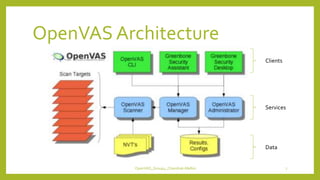
OpenVAS Architecture
Clients
Services
Data
OpenVAS_Group4_Chandrak-Melbin 7
Clients Components
• OpenVAS CLI: is a set of tools that allow administration of
OpenVAS through the shell.
• Greenbone Security Assistant: is a web-based tool with an
intuitive interface for variousVA that you are making.
• Greenbone Desktop Security: is the tool that allows us to
manage everything through the GUI interface on the desktop.
OpenVAS_Group4_Chandrak-Melbin 8
Services Components
• OpenVAS Scanner: is the component that allows us the scan of
hostname/ip, port range “from-to” or entire networks such as
“192.168.1.0/28”.
• OpenVAS Manager: is the heart of OpenVAS, the manager receives
task/information from the OpenVAS Administrator and the various
administration tools CLI/WEB/GUI, then use the OpenVAS Scanner that will
perform theVulnerability Assessment. Also includes component that
processes the results of the scans, so it also generates the final report.
• OpenVAS Administrator: is the component through which users can
manage and the feed (i.e. the updates).
OpenVAS_Group4_Chandrak-Melbin 9
Data Components
• NVT’s: it is the container of feed, i.e. test cases that detect the
vulnerabilities, which are currently over 20,000.
• Results, config: is the database (PostgreSQL) where reports are
collected and where the entire configuration of OpenVAS is
stored.
OpenVAS_Group4_Chandrak-Melbin 10
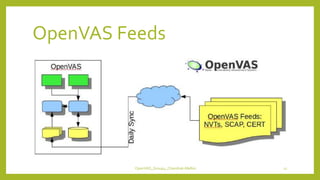
OpenVAS Feeds
OpenVAS_Group4_Chandrak-Melbin 11
ConductingVA using OpenVAS
OpenVAS_Group4_Chandrak-Melbin 12
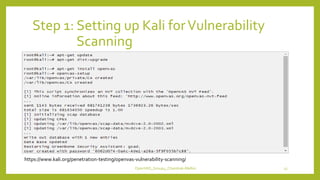
Step 1: Setting up Kali forVulnerability
Scanning
https://www.kali.org/penetration-testing/openvas-vulnerability-scanning/
OpenVAS_Group4_Chandrak-Melbin 13
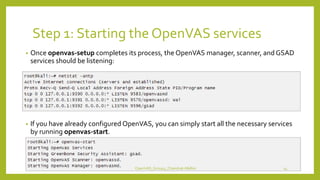
Step 1: Starting the OpenVAS services
• Once openvas-setup completes its process, the OpenVAS manager, scanner, and GSAD
services should be listening:
• If you have already configured OpenVAS, you can simply start all the necessary services
by running openvas-start.
OpenVAS_Group4_Chandrak-Melbin 14
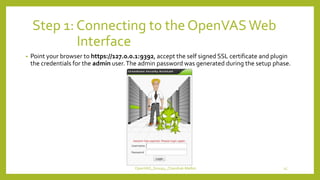
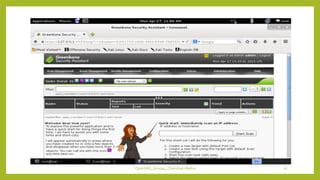
Step 1: Connecting to the OpenVASWeb
Interface
• Point your browser to https://127.0.0.1:9392, accept the self signed SSL certificate and plugin
the credentials for the admin user.The admin password was generated during the setup phase.
OpenVAS_Group4_Chandrak-Melbin 15
OpenVAS_Group4_Chandrak-Melbin 16
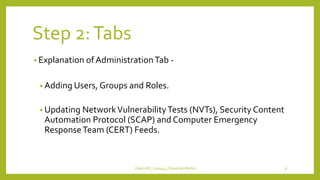
Step 2:Tabs
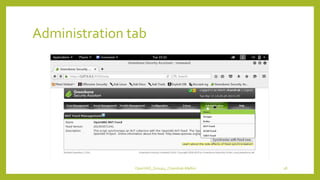
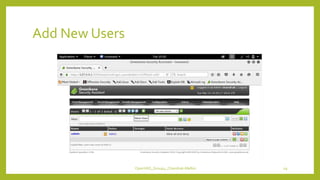
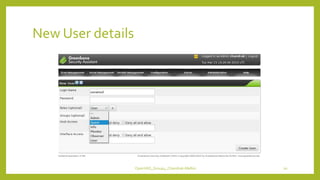
• Explanation of AdministrationTab -
• Adding Users, Groups and Roles.
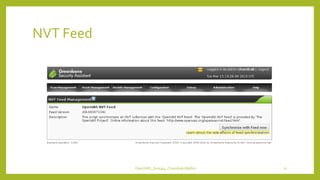
• Updating NetworkVulnerabilityTests (NVTs), Security Content
Automation Protocol (SCAP) and Computer Emergency
ResponseTeam (CERT) Feeds.
OpenVAS_Group4_Chandrak-Melbin 17
Administration tab
OpenVAS_Group4_Chandrak-Melbin 18
Add New Users
OpenVAS_Group4_Chandrak-Melbin 19
New User details
OpenVAS_Group4_Chandrak-Melbin 20
NVT Feed
OpenVAS_Group4_Chandrak-Melbin 21
Step 2:Tabs
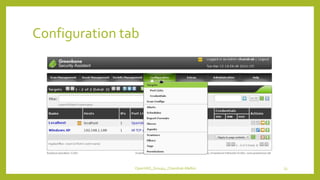
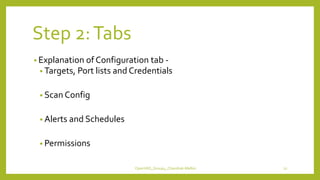
• Explanation of Configuration tab -
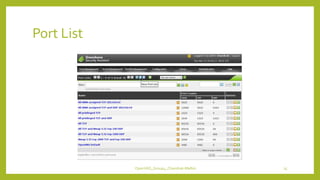
• Targets, Port lists and Credentials
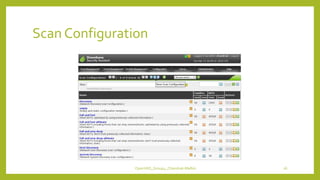
• Scan Config
• Alerts and Schedules
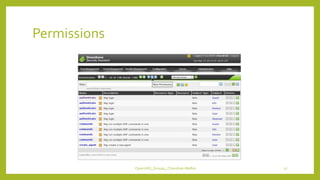
• Permissions
OpenVAS_Group4_Chandrak-Melbin 22
Configuration tab
OpenVAS_Group4_Chandrak-Melbin 23
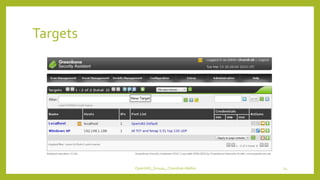
Targets
OpenVAS_Group4_Chandrak-Melbin 24
Port List
OpenVAS_Group4_Chandrak-Melbin 25
Scan Configuration
OpenVAS_Group4_Chandrak-Melbin 26
Permissions
OpenVAS_Group4_Chandrak-Melbin 27
Step 2:Tabs
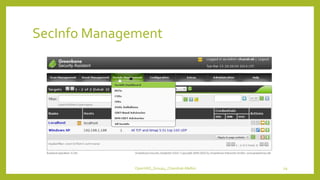
• Explanation of SecInfo Management tab -
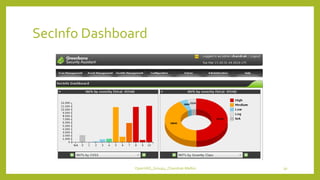
• SecInfo Dashboard
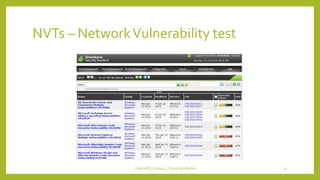
• NetworkVulnerability tests (NVTs)
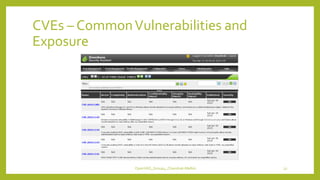
• CommonVulnerabilities and Exposures (CVEs)
OpenVAS_Group4_Chandrak-Melbin 28
SecInfo Management
OpenVAS_Group4_Chandrak-Melbin 29
SecInfo Dashboard
OpenVAS_Group4_Chandrak-Melbin 30
NVTs – NetworkVulnerability test
OpenVAS_Group4_Chandrak-Melbin 31
CVEs – CommonVulnerabilities and
Exposure
OpenVAS_Group4_Chandrak-Melbin 32
Step 2:Tabs
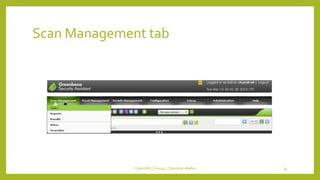
• Explanation of Scan Management -
• Tasks
• Reports
• Results
OpenVAS_Group4_Chandrak-Melbin 33
Scan Management tab
OpenVAS_Group4_Chandrak-Melbin 34
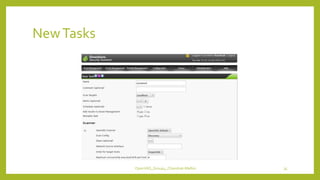
NewTasks
OpenVAS_Group4_Chandrak-Melbin 35
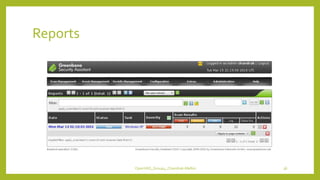
Reports
OpenVAS_Group4_Chandrak-Melbin 36
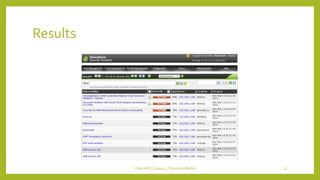
Results
OpenVAS_Group4_Chandrak-Melbin 37
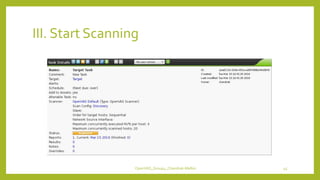
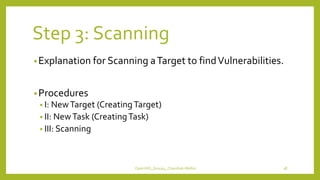
Step 3: Scanning
•Explanation for Scanning aTarget to findVulnerabilities.
•Procedures
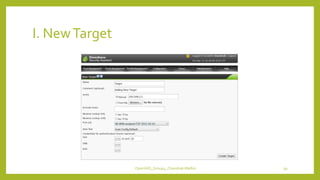
• I: NewTarget (CreatingTarget)
• II: NewTask (CreatingTask)
• III: Scanning
OpenVAS_Group4_Chandrak-Melbin 38
I. NewTarget
OpenVAS_Group4_Chandrak-Melbin 39
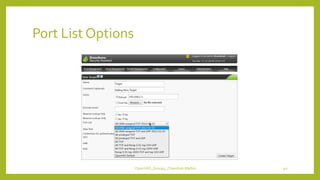
Port List Options
OpenVAS_Group4_Chandrak-Melbin 40
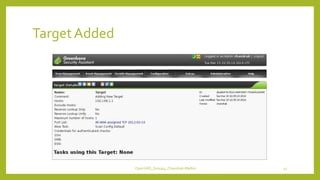
TargetAdded
OpenVAS_Group4_Chandrak-Melbin 41
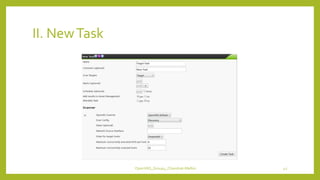
II. NewTask
OpenVAS_Group4_Chandrak-Melbin 42
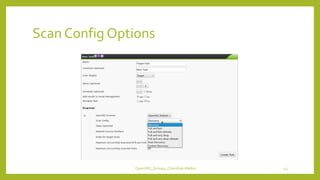
Scan Config Options
OpenVAS_Group4_Chandrak-Melbin 43
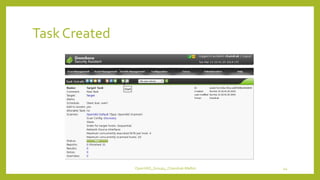
Task Created
OpenVAS_Group4_Chandrak-Melbin 44
III. Start Scanning
OpenVAS_Group4_Chandrak-Melbin 45
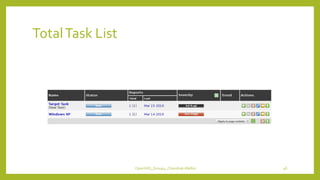
TotalTask List
OpenVAS_Group4_Chandrak-Melbin 46
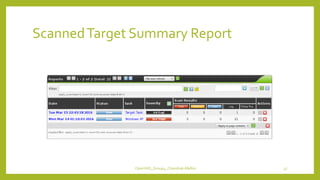
ScannedTarget Summary Report
OpenVAS_Group4_Chandrak-Melbin 47
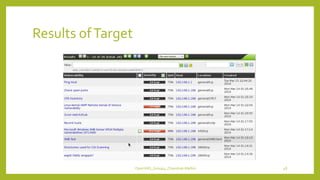
Results ofTarget
OpenVAS_Group4_Chandrak-Melbin 48
Step 4: Export report ofVA conducted
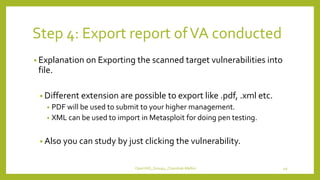
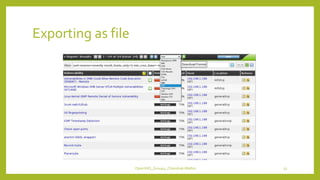
• Explanation on Exporting the scanned target vulnerabilities into
file.
• Different extension are possible to export like .pdf, .xml etc.
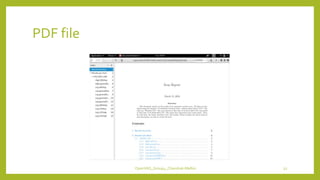
• PDF will be used to submit to your higher management.
• XML can be used to import in Metasploit for doing pen testing.
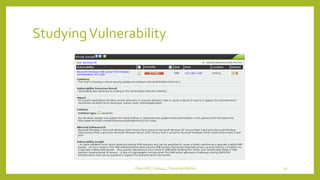
• Also you can study by just clicking the vulnerability.
OpenVAS_Group4_Chandrak-Melbin 49
StudyingVulnerability
OpenVAS_Group4_Chandrak-Melbin 50
Exporting as file
OpenVAS_Group4_Chandrak-Melbin 51
PDF file
OpenVAS_Group4_Chandrak-Melbin 52
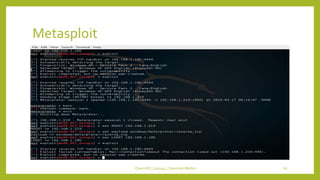
Exploitation onVulnerable System
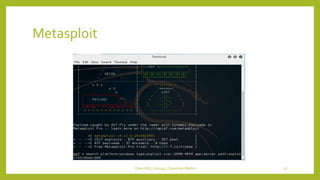
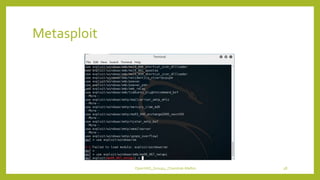
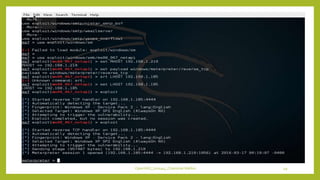
• Using NVTs, CVEs and Metasploit
• Video on Denial of Service (DOS) on scanned results.
OpenVAS_Group4_Chandrak-Melbin 53
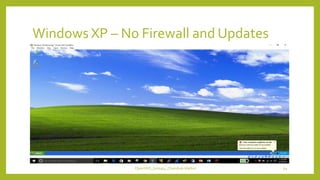
Windows XP – No Firewall and Updates
OpenVAS_Group4_Chandrak-Melbin 54
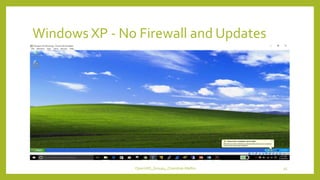
Windows XP - No Firewall and Updates
OpenVAS_Group4_Chandrak-Melbin 55
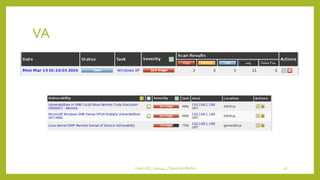
VA
OpenVAS_Group4_Chandrak-Melbin 56
Metasploit
OpenVAS_Group4_Chandrak-Melbin 57
Metasploit
OpenVAS_Group4_Chandrak-Melbin 58
OpenVAS_Group4_Chandrak-Melbin 59
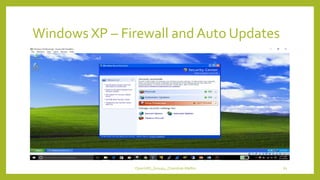
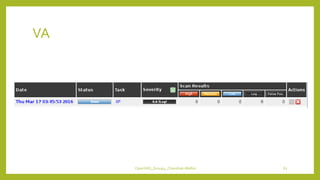
Step 5: Mitigation
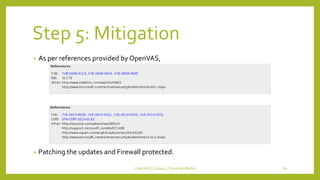
• As per references provided by OpenVAS,
• Patching the updates and Firewall protected.
OpenVAS_Group4_Chandrak-Melbin 60
Windows XP – Firewall and Auto Updates
OpenVAS_Group4_Chandrak-Melbin 61
VA
OpenVAS_Group4_Chandrak-Melbin 62
Metasploit
OpenVAS_Group4_Chandrak-Melbin 63
OpenVAS_Group4_Chandrak-Melbin 64
Question ???

OpenVAS: Vulnerability Assessment Scanner