Bertocci
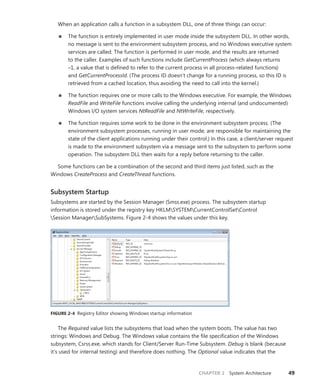
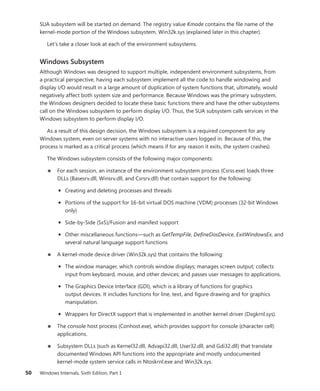
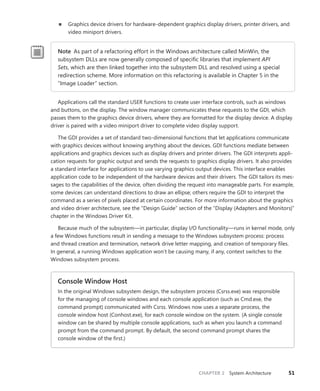
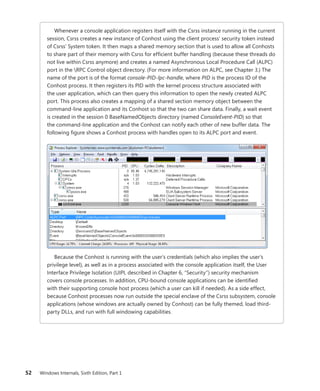
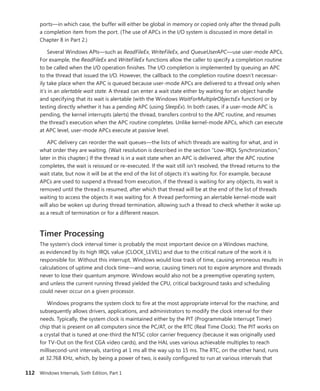
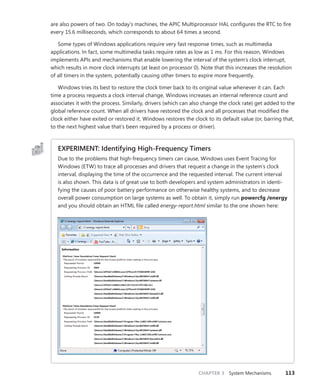
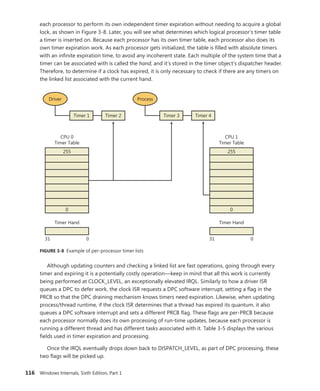
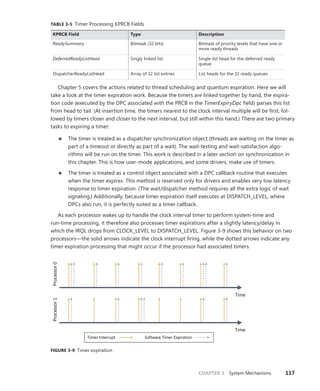
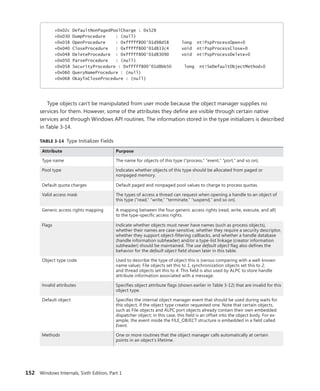
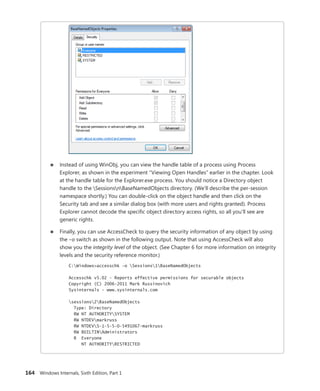
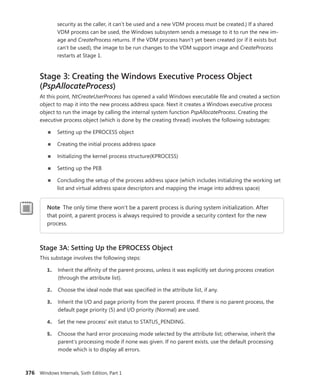
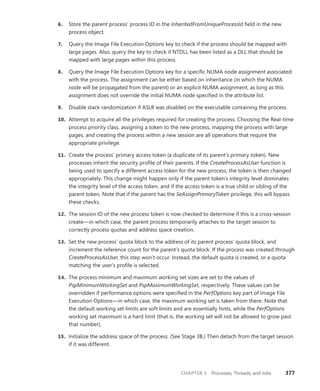
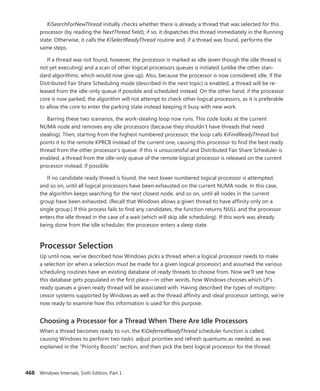
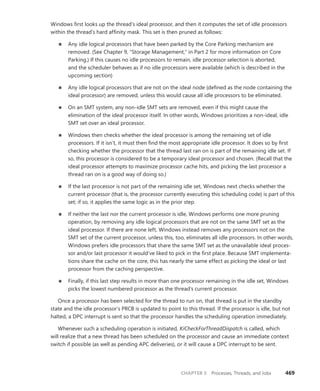
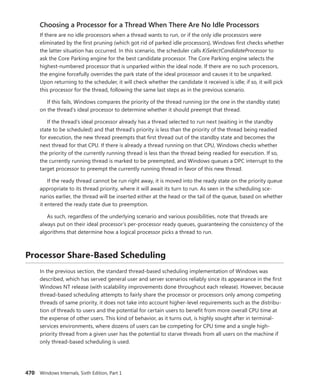
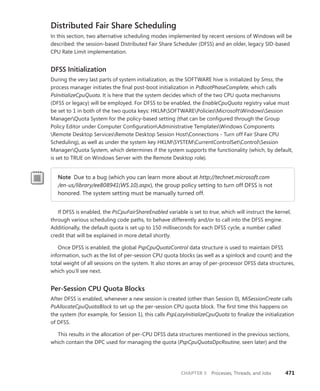
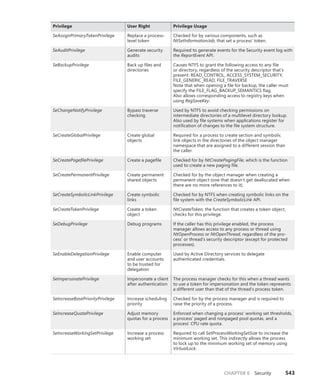
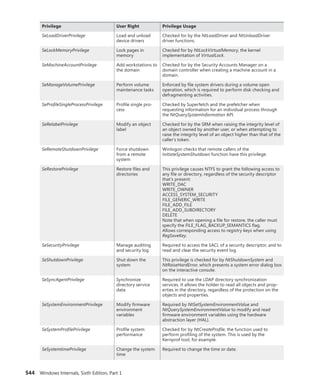
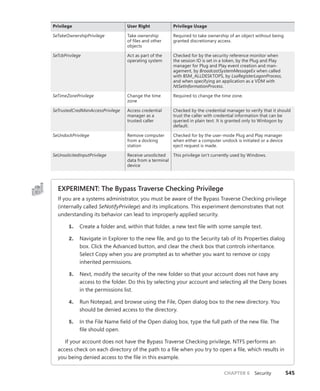
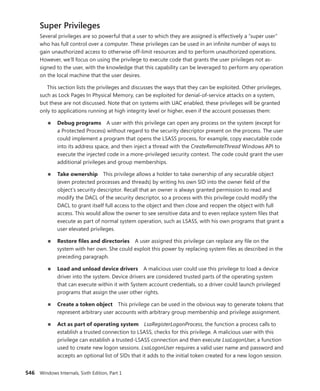
Programming/
Microsoft Visual Studio
9 7 8 0 7 3 5 6 2 7 1 8 5
ISBN: 978-0-7356-2718-5
0 0 0 0 0
About the Author
Vittorio Bertocci is a Senior Architect
Evangelist in the Developer Platform Evangelism
division at Microsoft, and a key member of the
extended engineering team for WIF. He is an
expert on identity, Windows Azure, and .NET
development; a frequent speaker at Microsoft
PDC, Tech•Ed, and other industry events; and
a coauthor of A Guide to Claims-Based Identity
and Access Control.
Apply the principles—and patterns—for implementing
claims-based identity in your .NET solutions
Take control of access and identity management with Windows
Identity Foundation (WIF)—the claims-based identity model in
Microsoft .NET. Led by an insider on the WIF engineering team,
you’ll learn practical, scenario-based approaches for implementing
WIF in your Web applications and services—while streamlining
development and IT overhead.
Discover how to:
• Implement authentication and authorization in ASP.NET—
without low-level code
• Delve deeper—examining WS-Federation and WS-Trust protocols
in action
• Configure WIF for fine-grained control over identity management
• Implement Single Sign-On, Single Sign-Out, advanced session
management, and other patterns
• Tackle advanced scenarios—from managing delegation to flowing
identity across multiple tiers
• Employ claims-based identity in Windows Communication
Foundation
• Use WIF to help secure applications and services hosted in
Windows Azure™
• Extend WIF to Microsoft Silverlight®
and ASP.NET MVC
Programming Windows®
Identity Foundation
Get code samples on the Web
For system requirements, see the Introduction.
Programming
Windows
®
Identity
Foundation
microsoft.com/mspress
U.S.A. $34.99
Canada $40.99
[Recommended]
See inside cover
DEVELOPER ROADMAP
Step by Step
• For experienced developers learning a
new topic
• Focus on fundamental techniques and tools
• Hands-on tutorial with practice files plus
eBook
Start Here!
• Beginner-level instruction
• Easy to follow explanations and examples
• Exercises to build your first projects
Developer Reference
• Professional developers; intermediate to
advanced
• Expertly covers essential topics and
techniques
• Features extensive, adaptable code examples
Professional developers; intermediate to
Expertly covers essential topics and
Focused Topics
• For programmers who develop
complex or advanced solutions
• Specialized topics; narrow focus; deep
coverage
• Features extensive, adaptable code examples
Windows®
Internals
Part 1
6
S I X T H
E D I T I O N
Mark Russinovich
David A. Solomon
Alex Ionescu
spine = .64”
Cyan Magenta Yellow Black
PUBLISHED BY
Microsoft Press
A Division of Microsoft Corporation
One Microsoft Way
Redmond, Washington 98052-6399
Copyright © 2012 by David Solomon and Mark Russinovich
All rights reserved. No part of the contents of this book may be reproduced or transmitted in any form or by any
means without the written permission of the publisher.
Library of Congress Control Number: 2012933511
ISBN: 978-0-7356-4873-9
Microsoft Press books are available through booksellers and distributors worldwide. If you need support related
to this book, email Microsoft Press Book Support at mspinput@microsoft.com. Please tell us what you think of
this book at http://www.microsoft.com/learning/booksurvey.
Microsoft and the trademarks listed at http://www.microsoft.com/about/legal/en/us/IntellectualProperty
/Trademarks/EN-US.aspx are trademarks of the Microsoft group of companies. All other marks are property of
their respective owners.
The example companies, organizations, products, domain names, email addresses, logos, people, places, and
events depicted herein are fictitious. No association with any real company, organization, product, domain name,
email address, logo, person, place, or event is intended or should be inferred.
This book expresses the author’s views and opinions. The information contained in this book is provided without
any express, statutory, or implied warranties. Neither the authors, Microsoft Corporation, nor its resellers, or
distributors will be held liable for any damages caused or alleged to be caused either directly or indirectly by
this book.
Acquisitions Editor: Devon Musgrave
Developmental Editor: Devon Musgrave
Project Editor: Carol Dillingham
Technical Reviewer: Christophe Nasarre; Technical Review services provided by Content Master, a member of
CM Group, Ltd.
Copy Editor: Roger LeBlanc
Indexer: Christina Yeager
Editorial Production: Waypoint Press
Cover: Twist Creative • Seattle
To our parents, who guided and inspired us to follow our dreams
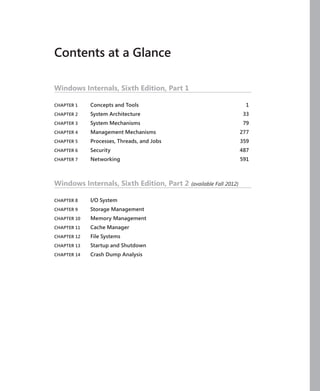
Contents at a Glance
Windows Internals, Sixth Edition, Part 1
CHAPTER 1 Concepts and Tools 1
CHAPTER 2 System Architecture 33
CHAPTER 3 System Mechanisms 79
CHAPTER 4 Management Mechanisms 277
CHAPTER 5 Processes, Threads, and Jobs 359
CHAPTER 6 Security 487
CHAPTER 7 Networking 591
Windows Internals, Sixth Edition, Part 2 (available Fall 2012)
CHAPTER 8 I/O System
CHAPTER 9 Storage Management
CHAPTER 10 Memory Management
CHAPTER 11 Cache Manager
CHAPTER 12 File Systems
CHAPTER 13 Startup and Shutdown
CHAPTER 14 Crash Dump Analysis
vii
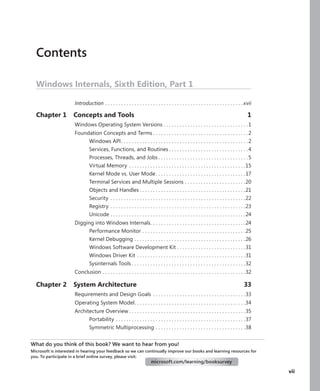
Contents
Windows Internals, Sixth Edition, Part 1
Introduction.  .  .  .  .  .  .  .  .  .  .  .  .  .  .  .  .  .  .  .  .  .  .  .  .  .  .  .  .  .  .  .  .  .  .  .  .  .  .  .  .  .  .  .  .  .  .  .  .  .  .  . xvii
Chapter 1 Concepts and Tools 1
Windows Operating System Versions.  .  .  .  .  .  .  .  .  .  .  .  .  .  .  .  .  .  .  .  .  .  .  .  .  .  .  .  .  .  .  . 1
Foundation Concepts and Terms.  .  .  .  .  .  .  .  .  .  .  .  .  .  .  .  .  .  .  .  .  .  .  .  .  .  .  .  .  .  .  .  .  .  .  . 2
Windows API. .  .  .  .  .  .  .  .  .  .  .  .  .  .  .  .  .  .  .  .  .  .  .  .  .  .  .  .  .  .  .  .  .  .  .  .  .  .  .  .  .  .  .  .  .  .  . 2
Services, Functions, and Routines.  .  .  .  .  .  .  .  .  .  .  .  .  .  .  .  .  .  .  .  .  .  .  .  .  .  .  .  .  . 4
Processes, Threads, and Jobs.  .  .  .  .  .  .  .  .  .  .  .  .  .  .  .  .  .  .  .  .  .  .  .  .  .  .  .  .  .  .  .  .  . 5
Virtual Memory.  .  .  .  .  .  .  .  .  .  .  .  .  .  .  .  .  .  .  .  .  .  .  .  .  .  .  .  .  .  .  .  .  .  .  .  .  .  .  .  .  .  .  . 15
Kernel Mode vs. User Mode. .  .  .  .  .  .  .  .  .  .  .  .  .  .  .  .  .  .  .  .  .  .  .  .  .  .  .  .  .  .  .  .  . 17
Terminal Services and Multiple Sessions.  .  .  .  .  .  .  .  .  .  .  .  .  .  .  .  .  .  .  .  .  .  . 20
Objects and Handles.  .  .  .  .  .  .  .  .  .  .  .  .  .  .  .  .  .  .  .  .  .  .  .  .  .  .  .  .  .  .  .  .  .  .  .  .  .  .  . 21
Security .  .  .  .  .  .  .  .  .  .  .  .  .  .  .  .  .  .  .  .  .  .  .  .  .  .  .  .  .  .  .  .  .  .  .  .  .  .  .  .  .  .  .  .  .  .  .  .  .  .  . 22
Registry.  .  .  .  .  .  .  .  .  .  .  .  .  .  .  .  .  .  .  .  .  .  .  .  .  .  .  .  .  .  .  .  .  .  .  .  .  .  .  .  .  .  .  .  .  .  .  .  .  .  . 23
Unicode.  .  .  .  .  .  .  .  .  .  .  .  .  .  .  .  .  .  .  .  .  .  .  .  .  .  .  .  .  .  .  .  .  .  .  .  .  .  .  .  .  .  .  .  .  .  .  .  .  .  . 24
Digging into Windows Internals
. .  .  .  .  .  .  .  .  .  .  .  .  .  .  .  .  .  .  .  .  .  .  .  .  .  .  .  .  .  .  .  .  .  .  . 24
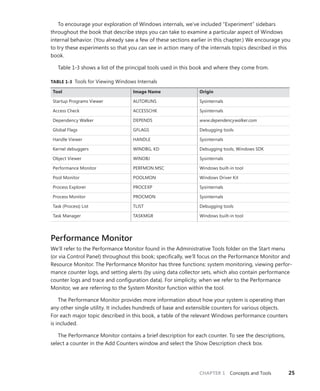
Performance Monitor.  .  .  .  .  .  .  .  .  .  .  .  .  .  .  .  .  .  .  .  .  .  .  .  .  .  .  .  .  .  .  .  .  .  .  .  .  .  . 25
Kernel Debugging.  .  .  .  .  .  .  .  .  .  .  .  .  .  .  .  .  .  .  .  .  .  .  .  .  .  .  .  .  .  .  .  .  .  .  .  .  .  .  .  .  . 26
Windows Software Development Kit.  .  .  .  .  .  .  .  .  .  .  .  .  .  .  .  .  .  .  .  .  .  .  .  .  . 31
Windows Driver Kit.  .  .  .  .  .  .  .  .  .  .  .  .  .  .  .  .  .  .  .  .  .  .  .  .  .  .  .  .  .  .  .  .  .  .  .  .  .  .  .  . 31
Sysinternals Tools.  .  .  .  .  .  .  .  .  .  .  .  .  .  .  .  .  .  .  .  .  .  .  .  .  .  .  .  .  .  .  .  .  .  .  .  .  .  .  .  .  .  . 32
Conclusion.  .  .  .  .  .  .  .  .  .  .  .  .  .  .  .  .  .  .  .  .  .  .  .  .  .  .  .  .  .  .  .  .  .  .  .  .  .  .  .  .  .  .  .  .  .  .  .  .  .  .  .  .  . 32
Chapter 2 System Architecture 33
Requirements and Design Goals .  .  .  .  .  .  .  .  .  .  .  .  .  .  .  .  .  .  .  .  .  .  .  .  .  .  .  .  .  .  .  .  .  .  . 33
Operating System Model
. .  .  .  .  .  .  .  .  .  .  .  .  .  .  .  .  .  .  .  .  .  .  .  .  .  .  .  .  .  .  .  .  .  .  .  .  .  .  .  .  . 34
Architecture Overview.  .  .  .  .  .  .  .  .  .  .  .  .  .  .  .  .  .  .  .  .  .  .  .  .  .  .  .  .  .  .  .  .  .  .  .  .  .  .  .  .  .  .  . 35
Portability.  .  .  .  .  .  .  .  .  .  .  .  .  .  .  .  .  .  .  .  .  .  .  .  .  .  .  .  .  .  .  .  .  .  .  .  .  .  .  .  .  .  .  .  .  .  .  .  . 37
Symmetric Multiprocessing.  .  .  .  .  .  .  .  .  .  .  .  .  .  .  .  .  .  .  .  .  .  .  .  .  .  .  .  .  .  .  .  .  . 38
What do you think of this book? We want to hear from you!
Microsoft is interested in hearing your feedback so we can continually improve our books and learning resources for
you. To participate in a brief online survey, please visit:
microsoft.com/learning/booksurvey
viii Contents
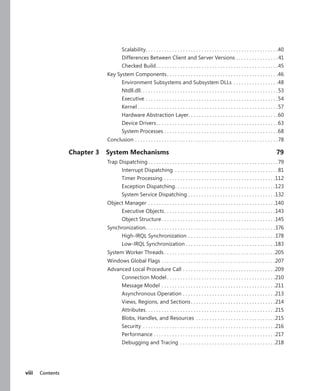
Scalability
. .  .  .  .  .  .  .  .  .  .  .  .  .  .  .  .  .  .  .  .  .  .  .  .  .  .  .  .  .  .  .  .  .  .  .  .  .  .  .  .  .  .  .  .  .  .  .  .  . 40
Differences Between Client and Server Versions.  .  .  .  .  .  .  .  .  .  .  .  .  .  .  . 41
Checked Build. .  .  .  .  .  .  .  .  .  .  .  .  .  .  .  .  .  .  .  .  .  .  .  .  .  .  .  .  .  .  .  .  .  .  .  .  .  .  .  .  .  .  .  .  . 45
Key System Components. .  .  .  .  .  .  .  .  .  .  .  .  .  .  .  .  .  .  .  .  .  .  .  .  .  .  .  .  .  .  .  .  .  .  .  .  .  .  .  .  . 46
Environment Subsystems and Subsystem DLLs.  .  .  .  .  .  .  .  .  .  .  .  .  .  .  .  . 48
Ntdll.dll
. .  .  .  .  .  .  .  .  .  .  .  .  .  .  .  .  .  .  .  .  .  .  .  .  .  .  .  .  .  .  .  .  .  .  .  .  .  .  .  .  .  .  .  .  .  .  .  .  .  .  . 53
Executive.  .  .  .  .  .  .  .  .  .  .  .  .  .  .  .  .  .  .  .  .  .  .  .  .  .  .  .  .  .  .  .  .  .  .  .  .  .  .  .  .  .  .  .  .  .  .  .  .  . 54
Kernel.  .  .  .  .  .  .  .  .  .  .  .  .  .  .  .  .  .  .  .  .  .  .  .  .  .  .  .  .  .  .  .  .  .  .  .  .  .  .  .  .  .  .  .  .  .  .  .  .  .  .  .  . 57
Hardware Abstraction Layer
. .  .  .  .  .  .  .  .  .  .  .  .  .  .  .  .  .  .  .  .  .  .  .  .  .  .  .  .  .  .  .  .  . 60
Device Drivers. .  .  .  .  .  .  .  .  .  .  .  .  .  .  .  .  .  .  .  .  .  .  .  .  .  .  .  .  .  .  .  .  .  .  .  .  .  .  .  .  .  .  .  .  . 63
System Processes.  .  .  .  .  .  .  .  .  .  .  .  .  .  .  .  .  .  .  .  .  .  .  .  .  .  .  .  .  .  .  .  .  .  .  .  .  .  .  .  .  .  . 68
Conclusion.  .  .  .  .  .  .  .  .  .  .  .  .  .  .  .  .  .  .  .  .  .  .  .  .  .  .  .  .  .  .  .  .  .  .  .  .  .  .  .  .  .  .  .  .  .  .  .  .  .  .  .  .  . 78
Chapter 3 System Mechanisms 79
Trap Dispatching.  .  .  .  .  .  .  .  .  .  .  .  .  .  .  .  .  .  .  .  .  .  .  .  .  .  .  .  .  .  .  .  .  .  .  .  .  .  .  .  .  .  .  .  .  .  .  .  . 79
Interrupt Dispatching .  .  .  .  .  .  .  .  .  .  .  .  .  .  .  .  .  .  .  .  .  .  .  .  .  .  .  .  .  .  .  .  .  .  .  .  .  .  . 81
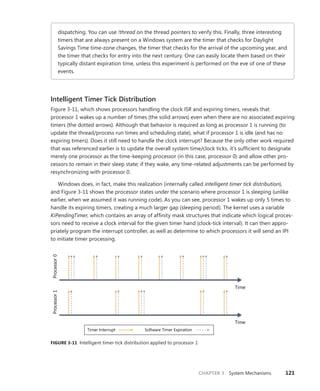
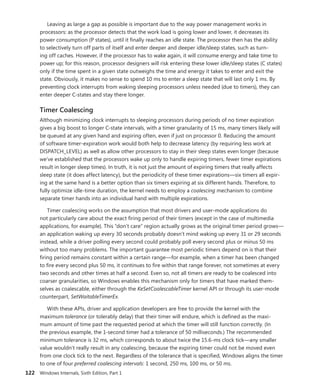
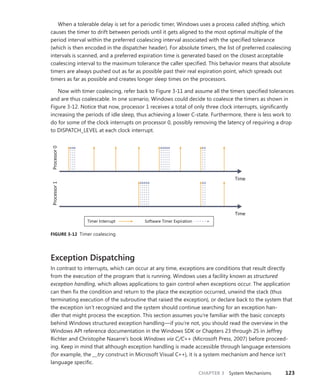
Timer Processing.  .  .  .  .  .  .  .  .  .  .  .  .  .  .  .  .  .  .  .  .  .  .  .  .  .  .  .  .  .  .  .  .  .  .  .  .  .  .  .  .  . 112
Exception Dispatching
. .  .  .  .  .  .  .  .  .  .  .  .  .  .  .  .  .  .  .  .  .  .  .  .  .  .  .  .  .  .  .  .  .  .  .  .  . 123
System Service Dispatching.  .  .  .  .  .  .  .  .  .  .  .  .  .  .  .  .  .  .  .  .  .  .  .  .  .  .  .  .  .  .  .  . 132
Object Manager.  .  .  .  .  .  .  .  .  .  .  .  .  .  .  .  .  .  .  .  .  .  .  .  .  .  .  .  .  .  .  .  .  .  .  .  .  .  .  .  .  .  .  .  .  .  .  . 140
Executive Objects. .  .  .  .  .  .  .  .  .  .  .  .  .  .  .  .  .  .  .  .  .  .  .  .  .  .  .  .  .  .  .  .  .  .  .  .  .  .  .  .  . 143
Object Structure. .  .  .  .  .  .  .  .  .  .  .  .  .  .  .  .  .  .  .  .  .  .  .  .  .  .  .  .  .  .  .  .  .  .  .  .  .  .  .  .  .  . 145
Synchronization
. .  .  .  .  .  .  .  .  .  .  .  .  .  .  .  .  .  .  .  .  .  .  .  .  .  .  .  .  .  .  .  .  .  .  .  .  .  .  .  .  .  .  .  .  .  .  .  . 176
High-IRQL Synchronization.  .  .  .  .  .  .  .  .  .  .  .  .  .  .  .  .  .  .  .  .  .  .  .  .  .  .  .  .  .  .  .  . 178
Low-IRQL Synchronization.  .  .  .  .  .  .  .  .  .  .  .  .  .  .  .  .  .  .  .  .  .  .  .  .  .  .  .  .  .  .  .  .  . 183
System Worker Threads.  .  .  .  .  .  .  .  .  .  .  .  .  .  .  .  .  .  .  .  .  .  .  .  .  .  .  .  .  .  .  .  .  .  .  .  .  .  .  .  .  . 205
Windows Global Flags.  .  .  .  .  .  .  .  .  .  .  .  .  .  .  .  .  .  .  .  .  .  .  .  .  .  .  .  .  .  .  .  .  .  .  .  .  .  .  .  .  .  . 207
Advanced Local Procedure Call.  .  .  .  .  .  .  .  .  .  .  .  .  .  .  .  .  .  .  .  .  .  .  .  .  .  .  .  .  .  .  .  .  .  . 209
Connection Model. .  .  .  .  .  .  .  .  .  .  .  .  .  .  .  .  .  .  .  .  .  .  .  .  .  .  .  .  .  .  .  .  .  .  .  .  .  .  .  . 210
Message Model.  .  .  .  .  .  .  .  .  .  .  .  .  .  .  .  .  .  .  .  .  .  .  .  .  .  .  .  .  .  .  .  .  .  .  .  .  .  .  .  .  .  . 211
Asynchronous Operation.  .  .  .  .  .  .  .  .  .  .  .  .  .  .  .  .  .  .  .  .  .  .  .  .  .  .  .  .  .  .  .  .  .  . 213
Views, Regions, and Sections. .  .  .  .  .  .  .  .  .  .  .  .  .  .  .  .  .  .  .  .  .  .  .  .  .  .  .  .  .  .  . 214
Attributes. .  .  .  .  .  .  .  .  .  .  .  .  .  .  .  .  .  .  .  .  .  .  .  .  .  .  .  .  .  .  .  .  .  .  .  .  .  .  .  .  .  .  .  .  .  .  .  . 215
Blobs, Handles, and Resources .  .  .  .  .  .  .  .  .  .  .  .  .  .  .  .  .  .  .  .  .  .  .  .  .  .  .  .  .  . 215
Security .  .  .  .  .  .  .  .  .  .  .  .  .  .  .  .  .  .  .  .  .  .  .  .  .  .  .  .  .  .  .  .  .  .  .  .  .  .  .  .  .  .  .  .  .  .  .  .  .  . 216
Performance.  .  .  .  .  .  .  .  .  .  .  .  .  .  .  .  .  .  .  .  .  .  .  .  .  .  .  .  .  .  .  .  .  .  .  .  .  .  .  .  .  .  .  .  .  . 217
Debugging and Tracing .  .  .  .  .  .  .  .  .  .  .  .  .  .  .  .  .  .  .  .  .  .  .  .  .  .  .  .  .  .  .  .  .  .  .  . 218
Contents ix
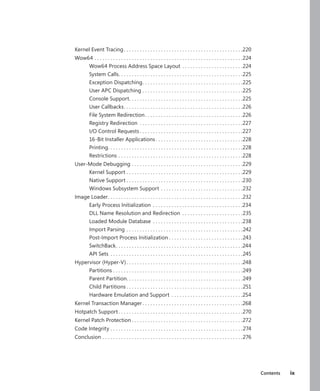
Kernel Event Tracing. .  .  .  .  .  .  .  .  .  .  .  .  .  .  .  .  .  .  .  .  .  .  .  .  .  .  .  .  .  .  .  .  .  .  .  .  .  .  .  .  .  .  .  . 220
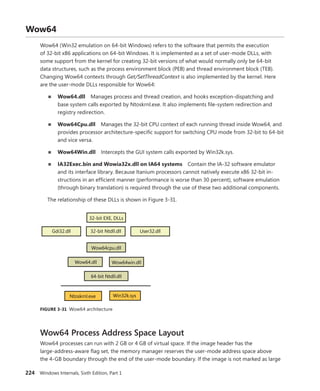
Wow64.  .  .  .  .  .  .  .  .  .  .  .  .  .  .  .  .  .  .  .  .  .  .  .  .  .  .  .  .  .  .  .  .  .  .  .  .  .  .  .  .  .  .  .  .  .  .  .  .  .  .  .  .  .  .  . 224
Wow64 Process Address Space Layout.  .  .  .  .  .  .  .  .  .  .  .  .  .  .  .  .  .  .  .  .  .  . 224
System Calls
. .  .  .  .  .  .  .  .  .  .  .  .  .  .  .  .  .  .  .  .  .  .  .  .  .  .  .  .  .  .  .  .  .  .  .  .  .  .  .  .  .  .  .  .  .  . 225
Exception Dispatching
. .  .  .  .  .  .  .  .  .  .  .  .  .  .  .  .  .  .  .  .  .  .  .  .  .  .  .  .  .  .  .  .  .  .  .  .  . 225
User APC Dispatching.  .  .  .  .  .  .  .  .  .  .  .  .  .  .  .  .  .  .  .  .  .  .  .  .  .  .  .  .  .  .  .  .  .  .  .  .  . 225
Console Support
. .  .  .  .  .  .  .  .  .  .  .  .  .  .  .  .  .  .  .  .  .  .  .  .  .  .  .  .  .  .  .  .  .  .  .  .  .  .  .  .  .  . 225
User Callbacks. .  .  .  .  .  .  .  .  .  .  .  .  .  .  .  .  .  .  .  .  .  .  .  .  .  .  .  .  .  .  .  .  .  .  .  .  .  .  .  .  .  .  .  . 226
File System Redirection. .  .  .  .  .  .  .  .  .  .  .  .  .  .  .  .  .  .  .  .  .  .  .  .  .  .  .  .  .  .  .  .  .  .  .  . 226
Registry Redirection .  .  .  .  .  .  .  .  .  .  .  .  .  .  .  .  .  .  .  .  .  .  .  .  .  .  .  .  .  .  .  .  .  .  .  .  .  .  . 227
I/O Control Requests.  .  .  .  .  .  .  .  .  .  .  .  .  .  .  .  .  .  .  .  .  .  .  .  .  .  .  .  .  .  .  .  .  .  .  .  .  .  . 227
16-Bit Installer Applications.  .  .  .  .  .  .  .  .  .  .  .  .  .  .  .  .  .  .  .  .  .  .  .  .  .  .  .  .  .  .  .  . 228
Printing
. .  .  .  .  .  .  .  .  .  .  .  .  .  .  .  .  .  .  .  .  .  .  .  .  .  .  .  .  .  .  .  .  .  .  .  .  .  .  .  .  .  .  .  .  .  .  .  .  .  . 228
Restrictions.  .  .  .  .  .  .  .  .  .  .  .  .  .  .  .  .  .  .  .  .  .  .  .  .  .  .  .  .  .  .  .  .  .  .  .  .  .  .  .  .  .  .  .  .  .  . 228
User-Mode Debugging.  .  .  .  .  .  .  .  .  .  .  .  .  .  .  .  .  .  .  .  .  .  .  .  .  .  .  .  .  .  .  .  .  .  .  .  .  .  .  .  .  . 229
Kernel Support.  .  .  .  .  .  .  .  .  .  .  .  .  .  .  .  .  .  .  .  .  .  .  .  .  .  .  .  .  .  .  .  .  .  .  .  .  .  .  .  .  .  .  . 229
Native Support.  .  .  .  .  .  .  .  .  .  .  .  .  .  .  .  .  .  .  .  .  .  .  .  .  .  .  .  .  .  .  .  .  .  .  .  .  .  .  .  .  .  .  . 230
Windows Subsystem Support.  .  .  .  .  .  .  .  .  .  .  .  .  .  .  .  .  .  .  .  .  .  .  .  .  .  .  .  .  .  . 232
Image Loader
. .  .  .  .  .  .  .  .  .  .  .  .  .  .  .  .  .  .  .  .  .  .  .  .  .  .  .  .  .  .  .  .  .  .  .  .  .  .  .  .  .  .  .  .  .  .  .  .  .  . 232
Early Process Initialization .  .  .  .  .  .  .  .  .  .  .  .  .  .  .  .  .  .  .  .  .  .  .  .  .  .  .  .  .  .  .  .  .  . 234
DLL Name Resolution and Redirection .  .  .  .  .  .  .  .  .  .  .  .  .  .  .  .  .  .  .  .  .  .  . 235
Loaded Module Database .  .  .  .  .  .  .  .  .  .  .  .  .  .  .  .  .  .  .  .  .  .  .  .  .  .  .  .  .  .  .  .  .  . 238
Import Parsing.  .  .  .  .  .  .  .  .  .  .  .  .  .  .  .  .  .  .  .  .  .  .  .  .  .  .  .  .  .  .  .  .  .  .  .  .  .  .  .  .  .  .  . 242
Post-Import Process Initialization.  .  .  .  .  .  .  .  .  .  .  .  .  .  .  .  .  .  .  .  .  .  .  .  .  .  .  . 243
SwitchBack
. .  .  .  .  .  .  .  .  .  .  .  .  .  .  .  .  .  .  .  .  .  .  .  .  .  .  .  .  .  .  .  .  .  .  .  .  .  .  .  .  .  .  .  .  .  .  . 244
API Sets .  .  .  .  .  .  .  .  .  .  .  .  .  .  .  .  .  .  .  .  .  .  .  .  .  .  .  .  .  .  .  .  .  .  .  .  .  .  .  .  .  .  .  .  .  .  .  .  .  . 245
Hypervisor (Hyper-V). .  .  .  .  .  .  .  .  .  .  .  .  .  .  .  .  .  .  .  .  .  .  .  .  .  .  .  .  .  .  .  .  .  .  .  .  .  .  .  .  .  .  . 248
Partitions.  .  .  .  .  .  .  .  .  .  .  .  .  .  .  .  .  .  .  .  .  .  .  .  .  .  .  .  .  .  .  .  .  .  .  .  .  .  .  .  .  .  .  .  .  .  .  .  . 249
Parent Partition
. .  .  .  .  .  .  .  .  .  .  .  .  .  .  .  .  .  .  .  .  .  .  .  .  .  .  .  .  .  .  .  .  .  .  .  .  .  .  .  .  .  .  . 249
Child Partitions.  .  .  .  .  .  .  .  .  .  .  .  .  .  .  .  .  .  .  .  .  .  .  .  .  .  .  .  .  .  .  .  .  .  .  .  .  .  .  .  .  .  .  . 251
Hardware Emulation and Support .  .  .  .  .  .  .  .  .  .  .  .  .  .  .  .  .  .  .  .  .  .  .  .  .  .  . 254
Kernel Transaction Manager.  .  .  .  .  .  .  .  .  .  .  .  .  .  .  .  .  .  .  .  .  .  .  .  .  .  .  .  .  .  .  .  .  .  .  .  .  . 268
Hotpatch Support.  .  .  .  .  .  .  .  .  .  .  .  .  .  .  .  .  .  .  .  .  .  .  .  .  .  .  .  .  .  .  .  .  .  .  .  .  .  .  .  .  .  .  .  .  .  . 270
Kernel Patch Protection.  .  .  .  .  .  .  .  .  .  .  .  .  .  .  .  .  .  .  .  .  .  .  .  .  .  .  .  .  .  .  .  .  .  .  .  .  .  .  .  .  . 272
Code Integrity.  .  .  .  .  .  .  .  .  .  .  .  .  .  .  .  .  .  .  .  .  .  .  .  .  .  .  .  .  .  .  .  .  .  .  .  .  .  .  .  .  .  .  .  .  .  .  .  .  . 274
Conclusion.  .  .  .  .  .  .  .  .  .  .  .  .  .  .  .  .  .  .  .  .  .  .  .  .  .  .  .  .  .  .  .  .  .  .  .  .  .  .  .  .  .  .  .  .  .  .  .  .  .  .  .  . 276
x Contents
Chapter 4 Management Mechanisms 277
The Registry.  .  .  .  .  .  .  .  .  .  .  .  .  .  .  .  .  .  .  .  .  .  .  .  .  .  .  .  .  .  .  .  .  .  .  .  .  .  .  .  .  .  .  .  .  .  .  .  .  .  .  . 277
Viewing and Changing the Registry.  .  .  .  .  .  .  .  .  .  .  .  .  .  .  .  .  .  .  .  .  .  .  .  .  . 277
Registry Usage.  .  .  .  .  .  .  .  .  .  .  .  .  .  .  .  .  .  .  .  .  .  .  .  .  .  .  .  .  .  .  .  .  .  .  .  .  .  .  .  .  .  .  . 278
Registry Data Types.  .  .  .  .  .  .  .  .  .  .  .  .  .  .  .  .  .  .  .  .  .  .  .  .  .  .  .  .  .  .  .  .  .  .  .  .  .  .  . 279
Registry Logical Structure
. .  .  .  .  .  .  .  .  .  .  .  .  .  .  .  .  .  .  .  .  .  .  .  .  .  .  .  .  .  .  .  .  .  . 280
Transactional Registry (TxR).  .  .  .  .  .  .  .  .  .  .  .  .  .  .  .  .  .  .  .  .  .  .  .  .  .  .  .  .  .  .  .  . 287
Monitoring Registry Activity.  .  .  .  .  .  .  .  .  .  .  .  .  .  .  .  .  .  .  .  .  .  .  .  .  .  .  .  .  .  .  . 289
Process Monitor Internals. .  .  .  .  .  .  .  .  .  .  .  .  .  .  .  .  .  .  .  .  .  .  .  .  .  .  .  .  .  .  .  .  .  . 289
Registry Internals.  .  .  .  .  .  .  .  .  .  .  .  .  .  .  .  .  .  .  .  .  .  .  .  .  .  .  .  .  .  .  .  .  .  .  .  .  .  .  .  .  . 293
Services. .  .  .  .  .  .  .  .  .  .  .  .  .  .  .  .  .  .  .  .  .  .  .  .  .  .  .  .  .  .  .  .  .  .  .  .  .  .  .  .  .  .  .  .  .  .  .  .  .  .  .  .  .  .  . 305
Service Applications
. .  .  .  .  .  .  .  .  .  .  .  .  .  .  .  .  .  .  .  .  .  .  .  .  .  .  .  .  .  .  .  .  .  .  .  .  .  .  . 305
The Service Control Manager .  .  .  .  .  .  .  .  .  .  .  .  .  .  .  .  .  .  .  .  .  .  .  .  .  .  .  .  .  .  . 321
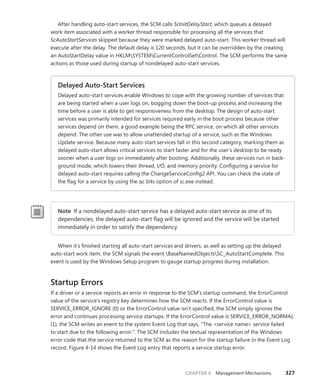
Service Startup.  .  .  .  .  .  .  .  .  .  .  .  .  .  .  .  .  .  .  .  .  .  .  .  .  .  .  .  .  .  .  .  .  .  .  .  .  .  .  .  .  .  .  . 323
Startup Errors.  .  .  .  .  .  .  .  .  .  .  .  .  .  .  .  .  .  .  .  .  .  .  .  .  .  .  .  .  .  .  .  .  .  .  .  .  .  .  .  .  .  .  .  . 327
Accepting the Boot and Last Known Good. .  .  .  .  .  .  .  .  .  .  .  .  .  .  .  .  .  .  . 328
Service Failures.  .  .  .  .  .  .  .  .  .  .  .  .  .  .  .  .  .  .  .  .  .  .  .  .  .  .  .  .  .  .  .  .  .  .  .  .  .  .  .  .  .  .  . 330
Service Shutdown
. .  .  .  .  .  .  .  .  .  .  .  .  .  .  .  .  .  .  .  .  .  .  .  .  .  .  .  .  .  .  .  .  .  .  .  .  .  .  .  .  . 331
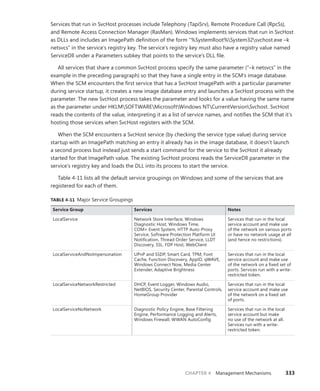
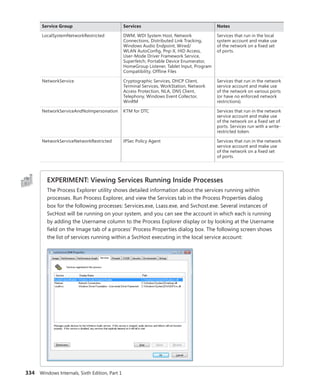
Shared Service Processes.  .  .  .  .  .  .  .  .  .  .  .  .  .  .  .  .  .  .  .  .  .  .  .  .  .  .  .  .  .  .  .  .  .  . 332
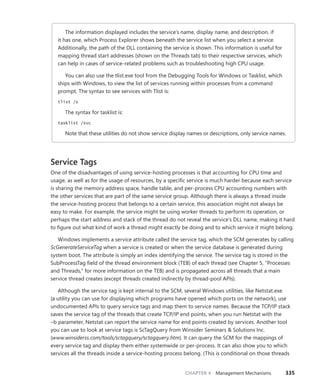
Service Tags
. .  .  .  .  .  .  .  .  .  .  .  .  .  .  .  .  .  .  .  .  .  .  .  .  .  .  .  .  .  .  .  .  .  .  .  .  .  .  .  .  .  .  .  .  .  . 335
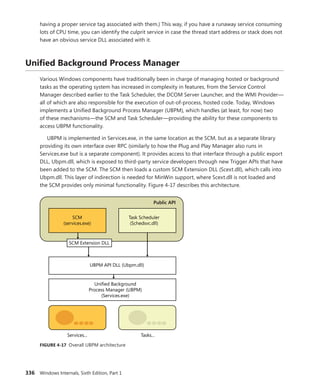
Unified Background Process Manager.  .  .  .  .  .  .  .  .  .  .  .  .  .  .  .  .  .  .  .  .  .  .  .  .  .  .  .  . 336
Initialization
. .  .  .  .  .  .  .  .  .  .  .  .  .  .  .  .  .  .  .  .  .  .  .  .  .  .  .  .  .  .  .  .  .  .  .  .  .  .  .  .  .  .  .  .  .  . 337
UBPM API .  .  .  .  .  .  .  .  .  .  .  .  .  .  .  .  .  .  .  .  .  .  .  .  .  .  .  .  .  .  .  .  .  .  .  .  .  .  .  .  .  .  .  .  .  .  .  . 338
Provider Registration. .  .  .  .  .  .  .  .  .  .  .  .  .  .  .  .  .  .  .  .  .  .  .  .  .  .  .  .  .  .  .  .  .  .  .  .  .  . 338
Consumer Registration.  .  .  .  .  .  .  .  .  .  .  .  .  .  .  .  .  .  .  .  .  .  .  .  .  .  .  .  .  .  .  .  .  .  .  .  . 339
Task Host.  .  .  .  .  .  .  .  .  .  .  .  .  .  .  .  .  .  .  .  .  .  .  .  .  .  .  .  .  .  .  .  .  .  .  .  .  .  .  .  .  .  .  .  .  .  .  .  . 341
Service Control Programs. .  .  .  .  .  .  .  .  .  .  .  .  .  .  .  .  .  .  .  .  .  .  .  .  .  .  .  .  .  .  .  .  .  . 341
Windows Management Instrumentation.  .  .  .  .  .  .  .  .  .  .  .  .  .  .  .  .  .  .  .  .  .  .  .  .  .  . 342
Providers.  .  .  .  .  .  .  .  .  .  .  .  .  .  .  .  .  .  .  .  .  .  .  .  .  .  .  .  .  .  .  .  .  .  .  .  .  .  .  .  .  .  .  .  .  .  .  .  . 344
The Common Information Model and the Managed
Object Format Language.  .  .  .  .  .  .  .  .  .  .  .  .  .  .  .  .  .  .  .  .  .  .  .  .  .  .  .  .  .  .  .  .  .  . 345
Class Association .  .  .  .  .  .  .  .  .  .  .  .  .  .  .  .  .  .  .  .  .  .  .  .  .  .  .  .  .  .  .  .  .  .  .  .  .  .  .  .  .  . 349
WMI Implementation.  .  .  .  .  .  .  .  .  .  .  .  .  .  .  .  .  .  .  .  .  .  .  .  .  .  .  .  .  .  .  .  .  .  .  .  .  . 351
WMI Security
. .  .  .  .  .  .  .  .  .  .  .  .  .  .  .  .  .  .  .  .  .  .  .  .  .  .  .  .  .  .  .  .  .  .  .  .  .  .  .  .  .  .  .  .  . 353
Windows Diagnostic Infrastructure.  .  .  .  .  .  .  .  .  .  .  .  .  .  .  .  .  .  .  .  .  .  .  .  .  .  .  .  .  .  . 354
WDI Instrumentation. .  .  .  .  .  .  .  .  .  .  .  .  .  .  .  .  .  .  .  .  .  .  .  .  .  .  .  .  .  .  .  .  .  .  .  .  .  . 354
Diagnostic Policy Service.  .  .  .  .  .  .  .  .  .  .  .  .  .  .  .  .  .  .  .  .  .  .  .  .  .  .  .  .  .  .  .  .  .  . 354
Diagnostic Functionality.  .  .  .  .  .  .  .  .  .  .  .  .  .  .  .  .  .  .  .  .  .  .  .  .  .  .  .  .  .  .  .  .  .  .  . 356
Conclusion.  .  .  .  .  .  .  .  .  .  .  .  .  .  .  .  .  .  .  .  .  .  .  .  .  .  .  .  .  .  .  .  .  .  .  .  .  .  .  .  .  .  .  .  .  .  .  .  .  .  .  .  . 357
Contents xi
Chapter 5 Processes, Threads, and Jobs 359
Process Internals.  .  .  .  .  .  .  .  .  .  .  .  .  .  .  .  .  .  .  .  .  .  .  .  .  .  .  .  .  .  .  .  .  .  .  .  .  .  .  .  .  .  .  .  .  .  .  . 359
Data Structures. .  .  .  .  .  .  .  .  .  .  .  .  .  .  .  .  .  .  .  .  .  .  .  .  .  .  .  .  .  .  .  .  .  .  .  .  .  .  .  .  .  .  . 359
Protected Processes.  .  .  .  .  .  .  .  .  .  .  .  .  .  .  .  .  .  .  .  .  .  .  .  .  .  .  .  .  .  .  .  .  .  .  .  .  .  .  .  .  .  .  .  . 368
Flow of CreateProcess
. .  .  .  .  .  .  .  .  .  .  .  .  .  .  .  .  .  .  .  .  .  .  .  .  .  .  .  .  .  .  .  .  .  .  .  .  .  .  .  .  .  .  . 369
Stage 1: Converting and Validating Parameters and Flags
. .  .  .  .  .  . 371
Stage 2: Opening the Image to Be Executed .  .  .  .  .  .  .  .  .  .  .  .  .  .  .  .  .  . 373
Stage 3: Creating the Windows Executive Process
Object (PspAllocateProcess).  .  .  .  .  .  .  .  .  .  .  .  .  .  .  .  .  .  .  .  .  .  .  .  .  .  .  .  .  .  .  .  . 376
Stage 4: Creating the Initial Thread and Its Stack and
Context
. .  .  .  .  .  .  .  .  .  .  .  .  .  .  .  .  .  .  .  .  .  .  .  .  .  .  .  .  .  .  .  .  .  .  .  .  .  .  .  .  .  .  .  .  .  .  .  .  .  . 381
Stage 5: Performing Windows Subsystem–Specific
Post-Initialization.  .  .  .  .  .  .  .  .  .  .  .  .  .  .  .  .  .  .  .  .  .  .  .  .  .  .  .  .  .  .  .  .  .  .  .  .  .  .  .  .  . 383
Stage 6: Starting Execution of the Initial Thread.  .  .  .  .  .  .  .  .  .  .  .  .  .  . 385
Stage 7: Performing Process Initialization in the Context
of the New Process .  .  .  .  .  .  .  .  .  .  .  .  .  .  .  .  .  .  .  .  .  .  .  .  .  .  .  .  .  .  .  .  .  .  .  .  .  .  .  . 386
Thread Internals .  .  .  .  .  .  .  .  .  .  .  .  .  .  .  .  .  .  .  .  .  .  .  .  .  .  .  .  .  .  .  .  .  .  .  .  .  .  .  .  .  .  .  .  .  .  .  . 391
Data Structures. .  .  .  .  .  .  .  .  .  .  .  .  .  .  .  .  .  .  .  .  .  .  .  .  .  .  .  .  .  .  .  .  .  .  .  .  .  .  .  .  .  .  . 391
Birth of a Thread .  .  .  .  .  .  .  .  .  .  .  .  .  .  .  .  .  .  .  .  .  .  .  .  .  .  .  .  .  .  .  .  .  .  .  .  .  .  .  .  .  . 398
Examining Thread Activity. . . . . . . . . . . . . . . . . . . . . . . . . . . . . . . . . . . . . . . .398
Limitations on Protected Process Threads
. .  .  .  .  .  .  .  .  .  .  .  .  .  .  .  .  .  .  .  . 401
Worker Factories (Thread Pools) .  .  .  .  .  .  .  .  .  .  .  .  .  .  .  .  .  .  .  .  .  .  .  .  .  .  .  .  .  .  .  .  .  . 403
Thread Scheduling.  .  .  .  .  .  .  .  .  .  .  .  .  .  .  .  .  .  .  .  .  .  .  .  .  .  .  .  .  .  .  .  .  .  .  .  .  .  .  .  .  .  .  .  .  . 408
Overview of Windows Scheduling .  .  .  .  .  .  .  .  .  .  .  .  .  .  .  .  .  .  .  .  .  .  .  .  .  .  . 408
Priority Levels.  .  .  .  .  .  .  .  .  .  .  .  .  .  .  .  .  .  .  .  .  .  .  .  .  .  .  .  .  .  .  .  .  .  .  .  .  .  .  .  .  .  .  .  . 410
Thread States .  .  .  .  .  .  .  .  .  .  .  .  .  .  .  .  .  .  .  .  .  .  .  .  .  .  .  .  .  .  .  .  .  .  .  .  .  .  .  .  .  .  .  .  . 416
Dispatcher Database.  .  .  .  .  .  .  .  .  .  .  .  .  .  .  .  .  .  .  .  .  .  .  .  .  .  .  .  .  .  .  .  .  .  .  .  .  .  . 421
Quantum.  .  .  .  .  .  .  .  .  .  .  .  .  .  .  .  .  .  .  .  .  .  .  .  .  .  .  .  .  .  .  .  .  .  .  .  .  .  .  .  .  .  .  .  .  .  .  .  . 422
Priority Boosts
. .  .  .  .  .  .  .  .  .  .  .  .  .  .  .  .  .  .  .  .  .  .  .  .  .  .  .  .  .  .  .  .  .  .  .  .  .  .  .  .  .  .  .  . 430
Context Switching.  .  .  .  .  .  .  .  .  .  .  .  .  .  .  .  .  .  .  .  .  .  .  .  .  .  .  .  .  .  .  .  .  .  .  .  .  .  .  .  . 448
Scheduling Scenarios
. .  .  .  .  .  .  .  .  .  .  .  .  .  .  .  .  .  .  .  .  .  .  .  .  .  .  .  .  .  .  .  .  .  .  .  .  .  . 449
Idle Threads
. .  .  .  .  .  .  .  .  .  .  .  .  .  .  .  .  .  .  .  .  .  .  .  .  .  .  .  .  .  .  .  .  .  .  .  .  .  .  .  .  .  .  .  .  .  . 453
Thread Selection
. .  .  .  .  .  .  .  .  .  .  .  .  .  .  .  .  .  .  .  .  .  .  .  .  .  .  .  .  .  .  .  .  .  .  .  .  .  .  .  .  .  . 456
Multiprocessor Systems. . . . . . . . . . . . . . . . . . . . . . . . . . . . . . . . . . . . .458
Thread Selection on Multiprocessor Systems.  .  .  .  .  .  .  .  .  .  .  .  .  .  .  .  .  . 467
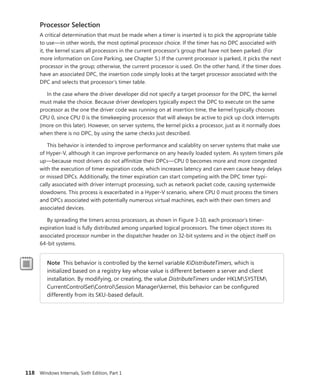
Processor Selection.  .  .  .  .  .  .  .  .  .  .  .  .  .  .  .  .  .  .  .  .  .  .  .  .  .  .  .  .  .  .  .  .  .  .  .  .  .  .  . 468
Processor Share-Based Scheduling.  .  .  .  .  .  .  .  .  .  .  .  .  .  .  .  .  .  .  .  .  .  .  .  .  .  .  .  .  .  .  . 470
Distributed Fair Share Scheduling. .  .  .  .  .  .  .  .  .  .  .  .  .  .  .  .  .  .  .  .  .  .  .  .  .  .  . 471
CPU Rate Limits .  .  .  .  .  .  .  .  .  .  .  .  .  .  .  .  .  .  .  .  .  .  .  .  .  .  .  .  .  .  .  .  .  .  .  .  .  .  .  .  .  .  . 478
xii Contents
Dynamic Processor Addition and Replacement .  .  .  .  .  .  .  .  .  .  .  .  .  .  .  .  .  .  .  .  . 479
Job Objects .  .  .  .  .  .  .  .  .  .  .  .  .  .  .  .  .  .  .  .  .  .  .  .  .  .  .  .  .  .  .  .  .  .  .  .  .  .  .  .  .  .  .  .  .  .  .  .  .  .  .  . 480
Job Limits
. .  .  .  .  .  .  .  .  .  .  .  .  .  .  .  .  .  .  .  .  .  .  .  .  .  .  .  .  .  .  .  .  .  .  .  .  .  .  .  .  .  .  .  .  .  .  .  . 481
Job Sets.  .  .  .  .  .  .  .  .  .  .  .  .  .  .  .  .  .  .  .  .  .  .  .  .  .  .  .  .  .  .  .  .  .  .  .  .  .  .  .  .  .  .  .  .  .  .  .  .  . 482
Conclusion.  .  .  .  .  .  .  .  .  .  .  .  .  .  .  .  .  .  .  .  .  .  .  .  .  .  .  .  .  .  .  .  .  .  .  .  .  .  .  .  .  .  .  .  .  .  .  .  .  .  .  .  . 485
Chapter 6 Security 487
Security Ratings. .  .  .  .  .  .  .  .  .  .  .  .  .  .  .  .  .  .  .  .  .  .  .  .  .  .  .  .  .  .  .  .  .  .  .  .  .  .  .  .  .  .  .  .  .  .  .  . 487
Trusted Computer System Evaluation Criteria. . . . . . . . . . . . . . . . . .487
The Common Criteria.  .  .  .  .  .  .  .  .  .  .  .  .  .  .  .  .  .  .  .  .  .  .  .  .  .  .  .  .  .  .  .  .  .  .  .  .  . 489
Security System Components.  .  .  .  .  .  .  .  .  .  .  .  .  .  .  .  .  .  .  .  .  .  .  .  .  .  .  .  .  .  .  .  .  .  .  .  . 490
Protecting Objects.  .  .  .  .  .  .  .  .  .  .  .  .  .  .  .  .  .  .  .  .  .  .  .  .  .  .  .  .  .  .  .  .  .  .  .  .  .  .  .  .  .  .  .  .  . 494
Access Checks.  .  .  .  .  .  .  .  .  .  .  .  .  .  .  .  .  .  .  .  .  .  .  .  .  .  .  .  .  .  .  .  .  .  .  .  .  .  .  .  .  .  .  .  . 495
Security Identifiers.  .  .  .  .  .  .  .  .  .  .  .  .  .  .  .  .  .  .  .  .  .  .  .  .  .  .  .  .  .  .  .  .  .  .  .  .  .  .  .  . 497
Virtual Service Accounts.  .  .  .  .  .  .  .  .  .  .  .  .  .  .  .  .  .  .  .  .  .  .  .  .  .  .  .  .  .  .  .  .  .  .  . 518
Security Descriptors and Access Control.  .  .  .  .  .  .  .  .  .  .  .  .  .  .  .  .  .  .  .  .  . 522
The AuthZ API.  .  .  .  .  .  .  .  .  .  .  .  .  .  .  .  .  .  .  .  .  .  .  .  .  .  .  .  .  .  .  .  .  .  .  .  .  .  .  .  .  .  .  .  .  .  .  .  .  . 536
Account Rights and Privileges .  .  .  .  .  .  .  .  .  .  .  .  .  .  .  .  .  .  .  .  .  .  .  .  .  .  .  .  .  .  .  .  .  .  .  . 538
Account Rights.  .  .  .  .  .  .  .  .  .  .  .  .  .  .  .  .  .  .  .  .  .  .  .  .  .  .  .  .  .  .  .  .  .  .  .  .  .  .  .  .  .  .  . 540
Privileges.  .  .  .  .  .  .  .  .  .  .  .  .  .  .  .  .  .  .  .  .  .  .  .  .  .  .  .  .  .  .  .  .  .  .  .  .  .  .  .  .  .  .  .  .  .  .  .  . 540
Super Privileges.  .  .  .  .  .  .  .  .  .  .  .  .  .  .  .  .  .  .  .  .  .  .  .  .  .  .  .  .  .  .  .  .  .  .  .  .  .  .  .  .  .  . 546
Access Tokens of Processes and Threads.  .  .  .  .  .  .  .  .  .  .  .  .  .  .  .  .  .  .  .  .  .  .  .  .  .  . 547
Security Auditing
. .  .  .  .  .  .  .  .  .  .  .  .  .  .  .  .  .  .  .  .  .  .  .  .  .  .  .  .  .  .  .  .  .  .  .  .  .  .  .  .  .  .  .  .  .  .  . 548
Object Access Auditing.  .  .  .  .  .  .  .  .  .  .  .  .  .  .  .  .  .  .  .  .  .  .  .  .  .  .  .  .  .  .  .  .  .  .  .  . 549
Global Audit Policy .  .  .  .  .  .  .  .  .  .  .  .  .  .  .  .  .  .  .  .  .  .  .  .  .  .  .  .  .  .  .  .  .  .  .  .  .  .  .  . 552
Advanced Audit Policy Settings
. .  .  .  .  .  .  .  .  .  .  .  .  .  .  .  .  .  .  .  .  .  .  .  .  .  .  .  .  . 554
Logon.  .  .  .  .  .  .  .  .  .  .  .  .  .  .  .  .  .  .  .  .  .  .  .  .  .  .  .  .  .  .  .  .  .  .  .  .  .  .  .  .  .  .  .  .  .  .  .  .  .  .  .  .  .  .  .  . 555
Winlogon Initialization.  .  .  .  .  .  .  .  .  .  .  .  .  .  .  .  .  .  .  .  .  .  .  .  .  .  .  .  .  .  .  .  .  .  .  .  . 556
User Logon Steps.  .  .  .  .  .  .  .  .  .  .  .  .  .  .  .  .  .  .  .  .  .  .  .  .  .  .  .  .  .  .  .  .  .  .  .  .  .  .  .  .  . 558
Assured Authentication
. .  .  .  .  .  .  .  .  .  .  .  .  .  .  .  .  .  .  .  .  .  .  .  .  .  .  .  .  .  .  .  .  .  .  .  . 562
Biometric Framework for User Authentication.  .  .  .  .  .  .  .  .  .  .  .  .  .  .  .  . 563
User Account Control and Virtualization.  .  .  .  .  .  .  .  .  .  .  .  .  .  .  .  .  .  .  .  .  .  .  .  .  .  . 566
File System and Registry Virtualization.  .  .  .  .  .  .  .  .  .  .  .  .  .  .  .  .  .  .  .  .  .  . 566
Elevation .  .  .  .  .  .  .  .  .  .  .  .  .  .  .  .  .  .  .  .  .  .  .  .  .  .  .  .  .  .  .  .  .  .  .  .  .  .  .  .  .  .  .  .  .  .  .  .  . 573
Application Identification (AppID).  .  .  .  .  .  .  .  .  .  .  .  .  .  .  .  .  .  .  .  .  .  .  .  .  .  .  .  .  .  .  .  . 581
AppLocker .  .  .  .  .  .  .  .  .  .  .  .  .  .  .  .  .  .  .  .  .  .  .  .  .  .  .  .  .  .  .  .  .  .  .  .  .  .  .  .  .  .  .  .  .  .  .  .  .  .  .  .  . 583
Software Restriction Policies. .  .  .  .  .  .  .  .  .  .  .  .  .  .  .  .  .  .  .  .  .  .  .  .  .  .  .  .  .  .  .  .  .  .  .  .  . 589
Conclusion.  .  .  .  .  .  .  .  .  .  .  .  .  .  .  .  .  .  .  .  .  .  .  .  .  .  .  .  .  .  .  .  .  .  .  .  .  .  .  .  .  .  .  .  .  .  .  .  .  .  .  .  . 590
Contents xiii
Chapter 7 Networking 591
Windows Networking Architecture.  .  .  .  .  .  .  .  .  .  .  .  .  .  .  .  .  .  .  .  .  .  .  .  .  .  .  .  .  .  .  . 591
The OSI Reference Model. .  .  .  .  .  .  .  .  .  .  .  .  .  .  .  .  .  .  .  .  .  .  .  .  .  .  .  .  .  .  .  .  .  . 592
Windows Networking Components.  .  .  .  .  .  .  .  .  .  .  .  .  .  .  .  .  .  .  .  .  .  .  .  .  . 594
Networking APIs.  .  .  .  .  .  .  .  .  .  .  .  .  .  .  .  .  .  .  .  .  .  .  .  .  .  .  .  .  .  .  .  .  .  .  .  .  .  .  .  .  .  .  .  .  .  .  . 597
Windows Sockets.  .  .  .  .  .  .  .  .  .  .  .  .  .  .  .  .  .  .  .  .  .  .  .  .  .  .  .  .  .  .  .  .  .  .  .  .  .  .  .  .  . 597
Winsock Kernel. .  .  .  .  .  .  .  .  .  .  .  .  .  .  .  .  .  .  .  .  .  .  .  .  .  .  .  .  .  .  .  .  .  .  .  .  .  .  .  .  .  .  . 603
Remote Procedure Call.  .  .  .  .  .  .  .  .  .  .  .  .  .  .  .  .  .  .  .  .  .  .  .  .  .  .  .  .  .  .  .  .  .  .  .  . 605
Web Access APIs
. .  .  .  .  .  .  .  .  .  .  .  .  .  .  .  .  .  .  .  .  .  .  .  .  .  .  .  .  .  .  .  .  .  .  .  .  .  .  .  .  .  . 610
Named Pipes and Mailslots.  .  .  .  .  .  .  .  .  .  .  .  .  .  .  .  .  .  .  .  .  .  .  .  .  .  .  .  .  .  .  .  . 612
NetBIOS.  .  .  .  .  .  .  .  .  .  .  .  .  .  .  .  .  .  .  .  .  .  .  .  .  .  .  .  .  .  .  .  .  .  .  .  .  .  .  .  .  .  .  .  .  .  .  .  .  . 618
Other Networking APIs. .  .  .  .  .  .  .  .  .  .  .  .  .  .  .  .  .  .  .  .  .  .  .  .  .  .  .  .  .  .  .  .  .  .  .  . 620
Multiple Redirector Support.  .  .  .  .  .  .  .  .  .  .  .  .  .  .  .  .  .  .  .  .  .  .  .  .  .  .  .  .  .  .  .  .  .  .  .  .  . 627
Multiple Provider Router .  .  .  .  .  .  .  .  .  .  .  .  .  .  .  .  .  .  .  .  .  .  .  .  .  .  .  .  .  .  .  .  .  .  . 627
Multiple UNC Provider.  .  .  .  .  .  .  .  .  .  .  .  .  .  .  .  .  .  .  .  .  .  .  .  .  .  .  .  .  .  .  .  .  .  .  .  . 630
Surrogate Providers.  .  .  .  .  .  .  .  .  .  .  .  .  .  .  .  .  .  .  .  .  .  .  .  .  .  .  .  .  .  .  .  .  .  .  .  .  .  .  . 632
Redirector.  .  .  .  .  .  .  .  .  .  .  .  .  .  .  .  .  .  .  .  .  .  .  .  .  .  .  .  .  .  .  .  .  .  .  .  .  .  .  .  .  .  .  .  .  .  .  . 633
Mini-Redirectors
. .  .  .  .  .  .  .  .  .  .  .  .  .  .  .  .  .  .  .  .  .  .  .  .  .  .  .  .  .  .  .  .  .  .  .  .  .  .  .  .  .  . 634
Server Message Block and Sub-Redirectors.  .  .  .  .  .  .  .  .  .  .  .  .  .  .  .  .  .  . 635
Distributed File System Namespace .  .  .  .  .  .  .  .  .  .  .  .  .  .  .  .  .  .  .  .  .  .  .  .  .  .  .  .  .  .  . 637
Distributed File System Replication.  .  .  .  .  .  .  .  .  .  .  .  .  .  .  .  .  .  .  .  .  .  .  .  .  .  .  .  .  .  .  . 638
Offline Files .  .  .  .  .  .  .  .  .  .  .  .  .  .  .  .  .  .  .  .  .  .  .  .  .  .  .  .  .  .  .  .  .  .  .  .  .  .  .  .  .  .  .  .  .  .  .  .  .  .  .  . 639
Caching Modes
. .  .  .  .  .  .  .  .  .  .  .  .  .  .  .  .  .  .  .  .  .  .  .  .  .  .  .  .  .  .  .  .  .  .  .  .  .  .  .  .  .  .  . 641
Ghosts .  .  .  .  .  .  .  .  .  .  .  .  .  .  .  .  .  .  .  .  .  .  .  .  .  .  .  .  .  .  .  .  .  .  .  .  .  .  .  .  .  .  .  .  .  .  .  .  .  .  . 643
Data Security
. .  .  .  .  .  .  .  .  .  .  .  .  .  .  .  .  .  .  .  .  .  .  .  .  .  .  .  .  .  .  .  .  .  .  .  .  .  .  .  .  .  .  .  .  . 643
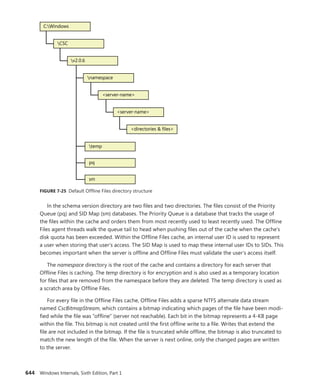
Cache Structure.  .  .  .  .  .  .  .  .  .  .  .  .  .  .  .  .  .  .  .  .  .  .  .  .  .  .  .  .  .  .  .  .  .  .  .  .  .  .  .  .  .  . 643
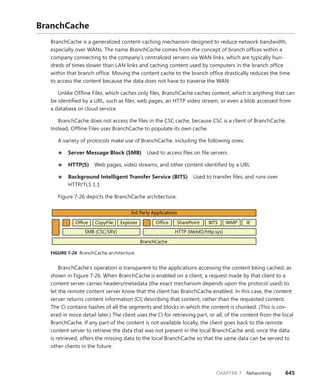
BranchCache.  .  .  .  .  .  .  .  .  .  .  .  .  .  .  .  .  .  .  .  .  .  .  .  .  .  .  .  .  .  .  .  .  .  .  .  .  .  .  .  .  .  .  .  .  .  .  .  .  .  . 645
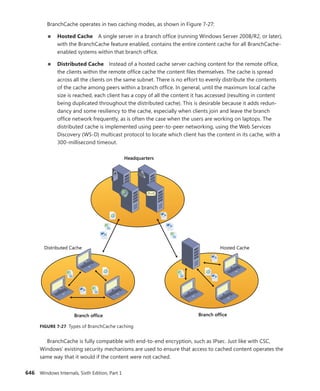
Caching Modes
. .  .  .  .  .  .  .  .  .  .  .  .  .  .  .  .  .  .  .  .  .  .  .  .  .  .  .  .  .  .  .  .  .  .  .  .  .  .  .  .  .  .  . 647
BranchCache Optimized Application Retrieval:
SMB Sequence.  .  .  .  .  .  .  .  .  .  .  .  .  .  .  .  .  .  .  .  .  .  .  .  .  .  .  .  .  .  .  .  .  .  .  .  .  .  .  .  .  .  .  . 651
BranchCache Optimized Application Retrieval:
HTTP Sequence. . . . . . . . . . . . . . . . . . . . . . . . . . . . . . . . . . . . . . . . . . . .653
Name Resolution
. .  .  .  .  .  .  .  .  .  .  .  .  .  .  .  .  .  .  .  .  .  .  .  .  .  .  .  .  .  .  .  .  .  .  .  .  .  .  .  .  .  .  .  .  .  .  . 655
Domain Name System
. .  .  .  .  .  .  .  .  .  .  .  .  .  .  .  .  .  .  .  .  .  .  .  .  .  .  .  .  .  .  .  .  .  .  .  .  . 655
Peer Name Resolution Protocol. . . . . . . . . . . . . . . . . . . . . . . . . . . . . .656
Location and Topology.  .  .  .  .  .  .  .  .  .  .  .  .  .  .  .  .  .  .  .  .  .  .  .  .  .  .  .  .  .  .  .  .  .  .  .  .  .  .  .  .  . 658
Network Location Awareness .  .  .  .  .  .  .  .  .  .  .  .  .  .  .  .  .  .  .  .  .  .  .  .  .  .  .  .  .  .  . 658
Network Connectivity Status Indicator .  .  .  .  .  .  .  .  .  .  .  .  .  .  .  .  .  .  .  .  .  .  . 659
Link-Layer Topology Discovery.  .  .  .  .  .  .  .  .  .  .  .  .  .  .  .  .  .  .  .  .  .  .  .  .  .  .  .  .  . 662
xiv Contents
Protocol Drivers
. .  .  .  .  .  .  .  .  .  .  .  .  .  .  .  .  .  .  .  .  .  .  .  .  .  .  .  .  .  .  .  .  .  .  .  .  .  .  .  .  .  .  .  .  .  .  .  . 663
Windows Filtering Platform.  .  .  .  .  .  .  .  .  .  .  .  .  .  .  .  .  .  .  .  .  .  .  .  .  .  .  .  .  .  .  .  . 666
NDIS Drivers
. .  .  .  .  .  .  .  .  .  .  .  .  .  .  .  .  .  .  .  .  .  .  .  .  .  .  .  .  .  .  .  .  .  .  .  .  .  .  .  .  .  .  .  .  .  .  .  .  .  .  . 672
Variations on the NDIS Miniport. .  .  .  .  .  .  .  .  .  .  .  .  .  .  .  .  .  .  .  .  .  .  .  .  .  .  .  . 677
Connection-Oriented NDIS.  .  .  .  .  .  .  .  .  .  .  .  .  .  .  .  .  .  .  .  .  .  .  .  .  .  .  .  .  .  .  .  . 677
Remote NDIS
. .  .  .  .  .  .  .  .  .  .  .  .  .  .  .  .  .  .  .  .  .  .  .  .  .  .  .  .  .  .  .  .  .  .  .  .  .  .  .  .  .  .  .  .  . 680
QoS.  .  .  .  .  .  .  .  .  .  .  .  .  .  .  .  .  .  .  .  .  .  .  .  .  .  .  .  .  .  .  .  .  .  .  .  .  .  .  .  .  .  .  .  .  .  .  .  .  .  .  .  .  . 682
Binding.  .  .  .  .  .  .  .  .  .  .  .  .  .  .  .  .  .  .  .  .  .  .  .  .  .  .  .  .  .  .  .  .  .  .  .  .  .  .  .  .  .  .  .  .  .  .  .  .  .  .  .  .  .  .  . 684
Layered Network Services. .  .  .  .  .  .  .  .  .  .  .  .  .  .  .  .  .  .  .  .  .  .  .  .  .  .  .  .  .  .  .  .  .  .  .  .  .  .  . 685
Remote Access.  .  .  .  .  .  .  .  .  .  .  .  .  .  .  .  .  .  .  .  .  .  .  .  .  .  .  .  .  .  .  .  .  .  .  .  .  .  .  .  .  .  .  . 685
Active Directory.  .  .  .  .  .  .  .  .  .  .  .  .  .  .  .  .  .  .  .  .  .  .  .  .  .  .  .  .  .  .  .  .  .  .  .  .  .  .  .  .  .  . 686
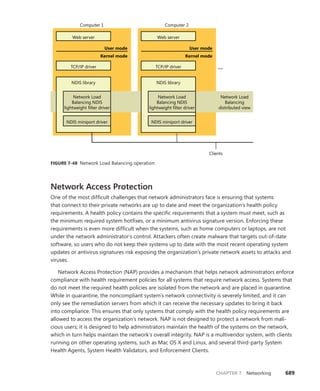
Network Load Balancing
. .  .  .  .  .  .  .  .  .  .  .  .  .  .  .  .  .  .  .  .  .  .  .  .  .  .  .  .  .  .  .  .  .  .  . 688
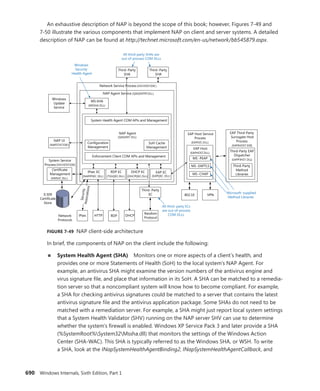
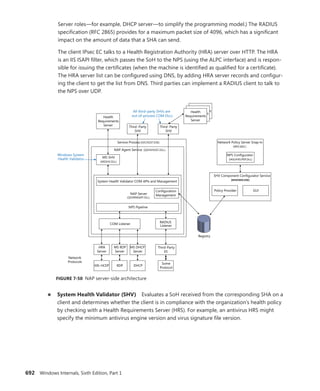
Network Access Protection .  .  .  .  .  .  .  .  .  .  .  .  .  .  .  .  .  .  .  .  .  .  .  .  .  .  .  .  .  .  .  .  . 689
Direct Access. .  .  .  .  .  .  .  .  .  .  .  .  .  .  .  .  .  .  .  .  .  .  .  .  .  .  .  .  .  .  .  .  .  .  .  .  .  .  .  .  .  .  .  .  . 695
Conclusion.  .  .  .  .  .  .  .  .  .  .  .  .  .  .  .  .  .  .  .  .  .  .  .  .  .  .  .  .  .  .  .  .  .  .  .  .  .  .  .  .  .  .  .  .  .  .  .  .  .  .  .  . 696
Index.  .  .  .  .  .  .  .  .  .  .  .  .  .  .  .  .  .  .  .  .  .  .  .  .  .  .  .  .  .  .  .  .  .  .  .  .  .  .  .  . 697
Windows Internals, Sixth Edition, Part 2 (available Fall 2012)
Introduction
Chapter 8 I/O System
I/O System Components
Device Drivers
I/O Processing
Kernel-Mode Driver Framework (KMDF)
User-Mode Driver Framework (UMDF)
The Plug and Play (PnP) Manager
The Power Manager
Conclusion
Chapter 9 Storage Management
Storage Terminology
Disk Drivers
Volume Management
BitLocker Drive Encryption
Volume Shadow Copy Service
Conclusion
Contents xv
Chapter 10 Memory Management
Introduction to the Memory Manager
Services the Memory Manager Provides
Kernel-Mode Heaps (System Memory Pools)
Heap Manager
Virtual Address Space Layouts
Address Translation
Page Fault Handling
Stacks
Virtual Address Descriptors
NUMA
Section Objects
Driver Verifier
Page Frame Number Database
Physical Memory Limits
Working Sets
Proactive Memory Management (SuperFetch)
Conclusion
Chapter 11 Cache Manager
Key Features of the Cache Manager
Cache Virtual Memory Management
Cache Size
Cache Data Structures
File System Interfaces
Fast I/O
Read Ahead and Write Behind
Conclusion
Chapter 12 File Systems
Windows File System Formats
File System Driver Architecture
Troubleshooting File System Problems
Common Log File System
NTFS Design Goals and Features
NTFS File System Driver
NTFS On-Disk Structure
NTFS Recovery Support
xvi Contents
Encrypting File System Security
Conclusion
Chapter 13 Startup and Shutdown
Boot Process
Troubleshooting Boot and Startup Problems
Shutdown
Conclusion
Chapter 14 Crash Dump Analysis
Why Does Windows Crash?
The Blue Screen
Troubleshooting Crashes
Crash Dump Files
Windows Error Reporting
Online Crash Analysis
Basic Crash Dump Analysis
Using Crash Troubleshooting Tools
Advanced Crash Dump Analysis
Conclusion
What do you think of this book? We want to hear from you!
Microsoft is interested in hearing your feedback so we can continually improve our books and learning resources for
you. To participate in a brief online survey, please visit:
microsoft.com/learning/booksurvey
xvii
Introduction
Windows Internals, Sixth Edition is intended for advanced computer professionals
(both ­
developers and system administrators) who want to understand how the
core components of the Microsoft Windows 7 and Windows Server 2008 R2 operating
systems work internally. With this knowledge, developers can better comprehend the
rationale behind design choices when ­
building applications specific to the ­
Windows
platform. Such knowledge can also help developers debug ­
complex problems. ­
System
administrators can benefit from this information as well, because ­
understanding how
the operating system works “under the covers” facilitates understanding the perfor-
mance behavior of the system and makes troubleshooting system problems much
easier when things go wrong. After reading this book, you should have a better
­
understanding of how Windows works and why it behaves as it does.
Structure of the Book
For the first time, Windows Internals has been divided into two parts. Updating the
book for each release of Windows takes considerable time so producing it in two parts
allows us to publish the first part earlier.
This book, Part 1, begins with two chapters that define key concepts, introduce the
tools used in the book, and describe the overall system architecture and components.
The next two chapters ­
present key ­
underlying system and management mechanisms.
Part 1 wraps up by covering three core ­
components of the operating system: processes,
threads, and jobs; security; and networking.
Part 2, which will be available separately in fall 2012, covers the remaining core
­
subsystems: I/O, storage, memory management, the cache ­
manager, and file systems.
Part 2 concludes with a description of the startup and shutdown processes and a
­
description of crash-dump analysis.
xviii Introduction
History of the Book
This is the sixth edition of a book that was originally called Inside Windows NT
(­
Microsoft Press, 1992), written by Helen Custer (prior to the initial release of Microsoft
Windows NT 3.1). Inside Windows NT was the first book ever published about Windows
NT and provided key insights into the architecture and design of the system. Inside
Windows NT, Second Edition (Microsoft Press, 1998) was written by David Solomon. It
updated the original book to cover Windows NT 4.0 and had a greatly increased level
of technical depth.
Inside Windows 2000, Third Edition (Microsoft Press, 2000) was authored by ­
David
­
Solomon and Mark Russinovich. It added many new topics, such as startup and
­
shutdown, service internals, registry internals, file-system drivers, and networking. It
also covered kernel changes in Windows 2000, such as the Windows Driver Model
(WDM), Plug and Play, power management, Windows Management Instrumentation
(WMI), encryption, the job object, and Terminal Services. Windows Internals, Fourth
­Edition was the Windows XP and Windows Server 2003 update and added more content
focused on helping IT professionals make use of their knowledge of Windows internals,
such as using key tools from Windows Sysinternals (www.microsoft.com/technet
/sysinternals) and analyzing crash dumps. Windows Internals, Fifth Edition was the
update for Windows Vista and Windows Server 2008. New content included the image
loader, user-mode debugging facility, and Hyper-V.
Sixth Edition Changes
This latest edition has been updated to cover the kernel changes made in Windows 7
and Windows Server 2008 R2. Hands-on experiments have been updated to reflect
changes in tools.
Hands-on Experiments
Even without access to the Windows source code, you can glean much about ­
Windows
internals from tools such as the kernel debugger and tools from Sysinternals and
­
Winsider Seminars & Solutions. When a tool can be used to expose or demonstrate
some aspect of the internal behavior of Windows, the steps for trying the tool yourself
are listed in “EXPERIMENT” boxes. These appear throughout the book, and we encour-
age you to try these as you’re reading—seeing visible proof of how Windows works
internally will make much more of an impression on you than just reading about it will.
Introduction xix
Topics Not Covered
Windows is a large and complex operating system. This book doesn’t cover everything
relevant to Windows internals but instead focuses on the base system components. For
example, this book doesn’t describe COM+, the Windows distributed object-oriented
programming infrastructure, or the Microsoft .NET Framework, the foundation of
­
managed code applications.
Because this is an internals book and not a user, programming, or system
­
administration book, it doesn’t describe how to use, program, or configure Windows.
A Warning and a Caveat
Because this book describes undocumented behavior of the internal architecture and
the operation of the Windows operating system (such as internal kernel structures and
functions), this content is subject to change between releases. (External interfaces, such
as the Windows API, are not subject to incompatible changes.)
By “subject to change,” we don’t necessarily mean that details described in this
book will change between releases, but you can’t count on them not changing. Any
­
software that uses these undocumented interfaces might not work on future releases
of ­
Windows. Even worse, software that runs in kernel mode (such as device drivers) and
uses these undocumented interfaces might experience a system crash when running on
a newer release of Windows.
Acknowledgments
First, thanks to Jamie Hanrahan and Brian Catlin of Azius, LLC for joining us on this
­
project—the book would not have been finished without their help. They did the bulk
of the updates on the “Security” and “Networking” chapters and contributed to the
update of the “Management Mechanisms” and “Processes and Threads” chapters. Azius
provides Windows-internals and device-driver training. See www.azius.com for more
information.
We want to recognize Alex Ionescu, who for this edition is a full coauthor. This is a
reflection of Alex’s extensive work on the fifth edition, as well as his continuing work on
this edition.
xx Introduction
Thanks to Eric Traut and Jon DeVaan for continuing to allow David Solomon
­
access to the Windows source code for his work on this book as well as continued
­
development of his Windows Internals courses.
Three key reviewers were not acknowledged for their review and contributions
to the fifth edition: Arun Kishan, Landy Wang, and Aaron Margosis—thanks again to
them! And thanks again to Arun and Landy for their detailed review and helpful input
for this edition.
This book wouldn’t contain the depth of technical detail or the level of accuracy it
has without the review, input, and support of key members of the Microsoft Windows
development team. Therefore, we want to thank the following people, who provided
technical review and input to the book:
■
■ Greg Cottingham
■
■ Joe Hamburg
■
■ Jeff Lambert
■
■ Pavel Lebedynskiy
■
■ Joseph East
■
■ Adi Oltean
■
■ Alexey Pakhunov
■
■ Valerie See
For the “Networking” chapter, a special thanks to Gianluigi Nusca and Tom Jolly,
who really went beyond the call of duty: Gianluigi for his extraordinary help with
the BranchCache material and the amount of suggestions (and many paragraphs of
­
material he wrote), and Tom Jolly not only for his own review and suggestions (which
were excellent), but for getting many other developers to assist with the review. Here
are all those who reviewed and contributed to the “Networking” chapter:
■
■ Roopesh Battepati
■
■ Molly Brown
■
■ Greg Cottingham
■
■ Dotan Elharrar
■
■ Eric Hanson
■
■ Tom Jolly
Introduction xxi
■
■ Manoj Kadam
■
■ Greg Kramer
■
■ David Kruse
■
■ Jeff Lambert
■
■ Darene Lewis
■
■ Dan Lovinger
■
■ Gianluigi Nusca
■
■ Amos Ortal
■
■ Ivan Pashov
■
■ Ganesh Prasad
■
■ Paul Swan
■
■ Shiva Kumar Thangapandi
Amos Ortal and Dotan Elharrar were extremely helpful on NAP, and Shiva Kumar
Thangapandi helped extensively with EAP.
The detailed checking Christophe Nasarre, overall technical reviewer, performed
contributed greatly to the technical accuracy and consistency in the book.
We would like to again thank Ilfak Guilfanov of Hex-Rays (www.hex-rays.com) for the
IDA Pro Advanced and Hex-Rays licenses they granted to Alex Ionescu so that he could
speed up his reverse engineering of the Windows kernel.
Finally, the authors would like to thank the great staff at Microsoft Press who have
been ­
behind turning this book into a reality. Devon Musgrave served double duty as
acquisitions editor and developmental editor, while Carol Dillingham oversaw the title
as its project editor. Editorial and ­
production manager Steve Sagman, copy editor Roger
LeBlanc, proofreader Audrey Marr, and ­
indexer Christina Yeager also contributed to the
quality of this book.
Last but not least, thanks to Ben Ryan, publisher of Microsoft Press, who continues
to believe in the importance of providing this level of detail about Windows to their
readers!
xxii Introduction
Errata & Book Support
We’ve made every effort to ensure the accuracy of this book. Any errors that have
been reported since this book was published are listed on our Microsoft Press site at
oreilly.com:
http://go.microsoft.com/FWLink/?Linkid=245675
If you find an error that is not already listed, you can report it to us through the
same page.
If you need additional support, email Microsoft Press Book Support at
mspinput@microsoft.com.
Please note that product support for Microsoft software is not offered through the
addresses above.
We Want to Hear from You
At Microsoft Press, your satisfaction is our top priority, and your feedback our most
valuable asset. Please tell us what you think of this book at:
http://www.microsoft.com/learning/booksurvey
The survey is short, and we read every one of your comments and ideas. Thanks in
advance for your input!
Stay in Touch
Let’s keep the conversation going! We’re on Twitter: http://twitter.com/MicrosoftPress.
1
C H A P T E R 1
Concepts and Tools
In this chapter, we’ll introduce the key Microsoft Windows operating system concepts and terms we’ll
be using throughout this book, such as the Windows API, processes, threads, virtual memory, kernel
mode and user mode, objects, handles, security, and the registry. We’ll also introduce the tools that
you can use to explore Windows internals, such as the kernel debugger, the Performance Monitor,
and key tools from Windows Sysinternals (www.microsoft.com/technet/sysinternals). In addition, we’ll
explain how you can use the Windows Driver Kit (WDK) and the Windows Software Development Kit
(SDK) as resources for finding further information on Windows internals.
Be sure that you understand everything in this chapter—the remainder of the book is written
­
assuming that you do.
Windows Operating System Versions
This book covers the most recent version of the Microsoft Windows client and server operating
systems: Windows 7 (32-bit and 64-bit versions) and Windows Server 2008 R2 (64-bit version only).
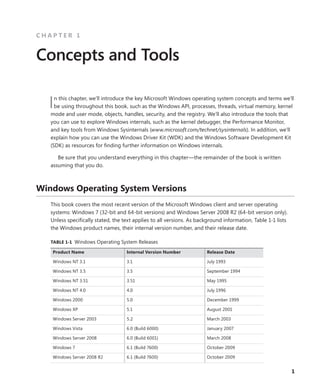
Unless specifically stated, the text applies to all versions. As background information, Table 1-1 lists
the Windows product names, their internal version number, and their release date.
TABLE 1-1 Windows Operating System Releases
Product Name Internal Version Number Release Date
Windows NT 3.1 3.1 July 1993
Windows NT 3.5 3.5 September 1994
Windows NT 3.51 3.51 May 1995
Windows NT 4.0 4.0 July 1996
Windows 2000 5.0 December 1999
Windows XP 5.1 August 2001
Windows Server 2003 5.2 March 2003
Windows Vista 6.0 (Build 6000) January 2007
Windows Server 2008 6.0 (Build 6001) March 2008
Windows 7 6.1 (Build 7600) October 2009
Windows Server 2008 R2 6.1 (Build 7600) October 2009
2 Windows Internals, Sixth Edition, Part 1
Note The “7” in the “Windows 7” product name does not refer to the internal version
number, but is rather a generational index. In fact, to minimize application compatibility
issues, the version number for Windows 7 is actually 6.1, as shown in Table 1-1. This allows
applications checking for the major version number to continue behaving on Windows
7 as they did on Windows Vista. In fact, Windows 7 and Server 2008 R2 have identical
­
version/build numbers because they were built from the same Windows code base.
Foundation Concepts and Terms
In the course of this book, we’ll be referring to some structures and concepts that might be unfamiliar
to some readers. In this section, we’ll define the terms we’ll be using throughout. You should become
familiar with them before proceeding to subsequent chapters.
Windows API
The Windows application programming interface (API) is the user-mode system programming
­
interface to the Windows operating system family. Prior to the introduction of 64-bit versions of
­
Windows, the programming interface to the 32-bit versions of the Windows operating systems was
called the Win32 API to distinguish it from the original 16-bit Windows API, which was the program-
ming interface to the original 16-bit versions of Windows. In this book, the term Windows API refers
to both the 32-bit and 64-bit programming interfaces to Windows.
Note The Windows API is described in the Windows Software Development Kit (SDK)
­
documentation. (See the section “Windows Software Development Kit” later in this chap-
ter.) This documentation is available for free viewing online at www.msdn.microsoft.com. It
is also included with all subscription levels to the Microsoft Developer Network (MSDN),
Microsoft’s support program for developers. For more information, see www.msdn.­
microsoft.com. An excellent description of how to program the Windows base API is in
the book Windows via C/C++, Fifth Edition by Jeffrey Richter and Christophe Nasarre
(Microsoft Press, 2007).
The Windows API consists of thousands of callable functions, which are divided into the following
major categories:
■
■ Base Services
■
■ Component Services
■
■ User Interface Services
CHAPTER 1 Concepts and Tools 3
■
■ Graphics and Multimedia Services
■
■ Messaging and Collaboration
■
■ Networking
■
■ Web Services
This book focuses on the internals of the key base services, such as processes and threads, memory
management, I/O, and security.
What About .NET?
The Microsoft .NET Framework consists of a library of classes called the Framework Class
­
Library (FCL) and a Common Language Runtime (CLR) that provides a managed code ­
execution
­
environment with features such as just-in-time compilation, type verification, garbage
­
collection, and code access security. By offering these features, the CLR provides a ­
development
­
environment that improves programmer productivity and reduces common programming
­
errors. For an excellent description of the .NET Framework and its core architecture, see CLR via
C#, Third Edition by Jeffrey Richter (Microsoft Press, 2010).
The CLR is implemented as a classic COM server whose code resides in a standard ­
user-mode
Windows DLL. In fact, all components of the .NET Framework are implemented as standard
user-mode Windows DLLs layered over unmanaged Windows API functions. (None of the
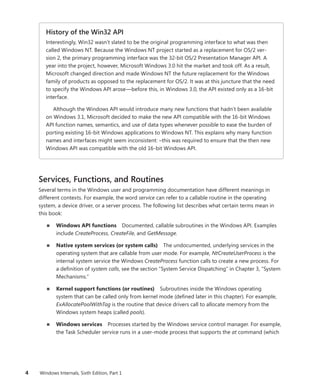
.NET Framework runs in kernel mode.) Figure 1-1 illustrates the relationship between these
­components:
.NET Application
(Standard User-Mode EXEs)
Framework Class Library Assemblies
(Standard User-Mode DLLs)
CLR DLLs
(COM server)
Windows API DLLs
Windows Kernel
User mode
(managed code)
User mode
(unmanaged code)
Kernel mode
FIGURE 1-1 Relationship between .NET Framework components
4 Windows Internals, Sixth Edition, Part 1
History of the Win32 API
Interestingly, Win32 wasn’t slated to be the original programming interface to what was then
called Windows NT. Because the Windows NT project started as a replacement for OS/2 ver-
sion 2, the primary programming interface was the 32-bit OS/2 Presentation Manager API. A
year into the project, however, Microsoft Windows 3.0 hit the market and took off. As a result,
Microsoft changed direction and made Windows NT the future replacement for the Windows
family of products as opposed to the replacement for OS/2. It was at this juncture that the need
to specify the Windows API arose—before this, in Windows 3.0, the API existed only as a 16-bit
interface.
Although the Windows API would introduce many new functions that hadn’t been available
on Windows 3.1, Microsoft decided to make the new API compatible with the 16-bit Windows
API function names, semantics, and use of data types whenever possible to ease the burden of
porting existing 16-bit Windows applications to Windows NT. This explains why many function
names and interfaces might seem inconsistent: –this was required to ensure that the then new
Windows API was compatible with the old 16-bit Windows API.
Services, Functions, and Routines
Several terms in the Windows user and programming documentation have different meanings in
­
different contexts. For example, the word service can refer to a callable routine in the operating
­
system, a device driver, or a server process. The following list describes what certain terms mean in
this book:
■
■ Windows API functions Documented, callable subroutines in the Windows API. Examples
include CreateProcess, CreateFile, and GetMessage.
■
■ Native system services (or system calls) The undocumented, underlying services in the
operating system that are callable from user mode. For example, NtCreateUserProcess is the
internal system service the Windows CreateProcess function calls to create a new process. For
a definition of system calls, see the section “System Service Dispatching” in Chapter 3, “System
Mechanisms.”
■
■ Kernel support functions (or routines) Subroutines inside the Windows ­
operating
­
system that can be called only from kernel mode (defined later in this chapter). For example,
­
ExAllocatePoolWithTag is the routine that device drivers call to allocate memory from the
­
Windows system heaps (called pools).
■
■ Windows services Processes started by the Windows service control manager. For example,
the Task Scheduler service runs in a user-mode process that supports the at command (which
CHAPTER 1 Concepts and Tools 5
is similar to the UNIX commands at or cron). (Note: although the registry defines Windows
device drivers as “services,” they are not referred to as such in this book.)
■
■ DLLs (dynamic-link libraries) A set of callable subroutines linked together as a binary file
that can be dynamically loaded by applications that use the subroutines. Examples include
­
Msvcrt.dll (the C run-time library) and Kernel32.dll (one of the Windows API ­
subsystem
­
libraries). Windows user-mode components and applications use DLLs extensively. The
­
advantage DLLs provide over static libraries is that applications can share DLLs, and Windows
ensures that there is only one in-memory copy of a DLL’s code among the applications that are
referencing it. Note that nonexecutable .NET assemblies are compiled as DLLs but without any
exported subroutines. Instead, the CLR parses ­
compiled metadata to access the corresponding
types and members.
Processes, Threads, and Jobs
Although programs and processes appear similar on the surface, they are fundamentally different.
A program is a static sequence of instructions, whereas a process is a container for a set of resources
used when executing the instance of the program. At the highest level of abstraction, a Windows
process comprises the following:
■
■ A private virtual address space, which is a set of virtual memory addresses that the process can
use
■
■ An executable program, which defines initial code and data and is mapped into the process’
virtual address space
■
■ A list of open handles to various system resources—such as semaphores, communication
ports, and files—that are accessible to all threads in the process
■
■ A security context called an access token that identifies the user, security groups, privileges,
User Account Control (UAC) virtualization state, session, and limited user account state
­
associated with the process
■
■ A unique identifier called a process ID (internally part of an identifier called a client ID)
■
■ At least one thread of execution (although an “empty” process is possible, it is not useful)
Each process also points to its parent or creator process. If the parent no longer exists, this
­
information is not updated. Therefore, it is possible for a process to refer to a nonexistent parent.
This is not a problem, because nothing relies on this information being kept current. In the case of
­
ProcessExplorer, the start time of the parent process is taken into account to avoid attaching a child
process based on a reused process ID. The following experiment illustrates this behavior.
6 Windows Internals, Sixth Edition, Part 1
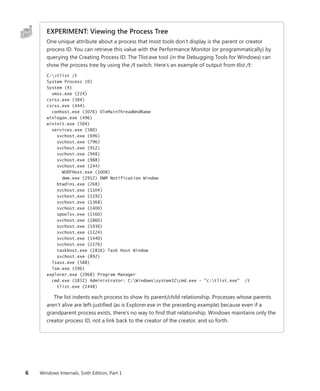
EXPERIMENT: Viewing the Process Tree
One unique attribute about a process that most tools don’t display is the parent or creator
process ID. You can retrieve this value with the Performance Monitor (or programmatically) by
querying the Creating Process ID. The Tlist.exe tool (in the Debugging Tools for Windows) can
show the process tree by using the /t switch. Here’s an example of output from tlist /t:
C:>tlist /t
System Process (0)
System (4)
smss.exe (224)
csrss.exe (384)
csrss.exe (444)
conhost.exe (3076) OleMainThreadWndName
winlogon.exe (496)
wininit.exe (504)
services.exe (580)
svchost.exe (696)
svchost.exe (796)
svchost.exe (912)
svchost.exe (948)
svchost.exe (988)
svchost.exe (244)
WUDFHost.exe (1008)
dwm.exe (2912) DWM Notification Window
btwdins.exe (268)
svchost.exe (1104)
svchost.exe (1192)
svchost.exe (1368)
svchost.exe (1400)
spoolsv.exe (1560)
svchost.exe (1860)
svchost.exe (1936)
svchost.exe (1124)
svchost.exe (1440)
svchost.exe (2276)
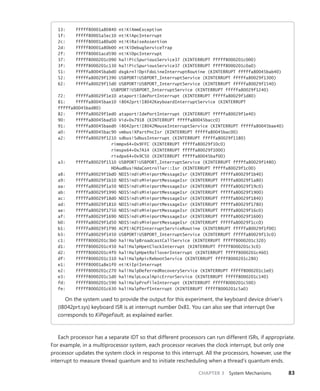
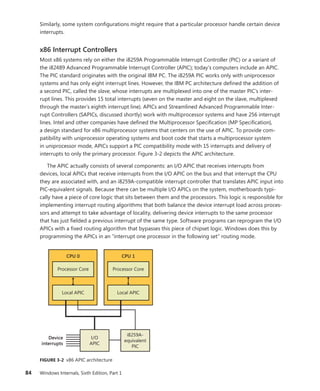
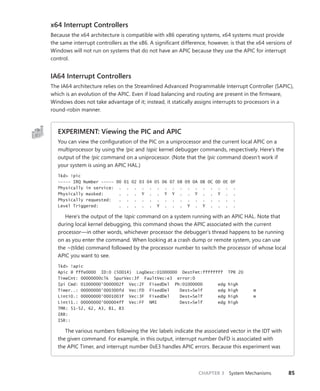
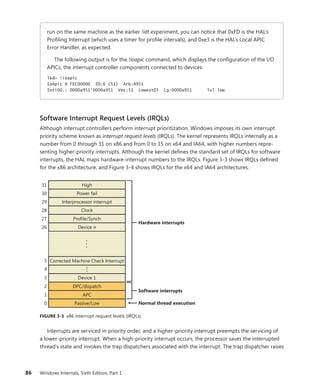
taskhost.exe (2816) Task Host Window
svchost.exe (892)
lsass.exe (588)
lsm.exe (596)
explorer.exe (2968) Program Manager
cmd.exe (1832) Administrator: C:Windowssystem32cmd.exe - "c:tlist.exe" /t
tlist.exe (2448)
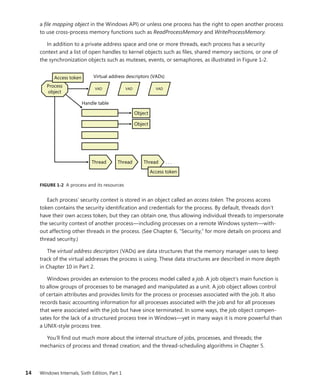
The list indents each process to show its parent/child relationship. Processes whose parents
aren’t alive are left-justified (as is Explorer.exe in the preceding example) because even if a
grandparent process exists, there’s no way to find that relationship. Windows maintains only the
creator process ID, not a link back to the creator of the creator, and so forth.
CHAPTER 1 Concepts and Tools 7
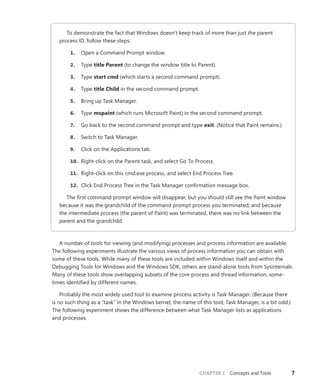
To demonstrate the fact that Windows doesn’t keep track of more than just the parent
­
process ID, follow these steps:
1. Open a Command Prompt window.
2. Type title Parent (to change the window title to Parent).
3. Type start cmd (which starts a second command prompt).
4. Type title Child in the second command prompt.
5. Bring up Task Manager.
6. Type mspaint (which runs Microsoft Paint) in the second command prompt.
7. Go back to the second command prompt and type exit. (Notice that Paint remains.)
8. Switch to Task Manager.
9. Click on the Applications tab.
10. Right-click on the Parent task, and select Go To Process.
11. Right-click on this cmd.exe process, and select End Process Tree.
12. Click End Process Tree in the Task Manager confirmation message box.
The first command prompt window will disappear, but you should still see the Paint window
because it was the grandchild of the command prompt process you terminated; and because
the intermediate process (the parent of Paint) was terminated, there was no link between the
parent and the grandchild.
A number of tools for viewing (and modifying) processes and process information are available.
The following experiments illustrate the various views of process information you can obtain with
some of these tools. While many of these tools are included within Windows itself and within the
Debugging Tools for Windows and the Windows SDK, others are stand-alone tools from Sysinternals.
Many of these tools show overlapping subsets of the core process and thread information, some-
times identified by different names.
Probably the most widely used tool to examine process activity is Task Manager. (Because there
is no such thing as a “task” in the Windows kernel, the name of this tool, Task Manager, is a bit odd.)
The following experiment shows the difference between what Task Manager lists as applications
and processes.
8 Windows Internals, Sixth Edition, Part 1
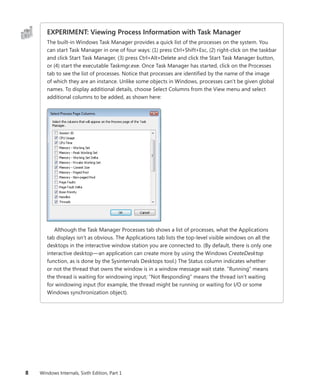
EXPERIMENT: Viewing Process Information with Task Manager
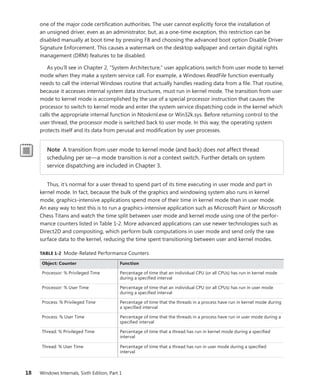
The built-in Windows Task Manager provides a quick list of the processes on the system. You
can start Task Manager in one of four ways: (1) press Ctrl+Shift+Esc, (2) right-click on the taskbar
and click Start Task Manager, (3) press Ctrl+Alt+Delete and click the Start Task Manager button,
or (4) start the executable Taskmgr.exe. Once Task Manager has started, click on the Processes
tab to see the list of processes. Notice that processes are identified by the name of the image
of which they are an instance. Unlike some objects in Windows, processes can’t be given global
names. To display additional details, choose Select Columns from the View menu and select
­
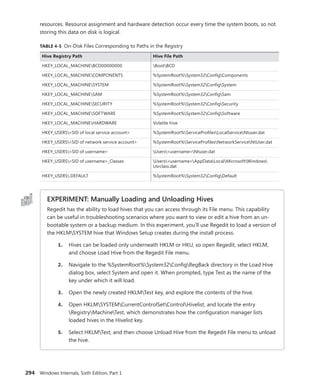
additional columns to be added, as shown here:
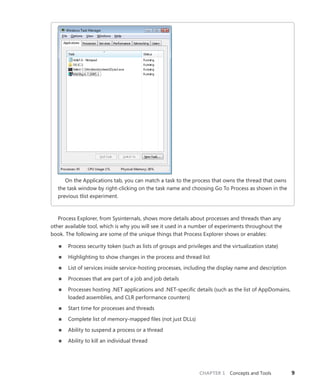
Although the Task Manager Processes tab shows a list of processes, what the Applications
tab displays isn’t as obvious. The Applications tab lists the top-level visible windows on all the
desktops in the interactive window station you are connected to. (By default, there is only one
interactive desktop—an application can create more by using the Windows CreateDesktop
function, as is done by the Sysinternals Desktops tool.) The Status column indicates whether
or not the thread that owns the window is in a window message wait state. “Running” means
the thread is waiting for windowing input; “Not Responding” means the thread isn’t waiting
for ­
windowing input (for example, the thread might be running or waiting for I/O or some
­
Windows synchronization object).
CHAPTER 1 Concepts and Tools 9
On the Applications tab, you can match a task to the process that owns the thread that owns
the task window by right-clicking on the task name and choosing Go To Process as shown in the
previous tlist experiment.
Process Explorer, from Sysinternals, shows more details about processes and threads than any
other available tool, which is why you will see it used in a number of experiments throughout the
book. The following are some of the unique things that Process Explorer shows or enables:
■
■ Process security token (such as lists of groups and privileges and the virtualization state)
■
■ Highlighting to show changes in the process and thread list
■
■ List of services inside service-hosting processes, including the display name and description
■
■ Processes that are part of a job and job details
■
■ Processes hosting .NET applications and .NET-specific details (such as the list of AppDomains,
loaded assemblies, and CLR performance counters)
■
■ Start time for processes and threads
■
■ Complete list of memory-mapped files (not just DLLs)
■
■ Ability to suspend a process or a thread
■
■ Ability to kill an individual thread
10 Windows Internals, Sixth Edition, Part 1
■
■ Easy identification of which processes were consuming the most CPU time over a ­
period
of time (The Performance Monitor can display process CPU utilization for a given set
of ­
processes, but it won’t automatically show processes created after the performance
­
monitoring session has started—only a manual trace in binary output format can do that.)
Process Explorer also provides easy access to information in one place, such as:
■
■ Process tree (with the ability to collapse parts of the tree)
■
■ Open handles in a process (including unnamed handles)
■
■ List of DLLs (and memory-mapped files) in a process
■
■ Thread activity within a process
■
■ User-mode and kernel-mode thread stacks (including the mapping of addresses to names
­
using the Dbghelp.dll that comes with the Debugging Tools for Windows)
■
■ More accurate CPU percentage using the thread cycle count (an even better representation of
precise CPU activity, as explained in Chapter 5, “Processes and Threads”)
■
■ Integrity level
■
■ Memory manager details such as peak commit charge and kernel memory paged and
­
nonpaged pool limits (other tools show only current size)
An introductory experiment using Process Explorer follows.
EXPERIMENT: Viewing Process Details with Process Explorer
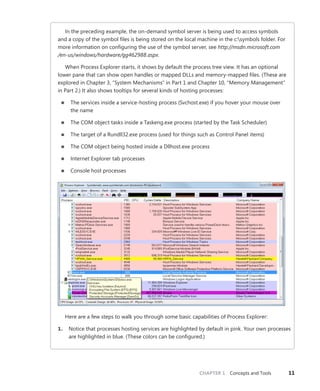
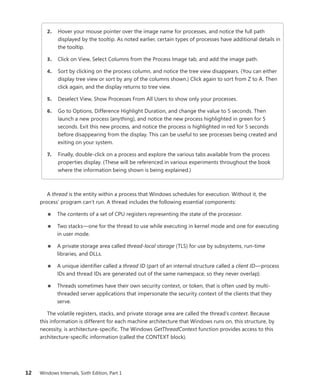
Download the latest version of Process Explorer from Sysinternals and run it. The first time you
run it, you will receive a message that symbols are not currently configured. If properly con-
figured, Process Explorer can access symbol information to display the symbolic name of the
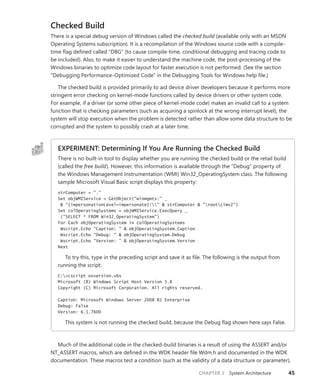
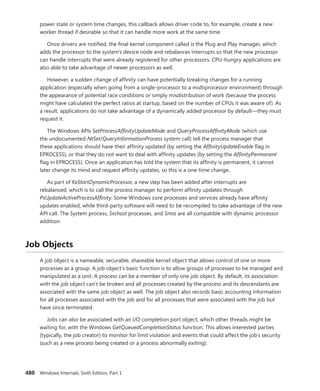
thread start function and functions on a thread’s call stack (available by double-clicking on a
process and clicking on the Threads tab). This is useful for identifying what threads are doing
within a process. To access symbols, you must have the Debugging Tools for Windows installed
(described later in this chapter). Then click on Options, choose Configure Symbols, and fill in the
path to the Dbghelp.dll in the Debugging Tools folder and a valid symbol path. For example, on
a 64-bit system this configuration is correct:
CHAPTER 1 Concepts and Tools 11
In the preceding example, the on-demand symbol server is being used to access symbols
and a copy of the symbol files is being stored on the local machine in the c:symbols folder. For
more information on configuring the use of the symbol server, see http://msdn.microsoft.com
/en-us/windows/hardware/gg462988.aspx.
When Process Explorer starts, it shows by default the process tree view. It has an optional
lower pane that can show open handles or mapped DLLs and memory-mapped files. (These are
explored in Chapter 3, “System Mechanisms” in Part 1 and Chapter 10, “Memory Management”
in Part 2.) It also shows tooltips for several kinds of hosting processes:
■
■ The services inside a service-hosting process (Svchost.exe) if you hover your mouse over
the name
■
■ The COM object tasks inside a Taskeng.exe process (started by the Task Scheduler)
■
■ The target of a Rundll32.exe process (used for things such as Control Panel items)
■
■ The COM object being hosted inside a Dllhost.exe process
■
■ Internet Explorer tab processes
■
■ Console host processes
Here are a few steps to walk you through some basic capabilities of Process Explorer:
1. Notice that processes hosting services are highlighted by default in pink. Your own processes
are highlighted in blue. (These colors can be configured.)
12 Windows Internals, Sixth Edition, Part 1
2. Hover your mouse pointer over the image name for processes, and notice the full path
­
displayed by the tooltip. As noted earlier, certain types of processes have additional details in
the tooltip.
3. Click on View, Select Columns from the Process Image tab, and add the image path.
4. Sort by clicking on the process column, and notice the tree view disappears. (You can either
display tree view or sort by any of the columns shown.) Click again to sort from Z to A. Then
click again, and the display returns to tree view.
5. Deselect View, Show Processes From All Users to show only your processes.
6. Go to Options, Difference Highlight Duration, and change the value to 5 seconds. Then
launch a new process (anything), and notice the new process highlighted in green for 5
­
seconds. Exit this new process, and notice the process is highlighted in red for 5 seconds
before disappearing from the display. This can be useful to see processes being created and
exiting on your system.
7. Finally, double-click on a process and explore the various tabs available from the process
properties display. (These will be referenced in various experiments throughout the book
where the information being shown is being explained.)
A thread is the entity within a process that Windows schedules for execution. Without it, the
­
process’ program can’t run. A thread includes the following essential components:
■
■ The contents of a set of CPU registers representing the state of the processor.
■
■ Two stacks—one for the thread to use while executing in kernel mode and one for executing
in user mode.
■
■ A private storage area called thread-local storage (TLS) for use by subsystems, run-time
­
libraries, and DLLs.
■
■ A unique identifier called a thread ID (part of an internal structure called a client ID—process
IDs and thread IDs are generated out of the same namespace, so they never overlap).
■
■ Threads sometimes have their own security context, or token, that is often used by multi-
threaded server applications that impersonate the security context of the clients that they
serve.
The volatile registers, stacks, and private storage area are called the thread’s context. Because
this information is different for each machine architecture that Windows runs on, this structure, by
necessity, is architecture-specific. The Windows GetThreadContext function provides access to this
­
architecture-specific information (called the CONTEXT block).
CHAPTER 1 Concepts and Tools 13
Note The threads of a 32-bit application running on a 64-bit version of Windows will
­
contain both 32-bit and 64-bit contexts, which Wow64 will use to switch the application
from running in 32-bit to 64-bit mode when required. These threads will have two user
stacks and two CONTEXT blocks, and the usual Windows API functions will return the
­
64-bit context instead. The Wow64GetThreadContext function, however, will return the
­
32-bit context. See Chapter 3 for more information on Wow64.
Fibers and User-Mode Scheduler Threads
Because switching execution from one thread to another involves the kernel scheduler, it can
be an expensive operation, especially if two threads are often switching between each other.
Windows implements two mechanisms for reducing this cost: fibers and user-mode scheduling
(UMS).
Fibers allow an application to schedule its own “threads” of execution rather than rely on
the priority-based scheduling mechanism built into Windows. Fibers are often called “light-
weight” threads, and in terms of scheduling, they’re invisible to the kernel because they’re
implemented in user mode in Kernel32.dll. To use fibers, a call is first made to the Windows
ConvertThreadToFiber function. This function converts the thread to a running fiber. Afterward,
the newly converted fiber can create additional fibers with the CreateFiber function. (Each fiber
can have its own set of fibers.) Unlike a thread, however, a fiber doesn’t begin execution until it’s
manually selected through a call to the SwitchToFiber function. The new fiber runs until it exits
or until it calls SwitchToFiber, again selecting another fiber to run. For more information, see the
Windows SDK documentation on fiber functions.
UMS threads, which are available only on 64-bit versions of Windows, provide the same
­
basic advantages as fibers, without many of the disadvantages. UMS threads have their own
kernel thread state and are therefore visible to the kernel, which allows multiple UMS threads
to issue blocking system calls, share and contend on resources, and have per-thread state.
However, as long as two or more UMS threads only need to perform work in user mode, they
can periodically switch execution contexts (by yielding from one thread to another) without
involving the scheduler: the context switch is done in user mode. From the kernel’s perspective,
the same kernel thread is still running and nothing has changed. When a UMS thread performs
an operation that requires entering the kernel (such as a system call), it switches to its dedicated
kernel-mode thread (called a directed context switch). See Chapter 5 for more information on
UMS.
Although threads have their own execution context, every thread within a process shares the
process’ virtual address space (in addition to the rest of the resources belonging to the process),
meaning that all the threads in a process have full read-write access to the process virtual address
space. Threads cannot accidentally reference the address space of another process, however, unless
the other process makes available part of its private address space as a shared memory section (called
14 Windows Internals, Sixth Edition, Part 1
a file mapping object in the Windows API) or unless one process has the right to open another process
to use cross-process memory functions such as ReadProcessMemory and WriteProcessMemory.
In addition to a private address space and one or more threads, each process has a security
­
context and a list of open handles to kernel objects such as files, shared memory sections, or one of
the synchronization objects such as mutexes, events, or semaphores, as illustrated in Figure 1-2.
Process
object
VAD VAD VAD
Virtual address descriptors (VADs)
Thread Thread Thread . . .
Access token
Access token
Object
Object
Handle table
FIGURE 1-2 A process and its resources
Each process’ security context is stored in an object called an access token. The process access
­
token contains the security identification and credentials for the process. By default, threads don’t
have their own access token, but they can obtain one, thus allowing individual threads to impersonate
the security context of another process—including processes on a remote Windows system—with-
out affecting other threads in the process. (See Chapter 6, “Security,” for more details on process and
thread security.)
The virtual address descriptors (VADs) are data structures that the memory manager uses to keep
track of the virtual addresses the process is using. These data structures are described in more depth
in Chapter 10 in Part 2.
Windows provides an extension to the process model called a job. A job object’s main function is
to allow groups of processes to be managed and manipulated as a unit. A job object allows control
of certain attributes and provides limits for the process or processes associated with the job. It also
records basic accounting information for all processes associated with the job and for all processes
that were associated with the job but have since terminated. In some ways, the job object compen-
sates for the lack of a structured process tree in Windows—yet in many ways it is more powerful than
a UNIX-style process tree.
You’ll find out much more about the internal structure of jobs, processes, and threads; the
­
mechanics of process and thread creation; and the thread-scheduling algorithms in Chapter 5.
CHAPTER 1 Concepts and Tools 15
Virtual Memory
Windows implements a virtual memory system based on a flat (linear) address space that provides
each process with the illusion of having its own large, private address space. Virtual memory pro-
vides a logical view of memory that might not correspond to its physical layout. At run time, the
memory manager, with assistance from hardware, translates, or maps, the virtual addresses into
physical ­
addresses, where the data is actually stored. By controlling the protection and mapping,
the ­
operating system can ensure that individual processes don’t bump into one another or over-
write operating system data. Figure 1-3 illustrates three virtually contiguous pages mapped to three
­
discontiguous pages in physical memory.
Physical memory
Virtual memory
FIGURE 1-3 Mapping virtual memory to physical memory
Because most systems have much less physical memory than the total virtual memory in use by
the running processes, the memory manager transfers, or pages, some of the memory contents to
disk. Paging data to disk frees physical memory so that it can be used for other processes or for the
operating system itself. When a thread accesses a virtual address that has been paged to disk, the
virtual memory manager loads the information back into memory from disk. Applications don’t have
to be altered in any way to take advantage of paging because hardware support enables the memory
manager to page without the knowledge or assistance of processes or threads.
The size of the virtual address space varies for each hardware platform. On 32-bit x86 systems,
the total virtual address space has a theoretical maximum of 4 GB. By default, Windows allocates
half this address space (the lower half of the 4-GB virtual address space, from 0x00000000 through
0x7FFFFFFF) to processes for their unique private storage and uses the other half (the upper half,
­
addresses 0x80000000 through 0xFFFFFFFF) for its own protected operating system memory
­
utilization. The mappings of the lower half change to reflect the virtual address space of the currently
executing process, but the mappings of the upper half always consist of the operating system’s virtual
memory. Windows supports boot-time options (the increaseuserva qualifier in the Boot Configu-
ration Database, described in Chapter 13, “Startup and Shutdown,” in Part 2) that give processes
­
running specially marked programs (the large address space aware flag must be set in the header
of the ­
executable image) the ability to use up to 3 GB of private address space (leaving 1 GB for the
16 Windows Internals, Sixth Edition, Part 1
­
operating system). This option allows applications such as database servers to keep larger portions of
a database in the process address space, thus reducing the need to map subset views of the database.
Figure 1-4 shows the two typical virtual address space layouts supported by 32-bit Windows. (The
increaseuserva option allows anywhere from 2 to 3 GB to be used by marked applications.)
Default
2 GB User
process space
3 GB User space
2 GB System
space
3 GB User
process space
1 GB System
space
FIGURE 1-4 Typical address space layouts for 32-bit Windows
Although 3 GB is better than 2 GB, it’s still not enough virtual address space to map very large
(multigigabyte) databases. To address this need on 32-bit systems, Windows provides a mechanism
called Address Windowing Extension (AWE), which allows a 32-bit application to allocate up to 64 GB
of physical memory and then map views, or windows, into its 2-GB virtual address space. Although
using AWE puts the burden of managing mappings of virtual to physical memory on the programmer,
it does address the need of being able to directly access more physical memory than can be mapped
at any one time in a 32-bit process address space.
64-bit Windows provides a much larger address space for processes: 7152 GB on IA-64 systems
and 8192 GB on x64 systems. Figure 1-5 shows a simplified view of the 64-bit system address space
layouts. (For a detailed description, see Chapter 10 in Part 2.) Note that these sizes do not represent
the architectural limits for these platforms. Sixty-four bits of address space is over 17 billion GB, but
current 64-bit hardware limits this to smaller values. And Windows implementation limits in the
­
current versions of 64-bit Windows further reduce this to 8192 GB (8 TB).
x64
8192 GB
(8 TB) User
process space
IA-64
8192 GB
System space
7152 GB
(7 TB) User
process space
7152 GB
System space
FIGURE 1-5 Address space layouts for 64-bit Windows
Details of the implementation of the memory manager, including how address translation works
and how Windows manages physical memory, are described in Chapter 10 in Part 2.
CHAPTER 1 Concepts and Tools 17
Kernel Mode vs. User Mode
To protect user applications from accessing and/or modifying critical operating system data, Windows
uses two processor access modes (even if the processor on which Windows is running supports more
than two): user mode and kernel mode. User application code runs in user mode, whereas operating
system code (such as system services and device drivers) runs in kernel mode. Kernel mode refers to
a mode of execution in a processor that grants access to all system memory and all CPU instructions.
By providing the operating system software with a higher privilege level than the application software
has, the processor provides a necessary foundation for operating system designers to ensure that a
misbehaving application can’t disrupt the stability of the system as a whole.
Note The architectures of the x86 and x64 processors define four privilege levels (or rings)
to protect system code and data from being overwritten either inadvertently or maliciously
by code of lesser privilege. Windows uses privilege level 0 (or ring 0) for kernel mode and
privilege level 3 (or ring 3) for user mode. The reason Windows uses only two levels is that
some hardware architectures that were supported in the past (such as Compaq Alpha and
Silicon Graphics MIPS) implemented only two privilege levels.
Although each Windows process has its own private memory space, the kernel-mode operating
system and device driver code share a single virtual address space. Each page in virtual memory is
tagged to indicate what access mode the processor must be in to read and/or write the page. Pages
in system space can be accessed only from kernel mode, whereas all pages in the user address space
are accessible from user mode. Read-only pages (such as those that contain static data) are not
writable from any mode. Additionally, on processors that support no-execute memory protection,
Windows marks pages containing data as nonexecutable, thus preventing inadvertent or malicious
code execution in data areas.
32-bit Windows doesn’t provide any protection to private read/write system memory being used
by components running in kernel mode. In other words, once in kernel mode, operating system and
device driver code has complete access to system space memory and can bypass Windows security to
access objects. Because the bulk of the Windows operating system code runs in kernel mode, it is vital
that components that run in kernel mode be carefully designed and tested to ensure that they don’t
violate system security or cause system instability.
This lack of protection also emphasizes the need to take care when loading a third-party device
driver, because once in kernel mode the software has complete access to all operating system data.
This weakness was one of the reasons behind the driver-signing mechanism introduced in Windows,
which warns (and, if configured as such, blocks) the user if an attempt is made to add an unsigned
Plug and Play driver. (See Chapter 8, “I/O System,” in Part 2 for more information on driver ­
signing.)
Also, a mechanism called Driver Verifier helps device driver writers to find bugs (such as buffer
overruns or memory leaks) that can cause security or reliability issues. Driver Verifier is explained in
Chapter 10 in Part 2.
On 64-bit versions of Windows, the Kernel Mode Code Signing (KMCS) policy dictates that any
64-bit device drivers (not just Plug and Play) must be signed with a cryptographic key assigned by
18 Windows Internals, Sixth Edition, Part 1
one of the major code certification authorities. The user cannot explicitly force the installation of
an unsigned driver, even as an administrator, but, as a one-time exception, this restriction can be
disabled manually at boot time by pressing F8 and choosing the advanced boot option Disable Driver
Signature Enforcement. This causes a watermark on the desktop wallpaper and certain digital rights
management (DRM) features to be disabled.
As you’ll see in Chapter 2, “System Architecture,” user applications switch from user mode to kernel
mode when they make a system service call. For example, a Windows ReadFile function eventually
needs to call the internal Windows routine that actually handles reading data from a file. That routine,
because it accesses internal system data structures, must run in kernel mode. The transition from user
mode to kernel mode is accomplished by the use of a special processor instruction that causes the
processor to switch to kernel mode and enter the system service dispatching code in the kernel which
calls the appropriate internal function in Ntoskrnl.exe or Win32k.sys. Before returning control to the
user thread, the processor mode is switched back to user mode. In this way, the operating system
protects itself and its data from perusal and modification by user processes.
Note A transition from user mode to kernel mode (and back) does not affect thread
scheduling per se—a mode transition is not a context switch. Further details on system
­
service dispatching are included in Chapter 3.
Thus, it’s normal for a user thread to spend part of its time executing in user mode and part in
­
kernel mode. In fact, because the bulk of the graphics and windowing system also runs in kernel
mode, graphics-intensive applications spend more of their time in kernel mode than in user mode.
An easy way to test this is to run a graphics-intensive application such as Microsoft Paint or Microsoft
Chess Titans and watch the time split between user mode and kernel mode using one of the perfor-
mance counters listed in Table 1-2. More advanced applications can use newer technologies such as
Direct2D and compositing, which perform bulk computations in user mode and send only the raw
surface data to the kernel, reducing the time spent transitioning between user and kernel modes.
TABLE 1-2 Mode-Related Performance Counters
Object: Counter Function
Processor: % Privileged Time Percentage of time that an individual CPU (or all CPUs) has run in kernel mode
during a specified interval
Processor: % User Time Percentage of time that an individual CPU (or all CPUs) has run in user mode
during a specified interval
Process: % Privileged Time Percentage of time that the threads in a process have run in kernel mode during
a specified interval
Process: % User Time Percentage of time that the threads in a process have run in user mode during a
specified interval
Thread: % Privileged Time Percentage of time that a thread has run in kernel mode during a specified
­interval
Thread: % User Time Percentage of time that a thread has run in user mode during a specified
­interval
CHAPTER 1 Concepts and Tools 19
EXPERIMENT: Kernel Mode vs. User Mode
You can use the Performance Monitor to see how much time your system spends executing in
kernel mode vs. in user mode. Follow these steps:
1. Run the Performance Monitor by opening the Start menu and selecting All Programs
/Administrative Tools/Performance Monitor. Select the Performance Monitor node under
Performance/Monitoring Tools on the left-side tree.
2. Click the Add button (+) on the toolbar.
3. Expand the Processor counter section, click the % Privileged Time counter and, while
­
holding down the Ctrl key, click the % User Time counter.
4. Click Add, and then click OK.
5. Open a command prompt, and do a directory scan of your C drive over the network by
­typing dir %computername%c$ /s.
6. When you’re finished, just close the tool.
20 Windows Internals, Sixth Edition, Part 1
You can also quickly see this by using Task Manager. Just click the Performance tab, and then
select Show Kernel Times from the View menu. The CPU usage bar will show total CPU usage in
green and kernel-mode time in red.
To see how the Performance Monitor itself uses kernel time and user time, run it again, but
add the individual Process counters % User Time and % Privileged Time for every process in the
system:
1. If it’s not already running, run the Performance Monitor again. (If it is already running, start
with a blank display by right-clicking in the graph area and selecting Remove All Counters.)
2. Click the Add button (+) on the toolbar.
3. In the available counters area, expand the Process section.
4. Select the % Privileged Time and % User Time counters.
5. Select a few processes in the Instance box (such as mmc, csrss, and Idle).
6. Click Add, and then click OK.
7. Move the mouse rapidly back and forth.
8. Press Ctrl+H to turn on highlighting mode. This highlights the currently selected counter in
black.
9. Scroll through the counters at the bottom of the display to identify the processes whose
threads were running when you moved the mouse, and note whether they were running in
user mode or kernel mode.
You should see the Performance Monitor process (by looking in the Instance column for the
mmc process) kernel-mode and user-mode time go up when you move the mouse because it
is executing application code in user mode and calling Windows functions that run in kernel
mode. You’ll also notice kernel-mode thread activity in a process named csrss when you move
the mouse. This activity occurs because the Windows subsystem’s kernel-mode raw input
thread, which handles keyboard and mouse input, is attached to this process. (See Chapter 2 for
more information about system threads.) Finally, the process named Idle that you see spending
nearly 100 percent of its time in kernel mode isn’t really a process—it’s a fake process used to
account for idle CPU cycles. As you can observe from the mode in which the threads in the Idle
process run, when Windows has nothing to do, it does it in kernel mode.
Terminal Services and Multiple Sessions
Terminal Services refers to the support in Windows for multiple interactive user sessions on a single
system. With Windows Terminal Services, a remote user can establish a session on another machine,
log in, and run applications on the server. The server transmits the graphical user interface to the
CHAPTER 1 Concepts and Tools 21
­
client (as well as other configurable resources such as audio and clipboard), and the client transmits
the user’s input back to the server. (Similar to the X Window System, Windows permits running indi-
vidual applications on a server system with the display remoted to the client instead of remoting the
entire desktop.)
The first session is considered the services session, or session zero, and contains system service
hosting processes (explained in further detail in Chapter 4, “Management Mechanisms”). The first
login session at the physical console of the machine is session one, and additional sessions can be
created through the use of the remote desktop connection program (Mstsc.exe) or through the use
of fast user switching (described later).
Windows client editions permits a single remote user to connect to the machine, but if someone
is logged in at the console, the workstation is locked (that is, someone can be using the system either
locally or remotely, but not at the same time). Windows editions that include Windows Media Center
allow one interactive session and up to four Windows Media Center Extender sessions.
Windows server systems support two simultaneous remote connections (to facilitate remote
management—for example, use of management tools that require being logged in to the machine
being managed) and more than two remote sessions if it’s appropriately licensed and configured as a
terminal server.
All Windows client editions support multiple sessions created locally through a feature called fast
user switching that can be used one at a time. When a user chooses to disconnect her session instead
of log off (for example, by clicking Start and choosing Switch User from the Shutdown submenu or by
holding down the Windows key and pressing L and then clicking the Switch User button), the ­
current
session (that is, the processes running in that session and all the sessionwide data structures that
describe the session) remains active in the system and the system returns to the main logon screen. If
a new user logs in, a new session is created.
For applications that want to be aware of running in a terminal server session, there are a set
of Windows APIs for programmatically detecting that as well as for controlling various aspects of
­
Terminal Services. (See the Windows SDK and the Remote Desktop Services API for details.)
Chapter 2 describes briefly how sessions are created and has some experiments showing how to
view session information with various tools, including the kernel debugger. The “Object Manager”
section in Chapter 3 describes how the system namespace for objects is instantiated on a per-session
basis and how applications that need to be aware of other instances of themselves on the same
­
system can accomplish that. Finally, Chapter 10 in Part 2 covers how the memory manager sets up
and manages sessionwide data.
Objects and Handles
In the Windows operating system, a kernel object is a single, run-time instance of a statically defined
object type. An object type comprises a system-defined data type, functions that operate on instances
of the data type, and a set of object attributes. If you write Windows applications, you might encoun-
ter process, thread, file, and event objects, to name just a few examples. These objects are based on
22 Windows Internals, Sixth Edition, Part 1
lower-level objects that Windows creates and manages. In Windows, a process is an instance of the
process object type, a file is an instance of the file object type, and so on.
An object attribute is a field of data in an object that partially defines the object’s state. An object
of type process, for example, would have attributes that include the process ID, a base scheduling
priority, and a pointer to an access token object. Object methods, the means for manipulating objects,
usually read or change the object attributes. For example, the open method for a process would
­
accept a process identifier as input and return a pointer to the object as output.
Note Although there is a parameter named ObjectAttributes that a caller supplies when
creating an object using the kernel object manager APIs, that parameter shouldn’t be
­
confused with the more general meaning of the term as used in this book.
The most fundamental difference between an object and an ordinary data structure is that the
internal structure of an object is opaque. You must call an object service to get data out of an object
or to put data into it. You can’t directly read or change data inside an object. This difference separates
the underlying implementation of the object from code that merely uses it, a technique that allows
object implementations to be changed easily over time.
Objects, through the help of a kernel component called the object manager, provide a convenient
means for accomplishing the following four important operating system tasks:
■
■ Providing human-readable names for system resources
■
■ Sharing resources and data among processes
■
■ Protecting resources from unauthorized access
■
■ Reference tracking, which allows the system to know when an object is no longer in use so
that it can be automatically deallocated
Not all data structures in the Windows operating system are objects. Only data that needs to be
shared, protected, named, or made visible to user-mode programs (via system services) is placed in
objects. Structures used by only one component of the operating system to implement internal func-
tions are not objects. Objects and handles (references to an instance of an object) are discussed in
more detail in Chapter 3.
Security
Windows was designed from the start to be secure and to meet the requirements of various formal
government and industry security ratings, such as the Common Criteria for Information Technology
Security Evaluation (CCITSE) specification. Achieving a government-approved security rating allows an
operating system to compete in that arena. Of course, many of these capabilities are advantageous
features for any multiuser system.
The core security capabilities of Windows include discretionary (need-to-know) and mandatory
integrity protection for all shareable system objects (such as files, directories, processes, threads, and
CHAPTER 1 Concepts and Tools 23
so forth), security auditing (for accountability of subjects, or users and the actions they initiate), user
authentication at logon, and the prevention of one user from accessing uninitialized resources (such
as free memory or disk space) that another user has deallocated.
Windows has three forms of access control over objects. The first form—discretionary access
control—is the protection mechanism that most people think of when they think of operating system
security. It’s the method by which owners of objects (such as files or printers) grant or deny access
to others. When users log in, they are given a set of security credentials, or a security context. When
they attempt to access objects, their security context is compared to the access control list on the
object they are trying to access to determine whether they have permission to perform the requested
operation.
Privileged access control is necessary for those times when discretionary access control isn’t
enough. It’s a method of ensuring that someone can get to protected objects if the owner isn’t
­
available. For example, if an employee leaves a company, the administrator needs a way to gain ­
access
to files that might have been accessible only to that employee. In that case, under Windows, the
­
administrator can take ownership of the file so that he can manage its rights as necessary.
Finally, mandatory integrity control is required when an additional level of security control is
required to protect objects that are being accessed from within the same user account. It’s used both
to isolate Protected Mode Internet Explorer from a user’s configuration and to protect objects ­
created
by an elevated administrator account from access by a nonelevated administrator account. (See
­
Chapter 6 for more information on User Account Control—UAC.)
Security pervades the interface of the Windows API. The Windows subsystem implements
­
object-based security in the same way the operating system does; the Windows subsystem protects
shared Windows objects from unauthorized access by placing Windows security descriptors on them.
The first time an application tries to access a shared object, the Windows subsystem verifies the appli-
cation’s right to do so. If the security check succeeds, the Windows subsystem allows the application
to proceed.
For a comprehensive description of Windows security, see Chapter 6.
Registry
If you’ve worked at all with Windows operating systems, you’ve probably heard about or looked at
the registry. You can’t talk much about Windows internals without referring to the registry because
it’s the system database that contains the information required to boot and configure the system,
­
systemwide software settings that control the operation of Windows, the security database, and
­
per-user configuration settings (such as which screen saver to use).
In addition, the registry is a window into in-memory volatile data, such as the current hardware
state of the system (what device drivers are loaded, the resources they are using, and so on) as well as
the Windows performance counters. The performance counters, which aren’t actually “in” the registry,
are accessed through the registry functions. See Chapter 4 for more on how performance counter
information is accessed from the registry.
24 Windows Internals, Sixth Edition, Part 1
Although many Windows users and administrators will never need to look directly into the registry
(because you can view or change most configuration settings with standard administrative utilities),
it is still a useful source of Windows internals information because it contains many settings that
­
affect system performance and behavior. (If you decide to directly change registry settings, you must
­
exercise extreme caution; any changes might adversely affect system performance or, worse, cause
the system to fail to boot successfully.) You’ll find references to individual registry keys through-
out this book as they pertain to the component being described. Most registry keys referred to in
this book are under the systemwide configuration, HKEY_LOCAL_MACHINE, which we’ll abbreviate
throughout as HKLM.
For further information on the registry and its internal structure, see Chapter 4.
Unicode
Windows differs from most other operating systems in that most internal text strings are stored and
processed as 16-bit-wide Unicode characters. Unicode is an international character set standard that
defines unique 16-bit values for most of the world’s known character sets.
Because many applications deal with 8-bit (single-byte) ANSI character strings, many Windows
functions that accept string parameters have two entry points: a Unicode (wide, 16-bit) version and
an ANSI (narrow, 8-bit) version. If you call the narrow version of a Windows function, there is a slight
performance impact as input string parameters are converted to Unicode before being processed
by the system and output parameters are converted from Unicode to ANSI before being returned to
the application. Thus, if you have an older service or piece of code that you need to run on Windows
but this code is written using ANSI character text strings, Windows will convert the ANSI characters
into Unicode for its own use. However, Windows never converts the data inside files—it’s up to the
­
application to decide whether to store data as Unicode or as ANSI.
Regardless of language, all versions of Windows contain the same functions. Instead of having
separate language versions, Windows has a single worldwide binary so that a single installation can
support multiple languages (by adding various language packs). Applications can also take advan-
tage of Windows functions that allow single worldwide application binaries that can support multiple
languages.
For more information about Unicode, see www.unicode.org as well as the programming
­
documentation in the MSDN Library.
Digging into Windows Internals
Although much of the information in this book is based on reading the Windows source code and
talking to the developers, you don’t have to take everything on faith. Many details about the internals
of Windows can be exposed and demonstrated by using a variety of available tools, such as those that
come with Windows and the Windows debugging tools. These tool packages are briefly described
later in this section.
CHAPTER 1 Concepts and Tools 25
To encourage your exploration of Windows internals, we’ve included “Experiment” sidebars
throughout the book that describe steps you can take to examine a particular aspect of Windows
internal behavior. (You already saw a few of these sections earlier in this chapter.) We encourage you
to try these experiments so that you can see in action many of the internals topics described in this
book.
Table 1-3 shows a list of the principal tools used in this book and where they come from.
TABLE 1-3 Tools for Viewing Windows Internals
Tool Image Name Origin
Startup Programs Viewer AUTORUNS Sysinternals
Access Check ACCESSCHK Sysinternals
Dependency Walker DEPENDS www.dependencywalker.com
Global Flags GFLAGS Debugging tools
Handle Viewer HANDLE Sysinternals
Kernel debuggers WINDBG, KD Debugging tools, Windows SDK
Object Viewer WINOBJ Sysinternals
Performance Monitor PERFMON.MSC Windows built-in tool
Pool Monitor POOLMON Windows Driver Kit
Process Explorer PROCEXP Sysinternals
Process Monitor PROCMON Sysinternals
Task (Process) List TLIST Debugging tools
Task Manager TASKMGR Windows built-in tool
Performance Monitor
We’ll refer to the Performance Monitor found in the Administrative Tools folder on the Start menu
(or via Control Panel) throughout this book; specifically, we’ll focus on the Performance Monitor and
Resource Monitor. The Performance Monitor has three functions: system monitoring, viewing perfor-
mance counter logs, and setting alerts (by using data collector sets, which also contain performance
counter logs and trace and configuration data). For simplicity, when we refer to the Performance
Monitor, we are referring to the System Monitor function within the tool.
The Performance Monitor provides more information about how your system is operating than
any other single utility. It includes hundreds of base and extensible counters for various objects.
For each major topic described in this book, a table of the relevant Windows performance counters
is included.
The Performance Monitor contains a brief description for each counter. To see the descriptions,
select a counter in the Add Counters window and select the Show Description check box.
26 Windows Internals, Sixth Edition, Part 1
Although all the low-level system monitoring we’ll do in this book can be done with the
­
Performance Monitor, Windows also includes a Resource Monitor utility (accessible from the start
menu or from the Task Manager Performance tab) that shows four primary system resources: CPU,
Disk, Network, and Memory. In their basic states, these resources are displayed with the same level
of information that you would find in Task Manager. However, they also provide sections that can be
expanded for more information.
When expanded, the CPU tab displays information about per-process CPU usage, just like Task
Manager. However, it adds a column for average CPU usage, which can give you a better idea of
which processes are most active. The CPU tab also includes a separate display of services and their
associated CPU usage and average. Each service hosting process is identified by the service group
it is hosting. As with Process Explorer, selecting a process (by clicking its associated check box) will
display a list of named handles opened by the process, as well as a list of modules (such as DLLs) that
are loaded in the process address space. The Search Handles box can also be used to search for which
processes have opened a handle to a given named resource.
The Memory section displays much of the same information that one can obtain with Task
­
Manager, but it is organized for the entire system. A physical memory bar graph displays the current
organization of physical memory into either hardware reserved, in use, modified, standby, and free
memory. See Chapter 10 in Part 2 for the exact meaning of these terms.
The Disk section, on the other hand, displays per-file information for I/Os in a way that makes it
easy to identify the most accessed, written to, or read from files on the system. These results can be
further filtered down by process.
The Networking section displays the active network connections and which processes own them,
as well as how much data is going through them. This information makes it possible to see back-
ground network activity that might be hard to detect otherwise. In addition, the TCP connections
that are active on the system are shown, organized by process, with data such as the remote and local
port and address, and packet latency. Finally, a list of listening ports is displayed by process, ­
allowing
an administrator to see which services (or applications) are currently waiting for connections on a
given port. The protocol and firewall policy for each port and process is also shown.
Note that all of the Windows performance counters are accessible programmatically. The section
“HKEY_PERFORMANCE_DATA” in Chapter 4 has a brief description of the components involved in
retrieving performance counters through the Windows API.
Kernel Debugging
Kernel debugging means examining internal kernel data structures and/or stepping through ­
functions
in the kernel. It is a useful way to investigate Windows internals because you can display internal
system information not available through any other tools and get a clearer idea of code flows within
the kernel.
CHAPTER 1 Concepts and Tools 27
Before describing the various ways you can debug the kernel, let’s examine a set of files that you’ll
need in order to perform any type of kernel debugging.
Symbols for Kernel Debugging
Symbol files contain the names of functions and variables and the layout and format of data
­
structures. They are generated by the linker and used by debuggers to reference and display these
names during a debug session. This information is not usually stored in the binary image because it is
not needed to execute the code. This means that binaries are smaller and faster. However, this means
that when debugging, you must make sure that the debugger can access the symbol files that are
­
associated with the images you are referencing during a debugging session.
To use any of the kernel debugging tools to examine internal Windows kernel data structures (such
as the process list, thread blocks, loaded driver list, memory usage information, and so on), you must
have the correct symbol files for at least the kernel image, Ntoskrnl.exe. (The section “Architecture
Overview” in Chapter 2 explains more about this file.) Symbol table files must match the version of
the image they were taken from. For example, if you install a Windows Service Pack or hot fix that
updates the kernel, you must obtain the matching, updated symbol files.
While it is possible to download and install symbols for various versions of Windows, updated
symbols for hot fixes are not always available. The easiest solution to obtain the correct version of
symbols for debugging is to use the Microsoft on-demand symbol server by using a special syntax for
the symbol path that you specify in the debugger. For example, the following symbol path causes the
debugging tools to load required symbols from the Internet symbol server and keep a local copy in
the c:symbols folder:
srv*c:symbols*http://msdl.microsoft.com/download/symbols
For detailed instructions on how to use the symbol server, see the debugging tools help file or the
Web page http://msdn.microsoft.com/en-us/windows/hardware/gg462988.aspx.
Debugging Tools for Windows
The Debugging Tools for Windows package contains advanced debugging tools used in this book
to explore Windows internals. The latest version is included as part of the Windows Software
­
Development Kit (SDK). These tools can be used to debug user-mode processes as well as the kernel.
(See the following sidebar.)
Note The Debugging Tools for Windows are updated frequently and released
­
independently of Windows operating system versions, so check often for new versions.
28 Windows Internals, Sixth Edition, Part 1
User-Mode Debugging
The debugging tools can also be used to attach to a user-mode process and examine and/or
change process memory. There are two options when attaching to a process:
■
■ Invasive Unless specified otherwise, when you attach to a running process, the
­
DebugActiveProcess Windows function is used to establish a connection between the
debugger and the debugee. This permits examining and/or changing process memory,
setting breakpoints, and performing other debugging functions. Windows allows you to
stop debugging without killing the target process, as long as the debugger is detached,
not killed.
■
■ Noninvasive With this option, the debugger simply opens the process with the
­
OpenProcess function. It does not attach to the process as a debugger. This allows you to
examine and/or change memory in the target process, but you cannot set breakpoints.
You can also open user-mode process dump files with the debugging tools. User-mode
dump files are explained in Chapter 3 in the section on exception dispatching.
There are two debuggers that can be used for kernel debugging: a command-line version (Kd.exe)
and a graphical user interface (GUI) version (Windbg.exe). Both provide the same set of commands,
so which one you choose is a matter of personal preference. You can perform three types of kernel
debugging with these tools:
■
■ Open a crash dump file created as a result of a Windows system crash. (See Chapter 14, “Crash
Dump Analysis,” in Part 2 for more information on kernel crash dumps.)
■
■ Connect to a live, running system and examine the system state (or set breakpoints if you’re
debugging device driver code). This operation requires two computers—a target and a host.
The target is the system being debugged, and the host is the system running the debugger.
The target system can be connected to the host via a null modem cable, an IEEE 1394 cable,
or a USB 2.0 debugging cable. The target system must be booted in debugging mode (either
by pressing F8 during the boot process and selecting Debugging Mode or by configuring
the system to boot in debugging mode using Bcdedit or Msconfig.exe). You can also connect
through a named pipe, which is useful when debugging through a virtual machine product
such as Hyper-V, Virtual PC, or VMWare, by exposing the guest operating system’s serial port
as a named pipe device.
■
■ Windows systems also allow you to connect to the local system and examine the system state.
This is called local kernel debugging. To initiate local kernel debugging with WinDbg, open the
File menu, choose Kernel Debug, click on the Local tab, and then click OK. The target system
must be booted in debugging mode. An example output screen is shown in Figure 1-6. Some
kernel debugger commands do not work when used in local kernel debugging mode (such as
creating a memory dump with the .dump command—however, this can be done with LiveKd,
described later in this section).
CHAPTER 1 Concepts and Tools 29
FIGURE 1-6 Local kernel debugging
Once connected in kernel debugging mode, you can use one of the many debugger extension
commands (commands that begin with “!”) to display the contents of internal data structures such
as threads, processes, I/O request packets, and memory management information. Throughout this
book, the relevant kernel debugger commands and output are included as they apply to each topic
being discussed. An excellent companion reference is the Debugger.chm help file, contained in the
WinDbg installation folder, which documents all the kernel debugger functionality and extensions. In
addition, the dt (display type) command can format over 1000 kernel structures because the kernel
symbol files for Windows contain type information that the debugger can use to format structures.
EXPERIMENT: Displaying Type Information for Kernel Structures
To display the list of kernel structures whose type information is included in the kernel symbols,
type dt nt!_* in the kernel debugger. A sample partial output is shown here:
lkd> dt nt!_*
nt!_LIST_ENTRY
nt!_LIST_ENTRY
nt!_IMAGE_NT_HEADERS
nt!_IMAGE_FILE_HEADER
nt!_IMAGE_OPTIONAL_HEADER
nt!_IMAGE_NT_HEADERS
nt!_LARGE_INTEGER
You can also use the dt command to search for specific structures by using its wildcard
lookup capability. For example, if you were looking for the structure name for an interrupt
object, type dt nt!_*interrupt*:
lkd> dt nt!_*interrupt*
nt!_KINTERRUPT
nt!_KINTERRUPT_MODE
nt!_KINTERRUPT_POLARITY
nt!_UNEXPECTED_INTERRUPT
30 Windows Internals, Sixth Edition, Part 1
Then you can use dt to format a specific structure as shown next:
lkd> dt nt!_kinterrupt
nt!_KINTERRUPT
+0x000 Type : Int2B
+0x002 Size : Int2B
+0x008 InterruptListEntry : _LIST_ENTRY
+0x018 ServiceRoutine : Ptr64 unsigned char
+0x020 MessageServiceRoutine : Ptr64 unsigned char
+0x028 MessageIndex : Uint4B
+0x030 ServiceContext : Ptr64 Void
+0x038 SpinLock : Uint8B
+0x040 TickCount : Uint4B
+0x048 ActualLock : Ptr64 Uint8B
+0x050 DispatchAddress : Ptr64 void
+0x058 Vector : Uint4B
+0x05c Irql : UChar
+0x05d SynchronizeIrql : UChar
+0x05e FloatingSave : UChar
+0x05f Connected : UChar
+0x060 Number : Uint4B
+0x064 ShareVector : UChar
+0x065 Pad : [3] Char
+0x068 Mode : _KINTERRUPT_MODE
+0x06c Polarity : _KINTERRUPT_POLARITY
+0x070 ServiceCount : Uint4B
+0x074 DispatchCount : Uint4B
+0x078 Rsvd1 : Uint8B
+0x080 TrapFrame : Ptr64 _KTRAP_FRAME
+0x088 Reserved : Ptr64 Void
+0x090 DispatchCode : [4] Uint4B
Note that dt does not show substructures (structures within structures) by default. To recurse
through substructures, use the –r switch. For example, using this switch to display the kernel
interrupt object shows the format of the _LIST_ENTRY structure stored at the InterruptListEntry
field:
lkd> dt nt!_kinterrupt -r
nt!_KINTERRUPT
+0x000 Type : Int2B
+0x002 Size : Int2B
+0x008 InterruptListEntry : _LIST_ENTRY
+0x000 Flink : Ptr64 _LIST_ENTRY
+0x008 Blink : Ptr64 _LIST_ENTRY
+0x000 Flink : Ptr64 _LIST_ENTRY
+0x008 Blink : Ptr64 _LIST_ENTRY
CHAPTER 1 Concepts and Tools 31
The Debugging Tools for Windows help file also explains how to set up and use the kernel
­
debuggers. Additional details on using the kernel debuggers that are aimed primarily at device driver
writers can be found in the Windows Driver Kit documentation.
LiveKd Tool
LiveKd is a free tool from Sysinternals that allows you to use the standard Microsoft kernel debuggers
just described to examine the running system without booting the system in debugging mode. This
approach might be useful when kernel-level troubleshooting is required on a machine that wasn’t
booted in debugging mode—certain issues might be hard to reproduce reliably, so a reboot with the
debug option enabled might not readily exhibit the error.
You run LiveKd just as you would WinDbg or Kd. LiveKd passes any command-line options you
specify to the debugger you select. By default, LiveKd runs the command-line kernel debugger (Kd).
To have it run WinDbg, specify the –w switch. To see the help files for LiveKd switches, specify the –?
switch.
LiveKd presents a simulated crash dump file to the debugger, so you can perform any operations
in LiveKd that are supported on a crash dump. Because LiveKd is relying on physical memory to back
the simulated dump, the kernel debugger might run into situations in which data structures are in the
middle of being changed by the system and are inconsistent. Each time the debugger is launched,
it starts with a fresh view of the system state. If you want to refresh the snapshot, quit the ­
debugger
(with the q command), and LiveKd will ask you whether you want to start it again. If the ­
debugger
enters a loop in printing output, press Ctrl+C to interrupt the output and quit. If it hangs, press
Ctrl+Break, which will terminate the debugger process. LiveKd will then ask you whether you want to
run the debugger again.
Windows Software Development Kit
The Windows Software Development Kit (SDK) is available as part of the MSDN subscription program
or can be downloaded for free from msdn.microsoft.com. Besides the Debugging Tools, it contains
the documentation, C header files, and libraries necessary to compile and link Windows applications.
(Although Microsoft Visual C++ comes with a copy of these header files, the versions contained in
the Windows SDK always match the latest version of the Windows operating systems, whereas the
version that comes with Visual C++ might be an older version that was current when Visual C++ was
released.) From an internals perspective, items of interest in the Windows SDK include the Windows
API header files (Program FilesMicrosoft SDKsWindowsv7.0AInclude). A few of these tools are also
shipped as sample source code in both the Windows SDK and the MSDN Library.
Windows Driver Kit
The Windows Driver Kit (WDK) is also available through the MSDN subscription program, and just
like the Windows SDK, it is available for free download. The Windows Driver Kit documentation is
included in the MSDN Library.
32 Windows Internals, Sixth Edition, Part 1
Although the WDK is aimed at device driver developers, it is an abundant source of Windows
­
internals information. For example, while Chapter 8 in Part 2 describes the I/O system architecture,
driver model, and basic device driver data structures, it does not describe the individual kernel
­
support functions in detail. The WDK documentation contains a comprehensive description of all
the Windows kernel support functions and mechanisms used by device drivers in both a tutorial and
reference form.
Besides including the documentation, the WDK contains header files (in particular, ntddk.h, ntifs.h,
and wdm.h) that define key internal data structures and constants as well as interfaces to many
internal system routines. These files are useful when exploring Windows internal data structures with
the kernel debugger because although the general layout and content of these structures are shown
in this book, detailed field-level descriptions (such as size and data types) are not. A number of these
data structures (such as object dispatcher headers, wait blocks, events, mutants, semaphores, and so
on) are, however, fully described in the WDK.
So if you want to dig into the I/O system and driver model beyond what is presented in this book,
read the WDK documentation (especially the Kernel-Mode Driver Architecture Design Guide and
Reference manuals). You might also find useful Programming the Microsoft Windows Driver Model,
Second Edition by Walter Oney (Microsoft Press, 2002) and Developing Drivers with the Windows
Driver Foundation by Penny Orwick and Guy Smith (Microsoft Press, 2007).
Sysinternals Tools
Many experiments in this book use freeware tools that you can download from Sysinternals. Mark
Russinovich, coauthor of this book, wrote most of these tools. The most popular tools include Process
Explorer and Process Monitor. Note that many of these utilities involve the installation and execution
of kernel-mode device drivers and thus require (elevated) administrator privileges, though they can
run with limited functionality and output in a standard (or nonelevated) user account.
Since the Sysinternals tools are updated frequently, it is best to make sure you have the ­
latest
­
version. To be notified of tool updates, you can follow the Sysinternals Site Blog (which has an
RSS feed).
For a description of all the tools, a description of how to use them, and case studies of
­
problems solved, see Windows Sysinternals Administrator’s Reference (Microsoft Press, 2011) by
Mark ­
Russinovich and Aaron Margosis.
For questions and discussions on the tools, use the Sysinternals Forums.
Conclusion
In this chapter, you’ve been introduced to the key Windows technical concepts and terms that will be
used throughout the book. You’ve also had a glimpse of the many useful tools available for ­
digging
into Windows internals. Now we’re ready to begin our exploration of the internal design of the
­
system, beginning with an overall view of the system architecture and its key components.
33
C H A P T E R 2
System Architecture
Now that we’ve covered the terms, concepts, and tools you need to be familiar with, we’re ready
to start our exploration of the internal design goals and structure of the Microsoft Windows
operating system. This chapter explains the overall architecture of the system—the key components,
how they interact with each other, and the context in which they run. To provide a framework for
understanding the internals of Windows, let’s first review the requirements and goals that shaped the
original design and specification of the system.
Requirements and Design Goals
The following requirements drove the specification of Windows NT back in 1989:
■
■ Provide a true 32-bit, preemptive, reentrant, virtual memory operating system
■
■ Run on multiple hardware architectures and platforms
■
■ Run and scale well on symmetric multiprocessing systems
■
■ Be a great distributed computing platform, both as a network client and as a server
■
■ Run most existing 16-bit MS-DOS and Microsoft Windows 3.1 applications
■
■ Meet government requirements for POSIX 1003.1 compliance
■
■ Meet government and industry requirements for operating system security
■
■ Be easily adaptable to the global market by supporting Unicode
To guide the thousands of decisions that had to be made to create a system that met these
­
requirements, the Windows NT design team adopted the following design goals at the beginning of
the project:
■
■ Extensibility The code must be written to comfortably grow and change as market
­requirements change.
■
■ Portability The system must be able to run on multiple hardware architectures and must be
able to move with relative ease to new ones as market demands dictate.
34 Windows Internals, Sixth Edition, Part 1
■
■ Reliability and robustness The system should protect itself from both internal ­
malfunction
and external tampering. Applications should not be able to harm the operating system or
other applications.
■
■ Compatibility Although Windows NT should extend existing technology, its user interface
and APIs should be compatible with older versions of Windows and with MS-DOS. It should
also interoperate well with other systems, such as UNIX, OS/2, and NetWare.
■
■ Performance Within the constraints of the other design goals, the system should be as fast
and responsive as possible on each hardware platform.
As we explore the details of the internal structure and operation of Windows, you’ll see how these
original design goals and market requirements were woven successfully into the construction of the
system. But before we start that exploration, let’s examine the overall design model for Windows and
compare it with other modern operating systems.
Operating System Model
In most multiuser operating systems, applications are separated from the operating system itself—
the operating system kernel code runs in a privileged processor mode (referred to as kernel mode in
this book), with access to system data and to the hardware; application code runs in a nonprivileged
processor mode (called user mode), with a limited set of interfaces available, limited access to system
data, and no direct access to hardware. When a user-mode program calls a system service, the pro-
cessor executes a special instruction that switches the calling thread to kernel mode. When the system
service completes, the operating system switches the thread context back to user mode and allows
the caller to continue.
Windows is similar to most UNIX systems in that it’s a monolithic operating system in the sense
that the bulk of the operating system and device driver code shares the same kernel-mode protected
memory space. This means that any operating system component or device driver can potentially
corrupt data being used by other operating system components. However, Windows does imple-
ment some kernel protection mechanisms, such as PatchGuard and Kernel Mode Code Signing (both
described in Chapter 3, “System Mechanisms”), which help in the mitigation and prevention of issues
related to the shared kernel-mode address space.
All these operating system components are, of course, fully protected from errant applications
­
because applications don’t have direct access to the code and data of the privileged part of the
­
operating system (although they can quickly call other kernel services). This protection is one of the
reasons that Windows has the reputation for being both robust and stable as an application server
and as a workstation platform, yet fast and nimble from the perspective of core operating system
services, such as virtual memory management, file I/O, networking, and file and print sharing.
CHAPTER 2 System Architecture 35
The kernel-mode components of Windows also embody basic object-oriented design principles.
For example, in general they don’t reach into one another’s data structures to access information
maintained by individual components. Instead, they use formal interfaces to pass parameters and
­
access and/or modify data structures.
Despite its pervasive use of objects to represent shared system resources, Windows is not an
object-oriented system in the strict sense. Most of the operating system code is written in C for
portability. The C programming language doesn’t directly support object-oriented constructs such as
dynamic binding of data types, polymorphic functions, or class inheritance. Therefore, the C-based
implementation of objects in Windows borrows from, but doesn’t depend on, features of particular
object-oriented languages.
Architecture Overview
With this brief overview of the design goals and packaging of Windows, let’s take a look at the key
system components that make up its architecture. A simplified version of this architecture is shown
in Figure 2-1. Keep in mind that this diagram is basic—it doesn’t show everything. (For example, the
networking components and the various types of device driver layering are not shown.)
User mode
Kernel mode
Windowing
and graphics
Hardware abstraction layer (HAL)
Device drivers
Kernel
Executive
System
support
processes
Service
processes
User
applications
Environment
subsystems
Subsystem DLLs
FIGURE 2-1 Simplified Windows architecture
In Figure 2-1, first notice the line dividing the user-mode and kernel-mode parts of the Windows
operating system. The boxes above the line represent user-mode processes, and the components
below the line are kernel-mode operating system services. As mentioned in Chapter 1, “Concepts
and Tools,” user-mode threads execute in a protected process address space (although while they
are executing in kernel mode, they have access to system space). Thus, system support processes,
service processes, user applications, and environment subsystems each have their own private process
­address space.
36 Windows Internals, Sixth Edition, Part 1
The four basic types of user-mode processes are described as follows:
■
■ Fixed (or hardwired) system support processes, such as the logon process and the Session
Manager, that are not Windows services. (That is, they are not started by the service control
manager. Chapter 4, “Management and Mechanisms,” describes services in detail.)
■
■ Service processes that host Windows services, such as the Task Scheduler and Print Spooler
services. Services generally have the requirement that they run independently of user logons.
Many Windows server applications, such as Microsoft SQL Server and Microsoft Exchange
Server, also include components that run as services.
■
■ User applications, which can be one of the following types: Windows 32-bit or 64-bit, Windows
3.1 16-bit, MS-DOS 16-bit, or POSIX 32-bit or 64-bit. Note that 16-bit applications can be run
only on 32-bit Windows.
■
■ Environment subsystem server processes, which implement part of the support for the
­operating system environment, or personality, presented to the user and programmer.
­
Windows NT originally shipped with three environment subsystems: Windows, POSIX, and
OS/2. However, the POSIX and OS/2 subsystems last shipped with Windows 2000. The Ultimate
and Enterprise editions of Windows client as well as all of the server versions include support
for an enhanced POSIX subsystem called Subsystem for Unix-based Applications (SUA).
In Figure 2-1, notice the “Subsystem DLLs” box below the “Service processes” and “User
­
applications” boxes. Under Windows, user applications don’t call the native Windows operating
system services directly; rather, they go through one or more subsystem dynamic-link libraries (DLLs).
The role of the subsystem DLLs is to translate a documented function into the appropriate internal
(and generally undocumented) native system service calls. This translation might or might not involve
sending a message to the environment subsystem process that is serving the user application.
The kernel-mode components of Windows include the following:
■
■ The Windows executive contains the base operating system services, such as memory
­
management, process and thread management, security, I/O, networking, and interprocess
communication.
■
■ The Windows kernel consists of low-level operating system functions, such as thread
­
scheduling, interrupt and exception dispatching, and multiprocessor synchronization. It also
provides a set of routines and basic objects that the rest of the executive uses to implement
higher-level constructs.
■
■ Device drivers include both hardware device drivers, which translate user I/O function calls
into specific hardware device I/O requests, as well as nonhardware device drivers such as file
system and network drivers.
■
■ The hardware abstraction layer (HAL) is a layer of code that isolates the kernel, the device
­
drivers, and the rest of the Windows executive from platform-specific hardware differences
(such as differences between motherboards).
CHAPTER 2 System Architecture 37
■
■ The windowing and graphics system implements the graphical user interface (GUI) functions
(better known as the Windows USER and GDI functions), such as dealing with windows, user
interface controls, and drawing.
Table 2-1 lists the file names of the core Windows operating system components. (You’ll need
to know these file names because we’ll be referring to some system files by name.) Each of these
­
components is covered in greater detail both later in this chapter and in the chapters that follow.
TABLE 2-1 Core Windows System Files
File Name Components
Ntoskrnl.exe Executive and kernel
Ntkrnlpa.exe (32-bit systems only) Executive and kernel, with support for Physical Address Extension (PAE), which
allows 32-bit systems to address up to 64 GB of physical memory and to mark
memory as nonexecutable (see the section “No Execute Page Prevention” in
Chapter 10, “Memory Management,” in Part 2)
Hal.dll Hardware abstraction layer
Win32k.sys Kernel-mode part of the Windows subsystem
Ntdll.dll Internal support functions and system service dispatch stubs to executive
­functions
Kernel32.dll, Advapi32.dll,
User32.dll, Gdi32.dll
Core Windows subsystem DLLs
Before we dig into the details of these system components, though, let’s examine some basics
about the Windows kernel design, starting with how Windows achieves portability across multiple
hardware architectures.
Portability
Windows was designed to run on a variety of hardware architectures. The initial release of Windows
NT supported the x86 and MIPS architectures. Support for the Digital Equipment Corporation (which
was bought by Compaq, which later merged with Hewlett-Packard) Alpha AXP was added shortly
thereafter. (Although Alpha AXP was a 64-bit processor, Windows NT ran in 32-bit mode. During the
development of Windows 2000, a native 64-bit version was running on Alpha AXP, but this was never
released.) Support for a fourth processor architecture, the Motorola PowerPC, was added in ­
Windows
NT 3.51. Because of changing market demands, however, support for the MIPS and ­PowerPC
­
architectures was dropped before development began on Windows 2000. Later, Compaq withdrew
support for the Alpha AXP architecture, resulting in Windows 2000 being supported only on the
x86 architecture. Windows XP and Windows Server 2003 added support for three 64-bit processor
families: the Intel Itanium IA-64 family, the AMD64 family, and the Intel 64-bit Extension Technology
(EM64T) for x86 (which is compatible with the AMD64 architecture, although there are slight differ-
ences in ­
instructions supported). The latter two processor families are called 64-bit extended systems
and in this book are referred to as x64. (How Windows runs 32-bit applications on 64-bit Windows is
explained in Chapter 3.)
38 Windows Internals, Sixth Edition, Part 1
Windows achieves portability across hardware architectures and platforms in two primary ways:
■
■ Windows has a layered design, with low-level portions of the system that are processor-­
architecture-specific or platform-specific isolated into separate modules so that upper layers
of the system can be shielded from the differences between architectures and among hard-
ware platforms. The two key components that provide operating system portability are the
kernel (contained in Ntoskrnl.exe) and the hardware abstraction layer (or HAL, contained in
Hal.dll). Both these components are described in more detail later in this chapter. Functions
that are architecture-specific (such as thread context switching and trap dispatching) are im-
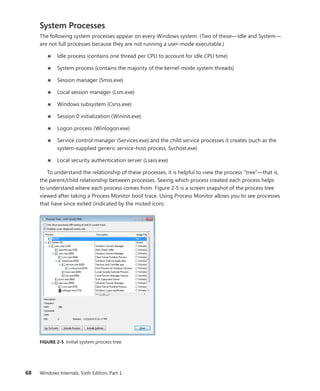
plemented in the kernel. Functions that can differ among systems within the same architecture
(for example, different motherboards) are implemented in the HAL. The only other component
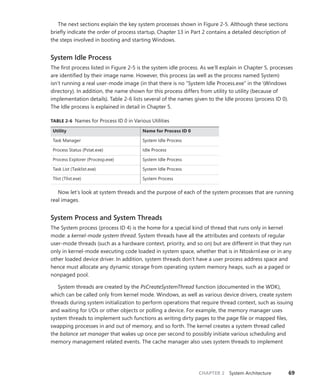
with a significant amount of architecture-specific code is the memory manager, but even that
is a small amount compared to the system as a whole.
■
■ The vast majority of Windows is written in C, with some portions in C++. Assembly language is
used only for those parts of the operating system that need to communicate directly with sys-
tem hardware (such as the interrupt trap handler) or that are extremely performance-­
sensitive
(such as context switching). Assembly language code exists not only in the kernel and the
HAL but also in a few other places within the core operating system (such as the routines that
implement interlocked instructions as well as one module in the local procedure call facility), in
the kernel-mode part of the Windows subsystem, and even in some user-mode libraries, such
as the process startup code in Ntdll.dll (a system library explained later in this chapter).
Symmetric Multiprocessing
Multitasking is the operating system technique for sharing a single processor among multiple threads
of execution. When a computer has more than one processor, however, it can execute multiple
threads simultaneously. Thus, whereas a multitasking operating system only appears to execute
multiple threads at the same time, a multiprocessing operating system actually does it, executing one
thread on each of its processors.
As mentioned at the beginning of this chapter, one of the key design goals for Windows was that it
had to run well on multiprocessor computer systems. Windows is a symmetric multiprocessing (SMP)
operating system. There is no master processor—the operating system as well as user threads can be
scheduled to run on any processor. Also, all the processors share just one memory space. This model
contrasts with asymmetric multiprocessing (ASMP), in which the operating system typically selects one
processor to execute operating system kernel code while other processors run only user code. The
differences in the two multiprocessing models are illustrated in Figure 2-2.
Windows also supports three modern types of multiprocessor systems: multicore, Hyper-Threading
enabled, and NUMA (non-uniform memory architecture). These are briefly mentioned in the ­
following
paragraphs. (For a complete, detailed description of the scheduling support for these systems, see the
thread scheduling section in Chapter 5, “Processes and Threads”.)
CHAPTER 2 System Architecture 39
Symmetric Asymmetric
Memory
Processor A Processor B
User
thread
User
thread
Operating
system
User
thread
User
thread
Operating
system
Operating
system
User
thread
User
thread
User
thread
Processor A Processor B
Memory
I/O devices I/O devices
FIGURE 2-2 Symmetric vs. asymmetric multiprocessing
Hyper-Threading is a technology introduced by Intel that provides two logical processors for each
physical core. Each logical processor has its own CPU state, but the execution engine and onboard
cache are shared. This permits one logical CPU to make progress while the other logical CPU is stalled
(such as after a cache miss or branch misprediction). The scheduling algorithms are enhanced to make
optimal use of Hyper-Threading-enabled machines, such as by scheduling threads on an idle ­
physical
processor versus choosing an idle logical processor on a physical processor whose other logical
­
processors are busy. For more details on thread scheduling, see Chapter 5.
In NUMA systems, processors are grouped in smaller units called nodes. Each node has its own
processors and memory and is connected to the larger system through a cache-coherent intercon-
nect bus. Windows on a NUMA system still runs as an SMP system, in that all processors have access
to all memory—it’s just that node-local memory is faster to reference than memory attached to other
nodes. The system attempts to improve performance by scheduling threads on processors that are
in the same node as the memory being used. It attempts to satisfy memory-allocation requests from
within the node, but it will allocate memory from other nodes if necessary.
Naturally, Windows also natively supports multicore systems—because these systems have real
physical cores (simply on the same package), the original SMP code in Windows treats them as
­
discrete processors, except for certain accounting and identification tasks (such as licensing, described
shortly) that distinguish between cores on the same processor and cores on different sockets.
40 Windows Internals, Sixth Edition, Part 1
Windows was not originally designed with a specific processor number limit in mind, other than
the licensing policies that differentiate the various Windows editions. However, for convenience and
efficiency, Windows does keep track of processors (total number, idle, busy, and other such details)
in a bitmask (sometimes called an affinity mask) that is the same number of bits as the native data
type of the machine (32-bit or 64-bit), which allows the processor to manipulate bits directly within a
register. Due to this fact, Windows systems were originally limited to the number of CPUs in a native
word, because the affinity mask couldn’t arbitrarily be increased. To maintain compatibility, as well as
support larger processor systems, Windows implements a higher-order construct called a processor
group. The processor group is a set of processors that can all be defined by a single affinity ­
bitmask,
and the kernel as well as the applications can choose which group they refer to during affinity
­
updates. Compatible applications can query the number of supported groups (currently limited to 4)
and then enumerate the bitmask for each group. Meanwhile, legacy applications continue to function
by seeing only their current group. More information on how exactly Windows assigns processors to
groups (which is also related to NUMA) is detailed in Chapter 5.
As mentioned, the actual number of supported licensed processors depends on the edition of
Windows being used. (See Table 2-2 later in this chapter.) This number is stored in the system ­license
policy file (WindowsServiceProfilesNetworkServiceAppDataRoamingMicrosoft
Software­
ProtectionPlatformtokens.dat) as a policy value called “Kernel-RegisteredProcessors.”
(Keep in mind that tampering with that data is a violation of the software license, and modifying
licensing policies to allow the use of more processors involves more than just changing this value.)
Scalability
One of the key issues with multiprocessor systems is scalability. To run correctly on an SMP system,
operating system code must adhere to strict guidelines and rules. Resource contention and other
­
performance issues are more complicated in multiprocessing systems than in uniprocessor systems
and must be accounted for in the system’s design. Windows incorporates several features that are
crucial to its success as a multiprocessor operating system:
■
■ The ability to run operating system code on any available processor and on multiple
­
processors at the same time
■
■ Multiple threads of execution within a single process, each of which can execute
­
simultaneously on different processors
■
■ Fine-grained synchronization within the kernel (such as spinlocks, queued spinlocks, and
pushlocks, described in Chapter 3) as well as within device drivers and server processes, which
allows more components to run concurrently on multiple processors
■
■ Programming mechanisms such as I/O completion ports (described in Chapter 8, “I/O System,”
in Part 2) that facilitate the efficient implementation of multithreaded server processes that
can scale well on multiprocessor systems
CHAPTER 2 System Architecture 41
The scalability of the Windows kernel has evolved over time. For example, Windows Server 2003
introduced per-CPU scheduling queues, which permit thread scheduling decisions to occur in parallel
on multiple processors. Windows 7 and Windows Server 2008 R2 eliminated global locking on the
scheduling database. This step-wise improvement of the granularity of locking has also occurred in
other areas, such as the memory manager. Further details on multiprocessor synchronization can be
found in Chapter 3.
Differences Between Client and Server Versions
Windows ships in both client and server retail packages. As of this writing, there are six client
­
versions of Windows 7: Windows 7 Home Basic, Windows 7 Home Premium, Windows 7 Professional,
­
Windows 7 Ultimate, Windows 7 Enterprise, and Windows 7 Starter.
There are seven different versions of Windows Server 2008 R2: Windows Server 2008 R2
­
Foundation, Windows Server 2008 R2 Standard, Windows Server 2008 R2 Enterprise, Windows Server
2008 R2 Datacenter, Windows Web Server 2008 R2, Windows HPC Server 2008 R2, and Windows
Server 2008 R2 for Itanium-Based Systems (which is the last release of Windows to support the Intel
Itanium processor).
Additionally, there are “N” versions of the client that do not include Windows Media Player. Finally,
the Standard, Enterprise, and Datacenter editions of Windows Server 2008 R2 also include “with
Hyper-V” editions, which include Hyper-V. (Hyper-V virtualization is discussed in Chapter 3.)
These versions differ by
■
■ The number of processors supported (in terms of sockets, not cores or threads)
■
■ The amount of physical memory supported (actually highest physical address usable for
RAM—see Chapter 10 in Part 2 for more information on physical memory limits)
■
■ The number of concurrent network connections supported (For example, a maximum of 10
concurrent connections are allowed to the file and print services in the client version.)
■
■ Support for Media Center
■
■ Support for Multi-Touch, Aero, and Desktop Compositing
■
■ Support for features such as BitLocker, VHD Booting, AppLocker, Windows XP Compatibility
Mode, and more than 100 other configurable licensing policy values
■
■ Layered services that come with Windows Server editions that don’t come with the client
­
editions (for example, directory services and clustering)
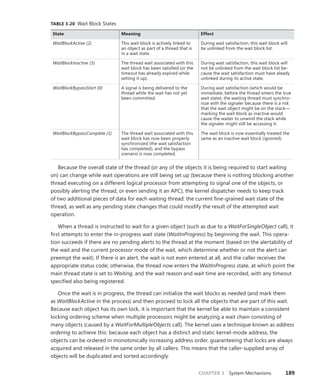
Table 2-2 lists the differences in memory and processor support for Windows 7 and Windows
Server 2008 R2. For a detailed comparison chart of the different editions of Windows Server 2008 R2,
see www.microsoft.com/windowsserver2008/en/us/r2-compare-specs.aspx.
42 Windows Internals, Sixth Edition, Part 1
TABLE 2-2 Differences Between Windows 7 and Windows Server 2008 R2
Number
of Sockets
Supported
(32-Bit Edition)
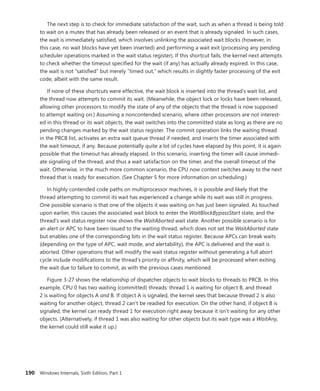
Physical
Memory
Supported
(32-Bit Edition)
Number
of Sockets
Supported
(64-Bit Edition)
Physical
Memory
Supported
(Itanium
Editions)
Physical Memory
Supported
(x64 Editions)
Windows 7 Starter 1 2 GB Not available Not available 2 GB
Windows 7 Home
Basic
1 4 GB 1 Not available 8 GB
Windows 7 Home
Premium
1 4 GB 1 Not available 16 GB
Windows 7
Professional
2 4 GB 2 Not available 192 GB
Windows 7
Enterprise
2 4 GB 2 Not available 192 GB
Windows 7
Ultimate
2 4 GB 2 Not available 192 GB
Windows
Server 2008 R2
Foundation
Not available Not available 1 Not available 8 GB
Windows Web
Server 2008 R2
Not available Not available 4 Not available 32 GB
Windows Server
2008 R2 Standard
Not available Not available 4 Not available 32 GB
Windows HPC
Server 2008 R2
Not available Not available 4 Not available 128 GB
Windows Server
2008 R2 Enterprise
Not available Not available 8 Not available 2048 GB
Windows
Server 2008 R2
Datacenter
Not available Not available 64 Not available 2048 GB
Windows Server
2008 R2 for
Itanium-Based
Systems
Not available Not available 64 2048 GB Not available
Although there are several client and server retail packages of the Windows operating system, they
share a common set of core system files, including the kernel image, Ntoskrnl.exe (and the PAE ver-
sion, Ntkrnlpa.exe); the HAL libraries; the device drivers; and the base system utilities and DLLs. These
files are identical for all editions of Windows 7 and Windows Server 2008 R2.
With so many different editions of Windows and each having the same kernel image, how does the
system know which edition is booted? By querying the registry values ProductType and ­
ProductSuite
under the HKLMSYSTEMCurrentControlSetControlProductOptions key. ProductType is used to
distinguish whether the system is a client system or a server system (of any flavor). These values are
CHAPTER 2 System Architecture 43
loaded into the registry based on the licensing policy file described earlier. The valid values are listed
in Table 2-3. This can be queried from the user-mode GetVersionEx function or from a device driver
using the kernel-mode support function RtlGetVersion.
TABLE 2-3 ProductType Registry Values
Edition of Windows Value of ProductType
Windows client WinNT
Windows server (domain controller) LanmanNT
Windows server (server only) ServerNT
A different registry value, ProductPolicy, contains a cached copy of the data inside the tokens.dat
file, which differentiates between the editions of Windows and the features that they enable.
If user programs need to determine which edition of Windows is running, they can call the
Windows VerifyVersionInfo function, documented in the Windows Software Development Kit (SDK).
Device drivers can call the kernel-mode function RtlVerifyVersionInfo, documented in the WDK.
So if the core files are essentially the same for the client and server versions, how do the systems
differ in operation? In short, server systems are optimized by default for system throughput as high-
performance application servers, whereas the client version (although it has server capabilities) is
optimized for response time for interactive desktop use. For example, based on the product type,
several resource allocation decisions are made differently at system boot time, such as the size and
number of operating system heaps (or pools), the number of internal system worker threads, and the
size of the system data cache. Also, run-time policy decisions, such as the way the memory manager
trades off system and process memory demands, differ between the server and client editions. Even
some thread scheduling details have different default behavior in the two families (the default length
of the time slice, or thread quantum—see Chapter 5 for details). Where there are significant opera-
tional differences in the two products, these are highlighted in the pertinent chapters throughout the
rest of this book. Unless otherwise noted, everything in this book applies to both the client and server
versions.
EXPERIMENT: Determining Features Enabled by Licensing Policy
As mentioned earlier, Windows supports more than 100 different features that can be enabled
through the software licensing mechanism. These policy settings determine the various differ-
ences not only between a client and server installation, but also between each edition (or SKU)
of the operating system, such as BitLocker support (available on Windows server as well as the
Ultimate and Enterprise editions of Windows client). You can use the SlPolicy tool available from
Winsider Seminars & Solutions (www.winsiderss.com/tools/slpolicy.htm) to display these policy
values on your machine.
44 Windows Internals, Sixth Edition, Part 1
Policy settings are organized by a facility, which represents the owner module for which the
policy applies. You can display a list of all facilities on your system by running Slpolicy.exe with
the –f switch:
C:>SlPolicy.exe -f
SlPolicy v1.05 - Show Software Licensing Policies
Copyright (C) 2008-2011 Winsider Seminars & Solutions Inc.
www.winsiderss.com
Software Licensing Facilities:
Kernel
Licensing and Activation
Core
DWM
SMB
IIS
.
.
.
You can then add the name of any facility after the switch to display the policy value for that
facility. For example, to look at the limitations on CPUs and available memory, use the Kernel
facility. Here’s the expected output on a machine running Windows 7 Ultimate:
C:>SlPolicy.exe -f Kernel
SlPolicy v1.05 - Show Software Licensing Policies
Copyright (C) 2008-2011 Winsider Seminars & Solutions Inc.
www.winsiderss.com
Kernel
------
Processor Limit: 2
Maximum Memory Allowed (x86): 4096
Maximum Memory Allowed (x64): 196608
Maximum Memory Allowed (IA64): 196608
Maximum Physical Page: 4096
Addition of Physical Memory Allowed: No
Addition of Physical Memory Allowed, if virtualized: Yes
Product Information: 1
Dynamic Partitioning Supported: No
Virtual Dynamic Partitioning Supported: No
Memory Mirroring Supported: No
Native VHD Boot Supported: Yes
Bad Memory List Persistance Supported: No
Number of MUI Languages Allowed: 1000
List of Allowed Languages: EMPTY
List of Disallowed Languages: EMPTY
MUI Language SKU:
Expiration Date: 0
CHAPTER 2 System Architecture 45
Checked Build
There is a special debug version of Windows called the checked build (available only with an MSDN
Operating Systems subscription). It is a recompilation of the Windows source code with a compile-
time flag defined called “DBG” (to cause compile-time, conditional debugging and tracing code to
be included). Also, to make it easier to understand the machine code, the post-processing of the
Windows binaries to optimize code layout for faster execution is not performed. (See the section
“­
Debugging Performance-Optimized Code” in the Debugging Tools for Windows help file.)
The checked build is provided primarily to aid device driver developers because it performs more
stringent error checking on kernel-mode functions called by device drivers or other system code.
For example, if a driver (or some other piece of kernel-mode code) makes an invalid call to a system
function that is checking parameters (such as acquiring a spinlock at the wrong interrupt level), the
system will stop execution when the problem is detected rather than allow some data structure to be
corrupted and the system to possibly crash at a later time.
EXPERIMENT: Determining If You Are Running the Checked Build
There is no built-in tool to display whether you are running the checked build or the retail build
(called the free build). However, this information is available through the “Debug” property of
the Windows Management Instrumentation (WMI) Win32_OperatingSystem class. The following
sample Microsoft Visual Basic script displays this property:
strComputer = "."
Set objWMIService = GetObject("winmgmts:" _
& "{impersonationLevel=impersonate}!" & strComputer & "rootcimv2")
Set colOperatingSystems = objWMIService.ExecQuery _
("SELECT * FROM Win32_OperatingSystem")
For Each objOperatingSystem in colOperatingSystems
Wscript.Echo "Caption: " & objOperatingSystem.Caption
Wscript.Echo "Debug: " & objOperatingSystem.Debug
Wscript.Echo "Version: " & objOperatingSystem.Version
Next
To try this, type in the preceding script and save it as file. The following is the output from
running the script:
C:>cscript osversion.vbs
Microsoft (R) Windows Script Host Version 5.8
Copyright (C) Microsoft Corporation. All rights reserved.
Caption: Microsoft Windows Server 2008 R2 Enterprise
Debug: False
Version: 6.1.7600
This system is not running the checked build, because the Debug flag shown here says False.
Much of the additional code in the checked-build binaries is a result of using the ASSERT and/or
NT_ASSERT macros, which are defined in the WDK header file Wdm.h and documented in the WDK
documentation. These macros test a condition (such as the validity of a data structure or parameter),
46 Windows Internals, Sixth Edition, Part 1
and if the expression evaluates to FALSE, the macros call the kernel-mode function RtlAssert, which
calls DbgPrintEx to send the text of the debug message to a debug message buffer. If a kernel debug-
ger is attached, this message is displayed automatically followed by a prompt asking the user what
to do about the assertion failure (breakpoint, ignore, terminate process, or terminate thread). If the
system wasn’t booted with the kernel debugger (using the debug option in the Boot Configuration
Database—BCD) and no kernel debugger is currently attached, failure of an ASSERT test will bug-
check the system. For a list of ASSERT checks made by some of the kernel support routines, see the
section “Checked Build ASSERTs” in the WDK documentation.
The checked build is also useful for system administrators because of the additional detailed
informational tracing that can be enabled for certain components. (For detailed instructions, see the
Microsoft Knowledge Base Article number 314743, titled HOWTO: Enable Verbose Debug Tracing in
Various Drivers and Subsystems.) This information output is sent to an internal debug message buffer
using the DbgPrintEx function referred to earlier. To view the debug messages, you can either attach a
kernel debugger to the target system (which requires booting the target system in debugging mode),
use the !dbgprint command while performing local kernel debugging, or use the Dbgview.exe tool
from Sysinternals (www.microsoft.com/technet/sysinternals).
You don’t have to install the entire checked build to take advantage of the debug version of the
operating system. You can just copy the checked version of the kernel image (Ntoskrnl.exe) and
the appropriate HAL (Hal.dll) to a normal retail installation. The advantage of this approach is that
device drivers and other kernel code get the rigorous checking of the checked build without ­
having
to run the slower debug versions of all components in the system. For detailed instructions on how
to do this, see the section “Installing Just the Checked Operating System and HAL” in the WDK
­documentation.
Finally, the checked build can also be useful for testing user-mode code only because the timing of
the system is different. (This is because of the additional checking taking place within the kernel and
the fact that the components are compiled without optimizations.) Often, multithreaded synchroni-
zation bugs are related to specific timing conditions. By running your tests on a system running the
checked build (or at least the checked kernel and HAL), the fact that the timing of the whole system is
different might cause latent timing bugs to surface that do not occur on a normal retail system.
Key System Components
Now that we’ve looked at the high-level architecture of Windows, let’s delve deeper into the internal
structure and the role each key operating system component plays. Figure 2-3 is a more detailed and
complete diagram of the core Windows system architecture and components than was shown earlier
in the chapter (in Figure 2-1). Note that it still does not show all components (networking in particular,
which is explained in Chapter 7, “Networking.”
The following sections elaborate on each major element of this diagram. Chapter 3 explains the
primary control mechanisms the system uses (such as the object manager, interrupts, and so forth).
Chapter 13, “Startup and Shutdown,” in Part 2 describes the process of starting and shutting down
CHAPTER 2 System Architecture 47
Windows, and Chapter 4 details management mechanisms such as the registry, service processes,
and Windows Management Instrumentation. Other chapters explore in even more detail the internal
structure and operation of key areas such as processes and threads, memory management, security,
the I/O manager, storage management, the cache manager, the Windows file system (NTFS), and
networking.
System Processes
Services Applications Environment
Subsystems
Windows
SUA
Windows DLLs
NTDLL.DLL
System Service Dispatcher
(Kernel mode callable interfaces)
I/O
manager
Plug
and
Play
manager
Object
manager
Cache
manager
Security
reference
monitor
Memory
manager
Process
manager
Configuration
manager
Advanced
local
procedure
call
Windows
USER,
GDI
Graphics
drivers
Hardware abstraction layer (HAL)
Hardware interfaces (buses, I/O devices, interrupts,
interval timers, DMA, memory cache control, etc.)
System
threads
User
application
Subsystem DLLs
Device
and file
system
drivers
Kernel
User mode
Kernel mode
Windows DLLs
Windows DLLs
Windows DLLs
Windows DLLs
Service host
Windows DLLs
Print spooler
Session
manager
Windows DLLs
Local session
manager
Windows DLLs
Service control
manager
Local Security
Authority
Windows DLLs
Windows DLLs
Winlogon
Windows DLLs
Wininit
FIGURE 2-3 Windows architecture
48 Windows Internals, Sixth Edition, Part 1
Environment Subsystems and Subsystem DLLs
The role of an environment subsystem is to expose some subset of the base Windows executive
system services to application programs. Each subsystem can provide access to different subsets of
the native services in Windows. That means that some things can be done from an application built
on one subsystem that can’t be done by an application built on another subsystem. For example, a
Windows application can’t use the SUA fork function.
Each executable image (.exe) is bound to one and only one subsystem. When an image is run, the
process creation code examines the subsystem type code in the image header so that it can notify the
proper subsystem of the new process. This type code is specified with the /SUBSYSTEM qualifier of the
link command in Microsoft Visual C++.
As mentioned earlier, user applications don’t call Windows system services directly. Instead, they
go through one or more subsystem DLLs. These libraries export the documented interface that the
programs linked to that subsystem can call. For example, the Windows subsystem DLLs (such as
Kernel32.dll, Advapi32.dll, User32.dll, and Gdi32.dll) implement the Windows API functions. The SUA
subsystem DLL (Psxdll.dll) implements the SUA API functions.
EXPERIMENT: Viewing the Image Subsystem Type
You can see the image subsystem type by using the Dependency Walker tool (Depends.exe)
(available at www.dependencywalker.com). For example, notice the image types for two different
Windows images, Notepad.exe (the simple text editor) and Cmd.exe (the Windows command
prompt):
This shows that Notepad is a GUI program, while Cmd is a console, or character-based,
program. And although this implies there are two different subsystems for GUI and character-
based programs, there is just one Windows subsystem, and GUI programs can have consoles,
just like console programs can display GUIs.
CHAPTER 2 System Architecture 49
When an application calls a function in a subsystem DLL, one of three things can occur:
■
■ The function is entirely implemented in user mode inside the subsystem DLL. In other words,
no message is sent to the environment subsystem process, and no Windows executive system
services are called. The function is performed in user mode, and the results are returned
to the caller. Examples of such functions include GetCurrentProcess (which always returns
–1, a value that is defined to refer to the current process in all process-related functions)
and ­
GetCurrentProcessId. (The process ID doesn’t change for a running process, so this ID is
­
retrieved from a cached location, thus avoiding the need to call into the kernel.)
■
■ The function requires one or more calls to the Windows executive. For example, the Windows
ReadFile and WriteFile functions involve calling the underlying internal (and undocumented)
Windows I/O system services NtReadFile and NtWriteFile, respectively.
■
■ The function requires some work to be done in the environment subsystem process. (The
environment subsystem processes, running in user mode, are responsible for maintaining the
state of the client applications running under their control.) In this case, a client/server request
is made to the environment subsystem via a message sent to the subsystem to perform some
operation. The subsystem DLL then waits for a reply before returning to the caller.
Some functions can be a combination of the second and third items just listed, such as the
­Windows CreateProcess and CreateThread functions.
Subsystem Startup
Subsystems are started by the Session Manager (Smss.exe) process. The subsystem startup
­
information is stored under the registry key HKLMSYSTEMCurrentControlSetControl
Session ManagerSubSystems. Figure 2-4 shows the values under this key.
FIGURE 2-4 Registry Editor showing Windows startup information
The Required value lists the subsystems that load when the system boots. The value has two
strings: Windows and Debug. The Windows value contains the file specification of the Windows
subsystem, Csrss.exe, which stands for Client/Server Run-Time Subsystem. Debug is blank (because
it’s used for internal testing) and therefore does nothing. The Optional value indicates that the
50 Windows Internals, Sixth Edition, Part 1
SUA subsystem will be started on demand. The registry value Kmode contains the file name of the
­
kernel-mode portion of the Windows subsystem, Win32k.sys (explained later in this chapter).
Let’s take a closer look at each of the environment subsystems.
Windows Subsystem
Although Windows was designed to support multiple, independent environment subsystems, from
a practical perspective, having each subsystem implement all the code to handle windowing and
display I/O would result in a large amount of duplication of system functions that, ultimately, would
negatively affect both system size and performance. Because Windows was the primary subsystem,
the Windows designers decided to locate these basic functions there and have the other subsystems
call on the Windows subsystem to perform display I/O. Thus, the SUA subsystem calls services in the
Windows subsystem to perform display I/O.
As a result of this design decision, the Windows subsystem is a required component for any
­
Windows system, even on server systems with no interactive users logged in. Because of this, the
­
process is marked as a critical process (which means if for any reason it exits, the system crashes).
The Windows subsystem consists of the following major components:
■
■ For each session, an instance of the environment subsystem process (Csrss.exe) loads three
DLLs (Basesrv.dll, Winsrv.dll, and Csrsrv.dll) that contain support for the following:
• Creating and deleting processes and threads
• Portions of the support for 16-bit virtual DOS machine (VDM) processes (32-bit Windows
only)
• Side-by-Side (SxS)/Fusion and manifest support
• Other miscellaneous functions—such as GetTempFile, DefineDosDevice, ExitWindowsEx, and
several natural language support functions
■
■ A kernel-mode device driver (Win32k.sys) that contains the following:
• The window manager, which controls window displays; manages screen output; collects
input from keyboard, mouse, and other devices; and passes user messages to applications.
• The Graphics Device Interface (GDI), which is a library of functions for graphics
­
output ­
devices. It includes functions for line, text, and figure drawing and for graphics
­manipulation.
• Wrappers for DirectX support that is implemented in another kernel driver (Dxgkrnl.sys).
■
■ The console host process (Conhost.exe), which provides support for console (character cell)
applications.
■
■ Subsystem DLLs (such as Kernel32.dll, Advapi32.dll, User32.dll, and Gdi32.dll) that ­
translate
documented Windows API functions into the appropriate and mostly undocumented
­
kernel-mode system service calls in Ntoskrnl.exe and Win32k.sys.
CHAPTER 2 System Architecture 51
■
■ Graphics device drivers for hardware-dependent graphics display drivers, printer drivers, and
video miniport drivers.
Note As part of a refactoring effort in the Windows architecture called MinWin, the
­
subsystem DLLs are now generally composed of specific libraries that implement API
Sets, which are then linked together into the subsystem DLL and resolved using a special
redirection scheme. More information on this refactoring is available in Chapter 5 in the
“Image Loader” section.
Applications call the standard USER functions to create user interface controls, such as windows
and buttons, on the display. The window manager communicates these requests to the GDI, which
passes them to the graphics device drivers, where they are formatted for the display device. A display
driver is paired with a video miniport driver to complete video display support.
The GDI provides a set of standard two-dimensional functions that let applications communicate
with graphics devices without knowing anything about the devices. GDI functions mediate between
applications and graphics devices such as display drivers and printer drivers. The GDI interprets appli-
cation requests for graphic output and sends the requests to graphics display drivers. It also provides
a standard interface for applications to use varying graphics output devices. This interface enables
application code to be independent of the hardware devices and their drivers. The GDI tailors its mes-
sages to the capabilities of the device, often dividing the request into manageable parts. For example,
some devices can understand directions to draw an ellipse; others require the GDI to interpret the
command as a series of pixels placed at certain coordinates. For more information about the graphics
and video driver architecture, see the “Design Guide” section of the “Display (Adapters and Monitors)”
chapter in the Windows Driver Kit.
Because much of the subsystem—in particular, display I/O functionality—runs in kernel mode, only
a few Windows functions result in sending a message to the Windows subsystem process: ­
process
and thread creation and termination, network drive letter mapping, and creation of temporary files.
In general, a running Windows application won’t be causing many, if any, context switches to the
­
Windows subsystem process.
Console Window Host
In the original Windows subsystem design, the subsystem process (Csrss.exe) was ­
responsible
for the managing of console windows and each console application (such as Cmd.exe, the
­
command prompt) communicated with Csrss. Windows now uses a separate process, the
console window host (Conhost.exe), for each console window on the system. (A single console
window can be shared by multiple console applications, such as when you launch a command
prompt from the command prompt. By default, the second command prompt shares the
­
console window of the first.)
52 Windows Internals, Sixth Edition, Part 1
Whenever a console application registers itself with the Csrss instance running in the current
session, Csrss creates a new instance of Conhost using the client process’ security token instead
of Csrss’ System token. It then maps a shared memory section that is used to allow all Conhosts
to share part of their memory with Csrss for efficient buffer handling (because these threads do
not live within Csrss anymore) and creates a named Asynchronous Local Procedure Call (ALPC)
port in the RPC Control object directory. (For more information on ALPC, see ­
Chapter 3.) The
name of the port is of the format console-PID-lpc-handle, where PID is the process ID of the
Conhost process. It then registers its PID with the kernel process structure associated with
the user application, which can then query this information to open the newly created ALPC
port. This process also creates a mapping of a shared section memory object between the
­
command-line application and its Conhost so that the two can share data. Finally, a wait event
is created in the session 0 BaseNamedObjects directory (named ConsoleEvent-PID) so that
the command-line application and the Conhost can notify each other of new buffer data. The
­
following figure shows a Conhost process with handles open to its ALPC port and event.
Because the Conhost is running with the user’s credentials (which also implies the user’s
privilege level), as well as in a process associated with the console application itself, the User
Interface Privilege Isolation (UIPI, described in Chapter 6, “Security”) security mechanism
covers console processes. In addition, CPU-bound console applications can be identified
with their supporting console host process (which a user can kill if needed). As a side effect,
­
because ­
Conhost processes now run outside the special enclave of the Csrss subsystem, console
­
applications (whose windows are actually owned by Conhost) can be fully themed, load third-
party DLLs, and run with full windowing capabilities.
CHAPTER 2 System Architecture 53
Subsystem for Unix-based Applications
The Subsystem for UNIX-based Applications (SUA) enables compiling and running custom
­
UNIX-based applications on a computer running Windows Server or the Enterprise or Ultimate
editions of Windows client. SUA provides nearly 2000 UNIX functions and 300 UNIX-like tools and
utilities. (See http://technet.microsoft.com/en-us/library/cc771470.aspx for more information on SUA.)
For more information on how Windows handles running SUA applications, see the section “Flow of
­
CreateProcess” in Chapter 5.
Original POSIX Subsystem
POSIX, an acronym loosely defined as “a portable operating system interface based on UNIX,”
refers to a collection of international standards for UNIX-style operating system interfaces. The
POSIX standards encourage vendors implementing UNIX-style interfaces to make them com-
patible so that programmers can move their applications easily from one system to another.
Windows initially implemented only one of the many POSIX standards, POSIX.1, formally
known as ISO/IEC 9945-1:1990 or IEEE POSIX standard 1003.1-1990. This standard was included
primarily to meet U.S. government procurement requirements set in the mid-to-late 1980s that
mandated POSIX.1 compliance as specified in Federal Information Processing Standard (FIPS)
151-2, developed by the National Institute of Standards and Technology. Windows NT 3.5, 3.51,
and 4 were formally tested and certified according to FIPS 151-2.
Because POSIX.1 compliance was a mandatory goal for Windows, the operating system
was designed to ensure that the required base system support was present to allow for the
implementation of a POSIX.1 subsystem (such as the fork function, which is implemented in the
Windows executive, and the support for hard file links in the Windows file system).
Ntdll.dll
Ntdll.dll is a special system support library primarily for the use of subsystem DLLs. It contains two
types of functions:
■
■ System service dispatch stubs to Windows executive system services
■
■ Internal support functions used by subsystems, subsystem DLLs, and other native images
The first group of functions provides the interface to the Windows executive system services
that can be called from user mode. There are more than 400 such functions, such as NtCreateFile,
­
NtSetEvent, and so on. As noted earlier, most of the capabilities of these functions are accessible
through the Windows API. (A number are not, however, and are for use only within the operating
system.)
54 Windows Internals, Sixth Edition, Part 1
For each of these functions, Ntdll contains an entry point with the same name. The code inside
the function contains the architecture-specific instruction that causes a transition into kernel mode
to invoke the system service dispatcher (explained in more detail in Chapter 3), which, after verify-
ing some parameters, calls the actual kernel-mode system service that contains the real code inside
Ntoskrnl.exe.
Ntdll also contains many support functions, such as the image loader (functions that start with Ldr),
the heap manager, and Windows subsystem process communication functions (functions that start
with Csr). Ntdll also includes general run-time library routines (functions that start with Rtl), support
for user-mode debugging (functions that start with DbgUi), and Event Tracing for Windows (functions
starting in Etw), and the user-mode asynchronous procedure call (APC) dispatcher and exception
dispatcher. (APCs and exceptions are explained in Chapter 3.) Finally, you’ll find a small subset of the
C Run-Time (CRT) routines in Ntdll, limited to those routines that are part of the string and standard
libraries (such as memcpy, strcpy, itoa, and so on).
Executive
The Windows executive is the upper layer of Ntoskrnl.exe. (The kernel is the lower layer.) The
­
executive includes the following types of functions:
■
■ Functions that are exported and callable from user mode. These functions are called
­
system services and are exported via Ntdll. Most of the services are accessible through the
­
Windows API or the APIs of another environment subsystem. A few services, however, aren’t
­
available through any documented subsystem function. (Examples include ALPC and vari-
ous query functions such as NtQueryInformationProcess, specialized functions such as
­
NtCreatePagingFile, and so on.)
■
■ Device driver functions that are called through the use of the DeviceIoControl function. This
provides a general interface from user mode to kernel mode to call functions in device drivers
that are not associated with a read or write.
■
■ Functions that can be called only from kernel mode that are exported and are documented in
the WDK.
■
■ Functions that are exported and callable from kernel mode but are not documented in the
WDK (such as the functions called by the boot video driver, which start with Inbv).
■
■ Functions that are defined as global symbols but are not exported. These include ­
internal
­
support functions called within Ntoskrnl, such as those that start with Iop (internal I/O
­
manager support functions) or Mi (internal memory management support functions).
■
■ Functions that are internal to a module that are not defined as global symbols.
The executive contains the following major components, each of which is covered in detail in a
subsequent chapter of this book:
■
■ The configuration manager (explained in Chapter 4) is responsible for implementing and
­
managing the system registry.
CHAPTER 2 System Architecture 55
■
■ The process manager (explained in Chapter 5) creates and terminates processes and threads.
The underlying support for processes and threads is implemented in the Windows kernel; the
executive adds additional semantics and functions to these lower-level objects.
■
■ The security reference monitor (or SRM, described in Chapter 6) enforces security policies
on the local computer. It guards operating system resources, performing run-time object
­
protection and auditing.
■
■ The I/O manager (explained in Chapter 8 in Part 2) implements device-independent I/O and is
responsible for dispatching to the appropriate device drivers for further processing.
■
■ The Plug and Play (PnP) manager (explained in Chapter 8 in Part 2) determines which drivers
are required to support a particular device and loads those drivers. It retrieves the hardware
resource requirements for each device during enumeration. Based on the resource require-
ments of each device, the PnP manager assigns the appropriate hardware resources such as
I/O ports, IRQs, DMA channels, and memory locations. It is also responsible for sending proper
event notification for device changes (addition or removal of a device) on the system.
■
■ The power manager (explained in Chapter 8 in Part 2) coordinates power events and ­
generates
power management I/O notifications to device drivers. When the system is idle, the power
manager can be configured to reduce power consumption by putting the CPU to sleep.
Changes in power consumption by individual devices are handled by device drivers but are
coordinated by the power manager.
■
■ The Windows Driver Model Windows Management Instrumentation routines (explained in
Chapter 4) enable device drivers to publish performance and configuration information and
receive commands from the user-mode WMI service. Consumers of WMI information can be
on the local machine or remote across the network.
■
■ The cache manager (explained in Chapter 11, “Cache Manager,” in Part 2) improves the
­
performance of file-based I/O by causing recently referenced disk data to reside in main
memory for quick access (and by deferring disk writes by holding the updates in memory for
a short time before sending them to the disk). As you’ll see, it does this by using the memory
manager’s support for mapped files.
■
■ The memory manager (explained in Chapter 10 in Part 2) implements virtual memory, a
­
memory management scheme that provides a large, private address space for each pro-
cess that can exceed available physical memory. The memory manager also provides the
­
underlying support for the cache manager.
■
■ The logical prefetcher and Superfetch (explained in Chapter 10 in Part 2) accelerate system and
process startup by optimizing the loading of data referenced during the startup of the system
or a process.
56 Windows Internals, Sixth Edition, Part 1
In addition, the executive contains four main groups of support functions that are used by the
­
executive components just listed. About a third of these support functions are documented in the
WDK because device drivers also use them. These are the four categories of support functions:
■
■ The object manager, which creates, manages, and deletes Windows executive objects and
abstract data types that are used to represent operating system resources such as ­
processes,
threads, and the various synchronization objects. The object manager is explained in
­Chapter 3.
■
■ The Advanced LPC facility (ALPC, explained in Chapter 3) passes messages between a client
process and a server process on the same computer. Among other things, ALPC is used as a
­
local transport for remote procedure call (RPC), an industry-standard communication facility
for client and server processes across a network.
■
■ A broad set of common run-time library functions, such as string processing, arithmetic
­
operations, data type conversion, and security structure processing.
■
■ Executive support routines, such as system memory allocation (paged and nonpaged
pool), ­
interlocked memory access, as well as three special types of synchronization objects:
­
resources, fast mutexes, and pushlocks.
The executive also contains a variety of other infrastructure routines, some of which we will
­
mention only briefly throughout the book:
■
■ The kernel debugger library, which allows debugging of the kernel from a debugger
­
supporting KD, a portable protocol supported over a variety of transports (such as USB and
IEEE 1394) and implemented by WinDbg and the Kd.exe utilities.
■
■ The user-mode debugging framework, which is responsible for sending events to the
­
user-mode debugging API and allowing breakpoints and stepping through code to work, as
well as for changing contexts of running threads.
■
■ The kernel transaction manager, which provides a common, two-phase commit mechanism to
resource managers, such as the transactional registry (TxR) and transactional NTFS (TxF).
■
■ The hypervisor library, part of the Hyper-V stack in Windows Server 2008, provides kernel
support for the virtual machine environment and optimizes certain parts of the code when the
system knows it’s running in a client partition (virtual environment).
■
■ The errata manager provides workarounds for nonstandard or noncompliant hardware
­devices.
■
■ The Driver Verifier implements optional integrity checks of kernel-mode drivers and code.
■
■ Event Tracing for Windows provides helper routines for systemwide event tracing for
­
kernel-mode and user-mode components.
■
■ The Windows diagnostic infrastructure enables intelligent tracing of system activity based on
diagnostic scenarios.
CHAPTER 2 System Architecture 57
■
■ The Windows hardware error architecture support routines provide a common framework for
reporting hardware errors.
■
■ The file-system runtime library provides common support routines for file system drivers.
Kernel
The kernel consists of a set of functions in Ntoskrnl.exe that provides fundamental mechanisms (such
as thread scheduling and synchronization services) used by the executive components, as well as
­
low-level hardware architecture–dependent support (such as interrupt and exception ­
dispatching)
that is different on each processor architecture. The kernel code is written primarily in C, with
­
assembly code reserved for those tasks that require access to specialized processor instructions and
registers not easily accessible from C.
Like the various executive support functions mentioned in the preceding section, a number of
functions in the kernel are documented in the WDK (and can be found by searching for functions
beginning with Ke) because they are needed to implement device drivers.
Kernel Objects
The kernel provides a low-level base of well-defined, predictable operating system primitives and
mechanisms that allow higher-level components of the executive to do what they need to do. The
kernel separates itself from the rest of the executive by implementing operating system mechanisms
and avoiding policy making. It leaves nearly all policy decisions to the executive, with the exception of
thread scheduling and dispatching, which the kernel implements.
Outside the kernel, the executive represents threads and other shareable resources as objects.
These objects require some policy overhead, such as object handles to manipulate them, security
checks to protect them, and resource quotas to be deducted when they are created. This overhead is
eliminated in the kernel, which implements a set of simpler objects, called kernel objects, that help the
kernel control central processing and support the creation of executive objects. Most executive-level
objects encapsulate one or more kernel objects, incorporating their kernel-defined attributes.
One set of kernel objects, called control objects, establishes semantics for controlling various
­
operating system functions. This set includes the APC object, the deferred procedure call (DPC) object,
and several objects the I/O manager uses, such as the interrupt object.
Another set of kernel objects, known as dispatcher objects, incorporates synchronization
­
capabilities that alter or affect thread scheduling. The dispatcher objects include the kernel thread,
mutex (called mutant internally), event, kernel event pair, semaphore, timer, and waitable timer. The
executive uses kernel functions to create instances of kernel objects, to manipulate them, and to
construct the more complex objects it provides to user mode. Objects are explained in more detail in
Chapter 3, and processes and threads are described in Chapter 5.
58 Windows Internals, Sixth Edition, Part 1
Kernel Processor Control Region and Control Block (KPCR and KPRCB)
The kernel uses a data structure called the processor control region, or KPCR, to store
­
processor-­
specific data. The KPCR contains basic information such as the processor’s interrupt
dispatch table (IDT), task-state segment (TSS), and global descriptor table (GDT). It also includes the
interrupt controller state, which it shares with other modules, such as the ACPI driver and the HAL. To
­
provide easy access to the KPCR, the kernel stores a pointer to it in the fs register on 32-bit Windows
and in the gs register on an x64 Windows system. On IA64 systems, the KPCR is always located at
0xe0000000ffff0000.
The KPCR also contains an embedded data structure called the kernel processor control block
(KPRCB). Unlike the KPCR, which is documented for third-party drivers and other internal Windows
kernel components, the KPRCB is a private structure used only by the kernel code in Ntoskrnl.exe. It
contains scheduling information such as the current, next, and idle threads scheduled for execution
on the processor; the dispatcher database for the processor (which includes the ready queues for each
priority level); the DPC queue; CPU vendor and identifier information (model, stepping, speed, feature
bits); CPU and NUMA topology (node information, cores per package, logical processors per core, and
so on); cache sizes; time accounting information (such as the DPC and interrupt time); and more. The
KPRCB also contains all the statistics for the processor, such as I/O statistics, cache manager statistics
(see Chapter 11, “Cache Manager,” in Part 2 for a description of these), DPC statistics, and memory
manager statistics. (See Chapter 10 in Part 2 for more information.) Finally, the KPRCB is ­
sometimes
used to store cache-aligned, per-processor structures to optimize memory access, especially on
NUMA systems. For example, the nonpaged and paged-pool system look-aside lists are stored in
the KPRCB.
EXPERIMENT: Viewing the KPCR and KPRCB
You can view the contents of the KPCR and KPRCB by using the !pcr and !prcb kernel debugger
commands. If you don’t include flags, the debugger will display information for CPU 0 by de-
fault; otherwise, you can specify a CPU by adding its number after the command (for example,
!pcr 2). The following example shows what the output of the !pcr and !prcb commands looks
like. If the system had pending DPCs, those would also be shown.
lkd> !pcr
KPCR for Processor 0 at 81d09800:
Major 1 Minor 1
NtTib.ExceptionList: 9b31ca3c
NtTib.StackBase: 00000000
NtTib.StackLimit: 00000000
NtTib.SubSystemTib: 80150000
NtTib.Version: 1c47209e
NtTib.UserPointer: 00000001
NtTib.SelfTib: 7ffde000
SelfPcr: 81d09800
Prcb: 81d09920
Irql: 00000002
IRR: 00000000
IDR: ffffffff
CHAPTER 2 System Architecture 59
InterruptMode: 00000000
IDT: 82fb8400
GDT: 82fb8000
TSS: 80150000
CurrentThread: 86d317e8
NextThread: 00000000
IdleThread: 81d0d640
DpcQueue:
lkd> !prcb
PRCB for Processor 0 at 81d09920:
Current IRQL -- 0
Threads-- Current 86d317e8 Next 00000000 Idle 81d0d640
Number 0 SetMember 1
Interrupt Count -- 294ccce0
Times -- Dpc 0002a87f Interrupt 00010b87
Kernel 026270a1 User 00140e5e
You can use the dt command to directly dump the _KPCR and _KPRCB data structures
­
because both debugger commands give you the address of the structure (shown in bold for
clarity in the previous output). For example, if you wanted to determine the speed of the
­
processor, you could look at the MHz field with the following command:
lkd> dt nt!_KPRCB 81d09920 MHz
+0x3c4 MHz : 0xbb4
lkd> ? bb4
Evaluate expression: 2996 = 00000bb4
On this machine, the processor was running at about 3 GHz.
Hardware Support
The other major job of the kernel is to abstract or isolate the executive and device drivers from
­
variations between the hardware architectures supported by Windows. This job includes han-
dling variations in functions such as interrupt handling, exception dispatching, and multiprocessor
­synchronization.
Even for these hardware-related functions, the design of the kernel attempts to maximize the
amount of common code. The kernel supports a set of interfaces that are portable and semantically
identical across architectures. Most of the code that implements these portable interfaces is also
identical across architectures.
Some of these interfaces are implemented differently on different architectures or are partially
­
implemented with architecture-specific code. These architecturally independent interfaces can
be called on any machine, and the semantics of the interface will be the same whether or not the
code varies by architecture. Some kernel interfaces (such as spinlock routines, which are described
60 Windows Internals, Sixth Edition, Part 1
in ­
Chapter 3) are actually implemented in the HAL (described in the next section) because their
­
implementation can vary for systems within the same architecture family.
The kernel also contains a small amount of code with x86-specific interfaces needed to support
old MS-DOS programs. These x86 interfaces aren’t portable in the sense that they can’t be called on a
machine based on any other architecture; they won’t be present. This x86-specific code, for example,
supports calls to manipulate global descriptor tables (GDTs) and local descriptor tables (LDTs), which
are hardware features of the x86.
Other examples of architecture-specific code in the kernel include the interfaces to provide
­
translation buffer and CPU cache support. This support requires different code for the different
­
architectures because of the way caches are implemented.
Another example is context switching. Although at a high level the same algorithm is used for
thread selection and context switching (the context of the previous thread is saved, the context of
the new thread is loaded, and the new thread is started), there are architectural differences among
the implementations on different processors. Because the context is described by the processor state
(registers and so on), what is saved and loaded varies depending on the architecture.
Hardware Abstraction Layer
As mentioned at the beginning of this chapter, one of the crucial elements of the Windows design is
its portability across a variety of hardware platforms. The hardware abstraction layer (HAL) is a key
part of making this portability possible. The HAL is a loadable kernel-mode module (Hal.dll) that
provides the low-level interface to the hardware platform on which Windows is running. It hides
hardware-dependent details such as I/O interfaces, interrupt controllers, and multiprocessor commu-
nication mechanisms—any functions that are both architecture-specific and machine-dependent.
So rather than access hardware directly, Windows internal components as well as user-written
device drivers maintain portability by calling the HAL routines when they need platform-dependent
information. For this reason, the HAL routines are documented in the WDK. To find out more about
the HAL and its use by device drivers, refer to the WDK.
Although several HALs are included (as shown in Table 2-4), Windows has the ability to detect at
boot-up time which HAL should be used, eliminating the problem that existed on earlier versions of
Windows when attempting to boot a Windows installation on a different kind of system.
TABLE 2-4 List of x86 HALs
HAL File Name Systems Supported
Halacpi.dll Advanced Configuration and Power Interface (ACPI) PCs. Implies uniprocessor-only machine,
without APIC support (the presence of either one would make the system use the HAL below
instead).
Halmacpi.dll Advanced Programmable Interrupt Controller (APIC) PCs with an ACPI. The existence of an
APIC implies SMP support.
CHAPTER 2 System Architecture 61
Note On x64 machines, there is only one HAL image, called Hal.dll. This results from all
x64 machines having the same motherboard configuration, because the processors require
ACPI and APIC support. Therefore, there is no need to support machines without ACPI or
with a standard PIC.
EXPERIMENT: Determining Which HAL You’re Running
You can determine which version of the HAL you’re running by using WinDbg and opening a
local kernel debugging session. Be sure you have the symbols loaded by entering .reload, and
then typing lm vm hal. For example, the following output is from a system running the ACPI
HAL:
lkd> lm vm hal
start end module name
fffff800'0181b000 fffff800'01864000 hal (deferred)
Loaded symbol image file: halmacpi.dll
Image path: halmacpi.dll
Image name: halmacpi.dll
Timestamp: Mon Jul 13 21:27:36 2009 (4A5BDF08)
CheckSum: 0004BD36
ImageSize: 00049000
File version: 6.1.7600.16385
Product version: 6.1.7600.16385
File flags: 0 (Mask 3F)
File OS: 40004 NT Win32
File type: 2.0 Dll
File date: 00000000.00000000
Translations: 0409.04b0
CompanyName: Microsoft Corporation
ProductName: Microsoft® Windows® Operating System
InternalName: halmacpi.dll
OriginalFilename: halmacpi.dll
ProductVersion: 6.1.7600.16385
FileVersion: 6.1.7600.16385 (win7_rtm.090713-1255)
FileDescription: Hardware Abstraction Layer DLL
LegalCopyright: © Microsoft Corporation. All rights reserved.
EXPERIMENT: Viewing NTOSKRNL and HAL Image Dependencies
You can view the relationship of the kernel and HAL images by examining their export and
import tables using the Dependency Walker tool (Depends.exe). To examine an image in the
Dependency Walker, select Open from the File menu to open the desired image file.
62 Windows Internals, Sixth Edition, Part 1
Here is a sample of output you can see by viewing the dependencies of Ntoskrnl using
this tool:
Notice that Ntoskrnl is linked against the HAL, which is in turn linked against Ntoskrnl. (They
both use functions in each other.) Ntoskrnl is also linked to the following binaries:
■
■ Pshed.dll, the Platform-Specific Hardware Error Driver. PSHED provides an abstraction of
the hardware error reporting facilities of the underlying platform by hiding the details
of a platform’s error-handling mechanisms from the operating system and exposing a
­
consistent interface to the Windows operating system.
■
■ On 32-bit systems only, Bootvid.dll, the Boot Video Driver. Bootvid provides support
for the VGA commands required to display boot text and the boot logo during startup.
On x64 systems, this library is built into the kernel to avoid conflicts with Kernel Patch
­
Protection (KPP). (See Chapter 3 for more information on KPP and PatchGuard.)
■
■ Kdcom.dll, the Kernel Debugger Protocol (KD) Communications Library.
■
■ Ci.dll, the code integrity library. (See Chapter 3 for more information on code integrity.)
■
■ Clfs.sys, the common logging file system driver, used by, among other things, the Kernel
Transaction Manager (KTM). (See Chapter 3 for more information on the KTM.)
For a detailed description of the information displayed by this tool, see the Dependency
Walker help file (Depends.hlp).
CHAPTER 2 System Architecture 63
Device Drivers
Although device drivers are explained in detail in Chapter 8 in Part 2, this section provides a brief
­
overview of the types of drivers and explains how to list the drivers installed and loaded on your
system.
Device drivers are loadable kernel-mode modules (typically ending in .sys) that interface between
the I/O manager and the relevant hardware. They run in kernel mode in one of three contexts:
■
■ In the context of the user thread that initiated an I/O function
■
■ In the context of a kernel-mode system thread
■
■ As a result of an interrupt (and therefore not in the context of any particular process or
thread—whichever process or thread was current when the interrupt occurred)
As stated in the preceding section, device drivers in Windows don’t manipulate hardware directly,
but rather they call functions in the HAL to interface with the hardware. Drivers are typically written
in C (sometimes C++) and therefore, with proper use of HAL routines, can be source-code portable
across the CPU architectures supported by Windows and binary portable within an architecture
­family.
There are several types of device drivers:
■
■ Hardware device drivers manipulate hardware (using the HAL) to write output to or retrieve
­
input from a physical device or network. There are many types of hardware device drivers,
such as bus drivers, human interface drivers, mass storage drivers, and so on.
■
■ File system drivers are Windows drivers that accept file-oriented I/O requests and translate
them into I/O requests bound for a particular device.
■
■ File system filter drivers, such as those that perform disk mirroring and encryption, intercept
I/Os, and perform some added-value processing before passing the I/O to the next layer.
■
■ Network redirectors and servers are file system drivers that transmit file system I/O requests to
a machine on the network and receive such requests, respectively.
■
■ Protocol drivers implement a networking protocol such as TCP/IP, NetBEUI, and IPX/SPX.
■
■ Kernel streaming filter drivers are chained together to perform signal processing on data
streams, such as recording or displaying audio and video.
Because installing a device driver is the only way to add user-written kernel-mode code to the
system, some programmers have written device drivers simply as a way to access internal operating
system functions or data structures that are not accessible from user mode (but that are documented
and supported in the WDK). For example, many of the utilities from Sysinternals combine a Windows
GUI application and a device driver that is used to gather internal system state and call kernel-mode-
only accessible functions not available from the user-mode Windows API.
64 Windows Internals, Sixth Edition, Part 1
Windows Driver Model (WDM)
Windows 2000 added support for Plug and Play, Power Options, and an extension to the Windows
NT driver model called the Windows Driver Model (WDM). Windows 2000 and later can run legacy
Windows NT 4 drivers, but because these don’t support Plug and Play and Power Options, systems
running these drivers will have reduced capabilities in these two areas.
From the WDM perspective, there are three kinds of drivers:
■
■ A bus driver services a bus controller, adapter, bridge, or any device that has child devices. Bus
drivers are required drivers, and Microsoft generally provides them; each type of bus (such as
PCI, PCMCIA, and USB) on a system has one bus driver. Third parties can write bus drivers to
provide support for new buses, such as VMEbus, Multibus, and Futurebus.
■
■ A function driver is the main device driver and provides the operational interface for its device.
It is a required driver unless the device is used raw (an implementation in which I/O is done by
the bus driver and any bus filter drivers, such as SCSI PassThru). A function driver is by defini-
tion the driver that knows the most about a particular device, and it is usually the only driver
that accesses device-specific registers.
■
■ A filter driver is used to add functionality to a device (or existing driver) or to modify I/O
­
requests or responses from other drivers (and is often used to fix hardware that provides
incorrect information about its hardware resource requirements). Filter drivers are optional
and can exist in any number, placed above or below a function driver and above a bus driver.
Usually, system original equipment manufacturers (OEMs) or independent hardware vendors
(IHVs) supply filter drivers.
In the WDM driver environment, no single driver controls all aspects of a device: a bus driver
is concerned with reporting the devices on its bus to the PnP manager, while a function driver
­
manipulates the device.
In most cases, lower-level filter drivers modify the behavior of device hardware. For example, if
a device reports to its bus driver that it requires 4 I/O ports when it actually requires 16 I/O ports,
a lower-level, device-specific function filter driver could intercept the list of hardware resources
­
reported by the bus driver to the PnP manager and update the count of I/O ports.
Upper-level filter drivers usually provide added-value features for a device. For example, an
­
upper-level device filter driver for a keyboard can enforce additional security checks.
Interrupt processing is explained in Chapter 3. Further details about the I/O manager, WDM, Plug
and Play, and Power Options are included in Chapter 8 in Part 2.
Windows Driver Foundation
The Windows Driver Foundation (WDF) simplifies Windows driver development by providing two
frameworks: the Kernel-Mode Driver Framework (KMDF) and the User-Mode Driver Framework
(UMDF). Developers can use KMDF to write drivers for Windows 2000 SP4 and later, while UMDF
­
supports Windows XP and later.
CHAPTER 2 System Architecture 65
KMDF provides a simple interface to WDM and hides its complexity from the driver writer without
modifying the underlying bus/function/filter model. KMDF drivers respond to events that they can
register and call into the KMDF library to perform work that isn’t specific to the hardware they are
managing, such as generic power management or synchronization. (Previously, each driver had to
implement this on its own.) In some cases, more than 200 lines of WDM code can be replaced by a
single KMDF function call.
UMDF enables certain classes of drivers (mostly USB-based or other high-latency protocol
­
buses)—such as those for video cameras, MP3 players, cell phones, PDAs, and printers—to be
­
implemented as user-mode drivers. UMDF runs each user-mode driver in what is essentially a user-
mode service, and it uses ALPC to communicate to a kernel-mode wrapper driver that provides actual
access to hardware. If a UMDF driver crashes, the process dies and usually restarts, so the system
doesn’t become unstable—the device simply becomes unavailable while the service hosting the
driver restarts. Finally, UMDF drivers are written in C++ using COM-like classes and semantics, further
­
lowering the bar for programmers to write device drivers.
EXPERIMENT: Viewing the Installed Device Drivers
You can list the installed drivers by running Msinfo32. (To launch this, click Start and then type
Msinfo32 and then press Enter.) Under System Summary, expand Software Environment and
open System Drivers. Here’s an example output of the list of installed drivers:
This window displays the list of device drivers defined in the registry, their type, and their
state (Running or Stopped). Device drivers and Windows service processes are both defined in
the same place: HKLMSYSTEMCurrentControlSetServices. However, they are distinguished
by a type code—for example, type 1 is a kernel-mode device driver. (For a complete list of the
information stored in the registry for device drivers, see Table 4-7 in Chapter 4.)
Alternatively, you can list the currently loaded device drivers by selecting the System process
in Process Explorer and opening the DLL view.
66 Windows Internals, Sixth Edition, Part 1
Peering into Undocumented Interfaces
Examining the names of the exported or global symbols in key system images (such as ­
Ntoskrnl.exe, Hal.dll, or Ntdll.dll) can be enlightening—you can get an idea of the kinds of
things Windows can do versus what happens to be documented and supported today. Of
course, just because you know the names of these functions doesn’t mean that you can or
should call them—the interfaces are undocumented and are subject to change. We suggest
that you look at these functions purely to gain more insight into the kinds of internal functions
Windows performs, not to bypass supported interfaces.
For example, looking at the list of functions in Ntdll.dll gives you the list of all the ­
system
services that Windows provides to user-mode subsystem DLLs versus the subset that each
­
subsystem exposes. Although many of these functions map clearly to documented and
­
supported Windows functions, several are not exposed via the Windows API. (See the article
“Inside the Native API” from Sysinternals.)
Conversely, it’s also interesting to examine the imports of Windows subsystem DLLs (such as
Kernel32.dll or Advapi32.dll) and which functions they call in Ntdll.
Another interesting image to dump is Ntoskrnl.exe—although many of the exported
­
routines that kernel-mode device drivers use are documented in the Windows Driver Kit, quite a
few are not. You might also find it interesting to take a look at the import table for Ntoskrnl and
the HAL; this table shows the list of functions in the HAL that Ntoskrnl uses and vice versa.
Table 2-5 lists most of the commonly used function name prefixes for the executive
­
components. Each of these major executive components also uses a variation of the prefix to
denote internal functions—either the first letter of the prefix followed by an i (for internal) or
the full prefix followed by a p (for private). For example, Ki represents internal kernel functions,
and Psp refers to internal process support functions.
TABLE 2-5 Commonly Used Prefixes
Prefix Component
Alpc Advanced Local Inter-Process Communication
Cc Common Cache
Cm Configuration manager
Dbgk Debugging Framework for User-Mode
Em Errata Manager
Etw Event Tracing for Windows
Ex Executive support routines
FsRtl File system driver run-time library
CHAPTER 2 System Architecture 67
Prefix Component
Hvl Hypervisor Library
Io I/O manager
Kd Kernel Debugger
Ke Kernel
Lsa Local Security Authority
Mm Memory manager
Nt NT system services (most of which are exported as Windows functions)
Ob Object manager
Pf Prefetcher
Po Power manager
Pp PnP manager
Ps Process support
Rtl Run-time library
Se Security
Sm Store Manager
Tm Transaction Manager
Vf Verifier
Wdi Windows Diagnostic Infrastructure
Whea Windows Hardware Error Architecture
Wmi Windows Management Instrumentation
Zw Mirror entry point for system services (beginning with Nt) that sets previous
­
access mode to kernel, which eliminates parameter validation, because Nt
­
system services validate parameters only if previous access mode is user
You can decipher the names of these exported functions more easily if you understand the
naming convention for Windows system routines. The general format is
<Prefix><Operation><Object>
In this format, Prefix is the internal component that exports the routine, Operation tells what
is being done to the object or resource, and Object identifies what is being operated on.
For example, ExAllocatePoolWithTag is the executive support routine to allocate from a
paged or nonpaged pool. KeInitializeThread is the routine that allocates and sets up a kernel
thread object.
68 Windows Internals, Sixth Edition, Part 1
System Processes
The following system processes appear on every Windows system. (Two of these—Idle and System—
are not full processes because they are not running a user-mode executable.)
■
■ Idle process (contains one thread per CPU to account for idle CPU time)
■
■ System process (contains the majority of the kernel-mode system threads)
■
■ Session manager (Smss.exe)
■
■ Local session manager (Lsm.exe)
■
■ Windows subsystem (Csrss.exe)
■
■ Session 0 initialization (Wininit.exe)
■
■ Logon process (Winlogon.exe)
■
■ Service control manager (Services.exe) and the child service processes it creates (such as the
system-supplied generic service-host process, Svchost.exe)
■
■ Local security authentication server (Lsass.exe)
To understand the relationship of these processes, it is helpful to view the process “tree”—that is,
the parent/child relationship between processes. Seeing which process created each process helps
to understand where each process comes from. Figure 2-5 is a screen snapshot of the process tree
viewed after taking a Process Monitor boot trace. Using Process Monitor allows you to see processes
that have since exited (indicated by the muted icon).
FIGURE 2-5 Initial system process tree
CHAPTER 2 System Architecture 69
The next sections explain the key system processes shown in Figure 2-5. Although these sections
briefly indicate the order of process startup, Chapter 13 in Part 2 contains a detailed description of
the steps involved in booting and starting Windows.
System Idle Process
The first process listed in Figure 2-5 is the system idle process. As we’ll explain in Chapter 5, processes
are identified by their image name. However, this process (as well as the process named System)
isn’t running a real user-mode image (in that there is no “System Idle Process.exe” in the Windows
­
directory). In addition, the name shown for this process differs from utility to utility (because of
implementation details). Table 2-6 lists several of the names given to the Idle process (process ID 0).
The Idle process is explained in detail in Chapter 5.
TABLE 2-6 Names for Process ID 0 in Various Utilities
Utility Name for Process ID 0
Task Manager System Idle Process
Process Status (Pstat.exe) Idle Process
Process Explorer (Procexp.exe) System Idle Process
Task List (Tasklist.exe) System Idle Process
Tlist (Tlist.exe) System Process
Now let’s look at system threads and the purpose of each of the system processes that are running
real images.
System Process and System Threads
The System process (process ID 4) is the home for a special kind of thread that runs only in kernel
mode: a kernel-mode system thread. System threads have all the attributes and contexts of regular
user-mode threads (such as a hardware context, priority, and so on) but are different in that they run
only in kernel-mode executing code loaded in system space, whether that is in Ntoskrnl.exe or in any
other loaded device driver. In addition, system threads don’t have a user process address space and
hence must allocate any dynamic storage from operating system memory heaps, such as a paged or
nonpaged pool.
System threads are created by the PsCreateSystemThread function (documented in the WDK),
which can be called only from kernel mode. Windows, as well as various device drivers, create system
threads during system initialization to perform operations that require thread context, such as issuing
and waiting for I/Os or other objects or polling a device. For example, the memory manager uses
system threads to implement such functions as writing dirty pages to the page file or mapped files,
swapping processes in and out of memory, and so forth. The kernel creates a system thread called
the balance set manager that wakes up once per second to possibly initiate various scheduling and
memory management related events. The cache manager also uses system threads to ­
implement
70 Windows Internals, Sixth Edition, Part 1
both read-ahead and write-behind I/Os. The file server device driver (Srv2.sys) uses system threads
to ­
respond to network I/O requests for file data on disk partitions shared to the network. Even the
­
floppy driver has a system thread to poll the floppy device. (Polling is more efficient in this case
because an interrupt-driven floppy driver consumes a large amount of system resources.) Fur-
ther ­
information on specific system threads is included in the chapters in which the component is
­described.
By default, system threads are owned by the System process, but a device driver can create a
system thread in any process. For example, the Windows subsystem device driver (Win32k.sys) creates
a system thread inside the Canonical Display Driver (Cdd.dll) part of the Windows subsystem process
(Csrss.exe) so that it can easily access data in the user-mode address space of that process.
When you’re troubleshooting or going through a system analysis, it’s useful to be able to map the
execution of individual system threads back to the driver or even to the subroutine that contains the
code. For example, on a heavily loaded file server, the System process will likely be consuming con-
siderable CPU time. But the knowledge that when the System process is running that “some system
thread” is running isn’t enough to determine which device driver or operating system component is
running.
So if threads in the System process are running, first determine which ones are running (for
­
example, with the Performance Monitor tool). Once you find the thread (or threads) that is running,
look up in which driver the system thread began execution (which at least tells you which driver
likely created the thread) or examine the call stack (or at least the current address) of the thread in
­
question, which would indicate where the thread is currently executing.
Both of these techniques are illustrated in the following experiment.
EXPERIMENT: Mapping a System Thread to a Device Driver
In this experiment, we’ll see how to map CPU activity in the System process to the responsible
system thread (and the driver it falls in) generating the activity. This is important because when
the System process is running, you must go to the thread granularity to really understand
what’s going on. For this experiment, we will generate system thread activity by generating
file server activity on your machine. (The file server driver, Srv2.sys, creates system threads to
handle inbound requests for file I/O. See Chapter 7 for more information on this component.)
1. Open a command prompt.
2. Do a directory listing of your entire C drive using a network path to access your C
drive. For example, if your computer name is COMPUTER1, type dir computer1c$
/s (The /s switch lists all subdirectories.)
3. Run Process Explorer, and double-click on the System process.
CHAPTER 2 System Architecture 71
4. Click on the Threads tab.
5. Sort by the CSwitch Delta (context switch delta) column. You should see one or more
threads in Srv2.sys running, such as the following:
If you see a system thread running and you are not sure what the driver is, click
the Module button, which will bring up the file properties. Clicking the Module
­
button while highlighting the thread in the Srv2.sys previously shown results in the
­following display.
72 Windows Internals, Sixth Edition, Part 1
Session Manager (Smss)
The session manager (%SystemRoot%System32Smss.exe) is the first user-mode process created in
the system. The kernel-mode system thread that performs the final phase of the initialization of the
executive and kernel creates this process.
When Smss starts, it checks whether it is the first instance (the master Smss) or an instance of itself
that the master Smss launched to create a session. (If command-line arguments are present, it is the
latter.) By creating multiple instances of itself during boot-up and Terminal Services session creation,
Smss can create multiple sessions at the same time (at maximum, four concurrent sessions, plus one
more for each extra CPU beyond one). This ability enhances logon performance on Terminal Server
systems where multiple users connect at the same time. Once a session finishes initializing, the copy
of Smss terminates. As a result, only the initial Smss.exe process remains active. (For a description of
Terminal Services, see the section “Terminal Services and Multiple Sessions” in Chapter 1.)
The master Smss performs the following one-time initialization steps:
1. Marks the process and the initial thread as critical. (If a process or thread marked critical exits
for any reason, Windows crashes. See Chapter 5 for more information.)
2. Increases the process base priority to 11.
3. If the system supports hot processor add, enables automatic processor affinity updates so
that if new processors are added new sessions will take advantage of the new processors.
(For more information about dynamic processor additions, see Chapter 5.)
CHAPTER 2 System Architecture 73
4. Creates named pipes and mailslots used for communication between Smss, Csrss, and Lsm
(described in upcoming paragraphs).
5. Creates ALPC port to receive commands.
6. Creates systemwide environment variables as defined in HKLMSYSTEMCurrentControlSet
ControlSession ManagerEnvironment.
7. Creates symbolic links for devices defined in HKLMSYSTEMCurrentControlSetControl
Session ManagerDOS Devices under the Global?? directory in the Object Manager
namespace.
8. Creates root Sessions directory in the Object Manager namespace.
9. Runs the programs in HKLMSYSTEMCurrentControlSetControlSession Manager
BootExecute. (The default is Autochk.exe, which performs a check disk.)
10. Processes pending file renames as specified in HKLMSYSTEMCurrentControlSetControl
Session ManagerPendingFileRenameOperations.
11. Initializes paging file(s).
12. Initializes the rest of the registry (HKLM Software, SAM, and Security hives).
13. Runs the programs in HKLMSYSTEMCurrentControlSetControlSession Manager
SetupExecute.
14. Opens known DLLs (HKLMSYSTEMCurrentControlSetControlSession ManagerKnownDLLs)
and maps them as permanent sections (mapped files).
15. Creates a thread to respond to session create requests.
16. Creates the Smss to initialize session 0 (noninteractive session).
17. Creates the Smss to initialize session 1 (interactive session).
Once these steps have been completed, Smss waits forever on the handle to the session 0 instance
of Csrss.exe. Because Csrss is marked as a critical process (see Chapter 5), if Csrss exits, this wait will
never complete because the system will crash.
A session startup instance of Smss does the following:
1. Calls NtSetSystemInformation with a request to set up kernel-mode session data structures.
This in turn calls the internal memory manager function MmSessionCreate, which sets up the
session virtual address space that will contain the session paged pool and the per-session data
structures allocated by the kernel-mode part of the Windows subsystem (Win32k.sys) and
other session-space device drivers. (See Chapter 10 in Part 2 for more details.)
2. Creates the subsystem process(es) for the session (by default, the Windows subsystem
Csrss.exe).
3. Creates an instance of Winlogon (interactive sessions) or Wininit (for session 0). See the
­
upcoming paragraphs for more information on these two processes.
74 Windows Internals, Sixth Edition, Part 1
Then this intermediate Smss process exits (leaving the subsystem processes and Winlogon or
­
Wininit as parent-less processes).
Windows Initialization Process (Wininit.exe)
The Wininit.exe process performs the following system initialization functions:
■
■ Marks itself critical so that if it exits prematurely and the system is booted in debugging mode,
it will break into the debugger (if not, the system will crash).
■
■ Initializes the user-mode scheduling infrastructure.
■
■ Creates the %windir%temp folder.
■
■ Creates a window station (Winsta0) and two desktops (Winlogon and Default) for processes to
run on in session 0.
■
■ Creates Services.exe (Service Control Manager or SCM). See upcoming paragraphs for a brief
description or Chapter 4 for more details.
■
■ Starts Lsass.exe (Local Security Authentication Subsystem Server). See Chapter 6 for more
information on Lsass.
■
■ Starts Lsm.exe (Local Session Manager). See the upcoming “Local Session Manager (Lsm.exe),”
section for a brief description.
■
■ Waits forever for system shutdown.
Service Control Manager (SCM)
Recall from earlier in the chapter that “services” on Windows can refer either to a server process or to
a device driver. This section deals with services that are user-mode processes. Services are like UNIX
“daemon processes” or VMS “detached processes” in that they can be configured to start automati-
cally at system boot time without requiring an interactive logon. They can also be started manually
(such as by running the Services administrative tool or by calling the Windows StartService function).
Typically, services do not interact with the logged-on user, although there are special conditions when
this is possible. (See Chapter 4.)
The service control manager is a special system process running the image %SystemRoot%
System32Services.exe that is responsible for starting, stopping, and interacting with service
­
processes. Service programs are really just Windows images that call special Windows functions to
­
interact with the service control manager to perform such actions as registering the service’s suc-
cessful startup, responding to status requests, or pausing or shutting down the service. Services are
defined in the registry under HKLMSYSTEMCurrentControlSetServices.
Keep in mind that services have three names: the process name you see running on the system, the
internal name in the registry, and the display name shown in the Services administrative tool. (Not all
services have a display name—if a service doesn’t have a display name, the internal name is shown.)
With Windows, services can also have a description field that further details what the service does.
CHAPTER 2 System Architecture 75
To map a service process to the services contained in that process, use the tlist /s or tasklist /svc
command. Note that there isn’t always one-to-one mapping between service processes and running
services, however, because some services share a process with other services. In the registry, the type
code indicates whether the service runs in its own process or shares a process with other services in
the image.
A number of Windows components are implemented as services, such as the Print Spooler, Event
Log, Task Scheduler, and various networking components. For more details on services, see Chapter 4.
EXPERIMENT: Listing Installed Services
To list the installed services, select Administrative Tools from Control Panel, and then select
Services. You should see output like this:
To see the detailed properties about a service, right-click on a service and select
­
Properties. For example, here are the properties for the Print Spooler service (highlighted
in the previous screen shot):
76 Windows Internals, Sixth Edition, Part 1
Notice that the Path To Executable field identifies the program that contains this service.
Remember that some services share a process with other services—mapping isn’t always one
to one.
EXPERIMENT: Viewing Service Details Inside Service Processes
Process Explorer highlights processes hosting one service or more. (You can configure this by
selecting the Configure Colors entry in the Options menu.) If you double-click on a service-
hosting process, you will see a Services tab that lists the services inside the process, the name
of the registry key that defines the service, the display name seen by the administrator, the
description text for that service (if present), and for Svchost services, the path to the DLL that
implements the service. For example, listing the services in a Svchost.exe process running under
the System account looks like the following:
Local Session Manager (Lsm.exe)
The Local Session Manager (Lsm.exe) manages the state of terminal server sessions on the local
­
machine. It sends requests to Smss through the ALPC port SmSsWinStationApiPort to start new
­
sessions (for example, creating the Csrss and Winlogon processes) such as when a user selects Switch
User from Explorer. Lsm also communicates with Winlogon and Csrss (using a local system RPC). It
notifies Csrss of events such as connect, disconnect, terminate, and broadcast system message. It
receives notification from Winlogon for the following events:
■
■ Logon and logoff
CHAPTER 2 System Architecture 77
■
■ Shell start and termination
■
■ Connect to a session
■
■ Disconnect from a session
■
■ Lock or unlock desktop
Winlogon, LogonUI, and Userinit
The Windows logon process (%SystemRoot%System32Winlogon.exe) handles interactive user logons
and logoffs. Winlogon is notified of a user logon request when the secure attention sequence (SAS)
keystroke combination is entered. The default SAS on Windows is the combination Ctrl+Alt+Delete.
The reason for the SAS is to protect users from password-capture programs that simulate the logon
process, because this keyboard sequence cannot be intercepted by a user-mode application.
The identification and authentication aspects of the logon process are implemented through
DLLs called credential providers. The standard Windows credential providers implement the default
Windows authentication interfaces: password and smartcard. However, developers can provide their
own credential providers to implement other identification and authentication mechanisms in place
of the standard Windows user name/password method (such as one based on a voice print or a
biometric device such as a fingerprint reader). Because Winlogon is a critical system process on which
the system depends, credential providers and the UI to display the logon dialog box run inside a
child process of Winlogon called LogonUI. When Winlogon detects the SAS, it launches this process,
which initializes the credential providers. Once the user enters her credentials or dismisses the logon
­
interface, the LogonUI process terminates.
In addition, Winlogon can load additional network provider DLLs that need to perform ­
secondary
authentication. This capability allows multiple network providers to gather identification and
­
authentication information all at one time during normal logon.
Once the user name and password have been captured, they are sent to the local security
­
authentication server process (%SystemRoot%System32Lsass.exe, described in Chapter 6) to be
authenticated. LSASS calls the appropriate authentication package (implemented as a DLL) to perform
the actual verification, such as checking whether a password matches what is stored in the Active
­
Directory or the SAM (the part of the registry that contains the definition of the local users and
groups).
Upon a successful authentication, LSASS calls a function in the security reference monitor (for
example, NtCreateToken) to generate an access token object that contains the user’s security profile.
If User Account Control (UAC) is used and the user logging on is a member of the administrators
group or has administrator privileges, LSASS will create a second, restricted version of the token. This
access token is then used by Winlogon to create the initial process(es) in the user’s session. The initial
process(es) are stored in the registry value Userinit under the registry key HKLMSOFTWARE
MicrosoftWindows NTCurrentVersionWinlogon. (The default is Userinit.exe, but there can be more
than one image in the list.)
78 Windows Internals, Sixth Edition, Part 1
Userinit performs some initialization of the user environment (such as running the login script and
applying group policies) and then looks in the registry at the Shell value (under the same Winlogon
key referred to previously) and creates a process to run the system-defined shell (by default,
Explorer.exe). Then Userinit exits. This is the reason Explorer.exe is shown with no parent—its ­
parent
has exited, and as explained in Chapter 1, tlist left-justifies processes whose parent isn’t running.
­
(Another way of looking at it is that Explorer is the grandchild of Winlogon.)
Winlogon is active not only during user logon and logoff but also whenever it intercepts
the SAS from the keyboard. For example, when you press Ctrl+Alt+Delete while logged on, the
­
Windows ­
Security screen comes up, providing the options to log off, start the Task Manager, lock
the ­
workstation, shut down the system, and so forth. Winlogon and LogonUI are the processes that
handle this interaction.
For a complete description of the steps involved in the logon process, see the section “Smss, Csrss,
and Wininit” in Chapter 13 in Part 2. For more details on security authentication, see Chapter 6. For
details on the callable functions that interface with LSASS (the functions that start with Lsa), see the
documentation in the Windows SDK.
Conclusion
In this chapter, we’ve taken a broad look at the overall system architecture of Windows. We’ve
­
examined the key components of Windows and seen how they interrelate. In the next chapter, we’ll
look in more detail at the core system mechanisms that these components are built on, such as the
object manager and synchronization.
79
C H A P T E R 3
System Mechanisms
The Windows operating system provides several base mechanisms that kernel-mode components
such as the executive, the kernel, and device drivers use. This chapter explains the following
­
system mechanisms and describes how they are used:
■
■ Trap dispatching, including interrupts, deferred procedure calls (DPCs), asynchronous
­
procedure calls (APCs), exception dispatching, and system service dispatching
■
■ The executive object manager
■
■ Synchronization, including spinlocks, kernel dispatcher objects, how waits are implemented, as
well as user-mode-specific synchronization primitives that avoid trips to kernel mode (unlike
typical dispatcher objects)
■
■ System worker threads
■
■ Miscellaneous mechanisms such as Windows global flags
■
■ Advanced Local Procedure Calls (ALPCs)
■
■ Kernel event tracing
■
■ Wow64
■
■ User-mode debugging
■
■ The image loader
■
■ Hypervisor (Hyper-V)
■
■ Kernel Transaction Manager (KTM)
■
■ Kernel Patch Protection (KPP)
■
■ Code integrity
Trap Dispatching
Interrupts and exceptions are operating system conditions that divert the processor to code outside
the normal flow of control. Either hardware or software can detect them. The term trap refers to a
processor’s mechanism for capturing an executing thread when an exception or an interrupt ­
occurs
80 Windows Internals, Sixth Edition, Part 1
and transferring control to a fixed location in the operating system. In Windows, the processor
­
transfers control to a trap handler, which is a function specific to a particular interrupt or exception.
Figure 3-1 illustrates some of the conditions that activate trap handlers.
The kernel distinguishes between interrupts and exceptions in the following way. An interrupt is
an asynchronous event (one that can occur at any time) that is unrelated to what the processor is
executing. Interrupts are generated primarily by I/O devices, processor clocks, or timers, and they can
be enabled (turned on) or disabled (turned off). An exception, in contrast, is a synchronous condition
that usually results from the execution of a particular instruction. (Aborts, such as machine checks,
is a type of processor exception that’s typically not associated with instruction execution.) Running
a program a second time with the same data under the same conditions can reproduce exceptions.
Examples of exceptions include memory-access violations, certain debugger instructions, and divide-
by-zero errors. The kernel also regards system service calls as exceptions (although technically they’re
system traps).
Virtual memory
manager’s
pager
Exception
dispatcher
System
services
Interrupt
service
routines
Exception
handlers
Hardware exceptions
Software exceptions
Virtual address
exceptions
(Exception
frame)
System service call
Interrupt
Trap handlers
FIGURE 3-1 Trap dispatching
Either hardware or software can generate exceptions and interrupts. For example, a bus error
exception is caused by a hardware problem, whereas a divide-by-zero exception is the result of a soft-
ware bug. Likewise, an I/O device can generate an interrupt, or the kernel itself can issue a software
interrupt (such as an APC or DPC, both of which are described later in this chapter).
When a hardware exception or interrupt is generated, the processor records enough machine state
on the kernel stack of the thread that’s interrupted to return to that point in the control flow and
continue execution as if nothing had happened. If the thread was executing in user mode, Windows
CHAPTER 3 System Mechanisms 81
switches to the thread’s kernel-mode stack. Windows then creates a trap frame on the kernel stack of
the interrupted thread into which it stores the execution state of the thread. The trap frame is a subset
of a thread’s complete context, and you can view its definition by typing dt nt!_ktrap_frame in the
kernel debugger. (Thread context is described in Chapter 5, “Processes and Threads.”) The kernel
handles software interrupts either as part of hardware interrupt handling or synchronously when a
thread invokes kernel functions related to the software interrupt.
In most cases, the kernel installs front-end, trap-handling functions that perform general trap-­
handling tasks before and after transferring control to other functions that field the trap. For example,
if the condition was a device interrupt, a kernel hardware interrupt trap handler transfers control to
the interrupt service routine (ISR) that the device driver provided for the interrupting device. If the
condition was caused by a call to a system service, the general system service trap handler transfers
control to the specified system service function in the executive. The kernel also installs trap han-
dlers for traps that it doesn’t expect to see or doesn’t handle. These trap handlers typically execute
the system function KeBugCheckEx, which halts the computer when the kernel detects problematic
or ­
incorrect behavior that, if left unchecked, could result in data corruption. (For more information
on bug checks, see Chapter 14, “Crash Dump Analysis,” in Part 2.) The following sections describe
­
interrupt, exception, and system service dispatching in greater detail.
Interrupt Dispatching
Hardware-generated interrupts typically originate from I/O devices that must notify the processor
when they need service. Interrupt-driven devices allow the operating system to get the maximum
use out of the processor by overlapping central processing with I/O operations. A thread starts an
I/O transfer to or from a device and then can execute other useful work while the device completes
the transfer. When the device is finished, it interrupts the processor for service. Pointing devices,
printers, keyboards, disk drives, and network cards are generally interrupt driven.
System software can also generate interrupts. For example, the kernel can issue a software
­
interrupt to initiate thread dispatching and to asynchronously break into the execution of a thread.
The kernel can also disable interrupts so that the processor isn’t interrupted, but it does so only
infrequently—at critical moments while it’s programming an interrupt controller or dispatching an
exception, for example.
The kernel installs interrupt trap handlers to respond to device interrupts. Interrupt trap handlers
transfer control either to an external routine (the ISR) that handles the interrupt or to an internal
­
kernel routine that responds to the interrupt. Device drivers supply ISRs to service device interrupts,
and the kernel provides interrupt-handling routines for other types of interrupts.
In the following subsections, you’ll find out how the hardware notifies the processor of device
interrupts, the types of interrupts the kernel supports, the way device drivers interact with the kernel
(as a part of interrupt processing), and the software interrupts the kernel recognizes (plus the kernel
objects that are used to implement them).
82 Windows Internals, Sixth Edition, Part 1
Hardware Interrupt Processing
On the hardware platforms supported by Windows, external I/O interrupts come into one of the lines
on an interrupt controller. The controller, in turn, interrupts the processor on a single line. Once the
processor is interrupted, it queries the controller to get the interrupt request (IRQ). The interrupt con-
troller translates the IRQ to an interrupt number, uses this number as an index into a structure called
the interrupt dispatch table (IDT), and transfers control to the appropriate interrupt dispatch routine.
At system boot time, Windows fills in the IDT with pointers to the kernel routines that handle each
interrupt and exception.
Windows maps hardware IRQs to interrupt numbers in the IDT, and the system also uses the IDT
to configure trap handlers for exceptions. For example, the x86 and x64 exception number for a page
fault (an exception that occurs when a thread attempts to access a page of virtual memory that isn’t
defined or present) is 0xe (14). Thus, entry 0xe in the IDT points to the system’s page-fault handler.
Although the architectures supported by Windows allow up to 256 IDT entries, the number of IRQs a
particular machine can support is determined by the design of the interrupt controller the machine
uses.
EXPERIMENT: Viewing the IDT
You can view the contents of the IDT, including information on what trap handlers Windows has
assigned to interrupts (including exceptions and IRQs), using the !idt kernel debugger com-
mand. The !idt command with no flags shows simplified output that includes only registered
hardware interrupts (and, on 64-bit machines, the processor trap handlers).
The following example shows what the output of the !idt command looks like:
lkd> !idt
Dumping IDT:
00: fffff80001a7ec40 nt!KiDivideErrorFault
01: fffff80001a7ed40 nt!KiDebugTrapOrFault
02: fffff80001a7ef00 nt!KiNmiInterrupt Stack = 0xFFFFF80001865000
03: fffff80001a7f280 nt!KiBreakpointTrap
04: fffff80001a7f380 nt!KiOverflowTrap
05: fffff80001a7f480 nt!KiBoundFault
06: fffff80001a7f580 nt!KiInvalidOpcodeFault
07: fffff80001a7f7c0 nt!KiNpxNotAvailableFault
08: fffff80001a7f880 nt!KiDoubleFaultAbort Stack = 0xFFFFF80001863000
09: fffff80001a7f940 nt!KiNpxSegmentOverrunAbort
0a: fffff80001a7fa00 nt!KiInvalidTssFault
0b: fffff80001a7fac0 nt!KiSegmentNotPresentFault
0c: fffff80001a7fc00 nt!KiStackFault
0d: fffff80001a7fd40 nt!KiGeneralProtectionFault
0e: fffff80001a7fe80 nt!KiPageFault
10: fffff80001a80240 nt!KiFloatingErrorFault
11: fffff80001a803c0 nt!KiAlignmentFault
12: fffff80001a804c0 nt!KiMcheckAbort Stack = 0xFFFFF80001867000
CHAPTER 3 System Mechanisms 83
13: fffff80001a80840 nt!KiXmmException
1f: fffff80001a5ec10 nt!KiApcInterrupt
2c: fffff80001a80a00 nt!KiRaiseAssertion
2d: fffff80001a80b00 nt!KiDebugServiceTrap
2f: fffff80001acd590 nt!KiDpcInterrupt
37: fffff8000201c090 hal!PicSpuriousService37 (KINTERRUPT fffff8000201c000)
3f: fffff8000201c130 hal!PicSpuriousService37 (KINTERRUPT fffff8000201c0a0)
51: fffffa80045babd0 dxgkrnl!DpiFdoLineInterruptRoutine (KINTERRUPT fffffa80045bab40)
52: fffffa80029f1390 USBPORT!USBPORT_InterruptService (KINTERRUPT fffffa80029f1300)
62: fffffa80029f15d0 USBPORT!USBPORT_InterruptService (KINTERRUPT fffffa80029f1540)
USBPORT!USBPORT_InterruptService (KINTERRUPT fffffa80029f1240)
72: fffffa80029f1e10 ataport!IdePortInterrupt (KINTERRUPT fffffa80029f1d80)
81: fffffa80045bae10 i8042prt!I8042KeyboardInterruptService (KINTERRUPT
fffffa80045bad80)
82: fffffa80029f1ed0 ataport!IdePortInterrupt (KINTERRUPT fffffa80029f1e40)
90: fffffa80045bad50 Vid+0x7918 (KINTERRUPT fffffa80045bacc0)
91: fffffa80045baed0 i8042prt!I8042MouseInterruptService (KINTERRUPT fffffa80045bae40)
a0: fffffa80045bac90 vmbus!XPartPncIsr (KINTERRUPT fffffa80045bac00)
a2: fffffa80029f1210 sdbus!SdbusInterrupt (KINTERRUPT fffffa80029f1180)
rimmpx64+0x9FFC (KINTERRUPT fffffa80029f10c0)
rimspx64+0x7A14 (KINTERRUPT fffffa80029f1000)
rixdpx64+0x9C50 (KINTERRUPT fffffa80045baf00)
a3: fffffa80029f1510 USBPORT!USBPORT_InterruptService (KINTERRUPT fffffa80029f1480)
HDAudBus!HdaController::Isr (KINTERRUPT fffffa80029f1c00)
a8: fffffa80029f1bd0 NDIS!ndisMiniportMessageIsr (KINTERRUPT fffffa80029f1b40)
a9: fffffa80029f1b10 NDIS!ndisMiniportMessageIsr (KINTERRUPT fffffa80029f1a80)
aa: fffffa80029f1a50 NDIS!ndisMiniportMessageIsr (KINTERRUPT fffffa80029f19c0)
ab: fffffa80029f1990 NDIS!ndisMiniportMessageIsr (KINTERRUPT fffffa80029f1900)
ac: fffffa80029f18d0 NDIS!ndisMiniportMessageIsr (KINTERRUPT fffffa80029f1840)
ad: fffffa80029f1810 NDIS!ndisMiniportMessageIsr (KINTERRUPT fffffa80029f1780)
ae: fffffa80029f1750 NDIS!ndisMiniportMessageIsr (KINTERRUPT fffffa80029f16c0)
af: fffffa80029f1690 NDIS!ndisMiniportMessageIsr (KINTERRUPT fffffa80029f1600)
b0: fffffa80029f1d50 NDIS!ndisMiniportMessageIsr (KINTERRUPT fffffa80029f1cc0)
b1: fffffa80029f1f90 ACPI!ACPIInterruptServiceRoutine (KINTERRUPT fffffa80029f1f00)
b3: fffffa80029f1450 USBPORT!USBPORT_InterruptService (KINTERRUPT fffffa80029f13c0)
c1: fffff8000201c3b0 hal!HalpBroadcastCallService (KINTERRUPT fffff8000201c320)
d1: fffff8000201c450 hal!HalpHpetClockInterrupt (KINTERRUPT fffff8000201c3c0)
d2: fffff8000201c4f0 hal!HalpHpetRolloverInterrupt (KINTERRUPT fffff8000201c460)
df: fffff8000201c310 hal!HalpApicRebootService (KINTERRUPT fffff8000201c280)
e1: fffff80001a8e1f0 nt!KiIpiInterrupt
e2: fffff8000201c270 hal!HalpDeferredRecoveryService (KINTERRUPT fffff8000201c1e0)
e3: fffff8000201c1d0 hal!HalpLocalApicErrorService (KINTERRUPT fffff8000201c140)
fd: fffff8000201c590 hal!HalpProfileInterrupt (KINTERRUPT fffff8000201c500)
fe: fffff8000201c630 hal!HalpPerfInterrupt (KINTERRUPT fffff8000201c5a0)
On the system used to provide the output for this experiment, the keyboard device driver’s
(I8042prt.sys) keyboard ISR is at interrupt number 0x81. You can also see that interrupt 0xe
­corresponds to KiPageFault, as explained earlier.
Each processor has a separate IDT so that different processors can run different ISRs, if ­
appropriate.
For example, in a multiprocessor system, each processor receives the clock interrupt, but only one
processor updates the system clock in response to this interrupt. All the processors, however, use the
interrupt to measure thread quantum and to initiate rescheduling when a thread’s quantum ends.
84 Windows Internals, Sixth Edition, Part 1
Similarly, some system configurations might require that a particular processor handle certain device
interrupts.
x86 Interrupt Controllers
Most x86 systems rely on either the i8259A Programmable Interrupt Controller (PIC) or a variant of
the i82489 Advanced Programmable Interrupt Controller (APIC); today’s computers include an APIC.
The PIC standard originates with the original IBM PC. The i8259A PIC works only with uniprocessor
systems and has only eight interrupt lines. However, the IBM PC architecture defined the addition of
a second PIC, called the slave, whose interrupts are multiplexed into one of the master PIC’s inter-
rupt lines. This provides 15 total interrupts (seven on the master and eight on the slave, multiplexed
through the master’s eighth interrupt line). APICs and Streamlined Advanced Programmable Inter-
rupt Controllers (SAPICs, discussed shortly) work with multiprocessor systems and have 256 interrupt
lines. Intel and other companies have defined the Multiprocessor Specification (MP Specification),
a design standard for x86 multiprocessor systems that centers on the use of APIC. To provide com-
patibility with uniprocessor operating systems and boot code that starts a multiprocessor system
in ­
uniprocessor mode, APICs support a PIC compatibility mode with 15 interrupts and delivery of
­
interrupts to only the primary processor. Figure 3-2 depicts the APIC architecture.
The APIC actually consists of several components: an I/O APIC that receives interrupts from
devices, local APICs that receive interrupts from the I/O APIC on the bus and that interrupt the CPU
they are associated with, and an i8259A-compatible interrupt controller that translates APIC input into
PIC-equivalent signals. Because there can be multiple I/O APICs on the system, motherboards typi-
cally have a piece of core logic that sits between them and the processors. This logic is responsible for
implementing interrupt routing algorithms that both balance the device interrupt load across proces-
sors and attempt to take advantage of locality, delivering device interrupts to the same processor
that has just fielded a previous interrupt of the same type. Software programs can reprogram the I/O
APICs with a fixed routing algorithm that bypasses this piece of chipset logic. Windows does this by
programming the APICs in an “interrupt one processor in the following set” routing mode.
CPU 0
Local APIC
Processor Core
CPU 1
i8259A-
equivalent
PIC
I/O
APIC
Device
interrupts
Local APIC
Processor Core
FIGURE 3-2 x86 APIC architecture
CHAPTER 3 System Mechanisms 85
x64 Interrupt Controllers
Because the x64 architecture is compatible with x86 operating systems, x64 systems must provide
the same interrupt controllers as the x86. A significant difference, however, is that the x64 versions of
Windows will not run on systems that do not have an APIC because they use the APIC for interrupt
control.
IA64 Interrupt Controllers
The IA64 architecture relies on the Streamlined Advanced Programmable Interrupt Controller (SAPIC),
which is an evolution of the APIC. Even if load balancing and routing are present in the firmware,
Windows does not take advantage of it; instead, it statically assigns interrupts to processors in a
round-robin manner.
EXPERIMENT: Viewing the PIC and APIC
You can view the configuration of the PIC on a uniprocessor and the current local APIC on a
multiprocessor by using the !pic and !apic kernel debugger commands, respectively. Here’s the
output of the !pic command on a uniprocessor. (Note that the !pic command doesn’t work if
your system is using an APIC HAL.)
lkd> !pic
----- IRQ Number ----- 00 01 02 03 04 05 06 07 08 09 0A 0B 0C 0D 0E 0F
Physically in service: . . . . . . . . . . . . . . . .
Physically masked: . . . Y . . Y Y . . Y . . Y . .
Physically requested: . . . . . . . . . . . . . . . .
Level Triggered: . . . . . Y . . . Y . Y . . . .
Here’s the output of the !apic command on a system running with an APIC HAL. Note that
during local kernel debugging, this command shows the APIC associated with the current
processor—in other words, whichever processor the debugger’s thread happens to be running
on as you enter the command. When looking at a crash dump or remote system, you can use
the ~(tilde) command followed by the processor number to switch the processor of whose local
APIC you want to see.
lkd> !apic
Apic @ fffe0000 ID:0 (50014) LogDesc:01000000 DestFmt:ffffffff TPR 20
TimeCnt: 00000000clk SpurVec:3f FaultVec:e3 error:0
Ipi Cmd: 01000000'0000002f Vec:2F FixedDel Ph:01000000 edg high
Timer..: 00000000'000300fd Vec:FD FixedDel Dest=Self edg high m
Linti0.: 00000000'0001003f Vec:3F FixedDel Dest=Self edg high m
Linti1.: 00000000'000004ff Vec:FF NMI Dest=Self edg high
TMR: 51-52, 62, A3, B1, B3
IRR:
ISR::
The various numbers following the Vec labels indicate the associated vector in the IDT with
the given command. For example, in this output, interrupt number 0xFD is associated with
the APIC Timer, and interrupt number 0xE3 handles APIC errors. Because this experiment was
86 Windows Internals, Sixth Edition, Part 1
run on the same machine as the earlier !idt experiment, you can notice that 0xFD is the HAL’s
­
Profiling Interrupt (which uses a timer for profile intervals), and 0xe3 is the HAL’s Local APIC
­
Error Handler, as expected.
The following output is for the !ioapic command, which displays the configuration of the I/O
APICs, the interrupt controller components connected to devices:
lkd> !ioapic
IoApic @ FEC00000 ID:0 (51) Arb:A951
Inti00.: 0000a951'0000a951 Vec:51 LowestDl Lg:0000a951 lvl low
Software Interrupt Request Levels (IRQLs)
Although interrupt controllers perform interrupt prioritization, Windows imposes its own interrupt
priority scheme known as interrupt request levels (IRQLs). The kernel represents IRQLs internally as a
number from 0 through 31 on x86 and from 0 to 15 on x64 and IA64, with higher numbers repre-
senting higher-priority interrupts. Although the kernel defines the standard set of IRQLs for software
interrupts, the HAL maps hardware-interrupt numbers to the IRQLs. Figure 3-3 shows IRQLs defined
for the x86 architecture, and Figure 3-4 shows IRQLs for the x64 and IA64 architectures.
High
Power fail
Interprocessor interrupt
Device n
Device 1
Clock
Profile/Synch
APC
Passive/Low
DPC/dispatch
•
•
•
Software interrupts
Normal thread execution
Hardware interrupts
31
30
29
28
27
26
3
2
1
0
Corrected Machine Check Interrupt
4
5
•
•
•
FIGURE 3-3 x86 interrupt request levels (IRQLs)
Interrupts are serviced in priority order, and a higher-priority interrupt preempts the ­
servicing of
a lower-priority interrupt. When a high-priority interrupt occurs, the processor saves the ­
interrupted
thread’s state and invokes the trap dispatchers associated with the interrupt. The trap dispatcher ­
raises
CHAPTER 3 System Mechanisms 87
the IRQL and calls the interrupt’s service routine. After the service routine executes, the ­
interrupt
dispatcher lowers the processor’s IRQL to where it was before the interrupt occurred and then loads
the saved machine state. The interrupted thread resumes executing where it left off. When the kernel
lowers the IRQL, lower-priority interrupts that were masked might materialize. If this ­
happens, the
kernel repeats the process to handle the new interrupts.
High/Profile
x64
Interprocessor interrupt/Power
Device n
Device 1
Clock
Synch
APC
Passive/Low
Dispatch/DPC
…
…
High/Profile/Power
IA64
Interprocessor interrupt
Device n
Corrected Machine Check
Device 1
Clock
Synch
APC
Passive/Low
Dispatch/DPC & Synch
15
14
13
12
11
3
4
2
1
0
FIGURE 3-4 x64 and IA64 interrupt request levels (IRQLs)
IRQL priority levels have a completely different meaning than thread-scheduling priorities (which
are described in Chapter 5). A scheduling priority is an attribute of a thread, whereas an IRQL is an
­
attribute of an interrupt source, such as a keyboard or a mouse. In addition, each processor has an
IRQL setting that changes as operating system code executes.
Each processor’s IRQL setting determines which interrupts that processor can receive. IRQLs are
also used to synchronize access to kernel-mode data structures. (You’ll find out more about synchro-
nization later in this chapter.) As a kernel-mode thread runs, it raises or lowers the processor’s IRQL
­
either directly by calling KeRaiseIrql and KeLowerIrql or, more commonly, indirectly via calls to func-
tions that acquire kernel synchronization objects. As Figure 3-5 illustrates, interrupts from a source
with an IRQL above the current level interrupt the processor, whereas interrupts from sources with
IRQLs equal to or below the current level are masked until an executing thread lowers the IRQL.
Because accessing a PIC is a relatively slow operation, HALs that require accessing the I/O bus to
change IRQLs, such as for PIC and 32-bit Advanced Configuration and Power Interface (ACPI) systems,
implement a performance optimization, called lazy IRQL, that avoids PIC accesses. When the IRQL
is raised, the HAL notes the new IRQL internally instead of changing the interrupt mask. If a lower-
priority interrupt subsequently occurs, the HAL sets the interrupt mask to the settings appropriate
for the first interrupt and does not quiesce the lower-priority interrupt until the IRQL is lowered (thus
keeping the interrupt pending). Thus, if no lower-priority interrupts occur while the IRQL is raised, the
HAL doesn’t need to modify the PIC.
88 Windows Internals, Sixth Edition, Part 1
High
Power fail
Inter-processor interrupt
Device n
Device 1
Clock
Profile/Synch
APC
Passive
DPC/dispatch
•
•
•
Interrupts masked on
Processor B
IRQL setting
Processor B
IRQL = DPC/dispatch
IRQL = Clock
Interrupts masked on
Processor A
Processor A
CMCI
•
•
•
FIGURE 3-5 Masking interrupts
A kernel-mode thread raises and lowers the IRQL of the processor on which it’s running,
­
depending on what it’s trying to do. For example, when an interrupt occurs, the trap handler (or
perhaps the processor) raises the processor’s IRQL to the assigned IRQL of the interrupt source. This
elevation masks all interrupts at and below that IRQL (on that processor only), which ensures that
the processor servicing the interrupt isn’t waylaid by an interrupt at the same level or a lower level.
The masked interrupts are either handled by another processor or held back until the IRQL drops.
Therefore, all components of the system, including the kernel and device drivers, attempt to keep the
IRQL at ­
passive level (sometimes called low level). They do this because device drivers can respond to
hardware interrupts in a timelier manner if the IRQL isn’t kept unnecessarily elevated for long periods.
Note An exception to the rule that raising the IRQL blocks interrupts of that level and
lower relates to APC-level interrupts. If a thread raises the IRQL to APC level and then
is rescheduled because of a dispatch/DPC-level interrupt, the system might deliver an
­
APC-level interrupt to the newly scheduled thread. Thus, APC level can be considered a
thread-local rather than processor-wide IRQL.
EXPERIMENT: Viewing the IRQL
You can view a processor’s saved IRQL with the !irql debugger command. The saved IRQL
­
represents the IRQL at the time just before the break-in to the debugger, which raises the IRQL
to a static, meaningless value:
kd> !irql
Debugger saved IRQL for processor 0x0 -- 0 (LOW_LEVEL)
CHAPTER 3 System Mechanisms 89
Note that the IRQL value is saved in two locations. The first, which represents the current
IRQL, is the processor control region (PCR), while its extension, the processor region control
block (PRCB), contains the saved IRQL in the DebuggerSaveIrql field. The PCR and PRCB contain
information about the state of each processor in the system, such as the current IRQL, a pointer
to the hardware IDT, the currently running thread, and the next thread selected to run. The
kernel and the HAL use this information to perform architecture-specific and machine-specific
actions. Portions of the PCR and PRCB structures are defined publicly in the Windows Driver Kit
(WDK) header file Ntddk.h.
You can view the contents of the current processor’s PCR with the kernel debugger by using
the !pcr command. To view the PCR of a specific processor, add the processor’s number after
the command, separated with a space:
lkd> !pcr 0
KPCR for Processor 0 at fffff80001bfad00:
Major 1 Minor 1
NtTib.ExceptionList: fffff80001853000
NtTib.StackBase: fffff80001854080
NtTib.StackLimit: 000000000026ea28
NtTib.SubSystemTib: fffff80001bfad00
NtTib.Version: 0000000001bfae80
NtTib.UserPointer: fffff80001bfb4f0
NtTib.SelfTib: 000007fffffdb000
SelfPcr: 0000000000000000
Prcb: fffff80001bfae80
Irql: 0000000000000000
IRR: 0000000000000000
IDR: 0000000000000000
InterruptMode: 0000000000000000
IDT: 0000000000000000
GDT: 0000000000000000
TSS: 0000000000000000
CurrentThread: fffff80001c08c40
NextThread: 0000000000000000
IdleThread: fffff80001c08c40
DpcQueue:
Because changing a processor’s IRQL has such a significant effect on system operation, the
change can be made only in kernel mode—user-mode threads can’t change the processor’s
IRQL. This means that a processor’s IRQL is always at passive level when it’s executing user-
mode code. Only when the processor is executing kernel-mode code can the IRQL be higher.
Each interrupt level has a specific purpose. For example, the kernel issues an interprocessor
interrupt (IPI) to request that another processor perform an action, such as dispatching a par-
ticular thread for execution or updating its translation look-aside buffer (TLB) cache. The system
clock generates an interrupt at regular intervals, and the kernel responds by updating the clock
and measuring thread execution time. If a hardware platform supports two clocks, the kernel
90 Windows Internals, Sixth Edition, Part 1
adds another clock interrupt level to measure performance. The HAL provides a number of
interrupt levels for use by interrupt-driven devices; the exact number varies with the processor
and system configuration. The kernel uses software interrupts (described later in this chapter) to
initiate thread scheduling and to asynchronously break into a thread’s execution.
Mapping Interrupts to IRQLs
IRQL levels aren’t the same as the interrupt requests (IRQs) defined by interrupt controllers—
the architectures on which Windows runs don’t implement the concept of IRQLs in hardware.
So how does Windows determine what IRQL to assign to an interrupt? The answer lies in the
HAL. In Windows, a type of device driver called a bus driver determines the presence of devices
on its bus (PCI, USB, and so on) and what interrupts can be assigned to a device. The bus driver
reports this information to the Plug and Play manager, which decides, after taking into account
the acceptable interrupt assignments for all other devices, which interrupt will be assigned to
each device. Then it calls a Plug and Play interrupt arbiter, which maps interrupts to IRQLs. (The
root arbiter is used on non-ACPI systems, while the ACPI HAL has its own arbiter on ACPI-­
compatible systems.)
The algorithm for assignment differs for the various HALs that Windows includes. On ACPI
systems (including x86, x64, and IA64), the HAL computes the IRQL for a given interrupt by
dividing the interrupt vector assigned to the IRQ by 16. As for selecting an interrupt vector for
the IRQ, this depends on the type of interrupt controller present on the system. On today’s APIC
systems, this number is generated in a round-robin fashion, so there is no computable way to
figure out the IRQ based on the interrupt vector or the IRQL. However, an experiment later in
this section shows how the debugger can query this information from the interrupt arbiter.
Predefined IRQLs
Let’s take a closer look at the use of the predefined IRQLs, starting from the highest level shown
in Figure 3-4:
■
■ The kernel uses high level only when it’s halting the system in KeBugCheckEx and masking
out all interrupts.
■
■ Power fail level originated in the original Windows NT design documents, which specified
the behavior of system power failure code, but this IRQL has never been used.
■
■ Interprocessor interrupt level is used to request another processor to perform an action,
such as updating the processor’s TLB cache, system shutdown, or system crash.
■
■ Clock level is used for the system’s clock, which the kernel uses to track the time of day as
well as to measure and allot CPU time to threads.
■
■ The system’s real-time clock (or another source, such as the local APIC timer) uses profile
level when kernel profiling (a performance-measurement mechanism) is enabled. When
kernel profiling is active, the kernel’s profiling trap handler records the address of the code
CHAPTER 3 System Mechanisms 91
that was executing when the interrupt occurred. A table of address samples is constructed
over time that tools can extract and analyze. You can obtain Kernrate, a kernel profil-
ing tool that you can use to configure and view profiling-generated statistics, from the
­
Windows Driver Kit (WDK). See the Kernrate experiment for more information on using
this tool.
■
■ The synchronization IRQL is internally used by the dispatcher and scheduler code to
protect access to global thread scheduling and wait/synchronization code. It is typically
defined as the highest level right after the device IRQLs.
■
■ The device IRQLs are used to prioritize device interrupts. (See the previous section for how
hardware interrupt levels are mapped to IRQLs.)
■
■ The corrected machine check interrupt level is used to signal the operating system after
a serious but corrected hardware condition or error that was reported by the CPU or
­
firmware through the Machine Check Error (MCE) interface.
■
■ DPC/dispatch-level and APC-level interrupts are software interrupts that the kernel and
device drivers generate. (DPCs and APCs are explained in more detail later in this chapter.)
■
■ The lowest IRQL, passive level, isn’t really an interrupt level at all; it’s the setting at which
normal thread execution takes place and all interrupts are allowed to occur.
EXPERIMENT: Using Kernel Profiler (Kernrate) to Profile Execution
You can use the Kernel Profiler tool (Kernrate) to enable the system-profiling timer, collect
samples of the code that is executing when the timer fires, and display a summary showing
the frequency distribution across image files and functions. It can be used to track CPU usage
consumed by individual processes and/or time spent in kernel mode independent of processes
(for example, interrupt service routines). Kernel profiling is useful when you want to obtain a
breakdown of where the system is spending time.
In its simplest form, Kernrate samples where time has been spent in each kernel module (for
example, Ntoskrnl, drivers, and so on). For example, after installing the Windows Driver Kit, try
performing the following steps:
1. Open a command prompt.
2. Type cd C:WinDDK7600.16385.1toolsother (the path to your installation of the
Windows 7/Server 2008R2 WDK).
3. Type dir. (You will see directories for each platform.)
4. Run the image that matches your platform (with no arguments or switches). For
­example, i386kernrate.exe is the image for an x86 system.
92 Windows Internals, Sixth Edition, Part 1
5. While Kernrate is running, perform some other activity on the system. For example,
run Windows Media Player and play some music, run a graphics-intensive game, or
perform network activity such as doing a directory listing of a remote network share.
6. Press Ctrl+C to stop Kernrate. This causes Kernrate to display the statistics from the
sampling period.
In the following sample output from Kernrate, Windows Media Player was running, playing a
recorded movie from disk:
C:WinDDK7600.16385.1toolsOtheri386>kernrate.exe
/==============================
< KERNRATE LOG >
==============================/
Date: 2011/03/09 Time: 16:44:24
Machine Name: TEST-LAPTOP
Number of Processors: 2
PROCESSOR_ARCHITECTURE: x86
PROCESSOR_LEVEL: 6
PROCESSOR_REVISION: 0f06
Physical Memory: 3310 MB
Pagefile Total: 7285 MB
Virtual Total: 2047 MB
PageFile1: ??C:pagefile.sys, 4100MB
OS Version: 6.1 Build 7601 Service-Pack: 1.0
WinDir: C:Windows
Kernrate Executable Location: C:WINDDK7600.16385.1TOOLSOTHERI386
Kernrate User-Specified Command Line:
kernrate.exe
Kernel Profile (PID = 0): Source= Time,
Using Kernrate Default Rate of 25000 events/hit
Starting to collect profile data
***> Press ctrl-c to finish collecting profile data
===> Finished Collecting Data, Starting to Process Results
------------Overall Summary:--------------
P0 K 0:00:00.000 ( 0.0%) U 0:00:00.234 ( 4.7%) I 0:00:04.789 (95.3%)
DPC 0:00:00.000 ( 0.0%) Interrupt 0:00:00.000 ( 0.0%)
Interrupts= 9254, Interrupt Rate= 1842/sec.
P1 K 0:00:00.031 ( 0.6%) U 0:00:00.140 ( 2.8%) I 0:00:04.851 (96.6%)
DPC 0:00:00.000 ( 0.0%) Interrupt 0:00:00.000 ( 0.0%)
Interrupts= 7051, Interrupt Rate= 1404/sec.
TOTAL K 0:00:00.031 ( 0.3%) U 0:00:00.374 ( 3.7%) I 0:00:09.640 (96.0%)
DPC 0:00:00.000 ( 0.0%) Interrupt 0:00:00.000 ( 0.0%)
Total Interrupts= 16305, Total Interrupt Rate= 3246/sec.
CHAPTER 3 System Mechanisms 93
Total Profile Time = 5023 msec
BytesStart BytesStop BytesDiff.
Available Physical Memory , 1716359168, 1716195328, -163840
Available Pagefile(s) , 5973733376, 5972783104, -950272
Available Virtual , 2122145792, 2122145792, 0
Available Extended Virtual , 0, 0, 0
Committed Memory Bytes , 1665404928, 1666355200, 950272
Non Paged Pool Usage Bytes , 66211840, 66211840, 0
Paged Pool Usage Bytes , 189083648, 189087744, 4096
Paged Pool Available Bytes , 150593536, 150593536, 0
Free System PTEs , 37322, 37322, 0
Total Avg. Rate
Context Switches , 30152, 6003/sec.
System Calls , 110807, 22059/sec.
Page Faults , 226, 45/sec.
I/O Read Operations , 730, 145/sec.
I/O Write Operations , 1038, 207/sec.
I/O Other Operations , 858, 171/sec.
I/O Read Bytes , 2013850, 2759/ I/O
I/O Write Bytes , 28212, 27/ I/O
I/O Other Bytes , 19902, 23/ I/O
-----------------------------
Results for Kernel Mode:
-----------------------------
OutputResults: KernelModuleCount = 167
Percentage in the following table is based on the Total Hits for the Kernel
Time 3814 hits, 25000 events per hit --------
Module Hits msec %Total Events/Sec
NTKRNLPA 3768 5036 98 % 18705321
NVLDDMKM 12 5036 0 % 59571
HAL 12 5036 0 % 59571
WIN32K 10 5037 0 % 49632
DXGKRNL 9 5036 0 % 44678
NETW4V32 2 5036 0 % 9928
FLTMGR 1 5036 0 % 4964
================================= END OF RUN ==================================
============================== NORMAL END OF RUN ==============================
The overall summary shows that the system spent 0.3 percent of the time in kernel mode,
3.7 percent in user mode, 96.0 percent idle, 0.0 percent at DPC level, and 0.0 percent at inter-
rupt level. The module with the highest hit rate was Ntkrnlpa.exe, the kernel for machines with
­
Physical Address Extension (PAE) or NX support. The module with the second highest hit rate
was nvlddmkm.sys, the driver for the video card on the machine used for the test. This makes
sense because the major activity going on in the system was Windows Media Player sending
video I/O to the video driver.
94 Windows Internals, Sixth Edition, Part 1
If you have symbols available, you can zoom in on individual modules and see the time spent
by function name. For example, profiling the system while rapidly dragging a window around
the screen resulted in the following (partial) output:
C:WinDDK7600.16385.1toolsOtheri386>kernrate.exe -z ntkrnlpa -z win32k
/==============================
< KERNRATE LOG >
==============================/
Date: 2011/03/09 Time: 16:49:56
Time 4191 hits, 25000 events per hit --------
Module Hits msec %Total Events/Sec
NTKRNLPA 3623 5695 86 % 15904302
WIN32K 303 5696 7 % 1329880
INTELPPM 141 5696 3 % 618855
HAL 61 5695 1 % 267778
CDD 30 5696 0 % 131671
NVLDDMKM 13 5696 0 % 57057
----- Zoomed module WIN32K.SYS (Bucket size = 16 bytes, Rounding Down) --------
Module Hits msec %Total Events/Sec
BltLnkReadPat 34 5696 10 % 149227
memmove 21 5696 6 % 92169
vSrcTranCopyS8D32 17 5696 5 % 74613
memcpy 12 5696 3 % 52668
RGNOBJ::bMerge 10 5696 3 % 43890
HANDLELOCK::vLockHandle 8 5696 2 % 35112
----- Zoomed module NTKRNLPA.EXE (Bucket size = 16 bytes, Rounding Down) --------
Module Hits msec %Total Events/Sec
KiIdleLoop 3288 5695 87 % 14433713
READ_REGISTER_USHORT 95 5695 2 % 417032
READ_REGISTER_ULONG 93 5695 2 % 408252
RtlFillMemoryUlong 31 5695 0 % 136084
KiFastCallEntry 18 5695 0 % 79016
The module with the second hit rate was Win32k.sys, the windowing system driver. Also high
on the list were the video driver and Cdd.dll, a global video driver used for the 3D-accelerated
Aero desktop theme. These results make sense because the main activity in the system was
drawing on the screen. Note that in the zoomed display for Win32k.sys, the functions with the
highest hits are related to merging, copying, and moving bits, the main GDI operations for
painting a window dragged on the screen.
One important restriction on code running at DPC/dispatch level or above is that it can’t wait
for an object if doing so necessitates the scheduler to select another thread to execute, which is
an illegal operation because the scheduler relies on DPC-level software interrupts to schedule
threads. Another restriction is that only nonpaged memory can be accessed at IRQL DPC/dis-
patch level or higher.
This rule is actually a side effect of the first restriction because attempting to access memory
that isn’t resident results in a page fault. When a page fault occurs, the memory manager initi-
ates a disk I/O and then needs to wait for the file system driver to read the page in from disk.
CHAPTER 3 System Mechanisms 95
This wait would, in turn, require the scheduler to perform a context switch (perhaps to the idle
thread if no user thread is waiting to run), thus violating the rule that the scheduler can’t be
invoked (because the IRQL is still DPC/dispatch level or higher at the time of the disk read). A
further problem results in the fact that I/O completion typically occurs at APC_LEVEL, so even in
cases where a wait wouldn’t be required, the I/O would never complete because the completion
APC would not get a chance to run.
If either of these two restrictions is violated, the system crashes with an IRQL_NOT_LESS_
OR_EQUAL or a DRIVER_IRQL_NOT_LESS_OR_EQUAL crash code. (See Chapter 14 in Part 2 for a
thorough discussion of system crashes.) Violating these restrictions is a common bug in device
drivers. The Windows Driver Verifier (explained in the section “Driver Verifier” in Chapter 10,
“Memory Management,” in Part 2) has an option you can set to assist in finding this particular
type of bug.
Interrupt Objects
The kernel provides a portable mechanism—a kernel control object called an interrupt object—
that allows device drivers to register ISRs for their devices. An interrupt object contains all the
information the kernel needs to associate a device ISR with a particular level of interrupt, includ-
ing the address of the ISR, the IRQL at which the device interrupts, and the entry in the kernel’s
interrupt dispatch table (IDT) with which the ISR should be associated. When an interrupt object
is initialized, a few instructions of assembly language code, called the dispatch code, are copied
from an interrupt-handling template, KiInterruptTemplate, and stored in the object. When an
interrupt occurs, this code is executed.
This interrupt-object resident code calls the real interrupt dispatcher, which is typically
either the kernel’s KiInterruptDispatch or KiChainedDispatch routine, passing it a pointer to the
interrupt object. KiInterruptDispatch is the routine used for interrupt vectors for which only
one interrupt object is registered, and KiChainedDispatch is for vectors shared among multiple
interrupt objects. The interrupt object contains information that this second dispatcher routine
needs to locate and properly call the ISR the device driver provides.
The interrupt object also stores the IRQL associated with the interrupt so that
­
KiInterruptDispatch or KiChainedDispatch can raise the IRQL to the correct level before calling
the ISR and then lower the IRQL after the ISR has returned. This two-step process is required
because there’s no way to pass a pointer to the interrupt object (or any other argument for that
matter) on the initial dispatch because the initial dispatch is done by hardware. On a multipro-
cessor system, the kernel allocates and initializes an interrupt object for each CPU, enabling the
local APIC on that CPU to accept the particular interrupt.
On x64 Windows systems, the kernel optimizes interrupt dispatch by using specific routines that
save processor cycles by omitting functionality that isn’t needed, such as KiInterruptDispatchNoLock,
which is used for interrupts that do not have an associated kernel-managed spinlock (typically used
by drivers that want to synchronize with their ISRs), and KiInterruptDispatchNoEOI, which is used for
interrupts that have programmed the APIC in “Auto-End-of-Interrupt” (Auto-EOI) mode—because
96 Windows Internals, Sixth Edition, Part 1
the interrupt controller will send the EOI signal automatically, the kernel does not need to the extra
code to do perform the EOI itself. Finally, for the performance/profiling interrupt specifically, the
­
KiInterruptDispatchLBControl handler is used, which supports the Last Branch Control MSR available
on modern CPUs. This register enables the kernel to track/save the branch instruction when ­
tracing;
during an interrupt, this information would be lost because it’s not stored in the normal thread
register context, so special code must be added to preserve it. The HAL’s performance and profiling
interrupts use this functionality, for example, while the other HAL interrupt routines take advantage of
the “no-lock” dispatch code, because the HAL does not require the kernel to synchronize with its ISR.
Another kernel interrupt handler is KiFloatingDispatch, which is used for interrupts that require
­saving the floating-point state. Unlike kernel-mode code, which typically is not allowed to use
floating-point (MMX, SSE, 3DNow!) operations because these registers won’t be saved across con-
text switches, ISRs might need to use these registers (such as the video card ISR performing a quick
­
drawing operation). When connecting an interrupt, drivers can set the FloatingSave argument to
TRUE, requesting that the kernel use the floating-point dispatch routine, which will save the floating
registers. (However, this greatly increases interrupt latency.) Note that this is supported only on 32-bit
systems.
Figure 3-6 shows typical interrupt control flow for interrupts associated with interrupt objects.
Peripheral Device
Controller
J
P
3
8
N
F
0
0
9
3
8
I/O APIC
or PIC
CPU Interrupt
Dispatch Table
n
3
2
0
Raise IRQL
Grab Spinlock
Drop Spinlock
Lower IRQL
ISR Address
Spinlock
Dispatch
Code
Interrupt
Object
KiInterruptDispatch Driver ISR
Read from device
Acknowledge-
Interrupt
Request DPC
J
P
3
8
N
F
0
0
9
3
8
CPU Local
APIC/IRQ# Line
FIGURE 3-6 Typical interrupt control flow
CHAPTER 3 System Mechanisms 97
EXPERIMENT: Examining Interrupt Internals
Using the kernel debugger, you can view details of an interrupt object, including its IRQL, ISR
address, and custom interrupt-dispatching code. First, execute the !idt command and locate the
entry that includes a reference to I8042KeyboardInterruptService, the ISR routine for the PS2
keyboard device:
81: fffffa80045bae10 i8042prt!I8042KeyboardInterruptService (KINTERRUPT
fffffa80045bad80)
To view the contents of the interrupt object associated with the interrupt, execute ­­
dt nt!_kinterrupt with the address following KINTERRUPT:
lkd> dt nt!_KINTERRUPT fffffa80045bad80
+0x000 Type : 22
+0x002 Size : 160
+0x008 InterruptListEntry : _LIST_ENTRY [ 0x00000000'00000000 - 0x0 ]
+0x018 ServiceRoutine : 0xfffff880'0356ca04 unsigned char
i8042prt!I8042KeyboardInterruptService+0
+0x020 MessageServiceRoutine : (null)
+0x028 MessageIndex : 0
+0x030 ServiceContext : 0xfffffa80'02c839f0
+0x038 SpinLock : 0
+0x040 TickCount : 0
+0x048 ActualLock : 0xfffffa80'02c83b50 -> 0
+0x050 DispatchAddress : 0xfffff800'01a7db90 void nt!KiInterruptDispatch+0
+0x058 Vector : 0x81
+0x05c Irql : 0x8 ''
+0x05d SynchronizeIrql : 0x9 ''
+0x05e FloatingSave : 0 ''
+0x05f Connected : 0x1 ''
+0x060 Number : 0
+0x064 ShareVector : 0 ''
+0x065 Pad : [3] ""
+0x068 Mode : 1 ( Latched )
+0x06c Polarity : 0 ( InterruptPolarityUnknown )
+0x070 ServiceCount : 0
+0x074 DispatchCount : 0
+0x078 Rsvd1 : 0
+0x080 TrapFrame : 0xfffff800'0185ab00 _KTRAP_FRAME
+0x088 Reserved : (null)
+0x090 DispatchCode : [4] 0x8d485550
In this example, the IRQL that Windows assigned to the interrupt is 8. Although there is
no direct mapping between an interrupt vector and an IRQ, Windows does keep track of this
translation when managing device resources through what are called arbiters. For each resource
type, an arbiter maintains the relationship between virtual resource usage (such as an interrupt
vector) and physical resources (such as an interrupt line). As such, you can query either the root
98 Windows Internals, Sixth Edition, Part 1
IRQ arbiter (on systems without ACPI) or the ACPI IRQ arbiter and obtain this mapping. Use the
!apciirqarb command to obtain information on the ACPI IRQ arbiter:
lkd> !acpiirqarb
Processor 0 (0, 0):
Device Object: 0000000000000000
Current IDT Allocation:
...
0000000000000081 - 0000000000000081 D fffffa80029b4c20 (i8042prt)
A:0000000000000000 IRQ:0
...
If you don’t have an ACPI system, you can use !arbiter 4 (4 tells the debugger to display only
IRQ arbiters):
lkd> !arbiter 4
DEVNODE fffffa80027c6d90 (HTREEROOT0)
Interrupt Arbiter "RootIRQ" at fffff80001c82500
Allocated ranges:
0000000000000081 - 0000000000000081 Owner fffffa80029b4c20 (i8042prt)
In both cases, you will be given the owner of the vector, in the type of a device object. You
can then use the !devobj command to get information on the i8042prt device in this example
(which corresponds to the PS/2 driver):
lkd> !devobj fffffa80029b4c20
Device object (fffffa80029b4c20) is for:
00000061 DriverACPI DriverObject fffffa8002888e70
Current Irp 00000000 RefCount 1 Type 00000032 Flags 00003040
Dacl fffff9a100096a41 DevExt fffffa800299f740 DevObjExt fffffa80029b4d70 DevNode
fffffa80029b54b0
The device object is associated to a device node, which stores all the device's physical
resources.
You can now dump these resources with the !devnode command, and using the 6 flag to ask
for resource information:
lkd> !devnode fffffa80029b54b0 6
DevNode 0xfffffa80029b54b0 for PDO 0xfffffa80029b4c20
Parent 0xfffffa800299b390 Sibling 0xfffffa80029b5230 Child 0000000000
InstancePath is "ACPIPNP03034&17aa870d&0"
ServiceName is "i8042prt"
...
CmResourceList at 0xfffff8a00185bf40 Version 1.1 Interface 0xf Bus #0
Entry 0 - Port (0x1) Device Exclusive (0x1)
Flags (0x11) - PORT_MEMORY PORT_IO 16_BIT_DECODE
Range starts at 0x60 for 0x1 bytes
Entry 1 - Port (0x1) Device Exclusive (0x1)
Flags (0x11) - PORT_MEMORY PORT_IO 16_BIT_DECODE
Range starts at 0x64 for 0x1 bytes
Entry 2 - Port (0x1) Device Exclusive (0x1)
Flags (0x11) - PORT_MEMORY PORT_IO 16_BIT_DECODE
Range starts at 0x62 for 0x1 bytes
CHAPTER 3 System Mechanisms 99
Entry 3 - Port (0x1) Device Exclusive (0x1)
Flags (0x11) - PORT_MEMORY PORT_IO 16_BIT_DECODE
Range starts at 0x66 for 0x1 bytes
Entry 4 - Interrupt (0x2) Device Exclusive (0x1)
Flags (0x01) - LATCHED
Level 0x1, Vector 0x1, Group 0, Affinity 0xffffffff
The device node tells you that this device has a resource list with 4 entries, one of which is an
interrupt entry corresponding to IRQ 1. (The level and vector numbers represent the IRQ vector,
not the interrupt vector.) IRQ 1 is the traditional PC/AT IRQ number associated with the PS/2
keyboard device, so this is the expected value. (A USB keyboard would have a different inter-
rupt.)
On ACPI systems, you can obtain this information in a slightly easier way by reading the
extended output of the !acpiirqarb command introduced earlier. As part of its output, it displays
the IRQ to IDT mapping table:
Interrupt Controller (Inputs: 0x0-0x17 Dev: 0000000000000000):
(00)Cur:IDT-a1 Ref-1 edg hi Pos:IDT-00 Ref-0 edg hi
(01)Cur:IDT-81 Ref-1 edg hi Pos:IDT-00 Ref-0 edg hi
(02)Cur:IDT-00 Ref-0 edg hi Pos:IDT-00 Ref-0 edg hi
(03)Cur:IDT-00 Ref-0 edg hi Pos:IDT-00 Ref-0 edg hi
(04)Cur:IDT-00 Ref-0 edg hi Pos:IDT-00 Ref-0 edg hi
(05)Cur:IDT-00 Ref-0 edg hi Pos:IDT-00 Ref-0 edg hi
(06)Cur:IDT-00 Ref-0 edg hi Pos:IDT-00 Ref-0 edg hi
(07)Cur:IDT-00 Ref-0 edg hi Pos:IDT-00 Ref-0 edg hi
(08)Cur:IDT-71 Ref-1 edg hi Pos:IDT-00 Ref-0 edg hi
(09)Cur:IDT-b1 Ref-1 lev hi Pos:IDT-00 Ref-0 edg hi
(0a)Cur:IDT-00 Ref-0 edg hi Pos:IDT-00 Ref-0 edg hi
(0b)Cur:IDT-00 Ref-0 edg hi Pos:IDT-00 Ref-0 edg hi
(0c)Cur:IDT-91 Ref-1 edg hi Pos:IDT-00 Ref-0 edg hi
(0d)Cur:IDT-61 Ref-1 edg hi Pos:IDT-00 Ref-0 edg hi
(0e)Cur:IDT-82 Ref-1 edg hi Pos:IDT-00 Ref-0 edg hi
(0f)Cur:IDT-72 Ref-1 edg hi Pos:IDT-00 Ref-0 edg hi
(10)Cur:IDT-51 Ref-3 lev low Pos:IDT-00 Ref-0 edg hi
(11)Cur:IDT-b2 Ref-1 lev low Pos:IDT-00 Ref-0 edg hi
(12)Cur:IDT-a2 Ref-5 lev low Pos:IDT-00 Ref-0 edg hi
(13)Cur:IDT-92 Ref-1 lev low Pos:IDT-00 Ref-0 edg hi
(14)Cur:IDT-62 Ref-2 lev low Pos:IDT-00 Ref-0 edg hi
(15)Cur:IDT-a3 Ref-2 lev low Pos:IDT-00 Ref-0 edg hi
(16)Cur:IDT-b3 Ref-1 lev low Pos:IDT-00 Ref-0 edg hi
(17)Cur:IDT-52 Ref-1 lev low Pos:IDT-00 Ref-0 edg hi
As expected, IRQ 1 is associated with IDT entry 0x81. For more information on device
­
objects, resources, and other related concepts, see Chapter 8, “I/O System,” in Part 2.
The ISR’s address for the interrupt object is stored in the ServiceRoutine field (which is what
!idt displays in its output), and the interrupt code that actually executes when an interrupt
­
occurs is stored in the DispatchCode array at the end of the interrupt object. The interrupt code
stored there is programmed to build the trap frame on the stack and then call the function
stored in the DispatchAddress field (KiInterruptDispatch in the example), passing it a pointer to
the interrupt object.
100 Windows Internals, Sixth Edition, Part 1
Windows and Real-Time Processing
Deadline requirements, either hard or soft, characterize real-time environments. Hard real-time
systems (for example, a nuclear power plant control system) have deadlines the system must
meet to avoid catastrophic failures, such as loss of equipment or life. Soft real-time systems (for
example, a car’s fuel-economy optimization system) have deadlines the system can miss, but
timeliness is still a desirable trait. In real-time systems, computers have sensor input devices and
control output devices. The designer of a real-time computer system must know worst-case
delays between the time an input device generates an interrupt and the time the device’s driver
can control the output device to respond. This worst-case analysis must take into account the
delays the operating system introduces as well as the delays the application and device drivers
impose.
Because Windows doesn’t enable controlled prioritization of device IRQs and user-level
­
applications execute only when a processor’s IRQL is at passive level, Windows isn’t typi-
cally suitable as a real-time operating system. The system’s devices and device drivers—not
­
Windows—ultimately determine the worst-case delay. This factor becomes a problem when the
real-time system’s designer uses off-the-shelf hardware. The designer can have difficulty deter-
mining how long every off-the-shelf device’s ISR or DPC might take in the worst case. Even after
testing, the designer can’t guarantee that a special case in a live system won’t cause the system
to miss an important deadline. Furthermore, the sum of all the delays a system’s DPCs and ISRs
can introduce usually far exceeds the tolerance of a time-sensitive system.
Although many types of embedded systems (for example, printers and automotive
­
computers) have real-time requirements, Windows Embedded Standard 7 doesn’t have real-
time characteristics. It is simply a version of Windows 7 that makes it possible to produce small-
footprint versions of Windows 7 suitable for running on devices with limited resources. For
example, a device that has no networking capability would omit all the Windows 7 components
related to networking, including network management tools and adapter and protocol stack
device drivers.
Still, there are third-party vendors that supply real-time kernels for Windows. The approach
these vendors take is to embed their real-time kernel in a custom HAL and to have Windows
run as a task in the real-time operating system. The task running Windows serves as the user
interface to the system and has a lower priority than the tasks responsible for managing the
device.
Associating an ISR with a particular level of interrupt is called connecting an interrupt object, and
dissociating an ISR from an IDT entry is called disconnecting an interrupt object. These operations,
­
accomplished by calling the kernel functions IoConnectInterruptEx and IoDisconnectInterruptEx, allow
a device driver to “turn on” an ISR when the driver is loaded into the system and to “turn off” the ISR
if the driver is unloaded.
CHAPTER 3 System Mechanisms 101
Using the interrupt object to register an ISR prevents device drivers from fiddling directly with
­
interrupt hardware (which differs among processor architectures) and from needing to know any
details about the IDT. This kernel feature aids in creating portable device drivers because it eliminates
the need to code in assembly language or to reflect processor differences in device drivers.
Interrupt objects provide other benefits as well. By using the interrupt object, the kernel can
synchronize the execution of the ISR with other parts of a device driver that might share data with the
ISR. (See Chapter 8 in Part 2 for more information about how device drivers respond to interrupts.)
Furthermore, interrupt objects allow the kernel to easily call more than one ISR for any interrupt
level. If multiple device drivers create interrupt objects and connect them to the same IDT entry, the
interrupt dispatcher calls each routine when an interrupt occurs at the specified interrupt line. This
capability allows the kernel to easily support daisy-chain configurations, in which several devices share
the same interrupt line. The chain breaks when one of the ISRs claims ownership for the interrupt by
returning a status to the interrupt dispatcher.
If multiple devices sharing the same interrupt require service at the same time, devices not
­
acknowledged by their ISRs will interrupt the system again once the interrupt dispatcher has ­
lowered
the IRQL. Chaining is permitted only if all the device drivers wanting to use the same interrupt
­
indicate to the kernel that they can share the interrupt; if they can’t, the Plug and Play manager
­
reorganizes their interrupt assignments to ensure that it honors the sharing requirements of each. If
the interrupt vector is shared, the interrupt object invokes KiChainedDispatch, which will invoke the
ISRs of each registered interrupt object in turn until one of them claims the interrupt or all have been
executed. In the earlier sample !idt output (in the “EXPERIMENT: Viewing the IDT” section), vector
0xa2 is connected to several chained interrupt objects. On the system it was run on, it happens to
correspond to an integrated 7-in-1 media card reader, which is a combination of Secure Digital (SD),
Compact Flash (CF), MultiMedia Card (MMC) and other types of readers, each having their individual
interrupt. Because it’s packaged as one device by the same vendor, it makes sense that its interrupts
share the same vector.
Line-Based vs. Message Signaled-Based Interrupts
Shared interrupts are often the cause of high interrupt latency and can also cause stability
­
issues. They are typically undesirable and a side effect of the limited number of physical inter-
rupt lines on a computer. For example, in the previous example of the 7-in-1 media card reader,
a much better solution is for each device to have its own interrupt and for one driver to manage
the different interrupts knowing which device they came from. However, consuming four IRQ
lines for a single device quickly leads to IRQ line exhaustion. Additionally, PCI devices are each
connected to only one IRQ line anyway, so the media card reader cannot use more than one
IRQ in the first place.
Other problems with generating interrupts through an IRQ line is that incorrect
­
management of the IRQ signal can lead to interrupt storms or other kinds of deadlocks
on the machine, ­
because the signal is driven “high” or “low” until the ISR acknowledges it.
(­
Furthermore, the ­
interrupt controller must typically receive an EOI signal as well.) If either
102 Windows Internals, Sixth Edition, Part 1
of these does not ­
happen due to a bug, the system can end up in an interrupt state forever,
further interrupts could be masked away, or both. Finally, line-based interrupts provide poor
scalability in multiprocessor environments. In many cases, the hardware has the final decision
as to which processor will be interrupted out of the possible set that the Plug and Play manager
selected for this interrupt, and there is little device drivers can do.
A solution to all these problems is a new interrupt mechanism first introduced in the PCI
2.2 standard called message-signaled interrupts (MSI). Although it remains an optional compo-
nent of the standard that is seldom found in client machines, an increasing number of servers
and workstations implement MSI support, which is fully supported by the all recent versions
of Windows. In the MSI model, a device delivers a message to its driver by writing to a spe-
cific memory address. This action causes an interrupt, and Windows then calls the ISR with
the message content (value) and the address where the message was delivered. A device can
also deliver multiple messages (up to 32) to the memory address, delivering different payloads
based on the event.
Because communication is based across a memory value, and because the content is de-
livered with the interrupt, the need for IRQ lines is removed (making the total system limit of
MSIs equal to the number of interrupt vectors, not IRQ lines), as is the need for a driver ISR to
query the device for data related to the interrupt, decreasing latency. Due to the large number
of device interrupts available through this model, this effectively nullifies any benefit of sharing
interrupts, decreasing latency further by directly delivering the interrupt data to the concerned
ISR.
Finally, MSI-X, an extension to the MSI model, which is introduced in PCI 3.0, adds support
for 32-bit messages (instead of 16-bit), a maximum of 2048 different messages (instead of just
32), and more importantly, the ability to use a different address (which can be dynamically de-
termined) for each of the MSI payloads. Using a different address allows the MSI payload to be
written to a different physical address range that belongs to a different processor, or a different
set of target processors, effectively enabling nonuniform memory access (NUMA)-aware inter-
rupt delivery by sending the interrupt to the processor that initiated the related device request.
This improves latency and scalability by monitoring both load and closest NUMA node during
interrupt completion.
Interrupt Affinity and Priority
On systems that both support ACPI and contain an APIC, Windows enables driver developers
and administrators to somewhat control the processor affinity (selecting the processor or group
of processors that receives the interrupt) and affinity policy (selecting how processors will be
chosen and which processors in a group will be chosen). Furthermore, it enables a ­
primitive
CHAPTER 3 System Mechanisms 103
mechanism of interrupt prioritization based on IRQL selection. Affinity policy is defined
­
according to Table 3-1, and it’s configurable through a registry value called InterruptPolicyValue
in the Interrupt ManagementAffinity Policy key under the device’s instance key in the ­
registry.
­
Because of this, it does not require any code to configure—an administrator can add this
value to a given driver’s key to influence its behavior. Microsoft provides such a tool, called the
­
Interrupt Affinity policy Tool, which can be downloaded from http://www.microsoft.com/whdc
/system/sysperf/intpolicy.mspx.
TABLE 3-1 IRQ Affinity Policies
Policy Meaning
IrqPolicyMachineDefault The device does not require a particular affinity policy.
Windows uses the default machine policy, which (for machines
with less than eight logical processors) is to select any avail-
able processor on the machine.
IrqPolicyAllCloseProcessors On a NUMA machjne, the Plug and Play manager assigns the
interrupt to all the processors that are close to the device (on
the same node). On non-NUMA machines, this is the same as
IrqPolicyAllProcessorsInMachine.
IrqPolicyOneCloseProcessor On a NUMA machjne, the Plug and Play manager assigns the
­
interrupt to one processor that is close to the device (on the
same node). On non-NUMA machines, the chosen processor
will be any available on the system.
IrqPolicyAllProcessorsInMachine The interrupt is processed by any available processor on the
­machine.
IrqPolicySpecifiedProcessors The interrupt is processed only by one of the pro-
cessors ­
specified in the affinity mask under the
AssignmentSetOverride registry value.
IrqPolicySpreadMessagesAcrossAllProcessors Different message-signaled interrupts are distributed across
an optimal set of eligible processors, keeping track of NUMA
topology issues, if possible. This requires MSI-X support on
the device and platform.
Other than setting this affinity policy, another registry value can also be used to set the
interrupt’s priority, based on the values in Table 3-2.
TABLE 3-2 IRQ Priorities
Priority Meaning
IrqPriorityUndefined No particular priority is required by the device. It receives the default priority
(IrqPriorityNormal).
IrqPriorityLow The device can tolerate high latency and should receive a lower IRQL than usual.
IrqPriorityNormal The device expects average latency. It receives the default IRQL associated with
its interrupt vector.
IrqPriorityHigh The device requires as little latency as possible. It receives an elevated IRQL
­
beyond its normal assignment.
104 Windows Internals, Sixth Edition, Part 1
As discussed earlier, it is important to note that Windows is not a real-time operating
­
system, and as such, these IRQ priorities are hints given to the system that control only the
IRQL ­
associated with the interrupt and provide no extra priority other than the Windows
IRQL ­
priority-scheme mechanism. Because the IRQ priority is also stored in the registry,
­
administrators are free to set these values for drivers should there be a requirement of lower
latency for a driver not taking advantage of this feature.
Software Interrupts
Although hardware generates most interrupts, the Windows kernel also generates software interrupts
for a variety of tasks, including these:
■
■ Initiating thread dispatching
■
■ Non-time-critical interrupt processing
■
■ Handling timer expiration
■
■ Asynchronously executing a procedure in the context of a particular thread
■
■ Supporting asynchronous I/O operations
These tasks are described in the following subsections.
Dispatch or Deferred Procedure Call (DPC) Interrupts When a thread can no longer continue
executing, perhaps because it has terminated or because it voluntarily enters a wait state, the kernel
calls the dispatcher directly to effect an immediate context switch. Sometimes, however, the kernel
detects that rescheduling should occur when it is deep within many layers of code. In this situation,
the kernel requests dispatching but defers its occurrence until it completes its current activity. Using a
DPC software interrupt is a convenient way to achieve this delay.
The kernel always raises the processor’s IRQL to DPC/dispatch level or above when it needs to
synchronize access to shared kernel structures. This disables additional software interrupts and thread
dispatching. When the kernel detects that dispatching should occur, it requests a DPC/dispatch-level
interrupt; but because the IRQL is at or above that level, the processor holds the interrupt in check.
When the kernel completes its current activity, it sees that it’s going to lower the IRQL below
DPC/dispatch level and checks to see whether any dispatch interrupts are pending. If there are, the
IRQL drops to DPC/dispatch level and the dispatch interrupts are processed. Activating the thread dis-
patcher by using a software interrupt is a way to defer dispatching until conditions are right. However,
Windows uses software interrupts to defer other types of processing as well.
CHAPTER 3 System Mechanisms 105
In addition to thread dispatching, the kernel also processes deferred procedure calls (DPCs) at this
IRQL. A DPC is a function that performs a system task—a task that is less time-critical than the current
one. The functions are called deferred because they might not execute immediately.
DPCs provide the operating system with the capability to generate an interrupt and execute a
system function in kernel mode. The kernel uses DPCs to process timer expiration (and release threads
waiting for the timers) and to reschedule the processor after a thread’s quantum expires. Device
­
drivers use DPCs to process interrupts. To provide timely service for hardware interrupts, Windows—
with the cooperation of device drivers—attempts to keep the IRQL below device IRQL levels. One way
that this goal is achieved is for device driver ISRs to perform the minimal work necessary to acknowl-
edge their device, save volatile interrupt state, and defer data transfer or other less time-critical
interrupt processing activity for execution in a DPC at DPC/dispatch IRQL. (See Chapter 8 in Part 2 for
more information on DPCs and the I/O system.)
A DPC is represented by a DPC object, a kernel control object that is not visible to user-mode
­
programs but is visible to device drivers and other system code. The most important piece of infor-
mation the DPC object contains is the address of the system function that the kernel will call when it
processes the DPC interrupt. DPC routines that are waiting to execute are stored in kernel-managed
queues, one per processor, called DPC queues. To request a DPC, system code calls the kernel to
initialize a DPC object and then places it in a DPC queue.
By default, the kernel places DPC objects at the end of the DPC queue of the processor on which
the DPC was requested (typically the processor on which the ISR executed). A device driver can over-
ride this behavior, however, by specifying a DPC priority (low, medium, medium-high, or high, where
medium is the default) and by targeting the DPC at a particular processor. A DPC aimed at a specific
CPU is known as a targeted DPC. If the DPC has a high priority, the kernel inserts the DPC object at
the front of the queue; otherwise, it is placed at the end of the queue for all other priorities.
When the processor’s IRQL is about to drop from an IRQL of DPC/dispatch level or higher to a
lower IRQL (APC or passive level), the kernel processes DPCs. Windows ensures that the IRQL remains
at DPC/dispatch level and pulls DPC objects off the current processor’s queue until the queue is
empty (that is, the kernel “drains” the queue), calling each DPC function in turn. Only when the queue
is empty will the kernel let the IRQL drop below DPC/dispatch level and let regular thread execution
continue. DPC processing is depicted in Figure 3-7.
DPC priorities can affect system behavior another way. The kernel usually initiates DPC queue
draining with a DPC/dispatch-level interrupt. The kernel generates such an interrupt only if the DPC
is directed at the current processor (the one on which the ISR executes) and the DPC has a priority
higher than low. If the DPC has a low priority, the kernel requests the interrupt only if the number
of outstanding DPC requests for the processor rises above a threshold or if the number of DPCs
­
requested on the processor within a time window is low.
106 Windows Internals, Sixth Edition, Part 1
The dispatcher executes each DPC routine
in the DPC queue, emptying the queue as
it proceeds. If required, the dispatcher also
reschedules the processor.
4
3
1
2
After the DPC interrupt,
control transfers to the
(thread) dispatcher.
When the IRQL drops below
DPC/dispatch level, a DPC
interrupt occurs.
A timer expires, and the kernel
queues a DPC that will release
any threads waiting on the
timer. The kernel then
requests a software interrupt.
Dispatcher
DPC
DPC
DPC
DPC queue
DPC/dispatch
APC
Passive
Power failure
High
IRQL setting
table
•
•
•
FIGURE 3-7 Delivering a DPC
If a DPC is targeted at a CPU different from the one on which the ISR is running and the DPC’s
priority is either high or medium-high, the kernel immediately signals the target CPU (by sending it
a dispatch IPI) to drain its DPC queue, but only as long as the target processor is idle. If the priority is
medium or low, the number of DPCs queued on the target processor must exceed a threshold for the
kernel to trigger a DPC/dispatch interrupt. The system idle thread also drains the DPC queue for the
processor it runs on. Although DPC targeting and priority levels are flexible, device drivers rarely need
to change the default behavior of their DPC objects. Table 3-3 summarizes the situations that initiate
DPC queue draining. Medium-high and high appear and are, in fact, equal priorities when looking at
the generation rules. The difference comes from their insertion in the list, with high interrupts being
at the head and medium-high interrupts at the tail.
TABLE 3-3 DPC Interrupt Generation Rules
DPC Priority DPC Targeted at ISR’s Processor DPC Targeted at Another Processor
Low DPC queue length exceeds maximum DPC
queue length, or DPC request rate is less
than minimum DPC request rate
DPC queue length exceeds maximum DPC
queue length, or system is idle
Medium Always DPC queue length exceeds maximum DPC
queue length, or system is idle
Medium-High Always Target processor is idle
High Always Target processor is idle
CHAPTER 3 System Mechanisms 107
Because user-mode threads execute at low IRQL, the chances are good that a DPC will interrupt
the execution of an ordinary user’s thread. DPC routines execute without regard to what thread
is running, meaning that when a DPC routine runs, it can’t assume what process address space is
­currently mapped. DPC routines can call kernel functions, but they can’t call system services, generate
page faults, or create or wait for dispatcher objects (explained later in this chapter). They can, how-
ever, access nonpaged system memory addresses, because system address space is always mapped
regardless of what the current process is.
DPCs are provided primarily for device drivers, but the kernel uses them too. The kernel most
frequently uses a DPC to handle quantum expiration. At every tick of the system clock, an interrupt
occurs at clock IRQL. The clock interrupt handler (running at clock IRQL) updates the system time
and then decrements a counter that tracks how long the current thread has run. When the coun-
ter ­
reaches 0, the thread’s time quantum has expired and the kernel might need to reschedule the
processor, a lower-priority task that should be done at DPC/dispatch IRQL. The clock interrupt handler
queues a DPC to initiate thread dispatching and then finishes its work and lowers the processor’s
IRQL. Because the DPC interrupt has a lower priority than do device interrupts, any pending device
interrupts that surface before the clock interrupt completes are handled before the DPC interrupt
occurs.
Because DPCs execute regardless of whichever thread is currently running on the system (much
like interrupts), they are a primary cause for perceived system unresponsiveness of client systems
or workstation workloads because even the highest-priority thread will be interrupted by a pend-
ing DPC. Some DPCs run long enough that users might perceive video or sound lagging, and
even ­
abnormal mouse or keyboard latencies, so for the benefit of drivers with long-running DPCs,
­Windows supports threaded DPCs.
Threaded DPCs, as their name implies, function by executing the DPC routine at passive level on
a real-time priority (priority 31) thread. This allows the DPC to preempt most user-mode threads
(­
because most application threads don’t run at real-time priority ranges), but it allows other
­
interrupts, nonthreaded DPCs, APCs, and higher-priority threads to preempt the routine.
The threaded DPC mechanism is enabled by default, but you can disable it by adding a DWORD
value HKEY_LOCAL_MACHINESystemCurrentControlSetControlSession Managerkernel
­
ThreadDpcEnable and setting it to 0. Because threaded DPCs can be disabled, driver ­
developers
who make use of threaded DPCs must write their routines following the same rules as for
­
nonthreaded DPC routines and cannot access paged memory, perform dispatcher waits, or make
­
assumptions about the IRQL level at which they are executing. In addition, they must not use the
KeAcquire/ReleaseSpinLockAtDpcLevel APIs because the functions assume the CPU is at dispatch level.
Instead, threaded DPCs must use KeAcquire/ReleaseSpinLockForDpc, which performs the appropriate
action after checking the current IRQL.
108 Windows Internals, Sixth Edition, Part 1
EXPERIMENT: Monitoring Interrupt and DPC Activity
You can use Process Explorer to monitor interrupt and DPC activity by opening the System
­
Information dialog and switching to the CPU tab, where it lists the number of interrupts and
DPCs executed each time Process Explorer refreshes the display (1 second by default):
You can also trace the execution of specific interrupt service routines and deferred
­
procedure calls with the built-in event tracing support (described later in this chapter):
1. Start capturing events by opening an elevated command prompt, navigating to the
Microsoft Windows Performance Toolkit directory (typically in c:Program Files) and
typing the following command (make sure no other program is capturing events, such
as Process Explorer or Process Monitor, or this will fail with an error):
xperf –on PROC_THREAD+LOADER+DPC+INTERRUPT
2. Stop capturing events by typing the following:
xperf –d dpcisr.etl
CHAPTER 3 System Mechanisms 109
3. Generate reports for the event capture by typing this:
xperf dpcisr.etl
tracerpt kernel.etl –report dpcisr.html –f html
This will generate a web page called dpcisr.html.
4. Open report.html, and expand the DPC/ISR subsection. Expand the DPC/ISR
­
Breakdown area, and you will see summaries of the time spent in ISRs and DPCs by
each driver. For example:
Running an ln command in the kernel debugger on the address of each event record shows
the name of the function that executed the DPC or ISR:
lkd> ln 0x806321C7
(806321c7) ndis!ndisInterruptDpc
lkd> ln 0x820AED3F
(820aed3f) nt!IopTimerDispatch
lkd> ln 0x82051312
(82051312) nt!PpmPerfIdleDpc
The first is a DPC queued by a network card NDIS miniport driver. The second is a DPC for a
generic I/O timer expiration. The third address is the address of a DPC for an idle performance
operation.
110 Windows Internals, Sixth Edition, Part 1
Other than using it to get an HTML report, you can use the Xperf Viewer to show a detailed
overview of all DPC and ISR events by right-clicking on the DPC and/or ISR CPU Usage graphs in
the main Xperf window and choosing Summary Table. You will be able to see a per-driver view
of each DPC and ISR in detail, along with its duration and count, just as shown in the following
graphic:
Asynchronous Procedure Call Interrupts Asynchronous procedure calls (APCs) provide a way for
user programs and system code to execute in the context of a particular user thread (and hence a
particular process address space). Because APCs are queued to execute in the context of a particular
thread and run at an IRQL less than DPC/dispatch level, they don’t operate under the same restric-
tions as a DPC. An APC routine can acquire resources (objects), wait for object handles, incur page
faults, and call system services.
APCs are described by a kernel control object, called an APC object. APCs waiting to execute
reside in a kernel-managed APC queue. Unlike the DPC queue, which is systemwide, the APC queue
is thread-specific—each thread has its own APC queue. When asked to queue an APC, the kernel
inserts it into the queue belonging to the thread that will execute the APC routine. The kernel, in turn,
requests a software interrupt at APC level, and when the thread eventually begins running, it executes
the APC.
There are two kinds of APCs: kernel mode and user mode. Kernel-mode APCs don’t require
­
permission from a target thread to run in that thread’s context, while user-mode APCs do. Kernel-
mode APCs interrupt a thread and execute a procedure without the thread’s intervention or consent.
There are also two types of kernel-mode APCs: normal and special. Special APCs execute at APC level
and allow the APC routine to modify some of the APC parameters. Normal APCs execute at passive
level and receive the modified parameters from the special APC routine (or the original parameters if
they weren’t modified).
CHAPTER 3 System Mechanisms 111
Both normal and special APCs can be disabled by raising the IRQL to APC level or by calling
­
KeEnterGuardedRegion. KeEnterGuardedRegion disables APC delivery by setting the ­
SpecialApcDisable
field in the calling thread’s KTHREAD structure (described further in Chapter 5). A thread can ­
disable
normal APCs only by calling KeEnterCriticalRegion, which sets the KernelApcDisable field in the
thread’s KTHREAD structure. Table 3-4 summarizes the APC insertion and delivery behavior for each
type of APC.
The executive uses kernel-mode APCs to perform operating system work that must be completed
within the address space (in the context) of a particular thread. It can use special kernel-mode APCs
to direct a thread to stop executing an interruptible system service, for example, or to record the
results of an asynchronous I/O operation in a thread’s address space. Environment subsystems use
special kernel-mode APCs to make a thread suspend or terminate itself or to get or set its user-mode
­
execution context. The Subsystem for UNIX Applications uses kernel-mode APCs to emulate the
­
delivery of UNIX signals to Subsystem for UNIX Application processes.
Another important use of kernel-mode APCs is related to thread suspension and termination.
­
Because these operations can be initiated from arbitrary threads and directed to other arbitrary
threads, the kernel uses an APC to query the thread context as well as to terminate the thread. ­Device
drivers often block APCs or enter a critical or guarded region to prevent these operations from
­
occurring while they are holding a lock; otherwise, the lock might never be released, and the system
would hang.
TABLE 3-4 APC Insertion and Delivery
APC Type Insertion Behavior Delivery Behavior
Special (kernel) Inserted at the tail of the
­
kernel-mode APC list
Delivered at APC level as soon as IRQL drops and the
thread is not in a guarded region. It is given pointers to
arguments specified when inserting the APC.
Normal (kernel) Inserted right after the last
­
special APC (at the head of all
other normal APCs)
Delivered at PASSIVE_LEVEL after the associated special
APC was executed. It is given arguments returned by
the associated special APC (which can be the original
arguments used during insertion or new ones).
Normal (user) Inserted at the tail of the
­
user-mode APC list
Delivered at PASSIVE_LEVEL as soon as IRQL drops, the
thread is not in a critical (or guarded) region, and the
thread is in an alerted state. It is given arguments re-
turned by the associated special APC (which can be the
original arguments used during insertion or new ones).
Normal (user)
Thread Exit
(PsExitSpecialApc)
Inserted at the head of the
­
user-mode APC list
Delivered at PASSIVE_LEVEL on return to user mode,
if the thread is doing an alerted user-mode wait. It is
given arguments returned by the thread-termination
special APC.
Device drivers also use kernel-mode APCs. For example, if an I/O operation is initiated and a
thread goes into a wait state, another thread in another process can be scheduled to run. When the
device finishes transferring data, the I/O system must somehow get back into the context of the
thread that initiated the I/O so that it can copy the results of the I/O operation to the buffer in the ad-
dress space of the process containing that thread. The I/O system uses a special kernel-mode APC to
perform this action, unless the application used the SetFileIoOverlappedRange API or I/O ­
completion
112 Windows Internals, Sixth Edition, Part 1
ports—in which case, the buffer will either be global in memory or copied only after the thread pulls
a completion item from the port. (The use of APCs in the I/O system is discussed in more detail in
Chapter 8 in Part 2.)
Several Windows APIs—such as ReadFileEx, WriteFileEx, and QueueUserAPC—use user-mode APCs.
For example, the ReadFileEx and WriteFileEx functions allow the caller to specify a completion routine
to be called when the I/O operation finishes. The I/O completion is implemented by queuing an APC
to the thread that issued the I/O. However, the callback to the completion routine doesn’t necessar-
ily take place when the APC is queued because user-mode APCs are delivered to a thread only when
it’s in an alertable wait state. A thread can enter a wait state either by waiting for an object handle
and specifying that its wait is alertable (with the Windows WaitForMultipleObjectsEx function) or by
testing directly whether it has a pending APC (using SleepEx). In both cases, if a user-mode APC is
pending, the kernel interrupts (alerts) the thread, transfers control to the APC routine, and resumes
the thread’s execution when the APC routine completes. Unlike kernel-mode APCs, which can execute
at APC level, user-mode APCs execute at passive level.
APC delivery can reorder the wait queues—the lists of which threads are waiting for what, and in
what order they are waiting. (Wait resolution is described in the section “Low-IRQL Synchronization,”
later in this chapter.) If the thread is in a wait state when an APC is delivered, after the APC routine
completes, the wait is reissued or re-executed. If the wait still isn’t resolved, the thread returns to the
wait state, but now it will be at the end of the list of objects it’s waiting for. For example, because
APCs are used to suspend a thread from execution, if the thread is waiting for any objects, its wait is
removed until the thread is resumed, after which that thread will be at the end of the list of threads
waiting to access the objects it was waiting for. A thread performing an alertable kernel-mode wait
will also be woken up during thread termination, allowing such a thread to check whether it woke up
as a result of termination or for a different reason.
Timer Processing
The system’s clock interval timer is probably the most important device on a Windows machine,
as evidenced by its high IRQL value (CLOCK_LEVEL) and due to the critical nature of the work it is
responsible for. Without this interrupt, Windows would lose track of time, causing erroneous results in
calculations of uptime and clock time—and worse, causing timers not to expire anymore and threads
never to lose their quantum anymore. Windows would also not be a preemptive operating system,
and unless the current running thread yielded the CPU, critical background tasks and scheduling
could never occur on a given processor.
Windows programs the system clock to fire at the most appropriate interval for the machine, and
subsequently allows drivers, applications, and administrators to modify the clock interval for their
needs. Typically, the system clock is maintained either by the PIT (Programmable Interrupt Timer)
chip that is present on all computers since the PC/AT, or the RTC (Real Time Clock). The PIT works on
a crystal that is tuned at one-third the NTSC color carrier frequency (because it was originally used
for TV-Out on the first CGA video cards), and the HAL uses various achievable multiples to reach
millisecond-unit intervals, starting at 1 ms all the way up to 15 ms. The RTC, on the other hand, runs
at 32.768 KHz, which, by being a power of two, is easily configured to run at various intervals that
CHAPTER 3 System Mechanisms 113
are also ­
powers of two. On today’s machines, the APIC Multiprocessor HAL configures the RTC to fire
every 15.6 milliseconds, which corresponds to about 64 times a second.
Some types of Windows applications require very fast response times, such as multimedia
­
applications. In fact, some multimedia tasks require rates as low as 1 ms. For this reason, Windows
implements APIs and mechanisms that enable lowering the interval of the system’s clock interrupt,
which results in more clock interrupts (at least on processor 0). Note that this increases the resolution
of all timers in the system, potentially causing other timers to expire more frequently.
Windows tries its best to restore the clock timer back to its original value whenever it can. Each
time a process requests a clock interval change, Windows increases an internal reference count and
associates it with the process. Similarly, drivers (which can also change the clock rate) get added to the
global reference count. When all drivers have restored the clock and all processes that modified the
clock either have exited or restored it, Windows restores the clock to its default value (or, barring that,
to the next highest value that’s been required by a process or driver).
EXPERIMENT: Identifying High-Frequency Timers
Due to the problems that high-frequency timers can cause, Windows uses Event Tracing for
Windows (ETW) to trace all processes and drivers that request a change in the system’s clock
interval, displaying the time of the occurrence and the requested interval. The current interval
is also shown. This data is of great use to both developers and system administrators in identi-
fying the causes of poor battery performance on otherwise healthy systems, and to decrease
overall power consumption on large systems as well. To obtain it, simply run powercfg /energy
and you should obtain an HTML file called energy-report.html similar to the one shown here:
114 Windows Internals, Sixth Edition, Part 1
Scroll down to the section on Platform Timer Resolution, and you will be shown all the
­
applications that have modified the timer resolution and are still active, along with the call
stacks that caused this call. Timer resolutions are shown in hundreds of nanoseconds, so
a ­
period of 20,000 corresponds to 2 ms. In the sample shown, two applications—namely,
­
Microsoft PowerPoint and the UltraVNC remote desktop server—each requested a higher
resolution.
You can also use the debugger to obtain this information. For each process, the EPROCESS
structure contains a number of fields, shown next, that help identify changes in timer resolution:
+0x4a8 TimerResolutionLink : _LIST_ENTRY [ 0xfffffa80'05218fd8 - 0xfffffa80'059cd508 ]
+0x4b8 RequestedTimerResolution : 0
+0x4bc ActiveThreadsHighWatermark : 0x1d
+0x4c0 SmallestTimerResolution : 0x2710
+0x4c8 TimerResolutionStackRecord : 0xfffff8a0'0476ecd0 _PO_DIAG_STACK_RECORD
Note that the debugger shows you an additional piece of information: the smallest timer
­
resolution that was ever requested by a given process. In this example, the process shown cor-
responds to PowerPoint 2010, which typically requests a lower timer resolution during slide-
shows, but not during slide editing mode. The EPROCESS fields of PowerPoint, shown in the
preceding code, prove this, and the stack could be parsed by dumping the PO_DIAG_STACK_
RECORD structure.
Finally, the TimerResolutionLink field connects all processes that have made changes to timer
resolution, through the ExpTimerResolutionListHead doubly linked list. Parsing this list with
the !list debugger command can reveal all processes on the system that have, or had, made
changes to the timer resolution, when the powercfg command is unavailable or information on
past processes is required:
lkd> !list "-e -x "dt nt!_EPROCESS @$extret-@@(#FIELD_OFFSET(nt!_EPROCESS,
TimerResolutionLink))
ImageFileName SmallestTimerResolution RequestedTimerResolution"
nt!ExpTimerResolutionListHead"
dt nt!_EPROCESS @$extret-@@(#FIELD_OFFSET(nt!_EPROCESS, TimerResolutionLink))
ImageFileName
SmallestTimerResolution RequestedTimerResolution
+0x2e0 ImageFileName : [15] "audiodg.exe"
+0x4b8 RequestedTimerResolution : 0
+0x4c0 SmallestTimerResolution : 0x2710
dt nt!_EPROCESS @$extret-@@(#FIELD_OFFSET(nt!_EPROCESS, TimerResolutionLink))
ImageFileName
SmallestTimerResolution RequestedTimerResolution
+0x2e0 ImageFileName : [15] "chrome.exe"
+0x4b8 RequestedTimerResolution : 0
+0x4c0 SmallestTimerResolution : 0x2710
dt nt!_EPROCESS @$extret-@@(#FIELD_OFFSET(nt!_EPROCESS, TimerResolutionLink))
ImageFileName
SmallestTimerResolution RequestedTimerResolution
CHAPTER 3 System Mechanisms 115
+0x2e0 ImageFileName : [15] "calc.exe"
+0x4b8 RequestedTimerResolution : 0
+0x4c0 SmallestTimerResolution : 0x2710
dt nt!_EPROCESS @$extret-@@(#FIELD_OFFSET(nt!_EPROCESS, TimerResolutionLink))
ImageFileName
SmallestTimerResolution RequestedTimerResolution
+0x2e0 ImageFileName : [15] "devenv.exe"
+0x4b8 RequestedTimerResolution : 0
+0x4c0 SmallestTimerResolution : 0x2710
dt nt!_EPROCESS @$extret-@@(#FIELD_OFFSET(nt!_EPROCESS, TimerResolutionLink))
ImageFileName
SmallestTimerResolution RequestedTimerResolution
+0x2e0 ImageFileName : [15] "POWERPNT.EXE"
+0x4b8 RequestedTimerResolution : 0
+0x4c0 SmallestTimerResolution : 0x2710
dt nt!_EPROCESS @$extret-@@(#FIELD_OFFSET(nt!_EPROCESS, TimerResolutionLink))
ImageFileName
SmallestTimerResolution RequestedTimerResolution
+0x2e0 ImageFileName : [15] "winvnc.exe"
+0x4b8 RequestedTimerResolution : 0x2710
+0x4c0 SmallestTimerResolution : 0x2710
Timer Expiration
As we said, one of the main tasks of the ISR associated with the interrupt that the RTC or PIT will
generate is to keep track of system time, which is mainly done by the KeUpdateSystemTime routine. Its
second job is to keep track of logical run time, such as process/thread execution times and the system
tick time, which is the underlying number used by APIs such as GetTickCount that developers use to
time operations in their applications. This part of the work is performed by KeUpdateRunTime. Before
doing any of that work, however, KeUpdateRunTime checks whether any timers have expired.
Windows timers can be either absolute timers, which implies a distinct expiration time in the
future, or relative timers, which contain a negative expiration value used as a positive offset from the
current time during timer insertion. Internally, all timers are converted to an absolute expiration time,
although the system keeps track of whether or not this is the “true” absolute time or a converted
relative time. This difference is important in certain scenarios, such as Daylight Savings Time (or even
manual clock changes). An absolute timer would still fire at ”8PM” if the user moved the clock from
1PM to 7PM, but a relative timer—say, one set to expire “in two hours”—would not feel the effect of
the clock change because two hours haven’t really elapsed. During system time-change events such
as these, the kernel reprograms the absolute time associated with relative timers to match the new
settings.
Because the clock fires at known interval multiples, the bottom bits of the current system time
will be at one of 64 known positions (on an APIC HAL). Windows uses that fact to organize all driver
and application timers into linked lists based on an array where each entry corresponds to a possible
multiple of the system time. This table, called the timer table, is located in the PRCB, which enables
116 Windows Internals, Sixth Edition, Part 1
each processor to perform its own independent timer expiration without needing to acquire a global
lock, as shown in Figure 3-8. Later, you will see what determines which logical processor’s timer table
a timer is inserted on. Because each processor has its own timer table, each processor also does its
own timer expiration work. As each processor gets initialized, the table is filled with absolute timers
with an infinite expiration time, to avoid any incoherent state. Each multiple of the system time that a
timer can be associated with is called the hand, and it’s stored in the timer object’s dispatcher header.
Therefore, to determine if a clock has expired, it is only necessary to check if there are any timers on
the linked list associated with the current hand.
Driver
Timer 1 Timer 2
Timer Hand
CPU 0
Timer Table
255
0
31 0
Process
Timer 3 Timer 4
Timer Hand
31
CPU 1
Timer Table
255
0
0
FIGURE 3-8 Example of per-processor timer lists
Although updating counters and checking a linked list are fast operations, going through every
timer and expiring it is a potentially costly operation—keep in mind that all this work is currently
­
being performed at CLOCK_LEVEL, an exceptionally elevated IRQL. Similarly to how a driver ISR
queues a DPC to defer work, the clock ISR requests a DPC software interrupt, setting a flag in the
PRCB so that the DPC draining mechanism knows timers need expiration. Likewise, when updating
process/thread runtime, if the clock ISR determines that a thread has expired its quantum, it also
queues a DPC software interrupt and sets a different PRCB flag. These flags are per-PRCB because
each processor normally does its own processing of run-time updates, because each processor is
­
running a different thread and has different tasks associated with it. Table 3-5 displays the various
fields used in timer expiration and processing.
Once the IRQL eventually drops down back to DISPATCH_LEVEL, as part of DPC processing, these
two flags will be picked up.
CHAPTER 3 System Mechanisms 117
TABLE 3-5 Timer Processing KPRCB Fields
KPRCB Field Type Description
ReadySummary Bitmask (32 bits) Bitmask of priority levels that have one or
more ready threads
DeferredReadyListHead Singly linked list Single list head for the deferred ready
queue
DispatcherReadyListHead Array of 32 list entries List heads for the 32 ready queues
Chapter 5 covers the actions related to thread scheduling and quantum expiration. Here we will
take a look at the timer expiration work. Because the timers are linked together by hand, the expira-
tion code (executed by the DPC associated with the PRCB in the TimerExpiryDpc field) parses this list
from head to tail. (At insertion time, the timers nearest to the clock interval multiple will be first, fol-
lowed by timers closer and closer to the next interval, but still within this hand.) There are two primary
tasks to expiring a timer:
■
■ The timer is treated as a dispatcher synchronization object (threads are waiting on the timer as
part of a timeout or directly as part of a wait). The wait-testing and wait-satisfaction algo-
rithms will be run on the timer. This work is described in a later section on synchronization in
this chapter. This is how user-mode applications, and some drivers, make use of timers.
■
■ The timer is treated as a control object associated with a DPC callback routine that executes
when the timer expires. This method is reserved only for drivers and enables very low latency
response to timer expiration. (The wait/dispatcher method requires all the extra logic of wait
signaling.) Additionally, because timer expiration itself executes at DISPATCH_LEVEL, where
DPCs also run, it is perfectly suited as a timer callback.
As each processor wakes up to handle the clock interval timer to perform system-time and
­
run-time processing, it therefore also processes timer expirations after a slightly latency/delay in
which the IRQL drops from CLOCK_LEVEL to DISPATCH_LEVEL. Figure 3-9 shows this behavior on two
processors—the solid arrows indicate the clock interrupt firing, while the dotted arrows indicate any
timer expiration processing that might occur if the processor had associated timers.
Processor
0
Processor
1
Timer Interrupt Software Timer Expiration
Time
Time
FIGURE 3-9 Timer expiration
118 Windows Internals, Sixth Edition, Part 1
Processor Selection
A critical determination that must be made when a timer is inserted is to pick the appropriate table
to use—in other words, the most optimal processor choice. If the timer has no DPC associated with
it, the kernel scans all processors in the current processor’s group that have not been parked. (For
more information on Core Parking, see Chapter 5.) If the current processor is parked, it picks the next
processor in the group; otherwise, the current processor is used. On the other hand, if the timer does
have an associated DPC, the insertion code simply looks at the target processor associated with the
DPC and selects that processor’s timer table.
In the case where the driver developer did not specify a target processor for the DPC, the kernel
must make the choice. Because driver developers typically expect the DPC to execute on the same
processor as the one the driver code was running on at insertion time, the kernel typically chooses
CPU 0, since CPU 0 is the timekeeping processor that will always be active to pick up clock interrupts
(more on this later). However, on server systems, the kernel picks a processor, just as it normally does
when there is no DPC, by using the same checks just described.
This behavior is intended to improve performance and scalablity on server systems that make use
of Hyper-V, although it can improve performance on any heavily loaded system. As system timers pile
up—because most drivers do not affinitize their DPCs—CPU 0 becomes more and more congested
with the execution of timer expiration code, which increases latency and can even cause heavy delays
or missed DPCs. Additionally, the timer expiration can start competing with the DPC timer typi-
cally associated with driver interrupt processing, such as network packet code, causing systemwide
slowdowns. This process is exacerbated in a Hyper-V scenario, where CPU 0 must process the timers
and DPCs associated with potentially numerous virtual machines, each with their own timers and
­associated devices.
By spreading the timers across processors, as shown in Figure 3-10, each processor’s timer-­
expiration load is fully distributed among unparked logical processors. The timer object stores its
associated processor number in the dispatcher header on 32-bit systems and in the object itself on
64-bit systems.
Note This behavior is controlled by the kernel variable KiDistributeTimers, which is
­
initialized based on a registry key whose value is different between a server and client
installation. By modifying, or creating, the value DistributeTimers under HKLMSYSTEM
CurrentControlSetControlSession Managerkernel, this behavior can be configured
­
differently from its SKU-based default.
CHAPTER 3 System Mechanisms 119
Timers Queue on CPU 0 Timers Queued on Current CPU
CPU
0
CPU
1
CPU
2
CPU
3
CPU
0
CPU
3
CPU
2
CPU
1
FIGURE 3-10 Timer queuing behaviors
EXPERIMENT: Listing System Timers
You can use the kernel debugger to dump all the current registered timers on the system, as
well as information on the DPC associated with each timer (if any). See the following output for
a sample:
[lkd> !timer
Dump system timers
Interrupt time: 61876995 000003df [ 4/ 5/2010 18:58:09.189]
List Timer Interrupt Low/High Fire Time DPC/thread
PROCESSOR 0 (nt!_KTIMER_TABLE fffff80001bfd080)
5 fffffa8003099810 627684ac 000003df [ 4/ 5/2010 18:58:10.756]
NDIS!ndisMTimerObjectDpc (DPC @ fffffa8003099850)
13 fffffa8003027278 272dde78 000004cf [ 4/ 6/2010 23:34:30.510] NDIS!ndisMWakeUpDpcX
(DPC @ fffffa80030272b8)
fffffa8003029278 272e0588 000004cf [ 4/ 6/2010 23:34:30.511] NDIS!ndisMWakeUpDpcX
(DPC @ fffffa80030292b8)
fffffa8003025278 272e0588 000004cf [ 4/ 6/2010 23:34:30.511] NDIS!ndisMWakeUpDpcX
(DPC @ fffffa80030252b8)
fffffa8003023278 272e2c99 000004cf [ 4/ 6/2010 23:34:30.512] NDIS!ndisMWakeUpDpcX
(DPC @ fffffa80030232b8)
16 fffffa8006096c20 6c1613a6 000003df [ 4/ 5/2010 18:58:26.901] thread
fffffa8006096b60
19 fffff80001c85c40 64f9aeb5 000003df [ 4/ 5/2010 18:58:14.971]
nt!CmpLazyFlushDpcRoutine (DPC @ fffff80001c85c00)
31 fffffa8002c43660 P dc527b9b 000003e8 [ 4/ 5/2010 20:06:00.673]
intelppm!LongCapTraceDpc (DPC @ fffffa8002c436a0)
40 fffff80001c86f60 62ca1080 000003df [ 4/ 5/2010 18:58:11.304] nt!CcScanDpc (DPC @
fffff80001c86f20)
fffff88004039710 62ca1080 000003df [ 4/ 5/2010 18:58:11.304]
luafv!ScavengerTimerRoutine (DPC @ fffff88004039750)
...
252 fffffa800458ed50 62619a91 000003df [ 4/ 5/2010 18:58:10.619] netbt!TimerExpiry (DPC
@ fffffa800458ed10)
fffffa8004599b60 fe2fc6ce 000003e0 [ 4/ 5/2010 19:09:41.514] netbt!TimerExpiry (DPC
@ fffffa8004599b20)
120 Windows Internals, Sixth Edition, Part 1
PROCESSOR 1 (nt!_KTIMER_TABLE fffff880009ba380)
0 fffffa8004ec9700 626be121 000003df [ 4/ 5/2010 18:58:10.686] thread
fffffa80027f3060
fffff80001c84dd0 P 70b3f446 000003df [ 4/ 5/2010 18:58:34.647]
nt!IopIrpStackProfilerTimer (DPC @ fffff80001c84e10)
11 fffffa8005c26cd0 62859842 000003df [ 4/ 5/2010 18:58:10.855] afd!AfdTimeoutPoll (DPC
@ fffffa8005c26c90)
fffffa8002ce8160 6e6c45f4 000003df [ 4/ 5/2010 18:58:30.822] thread
fffffa80053c2b60
fffffa8004fdb3d0 77f0c2cb 000003df [ 4/ 5/2010 18:58:46.789] thread
fffffa8004f4bb60
13 fffffa8005051c20 60713a93 800003df [ NEVER ] thread
fffffa8005051b60
15 fffffa8005ede120 77f9fb8c 000003df [ 4/ 5/2010 18:58:46.850] thread
fffffa8005ede060
20 fffffa8004f40ef0 629a3748 000003df [ 4/ 5/2010 18:58:10.990] thread
fffffa8004f4bb60
22 fffffa8005195120 6500ec7a 000003df [ 4/ 5/2010 18:58:15.019] thread
fffffa8005195060
28 fffffa8004760e20 62ad4e07 000003df [ 4/ 5/2010 18:58:11.115] btaudio (DPC @
fffffa8004760e60)+12d10
31 fffffa8002c40660 P dc527b9b 000003e8 [ 4/ 5/2010 20:06:00.673]
intelppm!LongCapTraceDpc (DPC @ fffffa8002c406a0)
...
232 fffff80001c85040 P 62317a00 000003df [ 4/ 5/2010 18:58:10.304] nt!IopTimerDispatch
(DPC @ fffff80001c85080)
fffff80001c26fc0 P 6493d400 000003df [ 4/ 5/2010 18:58:14.304]
nt!EtwpAdjustBuffersDpcRoutine (DPC @ fffff80001c26f80)
235 fffffa80047471a8 6238ba5c 000003df [ 4/ 5/2010 18:58:10.351] stwrt64 (DPC @
fffffa80047471e8)+67d4
242 fffff880023ae480 11228580 000003e1 [ 4/ 5/2010 19:10:13.304] dfsc!DfscTimerDispatch
(DPC @ fffff880023ae4c0)
245 fffff800020156b8 P 72fb2569 000003df [ 4/ 5/2010 18:58:38.469]
hal!HalpCmcDeferredRoutine (DPC @ fffff800020156f8)
248 fffffa80029ee460 P 62578455 000003df [ 4/ 5/2010 18:58:10.553]
ataport!IdePortTickHandler (DPC @ fffffa80029ee4a0)
fffffa8002776460 P 62578455 000003df [ 4/ 5/2010 18:58:10.553]
ataport!IdePortTickHandler (DPC @ fffffa80027764a0)
fffff88001678500 fe2f836f 000003e0 [ 4/ 5/2010 19:09:41.512] cng!seedFileDpcRoutine
(DPC @ fffff880016784c0)
fffff80001c25b80 885e52b3 0064a048 [12/31/2099 23:00:00.008]
nt!ExpCenturyDpcRoutine (DPC @ fffff80001c25bc0)
Total Timers: 254, Maximum List: 8
In this example, there are multiple driver-associated timers, due to expire shortly, associated
with the Ndis.sys and Afd.sys drivers (both related to networking), as well as audio, Bluetooth,
and ATA/IDE drivers. There are also background housekeeping timers due to expire, such as
those related to power management, ETW, registry flushing, and Users Account Control (UAC)
virtualization. Additionally, there are a dozen or so timers that don’t have any DPC associ-
ated with them—this likely indicates user-mode or kernel-mode timers that are used for wait
CHAPTER 3 System Mechanisms 121
dispatching. You can use !thread on the thread pointers to verify this. Finally, three ­
interesting
timers that are always present on a Windows system are the timer that checks for Daylight
­
Savings Time time-zone changes, the timer that checks for the arrival of the upcoming year, and
the timer that checks for entry into the next century. One can easily locate them based on their
typically distant expiration time, unless this experiment is performed on the eve of one of these
events.
Intelligent Timer Tick Distribution
Figure 3-11, which shows processors handling the clock ISR and expiring timers, reveals that
­
processor 1 wakes up a number of times (the solid arrows) even when there are no associated ­
expiring
timers (the dotted arrows). Although that behavior is required as long as processor 1 is running (to
update the thread/process run times and scheduling state), what if processor 1 is idle (and has no
expiring timers). Does it still need to handle the clock interrupt? Because the only other work required
that was referenced earlier is to update the overall system time/clock ticks, it’s sufficient to designate
merely one processor as the time-keeping processor (in this case, processor 0) and allow other pro-
cessors to remain in their sleep state; if they wake, any time-related adjustments can be performed by
resynchronizing with processor 0.
Windows does, in fact, make this realization (internally called intelligent timer tick distribution),
and Figure 3-11 shows the processor states under the scenario where processor 1 is sleeping (unlike
earlier, when we assumed it was running code). As you can see, processor 1 wakes up only 5 times to
handle its expiring timers, creating a much larger gap (sleeping period). The kernel uses a variable
KiPendingTimer, which contains an array of affinity mask structures that indicate which logical proces-
sors need to receive a clock interval for the given timer hand (clock-tick interval). It can then appro-
priately program the interrupt controller, as well as determine to which processors it will send an IPI
to initiate timer processing.
Processor
0
Processor
1
Timer Interrupt Software Timer Expiration
Time
Time
FIGURE 3-11 Intelligent timer tick distribution applied to processor 1
122 Windows Internals, Sixth Edition, Part 1
Leaving as large a gap as possible is important due to the way power management works in
processors: as the processor detects that the work load is going lower and lower, it decreases its
power consumption (P states), until it finally reaches an idle state. The processor then has the ability
to selectively turn off parts of itself and enter deeper and deeper idle/sleep states, such as turn-
ing off caches. However, if the processor has to wake again, it will consume energy and take time to
power up; for this reason, processor designers will risk entering these lower idle/sleep states (C states)
only if the time spent in a given state outweighs the time and energy it takes to enter and exit the
state. Obviously, it makes no sense to spend 10 ms to enter a sleep state that will last only 1 ms. By
­
preventing clock interrupts from waking sleeping processors unless needed (due to timers), they can
enter deeper C-states and stay there longer.
Timer Coalescing
Although minimizing clock interrupts to sleeping processors during periods of no timer expiration
gives a big boost to longer C-state intervals, with a timer granularity of 15 ms, many timers likely will
be queued at any given hand and expiring often, even if just on processor 0. Reducing the amount
of software timer-expiration work would both help to decrease latency (by requiring less work at
DISPATCH_LEVEL) as well as allow other processors to stay in their sleep states even longer (because
we’ve established that the processors wake up only to handle expiring timers, fewer timer expirations
result in longer sleep times). In truth, it is not just the amount of expiring timers that really affects
sleep state (it does affect latency), but the periodicity of these timer expirations—six timers all expir-
ing at the same hand is a better option than six timers expiring at six different hands. Therefore, to
fully optimize idle-time duration, the kernel needs to employ a coalescing mechanism to combine
separate timer hands into an individual hand with multiple expirations.
Timer coalescing works on the assumption that most drivers and user-mode applications do
not particularly care about the exact firing period of their timers (except in the case of multimedia
­
applications, for example). This “don’t care” region actually grows as the original timer period grows—
an application waking up every 30 seconds probably doesn’t mind waking up every 31 or 29 seconds
instead, while a driver polling every second could probably poll every second plus or minus 50 ms
without too many problems. The important guarantee most periodic timers depend on is that their
firing period remains constant within a certain range—for example, when a timer has been changed
to fire every second plus 50 ms, it continues to fire within that range forever, not sometimes at every
two seconds and other times at half a second. Even so, not all timers are ready to be coalesced into
coarser granularities, so Windows enables this mechanism only for timers that have marked them-
selves as coalescable, either through the KeSetCoalescableTimer kernel API or through its user-mode
counterpart, SetWaitableTimerEx.
With these APIs, driver and application developers are free to provide the kernel with the
­maximum tolerance (or tolerably delay) that their timer will endure, which is defined as the maxi-
mum amount of time past the requested period at which the timer will still function correctly. (In
the ­
previous example, the 1-second timer had a tolerance of 50 milliseconds.) The recommended
minimum tolerance is 32 ms, which corresponds to about twice the 15.6-ms clock tick—any smaller
value wouldn’t really result in any coalescing, because the expiring timer could not be moved even
from one clock tick to the next. Regardless of the tolerance that is specified, Windows aligns the timer
to one of four preferred coalescing intervals: 1 second, 250 ms, 100 ms, or 50 ms.
CHAPTER 3 System Mechanisms 123
When a tolerable delay is set for a periodic timer, Windows uses a process called shifting, which
causes the timer to drift between periods until it gets aligned to the most optimal multiple of the
­
period interval within the preferred coalescing interval associated with the specified tolerance
(which is then encoded in the dispatcher header). For absolute timers, the list of preferred ­
coalescing
­
intervals is scanned, and a preferred expiration time is generated based on the closest acceptable
coalescing interval to the maximum tolerance the caller specified. This behavior means that absolute
timers are always pushed out as far as possible past their real expiration point, which spreads out
­
timers as far as possible and creates longer sleep times on the processors.
Now with timer coalescing, refer back to Figure 3-11 and assume all the timers specified tolerances
and are thus coalescable. In one scenario, Windows could decide to coalesce the timers as shown in
Figure 3-12. Notice that now, processor 1 receives a total of only three clock interrupts, significantly
increasing the periods of idle sleep, thus achieving a lower C-state. Furthermore, there is less work to
do for some of the clock interrupts on processor 0, possibly removing the latency of requiring a drop
to DISPATCH_LEVEL at each clock interrupt.
Processor
0
Processor
1
Timer Interrupt Software Timer Expiration
Time
Time
FIGURE 3-12 Timer coalescing
Exception Dispatching
In contrast to interrupts, which can occur at any time, exceptions are conditions that result directly
from the execution of the program that is running. Windows uses a facility known as structured
­exception handling, which allows applications to gain control when exceptions occur. The application
can then fix the condition and return to the place the exception occurred, unwind the stack (thus
terminating execution of the subroutine that raised the exception), or declare back to the system that
the exception isn’t recognized and the system should continue searching for an exception han-
dler that might process the exception. This section assumes you’re familiar with the basic concepts
behind Windows structured exception handling—if you’re not, you should read the overview in the
Windows API reference documentation in the Windows SDK or Chapters 23 through 25 in Jeffrey
Richter and Christophe Nasarre’s book Windows via C/C++ (Microsoft Press, 2007) before proceed-
ing. Keep in mind that although exception handling is made accessible through language extensions
(for ­
example, the __try construct in Microsoft Visual C++), it is a system mechanism and hence isn’t
language ­
specific.
124 Windows Internals, Sixth Edition, Part 1
On the x86 and x64 processors, all exceptions have predefined interrupt numbers that directly
correspond to the entry in the IDT that points to the trap handler for a particular exception. Table 3-6
shows x86-defined exceptions and their assigned interrupt numbers. Because the first entries of the
IDT are used for exceptions, hardware interrupts are assigned entries later in the table, as mentioned
earlier.
All exceptions, except those simple enough to be resolved by the trap handler, are serviced by
a kernel module called the exception dispatcher. The exception dispatcher’s job is to find an excep-
tion handler that can dispose of the exception. Examples of architecture-independent exceptions
that the kernel defines include memory-access violations, integer divide-by-zero, integer overflow,
floating-point exceptions, and debugger breakpoints. For a complete list of architecture-independent
­
exceptions, consult the Windows SDK reference documentation.
TABLE 3-6 x86 Exceptions and Their Interrupt Numbers
Interrupt Number Exception
0 Divide Error
1 Debug (Single Step)
2 Non-Maskable Interrupt (NMI)
3 Breakpoint
4 Overflow
5 Bounds Check
6 Invalid Opcode
7 NPX Not Available
8 Double Fault
9 NPX Segment Overrun
10 Invalid Task State Segment (TSS)
11 Segment Not Present
12 Stack Fault
13 General Protection
14 Page Fault
15 Intel Reserved
16 Floating Point
17 Alignment Check
18 Machine Check
19 SIMD Floating Point
The kernel traps and handles some of these exceptions transparently to user programs. For
­
example, encountering a breakpoint while executing a program being debugged generates an
­
exception, which the kernel handles by calling the debugger. The kernel handles certain other
­
exceptions by returning an unsuccessful status code to the caller.
CHAPTER 3 System Mechanisms 125
A few exceptions are allowed to filter back, untouched, to user mode. For example, certain types of
memory-access violations or an arithmetic overflow generate an exception that the operating system
doesn’t handle. 32-bit applications can establish frame-based exception handlers to deal with these
exceptions. The term frame-based refers to an exception handler’s association with a particular proce-
dure activation. When a procedure is invoked, a stack frame representing that activation of the pro-
cedure is pushed onto the stack. A stack frame can have one or more exception handlers associated
with it, each of which protects a particular block of code in the source program. When an exception
occurs, the kernel searches for an exception handler associated with the current stack frame. If none
exists, the kernel searches for an exception handler associated with the previous stack frame, and so
on, until it finds a frame-based exception handler. If no exception handler is found, the kernel calls its
own default exception handlers.
For 64-bit applications, structured exception handling does not use frame-based handlers. Instead,
a table of handlers for each function is built into the image during compilation. The kernel looks for
handlers associated with each function and generally follows the same algorithm we described for
32-bit code.
Structured exception handling is heavily used within the kernel itself so that it can safely verify
whether pointers from user mode can be safely accessed for read or write access. Drivers can make
use of this same technique when dealing with pointers sent during I/O control codes (IOCTLs).
Another mechanism of exception handling is called vectored exception handling. This method can
be used only by user-mode applications. You can find more information about it in the Windows SDK
or the MSDN Library.
When an exception occurs, whether it is explicitly raised by software or implicitly raised by
­
hardware, a chain of events begins in the kernel. The CPU hardware transfers control to the kernel
trap handler, which creates a trap frame (as it does when an interrupt occurs). The trap frame allows
the system to resume where it left off if the exception is resolved. The trap handler also creates an
exception record that contains the reason for the exception and other pertinent information.
If the exception occurred in kernel mode, the exception dispatcher simply calls a routine to locate
a frame-based exception handler that will handle the exception. Because unhandled kernel-mode
exceptions are considered fatal operating system errors, you can assume that the dispatcher always
finds an exception handler. Some traps, however, do not lead into an exception handler because the
kernel always assumes such errors to be fatal—these are errors that could have been caused only by
severe bugs in the internal kernel code or by major inconsistencies in driver code (that could have
­
occurred only through deliberate, low-level system modifications that drivers should not be responsi-
ble for). Such fatal errors will result in a bug check with the UNEXPECTED_KERNEL_MODE_TRAP code.
If the exception occurred in user mode, the exception dispatcher does something more elaborate.
As you’ll see in Chapter 5, the Windows subsystem has a debugger port (this is actually a ­
debugger
object, which will be discussed later) and an exception port to receive notification of user-mode
exceptions in Windows processes. (In this case, by “port” we mean an LPC port object, which will
be discussed later in this chapter.) The kernel uses these ports in its default exception handling, as
­
illustrated in Figure 3-13.
126 Windows Internals, Sixth Edition, Part 1
Debugger breakpoints are common sources of exceptions. Therefore, the first action the exception
dispatcher takes is to see whether the process that incurred the exception has an associated debug-
ger process. If it does, the exception dispatcher sends a debugger object message to the debug object
associated with the process (which internally the system refers to as a “port” for compatibility with
programs that might rely on behavior in Windows 2000, which used an LPC port instead of a debug
object).
Trap
handler
Exception
record
Exception
dispatcher
Debugger
port
Debugger
(first chance)
Frame-based
handlers
Debugger
port
Debugger
(second chance)
Exception
port
Environment
subsystem
Kernel default
handler
Function call
ALPC
Windows Error
Reporting
Error port
FIGURE 3-13 Dispatching an exception
If the process has no debugger process attached or if the debugger doesn’t handle the exception,
the exception dispatcher switches into user mode, copies the trap frame to the user stack formatted
as a CONTEXT data structure (documented in the Windows SDK), and calls a routine to find a struc-
tured or vectored exception handler. If none is found or if none handles the exception, the exception
dispatcher switches back into kernel mode and calls the debugger again to allow the user to do more
debugging. (This is called the second-chance notification.)
If the debugger isn’t running and no user-mode exception handlers are found, the kernel sends
a message to the exception port associated with the thread’s process. This exception port, if one ex-
ists, was registered by the environment subsystem that controls this thread. The exception port gives
the environment subsystem, which presumably is listening at the port, the opportunity to translate
the exception into an environment-specific signal or exception. For example, when Subsystem for
UNIX Applications gets a message from the kernel that one of its threads generated an exception,
­
Subsystem for UNIX Applications sends a UNIX-style signal to the thread that caused the exception.
However, if the kernel progresses this far in processing the exception and the subsystem doesn’t
CHAPTER 3 System Mechanisms 127
handle the exception, the kernel sends a message to a systemwide error port that Csrss (Client/Server
Run-Time Subsystem) uses for Windows Error Reporting (WER)—which will be discussed shortly—and
executes a default exception handler that simply terminates the process whose thread caused the
exception.
Unhandled Exceptions
All Windows threads have an exception handler that processes unhandled exceptions. This exception
handler is declared in the internal Windows start-of-thread function. The start-of-thread function runs
when a user creates a process or any additional threads. It calls the environment-supplied thread start
routine specified in the initial thread context structure, which in turn calls the user-supplied thread
start routine specified in the CreateThread call.
EXPERIMENT: Viewing the Real User Start Address for Windows Threads
The fact that each Windows thread begins execution in a system-supplied function (and not
the user-supplied function) explains why the start address for thread 0 is the same for every
Windows process in the system (and why the start addresses for secondary threads are also the
same). To see the user-supplied function address, use Process Explorer or the kernel debugger.
Because most threads in Windows processes start at one of the system-supplied wrapper
functions, Process Explorer, when displaying the start address of threads in a process, skips the
initial call frame that represents the wrapper function and instead shows the second frame on
the stack. For example, notice the thread start address of a process running Notepad.exe:
128 Windows Internals, Sixth Edition, Part 1
Process Explorer does display the complete call hierarchy when it displays the call stack.
Notice the following results when the Stack button is clicked:
Line 18 in the preceding screen shot is the first frame on the stack—the start of the internal
thread wrapper. The second frame (line 17) is the environment subsystem’s thread wrapper—in
this case, kernel32, because you are dealing with a Windows subsystem application. The third
frame (line 16) is the main entry point into Notepad.exe.
The generic code for the internal thread start functions is shown here:
VOID RtlUserThreadStart(VOID)
{
LPVOID lpStartAddr = (R/E)AX; // Located in the initial thread context structure
LPVOID lpvThreadParam = (R/E)BX; // Located in the initial thread context structure
LPVOID lpWin32StartAddr;
lpWin32StartAddr = Kernel32ThreadInitThunkFunction ? Kernel32ThreadInitThunkFunction :
lpStartAddr;
__try
{
DWORD dwThreadExitCode = lpWin32StartAddr(lpvThreadParam);
RtlExitUserThread(dwThreadExitCode);
}
__except(RtlpGetExceptionFilter(GetExceptionInformation()))
{
NtTerminateProcess(NtCurrentProcess(), GetExceptionCode());
}
}
CHAPTER 3 System Mechanisms 129
VOID Win32StartOfProcess(
LPTHREAD_START_ROUTINE lpStartAddr,
LPVOID lpvThreadParam)
{
lpStartAddr(lpvThreadParam);
}
Notice that the Windows unhandled exception filter is called if the thread has an exception that it
doesn’t handle. The purpose of this function is to provide the system-defined behavior for what to do
when an exception is not handled, which is to launch the WerFault.exe process. However, in a default
configuration the Windows Error Reporting service, described next, will handle the exception and this
unhandled exception filter never executes.
WerFault.exe checks the contents of the HKLMSOFTWAREMicrosoftWindows NT
­
CurrentVersionAeDebug registry key and makes sure that the process isn’t on the exclusion list.
There are two important values in the key: Auto and Debugger. Auto tells the unhandled exception
filter whether to automatically run the debugger or ask the user what to do. Installing development
tools, such as Microsoft Visual Studio, changes this value to 0 if it is already set. (If the value was not
set, 0 is the default option.) The Debugger value is a string that points to the path of the debug-
ger executable to run in the case of an unhandled exception, and WerFault passes the process ID of
the crashing process and an event name to signal when the debugger has started as command-line
­
arguments when it starts the debugger.
Windows Error Reporting
Windows Error Reporting (WER) is a sophisticated mechanism that automates the submission of both
user-mode process crashes as well as kernel-mode system crashes. (For a description of how this
­
applies to system crashes, see Chapter 14 in Part 2.)
Windows Error Reporting can be configured by going to Control Panel, choosing Action Center,
Change Action Center settings, and then Problem Reporting Settings.
When an unhandled exception is caught by the unhandled exception filter (described in the
previous section), it builds context information (such as the current value of the registers and stack)
and opens an ALPC port connection to the WER service. This service begins to analyze the crashed
program’s state and performs the appropriate actions to notify the user. As described previously, in
most cases this means launching the WerFault.exe program, which executes with the current user’s
credentials and, unless the system is configured not to, displays a message box informing the user
of the crash. On systems where a debugger is installed, an additional option to debug the process is
shown, as you can see in Figure 3-14. When you click the Debug button, the debugger (registered in
the Debugger string value described earlier in the AeDebug key) will be launched so that it can attach
to the crashing process.
130 Windows Internals, Sixth Edition, Part 1
FIGURE 3-14 Windows Error Reporting dialog box
On default configured systems, an error report (a minidump and an XML file with various details,
such as the DLL version numbers loaded in the process) is sent to Microsoft’s online crash analysis
server. Eventually, as the service is notified of a solution for a problem, it will display a tooltip to the
user informing her of steps that should be taken to solve the problem. An entry will also be displayed
in the Action Center. Furthermore, the Reliability Monitor will also show all instances of application
and system crashes.
Note WER will actively (visually) inform the user of a crashed application only if the
­
application has at least one visible/interactive window; otherwise, the crash will be logged,
but the user will have to manually visit the Action Center to view it. This behavior attempts
to avoid user confusion by not displaying a WER dialog box about an invisible crashed
­
process the user might not be aware of, such as a background service.
In environments where systems are not connected to the Internet or where the administrator
wants to control which error reports are submitted to Microsoft, the destination for the error report
can be configured to be an internal file server. Microsoft System Center Desktop Error Monitoring un-
derstands the directory structure created by Windows Error Reporting and provides the administrator
with the option to take selective error reports and submit them to Microsoft.
If all the operations we’ve described had to occur within the crashing thread’s context—that is, as
part of the unhandled exception filter that was initially set up—these complex steps would sometimes
become impossible for a badly damaged thread to perform, and the unhandled exception filter itself
would crash. This “silent process death” would be impossible to log, making it hard to debug and also
resulting in invisible crashes in cases where no user was present on the machine. To avoid such issues,
Windows’ WER mechanism performs this work externally from the crashed thread if the unhandled
exception filter itself crashes, which allows any kind of process or thread crash to be logged and for
the user to be notified.
WER contains many customizable settings that can be configured by the user through the
Group Policy editor or by manually making changes to the registry. Table 3-7 lists the WER registry
CHAPTER 3 System Mechanisms 131
­
configuration options, their use, and possible values. These values are located under the
HKLMSOFTWAREMicrosoftWindowsWindows Error Reporting subkey for computer configuration
and in the equivalent path under HKEY_CURRENT_USER for per-user configuration.
TABLE 3-7 WER Registry Settings
Setting Meaning Values
ConfigureArchive Contents of archived data 1 for parameters, 2 for all data
ConsentDefaultConsent What kind of data should require
consent
1 for any data, 2 for parameters only, 3
for parameters and safe data, 4 for all
data.
ConsentDefaultOverrideBehavior Whether the DefaultConsent over-
rides WER plug-in consent values
1 to enable override
ConsentPluginName Consent value for a specific WER
plug-in
Same as DefaultConsent
CorporateWERDirectory Directory for a corporate WER store String containing the path
CorporateWERPortNumber Port to use for a corporate WER store Port number
CorporateWERServer Name to use for a corporate WER
store
String containing the name
CorporateWERUseAuthentication Use Windows Integrated
Authentication for corporate WER
store
1 to enable built-in authentication
CorporateWERUseSSL Use Secure Sockets Layer (SSL) for
corporate WER store
1 to enable SSL
DebugApplications List of applications that require the
user to choose between Debug and
Continue
1 to require the user to choose
DisableArchive Whether the archive is enabled 1 to disable archive
Disabled Whether WER is disabled 1 to disable WER
DisableQueue Determines whether reports are to
be queued
1 to disable queue
DontShowUI Disables or enables the WER UI 1 to disable UI
DontSendAdditionalData Prevents additional crash data from
being sent
1 not to send
ExcludedApplicationsAppName List of applications excluded from
WER
String containing the application list
ForceQueue Whether reports should be sent to
the user queue
1 to send reports to the queue
LocalDumpsDumpFolder Path at which to store the dump files String containing the path
LocalDumpsDumpCount Maximum number of dump files in
the path
Count
LocalDumpsDumpType Type of dump to generate during a
crash
0 for a custom dump, 1 for a minidump,
2 for a full dump
LocalDumpsCustomDumpFlags For custom dumps, specifies custom
options
Values defined in MINIDUMP_TYPE (see
Chapter 13, “Startup and Shutdown,” in
Part 2 for more information)
132 Windows Internals, Sixth Edition, Part 1
Setting Meaning Values
LoggingDisabled Enables or disables logging 1 to disable logging
MaxArchiveCount Maximum size of the archive (in files) Value between 1–5000
MaxQueueCount Maximum size of the queue Value between 1–500
QueuePesterInterval Days between requests to have the
user check for solutions
Number of days
Note The values listed under LocalDumps can also be configured per application by
­
adding the application name in the subkey path between LocalDumps and the relevant
value. However, they cannot be configured per user; they exist only in the HKLM path.
As discussed, the WER service uses an ALPC port for communicating with crashed ­
processes.
This mechanism uses a systemwide error port that the WER service registers through
­
NtSetInformationProcess (which uses DbgkRegisterErrorPort). As a result, all Windows processes now
have an error port that is actually an ALPC port object registered by the WER service. The kernel,
which is first notified of an exception, uses this port to send a message to the WER service, which then
analyzes the crashing process. This means that even in severe cases of thread state damage, WER
will still be able to receive notifications and launch WerFault.exe to display a user interface instead
of ­
having to do this work within the crashing thread itself. Additionally, WER will be able to gener-
ate a crash dump for the process, and a message will be written to the Event Log. This solves all the
problems of silent process death: users are notified, debugging can occur, and service administrators
can see the crash event.
System Service Dispatching
As Figure 3-1 illustrated, the kernel’s trap handlers dispatch interrupts, exceptions, and system service
calls. In the preceding sections, you saw how interrupt and exception handling work; in this section,
you’ll learn about system services. A system service dispatch is triggered as a result of executing an
­
instruction assigned to system service dispatching. The instruction that Windows uses for system
service dispatching depends on the processor on which it’s executing.
System Service Dispatching
On x86 processors prior to the Pentium II, Windows uses the int 0x2e instruction (46 decimal), which
results in a trap. Windows fills in entry 46 in the IDT to point to the system service dispatcher. (Refer to
Table 3-3.) The trap causes the executing thread to transition into kernel mode and enter the system
service dispatcher. A numeric argument passed in the EAX processor register indicates the system
service number being requested. The EDX register points to the list of parameters the caller passes
to the system service. To return to user mode, the system service dispatcher uses the iret (interrupt
return instruction).
CHAPTER 3 System Mechanisms 133
On x86 Pentium II processors and higher, Windows uses the sysenter instruction, which Intel
defined specifically for fast system service dispatches. To support the instruction, Windows stores at
boot time the address of the kernel’s system service dispatcher routine in a machine-specific register
(MSR) associated with the instruction. The execution of the instruction causes the change to kernel
mode and execution of the system service dispatcher. The system service number is passed in the EAX
processor register, and the EDX register points to the list of caller arguments. To return to user mode,
the system service dispatcher usually executes the sysexit instruction. (In some cases, like when the
single-step flag is enabled on the processor, the system service dispatcher uses the iret instead be-
cause sysexit does not allow returning to user-mode with a different EFLAGS register, which is needed
if sysenter was executed while the trap flag was set as a result of a user-mode debugger tracing or
stepping over a system call.)
Note Because certain older applications might have been hardcoded to use the int 0x2e
instruction to manually perform a system call (an unsupported operation), 32-bit Windows
keeps this mechanism usable even on systems that support the sysenter instruction by still
having the handler registered.
On the x64 architecture, Windows uses the syscall instruction, passing the system call number in
the EAX register, the first four parameters in registers, and any parameters beyond those four on the
stack.
On the IA64 architecture, Windows uses the epc (Enter Privileged Mode) instruction. The first eight
system call arguments are passed in registers, and the rest are passed on the stack.
EXPERIMENT: Locating the System Service Dispatcher
As mentioned, 32-bit system calls occur through an interrupt, which means that the handler
needs to be registered in the IDT or through a special sysenter instruction that uses an MSR
to store the handler address at boot time. On certain 32-bit AMD systems, Windows uses the
syscall instruction instead, which is similar to the 64-bit syscall instruction. Here’s how you can
locate the appropriate routine for either method:
1. To see the handler on 32-bit systems for the interrupt 2E version of the system call
dispatcher, type !idt 2e in the kernel debugger.
lkd> !idt 2e
Dumping IDT:
2e: 8208c8ee nt!KiSystemService
2. To see the handler for the sysenter version, use the rdmsr debugger command to read
from the MSR register 0x176, which stores the handler:
lkd> rdmsr 176
msr[176] = 00000000'8208c9c0
134 Windows Internals, Sixth Edition, Part 1
lkd> ln 00000000'8208c9c0
(8208c9c0) nt!KiFastCallEntry
If you have a 64-bit machine, you can look at the 64-bit service call dispatcher by
­
repeating this step, but using the 0xC0000082 MSR instead, which is used by the
­
syscall version for 64-bit code. You will see it corresponds to nt!KiSystemCall64:
lkd> rdmsr c0000082
msr[c0000082] = fffff800'01a71ec0
lkd> ln fffff800'01a71ec0
(fffff800'01a71ec0) nt!KiSystemCall64
3. You can disassemble the KiSystemService or KiSystemCall64 routine with the u
­
command. On a 32-bit system, you’ll eventually notice the following instructions:
nt!KiSystemService+0x7b:
8208c969 897d04 mov dword ptr [ebp+4],edi
8208c96c fb sti
8208c96d e9dd000000 jmp nt!KiFastCallEntry+0x8f (8208ca4f)
Because the actual system call dispatching operations are common regardless of the
­
mechanism used to reach the handler, the older interrupt-based handler simply calls into the
middle of the newer sysenter-based handler to perform the same generic tasks. The only parts
of the handlers that are different are related to the generation of the trap frame and the setup
of certain registers.
At boot time, 32-bit Windows detects the type of processor on which it’s executing and sets up the
appropriate system call code to use by storing a pointer to the correct code in the SharedUserData
structure. The system service code for NtReadFile in user mode looks like this:
0:000> u ntdll!NtReadFile
ntdll!ZwReadFile:
77020074 b802010000 mov eax,102h
77020079 ba0003fe7f mov edx,offset SharedUserData!SystemCallStub (7ffe0300)
7702007e ff12 call dword ptr [edx]
77020080 c22400 ret 24h
77020083 90 nop
The system service number is 0x102 (258 in decimal), and the call instruction executes the system
service dispatch code set up by the kernel, whose pointer is at address 0x7ffe0300. (This corresponds
to the SystemCallStub member of the KUSER_SHARED_DATA structure, which starts at 0x7FFE0000.)
Because the following output was taken from an Intel Core 2 Duo, it contains a pointer to sysenter:
0:000> dd SharedUserData!SystemCallStub l 1
7ffe0300 77020f30
0:000> u 77020f30
ntdll!KiFastSystemCall:
77020f30 8bd4 mov edx,esp
77020f32 0f34 sysenter
CHAPTER 3 System Mechanisms 135
Because 64-bit systems have only one mechanism for performing system calls, the system service
entry points in Ntdll.dll use the syscall instruction directly, as shown here:
ntdll!NtReadFile:
00000000'77f9fc60 4c8bd1 mov r10,rcx
00000000'77f9fc63 b810200000 mov eax,0x102
00000000'77f9fc68 0f05 syscall
00000000'77f9fc6a c3 ret
Kernel-Mode System Service Dispatching
As Figure 3-15 illustrates, the kernel uses the system call number to locate the system service
­
information in the system service dispatch table. On 32-bit systems, this table is similar to the interrupt
dispatch table described earlier in the chapter except that each entry contains a pointer to a system
service rather than to an interrupt-handling routine. On 64-bit systems, the table is implemented
slightly differently—instead of containing pointers to the system service, it contains offsets relative to
the table itself. This addressing mechanism is more suited to the x64 application binary interface (ABI)
and instruction-encoding format.
Note System service numbers can change between service packs—Microsoft ­
occasionally
adds or removes system services, and the system service numbers are generated
­
automatically as part of a kernel compile.
System
service call
System
service
dispatcher System service 2
System service
dispatch table
Kernel mode
User mode
0
1
2
3
n
•
•
•
FIGURE 3-15 System service exceptions
The system service dispatcher, KiSystemService, copies the caller’s arguments from the thread’s
user-mode stack to its kernel-mode stack (so that the user can’t change the arguments as the kernel
is accessing them) and then executes the system service. The kernel knows how many stack bytes
require copying by using a second table, called the argument table, which is a byte array (instead of
a pointer array like the dispatch table), each entry describing the number of bytes to copy. On 64-bit
systems, Windows actually encodes this information within the service table itself through a process
called system call table compaction. If the arguments passed to a system service point to buffers in
136 Windows Internals, Sixth Edition, Part 1
user space, these buffers must be probed for accessibility before kernel-mode code can copy data to
or from them. This probing is performed only if the previous mode of the thread is set to user mode.
The previous mode is a value (kernel or user) that the kernel saves in the thread whenever it executes
a trap handler and identifies the privilege level of the incoming exception, trap, or system call. As an
optimization, if a system call comes from a driver or the kernel itself, the probing and capturing of
parameters is skipped, and all parameters are assumed to be pointing to valid kernel-mode buffers
(also, access to kernel-mode data is allowed).
Because kernel-mode code can also make system calls, let’s look at the way these are done.
Because the code for each system call is in kernel mode and the caller is already in kernel mode, you
can see that there shouldn’t be a need for an interrupt or sysenter operation: the CPU is already at the
right privilege level, and drivers, as well as the kernel, should only be able to directly call the func-
tion required. In the executive’s case, this is actually what happens: the kernel has access to all its own
routines and can simply call them just like standard routines. Externally, however, drivers can access
these system calls only if they have been exported just like other standard kernel-mode APIs. In fact,
quite a few of the system calls are exported. Drivers, however, are not supposed to access system calls
this way. Instead, drivers must use the Zw versions of these calls—that is, instead of NtCreateFile, they
must use ZwCreateFile. These Zw versions must also be manually exported by the kernel, and only a
handful are, but they are fully documented and supported.
The Zw versions are officially available only for drivers because of the previous mode concept
discussed earlier. Because this value is updated only each time the kernel builds a trap frame, its value
won’t actually change across a simple API call—no trap frame is being generated. By calling a func-
tion such as NtCreateFile directly, the kernel preserves the previous mode value that indicates that it
is user mode, detects that the address passed is a kernel-mode address, and fails the call, correctly
asserting that user-mode applications should not pass kernel-mode pointers. However, this is not
actually what happens, so how can the kernel be aware of the correct previous mode? The answer lies
in the Zw calls.
These exported APIs are not actually simple aliases or wrappers around the Nt versions. Instead,
they are “trampolines” to the appropriate Nt system call, which use the same system call-dispatching
mechanism. Instead of generating an interrupt or a sysenter, which would be slow and/or unsupport-
ed, they build a fake interrupt stack (the stack that the CPU would generate after an interrupt) and call
the KiSystemService routine directly, essentially emulating the CPU interrupt. The handler executes the
same operations as if this call came from user mode, except it detects the actual privilege level this
call came from and set the previous mode to kernel. Now NtCreateFile sees that the call came from
the kernel and does not fail anymore. Here’s what the kernel-mode trampolines look like on both
­
32-bit and 64-bit systems. The system call number is highlighted in bold.
lkd> u nt!ZwReadFile
nt!ZwReadFile:
8207f118 b802010000 mov eax,102h
8207f11d 8d542404 lea edx,[esp+4]
8207f121 9c pushfd
8207f122 6a08 push 8
8207f124 e8c5d70000 call nt!KiSystemService (8208c8ee)
8207f129 c22400 ret 24h
CHAPTER 3 System Mechanisms 137
lkd> uf nt!ZwReadFile
nt!ZwReadFile:
fffff800'01a7a520 488bc4 mov rax,rsp
fffff800'01a7a523 fa cli
fffff800'01a7a524 4883ec10 sub rsp,10h
fffff800'01a7a528 50 push rax
fffff800'01a7a529 9c pushfq
fffff800'01a7a52a 6a10 push 10h
fffff800'01a7a52c 488d05bd310000 lea rax,[nt!KiServiceLinkage (fffff800'01a7d6f0)]
fffff800'01a7a533 50 push rax
fffff800'01a7a534 b803000000 mov eax,3
fffff800'01a7a539 e902690000 jmp nt!KiServiceInternal (fffff800'01a80e40)
As you’ll see in Chapter 5, Windows has two system service tables, and third-party drivers cannot
extend the tables or insert new ones to add their own service calls. On 32-bit and IA64 versions of
Windows, the system service dispatcher locates the tables via a pointer in the thread kernel structure,
and on x64 versions it finds them via their global addresses. The system service dispatcher determines
which table contains the requested service by interpreting a 2-bit field in the 32-bit system service
number as a table index. The low 12 bits of the system service number serve as the index into the
table specified by the table index. The fields are shown in Figure 3-16.
Table Index
Index into table System service number
31 13 11 0
0
1
0
1
Native API
Unused
Native API
Win32k.sys API
KeServiceDescriptorTable KeServiceDescriptorTableShadow
FIGURE 3-16 System service number to system service translation
Service Descriptor Tables
A primary default array table, KeServiceDescriptorTable, defines the core executive system services
implemented in Ntosrknl.exe. The other table array, KeServiceDescriptorTableShadow, includes the
Windows USER and GDI services implemented in the kernel-mode part of the Windows subsystem,
Win32k.sys. On 32-bit and IA64 versions of Windows, the first time a Windows thread calls a ­
Windows
USER or GDI service, the address of the thread’s system service table is changed to point to a table
that includes the Windows USER and GDI services. The KeAddSystemServiceTable function allows
Win32k.sys to add a system service table.
138 Windows Internals, Sixth Edition, Part 1
The system service dispatch instructions for Windows executive services exist in the system library
Ntdll.dll. Subsystem DLLs call functions in Ntdll to implement their documented functions. The
exception is Windows USER and GDI functions, for which the system service dispatch instructions
are implemented in User32.dll and Gdi32.dll—Ntdll.dll is not involved. These two cases are shown in
Figure 3-17.
As shown in Figure 3-17, the Windows WriteFile function in Kernel32.dll imports and calls the
WriteFile function in API-MS-Win-Core-File-L1-1-0.dll, one of the MinWin redirection DLLs (see
the next section for more information on API redirection), which in turn calls the WriteFile function
in ­
KernelBase.dll, where the actual implementation lies. After some subsystem-specific parameter
checks, it then calls the NtWriteFile function in Ntdll.dll, which in turn executes the appropriate in-
struction to cause a system service trap, passing the system service number representing NtWriteFile.
The system service dispatcher (function KiSystemService in Ntoskrnl.exe) then calls the real NtWriteFile
to process the I/O request. For Windows USER and GDI functions, the system service dispatch calls
functions in the loadable kernel-mode part of the Windows subsystem, Win32k.sys.
Windows kernel APIs
Windows USER and
GDI APIs
Windows
application
WriteFile in
Kernelbase.dll
NtWriteFile in
Ntdll.dll
Windows-
specific
Used by all
subsystems
Gdi32.dll
or User32.dll
Application
Windows-
specific
KiSystemService
in Ntoskrnl.exe
NtWriteFile in
Ntoskrnl.exe
Service entry point
in Win32k.sys
KiSystemService in
Ntoskrnl.exe
Software interrupt
Software interrupt
User mode
Kernel mode
Call USER or
GDI service(...)
SYSENTER
Return to caller
Call Windows
routine
Dismiss interrupt
Do the operation
Return to caller
Call WriteFile(...)
Call NtWriteFile
Return to caller
SYSENTER
Return to caller
Call NtWriteFile
Dismiss interrupt
Do the operation
Return to caller
FIGURE 3-17 System service dispatching
CHAPTER 3 System Mechanisms 139
EXPERIMENT: Mapping System Call Numbers to Functions and
Arguments
You can duplicate the same lookup performed by the kernel when dealing with a system call ID
to figure out which function is responsible for handling it and how many arguments it takes
1. The KeServiceDescriptorTable and KeServiceDescriptorTableShadow tables both point
to the same array of pointers (or offsets, on 64-bit) for kernel system calls, called
­
KiServiceTable, and the same array of stack bytes, called KiArgumentTable. On a 32-bit
system, you can use the kernel debugger command dds to dump the data along with
symbolic information. The debugger attempts to match each pointer with a symbol.
Here’s a partial output:
lkd> dds KiServiceTable
820807d0 821be2e5 nt!NtAcceptConnectPort
820807d4 820659a6 nt!NtAccessCheck
820807d8 8224a953 nt!NtAccessCheckAndAuditAlarm
820807dc 820659dd nt!NtAccessCheckByType
820807e0 8224a992 nt!NtAccessCheckByTypeAndAuditAlarm
820807e4 82065a18 nt!NtAccessCheckByTypeResultList
820807e8 8224a9db nt!NtAccessCheckByTypeResultListAndAuditAlarm
820807ec 8224aa24 nt!NtAccessCheckByTypeResultListAndAuditAlarmByHandle
820807f0 822892af nt!NtAddAtom
2. As described earlier, 64-bit Windows organizes the system call table differently and
uses relative pointers (an offset) to system calls instead of the absolute addresses used
by 32-bit Windows. The base of the pointer is the KiServiceTable itself, so you’ll have to
dump the data in its raw format with the dq command. Here’s an example of output
from a 64-bit system:
lkd> dq nt!KiServiceTable
fffff800'01a73b00 02f6f000'04106900 031a0105'fff72d00
3. Instead of dumping the entire table, you can also look up a specific number. On
32-bit Windows, because each system call number is an index into the table and
because each element is 4 bytes, you can use the following calculation: Handler
= ­
KiServiceTable + Number * 4. Let’s use the number 0x102, obtained during our
­
description of the NtReadFile stub code in Ntdll.dll.
lkd> ln poi(KiServiceTable + 102 * 4)
(82193023) nt!NtReadFile
On 64-bit Windows, each offset can be mapped to each function with the ln com-
mand, by shifting right by 4 bits (used as described earlier) and adding the remaining
value to the base of KiServiceTable itself, as shown here:
lkd> ln @@c++(((int*)@@(nt!KiServiceTable))[3] >> 4) + nt!KiServiceTable
(fffff800'01d9cb10) nt!NtReadFile | (fffff800'01d9d24c) nt!NtOpenFile
Exact matches:
nt!NtReadFile = <no type information>
140 Windows Internals, Sixth Edition, Part 1
4. Because drivers, including kernel-mode rootkits, are able to patch this table on 32-bit
versions of Windows, which is something the operating system does not support, you
can use dds to dump the entire table and look for any values outside the range of valid
kernel addresses (dds will also make this clear by not being able to look up a symbol
for the function). On 64-bit Windows, Kernel Patch Protection monitors the system
service tables and crashes the system when it detects modifications.
EXPERIMENT: Viewing System Service Activity
You can monitor system service activity by watching the System Calls/Sec performance ­
counter
in the System object. Run the Performance Monitor, click on Performance Monitor under
­
Monitoring Tools, and click the Add button to add a counter to the chart. Select the System
object, select the System Calls/Sec counter, and then click the Add button to add the counter to
the chart.
Object Manager
As mentioned in Chapter 2, “System Architecture,” Windows implements an object model to ­
provide
consistent and secure access to the various internal services implemented in the executive. This
­
section describes the Windows object manager, the executive component responsible for creating,
deleting, protecting, and tracking objects. The object manager centralizes resource control operations
that otherwise would be scattered throughout the operating system. It was designed to meet the
goals listed on the next page.
EXPERIMENT: Exploring the Object Manager
Throughout this section, you’ll find experiments that show you how to peer into the object
manager database. These experiments use the following tools, which you should become
­
familiar with if you aren’t already:
■
■ WinObj (available from Sysinternals) displays the internal object manager’s namespace
and information about objects (such as the reference count, the number of open handles,
security descriptors, and so forth).
■
■ Process Explorer and Handle from Sysinternals, as well as Resource Monitor (introduced in
Chapter 1) display the open handles for a process.
■
■ The Openfiles /query command displays the open file handles for a process, but it requires
a global flag to be set in order to operate.
■
■ The kernel debugger !handle command displays the open handles for a process.
CHAPTER 3 System Mechanisms 141
WinObj provides a way to traverse the namespace that the object manager maintains. (As
we’ll explain later, not all objects have names.) Run WinObj, and examine the layout, shown next.
As noted previously, the Windows Openfiles /query command requires that a Windows
global flag called maintain objects list be enabled. (See the “Windows Global Flags” section later
in this chapter for more details about global flags.) If you type Openfiles /Local, it will tell you
whether the flag is enabled. You can enable it with the Openfiles /Local ON command. In either
case, you must reboot the system for the setting to take effect. Process Explorer, Handle, and
Resource Monitor do not require object tracking to be turned on because they query all system
handles and create a per-process object list.
The object manager was designed to meet the following goals:
■
■ Provide a common, uniform mechanism for using system resources
■
■ Isolate object protection to one location in the operating system to ensure uniform and
­
consistent object access policy
■
■ Provide a mechanism to charge processes for their use of objects so that limits can be placed
on the usage of system resources
■
■ Establish an object-naming scheme that can readily incorporate existing objects, such as the
devices, files, and directories of a file system, or other independent collections of objects
■
■ Support the requirements of various operating system environments, such as the ability of a
process to inherit resources from a parent process (needed by Windows and Subsystem for
142 Windows Internals, Sixth Edition, Part 1
UNIX Applications) and the ability to create case-sensitive file names (needed by Subsystem
for UNIX Applications)
■
■ Establish uniform rules for object retention (that is, for keeping an object available until all
processes have finished using it)
■
■ Provide the ability to isolate objects for a specific session to allow for both local and global
objects in the namespace
Internally, Windows has three kinds of objects: executive objects, kernel objects, and GDI/User
­
objects. Executive objects are objects implemented by various components of the executive (such as
the process manager, memory manager, I/O subsystem, and so on). Kernel objects are a more primi-
tive set of objects implemented by the Windows kernel. These objects are not visible to user-mode
code but are created and used only within the executive. Kernel objects provide fundamental capa-
bilities, such as synchronization, on which executive objects are built. Thus, many executive objects
contain (encapsulate) one or more kernel objects, as shown in Figure 3-18.
Kernel object
Name
HandleCount
ReferenceCount
Type
Executive object
Owned by the
executive
Owned by the
kernel
Owned by the
object manager
FIGURE 3-18 Executive objects that contain kernel objects
Note GDI/User objects, on the other hand, belong to the Windows subsystem
(Win32k.sys) and do not interact with the kernel. For this reason, they are outside the
scope of this book, but you can get more information on them from the Windows SDK.
Details about the structure of kernel objects and how they are used to implement ­
synchronization
are given later in this chapter. The remainder of this section focuses on how the object manager
works and on the structure of executive objects, handles, and handle tables and just briefly describes
how objects are involved in implementing Windows security access checking; Chapter 6 thoroughly
covers that topic.
CHAPTER 3 System Mechanisms 143
Executive Objects
Each Windows environment subsystem projects to its applications a different image of the operating
system. The executive objects and object services are primitives that the environment subsystems use
to construct their own versions of objects and other resources.
Executive objects are typically created either by an environment subsystem on behalf of a user
application or by various components of the operating system as part of their normal operation. For
example, to create a file, a Windows application calls the Windows CreateFileW function, implement-
ed in the Windows subsystem DLL Kernelbase.dll. After some validation and initialization, CreateFileW
in turn calls the native Windows service NtCreateFile to create an executive file object.
The set of objects an environment subsystem supplies to its applications might be larger or smaller
than the set the executive provides. The Windows subsystem uses executive objects to export its own
set of objects, many of which correspond directly to executive objects. For example, the Windows
mutexes and semaphores are directly based on executive objects (which, in turn, are based on cor-
responding kernel objects). In addition, the Windows subsystem supplies named pipes and mailslots,
resources that are based on executive file objects. Some subsystems, such as Subsystem for UNIX
Applications, don’t support objects as objects at all. Subsystem for UNIX Applications uses executive
objects and services as the basis for presenting UNIX-style processes, pipes, and other resources to its
applications.
Table 3-8 lists the primary objects the executive provides and briefly describes what they
­
represent. You can find further details on executive objects in the chapters that describe the related
executive components (or in the case of executive objects directly exported to Windows, in the
­
Windows API reference documentation). You can see the full list of object types by running Winobj
with elevated rights and navigating to the ObjectTypes directory.
Note The executive implements a total of 4242 object types. Many of these objects are for
use only by the executive component that defines them and are not directly accessible by
Windows APIs. Examples of these objects include Driver, Device, and EventPair.
TABLE 3-8 Executive Objects Exposed to the Windows API
Object Type Represents
Process The virtual address space and control information necessary for the execution of a
set of thread objects.
Thread An executable entity within a process.
Job A collection of processes manageable as a single entity through the job.
Section A region of shared memory (known as a file-mapping object in Windows).
File An instance of an opened file or an I/O device.
Token The security profile (security ID, user rights, and so on) of a process or a thread.
Event An object with a persistent state (signaled or not signaled) that can be used for
synchronization or notification.
144 Windows Internals, Sixth Edition, Part 1
Object Type Represents
Semaphore A counter that provides a resource gate by allowing some maximum number of
threads to access the resources protected by the semaphore.
Mutex A synchronization mechanism used to serialize access to a resource.
Timer A mechanism to notify a thread when a fixed period of time elapses.
IoCompletion A method for threads to enqueue and dequeue notifications of the completion of
I/O operations (known as an I/O completion port in the Windows API).
Key A mechanism to refer to data in the registry. Although keys appear in the object
manager namespace, they are managed by the configuration manager, in a way
similar to that in which file objects are managed by file system drivers. Zero or more
key values are associated with a key object; key values contain data about the key.
Directory A virtual directory in the object manager’s namespace responsible for containing
other objects or object directories.
TpWorkerFactory A collection of threads assigned to perform a specific set of tasks. The kernel can
manage the number of work items that will be performed on the queue, how many
threads should be responsible for the work, and dynamic creation and termination
of worker threads, respecting certain limits the caller can set. Windows exposes the
worker factory object through thread pools.
TmRm (Resource Manager),
TmTx (Transaction), TmTm
(Transaction Manager),
TmEn (Enlistment)
Objects used by the Kernel Transaction Manager (KTM) for various transactions
and/or enlistments as part of a resource manager or transaction manager. Objects
can be created through the CreateTransactionManager, CreateResourceManager,
CreateTransaction, and CreateEnlistment APIs.
WindowStation An object that contains a clipboard, a set of global atoms, and a group of Desktop
objects.
Desktop An object contained within a window station. A desktop has a logical display
­
surface and contains windows, menus, and hooks.
PowerRequest An object associated with a thread that executes, among other things, a call to
SetThreadExecutionState to request a given power change, such as blocking sleeps
(due to a movie being played, for example).
EtwConsumer Represents a connected ETW real-time consumer that has registered with the
StartTrace API (and can call ProcessTrace to receive the events on the object queue).
EtwRegistration Represents the registration object associated with a user-mode (or kernel-mode)
ETW provider that registered with the EventRegister API.
Note Because Windows NT was originally supposed to support the OS/2 operating
­
system, the mutex had to be compatible with the existing design of OS/2 mutual-exclusion
objects, a design that required that a thread be able to abandon the object, leaving it
­
inaccessible. Because this behavior was considered unusual for such an object, another
kernel object—the mutant—was created. Eventually, OS/2 support was dropped, and the
object became used by the Windows 32 subsystem under the name mutex (but it is still
called mutant internally).
CHAPTER 3 System Mechanisms 145
Object Structure
As shown in Figure 3-19, each object has an object header and an object body. The object manager
controls the object headers, and the owning executive components control the object bodies of the
object types they create. Each object header also contains an index to a special object, called the
type object, that contains information common to each instance of the object. Additionally, up to five
optional subheaders exist: the name information header, the quota information header, the process
information header, the handle information header, and the creator information header.
Object name
Object directory
Security descriptor
Quota charges
Open handle count
Open handles list
Object type
Reference count
Object
header
Object
body Object-specific data
Process
1
Process
2
Process
3
Type name
Pool type
Default quota charges
Access types
Generic access rights mapping
Synchronizable? (Y/N)
Methods:
Open, close, delete,
parse, security,
query name
Type object
Object name
Security descriptor
Open handles list
Quota charges
Object directory
034DEF0
2A1DDAF
6D3AED4
0A3C44A1
3DF12AB4
Object Type Table
FIGURE 3-19 Structure of an object
Object Headers and Bodies
The object manager uses the data stored in an object’s header to manage objects without regard
to their type. Table 3-9 briefly describes the object header fields, and Table 3-10 describes the fields
found in the optional object subheaders.
146 Windows Internals, Sixth Edition, Part 1
TABLE 3-9 Object Header Fields
Field Purpose
Handle count Maintains a count of the number of currently opened handles to the object.
Pointer count Maintains a count of the number of references to the object (including one reference for
each handle). Kernel-mode components can reference an object by pointer without using
a handle.
Security descriptor Determines who can use the object and what they can do with it. Note that unnamed
­
objects, by definition, cannot have security.
Object type index Contains the index to a type object that contains attributes common to objects of this type.
The table that stores all the type objects is ObTypeIndexTable.
Subheader mask Bitmask describing which of the optional subheader structures described in Table
3-10 are present, except for the creator information subheader, which, if present,
­
always precedes the object. The bitmask is converted to a negative offset by using the
ObpInfoMaskToOffset table, with each subheader being associated with a 1-byte index that
places it relative to the other subheaders present.
Flags Characteristics and object attributes for the object. See Table 3-12 for a list of all the object
flags.
Lock Per-object lock used when modifying fields belonging to this object header or any of its
subheaders.
In addition to the object header, which contains information that applies to any kind of object, the
subheaders contain optional information regarding specific aspects of the object. Note that these
structures are located at a variable offset from the start of the object header, the value of which
depends on the number of subheaders associated with the main object header (except, as mentioned
earlier, for creator information). For each subheader that is present, the InfoMask field is updated to
reflect its existence. When the object manager checks for a given subheader, it checks if the corre-
sponding bit is set in the InfoMask and then uses the remaining bits to select the correct offset into
the ObpInfoMaskToOffset table, where it finds the offset of the subheader from the start of the object
header.
These offsets exist for all possible combinations of subheader presence, but because the
­
subheaders, if present, are always allocated in a fixed, constant order, a given header will have only
as many possible locations as the maximum number of subheaders that precede it. For example,
­
because the name information subheader is always allocated first, it has only one possible offset.
On the other hand, the handle information subheader (which is allocated third) has three possible
locations, because it might or might not have been allocated after the quota subheader, itself hav-
ing ­
possibly been allocated after the name information. Table 3-10 describes all the optional object
subheaders and their location. In the case of creator information, a value in the object header flags
determines whether the subheader is present. (See Table 3-12 for information about these flags.)
TABLE 3-10 Optional Object Subheaders
Name Purpose Bit Location
Creator
­information
Links the object into a list for all the objects
of the same type, and records the process
that created the object, along with a back
trace.
0 (0x1) Object header -
ObpInfoMaskToOffset[0])
CHAPTER 3 System Mechanisms 147
Name Purpose Bit Location
Name
­information
Contains the object name, responsible for
making an object visible to other processes
for sharing, and a pointer to the object direc-
tory, which provides the hierarchical structure
in which the object names are stored.
1 (0x2) Object header - ObpInfoMaskToOffset -
ObpInfoMaskToOffset[InfoMask & 0x3]
Handle
­information
Contains a database of entries (or just a single
entry) for a process that has an open handle
to the object (along with a ­
per-process
handle count).
2 (0x4) Object header -
ObpInfoMaskToOffset[InfoMask & 0x7]
Quota
­information
Lists the resource charges levied against a
process when it opens a handle to the object.
3 (0x8) Object header -
ObpInfoMaskToOffset[InfoMask & 0xF]
Process
­information
Contains a pointer to the owning process
if this is an exclusive object. More informa-
tion on exclusive objects follows later in the
chapter.
4 (0x10) Object header -
ObpInfoMaskToOffset[InfoMask & 0x1F]
Each of these subheaders is optional and is present only under certain conditions, either during
system boot up or at object creation time. Table 3-11 describes each of these conditions.
TABLE 3-11 Conditions Required for Presence of Object Subheaders
Name Condition
Name information The object must have been created with a name.
Quota information The object must not have been created by the initial (or idle) system process.
Process information The object must have been created with the exclusive object flag. (See Table 3-12 for
­
information about object flags.)
Handle information The object type must have enabled the maintain handle count flag. File objects, ALPC objects,
WindowStation objects, and Desktop objects have this flag set in their object type structure.
Creator information The object type must have enabled the maintain type list flag. Driver objects have this flag
set if the Driver Verifier is enabled. However, enabling the maintain object type list global flag
(discussed earlier) will enable this for all objects, and Type objects always have the flag set.
Finally, a number of attributes and/or flags determine the behavior of the object during creation
time or during certain operations. These flags are received by the object manager whenever any new
object is being created, in a structure called the object attributes. This structure defines the object
name, the root object directory where it should be inserted, the security descriptor for the object, and
the object attribute flags. Table 3-12 lists the various flags that can be associated with an object.
Note When an object is being created through an API in the Windows subsystem (such as
CreateEvent or CreateFile), the caller does not specify any object attributes—the subsys-
tem DLL performs the work behind the scenes. For this reason, all named objects created
through Win32 go in the BaseNamedObjects directory, either the global or per-session
instance, because this is the root object directory that Kernelbase.dll specifies as part of the
object attributes structure. More information on BaseNamedObjects and how it relates to
the per-session namespace will follow later in this chapter.
148 Windows Internals, Sixth Edition, Part 1
TABLE 3-12 Object Flags
Attributes Flag Header Flag Purpose
OBJ_INHERIT Saved in the handle table entry Determines whether the handle to the
­
object will be inherited by child pro-
cesses, and whether a process can use
DuplicateHandle to make a copy.
OBJ_PERMANENT OB_FLAG_PERMANENT_OBJECT Defines object retention behavior related to
reference counts, described later.
OBJ_EXCLUSIVE OB_FLAG_EXCLUSIVE_OBJECT Specifies that the object can be used only
by the process that created it.
OBJ_CASE_INSENSITIVE Stored in the handle table entry Specifies that lookups for this object in the
namespace should be case insensitive. It
can be overridden by the case insensitive
flag in the object type.
OBJ_OPENIF Not stored, used at run time Specifies that a create operation for this
object name should result in an open, if the
object exists, instead of a failure.
OBJ_OPENLINK Not stored, used at run time Specifies that the object manager should
open a handle to the symbolic link, not the
target.
OBJ_KERNEL_HANDLE OB_FLAG_KERNEL_OBJECT Specifies that the handle to this object
should be a kernel handle (more on this
later).
OBJ_FORCE_ACCESS_CHECK Not stored, used at run time Specifies that even if the object is being
opened from kernel mode, full access
checks should be performed.
OBJ_KERNEL_EXCLUSIVE OB_FLAG_KERNEL_ONLY_ACCESS Disables any user-mode process from
opening a handle to the object; used
to protect the /Device/PhysicalMemory
­section object.
N/A OF_FLAG_DEFAULT_SECURITY_QUOTA Specifies that the object’s security
­
descriptor is using the default 2-KB quota.
N/A OB_FLAG_SINGLE_HANDLE_ENTRY Specifies that the handle information
­
subheader contains only a single entry and
not a database.
N/A OB_FLAG_NEW_OBJECT Specifies that the object has been ­
created
but not yet inserted into the object
namespace.
N/A OB_FLAG_DELETED_INLINE Specifies that the object is being deleted
through the deferred deletion worker thread.
In addition to an object header, each object has an object body whose format and contents are
unique to its object type; all objects of the same type share the same object body format. By creating
an object type and supplying services for it, an executive component can control the manipulation of
data in all object bodies of that type. Because the object header has a static and well-known size, the
object manager can easily look up the object header for an object simply by subtracting the size of
the header from the pointer of the object. As explained earlier, to access the subheaders, the object
manager subtracts yet another well-known value from the pointer of the object header.
CHAPTER 3 System Mechanisms 149
Because of the standardized object header and subheader structures, the object manager is able
to provide a small set of generic services that can operate on the attributes stored in any object
header and can be used on objects of any type (although some generic services don’t make sense for
certain objects). These generic services, some of which the Windows subsystem makes available to
Windows applications, are listed in Table 3-13.
Although these generic object services are supported for all object types, each object has its own
create, open, and query services. For example, the I/O system implements a create file service for its
file objects, and the process manager implements a create process service for its process objects.
Although a single create object service could have been implemented, such a routine would have
been quite complicated, because the set of parameters required to initialize a file object, for example,
differs markedly from that required to initialize a process object. Also, the object manager would have
incurred additional processing overhead each time a thread called an object service to determine the
type of object the handle referred to and to call the appropriate version of the service.
TABLE 3-13 Generic Object Services
Service Purpose
Close Closes a handle to an object
Duplicate Shares an object by duplicating a handle and giving it to another process
Make permanent/temporary Changes the retention of an object (described later)
Query object Gets information about an object’s standard attributes
Query security Gets an object’s security descriptor
Set security Changes the protection on an object
Wait for a single object Synchronizes a thread’s execution with one object
Signal an object and wait for another Signals an object (such as an event), and synchronizes a thread’s execution
with another
Wait for multiple objects Synchronizes a thread’s execution with multiple objects
Type Objects
Object headers contain data that is common to all objects but that can take on different values for
each instance of an object. For example, each object has a unique name and can have a unique
security descriptor. However, objects also contain some data that remains constant for all objects of
a particular type. For example, you can select from a set of access rights specific to a type of object
when you open a handle to objects of that type. The executive supplies terminate and suspend access
(among others) for thread objects and read, write, append, and delete access (among others) for file
objects. Another example of an object-type-specific attribute is synchronization, which is described
shortly.
To conserve memory, the object manager stores these static, object-type-specific attributes once
when creating a new object type. It uses an object of its own, a type object, to record this data. As
Figure 3-20 illustrates, if the object-tracking debug flag (described in the “Windows Global Flags”
150 Windows Internals, Sixth Edition, Part 1
­
section later in this chapter) is set, a type object also links together all objects of the same type (in this
case, the process type), allowing the object manager to find and enumerate them, if necessary. This
functionality takes advantage of the creator information subheader discussed previously.
Process
type
object
Process
Object 1
Process
Object 2
Process
Object 3
Process
Object 4
FIGURE 3-20 Process objects and the process type object
EXPERIMENT: Viewing Object Headers and Type Objects
You can look at the process object type data structure in the kernel debugger by first
­
identifying a process object with the !process command:
lkd> !process 0 0
**** NT ACTIVE PROCESS DUMP ****
PROCESS fffffa800279cae0
SessionId: none Cid: 0004 Peb: 00000000 ParentCid: 0000
DirBase: 00187000 ObjectTable: fffff8a000001920 HandleCount: 541.
Image: System
Then execute the !object command with the process object address as the argument:
lkd> !object fffffa800279cae0
Object: fffffa800279cae0 Type: (fffffa8002755b60) Process
ObjectHeader: fffffa800279cab0 (new version)
HandleCount: 3 PointerCount: 172 3172
Notice that on 32-bit Windows, the object header starts 0x18 (24 decimal) bytes prior to the
start of the object body, and on 64-bit Windows, it starts 0x30 (48 decimal) bytes prior—the
size of the object header itself. You can view the object header with this command:
lkd> dt nt!_OBJECT_HEADER fffffa800279cab0
+0x000 PointerCount : 172
+0x008 HandleCount : 33
+0x008 NextToFree : 0x000000000x00000000'00000003
+0x010 Lock : _EX_PUSH_LOCK
CHAPTER 3 System Mechanisms 151
+0x018 TypeIndex : 0x7 ''
+0x019 TraceFlags : 0 ''
+0x01a InfoMask : 0 ''
+0x01b Flags : 0x2 ''
+0x020 ObjectCreateInfo : 0xfffff800'01c53a80 _OBJECT_CREATE_INFORMATION
+0x020 QuotaBlockCharged : 0xfffff800'01c53a80
+0x028 SecurityDescriptor : 0xfffff8a0'00004b29
+0x030 Body : _QUAD
Now look at the object type data structure by obtaining its address from the
­
ObTypeIndexTable table for the entry associated with the TypeIndex field of the object header
data structure:
lkd> ?? ((nt!_OBJECT_TYPE**)@@(nt!ObTypeIndexTable))[((nt!_OBJECT_
HEADER*)0xfffffa800279cab0)->TypeIndex]
struct _OBJECT_TYPE * 0xfffffa80'02755b60
+0x000 TypeList : _LIST_ENTRY [ 0xfffffa80'02755b60 - 0xfffffa80'02755b60 ]
+0x010 Name : _UNICODE_STRING "Process"
+0x020 DefaultObject : (null)
+0x028 Index : 0x70x7 ''
+0x02c TotalNumberOfObjects : 0x380x38
+0x030 TotalNumberOfHandles : 0x1320x132
+0x034 HighWaterNumberOfObjects : 0x3d
+0x038 HighWaterNumberOfHandles : 0x13c
+0x040 TypeInfo : _OBJECT_TYPE_INITIALIZER
+0x0b0 TypeLock : _EX_PUSH_LOCK
+0x0b8 Key : 0x636f7250
+0x0c0 CallbackList : _LIST_ENTRY [ 0xfffffa80'02755c20 - 0xfffffa80'02755c20 ]
The output shows that the object type structure includes the name of the object type, tracks
the total number of active objects of that type, and tracks the peak number of handles and
objects of that type. The CallbackList also keeps track of any object manager filtering callbacks
that are associated with this object type. The TypeInfo field stores the pointer to the data struc-
ture that stores attributes common to all objects of the object type as well as pointers to the
object type’s methods:
lkd> ?? ((nt!_OBJECT_TYPE*)0xfffffa8002755b60)->TypeInfo*)0xfffffa8002755b60)->TypeInfo
+0x000 Length : 0x70
+0x002 ObjectTypeFlags : 0x4a 'J'
+0x002 CaseInsensitive : 0y0
+0x002 UnnamedObjectsOnly : 0y1
+0x002 UseDefaultObject : 0y0
+0x002 SecurityRequired : 0y1
+0x002 MaintainHandleCount : 0y0
+0x002 MaintainTypeList : 0y0
+0x002 SupportsObjectCallbacks : 0y1
+0x004 ObjectTypeCode : 0
+0x008 InvalidAttributes : 0xb0
+0x00c GenericMapping : _GENERIC_MAPPING
+0x01c ValidAccessMask : 0x1fffff
+0x020 RetainAccess : 0x101000
+0x024 PoolType : 0 ( NonPagedPool )
+0x028 DefaultPagedPoolCharge : 0x1000
152 Windows Internals, Sixth Edition, Part 1
+0x02c DefaultNonPagedPoolCharge : 0x528
+0x030 DumpProcedure : (null)
+0x038 OpenProcedure : 0xfffff800'01d98d58 long nt!PspProcessOpen+0
+0x040 CloseProcedure : 0xfffff800'01d833c4 void nt!PspProcessClose+0
+0x048 DeleteProcedure : 0xfffff800'01d83090 void nt!PspProcessDelete+0
+0x050 ParseProcedure : (null)
+0x058 SecurityProcedure : 0xfffff800'01d8bb50 long nt!SeDefaultObjectMethod+0
+0x060 QueryNameProcedure : (null)
+0x068 OkayToCloseProcedure : (null)
Type objects can’t be manipulated from user mode because the object manager supplies no
­
services for them. However, some of the attributes they define are visible through certain ­
native
­
services and through Windows API routines. The information stored in the type initializers is ­
described
in Table 3-14.
TABLE 3-14 Type Initializer Fields
Attribute Purpose
Type name The name for objects of this type (“process,” “event,” “port,” and so on).
Pool type Indicates whether objects of this type should be allocated from paged or
­nonpaged memory.
Default quota charges Default paged and nonpaged pool values to charge to process quotas.
Valid access mask The types of access a thread can request when opening a handle to an object of
this type (“read,” “write,” “terminate,” “suspend,” and so on).
Generic access rights mapping A mapping between the four generic access rights (read, write, execute, and all)
to the type-specific access rights.
Flags Indicate whether objects must never have names (such as process objects),
whether their names are case-sensitive, whether they require a security descriptor,
whether they support object-filtering callbacks, and whether a handle database
(handle information subheader) and/or a type-list linkage (creator information
subheader) should be maintained. The use default object flag also defines the
behavior for the default object field shown later in this table.
Object type code Used to describe the type of object this is (versus comparing with a well-known
name value). File objects set this to 1, synchronization objects set this to 2,
and thread objects set this to 4. This field is also used by ALPC to store handle
­
attribute information associated with a message.
Invalid attributes Specifies object attribute flags (shown earlier in Table 3-12) that are invalid for this
object type.
Default object Specifies the internal object manager event that should be used during waits for
this object, if the object type creator requested one. Note that certain objects,
such as File objects and ALPC port objects already contain their own embedded
dispatcher object; in this case, this field is an offset into the object body. For ex-
ample, the event inside the FILE_OBJECT structure is embedded in a field called
Event.
Methods One or more routines that the object manager calls automatically at certain
points in an object’s lifetime.
CHAPTER 3 System Mechanisms 153
Synchronization, one of the attributes visible to Windows applications, refers to a thread’s ability
to synchronize its execution by waiting for an object to change from one state to another. A thread
can synchronize with executive job, process, thread, file, event, semaphore, mutex, and timer objects.
Other executive objects don’t support synchronization. An object’s ability to support synchronization
is based on three possibilities:
■
■ The executive object is a wrapper for a dispatcher object and contains a dispatcher header, a
kernel structure that is covered in the section “Low-IRQL Synchronization” later in this chapter.
■
■ The creator of the object type requested a default object, and the object manager provided
one.
■
■ The executive object has an embedded dispatcher object, such as an event somewhere inside
the object body, and the object’s owner supplied its offset to the object manager when
­
registering the object type (described in Table 3-14).
Object Methods
The last attribute in Table 3-14, methods, comprises a set of internal routines that are similar to C++
constructors and destructors—that is, routines that are automatically called when an object is created
or destroyed. The object manager extends this idea by calling an object method in other situations
as well, such as when someone opens or closes a handle to an object or when someone attempts to
change the protection on an object. Some object types specify methods whereas others don’t, de-
pending on how the object type is to be used.
When an executive component creates a new object type, it can register one or more methods
with the object manager. Thereafter, the object manager calls the methods at well-defined points in
the lifetime of objects of that type, usually when an object is created, deleted, or modified in some
way. The methods that the object manager supports are listed in Table 3-15.
The reason for these object methods is to address the fact that, as you’ve seen, certain object
operations are generic (close, duplicate, security, and so on). Fully generalizing these generic routines
would have required the designers of the object manager to anticipate all object types. However, the
routines to create an object type are exported by the kernel, enabling external kernel components to
create their own object types. Although this functionality is not documented for driver developers,
it is internally used by Win32k.sys to define WindowStation and Desktop objects. Through object-­
method extensibility, Win32k.sys defines its routines for handling operations such as create and query.
One exception to this rule is the security routine, which does, unless otherwise instructed, default
to SeDefaultObjectMethod. This routine does not need to know the internal structure of the object
because it deals only with the security descriptor for the object, and you’ve seen that the pointer to
the security descriptor is stored in the generic object header, not inside the object body. However, if
an object does require its own additional security checks, it can define a custom security routine. The
other reason for having a generic security method is to avoid complexity, because most objects rely
on the security reference monitor to manage their security.
154 Windows Internals, Sixth Edition, Part 1
TABLE 3-15 Object Methods
Method When Method Is Called
Open When an object handle is opened
Close When an object handle is closed
Delete Before the object manager deletes an object
Query name When a thread requests the name of an object, such as a file, that exists in a secondary object
namespace
Parse When the object manager is searching for an object name that exists in a secondary object
namespace
Dump Not used
Okay to close When the object manager is instructed to close a handle
Security When a process reads or changes the protection of an object, such as a file, that exists in a
­
secondary object namespace
The object manager calls the open method whenever it creates a handle to an object, which it
does when an object is created or opened. The WindowStation and Desktop objects provide an open
method; for example, the WindowStation object type requires an open method so that Win32k.sys
can share a piece of memory with the process that serves as a desktop-related memory pool.
An example of the use of a close method occurs in the I/O system. The I/O manager registers
a close method for the file object type, and the object manager calls the close method each time
it closes a file object handle. This close method checks whether the process that is closing the file
handle owns any outstanding locks on the file and, if so, removes them. Checking for file locks isn’t
something the object manager itself can or should do.
The object manager calls a delete method, if one is registered, before it deletes a temporary
object from memory. The memory manager, for example, registers a delete method for the section
object type that frees the physical pages being used by the section. It also verifies that any internal
data structures the memory manager has allocated for a section are deleted before the section object
is deleted. Once again, the object manager can’t do this work because it knows nothing about the
internal workings of the memory manager. Delete methods for other types of objects perform similar
functions.
The parse method (and similarly, the query name method) allows the object manager to relinquish
control of finding an object to a secondary object manager if it finds an object that exists outside
the object manager namespace. When the object manager looks up an object name, it suspends its
search when it encounters an object in the path that has an associated parse method. The object
manager calls the parse method, passing to it the remainder of the object name it is looking for.
There are two namespaces in Windows in addition to the object manager’s: the registry namespace,
which the configuration manager implements, and the file system namespace, which the I/O manager
implements with the aid of file system drivers. (See Chapter 4, “Management Mechanisms,” for more
information on the configuration manager and Chapter 8 in Part 2 for more details about the I/O
manager and file system drivers.)
CHAPTER 3 System Mechanisms 155
For example, when a process opens a handle to the object named DeviceHarddiskVolume1docs
resume.doc, the object manager traverses its name tree until it reaches the device object named
HarddiskVolume1. It sees that a parse method is associated with this object, and it calls the method,
passing to it the rest of the object name it was searching for—in this case, the string docsresume.doc.
The parse method for device objects is an I/O routine because the I/O manager defines the device
object type and registers a parse method for it. The I/O manager’s parse routine takes the name
string and passes it to the appropriate file system, which finds the file on the disk and opens it.
The security method, which the I/O system also uses, is similar to the parse method. It is called
whenever a thread tries to query or change the security information protecting a file. This information
is different for files than for other objects because security information is stored in the file itself rather
than in memory. The I/O system, therefore, must be called to find the security information and read
or change it.
Finally, the okay-to-close method is used as an additional layer of protection around the mali-
cious—or incorrect—closing of handles being used for system purposes. For example, each process
has a handle to the Desktop object or objects on which its thread or threads have windows visible.
Under the standard security model, it is possible for those threads to close their handles to their
desktops because the process has full control of its own objects. In this scenario, the threads end up
without a desktop associated with them—a violation of the windowing model. Win32k.sys registers
an okay-to-close routine for the Desktop and WindowStation objects to prevent this behavior.
Object Handles and the Process Handle Table
When a process creates or opens an object by name, it receives a handle that represents its access
to the object. Referring to an object by its handle is faster than using its name because the object
manager can skip the name lookup and find the object directly. Processes can also acquire handles to
objects by inheriting handles at process creation time (if the creator specifies the inherit handle flag
on the CreateProcess call and the handle was marked as inheritable, either at the time it was cre-
ated or afterward by using the Windows SetHandleInformation function) or by receiving a duplicated
handle from another process. (See the Windows DuplicateHandle function.)
All user-mode processes must own a handle to an object before their threads can use the object.
Using handles to manipulate system resources isn’t a new idea. C and Pascal (an older programming
language similar to Delphi) run-time libraries, for example, return handles to opened files. Handles
serve as indirect pointers to system resources; this indirection keeps application programs from
­
fiddling directly with system data structures.
Object handles provide additional benefits. First, except for what they refer to, there is no
­
difference between a file handle, an event handle, and a process handle. This similarity provides a
consistent interface to reference objects, regardless of their type. Second, the object manager has
the exclusive right to create handles and to locate an object that a handle refers to. This means that
the object manager can scrutinize every user-mode action that affects an object to see whether the
security profile of the caller allows the operation requested on the object in question.
156 Windows Internals, Sixth Edition, Part 1
Note Executive components and device drivers can access objects directly because they
are running in kernel mode and therefore have access to the object structures in system
memory. However, they must declare their usage of the object by incrementing the refer-
ence count so that the object won’t be de-allocated while it’s still being used. (See the
section “Object Retention” later in this chapter for more details.) To successfully make use
of this object, however, device drivers need to know the internal structure definition of the
object, and this is not provided for most objects. Instead, device drivers are encouraged to
use the appropriate kernel APIs to modify or read information from the object. For exam-
ple, although device drivers can get a pointer to the Process object (EPROCESS), the struc-
ture is opaque, and Ps* APIs must be used. For other objects, the type itself is opaque (such
as most executive objects that wrap a dispatcher object—for example, events or mutexes).
For these objects, drivers must use the same system calls that user-mode applications end
up calling (such as ZwCreateEvent) and use handles instead of object pointers.
EXPERIMENT: Viewing Open Handles
Run Process Explorer, and make sure the lower pane is enabled and configured to show open
handles. (Click on View, Lower Pane View, and then Handles). Then open a command prompt
and view the handle table for the new Cmd.exe process. You should see an open file handle to
the current directory. For example, assuming the current directory is C:UsersAdministrator,
Process Explorer shows the following:
Now pause Process Explorer by pressing the space bar or clicking on View, Update Speed
and choosing Pause. Then change the current directory with the cd command and press F5
to refresh the display. You will see in Process Explorer that the handle to the previous current
­
directory is closed and a new handle is opened to the new current directory. The previous
handle is highlighted in red and the new handle is highlighted in green.
CHAPTER 3 System Mechanisms 157
Process Explorer’s differences-highlighting feature makes it easy to see changes in the
handle table. For example, if a process is leaking handles, viewing the handle table with Process
Explorer can quickly show what handle or handles are being opened but not closed. (Typically,
you see a long list of handles to the same object.) This information can help the programmer
find the handle leak.
Resource Monitor also shows open handles to named handles for the processes you select
by checking the boxes next to their names. Here are the command prompt’s open handles:
You can also display the open handle table by using the command-line Handle tool from
Sysinternals. For example, note the following partial output of Handle when examining the file
object handles located in the handle table for a Cmd.exe process before and after changing
the directory. By default, Handle filters out nonfile handles unless the –a switch is used, which
displays all the handles in the process, similar to Process Explorer.
C:>handle -p cmd.exe
Handle v3.46
Copyright (C) 1997-2011 Mark Russinovich
Sysinternals - www.sysinternals.com
------------------------------------------------------------------------------
cmd.exe pid: 5124 Alex-LaptopAlex Ionescu
3C: File (R-D) C:WindowsSystem32en-USKernelBase.dll.mui
44: File (RW-) C:
C:>cd windows
C:Windows>handle -p cmd.exe
Handle v3.46
Copyright (C) 1997-2011 Mark Russinovich
Sysinternals - www.sysinternals.com
------------------------------------------------------------------------------
cmd.exe pid: 5124 Alex-LaptopAlex Ionescu
3C: File (R-D) C:WindowsSystem32en-USKernelBase.dll.mui
40: File (RW-) C:Windows
158 Windows Internals, Sixth Edition, Part 1
An object handle is an index into a process-specific handle table, pointed to by the executive
process (EPROCESS) block (described in Chapter 5). The first handle index is 4, the second 8, and so
on. A process’ handle table contains pointers to all the objects that the process has opened a handle
to. Handle tables are implemented as a three-level scheme, similar to the way that the x86 memory
management unit implements virtual-to-physical address translation, giving a maximum of more than
16,000,000 handles per process. (See Chapter 10 in Part 2 for details about memory management in
x86 systems.)
Note With a three-table scheme, the top-level table can contain a page full of pointers to
mid-level tables, allowing for well over half a billion handles. However, to maintain compat-
ibility with Windows 2000’s handle scheme and inherent limitation of 16,777,216 handles,
the top-level table only contains up to a maximum of 32 pointers to the mid-level tables,
capping newer versions of Windows at the same limit.
Only the lowest-level handle table is allocated on process creation—the other levels are created
as needed. The subhandle table consists of as many entries as will fit in a page minus one entry that
is used for handle auditing. For example, for x86 systems a page is 4096 bytes, divided by the size
of a handle table entry (8 bytes), which is 512, minus 1, which is a total of 511 entries in the lowest-
level handle table. The mid-level handle table contains a full page of pointers to subhandle tables,
so the number of subhandle tables depends on the size of the page and the size of a pointer for the
­
platform. Figure 3-21 describes the handle table layout on Windows.
Process
Handle
table
Top-level
pointers
Middle-level
pointers
Subhandle
table
FIGURE 3-21 Windows process handle table architecture
CHAPTER 3 System Mechanisms 159
EXPERIMENT: Creating the Maximum Number of Handles
The test program Testlimit from Sysinternals has an option to open handles to an object until it
cannot open any more handles. You can use this to see how many handles can be created in a
single process on your system. Because handle tables are allocated from paged pool, you might
run out of paged pool before you hit the maximum number of handles that can be created in a
single process. To see how many handles you can create on your system, follow these steps:
1. Download the Testlimit executable file corresponding to the 32/64 bit Windows you
need from http://live.sysinternals.com/WindowsInternals.
2. Run Process Explorer, click View and then System Information, and then click on the
Memory tab. Notice the current and maximum size of paged pool. (To display the
maximum pool size values, Process Explorer must be configured properly to access
the symbols for the kernel image, Ntoskrnl.exe.) Leave this system information display
­
running so that you can see pool utilization when you run the Testlimit program.
3. Open a command prompt.
4. Run the Testlimit program with the –h switch (do this by typing testlimit –h). When
Testlimit fails to open a new handle, it displays the total number of handles it was
able to create. If the number is less than approximately 16 million, you are probably
­
running out of paged pool before hitting the theoretical per-process handle limit.
5. Close the Command Prompt window; doing this kills the Testlimit process, thus closing
all the open handles.
As shown in Figure 3-22, on x86 systems, each handle entry consists of a structure with two 32-bit
members: a pointer to the object (with flags), and the granted access mask. On 64-bit systems, a
handle table entry is 12 bytes long: a 64-bit pointer to the object header and a 32-bit access mask.
(Access masks are described in Chapter 6, “Security.”)
Audit on close
Lock
Inheritable
I
A
Pointer to object header
Access mask
32 bits
Protect from close
P
L
FIGURE 3-22 Structure of a handle table entry
160 Windows Internals, Sixth Edition, Part 1
The first flag is a lock bit, indicating whether the entry is currently in use. The second flag is the
inheritance designation—that is, it indicates whether processes created by this process will get a
copy of this handle in their handle tables. As already noted, handle inheritance can be specified on
handle creation or later with the SetHandleInformation function. The third flag indicates whether
closing the object should generate an audit message. (This flag isn’t exposed to Windows—the object
manager uses it internally.) Finally, the protect-from-close bit, stored in an unused portion of the
access mask, indicates whether the caller is allowed to close this handle. (This flag can be set with the
­
NtSetInformationObject system call.)
System components and device drivers often need to open handles to objects that user-mode
applications shouldn’t have access to. This is done by creating handles in the kernel handle table
­
(referenced internally with the name ObpKernelHandleTable). The handles in this table are acces-
sible only from kernel mode and in any process context. This means that a kernel-mode function can
­
reference the handle in any process context with no performance impact. The object manager recog-
nizes references to handles from the kernel handle table when the high bit of the handle is set—that
is, when references to kernel-handle-table handles have values greater than 0x80000000. The kernel
handle table also serves as the handle table for the System process, and all handles created by the
System process (such as code running in system threads) are automatically marked as kernel handles
because they live in the kernel handle table by definition.
EXPERIMENT: Viewing the Handle Table with the Kernel Debugger
The !handle command in the kernel debugger takes three arguments:
!handle <handle index> <flags> <processid>
The handle index identifies the handle entry in the handle table. (Zero means “display all
handles.”) The first handle is index 4, the second 8, and so on. For example, typing !handle 4
will show the first handle for the current process.
The flags you can specify are a bitmask, where bit 0 means “display only the information in
the handle entry,” bit 1 means “display free handles (not just used handles),” and bit 2 means
“display information about the object that the handle refers to.” The following command
­
displays full details about the handle table for process ID 0x62C:
lkd> !handle 0 7 62c
processor number 0, process 000000000000062c
Searching for Process with Cid == 62c
PROCESS fffffa80052a7060
SessionId: 1 Cid: 062c Peb: 7fffffdb000 ParentCid: 0558
DirBase: 7e401000 ObjectTable: fffff8a00381fc80 HandleCount: 111.
Image: windbg.exe
Handle table at fffff8a0038fa000 with 113 Entries in use
0000: free handle, Entry address fffff8a0038fa000, Next Entry 00000000fffffffe
0004: Object: fffff8a005022b70 GrantedAccess: 00000003 Entry: fffff8a0038fa010
Object: fffff8a005022b70 Type: (fffffa8002778f30) Directory
ObjectHeader: fffff8a005022b40fffff8a005022b40 (new version)
HandleCount: 25 PointerCount: 63
CHAPTER 3 System Mechanisms 161
Directory Object: fffff8a000004980 Name: KnownDlls
0008: Object: fffffa8005226070 GrantedAccess: 00100020 Entry: fffff8a0038fa020
Object: fffffa8005226070 Type: (fffffa80027b3080) File
ObjectHeader: fffffa8005226040fffffa8005226040 (new version)
HandleCount: 1 PointerCount: 1
Directory Object: 00000000 Name: Program FilesDebugging Tools for Windows (x64)
{HarddiskVolume2}
EXPERIMENT: Searching for Open Files with the Kernel Debugger
Although you can use Process Explorer, Handle, and the OpenFiles.exe utility to search for
open file handles, these tools are not available when looking at a crash dump or analyzing a
system remotely. You can instead use the !devhandles command to search for handles opened
to files on a specific volume. (See Chapter 8 in Part 2 for more information on devices, files, and
volumes.)
1. First you need to pick the drive letter you are interested in and obtain the pointer to
its Device object. You can use the !object command as shown here:
1: kd> !object Global??C:
Object: fffff8a00016ea40 Type: (fffffa8000c38bb0) SymbolicLink
ObjectHeader: fffff8a00016ea10 (new version)
HandleCount: 0 PointerCount: 1
Directory Object: fffff8a000008060 Name: C:
Target String is 'DeviceHarddiskVolume1'
Drive Letter Index is 3 (C:)
2. Next use the !object command to get the Device object of the target volume name:
1: kd> !object DeviceHarddiskVolume1
Object: fffffa8001bd3cd0 Type: (fffffa8000ca0750) Device
3. Now you can use the pointer of the Device object with the !devhandles command.
Each object shown points to a file:
!devhandles fffffa8001bd3cd0
Checking handle table for process 0xfffffa8000c819e0
Kernel handle table at fffff8a000001830 with 434 entries in use
PROCESS fffffa8000c819e0
SessionId: none Cid: 0004 Peb: 00000000 ParentCid: 0000
DirBase: 00187000 ObjectTable: fffff8a000001830 HandleCount: 434.
Image: System
0048: Object: fffffa8001d4f2a0 GrantedAccess: 0013008b Entry: fffff8a000003120
Object: fffffa8001d4f2a0 Type: (fffffa8000ca0360) File
ObjectHeader: fffffa8001d4f270 (new version)
HandleCount: 1 PointerCount: 19
Directory Object: 00000000 Name: WindowsSystem32LogFilesWMI
RtBackupEtwRTEventLog-Application.etl {HarddiskVolume1}
162 Windows Internals, Sixth Edition, Part 1
Reserve Objects
Because objects represent anything from events to files to interprocess messages, the ability for
­
applications and kernel code to create objects is essential to the normal and desired runtime behavior
of any piece of Windows code. If an object allocation fails, this usually causes anywhere from loss of
functionality (the process cannot open a file) to data loss or crashes (the process cannot allocate a
synchronization object). Worse, in certain situations, the reporting of errors that led to object creation
failure might themselves require new objects to be allocated. Windows implements two special
­
reserve objects to deal with such situations: the User APC reserve object and the I/O Completion
packet reserve object. Note that the reserve-object mechanism itself is fully extensible, and future
versions of Windows might add other reserve object types—from a broad view, the reserve object is a
mechanism enabling any kernel-mode data structure to be wrapped as an object (with an associated
handle, name, and security) for later use.
As was discussed in the APC section earlier in this chapter, APCs are used for operations such as
suspension, termination, and I/O completion, as well as communication between user-mode applica-
tions that want to provide asynchronous callbacks. When a user-mode application requests a User
APC to be targeted to another thread, it uses the QueueUserApc API in Kernelbase.dll, which calls
the NtQueueUserApcThread system call. In the kernel, this system call attempts to allocate a piece
of paged pool in which to store the KAPC control object structure associated with an APC. In low-­
memory situations, this operation fails, preventing the delivery of the APC, which, depending on what
the APC was used for, could cause loss of data or functionality.
To prevent this, the user-mode application, can, on startup, use the NtAllocateReserveObject
system call to request the kernel to pre-allocate the KAPC structure. Then the application uses a
­
different system call, NtQueueUserApcThreadEx, that contains an extra parameter that is used to store
the handle to the reserve object. Instead of allocating a new structure, the kernel attempts to acquire
the reserve object (by setting its InUse bit to true) and use it until the KAPC object is not needed
anymore, at which point the reserve object is released back to the system. Currently, to prevent mis-
management of system resources by third-party developers, the reserve object API is available only
internally through system calls for operating system components. For example, the RPC library uses
reserved APC objects to guarantee asynchronous callbacks will still be able to return in low-memory
situations.
A similar scenario can occur when applications need failure-free delivery of an I/O ­
completion
port message, or packet. Typically, packets are sent with the PostQueuedCompletionStatus API
in ­
Kernelbase.dll, which calls the NtSetIoCompletion API. Similarly to the user APC, the kernel
must allocate an I/O manager structure to contain the completion-packet information, and if this
­
allocation fails, the packet cannot be created. With reserve objects, the application can use the
­
NtAllocateReserveObject API on startup to have the kernel pre-allocate the I/O completion packet,
and the NtSetIoCompletionEx system call can be used to supply a handle to this reserve object,
­
guaranteeing a success path. Just like User APC reserve objects, this functionality is reserved for
CHAPTER 3 System Mechanisms 163
system components and is used both by the RPC library and the Windows Peer-To-Peer BranchCache
service (see Chapter 7, “Networking,” for more information on networking) to guarantee completion
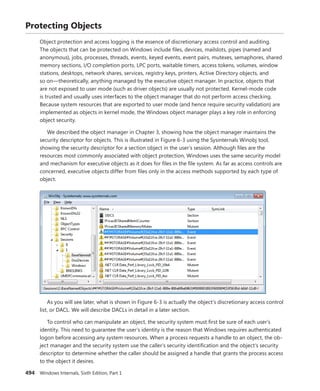
of asynchronous I/O operations.
Object Security
When you open a file, you must specify whether you intend to read or to write. If you try to write to a
file that is opened for read access, you get an error. Likewise, in the executive, when a process creates
an object or opens a handle to an existing object, the process must specify a set of desired ­access
rights—that is, what it wants to do with the object. It can request either a set of standard access rights
(such as read, write, and execute) that apply to all object types or specific access rights that vary
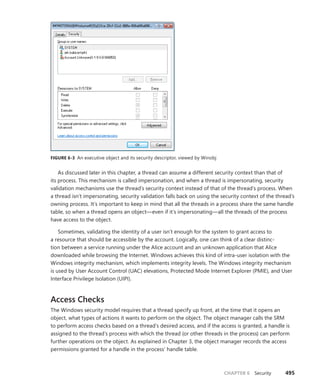
­
depending on the object type. For example, the process can request delete access or append access
to a file object. Similarly, it might require the ability to suspend or terminate a thread object.
When a process opens a handle to an object, the object manager calls the security reference
monitor, the kernel-mode portion of the security system, sending it the process’ set of desired ­
access
rights. The security reference monitor checks whether the object’s security descriptor permits the
type of access the process is requesting. If it does, the reference monitor returns a set of granted
­access rights that the process is allowed, and the object manager stores them in the object handle it
creates. How the security system determines who gets access to which objects is explored in Chapter 6.
Thereafter, whenever the process’ threads use the handle through a service call, the object
­
manager can quickly check whether the set of granted access rights stored in the handle corresponds
to the usage implied by the object service the threads have called. For example, if the caller asked for
read access to a section object but then calls a service to write to it, the service fails.
EXPERIMENT: Looking at Object Security
You can look at the various permissions on an object by using either Process Explorer, WinObj,
or AccessCheck, which are all tools from Sysinternals. Let’s look at different ways you can display
the access control list (ACL) for an object:
■
■ You can use WinObj to navigate to any object on the system, including object directories,
right-click on the object, and select Properties. For example, select the BaseNamedObjects
directory, select Properties, and click on the Security tab. You should see a dialog box
similar to the one shown next.
By examining the settings in the dialog box, you can see that the Everyone group doesn’t
have delete access to the directory, for example, but the SYSTEM account does (because
this is where session 0 services with SYSTEM privileges will store their objects).
164 Windows Internals, Sixth Edition, Part 1
■
■ Instead of using WinObj, you can view the handle table of a process using Process
­
Explorer, as shown in the experiment “Viewing Open Handles” earlier in the chapter. Look
at the handle table for the Explorer.exe process. You should notice a Directory object
handle to the SessionsnBaseNamedObjects directory. (We’ll describe the per-session
namespace shortly.) You can double-click on the object handle and then click on the
­
Security tab and see a similar dialog box (with more users and rights granted). Process
Explorer cannot decode the specific object directory access rights, so all you’ll see are
generic rights.
■
■ Finally, you can use AccessCheck to query the security information of any object by using
the –o switch as shown in the following output. Note that using AccessCheck will also
show you the integrity level of the object. (See Chapter 6 for more information on integrity
levels and the security reference monitor.)
C:Windows>accesschk -o Sessions1BaseNamedObjects
Accesschk v5.02 - Reports effective permissions for securable objects
Copyright (C) 2006-2011 Mark Russinovich
Sysinternals - www.sysinternals.com
sessions2BaseNamedObjects
Type: Directory
RW NT AUTHORITYSYSTEM
RW NTDEVmarkruss
RW NTDEVS-1-5-5-0-5491067-markruss
RW BUILTINAdministrators
R Everyone
NT AUTHORITYRESTRICTED
CHAPTER 3 System Mechanisms 165
Windows also supports Ex (Extended) versions of the APIs—CreateEventEx, CreateMutexEx,
­CreateSemaphoreEx—that add another argument for specifying the access mask. This makes it
­
possible for applications to properly use discretionary access control lists (DACLs) to secure their
­
objects without breaking their ability to use the create object APIs to open a handle to them. You
might be wondering why a client application would not simply use OpenEvent, which does support
a desired access argument. Using the open object APIs leads to an inherent race condition when
dealing with a failure in the open call—that is, when the client application has attempted to open
the event before it has been created. In most applications of this kind, the open API is followed by a
create API in the failure case. Unfortunately, there is no guaranteed way to make this create operation
atomic—in other words, to occur only once. Indeed, it would be possible for multiple threads
and/or processes to have executed the create API concurrently and all attempt to create the event at
the same time. This race condition and the extra complexity required to try and handle it makes using
the open object APIs an inappropriate solution to the problem, which is why the Ex APIs should be
used instead.
Object Retention
There are two types of objects: temporary and permanent. Most objects are temporary—that is,
they remain while they are in use and are freed when they are no longer needed. Permanent objects
remain until they are explicitly freed. Because most objects are temporary, the rest of this section
describes how the object manager implements object retention—that is, retaining temporary objects
only as long as they are in use and then deleting them. Because all user-mode processes that ac-
cess an object must first open a handle to it, the object manager can easily track how many of these
processes, and even which ones, are using an object. Tracking these handles represents one part of
implementing retention. The object manager implements object retention in two phases. The first
phase is called name retention, and it is controlled by the number of open handles to an object that
exist. Every time a process opens a handle to an object, the object manager increments the open
handle counter in the object’s header. As processes finish using the object and close their handles to
it, the object manager decrements the open handle counter. When the counter drops to 0, the object
manager deletes the object’s name from its global namespace. This deletion prevents processes from
opening a handle to the object.
The second phase of object retention is to stop retaining the objects themselves (that is, to delete
them) when they are no longer in use. Because operating system code usually accesses objects by
using pointers instead of handles, the object manager must also record how many object pointers it
has dispensed to operating system processes. It increments a reference count for an object each time
it gives out a pointer to the object; when kernel-mode components finish using the pointer, they call
the object manager to decrement the object’s reference count. The system also increments the refer-
ence count when it increments the handle count, and likewise decrements the reference count when
the handle count decrements, because a handle is also a reference to the object that must be tracked.
Figure 3-23 illustrates two event objects that are in use. Process A has the first event open.
­
Process B has both events open. In addition, the first event is being referenced by some kernel-mode
structure; thus, the reference count is 3. So even if Processes A and B closed their handles to the first
event object, it would continue to exist because its reference count is 1. However, when Process B
closes its handle to the second event object, the object would be deallocated.
166 Windows Internals, Sixth Edition, Part 1
So even after an object’s open handle counter reaches 0, the object’s reference count might
remain positive, indicating that the operating system is still using the object. Ultimately, when the
reference count drops to 0, the object manager deletes the object from memory. This deletion has
to respect certain rules and also requires cooperation from the caller in certain cases. For example,
because objects can be present both in paged or nonpaged pool memory (depending on the settings
located in their object type), if a dereference occurs at an IRQL level of dispatch or higher and this
dereference causes the pointer count to drop to 0, the system would crash if it attempted to imme-
diately free the memory of a paged-pool object. (Recall that such access is illegal because the page
fault will never be serviced.) In this scenario, the object manager performs a deferred delete opera-
tion, queuing the operation on a worker thread running at passive level (IRQL 0). We’ll describe more
about system worker threads later in this chapter.
Another scenario that requires deferred deletion is when dealing with Kernel Transaction ­
Manager
(KTM) objects. In some scenarios, certain drivers might hold a lock related to this object, and
­
attempting to delete the object will result in the system attempting to acquire this lock. However,
the driver might never get the chance to release its lock, causing a deadlock. When dealing with
KTM ­
objects, driver developers must use ObDereferenceObjectDeferDelete to force deferred dele-
tion regardless of IRQL level. Finally, the I/O manager also uses this mechanism as an optimization so
that certain I/Os can complete more quickly, instead of waiting for the object manager to delete the
object.
Other structure
HandleCount=1
ReferenceCount=1
Event object
HandleCount=2
ReferenceCount=3
Event object
Handle table
Process A System space
Process B
Handle table
Handles
DuplicateHandle
Index
FIGURE 3-23 Handles and reference counts
CHAPTER 3 System Mechanisms 167
Because of the way object retention works, an application can ensure that an object and its name
remain in memory simply by keeping a handle open to the object. Programmers who write appli-
cations that contain two or more cooperating processes need not be concerned that one process
might delete an object before the other process has finished using it. In addition, closing an applica-
tion’s object handles won’t cause an object to be deleted if the operating system is still using it. For
example, one process might create a second process to execute a program in the background; it
then immediately closes its handle to the process. Because the operating system needs the second
process to run the program, it maintains a reference to its process object. Only when the background
program finishes executing does the object manager decrement the second process’ reference count
and then delete it.
Because object leaks can be dangerous to the system by leaking kernel pool memory and
­
eventually causing systemwide memory starvation—and can also break applications in subtle ways—
Windows includes a number of debugging mechanisms that can be enabled to monitor, analyze, and
debug issues with handles and objects. Additionally, Debugging Tools for Windows come with two
extensions that tap into these mechanisms and provide easy graphical analysis. Table 3-16 describes
them.
TABLE 3-16 Debugging Mechanisms for Object Handles
Mechanism Enabled By Kernel Debugger Extension
Handle Tracing
Database
Kernel Stack Trace systemwide and/or per-process
with the User Stack Trace option checked with
Gflags.exe.
!htrace <handle value> <process ID>
Object Reference
Tracing
Per-process-name(s), or per-object-type-pool-tag(s),
with Gflags.exe, under Object Reference Tracing.
!obtrace <object pointer>
Object Reference
Tagging
Drivers must call appropriate API. N/A
Enabling the handle-tracing database is useful when attempting to understand the use of each
handle within an application or the system context. The !htrace debugger extension can display the
stack trace captured at the time a specified handle was opened. After you discover a handle leak, the
stack trace can pinpoint the code that is creating the handle, and it can be analyzed for a missing call
to a function such as CloseHandle.
The object-reference-tracing !obtrace extension monitors even more by showing the stack trace
for each new handle created as well as each time a handle is referenced by the kernel (and also each
time it is opened, duplicated, or inherited) and dereferenced. By analyzing these patterns, misuse
of an object at the system level can be more easily debugged. Additionally, these reference traces
provide a way to understand the behavior of the system when dealing with certain objects. Tracing
processes, for example, display references from all the drivers on the system that have registered call-
back notifications (such as Process Monitor) and help detect rogue or buggy third-party drivers that
might be referencing handles in kernel mode but never dereferencing them.
168 Windows Internals, Sixth Edition, Part 1
Note When enabling object-reference tracing for a specific object type, you can obtain
the name of its pool tag by looking at the key member of the OBJECT_TYPE structure
when using the dt command. Each object type on the system has a global variable that
­
references this structure—for example, PsProcessType. Alternatively, you can use the !object
command, which displays the pointer to this structure.
Unlike the previous two mechanisms, object-reference tagging is not a debugging feature that
must be enabled with global flags or the debugger, but rather a set of APIs that should be used by
device-driver developers to reference and dereference objects, including ObReferenceObjectWith-
Tag and ObDereferenceObjectWithTag. Similar to pool tagging (see Chapter 10 in Part 2 for more
information on pool tagging), these APIs allow developers to supply a four-character tag identifying
each ­
reference/dereference pair. When using the !obtrace extension just described, the tag for each
reference or dereference operation is also shown, which avoids solely using the call stack as a mecha-
nism to identify where leaks or under-references might occur, especially if a given call is performed
­
thousands of times by the driver.
Resource Accounting
Resource accounting, like object retention, is closely related to the use of object handles. A positive
open handle count indicates that some process is using that resource. It also indicates that some
process is being charged for the memory the object occupies. When an object’s handle count and
reference count drop to 0, the process that was using the object should no longer be charged for it.
Many operating systems use a quota system to limit processes’ access to system resources.
­
However, the types of quotas imposed on processes are sometimes diverse and complicated, and the
code to track the quotas is spread throughout the operating system. For example, in some operating
systems, an I/O component might record and limit the number of files a process can open, whereas a
memory component might impose a limit on the amount of memory a process’ threads can allocate.
A process component might limit users to some maximum number of new processes they can create
or a maximum number of threads within a process. Each of these limits is tracked and enforced in
­
different parts of the operating system.
In contrast, the Windows object manager provides a central facility for resource accounting. Each
object header contains an attribute called quota charges that records how much the object manager
subtracts from a process’ allotted paged and/or nonpaged pool quota when a thread in the process
opens a handle to the object.
Each process on Windows points to a quota structure that records the limits and current values
for nonpaged-pool, paged-pool, and page-file usage. These quotas default to 0 (no limit) but can be
specified by modifying registry values. (You need to add/edit NonPagedPoolQuota, PagedPoolQuota,
and PagingFileQuota under HKLMSYSTEMCurrentControlSetControlSession ManagerMemory
Management.) Note that all the processes in an interactive session share the same quota block (and
there’s no documented way to create processes with their own quota blocks).
CHAPTER 3 System Mechanisms 169
Object Names
An important consideration in creating a multitude of objects is the need to devise a successful
­
system for keeping track of them. The object manager requires the following information to help you
do so:
■
■ A way to distinguish one object from another
■
■ A method for finding and retrieving a particular object
The first requirement is served by allowing names to be assigned to objects. This is an extension
of what most operating systems provide—the ability to name selected resources, files, pipes, or a
block of shared memory, for example. The executive, in contrast, allows any resource represented by
an object to have a name. The second requirement, finding and retrieving an object, is also satisfied
by object names. If the object manager stores objects by name, it can find an object by looking up its
name.
Object names also satisfy a third requirement, which is to allow processes to share objects. The
­
executive’s object namespace is a global one, visible to all processes in the system. One process
can create an object and place its name in the global namespace, and a second process can open a
handle to the object by specifying the object’s name. If an object isn’t meant to be shared in this way,
its creator doesn’t need to give it a name.
To increase efficiency, the object manager doesn’t look up an object’s name each time someone
uses the object. Instead, it looks up a name under only two circumstances. The first is when a process
creates a named object: the object manager looks up the name to verify that it doesn’t already exist
before storing the new name in the global namespace. The second is when a process opens a handle
to a named object: the object manager looks up the name, finds the object, and then returns an
object handle to the caller; thereafter, the caller uses the handle to refer to the object. When looking
up a name, the object manager allows the caller to select either a case-sensitive or case-insensitive
search, a feature that supports Subsystem for UNIX Applications and other environments that use
case-sensitive file names.
Object Directories
The object directory object is the object manager’s means for supporting this hierarchical naming
structure. This object is analogous to a file system directory and contains the names of other objects,
possibly even other object directories. The object directory object maintains enough information to
translate these object names into pointers to the objects themselves. The object manager uses the
pointers to construct the object handles that it returns to user-mode callers. Both kernel-mode code
(including executive components and device drivers) and user-mode code (such as subsystems) can
create object directories in which to store objects. For example, the I/O manager creates an object
directory named Device, which contains the names of objects representing I/O devices.
Where the names of objects are stored depends on the object type. Table 3-17 lists the
­
standard object directories found on all Windows systems and what types of objects have their
names stored there. Of the directories listed, only BaseNamedObjects and Global?? are visible to
170 Windows Internals, Sixth Edition, Part 1
­
standard ­
Windows applications. (See the “Session Namespace” section later in this chapter for more
­information.)
TABLE 3-17 Standard Object Directories
Directory Types of Object Names Stored
ArcName Symbolic links mapping ARC-style paths to NT-style paths.
BaseNamedObjects Global mutexes, events, semaphores, waitable timers, jobs, ALPC ports, symbolic
links, and section objects.
Callback Callback objects.
Device Device objects.
Driver Driver objects.
FileSystem File-system driver objects and file-system-recognizer device objects. The Filter
Manager also creates its own device objects under the Filters subkey.
GLOBAL?? MS-DOS device names. (The Sessions0DosDevices<LUID>Global directories are
symbolic links to this directory.)
KernelObjects Contains event objects that signal low resource conditions, memory errors, the
­
completion of certain operating system tasks, as well as objects representing
Sessions.
KnownDlls Section names and path for known DLLs (DLLs mapped by the system at startup
time).
KnownDlls32 On a 64-bit Windows installation, KnownDlls contains the native 64-bit binaries, so
this directory is used instead to store Wow64 32-bit versions of those DLLs.
Nls Section names for mapped national language support tables.
ObjectTypes Names of types of objects.
PSXSS If Subsystem for UNIX Applications is enabled (through installation of the SUA
­
component), this contains ALPC ports used by Subsystem for UNIX Applications.
RPC Control ALPC ports used by remote procedure calls (RPCs), and events used by Conhost.exe
as part of the console isolation mechanism.
Security ALPC ports and events used by names of objects specific to the security subsystem.
Sessions Per-session namespace directory. (See the next subsection.)
UMDFCommunicationPorts ALPC ports used by the User-Mode Driver Framework (UMDF).
Windows Windows subsystem ALPC ports, shared section, and window stations.
Because the base kernel objects such as mutexes, events, semaphores, waitable timers, and sec-
tions have their names stored in a single object directory, no two of these objects can have the same
name, even if they are of a different type. This restriction emphasizes the need to choose names care-
fully so that they don’t collide with other names. For example, you could prefix names with a GUID
and/or combine the name with the user’s security identifier (SID).
Object names are global to a single computer (or to all processors on a multiprocessor computer),
but they’re not visible across a network. However, the object manager’s parse method makes it pos-
sible to access named objects that exist on other computers. For example, the I/O manager, which
supplies file-object services, extends the functions of the object manager to remote files. When asked
CHAPTER 3 System Mechanisms 171
to open a remote file object, the object manager calls a parse method, which allows the I/O manager
to intercept the request and deliver it to a network redirector, a driver that accesses files across the
network. Server code on the remote Windows system calls the object manager and the I/O manager
on that system to find the file object and return the information back across the network.
One security consideration to keep in mind when dealing with named objects is the possibility of
object name squatting. Although object names in different sessions are protected from each other,
there’s no standard protection inside the current session namespace that can be set with the stan-
dard Windows API. This makes it possible for an unprivileged application running in the same session
as a privileged application to access its objects, as described earlier in the object security subsec-
tion. Unfortunately, even if the object creator used a proper DACL to secure the object, this doesn’t
help against the squatting attack, in which the unprivileged application creates the object before the
­
privileged application, thus denying access to the legitimate application.
Windows exposes the concept of a private namespace to alleviate this issue. It allows user-mode
applications to create object directories through the CreatePrivateNamespace API and associate these
directories with boundary descriptors, which are special data structures protecting the directories.
These descriptors contain SIDs describing which security principals are allowed access to the object
directory. In this manner, a privileged application can be sure that unprivileged applications will not
be able to conduct a denial-of-service attack against its objects. (This doesn’t stop a privileged ap-
plication from doing the same, however, but this point is moot.) Additionally, a boundary descriptor
can also contain an integrity level, protecting objects possibly belonging to the same user account as
the application, based on the integrity level of the process. (See Chapter 6 for more information on
integrity levels.)
EXPERIMENT: Looking at the Base Named Objects
You can see the list of base objects that have names with the WinObj tool from Sysinternals.
Run Winobj.exe., and click on BaseNamedObjects, as shown here:
172 Windows Internals, Sixth Edition, Part 1
The named objects are shown on the right. The icons indicate the object type:
■
■ Mutexes are indicated with a lock sign.
■
■ Sections (Windows file-mapping objects) are shown as memory chips.
■
■ Events are shown as exclamation points.
■
■ Semaphores are indicated with an icon that resembles a traffic signal.
■
■ Symbolic links have icons that are curved arrows.
■
■ Folders indicate object directories.
■
■ Gears indicate other objects, such as ALPC ports.
EXPERIMENT: Tampering with Single Instancing
Applications such as Windows Media Player and those in Microsoft Office are common
­
examples of single-instancing enforcement through named objects. Notice that when launching
the Wmplayer.exe executable, Windows Media Player appears only once—every other launch
simply results in the window coming back into focus. You can tamper with the handle list by
­
using Process Explorer to turn the computer into a media mixer! Here’s how:
1. Launch Windows Media Player and Process Explorer to view the handle table (by
­
clicking View, Lower Pane View, and then Handles). You should see a handle whose
name column contains CheckForOtherInstanceMutex.
2. Right-click on the handle, and select Close Handle. Confirm the action when asked.
3. Now run Windows Media Player again. Notice that this time a second process is
­created.
CHAPTER 3 System Mechanisms 173
4. Go ahead and play a different song in each instance. You can also use the Sound Mixer
in the system tray (click on the Volume icon) to select which of the two processes will
have greater volume, effectively creating a mixing environment.
Instead of closing a handle to a named object, an application could have run on its own
before Windows Media Player and created an object with the same name. In this scenario,
­
Windows Media Player would never run, fooled into believing it was already running on the
system.
Symbolic Links In certain file systems (on NTFS and some UNIX systems, for example), a symbolic
link lets a user create a file name or a directory name that, when used, is translated by the operating
system into a different file or directory name. Using a symbolic link is a simple method for allowing
users to indirectly share a file or the contents of a directory, creating a cross-link between different
directories in the ordinarily hierarchical directory structure.
The object manager implements an object called a symbolic link object, which performs a similar
function for object names in its object namespace. A symbolic link can occur anywhere within an
­
object name string. When a caller refers to a symbolic link object’s name, the object manager tra-
verses its object namespace until it reaches the symbolic link object. It looks inside the symbolic link
and finds a string that it substitutes for the symbolic link name. It then restarts its name lookup.
One place in which the executive uses symbolic link objects is in translating MS-DOS-style device
names into Windows internal device names. In Windows, a user refers to hard disk drives using the
names C:, D:, and so on and serial ports as COM1, COM2, and so on. The Windows subsystem makes
these symbolic link objects protected, global data by placing them in the object manager namespace
under the Global?? directory.
Session Namespace
Services have access to the global namespace, a namespace that serves as the first instance of the
namespace. Additional sessions are given a session-private view of the namespace known as a local
namespace. The parts of the namespace that are localized for each session include DosDevices, ­
Windows, and BaseNamedObjects. Making separate copies of the same parts of the namespace is
known as instancing the namespace. Instancing DosDevices makes it possible for each user to have
different network drive letters and Windows objects such as serial ports. On Windows, the global
DosDevices directory is named Global?? and is the directory to which DosDevices points, and
­
local DosDevices directories are identified by the logon session ID.
The Windows directory is where Win32k.sys inserts the interactive window station created by
Winlogon, WinSta0. A Terminal Services environment can support multiple interactive users, but
each user needs an individual version of WinSta0 to preserve the illusion that he is accessing the
predefined interactive window station in Windows. Finally, applications and the system create shared
objects in BaseNamedObjects, including events, mutexes, and memory sections. If two users are run-
ning an application that creates a named object, each user session must have a private version of the
174 Windows Internals, Sixth Edition, Part 1
object so that the two instances of the application don’t interfere with one another by accessing the
same object.
The object manager implements a local namespace by creating the private versions of the three
directories mentioned under a directory associated with the user’s session under Sessionsn (where n
is the session identifier). When a Windows application in remote session two creates a named event,
for example, the object manager transparently redirects the object’s name from BaseNamedObjects
to Sessions2BaseNamedObjects.
All object-manager functions related to namespace management are aware of the instanced
­
directories and participate in providing the illusion that all sessions use the same namespace.
­
Windows subsystem DLLs prefix names passed by Windows applications that reference objects in
DosDevices with ?? (for example, C:Windows becomes ??C:Windows). When the object manager
sees the special ?? prefix, the steps it takes depends on the version of Windows, but it always relies
on a field named DeviceMap in the executive process object (EPROCESS, which is described further in
Chapter 5) that points to a data structure shared by other processes in the same session.
The DosDevicesDirectory field of the DeviceMap structure points at the object manager
­
directory that represents the process’ local DosDevices. When the object manager sees a refer-
ence to ??, it locates the process’ local DosDevices by using the DosDevicesDirectory field of the
­
DeviceMap. If the object manager doesn’t find the object in that directory, it checks the DeviceMap
field of the ­
directory object. If it’s valid, it looks for the object in the directory pointed to by the
­
GlobalDosDevicesDirectory field of the DeviceMap structure, which is always Global??.
Under certain circumstances, applications that are session–aware need to access objects in the
global session even if the application is running in another session. The application might want to
do this to synchronize with instances of itself running in other remote sessions or with the console
session (that is, session 0). For these cases, the object manager provides the special override “Global”
that an application can prefix to any object name to access the global namespace. For example, an
application in session two opening an object named GlobalApplicationInitialized is directed to
BaseNamedObjectsApplicationInitialized instead of Sessions2BaseNamedObjects
ApplicationInitialized.
An application that wants to access an object in the global DosDevices directory does not need
to use the Global prefix as long as the object doesn’t exist in its local DosDevices directory. This is
because the object manager automatically looks in the global directory for the object if it doesn’t find
it in the local directory. However, an application can force checking the global directory by using
GLOBALROOT.
Session directories are isolated from each other, and administrative privileges are required to
create a global object (except for section objects). A special privilege named create global object is
verified before allowing such operations.
CHAPTER 3 System Mechanisms 175
EXPERIMENT: Viewing Namespace Instancing
You can see the separation between the session 0 namespace and other session namespaces
as soon as you log in. The reason you can is that the first console user is logged in to session 1
(while services run in session 0). Run Winobj.exe, and click on the Sessions directory. You’ll see
a subdirectory with a numeric name for each active session. If you open one of these directo-
ries, you’ll see subdirectories named DosDevices, Windows, and BaseNamedObjects, which
are the local namespace subdirectories of the session. The following screen shot shows a local
namespace:
Next run Process Explorer and select a process in your session (such as Explorer.exe), and
then view the handle table (by clicking View, Lower Pane View, and then Handles). You should
see a handle to WindowsWindowStationsWinSta0 underneath Sessionsn, where n is the
session ID.
176 Windows Internals, Sixth Edition, Part 1
Object Filtering
Windows includes a filtering model in the object manager, similar to the file system minifilter model
described in Chapter 8 in Part 2. One of the primary benefits of this filtering model is the ability to use
the altitude concept that these existing filtering technologies use, which means that multiple drivers
can filter object-manager events at appropriate locations in the filtering stack. Additionally, drivers are
permitted to intercept calls such as NtOpenThread and NtOpenProcess and even to modify the access
masks being requested from the process manager. This allows protection against certain operations
on an open handle—however, an open operation cannot be entirely blocked because doing so would
too closely resemble a malicious operation (processes that could never be managed).
Furthermore, drivers are able to take advantage of both pre and post callbacks, allowing them to
prepare for a certain operation before it occurs, as well as to react or finalize information after the
operation has occurred. These callbacks can be specified for each operation (currently, only open,
create, and duplicate are supported) and be specific for each object type (currently, only process and
thread objects are supported). For each callback, drivers can specify their own internal context value,
which can be returned across all calls to the driver or across a pre/post pair. These callbacks can be
registered with the ObRegisterCallbacks API and unregistered with the ObUnregisterCallbacks API—it
is the responsibility of the driver to ensure deregistration happens.
Use of the APIs is restricted to images that have certain characteristics:
■
■ The image must be signed, even on 32-bit computers, according to the same rules set forth
in the Kernel Mode Code Signing (KMCS) policy. (Code integrity will be discussed later in
this chapter.) The image must be compiled with the /integritycheck linker flag, which sets the
IMAGE_DLLCHARACTERISTICS_FORCE_INTEGRITY value in the PE header. This instructs the
memory manager to check the signature of the image regardless of any other defaults that
might not normally result in a check.
■
■ The image must be signed with a catalog containing cryptographic per-page hashes of the
­
executable code. This allows the system to detect changes to the image after it has been
loaded in memory.
Before executing a callback, the object manager calls the MmVerifyCallbackFunction on the target
function pointer, which in turn locates the loader data table entry associated with the module owning
this address, and verifies whether or not the LDRP_IMAGE_INTEGRITY_FORCED flag is set. (See the
“Loaded Module Database” section in this chapter for more information.)
Synchronization
The concept of mutual exclusion is a crucial one in operating systems development. It refers to the
guarantee that one, and only one, thread can access a particular resource at a time. Mutual exclusion
is necessary when a resource doesn’t lend itself to shared access or when sharing would result in an
unpredictable outcome. For example, if two threads copy a file to a printer port at the same time,
their output could be interspersed. Similarly, if one thread reads a memory location while another
one writes to it, the first thread will receive unpredictable data. In general, writable resources can’t
CHAPTER 3 System Mechanisms 177
be shared without restrictions, whereas resources that aren’t subject to modification can be shared.
Figure 3-24 illustrates what happens when two threads running on different processors both write
data to a circular queue.
Time
Get queue tail
Insert data at current location
•
•
•
•
•
•
•
•
•
•
•
•
•
•
•
Increment tail pointer
Processor A Processor B
Get queue tail
Insert data at current location /*ERROR*/
Increment tail pointer
FIGURE 3-24 Incorrect sharing of memory
Because the second thread obtained the value of the queue tail pointer before the first thread
­
finished updating it, the second thread inserted its data into the same location that the first thread
used, overwriting data and leaving one queue location empty. Even though Figure 3-24 illustrates
what could happen on a multiprocessor system, the same error could occur on a single-processor
­
system if the operating system performed a context switch to the second thread before the first
thread updated the queue tail pointer.
Sections of code that access a nonshareable resource are called critical sections. To ensure correct
code, only one thread at a time can execute in a critical section. While one thread is writing to a file,
updating a database, or modifying a shared variable, no other thread can be allowed to access the
same resource. The pseudocode shown in Figure 3-24 is a critical section that incorrectly accesses a
shared data structure without mutual exclusion.
The issue of mutual exclusion, although important for all operating systems, is especially ­
important
(and intricate) for a tightly coupled, symmetric multiprocessing (SMP) operating system such as
Windows, in which the same system code runs simultaneously on more than one processor, sharing
certain data structures stored in global memory. In Windows, it is the kernel’s job to provide mecha-
nisms that system code can use to prevent two threads from modifying the same structure at the
same time. The kernel provides mutual-exclusion primitives that it and the rest of the executive use to
synchronize their access to global data structures.
Because the scheduler synchronizes access to its data structures at DPC/dispatch level IRQL, the
kernel and executive cannot rely on synchronization mechanisms that would result in a page fault or
reschedule operation to synchronize access to data structures when the IRQL is DPC/dispatch level
or higher (levels known as an elevated or high IRQL). In the following sections, you’ll find out how the
kernel and executive use mutual exclusion to protect their global data structures when the IRQL is
178 Windows Internals, Sixth Edition, Part 1
high and what mutual-exclusion and synchronization mechanisms the kernel and executive use when
the IRQL is low (below DPC/dispatch level).
High-IRQL Synchronization
At various stages during its execution, the kernel must guarantee that one, and only one, processor at
a time is executing within a critical section. Kernel critical sections are the code segments that modify
a global data structure such as the kernel’s dispatcher database or its DPC queue. The operating sys-
tem can’t function correctly unless the kernel can guarantee that threads access these data structures
in a mutually exclusive manner.
The biggest area of concern is interrupts. For example, the kernel might be updating a global data
structure when an interrupt occurs whose interrupt-handling routine also modifies the structure.
­
Simple single-processor operating systems sometimes prevent such a scenario by disabling all inter-
rupts each time they access global data, but the Windows kernel has a more sophisticated solution.
Before using a global resource, the kernel temporarily masks the interrupts whose interrupt handlers
also use the resource. It does so by raising the processor’s IRQL to the highest level used by any
­
potential interrupt source that accesses the global data. For example, an interrupt at DPC/dispatch
level causes the dispatcher, which uses the dispatcher database, to run. Therefore, any other part of
the kernel that uses the dispatcher database raises the IRQL to DPC/dispatch level, masking
DPC/dispatch-level interrupts before using the dispatcher database.
This strategy is fine for a single-processor system, but it’s inadequate for a multiprocessor
­
configuration. Raising the IRQL on one processor doesn’t prevent an interrupt from occurring on
­
another processor. The kernel also needs to guarantee mutually exclusive access across several
­processors.
Interlocked Operations
The simplest form of synchronization mechanisms rely on hardware support for multiprocessor-
safe manipulation of integer values and for performing comparisons. They include functions such as
InterlockedIncrement, InterlockedDecrement, InterlockedExchange, and InterlockedCompareExchange.
The InterlockedDecrement function, for example, uses the x86 lock instruction prefix (for example, lock
xadd) to lock the multiprocessor bus during the subtraction operation so that another processor that’s
also modifying the memory location being decremented won’t be able to modify it between the
decrementing processor’s read of the original value and its write of the decremented value. This form
of basic synchronization is used by the kernel and drivers. In today’s Microsoft compiler suite, these
functions are called intrinsic because the code for them is generated in an inline assembler, directly
during the compilation phase, instead of going through a function call. (It’s likely that pushing the
parameters onto the stack, calling the function, copying the parameters into registers, and then pop-
ping the parameters off the stack and returning to the caller would be a more expensive operation
than the actual work the function is supposed to do in the first place.)
CHAPTER 3 System Mechanisms 179
Spinlocks
The mechanism the kernel uses to achieve multiprocessor mutual exclusion is called a spinlock. A
spinlock is a locking primitive associated with a global data structure such as the DPC queue shown in
Figure 3-25.
DPC DPC
Begin
Add DPC from queue
End
Release DPC queue spinlock
Begin
Remove DPC from queue
End
•
•
•
•
•
•
DPC queue
Critical section
Do
Try to acquire
DPC queue
spinlock
Until SUCCESS
Do
Try to acquire
DPC queue
spinlock
Until SUCCESS
Processor A Processor B
Spinlock
FIGURE 3-25 Using a spinlock
Before entering either critical section shown in Figure 3-25, the kernel must acquire the spinlock
associated with the protected DPC queue. If the spinlock isn’t free, the kernel keeps trying to acquire
the lock until it succeeds. The spinlock gets its name from the fact that the kernel (and thus, the
­
processor) waits, “spinning,” until it gets the lock.
Spinlocks, like the data structures they protect, reside in nonpaged memory mapped into the
system address space. The code to acquire and release a spinlock is written in assembly language for
speed and to exploit whatever locking mechanism the underlying processor architecture provides. On
many architectures, spinlocks are implemented with a hardware-supported test-and-set operation,
which tests the value of a lock variable and acquires the lock in one atomic instruction. Testing and
acquiring the lock in one instruction prevents a second thread from grabbing the lock between the
time the first thread tests the variable and the time it acquires the lock. Additionally, the lock instruc-
tion mentioned earlier can also be used on the test-and-set operation, resulting in the combined lock
bts assembly operation, which also locks the multiprocessor bus; otherwise, it would be possible for
more than one processor to atomically perform the operation. (Without the lock, the operation is
guaranteed to be atomic only on the current processor.)
All kernel-mode spinlocks in Windows have an associated IRQL that is always DPC/dispatch level or
higher. Thus, when a thread is trying to acquire a spinlock, all other activity at the spinlock’s IRQL or
lower ceases on that processor. Because thread dispatching happens at DPC/dispatch level, a thread
that holds a spinlock is never preempted because the IRQL masks the dispatching mechanisms. This
masking allows code executing in a critical section protected by a spinlock to continue executing so
180 Windows Internals, Sixth Edition, Part 1
that it will release the lock quickly. The kernel uses spinlocks with great care, minimizing the num-
ber of instructions it executes while it holds a spinlock. Any processor that attempts to acquire the
­
spinlock will essentially be busy, waiting indefinitely, consuming power (a busy wait results in 100%
CPU usage) and performing no actual work.
On x86 and x64 processors, a special pause assembly instruction can be inserted in busy wait
loops. This instruction offers a hint to the processor that the loop instructions it is processing are part
of a spinlock (or a similar construct) acquisition loop. The instruction provides three benefits:
■
■ It significantly reduces power usage by delaying the core ever so slightly instead of
­continuously looping.
■
■ On HyperThreaded cores, it allows the CPU to realize that the “work” being done by the
­
spinning logical core is not terribly important and awards more CPU time to the second logical
core instead.
■
■ Because a busy wait loop results in a storm of read requests coming to the bus from the
­
waiting thread (which might be generated out of order), the CPU attempts to correct for viola-
tions of memory order as soon as it detects a write (that is, when the owning thread releases
the lock). Thus, as soon as the spinlock is released, the CPU reorders any pending memory
read operations to ensure proper ordering. This reordering results in a large penalty in system
performance and can be avoided with the pause instruction.
The kernel makes spinlocks available to other parts of the executive through a set of kernel
functions, including KeAcquireSpinLock and KeReleaseSpinLock. Device drivers, for example, require
spinlocks to guarantee that device registers and other global data structures are accessed by only
one part of a device driver (and from only one processor) at a time. Spinlocks are not for use by
user ­
programs—user programs should use the objects described in the next section. Device drivers
also need to protect access to their own data structures from interrupts associated with themselves.
Because the spinlock APIs typically raise the IRQL only to DPC/dispatch level, this isn’t enough to
protect against interrupts. For this reason, the kernel also exports the KeAcquireInterruptSpinLock
and KeReleaseInterruptSpinLock APIs that take as a parameter the KINTERRUPT object discussed at
the beginning of this chapter. The system looks inside the interrupt object for the associated DIRQL
with the interrupt and raises the IRQL to the appropriate level to ensure correct access to structures
shared with the ISR. Devices can use the KeSynchronizeExecution API to synchronize an entire function
with an ISR, instead of just a critical section. In all cases, the code protected by an interrupt spinlock
must execute extremely quickly—any delay causes higher-than-normal interrupt latency and will have
significant negative performance effects.
Kernel spinlocks carry with them restrictions for code that uses them. Because spinlocks always
have an IRQL of DPC/dispatch level or higher, as explained earlier, code holding a spinlock will crash
the system if it attempts to make the scheduler perform a dispatch operation or if it causes a page
fault.
CHAPTER 3 System Mechanisms 181
Queued Spinlocks
To increase the scalability of spinlocks, a special type of spinlock, called a queued spinlock, is used
in most circumstances instead of a standard spinlock. A queued spinlock works like this: When a
processor wants to acquire a queued spinlock that is currently held, it places its identifier in a queue
associated with the spinlock. When the processor that’s holding the spinlock releases it, it hands the
lock over to the first processor identified in the queue. In the meantime, a processor waiting for a
busy spinlock checks the status not of the spinlock itself but of a per-processor flag that the processor
ahead of it in the queue sets to indicate that the waiting processor’s turn has arrived.
The fact that queued spinlocks result in spinning on per-processor flags rather than global
­
spinlocks has two effects. The first is that the multiprocessor’s bus isn’t as heavily trafficked by
­
interprocessor synchronization. The second is that instead of a random processor in a waiting group
acquiring a spinlock, the queued spinlock enforces first-in, first-out (FIFO) ordering to the lock. FIFO
ordering means more consistent performance across processors accessing the same locks.
Windows defines a number of global queued spinlocks by storing pointers to them in an array
contained in each processor’s processor region control block (PRCB). A global spinlock can be acquired
by calling KeAcquireQueuedSpinLock with the index into the PRCB array at which the pointer to the
spinlock is stored. The number of global spinlocks has grown in each release of the operating system,
and the table of index definitions for them is published in the WDK header file Wdm.h. Note, how-
ever, that acquiring one of these queued spinlocks from a device driver is an unsupported and heavily
frowned-upon operation. These locks are reserved for the kernel’s own internal use.
EXPERIMENT: Viewing Global Queued Spinlocks
You can view the state of the global queued spinlocks (the ones pointed to by the queued
­
spinlock array in each processor’s PCR) by using the !qlocks kernel debugger command. In
the following example, the page frame number (PFN) database queued spinlock is held by
­
processor 1, and the other queued spinlocks are not acquired. (The PFN database is described
in Chapter 10 in Part 2.)
lkd> !qlocks
Key: O = Owner, 1-n = Wait order, blank = not owned/waiting, C = Corrupt
Processor Number
Lock Name 0 1
KE - Unused Spare
MM - Expansion
MM - Unused Spare
MM - System Space
CC - Vacb
CC - Master
182 Windows Internals, Sixth Edition, Part 1
Instack Queued Spinlocks
Device drivers can use dynamically allocated queued spinlocks with the
­
KeAcquireInStackQueuedSpinLock and KeReleaseInStackQueuedSpinLock functions. Several
­
components—including the cache manager, executive pool manager, and NTFS—take advantage
of these types of locks instead of using global queued spinlocks.
KeAcquireInStackQueuedSpinLock takes a pointer to a spinlock data structure and a spinlock queue
handle. The spinlock handle is actually a data structure in which the kernel stores information about
the lock’s status, including the lock’s ownership and the queue of processors that might be waiting for
the lock to become available. For this reason, the handle shouldn’t be a global variable. It is usually a
stack variable, guaranteeing locality to the caller thread and is responsible for the InStack part of the
spinlock and API name.
Executive Interlocked Operations
The kernel supplies a number of simple synchronization functions constructed on spinlocks for
more advanced operations, such as adding and removing entries from singly and doubly linked lists.
­Examples include ExInterlockedPopEntryList and ExInterlockedPushEntryList for singly linked lists,
and ExInterlockedInsertHeadList and ExInterlockedRemoveHeadList for doubly linked lists. All these
functions require a standard spinlock as a parameter and are used throughout the kernel and device
drivers.
Instead of relying on the standard APIs to acquire and release the spinlock parameter, these
­
functions place the code required inline and also use a different ordering scheme. Whereas the Ke
spinlock APIs first test and set the bit to see whether the lock is released and then atomically do a
locked test-and-set operation to actually make the acquisition, these routines disable interrupts on
the processor and immediately attempt an atomic test-and-set. If the initial attempt fails, interrupts
are enabled again, and the standard busy waiting algorithm continues until the test-and-set operation
returns 0—in which case, the whole function is restarted again. Because of these subtle differences, a
spinlock used for the executive interlocked functions must not be used with the standard kernel APIs
discussed previously. Naturally, noninterlocked list operations must not be mixed with interlocked
operations.
Note Certain executive interlocked operations silently ignore the spinlock when possible.
For example, the ExInterlockedIncrementLong or ExInterlockedCompareExchange APIs actu-
ally use the same lock prefix used by the standard interlocked functions and the intrinsic
functions. These functions were useful on older systems (or non-x86 systems) where the
lock operation was not suitable or available. For this reason, these calls are now deprecated
in favor of the intrinsic functions.
CHAPTER 3 System Mechanisms 183
Low-IRQL Synchronization
Executive software outside the kernel also needs to synchronize access to global data structures in a
multiprocessor environment. For example, the memory manager has only one page frame database,
which it accesses as a global data structure, and device drivers need to ensure that they can gain ex-
clusive access to their devices. By calling kernel functions, the executive can create a spinlock, acquire
it, and release it.
Spinlocks only partially fill the executive’s needs for synchronization mechanisms, however.
­
Because waiting for a spinlock literally stalls a processor, spinlocks can be used only under the
­
following strictly limited circumstances:
■
■ The protected resource must be accessed quickly and without complicated interactions with
other code.
■
■ The critical section code can’t be paged out of memory, can’t make references to pageable
data, can’t call external procedures (including system services), and can’t generate interrupts
or exceptions.
These restrictions are confining and can’t be met under all circumstances. Furthermore, the
­
executive needs to perform other types of synchronization in addition to mutual exclusion, and it
must also provide synchronization mechanisms to user mode.
There are several additional synchronization mechanisms for use when spinlocks are not suitable:
■
■ Kernel dispatcher objects
■
■ Fast mutexes and guarded mutexes
■
■ Pushlocks
■
■ Executive resources
Additionally, user-mode code, which also executes at low IRQL, must be able to have its own
­
locking primitives. Windows supports various user-mode-specific primitives:
■
■ Condition variables (CondVars)
■
■ Slim Reader-Writer Locks (SRW Locks)
■
■ Run-once initialization (InitOnce)
■
■ Critical sections
We’ll take a look at the user-mode primitives and their underlying kernel-mode support later; for
now, we’ll focus on kernel-mode objects. Table 3-18 serves as a reference that compares and contrasts
the capabilities of these mechanisms and their interaction with kernel-mode APC delivery.
184 Windows Internals, Sixth Edition, Part 1
TABLE 3-18 Kernel Synchronization Mechanisms
Exposed for
Use by Device
Drivers
Disables
Normal
Kernel-Mode
APCs
Disables
Special
Kernel-Mode
APCs
Supports
Recursive
Acquisition
Supports
Shared and
Exclusive
Acquisition
Kernel dispatcher
mutexes
Yes Yes No Yes No
Kernel dispatcher
semaphores or events
Yes No No No No
Fast mutexes Yes Yes Yes No No
Guarded mutexes Yes Yes Yes No No
Pushlocks No No No No Yes
Executive resources Yes No No Yes Yes
Kernel Dispatcher Objects
The kernel furnishes additional synchronization mechanisms to the executive in the form of ­
kernel
objects, known collectively as dispatcher objects. The Windows API-visible synchronization ­
objects
acquire their synchronization capabilities from these kernel dispatcher objects. Each ­
Windows
API-visible object that supports synchronization encapsulates at least one kernel dispatcher ­
object.
The executive’s synchronization semantics are visible to Windows programmers through the
­
WaitForSingleObject and WaitForMultipleObjects functions, which the Windows subsystem imple-
ments by calling analogous system services that the object manager supplies. A thread in a Windows
application can synchronize with a variety of objects, including a Windows process, thread, event,
semaphore, mutex, waitable timer, I/O completion port, ALPC port, registry key, or file object. In
fact, almost all objects exposed by the kernel can be waited on. Some of these are proper dispatcher
­
objects, while others are larger objects that have a dispatcher object within them (such as ports, keys,
or files). Table 3-19 shows the proper dispatcher objects, so any other object that the Windows API
­
allows waiting on probably internally contains one of those primitives.
One other type of executive synchronization object worth noting is called an executive resource.
Executive resources provide exclusive access (like a mutex) as well as shared read access (multiple
readers sharing read-only access to a structure). However, they’re available only to kernel-mode
code and thus are not accessible from the Windows API. The remaining subsections describe the
­
implementation details of waiting for dispatcher objects.
Waiting for Dispatcher Objects
A thread can synchronize with a dispatcher object by waiting for the object’s handle. Doing so causes
the kernel to put the thread in a wait state.
At any given moment, a synchronization object is in one of two states: signaled state or
­
nonsignaled state. A thread can’t resume its execution until its wait is satisfied, a condition that occurs
CHAPTER 3 System Mechanisms 185
when the dispatcher object whose handle the thread is waiting for also undergoes a state change,
from the nonsignaled state to the signaled state (when another thread sets an event object, for
example). To synchronize with an object, a thread calls one of the wait system services that the object
manager supplies, passing a handle to the object it wants to synchronize with. The thread can wait for
one or several objects and can also specify that its wait should be canceled if it hasn’t ended within a
certain amount of time. Whenever the kernel sets an object to the signaled state, one of the kernel’s
signal routines checks to see whether any threads are waiting for the object and not also waiting for
other objects to become signaled. If there are, the kernel releases one or more of the threads from
their waiting state so that they can continue executing.
The following example of setting an event illustrates how synchronization interacts with thread
dispatching:
■
■ A user-mode thread waits for an event object’s handle.
■
■ The kernel changes the thread’s scheduling state to waiting and then adds the thread to a list
of threads waiting for the event.
■
■ Another thread sets the event.
■
■ The kernel marches down the list of threads waiting for the event. If a thread’s conditions for
waiting are satisfied (see the following note), the kernel takes the thread out of the waiting
state. If it is a variable-priority thread, the kernel might also boost its execution priority. (For
details on thread scheduling, see Chapter 5.)
Note Some threads might be waiting for more than one object, so they continue ­
waiting,
unless they specified a WaitAny wait, which will wake them up as soon as one object
(­
instead of all) is signaled.
What Signals an Object?
The signaled state is defined differently for different objects. A thread object is in the nonsignaled
state during its lifetime and is set to the signaled state by the kernel when the thread terminates.
Similarly, the kernel sets a process object to the signaled state when the process’ last thread termi-
nates. In contrast, the timer object, like an alarm, is set to “go off” at a certain time. When its time
expires, the kernel sets the timer object to the signaled state.
When choosing a synchronization mechanism, a program must take into account the rules
­
governing the behavior of different synchronization objects. Whether a thread’s wait ends when
an object is set to the signaled state varies with the type of object the thread is waiting for, as
Table 3-19 illustrates.
186 Windows Internals, Sixth Edition, Part 1
TABLE 3-19 Definitions of the Signaled State
Object Type Set to Signaled State When Effect on Waiting Threads
Process Last thread terminates All are released.
Thread Thread terminates All are released.
Event (notification type) Thread sets the event All are released.
Event (synchronization type) Thread sets the event One thread is released and might receive a
boost; the event object is reset.
Gate (locking type) Thread signals the gate First waiting thread is released and receives a
boost.
Gate (signaling type) Thread signals the type First waiting thread is released.
Keyed event Thread sets event with a key Thread that’s waiting for the key and which is
of the same process as the signaler is released.
Semaphore Semaphore count drops by 1 One thread is released.
Timer (notification type) Set time arrives, or time interval
expires
All are released.
Timer (synchronization type) Set time arrives, or time interval
expires
One thread is released.
Mutex Thread releases the mutex One thread is released and takes ownership of
the mutex.
Queue Item is placed on queue One thread is released.
When an object is set to the signaled state, waiting threads are generally released from their wait
states immediately. Some of the kernel dispatcher objects and the system events that induce their
state changes are shown in Figure 3-26.
For example, a notification event object (called a manual reset event in the Windows API) is used
to announce the occurrence of some event. When the event object is set to the signaled state, all
threads waiting for the event are released. The exception is any thread that is waiting for more than
one object at a time; such a thread might be required to continue waiting until additional objects
reach the signaled state.
In contrast to an event object, a mutex object has ownership associated with it (unless it was
acquired during a DPC). It is used to gain mutually exclusive access to a resource, and only one thread
at a time can hold the mutex. When the mutex object becomes free, the kernel sets it to the signaled
state and then selects one waiting thread to execute, while also inheriting any priority boost that had
been applied. (See Chapter 5 for more information on priority boosting.) The thread selected by the
kernel acquires the mutex object, and all other threads continue waiting.
A mutex object can also be abandoned: this occurs when the thread currently owning it becomes
terminated. When a thread terminate, the kernel enumerates all mutexes owned by the thread and
sets them to the abandoned state, which, in terms of signaling logic, is treated as a signaled state in
that ownership of the mutex is transferred to a waiting thread.
CHAPTER 3 System Mechanisms 187
Dispatcher object
System events and
resulting state change
Effect of signaled state
on waiting threads
Kernel resumes one
waiting thread.
Signaled
Nonsignaled
Resumed thread
acquires the mutex.
Owning thread
releases the mutex.
Kernel resumes one
waiting thread.
Signaled
Nonsignaled
Resumed thread
acquires the mutex.
Owning thread or other
thread releases the mutex.
Kernel resumes one
or more waiting threads.
Signaled
Nonsignaled
A thread acquires the semaphore.
More resources are not available.
One thread releases the
semaphore, freeing a resource.
Kernel resumes one
or more waiting threads.
Signaled
Nonsignaled
Kernel resumes one
or more threads.
A thread sets the event.
Kernel resumes waiting
dedicated thread.
Signaled
Nonsignaled
Kernel resumes the
other dedicated thread.
Dedicated thread sets
one event in the event pair.
Kernel resumes all
waiting threads.
Signaled
Nonsignaled
A thread reinitializes
the thread object.
Thread terminates.
Kernel resumes all
waiting threads.
Signaled
Nonsignaled
Mutex (kernel-
mode use only)
Mutex (exported to
user mode)
Semaphore
Event
Event pair
Thread
Timer
A thread (re)initializes
the timer.
Timer expires.
FIGURE 3-26 Selected kernel dispatcher objects
188 Windows Internals, Sixth Edition, Part 1
This brief discussion wasn’t meant to enumerate all the reasons and applications for using the
various executive objects but rather to list their basic functionality and synchronization behavior. For
information on how to put these objects to use in Windows programs, see the Windows reference
documentation on synchronization objects or Jeffrey Richter and Christophe Nasarre’s book Windows
via C/C++.
Data Structures
Three data structures are key to tracking who is waiting, how they are waiting, what they are waiting
for, and which state the entire wait operation is at. These three structures are the dispatcher header,
the wait block, and the wait status register. The former two structures are publicly defined in the WDK
include file Wdm.h, while the latter is not documented.
The dispatcher header is a packed structure because it needs to hold lots of information in a fixed-
size structure. (See the upcoming “EXPERIMENT: Looking at Wait Queues” section to see the definition
of the dispatcher header data structure.) One of the main tricks is to define mutually exclusive flags at
the same memory location (offset) in the structure. By using the Type field, the kernel knows which of
these fields actually applies. For example, a mutex can be abandoned, but a timer can be absolute or
relative. Similarly, a timer can be inserted into the timer list, but the Debug Active field makes sense
only for processes. On the other hand, the dispatcher header does contain information generic for
any dispatcher object: the object type, signaled state, and a list of the threads waiting for that object.
The wait block represents a thread waiting for an object. Each thread that is in a wait state has a list
of the wait blocks that represent the objects the thread is waiting for. Each dispatcher object has a list
of the wait blocks that represent which threads are waiting for the object. This list is kept so that when
a dispatcher object is signaled, the kernel can quickly determine who is waiting for that object. Finally,
because the balance-set-manager thread running on each CPU (see Chapter 5 for more information
about the balance set manager) needs to analyze the time that each thread has been waiting for (in
order to decide whether or not to page out the kernel stack), each PRCB has a list of waiting threads.
The wait block has a pointer to the object being waited for, a pointer to the thread waiting for the
object, and a pointer to the next wait block (if the thread is waiting for more than one object). It also
records the type of wait (any or all) as well as the position of that entry in the array of handles passed
by the thread on the WaitForMultipleObjects call (position 0 if the thread was waiting for only one
object). The wait type is very important during wait satisfaction, because it determines whether or not
all the wait blocks belonging to the thread waiting on the signaled object should be processed: for a
wait any, the dispatcher does not care what the state of the other objects is because at least one (the
current one) of the objects is now signaled. On the other hand, for a wait all, the dispatcher can wake
the thread only if all the other objects are also in a signaled state, which requires traversing the wait
blocks and associated objects.
The wait block also contains a volatile wait block state, which defines the current state of this wait
block in the transactional wait operation it is currently being engaged in. The different states, their
meaning, and their effects in the wait logic code, are explained in Table 3-20.
CHAPTER 3 System Mechanisms 189
TABLE 3-20 Wait Block States
State Meaning Effect
WaitBlockActive (2) This wait block is actively linked to
an object as part of a thread that is
in a wait state.
During wait satisfaction, this wait block will
be unlinked from the wait block list.
WaitBlockInactive (3) The thread wait associated with this
wait block has been satisfied (or the
timeout has already expired while
setting it up).
During wait satisfaction, this wait block will
not be unlinked from the wait block list be-
cause the wait satisfaction must have aleady
unlinked during its active state.
WaitBlockBypassStart (0) A signal is being delivered to the
thread while the wait has not yet
been committed.
During wait satisfaction (which would be
immediate, before the thread enters the true
wait state), the waiting thread must synchro-
nize with the signaler because there is a risk
that the wait object might be on the stack—
marking the wait block as inactive would
cause the waiter to unwind the stack while
the signaler might still be accessing it.
WaitBlockBypassComplete (1) The thread wait associated with this
wait block has now been properly
synchronized (the wait satisfaction
has completed), and the bypass
­
scenario is now completed.
The wait block is now essentially treated the
same as an inactive wait block (ignored).
Because the overall state of the thread (or any of the objects it is being required to start waiting
on) can change while wait operations are still being set up (because there is nothing blocking another
thread executing on a different logical processor from attempting to signal one of the objects, or
possibly alerting the thread, or even sending it an APC), the kernel dispatcher needs to keep track
of two additional pieces of data for each waiting thread: the current fine-grained wait state of the
thread, as well as any pending state changes that could modify the result of the attempted wait
­operation.
When a thread is instructed to wait for a given object (such as due to a WaitForSingleObject call), it
first attempts to enter the in-progress wait state (WaitInProgress) by beginning the wait. This opera-
tion succeeds if there are no pending alerts to the thread at the moment (based on the alertability of
the wait and the current processor mode of the wait, which determine whether or not the alert can
preempt the wait). If there is an alert, the wait is not even entered at all, and the caller receives the
appropriate status code; otherwise, the thread now enters the WaitInProgress state, at which point the
main thread state is set to Waiting, and the wait reason and wait time are recorded, with any timeout
specified also being registered.
Once the wait is in progress, the thread can initialize the wait blocks as needed (and mark them
as WaitBlockActive in the process) and then proceed to lock all the objects that are part of this wait.
Because each object has its own lock, it is important that the kernel be able to maintain a consistent
locking ordering scheme when multiple processors might be analyzing a wait chain consisting of
many objects (caused by a WaitForMultipleObjects call). The kernel uses a technique known as ­
address
ordering to achieve this: because each object has a distinct and static kernel-mode address, the
objects can be ordered in monotonically increasing address order, guaranteeing that locks are always
acquired and released in the same order by all callers. This means that the caller-supplied array of
objects will be duplicated and sorted accordingly.
190 Windows Internals, Sixth Edition, Part 1
The next step is to check for immediate satisfaction of the wait, such as when a thread is being told
to wait on a mutex that has already been released or an event that is already signaled. In such cases,
the wait is immediately satisfied, which involves unlinking the associated wait blocks (however, in
this case, no wait blocks have yet been inserted) and performing a wait exit (processing any pending
scheduler operations marked in the wait status register). If this shortcut fails, the kernel next attempts
to check whether the timeout specified for the wait (if any) has actually already expired. In this case,
the wait is not “satisfied” but merely “timed out,” which results in slightly faster processing of the exit
code, albeit with the same result.
If none of these shortcuts were effective, the wait block is inserted into the thread’s wait list, and
the thread now attempts to commit its wait. (Meanwhile, the object lock or locks have been released,
allowing other processors to modify the state of any of the objects that the thread is now supposed
to attempt waiting on.) Assuming a noncontended scenario, where other processors are not interest-
ed in this thread or its wait objects, the wait switches into the committed state as long as there are no
pending changes marked by the wait status register. The commit operation links the waiting thread
in the PRCB list, activates an extra wait queue thread if needed, and inserts the timer associated with
the wait timeout, if any. Because potentially quite a lot of cycles have elapsed by this point, it is again
possible that the timeout has already elapsed. In this scenario, inserting the timer will cause immedi-
ate signaling of the thread, and thus a wait satisfaction on the timer, and the overall timeout of the
wait. Otherwise, in the much more common scenario, the CPU now context switches away to the next
thread that is ready for execution. (See Chapter 5 for more information on scheduling.)
In highly contended code paths on multiprocessor machines, it is possible and likely that the
thread attempting to commit its wait has experienced a change while its wait was still in progress.
One possible scenario is that one of the objects it was waiting on has just been signaled. As touched
upon earlier, this causes the associated wait block to enter the WaitBlockBypassStart state, and the
thread’s wait status register now shows the WaitAborted wait state. Another possible scenario is for
an alert or APC to have been issued to the waiting thread, which does not set the WaitAborted state
but enables one of the corresponding bits in the wait status register. Because APCs can break waits
(­
depending on the type of APC, wait mode, and alertability), the APC is delivered and the wait is
aborted. Other operations that will modify the wait status register without generating a full abort
cycle include modifications to the thread’s priority or affinity, which will be processed when exiting
the wait due to failure to commit, as with the previous cases mentioned.
Figure 3-27 shows the relationship of dispatcher objects to wait blocks to threads to PRCB. In this
example, CPU 0 has two waiting (committed) threads: thread 1 is waiting for object B, and thread
2 is waiting for objects A and B. If object A is signaled, the kernel sees that because thread 2 is also
waiting for another object, thread 2 can’t be readied for execution. On the other hand, if object B is
signaled, the kernel can ready thread 1 for execution right away because it isn’t waiting for any other
objects. (Alternatively, if thread 1 was also waiting for other objects but its wait type was a WaitAny,
the kernel could still wake it up.)
CHAPTER 3 System Mechanisms 191
Object-type-
specific data
Wait list head
State
Object-type-
specific data
Wait list head
State
Size Type
Size Type
Key Type
Key Type Key Type
Object B
Object A
Wait blocks
List entry
Thread 1 wait block
Next link
Thread
Object
List entry
Next link
Thread
Object
List entry
Next link
Thread
Object
Dispatcher objects
Wait block list
Thread 2
Wait block list
Thread 1
Thread 2 wait block
Thread objects
Thread 2 wait block
List entry List entry
Wait list head
PRCB 0
FIGURE 3-27 Wait data structures
EXPERIMENT: Looking at Wait Queues
You can see the list of objects a thread is waiting for with the kernel debugger’s !thread com-
mand. For example, the following excerpt from the output of a !process command shows that
the thread is waiting for an event object:
kd> !process
§
THREAD fffffa8005292060 Cid 062c062c.0660 Teb: 000007fffffde000 Win32Thread:
fffff900c01c68f0 WAIT: (WrUserRequest) UserMode Non-Alertable
fffffa80047b8240 SynchronizationEvent
192 Windows Internals, Sixth Edition, Part 1
You can use the dt command to interpret the dispatcher header of the object like this:
lkd> dt nt!_DISPATCHER_HEADER fffffa80047b8240
+0x000 Type : 0x1 ''
+0x001 TimerControlFlags : 0 ''
+0x001 Absolute : 0y0
+0x001Coalescable : 0y0
+0x001 KeepShifting : 0y0
+0x001 EncodedTolerableDelay : 0y00000 (0)
+0x001 Abandoned : 0 ''
+0x001 Signalling : 0 ''
+0x002 ThreadControlFlags : 0x6 ''
+0x002 CpuThrottled : 0y0
+0x002 CycleProfiling : 0y1
+0x002 CounterProfiling : 0y1
+0x002 Reserved : 0y00000 (0)
+0x002 Hand : 0x6 ''
+0x002 Size : 0x6
+0x003 TimerMiscFlags : 0 ''
+0x003 Index : 0y000000 (0)
+0x003 Inserted : 0y0
+0x003 Expired : 0y0
+0x003 DebugActive : 0 ''
+0x003 ActiveDR7 : 0y0
+0x003 Instrumented : 0y0
+0x003 Reserved2 : 0y0000
+0x003 UmsScheduled : 0y0
+0x003 UmsPrimary : 0y0
+0x003 DpcActive : 0 ''
+0x000 Lock : 393217
+0x004 SignalState : 0
+0x008 WaitListHead : _LIST_ENTRY [ 0xfffffa80'047b8248 - 0xfffffa80'047b8248 ]
You should ignore any values that do not correspond to the given object type, because
they might be either incorrectly decoded by the debugger (because the wrong type or field is
being used) or simply contain stale or invalid data from a previous allocation value. There is no
defined correlation you can see between which fields apply to which object, other than by look-
ing at the Windows kernel source code or the WDK header files’ comments. For convenience,
Table 3-21 lists the dispatcher header flags and the objects to which they apply.
TABLE 3-21 Usage and Meaning of the Dispatcher Header Flags
Flag Applies To Meaning
Absolute Timers The expiration time is absolute, not relative.
Coalescable Periodic Timers Indicates whether coalescing should be used for this
timer.
KeepShifting Coalescable Timers Indicates whether or not the kernel dispatcher should
continue attempting to shift the timer’s expiration time.
When alignment is reached with the machine’s periodic
interval, this eventually becomes FALSE.
EncodedTolerableDelay Coalescable Timers The maximum amount of tolerance (shifted as a power
of two) that the timer can support when running
­
outside of its expected periodicity.
CHAPTER 3 System Mechanisms 193
Flag Applies To Meaning
Abandoned Mutexes The thread holding the mutex was terminated.
Signaling Gates A priority boost should be applied to the woken thread
when the gate is signaled.
CpuThrottled Threads CPU throttling has been enabled for this thread,
such as when running under DFSS mode (Distributed
­Fair-Share Scheduler).
CycleProfiling Threads CPU cycle profiling has been enabled for this thread.
CounterProfiling Threads Hardware CPU performance counter monitoring/­
profiling has been enabled for this thread.
Size All objects Size of the object divided by 4, to fit in a single byte.
Hand Timers Index into the timer handle table.
Index Timers Index into the timer expiration table.
Inserted Timers Set if the timer was inserted into the timer handle
table.
Expired Timers Set if the timer has already expired.
DebugActive Processes Specifies whether the process is being debugged.
ActiveDR7 Thread Hardware breakpoints are being used, so DR7 is active
and should be sanitized during context operations.
Instrumented Thread Specifies whether the thread has a user-mode
­
instrumentation callback (supported only on Windows
for x64 processors).
UmsScheduled Thread This thread is a UMS Worker (scheduled) thread.
UmsPrimary Thread This thread is a UMS Scheduler (primary) thread.
DpcActive Mutexes The mutex was acquired during a DPC.
Lock All objects Used for locking an object during wait operations
which need to modify its state or linkage; actually
­
corresponds to bit 7 (0x80) of the Type field.
Apart from these flags, the Type field contains the identifier for the object. This ­
identifier
­
corresponds to a number in the KOBJECTS enumeration, which you can dump with the
­debugger:
lkd> dt nt!_KOBJECTS
EventNotificationObject = 0
EventSynchronizationObject = 1
MutantObject = 2
ProcessObject = 3
QueueObject = 4
SemaphoreObject = 5
ThreadObject = 6
GateObject = 7
TimerNotificationObject = 8
TimerSynchronizationObject = 9
Spare2Object = 10
194 Windows Internals, Sixth Edition, Part 1
Spare3Object = 11
Spare4Object = 12
Spare5Object = 13
Spare6Object = 14
Spare7Object = 15
Spare8Object = 16
Spare9Object = 17
ApcObject = 18
DpcObject = 19
DeviceQueueObject = 20
EventPairObject = 21
InterruptObject = 22
ProfileObject = 23
ThreadedDpcObject = 24
MaximumKernelObject = 25
When the wait list head pointers are identical, there are either zero threads or one thread
waiting on this object. Dumping a wait block for an object that is part of a multiple wait from a
thread, or that multiple threads are waiting on, can yield the following:
dt nt!_KWAIT_BLOCK 0xfffffa80'053cf628
+0x000 WaitListEntry : _LIST_ENTRY [ 0xfffffa80'02efe568 - 0xfffffa80'02803468 ]
+0x010 Thread : 0xfffffa80'053cf520 _KTHREAD
+0x018 Object : 0xfffffa80'02803460
+0x020 NextWaitBlock : 0xfffffa80'053cf628 _KWAIT_BLOCK
+0x028 WaitKey : 0
+0x02a WaitType : 0x1 ''
+0x02b BlockState : 0x2 ''
+0x02c SpareLong : 8
If the wait list has more than one entry, you can execute the same command on the second
pointer value in the WaitListEntry field of each wait block (by executing !thread on the thread
pointer in the wait block) to traverse the list and see what other threads are waiting for the ob-
ject. This would indicate more than one thread waiting on this object. On the other hand, when
dealing with an object that’s part of a collection of objects being waited on by a single thread,
you have to parse the NextWaitBlock field instead.
Keyed Events
A synchronization object called a keyed event bears special mention because of the role it plays
in user-mode-exclusive synchronization primitives. Keyed events were originally implemented to
help processes deal with low-memory situations when using critical sections, which are user-mode
synchronization objects that we’ll see more about shortly. A keyed event, which is not documented,
allows a thread to specify a “key” for which it waits, where the thread wakes when another thread of
the same process signals the event with the same key.
If there is contention, EnterCriticalSection dynamically allocates an event object, and the thread
wanting to acquire the critical section waits for the thread that owns the critical section to signal
it in LeaveCriticalSection. Unfortunately, this introduces a new problem. Without keyed events, the
system could be critically out of memory and critical-section acquisition could fail because the system
CHAPTER 3 System Mechanisms 195
was unable to allocate the event object required. The low-memory condition itself might have been
caused by the application trying to acquire the critical section, so the system would deadlock in this
situation. Low memory isn’t the only scenario that could cause this to fail: a less likely scenario is
handle exhaustion. If the process reaches its 16-million-handle limit, the new handle for the event
object could fail.
The failure caused by low-memory conditions typically are an exception from the code ­
responsible
for acquiring the critical section. Unfortunately, the result is also a damaged critical section,
which makes the situation hard to debug and makes the object useless for a reacquisition at-
tempt. ­
Attempting a LeaveCriticalSection results in another event-object allocation attempt, further
­
generating exceptions and corrupting the structure.
Allocating a global standard event object would not fix the issue because standard event primitives
can be used only for a single object. Each critical section in the process still requires its own event
object, so the same problem would resurface. The implementation of keyed events allows multiple
critical sections (waiters) to use the same global (per-process) keyed event handle. This allows the
critical section functions to operate properly even when memory is temporarily low.
When a thread signals a keyed event or performs a wait on it, it uses a unique identifier called a
key, which identifies the instance of the keyed event (an association of the keyed event to a single
critical section). When the owner thread releases the keyed event by signaling it, only a single
thread waiting on the key is woken up (the same behavior as synchronization events, in contrast to
­
notification events). Additionally, only the waiters in the current process are awakened, so the key is
even isolated across processes, meaning that there is actually only a single keyed event object for the
entire system. When a critical section uses the keyed event, EnterCriticalSection sets the key as the
­
address of the critical section and performs a wait.
When EnterCriticalSection calls NtWaitForKeyedEvent to perform a wait on the keyed event, it
can now give a NULL handle as parameter for the keyed event, telling the kernel that it was unable
to create a keyed event. The kernel recognizes this behavior and uses a global keyed event named
ExpCritSecOutOfMemoryEvent. The primary benefit is that processes don’t need to waste a handle for
a named keyed event anymore because the kernel keeps track of the object and its references.
However, keyed events are more than just fallback objects for low-memory conditions. When
­
multiple waiters are waiting on the same key and need to be woken up, the key is actually signaled
multiple times, which requires the object to keep a list of all the waiters so that it can perform a
“wake” operation on each of them. (Recall that the result of signaling a keyed event is the same
as that of signaling a synchronization event.) However, a thread can signal a keyed event without
any threads on the waiter list. In this scenario, the signaling thread instead waits on the event itself.
­
Without this fallback, a signaling thread could signal the keyed event during the time that the user-
mode code saw the keyed event as unsignaled and attempt a wait. The wait might have come after
the signaling thread signaled the keyed event, resulting in a missed pulse, so the waiting thread would
deadlock. By forcing the signaling thread to wait in this scenario, it actually signals the keyed event
only when someone is looking (waiting).
196 Windows Internals, Sixth Edition, Part 1
Note When the keyed-event wait code itself needs to perform a wait, it uses a
built-in semaphore located in the kernel-mode thread object (ETHREAD) called
KeyedWaitSemaphore. (This semaphore actually shares its location with the ALPC wait
semaphore.) See Chapter 5 for more information on thread objects.
Keyed events, however, do not replace standard event objects in the critical section implemen-
tation. The initial reason, during the Windows XP timeframe, was that keyed events do not offer
scalable performance in heavy-usage scenarios. Recall that all the algorithms described were meant
to be used only in critical, low-memory scenarios, when performance and scalability aren’t all that
important. To replace the standard event object would place strain on keyed events that they weren’t
implemented to handle. The primary performance bottleneck was that keyed events maintained the
list of waiters described in a doubly linked list. This kind of list has poor traversal speed, meaning
the time required to loop through the list. In this case, this time depended on the number of waiter
threads. Because the object is global, dozens of threads could be on the list, requiring long traversal
times every single time a key was set or waited on.
Note The head of the list is kept in the keyed event object, while the threads are actually
linked through the KeyedWaitChain field (which is actually shared with the thread’s exit
time, stored as a LARGE_INTEGER, the same size as a doubly linked list) in the kernel-mode
thread object (ETHREAD). See Chapter 5 for more information on this object.
Windows improves keyed-event performance by using a hash table instead of a linked list to hold
the waiter threads. This optimization allows Windows to include three new lightweight user-mode
synchronization primitives (to be discussed shortly) that all depend on the keyed event. Critical
­
sections, however, still continue to use event objects, primarily for application compatibility and
­
debugging, because the event object and internals are well known and documented, while keyed
events are opaque and not exposed to the Win32 API.
Fast Mutexes and Guarded Mutexes
Fast mutexes, which are also known as executive mutexes, usually offer better performance than
­
mutex objects because, although they are built on dispatcher event objects, they perform a wait
through the dispatcher only if the fast mutex is contended—unlike a standard mutex, which al-
ways attempts the acquisition through the dispatcher. This gives the fast mutex especially good
­
performance in a multiprocessor environment. Fast mutexes are used widely in device drivers.
However, fast mutexes are suitable only when normal kernel-mode APC (described ­
earlier
in this chapter) delivery can be disabled. The executive defines two functions for acquiring
them: ­
ExAcquireFastMutex and ExAcquireFastMutexUnsafe. The former function blocks all APC
­
delivery by raising the IRQL of the processor to APC level. The latter expects to be called with
­
normal ­
kernel-mode APC delivery disabled, which can be done by raising the IRQL to APC level.
­
ExTryToAcquireFastMutex performs similarly to the first, but it does not actually wait if the fast mutex
CHAPTER 3 System Mechanisms 197
is already held, returning FALSE instead. Another limitation of fast mutexes is that they can’t be
­
acquired recursively, like mutex objects can.
Guarded mutexes are essentially the same as fast mutexes (although they use a different
­
synchronization object, the KGATE, internally). They are acquired with the KeAcquireGuardedMutex
and KeAcquireGuardedMutexUnsafe functions, but instead of disabling APCs by raising the IRQL to
APC level, they disable all kernel-mode APC delivery by calling KeEnterGuardedRegion. Similarly to
fast mutexes, a KeTryToAcquireGuardedMutex method also exists. Recall that a guarded region, un-
like a critical region, disables both special and normal kernel-mode APCs, which allows the guarded
mutex to avoid raising the IRQL.
Three differences make guarded mutexes faster than fast mutexes:
■
■ By avoiding raising the IRQL, the kernel can avoid talking to the local APIC of every processor
on the bus, which is a significant operation on large SMP systems. On uniprocessor systems,
this isn’t a problem because of lazy IRQL evaluation, but lowering the IRQL might still require
accessing the PIC.
■
■ The gate primitive is an optimized version of the event. By not having both synchronization
and notification versions and by being the exclusive object that a thread can wait on, the code
for acquiring and releasing a gate is heavily optimized. Gates even have their own dispatcher
lock instead of acquiring the entire dispatcher database.
■
■ In the noncontended case, the acquisition and release of a guarded mutex works on a
single bit, with an atomic bit test-and-reset operation instead of the more complex integer
­
operations fast mutexes perform.
Note The code for a fast mutex is also optimized to account for almost all these
­
optimizations—it uses the same atomic lock operation, and the event object is actually a
gate object (although by dumping the type in the kernel debugger, you would still see an
event object structure; this is actually a compatibility lie). However, fast mutexes still raise
the IRQL instead of using guarded regions.
Because the flag responsible for special kernel APC delivery disabling (and the guarded-region
functionality) was not added until Windows Server 2003, many drivers do not take advantage of
guarded mutexes. Doing so would raise compatibility issues with earlier versions of Windows, which
require a recompiled driver making use only of fast mutexes. Internally, however, the Windows kernel
has replaced almost all uses of fast mutexes with guarded mutexes because the two have identical
semantics and can be easily interchanged.
Another problem related to the guarded mutex was the kernel function KeAreApcsDisabled. Prior
to Windows Server 2003, this function indicated whether normal APCs were disabled by checking
whether the code was running inside a critical section. In Windows Server 2003, this function was
changed to indicate whether the code was in a critical, or guarded, region, changing the functionality
to also return TRUE if special kernel APCs are also disabled.
198 Windows Internals, Sixth Edition, Part 1
Because there are certain operations that drivers should not perform when special kernel APCs are
disabled, it makes sense to call KeGetCurrentIrql to check whether the IRQL is APC level or not, which
is the only way special kernel APCs could have been disabled. However, because the memory man-
ager makes use of guarded mutexes instead, this check fails because guarded mutexes do not raise
IRQL. Drivers should instead call KeAreAllApcsDisabled for this purpose. This function checks whether
special kernel APCs are disabled and/or whether the IRQL is APC level—the sure-fire way to detect
both guarded mutexes and fast mutexes.
Executive Resources
Executive resources are a synchronization mechanism that supports shared and exclusive access;
like fast mutexes, they require that normal kernel-mode APC delivery be disabled before they are
­
acquired. They are also built on dispatcher objects that are used only when there is contention.
­
Executive resources are used throughout the system, especially in file-system drivers, because such
drivers tend to have long-lasting wait periods in which I/O should still be allowed to some extent
(such as reads).
Threads waiting to acquire an executive resource for shared access wait for a semaphore
­
associated with the resource, and threads waiting to acquire an executive resource for exclusive access
wait for an event. A semaphore with unlimited count is used for shared waiters because they can all
be woken and granted access to the resource when an exclusive holder releases the resource simply
by signaling the semaphore. When a thread waits for exclusive access of a resource that is currently
owned, it waits on a synchronization event object because only one of the waiters will wake when the
event is signaled. In the earlier section on synchronization events, it was mentioned that some event
unwait operations can actually cause a priority boost: this scenario occurs when executive resources
are used, which is one reason why they also track ownership like mutexes do. (See Chapter 5 for more
information on the executive resource priority boost.)
Because of the flexibility that shared and exclusive access offer, there are a number of
­
functions for acquiring resources: ExAcquireResourceSharedLite, ExAcquireResourceExclusiveLite,
­
ExAcquireSharedStarveExclusive, ExAcquireShareWaitForExclusive. These functions are documented in
the WDK.
EXPERIMENT: Listing Acquired Executive Resources
The kernel debugger !locks command searches paged pool for executive resource objects and
dumps their state. By default, the command lists only executive resources that are currently
owned, but the –d option lists all executive resources. Here is partial output of the command:
lkd> !locks
**** DUMP OF ALL RESOURCE OBJECTS ****
KD: Scanning for held locks.
Resource @ 0x89929320 Exclusively owned
Contention Count = 3911396
Threads: 8952d030-01<*>
CHAPTER 3 System Mechanisms 199
KD: Scanning for held locks.......................................
Resource @ 0x89da1a68 Shared 1 owning threads
Threads: 8a4cb533-01<*> *** Actual Thread 8a4cb530
Note that the contention count, which is extracted from the resource structure, records the
number of times threads have tried to acquire the resource and had to wait because it was
already owned.
You can examine the details of a specific resource object, including the thread that owns the
resource and any threads that are waiting for the resource, by specifying the –v switch and the
address of the resource:
lkd> !locks -v 0x89929320
Resource @ 0x89929320 Exclusively owned
Contention Count = 3913573
Threads: 8952d030-01<*>
THREAD 8952d030 Cid 0acc.050c Teb: 7ffdf000 Win32Thread: fe82c4c0 RUNNING on
processor 0
Not impersonating
DeviceMap 9aa0bdb8
Owning Process 89e1ead8 Image: windbg.exe
Wait Start TickCount 24620588 Ticks: 12 (0:00:00:00.187)
Context Switch Count 772193
UserTime 00:00:02.293
KernelTime 00:00:09.828
Win32 Start Address windbg (0x006e63b8)
Stack Init a7eba000 Current a7eb9c10 Base a7eba000 Limit a7eb7000 Call 0
Priority 10 BasePriority 8 PriorityDecrement 0 IoPriority 2 PagePriority 5
Unable to get context for thread running on processor 1, HRESULT 0x80004001
1 total locks, 1 locks currently held
Pushlocks
Pushlocks are another optimized synchronization mechanism built on gate objects; like guarded
mutexes, they wait for a gate object only when there’s contention on the lock. They offer advan-
tages over the guarded mutex in that they can be acquired in shared or exclusive mode. However,
their main advantage is their size: a resource object is 56 bytes, but a pushlock is pointer-size.
­
Unfortunately, they are not documented in the WDK and are therefore reserved for use by the
­
operating system (although the APIs are exported, so internal drivers do use them).
There are two types of pushlocks: normal and cache-aware. Normal pushlocks require only the
size of a pointer in storage (4 bytes on 32-bit systems, and 8 bytes on 64-bit systems). When a thread
­
acquires a normal pushlock, the pushlock code marks the pushlock as owned if it is not currently
owned. If the pushlock is owned exclusively or the thread wants to acquire the thread exclusively
and the pushlock is owned on a shared basis, the thread allocates a wait block on the thread’s stack,
initializes a gate object in the wait block, and adds the wait block to the wait list associated with
200 Windows Internals, Sixth Edition, Part 1
the pushlock. When a thread releases a pushlock, the thread wakes a waiter, if any are present, by
­
signaling the event in the waiter’s wait block.
Because a pushlock is only pointer-sized, it actually contains a variety of bits to describe its state.
The meaning of those bits changes as the pushlock changes from being contended to noncontended.
In its initial state, the pushlock contains the following structure:
■
■ One lock bit, set to 1 if the lock is acquired
■
■ One waiting bit, set to 1 if the lock is contended and someone is waiting on it
■
■ One waking bit, set to 1 if the lock is being granted to a thread and the waiter’s list needs to
be optimized
■
■ One multiple shared bit, set to 1 if the pushlock is shared and currently acquired by more than
one thread
■
■ 28 (on 32-bit Windows) or 60 (on 64-bit Windows) share count bits, containing the number of
threads that have acquired the pushlock
As discussed previously, when a thread acquires a pushlock exclusively while the pushlock is
already acquired by either multiple readers or a writer, the kernel allocates a pushlock wait block.
The structure of the pushlock value itself changes. The share count bits now become the pointer to
the wait block. Because this wait block is allocated on the stack and the header files contain a special
alignment directive to force it to be 16-byte aligned, the bottom 4 bits of any pushlock wait-block
structure will be all zeros. Therefore, those bits are ignored for the purposes of pointer dereferencing;
instead, the 4 bits shown earlier are combined with the pointer value. Because this alignment removes
the share count bits, the share count is now stored in the wait block instead.
A cache-aware pushlock adds layers to the normal (basic) pushlock by allocating a pushlock for
each processor in the system and associating it with the cache-aware pushlock. When a thread wants
to acquire a cache-aware pushlock for shared access, it simply acquires the pushlock allocated for its
current processor in shared mode; to acquire a cache-aware pushlock exclusively, the thread acquires
the pushlock for each processor in exclusive mode.
Other than a much smaller memory footprint, one of the large advantages that pushlocks have
over executive resources is that in the noncontended case they do not require lengthy accounting
and integer operations to perform acquisition or release. By being as small as a pointer, the kernel can
use atomic CPU instructions to perform these tasks. (lock cmpxchg is used, which atomically com-
pares and exchanges the old lock with a new lock.) If the atomic compare and exchange fails, the lock
contains values the caller did not expect (callers usually expect the lock to be unused or acquired as
shared), and a call is then made to the more complex contended version. To improve performance
even further, the kernel exposes the pushlock functionality as inline functions, meaning that no
function calls are ever generated during noncontended acquisition—the assembly code is directly
inserted in each function. This increases code size slightly, but it avoids the slowness of a function call.
Finally, pushlocks use several algorithmic tricks to avoid lock convoys (a situation that can occur when
multiple threads of the same priority are all waiting on a lock and little actual work gets done), and
CHAPTER 3 System Mechanisms 201
they are also self-optimizing: the list of threads waiting on a pushlock will be periodically rearranged
to provide fairer behavior when the pushlock is released.
Areas in which pushlocks are used include the object manager, where they protect global object-
manager data structures and object security descriptors, and the memory manager, where their
cache-aware counterpart is used to protect Address Windowing Extension (AWE) data structures.
Deadlock Detection with Driver Verifier
A deadlock is a synchronization issue resulting from two threads or processors holding
­
resources that the other wants and neither yielding what it has. This situation might result
in system or process hangs. Driver Verifier, described in Chapter 8 in Part 2 and Chapter 9 in
Part­ 2, has an option to check for deadlocks involving spinlocks, fast mutexes, and mutexes. For
information on when to enable Driver Verifier to help resolve system hangs, see Chapter 14 in
Part 2.
Critical Sections
Critical sections are one of the main synchronization primitives that Windows provides to user-mode
applications on top of the kernel-based synchronization primitives. Critical sections and the other
user-mode primitives you’ll see later have one major advantage over their kernel counterparts, which
is saving a round-trip to kernel mode in cases in which the lock is noncontended (which is typically
99 percent of the time or more). Contended cases still require calling the kernel, however, because
it is the only piece of the system that is able to perform the complex waking and dispatching logic
required to make these objects work.
Critical sections are able to remain in user mode by using a local bit to provide the main exclusive
locking logic, much like a spinlock. If the bit is 0, the critical section can be acquired, and the owner
sets the bit to 1. This operation doesn’t require calling the kernel but uses the interlocked CPU opera-
tions discussed earlier. Releasing the critical section behaves similarly, with bit state changing from
1 to 0 with an interlocked operation. On the other hand, as you can probably guess, when the bit is
already 1 and another caller attempts to acquire the critical section, the kernel must be called to put
the thread in a wait state.Finally, because critical sections are not kernel objects, they have certain
limitations. The primary one is that you cannot obtain a kernel handle to a critical section; as such,
no security, naming, or other object manager functionality can be applied to a critical section. Two
processes cannot use the same critical section to coordinate their operations, nor can duplication or
inheritance be used.
User-Mode Resources
User-mode resources also provide more fine-grained locking mechanisms than kernel primitives. A
resource can be acquired for shared mode or for exclusive mode, allowing it to function as a multiple-
reader (shared), single-writer (exclusive) lock for data structures such as databases. When a resource
is acquired in shared mode and other threads attempt to acquire the same resource, no trip to the
202 Windows Internals, Sixth Edition, Part 1
­
kernel is required because none of the threads will be waiting. Only when a thread attempts to
acquire the resource for exclusive access, or the resource is already locked by an exclusive owner, will
this be required.
To make use of the same dispatching and synchronization mechanism you saw in the kernel,
resources actually make use of existing kernel primitives. A resource data structure (RTL_RESOURCE)
contains handles to a kernel mutex as well as a kernel semaphore object. When the resource is ac-
quired exclusively by more than one thread, the resource uses the mutex because it permits only one
owner. When the resource is acquired in shared mode by more than one thread, the resource uses a
semaphore because it allows multiple owner counts. This level of detail is typically hidden from the
programmer, and these internal objects should never be used directly.
Resources were originally implemented to support the SAM (or Security Account Manager, which
is discussed in Chapter 6) and not exposed through the Windows API for standard applications. Slim
Reader-Writer Locks (SRW Locks), described next, were implemented in Windows Vista to expose a
similar locking primitive through a documented API, although some system components still use the
resource mechanism.
Condition Variables
Condition variables provide a Windows native implementation for synchronizing a set of threads
that are waiting on a specific result to a conditional test. Although this operation was possible with
other user-mode synchronization methods, there was no atomic mechanism to check the result of the
­
conditional test and to begin waiting on a change in the result. This required that additional synchro-
nization be used around such pieces of code.
A user-mode thread initializes a condition variable by calling InitializeConditionVariable to set up
the initial state. When it wants to initiate a wait on the variable, it can call SleepConditionVariableCS,
which uses a critical section (that the thread must have initialized) to wait for changes to the variable.
The setting thread must use WakeConditionVariable (or WakeAllConditionVariable) after it has modi-
fied the variable. (There is no automatic detection mechanism.) This call releases the critical section of
either one or all waiting threads, depending on which function was used.
Before condition variables, it was common to use either a notification event or a synchronization
event (recall that these are referred to as auto-reset or manual-reset in the Windows API) to signal
the change to a variable, such as the state of a worker queue. Waiting for a change required a critical
section to be acquired and then released, followed by a wait on an event. After the wait, the critical
section had to be re-acquired. During this series of acquisitions and releases, the thread might have
switched contexts, causing problems if one of the threads called PulseEvent (a similar problem to
the one that keyed events solve by forcing a wait for the signaling thread if there is no waiter). With
condition variables, acquisition of the critical section can be maintained by the application while
SleepConditionVariableCS is called and can be released only after the actual work is done. This makes
writing work-queue code (and similar implementations) much simpler and predictable.
Internally, condition variables can be thought of as a port of the existing pushlock algorithms
­
present in kernel mode, with the additional complexity of acquiring and releasing critical sections
CHAPTER 3 System Mechanisms 203
in the SleepConditionVariableCS API. Condition variables are pointer-size (just like pushlocks), avoid
using the dispatcher (which requires a ring transition to kernel mode in this scenario, making the
advantage even more noticeable), automatically optimize the wait list during wait operations, and
protect against lock convoys. Additionally, condition variables make full use of keyed events instead of
the regular event object that developers would have used on their own, which makes even contended
cases more optimized.
Slim Reader-Writer Locks
Although condition variables are a synchronization mechanism, they are not fully primitive locking
objects. As you’ve seen, they still depend on the critical section lock, whose acquisition and release
uses standard dispatcher event objects, so trips through kernel mode can still happen and callers still
require the initialization of the large critical section object. If condition variables share a lot of similari-
ties with pushlocks, Slim Reader-Writer Locks (SRW Locks) are nearly identical. They are also pointer-
size, use atomic operations for acquisition and release, rearrange their waiter lists, protect against lock
convoys, and can be acquired both in shared and exclusive mode. Some differences from pushlocks,
however, include the fact that SRW Locks cannot be “upgraded” or converted from shared to exclu-
sive or vice versa. Additionally, they cannot be recursively acquired. Finally, SRW Locks are exclusive to
user-mode code, while pushlocks are exclusive to kernel-mode code, and the two cannot be shared
or exposed from one layer to the other.
Not only can SRW Locks entirely replace critical sections in application code, but they also ­
offer
multiple-reader, single-writer functionality. SRW Locks must first be initialized with ­
InitializeSRWLock,
after which they can be acquired or released in either exclusive or shared mode with the
­appropriate APIs: AcquireSRWLockExclusive, ReleaseSRWLockExclusive, AcquireSRWLockShared, and
­
ReleaseSRWLockShared.
Note Unlike most other Windows APIs, the SRW locking functions do not return with a
value—instead they generate exceptions if the lock could not be acquired. This makes
it obvious that an acquisition has failed so that code that assumes success will terminate
­
instead of potentially proceeding to corrupt user data.
The Windows SRW Locks do not prefer readers or writers, meaning that the performance for either
case should be the same. This makes them great replacements for critical sections, which are writer-
only or exclusive synchronization mechanisms, and they provide an optimized alternative to resources.
If SRW Locks were optimized for readers, they would be poor exclusive-only locks, but this isn’t the
case. As a result, the design of the condition variable mechanism introduced earlier also allows for
the use of SRW Locks instead of critical sections, through the SleepConditionVariableSRW API. Finally,
SRW Locks also use keyed events instead of standard event objects, so the combination of condition
variables and SRW Locks results in scalable, pointer-size synchronization mechanisms with very few
trips to kernel mode—except in contended cases, which are optimized to take less time and memory
to wake and set because of the use of keyed events.
204 Windows Internals, Sixth Edition, Part 1
Run Once Initialization
The ability to guarantee the atomic execution of a piece of code responsible for performing some
sort of initialization task—such as allocating memory, initializing certain variables, or even creating
objects on demand—is a typical problem in multithreaded programming. In a piece of code that can
be called simultaneously by multiple threads (a good example is the DllMain routine, which initializes
a DLL), there are several ways of attempting to ensure the correct, atomic, and unique execution of
initialization tasks.
In this scenario, Windows implements init once, or one-time initialization (also called run once
initialization internally). This mechanism allows for both synchronous (meaning that the other threads
must wait for initialization to complete) execution of a certain piece of code, as well as asynchronous
(meaning that the other threads can attempt to do their own initialization and race) execution. We’ll
look at the logic behind asynchronous execution after explaining the synchronous mechanism.
In the synchronous case, the developer writes the piece of code that would normally execute after
double-checking the global variable in a dedicated function. Any information that this routine needs
can be passed through the parameter variable that the init-once routine accepts. Any output infor-
mation is returned through the context variable. (The status of the initialization itself is returned as
a Boolean.) All the developer has to do to ensure proper execution is call InitOnceExecuteOnce with
the parameter, context, and run-once function pointer after initializing an INIT_ONCE object with
­
InitOnceInitialize API. The system will take care of the rest.
For applications that want to use the asynchronous model instead, the threads call
­
InitOnceBeginInitialize and receive a BOOLEAN pending status and the context described earlier. If
the pending status is FALSE, initialization has already taken place, and the thread uses the context
value for the result. (It’s also possible for the function itself to return FALSE, meaning that initializa-
tion failed.) However, if the pending status comes back as TRUE, the thread should race to be the first
to create the object. The code that follows performs whatever initialization tasks are required, such
as creating objects or allocating memory. When this work is done, the thread calls InitOnceComplete
with the result of the work as the context and receives a BOOLEAN status. If the status is TRUE, the
thread won the race, and the object that it created or allocated is the one that will be the global
­
object. The thread can now save this object or return it to a caller, depending on the usage.
In the more complex scenario when the status is FALSE, this means that the thread lost the race.
The thread must undo all the work it did, such as deleting objects or freeing memory, and then call
InitOnceBeginInitialize again. However, instead of requesting to start a race as it did initially, it uses
the INIT_ONCE_CHECK_ONLY flag, knowing that it has lost, and requests the winner’s context instead
(for example, the objects or memory that were created or allocated by the winner). This returns an-
other status, which can be TRUE, meaning that the context is valid and should be used or returned to
the caller, or FALSE, meaning that initialization failed and nobody has actually been able to perform
the work (such as in the case of a low-memory condition, perhaps).
In both cases, the mechanism for run-once initialization is similar to the mechanism for condition
variables and SRW Locks. The init once structure is pointer-size, and inline assembly versions of the
CHAPTER 3 System Mechanisms 205
SRW acquisition/release code are used for the noncontended case, while keyed events are used when
contention has occurred (which happens when the mechanism is used in synchronous mode) and
the other threads must wait for initialization. In the asynchronous case, the locks are used in shared
mode, so multiple threads can perform initialization at the same time.
System Worker Threads
During system initialization, Windows creates several threads in the System process, called system
worker threads, which exist solely to perform work on behalf of other threads. In many cases, threads
executing at DPC/dispatch level need to execute functions that can be performed only at a lower
IRQL. For example, a DPC routine, which executes in an arbitrary thread context (because DPC execu-
tion can usurp any thread in the system) at DPC/dispatch level IRQL, might need to access paged pool
or wait for a dispatcher object used to synchronize execution with an application thread. Because a
DPC routine can’t lower the IRQL, it must pass such processing to a thread that executes at an IRQL
below DPC/dispatch level.
Some device drivers and executive components create their own threads dedicated to processing
work at passive level; however, most use system worker threads instead, which avoids the unneces-
sary scheduling and memory overhead associated with having additional threads in the system. An
executive component requests a system worker thread’s services by calling the executive functions
ExQueueWorkItem or IoQueueWorkItem. Device drivers should use only the latter (because this
­
associates the work item with a Device object, allowing for greater accountability and the handling of
scenarios in which a driver unloads while its work item is active). These functions place a work item on
a queue dispatcher object where the threads look for work. (Queue dispatcher objects are described
in more detail in the section “I/O Completion Ports” in Chapter 8 in Part 2.)
The IoQueueWorkItemEx, IoSizeofWorkItem, IoInitializeWorkItem, and IoUninitializeWorkItem APIs
act similarly, but they create an association with a driver’s Driver object or one of its Device objects.
Work items include a pointer to a routine and a parameter that the thread passes to the routine
when it processes the work item. The device driver or executive component that requires passive-level
execution implements the routine. For example, a DPC routine that must wait for a dispatcher object
can initialize a work item that points to the routine in the driver that waits for the dispatcher object,
and perhaps points to a pointer to the object. At some stage, a system worker thread will remove
the work item from its queue and execute the driver’s routine. When the driver’s routine finishes, the
system worker thread checks to see whether there are more work items to process. If there aren’t any
more, the system worker thread blocks until a work item is placed on the queue. The DPC routine
might or might not have finished executing when the system worker thread processes its work item.
There are three types of system worker threads:
■
■ Delayed worker threads execute at priority 12, process work items that aren’t considered
­
time-critical, and can have their stack paged out to a paging file while they wait for work
206 Windows Internals, Sixth Edition, Part 1
items. The object manager uses a delayed work item to perform deferred object deletion,
which deletes kernel objects after they have been scheduled for freeing.
■
■ Critical worker threads execute at priority 13, process time-critical work items, and on
­
Windows Server systems have their stacks present in physical memory at all times.
■
■ A single hypercritical worker thread executes at priority 15 and also keeps its stack in memory.
The process manager uses the hypercritical work item to execute the thread “reaper” function
that frees terminated threads.
The number of delayed and critical worker threads created by the executive’s
­
ExpWorkerInitialization function, which is called early in the boot process, depends on the
amount of memory present on the system and whether the system is a server. Table 3-22
shows the initial number of threads created on default configurations. You can specify that
­
ExpInitializeWorker create up to 16 additional delayed and 16 additional critical worker threads with
the ­
AdditionalDelayedWorkerThreads and AdditionalCriticalWorkerThreads values under the registry
key HKLMSYSTEMCurrentControlSetControlSession ManagerExecutive.
TABLE 3-22 Initial Number of System Worker Threads
Work Queue Type Default Number of Threads
Delayed 7
Critical 5
Hypercritical 1
The executive tries to match the number of critical worker threads with changing workloads as
the system executes. Once every second, the executive function ExpWorkerThreadBalanceManager
determines whether it should create a new critical worker thread. The critical worker threads that are
created by ExpWorkerThreadBalanceManager are called dynamic worker threads, and all the following
conditions must be satisfied before such a thread is created:
■
■ Work items exist in the critical work queue.
■
■ The number of inactive critical worker threads (ones that are either blocked waiting for work
items or that have blocked on dispatcher objects while executing a work routine) must be less
than the number of processors on the system.
■
■ There are fewer than 16 dynamic worker threads.
Dynamic worker threads exit after 10 minutes of inactivity. Thus, when the workload dictates, the
executive can create up to 16 dynamic worker threads.
CHAPTER 3 System Mechanisms 207
EXPERIMENT: Listing System Worker Threads
You can use the !exqueue kernel debugger command to see a listing of system worker threads
classified by their type:
lkd> !exqueue
Dumping ExWorkerQueue: 820FDE40
**** Critical WorkQueue( current = 0 maximum = 2 )
THREAD 861160b8 Cid 0004.001c Teb: 00000000 Win32Thread: 00000000 WAIT
THREAD 8613b020 Cid 0004.0020 Teb: 00000000 Win32Thread: 00000000 WAIT
THREAD 8613bd78 Cid 0004.0024 Teb: 00000000 Win32Thread: 00000000 WAIT
THREAD 8613bad0 Cid 0004.0028 Teb: 00000000 Win32Thread: 00000000 WAIT
THREAD 8613b828 Cid 0004.002c Teb: 00000000 Win32Thread: 00000000 WAIT
**** Delayed WorkQueue( current = 0 maximum = 2 )
THREAD 8613b580 Cid 0004.0030 Teb: 00000000 Win32Thread: 00000000 WAIT
THREAD 8613b2d8 Cid 0004.0034 Teb: 00000000 Win32Thread: 00000000 WAIT
THREAD 8613c020 Cid 0004.0038 Teb: 00000000 Win32Thread: 00000000 WAIT
THREAD 8613cd78 Cid 0004.003c Teb: 00000000 Win32Thread: 00000000 WAIT
THREAD 8613cad0 Cid 0004.0040 Teb: 00000000 Win32Thread: 00000000 WAIT
THREAD 8613c828 Cid 0004.0044 Teb: 00000000 Win32Thread: 00000000 WAIT
THREAD 8613c580 Cid 0004.0048 Teb: 00000000 Win32Thread: 00000000 WAIT
**** HyperCritical WorkQueue( current = 0 maximum = 2 )
THREAD 8613c2d8 Cid 0004.004c Teb: 00000000 Win32Thread: 00000000 WAIT
Windows Global Flags
Windows has a set of flags stored in a systemwide global variable named NtGlobalFlag that enable
various internal debugging, tracing, and validation support in the operating system. The system vari-
able NtGlobalFlag is initialized from the registry key HKLMSYSTEMCurrentControlSetControl
Session Manager in the value GlobalFlag at system boot time. By default, this registry value is 0, so
it’s likely that on your systems, you’re not using any global flags. In addition, each image has a set of
global flags that also turn on internal tracing and validation code (although the bit layout of these
flags is entirely different from the systemwide global flags).
Fortunately, the debugging tools contains a utility named Gflags.exe you can use to view and
change the system global flags (either in the registry or in the running system) as well as image global
flags. Gflags has both a command-line and a GUI interface. To see the command-line flags, type
gflags /?. If you run the utility without any switches, the dialog box shown in Figure 3-28 is displayed.
208 Windows Internals, Sixth Edition, Part 1
FIGURE 3-28 Setting system debugging options with Gflags
You can configure a variable’s settings in the registry on the System Registry page or the current
value of a variable in system memory on the Kernel Flags page.
The Image File page requires you to fill in the file name of an executable image. Use this option
to change a set of global flags that apply to an individual image (rather than to the whole system). In
Figure 3-29, notice that the flags are different from the operating system ones shown in Figure 3-28.
FIGURE 3-29 Setting image global flags with Gflags
CHAPTER 3 System Mechanisms 209
EXPERIMENT: Viewing and Setting NtGlobalFlag
You can use the !gflag kernel debugger command to view and set the state of the NtGlobalFlag
kernel variable. The !gflag command lists all the flags that are enabled. You can use !gflag -? to
get the entire list of supported global flags.
Advanced Local Procedure Call
All modern operating systems require a mechanism for securely transferring data between one or
more processes in user mode, as well as between a service in the kernel and clients in user mode.
Typically, UNIX mechanisms such as mailslots, files, named pipes, and sockets are used for portability,
while other developers use window messages for graphical applications. Windows implements an in-
ternal IPC mechanism called Advanced Local Procedure Call, or ALPC, which is a high-speed, scalable,
and secured facility for message passing arbitrary-size messages. Although it is internal, and thus not
available for third-party developers, ALPC is widely used in various parts of Windows:
■
■ Windows applications that use remote procedure call (RPC), a documented API, indirectly use
ALPC when they specify local-RPC over the ncalrpc transport, a form of RPC used to commu-
nicate between processes on the same system. Kernel-mode RPC, used by the network stack,
also uses ALPC.
■
■ Whenever a Windows process and/or thread starts, as well as during any Windows subsystem
operation (such as all console I/O), ALPC is used to communicate with the subsystem process
(CSRSS). All subsystems communicate with the session manager (SMSS) over ALPC.
■
■ Winlogon uses ALPC to communicate with the local security authentication process, LSASS.
■
■ The security reference monitor (an executive component explained in Chapter 6) uses ALPC to
communicate with the LSASS process.
■
■ The user-mode power manager and power monitor communicate with the kernel-mode
power manager over ALPC, such as whenever the LCD brightness is changed.
■
■ Windows Error Reporting uses ALPC to receive context information from crashing processes.
■
■ The User-Mode Driver Framework (UMDF) enables user-mode drivers to communicate using
ALPC.
Note ALPC is the replacement for an older IPC mechanism initially shipped with the very
first kernel design of Windows NT, called LPC, which is why certain variables, fields, and
functions might still refer to “LPC” today. Keep in mind that LPC is now emulated on top
of ALPC for compatibility and has been removed from the kernel (legacy system calls still
­
exist, which get wrapped into ALPC calls).
210 Windows Internals, Sixth Edition, Part 1
Connection Model
Typically, ALPCs are used between a server process and one or more client processes of that server.
An ALPC connection can be established between two or more user-mode processes or between a
kernel-mode component and one or more user-mode processes. ALPC exports a single executive
­
object called the port object to maintain the state needed for communication. Although this is just
one object, there are actually several kinds of ALPC ports that it can represent:
■
■ Server connection port A named port that is a server connection request point. Clients can
connect to the server by connecting to this port.
■
■ Server communication port An unnamed port a server uses to communicate with a
­
particular client. The server has one such port per active client.
■
■ Client communication port An unnamed port a particular client thread uses to
­
communicate with a particular server.
■
■ Unconnected communication port An unnamed port a client can use to communicate
locally with itself.
ALPC follows a connection and communication model that’s somewhat reminiscent of BSD
socket programming. A server first creates a server connection port (NtAlpcCreatePort), while a
­
client ­
attempts to connect to it (NtAlpcConnectPort). If the server was in a listening state, it re-
ceives a ­
connection request message and can choose to accept it (NtAlpcAcceptPort). In doing
so, both the client and server communication ports are created, and each respective endpoint
process receives a handle to its communication port. Messages are then sent across this handle
(­
NtAlpcSendWaitReceiveMessage), typically in a dedicated thread, so that the server can continue
listening for connection requests on the original connection port (unless this server expects only one
client).
The server also has the ability to deny the connection, either for security reasons or simply due to
protocol or versioning issues. Because clients can send a custom payload with a connection request,
this is usually used by various services to ensure that the correct client, or only one client, is talking to
the server. If any anomalies are found, the server can reject the connection, and, optionally, return a
payload containing information on why the client was rejected (allowing the client to take corrective
action, if possible, or for debugging purposes).
Once a connection is made, a connection information structure (actually, a blob, as will be
­
described shortly) stores the linkage between all the different ports, as shown in Figure 3-30.
CHAPTER 3 System Mechanisms 211
Connection port
Client address
space
Kernel address space Server address
space
Server process
Handle
Handle
Server view
of section
Server
communication
port
Client
communication
port
Client view
of section
Handle
Shared
section
Message
queue
Client process
FIGURE 3-30 Use of ALPC ports
Message Model
Using ALPC, a client and thread using blocking messages each take turns performing a loop around
the NtAlpcSendWaitReplyPort system call, in which one side sends a request and waits for a reply
while the other side does the opposite. However, because ALPC supports asynchronous messages,
it’s possible for either side not to block and choose instead to perform some other runtime task
and check for messages later (some of these methods will be described shortly). ALPC supports the
­following three methods of exchanging payloads sent with a message:
■
■ A message can be sent to another process through the standard double-buffering mechanism,
in which the kernel maintains a copy of the message (copying it from the source process),
switches to the target process, and copies the data from the kernel’s buffer. For compatibility,
if legacy LPC is being used, only messages up to 256 bytes can be sent this way, while ALPC
has the ability to allocate an extension buffer for messages up to ~64KB.
■
■ A message can be stored in an ALPC section object from which the client and server processes
map views. (See Chapter 10 in Part 2 for more information on section mappings.)
212 Windows Internals, Sixth Edition, Part 1
■
■ A message can be stored in a message zone, which is an Memory Descriptor List (MDL) that
backs the physical pages containing the data and that is mapped into the kernel’s address
space.
An important side effect of the ability to send asynchronuos messages is that a message can be
canceled—for example, when a request takes too long or the user has indicated that she wants to
cancel the operation it implements. ALPC supports this with the NtAlpcCancelMessage system call.
An ALPC message can be on one of four different queues implemented by the ALPC port object:
■
■ Main queue A message has been sent, and the client is processing it.
■
■ Pending queue A message has been sent and the caller is waiting for a reply, but the reply
has not yet been sent.
■
■ Large message queue A message has been sent, but the caller’s buffer was too small to
receive it. The caller gets another chance to allocate a larger buffer and request the message
payload again.
■
■ Canceled queue A message that was sent to the port, but has since been canceled.
Note that a fifth queue, called the wait queue, does not link messages together; instead, it links all
the threads waiting on a message.
EXPERIMENT: Viewing Subsystem ALPC Port Objects
You can see named ALPC port objects with the WinObj tool from Sysinternals. Run Winobj.exe,
and select the root directory. A gear icon identifies the port objects, as shown here:
CHAPTER 3 System Mechanisms 213
You should see the ALPC ports used by the power manager, the security manager, and
other internal Windows services. If you want to see the ALPC port objects used by RPC, you can
select the RPC Control directory. One of the primary users of ALPC, outside of Local RPC, is the
­
Windows subsystem, which uses ALPC to communicate with the Windows subsystem DLLs that
are present in all Windows processes. (Subsystem for UNIX Applications uses a similar mecha-
nism.) Because CSRSS loads once for each session, you will find its ALPC port objects under the
appropriate SessionsXWindows directory, such as shown here:
Asynchronous Operation
The synchronous model of ALPC is tied to the original LPC architecture in the early NT design, and
is similar to other blocking IPC mechanisms, such as Mach ports. Although it is simple to design, a
blocking IPC algorithm includes many possibilities for deadlock, and working around those scenarios
creates complex code that requires support for a more flexible asynchronous (nonblocking) model. As
such, ALPC was primarily designed to support asynchronous operation as well, which is a requirement
for scalable RPC and other uses, such as support for pending I/O in user-mode drivers. A basic feature
of ALPC, which wasn’t originally present in LPC, is that blocking calls can have a timeout parameter.
This allows legacy applications to avoid certain deadlock scenarios.
However, ALPC is optimized for asynchronous messages and provides three different models for
asynchronous notifications. The first doesn’t actually notify the client or server, but simply copies
the data payload. Under this model, it’s up to the implementor to choose a reliable synchronization
method. For example, the client and the server can share a notification event object, or the client can
poll for data arrival. The data structure used by this model is the ALPC completion list (not to be con-
fused with the Windows I/O completion port). The ALPC completion list is an efficient, ­
nonblocking
214 Windows Internals, Sixth Edition, Part 1
data structure that enables atomic passing of data between clients, and its internals are described
further in the “Performance” section.
The next notification model is a waiting model that uses the Windows completion-port ­
mechanism
(on top of the ALPC completion list). This enables a thread to retrieve multiple payloads at once,
control the maximum number of concurrent requests, and take advantage of native completion-port
functionality. The user-mode thread pool (described later in this chapter) implementation provides
internal APIs that processes use to manage ALPC messages within the same infrastructure as worker
threads, which are implemented using this model. The RPC system in Windows, when using Local
RPC (over ncalrpc), also makes use of this functionality to provide efficient message delivery by taking
advantage of this kernel support.
Finally, because drivers can also use asynchronous ALPC, but do not typically support ­completion
ports at such a high-level, ALPC also provides a mechanism for a more basic, kernel-based noti-
fication using executive callback objects. A driver can register its own callback and context with
­
NtSetInformationAlpcPort, after which it will get called whenever a message is received. The
­
user-mode, power-manager interfaces in the kernel employ this mechanism for asynchronous LCD
backlight operation on laptops, for example.
Views, Regions, and Sections
Instead of sending message buffers between their two respective processes, a server and client can
choose a more efficient data-passing mechanism that is at the core of Windows’ memory manager:
the section object. (More information is available in Chapter 10 in Part 2.) This allows a piece of
memory to be allocated as shared, and for both client and server to have a consistent, and equal,
view of this memory. In this scenario, as much data as can fit can be transferred, and data is merely
copied into one address range and immediately available in the other. Unfortunately, shared-memory
communication, such as LPC traditionally provided, has its share of drawbacks, especially when con-
sidering security ramifications. For one, because both client and server must have access to the shared
memory, an unprivileged client can use this to corrupt the server’s shared memory, and even build
executable payloads for potential exploits. Additionally, because the client knows the location of the
server’s data, it can use this information to bypass ASLR protections. (See Chapter 8 in Part 2 for more
information.)
ALPC provides its own security on top of what’s provided by section objects. With ALPC, a specific
ALPC section object must be created with the appropriate NtAlpcCreatePortSection API, which will
create the correct references to the port, as well as allow for automatic section garbage collection. (A
manual API also exists for deletion.) As the owner of the ALPC section object begins using the section,
the allocated chunks are created as ALPC regions, which represent a range of used addresses within
the section and add an extra reference to the message. Finally, within a range of shared memory, the
clients obtain views to this memory, which represents the local mapping within their address space.
Regions also support a couple of security options. First of all, regions can be mapped either using
a secure mode or an unsecure mode. In the secure mode, only two views (mappings) are allowed
to the region. This is typically used when a server wants to share data privately with a single ­
client
CHAPTER 3 System Mechanisms 215
­
process. Additionally, only one region for a given range of shared memory can be opened from
within the context of a given port. Finally, regions can also be marked with write-access ­
protection,
which enables only one process context (the server) to have write access to the view (by using
­
MmSecureVirtualMemoryAgainstWrites). Other clients, meanwhile, will have read-only access only.
These settings mitigate many privilege-escalation attacks that could happen due to attacks on shared
memory, and they make ALPC more resilient than typical IPC mechanisms.
Attributes
ALPC provides more than simple message passing: it also enables specific contextual information to
be added to each message and have the kernel track the validity, lifetime, and implementation of that
information. Users of ALPC have the ability to assign their own custom context information as well.
Whether it’s system-managed or user-managed, ALPC calls this data attributes. There are three of
these that the kernel manages:
■
■ The security attribute, which holds key information to allow impersonation of clients, as well as
advanced ALPC security functionality (which is described later)
■
■ The data view attribute, responsible for managing the different views associated with the
regions of an ALPC section
■
■ The handle attribute, which contains information about which handles to associate with the
message (which is described in more detail later in the “Security” section).
Normally, these attributes are initially passed in by the server or client when the message is sent
and converted into the kernel’s own internal ALPC representation. If the ALPC user requests this data
back, it is exposed back securely. By implementing this kind of model and combining it with its own
internal handle table, described next, ALPC can keep critical data opaque between clients and servers,
while still maintaining the true pointers in kernel mode.
Finally, a fourth attribute is supported, called the context attribute. This attribute supports the
­
traditional, LPC-style, user-specific context pointer that could be associated with a given message,
and it is still supported for scenarios where custom data needs to be associated with a client/server
pair.
To define attributes correctly, a variety of APIs are available for internal ALPC consumers, such as
AlpcInitializeMessageAttribute and AlpcGetMessageAttribute.
Blobs, Handles, and Resources
Although the ALPC library exposes only one Object Manager object type (the port), it internally must
manage a number of data structures that allow it to perform the tasks required by its mechanisms.
For example, ALPC needs to allocate and track the messages associated with each port, as well as the
message attributes, which it must track for the duration of their lifetime. Instead of using the Object
Manager’s routines for data management, ALPC implements its own lightweight objects called blobs.
Just like objects, blobs can automatically be allocated and garbage collected, reference tracked, and
216 Windows Internals, Sixth Edition, Part 1
locked through synchronization. Additionally, blobs can have custom allocation and deallocation
­
callbacks, which let their owners control extra information that might need to be tracked for each
blob. Finally, ALPC also uses the executive’s handle table implementation (used for objects and
PIDs/TIDs) to have an ALPC-specific handle table, which allows ALPC to generate private handles for
blobs, instead of using pointers.
In the ALPC model, messages are blobs, for example, and their constructor generates a message
ID, which is itself a handle into ALPC’s handle table. Other ALPC blobs include the following:
■
■ The connection blob, which stores the client and server communication ports, as well as the
server connection port and ALPC handle table.
■
■ The security blob, which stores the security data necessary to allow impersonation of a client.
It stores the security attribute.
■
■ The section, region, and view blobs, which describe ALPC’s shared-memory model. The view
blob is ultimately responsible for storing the data view attribute.
■
■ The reserve blob, which implements support for ALPC Reserve Objects. (See the “Reserve
Objects” section in this chapter.)
■
■ The handle data blob, which contains the information that enables ALPC’s handle attribute
support.
Because blobs are allocated from pageable memory, they must carefully be tracked to ensure their
deletion at the appropriate time. For certain kinds of blobs, this is easy: for example, when an ALPC
message is freed, the blob used to contain it is also deleted. However, certain blobs can represent
­
numerous attributes attached to a single ALPC message, and the kernel must manage their lifetime
appropriately. For example, because a message can have multiple views associated with it (when
many clients have access to the same shared memory), the views must be tracked with the mes-
sages that reference them. ALPC implements this functionality by using a concept of resources. Each
message is associated with a resource list, and whenever a blob associated with a message (that isn’t
a simple pointer) is allocated, it is also added as a resource of the message. In turn, the ALPC library
provides functionality for looking up, flushing, and deleting associated resources. Security blobs,
reserve blobs, and view blobs are all stored as resources.
Security
ALPC implements several security mechanisms, full security boundaries, and mitigations to prevent
attacks in case of generic IPC parsing bugs. At a base level, ALPC port objects are managed by the
same object manager interfaces that manage object security, preventing nonprivileged applica-
tions from obtaining handles to server ports with ACL. On top of that, ALPC provides a SID-based
trust model, inherited from the original LPC design. This model enables clients to validate the server
they are connecting to by relying on more than just the port name. With a secured port, the client
CHAPTER 3 System Mechanisms 217
process submits to the kernel the SID of the server process it expects on the side of the endpoint. At
­
connection time, the kernel validates that the client is indeed connecting to the expected server, miti-
gating namespace squatting attacks where an untrusted server creates a port to spoof a server.
ALPC also allows both clients and servers to atomically and uniquely identify the thread and
­
process responsible for each message. It also supports the full Windows impersonation model
through the NtAlpcImpersonateClientThread API. Other APIs give an ALPC server the ability to query
the SIDs associated with all connected clients and to query the LUID (locally unique identifier) of the
client’s security token (which is further described in Chapter 6).
Performance
ALPC uses several strategies to enhance performance, primarily through its support of completion
lists, which were briefly described earlier. At the kernel level, a completion list is essentially a user MDL
that’s been probed and locked and then mapped to an address. (For more information on Memory
Descriptor Lists, see Chapter 10 in Part 2.) Because it’s associated with an MDL (which tracks physi-
cal pages), when a client sends a message to a server, the payload copy can happen directly at the
­
physical level, instead of requiring the kernel to double-buffer the message, as is common in other
IPC mechanisms.
The completion list itself is implemented as a 64-bit queue of completed entries, and both user-
mode and kernel-mode consumers can use an interlocked compare-exchange operation to insert and
remove entries from the queue. Furthermore, to simplify allocations, once an MDL has been initial-
ized, a bitmap is used to identify available areas of memory that can be used to hold new messages
that are still being queued. The bitmap algorithm also uses native lock instructions on the proces-
sor to provide atomic allocation and de-allocation of areas of physical memory that can be used by
completion lists.
Another ALPC performance optimization is the use of message zones. A message zone is simply a
pre-allocated kernel buffer (also backed by an MDL) in which a message can be stored until a server
or client retrieves it. A message zone associates a system address with the message, allowing it to be
made visible in any process address space. More importantly, in the case of asynchronous operation,
it does not require the complex setup of delayed payloads because no matter when the consumer
finally retrieves the message data, the message zone will still be valid. Both completion lists and
­
message zones can be set up with NtAlpcSetInformationPort.
A final optimization worth mentioning is that instead of copying data as soon as it is sent, the
kernel sets up the payload for a delayed copy, capturing only the needed information, but without
any copying. The message data is copied only when the receiver requests the message. Obviously, if a
message zone or shared memory is being used, there’s no advantage to this method, but in asyn-
chronous, kernel-buffer message passing, this can be used to optimize cancellations and high-traffic
scenarios.
218 Windows Internals, Sixth Edition, Part 1
Debugging and Tracing
On checked builds of the kernel, ALPC messages can be logged. All ALPC attributes, blobs, message
zones, and dispatch transactions can be individually logged, and undocumented !alpc commands in
WinDbg can dump the logs. On retail systems, IT administrators and troubleshooters can enable the
ALPC Event Tracing for Windows (ETW) logger to monitor ALPC messages. ETW events do not include
payload data, but they do contain connection, disconnection, and send/receive and wait/unblock
information. Finally, even on retail systems, certain !alpc commands obtain information on ALPC ports
and messages.
EXPERIMENT: Dumping a Connection Port
In this experiment, you’ll use the CSRSS API port for Windows processes running in Session 1,
which is the typical interactive session for the console user. Whenever a Windows application
launches, it connects to CSRSS’s API port in the appropriate session.
1. Start by obtaining a pointer to the connection port with the !object command:
0: kd> !object Sessions1WindowsApiPort
Object: fffffa8004dc2090 Type: (fffffa80027a2ed0) ALPC Port
ObjectHeader: fffffa8004dc2060 (new version)
HandleCount: 1 PointerCount: 50
Directory Object: fffff8a001a5fb30 Name: ApiPort
2. Now dump information on the port object itself with !alpc /p. This will confirm, for
example, that CSRSS is the owner:
0: kd> !alpc /p fffffa8004dc2090
Port @ fffffa8004dc2090
Type : ALPC_CONNECTION_PORT
CommunicationInfo : fffff8a001a22560
ConnectionPort : fffffa8004dc2090
ClientCommunicationPort : 0000000000000000
ServerCommunicationPort : 0000000000000000
OwnerProcess : fffffa800502db30 (csrss.exe)
SequenceNo : 0x000003C9 (969)
CompletionPort : 0000000000000000
CompletionList : 0000000000000000
MessageZone : 0000000000000000
ConnectionPending : No
ConnectionRefused : No
Disconnected : No
Closed : No
FlushOnClose : Yes
ReturnExtendedInfo : No
Waitable : No
Security : Static
Wow64CompletionList : No
CHAPTER 3 System Mechanisms 219
Main queue is empty.
Large message queue is empty.
Pending queue is empty.
Canceled queue is empty.
3. You can see what clients are connected to the port, which will include all Windows
processes running in the session, with the undocumented !alpc /lpc command. You will
also see the server and client communication ports associated with each connection
and any pending messages on any of the queues:
0: kd> !alpc /lpc fffffa8004dc2090
Port @fffffa8004dc2090 has 14 connections
SRV:fffffa8004809c50 (m:0, p:0, l:0) <-> CLI:fffffa8004809e60 (m:0, p:0, l:0),
Process=fffffa8004ffcb30 ('winlogon.exe')
SRV:fffffa80054dfb30 (m:0, p:0, l:0) <-> CLI:fffffa80054dfe60 (m:0, p:0, l:0),
Process=fffffa80054de060 ('dwm.exe')
SRV:fffffa8005394dd0 (m:0, p:0, l:0) <-> CLI:fffffa80054e1440 (m:0, p:0, l:0),
Process=fffffa80054e2290 ('winvnc.exe')
SRV:fffffa80053965d0 (m:0, p:0, l:0) <-> CLI:fffffa8005396900 (m:0, p:0, l:0),
Process=fffffa80054ed060 ('explorer.exe')
SRV:fffffa80045a8070 (m:0, p:0, l:0) <-> CLI:fffffa80045af070 (m:0, p:0, l:0),
Process=fffffa80045b1340 ('logonhlp.exe')
SRV:fffffa8005197940 (m:0, p:0, l:0) <-> CLI:fffffa800519a900 (m:0, p:0, l:0),
Process=fffffa80045da060 ('TSVNCache.exe')
SRV:fffffa800470b070 (m:0, p:0, l:0) <-> CLI:fffffa800470f330 (m:0, p:0, l:0),
Process=fffffa8004713060 ('vmware-tray.ex')
SRV:fffffa80045d7670 (m:0, p:0, l:0) <-> CLI:fffffa80054b16f0 (m:0, p:0, l:0),
Process=fffffa80056b8b30 ('WINWORD.EXE')
SRV:fffffa80050e0e60 (m:0, p:0, l:0) <-> CLI:fffffa80056fee60 (m:0, p:0, l:0),
Process=fffffa800478f060 ('Winobj.exe')
SRV:fffffa800482e670 (m:0, p:0, l:0) <-> CLI:fffffa80047b7680 (m:0, p:0, l:0),
Process=fffffa80056aab30 ('cmd.exe')
SRV:fffffa8005166e60 (m:0, p:0, l:0) <-> CLI:fffffa80051481e0 (m:0, p:0, l:0),
Process=fffffa8002823b30 ('conhost.exe')
SRV:fffffa80054a2070 (m:0, p:0, l:0) <-> CLI:fffffa80056e6210 (m:0, p:0, l:0),
Process=fffffa80055669e0 ('livekd.exe')
SRV:fffffa80056aa390 (m:0, p:0, l:0) <-> CLI:fffffa80055a6c00 (m:0, p:0, l:0),
Process=fffffa80051b28b0 ('livekd64.exe')
SRV:fffffa8005551d90 (m:0, p:0, l:0) <-> CLI:fffffa80055bfc60 (m:0, p:0, l:0),
Process=fffffa8002a69b30 ('kd.exe')
4. Note that if you have other sessions, you can repeat this experiment on those ­
sessions
also (as well as with session 0, the system session). You will eventually get a list of
all the Windows processes on your machine. If you are using Subsystem for UNIX
­
Applications, you can also use this technique on the PSXSSApiPort object.
220 Windows Internals, Sixth Edition, Part 1
Kernel Event Tracing
Various components of the Windows kernel and several core device drivers are instrumented to
record trace data of their operations for use in system troubleshooting. They rely on a common in-
frastructure in the kernel that provides trace data to the user-mode Event Tracing for Windows (ETW)
facility. An application that uses ETW falls into one or more of three categories:
■
■ Controller A controller starts and stops logging sessions and manages buffer pools.
­
Example controllers include Reliability and Performance Monitor (see the “EXPERIMENT:
­
Tracing TCP/IP Activity with the Kernel Logger” section, later in this section) and XPerf from
the Windows Performance Toolkit (see the “EXPERIMENT: Monitoring Interrupt and DPC
­
Activity” section, earlier in this chapter).
■
■ Provider A provider defines GUIDs (globally unique identifiers) for the event classes it can
produce traces for and registers them with ETW. The provider accepts commands from a
­
controller for starting and stopping traces of the event classes for which it’s responsible.
■
■ Consumer A consumer selects one or more trace sessions for which it wants to read trace
data. Consumers can receive the events in buffers in real time or in log files.
Windows includes dozens of user-mode providers, for everything from Active Directory to the
Service Control Manager to Explorer. ETW also defines a logging session with the name NT Kernel
Logger (also known as the kernel logger) for use by the kernel and core drivers. The providers for the
NT Kernel Logger are implemented by ETW code in Ntoskrnl.exe and the core drivers.
When a controller in user mode enables the kernel logger, the ETW library (which is implemented
in WindowsSystem32Ntdll.dll) calls the NtTraceControl system function, telling the ETW code in
the kernel which event classes the controller wants to start tracing. If file logging is configured (as
opposed to in-memory logging to a buffer), the kernel creates a system thread in the system process
that creates a log file. When the kernel receives trace events from the enabled trace sources, it records
them to a buffer. If it was started, the file logging thread wakes up once per second to dump the
contents of the buffers to the log file.
Trace records generated by the kernel logger have a standard ETW trace event header, which
records time stamp, process, and thread IDs, as well as information on what class of event the record
corresponds to. Event classes can provide additional data specific to their events. For example,
disk event class trace records indicate the operation type (read or write), disk number at which the
­
operation is directed, and sector offset and length of the operation.
Some of the trace classes that can be enabled for the kernel logger and the component that
­
generates each class include the following:
■
■ Disk I/O Disk class driver
■
■ File I/O File system drivers
CHAPTER 3 System Mechanisms 221
■
■ File I/O Completion File system drivers
■
■ Hardware Configuration Plug and Play manager (See Chapter 9 in Part 2 for information
on the Plug and Play manager.)
■
■ Image Load/Unload The system image loader in the kernel
■
■ Page Faults Memory manager (See Chapter 10 in Part 2 for more information on page
faults.)
■
■ Hard Page Faults Memory manager
■
■ Process Create/Delete Process manager (See Chapter 5 for more information on the
­process manager.)
■
■ Thread Create/Delete Process manager
■
■ Registry Activity Configuration manager (See “The Registry” section in Chapter 4 for more
information on the configuration manager.)
■
■ Network TCP/IP TCP/IP driver
■
■ Process Counters Process manager
■
■ Context Switches Kernel dispatcher
■
■ Deferred Procedure Calls Kernel dispatcher
■
■ Interrupts Kernel dispatcher
■
■ System Calls Kernel dispatcher
■
■ Sample Based Profiling Kernel dispatcher and HAL
■
■ Driver Delays I/O manager
■
■ Split I/O I/O manager
■
■ Power Events Power manager
■
■ ALPC Advanced local procedure call
■
■ Scheduler and Synchronization Kernel dispatcher (See Chapter 5 for more information
about thread scheduling)
You can find more information on ETW and the kernel logger, including sample code for
­
controllers and consumers, in the Windows SDK.
222 Windows Internals, Sixth Edition, Part 1
EXPERIMENT: Tracing TCP/IP Activity with the Kernel Logger
To enable the kernel logger and have it generate a log file of TCP/IP activity, follow these steps:
1. Run the Performance Monitor, and click on Data Collector Sets, User Defined.
2. Right-click on User Defined, choose New, and select Data Collector Set.
3. When prompted, enter a name for the data collector set (for example, experiment),
and choose Create Manually (Advanced) before clicking Next.
4. In the dialog box that opens, select Create Data Logs, check Event Trace Data, and
then click Next. In the Providers area, click Add, and locate Windows Kernel Trace. In
the Properties list, select Keywords(Any), and then click Edit.
5. From this list, select only Net for Network TCP/IP, and then click OK.
CHAPTER 3 System Mechanisms 223
6. Click Next to select a location where the files are saved. By default, this location is
C:Perflogs<User>experiment, if this is how you named the data collector set. Click
Next, and in the Run As edit box, enter the Administrator account name and set the
password to match it. Click Finish. You should now see a window similar to the one
shown here:
7. Right-click on “experiment” (or whatever name you gave your data collector set), and
then click Start. Now generate some network activity by opening a browser and visit-
ing a web site.
8. Right-click on the data collector set node again, and then click Stop.
9. Open a command prompt, and change to the C:Perflogsexperiment00001 directory
(or the directory into which you specified that the trace log file be stored).
10. Run tracerpt, and pass it the name of the trace log file:
tracerpt DataCollector01.etl –o dumpfile.csv –of CSV
11. Open dumpfile.csv in Microsoft Excel or in a text editor. You should see TCP and/or
UDP trace records like the following:
TcpIp SendIPV4 0xFFFFFFFF 1.28663E+17 0 0 1992 1388 157.54.86.28 172.31.234.35 80 49414 646659 646661
UdpIp RecvIPV4 0xFFFFFFFF 1.28663E+17 0 0 4 50 172.31.239.255 172.31.233.110 137 137 0 0x0
UdpIp RecvIPV4 0xFFFFFFFF 1.28663E+17 0 0 4 50 172.31.239.255 172.31.234.162 137 137 0 0x0
TcpIp RecvIPV4 0xFFFFFFFF 1.28663E+17 0 0 1992 1425 157.54.86.28 172.31.234.35 80 49414 0 0x0
TcpIp RecvIPV4 0xFFFFFFFF 1.28663E+17 0 0 1992 1380 157.54.86.28 172.31.234.35 80 49414 0 0x0
TcpIp RecvIPV4 0xFFFFFFFF 1.28663E+17 0 0 1992 45 157.54.86.28 172.31.234.35 80 49414 0 0x0
TcpIp RecvIPV4 0xFFFFFFFF 1.28663E+17 0 0 1992 1415 157.54.86.28 172.31.234.35 80 49414 0 0x0
TcpIp RecvIPV4 0xFFFFFFFF 1.28663E+17 0 0 1992 740 157.54.86.28 172.31.234.35 80 49414 0 0x0
224 Windows Internals, Sixth Edition, Part 1
Wow64
Wow64 (Win32 emulation on 64-bit Windows) refers to the software that permits the execution
of 32-bit x86 applications on 64-bit Windows. It is implemented as a set of user-mode DLLs, with
some support from the kernel for creating 32-bit versions of what would normally only be 64-bit
data ­
structures, such as the process environment block (PEB) and thread environment block (TEB).
­
Changing Wow64 contexts through Get/SetThreadContext is also implemented by the kernel. Here
are the user-mode DLLs responsible for Wow64:
■
■ Wow64.dll Manages process and thread creation, and hooks exception-dispatching and
base system calls exported by Ntoskrnl.exe. It also implements file-system redirection and
registry redirection.
■
■ Wow64Cpu.dll Manages the 32-bit CPU context of each running thread inside Wow64, and
provides processor architecture-specific support for switching CPU mode from 32-bit to 64-bit
and vice versa.
■
■ Wow64Win.dll Intercepts the GUI system calls exported by Win32k.sys.
■
■ IA32Exec.bin and Wowia32x.dll on IA64 systems Contain the IA-32 software ­
emulator
and its interface library. Because Itanium processors cannot natively execute x86 32-bit in-
structions in an efficient manner (performance is worse than 30 percent), software emulation
(through binary translation) is required through the use of these two additional components.
The relationship of these DLLs is shown in Figure 3-31.
32-bit EXE, DLLs
32-bit Ntdll.dll
Wow64cpu.dll
Wow64.dll Wow64win.dll
64-bit Ntdll.dll
Ntoskrnl.exe Win32k.sys
User32.dll
Gdi32.dll
FIGURE 3-31 Wow64 architecture
Wow64 Process Address Space Layout
Wow64 processes can run with 2 GB or 4 GB of virtual space. If the image header has the
­
large-address-aware flag set, the memory manager reserves the user-mode address space above
the 4-GB boundary through the end of the user-mode boundary. If the image is not marked as large
CHAPTER 3 System Mechanisms 225
address space aware, the memory manager reserves the user-mode address space above 2 GB. (For
more information on large-address-space support, see the section “x86 User Address Space Layouts”
in Chapter 10 in Part 2.)
System Calls
Wow64 hooks all the code paths where 32-bit code would transition to the native 64-bit system
or when the native system needs to call into 32-bit user-mode code. During process creation, the
process manager maps into the process address space the native 64-bit Ntdll.dll, as well as the 32-bit
Ntdll.dll for Wow64 processes. When the loader initialization is called, it calls the Wow64 initialization
code inside Wow64.dll. Wow64 then sets up the startup context required by the 32-bit Ntdll, switches
the CPU mode to 32-bits, and starts executing the 32-bit loader. From this point onward, execution
continues as if the process is running on a native 32-bit system.
Special 32-bit versions of Ntdll.dll, User32.dll, and Gdi32.dll are located in the WindowsSyswow64
folder (as well as certain other DLLs that perform interprocess communication, such as Rpcrt4.dll).
These call into Wow64 rather than issuing the native 32-bit system call instruction. Wow64 transitions
to native 64-bit mode, captures the parameters associated with the system call (converting 32-bit
pointers to 64-bit pointers), and issues the corresponding native 64-bit system call. When the native
system call returns, Wow64 converts any output parameters if necessary from 64-bit to 32-bit formats
before returning to 32-bit mode.
Exception Dispatching
Wow64 hooks exception dispatching through Ntdll’s KiUserExceptionDispatcher. Whenever the 64-bit
kernel is about to dispatch an exception to a Wow64 process, Wow64 captures the native excep-
tion and context record in user mode and then prepares a 32-bit exception and context record and
dispatches it the same way the native 32-bit kernel would.
User APC Dispatching
Wow64 also hooks user-mode APC delivery through Ntdll’s KiUserApcDispatcher. Whenever the
­
64-bit kernel is about to dispatch a user-mode APC to a Wow64 process, it maps the 32-bit APC
­
address to a higher range of 64-bit address space. The 64-bit Ntdll then captures the native APC and
context record in user mode and maps it back to a 32-bit address. It then prepares a 32-bit user-
mode APC and context record and dispatches it the same way the native 32-bit kernel would.
Console Support
Because console support is implemented in user mode by Csrss.exe, of which only a single native
binary exists, 32-bit applications would be unable to perform console I/O while on 64-bit Windows.
Similarly to how a special rpcrt4.dll exits to thunk 32-bit to 64-bit RPCs, the 32-bit Kernel.dll for
Wow64 contains special code to call into Wow, for thunking parameters during interaction with Csrss
and Conhost.exe.
226 Windows Internals, Sixth Edition, Part 1
User Callbacks
Wow64 intercepts all callbacks from the kernel into user mode. Wow64 treats such calls as system
calls; however, the data conversion is done in the reverse order: input parameters are converted
from 64 bits to 32 bits, and output parameters are converted when the callback returns from 32 bits
to 64 bits.
File System Redirection
To maintain application compatibility and to reduce the effort of porting applications from Win32
to 64-bit Windows, system directory names were kept the same. Therefore, the WindowsSystem32
folder contains native 64-bit images. Wow64, as it hooks all the system calls, translates all the path-
related APIs and replaces the path name of the WindowsSystem32 folder with WindowsSyswow64.
Wow64 also redirects WindowsLastGood to WindowsLastGoodsyswow64 and Windows
Regedit.exe to Windowssyswow64Regedit.exe. Through the use of system environment
variables, the %PROGRAMFILES% variable is also set to Program Files (x86) for 32-bit applica-
tions, while it is set to Program Files folder for 64-bit applications. CommonProgramFiles and
­
CommonProgramFiles (x86) also exist, which always point to the 32-bit location, while ProgramW6432
and ­
CommonProgramW6432 point to the 64-bit locations unconditionally.
Note Because certain 32-bit applications might indeed be aware and able to deal with
­
64-bit images, a virtual directory, WindowsSysnative, allows any I/Os originating from
a 32-bit application to this directory to be exempted from file redirection. This directory
doesn’t actually exist—it is a virtual path that allows access to the real System32 directory,
even from an application running under Wow64.
There are a few subdirectories of WindowsSystem32 that, for compatibility reasons, are ­
exempted
from being redirected such that access attempts to them made by 32-bit applications actually access
the real one. These directories include the following:
■
■ %windir%system32driversetc
■
■ %windir%system32spool
■
■ %windir%system32catroot and %windir%system32catroot2
■
■ %windir%system32logfiles
■
■ %windir%system32driverstore
Finally, Wow64 provides a mechanism to control the file system redirection built
into Wow64 on a per-thread basis through the Wow64DisableWow64FsRedirection and
­
Wow64RevertWow64FsRedirection functions. This mechanism can have issues with delay-loaded DLLs,
opening files through the common file dialog and even internationalization—because once redirec-
tion is disabled, the system no longer users it during internal loading either, and certain 64-bit-only
files would then fail to be found. Using the c:windowssysnative path or some of the other consistent
paths introduced earlier is usually a safer methodology for developers to use.
CHAPTER 3 System Mechanisms 227
Registry Redirection
Applications and components store their configuration data in the registry. Components usually
write their configuration data in the registry when they are registered during installation. If the same
component is installed and registered both as a 32-bit binary and a 64-bit binary, the last component
registered will override the registration of the previous component because they both write to the
same location in the registry.
To help solve this problem transparently without introducing any code changes to 32-bit
­
components, the registry is split into two portions: Native and Wow64. By default, 32-bit components
access the 32-bit view and 64-bit components access the 64-bit view. This provides a safe execution
environment for 32-bit and 64-bit components and separates the 32-bit application state from the
64-bit one if it exists.
To implement this, Wow64 intercepts all the system calls that open registry keys and retranslates
the key path to point it to the Wow64 view of the registry. Wow64 splits the registry at these points:
■
■ HKLMSOFTWARE
■
■ HKEY_CLASSES_ROOT
However, note that many of the subkeys are actually shared between 32-bit and 64-bit apps—that
is, not the entire hive is split.
Under each of these keys, Wow64 creates a key called Wow6432Node. Under this key is stored
­
32-bit configuration information. All other portions of the registry are shared between 32-bit and
­
64-bit applications (for example, HKLMSYSTEM).
As an extra help, if a 32-bit application writes a REG_SZ or REG_EXPAND_SZ value that starts
with the data “%ProgramFiles%” or “%commonprogramfiles%” to the registry, Wow64 modifies the
actual values to “%ProgramFiles(x86)%” and “%commonprogramfiles(x86)%” to match the file sys-
tem redirection and layout explained earlier. The 32-bit application must write exactly these strings
using this case—any other data will be ignored and written normally. Finally, any key containing
“­
system32” is replaced with “syswow64” in all cases, regardless of flags and case sensitivity, unless
KEY_WOW64_64KEY is used and the key is on the list of “reflected keys”, which is available on MSDN.
For applications that need to explicitly specify a registry key for a certain view, the following
flags on the RegOpenKeyEx, RegCreateKeyEx, RegOpenKeyTransacted, RegCreateKeyTransacted, and
­
RegDeleteKeyEx functions permit this:
■
■ KEY_WOW64_64KEY—Explicitly opens a 64-bit key from either a 32-bit or 64-bit application,
and disables the REG_SZ or REG_EXPAND_SZ interception explained earlier
■
■ KEY_WOW64_32KEY—Explicitly opens a 32-bit key from either a 32-bit or 64-bit application
I/O Control Requests
Besides normal read and write operations, applications can communicate with some device drivers
through device I/O control functions using the Windows DeviceIoControl API. The application might
specify an input and/or output buffer along with the call. If the buffer contains pointer-dependent
228 Windows Internals, Sixth Edition, Part 1
data and the process sending the control request is a Wow64 process, the view of the input and/or
output structure is different between the 32-bit application and the 64-bit driver, because pointers
are 4 bytes for 32-bit applications and 8 bytes for 64-bit applications. In this case, the kernel driver is
expected to convert the associated pointer-dependent structures. Drivers can call the ­
IoIs32bitProcess
function to detect whether or not an I/O request originated from a Wow64 process. Look for
“­
Supporting 32-Bit I/O in Your 64-Bit Driver” on MSDN for more details.
16-Bit Installer Applications
Wow64 doesn’t support running 16-bit applications. However, because many application installers
are 16-bit programs, Wow64 has special case code to make references to certain well-known 16-bit
installers work. These installers include the following:
■
■ Microsoft ACME Setup version: 1.2, 2.6, 3.0, and 3.1
■
■ InstallShield version 5.x (where x is any minor version number)
Whenever a 16-bit process is about to be created using the CreateProcess() API, Ntvdm64.dll is
loaded and control is transferred to it to inspect whether the 16-bit executable is one of the sup-
ported installers. If it is, another CreateProcess is issued to launch a 32-bit version of the installer with
the same command-line arguments.
Printing
32-bit printer drivers cannot be used on 64-bit Windows. Print drivers must be ported to native 64-bit
versions. However, because printer drivers run in the user-mode address space of the requesting pro-
cess and only native 64-bit printer drivers are supported on 64-bit Windows, a special mechanism is
needed to support printing from 32-bit processes. This is done by redirecting all printing functions to
Splwow64.exe, the Wow64 RPC print server. Because Splwow64 is a 64-bit process, it can load 64-bit
printer drivers.
Restrictions
Wow64 does not support the execution of 16-bit applications (this is supported on 32-bit versions of
Windows) or the loading of 32-bit kernel-mode device drivers (they must be ported to native 64-bits).
Wow64 processes can load only 32-bit DLLs and can’t load native 64-bit DLLs. Likewise, native 64-bit
processes can’t load 32-bit DLLs. The one exception is the ability to load resource or data-only DLLs
cross-architecture, which is allowed because those DLLs contain only data, not code.
In addition to the above, due to page size differences, Wow64 on IA64 systems does not support
the ReadFileScatter, WriteFileGather, GetWriteWatch, AVX registers, XSAVE, and AWE functions. Also,
hardware acceleration through DirectX is not available. (Software emulation is provided for Wow64
processes.)
CHAPTER 3 System Mechanisms 229
User-Mode Debugging
Support for user-mode debugging is split into three different modules. The first one is located in
the executive itself and has the prefix Dbgk, which stands for Debugging Framework. It provides the
necessary internal functions for registering and listening for debug events, managing the debug
object, and packaging the information for consumption by its user-mode counterpart. The user-mode
component that talks directly to Dbgk is located in the native system library, Ntdll.dll, under a set of
APIs that begin with the prefix DbgUi. These APIs are responsible for wrapping the underlying debug
object implementation (which is opaque), and they allow all subsystem applications to use debug-
ging by wrapping their own APIs around the DbgUi implementation. Finally, the third component in
user-mode debugging belongs to the subsystem DLLs. It is the exposed, documented API (located in
KernelBase.dll for the Windows subsystem) that each subsystem supports for performing debugging
of other applications.
Kernel Support
The kernel supports user-mode debugging through an object mentioned earlier, the debug object. It
provides a series of system calls, most of which map directly to the Windows debugging API, typically
accessed through the DbgUi layer first. The debug object itself is a simple construct, composed of
a series of flags that determine state, an event to notify any waiters that debugger events are pres-
ent, a doubly linked list of debug events waiting to be processed, and a fast mutex used for locking
the object. This is all the information that the kernel requires for successfully receiving and sending
debugger events, and each debugged process has a debug port member in its structure pointing to
this debug object.
Once a process has an associated debug port, the events described in Table 3-23 can cause a
­
debug event to be inserted into the list of events.
TABLE 3-23 Kernel-Mode Debugging Events
Event Identifier Meaning Triggered By
DbgKmExceptionApi An exception has occurred. KiDispatchException during an exception that
occurred in user mode
DbgKmCreateThreadApi A new thread has been created. Startup of a user-mode thread
DbgKmCreateProcessApi A new process has been
­created.
Startup of a user-mode thread that is the first
thread in the process
DbgKmExitThreadApi A thread has exited. Death of a user-mode thread
DbgKmExitProcessApi A process has exited. Death of a user-mode thread that was the last
thread in the process
DbgKmLoadDllApi A DLL was loaded. NtMapViewOfSection when the section is an
image file (could be an EXE as well)
DbgKmUnloadDllApi A DLL was unloaded. NtUnmapViewOfSection when the section is
an image file (could be an EXE as well)
DbgKmErrorReportApi An exception needs to be
forwarded to Windows Error
Reporting (WER).
KiDispatchException during an exception that
occurred in user mode, after the debugger
was unable to handle it
230 Windows Internals, Sixth Edition, Part 1
Apart from the causes mentioned in the table, there are a couple of special triggering cases
­
outside the regular scenarios that occur at the time a debugger object first becomes associated with a
process. The first create process and create thread messages will be manually sent when the debugger
is attached, first for the process itself and its main thread and followed by create thread messages for
all the other threads in the process. Finally, load dll events for the executable being debugged
(Ntdll.dll) and then all the current DLLs loaded in the debugged process will be sent.
Once a debugger object has been associated with a process, all the threads in the process are
suspended. At this point, it is the debugger’s responsibility to start requesting that debug events be
sent through. Debuggers request that debug events be sent back to user mode by performing a wait
on the debug object. This call loops the list of debug events. As each request is removed from the list,
its contents are converted from the internal dbgk structure to the native structure that the next layer
up understands. As you’ll see, this structure is different from the Win32 structure as well, and another
layer of conversion has to occur. Even after all pending debug messages have been processed by the
debugger, the kernel does not automatically resume the process. It is the debugger’s responsibility to
call the ContinueDebugEvent function to resume execution.
Apart from some more complex handling of certain multithreading issues, the basic model for the
framework is a simple matter of producers—code in the kernel that generates the debug events in
the previous table—and consumers—the debugger waiting on these events and acknowledging their
receipt.
Native Support
Although the basic protocol for user-mode debugging is quite simple, it’s not directly usable by
Windows applications—instead, it’s wrapped by the DbgUi functions in Ntdll.dll. This abstraction is
required to allow native applications, as well as different subsystems, to use these routines (because
code inside Ntdll.dll has no dependencies). The functions that this component provides are mostly
analogous to the Windows API functions and related system calls. Internally, the code also provides
the functionality required to create a debug object associated with the thread. The handle to a debug
object that is created is never exposed. It is saved instead in the thread environment block (TEB) of
the debugger thread that performs the attachment. (For more information on the TEB, see Chapter 5.)
This value is saved in DbgSsReserved[1].
When a debugger attaches to a process, it expects the process to be broken into—that is, an int 3
(breakpoint) operation should have happened, generated by a thread injected into the process. If this
didn’t happen, the debugger would never actually be able to take control of the process and would
merely see debug events flying by. Ntdll.dll is responsible for creating and injecting that thread into
the target process.
Finally, Ntdll.dll also provides APIs to convert the native structure for debug events into the
­
structure that the Windows API understands.
CHAPTER 3 System Mechanisms 231
EXPERIMENT: Viewing Debugger Objects
Although you’ve been using WinDbg to do kernel-mode debugging, you can also use it to
­
debug user-mode programs. Go ahead and try starting Notepad.exe with the debugger
­
attached using these steps:
1. Run WinDbg, and then click File, Open Executable.
2. Navigate to the WindowsSystem32 directory, and choose Notepad.exe.
3. You’re not going to do any debugging, so simply ignore whatever might come up.
You can type g in the command window to instruct WinDbg to continue executing
Notepad.
Now run Process Explorer, and be sure the lower pane is enabled and configured to show
open handles. (Click on View, Lower Pane View, and then Handles.) You also want to look at
­
unnamed handles, so click on View, Show Unnamed Handles And Mappings.
Next, click on the Windbg.exe process and look at its handle table. You should see an open,
unnamed handle to a debug object. (You can organize the table by Type to find this entry more
readily.) You should see something like the following:
You can try right-clicking on the handle and closing it. Notepad should disappear, and the
following message should appear in WinDbg:
ERROR: WaitForEvent failed, NTSTATUS 0xC0000354
This usually indicates that the debuggee has been
killed out from underneath the debugger.
You can use .tlist to see if the debuggee still exists.
WaitForEvent failed
In fact, if you look at the description for the NTSTATUS code given, you will find the text: “An
attempt to do an operation on a debug port failed because the port is in the process of being
deleted,” which is exactly what you’ve done by closing the handle.
232 Windows Internals, Sixth Edition, Part 1
As you can see, the native DbgUi interface doesn’t do much work to support the framework except
for this abstraction. The most complicated task it does is the conversion between native and Win32
debugger structures. This involves several additional changes to the structures.
Windows Subsystem Support
The final component responsible for allowing debuggers such as Microsoft Visual Studio or WinDbg
to debug user-mode applications is in Kernel32.dll. It provides the documented Windows APIs. Apart
from this trivial conversion of one function name to another, there is one important management
job that this side of the debugging infrastructure is responsible for: managing the duplicated file and
thread handles.
Recall that each time a load DLL event is sent, a handle to the image file is duplicated by the kernel
and handed off in the event structure, as is the case with the handle to the process executable during
the create process event. During each wait call, Kernel32.dll checks whether this is an event that results
in new duplicated process and/or thread handles from the kernel (the two create events). If so, it
­
allocates a structure in which it stores the process ID, thread ID, and the thread and/or process handle
associated with the event. This structure is linked into the first DbgSsReserved array index in the TEB,
where we mentioned the debug object handle is stored. Likewise, Kernel32.dll also checks for exit
events. When it detects such an event, it “marks” the handles in the data structure.
Once the debugger is finished using the handles and performs the continue call, Kernel32.dll
parses these structures, looks for any handles whose threads have exited, and closes the handles for
the debugger. Otherwise, those threads and processes would actually never exit, because there would
always be open handles to them as long as the debugger was running.
Image Loader
When a process is started on the system, the kernel creates a process object to represent it (see
Chapter 5 for more information on processes) and performs various kernel-related initialization tasks.
However, these tasks do not result in the execution of the application, merely in the preparation of its
context and environment. In fact, unlike drivers, which are kernel-mode code, applications execute in
user mode. So most of the actual initialization work is done outside the kernel. This work is performed
by the image loader, also internally referred to as Ldr.
The image loader lives in the user-mode system DLL Ntdll.dll and not in the kernel library. There-
fore, it behaves just like standard code that is part of a DLL, and it is subject to the same restrictions
in terms of memory access and security rights. What makes this code special is the guaranty that it
will always be present in the running process (Ntdll.dll is always loaded) and that it is the first piece
of code to run in user mode as part of a new application. (When the system builds the initial context,
the program counter, or instruction pointer, is set to an initialization function inside Ntdll.dll. See
­
Chapter 5 for more information.)
CHAPTER 3 System Mechanisms 233
Because the loader runs before the actual application code, it is usually invisible to users and de-
velopers. Additionally, although the loader’s initialization tasks are hidden, a program typically does
interact with its interfaces during the run time of a program—for example, whenever loading or un-
loading a DLL or querying the base address of one. Some of the main tasks the loader is ­
responsible
for include these:
■
■ Initializing the user-mode state for the application, such as creating the initial heap and setting
up the thread-local storage (TLS) and fiber-local storage (FLS) slots
■
■ Parsing the import table (IAT) of the application to look for all DLLs that it requires (and then
recursively parsing the IAT of each DLL), followed by parsing the export table of the DLLs to
make sure the function is actually present (Special forwarder entries can also redirect an export
to yet another DLL.)
■
■ Loading and unloading DLLs at run time, as well as on demand, and maintaining a list of all
loaded modules (the module database)
■
■ Allowing for run-time patching (called hotpatching) support, explained later in the chapter
■
■ Handling manifest files
■
■ Reading the application compatibility database for any shims, and loading the shim engine
DLL if required
■
■ Enabling support for API sets and API redirection, a core part of the MinWin refactoring effort
■
■ Enabling dynamic runtime compatibility mitigations through the SwitchBranch mechanism
As you can see, most of these tasks are critical to enabling an application to actually run its code;
without them, everything from calling external functions to using the heap would immediately fail.
After the process has been created, the loader calls a special native API to continue execution based
on a context frame located on the stack. This context frame, built by the kernel, contains the actual
entry point of the application. Therefore, because the loader doesn’t use a standard call or jump into
the running application, you’ll never see the loader initialization functions as part of the call tree in a
stack trace for a thread.
EXPERIMENT: Watching the Image Loader
In this experiment, you’ll use global flags to enable a debugging feature called loader snaps.
This allows you to see debug output from the image loader while debugging application
startup.
1. From the directory where you’ve installed WinDbg, launch the Gflags.exe application,
and then click on the Image File tab.
2. In the Image field, type Notepad.exe, and then press the Tab key. This should enable
the check boxes. Select the Show Loader Snaps option, and then click OK to dismiss
the dialog box.
234 Windows Internals, Sixth Edition, Part 1
3. Now follow the steps in the “EXPERIMENT: Viewing Debugger Objects” section to start
debugging the Notepad.exe application.
4. You should now see a couple of screens of debug information similar to that shown
here:
0924:0248 @ 116983652 - LdrpInitializeProcess - INFO: Initializing process 0x924
0924:0248 @ 116983652 - LdrpInitializeProcess - INFO: Beginning execution of
notepad.exe (C:Windowsnotepad.exe)
0924:0248 @ 116983652 - LdrpLoadDll - INFO: Loading DLL "kernel32.dll" from path
"C:Windows;C:Windowssystem32;C:Windowssystem;C:Windows;
0924:0248 @ 116983652 - LdrpMapDll - INFO: Mapped DLL "kernel32.dll" at address
76BD000
0924:0248 @ 116983652 - LdrGetProcedureAddressEx - INFO: Locating procedure
"BaseThreadInitThunk" by name
0924:0248 @ 116983652 - LdrpRunInitializeRoutines - INFO: Calling init routine
76C14592 for DLL "C:Windowssystem32kernel32.dll"
0924:0248 @ 116983652 - LdrGetProcedureAddressEx - INFO: Locating procedure
"BaseQueryModuleData" by name
5. Eventually, the debugger breaks somewhere inside the loader code, at a special place
where the image loader checks whether a debugger is attached and fires a breakpoint.
If you press the G key to continue execution, you will see more messages from the
loader, and Notepad will appear.
6. Try interacting with Notepad and see how certain operations invoke the loader. A
good experiment is to open the Save/Open dialog. That demonstrates that the loader
not only runs at startup, but continuously responds to thread requests that can cause
delayed loads of other modules (which can then be unloaded after use).
Early Process Initialization
Because the loader is present in Ntdll.dll, which is a native DLL that’s not associated with any
­
particular subsystem, all processes are subject to the same loader behavior (with some minor
­
differences). In Chapter 5, we’ll look in detail at the steps that lead to the creation of a process in
kernel mode, as well as some of the work performed by the Windows function CreateProcess. Here,
however, we’ll cover the work that takes place in user mode, independent of any subsystem, as soon
as the first user-mode instruction starts execution. When a process starts, the loader performs the
following steps:
1. Build the image path name for the application, and query the Image File Execution Options
key for the application, as well as the DEP and SEH validation linker settings.
2. Look inside the executable’s header to see whether it is a .NET application (specified by the
presence of a .NET-specific image directory).
3. Initialize the National Language Support (NLS for internationalization) tables for the process.
4. Initialize the Wow64 engine if the image is 32-bit and is running on 64-bit Windows.
CHAPTER 3 System Mechanisms 235
5. Load any configuration options specified in the executable’s header. These options, which a
developer can define when compiling the application, control the behavior of the executable.
6. Set the affinity mask if one was specified in the executable header.
7. Initialize FLS and TLS.
8. Initialize the heap manager for the process, and create the first process heap.
9. Allocate an SxS (Side-by-Side Assembly)/Fusion activation context for the process. This ­
allows
the system to use the appropriate DLL version file, instead of defaulting to the DLL that
shipped with the operating system. (See Chapter 5 for more information.)
10. Open the KnownDlls object directory, and build the known DLL path. For a Wow64 process,
KnownDlls32 is used instead.
11. Determine the process’ current directory and default load path (used when loading images
and opening files).
12. Build the first loader data table entries for the application executable and Ntdll.dll, and insert
them into the module database.
At this point, the image loader is ready to start parsing the import table of the executable
­
belonging to the application and start loading any DLLs that were dynamically linked during the
compilation of the application. Because each imported DLL can also have its own import table, this
operation will continue recursively until all DLLs have been satisfied and all functions to be imported
have been found. As each DLL is loaded, the loader will keep state information for it and build the
module database.
DLL Name Resolution and Redirection
Name resolution is the process by which the system converts the name of a PE-format binary to a
physical file in situations where the caller has not specified or cannot specify a unique file identity.
Because the locations of various directories (the application directory, the system directory, and so
on) cannot be hardcoded at link time, this includes the resolution of all binary dependencies as well as
LoadLibrary operations in which the caller does not specify a full path.
When resolving binary dependencies, the basic Windows application model locates files in a search
path—a list of locations that is searched sequentially for a file with a matching base name—although
various system components override the search path mechanism in order to extend the default ap-
plication model. The notion of a search path is a holdover from the era of the command line, when an
application’s current directory was a meaningful notion; this is somewhat anachronistic for modern
GUI applications.
However, the placement of the current directory in this ordering allowed load operations on
­
system binaries to be overridden by placing malicious binaries with the same base name in the ap-
plication’s current directory. To prevent security risks associated with this behavior, a feature known as
safe DLL search mode was added to the path search computation and, starting with Windows XP SP2,
236 Windows Internals, Sixth Edition, Part 1
is enabled by default for all processes. Under safe search mode, the current directory is moved behind
the three system directories, resulting in the following path ordering:
1. The directory from which the application was launched
2. The native Windows system directory (for example, C:WindowsSystem32)
3. The 16-bit Windows system directory (for example, C:WindowsSystem)
4. The Windows directory (for example, C:Windows)
5. The current directory at application launch time
6. Any directories specified by the %PATH% environment variable
The DLL search path is recomputed for each subsequent DLL load operation. The algorithm
used to compute the search path is the same as the one used to compute the default search path,
but the application can change specific path elements by editing the %PATH% variable using the
­
SetEnvironmentVariable API, changing the current directory using the SetCurrentDirectory API, or
using the SetDllDirectory API to specify a DLL directory for the process. When a DLL directory is
­
specified, the directory replaces the current directory in the search path and the loader ignores the
safe DLL search mode setting for the process.
Callers can also modify the DLL search path for specific load operations by supplying the ­
LOAD_WITH_ALTERED_SEARCH_PATH flag to the LoadLibraryEx API. When this flag is supplied and
the DLL name supplied to the API specifies a full path string, the path containing the DLL file is used in
place of the application directory when computing the search path for the operation.
DLL Name Redirection
Before attempting to resolve a DLL name string to a file, the loader attempts to apply DLL name
­
redirection rules. These redirection rules are used to extend or override portions of the DLL
namespace—which normally corresponds to the Win32 file system namespace—to extend the
­
Windows application model. In order of application, they are
■
■ MinWin API Set Redirection The API set mechanism is designed to allow the Windows
team to change the binary that exports a given system API in a manner that is transparent to
applications.
■
■ .LOCAL Redirection The .LOCAL redirection mechanism allows applications to redirect all
loads of a specific DLL base name, regardless of whether a full path is specified, to a local copy
of the DLL in the application directory—either by creating a copy of the DLL with the same
base name followed by .local (for example, MyLibrary.dll.local) or by creating a file folder with
the name .local under the application directory and placing a copy of the local DLL in the
folder (for example, C:Program FilesMy App.LOCALMyLibrary.dll). DLLs redirected by the
.LOCAL mechanism are handled identically to those redirected by SxS. (See the next bullet
point.) The loader honors .LOCAL redirection of DLLs only when the executable does not have
an associated manifest, either embedded or external.
CHAPTER 3 System Mechanisms 237
■
■ Fusion (SxS) Redirection Fusion (also referred to as side-by-side, or SxS) is an extension
to the Windows application model that allows components to express more detailed binary
dependency information (usually versioning information) by embedding binary resources
known as manifests. The Fusion mechanism was first used so that applications could load the
correct version of the Windows common controls package (comctl32.dll) after that binary was
split into different versions that could be installed alongside one another; other binaries have
since been versioned in the same fashion. As of Visual Studio 2005, applications built with the
Microsoft linker will use Fusion to locate the appropriate version of the C runtime libraries.
The Fusion runtime tool reads embedded dependency information from a binary’s resource
section using the Windows resource loader, and it packages the dependency information into
lookup structures known as activation contexts. The system creates default activation contexts
at the system and process level at boot and process startup time, respectively; in addition,
each thread has an associated activation context stack, with the activation context structure
at the top of the stack considered active. The per-thread activation context stack is managed
both explicitly, via the ActivateActCtx and DeactivateActCtx APIs, and implicitly by the system
at certain points, such as when the DLL main routine of a binary with embedded dependency
information is called. When a Fusion DLL name redirection lookup occurs, the system searches
for redirection information in the activation context at the head of the thread’s activation con-
text stack, followed by the process and system activation contexts; if redirection information is
present, the file identity specified by the activation context is used for the load operation.
■
■ Known DLL Redirection Known DLLs is a mechanism that maps specific DLL base names to
files in the system directory, preventing the DLL from being replaced with an alternate version
in a different location.
One edge case in the DLL path search algorithm is the DLL versioning check performed on
64-bit and WOW64 applications. If a DLL with a matching base name is located but is subse-
quently determined to have been compiled for the wrong machine architecture—for example,
a 64-bit image in a 32-bit application—the loader ignores the error and resumes the path
search operation, starting with the path element after the one used to locate the incorrect file.
This behavior is designed to allow applications to specify both 64-bit and 32-bit entries in the
global %PATH% environment variable.
EXPERIMENT: Observing DLL Load Search Order
You can use Sysinternals Process Monitor to watch how the loader searches for DLLs. When the
loader attempts to resolve a DLL dependency, you will see it perform CreateFile calls to probe
each location in the search sequence until either it finds the specified DLL or the load fails.
Here’s the capture of the loader’s search when an executable named Myapp.exe has a static
dependency on a library named Mylibrary.dll. The executable is stored in C:Myapp, but the
current working directory was C: when the executable was launched. For the sake of demon-
stration, the executable does not include a manifest (by default, Visual Studio has one) so that
the loader will check inside the C:MyappMyapp.exe.local subdirectory that was created for the
238 Windows Internals, Sixth Edition, Part 1
experiment. To reduce noise, the Process Monitor filter includes the myapp.exe process and any
paths that contain the string “mylibrary.dll”.
Note how the search order matches that described. First, the loader checks the .LOCAL
­
subdirectory, then the directory where the executable resides, then C:WindowsSystem32
­
directory (because this is a 32-bit executable, that redirects to C:WindowsSysWOW64), then
the 16-bit Windows directory, then C:Windows, and finally, the current directory at the time
the executable was launched. The Load Image event confirms that the loader successfully
­
resolved the import.
Loaded Module Database
The loader maintains a list of all modules (DLLs as well as the primary executable) that have been
loaded by a process. This information is stored in a per-process structure called the process
­
environment block, or PEB (see Chapter 5 for a full description of the PEB)—namely, in a substructure
identified by Ldr and called PEB_LDR_DATA. In the structure, the loader maintains three doubly-
linked lists, all containing the same information but ordered differently (either by load order, memory
­
location, or initialization order). These lists contain structures called loader data table entries
(LDR_DATA_TABLE_ENTRY) that store information about each module. Table 3-24 lists the various
pieces of information the loader maintains in an entry.
TABLE 3-24 Fields in a Loader Data Table Entry
Field Meaning
BaseDllName Name of the module itself, without the full path
ContextInformation Used by SwitchBranch (described later) to store the current Windows context GUID
associated with this module
DllBase Holds the base address at which the module was loaded
EntryPoint Contains the initial routine of the module (such as DllMain)
EntryPointActivationContext Contains the SxS/Fusion activation context when calling initializers
Flags Loader state flags for this module (See Table 3-25 for a description of the flags.)
CHAPTER 3 System Mechanisms 239
Field Meaning
ForwarderLinks Linked list of modules that were loaded as a result of export table forwarders from
the module
FullDllName Fully qualified path name of the module
HashLinks Linked list used during process startup and shutdown for quicker lookups
List Entry Links Links this entry into each of the three ordered lists part of the loader database
LoadCount Reference count for the module (that is, how many times it has been loaded)
LoadTime Stores the system time value when this module was being loaded
OriginalBase Stores the original base address (set by the linker) of this module, enabling faster
processing of relocated import entries
PatchInformation Information that’s relevant during a hotpatch operation on this module
ServiceTagLinks Linked list of services (see Chapter 4 for more information) referencing this module
SizeOfImage Size of the module in memory
StaticLinks Linked list of modules loaded as a result of static references from this one
TimeDateStamp Time stamp written by the linker when the module was linked, which the loader
obtains from the module’s image PE header
TlsIndex Thread local storage slot associated with this module
One way to look at a process’ loader database is to use WinDbg and its formatted output of the
PEB. The next experiment shows you how to do this and how to look at the LDR_DATA_TABLE_ENTRY
structures on your own.
EXPERIMENT: Dumping the Loaded Modules Database
Before starting the experiment, perform the same steps as in the previous two experiments to
launch Notepad.exe with WinDbg as the debugger. When you get to the first prompt (where
you’ve been instructed to type g until now), follow these instructions:
1. You can look at the PEB of the current process with the !peb command. For now, you’re
interested only in the Ldr data that will be displayed. (See Chapter 5 for details about
other information stored in the PEB.)
0: kd> !peb
PEB at 000007fffffda000
InheritedAddressSpace: No
ReadImageFileExecOptions: No
BeingDebugged: No
ImageBaseAddress: 00000000ff590000
Ldr 0000000076e72640
Ldr.Initialized: Yes
Ldr.InInitializationOrderModuleList: 0000000000212880 . 0000000004731c20
Ldr.InLoadOrderModuleList: 0000000000212770 . 0000000004731c00
240 Windows Internals, Sixth Edition, Part 1
Ldr.InMemoryOrderModuleList: 0000000000212780 . 0000000004731c10
Base TimeStamp Module
ff590000 4ce7a144 Nov 20 11:21:56 2010 C:WindowsExplorer.EXE
76d40000 4ce7c8f9 Nov 20 14:11:21 2010 C:WindowsSYSTEM32ntdll.dll
76870000 4ce7c78b Nov 20 14:05:15 2010 C:Windowssystem32kernel32.dll
7fefd2d0000 4ce7c78c Nov 20 14:05:16 2010 C:Windowssystem32KERNELBASE.dll
7fefee20000 4a5bde6b Jul 14 02:24:59 2009 C:Windowssystem32ADVAPI32.dll
2. The address shown on the Ldr line is a pointer to the PEB_LDR_DATA structure
­
described earlier. Notice that WinDbg shows you the address of the three lists and
dumps the initialization order list for you, displaying the full path, time stamp, and
base address of each module.
3. You can also analyze each module entry on its own by going through the module list
and then dumping the data at each address, formatted as a LDR_DATA_TABLE_ENTRY
structure. Instead of doing this for each entry, however, WinDbg can do most of the
work by using the !list extension and the following syntax:
!list –t ntdll!_LIST_ENTRY.Flink –x "dt ntdll!_LDR_DATA_TABLE_ENTRY @$extret"
0000000076e72640
Note that the last number is variable: it depends on whatever is shown on your
­machine under Ldr.InLoadOrderModuleList.
4. You should then see the entries for each module:
0:001> !list -t ntdll!_LIST_ENTRY.Flink -x "dt ntdll!_LDR_DATA_TABLE_ENTRY
@$extret" 001c1cf8
+0x000 InLoadOrderLinks : _LIST_ENTRY [ 0x1c1d68 - 0x76fd4ccc ]
+0x008 InMemoryOrderLinks : _LIST_ENTRY [ 0x1c1d70 - 0x76fd4cd4 ]
+0x010 InInitializationOrderLinks : _LIST_ENTRY [ 0x0 - 0x0 ]
+0x018 DllBase : 0x00d80000
+0x01c EntryPoint : 0x00d831ed
+0x020 SizeOfImage : 0x28000
+0x024 FullDllName : _UNICODE_STRING "C:Windowsnotepad.exe"
+0x02c BaseDllName : _UNICODE_STRING "notepad.exe"
+0x034 Flags : 0x4010
Although this section covers the user-mode loader in Ntdll.dll, note that the kernel also
employs its own loader for drivers and dependent DLLs, with a similar loader entry struc-
ture. Likewise, the kernel-mode loader has its own database of such entries, which is directly
­
accessible through the PsActiveModuleList global data variable. To dump the kernel’s loaded
­
module database, you can use a similar !list command as shown in the preceding experiment by
­
replacing the pointer at the end of the command with “nt!PsActiveModuleList”.
Looking at the list in this raw format gives you some extra insight into the loader’s internals,
such as the flags field, which contains state information that !peb on its own would not show
you. See Table 3-25 for their meaning. Because both the kernel and user-mode loaders use this
structure, some flags apply only to kernel-mode drivers, while others apply only to user-mode
applications (such as .NET state).
CHAPTER 3 System Mechanisms 241
TABLE 3-25 Loader Data Table Entry Flags
Flag Meaning
LDRP_STATIC_LINK (0x2) This module is referenced by an import table and is
required.
LDRP_IMAGE_DLL (0x4) The module is an image DLL (and not a data DLL or
executable).
LDRP_IMAGE_INTEGRITY_FORCED (0x20) The module was linked with /FORCEINTEGRITY
(contains IMAGE_DLLCHARACTERISTICS_FORCE_
INTEGRITY_in its PE header).
LDRP_LOAD_IN_PROGRESS (0x1000) This module is currently being loaded.
LDRP_UNLOAD_IN_PROGRESS (0x2000) This module is currently being unloaded.
LDRP_ENTRY_PROCESSED (0x4000) The loader has finished processing this module.
LDRP_ENTRY_INSERTED (0x8000) The loader has finished inserting this entry into the
loaded module database.
LDRP_FAILED_BUILTIN_LOAD (0x20000) Indicates this boot driver failed to load.
LDRP_DONT_CALL_FOR_THREADS (0x40000) Do not send DLL_THREAD_ATTACH/DETACH
­
notifications to this DLL.
LDRP_PROCESS_ATTACH_CALLED (0x80000) This DLL has been sent the DLL_PROCESS_ATTACH
notification.
LDRP_DEBUG_SYMBOLS_LOADED (0x100000) The debug symbols for this module have been
loaded by the kernel or user debugger.
LDRP_IMAGE_NOT_AT_BASE (0x200000) This image was relocated from its original base
­address.
LDRP_COR_IMAGE (0x400000) This module is a .NET application.
LDRP_COR_OWNS_UNMAP (0x800000) This module should be unmapped by the .NET
­runtime.
LDRP_SYSTEM_MAPPED (0x1000000) This module is mapped into kernel address space
with System PTEs (versus being in the initial boot
loader’s memory).
LDRP_IMAGE_VERIFYING (0x2000000) This module is currently being verified by Driver
Verifier.
LDRP_DRIVER_DEPENDENT_DLL (0x4000000) This module is a DLL that is in a driver’s import
table.
LDRP_ENTRY_NATIVE (0x8000000) This module was compiled for Windows 2000 or
later. It’s used by Driver Verifier as an indication that
a driver might be suspect.
LDRP_REDIRECTED (0x10000000) The manifest file specified a redirected file for this
DLL.
LDRP_NON_PAGED_DEBUG_INFO (0x20000000) The debug information for this module is in non-
paged memory.
LDRP_MM_LOADED (0x40000000) This module was loaded by the kernel loader
through MmLoadSystemImage.
LDRP_COMPAT_DATABASE_PROCESSED (0x80000000) The shim engine has processed this DLL.
242 Windows Internals, Sixth Edition, Part 1
Import Parsing
Now that we’ve explained the way the loader keeps track of all the modules loaded for a process, you
can continue analyzing the startup initialization tasks performed by the loader. During this step, the
loader will do the following:
1. Load each DLL referenced in the import table of the process’ executable image.
2. Check whether the DLL has already been loaded by checking the module database. If it
doesn’t find it in the list, the loader opens the DLL and maps it into memory.
3. During the mapping operation, the loader first looks at the various paths where it should
­
attempt to find this DLL, as well as whether this DLL is a “known DLL,” meaning that the sys-
tem has already loaded it at startup and provided a global memory mapped file for accessing
it. Certain deviations from the standard lookup algorithm can also occur, either through the
use of a .local file (which forces the loader to use DLLs in the local path) or through a manifest
file, which can specify a redirected DLL to use to guarantee a specific version.
4. After the DLL has been found on disk and mapped, the loader checks whether the kernel has
loaded it somewhere else—this is called relocation. If the loader detects relocation, it parses
the relocation information in the DLL and performs the operations required. If no relocation
information is present, DLL loading fails.
5. The loader then creates a loader data table entry for this DLL and inserts it into the database.
6. After a DLL has been mapped, the process is repeated for this DLL to parse its import table
and all its dependencies.
7. After each DLL is loaded, the loader parses the IAT to look for specific functions that are being
imported. Usually this is done by name, but it can also be done by ordinal (an index number).
For each name, the loader parses the export table of the imported DLL and tries to locate a
match. If no match is found, the operation is aborted.
8. The import table of an image can also be bound. This means that at link time, the ­
developers
already assigned static addresses pointing to imported functions in external DLLs. This
removes the need to do the lookup for each name, but it assumes that the DLLs the appli-
cation will use will always be located at the same address. Because Windows uses address
space randomization (see Chapter 10 in Part 2 for more information on Address Space Load
­
Randomization, or ASLR), this is usually not the case for system applications and libraries.
9. The export table of an imported DLL can use a forwarder entry, meaning that the actual
­
function is implemented in another DLL. This must essentially be treated like an import or
­
dependency, so after parsing the export table, each DLL referenced by a forwarder is also
loaded and the loader goes back to step 1.
After all imported DLLs (and their own dependencies, or imports) have been loaded, all the
required imported functions have been looked up and found, and all forwarders also have been
loaded and processed, the step is complete: all dependencies that were defined at compile time by
CHAPTER 3 System Mechanisms 243
the application and its various DLLs have now been fulfilled. During execution, delayed dependencies
(called delay load), as well as run-time operations (such as calling LoadLibrary) can call into the loader
and essentially repeat the same tasks. Note, however, that a failure in these steps will result in an error
launching the application if they are done during process startup. For example, attempting to run an
application that requires a function that isn’t present in the current version of the operating system
can result in a message similar to the one in Figure 3-32.
FIGURE 3-32 Dialog box shown when a required (imported) function is not present in a DLL
Post-Import Process Initialization
After the required dependencies have been loaded, several initialization tasks must be performed to
fully finalize launching the application. In this phase, the loader will do the following:
1. Check if the application is a .NET application, and redirect execution to the .NET runtime entry
point instead, assuming the image has been validated by the framework.
2. Check if the application itself requires relocation, and process the relocation entries for the
application. If the application cannot be relocated, or does not have relocation information,
the loading will fail.
3. Check if the application makes use of TLS, and look in the application executable for the TLS
entries it needs to allocate and configure.
4. If this is a Windows application, the Windows subsystem thread-initialization thunk code is
located after loading kernel32.dll, and the Authz/AppLocker enforcement is enabled. (See
Chapter 6 for more information on Software Restriction Policies.) If Kernel32.dll is not found,
the system is presumably assumed to be running in MinWin and only Kernelbase.dll is loaded.
5. Any static imports are now loaded.
6. At this point, the initial debugger breakpoint will be hit when using a debugger such as
WinDbg. This is where you had to type g to continue execution in the earlier experiments.
7. Make sure that the application will be able to run properly if the system is a multiprocessor
system.
8. Set up the default data execution prevention (DEP) options, including for exception-chain
validation, also called “software” DEP. (See Chapter 10 in Part 2 for more information on DEP.)
244 Windows Internals, Sixth Edition, Part 1
9. Check whether this application requires any application compatibility work, and load the shim
engine if required.
10. Detect if this application is protected by SecuROM, SafeDisc, and other kinds of wrapper or
protection utilities that could have issues with DEP (and reconfigure DEP settings in those
cases).
11. Run the initializers for all the loaded modules.
12. Run the post-initialization Shim Engine callback if the module is being shimmed for
­application compatibility.
13. Run the associated subsystem DLL post-process initialization routine registered in the PEB. For
Windows applications, this does Terminal Services–specific checks, for example.
Running the initializers is the last main step in the loader’s work. This is the step that calls the
DllMain routine for each DLL (allowing each DLL to perform its own initialization work, which might
even include loading new DLLs at run time) as well as processes the TLS initializers of each DLL. This
is one of the last steps in which loading an application can fail. If all the loaded DLLs do not return a
successful return code after finishing their DllMain routines, the loader aborts starting the application.
As a very last step, the loader calls the TLS initializer of the actual application.
SwitchBack
As each new version of Windows fixes bugs such as race conditions and incorrect parameter
­
validation checks in existing API functions, an application-compatibility risk is created for each
change, no matter how minor. Windows makes use of a technology called SwitchBack, implemented
in the loader, which enables software developers to embed a GUID specific to the Windows version
they are targeting in their executable’s associated manifest. For example, if a developer wants to take
advantage of improvements added in Windows 7 to a given API, she would include the Windows 7
GUID in her manifest, while if a developer has a legacy application that depends on Windows Vista–
specific behavior, she would put the Windows Vista GUID in the manifest instead. SwitchBack parses
this information and correlates it with embedded information in SwitchBack-compatible DLLs (in the
.sb_data image section) to decide which version of an affected API should be called by the module.
Because SwitchBack works at the loaded-module level, it enables a process to have both legacy and
current DLLs concurrently calling the same API, yet observing different results.
Windows currently defines two GUIDs that represent either Windows Vista or Windows 7
­compatibility settings:
■
■ {e2011457-1546-43c5-a5fe-008deee3d3f0} for Windows Vista
■
■ {35138b9a-5d96-4fbd-8e2d-a2440225f93a} for Windows 7
These GUIDs must be present in the application’s manifest file under the SupportedOS ID ­
present
in a compatibility attribute entry. (If the application manifest does not contain a GUID, Windows
CHAPTER 3 System Mechanisms 245
Vista is chosen as the default compatibility mode.) Running under the Windows 7 context affects the
­following components:
■
■ RPC components use the Windows thread pool instead of a private implementation.
■
■ DirectDraw Lock cannot be acquired on the primary buffer.
■
■ Blitting on the desktop is not allowed without a clipping window.
■
■ A race condition in GetOverlappedResult is fixed.
Whenever a Windows API is affected by changes that might break compatibility, the function’s
entry code calls the SbSwitchProcedure to invoke the SwitchBack logic. It passes along a pointer to
the SwitchBack Module Table, which contains information about the SwitchBack mechanisms em-
ployed in the module. The table also contains a pointer to an array of entries for each SwitchBack
point. This table contains a description of each branch-point that identifies it with a symbolic name
and a comprehensive description, along with an associated mitigation tag. Typically, there will be
two branch-points in a module, one for Windows Vista behavior, and one for Windows 7 behavior.
For each branch-point, the required SwitchBack context is given—it is this context that determines
which of the two (or more) branches is taken at runtime. Finally, each of these descriptors contains a
function pointer to the actual code that each branch should execute. If the application is running with
the Windows 7 GUID, this will be part of its SwitchBack context, and the SbSelectProcedure API, upon
parsing the module table, will perform a match operation. It finds the module entry descriptor for the
context and proceeds to call the function pointer included in the descriptor.
SwitchBack uses ETW to trace the selection of given SwitchBack contexts and branch-points and
feeds the data into the Windows AIT (Application Impact Telemetry) logger. This data can be peri-
odically collected by Microsoft to determine the extent to which each compatibility entry is being
used, identify the applications using it (a full stack trace is provided in the log), and notify third-party
vendors.
As mentioned, the compatibility level of the application is stored in its manifest. At load time, the
loader parses the manifest file, creates a context data structure, and caches it in the pContextData
member of the process environment block. (For more information on the PEB, see Chapter 5.) This
context data contains the associated compatibility GUIDs that this process is executing under and
determines which version of the branch-points in the called APIs that employ SwitchBack will be
executed.
API Sets
While SwitchBack uses API redirection for specific application-compatibility scenarios, there is a
much more pervasive redirection mechanism used in Windows for all applications, called API Sets. Its
purpose is to enable fine-grained categorization of Windows APIs into sub-DLLs instead of having
large multipurpose DLLs that span nearly thousands of APIs that might not be needed on all types of
­
Windows systems today and in the future. This technology, developed mainly to support the refactor-
ing of the bottom-most layers of the Windows architecture to separate it from higher layers, goes
246 Windows Internals, Sixth Edition, Part 1
hand in hand with the breakdown of Kernel32.dll and Advapi32.dll (among others) into multiple,
virtual DLL files.
For example, the following graphic shows that Kernel32.dll, which is a core Windows library,
­
imports from many other DLLs, beginning with API-MS-WIN. Each of these DLLs contain a small
subset of the APIs that Kernel32 normally provides, but together they make up the entire API surface
exposed by Kernel32.dll. The CORE-STRING library, for instance, provides only the Windows base
string functions.
In splitting functions across discrete files, two objectives are achieved: first, doing this allows future
applications to link only with the API libraries that provide the functionality that they need, and
second, if Microsoft were to create a version of Windows that did not support, for example, Localiza-
tion (say a non-user-facing, English-only embedded system), it would be possible to simply remove
the sub-DLL and modify the API Set schema. This would result in a smaller Kernel32 binary, and any
applications that ran without requiring localization would still run.
With this technology, a “base” Windows system called “MinWin” is defined (and, at the source level,
built), with a minimum set of services that includes the kernel, core drivers (including file systems,
basic system processes such as CSRSS and the Service Control Manager, and a handful of Windows
services). Windows Embedded, with its Platform Builder, provides what might seem to be a similar
technology, as system builders are able to remove select “Windows components,” such as the shell, or
the network stack. However, removing components from Windows leaves dangling dependencies—
code paths that, if exercised, would fail because they depend on the removed components. MinWin’s
dependencies, on the other hand, are entirely self-contained.
CHAPTER 3 System Mechanisms 247
When the process manager initializes, it calls the PspInitializeApiSetMap function, which is respon-
sible for creating a section object (using a standard section object) of the API Set redirection table,
which is stored in %SystemRoot%System32ApiSetSchema.dll. The DLL contains no executable code,
but it has a section called .apiset that contains API Set mapping data that maps virtual API Set DLLs
to logical DLLs that implement the APIs. Whenever a new process starts, the process manager maps
the section object into the process’ address space and sets the ApiSetMap field in the process’ PEB to
point to the base address where the section object was mapped.
In turn, the loader’s LdrpApplyFileNameRedirection function, which is normally responsible for the
.local and SxS/Fusion manifest redirection that was mentioned earlier, also checks for API Set redirec-
tion data whenever a new import library that has a name starting with “API-“ loads (either dynamically
or statically). The API Set table is organized by library with each entry describing in which logical DLL
the function can be found, and that DLL is what gets loaded. Although the schema data is a binary
format, you can dump its strings with the Sysinternals Strings tool to see which DLLs are currently
defined:
C:WindowsSystem32>strings apisetschema.dll
...
MS-Win-Core-Console-L1-1-0
kernel32.dllMS-Win-Core-DateTime-L1-1-0
MS-Win-Core-Debug-L1-1-0
kernelbase.dllMS-Win-Core-DelayLoad-L1-1-0
MS-Win-Core-ErrorHandling-L1-1-0
MS-Win-Core-Fibers-L1-1-0
MS-Win-Core-File-L1-1-0
MS-Win-Core-Handle-L1-1-0
MS-Win-Core-Heap-L1-1-0
MS-Win-Core-Interlocked-L1-1-0
MS-Win-Core-IO-L1-1-0
MS-Win-Core-LibraryLoader-L1-1-0
MS-Win-Core-Localization-L1-1-0
MS-Win-Core-LocalRegistry-L1-1-0
MS-Win-Core-Memory-L1-1-0
MS-Win-Core-Misc-L1-1-0
MS-Win-Core-NamedPipe-L1-1-0
MS-Win-Core-ProcessEnvironment-L1-1-0
MS-Win-Core-ProcessThreads-L1-1-0
MS-Win-Core-Profile-L1-1-0
MS-Win-Core-RtlSupport-L1-1-0
ntdll.dll
MS-Win-Core-String-L1-1-0
248 Windows Internals, Sixth Edition, Part 1
Hypervisor (Hyper-V)
One of the key technologies in the software industry—used by system administrators, developers,
and testers alike—is called virtualization, and it refers to the ability to run multiple operating systems
simultaneously on the same physical machine. One operating system, in which the virtualization soft-
ware is executing, is called the host, while the other operating systems are running as guests inside the
virtualization software. The usage scenarios for this model cover everything from being able to test
an application on different platforms to having fully virtual servers all actually running as part of the
same machine and managed through one central point.
Until recently, all the virtualization was done by the software itself, sometimes assisted by
­
hardware-level virtualization technology (called host-based virtualization). Thanks to hardware
­
virtualization, the CPU can do most of the notifications required for trapping instructions and virtual-
izing access to memory. These notifications, as well as the various configuration steps required for
allowing guest operating systems to run concurrently, must be handled by a piece of infrastructure
compatible with the CPU’s virtualization support. Instead of relying on a piece of separate software
running inside a host operating system to perform these tasks, a thin piece of low-level system
software, which uses strictly hardware-assisted virtualization support, can be used—a hypervisor.
­
Figure 3-33 shows a simple architectural overview of these two kinds of systems.
Guest 2
Guest 1
Host OS VMM*
Hardware
Hosted virtualization
* Represents software product such as Virtual PC
Guest 2
Guest 1
VMM**
Hardware
Hypervisor virtualization
** This VMM is the hypervisor.
FIGURE 3-33 Two architectures for virtualization
With Hyper-V, Windows server computers can install support for hypervisor-based virtualization as
a server role (as long as an edition with Hyper-V support is licensed). Because the hypervisor is part of
the operating system, managing the guests inside it, as well as interacting with them, is fully integrat-
ed in the operating system through standard management mechanisms such as WMI and services.
(See Chapter 4 for more information on these topics.)
Finally, apart from having a hypervisor that allows running other guests managed by a Windows
Server host, both client and server editions of Windows also ship with enlightenments, which are spe-
cial optimizations in the kernel and possibly device drivers that detect that the code is being run as
a guest under a hypervisor and perform certain tasks differently, or more efficiently, considering this
environment. We will look at some of these improvements later; for now, we’ll take a look at the basic
architecture of the Windows virtualization stack, shown in Figure 3-34.
CHAPTER 3 System Mechanisms 249
VSP
Windows
kernel
Windows hypervisor
“Designed for Windows” server hardware
Windows
Server 2008
VMBus
IHV
drivers
Non–
hypervisor-aware
OS
Windows
Server 2003, 2008
Windows
kernel
VMBus
VSC
Emulation
Xen-enabled
Linux kernel
VMBus
Linux VSC
Hypercall adapter
Applications
WMI provider
VM service
Applications Applications Applications
VM worker
processes
FIGURE 3-34 Windows Hyper-V architectural stack
Partitions
One of the key architectural components behind the Windows hypervisor is the concept of a ­
partition.
A partition essentially references an instance of an operating system installation, which can refer
either to what’s traditionally called the host or to the guest. Under the Windows hypervisor model,
these two terms are not used; instead, we talk of either a parent partition or a child partition, respec-
tively. Consequently, at a minimum, a Hyper-V system will have a parent partition, which is recom-
mended to contain a Windows Server Core installation, as well as the virtualization stack and its
associated components. Although this installation type is recommended because it allows minimiz-
ing patches and reducing the security surface area, resulting in increased availability of the server, a
full installation is also supported. Each operating system running within the virtualized environment
represents a child partition, which might contain certain additional tools that optimize access to the
hardware or allow management of the operating system.
Parent Partition
One of the main goals behind the design of the Windows hypervisor was to have it as small and
modular as possible, much like a microkernel, instead of providing a full, monolithic module. This
means that most of the virtualization work is actually done by a separate virtualization stack and that
there are also no hypervisor drivers. In lieu of these, the hypervisor uses the existing Windows driver
architecture and talks to actual Windows device drivers. This architecture results in several compo-
nents that provide and manage this behavior, which are collectively called the hypervisor stack.
250 Windows Internals, Sixth Edition, Part 1
Logically, it is the parent partition that is responsible for providing the hypervisor, as well as the
entire hypervisor stack. Because these are Microsoft components, only a Windows machine can be a
root partition, naturally. A parent partition should have almost no resource usage for itself because its
role is to run other operating systems. The main components that the parent partition provides are
shown in Figure 3-35.
User mode
Virtualization stack
VM service
WMI provider
VM worker
processes
Windows
kernel
Server core Virtualization
service
providers
(VSPs)
Device
drivers
Kernel mode
FIGURE 3-35 Components of a parent partition
Parent Partition Operating System
The Windows installation (typically the minimal footprint server installation, called Windows Server
Core, to minimize resource usage) is responsible for providing the hypervisor and the device drivers
for the hardware on the system (which the hypervisor will need to access), as well as for running the
hypervisor stack. It is also the management point for all the child partitions.
Virtual Machine Manager Service and Worker Processes
The virtual machine management service (%SystemRoot%System32Vmms.exe) is responsible for
providing the Windows Management Instrumentation (WMI) interface to the hypervisor, which allows
managing the child partitions through a Microsoft Management Console (MMC) plug-in. It is also
responsible for communicating requests to applications that need to communicate to the hypervisor
or to child partitions. It controls settings such as which devices are visible to child partitions, how the
memory and processor allocation for each partition is defined, and more.
The virtual machine worker processes (VMWPs), on the other hand, perform various virtualization
work that a typical monolithic hypervisor would perform (similar to the work of a software-based
virtualization solution). This means managing the state machine for a given child partition (to allow
support for features such as snapshots and state transitions), responding to various notifications com-
ing in from the hypervisor, performing the emulation of certain devices exposed to child partitions,
and collaborating with the VM service and configuration component.
CHAPTER 3 System Mechanisms 251
On a system with child partitions performing lots of I/O or privileged operations, you would
­
expect most of the CPU usage to be visible in the parent partition: you can identify them by the name
Vmwp.exe (one for each child partition). The worker process also includes components responsible
for remote management of the virtualization stack, as well as an RDP component that allows using
the remote desktop client to connect to any child partition and remotely view its user interface and
interact with it.
Virtualization Service Providers
Virtualization service providers (VSPs) are responsible for the high-speed emulation of certain devices
visible to child partitions (the exact difference between VSP-emulated devices and user-mode–­
process-emulated devices will be explained later), and unlike the VM service and processes, VSPs can
also run in kernel mode as drivers. More detail on VSPs will follow in the section that describes device
architecture in the virtualization stack.
VM Infrastructure Driver and Hypervisor API Library
Because the hypervisor cannot be directly accessed by user-mode applications, such as the VM
­
service that is responsible for management, the virtualization stack must actually talk to a driver in
kernel mode that is responsible for relaying the requests to the hypervisor. This is the job of the VM
infrastructure driver (VID). The VID also provides support for certain low-memory memory devices,
such as MMIO and ROM emulation.
A library located in kernel mode provides the actual interface to the hypervisor (called hypercalls).
Messages can also come from child partitions (which will perform their own hypercalls), because there
is only one hypervisor for the whole system and it can listen to messages coming from any partition.
You can find this functionality in the Winhv.sys device driver.
Hypervisor
At the bottom of the architecture is the hypervisor itself, which registers itself with the processor at
system boot-up time and provides its services for the stack to use (through the use of the hypercall
interface). This early initialization is performed by the hvboot.sys driver, which is configured to start
early on during a system boot. Because Intel and AMD processors have slightly differing implementa-
tions of hardware-assisted virtualization, there are actually two different hypervisors—the correct one
is selected at boot-up time by querying the processor through CPUID instructions. On Intel systems,
the Hvix64.exe binary is loaded, while on AMD systems, the Hvax64.exe image is used.
Child Partitions
The child partition, as discussed earlier, is an instance of any operating system running parallel to the
parent partition. (Because you can save or pause the state of any child, it might not necessarily be
running, but there will be a worker process for it.) Unlike the parent partition, which has full access
to the APIC, I/O ports, and physical memory, child partitions are limited for security and manage-
ment reasons to their own view of address space (the Guest Virtual Address Space, or GVA, which is
252 Windows Internals, Sixth Edition, Part 1
­
managed by the hypervisor) and have no direct access to hardware. In terms of hypervisor access, it
is also limited mainly to notifications and state changes. For example, a child partition doesn’t have
control over other partitions (and can’t create new ones).
Child partitions have many fewer virtualization components than a parent partition because they
are not responsible for running the virtualization stack—only for communicating with it. Also, these
components can also be considered optional because they enhance performance of the environment
but are not critical to its use. Figure 3-36 shows the components present in a typical Windows child
partition.
User mode
Guest applications
Kernel mode
Windows
kernel
Virtualization
service
clients
(VSCs)
Enlightenments
FIGURE 3-36 Components in a child partition
EXPERIMENT: Examining Child Partitions from the Parent with LiveKd
With Sysinternals LiveKd, you can examine a Windows XP or higher virtual machine from the
parent partition without having to boot the child operating system in debugging mode. First,
specify the –hvl option to LiveKd, which has it list the IDs and names of active child partitions:
Then run LiveKd with the –hv switch and specify the ID or name of the child partition that
you want to examine. Just as for debugging the local system with Livekd, the contents of the
virtual machine’s memory can change as you execute LiveKd commands, resulting in LiveKd
CHAPTER 3 System Mechanisms 253
seeing inconsistencies caused by data reflecting different points in time. If you want LiveKd to
see a consistent view, you can specify the –p option to have the child partition paused while
LiveKd is running. All commands that work on a local system also work when you use LiveKd
to explore a virtual machine. Here’s the partial output of the !vm kernel debugger command,
which lists various memory-related statistics, when executed on a Hyper-V child partition:
Virtualization Service Clients
Virtualization service clients (VSCs) are the child partition analogues of VSPs. Like VSPs, VSCs are used
for device emulation, which is a topic of later discussion.
Enlightenments
Enlightenments are one of the key performance optimizations that Windows virtualization takes
advantage of. They are direct modifications to the standard Windows kernel code that can detect that
this operating system is running in a child partition and perform work differently. Usually, these opti-
mizations are highly hardware-specific and result in a hypercall to notify the hypervisor. An example
254 Windows Internals, Sixth Edition, Part 1
is notifying the hypervisor of a long busy-wait spin loop. The hypervisor can keep some state stale in
this scenario instead of keeping track of the state at every single loop instruction. Entering and exiting
an interrupt state can also be coordinated with the hypervisor, as well as access to the APIC, which
can be enlightened to avoid trapping the real access and then virtualizing it.
Another example has to do with memory management, specifically TLB flushing and changing
address space. (See Chapter 9 for more information on these concepts.) Usually, the operating system
executes a CPU instruction to flush this information, which affects the entire processor. However,
because a child partition could be sharing a CPU with many other child partitions, such an operation
would also flush this information for those operating systems, resulting in noticeable performance
degradation. If Windows is running under a hypervisor, it instead issues a hypercall to have the
­
hypervisor flush only the specific information belonging to the child partition.
Hardware Emulation and Support
A virtualization solution must also provide optimized access to devices. Unfortunately, most de-
vices aren’t made to accept multiple requests coming in from different operating systems. The
­
hypervisor steps in by providing the same level of synchronization where possible and by emulating
certain ­
devices when real access to hardware cannot be permitted. In addition to devices, memory
and ­
processors must also be virtualized. Table 3-26 describes the three types of hardware that the
­
hypervisor must manage.
TABLE 3-26 Virtualized Hardware
Component Managed By Usage
Processor Hypervisor built-in scheduler and
related microkernel components
Manage usage of hardware’s processing power, share
­
multiple processors across multiple child partitions,
manage and switch processor states (such as registers).
Memory Hypervisor built-in memory
manager and related microkernel
components
Manage hardware’s RAM usage and availability. Protect
memory from child partitions and parent partition.
Provide a contiguous view of physical memory starting
at address 0.
Devices VM worker processes—hypervisor
responsible only for interception
and notification
Provide hardware multiplexing so that multiple child
partitions can access the same device on the physical
machine. Optimize access to physical devices to be as
fast as possible.
Instead of exposing actual hardware to child partitions, the hypervisor exposes virtual devices
(called VDevs). VDevs are packaged as COM components that run inside a VM worker process, and
they are the central manageable object behind the device. (Usually, VDevs expose a WMI interface.)
The Windows virtualization stack provides support for two kinds of virtual devices: emulated devices
and synthetic devices (also called enlightened I/O). The former provide support for various devices that
the operating systems on the child partition would expect to find, while the latter requires specific
support from the guest operating system. On the other hand, synthetic devices provide a significant
performance benefit by reducing CPU overhead.
CHAPTER 3 System Mechanisms 255
Emulated Devices
Emulated devices work by presenting the child partition with a set of I/O ports, memory ranges, and
interrupts that are being controlled and monitored by the hypervisor. When access to these resources
is detected, the VM worker process eventually gets notified through the virtualization stack (shown
earlier in Figure 3-34). The process then emulates whatever action is expected from the device and
completes the request, going back through the hypervisor and then to the child partition. From
this topological view alone, one can see that there is a definite loss in performance, without even
­
considering that the software emulation of a hardware device is usually slow.
The need for emulated devices comes from the fact that the hypervisor needs to support
­
nonhypervisor-aware operating systems, as well as the early installation steps of even Windows itself.
During the boot process, the installer can’t simply load all the child partition’s required components
(such as VSCs) to use synthetic devices, so a Windows installation will always use emulated devices
(which is why installation will seem very slow, but once installed the operating system will run quite
close to native speed). Emulated devices are also used for hardware that doesn’t require high-speed
emulation and for which software emulation might even be faster. This includes items such as COM
(serial) ports, parallel ports, or the motherboard itself.
Note Hyper-V emulates an Intel i440BX motherboard, an S3 Trio video card, and an Intel
21140 NIC.
Synthetic Devices
Although emulated devices work adequately for 10-Mbit network connections, low-resolution VGA
displays, and 16-bit sound cards, the operating systems and hardware that child partitions usually
­
require in today’s usage scenarios require a lot more processing power, such as support for 1000-
Mbit GbE connections; full-color, high-resolution 3D support; and high-speed access to storage
devices. To support this kind of virtualized hardware access at an acceptable CPU usage level and
virtualized throughput, the virtualization stack uses a variety of components to optimize device I/Os
to their ­
fullest (similar to kernel enlightenments). Three components are part of this support, and they
all belong to what’s presented to the user as integration components or ICs:
■
■ Virtualization service providers (VSPs)
■
■ Virtualization service clients/consumers (VSCs)
■
■ VMBus
Figure 3-37 shows a diagram of how an enlightened, or synthetic storage I/O, is handled by the
virtualization stack.
256 Windows Internals, Sixth Edition, Part 1
User mode
Kernel mode
Child partitions
VMBus
Windows file system
VM worker process
Virtualization service
provider (VSP)
Parent partition
Applications
Volume
Partition
Disk
Fast path filter (VSC)
iSCSIprt
Virtualization service
client (VSC)
Windows hypervisor
Disk
StorPort
StorPort
miniport
Hardware
FIGURE 3-37 I/O handling paths in Hyper-V
As shown in Figure 3-37, VSPs run in the parent partition, where they are associated with a specific
device that they are responsible for enlightening. (We’ll use that as a term instead of emulating when
referring to synthetic devices.) VSCs reside in the child partition and are also associated with a specific
device. Note, however, that the term provider can refer to multiple components spread across the
device stack. For example, a VSP can be any of the following:
■
■ A user-mode service
■
■ A user-mode COM component
■
■ A kernel-mode driver
In all three cases, the VSP will be associated with the actual virtual device inside the VM worker
process. VSCs, on the other hand, are almost always designed to be drivers sitting at the lowest level
of the device stack (see Chapter 8 in Part 2 for more information on device stacks) and intercept I/Os
to a device and redirect them through a more optimized path. The main optimization that is per-
formed by this model is to avoid actual hardware access and use VMBus instead. Under this model,
the hypervisor is unaware of the I/O, and the VSP redirects it directly to the parent partition’s kernel
CHAPTER 3 System Mechanisms 257
storage stack, avoiding a trip to user mode as well. Other VSPs can perform work directly on the
device, by talking to the actual hardware and bypassing any driver that might have been loaded on
the parent partition. Another option is to have a user-mode VSP, which can make sense when dealing
with lower-bandwidth devices.
As described earlier, VMBus is the name of the bus transport used to optimize device access by
implementing a communications protocol using hypervisor services. VMBus is a bus driver present
on both the parent partition and the child partitions responsible for the Plug and Play enumeration
of synthetic devices in a child. It also contains the optimized cross-partition messaging protocol that
uses a transport method that is appropriate for the data size. One of these methods is to provide a
shared ring buffer between each partition—essentially an area of memory on which a certain amount
of data is loaded on one side and unloaded on the other side. No memory needs to be allocated
or freed because the buffer is continuously reused and simply rotated. Eventually, it might become
full with requests, which would mean that newer I/Os would overwrite older I/Os. In this uncom-
mon ­
scenario, VMBus simply delays newer requests until older ones complete. The other messaging
­
transport is direct child memory mapping to the parent address space for large enough transfers.
Virtual Processors
Just as the hypervisor doesn’t allow direct access to hardware (or to memory, as you’ll see later), child
partitions don’t really see the actual processors on the machine but have a virtualized view of CPUs
as well. On the root machine, the administrator and the operating system deal with logical processors,
which are the actual processors on which threads can run (for example, a dual quad-core machine
has eight logical processors), and assign these processors to various child partitions. For example, one
child partition could be scheduled on logical processors 1, 2, 3, and 4, while the second child partition
is scheduled on processors 5, 6, 7, and 8. These operations are all made possible through the use of
virtual processors, or VPs.
Because processors can be shared across multiple child partitions, the hypervisor includes its own
scheduler that distributes the workload of the various partitions across each processor. Additionally,
the hypervisor maintains the register state for each virtual processor and to an appropriate “processor
switch” when the same logical processor is being used by another child partition. The parent parti-
tion has the ability to access all these contexts and modify them as required, an essential part of the
virtualization stack that must respond to certain instructions and perform actions.
The hypervisor is also directly responsible for virtualizing processor APICs and providing a ­
simpler,
less-featured virtual APIC, including support for the timer that’s found on most APICs (however,
at a slower rate). Because not all operating systems support APICs, the hypervisor also allows for
the ­
injection of interrupts through a hypercall, which permits the virtualization stack to emulate a
­
standard i8059 PIC.
Finally, because Windows supports dynamic processor addition, an administrator can add new
processors to a child partition at run time to increase the responsiveness of the guest operating
­
systems if it’s under heavy load.
258 Windows Internals, Sixth Edition, Part 1
Memory Virtualization
The final piece of hardware that must be abstracted away from child partitions is memory, not only
for the normal behavior of the guest operating systems, but also for security and stability. Improperly
managing the child partitions’ access to memory could result in privacy disclosures and data corrup-
tion, as well as possible malicious attacks by “escaping” the child partition and attacking the parent
(which would then allow attacks on the other child partitions). Apart from this aspect, there is also the
matter of the guest operating system’s view of physical address space. Almost all operating systems
expect memory to begin at address 0 and be somewhat contiguous, so simply assigning chunks of
physical memory to each child partition wouldn’t work even if enough memory was available on the
system.
To solve this problem, the hypervisor implements an address space called the guest ­physical
­address space (GPA space). The GPA starts at address 0, which satisfies the needs of operating systems
inside child partitions. However, the GPA is not a simple mapping to a chunk of physical memory
because of the second problem (the lack of contiguous memory). As such, GPAs can point to any
location in the machine’s physical memory (which is called the system physical address space, or
SPA space), and there must be a translation system to go from one address type to another. This
­
translation system is maintained by the hypervisor and is nearly identical to the way virtual memory
is mapped to physical memory on x86 and x64 processors. (See Chapter 10 in Part 2 for more
­
information on the memory manager and address translation.)
As for actual virtual addresses in the child partition (which are called guest virtual address space—
GVA space), these continue to be managed by the operating system without any change in behavior.
What the operating system believes are real physical addresses in its own page tables are actually
SPAs. Figure 3-38 shows an overview of the mapping between each level.
0x80841404
0x41404
0x910B4
NtWriteFile
GVAs SPAs
GPAs
FIGURE 3-38 Guest virtual and physical address translation
This means that when a guest operating system boots up and creates the page tables to map
virtual to physical memory, the hypervisor intercepts SPAs and keeps its own copy of the page tables.
Conceptually, whenever a piece of code accesses a virtual address inside a guest operating system,
the hypervisor does the initial page table translation to go from the guest virtual address to the GPA
and then maps that GPA to the respective SPA. In reality, this operation is optimized through the use
of shadow page tables (SPTs), which the hypervisor maintains to have direct GVA-to-SPA translations
and simply loads when appropriate so that the guest accesses the SPA directly.
CHAPTER 3 System Mechanisms 259
Second-Level Address Translation and Tagged TLB
Because the translation from GVA to GPA to SPA is expensive (because it must be done in
software), CPU manufacturers have worked to curtail this inefficiency by making the processor
natively aware of the address translation requirements of a virtual machine—in other words,
an advanced processor could understand that the memory access is occurring from a hosted
virtual machine and perform the GVA-to-SPA lookup on its own, without requiring assistance
from the hypervisor. This lookup technology is called Second-Level Address Translation (SLAT)
because it covers both the target-to-host translation (second level) and the host VA–to–host
PA translation (first level). For marketing purposes, however, Intel has called this support VT
Extended/Nested Page Table (NPT) technology, while AMD calls it AMD-V Rapid Virtualization
Indexing (RVI).
The latest version of the Hyper-V stack takes full advantage of this processor support,
reducing the complexity of its code and minimizing the number of context switches required
to handle page faults in hosted partitions. Additionally, SLAT enables Hyper-V to throw out its
shadow page tables and relevant mappings, which allows an additional reduction of memory
overhead as well. These changes increase the scalability of Hyper-V on such systems, notably
leading to an increase in the maximum number of virtual machines that a single host (Hyper-V
server) can serve, or run concurrently. According to tests performed by Microsoft, support for
SLAT increases the maximum number of supported sessions between 1.6 and 2.5 times. Fur-
thermore, the processor overhead drops from about 10 percent to 2 percent, and each virtual
machine consumes one less megabyte of physical RAM on the host.
In addition, both Intel and AMD introduced a functionality that was typically found only on
RISC processors such as ARM, MIPS, or PPC, which is the ability of the processor to differentiate
between the processes associated with each cached virtual-to-physical translation entry in the
translation look-aside buffer (TLB). On CISC processors such as the x86 and x64, the TLB was
built as a systemwide resource—each time the operating system switched the currently execut-
ing process, the TLB had to be flushed to invalidate any cached entries that might’ve belonged
to the previous executing process. If the processor, instead, could be told that the process has
changed, the TLB would avoid a flush and the processor would simply not use the cached en-
tries that did not correspond to this process. New entries would be created, eventually overrid-
ing other processes’ older entries. This type of smarter TLB is called a tagged TLB, because each
cache entry is tagged with a per-process identifier.
Flushing the TLB is even worse when dealing with Hyper-V systems because a different
process can actually correspond to a completely different VM. In other words, each time the
hypervisor and operating system scheduled another VM for execution, the host’s TLB had to
be flushed, flushing away all the cached translations the previous VM had performed, slow-
ing down memory access, and causing significant latency. When running on a processor that
implements a tagged TLB, the Hyper-V can simply notify the processor that a new process/VM
is running and that the entries of other VM should not be used. AMD processors with RVI sup-
port tagged TLBs through an Address Space Identifier, or ASID, while recent Intel Nehalem-EX
processors implement a tagged TLB by using a Virtual Processor Identifier (VPID).
260 Windows Internals, Sixth Edition, Part 1
Dynamic Memory
A feature called Dynamic Memory enables systems administrators to make a virtual machine’s
physical memory allocation variable based on the memory demands of the active virtual ma-
chines, in much the same way that the Windows memory manager adjusts the physical memory
assigned to each process based on their memory demands. The capability means that adminis-
trators do not have to precisely gauge the size of a virtual machine required for optimal perfor-
mance and that the system’s physical memory is more effectively used by the virtual machines
that need it.
Dynamic Memory’s architecture consists of several components, shown in Figure 3-39.
User mode
Kernel mode
Child partition
VMBus
VM worker process
Parent partition
Child
Applications
Dynamic Memory
VSC
Windows hypervisor
Dynamic Memory
VSP
VMMS
Dynamic
Memory
Balancer
FIGURE 3-39 Dynamic Memory architecture
The principle components of the architecture are as follows:
■
■ The Dynamic Memory balancer, which is implemented in the virtual machine management
service. The balancer is responsible for assigning physical memory to child partitions.
■
■ The Dynamic Memory VSP (DM VSP), which runs in the VMWPs of child partitions that
have dynamic memory enabled.
■
■ The Dynamic Memory VSC (DM VSC, %SystemRoot%System32DriversDmvsc.sys),
­
installed as an enlightenment driver running in the child partitions.
CHAPTER 3 System Mechanisms 261
To configure a VM for dynamic memory, an administrator chooses Dynamic in the VM’s
memory settings as shown in Figure 3-40.
FIGURE 3-40 Dynamic memory configuration dialog
The associated settings include the amount of memory that will be assigned to the VM
when it starts (Startup RAM), the maximum amount that it can be assigned (Maximum RAM),
the percentage of the VM’s memory that should be available for immediate use by the operat-
ing system if its memory demand increases, and finally, the weight of the VM with respect to
other VMs. In addition to serving as weighting for the distribution of physical memory among
virtual machines that have dynamic memory enabled, the hypervisor also uses it as a guide for
the startup order of virtual machines configured to start when the system boots. Finally, the
available memory percentage is a reference to memory within the VM that the VM’s operating
system has not assigned to a process, device drivers, or itself, and that can be assigned without
incurring a page fault. Chapter 10 in Part 2 describes available memory in more detail.
When the DM VSC starts in a child partition that has dynamic memory enabled in its
memory configuration, it first checks to see if the operating system supports dynamic memory
capabilities. It performs this check by simply calling the memory manager’s hot-add memory
function, specifying a block of child physical memory already assigned to the virtual machine.
If the memory manager supports hot add, it returns an error indicating that the address range
is already in use, and if it doesn’t, it reports that the function is not supported. If dynamic
262 Windows Internals, Sixth Edition, Part 1
memory is supported, the DM VSC establishes a connection to the DM VSP via VMBus. Because
the system’s memory usage fluctuates during the boot process, after all autostart Windows
services have finished initializing, the VSC begins reporting memory statistics once per second
that indicate the current system commit level in the virtual machine. (See Chapter 10 in Part 2
for more information on system commit.)
The DM VSP in the parent partition calculates a memory pressure value for its corresponding
VM using the following calculation based on the VM’s memory report:
Memory Pressure = Committed Memory / Physical Memory
Physical Memory refers to the amount of memory currently assigned to the VM’s partition. It
also keeps a running exponential average pressure that represents the previous 20 seconds of
pressure reports, adjusting the average pressure only when the current pressure deviates from
the average by at least a standard deviation.
A component called the balancer executes in the VMMS service. Once per second, it ­
analyzes
the memory pressures reported by the DM VSPs, considers VM policy configuration, and de-
termines if and how much memory should be redistributed. If a global Hyper-V setting called
NUMA spanning is enabled, the balancer uses two balancing engines: one engine is the global
balancer, and it is responsible for assigning new VMs to NUMA nodes. It does so based on the
memory usage and VM pressures of the nodes at the time of the assignment. Each NUMA node
has its own local balancer that manages the distribution of the node’s memory across the VMs
assigned to the node. If the NUMA spanning option is off, the global balancer has no role other
than to invoke the only local balancer for the system.
The benefit of assigning VMs to NUMA nodes is that VMs will be guaranteed the fastest
memory accesses possible. The tradeoff, however, is that it might not be possible to start or
add memory to a VM in the case where the sum of unassigned memory is sufficient but no one
node has enough available memory to accommodate the amount of memory requested.
A local balancer increases or decreases a global target memory pressure to use all ­
available
memory under its management or to use it until a minimum pressure level is reached that
indicates all VMs have ample memory. The balancer then loops over the VMs, determining
how much memory to add or remove from each VM to reach the target pressure. During the
calculations, the balancer reserves a minimum amount of memory for the host. The host’s
reservation is a base amount of approximately 400 MB plus 30 MB for each 1 GB of RAM on
the system. Factors that can affect the amount of memory reserved include whether or not the
system is using SLAT or software paging, and whether multimedia redirection is enabled. Every
five minutes, the balancer also removes memory from VMs that have so much memory that
their pressure is essentially zero.
Note that if the child partition’s operating system is running a 32-bit version of Windows, the
dynamic memory engine will not assign the partition more than 4 GB of memory.
Once it has calculated the amounts of memory to add and remove from VMs, it asks each
WP to perform the desired operation. If the operation is to remove memory, the WP signals
CHAPTER 3 System Mechanisms 263
the child DM VSC over VMBUS of the amount to remove and the DM VSC balloons its memory
usage by allocating physical memory from the system using the MmAllocatePagesForMdlEx
function. It retrieves the allocated GPAs and sends that back to the WP, which passes them to
the Hyper-V memory manager. The Hyper-V memory manager then converts the GPAs to SPAs
and adds the memory to its free memory pool.
If it’s a memory add operation, the WP asks the Hyper-V memory manager first if the VM
has any physical memory assigned to it but currently allocated by the VSC’s balloon. If it does,
the WP retrieves the GPAs for an amount that should be unballooned and asks the VSC to free
those pages, making them available again for use by the VM’s operating system. If the amount
that can be released by unballooning falls short of the amount of physical memory the balancer
wants to give the VM, it asks the Hyper-V memory manager to give the remaining amount
from its free memory pool to the child partition via Windows support for hot-add memory and
reports the GPAs it added to the WP, which in turn relays them to the child’s DM VSC.
EXPERIMENT: Watching Dynamic Memory
You can watch the behavior of Dynamic Memory by configuring Dynamic Memory for a
VM running a 64-bit Dynamic Memory-compatible operating system, such as Windows 7 or
­
Windows Server 2008 R2. Hyper-V exposes several Dynamic Memory–related performance
counters under Hyper-V Dynamic Memory Balancer and Dynamic Memory VM. Counters
­
include the amount of memory assigned to a guest, the guest operating system–visible
memory (the amount of memory it thinks it has), its current and average memory pressure, and
the amount of memory added and removed over time:
264 Windows Internals, Sixth Edition, Part 1
After freshly booting the virtual machine, add the Guest Visible Physical Memory and
­
Physical Memory counters. Set the scale to three times the current Guest Visible Physical
­
Memory value, which will be at least as large as the Physical Memory value. Then run the
­
Sysinternals Testlimit tool in the virtual machine with the following commandline:
testlimit -m 1000 -c 1
Assuming you have enough available physical memory on the system, this causes Testlimit
to allocate about 1 GB of virtual memory, raising the memory pressure in the virtual machine.
After a few seconds, you will see the guest visible and actual physical memory assigned to the
virtual machine jump to the same value. Roughly 30 seconds later, you’ll see another jump
when the balancer decides that the additional memory is not enough to completely relieve the
memory pressure in the virtual machine and, because there’s more memory available on the
host, gives the virtual machine some more.
If you terminate Testlimit, the memory levels remain constant for several minutes if there’s
no memory demands from the host or other virtual machines, but eventually the balancer will
respond to the lack of memory pressure in the virtual machine by trimming memory. Note that
CHAPTER 3 System Mechanisms 265
the Guest Visible Physical Memory counter remains unchanged, but the Physical Memory
­
counter drops back to a level near what it was before Testlimit executed:
Intercepts
We’ve talked about the various ways in which access to hardware, processors, and memory is
­
virtualized by the hypervisor and sometimes handed off to a VM worker process, but we haven’t
yet talked about the mechanism that allows this to happen—intercepts. Intercepts are configurable
hooks that a parent partition can install and configure in order to respond to. These can include the
­following items:
■
■ I/O intercepts, useful for device emulation
■
■ MSR intercepts, useful for APIC emulation and profiling
■
■ Access to GPAs, useful for device emulation, monitoring, and profiling (Additionally, the
­
intercept can be fine-tuned to a specific access, such as read, write, or execute.)
■
■ Exception intercepts such as page faults, useful for maintaining machine state and memory
emulation (for example, maintaining copy-on-write)
266 Windows Internals, Sixth Edition, Part 1
Once the hypervisor detects an event for which an intercept has been registered, it sends an
­
intercept message through the virtualization stack and puts the VP in a suspended state. The virtu-
alization stack (usually the worker process) must then handle the event and resume the VP (typically
with a modified register state that reflects the work performed to handle the intercept).
Live Migration
To support scenarios such as planned hardware upgrades and resource load balancing across ­
servers,
Hyper-V includes support for migrating virtual machines between nodes of a Windows Failover
­
Cluster with minimal downtime. The key to Live Migration’s efficiency is that the bulk of the transfer of
the virtual machine’s memory from the source to the target occurs while the virtual machine contin-
ues to run on the source node; only when the memory transfer is complete does the virtual machine
suspend and resume operating on the target node. This small window when final virtual machine
state migrates is typically less than the default TCP timeout value, preserving open connections
from clients using services of the virtual machine and making the migration transparent from their
­
perspective. Figure 3-41 shows the Live Migration process.
Source
Host
1. Migration
Setup
Target
Host
2. Memory
Transfer
3. State
Transfer
Time
VM Running
FIGURE 3-41 Live migration transfer steps
The Live Migration process proceeds in a number of steps, shown in Figure 3-41:
1. Migration Setup The VMMS of the hosting (source) node of the virtual machine opens
a TCP connection with the destination host. It transfers the virtual machine’s configuration
information, which includes virtual hardware specifications such as the number of processors
and amount of RAM, to the destination. VMMS on the destination (target) node instantiates a
paused virtual machine matching the configuration. The VMMS on the source notifies the vir-
tual machine’s worker process that the live migration is ready to proceed and hands it the TCP
connection. Likewise, the target VMMS hands its end of the connection to the target worker
process.
2. Memory Transfer The memory transfer phase consists of several subphases:
a. The source VMWP creates a bitmap with one bit representing each page of the virtual
machine’s guest physical memory. It sets every bit to indicate that the page is dirty, which
means that the page’s current contents have not yet been sent to the target.
CHAPTER 3 System Mechanisms 267
b. The source VMWP registers a memory-change notification callback with the hypervisor
that sets the corresponding bit in the bitmap for each page of the virtual machine that
changes.
c. The source VMWP proceeds to walk through the dirty-page bitmap in 16-KB blocks,
clearing the dirty bits in the dirty-page bitmap for the pages in the block, reading each
dirty page’s contents via a hypervisor call, and sending the contents to the target. The
target VMWP invokes the hypervisor to inject the memory contents into the target virtual
machine’s guest physical memory.
d. When it’s finished iterating over the dirty-page bitmap, the source VMWP checks to see if
any pages have been dirtied during the iteration. If not, it moves to the next phase of the
migration, but if any pages have been dirtied, it repeats the iteration. If it’s iterated five
times, the virtual machine is dirtying memory faster than the worker process can send
modifications, so it proceeds to the next phase of the migration.
5. State Transfer The source VMWP suspends the virtual machine and makes a final iteration
through the dirty-page bitmap to send over any pages that were dirtied since the last pass.
Because the virtual machine is suspended during the transfer, no more pages will be dirtied.
Then the source worker process sends the virtual machine’s state, including the contents of
the virtual processor registers. Finally, it notifies VMMS that the migration is complete, waits
for acknowledgement, and then sends a message to the target transferring ownership of the
virtual machine. As the last migration step, the target worker process moves the virtual ma-
chine to the running state.
6. Another aspect of Live Migration is the transfer of ownership of the virtual machine’s files,
including its VHDs. Traditional Windows Clustering is a shared-nothing model, where each
LUN of the cluster’s storage system is owned by one node at a time. The LUN’s owning node
has sole access to the LUN and any files stored on it. This model can lead to management
complexity because each virtual machine must be stored on a separate LUN and therefore a
separate volume, causing an explosion of volumes in a cluster hosting many virtual machines.
It poses an even more significant challenge for Live Migration because LUN ownership transfer
is an expensive operation, consisting of the source node flushing any modified file data to the
LUN, the source node unmounting the volumes formatted on the LUN, ownership transfer
from the source node to target node, and the target node mounting the volumes. Depending
on the number of volumes on the LUN and the amount of dirty data that needs to be written
back, the entire sequence can take tens of seconds, which would prevent Live Migration from
meeting its goal of perceived nearly-instantaneous migrations.
7. To address the limitations of the traditional clustering model and make Live Migration pos-
sible, Live Migration leverages a storage feature called Clustered Shared Volumes (CSV). With
CSV, one node owns the namespace of the volumes on a LUN while others can have exclusive
ownership of individual files. Exclusive ownership permits the node hosting the virtual ma-
chine to directly access the on-disk storage of the VHD file, bypassing the network file system
accesses normally required to interact with a LUN owned by another node. Only when a node
wants to create or delete files, change the size of files (for example, to extend the size of a
268 Windows Internals, Sixth Edition, Part 1
dynamic or differencing VHD), or change other file metadata such as timestamps does it need
to send a request via the SMB2 protocol to the owning node if it’s not the owner.
8. The hybrid sharing model of CSV enables LUN ownership to remain unchanged during Live
Migration and enables only ownership of individual migrating virtual machine’s file to change,
avoiding the unmounts and mount operations. Also, only dirty data specific to the virtual ma-
chine files must be written before the migration, something that can typically happen concur-
rently with the memory migration. Figure 3-42 depicts the storage ownership changes during
a Live Migration. CSV’s implementation is described in the “File System Filter Drivers” section
of Chapter 12, “File Systems,” in Part 2.
VHD
Source
Node
VM
Target
Node
VM
LUN
LUN Owner
VHD Owner Pre-migration
Post-migration
FIGURE 3-42 Clustered Shared Volumes in Live Migration
Kernel Transaction Manager
One of the more tedious aspects of software development is handling error conditions. This is
­
especially true if, in the course of performing a high-level operation, an application has completed
one or more subtasks that result in changes to the file system or registry. For example, an applica-
tion’s software updating service might make several registry updates, replace one of the application’s
executables, and then be denied access when it attempts to update a second executable. If the service
doesn’t want to leave the application in the resulting inconsistent state, it must track all the changes it
makes and be prepared to undo them. Testing the error-recovery code is difficult, and consequently
often skipped, so errors in the recovery code can negate the effort.
Applications can, with very little effort, gain automatic error-recovery capabilities by using a kernel
mechanism called the Kernel Transaction Manager (KTM), which provides the facilities required to
perform such transactions and enables services such as the distributed transaction coordinator (DTC)
CHAPTER 3 System Mechanisms 269
in user mode to take advantage of them. Any developer who uses the appropriate APIs can take
­
advantage of these services as well.
KTM does more than solve large-scale issues like the one presented. Even on single-user home
computers, installing a service patch or performing a system restore are large operations that involve
both files and registry keys. Unplug an older Windows computer during such an operation, and the
chances for a successful boot are slim. Even though the NT File System (NTFS) has always had a log
file permitting the file system to guarantee atomic operations (see Chapter 12 in Part 2 for more
information on NTFS), this only means that whichever file was being written to during the process
will get fully written or fully deleted—it does not guarantee the entire update or restore ­
operation.
Likewise, the registry has had numerous improvements over the years to deal with ­
corruption (see
Chapter 4 for more information on the registry), but the fixes apply only at the key/value level.
As the heart of transaction support, KTM allows transactional resource managers such as NTFS and
the registry to coordinate their updates for a specific set of changes made by an application. NTFS
uses an extension to support transactions, called TxF. The registry uses a similar extension, called TxR.
These kernel-mode resource managers work with KTM to coordinate the transaction state, just as
user-mode resource managers use DTC to coordinate transaction state across multiple user-mode
resource managers. Third parties can also use KTM to implement their own resource managers.
TxF and TxR both define a new set of file system and registry APIs that are similar to existing ones,
except that they include a transaction parameter. If an application wants to create a file within a trans-
action, it first uses KTM to create the transaction, and then it passes the resulting transaction handle
to the new file creation API. Although we’ll look at the registry and NTFS implementations of KTM
later, these are not its only possible uses. In fact, it provides four system objects that allow a variety of
operations to be supported. These are listed in Table 3-27.
TABLE 3-27 KTM Objects
Object Meaning Usage
Transaction Collection of data operations to
be performed. Provides atomic,
consistent, isolated, and durable
operations.
Can be associated with the registry and file
I/O to make those operations part of the same
larger operation.
Enlistment Association between a resource
manager and a transaction.
Register with a transaction to receive
­
notifications on it. The enlistment can specify
which notifications should be generated.
Resource Manager (RM) Container for the transactions and
the data on which they operate.
Provides an interface for clients to read and
write the data, typically on a database.
Transaction Manager
(TM)
Container of all transactions that
are part of the associated resource
managers. As an instance of a log,
it knows about all transaction states
but not their data.
Provides an infrastructure through which clients
and resource managers can communicate, and
provides and coordinates recovery operations
after a crash. Clients use the TM for transactions;
RMs use the TM for enlistments.
270 Windows Internals, Sixth Edition, Part 1
EXPERIMENT: Listing Transaction Managers
Windows ships with a built-in tool called Ktmutil.exe that allows you to see ongoing
­
transactions as well as registered transaction managers on the system (and force the outcome
of ongoing transactions). In this experiment, you’ll use it to display the transaction managers
typically seen on a Windows machine.
Start an elevated command prompt and type:
Ktmutil.exe tm list
Here’s an example of output on a typical Windows system:
C:Windowssystem32>ktmutil tm list
TmGuid TmLogPath
-------------------------------------- -----------------------------------------
{fef0dc5f-0392-11de-979f-002219dd8c25} DeviceHarddiskVolume2$Extend$RmMetadata$TxfLog
$TxfLog::KtmLog
{fef0dc63-0392-11de-979f-002219dd8c25} DeviceHarddiskVolume1$Extend$RmMetadata$TxfLog
$TxfLog::KtmLog
{5e68e4aa-129e-11e0-8635-806e6f6e6963} DeviceHarddiskVolume2WindowsServiceProfiles
NetworkServicentuser.dat{5e68e4a8-129e-11e0-8635-806e6f6e6963}.TM
{5e68e4ae-129e-11e0-8635-005056c00008} DeviceHarddiskVolume2WindowsServiceProfiles
LocalServicentuser.dat{5e68e4ac-129e-11e0-8635-005056c00008}.TM
{51ce23c9-0d6c-11e0-8afb-806e6f6e6963} SystemRootSystem32ConfigTxR{51ce23c7-0d6c-
11e0-8afb-806e6f6e6963}.TM
{51ce23ee-0d6c-11e0-8afb-005056c00008} DeviceHarddiskVolume2Usersmarkrussntuser.
dat{51ce23ec-0d6c-11e0-8afb-005056c00008}.TM
{51ce23f2-0d6c-11e0-8afb-005056c00008} DeviceHarddiskVolume2UsersmarkrussAppData
LocalMicrosoftWindowsUsrClass.dat{51ce23f0-0d6c-11e0-8afb-005056c00008}.TM
Hotpatch Support
Rebooting a machine to apply the latest patches can mean significant downtime for a server, which
is why Windows supports a run-time method of patching, called a hot patch (or simply hotpatch), in
contrast to a cold patch, which requires a reboot. Hotpatching doesn’t simply allow files to be over-
written during execution; instead, it includes a complex series of operations that can be requested
(and combined). These operations are listed in Table 3-28.
TABLE 3-28 Hotpatch Operations
Operation Meaning Usage
Rename Image Replacing a DLL that is on the disk
and currently used by other applica-
tions, or replacing a driver that is on
the disk and is currently loaded by
the kernel
When an entire library in user mode needs to
be replaced, the kernel can detect which pro-
cesses and services are referencing it, unload
them, and then update the DLL and restart the
programs and services (which is done through
the restart manager). When a driver needs to
be replaced, the kernel can unload the driver
(the driver requires an unload routine), update
it, and then reload it.
CHAPTER 3 System Mechanisms 271
Operation Meaning Usage
Object Swap Atomically renaming an object in
the object directory namespace
When a file (typically a known DLL) needs to
be renamed atomically but not affect any pro-
cess that might be using it (so that the process
can start using the new file immediately, using
the old handle, without requiring an applica-
tion restart).
Patch Function Code Replacing the code of one or more
functions inside an image file with
another version
If a DLL or driver can’t be replaced or renamed
during run time, functions in the image can be
directly patched. A hotpatch DLL that contains
the newer code is jumped to whenever an
older function is called.
Refresh System DLL Reload the memory mapped
­
section object for Ntdll.dll
The system native library, Ntdll.dll, is loaded
only once during boot-up and then simply
duplicated into the address space of every
new process. If it has been hotpatched, the
system must refresh this section to load the
newer version.
Although hotpatches use internal kernel mechanisms, their actual implementation is no different
from cold patches. The patch is delivered through Windows Update, typically as an executable file
containing a program called Update.exe that performs the extraction of the patch and the update
process. For hotpatches, however, an additional hotpatch file, containing the .hp extension, will be
present. This file contains a special PE header called .HOT1. This header contains a data structure
describing the various patch descriptors present inside the file. Each of these descriptors identifies
the offset in the original file that needs to be patched, a validation mechanism (which can include a
simple comparison of the old data, a checksum, or a hash), and the new data to be patched. The ker-
nel parses the descriptors and applies the appropriate modifications. In the case of a protected process
(see Chapter 5 for more information on processes) and other digitally signed images, the hotpatch
must also be digitally signed in order to prevent fake patches from being applied to sensitive files or
processes.
Note Because the hotpatch file also includes the original data, the hotpatching mechanism
can also be used to uninstall a patch at run time.
Compile-time hotpatching support works by adding 7 additional bytes to the beginning of
each function—4 are considered part of the end of the previous function, and 2 are part of the
­
function prolog—that is, the function’s beginning. Here’s an example of a function that was built with
­hotpatching information:
lkd> u nt!NtCreateFile - 5
nt!FsRtlTeardownPerFileContexts+0x169:
82227ea5 90 nop
82227ea6 90 nop
82227ea7 90 nop
82227ea8 90 nop
82227ea9 90 nop
nt!NtCreateFile:
82227eaa 8bff mov edi,edi
272 Windows Internals, Sixth Edition, Part 1
Notice that the five nop instructions don’t actually do anything, while the mov edi, edi at the
beginning of the NtCreateFile function are also essentially meaningless—no actual state-changing
operation takes place. Because 7 bytes are available, the NtCreateFile prologue can be transformed
into a short jump to the buffer of five instructions available, which are then converted to a near jump
instruction to the patched routine. Here’s NtCreateFile after having been hotpatched:
lkd> u nt!NtCreateFile - 5
nt!FsRtlTeardownPerFileContexts+0x169:
82227ea5 e93d020010 jmp nt_patch!NtCreateFile (922280e7)
nt!NtCreateFile:
82227eaa ebfc jmp nt!FsRtlTeardownPerFileContexts+0x169 (82227ea5)
This method allows only the addition of 2 bytes to each function by jumping into the previous
function’s alignment padding that it would most likely have at its end anyway.
There are some limitations to the hotpatching functionality:
■
■ Patches that third-party applications such as security software might block or that might be
incompatible with the operation of third-party applications
■
■ Patches that modify a file’s export table or import table
■
■ Patches that change data structures, fix infinite loops, or contain inline assembly code
Kernel Patch Protection
Some 32-bit device drivers modify the behavior of Windows in unsupported ways. For example,
they patch the system call table to intercept system calls or patch the kernel image in memory to
add functionality to specific internal functions. Shortly after the release of 64-bit Windows for x64
and before a rich third-party ecosystem had developed, Microsoft saw an opportunity to preserve
the ­
stability of 64-bit Windows. To prevent these kinds of changes, x64 Windows implements Kernel
Patch Protection (KPP), also referred to as PatchGuard. KPP’s job on the system is similar to what
its name implies—it attempts to deter common techniques for patching the system, or hooking it.
Table 3-29 lists which components or structures are protected and for what purpose.
TABLE 3-29 Components Protected by KPP
Component Legitimate Usage Potential Malicious Usage
Ntoskrnl.exe, Hal.dll, Ci.dll,
Kdcom.dll, Pshed.dll, Clfs.sys,
Ndis.sys, Tcpip.sys
Kernel, HAL, and their dependen-
cies. Lower layer of network stack.
Patching code in the kernel and/or HAL to
­
subvert normal operation and behavior.
Patching Ndis.sys to silently add back doors on
open ports.
Global Descriptor Table (GDT) CPU hardware protection for the
implementation of ring privilege
levels (Ring 0 vs. Ring 3).
Ability to set up a callgate, a CPU ­
mechanism
through which user (Ring 3) code could per-
form operations with ­
kernel privileges (Ring 0).
CHAPTER 3 System Mechanisms 273
Component Legitimate Usage Potential Malicious Usage
Interrupt Descriptor Table
(IDT)
Table read by the CPU to deliver
interrupt vectors to the correct
­handling routine.
Malicious drivers could intercept file I/Os
directly at the interrupt level, or hook page
faults to hide contents of memory. Rootkits
could hook the INT2E handler to hook all
­
system calls from a single point.
System Service Descriptor
Table (SSDT)
Table containing the array of
­
pointers for each system call
­handler.
Rootkits could modify the output or input of
calls from user mode and hide processes, files,
or registry keys.
Processor Machine State
Registers (MSRs)
LSTAR MSR is used to set the
handler of the SYSENTER and/
or SYSCALL instructions used for
­system calls.
LSTAR could be overwritten by a malicious
driver to provide a single hook for all system
calls performed on the system.
KdpStub, KiDebugRoutine,
KdpTrap function pointers
Used for run-time configuration of
where exceptions should be deliv-
ered, based on whether a kernel
debugger is remotely connected to
the machine.
Value of the pointers could be overwritten by a
malicious rootkit to take control of the system
at predetermined times and perform invisible
background tasks.
PsInvertedFunctionTable Cache of exception directories used
on x64, allowing quick mapping
between code where an exception
happened and its handler.
Could be used to take control of the system
during the exception handling of unrelated
system code, including KPP’s own exception
code responsible for detecting modifications
in the first place.
Kernel stacks Store function arguments, the call
stack (where a function should
­
return), and variables.
A driver could allocate memory on the side,
set it as a kernel stack for a thread, and then
manipulate its contents to redirect calls and
parameters.
Object types Definitions for the various objects
(such as processes and files) that the
system supports through the object
manager.
Could be used as part of a technique called
DKOM (Direct Kernel Object Modification)
to modify system behavior—for example, by
hooking the object callbacks that each object
type has registered.
Other Code related to bug-checking the
system during a KPP violation,
­
executing the DPCs and timers
­
associated with KPP, and more.
By modifying certain parts of the system used
by KPP, malicious drivers could attempt to
silence, ignore, or otherwise cripple KPP.
Note Because certain 64-bit Intel processors implement a slightly different feature set of
the x64 architecture, the kernel needs to perform run-time code patching to work around
the lack of a prefetch instruction. KPP can deter kernel patching even on these processors,
by exempting those specific patches from detection. Additionally, because of hypervisor
(Hyper-V) enlightenments (more information on the hypervisor is provided earlier in this
chapter), certain functions in the kernel are patched at boot time, such as the swap ­context
routine. These patches are also allowed by very explicit checks to make sure they are
known patches to the hypervisor-enlightened versions.
274 Windows Internals, Sixth Edition, Part 1
When KPP detects a change in any of the structures mentioned (as well as some other internal
consistency checks), it crashes the system with code 0x109—CRITICAL_STRUCTURE_CORRUPTION.
For third-party developers who used techniques that KPP deters, the following supported
­
techniques can be used:
■
■ File system minifilters (see Chapter 8 in Part 2 for more information on these) to hook all file
operations, including loading image files and DLLs, that can be intercepted to purge malicious
code on-the-fly or block reading of known bad executables.
■
■ Registry filter notifications (see Chapter 4 for more information on these notifications) to hook
all registry operations. Security software can block modification of critical parts of the registry,
as well as heuristically determine malicious software by registry access patterns or known bad
registry keys.
■
■ Process notifications (see Chapter 5 for more information on these notifications). Security
­
software can monitor the execution and termination of all processes and threads on the
system, as well as DLLs being loaded or unloaded. With the enhanced notifications added for
antivirus and other security vendors, they also have the ability to block process launch.
■
■ Object manager filtering (explained in the object manager section earlier). Security software
can remove certain access rights being granted to processes and/or threads to defend their
own utilities against certain operations.
There is no way to disable KPP once it’s enabled. Because device driver developers might need to
make changes to a running system as part of debugging, KPP does not enable if the system boots in
debugging mode with an active kernel-debugging connection.
Code Integrity
Code integrity is a Windows mechanism that authenticates the integrity and source of executable
images (such as applications, DLLs, or drivers) by validating a digital certificate contained within the
image’s resources. This mechanism works in conjunction with system policies, defining how sign-
ing should be enforced. One of these policies is the Kernel Mode Code Signing (KMCS) policy, which
­requires that kernel-mode code be signed with a valid Authenticode certificate rooted by one of
several recognized code signing authorities, such as Verisign or Thawte.
To address backward-compatibility concerns, the KMCS policy is only fully enforced on 64-bit
machines, because those drivers have to be recompiled recently in order to run on that Windows
architecture. This, in turn, implies that a company or individual is still responsible for maintaining the
driver and is able to sign it. On 32-bit machines, however, many older devices ship with outdated
­
drivers, possibly from out-of-business companies, so signing those drivers would sometimes be
CHAPTER 3 System Mechanisms 275
­
unfeasible. Figure 3-43 shows the warning displayed on 64-bit Windows machines that attempt to
load an unsigned driver.
Note Windows also has a second driver-signing policy, which is part of the Plug and Play
manager. This policy is applied solely to Plug and Play drivers, and unlike the kernel-mode
code-signing policy, it can be configured to allow unsigned Plug and Play drivers (but not
on 64-bit systems, where the KMCS policy takes precedence). See Chapter 8 in Part 2 for
more information on the Plug and Play manager.
FIGURE 3-43 Warning when attempting to install an unsigned 64-bit driver
Even on 32-bit Windows, code integrity writes an event to the Code Integrity event log when it
loads an unsigned driver.
Note Protected Media Path applications can also query the kernel for its integrity state,
which includes information on whether or not unsigned 32-bit drivers are loaded on the
system. In such scenarios, they are allowed to disable protected, high-definition media
playback as a method to ensure the security and reliability of the encrypted stream.
The code-integrity mechanism doesn’t stop at driver load time, however. Stronger measures also
exist to authenticate per-page image contents for executable pages. This requires using a special
flag while signing the driver binary and will generate a catalog with the cryptographic hash of every
executable page on which the driver will reside. (Pages are a unit of protection on the CPU; for more
information, see Chapter 10 in Part 2.) This method allows for detection of modification of an ­
existing
driver, which might happen either at run time by another driver or through a page file or ­
hibernation
276 Windows Internals, Sixth Edition, Part 1
file attack (in which the contents of memory are edited on the disk and then reloaded into ­
memory).
Generating such per-page hashes is also a requirement for the new filtering model, as well as
­
Protected Media Path components.
Conclusion
In this chapter, we examined the key base system mechanisms on which the Windows executive is
built. In the next chapter, we’ll look at three important mechanisms involved with the management
infrastructure of Windows: the registry, services, and Windows Management Instrumentation (WMI).
277
C H A P T E R 4
Management Mechanisms
This chapter describes four fundamental mechanisms in the Microsoft Windows operating system
that are critical to its management and configuration:
■
■ The registry
■
■ Services
■
■ Unified Background Process Manager
■
■ Windows Management Instrumentation
■
■ Windows Diagnostics Infrastructure
The Registry
The registry plays a key role in the configuration and control of Windows systems. It is the ­
repository
for both systemwide and per-user settings. Although most people think of the registry as static
data stored on the hard disk, as you’ll see in this section, the registry is also a window into various
­
in-­
memory structures maintained by the Windows executive and kernel.
We’ll start by providing you with an overview of the registry structure, a discussion of the data
types it supports, and a brief tour of the key information Windows maintains in the registry. Then
we’ll look inside the internals of the configuration manager, the executive component responsible for
implementing the registry database. Among the topics we’ll cover are the internal on-disk structure
of the registry, how Windows retrieves configuration information when an application requests it, and
what measures are employed to protect this critical system database.
Viewing and Changing the Registry
In general, you should never have to edit the registry directly: application and system settings
stored in the registry that might require manual changes should have a corresponding user
­
interface to control their modification. However, as you’ve already seen a number of times in this
book, some advanced and debug settings have no editing user interface. Therefore, both graphical
user interface (GUI) and command-line tools are included with Windows to enable you to view and
modify the registry.
278 Windows Internals, Sixth Edition, Part 1
Windows comes with one main GUI tool for editing the registry—Regedit.exe—and a number of
command-line registry tools. Reg.exe, for instance, has the ability to import, export, back up, and
restore keys, as well as to compare, modify, and delete keys and values. It can also set or query flags
used in UAC virtualization. Regini.exe, on the other hand, allows you to import registry data based on
text files that contain ASCII or Unicode configuration data.
The Windows Driver Kit (WDK) also supplies a redistributable component, Offreg.dll, which hosts
the Offline Registry Library. This library allows loading registry hive files in their binary format and
applying operations on the files themselves, bypassing the usual logical loading and mapping that
Windows requires for registry operations. Its use is primarily to assist in offline registry access, such
as for purposes of integrity checking and validation. It can also provide performance benefits if the
underlying data is not meant to be visible by the system, because the access is done through local
file I/O instead of registry system calls.
Registry Usage
There are four principal times at which configuration data is read:
■
■ During the initial boot process, the boot loader reads configuration data and the list of
boot device drivers to load into memory before initializing the kernel. Because the Boot
­
Configuration Database (BCD) is really stored in a registry hive, one could argue that registry
access happens even earlier, when the Boot Manager displays the list of operating systems.
■
■ During the kernel boot process, the kernel reads settings that specify which device ­
drivers
to load and how various system elements—such as the memory manager and process
­
manager—configure themselves and tune system behavior.
■
■ During logon, Explorer and other Windows components read per-user preferences from the
registry, including network drive-letter mappings, desktop wallpaper, screen saver, menu
­
behavior, icon placement, and perhaps most importantly, which startup programs to launch
and which files were most recently accessed.
■
■ During their startup, applications read systemwide settings, such as a list of optionally installed
components and licensing data, as well as per-user settings that might include menu and
­
toolbar placement and a list of most-recently accessed documents.
However, the registry can be read at other times as well, such as in response to a modification of
a registry value or key. Although the registry provides asynchronous callbacks that are the preferred
way to receive change notifications, some applications constantly monitor their configuration set-
tings in the registry through polling and automatically take updated settings into account. In general,
however, on an idle system there should be no registry activity and such applications violate best
practices. (Process Monitor, from Sysinternals, is a great tool for tracking down such activity and the
application or applications at fault.)
CHAPTER 4 Management Mechanisms 279
The registry is commonly modified in the following cases:
■
■ Although not a modification, the registry’s initial structure and many default settings are
defined by a prototype version of the registry that ships on the Windows setup media that is
copied onto a new installation.
■
■ Application setup utilities create default application settings and settings that reflect
­
installation configuration choices.
■
■ During the installation of a device driver, the Plug and Play system creates settings in the
­
registry that tell the I/O manager how to start the driver and creates other settings that con-
figure the driver’s operation. (See Chapter 8, “I/O System,” in Part 2 for more information on
how device drivers are installed.)
■
■ When you change application or system settings through user interfaces, the changes are
often stored in the registry.
Registry Data Types
The registry is a database whose structure is similar to that of a disk volume. The registry contains
keys, which are similar to a disk’s directories, and values, which are comparable to files on a disk.
A key is a container that can consist of other keys (subkeys) or values. Values, on the other hand,
store data. Top-level keys are root keys. Throughout this section, we’ll use the words subkey and key
­
interchangeably.
Both keys and values borrow their naming convention from the file system. Thus, you can
­
uniquely identify a value with the name mark, which is stored in a key called trade, with the name
trademark. One exception to this naming scheme is each key’s unnamed value. Regedit displays the
unnamed value as (Default).
Values store different kinds of data and can be one of the 12 types listed in Table 4-1. The majority
of registry values are REG_DWORD, REG_BINARY, or REG_SZ. Values of type REG_DWORD can store
numbers or Booleans (on/off values); REG_BINARY values can store numbers larger than 32 bits or raw
data such as encrypted passwords; REG_SZ values store strings (Unicode, of course) that can represent
elements such as names, file names, paths, and types.
TABLE 4-1 Registry Value Types
Value Type Description
REG_NONE No value type
REG_SZ Fixed-length Unicode string
REG_EXPAND_SZ Variable-length Unicode string that can have embedded
environment variables
REG_BINARY Arbitrary-length binary data
280 Windows Internals, Sixth Edition, Part 1
Value Type Description
REG_DWORD 32-bit number
REG_DWORD_BIG_ENDIAN 32-bit number, with high byte first
REG_LINK Unicode symbolic link
REG_MULTI_SZ Array of Unicode NULL-terminated strings
REG_RESOURCE_LIST Hardware resource description
REG_FULL_RESOURCE_DESCRIPTOR Hardware resource description
REG_RESOURCE_REQUIREMENTS_LIST Resource requirements
REG_QWORD 64-bit number
The REG_LINK type is particularly interesting because it lets a key transparently point to another
key. When you traverse the registry through a link, the path searching continues at the target of the
link. For example, if Root1Link has a REG_LINK value of Root2RegKey and RegKey contains the
value RegValue, two paths identify RegValue: Root1LinkRegValue and Root2RegKeyRegValue. As
explained in the next section, Windows prominently uses registry links: three of the six registry root
keys are links to subkeys within the three nonlink root keys.
Registry Logical Structure
You can chart the organization of the registry via the data stored within it. There are six root keys (and
you can’t add new root keys or delete existing ones) that store information, as shown in Table 4-2.
TABLE 4-2 The Six Root Keys
Root Key Description
HKEY_CURRENT_USER Stores data associated with the currently logged-on user
HKEY_USERS Stores information about all the accounts on the machine
HKEY_CLASSES_ROOT Stores file association and Component Object Model (COM) object
­registration information
HKEY_LOCAL_MACHINE Stores system-related information
HKEY_PERFORMANCE_DATA Stores performance information
HKEY_CURRENT_CONFIG Stores some information about the current hardware profile
Why do root-key names begin with an H? Because the root-key names represent Windows handles
(H) to keys (KEY). As mentioned in Chapter 1, “Concepts and Tools,” HKLM is an abbreviation used
for HKEY_LOCAL_MACHINE. Table 4-3 lists all the root keys and their abbreviations. The following
­
sections explain in detail the contents and purpose of each of these six root keys.
CHAPTER 4 Management Mechanisms 281
TABLE 4-3 Registry Root Keys
Root Key Abbreviation Description Link
HKEY_CURRENT_USER HKCU Points to the user profile
of the currently logged-
on user
Subkey under HKEY_USERS
­
corresponding to currently logged-
on user
HKEY_USERS HKU Contains subkeys for all
loaded user profiles
Not a link
HKEY_CLASSES_ROOT HKCR Contains file association
and COM registration in-
formation
Not a direct link; rather, a merged
view of HKLMSOFTWAREClasses
and ­
HKEY_USERS<SID>SOFTWARE
Classes
HKEY_LOCAL_MACHINE HKLM Global settings for the
machine.
Not a link
HKEY_CURRENT_CONFIG HKCC Current hardware profile HKLMSYSTEMCurrentControlSet
Hardware ProfilesCurrent
HKEY_PERFORMANCE_DATA HKPD Performance counters Not a link
HKEY_CURRENT_USER
The HKCU root key contains data regarding the preferences and software configuration of the locally
logged-on user. It points to the currently logged-on user’s user profile, located on the hard disk at
Users<username>Ntuser.dat. (See the section “Registry Internals” later in this chapter to find out
how root keys are mapped to files on the hard disk.) Whenever a user profile is loaded (such as at
logon time or when a service process runs under the context of a specific user name), HKCU is created
to map to the user’s key under HKEY_USERS. Table 4-4 lists some of the subkeys under HKCU.
TABLE 4-4 HKEY_CURRENT_USER Subkeys
Subkey Description
AppEvents Sound/event associations
Console Command window settings (for example, width, height, and colors)
Control Panel Screen saver, desktop scheme, keyboard, and mouse settings, as well as
­
accessibility and regional settings
Environment Environment variable definitions
EUDC Information on end-user defined characters
Identities Windows Mail account information
Keyboard Layout Keyboard layout setting (for example, U.S. or U.K.)
Network Network drive mappings and settings
Printers Printer connection settings
Software User-specific software preferences
Volatile Environment Volatile environment variable definitions
282 Windows Internals, Sixth Edition, Part 1
HKEY_USERS
HKU contains a subkey for each loaded user profile and user class registration database on the
system. It also contains a subkey named HKU.DEFAULT that is linked to the profile for the system
(which is used by processes running under the local system account and is described in more detail in
the section “Services” later in this chapter). This is the profile used by Winlogon, for example, so that
changes to the desktop background settings in that profile will be implemented on the logon screen.
When a user logs on to a system for the first time and her account does not depend on a roaming
domain profile (that is, the user’s profile is obtained from a central network location at the direction
of a domain controller), the system creates a profile for her account that’s based on the profile stored
in %SystemDrive%UsersDefault.
The location under which the system stores profiles is defined by the registry value
HKLMSoftwareMicrosoftWindows NTCurrentVersionProfileListProfilesDirectory, which is by
default set to %SystemDrive%Users. The ProfileList key also stores the list of profiles present on a
system. Information for each profile resides under a subkey that has a name reflecting the security
identifier (SID) of the account to which the profile corresponds. (See Chapter 6, “Security,” for more
information on SIDs.) Data stored in a profile’s key includes the time of the last load of the profile in
the ProfileLoadTimeLow value, the binary representation of the account SID in the Sid value, and the
path to the profile’s on-disk hive (which is described later in this chapter in the “Hives” section) in the
ProfileImagePath directory. Windows shows the list of profiles stored on a system in the User ­
Profiles
management dialog box, shown in Figure 4-1, which you access by clicking Settings in the User
­
Profiles section of the Advanced tab in the Advanced System Settings of the System Control Panel
applet.
FIGURE 4-1 The User Profiles management dialog box
CHAPTER 4 Management Mechanisms 283
EXPERIMENT: Watching Profile Loading and Unloading
You can see a profile load into the registry and then unload by using the Runas command to
launch a process in an account that’s not currently logged on to the machine. While the new
process is running, run Regedit and note the loaded profile key under HKEY_USERS. After
­
terminating the process, perform a refresh in Regedit by pressing the F5 key and the profile
should no longer be present.
HKEY_CLASSES_ROOT
HKCR consists of three types of information: file extension associations, COM class registrations, and
the virtualized registry root for User Account Control (UAC). (See Chapter 6 for more information
on UAC.) A key exists for every registered file name extension. Most keys contain a REG_SZ value
that points to another key in HKCR containing the association information for the class of files that
­extension represents.
For example, HKCR.xls would point to information on Microsoft Office Excel files in a key such as
HKCU.xlsExcel.Sheet.8. Other keys contain configuration details for COM objects registered on the
system. The UAC virtualized registry is located in the VirtualStore key, which is not related to the other
kinds of data stored in HKCR.
The data under HKEY_CLASSES_ROOT comes from two sources:
■
■ The per-user class registration data in HKCUSOFTWAREClasses (mapped to the file on hard
disk Users<username>AppDataLocalMicrosoftWindowsUsrclass.dat)
■
■ Systemwide class registration data in HKLMSOFTWAREClasses
The reason that there is a separation of per-user registration data from systemwide registration
data is so that roaming profiles can contain these customizations. It also closes a security hole: a non-
privileged user cannot change or delete keys in the systemwide version HKEY_CLASSES_ROOT, and
thus cannot affect the operation of applications on the system. Nonprivileged users and applications
can read systemwide data and can add new keys and values to systemwide data (which are mirrored
in their per-user data), but they can modify existing keys and values in their private data only.
HKEY_LOCAL_MACHINE
HKLM is the root key that contains all the systemwide configuration subkeys: BCD00000000,
­
COMPONENTS (loaded dynamically as needed), HARDWARE, SAM, SECURITY, SOFTWARE, and
­SYSTEM.
The HKLMBCD00000000 subkey contains the Boot Configuration Database (BCD) information
loaded as a registry hive. This database replaces the Boot.ini file that was used before Windows
Vista and adds greater flexibility and isolation of per-installation boot configuration data. (For more
­
information on the BCD, see Chapter 13, "Startup and Shutdown,” in Part 2.)
284 Windows Internals, Sixth Edition, Part 1
Each entry in the BCD, such as a Windows installation or the command-line settings for the
­
installation, is stored in the Objects subkey, either as an object referenced by a GUID (in the case of a
boot entry) or as a numeric subkey called an element. Most of these raw elements are ­
documented
in the BCD reference in the MSDN Library and define various command-line settings or boot
­
parameters. The value associated with each element subkey corresponds to the value for its respective
command-line flag or boot parameter.
The BCDEdit command-line utility allows you to modify the BCD using symbolic names for the
elements and objects. It also provides extensive help for all the boot options available; unfortunately,
it works only locally. Because the registry can be opened remotely as well as imported from a hive
file, you can modify or read the BCD of a remote computer by using the Registry Editor. The following
experiment shows you how to enable kernel debugging by using the Registry Editor.
EXPERIMENT: Offline or Remote BCD Editing
In this experiment, you enable debugging through editing the BCD inside the registry. For
the purposes of this example, you edit the local copy of the BCD, but the point of this tech-
nique is that it can be used on any machine’s BCD hive. Follow these steps to add the /DEBUG
­
command-line flag:
1. Open the Registry Editor, and then navigate to the HKLMBCD00000000 key. Expand
every subkey so that the numerical identifiers of each Elements key are fully visible.
CHAPTER 4 Management Mechanisms 285
2. Identify the boot entry for your Windows installation by locating the Description
with a Type value of 0x10200003, and then check ID 0x12000004 in the Elements
tree. In the Element value of that subkey, you should find the name of your version of
­
Windows, such as Windows 7. If you have more than one Windows installation on your
machine, you may need to check the 0x22000002 Element, which contains the path,
such as Windows.
3. Now that you’ve found the correct GUID for your Windows installation, create a new
subkey under the Elements subkey for that GUID and name it 0x260000a0. If this
­
subkey already exists, simply navigate to it.
4. If you had to create the subkey, now create a binary value called Element inside it.
5. Edit the value and set it to 01. This will enable kernel-mode debugging. Here’s what
these changes should look like:
Note The 0x12000004 ID corresponds to BcdLibraryString_ApplicationPath,
while the 0x22000002 ID corresponds to BcdOSLoaderString_SystemRoot.
Finally, the ID you added, 0x260000a0, corresponds to BcdOSLoaderBoolean_
KernelDebuggerEnabled. These values are documented in the BCD reference
in the MSDN Library.
The HKLMCOMPONENTS subkey contains information pertinent to the Component Based
­
Servicing (CBS) stack. This stack contains various files and resources that are part of a Windows
installation image (used by the Automated Installation Kit or the OEM Preinstallation Kit) or an active
installation. The CBS APIs that exist for servicing purposes use the information located in this key to
286 Windows Internals, Sixth Edition, Part 1
identify installed components and their configuration information. This information is used whenever
components are installed, updated, or removed either individually (called units) or in groups (called
packages). To optimize system resources, because this key can get quite large, it is only dynamically
loaded and unloaded as needed if the CBS stack is servicing a request.
The HKLMHARDWARE subkey maintains descriptions of the system’s legacy hardware and some
hardware device-to-driver mappings. On a modern system, only a few peripherals—such as keyboard,
mouse, and ACPI BIOS data—are likely to be found here. The Device Manager tool (which is avail-
able by running System from Control Panel and then clicking Device Manager) lets you view registry
hardware information that it obtains by simply reading values out of the HARDWARE key (although it
primarily uses the HKLMSYSTEMCurrentControlSetEnum tree).
HKLMSAM holds local account and group information, such as user passwords, group definitions,
and domain associations. Windows Server systems that are operating as domain controllers store
domain accounts and groups in Active Directory, a database that stores domainwide settings and
information. (Active Directory isn’t described in this book.) By default, the security descriptor on the
SAM key is configured so that even the administrator account doesn’t have access.
HKLMSECURITY stores systemwide security policies and user-rights assignments. HKLMSAM is
linked into the SECURITY subkey under HKLMSECURITYSAM. By default, you can’t view the contents
of HKLMSECURITY or HKLMSAMSAM because the security settings of those keys allow access only
by the System account. (System accounts are discussed in greater detail later in this chapter.) You
can change the security descriptor to allow read access to administrators, or you can use PsExec to
run Regedit in the local system account if you want to peer inside. However, that glimpse won’t be
very revealing because the data is undocumented and the passwords are encrypted with one-way
­
mapping—that is, you can’t determine a password from its encrypted form.
HKLMSOFTWARE is where Windows stores systemwide configuration information not needed to
boot the system. Also, third-party applications store their systemwide settings here, such as paths to
application files and directories and licensing and expiration date information.
HKLMSYSTEM contains the systemwide configuration information needed to boot the system,
such as which device drivers to load and which services to start. Because this information is criti-
cal to starting the system, Windows also maintains a copy of part of this information, called the last
known good control set, under this key. The maintenance of a copy allows an administrator to select
a ­
previously working control set in the case that configuration changes made to the current control
set prevent the system from booting. For details on when Windows declares the current control set
“good,” see the section “Accepting the Boot and Last Known Good” later in this chapter.
HKEY_CURRENT_CONFIG
HKEY_CURRENT_CONFIG is just a link to the current hardware profile, stored under HKLMSYSTEM
CurrentControlSetHardware ProfilesCurrent. Hardware profiles are no longer supported in
­
Windows, but the key still exists to support legacy applications that might be depending on its
­presence.
CHAPTER 4 Management Mechanisms 287
HKEY_PERFORMANCE_DATA
The registry is the mechanism used to access performance counter values on Windows, whether those
are from operating system components or server applications. One of the side benefits of providing
access to the performance counters via the registry is that remote performance monitoring works “for
free” because the registry is easily accessible remotely through the normal registry APIs.
You can access the registry performance counter information directly by opening a special key
named HKEY_PERFORMANCE_DATA and querying values beneath it. You won’t find this key by look-
ing in the Registry Editor; this key is available only programmatically through the Windows registry
functions, such as RegQueryValueEx. Performance information isn’t actually stored in the registry; the
registry functions use this key to locate the information from performance data providers.
You can also access performance counter information by using the Performance Data Helper
(PDH) functions available through the Performance Data Helper API (Pdh.dll). Figure 4-2 shows the
­
components involved in accessing performance counter information.
High-
performance
data provider
object
High-
performance
data provider
object
High-
performance
data provider
object
System
performance
DLL
Performance
extension
DLL
Windows Management Instrumentation
High-performance provider interface
Registry DLL provider
Performance-
monitoring
applications
Programming
interfaces
RegQueryValueEx
Advapi32.dll PerfLib
Pdh.dll
Custom
application A
Custom
application B
Performance
tool
FIGURE 4-2 Registry performance counter architecture
Transactional Registry (TxR)
Thanks to the Kernel Transaction Manager (KTM; for more information see the section about the KTM
in Chapter 3, “System Mechanisms”), developers have access to a straightforward API that allows them
to implement robust error-recovery capabilities when performing registry operations, which can be
linked with nonregistry operations, such as file or database operations.
Three APIs support transactional modification of the registry: RegCreateKeyTransacted,
­
RegOpenKeyTransacted, and RegDeleteKeyTransacted. These new routines take the same parameters
288 Windows Internals, Sixth Edition, Part 1
as their nontransacted analogs, except that a new transaction handle parameter is added. A developer
supplies this handle after calling the KTM function CreateTransaction.
After a transacted create or open operation, all subsequent registry operations—such as ­
creating,
deleting, or modifying values inside the key—will also be transacted. However, operations on
the subkeys of a transacted key will not be automatically transacted, which is why the third API,
­
RegDeleteKeyTransacted exists. It allows the transacted deletion of subkeys, which RegDeleteKeyEx
would not normally do.
Data for these transacted operations is written to log files using the common logging file system
(CLFS) services, similar to other KTM operations. Until the transaction itself is committed or rolled
back (both of which might happen programmatically or as a result of a power failure or system
crash, depending on the state of the transaction), the keys, values, and other registry modifica-
tions ­
performed with the transaction handle will not be visible to external applications through the
­
nontransacted APIs. Also, transactions are isolated from each other; modifications made inside one
transaction will not be visible from inside other transactions or outside the transaction until the
­
transaction is committed.
Note A nontransactional writer will abort a transaction in case of conflict—for example,
if a value was created inside a transaction and later, while the transaction is still active, a
­
nontransactional writer tries to create a value under the same key. The nontransactional
operation will succeed, and all operations in the conflicting transaction will be aborted.
The isolation level (the “I” in ACID) implemented by TxR resource managers is read-commit, which
means that changes become available to other readers (transacted or not) immediately after being
committed. This mechanism is important for people who are familiar with transactions in databases,
where the isolation level is predictable-reads (or cursor-stability, as it is called in database literature).
With a predictable-reads isolation level, after you read a value inside a transaction, subsequent reads
will give you back the same data. Read-commit does not make this guarantee. One of the conse-
quences is that registry transactions can’t be used for “atomic” increment/decrement operations on a
registry value.
To make permanent changes to the registry, the application that has been using the ­
transaction
handle must call the KTM function CommitTransaction. (If the application decides to undo the
changes, such as during a failure path, it can call the RollbackTransaction API.) The changes will then
be visible through the regular registry APIs as well.
Note If a transaction handle created with CreateTransaction is closed before the
­
transaction is committed (and there are no other handles open to that transaction), the
system will roll back that transaction.
CHAPTER 4 Management Mechanisms 289
Apart from using the CLFS support provided by the KTM, TxR also stores its own internal log files in
the %SystemRoot%System32ConfigTxr folder on the system volume; these files have a .­regtrans-ms
extension and are hidden by default. Even if there are no third-party applications installed, your
­
system likely will contain files in this directory because Windows Update and Component Based
­
Servicing make use of TxR to atomically write data to the registry to avoid system failure or incon-
sistent component data in the case of an incomplete update. In fact, if you take a look at some of
the transaction files, you should be able to see the key names on which the transaction was being
performed.
There is a global registry resource manager (RM) that services all the hives that are mounted
at boot time. For every hive that is mounted explicitly, an RM is created. For applications that use
registry transactions, the creation of an RM is transparent because KTM ensures that all RMs taking
part in the same transaction are coordinated in the two-phase commit/abort protocol. For the global
registry RM, the CLFS log files are stored, as mentioned earlier, inside System32ConfigTxr. For other
hives, they are stored alongside the hive (in the same directory). They are hidden and follow the same
naming convention, ending in .regtrans-ms. The log file names are prefixed with the name of the hive
to which they correspond.
Monitoring Registry Activity
Because the system and applications depend so heavily on configuration settings to guide their
behavior, system and application failures can result from changing registry data or security. When the
system or an application fails to read settings that it assumes it will always be able to access, it might
not function properly, display error messages that hide the root cause, or even crash. It’s virtually
impossible to know what registry keys or values are misconfigured without understanding how the
system or the application that’s failing is accessing the registry. In such situations, the Process Monitor
utility from Windows Sysinternals (http://technet.microsoft.com/sysinternals) might provide the answer.
Process Monitor lets you monitor registry activity as it occurs. For each registry access, Process
Monitor shows you the process that performed the access; the time, type, and result of the access;
and the stack of the thread at the moment of the access. This information is useful for seeing how
applications and the system rely on the registry, discovering where applications and the system store
configuration settings, and troubleshooting problems related to applications having missing registry
keys or values. Process Monitor includes advanced filtering and highlighting so that you can zoom in
on activity related to specific keys or values or to the activity of particular processes.
Process Monitor Internals
Process Monitor relies on a device driver that it extracts from its executable image at run time and
then starts. Its first execution requires that the account running it have the Load Driver privilege as
well as the Debug privilege; subsequent executions in the same boot session require only the Debug
privilege because, once loaded, the driver remains resident.
290 Windows Internals, Sixth Edition, Part 1
EXPERIMENT: Viewing Registry Activity on an Idle System
Because the registry implements the RegNotifyChangeKey function that applications can use
to request notification of registry changes without polling for them, when you launch Process
Monitor on a system that’s idle you should not see repetitive accesses to the same registry keys
or values. Any such activity identifies a poorly written application that unnecessarily negatively
affects a system’s overall performance.
Run Process Monitor, and after several seconds examine the output log to see whether
you can spot polling behavior. Right-click on an output line associated with polling, and then
choose Process Properties from the context menu to view details about the process performing
the activity.
EXPERIMENT: Using Process Monitor to Locate Application Registry
Settings
In some troubleshooting scenarios, you might need to determine where in the registry the
system or an application stores particular settings. This experiment has you use Process Monitor
to discover the location of Notepad’s settings. Notepad, like most Windows applications, saves
user preferences—such as word-wrap mode, font and font size, and window position—across
executions. By having Process Monitor watching when Notepad reads or writes its settings, you
can identify the registry key in which the settings are stored. Here are the steps for doing this:
1. Have Notepad save a setting you can easily search for in a Process Monitor trace.
You can do this by running Notepad, setting the font to Times New Roman, and then
­exiting Notepad.
2. Run Process Monitor. Open the filter dialog box and the Process Name filter, and type
notepad.exe as the string to match. This step specifies that Process Monitor will log
only activity by the notepad.exe process.
3. Run Notepad again, and after it has launched stop Process Monitor’s event capture by
toggling Capture Events on the Process Monitor File menu.
4. Scroll to the top line of the resultant log and select it.
5. Press Ctrl+F to open a Find dialog box, and search for times new. Process Monitor
should highlight a line like the one shown in the following screen that represents
Notepad reading the font value from the registry. Other operations in the immediate
vicinity should relate to other Notepad settings.
CHAPTER 4 Management Mechanisms 291
6. Finally, right-click the highlighted line and click Jump To. Process Monitor will execute
Regedit (if it’s not already running) and cause it to navigate to and select the Notepad-
referenced registry value.
Process Monitor Troubleshooting Techniques
Two basic Process Monitor troubleshooting techniques are effective for discovering the cause of
registry-related application or system problems:
■
■ Look at the last thing in the Process Monitor trace that the application did before it failed. This
action might point to the problem.
■
■ Compare a Process Monitor trace of the failing application with a trace from a working system.
To follow the first approach, run Process Monitor and then run the application. At the point the
failure occurs, go back to Process Monitor and stop the logging (by pressing Ctrl+E). Then go to the
end of the log and find the last operations performed by the application before it failed (or crashed,
hung, or whatever). Starting with the last line, work your way backward, examining the files, registry
keys, or both that were referenced—often this will help pinpoint the problem.
Use the second approach when the application fails on one system but works on another. Capture
a Process Monitor trace of the application on the working and failing systems, and save the output
to a log file. Then open the good and bad log files with Microsoft Excel (accepting the defaults in the
Import wizard), and delete the first three columns. (If you don’t delete the first three columns, the
comparison will show every line as different because the first three columns contain information that
is different from run to run, such as the time and the process ID.) Finally, compare the resulting log
files. (You can do this by using WinDiff, which is included in the Windows SDK).
Entries in a Process Monitor trace that have values of NAME NOT FOUND or ACCESS DENIED in
the Result column are ones you should investigate. NAME NOT FOUND is reported when an applica-
tion attempts to read from a registry key or value that doesn’t exist. In many cases, a missing key or
292 Windows Internals, Sixth Edition, Part 1
value is innocuous because a process that fails to read a setting from the registry simply falls back on
default values. In some cases, however, applications expect to find values for which there is no default
and will fail if they are missing.
Access-denied errors are a common source of registry-related application failures and occur when
an application doesn’t have permission to access a key the way that it wants. Applications that do not
validate registry operation results or perform proper error recovery will fail.
A common result string that might appear suspicious is BUFFER OVERFLOW. It does not indicate
a buffer-overflow exploit in the application that receives it. Instead, it’s used by the configuration
manager to inform an application that the buffer it specified to store a registry value is too small to
hold the value. Application developers often take advantage of this behavior to determine how large
a buffer to allocate to store a value. They first perform a registry query with a zero-length buffer that
returns a buffer-overflow error and the length of the data it attempted to read. The application then
allocates a buffer of the indicated size and rereads the value. You should therefore see operations that
return BUFFER OVERFLOW repeat with a successful result.
In one example of Process Monitor being used to troubleshoot a real problem, it saved a user from
doing a complete reinstall of his Windows system. The symptom was that Internet Explorer would
hang on startup if the user did not first manually dial the Internet connection. This Internet connec-
tion was set as the default connection for the system, so starting Internet Explorer should have caused
an automatic dial-up to the Internet (because Internet Explorer was set to display a default home
page upon startup).
An examination of a Process Monitor log of Internet Explorer startup activity, going backward
from the point in the log where Internet Explorer hung, showed a query to a key under
HKCUSoftwareMicrosoftRAS Phonebook. The user reported that he had previously uninstalled the
dialer program associated with the key and manually created the dial-up connection. Because the
dial-up connection name did not match that of the uninstalled dialer program, it appeared that the
key had not been deleted by the dialer’s uninstall program and that it was causing Internet Explorer
to hang. After the key was deleted, Internet Explorer functioned as expected.
Logging Activity in Unprivileged Accounts or During Logon/Logoff
A common application-failure scenario is that an application works when run in an account that has
Administrative group membership but not when run in the account of an unprivileged user. As de-
scribed earlier, executing Process Monitor requires security privileges that are not normally assigned
to standard user accounts, but you can capture a trace of applications executing in the logon session
of an unprivileged user by using the Runas command to execute Process Monitor in an administrative
account.
If a registry problem relates to account logon or logoff, you’ll also have to take special steps to
be able to use Process Monitor to capture a trace of those phases of a logon session. Applications
that are run in the local system account are not terminated when a user logs off, and you can take
advantage of that fact to have Process Monitor run through a logoff and subsequent logon. You can
CHAPTER 4 Management Mechanisms 293
launch Process Monitor in the local system account either by using the At command that’s built into
Windows and specifying the /interactive flag, or by using the Sysinternals PsExec utility, like this:
psexec –i 0 –s –d c:procmon.exe
The –i 0 switch directs PsExec to have Process Monitor’s window appear on the session 0
­
interactive window station’s default desktop, the –s switch has PsExec run Process Monitor in the local
system account, and the –d switch has PsExec launch Process Monitor and exit without waiting for
Process Monitor to terminate. When you execute this command, the instance of Process Monitor that
executes will survive logoff and reappear on the desktop when you log back on, having captured the
registry activity of both actions.
Another way to monitor registry activity during the logon, logoff, boot, or shutdown process is to
use the Process Monitor log boot feature, which you can enable by selecting Log Boot on the Options
menu. The next time you boot the system, the Process Monitor device driver logs registry activity
from early in the boot to %SystemRoot%Procmon.pml. It will continue logging to that file until disk
space runs out, the system shuts down, or you run Process Monitor. A log file storing a registry trace
of startup, logon, logoff, and shutdown on a Windows system will typically be between 50 and 150
MB in size.
Registry Internals
In this section, you’ll find out how the configuration manager—the executive subsystem that
­implements the registry—organizes the registry’s on-disk files. We’ll examine how the configura-
tion manager manages the registry as applications and other operating system components read
and change registry keys and values. We’ll also discuss the mechanisms by which the configuration
­
manager tries to ensure that the registry is always in a recoverable state, even if the system crashes
while the registry is being modified.
Hives
On disk, the registry isn’t simply one large file but rather a set of discrete files called hives. Each hive
contains a registry tree, which has a key that serves as the root or starting point of the tree. Subkeys
and their values reside beneath the root. You might think that the root keys displayed by the Registry
Editor correlate to the root keys in the hives, but such is not the case. Table 4-5 lists registry hives and
their on-disk file names. The path names of all hives except for user profiles are coded into the con-
figuration manager. As the configuration manager loads hives, including system profiles, it notes each
hive’s path in the values under the HKLMSYSTEMCurrentControlSetControlHivelist subkey, remov-
ing the path if the hive is unloaded. It creates the root keys, linking these hives together to build the
registry structure you’re familiar with and that the Registry Editor displays.
You’ll notice that some of the hives listed in Table 4-5 are volatile and don’t have associated
files. The system creates and manages these hives entirely in memory; the hives are therefore
­
temporary. The system creates volatile hives every time it boots. An example of a volatile hive is the
HKLMHARDWARE hive, which stores information about physical devices and the devices’ assigned
294 Windows Internals, Sixth Edition, Part 1
resources. Resource assignment and hardware detection occur every time the system boots, so not
storing this data on disk is logical.
TABLE 4-5 On-Disk Files Corresponding to Paths in the Registry
Hive Registry Path Hive File Path
HKEY_LOCAL_MACHINEBCD00000000 BootBCD
HKEY_LOCAL_MACHINECOMPONENTS %SystemRoot%System32ConfigComponents
HKEY_LOCAL_MACHINESYSTEM %SystemRoot%System32ConfigSystem
HKEY_LOCAL_MACHINESAM %SystemRoot%System32ConfigSam
HKEY_LOCAL_MACHINESECURITY %SystemRoot%System32ConfigSecurity
HKEY_LOCAL_MACHINESOFTWARE %SystemRoot%System32ConfigSoftware
HKEY_LOCAL_MACHINEHARDWARE Volatile hive
HKEY_USERS<SID of local service account> %SystemRoot%ServiceProfilesLocalServiceNtuser.dat
HKEY_USERS<SID of network service account> %SystemRoot%ServiceProfilesNetworkServiceNtUser.dat
HKEY_USERS<SID of username> Users<username>Ntuser.dat
HKEY_USERS<SID of username>_Classes Users<username>AppDataLocalMicrosoftWindows
Usrclass.dat
HKEY_USERS.DEFAULT %SystemRoot%System32ConfigDefault
EXPERIMENT: Manually Loading and Unloading Hives
Regedit has the ability to load hives that you can access through its File menu. This ­
capability
can be useful in troubleshooting scenarios where you want to view or edit a hive from an un-
bootable system or a backup medium. In this experiment, you’ll use Regedit to load a version of
the HKLMSYSTEM hive that Windows Setup creates during the install process.
1. Hives can be loaded only underneath HKLM or HKU, so open Regedit, select HKLM,
and choose Load Hive from the Regedit File menu.
2. Navigate to the %SystemRoot%System32ConfigRegBack directory in the Load Hive
dialog box, select System and open it. When prompted, type Test as the name of the
key under which it will load.
3. Open the newly created HKLMTest key, and explore the contents of the hive.
4. Open HKLMSYSTEMCurrentControlSetControlHivelist, and locate the entry
RegistryMachineTest, which demonstrates how the configuration manager lists
loaded hives in the Hivelist key.
5. Select HKLMTest, and then choose Unload Hive from the Regedit File menu to unload
the hive.
CHAPTER 4 Management Mechanisms 295
Hive Size Limits
In some cases, hive sizes are limited. For example, Windows places a limit on the size of the
HKLMSYSTEM hive. It does so because Winload reads the entire HKLMSYSTEM hive into physical
memory near the start of the boot process when virtual memory paging is not enabled. Winload
also loads Ntoskrnl and boot device drivers into physical memory, so it must constrain the amount of
physical memory assigned to HKLMSYSTEM. (See Chapter 13 in Part 2 for more information on the
role Winload plays during the startup process.) On 32-bit systems, Winload allows the hive to be as
large as 400 MB or one-half the amount of physical memory on the system, whichever is lower. On
x64 systems, the lower bound is 1.5 GB. On Itanium systems, it is 32 MB.
Registry Symbolic Links
A special type of key known as a registry symbolic link makes it possible for the configuration
­
manager to link keys to organize the registry. A symbolic link is a key that redirects the ­
configuration
manager to another key. Thus, the key HKLMSAM is a symbolic link to the key at the root of the SAM
hive. Symbolic links are created by specifying the REG_CREATE_LINK parameter to ­
RegCreateKey
or RegCreateKeyEx. Internally, the configuration manager will create a REG_LINK value called
­
SymbolicLinkValue, which will contain the path to the target key. Because this value is a REG_LINK
­
instead of a REG_SZ, it will not be visible with Regedit—it is, however, part of the on-disk registry hive.
EXPERIMENT: Looking at Hive Handles
The configuration manager opens hives by using the kernel handle table (described in
­
Chapter 3) so that it can access hives from any process context. Using the kernel handle table
is an efficient alternative to approaches that involve using drivers or executive components to
access from the System process only handles that must be protected from user processes. You
can use Process Explorer to see the hive handles, which will be displayed as being opened in the
System process. Select the System process, and then select Handles from the Lower Pane View
menu entry on the View menu. Sort by handle type, and scroll until you see the hive files, as
shown in the following screen.
296 Windows Internals, Sixth Edition, Part 1
Hive Structure
The configuration manager logically divides a hive into allocation units called blocks in much the
same way that a file system divides a disk into clusters. By definition, the registry block size is 4096
bytes (4 KB). When new data expands a hive, the hive always expands in block-granular increments.
The first block of a hive is the base block.
The base block includes global information about the hive, including a signature—regf—that
identifies the file as a hive, updated sequence numbers, a time stamp that shows the last time a write
operation was initiated on the hive, information on registry repair or recovery performed by ­
Winload,
the hive format version number, a checksum, and the hive file’s internal file name (for example,
DeviceHarddiskVolume1WINDOWSSYSTEM32CONFIGSAM). We’ll clarify the significance of the
updated sequence numbers and time stamp when we describe how data is written to a hive file.
The hive format version number specifies the data format within the hive. The configuration
manager uses hive format version 1.3 (which improved searching by caching the first four charac-
ters of the name inside the cell index structure for quick lookups) for all hives except for System and
Software for roaming profile compatibility with Windows 2000. For System and Software hives, it uses
version 1.5 because of the later format’s optimizations for large values (values larger than 1 MB are
supported) and searching (instead of caching the first four characters of a name, a hash of the entire
name is used to reduce collisions).
Windows organizes the registry data that a hive stores in containers called cells. A cell can hold a
key, a value, a security descriptor, a list of subkeys, or a list of key values. A 4-byte character tag at the
beginning of a cell’s data describes the data’s type as a signature. Table 4-6 describes each cell data
type in detail. A cell’s header is a field that specifies the cell’s size as the 1’s complement (not ­
present
in the CM_ structures). When a cell joins a hive and the hive must expand to contain the cell, the
­
system creates an allocation unit called a bin.
A bin is the size of the new cell rounded up to the next block or page boundary, whichever is
higher. The system considers any space between the end of the cell and the end of the bin to be free
space that it can allocate to other cells. Bins also have headers that contain a signature, hbin, and a
field that records the offset into the hive file of the bin and the bin’s size.
TABLE 4-6 Cell Data Types
Data Type Structure Type Description
Key cell CM_KEY_NODE A cell that contains a registry key, also called a key node. A key
cell contains a signature (kn for a key, kl for a link node), the
time stamp of the most recent update to the key, the cell index
of the key’s parent key cell, the cell index of the subkey-list cell
that identifies the key’s subkeys, a cell index for the key’s secu-
rity descriptor cell, a cell index for a string key that specifies the
class name of the key, and the name of the key (for example,
CurrentControlSet). It also saves cached information such as the
number of subkeys under the key, as well as the size of the largest
key, value name, value data, and class name of the subkeys under
this key.
CHAPTER 4 Management Mechanisms 297
Data Type Structure Type Description
Value cell CM_KEY_VALUE A cell that contains information about a key’s value. This cell
­
includes a signature (kv), the value’s type (for example, ­
REG_ DWORD or REG_BINARY), and the value’s name (for
­
example, Boot-Execute). A value cell also contains the cell index of
the cell that contains the value’s data.
Subkey-list cell CM_KEY_INDEX A cell composed of a list of cell indexes for key cells that are all
subkeys of a common parent key.
Value-list cell CM_KEY_INDEX A cell composed of a list of cell indexes for value cells that are all
values of a common parent key.
Security-descriptor cell CM_KEY_SECURITY A cell that contains a security descriptor. Security-descriptor cells
include a signature (ks) at the head of the cell and a reference
count that records the number of key nodes that share the securi-
ty descriptor. Multiple key cells can share security-descriptor cells.
By using bins, instead of cells, to track active parts of the registry, Windows minimizes some
management chores. For example, the system usually allocates and deallocates bins less frequently
than it does cells, which lets the configuration manager manage memory more efficiently. When the
configuration manager reads a registry hive into memory, it reads the whole hive, including empty
bins, but it can choose to discard them later. When the system adds and deletes cells in a hive, the
hive can contain empty bins interspersed with active bins. This situation is similar to disk fragmenta-
tion, which occurs when the system creates and deletes files on the disk. When a bin becomes empty,
the configuration manager joins to the empty bin any adjacent empty bins to form as large a contigu-
ous empty bin as possible. The configuration manager also joins adjacent deleted cells to form larger
free cells. (The configuration manager shrinks a hive only when bins at the end of the hive become
free. You can compact the registry by backing it up and restoring it using the Windows RegSaveKey
and RegReplaceKey functions, which are used by the Windows Backup utility.)
The links that create the structure of a hive are called cell indexes. A cell index is the offset of a cell
into the hive file minus the size of the base block. Thus, a cell index is like a pointer from one cell to
another cell that the configuration manager interprets relative to the start of a hive. For example, as
you saw in Table 4-6, a cell that describes a key contains a field specifying the cell index of its parent
key; a cell index for a subkey specifies the cell that describes the subkeys that are subordinate to the
specified subkey. A subkey-list cell contains a list of cell indexes that refer to the subkey’s key cells.
Therefore, if you want to locate, for example, the key cell of subkey A, whose parent is key B, you
must first locate the cell containing key B’s subkey list using the subkey-list cell index in key B’s cell.
Then you locate each of key B’s subkey cells by using the list of cell indexes in the subkey-list cell. For
each subkey cell, you check to see whether the subkey’s name, which a key cell stores, matches the
one you want to locate, in this case, subkey A.
The distinction between cells, bins, and blocks can be confusing, so let’s look at an example of a
simple registry hive layout to help clarify the differences. The sample registry hive file in Figure 4-3
contains a base block and two bins. The first bin is empty, and the second bin contains several cells.
Logically, the hive has only two keys: the root key Root, and a subkey of Root, Sub Key. Root has two
298 Windows Internals, Sixth Edition, Part 1
values, Val 1 and Val 2. A subkey-list cell locates the root key’s subkey, and a value-list cell locates
the root key’s values. The free spaces in the second bin are empty cells. Figure 4-3 doesn’t show the
security cells for the two keys, which would be present in a hive.
Block boundaries
Key cell (key node)
Value cell
Value-list cell
Subkey-list cell
Free space
Base block Empty bin Root Val 1 Val 2
Sub
Key
Bin 1
Bin 2
FIGURE 4-3 Internal structure of a registry hive
To optimize searches for both values and subkeys, the configuration manager sorts subkey-list
cells alphabetically. The configuration manager can then perform a binary search when it looks for a
subkey within a list of subkeys. The configuration manager examines the subkey in the middle of the
list, and if the name of the subkey the configuration manager is looking for is alphabetically before
the name of the middle subkey, the configuration manager knows that the subkey is in the first half
of the subkey list; otherwise, the subkey is in the second half of the subkey list. This splitting process
continues until the configuration manager locates the subkey or finds no match. Value-list cells aren’t
sorted, however, so new values are always added to the end of the list.
Cell Maps
If hives never grew, the configuration manager could perform all its registry management on the
in-memory version of a hive as if the hive were a file. Given a cell index, the configuration manager
could calculate the location in memory of a cell simply by adding the cell index, which is a hive file
offset, to the base of the in-memory hive image. Early in the system boot, this process is exactly
what Winload does with the SYSTEM hive: Winload reads the entire SYSTEM hive into memory as
a ­
read-only hive and adds the cell indexes to the base of the in-memory hive image to locate cells.
Unfortunately, hives grow as they take on new keys and values, which means the system must allocate
paged pool memory to store the new bins that contain added keys and values. Thus, the paged pool
that keeps the registry data in memory isn’t necessarily contiguous.
EXPERIMENT: Viewing Hive Paged Pool Usage
There are no administrative-level tools that show you the amount of paged pool that registry
hives, including user profiles, are consuming on Windows. However, the !reg dumppool kernel
debugger command shows you not only how many pages of the paged pool each loaded hive
consumes but also how many of the pages store volatile and nonvolatile data. The command
CHAPTER 4 Management Mechanisms 299
prints the total hive memory usage at the end of the output. (The command shows only the last
32 characters of a hive’s name.)
kd> !reg dumppool
dumping hive at e20d66a8 (aMicrosoftWindowsUsrClass.dat)
Stable Length = 1000
1/1 pages present
Volatile Length = 0
dumping hive at e215ee88 (ettingsAdministratorntuser.dat)
Stable Length = f2000
242/242 pages present
Volatile Length = 2000
2/2 pages present
dumping hive at e13fa188 (SystemRootSystem32ConfigSAM)
Stable Length = 5000
5/5 pages present
Volatile Length = 0
...
To deal with noncontiguous memory addresses referencing hive data in memory, the ­
configuration
manager adopts a strategy similar to what the Windows memory manager uses to map virtual
­
memory addresses to physical memory addresses. The configuration manager employs a two-level
scheme, which Figure 4-4 illustrates, that takes as input a cell index (that is, a hive file offset) and
returns as output both the address in memory of the block the cell index resides in and the address
in memory of the block the cell resides in. Remember that a bin can contain one or more blocks and
that hives grow in bins, so Windows always represents a bin with a contiguous region of memory.
Therefore, all blocks within a bin occur within the same cache manager view.
Cell index
Directory index Table index Byte offset
Hive’s cell map
directory
Target block
Cell map table
32 0
1023
0
0
Hive cell map directory pointer
511
Cell
FIGURE 4-4 Structure of a cell index
300 Windows Internals, Sixth Edition, Part 1
To implement the mapping, the configuration manager divides a cell index logically into fields,
in the same way that the memory manager divides a virtual address into fields. Windows interprets
a cell index’s first field as an index into a hive’s cell map directory. The cell map directory contains
1024 entries, each of which refers to a cell map table that contains 512 map entries. An entry in this
cell map table is specified by the second field in the cell index. That entry locates the bin and block
memory addresses of the cell. Not all bins are necessarily mapped into memory, and if a cell lookup
yields an address of 0, the configuration manager maps the bin into memory, unmapping another on
the mapping LRU list it maintains, if necessary.
In the final step of the translation process, the configuration manager interprets the last field of
the cell index as an offset into the identified block to precisely locate a cell in memory. When a hive
initializes, the configuration manager dynamically creates the mapping tables, designating a map
entry for each block in the hive, and it adds and deletes tables from the cell directory as the changing
size of the hive requires.
The Registry Namespace and Operation
The configuration manager defines a key object type to integrate the registry’s namespace with the
kernel’s general namespace. The configuration manager inserts a key object named Registry into the
root of the Windows namespace, which serves as the entry point to the registry. Regedit shows key
names in the form HKEY_LOCAL_MACHINESYSTEMCurrentControlSet, but the Windows subsystem
translates such names into their object namespace form (for example, RegistryMachineSystem
CurrentControlSet). When the Windows object manager parses this name, it encounters the key
object by the name of Registry first and hands the rest of the name to the configuration manager. The
configuration manager takes over the name parsing, looking through its internal hive tree to find the
desired key or value. Before we describe the flow of control for a typical registry operation, we need
to discuss key objects and key control blocks. Whenever an application opens or creates a registry
key, the object manager gives a handle with which to reference the key to the application. The handle
corresponds to a key object that the configuration manager allocates with the help of the object
manager. By using the object manager’s object support, the configuration manager takes advantage
of the security and reference-counting functionality that the object manager provides.
For each open registry key, the configuration manager also allocates a key control block. A key
control block stores the name of the key, includes the cell index of the key node that the control block
refers to, and contains a flag that notes whether the configuration manager needs to delete the key
cell that the key control block refers to when the last handle for the key closes. Windows places all key
control blocks into a hash table to enable quick searches for existing key control blocks by name. A
key object points to its corresponding key control block, so if two applications open the same registry
key, each will receive a key object, and both key objects will point to a common key control block.
When an application opens an existing registry key, the flow of control starts with the application
specifying the name of the key in a registry API that invokes the object manager’s name-parsing rou-
tine. The object manager, upon encountering the configuration manager’s registry key object in the
namespace, hands the path name to the configuration manager. The configuration manager performs
a lookup on the key control block hash table. If the related key control block is found there, there’s no
CHAPTER 4 Management Mechanisms 301
need for any further work; otherwise, the lookup provides the configuration manager with the closest
key control block to the searched key, and the lookup continues by using the in-memory hive data
structures to search through keys and subkeys to find the specified key. If the configuration man-
ager finds the key cell, the configuration manager searches the key control block tree to determine
whether the key is open (by the same application or another one). The search routine is optimized
to always start from the closest ancestor with a key control block already opened. For example, if an
application opens RegistryMachineKey1Subkey2, and RegistryMachine is already opened, the
parse routine uses the key control block of RegistryMachine as a starting point. If the key is open,
the configuration manager increments the existing key control block’s reference count. If the key isn’t
open, the configuration manager allocates a new key control block and inserts it into the tree. Then
the configuration manager allocates a key object, points the key object at the key control block, and
returns control to the object manager, which returns a handle to the application.
When an application creates a new registry key, the configuration manager first finds the key cell
for the new key’s parent. The configuration manager then searches the list of free cells for the hive in
which the new key will reside to determine whether cells exist that are large enough to hold the new
key cell. If there aren’t any free cells large enough, the configuration manager allocates a new bin and
uses it for the cell, placing any space at the end of the bin on the free cell list. The new key cell fills
with pertinent information—including the key’s name—and the configuration manager adds the key
cell to the subkey list of the parent key’s subkey-list cell. Finally, the system stores the cell index of the
parent cell in the new subkey’s key cell.
The configuration manager uses a key control block’s reference count to determine when to delete
the key control block. When all the handles that refer to a key in a key control block close, the refer-
ence count becomes 0, which denotes that the key control block is no longer necessary. If an applica-
tion that calls an API to delete the key sets the delete flag, the configuration manager can delete the
associated key from the key’s hive because it knows that no application is keeping the key open.
EXPERIMENT: Viewing Key Control Blocks
You can use the kernel debugger to list all the key control blocks allocated on a system with the
command !reg openkeys command. Alternatively, if you want to view the key control block for a
particular open key, use !reg findkcb:
kd> !reg findkcb registrymachinesoftwaremicrosoft
Found KCB = e1034d40 :: REGISTRYMACHINESOFTWAREMICROSOFT
You can then examine a reported key control block with the !reg kcb command:
kd> !reg kcb e1034d40
Key : REGISTRYMACHINESOFTWAREMICROSOFT
RefCount : 1f
Flags : CompressedName, Stable
ExtFlags :
Parent : 0xe1997368
KeyHive : 0xe1c8a768
302 Windows Internals, Sixth Edition, Part 1
KeyCell : 0x64e598 [cell index]
TotalLevels : 4
DelayedCloseIndex: 2048
MaxNameLen : 0x3c
MaxValueNameLen : 0x0
MaxValueDataLen : 0x0
LastWriteTime : 0x 1c42501:0x7eb6d470
KeyBodyListHead : 0xe1034d70 0xe1034d70
SubKeyCount : 137
ValueCache.Count : 0
KCBLock : 0xe1034d40
KeyLock : 0xe1034d40
The Flags field indicates that the name is stored in compressed form, and the SubKeyCount
field shows that the key has 137 subkeys.
Stable Storage
To make sure that a nonvolatile registry hive (one with an on-disk file) is always in a recoverable state,
the configuration manager uses log hives. Each nonvolatile hive has an associated log hive, which is
a hidden file with the same base name as the hive and a logN extension. To ensure forward progress,
the configuration manger uses a dual-logging scheme. There are potentially two log files: .log1 and
.log2. If, for any reason, .log1 was written but a failure occurred while writing dirty data to the primary
log file, the next time a flush happens, a switch to .log2 will occur with the cumulative dirty data. If
that fails as well, the cumulative dirty data (the data in .log1 and the data that was dirtied in between)
is saved in .log2. As a consequence, .log1 will be used again next time around, until a successful write
operation is done to the primary log file. If no failure occurs, only .log1 is used.
For example, if you look in your %SystemRoot%System32Config directory (and you have the
Show Hidden Files And Folders folder option selected), you’ll see System.log1, Sam.log1, and other
.log1 and .log2 files. When a hive initializes, the configuration manager allocates a bit array in which
each bit represents a 512-byte portion, or sector, of the hive. This array is called the dirty sector
array because an on bit in the array means that the system has modified the corresponding ­
sector
in the hive in memory and must write the sector back to the hive file. (An off bit means that the
­
corresponding sector is up to date with the in-memory hive’s contents.)
When the creation of a new key or value or the modification of an existing key or value takes place,
the configuration manager notes the sectors of the hive that change in the hive’s dirty sector array.
Then the configuration manager schedules a lazy write operation, or a hive sync. The hive lazy writer
system thread wakes up five seconds after the request to synchronize the hive and writes dirty hive
sectors for all hives from memory to the hive files on disk. Thus, the system flushes, at the same time,
all the registry modifications that take place between the time a hive sync is requested and the time
the hive sync occurs. When a hive sync takes place, the next hive sync will occur no sooner than five
seconds later.
CHAPTER 4 Management Mechanisms 303
Note The RegFlushKey API’s name implies that the function flushes only modified
data for a specified key to disk, but it actually triggers a full registry flush, which has a
­
major ­
performance impact on the system. For that reason and the fact that the registry
­
automatically makes sure that modified data is in stable storage within seconds, ­
application
programmers should avoid using it.
If the lazy writer simply wrote all a hive’s dirty sectors to the hive file and the system crashed in
mid-operation, the hive file would be in an inconsistent (corrupted) and unrecoverable state. To
prevent such an occurrence, the lazy writer first dumps the hive’s dirty sector array and all the dirty
sectors to the hive’s log file, increasing the log file’s size if necessary. The lazy writer then updates
a sequence number in the hive’s base block and writes the dirty sectors to the hive. When the lazy
writer is finished, it updates a second sequence number in the base block. Thus, if the system crashes
during the write operations to the hive, at the next reboot the configuration manager will notice
that the two sequence numbers in the hive’s base block don’t match. The configuration manager can
update the hive with the dirty sectors in the hive’s log file to roll the hive forward. The hive is then up
to date and consistent.
The Windows Boot Loader also contains some code related to registry reliability. For example, it
can parse the System.log file before the kernel is loaded and do repairs to fix consistency. Addition-
ally, in certain cases of hive corruption (such as if a base block, bin, or cell contains data that fails
consistency checks), the configuration manager can reinitialize corrupted data structures, possibly
deleting subkeys in the process, and continue normal operation. If it has to resort to a self-healing
operation, it pops up a system error dialog box notifying the user.
Registry Filtering
The configuration manager in the Windows kernel implements a powerful model of registry filtering,
which allows for monitoring of registry activity by tools such as Process Monitor. When a driver uses
the callback mechanism, it registers a callback function with the configuration manager. The configu-
ration manager executes the driver’s callback function before and after the execution of registry sys-
tem services so that the driver has full visibility and control over registry accesses. Antivirus products
that scan registry data for viruses or prevent unauthorized processes from modifying the registry are
other users of the callback mechanism.
Registry callbacks are also associated with the concept of altitudes. Altitudes are a way for different
vendors to register a “height” on the registry filtering stack so that the order in which the system calls
each callback routine can be deterministic and correct. This avoids a scenario in which an antivirus
product would be scanning encrypted keys before an encryption product would run its own callback
to decrypt them. With the Windows registry callback model, both types of tools are assigned a base
altitude corresponding to the type of filtering they are doing—in this case, encryption versus scan-
ning. Secondly, companies that create these types of tools must register with Microsoft so that within
their own group, they will not collide with similar or competing products.
304 Windows Internals, Sixth Edition, Part 1
The filtering model also includes the ability to either completely take over the processing of
the registry operation (bypassing the configuration manager and preventing it from handling the
request) or redirect the operation to a different operation (such as Wow64’s registry redirection).
­
Additionally, it is also possible to modify the output parameters as well as the return value of a
­registry operation.
Finally, drivers can assign and tag per-key or per-operation driver-defined information for their
own purposes. A driver can create and assign this context data during a create or open operation,
which the configuration manager will remember and return during each subsequent operation on the
key.
Registry Optimizations
The configuration manager makes a few noteworthy performance optimizations. First, virtually every
registry key has a security descriptor that protects access to the key. Storing a unique security-de-
scriptor copy for every key in a hive would be highly inefficient, however, because the same security
settings often apply to entire subtrees of the registry. When the system applies security to a key, the
configuration manager checks a pool of the unique security descriptors used within the same hive as
the key to which new security is being applied, and it shares any existing descriptor for the key, ensur-
ing that there is at most one copy of every unique security descriptor in a hive.
The configuration manager also optimizes the way it stores key and value names in a hive. Al-
though the registry is fully Unicode-capable and specifies all names using the Unicode convention, if
a name contains only ASCII characters, the configuration manager stores the name in ASCII form in
the hive. When the configuration manager reads the name (such as when performing name lookups),
it converts the name into Unicode form in memory. Storing the name in ASCII form can significantly
reduce the size of a hive.
To minimize memory usage, key control blocks don’t store full key registry path names. Instead,
they reference only a key’s name. For example, a key control block that refers to RegistrySystem
Control would refer to the name Control rather than to the full path. A further memory optimiza-
tion is that the configuration manager uses key name control blocks to store key names, and all key
control blocks for keys with the same name share the same key name control block. To optimize
performance, the configuration manager stores the key control block names in a hash table for quick
lookups.
To provide fast access to key control blocks, the configuration manager stores frequently accessed
key control blocks in the cache table, which is configured as a hash table. When the configuration
manager needs to look up a key control block, it first checks the cache table. Finally, the configuration
manager has another cache, the delayed close table, that stores key control blocks that applications
close so that an application can quickly reopen a key it has recently closed. To optimize lookups, these
cache tables are stored for each hive. The configuration manager removes the oldest key control
blocks from the delayed close table as it adds the most recently closed blocks to the table.
CHAPTER 4 Management Mechanisms 305
Services
Almost every operating system has a mechanism to start processes at system startup time that
provide services not tied to an interactive user. In Windows, such processes are called services or
Windows services, because they rely on the Windows API to interact with the system. Services are
similar to UNIX daemon processes and often implement the server side of client/server applications.
An example of a Windows service might be a web server, because it must be running regardless of
whether anyone is logged on to the computer and it must start running when the system starts so
that an administrator doesn’t have to remember, or even be present, to start it.
Windows services consist of three components: a service application, a service control ­
program
(SCP), and the service control manager (SCM). First, we’ll describe service applications, service
­
accounts, and the operations of the SCM. Then we’ll explain how auto-start services are started
­
during the system boot. We’ll also cover the steps the SCM takes when a service fails during its
startup and the way the SCM shuts down services.
Service Applications
Service applications, such as web servers, consist of at least one executable that runs as a Windows
service. A user wanting to start, stop, or configure a service uses an SCP. Although Windows supplies
built-in SCPs that provide general start, stop, pause, and continue functionality, some service applica-
tions include their own SCP that allows administrators to specify configuration settings particular to
the service they manage.
Service applications are simply Windows executables (GUI or console) with additional code to
receive commands from the SCM as well as to communicate the application’s status back to the SCM.
Because most services don’t have a user interface, they are built as console programs.
When you install an application that includes a service, the application’s setup program
must ­
register the service with the system. To register the service, the setup program calls the
­Windows ­
CreateService function, a services-related function implemented in Advapi32.dll
(%SystemRoot%System32Advapi32.dll). Advapi32, the “Advanced API” DLL, implements all the
client-side SCM APIs.
When a setup program registers a service by calling CreateService, a message is sent to the SCM
on the machine where the service will reside. The SCM then creates a registry key for the service
­
under HKLMSYSTEMCurrentControlSetServices. The Services key is the nonvolatile representation
of the SCM’s database. The individual keys for each service define the path of the executable image
that contains the service as well as parameters and configuration options.
After creating a service, an installation or management application can start the service via the
StartService function. Because some service-based applications also must initialize during the boot
process to function, it’s not unusual for a setup program to register a service as an auto-start service,
ask the user to reboot the system to complete an installation, and let the SCM start the service as the
system boots.
306 Windows Internals, Sixth Edition, Part 1
When a program calls CreateService, it must specify a number of parameters describing the
service’s characteristics. The characteristics include the service’s type (whether it’s a service that runs
in its own process rather than a service that shares a process with other services), the location of the
service’s executable image file, an optional display name, an optional account name and password
used to start the service in a particular account’s security context, a start type that indicates whether
the service starts automatically when the system boots or manually under the direction of an SCP,
an error code that indicates how the system should react if the service detects an error when start-
ing, and, if the service starts automatically, optional information that specifies when the service starts
­
relative to other services.
The SCM stores each characteristic as a value in the service’s registry key. Figure 4-5 shows an
example of a service registry key.
FIGURE 4-5 Example of a service registry key
Table 4-7 lists all the service characteristics, many of which also apply to device drivers. (Not every
characteristic applies to every type of service or device driver.) If a service needs to store configura-
tion information that is private to the service, the convention is to create a subkey named Parameters
under its service key and then store the configuration information in values under that subkey. The
service then can retrieve the values by using standard registry functions.
Note The SCM does not access a service’s Parameters subkey until the service is deleted, at
which time the SCM deletes the service’s entire key, including subkeys like Parameters.
CHAPTER 4 Management Mechanisms 307
TABLE 4-7 Service and Driver Registry Parameters
Value Setting Value Name Value Setting Description
Start SERVICE_BOOT_START (0) Winload preloads the driver so that it is in
memory during the boot. These drivers are
initialized just prior to SERVICE_ SYSTEM_
START drivers.
SERVICE_SYSTEM_START (1) The driver loads and initializes during kernel
initialization after SERVICE_ BOOT_START
drivers have initialized.
SERVICE_AUTO_START (2) The SCM starts the driver or service after the
SCM process, Services.exe, starts.
SERVICE_DEMAND_START (3) The SCM starts the driver or service on
­demand.
SERVICE_DISABLED (4) The driver or service doesn’t load or initialize.
ErrorControl SERVICE_ERROR_IGNORE (0) Any error the driver or service returns
is ­
ignored, and no warning is logged or
­displayed.
SERVICE_ERROR_NORMAL (1) If the driver or service reports an error, an
event log message is written.
SERVICE_ERROR_SEVERE (2) If the driver or service returns an error and
last known good isn’t being used, reboot into
last known good; otherwise, continue the
boot.
SERVICE_ERROR_CRITICAL (3) If the driver or service returns an error and
last known good isn’t being used, reboot into
last known good; otherwise, stop the boot
with a blue screen crash.
Type SERVICE_KERNEL_DRIVER (1) Device driver.
SERVICE_FILE_SYSTEM_DRIVER (2) Kernel-mode file system driver.
SERVICE_ADAPTER (4) Obsolete.
SERVICE_RECOGNIZER_DRIVER (8) File system recognizer driver.
SERVICE_WIN32_OWN_PROCESS (16) The service runs in a process that hosts only
one service.
SERVICE_WIN32_SHARE_PROCESS (32) The service runs in a process that hosts
­multiple services.
SERVICE_INTERACTIVE_PROCESS (256) The service is allowed to display windows on
the console and receive user input, but only
on the console session (0) to prevent interact-
ing with user/console applications on other
sessions.
Group Group name The driver or service initializes when its group
is initialized.
Tag Tag number The specified location in a group ­
initialization
order. This parameter doesn’t apply to
­services.
ImagePath Path to the service or driver executable file If ImagePath isn’t specified, the I/O ­
manager
looks for drivers in %SystemRoot%
System32Drivers. Required for Windows
services.
308 Windows Internals, Sixth Edition, Part 1
Value Setting Value Name Value Setting Description
DependOnGroup Group name The driver or service won’t load unless a
­
driver or service from the specified group
loads.
DependOnService Service name The service won’t load until after the
­
specified service loads. This parameter
doesn’t apply to device drivers other than
those with a start type of SERVICE_AUTO_
START or SERVICE_DEMAND_START.
ObjectName Usually LocalSystem, but it can be an
­
account name, such as .Administrator
Specifies the account in which the ser-
vice will run. If ObjectName isn’t speci-
fied, LocalSystem is the account used. This
­
parameter doesn’t apply to device drivers.
DisplayName Name of the service The service application shows services by this
name. If no name is specified, the name of
the service’s registry key becomes its name.
Description Description of service Up to 32767-byte description of the service.
FailureActions Description of actions the SCM should
take when the service process exits
­unexpectedly
Failure actions include restarting the service
process, rebooting the system, and running
a specified program. This value doesn’t apply
to drivers.
FailureCommand Program command line The SCM reads this value only if
FailureActions specifies that a program
should execute upon service failure. This
value doesn’t apply to drivers.
DelayedAutoStart 0 or 1 (TRUE or FALSE) Tells the SCM to start this service after a
certain delay has passed since the SCM was
started. This reduces the number of services
starting simultaneously during startup.
PreshutdownTimeout Timeout in milliseconds This value allows services to override the
default preshutdown notification timeout of
180 seconds. After this timeout, the SCM will
perform shutdown actions on the service if it
has not yet responded.
ServiceSidType SERVICE_SID_TYPE_NONE (0) Backward-compatibility setting.
SERVICE_SID_TYPE_UNRESTRICTED (1) The SCM will add the service SID as a group
owner to the service process’ token when it
is created.
SERVICE_SID_TYPE_RESTRICTED (3) Same as above, but the SCM will also add the
service SID to the restricted SID list of the
service process, along with the world, logon,
and write-restricted SIDs.
RequiredPrivileges List of privileges This value contains the list of privileges that
the service requires to function. The SCM will
compute their union when creating the token
for the shared process related to this service,
if any.
Security Security descriptor This value contains the optional security
­
descriptor that defines who has what access
to the service object created internally by the
SCM. If this value is omitted, the SCM applies
a default security descriptor.
CHAPTER 4 Management Mechanisms 309
Notice that Type values include three that apply to device drivers: device driver, file system driver,
and file system recognizer. These are used by Windows device drivers, which also store their parame-
ters as registry data in the Services registry key. The SCM is responsible for starting drivers with a Start
value of SERVICE_AUTO_START or SERVICE_DEMAND_START, so it’s natural for the SCM database to
include drivers. Services use the other types, SERVICE_WIN32_OWN_PROCESS and SERVICE_WIN32_
SHARE_PROCESS, which are mutually exclusive. An executable that hosts more than one service
­
specifies the SERVICE_WIN32_SHARE_PROCESS type.
An advantage to having a process run more than one service is that the system resources that
would otherwise be required to run them in distinct processes are saved. A potential disadvantage is
that if one of the services of a collection running in the same process causes an error that terminates
the process, all the services of that process terminate. Also, another limitation is that all the services
must run under the same account (however, if a service takes advantage of service security hardening
mechanisms, it can limit some of its exposure to malicious attacks).
When the SCM starts a service process, the process must immediately invoke the
­
StartServiceCtrlDispatcher function. StartServiceCtrlDispatcher accepts a list of entry points into
services, one entry point for each service in the process. Each entry point is identified by the name of
the service the entry point corresponds to. After making a named-pipe communications ­
connection
to the SCM, StartServiceCtrlDispatcher waits for commands to come through the pipe from the SCM.
The SCM sends a service-start command each time it starts a service the process owns. For each
start command it receives, the StartServiceCtrlDispatcher function creates a thread, called a service
thread, to invoke the starting service’s entry point and implement the command loop for the service.
StartServiceCtrlDispatcher waits indefinitely for commands from the SCM and returns control to the
process’ main function only when all the process’ services have stopped, allowing the service process
to clean up resources before exiting.
A service entry point’s first action is to call the RegisterServiceCtrlHandler function. This ­
function
receives and stores a pointer to a function, called the control handler, which the service ­
implements to
handle various commands it receives from the SCM. RegisterServiceCtrlHandler doesn’t ­
communicate
with the SCM, but it stores the function in local process memory for the ­
StartServiceCtrlDispatcher
function. The service entry point continues initializing the service, which can include allocating mem-
ory, creating communications end points, and reading private configuration data from the registry.
As explained earlier, a convention most services follow is to store their parameters under a subkey of
their service registry key, named Parameters.
While the entry point is initializing the service, it must periodically send status messages, using the
SetServiceStatus function, to the SCM indicating how the service’s startup is progressing. After the
entry point finishes initialization, a service thread usually sits in a loop waiting for requests from client
applications. For example, a Web server would initialize a TCP listen socket and wait for inbound HTTP
connection requests.
A service process’ main thread, which executes in the StartServiceCtrlDispatcher function, receives
SCM commands directed at services in the process and invokes the target service’s control han-
310 Windows Internals, Sixth Edition, Part 1
dler function (stored by RegisterServiceCtrlHandler). SCM commands include stop, pause, resume,
­
interrogate, and shutdown or application-defined commands. Figure 4-6 shows the internal organiza-
tion of a service process. Pictured are the two threads that make up a process hosting one service: the
main thread and the service thread.
Pipe to
SCM
Main
StartServiceCtrlDispatcher
Service control handler
RegisterServiceCtrlHandler
Initialize
Process client requests
Main thread
Connections to
service clients
Service thread
1. StartServiceCtrlDispatcher launches service thread.
2. Service thread registers control handler.
3. StartServiceCtrlDispatcher calls handlers in response to SCM commands.
4. Service thread processes client requests.
2
3
3
1
4
FIGURE 4-6 Inside a service process
Service Accounts
The security context of a service is an important consideration for service developers as well as for
system administrators because it dictates what resources the process can access. Unless a service
installation program or administrator specifies otherwise, most services run in the security context
of the local system account (displayed sometimes as SYSTEM and other times as LocalSystem). Two
other built-in accounts are the network service and local service accounts. These accounts have fewer
­
capabilities than the local system account from a security standpoint, and any built-in Windows
service that does not require the power of the local system account runs in the appropriate alternate
service account. The following subsections describe the special characteristics of these accounts.
The Local System Account
The local system account is the same account in which core Windows user-mode operating system
components run, including the Session Manager (%SystemRoot%System32Smss.exe), the Windows
subsystem process (Csrss.exe), the Local Security Authority process (%SystemRoot%System32
Lsass.exe), and the Logon process (%SystemRoot%System32Winlogon.exe). For more information
on these latter two processes, see Chapter 6.
CHAPTER 4 Management Mechanisms 311
From a security perspective, the local system account is extremely powerful—more powerful than
any local or domain account when it comes to security ability on a local system. This account has the
following characteristics:
■
■ It is a member of the local administrators group. Table 4-8 shows the groups to which the local
system account belongs. (See Chapter 6 for information on how group membership is used in
object access checks.)
■
■ It has the right to enable virtually every privilege (even privileges not normally granted to the
local administrator account, such as creating security tokens). See Table 4-9 for the list of privi-
leges assigned to the local system account. (Chapter 6 describes the use of each privilege.)
■
■ Most files and registry keys grant full access to the local system account. (Even if they don’t
grant full access, a process running under the local system account can exercise the take-­
ownership privilege to gain access.)
■
■ Processes running under the local system account run with the default user profile
(HKU.DEFAULT). Therefore, they can’t access configuration information stored in the user
profiles of other accounts.
■
■ When a system is a member of a Windows domain, the local system account includes the
machine security identifier (SID) for the computer on which a service process is running.
Therefore, a service running in the local system account will be automatically authenticated
on other machines in the same forest by using its computer account. (A forest is a grouping of
domains.)
■
■ Unless the machine account is specifically granted access to resources (such as network shares,
named pipes, and so on), a process can access network resources that allow null sessions—that
is, connections that require no credentials. You can specify the shares and pipes on a particu-
lar computer that permit null sessions in the NullSessionPipes and NullSessionShares registry
values under HKLMSYSTEMCurrentControlSetServiceslanmanserverparameters.
TABLE 4-8 Service Account Group Membership
Local System Network Service Local Service
Everyone
Authenticated Users
Administrators
Everyone
Authenticated Users
Users
Local
Network Service
Service
Everyone
Authenticated Users
Users
Local
Local Service
Service
312 Windows Internals, Sixth Edition, Part 1
TABLE 4-9 Service Account Privileges
Local System Network Service Local Service
SeAssignPrimaryTokenPrivilege
SeAuditPrivilege
SeBackupPrivilege
SeChangeNotifyPrivilege
SeCreateGlobalPrivilege
SeCreatePagefilePrivilege
SeCreatePermanentPrivilege
SeCreateTokenPrivilege
SeDebugPrivilege
SeImpersonatePrivilege
SeIncreaseBasePriorityPrivilege
SeIncreaseQuotaPrivilege
SeLoadDriverPrivilege
SeLockMemoryPrivilege
SeManageVolumePrivilege
SeProfileSingleProcessPrivilege
SeRestorePrivilege
SeSecurityPrivilege
SeShutdownPrivilege
SeSystemEnvironmentPrivilege
SeSystemTimePrivilege
SeTakeOwnershipPrivilege
SeTcbPrivilege
SeUndockPrivilege (client only)
SeAssignPrimaryTokenPrivilege
SeAuditPrivilege
SeChangeNotifyPrivilege
SeCreateGlobalPrivilege
SeImpersonatePrivilege
SeIncreaseQuotaPrivilege
SeShutdownPrivilege
SeUndockPrivilege (client only)
Privileges assigned to the Everyone,
Authenticated Users, and Users
groups
SeAssignPrimaryTokenPrivilege
SeAuditPrivilege
SeChangeNotifyPrivilege
SeCreateGlobalPrivilege
SeImpersonatePrivilege
SeIncreaseQuotaPrivilege
SeShutdownPrivilege
SeUndockPrivilege (client only)
Privileges assigned to the Everyone,
Authenticated Users, and Users
groups
The Network Service Account
The network service account is intended for use by services that want to authenticate to other
­
machines on the network using the computer account, as does the local system account, but do
not have the need for membership in the Administrators group or the use of many of the privileges
assigned to the local system account. Because the network service account does not belong to the
Administrators group, services running in the network service account by default have access to far
fewer registry keys and file system folders and files than the services running in the local system
­
account. Further, the assignment of few privileges limits the scope of a compromised network service
process. For example, a process running in the network service account cannot load a device driver or
open arbitrary processes.
Another difference between the network service and local system accounts is that processes
­
running in the network service account use the network service account’s profile. The registry
­
component of the network service profile loads under HKUS-1-5-20, and the files and directories that
make up the component reside in %SystemRoot%ServiceProfilesNetworkService.
A service that runs in the network service account is the DNS client, which is responsible for
­
resolving DNS names and for locating domain controllers.
The Local Service Account
The local service account is virtually identical to the network service account with the important
­
difference that it can access only network resources that allow anonymous access. Table 4-9 shows
that the network service account has the same privileges as the local service account, and Table 4-8
CHAPTER 4 Management Mechanisms 313
shows that it belongs to the same groups with the exception that it belongs to the Network Service
group instead of the Local Service group. The profile used by processes running in the local service
loads into HKUS-1-5-19 and is stored in %SystemRoot%ServiceProfilesLocalService.
Examples of services that run in the local service account include the Remote Registry Service,
which allows remote access to the local system’s registry, and the LmHosts service, which performs
NetBIOS name resolution.
Running Services in Alternate Accounts
Because of the restrictions just outlined, some services need to run with the security credentials of a
user account. You can configure a service to run in an alternate account when the service is created or
by specifying an account and password that the service should run under with the Windows Services
MMC snap-in. In the Services snap-in, right-click on a service and select Properties, click on the Log
On tab, and select the This Account option, as shown in Figure 4-7.
Running with Least Privilege
Services typically are subject to an all-or-nothing model, meaning that all privileges available to the
account the service process is running under are available to a service running in the process that
might require only a subset of those privileges. To better conform to the principle of least privilege, in
which Windows assigns services only the privileges they require, developers can specify the privileges
their service requires, and the SCM creates a security token that contains only those privileges.
FIGURE 4-7 Service account settings
314 Windows Internals, Sixth Edition, Part 1
Note The privileges a service specifies must be a subset of those that are available to the
service account in which it runs.
Service developers use the ChangeServiceConfig2 API to indicate the list of privileges they desire.
The API saves that information in the registry under the Parameters key for the service. When the
service starts, the SCM reads the key and adds those privileges to the token of the process in which
the service is running.
If there is a RequiredPrivileges value and the service is a stand-alone service (running as a
­
dedicated process), the SCM creates a token containing only the privileges that the service needs.
For services running as part of a multiservice service process (as are most services that are part of
Windows) and specifying required privileges, the SCM computes the union of those privileges and
combines them for the service-hosting process’ token. In other words, only the privileges not speci-
fied by any of the services that are part of that service group will be removed. In the case in which the
registry value does not exist, the SCM has no choice but to assume that the service is either incom-
patible with least privileges or requires all privileges in order to function. In this case, the full token is
created, containing all privileges, and no additional security is offered by this model. To strip almost
all privileges, services can specify only the Change Notify privilege.
EXPERIMENT: Viewing Privileges Required by Services
You can look at the privileges a service requires with the Service Control utility, Sc.exe, and the
qprivs option. Additionally, Process Explorer can show you information about the security token
of any service process on the system, so you can compare the information returned by Sc.exe
with the privileges part of the token. The following steps show you how to do this for some of
the best locked-down services on the system.
1. Use Sc.exe to take a look at the required privileges specified by Dhcp by typing the
following into a command prompt:
sc qprivs dhcp
You should see two privileges being requested: the SeCreateGlobalPrivilege and the
SeChangeNotifyPrivilege.
2. Run Process Explorer, and take a look at the process list.
You should see a couple of Svchost.exe processes that are hosting the services on your
machine. Process Explorer highlights these in pink.
3. Now locate the service hosting process in which the Dhcp service is running. It should
be running alongside other services that are part of the LocalServiceNetworkRestricted
service group, such as the Audiosrv service and Eventlog service. You can do this by
hovering the mouse over each Svchost process and reading the tooltip, which contains
the names of the services running inside the service host.
CHAPTER 4 Management Mechanisms 315
4. Once you’ve found the process, double-click to open the Properties dialog box and
select the Security tab.
Note that although the service is running as part of the local service account, the list of
­
privileges Windows assigned to it is much shorter than the list available to the local service
­
account shown in Table 4-9.
Because for a service-hosting process the privileges part of the token is the union of the
privileges requested by all the services running inside it, this must mean that services such as
Audiosrv and Eventlog have not requested privileges other than the ones shown by Process
Explorer. You can verify this by running the Sc.exe tool on those other services as well.
Service Isolation
Although restricting the privileges that a service has access to helps lessen the ability of a
­
compromised service process to compromise other processes, it does nothing to isolate the service
from resources that the account in which it is running has access to under normal conditions. As
mentioned earlier, the local system account has complete access to critical system files, registry keys,
316 Windows Internals, Sixth Edition, Part 1
and other securable objects on the system because the access control lists (ACLs) grant permissions to
that account.
At times, access to some of these resources is indeed critical to a service’s operation, while other
objects should be secured from the service. Previously, to avoid running in the local system account
to obtain access to required resources, a service would be run under a standard user account and
ACLs would be added on the system objects, which greatly increased the risk of malicious code at-
tacking the system. Another solution was to create dedicated service accounts and set specific ACLs
for each account (associated to a service), but this approach easily became an administrative hassle.
Windows now combines these two approaches into a much more manageable solution: it allows
services to run in a nonprivileged account but still have access to specific privileged resources without
lowering the security of those objects. In a manner similar to the second pre–Windows Vista solution,
the ACLs on an object can now set permissions directly for a service, but not by requiring a dedicated
account. Instead, the SCM generates a service SID to represent a service, and this SID can be used
to set permissions on resources such as registry keys and files. Service SIDs are implemented in the
group SIDs part of the token for any process hosting a service. They are generated by the SCM during
system startup for each service that has requested one via the ChangeServiceConfig2 API. In the case
of service-hosting processes (a process that contains more than one service), the process’ token will
contain the service SIDs of all services that are part of the service group associated with the process,
including services that are not started because there is no way to add new SIDs after a token has been
created.
The usefulness of having a SID for each service extends beyond the mere ability to add ACL entries
and permissions for various objects on the system as a way to have fine-grained control over their
access. Our discussion initially covered the case in which certain objects on the system, accessible
by a given account, must be protected from a service running within that same account. As we’ve
described to this point, service SIDs prevent that problem only by requiring that Deny entries associ-
ated with the service SID be placed on every object that needs to be secured, a clearly unmanageable
approach.
To avoid requiring Deny access control entries (ACEs) as a way to prevent services from having
access to resources that the user account in which they run does have access, there are two types of
service SIDs: the restricted service SID (SERVICE_SID_TYPE_RESTRICTED) and the unrestricted service
SID (SERVICE_SID_TYPE_UNRESTRICTED), the latter being the default and the case we’ve looked at
until now.
Unrestricted service SIDs are created as enabled-by-default, group owner SIDs, and the process
token is also given a new ACE providing full permission to the service logon SID, which allows the
service to continue communicating with the SCM. (A primary use of this would be to enable or disable
service SIDs inside the process during service startup or shutdown.)
A restricted service SID, on the other hand, turns the service-hosting process’ token into a
­
write-restricted token (see Chapter 6 for more information on tokens), which means that only objects
granting explicit write access to the service SID will be writable by the service, regardless of the
­
account it’s running as. Because of this, all services running inside that process (part of the same
CHAPTER 4 Management Mechanisms 317
service group) must have the restricted SID type; otherwise, services with the restricted SID type will
fail to start. Once the token becomes write-restricted, three more SIDs are added for compatibility
reasons:
■
■ The world SID is added to allow write access to objects that are normally accessible by anyone
anyway, most importantly certain DLLs in the load path.
■
■ The service logon SID is added to allow the service to communicate with the SCM.
■
■ The write-restricted SID is added to allow objects to explicitly allow any write-restricted ­
service
write access to them. For example, Event Tracing for Windows (ETW) uses this SID on its
­
objects to allow any write-restricted service to generate events.
Figure 4-8 shows an example of a service-hosting process containing services that have been
marked as having restricted service SIDs. For example, the Base Filtering Engine (BFE), which is
responsible for applying Windows Firewall filtering rules, is part of this service because these rules
are stored in registry keys that must be protected from malicious write access should a service be
compromised. (This could allow a service exploit to disable the outgoing traffic firewall rules, enabling
bidirectional communication with an attacker, for example.)
FIGURE 4-8 Service with restricted service SIDs
318 Windows Internals, Sixth Edition, Part 1
By blocking write access to objects that would otherwise be writable by the service (through
­
inheriting the permissions of the account it is running as), restricted service SIDs solve the other side
of the problem we initially presented because users do not need to do anything to prevent a service
running in a privileged account from having write access to critical system files, registry keys, or other
objects, limiting the attack exposure of any such service that might have been compromised.
Windows also allows for firewall rules that reference service SIDs linked to one of the three
­
behaviors described in Table 4-10.
TABLE 4-10 Network Restriction Rules
Scenario Example Restrictions
Network access blocked The shell hardware detection service
(ShellHWDetection).
All network communications are blocked
(both incoming and outgoing).
Network access statically
port-restricted
The RPC service (Rpcss) operates on port
135 (TCP and UDP).
Network communications are restricted to
specific TCP or UDP ports.
Network access dynamically
port-restricted
The DNS service (Dns) listens on variable
ports (UDP).
Network communications are restricted to
configurable TCP or UDP ports.
Interactive Services and Session 0 Isolation
One restriction for services running under the local system, local service, and network service
­
accounts that has always been present in Windows is that these services could not display (without
using a special flag on the MessageBox function, discussed in a moment) dialog boxes or windows on
the interactive user’s desktop. This limitation wasn’t the direct result of running under these accounts
but rather a consequence of the way the Windows subsystem assigns service processes to window
stations. This restriction is further enhanced by the use of sessions, in a model called Session Zero
Isolation, a result of which is that services cannot directly interact with a user’s desktop.
The Windows subsystem associates every Windows process with a window station. A window
­
station contains desktops, and desktops contain windows. Only one window station can be visible
on a console and receive user mouse and keyboard input. In a Terminal Services environment, one
­
window station per session is visible, but services all run as part of the console session. Windows
names the visible window station WinSta0, and all interactive processes access WinSta0.
Unless otherwise directed, the Windows subsystem associates services running in the local system
account with a nonvisible window station named Service-0x0-3e7$ that all noninteractive services
share. The number in the name, 3e7, represents the logon session identifier that the Local Security
­
Authority process (LSASS) assigns to the logon session the SCM uses for noninteractive services
­
running in the local system account.
Services configured to run under a user account (that is, not the local system account) are run in a
different nonvisible window station named with the LSASS logon identifier assigned for the service’s
logon session. Figure 4-9 shows a sample display from the Sysinternals WinObj tool, viewing the
object manager directory in which Windows places window station objects. Visible are the interactive
window station (WinSta0) and the noninteractive system service window station (Service-0x0-3e7$).
CHAPTER 4 Management Mechanisms 319
FIGURE 4-9 List of window stations
Regardless of whether services are running in a user account, the local system account, or the local
or network service accounts, services that aren’t running on the visible window station can’t receive
input from a user or display windows on the console. In fact, if a service were to pop up a normal
dialog box on the window station, the service would appear hung because no user would be able to
see the dialog box, which of course would prevent the user from providing keyboard or mouse input
to dismiss it and allow the service to continue executing.
Note In the past, it was possible to use the special MB_SERVICE_NOTIFICATION or
MB_DEFAULT_DESKTOP_ONLY flags with the MessageBox API to display messages on the
interactive window station even if the service was marked as noninteractive. Because of
session isolation, any service using this flag will receive an immediate IDOK return value,
and the message box will never be displayed.
In rare cases, a service can have a valid reason to interact with the user via dialog boxes or
­
windows. To configure a service with the right to interact with the user, the SERVICE_INTERACTIVE_
PROCESS modifier must be present in the service’s registry key’s Type parameter. (Note that services
configured to run under a user account can’t be marked as interactive.) When the SCM starts a service
marked as interactive, it launches the service’s process in the local system account’s security context
but connects the service with WinSta0 instead of the noninteractive service window station.
Were user processes to run in the same session as services, this connection to WinSta0 would allow
the service to display dialog boxes and windows on the console and enable those windows to respond
to user input because they would share the window station with the interactive services. However,
only processes owned by the system and Windows services run in session 0; all other logon sessions,
including those of console users, run in different sessions. Any window displayed by processes in
­
session 0 is therefore not visible to the user.
320 Windows Internals, Sixth Edition, Part 1
This additional boundary helps prevent shatter attacks, whereby a less privileged application sends
window messages to a window visible on the same window station to exploit a bug in a more privi-
leged process that owns the window, which permits it to execute code in the more privileged process.
To remain compatible with services that depend on user input, Windows includes a service that
notifies users when a service has displayed a window. The Interactive Services Detection (UI0Detect)
service looks for visible windows on the main desktop of the WinSta0 window station of session 0 and
displays a notification dialog box on the console user’s desktop, allowing the user to switch to session
0 and view the service’s UI. (This is akin to connecting to a local Terminal Services session or switching
users.)
Note The Interactive Services Detection mechanism is purely for application compatibility,
and developers are strongly recommended to move away from interactive services and use
a secondary, nonprivileged helper application to communicate visually with the user. Local
RPC or COM can be used between this helper application and the service for configuration
purposes after UI input has been received.
The dialog box, an example of which is shown in Figure 4-10, includes the process name, the time
when the UI message was displayed, and the title of the window being displayed. Once the user
­
connects to session 0, a similar dialog box provides a portal back to the user’s session. In the figure,
the service displaying a window is Microsoft Paint, which was explicitly started by the Sysinternals
PsExec utility with options that caused PsExec to run Paint in session 0. You can try this yourself with
the following command:
psexec –s –i 0 –d mspaint.exe
This tells PsExec to run Microsoft Paint as a system process (–s) running on session 0 (–i 0), and to
return immediately instead of waiting for the process to finish (–d).
FIGURE 4-10 The Interactive Services Detection service at work
CHAPTER 4 Management Mechanisms 321
If you click View The Message, you can switch to the console for session 0 (and switch back again
with a similar window on the console).
The Service Control Manager
The SCM’s executable file is %SystemRoot%System32Services.exe, and like most service processes, it
runs as a Windows console program. The Wininit process starts the SCM early during the system boot.
(Refer to Chapter 13 in Part 2 for details on the boot process.) The SCM’s startup function, SvcCtrl-
Main, orchestrates the launching of services that are configured for automatic startup.
SvcCtrlMain first creates a synchronization event named SvcctrlStartEvent_A3752DX that it initial-
izes as nonsignaled. Only after the SCM completes steps necessary to prepare it to receive commands
from SCPs does the SCM set the event to a signaled state. The function that an SCP uses to establish a
dialog with the SCM is OpenSCManager. OpenSCManager prevents an SCP from trying to contact the
SCM before the SCM has initialized by waiting for SvcctrlStartEvent_A3752DX to become signaled.
Next, SvcCtrlMain gets down to business and calls ScGenerateServiceDB, the function that builds
the SCM’s internal service database. ScGenerateServiceDB reads and stores the contents of
HKLMSYSTEMCurrentControlSetControlServiceGroupOrderList, a REG_MULTI_SZ value that lists
the names and order of the defined service groups. A service’s registry key contains an optional
Group value if that service or device driver needs to control its startup ordering with respect to
services from other groups. For example, the Windows networking stack is built from the bottom
up, so networking services must specify Group values that place them later in the startup sequence
than networking device drivers. The SCM internally creates a group list that preserves the ordering of
the groups it reads from the registry. Groups include (but are not limited to) NDIS, TDI, Primary Disk,
Keyboard Port, and Keyboard Class. Add-on and third-party applications can even define their own
groups and add them to the list. Microsoft Transaction Server, for example, adds a group named MS
Transactions.
ScGenerateServiceDB then scans the contents of HKLMSYSTEMCurrentControlSetServices,
creating an entry in the service database for each key it encounters. A database entry includes all the
service-related parameters defined for a service as well as fields that track the service’s status. The
SCM adds entries for device drivers as well as for services because the SCM starts services and drivers
marked as auto-start and detects startup failures for drivers marked boot-start and system-start. It
also provides a means for applications to query the status of drivers. The I/O manager loads ­
drivers
marked boot-start and system-start before any user-mode processes execute, and therefore any
­
drivers having these start types load before the SCM starts.
ScGenerateServiceDB reads a service’s Group value to determine its membership in a group
and associates this value with the group’s entry in the group list created earlier. The function also
reads and records in the database the service’s group and service dependencies by querying its
­
DependOnGroup and DependOnService registry values. Figure 4-11 shows how the SCM organizes
the service entry and group order lists. Notice that the service list is alphabetically sorted. The reason
this list is sorted alphabetically is that the SCM creates the list from the Services registry key, and
­
Windows stores registry keys alphabetically.
322 Windows Internals, Sixth Edition, Part 1
Service database
Type
Start
DependOnGroup
DependOnService
Status
Group
…
Group1
Group order list
Service entry list
Service1 Service2 Service3
Type
Start
DependOnGroup
DependOnService
Status
Group
…
Type
Start
DependOnGroup
DependOnService
Status
Group
…
Group2 Group3
FIGURE 4-11 Organization of a service database
During service startup, the SCM calls on LSASS (for example, to log on a service in a non-local
system account), so the SCM waits for LSASS to signal the LSA_RPC_SERVER_ACTIVE synchronization
event, which it does when it finishes initializing. Wininit also starts the LSASS process, so the initializa-
tion of LSASS is concurrent with that of the SCM, and the order in which LSASS and the SCM complete
initialization can vary. Then SvcCtrlMain calls ScGetBootAndSystemDriverState to scan the service
database looking for boot-start and system-start device driver entries.
ScGetBootAndSystemDriverState determines whether or not a driver successfully started by
­
looking up its name in the object manager namespace directory named Driver. When a device driver
­
successfully loads, the I/O manager inserts the driver’s object in the namespace under this directory,
so if its name isn’t present, it hasn’t loaded. Figure 4-12 shows WinObj displaying the contents of the
Driver directory. SvcCtrlMain notes the names of drivers that haven’t started and that are part of the
current profile in a list named ScFailedDrivers.
Before starting the auto-start services, the SCM performs a few more steps. It creates its remote
procedure call (RPC) named pipe, which is named PipeNtsvcs, and then RPC launches a thread to
listen on the pipe for incoming messages from SCPs. The SCM then signals its initialization-complete
event, SvcctrlStartEvent_A3752DX. Registering a console application shutdown event handler and
­
registering with the Windows subsystem process via RegisterServiceProcess prepares the SCM for
system shutdown.
CHAPTER 4 Management Mechanisms 323
FIGURE 4-12 List of driver objects
Network Drive Letters
In addition to its role as an interface to services, the SCM has another totally unrelated
­
responsibility: it notifies GUI applications in a system whenever the system creates or deletes a
network drive-letter connection. The SCM waits for the Multiple Provider Router (MPR) to signal
a named event, BaseNamedObjectsScNetDrvMsg, which MPR signals whenever an application
assigns a drive letter to a remote network share or deletes a remote-share drive-letter assign-
ment. (See Chapter 7, “Networking,” for more information on MPR.) When MPR signals the
event, the SCM calls the GetDriveType Windows function to query the list of connected network
drive letters. If the list changes across the event signal, the SCM sends a Windows broadcast
message of type WM_DEVICECHANGE. The SCM uses either DBT_DEVICEREMOVECOMPLETE or
DBT_DEVICEARRIVAL as the message’s subtype. This message is primarily intended for Windows
Explorer so that it can update any open Computer windows to show the presence or absence of
a network drive letter.
Service Startup
SvcCtrlMain invokes the SCM function ScAutoStartServices to start all services that have a Start value
designating auto-start (except delayed auto-start services). ScAutoStartServices also starts auto-start
device drivers. To avoid confusion, you should assume that the term services means services and
drivers unless indicated otherwise. The algorithm in ScAutoStartServices for starting services in the
correct order proceeds in phases, whereby a phase corresponds to a group and phases proceed in the
sequence defined by the group ordering stored in the HKLMSYSTEMCurrentControlSetControl
ServiceGroupOrderList registry value. The List value, shown in Figure 4-13, includes the names of
324 Windows Internals, Sixth Edition, Part 1
groups in the order that the SCM should start them. Thus, assigning a service to a group has no effect
other than to fine-tune its startup with respect to other services belonging to different groups.
FIGURE 4-13 ServiceGroupOrder registry key
When a phase starts, ScAutoStartServices marks all the service entries belonging to the phase’s
group for startup. Then ScAutoStartServices loops through the marked services seeing whether
it can start each one. Part of this check includes seeing whether the service is marked as delayed
auto-start, which causes the SCM to start it at a later stage. (Delayed auto-start services must also
be ungrouped.) Another part of the check it makes consists of determining whether the service has
a dependency on another group, as specified by the existence of the DependOnGroup value in the
service’s registry key. If a dependency exists, the group on which the service is dependent must
have already initialized, and at least one service of that group must have successfully started. If the
service depends on a group that starts later than the service’s group in the group startup sequence,
the SCM notes a “circular dependency” error for the service. If ScAutoStartServices is considering a
Windows service or an auto-start device driver, it next checks to see whether the service depends
on one or more other services, and if so, if those services have already started. Service dependencies
are indicated with the DependOnService registry value in a service’s registry key. If a service depends
on other services that belong to groups that come later in the ServiceGroupOrderList, the SCM also
generates a “circular dependency” error and doesn’t start the service. If the service depends on any
services from the same group that haven’t yet started, the service is skipped.
When the dependencies of a service have been satisfied, ScAutoStartServices makes a final check
to see whether the service is part of the current boot configuration before starting the service. When
the system is booted in safe mode, the SCM ensures that the service is either identified by name or by
group in the appropriate safe boot registry key. There are two safe boot keys, Minimal and Network,
under HKLMSYSTEMCurrentControlSetControlSafeBoot, and the one that the SCM checks de-
pends on what safe mode the user booted. If the user chose Safe Mode or Safe Mode With Command
Prompt at the special boot menu (which you can access by pressing F8 early in the boot process),
the SCM references the Minimal key; if the user chose Safe Mode With Networking, the SCM refers
to Network. The existence of a string value named Option under the SafeBoot key indicates not only
that the system booted in safe mode but also the type of safe mode the user selected. For more
information about safe boots, see the section “Safe Mode” in Chapter 13 in Part 2.
CHAPTER 4 Management Mechanisms 325
Once the SCM decides to start a service, it calls ScStartService, which takes different steps for
services than for device drivers. When ScStartService starts a Windows service, it first determines the
name of the file that runs the service’s process by reading the ImagePath value from the service’s
­
registry key. It then examines the service’s Type value, and if that value is SERVICE_WINDOWS_SHARE_
PROCESS (0x20), the SCM ensures that the process the service runs in, if already started, is logged on
using the same account as specified for the service being started. (This is to ensure that the service
is not configured with the wrong account, such as a LocalService account, but with an image path
pointing to a running Svchost, such as netsvcs, which runs as LocalSystem.) A service’s ObjectName
registry value stores the user account in which the service should run. A service with no ObjectName
or an ObjectName of LocalSystem runs in the local system account.
The SCM verifies that the service’s process hasn’t already been started in a different account by
checking to see whether the service’s ImagePath value has an entry in an internal SCM database
called the image database. If the image database doesn’t have an entry for the ImagePath value,
the SCM creates one. When the SCM creates a new entry, it stores the logon account name used for
the service and the data from the service’s ImagePath value. The SCM requires services to have an
ImagePath value. If a service doesn’t have an ImagePath value, the SCM reports an error stating that it
couldn’t find the service’s path and isn’t able to start the service. If the SCM locates an existing image
database entry with matching ImagePath data, the SCM ensures that the user account information
for the service it’s starting is the same as the information stored in the database entry—a process can
be logged on as only one account, so the SCM reports an error when a service specifies a different
­
account name than another service that has already started in the same process.
The SCM calls ScLogonAndStartImage to log on a service if the service’s configuration specifies and
to start the service’s process. The SCM logs on services that don’t run in the System account by calling
the LSASS function LogonUserEx. LogonUserEx normally requires a password, but the SCM indicates to
LSASS that the password is stored as a service’s LSASS “secret” under the key HKLMSECURITYPolicy
Secrets in the registry. (Keep in mind that the contents of SECURITY aren’t typically visible ­
because
its default security settings permit access only from the System account.) When the SCM calls
­
LogonUserEx, it specifies a service logon as the logon type, so LSASS looks up the password in the
Secrets subkey that has a name in the form _SC_<service name>.
The SCM directs LSASS to store a logon password as a secret using the LsaStorePrivateData
­
function when an SCP configures a service’s logon information. When a logon is successful,
­
LogonUserEx returns a handle to an access token to the caller. Windows uses access tokens to rep-
resent a user’s security context, and the SCM later associates the access token with the process that
implements the service.
After a successful logon, the SCM loads the account’s profile information, if it’s not already loaded,
by calling the UserEnv DLL’s (%SystemRoot%System32Userenv.dll) LoadUserProfile function. The
value HKLMSOFTWAREMicrosoftWindows NTCurrentVersionProfileList<user profile key>
ProfileImagePath contains the location on disk of a registry hive that LoadUserProfile loads into the
registry, making the information in the hive the HKEY_CURRENT_USER key for the service.
326 Windows Internals, Sixth Edition, Part 1
An interactive service must open the WinSta0 window station, but before ScLogonAndStartImage
allows an interactive service to access WinSta0 it checks to see whether the value HKLMSYSTEM
CurrentControlSetControlWindowsNoInteractiveServices is set. Administrators set this value to
prevent services marked as interactive from displaying windows on the console. This option is desir-
able in unattended server environments in which no user is present to respond to the Session 0 UI
Discovery notification from interactive services.
As its next step, ScLogonAndStartImage proceeds to launch the service’s process, if the ­
process
hasn’t already been started (for another service, for example). The SCM starts the process in a
­
suspended state with the CreateProcessAsUser Windows function. The SCM next creates a named pipe
through which it communicates with the service process, and it assigns the pipe the name
PipeNetNtControlPipeX, where X is a number that increments each time the SCM creates a pipe.
The SCM resumes the service process via the ResumeThread function and waits for the service to
­
connect to its SCM pipe. If it exists, the registry value HKLMSYSTEMCurrentControlSetControl
ServicesPipeTimeout determines the length of time that the SCM waits for a service to call
StartServiceCtrlDispatcher and connect before it gives up, terminates the process, and concludes that
the service failed to start. If ServicesPipeTimeout doesn’t exist, the SCM uses a default timeout of 30
seconds. The SCM uses the same timeout value for all its service communications.
When a service connects to the SCM through the pipe, the SCM sends the service a start
­
command. If the service fails to respond positively to the start command within the timeout
­
period, the SCM gives up and moves on to start the next service. When a service doesn’t respond
to a start request, the SCM doesn’t terminate the process, as it does when a service doesn’t call
­
StartServiceCtrlDispatcher within the timeout; instead, it notes an error in the system Event Log that
indicates the service failed to start in a timely manner.
If the service the SCM starts with a call to ScStartService has a Type registry value of SERVICE_­
KERNEL_DRIVER or SERVICE_FILE_SYSTEM_DRIVER, the service is really a device driver, so
­
ScStartService calls ScLoadDeviceDriver to load the driver. ScLoadDeviceDriver enables the load driver
security privilege for the SCM process and then invokes the kernel service NtLoadDriver, passing in
the data in the ImagePath value of the driver’s registry key. Unlike services, drivers don’t need to
specify an ImagePath value, and if the value is absent, the SCM builds an image path by appending
the driver’s name to the string %SystemRoot%System32Drivers.
ScAutoStartServices continues looping through the services belonging to a group until all the
­
services have either started or generated dependency errors. This looping is the SCM’s way of
­
automatically ordering services within a group according to their DependOnService ­
dependencies.
The SCM will start the services that other services depend on in earlier loops, skipping the depen-
dent services until subsequent loops. Note that the SCM ignores Tag values for Windows services,
which you might come across in subkeys under the HKLMSYSTEMCurrentControlSetServices
key; the I/O manager honors Tag values to order device driver startup within a group for boot-
start and ­
system-start drivers. Once the SCM completes phases for all the groups listed in the
­
ServiceGroupOrderList value, it performs a phase for services belonging to groups not listed in the
value and then executes a final phase for services without a group.
CHAPTER 4 Management Mechanisms 327
After handling auto-start services, the SCM calls ScInitDelayStart, which queues a delayed
work item associated with a worker thread responsible for processing all the services that
­
ScAutoStartServices skipped because they were marked delayed auto-start. This worker thread will
execute after the delay. The default delay is 120 seconds, but it can be overridden by the creating
an AutoStartDelay value in HKLMSYSTEMCurrentControlSetControl. The SCM performs the same
­
actions as those used during startup of nondelayed auto-start services.
Delayed Auto-Start Services
Delayed auto-start services enable Windows to cope with the growing number of services that
are being started when a user logs on, bogging down the boot-up process and increasing the
time before a user is able to get responsiveness from the desktop. The design of auto-start
services was primarily intended for services required early in the boot process because other
services depend on them, a good example being the RPC service, on which all other services
depend. The other use was to allow unattended startup of a service, such as the Windows
Update service. Because many auto-start services fall in this second category, marking them as
delayed auto-start allows critical services to start faster and for the user’s desktop to be ready
sooner when a user logs on immediately after booting. Additionally, these services run in back-
ground mode, which lowers their thread, I/O, and memory priority. Configuring a service for
delayed auto-start requires calling the ChangeServiceConfig2 API. You can check the state of
the flag for a service by using the qc bits option of sc.exe instead.
Note If a nondelayed auto-start service has a delayed auto-start service as one of its
­
dependencies, the delayed auto-start flag will be ignored and the service will be started
immediately in order to satisfy the dependency.
When it’s finished starting all auto-start services and drivers, as well as setting up the delayed
auto-start work item, the SCM signals the event BaseNamedObjectsSC_AutoStartComplete. This
event is used by the Windows Setup program to gauge startup progress during installation.
Startup Errors
If a driver or a service reports an error in response to the SCM’s startup command, the ­
ErrorControl
value of the service’s registry key determines how the SCM reacts. If the ErrorControl value is
­
SERVICE_ERROR_IGNORE (0) or the ErrorControl value isn’t specified, the SCM simply ignores the
­
error and continues processing service startups. If the ErrorControl value is SERVICE_ERROR_NORMAL
(1), the SCM writes an event to the system Event Log that says, “The <service name> service failed
to start due to the following error:”. The SCM includes the textual representation of the Windows
error code that the service returned to the SCM as the reason for the startup failure in the Event Log
record. Figure 4-14 shows the Event Log entry that reports a service startup error.
328 Windows Internals, Sixth Edition, Part 1
FIGURE 4-14 Service startup failure Event Log entry
If a service with an ErrorControl value of SERVICE_ERROR_SEVERE (2) or SERVICE_ERROR_CRITICAL
(3) reports a startup error, the SCM logs a record to the Event Log and then calls the internal function
ScRevertToLastKnownGood. This function switches the system’s registry configuration to a version,
named last known good, with which the system last booted successfully. Then it restarts the system
using the NtShutdownSystem system service, which is implemented in the executive. If the system is
already booting with the last known good configuration, the system just reboots.
Accepting the Boot and Last Known Good
Besides starting services, the system charges the SCM with determining when the system’s registry
configuration, HKLMSYSTEMCurrentControlSet, should be saved as the last known good control
set. The CurrentControlSet key contains the Services key as a subkey, so CurrentControlSet includes
the registry representation of the SCM database. It also contains the Control key, which stores many
kernel-mode and user-mode subsystem configuration settings. By default, a successful boot consists
of a successful startup of auto-start services and a successful user logon. A boot fails if the system
halts because a device driver crashes the system during the boot or if an auto-start service with an
ErrorControl value of SERVICE_ERROR_SEVERE or SERVICE_ERROR_CRITICAL reports a startup error.
The SCM obviously knows when it has completed a successful startup of the auto-start
­
services, but Winlogon (%SystemRoot%System32Winlogon.exe) must notify it when there is a
­
successful logon. Winlogon invokes the NotifyBootConfigStatus function when a user logs on, and
CHAPTER 4 Management Mechanisms 329
­
NotifyBootConfigStatus sends a message to the SCM. Following the successful start of the auto-start
services or the receipt of the message from NotifyBootConfigStatus (whichever comes last), the SCM
calls the system function NtInitializeRegistry to save the current registry startup configuration.
Third-party software developers can supersede Winlogon’s definition of a successful logon with
their own definition. For example, a system running Microsoft SQL Server might not consider a boot
successful until after SQL Server is able to accept and process transactions. Developers ­
impose their
definition of a successful boot by writing a boot-verification program and installing the ­
program by
pointing to its location on disk with the value stored in the registry key HKLMSYSTEM
­
CurrentControlSetControlBootVerificationProgram. In addition, a boot-verification program’s
­
installation must disable Winlogon’s call to NotifyBootConfigStatus by setting HKLMSOFTWARE
MicrosoftWindows NTCurrentVersionWinlogonReportBootOk to 0. When a boot-verification
­
program is installed, the SCM launches it after finishing auto-start services and waits for the
­
program’s call to NotifyBootConfigStatus before saving the last known good control set.
Windows maintains several copies of CurrentControlSet, and CurrentControlSet is really a ­
symbolic
registry link that points to one of the copies. The control sets have names in the form HKLMSYSTEM
ControlSetnnn, where nnn is a number such as 001 or 002. The HKLMSYSTEMSelect key con-
tains values that identify the role of each control set. For example, if CurrentControlSet points to
­
ControlSet001, the Current value under Select has a value of 1. The LastKnownGood value under
Select contains the number of the last known good control set, which is the control set last used to
boot successfully. Another value that might be on your system under the Select key is Failed, which
points to the last control set for which the boot was deemed unsuccessful and aborted in favor of an
attempt at booting with the last known good control set. Figure 4-15 displays a system’s control sets
and Select values.
NtInitializeRegistry takes the contents of the last known good control set and synchronizes it with
that of the CurrentControlSet key’s tree. If this was the system’s first successful boot, the last known
good won’t exist and the system will create a new control set for it. If the last known good tree exists,
the system simply updates it with differences between it and CurrentControlSet.
Last known good is helpful in situations in which a change to CurrentControlSet, such as the
­
modification of a system performance-tuning value under HKLMSYSTEMControl or the addition
of a service or device driver, causes the subsequent boot to fail. Users can press F8 early in the boot
­
process to bring up a menu that lets them direct the boot to use the last known good control set,
rolling the system’s registry configuration back to the way it was the last time the system booted
­
successfully. Chapter 13 in Part 2 describes in more detail the use of last known good and other
­
recovery mechanisms for troubleshooting system startup problems.
330 Windows Internals, Sixth Edition, Part 1
FIGURE 4-15 Control set selection key
Service Failures
A service can have optional FailureActions and FailureCommand values in its registry key that the SCM
records during the service’s startup. The SCM registers with the system so that the system signals the
SCM when a service process exits. When a service process terminates unexpectedly, the SCM deter-
mines which services ran in the process and takes the recovery steps specified by their failure-related
registry values. Additionally, services are not only limited to requesting failure actions during crashes
or unexpected service termination, since other problems, such as a memory leak, could also result in
service failure.
If a service enters the SERVICE_STOPPED state and the error code returned to the SCM is not
­
ERROR_SUCCESS, the SCM will check whether the service has the FailureActionsOnNonCrashFailures
flag set and perform the same recovery as if the service had crashed. To use this functionality, the
service must be configured via the ChangeServiceConfig2 API or the system administrator can use the
Sc.exe utility with the Failureflag parameter to set FailureActionsOnNonCrashFailures to 1. The default
value being 0, the SCM will continue to honor the same behavior as on earlier versions of Windows
for all other services.
Actions that a service can configure for the SCM include restarting the service, running a program,
and rebooting the computer. Furthermore, a service can specify the failure actions that take place the
first time the service process fails, the second time, and subsequent times, and it can indicate a delay
period that the SCM waits before restarting the service if the service asks to be restarted. The service
failure action of the IIS Admin Service results in the SCM running the IISReset application, which
performs cleanup work and then restarts the service. You can easily manage the recovery actions for
a service using the Recovery tab of the service’s Properties dialog box in the Services MMC snap-in, as
shown in Figure 4-16.
CHAPTER 4 Management Mechanisms 331
FIGURE 4-16 Service recovery options
Service Shutdown
When Winlogon calls the Windows ExitWindowsEx function, ExitWindowsEx sends a message to Csrss,
the Windows subsystem process, to invoke Csrss’s shutdown routine. Csrss loops through the active
processes and notifies them that the system is shutting down. For every system process except the
SCM, Csrss waits up to the number of seconds specified by HKU.DEFAULTControl PanelDesktop
WaitToKillAppTimeout (which defaults to 20 seconds) for the process to exit before moving on to the
next process. When Csrss encounters the SCM process, it also notifies it that the system is shutting
down but employs a timeout specific to the SCM. Csrss recognizes the SCM using the process ID Csrss
saved when the SCM registered with Csrss using the RegisterServicesProcess function during system
initialization. The SCM’s timeout differs from that of other processes because Csrss knows that the
SCM communicates with services that need to perform cleanup when they shut down, so an adminis-
trator might need to tune only the SCM’s timeout. The SCM’s timeout value resides in the
HKLMSYSTEMCurrentControlSetControlWaitToKillServiceTimeout registry value, and it defaults to
12 seconds.
The SCM’s shutdown handler is responsible for sending shutdown notifications to all the
­
services that requested shutdown notification when they initialized with the SCM. The SCM func-
tion ­
ScShutdownAllServices loops through the SCM services database searching for services desiring
shutdown notification and sends each one a shutdown command. For each service to which it sends
a shutdown command, the SCM records the value of the service’s wait hint, a value that a service also
specifies when it registers with the SCM. The SCM keeps track of the largest wait hint it receives. After
sending the shutdown messages, the SCM waits either until one of the services it notified of shutdown
exits or until the time specified by the largest wait hint passes.
332 Windows Internals, Sixth Edition, Part 1
If the wait hint expires without a service exiting, the SCM determines whether one or more of the
services it was waiting on to exit have sent a message to the SCM telling the SCM that the service is
progressing in its shutdown process. If at least one service made progress, the SCM waits again for
the duration of the wait hint. The SCM continues executing this wait loop until either all the services
have exited or none of the services upon which it’s waiting has notified it of progress within the wait
hint timeout period.
While the SCM is busy telling services to shut down and waiting for them to exit, Csrss waits for
the SCM to exit. If Csrss’s wait ends without the SCM having exited (the WaitToKillServiceTimeout time
expired), Csrss kills the SCM and continues the shutdown process. Thus, services that fail to shut down
in a timely manner are killed. This logic lets the system shut down in the face of services that never
complete a shutdown as a result of flawed design, but it also means that services that require more
than 20 seconds will not complete their shutdown operations.
Additionally, because the shutdown order is not deterministic, services that might depend on other
services to shut down first (called shutdown dependencies) have no way to report this to the SCM and
might never have the chance to clean up either.
To address these needs, Windows implements preshutdown notifications and shutdown ordering
to combat the problems caused by these two scenarios. Preshutdown notifications are sent, using the
same mechanism as shutdown notifications, to services that have requested preshutdown notification
via the SetServiceStatus API, and the SCM will wait for them to be acknowledged.
The idea behind these notifications is to flag services that might take a long time to clean up (such
as database server services) and give them more time to complete their work. The SCM will send a
progress query request and wait three minutes for a service to respond to this notification. If the
service does not respond within this time, it will be killed during the shutdown procedure; otherwise,
it can keep running as long as it needs, as long as it continues to respond to the SCM.
Services that participate in the preshutdown can also specify a shutdown order with respect to
other preshutdown services. Services that depend on other services to shut down first (for example,
the Group Policy service needs to wait for Windows Update to finish) can specify their shutdown
­
dependencies in the HKLMSYSTEMCurrentControlSetControlPreshutdownOrder registry value.
Shared Service Processes
Running every service in its own process instead of having services share a process whenever possible
wastes system resources. However, sharing processes means that if any of the services in the process
has a bug that causes the process to exit, all the services in that process terminate.
Of the Windows built-in services, some run in their own process and some share a process with
other services. For example, the LSASS process contains security-related services—such as the
­
Security Accounts Manager (SamSs) service, the Net Logon (Netlogon) service, and the Crypto Next
Generation (CNG) Key Isolation (KeyIso) service.
There is also a generic process named Service Host (SvcHost–%SystemRoot%System32Svchost.exe)
to contain multiple services. Multiple instances of SvcHost can be running in different processes.
CHAPTER 4 Management Mechanisms 333
Services that run in SvcHost processes include Telephony (TapiSrv), Remote Procedure Call (RpcSs),
and Remote Access Connection Manager (RasMan). Windows implements services that run in SvcHost
as DLLs and includes an ImagePath definition of the form “%SystemRoot%System32svchost.exe –k
netsvcs” in the service’s registry key. The service’s registry key must also have a registry value named
ServiceDll under a Parameters subkey that points to the service’s DLL file.
All services that share a common SvcHost process specify the same parameter (“–k netsvcs” in the
example in the preceding paragraph) so that they have a single entry in the SCM’s image database.
When the SCM encounters the first service that has a SvcHost ImagePath with a particular parameter
during service startup, it creates a new image database entry and launches a SvcHost process with the
parameter. The new SvcHost process takes the parameter and looks for a value having the same name
as the parameter under HKLMSOFTWAREMicrosoftWindows NTCurrentVersionSvchost. SvcHost
reads the contents of the value, interpreting it as a list of service names, and notifies the SCM that it’s
hosting those services when SvcHost registers with the SCM.
When the SCM encounters a SvcHost service (by checking the service type value) during service
startup with an ImagePath matching an entry it already has in the image database, it doesn’t launch
a second process but instead just sends a start command for the service to the SvcHost it already
started for that ImagePath value. The existing SvcHost process reads the ServiceDll parameter in the
service’s registry key and loads the DLL into its process to start the service.
Table 4-11 lists all the default service groupings on Windows and some of the services that are
registered for each of them.
TABLE 4-11 Major Service Groupings
Service Group Services Notes
LocalService Network Store Interface, Windows
Diagnostic Host, Windows Time,
COM+ Event System, HTTP Auto-Proxy
Service, Software Protection Platform UI
Notification, Thread Order Service, LLDT
Discovery, SSL, FDP Host, WebClient
Services that run in the local
service account and make use
of the network on various ports
or have no network usage at all
(and hence no restrictions).
LocalServiceAndNoImpersonation UPnP and SSDP, Smart Card, TPM, Font
Cache, Function Discovery, AppID, qWAVE,
Windows Connect Now, Media Center
Extender, Adaptive Brightness
Services that run in the local
service account and make use
of the network on a fixed set of
ports. Services run with a write-
restricted token.
LocalServiceNetworkRestricted DHCP, Event Logger, Windows Audio,
NetBIOS, Security Center, Parental Controls,
HomeGroup Provider
Services that run in the local
service account and make use
of the network on a fixed set
of ports.
LocalServiceNoNetwork Diagnostic Policy Engine, Base Filtering
Engine, Performance Logging and Alerts,
Windows Firewall, WWAN AutoConfig
Services that run in the ­
local
service account but make
no use of the network at all.
Services run with a write-­
restricted token.
334 Windows Internals, Sixth Edition, Part 1
Service Group Services Notes
LocalSystemNetworkRestricted DWM, WDI System Host, Network
Connections, Distributed Link Tracking,
Windows Audio Endpoint, Wired/
WLAN AutoConfig, Pnp-X, HID Access,
User-Mode Driver Framework Service,
Superfetch, Portable Device Enumerator,
HomeGroup Listener, Tablet Input, Program
Compatibility, Offline Files
Services that run in the local
system account and make use
of the network on a fixed set
of ports.
NetworkService Cryptographic Services, DHCP Client,
Terminal Services, WorkStation, Network
Access Protection, NLA, DNS Client,
Telephony, Windows Event Collector,
WinRM
Services that run in the network
service ­
account and make use
of the network on various ports
(or have no enforced network
restrictions).
NetworkServiceAndNoImpersonation KTM for DTC Services that run in the network
service account and make use
of the network on a fixed set of
ports. Services run with a write-
restricted token.
NetworkServiceNetworkRestricted IPSec Policy Agent Services that run in the network
service ­
account and make use
of the network on a fixed set
of ports.
EXPERIMENT: Viewing Services Running Inside Processes
The Process Explorer utility shows detailed information about the services running within
­
processes. Run Process Explorer, and view the Services tab in the Process Properties dialog
box for the following processes: Services.exe, Lsass.exe, and Svchost.exe. Several instances of
SvcHost will be running on your system, and you can see the account in which each is running
by adding the Username column to the Process Explorer display or by looking at the Username
field on the Image tab of a process’ Process Properties dialog box. The following screen shows
the list of services running within a SvcHost executing in the local service account:
CHAPTER 4 Management Mechanisms 335
The information displayed includes the service’s name, display name, and description, if
it has one, which Process Explorer shows beneath the service list when you select a service.
­
Additionally, the path of the DLL containing the service is shown. This information is useful for
mapping thread start addresses (shown on the Threads tab) to their respective services, which
can help in cases of service-related problems such as troubleshooting high CPU usage.
You can also use the tlist.exe tool from the Debugging Tools for Windows or Tasklist, which
ships with Windows, to view the list of services running within processes from a command
prompt. The syntax to see services with Tlist is:
tlist /s
The syntax for tasklist is:
tasklist /svc
Note that these utilities do not show service display names or descriptions, only service names.
Service Tags
One of the disadvantages of using service-hosting processes is that accounting for CPU time and
­
usage, as well as for the usage of resources, by a specific service is much harder because each service
is sharing the memory address space, handle table, and per-process CPU accounting numbers with
the other services that are part of the same service group. Although there is always a thread inside
the service-hosting process that belongs to a certain service, this association might not always be
easy to make. For example, the service might be using worker threads to perform its operation, or
perhaps the start address and stack of the thread do not reveal the service’s DLL name, making it hard
to figure out what kind of work a thread might exactly be doing and to which service it might belong.
Windows implements a service attribute called the service tag, which the SCM generates by calling
ScGenerateServiceTag when a service is created or when the service database is generated during
system boot. The attribute is simply an index identifying the service. The service tag is stored in the
SubProcessTag field of the thread environment block (TEB) of each thread (see Chapter 5, “Processes
and Threads,” for more information on the TEB) and is propagated across all threads that a main
­
service thread creates (except threads created indirectly by thread-pool APIs).
Although the service tag is kept internal to the SCM, several Windows utilities, like Netstat.exe
(a utility you can use for displaying which programs have opened which ports on the network), use
undocumented APIs to query service tags and map them to service names. Because the TCP/IP stack
saves the service tag of the threads that create TCP/IP end points, when you run Netstat with the
–b parameter, Netstat can report the service name for end points created by services. Another tool
you can use to look at service tags is ScTagQuery from Winsider Seminars & Solutions Inc.
(www.winsiderss.com/tools/sctagquery/sctagquery.htm). It can query the SCM for the mappings of
every service tag and display them either systemwide or per-process. It can also show you to which
services all the threads inside a service-hosting process belong. (This is conditional on those threads
336 Windows Internals, Sixth Edition, Part 1
having a proper service tag associated with them.) This way, if you have a runaway service consuming
lots of CPU time, you can identify the culprit service in case the thread start address or stack does not
have an obvious service DLL associated with it.
Unified Background Process Manager
Various Windows components have traditionally been in charge of managing hosted or background
tasks as the operating system has increased in complexity in features, from the Service Control
­
Manager described earlier to the Task Scheduler, the DCOM Server Launcher, and the WMI Provider—
all of which are also responsible for the execution of out-of-process, hosted code. Today, Windows
implements a Unified Background Process Manager (UBPM), which handles (at least, for now) two
of these mechanisms—the SCM and Task Scheduler—providing the ability for these components to
­
access UBPM functionality.
UBPM is implemented in Services.exe, in the same location as the SCM, but as a separate ­
library
providing its own interface over RPC (similarly to how the Plug and Play Manager also runs in
­
Services.exe but is a separate component). It provides access to that interface through a public export
DLL, Ubpm.dll, which is exposed to third-party service developers through new Trigger APIs that have
been added to the SCM. The SCM then loads a custom SCM Extension DLL (Scext.dll), which calls into
Ubpm.dll. This layer of indirection is needed for MinWin support, where Scext.dll is not loaded and
the SCM provides only minimal functionality. Figure 4-17 describes this architecture.
SCM
(services.exe)
Task Scheduler
(Schedsvc.dll)
SCM Extension DLL
UBPM API DLL (Ubpm.dll)
Unified Background
Process Manager (UBPM)
(Services.exe)
Services... Tasks...
Public API
FIGURE 4-17 Overall UBPM architecture
CHAPTER 4 Management Mechanisms 337
Initialization
UBPM is initialized by the SCM when its UbpmInitialize export is called by ScExtInitializeTerminateUbpm
in the SCM Extension DLL. As such, it is implemented as a DLL running within the context of the SCM,
not as its own separate process.
UBPM first begins initialization by setting up its internal utility library. By leveraging many of the
improvements in newer versions of Windows, UBPM uses a thread pool to process the many incoming
events we will later see, which allows it to scale from having a single worker thread to having up to
1000 (based on a maximum processing of 10,000 consumers).
Next, UBPM initializes its internal tracing support, which can be configured in the HKLMSoftware
MicrosoftWindows NTCurrentVersionTracingUBPMRegular key using the Flags value. This is
useful for debugging and monitoring the behavior of the UBPM using the WPP tracing mechanism
described in the Windows Driver Kit.
Following that, the event manager is set up, which will be used by later components of UBPM to
report internal event states. The event manager registers a TASKSCHED GUID on which ETW events
can be consumed, and it logs its state to a TaskScheduler.log file.
The next step, critical to UBPM, is to initialize its own real-time ETW consumer, which is the central
mechanism used by UBPM to perform its job, as almost all the data it receives comes over as ETW
events. UBPM starts an ETW real-time session in secure mode, meaning that it will be the only process
capable of receiving its events, and it names its session UBPM. It also enables the first built-in provider
(owned by the kernel) in order to receive notifications related to time changes.
It then associates an event callback—UbpmpEventCallback—with incoming events and creates a
consumer thread, UbpmpConsumeEvents, that waits for the SCM’s event used to signify that auto-
start events have completed (which was named previously). Once this happens, the consumer thread
calls ProcessTrace, which calls into ETW and blocks the thread until the ETW trace is completed
­
(normally, only once UBPM exists). The event callback, on the other hand, consumes each ETW event
as it arrives and processes it according to the algorithm we’ll see in the next section.
ETW automatically replays any events that were missed before ProcessTrace was called, which
means that kernel events during the boot will all be incoming at once and processed appropriately.
UBPM also waits on the SCM’s auto-start event, which makes sure that when these events do come in,
there will at least have been a couple of services that registered for them; otherwise, starting the trace
too early will result in events with no registered consumers, which will cause them to be lost.
Finally, UBPM sets up a local RPC interface to TaskHost—the second component of UBPM, which
we’ll describe later—and it also sets up its own local RPC interface, which exposes the APIs that al-
lows services to use UBPM functionality (such as registering trigger providers, generating triggers
and notifications, and so forth). These APIs are implemented in the Ubpm.dll library and use RPC to
­
communicate to the RPC interface in the UBPM code of Services.exe.
When UBPM exits, the opposite actions in the reverse order are performed to reset the system to
its previous state.
338 Windows Internals, Sixth Edition, Part 1
UBPM API
UBPM enables the following mechanisms to be used by having services use the UBPM API:
■
■ Registering and unregistering a trigger provider, as well as opening and closing a handle to
one
■
■ Generating a notification or a trigger
■
■ Setting and querying the configuration of a trigger provider
■
■ Sending a control command to a trigger provider
Provider Registration
Providers are registered through the SCM Extension DLL, which uses the ScExtpRegisterProvider
­
function that is used by ScExtGenerateNotification. This opens a handle to UBPM and calls the
­
UbpmRegisterTriggerProvider API. When a service registers a provider, it must define a unique name
and GUID for the provider, as well as the necessary flags to define the provider (for example, by using
the ETW provider flag). Additionally, providers can also have a friendly name as well as a description.
Once registration is completed, the provider is inserted into UBPM’s provider list, the total count of
providers is incremented, and, if this is an ETW provider that’s not being started with the disabled
flag, the provider’s GUID is enabled in the real-time ETW trace that UBPM activated upon initializa-
tion. A provider block is created containing all the provider’s information that was captured from the
registration.
Now that a provider is registered, the open and close API can be used to increment the reference
count to the provider and return its provider block. Furthermore, if the provider was not registered in
a disabled state, and this is the first reference to it, its GUID is enabled in the real-time ETW trace.
Similarly, unregistering a provider will disable its GUID and unlink it from the provider list, and as
soon as all references are closed, the provider block will be deleted.
EXPERIMENT: Viewing UBPM Trigger Providers
You can use the Performance Monitor to see UBPM actively monitoring all the ETW providers
that have registered with it. Follow these instructions to do so:
1. Open the Performance Monitor by clicking on the Start button, and then choosing
Run.
2. Type perfmon, and click OK.
3. When Performance Monitor launches, expand Data Collector Sets on the left sidebar
by clicking the arrow.
4. Choose Event Trace Sessions from the list, and then double click on the UBPM entry.
CHAPTER 4 Management Mechanisms 339
The following screen shot displays the UBPM trigger providers on the author’s machine. You
should see a similar display.
As you can see from the large list, dozens of providers are registered, each of them capable
of generating individual events. For example, the BfeTriggerProvider handles Firewall events. In
a later experiment, you will see a consumer of such an event.
Consumer Registration
Service consumer registration is initially exposed by the ScExtRegisterTriggerConsumer callback that
the SCM Extension DLL provides. Its job is to receive all the SCM-formatted trigger information (which
service developers provide according to the MSDN API documentation, “Service Trigger Events” avail-
able on MSDN) and convert that information into the raw data structures that UBPM internally uses.
Once all the processing is finished, the SCM Extension DLL packages the trigger and associates it with
two actions: UBPM Start Service and UBPM Stop Service.
The Scheduled Tasks service, which also leverages UBPM, provides similar functionality through an
internal UBPM Singleton Class, which calls into Ubpm.dll. It allows its internal RegisterTask API to also
register for trigger consumption, and it does similar processing of its input data, with the difference
being that it uses the UBPM Start EXE action. Next, to actually perform the registration, both open a
handle to UBPM, check if the consumer is already registered (changes to existing consumers are not
allowed), and finally register the provider through the UbpmRegisterTriggerConsumer API.
340 Windows Internals, Sixth Edition, Part 1
Trigger consumer registration is done by UbpmTriggerProviderRegister, which validates the request,
adds the provider’s GUID into the list of providers, and toggles it to enable the ETW trace to now
receive events about this provider as well.
EXPERIMENT: Viewing Which Services React to Which Triggers
Certain Windows services are already preconfigured to consume the appropriate triggers to
prevent them from staying resident even when they’re not needed, such as the Windows Time
Service, the Tablet Input Service, and the Computer Browser service. The sc command lets you
query information about a service’s triggers with the qtriggerinfo option.
1. Open a command prompt.
2. Type the following to see the triggers for the Windows Time Service:
sc qtriggerinfo w32time
[SC] QueryServiceConfig2 SUCCESS
SERVICE_NAME: w32time
START SERVICE
DOMAIN JOINED STATUS : 1ce20aba-9851-4421-9430-1ddeb766e809
[DOMAIN JOINED]
STOP SERVICE
DOMAIN JOINED STATUS : ddaf516e-58c2-4866-9574-c3b615d42ea1
[NOT DOMAIN JOINED]
3. Now look at the Tablet Input Service:
sc qtriggerinfo tabletinputservice
[SC] QueryServiceConfig2 SUCCESS
SERVICE_NAME: tabletinputservice
START SERVICE
DEVICE INTERFACE ARRIVAL : 4d1e55b2-f16f-11cf-88cb-001111000030
[INTERFACE CLASS GUID]
DATA : HID_DEVICE_UP:000D_U:0001
DATA : HID_DEVICE_UP:000D_U:0002
DATA : HID_DEVICE_UP:000D_U:0003
DATA : HID_DEVICE_UP:000D_U:0004
4. Finally, here is the Computer Browser Service:
sc qtriggerinfo browser
[SC] QueryServiceConfig2 SUCCESS
SERVICE_NAME: browser
START SERVICE
FIREWALL PORT EVENT : b7569e07-8421-4ee0-ad10-86915afdad09
CHAPTER 4 Management Mechanisms 341
[PORT OPEN]
DATA : 139;TCP;System;
DATA : 137;UDP;System;
DATA : 138;UDP;System;
STOP SERVICE
FIREWALL PORT EVENT : a144ed38-8e12-4de4-9d96-e64740b1a524
[PORT CLOSE]
DATA : 139;TCP;System;
DATA : 137;UDP;System;
DATA : 138;UDP;System;
In these three cases, note how the Windows Time Service is waiting for domain join/exit
in order to decide whether or not it should run, while the Tablet Input Service is waiting for a
device with the HID Class ID matching Tablet Device. Finally, the Computer Browser Service will
run only if the firewall policy allows access on ports 137, 138, and 139, which are SMB network
ports that the browser needs.
Task Host
TaskHost receives commands from UBPM living in the SCM. At initialization time, it opens the local
RPC interface that was created by UBPM during its initialization and loops forever, waiting for com-
mands to come through the channel. Four commands are currently supported, which are sent over
the TaskHostSendResponseReceiveCommand RPC API:
■
■ Stopping the host
■
■ Starting a task
■
■ Stopping a task
■
■ Terminating a task
Additionally, hosted tasks are supplied with a TaskHostReportTaskStatus RPC API, which enables
them to notify UBPM of their current execution state whenever they call UbpmReportTaskStatus.
All task-based commands are actually internally implemented by a generic COM Task library, and
they essentially result in the creation and destruction of COM components.
Service Control Programs
Service control programs are standard Windows applications that use SCM service management
­functions, including CreateService, OpenService, StartService, ControlService, QueryServiceStatus,
and DeleteService. To use the SCM functions, an SCP must first open a communications channel to
the SCM by calling the OpenSCManager function. At the time of the open call, the SCP must specify
what types of actions it wants to perform. For example, if an SCP simply wants to enumerate and
display the services present in the SCM’s database, it requests enumerate-service access in its call to
­
OpenSCManager. During its initialization, the SCM creates an internal object that represents the SCM
342 Windows Internals, Sixth Edition, Part 1
database and uses the Windows security functions to protect the object with a security ­
descriptor
that specifies what accounts can open the object with what access permissions. For example, the
security descriptor indicates that the Authenticated Users group can open the SCM object with
enumerate-service access. However, only administrators can open the object with the access required
to create or delete a service.
As it does for the SCM database, the SCM implements security for services themselves. When an
SCP creates a service by using the CreateService function, it specifies a security descriptor that the
SCM associates internally with the service’s entry in the service database. The SCM stores the security
descriptor in the service’s registry key as the Security value, and it reads that value when it scans the
registry’s Services key during initialization so that the security settings persist across reboots. In the
same way that an SCP must specify what types of access it wants to the SCM database in its call to
OpenSCManager, an SCP must tell the SCM what access it wants to a service in a call to OpenService.
Accesses that an SCP can request include the ability to query a service’s status and to configure, stop,
and start a service.
The SCP you’re probably most familiar with is the Services MMC snap-in that’s included in
­
Windows, which resides in %SystemRoot%System32Filemgmt.dll. Windows also includes Sc.exe
­
(Service Controller tool), a command-line service control program that we’ve mentioned multiple
times.
SCPs sometimes layer service policy on top of what the SCM implements. A good example is the
timeout that the Services MMC snap-in implements when a service is started manually. The snap-in
presents a progress bar that represents the progress of a service’s startup. Services indirectly interact
with SCPs by setting their configuration status to reflect their progress as they respond to SCM com-
mands such as the start command. SCPs query the status with the QueryServiceStatus function. They
can tell when a service actively updates the status versus when a service appears to be hung, and the
SCM can take appropriate actions in notifying a user about what the service is doing.
Windows Management Instrumentation
Windows Management Instrumentation (WMI) is an implementation of Web-Based Enterprise
Management (WBEM), a standard that the Distributed Management Task Force (DMTF—an industry
consortium) defines. The WBEM standard encompasses the design of an extensible enterprise data-
collection and data-management facility that has the flexibility and extensibility required to manage
local and remote systems that comprise arbitrary components.
WMI Architecture
WMI consists of four main components, as shown in Figure 4-18: management applications, WMI
infrastructure, providers, and managed objects. Management applications are Windows applications
that access and display or process data about managed objects. A simple example of a management
application is a performance tool replacement that relies on WMI rather than the Performance API
to obtain performance information. A more complex example is an enterprise-management tool that
CHAPTER 4 Management Mechanisms 343
lets administrators perform automated inventories of the software and hardware configuration of
every computer in their enterprise.
Database
application
Web browser
C/C++
application
ODBC
ActiveX
controls
Windows Management API
Management
applications
COM/DCOM
COM/DCOM
CIM repository CIM Object Manager (CIMOM) WMI infrastructure
SNMP provider Windows provider
Registry
provider
Providers
SNMP objects Windows objects
Registry
objects
Managed objects
FIGURE 4-18 WMI architecture
Developers typically must target management applications to collect data from and manage
­
specific objects. An object might represent one component, such as a network adapter device, or
a collection of components, such as a computer. (The computer object might contain the network
adapter object.) Providers need to define and export the representation of the objects that manage-
ment applications are interested in. For example, the vendor of a network adapter might want to add
adapter-specific properties to the network adapter WMI support that Windows includes, querying
and setting the adapter’s state and behavior as the management applications direct. In some cases
(for example, for device drivers), Microsoft supplies a provider that has its own API to help developers
leverage the provider’s implementation for their own managed objects with minimal coding effort.
The WMI infrastructure, the heart of which is the Common Information Model (CIM) Object
­
Manager (CIMOM), is the glue that binds management applications and providers. (CIM is described
later in this chapter.) The infrastructure also serves as the object-class store and, in many cases, as
the storage manager for persistent object properties. WMI implements the store, or repository, as an
on-disk database named the CIMOM Object Repository. As part of its infrastructure, WMI supports
several APIs through which management applications access object data and providers supply data
and class definitions.
344 Windows Internals, Sixth Edition, Part 1
Windows programs and scripts (such as Windows PowerShell) use the WMI COM API, the primary
management API, to directly interact with WMI. Other APIs layer on top of the COM API and include
an Open Database Connectivity (ODBC) adapter for the Microsoft Access database application. A
­
database developer uses the WMI ODBC adapter to embed references to object data in the devel-
oper’s database. Then the developer can easily generate reports with database queries that contain
WMI-based data. WMI ActiveX controls support another layered API. Web developers use the ActiveX
controls to construct web-based interfaces to WMI data. Another management API is the WMI
­
scripting API, for use in script-based applications and Microsoft Visual Basic programs. WMI scripting
support exists for all Microsoft programming language technologies.
As they are for management applications, WMI COM interfaces constitute the primary API for
providers. However, unlike management applications, which are COM clients, providers are COM or
Distributed COM (DCOM) servers (that is, the providers implement COM objects that WMI interacts
with). Possible embodiments of a WMI provider include DLLs that load into WMI’s manager process
or stand-alone Windows applications or Windows services. Microsoft includes a number of built-in
providers that present data from well-known sources, such as the Performance API, the registry, the
Event Manager, Active Directory, SNMP, and modern device drivers. The WMI SDK lets developers
develop third-party WMI providers.
Providers
At the core of WBEM is the DMTF-designed CIM specification. The CIM specifies how ­
management
systems represent, from a systems management perspective, anything from a computer to an
­
application or device on a computer. Provider developers use the CIM to represent the components
that make up the parts of an application for which the developers want to enable management.
­
Developers use the Managed Object Format (MOF) language to implement a CIM representation.
In addition to defining classes that represent objects, a provider must interface WMI to the objects.
WMI classifies providers according to the interface features the providers supply. Table 4-12 lists
WMI provider classifications. Note that a provider can implement one or more features; therefore, a
provider can be, for example, both a class and an event provider. To clarify the feature definitions in
Table 4-12, let’s look at a provider that implements several of those features. The Event Log provider
supports several objects, including an Event Log Computer, an Event Log Record, and an Event Log
File. The Event Log is an Instance provider because it can define multiple instances for several of its
classes. One class for which the Event Log provider defines multiple instances is the Event Log File
class (Win32_NTEventlogFile); the Event Log provider defines an instance of this class for each of the
system’s event logs (that is, System Event Log, Application Event Log, and Security Event Log).
TABLE 4-12 Provider Classifications
Classification Description
Class Can supply, modify, delete, and enumerate a provider-specific class. It can also support query
processing. Active Directory is a rare example of a service that is a class provider.
Instance Can supply, modify, delete, and enumerate instances of system and provider-specific classes. An
instance represents a managed object. It can also support query processing.
CHAPTER 4 Management Mechanisms 345
Classification Description
Property Can supply and modify individual object property values.
Method Supplies methods for a provider-specific class.
Event Generates event notifications.
Event consumer Maps a physical consumer to a logical consumer to support event notification.
The Event Log provider defines the instance data and lets management applications enumerate
the records. To let management applications use WMI to back up and restore the Event Log files,
the Event Log provider implements backup and restore methods for Event Log File objects. Doing
so makes the Event Log provider a Method provider. Finally, a management application can register
to receive notification whenever a new record writes to one of the Event Logs. Thus, the Event Log
provider serves as an Event provider when it uses WMI event notification to tell WMI that Event Log
records have arrived.
The Common Information Model and the Managed Object
Format Language
The CIM follows in the steps of object-oriented languages such as C++ and C#, in which a modeler
designs representations as classes. Working with classes lets developers use the powerful modeling
techniques of inheritance and composition. Subclasses can inherit the attributes of a parent class, and
they can add their own characteristics and override the characteristics they inherit from the parent
class. A class that inherits properties from another class derives from that class. Classes also compose:
a developer can build a class that includes other classes.
The DMTF provides multiple classes as part of the WBEM standard. These classes are CIM’s basic
language and represent objects that apply to all areas of management. The classes are part of the
CIM core model. An example of a core class is CIM_ManagedSystemElement. This class contains a
few basic properties that identify physical components such as hardware devices and logical compo-
nents such as processes and files. The properties include a caption, description, installation date, and
status. Thus, the CIM_LogicalElement and CIM_PhysicalElement classes inherit the attributes of the
CIM_ManagedSystemElement class. These two classes are also part of the CIM core model. The WBEM
standard calls these classes abstract classes because they exist solely as classes that other classes in-
herit (that is, no object instances of an abstract class exist). You can therefore think of abstract classes
as templates that define properties for use in other classes.
A second category of classes represents objects that are specific to management areas but
­
independent of a particular implementation. These classes constitute the common model and are
considered an extension of the core model. An example of a common-model class is the
CIM_­
FileSystem class, which inherits the attributes of CIM_LogicalElement. Because virtually every
operating system—including Windows, Linux, and other varieties of UNIX—rely on file-system-based
structured storage, the CIM_FileSystem class is an appropriate constituent of the common model.
The final class category, the extended model, comprises technology-specific additions to the
­
common model. Windows defines a large set of these classes to represent objects specific to the
346 Windows Internals, Sixth Edition, Part 1
­
Windows environment. Because all operating systems store data in files, the CIM common model
includes the CIM_LogicalFile class. The CIM_DataFile class inherits the CIM_LogicalFile class, and
­
Windows adds the Win32_PageFile and Win32_ShortcutFile file classes for those Windows file types.
The Event Log provider makes extensive use of inheritance. Figure 4-19 shows a view of the WMI
CIM Studio, a class browser that ships with the WMI Administrative Tools that you can obtain from
the Microsoft download center at the Microsoft website. You can see where the Event Log provider
relies on inheritance in the provider’s Win32_NTEventlogFile class, which derives from CIM_DataFile.
Event Log files are data files that have additional Event Log–specific attributes such as a log file name
(­
LogfileName) and a count of the number of records that the file contains (NumberOfRecords). The
tree that the class browser shows reveals that Win32_NTEventlogFile is based on several levels of
inheritance, in which CIM_DataFile derives from CIM_LogicalFile, which derives from ­­
CIM_LogicalElement, and CIM_LogicalElement derives from CIM_ManagedSystemElement.
FIGURE 4-19 WMI CIM Studio
CHAPTER 4 Management Mechanisms 347
As stated earlier, WMI provider developers write their classes in the MOF language. The ­
following
output shows the definition of the Event Log provider’s Win32_NTEventlogFile, which is selected
in Figure 4-19. Notice the correlation between the properties that the right panel in Figure 4-19
lists and those properties’ definitions in the MOF file that follows. CIM Studio uses yellow arrows to
tag the properties that a class inherits. Thus, you don’t see those properties specified in ­
Win32_NTEventlogFile’s definition.
dynamic: ToInstance, provider("MS_NT_EVENTLOG_PROVIDER"), Locale(1033), UUID("{8502C57B-5FBB-
11D2-AAC1-006008C78BC7}")]
class Win32_NTEventlogFile : CIM_DataFile
{
[read] string LogfileName;
[read, write] uint32 MaxFileSize;
[read] uint32 NumberOfRecords;
[read, volatile, ValueMap{"0", "1..365", "4294967295"}] string OverWritePolicy;
[read, write, Units("Days"), Range("0-365 | 4294967295")] uint32 OverwriteOutDated;
[read] string Sources[];
[implemented, Privileges{"SeSecurityPrivilege", "SeBackupPrivilege"}] uint32 ClearEventlog([in]
string ArchiveFileName);
[implemented, Privileges{"SeSecurityPrivilege", "SeBackupPrivilege"}] uint32 BackupEventlog([in]
string ArchiveFileName);
};
One term worth reviewing is dynamic, which is a descriptive designator for the
Win32_NTEventlogFile class that the MOF file in the preceding output shows. “Dynamic” means that
the WMI infrastructure asks the WMI provider for the values of properties associated with an object
of that class whenever a management application queries the object’s properties. A static class is one
in the WMI repository; the WMI infrastructure refers to the repository to obtain the values instead of
asking a provider for the values. Because updating the repository is a relatively expensive operation,
dynamic providers are more efficient for objects that have properties that change frequently.
EXPERIMENT: Viewing the MOF Definitions of WMI Classes
You can view the MOF definition for any WMI class by using the WbemTest tool that comes with
Windows. In this experiment, we’ll look at the MOF definition for the Win32_NTEventLogFile
class:
1. Run Wbemtest from the Start menu’s Run dialog box.
2. Click the Connect button, change the Namespace to rootcimv2, and connect.
3. Click the Enum Classes button, select the Recursive option button, and then click OK.
4. Find Win32_NTEventLogFile in the list of classes, and then double-click it to see its
class properties.
5. Click the Show MOF button to open a window that displays the MOF text.
348 Windows Internals, Sixth Edition, Part 1
After constructing classes in MOF, WMI developers can supply the class definitions to WMI in
several ways. WDM driver developers compile a MOF file into a binary MOF (BMF) file—a more
compact binary representation than a MOF file—and can choose to dynamically give the BMF files
to the WDM infrastructure or to statically include it in their binary. Another way is for the provider to
compile the MOF and use WMI COM APIs to give the definitions to the WMI infrastructure. Finally,
a provider can use the MOF Compiler (Mofcomp.exe) tool to give the WMI infrastructure a classes-
compiled representation directly.
The WMI Namespace
Classes define the properties of objects, and objects are class instances on a system. WMI uses a
namespace that contains several subnamespaces that WMI arranges hierarchically to organize objects.
A management application must connect to a namespace before the application can access objects
within the namespace.
WMI names the namespace root directory root. All WMI installations have four predefined
namespaces that reside beneath root: CIMV2, Default, Security, and WMI. Some of these namespaces
have other namespaces within them. For example, CIMV2 includes the Applications and ms_409
namespaces as subnamespaces. Providers sometimes define their own namespaces; you can see the
WMI namespace (which the Windows device driver WMI provider defines) beneath root in Windows.
EXPERIMENT: Viewing WMI Namespaces
You can see what namespaces are defined on a system with WMI CIM Studio. WMI CIM Studio
presents a connection dialog box when you run it that includes a namespace browsing ­
button
to the right of the namespace edit box. Opening the browser and selecting a namespace has
WMI CIM Studio connect to that namespace. Windows defines over a dozen namespaces
­
beneath root, some of which are visible here:
CHAPTER 4 Management Mechanisms 349
Unlike a file system namespace, which comprises a hierarchy of directories and files, a WMI
namespace is only one level deep. Instead of using names as a file system does, WMI uses object
properties that it defines as keys to identify the objects. Management applications specify class names
with key names to locate specific objects within a namespace. Thus, each instance of a class must
be uniquely identifiable by its key values. For example, the Event Log provider uses the ­
Win32_NTLogEvent class to represent records in an Event Log. This class has two keys: Logfile, a string;
and RecordNumber, an unsigned integer. A management application that queries WMI for instances
of Event Log records obtains them from the provider key pairs that identify records. The ­
application
refers to a record using the syntax that you see in this sample object path name:
DARYLrootCIMV2:Win32_NTLogEvent.Logfile="Application",
RecordNumber="1"
The first component in the name (DARYL) identifies the computer on which the object is ­
located,
and the second component (rootCIMV2) is the namespace in which the object resides. The class
name follows the colon, and key names and their associated values follow the period. A comma
­
separates the key values.
WMI provides interfaces that let applications enumerate all the objects in a particular class or to
make queries that return instances of a class that match a query criterion.
Class Association
Many object types are related to one another in some way. For example, a computer object has a
processor, software, an operating system, active processes, and so on. WMI lets providers construct
an association class to represent a logical connection between two different classes. Association
classes associate one class with another, so the classes have only two properties: a class name and
the Ref modifier. The following output shows an association in which the Event Log provider’s MOF
file associates the Win32_NTLogEvent class with the Win32_ComputerSystem class. Given an object, a
management application can query associated objects. In this way, a provider defines a hierarchy of
objects.
[dynamic: ToInstance, provider("MS_NT_EVENTLOG_PROVIDER"): ToInstance, EnumPrivileges{"Se
SecurityPrivilege"}:
ToSubClass, Locale(1033): ToInstance, UUID("{8502C57F-5FBB-11D2-AAC1-006008C78BC7}"):
ToInstance, Association: DisableOverride ToInstance ToSubClass]
class Win32_NTLogEventComputer
{
[key, read: ToSubClass] Win32_ComputerSystem ref Computer;
[key, read: ToSubClass] Win32_NTLogEvent ref Record;
};
350 Windows Internals, Sixth Edition, Part 1
Figure 4-20 shows the WMI Object Browser (another tool that the WMI Administrative Tools
includes) displaying the contents of the CIMV2 namespace. Windows system components ­
typically
place their objects within the CIMV2 namespace. The Object Browser first locates the Win32_­
ComputerSystem object instance ALEX-LAPTOP, which is the object that represents the computer.
Then the Object Browser obtains the objects associated with Win32_ComputerSystem and displays
them beneath ALEX-LAPTOP. The Object Browser user interface displays association objects with a
double-arrow folder icon. The associated class type’s objects display beneath the folder.
You can see in the Object Browser that the Event Log provider’s association class
Win32_NTLogEventComputer is beneath ALEX-LAPTOP and that numerous instances of the
Win32_NTLogEvent class exist. Refer to the preceding output to verify that the MOF file defines
the Win32_NTLogEventComputer class to associate the Win32_ComputerSystem class with the
Win32_NTLogEvent class. Selecting an instance of Win32_NTLogEvent in the Object Browser ­
reveals
that class’ properties under the Properties tab in the right pane. Microsoft intended the Object
Browser to help WMI developers examine their objects, but a management application would
­
perform the same operations and display properties or collected information more intelligibly.
FIGURE 4-20 WMI Object Browser
CHAPTER 4 Management Mechanisms 351
EXPERIMENT: Using WMI Scripts to Manage Systems
A powerful aspect of WMI is its support for scripting languages. Microsoft has generated
­
hundreds of scripts that perform common administrative tasks for managing user accounts,
files, the registry, processes, and hardware devices. The Microsoft TechNet Scripting Center
website serves as the central location for Microsoft scripts. Using a script from the scripting
center is as easy as copying its text from your Internet browser, storing it in a file with a .vbs
­
extension, and running it with the command cscript script.vbs, where script is the name you
gave the script. Cscript is the command-line interface to Windows Script Host (WSH).
Here’s a sample TechNet script that registers to receive events when Win32_Process object
instances are created, which occurs whenever a process starts, and prints a line with the name
of the process that the object represents:
strComputer = "."
Set objWMIService = GetObject("winmgmts:" _
& "{impersonationLevel=impersonate}!" & strComputer & "rootcimv2")
Set colMonitoredProcesses = objWMIService. _
ExecNotificationQuery("select * from __instancecreationevent " _
& " within 1 where TargetInstance isa ‘Win32_Process’")
i = 0
Do While i = 0
Set objLatestProcess = colMonitoredProcesses.NextEvent
Wscript.Echo objLatestProcess.TargetInstance.Name
Loop
The line that invokes ExecNotificationQuery does so with a parameter that includes a “select”
statement, which highlights WMI’s support for a read-only subset of the ANSI standard Struc-
tured Query Language (SQL), known as WQL, to provide a flexible way for WMI consumers to
specify the information they want to extract from WMI providers. Running the sample script
with Cscript and then starting Notepad results in the following output:
C:>cscript monproc.vbs
Microsoft (R) Windows Script Host Version 5.7
Copyright (C) Microsoft Corporation. All rights reserved.
NOTEPAD.EXE
WMI Implementation
The WMI service runs in a shared Svchost process that executes in the local system account. It loads
providers into the Wmiprvse.exe provider-hosting process, which launches as a child of the RPC
service process. WMI executes Wmiprvse in the local system, local service, or network service account,
depending on the value of the HostingModel property of the WMI Win32Provider object instance
that represents the provider implementation. A Wmiprvse process exits after the provider is removed
from the cache, one minute following the last provider request it receives.
352 Windows Internals, Sixth Edition, Part 1
EXPERIMENT: Viewing Wmiprvse Creation
You can see Wmiprvse being created by running Process Explorer and executing Wmic. A
Wmiprvse process will appear beneath the Svchost process that hosts the RPC service. If Process
Explorer job highlighting is enabled, it will appear with the job highlight color because, to pre-
vent a runaway provider from consuming all virtual memory resources on a system, Wmiprvse
executes in a job object that limits the number of child processes it can create and the amount
of virtual memory each process and all the processes of the job can allocate. (See Chapter 5 for
more information on job objects.)
Most WMI components reside by default in %SystemRoot%System32 and
%SystemRoot%System32Wbem, including Windows MOF files, built-in provider DLLs, and
­
management application WMI DLLs. Look in the %SystemRoot%System32Wbem directory, and
you’ll find Ntevt.mof, the Event Log provider MOF file. You’ll also find Ntevt.dll, the Event Log
­
provider’s DLL, which the WMI service uses.
Directories beneath %SystemRoot%System32Wbem store the repository, log files, and third-
party MOF files. WMI implements the repository—named the CIMOM object repository—using a
proprietary version of the Microsoft JET database engine. The database file, by default, resides in
%SystemRoot%System32WbemRepository.
WMI honors numerous registry settings that the service’s HKLMSOFTWAREMicrosoftWBEM
CIMOM registry key stores, such as thresholds and maximum values for certain parameters.
Device drivers use special interfaces to provide data to and accept commands—called the WMI
System Control commands—from WMI. These interfaces are part of the WDM, which is explained in
Chapter 8, “I/O System,” in Part 2. Because the interfaces are cross-platform, they fall under the root
WMI namespace.
CHAPTER 4 Management Mechanisms 353
WMIC
Windows also includes Wmic.exe, a utility that allows you to interact with WMI from a
­
WMI-aware command-line shell. All WMI objects and their properties, including their ­
methods,
are accessible through the shell, which makes WMIC an advanced systems management
­console.
WMI Security
WMI implements security at the namespace level. If a management application successfully ­
connects
to a namespace, the application can view and access the properties of all the objects in that
namespace. An administrator can use the WMI Control application to control which users can access
a namespace. Internally, this security model is implemented by using ACLs and Security Descriptors,
part of the standard Windows security model that implements Access Checks. (See Chapter 6 for
more information on access checks.)
To start the WMI Control application, from the Start menu, select Control Panel. From there, select
System And Maintenance, Administrative Tools, Computer Management. Next, open the Services
And Applications branch. Right-click WMI Control, and select Properties to launch the WMI Control
­
Properties dialog box, which Figure 4-21 shows. To configure security for namespaces, click on the
Security tab, select the namespace, and click Security. The other tabs in the WMI Control Properties
dialog box let you modify the performance and backup settings that the registry stores.
FIGURE 4-21 WMI security properties
354 Windows Internals, Sixth Edition, Part 1
Windows Diagnostic Infrastructure
The Windows Diagnostic Infrastructure (WDI) helps to detect, diagnose, and resolve common
­
problem scenarios with minimal user intervention. Windows components implement triggers that
cause WDI to launch scenario-specific troubleshooting modules to detect the occurrence of a prob-
lem scenario. A trigger can indicate that the system is approaching or has reached a problematic
state. Once a troubleshooting module has identified a root cause, it can invoke a problem resolver
to address it. A resolution might be as simple as changing a registry setting or interacting with the
user to perform recovery steps or configuration changes. Ultimately, WDI’s main role is to provide a
unified framework for Windows components to perform the tasks involved in automated problem
detection, diagnosis, and resolution.
WDI Instrumentation
Windows or application components must add instrumentation to notify WDI when a problem
­
scenario is occurring. Components can wait for the results of diagnosis synchronously or can con-
tinue operating and let diagnosis proceed asynchronously. WDI implements two different types of
­
instrumentation APIs to support these models:
■
■ Event-based diagnosis, which can be used for minimally invasive diagnostics ­instrumentation,
can be added to a component without requiring any changes to its implementation. WDI
supports two kinds of event-based diagnosis: simple scenarios and start-stop scenarios. In a
simple scenario, a single point in code is responsible for the failure and an event is raised to
trigger diagnostics. In a start-stop scenario, an entire code path is deemed risky and is instru-
mented for diagnosis. One event is raised at the beginning of the scenario to a real-time Event
Tracing for Windows (ETW) session named the DiagLog. At the same time, a kernel facility
called the Scenario Event Mapper (SEM) enables a collection of additional ETW traces to the
WDI context loggers. A second event is raised to signal the end of the diagnostic scenario,
at which time the SEM disables the verbose tracing. This “just-in-time tracing” mechanism
keeps the performance overhead of detailed tracing low while maintaining enough contextual
information for WDI to find the root cause without a reproduction of the problem, if a failure
should occur.
■
■ On-demand diagnosis, which allows applications to request diagnoses on their own, interact
with the diagnostic, receive notifications when the diagnostic has completed, and modify its
behavior based on the results of the diagnosis. On-demand instrumentation is particularly
useful when diagnosis needs to be performed in a privileged security context. WDI facilitates
the transfer of context across trust and process boundaries and also supports impersonation
of the caller when necessary.
Diagnostic Policy Service
The Diagnostic Policy Service (DPS, %SystemRoot%System32Dps.dll) implements most of the
WDI scenario back end. DPS is a multithreaded service (running in a Svchost) that accepts on-­
demand
scenario requests and also monitors and watches for diagnostic events delivered via DiagLog.
CHAPTER 4 Management Mechanisms 355
(See Figure 4-22, which shows the relationship of DPS to the other key WDI components.) In response
to these requests, DPS launches the appropriate troubleshooting module, which encodes domain-
specific knowledge, such as how to find the root cause of a network problem. In addition, DPS makes
all the contextual information related to the scenario available to the modules in the form of captured
traces. Troubleshooting modules perform an automated analysis of the data and can request DPS to
launch a secondary module called a resolver, which is responsible for fixing the problem, silently if
possible.
User mode
Instrumented
component
Kernel mode
Diagnostic Policy Service
Troubleshooting
module
Contact
sessions
Diagnostic
session
(DiagLog)
Scenario
Event
Mapper
On-demand request
ETW instrumentation
FIGURE 4-22 Windows Diagnostic Infrastructure architecture
DPS controls and enforces Group Policy settings for diagnostic scenarios. You can use the Group
Policy Editor (%SystemRoot%System32Gpedit.msc) to configure the settings for the diagnos-
tics and automatic recovery options. You can access these settings from Computer Configuration,
­
Administrative Templates, System, Troubleshooting And Diagnostics, shown in Figure 4-23.
FIGURE 4-23 Configuring Diagnostic Policy Service settings
356 Windows Internals, Sixth Edition, Part 1
Diagnostic Functionality
Windows implements several built-in diagnostic scenarios and utilities. Some examples include:
■
■ Disk diagnostics, which include the presence of Self-Monitoring Analysis and Reporting
­
Technology (SMART) code inside the storage class driver (%SystemRoot%System32Driver
Classspnp.sys) to monitor disk health. WDI notifies and guides the user through data back-
up after an impending disk failure is detected. In addition, Windows monitors application
crashes caused by disk corruptions in critical system files. The diagnostic uses the Windows
File ­
Protection mechanism to automatically restore such damaged system files from a backup
cache when possible. For more information on Windows storage management, see Chapter 9,
“Storage Management,” in Part 2.
■
■ Network diagnostics and troubleshooting extends WDI to handle different classes of
­
networking-related problems, such as file sharing, Internet access, wireless networks, third-
party firewalls, and general network connectivity. For more information on networking, see
Chapter 7, “Networking.”
■
■ Resource exhaustion prevention, which includes Windows memory leak diagnosis and
­
Windows resource exhaustion detection and resolution. These diagnostics can detect when
the commit limit is approaching its maximum and alert the user of the situation, including the
top memory and resource consumers. The user can then choose to terminate these applica-
tions to attempt to free some resources. For more information on the commit limit and virtual
memory, see Chapter 10, “Memory Management,” in Part 2.
■
■ Windows memory diagnostic tool, which can be manually executed by the user from the Boot
Manager on startup or automatically recommended by Windows Error Reporting (WER) after
a system crash that was analyzed as potentially the result of faulty RAM. For more information
on the boot process, see Chapter 13 in Part 2.
■
■ Windows startup repair tool, which attempts to automatically fix certain classes of errors
­
commonly responsible for users being unable to boot the system, such as incorrect BCD
­
settings, damaged disk structures such as the MBR or boot sector, and faulty drivers. When
system boot is unsuccessful, the Boot Manager automatically launches the startup repair
tool, if it is installed, which also includes manual recovery options and access to a command
prompt. For more information on the startup repair tool, see Chapter 13 in Part 2.
■
■ Windows performance diagnostics, which include Windows boot performance ­
diagnostics,
Windows shutdown performance diagnostics, Windows standby/resume performance
­
diagnostics, and Windows system responsiveness performance diagnostics. Based on certain
timing thresholds and the internal behavioral expectations of these mechanisms, Windows
can detect problems caused by slow performance and log them to the Event Log, which in
turn is used by WDI to provide resolutions and walkthroughs for the user to attempt to fix
the ­problem.
CHAPTER 4 Management Mechanisms 357
■
■ Program Compatibility Assistant (PCA), which enables legacy applications to execute on newer
Windows versions despite compatibility problems. PCA detects application installation failures
caused by a mismatch during version checks and run-time failures caused by deprecated
binaries and User Account Control (UAC) settings. PCA attempts to recover from these failures
by applying the appropriate compatibility setting for the application, which takes effect during
the next run. In addition, PCA maintains a database of programs with known compatibility
­
issues and informs the users about potential problems at program startup.
Conclusion
So far, we’ve examined the overall structure of Windows, the core system mechanisms on which
the structure is built, and core management mechanisms. With this foundation laid, we’re ready to
­
explore the individual executive components in more detail, starting with processes and threads.
359
C H A P T E R 5
Processes, Threads, and Jobs
In this chapter, we’ll explain the data structures and algorithms that deal with processes, threads, and
jobs in the Microsoft Windows operating system. The first section focuses on the internal structures
that make up a process. The second section outlines the steps involved in creating a process (and
its initial thread). The internals of threads and thread scheduling are then described. The chapter
­
concludes with a description of jobs.
Because processes and threads touch so many components in Windows, a number of terms and
data structures (such as working sets, objects and handles, system memory heaps, and so on) are
referred to in this chapter but are explained in detail elsewhere in the book. To fully understand this
chapter, you need to be familiar with the terms and concepts explained in Chapter 1, “Concepts and
Tools,” and Chapter 2, “System Architecture,” such as the difference between a process and a thread,
the Windows virtual address space layout, and the difference between user mode and kernel mode.
Process Internals
This section describes the key Windows process data structures maintained by various parts of the
system and describes different ways and tools to examine this data.
Data Structures
Each Windows process is represented by an executive process (EPROCESS) structure. Besides
­
containing many attributes relating to a process, an EPROCESS contains and points to a number of
other related data structures. For example, each process has one or more threads, each represented
by an executive thread (ETHREAD) structure. (Thread data structures are explained in the section
“Thread Internals” later in this chapter.)
The EPROCESS and most of its related data structures exist in system address space. One ­
exception
is the process environment block (PEB), which exists in the process address space (because it ­
contains
information accessed by user-mode code). Additionally, some of the process data structures used in
memory management, such as the working set list, are valid only within the context of the ­
current
process, because they are stored in process-specific system space. (See Chapter 10, “Memory
­
Management,” in Part 2 for more information on process address space.)
For each process that is executing a Win32 program, the Win32 subsystem process (Csrss)
­
maintains a parallel structure called the CSR_PROCESS. Finally, the kernel-mode part of the Win32
360 Windows Internals, Sixth Edition, Part 1
subsystem (Win32k.sys) maintains a per-process data structure, W32PROCESS. The W32PROCESS
structure is created the first time a thread calls a Windows USER or GDI function that is implemented
in kernel mode.
With the exception of the idle process, every EPROCESS structure is encapsulated as a process
object by the executive object manager (described in Chapter 3, “System Mechanisms”). Because pro-
cesses are not named objects, they are not visible in the WinObj tool. You can, however, see the Type
object called “Process” in the ObjectTypes directory. A handle to a process provides, through use of
the process-related APIs, access to some of the data in the EPROCESS structure and also in some of its
associated structures.
Figure 5-1 is a simplified diagram of the process and thread data structures. Each data structure
shown in the figure is described in detail in this chapter.
Thread
environment
block
Process
environment
block
Process
object
Win32k process structure
Thread
object
System address space
Process address space
…
FIGURE 5-1 Data structures associated with processes and threads
Many other drivers and system components, by registering process creation notifications, can
choose to create their own data structures to track information they store on a per-process basis.
When one discusses the overhead of a process, the size of such data structures must often be taken
into consideration, although it is nearly impossible to obtain an accurate number.
First let’s focus on the process object. (The thread object is covered in the section “Thread
­
Internals” later in the chapter.) Figure 5-2 shows the key fields in an EPROCESS structure.
CHAPTER 5 Processes, Threads, and Jobs 361
Process control block (PCB)
Process ID
Parent process ID
Exit status
Create and exit times
Active process link
Primary access token
EPROCESS
Handle table
Quota block
Memory management information
Security/Exception/Debug ports
Image filename
Image base address
Job object
Win32k process structure
PsActiveProcessHead
Process environment block
Process flags
Session Object Session process link
Process counters
Dispatcher header
Kernel time
KTHREAD
Process spinlock
Processor affinity
Process page directory
User time
Inswap/Outswap list entry
Resident kernel stack count
Cycle time
Ideal node
Process state
Thread seed
Inheritable Thread Scheduling Flags
Thread list head
FIGURE 5-2 Important fields of the executive process structure and its embedded kernel process structure
362 Windows Internals, Sixth Edition, Part 1
Similar to the way that the kernel’s APIs and components are divided into isolated and layered
modules with their own naming conventions, the data structures for a process follow a similar design.
As shown in Figure 5-2, the first member of the executive process structure is called Pcb, for process
control block. It is a structure of type KPROCESS, for kernel process. Although routines in the executive
store information in the EPROCESS, the dispatcher, scheduler, and interrupt/time accounting code—
being part of the operating system kernel—use the KPROCESS instead. This allows a layer of abstrac-
tion to exist between the executive’s high-level functionality and its underlying low-level implementa-
tion of certain functions, and it helps prevent unwanted dependencies between the layers.
EXPERIMENT: Displaying the Format of an EPROCESS Structure and Its
Fields
For a list of the fields that make up an EPROCESS structure and their offsets in hexadecimal,
type dt nt!_eprocess in the kernel debugger. (See Chapter 1 for more information on the
kernel debugger and how to perform kernel debugging on the local system.) The output
(­
truncated for the sake of space) on a 32-bit system looks like this:
lkd> dt nt!_eprocess
+0x000 Pcb : _KPROCESS
+0x080 ProcessLock : _EX_PUSH_LOCK
+0x088 CreateTime : _LARGE_INTEGER
+0x090 ExitTime : _LARGE_INTEGER
+0x098 RundownProtect : _EX_RUNDOWN_REF
+0x09c UniqueProcessId : Ptr32 Void
...
+0x0dc ObjectTable : Ptr32 _HANDLE_TABLE
+0x0e0 Token : _EX_FAST_REF
...
+0x108 Win32Process : Ptr32 Void
+0x10c Job : Ptr32 _EJOB
...
+0x2a8 TimerResolutionLink : _LIST_ENTRY
+0x2b0 RequestedTimerResolution : Uint4B
+0x2b4 ActiveThreadsHighWatermark : Uint4B
+0x2b8 SmallestTimerResolution : Uint4B
+0x2bc TimerResolutionStackRecord : Ptr32 _PO_DIAG_STACK_RECORD
The first member of this structure (Pcb) is an imbedded structure of type KPROCESS. This is
where scheduling and time-accounting data is stored. You can display the format of the kernel
process structure in the same way as the EPROCESS:
lkd> dt _kprocess
nt!_KPROCESS
+0x000 Header : _DISPATCHER_HEADER
+0x010 ProfileListHead : _LIST_ENTRY
+0x018 DirectoryTableBase : Uint4B
...
+0x074 StackCount : _KSTACK_COUNT
+0x078 ProcessListEntry : _LIST_ENTRY
+0x080 CycleTime : Uint8B
CHAPTER 5 Processes, Threads, and Jobs 363
+0x088 KernelTime : Uint4B
+0x08c UserTime : Uint4B
+0x090 VdmTrapcHandler : Ptr32 Void
The dt command also enables you to view the specific contents of one field or ­
multiple
fields by typing their names following the structure name—such as dt nt!_eprocess
­UniqueProcessId, which displays the process ID field. In the case of a field that represents a
structure—such as the Pcb field of EPROCESS, which contains the KPROCESS substructure—
adding a period after the field name will cause the debugger to display the substructure.
For example, an alternative way to see the KPROCESS is to type dt nt!_eprocess Pcb. You
can continue to recurse this way by adding more field names (within KPROCESS) and so on.
Finally, to recurse through all the substructures, the –r switch of the dt command allows you to
do just that. Adding a number after the switch controls the depth of recursion the command
will follow.
The dt command used as shown earlier shows the format of the selected structure, not the
contents of any particular instance of that structure type. To show an instance of an actual pro-
cess, you can specify the address of an EPROCESS structure as an argument to the dt command.
You can get the addresses of almost all of the EPROCESS structures in the system by using the
!process 0 0 command (the exception being the system idle process). Because the KPROCESS is
the first thing in the EPROCESS, the address of an EPROCESS will also work as the address of a
KPROCESS with dt _kprocess.
Processes and threads are such integral parts of Windows that it’s impossible to talk about them
without referring to many other parts of the system. To keep the length of this chapter manageable,
however, those related subjects (such as memory management, security, objects, and handles) are
covered elsewhere.
EXPERIMENT: Using the Kernel Debugger !process Command
The kernel debugger !process command displays a subset of the information in a process object
and its associated structures. This output is arranged in two parts for each process. First you see
the information about the process, as shown here. (When you don’t specify a process address
or ID, !process lists information for the process owning the thread currently running on CPU 0,
which will be WinDbg itself on a single-processor system.)
lkd> !process
PROCESS 85857160 SessionId: 1 Cid: 0bcc Peb: 7ffd9000 ParentCid: 090c
DirBase: b45b0820 ObjectTable: b94ffda0 HandleCount: 99.
Image: windbg.exe
VadRoot 85a1c8e8 Vads 97 Clone 0 Private 5919. Modified 153. Locked 1.
DeviceMap 9d32ee50
Token ebaa1938
...
364 Windows Internals, Sixth Edition, Part 1
' PageFaultCount 37066
MemoryPriority BACKGROUND
BasePriority 8
CommitCharge 6242
After the basic process output comes a list of the threads in the process. That output is
­
explained in the “Experiment: Using the Kernel Debugger !thread Command” section later in
the chapter.
Other commands that display process information include !handle, which dumps the process
handle table (which is described in more detail in the section “Object Handles and the Process
Handle Table” in Chapter 3). Process and thread security structures are described in Chapter 6,
“Security.”
Note that the output gives you the address of the PEB, which you can use with the !peb
­
command shown in the next experiment to see the PEB of an arbitrary process. However,
because the PEB is in the user-mode address space, it is valid only within the context of its own
process. To look at the PEB of another process, you must first switch WinDbg to that process.
You can do this with the .process command, followed by the EPROCESS pointer.
The PEB lives in the user-mode address space of the process it describes. It contains information
needed by the image loader, the heap manager, and other Windows components that need to access
it from user mode. The EPROCESS and KPROCESS structures are accessible only from kernel mode.
The important fields of the PEB are illustrated in Figure 5-3 and are explained in more detail later in
this chapter.
Image base address
Loader database
Thread-local storage data
Code page data
Process flags
Heap flags
Heap size information
Image version information
Image process affinity mask
Process heap
OS version information
GDI shared handle table
Application compatibility data
FLS/TLS data
FIGURE 5-3 Fields of the process environment block
CHAPTER 5 Processes, Threads, and Jobs 365
EXPERIMENT: Examining the PEB
You can dump the PEB structure with the !peb command in the kernel debugger, which
­
displays the PEB of the process that owns the currently running thread on CPU 0. By using the
­
information in the previous experiment, you can also use the PEB pointer as an argument to the
command.
lkd> !peb 7ffd9000
PEB at 7ffd9000
InheritedAddressSpace: No
ReadImageFileExecOptions: No
BeingDebugged: No
ImageBaseAddress: 002a0000
Ldr 77895d00
...
WindowTitle: 'C:UsersAlex IonescuDesktopWinDbg.lnk'
ImageFile: 'C:Program FilesDebugging Tools for Windowswindbg.exe'
CommandLine: '"C:Program FilesDebugging Tools for Windowswindbg.exe" '
DllPath: 'C:Program FilesDebugging Tools for Windows;C:Windows
system32;C:Windowssystem;C:Windows
Environment: 001850a8
ALLUSERSPROFILE=C:ProgramData
APPDATA=C:UsersAlex IonescuAppDataRoaming
...
The CSR_PROCESS structure contains information about processes that is specific to the Windows
subsystem (Csrss). As such, only Windows applications have a CSR_PROCESS structure associated with
them (for example, Smss does not). Additionally, because each session has its own instance of the
Windows subsystem, the CSR_PROCESS structures are maintained by the Csrss process within each
individual session. The basic structure of the CSR_PROCESS is illustrated in Figure 5-4 and is explained
in more detail later in this chapter.
366 Windows Internals, Sixth Edition, Part 1
Reference count
Client ID
Session data
Process links
Thread list
Parent
Client LPC port
Thread count
Shutdown level
CSR_SESSION
Flags
One per
CSR_SERVER DLL
Server data
Client View data
Sequence #
CSR_PROCESS
CSR_PROCESS
CSR_THREAD
CSR_PROCESS
FIGURE 5-4 Fields of the CSR process structure
EXPERIMENT: Examining the CSR_PROCESS
You can dump the CSR_PROCESS structure with the !dp command in the user-mode debugger
while attached to the Csrss process of the session you want to inspect. Use the File, Attach To
A Process option to get a list of processes, and select the Csrss process for the correct session.
(You can see the session of the process by expanding the tree item for it.) Make sure to select
the Noninvasive check box to avoid freezing your system.
The !dp command takes as input the PID of the process whose CSR_PROCESS structure
should be dumped. Alternatively, the structure pointer can be given directly as an argument.
Because !dp already performs a dt command internally, there is no need to use dt on your own.
0:000> !dp v 0x1c0aa8-8
PCSR_PROCESS @ 001c0aa0:
+0x000 ClientId : _CLIENT_ID
+0x008 ListLink : _LIST_ENTRY [ 0x1d8618 - 0x1b1b10 ]
+0x010 ThreadList : _LIST_ENTRY [ 0x1c0b80 - 0x1c7638 ]
+0x018 NtSession : 0x001c0bb8 _CSR_NT_SESSION
...
+0x054 Luid : _LUID
+0x05c ServerDllPerProcessData : [1] (null)
Threads:
Thread 001c0b78, Process 001c0aa0, ClientId 198.19c, Flags 0, Ref Count 1
Thread 001c0e78, Process 001c0aa0, ClientId 198.1cc, Flags 0, Ref Count 1
...
CHAPTER 5 Processes, Threads, and Jobs 367
The W32PROCESS structure is the final system data structure associated with processes that we’ll
look at. It contains all the information that the Windows graphics and window management code in
the kernel (Win32k) needs to maintain state information about GUI processes (which were defined
earlier as processes that have done at least one USER/GDI system call). The basic structure of the
W32PROCESS is illustrated in Figure 5-5 and is explained in more detail later in this chapter.
Process
Ref count
Flags
PID
Counts
Handle table
GDI lists
EPROCESS
DirectX process
Next process
W32PROCESS
DXGPROCESS
W32PROCESS
FIGURE 5-5 Fields of the Win32k Process structure
EXPERIMENT: Examining the W32PROCESS
There is no command provided by the debugger extensions to dump the W32PROCESS
­
structure, but it is present in the symbols of the Win32k driver. As such, by using the dt com-
mand with the appropriate symbol name win32k!_W32PROCESS, it is possible to dump the
fields as long as the pointer is known. Because the !process command does not actually output
this pointer (even though it is stored in the EPROCESS object), the field must be inspected
manually with dt nt!_EPROCESS Win32Process followed by an EPROCESS pointer.
In the following example, the W32PROCESS structure for the shell, Explorer.exe, is shown:
lkd> dt win32k!_W32PROCESS 0xff991490
+0x000 Process : 0x84a2b030 _EPROCESS
+0x004 RefCount : 1
...
+0x020 W32Pid : 0x590
+0x024 GDIHandleCount : 383
+0x028 GDIHandleCountPeak : 0x239
+0x02c UserHandleCount : 228
+0x030 UserHandleCountPeak : 0x16c
...
+0x088 hSecureGdiSharedHandleTable : 0x84a24159
+0x08c DxProcess : 0xa2c93980
The DxProcess field is a pointer to yet another per-process data structure—in this case,
maintained by the DirectX Video Card Port Driver—but its description is beyond the scope of
this book.
368 Windows Internals, Sixth Edition, Part 1
Protected Processes
In the Windows security model, any process running with a token containing the debug privilege
(such as an administrator’s account) can request any access right that it desires to any other pro-
cess running on the machine—for example, it can read and write arbitrary process memory, inject
code, suspend and resume threads, and query information on other processes. Tools such as Process
­
Explorer and Task Manager need and request these access rights to provide their functionality to
­users.
This logical behavior (which helps ensure that administrators will always have full control of the
running code on the system) clashes with the system behavior for digital rights management require-
ments imposed by the media industry on computer operating systems that need to support playback
of advanced, high-quality digital content such as Blu-ray and HD-DVD media. To support reliable and
protected playback of such content, Windows uses protected processes. These processes exist along-
side normal Windows processes, but they add significant constraints to the access rights that other
processes on the system (even when running with administrative privileges) can request.
Protected processes can be created by any application; however, the operating system will allow a
process to be protected only if the image file has been digitally signed with a special Windows Media
Certificate. The Protected Media Path (PMP) in Windows makes use of protected processes to provide
protection for high-value media, and developers of applications such as DVD players can make use of
protected processes by using the Media Foundation API.
The Audio Device Graph process (Audiodg.exe) is a protected process because protected ­music
content can be decoded through it. Similarly, the Windows Error Reporting (or WER, discussed in
Chapter 3) client process (Werfault.exe) can also run protected because it needs to have access
to protected processes in case one of them crashes. Finally, the System process itself is protected
because some of the decryption information is generated by the Ksecdd.sys driver and stored in its
user-mode memory. The System process is also protected to protect the integrity of all kernel handles
(because the System process’ handle table contains all the kernel handles on the system).
At the kernel level, support for protected processes is twofold: first, the bulk of process creation
occurs in kernel mode to avoid injection attacks. (The flow for both protected and standard process
creation is described in detail in the next section.) Second, protected processes have a special bit set
in their EPROCESS structure that modifies the behavior of security-related routines in the process
manager to deny certain access rights that would normally be granted to administrators. In fact,
the only access rights that are granted for protected processes are PROCESS_QUERY/SET_LIMITED_­
INFORMATION, PROCESS_TERMINATE, and PROCESS_SUSPEND_RESUME. Certain access rights are
also disabled for threads running inside protected processes; we will look at those access rights later
in this chapter in the section “Thread Internals.”
CHAPTER 5 Processes, Threads, and Jobs 369
Because Process Explorer uses standard user-mode Windows APIs to query information on
process internals, it is unable to perform certain operations on such processes. On the other hand,
a tool like WinDbg in kernel-debugging mode, which uses kernel-mode infrastructure to obtain
this ­
information, will be able to display complete information. See the experiment in the “Thread
­
Internals” ­
section on how Process Explorer behaves when confronted with a protected process such as
Audiodg.exe.
Note As mentioned in Chapter 1, to perform local kernel debugging, you must boot in
debugging mode (enabled by using bcdedit /debug on or by using the Msconfig advanced
boot options). This protects against debugger-based attacks on protected processes
and the Protected Media Path (PMP). When booted in debugging mode, high-definition
­
content playback will not work.
Limiting these access rights reliably allows the kernel to sandbox a protected process from user-
mode access. On the other hand, because a protected process is indicated by a flag in the EPROCESS
structure, an administrator can still load a kernel-mode driver that disables this bit. However, this
would be a violation of the PMP model and considered malicious, and such a driver would likely
eventually be blocked from loading on a 64-bit system because the kernel-mode, code-signing policy
prohibits the digital signing of malicious code. Even on 32-bit systems, the driver has to be recognized
by PMP policy or else the playback will be halted. This policy is implemented by Microsoft and not by
any kernel detection. This block would require manual action from Microsoft to identify the signature
as malicious and update the kernel.
Flow of CreateProcess
So far, this chapter has shown the various data structures involved in process state manipulation and
management, and how various tools and debugger commands can inspect this information. In this
section, we’ll see how and when those data structures are created and filled out, as well as the overall
creation and termination behaviors behind processes.
A Windows subsystem process is created when an application calls (or eventually ends up in) one of
the process-creation functions, such as CreateProcess, CreateProcessAsUser, CreateProcessWithTokenW,
or CreateProcessWithLogonW. Creating a Windows process consists of several stages carried out in
three parts of the operating system: the Windows client-side library Kernel32.dll (in the case of the
CreateProcessAsUser, CreateProcessWithTokenW, and CreateProcessWithLogonW routines, part of
the work is first done in Advapi32.dll), the Windows executive, and the Windows subsystem process
(Csrss).
370 Windows Internals, Sixth Edition, Part 1
Because of the multiple-environment subsystem architecture of Windows, creating an executive
process object (which other subsystems can use) is separated from the work involved in creating
a Windows subsystem process. So, although the following description of the flow of the Windows
CreateProcess function is complicated, keep in mind that part of the work is specific to the seman-
tics added by the Windows subsystem as opposed to the core work needed to create an executive
process object.
The following list summarizes the main stages of creating a process with the Windows
­
CreateProcess function. The operations performed in each stage are described in detail in the
­
subsequent sections. Some of these operations might be performed by CreateProcess itself (or other
helper routines in user mode), while others will be performed by NtCreateUserProcess or one of its
helper routines in kernel mode. In our detailed analysis to follow, we will differentiate between the
two at each step required.
Note Many steps of CreateProcess are related to the setup of the process virtual address
space and therefore refer to many memory management terms and structures that are
­
defined in Chapter 10 in Part 2.
1. Validate parameters; convert Windows subsystem flags and options to their native
­
counterparts; parse, validate, and convert the attribute list to its native counterpart.
2. Open the image file (.exe) to be executed inside the process.
3. Create the Windows executive process object.
4. Create the initial thread (stack, context, and Windows executive thread object).
5. Perform post-creation, Windows-subsystem-specific process initialization.
6. Start execution of the initial thread (unless the CREATE_ SUSPENDED flag was specified).
7. In the context of the new process and thread, complete the initialization of the address space
(such as load required DLLs) and begin execution of the program.
Figure 5-6 shows an overview of the stages Windows follows to create a process.
CHAPTER 5 Processes, Threads, and Jobs 371
Open EXE and
create section
object
Set up for new
process and
thread
Final
process/image
initialization
Create
Windows
process object
Create
Windows
thread object
Perform Windows-
subsystem−specific
process initialization
Start execution
of the initial
thread
Return
to caller!
Start execution
at entry point
to image
Creating process
Stage 1
Stage 2
Stage 3
Stage 4
Stage 5
Windows subsystem
New process
Stage 7
Convert and validate
parameters and
flags
Stage 6
FIGURE 5-6 The main stages of process creation
Stage 1: Converting and Validating Parameters and Flags
Before opening the executable image to run, CreateProcess performs the following steps.
In CreateProcess, the priority class for the new process is specified as independent bits in the
CreationFlags parameter. Thus, you can specify more than one priority class for a single CreateProcess
call. Windows resolves the question of which priority class to assign to the process by choosing the
lowest-priority class set.
If no priority class is specified for the new process, the priority class defaults to Normal unless the
priority class of the process that created it is Idle or Below Normal, in which case the priority class of
the new process will have the same priority as the creating class.
372 Windows Internals, Sixth Edition, Part 1
If a Real-time priority class is specified for the new process and the process’ caller doesn’t have
the Increase Scheduling Priority privilege, the High priority class is used instead. In other words,
­
CreateProcess doesn’t fail just because the caller has insufficient privileges to create the process in the
Real-time priority class; the new process just won’t have as high a priority as Real-time.
All windows are associated with desktops, the graphical representation of a workspace. If no
­
desktop is specified in CreateProcess, the process is associated with the caller’s current desktop.
If the process is part of a job object, but the creation flags requested a separate virtual DOS
­
machine (VDM), the flag is ignored.
If the caller is sending a handle to a monitor as an output handle instead of a console handle,
­
standard handle flags are ignored.
If the creation flags specify that the process will be debugged, Kernel32 initiates a connection to
the native debugging code in Ntdll.dll by calling DbgUiConnectToDbg and gets a handle to the debug
object from the current thread’s environment block (TEB).
Kernel32.dll sets the default hard error mode if the creation flags specified one.
The user-specified attribute list is converted from Windows subsystem format to native format and
internal attributes are added to it. The possible attributes that can be added to the attribute list are
listed in Table 5-1, including their documented Windows API counterparts, if any.
Note The attribute list passed on a CreateProcess call permits passing back to the caller
information beyond a simple status code, such as the TEB address of the initial thread or
information on the image section. This is necessary for protected processes because the
parent cannot query this information after the child is created.
TABLE 5-1 Process Attributes
Native Attribute Equivalent Windows
Attribute
Type Description
PS_CP_PARENT_PROCESS PROC_THREAD_ATTRIBUTE_
PARENT_PROCESS. Also used
when elevating
Input Handle to the parent process.
PS_CP_DEBUG_OBJECT N/A – used when using
DEBUG_PROCESS as a flag
Input Debug object if process is being started
debugged.
PS_CP_PRIMARY_TOKEN N/A – used when ­
using
CreateProcessAsUser/
WithToken
Input Process token if CreateProcessAsUser was
used.
PS_CP_CLIENT_ID N/A – returned by Win32 API as
a parameter
Output Returns the TID and PID of the initial
thread and the process.
PS_CP_TEB_ADDRESS N/A – internally used and not
exposed
Output Returns the address of the TEB for the
initial thread.
PS_CP_FILENAME N/A – used as a parameter in
CreateProcess API.
Input Name of the process that should be
­created.
CHAPTER 5 Processes, Threads, and Jobs 373
Native Attribute Equivalent Windows
Attribute
Type Description
PS_CP_IMAGE_INFO N/A – internally used and not
exposed
Output Returns SECTION_IMAGE_INFORMATION,
which contains information on the version,
flags, and subsystem of the executable, as
well as the stack size and entry point.
PS_CP_MEM_RESERVE N/A – internally used by SMSS
and CSRSS.
Input Array of virtual memory reservations that
should be made during initial process ad-
dress space creation, allowing guaranteed
availability because no other allocations
have taken place yet.
PS_CP_PRIORITY_CLASS N/A – passed in as a parameter
to the CreateProcess API.
Input Priority class that the process should be
given.
PS_CP_ERROR_MODE N/A – passed in through
CREATE_DEFAULT_ERROR_
MODE flag
Input Hard error-processing mode for the
­process.
PS_CP_STD_HANDLE_INFO Input Specifies if standard handles should be
duplicated, or if new handles should be
created.
PS_CP_HANDLE_LIST PROC_THREAD_ATTRIBUTE_
HANDLE_LIST
Input List of handles belonging to the parent
process that should be inherited by the
new process.
PS_CP_GROUP_AFFINITY PROC_THREAD_ATTRIBUTE_
GROUP_AFFINITY
Input Processor group(s) the thread should be
allowed to run on.
PS_CP_PREFERRED_NODE PROC_THREAD_ATTRIBUTES_
PRFERRED_NODE
Input Preferred (ideal) node that should be
­
associated with the process. It affects the
node on which the initial process heap
and thread stack will be created.
PS_CP_IDEAL_PROCESSOR PROC_THREAD_ATTTRIBUTE_
IDEAL_PROCESSOR
Input Preferred (ideal) processor that the thread
should be scheduled on.
PS_CP_UMS_THREAD PROC_THREAD_ATTRIBUTE_
UMS_THREAD
Input Contains the UMS attributes, completion
list, and context.
PS_CP_EXECUTE_OPTIONS PROC_THREAD_MITIGATION_
POLICY
Input Contains information on which mitigations
(SEHOP, ATL Emulation, NX) should be
enabled/disabled for the process.
Once these steps are completed, CreateProcess performs the initial call to NtCreateUserProcess to
attempt creation of the process. Because Kernel32.dll has no idea at this point whether the applica-
tion image name is a real Windows application or a POSIX, 16-bit, or DOS application, the call might
fail—at which point, CreateProcess looks at the error reason and attempts to correct the situation.
Stage 2: Opening the Image to Be Executed
As illustrated in Figure 5-7, the first stage in NtCreateUserProcess is to find the appropriate ­Windows
image that will run the executable file specified by the caller and to create a section object to later map
it into the address space of the new process. If the call failed for any reason, it returns to ­
CreateProcess
with a failure state (see Table 5-2) that causes CreateProcess to attempt execution again.
If the executable file specified is a Windows .exe, NtCreateUserProcess tries to open the file and
create a section object for it. The object isn’t mapped into memory yet, but it is opened. Just because
374 Windows Internals, Sixth Edition, Part 1
a section object has been successfully created doesn’t mean that the file is a valid Windows image,
however; it could be a DLL or a POSIX executable. If the file is a POSIX executable, the image to be
run changes to Posix.exe, and CreateProcess restarts from the beginning of Stage 1. If the file is a DLL,
CreateProcess fails.
Now that NtCreateUserProcess has found a valid Windows executable image, as part of the process
creation code described in Stage 3 it looks in the registry under HKLMSOFTWAREMicrosoft
Windows NTCurrentVersionImage File Execution Options to see whether a subkey with the file
name and extension of the executable image (but without the directory and path information—for
example, Image.exe) exists there. If it does, PspAllocateProcess looks for a value named ­
Debugger
for that key. If this value is present, the image to be run becomes the string in that value and
­
CreateProcess restarts at Stage 1.
Tip You can take advantage of this process creation behavior and debug the startup code
of Windows services processes before they start rather than attach the debugger after
starting a service, which doesn’t allow you to debug the startup code.
On the other hand, if the image is not a Windows .exe (for example, if it’s an MS-DOS, a Win16, or
a POSIX application), CreateProcess goes through a series of steps to find a Windows support image
to run it. This process is necessary because non-Windows applications aren’t run directly—Windows
instead uses one of a few special support images that, in turn, are responsible for actually running
the non-Windows program. For example, if you attempt to run a POSIX application, CreateProcess
identifies it as such and changes the image to be run to the Windows executable file Posix.exe. If
you attempt to run an MS-DOS or a Win16 executable, the image to be run becomes the Windows
executable Ntvdm.exe. In short, you can’t directly create a process that is not a Windows process.
If Windows can’t find a way to resolve the activated image as a Windows process (as shown in
­Table 5-2), CreateProcess fails.
Run Cmd.exe Run Ntvdm.exe Use .exe directly
What kind of
application is it?
Win16 Windows
MS-DOS .bat
or .cmd
POSIX
MS-DOS .exe,
.com, or .pif
Run Posix.exe Run Ntvdm.exe
FIGURE 5-7 Choosing a Windows image to activate
CHAPTER 5 Processes, Threads, and Jobs 375
TABLE 5-2 Decision Tree for Stage 1 of CreateProcess
If the Image . . . Create State Code This Image Will
Run . . .
. . . and This Will Happen
Is a POSIX executable file PsCreateSuccess Posix.exe CreateProcess restarts
Stage 1.
Is an MS-DOS application with
an .exe, .com, or .pif extension
PsCreateFailOnSectionCreate Ntvdm.exe CreateProcess restarts
Stage 1.
Is a Win16 application PsCreateFailOnSectionCreate Ntvdm.exe CreateProcess restarts
Stage 1.
Is a Win64 application on a
32-bit system (or a PPC, MIPS,
or Alpha Binary)
PsCreateFailMachineMismatch N/A CreateProcess will fail.
Has a Debugger key with
­
another image name
PsCreateFailExeName Name specified in
the Debugger key
CreateProcess restarts
Stage 1.
Is an invalid or damaged
Windows EXE
PsCreateFailExeFormat N/A CreateProcess will fail.
Cannot be opened PsCreateFailOnFileOpen N/A CreateProcess will fail.
Is a command procedure
(­
application with a .bat or .cmd
extension)
PsCreateFailOnSectionCreate Cmd.exe CreateProcess restarts
Stage 1.
Specifically, the decision tree that CreateProcess goes through to run an image is as follows:
■
■ If the image is an MS-DOS application with an .exe, .com, or .pif extension, a message is
sent to the Windows subsystem to check whether an MS-DOS support process (Ntvdm.exe,
specified in the registry value HKLMSYSTEMCurrentControlSetControlWOWcmdline) has
already been created for this session. If a support process has been created, it is used to run
the MS-DOS application. (The Windows subsystem sends the message to the VDM [Virtual
DOS Machine] process to run the new image.) Then CreateProcess returns. If a support process
hasn’t been created, the image to be run changes to Ntvdm.exe and CreateProcess restarts at
Stage 1.
■
■ If the file to run has a .bat or .cmd extension, the image to be run becomes Cmd.exe, the
­
Windows command prompt, and CreateProcess restarts at Stage 1. (The name of the batch file
is passed as the first parameter to Cmd.exe.)
■
■ If the image is a Win16 (Windows 3.1) executable, CreateProcess must decide whether a
new VDM process must be created to run it or whether it should use the default session-
wide shared VDM process (which might not yet have been created). The CreateProcess flags
­
CREATE_­
SEPARATE_WOW_VDM and CREATE_SHARED_WOW_VDM control this decision. If
these flags aren’t specified, the registry value HKLMSYSTEMCurrentControlSetControl
WOWDefaultSeparateVDM dictates the default behavior. If the application is to be run in
a separate VDM, the image to be run changes to ntvdm.exe followed by some configuration
parameters and the 16-bit process’ name and CreateProcess restarts at Stage 1. Otherwise, the
Windows subsystem sends a message to see whether the shared VDM process exists and can
be used. (If the VDM process is running on a different desktop or isn’t running under the same
376 Windows Internals, Sixth Edition, Part 1
security as the caller, it can’t be used and a new VDM process must be created.) If a shared
VDM process can be used, the Windows subsystem sends a message to it to run the new im-
age and CreateProcess returns. If the VDM process hasn’t yet been created (or if it exists but
can’t be used), the image to be run changes to the VDM support image and CreateProcess
restarts at Stage 1.
Stage 3: Creating the Windows Executive Process Object
(PspAllocateProcess)
At this point, NtCreateUserProcess has opened a valid Windows executable file and created a section
object to map it into the new process address space. Next it creates a Windows executive process
­
object to run the image by calling the internal system function PspAllocateProcess. Creating the
­
executive process object (which is done by the creating thread) involves the following substages:
■
■ Setting up the EPROCESS object
■
■ Creating the initial process address space
■
■ Initializing the kernel process structure(KPROCESS)
■
■ Setting up the PEB
■
■ Concluding the setup of the process address space (which includes initializing the working set
list and virtual address space descriptors and mapping the image into address space)
Note The only time there won’t be a parent process is during system initialization. After
that point, a parent process is always required to provide a security context for the new
process.
Stage 3A: Setting Up the EPROCESS Object
This substage involves the following steps:
1. Inherit the affinity of the parent process, unless it was explicitly set during process creation
(through the attribute list).
2. Choose the ideal node that was specified in the attribute list, if any.
3. Inherit the I/O and page priority from the parent process. If there is no parent process, the
default page priority (5) and I/O priority (Normal) are used.
4. Set the new process’ exit status to STATUS_PENDING.
5. Choose the hard error processing mode selected by the attribute list; otherwise, inherit the
parent’s processing mode if none was given. If no parent exists, use the default processing
mode which is to display all errors.
CHAPTER 5 Processes, Threads, and Jobs 377
6. Store the parent process’ process ID in the InheritedFromUniqueProcessId field in the new
process object.
7. Query the Image File Execution Options key to check if the process should be mapped with
large pages. Also, query the key to check if NTDLL has been listed as a DLL that should be
mapped with large pages within this process.
8. Query the Image File Execution Options key for a specific NUMA node assignment associated
with the process. The assignment can be either based on inheritance (in which the NUMA
node will be propagated from the parent) or an explicit NUMA assignment, as long as this
­
assignment does not override the initial NUMA node specified in the attribute list.
9. Disable stack randomization if ASLR was disabled on the executable containing the process.
10. Attempt to acquire all the privileges required for creating the process. Choosing the ­
Real-time
process priority class, assigning a token to the new process, mapping the process with large
pages, and creating the process within a new session are all operations that require the
­appropriate privilege.
11. Create the process’ primary access token (a duplicate of its parent’s primary token). New
processes inherit the security profile of their parents. If the CreateProcessAsUser function is
being used to specify a different access token for the new process, the token is then changed
appropriately. This change might happen only if the parent token’s integrity level dominates
the integrity level of the access token, and if the access token is a true child or sibling of the
parent token. Note that if the parent has the SeAssignPrimaryToken privilege, this will bypass
these checks.
12. The session ID of the new process token is now checked to determine if this is a cross-session
create—in which case, the parent process temporarily attaches to the target session to
­
correctly process quotas and address space creation.
13. Set the new process’ quota block to the address of its parent process’ quota block, and
­
increment the reference count for the parent’s quota block. If the process was created through
CreateProcessAsUser, this step won’t occur. Instead, the default quota is created, or a quota
matching the user’s profile is selected.
14. The process minimum and maximum working set sizes are set to the values of
­
PspMinimumWorkingSet and PspMaximumWorkingSet, respectively. These values can be
overridden if performance options were specified in the PerfOptions key part of Image File
Execution Options—in which case, the maximum working set is taken from there. Note that
the default working set limits are soft limits and are essentially hints, while the PerfOptions
working set maximum is a hard limit (that is, the working set will not be allowed to grow past
that number).
15. Initialize the address space of the process. (See Stage 3B.) Then detach from the target session
if it was different.
378 Windows Internals, Sixth Edition, Part 1
16. The group affinity for the process is now chosen if group-affinity inheritance was not used.
The default group affinity either will inherit from the parent, if NUMA node propagation was
set earlier (the group owning the NUMA node will be used) or be assigned round-robin based
on the PspProcessGroupAssignment seed. If the system is in forced group-awareness mode
and group 0 was chosen by the selection algorithm, group 1 is chosen instead, as long as it
exists.
17. Initialize the KPROCESS part of the process object. (See Stage 3C.)
18. The token for the process is now set.
19. The process’ priority class is set to normal, unless the parent was using idle or the Below
­
Normal process priority class—in which case, the parent’s priority is inherited. If a process
priority class was set manually through the attribute lists, it is now set.
20. The process handle table is initialized. If the inherit handles flag is set for the parent ­
process,
any inheritable handles are copied from the parent’s object handle table into the new pro-
cess. (For more information about object handle tables, see Chapter 3.) A process attribute
can also be used to specify only a subset of handles, which is useful when you are using
­
CreateProcessAsUser to restrict which objects should be inherited by the child process.
21. If performance options were specified through the PerfOptions key, these are now applied.
The PerfOptions key includes overrides for the working set limit, I/O priority, page priority, and
CPU priority class of the process.
22. The final process priority class and the default quantum for its threads are computed and set.
23. The second stage of address space setup is completed, including the initialization of the PEB
(Stage 3D/3E).
24. Mitigation options for No-Execute support are now set.
25. The process PID and creation time is set, although the PID is not yet inserted in the PID handle
table, nor is the process inserted in the process lists (that is the job of the insertion stage).
Stage 3B: Creating the Initial Process Address Space
The initial process address space consists of the following pages:
■
■ Page directory (and it’s possible there’ll be more than one for systems with page tables more
than two levels, such as x86 systems in PAE mode or 64-bit systems)
■
■ Hyperspace page
■
■ VAD bitmap page
■
■ Working set list
CHAPTER 5 Processes, Threads, and Jobs 379
To create these three pages, the following steps are taken:
1. Page table entries are created in the appropriate page tables to map the initial pages.
2. The number of pages is deducted from the kernel variable MmTotalCommittedPages and
added to MmProcessCommit.
3. The systemwide default process minimum working set size (PsMinimumWorkingSet) is
­deducted from MmResidentAvailablePages.
4. The page table pages for the global system space (that is, other than the process-specific
pages we just described, and except session-specific memory).
Stage 3C: Creating the Kernel Process Structure
The next stage of PspAllocateProcess is the initialization of the KPROCESS structure (the Pcb member
of the EPROCESS). This work is performed by KeInitializeProcess, which initializes the following:
■
■ The doubly-linked list which connects all threads part of the process (initially empty).
■
■ The initial value (or reset value) of the process default quantum (which is described in more
detail in the “Thread Scheduling” section later in the chapter), which is hard-coded to 6 until it
is initialized later (by PspComputeQuantumAndPriority).
Note The default initial quantum differs between Windows client and server
­
systems. For more information on thread quantums, turn to their discussion in
the section “Thread Scheduling.”
■
■ The process’ base priority is set based on what was computed in Stage 3A.
■
■ The default processor affinity for the threads in the process is set, as is the group affinity. The
group affinity was calculated earlier in Stage 3A or inherited from the parent.
■
■ The process swapping state is set to resident.
■
■ The thread seed is based on the ideal processor that the kernel has chosen for this process
(which is based on the previously created process’ ideal processor, effectively randomizing
this in a round-robin manner). Creating a new process will update the seed in KeNodeBlock
(the initial NUMA node block) so that the next new process will get a different ideal processor
seed.
Stage 3D: Concluding the Setup of the Process Address Space
Setting up the address space for a new process is somewhat complicated, so let’s look at what’s
involved one step at a time. To get the most out of this section, you should have some familiarity with
the internals of the Windows memory manager, which are described in Chapter 10 in Part 2.
380 Windows Internals, Sixth Edition, Part 1
1. The virtual memory manager sets the value of the process’ last trim time to the current time.
The working set manager (which runs in the context of the balance set manager system
thread) uses this value to determine when to initiate working set trimming.
2. The memory manager initializes the process’ working set list—page faults can now be taken.
3. The section (created when the image file was opened) is now mapped into the new process’
address space, and the process section base address is set to the base address of the image.
4. Ntdll.dll is mapped into the process; if this is a Wow64 process, the 32-bit Ntdll.dll is also
mapped.
5. A new session, if requested, is now created for the process. This special step is mostly
­
implemented for the benefit of the Session Manager (SMSS) when initializing a new session.
6. The standard handles are duplicated, and the new values are written in the process
­parameters structure.
7. Any memory reservations listed in the attribute list are now processed. Additionally, two flags
allow the bulk reservation of the first 1 or 16 MB of the address space. These flags are used in-
ternally for mapping real-mode vectors and ROM code, for example (which must be in the low
ranges of virtual address space, where normally the heap or other process structures could be
located).
8. The user process parameters are written into the process, copied, and fixed up (meaning
­
converted from absolute form to a relative form so that a single memory block is needed).
9. The affinity information is written into the PEB.
10. The MinWin API redirection set is mapped into the process.
Note POSIX processes clone the address space of their parents, so they don’t have to go
through these steps to create a new address space. In the case of POSIX applications, the
new process’ section base address is set to that of its parent process and the parent’s PEB is
cloned for the new process.
Stage 3E: Setting Up the PEB
NtCreateUserProcess calls MmCreatePeb, which first maps the systemwide national language
­
support (NLS) tables into the process’ address space. It next calls MiCreatePebOrTeb to allocate a
page for the PEB and then initializes a number of fields, most of them based on internal variables
that were configured through the registry, such as MmHeap* values, MmCriticalSectionTimeout, and
­
MmMinimumStackCommitInBytes. Some of these fields can be overridden by settings in the linked
executable image, such as the Windows version in the PE header or the affinity mask in the load
­
configuration directory of the PE header.
CHAPTER 5 Processes, Threads, and Jobs 381
If the image header characteristics IMAGE_FILE_UP_SYSTEM_ONLY flag is set (indicating that the
image can run only on a uniprocessor system), a single CPU (MmRotatingUniprocessorNumber) is
chosen for all the threads in this new process to run on. The selection process is performed by simply
cycling through the available processors—each time this type of image is run, the next processor is
used. In this way, these types of images are spread evenly across the processors.
Stage 3F: Completing the Setup of the Executive Process Object
(PspInsertProcess)
Before the handle to the new process can be returned, a few final setup steps must be completed,
which are performed by PspInsertProcess and its helper functions:
1. If systemwide auditing of processes is enabled (either as a result of local policy settings or
group policy settings from a domain controller), the process’ creation is written to the Security
event log.
2. If the parent process was contained in a job, the job is recovered from the job level set of the
parent and then bound to the session of the newly created process. Finally, the new process is
added to the job.
3. PspInsertProcess inserts the new process object at the end of the Windows list of active
­processes (PsActiveProcessHead).
4. The process debug port of the parent process is copied to the new child process, unless the
NoDebugInherit flag is set (which can be requested when creating the process). If a debug
port was specified, it is attached to the new process at this time.
5. Because job objects can now specify restrictions on which group or groups the threads within
the processes part of a job can run on, PspInsertProcess must make sure that the group affinity
associated with the process would not violate the group affinity associated with the job. An
interesting secondary issue to consider is if the job’s permissions grant access to modify the
process’ affinity permissions, because a lesser-privileged job object might interfere with the
affinity requirements of a more privileged process.
6. Finally, PspInsertProcess creates a handle for the new process by calling
­
ObOpenObjectByPointer, and then returns this handle to the caller. Note that no process
creation callback is sent until the first thread within the process is created, and the code always
sends process callbacks before sending object-managed based callbacks.
Stage 4: Creating the Initial Thread and Its Stack and Context
At this point, the Windows executive process object is completely set up. It still has no thread,
however, so it can’t do anything yet. It’s now time to start that work. Normally, the PspCreateThread
routine is responsible for all aspects of thread creation and is called by NtCreateThread when a
new thread is being created. However, because the initial thread is created internally by the kernel
without user-mode input, the two helper routines that PspCreateThread relies on are used instead:
­
PspAllocateThread and PspInsertThread.
382 Windows Internals, Sixth Edition, Part 1
PspAllocateThread handles the actual creation and initialization of the executive thread object
itself, while PspInsertThread handles the creation of the thread handle and security attributes and the
call to KeStartThread to turn the executive object into a schedulable thread on the system. However,
the thread won’t do anything yet—it is created in a suspended state and isn’t resumed until the
­
process is completely initialized (as described in Stage 5).
Note The thread parameter (which can’t be specified in CreateProcess but can be specified
in CreateThread) is the address of the PEB. This parameter will be used by the initialization
code that runs in the context of this new thread (as described in Stage 6).
PspAllocateThread performs the following steps:
1. It prevents user-mode scheduling (UMS) threads from being created in Wow64 processes, as
well as preventing user-mode callers from creating threads in the system process.
2. An executive thread object is created and initialized.
3. If CPU rate limiting is enabled, the CPU quota block is initialized.
4. The various lists used by LPC, I/O Management, and the Executive are initialized.
5. The thread’s create time is set, and its thread ID (TID) is created.
6. Before the thread can execute, it needs a stack and a context in which to run, so these are
set up. The stack size for the initial thread is taken from the image—there’s no way to specify
another size. If this is a Wow64 process, the Wow64 thread context will also be initialized.
7. The thread environment block (TEB) is allocated for the new thread.
8. The user-mode thread start address is stored in the ETHREAD. This is the system-supplied
thread startup function in Ntdll.dll (RtlUserThreadStart). The user’s specified Windows start ad-
dress is stored in the ETHREAD in a different location so that debugging tools such as Process
Explorer can query the information.
9. KeInitThread is called to set up the KTHREAD structure. The thread’s initial and current base
priorities are set to the process’ base priority, and its affinity and quantum are set to that of
the process. This function also sets the initial thread ideal processor. (See the section “Ideal
and Last Processor” for a description of how this is chosen.) KeInitThread next allocates a
kernel stack for the thread and initializes the machine-dependent hardware context for the
thread, including the context, trap, and exception frames. The thread’s context is set up so that
the thread will start in kernel mode in KiThreadStartup. Finally, KeInitThread sets the thread’s
state to Initialized and returns to PspAllocateThread.
10. If this is a UMS thread, PspUmsInitThread is called to initialize the UMS state.
CHAPTER 5 Processes, Threads, and Jobs 383
Once that work is finished, NtCreateUserProcess calls PspInsertThread to perform the following
steps:
1. A check is made to ensure that the thread’s group affinity does not violate job limitations
(which we already described earlier). In the process create path, this check is skipped because
it was already done at the earlier stage.
2. Checks are made to ensure that the process hasn’t already been terminated, that the thread
hasn’t already been terminated, or that the thread hasn’t even been able to start running. If
any of these cases are true, thread creation will fail.
3. The KTHREAD part of the thread object is initialized by calling KeStartThread. This involves
­
inheriting scheduler settings from the owner process, setting the ideal node and proces-
sor, updating the group affinity, and inserting the thread in the process list maintained by
­
KPROCESS (a separate list from the one in EPROCESS). Additionally, on x64 systems, another
systemwide list of processes, KiProcessListHead, is used by PatchGuard to maintain the
­
integrity of the executive’s PsActiveProcessHead. Finally, the stack count of the process is
­incremented.
4. The thread count in the process object is incremented, and the owner process’ I/O priority
and page priority are inherited. If this is the highest number of threads the process has ever
had, the thread count high watermark is updated as well. If this was the second thread in the
process, the primary token is frozen (that is, it can no longer be changed, unless the process is
a POSIX subsystem process).
5. If the thread is a UMS thread, the count of UMS threads is incremented.
6. The thread is inserted in the process’ thread list, and the thread is suspended if the creating
process requested it.
7. If CPU rate limiting is enabled, the rate control APC is initialized and the CpuThrottled bit is set
in the KTHREAD.
8. The object is inserted, and any registered thread callbacks are called. If this was the first
thread in the process (and therefore, the operation happened as part of the CreateProcess
path), the registered kernel process callbacks are also called.
9. The handle is created with ObOpenObjectByPointer.
10. The thread is readied for execution by calling KeReadyThread. It enters the deferred ready
queue, the process is paged out, and a page in is requested.
Stage 5: Performing Windows Subsystem–Specific ­
Post-
Initialization
Once NtCreateUserProcess returns with a success code, all the necessary executive process and
thread objects have been created. Kernel32.dll then performs various operations related to Windows
subsystem–specific operations to finish initializing the process.
384 Windows Internals, Sixth Edition, Part 1
First of all, various checks are made for whether Windows should allow the executable to run.
These checks include validating the image version in the header and checking whether Windows
application certification has blocked the process (through a group policy). On specialized editions of
Windows Server 2008 R2, such as Windows Web Server 2008 R2 and Windows HPC Server 2008 R2,
additional checks are made to see whether the application imports any disallowed APIs.
If software restriction policies dictate, a restricted token is created for the new process. Afterward,
the application-compatibility database is queried to see whether an entry exists in either the registry
or system application database for the process. Compatibility shims will not be applied at this point—
the information will be stored in the PEB once the initial thread starts executing (Stage 6).
At this point, Kernel32.dll sends a message to the Windows subsystem so that it can set up SxS
information (see the end of this section for more information on side-by-side assemblies) such as
manifest files, DLL redirection paths, and out-of-process execution for the new process. It also initial-
izes the Windows subsystem structures for the process and initial thread. The message includes the
following information:
■
■ Process and thread handles
■
■ Entries in the creation flags
■
■ ID of the process’ creator
■
■ Flag indicating whether the process belongs to a Windows application (so that Csrss can
­
determine whether or not to show the startup cursor)
■
■ UI language information
■
■ DLL redirection and .local flags
■
■ Manifest file information
The Windows subsystem performs the following steps when it receives this message:
1. CsrCreateProcess duplicates a handle for the process and thread. In this step, the usage count
of the process and the thread is incremented from 1 (which was set at creation time) to 2.
2. If a process priority class isn’t specified, CsrCreateProcess sets it according to the algorithm
described earlier in this section.
3. The Csrss process structure (CSR_PROCESS) is allocated.
4. The new process’ exception port is set to be the general function port for the Windows
­
subsystem so that the Windows subsystem will receive a message when a second-chance
­
exception occurs in the process. (For further information on exception handling, see
­Chapter 3.)
5. The Csrss thread structure (CSR_THREAD) is allocated and initialized.
6. CsrCreateThread inserts the thread in the list of threads for the process.
CHAPTER 5 Processes, Threads, and Jobs 385
7. The count of processes in this session is incremented.
8. The process shutdown level is set to 0x280 (the default process shutdown level—see
­
SetProcessShutdownParameters in the MSDN Library documentation for more information).
9. The new Csrss process structure is inserted into the list of Windows subsystem-wide processes.
10. The per-process data structure used by the kernel-mode part of the Windows subsystem
(W32PROCESS) is allocated and initialized.
11. The application start cursor is displayed. This cursor is the familiar rolling doughnut shape—
the way that Windows says to the user, “I’m starting something, but you can use the cursor in
the meantime.” If the process doesn’t make a GUI call after two seconds, the cursor reverts to
the standard pointer. If the process does make a GUI call in the allotted time, CsrCreateProcess
waits five seconds for the application to show a window. After that time, CsrCreateProcess
resets the cursor again.
After Csrss has performed these steps, CreateProcess checks whether the process was run ­
elevated
(which means it was executed through ShellExecute and elevated by the AppInfo service after the
consent dialog box was shown to the user). This includes checking whether the process was a setup
program. If it was, the process’ token is opened, and the virtualization flag is turned on so that
the ­
application is virtualized. (See the information on UAC and virtualization in Chapter 6.) If the
­application contained elevation shims or had a requested elevation level in its manifest, the pro-
cess is destroyed and an elevation request is sent to the AppInfo service. (See Chapter 6 for more
­
information on elevation.)
Note that most of these checks are not performed for protected processes; because these
­
processes must have been designed for Windows Vista or later, there’s no reason why they should
require elevation, virtualization, or application-compatibility checks and processing. Additionally,
­
allowing mechanisms such as the shim engine to use its usual hooking and memory-patching tech-
niques on a protected process would result in a security hole if someone could figure how to insert
arbitrary shims that modify the behavior of the protected process. Additionally, because the Shim
Engine is installed by the parent process, which might not have access to its child protected process,
even legitimate shimming cannot work.
Stage 6: Starting Execution of the Initial Thread
At this point, the process environment has been determined, resources for its threads to use have
been allocated, the process has a thread, and the Windows subsystem knows about the new process.
Unless the caller specified the CREATE_ SUSPENDED flag, the initial thread is now resumed so that
it can start running and perform the remainder of the process initialization work that occurs in the
context of the new process (Stage 7).
386 Windows Internals, Sixth Edition, Part 1
Stage 7: Performing Process Initialization in the Context of the
New Process
The new thread begins life running the kernel-mode thread startup routine KiThreadStartup.
KiThreadStartup lowers the thread’s IRQL level from deferred procedure call (DPC)/dispatch level to
APC level and then calls the system initial thread routine, PspUserThreadStartup. The user-specified
thread start address is passed as a parameter to this routine.
First, this function disables the ability to swap the primary process token at runtime, which is
reserved for POSIX support only (to emulate setuid behavior). It then sets the Locale ID and the ideal
processor in the TEB, based on the information present in kernel-mode data structures, and then it
checks whether thread creation actually failed. Next it calls DbgkCreateThread, which checks whether
image notifications were sent for the new process. If they weren’t, and notifications are enabled, an
image notification is sent first for the process and then for the image load of Ntdll.dll. Note that this
is done in this stage rather than when the images were first mapped because the process ID (which is
required for the kernel callouts) is not yet allocated at that time.
Once those checks are completed, another check is performed to see whether the process is a
debuggee. If it is, PspUserThreadStartup checks whether the debugger notifications have already
been sent for this process. If not, a create process message is sent through the debug object (if one
is present) so that the process startup debug event (CREATE_PROCESS_DEBUG_INFO) can be sent to
the appropriate debugger process. This is followed by a similar thread startup debug event and by
another debug event for the image load of Ntdll.dll. DbgkCreateThread then waits for a reply from the
debugger (via the ContinueDebugEvent function).
Now that the debugger has been notified, PspUserThreadStartup looks at the result of the initial
check on the thread’s life. If it was killed on startup, the thread is terminated. This check is done after
the debugger and image notifications to be sure that the kernel-mode and user-mode debuggers
don’t miss information on the thread, even if the thread never got a chance to run.
Otherwise, the routine checks whether application prefetching is enabled on the system and,
if so, calls the prefetcher (and Superfetch) to process the prefetch instruction file (if it exists) and
prefetch pages referenced during the first 10 seconds the last time the process ran. (For details on the
prefetcher and Superfetch, see Chapter 10 in Part 2.)
PspUserThreadStartup then checks whether the systemwide cookie in the SharedUserData ­structure
has been set up yet. If it hasn’t, it generates it based on a hash of system information such as the
number of interrupts processed, DPC deliveries, and page faults. This systemwide cookie is used in the
internal decoding and encoding of pointers, such as in the heap manager to protect against certain
classes of exploitation. (For more information on heap manager security, see Chapter 10 in Part 2.)
Finally, PspUserThreadStartup sets up the initial thunk context to run the image-loader
­
initialization routine (LdrInitializeThunk in Ntdll.dll), as well as the systemwide thread startup stub
CHAPTER 5 Processes, Threads, and Jobs 387
(RtlUserThreadStart in Ntdll.dll). These steps are done by editing the context of the thread in place and
then issuing an exit from system service operation, which loads the specially crafted user context. The
LdrInitializeThunk routine initializes the loader, the heap manager, NLS tables, thread-local storage
(TLS) and fiber-local storage (FLS) arrays, and critical section structures. It then loads any required
DLLs and calls the DLL entry points with the DLL_PROCESS_ ATTACH function code.
Once the function returns, NtContinue restores the new user context and returns to user mode—
thread execution now truly starts.
RtlUserThreadStart uses the address of the actual image entry point and the start parameter and
calls the application’s entrypoint. These two parameters have also already been pushed onto the stack
by the kernel. This complicated series of events has two purposes. First, it allows the image loader
inside Ntdll.dll to set up the process internally and behind the scenes so that other user-mode code
can run properly. (Otherwise, it would have no heap, no thread-local storage, and so on.)
Second, having all threads begin in a common routine allows them to be wrapped in exception
handling so that when they crash, Ntdll.dll is aware of that and can call the unhandled exception filter
inside Kernel32.dll. It is also able to coordinate thread exit on return from the thread’s start routine
and to perform various cleanup work. Application developers can also call SetUnhandledExceptionFilter
to add their own unhandled exception-handling code.
EXPERIMENT: Tracing Process Startup
Now that we’ve looked in detail at how a process starts up and the different operations
­
required to begin executing an application, we’re going to use Process Monitor to look at some
of the file I/O and registry keys that are accessed during this process.
Although this experiment will not provide a complete picture of all the internal steps we’ve
described, you’ll be able to see several parts of the system in action, notably prefetch and
Superfetch, image-file execution options and other compatibility checks, and the image loader’s
DLL mapping.
We’ll look at a very simple executable—Notepad.exe—and launch it from a Command
Prompt window (Cmd.exe). It’s important that we look both at the operations inside Cmd.
exe and those inside Notepad.exe. Recall that a lot of the user-mode work is performed by
­
CreateProcess, which is called by the parent process before the kernel has created a new
­process object.
To set things up correctly, add two filters to Process Monitor: one for Cmd.exe, and one for
Notepad.exe—these are the only two processes you should include. Be sure that you don’t have
388 Windows Internals, Sixth Edition, Part 1
any currently running instances of these two processes so that you know you’re looking at the
right events. The filter window should look like this:
Next, make sure that event logging is currently disabled (clear File, Capture Events), and
then start up the command prompt. Enable event logging (using the File menu again, or simply
press CTRL+E or click the magnifying glass icon on the toolbar), and then type Notepad.exe
and press Enter. On a typical Windows system, you should see anywhere between 500 and
1500 events appear. Hide the Sequence and Time Of Day columns so that you can focus your
­
attention on the columns of interest. Your window should look similar to the one shown next.
Just as described in Stage 1 of the CreateProcess flow, one of the first things to notice is that
just before the process is started and the first thread is created, Cmd.exe does a registry read
at HKLMSOFTWAREMicrosoftWindows NTCurrentVersionImage File Execution Options.
Because there were no image-execution options associated with Notepad.exe, the process was
created as is.
As with this and any other event in Process Monitor’s log, you have the ability to see whether
each part of the process creation flow was performed in user mode or kernel mode, and by
CHAPTER 5 Processes, Threads, and Jobs 389
which routines, by looking at the stack of the event. To do this, double-click on the RegOpenKey
event and switch to the Stack tab. The following screen shows the standard stack on a 32-bit
Windows machine.
This stack shows that you already reached the part of process creation performed in
­
kernel mode (through NtCreateUserProcess) and that the helper routine PspAllocateProcess is
­
responsible for this check.
Going down the list of events after the thread and process have been created, you will notice
three groups of events. The first is a simple check for application-compatibility flags, which will
let the user-mode process creation code know if checks inside the application-compatibility
database are required through the shim engine.
This check is followed by multiple reads to Side-By-Side, Manifest, and MUI/Language keys,
which are part of the assembly framework mentioned earlier. Finally, you might see file I/O to
one or more .sdb files, which are the application-compatibility databases on the system. This
I/O is where additional checks are done to see if the shim engine needs to be invoked for this
application. Because Notepad is a well-behaved Microsoft program, it doesn’t require any
shims.
The following screen shows the next series of events, which happen inside the Notepad
­
process itself. These are actions initiated by the user-mode thread startup wrapper in kernel
mode, which performs the actions described earlier. The first two are the Notepad.exe and
Ntdll.dll image load debug notification messages, which can be generated only now that code
is running inside Notepad’s process context and not the context for the command prompt.
390 Windows Internals, Sixth Edition, Part 1
Next, the prefetcher kicks in, looking for a prefetch database file that has already been
generated for Notepad. (For more information on the prefetcher, see Chapter 10 in Part 2.) On
a system where Notepad has already been run at least once, this database will exist, and the
prefetcher will begin executing the commands specified inside it. If this is the case, scrolling
down you will see multiple DLLs being read and queried. Unlike typical DLL loading, which is
done by the user-mode image loader by looking at the import tables or when an application
manually loads a DLL, these events are being generated by the prefetcher, which is already
aware of the libraries that Notepad will require. Typical image loading of the DLLs required
­
happens next, and you will see events similar to the ones shown here:
These events are now being generated from code running inside user mode, which was
called once the kernel-mode wrapper function finished its work. Therefore, these are the first
events coming from LdrpInitializeProcess, which we mentioned is the internal system wrapper
function for any new process, before the start address wrapper is called. You can confirm this
CHAPTER 5 Processes, Threads, and Jobs 391
on your own by looking at the stack of these events—for example, the kernel32.dll image load
event, which is shown in the next screen:
Further events are generated by this routine and its associated helper functions until you
finally reach events generated by the WinMain function inside Notepad, which is where code
under the developer’s control is now being executed. Describing in detail all the events and
user-mode components that come into play during process execution would fill up this entire
chapter, so exploration of any further events is left as an exercise for the reader.
Thread Internals
Now that we’ve dissected processes, let’s turn our attention to the structure of a thread. Unless
­
explicitly stated otherwise, you can assume that anything in this section applies to both user-mode
threads and kernel-mode system threads (which are described in Chapter 2).
Data Structures
At the operating-system level, a Windows thread is represented by an executive thread object. The
executive thread object encapsulates an ETHREAD structure, which in turn contains a KTHREAD
structure as its first member. These are illustrated in Figure 5-8. The ETHREAD structure and the other
structures it points to exist in the system address space, with the exception of the thread environment
block (TEB), which exists in the process address space (again, because user-mode components need
to access it).
392 Windows Internals, Sixth Edition, Part 1
The Windows subsystem process (Csrss) maintains a parallel structure for each thread created in
a Windows subsystem application, called the CSR_THREAD. For threads that have called a Windows
subsystem USER or GDI function, the kernel-mode portion of the Windows subsystem (Win32k.sys)
maintains a per-thread data structure (called the W32THREAD) that the KTHREAD structure points to.
Note The fact that the executive, high-level, graphics-related, Win32k thread structure
is pointed to by the KTHREAD, instead of the ETHREAD, appears to be a layer violation
or oversight in the standard kernel’s abstraction architecture—the scheduler and other
­
low-level components do not use this field.
Thread control block (KTHREAD)
Create and exit times
Process ID
Thread start address
Impersonation information
Timer information
Access token
EPROCESS
Pending I/O requests
ALPC message information
Dispatcher header
Total user time
Total kernel time
Thread-scheduling information
Trap frame
Synchronization information
Timer block and wait block
List of objects thread is waiting on
Thread-local storage array
Kernel stack information
System service table
List of pending APCs
TEB
FIGURE 5-8 Important fields of the executive thread structure and its embedded kernel thread structure
CHAPTER 5 Processes, Threads, and Jobs 393
Most of the fields illustrated in Figure 5-8 are self-explanatory. The first member of the ETHREAD
is called the Tcb, for “Thread control block”; this is a structure of type KTHREAD. Following that are
the thread identification information, the process identification information (including a pointer to
the owning process so that its environment information can be accessed), security information in the
form of a pointer to the access token and impersonation information, and finally, fields relating to
Asynchronous Local Procedure Call (ALPC) messages and pending I/O requests. Some of these key
fields are covered in more detail elsewhere in this book. For more details on the internal structure of
an ETHREAD structure, you can use the kernel debugger dt command to display its format.
Let’s take a closer look at two of the key thread data structures referred to in the preceding text:
the KTHREAD and the TEB. The KTHREAD structure (which is the Tcb member of the ETHREAD) con-
tains information that the Windows kernel needs to perform thread scheduling, synchronization, and
timekeeping functions.
EXPERIMENT: Displaying ETHREAD and KTHREAD Structures
The ETHREAD and KTHREAD structures can be displayed with the dt command in the kernel
debugger. The following output shows the format of an ETHREAD on a 32-bit system:
lkd> dt nt!_ethread
nt!_ETHREAD
+0x000 Tcb : _KTHREAD
+0x1e0 CreateTime : _LARGE_INTEGER
+0x1e8 ExitTime : _LARGE_INTEGER
+0x1e8 KeyedWaitChain : _LIST_ENTRY
+0x1f0 ExitStatus : Int4B
...
+0x270 AlpcMessageId : Uint4B
+0x274 AlpcMessage : Ptr32 Void
+0x274 AlpcReceiveAttributeSet : Uint4B
+0x278 AlpcWaitListEntry : _LIST_ENTRY
+0x280 CacheManagerCount : Uint4B
The KTHREAD can be displayed with a similar command or by typing dt nt!_ETHREAD Tcb,
as was shown in the EPROCESS/KPROCESS experiment earlier:
lkd> dt nt!_kthread
nt!_KTHREAD
+0x000 Header : _DISPATCHER_HEADER
+0x010 CycleTime : Uint8B
+0x018 HighCycleTime : Uint4B
+0x020 QuantumTarget : Uint8B
...
+0x05e WaitIrql : UChar
+0x05f WaitMode : Char
+0x060 WaitStatus : Int4B
394 Windows Internals, Sixth Edition, Part 1
EXPERIMENT: Using the Kernel Debugger !thread Command
The kernel debugger !thread command dumps a subset of the information in the thread data
structures. Some key elements of the information the kernel debugger displays can’t be dis-
played by any utility, including the following information: internal structure addresses; priority
details; stack information; the pending I/O request list; and, for threads in a wait state, the list of
objects the thread is waiting for.
To display thread information, use either the !process command (which displays all the
threads of a process after displaying the process information) or the !thread command with the
address of a thread object to display a specific thread.
EXPERIMENT: Viewing Thread Information
The following output is the detailed display of a process produced by using the Tlist utility in
the Debugging Tools for Windows. Notice that the thread list shows Win32StartAddr. This is the
address passed to the CreateThread function by the application. All the other utilities, except
Process Explorer, that show the thread start address show the actual start address (a function in
Ntdll.dll), not the application-specified start address.
C:Program FilesWindows Kits8.0Debuggersx86>tlist winword
3232 WINWORD.EXE 648739_Chap05.docx - Microsoft Word
CWD: C:UsersAlex IonescuDocuments
CmdLine: "C:Program FilesMicrosoft OfficeOffice14WINWORD.EXE" /n "C:UsersAlex
IonescuDocumentsChapter5.docx
VirtualSize: 531024 KB PeakVirtualSize: 585248 KB
WorkingSetSize:122484 KB PeakWorkingSetSize:181532 KB
NumberOfThreads: 12
2104 Win32StartAddr:0x2fde10ec LastErr:0x00000000 State:Waiting
2992 Win32StartAddr:0x7778fd0d LastErr:0x00000000 State:Waiting
3556 Win32StartAddr:0x3877e970 LastErr:0x00000000 State:Waiting
2436 Win32StartAddr:0x3877e875 LastErr:0x00000000 State:Waiting
3136 Win32StartAddr:0x3877e875 LastErr:0x00000000 State:Waiting
3412 Win32StartAddr:0x3877e875 LastErr:0x00000000 State:Waiting
1096 Win32StartAddr:0x3877e875 LastErr:0x00000000 State:Waiting
912 Win32StartAddr:0x74497832 LastErr:0x00000000 State:Waiting
1044 Win32StartAddr:0x389b0926 LastErr:0x00000583 State:Waiting
1972 Win32StartAddr:0x694532fb LastErr:0x00000000 State:Waiting
4056 Win32StartAddr:0x75f9c83e LastErr:0x00000000 State:Waiting
1124 Win32StartAddr:0x777903e9 LastErr:0x00000000 State:Waiting
14.0.5123.5000 shp 0x2FDE0000 C:Program FilesMicrosoft OfficeOffice14WINWORD.EXE
6.1.7601.17725 shp 0x77760000 C:WindowsSYSTEM32ntdll.dll
6.1.7601.17651 shp 0x75CE0000 C:Windowssystem32kernel32.dll
The TEB, illustrated in Figure 5-9, is one of the data structures explained in this section that exists
in the process address space (as opposed to the system space). Internally, it is made up of a header
called the TIB (Thread Information Block), which mainly existed for compatibility with OS/2 and Win9x
applications. It also allows exception and stack information to be kept into a smaller structure when
creating new threads by using an Initial TIB.
CHAPTER 5 Processes, Threads, and Jobs 395
The TEB stores context information for the image loader and various Windows DLLs. Because these
components run in user mode, they need a data structure writable from user mode. That’s why this
structure exists in the process address space instead of in the system space, where it would be writ-
able only from kernel mode. You can find the address of the TEB with the kernel debugger !thread
command.
Exception list
Stack base
Stack limit
Thread ID
Active RPC handle
LastError value
Current locale
User32 client information
Fiber information
Winsock data
Count of owned critical sections
OpenGL information
TLS array
GDI32 information
PEB
TIB
FIGURE 5-9 Fields of the thread environment block
EXPERIMENT: Examining the TEB
You can dump the TEB structure with the !teb command in the kernel debugger. The output
looks like this:
kd> !teb
TEB at 7ffde000
ExceptionList: 019e8e44
StackBase: 019f0000
StackLimit: 019db000
SubSystemTib: 00000000
FiberData: 00001e00
...
PEB Address: 7ffd9000
LastErrorValue: 0
LastStatusValue: c0000139
Count Owned Locks: 0
HardErrorMode: 0
396 Windows Internals, Sixth Edition, Part 1
The CSR_THREAD, illustrated in Figure 5-10 is analogous to the data structure of CSR_PROCESS, but
it’s applied to threads. As you might recall, this is maintained by each Csrss process within a session
and identifies the Windows subsystem threads running within it. The CSR_THREAD stores a handle
that Csrss keeps for the thread, various flags, and a pointer to the CSR_PROCESS for the thread. It also
stores another copy of the thread’s creation time.
Reference count
Create time
Thread links
Hash links
Client ID
Wait block
Thread handle
CSR_WAITBLOCK
Flags
Impersonation count
CSR_THREAD
CSR_THREAD
FIGURE 5-10 Fields of the CSR thread
EXPERIMENT: Examining the CSR_THREAD
You can dump the CSR_THREAD structure with the !dt command in the user-mode debugger
while attached to a Csrss process. Follow the instructions in the CSR_PROCESS experiment from
earlier to safely perform this operation. The output looks like this:
0:000> !dt v 001c7630
PCSR_THREAD @ 001c7630:
+0x000 CreateTime : _LARGE_INTEGER 0x1cb9fb6'00f90498
+0x008 Link : _LIST_ENTRY [ 0x1c0ab0 - 0x1c0f00 ]
+0x010 HashLinks : _LIST_ENTRY [ 0x75f19b38 - 0x75f19b38 ]
+0x018 ClientId : _CLIENT_ID
+0x020 Process : 0x001c0aa0 _CSR_PROCESS
+0x024 ThreadHandle : 0x000005c4
+0x028 Flags : 0
+0x02c ReferenceCount : 1
+0x030 ImpersonateCount : 0
Finally, the W32THREAD structure, illustrated in Figure 5-11, is analogous to the data structure
of WIN32PROCESS, but it’s applied to threads This structure mainly contains information useful for
the GDI subsystem (brushes and DC attributes) as well as for the User Mode Print Driver framework
(UMPD) that vendors use to write user-mode printer drivers. Finally, it contains a rendering state
­
useful for desktop compositing and anti-aliasing.
CHAPTER 5 Processes, Threads, and Jobs 397
Thread
Ref count
DC/Brush attributes
User mode printing data
Sprite state
Rendering/AA data
Flags
Thread lock
W32 THREAD
ETHREAD
FIGURE 5-11 Fields of the Win32k thread
EXPERIMENT: Examining the W32THREAD
You can dump the W32THREAD structure by looking at the output of the !thread command,
which gives a pointer to it in the Win32Thread output field. Alternatively, if you use the dt
command, the KTHREAD block has a field called Win32Thread that contains the pointer to
this structure. Recall that only a GUI thread will have a W32THREAD structure, so it’s pos-
sible that certain threads, such as background or worker threads, will not have an associated
W32THREAD. Because there is no extension to view a W32THREAD, you need to use the dt
command, as shown here:
dt win32k!_w32thread ffb79dd8
+0x000 pEThread : 0x83ad4b60 _ETHREAD
+0x004 RefCount : 1
+0x008 ptlW32 : (null)
+0x00c pgdiDcattr : 0x00130740
+0x010 pgdiBrushAttr : (null)
+0x014 pUMPDObjs : (null)
+0x018 pUMPDHeap : (null)
+0x01c pUMPDObj : (null)
...
+0x0a8 bEnableEngUpdateDeviceSurface : 0 ''
+0x0a9 bIncludeSprites : 0 ''
+0x0ac ulWindowSystemRendering : 0
398 Windows Internals, Sixth Edition, Part 1
Birth of a Thread
A thread’s life cycle starts when a program creates a new thread. The request filters down to the
­
Windows executive, where the process manager allocates space for a thread object and calls the
­
kernel to initialize the thread control block (KTHREAD). The steps in the following list are taken inside
the Windows CreateThread function in Kernel32.dll to create a Windows thread:
1. CreateThread converts the Windows API parameters to native flags and builds a native
structure describing object parameters (OBJECT_ATTRIBUTES). See Chapter 3 for more
information.
2. CreateThread builds an attribute list with two entries: client ID and TEB address. This
allows CreateThread to receive those values once the thread has been created. (For
more information on attribute lists, see the section “Flow of CreateProcess” earlier in
this chapter.)
3. NtCreateThreadEx is called to create the user-mode context and probe and capture
the attribute list. It then calls PspCreateThread to create a suspended executive thread
object. For a description of the steps performed by this function, see the descriptions
of Stage 3 and Stage 5 in the section “Flow of CreateProcess.”
4. CreateThread allocates an activation context for the thread used by side-by-side
­
assembly support. It then queries the activation stack to see if it requires activation,
and it does so if needed. The activation stack pointer is saved in the new thread’s TEB.
5. CreateThread notifies the Windows subsystem about the new thread, and the
­
subsystem does some setup work for the new thread.
6. The thread handle and the thread ID (generated during step 3) are returned to the
caller.
7. Unless the caller created the thread with the CREATE_SUSPENDED flag set, the thread
is now resumed so that it can be scheduled for execution. When the thread starts
­
running, it executes the steps described in the earlier section “Stage 7: Performing
Process Initialization in the Context of the New Process” before calling the actual user’s
specified start address.
Examining Thread Activity
Examining thread activity is especially important if you are trying to determine why a process that is
hosting multiple services is running (such as Svchost.exe, Dllhost.exe, or Lsass.exe) or why a process
is hung.
CHAPTER 5 Processes, Threads, and Jobs 399
There are several tools that expose various elements of the state of Windows threads: WinDbg (in
user-process attach and kernel-debugging mode), Performance Monitor, and Process Explorer. (The
tools that show thread-scheduling information are listed in the section “Thread Scheduling.”)
To view the threads in a process with Process Explorer, select a process and open the process
­
properties (by double-clicking on the process or clicking on the Process, Properties menu item).
Then click on the Threads tab. This tab shows a list of the threads in the process and four columns of
information. For each thread, it shows its ID, the percentage of CPU consumed (based on the refresh
interval configured), the number of cycles charged to the thread, and the thread start address. You
can sort by any of these four columns.
New threads that are created are highlighted in green, and threads that exit are highlighted in
red. (The highlight duration can be configured with the Options, Difference Highlight Duration
menu item.) This might be helpful to discover unnecessary thread creation occurring in a process. (In
general, threads should be created at process startup, not every time a request is processed inside a
process.)
As you select each thread in the list, Process Explorer displays the thread ID, start time, state, CPU
time counters, number of cycles charged, number of context switches, the ideal processor and its
group, and the base and current priority. There is a Kill button, which will terminate an individual
thread, but this should be used with extreme care. Another option is the Suspend button, which will
prevent the thread from forward execution and thus prevent a runaway thread from consuming
CPU time. However, this can also lead to deadlocks and should be used with the same care as the
Kill ­
button. Finally, the Permissions button allows you to view the security descriptor. (See Chapter 6,
“Security,” for more information on security descriptors) of the thread.
Unlike Task Manager and all other process/processor monitoring tools, Process Explorer uses
the clock cycle counter designed for thread run-time accounting (as described later in this chapter),
instead of the clock interval timer, so you will see a significantly different view of CPU consumption
using Process Explorer. This is because many threads run for such a short amount of time that they are
seldom (if ever) the currently running thread when the clock interval timer interrupt occurs, so they
are not charged for much of their CPU time, leading clock-based tools to perceive a CPU usage of 0%.
On the other hand, the total number of clock cycles represents the actual number of processor cycles
that each thread in the process accrued. It is independent of the clock interval timer’s resolution
because the count is maintained internally by the processor at each cycle and updated by Windows at
each interrupt entry. (A final accumulation is done before a context switch.)
The thread start address is displayed in the form “module!function”, where module is the name of
the .exe or .dll. The function name relies on access to symbol files for the module. (See “Experiment:
Viewing Process Details with Process Explorer” in Chapter 1.) If you are unsure what the module is,
click the Module button. This opens an Explorer file properties window for the module containing the
thread’s start address (for example, the .exe or .dll).
400 Windows Internals, Sixth Edition, Part 1
Note For threads created by the Windows CreateThread function, Process Explorer
­
displays the function passed to CreateThread, not the actual thread start function. That
is because all Windows threads start at a common thread startup wrapper function
(RtlUserThreadStart in Ntdll.dll). If Process Explorer showed the actual start address, most
threads in processes would appear to have started at the same address, which would
not be helpful in trying to understand what code the thread was executing. However, if
Process Explorer can’t query the user-defined startup address (such as in the case of a
protected process), it will show the wrapper function, so you will see all threads starting at
RtlUserThreadStart.
However, the thread start address displayed might not be enough information to pinpoint what
the thread is doing and which component within the process is responsible for the CPU consumed by
the thread. This is especially true if the thread start address is a generic startup function (for example,
if the function name does not indicate what the thread is actually doing). In this case, examining the
thread stack might answer the question. To view the stack for a thread, double-click on the thread of
interest (or select it and click the Stack button). Process Explorer displays the thread’s stack (both user
and kernel, if the thread was in kernel mode).
Note While the user mode debuggers (WinDbg, Ntsd, and Cdb) permit you to attach to a
process and display the user stack for a thread, Process Explorer shows both the user and
kernel stack in one easy click of a button. You can also examine user and kernel thread
stacks using WinDbg in local kernel debugging mode.
Viewing the thread stack can also help you determine why a process is hung. As an example, on
one system, Microsoft Office PowerPoint was hanging for one minute on startup. To determine why it
was hung, after PowerPoint was started, Process Explorer was used to examine the thread stack of the
one thread in the process. The result is shown in Figure 5-12.
FIGURE 5-12 Hung thread stack in PowerPoint
This thread stack shows that PowerPoint (line 10) called a function in Mso.dll (the central ­
Microsoft
Office DLL), which called the OpenPrinterW function in Winspool.drv (a DLL used to connect to
­
printers). Winspool.drv then dispatched to a function OpenPrinterRPC, which then called a function
in the RPC runtime DLL, indicating it was sending the request to a remote printer. So, without having
CHAPTER 5 Processes, Threads, and Jobs 401
to understand the internals of PowerPoint, the module and function names displayed on the thread
stack indicate that the thread was waiting to connect to a network printer. On this particular system,
there was a network printer that was not responding, which explained the delay starting PowerPoint.
(Microsoft Office applications connect to all configured printers at process startup.) The connection to
that printer was deleted from the user’s system, and the problem went away.
Finally, when looking at 32-bit applications running on 64-bit systems as a Wow64 process (see
Chapter 3 for more information on Wow64), Process Explorer shows both the 32-bit and 64-bit stack
for thre
Windows Internals Part 1_6th Edition.pdf

Windows Internals Part 1_6th Edition.pdf

  • 1.
    Bertocci Programming/ Microsoft Visual Studio 97 8 0 7 3 5 6 2 7 1 8 5 ISBN: 978-0-7356-2718-5 0 0 0 0 0 About the Author Vittorio Bertocci is a Senior Architect Evangelist in the Developer Platform Evangelism division at Microsoft, and a key member of the extended engineering team for WIF. He is an expert on identity, Windows Azure, and .NET development; a frequent speaker at Microsoft PDC, Tech•Ed, and other industry events; and a coauthor of A Guide to Claims-Based Identity and Access Control. Apply the principles—and patterns—for implementing claims-based identity in your .NET solutions Take control of access and identity management with Windows Identity Foundation (WIF)—the claims-based identity model in Microsoft .NET. Led by an insider on the WIF engineering team, you’ll learn practical, scenario-based approaches for implementing WIF in your Web applications and services—while streamlining development and IT overhead. Discover how to: • Implement authentication and authorization in ASP.NET— without low-level code • Delve deeper—examining WS-Federation and WS-Trust protocols in action • Configure WIF for fine-grained control over identity management • Implement Single Sign-On, Single Sign-Out, advanced session management, and other patterns • Tackle advanced scenarios—from managing delegation to flowing identity across multiple tiers • Employ claims-based identity in Windows Communication Foundation • Use WIF to help secure applications and services hosted in Windows Azure™ • Extend WIF to Microsoft Silverlight® and ASP.NET MVC Programming Windows® Identity Foundation Get code samples on the Web For system requirements, see the Introduction. Programming Windows ® Identity Foundation microsoft.com/mspress U.S.A. $34.99 Canada $40.99 [Recommended] See inside cover DEVELOPER ROADMAP Step by Step • For experienced developers learning a new topic • Focus on fundamental techniques and tools • Hands-on tutorial with practice files plus eBook Start Here! • Beginner-level instruction • Easy to follow explanations and examples • Exercises to build your first projects Developer Reference • Professional developers; intermediate to advanced • Expertly covers essential topics and techniques • Features extensive, adaptable code examples Professional developers; intermediate to Expertly covers essential topics and Focused Topics • For programmers who develop complex or advanced solutions • Specialized topics; narrow focus; deep coverage • Features extensive, adaptable code examples Windows® Internals Part 1 6 S I X T H E D I T I O N Mark Russinovich David A. Solomon Alex Ionescu spine = .64” Cyan Magenta Yellow Black
  • 2.
    PUBLISHED BY Microsoft Press ADivision of Microsoft Corporation One Microsoft Way Redmond, Washington 98052-6399 Copyright © 2012 by David Solomon and Mark Russinovich All rights reserved. No part of the contents of this book may be reproduced or transmitted in any form or by any means without the written permission of the publisher. Library of Congress Control Number: 2012933511 ISBN: 978-0-7356-4873-9 Microsoft Press books are available through booksellers and distributors worldwide. If you need support related to this book, email Microsoft Press Book Support at mspinput@microsoft.com. Please tell us what you think of this book at http://www.microsoft.com/learning/booksurvey. Microsoft and the trademarks listed at http://www.microsoft.com/about/legal/en/us/IntellectualProperty /Trademarks/EN-US.aspx are trademarks of the Microsoft group of companies. All other marks are property of their respective owners. The example companies, organizations, products, domain names, email addresses, logos, people, places, and events depicted herein are fictitious. No association with any real company, organization, product, domain name, email address, logo, person, place, or event is intended or should be inferred. This book expresses the author’s views and opinions. The information contained in this book is provided without any express, statutory, or implied warranties. Neither the authors, Microsoft Corporation, nor its resellers, or distributors will be held liable for any damages caused or alleged to be caused either directly or indirectly by this book. Acquisitions Editor: Devon Musgrave Developmental Editor: Devon Musgrave Project Editor: Carol Dillingham Technical Reviewer: Christophe Nasarre; Technical Review services provided by Content Master, a member of CM Group, Ltd. Copy Editor: Roger LeBlanc Indexer: Christina Yeager Editorial Production: Waypoint Press Cover: Twist Creative • Seattle
  • 3.
    To our parents,who guided and inspired us to follow our dreams
  • 5.
    Contents at aGlance Windows Internals, Sixth Edition, Part 1 CHAPTER 1 Concepts and Tools 1 CHAPTER 2 System Architecture 33 CHAPTER 3 System Mechanisms 79 CHAPTER 4 Management Mechanisms 277 CHAPTER 5 Processes, Threads, and Jobs 359 CHAPTER 6 Security 487 CHAPTER 7 Networking 591 Windows Internals, Sixth Edition, Part 2 (available Fall 2012) CHAPTER 8 I/O System CHAPTER 9 Storage Management CHAPTER 10 Memory Management CHAPTER 11 Cache Manager CHAPTER 12 File Systems CHAPTER 13 Startup and Shutdown CHAPTER 14 Crash Dump Analysis
  • 7.
    vii Contents Windows Internals, SixthEdition, Part 1 Introduction. . . . . . . . . . . . . . . . . . . . . . . . . . . . . . . . . . . . . . . . . . . . . . . . . . . . xvii Chapter 1 Concepts and Tools 1 Windows Operating System Versions. . . . . . . . . . . . . . . . . . . . . . . . . . . . . . . . 1 Foundation Concepts and Terms. . . . . . . . . . . . . . . . . . . . . . . . . . . . . . . . . . . . 2 Windows API. . . . . . . . . . . . . . . . . . . . . . . . . . . . . . . . . . . . . . . . . . . . . . . . 2 Services, Functions, and Routines. . . . . . . . . . . . . . . . . . . . . . . . . . . . . . 4 Processes, Threads, and Jobs. . . . . . . . . . . . . . . . . . . . . . . . . . . . . . . . . . 5 Virtual Memory. . . . . . . . . . . . . . . . . . . . . . . . . . . . . . . . . . . . . . . . . . . . 15 Kernel Mode vs. User Mode. . . . . . . . . . . . . . . . . . . . . . . . . . . . . . . . . . 17 Terminal Services and Multiple Sessions. . . . . . . . . . . . . . . . . . . . . . . 20 Objects and Handles. . . . . . . . . . . . . . . . . . . . . . . . . . . . . . . . . . . . . . . . 21 Security . . . . . . . . . . . . . . . . . . . . . . . . . . . . . . . . . . . . . . . . . . . . . . . . . . . 22 Registry. . . . . . . . . . . . . . . . . . . . . . . . . . . . . . . . . . . . . . . . . . . . . . . . . . . 23 Unicode. . . . . . . . . . . . . . . . . . . . . . . . . . . . . . . . . . . . . . . . . . . . . . . . . . . 24 Digging into Windows Internals . . . . . . . . . . . . . . . . . . . . . . . . . . . . . . . . . . . . 24 Performance Monitor. . . . . . . . . . . . . . . . . . . . . . . . . . . . . . . . . . . . . . . 25 Kernel Debugging. . . . . . . . . . . . . . . . . . . . . . . . . . . . . . . . . . . . . . . . . . 26 Windows Software Development Kit. . . . . . . . . . . . . . . . . . . . . . . . . . 31 Windows Driver Kit. . . . . . . . . . . . . . . . . . . . . . . . . . . . . . . . . . . . . . . . . 31 Sysinternals Tools. . . . . . . . . . . . . . . . . . . . . . . . . . . . . . . . . . . . . . . . . . . 32 Conclusion. . . . . . . . . . . . . . . . . . . . . . . . . . . . . . . . . . . . . . . . . . . . . . . . . . . . . . 32 Chapter 2 System Architecture 33 Requirements and Design Goals . . . . . . . . . . . . . . . . . . . . . . . . . . . . . . . . . . . 33 Operating System Model . . . . . . . . . . . . . . . . . . . . . . . . . . . . . . . . . . . . . . . . . . 34 Architecture Overview. . . . . . . . . . . . . . . . . . . . . . . . . . . . . . . . . . . . . . . . . . . . 35 Portability. . . . . . . . . . . . . . . . . . . . . . . . . . . . . . . . . . . . . . . . . . . . . . . . . 37 Symmetric Multiprocessing. . . . . . . . . . . . . . . . . . . . . . . . . . . . . . . . . . 38 What do you think of this book? We want to hear from you! Microsoft is interested in hearing your feedback so we can continually improve our books and learning resources for you. To participate in a brief online survey, please visit: microsoft.com/learning/booksurvey
  • 8.
    viii Contents Scalability . . . . . . . . . . . . . . . . . . . . . . . . . . . . . . . . . . . . . . . . . . . . . . . . . . 40 Differences Between Client and Server Versions. . . . . . . . . . . . . . . . 41 Checked Build. . . . . . . . . . . . . . . . . . . . . . . . . . . . . . . . . . . . . . . . . . . . . . 45 Key System Components. . . . . . . . . . . . . . . . . . . . . . . . . . . . . . . . . . . . . . . . . . 46 Environment Subsystems and Subsystem DLLs. . . . . . . . . . . . . . . . . 48 Ntdll.dll . . . . . . . . . . . . . . . . . . . . . . . . . . . . . . . . . . . . . . . . . . . . . . . . . . . . 53 Executive. . . . . . . . . . . . . . . . . . . . . . . . . . . . . . . . . . . . . . . . . . . . . . . . . . 54 Kernel. . . . . . . . . . . . . . . . . . . . . . . . . . . . . . . . . . . . . . . . . . . . . . . . . . . . . 57 Hardware Abstraction Layer . . . . . . . . . . . . . . . . . . . . . . . . . . . . . . . . . . 60 Device Drivers. . . . . . . . . . . . . . . . . . . . . . . . . . . . . . . . . . . . . . . . . . . . . . 63 System Processes. . . . . . . . . . . . . . . . . . . . . . . . . . . . . . . . . . . . . . . . . . . 68 Conclusion. . . . . . . . . . . . . . . . . . . . . . . . . . . . . . . . . . . . . . . . . . . . . . . . . . . . . . 78 Chapter 3 System Mechanisms 79 Trap Dispatching. . . . . . . . . . . . . . . . . . . . . . . . . . . . . . . . . . . . . . . . . . . . . . . . . 79 Interrupt Dispatching . . . . . . . . . . . . . . . . . . . . . . . . . . . . . . . . . . . . . . . 81 Timer Processing. . . . . . . . . . . . . . . . . . . . . . . . . . . . . . . . . . . . . . . . . . 112 Exception Dispatching . . . . . . . . . . . . . . . . . . . . . . . . . . . . . . . . . . . . . . 123 System Service Dispatching. . . . . . . . . . . . . . . . . . . . . . . . . . . . . . . . . 132 Object Manager. . . . . . . . . . . . . . . . . . . . . . . . . . . . . . . . . . . . . . . . . . . . . . . . 140 Executive Objects. . . . . . . . . . . . . . . . . . . . . . . . . . . . . . . . . . . . . . . . . . 143 Object Structure. . . . . . . . . . . . . . . . . . . . . . . . . . . . . . . . . . . . . . . . . . . 145 Synchronization . . . . . . . . . . . . . . . . . . . . . . . . . . . . . . . . . . . . . . . . . . . . . . . . . 176 High-IRQL Synchronization. . . . . . . . . . . . . . . . . . . . . . . . . . . . . . . . . 178 Low-IRQL Synchronization. . . . . . . . . . . . . . . . . . . . . . . . . . . . . . . . . . 183 System Worker Threads. . . . . . . . . . . . . . . . . . . . . . . . . . . . . . . . . . . . . . . . . . 205 Windows Global Flags. . . . . . . . . . . . . . . . . . . . . . . . . . . . . . . . . . . . . . . . . . . 207 Advanced Local Procedure Call. . . . . . . . . . . . . . . . . . . . . . . . . . . . . . . . . . . 209 Connection Model. . . . . . . . . . . . . . . . . . . . . . . . . . . . . . . . . . . . . . . . . 210 Message Model. . . . . . . . . . . . . . . . . . . . . . . . . . . . . . . . . . . . . . . . . . . 211 Asynchronous Operation. . . . . . . . . . . . . . . . . . . . . . . . . . . . . . . . . . . 213 Views, Regions, and Sections. . . . . . . . . . . . . . . . . . . . . . . . . . . . . . . . 214 Attributes. . . . . . . . . . . . . . . . . . . . . . . . . . . . . . . . . . . . . . . . . . . . . . . . . 215 Blobs, Handles, and Resources . . . . . . . . . . . . . . . . . . . . . . . . . . . . . . 215 Security . . . . . . . . . . . . . . . . . . . . . . . . . . . . . . . . . . . . . . . . . . . . . . . . . . 216 Performance. . . . . . . . . . . . . . . . . . . . . . . . . . . . . . . . . . . . . . . . . . . . . . 217 Debugging and Tracing . . . . . . . . . . . . . . . . . . . . . . . . . . . . . . . . . . . . 218
  • 9.
    Contents ix Kernel EventTracing. . . . . . . . . . . . . . . . . . . . . . . . . . . . . . . . . . . . . . . . . . . . . 220 Wow64. . . . . . . . . . . . . . . . . . . . . . . . . . . . . . . . . . . . . . . . . . . . . . . . . . . . . . . . 224 Wow64 Process Address Space Layout. . . . . . . . . . . . . . . . . . . . . . . 224 System Calls . . . . . . . . . . . . . . . . . . . . . . . . . . . . . . . . . . . . . . . . . . . . . . . 225 Exception Dispatching . . . . . . . . . . . . . . . . . . . . . . . . . . . . . . . . . . . . . . 225 User APC Dispatching. . . . . . . . . . . . . . . . . . . . . . . . . . . . . . . . . . . . . . 225 Console Support . . . . . . . . . . . . . . . . . . . . . . . . . . . . . . . . . . . . . . . . . . . 225 User Callbacks. . . . . . . . . . . . . . . . . . . . . . . . . . . . . . . . . . . . . . . . . . . . . 226 File System Redirection. . . . . . . . . . . . . . . . . . . . . . . . . . . . . . . . . . . . . 226 Registry Redirection . . . . . . . . . . . . . . . . . . . . . . . . . . . . . . . . . . . . . . . 227 I/O Control Requests. . . . . . . . . . . . . . . . . . . . . . . . . . . . . . . . . . . . . . . 227 16-Bit Installer Applications. . . . . . . . . . . . . . . . . . . . . . . . . . . . . . . . . 228 Printing . . . . . . . . . . . . . . . . . . . . . . . . . . . . . . . . . . . . . . . . . . . . . . . . . . . 228 Restrictions. . . . . . . . . . . . . . . . . . . . . . . . . . . . . . . . . . . . . . . . . . . . . . . 228 User-Mode Debugging. . . . . . . . . . . . . . . . . . . . . . . . . . . . . . . . . . . . . . . . . . 229 Kernel Support. . . . . . . . . . . . . . . . . . . . . . . . . . . . . . . . . . . . . . . . . . . . 229 Native Support. . . . . . . . . . . . . . . . . . . . . . . . . . . . . . . . . . . . . . . . . . . . 230 Windows Subsystem Support. . . . . . . . . . . . . . . . . . . . . . . . . . . . . . . 232 Image Loader . . . . . . . . . . . . . . . . . . . . . . . . . . . . . . . . . . . . . . . . . . . . . . . . . . . 232 Early Process Initialization . . . . . . . . . . . . . . . . . . . . . . . . . . . . . . . . . . 234 DLL Name Resolution and Redirection . . . . . . . . . . . . . . . . . . . . . . . 235 Loaded Module Database . . . . . . . . . . . . . . . . . . . . . . . . . . . . . . . . . . 238 Import Parsing. . . . . . . . . . . . . . . . . . . . . . . . . . . . . . . . . . . . . . . . . . . . 242 Post-Import Process Initialization. . . . . . . . . . . . . . . . . . . . . . . . . . . . 243 SwitchBack . . . . . . . . . . . . . . . . . . . . . . . . . . . . . . . . . . . . . . . . . . . . . . . . 244 API Sets . . . . . . . . . . . . . . . . . . . . . . . . . . . . . . . . . . . . . . . . . . . . . . . . . . 245 Hypervisor (Hyper-V). . . . . . . . . . . . . . . . . . . . . . . . . . . . . . . . . . . . . . . . . . . . 248 Partitions. . . . . . . . . . . . . . . . . . . . . . . . . . . . . . . . . . . . . . . . . . . . . . . . . 249 Parent Partition . . . . . . . . . . . . . . . . . . . . . . . . . . . . . . . . . . . . . . . . . . . . 249 Child Partitions. . . . . . . . . . . . . . . . . . . . . . . . . . . . . . . . . . . . . . . . . . . . 251 Hardware Emulation and Support . . . . . . . . . . . . . . . . . . . . . . . . . . . 254 Kernel Transaction Manager. . . . . . . . . . . . . . . . . . . . . . . . . . . . . . . . . . . . . . 268 Hotpatch Support. . . . . . . . . . . . . . . . . . . . . . . . . . . . . . . . . . . . . . . . . . . . . . . 270 Kernel Patch Protection. . . . . . . . . . . . . . . . . . . . . . . . . . . . . . . . . . . . . . . . . . 272 Code Integrity. . . . . . . . . . . . . . . . . . . . . . . . . . . . . . . . . . . . . . . . . . . . . . . . . . 274 Conclusion. . . . . . . . . . . . . . . . . . . . . . . . . . . . . . . . . . . . . . . . . . . . . . . . . . . . . 276
  • 10.
    x Contents Chapter 4Management Mechanisms 277 The Registry. . . . . . . . . . . . . . . . . . . . . . . . . . . . . . . . . . . . . . . . . . . . . . . . . . . . 277 Viewing and Changing the Registry. . . . . . . . . . . . . . . . . . . . . . . . . . 277 Registry Usage. . . . . . . . . . . . . . . . . . . . . . . . . . . . . . . . . . . . . . . . . . . . 278 Registry Data Types. . . . . . . . . . . . . . . . . . . . . . . . . . . . . . . . . . . . . . . . 279 Registry Logical Structure . . . . . . . . . . . . . . . . . . . . . . . . . . . . . . . . . . . 280 Transactional Registry (TxR). . . . . . . . . . . . . . . . . . . . . . . . . . . . . . . . . 287 Monitoring Registry Activity. . . . . . . . . . . . . . . . . . . . . . . . . . . . . . . . 289 Process Monitor Internals. . . . . . . . . . . . . . . . . . . . . . . . . . . . . . . . . . . 289 Registry Internals. . . . . . . . . . . . . . . . . . . . . . . . . . . . . . . . . . . . . . . . . . 293 Services. . . . . . . . . . . . . . . . . . . . . . . . . . . . . . . . . . . . . . . . . . . . . . . . . . . . . . . . 305 Service Applications . . . . . . . . . . . . . . . . . . . . . . . . . . . . . . . . . . . . . . . . 305 The Service Control Manager . . . . . . . . . . . . . . . . . . . . . . . . . . . . . . . 321 Service Startup. . . . . . . . . . . . . . . . . . . . . . . . . . . . . . . . . . . . . . . . . . . . 323 Startup Errors. . . . . . . . . . . . . . . . . . . . . . . . . . . . . . . . . . . . . . . . . . . . . 327 Accepting the Boot and Last Known Good. . . . . . . . . . . . . . . . . . . . 328 Service Failures. . . . . . . . . . . . . . . . . . . . . . . . . . . . . . . . . . . . . . . . . . . . 330 Service Shutdown . . . . . . . . . . . . . . . . . . . . . . . . . . . . . . . . . . . . . . . . . . 331 Shared Service Processes. . . . . . . . . . . . . . . . . . . . . . . . . . . . . . . . . . . 332 Service Tags . . . . . . . . . . . . . . . . . . . . . . . . . . . . . . . . . . . . . . . . . . . . . . . 335 Unified Background Process Manager. . . . . . . . . . . . . . . . . . . . . . . . . . . . . 336 Initialization . . . . . . . . . . . . . . . . . . . . . . . . . . . . . . . . . . . . . . . . . . . . . . . 337 UBPM API . . . . . . . . . . . . . . . . . . . . . . . . . . . . . . . . . . . . . . . . . . . . . . . . 338 Provider Registration. . . . . . . . . . . . . . . . . . . . . . . . . . . . . . . . . . . . . . . 338 Consumer Registration. . . . . . . . . . . . . . . . . . . . . . . . . . . . . . . . . . . . . 339 Task Host. . . . . . . . . . . . . . . . . . . . . . . . . . . . . . . . . . . . . . . . . . . . . . . . . 341 Service Control Programs. . . . . . . . . . . . . . . . . . . . . . . . . . . . . . . . . . . 341 Windows Management Instrumentation. . . . . . . . . . . . . . . . . . . . . . . . . . . 342 Providers. . . . . . . . . . . . . . . . . . . . . . . . . . . . . . . . . . . . . . . . . . . . . . . . . 344 The Common Information Model and the Managed Object Format Language. . . . . . . . . . . . . . . . . . . . . . . . . . . . . . . . . . . 345 Class Association . . . . . . . . . . . . . . . . . . . . . . . . . . . . . . . . . . . . . . . . . . 349 WMI Implementation. . . . . . . . . . . . . . . . . . . . . . . . . . . . . . . . . . . . . . 351 WMI Security . . . . . . . . . . . . . . . . . . . . . . . . . . . . . . . . . . . . . . . . . . . . . . 353 Windows Diagnostic Infrastructure. . . . . . . . . . . . . . . . . . . . . . . . . . . . . . . 354 WDI Instrumentation. . . . . . . . . . . . . . . . . . . . . . . . . . . . . . . . . . . . . . . 354 Diagnostic Policy Service. . . . . . . . . . . . . . . . . . . . . . . . . . . . . . . . . . . 354 Diagnostic Functionality. . . . . . . . . . . . . . . . . . . . . . . . . . . . . . . . . . . . 356 Conclusion. . . . . . . . . . . . . . . . . . . . . . . . . . . . . . . . . . . . . . . . . . . . . . . . . . . . . 357
  • 11.
    Contents xi Chapter 5Processes, Threads, and Jobs 359 Process Internals. . . . . . . . . . . . . . . . . . . . . . . . . . . . . . . . . . . . . . . . . . . . . . . . 359 Data Structures. . . . . . . . . . . . . . . . . . . . . . . . . . . . . . . . . . . . . . . . . . . . 359 Protected Processes. . . . . . . . . . . . . . . . . . . . . . . . . . . . . . . . . . . . . . . . . . . . . 368 Flow of CreateProcess . . . . . . . . . . . . . . . . . . . . . . . . . . . . . . . . . . . . . . . . . . . . 369 Stage 1: Converting and Validating Parameters and Flags . . . . . . . 371 Stage 2: Opening the Image to Be Executed . . . . . . . . . . . . . . . . . . 373 Stage 3: Creating the Windows Executive Process Object (PspAllocateProcess). . . . . . . . . . . . . . . . . . . . . . . . . . . . . . . . . 376 Stage 4: Creating the Initial Thread and Its Stack and Context . . . . . . . . . . . . . . . . . . . . . . . . . . . . . . . . . . . . . . . . . . . . . . . . . . . 381 Stage 5: Performing Windows Subsystem–Specific Post-Initialization. . . . . . . . . . . . . . . . . . . . . . . . . . . . . . . . . . . . . . . . . . 383 Stage 6: Starting Execution of the Initial Thread. . . . . . . . . . . . . . . 385 Stage 7: Performing Process Initialization in the Context of the New Process . . . . . . . . . . . . . . . . . . . . . . . . . . . . . . . . . . . . . . . . 386 Thread Internals . . . . . . . . . . . . . . . . . . . . . . . . . . . . . . . . . . . . . . . . . . . . . . . . 391 Data Structures. . . . . . . . . . . . . . . . . . . . . . . . . . . . . . . . . . . . . . . . . . . . 391 Birth of a Thread . . . . . . . . . . . . . . . . . . . . . . . . . . . . . . . . . . . . . . . . . . 398 Examining Thread Activity. . . . . . . . . . . . . . . . . . . . . . . . . . . . . . . . . . . . . . . .398 Limitations on Protected Process Threads . . . . . . . . . . . . . . . . . . . . . 401 Worker Factories (Thread Pools) . . . . . . . . . . . . . . . . . . . . . . . . . . . . . . . . . . 403 Thread Scheduling. . . . . . . . . . . . . . . . . . . . . . . . . . . . . . . . . . . . . . . . . . . . . . 408 Overview of Windows Scheduling . . . . . . . . . . . . . . . . . . . . . . . . . . . 408 Priority Levels. . . . . . . . . . . . . . . . . . . . . . . . . . . . . . . . . . . . . . . . . . . . . 410 Thread States . . . . . . . . . . . . . . . . . . . . . . . . . . . . . . . . . . . . . . . . . . . . . 416 Dispatcher Database. . . . . . . . . . . . . . . . . . . . . . . . . . . . . . . . . . . . . . . 421 Quantum. . . . . . . . . . . . . . . . . . . . . . . . . . . . . . . . . . . . . . . . . . . . . . . . . 422 Priority Boosts . . . . . . . . . . . . . . . . . . . . . . . . . . . . . . . . . . . . . . . . . . . . . 430 Context Switching. . . . . . . . . . . . . . . . . . . . . . . . . . . . . . . . . . . . . . . . . 448 Scheduling Scenarios . . . . . . . . . . . . . . . . . . . . . . . . . . . . . . . . . . . . . . . 449 Idle Threads . . . . . . . . . . . . . . . . . . . . . . . . . . . . . . . . . . . . . . . . . . . . . . . 453 Thread Selection . . . . . . . . . . . . . . . . . . . . . . . . . . . . . . . . . . . . . . . . . . . 456 Multiprocessor Systems. . . . . . . . . . . . . . . . . . . . . . . . . . . . . . . . . . . . .458 Thread Selection on Multiprocessor Systems. . . . . . . . . . . . . . . . . . 467 Processor Selection. . . . . . . . . . . . . . . . . . . . . . . . . . . . . . . . . . . . . . . . 468 Processor Share-Based Scheduling. . . . . . . . . . . . . . . . . . . . . . . . . . . . . . . . 470 Distributed Fair Share Scheduling. . . . . . . . . . . . . . . . . . . . . . . . . . . . 471 CPU Rate Limits . . . . . . . . . . . . . . . . . . . . . . . . . . . . . . . . . . . . . . . . . . . 478
  • 12.
    xii Contents Dynamic ProcessorAddition and Replacement . . . . . . . . . . . . . . . . . . . . . 479 Job Objects . . . . . . . . . . . . . . . . . . . . . . . . . . . . . . . . . . . . . . . . . . . . . . . . . . . . 480 Job Limits . . . . . . . . . . . . . . . . . . . . . . . . . . . . . . . . . . . . . . . . . . . . . . . . . 481 Job Sets. . . . . . . . . . . . . . . . . . . . . . . . . . . . . . . . . . . . . . . . . . . . . . . . . . 482 Conclusion. . . . . . . . . . . . . . . . . . . . . . . . . . . . . . . . . . . . . . . . . . . . . . . . . . . . . 485 Chapter 6 Security 487 Security Ratings. . . . . . . . . . . . . . . . . . . . . . . . . . . . . . . . . . . . . . . . . . . . . . . . . 487 Trusted Computer System Evaluation Criteria. . . . . . . . . . . . . . . . . .487 The Common Criteria. . . . . . . . . . . . . . . . . . . . . . . . . . . . . . . . . . . . . . 489 Security System Components. . . . . . . . . . . . . . . . . . . . . . . . . . . . . . . . . . . . . 490 Protecting Objects. . . . . . . . . . . . . . . . . . . . . . . . . . . . . . . . . . . . . . . . . . . . . . 494 Access Checks. . . . . . . . . . . . . . . . . . . . . . . . . . . . . . . . . . . . . . . . . . . . . 495 Security Identifiers. . . . . . . . . . . . . . . . . . . . . . . . . . . . . . . . . . . . . . . . . 497 Virtual Service Accounts. . . . . . . . . . . . . . . . . . . . . . . . . . . . . . . . . . . . 518 Security Descriptors and Access Control. . . . . . . . . . . . . . . . . . . . . . 522 The AuthZ API. . . . . . . . . . . . . . . . . . . . . . . . . . . . . . . . . . . . . . . . . . . . . . . . . . 536 Account Rights and Privileges . . . . . . . . . . . . . . . . . . . . . . . . . . . . . . . . . . . . 538 Account Rights. . . . . . . . . . . . . . . . . . . . . . . . . . . . . . . . . . . . . . . . . . . . 540 Privileges. . . . . . . . . . . . . . . . . . . . . . . . . . . . . . . . . . . . . . . . . . . . . . . . . 540 Super Privileges. . . . . . . . . . . . . . . . . . . . . . . . . . . . . . . . . . . . . . . . . . . 546 Access Tokens of Processes and Threads. . . . . . . . . . . . . . . . . . . . . . . . . . . 547 Security Auditing . . . . . . . . . . . . . . . . . . . . . . . . . . . . . . . . . . . . . . . . . . . . . . . . 548 Object Access Auditing. . . . . . . . . . . . . . . . . . . . . . . . . . . . . . . . . . . . . 549 Global Audit Policy . . . . . . . . . . . . . . . . . . . . . . . . . . . . . . . . . . . . . . . . 552 Advanced Audit Policy Settings . . . . . . . . . . . . . . . . . . . . . . . . . . . . . . 554 Logon. . . . . . . . . . . . . . . . . . . . . . . . . . . . . . . . . . . . . . . . . . . . . . . . . . . . . . . . . 555 Winlogon Initialization. . . . . . . . . . . . . . . . . . . . . . . . . . . . . . . . . . . . . 556 User Logon Steps. . . . . . . . . . . . . . . . . . . . . . . . . . . . . . . . . . . . . . . . . . 558 Assured Authentication . . . . . . . . . . . . . . . . . . . . . . . . . . . . . . . . . . . . . 562 Biometric Framework for User Authentication. . . . . . . . . . . . . . . . . 563 User Account Control and Virtualization. . . . . . . . . . . . . . . . . . . . . . . . . . . 566 File System and Registry Virtualization. . . . . . . . . . . . . . . . . . . . . . . 566 Elevation . . . . . . . . . . . . . . . . . . . . . . . . . . . . . . . . . . . . . . . . . . . . . . . . . 573 Application Identification (AppID). . . . . . . . . . . . . . . . . . . . . . . . . . . . . . . . . 581 AppLocker . . . . . . . . . . . . . . . . . . . . . . . . . . . . . . . . . . . . . . . . . . . . . . . . . . . . . 583 Software Restriction Policies. . . . . . . . . . . . . . . . . . . . . . . . . . . . . . . . . . . . . . 589 Conclusion. . . . . . . . . . . . . . . . . . . . . . . . . . . . . . . . . . . . . . . . . . . . . . . . . . . . . 590
  • 13.
    Contents xiii Chapter 7Networking 591 Windows Networking Architecture. . . . . . . . . . . . . . . . . . . . . . . . . . . . . . . . 591 The OSI Reference Model. . . . . . . . . . . . . . . . . . . . . . . . . . . . . . . . . . . 592 Windows Networking Components. . . . . . . . . . . . . . . . . . . . . . . . . . 594 Networking APIs. . . . . . . . . . . . . . . . . . . . . . . . . . . . . . . . . . . . . . . . . . . . . . . . 597 Windows Sockets. . . . . . . . . . . . . . . . . . . . . . . . . . . . . . . . . . . . . . . . . . 597 Winsock Kernel. . . . . . . . . . . . . . . . . . . . . . . . . . . . . . . . . . . . . . . . . . . . 603 Remote Procedure Call. . . . . . . . . . . . . . . . . . . . . . . . . . . . . . . . . . . . . 605 Web Access APIs . . . . . . . . . . . . . . . . . . . . . . . . . . . . . . . . . . . . . . . . . . . 610 Named Pipes and Mailslots. . . . . . . . . . . . . . . . . . . . . . . . . . . . . . . . . 612 NetBIOS. . . . . . . . . . . . . . . . . . . . . . . . . . . . . . . . . . . . . . . . . . . . . . . . . . 618 Other Networking APIs. . . . . . . . . . . . . . . . . . . . . . . . . . . . . . . . . . . . . 620 Multiple Redirector Support. . . . . . . . . . . . . . . . . . . . . . . . . . . . . . . . . . . . . . 627 Multiple Provider Router . . . . . . . . . . . . . . . . . . . . . . . . . . . . . . . . . . . 627 Multiple UNC Provider. . . . . . . . . . . . . . . . . . . . . . . . . . . . . . . . . . . . . 630 Surrogate Providers. . . . . . . . . . . . . . . . . . . . . . . . . . . . . . . . . . . . . . . . 632 Redirector. . . . . . . . . . . . . . . . . . . . . . . . . . . . . . . . . . . . . . . . . . . . . . . . 633 Mini-Redirectors . . . . . . . . . . . . . . . . . . . . . . . . . . . . . . . . . . . . . . . . . . . 634 Server Message Block and Sub-Redirectors. . . . . . . . . . . . . . . . . . . 635 Distributed File System Namespace . . . . . . . . . . . . . . . . . . . . . . . . . . . . . . . 637 Distributed File System Replication. . . . . . . . . . . . . . . . . . . . . . . . . . . . . . . . 638 Offline Files . . . . . . . . . . . . . . . . . . . . . . . . . . . . . . . . . . . . . . . . . . . . . . . . . . . . 639 Caching Modes . . . . . . . . . . . . . . . . . . . . . . . . . . . . . . . . . . . . . . . . . . . . 641 Ghosts . . . . . . . . . . . . . . . . . . . . . . . . . . . . . . . . . . . . . . . . . . . . . . . . . . . 643 Data Security . . . . . . . . . . . . . . . . . . . . . . . . . . . . . . . . . . . . . . . . . . . . . . 643 Cache Structure. . . . . . . . . . . . . . . . . . . . . . . . . . . . . . . . . . . . . . . . . . . 643 BranchCache. . . . . . . . . . . . . . . . . . . . . . . . . . . . . . . . . . . . . . . . . . . . . . . . . . . 645 Caching Modes . . . . . . . . . . . . . . . . . . . . . . . . . . . . . . . . . . . . . . . . . . . . 647 BranchCache Optimized Application Retrieval: SMB Sequence. . . . . . . . . . . . . . . . . . . . . . . . . . . . . . . . . . . . . . . . . . . . 651 BranchCache Optimized Application Retrieval: HTTP Sequence. . . . . . . . . . . . . . . . . . . . . . . . . . . . . . . . . . . . . . . . . . . .653 Name Resolution . . . . . . . . . . . . . . . . . . . . . . . . . . . . . . . . . . . . . . . . . . . . . . . . 655 Domain Name System . . . . . . . . . . . . . . . . . . . . . . . . . . . . . . . . . . . . . . 655 Peer Name Resolution Protocol. . . . . . . . . . . . . . . . . . . . . . . . . . . . . .656 Location and Topology. . . . . . . . . . . . . . . . . . . . . . . . . . . . . . . . . . . . . . . . . . 658 Network Location Awareness . . . . . . . . . . . . . . . . . . . . . . . . . . . . . . . 658 Network Connectivity Status Indicator . . . . . . . . . . . . . . . . . . . . . . . 659 Link-Layer Topology Discovery. . . . . . . . . . . . . . . . . . . . . . . . . . . . . . 662
  • 14.
    xiv Contents Protocol Drivers .. . . . . . . . . . . . . . . . . . . . . . . . . . . . . . . . . . . . . . . . . . . . . . . . 663 Windows Filtering Platform. . . . . . . . . . . . . . . . . . . . . . . . . . . . . . . . . 666 NDIS Drivers . . . . . . . . . . . . . . . . . . . . . . . . . . . . . . . . . . . . . . . . . . . . . . . . . . . . 672 Variations on the NDIS Miniport. . . . . . . . . . . . . . . . . . . . . . . . . . . . . 677 Connection-Oriented NDIS. . . . . . . . . . . . . . . . . . . . . . . . . . . . . . . . . 677 Remote NDIS . . . . . . . . . . . . . . . . . . . . . . . . . . . . . . . . . . . . . . . . . . . . . . 680 QoS. . . . . . . . . . . . . . . . . . . . . . . . . . . . . . . . . . . . . . . . . . . . . . . . . . . . . . 682 Binding. . . . . . . . . . . . . . . . . . . . . . . . . . . . . . . . . . . . . . . . . . . . . . . . . . . . . . . . 684 Layered Network Services. . . . . . . . . . . . . . . . . . . . . . . . . . . . . . . . . . . . . . . . 685 Remote Access. . . . . . . . . . . . . . . . . . . . . . . . . . . . . . . . . . . . . . . . . . . . 685 Active Directory. . . . . . . . . . . . . . . . . . . . . . . . . . . . . . . . . . . . . . . . . . . 686 Network Load Balancing . . . . . . . . . . . . . . . . . . . . . . . . . . . . . . . . . . . . 688 Network Access Protection . . . . . . . . . . . . . . . . . . . . . . . . . . . . . . . . . 689 Direct Access. . . . . . . . . . . . . . . . . . . . . . . . . . . . . . . . . . . . . . . . . . . . . . 695 Conclusion. . . . . . . . . . . . . . . . . . . . . . . . . . . . . . . . . . . . . . . . . . . . . . . . . . . . . 696 Index. . . . . . . . . . . . . . . . . . . . . . . . . . . . . . . . . . . . . . . . . 697 Windows Internals, Sixth Edition, Part 2 (available Fall 2012) Introduction Chapter 8 I/O System I/O System Components Device Drivers I/O Processing Kernel-Mode Driver Framework (KMDF) User-Mode Driver Framework (UMDF) The Plug and Play (PnP) Manager The Power Manager Conclusion Chapter 9 Storage Management Storage Terminology Disk Drivers Volume Management BitLocker Drive Encryption Volume Shadow Copy Service Conclusion
  • 15.
    Contents xv Chapter 10Memory Management Introduction to the Memory Manager Services the Memory Manager Provides Kernel-Mode Heaps (System Memory Pools) Heap Manager Virtual Address Space Layouts Address Translation Page Fault Handling Stacks Virtual Address Descriptors NUMA Section Objects Driver Verifier Page Frame Number Database Physical Memory Limits Working Sets Proactive Memory Management (SuperFetch) Conclusion Chapter 11 Cache Manager Key Features of the Cache Manager Cache Virtual Memory Management Cache Size Cache Data Structures File System Interfaces Fast I/O Read Ahead and Write Behind Conclusion Chapter 12 File Systems Windows File System Formats File System Driver Architecture Troubleshooting File System Problems Common Log File System NTFS Design Goals and Features NTFS File System Driver NTFS On-Disk Structure NTFS Recovery Support
  • 16.
    xvi Contents Encrypting FileSystem Security Conclusion Chapter 13 Startup and Shutdown Boot Process Troubleshooting Boot and Startup Problems Shutdown Conclusion Chapter 14 Crash Dump Analysis Why Does Windows Crash? The Blue Screen Troubleshooting Crashes Crash Dump Files Windows Error Reporting Online Crash Analysis Basic Crash Dump Analysis Using Crash Troubleshooting Tools Advanced Crash Dump Analysis Conclusion What do you think of this book? We want to hear from you! Microsoft is interested in hearing your feedback so we can continually improve our books and learning resources for you. To participate in a brief online survey, please visit: microsoft.com/learning/booksurvey
  • 17.
    xvii Introduction Windows Internals, SixthEdition is intended for advanced computer professionals (both ­ developers and system administrators) who want to understand how the core components of the Microsoft Windows 7 and Windows Server 2008 R2 operating systems work internally. With this knowledge, developers can better comprehend the rationale behind design choices when ­ building applications specific to the ­ Windows platform. Such knowledge can also help developers debug ­ complex problems. ­ System administrators can benefit from this information as well, because ­ understanding how the operating system works “under the covers” facilitates understanding the perfor- mance behavior of the system and makes troubleshooting system problems much easier when things go wrong. After reading this book, you should have a better ­ understanding of how Windows works and why it behaves as it does. Structure of the Book For the first time, Windows Internals has been divided into two parts. Updating the book for each release of Windows takes considerable time so producing it in two parts allows us to publish the first part earlier. This book, Part 1, begins with two chapters that define key concepts, introduce the tools used in the book, and describe the overall system architecture and components. The next two chapters ­ present key ­ underlying system and management mechanisms. Part 1 wraps up by covering three core ­ components of the operating system: processes, threads, and jobs; security; and networking. Part 2, which will be available separately in fall 2012, covers the remaining core ­ subsystems: I/O, storage, memory management, the cache ­ manager, and file systems. Part 2 concludes with a description of the startup and shutdown processes and a ­ description of crash-dump analysis.
  • 18.
    xviii Introduction History ofthe Book This is the sixth edition of a book that was originally called Inside Windows NT (­ Microsoft Press, 1992), written by Helen Custer (prior to the initial release of Microsoft Windows NT 3.1). Inside Windows NT was the first book ever published about Windows NT and provided key insights into the architecture and design of the system. Inside Windows NT, Second Edition (Microsoft Press, 1998) was written by David Solomon. It updated the original book to cover Windows NT 4.0 and had a greatly increased level of technical depth. Inside Windows 2000, Third Edition (Microsoft Press, 2000) was authored by ­ David ­ Solomon and Mark Russinovich. It added many new topics, such as startup and ­ shutdown, service internals, registry internals, file-system drivers, and networking. It also covered kernel changes in Windows 2000, such as the Windows Driver Model (WDM), Plug and Play, power management, Windows Management Instrumentation (WMI), encryption, the job object, and Terminal Services. Windows Internals, Fourth ­Edition was the Windows XP and Windows Server 2003 update and added more content focused on helping IT professionals make use of their knowledge of Windows internals, such as using key tools from Windows Sysinternals (www.microsoft.com/technet /sysinternals) and analyzing crash dumps. Windows Internals, Fifth Edition was the update for Windows Vista and Windows Server 2008. New content included the image loader, user-mode debugging facility, and Hyper-V. Sixth Edition Changes This latest edition has been updated to cover the kernel changes made in Windows 7 and Windows Server 2008 R2. Hands-on experiments have been updated to reflect changes in tools. Hands-on Experiments Even without access to the Windows source code, you can glean much about ­ Windows internals from tools such as the kernel debugger and tools from Sysinternals and ­ Winsider Seminars & Solutions. When a tool can be used to expose or demonstrate some aspect of the internal behavior of Windows, the steps for trying the tool yourself are listed in “EXPERIMENT” boxes. These appear throughout the book, and we encour- age you to try these as you’re reading—seeing visible proof of how Windows works internally will make much more of an impression on you than just reading about it will.
  • 19.
    Introduction xix Topics NotCovered Windows is a large and complex operating system. This book doesn’t cover everything relevant to Windows internals but instead focuses on the base system components. For example, this book doesn’t describe COM+, the Windows distributed object-oriented programming infrastructure, or the Microsoft .NET Framework, the foundation of ­ managed code applications. Because this is an internals book and not a user, programming, or system ­ administration book, it doesn’t describe how to use, program, or configure Windows. A Warning and a Caveat Because this book describes undocumented behavior of the internal architecture and the operation of the Windows operating system (such as internal kernel structures and functions), this content is subject to change between releases. (External interfaces, such as the Windows API, are not subject to incompatible changes.) By “subject to change,” we don’t necessarily mean that details described in this book will change between releases, but you can’t count on them not changing. Any ­ software that uses these undocumented interfaces might not work on future releases of ­ Windows. Even worse, software that runs in kernel mode (such as device drivers) and uses these undocumented interfaces might experience a system crash when running on a newer release of Windows. Acknowledgments First, thanks to Jamie Hanrahan and Brian Catlin of Azius, LLC for joining us on this ­ project—the book would not have been finished without their help. They did the bulk of the updates on the “Security” and “Networking” chapters and contributed to the update of the “Management Mechanisms” and “Processes and Threads” chapters. Azius provides Windows-internals and device-driver training. See www.azius.com for more information. We want to recognize Alex Ionescu, who for this edition is a full coauthor. This is a reflection of Alex’s extensive work on the fifth edition, as well as his continuing work on this edition.
  • 20.
    xx Introduction Thanks toEric Traut and Jon DeVaan for continuing to allow David Solomon ­ access to the Windows source code for his work on this book as well as continued ­ development of his Windows Internals courses. Three key reviewers were not acknowledged for their review and contributions to the fifth edition: Arun Kishan, Landy Wang, and Aaron Margosis—thanks again to them! And thanks again to Arun and Landy for their detailed review and helpful input for this edition. This book wouldn’t contain the depth of technical detail or the level of accuracy it has without the review, input, and support of key members of the Microsoft Windows development team. Therefore, we want to thank the following people, who provided technical review and input to the book: ■ ■ Greg Cottingham ■ ■ Joe Hamburg ■ ■ Jeff Lambert ■ ■ Pavel Lebedynskiy ■ ■ Joseph East ■ ■ Adi Oltean ■ ■ Alexey Pakhunov ■ ■ Valerie See For the “Networking” chapter, a special thanks to Gianluigi Nusca and Tom Jolly, who really went beyond the call of duty: Gianluigi for his extraordinary help with the BranchCache material and the amount of suggestions (and many paragraphs of ­ material he wrote), and Tom Jolly not only for his own review and suggestions (which were excellent), but for getting many other developers to assist with the review. Here are all those who reviewed and contributed to the “Networking” chapter: ■ ■ Roopesh Battepati ■ ■ Molly Brown ■ ■ Greg Cottingham ■ ■ Dotan Elharrar ■ ■ Eric Hanson ■ ■ Tom Jolly
  • 21.
    Introduction xxi ■ ■ ManojKadam ■ ■ Greg Kramer ■ ■ David Kruse ■ ■ Jeff Lambert ■ ■ Darene Lewis ■ ■ Dan Lovinger ■ ■ Gianluigi Nusca ■ ■ Amos Ortal ■ ■ Ivan Pashov ■ ■ Ganesh Prasad ■ ■ Paul Swan ■ ■ Shiva Kumar Thangapandi Amos Ortal and Dotan Elharrar were extremely helpful on NAP, and Shiva Kumar Thangapandi helped extensively with EAP. The detailed checking Christophe Nasarre, overall technical reviewer, performed contributed greatly to the technical accuracy and consistency in the book. We would like to again thank Ilfak Guilfanov of Hex-Rays (www.hex-rays.com) for the IDA Pro Advanced and Hex-Rays licenses they granted to Alex Ionescu so that he could speed up his reverse engineering of the Windows kernel. Finally, the authors would like to thank the great staff at Microsoft Press who have been ­ behind turning this book into a reality. Devon Musgrave served double duty as acquisitions editor and developmental editor, while Carol Dillingham oversaw the title as its project editor. Editorial and ­ production manager Steve Sagman, copy editor Roger LeBlanc, proofreader Audrey Marr, and ­ indexer Christina Yeager also contributed to the quality of this book. Last but not least, thanks to Ben Ryan, publisher of Microsoft Press, who continues to believe in the importance of providing this level of detail about Windows to their readers!
  • 22.
    xxii Introduction Errata &Book Support We’ve made every effort to ensure the accuracy of this book. Any errors that have been reported since this book was published are listed on our Microsoft Press site at oreilly.com: http://go.microsoft.com/FWLink/?Linkid=245675 If you find an error that is not already listed, you can report it to us through the same page. If you need additional support, email Microsoft Press Book Support at mspinput@microsoft.com. Please note that product support for Microsoft software is not offered through the addresses above. We Want to Hear from You At Microsoft Press, your satisfaction is our top priority, and your feedback our most valuable asset. Please tell us what you think of this book at: http://www.microsoft.com/learning/booksurvey The survey is short, and we read every one of your comments and ideas. Thanks in advance for your input! Stay in Touch Let’s keep the conversation going! We’re on Twitter: http://twitter.com/MicrosoftPress.
  • 23.
    1 C H AP T E R 1 Concepts and Tools In this chapter, we’ll introduce the key Microsoft Windows operating system concepts and terms we’ll be using throughout this book, such as the Windows API, processes, threads, virtual memory, kernel mode and user mode, objects, handles, security, and the registry. We’ll also introduce the tools that you can use to explore Windows internals, such as the kernel debugger, the Performance Monitor, and key tools from Windows Sysinternals (www.microsoft.com/technet/sysinternals). In addition, we’ll explain how you can use the Windows Driver Kit (WDK) and the Windows Software Development Kit (SDK) as resources for finding further information on Windows internals. Be sure that you understand everything in this chapter—the remainder of the book is written ­ assuming that you do. Windows Operating System Versions This book covers the most recent version of the Microsoft Windows client and server operating systems: Windows 7 (32-bit and 64-bit versions) and Windows Server 2008 R2 (64-bit version only). Unless specifically stated, the text applies to all versions. As background information, Table 1-1 lists the Windows product names, their internal version number, and their release date. TABLE 1-1 Windows Operating System Releases Product Name Internal Version Number Release Date Windows NT 3.1 3.1 July 1993 Windows NT 3.5 3.5 September 1994 Windows NT 3.51 3.51 May 1995 Windows NT 4.0 4.0 July 1996 Windows 2000 5.0 December 1999 Windows XP 5.1 August 2001 Windows Server 2003 5.2 March 2003 Windows Vista 6.0 (Build 6000) January 2007 Windows Server 2008 6.0 (Build 6001) March 2008 Windows 7 6.1 (Build 7600) October 2009 Windows Server 2008 R2 6.1 (Build 7600) October 2009
  • 24.
    2 Windows Internals,Sixth Edition, Part 1 Note The “7” in the “Windows 7” product name does not refer to the internal version number, but is rather a generational index. In fact, to minimize application compatibility issues, the version number for Windows 7 is actually 6.1, as shown in Table 1-1. This allows applications checking for the major version number to continue behaving on Windows 7 as they did on Windows Vista. In fact, Windows 7 and Server 2008 R2 have identical ­ version/build numbers because they were built from the same Windows code base. Foundation Concepts and Terms In the course of this book, we’ll be referring to some structures and concepts that might be unfamiliar to some readers. In this section, we’ll define the terms we’ll be using throughout. You should become familiar with them before proceeding to subsequent chapters. Windows API The Windows application programming interface (API) is the user-mode system programming ­ interface to the Windows operating system family. Prior to the introduction of 64-bit versions of ­ Windows, the programming interface to the 32-bit versions of the Windows operating systems was called the Win32 API to distinguish it from the original 16-bit Windows API, which was the program- ming interface to the original 16-bit versions of Windows. In this book, the term Windows API refers to both the 32-bit and 64-bit programming interfaces to Windows. Note The Windows API is described in the Windows Software Development Kit (SDK) ­ documentation. (See the section “Windows Software Development Kit” later in this chap- ter.) This documentation is available for free viewing online at www.msdn.microsoft.com. It is also included with all subscription levels to the Microsoft Developer Network (MSDN), Microsoft’s support program for developers. For more information, see www.msdn.­ microsoft.com. An excellent description of how to program the Windows base API is in the book Windows via C/C++, Fifth Edition by Jeffrey Richter and Christophe Nasarre (Microsoft Press, 2007). The Windows API consists of thousands of callable functions, which are divided into the following major categories: ■ ■ Base Services ■ ■ Component Services ■ ■ User Interface Services
  • 25.
    CHAPTER 1 Conceptsand Tools 3 ■ ■ Graphics and Multimedia Services ■ ■ Messaging and Collaboration ■ ■ Networking ■ ■ Web Services This book focuses on the internals of the key base services, such as processes and threads, memory management, I/O, and security. What About .NET? The Microsoft .NET Framework consists of a library of classes called the Framework Class ­ Library (FCL) and a Common Language Runtime (CLR) that provides a managed code ­ execution ­ environment with features such as just-in-time compilation, type verification, garbage ­ collection, and code access security. By offering these features, the CLR provides a ­ development ­ environment that improves programmer productivity and reduces common programming ­ errors. For an excellent description of the .NET Framework and its core architecture, see CLR via C#, Third Edition by Jeffrey Richter (Microsoft Press, 2010). The CLR is implemented as a classic COM server whose code resides in a standard ­ user-mode Windows DLL. In fact, all components of the .NET Framework are implemented as standard user-mode Windows DLLs layered over unmanaged Windows API functions. (None of the .NET Framework runs in kernel mode.) Figure 1-1 illustrates the relationship between these ­components: .NET Application (Standard User-Mode EXEs) Framework Class Library Assemblies (Standard User-Mode DLLs) CLR DLLs (COM server) Windows API DLLs Windows Kernel User mode (managed code) User mode (unmanaged code) Kernel mode FIGURE 1-1 Relationship between .NET Framework components
  • 26.
    4 Windows Internals,Sixth Edition, Part 1 History of the Win32 API Interestingly, Win32 wasn’t slated to be the original programming interface to what was then called Windows NT. Because the Windows NT project started as a replacement for OS/2 ver- sion 2, the primary programming interface was the 32-bit OS/2 Presentation Manager API. A year into the project, however, Microsoft Windows 3.0 hit the market and took off. As a result, Microsoft changed direction and made Windows NT the future replacement for the Windows family of products as opposed to the replacement for OS/2. It was at this juncture that the need to specify the Windows API arose—before this, in Windows 3.0, the API existed only as a 16-bit interface. Although the Windows API would introduce many new functions that hadn’t been available on Windows 3.1, Microsoft decided to make the new API compatible with the 16-bit Windows API function names, semantics, and use of data types whenever possible to ease the burden of porting existing 16-bit Windows applications to Windows NT. This explains why many function names and interfaces might seem inconsistent: –this was required to ensure that the then new Windows API was compatible with the old 16-bit Windows API. Services, Functions, and Routines Several terms in the Windows user and programming documentation have different meanings in ­ different contexts. For example, the word service can refer to a callable routine in the operating ­ system, a device driver, or a server process. The following list describes what certain terms mean in this book: ■ ■ Windows API functions Documented, callable subroutines in the Windows API. Examples include CreateProcess, CreateFile, and GetMessage. ■ ■ Native system services (or system calls) The undocumented, underlying services in the operating system that are callable from user mode. For example, NtCreateUserProcess is the internal system service the Windows CreateProcess function calls to create a new process. For a definition of system calls, see the section “System Service Dispatching” in Chapter 3, “System Mechanisms.” ■ ■ Kernel support functions (or routines) Subroutines inside the Windows ­ operating ­ system that can be called only from kernel mode (defined later in this chapter). For example, ­ ExAllocatePoolWithTag is the routine that device drivers call to allocate memory from the ­ Windows system heaps (called pools). ■ ■ Windows services Processes started by the Windows service control manager. For example, the Task Scheduler service runs in a user-mode process that supports the at command (which
  • 27.
    CHAPTER 1 Conceptsand Tools 5 is similar to the UNIX commands at or cron). (Note: although the registry defines Windows device drivers as “services,” they are not referred to as such in this book.) ■ ■ DLLs (dynamic-link libraries) A set of callable subroutines linked together as a binary file that can be dynamically loaded by applications that use the subroutines. Examples include ­ Msvcrt.dll (the C run-time library) and Kernel32.dll (one of the Windows API ­ subsystem ­ libraries). Windows user-mode components and applications use DLLs extensively. The ­ advantage DLLs provide over static libraries is that applications can share DLLs, and Windows ensures that there is only one in-memory copy of a DLL’s code among the applications that are referencing it. Note that nonexecutable .NET assemblies are compiled as DLLs but without any exported subroutines. Instead, the CLR parses ­ compiled metadata to access the corresponding types and members. Processes, Threads, and Jobs Although programs and processes appear similar on the surface, they are fundamentally different. A program is a static sequence of instructions, whereas a process is a container for a set of resources used when executing the instance of the program. At the highest level of abstraction, a Windows process comprises the following: ■ ■ A private virtual address space, which is a set of virtual memory addresses that the process can use ■ ■ An executable program, which defines initial code and data and is mapped into the process’ virtual address space ■ ■ A list of open handles to various system resources—such as semaphores, communication ports, and files—that are accessible to all threads in the process ■ ■ A security context called an access token that identifies the user, security groups, privileges, User Account Control (UAC) virtualization state, session, and limited user account state ­ associated with the process ■ ■ A unique identifier called a process ID (internally part of an identifier called a client ID) ■ ■ At least one thread of execution (although an “empty” process is possible, it is not useful) Each process also points to its parent or creator process. If the parent no longer exists, this ­ information is not updated. Therefore, it is possible for a process to refer to a nonexistent parent. This is not a problem, because nothing relies on this information being kept current. In the case of ­ ProcessExplorer, the start time of the parent process is taken into account to avoid attaching a child process based on a reused process ID. The following experiment illustrates this behavior.
  • 28.
    6 Windows Internals,Sixth Edition, Part 1 EXPERIMENT: Viewing the Process Tree One unique attribute about a process that most tools don’t display is the parent or creator process ID. You can retrieve this value with the Performance Monitor (or programmatically) by querying the Creating Process ID. The Tlist.exe tool (in the Debugging Tools for Windows) can show the process tree by using the /t switch. Here’s an example of output from tlist /t: C:>tlist /t System Process (0) System (4) smss.exe (224) csrss.exe (384) csrss.exe (444) conhost.exe (3076) OleMainThreadWndName winlogon.exe (496) wininit.exe (504) services.exe (580) svchost.exe (696) svchost.exe (796) svchost.exe (912) svchost.exe (948) svchost.exe (988) svchost.exe (244) WUDFHost.exe (1008) dwm.exe (2912) DWM Notification Window btwdins.exe (268) svchost.exe (1104) svchost.exe (1192) svchost.exe (1368) svchost.exe (1400) spoolsv.exe (1560) svchost.exe (1860) svchost.exe (1936) svchost.exe (1124) svchost.exe (1440) svchost.exe (2276) taskhost.exe (2816) Task Host Window svchost.exe (892) lsass.exe (588) lsm.exe (596) explorer.exe (2968) Program Manager cmd.exe (1832) Administrator: C:Windowssystem32cmd.exe - "c:tlist.exe" /t tlist.exe (2448) The list indents each process to show its parent/child relationship. Processes whose parents aren’t alive are left-justified (as is Explorer.exe in the preceding example) because even if a grandparent process exists, there’s no way to find that relationship. Windows maintains only the creator process ID, not a link back to the creator of the creator, and so forth.
  • 29.
    CHAPTER 1 Conceptsand Tools 7 To demonstrate the fact that Windows doesn’t keep track of more than just the parent ­ process ID, follow these steps: 1. Open a Command Prompt window. 2. Type title Parent (to change the window title to Parent). 3. Type start cmd (which starts a second command prompt). 4. Type title Child in the second command prompt. 5. Bring up Task Manager. 6. Type mspaint (which runs Microsoft Paint) in the second command prompt. 7. Go back to the second command prompt and type exit. (Notice that Paint remains.) 8. Switch to Task Manager. 9. Click on the Applications tab. 10. Right-click on the Parent task, and select Go To Process. 11. Right-click on this cmd.exe process, and select End Process Tree. 12. Click End Process Tree in the Task Manager confirmation message box. The first command prompt window will disappear, but you should still see the Paint window because it was the grandchild of the command prompt process you terminated; and because the intermediate process (the parent of Paint) was terminated, there was no link between the parent and the grandchild. A number of tools for viewing (and modifying) processes and process information are available. The following experiments illustrate the various views of process information you can obtain with some of these tools. While many of these tools are included within Windows itself and within the Debugging Tools for Windows and the Windows SDK, others are stand-alone tools from Sysinternals. Many of these tools show overlapping subsets of the core process and thread information, some- times identified by different names. Probably the most widely used tool to examine process activity is Task Manager. (Because there is no such thing as a “task” in the Windows kernel, the name of this tool, Task Manager, is a bit odd.) The following experiment shows the difference between what Task Manager lists as applications and processes.
  • 30.
    8 Windows Internals,Sixth Edition, Part 1 EXPERIMENT: Viewing Process Information with Task Manager The built-in Windows Task Manager provides a quick list of the processes on the system. You can start Task Manager in one of four ways: (1) press Ctrl+Shift+Esc, (2) right-click on the taskbar and click Start Task Manager, (3) press Ctrl+Alt+Delete and click the Start Task Manager button, or (4) start the executable Taskmgr.exe. Once Task Manager has started, click on the Processes tab to see the list of processes. Notice that processes are identified by the name of the image of which they are an instance. Unlike some objects in Windows, processes can’t be given global names. To display additional details, choose Select Columns from the View menu and select ­ additional columns to be added, as shown here: Although the Task Manager Processes tab shows a list of processes, what the Applications tab displays isn’t as obvious. The Applications tab lists the top-level visible windows on all the desktops in the interactive window station you are connected to. (By default, there is only one interactive desktop—an application can create more by using the Windows CreateDesktop function, as is done by the Sysinternals Desktops tool.) The Status column indicates whether or not the thread that owns the window is in a window message wait state. “Running” means the thread is waiting for windowing input; “Not Responding” means the thread isn’t waiting for ­ windowing input (for example, the thread might be running or waiting for I/O or some ­ Windows synchronization object).
  • 31.
    CHAPTER 1 Conceptsand Tools 9 On the Applications tab, you can match a task to the process that owns the thread that owns the task window by right-clicking on the task name and choosing Go To Process as shown in the previous tlist experiment. Process Explorer, from Sysinternals, shows more details about processes and threads than any other available tool, which is why you will see it used in a number of experiments throughout the book. The following are some of the unique things that Process Explorer shows or enables: ■ ■ Process security token (such as lists of groups and privileges and the virtualization state) ■ ■ Highlighting to show changes in the process and thread list ■ ■ List of services inside service-hosting processes, including the display name and description ■ ■ Processes that are part of a job and job details ■ ■ Processes hosting .NET applications and .NET-specific details (such as the list of AppDomains, loaded assemblies, and CLR performance counters) ■ ■ Start time for processes and threads ■ ■ Complete list of memory-mapped files (not just DLLs) ■ ■ Ability to suspend a process or a thread ■ ■ Ability to kill an individual thread
  • 32.
    10 Windows Internals,Sixth Edition, Part 1 ■ ■ Easy identification of which processes were consuming the most CPU time over a ­ period of time (The Performance Monitor can display process CPU utilization for a given set of ­ processes, but it won’t automatically show processes created after the performance ­ monitoring session has started—only a manual trace in binary output format can do that.) Process Explorer also provides easy access to information in one place, such as: ■ ■ Process tree (with the ability to collapse parts of the tree) ■ ■ Open handles in a process (including unnamed handles) ■ ■ List of DLLs (and memory-mapped files) in a process ■ ■ Thread activity within a process ■ ■ User-mode and kernel-mode thread stacks (including the mapping of addresses to names ­ using the Dbghelp.dll that comes with the Debugging Tools for Windows) ■ ■ More accurate CPU percentage using the thread cycle count (an even better representation of precise CPU activity, as explained in Chapter 5, “Processes and Threads”) ■ ■ Integrity level ■ ■ Memory manager details such as peak commit charge and kernel memory paged and ­ nonpaged pool limits (other tools show only current size) An introductory experiment using Process Explorer follows. EXPERIMENT: Viewing Process Details with Process Explorer Download the latest version of Process Explorer from Sysinternals and run it. The first time you run it, you will receive a message that symbols are not currently configured. If properly con- figured, Process Explorer can access symbol information to display the symbolic name of the thread start function and functions on a thread’s call stack (available by double-clicking on a process and clicking on the Threads tab). This is useful for identifying what threads are doing within a process. To access symbols, you must have the Debugging Tools for Windows installed (described later in this chapter). Then click on Options, choose Configure Symbols, and fill in the path to the Dbghelp.dll in the Debugging Tools folder and a valid symbol path. For example, on a 64-bit system this configuration is correct:
  • 33.
    CHAPTER 1 Conceptsand Tools 11 In the preceding example, the on-demand symbol server is being used to access symbols and a copy of the symbol files is being stored on the local machine in the c:symbols folder. For more information on configuring the use of the symbol server, see http://msdn.microsoft.com /en-us/windows/hardware/gg462988.aspx. When Process Explorer starts, it shows by default the process tree view. It has an optional lower pane that can show open handles or mapped DLLs and memory-mapped files. (These are explored in Chapter 3, “System Mechanisms” in Part 1 and Chapter 10, “Memory Management” in Part 2.) It also shows tooltips for several kinds of hosting processes: ■ ■ The services inside a service-hosting process (Svchost.exe) if you hover your mouse over the name ■ ■ The COM object tasks inside a Taskeng.exe process (started by the Task Scheduler) ■ ■ The target of a Rundll32.exe process (used for things such as Control Panel items) ■ ■ The COM object being hosted inside a Dllhost.exe process ■ ■ Internet Explorer tab processes ■ ■ Console host processes Here are a few steps to walk you through some basic capabilities of Process Explorer: 1. Notice that processes hosting services are highlighted by default in pink. Your own processes are highlighted in blue. (These colors can be configured.)
  • 34.
    12 Windows Internals,Sixth Edition, Part 1 2. Hover your mouse pointer over the image name for processes, and notice the full path ­ displayed by the tooltip. As noted earlier, certain types of processes have additional details in the tooltip. 3. Click on View, Select Columns from the Process Image tab, and add the image path. 4. Sort by clicking on the process column, and notice the tree view disappears. (You can either display tree view or sort by any of the columns shown.) Click again to sort from Z to A. Then click again, and the display returns to tree view. 5. Deselect View, Show Processes From All Users to show only your processes. 6. Go to Options, Difference Highlight Duration, and change the value to 5 seconds. Then launch a new process (anything), and notice the new process highlighted in green for 5 ­ seconds. Exit this new process, and notice the process is highlighted in red for 5 seconds before disappearing from the display. This can be useful to see processes being created and exiting on your system. 7. Finally, double-click on a process and explore the various tabs available from the process properties display. (These will be referenced in various experiments throughout the book where the information being shown is being explained.) A thread is the entity within a process that Windows schedules for execution. Without it, the ­ process’ program can’t run. A thread includes the following essential components: ■ ■ The contents of a set of CPU registers representing the state of the processor. ■ ■ Two stacks—one for the thread to use while executing in kernel mode and one for executing in user mode. ■ ■ A private storage area called thread-local storage (TLS) for use by subsystems, run-time ­ libraries, and DLLs. ■ ■ A unique identifier called a thread ID (part of an internal structure called a client ID—process IDs and thread IDs are generated out of the same namespace, so they never overlap). ■ ■ Threads sometimes have their own security context, or token, that is often used by multi- threaded server applications that impersonate the security context of the clients that they serve. The volatile registers, stacks, and private storage area are called the thread’s context. Because this information is different for each machine architecture that Windows runs on, this structure, by necessity, is architecture-specific. The Windows GetThreadContext function provides access to this ­ architecture-specific information (called the CONTEXT block).
  • 35.
    CHAPTER 1 Conceptsand Tools 13 Note The threads of a 32-bit application running on a 64-bit version of Windows will ­ contain both 32-bit and 64-bit contexts, which Wow64 will use to switch the application from running in 32-bit to 64-bit mode when required. These threads will have two user stacks and two CONTEXT blocks, and the usual Windows API functions will return the ­ 64-bit context instead. The Wow64GetThreadContext function, however, will return the ­ 32-bit context. See Chapter 3 for more information on Wow64. Fibers and User-Mode Scheduler Threads Because switching execution from one thread to another involves the kernel scheduler, it can be an expensive operation, especially if two threads are often switching between each other. Windows implements two mechanisms for reducing this cost: fibers and user-mode scheduling (UMS). Fibers allow an application to schedule its own “threads” of execution rather than rely on the priority-based scheduling mechanism built into Windows. Fibers are often called “light- weight” threads, and in terms of scheduling, they’re invisible to the kernel because they’re implemented in user mode in Kernel32.dll. To use fibers, a call is first made to the Windows ConvertThreadToFiber function. This function converts the thread to a running fiber. Afterward, the newly converted fiber can create additional fibers with the CreateFiber function. (Each fiber can have its own set of fibers.) Unlike a thread, however, a fiber doesn’t begin execution until it’s manually selected through a call to the SwitchToFiber function. The new fiber runs until it exits or until it calls SwitchToFiber, again selecting another fiber to run. For more information, see the Windows SDK documentation on fiber functions. UMS threads, which are available only on 64-bit versions of Windows, provide the same ­ basic advantages as fibers, without many of the disadvantages. UMS threads have their own kernel thread state and are therefore visible to the kernel, which allows multiple UMS threads to issue blocking system calls, share and contend on resources, and have per-thread state. However, as long as two or more UMS threads only need to perform work in user mode, they can periodically switch execution contexts (by yielding from one thread to another) without involving the scheduler: the context switch is done in user mode. From the kernel’s perspective, the same kernel thread is still running and nothing has changed. When a UMS thread performs an operation that requires entering the kernel (such as a system call), it switches to its dedicated kernel-mode thread (called a directed context switch). See Chapter 5 for more information on UMS. Although threads have their own execution context, every thread within a process shares the process’ virtual address space (in addition to the rest of the resources belonging to the process), meaning that all the threads in a process have full read-write access to the process virtual address space. Threads cannot accidentally reference the address space of another process, however, unless the other process makes available part of its private address space as a shared memory section (called
  • 36.
    14 Windows Internals,Sixth Edition, Part 1 a file mapping object in the Windows API) or unless one process has the right to open another process to use cross-process memory functions such as ReadProcessMemory and WriteProcessMemory. In addition to a private address space and one or more threads, each process has a security ­ context and a list of open handles to kernel objects such as files, shared memory sections, or one of the synchronization objects such as mutexes, events, or semaphores, as illustrated in Figure 1-2. Process object VAD VAD VAD Virtual address descriptors (VADs) Thread Thread Thread . . . Access token Access token Object Object Handle table FIGURE 1-2 A process and its resources Each process’ security context is stored in an object called an access token. The process access ­ token contains the security identification and credentials for the process. By default, threads don’t have their own access token, but they can obtain one, thus allowing individual threads to impersonate the security context of another process—including processes on a remote Windows system—with- out affecting other threads in the process. (See Chapter 6, “Security,” for more details on process and thread security.) The virtual address descriptors (VADs) are data structures that the memory manager uses to keep track of the virtual addresses the process is using. These data structures are described in more depth in Chapter 10 in Part 2. Windows provides an extension to the process model called a job. A job object’s main function is to allow groups of processes to be managed and manipulated as a unit. A job object allows control of certain attributes and provides limits for the process or processes associated with the job. It also records basic accounting information for all processes associated with the job and for all processes that were associated with the job but have since terminated. In some ways, the job object compen- sates for the lack of a structured process tree in Windows—yet in many ways it is more powerful than a UNIX-style process tree. You’ll find out much more about the internal structure of jobs, processes, and threads; the ­ mechanics of process and thread creation; and the thread-scheduling algorithms in Chapter 5.
  • 37.
    CHAPTER 1 Conceptsand Tools 15 Virtual Memory Windows implements a virtual memory system based on a flat (linear) address space that provides each process with the illusion of having its own large, private address space. Virtual memory pro- vides a logical view of memory that might not correspond to its physical layout. At run time, the memory manager, with assistance from hardware, translates, or maps, the virtual addresses into physical ­ addresses, where the data is actually stored. By controlling the protection and mapping, the ­ operating system can ensure that individual processes don’t bump into one another or over- write operating system data. Figure 1-3 illustrates three virtually contiguous pages mapped to three ­ discontiguous pages in physical memory. Physical memory Virtual memory FIGURE 1-3 Mapping virtual memory to physical memory Because most systems have much less physical memory than the total virtual memory in use by the running processes, the memory manager transfers, or pages, some of the memory contents to disk. Paging data to disk frees physical memory so that it can be used for other processes or for the operating system itself. When a thread accesses a virtual address that has been paged to disk, the virtual memory manager loads the information back into memory from disk. Applications don’t have to be altered in any way to take advantage of paging because hardware support enables the memory manager to page without the knowledge or assistance of processes or threads. The size of the virtual address space varies for each hardware platform. On 32-bit x86 systems, the total virtual address space has a theoretical maximum of 4 GB. By default, Windows allocates half this address space (the lower half of the 4-GB virtual address space, from 0x00000000 through 0x7FFFFFFF) to processes for their unique private storage and uses the other half (the upper half, ­ addresses 0x80000000 through 0xFFFFFFFF) for its own protected operating system memory ­ utilization. The mappings of the lower half change to reflect the virtual address space of the currently executing process, but the mappings of the upper half always consist of the operating system’s virtual memory. Windows supports boot-time options (the increaseuserva qualifier in the Boot Configu- ration Database, described in Chapter 13, “Startup and Shutdown,” in Part 2) that give processes ­ running specially marked programs (the large address space aware flag must be set in the header of the ­ executable image) the ability to use up to 3 GB of private address space (leaving 1 GB for the
  • 38.
    16 Windows Internals,Sixth Edition, Part 1 ­ operating system). This option allows applications such as database servers to keep larger portions of a database in the process address space, thus reducing the need to map subset views of the database. Figure 1-4 shows the two typical virtual address space layouts supported by 32-bit Windows. (The increaseuserva option allows anywhere from 2 to 3 GB to be used by marked applications.) Default 2 GB User process space 3 GB User space 2 GB System space 3 GB User process space 1 GB System space FIGURE 1-4 Typical address space layouts for 32-bit Windows Although 3 GB is better than 2 GB, it’s still not enough virtual address space to map very large (multigigabyte) databases. To address this need on 32-bit systems, Windows provides a mechanism called Address Windowing Extension (AWE), which allows a 32-bit application to allocate up to 64 GB of physical memory and then map views, or windows, into its 2-GB virtual address space. Although using AWE puts the burden of managing mappings of virtual to physical memory on the programmer, it does address the need of being able to directly access more physical memory than can be mapped at any one time in a 32-bit process address space. 64-bit Windows provides a much larger address space for processes: 7152 GB on IA-64 systems and 8192 GB on x64 systems. Figure 1-5 shows a simplified view of the 64-bit system address space layouts. (For a detailed description, see Chapter 10 in Part 2.) Note that these sizes do not represent the architectural limits for these platforms. Sixty-four bits of address space is over 17 billion GB, but current 64-bit hardware limits this to smaller values. And Windows implementation limits in the ­ current versions of 64-bit Windows further reduce this to 8192 GB (8 TB). x64 8192 GB (8 TB) User process space IA-64 8192 GB System space 7152 GB (7 TB) User process space 7152 GB System space FIGURE 1-5 Address space layouts for 64-bit Windows Details of the implementation of the memory manager, including how address translation works and how Windows manages physical memory, are described in Chapter 10 in Part 2.
  • 39.
    CHAPTER 1 Conceptsand Tools 17 Kernel Mode vs. User Mode To protect user applications from accessing and/or modifying critical operating system data, Windows uses two processor access modes (even if the processor on which Windows is running supports more than two): user mode and kernel mode. User application code runs in user mode, whereas operating system code (such as system services and device drivers) runs in kernel mode. Kernel mode refers to a mode of execution in a processor that grants access to all system memory and all CPU instructions. By providing the operating system software with a higher privilege level than the application software has, the processor provides a necessary foundation for operating system designers to ensure that a misbehaving application can’t disrupt the stability of the system as a whole. Note The architectures of the x86 and x64 processors define four privilege levels (or rings) to protect system code and data from being overwritten either inadvertently or maliciously by code of lesser privilege. Windows uses privilege level 0 (or ring 0) for kernel mode and privilege level 3 (or ring 3) for user mode. The reason Windows uses only two levels is that some hardware architectures that were supported in the past (such as Compaq Alpha and Silicon Graphics MIPS) implemented only two privilege levels. Although each Windows process has its own private memory space, the kernel-mode operating system and device driver code share a single virtual address space. Each page in virtual memory is tagged to indicate what access mode the processor must be in to read and/or write the page. Pages in system space can be accessed only from kernel mode, whereas all pages in the user address space are accessible from user mode. Read-only pages (such as those that contain static data) are not writable from any mode. Additionally, on processors that support no-execute memory protection, Windows marks pages containing data as nonexecutable, thus preventing inadvertent or malicious code execution in data areas. 32-bit Windows doesn’t provide any protection to private read/write system memory being used by components running in kernel mode. In other words, once in kernel mode, operating system and device driver code has complete access to system space memory and can bypass Windows security to access objects. Because the bulk of the Windows operating system code runs in kernel mode, it is vital that components that run in kernel mode be carefully designed and tested to ensure that they don’t violate system security or cause system instability. This lack of protection also emphasizes the need to take care when loading a third-party device driver, because once in kernel mode the software has complete access to all operating system data. This weakness was one of the reasons behind the driver-signing mechanism introduced in Windows, which warns (and, if configured as such, blocks) the user if an attempt is made to add an unsigned Plug and Play driver. (See Chapter 8, “I/O System,” in Part 2 for more information on driver ­ signing.) Also, a mechanism called Driver Verifier helps device driver writers to find bugs (such as buffer overruns or memory leaks) that can cause security or reliability issues. Driver Verifier is explained in Chapter 10 in Part 2. On 64-bit versions of Windows, the Kernel Mode Code Signing (KMCS) policy dictates that any 64-bit device drivers (not just Plug and Play) must be signed with a cryptographic key assigned by
  • 40.
    18 Windows Internals,Sixth Edition, Part 1 one of the major code certification authorities. The user cannot explicitly force the installation of an unsigned driver, even as an administrator, but, as a one-time exception, this restriction can be disabled manually at boot time by pressing F8 and choosing the advanced boot option Disable Driver Signature Enforcement. This causes a watermark on the desktop wallpaper and certain digital rights management (DRM) features to be disabled. As you’ll see in Chapter 2, “System Architecture,” user applications switch from user mode to kernel mode when they make a system service call. For example, a Windows ReadFile function eventually needs to call the internal Windows routine that actually handles reading data from a file. That routine, because it accesses internal system data structures, must run in kernel mode. The transition from user mode to kernel mode is accomplished by the use of a special processor instruction that causes the processor to switch to kernel mode and enter the system service dispatching code in the kernel which calls the appropriate internal function in Ntoskrnl.exe or Win32k.sys. Before returning control to the user thread, the processor mode is switched back to user mode. In this way, the operating system protects itself and its data from perusal and modification by user processes. Note A transition from user mode to kernel mode (and back) does not affect thread scheduling per se—a mode transition is not a context switch. Further details on system ­ service dispatching are included in Chapter 3. Thus, it’s normal for a user thread to spend part of its time executing in user mode and part in ­ kernel mode. In fact, because the bulk of the graphics and windowing system also runs in kernel mode, graphics-intensive applications spend more of their time in kernel mode than in user mode. An easy way to test this is to run a graphics-intensive application such as Microsoft Paint or Microsoft Chess Titans and watch the time split between user mode and kernel mode using one of the perfor- mance counters listed in Table 1-2. More advanced applications can use newer technologies such as Direct2D and compositing, which perform bulk computations in user mode and send only the raw surface data to the kernel, reducing the time spent transitioning between user and kernel modes. TABLE 1-2 Mode-Related Performance Counters Object: Counter Function Processor: % Privileged Time Percentage of time that an individual CPU (or all CPUs) has run in kernel mode during a specified interval Processor: % User Time Percentage of time that an individual CPU (or all CPUs) has run in user mode during a specified interval Process: % Privileged Time Percentage of time that the threads in a process have run in kernel mode during a specified interval Process: % User Time Percentage of time that the threads in a process have run in user mode during a specified interval Thread: % Privileged Time Percentage of time that a thread has run in kernel mode during a specified ­interval Thread: % User Time Percentage of time that a thread has run in user mode during a specified ­interval
  • 41.
    CHAPTER 1 Conceptsand Tools 19 EXPERIMENT: Kernel Mode vs. User Mode You can use the Performance Monitor to see how much time your system spends executing in kernel mode vs. in user mode. Follow these steps: 1. Run the Performance Monitor by opening the Start menu and selecting All Programs /Administrative Tools/Performance Monitor. Select the Performance Monitor node under Performance/Monitoring Tools on the left-side tree. 2. Click the Add button (+) on the toolbar. 3. Expand the Processor counter section, click the % Privileged Time counter and, while ­ holding down the Ctrl key, click the % User Time counter. 4. Click Add, and then click OK. 5. Open a command prompt, and do a directory scan of your C drive over the network by ­typing dir %computername%c$ /s. 6. When you’re finished, just close the tool.
  • 42.
    20 Windows Internals,Sixth Edition, Part 1 You can also quickly see this by using Task Manager. Just click the Performance tab, and then select Show Kernel Times from the View menu. The CPU usage bar will show total CPU usage in green and kernel-mode time in red. To see how the Performance Monitor itself uses kernel time and user time, run it again, but add the individual Process counters % User Time and % Privileged Time for every process in the system: 1. If it’s not already running, run the Performance Monitor again. (If it is already running, start with a blank display by right-clicking in the graph area and selecting Remove All Counters.) 2. Click the Add button (+) on the toolbar. 3. In the available counters area, expand the Process section. 4. Select the % Privileged Time and % User Time counters. 5. Select a few processes in the Instance box (such as mmc, csrss, and Idle). 6. Click Add, and then click OK. 7. Move the mouse rapidly back and forth. 8. Press Ctrl+H to turn on highlighting mode. This highlights the currently selected counter in black. 9. Scroll through the counters at the bottom of the display to identify the processes whose threads were running when you moved the mouse, and note whether they were running in user mode or kernel mode. You should see the Performance Monitor process (by looking in the Instance column for the mmc process) kernel-mode and user-mode time go up when you move the mouse because it is executing application code in user mode and calling Windows functions that run in kernel mode. You’ll also notice kernel-mode thread activity in a process named csrss when you move the mouse. This activity occurs because the Windows subsystem’s kernel-mode raw input thread, which handles keyboard and mouse input, is attached to this process. (See Chapter 2 for more information about system threads.) Finally, the process named Idle that you see spending nearly 100 percent of its time in kernel mode isn’t really a process—it’s a fake process used to account for idle CPU cycles. As you can observe from the mode in which the threads in the Idle process run, when Windows has nothing to do, it does it in kernel mode. Terminal Services and Multiple Sessions Terminal Services refers to the support in Windows for multiple interactive user sessions on a single system. With Windows Terminal Services, a remote user can establish a session on another machine, log in, and run applications on the server. The server transmits the graphical user interface to the
  • 43.
    CHAPTER 1 Conceptsand Tools 21 ­ client (as well as other configurable resources such as audio and clipboard), and the client transmits the user’s input back to the server. (Similar to the X Window System, Windows permits running indi- vidual applications on a server system with the display remoted to the client instead of remoting the entire desktop.) The first session is considered the services session, or session zero, and contains system service hosting processes (explained in further detail in Chapter 4, “Management Mechanisms”). The first login session at the physical console of the machine is session one, and additional sessions can be created through the use of the remote desktop connection program (Mstsc.exe) or through the use of fast user switching (described later). Windows client editions permits a single remote user to connect to the machine, but if someone is logged in at the console, the workstation is locked (that is, someone can be using the system either locally or remotely, but not at the same time). Windows editions that include Windows Media Center allow one interactive session and up to four Windows Media Center Extender sessions. Windows server systems support two simultaneous remote connections (to facilitate remote management—for example, use of management tools that require being logged in to the machine being managed) and more than two remote sessions if it’s appropriately licensed and configured as a terminal server. All Windows client editions support multiple sessions created locally through a feature called fast user switching that can be used one at a time. When a user chooses to disconnect her session instead of log off (for example, by clicking Start and choosing Switch User from the Shutdown submenu or by holding down the Windows key and pressing L and then clicking the Switch User button), the ­ current session (that is, the processes running in that session and all the sessionwide data structures that describe the session) remains active in the system and the system returns to the main logon screen. If a new user logs in, a new session is created. For applications that want to be aware of running in a terminal server session, there are a set of Windows APIs for programmatically detecting that as well as for controlling various aspects of ­ Terminal Services. (See the Windows SDK and the Remote Desktop Services API for details.) Chapter 2 describes briefly how sessions are created and has some experiments showing how to view session information with various tools, including the kernel debugger. The “Object Manager” section in Chapter 3 describes how the system namespace for objects is instantiated on a per-session basis and how applications that need to be aware of other instances of themselves on the same ­ system can accomplish that. Finally, Chapter 10 in Part 2 covers how the memory manager sets up and manages sessionwide data. Objects and Handles In the Windows operating system, a kernel object is a single, run-time instance of a statically defined object type. An object type comprises a system-defined data type, functions that operate on instances of the data type, and a set of object attributes. If you write Windows applications, you might encoun- ter process, thread, file, and event objects, to name just a few examples. These objects are based on
  • 44.
    22 Windows Internals,Sixth Edition, Part 1 lower-level objects that Windows creates and manages. In Windows, a process is an instance of the process object type, a file is an instance of the file object type, and so on. An object attribute is a field of data in an object that partially defines the object’s state. An object of type process, for example, would have attributes that include the process ID, a base scheduling priority, and a pointer to an access token object. Object methods, the means for manipulating objects, usually read or change the object attributes. For example, the open method for a process would ­ accept a process identifier as input and return a pointer to the object as output. Note Although there is a parameter named ObjectAttributes that a caller supplies when creating an object using the kernel object manager APIs, that parameter shouldn’t be ­ confused with the more general meaning of the term as used in this book. The most fundamental difference between an object and an ordinary data structure is that the internal structure of an object is opaque. You must call an object service to get data out of an object or to put data into it. You can’t directly read or change data inside an object. This difference separates the underlying implementation of the object from code that merely uses it, a technique that allows object implementations to be changed easily over time. Objects, through the help of a kernel component called the object manager, provide a convenient means for accomplishing the following four important operating system tasks: ■ ■ Providing human-readable names for system resources ■ ■ Sharing resources and data among processes ■ ■ Protecting resources from unauthorized access ■ ■ Reference tracking, which allows the system to know when an object is no longer in use so that it can be automatically deallocated Not all data structures in the Windows operating system are objects. Only data that needs to be shared, protected, named, or made visible to user-mode programs (via system services) is placed in objects. Structures used by only one component of the operating system to implement internal func- tions are not objects. Objects and handles (references to an instance of an object) are discussed in more detail in Chapter 3. Security Windows was designed from the start to be secure and to meet the requirements of various formal government and industry security ratings, such as the Common Criteria for Information Technology Security Evaluation (CCITSE) specification. Achieving a government-approved security rating allows an operating system to compete in that arena. Of course, many of these capabilities are advantageous features for any multiuser system. The core security capabilities of Windows include discretionary (need-to-know) and mandatory integrity protection for all shareable system objects (such as files, directories, processes, threads, and
  • 45.
    CHAPTER 1 Conceptsand Tools 23 so forth), security auditing (for accountability of subjects, or users and the actions they initiate), user authentication at logon, and the prevention of one user from accessing uninitialized resources (such as free memory or disk space) that another user has deallocated. Windows has three forms of access control over objects. The first form—discretionary access control—is the protection mechanism that most people think of when they think of operating system security. It’s the method by which owners of objects (such as files or printers) grant or deny access to others. When users log in, they are given a set of security credentials, or a security context. When they attempt to access objects, their security context is compared to the access control list on the object they are trying to access to determine whether they have permission to perform the requested operation. Privileged access control is necessary for those times when discretionary access control isn’t enough. It’s a method of ensuring that someone can get to protected objects if the owner isn’t ­ available. For example, if an employee leaves a company, the administrator needs a way to gain ­ access to files that might have been accessible only to that employee. In that case, under Windows, the ­ administrator can take ownership of the file so that he can manage its rights as necessary. Finally, mandatory integrity control is required when an additional level of security control is required to protect objects that are being accessed from within the same user account. It’s used both to isolate Protected Mode Internet Explorer from a user’s configuration and to protect objects ­ created by an elevated administrator account from access by a nonelevated administrator account. (See ­ Chapter 6 for more information on User Account Control—UAC.) Security pervades the interface of the Windows API. The Windows subsystem implements ­ object-based security in the same way the operating system does; the Windows subsystem protects shared Windows objects from unauthorized access by placing Windows security descriptors on them. The first time an application tries to access a shared object, the Windows subsystem verifies the appli- cation’s right to do so. If the security check succeeds, the Windows subsystem allows the application to proceed. For a comprehensive description of Windows security, see Chapter 6. Registry If you’ve worked at all with Windows operating systems, you’ve probably heard about or looked at the registry. You can’t talk much about Windows internals without referring to the registry because it’s the system database that contains the information required to boot and configure the system, ­ systemwide software settings that control the operation of Windows, the security database, and ­ per-user configuration settings (such as which screen saver to use). In addition, the registry is a window into in-memory volatile data, such as the current hardware state of the system (what device drivers are loaded, the resources they are using, and so on) as well as the Windows performance counters. The performance counters, which aren’t actually “in” the registry, are accessed through the registry functions. See Chapter 4 for more on how performance counter information is accessed from the registry.
  • 46.
    24 Windows Internals,Sixth Edition, Part 1 Although many Windows users and administrators will never need to look directly into the registry (because you can view or change most configuration settings with standard administrative utilities), it is still a useful source of Windows internals information because it contains many settings that ­ affect system performance and behavior. (If you decide to directly change registry settings, you must ­ exercise extreme caution; any changes might adversely affect system performance or, worse, cause the system to fail to boot successfully.) You’ll find references to individual registry keys through- out this book as they pertain to the component being described. Most registry keys referred to in this book are under the systemwide configuration, HKEY_LOCAL_MACHINE, which we’ll abbreviate throughout as HKLM. For further information on the registry and its internal structure, see Chapter 4. Unicode Windows differs from most other operating systems in that most internal text strings are stored and processed as 16-bit-wide Unicode characters. Unicode is an international character set standard that defines unique 16-bit values for most of the world’s known character sets. Because many applications deal with 8-bit (single-byte) ANSI character strings, many Windows functions that accept string parameters have two entry points: a Unicode (wide, 16-bit) version and an ANSI (narrow, 8-bit) version. If you call the narrow version of a Windows function, there is a slight performance impact as input string parameters are converted to Unicode before being processed by the system and output parameters are converted from Unicode to ANSI before being returned to the application. Thus, if you have an older service or piece of code that you need to run on Windows but this code is written using ANSI character text strings, Windows will convert the ANSI characters into Unicode for its own use. However, Windows never converts the data inside files—it’s up to the ­ application to decide whether to store data as Unicode or as ANSI. Regardless of language, all versions of Windows contain the same functions. Instead of having separate language versions, Windows has a single worldwide binary so that a single installation can support multiple languages (by adding various language packs). Applications can also take advan- tage of Windows functions that allow single worldwide application binaries that can support multiple languages. For more information about Unicode, see www.unicode.org as well as the programming ­ documentation in the MSDN Library. Digging into Windows Internals Although much of the information in this book is based on reading the Windows source code and talking to the developers, you don’t have to take everything on faith. Many details about the internals of Windows can be exposed and demonstrated by using a variety of available tools, such as those that come with Windows and the Windows debugging tools. These tool packages are briefly described later in this section.
  • 47.
    CHAPTER 1 Conceptsand Tools 25 To encourage your exploration of Windows internals, we’ve included “Experiment” sidebars throughout the book that describe steps you can take to examine a particular aspect of Windows internal behavior. (You already saw a few of these sections earlier in this chapter.) We encourage you to try these experiments so that you can see in action many of the internals topics described in this book. Table 1-3 shows a list of the principal tools used in this book and where they come from. TABLE 1-3 Tools for Viewing Windows Internals Tool Image Name Origin Startup Programs Viewer AUTORUNS Sysinternals Access Check ACCESSCHK Sysinternals Dependency Walker DEPENDS www.dependencywalker.com Global Flags GFLAGS Debugging tools Handle Viewer HANDLE Sysinternals Kernel debuggers WINDBG, KD Debugging tools, Windows SDK Object Viewer WINOBJ Sysinternals Performance Monitor PERFMON.MSC Windows built-in tool Pool Monitor POOLMON Windows Driver Kit Process Explorer PROCEXP Sysinternals Process Monitor PROCMON Sysinternals Task (Process) List TLIST Debugging tools Task Manager TASKMGR Windows built-in tool Performance Monitor We’ll refer to the Performance Monitor found in the Administrative Tools folder on the Start menu (or via Control Panel) throughout this book; specifically, we’ll focus on the Performance Monitor and Resource Monitor. The Performance Monitor has three functions: system monitoring, viewing perfor- mance counter logs, and setting alerts (by using data collector sets, which also contain performance counter logs and trace and configuration data). For simplicity, when we refer to the Performance Monitor, we are referring to the System Monitor function within the tool. The Performance Monitor provides more information about how your system is operating than any other single utility. It includes hundreds of base and extensible counters for various objects. For each major topic described in this book, a table of the relevant Windows performance counters is included. The Performance Monitor contains a brief description for each counter. To see the descriptions, select a counter in the Add Counters window and select the Show Description check box.
  • 48.
    26 Windows Internals,Sixth Edition, Part 1 Although all the low-level system monitoring we’ll do in this book can be done with the ­ Performance Monitor, Windows also includes a Resource Monitor utility (accessible from the start menu or from the Task Manager Performance tab) that shows four primary system resources: CPU, Disk, Network, and Memory. In their basic states, these resources are displayed with the same level of information that you would find in Task Manager. However, they also provide sections that can be expanded for more information. When expanded, the CPU tab displays information about per-process CPU usage, just like Task Manager. However, it adds a column for average CPU usage, which can give you a better idea of which processes are most active. The CPU tab also includes a separate display of services and their associated CPU usage and average. Each service hosting process is identified by the service group it is hosting. As with Process Explorer, selecting a process (by clicking its associated check box) will display a list of named handles opened by the process, as well as a list of modules (such as DLLs) that are loaded in the process address space. The Search Handles box can also be used to search for which processes have opened a handle to a given named resource. The Memory section displays much of the same information that one can obtain with Task ­ Manager, but it is organized for the entire system. A physical memory bar graph displays the current organization of physical memory into either hardware reserved, in use, modified, standby, and free memory. See Chapter 10 in Part 2 for the exact meaning of these terms. The Disk section, on the other hand, displays per-file information for I/Os in a way that makes it easy to identify the most accessed, written to, or read from files on the system. These results can be further filtered down by process. The Networking section displays the active network connections and which processes own them, as well as how much data is going through them. This information makes it possible to see back- ground network activity that might be hard to detect otherwise. In addition, the TCP connections that are active on the system are shown, organized by process, with data such as the remote and local port and address, and packet latency. Finally, a list of listening ports is displayed by process, ­ allowing an administrator to see which services (or applications) are currently waiting for connections on a given port. The protocol and firewall policy for each port and process is also shown. Note that all of the Windows performance counters are accessible programmatically. The section “HKEY_PERFORMANCE_DATA” in Chapter 4 has a brief description of the components involved in retrieving performance counters through the Windows API. Kernel Debugging Kernel debugging means examining internal kernel data structures and/or stepping through ­ functions in the kernel. It is a useful way to investigate Windows internals because you can display internal system information not available through any other tools and get a clearer idea of code flows within the kernel.
  • 49.
    CHAPTER 1 Conceptsand Tools 27 Before describing the various ways you can debug the kernel, let’s examine a set of files that you’ll need in order to perform any type of kernel debugging. Symbols for Kernel Debugging Symbol files contain the names of functions and variables and the layout and format of data ­ structures. They are generated by the linker and used by debuggers to reference and display these names during a debug session. This information is not usually stored in the binary image because it is not needed to execute the code. This means that binaries are smaller and faster. However, this means that when debugging, you must make sure that the debugger can access the symbol files that are ­ associated with the images you are referencing during a debugging session. To use any of the kernel debugging tools to examine internal Windows kernel data structures (such as the process list, thread blocks, loaded driver list, memory usage information, and so on), you must have the correct symbol files for at least the kernel image, Ntoskrnl.exe. (The section “Architecture Overview” in Chapter 2 explains more about this file.) Symbol table files must match the version of the image they were taken from. For example, if you install a Windows Service Pack or hot fix that updates the kernel, you must obtain the matching, updated symbol files. While it is possible to download and install symbols for various versions of Windows, updated symbols for hot fixes are not always available. The easiest solution to obtain the correct version of symbols for debugging is to use the Microsoft on-demand symbol server by using a special syntax for the symbol path that you specify in the debugger. For example, the following symbol path causes the debugging tools to load required symbols from the Internet symbol server and keep a local copy in the c:symbols folder: srv*c:symbols*http://msdl.microsoft.com/download/symbols For detailed instructions on how to use the symbol server, see the debugging tools help file or the Web page http://msdn.microsoft.com/en-us/windows/hardware/gg462988.aspx. Debugging Tools for Windows The Debugging Tools for Windows package contains advanced debugging tools used in this book to explore Windows internals. The latest version is included as part of the Windows Software ­ Development Kit (SDK). These tools can be used to debug user-mode processes as well as the kernel. (See the following sidebar.) Note The Debugging Tools for Windows are updated frequently and released ­ independently of Windows operating system versions, so check often for new versions.
  • 50.
    28 Windows Internals,Sixth Edition, Part 1 User-Mode Debugging The debugging tools can also be used to attach to a user-mode process and examine and/or change process memory. There are two options when attaching to a process: ■ ■ Invasive Unless specified otherwise, when you attach to a running process, the ­ DebugActiveProcess Windows function is used to establish a connection between the debugger and the debugee. This permits examining and/or changing process memory, setting breakpoints, and performing other debugging functions. Windows allows you to stop debugging without killing the target process, as long as the debugger is detached, not killed. ■ ■ Noninvasive With this option, the debugger simply opens the process with the ­ OpenProcess function. It does not attach to the process as a debugger. This allows you to examine and/or change memory in the target process, but you cannot set breakpoints. You can also open user-mode process dump files with the debugging tools. User-mode dump files are explained in Chapter 3 in the section on exception dispatching. There are two debuggers that can be used for kernel debugging: a command-line version (Kd.exe) and a graphical user interface (GUI) version (Windbg.exe). Both provide the same set of commands, so which one you choose is a matter of personal preference. You can perform three types of kernel debugging with these tools: ■ ■ Open a crash dump file created as a result of a Windows system crash. (See Chapter 14, “Crash Dump Analysis,” in Part 2 for more information on kernel crash dumps.) ■ ■ Connect to a live, running system and examine the system state (or set breakpoints if you’re debugging device driver code). This operation requires two computers—a target and a host. The target is the system being debugged, and the host is the system running the debugger. The target system can be connected to the host via a null modem cable, an IEEE 1394 cable, or a USB 2.0 debugging cable. The target system must be booted in debugging mode (either by pressing F8 during the boot process and selecting Debugging Mode or by configuring the system to boot in debugging mode using Bcdedit or Msconfig.exe). You can also connect through a named pipe, which is useful when debugging through a virtual machine product such as Hyper-V, Virtual PC, or VMWare, by exposing the guest operating system’s serial port as a named pipe device. ■ ■ Windows systems also allow you to connect to the local system and examine the system state. This is called local kernel debugging. To initiate local kernel debugging with WinDbg, open the File menu, choose Kernel Debug, click on the Local tab, and then click OK. The target system must be booted in debugging mode. An example output screen is shown in Figure 1-6. Some kernel debugger commands do not work when used in local kernel debugging mode (such as creating a memory dump with the .dump command—however, this can be done with LiveKd, described later in this section).
  • 51.
    CHAPTER 1 Conceptsand Tools 29 FIGURE 1-6 Local kernel debugging Once connected in kernel debugging mode, you can use one of the many debugger extension commands (commands that begin with “!”) to display the contents of internal data structures such as threads, processes, I/O request packets, and memory management information. Throughout this book, the relevant kernel debugger commands and output are included as they apply to each topic being discussed. An excellent companion reference is the Debugger.chm help file, contained in the WinDbg installation folder, which documents all the kernel debugger functionality and extensions. In addition, the dt (display type) command can format over 1000 kernel structures because the kernel symbol files for Windows contain type information that the debugger can use to format structures. EXPERIMENT: Displaying Type Information for Kernel Structures To display the list of kernel structures whose type information is included in the kernel symbols, type dt nt!_* in the kernel debugger. A sample partial output is shown here: lkd> dt nt!_* nt!_LIST_ENTRY nt!_LIST_ENTRY nt!_IMAGE_NT_HEADERS nt!_IMAGE_FILE_HEADER nt!_IMAGE_OPTIONAL_HEADER nt!_IMAGE_NT_HEADERS nt!_LARGE_INTEGER You can also use the dt command to search for specific structures by using its wildcard lookup capability. For example, if you were looking for the structure name for an interrupt object, type dt nt!_*interrupt*: lkd> dt nt!_*interrupt* nt!_KINTERRUPT nt!_KINTERRUPT_MODE nt!_KINTERRUPT_POLARITY nt!_UNEXPECTED_INTERRUPT
  • 52.
    30 Windows Internals,Sixth Edition, Part 1 Then you can use dt to format a specific structure as shown next: lkd> dt nt!_kinterrupt nt!_KINTERRUPT +0x000 Type : Int2B +0x002 Size : Int2B +0x008 InterruptListEntry : _LIST_ENTRY +0x018 ServiceRoutine : Ptr64 unsigned char +0x020 MessageServiceRoutine : Ptr64 unsigned char +0x028 MessageIndex : Uint4B +0x030 ServiceContext : Ptr64 Void +0x038 SpinLock : Uint8B +0x040 TickCount : Uint4B +0x048 ActualLock : Ptr64 Uint8B +0x050 DispatchAddress : Ptr64 void +0x058 Vector : Uint4B +0x05c Irql : UChar +0x05d SynchronizeIrql : UChar +0x05e FloatingSave : UChar +0x05f Connected : UChar +0x060 Number : Uint4B +0x064 ShareVector : UChar +0x065 Pad : [3] Char +0x068 Mode : _KINTERRUPT_MODE +0x06c Polarity : _KINTERRUPT_POLARITY +0x070 ServiceCount : Uint4B +0x074 DispatchCount : Uint4B +0x078 Rsvd1 : Uint8B +0x080 TrapFrame : Ptr64 _KTRAP_FRAME +0x088 Reserved : Ptr64 Void +0x090 DispatchCode : [4] Uint4B Note that dt does not show substructures (structures within structures) by default. To recurse through substructures, use the –r switch. For example, using this switch to display the kernel interrupt object shows the format of the _LIST_ENTRY structure stored at the InterruptListEntry field: lkd> dt nt!_kinterrupt -r nt!_KINTERRUPT +0x000 Type : Int2B +0x002 Size : Int2B +0x008 InterruptListEntry : _LIST_ENTRY +0x000 Flink : Ptr64 _LIST_ENTRY +0x000 Flink : Ptr64 _LIST_ENTRY +0x008 Blink : Ptr64 _LIST_ENTRY +0x008 Blink : Ptr64 _LIST_ENTRY +0x000 Flink : Ptr64 _LIST_ENTRY +0x008 Blink : Ptr64 _LIST_ENTRY
  • 53.
    CHAPTER 1 Conceptsand Tools 31 The Debugging Tools for Windows help file also explains how to set up and use the kernel ­ debuggers. Additional details on using the kernel debuggers that are aimed primarily at device driver writers can be found in the Windows Driver Kit documentation. LiveKd Tool LiveKd is a free tool from Sysinternals that allows you to use the standard Microsoft kernel debuggers just described to examine the running system without booting the system in debugging mode. This approach might be useful when kernel-level troubleshooting is required on a machine that wasn’t booted in debugging mode—certain issues might be hard to reproduce reliably, so a reboot with the debug option enabled might not readily exhibit the error. You run LiveKd just as you would WinDbg or Kd. LiveKd passes any command-line options you specify to the debugger you select. By default, LiveKd runs the command-line kernel debugger (Kd). To have it run WinDbg, specify the –w switch. To see the help files for LiveKd switches, specify the –? switch. LiveKd presents a simulated crash dump file to the debugger, so you can perform any operations in LiveKd that are supported on a crash dump. Because LiveKd is relying on physical memory to back the simulated dump, the kernel debugger might run into situations in which data structures are in the middle of being changed by the system and are inconsistent. Each time the debugger is launched, it starts with a fresh view of the system state. If you want to refresh the snapshot, quit the ­ debugger (with the q command), and LiveKd will ask you whether you want to start it again. If the ­ debugger enters a loop in printing output, press Ctrl+C to interrupt the output and quit. If it hangs, press Ctrl+Break, which will terminate the debugger process. LiveKd will then ask you whether you want to run the debugger again. Windows Software Development Kit The Windows Software Development Kit (SDK) is available as part of the MSDN subscription program or can be downloaded for free from msdn.microsoft.com. Besides the Debugging Tools, it contains the documentation, C header files, and libraries necessary to compile and link Windows applications. (Although Microsoft Visual C++ comes with a copy of these header files, the versions contained in the Windows SDK always match the latest version of the Windows operating systems, whereas the version that comes with Visual C++ might be an older version that was current when Visual C++ was released.) From an internals perspective, items of interest in the Windows SDK include the Windows API header files (Program FilesMicrosoft SDKsWindowsv7.0AInclude). A few of these tools are also shipped as sample source code in both the Windows SDK and the MSDN Library. Windows Driver Kit The Windows Driver Kit (WDK) is also available through the MSDN subscription program, and just like the Windows SDK, it is available for free download. The Windows Driver Kit documentation is included in the MSDN Library.
  • 54.
    32 Windows Internals,Sixth Edition, Part 1 Although the WDK is aimed at device driver developers, it is an abundant source of Windows ­ internals information. For example, while Chapter 8 in Part 2 describes the I/O system architecture, driver model, and basic device driver data structures, it does not describe the individual kernel ­ support functions in detail. The WDK documentation contains a comprehensive description of all the Windows kernel support functions and mechanisms used by device drivers in both a tutorial and reference form. Besides including the documentation, the WDK contains header files (in particular, ntddk.h, ntifs.h, and wdm.h) that define key internal data structures and constants as well as interfaces to many internal system routines. These files are useful when exploring Windows internal data structures with the kernel debugger because although the general layout and content of these structures are shown in this book, detailed field-level descriptions (such as size and data types) are not. A number of these data structures (such as object dispatcher headers, wait blocks, events, mutants, semaphores, and so on) are, however, fully described in the WDK. So if you want to dig into the I/O system and driver model beyond what is presented in this book, read the WDK documentation (especially the Kernel-Mode Driver Architecture Design Guide and Reference manuals). You might also find useful Programming the Microsoft Windows Driver Model, Second Edition by Walter Oney (Microsoft Press, 2002) and Developing Drivers with the Windows Driver Foundation by Penny Orwick and Guy Smith (Microsoft Press, 2007). Sysinternals Tools Many experiments in this book use freeware tools that you can download from Sysinternals. Mark Russinovich, coauthor of this book, wrote most of these tools. The most popular tools include Process Explorer and Process Monitor. Note that many of these utilities involve the installation and execution of kernel-mode device drivers and thus require (elevated) administrator privileges, though they can run with limited functionality and output in a standard (or nonelevated) user account. Since the Sysinternals tools are updated frequently, it is best to make sure you have the ­ latest ­ version. To be notified of tool updates, you can follow the Sysinternals Site Blog (which has an RSS feed). For a description of all the tools, a description of how to use them, and case studies of ­ problems solved, see Windows Sysinternals Administrator’s Reference (Microsoft Press, 2011) by Mark ­ Russinovich and Aaron Margosis. For questions and discussions on the tools, use the Sysinternals Forums. Conclusion In this chapter, you’ve been introduced to the key Windows technical concepts and terms that will be used throughout the book. You’ve also had a glimpse of the many useful tools available for ­ digging into Windows internals. Now we’re ready to begin our exploration of the internal design of the ­ system, beginning with an overall view of the system architecture and its key components.
  • 55.
    33 C H AP T E R 2 System Architecture Now that we’ve covered the terms, concepts, and tools you need to be familiar with, we’re ready to start our exploration of the internal design goals and structure of the Microsoft Windows operating system. This chapter explains the overall architecture of the system—the key components, how they interact with each other, and the context in which they run. To provide a framework for understanding the internals of Windows, let’s first review the requirements and goals that shaped the original design and specification of the system. Requirements and Design Goals The following requirements drove the specification of Windows NT back in 1989: ■ ■ Provide a true 32-bit, preemptive, reentrant, virtual memory operating system ■ ■ Run on multiple hardware architectures and platforms ■ ■ Run and scale well on symmetric multiprocessing systems ■ ■ Be a great distributed computing platform, both as a network client and as a server ■ ■ Run most existing 16-bit MS-DOS and Microsoft Windows 3.1 applications ■ ■ Meet government requirements for POSIX 1003.1 compliance ■ ■ Meet government and industry requirements for operating system security ■ ■ Be easily adaptable to the global market by supporting Unicode To guide the thousands of decisions that had to be made to create a system that met these ­ requirements, the Windows NT design team adopted the following design goals at the beginning of the project: ■ ■ Extensibility The code must be written to comfortably grow and change as market ­requirements change. ■ ■ Portability The system must be able to run on multiple hardware architectures and must be able to move with relative ease to new ones as market demands dictate.
  • 56.
    34 Windows Internals,Sixth Edition, Part 1 ■ ■ Reliability and robustness The system should protect itself from both internal ­ malfunction and external tampering. Applications should not be able to harm the operating system or other applications. ■ ■ Compatibility Although Windows NT should extend existing technology, its user interface and APIs should be compatible with older versions of Windows and with MS-DOS. It should also interoperate well with other systems, such as UNIX, OS/2, and NetWare. ■ ■ Performance Within the constraints of the other design goals, the system should be as fast and responsive as possible on each hardware platform. As we explore the details of the internal structure and operation of Windows, you’ll see how these original design goals and market requirements were woven successfully into the construction of the system. But before we start that exploration, let’s examine the overall design model for Windows and compare it with other modern operating systems. Operating System Model In most multiuser operating systems, applications are separated from the operating system itself— the operating system kernel code runs in a privileged processor mode (referred to as kernel mode in this book), with access to system data and to the hardware; application code runs in a nonprivileged processor mode (called user mode), with a limited set of interfaces available, limited access to system data, and no direct access to hardware. When a user-mode program calls a system service, the pro- cessor executes a special instruction that switches the calling thread to kernel mode. When the system service completes, the operating system switches the thread context back to user mode and allows the caller to continue. Windows is similar to most UNIX systems in that it’s a monolithic operating system in the sense that the bulk of the operating system and device driver code shares the same kernel-mode protected memory space. This means that any operating system component or device driver can potentially corrupt data being used by other operating system components. However, Windows does imple- ment some kernel protection mechanisms, such as PatchGuard and Kernel Mode Code Signing (both described in Chapter 3, “System Mechanisms”), which help in the mitigation and prevention of issues related to the shared kernel-mode address space. All these operating system components are, of course, fully protected from errant applications ­ because applications don’t have direct access to the code and data of the privileged part of the ­ operating system (although they can quickly call other kernel services). This protection is one of the reasons that Windows has the reputation for being both robust and stable as an application server and as a workstation platform, yet fast and nimble from the perspective of core operating system services, such as virtual memory management, file I/O, networking, and file and print sharing.
  • 57.
    CHAPTER 2 SystemArchitecture 35 The kernel-mode components of Windows also embody basic object-oriented design principles. For example, in general they don’t reach into one another’s data structures to access information maintained by individual components. Instead, they use formal interfaces to pass parameters and ­ access and/or modify data structures. Despite its pervasive use of objects to represent shared system resources, Windows is not an object-oriented system in the strict sense. Most of the operating system code is written in C for portability. The C programming language doesn’t directly support object-oriented constructs such as dynamic binding of data types, polymorphic functions, or class inheritance. Therefore, the C-based implementation of objects in Windows borrows from, but doesn’t depend on, features of particular object-oriented languages. Architecture Overview With this brief overview of the design goals and packaging of Windows, let’s take a look at the key system components that make up its architecture. A simplified version of this architecture is shown in Figure 2-1. Keep in mind that this diagram is basic—it doesn’t show everything. (For example, the networking components and the various types of device driver layering are not shown.) User mode Kernel mode Windowing and graphics Hardware abstraction layer (HAL) Device drivers Kernel Executive System support processes Service processes User applications Environment subsystems Subsystem DLLs FIGURE 2-1 Simplified Windows architecture In Figure 2-1, first notice the line dividing the user-mode and kernel-mode parts of the Windows operating system. The boxes above the line represent user-mode processes, and the components below the line are kernel-mode operating system services. As mentioned in Chapter 1, “Concepts and Tools,” user-mode threads execute in a protected process address space (although while they are executing in kernel mode, they have access to system space). Thus, system support processes, service processes, user applications, and environment subsystems each have their own private process ­address space.
  • 58.
    36 Windows Internals,Sixth Edition, Part 1 The four basic types of user-mode processes are described as follows: ■ ■ Fixed (or hardwired) system support processes, such as the logon process and the Session Manager, that are not Windows services. (That is, they are not started by the service control manager. Chapter 4, “Management and Mechanisms,” describes services in detail.) ■ ■ Service processes that host Windows services, such as the Task Scheduler and Print Spooler services. Services generally have the requirement that they run independently of user logons. Many Windows server applications, such as Microsoft SQL Server and Microsoft Exchange Server, also include components that run as services. ■ ■ User applications, which can be one of the following types: Windows 32-bit or 64-bit, Windows 3.1 16-bit, MS-DOS 16-bit, or POSIX 32-bit or 64-bit. Note that 16-bit applications can be run only on 32-bit Windows. ■ ■ Environment subsystem server processes, which implement part of the support for the ­operating system environment, or personality, presented to the user and programmer. ­ Windows NT originally shipped with three environment subsystems: Windows, POSIX, and OS/2. However, the POSIX and OS/2 subsystems last shipped with Windows 2000. The Ultimate and Enterprise editions of Windows client as well as all of the server versions include support for an enhanced POSIX subsystem called Subsystem for Unix-based Applications (SUA). In Figure 2-1, notice the “Subsystem DLLs” box below the “Service processes” and “User ­ applications” boxes. Under Windows, user applications don’t call the native Windows operating system services directly; rather, they go through one or more subsystem dynamic-link libraries (DLLs). The role of the subsystem DLLs is to translate a documented function into the appropriate internal (and generally undocumented) native system service calls. This translation might or might not involve sending a message to the environment subsystem process that is serving the user application. The kernel-mode components of Windows include the following: ■ ■ The Windows executive contains the base operating system services, such as memory ­ management, process and thread management, security, I/O, networking, and interprocess communication. ■ ■ The Windows kernel consists of low-level operating system functions, such as thread ­ scheduling, interrupt and exception dispatching, and multiprocessor synchronization. It also provides a set of routines and basic objects that the rest of the executive uses to implement higher-level constructs. ■ ■ Device drivers include both hardware device drivers, which translate user I/O function calls into specific hardware device I/O requests, as well as nonhardware device drivers such as file system and network drivers. ■ ■ The hardware abstraction layer (HAL) is a layer of code that isolates the kernel, the device ­ drivers, and the rest of the Windows executive from platform-specific hardware differences (such as differences between motherboards).
  • 59.
    CHAPTER 2 SystemArchitecture 37 ■ ■ The windowing and graphics system implements the graphical user interface (GUI) functions (better known as the Windows USER and GDI functions), such as dealing with windows, user interface controls, and drawing. Table 2-1 lists the file names of the core Windows operating system components. (You’ll need to know these file names because we’ll be referring to some system files by name.) Each of these ­ components is covered in greater detail both later in this chapter and in the chapters that follow. TABLE 2-1 Core Windows System Files File Name Components Ntoskrnl.exe Executive and kernel Ntkrnlpa.exe (32-bit systems only) Executive and kernel, with support for Physical Address Extension (PAE), which allows 32-bit systems to address up to 64 GB of physical memory and to mark memory as nonexecutable (see the section “No Execute Page Prevention” in Chapter 10, “Memory Management,” in Part 2) Hal.dll Hardware abstraction layer Win32k.sys Kernel-mode part of the Windows subsystem Ntdll.dll Internal support functions and system service dispatch stubs to executive ­functions Kernel32.dll, Advapi32.dll, User32.dll, Gdi32.dll Core Windows subsystem DLLs Before we dig into the details of these system components, though, let’s examine some basics about the Windows kernel design, starting with how Windows achieves portability across multiple hardware architectures. Portability Windows was designed to run on a variety of hardware architectures. The initial release of Windows NT supported the x86 and MIPS architectures. Support for the Digital Equipment Corporation (which was bought by Compaq, which later merged with Hewlett-Packard) Alpha AXP was added shortly thereafter. (Although Alpha AXP was a 64-bit processor, Windows NT ran in 32-bit mode. During the development of Windows 2000, a native 64-bit version was running on Alpha AXP, but this was never released.) Support for a fourth processor architecture, the Motorola PowerPC, was added in ­ Windows NT 3.51. Because of changing market demands, however, support for the MIPS and ­PowerPC ­ architectures was dropped before development began on Windows 2000. Later, Compaq withdrew support for the Alpha AXP architecture, resulting in Windows 2000 being supported only on the x86 architecture. Windows XP and Windows Server 2003 added support for three 64-bit processor families: the Intel Itanium IA-64 family, the AMD64 family, and the Intel 64-bit Extension Technology (EM64T) for x86 (which is compatible with the AMD64 architecture, although there are slight differ- ences in ­ instructions supported). The latter two processor families are called 64-bit extended systems and in this book are referred to as x64. (How Windows runs 32-bit applications on 64-bit Windows is explained in Chapter 3.)
  • 60.
    38 Windows Internals,Sixth Edition, Part 1 Windows achieves portability across hardware architectures and platforms in two primary ways: ■ ■ Windows has a layered design, with low-level portions of the system that are processor-­ architecture-specific or platform-specific isolated into separate modules so that upper layers of the system can be shielded from the differences between architectures and among hard- ware platforms. The two key components that provide operating system portability are the kernel (contained in Ntoskrnl.exe) and the hardware abstraction layer (or HAL, contained in Hal.dll). Both these components are described in more detail later in this chapter. Functions that are architecture-specific (such as thread context switching and trap dispatching) are im- plemented in the kernel. Functions that can differ among systems within the same architecture (for example, different motherboards) are implemented in the HAL. The only other component with a significant amount of architecture-specific code is the memory manager, but even that is a small amount compared to the system as a whole. ■ ■ The vast majority of Windows is written in C, with some portions in C++. Assembly language is used only for those parts of the operating system that need to communicate directly with sys- tem hardware (such as the interrupt trap handler) or that are extremely performance-­ sensitive (such as context switching). Assembly language code exists not only in the kernel and the HAL but also in a few other places within the core operating system (such as the routines that implement interlocked instructions as well as one module in the local procedure call facility), in the kernel-mode part of the Windows subsystem, and even in some user-mode libraries, such as the process startup code in Ntdll.dll (a system library explained later in this chapter). Symmetric Multiprocessing Multitasking is the operating system technique for sharing a single processor among multiple threads of execution. When a computer has more than one processor, however, it can execute multiple threads simultaneously. Thus, whereas a multitasking operating system only appears to execute multiple threads at the same time, a multiprocessing operating system actually does it, executing one thread on each of its processors. As mentioned at the beginning of this chapter, one of the key design goals for Windows was that it had to run well on multiprocessor computer systems. Windows is a symmetric multiprocessing (SMP) operating system. There is no master processor—the operating system as well as user threads can be scheduled to run on any processor. Also, all the processors share just one memory space. This model contrasts with asymmetric multiprocessing (ASMP), in which the operating system typically selects one processor to execute operating system kernel code while other processors run only user code. The differences in the two multiprocessing models are illustrated in Figure 2-2. Windows also supports three modern types of multiprocessor systems: multicore, Hyper-Threading enabled, and NUMA (non-uniform memory architecture). These are briefly mentioned in the ­ following paragraphs. (For a complete, detailed description of the scheduling support for these systems, see the thread scheduling section in Chapter 5, “Processes and Threads”.)
  • 61.
    CHAPTER 2 SystemArchitecture 39 Symmetric Asymmetric Memory Processor A Processor B User thread User thread Operating system User thread User thread Operating system Operating system User thread User thread User thread Processor A Processor B Memory I/O devices I/O devices FIGURE 2-2 Symmetric vs. asymmetric multiprocessing Hyper-Threading is a technology introduced by Intel that provides two logical processors for each physical core. Each logical processor has its own CPU state, but the execution engine and onboard cache are shared. This permits one logical CPU to make progress while the other logical CPU is stalled (such as after a cache miss or branch misprediction). The scheduling algorithms are enhanced to make optimal use of Hyper-Threading-enabled machines, such as by scheduling threads on an idle ­ physical processor versus choosing an idle logical processor on a physical processor whose other logical ­ processors are busy. For more details on thread scheduling, see Chapter 5. In NUMA systems, processors are grouped in smaller units called nodes. Each node has its own processors and memory and is connected to the larger system through a cache-coherent intercon- nect bus. Windows on a NUMA system still runs as an SMP system, in that all processors have access to all memory—it’s just that node-local memory is faster to reference than memory attached to other nodes. The system attempts to improve performance by scheduling threads on processors that are in the same node as the memory being used. It attempts to satisfy memory-allocation requests from within the node, but it will allocate memory from other nodes if necessary. Naturally, Windows also natively supports multicore systems—because these systems have real physical cores (simply on the same package), the original SMP code in Windows treats them as ­ discrete processors, except for certain accounting and identification tasks (such as licensing, described shortly) that distinguish between cores on the same processor and cores on different sockets.
  • 62.
    40 Windows Internals,Sixth Edition, Part 1 Windows was not originally designed with a specific processor number limit in mind, other than the licensing policies that differentiate the various Windows editions. However, for convenience and efficiency, Windows does keep track of processors (total number, idle, busy, and other such details) in a bitmask (sometimes called an affinity mask) that is the same number of bits as the native data type of the machine (32-bit or 64-bit), which allows the processor to manipulate bits directly within a register. Due to this fact, Windows systems were originally limited to the number of CPUs in a native word, because the affinity mask couldn’t arbitrarily be increased. To maintain compatibility, as well as support larger processor systems, Windows implements a higher-order construct called a processor group. The processor group is a set of processors that can all be defined by a single affinity ­ bitmask, and the kernel as well as the applications can choose which group they refer to during affinity ­ updates. Compatible applications can query the number of supported groups (currently limited to 4) and then enumerate the bitmask for each group. Meanwhile, legacy applications continue to function by seeing only their current group. More information on how exactly Windows assigns processors to groups (which is also related to NUMA) is detailed in Chapter 5. As mentioned, the actual number of supported licensed processors depends on the edition of Windows being used. (See Table 2-2 later in this chapter.) This number is stored in the system ­license policy file (WindowsServiceProfilesNetworkServiceAppDataRoamingMicrosoft Software­ ProtectionPlatformtokens.dat) as a policy value called “Kernel-RegisteredProcessors.” (Keep in mind that tampering with that data is a violation of the software license, and modifying licensing policies to allow the use of more processors involves more than just changing this value.) Scalability One of the key issues with multiprocessor systems is scalability. To run correctly on an SMP system, operating system code must adhere to strict guidelines and rules. Resource contention and other ­ performance issues are more complicated in multiprocessing systems than in uniprocessor systems and must be accounted for in the system’s design. Windows incorporates several features that are crucial to its success as a multiprocessor operating system: ■ ■ The ability to run operating system code on any available processor and on multiple ­ processors at the same time ■ ■ Multiple threads of execution within a single process, each of which can execute ­ simultaneously on different processors ■ ■ Fine-grained synchronization within the kernel (such as spinlocks, queued spinlocks, and pushlocks, described in Chapter 3) as well as within device drivers and server processes, which allows more components to run concurrently on multiple processors ■ ■ Programming mechanisms such as I/O completion ports (described in Chapter 8, “I/O System,” in Part 2) that facilitate the efficient implementation of multithreaded server processes that can scale well on multiprocessor systems
  • 63.
    CHAPTER 2 SystemArchitecture 41 The scalability of the Windows kernel has evolved over time. For example, Windows Server 2003 introduced per-CPU scheduling queues, which permit thread scheduling decisions to occur in parallel on multiple processors. Windows 7 and Windows Server 2008 R2 eliminated global locking on the scheduling database. This step-wise improvement of the granularity of locking has also occurred in other areas, such as the memory manager. Further details on multiprocessor synchronization can be found in Chapter 3. Differences Between Client and Server Versions Windows ships in both client and server retail packages. As of this writing, there are six client ­ versions of Windows 7: Windows 7 Home Basic, Windows 7 Home Premium, Windows 7 Professional, ­ Windows 7 Ultimate, Windows 7 Enterprise, and Windows 7 Starter. There are seven different versions of Windows Server 2008 R2: Windows Server 2008 R2 ­ Foundation, Windows Server 2008 R2 Standard, Windows Server 2008 R2 Enterprise, Windows Server 2008 R2 Datacenter, Windows Web Server 2008 R2, Windows HPC Server 2008 R2, and Windows Server 2008 R2 for Itanium-Based Systems (which is the last release of Windows to support the Intel Itanium processor). Additionally, there are “N” versions of the client that do not include Windows Media Player. Finally, the Standard, Enterprise, and Datacenter editions of Windows Server 2008 R2 also include “with Hyper-V” editions, which include Hyper-V. (Hyper-V virtualization is discussed in Chapter 3.) These versions differ by ■ ■ The number of processors supported (in terms of sockets, not cores or threads) ■ ■ The amount of physical memory supported (actually highest physical address usable for RAM—see Chapter 10 in Part 2 for more information on physical memory limits) ■ ■ The number of concurrent network connections supported (For example, a maximum of 10 concurrent connections are allowed to the file and print services in the client version.) ■ ■ Support for Media Center ■ ■ Support for Multi-Touch, Aero, and Desktop Compositing ■ ■ Support for features such as BitLocker, VHD Booting, AppLocker, Windows XP Compatibility Mode, and more than 100 other configurable licensing policy values ■ ■ Layered services that come with Windows Server editions that don’t come with the client ­ editions (for example, directory services and clustering) Table 2-2 lists the differences in memory and processor support for Windows 7 and Windows Server 2008 R2. For a detailed comparison chart of the different editions of Windows Server 2008 R2, see www.microsoft.com/windowsserver2008/en/us/r2-compare-specs.aspx.
  • 64.
    42 Windows Internals,Sixth Edition, Part 1 TABLE 2-2 Differences Between Windows 7 and Windows Server 2008 R2 Number of Sockets Supported (32-Bit Edition) Physical Memory Supported (32-Bit Edition) Number of Sockets Supported (64-Bit Edition) Physical Memory Supported (Itanium Editions) Physical Memory Supported (x64 Editions) Windows 7 Starter 1 2 GB Not available Not available 2 GB Windows 7 Home Basic 1 4 GB 1 Not available 8 GB Windows 7 Home Premium 1 4 GB 1 Not available 16 GB Windows 7 Professional 2 4 GB 2 Not available 192 GB Windows 7 Enterprise 2 4 GB 2 Not available 192 GB Windows 7 Ultimate 2 4 GB 2 Not available 192 GB Windows Server 2008 R2 Foundation Not available Not available 1 Not available 8 GB Windows Web Server 2008 R2 Not available Not available 4 Not available 32 GB Windows Server 2008 R2 Standard Not available Not available 4 Not available 32 GB Windows HPC Server 2008 R2 Not available Not available 4 Not available 128 GB Windows Server 2008 R2 Enterprise Not available Not available 8 Not available 2048 GB Windows Server 2008 R2 Datacenter Not available Not available 64 Not available 2048 GB Windows Server 2008 R2 for Itanium-Based Systems Not available Not available 64 2048 GB Not available Although there are several client and server retail packages of the Windows operating system, they share a common set of core system files, including the kernel image, Ntoskrnl.exe (and the PAE ver- sion, Ntkrnlpa.exe); the HAL libraries; the device drivers; and the base system utilities and DLLs. These files are identical for all editions of Windows 7 and Windows Server 2008 R2. With so many different editions of Windows and each having the same kernel image, how does the system know which edition is booted? By querying the registry values ProductType and ­ ProductSuite under the HKLMSYSTEMCurrentControlSetControlProductOptions key. ProductType is used to distinguish whether the system is a client system or a server system (of any flavor). These values are
  • 65.
    CHAPTER 2 SystemArchitecture 43 loaded into the registry based on the licensing policy file described earlier. The valid values are listed in Table 2-3. This can be queried from the user-mode GetVersionEx function or from a device driver using the kernel-mode support function RtlGetVersion. TABLE 2-3 ProductType Registry Values Edition of Windows Value of ProductType Windows client WinNT Windows server (domain controller) LanmanNT Windows server (server only) ServerNT A different registry value, ProductPolicy, contains a cached copy of the data inside the tokens.dat file, which differentiates between the editions of Windows and the features that they enable. If user programs need to determine which edition of Windows is running, they can call the Windows VerifyVersionInfo function, documented in the Windows Software Development Kit (SDK). Device drivers can call the kernel-mode function RtlVerifyVersionInfo, documented in the WDK. So if the core files are essentially the same for the client and server versions, how do the systems differ in operation? In short, server systems are optimized by default for system throughput as high- performance application servers, whereas the client version (although it has server capabilities) is optimized for response time for interactive desktop use. For example, based on the product type, several resource allocation decisions are made differently at system boot time, such as the size and number of operating system heaps (or pools), the number of internal system worker threads, and the size of the system data cache. Also, run-time policy decisions, such as the way the memory manager trades off system and process memory demands, differ between the server and client editions. Even some thread scheduling details have different default behavior in the two families (the default length of the time slice, or thread quantum—see Chapter 5 for details). Where there are significant opera- tional differences in the two products, these are highlighted in the pertinent chapters throughout the rest of this book. Unless otherwise noted, everything in this book applies to both the client and server versions. EXPERIMENT: Determining Features Enabled by Licensing Policy As mentioned earlier, Windows supports more than 100 different features that can be enabled through the software licensing mechanism. These policy settings determine the various differ- ences not only between a client and server installation, but also between each edition (or SKU) of the operating system, such as BitLocker support (available on Windows server as well as the Ultimate and Enterprise editions of Windows client). You can use the SlPolicy tool available from Winsider Seminars & Solutions (www.winsiderss.com/tools/slpolicy.htm) to display these policy values on your machine.
  • 66.
    44 Windows Internals,Sixth Edition, Part 1 Policy settings are organized by a facility, which represents the owner module for which the policy applies. You can display a list of all facilities on your system by running Slpolicy.exe with the –f switch: C:>SlPolicy.exe -f SlPolicy v1.05 - Show Software Licensing Policies Copyright (C) 2008-2011 Winsider Seminars & Solutions Inc. www.winsiderss.com Software Licensing Facilities: Kernel Licensing and Activation Core DWM SMB IIS . . . You can then add the name of any facility after the switch to display the policy value for that facility. For example, to look at the limitations on CPUs and available memory, use the Kernel facility. Here’s the expected output on a machine running Windows 7 Ultimate: C:>SlPolicy.exe -f Kernel SlPolicy v1.05 - Show Software Licensing Policies Copyright (C) 2008-2011 Winsider Seminars & Solutions Inc. www.winsiderss.com Kernel ------ Processor Limit: 2 Maximum Memory Allowed (x86): 4096 Maximum Memory Allowed (x64): 196608 Maximum Memory Allowed (IA64): 196608 Maximum Physical Page: 4096 Addition of Physical Memory Allowed: No Addition of Physical Memory Allowed, if virtualized: Yes Product Information: 1 Dynamic Partitioning Supported: No Virtual Dynamic Partitioning Supported: No Memory Mirroring Supported: No Native VHD Boot Supported: Yes Bad Memory List Persistance Supported: No Number of MUI Languages Allowed: 1000 List of Allowed Languages: EMPTY List of Disallowed Languages: EMPTY MUI Language SKU: Expiration Date: 0
  • 67.
    CHAPTER 2 SystemArchitecture 45 Checked Build There is a special debug version of Windows called the checked build (available only with an MSDN Operating Systems subscription). It is a recompilation of the Windows source code with a compile- time flag defined called “DBG” (to cause compile-time, conditional debugging and tracing code to be included). Also, to make it easier to understand the machine code, the post-processing of the Windows binaries to optimize code layout for faster execution is not performed. (See the section “­ Debugging Performance-Optimized Code” in the Debugging Tools for Windows help file.) The checked build is provided primarily to aid device driver developers because it performs more stringent error checking on kernel-mode functions called by device drivers or other system code. For example, if a driver (or some other piece of kernel-mode code) makes an invalid call to a system function that is checking parameters (such as acquiring a spinlock at the wrong interrupt level), the system will stop execution when the problem is detected rather than allow some data structure to be corrupted and the system to possibly crash at a later time. EXPERIMENT: Determining If You Are Running the Checked Build There is no built-in tool to display whether you are running the checked build or the retail build (called the free build). However, this information is available through the “Debug” property of the Windows Management Instrumentation (WMI) Win32_OperatingSystem class. The following sample Microsoft Visual Basic script displays this property: strComputer = "." Set objWMIService = GetObject("winmgmts:" _ & "{impersonationLevel=impersonate}!" & strComputer & "rootcimv2") Set colOperatingSystems = objWMIService.ExecQuery _ ("SELECT * FROM Win32_OperatingSystem") For Each objOperatingSystem in colOperatingSystems Wscript.Echo "Caption: " & objOperatingSystem.Caption Wscript.Echo "Debug: " & objOperatingSystem.Debug Wscript.Echo "Version: " & objOperatingSystem.Version Next To try this, type in the preceding script and save it as file. The following is the output from running the script: C:>cscript osversion.vbs Microsoft (R) Windows Script Host Version 5.8 Copyright (C) Microsoft Corporation. All rights reserved. Caption: Microsoft Windows Server 2008 R2 Enterprise Debug: False Version: 6.1.7600 This system is not running the checked build, because the Debug flag shown here says False. Much of the additional code in the checked-build binaries is a result of using the ASSERT and/or NT_ASSERT macros, which are defined in the WDK header file Wdm.h and documented in the WDK documentation. These macros test a condition (such as the validity of a data structure or parameter),
  • 68.
    46 Windows Internals,Sixth Edition, Part 1 and if the expression evaluates to FALSE, the macros call the kernel-mode function RtlAssert, which calls DbgPrintEx to send the text of the debug message to a debug message buffer. If a kernel debug- ger is attached, this message is displayed automatically followed by a prompt asking the user what to do about the assertion failure (breakpoint, ignore, terminate process, or terminate thread). If the system wasn’t booted with the kernel debugger (using the debug option in the Boot Configuration Database—BCD) and no kernel debugger is currently attached, failure of an ASSERT test will bug- check the system. For a list of ASSERT checks made by some of the kernel support routines, see the section “Checked Build ASSERTs” in the WDK documentation. The checked build is also useful for system administrators because of the additional detailed informational tracing that can be enabled for certain components. (For detailed instructions, see the Microsoft Knowledge Base Article number 314743, titled HOWTO: Enable Verbose Debug Tracing in Various Drivers and Subsystems.) This information output is sent to an internal debug message buffer using the DbgPrintEx function referred to earlier. To view the debug messages, you can either attach a kernel debugger to the target system (which requires booting the target system in debugging mode), use the !dbgprint command while performing local kernel debugging, or use the Dbgview.exe tool from Sysinternals (www.microsoft.com/technet/sysinternals). You don’t have to install the entire checked build to take advantage of the debug version of the operating system. You can just copy the checked version of the kernel image (Ntoskrnl.exe) and the appropriate HAL (Hal.dll) to a normal retail installation. The advantage of this approach is that device drivers and other kernel code get the rigorous checking of the checked build without ­ having to run the slower debug versions of all components in the system. For detailed instructions on how to do this, see the section “Installing Just the Checked Operating System and HAL” in the WDK ­documentation. Finally, the checked build can also be useful for testing user-mode code only because the timing of the system is different. (This is because of the additional checking taking place within the kernel and the fact that the components are compiled without optimizations.) Often, multithreaded synchroni- zation bugs are related to specific timing conditions. By running your tests on a system running the checked build (or at least the checked kernel and HAL), the fact that the timing of the whole system is different might cause latent timing bugs to surface that do not occur on a normal retail system. Key System Components Now that we’ve looked at the high-level architecture of Windows, let’s delve deeper into the internal structure and the role each key operating system component plays. Figure 2-3 is a more detailed and complete diagram of the core Windows system architecture and components than was shown earlier in the chapter (in Figure 2-1). Note that it still does not show all components (networking in particular, which is explained in Chapter 7, “Networking.” The following sections elaborate on each major element of this diagram. Chapter 3 explains the primary control mechanisms the system uses (such as the object manager, interrupts, and so forth). Chapter 13, “Startup and Shutdown,” in Part 2 describes the process of starting and shutting down
  • 69.
    CHAPTER 2 SystemArchitecture 47 Windows, and Chapter 4 details management mechanisms such as the registry, service processes, and Windows Management Instrumentation. Other chapters explore in even more detail the internal structure and operation of key areas such as processes and threads, memory management, security, the I/O manager, storage management, the cache manager, the Windows file system (NTFS), and networking. System Processes Services Applications Environment Subsystems Windows SUA Windows DLLs NTDLL.DLL System Service Dispatcher (Kernel mode callable interfaces) I/O manager Plug and Play manager Object manager Cache manager Security reference monitor Memory manager Process manager Configuration manager Advanced local procedure call Windows USER, GDI Graphics drivers Hardware abstraction layer (HAL) Hardware interfaces (buses, I/O devices, interrupts, interval timers, DMA, memory cache control, etc.) System threads User application Subsystem DLLs Device and file system drivers Kernel User mode Kernel mode Windows DLLs Windows DLLs Windows DLLs Windows DLLs Service host Windows DLLs Print spooler Session manager Windows DLLs Local session manager Windows DLLs Service control manager Local Security Authority Windows DLLs Windows DLLs Winlogon Windows DLLs Wininit FIGURE 2-3 Windows architecture
  • 70.
    48 Windows Internals,Sixth Edition, Part 1 Environment Subsystems and Subsystem DLLs The role of an environment subsystem is to expose some subset of the base Windows executive system services to application programs. Each subsystem can provide access to different subsets of the native services in Windows. That means that some things can be done from an application built on one subsystem that can’t be done by an application built on another subsystem. For example, a Windows application can’t use the SUA fork function. Each executable image (.exe) is bound to one and only one subsystem. When an image is run, the process creation code examines the subsystem type code in the image header so that it can notify the proper subsystem of the new process. This type code is specified with the /SUBSYSTEM qualifier of the link command in Microsoft Visual C++. As mentioned earlier, user applications don’t call Windows system services directly. Instead, they go through one or more subsystem DLLs. These libraries export the documented interface that the programs linked to that subsystem can call. For example, the Windows subsystem DLLs (such as Kernel32.dll, Advapi32.dll, User32.dll, and Gdi32.dll) implement the Windows API functions. The SUA subsystem DLL (Psxdll.dll) implements the SUA API functions. EXPERIMENT: Viewing the Image Subsystem Type You can see the image subsystem type by using the Dependency Walker tool (Depends.exe) (available at www.dependencywalker.com). For example, notice the image types for two different Windows images, Notepad.exe (the simple text editor) and Cmd.exe (the Windows command prompt): This shows that Notepad is a GUI program, while Cmd is a console, or character-based, program. And although this implies there are two different subsystems for GUI and character- based programs, there is just one Windows subsystem, and GUI programs can have consoles, just like console programs can display GUIs.
  • 71.
    CHAPTER 2 SystemArchitecture 49 When an application calls a function in a subsystem DLL, one of three things can occur: ■ ■ The function is entirely implemented in user mode inside the subsystem DLL. In other words, no message is sent to the environment subsystem process, and no Windows executive system services are called. The function is performed in user mode, and the results are returned to the caller. Examples of such functions include GetCurrentProcess (which always returns –1, a value that is defined to refer to the current process in all process-related functions) and ­ GetCurrentProcessId. (The process ID doesn’t change for a running process, so this ID is ­ retrieved from a cached location, thus avoiding the need to call into the kernel.) ■ ■ The function requires one or more calls to the Windows executive. For example, the Windows ReadFile and WriteFile functions involve calling the underlying internal (and undocumented) Windows I/O system services NtReadFile and NtWriteFile, respectively. ■ ■ The function requires some work to be done in the environment subsystem process. (The environment subsystem processes, running in user mode, are responsible for maintaining the state of the client applications running under their control.) In this case, a client/server request is made to the environment subsystem via a message sent to the subsystem to perform some operation. The subsystem DLL then waits for a reply before returning to the caller. Some functions can be a combination of the second and third items just listed, such as the ­Windows CreateProcess and CreateThread functions. Subsystem Startup Subsystems are started by the Session Manager (Smss.exe) process. The subsystem startup ­ information is stored under the registry key HKLMSYSTEMCurrentControlSetControl Session ManagerSubSystems. Figure 2-4 shows the values under this key. FIGURE 2-4 Registry Editor showing Windows startup information The Required value lists the subsystems that load when the system boots. The value has two strings: Windows and Debug. The Windows value contains the file specification of the Windows subsystem, Csrss.exe, which stands for Client/Server Run-Time Subsystem. Debug is blank (because it’s used for internal testing) and therefore does nothing. The Optional value indicates that the
  • 72.
    50 Windows Internals,Sixth Edition, Part 1 SUA subsystem will be started on demand. The registry value Kmode contains the file name of the ­ kernel-mode portion of the Windows subsystem, Win32k.sys (explained later in this chapter). Let’s take a closer look at each of the environment subsystems. Windows Subsystem Although Windows was designed to support multiple, independent environment subsystems, from a practical perspective, having each subsystem implement all the code to handle windowing and display I/O would result in a large amount of duplication of system functions that, ultimately, would negatively affect both system size and performance. Because Windows was the primary subsystem, the Windows designers decided to locate these basic functions there and have the other subsystems call on the Windows subsystem to perform display I/O. Thus, the SUA subsystem calls services in the Windows subsystem to perform display I/O. As a result of this design decision, the Windows subsystem is a required component for any ­ Windows system, even on server systems with no interactive users logged in. Because of this, the ­ process is marked as a critical process (which means if for any reason it exits, the system crashes). The Windows subsystem consists of the following major components: ■ ■ For each session, an instance of the environment subsystem process (Csrss.exe) loads three DLLs (Basesrv.dll, Winsrv.dll, and Csrsrv.dll) that contain support for the following: • Creating and deleting processes and threads • Portions of the support for 16-bit virtual DOS machine (VDM) processes (32-bit Windows only) • Side-by-Side (SxS)/Fusion and manifest support • Other miscellaneous functions—such as GetTempFile, DefineDosDevice, ExitWindowsEx, and several natural language support functions ■ ■ A kernel-mode device driver (Win32k.sys) that contains the following: • The window manager, which controls window displays; manages screen output; collects input from keyboard, mouse, and other devices; and passes user messages to applications. • The Graphics Device Interface (GDI), which is a library of functions for graphics ­ output ­ devices. It includes functions for line, text, and figure drawing and for graphics ­manipulation. • Wrappers for DirectX support that is implemented in another kernel driver (Dxgkrnl.sys). ■ ■ The console host process (Conhost.exe), which provides support for console (character cell) applications. ■ ■ Subsystem DLLs (such as Kernel32.dll, Advapi32.dll, User32.dll, and Gdi32.dll) that ­ translate documented Windows API functions into the appropriate and mostly undocumented ­ kernel-mode system service calls in Ntoskrnl.exe and Win32k.sys.
  • 73.
    CHAPTER 2 SystemArchitecture 51 ■ ■ Graphics device drivers for hardware-dependent graphics display drivers, printer drivers, and video miniport drivers. Note As part of a refactoring effort in the Windows architecture called MinWin, the ­ subsystem DLLs are now generally composed of specific libraries that implement API Sets, which are then linked together into the subsystem DLL and resolved using a special redirection scheme. More information on this refactoring is available in Chapter 5 in the “Image Loader” section. Applications call the standard USER functions to create user interface controls, such as windows and buttons, on the display. The window manager communicates these requests to the GDI, which passes them to the graphics device drivers, where they are formatted for the display device. A display driver is paired with a video miniport driver to complete video display support. The GDI provides a set of standard two-dimensional functions that let applications communicate with graphics devices without knowing anything about the devices. GDI functions mediate between applications and graphics devices such as display drivers and printer drivers. The GDI interprets appli- cation requests for graphic output and sends the requests to graphics display drivers. It also provides a standard interface for applications to use varying graphics output devices. This interface enables application code to be independent of the hardware devices and their drivers. The GDI tailors its mes- sages to the capabilities of the device, often dividing the request into manageable parts. For example, some devices can understand directions to draw an ellipse; others require the GDI to interpret the command as a series of pixels placed at certain coordinates. For more information about the graphics and video driver architecture, see the “Design Guide” section of the “Display (Adapters and Monitors)” chapter in the Windows Driver Kit. Because much of the subsystem—in particular, display I/O functionality—runs in kernel mode, only a few Windows functions result in sending a message to the Windows subsystem process: ­ process and thread creation and termination, network drive letter mapping, and creation of temporary files. In general, a running Windows application won’t be causing many, if any, context switches to the ­ Windows subsystem process. Console Window Host In the original Windows subsystem design, the subsystem process (Csrss.exe) was ­ responsible for the managing of console windows and each console application (such as Cmd.exe, the ­ command prompt) communicated with Csrss. Windows now uses a separate process, the console window host (Conhost.exe), for each console window on the system. (A single console window can be shared by multiple console applications, such as when you launch a command prompt from the command prompt. By default, the second command prompt shares the ­ console window of the first.)
  • 74.
    52 Windows Internals,Sixth Edition, Part 1 Whenever a console application registers itself with the Csrss instance running in the current session, Csrss creates a new instance of Conhost using the client process’ security token instead of Csrss’ System token. It then maps a shared memory section that is used to allow all Conhosts to share part of their memory with Csrss for efficient buffer handling (because these threads do not live within Csrss anymore) and creates a named Asynchronous Local Procedure Call (ALPC) port in the RPC Control object directory. (For more information on ALPC, see ­ Chapter 3.) The name of the port is of the format console-PID-lpc-handle, where PID is the process ID of the Conhost process. It then registers its PID with the kernel process structure associated with the user application, which can then query this information to open the newly created ALPC port. This process also creates a mapping of a shared section memory object between the ­ command-line application and its Conhost so that the two can share data. Finally, a wait event is created in the session 0 BaseNamedObjects directory (named ConsoleEvent-PID) so that the command-line application and the Conhost can notify each other of new buffer data. The ­ following figure shows a Conhost process with handles open to its ALPC port and event. Because the Conhost is running with the user’s credentials (which also implies the user’s privilege level), as well as in a process associated with the console application itself, the User Interface Privilege Isolation (UIPI, described in Chapter 6, “Security”) security mechanism covers console processes. In addition, CPU-bound console applications can be identified with their supporting console host process (which a user can kill if needed). As a side effect, ­ because ­ Conhost processes now run outside the special enclave of the Csrss subsystem, console ­ applications (whose windows are actually owned by Conhost) can be fully themed, load third- party DLLs, and run with full windowing capabilities.
  • 75.
    CHAPTER 2 SystemArchitecture 53 Subsystem for Unix-based Applications The Subsystem for UNIX-based Applications (SUA) enables compiling and running custom ­ UNIX-based applications on a computer running Windows Server or the Enterprise or Ultimate editions of Windows client. SUA provides nearly 2000 UNIX functions and 300 UNIX-like tools and utilities. (See http://technet.microsoft.com/en-us/library/cc771470.aspx for more information on SUA.) For more information on how Windows handles running SUA applications, see the section “Flow of ­ CreateProcess” in Chapter 5. Original POSIX Subsystem POSIX, an acronym loosely defined as “a portable operating system interface based on UNIX,” refers to a collection of international standards for UNIX-style operating system interfaces. The POSIX standards encourage vendors implementing UNIX-style interfaces to make them com- patible so that programmers can move their applications easily from one system to another. Windows initially implemented only one of the many POSIX standards, POSIX.1, formally known as ISO/IEC 9945-1:1990 or IEEE POSIX standard 1003.1-1990. This standard was included primarily to meet U.S. government procurement requirements set in the mid-to-late 1980s that mandated POSIX.1 compliance as specified in Federal Information Processing Standard (FIPS) 151-2, developed by the National Institute of Standards and Technology. Windows NT 3.5, 3.51, and 4 were formally tested and certified according to FIPS 151-2. Because POSIX.1 compliance was a mandatory goal for Windows, the operating system was designed to ensure that the required base system support was present to allow for the implementation of a POSIX.1 subsystem (such as the fork function, which is implemented in the Windows executive, and the support for hard file links in the Windows file system). Ntdll.dll Ntdll.dll is a special system support library primarily for the use of subsystem DLLs. It contains two types of functions: ■ ■ System service dispatch stubs to Windows executive system services ■ ■ Internal support functions used by subsystems, subsystem DLLs, and other native images The first group of functions provides the interface to the Windows executive system services that can be called from user mode. There are more than 400 such functions, such as NtCreateFile, ­ NtSetEvent, and so on. As noted earlier, most of the capabilities of these functions are accessible through the Windows API. (A number are not, however, and are for use only within the operating system.)
  • 76.
    54 Windows Internals,Sixth Edition, Part 1 For each of these functions, Ntdll contains an entry point with the same name. The code inside the function contains the architecture-specific instruction that causes a transition into kernel mode to invoke the system service dispatcher (explained in more detail in Chapter 3), which, after verify- ing some parameters, calls the actual kernel-mode system service that contains the real code inside Ntoskrnl.exe. Ntdll also contains many support functions, such as the image loader (functions that start with Ldr), the heap manager, and Windows subsystem process communication functions (functions that start with Csr). Ntdll also includes general run-time library routines (functions that start with Rtl), support for user-mode debugging (functions that start with DbgUi), and Event Tracing for Windows (functions starting in Etw), and the user-mode asynchronous procedure call (APC) dispatcher and exception dispatcher. (APCs and exceptions are explained in Chapter 3.) Finally, you’ll find a small subset of the C Run-Time (CRT) routines in Ntdll, limited to those routines that are part of the string and standard libraries (such as memcpy, strcpy, itoa, and so on). Executive The Windows executive is the upper layer of Ntoskrnl.exe. (The kernel is the lower layer.) The ­ executive includes the following types of functions: ■ ■ Functions that are exported and callable from user mode. These functions are called ­ system services and are exported via Ntdll. Most of the services are accessible through the ­ Windows API or the APIs of another environment subsystem. A few services, however, aren’t ­ available through any documented subsystem function. (Examples include ALPC and vari- ous query functions such as NtQueryInformationProcess, specialized functions such as ­ NtCreatePagingFile, and so on.) ■ ■ Device driver functions that are called through the use of the DeviceIoControl function. This provides a general interface from user mode to kernel mode to call functions in device drivers that are not associated with a read or write. ■ ■ Functions that can be called only from kernel mode that are exported and are documented in the WDK. ■ ■ Functions that are exported and callable from kernel mode but are not documented in the WDK (such as the functions called by the boot video driver, which start with Inbv). ■ ■ Functions that are defined as global symbols but are not exported. These include ­ internal ­ support functions called within Ntoskrnl, such as those that start with Iop (internal I/O ­ manager support functions) or Mi (internal memory management support functions). ■ ■ Functions that are internal to a module that are not defined as global symbols. The executive contains the following major components, each of which is covered in detail in a subsequent chapter of this book: ■ ■ The configuration manager (explained in Chapter 4) is responsible for implementing and ­ managing the system registry.
  • 77.
    CHAPTER 2 SystemArchitecture 55 ■ ■ The process manager (explained in Chapter 5) creates and terminates processes and threads. The underlying support for processes and threads is implemented in the Windows kernel; the executive adds additional semantics and functions to these lower-level objects. ■ ■ The security reference monitor (or SRM, described in Chapter 6) enforces security policies on the local computer. It guards operating system resources, performing run-time object ­ protection and auditing. ■ ■ The I/O manager (explained in Chapter 8 in Part 2) implements device-independent I/O and is responsible for dispatching to the appropriate device drivers for further processing. ■ ■ The Plug and Play (PnP) manager (explained in Chapter 8 in Part 2) determines which drivers are required to support a particular device and loads those drivers. It retrieves the hardware resource requirements for each device during enumeration. Based on the resource require- ments of each device, the PnP manager assigns the appropriate hardware resources such as I/O ports, IRQs, DMA channels, and memory locations. It is also responsible for sending proper event notification for device changes (addition or removal of a device) on the system. ■ ■ The power manager (explained in Chapter 8 in Part 2) coordinates power events and ­ generates power management I/O notifications to device drivers. When the system is idle, the power manager can be configured to reduce power consumption by putting the CPU to sleep. Changes in power consumption by individual devices are handled by device drivers but are coordinated by the power manager. ■ ■ The Windows Driver Model Windows Management Instrumentation routines (explained in Chapter 4) enable device drivers to publish performance and configuration information and receive commands from the user-mode WMI service. Consumers of WMI information can be on the local machine or remote across the network. ■ ■ The cache manager (explained in Chapter 11, “Cache Manager,” in Part 2) improves the ­ performance of file-based I/O by causing recently referenced disk data to reside in main memory for quick access (and by deferring disk writes by holding the updates in memory for a short time before sending them to the disk). As you’ll see, it does this by using the memory manager’s support for mapped files. ■ ■ The memory manager (explained in Chapter 10 in Part 2) implements virtual memory, a ­ memory management scheme that provides a large, private address space for each pro- cess that can exceed available physical memory. The memory manager also provides the ­ underlying support for the cache manager. ■ ■ The logical prefetcher and Superfetch (explained in Chapter 10 in Part 2) accelerate system and process startup by optimizing the loading of data referenced during the startup of the system or a process.
  • 78.
    56 Windows Internals,Sixth Edition, Part 1 In addition, the executive contains four main groups of support functions that are used by the ­ executive components just listed. About a third of these support functions are documented in the WDK because device drivers also use them. These are the four categories of support functions: ■ ■ The object manager, which creates, manages, and deletes Windows executive objects and abstract data types that are used to represent operating system resources such as ­ processes, threads, and the various synchronization objects. The object manager is explained in ­Chapter 3. ■ ■ The Advanced LPC facility (ALPC, explained in Chapter 3) passes messages between a client process and a server process on the same computer. Among other things, ALPC is used as a ­ local transport for remote procedure call (RPC), an industry-standard communication facility for client and server processes across a network. ■ ■ A broad set of common run-time library functions, such as string processing, arithmetic ­ operations, data type conversion, and security structure processing. ■ ■ Executive support routines, such as system memory allocation (paged and nonpaged pool), ­ interlocked memory access, as well as three special types of synchronization objects: ­ resources, fast mutexes, and pushlocks. The executive also contains a variety of other infrastructure routines, some of which we will ­ mention only briefly throughout the book: ■ ■ The kernel debugger library, which allows debugging of the kernel from a debugger ­ supporting KD, a portable protocol supported over a variety of transports (such as USB and IEEE 1394) and implemented by WinDbg and the Kd.exe utilities. ■ ■ The user-mode debugging framework, which is responsible for sending events to the ­ user-mode debugging API and allowing breakpoints and stepping through code to work, as well as for changing contexts of running threads. ■ ■ The kernel transaction manager, which provides a common, two-phase commit mechanism to resource managers, such as the transactional registry (TxR) and transactional NTFS (TxF). ■ ■ The hypervisor library, part of the Hyper-V stack in Windows Server 2008, provides kernel support for the virtual machine environment and optimizes certain parts of the code when the system knows it’s running in a client partition (virtual environment). ■ ■ The errata manager provides workarounds for nonstandard or noncompliant hardware ­devices. ■ ■ The Driver Verifier implements optional integrity checks of kernel-mode drivers and code. ■ ■ Event Tracing for Windows provides helper routines for systemwide event tracing for ­ kernel-mode and user-mode components. ■ ■ The Windows diagnostic infrastructure enables intelligent tracing of system activity based on diagnostic scenarios.
  • 79.
    CHAPTER 2 SystemArchitecture 57 ■ ■ The Windows hardware error architecture support routines provide a common framework for reporting hardware errors. ■ ■ The file-system runtime library provides common support routines for file system drivers. Kernel The kernel consists of a set of functions in Ntoskrnl.exe that provides fundamental mechanisms (such as thread scheduling and synchronization services) used by the executive components, as well as ­ low-level hardware architecture–dependent support (such as interrupt and exception ­ dispatching) that is different on each processor architecture. The kernel code is written primarily in C, with ­ assembly code reserved for those tasks that require access to specialized processor instructions and registers not easily accessible from C. Like the various executive support functions mentioned in the preceding section, a number of functions in the kernel are documented in the WDK (and can be found by searching for functions beginning with Ke) because they are needed to implement device drivers. Kernel Objects The kernel provides a low-level base of well-defined, predictable operating system primitives and mechanisms that allow higher-level components of the executive to do what they need to do. The kernel separates itself from the rest of the executive by implementing operating system mechanisms and avoiding policy making. It leaves nearly all policy decisions to the executive, with the exception of thread scheduling and dispatching, which the kernel implements. Outside the kernel, the executive represents threads and other shareable resources as objects. These objects require some policy overhead, such as object handles to manipulate them, security checks to protect them, and resource quotas to be deducted when they are created. This overhead is eliminated in the kernel, which implements a set of simpler objects, called kernel objects, that help the kernel control central processing and support the creation of executive objects. Most executive-level objects encapsulate one or more kernel objects, incorporating their kernel-defined attributes. One set of kernel objects, called control objects, establishes semantics for controlling various ­ operating system functions. This set includes the APC object, the deferred procedure call (DPC) object, and several objects the I/O manager uses, such as the interrupt object. Another set of kernel objects, known as dispatcher objects, incorporates synchronization ­ capabilities that alter or affect thread scheduling. The dispatcher objects include the kernel thread, mutex (called mutant internally), event, kernel event pair, semaphore, timer, and waitable timer. The executive uses kernel functions to create instances of kernel objects, to manipulate them, and to construct the more complex objects it provides to user mode. Objects are explained in more detail in Chapter 3, and processes and threads are described in Chapter 5.
  • 80.
    58 Windows Internals,Sixth Edition, Part 1 Kernel Processor Control Region and Control Block (KPCR and KPRCB) The kernel uses a data structure called the processor control region, or KPCR, to store ­ processor-­ specific data. The KPCR contains basic information such as the processor’s interrupt dispatch table (IDT), task-state segment (TSS), and global descriptor table (GDT). It also includes the interrupt controller state, which it shares with other modules, such as the ACPI driver and the HAL. To ­ provide easy access to the KPCR, the kernel stores a pointer to it in the fs register on 32-bit Windows and in the gs register on an x64 Windows system. On IA64 systems, the KPCR is always located at 0xe0000000ffff0000. The KPCR also contains an embedded data structure called the kernel processor control block (KPRCB). Unlike the KPCR, which is documented for third-party drivers and other internal Windows kernel components, the KPRCB is a private structure used only by the kernel code in Ntoskrnl.exe. It contains scheduling information such as the current, next, and idle threads scheduled for execution on the processor; the dispatcher database for the processor (which includes the ready queues for each priority level); the DPC queue; CPU vendor and identifier information (model, stepping, speed, feature bits); CPU and NUMA topology (node information, cores per package, logical processors per core, and so on); cache sizes; time accounting information (such as the DPC and interrupt time); and more. The KPRCB also contains all the statistics for the processor, such as I/O statistics, cache manager statistics (see Chapter 11, “Cache Manager,” in Part 2 for a description of these), DPC statistics, and memory manager statistics. (See Chapter 10 in Part 2 for more information.) Finally, the KPRCB is ­ sometimes used to store cache-aligned, per-processor structures to optimize memory access, especially on NUMA systems. For example, the nonpaged and paged-pool system look-aside lists are stored in the KPRCB. EXPERIMENT: Viewing the KPCR and KPRCB You can view the contents of the KPCR and KPRCB by using the !pcr and !prcb kernel debugger commands. If you don’t include flags, the debugger will display information for CPU 0 by de- fault; otherwise, you can specify a CPU by adding its number after the command (for example, !pcr 2). The following example shows what the output of the !pcr and !prcb commands looks like. If the system had pending DPCs, those would also be shown. lkd> !pcr KPCR for Processor 0 at 81d09800: Major 1 Minor 1 NtTib.ExceptionList: 9b31ca3c NtTib.StackBase: 00000000 NtTib.StackLimit: 00000000 NtTib.SubSystemTib: 80150000 NtTib.Version: 1c47209e NtTib.UserPointer: 00000001 NtTib.SelfTib: 7ffde000 SelfPcr: 81d09800 Prcb: 81d09920 Irql: 00000002 IRR: 00000000 IDR: ffffffff
  • 81.
    CHAPTER 2 SystemArchitecture 59 InterruptMode: 00000000 IDT: 82fb8400 GDT: 82fb8000 TSS: 80150000 CurrentThread: 86d317e8 NextThread: 00000000 IdleThread: 81d0d640 DpcQueue: lkd> !prcb PRCB for Processor 0 at 81d09920: Current IRQL -- 0 Threads-- Current 86d317e8 Next 00000000 Idle 81d0d640 Number 0 SetMember 1 Interrupt Count -- 294ccce0 Times -- Dpc 0002a87f Interrupt 00010b87 Kernel 026270a1 User 00140e5e You can use the dt command to directly dump the _KPCR and _KPRCB data structures ­ because both debugger commands give you the address of the structure (shown in bold for clarity in the previous output). For example, if you wanted to determine the speed of the ­ processor, you could look at the MHz field with the following command: lkd> dt nt!_KPRCB 81d09920 MHz +0x3c4 MHz : 0xbb4 lkd> ? bb4 Evaluate expression: 2996 = 00000bb4 On this machine, the processor was running at about 3 GHz. Hardware Support The other major job of the kernel is to abstract or isolate the executive and device drivers from ­ variations between the hardware architectures supported by Windows. This job includes han- dling variations in functions such as interrupt handling, exception dispatching, and multiprocessor ­synchronization. Even for these hardware-related functions, the design of the kernel attempts to maximize the amount of common code. The kernel supports a set of interfaces that are portable and semantically identical across architectures. Most of the code that implements these portable interfaces is also identical across architectures. Some of these interfaces are implemented differently on different architectures or are partially ­ implemented with architecture-specific code. These architecturally independent interfaces can be called on any machine, and the semantics of the interface will be the same whether or not the code varies by architecture. Some kernel interfaces (such as spinlock routines, which are described
  • 82.
    60 Windows Internals,Sixth Edition, Part 1 in ­ Chapter 3) are actually implemented in the HAL (described in the next section) because their ­ implementation can vary for systems within the same architecture family. The kernel also contains a small amount of code with x86-specific interfaces needed to support old MS-DOS programs. These x86 interfaces aren’t portable in the sense that they can’t be called on a machine based on any other architecture; they won’t be present. This x86-specific code, for example, supports calls to manipulate global descriptor tables (GDTs) and local descriptor tables (LDTs), which are hardware features of the x86. Other examples of architecture-specific code in the kernel include the interfaces to provide ­ translation buffer and CPU cache support. This support requires different code for the different ­ architectures because of the way caches are implemented. Another example is context switching. Although at a high level the same algorithm is used for thread selection and context switching (the context of the previous thread is saved, the context of the new thread is loaded, and the new thread is started), there are architectural differences among the implementations on different processors. Because the context is described by the processor state (registers and so on), what is saved and loaded varies depending on the architecture. Hardware Abstraction Layer As mentioned at the beginning of this chapter, one of the crucial elements of the Windows design is its portability across a variety of hardware platforms. The hardware abstraction layer (HAL) is a key part of making this portability possible. The HAL is a loadable kernel-mode module (Hal.dll) that provides the low-level interface to the hardware platform on which Windows is running. It hides hardware-dependent details such as I/O interfaces, interrupt controllers, and multiprocessor commu- nication mechanisms—any functions that are both architecture-specific and machine-dependent. So rather than access hardware directly, Windows internal components as well as user-written device drivers maintain portability by calling the HAL routines when they need platform-dependent information. For this reason, the HAL routines are documented in the WDK. To find out more about the HAL and its use by device drivers, refer to the WDK. Although several HALs are included (as shown in Table 2-4), Windows has the ability to detect at boot-up time which HAL should be used, eliminating the problem that existed on earlier versions of Windows when attempting to boot a Windows installation on a different kind of system. TABLE 2-4 List of x86 HALs HAL File Name Systems Supported Halacpi.dll Advanced Configuration and Power Interface (ACPI) PCs. Implies uniprocessor-only machine, without APIC support (the presence of either one would make the system use the HAL below instead). Halmacpi.dll Advanced Programmable Interrupt Controller (APIC) PCs with an ACPI. The existence of an APIC implies SMP support.
  • 83.
    CHAPTER 2 SystemArchitecture 61 Note On x64 machines, there is only one HAL image, called Hal.dll. This results from all x64 machines having the same motherboard configuration, because the processors require ACPI and APIC support. Therefore, there is no need to support machines without ACPI or with a standard PIC. EXPERIMENT: Determining Which HAL You’re Running You can determine which version of the HAL you’re running by using WinDbg and opening a local kernel debugging session. Be sure you have the symbols loaded by entering .reload, and then typing lm vm hal. For example, the following output is from a system running the ACPI HAL: lkd> lm vm hal start end module name fffff800'0181b000 fffff800'01864000 hal (deferred) Loaded symbol image file: halmacpi.dll Image path: halmacpi.dll Image name: halmacpi.dll Timestamp: Mon Jul 13 21:27:36 2009 (4A5BDF08) CheckSum: 0004BD36 ImageSize: 00049000 File version: 6.1.7600.16385 Product version: 6.1.7600.16385 File flags: 0 (Mask 3F) File OS: 40004 NT Win32 File type: 2.0 Dll File date: 00000000.00000000 Translations: 0409.04b0 CompanyName: Microsoft Corporation ProductName: Microsoft® Windows® Operating System InternalName: halmacpi.dll OriginalFilename: halmacpi.dll ProductVersion: 6.1.7600.16385 FileVersion: 6.1.7600.16385 (win7_rtm.090713-1255) FileDescription: Hardware Abstraction Layer DLL LegalCopyright: © Microsoft Corporation. All rights reserved. EXPERIMENT: Viewing NTOSKRNL and HAL Image Dependencies You can view the relationship of the kernel and HAL images by examining their export and import tables using the Dependency Walker tool (Depends.exe). To examine an image in the Dependency Walker, select Open from the File menu to open the desired image file.
  • 84.
    62 Windows Internals,Sixth Edition, Part 1 Here is a sample of output you can see by viewing the dependencies of Ntoskrnl using this tool: Notice that Ntoskrnl is linked against the HAL, which is in turn linked against Ntoskrnl. (They both use functions in each other.) Ntoskrnl is also linked to the following binaries: ■ ■ Pshed.dll, the Platform-Specific Hardware Error Driver. PSHED provides an abstraction of the hardware error reporting facilities of the underlying platform by hiding the details of a platform’s error-handling mechanisms from the operating system and exposing a ­ consistent interface to the Windows operating system. ■ ■ On 32-bit systems only, Bootvid.dll, the Boot Video Driver. Bootvid provides support for the VGA commands required to display boot text and the boot logo during startup. On x64 systems, this library is built into the kernel to avoid conflicts with Kernel Patch ­ Protection (KPP). (See Chapter 3 for more information on KPP and PatchGuard.) ■ ■ Kdcom.dll, the Kernel Debugger Protocol (KD) Communications Library. ■ ■ Ci.dll, the code integrity library. (See Chapter 3 for more information on code integrity.) ■ ■ Clfs.sys, the common logging file system driver, used by, among other things, the Kernel Transaction Manager (KTM). (See Chapter 3 for more information on the KTM.) For a detailed description of the information displayed by this tool, see the Dependency Walker help file (Depends.hlp).
  • 85.
    CHAPTER 2 SystemArchitecture 63 Device Drivers Although device drivers are explained in detail in Chapter 8 in Part 2, this section provides a brief ­ overview of the types of drivers and explains how to list the drivers installed and loaded on your system. Device drivers are loadable kernel-mode modules (typically ending in .sys) that interface between the I/O manager and the relevant hardware. They run in kernel mode in one of three contexts: ■ ■ In the context of the user thread that initiated an I/O function ■ ■ In the context of a kernel-mode system thread ■ ■ As a result of an interrupt (and therefore not in the context of any particular process or thread—whichever process or thread was current when the interrupt occurred) As stated in the preceding section, device drivers in Windows don’t manipulate hardware directly, but rather they call functions in the HAL to interface with the hardware. Drivers are typically written in C (sometimes C++) and therefore, with proper use of HAL routines, can be source-code portable across the CPU architectures supported by Windows and binary portable within an architecture ­family. There are several types of device drivers: ■ ■ Hardware device drivers manipulate hardware (using the HAL) to write output to or retrieve ­ input from a physical device or network. There are many types of hardware device drivers, such as bus drivers, human interface drivers, mass storage drivers, and so on. ■ ■ File system drivers are Windows drivers that accept file-oriented I/O requests and translate them into I/O requests bound for a particular device. ■ ■ File system filter drivers, such as those that perform disk mirroring and encryption, intercept I/Os, and perform some added-value processing before passing the I/O to the next layer. ■ ■ Network redirectors and servers are file system drivers that transmit file system I/O requests to a machine on the network and receive such requests, respectively. ■ ■ Protocol drivers implement a networking protocol such as TCP/IP, NetBEUI, and IPX/SPX. ■ ■ Kernel streaming filter drivers are chained together to perform signal processing on data streams, such as recording or displaying audio and video. Because installing a device driver is the only way to add user-written kernel-mode code to the system, some programmers have written device drivers simply as a way to access internal operating system functions or data structures that are not accessible from user mode (but that are documented and supported in the WDK). For example, many of the utilities from Sysinternals combine a Windows GUI application and a device driver that is used to gather internal system state and call kernel-mode- only accessible functions not available from the user-mode Windows API.
  • 86.
    64 Windows Internals,Sixth Edition, Part 1 Windows Driver Model (WDM) Windows 2000 added support for Plug and Play, Power Options, and an extension to the Windows NT driver model called the Windows Driver Model (WDM). Windows 2000 and later can run legacy Windows NT 4 drivers, but because these don’t support Plug and Play and Power Options, systems running these drivers will have reduced capabilities in these two areas. From the WDM perspective, there are three kinds of drivers: ■ ■ A bus driver services a bus controller, adapter, bridge, or any device that has child devices. Bus drivers are required drivers, and Microsoft generally provides them; each type of bus (such as PCI, PCMCIA, and USB) on a system has one bus driver. Third parties can write bus drivers to provide support for new buses, such as VMEbus, Multibus, and Futurebus. ■ ■ A function driver is the main device driver and provides the operational interface for its device. It is a required driver unless the device is used raw (an implementation in which I/O is done by the bus driver and any bus filter drivers, such as SCSI PassThru). A function driver is by defini- tion the driver that knows the most about a particular device, and it is usually the only driver that accesses device-specific registers. ■ ■ A filter driver is used to add functionality to a device (or existing driver) or to modify I/O ­ requests or responses from other drivers (and is often used to fix hardware that provides incorrect information about its hardware resource requirements). Filter drivers are optional and can exist in any number, placed above or below a function driver and above a bus driver. Usually, system original equipment manufacturers (OEMs) or independent hardware vendors (IHVs) supply filter drivers. In the WDM driver environment, no single driver controls all aspects of a device: a bus driver is concerned with reporting the devices on its bus to the PnP manager, while a function driver ­ manipulates the device. In most cases, lower-level filter drivers modify the behavior of device hardware. For example, if a device reports to its bus driver that it requires 4 I/O ports when it actually requires 16 I/O ports, a lower-level, device-specific function filter driver could intercept the list of hardware resources ­ reported by the bus driver to the PnP manager and update the count of I/O ports. Upper-level filter drivers usually provide added-value features for a device. For example, an ­ upper-level device filter driver for a keyboard can enforce additional security checks. Interrupt processing is explained in Chapter 3. Further details about the I/O manager, WDM, Plug and Play, and Power Options are included in Chapter 8 in Part 2. Windows Driver Foundation The Windows Driver Foundation (WDF) simplifies Windows driver development by providing two frameworks: the Kernel-Mode Driver Framework (KMDF) and the User-Mode Driver Framework (UMDF). Developers can use KMDF to write drivers for Windows 2000 SP4 and later, while UMDF ­ supports Windows XP and later.
  • 87.
    CHAPTER 2 SystemArchitecture 65 KMDF provides a simple interface to WDM and hides its complexity from the driver writer without modifying the underlying bus/function/filter model. KMDF drivers respond to events that they can register and call into the KMDF library to perform work that isn’t specific to the hardware they are managing, such as generic power management or synchronization. (Previously, each driver had to implement this on its own.) In some cases, more than 200 lines of WDM code can be replaced by a single KMDF function call. UMDF enables certain classes of drivers (mostly USB-based or other high-latency protocol ­ buses)—such as those for video cameras, MP3 players, cell phones, PDAs, and printers—to be ­ implemented as user-mode drivers. UMDF runs each user-mode driver in what is essentially a user- mode service, and it uses ALPC to communicate to a kernel-mode wrapper driver that provides actual access to hardware. If a UMDF driver crashes, the process dies and usually restarts, so the system doesn’t become unstable—the device simply becomes unavailable while the service hosting the driver restarts. Finally, UMDF drivers are written in C++ using COM-like classes and semantics, further ­ lowering the bar for programmers to write device drivers. EXPERIMENT: Viewing the Installed Device Drivers You can list the installed drivers by running Msinfo32. (To launch this, click Start and then type Msinfo32 and then press Enter.) Under System Summary, expand Software Environment and open System Drivers. Here’s an example output of the list of installed drivers: This window displays the list of device drivers defined in the registry, their type, and their state (Running or Stopped). Device drivers and Windows service processes are both defined in the same place: HKLMSYSTEMCurrentControlSetServices. However, they are distinguished by a type code—for example, type 1 is a kernel-mode device driver. (For a complete list of the information stored in the registry for device drivers, see Table 4-7 in Chapter 4.) Alternatively, you can list the currently loaded device drivers by selecting the System process in Process Explorer and opening the DLL view.
  • 88.
    66 Windows Internals,Sixth Edition, Part 1 Peering into Undocumented Interfaces Examining the names of the exported or global symbols in key system images (such as ­ Ntoskrnl.exe, Hal.dll, or Ntdll.dll) can be enlightening—you can get an idea of the kinds of things Windows can do versus what happens to be documented and supported today. Of course, just because you know the names of these functions doesn’t mean that you can or should call them—the interfaces are undocumented and are subject to change. We suggest that you look at these functions purely to gain more insight into the kinds of internal functions Windows performs, not to bypass supported interfaces. For example, looking at the list of functions in Ntdll.dll gives you the list of all the ­ system services that Windows provides to user-mode subsystem DLLs versus the subset that each ­ subsystem exposes. Although many of these functions map clearly to documented and ­ supported Windows functions, several are not exposed via the Windows API. (See the article “Inside the Native API” from Sysinternals.) Conversely, it’s also interesting to examine the imports of Windows subsystem DLLs (such as Kernel32.dll or Advapi32.dll) and which functions they call in Ntdll. Another interesting image to dump is Ntoskrnl.exe—although many of the exported ­ routines that kernel-mode device drivers use are documented in the Windows Driver Kit, quite a few are not. You might also find it interesting to take a look at the import table for Ntoskrnl and the HAL; this table shows the list of functions in the HAL that Ntoskrnl uses and vice versa. Table 2-5 lists most of the commonly used function name prefixes for the executive ­ components. Each of these major executive components also uses a variation of the prefix to denote internal functions—either the first letter of the prefix followed by an i (for internal) or the full prefix followed by a p (for private). For example, Ki represents internal kernel functions, and Psp refers to internal process support functions. TABLE 2-5 Commonly Used Prefixes Prefix Component Alpc Advanced Local Inter-Process Communication Cc Common Cache Cm Configuration manager Dbgk Debugging Framework for User-Mode Em Errata Manager Etw Event Tracing for Windows Ex Executive support routines FsRtl File system driver run-time library
  • 89.
    CHAPTER 2 SystemArchitecture 67 Prefix Component Hvl Hypervisor Library Io I/O manager Kd Kernel Debugger Ke Kernel Lsa Local Security Authority Mm Memory manager Nt NT system services (most of which are exported as Windows functions) Ob Object manager Pf Prefetcher Po Power manager Pp PnP manager Ps Process support Rtl Run-time library Se Security Sm Store Manager Tm Transaction Manager Vf Verifier Wdi Windows Diagnostic Infrastructure Whea Windows Hardware Error Architecture Wmi Windows Management Instrumentation Zw Mirror entry point for system services (beginning with Nt) that sets previous ­ access mode to kernel, which eliminates parameter validation, because Nt ­ system services validate parameters only if previous access mode is user You can decipher the names of these exported functions more easily if you understand the naming convention for Windows system routines. The general format is <Prefix><Operation><Object> In this format, Prefix is the internal component that exports the routine, Operation tells what is being done to the object or resource, and Object identifies what is being operated on. For example, ExAllocatePoolWithTag is the executive support routine to allocate from a paged or nonpaged pool. KeInitializeThread is the routine that allocates and sets up a kernel thread object.
  • 90.
    68 Windows Internals,Sixth Edition, Part 1 System Processes The following system processes appear on every Windows system. (Two of these—Idle and System— are not full processes because they are not running a user-mode executable.) ■ ■ Idle process (contains one thread per CPU to account for idle CPU time) ■ ■ System process (contains the majority of the kernel-mode system threads) ■ ■ Session manager (Smss.exe) ■ ■ Local session manager (Lsm.exe) ■ ■ Windows subsystem (Csrss.exe) ■ ■ Session 0 initialization (Wininit.exe) ■ ■ Logon process (Winlogon.exe) ■ ■ Service control manager (Services.exe) and the child service processes it creates (such as the system-supplied generic service-host process, Svchost.exe) ■ ■ Local security authentication server (Lsass.exe) To understand the relationship of these processes, it is helpful to view the process “tree”—that is, the parent/child relationship between processes. Seeing which process created each process helps to understand where each process comes from. Figure 2-5 is a screen snapshot of the process tree viewed after taking a Process Monitor boot trace. Using Process Monitor allows you to see processes that have since exited (indicated by the muted icon). FIGURE 2-5 Initial system process tree
  • 91.
    CHAPTER 2 SystemArchitecture 69 The next sections explain the key system processes shown in Figure 2-5. Although these sections briefly indicate the order of process startup, Chapter 13 in Part 2 contains a detailed description of the steps involved in booting and starting Windows. System Idle Process The first process listed in Figure 2-5 is the system idle process. As we’ll explain in Chapter 5, processes are identified by their image name. However, this process (as well as the process named System) isn’t running a real user-mode image (in that there is no “System Idle Process.exe” in the Windows ­ directory). In addition, the name shown for this process differs from utility to utility (because of implementation details). Table 2-6 lists several of the names given to the Idle process (process ID 0). The Idle process is explained in detail in Chapter 5. TABLE 2-6 Names for Process ID 0 in Various Utilities Utility Name for Process ID 0 Task Manager System Idle Process Process Status (Pstat.exe) Idle Process Process Explorer (Procexp.exe) System Idle Process Task List (Tasklist.exe) System Idle Process Tlist (Tlist.exe) System Process Now let’s look at system threads and the purpose of each of the system processes that are running real images. System Process and System Threads The System process (process ID 4) is the home for a special kind of thread that runs only in kernel mode: a kernel-mode system thread. System threads have all the attributes and contexts of regular user-mode threads (such as a hardware context, priority, and so on) but are different in that they run only in kernel-mode executing code loaded in system space, whether that is in Ntoskrnl.exe or in any other loaded device driver. In addition, system threads don’t have a user process address space and hence must allocate any dynamic storage from operating system memory heaps, such as a paged or nonpaged pool. System threads are created by the PsCreateSystemThread function (documented in the WDK), which can be called only from kernel mode. Windows, as well as various device drivers, create system threads during system initialization to perform operations that require thread context, such as issuing and waiting for I/Os or other objects or polling a device. For example, the memory manager uses system threads to implement such functions as writing dirty pages to the page file or mapped files, swapping processes in and out of memory, and so forth. The kernel creates a system thread called the balance set manager that wakes up once per second to possibly initiate various scheduling and memory management related events. The cache manager also uses system threads to ­ implement
  • 92.
    70 Windows Internals,Sixth Edition, Part 1 both read-ahead and write-behind I/Os. The file server device driver (Srv2.sys) uses system threads to ­ respond to network I/O requests for file data on disk partitions shared to the network. Even the ­ floppy driver has a system thread to poll the floppy device. (Polling is more efficient in this case because an interrupt-driven floppy driver consumes a large amount of system resources.) Fur- ther ­ information on specific system threads is included in the chapters in which the component is ­described. By default, system threads are owned by the System process, but a device driver can create a system thread in any process. For example, the Windows subsystem device driver (Win32k.sys) creates a system thread inside the Canonical Display Driver (Cdd.dll) part of the Windows subsystem process (Csrss.exe) so that it can easily access data in the user-mode address space of that process. When you’re troubleshooting or going through a system analysis, it’s useful to be able to map the execution of individual system threads back to the driver or even to the subroutine that contains the code. For example, on a heavily loaded file server, the System process will likely be consuming con- siderable CPU time. But the knowledge that when the System process is running that “some system thread” is running isn’t enough to determine which device driver or operating system component is running. So if threads in the System process are running, first determine which ones are running (for ­ example, with the Performance Monitor tool). Once you find the thread (or threads) that is running, look up in which driver the system thread began execution (which at least tells you which driver likely created the thread) or examine the call stack (or at least the current address) of the thread in ­ question, which would indicate where the thread is currently executing. Both of these techniques are illustrated in the following experiment. EXPERIMENT: Mapping a System Thread to a Device Driver In this experiment, we’ll see how to map CPU activity in the System process to the responsible system thread (and the driver it falls in) generating the activity. This is important because when the System process is running, you must go to the thread granularity to really understand what’s going on. For this experiment, we will generate system thread activity by generating file server activity on your machine. (The file server driver, Srv2.sys, creates system threads to handle inbound requests for file I/O. See Chapter 7 for more information on this component.) 1. Open a command prompt. 2. Do a directory listing of your entire C drive using a network path to access your C drive. For example, if your computer name is COMPUTER1, type dir computer1c$ /s (The /s switch lists all subdirectories.) 3. Run Process Explorer, and double-click on the System process.
  • 93.
    CHAPTER 2 SystemArchitecture 71 4. Click on the Threads tab. 5. Sort by the CSwitch Delta (context switch delta) column. You should see one or more threads in Srv2.sys running, such as the following: If you see a system thread running and you are not sure what the driver is, click the Module button, which will bring up the file properties. Clicking the Module ­ button while highlighting the thread in the Srv2.sys previously shown results in the ­following display.
  • 94.
    72 Windows Internals,Sixth Edition, Part 1 Session Manager (Smss) The session manager (%SystemRoot%System32Smss.exe) is the first user-mode process created in the system. The kernel-mode system thread that performs the final phase of the initialization of the executive and kernel creates this process. When Smss starts, it checks whether it is the first instance (the master Smss) or an instance of itself that the master Smss launched to create a session. (If command-line arguments are present, it is the latter.) By creating multiple instances of itself during boot-up and Terminal Services session creation, Smss can create multiple sessions at the same time (at maximum, four concurrent sessions, plus one more for each extra CPU beyond one). This ability enhances logon performance on Terminal Server systems where multiple users connect at the same time. Once a session finishes initializing, the copy of Smss terminates. As a result, only the initial Smss.exe process remains active. (For a description of Terminal Services, see the section “Terminal Services and Multiple Sessions” in Chapter 1.) The master Smss performs the following one-time initialization steps: 1. Marks the process and the initial thread as critical. (If a process or thread marked critical exits for any reason, Windows crashes. See Chapter 5 for more information.) 2. Increases the process base priority to 11. 3. If the system supports hot processor add, enables automatic processor affinity updates so that if new processors are added new sessions will take advantage of the new processors. (For more information about dynamic processor additions, see Chapter 5.)
  • 95.
    CHAPTER 2 SystemArchitecture 73 4. Creates named pipes and mailslots used for communication between Smss, Csrss, and Lsm (described in upcoming paragraphs). 5. Creates ALPC port to receive commands. 6. Creates systemwide environment variables as defined in HKLMSYSTEMCurrentControlSet ControlSession ManagerEnvironment. 7. Creates symbolic links for devices defined in HKLMSYSTEMCurrentControlSetControl Session ManagerDOS Devices under the Global?? directory in the Object Manager namespace. 8. Creates root Sessions directory in the Object Manager namespace. 9. Runs the programs in HKLMSYSTEMCurrentControlSetControlSession Manager BootExecute. (The default is Autochk.exe, which performs a check disk.) 10. Processes pending file renames as specified in HKLMSYSTEMCurrentControlSetControl Session ManagerPendingFileRenameOperations. 11. Initializes paging file(s). 12. Initializes the rest of the registry (HKLM Software, SAM, and Security hives). 13. Runs the programs in HKLMSYSTEMCurrentControlSetControlSession Manager SetupExecute. 14. Opens known DLLs (HKLMSYSTEMCurrentControlSetControlSession ManagerKnownDLLs) and maps them as permanent sections (mapped files). 15. Creates a thread to respond to session create requests. 16. Creates the Smss to initialize session 0 (noninteractive session). 17. Creates the Smss to initialize session 1 (interactive session). Once these steps have been completed, Smss waits forever on the handle to the session 0 instance of Csrss.exe. Because Csrss is marked as a critical process (see Chapter 5), if Csrss exits, this wait will never complete because the system will crash. A session startup instance of Smss does the following: 1. Calls NtSetSystemInformation with a request to set up kernel-mode session data structures. This in turn calls the internal memory manager function MmSessionCreate, which sets up the session virtual address space that will contain the session paged pool and the per-session data structures allocated by the kernel-mode part of the Windows subsystem (Win32k.sys) and other session-space device drivers. (See Chapter 10 in Part 2 for more details.) 2. Creates the subsystem process(es) for the session (by default, the Windows subsystem Csrss.exe). 3. Creates an instance of Winlogon (interactive sessions) or Wininit (for session 0). See the ­ upcoming paragraphs for more information on these two processes.
  • 96.
    74 Windows Internals,Sixth Edition, Part 1 Then this intermediate Smss process exits (leaving the subsystem processes and Winlogon or ­ Wininit as parent-less processes). Windows Initialization Process (Wininit.exe) The Wininit.exe process performs the following system initialization functions: ■ ■ Marks itself critical so that if it exits prematurely and the system is booted in debugging mode, it will break into the debugger (if not, the system will crash). ■ ■ Initializes the user-mode scheduling infrastructure. ■ ■ Creates the %windir%temp folder. ■ ■ Creates a window station (Winsta0) and two desktops (Winlogon and Default) for processes to run on in session 0. ■ ■ Creates Services.exe (Service Control Manager or SCM). See upcoming paragraphs for a brief description or Chapter 4 for more details. ■ ■ Starts Lsass.exe (Local Security Authentication Subsystem Server). See Chapter 6 for more information on Lsass. ■ ■ Starts Lsm.exe (Local Session Manager). See the upcoming “Local Session Manager (Lsm.exe),” section for a brief description. ■ ■ Waits forever for system shutdown. Service Control Manager (SCM) Recall from earlier in the chapter that “services” on Windows can refer either to a server process or to a device driver. This section deals with services that are user-mode processes. Services are like UNIX “daemon processes” or VMS “detached processes” in that they can be configured to start automati- cally at system boot time without requiring an interactive logon. They can also be started manually (such as by running the Services administrative tool or by calling the Windows StartService function). Typically, services do not interact with the logged-on user, although there are special conditions when this is possible. (See Chapter 4.) The service control manager is a special system process running the image %SystemRoot% System32Services.exe that is responsible for starting, stopping, and interacting with service ­ processes. Service programs are really just Windows images that call special Windows functions to ­ interact with the service control manager to perform such actions as registering the service’s suc- cessful startup, responding to status requests, or pausing or shutting down the service. Services are defined in the registry under HKLMSYSTEMCurrentControlSetServices. Keep in mind that services have three names: the process name you see running on the system, the internal name in the registry, and the display name shown in the Services administrative tool. (Not all services have a display name—if a service doesn’t have a display name, the internal name is shown.) With Windows, services can also have a description field that further details what the service does.
  • 97.
    CHAPTER 2 SystemArchitecture 75 To map a service process to the services contained in that process, use the tlist /s or tasklist /svc command. Note that there isn’t always one-to-one mapping between service processes and running services, however, because some services share a process with other services. In the registry, the type code indicates whether the service runs in its own process or shares a process with other services in the image. A number of Windows components are implemented as services, such as the Print Spooler, Event Log, Task Scheduler, and various networking components. For more details on services, see Chapter 4. EXPERIMENT: Listing Installed Services To list the installed services, select Administrative Tools from Control Panel, and then select Services. You should see output like this: To see the detailed properties about a service, right-click on a service and select ­ Properties. For example, here are the properties for the Print Spooler service (highlighted in the previous screen shot):
  • 98.
    76 Windows Internals,Sixth Edition, Part 1 Notice that the Path To Executable field identifies the program that contains this service. Remember that some services share a process with other services—mapping isn’t always one to one. EXPERIMENT: Viewing Service Details Inside Service Processes Process Explorer highlights processes hosting one service or more. (You can configure this by selecting the Configure Colors entry in the Options menu.) If you double-click on a service- hosting process, you will see a Services tab that lists the services inside the process, the name of the registry key that defines the service, the display name seen by the administrator, the description text for that service (if present), and for Svchost services, the path to the DLL that implements the service. For example, listing the services in a Svchost.exe process running under the System account looks like the following: Local Session Manager (Lsm.exe) The Local Session Manager (Lsm.exe) manages the state of terminal server sessions on the local ­ machine. It sends requests to Smss through the ALPC port SmSsWinStationApiPort to start new ­ sessions (for example, creating the Csrss and Winlogon processes) such as when a user selects Switch User from Explorer. Lsm also communicates with Winlogon and Csrss (using a local system RPC). It notifies Csrss of events such as connect, disconnect, terminate, and broadcast system message. It receives notification from Winlogon for the following events: ■ ■ Logon and logoff
  • 99.
    CHAPTER 2 SystemArchitecture 77 ■ ■ Shell start and termination ■ ■ Connect to a session ■ ■ Disconnect from a session ■ ■ Lock or unlock desktop Winlogon, LogonUI, and Userinit The Windows logon process (%SystemRoot%System32Winlogon.exe) handles interactive user logons and logoffs. Winlogon is notified of a user logon request when the secure attention sequence (SAS) keystroke combination is entered. The default SAS on Windows is the combination Ctrl+Alt+Delete. The reason for the SAS is to protect users from password-capture programs that simulate the logon process, because this keyboard sequence cannot be intercepted by a user-mode application. The identification and authentication aspects of the logon process are implemented through DLLs called credential providers. The standard Windows credential providers implement the default Windows authentication interfaces: password and smartcard. However, developers can provide their own credential providers to implement other identification and authentication mechanisms in place of the standard Windows user name/password method (such as one based on a voice print or a biometric device such as a fingerprint reader). Because Winlogon is a critical system process on which the system depends, credential providers and the UI to display the logon dialog box run inside a child process of Winlogon called LogonUI. When Winlogon detects the SAS, it launches this process, which initializes the credential providers. Once the user enters her credentials or dismisses the logon ­ interface, the LogonUI process terminates. In addition, Winlogon can load additional network provider DLLs that need to perform ­ secondary authentication. This capability allows multiple network providers to gather identification and ­ authentication information all at one time during normal logon. Once the user name and password have been captured, they are sent to the local security ­ authentication server process (%SystemRoot%System32Lsass.exe, described in Chapter 6) to be authenticated. LSASS calls the appropriate authentication package (implemented as a DLL) to perform the actual verification, such as checking whether a password matches what is stored in the Active ­ Directory or the SAM (the part of the registry that contains the definition of the local users and groups). Upon a successful authentication, LSASS calls a function in the security reference monitor (for example, NtCreateToken) to generate an access token object that contains the user’s security profile. If User Account Control (UAC) is used and the user logging on is a member of the administrators group or has administrator privileges, LSASS will create a second, restricted version of the token. This access token is then used by Winlogon to create the initial process(es) in the user’s session. The initial process(es) are stored in the registry value Userinit under the registry key HKLMSOFTWARE MicrosoftWindows NTCurrentVersionWinlogon. (The default is Userinit.exe, but there can be more than one image in the list.)
  • 100.
    78 Windows Internals,Sixth Edition, Part 1 Userinit performs some initialization of the user environment (such as running the login script and applying group policies) and then looks in the registry at the Shell value (under the same Winlogon key referred to previously) and creates a process to run the system-defined shell (by default, Explorer.exe). Then Userinit exits. This is the reason Explorer.exe is shown with no parent—its ­ parent has exited, and as explained in Chapter 1, tlist left-justifies processes whose parent isn’t running. ­ (Another way of looking at it is that Explorer is the grandchild of Winlogon.) Winlogon is active not only during user logon and logoff but also whenever it intercepts the SAS from the keyboard. For example, when you press Ctrl+Alt+Delete while logged on, the ­ Windows ­ Security screen comes up, providing the options to log off, start the Task Manager, lock the ­ workstation, shut down the system, and so forth. Winlogon and LogonUI are the processes that handle this interaction. For a complete description of the steps involved in the logon process, see the section “Smss, Csrss, and Wininit” in Chapter 13 in Part 2. For more details on security authentication, see Chapter 6. For details on the callable functions that interface with LSASS (the functions that start with Lsa), see the documentation in the Windows SDK. Conclusion In this chapter, we’ve taken a broad look at the overall system architecture of Windows. We’ve ­ examined the key components of Windows and seen how they interrelate. In the next chapter, we’ll look in more detail at the core system mechanisms that these components are built on, such as the object manager and synchronization.
  • 101.
    79 C H AP T E R 3 System Mechanisms The Windows operating system provides several base mechanisms that kernel-mode components such as the executive, the kernel, and device drivers use. This chapter explains the following ­ system mechanisms and describes how they are used: ■ ■ Trap dispatching, including interrupts, deferred procedure calls (DPCs), asynchronous ­ procedure calls (APCs), exception dispatching, and system service dispatching ■ ■ The executive object manager ■ ■ Synchronization, including spinlocks, kernel dispatcher objects, how waits are implemented, as well as user-mode-specific synchronization primitives that avoid trips to kernel mode (unlike typical dispatcher objects) ■ ■ System worker threads ■ ■ Miscellaneous mechanisms such as Windows global flags ■ ■ Advanced Local Procedure Calls (ALPCs) ■ ■ Kernel event tracing ■ ■ Wow64 ■ ■ User-mode debugging ■ ■ The image loader ■ ■ Hypervisor (Hyper-V) ■ ■ Kernel Transaction Manager (KTM) ■ ■ Kernel Patch Protection (KPP) ■ ■ Code integrity Trap Dispatching Interrupts and exceptions are operating system conditions that divert the processor to code outside the normal flow of control. Either hardware or software can detect them. The term trap refers to a processor’s mechanism for capturing an executing thread when an exception or an interrupt ­ occurs
  • 102.
    80 Windows Internals,Sixth Edition, Part 1 and transferring control to a fixed location in the operating system. In Windows, the processor ­ transfers control to a trap handler, which is a function specific to a particular interrupt or exception. Figure 3-1 illustrates some of the conditions that activate trap handlers. The kernel distinguishes between interrupts and exceptions in the following way. An interrupt is an asynchronous event (one that can occur at any time) that is unrelated to what the processor is executing. Interrupts are generated primarily by I/O devices, processor clocks, or timers, and they can be enabled (turned on) or disabled (turned off). An exception, in contrast, is a synchronous condition that usually results from the execution of a particular instruction. (Aborts, such as machine checks, is a type of processor exception that’s typically not associated with instruction execution.) Running a program a second time with the same data under the same conditions can reproduce exceptions. Examples of exceptions include memory-access violations, certain debugger instructions, and divide- by-zero errors. The kernel also regards system service calls as exceptions (although technically they’re system traps). Virtual memory manager’s pager Exception dispatcher System services Interrupt service routines Exception handlers Hardware exceptions Software exceptions Virtual address exceptions (Exception frame) System service call Interrupt Trap handlers FIGURE 3-1 Trap dispatching Either hardware or software can generate exceptions and interrupts. For example, a bus error exception is caused by a hardware problem, whereas a divide-by-zero exception is the result of a soft- ware bug. Likewise, an I/O device can generate an interrupt, or the kernel itself can issue a software interrupt (such as an APC or DPC, both of which are described later in this chapter). When a hardware exception or interrupt is generated, the processor records enough machine state on the kernel stack of the thread that’s interrupted to return to that point in the control flow and continue execution as if nothing had happened. If the thread was executing in user mode, Windows
  • 103.
    CHAPTER 3 SystemMechanisms 81 switches to the thread’s kernel-mode stack. Windows then creates a trap frame on the kernel stack of the interrupted thread into which it stores the execution state of the thread. The trap frame is a subset of a thread’s complete context, and you can view its definition by typing dt nt!_ktrap_frame in the kernel debugger. (Thread context is described in Chapter 5, “Processes and Threads.”) The kernel handles software interrupts either as part of hardware interrupt handling or synchronously when a thread invokes kernel functions related to the software interrupt. In most cases, the kernel installs front-end, trap-handling functions that perform general trap-­ handling tasks before and after transferring control to other functions that field the trap. For example, if the condition was a device interrupt, a kernel hardware interrupt trap handler transfers control to the interrupt service routine (ISR) that the device driver provided for the interrupting device. If the condition was caused by a call to a system service, the general system service trap handler transfers control to the specified system service function in the executive. The kernel also installs trap han- dlers for traps that it doesn’t expect to see or doesn’t handle. These trap handlers typically execute the system function KeBugCheckEx, which halts the computer when the kernel detects problematic or ­ incorrect behavior that, if left unchecked, could result in data corruption. (For more information on bug checks, see Chapter 14, “Crash Dump Analysis,” in Part 2.) The following sections describe ­ interrupt, exception, and system service dispatching in greater detail. Interrupt Dispatching Hardware-generated interrupts typically originate from I/O devices that must notify the processor when they need service. Interrupt-driven devices allow the operating system to get the maximum use out of the processor by overlapping central processing with I/O operations. A thread starts an I/O transfer to or from a device and then can execute other useful work while the device completes the transfer. When the device is finished, it interrupts the processor for service. Pointing devices, printers, keyboards, disk drives, and network cards are generally interrupt driven. System software can also generate interrupts. For example, the kernel can issue a software ­ interrupt to initiate thread dispatching and to asynchronously break into the execution of a thread. The kernel can also disable interrupts so that the processor isn’t interrupted, but it does so only infrequently—at critical moments while it’s programming an interrupt controller or dispatching an exception, for example. The kernel installs interrupt trap handlers to respond to device interrupts. Interrupt trap handlers transfer control either to an external routine (the ISR) that handles the interrupt or to an internal ­ kernel routine that responds to the interrupt. Device drivers supply ISRs to service device interrupts, and the kernel provides interrupt-handling routines for other types of interrupts. In the following subsections, you’ll find out how the hardware notifies the processor of device interrupts, the types of interrupts the kernel supports, the way device drivers interact with the kernel (as a part of interrupt processing), and the software interrupts the kernel recognizes (plus the kernel objects that are used to implement them).
  • 104.
    82 Windows Internals,Sixth Edition, Part 1 Hardware Interrupt Processing On the hardware platforms supported by Windows, external I/O interrupts come into one of the lines on an interrupt controller. The controller, in turn, interrupts the processor on a single line. Once the processor is interrupted, it queries the controller to get the interrupt request (IRQ). The interrupt con- troller translates the IRQ to an interrupt number, uses this number as an index into a structure called the interrupt dispatch table (IDT), and transfers control to the appropriate interrupt dispatch routine. At system boot time, Windows fills in the IDT with pointers to the kernel routines that handle each interrupt and exception. Windows maps hardware IRQs to interrupt numbers in the IDT, and the system also uses the IDT to configure trap handlers for exceptions. For example, the x86 and x64 exception number for a page fault (an exception that occurs when a thread attempts to access a page of virtual memory that isn’t defined or present) is 0xe (14). Thus, entry 0xe in the IDT points to the system’s page-fault handler. Although the architectures supported by Windows allow up to 256 IDT entries, the number of IRQs a particular machine can support is determined by the design of the interrupt controller the machine uses. EXPERIMENT: Viewing the IDT You can view the contents of the IDT, including information on what trap handlers Windows has assigned to interrupts (including exceptions and IRQs), using the !idt kernel debugger com- mand. The !idt command with no flags shows simplified output that includes only registered hardware interrupts (and, on 64-bit machines, the processor trap handlers). The following example shows what the output of the !idt command looks like: lkd> !idt Dumping IDT: 00: fffff80001a7ec40 nt!KiDivideErrorFault 01: fffff80001a7ed40 nt!KiDebugTrapOrFault 02: fffff80001a7ef00 nt!KiNmiInterrupt Stack = 0xFFFFF80001865000 03: fffff80001a7f280 nt!KiBreakpointTrap 04: fffff80001a7f380 nt!KiOverflowTrap 05: fffff80001a7f480 nt!KiBoundFault 06: fffff80001a7f580 nt!KiInvalidOpcodeFault 07: fffff80001a7f7c0 nt!KiNpxNotAvailableFault 08: fffff80001a7f880 nt!KiDoubleFaultAbort Stack = 0xFFFFF80001863000 09: fffff80001a7f940 nt!KiNpxSegmentOverrunAbort 0a: fffff80001a7fa00 nt!KiInvalidTssFault 0b: fffff80001a7fac0 nt!KiSegmentNotPresentFault 0c: fffff80001a7fc00 nt!KiStackFault 0d: fffff80001a7fd40 nt!KiGeneralProtectionFault 0e: fffff80001a7fe80 nt!KiPageFault 10: fffff80001a80240 nt!KiFloatingErrorFault 11: fffff80001a803c0 nt!KiAlignmentFault 12: fffff80001a804c0 nt!KiMcheckAbort Stack = 0xFFFFF80001867000
  • 105.
    CHAPTER 3 SystemMechanisms 83 13: fffff80001a80840 nt!KiXmmException 1f: fffff80001a5ec10 nt!KiApcInterrupt 2c: fffff80001a80a00 nt!KiRaiseAssertion 2d: fffff80001a80b00 nt!KiDebugServiceTrap 2f: fffff80001acd590 nt!KiDpcInterrupt 37: fffff8000201c090 hal!PicSpuriousService37 (KINTERRUPT fffff8000201c000) 3f: fffff8000201c130 hal!PicSpuriousService37 (KINTERRUPT fffff8000201c0a0) 51: fffffa80045babd0 dxgkrnl!DpiFdoLineInterruptRoutine (KINTERRUPT fffffa80045bab40) 52: fffffa80029f1390 USBPORT!USBPORT_InterruptService (KINTERRUPT fffffa80029f1300) 62: fffffa80029f15d0 USBPORT!USBPORT_InterruptService (KINTERRUPT fffffa80029f1540) USBPORT!USBPORT_InterruptService (KINTERRUPT fffffa80029f1240) 72: fffffa80029f1e10 ataport!IdePortInterrupt (KINTERRUPT fffffa80029f1d80) 81: fffffa80045bae10 i8042prt!I8042KeyboardInterruptService (KINTERRUPT fffffa80045bad80) 82: fffffa80029f1ed0 ataport!IdePortInterrupt (KINTERRUPT fffffa80029f1e40) 90: fffffa80045bad50 Vid+0x7918 (KINTERRUPT fffffa80045bacc0) 91: fffffa80045baed0 i8042prt!I8042MouseInterruptService (KINTERRUPT fffffa80045bae40) a0: fffffa80045bac90 vmbus!XPartPncIsr (KINTERRUPT fffffa80045bac00) a2: fffffa80029f1210 sdbus!SdbusInterrupt (KINTERRUPT fffffa80029f1180) rimmpx64+0x9FFC (KINTERRUPT fffffa80029f10c0) rimspx64+0x7A14 (KINTERRUPT fffffa80029f1000) rixdpx64+0x9C50 (KINTERRUPT fffffa80045baf00) a3: fffffa80029f1510 USBPORT!USBPORT_InterruptService (KINTERRUPT fffffa80029f1480) HDAudBus!HdaController::Isr (KINTERRUPT fffffa80029f1c00) a8: fffffa80029f1bd0 NDIS!ndisMiniportMessageIsr (KINTERRUPT fffffa80029f1b40) a9: fffffa80029f1b10 NDIS!ndisMiniportMessageIsr (KINTERRUPT fffffa80029f1a80) aa: fffffa80029f1a50 NDIS!ndisMiniportMessageIsr (KINTERRUPT fffffa80029f19c0) ab: fffffa80029f1990 NDIS!ndisMiniportMessageIsr (KINTERRUPT fffffa80029f1900) ac: fffffa80029f18d0 NDIS!ndisMiniportMessageIsr (KINTERRUPT fffffa80029f1840) ad: fffffa80029f1810 NDIS!ndisMiniportMessageIsr (KINTERRUPT fffffa80029f1780) ae: fffffa80029f1750 NDIS!ndisMiniportMessageIsr (KINTERRUPT fffffa80029f16c0) af: fffffa80029f1690 NDIS!ndisMiniportMessageIsr (KINTERRUPT fffffa80029f1600) b0: fffffa80029f1d50 NDIS!ndisMiniportMessageIsr (KINTERRUPT fffffa80029f1cc0) b1: fffffa80029f1f90 ACPI!ACPIInterruptServiceRoutine (KINTERRUPT fffffa80029f1f00) b3: fffffa80029f1450 USBPORT!USBPORT_InterruptService (KINTERRUPT fffffa80029f13c0) c1: fffff8000201c3b0 hal!HalpBroadcastCallService (KINTERRUPT fffff8000201c320) d1: fffff8000201c450 hal!HalpHpetClockInterrupt (KINTERRUPT fffff8000201c3c0) d2: fffff8000201c4f0 hal!HalpHpetRolloverInterrupt (KINTERRUPT fffff8000201c460) df: fffff8000201c310 hal!HalpApicRebootService (KINTERRUPT fffff8000201c280) e1: fffff80001a8e1f0 nt!KiIpiInterrupt e2: fffff8000201c270 hal!HalpDeferredRecoveryService (KINTERRUPT fffff8000201c1e0) e3: fffff8000201c1d0 hal!HalpLocalApicErrorService (KINTERRUPT fffff8000201c140) fd: fffff8000201c590 hal!HalpProfileInterrupt (KINTERRUPT fffff8000201c500) fe: fffff8000201c630 hal!HalpPerfInterrupt (KINTERRUPT fffff8000201c5a0) On the system used to provide the output for this experiment, the keyboard device driver’s (I8042prt.sys) keyboard ISR is at interrupt number 0x81. You can also see that interrupt 0xe ­corresponds to KiPageFault, as explained earlier. Each processor has a separate IDT so that different processors can run different ISRs, if ­ appropriate. For example, in a multiprocessor system, each processor receives the clock interrupt, but only one processor updates the system clock in response to this interrupt. All the processors, however, use the interrupt to measure thread quantum and to initiate rescheduling when a thread’s quantum ends.
  • 106.
    84 Windows Internals,Sixth Edition, Part 1 Similarly, some system configurations might require that a particular processor handle certain device interrupts. x86 Interrupt Controllers Most x86 systems rely on either the i8259A Programmable Interrupt Controller (PIC) or a variant of the i82489 Advanced Programmable Interrupt Controller (APIC); today’s computers include an APIC. The PIC standard originates with the original IBM PC. The i8259A PIC works only with uniprocessor systems and has only eight interrupt lines. However, the IBM PC architecture defined the addition of a second PIC, called the slave, whose interrupts are multiplexed into one of the master PIC’s inter- rupt lines. This provides 15 total interrupts (seven on the master and eight on the slave, multiplexed through the master’s eighth interrupt line). APICs and Streamlined Advanced Programmable Inter- rupt Controllers (SAPICs, discussed shortly) work with multiprocessor systems and have 256 interrupt lines. Intel and other companies have defined the Multiprocessor Specification (MP Specification), a design standard for x86 multiprocessor systems that centers on the use of APIC. To provide com- patibility with uniprocessor operating systems and boot code that starts a multiprocessor system in ­ uniprocessor mode, APICs support a PIC compatibility mode with 15 interrupts and delivery of ­ interrupts to only the primary processor. Figure 3-2 depicts the APIC architecture. The APIC actually consists of several components: an I/O APIC that receives interrupts from devices, local APICs that receive interrupts from the I/O APIC on the bus and that interrupt the CPU they are associated with, and an i8259A-compatible interrupt controller that translates APIC input into PIC-equivalent signals. Because there can be multiple I/O APICs on the system, motherboards typi- cally have a piece of core logic that sits between them and the processors. This logic is responsible for implementing interrupt routing algorithms that both balance the device interrupt load across proces- sors and attempt to take advantage of locality, delivering device interrupts to the same processor that has just fielded a previous interrupt of the same type. Software programs can reprogram the I/O APICs with a fixed routing algorithm that bypasses this piece of chipset logic. Windows does this by programming the APICs in an “interrupt one processor in the following set” routing mode. CPU 0 Local APIC Processor Core CPU 1 i8259A- equivalent PIC I/O APIC Device interrupts Local APIC Processor Core FIGURE 3-2 x86 APIC architecture
  • 107.
    CHAPTER 3 SystemMechanisms 85 x64 Interrupt Controllers Because the x64 architecture is compatible with x86 operating systems, x64 systems must provide the same interrupt controllers as the x86. A significant difference, however, is that the x64 versions of Windows will not run on systems that do not have an APIC because they use the APIC for interrupt control. IA64 Interrupt Controllers The IA64 architecture relies on the Streamlined Advanced Programmable Interrupt Controller (SAPIC), which is an evolution of the APIC. Even if load balancing and routing are present in the firmware, Windows does not take advantage of it; instead, it statically assigns interrupts to processors in a round-robin manner. EXPERIMENT: Viewing the PIC and APIC You can view the configuration of the PIC on a uniprocessor and the current local APIC on a multiprocessor by using the !pic and !apic kernel debugger commands, respectively. Here’s the output of the !pic command on a uniprocessor. (Note that the !pic command doesn’t work if your system is using an APIC HAL.) lkd> !pic ----- IRQ Number ----- 00 01 02 03 04 05 06 07 08 09 0A 0B 0C 0D 0E 0F Physically in service: . . . . . . . . . . . . . . . . Physically masked: . . . Y . . Y Y . . Y . . Y . . Physically requested: . . . . . . . . . . . . . . . . Level Triggered: . . . . . Y . . . Y . Y . . . . Here’s the output of the !apic command on a system running with an APIC HAL. Note that during local kernel debugging, this command shows the APIC associated with the current processor—in other words, whichever processor the debugger’s thread happens to be running on as you enter the command. When looking at a crash dump or remote system, you can use the ~(tilde) command followed by the processor number to switch the processor of whose local APIC you want to see. lkd> !apic Apic @ fffe0000 ID:0 (50014) LogDesc:01000000 DestFmt:ffffffff TPR 20 TimeCnt: 00000000clk SpurVec:3f FaultVec:e3 error:0 Ipi Cmd: 01000000'0000002f Vec:2F FixedDel Ph:01000000 edg high Timer..: 00000000'000300fd Vec:FD FixedDel Dest=Self edg high m Linti0.: 00000000'0001003f Vec:3F FixedDel Dest=Self edg high m Linti1.: 00000000'000004ff Vec:FF NMI Dest=Self edg high TMR: 51-52, 62, A3, B1, B3 IRR: ISR:: The various numbers following the Vec labels indicate the associated vector in the IDT with the given command. For example, in this output, interrupt number 0xFD is associated with the APIC Timer, and interrupt number 0xE3 handles APIC errors. Because this experiment was
  • 108.
    86 Windows Internals,Sixth Edition, Part 1 run on the same machine as the earlier !idt experiment, you can notice that 0xFD is the HAL’s ­ Profiling Interrupt (which uses a timer for profile intervals), and 0xe3 is the HAL’s Local APIC ­ Error Handler, as expected. The following output is for the !ioapic command, which displays the configuration of the I/O APICs, the interrupt controller components connected to devices: lkd> !ioapic IoApic @ FEC00000 ID:0 (51) Arb:A951 Inti00.: 0000a951'0000a951 Vec:51 LowestDl Lg:0000a951 lvl low Software Interrupt Request Levels (IRQLs) Although interrupt controllers perform interrupt prioritization, Windows imposes its own interrupt priority scheme known as interrupt request levels (IRQLs). The kernel represents IRQLs internally as a number from 0 through 31 on x86 and from 0 to 15 on x64 and IA64, with higher numbers repre- senting higher-priority interrupts. Although the kernel defines the standard set of IRQLs for software interrupts, the HAL maps hardware-interrupt numbers to the IRQLs. Figure 3-3 shows IRQLs defined for the x86 architecture, and Figure 3-4 shows IRQLs for the x64 and IA64 architectures. High Power fail Interprocessor interrupt Device n Device 1 Clock Profile/Synch APC Passive/Low DPC/dispatch • • • Software interrupts Normal thread execution Hardware interrupts 31 30 29 28 27 26 3 2 1 0 Corrected Machine Check Interrupt 4 5 • • • FIGURE 3-3 x86 interrupt request levels (IRQLs) Interrupts are serviced in priority order, and a higher-priority interrupt preempts the ­ servicing of a lower-priority interrupt. When a high-priority interrupt occurs, the processor saves the ­ interrupted thread’s state and invokes the trap dispatchers associated with the interrupt. The trap dispatcher ­ raises
  • 109.
    CHAPTER 3 SystemMechanisms 87 the IRQL and calls the interrupt’s service routine. After the service routine executes, the ­ interrupt dispatcher lowers the processor’s IRQL to where it was before the interrupt occurred and then loads the saved machine state. The interrupted thread resumes executing where it left off. When the kernel lowers the IRQL, lower-priority interrupts that were masked might materialize. If this ­ happens, the kernel repeats the process to handle the new interrupts. High/Profile x64 Interprocessor interrupt/Power Device n Device 1 Clock Synch APC Passive/Low Dispatch/DPC … … High/Profile/Power IA64 Interprocessor interrupt Device n Corrected Machine Check Device 1 Clock Synch APC Passive/Low Dispatch/DPC & Synch 15 14 13 12 11 3 4 2 1 0 FIGURE 3-4 x64 and IA64 interrupt request levels (IRQLs) IRQL priority levels have a completely different meaning than thread-scheduling priorities (which are described in Chapter 5). A scheduling priority is an attribute of a thread, whereas an IRQL is an ­ attribute of an interrupt source, such as a keyboard or a mouse. In addition, each processor has an IRQL setting that changes as operating system code executes. Each processor’s IRQL setting determines which interrupts that processor can receive. IRQLs are also used to synchronize access to kernel-mode data structures. (You’ll find out more about synchro- nization later in this chapter.) As a kernel-mode thread runs, it raises or lowers the processor’s IRQL ­ either directly by calling KeRaiseIrql and KeLowerIrql or, more commonly, indirectly via calls to func- tions that acquire kernel synchronization objects. As Figure 3-5 illustrates, interrupts from a source with an IRQL above the current level interrupt the processor, whereas interrupts from sources with IRQLs equal to or below the current level are masked until an executing thread lowers the IRQL. Because accessing a PIC is a relatively slow operation, HALs that require accessing the I/O bus to change IRQLs, such as for PIC and 32-bit Advanced Configuration and Power Interface (ACPI) systems, implement a performance optimization, called lazy IRQL, that avoids PIC accesses. When the IRQL is raised, the HAL notes the new IRQL internally instead of changing the interrupt mask. If a lower- priority interrupt subsequently occurs, the HAL sets the interrupt mask to the settings appropriate for the first interrupt and does not quiesce the lower-priority interrupt until the IRQL is lowered (thus keeping the interrupt pending). Thus, if no lower-priority interrupts occur while the IRQL is raised, the HAL doesn’t need to modify the PIC.
  • 110.
    88 Windows Internals,Sixth Edition, Part 1 High Power fail Inter-processor interrupt Device n Device 1 Clock Profile/Synch APC Passive DPC/dispatch • • • Interrupts masked on Processor B IRQL setting Processor B IRQL = DPC/dispatch IRQL = Clock Interrupts masked on Processor A Processor A CMCI • • • FIGURE 3-5 Masking interrupts A kernel-mode thread raises and lowers the IRQL of the processor on which it’s running, ­ depending on what it’s trying to do. For example, when an interrupt occurs, the trap handler (or perhaps the processor) raises the processor’s IRQL to the assigned IRQL of the interrupt source. This elevation masks all interrupts at and below that IRQL (on that processor only), which ensures that the processor servicing the interrupt isn’t waylaid by an interrupt at the same level or a lower level. The masked interrupts are either handled by another processor or held back until the IRQL drops. Therefore, all components of the system, including the kernel and device drivers, attempt to keep the IRQL at ­ passive level (sometimes called low level). They do this because device drivers can respond to hardware interrupts in a timelier manner if the IRQL isn’t kept unnecessarily elevated for long periods. Note An exception to the rule that raising the IRQL blocks interrupts of that level and lower relates to APC-level interrupts. If a thread raises the IRQL to APC level and then is rescheduled because of a dispatch/DPC-level interrupt, the system might deliver an ­ APC-level interrupt to the newly scheduled thread. Thus, APC level can be considered a thread-local rather than processor-wide IRQL. EXPERIMENT: Viewing the IRQL You can view a processor’s saved IRQL with the !irql debugger command. The saved IRQL ­ represents the IRQL at the time just before the break-in to the debugger, which raises the IRQL to a static, meaningless value: kd> !irql Debugger saved IRQL for processor 0x0 -- 0 (LOW_LEVEL)
  • 111.
    CHAPTER 3 SystemMechanisms 89 Note that the IRQL value is saved in two locations. The first, which represents the current IRQL, is the processor control region (PCR), while its extension, the processor region control block (PRCB), contains the saved IRQL in the DebuggerSaveIrql field. The PCR and PRCB contain information about the state of each processor in the system, such as the current IRQL, a pointer to the hardware IDT, the currently running thread, and the next thread selected to run. The kernel and the HAL use this information to perform architecture-specific and machine-specific actions. Portions of the PCR and PRCB structures are defined publicly in the Windows Driver Kit (WDK) header file Ntddk.h. You can view the contents of the current processor’s PCR with the kernel debugger by using the !pcr command. To view the PCR of a specific processor, add the processor’s number after the command, separated with a space: lkd> !pcr 0 KPCR for Processor 0 at fffff80001bfad00: Major 1 Minor 1 NtTib.ExceptionList: fffff80001853000 NtTib.StackBase: fffff80001854080 NtTib.StackLimit: 000000000026ea28 NtTib.SubSystemTib: fffff80001bfad00 NtTib.Version: 0000000001bfae80 NtTib.UserPointer: fffff80001bfb4f0 NtTib.SelfTib: 000007fffffdb000 SelfPcr: 0000000000000000 Prcb: fffff80001bfae80 Irql: 0000000000000000 IRR: 0000000000000000 IDR: 0000000000000000 InterruptMode: 0000000000000000 IDT: 0000000000000000 GDT: 0000000000000000 TSS: 0000000000000000 CurrentThread: fffff80001c08c40 NextThread: 0000000000000000 IdleThread: fffff80001c08c40 DpcQueue: Because changing a processor’s IRQL has such a significant effect on system operation, the change can be made only in kernel mode—user-mode threads can’t change the processor’s IRQL. This means that a processor’s IRQL is always at passive level when it’s executing user- mode code. Only when the processor is executing kernel-mode code can the IRQL be higher. Each interrupt level has a specific purpose. For example, the kernel issues an interprocessor interrupt (IPI) to request that another processor perform an action, such as dispatching a par- ticular thread for execution or updating its translation look-aside buffer (TLB) cache. The system clock generates an interrupt at regular intervals, and the kernel responds by updating the clock and measuring thread execution time. If a hardware platform supports two clocks, the kernel
  • 112.
    90 Windows Internals,Sixth Edition, Part 1 adds another clock interrupt level to measure performance. The HAL provides a number of interrupt levels for use by interrupt-driven devices; the exact number varies with the processor and system configuration. The kernel uses software interrupts (described later in this chapter) to initiate thread scheduling and to asynchronously break into a thread’s execution. Mapping Interrupts to IRQLs IRQL levels aren’t the same as the interrupt requests (IRQs) defined by interrupt controllers— the architectures on which Windows runs don’t implement the concept of IRQLs in hardware. So how does Windows determine what IRQL to assign to an interrupt? The answer lies in the HAL. In Windows, a type of device driver called a bus driver determines the presence of devices on its bus (PCI, USB, and so on) and what interrupts can be assigned to a device. The bus driver reports this information to the Plug and Play manager, which decides, after taking into account the acceptable interrupt assignments for all other devices, which interrupt will be assigned to each device. Then it calls a Plug and Play interrupt arbiter, which maps interrupts to IRQLs. (The root arbiter is used on non-ACPI systems, while the ACPI HAL has its own arbiter on ACPI-­ compatible systems.) The algorithm for assignment differs for the various HALs that Windows includes. On ACPI systems (including x86, x64, and IA64), the HAL computes the IRQL for a given interrupt by dividing the interrupt vector assigned to the IRQ by 16. As for selecting an interrupt vector for the IRQ, this depends on the type of interrupt controller present on the system. On today’s APIC systems, this number is generated in a round-robin fashion, so there is no computable way to figure out the IRQ based on the interrupt vector or the IRQL. However, an experiment later in this section shows how the debugger can query this information from the interrupt arbiter. Predefined IRQLs Let’s take a closer look at the use of the predefined IRQLs, starting from the highest level shown in Figure 3-4: ■ ■ The kernel uses high level only when it’s halting the system in KeBugCheckEx and masking out all interrupts. ■ ■ Power fail level originated in the original Windows NT design documents, which specified the behavior of system power failure code, but this IRQL has never been used. ■ ■ Interprocessor interrupt level is used to request another processor to perform an action, such as updating the processor’s TLB cache, system shutdown, or system crash. ■ ■ Clock level is used for the system’s clock, which the kernel uses to track the time of day as well as to measure and allot CPU time to threads. ■ ■ The system’s real-time clock (or another source, such as the local APIC timer) uses profile level when kernel profiling (a performance-measurement mechanism) is enabled. When kernel profiling is active, the kernel’s profiling trap handler records the address of the code
  • 113.
    CHAPTER 3 SystemMechanisms 91 that was executing when the interrupt occurred. A table of address samples is constructed over time that tools can extract and analyze. You can obtain Kernrate, a kernel profil- ing tool that you can use to configure and view profiling-generated statistics, from the ­ Windows Driver Kit (WDK). See the Kernrate experiment for more information on using this tool. ■ ■ The synchronization IRQL is internally used by the dispatcher and scheduler code to protect access to global thread scheduling and wait/synchronization code. It is typically defined as the highest level right after the device IRQLs. ■ ■ The device IRQLs are used to prioritize device interrupts. (See the previous section for how hardware interrupt levels are mapped to IRQLs.) ■ ■ The corrected machine check interrupt level is used to signal the operating system after a serious but corrected hardware condition or error that was reported by the CPU or ­ firmware through the Machine Check Error (MCE) interface. ■ ■ DPC/dispatch-level and APC-level interrupts are software interrupts that the kernel and device drivers generate. (DPCs and APCs are explained in more detail later in this chapter.) ■ ■ The lowest IRQL, passive level, isn’t really an interrupt level at all; it’s the setting at which normal thread execution takes place and all interrupts are allowed to occur. EXPERIMENT: Using Kernel Profiler (Kernrate) to Profile Execution You can use the Kernel Profiler tool (Kernrate) to enable the system-profiling timer, collect samples of the code that is executing when the timer fires, and display a summary showing the frequency distribution across image files and functions. It can be used to track CPU usage consumed by individual processes and/or time spent in kernel mode independent of processes (for example, interrupt service routines). Kernel profiling is useful when you want to obtain a breakdown of where the system is spending time. In its simplest form, Kernrate samples where time has been spent in each kernel module (for example, Ntoskrnl, drivers, and so on). For example, after installing the Windows Driver Kit, try performing the following steps: 1. Open a command prompt. 2. Type cd C:WinDDK7600.16385.1toolsother (the path to your installation of the Windows 7/Server 2008R2 WDK). 3. Type dir. (You will see directories for each platform.) 4. Run the image that matches your platform (with no arguments or switches). For ­example, i386kernrate.exe is the image for an x86 system.
  • 114.
    92 Windows Internals,Sixth Edition, Part 1 5. While Kernrate is running, perform some other activity on the system. For example, run Windows Media Player and play some music, run a graphics-intensive game, or perform network activity such as doing a directory listing of a remote network share. 6. Press Ctrl+C to stop Kernrate. This causes Kernrate to display the statistics from the sampling period. In the following sample output from Kernrate, Windows Media Player was running, playing a recorded movie from disk: C:WinDDK7600.16385.1toolsOtheri386>kernrate.exe /============================== < KERNRATE LOG > ==============================/ Date: 2011/03/09 Time: 16:44:24 Machine Name: TEST-LAPTOP Number of Processors: 2 PROCESSOR_ARCHITECTURE: x86 PROCESSOR_LEVEL: 6 PROCESSOR_REVISION: 0f06 Physical Memory: 3310 MB Pagefile Total: 7285 MB Virtual Total: 2047 MB PageFile1: ??C:pagefile.sys, 4100MB OS Version: 6.1 Build 7601 Service-Pack: 1.0 WinDir: C:Windows Kernrate Executable Location: C:WINDDK7600.16385.1TOOLSOTHERI386 Kernrate User-Specified Command Line: kernrate.exe Kernel Profile (PID = 0): Source= Time, Using Kernrate Default Rate of 25000 events/hit Starting to collect profile data ***> Press ctrl-c to finish collecting profile data ===> Finished Collecting Data, Starting to Process Results ------------Overall Summary:-------------- P0 K 0:00:00.000 ( 0.0%) U 0:00:00.234 ( 4.7%) I 0:00:04.789 (95.3%) DPC 0:00:00.000 ( 0.0%) Interrupt 0:00:00.000 ( 0.0%) Interrupts= 9254, Interrupt Rate= 1842/sec. P1 K 0:00:00.031 ( 0.6%) U 0:00:00.140 ( 2.8%) I 0:00:04.851 (96.6%) DPC 0:00:00.000 ( 0.0%) Interrupt 0:00:00.000 ( 0.0%) Interrupts= 7051, Interrupt Rate= 1404/sec. TOTAL K 0:00:00.031 ( 0.3%) U 0:00:00.374 ( 3.7%) I 0:00:09.640 (96.0%) DPC 0:00:00.000 ( 0.0%) Interrupt 0:00:00.000 ( 0.0%) Total Interrupts= 16305, Total Interrupt Rate= 3246/sec.
  • 115.
    CHAPTER 3 SystemMechanisms 93 Total Profile Time = 5023 msec BytesStart BytesStop BytesDiff. Available Physical Memory , 1716359168, 1716195328, -163840 Available Pagefile(s) , 5973733376, 5972783104, -950272 Available Virtual , 2122145792, 2122145792, 0 Available Extended Virtual , 0, 0, 0 Committed Memory Bytes , 1665404928, 1666355200, 950272 Non Paged Pool Usage Bytes , 66211840, 66211840, 0 Paged Pool Usage Bytes , 189083648, 189087744, 4096 Paged Pool Available Bytes , 150593536, 150593536, 0 Free System PTEs , 37322, 37322, 0 Total Avg. Rate Context Switches , 30152, 6003/sec. System Calls , 110807, 22059/sec. Page Faults , 226, 45/sec. I/O Read Operations , 730, 145/sec. I/O Write Operations , 1038, 207/sec. I/O Other Operations , 858, 171/sec. I/O Read Bytes , 2013850, 2759/ I/O I/O Write Bytes , 28212, 27/ I/O I/O Other Bytes , 19902, 23/ I/O ----------------------------- Results for Kernel Mode: ----------------------------- OutputResults: KernelModuleCount = 167 Percentage in the following table is based on the Total Hits for the Kernel Time 3814 hits, 25000 events per hit -------- Module Hits msec %Total Events/Sec NTKRNLPA 3768 5036 98 % 18705321 NVLDDMKM 12 5036 0 % 59571 HAL 12 5036 0 % 59571 WIN32K 10 5037 0 % 49632 DXGKRNL 9 5036 0 % 44678 NETW4V32 2 5036 0 % 9928 FLTMGR 1 5036 0 % 4964 ================================= END OF RUN ================================== ============================== NORMAL END OF RUN ============================== The overall summary shows that the system spent 0.3 percent of the time in kernel mode, 3.7 percent in user mode, 96.0 percent idle, 0.0 percent at DPC level, and 0.0 percent at inter- rupt level. The module with the highest hit rate was Ntkrnlpa.exe, the kernel for machines with ­ Physical Address Extension (PAE) or NX support. The module with the second highest hit rate was nvlddmkm.sys, the driver for the video card on the machine used for the test. This makes sense because the major activity going on in the system was Windows Media Player sending video I/O to the video driver.
  • 116.
    94 Windows Internals,Sixth Edition, Part 1 If you have symbols available, you can zoom in on individual modules and see the time spent by function name. For example, profiling the system while rapidly dragging a window around the screen resulted in the following (partial) output: C:WinDDK7600.16385.1toolsOtheri386>kernrate.exe -z ntkrnlpa -z win32k /============================== < KERNRATE LOG > ==============================/ Date: 2011/03/09 Time: 16:49:56 Time 4191 hits, 25000 events per hit -------- Module Hits msec %Total Events/Sec NTKRNLPA 3623 5695 86 % 15904302 WIN32K 303 5696 7 % 1329880 INTELPPM 141 5696 3 % 618855 HAL 61 5695 1 % 267778 CDD 30 5696 0 % 131671 NVLDDMKM 13 5696 0 % 57057 ----- Zoomed module WIN32K.SYS (Bucket size = 16 bytes, Rounding Down) -------- Module Hits msec %Total Events/Sec BltLnkReadPat 34 5696 10 % 149227 memmove 21 5696 6 % 92169 vSrcTranCopyS8D32 17 5696 5 % 74613 memcpy 12 5696 3 % 52668 RGNOBJ::bMerge 10 5696 3 % 43890 HANDLELOCK::vLockHandle 8 5696 2 % 35112 ----- Zoomed module NTKRNLPA.EXE (Bucket size = 16 bytes, Rounding Down) -------- Module Hits msec %Total Events/Sec KiIdleLoop 3288 5695 87 % 14433713 READ_REGISTER_USHORT 95 5695 2 % 417032 READ_REGISTER_ULONG 93 5695 2 % 408252 RtlFillMemoryUlong 31 5695 0 % 136084 KiFastCallEntry 18 5695 0 % 79016 The module with the second hit rate was Win32k.sys, the windowing system driver. Also high on the list were the video driver and Cdd.dll, a global video driver used for the 3D-accelerated Aero desktop theme. These results make sense because the main activity in the system was drawing on the screen. Note that in the zoomed display for Win32k.sys, the functions with the highest hits are related to merging, copying, and moving bits, the main GDI operations for painting a window dragged on the screen. One important restriction on code running at DPC/dispatch level or above is that it can’t wait for an object if doing so necessitates the scheduler to select another thread to execute, which is an illegal operation because the scheduler relies on DPC-level software interrupts to schedule threads. Another restriction is that only nonpaged memory can be accessed at IRQL DPC/dis- patch level or higher. This rule is actually a side effect of the first restriction because attempting to access memory that isn’t resident results in a page fault. When a page fault occurs, the memory manager initi- ates a disk I/O and then needs to wait for the file system driver to read the page in from disk.
  • 117.
    CHAPTER 3 SystemMechanisms 95 This wait would, in turn, require the scheduler to perform a context switch (perhaps to the idle thread if no user thread is waiting to run), thus violating the rule that the scheduler can’t be invoked (because the IRQL is still DPC/dispatch level or higher at the time of the disk read). A further problem results in the fact that I/O completion typically occurs at APC_LEVEL, so even in cases where a wait wouldn’t be required, the I/O would never complete because the completion APC would not get a chance to run. If either of these two restrictions is violated, the system crashes with an IRQL_NOT_LESS_ OR_EQUAL or a DRIVER_IRQL_NOT_LESS_OR_EQUAL crash code. (See Chapter 14 in Part 2 for a thorough discussion of system crashes.) Violating these restrictions is a common bug in device drivers. The Windows Driver Verifier (explained in the section “Driver Verifier” in Chapter 10, “Memory Management,” in Part 2) has an option you can set to assist in finding this particular type of bug. Interrupt Objects The kernel provides a portable mechanism—a kernel control object called an interrupt object— that allows device drivers to register ISRs for their devices. An interrupt object contains all the information the kernel needs to associate a device ISR with a particular level of interrupt, includ- ing the address of the ISR, the IRQL at which the device interrupts, and the entry in the kernel’s interrupt dispatch table (IDT) with which the ISR should be associated. When an interrupt object is initialized, a few instructions of assembly language code, called the dispatch code, are copied from an interrupt-handling template, KiInterruptTemplate, and stored in the object. When an interrupt occurs, this code is executed. This interrupt-object resident code calls the real interrupt dispatcher, which is typically either the kernel’s KiInterruptDispatch or KiChainedDispatch routine, passing it a pointer to the interrupt object. KiInterruptDispatch is the routine used for interrupt vectors for which only one interrupt object is registered, and KiChainedDispatch is for vectors shared among multiple interrupt objects. The interrupt object contains information that this second dispatcher routine needs to locate and properly call the ISR the device driver provides. The interrupt object also stores the IRQL associated with the interrupt so that ­ KiInterruptDispatch or KiChainedDispatch can raise the IRQL to the correct level before calling the ISR and then lower the IRQL after the ISR has returned. This two-step process is required because there’s no way to pass a pointer to the interrupt object (or any other argument for that matter) on the initial dispatch because the initial dispatch is done by hardware. On a multipro- cessor system, the kernel allocates and initializes an interrupt object for each CPU, enabling the local APIC on that CPU to accept the particular interrupt. On x64 Windows systems, the kernel optimizes interrupt dispatch by using specific routines that save processor cycles by omitting functionality that isn’t needed, such as KiInterruptDispatchNoLock, which is used for interrupts that do not have an associated kernel-managed spinlock (typically used by drivers that want to synchronize with their ISRs), and KiInterruptDispatchNoEOI, which is used for interrupts that have programmed the APIC in “Auto-End-of-Interrupt” (Auto-EOI) mode—because
  • 118.
    96 Windows Internals,Sixth Edition, Part 1 the interrupt controller will send the EOI signal automatically, the kernel does not need to the extra code to do perform the EOI itself. Finally, for the performance/profiling interrupt specifically, the ­ KiInterruptDispatchLBControl handler is used, which supports the Last Branch Control MSR available on modern CPUs. This register enables the kernel to track/save the branch instruction when ­ tracing; during an interrupt, this information would be lost because it’s not stored in the normal thread register context, so special code must be added to preserve it. The HAL’s performance and profiling interrupts use this functionality, for example, while the other HAL interrupt routines take advantage of the “no-lock” dispatch code, because the HAL does not require the kernel to synchronize with its ISR. Another kernel interrupt handler is KiFloatingDispatch, which is used for interrupts that require ­saving the floating-point state. Unlike kernel-mode code, which typically is not allowed to use floating-point (MMX, SSE, 3DNow!) operations because these registers won’t be saved across con- text switches, ISRs might need to use these registers (such as the video card ISR performing a quick ­ drawing operation). When connecting an interrupt, drivers can set the FloatingSave argument to TRUE, requesting that the kernel use the floating-point dispatch routine, which will save the floating registers. (However, this greatly increases interrupt latency.) Note that this is supported only on 32-bit systems. Figure 3-6 shows typical interrupt control flow for interrupts associated with interrupt objects. Peripheral Device Controller J P 3 8 N F 0 0 9 3 8 I/O APIC or PIC CPU Interrupt Dispatch Table n 3 2 0 Raise IRQL Grab Spinlock Drop Spinlock Lower IRQL ISR Address Spinlock Dispatch Code Interrupt Object KiInterruptDispatch Driver ISR Read from device Acknowledge- Interrupt Request DPC J P 3 8 N F 0 0 9 3 8 CPU Local APIC/IRQ# Line FIGURE 3-6 Typical interrupt control flow
  • 119.
    CHAPTER 3 SystemMechanisms 97 EXPERIMENT: Examining Interrupt Internals Using the kernel debugger, you can view details of an interrupt object, including its IRQL, ISR address, and custom interrupt-dispatching code. First, execute the !idt command and locate the entry that includes a reference to I8042KeyboardInterruptService, the ISR routine for the PS2 keyboard device: 81: fffffa80045bae10 i8042prt!I8042KeyboardInterruptService (KINTERRUPT fffffa80045bad80) To view the contents of the interrupt object associated with the interrupt, execute ­­ dt nt!_kinterrupt with the address following KINTERRUPT: lkd> dt nt!_KINTERRUPT fffffa80045bad80 +0x000 Type : 22 +0x002 Size : 160 +0x008 InterruptListEntry : _LIST_ENTRY [ 0x00000000'00000000 - 0x0 ] +0x018 ServiceRoutine : 0xfffff880'0356ca04 unsigned char i8042prt!I8042KeyboardInterruptService+0 +0x020 MessageServiceRoutine : (null) +0x028 MessageIndex : 0 +0x030 ServiceContext : 0xfffffa80'02c839f0 +0x038 SpinLock : 0 +0x040 TickCount : 0 +0x048 ActualLock : 0xfffffa80'02c83b50 -> 0 +0x050 DispatchAddress : 0xfffff800'01a7db90 void nt!KiInterruptDispatch+0 +0x058 Vector : 0x81 +0x05c Irql : 0x8 '' +0x05d SynchronizeIrql : 0x9 '' +0x05e FloatingSave : 0 '' +0x05f Connected : 0x1 '' +0x060 Number : 0 +0x064 ShareVector : 0 '' +0x065 Pad : [3] "" +0x068 Mode : 1 ( Latched ) +0x06c Polarity : 0 ( InterruptPolarityUnknown ) +0x070 ServiceCount : 0 +0x074 DispatchCount : 0 +0x078 Rsvd1 : 0 +0x080 TrapFrame : 0xfffff800'0185ab00 _KTRAP_FRAME +0x088 Reserved : (null) +0x090 DispatchCode : [4] 0x8d485550 In this example, the IRQL that Windows assigned to the interrupt is 8. Although there is no direct mapping between an interrupt vector and an IRQ, Windows does keep track of this translation when managing device resources through what are called arbiters. For each resource type, an arbiter maintains the relationship between virtual resource usage (such as an interrupt vector) and physical resources (such as an interrupt line). As such, you can query either the root
  • 120.
    98 Windows Internals,Sixth Edition, Part 1 IRQ arbiter (on systems without ACPI) or the ACPI IRQ arbiter and obtain this mapping. Use the !apciirqarb command to obtain information on the ACPI IRQ arbiter: lkd> !acpiirqarb Processor 0 (0, 0): Device Object: 0000000000000000 Current IDT Allocation: ... 0000000000000081 - 0000000000000081 D fffffa80029b4c20 (i8042prt) A:0000000000000000 IRQ:0 ... If you don’t have an ACPI system, you can use !arbiter 4 (4 tells the debugger to display only IRQ arbiters): lkd> !arbiter 4 DEVNODE fffffa80027c6d90 (HTREEROOT0) Interrupt Arbiter "RootIRQ" at fffff80001c82500 Allocated ranges: 0000000000000081 - 0000000000000081 Owner fffffa80029b4c20 (i8042prt) In both cases, you will be given the owner of the vector, in the type of a device object. You can then use the !devobj command to get information on the i8042prt device in this example (which corresponds to the PS/2 driver): lkd> !devobj fffffa80029b4c20 Device object (fffffa80029b4c20) is for: 00000061 DriverACPI DriverObject fffffa8002888e70 Current Irp 00000000 RefCount 1 Type 00000032 Flags 00003040 Dacl fffff9a100096a41 DevExt fffffa800299f740 DevObjExt fffffa80029b4d70 DevNode fffffa80029b54b0 The device object is associated to a device node, which stores all the device's physical resources. You can now dump these resources with the !devnode command, and using the 6 flag to ask for resource information: lkd> !devnode fffffa80029b54b0 6 DevNode 0xfffffa80029b54b0 for PDO 0xfffffa80029b4c20 Parent 0xfffffa800299b390 Sibling 0xfffffa80029b5230 Child 0000000000 InstancePath is "ACPIPNP03034&17aa870d&0" ServiceName is "i8042prt" ... CmResourceList at 0xfffff8a00185bf40 Version 1.1 Interface 0xf Bus #0 Entry 0 - Port (0x1) Device Exclusive (0x1) Flags (0x11) - PORT_MEMORY PORT_IO 16_BIT_DECODE Range starts at 0x60 for 0x1 bytes Entry 1 - Port (0x1) Device Exclusive (0x1) Flags (0x11) - PORT_MEMORY PORT_IO 16_BIT_DECODE Range starts at 0x64 for 0x1 bytes Entry 2 - Port (0x1) Device Exclusive (0x1) Flags (0x11) - PORT_MEMORY PORT_IO 16_BIT_DECODE Range starts at 0x62 for 0x1 bytes
  • 121.
    CHAPTER 3 SystemMechanisms 99 Entry 3 - Port (0x1) Device Exclusive (0x1) Flags (0x11) - PORT_MEMORY PORT_IO 16_BIT_DECODE Range starts at 0x66 for 0x1 bytes Entry 4 - Interrupt (0x2) Device Exclusive (0x1) Flags (0x01) - LATCHED Level 0x1, Vector 0x1, Group 0, Affinity 0xffffffff The device node tells you that this device has a resource list with 4 entries, one of which is an interrupt entry corresponding to IRQ 1. (The level and vector numbers represent the IRQ vector, not the interrupt vector.) IRQ 1 is the traditional PC/AT IRQ number associated with the PS/2 keyboard device, so this is the expected value. (A USB keyboard would have a different inter- rupt.) On ACPI systems, you can obtain this information in a slightly easier way by reading the extended output of the !acpiirqarb command introduced earlier. As part of its output, it displays the IRQ to IDT mapping table: Interrupt Controller (Inputs: 0x0-0x17 Dev: 0000000000000000): (00)Cur:IDT-a1 Ref-1 edg hi Pos:IDT-00 Ref-0 edg hi (01)Cur:IDT-81 Ref-1 edg hi Pos:IDT-00 Ref-0 edg hi (02)Cur:IDT-00 Ref-0 edg hi Pos:IDT-00 Ref-0 edg hi (03)Cur:IDT-00 Ref-0 edg hi Pos:IDT-00 Ref-0 edg hi (04)Cur:IDT-00 Ref-0 edg hi Pos:IDT-00 Ref-0 edg hi (05)Cur:IDT-00 Ref-0 edg hi Pos:IDT-00 Ref-0 edg hi (06)Cur:IDT-00 Ref-0 edg hi Pos:IDT-00 Ref-0 edg hi (07)Cur:IDT-00 Ref-0 edg hi Pos:IDT-00 Ref-0 edg hi (08)Cur:IDT-71 Ref-1 edg hi Pos:IDT-00 Ref-0 edg hi (09)Cur:IDT-b1 Ref-1 lev hi Pos:IDT-00 Ref-0 edg hi (0a)Cur:IDT-00 Ref-0 edg hi Pos:IDT-00 Ref-0 edg hi (0b)Cur:IDT-00 Ref-0 edg hi Pos:IDT-00 Ref-0 edg hi (0c)Cur:IDT-91 Ref-1 edg hi Pos:IDT-00 Ref-0 edg hi (0d)Cur:IDT-61 Ref-1 edg hi Pos:IDT-00 Ref-0 edg hi (0e)Cur:IDT-82 Ref-1 edg hi Pos:IDT-00 Ref-0 edg hi (0f)Cur:IDT-72 Ref-1 edg hi Pos:IDT-00 Ref-0 edg hi (10)Cur:IDT-51 Ref-3 lev low Pos:IDT-00 Ref-0 edg hi (11)Cur:IDT-b2 Ref-1 lev low Pos:IDT-00 Ref-0 edg hi (12)Cur:IDT-a2 Ref-5 lev low Pos:IDT-00 Ref-0 edg hi (13)Cur:IDT-92 Ref-1 lev low Pos:IDT-00 Ref-0 edg hi (14)Cur:IDT-62 Ref-2 lev low Pos:IDT-00 Ref-0 edg hi (15)Cur:IDT-a3 Ref-2 lev low Pos:IDT-00 Ref-0 edg hi (16)Cur:IDT-b3 Ref-1 lev low Pos:IDT-00 Ref-0 edg hi (17)Cur:IDT-52 Ref-1 lev low Pos:IDT-00 Ref-0 edg hi As expected, IRQ 1 is associated with IDT entry 0x81. For more information on device ­ objects, resources, and other related concepts, see Chapter 8, “I/O System,” in Part 2. The ISR’s address for the interrupt object is stored in the ServiceRoutine field (which is what !idt displays in its output), and the interrupt code that actually executes when an interrupt ­ occurs is stored in the DispatchCode array at the end of the interrupt object. The interrupt code stored there is programmed to build the trap frame on the stack and then call the function stored in the DispatchAddress field (KiInterruptDispatch in the example), passing it a pointer to the interrupt object.
  • 122.
    100 Windows Internals,Sixth Edition, Part 1 Windows and Real-Time Processing Deadline requirements, either hard or soft, characterize real-time environments. Hard real-time systems (for example, a nuclear power plant control system) have deadlines the system must meet to avoid catastrophic failures, such as loss of equipment or life. Soft real-time systems (for example, a car’s fuel-economy optimization system) have deadlines the system can miss, but timeliness is still a desirable trait. In real-time systems, computers have sensor input devices and control output devices. The designer of a real-time computer system must know worst-case delays between the time an input device generates an interrupt and the time the device’s driver can control the output device to respond. This worst-case analysis must take into account the delays the operating system introduces as well as the delays the application and device drivers impose. Because Windows doesn’t enable controlled prioritization of device IRQs and user-level ­ applications execute only when a processor’s IRQL is at passive level, Windows isn’t typi- cally suitable as a real-time operating system. The system’s devices and device drivers—not ­ Windows—ultimately determine the worst-case delay. This factor becomes a problem when the real-time system’s designer uses off-the-shelf hardware. The designer can have difficulty deter- mining how long every off-the-shelf device’s ISR or DPC might take in the worst case. Even after testing, the designer can’t guarantee that a special case in a live system won’t cause the system to miss an important deadline. Furthermore, the sum of all the delays a system’s DPCs and ISRs can introduce usually far exceeds the tolerance of a time-sensitive system. Although many types of embedded systems (for example, printers and automotive ­ computers) have real-time requirements, Windows Embedded Standard 7 doesn’t have real- time characteristics. It is simply a version of Windows 7 that makes it possible to produce small- footprint versions of Windows 7 suitable for running on devices with limited resources. For example, a device that has no networking capability would omit all the Windows 7 components related to networking, including network management tools and adapter and protocol stack device drivers. Still, there are third-party vendors that supply real-time kernels for Windows. The approach these vendors take is to embed their real-time kernel in a custom HAL and to have Windows run as a task in the real-time operating system. The task running Windows serves as the user interface to the system and has a lower priority than the tasks responsible for managing the device. Associating an ISR with a particular level of interrupt is called connecting an interrupt object, and dissociating an ISR from an IDT entry is called disconnecting an interrupt object. These operations, ­ accomplished by calling the kernel functions IoConnectInterruptEx and IoDisconnectInterruptEx, allow a device driver to “turn on” an ISR when the driver is loaded into the system and to “turn off” the ISR if the driver is unloaded.
  • 123.
    CHAPTER 3 SystemMechanisms 101 Using the interrupt object to register an ISR prevents device drivers from fiddling directly with ­ interrupt hardware (which differs among processor architectures) and from needing to know any details about the IDT. This kernel feature aids in creating portable device drivers because it eliminates the need to code in assembly language or to reflect processor differences in device drivers. Interrupt objects provide other benefits as well. By using the interrupt object, the kernel can synchronize the execution of the ISR with other parts of a device driver that might share data with the ISR. (See Chapter 8 in Part 2 for more information about how device drivers respond to interrupts.) Furthermore, interrupt objects allow the kernel to easily call more than one ISR for any interrupt level. If multiple device drivers create interrupt objects and connect them to the same IDT entry, the interrupt dispatcher calls each routine when an interrupt occurs at the specified interrupt line. This capability allows the kernel to easily support daisy-chain configurations, in which several devices share the same interrupt line. The chain breaks when one of the ISRs claims ownership for the interrupt by returning a status to the interrupt dispatcher. If multiple devices sharing the same interrupt require service at the same time, devices not ­ acknowledged by their ISRs will interrupt the system again once the interrupt dispatcher has ­ lowered the IRQL. Chaining is permitted only if all the device drivers wanting to use the same interrupt ­ indicate to the kernel that they can share the interrupt; if they can’t, the Plug and Play manager ­ reorganizes their interrupt assignments to ensure that it honors the sharing requirements of each. If the interrupt vector is shared, the interrupt object invokes KiChainedDispatch, which will invoke the ISRs of each registered interrupt object in turn until one of them claims the interrupt or all have been executed. In the earlier sample !idt output (in the “EXPERIMENT: Viewing the IDT” section), vector 0xa2 is connected to several chained interrupt objects. On the system it was run on, it happens to correspond to an integrated 7-in-1 media card reader, which is a combination of Secure Digital (SD), Compact Flash (CF), MultiMedia Card (MMC) and other types of readers, each having their individual interrupt. Because it’s packaged as one device by the same vendor, it makes sense that its interrupts share the same vector. Line-Based vs. Message Signaled-Based Interrupts Shared interrupts are often the cause of high interrupt latency and can also cause stability ­ issues. They are typically undesirable and a side effect of the limited number of physical inter- rupt lines on a computer. For example, in the previous example of the 7-in-1 media card reader, a much better solution is for each device to have its own interrupt and for one driver to manage the different interrupts knowing which device they came from. However, consuming four IRQ lines for a single device quickly leads to IRQ line exhaustion. Additionally, PCI devices are each connected to only one IRQ line anyway, so the media card reader cannot use more than one IRQ in the first place. Other problems with generating interrupts through an IRQ line is that incorrect ­ management of the IRQ signal can lead to interrupt storms or other kinds of deadlocks on the machine, ­ because the signal is driven “high” or “low” until the ISR acknowledges it. (­ Furthermore, the ­ interrupt controller must typically receive an EOI signal as well.) If either
  • 124.
    102 Windows Internals,Sixth Edition, Part 1 of these does not ­ happen due to a bug, the system can end up in an interrupt state forever, further interrupts could be masked away, or both. Finally, line-based interrupts provide poor scalability in multiprocessor environments. In many cases, the hardware has the final decision as to which processor will be interrupted out of the possible set that the Plug and Play manager selected for this interrupt, and there is little device drivers can do. A solution to all these problems is a new interrupt mechanism first introduced in the PCI 2.2 standard called message-signaled interrupts (MSI). Although it remains an optional compo- nent of the standard that is seldom found in client machines, an increasing number of servers and workstations implement MSI support, which is fully supported by the all recent versions of Windows. In the MSI model, a device delivers a message to its driver by writing to a spe- cific memory address. This action causes an interrupt, and Windows then calls the ISR with the message content (value) and the address where the message was delivered. A device can also deliver multiple messages (up to 32) to the memory address, delivering different payloads based on the event. Because communication is based across a memory value, and because the content is de- livered with the interrupt, the need for IRQ lines is removed (making the total system limit of MSIs equal to the number of interrupt vectors, not IRQ lines), as is the need for a driver ISR to query the device for data related to the interrupt, decreasing latency. Due to the large number of device interrupts available through this model, this effectively nullifies any benefit of sharing interrupts, decreasing latency further by directly delivering the interrupt data to the concerned ISR. Finally, MSI-X, an extension to the MSI model, which is introduced in PCI 3.0, adds support for 32-bit messages (instead of 16-bit), a maximum of 2048 different messages (instead of just 32), and more importantly, the ability to use a different address (which can be dynamically de- termined) for each of the MSI payloads. Using a different address allows the MSI payload to be written to a different physical address range that belongs to a different processor, or a different set of target processors, effectively enabling nonuniform memory access (NUMA)-aware inter- rupt delivery by sending the interrupt to the processor that initiated the related device request. This improves latency and scalability by monitoring both load and closest NUMA node during interrupt completion. Interrupt Affinity and Priority On systems that both support ACPI and contain an APIC, Windows enables driver developers and administrators to somewhat control the processor affinity (selecting the processor or group of processors that receives the interrupt) and affinity policy (selecting how processors will be chosen and which processors in a group will be chosen). Furthermore, it enables a ­ primitive
  • 125.
    CHAPTER 3 SystemMechanisms 103 mechanism of interrupt prioritization based on IRQL selection. Affinity policy is defined ­ according to Table 3-1, and it’s configurable through a registry value called InterruptPolicyValue in the Interrupt ManagementAffinity Policy key under the device’s instance key in the ­ registry. ­ Because of this, it does not require any code to configure—an administrator can add this value to a given driver’s key to influence its behavior. Microsoft provides such a tool, called the ­ Interrupt Affinity policy Tool, which can be downloaded from http://www.microsoft.com/whdc /system/sysperf/intpolicy.mspx. TABLE 3-1 IRQ Affinity Policies Policy Meaning IrqPolicyMachineDefault The device does not require a particular affinity policy. Windows uses the default machine policy, which (for machines with less than eight logical processors) is to select any avail- able processor on the machine. IrqPolicyAllCloseProcessors On a NUMA machjne, the Plug and Play manager assigns the interrupt to all the processors that are close to the device (on the same node). On non-NUMA machines, this is the same as IrqPolicyAllProcessorsInMachine. IrqPolicyOneCloseProcessor On a NUMA machjne, the Plug and Play manager assigns the ­ interrupt to one processor that is close to the device (on the same node). On non-NUMA machines, the chosen processor will be any available on the system. IrqPolicyAllProcessorsInMachine The interrupt is processed by any available processor on the ­machine. IrqPolicySpecifiedProcessors The interrupt is processed only by one of the pro- cessors ­ specified in the affinity mask under the AssignmentSetOverride registry value. IrqPolicySpreadMessagesAcrossAllProcessors Different message-signaled interrupts are distributed across an optimal set of eligible processors, keeping track of NUMA topology issues, if possible. This requires MSI-X support on the device and platform. Other than setting this affinity policy, another registry value can also be used to set the interrupt’s priority, based on the values in Table 3-2. TABLE 3-2 IRQ Priorities Priority Meaning IrqPriorityUndefined No particular priority is required by the device. It receives the default priority (IrqPriorityNormal). IrqPriorityLow The device can tolerate high latency and should receive a lower IRQL than usual. IrqPriorityNormal The device expects average latency. It receives the default IRQL associated with its interrupt vector. IrqPriorityHigh The device requires as little latency as possible. It receives an elevated IRQL ­ beyond its normal assignment.
  • 126.
    104 Windows Internals,Sixth Edition, Part 1 As discussed earlier, it is important to note that Windows is not a real-time operating ­ system, and as such, these IRQ priorities are hints given to the system that control only the IRQL ­ associated with the interrupt and provide no extra priority other than the Windows IRQL ­ priority-scheme mechanism. Because the IRQ priority is also stored in the registry, ­ administrators are free to set these values for drivers should there be a requirement of lower latency for a driver not taking advantage of this feature. Software Interrupts Although hardware generates most interrupts, the Windows kernel also generates software interrupts for a variety of tasks, including these: ■ ■ Initiating thread dispatching ■ ■ Non-time-critical interrupt processing ■ ■ Handling timer expiration ■ ■ Asynchronously executing a procedure in the context of a particular thread ■ ■ Supporting asynchronous I/O operations These tasks are described in the following subsections. Dispatch or Deferred Procedure Call (DPC) Interrupts When a thread can no longer continue executing, perhaps because it has terminated or because it voluntarily enters a wait state, the kernel calls the dispatcher directly to effect an immediate context switch. Sometimes, however, the kernel detects that rescheduling should occur when it is deep within many layers of code. In this situation, the kernel requests dispatching but defers its occurrence until it completes its current activity. Using a DPC software interrupt is a convenient way to achieve this delay. The kernel always raises the processor’s IRQL to DPC/dispatch level or above when it needs to synchronize access to shared kernel structures. This disables additional software interrupts and thread dispatching. When the kernel detects that dispatching should occur, it requests a DPC/dispatch-level interrupt; but because the IRQL is at or above that level, the processor holds the interrupt in check. When the kernel completes its current activity, it sees that it’s going to lower the IRQL below DPC/dispatch level and checks to see whether any dispatch interrupts are pending. If there are, the IRQL drops to DPC/dispatch level and the dispatch interrupts are processed. Activating the thread dis- patcher by using a software interrupt is a way to defer dispatching until conditions are right. However, Windows uses software interrupts to defer other types of processing as well.
  • 127.
    CHAPTER 3 SystemMechanisms 105 In addition to thread dispatching, the kernel also processes deferred procedure calls (DPCs) at this IRQL. A DPC is a function that performs a system task—a task that is less time-critical than the current one. The functions are called deferred because they might not execute immediately. DPCs provide the operating system with the capability to generate an interrupt and execute a system function in kernel mode. The kernel uses DPCs to process timer expiration (and release threads waiting for the timers) and to reschedule the processor after a thread’s quantum expires. Device ­ drivers use DPCs to process interrupts. To provide timely service for hardware interrupts, Windows— with the cooperation of device drivers—attempts to keep the IRQL below device IRQL levels. One way that this goal is achieved is for device driver ISRs to perform the minimal work necessary to acknowl- edge their device, save volatile interrupt state, and defer data transfer or other less time-critical interrupt processing activity for execution in a DPC at DPC/dispatch IRQL. (See Chapter 8 in Part 2 for more information on DPCs and the I/O system.) A DPC is represented by a DPC object, a kernel control object that is not visible to user-mode ­ programs but is visible to device drivers and other system code. The most important piece of infor- mation the DPC object contains is the address of the system function that the kernel will call when it processes the DPC interrupt. DPC routines that are waiting to execute are stored in kernel-managed queues, one per processor, called DPC queues. To request a DPC, system code calls the kernel to initialize a DPC object and then places it in a DPC queue. By default, the kernel places DPC objects at the end of the DPC queue of the processor on which the DPC was requested (typically the processor on which the ISR executed). A device driver can over- ride this behavior, however, by specifying a DPC priority (low, medium, medium-high, or high, where medium is the default) and by targeting the DPC at a particular processor. A DPC aimed at a specific CPU is known as a targeted DPC. If the DPC has a high priority, the kernel inserts the DPC object at the front of the queue; otherwise, it is placed at the end of the queue for all other priorities. When the processor’s IRQL is about to drop from an IRQL of DPC/dispatch level or higher to a lower IRQL (APC or passive level), the kernel processes DPCs. Windows ensures that the IRQL remains at DPC/dispatch level and pulls DPC objects off the current processor’s queue until the queue is empty (that is, the kernel “drains” the queue), calling each DPC function in turn. Only when the queue is empty will the kernel let the IRQL drop below DPC/dispatch level and let regular thread execution continue. DPC processing is depicted in Figure 3-7. DPC priorities can affect system behavior another way. The kernel usually initiates DPC queue draining with a DPC/dispatch-level interrupt. The kernel generates such an interrupt only if the DPC is directed at the current processor (the one on which the ISR executes) and the DPC has a priority higher than low. If the DPC has a low priority, the kernel requests the interrupt only if the number of outstanding DPC requests for the processor rises above a threshold or if the number of DPCs ­ requested on the processor within a time window is low.
  • 128.
    106 Windows Internals,Sixth Edition, Part 1 The dispatcher executes each DPC routine in the DPC queue, emptying the queue as it proceeds. If required, the dispatcher also reschedules the processor. 4 3 1 2 After the DPC interrupt, control transfers to the (thread) dispatcher. When the IRQL drops below DPC/dispatch level, a DPC interrupt occurs. A timer expires, and the kernel queues a DPC that will release any threads waiting on the timer. The kernel then requests a software interrupt. Dispatcher DPC DPC DPC DPC queue DPC/dispatch APC Passive Power failure High IRQL setting table • • • FIGURE 3-7 Delivering a DPC If a DPC is targeted at a CPU different from the one on which the ISR is running and the DPC’s priority is either high or medium-high, the kernel immediately signals the target CPU (by sending it a dispatch IPI) to drain its DPC queue, but only as long as the target processor is idle. If the priority is medium or low, the number of DPCs queued on the target processor must exceed a threshold for the kernel to trigger a DPC/dispatch interrupt. The system idle thread also drains the DPC queue for the processor it runs on. Although DPC targeting and priority levels are flexible, device drivers rarely need to change the default behavior of their DPC objects. Table 3-3 summarizes the situations that initiate DPC queue draining. Medium-high and high appear and are, in fact, equal priorities when looking at the generation rules. The difference comes from their insertion in the list, with high interrupts being at the head and medium-high interrupts at the tail. TABLE 3-3 DPC Interrupt Generation Rules DPC Priority DPC Targeted at ISR’s Processor DPC Targeted at Another Processor Low DPC queue length exceeds maximum DPC queue length, or DPC request rate is less than minimum DPC request rate DPC queue length exceeds maximum DPC queue length, or system is idle Medium Always DPC queue length exceeds maximum DPC queue length, or system is idle Medium-High Always Target processor is idle High Always Target processor is idle
  • 129.
    CHAPTER 3 SystemMechanisms 107 Because user-mode threads execute at low IRQL, the chances are good that a DPC will interrupt the execution of an ordinary user’s thread. DPC routines execute without regard to what thread is running, meaning that when a DPC routine runs, it can’t assume what process address space is ­currently mapped. DPC routines can call kernel functions, but they can’t call system services, generate page faults, or create or wait for dispatcher objects (explained later in this chapter). They can, how- ever, access nonpaged system memory addresses, because system address space is always mapped regardless of what the current process is. DPCs are provided primarily for device drivers, but the kernel uses them too. The kernel most frequently uses a DPC to handle quantum expiration. At every tick of the system clock, an interrupt occurs at clock IRQL. The clock interrupt handler (running at clock IRQL) updates the system time and then decrements a counter that tracks how long the current thread has run. When the coun- ter ­ reaches 0, the thread’s time quantum has expired and the kernel might need to reschedule the processor, a lower-priority task that should be done at DPC/dispatch IRQL. The clock interrupt handler queues a DPC to initiate thread dispatching and then finishes its work and lowers the processor’s IRQL. Because the DPC interrupt has a lower priority than do device interrupts, any pending device interrupts that surface before the clock interrupt completes are handled before the DPC interrupt occurs. Because DPCs execute regardless of whichever thread is currently running on the system (much like interrupts), they are a primary cause for perceived system unresponsiveness of client systems or workstation workloads because even the highest-priority thread will be interrupted by a pend- ing DPC. Some DPCs run long enough that users might perceive video or sound lagging, and even ­ abnormal mouse or keyboard latencies, so for the benefit of drivers with long-running DPCs, ­Windows supports threaded DPCs. Threaded DPCs, as their name implies, function by executing the DPC routine at passive level on a real-time priority (priority 31) thread. This allows the DPC to preempt most user-mode threads (­ because most application threads don’t run at real-time priority ranges), but it allows other ­ interrupts, nonthreaded DPCs, APCs, and higher-priority threads to preempt the routine. The threaded DPC mechanism is enabled by default, but you can disable it by adding a DWORD value HKEY_LOCAL_MACHINESystemCurrentControlSetControlSession Managerkernel ­ ThreadDpcEnable and setting it to 0. Because threaded DPCs can be disabled, driver ­ developers who make use of threaded DPCs must write their routines following the same rules as for ­ nonthreaded DPC routines and cannot access paged memory, perform dispatcher waits, or make ­ assumptions about the IRQL level at which they are executing. In addition, they must not use the KeAcquire/ReleaseSpinLockAtDpcLevel APIs because the functions assume the CPU is at dispatch level. Instead, threaded DPCs must use KeAcquire/ReleaseSpinLockForDpc, which performs the appropriate action after checking the current IRQL.
  • 130.
    108 Windows Internals,Sixth Edition, Part 1 EXPERIMENT: Monitoring Interrupt and DPC Activity You can use Process Explorer to monitor interrupt and DPC activity by opening the System ­ Information dialog and switching to the CPU tab, where it lists the number of interrupts and DPCs executed each time Process Explorer refreshes the display (1 second by default): You can also trace the execution of specific interrupt service routines and deferred ­ procedure calls with the built-in event tracing support (described later in this chapter): 1. Start capturing events by opening an elevated command prompt, navigating to the Microsoft Windows Performance Toolkit directory (typically in c:Program Files) and typing the following command (make sure no other program is capturing events, such as Process Explorer or Process Monitor, or this will fail with an error): xperf –on PROC_THREAD+LOADER+DPC+INTERRUPT 2. Stop capturing events by typing the following: xperf –d dpcisr.etl
  • 131.
    CHAPTER 3 SystemMechanisms 109 3. Generate reports for the event capture by typing this: xperf dpcisr.etl tracerpt kernel.etl –report dpcisr.html –f html This will generate a web page called dpcisr.html. 4. Open report.html, and expand the DPC/ISR subsection. Expand the DPC/ISR ­ Breakdown area, and you will see summaries of the time spent in ISRs and DPCs by each driver. For example: Running an ln command in the kernel debugger on the address of each event record shows the name of the function that executed the DPC or ISR: lkd> ln 0x806321C7 (806321c7) ndis!ndisInterruptDpc lkd> ln 0x820AED3F (820aed3f) nt!IopTimerDispatch lkd> ln 0x82051312 (82051312) nt!PpmPerfIdleDpc The first is a DPC queued by a network card NDIS miniport driver. The second is a DPC for a generic I/O timer expiration. The third address is the address of a DPC for an idle performance operation.
  • 132.
    110 Windows Internals,Sixth Edition, Part 1 Other than using it to get an HTML report, you can use the Xperf Viewer to show a detailed overview of all DPC and ISR events by right-clicking on the DPC and/or ISR CPU Usage graphs in the main Xperf window and choosing Summary Table. You will be able to see a per-driver view of each DPC and ISR in detail, along with its duration and count, just as shown in the following graphic: Asynchronous Procedure Call Interrupts Asynchronous procedure calls (APCs) provide a way for user programs and system code to execute in the context of a particular user thread (and hence a particular process address space). Because APCs are queued to execute in the context of a particular thread and run at an IRQL less than DPC/dispatch level, they don’t operate under the same restric- tions as a DPC. An APC routine can acquire resources (objects), wait for object handles, incur page faults, and call system services. APCs are described by a kernel control object, called an APC object. APCs waiting to execute reside in a kernel-managed APC queue. Unlike the DPC queue, which is systemwide, the APC queue is thread-specific—each thread has its own APC queue. When asked to queue an APC, the kernel inserts it into the queue belonging to the thread that will execute the APC routine. The kernel, in turn, requests a software interrupt at APC level, and when the thread eventually begins running, it executes the APC. There are two kinds of APCs: kernel mode and user mode. Kernel-mode APCs don’t require ­ permission from a target thread to run in that thread’s context, while user-mode APCs do. Kernel- mode APCs interrupt a thread and execute a procedure without the thread’s intervention or consent. There are also two types of kernel-mode APCs: normal and special. Special APCs execute at APC level and allow the APC routine to modify some of the APC parameters. Normal APCs execute at passive level and receive the modified parameters from the special APC routine (or the original parameters if they weren’t modified).
  • 133.
    CHAPTER 3 SystemMechanisms 111 Both normal and special APCs can be disabled by raising the IRQL to APC level or by calling ­ KeEnterGuardedRegion. KeEnterGuardedRegion disables APC delivery by setting the ­ SpecialApcDisable field in the calling thread’s KTHREAD structure (described further in Chapter 5). A thread can ­ disable normal APCs only by calling KeEnterCriticalRegion, which sets the KernelApcDisable field in the thread’s KTHREAD structure. Table 3-4 summarizes the APC insertion and delivery behavior for each type of APC. The executive uses kernel-mode APCs to perform operating system work that must be completed within the address space (in the context) of a particular thread. It can use special kernel-mode APCs to direct a thread to stop executing an interruptible system service, for example, or to record the results of an asynchronous I/O operation in a thread’s address space. Environment subsystems use special kernel-mode APCs to make a thread suspend or terminate itself or to get or set its user-mode ­ execution context. The Subsystem for UNIX Applications uses kernel-mode APCs to emulate the ­ delivery of UNIX signals to Subsystem for UNIX Application processes. Another important use of kernel-mode APCs is related to thread suspension and termination. ­ Because these operations can be initiated from arbitrary threads and directed to other arbitrary threads, the kernel uses an APC to query the thread context as well as to terminate the thread. ­Device drivers often block APCs or enter a critical or guarded region to prevent these operations from ­ occurring while they are holding a lock; otherwise, the lock might never be released, and the system would hang. TABLE 3-4 APC Insertion and Delivery APC Type Insertion Behavior Delivery Behavior Special (kernel) Inserted at the tail of the ­ kernel-mode APC list Delivered at APC level as soon as IRQL drops and the thread is not in a guarded region. It is given pointers to arguments specified when inserting the APC. Normal (kernel) Inserted right after the last ­ special APC (at the head of all other normal APCs) Delivered at PASSIVE_LEVEL after the associated special APC was executed. It is given arguments returned by the associated special APC (which can be the original arguments used during insertion or new ones). Normal (user) Inserted at the tail of the ­ user-mode APC list Delivered at PASSIVE_LEVEL as soon as IRQL drops, the thread is not in a critical (or guarded) region, and the thread is in an alerted state. It is given arguments re- turned by the associated special APC (which can be the original arguments used during insertion or new ones). Normal (user) Thread Exit (PsExitSpecialApc) Inserted at the head of the ­ user-mode APC list Delivered at PASSIVE_LEVEL on return to user mode, if the thread is doing an alerted user-mode wait. It is given arguments returned by the thread-termination special APC. Device drivers also use kernel-mode APCs. For example, if an I/O operation is initiated and a thread goes into a wait state, another thread in another process can be scheduled to run. When the device finishes transferring data, the I/O system must somehow get back into the context of the thread that initiated the I/O so that it can copy the results of the I/O operation to the buffer in the ad- dress space of the process containing that thread. The I/O system uses a special kernel-mode APC to perform this action, unless the application used the SetFileIoOverlappedRange API or I/O ­ completion
  • 134.
    112 Windows Internals,Sixth Edition, Part 1 ports—in which case, the buffer will either be global in memory or copied only after the thread pulls a completion item from the port. (The use of APCs in the I/O system is discussed in more detail in Chapter 8 in Part 2.) Several Windows APIs—such as ReadFileEx, WriteFileEx, and QueueUserAPC—use user-mode APCs. For example, the ReadFileEx and WriteFileEx functions allow the caller to specify a completion routine to be called when the I/O operation finishes. The I/O completion is implemented by queuing an APC to the thread that issued the I/O. However, the callback to the completion routine doesn’t necessar- ily take place when the APC is queued because user-mode APCs are delivered to a thread only when it’s in an alertable wait state. A thread can enter a wait state either by waiting for an object handle and specifying that its wait is alertable (with the Windows WaitForMultipleObjectsEx function) or by testing directly whether it has a pending APC (using SleepEx). In both cases, if a user-mode APC is pending, the kernel interrupts (alerts) the thread, transfers control to the APC routine, and resumes the thread’s execution when the APC routine completes. Unlike kernel-mode APCs, which can execute at APC level, user-mode APCs execute at passive level. APC delivery can reorder the wait queues—the lists of which threads are waiting for what, and in what order they are waiting. (Wait resolution is described in the section “Low-IRQL Synchronization,” later in this chapter.) If the thread is in a wait state when an APC is delivered, after the APC routine completes, the wait is reissued or re-executed. If the wait still isn’t resolved, the thread returns to the wait state, but now it will be at the end of the list of objects it’s waiting for. For example, because APCs are used to suspend a thread from execution, if the thread is waiting for any objects, its wait is removed until the thread is resumed, after which that thread will be at the end of the list of threads waiting to access the objects it was waiting for. A thread performing an alertable kernel-mode wait will also be woken up during thread termination, allowing such a thread to check whether it woke up as a result of termination or for a different reason. Timer Processing The system’s clock interval timer is probably the most important device on a Windows machine, as evidenced by its high IRQL value (CLOCK_LEVEL) and due to the critical nature of the work it is responsible for. Without this interrupt, Windows would lose track of time, causing erroneous results in calculations of uptime and clock time—and worse, causing timers not to expire anymore and threads never to lose their quantum anymore. Windows would also not be a preemptive operating system, and unless the current running thread yielded the CPU, critical background tasks and scheduling could never occur on a given processor. Windows programs the system clock to fire at the most appropriate interval for the machine, and subsequently allows drivers, applications, and administrators to modify the clock interval for their needs. Typically, the system clock is maintained either by the PIT (Programmable Interrupt Timer) chip that is present on all computers since the PC/AT, or the RTC (Real Time Clock). The PIT works on a crystal that is tuned at one-third the NTSC color carrier frequency (because it was originally used for TV-Out on the first CGA video cards), and the HAL uses various achievable multiples to reach millisecond-unit intervals, starting at 1 ms all the way up to 15 ms. The RTC, on the other hand, runs at 32.768 KHz, which, by being a power of two, is easily configured to run at various intervals that
  • 135.
    CHAPTER 3 SystemMechanisms 113 are also ­ powers of two. On today’s machines, the APIC Multiprocessor HAL configures the RTC to fire every 15.6 milliseconds, which corresponds to about 64 times a second. Some types of Windows applications require very fast response times, such as multimedia ­ applications. In fact, some multimedia tasks require rates as low as 1 ms. For this reason, Windows implements APIs and mechanisms that enable lowering the interval of the system’s clock interrupt, which results in more clock interrupts (at least on processor 0). Note that this increases the resolution of all timers in the system, potentially causing other timers to expire more frequently. Windows tries its best to restore the clock timer back to its original value whenever it can. Each time a process requests a clock interval change, Windows increases an internal reference count and associates it with the process. Similarly, drivers (which can also change the clock rate) get added to the global reference count. When all drivers have restored the clock and all processes that modified the clock either have exited or restored it, Windows restores the clock to its default value (or, barring that, to the next highest value that’s been required by a process or driver). EXPERIMENT: Identifying High-Frequency Timers Due to the problems that high-frequency timers can cause, Windows uses Event Tracing for Windows (ETW) to trace all processes and drivers that request a change in the system’s clock interval, displaying the time of the occurrence and the requested interval. The current interval is also shown. This data is of great use to both developers and system administrators in identi- fying the causes of poor battery performance on otherwise healthy systems, and to decrease overall power consumption on large systems as well. To obtain it, simply run powercfg /energy and you should obtain an HTML file called energy-report.html similar to the one shown here:
  • 136.
    114 Windows Internals,Sixth Edition, Part 1 Scroll down to the section on Platform Timer Resolution, and you will be shown all the ­ applications that have modified the timer resolution and are still active, along with the call stacks that caused this call. Timer resolutions are shown in hundreds of nanoseconds, so a ­ period of 20,000 corresponds to 2 ms. In the sample shown, two applications—namely, ­ Microsoft PowerPoint and the UltraVNC remote desktop server—each requested a higher resolution. You can also use the debugger to obtain this information. For each process, the EPROCESS structure contains a number of fields, shown next, that help identify changes in timer resolution: +0x4a8 TimerResolutionLink : _LIST_ENTRY [ 0xfffffa80'05218fd8 - 0xfffffa80'059cd508 ] +0x4b8 RequestedTimerResolution : 0 +0x4bc ActiveThreadsHighWatermark : 0x1d +0x4c0 SmallestTimerResolution : 0x2710 +0x4c8 TimerResolutionStackRecord : 0xfffff8a0'0476ecd0 _PO_DIAG_STACK_RECORD Note that the debugger shows you an additional piece of information: the smallest timer ­ resolution that was ever requested by a given process. In this example, the process shown cor- responds to PowerPoint 2010, which typically requests a lower timer resolution during slide- shows, but not during slide editing mode. The EPROCESS fields of PowerPoint, shown in the preceding code, prove this, and the stack could be parsed by dumping the PO_DIAG_STACK_ RECORD structure. Finally, the TimerResolutionLink field connects all processes that have made changes to timer resolution, through the ExpTimerResolutionListHead doubly linked list. Parsing this list with the !list debugger command can reveal all processes on the system that have, or had, made changes to the timer resolution, when the powercfg command is unavailable or information on past processes is required: lkd> !list "-e -x "dt nt!_EPROCESS @$extret-@@(#FIELD_OFFSET(nt!_EPROCESS, TimerResolutionLink)) ImageFileName SmallestTimerResolution RequestedTimerResolution" nt!ExpTimerResolutionListHead" dt nt!_EPROCESS @$extret-@@(#FIELD_OFFSET(nt!_EPROCESS, TimerResolutionLink)) ImageFileName SmallestTimerResolution RequestedTimerResolution +0x2e0 ImageFileName : [15] "audiodg.exe" +0x4b8 RequestedTimerResolution : 0 +0x4c0 SmallestTimerResolution : 0x2710 dt nt!_EPROCESS @$extret-@@(#FIELD_OFFSET(nt!_EPROCESS, TimerResolutionLink)) ImageFileName SmallestTimerResolution RequestedTimerResolution +0x2e0 ImageFileName : [15] "chrome.exe" +0x4b8 RequestedTimerResolution : 0 +0x4c0 SmallestTimerResolution : 0x2710 dt nt!_EPROCESS @$extret-@@(#FIELD_OFFSET(nt!_EPROCESS, TimerResolutionLink)) ImageFileName SmallestTimerResolution RequestedTimerResolution
  • 137.
    CHAPTER 3 SystemMechanisms 115 +0x2e0 ImageFileName : [15] "calc.exe" +0x4b8 RequestedTimerResolution : 0 +0x4c0 SmallestTimerResolution : 0x2710 dt nt!_EPROCESS @$extret-@@(#FIELD_OFFSET(nt!_EPROCESS, TimerResolutionLink)) ImageFileName SmallestTimerResolution RequestedTimerResolution +0x2e0 ImageFileName : [15] "devenv.exe" +0x4b8 RequestedTimerResolution : 0 +0x4c0 SmallestTimerResolution : 0x2710 dt nt!_EPROCESS @$extret-@@(#FIELD_OFFSET(nt!_EPROCESS, TimerResolutionLink)) ImageFileName SmallestTimerResolution RequestedTimerResolution +0x2e0 ImageFileName : [15] "POWERPNT.EXE" +0x4b8 RequestedTimerResolution : 0 +0x4c0 SmallestTimerResolution : 0x2710 dt nt!_EPROCESS @$extret-@@(#FIELD_OFFSET(nt!_EPROCESS, TimerResolutionLink)) ImageFileName SmallestTimerResolution RequestedTimerResolution +0x2e0 ImageFileName : [15] "winvnc.exe" +0x4b8 RequestedTimerResolution : 0x2710 +0x4c0 SmallestTimerResolution : 0x2710 Timer Expiration As we said, one of the main tasks of the ISR associated with the interrupt that the RTC or PIT will generate is to keep track of system time, which is mainly done by the KeUpdateSystemTime routine. Its second job is to keep track of logical run time, such as process/thread execution times and the system tick time, which is the underlying number used by APIs such as GetTickCount that developers use to time operations in their applications. This part of the work is performed by KeUpdateRunTime. Before doing any of that work, however, KeUpdateRunTime checks whether any timers have expired. Windows timers can be either absolute timers, which implies a distinct expiration time in the future, or relative timers, which contain a negative expiration value used as a positive offset from the current time during timer insertion. Internally, all timers are converted to an absolute expiration time, although the system keeps track of whether or not this is the “true” absolute time or a converted relative time. This difference is important in certain scenarios, such as Daylight Savings Time (or even manual clock changes). An absolute timer would still fire at ”8PM” if the user moved the clock from 1PM to 7PM, but a relative timer—say, one set to expire “in two hours”—would not feel the effect of the clock change because two hours haven’t really elapsed. During system time-change events such as these, the kernel reprograms the absolute time associated with relative timers to match the new settings. Because the clock fires at known interval multiples, the bottom bits of the current system time will be at one of 64 known positions (on an APIC HAL). Windows uses that fact to organize all driver and application timers into linked lists based on an array where each entry corresponds to a possible multiple of the system time. This table, called the timer table, is located in the PRCB, which enables
  • 138.
    116 Windows Internals,Sixth Edition, Part 1 each processor to perform its own independent timer expiration without needing to acquire a global lock, as shown in Figure 3-8. Later, you will see what determines which logical processor’s timer table a timer is inserted on. Because each processor has its own timer table, each processor also does its own timer expiration work. As each processor gets initialized, the table is filled with absolute timers with an infinite expiration time, to avoid any incoherent state. Each multiple of the system time that a timer can be associated with is called the hand, and it’s stored in the timer object’s dispatcher header. Therefore, to determine if a clock has expired, it is only necessary to check if there are any timers on the linked list associated with the current hand. Driver Timer 1 Timer 2 Timer Hand CPU 0 Timer Table 255 0 31 0 Process Timer 3 Timer 4 Timer Hand 31 CPU 1 Timer Table 255 0 0 FIGURE 3-8 Example of per-processor timer lists Although updating counters and checking a linked list are fast operations, going through every timer and expiring it is a potentially costly operation—keep in mind that all this work is currently ­ being performed at CLOCK_LEVEL, an exceptionally elevated IRQL. Similarly to how a driver ISR queues a DPC to defer work, the clock ISR requests a DPC software interrupt, setting a flag in the PRCB so that the DPC draining mechanism knows timers need expiration. Likewise, when updating process/thread runtime, if the clock ISR determines that a thread has expired its quantum, it also queues a DPC software interrupt and sets a different PRCB flag. These flags are per-PRCB because each processor normally does its own processing of run-time updates, because each processor is ­ running a different thread and has different tasks associated with it. Table 3-5 displays the various fields used in timer expiration and processing. Once the IRQL eventually drops down back to DISPATCH_LEVEL, as part of DPC processing, these two flags will be picked up.
  • 139.
    CHAPTER 3 SystemMechanisms 117 TABLE 3-5 Timer Processing KPRCB Fields KPRCB Field Type Description ReadySummary Bitmask (32 bits) Bitmask of priority levels that have one or more ready threads DeferredReadyListHead Singly linked list Single list head for the deferred ready queue DispatcherReadyListHead Array of 32 list entries List heads for the 32 ready queues Chapter 5 covers the actions related to thread scheduling and quantum expiration. Here we will take a look at the timer expiration work. Because the timers are linked together by hand, the expira- tion code (executed by the DPC associated with the PRCB in the TimerExpiryDpc field) parses this list from head to tail. (At insertion time, the timers nearest to the clock interval multiple will be first, fol- lowed by timers closer and closer to the next interval, but still within this hand.) There are two primary tasks to expiring a timer: ■ ■ The timer is treated as a dispatcher synchronization object (threads are waiting on the timer as part of a timeout or directly as part of a wait). The wait-testing and wait-satisfaction algo- rithms will be run on the timer. This work is described in a later section on synchronization in this chapter. This is how user-mode applications, and some drivers, make use of timers. ■ ■ The timer is treated as a control object associated with a DPC callback routine that executes when the timer expires. This method is reserved only for drivers and enables very low latency response to timer expiration. (The wait/dispatcher method requires all the extra logic of wait signaling.) Additionally, because timer expiration itself executes at DISPATCH_LEVEL, where DPCs also run, it is perfectly suited as a timer callback. As each processor wakes up to handle the clock interval timer to perform system-time and ­ run-time processing, it therefore also processes timer expirations after a slightly latency/delay in which the IRQL drops from CLOCK_LEVEL to DISPATCH_LEVEL. Figure 3-9 shows this behavior on two processors—the solid arrows indicate the clock interrupt firing, while the dotted arrows indicate any timer expiration processing that might occur if the processor had associated timers. Processor 0 Processor 1 Timer Interrupt Software Timer Expiration Time Time FIGURE 3-9 Timer expiration
  • 140.
    118 Windows Internals,Sixth Edition, Part 1 Processor Selection A critical determination that must be made when a timer is inserted is to pick the appropriate table to use—in other words, the most optimal processor choice. If the timer has no DPC associated with it, the kernel scans all processors in the current processor’s group that have not been parked. (For more information on Core Parking, see Chapter 5.) If the current processor is parked, it picks the next processor in the group; otherwise, the current processor is used. On the other hand, if the timer does have an associated DPC, the insertion code simply looks at the target processor associated with the DPC and selects that processor’s timer table. In the case where the driver developer did not specify a target processor for the DPC, the kernel must make the choice. Because driver developers typically expect the DPC to execute on the same processor as the one the driver code was running on at insertion time, the kernel typically chooses CPU 0, since CPU 0 is the timekeeping processor that will always be active to pick up clock interrupts (more on this later). However, on server systems, the kernel picks a processor, just as it normally does when there is no DPC, by using the same checks just described. This behavior is intended to improve performance and scalablity on server systems that make use of Hyper-V, although it can improve performance on any heavily loaded system. As system timers pile up—because most drivers do not affinitize their DPCs—CPU 0 becomes more and more congested with the execution of timer expiration code, which increases latency and can even cause heavy delays or missed DPCs. Additionally, the timer expiration can start competing with the DPC timer typi- cally associated with driver interrupt processing, such as network packet code, causing systemwide slowdowns. This process is exacerbated in a Hyper-V scenario, where CPU 0 must process the timers and DPCs associated with potentially numerous virtual machines, each with their own timers and ­associated devices. By spreading the timers across processors, as shown in Figure 3-10, each processor’s timer-­ expiration load is fully distributed among unparked logical processors. The timer object stores its associated processor number in the dispatcher header on 32-bit systems and in the object itself on 64-bit systems. Note This behavior is controlled by the kernel variable KiDistributeTimers, which is ­ initialized based on a registry key whose value is different between a server and client installation. By modifying, or creating, the value DistributeTimers under HKLMSYSTEM CurrentControlSetControlSession Managerkernel, this behavior can be configured ­ differently from its SKU-based default.
  • 141.
    CHAPTER 3 SystemMechanisms 119 Timers Queue on CPU 0 Timers Queued on Current CPU CPU 0 CPU 1 CPU 2 CPU 3 CPU 0 CPU 3 CPU 2 CPU 1 FIGURE 3-10 Timer queuing behaviors EXPERIMENT: Listing System Timers You can use the kernel debugger to dump all the current registered timers on the system, as well as information on the DPC associated with each timer (if any). See the following output for a sample: [lkd> !timer Dump system timers Interrupt time: 61876995 000003df [ 4/ 5/2010 18:58:09.189] List Timer Interrupt Low/High Fire Time DPC/thread PROCESSOR 0 (nt!_KTIMER_TABLE fffff80001bfd080) 5 fffffa8003099810 627684ac 000003df [ 4/ 5/2010 18:58:10.756] NDIS!ndisMTimerObjectDpc (DPC @ fffffa8003099850) 13 fffffa8003027278 272dde78 000004cf [ 4/ 6/2010 23:34:30.510] NDIS!ndisMWakeUpDpcX (DPC @ fffffa80030272b8) fffffa8003029278 272e0588 000004cf [ 4/ 6/2010 23:34:30.511] NDIS!ndisMWakeUpDpcX (DPC @ fffffa80030292b8) fffffa8003025278 272e0588 000004cf [ 4/ 6/2010 23:34:30.511] NDIS!ndisMWakeUpDpcX (DPC @ fffffa80030252b8) fffffa8003023278 272e2c99 000004cf [ 4/ 6/2010 23:34:30.512] NDIS!ndisMWakeUpDpcX (DPC @ fffffa80030232b8) 16 fffffa8006096c20 6c1613a6 000003df [ 4/ 5/2010 18:58:26.901] thread fffffa8006096b60 19 fffff80001c85c40 64f9aeb5 000003df [ 4/ 5/2010 18:58:14.971] nt!CmpLazyFlushDpcRoutine (DPC @ fffff80001c85c00) 31 fffffa8002c43660 P dc527b9b 000003e8 [ 4/ 5/2010 20:06:00.673] intelppm!LongCapTraceDpc (DPC @ fffffa8002c436a0) 40 fffff80001c86f60 62ca1080 000003df [ 4/ 5/2010 18:58:11.304] nt!CcScanDpc (DPC @ fffff80001c86f20) fffff88004039710 62ca1080 000003df [ 4/ 5/2010 18:58:11.304] luafv!ScavengerTimerRoutine (DPC @ fffff88004039750) ... 252 fffffa800458ed50 62619a91 000003df [ 4/ 5/2010 18:58:10.619] netbt!TimerExpiry (DPC @ fffffa800458ed10) fffffa8004599b60 fe2fc6ce 000003e0 [ 4/ 5/2010 19:09:41.514] netbt!TimerExpiry (DPC @ fffffa8004599b20)
  • 142.
    120 Windows Internals,Sixth Edition, Part 1 PROCESSOR 1 (nt!_KTIMER_TABLE fffff880009ba380) 0 fffffa8004ec9700 626be121 000003df [ 4/ 5/2010 18:58:10.686] thread fffffa80027f3060 fffff80001c84dd0 P 70b3f446 000003df [ 4/ 5/2010 18:58:34.647] nt!IopIrpStackProfilerTimer (DPC @ fffff80001c84e10) 11 fffffa8005c26cd0 62859842 000003df [ 4/ 5/2010 18:58:10.855] afd!AfdTimeoutPoll (DPC @ fffffa8005c26c90) fffffa8002ce8160 6e6c45f4 000003df [ 4/ 5/2010 18:58:30.822] thread fffffa80053c2b60 fffffa8004fdb3d0 77f0c2cb 000003df [ 4/ 5/2010 18:58:46.789] thread fffffa8004f4bb60 13 fffffa8005051c20 60713a93 800003df [ NEVER ] thread fffffa8005051b60 15 fffffa8005ede120 77f9fb8c 000003df [ 4/ 5/2010 18:58:46.850] thread fffffa8005ede060 20 fffffa8004f40ef0 629a3748 000003df [ 4/ 5/2010 18:58:10.990] thread fffffa8004f4bb60 22 fffffa8005195120 6500ec7a 000003df [ 4/ 5/2010 18:58:15.019] thread fffffa8005195060 28 fffffa8004760e20 62ad4e07 000003df [ 4/ 5/2010 18:58:11.115] btaudio (DPC @ fffffa8004760e60)+12d10 31 fffffa8002c40660 P dc527b9b 000003e8 [ 4/ 5/2010 20:06:00.673] intelppm!LongCapTraceDpc (DPC @ fffffa8002c406a0) ... 232 fffff80001c85040 P 62317a00 000003df [ 4/ 5/2010 18:58:10.304] nt!IopTimerDispatch (DPC @ fffff80001c85080) fffff80001c26fc0 P 6493d400 000003df [ 4/ 5/2010 18:58:14.304] nt!EtwpAdjustBuffersDpcRoutine (DPC @ fffff80001c26f80) 235 fffffa80047471a8 6238ba5c 000003df [ 4/ 5/2010 18:58:10.351] stwrt64 (DPC @ fffffa80047471e8)+67d4 242 fffff880023ae480 11228580 000003e1 [ 4/ 5/2010 19:10:13.304] dfsc!DfscTimerDispatch (DPC @ fffff880023ae4c0) 245 fffff800020156b8 P 72fb2569 000003df [ 4/ 5/2010 18:58:38.469] hal!HalpCmcDeferredRoutine (DPC @ fffff800020156f8) 248 fffffa80029ee460 P 62578455 000003df [ 4/ 5/2010 18:58:10.553] ataport!IdePortTickHandler (DPC @ fffffa80029ee4a0) fffffa8002776460 P 62578455 000003df [ 4/ 5/2010 18:58:10.553] ataport!IdePortTickHandler (DPC @ fffffa80027764a0) fffff88001678500 fe2f836f 000003e0 [ 4/ 5/2010 19:09:41.512] cng!seedFileDpcRoutine (DPC @ fffff880016784c0) fffff80001c25b80 885e52b3 0064a048 [12/31/2099 23:00:00.008] nt!ExpCenturyDpcRoutine (DPC @ fffff80001c25bc0) Total Timers: 254, Maximum List: 8 In this example, there are multiple driver-associated timers, due to expire shortly, associated with the Ndis.sys and Afd.sys drivers (both related to networking), as well as audio, Bluetooth, and ATA/IDE drivers. There are also background housekeeping timers due to expire, such as those related to power management, ETW, registry flushing, and Users Account Control (UAC) virtualization. Additionally, there are a dozen or so timers that don’t have any DPC associ- ated with them—this likely indicates user-mode or kernel-mode timers that are used for wait
  • 143.
    CHAPTER 3 SystemMechanisms 121 dispatching. You can use !thread on the thread pointers to verify this. Finally, three ­ interesting timers that are always present on a Windows system are the timer that checks for Daylight ­ Savings Time time-zone changes, the timer that checks for the arrival of the upcoming year, and the timer that checks for entry into the next century. One can easily locate them based on their typically distant expiration time, unless this experiment is performed on the eve of one of these events. Intelligent Timer Tick Distribution Figure 3-11, which shows processors handling the clock ISR and expiring timers, reveals that ­ processor 1 wakes up a number of times (the solid arrows) even when there are no associated ­ expiring timers (the dotted arrows). Although that behavior is required as long as processor 1 is running (to update the thread/process run times and scheduling state), what if processor 1 is idle (and has no expiring timers). Does it still need to handle the clock interrupt? Because the only other work required that was referenced earlier is to update the overall system time/clock ticks, it’s sufficient to designate merely one processor as the time-keeping processor (in this case, processor 0) and allow other pro- cessors to remain in their sleep state; if they wake, any time-related adjustments can be performed by resynchronizing with processor 0. Windows does, in fact, make this realization (internally called intelligent timer tick distribution), and Figure 3-11 shows the processor states under the scenario where processor 1 is sleeping (unlike earlier, when we assumed it was running code). As you can see, processor 1 wakes up only 5 times to handle its expiring timers, creating a much larger gap (sleeping period). The kernel uses a variable KiPendingTimer, which contains an array of affinity mask structures that indicate which logical proces- sors need to receive a clock interval for the given timer hand (clock-tick interval). It can then appro- priately program the interrupt controller, as well as determine to which processors it will send an IPI to initiate timer processing. Processor 0 Processor 1 Timer Interrupt Software Timer Expiration Time Time FIGURE 3-11 Intelligent timer tick distribution applied to processor 1
  • 144.
    122 Windows Internals,Sixth Edition, Part 1 Leaving as large a gap as possible is important due to the way power management works in processors: as the processor detects that the work load is going lower and lower, it decreases its power consumption (P states), until it finally reaches an idle state. The processor then has the ability to selectively turn off parts of itself and enter deeper and deeper idle/sleep states, such as turn- ing off caches. However, if the processor has to wake again, it will consume energy and take time to power up; for this reason, processor designers will risk entering these lower idle/sleep states (C states) only if the time spent in a given state outweighs the time and energy it takes to enter and exit the state. Obviously, it makes no sense to spend 10 ms to enter a sleep state that will last only 1 ms. By ­ preventing clock interrupts from waking sleeping processors unless needed (due to timers), they can enter deeper C-states and stay there longer. Timer Coalescing Although minimizing clock interrupts to sleeping processors during periods of no timer expiration gives a big boost to longer C-state intervals, with a timer granularity of 15 ms, many timers likely will be queued at any given hand and expiring often, even if just on processor 0. Reducing the amount of software timer-expiration work would both help to decrease latency (by requiring less work at DISPATCH_LEVEL) as well as allow other processors to stay in their sleep states even longer (because we’ve established that the processors wake up only to handle expiring timers, fewer timer expirations result in longer sleep times). In truth, it is not just the amount of expiring timers that really affects sleep state (it does affect latency), but the periodicity of these timer expirations—six timers all expir- ing at the same hand is a better option than six timers expiring at six different hands. Therefore, to fully optimize idle-time duration, the kernel needs to employ a coalescing mechanism to combine separate timer hands into an individual hand with multiple expirations. Timer coalescing works on the assumption that most drivers and user-mode applications do not particularly care about the exact firing period of their timers (except in the case of multimedia ­ applications, for example). This “don’t care” region actually grows as the original timer period grows— an application waking up every 30 seconds probably doesn’t mind waking up every 31 or 29 seconds instead, while a driver polling every second could probably poll every second plus or minus 50 ms without too many problems. The important guarantee most periodic timers depend on is that their firing period remains constant within a certain range—for example, when a timer has been changed to fire every second plus 50 ms, it continues to fire within that range forever, not sometimes at every two seconds and other times at half a second. Even so, not all timers are ready to be coalesced into coarser granularities, so Windows enables this mechanism only for timers that have marked them- selves as coalescable, either through the KeSetCoalescableTimer kernel API or through its user-mode counterpart, SetWaitableTimerEx. With these APIs, driver and application developers are free to provide the kernel with the ­maximum tolerance (or tolerably delay) that their timer will endure, which is defined as the maxi- mum amount of time past the requested period at which the timer will still function correctly. (In the ­ previous example, the 1-second timer had a tolerance of 50 milliseconds.) The recommended minimum tolerance is 32 ms, which corresponds to about twice the 15.6-ms clock tick—any smaller value wouldn’t really result in any coalescing, because the expiring timer could not be moved even from one clock tick to the next. Regardless of the tolerance that is specified, Windows aligns the timer to one of four preferred coalescing intervals: 1 second, 250 ms, 100 ms, or 50 ms.
  • 145.
    CHAPTER 3 SystemMechanisms 123 When a tolerable delay is set for a periodic timer, Windows uses a process called shifting, which causes the timer to drift between periods until it gets aligned to the most optimal multiple of the ­ period interval within the preferred coalescing interval associated with the specified tolerance (which is then encoded in the dispatcher header). For absolute timers, the list of preferred ­ coalescing ­ intervals is scanned, and a preferred expiration time is generated based on the closest acceptable coalescing interval to the maximum tolerance the caller specified. This behavior means that absolute timers are always pushed out as far as possible past their real expiration point, which spreads out ­ timers as far as possible and creates longer sleep times on the processors. Now with timer coalescing, refer back to Figure 3-11 and assume all the timers specified tolerances and are thus coalescable. In one scenario, Windows could decide to coalesce the timers as shown in Figure 3-12. Notice that now, processor 1 receives a total of only three clock interrupts, significantly increasing the periods of idle sleep, thus achieving a lower C-state. Furthermore, there is less work to do for some of the clock interrupts on processor 0, possibly removing the latency of requiring a drop to DISPATCH_LEVEL at each clock interrupt. Processor 0 Processor 1 Timer Interrupt Software Timer Expiration Time Time FIGURE 3-12 Timer coalescing Exception Dispatching In contrast to interrupts, which can occur at any time, exceptions are conditions that result directly from the execution of the program that is running. Windows uses a facility known as structured ­exception handling, which allows applications to gain control when exceptions occur. The application can then fix the condition and return to the place the exception occurred, unwind the stack (thus terminating execution of the subroutine that raised the exception), or declare back to the system that the exception isn’t recognized and the system should continue searching for an exception han- dler that might process the exception. This section assumes you’re familiar with the basic concepts behind Windows structured exception handling—if you’re not, you should read the overview in the Windows API reference documentation in the Windows SDK or Chapters 23 through 25 in Jeffrey Richter and Christophe Nasarre’s book Windows via C/C++ (Microsoft Press, 2007) before proceed- ing. Keep in mind that although exception handling is made accessible through language extensions (for ­ example, the __try construct in Microsoft Visual C++), it is a system mechanism and hence isn’t language ­ specific.
  • 146.
    124 Windows Internals,Sixth Edition, Part 1 On the x86 and x64 processors, all exceptions have predefined interrupt numbers that directly correspond to the entry in the IDT that points to the trap handler for a particular exception. Table 3-6 shows x86-defined exceptions and their assigned interrupt numbers. Because the first entries of the IDT are used for exceptions, hardware interrupts are assigned entries later in the table, as mentioned earlier. All exceptions, except those simple enough to be resolved by the trap handler, are serviced by a kernel module called the exception dispatcher. The exception dispatcher’s job is to find an excep- tion handler that can dispose of the exception. Examples of architecture-independent exceptions that the kernel defines include memory-access violations, integer divide-by-zero, integer overflow, floating-point exceptions, and debugger breakpoints. For a complete list of architecture-independent ­ exceptions, consult the Windows SDK reference documentation. TABLE 3-6 x86 Exceptions and Their Interrupt Numbers Interrupt Number Exception 0 Divide Error 1 Debug (Single Step) 2 Non-Maskable Interrupt (NMI) 3 Breakpoint 4 Overflow 5 Bounds Check 6 Invalid Opcode 7 NPX Not Available 8 Double Fault 9 NPX Segment Overrun 10 Invalid Task State Segment (TSS) 11 Segment Not Present 12 Stack Fault 13 General Protection 14 Page Fault 15 Intel Reserved 16 Floating Point 17 Alignment Check 18 Machine Check 19 SIMD Floating Point The kernel traps and handles some of these exceptions transparently to user programs. For ­ example, encountering a breakpoint while executing a program being debugged generates an ­ exception, which the kernel handles by calling the debugger. The kernel handles certain other ­ exceptions by returning an unsuccessful status code to the caller.
  • 147.
    CHAPTER 3 SystemMechanisms 125 A few exceptions are allowed to filter back, untouched, to user mode. For example, certain types of memory-access violations or an arithmetic overflow generate an exception that the operating system doesn’t handle. 32-bit applications can establish frame-based exception handlers to deal with these exceptions. The term frame-based refers to an exception handler’s association with a particular proce- dure activation. When a procedure is invoked, a stack frame representing that activation of the pro- cedure is pushed onto the stack. A stack frame can have one or more exception handlers associated with it, each of which protects a particular block of code in the source program. When an exception occurs, the kernel searches for an exception handler associated with the current stack frame. If none exists, the kernel searches for an exception handler associated with the previous stack frame, and so on, until it finds a frame-based exception handler. If no exception handler is found, the kernel calls its own default exception handlers. For 64-bit applications, structured exception handling does not use frame-based handlers. Instead, a table of handlers for each function is built into the image during compilation. The kernel looks for handlers associated with each function and generally follows the same algorithm we described for 32-bit code. Structured exception handling is heavily used within the kernel itself so that it can safely verify whether pointers from user mode can be safely accessed for read or write access. Drivers can make use of this same technique when dealing with pointers sent during I/O control codes (IOCTLs). Another mechanism of exception handling is called vectored exception handling. This method can be used only by user-mode applications. You can find more information about it in the Windows SDK or the MSDN Library. When an exception occurs, whether it is explicitly raised by software or implicitly raised by ­ hardware, a chain of events begins in the kernel. The CPU hardware transfers control to the kernel trap handler, which creates a trap frame (as it does when an interrupt occurs). The trap frame allows the system to resume where it left off if the exception is resolved. The trap handler also creates an exception record that contains the reason for the exception and other pertinent information. If the exception occurred in kernel mode, the exception dispatcher simply calls a routine to locate a frame-based exception handler that will handle the exception. Because unhandled kernel-mode exceptions are considered fatal operating system errors, you can assume that the dispatcher always finds an exception handler. Some traps, however, do not lead into an exception handler because the kernel always assumes such errors to be fatal—these are errors that could have been caused only by severe bugs in the internal kernel code or by major inconsistencies in driver code (that could have ­ occurred only through deliberate, low-level system modifications that drivers should not be responsi- ble for). Such fatal errors will result in a bug check with the UNEXPECTED_KERNEL_MODE_TRAP code. If the exception occurred in user mode, the exception dispatcher does something more elaborate. As you’ll see in Chapter 5, the Windows subsystem has a debugger port (this is actually a ­ debugger object, which will be discussed later) and an exception port to receive notification of user-mode exceptions in Windows processes. (In this case, by “port” we mean an LPC port object, which will be discussed later in this chapter.) The kernel uses these ports in its default exception handling, as ­ illustrated in Figure 3-13.
  • 148.
    126 Windows Internals,Sixth Edition, Part 1 Debugger breakpoints are common sources of exceptions. Therefore, the first action the exception dispatcher takes is to see whether the process that incurred the exception has an associated debug- ger process. If it does, the exception dispatcher sends a debugger object message to the debug object associated with the process (which internally the system refers to as a “port” for compatibility with programs that might rely on behavior in Windows 2000, which used an LPC port instead of a debug object). Trap handler Exception record Exception dispatcher Debugger port Debugger (first chance) Frame-based handlers Debugger port Debugger (second chance) Exception port Environment subsystem Kernel default handler Function call ALPC Windows Error Reporting Error port FIGURE 3-13 Dispatching an exception If the process has no debugger process attached or if the debugger doesn’t handle the exception, the exception dispatcher switches into user mode, copies the trap frame to the user stack formatted as a CONTEXT data structure (documented in the Windows SDK), and calls a routine to find a struc- tured or vectored exception handler. If none is found or if none handles the exception, the exception dispatcher switches back into kernel mode and calls the debugger again to allow the user to do more debugging. (This is called the second-chance notification.) If the debugger isn’t running and no user-mode exception handlers are found, the kernel sends a message to the exception port associated with the thread’s process. This exception port, if one ex- ists, was registered by the environment subsystem that controls this thread. The exception port gives the environment subsystem, which presumably is listening at the port, the opportunity to translate the exception into an environment-specific signal or exception. For example, when Subsystem for UNIX Applications gets a message from the kernel that one of its threads generated an exception, ­ Subsystem for UNIX Applications sends a UNIX-style signal to the thread that caused the exception. However, if the kernel progresses this far in processing the exception and the subsystem doesn’t
  • 149.
    CHAPTER 3 SystemMechanisms 127 handle the exception, the kernel sends a message to a systemwide error port that Csrss (Client/Server Run-Time Subsystem) uses for Windows Error Reporting (WER)—which will be discussed shortly—and executes a default exception handler that simply terminates the process whose thread caused the exception. Unhandled Exceptions All Windows threads have an exception handler that processes unhandled exceptions. This exception handler is declared in the internal Windows start-of-thread function. The start-of-thread function runs when a user creates a process or any additional threads. It calls the environment-supplied thread start routine specified in the initial thread context structure, which in turn calls the user-supplied thread start routine specified in the CreateThread call. EXPERIMENT: Viewing the Real User Start Address for Windows Threads The fact that each Windows thread begins execution in a system-supplied function (and not the user-supplied function) explains why the start address for thread 0 is the same for every Windows process in the system (and why the start addresses for secondary threads are also the same). To see the user-supplied function address, use Process Explorer or the kernel debugger. Because most threads in Windows processes start at one of the system-supplied wrapper functions, Process Explorer, when displaying the start address of threads in a process, skips the initial call frame that represents the wrapper function and instead shows the second frame on the stack. For example, notice the thread start address of a process running Notepad.exe:
  • 150.
    128 Windows Internals,Sixth Edition, Part 1 Process Explorer does display the complete call hierarchy when it displays the call stack. Notice the following results when the Stack button is clicked: Line 18 in the preceding screen shot is the first frame on the stack—the start of the internal thread wrapper. The second frame (line 17) is the environment subsystem’s thread wrapper—in this case, kernel32, because you are dealing with a Windows subsystem application. The third frame (line 16) is the main entry point into Notepad.exe. The generic code for the internal thread start functions is shown here: VOID RtlUserThreadStart(VOID) { LPVOID lpStartAddr = (R/E)AX; // Located in the initial thread context structure LPVOID lpvThreadParam = (R/E)BX; // Located in the initial thread context structure LPVOID lpWin32StartAddr; lpWin32StartAddr = Kernel32ThreadInitThunkFunction ? Kernel32ThreadInitThunkFunction : lpStartAddr; __try { DWORD dwThreadExitCode = lpWin32StartAddr(lpvThreadParam); RtlExitUserThread(dwThreadExitCode); } __except(RtlpGetExceptionFilter(GetExceptionInformation())) { NtTerminateProcess(NtCurrentProcess(), GetExceptionCode()); } }
  • 151.
    CHAPTER 3 SystemMechanisms 129 VOID Win32StartOfProcess( LPTHREAD_START_ROUTINE lpStartAddr, LPVOID lpvThreadParam) { lpStartAddr(lpvThreadParam); } Notice that the Windows unhandled exception filter is called if the thread has an exception that it doesn’t handle. The purpose of this function is to provide the system-defined behavior for what to do when an exception is not handled, which is to launch the WerFault.exe process. However, in a default configuration the Windows Error Reporting service, described next, will handle the exception and this unhandled exception filter never executes. WerFault.exe checks the contents of the HKLMSOFTWAREMicrosoftWindows NT ­ CurrentVersionAeDebug registry key and makes sure that the process isn’t on the exclusion list. There are two important values in the key: Auto and Debugger. Auto tells the unhandled exception filter whether to automatically run the debugger or ask the user what to do. Installing development tools, such as Microsoft Visual Studio, changes this value to 0 if it is already set. (If the value was not set, 0 is the default option.) The Debugger value is a string that points to the path of the debug- ger executable to run in the case of an unhandled exception, and WerFault passes the process ID of the crashing process and an event name to signal when the debugger has started as command-line ­ arguments when it starts the debugger. Windows Error Reporting Windows Error Reporting (WER) is a sophisticated mechanism that automates the submission of both user-mode process crashes as well as kernel-mode system crashes. (For a description of how this ­ applies to system crashes, see Chapter 14 in Part 2.) Windows Error Reporting can be configured by going to Control Panel, choosing Action Center, Change Action Center settings, and then Problem Reporting Settings. When an unhandled exception is caught by the unhandled exception filter (described in the previous section), it builds context information (such as the current value of the registers and stack) and opens an ALPC port connection to the WER service. This service begins to analyze the crashed program’s state and performs the appropriate actions to notify the user. As described previously, in most cases this means launching the WerFault.exe program, which executes with the current user’s credentials and, unless the system is configured not to, displays a message box informing the user of the crash. On systems where a debugger is installed, an additional option to debug the process is shown, as you can see in Figure 3-14. When you click the Debug button, the debugger (registered in the Debugger string value described earlier in the AeDebug key) will be launched so that it can attach to the crashing process.
  • 152.
    130 Windows Internals,Sixth Edition, Part 1 FIGURE 3-14 Windows Error Reporting dialog box On default configured systems, an error report (a minidump and an XML file with various details, such as the DLL version numbers loaded in the process) is sent to Microsoft’s online crash analysis server. Eventually, as the service is notified of a solution for a problem, it will display a tooltip to the user informing her of steps that should be taken to solve the problem. An entry will also be displayed in the Action Center. Furthermore, the Reliability Monitor will also show all instances of application and system crashes. Note WER will actively (visually) inform the user of a crashed application only if the ­ application has at least one visible/interactive window; otherwise, the crash will be logged, but the user will have to manually visit the Action Center to view it. This behavior attempts to avoid user confusion by not displaying a WER dialog box about an invisible crashed ­ process the user might not be aware of, such as a background service. In environments where systems are not connected to the Internet or where the administrator wants to control which error reports are submitted to Microsoft, the destination for the error report can be configured to be an internal file server. Microsoft System Center Desktop Error Monitoring un- derstands the directory structure created by Windows Error Reporting and provides the administrator with the option to take selective error reports and submit them to Microsoft. If all the operations we’ve described had to occur within the crashing thread’s context—that is, as part of the unhandled exception filter that was initially set up—these complex steps would sometimes become impossible for a badly damaged thread to perform, and the unhandled exception filter itself would crash. This “silent process death” would be impossible to log, making it hard to debug and also resulting in invisible crashes in cases where no user was present on the machine. To avoid such issues, Windows’ WER mechanism performs this work externally from the crashed thread if the unhandled exception filter itself crashes, which allows any kind of process or thread crash to be logged and for the user to be notified. WER contains many customizable settings that can be configured by the user through the Group Policy editor or by manually making changes to the registry. Table 3-7 lists the WER registry
  • 153.
    CHAPTER 3 SystemMechanisms 131 ­ configuration options, their use, and possible values. These values are located under the HKLMSOFTWAREMicrosoftWindowsWindows Error Reporting subkey for computer configuration and in the equivalent path under HKEY_CURRENT_USER for per-user configuration. TABLE 3-7 WER Registry Settings Setting Meaning Values ConfigureArchive Contents of archived data 1 for parameters, 2 for all data ConsentDefaultConsent What kind of data should require consent 1 for any data, 2 for parameters only, 3 for parameters and safe data, 4 for all data. ConsentDefaultOverrideBehavior Whether the DefaultConsent over- rides WER plug-in consent values 1 to enable override ConsentPluginName Consent value for a specific WER plug-in Same as DefaultConsent CorporateWERDirectory Directory for a corporate WER store String containing the path CorporateWERPortNumber Port to use for a corporate WER store Port number CorporateWERServer Name to use for a corporate WER store String containing the name CorporateWERUseAuthentication Use Windows Integrated Authentication for corporate WER store 1 to enable built-in authentication CorporateWERUseSSL Use Secure Sockets Layer (SSL) for corporate WER store 1 to enable SSL DebugApplications List of applications that require the user to choose between Debug and Continue 1 to require the user to choose DisableArchive Whether the archive is enabled 1 to disable archive Disabled Whether WER is disabled 1 to disable WER DisableQueue Determines whether reports are to be queued 1 to disable queue DontShowUI Disables or enables the WER UI 1 to disable UI DontSendAdditionalData Prevents additional crash data from being sent 1 not to send ExcludedApplicationsAppName List of applications excluded from WER String containing the application list ForceQueue Whether reports should be sent to the user queue 1 to send reports to the queue LocalDumpsDumpFolder Path at which to store the dump files String containing the path LocalDumpsDumpCount Maximum number of dump files in the path Count LocalDumpsDumpType Type of dump to generate during a crash 0 for a custom dump, 1 for a minidump, 2 for a full dump LocalDumpsCustomDumpFlags For custom dumps, specifies custom options Values defined in MINIDUMP_TYPE (see Chapter 13, “Startup and Shutdown,” in Part 2 for more information)
  • 154.
    132 Windows Internals,Sixth Edition, Part 1 Setting Meaning Values LoggingDisabled Enables or disables logging 1 to disable logging MaxArchiveCount Maximum size of the archive (in files) Value between 1–5000 MaxQueueCount Maximum size of the queue Value between 1–500 QueuePesterInterval Days between requests to have the user check for solutions Number of days Note The values listed under LocalDumps can also be configured per application by ­ adding the application name in the subkey path between LocalDumps and the relevant value. However, they cannot be configured per user; they exist only in the HKLM path. As discussed, the WER service uses an ALPC port for communicating with crashed ­ processes. This mechanism uses a systemwide error port that the WER service registers through ­ NtSetInformationProcess (which uses DbgkRegisterErrorPort). As a result, all Windows processes now have an error port that is actually an ALPC port object registered by the WER service. The kernel, which is first notified of an exception, uses this port to send a message to the WER service, which then analyzes the crashing process. This means that even in severe cases of thread state damage, WER will still be able to receive notifications and launch WerFault.exe to display a user interface instead of ­ having to do this work within the crashing thread itself. Additionally, WER will be able to gener- ate a crash dump for the process, and a message will be written to the Event Log. This solves all the problems of silent process death: users are notified, debugging can occur, and service administrators can see the crash event. System Service Dispatching As Figure 3-1 illustrated, the kernel’s trap handlers dispatch interrupts, exceptions, and system service calls. In the preceding sections, you saw how interrupt and exception handling work; in this section, you’ll learn about system services. A system service dispatch is triggered as a result of executing an ­ instruction assigned to system service dispatching. The instruction that Windows uses for system service dispatching depends on the processor on which it’s executing. System Service Dispatching On x86 processors prior to the Pentium II, Windows uses the int 0x2e instruction (46 decimal), which results in a trap. Windows fills in entry 46 in the IDT to point to the system service dispatcher. (Refer to Table 3-3.) The trap causes the executing thread to transition into kernel mode and enter the system service dispatcher. A numeric argument passed in the EAX processor register indicates the system service number being requested. The EDX register points to the list of parameters the caller passes to the system service. To return to user mode, the system service dispatcher uses the iret (interrupt return instruction).
  • 155.
    CHAPTER 3 SystemMechanisms 133 On x86 Pentium II processors and higher, Windows uses the sysenter instruction, which Intel defined specifically for fast system service dispatches. To support the instruction, Windows stores at boot time the address of the kernel’s system service dispatcher routine in a machine-specific register (MSR) associated with the instruction. The execution of the instruction causes the change to kernel mode and execution of the system service dispatcher. The system service number is passed in the EAX processor register, and the EDX register points to the list of caller arguments. To return to user mode, the system service dispatcher usually executes the sysexit instruction. (In some cases, like when the single-step flag is enabled on the processor, the system service dispatcher uses the iret instead be- cause sysexit does not allow returning to user-mode with a different EFLAGS register, which is needed if sysenter was executed while the trap flag was set as a result of a user-mode debugger tracing or stepping over a system call.) Note Because certain older applications might have been hardcoded to use the int 0x2e instruction to manually perform a system call (an unsupported operation), 32-bit Windows keeps this mechanism usable even on systems that support the sysenter instruction by still having the handler registered. On the x64 architecture, Windows uses the syscall instruction, passing the system call number in the EAX register, the first four parameters in registers, and any parameters beyond those four on the stack. On the IA64 architecture, Windows uses the epc (Enter Privileged Mode) instruction. The first eight system call arguments are passed in registers, and the rest are passed on the stack. EXPERIMENT: Locating the System Service Dispatcher As mentioned, 32-bit system calls occur through an interrupt, which means that the handler needs to be registered in the IDT or through a special sysenter instruction that uses an MSR to store the handler address at boot time. On certain 32-bit AMD systems, Windows uses the syscall instruction instead, which is similar to the 64-bit syscall instruction. Here’s how you can locate the appropriate routine for either method: 1. To see the handler on 32-bit systems for the interrupt 2E version of the system call dispatcher, type !idt 2e in the kernel debugger. lkd> !idt 2e Dumping IDT: 2e: 8208c8ee nt!KiSystemService 2. To see the handler for the sysenter version, use the rdmsr debugger command to read from the MSR register 0x176, which stores the handler: lkd> rdmsr 176 msr[176] = 00000000'8208c9c0
  • 156.
    134 Windows Internals,Sixth Edition, Part 1 lkd> ln 00000000'8208c9c0 (8208c9c0) nt!KiFastCallEntry If you have a 64-bit machine, you can look at the 64-bit service call dispatcher by ­ repeating this step, but using the 0xC0000082 MSR instead, which is used by the ­ syscall version for 64-bit code. You will see it corresponds to nt!KiSystemCall64: lkd> rdmsr c0000082 msr[c0000082] = fffff800'01a71ec0 lkd> ln fffff800'01a71ec0 (fffff800'01a71ec0) nt!KiSystemCall64 3. You can disassemble the KiSystemService or KiSystemCall64 routine with the u ­ command. On a 32-bit system, you’ll eventually notice the following instructions: nt!KiSystemService+0x7b: 8208c969 897d04 mov dword ptr [ebp+4],edi 8208c96c fb sti 8208c96d e9dd000000 jmp nt!KiFastCallEntry+0x8f (8208ca4f) Because the actual system call dispatching operations are common regardless of the ­ mechanism used to reach the handler, the older interrupt-based handler simply calls into the middle of the newer sysenter-based handler to perform the same generic tasks. The only parts of the handlers that are different are related to the generation of the trap frame and the setup of certain registers. At boot time, 32-bit Windows detects the type of processor on which it’s executing and sets up the appropriate system call code to use by storing a pointer to the correct code in the SharedUserData structure. The system service code for NtReadFile in user mode looks like this: 0:000> u ntdll!NtReadFile ntdll!ZwReadFile: 77020074 b802010000 mov eax,102h 77020079 ba0003fe7f mov edx,offset SharedUserData!SystemCallStub (7ffe0300) 7702007e ff12 call dword ptr [edx] 77020080 c22400 ret 24h 77020083 90 nop The system service number is 0x102 (258 in decimal), and the call instruction executes the system service dispatch code set up by the kernel, whose pointer is at address 0x7ffe0300. (This corresponds to the SystemCallStub member of the KUSER_SHARED_DATA structure, which starts at 0x7FFE0000.) Because the following output was taken from an Intel Core 2 Duo, it contains a pointer to sysenter: 0:000> dd SharedUserData!SystemCallStub l 1 7ffe0300 77020f30 0:000> u 77020f30 ntdll!KiFastSystemCall: 77020f30 8bd4 mov edx,esp 77020f32 0f34 sysenter
  • 157.
    CHAPTER 3 SystemMechanisms 135 Because 64-bit systems have only one mechanism for performing system calls, the system service entry points in Ntdll.dll use the syscall instruction directly, as shown here: ntdll!NtReadFile: 00000000'77f9fc60 4c8bd1 mov r10,rcx 00000000'77f9fc63 b810200000 mov eax,0x102 00000000'77f9fc68 0f05 syscall 00000000'77f9fc6a c3 ret Kernel-Mode System Service Dispatching As Figure 3-15 illustrates, the kernel uses the system call number to locate the system service ­ information in the system service dispatch table. On 32-bit systems, this table is similar to the interrupt dispatch table described earlier in the chapter except that each entry contains a pointer to a system service rather than to an interrupt-handling routine. On 64-bit systems, the table is implemented slightly differently—instead of containing pointers to the system service, it contains offsets relative to the table itself. This addressing mechanism is more suited to the x64 application binary interface (ABI) and instruction-encoding format. Note System service numbers can change between service packs—Microsoft ­ occasionally adds or removes system services, and the system service numbers are generated ­ automatically as part of a kernel compile. System service call System service dispatcher System service 2 System service dispatch table Kernel mode User mode 0 1 2 3 n • • • FIGURE 3-15 System service exceptions The system service dispatcher, KiSystemService, copies the caller’s arguments from the thread’s user-mode stack to its kernel-mode stack (so that the user can’t change the arguments as the kernel is accessing them) and then executes the system service. The kernel knows how many stack bytes require copying by using a second table, called the argument table, which is a byte array (instead of a pointer array like the dispatch table), each entry describing the number of bytes to copy. On 64-bit systems, Windows actually encodes this information within the service table itself through a process called system call table compaction. If the arguments passed to a system service point to buffers in
  • 158.
    136 Windows Internals,Sixth Edition, Part 1 user space, these buffers must be probed for accessibility before kernel-mode code can copy data to or from them. This probing is performed only if the previous mode of the thread is set to user mode. The previous mode is a value (kernel or user) that the kernel saves in the thread whenever it executes a trap handler and identifies the privilege level of the incoming exception, trap, or system call. As an optimization, if a system call comes from a driver or the kernel itself, the probing and capturing of parameters is skipped, and all parameters are assumed to be pointing to valid kernel-mode buffers (also, access to kernel-mode data is allowed). Because kernel-mode code can also make system calls, let’s look at the way these are done. Because the code for each system call is in kernel mode and the caller is already in kernel mode, you can see that there shouldn’t be a need for an interrupt or sysenter operation: the CPU is already at the right privilege level, and drivers, as well as the kernel, should only be able to directly call the func- tion required. In the executive’s case, this is actually what happens: the kernel has access to all its own routines and can simply call them just like standard routines. Externally, however, drivers can access these system calls only if they have been exported just like other standard kernel-mode APIs. In fact, quite a few of the system calls are exported. Drivers, however, are not supposed to access system calls this way. Instead, drivers must use the Zw versions of these calls—that is, instead of NtCreateFile, they must use ZwCreateFile. These Zw versions must also be manually exported by the kernel, and only a handful are, but they are fully documented and supported. The Zw versions are officially available only for drivers because of the previous mode concept discussed earlier. Because this value is updated only each time the kernel builds a trap frame, its value won’t actually change across a simple API call—no trap frame is being generated. By calling a func- tion such as NtCreateFile directly, the kernel preserves the previous mode value that indicates that it is user mode, detects that the address passed is a kernel-mode address, and fails the call, correctly asserting that user-mode applications should not pass kernel-mode pointers. However, this is not actually what happens, so how can the kernel be aware of the correct previous mode? The answer lies in the Zw calls. These exported APIs are not actually simple aliases or wrappers around the Nt versions. Instead, they are “trampolines” to the appropriate Nt system call, which use the same system call-dispatching mechanism. Instead of generating an interrupt or a sysenter, which would be slow and/or unsupport- ed, they build a fake interrupt stack (the stack that the CPU would generate after an interrupt) and call the KiSystemService routine directly, essentially emulating the CPU interrupt. The handler executes the same operations as if this call came from user mode, except it detects the actual privilege level this call came from and set the previous mode to kernel. Now NtCreateFile sees that the call came from the kernel and does not fail anymore. Here’s what the kernel-mode trampolines look like on both ­ 32-bit and 64-bit systems. The system call number is highlighted in bold. lkd> u nt!ZwReadFile nt!ZwReadFile: 8207f118 b802010000 mov eax,102h 8207f11d 8d542404 lea edx,[esp+4] 8207f121 9c pushfd 8207f122 6a08 push 8 8207f124 e8c5d70000 call nt!KiSystemService (8208c8ee) 8207f129 c22400 ret 24h
  • 159.
    CHAPTER 3 SystemMechanisms 137 lkd> uf nt!ZwReadFile nt!ZwReadFile: fffff800'01a7a520 488bc4 mov rax,rsp fffff800'01a7a523 fa cli fffff800'01a7a524 4883ec10 sub rsp,10h fffff800'01a7a528 50 push rax fffff800'01a7a529 9c pushfq fffff800'01a7a52a 6a10 push 10h fffff800'01a7a52c 488d05bd310000 lea rax,[nt!KiServiceLinkage (fffff800'01a7d6f0)] fffff800'01a7a533 50 push rax fffff800'01a7a534 b803000000 mov eax,3 fffff800'01a7a539 e902690000 jmp nt!KiServiceInternal (fffff800'01a80e40) As you’ll see in Chapter 5, Windows has two system service tables, and third-party drivers cannot extend the tables or insert new ones to add their own service calls. On 32-bit and IA64 versions of Windows, the system service dispatcher locates the tables via a pointer in the thread kernel structure, and on x64 versions it finds them via their global addresses. The system service dispatcher determines which table contains the requested service by interpreting a 2-bit field in the 32-bit system service number as a table index. The low 12 bits of the system service number serve as the index into the table specified by the table index. The fields are shown in Figure 3-16. Table Index Index into table System service number 31 13 11 0 0 1 0 1 Native API Unused Native API Win32k.sys API KeServiceDescriptorTable KeServiceDescriptorTableShadow FIGURE 3-16 System service number to system service translation Service Descriptor Tables A primary default array table, KeServiceDescriptorTable, defines the core executive system services implemented in Ntosrknl.exe. The other table array, KeServiceDescriptorTableShadow, includes the Windows USER and GDI services implemented in the kernel-mode part of the Windows subsystem, Win32k.sys. On 32-bit and IA64 versions of Windows, the first time a Windows thread calls a ­ Windows USER or GDI service, the address of the thread’s system service table is changed to point to a table that includes the Windows USER and GDI services. The KeAddSystemServiceTable function allows Win32k.sys to add a system service table.
  • 160.
    138 Windows Internals,Sixth Edition, Part 1 The system service dispatch instructions for Windows executive services exist in the system library Ntdll.dll. Subsystem DLLs call functions in Ntdll to implement their documented functions. The exception is Windows USER and GDI functions, for which the system service dispatch instructions are implemented in User32.dll and Gdi32.dll—Ntdll.dll is not involved. These two cases are shown in Figure 3-17. As shown in Figure 3-17, the Windows WriteFile function in Kernel32.dll imports and calls the WriteFile function in API-MS-Win-Core-File-L1-1-0.dll, one of the MinWin redirection DLLs (see the next section for more information on API redirection), which in turn calls the WriteFile function in ­ KernelBase.dll, where the actual implementation lies. After some subsystem-specific parameter checks, it then calls the NtWriteFile function in Ntdll.dll, which in turn executes the appropriate in- struction to cause a system service trap, passing the system service number representing NtWriteFile. The system service dispatcher (function KiSystemService in Ntoskrnl.exe) then calls the real NtWriteFile to process the I/O request. For Windows USER and GDI functions, the system service dispatch calls functions in the loadable kernel-mode part of the Windows subsystem, Win32k.sys. Windows kernel APIs Windows USER and GDI APIs Windows application WriteFile in Kernelbase.dll NtWriteFile in Ntdll.dll Windows- specific Used by all subsystems Gdi32.dll or User32.dll Application Windows- specific KiSystemService in Ntoskrnl.exe NtWriteFile in Ntoskrnl.exe Service entry point in Win32k.sys KiSystemService in Ntoskrnl.exe Software interrupt Software interrupt User mode Kernel mode Call USER or GDI service(...) SYSENTER Return to caller Call Windows routine Dismiss interrupt Do the operation Return to caller Call WriteFile(...) Call NtWriteFile Return to caller SYSENTER Return to caller Call NtWriteFile Dismiss interrupt Do the operation Return to caller FIGURE 3-17 System service dispatching
  • 161.
    CHAPTER 3 SystemMechanisms 139 EXPERIMENT: Mapping System Call Numbers to Functions and Arguments You can duplicate the same lookup performed by the kernel when dealing with a system call ID to figure out which function is responsible for handling it and how many arguments it takes 1. The KeServiceDescriptorTable and KeServiceDescriptorTableShadow tables both point to the same array of pointers (or offsets, on 64-bit) for kernel system calls, called ­ KiServiceTable, and the same array of stack bytes, called KiArgumentTable. On a 32-bit system, you can use the kernel debugger command dds to dump the data along with symbolic information. The debugger attempts to match each pointer with a symbol. Here’s a partial output: lkd> dds KiServiceTable 820807d0 821be2e5 nt!NtAcceptConnectPort 820807d4 820659a6 nt!NtAccessCheck 820807d8 8224a953 nt!NtAccessCheckAndAuditAlarm 820807dc 820659dd nt!NtAccessCheckByType 820807e0 8224a992 nt!NtAccessCheckByTypeAndAuditAlarm 820807e4 82065a18 nt!NtAccessCheckByTypeResultList 820807e8 8224a9db nt!NtAccessCheckByTypeResultListAndAuditAlarm 820807ec 8224aa24 nt!NtAccessCheckByTypeResultListAndAuditAlarmByHandle 820807f0 822892af nt!NtAddAtom 2. As described earlier, 64-bit Windows organizes the system call table differently and uses relative pointers (an offset) to system calls instead of the absolute addresses used by 32-bit Windows. The base of the pointer is the KiServiceTable itself, so you’ll have to dump the data in its raw format with the dq command. Here’s an example of output from a 64-bit system: lkd> dq nt!KiServiceTable fffff800'01a73b00 02f6f000'04106900 031a0105'fff72d00 3. Instead of dumping the entire table, you can also look up a specific number. On 32-bit Windows, because each system call number is an index into the table and because each element is 4 bytes, you can use the following calculation: Handler = ­ KiServiceTable + Number * 4. Let’s use the number 0x102, obtained during our ­ description of the NtReadFile stub code in Ntdll.dll. lkd> ln poi(KiServiceTable + 102 * 4) (82193023) nt!NtReadFile On 64-bit Windows, each offset can be mapped to each function with the ln com- mand, by shifting right by 4 bits (used as described earlier) and adding the remaining value to the base of KiServiceTable itself, as shown here: lkd> ln @@c++(((int*)@@(nt!KiServiceTable))[3] >> 4) + nt!KiServiceTable (fffff800'01d9cb10) nt!NtReadFile | (fffff800'01d9d24c) nt!NtOpenFile Exact matches: nt!NtReadFile = <no type information>
  • 162.
    140 Windows Internals,Sixth Edition, Part 1 4. Because drivers, including kernel-mode rootkits, are able to patch this table on 32-bit versions of Windows, which is something the operating system does not support, you can use dds to dump the entire table and look for any values outside the range of valid kernel addresses (dds will also make this clear by not being able to look up a symbol for the function). On 64-bit Windows, Kernel Patch Protection monitors the system service tables and crashes the system when it detects modifications. EXPERIMENT: Viewing System Service Activity You can monitor system service activity by watching the System Calls/Sec performance ­ counter in the System object. Run the Performance Monitor, click on Performance Monitor under ­ Monitoring Tools, and click the Add button to add a counter to the chart. Select the System object, select the System Calls/Sec counter, and then click the Add button to add the counter to the chart. Object Manager As mentioned in Chapter 2, “System Architecture,” Windows implements an object model to ­ provide consistent and secure access to the various internal services implemented in the executive. This ­ section describes the Windows object manager, the executive component responsible for creating, deleting, protecting, and tracking objects. The object manager centralizes resource control operations that otherwise would be scattered throughout the operating system. It was designed to meet the goals listed on the next page. EXPERIMENT: Exploring the Object Manager Throughout this section, you’ll find experiments that show you how to peer into the object manager database. These experiments use the following tools, which you should become ­ familiar with if you aren’t already: ■ ■ WinObj (available from Sysinternals) displays the internal object manager’s namespace and information about objects (such as the reference count, the number of open handles, security descriptors, and so forth). ■ ■ Process Explorer and Handle from Sysinternals, as well as Resource Monitor (introduced in Chapter 1) display the open handles for a process. ■ ■ The Openfiles /query command displays the open file handles for a process, but it requires a global flag to be set in order to operate. ■ ■ The kernel debugger !handle command displays the open handles for a process.
  • 163.
    CHAPTER 3 SystemMechanisms 141 WinObj provides a way to traverse the namespace that the object manager maintains. (As we’ll explain later, not all objects have names.) Run WinObj, and examine the layout, shown next. As noted previously, the Windows Openfiles /query command requires that a Windows global flag called maintain objects list be enabled. (See the “Windows Global Flags” section later in this chapter for more details about global flags.) If you type Openfiles /Local, it will tell you whether the flag is enabled. You can enable it with the Openfiles /Local ON command. In either case, you must reboot the system for the setting to take effect. Process Explorer, Handle, and Resource Monitor do not require object tracking to be turned on because they query all system handles and create a per-process object list. The object manager was designed to meet the following goals: ■ ■ Provide a common, uniform mechanism for using system resources ■ ■ Isolate object protection to one location in the operating system to ensure uniform and ­ consistent object access policy ■ ■ Provide a mechanism to charge processes for their use of objects so that limits can be placed on the usage of system resources ■ ■ Establish an object-naming scheme that can readily incorporate existing objects, such as the devices, files, and directories of a file system, or other independent collections of objects ■ ■ Support the requirements of various operating system environments, such as the ability of a process to inherit resources from a parent process (needed by Windows and Subsystem for
  • 164.
    142 Windows Internals,Sixth Edition, Part 1 UNIX Applications) and the ability to create case-sensitive file names (needed by Subsystem for UNIX Applications) ■ ■ Establish uniform rules for object retention (that is, for keeping an object available until all processes have finished using it) ■ ■ Provide the ability to isolate objects for a specific session to allow for both local and global objects in the namespace Internally, Windows has three kinds of objects: executive objects, kernel objects, and GDI/User ­ objects. Executive objects are objects implemented by various components of the executive (such as the process manager, memory manager, I/O subsystem, and so on). Kernel objects are a more primi- tive set of objects implemented by the Windows kernel. These objects are not visible to user-mode code but are created and used only within the executive. Kernel objects provide fundamental capa- bilities, such as synchronization, on which executive objects are built. Thus, many executive objects contain (encapsulate) one or more kernel objects, as shown in Figure 3-18. Kernel object Name HandleCount ReferenceCount Type Executive object Owned by the executive Owned by the kernel Owned by the object manager FIGURE 3-18 Executive objects that contain kernel objects Note GDI/User objects, on the other hand, belong to the Windows subsystem (Win32k.sys) and do not interact with the kernel. For this reason, they are outside the scope of this book, but you can get more information on them from the Windows SDK. Details about the structure of kernel objects and how they are used to implement ­ synchronization are given later in this chapter. The remainder of this section focuses on how the object manager works and on the structure of executive objects, handles, and handle tables and just briefly describes how objects are involved in implementing Windows security access checking; Chapter 6 thoroughly covers that topic.
  • 165.
    CHAPTER 3 SystemMechanisms 143 Executive Objects Each Windows environment subsystem projects to its applications a different image of the operating system. The executive objects and object services are primitives that the environment subsystems use to construct their own versions of objects and other resources. Executive objects are typically created either by an environment subsystem on behalf of a user application or by various components of the operating system as part of their normal operation. For example, to create a file, a Windows application calls the Windows CreateFileW function, implement- ed in the Windows subsystem DLL Kernelbase.dll. After some validation and initialization, CreateFileW in turn calls the native Windows service NtCreateFile to create an executive file object. The set of objects an environment subsystem supplies to its applications might be larger or smaller than the set the executive provides. The Windows subsystem uses executive objects to export its own set of objects, many of which correspond directly to executive objects. For example, the Windows mutexes and semaphores are directly based on executive objects (which, in turn, are based on cor- responding kernel objects). In addition, the Windows subsystem supplies named pipes and mailslots, resources that are based on executive file objects. Some subsystems, such as Subsystem for UNIX Applications, don’t support objects as objects at all. Subsystem for UNIX Applications uses executive objects and services as the basis for presenting UNIX-style processes, pipes, and other resources to its applications. Table 3-8 lists the primary objects the executive provides and briefly describes what they ­ represent. You can find further details on executive objects in the chapters that describe the related executive components (or in the case of executive objects directly exported to Windows, in the ­ Windows API reference documentation). You can see the full list of object types by running Winobj with elevated rights and navigating to the ObjectTypes directory. Note The executive implements a total of 4242 object types. Many of these objects are for use only by the executive component that defines them and are not directly accessible by Windows APIs. Examples of these objects include Driver, Device, and EventPair. TABLE 3-8 Executive Objects Exposed to the Windows API Object Type Represents Process The virtual address space and control information necessary for the execution of a set of thread objects. Thread An executable entity within a process. Job A collection of processes manageable as a single entity through the job. Section A region of shared memory (known as a file-mapping object in Windows). File An instance of an opened file or an I/O device. Token The security profile (security ID, user rights, and so on) of a process or a thread. Event An object with a persistent state (signaled or not signaled) that can be used for synchronization or notification.
  • 166.
    144 Windows Internals,Sixth Edition, Part 1 Object Type Represents Semaphore A counter that provides a resource gate by allowing some maximum number of threads to access the resources protected by the semaphore. Mutex A synchronization mechanism used to serialize access to a resource. Timer A mechanism to notify a thread when a fixed period of time elapses. IoCompletion A method for threads to enqueue and dequeue notifications of the completion of I/O operations (known as an I/O completion port in the Windows API). Key A mechanism to refer to data in the registry. Although keys appear in the object manager namespace, they are managed by the configuration manager, in a way similar to that in which file objects are managed by file system drivers. Zero or more key values are associated with a key object; key values contain data about the key. Directory A virtual directory in the object manager’s namespace responsible for containing other objects or object directories. TpWorkerFactory A collection of threads assigned to perform a specific set of tasks. The kernel can manage the number of work items that will be performed on the queue, how many threads should be responsible for the work, and dynamic creation and termination of worker threads, respecting certain limits the caller can set. Windows exposes the worker factory object through thread pools. TmRm (Resource Manager), TmTx (Transaction), TmTm (Transaction Manager), TmEn (Enlistment) Objects used by the Kernel Transaction Manager (KTM) for various transactions and/or enlistments as part of a resource manager or transaction manager. Objects can be created through the CreateTransactionManager, CreateResourceManager, CreateTransaction, and CreateEnlistment APIs. WindowStation An object that contains a clipboard, a set of global atoms, and a group of Desktop objects. Desktop An object contained within a window station. A desktop has a logical display ­ surface and contains windows, menus, and hooks. PowerRequest An object associated with a thread that executes, among other things, a call to SetThreadExecutionState to request a given power change, such as blocking sleeps (due to a movie being played, for example). EtwConsumer Represents a connected ETW real-time consumer that has registered with the StartTrace API (and can call ProcessTrace to receive the events on the object queue). EtwRegistration Represents the registration object associated with a user-mode (or kernel-mode) ETW provider that registered with the EventRegister API. Note Because Windows NT was originally supposed to support the OS/2 operating ­ system, the mutex had to be compatible with the existing design of OS/2 mutual-exclusion objects, a design that required that a thread be able to abandon the object, leaving it ­ inaccessible. Because this behavior was considered unusual for such an object, another kernel object—the mutant—was created. Eventually, OS/2 support was dropped, and the object became used by the Windows 32 subsystem under the name mutex (but it is still called mutant internally).
  • 167.
    CHAPTER 3 SystemMechanisms 145 Object Structure As shown in Figure 3-19, each object has an object header and an object body. The object manager controls the object headers, and the owning executive components control the object bodies of the object types they create. Each object header also contains an index to a special object, called the type object, that contains information common to each instance of the object. Additionally, up to five optional subheaders exist: the name information header, the quota information header, the process information header, the handle information header, and the creator information header. Object name Object directory Security descriptor Quota charges Open handle count Open handles list Object type Reference count Object header Object body Object-specific data Process 1 Process 2 Process 3 Type name Pool type Default quota charges Access types Generic access rights mapping Synchronizable? (Y/N) Methods: Open, close, delete, parse, security, query name Type object Object name Security descriptor Open handles list Quota charges Object directory 034DEF0 2A1DDAF 6D3AED4 0A3C44A1 3DF12AB4 Object Type Table FIGURE 3-19 Structure of an object Object Headers and Bodies The object manager uses the data stored in an object’s header to manage objects without regard to their type. Table 3-9 briefly describes the object header fields, and Table 3-10 describes the fields found in the optional object subheaders.
  • 168.
    146 Windows Internals,Sixth Edition, Part 1 TABLE 3-9 Object Header Fields Field Purpose Handle count Maintains a count of the number of currently opened handles to the object. Pointer count Maintains a count of the number of references to the object (including one reference for each handle). Kernel-mode components can reference an object by pointer without using a handle. Security descriptor Determines who can use the object and what they can do with it. Note that unnamed ­ objects, by definition, cannot have security. Object type index Contains the index to a type object that contains attributes common to objects of this type. The table that stores all the type objects is ObTypeIndexTable. Subheader mask Bitmask describing which of the optional subheader structures described in Table 3-10 are present, except for the creator information subheader, which, if present, ­ always precedes the object. The bitmask is converted to a negative offset by using the ObpInfoMaskToOffset table, with each subheader being associated with a 1-byte index that places it relative to the other subheaders present. Flags Characteristics and object attributes for the object. See Table 3-12 for a list of all the object flags. Lock Per-object lock used when modifying fields belonging to this object header or any of its subheaders. In addition to the object header, which contains information that applies to any kind of object, the subheaders contain optional information regarding specific aspects of the object. Note that these structures are located at a variable offset from the start of the object header, the value of which depends on the number of subheaders associated with the main object header (except, as mentioned earlier, for creator information). For each subheader that is present, the InfoMask field is updated to reflect its existence. When the object manager checks for a given subheader, it checks if the corre- sponding bit is set in the InfoMask and then uses the remaining bits to select the correct offset into the ObpInfoMaskToOffset table, where it finds the offset of the subheader from the start of the object header. These offsets exist for all possible combinations of subheader presence, but because the ­ subheaders, if present, are always allocated in a fixed, constant order, a given header will have only as many possible locations as the maximum number of subheaders that precede it. For example, ­ because the name information subheader is always allocated first, it has only one possible offset. On the other hand, the handle information subheader (which is allocated third) has three possible locations, because it might or might not have been allocated after the quota subheader, itself hav- ing ­ possibly been allocated after the name information. Table 3-10 describes all the optional object subheaders and their location. In the case of creator information, a value in the object header flags determines whether the subheader is present. (See Table 3-12 for information about these flags.) TABLE 3-10 Optional Object Subheaders Name Purpose Bit Location Creator ­information Links the object into a list for all the objects of the same type, and records the process that created the object, along with a back trace. 0 (0x1) Object header - ObpInfoMaskToOffset[0])
  • 169.
    CHAPTER 3 SystemMechanisms 147 Name Purpose Bit Location Name ­information Contains the object name, responsible for making an object visible to other processes for sharing, and a pointer to the object direc- tory, which provides the hierarchical structure in which the object names are stored. 1 (0x2) Object header - ObpInfoMaskToOffset - ObpInfoMaskToOffset[InfoMask & 0x3] Handle ­information Contains a database of entries (or just a single entry) for a process that has an open handle to the object (along with a ­ per-process handle count). 2 (0x4) Object header - ObpInfoMaskToOffset[InfoMask & 0x7] Quota ­information Lists the resource charges levied against a process when it opens a handle to the object. 3 (0x8) Object header - ObpInfoMaskToOffset[InfoMask & 0xF] Process ­information Contains a pointer to the owning process if this is an exclusive object. More informa- tion on exclusive objects follows later in the chapter. 4 (0x10) Object header - ObpInfoMaskToOffset[InfoMask & 0x1F] Each of these subheaders is optional and is present only under certain conditions, either during system boot up or at object creation time. Table 3-11 describes each of these conditions. TABLE 3-11 Conditions Required for Presence of Object Subheaders Name Condition Name information The object must have been created with a name. Quota information The object must not have been created by the initial (or idle) system process. Process information The object must have been created with the exclusive object flag. (See Table 3-12 for ­ information about object flags.) Handle information The object type must have enabled the maintain handle count flag. File objects, ALPC objects, WindowStation objects, and Desktop objects have this flag set in their object type structure. Creator information The object type must have enabled the maintain type list flag. Driver objects have this flag set if the Driver Verifier is enabled. However, enabling the maintain object type list global flag (discussed earlier) will enable this for all objects, and Type objects always have the flag set. Finally, a number of attributes and/or flags determine the behavior of the object during creation time or during certain operations. These flags are received by the object manager whenever any new object is being created, in a structure called the object attributes. This structure defines the object name, the root object directory where it should be inserted, the security descriptor for the object, and the object attribute flags. Table 3-12 lists the various flags that can be associated with an object. Note When an object is being created through an API in the Windows subsystem (such as CreateEvent or CreateFile), the caller does not specify any object attributes—the subsys- tem DLL performs the work behind the scenes. For this reason, all named objects created through Win32 go in the BaseNamedObjects directory, either the global or per-session instance, because this is the root object directory that Kernelbase.dll specifies as part of the object attributes structure. More information on BaseNamedObjects and how it relates to the per-session namespace will follow later in this chapter.
  • 170.
    148 Windows Internals,Sixth Edition, Part 1 TABLE 3-12 Object Flags Attributes Flag Header Flag Purpose OBJ_INHERIT Saved in the handle table entry Determines whether the handle to the ­ object will be inherited by child pro- cesses, and whether a process can use DuplicateHandle to make a copy. OBJ_PERMANENT OB_FLAG_PERMANENT_OBJECT Defines object retention behavior related to reference counts, described later. OBJ_EXCLUSIVE OB_FLAG_EXCLUSIVE_OBJECT Specifies that the object can be used only by the process that created it. OBJ_CASE_INSENSITIVE Stored in the handle table entry Specifies that lookups for this object in the namespace should be case insensitive. It can be overridden by the case insensitive flag in the object type. OBJ_OPENIF Not stored, used at run time Specifies that a create operation for this object name should result in an open, if the object exists, instead of a failure. OBJ_OPENLINK Not stored, used at run time Specifies that the object manager should open a handle to the symbolic link, not the target. OBJ_KERNEL_HANDLE OB_FLAG_KERNEL_OBJECT Specifies that the handle to this object should be a kernel handle (more on this later). OBJ_FORCE_ACCESS_CHECK Not stored, used at run time Specifies that even if the object is being opened from kernel mode, full access checks should be performed. OBJ_KERNEL_EXCLUSIVE OB_FLAG_KERNEL_ONLY_ACCESS Disables any user-mode process from opening a handle to the object; used to protect the /Device/PhysicalMemory ­section object. N/A OF_FLAG_DEFAULT_SECURITY_QUOTA Specifies that the object’s security ­ descriptor is using the default 2-KB quota. N/A OB_FLAG_SINGLE_HANDLE_ENTRY Specifies that the handle information ­ subheader contains only a single entry and not a database. N/A OB_FLAG_NEW_OBJECT Specifies that the object has been ­ created but not yet inserted into the object namespace. N/A OB_FLAG_DELETED_INLINE Specifies that the object is being deleted through the deferred deletion worker thread. In addition to an object header, each object has an object body whose format and contents are unique to its object type; all objects of the same type share the same object body format. By creating an object type and supplying services for it, an executive component can control the manipulation of data in all object bodies of that type. Because the object header has a static and well-known size, the object manager can easily look up the object header for an object simply by subtracting the size of the header from the pointer of the object. As explained earlier, to access the subheaders, the object manager subtracts yet another well-known value from the pointer of the object header.
  • 171.
    CHAPTER 3 SystemMechanisms 149 Because of the standardized object header and subheader structures, the object manager is able to provide a small set of generic services that can operate on the attributes stored in any object header and can be used on objects of any type (although some generic services don’t make sense for certain objects). These generic services, some of which the Windows subsystem makes available to Windows applications, are listed in Table 3-13. Although these generic object services are supported for all object types, each object has its own create, open, and query services. For example, the I/O system implements a create file service for its file objects, and the process manager implements a create process service for its process objects. Although a single create object service could have been implemented, such a routine would have been quite complicated, because the set of parameters required to initialize a file object, for example, differs markedly from that required to initialize a process object. Also, the object manager would have incurred additional processing overhead each time a thread called an object service to determine the type of object the handle referred to and to call the appropriate version of the service. TABLE 3-13 Generic Object Services Service Purpose Close Closes a handle to an object Duplicate Shares an object by duplicating a handle and giving it to another process Make permanent/temporary Changes the retention of an object (described later) Query object Gets information about an object’s standard attributes Query security Gets an object’s security descriptor Set security Changes the protection on an object Wait for a single object Synchronizes a thread’s execution with one object Signal an object and wait for another Signals an object (such as an event), and synchronizes a thread’s execution with another Wait for multiple objects Synchronizes a thread’s execution with multiple objects Type Objects Object headers contain data that is common to all objects but that can take on different values for each instance of an object. For example, each object has a unique name and can have a unique security descriptor. However, objects also contain some data that remains constant for all objects of a particular type. For example, you can select from a set of access rights specific to a type of object when you open a handle to objects of that type. The executive supplies terminate and suspend access (among others) for thread objects and read, write, append, and delete access (among others) for file objects. Another example of an object-type-specific attribute is synchronization, which is described shortly. To conserve memory, the object manager stores these static, object-type-specific attributes once when creating a new object type. It uses an object of its own, a type object, to record this data. As Figure 3-20 illustrates, if the object-tracking debug flag (described in the “Windows Global Flags”
  • 172.
    150 Windows Internals,Sixth Edition, Part 1 ­ section later in this chapter) is set, a type object also links together all objects of the same type (in this case, the process type), allowing the object manager to find and enumerate them, if necessary. This functionality takes advantage of the creator information subheader discussed previously. Process type object Process Object 1 Process Object 2 Process Object 3 Process Object 4 FIGURE 3-20 Process objects and the process type object EXPERIMENT: Viewing Object Headers and Type Objects You can look at the process object type data structure in the kernel debugger by first ­ identifying a process object with the !process command: lkd> !process 0 0 **** NT ACTIVE PROCESS DUMP **** PROCESS fffffa800279cae0 SessionId: none Cid: 0004 Peb: 00000000 ParentCid: 0000 DirBase: 00187000 ObjectTable: fffff8a000001920 HandleCount: 541. Image: System Then execute the !object command with the process object address as the argument: lkd> !object fffffa800279cae0 Object: fffffa800279cae0 Type: (fffffa8002755b60) Process ObjectHeader: fffffa800279cab0 (new version) HandleCount: 3 PointerCount: 172 3172 Notice that on 32-bit Windows, the object header starts 0x18 (24 decimal) bytes prior to the start of the object body, and on 64-bit Windows, it starts 0x30 (48 decimal) bytes prior—the size of the object header itself. You can view the object header with this command: lkd> dt nt!_OBJECT_HEADER fffffa800279cab0 +0x000 PointerCount : 172 +0x008 HandleCount : 33 +0x008 NextToFree : 0x000000000x00000000'00000003 +0x010 Lock : _EX_PUSH_LOCK
  • 173.
    CHAPTER 3 SystemMechanisms 151 +0x018 TypeIndex : 0x7 '' +0x019 TraceFlags : 0 '' +0x01a InfoMask : 0 '' +0x01b Flags : 0x2 '' +0x020 ObjectCreateInfo : 0xfffff800'01c53a80 _OBJECT_CREATE_INFORMATION +0x020 QuotaBlockCharged : 0xfffff800'01c53a80 +0x028 SecurityDescriptor : 0xfffff8a0'00004b29 +0x030 Body : _QUAD Now look at the object type data structure by obtaining its address from the ­ ObTypeIndexTable table for the entry associated with the TypeIndex field of the object header data structure: lkd> ?? ((nt!_OBJECT_TYPE**)@@(nt!ObTypeIndexTable))[((nt!_OBJECT_ HEADER*)0xfffffa800279cab0)->TypeIndex] struct _OBJECT_TYPE * 0xfffffa80'02755b60 +0x000 TypeList : _LIST_ENTRY [ 0xfffffa80'02755b60 - 0xfffffa80'02755b60 ] +0x010 Name : _UNICODE_STRING "Process" +0x020 DefaultObject : (null) +0x028 Index : 0x70x7 '' +0x02c TotalNumberOfObjects : 0x380x38 +0x030 TotalNumberOfHandles : 0x1320x132 +0x034 HighWaterNumberOfObjects : 0x3d +0x038 HighWaterNumberOfHandles : 0x13c +0x040 TypeInfo : _OBJECT_TYPE_INITIALIZER +0x0b0 TypeLock : _EX_PUSH_LOCK +0x0b8 Key : 0x636f7250 +0x0c0 CallbackList : _LIST_ENTRY [ 0xfffffa80'02755c20 - 0xfffffa80'02755c20 ] The output shows that the object type structure includes the name of the object type, tracks the total number of active objects of that type, and tracks the peak number of handles and objects of that type. The CallbackList also keeps track of any object manager filtering callbacks that are associated with this object type. The TypeInfo field stores the pointer to the data struc- ture that stores attributes common to all objects of the object type as well as pointers to the object type’s methods: lkd> ?? ((nt!_OBJECT_TYPE*)0xfffffa8002755b60)->TypeInfo*)0xfffffa8002755b60)->TypeInfo +0x000 Length : 0x70 +0x002 ObjectTypeFlags : 0x4a 'J' +0x002 CaseInsensitive : 0y0 +0x002 UnnamedObjectsOnly : 0y1 +0x002 UseDefaultObject : 0y0 +0x002 SecurityRequired : 0y1 +0x002 MaintainHandleCount : 0y0 +0x002 MaintainTypeList : 0y0 +0x002 SupportsObjectCallbacks : 0y1 +0x004 ObjectTypeCode : 0 +0x008 InvalidAttributes : 0xb0 +0x00c GenericMapping : _GENERIC_MAPPING +0x01c ValidAccessMask : 0x1fffff +0x020 RetainAccess : 0x101000 +0x024 PoolType : 0 ( NonPagedPool ) +0x028 DefaultPagedPoolCharge : 0x1000
  • 174.
    152 Windows Internals,Sixth Edition, Part 1 +0x02c DefaultNonPagedPoolCharge : 0x528 +0x030 DumpProcedure : (null) +0x038 OpenProcedure : 0xfffff800'01d98d58 long nt!PspProcessOpen+0 +0x040 CloseProcedure : 0xfffff800'01d833c4 void nt!PspProcessClose+0 +0x048 DeleteProcedure : 0xfffff800'01d83090 void nt!PspProcessDelete+0 +0x050 ParseProcedure : (null) +0x058 SecurityProcedure : 0xfffff800'01d8bb50 long nt!SeDefaultObjectMethod+0 +0x060 QueryNameProcedure : (null) +0x068 OkayToCloseProcedure : (null) Type objects can’t be manipulated from user mode because the object manager supplies no ­ services for them. However, some of the attributes they define are visible through certain ­ native ­ services and through Windows API routines. The information stored in the type initializers is ­ described in Table 3-14. TABLE 3-14 Type Initializer Fields Attribute Purpose Type name The name for objects of this type (“process,” “event,” “port,” and so on). Pool type Indicates whether objects of this type should be allocated from paged or ­nonpaged memory. Default quota charges Default paged and nonpaged pool values to charge to process quotas. Valid access mask The types of access a thread can request when opening a handle to an object of this type (“read,” “write,” “terminate,” “suspend,” and so on). Generic access rights mapping A mapping between the four generic access rights (read, write, execute, and all) to the type-specific access rights. Flags Indicate whether objects must never have names (such as process objects), whether their names are case-sensitive, whether they require a security descriptor, whether they support object-filtering callbacks, and whether a handle database (handle information subheader) and/or a type-list linkage (creator information subheader) should be maintained. The use default object flag also defines the behavior for the default object field shown later in this table. Object type code Used to describe the type of object this is (versus comparing with a well-known name value). File objects set this to 1, synchronization objects set this to 2, and thread objects set this to 4. This field is also used by ALPC to store handle ­ attribute information associated with a message. Invalid attributes Specifies object attribute flags (shown earlier in Table 3-12) that are invalid for this object type. Default object Specifies the internal object manager event that should be used during waits for this object, if the object type creator requested one. Note that certain objects, such as File objects and ALPC port objects already contain their own embedded dispatcher object; in this case, this field is an offset into the object body. For ex- ample, the event inside the FILE_OBJECT structure is embedded in a field called Event. Methods One or more routines that the object manager calls automatically at certain points in an object’s lifetime.
  • 175.
    CHAPTER 3 SystemMechanisms 153 Synchronization, one of the attributes visible to Windows applications, refers to a thread’s ability to synchronize its execution by waiting for an object to change from one state to another. A thread can synchronize with executive job, process, thread, file, event, semaphore, mutex, and timer objects. Other executive objects don’t support synchronization. An object’s ability to support synchronization is based on three possibilities: ■ ■ The executive object is a wrapper for a dispatcher object and contains a dispatcher header, a kernel structure that is covered in the section “Low-IRQL Synchronization” later in this chapter. ■ ■ The creator of the object type requested a default object, and the object manager provided one. ■ ■ The executive object has an embedded dispatcher object, such as an event somewhere inside the object body, and the object’s owner supplied its offset to the object manager when ­ registering the object type (described in Table 3-14). Object Methods The last attribute in Table 3-14, methods, comprises a set of internal routines that are similar to C++ constructors and destructors—that is, routines that are automatically called when an object is created or destroyed. The object manager extends this idea by calling an object method in other situations as well, such as when someone opens or closes a handle to an object or when someone attempts to change the protection on an object. Some object types specify methods whereas others don’t, de- pending on how the object type is to be used. When an executive component creates a new object type, it can register one or more methods with the object manager. Thereafter, the object manager calls the methods at well-defined points in the lifetime of objects of that type, usually when an object is created, deleted, or modified in some way. The methods that the object manager supports are listed in Table 3-15. The reason for these object methods is to address the fact that, as you’ve seen, certain object operations are generic (close, duplicate, security, and so on). Fully generalizing these generic routines would have required the designers of the object manager to anticipate all object types. However, the routines to create an object type are exported by the kernel, enabling external kernel components to create their own object types. Although this functionality is not documented for driver developers, it is internally used by Win32k.sys to define WindowStation and Desktop objects. Through object-­ method extensibility, Win32k.sys defines its routines for handling operations such as create and query. One exception to this rule is the security routine, which does, unless otherwise instructed, default to SeDefaultObjectMethod. This routine does not need to know the internal structure of the object because it deals only with the security descriptor for the object, and you’ve seen that the pointer to the security descriptor is stored in the generic object header, not inside the object body. However, if an object does require its own additional security checks, it can define a custom security routine. The other reason for having a generic security method is to avoid complexity, because most objects rely on the security reference monitor to manage their security.
  • 176.
    154 Windows Internals,Sixth Edition, Part 1 TABLE 3-15 Object Methods Method When Method Is Called Open When an object handle is opened Close When an object handle is closed Delete Before the object manager deletes an object Query name When a thread requests the name of an object, such as a file, that exists in a secondary object namespace Parse When the object manager is searching for an object name that exists in a secondary object namespace Dump Not used Okay to close When the object manager is instructed to close a handle Security When a process reads or changes the protection of an object, such as a file, that exists in a ­ secondary object namespace The object manager calls the open method whenever it creates a handle to an object, which it does when an object is created or opened. The WindowStation and Desktop objects provide an open method; for example, the WindowStation object type requires an open method so that Win32k.sys can share a piece of memory with the process that serves as a desktop-related memory pool. An example of the use of a close method occurs in the I/O system. The I/O manager registers a close method for the file object type, and the object manager calls the close method each time it closes a file object handle. This close method checks whether the process that is closing the file handle owns any outstanding locks on the file and, if so, removes them. Checking for file locks isn’t something the object manager itself can or should do. The object manager calls a delete method, if one is registered, before it deletes a temporary object from memory. The memory manager, for example, registers a delete method for the section object type that frees the physical pages being used by the section. It also verifies that any internal data structures the memory manager has allocated for a section are deleted before the section object is deleted. Once again, the object manager can’t do this work because it knows nothing about the internal workings of the memory manager. Delete methods for other types of objects perform similar functions. The parse method (and similarly, the query name method) allows the object manager to relinquish control of finding an object to a secondary object manager if it finds an object that exists outside the object manager namespace. When the object manager looks up an object name, it suspends its search when it encounters an object in the path that has an associated parse method. The object manager calls the parse method, passing to it the remainder of the object name it is looking for. There are two namespaces in Windows in addition to the object manager’s: the registry namespace, which the configuration manager implements, and the file system namespace, which the I/O manager implements with the aid of file system drivers. (See Chapter 4, “Management Mechanisms,” for more information on the configuration manager and Chapter 8 in Part 2 for more details about the I/O manager and file system drivers.)
  • 177.
    CHAPTER 3 SystemMechanisms 155 For example, when a process opens a handle to the object named DeviceHarddiskVolume1docs resume.doc, the object manager traverses its name tree until it reaches the device object named HarddiskVolume1. It sees that a parse method is associated with this object, and it calls the method, passing to it the rest of the object name it was searching for—in this case, the string docsresume.doc. The parse method for device objects is an I/O routine because the I/O manager defines the device object type and registers a parse method for it. The I/O manager’s parse routine takes the name string and passes it to the appropriate file system, which finds the file on the disk and opens it. The security method, which the I/O system also uses, is similar to the parse method. It is called whenever a thread tries to query or change the security information protecting a file. This information is different for files than for other objects because security information is stored in the file itself rather than in memory. The I/O system, therefore, must be called to find the security information and read or change it. Finally, the okay-to-close method is used as an additional layer of protection around the mali- cious—or incorrect—closing of handles being used for system purposes. For example, each process has a handle to the Desktop object or objects on which its thread or threads have windows visible. Under the standard security model, it is possible for those threads to close their handles to their desktops because the process has full control of its own objects. In this scenario, the threads end up without a desktop associated with them—a violation of the windowing model. Win32k.sys registers an okay-to-close routine for the Desktop and WindowStation objects to prevent this behavior. Object Handles and the Process Handle Table When a process creates or opens an object by name, it receives a handle that represents its access to the object. Referring to an object by its handle is faster than using its name because the object manager can skip the name lookup and find the object directly. Processes can also acquire handles to objects by inheriting handles at process creation time (if the creator specifies the inherit handle flag on the CreateProcess call and the handle was marked as inheritable, either at the time it was cre- ated or afterward by using the Windows SetHandleInformation function) or by receiving a duplicated handle from another process. (See the Windows DuplicateHandle function.) All user-mode processes must own a handle to an object before their threads can use the object. Using handles to manipulate system resources isn’t a new idea. C and Pascal (an older programming language similar to Delphi) run-time libraries, for example, return handles to opened files. Handles serve as indirect pointers to system resources; this indirection keeps application programs from ­ fiddling directly with system data structures. Object handles provide additional benefits. First, except for what they refer to, there is no ­ difference between a file handle, an event handle, and a process handle. This similarity provides a consistent interface to reference objects, regardless of their type. Second, the object manager has the exclusive right to create handles and to locate an object that a handle refers to. This means that the object manager can scrutinize every user-mode action that affects an object to see whether the security profile of the caller allows the operation requested on the object in question.
  • 178.
    156 Windows Internals,Sixth Edition, Part 1 Note Executive components and device drivers can access objects directly because they are running in kernel mode and therefore have access to the object structures in system memory. However, they must declare their usage of the object by incrementing the refer- ence count so that the object won’t be de-allocated while it’s still being used. (See the section “Object Retention” later in this chapter for more details.) To successfully make use of this object, however, device drivers need to know the internal structure definition of the object, and this is not provided for most objects. Instead, device drivers are encouraged to use the appropriate kernel APIs to modify or read information from the object. For exam- ple, although device drivers can get a pointer to the Process object (EPROCESS), the struc- ture is opaque, and Ps* APIs must be used. For other objects, the type itself is opaque (such as most executive objects that wrap a dispatcher object—for example, events or mutexes). For these objects, drivers must use the same system calls that user-mode applications end up calling (such as ZwCreateEvent) and use handles instead of object pointers. EXPERIMENT: Viewing Open Handles Run Process Explorer, and make sure the lower pane is enabled and configured to show open handles. (Click on View, Lower Pane View, and then Handles). Then open a command prompt and view the handle table for the new Cmd.exe process. You should see an open file handle to the current directory. For example, assuming the current directory is C:UsersAdministrator, Process Explorer shows the following: Now pause Process Explorer by pressing the space bar or clicking on View, Update Speed and choosing Pause. Then change the current directory with the cd command and press F5 to refresh the display. You will see in Process Explorer that the handle to the previous current ­ directory is closed and a new handle is opened to the new current directory. The previous handle is highlighted in red and the new handle is highlighted in green.
  • 179.
    CHAPTER 3 SystemMechanisms 157 Process Explorer’s differences-highlighting feature makes it easy to see changes in the handle table. For example, if a process is leaking handles, viewing the handle table with Process Explorer can quickly show what handle or handles are being opened but not closed. (Typically, you see a long list of handles to the same object.) This information can help the programmer find the handle leak. Resource Monitor also shows open handles to named handles for the processes you select by checking the boxes next to their names. Here are the command prompt’s open handles: You can also display the open handle table by using the command-line Handle tool from Sysinternals. For example, note the following partial output of Handle when examining the file object handles located in the handle table for a Cmd.exe process before and after changing the directory. By default, Handle filters out nonfile handles unless the –a switch is used, which displays all the handles in the process, similar to Process Explorer. C:>handle -p cmd.exe Handle v3.46 Copyright (C) 1997-2011 Mark Russinovich Sysinternals - www.sysinternals.com ------------------------------------------------------------------------------ cmd.exe pid: 5124 Alex-LaptopAlex Ionescu 3C: File (R-D) C:WindowsSystem32en-USKernelBase.dll.mui 44: File (RW-) C: C:>cd windows C:Windows>handle -p cmd.exe Handle v3.46 Copyright (C) 1997-2011 Mark Russinovich Sysinternals - www.sysinternals.com ------------------------------------------------------------------------------ cmd.exe pid: 5124 Alex-LaptopAlex Ionescu 3C: File (R-D) C:WindowsSystem32en-USKernelBase.dll.mui 40: File (RW-) C:Windows
  • 180.
    158 Windows Internals,Sixth Edition, Part 1 An object handle is an index into a process-specific handle table, pointed to by the executive process (EPROCESS) block (described in Chapter 5). The first handle index is 4, the second 8, and so on. A process’ handle table contains pointers to all the objects that the process has opened a handle to. Handle tables are implemented as a three-level scheme, similar to the way that the x86 memory management unit implements virtual-to-physical address translation, giving a maximum of more than 16,000,000 handles per process. (See Chapter 10 in Part 2 for details about memory management in x86 systems.) Note With a three-table scheme, the top-level table can contain a page full of pointers to mid-level tables, allowing for well over half a billion handles. However, to maintain compat- ibility with Windows 2000’s handle scheme and inherent limitation of 16,777,216 handles, the top-level table only contains up to a maximum of 32 pointers to the mid-level tables, capping newer versions of Windows at the same limit. Only the lowest-level handle table is allocated on process creation—the other levels are created as needed. The subhandle table consists of as many entries as will fit in a page minus one entry that is used for handle auditing. For example, for x86 systems a page is 4096 bytes, divided by the size of a handle table entry (8 bytes), which is 512, minus 1, which is a total of 511 entries in the lowest- level handle table. The mid-level handle table contains a full page of pointers to subhandle tables, so the number of subhandle tables depends on the size of the page and the size of a pointer for the ­ platform. Figure 3-21 describes the handle table layout on Windows. Process Handle table Top-level pointers Middle-level pointers Subhandle table FIGURE 3-21 Windows process handle table architecture
  • 181.
    CHAPTER 3 SystemMechanisms 159 EXPERIMENT: Creating the Maximum Number of Handles The test program Testlimit from Sysinternals has an option to open handles to an object until it cannot open any more handles. You can use this to see how many handles can be created in a single process on your system. Because handle tables are allocated from paged pool, you might run out of paged pool before you hit the maximum number of handles that can be created in a single process. To see how many handles you can create on your system, follow these steps: 1. Download the Testlimit executable file corresponding to the 32/64 bit Windows you need from http://live.sysinternals.com/WindowsInternals. 2. Run Process Explorer, click View and then System Information, and then click on the Memory tab. Notice the current and maximum size of paged pool. (To display the maximum pool size values, Process Explorer must be configured properly to access the symbols for the kernel image, Ntoskrnl.exe.) Leave this system information display ­ running so that you can see pool utilization when you run the Testlimit program. 3. Open a command prompt. 4. Run the Testlimit program with the –h switch (do this by typing testlimit –h). When Testlimit fails to open a new handle, it displays the total number of handles it was able to create. If the number is less than approximately 16 million, you are probably ­ running out of paged pool before hitting the theoretical per-process handle limit. 5. Close the Command Prompt window; doing this kills the Testlimit process, thus closing all the open handles. As shown in Figure 3-22, on x86 systems, each handle entry consists of a structure with two 32-bit members: a pointer to the object (with flags), and the granted access mask. On 64-bit systems, a handle table entry is 12 bytes long: a 64-bit pointer to the object header and a 32-bit access mask. (Access masks are described in Chapter 6, “Security.”) Audit on close Lock Inheritable I A Pointer to object header Access mask 32 bits Protect from close P L FIGURE 3-22 Structure of a handle table entry
  • 182.
    160 Windows Internals,Sixth Edition, Part 1 The first flag is a lock bit, indicating whether the entry is currently in use. The second flag is the inheritance designation—that is, it indicates whether processes created by this process will get a copy of this handle in their handle tables. As already noted, handle inheritance can be specified on handle creation or later with the SetHandleInformation function. The third flag indicates whether closing the object should generate an audit message. (This flag isn’t exposed to Windows—the object manager uses it internally.) Finally, the protect-from-close bit, stored in an unused portion of the access mask, indicates whether the caller is allowed to close this handle. (This flag can be set with the ­ NtSetInformationObject system call.) System components and device drivers often need to open handles to objects that user-mode applications shouldn’t have access to. This is done by creating handles in the kernel handle table ­ (referenced internally with the name ObpKernelHandleTable). The handles in this table are acces- sible only from kernel mode and in any process context. This means that a kernel-mode function can ­ reference the handle in any process context with no performance impact. The object manager recog- nizes references to handles from the kernel handle table when the high bit of the handle is set—that is, when references to kernel-handle-table handles have values greater than 0x80000000. The kernel handle table also serves as the handle table for the System process, and all handles created by the System process (such as code running in system threads) are automatically marked as kernel handles because they live in the kernel handle table by definition. EXPERIMENT: Viewing the Handle Table with the Kernel Debugger The !handle command in the kernel debugger takes three arguments: !handle <handle index> <flags> <processid> The handle index identifies the handle entry in the handle table. (Zero means “display all handles.”) The first handle is index 4, the second 8, and so on. For example, typing !handle 4 will show the first handle for the current process. The flags you can specify are a bitmask, where bit 0 means “display only the information in the handle entry,” bit 1 means “display free handles (not just used handles),” and bit 2 means “display information about the object that the handle refers to.” The following command ­ displays full details about the handle table for process ID 0x62C: lkd> !handle 0 7 62c processor number 0, process 000000000000062c Searching for Process with Cid == 62c PROCESS fffffa80052a7060 SessionId: 1 Cid: 062c Peb: 7fffffdb000 ParentCid: 0558 DirBase: 7e401000 ObjectTable: fffff8a00381fc80 HandleCount: 111. Image: windbg.exe Handle table at fffff8a0038fa000 with 113 Entries in use 0000: free handle, Entry address fffff8a0038fa000, Next Entry 00000000fffffffe 0004: Object: fffff8a005022b70 GrantedAccess: 00000003 Entry: fffff8a0038fa010 Object: fffff8a005022b70 Type: (fffffa8002778f30) Directory ObjectHeader: fffff8a005022b40fffff8a005022b40 (new version) HandleCount: 25 PointerCount: 63
  • 183.
    CHAPTER 3 SystemMechanisms 161 Directory Object: fffff8a000004980 Name: KnownDlls 0008: Object: fffffa8005226070 GrantedAccess: 00100020 Entry: fffff8a0038fa020 Object: fffffa8005226070 Type: (fffffa80027b3080) File ObjectHeader: fffffa8005226040fffffa8005226040 (new version) HandleCount: 1 PointerCount: 1 Directory Object: 00000000 Name: Program FilesDebugging Tools for Windows (x64) {HarddiskVolume2} EXPERIMENT: Searching for Open Files with the Kernel Debugger Although you can use Process Explorer, Handle, and the OpenFiles.exe utility to search for open file handles, these tools are not available when looking at a crash dump or analyzing a system remotely. You can instead use the !devhandles command to search for handles opened to files on a specific volume. (See Chapter 8 in Part 2 for more information on devices, files, and volumes.) 1. First you need to pick the drive letter you are interested in and obtain the pointer to its Device object. You can use the !object command as shown here: 1: kd> !object Global??C: Object: fffff8a00016ea40 Type: (fffffa8000c38bb0) SymbolicLink ObjectHeader: fffff8a00016ea10 (new version) HandleCount: 0 PointerCount: 1 Directory Object: fffff8a000008060 Name: C: Target String is 'DeviceHarddiskVolume1' Drive Letter Index is 3 (C:) 2. Next use the !object command to get the Device object of the target volume name: 1: kd> !object DeviceHarddiskVolume1 Object: fffffa8001bd3cd0 Type: (fffffa8000ca0750) Device 3. Now you can use the pointer of the Device object with the !devhandles command. Each object shown points to a file: !devhandles fffffa8001bd3cd0 Checking handle table for process 0xfffffa8000c819e0 Kernel handle table at fffff8a000001830 with 434 entries in use PROCESS fffffa8000c819e0 SessionId: none Cid: 0004 Peb: 00000000 ParentCid: 0000 DirBase: 00187000 ObjectTable: fffff8a000001830 HandleCount: 434. Image: System 0048: Object: fffffa8001d4f2a0 GrantedAccess: 0013008b Entry: fffff8a000003120 Object: fffffa8001d4f2a0 Type: (fffffa8000ca0360) File ObjectHeader: fffffa8001d4f270 (new version) HandleCount: 1 PointerCount: 19 Directory Object: 00000000 Name: WindowsSystem32LogFilesWMI RtBackupEtwRTEventLog-Application.etl {HarddiskVolume1}
  • 184.
    162 Windows Internals,Sixth Edition, Part 1 Reserve Objects Because objects represent anything from events to files to interprocess messages, the ability for ­ applications and kernel code to create objects is essential to the normal and desired runtime behavior of any piece of Windows code. If an object allocation fails, this usually causes anywhere from loss of functionality (the process cannot open a file) to data loss or crashes (the process cannot allocate a synchronization object). Worse, in certain situations, the reporting of errors that led to object creation failure might themselves require new objects to be allocated. Windows implements two special ­ reserve objects to deal with such situations: the User APC reserve object and the I/O Completion packet reserve object. Note that the reserve-object mechanism itself is fully extensible, and future versions of Windows might add other reserve object types—from a broad view, the reserve object is a mechanism enabling any kernel-mode data structure to be wrapped as an object (with an associated handle, name, and security) for later use. As was discussed in the APC section earlier in this chapter, APCs are used for operations such as suspension, termination, and I/O completion, as well as communication between user-mode applica- tions that want to provide asynchronous callbacks. When a user-mode application requests a User APC to be targeted to another thread, it uses the QueueUserApc API in Kernelbase.dll, which calls the NtQueueUserApcThread system call. In the kernel, this system call attempts to allocate a piece of paged pool in which to store the KAPC control object structure associated with an APC. In low-­ memory situations, this operation fails, preventing the delivery of the APC, which, depending on what the APC was used for, could cause loss of data or functionality. To prevent this, the user-mode application, can, on startup, use the NtAllocateReserveObject system call to request the kernel to pre-allocate the KAPC structure. Then the application uses a ­ different system call, NtQueueUserApcThreadEx, that contains an extra parameter that is used to store the handle to the reserve object. Instead of allocating a new structure, the kernel attempts to acquire the reserve object (by setting its InUse bit to true) and use it until the KAPC object is not needed anymore, at which point the reserve object is released back to the system. Currently, to prevent mis- management of system resources by third-party developers, the reserve object API is available only internally through system calls for operating system components. For example, the RPC library uses reserved APC objects to guarantee asynchronous callbacks will still be able to return in low-memory situations. A similar scenario can occur when applications need failure-free delivery of an I/O ­ completion port message, or packet. Typically, packets are sent with the PostQueuedCompletionStatus API in ­ Kernelbase.dll, which calls the NtSetIoCompletion API. Similarly to the user APC, the kernel must allocate an I/O manager structure to contain the completion-packet information, and if this ­ allocation fails, the packet cannot be created. With reserve objects, the application can use the ­ NtAllocateReserveObject API on startup to have the kernel pre-allocate the I/O completion packet, and the NtSetIoCompletionEx system call can be used to supply a handle to this reserve object, ­ guaranteeing a success path. Just like User APC reserve objects, this functionality is reserved for
  • 185.
    CHAPTER 3 SystemMechanisms 163 system components and is used both by the RPC library and the Windows Peer-To-Peer BranchCache service (see Chapter 7, “Networking,” for more information on networking) to guarantee completion of asynchronous I/O operations. Object Security When you open a file, you must specify whether you intend to read or to write. If you try to write to a file that is opened for read access, you get an error. Likewise, in the executive, when a process creates an object or opens a handle to an existing object, the process must specify a set of desired ­access rights—that is, what it wants to do with the object. It can request either a set of standard access rights (such as read, write, and execute) that apply to all object types or specific access rights that vary ­ depending on the object type. For example, the process can request delete access or append access to a file object. Similarly, it might require the ability to suspend or terminate a thread object. When a process opens a handle to an object, the object manager calls the security reference monitor, the kernel-mode portion of the security system, sending it the process’ set of desired ­ access rights. The security reference monitor checks whether the object’s security descriptor permits the type of access the process is requesting. If it does, the reference monitor returns a set of granted ­access rights that the process is allowed, and the object manager stores them in the object handle it creates. How the security system determines who gets access to which objects is explored in Chapter 6. Thereafter, whenever the process’ threads use the handle through a service call, the object ­ manager can quickly check whether the set of granted access rights stored in the handle corresponds to the usage implied by the object service the threads have called. For example, if the caller asked for read access to a section object but then calls a service to write to it, the service fails. EXPERIMENT: Looking at Object Security You can look at the various permissions on an object by using either Process Explorer, WinObj, or AccessCheck, which are all tools from Sysinternals. Let’s look at different ways you can display the access control list (ACL) for an object: ■ ■ You can use WinObj to navigate to any object on the system, including object directories, right-click on the object, and select Properties. For example, select the BaseNamedObjects directory, select Properties, and click on the Security tab. You should see a dialog box similar to the one shown next. By examining the settings in the dialog box, you can see that the Everyone group doesn’t have delete access to the directory, for example, but the SYSTEM account does (because this is where session 0 services with SYSTEM privileges will store their objects).
  • 186.
    164 Windows Internals,Sixth Edition, Part 1 ■ ■ Instead of using WinObj, you can view the handle table of a process using Process ­ Explorer, as shown in the experiment “Viewing Open Handles” earlier in the chapter. Look at the handle table for the Explorer.exe process. You should notice a Directory object handle to the SessionsnBaseNamedObjects directory. (We’ll describe the per-session namespace shortly.) You can double-click on the object handle and then click on the ­ Security tab and see a similar dialog box (with more users and rights granted). Process Explorer cannot decode the specific object directory access rights, so all you’ll see are generic rights. ■ ■ Finally, you can use AccessCheck to query the security information of any object by using the –o switch as shown in the following output. Note that using AccessCheck will also show you the integrity level of the object. (See Chapter 6 for more information on integrity levels and the security reference monitor.) C:Windows>accesschk -o Sessions1BaseNamedObjects Accesschk v5.02 - Reports effective permissions for securable objects Copyright (C) 2006-2011 Mark Russinovich Sysinternals - www.sysinternals.com sessions2BaseNamedObjects Type: Directory RW NT AUTHORITYSYSTEM RW NTDEVmarkruss RW NTDEVS-1-5-5-0-5491067-markruss RW BUILTINAdministrators R Everyone NT AUTHORITYRESTRICTED
  • 187.
    CHAPTER 3 SystemMechanisms 165 Windows also supports Ex (Extended) versions of the APIs—CreateEventEx, CreateMutexEx, ­CreateSemaphoreEx—that add another argument for specifying the access mask. This makes it ­ possible for applications to properly use discretionary access control lists (DACLs) to secure their ­ objects without breaking their ability to use the create object APIs to open a handle to them. You might be wondering why a client application would not simply use OpenEvent, which does support a desired access argument. Using the open object APIs leads to an inherent race condition when dealing with a failure in the open call—that is, when the client application has attempted to open the event before it has been created. In most applications of this kind, the open API is followed by a create API in the failure case. Unfortunately, there is no guaranteed way to make this create operation atomic—in other words, to occur only once. Indeed, it would be possible for multiple threads and/or processes to have executed the create API concurrently and all attempt to create the event at the same time. This race condition and the extra complexity required to try and handle it makes using the open object APIs an inappropriate solution to the problem, which is why the Ex APIs should be used instead. Object Retention There are two types of objects: temporary and permanent. Most objects are temporary—that is, they remain while they are in use and are freed when they are no longer needed. Permanent objects remain until they are explicitly freed. Because most objects are temporary, the rest of this section describes how the object manager implements object retention—that is, retaining temporary objects only as long as they are in use and then deleting them. Because all user-mode processes that ac- cess an object must first open a handle to it, the object manager can easily track how many of these processes, and even which ones, are using an object. Tracking these handles represents one part of implementing retention. The object manager implements object retention in two phases. The first phase is called name retention, and it is controlled by the number of open handles to an object that exist. Every time a process opens a handle to an object, the object manager increments the open handle counter in the object’s header. As processes finish using the object and close their handles to it, the object manager decrements the open handle counter. When the counter drops to 0, the object manager deletes the object’s name from its global namespace. This deletion prevents processes from opening a handle to the object. The second phase of object retention is to stop retaining the objects themselves (that is, to delete them) when they are no longer in use. Because operating system code usually accesses objects by using pointers instead of handles, the object manager must also record how many object pointers it has dispensed to operating system processes. It increments a reference count for an object each time it gives out a pointer to the object; when kernel-mode components finish using the pointer, they call the object manager to decrement the object’s reference count. The system also increments the refer- ence count when it increments the handle count, and likewise decrements the reference count when the handle count decrements, because a handle is also a reference to the object that must be tracked. Figure 3-23 illustrates two event objects that are in use. Process A has the first event open. ­ Process B has both events open. In addition, the first event is being referenced by some kernel-mode structure; thus, the reference count is 3. So even if Processes A and B closed their handles to the first event object, it would continue to exist because its reference count is 1. However, when Process B closes its handle to the second event object, the object would be deallocated.
  • 188.
    166 Windows Internals,Sixth Edition, Part 1 So even after an object’s open handle counter reaches 0, the object’s reference count might remain positive, indicating that the operating system is still using the object. Ultimately, when the reference count drops to 0, the object manager deletes the object from memory. This deletion has to respect certain rules and also requires cooperation from the caller in certain cases. For example, because objects can be present both in paged or nonpaged pool memory (depending on the settings located in their object type), if a dereference occurs at an IRQL level of dispatch or higher and this dereference causes the pointer count to drop to 0, the system would crash if it attempted to imme- diately free the memory of a paged-pool object. (Recall that such access is illegal because the page fault will never be serviced.) In this scenario, the object manager performs a deferred delete opera- tion, queuing the operation on a worker thread running at passive level (IRQL 0). We’ll describe more about system worker threads later in this chapter. Another scenario that requires deferred deletion is when dealing with Kernel Transaction ­ Manager (KTM) objects. In some scenarios, certain drivers might hold a lock related to this object, and ­ attempting to delete the object will result in the system attempting to acquire this lock. However, the driver might never get the chance to release its lock, causing a deadlock. When dealing with KTM ­ objects, driver developers must use ObDereferenceObjectDeferDelete to force deferred dele- tion regardless of IRQL level. Finally, the I/O manager also uses this mechanism as an optimization so that certain I/Os can complete more quickly, instead of waiting for the object manager to delete the object. Other structure HandleCount=1 ReferenceCount=1 Event object HandleCount=2 ReferenceCount=3 Event object Handle table Process A System space Process B Handle table Handles DuplicateHandle Index FIGURE 3-23 Handles and reference counts
  • 189.
    CHAPTER 3 SystemMechanisms 167 Because of the way object retention works, an application can ensure that an object and its name remain in memory simply by keeping a handle open to the object. Programmers who write appli- cations that contain two or more cooperating processes need not be concerned that one process might delete an object before the other process has finished using it. In addition, closing an applica- tion’s object handles won’t cause an object to be deleted if the operating system is still using it. For example, one process might create a second process to execute a program in the background; it then immediately closes its handle to the process. Because the operating system needs the second process to run the program, it maintains a reference to its process object. Only when the background program finishes executing does the object manager decrement the second process’ reference count and then delete it. Because object leaks can be dangerous to the system by leaking kernel pool memory and ­ eventually causing systemwide memory starvation—and can also break applications in subtle ways— Windows includes a number of debugging mechanisms that can be enabled to monitor, analyze, and debug issues with handles and objects. Additionally, Debugging Tools for Windows come with two extensions that tap into these mechanisms and provide easy graphical analysis. Table 3-16 describes them. TABLE 3-16 Debugging Mechanisms for Object Handles Mechanism Enabled By Kernel Debugger Extension Handle Tracing Database Kernel Stack Trace systemwide and/or per-process with the User Stack Trace option checked with Gflags.exe. !htrace <handle value> <process ID> Object Reference Tracing Per-process-name(s), or per-object-type-pool-tag(s), with Gflags.exe, under Object Reference Tracing. !obtrace <object pointer> Object Reference Tagging Drivers must call appropriate API. N/A Enabling the handle-tracing database is useful when attempting to understand the use of each handle within an application or the system context. The !htrace debugger extension can display the stack trace captured at the time a specified handle was opened. After you discover a handle leak, the stack trace can pinpoint the code that is creating the handle, and it can be analyzed for a missing call to a function such as CloseHandle. The object-reference-tracing !obtrace extension monitors even more by showing the stack trace for each new handle created as well as each time a handle is referenced by the kernel (and also each time it is opened, duplicated, or inherited) and dereferenced. By analyzing these patterns, misuse of an object at the system level can be more easily debugged. Additionally, these reference traces provide a way to understand the behavior of the system when dealing with certain objects. Tracing processes, for example, display references from all the drivers on the system that have registered call- back notifications (such as Process Monitor) and help detect rogue or buggy third-party drivers that might be referencing handles in kernel mode but never dereferencing them.
  • 190.
    168 Windows Internals,Sixth Edition, Part 1 Note When enabling object-reference tracing for a specific object type, you can obtain the name of its pool tag by looking at the key member of the OBJECT_TYPE structure when using the dt command. Each object type on the system has a global variable that ­ references this structure—for example, PsProcessType. Alternatively, you can use the !object command, which displays the pointer to this structure. Unlike the previous two mechanisms, object-reference tagging is not a debugging feature that must be enabled with global flags or the debugger, but rather a set of APIs that should be used by device-driver developers to reference and dereference objects, including ObReferenceObjectWith- Tag and ObDereferenceObjectWithTag. Similar to pool tagging (see Chapter 10 in Part 2 for more information on pool tagging), these APIs allow developers to supply a four-character tag identifying each ­ reference/dereference pair. When using the !obtrace extension just described, the tag for each reference or dereference operation is also shown, which avoids solely using the call stack as a mecha- nism to identify where leaks or under-references might occur, especially if a given call is performed ­ thousands of times by the driver. Resource Accounting Resource accounting, like object retention, is closely related to the use of object handles. A positive open handle count indicates that some process is using that resource. It also indicates that some process is being charged for the memory the object occupies. When an object’s handle count and reference count drop to 0, the process that was using the object should no longer be charged for it. Many operating systems use a quota system to limit processes’ access to system resources. ­ However, the types of quotas imposed on processes are sometimes diverse and complicated, and the code to track the quotas is spread throughout the operating system. For example, in some operating systems, an I/O component might record and limit the number of files a process can open, whereas a memory component might impose a limit on the amount of memory a process’ threads can allocate. A process component might limit users to some maximum number of new processes they can create or a maximum number of threads within a process. Each of these limits is tracked and enforced in ­ different parts of the operating system. In contrast, the Windows object manager provides a central facility for resource accounting. Each object header contains an attribute called quota charges that records how much the object manager subtracts from a process’ allotted paged and/or nonpaged pool quota when a thread in the process opens a handle to the object. Each process on Windows points to a quota structure that records the limits and current values for nonpaged-pool, paged-pool, and page-file usage. These quotas default to 0 (no limit) but can be specified by modifying registry values. (You need to add/edit NonPagedPoolQuota, PagedPoolQuota, and PagingFileQuota under HKLMSYSTEMCurrentControlSetControlSession ManagerMemory Management.) Note that all the processes in an interactive session share the same quota block (and there’s no documented way to create processes with their own quota blocks).
  • 191.
    CHAPTER 3 SystemMechanisms 169 Object Names An important consideration in creating a multitude of objects is the need to devise a successful ­ system for keeping track of them. The object manager requires the following information to help you do so: ■ ■ A way to distinguish one object from another ■ ■ A method for finding and retrieving a particular object The first requirement is served by allowing names to be assigned to objects. This is an extension of what most operating systems provide—the ability to name selected resources, files, pipes, or a block of shared memory, for example. The executive, in contrast, allows any resource represented by an object to have a name. The second requirement, finding and retrieving an object, is also satisfied by object names. If the object manager stores objects by name, it can find an object by looking up its name. Object names also satisfy a third requirement, which is to allow processes to share objects. The ­ executive’s object namespace is a global one, visible to all processes in the system. One process can create an object and place its name in the global namespace, and a second process can open a handle to the object by specifying the object’s name. If an object isn’t meant to be shared in this way, its creator doesn’t need to give it a name. To increase efficiency, the object manager doesn’t look up an object’s name each time someone uses the object. Instead, it looks up a name under only two circumstances. The first is when a process creates a named object: the object manager looks up the name to verify that it doesn’t already exist before storing the new name in the global namespace. The second is when a process opens a handle to a named object: the object manager looks up the name, finds the object, and then returns an object handle to the caller; thereafter, the caller uses the handle to refer to the object. When looking up a name, the object manager allows the caller to select either a case-sensitive or case-insensitive search, a feature that supports Subsystem for UNIX Applications and other environments that use case-sensitive file names. Object Directories The object directory object is the object manager’s means for supporting this hierarchical naming structure. This object is analogous to a file system directory and contains the names of other objects, possibly even other object directories. The object directory object maintains enough information to translate these object names into pointers to the objects themselves. The object manager uses the pointers to construct the object handles that it returns to user-mode callers. Both kernel-mode code (including executive components and device drivers) and user-mode code (such as subsystems) can create object directories in which to store objects. For example, the I/O manager creates an object directory named Device, which contains the names of objects representing I/O devices. Where the names of objects are stored depends on the object type. Table 3-17 lists the ­ standard object directories found on all Windows systems and what types of objects have their names stored there. Of the directories listed, only BaseNamedObjects and Global?? are visible to
  • 192.
    170 Windows Internals,Sixth Edition, Part 1 ­ standard ­ Windows applications. (See the “Session Namespace” section later in this chapter for more ­information.) TABLE 3-17 Standard Object Directories Directory Types of Object Names Stored ArcName Symbolic links mapping ARC-style paths to NT-style paths. BaseNamedObjects Global mutexes, events, semaphores, waitable timers, jobs, ALPC ports, symbolic links, and section objects. Callback Callback objects. Device Device objects. Driver Driver objects. FileSystem File-system driver objects and file-system-recognizer device objects. The Filter Manager also creates its own device objects under the Filters subkey. GLOBAL?? MS-DOS device names. (The Sessions0DosDevices<LUID>Global directories are symbolic links to this directory.) KernelObjects Contains event objects that signal low resource conditions, memory errors, the ­ completion of certain operating system tasks, as well as objects representing Sessions. KnownDlls Section names and path for known DLLs (DLLs mapped by the system at startup time). KnownDlls32 On a 64-bit Windows installation, KnownDlls contains the native 64-bit binaries, so this directory is used instead to store Wow64 32-bit versions of those DLLs. Nls Section names for mapped national language support tables. ObjectTypes Names of types of objects. PSXSS If Subsystem for UNIX Applications is enabled (through installation of the SUA ­ component), this contains ALPC ports used by Subsystem for UNIX Applications. RPC Control ALPC ports used by remote procedure calls (RPCs), and events used by Conhost.exe as part of the console isolation mechanism. Security ALPC ports and events used by names of objects specific to the security subsystem. Sessions Per-session namespace directory. (See the next subsection.) UMDFCommunicationPorts ALPC ports used by the User-Mode Driver Framework (UMDF). Windows Windows subsystem ALPC ports, shared section, and window stations. Because the base kernel objects such as mutexes, events, semaphores, waitable timers, and sec- tions have their names stored in a single object directory, no two of these objects can have the same name, even if they are of a different type. This restriction emphasizes the need to choose names care- fully so that they don’t collide with other names. For example, you could prefix names with a GUID and/or combine the name with the user’s security identifier (SID). Object names are global to a single computer (or to all processors on a multiprocessor computer), but they’re not visible across a network. However, the object manager’s parse method makes it pos- sible to access named objects that exist on other computers. For example, the I/O manager, which supplies file-object services, extends the functions of the object manager to remote files. When asked
  • 193.
    CHAPTER 3 SystemMechanisms 171 to open a remote file object, the object manager calls a parse method, which allows the I/O manager to intercept the request and deliver it to a network redirector, a driver that accesses files across the network. Server code on the remote Windows system calls the object manager and the I/O manager on that system to find the file object and return the information back across the network. One security consideration to keep in mind when dealing with named objects is the possibility of object name squatting. Although object names in different sessions are protected from each other, there’s no standard protection inside the current session namespace that can be set with the stan- dard Windows API. This makes it possible for an unprivileged application running in the same session as a privileged application to access its objects, as described earlier in the object security subsec- tion. Unfortunately, even if the object creator used a proper DACL to secure the object, this doesn’t help against the squatting attack, in which the unprivileged application creates the object before the ­ privileged application, thus denying access to the legitimate application. Windows exposes the concept of a private namespace to alleviate this issue. It allows user-mode applications to create object directories through the CreatePrivateNamespace API and associate these directories with boundary descriptors, which are special data structures protecting the directories. These descriptors contain SIDs describing which security principals are allowed access to the object directory. In this manner, a privileged application can be sure that unprivileged applications will not be able to conduct a denial-of-service attack against its objects. (This doesn’t stop a privileged ap- plication from doing the same, however, but this point is moot.) Additionally, a boundary descriptor can also contain an integrity level, protecting objects possibly belonging to the same user account as the application, based on the integrity level of the process. (See Chapter 6 for more information on integrity levels.) EXPERIMENT: Looking at the Base Named Objects You can see the list of base objects that have names with the WinObj tool from Sysinternals. Run Winobj.exe., and click on BaseNamedObjects, as shown here:
  • 194.
    172 Windows Internals,Sixth Edition, Part 1 The named objects are shown on the right. The icons indicate the object type: ■ ■ Mutexes are indicated with a lock sign. ■ ■ Sections (Windows file-mapping objects) are shown as memory chips. ■ ■ Events are shown as exclamation points. ■ ■ Semaphores are indicated with an icon that resembles a traffic signal. ■ ■ Symbolic links have icons that are curved arrows. ■ ■ Folders indicate object directories. ■ ■ Gears indicate other objects, such as ALPC ports. EXPERIMENT: Tampering with Single Instancing Applications such as Windows Media Player and those in Microsoft Office are common ­ examples of single-instancing enforcement through named objects. Notice that when launching the Wmplayer.exe executable, Windows Media Player appears only once—every other launch simply results in the window coming back into focus. You can tamper with the handle list by ­ using Process Explorer to turn the computer into a media mixer! Here’s how: 1. Launch Windows Media Player and Process Explorer to view the handle table (by ­ clicking View, Lower Pane View, and then Handles). You should see a handle whose name column contains CheckForOtherInstanceMutex. 2. Right-click on the handle, and select Close Handle. Confirm the action when asked. 3. Now run Windows Media Player again. Notice that this time a second process is ­created.
  • 195.
    CHAPTER 3 SystemMechanisms 173 4. Go ahead and play a different song in each instance. You can also use the Sound Mixer in the system tray (click on the Volume icon) to select which of the two processes will have greater volume, effectively creating a mixing environment. Instead of closing a handle to a named object, an application could have run on its own before Windows Media Player and created an object with the same name. In this scenario, ­ Windows Media Player would never run, fooled into believing it was already running on the system. Symbolic Links In certain file systems (on NTFS and some UNIX systems, for example), a symbolic link lets a user create a file name or a directory name that, when used, is translated by the operating system into a different file or directory name. Using a symbolic link is a simple method for allowing users to indirectly share a file or the contents of a directory, creating a cross-link between different directories in the ordinarily hierarchical directory structure. The object manager implements an object called a symbolic link object, which performs a similar function for object names in its object namespace. A symbolic link can occur anywhere within an ­ object name string. When a caller refers to a symbolic link object’s name, the object manager tra- verses its object namespace until it reaches the symbolic link object. It looks inside the symbolic link and finds a string that it substitutes for the symbolic link name. It then restarts its name lookup. One place in which the executive uses symbolic link objects is in translating MS-DOS-style device names into Windows internal device names. In Windows, a user refers to hard disk drives using the names C:, D:, and so on and serial ports as COM1, COM2, and so on. The Windows subsystem makes these symbolic link objects protected, global data by placing them in the object manager namespace under the Global?? directory. Session Namespace Services have access to the global namespace, a namespace that serves as the first instance of the namespace. Additional sessions are given a session-private view of the namespace known as a local namespace. The parts of the namespace that are localized for each session include DosDevices, ­ Windows, and BaseNamedObjects. Making separate copies of the same parts of the namespace is known as instancing the namespace. Instancing DosDevices makes it possible for each user to have different network drive letters and Windows objects such as serial ports. On Windows, the global DosDevices directory is named Global?? and is the directory to which DosDevices points, and ­ local DosDevices directories are identified by the logon session ID. The Windows directory is where Win32k.sys inserts the interactive window station created by Winlogon, WinSta0. A Terminal Services environment can support multiple interactive users, but each user needs an individual version of WinSta0 to preserve the illusion that he is accessing the predefined interactive window station in Windows. Finally, applications and the system create shared objects in BaseNamedObjects, including events, mutexes, and memory sections. If two users are run- ning an application that creates a named object, each user session must have a private version of the
  • 196.
    174 Windows Internals,Sixth Edition, Part 1 object so that the two instances of the application don’t interfere with one another by accessing the same object. The object manager implements a local namespace by creating the private versions of the three directories mentioned under a directory associated with the user’s session under Sessionsn (where n is the session identifier). When a Windows application in remote session two creates a named event, for example, the object manager transparently redirects the object’s name from BaseNamedObjects to Sessions2BaseNamedObjects. All object-manager functions related to namespace management are aware of the instanced ­ directories and participate in providing the illusion that all sessions use the same namespace. ­ Windows subsystem DLLs prefix names passed by Windows applications that reference objects in DosDevices with ?? (for example, C:Windows becomes ??C:Windows). When the object manager sees the special ?? prefix, the steps it takes depends on the version of Windows, but it always relies on a field named DeviceMap in the executive process object (EPROCESS, which is described further in Chapter 5) that points to a data structure shared by other processes in the same session. The DosDevicesDirectory field of the DeviceMap structure points at the object manager ­ directory that represents the process’ local DosDevices. When the object manager sees a refer- ence to ??, it locates the process’ local DosDevices by using the DosDevicesDirectory field of the ­ DeviceMap. If the object manager doesn’t find the object in that directory, it checks the DeviceMap field of the ­ directory object. If it’s valid, it looks for the object in the directory pointed to by the ­ GlobalDosDevicesDirectory field of the DeviceMap structure, which is always Global??. Under certain circumstances, applications that are session–aware need to access objects in the global session even if the application is running in another session. The application might want to do this to synchronize with instances of itself running in other remote sessions or with the console session (that is, session 0). For these cases, the object manager provides the special override “Global” that an application can prefix to any object name to access the global namespace. For example, an application in session two opening an object named GlobalApplicationInitialized is directed to BaseNamedObjectsApplicationInitialized instead of Sessions2BaseNamedObjects ApplicationInitialized. An application that wants to access an object in the global DosDevices directory does not need to use the Global prefix as long as the object doesn’t exist in its local DosDevices directory. This is because the object manager automatically looks in the global directory for the object if it doesn’t find it in the local directory. However, an application can force checking the global directory by using GLOBALROOT. Session directories are isolated from each other, and administrative privileges are required to create a global object (except for section objects). A special privilege named create global object is verified before allowing such operations.
  • 197.
    CHAPTER 3 SystemMechanisms 175 EXPERIMENT: Viewing Namespace Instancing You can see the separation between the session 0 namespace and other session namespaces as soon as you log in. The reason you can is that the first console user is logged in to session 1 (while services run in session 0). Run Winobj.exe, and click on the Sessions directory. You’ll see a subdirectory with a numeric name for each active session. If you open one of these directo- ries, you’ll see subdirectories named DosDevices, Windows, and BaseNamedObjects, which are the local namespace subdirectories of the session. The following screen shot shows a local namespace: Next run Process Explorer and select a process in your session (such as Explorer.exe), and then view the handle table (by clicking View, Lower Pane View, and then Handles). You should see a handle to WindowsWindowStationsWinSta0 underneath Sessionsn, where n is the session ID.
  • 198.
    176 Windows Internals,Sixth Edition, Part 1 Object Filtering Windows includes a filtering model in the object manager, similar to the file system minifilter model described in Chapter 8 in Part 2. One of the primary benefits of this filtering model is the ability to use the altitude concept that these existing filtering technologies use, which means that multiple drivers can filter object-manager events at appropriate locations in the filtering stack. Additionally, drivers are permitted to intercept calls such as NtOpenThread and NtOpenProcess and even to modify the access masks being requested from the process manager. This allows protection against certain operations on an open handle—however, an open operation cannot be entirely blocked because doing so would too closely resemble a malicious operation (processes that could never be managed). Furthermore, drivers are able to take advantage of both pre and post callbacks, allowing them to prepare for a certain operation before it occurs, as well as to react or finalize information after the operation has occurred. These callbacks can be specified for each operation (currently, only open, create, and duplicate are supported) and be specific for each object type (currently, only process and thread objects are supported). For each callback, drivers can specify their own internal context value, which can be returned across all calls to the driver or across a pre/post pair. These callbacks can be registered with the ObRegisterCallbacks API and unregistered with the ObUnregisterCallbacks API—it is the responsibility of the driver to ensure deregistration happens. Use of the APIs is restricted to images that have certain characteristics: ■ ■ The image must be signed, even on 32-bit computers, according to the same rules set forth in the Kernel Mode Code Signing (KMCS) policy. (Code integrity will be discussed later in this chapter.) The image must be compiled with the /integritycheck linker flag, which sets the IMAGE_DLLCHARACTERISTICS_FORCE_INTEGRITY value in the PE header. This instructs the memory manager to check the signature of the image regardless of any other defaults that might not normally result in a check. ■ ■ The image must be signed with a catalog containing cryptographic per-page hashes of the ­ executable code. This allows the system to detect changes to the image after it has been loaded in memory. Before executing a callback, the object manager calls the MmVerifyCallbackFunction on the target function pointer, which in turn locates the loader data table entry associated with the module owning this address, and verifies whether or not the LDRP_IMAGE_INTEGRITY_FORCED flag is set. (See the “Loaded Module Database” section in this chapter for more information.) Synchronization The concept of mutual exclusion is a crucial one in operating systems development. It refers to the guarantee that one, and only one, thread can access a particular resource at a time. Mutual exclusion is necessary when a resource doesn’t lend itself to shared access or when sharing would result in an unpredictable outcome. For example, if two threads copy a file to a printer port at the same time, their output could be interspersed. Similarly, if one thread reads a memory location while another one writes to it, the first thread will receive unpredictable data. In general, writable resources can’t
  • 199.
    CHAPTER 3 SystemMechanisms 177 be shared without restrictions, whereas resources that aren’t subject to modification can be shared. Figure 3-24 illustrates what happens when two threads running on different processors both write data to a circular queue. Time Get queue tail Insert data at current location • • • • • • • • • • • • • • • Increment tail pointer Processor A Processor B Get queue tail Insert data at current location /*ERROR*/ Increment tail pointer FIGURE 3-24 Incorrect sharing of memory Because the second thread obtained the value of the queue tail pointer before the first thread ­ finished updating it, the second thread inserted its data into the same location that the first thread used, overwriting data and leaving one queue location empty. Even though Figure 3-24 illustrates what could happen on a multiprocessor system, the same error could occur on a single-processor ­ system if the operating system performed a context switch to the second thread before the first thread updated the queue tail pointer. Sections of code that access a nonshareable resource are called critical sections. To ensure correct code, only one thread at a time can execute in a critical section. While one thread is writing to a file, updating a database, or modifying a shared variable, no other thread can be allowed to access the same resource. The pseudocode shown in Figure 3-24 is a critical section that incorrectly accesses a shared data structure without mutual exclusion. The issue of mutual exclusion, although important for all operating systems, is especially ­ important (and intricate) for a tightly coupled, symmetric multiprocessing (SMP) operating system such as Windows, in which the same system code runs simultaneously on more than one processor, sharing certain data structures stored in global memory. In Windows, it is the kernel’s job to provide mecha- nisms that system code can use to prevent two threads from modifying the same structure at the same time. The kernel provides mutual-exclusion primitives that it and the rest of the executive use to synchronize their access to global data structures. Because the scheduler synchronizes access to its data structures at DPC/dispatch level IRQL, the kernel and executive cannot rely on synchronization mechanisms that would result in a page fault or reschedule operation to synchronize access to data structures when the IRQL is DPC/dispatch level or higher (levels known as an elevated or high IRQL). In the following sections, you’ll find out how the kernel and executive use mutual exclusion to protect their global data structures when the IRQL is
  • 200.
    178 Windows Internals,Sixth Edition, Part 1 high and what mutual-exclusion and synchronization mechanisms the kernel and executive use when the IRQL is low (below DPC/dispatch level). High-IRQL Synchronization At various stages during its execution, the kernel must guarantee that one, and only one, processor at a time is executing within a critical section. Kernel critical sections are the code segments that modify a global data structure such as the kernel’s dispatcher database or its DPC queue. The operating sys- tem can’t function correctly unless the kernel can guarantee that threads access these data structures in a mutually exclusive manner. The biggest area of concern is interrupts. For example, the kernel might be updating a global data structure when an interrupt occurs whose interrupt-handling routine also modifies the structure. ­ Simple single-processor operating systems sometimes prevent such a scenario by disabling all inter- rupts each time they access global data, but the Windows kernel has a more sophisticated solution. Before using a global resource, the kernel temporarily masks the interrupts whose interrupt handlers also use the resource. It does so by raising the processor’s IRQL to the highest level used by any ­ potential interrupt source that accesses the global data. For example, an interrupt at DPC/dispatch level causes the dispatcher, which uses the dispatcher database, to run. Therefore, any other part of the kernel that uses the dispatcher database raises the IRQL to DPC/dispatch level, masking DPC/dispatch-level interrupts before using the dispatcher database. This strategy is fine for a single-processor system, but it’s inadequate for a multiprocessor ­ configuration. Raising the IRQL on one processor doesn’t prevent an interrupt from occurring on ­ another processor. The kernel also needs to guarantee mutually exclusive access across several ­processors. Interlocked Operations The simplest form of synchronization mechanisms rely on hardware support for multiprocessor- safe manipulation of integer values and for performing comparisons. They include functions such as InterlockedIncrement, InterlockedDecrement, InterlockedExchange, and InterlockedCompareExchange. The InterlockedDecrement function, for example, uses the x86 lock instruction prefix (for example, lock xadd) to lock the multiprocessor bus during the subtraction operation so that another processor that’s also modifying the memory location being decremented won’t be able to modify it between the decrementing processor’s read of the original value and its write of the decremented value. This form of basic synchronization is used by the kernel and drivers. In today’s Microsoft compiler suite, these functions are called intrinsic because the code for them is generated in an inline assembler, directly during the compilation phase, instead of going through a function call. (It’s likely that pushing the parameters onto the stack, calling the function, copying the parameters into registers, and then pop- ping the parameters off the stack and returning to the caller would be a more expensive operation than the actual work the function is supposed to do in the first place.)
  • 201.
    CHAPTER 3 SystemMechanisms 179 Spinlocks The mechanism the kernel uses to achieve multiprocessor mutual exclusion is called a spinlock. A spinlock is a locking primitive associated with a global data structure such as the DPC queue shown in Figure 3-25. DPC DPC Begin Add DPC from queue End Release DPC queue spinlock Release DPC queue spinlock Begin Remove DPC from queue End • • • • • • DPC queue Critical section Do Try to acquire DPC queue spinlock Until SUCCESS Do Try to acquire DPC queue spinlock Until SUCCESS Processor A Processor B Spinlock FIGURE 3-25 Using a spinlock Before entering either critical section shown in Figure 3-25, the kernel must acquire the spinlock associated with the protected DPC queue. If the spinlock isn’t free, the kernel keeps trying to acquire the lock until it succeeds. The spinlock gets its name from the fact that the kernel (and thus, the ­ processor) waits, “spinning,” until it gets the lock. Spinlocks, like the data structures they protect, reside in nonpaged memory mapped into the system address space. The code to acquire and release a spinlock is written in assembly language for speed and to exploit whatever locking mechanism the underlying processor architecture provides. On many architectures, spinlocks are implemented with a hardware-supported test-and-set operation, which tests the value of a lock variable and acquires the lock in one atomic instruction. Testing and acquiring the lock in one instruction prevents a second thread from grabbing the lock between the time the first thread tests the variable and the time it acquires the lock. Additionally, the lock instruc- tion mentioned earlier can also be used on the test-and-set operation, resulting in the combined lock bts assembly operation, which also locks the multiprocessor bus; otherwise, it would be possible for more than one processor to atomically perform the operation. (Without the lock, the operation is guaranteed to be atomic only on the current processor.) All kernel-mode spinlocks in Windows have an associated IRQL that is always DPC/dispatch level or higher. Thus, when a thread is trying to acquire a spinlock, all other activity at the spinlock’s IRQL or lower ceases on that processor. Because thread dispatching happens at DPC/dispatch level, a thread that holds a spinlock is never preempted because the IRQL masks the dispatching mechanisms. This masking allows code executing in a critical section protected by a spinlock to continue executing so
  • 202.
    180 Windows Internals,Sixth Edition, Part 1 that it will release the lock quickly. The kernel uses spinlocks with great care, minimizing the num- ber of instructions it executes while it holds a spinlock. Any processor that attempts to acquire the ­ spinlock will essentially be busy, waiting indefinitely, consuming power (a busy wait results in 100% CPU usage) and performing no actual work. On x86 and x64 processors, a special pause assembly instruction can be inserted in busy wait loops. This instruction offers a hint to the processor that the loop instructions it is processing are part of a spinlock (or a similar construct) acquisition loop. The instruction provides three benefits: ■ ■ It significantly reduces power usage by delaying the core ever so slightly instead of ­continuously looping. ■ ■ On HyperThreaded cores, it allows the CPU to realize that the “work” being done by the ­ spinning logical core is not terribly important and awards more CPU time to the second logical core instead. ■ ■ Because a busy wait loop results in a storm of read requests coming to the bus from the ­ waiting thread (which might be generated out of order), the CPU attempts to correct for viola- tions of memory order as soon as it detects a write (that is, when the owning thread releases the lock). Thus, as soon as the spinlock is released, the CPU reorders any pending memory read operations to ensure proper ordering. This reordering results in a large penalty in system performance and can be avoided with the pause instruction. The kernel makes spinlocks available to other parts of the executive through a set of kernel functions, including KeAcquireSpinLock and KeReleaseSpinLock. Device drivers, for example, require spinlocks to guarantee that device registers and other global data structures are accessed by only one part of a device driver (and from only one processor) at a time. Spinlocks are not for use by user ­ programs—user programs should use the objects described in the next section. Device drivers also need to protect access to their own data structures from interrupts associated with themselves. Because the spinlock APIs typically raise the IRQL only to DPC/dispatch level, this isn’t enough to protect against interrupts. For this reason, the kernel also exports the KeAcquireInterruptSpinLock and KeReleaseInterruptSpinLock APIs that take as a parameter the KINTERRUPT object discussed at the beginning of this chapter. The system looks inside the interrupt object for the associated DIRQL with the interrupt and raises the IRQL to the appropriate level to ensure correct access to structures shared with the ISR. Devices can use the KeSynchronizeExecution API to synchronize an entire function with an ISR, instead of just a critical section. In all cases, the code protected by an interrupt spinlock must execute extremely quickly—any delay causes higher-than-normal interrupt latency and will have significant negative performance effects. Kernel spinlocks carry with them restrictions for code that uses them. Because spinlocks always have an IRQL of DPC/dispatch level or higher, as explained earlier, code holding a spinlock will crash the system if it attempts to make the scheduler perform a dispatch operation or if it causes a page fault.
  • 203.
    CHAPTER 3 SystemMechanisms 181 Queued Spinlocks To increase the scalability of spinlocks, a special type of spinlock, called a queued spinlock, is used in most circumstances instead of a standard spinlock. A queued spinlock works like this: When a processor wants to acquire a queued spinlock that is currently held, it places its identifier in a queue associated with the spinlock. When the processor that’s holding the spinlock releases it, it hands the lock over to the first processor identified in the queue. In the meantime, a processor waiting for a busy spinlock checks the status not of the spinlock itself but of a per-processor flag that the processor ahead of it in the queue sets to indicate that the waiting processor’s turn has arrived. The fact that queued spinlocks result in spinning on per-processor flags rather than global ­ spinlocks has two effects. The first is that the multiprocessor’s bus isn’t as heavily trafficked by ­ interprocessor synchronization. The second is that instead of a random processor in a waiting group acquiring a spinlock, the queued spinlock enforces first-in, first-out (FIFO) ordering to the lock. FIFO ordering means more consistent performance across processors accessing the same locks. Windows defines a number of global queued spinlocks by storing pointers to them in an array contained in each processor’s processor region control block (PRCB). A global spinlock can be acquired by calling KeAcquireQueuedSpinLock with the index into the PRCB array at which the pointer to the spinlock is stored. The number of global spinlocks has grown in each release of the operating system, and the table of index definitions for them is published in the WDK header file Wdm.h. Note, how- ever, that acquiring one of these queued spinlocks from a device driver is an unsupported and heavily frowned-upon operation. These locks are reserved for the kernel’s own internal use. EXPERIMENT: Viewing Global Queued Spinlocks You can view the state of the global queued spinlocks (the ones pointed to by the queued ­ spinlock array in each processor’s PCR) by using the !qlocks kernel debugger command. In the following example, the page frame number (PFN) database queued spinlock is held by ­ processor 1, and the other queued spinlocks are not acquired. (The PFN database is described in Chapter 10 in Part 2.) lkd> !qlocks Key: O = Owner, 1-n = Wait order, blank = not owned/waiting, C = Corrupt Processor Number Lock Name 0 1 KE - Unused Spare MM - Expansion MM - Unused Spare MM - System Space CC - Vacb CC - Master
  • 204.
    182 Windows Internals,Sixth Edition, Part 1 Instack Queued Spinlocks Device drivers can use dynamically allocated queued spinlocks with the ­ KeAcquireInStackQueuedSpinLock and KeReleaseInStackQueuedSpinLock functions. Several ­ components—including the cache manager, executive pool manager, and NTFS—take advantage of these types of locks instead of using global queued spinlocks. KeAcquireInStackQueuedSpinLock takes a pointer to a spinlock data structure and a spinlock queue handle. The spinlock handle is actually a data structure in which the kernel stores information about the lock’s status, including the lock’s ownership and the queue of processors that might be waiting for the lock to become available. For this reason, the handle shouldn’t be a global variable. It is usually a stack variable, guaranteeing locality to the caller thread and is responsible for the InStack part of the spinlock and API name. Executive Interlocked Operations The kernel supplies a number of simple synchronization functions constructed on spinlocks for more advanced operations, such as adding and removing entries from singly and doubly linked lists. ­Examples include ExInterlockedPopEntryList and ExInterlockedPushEntryList for singly linked lists, and ExInterlockedInsertHeadList and ExInterlockedRemoveHeadList for doubly linked lists. All these functions require a standard spinlock as a parameter and are used throughout the kernel and device drivers. Instead of relying on the standard APIs to acquire and release the spinlock parameter, these ­ functions place the code required inline and also use a different ordering scheme. Whereas the Ke spinlock APIs first test and set the bit to see whether the lock is released and then atomically do a locked test-and-set operation to actually make the acquisition, these routines disable interrupts on the processor and immediately attempt an atomic test-and-set. If the initial attempt fails, interrupts are enabled again, and the standard busy waiting algorithm continues until the test-and-set operation returns 0—in which case, the whole function is restarted again. Because of these subtle differences, a spinlock used for the executive interlocked functions must not be used with the standard kernel APIs discussed previously. Naturally, noninterlocked list operations must not be mixed with interlocked operations. Note Certain executive interlocked operations silently ignore the spinlock when possible. For example, the ExInterlockedIncrementLong or ExInterlockedCompareExchange APIs actu- ally use the same lock prefix used by the standard interlocked functions and the intrinsic functions. These functions were useful on older systems (or non-x86 systems) where the lock operation was not suitable or available. For this reason, these calls are now deprecated in favor of the intrinsic functions.
  • 205.
    CHAPTER 3 SystemMechanisms 183 Low-IRQL Synchronization Executive software outside the kernel also needs to synchronize access to global data structures in a multiprocessor environment. For example, the memory manager has only one page frame database, which it accesses as a global data structure, and device drivers need to ensure that they can gain ex- clusive access to their devices. By calling kernel functions, the executive can create a spinlock, acquire it, and release it. Spinlocks only partially fill the executive’s needs for synchronization mechanisms, however. ­ Because waiting for a spinlock literally stalls a processor, spinlocks can be used only under the ­ following strictly limited circumstances: ■ ■ The protected resource must be accessed quickly and without complicated interactions with other code. ■ ■ The critical section code can’t be paged out of memory, can’t make references to pageable data, can’t call external procedures (including system services), and can’t generate interrupts or exceptions. These restrictions are confining and can’t be met under all circumstances. Furthermore, the ­ executive needs to perform other types of synchronization in addition to mutual exclusion, and it must also provide synchronization mechanisms to user mode. There are several additional synchronization mechanisms for use when spinlocks are not suitable: ■ ■ Kernel dispatcher objects ■ ■ Fast mutexes and guarded mutexes ■ ■ Pushlocks ■ ■ Executive resources Additionally, user-mode code, which also executes at low IRQL, must be able to have its own ­ locking primitives. Windows supports various user-mode-specific primitives: ■ ■ Condition variables (CondVars) ■ ■ Slim Reader-Writer Locks (SRW Locks) ■ ■ Run-once initialization (InitOnce) ■ ■ Critical sections We’ll take a look at the user-mode primitives and their underlying kernel-mode support later; for now, we’ll focus on kernel-mode objects. Table 3-18 serves as a reference that compares and contrasts the capabilities of these mechanisms and their interaction with kernel-mode APC delivery.
  • 206.
    184 Windows Internals,Sixth Edition, Part 1 TABLE 3-18 Kernel Synchronization Mechanisms Exposed for Use by Device Drivers Disables Normal Kernel-Mode APCs Disables Special Kernel-Mode APCs Supports Recursive Acquisition Supports Shared and Exclusive Acquisition Kernel dispatcher mutexes Yes Yes No Yes No Kernel dispatcher semaphores or events Yes No No No No Fast mutexes Yes Yes Yes No No Guarded mutexes Yes Yes Yes No No Pushlocks No No No No Yes Executive resources Yes No No Yes Yes Kernel Dispatcher Objects The kernel furnishes additional synchronization mechanisms to the executive in the form of ­ kernel objects, known collectively as dispatcher objects. The Windows API-visible synchronization ­ objects acquire their synchronization capabilities from these kernel dispatcher objects. Each ­ Windows API-visible object that supports synchronization encapsulates at least one kernel dispatcher ­ object. The executive’s synchronization semantics are visible to Windows programmers through the ­ WaitForSingleObject and WaitForMultipleObjects functions, which the Windows subsystem imple- ments by calling analogous system services that the object manager supplies. A thread in a Windows application can synchronize with a variety of objects, including a Windows process, thread, event, semaphore, mutex, waitable timer, I/O completion port, ALPC port, registry key, or file object. In fact, almost all objects exposed by the kernel can be waited on. Some of these are proper dispatcher ­ objects, while others are larger objects that have a dispatcher object within them (such as ports, keys, or files). Table 3-19 shows the proper dispatcher objects, so any other object that the Windows API ­ allows waiting on probably internally contains one of those primitives. One other type of executive synchronization object worth noting is called an executive resource. Executive resources provide exclusive access (like a mutex) as well as shared read access (multiple readers sharing read-only access to a structure). However, they’re available only to kernel-mode code and thus are not accessible from the Windows API. The remaining subsections describe the ­ implementation details of waiting for dispatcher objects. Waiting for Dispatcher Objects A thread can synchronize with a dispatcher object by waiting for the object’s handle. Doing so causes the kernel to put the thread in a wait state. At any given moment, a synchronization object is in one of two states: signaled state or ­ nonsignaled state. A thread can’t resume its execution until its wait is satisfied, a condition that occurs
  • 207.
    CHAPTER 3 SystemMechanisms 185 when the dispatcher object whose handle the thread is waiting for also undergoes a state change, from the nonsignaled state to the signaled state (when another thread sets an event object, for example). To synchronize with an object, a thread calls one of the wait system services that the object manager supplies, passing a handle to the object it wants to synchronize with. The thread can wait for one or several objects and can also specify that its wait should be canceled if it hasn’t ended within a certain amount of time. Whenever the kernel sets an object to the signaled state, one of the kernel’s signal routines checks to see whether any threads are waiting for the object and not also waiting for other objects to become signaled. If there are, the kernel releases one or more of the threads from their waiting state so that they can continue executing. The following example of setting an event illustrates how synchronization interacts with thread dispatching: ■ ■ A user-mode thread waits for an event object’s handle. ■ ■ The kernel changes the thread’s scheduling state to waiting and then adds the thread to a list of threads waiting for the event. ■ ■ Another thread sets the event. ■ ■ The kernel marches down the list of threads waiting for the event. If a thread’s conditions for waiting are satisfied (see the following note), the kernel takes the thread out of the waiting state. If it is a variable-priority thread, the kernel might also boost its execution priority. (For details on thread scheduling, see Chapter 5.) Note Some threads might be waiting for more than one object, so they continue ­ waiting, unless they specified a WaitAny wait, which will wake them up as soon as one object (­ instead of all) is signaled. What Signals an Object? The signaled state is defined differently for different objects. A thread object is in the nonsignaled state during its lifetime and is set to the signaled state by the kernel when the thread terminates. Similarly, the kernel sets a process object to the signaled state when the process’ last thread termi- nates. In contrast, the timer object, like an alarm, is set to “go off” at a certain time. When its time expires, the kernel sets the timer object to the signaled state. When choosing a synchronization mechanism, a program must take into account the rules ­ governing the behavior of different synchronization objects. Whether a thread’s wait ends when an object is set to the signaled state varies with the type of object the thread is waiting for, as Table 3-19 illustrates.
  • 208.
    186 Windows Internals,Sixth Edition, Part 1 TABLE 3-19 Definitions of the Signaled State Object Type Set to Signaled State When Effect on Waiting Threads Process Last thread terminates All are released. Thread Thread terminates All are released. Event (notification type) Thread sets the event All are released. Event (synchronization type) Thread sets the event One thread is released and might receive a boost; the event object is reset. Gate (locking type) Thread signals the gate First waiting thread is released and receives a boost. Gate (signaling type) Thread signals the type First waiting thread is released. Keyed event Thread sets event with a key Thread that’s waiting for the key and which is of the same process as the signaler is released. Semaphore Semaphore count drops by 1 One thread is released. Timer (notification type) Set time arrives, or time interval expires All are released. Timer (synchronization type) Set time arrives, or time interval expires One thread is released. Mutex Thread releases the mutex One thread is released and takes ownership of the mutex. Queue Item is placed on queue One thread is released. When an object is set to the signaled state, waiting threads are generally released from their wait states immediately. Some of the kernel dispatcher objects and the system events that induce their state changes are shown in Figure 3-26. For example, a notification event object (called a manual reset event in the Windows API) is used to announce the occurrence of some event. When the event object is set to the signaled state, all threads waiting for the event are released. The exception is any thread that is waiting for more than one object at a time; such a thread might be required to continue waiting until additional objects reach the signaled state. In contrast to an event object, a mutex object has ownership associated with it (unless it was acquired during a DPC). It is used to gain mutually exclusive access to a resource, and only one thread at a time can hold the mutex. When the mutex object becomes free, the kernel sets it to the signaled state and then selects one waiting thread to execute, while also inheriting any priority boost that had been applied. (See Chapter 5 for more information on priority boosting.) The thread selected by the kernel acquires the mutex object, and all other threads continue waiting. A mutex object can also be abandoned: this occurs when the thread currently owning it becomes terminated. When a thread terminate, the kernel enumerates all mutexes owned by the thread and sets them to the abandoned state, which, in terms of signaling logic, is treated as a signaled state in that ownership of the mutex is transferred to a waiting thread.
  • 209.
    CHAPTER 3 SystemMechanisms 187 Dispatcher object System events and resulting state change Effect of signaled state on waiting threads Kernel resumes one waiting thread. Signaled Nonsignaled Resumed thread acquires the mutex. Owning thread releases the mutex. Kernel resumes one waiting thread. Signaled Nonsignaled Resumed thread acquires the mutex. Owning thread or other thread releases the mutex. Kernel resumes one or more waiting threads. Signaled Nonsignaled A thread acquires the semaphore. More resources are not available. One thread releases the semaphore, freeing a resource. Kernel resumes one or more waiting threads. Signaled Nonsignaled Kernel resumes one or more threads. A thread sets the event. Kernel resumes waiting dedicated thread. Signaled Nonsignaled Kernel resumes the other dedicated thread. Dedicated thread sets one event in the event pair. Kernel resumes all waiting threads. Signaled Nonsignaled A thread reinitializes the thread object. Thread terminates. Kernel resumes all waiting threads. Signaled Nonsignaled Mutex (kernel- mode use only) Mutex (exported to user mode) Semaphore Event Event pair Thread Timer A thread (re)initializes the timer. Timer expires. FIGURE 3-26 Selected kernel dispatcher objects
  • 210.
    188 Windows Internals,Sixth Edition, Part 1 This brief discussion wasn’t meant to enumerate all the reasons and applications for using the various executive objects but rather to list their basic functionality and synchronization behavior. For information on how to put these objects to use in Windows programs, see the Windows reference documentation on synchronization objects or Jeffrey Richter and Christophe Nasarre’s book Windows via C/C++. Data Structures Three data structures are key to tracking who is waiting, how they are waiting, what they are waiting for, and which state the entire wait operation is at. These three structures are the dispatcher header, the wait block, and the wait status register. The former two structures are publicly defined in the WDK include file Wdm.h, while the latter is not documented. The dispatcher header is a packed structure because it needs to hold lots of information in a fixed- size structure. (See the upcoming “EXPERIMENT: Looking at Wait Queues” section to see the definition of the dispatcher header data structure.) One of the main tricks is to define mutually exclusive flags at the same memory location (offset) in the structure. By using the Type field, the kernel knows which of these fields actually applies. For example, a mutex can be abandoned, but a timer can be absolute or relative. Similarly, a timer can be inserted into the timer list, but the Debug Active field makes sense only for processes. On the other hand, the dispatcher header does contain information generic for any dispatcher object: the object type, signaled state, and a list of the threads waiting for that object. The wait block represents a thread waiting for an object. Each thread that is in a wait state has a list of the wait blocks that represent the objects the thread is waiting for. Each dispatcher object has a list of the wait blocks that represent which threads are waiting for the object. This list is kept so that when a dispatcher object is signaled, the kernel can quickly determine who is waiting for that object. Finally, because the balance-set-manager thread running on each CPU (see Chapter 5 for more information about the balance set manager) needs to analyze the time that each thread has been waiting for (in order to decide whether or not to page out the kernel stack), each PRCB has a list of waiting threads. The wait block has a pointer to the object being waited for, a pointer to the thread waiting for the object, and a pointer to the next wait block (if the thread is waiting for more than one object). It also records the type of wait (any or all) as well as the position of that entry in the array of handles passed by the thread on the WaitForMultipleObjects call (position 0 if the thread was waiting for only one object). The wait type is very important during wait satisfaction, because it determines whether or not all the wait blocks belonging to the thread waiting on the signaled object should be processed: for a wait any, the dispatcher does not care what the state of the other objects is because at least one (the current one) of the objects is now signaled. On the other hand, for a wait all, the dispatcher can wake the thread only if all the other objects are also in a signaled state, which requires traversing the wait blocks and associated objects. The wait block also contains a volatile wait block state, which defines the current state of this wait block in the transactional wait operation it is currently being engaged in. The different states, their meaning, and their effects in the wait logic code, are explained in Table 3-20.
  • 211.
    CHAPTER 3 SystemMechanisms 189 TABLE 3-20 Wait Block States State Meaning Effect WaitBlockActive (2) This wait block is actively linked to an object as part of a thread that is in a wait state. During wait satisfaction, this wait block will be unlinked from the wait block list. WaitBlockInactive (3) The thread wait associated with this wait block has been satisfied (or the timeout has already expired while setting it up). During wait satisfaction, this wait block will not be unlinked from the wait block list be- cause the wait satisfaction must have aleady unlinked during its active state. WaitBlockBypassStart (0) A signal is being delivered to the thread while the wait has not yet been committed. During wait satisfaction (which would be immediate, before the thread enters the true wait state), the waiting thread must synchro- nize with the signaler because there is a risk that the wait object might be on the stack— marking the wait block as inactive would cause the waiter to unwind the stack while the signaler might still be accessing it. WaitBlockBypassComplete (1) The thread wait associated with this wait block has now been properly synchronized (the wait satisfaction has completed), and the bypass ­ scenario is now completed. The wait block is now essentially treated the same as an inactive wait block (ignored). Because the overall state of the thread (or any of the objects it is being required to start waiting on) can change while wait operations are still being set up (because there is nothing blocking another thread executing on a different logical processor from attempting to signal one of the objects, or possibly alerting the thread, or even sending it an APC), the kernel dispatcher needs to keep track of two additional pieces of data for each waiting thread: the current fine-grained wait state of the thread, as well as any pending state changes that could modify the result of the attempted wait ­operation. When a thread is instructed to wait for a given object (such as due to a WaitForSingleObject call), it first attempts to enter the in-progress wait state (WaitInProgress) by beginning the wait. This opera- tion succeeds if there are no pending alerts to the thread at the moment (based on the alertability of the wait and the current processor mode of the wait, which determine whether or not the alert can preempt the wait). If there is an alert, the wait is not even entered at all, and the caller receives the appropriate status code; otherwise, the thread now enters the WaitInProgress state, at which point the main thread state is set to Waiting, and the wait reason and wait time are recorded, with any timeout specified also being registered. Once the wait is in progress, the thread can initialize the wait blocks as needed (and mark them as WaitBlockActive in the process) and then proceed to lock all the objects that are part of this wait. Because each object has its own lock, it is important that the kernel be able to maintain a consistent locking ordering scheme when multiple processors might be analyzing a wait chain consisting of many objects (caused by a WaitForMultipleObjects call). The kernel uses a technique known as ­ address ordering to achieve this: because each object has a distinct and static kernel-mode address, the objects can be ordered in monotonically increasing address order, guaranteeing that locks are always acquired and released in the same order by all callers. This means that the caller-supplied array of objects will be duplicated and sorted accordingly.
  • 212.
    190 Windows Internals,Sixth Edition, Part 1 The next step is to check for immediate satisfaction of the wait, such as when a thread is being told to wait on a mutex that has already been released or an event that is already signaled. In such cases, the wait is immediately satisfied, which involves unlinking the associated wait blocks (however, in this case, no wait blocks have yet been inserted) and performing a wait exit (processing any pending scheduler operations marked in the wait status register). If this shortcut fails, the kernel next attempts to check whether the timeout specified for the wait (if any) has actually already expired. In this case, the wait is not “satisfied” but merely “timed out,” which results in slightly faster processing of the exit code, albeit with the same result. If none of these shortcuts were effective, the wait block is inserted into the thread’s wait list, and the thread now attempts to commit its wait. (Meanwhile, the object lock or locks have been released, allowing other processors to modify the state of any of the objects that the thread is now supposed to attempt waiting on.) Assuming a noncontended scenario, where other processors are not interest- ed in this thread or its wait objects, the wait switches into the committed state as long as there are no pending changes marked by the wait status register. The commit operation links the waiting thread in the PRCB list, activates an extra wait queue thread if needed, and inserts the timer associated with the wait timeout, if any. Because potentially quite a lot of cycles have elapsed by this point, it is again possible that the timeout has already elapsed. In this scenario, inserting the timer will cause immedi- ate signaling of the thread, and thus a wait satisfaction on the timer, and the overall timeout of the wait. Otherwise, in the much more common scenario, the CPU now context switches away to the next thread that is ready for execution. (See Chapter 5 for more information on scheduling.) In highly contended code paths on multiprocessor machines, it is possible and likely that the thread attempting to commit its wait has experienced a change while its wait was still in progress. One possible scenario is that one of the objects it was waiting on has just been signaled. As touched upon earlier, this causes the associated wait block to enter the WaitBlockBypassStart state, and the thread’s wait status register now shows the WaitAborted wait state. Another possible scenario is for an alert or APC to have been issued to the waiting thread, which does not set the WaitAborted state but enables one of the corresponding bits in the wait status register. Because APCs can break waits (­ depending on the type of APC, wait mode, and alertability), the APC is delivered and the wait is aborted. Other operations that will modify the wait status register without generating a full abort cycle include modifications to the thread’s priority or affinity, which will be processed when exiting the wait due to failure to commit, as with the previous cases mentioned. Figure 3-27 shows the relationship of dispatcher objects to wait blocks to threads to PRCB. In this example, CPU 0 has two waiting (committed) threads: thread 1 is waiting for object B, and thread 2 is waiting for objects A and B. If object A is signaled, the kernel sees that because thread 2 is also waiting for another object, thread 2 can’t be readied for execution. On the other hand, if object B is signaled, the kernel can ready thread 1 for execution right away because it isn’t waiting for any other objects. (Alternatively, if thread 1 was also waiting for other objects but its wait type was a WaitAny, the kernel could still wake it up.)
  • 213.
    CHAPTER 3 SystemMechanisms 191 Object-type- specific data Wait list head State Object-type- specific data Wait list head State Size Type Size Type Key Type Key Type Key Type Object B Object A Wait blocks List entry Thread 1 wait block Next link Thread Object List entry Next link Thread Object List entry Next link Thread Object Dispatcher objects Wait block list Thread 2 Wait block list Thread 1 Thread 2 wait block Thread objects Thread 2 wait block List entry List entry Wait list head PRCB 0 FIGURE 3-27 Wait data structures EXPERIMENT: Looking at Wait Queues You can see the list of objects a thread is waiting for with the kernel debugger’s !thread com- mand. For example, the following excerpt from the output of a !process command shows that the thread is waiting for an event object: kd> !process § THREAD fffffa8005292060 Cid 062c062c.0660 Teb: 000007fffffde000 Win32Thread: fffff900c01c68f0 WAIT: (WrUserRequest) UserMode Non-Alertable fffffa80047b8240 SynchronizationEvent
  • 214.
    192 Windows Internals,Sixth Edition, Part 1 You can use the dt command to interpret the dispatcher header of the object like this: lkd> dt nt!_DISPATCHER_HEADER fffffa80047b8240 +0x000 Type : 0x1 '' +0x001 TimerControlFlags : 0 '' +0x001 Absolute : 0y0 +0x001Coalescable : 0y0 +0x001 KeepShifting : 0y0 +0x001 EncodedTolerableDelay : 0y00000 (0) +0x001 Abandoned : 0 '' +0x001 Signalling : 0 '' +0x002 ThreadControlFlags : 0x6 '' +0x002 CpuThrottled : 0y0 +0x002 CycleProfiling : 0y1 +0x002 CounterProfiling : 0y1 +0x002 Reserved : 0y00000 (0) +0x002 Hand : 0x6 '' +0x002 Size : 0x6 +0x003 TimerMiscFlags : 0 '' +0x003 Index : 0y000000 (0) +0x003 Inserted : 0y0 +0x003 Expired : 0y0 +0x003 DebugActive : 0 '' +0x003 ActiveDR7 : 0y0 +0x003 Instrumented : 0y0 +0x003 Reserved2 : 0y0000 +0x003 UmsScheduled : 0y0 +0x003 UmsPrimary : 0y0 +0x003 DpcActive : 0 '' +0x000 Lock : 393217 +0x004 SignalState : 0 +0x008 WaitListHead : _LIST_ENTRY [ 0xfffffa80'047b8248 - 0xfffffa80'047b8248 ] You should ignore any values that do not correspond to the given object type, because they might be either incorrectly decoded by the debugger (because the wrong type or field is being used) or simply contain stale or invalid data from a previous allocation value. There is no defined correlation you can see between which fields apply to which object, other than by look- ing at the Windows kernel source code or the WDK header files’ comments. For convenience, Table 3-21 lists the dispatcher header flags and the objects to which they apply. TABLE 3-21 Usage and Meaning of the Dispatcher Header Flags Flag Applies To Meaning Absolute Timers The expiration time is absolute, not relative. Coalescable Periodic Timers Indicates whether coalescing should be used for this timer. KeepShifting Coalescable Timers Indicates whether or not the kernel dispatcher should continue attempting to shift the timer’s expiration time. When alignment is reached with the machine’s periodic interval, this eventually becomes FALSE. EncodedTolerableDelay Coalescable Timers The maximum amount of tolerance (shifted as a power of two) that the timer can support when running ­ outside of its expected periodicity.
  • 215.
    CHAPTER 3 SystemMechanisms 193 Flag Applies To Meaning Abandoned Mutexes The thread holding the mutex was terminated. Signaling Gates A priority boost should be applied to the woken thread when the gate is signaled. CpuThrottled Threads CPU throttling has been enabled for this thread, such as when running under DFSS mode (Distributed ­Fair-Share Scheduler). CycleProfiling Threads CPU cycle profiling has been enabled for this thread. CounterProfiling Threads Hardware CPU performance counter monitoring/­ profiling has been enabled for this thread. Size All objects Size of the object divided by 4, to fit in a single byte. Hand Timers Index into the timer handle table. Index Timers Index into the timer expiration table. Inserted Timers Set if the timer was inserted into the timer handle table. Expired Timers Set if the timer has already expired. DebugActive Processes Specifies whether the process is being debugged. ActiveDR7 Thread Hardware breakpoints are being used, so DR7 is active and should be sanitized during context operations. Instrumented Thread Specifies whether the thread has a user-mode ­ instrumentation callback (supported only on Windows for x64 processors). UmsScheduled Thread This thread is a UMS Worker (scheduled) thread. UmsPrimary Thread This thread is a UMS Scheduler (primary) thread. DpcActive Mutexes The mutex was acquired during a DPC. Lock All objects Used for locking an object during wait operations which need to modify its state or linkage; actually ­ corresponds to bit 7 (0x80) of the Type field. Apart from these flags, the Type field contains the identifier for the object. This ­ identifier ­ corresponds to a number in the KOBJECTS enumeration, which you can dump with the ­debugger: lkd> dt nt!_KOBJECTS EventNotificationObject = 0 EventSynchronizationObject = 1 MutantObject = 2 ProcessObject = 3 QueueObject = 4 SemaphoreObject = 5 ThreadObject = 6 GateObject = 7 TimerNotificationObject = 8 TimerSynchronizationObject = 9 Spare2Object = 10
  • 216.
    194 Windows Internals,Sixth Edition, Part 1 Spare3Object = 11 Spare4Object = 12 Spare5Object = 13 Spare6Object = 14 Spare7Object = 15 Spare8Object = 16 Spare9Object = 17 ApcObject = 18 DpcObject = 19 DeviceQueueObject = 20 EventPairObject = 21 InterruptObject = 22 ProfileObject = 23 ThreadedDpcObject = 24 MaximumKernelObject = 25 When the wait list head pointers are identical, there are either zero threads or one thread waiting on this object. Dumping a wait block for an object that is part of a multiple wait from a thread, or that multiple threads are waiting on, can yield the following: dt nt!_KWAIT_BLOCK 0xfffffa80'053cf628 +0x000 WaitListEntry : _LIST_ENTRY [ 0xfffffa80'02efe568 - 0xfffffa80'02803468 ] +0x010 Thread : 0xfffffa80'053cf520 _KTHREAD +0x018 Object : 0xfffffa80'02803460 +0x020 NextWaitBlock : 0xfffffa80'053cf628 _KWAIT_BLOCK +0x028 WaitKey : 0 +0x02a WaitType : 0x1 '' +0x02b BlockState : 0x2 '' +0x02c SpareLong : 8 If the wait list has more than one entry, you can execute the same command on the second pointer value in the WaitListEntry field of each wait block (by executing !thread on the thread pointer in the wait block) to traverse the list and see what other threads are waiting for the ob- ject. This would indicate more than one thread waiting on this object. On the other hand, when dealing with an object that’s part of a collection of objects being waited on by a single thread, you have to parse the NextWaitBlock field instead. Keyed Events A synchronization object called a keyed event bears special mention because of the role it plays in user-mode-exclusive synchronization primitives. Keyed events were originally implemented to help processes deal with low-memory situations when using critical sections, which are user-mode synchronization objects that we’ll see more about shortly. A keyed event, which is not documented, allows a thread to specify a “key” for which it waits, where the thread wakes when another thread of the same process signals the event with the same key. If there is contention, EnterCriticalSection dynamically allocates an event object, and the thread wanting to acquire the critical section waits for the thread that owns the critical section to signal it in LeaveCriticalSection. Unfortunately, this introduces a new problem. Without keyed events, the system could be critically out of memory and critical-section acquisition could fail because the system
  • 217.
    CHAPTER 3 SystemMechanisms 195 was unable to allocate the event object required. The low-memory condition itself might have been caused by the application trying to acquire the critical section, so the system would deadlock in this situation. Low memory isn’t the only scenario that could cause this to fail: a less likely scenario is handle exhaustion. If the process reaches its 16-million-handle limit, the new handle for the event object could fail. The failure caused by low-memory conditions typically are an exception from the code ­ responsible for acquiring the critical section. Unfortunately, the result is also a damaged critical section, which makes the situation hard to debug and makes the object useless for a reacquisition at- tempt. ­ Attempting a LeaveCriticalSection results in another event-object allocation attempt, further ­ generating exceptions and corrupting the structure. Allocating a global standard event object would not fix the issue because standard event primitives can be used only for a single object. Each critical section in the process still requires its own event object, so the same problem would resurface. The implementation of keyed events allows multiple critical sections (waiters) to use the same global (per-process) keyed event handle. This allows the critical section functions to operate properly even when memory is temporarily low. When a thread signals a keyed event or performs a wait on it, it uses a unique identifier called a key, which identifies the instance of the keyed event (an association of the keyed event to a single critical section). When the owner thread releases the keyed event by signaling it, only a single thread waiting on the key is woken up (the same behavior as synchronization events, in contrast to ­ notification events). Additionally, only the waiters in the current process are awakened, so the key is even isolated across processes, meaning that there is actually only a single keyed event object for the entire system. When a critical section uses the keyed event, EnterCriticalSection sets the key as the ­ address of the critical section and performs a wait. When EnterCriticalSection calls NtWaitForKeyedEvent to perform a wait on the keyed event, it can now give a NULL handle as parameter for the keyed event, telling the kernel that it was unable to create a keyed event. The kernel recognizes this behavior and uses a global keyed event named ExpCritSecOutOfMemoryEvent. The primary benefit is that processes don’t need to waste a handle for a named keyed event anymore because the kernel keeps track of the object and its references. However, keyed events are more than just fallback objects for low-memory conditions. When ­ multiple waiters are waiting on the same key and need to be woken up, the key is actually signaled multiple times, which requires the object to keep a list of all the waiters so that it can perform a “wake” operation on each of them. (Recall that the result of signaling a keyed event is the same as that of signaling a synchronization event.) However, a thread can signal a keyed event without any threads on the waiter list. In this scenario, the signaling thread instead waits on the event itself. ­ Without this fallback, a signaling thread could signal the keyed event during the time that the user- mode code saw the keyed event as unsignaled and attempt a wait. The wait might have come after the signaling thread signaled the keyed event, resulting in a missed pulse, so the waiting thread would deadlock. By forcing the signaling thread to wait in this scenario, it actually signals the keyed event only when someone is looking (waiting).
  • 218.
    196 Windows Internals,Sixth Edition, Part 1 Note When the keyed-event wait code itself needs to perform a wait, it uses a built-in semaphore located in the kernel-mode thread object (ETHREAD) called KeyedWaitSemaphore. (This semaphore actually shares its location with the ALPC wait semaphore.) See Chapter 5 for more information on thread objects. Keyed events, however, do not replace standard event objects in the critical section implemen- tation. The initial reason, during the Windows XP timeframe, was that keyed events do not offer scalable performance in heavy-usage scenarios. Recall that all the algorithms described were meant to be used only in critical, low-memory scenarios, when performance and scalability aren’t all that important. To replace the standard event object would place strain on keyed events that they weren’t implemented to handle. The primary performance bottleneck was that keyed events maintained the list of waiters described in a doubly linked list. This kind of list has poor traversal speed, meaning the time required to loop through the list. In this case, this time depended on the number of waiter threads. Because the object is global, dozens of threads could be on the list, requiring long traversal times every single time a key was set or waited on. Note The head of the list is kept in the keyed event object, while the threads are actually linked through the KeyedWaitChain field (which is actually shared with the thread’s exit time, stored as a LARGE_INTEGER, the same size as a doubly linked list) in the kernel-mode thread object (ETHREAD). See Chapter 5 for more information on this object. Windows improves keyed-event performance by using a hash table instead of a linked list to hold the waiter threads. This optimization allows Windows to include three new lightweight user-mode synchronization primitives (to be discussed shortly) that all depend on the keyed event. Critical ­ sections, however, still continue to use event objects, primarily for application compatibility and ­ debugging, because the event object and internals are well known and documented, while keyed events are opaque and not exposed to the Win32 API. Fast Mutexes and Guarded Mutexes Fast mutexes, which are also known as executive mutexes, usually offer better performance than ­ mutex objects because, although they are built on dispatcher event objects, they perform a wait through the dispatcher only if the fast mutex is contended—unlike a standard mutex, which al- ways attempts the acquisition through the dispatcher. This gives the fast mutex especially good ­ performance in a multiprocessor environment. Fast mutexes are used widely in device drivers. However, fast mutexes are suitable only when normal kernel-mode APC (described ­ earlier in this chapter) delivery can be disabled. The executive defines two functions for acquiring them: ­ ExAcquireFastMutex and ExAcquireFastMutexUnsafe. The former function blocks all APC ­ delivery by raising the IRQL of the processor to APC level. The latter expects to be called with ­ normal ­ kernel-mode APC delivery disabled, which can be done by raising the IRQL to APC level. ­ ExTryToAcquireFastMutex performs similarly to the first, but it does not actually wait if the fast mutex
  • 219.
    CHAPTER 3 SystemMechanisms 197 is already held, returning FALSE instead. Another limitation of fast mutexes is that they can’t be ­ acquired recursively, like mutex objects can. Guarded mutexes are essentially the same as fast mutexes (although they use a different ­ synchronization object, the KGATE, internally). They are acquired with the KeAcquireGuardedMutex and KeAcquireGuardedMutexUnsafe functions, but instead of disabling APCs by raising the IRQL to APC level, they disable all kernel-mode APC delivery by calling KeEnterGuardedRegion. Similarly to fast mutexes, a KeTryToAcquireGuardedMutex method also exists. Recall that a guarded region, un- like a critical region, disables both special and normal kernel-mode APCs, which allows the guarded mutex to avoid raising the IRQL. Three differences make guarded mutexes faster than fast mutexes: ■ ■ By avoiding raising the IRQL, the kernel can avoid talking to the local APIC of every processor on the bus, which is a significant operation on large SMP systems. On uniprocessor systems, this isn’t a problem because of lazy IRQL evaluation, but lowering the IRQL might still require accessing the PIC. ■ ■ The gate primitive is an optimized version of the event. By not having both synchronization and notification versions and by being the exclusive object that a thread can wait on, the code for acquiring and releasing a gate is heavily optimized. Gates even have their own dispatcher lock instead of acquiring the entire dispatcher database. ■ ■ In the noncontended case, the acquisition and release of a guarded mutex works on a single bit, with an atomic bit test-and-reset operation instead of the more complex integer ­ operations fast mutexes perform. Note The code for a fast mutex is also optimized to account for almost all these ­ optimizations—it uses the same atomic lock operation, and the event object is actually a gate object (although by dumping the type in the kernel debugger, you would still see an event object structure; this is actually a compatibility lie). However, fast mutexes still raise the IRQL instead of using guarded regions. Because the flag responsible for special kernel APC delivery disabling (and the guarded-region functionality) was not added until Windows Server 2003, many drivers do not take advantage of guarded mutexes. Doing so would raise compatibility issues with earlier versions of Windows, which require a recompiled driver making use only of fast mutexes. Internally, however, the Windows kernel has replaced almost all uses of fast mutexes with guarded mutexes because the two have identical semantics and can be easily interchanged. Another problem related to the guarded mutex was the kernel function KeAreApcsDisabled. Prior to Windows Server 2003, this function indicated whether normal APCs were disabled by checking whether the code was running inside a critical section. In Windows Server 2003, this function was changed to indicate whether the code was in a critical, or guarded, region, changing the functionality to also return TRUE if special kernel APCs are also disabled.
  • 220.
    198 Windows Internals,Sixth Edition, Part 1 Because there are certain operations that drivers should not perform when special kernel APCs are disabled, it makes sense to call KeGetCurrentIrql to check whether the IRQL is APC level or not, which is the only way special kernel APCs could have been disabled. However, because the memory man- ager makes use of guarded mutexes instead, this check fails because guarded mutexes do not raise IRQL. Drivers should instead call KeAreAllApcsDisabled for this purpose. This function checks whether special kernel APCs are disabled and/or whether the IRQL is APC level—the sure-fire way to detect both guarded mutexes and fast mutexes. Executive Resources Executive resources are a synchronization mechanism that supports shared and exclusive access; like fast mutexes, they require that normal kernel-mode APC delivery be disabled before they are ­ acquired. They are also built on dispatcher objects that are used only when there is contention. ­ Executive resources are used throughout the system, especially in file-system drivers, because such drivers tend to have long-lasting wait periods in which I/O should still be allowed to some extent (such as reads). Threads waiting to acquire an executive resource for shared access wait for a semaphore ­ associated with the resource, and threads waiting to acquire an executive resource for exclusive access wait for an event. A semaphore with unlimited count is used for shared waiters because they can all be woken and granted access to the resource when an exclusive holder releases the resource simply by signaling the semaphore. When a thread waits for exclusive access of a resource that is currently owned, it waits on a synchronization event object because only one of the waiters will wake when the event is signaled. In the earlier section on synchronization events, it was mentioned that some event unwait operations can actually cause a priority boost: this scenario occurs when executive resources are used, which is one reason why they also track ownership like mutexes do. (See Chapter 5 for more information on the executive resource priority boost.) Because of the flexibility that shared and exclusive access offer, there are a number of ­ functions for acquiring resources: ExAcquireResourceSharedLite, ExAcquireResourceExclusiveLite, ­ ExAcquireSharedStarveExclusive, ExAcquireShareWaitForExclusive. These functions are documented in the WDK. EXPERIMENT: Listing Acquired Executive Resources The kernel debugger !locks command searches paged pool for executive resource objects and dumps their state. By default, the command lists only executive resources that are currently owned, but the –d option lists all executive resources. Here is partial output of the command: lkd> !locks **** DUMP OF ALL RESOURCE OBJECTS **** KD: Scanning for held locks. Resource @ 0x89929320 Exclusively owned Contention Count = 3911396 Threads: 8952d030-01<*>
  • 221.
    CHAPTER 3 SystemMechanisms 199 KD: Scanning for held locks....................................... Resource @ 0x89da1a68 Shared 1 owning threads Threads: 8a4cb533-01<*> *** Actual Thread 8a4cb530 Note that the contention count, which is extracted from the resource structure, records the number of times threads have tried to acquire the resource and had to wait because it was already owned. You can examine the details of a specific resource object, including the thread that owns the resource and any threads that are waiting for the resource, by specifying the –v switch and the address of the resource: lkd> !locks -v 0x89929320 Resource @ 0x89929320 Exclusively owned Contention Count = 3913573 Threads: 8952d030-01<*> THREAD 8952d030 Cid 0acc.050c Teb: 7ffdf000 Win32Thread: fe82c4c0 RUNNING on processor 0 Not impersonating DeviceMap 9aa0bdb8 Owning Process 89e1ead8 Image: windbg.exe Wait Start TickCount 24620588 Ticks: 12 (0:00:00:00.187) Context Switch Count 772193 UserTime 00:00:02.293 KernelTime 00:00:09.828 Win32 Start Address windbg (0x006e63b8) Stack Init a7eba000 Current a7eb9c10 Base a7eba000 Limit a7eb7000 Call 0 Priority 10 BasePriority 8 PriorityDecrement 0 IoPriority 2 PagePriority 5 Unable to get context for thread running on processor 1, HRESULT 0x80004001 1 total locks, 1 locks currently held Pushlocks Pushlocks are another optimized synchronization mechanism built on gate objects; like guarded mutexes, they wait for a gate object only when there’s contention on the lock. They offer advan- tages over the guarded mutex in that they can be acquired in shared or exclusive mode. However, their main advantage is their size: a resource object is 56 bytes, but a pushlock is pointer-size. ­ Unfortunately, they are not documented in the WDK and are therefore reserved for use by the ­ operating system (although the APIs are exported, so internal drivers do use them). There are two types of pushlocks: normal and cache-aware. Normal pushlocks require only the size of a pointer in storage (4 bytes on 32-bit systems, and 8 bytes on 64-bit systems). When a thread ­ acquires a normal pushlock, the pushlock code marks the pushlock as owned if it is not currently owned. If the pushlock is owned exclusively or the thread wants to acquire the thread exclusively and the pushlock is owned on a shared basis, the thread allocates a wait block on the thread’s stack, initializes a gate object in the wait block, and adds the wait block to the wait list associated with
  • 222.
    200 Windows Internals,Sixth Edition, Part 1 the pushlock. When a thread releases a pushlock, the thread wakes a waiter, if any are present, by ­ signaling the event in the waiter’s wait block. Because a pushlock is only pointer-sized, it actually contains a variety of bits to describe its state. The meaning of those bits changes as the pushlock changes from being contended to noncontended. In its initial state, the pushlock contains the following structure: ■ ■ One lock bit, set to 1 if the lock is acquired ■ ■ One waiting bit, set to 1 if the lock is contended and someone is waiting on it ■ ■ One waking bit, set to 1 if the lock is being granted to a thread and the waiter’s list needs to be optimized ■ ■ One multiple shared bit, set to 1 if the pushlock is shared and currently acquired by more than one thread ■ ■ 28 (on 32-bit Windows) or 60 (on 64-bit Windows) share count bits, containing the number of threads that have acquired the pushlock As discussed previously, when a thread acquires a pushlock exclusively while the pushlock is already acquired by either multiple readers or a writer, the kernel allocates a pushlock wait block. The structure of the pushlock value itself changes. The share count bits now become the pointer to the wait block. Because this wait block is allocated on the stack and the header files contain a special alignment directive to force it to be 16-byte aligned, the bottom 4 bits of any pushlock wait-block structure will be all zeros. Therefore, those bits are ignored for the purposes of pointer dereferencing; instead, the 4 bits shown earlier are combined with the pointer value. Because this alignment removes the share count bits, the share count is now stored in the wait block instead. A cache-aware pushlock adds layers to the normal (basic) pushlock by allocating a pushlock for each processor in the system and associating it with the cache-aware pushlock. When a thread wants to acquire a cache-aware pushlock for shared access, it simply acquires the pushlock allocated for its current processor in shared mode; to acquire a cache-aware pushlock exclusively, the thread acquires the pushlock for each processor in exclusive mode. Other than a much smaller memory footprint, one of the large advantages that pushlocks have over executive resources is that in the noncontended case they do not require lengthy accounting and integer operations to perform acquisition or release. By being as small as a pointer, the kernel can use atomic CPU instructions to perform these tasks. (lock cmpxchg is used, which atomically com- pares and exchanges the old lock with a new lock.) If the atomic compare and exchange fails, the lock contains values the caller did not expect (callers usually expect the lock to be unused or acquired as shared), and a call is then made to the more complex contended version. To improve performance even further, the kernel exposes the pushlock functionality as inline functions, meaning that no function calls are ever generated during noncontended acquisition—the assembly code is directly inserted in each function. This increases code size slightly, but it avoids the slowness of a function call. Finally, pushlocks use several algorithmic tricks to avoid lock convoys (a situation that can occur when multiple threads of the same priority are all waiting on a lock and little actual work gets done), and
  • 223.
    CHAPTER 3 SystemMechanisms 201 they are also self-optimizing: the list of threads waiting on a pushlock will be periodically rearranged to provide fairer behavior when the pushlock is released. Areas in which pushlocks are used include the object manager, where they protect global object- manager data structures and object security descriptors, and the memory manager, where their cache-aware counterpart is used to protect Address Windowing Extension (AWE) data structures. Deadlock Detection with Driver Verifier A deadlock is a synchronization issue resulting from two threads or processors holding ­ resources that the other wants and neither yielding what it has. This situation might result in system or process hangs. Driver Verifier, described in Chapter 8 in Part 2 and Chapter 9 in Part­ 2, has an option to check for deadlocks involving spinlocks, fast mutexes, and mutexes. For information on when to enable Driver Verifier to help resolve system hangs, see Chapter 14 in Part 2. Critical Sections Critical sections are one of the main synchronization primitives that Windows provides to user-mode applications on top of the kernel-based synchronization primitives. Critical sections and the other user-mode primitives you’ll see later have one major advantage over their kernel counterparts, which is saving a round-trip to kernel mode in cases in which the lock is noncontended (which is typically 99 percent of the time or more). Contended cases still require calling the kernel, however, because it is the only piece of the system that is able to perform the complex waking and dispatching logic required to make these objects work. Critical sections are able to remain in user mode by using a local bit to provide the main exclusive locking logic, much like a spinlock. If the bit is 0, the critical section can be acquired, and the owner sets the bit to 1. This operation doesn’t require calling the kernel but uses the interlocked CPU opera- tions discussed earlier. Releasing the critical section behaves similarly, with bit state changing from 1 to 0 with an interlocked operation. On the other hand, as you can probably guess, when the bit is already 1 and another caller attempts to acquire the critical section, the kernel must be called to put the thread in a wait state.Finally, because critical sections are not kernel objects, they have certain limitations. The primary one is that you cannot obtain a kernel handle to a critical section; as such, no security, naming, or other object manager functionality can be applied to a critical section. Two processes cannot use the same critical section to coordinate their operations, nor can duplication or inheritance be used. User-Mode Resources User-mode resources also provide more fine-grained locking mechanisms than kernel primitives. A resource can be acquired for shared mode or for exclusive mode, allowing it to function as a multiple- reader (shared), single-writer (exclusive) lock for data structures such as databases. When a resource is acquired in shared mode and other threads attempt to acquire the same resource, no trip to the
  • 224.
    202 Windows Internals,Sixth Edition, Part 1 ­ kernel is required because none of the threads will be waiting. Only when a thread attempts to acquire the resource for exclusive access, or the resource is already locked by an exclusive owner, will this be required. To make use of the same dispatching and synchronization mechanism you saw in the kernel, resources actually make use of existing kernel primitives. A resource data structure (RTL_RESOURCE) contains handles to a kernel mutex as well as a kernel semaphore object. When the resource is ac- quired exclusively by more than one thread, the resource uses the mutex because it permits only one owner. When the resource is acquired in shared mode by more than one thread, the resource uses a semaphore because it allows multiple owner counts. This level of detail is typically hidden from the programmer, and these internal objects should never be used directly. Resources were originally implemented to support the SAM (or Security Account Manager, which is discussed in Chapter 6) and not exposed through the Windows API for standard applications. Slim Reader-Writer Locks (SRW Locks), described next, were implemented in Windows Vista to expose a similar locking primitive through a documented API, although some system components still use the resource mechanism. Condition Variables Condition variables provide a Windows native implementation for synchronizing a set of threads that are waiting on a specific result to a conditional test. Although this operation was possible with other user-mode synchronization methods, there was no atomic mechanism to check the result of the ­ conditional test and to begin waiting on a change in the result. This required that additional synchro- nization be used around such pieces of code. A user-mode thread initializes a condition variable by calling InitializeConditionVariable to set up the initial state. When it wants to initiate a wait on the variable, it can call SleepConditionVariableCS, which uses a critical section (that the thread must have initialized) to wait for changes to the variable. The setting thread must use WakeConditionVariable (or WakeAllConditionVariable) after it has modi- fied the variable. (There is no automatic detection mechanism.) This call releases the critical section of either one or all waiting threads, depending on which function was used. Before condition variables, it was common to use either a notification event or a synchronization event (recall that these are referred to as auto-reset or manual-reset in the Windows API) to signal the change to a variable, such as the state of a worker queue. Waiting for a change required a critical section to be acquired and then released, followed by a wait on an event. After the wait, the critical section had to be re-acquired. During this series of acquisitions and releases, the thread might have switched contexts, causing problems if one of the threads called PulseEvent (a similar problem to the one that keyed events solve by forcing a wait for the signaling thread if there is no waiter). With condition variables, acquisition of the critical section can be maintained by the application while SleepConditionVariableCS is called and can be released only after the actual work is done. This makes writing work-queue code (and similar implementations) much simpler and predictable. Internally, condition variables can be thought of as a port of the existing pushlock algorithms ­ present in kernel mode, with the additional complexity of acquiring and releasing critical sections
  • 225.
    CHAPTER 3 SystemMechanisms 203 in the SleepConditionVariableCS API. Condition variables are pointer-size (just like pushlocks), avoid using the dispatcher (which requires a ring transition to kernel mode in this scenario, making the advantage even more noticeable), automatically optimize the wait list during wait operations, and protect against lock convoys. Additionally, condition variables make full use of keyed events instead of the regular event object that developers would have used on their own, which makes even contended cases more optimized. Slim Reader-Writer Locks Although condition variables are a synchronization mechanism, they are not fully primitive locking objects. As you’ve seen, they still depend on the critical section lock, whose acquisition and release uses standard dispatcher event objects, so trips through kernel mode can still happen and callers still require the initialization of the large critical section object. If condition variables share a lot of similari- ties with pushlocks, Slim Reader-Writer Locks (SRW Locks) are nearly identical. They are also pointer- size, use atomic operations for acquisition and release, rearrange their waiter lists, protect against lock convoys, and can be acquired both in shared and exclusive mode. Some differences from pushlocks, however, include the fact that SRW Locks cannot be “upgraded” or converted from shared to exclu- sive or vice versa. Additionally, they cannot be recursively acquired. Finally, SRW Locks are exclusive to user-mode code, while pushlocks are exclusive to kernel-mode code, and the two cannot be shared or exposed from one layer to the other. Not only can SRW Locks entirely replace critical sections in application code, but they also ­ offer multiple-reader, single-writer functionality. SRW Locks must first be initialized with ­ InitializeSRWLock, after which they can be acquired or released in either exclusive or shared mode with the ­appropriate APIs: AcquireSRWLockExclusive, ReleaseSRWLockExclusive, AcquireSRWLockShared, and ­ ReleaseSRWLockShared. Note Unlike most other Windows APIs, the SRW locking functions do not return with a value—instead they generate exceptions if the lock could not be acquired. This makes it obvious that an acquisition has failed so that code that assumes success will terminate ­ instead of potentially proceeding to corrupt user data. The Windows SRW Locks do not prefer readers or writers, meaning that the performance for either case should be the same. This makes them great replacements for critical sections, which are writer- only or exclusive synchronization mechanisms, and they provide an optimized alternative to resources. If SRW Locks were optimized for readers, they would be poor exclusive-only locks, but this isn’t the case. As a result, the design of the condition variable mechanism introduced earlier also allows for the use of SRW Locks instead of critical sections, through the SleepConditionVariableSRW API. Finally, SRW Locks also use keyed events instead of standard event objects, so the combination of condition variables and SRW Locks results in scalable, pointer-size synchronization mechanisms with very few trips to kernel mode—except in contended cases, which are optimized to take less time and memory to wake and set because of the use of keyed events.
  • 226.
    204 Windows Internals,Sixth Edition, Part 1 Run Once Initialization The ability to guarantee the atomic execution of a piece of code responsible for performing some sort of initialization task—such as allocating memory, initializing certain variables, or even creating objects on demand—is a typical problem in multithreaded programming. In a piece of code that can be called simultaneously by multiple threads (a good example is the DllMain routine, which initializes a DLL), there are several ways of attempting to ensure the correct, atomic, and unique execution of initialization tasks. In this scenario, Windows implements init once, or one-time initialization (also called run once initialization internally). This mechanism allows for both synchronous (meaning that the other threads must wait for initialization to complete) execution of a certain piece of code, as well as asynchronous (meaning that the other threads can attempt to do their own initialization and race) execution. We’ll look at the logic behind asynchronous execution after explaining the synchronous mechanism. In the synchronous case, the developer writes the piece of code that would normally execute after double-checking the global variable in a dedicated function. Any information that this routine needs can be passed through the parameter variable that the init-once routine accepts. Any output infor- mation is returned through the context variable. (The status of the initialization itself is returned as a Boolean.) All the developer has to do to ensure proper execution is call InitOnceExecuteOnce with the parameter, context, and run-once function pointer after initializing an INIT_ONCE object with ­ InitOnceInitialize API. The system will take care of the rest. For applications that want to use the asynchronous model instead, the threads call ­ InitOnceBeginInitialize and receive a BOOLEAN pending status and the context described earlier. If the pending status is FALSE, initialization has already taken place, and the thread uses the context value for the result. (It’s also possible for the function itself to return FALSE, meaning that initializa- tion failed.) However, if the pending status comes back as TRUE, the thread should race to be the first to create the object. The code that follows performs whatever initialization tasks are required, such as creating objects or allocating memory. When this work is done, the thread calls InitOnceComplete with the result of the work as the context and receives a BOOLEAN status. If the status is TRUE, the thread won the race, and the object that it created or allocated is the one that will be the global ­ object. The thread can now save this object or return it to a caller, depending on the usage. In the more complex scenario when the status is FALSE, this means that the thread lost the race. The thread must undo all the work it did, such as deleting objects or freeing memory, and then call InitOnceBeginInitialize again. However, instead of requesting to start a race as it did initially, it uses the INIT_ONCE_CHECK_ONLY flag, knowing that it has lost, and requests the winner’s context instead (for example, the objects or memory that were created or allocated by the winner). This returns an- other status, which can be TRUE, meaning that the context is valid and should be used or returned to the caller, or FALSE, meaning that initialization failed and nobody has actually been able to perform the work (such as in the case of a low-memory condition, perhaps). In both cases, the mechanism for run-once initialization is similar to the mechanism for condition variables and SRW Locks. The init once structure is pointer-size, and inline assembly versions of the
  • 227.
    CHAPTER 3 SystemMechanisms 205 SRW acquisition/release code are used for the noncontended case, while keyed events are used when contention has occurred (which happens when the mechanism is used in synchronous mode) and the other threads must wait for initialization. In the asynchronous case, the locks are used in shared mode, so multiple threads can perform initialization at the same time. System Worker Threads During system initialization, Windows creates several threads in the System process, called system worker threads, which exist solely to perform work on behalf of other threads. In many cases, threads executing at DPC/dispatch level need to execute functions that can be performed only at a lower IRQL. For example, a DPC routine, which executes in an arbitrary thread context (because DPC execu- tion can usurp any thread in the system) at DPC/dispatch level IRQL, might need to access paged pool or wait for a dispatcher object used to synchronize execution with an application thread. Because a DPC routine can’t lower the IRQL, it must pass such processing to a thread that executes at an IRQL below DPC/dispatch level. Some device drivers and executive components create their own threads dedicated to processing work at passive level; however, most use system worker threads instead, which avoids the unneces- sary scheduling and memory overhead associated with having additional threads in the system. An executive component requests a system worker thread’s services by calling the executive functions ExQueueWorkItem or IoQueueWorkItem. Device drivers should use only the latter (because this ­ associates the work item with a Device object, allowing for greater accountability and the handling of scenarios in which a driver unloads while its work item is active). These functions place a work item on a queue dispatcher object where the threads look for work. (Queue dispatcher objects are described in more detail in the section “I/O Completion Ports” in Chapter 8 in Part 2.) The IoQueueWorkItemEx, IoSizeofWorkItem, IoInitializeWorkItem, and IoUninitializeWorkItem APIs act similarly, but they create an association with a driver’s Driver object or one of its Device objects. Work items include a pointer to a routine and a parameter that the thread passes to the routine when it processes the work item. The device driver or executive component that requires passive-level execution implements the routine. For example, a DPC routine that must wait for a dispatcher object can initialize a work item that points to the routine in the driver that waits for the dispatcher object, and perhaps points to a pointer to the object. At some stage, a system worker thread will remove the work item from its queue and execute the driver’s routine. When the driver’s routine finishes, the system worker thread checks to see whether there are more work items to process. If there aren’t any more, the system worker thread blocks until a work item is placed on the queue. The DPC routine might or might not have finished executing when the system worker thread processes its work item. There are three types of system worker threads: ■ ■ Delayed worker threads execute at priority 12, process work items that aren’t considered ­ time-critical, and can have their stack paged out to a paging file while they wait for work
  • 228.
    206 Windows Internals,Sixth Edition, Part 1 items. The object manager uses a delayed work item to perform deferred object deletion, which deletes kernel objects after they have been scheduled for freeing. ■ ■ Critical worker threads execute at priority 13, process time-critical work items, and on ­ Windows Server systems have their stacks present in physical memory at all times. ■ ■ A single hypercritical worker thread executes at priority 15 and also keeps its stack in memory. The process manager uses the hypercritical work item to execute the thread “reaper” function that frees terminated threads. The number of delayed and critical worker threads created by the executive’s ­ ExpWorkerInitialization function, which is called early in the boot process, depends on the amount of memory present on the system and whether the system is a server. Table 3-22 shows the initial number of threads created on default configurations. You can specify that ­ ExpInitializeWorker create up to 16 additional delayed and 16 additional critical worker threads with the ­ AdditionalDelayedWorkerThreads and AdditionalCriticalWorkerThreads values under the registry key HKLMSYSTEMCurrentControlSetControlSession ManagerExecutive. TABLE 3-22 Initial Number of System Worker Threads Work Queue Type Default Number of Threads Delayed 7 Critical 5 Hypercritical 1 The executive tries to match the number of critical worker threads with changing workloads as the system executes. Once every second, the executive function ExpWorkerThreadBalanceManager determines whether it should create a new critical worker thread. The critical worker threads that are created by ExpWorkerThreadBalanceManager are called dynamic worker threads, and all the following conditions must be satisfied before such a thread is created: ■ ■ Work items exist in the critical work queue. ■ ■ The number of inactive critical worker threads (ones that are either blocked waiting for work items or that have blocked on dispatcher objects while executing a work routine) must be less than the number of processors on the system. ■ ■ There are fewer than 16 dynamic worker threads. Dynamic worker threads exit after 10 minutes of inactivity. Thus, when the workload dictates, the executive can create up to 16 dynamic worker threads.
  • 229.
    CHAPTER 3 SystemMechanisms 207 EXPERIMENT: Listing System Worker Threads You can use the !exqueue kernel debugger command to see a listing of system worker threads classified by their type: lkd> !exqueue Dumping ExWorkerQueue: 820FDE40 **** Critical WorkQueue( current = 0 maximum = 2 ) THREAD 861160b8 Cid 0004.001c Teb: 00000000 Win32Thread: 00000000 WAIT THREAD 8613b020 Cid 0004.0020 Teb: 00000000 Win32Thread: 00000000 WAIT THREAD 8613bd78 Cid 0004.0024 Teb: 00000000 Win32Thread: 00000000 WAIT THREAD 8613bad0 Cid 0004.0028 Teb: 00000000 Win32Thread: 00000000 WAIT THREAD 8613b828 Cid 0004.002c Teb: 00000000 Win32Thread: 00000000 WAIT **** Delayed WorkQueue( current = 0 maximum = 2 ) THREAD 8613b580 Cid 0004.0030 Teb: 00000000 Win32Thread: 00000000 WAIT THREAD 8613b2d8 Cid 0004.0034 Teb: 00000000 Win32Thread: 00000000 WAIT THREAD 8613c020 Cid 0004.0038 Teb: 00000000 Win32Thread: 00000000 WAIT THREAD 8613cd78 Cid 0004.003c Teb: 00000000 Win32Thread: 00000000 WAIT THREAD 8613cad0 Cid 0004.0040 Teb: 00000000 Win32Thread: 00000000 WAIT THREAD 8613c828 Cid 0004.0044 Teb: 00000000 Win32Thread: 00000000 WAIT THREAD 8613c580 Cid 0004.0048 Teb: 00000000 Win32Thread: 00000000 WAIT **** HyperCritical WorkQueue( current = 0 maximum = 2 ) THREAD 8613c2d8 Cid 0004.004c Teb: 00000000 Win32Thread: 00000000 WAIT Windows Global Flags Windows has a set of flags stored in a systemwide global variable named NtGlobalFlag that enable various internal debugging, tracing, and validation support in the operating system. The system vari- able NtGlobalFlag is initialized from the registry key HKLMSYSTEMCurrentControlSetControl Session Manager in the value GlobalFlag at system boot time. By default, this registry value is 0, so it’s likely that on your systems, you’re not using any global flags. In addition, each image has a set of global flags that also turn on internal tracing and validation code (although the bit layout of these flags is entirely different from the systemwide global flags). Fortunately, the debugging tools contains a utility named Gflags.exe you can use to view and change the system global flags (either in the registry or in the running system) as well as image global flags. Gflags has both a command-line and a GUI interface. To see the command-line flags, type gflags /?. If you run the utility without any switches, the dialog box shown in Figure 3-28 is displayed.
  • 230.
    208 Windows Internals,Sixth Edition, Part 1 FIGURE 3-28 Setting system debugging options with Gflags You can configure a variable’s settings in the registry on the System Registry page or the current value of a variable in system memory on the Kernel Flags page. The Image File page requires you to fill in the file name of an executable image. Use this option to change a set of global flags that apply to an individual image (rather than to the whole system). In Figure 3-29, notice that the flags are different from the operating system ones shown in Figure 3-28. FIGURE 3-29 Setting image global flags with Gflags
  • 231.
    CHAPTER 3 SystemMechanisms 209 EXPERIMENT: Viewing and Setting NtGlobalFlag You can use the !gflag kernel debugger command to view and set the state of the NtGlobalFlag kernel variable. The !gflag command lists all the flags that are enabled. You can use !gflag -? to get the entire list of supported global flags. Advanced Local Procedure Call All modern operating systems require a mechanism for securely transferring data between one or more processes in user mode, as well as between a service in the kernel and clients in user mode. Typically, UNIX mechanisms such as mailslots, files, named pipes, and sockets are used for portability, while other developers use window messages for graphical applications. Windows implements an in- ternal IPC mechanism called Advanced Local Procedure Call, or ALPC, which is a high-speed, scalable, and secured facility for message passing arbitrary-size messages. Although it is internal, and thus not available for third-party developers, ALPC is widely used in various parts of Windows: ■ ■ Windows applications that use remote procedure call (RPC), a documented API, indirectly use ALPC when they specify local-RPC over the ncalrpc transport, a form of RPC used to commu- nicate between processes on the same system. Kernel-mode RPC, used by the network stack, also uses ALPC. ■ ■ Whenever a Windows process and/or thread starts, as well as during any Windows subsystem operation (such as all console I/O), ALPC is used to communicate with the subsystem process (CSRSS). All subsystems communicate with the session manager (SMSS) over ALPC. ■ ■ Winlogon uses ALPC to communicate with the local security authentication process, LSASS. ■ ■ The security reference monitor (an executive component explained in Chapter 6) uses ALPC to communicate with the LSASS process. ■ ■ The user-mode power manager and power monitor communicate with the kernel-mode power manager over ALPC, such as whenever the LCD brightness is changed. ■ ■ Windows Error Reporting uses ALPC to receive context information from crashing processes. ■ ■ The User-Mode Driver Framework (UMDF) enables user-mode drivers to communicate using ALPC. Note ALPC is the replacement for an older IPC mechanism initially shipped with the very first kernel design of Windows NT, called LPC, which is why certain variables, fields, and functions might still refer to “LPC” today. Keep in mind that LPC is now emulated on top of ALPC for compatibility and has been removed from the kernel (legacy system calls still ­ exist, which get wrapped into ALPC calls).
  • 232.
    210 Windows Internals,Sixth Edition, Part 1 Connection Model Typically, ALPCs are used between a server process and one or more client processes of that server. An ALPC connection can be established between two or more user-mode processes or between a kernel-mode component and one or more user-mode processes. ALPC exports a single executive ­ object called the port object to maintain the state needed for communication. Although this is just one object, there are actually several kinds of ALPC ports that it can represent: ■ ■ Server connection port A named port that is a server connection request point. Clients can connect to the server by connecting to this port. ■ ■ Server communication port An unnamed port a server uses to communicate with a ­ particular client. The server has one such port per active client. ■ ■ Client communication port An unnamed port a particular client thread uses to ­ communicate with a particular server. ■ ■ Unconnected communication port An unnamed port a client can use to communicate locally with itself. ALPC follows a connection and communication model that’s somewhat reminiscent of BSD socket programming. A server first creates a server connection port (NtAlpcCreatePort), while a ­ client ­ attempts to connect to it (NtAlpcConnectPort). If the server was in a listening state, it re- ceives a ­ connection request message and can choose to accept it (NtAlpcAcceptPort). In doing so, both the client and server communication ports are created, and each respective endpoint process receives a handle to its communication port. Messages are then sent across this handle (­ NtAlpcSendWaitReceiveMessage), typically in a dedicated thread, so that the server can continue listening for connection requests on the original connection port (unless this server expects only one client). The server also has the ability to deny the connection, either for security reasons or simply due to protocol or versioning issues. Because clients can send a custom payload with a connection request, this is usually used by various services to ensure that the correct client, or only one client, is talking to the server. If any anomalies are found, the server can reject the connection, and, optionally, return a payload containing information on why the client was rejected (allowing the client to take corrective action, if possible, or for debugging purposes). Once a connection is made, a connection information structure (actually, a blob, as will be ­ described shortly) stores the linkage between all the different ports, as shown in Figure 3-30.
  • 233.
    CHAPTER 3 SystemMechanisms 211 Connection port Client address space Kernel address space Server address space Server process Handle Handle Server view of section Server communication port Client communication port Client view of section Handle Shared section Message queue Client process FIGURE 3-30 Use of ALPC ports Message Model Using ALPC, a client and thread using blocking messages each take turns performing a loop around the NtAlpcSendWaitReplyPort system call, in which one side sends a request and waits for a reply while the other side does the opposite. However, because ALPC supports asynchronous messages, it’s possible for either side not to block and choose instead to perform some other runtime task and check for messages later (some of these methods will be described shortly). ALPC supports the ­following three methods of exchanging payloads sent with a message: ■ ■ A message can be sent to another process through the standard double-buffering mechanism, in which the kernel maintains a copy of the message (copying it from the source process), switches to the target process, and copies the data from the kernel’s buffer. For compatibility, if legacy LPC is being used, only messages up to 256 bytes can be sent this way, while ALPC has the ability to allocate an extension buffer for messages up to ~64KB. ■ ■ A message can be stored in an ALPC section object from which the client and server processes map views. (See Chapter 10 in Part 2 for more information on section mappings.)
  • 234.
    212 Windows Internals,Sixth Edition, Part 1 ■ ■ A message can be stored in a message zone, which is an Memory Descriptor List (MDL) that backs the physical pages containing the data and that is mapped into the kernel’s address space. An important side effect of the ability to send asynchronuos messages is that a message can be canceled—for example, when a request takes too long or the user has indicated that she wants to cancel the operation it implements. ALPC supports this with the NtAlpcCancelMessage system call. An ALPC message can be on one of four different queues implemented by the ALPC port object: ■ ■ Main queue A message has been sent, and the client is processing it. ■ ■ Pending queue A message has been sent and the caller is waiting for a reply, but the reply has not yet been sent. ■ ■ Large message queue A message has been sent, but the caller’s buffer was too small to receive it. The caller gets another chance to allocate a larger buffer and request the message payload again. ■ ■ Canceled queue A message that was sent to the port, but has since been canceled. Note that a fifth queue, called the wait queue, does not link messages together; instead, it links all the threads waiting on a message. EXPERIMENT: Viewing Subsystem ALPC Port Objects You can see named ALPC port objects with the WinObj tool from Sysinternals. Run Winobj.exe, and select the root directory. A gear icon identifies the port objects, as shown here:
  • 235.
    CHAPTER 3 SystemMechanisms 213 You should see the ALPC ports used by the power manager, the security manager, and other internal Windows services. If you want to see the ALPC port objects used by RPC, you can select the RPC Control directory. One of the primary users of ALPC, outside of Local RPC, is the ­ Windows subsystem, which uses ALPC to communicate with the Windows subsystem DLLs that are present in all Windows processes. (Subsystem for UNIX Applications uses a similar mecha- nism.) Because CSRSS loads once for each session, you will find its ALPC port objects under the appropriate SessionsXWindows directory, such as shown here: Asynchronous Operation The synchronous model of ALPC is tied to the original LPC architecture in the early NT design, and is similar to other blocking IPC mechanisms, such as Mach ports. Although it is simple to design, a blocking IPC algorithm includes many possibilities for deadlock, and working around those scenarios creates complex code that requires support for a more flexible asynchronous (nonblocking) model. As such, ALPC was primarily designed to support asynchronous operation as well, which is a requirement for scalable RPC and other uses, such as support for pending I/O in user-mode drivers. A basic feature of ALPC, which wasn’t originally present in LPC, is that blocking calls can have a timeout parameter. This allows legacy applications to avoid certain deadlock scenarios. However, ALPC is optimized for asynchronous messages and provides three different models for asynchronous notifications. The first doesn’t actually notify the client or server, but simply copies the data payload. Under this model, it’s up to the implementor to choose a reliable synchronization method. For example, the client and the server can share a notification event object, or the client can poll for data arrival. The data structure used by this model is the ALPC completion list (not to be con- fused with the Windows I/O completion port). The ALPC completion list is an efficient, ­ nonblocking
  • 236.
    214 Windows Internals,Sixth Edition, Part 1 data structure that enables atomic passing of data between clients, and its internals are described further in the “Performance” section. The next notification model is a waiting model that uses the Windows completion-port ­ mechanism (on top of the ALPC completion list). This enables a thread to retrieve multiple payloads at once, control the maximum number of concurrent requests, and take advantage of native completion-port functionality. The user-mode thread pool (described later in this chapter) implementation provides internal APIs that processes use to manage ALPC messages within the same infrastructure as worker threads, which are implemented using this model. The RPC system in Windows, when using Local RPC (over ncalrpc), also makes use of this functionality to provide efficient message delivery by taking advantage of this kernel support. Finally, because drivers can also use asynchronous ALPC, but do not typically support ­completion ports at such a high-level, ALPC also provides a mechanism for a more basic, kernel-based noti- fication using executive callback objects. A driver can register its own callback and context with ­ NtSetInformationAlpcPort, after which it will get called whenever a message is received. The ­ user-mode, power-manager interfaces in the kernel employ this mechanism for asynchronous LCD backlight operation on laptops, for example. Views, Regions, and Sections Instead of sending message buffers between their two respective processes, a server and client can choose a more efficient data-passing mechanism that is at the core of Windows’ memory manager: the section object. (More information is available in Chapter 10 in Part 2.) This allows a piece of memory to be allocated as shared, and for both client and server to have a consistent, and equal, view of this memory. In this scenario, as much data as can fit can be transferred, and data is merely copied into one address range and immediately available in the other. Unfortunately, shared-memory communication, such as LPC traditionally provided, has its share of drawbacks, especially when con- sidering security ramifications. For one, because both client and server must have access to the shared memory, an unprivileged client can use this to corrupt the server’s shared memory, and even build executable payloads for potential exploits. Additionally, because the client knows the location of the server’s data, it can use this information to bypass ASLR protections. (See Chapter 8 in Part 2 for more information.) ALPC provides its own security on top of what’s provided by section objects. With ALPC, a specific ALPC section object must be created with the appropriate NtAlpcCreatePortSection API, which will create the correct references to the port, as well as allow for automatic section garbage collection. (A manual API also exists for deletion.) As the owner of the ALPC section object begins using the section, the allocated chunks are created as ALPC regions, which represent a range of used addresses within the section and add an extra reference to the message. Finally, within a range of shared memory, the clients obtain views to this memory, which represents the local mapping within their address space. Regions also support a couple of security options. First of all, regions can be mapped either using a secure mode or an unsecure mode. In the secure mode, only two views (mappings) are allowed to the region. This is typically used when a server wants to share data privately with a single ­ client
  • 237.
    CHAPTER 3 SystemMechanisms 215 ­ process. Additionally, only one region for a given range of shared memory can be opened from within the context of a given port. Finally, regions can also be marked with write-access ­ protection, which enables only one process context (the server) to have write access to the view (by using ­ MmSecureVirtualMemoryAgainstWrites). Other clients, meanwhile, will have read-only access only. These settings mitigate many privilege-escalation attacks that could happen due to attacks on shared memory, and they make ALPC more resilient than typical IPC mechanisms. Attributes ALPC provides more than simple message passing: it also enables specific contextual information to be added to each message and have the kernel track the validity, lifetime, and implementation of that information. Users of ALPC have the ability to assign their own custom context information as well. Whether it’s system-managed or user-managed, ALPC calls this data attributes. There are three of these that the kernel manages: ■ ■ The security attribute, which holds key information to allow impersonation of clients, as well as advanced ALPC security functionality (which is described later) ■ ■ The data view attribute, responsible for managing the different views associated with the regions of an ALPC section ■ ■ The handle attribute, which contains information about which handles to associate with the message (which is described in more detail later in the “Security” section). Normally, these attributes are initially passed in by the server or client when the message is sent and converted into the kernel’s own internal ALPC representation. If the ALPC user requests this data back, it is exposed back securely. By implementing this kind of model and combining it with its own internal handle table, described next, ALPC can keep critical data opaque between clients and servers, while still maintaining the true pointers in kernel mode. Finally, a fourth attribute is supported, called the context attribute. This attribute supports the ­ traditional, LPC-style, user-specific context pointer that could be associated with a given message, and it is still supported for scenarios where custom data needs to be associated with a client/server pair. To define attributes correctly, a variety of APIs are available for internal ALPC consumers, such as AlpcInitializeMessageAttribute and AlpcGetMessageAttribute. Blobs, Handles, and Resources Although the ALPC library exposes only one Object Manager object type (the port), it internally must manage a number of data structures that allow it to perform the tasks required by its mechanisms. For example, ALPC needs to allocate and track the messages associated with each port, as well as the message attributes, which it must track for the duration of their lifetime. Instead of using the Object Manager’s routines for data management, ALPC implements its own lightweight objects called blobs. Just like objects, blobs can automatically be allocated and garbage collected, reference tracked, and
  • 238.
    216 Windows Internals,Sixth Edition, Part 1 locked through synchronization. Additionally, blobs can have custom allocation and deallocation ­ callbacks, which let their owners control extra information that might need to be tracked for each blob. Finally, ALPC also uses the executive’s handle table implementation (used for objects and PIDs/TIDs) to have an ALPC-specific handle table, which allows ALPC to generate private handles for blobs, instead of using pointers. In the ALPC model, messages are blobs, for example, and their constructor generates a message ID, which is itself a handle into ALPC’s handle table. Other ALPC blobs include the following: ■ ■ The connection blob, which stores the client and server communication ports, as well as the server connection port and ALPC handle table. ■ ■ The security blob, which stores the security data necessary to allow impersonation of a client. It stores the security attribute. ■ ■ The section, region, and view blobs, which describe ALPC’s shared-memory model. The view blob is ultimately responsible for storing the data view attribute. ■ ■ The reserve blob, which implements support for ALPC Reserve Objects. (See the “Reserve Objects” section in this chapter.) ■ ■ The handle data blob, which contains the information that enables ALPC’s handle attribute support. Because blobs are allocated from pageable memory, they must carefully be tracked to ensure their deletion at the appropriate time. For certain kinds of blobs, this is easy: for example, when an ALPC message is freed, the blob used to contain it is also deleted. However, certain blobs can represent ­ numerous attributes attached to a single ALPC message, and the kernel must manage their lifetime appropriately. For example, because a message can have multiple views associated with it (when many clients have access to the same shared memory), the views must be tracked with the mes- sages that reference them. ALPC implements this functionality by using a concept of resources. Each message is associated with a resource list, and whenever a blob associated with a message (that isn’t a simple pointer) is allocated, it is also added as a resource of the message. In turn, the ALPC library provides functionality for looking up, flushing, and deleting associated resources. Security blobs, reserve blobs, and view blobs are all stored as resources. Security ALPC implements several security mechanisms, full security boundaries, and mitigations to prevent attacks in case of generic IPC parsing bugs. At a base level, ALPC port objects are managed by the same object manager interfaces that manage object security, preventing nonprivileged applica- tions from obtaining handles to server ports with ACL. On top of that, ALPC provides a SID-based trust model, inherited from the original LPC design. This model enables clients to validate the server they are connecting to by relying on more than just the port name. With a secured port, the client
  • 239.
    CHAPTER 3 SystemMechanisms 217 process submits to the kernel the SID of the server process it expects on the side of the endpoint. At ­ connection time, the kernel validates that the client is indeed connecting to the expected server, miti- gating namespace squatting attacks where an untrusted server creates a port to spoof a server. ALPC also allows both clients and servers to atomically and uniquely identify the thread and ­ process responsible for each message. It also supports the full Windows impersonation model through the NtAlpcImpersonateClientThread API. Other APIs give an ALPC server the ability to query the SIDs associated with all connected clients and to query the LUID (locally unique identifier) of the client’s security token (which is further described in Chapter 6). Performance ALPC uses several strategies to enhance performance, primarily through its support of completion lists, which were briefly described earlier. At the kernel level, a completion list is essentially a user MDL that’s been probed and locked and then mapped to an address. (For more information on Memory Descriptor Lists, see Chapter 10 in Part 2.) Because it’s associated with an MDL (which tracks physi- cal pages), when a client sends a message to a server, the payload copy can happen directly at the ­ physical level, instead of requiring the kernel to double-buffer the message, as is common in other IPC mechanisms. The completion list itself is implemented as a 64-bit queue of completed entries, and both user- mode and kernel-mode consumers can use an interlocked compare-exchange operation to insert and remove entries from the queue. Furthermore, to simplify allocations, once an MDL has been initial- ized, a bitmap is used to identify available areas of memory that can be used to hold new messages that are still being queued. The bitmap algorithm also uses native lock instructions on the proces- sor to provide atomic allocation and de-allocation of areas of physical memory that can be used by completion lists. Another ALPC performance optimization is the use of message zones. A message zone is simply a pre-allocated kernel buffer (also backed by an MDL) in which a message can be stored until a server or client retrieves it. A message zone associates a system address with the message, allowing it to be made visible in any process address space. More importantly, in the case of asynchronous operation, it does not require the complex setup of delayed payloads because no matter when the consumer finally retrieves the message data, the message zone will still be valid. Both completion lists and ­ message zones can be set up with NtAlpcSetInformationPort. A final optimization worth mentioning is that instead of copying data as soon as it is sent, the kernel sets up the payload for a delayed copy, capturing only the needed information, but without any copying. The message data is copied only when the receiver requests the message. Obviously, if a message zone or shared memory is being used, there’s no advantage to this method, but in asyn- chronous, kernel-buffer message passing, this can be used to optimize cancellations and high-traffic scenarios.
  • 240.
    218 Windows Internals,Sixth Edition, Part 1 Debugging and Tracing On checked builds of the kernel, ALPC messages can be logged. All ALPC attributes, blobs, message zones, and dispatch transactions can be individually logged, and undocumented !alpc commands in WinDbg can dump the logs. On retail systems, IT administrators and troubleshooters can enable the ALPC Event Tracing for Windows (ETW) logger to monitor ALPC messages. ETW events do not include payload data, but they do contain connection, disconnection, and send/receive and wait/unblock information. Finally, even on retail systems, certain !alpc commands obtain information on ALPC ports and messages. EXPERIMENT: Dumping a Connection Port In this experiment, you’ll use the CSRSS API port for Windows processes running in Session 1, which is the typical interactive session for the console user. Whenever a Windows application launches, it connects to CSRSS’s API port in the appropriate session. 1. Start by obtaining a pointer to the connection port with the !object command: 0: kd> !object Sessions1WindowsApiPort Object: fffffa8004dc2090 Type: (fffffa80027a2ed0) ALPC Port ObjectHeader: fffffa8004dc2060 (new version) HandleCount: 1 PointerCount: 50 Directory Object: fffff8a001a5fb30 Name: ApiPort 2. Now dump information on the port object itself with !alpc /p. This will confirm, for example, that CSRSS is the owner: 0: kd> !alpc /p fffffa8004dc2090 Port @ fffffa8004dc2090 Type : ALPC_CONNECTION_PORT CommunicationInfo : fffff8a001a22560 ConnectionPort : fffffa8004dc2090 ClientCommunicationPort : 0000000000000000 ServerCommunicationPort : 0000000000000000 OwnerProcess : fffffa800502db30 (csrss.exe) SequenceNo : 0x000003C9 (969) CompletionPort : 0000000000000000 CompletionList : 0000000000000000 MessageZone : 0000000000000000 ConnectionPending : No ConnectionRefused : No Disconnected : No Closed : No FlushOnClose : Yes ReturnExtendedInfo : No Waitable : No Security : Static Wow64CompletionList : No
  • 241.
    CHAPTER 3 SystemMechanisms 219 Main queue is empty. Large message queue is empty. Pending queue is empty. Canceled queue is empty. 3. You can see what clients are connected to the port, which will include all Windows processes running in the session, with the undocumented !alpc /lpc command. You will also see the server and client communication ports associated with each connection and any pending messages on any of the queues: 0: kd> !alpc /lpc fffffa8004dc2090 Port @fffffa8004dc2090 has 14 connections SRV:fffffa8004809c50 (m:0, p:0, l:0) <-> CLI:fffffa8004809e60 (m:0, p:0, l:0), Process=fffffa8004ffcb30 ('winlogon.exe') SRV:fffffa80054dfb30 (m:0, p:0, l:0) <-> CLI:fffffa80054dfe60 (m:0, p:0, l:0), Process=fffffa80054de060 ('dwm.exe') SRV:fffffa8005394dd0 (m:0, p:0, l:0) <-> CLI:fffffa80054e1440 (m:0, p:0, l:0), Process=fffffa80054e2290 ('winvnc.exe') SRV:fffffa80053965d0 (m:0, p:0, l:0) <-> CLI:fffffa8005396900 (m:0, p:0, l:0), Process=fffffa80054ed060 ('explorer.exe') SRV:fffffa80045a8070 (m:0, p:0, l:0) <-> CLI:fffffa80045af070 (m:0, p:0, l:0), Process=fffffa80045b1340 ('logonhlp.exe') SRV:fffffa8005197940 (m:0, p:0, l:0) <-> CLI:fffffa800519a900 (m:0, p:0, l:0), Process=fffffa80045da060 ('TSVNCache.exe') SRV:fffffa800470b070 (m:0, p:0, l:0) <-> CLI:fffffa800470f330 (m:0, p:0, l:0), Process=fffffa8004713060 ('vmware-tray.ex') SRV:fffffa80045d7670 (m:0, p:0, l:0) <-> CLI:fffffa80054b16f0 (m:0, p:0, l:0), Process=fffffa80056b8b30 ('WINWORD.EXE') SRV:fffffa80050e0e60 (m:0, p:0, l:0) <-> CLI:fffffa80056fee60 (m:0, p:0, l:0), Process=fffffa800478f060 ('Winobj.exe') SRV:fffffa800482e670 (m:0, p:0, l:0) <-> CLI:fffffa80047b7680 (m:0, p:0, l:0), Process=fffffa80056aab30 ('cmd.exe') SRV:fffffa8005166e60 (m:0, p:0, l:0) <-> CLI:fffffa80051481e0 (m:0, p:0, l:0), Process=fffffa8002823b30 ('conhost.exe') SRV:fffffa80054a2070 (m:0, p:0, l:0) <-> CLI:fffffa80056e6210 (m:0, p:0, l:0), Process=fffffa80055669e0 ('livekd.exe') SRV:fffffa80056aa390 (m:0, p:0, l:0) <-> CLI:fffffa80055a6c00 (m:0, p:0, l:0), Process=fffffa80051b28b0 ('livekd64.exe') SRV:fffffa8005551d90 (m:0, p:0, l:0) <-> CLI:fffffa80055bfc60 (m:0, p:0, l:0), Process=fffffa8002a69b30 ('kd.exe') 4. Note that if you have other sessions, you can repeat this experiment on those ­ sessions also (as well as with session 0, the system session). You will eventually get a list of all the Windows processes on your machine. If you are using Subsystem for UNIX ­ Applications, you can also use this technique on the PSXSSApiPort object.
  • 242.
    220 Windows Internals,Sixth Edition, Part 1 Kernel Event Tracing Various components of the Windows kernel and several core device drivers are instrumented to record trace data of their operations for use in system troubleshooting. They rely on a common in- frastructure in the kernel that provides trace data to the user-mode Event Tracing for Windows (ETW) facility. An application that uses ETW falls into one or more of three categories: ■ ■ Controller A controller starts and stops logging sessions and manages buffer pools. ­ Example controllers include Reliability and Performance Monitor (see the “EXPERIMENT: ­ Tracing TCP/IP Activity with the Kernel Logger” section, later in this section) and XPerf from the Windows Performance Toolkit (see the “EXPERIMENT: Monitoring Interrupt and DPC ­ Activity” section, earlier in this chapter). ■ ■ Provider A provider defines GUIDs (globally unique identifiers) for the event classes it can produce traces for and registers them with ETW. The provider accepts commands from a ­ controller for starting and stopping traces of the event classes for which it’s responsible. ■ ■ Consumer A consumer selects one or more trace sessions for which it wants to read trace data. Consumers can receive the events in buffers in real time or in log files. Windows includes dozens of user-mode providers, for everything from Active Directory to the Service Control Manager to Explorer. ETW also defines a logging session with the name NT Kernel Logger (also known as the kernel logger) for use by the kernel and core drivers. The providers for the NT Kernel Logger are implemented by ETW code in Ntoskrnl.exe and the core drivers. When a controller in user mode enables the kernel logger, the ETW library (which is implemented in WindowsSystem32Ntdll.dll) calls the NtTraceControl system function, telling the ETW code in the kernel which event classes the controller wants to start tracing. If file logging is configured (as opposed to in-memory logging to a buffer), the kernel creates a system thread in the system process that creates a log file. When the kernel receives trace events from the enabled trace sources, it records them to a buffer. If it was started, the file logging thread wakes up once per second to dump the contents of the buffers to the log file. Trace records generated by the kernel logger have a standard ETW trace event header, which records time stamp, process, and thread IDs, as well as information on what class of event the record corresponds to. Event classes can provide additional data specific to their events. For example, disk event class trace records indicate the operation type (read or write), disk number at which the ­ operation is directed, and sector offset and length of the operation. Some of the trace classes that can be enabled for the kernel logger and the component that ­ generates each class include the following: ■ ■ Disk I/O Disk class driver ■ ■ File I/O File system drivers
  • 243.
    CHAPTER 3 SystemMechanisms 221 ■ ■ File I/O Completion File system drivers ■ ■ Hardware Configuration Plug and Play manager (See Chapter 9 in Part 2 for information on the Plug and Play manager.) ■ ■ Image Load/Unload The system image loader in the kernel ■ ■ Page Faults Memory manager (See Chapter 10 in Part 2 for more information on page faults.) ■ ■ Hard Page Faults Memory manager ■ ■ Process Create/Delete Process manager (See Chapter 5 for more information on the ­process manager.) ■ ■ Thread Create/Delete Process manager ■ ■ Registry Activity Configuration manager (See “The Registry” section in Chapter 4 for more information on the configuration manager.) ■ ■ Network TCP/IP TCP/IP driver ■ ■ Process Counters Process manager ■ ■ Context Switches Kernel dispatcher ■ ■ Deferred Procedure Calls Kernel dispatcher ■ ■ Interrupts Kernel dispatcher ■ ■ System Calls Kernel dispatcher ■ ■ Sample Based Profiling Kernel dispatcher and HAL ■ ■ Driver Delays I/O manager ■ ■ Split I/O I/O manager ■ ■ Power Events Power manager ■ ■ ALPC Advanced local procedure call ■ ■ Scheduler and Synchronization Kernel dispatcher (See Chapter 5 for more information about thread scheduling) You can find more information on ETW and the kernel logger, including sample code for ­ controllers and consumers, in the Windows SDK.
  • 244.
    222 Windows Internals,Sixth Edition, Part 1 EXPERIMENT: Tracing TCP/IP Activity with the Kernel Logger To enable the kernel logger and have it generate a log file of TCP/IP activity, follow these steps: 1. Run the Performance Monitor, and click on Data Collector Sets, User Defined. 2. Right-click on User Defined, choose New, and select Data Collector Set. 3. When prompted, enter a name for the data collector set (for example, experiment), and choose Create Manually (Advanced) before clicking Next. 4. In the dialog box that opens, select Create Data Logs, check Event Trace Data, and then click Next. In the Providers area, click Add, and locate Windows Kernel Trace. In the Properties list, select Keywords(Any), and then click Edit. 5. From this list, select only Net for Network TCP/IP, and then click OK.
  • 245.
    CHAPTER 3 SystemMechanisms 223 6. Click Next to select a location where the files are saved. By default, this location is C:Perflogs<User>experiment, if this is how you named the data collector set. Click Next, and in the Run As edit box, enter the Administrator account name and set the password to match it. Click Finish. You should now see a window similar to the one shown here: 7. Right-click on “experiment” (or whatever name you gave your data collector set), and then click Start. Now generate some network activity by opening a browser and visit- ing a web site. 8. Right-click on the data collector set node again, and then click Stop. 9. Open a command prompt, and change to the C:Perflogsexperiment00001 directory (or the directory into which you specified that the trace log file be stored). 10. Run tracerpt, and pass it the name of the trace log file: tracerpt DataCollector01.etl –o dumpfile.csv –of CSV 11. Open dumpfile.csv in Microsoft Excel or in a text editor. You should see TCP and/or UDP trace records like the following: TcpIp SendIPV4 0xFFFFFFFF 1.28663E+17 0 0 1992 1388 157.54.86.28 172.31.234.35 80 49414 646659 646661 UdpIp RecvIPV4 0xFFFFFFFF 1.28663E+17 0 0 4 50 172.31.239.255 172.31.233.110 137 137 0 0x0 UdpIp RecvIPV4 0xFFFFFFFF 1.28663E+17 0 0 4 50 172.31.239.255 172.31.234.162 137 137 0 0x0 TcpIp RecvIPV4 0xFFFFFFFF 1.28663E+17 0 0 1992 1425 157.54.86.28 172.31.234.35 80 49414 0 0x0 TcpIp RecvIPV4 0xFFFFFFFF 1.28663E+17 0 0 1992 1380 157.54.86.28 172.31.234.35 80 49414 0 0x0 TcpIp RecvIPV4 0xFFFFFFFF 1.28663E+17 0 0 1992 45 157.54.86.28 172.31.234.35 80 49414 0 0x0 TcpIp RecvIPV4 0xFFFFFFFF 1.28663E+17 0 0 1992 1415 157.54.86.28 172.31.234.35 80 49414 0 0x0 TcpIp RecvIPV4 0xFFFFFFFF 1.28663E+17 0 0 1992 740 157.54.86.28 172.31.234.35 80 49414 0 0x0
  • 246.
    224 Windows Internals,Sixth Edition, Part 1 Wow64 Wow64 (Win32 emulation on 64-bit Windows) refers to the software that permits the execution of 32-bit x86 applications on 64-bit Windows. It is implemented as a set of user-mode DLLs, with some support from the kernel for creating 32-bit versions of what would normally only be 64-bit data ­ structures, such as the process environment block (PEB) and thread environment block (TEB). ­ Changing Wow64 contexts through Get/SetThreadContext is also implemented by the kernel. Here are the user-mode DLLs responsible for Wow64: ■ ■ Wow64.dll Manages process and thread creation, and hooks exception-dispatching and base system calls exported by Ntoskrnl.exe. It also implements file-system redirection and registry redirection. ■ ■ Wow64Cpu.dll Manages the 32-bit CPU context of each running thread inside Wow64, and provides processor architecture-specific support for switching CPU mode from 32-bit to 64-bit and vice versa. ■ ■ Wow64Win.dll Intercepts the GUI system calls exported by Win32k.sys. ■ ■ IA32Exec.bin and Wowia32x.dll on IA64 systems Contain the IA-32 software ­ emulator and its interface library. Because Itanium processors cannot natively execute x86 32-bit in- structions in an efficient manner (performance is worse than 30 percent), software emulation (through binary translation) is required through the use of these two additional components. The relationship of these DLLs is shown in Figure 3-31. 32-bit EXE, DLLs 32-bit Ntdll.dll Wow64cpu.dll Wow64.dll Wow64win.dll 64-bit Ntdll.dll Ntoskrnl.exe Win32k.sys User32.dll Gdi32.dll FIGURE 3-31 Wow64 architecture Wow64 Process Address Space Layout Wow64 processes can run with 2 GB or 4 GB of virtual space. If the image header has the ­ large-address-aware flag set, the memory manager reserves the user-mode address space above the 4-GB boundary through the end of the user-mode boundary. If the image is not marked as large
  • 247.
    CHAPTER 3 SystemMechanisms 225 address space aware, the memory manager reserves the user-mode address space above 2 GB. (For more information on large-address-space support, see the section “x86 User Address Space Layouts” in Chapter 10 in Part 2.) System Calls Wow64 hooks all the code paths where 32-bit code would transition to the native 64-bit system or when the native system needs to call into 32-bit user-mode code. During process creation, the process manager maps into the process address space the native 64-bit Ntdll.dll, as well as the 32-bit Ntdll.dll for Wow64 processes. When the loader initialization is called, it calls the Wow64 initialization code inside Wow64.dll. Wow64 then sets up the startup context required by the 32-bit Ntdll, switches the CPU mode to 32-bits, and starts executing the 32-bit loader. From this point onward, execution continues as if the process is running on a native 32-bit system. Special 32-bit versions of Ntdll.dll, User32.dll, and Gdi32.dll are located in the WindowsSyswow64 folder (as well as certain other DLLs that perform interprocess communication, such as Rpcrt4.dll). These call into Wow64 rather than issuing the native 32-bit system call instruction. Wow64 transitions to native 64-bit mode, captures the parameters associated with the system call (converting 32-bit pointers to 64-bit pointers), and issues the corresponding native 64-bit system call. When the native system call returns, Wow64 converts any output parameters if necessary from 64-bit to 32-bit formats before returning to 32-bit mode. Exception Dispatching Wow64 hooks exception dispatching through Ntdll’s KiUserExceptionDispatcher. Whenever the 64-bit kernel is about to dispatch an exception to a Wow64 process, Wow64 captures the native excep- tion and context record in user mode and then prepares a 32-bit exception and context record and dispatches it the same way the native 32-bit kernel would. User APC Dispatching Wow64 also hooks user-mode APC delivery through Ntdll’s KiUserApcDispatcher. Whenever the ­ 64-bit kernel is about to dispatch a user-mode APC to a Wow64 process, it maps the 32-bit APC ­ address to a higher range of 64-bit address space. The 64-bit Ntdll then captures the native APC and context record in user mode and maps it back to a 32-bit address. It then prepares a 32-bit user- mode APC and context record and dispatches it the same way the native 32-bit kernel would. Console Support Because console support is implemented in user mode by Csrss.exe, of which only a single native binary exists, 32-bit applications would be unable to perform console I/O while on 64-bit Windows. Similarly to how a special rpcrt4.dll exits to thunk 32-bit to 64-bit RPCs, the 32-bit Kernel.dll for Wow64 contains special code to call into Wow, for thunking parameters during interaction with Csrss and Conhost.exe.
  • 248.
    226 Windows Internals,Sixth Edition, Part 1 User Callbacks Wow64 intercepts all callbacks from the kernel into user mode. Wow64 treats such calls as system calls; however, the data conversion is done in the reverse order: input parameters are converted from 64 bits to 32 bits, and output parameters are converted when the callback returns from 32 bits to 64 bits. File System Redirection To maintain application compatibility and to reduce the effort of porting applications from Win32 to 64-bit Windows, system directory names were kept the same. Therefore, the WindowsSystem32 folder contains native 64-bit images. Wow64, as it hooks all the system calls, translates all the path- related APIs and replaces the path name of the WindowsSystem32 folder with WindowsSyswow64. Wow64 also redirects WindowsLastGood to WindowsLastGoodsyswow64 and Windows Regedit.exe to Windowssyswow64Regedit.exe. Through the use of system environment variables, the %PROGRAMFILES% variable is also set to Program Files (x86) for 32-bit applica- tions, while it is set to Program Files folder for 64-bit applications. CommonProgramFiles and ­ CommonProgramFiles (x86) also exist, which always point to the 32-bit location, while ProgramW6432 and ­ CommonProgramW6432 point to the 64-bit locations unconditionally. Note Because certain 32-bit applications might indeed be aware and able to deal with ­ 64-bit images, a virtual directory, WindowsSysnative, allows any I/Os originating from a 32-bit application to this directory to be exempted from file redirection. This directory doesn’t actually exist—it is a virtual path that allows access to the real System32 directory, even from an application running under Wow64. There are a few subdirectories of WindowsSystem32 that, for compatibility reasons, are ­ exempted from being redirected such that access attempts to them made by 32-bit applications actually access the real one. These directories include the following: ■ ■ %windir%system32driversetc ■ ■ %windir%system32spool ■ ■ %windir%system32catroot and %windir%system32catroot2 ■ ■ %windir%system32logfiles ■ ■ %windir%system32driverstore Finally, Wow64 provides a mechanism to control the file system redirection built into Wow64 on a per-thread basis through the Wow64DisableWow64FsRedirection and ­ Wow64RevertWow64FsRedirection functions. This mechanism can have issues with delay-loaded DLLs, opening files through the common file dialog and even internationalization—because once redirec- tion is disabled, the system no longer users it during internal loading either, and certain 64-bit-only files would then fail to be found. Using the c:windowssysnative path or some of the other consistent paths introduced earlier is usually a safer methodology for developers to use.
  • 249.
    CHAPTER 3 SystemMechanisms 227 Registry Redirection Applications and components store their configuration data in the registry. Components usually write their configuration data in the registry when they are registered during installation. If the same component is installed and registered both as a 32-bit binary and a 64-bit binary, the last component registered will override the registration of the previous component because they both write to the same location in the registry. To help solve this problem transparently without introducing any code changes to 32-bit ­ components, the registry is split into two portions: Native and Wow64. By default, 32-bit components access the 32-bit view and 64-bit components access the 64-bit view. This provides a safe execution environment for 32-bit and 64-bit components and separates the 32-bit application state from the 64-bit one if it exists. To implement this, Wow64 intercepts all the system calls that open registry keys and retranslates the key path to point it to the Wow64 view of the registry. Wow64 splits the registry at these points: ■ ■ HKLMSOFTWARE ■ ■ HKEY_CLASSES_ROOT However, note that many of the subkeys are actually shared between 32-bit and 64-bit apps—that is, not the entire hive is split. Under each of these keys, Wow64 creates a key called Wow6432Node. Under this key is stored ­ 32-bit configuration information. All other portions of the registry are shared between 32-bit and ­ 64-bit applications (for example, HKLMSYSTEM). As an extra help, if a 32-bit application writes a REG_SZ or REG_EXPAND_SZ value that starts with the data “%ProgramFiles%” or “%commonprogramfiles%” to the registry, Wow64 modifies the actual values to “%ProgramFiles(x86)%” and “%commonprogramfiles(x86)%” to match the file sys- tem redirection and layout explained earlier. The 32-bit application must write exactly these strings using this case—any other data will be ignored and written normally. Finally, any key containing “­ system32” is replaced with “syswow64” in all cases, regardless of flags and case sensitivity, unless KEY_WOW64_64KEY is used and the key is on the list of “reflected keys”, which is available on MSDN. For applications that need to explicitly specify a registry key for a certain view, the following flags on the RegOpenKeyEx, RegCreateKeyEx, RegOpenKeyTransacted, RegCreateKeyTransacted, and ­ RegDeleteKeyEx functions permit this: ■ ■ KEY_WOW64_64KEY—Explicitly opens a 64-bit key from either a 32-bit or 64-bit application, and disables the REG_SZ or REG_EXPAND_SZ interception explained earlier ■ ■ KEY_WOW64_32KEY—Explicitly opens a 32-bit key from either a 32-bit or 64-bit application I/O Control Requests Besides normal read and write operations, applications can communicate with some device drivers through device I/O control functions using the Windows DeviceIoControl API. The application might specify an input and/or output buffer along with the call. If the buffer contains pointer-dependent
  • 250.
    228 Windows Internals,Sixth Edition, Part 1 data and the process sending the control request is a Wow64 process, the view of the input and/or output structure is different between the 32-bit application and the 64-bit driver, because pointers are 4 bytes for 32-bit applications and 8 bytes for 64-bit applications. In this case, the kernel driver is expected to convert the associated pointer-dependent structures. Drivers can call the ­ IoIs32bitProcess function to detect whether or not an I/O request originated from a Wow64 process. Look for “­ Supporting 32-Bit I/O in Your 64-Bit Driver” on MSDN for more details. 16-Bit Installer Applications Wow64 doesn’t support running 16-bit applications. However, because many application installers are 16-bit programs, Wow64 has special case code to make references to certain well-known 16-bit installers work. These installers include the following: ■ ■ Microsoft ACME Setup version: 1.2, 2.6, 3.0, and 3.1 ■ ■ InstallShield version 5.x (where x is any minor version number) Whenever a 16-bit process is about to be created using the CreateProcess() API, Ntvdm64.dll is loaded and control is transferred to it to inspect whether the 16-bit executable is one of the sup- ported installers. If it is, another CreateProcess is issued to launch a 32-bit version of the installer with the same command-line arguments. Printing 32-bit printer drivers cannot be used on 64-bit Windows. Print drivers must be ported to native 64-bit versions. However, because printer drivers run in the user-mode address space of the requesting pro- cess and only native 64-bit printer drivers are supported on 64-bit Windows, a special mechanism is needed to support printing from 32-bit processes. This is done by redirecting all printing functions to Splwow64.exe, the Wow64 RPC print server. Because Splwow64 is a 64-bit process, it can load 64-bit printer drivers. Restrictions Wow64 does not support the execution of 16-bit applications (this is supported on 32-bit versions of Windows) or the loading of 32-bit kernel-mode device drivers (they must be ported to native 64-bits). Wow64 processes can load only 32-bit DLLs and can’t load native 64-bit DLLs. Likewise, native 64-bit processes can’t load 32-bit DLLs. The one exception is the ability to load resource or data-only DLLs cross-architecture, which is allowed because those DLLs contain only data, not code. In addition to the above, due to page size differences, Wow64 on IA64 systems does not support the ReadFileScatter, WriteFileGather, GetWriteWatch, AVX registers, XSAVE, and AWE functions. Also, hardware acceleration through DirectX is not available. (Software emulation is provided for Wow64 processes.)
  • 251.
    CHAPTER 3 SystemMechanisms 229 User-Mode Debugging Support for user-mode debugging is split into three different modules. The first one is located in the executive itself and has the prefix Dbgk, which stands for Debugging Framework. It provides the necessary internal functions for registering and listening for debug events, managing the debug object, and packaging the information for consumption by its user-mode counterpart. The user-mode component that talks directly to Dbgk is located in the native system library, Ntdll.dll, under a set of APIs that begin with the prefix DbgUi. These APIs are responsible for wrapping the underlying debug object implementation (which is opaque), and they allow all subsystem applications to use debug- ging by wrapping their own APIs around the DbgUi implementation. Finally, the third component in user-mode debugging belongs to the subsystem DLLs. It is the exposed, documented API (located in KernelBase.dll for the Windows subsystem) that each subsystem supports for performing debugging of other applications. Kernel Support The kernel supports user-mode debugging through an object mentioned earlier, the debug object. It provides a series of system calls, most of which map directly to the Windows debugging API, typically accessed through the DbgUi layer first. The debug object itself is a simple construct, composed of a series of flags that determine state, an event to notify any waiters that debugger events are pres- ent, a doubly linked list of debug events waiting to be processed, and a fast mutex used for locking the object. This is all the information that the kernel requires for successfully receiving and sending debugger events, and each debugged process has a debug port member in its structure pointing to this debug object. Once a process has an associated debug port, the events described in Table 3-23 can cause a ­ debug event to be inserted into the list of events. TABLE 3-23 Kernel-Mode Debugging Events Event Identifier Meaning Triggered By DbgKmExceptionApi An exception has occurred. KiDispatchException during an exception that occurred in user mode DbgKmCreateThreadApi A new thread has been created. Startup of a user-mode thread DbgKmCreateProcessApi A new process has been ­created. Startup of a user-mode thread that is the first thread in the process DbgKmExitThreadApi A thread has exited. Death of a user-mode thread DbgKmExitProcessApi A process has exited. Death of a user-mode thread that was the last thread in the process DbgKmLoadDllApi A DLL was loaded. NtMapViewOfSection when the section is an image file (could be an EXE as well) DbgKmUnloadDllApi A DLL was unloaded. NtUnmapViewOfSection when the section is an image file (could be an EXE as well) DbgKmErrorReportApi An exception needs to be forwarded to Windows Error Reporting (WER). KiDispatchException during an exception that occurred in user mode, after the debugger was unable to handle it
  • 252.
    230 Windows Internals,Sixth Edition, Part 1 Apart from the causes mentioned in the table, there are a couple of special triggering cases ­ outside the regular scenarios that occur at the time a debugger object first becomes associated with a process. The first create process and create thread messages will be manually sent when the debugger is attached, first for the process itself and its main thread and followed by create thread messages for all the other threads in the process. Finally, load dll events for the executable being debugged (Ntdll.dll) and then all the current DLLs loaded in the debugged process will be sent. Once a debugger object has been associated with a process, all the threads in the process are suspended. At this point, it is the debugger’s responsibility to start requesting that debug events be sent through. Debuggers request that debug events be sent back to user mode by performing a wait on the debug object. This call loops the list of debug events. As each request is removed from the list, its contents are converted from the internal dbgk structure to the native structure that the next layer up understands. As you’ll see, this structure is different from the Win32 structure as well, and another layer of conversion has to occur. Even after all pending debug messages have been processed by the debugger, the kernel does not automatically resume the process. It is the debugger’s responsibility to call the ContinueDebugEvent function to resume execution. Apart from some more complex handling of certain multithreading issues, the basic model for the framework is a simple matter of producers—code in the kernel that generates the debug events in the previous table—and consumers—the debugger waiting on these events and acknowledging their receipt. Native Support Although the basic protocol for user-mode debugging is quite simple, it’s not directly usable by Windows applications—instead, it’s wrapped by the DbgUi functions in Ntdll.dll. This abstraction is required to allow native applications, as well as different subsystems, to use these routines (because code inside Ntdll.dll has no dependencies). The functions that this component provides are mostly analogous to the Windows API functions and related system calls. Internally, the code also provides the functionality required to create a debug object associated with the thread. The handle to a debug object that is created is never exposed. It is saved instead in the thread environment block (TEB) of the debugger thread that performs the attachment. (For more information on the TEB, see Chapter 5.) This value is saved in DbgSsReserved[1]. When a debugger attaches to a process, it expects the process to be broken into—that is, an int 3 (breakpoint) operation should have happened, generated by a thread injected into the process. If this didn’t happen, the debugger would never actually be able to take control of the process and would merely see debug events flying by. Ntdll.dll is responsible for creating and injecting that thread into the target process. Finally, Ntdll.dll also provides APIs to convert the native structure for debug events into the ­ structure that the Windows API understands.
  • 253.
    CHAPTER 3 SystemMechanisms 231 EXPERIMENT: Viewing Debugger Objects Although you’ve been using WinDbg to do kernel-mode debugging, you can also use it to ­ debug user-mode programs. Go ahead and try starting Notepad.exe with the debugger ­ attached using these steps: 1. Run WinDbg, and then click File, Open Executable. 2. Navigate to the WindowsSystem32 directory, and choose Notepad.exe. 3. You’re not going to do any debugging, so simply ignore whatever might come up. You can type g in the command window to instruct WinDbg to continue executing Notepad. Now run Process Explorer, and be sure the lower pane is enabled and configured to show open handles. (Click on View, Lower Pane View, and then Handles.) You also want to look at ­ unnamed handles, so click on View, Show Unnamed Handles And Mappings. Next, click on the Windbg.exe process and look at its handle table. You should see an open, unnamed handle to a debug object. (You can organize the table by Type to find this entry more readily.) You should see something like the following: You can try right-clicking on the handle and closing it. Notepad should disappear, and the following message should appear in WinDbg: ERROR: WaitForEvent failed, NTSTATUS 0xC0000354 This usually indicates that the debuggee has been killed out from underneath the debugger. You can use .tlist to see if the debuggee still exists. WaitForEvent failed In fact, if you look at the description for the NTSTATUS code given, you will find the text: “An attempt to do an operation on a debug port failed because the port is in the process of being deleted,” which is exactly what you’ve done by closing the handle.
  • 254.
    232 Windows Internals,Sixth Edition, Part 1 As you can see, the native DbgUi interface doesn’t do much work to support the framework except for this abstraction. The most complicated task it does is the conversion between native and Win32 debugger structures. This involves several additional changes to the structures. Windows Subsystem Support The final component responsible for allowing debuggers such as Microsoft Visual Studio or WinDbg to debug user-mode applications is in Kernel32.dll. It provides the documented Windows APIs. Apart from this trivial conversion of one function name to another, there is one important management job that this side of the debugging infrastructure is responsible for: managing the duplicated file and thread handles. Recall that each time a load DLL event is sent, a handle to the image file is duplicated by the kernel and handed off in the event structure, as is the case with the handle to the process executable during the create process event. During each wait call, Kernel32.dll checks whether this is an event that results in new duplicated process and/or thread handles from the kernel (the two create events). If so, it ­ allocates a structure in which it stores the process ID, thread ID, and the thread and/or process handle associated with the event. This structure is linked into the first DbgSsReserved array index in the TEB, where we mentioned the debug object handle is stored. Likewise, Kernel32.dll also checks for exit events. When it detects such an event, it “marks” the handles in the data structure. Once the debugger is finished using the handles and performs the continue call, Kernel32.dll parses these structures, looks for any handles whose threads have exited, and closes the handles for the debugger. Otherwise, those threads and processes would actually never exit, because there would always be open handles to them as long as the debugger was running. Image Loader When a process is started on the system, the kernel creates a process object to represent it (see Chapter 5 for more information on processes) and performs various kernel-related initialization tasks. However, these tasks do not result in the execution of the application, merely in the preparation of its context and environment. In fact, unlike drivers, which are kernel-mode code, applications execute in user mode. So most of the actual initialization work is done outside the kernel. This work is performed by the image loader, also internally referred to as Ldr. The image loader lives in the user-mode system DLL Ntdll.dll and not in the kernel library. There- fore, it behaves just like standard code that is part of a DLL, and it is subject to the same restrictions in terms of memory access and security rights. What makes this code special is the guaranty that it will always be present in the running process (Ntdll.dll is always loaded) and that it is the first piece of code to run in user mode as part of a new application. (When the system builds the initial context, the program counter, or instruction pointer, is set to an initialization function inside Ntdll.dll. See ­ Chapter 5 for more information.)
  • 255.
    CHAPTER 3 SystemMechanisms 233 Because the loader runs before the actual application code, it is usually invisible to users and de- velopers. Additionally, although the loader’s initialization tasks are hidden, a program typically does interact with its interfaces during the run time of a program—for example, whenever loading or un- loading a DLL or querying the base address of one. Some of the main tasks the loader is ­ responsible for include these: ■ ■ Initializing the user-mode state for the application, such as creating the initial heap and setting up the thread-local storage (TLS) and fiber-local storage (FLS) slots ■ ■ Parsing the import table (IAT) of the application to look for all DLLs that it requires (and then recursively parsing the IAT of each DLL), followed by parsing the export table of the DLLs to make sure the function is actually present (Special forwarder entries can also redirect an export to yet another DLL.) ■ ■ Loading and unloading DLLs at run time, as well as on demand, and maintaining a list of all loaded modules (the module database) ■ ■ Allowing for run-time patching (called hotpatching) support, explained later in the chapter ■ ■ Handling manifest files ■ ■ Reading the application compatibility database for any shims, and loading the shim engine DLL if required ■ ■ Enabling support for API sets and API redirection, a core part of the MinWin refactoring effort ■ ■ Enabling dynamic runtime compatibility mitigations through the SwitchBranch mechanism As you can see, most of these tasks are critical to enabling an application to actually run its code; without them, everything from calling external functions to using the heap would immediately fail. After the process has been created, the loader calls a special native API to continue execution based on a context frame located on the stack. This context frame, built by the kernel, contains the actual entry point of the application. Therefore, because the loader doesn’t use a standard call or jump into the running application, you’ll never see the loader initialization functions as part of the call tree in a stack trace for a thread. EXPERIMENT: Watching the Image Loader In this experiment, you’ll use global flags to enable a debugging feature called loader snaps. This allows you to see debug output from the image loader while debugging application startup. 1. From the directory where you’ve installed WinDbg, launch the Gflags.exe application, and then click on the Image File tab. 2. In the Image field, type Notepad.exe, and then press the Tab key. This should enable the check boxes. Select the Show Loader Snaps option, and then click OK to dismiss the dialog box.
  • 256.
    234 Windows Internals,Sixth Edition, Part 1 3. Now follow the steps in the “EXPERIMENT: Viewing Debugger Objects” section to start debugging the Notepad.exe application. 4. You should now see a couple of screens of debug information similar to that shown here: 0924:0248 @ 116983652 - LdrpInitializeProcess - INFO: Initializing process 0x924 0924:0248 @ 116983652 - LdrpInitializeProcess - INFO: Beginning execution of notepad.exe (C:Windowsnotepad.exe) 0924:0248 @ 116983652 - LdrpLoadDll - INFO: Loading DLL "kernel32.dll" from path "C:Windows;C:Windowssystem32;C:Windowssystem;C:Windows; 0924:0248 @ 116983652 - LdrpMapDll - INFO: Mapped DLL "kernel32.dll" at address 76BD000 0924:0248 @ 116983652 - LdrGetProcedureAddressEx - INFO: Locating procedure "BaseThreadInitThunk" by name 0924:0248 @ 116983652 - LdrpRunInitializeRoutines - INFO: Calling init routine 76C14592 for DLL "C:Windowssystem32kernel32.dll" 0924:0248 @ 116983652 - LdrGetProcedureAddressEx - INFO: Locating procedure "BaseQueryModuleData" by name 5. Eventually, the debugger breaks somewhere inside the loader code, at a special place where the image loader checks whether a debugger is attached and fires a breakpoint. If you press the G key to continue execution, you will see more messages from the loader, and Notepad will appear. 6. Try interacting with Notepad and see how certain operations invoke the loader. A good experiment is to open the Save/Open dialog. That demonstrates that the loader not only runs at startup, but continuously responds to thread requests that can cause delayed loads of other modules (which can then be unloaded after use). Early Process Initialization Because the loader is present in Ntdll.dll, which is a native DLL that’s not associated with any ­ particular subsystem, all processes are subject to the same loader behavior (with some minor ­ differences). In Chapter 5, we’ll look in detail at the steps that lead to the creation of a process in kernel mode, as well as some of the work performed by the Windows function CreateProcess. Here, however, we’ll cover the work that takes place in user mode, independent of any subsystem, as soon as the first user-mode instruction starts execution. When a process starts, the loader performs the following steps: 1. Build the image path name for the application, and query the Image File Execution Options key for the application, as well as the DEP and SEH validation linker settings. 2. Look inside the executable’s header to see whether it is a .NET application (specified by the presence of a .NET-specific image directory). 3. Initialize the National Language Support (NLS for internationalization) tables for the process. 4. Initialize the Wow64 engine if the image is 32-bit and is running on 64-bit Windows.
  • 257.
    CHAPTER 3 SystemMechanisms 235 5. Load any configuration options specified in the executable’s header. These options, which a developer can define when compiling the application, control the behavior of the executable. 6. Set the affinity mask if one was specified in the executable header. 7. Initialize FLS and TLS. 8. Initialize the heap manager for the process, and create the first process heap. 9. Allocate an SxS (Side-by-Side Assembly)/Fusion activation context for the process. This ­ allows the system to use the appropriate DLL version file, instead of defaulting to the DLL that shipped with the operating system. (See Chapter 5 for more information.) 10. Open the KnownDlls object directory, and build the known DLL path. For a Wow64 process, KnownDlls32 is used instead. 11. Determine the process’ current directory and default load path (used when loading images and opening files). 12. Build the first loader data table entries for the application executable and Ntdll.dll, and insert them into the module database. At this point, the image loader is ready to start parsing the import table of the executable ­ belonging to the application and start loading any DLLs that were dynamically linked during the compilation of the application. Because each imported DLL can also have its own import table, this operation will continue recursively until all DLLs have been satisfied and all functions to be imported have been found. As each DLL is loaded, the loader will keep state information for it and build the module database. DLL Name Resolution and Redirection Name resolution is the process by which the system converts the name of a PE-format binary to a physical file in situations where the caller has not specified or cannot specify a unique file identity. Because the locations of various directories (the application directory, the system directory, and so on) cannot be hardcoded at link time, this includes the resolution of all binary dependencies as well as LoadLibrary operations in which the caller does not specify a full path. When resolving binary dependencies, the basic Windows application model locates files in a search path—a list of locations that is searched sequentially for a file with a matching base name—although various system components override the search path mechanism in order to extend the default ap- plication model. The notion of a search path is a holdover from the era of the command line, when an application’s current directory was a meaningful notion; this is somewhat anachronistic for modern GUI applications. However, the placement of the current directory in this ordering allowed load operations on ­ system binaries to be overridden by placing malicious binaries with the same base name in the ap- plication’s current directory. To prevent security risks associated with this behavior, a feature known as safe DLL search mode was added to the path search computation and, starting with Windows XP SP2,
  • 258.
    236 Windows Internals,Sixth Edition, Part 1 is enabled by default for all processes. Under safe search mode, the current directory is moved behind the three system directories, resulting in the following path ordering: 1. The directory from which the application was launched 2. The native Windows system directory (for example, C:WindowsSystem32) 3. The 16-bit Windows system directory (for example, C:WindowsSystem) 4. The Windows directory (for example, C:Windows) 5. The current directory at application launch time 6. Any directories specified by the %PATH% environment variable The DLL search path is recomputed for each subsequent DLL load operation. The algorithm used to compute the search path is the same as the one used to compute the default search path, but the application can change specific path elements by editing the %PATH% variable using the ­ SetEnvironmentVariable API, changing the current directory using the SetCurrentDirectory API, or using the SetDllDirectory API to specify a DLL directory for the process. When a DLL directory is ­ specified, the directory replaces the current directory in the search path and the loader ignores the safe DLL search mode setting for the process. Callers can also modify the DLL search path for specific load operations by supplying the ­ LOAD_WITH_ALTERED_SEARCH_PATH flag to the LoadLibraryEx API. When this flag is supplied and the DLL name supplied to the API specifies a full path string, the path containing the DLL file is used in place of the application directory when computing the search path for the operation. DLL Name Redirection Before attempting to resolve a DLL name string to a file, the loader attempts to apply DLL name ­ redirection rules. These redirection rules are used to extend or override portions of the DLL namespace—which normally corresponds to the Win32 file system namespace—to extend the ­ Windows application model. In order of application, they are ■ ■ MinWin API Set Redirection The API set mechanism is designed to allow the Windows team to change the binary that exports a given system API in a manner that is transparent to applications. ■ ■ .LOCAL Redirection The .LOCAL redirection mechanism allows applications to redirect all loads of a specific DLL base name, regardless of whether a full path is specified, to a local copy of the DLL in the application directory—either by creating a copy of the DLL with the same base name followed by .local (for example, MyLibrary.dll.local) or by creating a file folder with the name .local under the application directory and placing a copy of the local DLL in the folder (for example, C:Program FilesMy App.LOCALMyLibrary.dll). DLLs redirected by the .LOCAL mechanism are handled identically to those redirected by SxS. (See the next bullet point.) The loader honors .LOCAL redirection of DLLs only when the executable does not have an associated manifest, either embedded or external.
  • 259.
    CHAPTER 3 SystemMechanisms 237 ■ ■ Fusion (SxS) Redirection Fusion (also referred to as side-by-side, or SxS) is an extension to the Windows application model that allows components to express more detailed binary dependency information (usually versioning information) by embedding binary resources known as manifests. The Fusion mechanism was first used so that applications could load the correct version of the Windows common controls package (comctl32.dll) after that binary was split into different versions that could be installed alongside one another; other binaries have since been versioned in the same fashion. As of Visual Studio 2005, applications built with the Microsoft linker will use Fusion to locate the appropriate version of the C runtime libraries. The Fusion runtime tool reads embedded dependency information from a binary’s resource section using the Windows resource loader, and it packages the dependency information into lookup structures known as activation contexts. The system creates default activation contexts at the system and process level at boot and process startup time, respectively; in addition, each thread has an associated activation context stack, with the activation context structure at the top of the stack considered active. The per-thread activation context stack is managed both explicitly, via the ActivateActCtx and DeactivateActCtx APIs, and implicitly by the system at certain points, such as when the DLL main routine of a binary with embedded dependency information is called. When a Fusion DLL name redirection lookup occurs, the system searches for redirection information in the activation context at the head of the thread’s activation con- text stack, followed by the process and system activation contexts; if redirection information is present, the file identity specified by the activation context is used for the load operation. ■ ■ Known DLL Redirection Known DLLs is a mechanism that maps specific DLL base names to files in the system directory, preventing the DLL from being replaced with an alternate version in a different location. One edge case in the DLL path search algorithm is the DLL versioning check performed on 64-bit and WOW64 applications. If a DLL with a matching base name is located but is subse- quently determined to have been compiled for the wrong machine architecture—for example, a 64-bit image in a 32-bit application—the loader ignores the error and resumes the path search operation, starting with the path element after the one used to locate the incorrect file. This behavior is designed to allow applications to specify both 64-bit and 32-bit entries in the global %PATH% environment variable. EXPERIMENT: Observing DLL Load Search Order You can use Sysinternals Process Monitor to watch how the loader searches for DLLs. When the loader attempts to resolve a DLL dependency, you will see it perform CreateFile calls to probe each location in the search sequence until either it finds the specified DLL or the load fails. Here’s the capture of the loader’s search when an executable named Myapp.exe has a static dependency on a library named Mylibrary.dll. The executable is stored in C:Myapp, but the current working directory was C: when the executable was launched. For the sake of demon- stration, the executable does not include a manifest (by default, Visual Studio has one) so that the loader will check inside the C:MyappMyapp.exe.local subdirectory that was created for the
  • 260.
    238 Windows Internals,Sixth Edition, Part 1 experiment. To reduce noise, the Process Monitor filter includes the myapp.exe process and any paths that contain the string “mylibrary.dll”. Note how the search order matches that described. First, the loader checks the .LOCAL ­ subdirectory, then the directory where the executable resides, then C:WindowsSystem32 ­ directory (because this is a 32-bit executable, that redirects to C:WindowsSysWOW64), then the 16-bit Windows directory, then C:Windows, and finally, the current directory at the time the executable was launched. The Load Image event confirms that the loader successfully ­ resolved the import. Loaded Module Database The loader maintains a list of all modules (DLLs as well as the primary executable) that have been loaded by a process. This information is stored in a per-process structure called the process ­ environment block, or PEB (see Chapter 5 for a full description of the PEB)—namely, in a substructure identified by Ldr and called PEB_LDR_DATA. In the structure, the loader maintains three doubly- linked lists, all containing the same information but ordered differently (either by load order, memory ­ location, or initialization order). These lists contain structures called loader data table entries (LDR_DATA_TABLE_ENTRY) that store information about each module. Table 3-24 lists the various pieces of information the loader maintains in an entry. TABLE 3-24 Fields in a Loader Data Table Entry Field Meaning BaseDllName Name of the module itself, without the full path ContextInformation Used by SwitchBranch (described later) to store the current Windows context GUID associated with this module DllBase Holds the base address at which the module was loaded EntryPoint Contains the initial routine of the module (such as DllMain) EntryPointActivationContext Contains the SxS/Fusion activation context when calling initializers Flags Loader state flags for this module (See Table 3-25 for a description of the flags.)
  • 261.
    CHAPTER 3 SystemMechanisms 239 Field Meaning ForwarderLinks Linked list of modules that were loaded as a result of export table forwarders from the module FullDllName Fully qualified path name of the module HashLinks Linked list used during process startup and shutdown for quicker lookups List Entry Links Links this entry into each of the three ordered lists part of the loader database LoadCount Reference count for the module (that is, how many times it has been loaded) LoadTime Stores the system time value when this module was being loaded OriginalBase Stores the original base address (set by the linker) of this module, enabling faster processing of relocated import entries PatchInformation Information that’s relevant during a hotpatch operation on this module ServiceTagLinks Linked list of services (see Chapter 4 for more information) referencing this module SizeOfImage Size of the module in memory StaticLinks Linked list of modules loaded as a result of static references from this one TimeDateStamp Time stamp written by the linker when the module was linked, which the loader obtains from the module’s image PE header TlsIndex Thread local storage slot associated with this module One way to look at a process’ loader database is to use WinDbg and its formatted output of the PEB. The next experiment shows you how to do this and how to look at the LDR_DATA_TABLE_ENTRY structures on your own. EXPERIMENT: Dumping the Loaded Modules Database Before starting the experiment, perform the same steps as in the previous two experiments to launch Notepad.exe with WinDbg as the debugger. When you get to the first prompt (where you’ve been instructed to type g until now), follow these instructions: 1. You can look at the PEB of the current process with the !peb command. For now, you’re interested only in the Ldr data that will be displayed. (See Chapter 5 for details about other information stored in the PEB.) 0: kd> !peb PEB at 000007fffffda000 InheritedAddressSpace: No ReadImageFileExecOptions: No BeingDebugged: No ImageBaseAddress: 00000000ff590000 Ldr 0000000076e72640 Ldr.Initialized: Yes Ldr.InInitializationOrderModuleList: 0000000000212880 . 0000000004731c20 Ldr.InLoadOrderModuleList: 0000000000212770 . 0000000004731c00
  • 262.
    240 Windows Internals,Sixth Edition, Part 1 Ldr.InMemoryOrderModuleList: 0000000000212780 . 0000000004731c10 Base TimeStamp Module ff590000 4ce7a144 Nov 20 11:21:56 2010 C:WindowsExplorer.EXE 76d40000 4ce7c8f9 Nov 20 14:11:21 2010 C:WindowsSYSTEM32ntdll.dll 76870000 4ce7c78b Nov 20 14:05:15 2010 C:Windowssystem32kernel32.dll 7fefd2d0000 4ce7c78c Nov 20 14:05:16 2010 C:Windowssystem32KERNELBASE.dll 7fefee20000 4a5bde6b Jul 14 02:24:59 2009 C:Windowssystem32ADVAPI32.dll 2. The address shown on the Ldr line is a pointer to the PEB_LDR_DATA structure ­ described earlier. Notice that WinDbg shows you the address of the three lists and dumps the initialization order list for you, displaying the full path, time stamp, and base address of each module. 3. You can also analyze each module entry on its own by going through the module list and then dumping the data at each address, formatted as a LDR_DATA_TABLE_ENTRY structure. Instead of doing this for each entry, however, WinDbg can do most of the work by using the !list extension and the following syntax: !list –t ntdll!_LIST_ENTRY.Flink –x "dt ntdll!_LDR_DATA_TABLE_ENTRY @$extret" 0000000076e72640 Note that the last number is variable: it depends on whatever is shown on your ­machine under Ldr.InLoadOrderModuleList. 4. You should then see the entries for each module: 0:001> !list -t ntdll!_LIST_ENTRY.Flink -x "dt ntdll!_LDR_DATA_TABLE_ENTRY @$extret" 001c1cf8 +0x000 InLoadOrderLinks : _LIST_ENTRY [ 0x1c1d68 - 0x76fd4ccc ] +0x008 InMemoryOrderLinks : _LIST_ENTRY [ 0x1c1d70 - 0x76fd4cd4 ] +0x010 InInitializationOrderLinks : _LIST_ENTRY [ 0x0 - 0x0 ] +0x018 DllBase : 0x00d80000 +0x01c EntryPoint : 0x00d831ed +0x020 SizeOfImage : 0x28000 +0x024 FullDllName : _UNICODE_STRING "C:Windowsnotepad.exe" +0x02c BaseDllName : _UNICODE_STRING "notepad.exe" +0x034 Flags : 0x4010 Although this section covers the user-mode loader in Ntdll.dll, note that the kernel also employs its own loader for drivers and dependent DLLs, with a similar loader entry struc- ture. Likewise, the kernel-mode loader has its own database of such entries, which is directly ­ accessible through the PsActiveModuleList global data variable. To dump the kernel’s loaded ­ module database, you can use a similar !list command as shown in the preceding experiment by ­ replacing the pointer at the end of the command with “nt!PsActiveModuleList”. Looking at the list in this raw format gives you some extra insight into the loader’s internals, such as the flags field, which contains state information that !peb on its own would not show you. See Table 3-25 for their meaning. Because both the kernel and user-mode loaders use this structure, some flags apply only to kernel-mode drivers, while others apply only to user-mode applications (such as .NET state).
  • 263.
    CHAPTER 3 SystemMechanisms 241 TABLE 3-25 Loader Data Table Entry Flags Flag Meaning LDRP_STATIC_LINK (0x2) This module is referenced by an import table and is required. LDRP_IMAGE_DLL (0x4) The module is an image DLL (and not a data DLL or executable). LDRP_IMAGE_INTEGRITY_FORCED (0x20) The module was linked with /FORCEINTEGRITY (contains IMAGE_DLLCHARACTERISTICS_FORCE_ INTEGRITY_in its PE header). LDRP_LOAD_IN_PROGRESS (0x1000) This module is currently being loaded. LDRP_UNLOAD_IN_PROGRESS (0x2000) This module is currently being unloaded. LDRP_ENTRY_PROCESSED (0x4000) The loader has finished processing this module. LDRP_ENTRY_INSERTED (0x8000) The loader has finished inserting this entry into the loaded module database. LDRP_FAILED_BUILTIN_LOAD (0x20000) Indicates this boot driver failed to load. LDRP_DONT_CALL_FOR_THREADS (0x40000) Do not send DLL_THREAD_ATTACH/DETACH ­ notifications to this DLL. LDRP_PROCESS_ATTACH_CALLED (0x80000) This DLL has been sent the DLL_PROCESS_ATTACH notification. LDRP_DEBUG_SYMBOLS_LOADED (0x100000) The debug symbols for this module have been loaded by the kernel or user debugger. LDRP_IMAGE_NOT_AT_BASE (0x200000) This image was relocated from its original base ­address. LDRP_COR_IMAGE (0x400000) This module is a .NET application. LDRP_COR_OWNS_UNMAP (0x800000) This module should be unmapped by the .NET ­runtime. LDRP_SYSTEM_MAPPED (0x1000000) This module is mapped into kernel address space with System PTEs (versus being in the initial boot loader’s memory). LDRP_IMAGE_VERIFYING (0x2000000) This module is currently being verified by Driver Verifier. LDRP_DRIVER_DEPENDENT_DLL (0x4000000) This module is a DLL that is in a driver’s import table. LDRP_ENTRY_NATIVE (0x8000000) This module was compiled for Windows 2000 or later. It’s used by Driver Verifier as an indication that a driver might be suspect. LDRP_REDIRECTED (0x10000000) The manifest file specified a redirected file for this DLL. LDRP_NON_PAGED_DEBUG_INFO (0x20000000) The debug information for this module is in non- paged memory. LDRP_MM_LOADED (0x40000000) This module was loaded by the kernel loader through MmLoadSystemImage. LDRP_COMPAT_DATABASE_PROCESSED (0x80000000) The shim engine has processed this DLL.
  • 264.
    242 Windows Internals,Sixth Edition, Part 1 Import Parsing Now that we’ve explained the way the loader keeps track of all the modules loaded for a process, you can continue analyzing the startup initialization tasks performed by the loader. During this step, the loader will do the following: 1. Load each DLL referenced in the import table of the process’ executable image. 2. Check whether the DLL has already been loaded by checking the module database. If it doesn’t find it in the list, the loader opens the DLL and maps it into memory. 3. During the mapping operation, the loader first looks at the various paths where it should ­ attempt to find this DLL, as well as whether this DLL is a “known DLL,” meaning that the sys- tem has already loaded it at startup and provided a global memory mapped file for accessing it. Certain deviations from the standard lookup algorithm can also occur, either through the use of a .local file (which forces the loader to use DLLs in the local path) or through a manifest file, which can specify a redirected DLL to use to guarantee a specific version. 4. After the DLL has been found on disk and mapped, the loader checks whether the kernel has loaded it somewhere else—this is called relocation. If the loader detects relocation, it parses the relocation information in the DLL and performs the operations required. If no relocation information is present, DLL loading fails. 5. The loader then creates a loader data table entry for this DLL and inserts it into the database. 6. After a DLL has been mapped, the process is repeated for this DLL to parse its import table and all its dependencies. 7. After each DLL is loaded, the loader parses the IAT to look for specific functions that are being imported. Usually this is done by name, but it can also be done by ordinal (an index number). For each name, the loader parses the export table of the imported DLL and tries to locate a match. If no match is found, the operation is aborted. 8. The import table of an image can also be bound. This means that at link time, the ­ developers already assigned static addresses pointing to imported functions in external DLLs. This removes the need to do the lookup for each name, but it assumes that the DLLs the appli- cation will use will always be located at the same address. Because Windows uses address space randomization (see Chapter 10 in Part 2 for more information on Address Space Load ­ Randomization, or ASLR), this is usually not the case for system applications and libraries. 9. The export table of an imported DLL can use a forwarder entry, meaning that the actual ­ function is implemented in another DLL. This must essentially be treated like an import or ­ dependency, so after parsing the export table, each DLL referenced by a forwarder is also loaded and the loader goes back to step 1. After all imported DLLs (and their own dependencies, or imports) have been loaded, all the required imported functions have been looked up and found, and all forwarders also have been loaded and processed, the step is complete: all dependencies that were defined at compile time by
  • 265.
    CHAPTER 3 SystemMechanisms 243 the application and its various DLLs have now been fulfilled. During execution, delayed dependencies (called delay load), as well as run-time operations (such as calling LoadLibrary) can call into the loader and essentially repeat the same tasks. Note, however, that a failure in these steps will result in an error launching the application if they are done during process startup. For example, attempting to run an application that requires a function that isn’t present in the current version of the operating system can result in a message similar to the one in Figure 3-32. FIGURE 3-32 Dialog box shown when a required (imported) function is not present in a DLL Post-Import Process Initialization After the required dependencies have been loaded, several initialization tasks must be performed to fully finalize launching the application. In this phase, the loader will do the following: 1. Check if the application is a .NET application, and redirect execution to the .NET runtime entry point instead, assuming the image has been validated by the framework. 2. Check if the application itself requires relocation, and process the relocation entries for the application. If the application cannot be relocated, or does not have relocation information, the loading will fail. 3. Check if the application makes use of TLS, and look in the application executable for the TLS entries it needs to allocate and configure. 4. If this is a Windows application, the Windows subsystem thread-initialization thunk code is located after loading kernel32.dll, and the Authz/AppLocker enforcement is enabled. (See Chapter 6 for more information on Software Restriction Policies.) If Kernel32.dll is not found, the system is presumably assumed to be running in MinWin and only Kernelbase.dll is loaded. 5. Any static imports are now loaded. 6. At this point, the initial debugger breakpoint will be hit when using a debugger such as WinDbg. This is where you had to type g to continue execution in the earlier experiments. 7. Make sure that the application will be able to run properly if the system is a multiprocessor system. 8. Set up the default data execution prevention (DEP) options, including for exception-chain validation, also called “software” DEP. (See Chapter 10 in Part 2 for more information on DEP.)
  • 266.
    244 Windows Internals,Sixth Edition, Part 1 9. Check whether this application requires any application compatibility work, and load the shim engine if required. 10. Detect if this application is protected by SecuROM, SafeDisc, and other kinds of wrapper or protection utilities that could have issues with DEP (and reconfigure DEP settings in those cases). 11. Run the initializers for all the loaded modules. 12. Run the post-initialization Shim Engine callback if the module is being shimmed for ­application compatibility. 13. Run the associated subsystem DLL post-process initialization routine registered in the PEB. For Windows applications, this does Terminal Services–specific checks, for example. Running the initializers is the last main step in the loader’s work. This is the step that calls the DllMain routine for each DLL (allowing each DLL to perform its own initialization work, which might even include loading new DLLs at run time) as well as processes the TLS initializers of each DLL. This is one of the last steps in which loading an application can fail. If all the loaded DLLs do not return a successful return code after finishing their DllMain routines, the loader aborts starting the application. As a very last step, the loader calls the TLS initializer of the actual application. SwitchBack As each new version of Windows fixes bugs such as race conditions and incorrect parameter ­ validation checks in existing API functions, an application-compatibility risk is created for each change, no matter how minor. Windows makes use of a technology called SwitchBack, implemented in the loader, which enables software developers to embed a GUID specific to the Windows version they are targeting in their executable’s associated manifest. For example, if a developer wants to take advantage of improvements added in Windows 7 to a given API, she would include the Windows 7 GUID in her manifest, while if a developer has a legacy application that depends on Windows Vista– specific behavior, she would put the Windows Vista GUID in the manifest instead. SwitchBack parses this information and correlates it with embedded information in SwitchBack-compatible DLLs (in the .sb_data image section) to decide which version of an affected API should be called by the module. Because SwitchBack works at the loaded-module level, it enables a process to have both legacy and current DLLs concurrently calling the same API, yet observing different results. Windows currently defines two GUIDs that represent either Windows Vista or Windows 7 ­compatibility settings: ■ ■ {e2011457-1546-43c5-a5fe-008deee3d3f0} for Windows Vista ■ ■ {35138b9a-5d96-4fbd-8e2d-a2440225f93a} for Windows 7 These GUIDs must be present in the application’s manifest file under the SupportedOS ID ­ present in a compatibility attribute entry. (If the application manifest does not contain a GUID, Windows
  • 267.
    CHAPTER 3 SystemMechanisms 245 Vista is chosen as the default compatibility mode.) Running under the Windows 7 context affects the ­following components: ■ ■ RPC components use the Windows thread pool instead of a private implementation. ■ ■ DirectDraw Lock cannot be acquired on the primary buffer. ■ ■ Blitting on the desktop is not allowed without a clipping window. ■ ■ A race condition in GetOverlappedResult is fixed. Whenever a Windows API is affected by changes that might break compatibility, the function’s entry code calls the SbSwitchProcedure to invoke the SwitchBack logic. It passes along a pointer to the SwitchBack Module Table, which contains information about the SwitchBack mechanisms em- ployed in the module. The table also contains a pointer to an array of entries for each SwitchBack point. This table contains a description of each branch-point that identifies it with a symbolic name and a comprehensive description, along with an associated mitigation tag. Typically, there will be two branch-points in a module, one for Windows Vista behavior, and one for Windows 7 behavior. For each branch-point, the required SwitchBack context is given—it is this context that determines which of the two (or more) branches is taken at runtime. Finally, each of these descriptors contains a function pointer to the actual code that each branch should execute. If the application is running with the Windows 7 GUID, this will be part of its SwitchBack context, and the SbSelectProcedure API, upon parsing the module table, will perform a match operation. It finds the module entry descriptor for the context and proceeds to call the function pointer included in the descriptor. SwitchBack uses ETW to trace the selection of given SwitchBack contexts and branch-points and feeds the data into the Windows AIT (Application Impact Telemetry) logger. This data can be peri- odically collected by Microsoft to determine the extent to which each compatibility entry is being used, identify the applications using it (a full stack trace is provided in the log), and notify third-party vendors. As mentioned, the compatibility level of the application is stored in its manifest. At load time, the loader parses the manifest file, creates a context data structure, and caches it in the pContextData member of the process environment block. (For more information on the PEB, see Chapter 5.) This context data contains the associated compatibility GUIDs that this process is executing under and determines which version of the branch-points in the called APIs that employ SwitchBack will be executed. API Sets While SwitchBack uses API redirection for specific application-compatibility scenarios, there is a much more pervasive redirection mechanism used in Windows for all applications, called API Sets. Its purpose is to enable fine-grained categorization of Windows APIs into sub-DLLs instead of having large multipurpose DLLs that span nearly thousands of APIs that might not be needed on all types of ­ Windows systems today and in the future. This technology, developed mainly to support the refactor- ing of the bottom-most layers of the Windows architecture to separate it from higher layers, goes
  • 268.
    246 Windows Internals,Sixth Edition, Part 1 hand in hand with the breakdown of Kernel32.dll and Advapi32.dll (among others) into multiple, virtual DLL files. For example, the following graphic shows that Kernel32.dll, which is a core Windows library, ­ imports from many other DLLs, beginning with API-MS-WIN. Each of these DLLs contain a small subset of the APIs that Kernel32 normally provides, but together they make up the entire API surface exposed by Kernel32.dll. The CORE-STRING library, for instance, provides only the Windows base string functions. In splitting functions across discrete files, two objectives are achieved: first, doing this allows future applications to link only with the API libraries that provide the functionality that they need, and second, if Microsoft were to create a version of Windows that did not support, for example, Localiza- tion (say a non-user-facing, English-only embedded system), it would be possible to simply remove the sub-DLL and modify the API Set schema. This would result in a smaller Kernel32 binary, and any applications that ran without requiring localization would still run. With this technology, a “base” Windows system called “MinWin” is defined (and, at the source level, built), with a minimum set of services that includes the kernel, core drivers (including file systems, basic system processes such as CSRSS and the Service Control Manager, and a handful of Windows services). Windows Embedded, with its Platform Builder, provides what might seem to be a similar technology, as system builders are able to remove select “Windows components,” such as the shell, or the network stack. However, removing components from Windows leaves dangling dependencies— code paths that, if exercised, would fail because they depend on the removed components. MinWin’s dependencies, on the other hand, are entirely self-contained.
  • 269.
    CHAPTER 3 SystemMechanisms 247 When the process manager initializes, it calls the PspInitializeApiSetMap function, which is respon- sible for creating a section object (using a standard section object) of the API Set redirection table, which is stored in %SystemRoot%System32ApiSetSchema.dll. The DLL contains no executable code, but it has a section called .apiset that contains API Set mapping data that maps virtual API Set DLLs to logical DLLs that implement the APIs. Whenever a new process starts, the process manager maps the section object into the process’ address space and sets the ApiSetMap field in the process’ PEB to point to the base address where the section object was mapped. In turn, the loader’s LdrpApplyFileNameRedirection function, which is normally responsible for the .local and SxS/Fusion manifest redirection that was mentioned earlier, also checks for API Set redirec- tion data whenever a new import library that has a name starting with “API-“ loads (either dynamically or statically). The API Set table is organized by library with each entry describing in which logical DLL the function can be found, and that DLL is what gets loaded. Although the schema data is a binary format, you can dump its strings with the Sysinternals Strings tool to see which DLLs are currently defined: C:WindowsSystem32>strings apisetschema.dll ... MS-Win-Core-Console-L1-1-0 kernel32.dllMS-Win-Core-DateTime-L1-1-0 MS-Win-Core-Debug-L1-1-0 kernelbase.dllMS-Win-Core-DelayLoad-L1-1-0 MS-Win-Core-ErrorHandling-L1-1-0 MS-Win-Core-Fibers-L1-1-0 MS-Win-Core-File-L1-1-0 MS-Win-Core-Handle-L1-1-0 MS-Win-Core-Heap-L1-1-0 MS-Win-Core-Interlocked-L1-1-0 MS-Win-Core-IO-L1-1-0 MS-Win-Core-LibraryLoader-L1-1-0 MS-Win-Core-Localization-L1-1-0 MS-Win-Core-LocalRegistry-L1-1-0 MS-Win-Core-Memory-L1-1-0 MS-Win-Core-Misc-L1-1-0 MS-Win-Core-NamedPipe-L1-1-0 MS-Win-Core-ProcessEnvironment-L1-1-0 MS-Win-Core-ProcessThreads-L1-1-0 MS-Win-Core-Profile-L1-1-0 MS-Win-Core-RtlSupport-L1-1-0 ntdll.dll MS-Win-Core-String-L1-1-0
  • 270.
    248 Windows Internals,Sixth Edition, Part 1 Hypervisor (Hyper-V) One of the key technologies in the software industry—used by system administrators, developers, and testers alike—is called virtualization, and it refers to the ability to run multiple operating systems simultaneously on the same physical machine. One operating system, in which the virtualization soft- ware is executing, is called the host, while the other operating systems are running as guests inside the virtualization software. The usage scenarios for this model cover everything from being able to test an application on different platforms to having fully virtual servers all actually running as part of the same machine and managed through one central point. Until recently, all the virtualization was done by the software itself, sometimes assisted by ­ hardware-level virtualization technology (called host-based virtualization). Thanks to hardware ­ virtualization, the CPU can do most of the notifications required for trapping instructions and virtual- izing access to memory. These notifications, as well as the various configuration steps required for allowing guest operating systems to run concurrently, must be handled by a piece of infrastructure compatible with the CPU’s virtualization support. Instead of relying on a piece of separate software running inside a host operating system to perform these tasks, a thin piece of low-level system software, which uses strictly hardware-assisted virtualization support, can be used—a hypervisor. ­ Figure 3-33 shows a simple architectural overview of these two kinds of systems. Guest 2 Guest 1 Host OS VMM* Hardware Hosted virtualization * Represents software product such as Virtual PC Guest 2 Guest 1 VMM** Hardware Hypervisor virtualization ** This VMM is the hypervisor. FIGURE 3-33 Two architectures for virtualization With Hyper-V, Windows server computers can install support for hypervisor-based virtualization as a server role (as long as an edition with Hyper-V support is licensed). Because the hypervisor is part of the operating system, managing the guests inside it, as well as interacting with them, is fully integrat- ed in the operating system through standard management mechanisms such as WMI and services. (See Chapter 4 for more information on these topics.) Finally, apart from having a hypervisor that allows running other guests managed by a Windows Server host, both client and server editions of Windows also ship with enlightenments, which are spe- cial optimizations in the kernel and possibly device drivers that detect that the code is being run as a guest under a hypervisor and perform certain tasks differently, or more efficiently, considering this environment. We will look at some of these improvements later; for now, we’ll take a look at the basic architecture of the Windows virtualization stack, shown in Figure 3-34.
  • 271.
    CHAPTER 3 SystemMechanisms 249 VSP Windows kernel Windows hypervisor “Designed for Windows” server hardware Windows Server 2008 VMBus IHV drivers Non– hypervisor-aware OS Windows Server 2003, 2008 Windows kernel VMBus VSC Emulation Xen-enabled Linux kernel VMBus Linux VSC Hypercall adapter Applications WMI provider VM service Applications Applications Applications VM worker processes FIGURE 3-34 Windows Hyper-V architectural stack Partitions One of the key architectural components behind the Windows hypervisor is the concept of a ­ partition. A partition essentially references an instance of an operating system installation, which can refer either to what’s traditionally called the host or to the guest. Under the Windows hypervisor model, these two terms are not used; instead, we talk of either a parent partition or a child partition, respec- tively. Consequently, at a minimum, a Hyper-V system will have a parent partition, which is recom- mended to contain a Windows Server Core installation, as well as the virtualization stack and its associated components. Although this installation type is recommended because it allows minimiz- ing patches and reducing the security surface area, resulting in increased availability of the server, a full installation is also supported. Each operating system running within the virtualized environment represents a child partition, which might contain certain additional tools that optimize access to the hardware or allow management of the operating system. Parent Partition One of the main goals behind the design of the Windows hypervisor was to have it as small and modular as possible, much like a microkernel, instead of providing a full, monolithic module. This means that most of the virtualization work is actually done by a separate virtualization stack and that there are also no hypervisor drivers. In lieu of these, the hypervisor uses the existing Windows driver architecture and talks to actual Windows device drivers. This architecture results in several compo- nents that provide and manage this behavior, which are collectively called the hypervisor stack.
  • 272.
    250 Windows Internals,Sixth Edition, Part 1 Logically, it is the parent partition that is responsible for providing the hypervisor, as well as the entire hypervisor stack. Because these are Microsoft components, only a Windows machine can be a root partition, naturally. A parent partition should have almost no resource usage for itself because its role is to run other operating systems. The main components that the parent partition provides are shown in Figure 3-35. User mode Virtualization stack VM service WMI provider VM worker processes Windows kernel Server core Virtualization service providers (VSPs) Device drivers Kernel mode FIGURE 3-35 Components of a parent partition Parent Partition Operating System The Windows installation (typically the minimal footprint server installation, called Windows Server Core, to minimize resource usage) is responsible for providing the hypervisor and the device drivers for the hardware on the system (which the hypervisor will need to access), as well as for running the hypervisor stack. It is also the management point for all the child partitions. Virtual Machine Manager Service and Worker Processes The virtual machine management service (%SystemRoot%System32Vmms.exe) is responsible for providing the Windows Management Instrumentation (WMI) interface to the hypervisor, which allows managing the child partitions through a Microsoft Management Console (MMC) plug-in. It is also responsible for communicating requests to applications that need to communicate to the hypervisor or to child partitions. It controls settings such as which devices are visible to child partitions, how the memory and processor allocation for each partition is defined, and more. The virtual machine worker processes (VMWPs), on the other hand, perform various virtualization work that a typical monolithic hypervisor would perform (similar to the work of a software-based virtualization solution). This means managing the state machine for a given child partition (to allow support for features such as snapshots and state transitions), responding to various notifications com- ing in from the hypervisor, performing the emulation of certain devices exposed to child partitions, and collaborating with the VM service and configuration component.
  • 273.
    CHAPTER 3 SystemMechanisms 251 On a system with child partitions performing lots of I/O or privileged operations, you would ­ expect most of the CPU usage to be visible in the parent partition: you can identify them by the name Vmwp.exe (one for each child partition). The worker process also includes components responsible for remote management of the virtualization stack, as well as an RDP component that allows using the remote desktop client to connect to any child partition and remotely view its user interface and interact with it. Virtualization Service Providers Virtualization service providers (VSPs) are responsible for the high-speed emulation of certain devices visible to child partitions (the exact difference between VSP-emulated devices and user-mode–­ process-emulated devices will be explained later), and unlike the VM service and processes, VSPs can also run in kernel mode as drivers. More detail on VSPs will follow in the section that describes device architecture in the virtualization stack. VM Infrastructure Driver and Hypervisor API Library Because the hypervisor cannot be directly accessed by user-mode applications, such as the VM ­ service that is responsible for management, the virtualization stack must actually talk to a driver in kernel mode that is responsible for relaying the requests to the hypervisor. This is the job of the VM infrastructure driver (VID). The VID also provides support for certain low-memory memory devices, such as MMIO and ROM emulation. A library located in kernel mode provides the actual interface to the hypervisor (called hypercalls). Messages can also come from child partitions (which will perform their own hypercalls), because there is only one hypervisor for the whole system and it can listen to messages coming from any partition. You can find this functionality in the Winhv.sys device driver. Hypervisor At the bottom of the architecture is the hypervisor itself, which registers itself with the processor at system boot-up time and provides its services for the stack to use (through the use of the hypercall interface). This early initialization is performed by the hvboot.sys driver, which is configured to start early on during a system boot. Because Intel and AMD processors have slightly differing implementa- tions of hardware-assisted virtualization, there are actually two different hypervisors—the correct one is selected at boot-up time by querying the processor through CPUID instructions. On Intel systems, the Hvix64.exe binary is loaded, while on AMD systems, the Hvax64.exe image is used. Child Partitions The child partition, as discussed earlier, is an instance of any operating system running parallel to the parent partition. (Because you can save or pause the state of any child, it might not necessarily be running, but there will be a worker process for it.) Unlike the parent partition, which has full access to the APIC, I/O ports, and physical memory, child partitions are limited for security and manage- ment reasons to their own view of address space (the Guest Virtual Address Space, or GVA, which is
  • 274.
    252 Windows Internals,Sixth Edition, Part 1 ­ managed by the hypervisor) and have no direct access to hardware. In terms of hypervisor access, it is also limited mainly to notifications and state changes. For example, a child partition doesn’t have control over other partitions (and can’t create new ones). Child partitions have many fewer virtualization components than a parent partition because they are not responsible for running the virtualization stack—only for communicating with it. Also, these components can also be considered optional because they enhance performance of the environment but are not critical to its use. Figure 3-36 shows the components present in a typical Windows child partition. User mode Guest applications Kernel mode Windows kernel Virtualization service clients (VSCs) Enlightenments FIGURE 3-36 Components in a child partition EXPERIMENT: Examining Child Partitions from the Parent with LiveKd With Sysinternals LiveKd, you can examine a Windows XP or higher virtual machine from the parent partition without having to boot the child operating system in debugging mode. First, specify the –hvl option to LiveKd, which has it list the IDs and names of active child partitions: Then run LiveKd with the –hv switch and specify the ID or name of the child partition that you want to examine. Just as for debugging the local system with Livekd, the contents of the virtual machine’s memory can change as you execute LiveKd commands, resulting in LiveKd
  • 275.
    CHAPTER 3 SystemMechanisms 253 seeing inconsistencies caused by data reflecting different points in time. If you want LiveKd to see a consistent view, you can specify the –p option to have the child partition paused while LiveKd is running. All commands that work on a local system also work when you use LiveKd to explore a virtual machine. Here’s the partial output of the !vm kernel debugger command, which lists various memory-related statistics, when executed on a Hyper-V child partition: Virtualization Service Clients Virtualization service clients (VSCs) are the child partition analogues of VSPs. Like VSPs, VSCs are used for device emulation, which is a topic of later discussion. Enlightenments Enlightenments are one of the key performance optimizations that Windows virtualization takes advantage of. They are direct modifications to the standard Windows kernel code that can detect that this operating system is running in a child partition and perform work differently. Usually, these opti- mizations are highly hardware-specific and result in a hypercall to notify the hypervisor. An example
  • 276.
    254 Windows Internals,Sixth Edition, Part 1 is notifying the hypervisor of a long busy-wait spin loop. The hypervisor can keep some state stale in this scenario instead of keeping track of the state at every single loop instruction. Entering and exiting an interrupt state can also be coordinated with the hypervisor, as well as access to the APIC, which can be enlightened to avoid trapping the real access and then virtualizing it. Another example has to do with memory management, specifically TLB flushing and changing address space. (See Chapter 9 for more information on these concepts.) Usually, the operating system executes a CPU instruction to flush this information, which affects the entire processor. However, because a child partition could be sharing a CPU with many other child partitions, such an operation would also flush this information for those operating systems, resulting in noticeable performance degradation. If Windows is running under a hypervisor, it instead issues a hypercall to have the ­ hypervisor flush only the specific information belonging to the child partition. Hardware Emulation and Support A virtualization solution must also provide optimized access to devices. Unfortunately, most de- vices aren’t made to accept multiple requests coming in from different operating systems. The ­ hypervisor steps in by providing the same level of synchronization where possible and by emulating certain ­ devices when real access to hardware cannot be permitted. In addition to devices, memory and ­ processors must also be virtualized. Table 3-26 describes the three types of hardware that the ­ hypervisor must manage. TABLE 3-26 Virtualized Hardware Component Managed By Usage Processor Hypervisor built-in scheduler and related microkernel components Manage usage of hardware’s processing power, share ­ multiple processors across multiple child partitions, manage and switch processor states (such as registers). Memory Hypervisor built-in memory manager and related microkernel components Manage hardware’s RAM usage and availability. Protect memory from child partitions and parent partition. Provide a contiguous view of physical memory starting at address 0. Devices VM worker processes—hypervisor responsible only for interception and notification Provide hardware multiplexing so that multiple child partitions can access the same device on the physical machine. Optimize access to physical devices to be as fast as possible. Instead of exposing actual hardware to child partitions, the hypervisor exposes virtual devices (called VDevs). VDevs are packaged as COM components that run inside a VM worker process, and they are the central manageable object behind the device. (Usually, VDevs expose a WMI interface.) The Windows virtualization stack provides support for two kinds of virtual devices: emulated devices and synthetic devices (also called enlightened I/O). The former provide support for various devices that the operating systems on the child partition would expect to find, while the latter requires specific support from the guest operating system. On the other hand, synthetic devices provide a significant performance benefit by reducing CPU overhead.
  • 277.
    CHAPTER 3 SystemMechanisms 255 Emulated Devices Emulated devices work by presenting the child partition with a set of I/O ports, memory ranges, and interrupts that are being controlled and monitored by the hypervisor. When access to these resources is detected, the VM worker process eventually gets notified through the virtualization stack (shown earlier in Figure 3-34). The process then emulates whatever action is expected from the device and completes the request, going back through the hypervisor and then to the child partition. From this topological view alone, one can see that there is a definite loss in performance, without even ­ considering that the software emulation of a hardware device is usually slow. The need for emulated devices comes from the fact that the hypervisor needs to support ­ nonhypervisor-aware operating systems, as well as the early installation steps of even Windows itself. During the boot process, the installer can’t simply load all the child partition’s required components (such as VSCs) to use synthetic devices, so a Windows installation will always use emulated devices (which is why installation will seem very slow, but once installed the operating system will run quite close to native speed). Emulated devices are also used for hardware that doesn’t require high-speed emulation and for which software emulation might even be faster. This includes items such as COM (serial) ports, parallel ports, or the motherboard itself. Note Hyper-V emulates an Intel i440BX motherboard, an S3 Trio video card, and an Intel 21140 NIC. Synthetic Devices Although emulated devices work adequately for 10-Mbit network connections, low-resolution VGA displays, and 16-bit sound cards, the operating systems and hardware that child partitions usually ­ require in today’s usage scenarios require a lot more processing power, such as support for 1000- Mbit GbE connections; full-color, high-resolution 3D support; and high-speed access to storage devices. To support this kind of virtualized hardware access at an acceptable CPU usage level and virtualized throughput, the virtualization stack uses a variety of components to optimize device I/Os to their ­ fullest (similar to kernel enlightenments). Three components are part of this support, and they all belong to what’s presented to the user as integration components or ICs: ■ ■ Virtualization service providers (VSPs) ■ ■ Virtualization service clients/consumers (VSCs) ■ ■ VMBus Figure 3-37 shows a diagram of how an enlightened, or synthetic storage I/O, is handled by the virtualization stack.
  • 278.
    256 Windows Internals,Sixth Edition, Part 1 User mode Kernel mode Child partitions VMBus Windows file system VM worker process Virtualization service provider (VSP) Parent partition Applications Volume Partition Disk Fast path filter (VSC) iSCSIprt Virtualization service client (VSC) Windows hypervisor Disk StorPort StorPort miniport Hardware FIGURE 3-37 I/O handling paths in Hyper-V As shown in Figure 3-37, VSPs run in the parent partition, where they are associated with a specific device that they are responsible for enlightening. (We’ll use that as a term instead of emulating when referring to synthetic devices.) VSCs reside in the child partition and are also associated with a specific device. Note, however, that the term provider can refer to multiple components spread across the device stack. For example, a VSP can be any of the following: ■ ■ A user-mode service ■ ■ A user-mode COM component ■ ■ A kernel-mode driver In all three cases, the VSP will be associated with the actual virtual device inside the VM worker process. VSCs, on the other hand, are almost always designed to be drivers sitting at the lowest level of the device stack (see Chapter 8 in Part 2 for more information on device stacks) and intercept I/Os to a device and redirect them through a more optimized path. The main optimization that is per- formed by this model is to avoid actual hardware access and use VMBus instead. Under this model, the hypervisor is unaware of the I/O, and the VSP redirects it directly to the parent partition’s kernel
  • 279.
    CHAPTER 3 SystemMechanisms 257 storage stack, avoiding a trip to user mode as well. Other VSPs can perform work directly on the device, by talking to the actual hardware and bypassing any driver that might have been loaded on the parent partition. Another option is to have a user-mode VSP, which can make sense when dealing with lower-bandwidth devices. As described earlier, VMBus is the name of the bus transport used to optimize device access by implementing a communications protocol using hypervisor services. VMBus is a bus driver present on both the parent partition and the child partitions responsible for the Plug and Play enumeration of synthetic devices in a child. It also contains the optimized cross-partition messaging protocol that uses a transport method that is appropriate for the data size. One of these methods is to provide a shared ring buffer between each partition—essentially an area of memory on which a certain amount of data is loaded on one side and unloaded on the other side. No memory needs to be allocated or freed because the buffer is continuously reused and simply rotated. Eventually, it might become full with requests, which would mean that newer I/Os would overwrite older I/Os. In this uncom- mon ­ scenario, VMBus simply delays newer requests until older ones complete. The other messaging ­ transport is direct child memory mapping to the parent address space for large enough transfers. Virtual Processors Just as the hypervisor doesn’t allow direct access to hardware (or to memory, as you’ll see later), child partitions don’t really see the actual processors on the machine but have a virtualized view of CPUs as well. On the root machine, the administrator and the operating system deal with logical processors, which are the actual processors on which threads can run (for example, a dual quad-core machine has eight logical processors), and assign these processors to various child partitions. For example, one child partition could be scheduled on logical processors 1, 2, 3, and 4, while the second child partition is scheduled on processors 5, 6, 7, and 8. These operations are all made possible through the use of virtual processors, or VPs. Because processors can be shared across multiple child partitions, the hypervisor includes its own scheduler that distributes the workload of the various partitions across each processor. Additionally, the hypervisor maintains the register state for each virtual processor and to an appropriate “processor switch” when the same logical processor is being used by another child partition. The parent parti- tion has the ability to access all these contexts and modify them as required, an essential part of the virtualization stack that must respond to certain instructions and perform actions. The hypervisor is also directly responsible for virtualizing processor APICs and providing a ­ simpler, less-featured virtual APIC, including support for the timer that’s found on most APICs (however, at a slower rate). Because not all operating systems support APICs, the hypervisor also allows for the ­ injection of interrupts through a hypercall, which permits the virtualization stack to emulate a ­ standard i8059 PIC. Finally, because Windows supports dynamic processor addition, an administrator can add new processors to a child partition at run time to increase the responsiveness of the guest operating ­ systems if it’s under heavy load.
  • 280.
    258 Windows Internals,Sixth Edition, Part 1 Memory Virtualization The final piece of hardware that must be abstracted away from child partitions is memory, not only for the normal behavior of the guest operating systems, but also for security and stability. Improperly managing the child partitions’ access to memory could result in privacy disclosures and data corrup- tion, as well as possible malicious attacks by “escaping” the child partition and attacking the parent (which would then allow attacks on the other child partitions). Apart from this aspect, there is also the matter of the guest operating system’s view of physical address space. Almost all operating systems expect memory to begin at address 0 and be somewhat contiguous, so simply assigning chunks of physical memory to each child partition wouldn’t work even if enough memory was available on the system. To solve this problem, the hypervisor implements an address space called the guest ­physical ­address space (GPA space). The GPA starts at address 0, which satisfies the needs of operating systems inside child partitions. However, the GPA is not a simple mapping to a chunk of physical memory because of the second problem (the lack of contiguous memory). As such, GPAs can point to any location in the machine’s physical memory (which is called the system physical address space, or SPA space), and there must be a translation system to go from one address type to another. This ­ translation system is maintained by the hypervisor and is nearly identical to the way virtual memory is mapped to physical memory on x86 and x64 processors. (See Chapter 10 in Part 2 for more ­ information on the memory manager and address translation.) As for actual virtual addresses in the child partition (which are called guest virtual address space— GVA space), these continue to be managed by the operating system without any change in behavior. What the operating system believes are real physical addresses in its own page tables are actually SPAs. Figure 3-38 shows an overview of the mapping between each level. 0x80841404 0x41404 0x910B4 NtWriteFile GVAs SPAs GPAs FIGURE 3-38 Guest virtual and physical address translation This means that when a guest operating system boots up and creates the page tables to map virtual to physical memory, the hypervisor intercepts SPAs and keeps its own copy of the page tables. Conceptually, whenever a piece of code accesses a virtual address inside a guest operating system, the hypervisor does the initial page table translation to go from the guest virtual address to the GPA and then maps that GPA to the respective SPA. In reality, this operation is optimized through the use of shadow page tables (SPTs), which the hypervisor maintains to have direct GVA-to-SPA translations and simply loads when appropriate so that the guest accesses the SPA directly.
  • 281.
    CHAPTER 3 SystemMechanisms 259 Second-Level Address Translation and Tagged TLB Because the translation from GVA to GPA to SPA is expensive (because it must be done in software), CPU manufacturers have worked to curtail this inefficiency by making the processor natively aware of the address translation requirements of a virtual machine—in other words, an advanced processor could understand that the memory access is occurring from a hosted virtual machine and perform the GVA-to-SPA lookup on its own, without requiring assistance from the hypervisor. This lookup technology is called Second-Level Address Translation (SLAT) because it covers both the target-to-host translation (second level) and the host VA–to–host PA translation (first level). For marketing purposes, however, Intel has called this support VT Extended/Nested Page Table (NPT) technology, while AMD calls it AMD-V Rapid Virtualization Indexing (RVI). The latest version of the Hyper-V stack takes full advantage of this processor support, reducing the complexity of its code and minimizing the number of context switches required to handle page faults in hosted partitions. Additionally, SLAT enables Hyper-V to throw out its shadow page tables and relevant mappings, which allows an additional reduction of memory overhead as well. These changes increase the scalability of Hyper-V on such systems, notably leading to an increase in the maximum number of virtual machines that a single host (Hyper-V server) can serve, or run concurrently. According to tests performed by Microsoft, support for SLAT increases the maximum number of supported sessions between 1.6 and 2.5 times. Fur- thermore, the processor overhead drops from about 10 percent to 2 percent, and each virtual machine consumes one less megabyte of physical RAM on the host. In addition, both Intel and AMD introduced a functionality that was typically found only on RISC processors such as ARM, MIPS, or PPC, which is the ability of the processor to differentiate between the processes associated with each cached virtual-to-physical translation entry in the translation look-aside buffer (TLB). On CISC processors such as the x86 and x64, the TLB was built as a systemwide resource—each time the operating system switched the currently execut- ing process, the TLB had to be flushed to invalidate any cached entries that might’ve belonged to the previous executing process. If the processor, instead, could be told that the process has changed, the TLB would avoid a flush and the processor would simply not use the cached en- tries that did not correspond to this process. New entries would be created, eventually overrid- ing other processes’ older entries. This type of smarter TLB is called a tagged TLB, because each cache entry is tagged with a per-process identifier. Flushing the TLB is even worse when dealing with Hyper-V systems because a different process can actually correspond to a completely different VM. In other words, each time the hypervisor and operating system scheduled another VM for execution, the host’s TLB had to be flushed, flushing away all the cached translations the previous VM had performed, slow- ing down memory access, and causing significant latency. When running on a processor that implements a tagged TLB, the Hyper-V can simply notify the processor that a new process/VM is running and that the entries of other VM should not be used. AMD processors with RVI sup- port tagged TLBs through an Address Space Identifier, or ASID, while recent Intel Nehalem-EX processors implement a tagged TLB by using a Virtual Processor Identifier (VPID).
  • 282.
    260 Windows Internals,Sixth Edition, Part 1 Dynamic Memory A feature called Dynamic Memory enables systems administrators to make a virtual machine’s physical memory allocation variable based on the memory demands of the active virtual ma- chines, in much the same way that the Windows memory manager adjusts the physical memory assigned to each process based on their memory demands. The capability means that adminis- trators do not have to precisely gauge the size of a virtual machine required for optimal perfor- mance and that the system’s physical memory is more effectively used by the virtual machines that need it. Dynamic Memory’s architecture consists of several components, shown in Figure 3-39. User mode Kernel mode Child partition VMBus VM worker process Parent partition Child Applications Dynamic Memory VSC Windows hypervisor Dynamic Memory VSP VMMS Dynamic Memory Balancer FIGURE 3-39 Dynamic Memory architecture The principle components of the architecture are as follows: ■ ■ The Dynamic Memory balancer, which is implemented in the virtual machine management service. The balancer is responsible for assigning physical memory to child partitions. ■ ■ The Dynamic Memory VSP (DM VSP), which runs in the VMWPs of child partitions that have dynamic memory enabled. ■ ■ The Dynamic Memory VSC (DM VSC, %SystemRoot%System32DriversDmvsc.sys), ­ installed as an enlightenment driver running in the child partitions.
  • 283.
    CHAPTER 3 SystemMechanisms 261 To configure a VM for dynamic memory, an administrator chooses Dynamic in the VM’s memory settings as shown in Figure 3-40. FIGURE 3-40 Dynamic memory configuration dialog The associated settings include the amount of memory that will be assigned to the VM when it starts (Startup RAM), the maximum amount that it can be assigned (Maximum RAM), the percentage of the VM’s memory that should be available for immediate use by the operat- ing system if its memory demand increases, and finally, the weight of the VM with respect to other VMs. In addition to serving as weighting for the distribution of physical memory among virtual machines that have dynamic memory enabled, the hypervisor also uses it as a guide for the startup order of virtual machines configured to start when the system boots. Finally, the available memory percentage is a reference to memory within the VM that the VM’s operating system has not assigned to a process, device drivers, or itself, and that can be assigned without incurring a page fault. Chapter 10 in Part 2 describes available memory in more detail. When the DM VSC starts in a child partition that has dynamic memory enabled in its memory configuration, it first checks to see if the operating system supports dynamic memory capabilities. It performs this check by simply calling the memory manager’s hot-add memory function, specifying a block of child physical memory already assigned to the virtual machine. If the memory manager supports hot add, it returns an error indicating that the address range is already in use, and if it doesn’t, it reports that the function is not supported. If dynamic
  • 284.
    262 Windows Internals,Sixth Edition, Part 1 memory is supported, the DM VSC establishes a connection to the DM VSP via VMBus. Because the system’s memory usage fluctuates during the boot process, after all autostart Windows services have finished initializing, the VSC begins reporting memory statistics once per second that indicate the current system commit level in the virtual machine. (See Chapter 10 in Part 2 for more information on system commit.) The DM VSP in the parent partition calculates a memory pressure value for its corresponding VM using the following calculation based on the VM’s memory report: Memory Pressure = Committed Memory / Physical Memory Physical Memory refers to the amount of memory currently assigned to the VM’s partition. It also keeps a running exponential average pressure that represents the previous 20 seconds of pressure reports, adjusting the average pressure only when the current pressure deviates from the average by at least a standard deviation. A component called the balancer executes in the VMMS service. Once per second, it ­ analyzes the memory pressures reported by the DM VSPs, considers VM policy configuration, and de- termines if and how much memory should be redistributed. If a global Hyper-V setting called NUMA spanning is enabled, the balancer uses two balancing engines: one engine is the global balancer, and it is responsible for assigning new VMs to NUMA nodes. It does so based on the memory usage and VM pressures of the nodes at the time of the assignment. Each NUMA node has its own local balancer that manages the distribution of the node’s memory across the VMs assigned to the node. If the NUMA spanning option is off, the global balancer has no role other than to invoke the only local balancer for the system. The benefit of assigning VMs to NUMA nodes is that VMs will be guaranteed the fastest memory accesses possible. The tradeoff, however, is that it might not be possible to start or add memory to a VM in the case where the sum of unassigned memory is sufficient but no one node has enough available memory to accommodate the amount of memory requested. A local balancer increases or decreases a global target memory pressure to use all ­ available memory under its management or to use it until a minimum pressure level is reached that indicates all VMs have ample memory. The balancer then loops over the VMs, determining how much memory to add or remove from each VM to reach the target pressure. During the calculations, the balancer reserves a minimum amount of memory for the host. The host’s reservation is a base amount of approximately 400 MB plus 30 MB for each 1 GB of RAM on the system. Factors that can affect the amount of memory reserved include whether or not the system is using SLAT or software paging, and whether multimedia redirection is enabled. Every five minutes, the balancer also removes memory from VMs that have so much memory that their pressure is essentially zero. Note that if the child partition’s operating system is running a 32-bit version of Windows, the dynamic memory engine will not assign the partition more than 4 GB of memory. Once it has calculated the amounts of memory to add and remove from VMs, it asks each WP to perform the desired operation. If the operation is to remove memory, the WP signals
  • 285.
    CHAPTER 3 SystemMechanisms 263 the child DM VSC over VMBUS of the amount to remove and the DM VSC balloons its memory usage by allocating physical memory from the system using the MmAllocatePagesForMdlEx function. It retrieves the allocated GPAs and sends that back to the WP, which passes them to the Hyper-V memory manager. The Hyper-V memory manager then converts the GPAs to SPAs and adds the memory to its free memory pool. If it’s a memory add operation, the WP asks the Hyper-V memory manager first if the VM has any physical memory assigned to it but currently allocated by the VSC’s balloon. If it does, the WP retrieves the GPAs for an amount that should be unballooned and asks the VSC to free those pages, making them available again for use by the VM’s operating system. If the amount that can be released by unballooning falls short of the amount of physical memory the balancer wants to give the VM, it asks the Hyper-V memory manager to give the remaining amount from its free memory pool to the child partition via Windows support for hot-add memory and reports the GPAs it added to the WP, which in turn relays them to the child’s DM VSC. EXPERIMENT: Watching Dynamic Memory You can watch the behavior of Dynamic Memory by configuring Dynamic Memory for a VM running a 64-bit Dynamic Memory-compatible operating system, such as Windows 7 or ­ Windows Server 2008 R2. Hyper-V exposes several Dynamic Memory–related performance counters under Hyper-V Dynamic Memory Balancer and Dynamic Memory VM. Counters ­ include the amount of memory assigned to a guest, the guest operating system–visible memory (the amount of memory it thinks it has), its current and average memory pressure, and the amount of memory added and removed over time:
  • 286.
    264 Windows Internals,Sixth Edition, Part 1 After freshly booting the virtual machine, add the Guest Visible Physical Memory and ­ Physical Memory counters. Set the scale to three times the current Guest Visible Physical ­ Memory value, which will be at least as large as the Physical Memory value. Then run the ­ Sysinternals Testlimit tool in the virtual machine with the following commandline: testlimit -m 1000 -c 1 Assuming you have enough available physical memory on the system, this causes Testlimit to allocate about 1 GB of virtual memory, raising the memory pressure in the virtual machine. After a few seconds, you will see the guest visible and actual physical memory assigned to the virtual machine jump to the same value. Roughly 30 seconds later, you’ll see another jump when the balancer decides that the additional memory is not enough to completely relieve the memory pressure in the virtual machine and, because there’s more memory available on the host, gives the virtual machine some more. If you terminate Testlimit, the memory levels remain constant for several minutes if there’s no memory demands from the host or other virtual machines, but eventually the balancer will respond to the lack of memory pressure in the virtual machine by trimming memory. Note that
  • 287.
    CHAPTER 3 SystemMechanisms 265 the Guest Visible Physical Memory counter remains unchanged, but the Physical Memory ­ counter drops back to a level near what it was before Testlimit executed: Intercepts We’ve talked about the various ways in which access to hardware, processors, and memory is ­ virtualized by the hypervisor and sometimes handed off to a VM worker process, but we haven’t yet talked about the mechanism that allows this to happen—intercepts. Intercepts are configurable hooks that a parent partition can install and configure in order to respond to. These can include the ­following items: ■ ■ I/O intercepts, useful for device emulation ■ ■ MSR intercepts, useful for APIC emulation and profiling ■ ■ Access to GPAs, useful for device emulation, monitoring, and profiling (Additionally, the ­ intercept can be fine-tuned to a specific access, such as read, write, or execute.) ■ ■ Exception intercepts such as page faults, useful for maintaining machine state and memory emulation (for example, maintaining copy-on-write)
  • 288.
    266 Windows Internals,Sixth Edition, Part 1 Once the hypervisor detects an event for which an intercept has been registered, it sends an ­ intercept message through the virtualization stack and puts the VP in a suspended state. The virtu- alization stack (usually the worker process) must then handle the event and resume the VP (typically with a modified register state that reflects the work performed to handle the intercept). Live Migration To support scenarios such as planned hardware upgrades and resource load balancing across ­ servers, Hyper-V includes support for migrating virtual machines between nodes of a Windows Failover ­ Cluster with minimal downtime. The key to Live Migration’s efficiency is that the bulk of the transfer of the virtual machine’s memory from the source to the target occurs while the virtual machine contin- ues to run on the source node; only when the memory transfer is complete does the virtual machine suspend and resume operating on the target node. This small window when final virtual machine state migrates is typically less than the default TCP timeout value, preserving open connections from clients using services of the virtual machine and making the migration transparent from their ­ perspective. Figure 3-41 shows the Live Migration process. Source Host 1. Migration Setup Target Host 2. Memory Transfer 3. State Transfer Time VM Running FIGURE 3-41 Live migration transfer steps The Live Migration process proceeds in a number of steps, shown in Figure 3-41: 1. Migration Setup The VMMS of the hosting (source) node of the virtual machine opens a TCP connection with the destination host. It transfers the virtual machine’s configuration information, which includes virtual hardware specifications such as the number of processors and amount of RAM, to the destination. VMMS on the destination (target) node instantiates a paused virtual machine matching the configuration. The VMMS on the source notifies the vir- tual machine’s worker process that the live migration is ready to proceed and hands it the TCP connection. Likewise, the target VMMS hands its end of the connection to the target worker process. 2. Memory Transfer The memory transfer phase consists of several subphases: a. The source VMWP creates a bitmap with one bit representing each page of the virtual machine’s guest physical memory. It sets every bit to indicate that the page is dirty, which means that the page’s current contents have not yet been sent to the target.
  • 289.
    CHAPTER 3 SystemMechanisms 267 b. The source VMWP registers a memory-change notification callback with the hypervisor that sets the corresponding bit in the bitmap for each page of the virtual machine that changes. c. The source VMWP proceeds to walk through the dirty-page bitmap in 16-KB blocks, clearing the dirty bits in the dirty-page bitmap for the pages in the block, reading each dirty page’s contents via a hypervisor call, and sending the contents to the target. The target VMWP invokes the hypervisor to inject the memory contents into the target virtual machine’s guest physical memory. d. When it’s finished iterating over the dirty-page bitmap, the source VMWP checks to see if any pages have been dirtied during the iteration. If not, it moves to the next phase of the migration, but if any pages have been dirtied, it repeats the iteration. If it’s iterated five times, the virtual machine is dirtying memory faster than the worker process can send modifications, so it proceeds to the next phase of the migration. 5. State Transfer The source VMWP suspends the virtual machine and makes a final iteration through the dirty-page bitmap to send over any pages that were dirtied since the last pass. Because the virtual machine is suspended during the transfer, no more pages will be dirtied. Then the source worker process sends the virtual machine’s state, including the contents of the virtual processor registers. Finally, it notifies VMMS that the migration is complete, waits for acknowledgement, and then sends a message to the target transferring ownership of the virtual machine. As the last migration step, the target worker process moves the virtual ma- chine to the running state. 6. Another aspect of Live Migration is the transfer of ownership of the virtual machine’s files, including its VHDs. Traditional Windows Clustering is a shared-nothing model, where each LUN of the cluster’s storage system is owned by one node at a time. The LUN’s owning node has sole access to the LUN and any files stored on it. This model can lead to management complexity because each virtual machine must be stored on a separate LUN and therefore a separate volume, causing an explosion of volumes in a cluster hosting many virtual machines. It poses an even more significant challenge for Live Migration because LUN ownership transfer is an expensive operation, consisting of the source node flushing any modified file data to the LUN, the source node unmounting the volumes formatted on the LUN, ownership transfer from the source node to target node, and the target node mounting the volumes. Depending on the number of volumes on the LUN and the amount of dirty data that needs to be written back, the entire sequence can take tens of seconds, which would prevent Live Migration from meeting its goal of perceived nearly-instantaneous migrations. 7. To address the limitations of the traditional clustering model and make Live Migration pos- sible, Live Migration leverages a storage feature called Clustered Shared Volumes (CSV). With CSV, one node owns the namespace of the volumes on a LUN while others can have exclusive ownership of individual files. Exclusive ownership permits the node hosting the virtual ma- chine to directly access the on-disk storage of the VHD file, bypassing the network file system accesses normally required to interact with a LUN owned by another node. Only when a node wants to create or delete files, change the size of files (for example, to extend the size of a
  • 290.
    268 Windows Internals,Sixth Edition, Part 1 dynamic or differencing VHD), or change other file metadata such as timestamps does it need to send a request via the SMB2 protocol to the owning node if it’s not the owner. 8. The hybrid sharing model of CSV enables LUN ownership to remain unchanged during Live Migration and enables only ownership of individual migrating virtual machine’s file to change, avoiding the unmounts and mount operations. Also, only dirty data specific to the virtual ma- chine files must be written before the migration, something that can typically happen concur- rently with the memory migration. Figure 3-42 depicts the storage ownership changes during a Live Migration. CSV’s implementation is described in the “File System Filter Drivers” section of Chapter 12, “File Systems,” in Part 2. VHD Source Node VM Target Node VM LUN LUN Owner VHD Owner Pre-migration Post-migration FIGURE 3-42 Clustered Shared Volumes in Live Migration Kernel Transaction Manager One of the more tedious aspects of software development is handling error conditions. This is ­ especially true if, in the course of performing a high-level operation, an application has completed one or more subtasks that result in changes to the file system or registry. For example, an applica- tion’s software updating service might make several registry updates, replace one of the application’s executables, and then be denied access when it attempts to update a second executable. If the service doesn’t want to leave the application in the resulting inconsistent state, it must track all the changes it makes and be prepared to undo them. Testing the error-recovery code is difficult, and consequently often skipped, so errors in the recovery code can negate the effort. Applications can, with very little effort, gain automatic error-recovery capabilities by using a kernel mechanism called the Kernel Transaction Manager (KTM), which provides the facilities required to perform such transactions and enables services such as the distributed transaction coordinator (DTC)
  • 291.
    CHAPTER 3 SystemMechanisms 269 in user mode to take advantage of them. Any developer who uses the appropriate APIs can take ­ advantage of these services as well. KTM does more than solve large-scale issues like the one presented. Even on single-user home computers, installing a service patch or performing a system restore are large operations that involve both files and registry keys. Unplug an older Windows computer during such an operation, and the chances for a successful boot are slim. Even though the NT File System (NTFS) has always had a log file permitting the file system to guarantee atomic operations (see Chapter 12 in Part 2 for more information on NTFS), this only means that whichever file was being written to during the process will get fully written or fully deleted—it does not guarantee the entire update or restore ­ operation. Likewise, the registry has had numerous improvements over the years to deal with ­ corruption (see Chapter 4 for more information on the registry), but the fixes apply only at the key/value level. As the heart of transaction support, KTM allows transactional resource managers such as NTFS and the registry to coordinate their updates for a specific set of changes made by an application. NTFS uses an extension to support transactions, called TxF. The registry uses a similar extension, called TxR. These kernel-mode resource managers work with KTM to coordinate the transaction state, just as user-mode resource managers use DTC to coordinate transaction state across multiple user-mode resource managers. Third parties can also use KTM to implement their own resource managers. TxF and TxR both define a new set of file system and registry APIs that are similar to existing ones, except that they include a transaction parameter. If an application wants to create a file within a trans- action, it first uses KTM to create the transaction, and then it passes the resulting transaction handle to the new file creation API. Although we’ll look at the registry and NTFS implementations of KTM later, these are not its only possible uses. In fact, it provides four system objects that allow a variety of operations to be supported. These are listed in Table 3-27. TABLE 3-27 KTM Objects Object Meaning Usage Transaction Collection of data operations to be performed. Provides atomic, consistent, isolated, and durable operations. Can be associated with the registry and file I/O to make those operations part of the same larger operation. Enlistment Association between a resource manager and a transaction. Register with a transaction to receive ­ notifications on it. The enlistment can specify which notifications should be generated. Resource Manager (RM) Container for the transactions and the data on which they operate. Provides an interface for clients to read and write the data, typically on a database. Transaction Manager (TM) Container of all transactions that are part of the associated resource managers. As an instance of a log, it knows about all transaction states but not their data. Provides an infrastructure through which clients and resource managers can communicate, and provides and coordinates recovery operations after a crash. Clients use the TM for transactions; RMs use the TM for enlistments.
  • 292.
    270 Windows Internals,Sixth Edition, Part 1 EXPERIMENT: Listing Transaction Managers Windows ships with a built-in tool called Ktmutil.exe that allows you to see ongoing ­ transactions as well as registered transaction managers on the system (and force the outcome of ongoing transactions). In this experiment, you’ll use it to display the transaction managers typically seen on a Windows machine. Start an elevated command prompt and type: Ktmutil.exe tm list Here’s an example of output on a typical Windows system: C:Windowssystem32>ktmutil tm list TmGuid TmLogPath -------------------------------------- ----------------------------------------- {fef0dc5f-0392-11de-979f-002219dd8c25} DeviceHarddiskVolume2$Extend$RmMetadata$TxfLog $TxfLog::KtmLog {fef0dc63-0392-11de-979f-002219dd8c25} DeviceHarddiskVolume1$Extend$RmMetadata$TxfLog $TxfLog::KtmLog {5e68e4aa-129e-11e0-8635-806e6f6e6963} DeviceHarddiskVolume2WindowsServiceProfiles NetworkServicentuser.dat{5e68e4a8-129e-11e0-8635-806e6f6e6963}.TM {5e68e4ae-129e-11e0-8635-005056c00008} DeviceHarddiskVolume2WindowsServiceProfiles LocalServicentuser.dat{5e68e4ac-129e-11e0-8635-005056c00008}.TM {51ce23c9-0d6c-11e0-8afb-806e6f6e6963} SystemRootSystem32ConfigTxR{51ce23c7-0d6c- 11e0-8afb-806e6f6e6963}.TM {51ce23ee-0d6c-11e0-8afb-005056c00008} DeviceHarddiskVolume2Usersmarkrussntuser. dat{51ce23ec-0d6c-11e0-8afb-005056c00008}.TM {51ce23f2-0d6c-11e0-8afb-005056c00008} DeviceHarddiskVolume2UsersmarkrussAppData LocalMicrosoftWindowsUsrClass.dat{51ce23f0-0d6c-11e0-8afb-005056c00008}.TM Hotpatch Support Rebooting a machine to apply the latest patches can mean significant downtime for a server, which is why Windows supports a run-time method of patching, called a hot patch (or simply hotpatch), in contrast to a cold patch, which requires a reboot. Hotpatching doesn’t simply allow files to be over- written during execution; instead, it includes a complex series of operations that can be requested (and combined). These operations are listed in Table 3-28. TABLE 3-28 Hotpatch Operations Operation Meaning Usage Rename Image Replacing a DLL that is on the disk and currently used by other applica- tions, or replacing a driver that is on the disk and is currently loaded by the kernel When an entire library in user mode needs to be replaced, the kernel can detect which pro- cesses and services are referencing it, unload them, and then update the DLL and restart the programs and services (which is done through the restart manager). When a driver needs to be replaced, the kernel can unload the driver (the driver requires an unload routine), update it, and then reload it.
  • 293.
    CHAPTER 3 SystemMechanisms 271 Operation Meaning Usage Object Swap Atomically renaming an object in the object directory namespace When a file (typically a known DLL) needs to be renamed atomically but not affect any pro- cess that might be using it (so that the process can start using the new file immediately, using the old handle, without requiring an applica- tion restart). Patch Function Code Replacing the code of one or more functions inside an image file with another version If a DLL or driver can’t be replaced or renamed during run time, functions in the image can be directly patched. A hotpatch DLL that contains the newer code is jumped to whenever an older function is called. Refresh System DLL Reload the memory mapped ­ section object for Ntdll.dll The system native library, Ntdll.dll, is loaded only once during boot-up and then simply duplicated into the address space of every new process. If it has been hotpatched, the system must refresh this section to load the newer version. Although hotpatches use internal kernel mechanisms, their actual implementation is no different from cold patches. The patch is delivered through Windows Update, typically as an executable file containing a program called Update.exe that performs the extraction of the patch and the update process. For hotpatches, however, an additional hotpatch file, containing the .hp extension, will be present. This file contains a special PE header called .HOT1. This header contains a data structure describing the various patch descriptors present inside the file. Each of these descriptors identifies the offset in the original file that needs to be patched, a validation mechanism (which can include a simple comparison of the old data, a checksum, or a hash), and the new data to be patched. The ker- nel parses the descriptors and applies the appropriate modifications. In the case of a protected process (see Chapter 5 for more information on processes) and other digitally signed images, the hotpatch must also be digitally signed in order to prevent fake patches from being applied to sensitive files or processes. Note Because the hotpatch file also includes the original data, the hotpatching mechanism can also be used to uninstall a patch at run time. Compile-time hotpatching support works by adding 7 additional bytes to the beginning of each function—4 are considered part of the end of the previous function, and 2 are part of the ­ function prolog—that is, the function’s beginning. Here’s an example of a function that was built with ­hotpatching information: lkd> u nt!NtCreateFile - 5 nt!FsRtlTeardownPerFileContexts+0x169: 82227ea5 90 nop 82227ea6 90 nop 82227ea7 90 nop 82227ea8 90 nop 82227ea9 90 nop nt!NtCreateFile: 82227eaa 8bff mov edi,edi
  • 294.
    272 Windows Internals,Sixth Edition, Part 1 Notice that the five nop instructions don’t actually do anything, while the mov edi, edi at the beginning of the NtCreateFile function are also essentially meaningless—no actual state-changing operation takes place. Because 7 bytes are available, the NtCreateFile prologue can be transformed into a short jump to the buffer of five instructions available, which are then converted to a near jump instruction to the patched routine. Here’s NtCreateFile after having been hotpatched: lkd> u nt!NtCreateFile - 5 nt!FsRtlTeardownPerFileContexts+0x169: 82227ea5 e93d020010 jmp nt_patch!NtCreateFile (922280e7) nt!NtCreateFile: 82227eaa ebfc jmp nt!FsRtlTeardownPerFileContexts+0x169 (82227ea5) This method allows only the addition of 2 bytes to each function by jumping into the previous function’s alignment padding that it would most likely have at its end anyway. There are some limitations to the hotpatching functionality: ■ ■ Patches that third-party applications such as security software might block or that might be incompatible with the operation of third-party applications ■ ■ Patches that modify a file’s export table or import table ■ ■ Patches that change data structures, fix infinite loops, or contain inline assembly code Kernel Patch Protection Some 32-bit device drivers modify the behavior of Windows in unsupported ways. For example, they patch the system call table to intercept system calls or patch the kernel image in memory to add functionality to specific internal functions. Shortly after the release of 64-bit Windows for x64 and before a rich third-party ecosystem had developed, Microsoft saw an opportunity to preserve the ­ stability of 64-bit Windows. To prevent these kinds of changes, x64 Windows implements Kernel Patch Protection (KPP), also referred to as PatchGuard. KPP’s job on the system is similar to what its name implies—it attempts to deter common techniques for patching the system, or hooking it. Table 3-29 lists which components or structures are protected and for what purpose. TABLE 3-29 Components Protected by KPP Component Legitimate Usage Potential Malicious Usage Ntoskrnl.exe, Hal.dll, Ci.dll, Kdcom.dll, Pshed.dll, Clfs.sys, Ndis.sys, Tcpip.sys Kernel, HAL, and their dependen- cies. Lower layer of network stack. Patching code in the kernel and/or HAL to ­ subvert normal operation and behavior. Patching Ndis.sys to silently add back doors on open ports. Global Descriptor Table (GDT) CPU hardware protection for the implementation of ring privilege levels (Ring 0 vs. Ring 3). Ability to set up a callgate, a CPU ­ mechanism through which user (Ring 3) code could per- form operations with ­ kernel privileges (Ring 0).
  • 295.
    CHAPTER 3 SystemMechanisms 273 Component Legitimate Usage Potential Malicious Usage Interrupt Descriptor Table (IDT) Table read by the CPU to deliver interrupt vectors to the correct ­handling routine. Malicious drivers could intercept file I/Os directly at the interrupt level, or hook page faults to hide contents of memory. Rootkits could hook the INT2E handler to hook all ­ system calls from a single point. System Service Descriptor Table (SSDT) Table containing the array of ­ pointers for each system call ­handler. Rootkits could modify the output or input of calls from user mode and hide processes, files, or registry keys. Processor Machine State Registers (MSRs) LSTAR MSR is used to set the handler of the SYSENTER and/ or SYSCALL instructions used for ­system calls. LSTAR could be overwritten by a malicious driver to provide a single hook for all system calls performed on the system. KdpStub, KiDebugRoutine, KdpTrap function pointers Used for run-time configuration of where exceptions should be deliv- ered, based on whether a kernel debugger is remotely connected to the machine. Value of the pointers could be overwritten by a malicious rootkit to take control of the system at predetermined times and perform invisible background tasks. PsInvertedFunctionTable Cache of exception directories used on x64, allowing quick mapping between code where an exception happened and its handler. Could be used to take control of the system during the exception handling of unrelated system code, including KPP’s own exception code responsible for detecting modifications in the first place. Kernel stacks Store function arguments, the call stack (where a function should ­ return), and variables. A driver could allocate memory on the side, set it as a kernel stack for a thread, and then manipulate its contents to redirect calls and parameters. Object types Definitions for the various objects (such as processes and files) that the system supports through the object manager. Could be used as part of a technique called DKOM (Direct Kernel Object Modification) to modify system behavior—for example, by hooking the object callbacks that each object type has registered. Other Code related to bug-checking the system during a KPP violation, ­ executing the DPCs and timers ­ associated with KPP, and more. By modifying certain parts of the system used by KPP, malicious drivers could attempt to silence, ignore, or otherwise cripple KPP. Note Because certain 64-bit Intel processors implement a slightly different feature set of the x64 architecture, the kernel needs to perform run-time code patching to work around the lack of a prefetch instruction. KPP can deter kernel patching even on these processors, by exempting those specific patches from detection. Additionally, because of hypervisor (Hyper-V) enlightenments (more information on the hypervisor is provided earlier in this chapter), certain functions in the kernel are patched at boot time, such as the swap ­context routine. These patches are also allowed by very explicit checks to make sure they are known patches to the hypervisor-enlightened versions.
  • 296.
    274 Windows Internals,Sixth Edition, Part 1 When KPP detects a change in any of the structures mentioned (as well as some other internal consistency checks), it crashes the system with code 0x109—CRITICAL_STRUCTURE_CORRUPTION. For third-party developers who used techniques that KPP deters, the following supported ­ techniques can be used: ■ ■ File system minifilters (see Chapter 8 in Part 2 for more information on these) to hook all file operations, including loading image files and DLLs, that can be intercepted to purge malicious code on-the-fly or block reading of known bad executables. ■ ■ Registry filter notifications (see Chapter 4 for more information on these notifications) to hook all registry operations. Security software can block modification of critical parts of the registry, as well as heuristically determine malicious software by registry access patterns or known bad registry keys. ■ ■ Process notifications (see Chapter 5 for more information on these notifications). Security ­ software can monitor the execution and termination of all processes and threads on the system, as well as DLLs being loaded or unloaded. With the enhanced notifications added for antivirus and other security vendors, they also have the ability to block process launch. ■ ■ Object manager filtering (explained in the object manager section earlier). Security software can remove certain access rights being granted to processes and/or threads to defend their own utilities against certain operations. There is no way to disable KPP once it’s enabled. Because device driver developers might need to make changes to a running system as part of debugging, KPP does not enable if the system boots in debugging mode with an active kernel-debugging connection. Code Integrity Code integrity is a Windows mechanism that authenticates the integrity and source of executable images (such as applications, DLLs, or drivers) by validating a digital certificate contained within the image’s resources. This mechanism works in conjunction with system policies, defining how sign- ing should be enforced. One of these policies is the Kernel Mode Code Signing (KMCS) policy, which ­requires that kernel-mode code be signed with a valid Authenticode certificate rooted by one of several recognized code signing authorities, such as Verisign or Thawte. To address backward-compatibility concerns, the KMCS policy is only fully enforced on 64-bit machines, because those drivers have to be recompiled recently in order to run on that Windows architecture. This, in turn, implies that a company or individual is still responsible for maintaining the driver and is able to sign it. On 32-bit machines, however, many older devices ship with outdated ­ drivers, possibly from out-of-business companies, so signing those drivers would sometimes be
  • 297.
    CHAPTER 3 SystemMechanisms 275 ­ unfeasible. Figure 3-43 shows the warning displayed on 64-bit Windows machines that attempt to load an unsigned driver. Note Windows also has a second driver-signing policy, which is part of the Plug and Play manager. This policy is applied solely to Plug and Play drivers, and unlike the kernel-mode code-signing policy, it can be configured to allow unsigned Plug and Play drivers (but not on 64-bit systems, where the KMCS policy takes precedence). See Chapter 8 in Part 2 for more information on the Plug and Play manager. FIGURE 3-43 Warning when attempting to install an unsigned 64-bit driver Even on 32-bit Windows, code integrity writes an event to the Code Integrity event log when it loads an unsigned driver. Note Protected Media Path applications can also query the kernel for its integrity state, which includes information on whether or not unsigned 32-bit drivers are loaded on the system. In such scenarios, they are allowed to disable protected, high-definition media playback as a method to ensure the security and reliability of the encrypted stream. The code-integrity mechanism doesn’t stop at driver load time, however. Stronger measures also exist to authenticate per-page image contents for executable pages. This requires using a special flag while signing the driver binary and will generate a catalog with the cryptographic hash of every executable page on which the driver will reside. (Pages are a unit of protection on the CPU; for more information, see Chapter 10 in Part 2.) This method allows for detection of modification of an ­ existing driver, which might happen either at run time by another driver or through a page file or ­ hibernation
  • 298.
    276 Windows Internals,Sixth Edition, Part 1 file attack (in which the contents of memory are edited on the disk and then reloaded into ­ memory). Generating such per-page hashes is also a requirement for the new filtering model, as well as ­ Protected Media Path components. Conclusion In this chapter, we examined the key base system mechanisms on which the Windows executive is built. In the next chapter, we’ll look at three important mechanisms involved with the management infrastructure of Windows: the registry, services, and Windows Management Instrumentation (WMI).
  • 299.
    277 C H AP T E R 4 Management Mechanisms This chapter describes four fundamental mechanisms in the Microsoft Windows operating system that are critical to its management and configuration: ■ ■ The registry ■ ■ Services ■ ■ Unified Background Process Manager ■ ■ Windows Management Instrumentation ■ ■ Windows Diagnostics Infrastructure The Registry The registry plays a key role in the configuration and control of Windows systems. It is the ­ repository for both systemwide and per-user settings. Although most people think of the registry as static data stored on the hard disk, as you’ll see in this section, the registry is also a window into various ­ in-­ memory structures maintained by the Windows executive and kernel. We’ll start by providing you with an overview of the registry structure, a discussion of the data types it supports, and a brief tour of the key information Windows maintains in the registry. Then we’ll look inside the internals of the configuration manager, the executive component responsible for implementing the registry database. Among the topics we’ll cover are the internal on-disk structure of the registry, how Windows retrieves configuration information when an application requests it, and what measures are employed to protect this critical system database. Viewing and Changing the Registry In general, you should never have to edit the registry directly: application and system settings stored in the registry that might require manual changes should have a corresponding user ­ interface to control their modification. However, as you’ve already seen a number of times in this book, some advanced and debug settings have no editing user interface. Therefore, both graphical user interface (GUI) and command-line tools are included with Windows to enable you to view and modify the registry.
  • 300.
    278 Windows Internals,Sixth Edition, Part 1 Windows comes with one main GUI tool for editing the registry—Regedit.exe—and a number of command-line registry tools. Reg.exe, for instance, has the ability to import, export, back up, and restore keys, as well as to compare, modify, and delete keys and values. It can also set or query flags used in UAC virtualization. Regini.exe, on the other hand, allows you to import registry data based on text files that contain ASCII or Unicode configuration data. The Windows Driver Kit (WDK) also supplies a redistributable component, Offreg.dll, which hosts the Offline Registry Library. This library allows loading registry hive files in their binary format and applying operations on the files themselves, bypassing the usual logical loading and mapping that Windows requires for registry operations. Its use is primarily to assist in offline registry access, such as for purposes of integrity checking and validation. It can also provide performance benefits if the underlying data is not meant to be visible by the system, because the access is done through local file I/O instead of registry system calls. Registry Usage There are four principal times at which configuration data is read: ■ ■ During the initial boot process, the boot loader reads configuration data and the list of boot device drivers to load into memory before initializing the kernel. Because the Boot ­ Configuration Database (BCD) is really stored in a registry hive, one could argue that registry access happens even earlier, when the Boot Manager displays the list of operating systems. ■ ■ During the kernel boot process, the kernel reads settings that specify which device ­ drivers to load and how various system elements—such as the memory manager and process ­ manager—configure themselves and tune system behavior. ■ ■ During logon, Explorer and other Windows components read per-user preferences from the registry, including network drive-letter mappings, desktop wallpaper, screen saver, menu ­ behavior, icon placement, and perhaps most importantly, which startup programs to launch and which files were most recently accessed. ■ ■ During their startup, applications read systemwide settings, such as a list of optionally installed components and licensing data, as well as per-user settings that might include menu and ­ toolbar placement and a list of most-recently accessed documents. However, the registry can be read at other times as well, such as in response to a modification of a registry value or key. Although the registry provides asynchronous callbacks that are the preferred way to receive change notifications, some applications constantly monitor their configuration set- tings in the registry through polling and automatically take updated settings into account. In general, however, on an idle system there should be no registry activity and such applications violate best practices. (Process Monitor, from Sysinternals, is a great tool for tracking down such activity and the application or applications at fault.)
  • 301.
    CHAPTER 4 ManagementMechanisms 279 The registry is commonly modified in the following cases: ■ ■ Although not a modification, the registry’s initial structure and many default settings are defined by a prototype version of the registry that ships on the Windows setup media that is copied onto a new installation. ■ ■ Application setup utilities create default application settings and settings that reflect ­ installation configuration choices. ■ ■ During the installation of a device driver, the Plug and Play system creates settings in the ­ registry that tell the I/O manager how to start the driver and creates other settings that con- figure the driver’s operation. (See Chapter 8, “I/O System,” in Part 2 for more information on how device drivers are installed.) ■ ■ When you change application or system settings through user interfaces, the changes are often stored in the registry. Registry Data Types The registry is a database whose structure is similar to that of a disk volume. The registry contains keys, which are similar to a disk’s directories, and values, which are comparable to files on a disk. A key is a container that can consist of other keys (subkeys) or values. Values, on the other hand, store data. Top-level keys are root keys. Throughout this section, we’ll use the words subkey and key ­ interchangeably. Both keys and values borrow their naming convention from the file system. Thus, you can ­ uniquely identify a value with the name mark, which is stored in a key called trade, with the name trademark. One exception to this naming scheme is each key’s unnamed value. Regedit displays the unnamed value as (Default). Values store different kinds of data and can be one of the 12 types listed in Table 4-1. The majority of registry values are REG_DWORD, REG_BINARY, or REG_SZ. Values of type REG_DWORD can store numbers or Booleans (on/off values); REG_BINARY values can store numbers larger than 32 bits or raw data such as encrypted passwords; REG_SZ values store strings (Unicode, of course) that can represent elements such as names, file names, paths, and types. TABLE 4-1 Registry Value Types Value Type Description REG_NONE No value type REG_SZ Fixed-length Unicode string REG_EXPAND_SZ Variable-length Unicode string that can have embedded environment variables REG_BINARY Arbitrary-length binary data
  • 302.
    280 Windows Internals,Sixth Edition, Part 1 Value Type Description REG_DWORD 32-bit number REG_DWORD_BIG_ENDIAN 32-bit number, with high byte first REG_LINK Unicode symbolic link REG_MULTI_SZ Array of Unicode NULL-terminated strings REG_RESOURCE_LIST Hardware resource description REG_FULL_RESOURCE_DESCRIPTOR Hardware resource description REG_RESOURCE_REQUIREMENTS_LIST Resource requirements REG_QWORD 64-bit number The REG_LINK type is particularly interesting because it lets a key transparently point to another key. When you traverse the registry through a link, the path searching continues at the target of the link. For example, if Root1Link has a REG_LINK value of Root2RegKey and RegKey contains the value RegValue, two paths identify RegValue: Root1LinkRegValue and Root2RegKeyRegValue. As explained in the next section, Windows prominently uses registry links: three of the six registry root keys are links to subkeys within the three nonlink root keys. Registry Logical Structure You can chart the organization of the registry via the data stored within it. There are six root keys (and you can’t add new root keys or delete existing ones) that store information, as shown in Table 4-2. TABLE 4-2 The Six Root Keys Root Key Description HKEY_CURRENT_USER Stores data associated with the currently logged-on user HKEY_USERS Stores information about all the accounts on the machine HKEY_CLASSES_ROOT Stores file association and Component Object Model (COM) object ­registration information HKEY_LOCAL_MACHINE Stores system-related information HKEY_PERFORMANCE_DATA Stores performance information HKEY_CURRENT_CONFIG Stores some information about the current hardware profile Why do root-key names begin with an H? Because the root-key names represent Windows handles (H) to keys (KEY). As mentioned in Chapter 1, “Concepts and Tools,” HKLM is an abbreviation used for HKEY_LOCAL_MACHINE. Table 4-3 lists all the root keys and their abbreviations. The following ­ sections explain in detail the contents and purpose of each of these six root keys.
  • 303.
    CHAPTER 4 ManagementMechanisms 281 TABLE 4-3 Registry Root Keys Root Key Abbreviation Description Link HKEY_CURRENT_USER HKCU Points to the user profile of the currently logged- on user Subkey under HKEY_USERS ­ corresponding to currently logged- on user HKEY_USERS HKU Contains subkeys for all loaded user profiles Not a link HKEY_CLASSES_ROOT HKCR Contains file association and COM registration in- formation Not a direct link; rather, a merged view of HKLMSOFTWAREClasses and ­ HKEY_USERS<SID>SOFTWARE Classes HKEY_LOCAL_MACHINE HKLM Global settings for the machine. Not a link HKEY_CURRENT_CONFIG HKCC Current hardware profile HKLMSYSTEMCurrentControlSet Hardware ProfilesCurrent HKEY_PERFORMANCE_DATA HKPD Performance counters Not a link HKEY_CURRENT_USER The HKCU root key contains data regarding the preferences and software configuration of the locally logged-on user. It points to the currently logged-on user’s user profile, located on the hard disk at Users<username>Ntuser.dat. (See the section “Registry Internals” later in this chapter to find out how root keys are mapped to files on the hard disk.) Whenever a user profile is loaded (such as at logon time or when a service process runs under the context of a specific user name), HKCU is created to map to the user’s key under HKEY_USERS. Table 4-4 lists some of the subkeys under HKCU. TABLE 4-4 HKEY_CURRENT_USER Subkeys Subkey Description AppEvents Sound/event associations Console Command window settings (for example, width, height, and colors) Control Panel Screen saver, desktop scheme, keyboard, and mouse settings, as well as ­ accessibility and regional settings Environment Environment variable definitions EUDC Information on end-user defined characters Identities Windows Mail account information Keyboard Layout Keyboard layout setting (for example, U.S. or U.K.) Network Network drive mappings and settings Printers Printer connection settings Software User-specific software preferences Volatile Environment Volatile environment variable definitions
  • 304.
    282 Windows Internals,Sixth Edition, Part 1 HKEY_USERS HKU contains a subkey for each loaded user profile and user class registration database on the system. It also contains a subkey named HKU.DEFAULT that is linked to the profile for the system (which is used by processes running under the local system account and is described in more detail in the section “Services” later in this chapter). This is the profile used by Winlogon, for example, so that changes to the desktop background settings in that profile will be implemented on the logon screen. When a user logs on to a system for the first time and her account does not depend on a roaming domain profile (that is, the user’s profile is obtained from a central network location at the direction of a domain controller), the system creates a profile for her account that’s based on the profile stored in %SystemDrive%UsersDefault. The location under which the system stores profiles is defined by the registry value HKLMSoftwareMicrosoftWindows NTCurrentVersionProfileListProfilesDirectory, which is by default set to %SystemDrive%Users. The ProfileList key also stores the list of profiles present on a system. Information for each profile resides under a subkey that has a name reflecting the security identifier (SID) of the account to which the profile corresponds. (See Chapter 6, “Security,” for more information on SIDs.) Data stored in a profile’s key includes the time of the last load of the profile in the ProfileLoadTimeLow value, the binary representation of the account SID in the Sid value, and the path to the profile’s on-disk hive (which is described later in this chapter in the “Hives” section) in the ProfileImagePath directory. Windows shows the list of profiles stored on a system in the User ­ Profiles management dialog box, shown in Figure 4-1, which you access by clicking Settings in the User ­ Profiles section of the Advanced tab in the Advanced System Settings of the System Control Panel applet. FIGURE 4-1 The User Profiles management dialog box
  • 305.
    CHAPTER 4 ManagementMechanisms 283 EXPERIMENT: Watching Profile Loading and Unloading You can see a profile load into the registry and then unload by using the Runas command to launch a process in an account that’s not currently logged on to the machine. While the new process is running, run Regedit and note the loaded profile key under HKEY_USERS. After ­ terminating the process, perform a refresh in Regedit by pressing the F5 key and the profile should no longer be present. HKEY_CLASSES_ROOT HKCR consists of three types of information: file extension associations, COM class registrations, and the virtualized registry root for User Account Control (UAC). (See Chapter 6 for more information on UAC.) A key exists for every registered file name extension. Most keys contain a REG_SZ value that points to another key in HKCR containing the association information for the class of files that ­extension represents. For example, HKCR.xls would point to information on Microsoft Office Excel files in a key such as HKCU.xlsExcel.Sheet.8. Other keys contain configuration details for COM objects registered on the system. The UAC virtualized registry is located in the VirtualStore key, which is not related to the other kinds of data stored in HKCR. The data under HKEY_CLASSES_ROOT comes from two sources: ■ ■ The per-user class registration data in HKCUSOFTWAREClasses (mapped to the file on hard disk Users<username>AppDataLocalMicrosoftWindowsUsrclass.dat) ■ ■ Systemwide class registration data in HKLMSOFTWAREClasses The reason that there is a separation of per-user registration data from systemwide registration data is so that roaming profiles can contain these customizations. It also closes a security hole: a non- privileged user cannot change or delete keys in the systemwide version HKEY_CLASSES_ROOT, and thus cannot affect the operation of applications on the system. Nonprivileged users and applications can read systemwide data and can add new keys and values to systemwide data (which are mirrored in their per-user data), but they can modify existing keys and values in their private data only. HKEY_LOCAL_MACHINE HKLM is the root key that contains all the systemwide configuration subkeys: BCD00000000, ­ COMPONENTS (loaded dynamically as needed), HARDWARE, SAM, SECURITY, SOFTWARE, and ­SYSTEM. The HKLMBCD00000000 subkey contains the Boot Configuration Database (BCD) information loaded as a registry hive. This database replaces the Boot.ini file that was used before Windows Vista and adds greater flexibility and isolation of per-installation boot configuration data. (For more ­ information on the BCD, see Chapter 13, "Startup and Shutdown,” in Part 2.)
  • 306.
    284 Windows Internals,Sixth Edition, Part 1 Each entry in the BCD, such as a Windows installation or the command-line settings for the ­ installation, is stored in the Objects subkey, either as an object referenced by a GUID (in the case of a boot entry) or as a numeric subkey called an element. Most of these raw elements are ­ documented in the BCD reference in the MSDN Library and define various command-line settings or boot ­ parameters. The value associated with each element subkey corresponds to the value for its respective command-line flag or boot parameter. The BCDEdit command-line utility allows you to modify the BCD using symbolic names for the elements and objects. It also provides extensive help for all the boot options available; unfortunately, it works only locally. Because the registry can be opened remotely as well as imported from a hive file, you can modify or read the BCD of a remote computer by using the Registry Editor. The following experiment shows you how to enable kernel debugging by using the Registry Editor. EXPERIMENT: Offline or Remote BCD Editing In this experiment, you enable debugging through editing the BCD inside the registry. For the purposes of this example, you edit the local copy of the BCD, but the point of this tech- nique is that it can be used on any machine’s BCD hive. Follow these steps to add the /DEBUG ­ command-line flag: 1. Open the Registry Editor, and then navigate to the HKLMBCD00000000 key. Expand every subkey so that the numerical identifiers of each Elements key are fully visible.
  • 307.
    CHAPTER 4 ManagementMechanisms 285 2. Identify the boot entry for your Windows installation by locating the Description with a Type value of 0x10200003, and then check ID 0x12000004 in the Elements tree. In the Element value of that subkey, you should find the name of your version of ­ Windows, such as Windows 7. If you have more than one Windows installation on your machine, you may need to check the 0x22000002 Element, which contains the path, such as Windows. 3. Now that you’ve found the correct GUID for your Windows installation, create a new subkey under the Elements subkey for that GUID and name it 0x260000a0. If this ­ subkey already exists, simply navigate to it. 4. If you had to create the subkey, now create a binary value called Element inside it. 5. Edit the value and set it to 01. This will enable kernel-mode debugging. Here’s what these changes should look like: Note The 0x12000004 ID corresponds to BcdLibraryString_ApplicationPath, while the 0x22000002 ID corresponds to BcdOSLoaderString_SystemRoot. Finally, the ID you added, 0x260000a0, corresponds to BcdOSLoaderBoolean_ KernelDebuggerEnabled. These values are documented in the BCD reference in the MSDN Library. The HKLMCOMPONENTS subkey contains information pertinent to the Component Based ­ Servicing (CBS) stack. This stack contains various files and resources that are part of a Windows installation image (used by the Automated Installation Kit or the OEM Preinstallation Kit) or an active installation. The CBS APIs that exist for servicing purposes use the information located in this key to
  • 308.
    286 Windows Internals,Sixth Edition, Part 1 identify installed components and their configuration information. This information is used whenever components are installed, updated, or removed either individually (called units) or in groups (called packages). To optimize system resources, because this key can get quite large, it is only dynamically loaded and unloaded as needed if the CBS stack is servicing a request. The HKLMHARDWARE subkey maintains descriptions of the system’s legacy hardware and some hardware device-to-driver mappings. On a modern system, only a few peripherals—such as keyboard, mouse, and ACPI BIOS data—are likely to be found here. The Device Manager tool (which is avail- able by running System from Control Panel and then clicking Device Manager) lets you view registry hardware information that it obtains by simply reading values out of the HARDWARE key (although it primarily uses the HKLMSYSTEMCurrentControlSetEnum tree). HKLMSAM holds local account and group information, such as user passwords, group definitions, and domain associations. Windows Server systems that are operating as domain controllers store domain accounts and groups in Active Directory, a database that stores domainwide settings and information. (Active Directory isn’t described in this book.) By default, the security descriptor on the SAM key is configured so that even the administrator account doesn’t have access. HKLMSECURITY stores systemwide security policies and user-rights assignments. HKLMSAM is linked into the SECURITY subkey under HKLMSECURITYSAM. By default, you can’t view the contents of HKLMSECURITY or HKLMSAMSAM because the security settings of those keys allow access only by the System account. (System accounts are discussed in greater detail later in this chapter.) You can change the security descriptor to allow read access to administrators, or you can use PsExec to run Regedit in the local system account if you want to peer inside. However, that glimpse won’t be very revealing because the data is undocumented and the passwords are encrypted with one-way ­ mapping—that is, you can’t determine a password from its encrypted form. HKLMSOFTWARE is where Windows stores systemwide configuration information not needed to boot the system. Also, third-party applications store their systemwide settings here, such as paths to application files and directories and licensing and expiration date information. HKLMSYSTEM contains the systemwide configuration information needed to boot the system, such as which device drivers to load and which services to start. Because this information is criti- cal to starting the system, Windows also maintains a copy of part of this information, called the last known good control set, under this key. The maintenance of a copy allows an administrator to select a ­ previously working control set in the case that configuration changes made to the current control set prevent the system from booting. For details on when Windows declares the current control set “good,” see the section “Accepting the Boot and Last Known Good” later in this chapter. HKEY_CURRENT_CONFIG HKEY_CURRENT_CONFIG is just a link to the current hardware profile, stored under HKLMSYSTEM CurrentControlSetHardware ProfilesCurrent. Hardware profiles are no longer supported in ­ Windows, but the key still exists to support legacy applications that might be depending on its ­presence.
  • 309.
    CHAPTER 4 ManagementMechanisms 287 HKEY_PERFORMANCE_DATA The registry is the mechanism used to access performance counter values on Windows, whether those are from operating system components or server applications. One of the side benefits of providing access to the performance counters via the registry is that remote performance monitoring works “for free” because the registry is easily accessible remotely through the normal registry APIs. You can access the registry performance counter information directly by opening a special key named HKEY_PERFORMANCE_DATA and querying values beneath it. You won’t find this key by look- ing in the Registry Editor; this key is available only programmatically through the Windows registry functions, such as RegQueryValueEx. Performance information isn’t actually stored in the registry; the registry functions use this key to locate the information from performance data providers. You can also access performance counter information by using the Performance Data Helper (PDH) functions available through the Performance Data Helper API (Pdh.dll). Figure 4-2 shows the ­ components involved in accessing performance counter information. High- performance data provider object High- performance data provider object High- performance data provider object System performance DLL Performance extension DLL Windows Management Instrumentation High-performance provider interface Registry DLL provider Performance- monitoring applications Programming interfaces RegQueryValueEx Advapi32.dll PerfLib Pdh.dll Custom application A Custom application B Performance tool FIGURE 4-2 Registry performance counter architecture Transactional Registry (TxR) Thanks to the Kernel Transaction Manager (KTM; for more information see the section about the KTM in Chapter 3, “System Mechanisms”), developers have access to a straightforward API that allows them to implement robust error-recovery capabilities when performing registry operations, which can be linked with nonregistry operations, such as file or database operations. Three APIs support transactional modification of the registry: RegCreateKeyTransacted, ­ RegOpenKeyTransacted, and RegDeleteKeyTransacted. These new routines take the same parameters
  • 310.
    288 Windows Internals,Sixth Edition, Part 1 as their nontransacted analogs, except that a new transaction handle parameter is added. A developer supplies this handle after calling the KTM function CreateTransaction. After a transacted create or open operation, all subsequent registry operations—such as ­ creating, deleting, or modifying values inside the key—will also be transacted. However, operations on the subkeys of a transacted key will not be automatically transacted, which is why the third API, ­ RegDeleteKeyTransacted exists. It allows the transacted deletion of subkeys, which RegDeleteKeyEx would not normally do. Data for these transacted operations is written to log files using the common logging file system (CLFS) services, similar to other KTM operations. Until the transaction itself is committed or rolled back (both of which might happen programmatically or as a result of a power failure or system crash, depending on the state of the transaction), the keys, values, and other registry modifica- tions ­ performed with the transaction handle will not be visible to external applications through the ­ nontransacted APIs. Also, transactions are isolated from each other; modifications made inside one transaction will not be visible from inside other transactions or outside the transaction until the ­ transaction is committed. Note A nontransactional writer will abort a transaction in case of conflict—for example, if a value was created inside a transaction and later, while the transaction is still active, a ­ nontransactional writer tries to create a value under the same key. The nontransactional operation will succeed, and all operations in the conflicting transaction will be aborted. The isolation level (the “I” in ACID) implemented by TxR resource managers is read-commit, which means that changes become available to other readers (transacted or not) immediately after being committed. This mechanism is important for people who are familiar with transactions in databases, where the isolation level is predictable-reads (or cursor-stability, as it is called in database literature). With a predictable-reads isolation level, after you read a value inside a transaction, subsequent reads will give you back the same data. Read-commit does not make this guarantee. One of the conse- quences is that registry transactions can’t be used for “atomic” increment/decrement operations on a registry value. To make permanent changes to the registry, the application that has been using the ­ transaction handle must call the KTM function CommitTransaction. (If the application decides to undo the changes, such as during a failure path, it can call the RollbackTransaction API.) The changes will then be visible through the regular registry APIs as well. Note If a transaction handle created with CreateTransaction is closed before the ­ transaction is committed (and there are no other handles open to that transaction), the system will roll back that transaction.
  • 311.
    CHAPTER 4 ManagementMechanisms 289 Apart from using the CLFS support provided by the KTM, TxR also stores its own internal log files in the %SystemRoot%System32ConfigTxr folder on the system volume; these files have a .­regtrans-ms extension and are hidden by default. Even if there are no third-party applications installed, your ­ system likely will contain files in this directory because Windows Update and Component Based ­ Servicing make use of TxR to atomically write data to the registry to avoid system failure or incon- sistent component data in the case of an incomplete update. In fact, if you take a look at some of the transaction files, you should be able to see the key names on which the transaction was being performed. There is a global registry resource manager (RM) that services all the hives that are mounted at boot time. For every hive that is mounted explicitly, an RM is created. For applications that use registry transactions, the creation of an RM is transparent because KTM ensures that all RMs taking part in the same transaction are coordinated in the two-phase commit/abort protocol. For the global registry RM, the CLFS log files are stored, as mentioned earlier, inside System32ConfigTxr. For other hives, they are stored alongside the hive (in the same directory). They are hidden and follow the same naming convention, ending in .regtrans-ms. The log file names are prefixed with the name of the hive to which they correspond. Monitoring Registry Activity Because the system and applications depend so heavily on configuration settings to guide their behavior, system and application failures can result from changing registry data or security. When the system or an application fails to read settings that it assumes it will always be able to access, it might not function properly, display error messages that hide the root cause, or even crash. It’s virtually impossible to know what registry keys or values are misconfigured without understanding how the system or the application that’s failing is accessing the registry. In such situations, the Process Monitor utility from Windows Sysinternals (http://technet.microsoft.com/sysinternals) might provide the answer. Process Monitor lets you monitor registry activity as it occurs. For each registry access, Process Monitor shows you the process that performed the access; the time, type, and result of the access; and the stack of the thread at the moment of the access. This information is useful for seeing how applications and the system rely on the registry, discovering where applications and the system store configuration settings, and troubleshooting problems related to applications having missing registry keys or values. Process Monitor includes advanced filtering and highlighting so that you can zoom in on activity related to specific keys or values or to the activity of particular processes. Process Monitor Internals Process Monitor relies on a device driver that it extracts from its executable image at run time and then starts. Its first execution requires that the account running it have the Load Driver privilege as well as the Debug privilege; subsequent executions in the same boot session require only the Debug privilege because, once loaded, the driver remains resident.
  • 312.
    290 Windows Internals,Sixth Edition, Part 1 EXPERIMENT: Viewing Registry Activity on an Idle System Because the registry implements the RegNotifyChangeKey function that applications can use to request notification of registry changes without polling for them, when you launch Process Monitor on a system that’s idle you should not see repetitive accesses to the same registry keys or values. Any such activity identifies a poorly written application that unnecessarily negatively affects a system’s overall performance. Run Process Monitor, and after several seconds examine the output log to see whether you can spot polling behavior. Right-click on an output line associated with polling, and then choose Process Properties from the context menu to view details about the process performing the activity. EXPERIMENT: Using Process Monitor to Locate Application Registry Settings In some troubleshooting scenarios, you might need to determine where in the registry the system or an application stores particular settings. This experiment has you use Process Monitor to discover the location of Notepad’s settings. Notepad, like most Windows applications, saves user preferences—such as word-wrap mode, font and font size, and window position—across executions. By having Process Monitor watching when Notepad reads or writes its settings, you can identify the registry key in which the settings are stored. Here are the steps for doing this: 1. Have Notepad save a setting you can easily search for in a Process Monitor trace. You can do this by running Notepad, setting the font to Times New Roman, and then ­exiting Notepad. 2. Run Process Monitor. Open the filter dialog box and the Process Name filter, and type notepad.exe as the string to match. This step specifies that Process Monitor will log only activity by the notepad.exe process. 3. Run Notepad again, and after it has launched stop Process Monitor’s event capture by toggling Capture Events on the Process Monitor File menu. 4. Scroll to the top line of the resultant log and select it. 5. Press Ctrl+F to open a Find dialog box, and search for times new. Process Monitor should highlight a line like the one shown in the following screen that represents Notepad reading the font value from the registry. Other operations in the immediate vicinity should relate to other Notepad settings.
  • 313.
    CHAPTER 4 ManagementMechanisms 291 6. Finally, right-click the highlighted line and click Jump To. Process Monitor will execute Regedit (if it’s not already running) and cause it to navigate to and select the Notepad- referenced registry value. Process Monitor Troubleshooting Techniques Two basic Process Monitor troubleshooting techniques are effective for discovering the cause of registry-related application or system problems: ■ ■ Look at the last thing in the Process Monitor trace that the application did before it failed. This action might point to the problem. ■ ■ Compare a Process Monitor trace of the failing application with a trace from a working system. To follow the first approach, run Process Monitor and then run the application. At the point the failure occurs, go back to Process Monitor and stop the logging (by pressing Ctrl+E). Then go to the end of the log and find the last operations performed by the application before it failed (or crashed, hung, or whatever). Starting with the last line, work your way backward, examining the files, registry keys, or both that were referenced—often this will help pinpoint the problem. Use the second approach when the application fails on one system but works on another. Capture a Process Monitor trace of the application on the working and failing systems, and save the output to a log file. Then open the good and bad log files with Microsoft Excel (accepting the defaults in the Import wizard), and delete the first three columns. (If you don’t delete the first three columns, the comparison will show every line as different because the first three columns contain information that is different from run to run, such as the time and the process ID.) Finally, compare the resulting log files. (You can do this by using WinDiff, which is included in the Windows SDK). Entries in a Process Monitor trace that have values of NAME NOT FOUND or ACCESS DENIED in the Result column are ones you should investigate. NAME NOT FOUND is reported when an applica- tion attempts to read from a registry key or value that doesn’t exist. In many cases, a missing key or
  • 314.
    292 Windows Internals,Sixth Edition, Part 1 value is innocuous because a process that fails to read a setting from the registry simply falls back on default values. In some cases, however, applications expect to find values for which there is no default and will fail if they are missing. Access-denied errors are a common source of registry-related application failures and occur when an application doesn’t have permission to access a key the way that it wants. Applications that do not validate registry operation results or perform proper error recovery will fail. A common result string that might appear suspicious is BUFFER OVERFLOW. It does not indicate a buffer-overflow exploit in the application that receives it. Instead, it’s used by the configuration manager to inform an application that the buffer it specified to store a registry value is too small to hold the value. Application developers often take advantage of this behavior to determine how large a buffer to allocate to store a value. They first perform a registry query with a zero-length buffer that returns a buffer-overflow error and the length of the data it attempted to read. The application then allocates a buffer of the indicated size and rereads the value. You should therefore see operations that return BUFFER OVERFLOW repeat with a successful result. In one example of Process Monitor being used to troubleshoot a real problem, it saved a user from doing a complete reinstall of his Windows system. The symptom was that Internet Explorer would hang on startup if the user did not first manually dial the Internet connection. This Internet connec- tion was set as the default connection for the system, so starting Internet Explorer should have caused an automatic dial-up to the Internet (because Internet Explorer was set to display a default home page upon startup). An examination of a Process Monitor log of Internet Explorer startup activity, going backward from the point in the log where Internet Explorer hung, showed a query to a key under HKCUSoftwareMicrosoftRAS Phonebook. The user reported that he had previously uninstalled the dialer program associated with the key and manually created the dial-up connection. Because the dial-up connection name did not match that of the uninstalled dialer program, it appeared that the key had not been deleted by the dialer’s uninstall program and that it was causing Internet Explorer to hang. After the key was deleted, Internet Explorer functioned as expected. Logging Activity in Unprivileged Accounts or During Logon/Logoff A common application-failure scenario is that an application works when run in an account that has Administrative group membership but not when run in the account of an unprivileged user. As de- scribed earlier, executing Process Monitor requires security privileges that are not normally assigned to standard user accounts, but you can capture a trace of applications executing in the logon session of an unprivileged user by using the Runas command to execute Process Monitor in an administrative account. If a registry problem relates to account logon or logoff, you’ll also have to take special steps to be able to use Process Monitor to capture a trace of those phases of a logon session. Applications that are run in the local system account are not terminated when a user logs off, and you can take advantage of that fact to have Process Monitor run through a logoff and subsequent logon. You can
  • 315.
    CHAPTER 4 ManagementMechanisms 293 launch Process Monitor in the local system account either by using the At command that’s built into Windows and specifying the /interactive flag, or by using the Sysinternals PsExec utility, like this: psexec –i 0 –s –d c:procmon.exe The –i 0 switch directs PsExec to have Process Monitor’s window appear on the session 0 ­ interactive window station’s default desktop, the –s switch has PsExec run Process Monitor in the local system account, and the –d switch has PsExec launch Process Monitor and exit without waiting for Process Monitor to terminate. When you execute this command, the instance of Process Monitor that executes will survive logoff and reappear on the desktop when you log back on, having captured the registry activity of both actions. Another way to monitor registry activity during the logon, logoff, boot, or shutdown process is to use the Process Monitor log boot feature, which you can enable by selecting Log Boot on the Options menu. The next time you boot the system, the Process Monitor device driver logs registry activity from early in the boot to %SystemRoot%Procmon.pml. It will continue logging to that file until disk space runs out, the system shuts down, or you run Process Monitor. A log file storing a registry trace of startup, logon, logoff, and shutdown on a Windows system will typically be between 50 and 150 MB in size. Registry Internals In this section, you’ll find out how the configuration manager—the executive subsystem that ­implements the registry—organizes the registry’s on-disk files. We’ll examine how the configura- tion manager manages the registry as applications and other operating system components read and change registry keys and values. We’ll also discuss the mechanisms by which the configuration ­ manager tries to ensure that the registry is always in a recoverable state, even if the system crashes while the registry is being modified. Hives On disk, the registry isn’t simply one large file but rather a set of discrete files called hives. Each hive contains a registry tree, which has a key that serves as the root or starting point of the tree. Subkeys and their values reside beneath the root. You might think that the root keys displayed by the Registry Editor correlate to the root keys in the hives, but such is not the case. Table 4-5 lists registry hives and their on-disk file names. The path names of all hives except for user profiles are coded into the con- figuration manager. As the configuration manager loads hives, including system profiles, it notes each hive’s path in the values under the HKLMSYSTEMCurrentControlSetControlHivelist subkey, remov- ing the path if the hive is unloaded. It creates the root keys, linking these hives together to build the registry structure you’re familiar with and that the Registry Editor displays. You’ll notice that some of the hives listed in Table 4-5 are volatile and don’t have associated files. The system creates and manages these hives entirely in memory; the hives are therefore ­ temporary. The system creates volatile hives every time it boots. An example of a volatile hive is the HKLMHARDWARE hive, which stores information about physical devices and the devices’ assigned
  • 316.
    294 Windows Internals,Sixth Edition, Part 1 resources. Resource assignment and hardware detection occur every time the system boots, so not storing this data on disk is logical. TABLE 4-5 On-Disk Files Corresponding to Paths in the Registry Hive Registry Path Hive File Path HKEY_LOCAL_MACHINEBCD00000000 BootBCD HKEY_LOCAL_MACHINECOMPONENTS %SystemRoot%System32ConfigComponents HKEY_LOCAL_MACHINESYSTEM %SystemRoot%System32ConfigSystem HKEY_LOCAL_MACHINESAM %SystemRoot%System32ConfigSam HKEY_LOCAL_MACHINESECURITY %SystemRoot%System32ConfigSecurity HKEY_LOCAL_MACHINESOFTWARE %SystemRoot%System32ConfigSoftware HKEY_LOCAL_MACHINEHARDWARE Volatile hive HKEY_USERS<SID of local service account> %SystemRoot%ServiceProfilesLocalServiceNtuser.dat HKEY_USERS<SID of network service account> %SystemRoot%ServiceProfilesNetworkServiceNtUser.dat HKEY_USERS<SID of username> Users<username>Ntuser.dat HKEY_USERS<SID of username>_Classes Users<username>AppDataLocalMicrosoftWindows Usrclass.dat HKEY_USERS.DEFAULT %SystemRoot%System32ConfigDefault EXPERIMENT: Manually Loading and Unloading Hives Regedit has the ability to load hives that you can access through its File menu. This ­ capability can be useful in troubleshooting scenarios where you want to view or edit a hive from an un- bootable system or a backup medium. In this experiment, you’ll use Regedit to load a version of the HKLMSYSTEM hive that Windows Setup creates during the install process. 1. Hives can be loaded only underneath HKLM or HKU, so open Regedit, select HKLM, and choose Load Hive from the Regedit File menu. 2. Navigate to the %SystemRoot%System32ConfigRegBack directory in the Load Hive dialog box, select System and open it. When prompted, type Test as the name of the key under which it will load. 3. Open the newly created HKLMTest key, and explore the contents of the hive. 4. Open HKLMSYSTEMCurrentControlSetControlHivelist, and locate the entry RegistryMachineTest, which demonstrates how the configuration manager lists loaded hives in the Hivelist key. 5. Select HKLMTest, and then choose Unload Hive from the Regedit File menu to unload the hive.
  • 317.
    CHAPTER 4 ManagementMechanisms 295 Hive Size Limits In some cases, hive sizes are limited. For example, Windows places a limit on the size of the HKLMSYSTEM hive. It does so because Winload reads the entire HKLMSYSTEM hive into physical memory near the start of the boot process when virtual memory paging is not enabled. Winload also loads Ntoskrnl and boot device drivers into physical memory, so it must constrain the amount of physical memory assigned to HKLMSYSTEM. (See Chapter 13 in Part 2 for more information on the role Winload plays during the startup process.) On 32-bit systems, Winload allows the hive to be as large as 400 MB or one-half the amount of physical memory on the system, whichever is lower. On x64 systems, the lower bound is 1.5 GB. On Itanium systems, it is 32 MB. Registry Symbolic Links A special type of key known as a registry symbolic link makes it possible for the configuration ­ manager to link keys to organize the registry. A symbolic link is a key that redirects the ­ configuration manager to another key. Thus, the key HKLMSAM is a symbolic link to the key at the root of the SAM hive. Symbolic links are created by specifying the REG_CREATE_LINK parameter to ­ RegCreateKey or RegCreateKeyEx. Internally, the configuration manager will create a REG_LINK value called ­ SymbolicLinkValue, which will contain the path to the target key. Because this value is a REG_LINK ­ instead of a REG_SZ, it will not be visible with Regedit—it is, however, part of the on-disk registry hive. EXPERIMENT: Looking at Hive Handles The configuration manager opens hives by using the kernel handle table (described in ­ Chapter 3) so that it can access hives from any process context. Using the kernel handle table is an efficient alternative to approaches that involve using drivers or executive components to access from the System process only handles that must be protected from user processes. You can use Process Explorer to see the hive handles, which will be displayed as being opened in the System process. Select the System process, and then select Handles from the Lower Pane View menu entry on the View menu. Sort by handle type, and scroll until you see the hive files, as shown in the following screen.
  • 318.
    296 Windows Internals,Sixth Edition, Part 1 Hive Structure The configuration manager logically divides a hive into allocation units called blocks in much the same way that a file system divides a disk into clusters. By definition, the registry block size is 4096 bytes (4 KB). When new data expands a hive, the hive always expands in block-granular increments. The first block of a hive is the base block. The base block includes global information about the hive, including a signature—regf—that identifies the file as a hive, updated sequence numbers, a time stamp that shows the last time a write operation was initiated on the hive, information on registry repair or recovery performed by ­ Winload, the hive format version number, a checksum, and the hive file’s internal file name (for example, DeviceHarddiskVolume1WINDOWSSYSTEM32CONFIGSAM). We’ll clarify the significance of the updated sequence numbers and time stamp when we describe how data is written to a hive file. The hive format version number specifies the data format within the hive. The configuration manager uses hive format version 1.3 (which improved searching by caching the first four charac- ters of the name inside the cell index structure for quick lookups) for all hives except for System and Software for roaming profile compatibility with Windows 2000. For System and Software hives, it uses version 1.5 because of the later format’s optimizations for large values (values larger than 1 MB are supported) and searching (instead of caching the first four characters of a name, a hash of the entire name is used to reduce collisions). Windows organizes the registry data that a hive stores in containers called cells. A cell can hold a key, a value, a security descriptor, a list of subkeys, or a list of key values. A 4-byte character tag at the beginning of a cell’s data describes the data’s type as a signature. Table 4-6 describes each cell data type in detail. A cell’s header is a field that specifies the cell’s size as the 1’s complement (not ­ present in the CM_ structures). When a cell joins a hive and the hive must expand to contain the cell, the ­ system creates an allocation unit called a bin. A bin is the size of the new cell rounded up to the next block or page boundary, whichever is higher. The system considers any space between the end of the cell and the end of the bin to be free space that it can allocate to other cells. Bins also have headers that contain a signature, hbin, and a field that records the offset into the hive file of the bin and the bin’s size. TABLE 4-6 Cell Data Types Data Type Structure Type Description Key cell CM_KEY_NODE A cell that contains a registry key, also called a key node. A key cell contains a signature (kn for a key, kl for a link node), the time stamp of the most recent update to the key, the cell index of the key’s parent key cell, the cell index of the subkey-list cell that identifies the key’s subkeys, a cell index for the key’s secu- rity descriptor cell, a cell index for a string key that specifies the class name of the key, and the name of the key (for example, CurrentControlSet). It also saves cached information such as the number of subkeys under the key, as well as the size of the largest key, value name, value data, and class name of the subkeys under this key.
  • 319.
    CHAPTER 4 ManagementMechanisms 297 Data Type Structure Type Description Value cell CM_KEY_VALUE A cell that contains information about a key’s value. This cell ­ includes a signature (kv), the value’s type (for example, ­ REG_ DWORD or REG_BINARY), and the value’s name (for ­ example, Boot-Execute). A value cell also contains the cell index of the cell that contains the value’s data. Subkey-list cell CM_KEY_INDEX A cell composed of a list of cell indexes for key cells that are all subkeys of a common parent key. Value-list cell CM_KEY_INDEX A cell composed of a list of cell indexes for value cells that are all values of a common parent key. Security-descriptor cell CM_KEY_SECURITY A cell that contains a security descriptor. Security-descriptor cells include a signature (ks) at the head of the cell and a reference count that records the number of key nodes that share the securi- ty descriptor. Multiple key cells can share security-descriptor cells. By using bins, instead of cells, to track active parts of the registry, Windows minimizes some management chores. For example, the system usually allocates and deallocates bins less frequently than it does cells, which lets the configuration manager manage memory more efficiently. When the configuration manager reads a registry hive into memory, it reads the whole hive, including empty bins, but it can choose to discard them later. When the system adds and deletes cells in a hive, the hive can contain empty bins interspersed with active bins. This situation is similar to disk fragmenta- tion, which occurs when the system creates and deletes files on the disk. When a bin becomes empty, the configuration manager joins to the empty bin any adjacent empty bins to form as large a contigu- ous empty bin as possible. The configuration manager also joins adjacent deleted cells to form larger free cells. (The configuration manager shrinks a hive only when bins at the end of the hive become free. You can compact the registry by backing it up and restoring it using the Windows RegSaveKey and RegReplaceKey functions, which are used by the Windows Backup utility.) The links that create the structure of a hive are called cell indexes. A cell index is the offset of a cell into the hive file minus the size of the base block. Thus, a cell index is like a pointer from one cell to another cell that the configuration manager interprets relative to the start of a hive. For example, as you saw in Table 4-6, a cell that describes a key contains a field specifying the cell index of its parent key; a cell index for a subkey specifies the cell that describes the subkeys that are subordinate to the specified subkey. A subkey-list cell contains a list of cell indexes that refer to the subkey’s key cells. Therefore, if you want to locate, for example, the key cell of subkey A, whose parent is key B, you must first locate the cell containing key B’s subkey list using the subkey-list cell index in key B’s cell. Then you locate each of key B’s subkey cells by using the list of cell indexes in the subkey-list cell. For each subkey cell, you check to see whether the subkey’s name, which a key cell stores, matches the one you want to locate, in this case, subkey A. The distinction between cells, bins, and blocks can be confusing, so let’s look at an example of a simple registry hive layout to help clarify the differences. The sample registry hive file in Figure 4-3 contains a base block and two bins. The first bin is empty, and the second bin contains several cells. Logically, the hive has only two keys: the root key Root, and a subkey of Root, Sub Key. Root has two
  • 320.
    298 Windows Internals,Sixth Edition, Part 1 values, Val 1 and Val 2. A subkey-list cell locates the root key’s subkey, and a value-list cell locates the root key’s values. The free spaces in the second bin are empty cells. Figure 4-3 doesn’t show the security cells for the two keys, which would be present in a hive. Block boundaries Key cell (key node) Value cell Value-list cell Subkey-list cell Free space Base block Empty bin Root Val 1 Val 2 Sub Key Bin 1 Bin 2 FIGURE 4-3 Internal structure of a registry hive To optimize searches for both values and subkeys, the configuration manager sorts subkey-list cells alphabetically. The configuration manager can then perform a binary search when it looks for a subkey within a list of subkeys. The configuration manager examines the subkey in the middle of the list, and if the name of the subkey the configuration manager is looking for is alphabetically before the name of the middle subkey, the configuration manager knows that the subkey is in the first half of the subkey list; otherwise, the subkey is in the second half of the subkey list. This splitting process continues until the configuration manager locates the subkey or finds no match. Value-list cells aren’t sorted, however, so new values are always added to the end of the list. Cell Maps If hives never grew, the configuration manager could perform all its registry management on the in-memory version of a hive as if the hive were a file. Given a cell index, the configuration manager could calculate the location in memory of a cell simply by adding the cell index, which is a hive file offset, to the base of the in-memory hive image. Early in the system boot, this process is exactly what Winload does with the SYSTEM hive: Winload reads the entire SYSTEM hive into memory as a ­ read-only hive and adds the cell indexes to the base of the in-memory hive image to locate cells. Unfortunately, hives grow as they take on new keys and values, which means the system must allocate paged pool memory to store the new bins that contain added keys and values. Thus, the paged pool that keeps the registry data in memory isn’t necessarily contiguous. EXPERIMENT: Viewing Hive Paged Pool Usage There are no administrative-level tools that show you the amount of paged pool that registry hives, including user profiles, are consuming on Windows. However, the !reg dumppool kernel debugger command shows you not only how many pages of the paged pool each loaded hive consumes but also how many of the pages store volatile and nonvolatile data. The command
  • 321.
    CHAPTER 4 ManagementMechanisms 299 prints the total hive memory usage at the end of the output. (The command shows only the last 32 characters of a hive’s name.) kd> !reg dumppool dumping hive at e20d66a8 (aMicrosoftWindowsUsrClass.dat) Stable Length = 1000 1/1 pages present Volatile Length = 0 dumping hive at e215ee88 (ettingsAdministratorntuser.dat) Stable Length = f2000 242/242 pages present Volatile Length = 2000 2/2 pages present dumping hive at e13fa188 (SystemRootSystem32ConfigSAM) Stable Length = 5000 5/5 pages present Volatile Length = 0 ... To deal with noncontiguous memory addresses referencing hive data in memory, the ­ configuration manager adopts a strategy similar to what the Windows memory manager uses to map virtual ­ memory addresses to physical memory addresses. The configuration manager employs a two-level scheme, which Figure 4-4 illustrates, that takes as input a cell index (that is, a hive file offset) and returns as output both the address in memory of the block the cell index resides in and the address in memory of the block the cell resides in. Remember that a bin can contain one or more blocks and that hives grow in bins, so Windows always represents a bin with a contiguous region of memory. Therefore, all blocks within a bin occur within the same cache manager view. Cell index Directory index Table index Byte offset Hive’s cell map directory Target block Cell map table 32 0 1023 0 0 Hive cell map directory pointer 511 Cell FIGURE 4-4 Structure of a cell index
  • 322.
    300 Windows Internals,Sixth Edition, Part 1 To implement the mapping, the configuration manager divides a cell index logically into fields, in the same way that the memory manager divides a virtual address into fields. Windows interprets a cell index’s first field as an index into a hive’s cell map directory. The cell map directory contains 1024 entries, each of which refers to a cell map table that contains 512 map entries. An entry in this cell map table is specified by the second field in the cell index. That entry locates the bin and block memory addresses of the cell. Not all bins are necessarily mapped into memory, and if a cell lookup yields an address of 0, the configuration manager maps the bin into memory, unmapping another on the mapping LRU list it maintains, if necessary. In the final step of the translation process, the configuration manager interprets the last field of the cell index as an offset into the identified block to precisely locate a cell in memory. When a hive initializes, the configuration manager dynamically creates the mapping tables, designating a map entry for each block in the hive, and it adds and deletes tables from the cell directory as the changing size of the hive requires. The Registry Namespace and Operation The configuration manager defines a key object type to integrate the registry’s namespace with the kernel’s general namespace. The configuration manager inserts a key object named Registry into the root of the Windows namespace, which serves as the entry point to the registry. Regedit shows key names in the form HKEY_LOCAL_MACHINESYSTEMCurrentControlSet, but the Windows subsystem translates such names into their object namespace form (for example, RegistryMachineSystem CurrentControlSet). When the Windows object manager parses this name, it encounters the key object by the name of Registry first and hands the rest of the name to the configuration manager. The configuration manager takes over the name parsing, looking through its internal hive tree to find the desired key or value. Before we describe the flow of control for a typical registry operation, we need to discuss key objects and key control blocks. Whenever an application opens or creates a registry key, the object manager gives a handle with which to reference the key to the application. The handle corresponds to a key object that the configuration manager allocates with the help of the object manager. By using the object manager’s object support, the configuration manager takes advantage of the security and reference-counting functionality that the object manager provides. For each open registry key, the configuration manager also allocates a key control block. A key control block stores the name of the key, includes the cell index of the key node that the control block refers to, and contains a flag that notes whether the configuration manager needs to delete the key cell that the key control block refers to when the last handle for the key closes. Windows places all key control blocks into a hash table to enable quick searches for existing key control blocks by name. A key object points to its corresponding key control block, so if two applications open the same registry key, each will receive a key object, and both key objects will point to a common key control block. When an application opens an existing registry key, the flow of control starts with the application specifying the name of the key in a registry API that invokes the object manager’s name-parsing rou- tine. The object manager, upon encountering the configuration manager’s registry key object in the namespace, hands the path name to the configuration manager. The configuration manager performs a lookup on the key control block hash table. If the related key control block is found there, there’s no
  • 323.
    CHAPTER 4 ManagementMechanisms 301 need for any further work; otherwise, the lookup provides the configuration manager with the closest key control block to the searched key, and the lookup continues by using the in-memory hive data structures to search through keys and subkeys to find the specified key. If the configuration man- ager finds the key cell, the configuration manager searches the key control block tree to determine whether the key is open (by the same application or another one). The search routine is optimized to always start from the closest ancestor with a key control block already opened. For example, if an application opens RegistryMachineKey1Subkey2, and RegistryMachine is already opened, the parse routine uses the key control block of RegistryMachine as a starting point. If the key is open, the configuration manager increments the existing key control block’s reference count. If the key isn’t open, the configuration manager allocates a new key control block and inserts it into the tree. Then the configuration manager allocates a key object, points the key object at the key control block, and returns control to the object manager, which returns a handle to the application. When an application creates a new registry key, the configuration manager first finds the key cell for the new key’s parent. The configuration manager then searches the list of free cells for the hive in which the new key will reside to determine whether cells exist that are large enough to hold the new key cell. If there aren’t any free cells large enough, the configuration manager allocates a new bin and uses it for the cell, placing any space at the end of the bin on the free cell list. The new key cell fills with pertinent information—including the key’s name—and the configuration manager adds the key cell to the subkey list of the parent key’s subkey-list cell. Finally, the system stores the cell index of the parent cell in the new subkey’s key cell. The configuration manager uses a key control block’s reference count to determine when to delete the key control block. When all the handles that refer to a key in a key control block close, the refer- ence count becomes 0, which denotes that the key control block is no longer necessary. If an applica- tion that calls an API to delete the key sets the delete flag, the configuration manager can delete the associated key from the key’s hive because it knows that no application is keeping the key open. EXPERIMENT: Viewing Key Control Blocks You can use the kernel debugger to list all the key control blocks allocated on a system with the command !reg openkeys command. Alternatively, if you want to view the key control block for a particular open key, use !reg findkcb: kd> !reg findkcb registrymachinesoftwaremicrosoft Found KCB = e1034d40 :: REGISTRYMACHINESOFTWAREMICROSOFT You can then examine a reported key control block with the !reg kcb command: kd> !reg kcb e1034d40 Key : REGISTRYMACHINESOFTWAREMICROSOFT RefCount : 1f Flags : CompressedName, Stable ExtFlags : Parent : 0xe1997368 KeyHive : 0xe1c8a768
  • 324.
    302 Windows Internals,Sixth Edition, Part 1 KeyCell : 0x64e598 [cell index] TotalLevels : 4 DelayedCloseIndex: 2048 MaxNameLen : 0x3c MaxValueNameLen : 0x0 MaxValueDataLen : 0x0 LastWriteTime : 0x 1c42501:0x7eb6d470 KeyBodyListHead : 0xe1034d70 0xe1034d70 SubKeyCount : 137 ValueCache.Count : 0 KCBLock : 0xe1034d40 KeyLock : 0xe1034d40 The Flags field indicates that the name is stored in compressed form, and the SubKeyCount field shows that the key has 137 subkeys. Stable Storage To make sure that a nonvolatile registry hive (one with an on-disk file) is always in a recoverable state, the configuration manager uses log hives. Each nonvolatile hive has an associated log hive, which is a hidden file with the same base name as the hive and a logN extension. To ensure forward progress, the configuration manger uses a dual-logging scheme. There are potentially two log files: .log1 and .log2. If, for any reason, .log1 was written but a failure occurred while writing dirty data to the primary log file, the next time a flush happens, a switch to .log2 will occur with the cumulative dirty data. If that fails as well, the cumulative dirty data (the data in .log1 and the data that was dirtied in between) is saved in .log2. As a consequence, .log1 will be used again next time around, until a successful write operation is done to the primary log file. If no failure occurs, only .log1 is used. For example, if you look in your %SystemRoot%System32Config directory (and you have the Show Hidden Files And Folders folder option selected), you’ll see System.log1, Sam.log1, and other .log1 and .log2 files. When a hive initializes, the configuration manager allocates a bit array in which each bit represents a 512-byte portion, or sector, of the hive. This array is called the dirty sector array because an on bit in the array means that the system has modified the corresponding ­ sector in the hive in memory and must write the sector back to the hive file. (An off bit means that the ­ corresponding sector is up to date with the in-memory hive’s contents.) When the creation of a new key or value or the modification of an existing key or value takes place, the configuration manager notes the sectors of the hive that change in the hive’s dirty sector array. Then the configuration manager schedules a lazy write operation, or a hive sync. The hive lazy writer system thread wakes up five seconds after the request to synchronize the hive and writes dirty hive sectors for all hives from memory to the hive files on disk. Thus, the system flushes, at the same time, all the registry modifications that take place between the time a hive sync is requested and the time the hive sync occurs. When a hive sync takes place, the next hive sync will occur no sooner than five seconds later.
  • 325.
    CHAPTER 4 ManagementMechanisms 303 Note The RegFlushKey API’s name implies that the function flushes only modified data for a specified key to disk, but it actually triggers a full registry flush, which has a ­ major ­ performance impact on the system. For that reason and the fact that the registry ­ automatically makes sure that modified data is in stable storage within seconds, ­ application programmers should avoid using it. If the lazy writer simply wrote all a hive’s dirty sectors to the hive file and the system crashed in mid-operation, the hive file would be in an inconsistent (corrupted) and unrecoverable state. To prevent such an occurrence, the lazy writer first dumps the hive’s dirty sector array and all the dirty sectors to the hive’s log file, increasing the log file’s size if necessary. The lazy writer then updates a sequence number in the hive’s base block and writes the dirty sectors to the hive. When the lazy writer is finished, it updates a second sequence number in the base block. Thus, if the system crashes during the write operations to the hive, at the next reboot the configuration manager will notice that the two sequence numbers in the hive’s base block don’t match. The configuration manager can update the hive with the dirty sectors in the hive’s log file to roll the hive forward. The hive is then up to date and consistent. The Windows Boot Loader also contains some code related to registry reliability. For example, it can parse the System.log file before the kernel is loaded and do repairs to fix consistency. Addition- ally, in certain cases of hive corruption (such as if a base block, bin, or cell contains data that fails consistency checks), the configuration manager can reinitialize corrupted data structures, possibly deleting subkeys in the process, and continue normal operation. If it has to resort to a self-healing operation, it pops up a system error dialog box notifying the user. Registry Filtering The configuration manager in the Windows kernel implements a powerful model of registry filtering, which allows for monitoring of registry activity by tools such as Process Monitor. When a driver uses the callback mechanism, it registers a callback function with the configuration manager. The configu- ration manager executes the driver’s callback function before and after the execution of registry sys- tem services so that the driver has full visibility and control over registry accesses. Antivirus products that scan registry data for viruses or prevent unauthorized processes from modifying the registry are other users of the callback mechanism. Registry callbacks are also associated with the concept of altitudes. Altitudes are a way for different vendors to register a “height” on the registry filtering stack so that the order in which the system calls each callback routine can be deterministic and correct. This avoids a scenario in which an antivirus product would be scanning encrypted keys before an encryption product would run its own callback to decrypt them. With the Windows registry callback model, both types of tools are assigned a base altitude corresponding to the type of filtering they are doing—in this case, encryption versus scan- ning. Secondly, companies that create these types of tools must register with Microsoft so that within their own group, they will not collide with similar or competing products.
  • 326.
    304 Windows Internals,Sixth Edition, Part 1 The filtering model also includes the ability to either completely take over the processing of the registry operation (bypassing the configuration manager and preventing it from handling the request) or redirect the operation to a different operation (such as Wow64’s registry redirection). ­ Additionally, it is also possible to modify the output parameters as well as the return value of a ­registry operation. Finally, drivers can assign and tag per-key or per-operation driver-defined information for their own purposes. A driver can create and assign this context data during a create or open operation, which the configuration manager will remember and return during each subsequent operation on the key. Registry Optimizations The configuration manager makes a few noteworthy performance optimizations. First, virtually every registry key has a security descriptor that protects access to the key. Storing a unique security-de- scriptor copy for every key in a hive would be highly inefficient, however, because the same security settings often apply to entire subtrees of the registry. When the system applies security to a key, the configuration manager checks a pool of the unique security descriptors used within the same hive as the key to which new security is being applied, and it shares any existing descriptor for the key, ensur- ing that there is at most one copy of every unique security descriptor in a hive. The configuration manager also optimizes the way it stores key and value names in a hive. Al- though the registry is fully Unicode-capable and specifies all names using the Unicode convention, if a name contains only ASCII characters, the configuration manager stores the name in ASCII form in the hive. When the configuration manager reads the name (such as when performing name lookups), it converts the name into Unicode form in memory. Storing the name in ASCII form can significantly reduce the size of a hive. To minimize memory usage, key control blocks don’t store full key registry path names. Instead, they reference only a key’s name. For example, a key control block that refers to RegistrySystem Control would refer to the name Control rather than to the full path. A further memory optimiza- tion is that the configuration manager uses key name control blocks to store key names, and all key control blocks for keys with the same name share the same key name control block. To optimize performance, the configuration manager stores the key control block names in a hash table for quick lookups. To provide fast access to key control blocks, the configuration manager stores frequently accessed key control blocks in the cache table, which is configured as a hash table. When the configuration manager needs to look up a key control block, it first checks the cache table. Finally, the configuration manager has another cache, the delayed close table, that stores key control blocks that applications close so that an application can quickly reopen a key it has recently closed. To optimize lookups, these cache tables are stored for each hive. The configuration manager removes the oldest key control blocks from the delayed close table as it adds the most recently closed blocks to the table.
  • 327.
    CHAPTER 4 ManagementMechanisms 305 Services Almost every operating system has a mechanism to start processes at system startup time that provide services not tied to an interactive user. In Windows, such processes are called services or Windows services, because they rely on the Windows API to interact with the system. Services are similar to UNIX daemon processes and often implement the server side of client/server applications. An example of a Windows service might be a web server, because it must be running regardless of whether anyone is logged on to the computer and it must start running when the system starts so that an administrator doesn’t have to remember, or even be present, to start it. Windows services consist of three components: a service application, a service control ­ program (SCP), and the service control manager (SCM). First, we’ll describe service applications, service ­ accounts, and the operations of the SCM. Then we’ll explain how auto-start services are started ­ during the system boot. We’ll also cover the steps the SCM takes when a service fails during its startup and the way the SCM shuts down services. Service Applications Service applications, such as web servers, consist of at least one executable that runs as a Windows service. A user wanting to start, stop, or configure a service uses an SCP. Although Windows supplies built-in SCPs that provide general start, stop, pause, and continue functionality, some service applica- tions include their own SCP that allows administrators to specify configuration settings particular to the service they manage. Service applications are simply Windows executables (GUI or console) with additional code to receive commands from the SCM as well as to communicate the application’s status back to the SCM. Because most services don’t have a user interface, they are built as console programs. When you install an application that includes a service, the application’s setup program must ­ register the service with the system. To register the service, the setup program calls the ­Windows ­ CreateService function, a services-related function implemented in Advapi32.dll (%SystemRoot%System32Advapi32.dll). Advapi32, the “Advanced API” DLL, implements all the client-side SCM APIs. When a setup program registers a service by calling CreateService, a message is sent to the SCM on the machine where the service will reside. The SCM then creates a registry key for the service ­ under HKLMSYSTEMCurrentControlSetServices. The Services key is the nonvolatile representation of the SCM’s database. The individual keys for each service define the path of the executable image that contains the service as well as parameters and configuration options. After creating a service, an installation or management application can start the service via the StartService function. Because some service-based applications also must initialize during the boot process to function, it’s not unusual for a setup program to register a service as an auto-start service, ask the user to reboot the system to complete an installation, and let the SCM start the service as the system boots.
  • 328.
    306 Windows Internals,Sixth Edition, Part 1 When a program calls CreateService, it must specify a number of parameters describing the service’s characteristics. The characteristics include the service’s type (whether it’s a service that runs in its own process rather than a service that shares a process with other services), the location of the service’s executable image file, an optional display name, an optional account name and password used to start the service in a particular account’s security context, a start type that indicates whether the service starts automatically when the system boots or manually under the direction of an SCP, an error code that indicates how the system should react if the service detects an error when start- ing, and, if the service starts automatically, optional information that specifies when the service starts ­ relative to other services. The SCM stores each characteristic as a value in the service’s registry key. Figure 4-5 shows an example of a service registry key. FIGURE 4-5 Example of a service registry key Table 4-7 lists all the service characteristics, many of which also apply to device drivers. (Not every characteristic applies to every type of service or device driver.) If a service needs to store configura- tion information that is private to the service, the convention is to create a subkey named Parameters under its service key and then store the configuration information in values under that subkey. The service then can retrieve the values by using standard registry functions. Note The SCM does not access a service’s Parameters subkey until the service is deleted, at which time the SCM deletes the service’s entire key, including subkeys like Parameters.
  • 329.
    CHAPTER 4 ManagementMechanisms 307 TABLE 4-7 Service and Driver Registry Parameters Value Setting Value Name Value Setting Description Start SERVICE_BOOT_START (0) Winload preloads the driver so that it is in memory during the boot. These drivers are initialized just prior to SERVICE_ SYSTEM_ START drivers. SERVICE_SYSTEM_START (1) The driver loads and initializes during kernel initialization after SERVICE_ BOOT_START drivers have initialized. SERVICE_AUTO_START (2) The SCM starts the driver or service after the SCM process, Services.exe, starts. SERVICE_DEMAND_START (3) The SCM starts the driver or service on ­demand. SERVICE_DISABLED (4) The driver or service doesn’t load or initialize. ErrorControl SERVICE_ERROR_IGNORE (0) Any error the driver or service returns is ­ ignored, and no warning is logged or ­displayed. SERVICE_ERROR_NORMAL (1) If the driver or service reports an error, an event log message is written. SERVICE_ERROR_SEVERE (2) If the driver or service returns an error and last known good isn’t being used, reboot into last known good; otherwise, continue the boot. SERVICE_ERROR_CRITICAL (3) If the driver or service returns an error and last known good isn’t being used, reboot into last known good; otherwise, stop the boot with a blue screen crash. Type SERVICE_KERNEL_DRIVER (1) Device driver. SERVICE_FILE_SYSTEM_DRIVER (2) Kernel-mode file system driver. SERVICE_ADAPTER (4) Obsolete. SERVICE_RECOGNIZER_DRIVER (8) File system recognizer driver. SERVICE_WIN32_OWN_PROCESS (16) The service runs in a process that hosts only one service. SERVICE_WIN32_SHARE_PROCESS (32) The service runs in a process that hosts ­multiple services. SERVICE_INTERACTIVE_PROCESS (256) The service is allowed to display windows on the console and receive user input, but only on the console session (0) to prevent interact- ing with user/console applications on other sessions. Group Group name The driver or service initializes when its group is initialized. Tag Tag number The specified location in a group ­ initialization order. This parameter doesn’t apply to ­services. ImagePath Path to the service or driver executable file If ImagePath isn’t specified, the I/O ­ manager looks for drivers in %SystemRoot% System32Drivers. Required for Windows services.
  • 330.
    308 Windows Internals,Sixth Edition, Part 1 Value Setting Value Name Value Setting Description DependOnGroup Group name The driver or service won’t load unless a ­ driver or service from the specified group loads. DependOnService Service name The service won’t load until after the ­ specified service loads. This parameter doesn’t apply to device drivers other than those with a start type of SERVICE_AUTO_ START or SERVICE_DEMAND_START. ObjectName Usually LocalSystem, but it can be an ­ account name, such as .Administrator Specifies the account in which the ser- vice will run. If ObjectName isn’t speci- fied, LocalSystem is the account used. This ­ parameter doesn’t apply to device drivers. DisplayName Name of the service The service application shows services by this name. If no name is specified, the name of the service’s registry key becomes its name. Description Description of service Up to 32767-byte description of the service. FailureActions Description of actions the SCM should take when the service process exits ­unexpectedly Failure actions include restarting the service process, rebooting the system, and running a specified program. This value doesn’t apply to drivers. FailureCommand Program command line The SCM reads this value only if FailureActions specifies that a program should execute upon service failure. This value doesn’t apply to drivers. DelayedAutoStart 0 or 1 (TRUE or FALSE) Tells the SCM to start this service after a certain delay has passed since the SCM was started. This reduces the number of services starting simultaneously during startup. PreshutdownTimeout Timeout in milliseconds This value allows services to override the default preshutdown notification timeout of 180 seconds. After this timeout, the SCM will perform shutdown actions on the service if it has not yet responded. ServiceSidType SERVICE_SID_TYPE_NONE (0) Backward-compatibility setting. SERVICE_SID_TYPE_UNRESTRICTED (1) The SCM will add the service SID as a group owner to the service process’ token when it is created. SERVICE_SID_TYPE_RESTRICTED (3) Same as above, but the SCM will also add the service SID to the restricted SID list of the service process, along with the world, logon, and write-restricted SIDs. RequiredPrivileges List of privileges This value contains the list of privileges that the service requires to function. The SCM will compute their union when creating the token for the shared process related to this service, if any. Security Security descriptor This value contains the optional security ­ descriptor that defines who has what access to the service object created internally by the SCM. If this value is omitted, the SCM applies a default security descriptor.
  • 331.
    CHAPTER 4 ManagementMechanisms 309 Notice that Type values include three that apply to device drivers: device driver, file system driver, and file system recognizer. These are used by Windows device drivers, which also store their parame- ters as registry data in the Services registry key. The SCM is responsible for starting drivers with a Start value of SERVICE_AUTO_START or SERVICE_DEMAND_START, so it’s natural for the SCM database to include drivers. Services use the other types, SERVICE_WIN32_OWN_PROCESS and SERVICE_WIN32_ SHARE_PROCESS, which are mutually exclusive. An executable that hosts more than one service ­ specifies the SERVICE_WIN32_SHARE_PROCESS type. An advantage to having a process run more than one service is that the system resources that would otherwise be required to run them in distinct processes are saved. A potential disadvantage is that if one of the services of a collection running in the same process causes an error that terminates the process, all the services of that process terminate. Also, another limitation is that all the services must run under the same account (however, if a service takes advantage of service security hardening mechanisms, it can limit some of its exposure to malicious attacks). When the SCM starts a service process, the process must immediately invoke the ­ StartServiceCtrlDispatcher function. StartServiceCtrlDispatcher accepts a list of entry points into services, one entry point for each service in the process. Each entry point is identified by the name of the service the entry point corresponds to. After making a named-pipe communications ­ connection to the SCM, StartServiceCtrlDispatcher waits for commands to come through the pipe from the SCM. The SCM sends a service-start command each time it starts a service the process owns. For each start command it receives, the StartServiceCtrlDispatcher function creates a thread, called a service thread, to invoke the starting service’s entry point and implement the command loop for the service. StartServiceCtrlDispatcher waits indefinitely for commands from the SCM and returns control to the process’ main function only when all the process’ services have stopped, allowing the service process to clean up resources before exiting. A service entry point’s first action is to call the RegisterServiceCtrlHandler function. This ­ function receives and stores a pointer to a function, called the control handler, which the service ­ implements to handle various commands it receives from the SCM. RegisterServiceCtrlHandler doesn’t ­ communicate with the SCM, but it stores the function in local process memory for the ­ StartServiceCtrlDispatcher function. The service entry point continues initializing the service, which can include allocating mem- ory, creating communications end points, and reading private configuration data from the registry. As explained earlier, a convention most services follow is to store their parameters under a subkey of their service registry key, named Parameters. While the entry point is initializing the service, it must periodically send status messages, using the SetServiceStatus function, to the SCM indicating how the service’s startup is progressing. After the entry point finishes initialization, a service thread usually sits in a loop waiting for requests from client applications. For example, a Web server would initialize a TCP listen socket and wait for inbound HTTP connection requests. A service process’ main thread, which executes in the StartServiceCtrlDispatcher function, receives SCM commands directed at services in the process and invokes the target service’s control han-
  • 332.
    310 Windows Internals,Sixth Edition, Part 1 dler function (stored by RegisterServiceCtrlHandler). SCM commands include stop, pause, resume, ­ interrogate, and shutdown or application-defined commands. Figure 4-6 shows the internal organiza- tion of a service process. Pictured are the two threads that make up a process hosting one service: the main thread and the service thread. Pipe to SCM Main StartServiceCtrlDispatcher Service control handler RegisterServiceCtrlHandler Initialize Process client requests Main thread Connections to service clients Service thread 1. StartServiceCtrlDispatcher launches service thread. 2. Service thread registers control handler. 3. StartServiceCtrlDispatcher calls handlers in response to SCM commands. 4. Service thread processes client requests. 2 3 3 1 4 FIGURE 4-6 Inside a service process Service Accounts The security context of a service is an important consideration for service developers as well as for system administrators because it dictates what resources the process can access. Unless a service installation program or administrator specifies otherwise, most services run in the security context of the local system account (displayed sometimes as SYSTEM and other times as LocalSystem). Two other built-in accounts are the network service and local service accounts. These accounts have fewer ­ capabilities than the local system account from a security standpoint, and any built-in Windows service that does not require the power of the local system account runs in the appropriate alternate service account. The following subsections describe the special characteristics of these accounts. The Local System Account The local system account is the same account in which core Windows user-mode operating system components run, including the Session Manager (%SystemRoot%System32Smss.exe), the Windows subsystem process (Csrss.exe), the Local Security Authority process (%SystemRoot%System32 Lsass.exe), and the Logon process (%SystemRoot%System32Winlogon.exe). For more information on these latter two processes, see Chapter 6.
  • 333.
    CHAPTER 4 ManagementMechanisms 311 From a security perspective, the local system account is extremely powerful—more powerful than any local or domain account when it comes to security ability on a local system. This account has the following characteristics: ■ ■ It is a member of the local administrators group. Table 4-8 shows the groups to which the local system account belongs. (See Chapter 6 for information on how group membership is used in object access checks.) ■ ■ It has the right to enable virtually every privilege (even privileges not normally granted to the local administrator account, such as creating security tokens). See Table 4-9 for the list of privi- leges assigned to the local system account. (Chapter 6 describes the use of each privilege.) ■ ■ Most files and registry keys grant full access to the local system account. (Even if they don’t grant full access, a process running under the local system account can exercise the take-­ ownership privilege to gain access.) ■ ■ Processes running under the local system account run with the default user profile (HKU.DEFAULT). Therefore, they can’t access configuration information stored in the user profiles of other accounts. ■ ■ When a system is a member of a Windows domain, the local system account includes the machine security identifier (SID) for the computer on which a service process is running. Therefore, a service running in the local system account will be automatically authenticated on other machines in the same forest by using its computer account. (A forest is a grouping of domains.) ■ ■ Unless the machine account is specifically granted access to resources (such as network shares, named pipes, and so on), a process can access network resources that allow null sessions—that is, connections that require no credentials. You can specify the shares and pipes on a particu- lar computer that permit null sessions in the NullSessionPipes and NullSessionShares registry values under HKLMSYSTEMCurrentControlSetServiceslanmanserverparameters. TABLE 4-8 Service Account Group Membership Local System Network Service Local Service Everyone Authenticated Users Administrators Everyone Authenticated Users Users Local Network Service Service Everyone Authenticated Users Users Local Local Service Service
  • 334.
    312 Windows Internals,Sixth Edition, Part 1 TABLE 4-9 Service Account Privileges Local System Network Service Local Service SeAssignPrimaryTokenPrivilege SeAuditPrivilege SeBackupPrivilege SeChangeNotifyPrivilege SeCreateGlobalPrivilege SeCreatePagefilePrivilege SeCreatePermanentPrivilege SeCreateTokenPrivilege SeDebugPrivilege SeImpersonatePrivilege SeIncreaseBasePriorityPrivilege SeIncreaseQuotaPrivilege SeLoadDriverPrivilege SeLockMemoryPrivilege SeManageVolumePrivilege SeProfileSingleProcessPrivilege SeRestorePrivilege SeSecurityPrivilege SeShutdownPrivilege SeSystemEnvironmentPrivilege SeSystemTimePrivilege SeTakeOwnershipPrivilege SeTcbPrivilege SeUndockPrivilege (client only) SeAssignPrimaryTokenPrivilege SeAuditPrivilege SeChangeNotifyPrivilege SeCreateGlobalPrivilege SeImpersonatePrivilege SeIncreaseQuotaPrivilege SeShutdownPrivilege SeUndockPrivilege (client only) Privileges assigned to the Everyone, Authenticated Users, and Users groups SeAssignPrimaryTokenPrivilege SeAuditPrivilege SeChangeNotifyPrivilege SeCreateGlobalPrivilege SeImpersonatePrivilege SeIncreaseQuotaPrivilege SeShutdownPrivilege SeUndockPrivilege (client only) Privileges assigned to the Everyone, Authenticated Users, and Users groups The Network Service Account The network service account is intended for use by services that want to authenticate to other ­ machines on the network using the computer account, as does the local system account, but do not have the need for membership in the Administrators group or the use of many of the privileges assigned to the local system account. Because the network service account does not belong to the Administrators group, services running in the network service account by default have access to far fewer registry keys and file system folders and files than the services running in the local system ­ account. Further, the assignment of few privileges limits the scope of a compromised network service process. For example, a process running in the network service account cannot load a device driver or open arbitrary processes. Another difference between the network service and local system accounts is that processes ­ running in the network service account use the network service account’s profile. The registry ­ component of the network service profile loads under HKUS-1-5-20, and the files and directories that make up the component reside in %SystemRoot%ServiceProfilesNetworkService. A service that runs in the network service account is the DNS client, which is responsible for ­ resolving DNS names and for locating domain controllers. The Local Service Account The local service account is virtually identical to the network service account with the important ­ difference that it can access only network resources that allow anonymous access. Table 4-9 shows that the network service account has the same privileges as the local service account, and Table 4-8
  • 335.
    CHAPTER 4 ManagementMechanisms 313 shows that it belongs to the same groups with the exception that it belongs to the Network Service group instead of the Local Service group. The profile used by processes running in the local service loads into HKUS-1-5-19 and is stored in %SystemRoot%ServiceProfilesLocalService. Examples of services that run in the local service account include the Remote Registry Service, which allows remote access to the local system’s registry, and the LmHosts service, which performs NetBIOS name resolution. Running Services in Alternate Accounts Because of the restrictions just outlined, some services need to run with the security credentials of a user account. You can configure a service to run in an alternate account when the service is created or by specifying an account and password that the service should run under with the Windows Services MMC snap-in. In the Services snap-in, right-click on a service and select Properties, click on the Log On tab, and select the This Account option, as shown in Figure 4-7. Running with Least Privilege Services typically are subject to an all-or-nothing model, meaning that all privileges available to the account the service process is running under are available to a service running in the process that might require only a subset of those privileges. To better conform to the principle of least privilege, in which Windows assigns services only the privileges they require, developers can specify the privileges their service requires, and the SCM creates a security token that contains only those privileges. FIGURE 4-7 Service account settings
  • 336.
    314 Windows Internals,Sixth Edition, Part 1 Note The privileges a service specifies must be a subset of those that are available to the service account in which it runs. Service developers use the ChangeServiceConfig2 API to indicate the list of privileges they desire. The API saves that information in the registry under the Parameters key for the service. When the service starts, the SCM reads the key and adds those privileges to the token of the process in which the service is running. If there is a RequiredPrivileges value and the service is a stand-alone service (running as a ­ dedicated process), the SCM creates a token containing only the privileges that the service needs. For services running as part of a multiservice service process (as are most services that are part of Windows) and specifying required privileges, the SCM computes the union of those privileges and combines them for the service-hosting process’ token. In other words, only the privileges not speci- fied by any of the services that are part of that service group will be removed. In the case in which the registry value does not exist, the SCM has no choice but to assume that the service is either incom- patible with least privileges or requires all privileges in order to function. In this case, the full token is created, containing all privileges, and no additional security is offered by this model. To strip almost all privileges, services can specify only the Change Notify privilege. EXPERIMENT: Viewing Privileges Required by Services You can look at the privileges a service requires with the Service Control utility, Sc.exe, and the qprivs option. Additionally, Process Explorer can show you information about the security token of any service process on the system, so you can compare the information returned by Sc.exe with the privileges part of the token. The following steps show you how to do this for some of the best locked-down services on the system. 1. Use Sc.exe to take a look at the required privileges specified by Dhcp by typing the following into a command prompt: sc qprivs dhcp You should see two privileges being requested: the SeCreateGlobalPrivilege and the SeChangeNotifyPrivilege. 2. Run Process Explorer, and take a look at the process list. You should see a couple of Svchost.exe processes that are hosting the services on your machine. Process Explorer highlights these in pink. 3. Now locate the service hosting process in which the Dhcp service is running. It should be running alongside other services that are part of the LocalServiceNetworkRestricted service group, such as the Audiosrv service and Eventlog service. You can do this by hovering the mouse over each Svchost process and reading the tooltip, which contains the names of the services running inside the service host.
  • 337.
    CHAPTER 4 ManagementMechanisms 315 4. Once you’ve found the process, double-click to open the Properties dialog box and select the Security tab. Note that although the service is running as part of the local service account, the list of ­ privileges Windows assigned to it is much shorter than the list available to the local service ­ account shown in Table 4-9. Because for a service-hosting process the privileges part of the token is the union of the privileges requested by all the services running inside it, this must mean that services such as Audiosrv and Eventlog have not requested privileges other than the ones shown by Process Explorer. You can verify this by running the Sc.exe tool on those other services as well. Service Isolation Although restricting the privileges that a service has access to helps lessen the ability of a ­ compromised service process to compromise other processes, it does nothing to isolate the service from resources that the account in which it is running has access to under normal conditions. As mentioned earlier, the local system account has complete access to critical system files, registry keys,
  • 338.
    316 Windows Internals,Sixth Edition, Part 1 and other securable objects on the system because the access control lists (ACLs) grant permissions to that account. At times, access to some of these resources is indeed critical to a service’s operation, while other objects should be secured from the service. Previously, to avoid running in the local system account to obtain access to required resources, a service would be run under a standard user account and ACLs would be added on the system objects, which greatly increased the risk of malicious code at- tacking the system. Another solution was to create dedicated service accounts and set specific ACLs for each account (associated to a service), but this approach easily became an administrative hassle. Windows now combines these two approaches into a much more manageable solution: it allows services to run in a nonprivileged account but still have access to specific privileged resources without lowering the security of those objects. In a manner similar to the second pre–Windows Vista solution, the ACLs on an object can now set permissions directly for a service, but not by requiring a dedicated account. Instead, the SCM generates a service SID to represent a service, and this SID can be used to set permissions on resources such as registry keys and files. Service SIDs are implemented in the group SIDs part of the token for any process hosting a service. They are generated by the SCM during system startup for each service that has requested one via the ChangeServiceConfig2 API. In the case of service-hosting processes (a process that contains more than one service), the process’ token will contain the service SIDs of all services that are part of the service group associated with the process, including services that are not started because there is no way to add new SIDs after a token has been created. The usefulness of having a SID for each service extends beyond the mere ability to add ACL entries and permissions for various objects on the system as a way to have fine-grained control over their access. Our discussion initially covered the case in which certain objects on the system, accessible by a given account, must be protected from a service running within that same account. As we’ve described to this point, service SIDs prevent that problem only by requiring that Deny entries associ- ated with the service SID be placed on every object that needs to be secured, a clearly unmanageable approach. To avoid requiring Deny access control entries (ACEs) as a way to prevent services from having access to resources that the user account in which they run does have access, there are two types of service SIDs: the restricted service SID (SERVICE_SID_TYPE_RESTRICTED) and the unrestricted service SID (SERVICE_SID_TYPE_UNRESTRICTED), the latter being the default and the case we’ve looked at until now. Unrestricted service SIDs are created as enabled-by-default, group owner SIDs, and the process token is also given a new ACE providing full permission to the service logon SID, which allows the service to continue communicating with the SCM. (A primary use of this would be to enable or disable service SIDs inside the process during service startup or shutdown.) A restricted service SID, on the other hand, turns the service-hosting process’ token into a ­ write-restricted token (see Chapter 6 for more information on tokens), which means that only objects granting explicit write access to the service SID will be writable by the service, regardless of the ­ account it’s running as. Because of this, all services running inside that process (part of the same
  • 339.
    CHAPTER 4 ManagementMechanisms 317 service group) must have the restricted SID type; otherwise, services with the restricted SID type will fail to start. Once the token becomes write-restricted, three more SIDs are added for compatibility reasons: ■ ■ The world SID is added to allow write access to objects that are normally accessible by anyone anyway, most importantly certain DLLs in the load path. ■ ■ The service logon SID is added to allow the service to communicate with the SCM. ■ ■ The write-restricted SID is added to allow objects to explicitly allow any write-restricted ­ service write access to them. For example, Event Tracing for Windows (ETW) uses this SID on its ­ objects to allow any write-restricted service to generate events. Figure 4-8 shows an example of a service-hosting process containing services that have been marked as having restricted service SIDs. For example, the Base Filtering Engine (BFE), which is responsible for applying Windows Firewall filtering rules, is part of this service because these rules are stored in registry keys that must be protected from malicious write access should a service be compromised. (This could allow a service exploit to disable the outgoing traffic firewall rules, enabling bidirectional communication with an attacker, for example.) FIGURE 4-8 Service with restricted service SIDs
  • 340.
    318 Windows Internals,Sixth Edition, Part 1 By blocking write access to objects that would otherwise be writable by the service (through ­ inheriting the permissions of the account it is running as), restricted service SIDs solve the other side of the problem we initially presented because users do not need to do anything to prevent a service running in a privileged account from having write access to critical system files, registry keys, or other objects, limiting the attack exposure of any such service that might have been compromised. Windows also allows for firewall rules that reference service SIDs linked to one of the three ­ behaviors described in Table 4-10. TABLE 4-10 Network Restriction Rules Scenario Example Restrictions Network access blocked The shell hardware detection service (ShellHWDetection). All network communications are blocked (both incoming and outgoing). Network access statically port-restricted The RPC service (Rpcss) operates on port 135 (TCP and UDP). Network communications are restricted to specific TCP or UDP ports. Network access dynamically port-restricted The DNS service (Dns) listens on variable ports (UDP). Network communications are restricted to configurable TCP or UDP ports. Interactive Services and Session 0 Isolation One restriction for services running under the local system, local service, and network service ­ accounts that has always been present in Windows is that these services could not display (without using a special flag on the MessageBox function, discussed in a moment) dialog boxes or windows on the interactive user’s desktop. This limitation wasn’t the direct result of running under these accounts but rather a consequence of the way the Windows subsystem assigns service processes to window stations. This restriction is further enhanced by the use of sessions, in a model called Session Zero Isolation, a result of which is that services cannot directly interact with a user’s desktop. The Windows subsystem associates every Windows process with a window station. A window ­ station contains desktops, and desktops contain windows. Only one window station can be visible on a console and receive user mouse and keyboard input. In a Terminal Services environment, one ­ window station per session is visible, but services all run as part of the console session. Windows names the visible window station WinSta0, and all interactive processes access WinSta0. Unless otherwise directed, the Windows subsystem associates services running in the local system account with a nonvisible window station named Service-0x0-3e7$ that all noninteractive services share. The number in the name, 3e7, represents the logon session identifier that the Local Security ­ Authority process (LSASS) assigns to the logon session the SCM uses for noninteractive services ­ running in the local system account. Services configured to run under a user account (that is, not the local system account) are run in a different nonvisible window station named with the LSASS logon identifier assigned for the service’s logon session. Figure 4-9 shows a sample display from the Sysinternals WinObj tool, viewing the object manager directory in which Windows places window station objects. Visible are the interactive window station (WinSta0) and the noninteractive system service window station (Service-0x0-3e7$).
  • 341.
    CHAPTER 4 ManagementMechanisms 319 FIGURE 4-9 List of window stations Regardless of whether services are running in a user account, the local system account, or the local or network service accounts, services that aren’t running on the visible window station can’t receive input from a user or display windows on the console. In fact, if a service were to pop up a normal dialog box on the window station, the service would appear hung because no user would be able to see the dialog box, which of course would prevent the user from providing keyboard or mouse input to dismiss it and allow the service to continue executing. Note In the past, it was possible to use the special MB_SERVICE_NOTIFICATION or MB_DEFAULT_DESKTOP_ONLY flags with the MessageBox API to display messages on the interactive window station even if the service was marked as noninteractive. Because of session isolation, any service using this flag will receive an immediate IDOK return value, and the message box will never be displayed. In rare cases, a service can have a valid reason to interact with the user via dialog boxes or ­ windows. To configure a service with the right to interact with the user, the SERVICE_INTERACTIVE_ PROCESS modifier must be present in the service’s registry key’s Type parameter. (Note that services configured to run under a user account can’t be marked as interactive.) When the SCM starts a service marked as interactive, it launches the service’s process in the local system account’s security context but connects the service with WinSta0 instead of the noninteractive service window station. Were user processes to run in the same session as services, this connection to WinSta0 would allow the service to display dialog boxes and windows on the console and enable those windows to respond to user input because they would share the window station with the interactive services. However, only processes owned by the system and Windows services run in session 0; all other logon sessions, including those of console users, run in different sessions. Any window displayed by processes in ­ session 0 is therefore not visible to the user.
  • 342.
    320 Windows Internals,Sixth Edition, Part 1 This additional boundary helps prevent shatter attacks, whereby a less privileged application sends window messages to a window visible on the same window station to exploit a bug in a more privi- leged process that owns the window, which permits it to execute code in the more privileged process. To remain compatible with services that depend on user input, Windows includes a service that notifies users when a service has displayed a window. The Interactive Services Detection (UI0Detect) service looks for visible windows on the main desktop of the WinSta0 window station of session 0 and displays a notification dialog box on the console user’s desktop, allowing the user to switch to session 0 and view the service’s UI. (This is akin to connecting to a local Terminal Services session or switching users.) Note The Interactive Services Detection mechanism is purely for application compatibility, and developers are strongly recommended to move away from interactive services and use a secondary, nonprivileged helper application to communicate visually with the user. Local RPC or COM can be used between this helper application and the service for configuration purposes after UI input has been received. The dialog box, an example of which is shown in Figure 4-10, includes the process name, the time when the UI message was displayed, and the title of the window being displayed. Once the user ­ connects to session 0, a similar dialog box provides a portal back to the user’s session. In the figure, the service displaying a window is Microsoft Paint, which was explicitly started by the Sysinternals PsExec utility with options that caused PsExec to run Paint in session 0. You can try this yourself with the following command: psexec –s –i 0 –d mspaint.exe This tells PsExec to run Microsoft Paint as a system process (–s) running on session 0 (–i 0), and to return immediately instead of waiting for the process to finish (–d). FIGURE 4-10 The Interactive Services Detection service at work
  • 343.
    CHAPTER 4 ManagementMechanisms 321 If you click View The Message, you can switch to the console for session 0 (and switch back again with a similar window on the console). The Service Control Manager The SCM’s executable file is %SystemRoot%System32Services.exe, and like most service processes, it runs as a Windows console program. The Wininit process starts the SCM early during the system boot. (Refer to Chapter 13 in Part 2 for details on the boot process.) The SCM’s startup function, SvcCtrl- Main, orchestrates the launching of services that are configured for automatic startup. SvcCtrlMain first creates a synchronization event named SvcctrlStartEvent_A3752DX that it initial- izes as nonsignaled. Only after the SCM completes steps necessary to prepare it to receive commands from SCPs does the SCM set the event to a signaled state. The function that an SCP uses to establish a dialog with the SCM is OpenSCManager. OpenSCManager prevents an SCP from trying to contact the SCM before the SCM has initialized by waiting for SvcctrlStartEvent_A3752DX to become signaled. Next, SvcCtrlMain gets down to business and calls ScGenerateServiceDB, the function that builds the SCM’s internal service database. ScGenerateServiceDB reads and stores the contents of HKLMSYSTEMCurrentControlSetControlServiceGroupOrderList, a REG_MULTI_SZ value that lists the names and order of the defined service groups. A service’s registry key contains an optional Group value if that service or device driver needs to control its startup ordering with respect to services from other groups. For example, the Windows networking stack is built from the bottom up, so networking services must specify Group values that place them later in the startup sequence than networking device drivers. The SCM internally creates a group list that preserves the ordering of the groups it reads from the registry. Groups include (but are not limited to) NDIS, TDI, Primary Disk, Keyboard Port, and Keyboard Class. Add-on and third-party applications can even define their own groups and add them to the list. Microsoft Transaction Server, for example, adds a group named MS Transactions. ScGenerateServiceDB then scans the contents of HKLMSYSTEMCurrentControlSetServices, creating an entry in the service database for each key it encounters. A database entry includes all the service-related parameters defined for a service as well as fields that track the service’s status. The SCM adds entries for device drivers as well as for services because the SCM starts services and drivers marked as auto-start and detects startup failures for drivers marked boot-start and system-start. It also provides a means for applications to query the status of drivers. The I/O manager loads ­ drivers marked boot-start and system-start before any user-mode processes execute, and therefore any ­ drivers having these start types load before the SCM starts. ScGenerateServiceDB reads a service’s Group value to determine its membership in a group and associates this value with the group’s entry in the group list created earlier. The function also reads and records in the database the service’s group and service dependencies by querying its ­ DependOnGroup and DependOnService registry values. Figure 4-11 shows how the SCM organizes the service entry and group order lists. Notice that the service list is alphabetically sorted. The reason this list is sorted alphabetically is that the SCM creates the list from the Services registry key, and ­ Windows stores registry keys alphabetically.
  • 344.
    322 Windows Internals,Sixth Edition, Part 1 Service database Type Start DependOnGroup DependOnService Status Group … Group1 Group order list Service entry list Service1 Service2 Service3 Type Start DependOnGroup DependOnService Status Group … Type Start DependOnGroup DependOnService Status Group … Group2 Group3 FIGURE 4-11 Organization of a service database During service startup, the SCM calls on LSASS (for example, to log on a service in a non-local system account), so the SCM waits for LSASS to signal the LSA_RPC_SERVER_ACTIVE synchronization event, which it does when it finishes initializing. Wininit also starts the LSASS process, so the initializa- tion of LSASS is concurrent with that of the SCM, and the order in which LSASS and the SCM complete initialization can vary. Then SvcCtrlMain calls ScGetBootAndSystemDriverState to scan the service database looking for boot-start and system-start device driver entries. ScGetBootAndSystemDriverState determines whether or not a driver successfully started by ­ looking up its name in the object manager namespace directory named Driver. When a device driver ­ successfully loads, the I/O manager inserts the driver’s object in the namespace under this directory, so if its name isn’t present, it hasn’t loaded. Figure 4-12 shows WinObj displaying the contents of the Driver directory. SvcCtrlMain notes the names of drivers that haven’t started and that are part of the current profile in a list named ScFailedDrivers. Before starting the auto-start services, the SCM performs a few more steps. It creates its remote procedure call (RPC) named pipe, which is named PipeNtsvcs, and then RPC launches a thread to listen on the pipe for incoming messages from SCPs. The SCM then signals its initialization-complete event, SvcctrlStartEvent_A3752DX. Registering a console application shutdown event handler and ­ registering with the Windows subsystem process via RegisterServiceProcess prepares the SCM for system shutdown.
  • 345.
    CHAPTER 4 ManagementMechanisms 323 FIGURE 4-12 List of driver objects Network Drive Letters In addition to its role as an interface to services, the SCM has another totally unrelated ­ responsibility: it notifies GUI applications in a system whenever the system creates or deletes a network drive-letter connection. The SCM waits for the Multiple Provider Router (MPR) to signal a named event, BaseNamedObjectsScNetDrvMsg, which MPR signals whenever an application assigns a drive letter to a remote network share or deletes a remote-share drive-letter assign- ment. (See Chapter 7, “Networking,” for more information on MPR.) When MPR signals the event, the SCM calls the GetDriveType Windows function to query the list of connected network drive letters. If the list changes across the event signal, the SCM sends a Windows broadcast message of type WM_DEVICECHANGE. The SCM uses either DBT_DEVICEREMOVECOMPLETE or DBT_DEVICEARRIVAL as the message’s subtype. This message is primarily intended for Windows Explorer so that it can update any open Computer windows to show the presence or absence of a network drive letter. Service Startup SvcCtrlMain invokes the SCM function ScAutoStartServices to start all services that have a Start value designating auto-start (except delayed auto-start services). ScAutoStartServices also starts auto-start device drivers. To avoid confusion, you should assume that the term services means services and drivers unless indicated otherwise. The algorithm in ScAutoStartServices for starting services in the correct order proceeds in phases, whereby a phase corresponds to a group and phases proceed in the sequence defined by the group ordering stored in the HKLMSYSTEMCurrentControlSetControl ServiceGroupOrderList registry value. The List value, shown in Figure 4-13, includes the names of
  • 346.
    324 Windows Internals,Sixth Edition, Part 1 groups in the order that the SCM should start them. Thus, assigning a service to a group has no effect other than to fine-tune its startup with respect to other services belonging to different groups. FIGURE 4-13 ServiceGroupOrder registry key When a phase starts, ScAutoStartServices marks all the service entries belonging to the phase’s group for startup. Then ScAutoStartServices loops through the marked services seeing whether it can start each one. Part of this check includes seeing whether the service is marked as delayed auto-start, which causes the SCM to start it at a later stage. (Delayed auto-start services must also be ungrouped.) Another part of the check it makes consists of determining whether the service has a dependency on another group, as specified by the existence of the DependOnGroup value in the service’s registry key. If a dependency exists, the group on which the service is dependent must have already initialized, and at least one service of that group must have successfully started. If the service depends on a group that starts later than the service’s group in the group startup sequence, the SCM notes a “circular dependency” error for the service. If ScAutoStartServices is considering a Windows service or an auto-start device driver, it next checks to see whether the service depends on one or more other services, and if so, if those services have already started. Service dependencies are indicated with the DependOnService registry value in a service’s registry key. If a service depends on other services that belong to groups that come later in the ServiceGroupOrderList, the SCM also generates a “circular dependency” error and doesn’t start the service. If the service depends on any services from the same group that haven’t yet started, the service is skipped. When the dependencies of a service have been satisfied, ScAutoStartServices makes a final check to see whether the service is part of the current boot configuration before starting the service. When the system is booted in safe mode, the SCM ensures that the service is either identified by name or by group in the appropriate safe boot registry key. There are two safe boot keys, Minimal and Network, under HKLMSYSTEMCurrentControlSetControlSafeBoot, and the one that the SCM checks de- pends on what safe mode the user booted. If the user chose Safe Mode or Safe Mode With Command Prompt at the special boot menu (which you can access by pressing F8 early in the boot process), the SCM references the Minimal key; if the user chose Safe Mode With Networking, the SCM refers to Network. The existence of a string value named Option under the SafeBoot key indicates not only that the system booted in safe mode but also the type of safe mode the user selected. For more information about safe boots, see the section “Safe Mode” in Chapter 13 in Part 2.
  • 347.
    CHAPTER 4 ManagementMechanisms 325 Once the SCM decides to start a service, it calls ScStartService, which takes different steps for services than for device drivers. When ScStartService starts a Windows service, it first determines the name of the file that runs the service’s process by reading the ImagePath value from the service’s ­ registry key. It then examines the service’s Type value, and if that value is SERVICE_WINDOWS_SHARE_ PROCESS (0x20), the SCM ensures that the process the service runs in, if already started, is logged on using the same account as specified for the service being started. (This is to ensure that the service is not configured with the wrong account, such as a LocalService account, but with an image path pointing to a running Svchost, such as netsvcs, which runs as LocalSystem.) A service’s ObjectName registry value stores the user account in which the service should run. A service with no ObjectName or an ObjectName of LocalSystem runs in the local system account. The SCM verifies that the service’s process hasn’t already been started in a different account by checking to see whether the service’s ImagePath value has an entry in an internal SCM database called the image database. If the image database doesn’t have an entry for the ImagePath value, the SCM creates one. When the SCM creates a new entry, it stores the logon account name used for the service and the data from the service’s ImagePath value. The SCM requires services to have an ImagePath value. If a service doesn’t have an ImagePath value, the SCM reports an error stating that it couldn’t find the service’s path and isn’t able to start the service. If the SCM locates an existing image database entry with matching ImagePath data, the SCM ensures that the user account information for the service it’s starting is the same as the information stored in the database entry—a process can be logged on as only one account, so the SCM reports an error when a service specifies a different ­ account name than another service that has already started in the same process. The SCM calls ScLogonAndStartImage to log on a service if the service’s configuration specifies and to start the service’s process. The SCM logs on services that don’t run in the System account by calling the LSASS function LogonUserEx. LogonUserEx normally requires a password, but the SCM indicates to LSASS that the password is stored as a service’s LSASS “secret” under the key HKLMSECURITYPolicy Secrets in the registry. (Keep in mind that the contents of SECURITY aren’t typically visible ­ because its default security settings permit access only from the System account.) When the SCM calls ­ LogonUserEx, it specifies a service logon as the logon type, so LSASS looks up the password in the Secrets subkey that has a name in the form _SC_<service name>. The SCM directs LSASS to store a logon password as a secret using the LsaStorePrivateData ­ function when an SCP configures a service’s logon information. When a logon is successful, ­ LogonUserEx returns a handle to an access token to the caller. Windows uses access tokens to rep- resent a user’s security context, and the SCM later associates the access token with the process that implements the service. After a successful logon, the SCM loads the account’s profile information, if it’s not already loaded, by calling the UserEnv DLL’s (%SystemRoot%System32Userenv.dll) LoadUserProfile function. The value HKLMSOFTWAREMicrosoftWindows NTCurrentVersionProfileList<user profile key> ProfileImagePath contains the location on disk of a registry hive that LoadUserProfile loads into the registry, making the information in the hive the HKEY_CURRENT_USER key for the service.
  • 348.
    326 Windows Internals,Sixth Edition, Part 1 An interactive service must open the WinSta0 window station, but before ScLogonAndStartImage allows an interactive service to access WinSta0 it checks to see whether the value HKLMSYSTEM CurrentControlSetControlWindowsNoInteractiveServices is set. Administrators set this value to prevent services marked as interactive from displaying windows on the console. This option is desir- able in unattended server environments in which no user is present to respond to the Session 0 UI Discovery notification from interactive services. As its next step, ScLogonAndStartImage proceeds to launch the service’s process, if the ­ process hasn’t already been started (for another service, for example). The SCM starts the process in a ­ suspended state with the CreateProcessAsUser Windows function. The SCM next creates a named pipe through which it communicates with the service process, and it assigns the pipe the name PipeNetNtControlPipeX, where X is a number that increments each time the SCM creates a pipe. The SCM resumes the service process via the ResumeThread function and waits for the service to ­ connect to its SCM pipe. If it exists, the registry value HKLMSYSTEMCurrentControlSetControl ServicesPipeTimeout determines the length of time that the SCM waits for a service to call StartServiceCtrlDispatcher and connect before it gives up, terminates the process, and concludes that the service failed to start. If ServicesPipeTimeout doesn’t exist, the SCM uses a default timeout of 30 seconds. The SCM uses the same timeout value for all its service communications. When a service connects to the SCM through the pipe, the SCM sends the service a start ­ command. If the service fails to respond positively to the start command within the timeout ­ period, the SCM gives up and moves on to start the next service. When a service doesn’t respond to a start request, the SCM doesn’t terminate the process, as it does when a service doesn’t call ­ StartServiceCtrlDispatcher within the timeout; instead, it notes an error in the system Event Log that indicates the service failed to start in a timely manner. If the service the SCM starts with a call to ScStartService has a Type registry value of SERVICE_­ KERNEL_DRIVER or SERVICE_FILE_SYSTEM_DRIVER, the service is really a device driver, so ­ ScStartService calls ScLoadDeviceDriver to load the driver. ScLoadDeviceDriver enables the load driver security privilege for the SCM process and then invokes the kernel service NtLoadDriver, passing in the data in the ImagePath value of the driver’s registry key. Unlike services, drivers don’t need to specify an ImagePath value, and if the value is absent, the SCM builds an image path by appending the driver’s name to the string %SystemRoot%System32Drivers. ScAutoStartServices continues looping through the services belonging to a group until all the ­ services have either started or generated dependency errors. This looping is the SCM’s way of ­ automatically ordering services within a group according to their DependOnService ­ dependencies. The SCM will start the services that other services depend on in earlier loops, skipping the depen- dent services until subsequent loops. Note that the SCM ignores Tag values for Windows services, which you might come across in subkeys under the HKLMSYSTEMCurrentControlSetServices key; the I/O manager honors Tag values to order device driver startup within a group for boot- start and ­ system-start drivers. Once the SCM completes phases for all the groups listed in the ­ ServiceGroupOrderList value, it performs a phase for services belonging to groups not listed in the value and then executes a final phase for services without a group.
  • 349.
    CHAPTER 4 ManagementMechanisms 327 After handling auto-start services, the SCM calls ScInitDelayStart, which queues a delayed work item associated with a worker thread responsible for processing all the services that ­ ScAutoStartServices skipped because they were marked delayed auto-start. This worker thread will execute after the delay. The default delay is 120 seconds, but it can be overridden by the creating an AutoStartDelay value in HKLMSYSTEMCurrentControlSetControl. The SCM performs the same ­ actions as those used during startup of nondelayed auto-start services. Delayed Auto-Start Services Delayed auto-start services enable Windows to cope with the growing number of services that are being started when a user logs on, bogging down the boot-up process and increasing the time before a user is able to get responsiveness from the desktop. The design of auto-start services was primarily intended for services required early in the boot process because other services depend on them, a good example being the RPC service, on which all other services depend. The other use was to allow unattended startup of a service, such as the Windows Update service. Because many auto-start services fall in this second category, marking them as delayed auto-start allows critical services to start faster and for the user’s desktop to be ready sooner when a user logs on immediately after booting. Additionally, these services run in back- ground mode, which lowers their thread, I/O, and memory priority. Configuring a service for delayed auto-start requires calling the ChangeServiceConfig2 API. You can check the state of the flag for a service by using the qc bits option of sc.exe instead. Note If a nondelayed auto-start service has a delayed auto-start service as one of its ­ dependencies, the delayed auto-start flag will be ignored and the service will be started immediately in order to satisfy the dependency. When it’s finished starting all auto-start services and drivers, as well as setting up the delayed auto-start work item, the SCM signals the event BaseNamedObjectsSC_AutoStartComplete. This event is used by the Windows Setup program to gauge startup progress during installation. Startup Errors If a driver or a service reports an error in response to the SCM’s startup command, the ­ ErrorControl value of the service’s registry key determines how the SCM reacts. If the ErrorControl value is ­ SERVICE_ERROR_IGNORE (0) or the ErrorControl value isn’t specified, the SCM simply ignores the ­ error and continues processing service startups. If the ErrorControl value is SERVICE_ERROR_NORMAL (1), the SCM writes an event to the system Event Log that says, “The <service name> service failed to start due to the following error:”. The SCM includes the textual representation of the Windows error code that the service returned to the SCM as the reason for the startup failure in the Event Log record. Figure 4-14 shows the Event Log entry that reports a service startup error.
  • 350.
    328 Windows Internals,Sixth Edition, Part 1 FIGURE 4-14 Service startup failure Event Log entry If a service with an ErrorControl value of SERVICE_ERROR_SEVERE (2) or SERVICE_ERROR_CRITICAL (3) reports a startup error, the SCM logs a record to the Event Log and then calls the internal function ScRevertToLastKnownGood. This function switches the system’s registry configuration to a version, named last known good, with which the system last booted successfully. Then it restarts the system using the NtShutdownSystem system service, which is implemented in the executive. If the system is already booting with the last known good configuration, the system just reboots. Accepting the Boot and Last Known Good Besides starting services, the system charges the SCM with determining when the system’s registry configuration, HKLMSYSTEMCurrentControlSet, should be saved as the last known good control set. The CurrentControlSet key contains the Services key as a subkey, so CurrentControlSet includes the registry representation of the SCM database. It also contains the Control key, which stores many kernel-mode and user-mode subsystem configuration settings. By default, a successful boot consists of a successful startup of auto-start services and a successful user logon. A boot fails if the system halts because a device driver crashes the system during the boot or if an auto-start service with an ErrorControl value of SERVICE_ERROR_SEVERE or SERVICE_ERROR_CRITICAL reports a startup error. The SCM obviously knows when it has completed a successful startup of the auto-start ­ services, but Winlogon (%SystemRoot%System32Winlogon.exe) must notify it when there is a ­ successful logon. Winlogon invokes the NotifyBootConfigStatus function when a user logs on, and
  • 351.
    CHAPTER 4 ManagementMechanisms 329 ­ NotifyBootConfigStatus sends a message to the SCM. Following the successful start of the auto-start services or the receipt of the message from NotifyBootConfigStatus (whichever comes last), the SCM calls the system function NtInitializeRegistry to save the current registry startup configuration. Third-party software developers can supersede Winlogon’s definition of a successful logon with their own definition. For example, a system running Microsoft SQL Server might not consider a boot successful until after SQL Server is able to accept and process transactions. Developers ­ impose their definition of a successful boot by writing a boot-verification program and installing the ­ program by pointing to its location on disk with the value stored in the registry key HKLMSYSTEM ­ CurrentControlSetControlBootVerificationProgram. In addition, a boot-verification program’s ­ installation must disable Winlogon’s call to NotifyBootConfigStatus by setting HKLMSOFTWARE MicrosoftWindows NTCurrentVersionWinlogonReportBootOk to 0. When a boot-verification ­ program is installed, the SCM launches it after finishing auto-start services and waits for the ­ program’s call to NotifyBootConfigStatus before saving the last known good control set. Windows maintains several copies of CurrentControlSet, and CurrentControlSet is really a ­ symbolic registry link that points to one of the copies. The control sets have names in the form HKLMSYSTEM ControlSetnnn, where nnn is a number such as 001 or 002. The HKLMSYSTEMSelect key con- tains values that identify the role of each control set. For example, if CurrentControlSet points to ­ ControlSet001, the Current value under Select has a value of 1. The LastKnownGood value under Select contains the number of the last known good control set, which is the control set last used to boot successfully. Another value that might be on your system under the Select key is Failed, which points to the last control set for which the boot was deemed unsuccessful and aborted in favor of an attempt at booting with the last known good control set. Figure 4-15 displays a system’s control sets and Select values. NtInitializeRegistry takes the contents of the last known good control set and synchronizes it with that of the CurrentControlSet key’s tree. If this was the system’s first successful boot, the last known good won’t exist and the system will create a new control set for it. If the last known good tree exists, the system simply updates it with differences between it and CurrentControlSet. Last known good is helpful in situations in which a change to CurrentControlSet, such as the ­ modification of a system performance-tuning value under HKLMSYSTEMControl or the addition of a service or device driver, causes the subsequent boot to fail. Users can press F8 early in the boot ­ process to bring up a menu that lets them direct the boot to use the last known good control set, rolling the system’s registry configuration back to the way it was the last time the system booted ­ successfully. Chapter 13 in Part 2 describes in more detail the use of last known good and other ­ recovery mechanisms for troubleshooting system startup problems.
  • 352.
    330 Windows Internals,Sixth Edition, Part 1 FIGURE 4-15 Control set selection key Service Failures A service can have optional FailureActions and FailureCommand values in its registry key that the SCM records during the service’s startup. The SCM registers with the system so that the system signals the SCM when a service process exits. When a service process terminates unexpectedly, the SCM deter- mines which services ran in the process and takes the recovery steps specified by their failure-related registry values. Additionally, services are not only limited to requesting failure actions during crashes or unexpected service termination, since other problems, such as a memory leak, could also result in service failure. If a service enters the SERVICE_STOPPED state and the error code returned to the SCM is not ­ ERROR_SUCCESS, the SCM will check whether the service has the FailureActionsOnNonCrashFailures flag set and perform the same recovery as if the service had crashed. To use this functionality, the service must be configured via the ChangeServiceConfig2 API or the system administrator can use the Sc.exe utility with the Failureflag parameter to set FailureActionsOnNonCrashFailures to 1. The default value being 0, the SCM will continue to honor the same behavior as on earlier versions of Windows for all other services. Actions that a service can configure for the SCM include restarting the service, running a program, and rebooting the computer. Furthermore, a service can specify the failure actions that take place the first time the service process fails, the second time, and subsequent times, and it can indicate a delay period that the SCM waits before restarting the service if the service asks to be restarted. The service failure action of the IIS Admin Service results in the SCM running the IISReset application, which performs cleanup work and then restarts the service. You can easily manage the recovery actions for a service using the Recovery tab of the service’s Properties dialog box in the Services MMC snap-in, as shown in Figure 4-16.
  • 353.
    CHAPTER 4 ManagementMechanisms 331 FIGURE 4-16 Service recovery options Service Shutdown When Winlogon calls the Windows ExitWindowsEx function, ExitWindowsEx sends a message to Csrss, the Windows subsystem process, to invoke Csrss’s shutdown routine. Csrss loops through the active processes and notifies them that the system is shutting down. For every system process except the SCM, Csrss waits up to the number of seconds specified by HKU.DEFAULTControl PanelDesktop WaitToKillAppTimeout (which defaults to 20 seconds) for the process to exit before moving on to the next process. When Csrss encounters the SCM process, it also notifies it that the system is shutting down but employs a timeout specific to the SCM. Csrss recognizes the SCM using the process ID Csrss saved when the SCM registered with Csrss using the RegisterServicesProcess function during system initialization. The SCM’s timeout differs from that of other processes because Csrss knows that the SCM communicates with services that need to perform cleanup when they shut down, so an adminis- trator might need to tune only the SCM’s timeout. The SCM’s timeout value resides in the HKLMSYSTEMCurrentControlSetControlWaitToKillServiceTimeout registry value, and it defaults to 12 seconds. The SCM’s shutdown handler is responsible for sending shutdown notifications to all the ­ services that requested shutdown notification when they initialized with the SCM. The SCM func- tion ­ ScShutdownAllServices loops through the SCM services database searching for services desiring shutdown notification and sends each one a shutdown command. For each service to which it sends a shutdown command, the SCM records the value of the service’s wait hint, a value that a service also specifies when it registers with the SCM. The SCM keeps track of the largest wait hint it receives. After sending the shutdown messages, the SCM waits either until one of the services it notified of shutdown exits or until the time specified by the largest wait hint passes.
  • 354.
    332 Windows Internals,Sixth Edition, Part 1 If the wait hint expires without a service exiting, the SCM determines whether one or more of the services it was waiting on to exit have sent a message to the SCM telling the SCM that the service is progressing in its shutdown process. If at least one service made progress, the SCM waits again for the duration of the wait hint. The SCM continues executing this wait loop until either all the services have exited or none of the services upon which it’s waiting has notified it of progress within the wait hint timeout period. While the SCM is busy telling services to shut down and waiting for them to exit, Csrss waits for the SCM to exit. If Csrss’s wait ends without the SCM having exited (the WaitToKillServiceTimeout time expired), Csrss kills the SCM and continues the shutdown process. Thus, services that fail to shut down in a timely manner are killed. This logic lets the system shut down in the face of services that never complete a shutdown as a result of flawed design, but it also means that services that require more than 20 seconds will not complete their shutdown operations. Additionally, because the shutdown order is not deterministic, services that might depend on other services to shut down first (called shutdown dependencies) have no way to report this to the SCM and might never have the chance to clean up either. To address these needs, Windows implements preshutdown notifications and shutdown ordering to combat the problems caused by these two scenarios. Preshutdown notifications are sent, using the same mechanism as shutdown notifications, to services that have requested preshutdown notification via the SetServiceStatus API, and the SCM will wait for them to be acknowledged. The idea behind these notifications is to flag services that might take a long time to clean up (such as database server services) and give them more time to complete their work. The SCM will send a progress query request and wait three minutes for a service to respond to this notification. If the service does not respond within this time, it will be killed during the shutdown procedure; otherwise, it can keep running as long as it needs, as long as it continues to respond to the SCM. Services that participate in the preshutdown can also specify a shutdown order with respect to other preshutdown services. Services that depend on other services to shut down first (for example, the Group Policy service needs to wait for Windows Update to finish) can specify their shutdown ­ dependencies in the HKLMSYSTEMCurrentControlSetControlPreshutdownOrder registry value. Shared Service Processes Running every service in its own process instead of having services share a process whenever possible wastes system resources. However, sharing processes means that if any of the services in the process has a bug that causes the process to exit, all the services in that process terminate. Of the Windows built-in services, some run in their own process and some share a process with other services. For example, the LSASS process contains security-related services—such as the ­ Security Accounts Manager (SamSs) service, the Net Logon (Netlogon) service, and the Crypto Next Generation (CNG) Key Isolation (KeyIso) service. There is also a generic process named Service Host (SvcHost–%SystemRoot%System32Svchost.exe) to contain multiple services. Multiple instances of SvcHost can be running in different processes.
  • 355.
    CHAPTER 4 ManagementMechanisms 333 Services that run in SvcHost processes include Telephony (TapiSrv), Remote Procedure Call (RpcSs), and Remote Access Connection Manager (RasMan). Windows implements services that run in SvcHost as DLLs and includes an ImagePath definition of the form “%SystemRoot%System32svchost.exe –k netsvcs” in the service’s registry key. The service’s registry key must also have a registry value named ServiceDll under a Parameters subkey that points to the service’s DLL file. All services that share a common SvcHost process specify the same parameter (“–k netsvcs” in the example in the preceding paragraph) so that they have a single entry in the SCM’s image database. When the SCM encounters the first service that has a SvcHost ImagePath with a particular parameter during service startup, it creates a new image database entry and launches a SvcHost process with the parameter. The new SvcHost process takes the parameter and looks for a value having the same name as the parameter under HKLMSOFTWAREMicrosoftWindows NTCurrentVersionSvchost. SvcHost reads the contents of the value, interpreting it as a list of service names, and notifies the SCM that it’s hosting those services when SvcHost registers with the SCM. When the SCM encounters a SvcHost service (by checking the service type value) during service startup with an ImagePath matching an entry it already has in the image database, it doesn’t launch a second process but instead just sends a start command for the service to the SvcHost it already started for that ImagePath value. The existing SvcHost process reads the ServiceDll parameter in the service’s registry key and loads the DLL into its process to start the service. Table 4-11 lists all the default service groupings on Windows and some of the services that are registered for each of them. TABLE 4-11 Major Service Groupings Service Group Services Notes LocalService Network Store Interface, Windows Diagnostic Host, Windows Time, COM+ Event System, HTTP Auto-Proxy Service, Software Protection Platform UI Notification, Thread Order Service, LLDT Discovery, SSL, FDP Host, WebClient Services that run in the local service account and make use of the network on various ports or have no network usage at all (and hence no restrictions). LocalServiceAndNoImpersonation UPnP and SSDP, Smart Card, TPM, Font Cache, Function Discovery, AppID, qWAVE, Windows Connect Now, Media Center Extender, Adaptive Brightness Services that run in the local service account and make use of the network on a fixed set of ports. Services run with a write- restricted token. LocalServiceNetworkRestricted DHCP, Event Logger, Windows Audio, NetBIOS, Security Center, Parental Controls, HomeGroup Provider Services that run in the local service account and make use of the network on a fixed set of ports. LocalServiceNoNetwork Diagnostic Policy Engine, Base Filtering Engine, Performance Logging and Alerts, Windows Firewall, WWAN AutoConfig Services that run in the ­ local service account but make no use of the network at all. Services run with a write-­ restricted token.
  • 356.
    334 Windows Internals,Sixth Edition, Part 1 Service Group Services Notes LocalSystemNetworkRestricted DWM, WDI System Host, Network Connections, Distributed Link Tracking, Windows Audio Endpoint, Wired/ WLAN AutoConfig, Pnp-X, HID Access, User-Mode Driver Framework Service, Superfetch, Portable Device Enumerator, HomeGroup Listener, Tablet Input, Program Compatibility, Offline Files Services that run in the local system account and make use of the network on a fixed set of ports. NetworkService Cryptographic Services, DHCP Client, Terminal Services, WorkStation, Network Access Protection, NLA, DNS Client, Telephony, Windows Event Collector, WinRM Services that run in the network service ­ account and make use of the network on various ports (or have no enforced network restrictions). NetworkServiceAndNoImpersonation KTM for DTC Services that run in the network service account and make use of the network on a fixed set of ports. Services run with a write- restricted token. NetworkServiceNetworkRestricted IPSec Policy Agent Services that run in the network service ­ account and make use of the network on a fixed set of ports. EXPERIMENT: Viewing Services Running Inside Processes The Process Explorer utility shows detailed information about the services running within ­ processes. Run Process Explorer, and view the Services tab in the Process Properties dialog box for the following processes: Services.exe, Lsass.exe, and Svchost.exe. Several instances of SvcHost will be running on your system, and you can see the account in which each is running by adding the Username column to the Process Explorer display or by looking at the Username field on the Image tab of a process’ Process Properties dialog box. The following screen shows the list of services running within a SvcHost executing in the local service account:
  • 357.
    CHAPTER 4 ManagementMechanisms 335 The information displayed includes the service’s name, display name, and description, if it has one, which Process Explorer shows beneath the service list when you select a service. ­ Additionally, the path of the DLL containing the service is shown. This information is useful for mapping thread start addresses (shown on the Threads tab) to their respective services, which can help in cases of service-related problems such as troubleshooting high CPU usage. You can also use the tlist.exe tool from the Debugging Tools for Windows or Tasklist, which ships with Windows, to view the list of services running within processes from a command prompt. The syntax to see services with Tlist is: tlist /s The syntax for tasklist is: tasklist /svc Note that these utilities do not show service display names or descriptions, only service names. Service Tags One of the disadvantages of using service-hosting processes is that accounting for CPU time and ­ usage, as well as for the usage of resources, by a specific service is much harder because each service is sharing the memory address space, handle table, and per-process CPU accounting numbers with the other services that are part of the same service group. Although there is always a thread inside the service-hosting process that belongs to a certain service, this association might not always be easy to make. For example, the service might be using worker threads to perform its operation, or perhaps the start address and stack of the thread do not reveal the service’s DLL name, making it hard to figure out what kind of work a thread might exactly be doing and to which service it might belong. Windows implements a service attribute called the service tag, which the SCM generates by calling ScGenerateServiceTag when a service is created or when the service database is generated during system boot. The attribute is simply an index identifying the service. The service tag is stored in the SubProcessTag field of the thread environment block (TEB) of each thread (see Chapter 5, “Processes and Threads,” for more information on the TEB) and is propagated across all threads that a main ­ service thread creates (except threads created indirectly by thread-pool APIs). Although the service tag is kept internal to the SCM, several Windows utilities, like Netstat.exe (a utility you can use for displaying which programs have opened which ports on the network), use undocumented APIs to query service tags and map them to service names. Because the TCP/IP stack saves the service tag of the threads that create TCP/IP end points, when you run Netstat with the –b parameter, Netstat can report the service name for end points created by services. Another tool you can use to look at service tags is ScTagQuery from Winsider Seminars & Solutions Inc. (www.winsiderss.com/tools/sctagquery/sctagquery.htm). It can query the SCM for the mappings of every service tag and display them either systemwide or per-process. It can also show you to which services all the threads inside a service-hosting process belong. (This is conditional on those threads
  • 358.
    336 Windows Internals,Sixth Edition, Part 1 having a proper service tag associated with them.) This way, if you have a runaway service consuming lots of CPU time, you can identify the culprit service in case the thread start address or stack does not have an obvious service DLL associated with it. Unified Background Process Manager Various Windows components have traditionally been in charge of managing hosted or background tasks as the operating system has increased in complexity in features, from the Service Control ­ Manager described earlier to the Task Scheduler, the DCOM Server Launcher, and the WMI Provider— all of which are also responsible for the execution of out-of-process, hosted code. Today, Windows implements a Unified Background Process Manager (UBPM), which handles (at least, for now) two of these mechanisms—the SCM and Task Scheduler—providing the ability for these components to ­ access UBPM functionality. UBPM is implemented in Services.exe, in the same location as the SCM, but as a separate ­ library providing its own interface over RPC (similarly to how the Plug and Play Manager also runs in ­ Services.exe but is a separate component). It provides access to that interface through a public export DLL, Ubpm.dll, which is exposed to third-party service developers through new Trigger APIs that have been added to the SCM. The SCM then loads a custom SCM Extension DLL (Scext.dll), which calls into Ubpm.dll. This layer of indirection is needed for MinWin support, where Scext.dll is not loaded and the SCM provides only minimal functionality. Figure 4-17 describes this architecture. SCM (services.exe) Task Scheduler (Schedsvc.dll) SCM Extension DLL UBPM API DLL (Ubpm.dll) Unified Background Process Manager (UBPM) (Services.exe) Services... Tasks... Public API FIGURE 4-17 Overall UBPM architecture
  • 359.
    CHAPTER 4 ManagementMechanisms 337 Initialization UBPM is initialized by the SCM when its UbpmInitialize export is called by ScExtInitializeTerminateUbpm in the SCM Extension DLL. As such, it is implemented as a DLL running within the context of the SCM, not as its own separate process. UBPM first begins initialization by setting up its internal utility library. By leveraging many of the improvements in newer versions of Windows, UBPM uses a thread pool to process the many incoming events we will later see, which allows it to scale from having a single worker thread to having up to 1000 (based on a maximum processing of 10,000 consumers). Next, UBPM initializes its internal tracing support, which can be configured in the HKLMSoftware MicrosoftWindows NTCurrentVersionTracingUBPMRegular key using the Flags value. This is useful for debugging and monitoring the behavior of the UBPM using the WPP tracing mechanism described in the Windows Driver Kit. Following that, the event manager is set up, which will be used by later components of UBPM to report internal event states. The event manager registers a TASKSCHED GUID on which ETW events can be consumed, and it logs its state to a TaskScheduler.log file. The next step, critical to UBPM, is to initialize its own real-time ETW consumer, which is the central mechanism used by UBPM to perform its job, as almost all the data it receives comes over as ETW events. UBPM starts an ETW real-time session in secure mode, meaning that it will be the only process capable of receiving its events, and it names its session UBPM. It also enables the first built-in provider (owned by the kernel) in order to receive notifications related to time changes. It then associates an event callback—UbpmpEventCallback—with incoming events and creates a consumer thread, UbpmpConsumeEvents, that waits for the SCM’s event used to signify that auto- start events have completed (which was named previously). Once this happens, the consumer thread calls ProcessTrace, which calls into ETW and blocks the thread until the ETW trace is completed ­ (normally, only once UBPM exists). The event callback, on the other hand, consumes each ETW event as it arrives and processes it according to the algorithm we’ll see in the next section. ETW automatically replays any events that were missed before ProcessTrace was called, which means that kernel events during the boot will all be incoming at once and processed appropriately. UBPM also waits on the SCM’s auto-start event, which makes sure that when these events do come in, there will at least have been a couple of services that registered for them; otherwise, starting the trace too early will result in events with no registered consumers, which will cause them to be lost. Finally, UBPM sets up a local RPC interface to TaskHost—the second component of UBPM, which we’ll describe later—and it also sets up its own local RPC interface, which exposes the APIs that al- lows services to use UBPM functionality (such as registering trigger providers, generating triggers and notifications, and so forth). These APIs are implemented in the Ubpm.dll library and use RPC to ­ communicate to the RPC interface in the UBPM code of Services.exe. When UBPM exits, the opposite actions in the reverse order are performed to reset the system to its previous state.
  • 360.
    338 Windows Internals,Sixth Edition, Part 1 UBPM API UBPM enables the following mechanisms to be used by having services use the UBPM API: ■ ■ Registering and unregistering a trigger provider, as well as opening and closing a handle to one ■ ■ Generating a notification or a trigger ■ ■ Setting and querying the configuration of a trigger provider ■ ■ Sending a control command to a trigger provider Provider Registration Providers are registered through the SCM Extension DLL, which uses the ScExtpRegisterProvider ­ function that is used by ScExtGenerateNotification. This opens a handle to UBPM and calls the ­ UbpmRegisterTriggerProvider API. When a service registers a provider, it must define a unique name and GUID for the provider, as well as the necessary flags to define the provider (for example, by using the ETW provider flag). Additionally, providers can also have a friendly name as well as a description. Once registration is completed, the provider is inserted into UBPM’s provider list, the total count of providers is incremented, and, if this is an ETW provider that’s not being started with the disabled flag, the provider’s GUID is enabled in the real-time ETW trace that UBPM activated upon initializa- tion. A provider block is created containing all the provider’s information that was captured from the registration. Now that a provider is registered, the open and close API can be used to increment the reference count to the provider and return its provider block. Furthermore, if the provider was not registered in a disabled state, and this is the first reference to it, its GUID is enabled in the real-time ETW trace. Similarly, unregistering a provider will disable its GUID and unlink it from the provider list, and as soon as all references are closed, the provider block will be deleted. EXPERIMENT: Viewing UBPM Trigger Providers You can use the Performance Monitor to see UBPM actively monitoring all the ETW providers that have registered with it. Follow these instructions to do so: 1. Open the Performance Monitor by clicking on the Start button, and then choosing Run. 2. Type perfmon, and click OK. 3. When Performance Monitor launches, expand Data Collector Sets on the left sidebar by clicking the arrow. 4. Choose Event Trace Sessions from the list, and then double click on the UBPM entry.
  • 361.
    CHAPTER 4 ManagementMechanisms 339 The following screen shot displays the UBPM trigger providers on the author’s machine. You should see a similar display. As you can see from the large list, dozens of providers are registered, each of them capable of generating individual events. For example, the BfeTriggerProvider handles Firewall events. In a later experiment, you will see a consumer of such an event. Consumer Registration Service consumer registration is initially exposed by the ScExtRegisterTriggerConsumer callback that the SCM Extension DLL provides. Its job is to receive all the SCM-formatted trigger information (which service developers provide according to the MSDN API documentation, “Service Trigger Events” avail- able on MSDN) and convert that information into the raw data structures that UBPM internally uses. Once all the processing is finished, the SCM Extension DLL packages the trigger and associates it with two actions: UBPM Start Service and UBPM Stop Service. The Scheduled Tasks service, which also leverages UBPM, provides similar functionality through an internal UBPM Singleton Class, which calls into Ubpm.dll. It allows its internal RegisterTask API to also register for trigger consumption, and it does similar processing of its input data, with the difference being that it uses the UBPM Start EXE action. Next, to actually perform the registration, both open a handle to UBPM, check if the consumer is already registered (changes to existing consumers are not allowed), and finally register the provider through the UbpmRegisterTriggerConsumer API.
  • 362.
    340 Windows Internals,Sixth Edition, Part 1 Trigger consumer registration is done by UbpmTriggerProviderRegister, which validates the request, adds the provider’s GUID into the list of providers, and toggles it to enable the ETW trace to now receive events about this provider as well. EXPERIMENT: Viewing Which Services React to Which Triggers Certain Windows services are already preconfigured to consume the appropriate triggers to prevent them from staying resident even when they’re not needed, such as the Windows Time Service, the Tablet Input Service, and the Computer Browser service. The sc command lets you query information about a service’s triggers with the qtriggerinfo option. 1. Open a command prompt. 2. Type the following to see the triggers for the Windows Time Service: sc qtriggerinfo w32time [SC] QueryServiceConfig2 SUCCESS SERVICE_NAME: w32time START SERVICE DOMAIN JOINED STATUS : 1ce20aba-9851-4421-9430-1ddeb766e809 [DOMAIN JOINED] STOP SERVICE DOMAIN JOINED STATUS : ddaf516e-58c2-4866-9574-c3b615d42ea1 [NOT DOMAIN JOINED] 3. Now look at the Tablet Input Service: sc qtriggerinfo tabletinputservice [SC] QueryServiceConfig2 SUCCESS SERVICE_NAME: tabletinputservice START SERVICE DEVICE INTERFACE ARRIVAL : 4d1e55b2-f16f-11cf-88cb-001111000030 [INTERFACE CLASS GUID] DATA : HID_DEVICE_UP:000D_U:0001 DATA : HID_DEVICE_UP:000D_U:0002 DATA : HID_DEVICE_UP:000D_U:0003 DATA : HID_DEVICE_UP:000D_U:0004 4. Finally, here is the Computer Browser Service: sc qtriggerinfo browser [SC] QueryServiceConfig2 SUCCESS SERVICE_NAME: browser START SERVICE FIREWALL PORT EVENT : b7569e07-8421-4ee0-ad10-86915afdad09
  • 363.
    CHAPTER 4 ManagementMechanisms 341 [PORT OPEN] DATA : 139;TCP;System; DATA : 137;UDP;System; DATA : 138;UDP;System; STOP SERVICE FIREWALL PORT EVENT : a144ed38-8e12-4de4-9d96-e64740b1a524 [PORT CLOSE] DATA : 139;TCP;System; DATA : 137;UDP;System; DATA : 138;UDP;System; In these three cases, note how the Windows Time Service is waiting for domain join/exit in order to decide whether or not it should run, while the Tablet Input Service is waiting for a device with the HID Class ID matching Tablet Device. Finally, the Computer Browser Service will run only if the firewall policy allows access on ports 137, 138, and 139, which are SMB network ports that the browser needs. Task Host TaskHost receives commands from UBPM living in the SCM. At initialization time, it opens the local RPC interface that was created by UBPM during its initialization and loops forever, waiting for com- mands to come through the channel. Four commands are currently supported, which are sent over the TaskHostSendResponseReceiveCommand RPC API: ■ ■ Stopping the host ■ ■ Starting a task ■ ■ Stopping a task ■ ■ Terminating a task Additionally, hosted tasks are supplied with a TaskHostReportTaskStatus RPC API, which enables them to notify UBPM of their current execution state whenever they call UbpmReportTaskStatus. All task-based commands are actually internally implemented by a generic COM Task library, and they essentially result in the creation and destruction of COM components. Service Control Programs Service control programs are standard Windows applications that use SCM service management ­functions, including CreateService, OpenService, StartService, ControlService, QueryServiceStatus, and DeleteService. To use the SCM functions, an SCP must first open a communications channel to the SCM by calling the OpenSCManager function. At the time of the open call, the SCP must specify what types of actions it wants to perform. For example, if an SCP simply wants to enumerate and display the services present in the SCM’s database, it requests enumerate-service access in its call to ­ OpenSCManager. During its initialization, the SCM creates an internal object that represents the SCM
  • 364.
    342 Windows Internals,Sixth Edition, Part 1 database and uses the Windows security functions to protect the object with a security ­ descriptor that specifies what accounts can open the object with what access permissions. For example, the security descriptor indicates that the Authenticated Users group can open the SCM object with enumerate-service access. However, only administrators can open the object with the access required to create or delete a service. As it does for the SCM database, the SCM implements security for services themselves. When an SCP creates a service by using the CreateService function, it specifies a security descriptor that the SCM associates internally with the service’s entry in the service database. The SCM stores the security descriptor in the service’s registry key as the Security value, and it reads that value when it scans the registry’s Services key during initialization so that the security settings persist across reboots. In the same way that an SCP must specify what types of access it wants to the SCM database in its call to OpenSCManager, an SCP must tell the SCM what access it wants to a service in a call to OpenService. Accesses that an SCP can request include the ability to query a service’s status and to configure, stop, and start a service. The SCP you’re probably most familiar with is the Services MMC snap-in that’s included in ­ Windows, which resides in %SystemRoot%System32Filemgmt.dll. Windows also includes Sc.exe ­ (Service Controller tool), a command-line service control program that we’ve mentioned multiple times. SCPs sometimes layer service policy on top of what the SCM implements. A good example is the timeout that the Services MMC snap-in implements when a service is started manually. The snap-in presents a progress bar that represents the progress of a service’s startup. Services indirectly interact with SCPs by setting their configuration status to reflect their progress as they respond to SCM com- mands such as the start command. SCPs query the status with the QueryServiceStatus function. They can tell when a service actively updates the status versus when a service appears to be hung, and the SCM can take appropriate actions in notifying a user about what the service is doing. Windows Management Instrumentation Windows Management Instrumentation (WMI) is an implementation of Web-Based Enterprise Management (WBEM), a standard that the Distributed Management Task Force (DMTF—an industry consortium) defines. The WBEM standard encompasses the design of an extensible enterprise data- collection and data-management facility that has the flexibility and extensibility required to manage local and remote systems that comprise arbitrary components. WMI Architecture WMI consists of four main components, as shown in Figure 4-18: management applications, WMI infrastructure, providers, and managed objects. Management applications are Windows applications that access and display or process data about managed objects. A simple example of a management application is a performance tool replacement that relies on WMI rather than the Performance API to obtain performance information. A more complex example is an enterprise-management tool that
  • 365.
    CHAPTER 4 ManagementMechanisms 343 lets administrators perform automated inventories of the software and hardware configuration of every computer in their enterprise. Database application Web browser C/C++ application ODBC ActiveX controls Windows Management API Management applications COM/DCOM COM/DCOM CIM repository CIM Object Manager (CIMOM) WMI infrastructure SNMP provider Windows provider Registry provider Providers SNMP objects Windows objects Registry objects Managed objects FIGURE 4-18 WMI architecture Developers typically must target management applications to collect data from and manage ­ specific objects. An object might represent one component, such as a network adapter device, or a collection of components, such as a computer. (The computer object might contain the network adapter object.) Providers need to define and export the representation of the objects that manage- ment applications are interested in. For example, the vendor of a network adapter might want to add adapter-specific properties to the network adapter WMI support that Windows includes, querying and setting the adapter’s state and behavior as the management applications direct. In some cases (for example, for device drivers), Microsoft supplies a provider that has its own API to help developers leverage the provider’s implementation for their own managed objects with minimal coding effort. The WMI infrastructure, the heart of which is the Common Information Model (CIM) Object ­ Manager (CIMOM), is the glue that binds management applications and providers. (CIM is described later in this chapter.) The infrastructure also serves as the object-class store and, in many cases, as the storage manager for persistent object properties. WMI implements the store, or repository, as an on-disk database named the CIMOM Object Repository. As part of its infrastructure, WMI supports several APIs through which management applications access object data and providers supply data and class definitions.
  • 366.
    344 Windows Internals,Sixth Edition, Part 1 Windows programs and scripts (such as Windows PowerShell) use the WMI COM API, the primary management API, to directly interact with WMI. Other APIs layer on top of the COM API and include an Open Database Connectivity (ODBC) adapter for the Microsoft Access database application. A ­ database developer uses the WMI ODBC adapter to embed references to object data in the devel- oper’s database. Then the developer can easily generate reports with database queries that contain WMI-based data. WMI ActiveX controls support another layered API. Web developers use the ActiveX controls to construct web-based interfaces to WMI data. Another management API is the WMI ­ scripting API, for use in script-based applications and Microsoft Visual Basic programs. WMI scripting support exists for all Microsoft programming language technologies. As they are for management applications, WMI COM interfaces constitute the primary API for providers. However, unlike management applications, which are COM clients, providers are COM or Distributed COM (DCOM) servers (that is, the providers implement COM objects that WMI interacts with). Possible embodiments of a WMI provider include DLLs that load into WMI’s manager process or stand-alone Windows applications or Windows services. Microsoft includes a number of built-in providers that present data from well-known sources, such as the Performance API, the registry, the Event Manager, Active Directory, SNMP, and modern device drivers. The WMI SDK lets developers develop third-party WMI providers. Providers At the core of WBEM is the DMTF-designed CIM specification. The CIM specifies how ­ management systems represent, from a systems management perspective, anything from a computer to an ­ application or device on a computer. Provider developers use the CIM to represent the components that make up the parts of an application for which the developers want to enable management. ­ Developers use the Managed Object Format (MOF) language to implement a CIM representation. In addition to defining classes that represent objects, a provider must interface WMI to the objects. WMI classifies providers according to the interface features the providers supply. Table 4-12 lists WMI provider classifications. Note that a provider can implement one or more features; therefore, a provider can be, for example, both a class and an event provider. To clarify the feature definitions in Table 4-12, let’s look at a provider that implements several of those features. The Event Log provider supports several objects, including an Event Log Computer, an Event Log Record, and an Event Log File. The Event Log is an Instance provider because it can define multiple instances for several of its classes. One class for which the Event Log provider defines multiple instances is the Event Log File class (Win32_NTEventlogFile); the Event Log provider defines an instance of this class for each of the system’s event logs (that is, System Event Log, Application Event Log, and Security Event Log). TABLE 4-12 Provider Classifications Classification Description Class Can supply, modify, delete, and enumerate a provider-specific class. It can also support query processing. Active Directory is a rare example of a service that is a class provider. Instance Can supply, modify, delete, and enumerate instances of system and provider-specific classes. An instance represents a managed object. It can also support query processing.
  • 367.
    CHAPTER 4 ManagementMechanisms 345 Classification Description Property Can supply and modify individual object property values. Method Supplies methods for a provider-specific class. Event Generates event notifications. Event consumer Maps a physical consumer to a logical consumer to support event notification. The Event Log provider defines the instance data and lets management applications enumerate the records. To let management applications use WMI to back up and restore the Event Log files, the Event Log provider implements backup and restore methods for Event Log File objects. Doing so makes the Event Log provider a Method provider. Finally, a management application can register to receive notification whenever a new record writes to one of the Event Logs. Thus, the Event Log provider serves as an Event provider when it uses WMI event notification to tell WMI that Event Log records have arrived. The Common Information Model and the Managed Object Format Language The CIM follows in the steps of object-oriented languages such as C++ and C#, in which a modeler designs representations as classes. Working with classes lets developers use the powerful modeling techniques of inheritance and composition. Subclasses can inherit the attributes of a parent class, and they can add their own characteristics and override the characteristics they inherit from the parent class. A class that inherits properties from another class derives from that class. Classes also compose: a developer can build a class that includes other classes. The DMTF provides multiple classes as part of the WBEM standard. These classes are CIM’s basic language and represent objects that apply to all areas of management. The classes are part of the CIM core model. An example of a core class is CIM_ManagedSystemElement. This class contains a few basic properties that identify physical components such as hardware devices and logical compo- nents such as processes and files. The properties include a caption, description, installation date, and status. Thus, the CIM_LogicalElement and CIM_PhysicalElement classes inherit the attributes of the CIM_ManagedSystemElement class. These two classes are also part of the CIM core model. The WBEM standard calls these classes abstract classes because they exist solely as classes that other classes in- herit (that is, no object instances of an abstract class exist). You can therefore think of abstract classes as templates that define properties for use in other classes. A second category of classes represents objects that are specific to management areas but ­ independent of a particular implementation. These classes constitute the common model and are considered an extension of the core model. An example of a common-model class is the CIM_­ FileSystem class, which inherits the attributes of CIM_LogicalElement. Because virtually every operating system—including Windows, Linux, and other varieties of UNIX—rely on file-system-based structured storage, the CIM_FileSystem class is an appropriate constituent of the common model. The final class category, the extended model, comprises technology-specific additions to the ­ common model. Windows defines a large set of these classes to represent objects specific to the
  • 368.
    346 Windows Internals,Sixth Edition, Part 1 ­ Windows environment. Because all operating systems store data in files, the CIM common model includes the CIM_LogicalFile class. The CIM_DataFile class inherits the CIM_LogicalFile class, and ­ Windows adds the Win32_PageFile and Win32_ShortcutFile file classes for those Windows file types. The Event Log provider makes extensive use of inheritance. Figure 4-19 shows a view of the WMI CIM Studio, a class browser that ships with the WMI Administrative Tools that you can obtain from the Microsoft download center at the Microsoft website. You can see where the Event Log provider relies on inheritance in the provider’s Win32_NTEventlogFile class, which derives from CIM_DataFile. Event Log files are data files that have additional Event Log–specific attributes such as a log file name (­ LogfileName) and a count of the number of records that the file contains (NumberOfRecords). The tree that the class browser shows reveals that Win32_NTEventlogFile is based on several levels of inheritance, in which CIM_DataFile derives from CIM_LogicalFile, which derives from ­­ CIM_LogicalElement, and CIM_LogicalElement derives from CIM_ManagedSystemElement. FIGURE 4-19 WMI CIM Studio
  • 369.
    CHAPTER 4 ManagementMechanisms 347 As stated earlier, WMI provider developers write their classes in the MOF language. The ­ following output shows the definition of the Event Log provider’s Win32_NTEventlogFile, which is selected in Figure 4-19. Notice the correlation between the properties that the right panel in Figure 4-19 lists and those properties’ definitions in the MOF file that follows. CIM Studio uses yellow arrows to tag the properties that a class inherits. Thus, you don’t see those properties specified in ­ Win32_NTEventlogFile’s definition. dynamic: ToInstance, provider("MS_NT_EVENTLOG_PROVIDER"), Locale(1033), UUID("{8502C57B-5FBB- 11D2-AAC1-006008C78BC7}")] class Win32_NTEventlogFile : CIM_DataFile { [read] string LogfileName; [read, write] uint32 MaxFileSize; [read] uint32 NumberOfRecords; [read, volatile, ValueMap{"0", "1..365", "4294967295"}] string OverWritePolicy; [read, write, Units("Days"), Range("0-365 | 4294967295")] uint32 OverwriteOutDated; [read] string Sources[]; [implemented, Privileges{"SeSecurityPrivilege", "SeBackupPrivilege"}] uint32 ClearEventlog([in] string ArchiveFileName); [implemented, Privileges{"SeSecurityPrivilege", "SeBackupPrivilege"}] uint32 BackupEventlog([in] string ArchiveFileName); }; One term worth reviewing is dynamic, which is a descriptive designator for the Win32_NTEventlogFile class that the MOF file in the preceding output shows. “Dynamic” means that the WMI infrastructure asks the WMI provider for the values of properties associated with an object of that class whenever a management application queries the object’s properties. A static class is one in the WMI repository; the WMI infrastructure refers to the repository to obtain the values instead of asking a provider for the values. Because updating the repository is a relatively expensive operation, dynamic providers are more efficient for objects that have properties that change frequently. EXPERIMENT: Viewing the MOF Definitions of WMI Classes You can view the MOF definition for any WMI class by using the WbemTest tool that comes with Windows. In this experiment, we’ll look at the MOF definition for the Win32_NTEventLogFile class: 1. Run Wbemtest from the Start menu’s Run dialog box. 2. Click the Connect button, change the Namespace to rootcimv2, and connect. 3. Click the Enum Classes button, select the Recursive option button, and then click OK. 4. Find Win32_NTEventLogFile in the list of classes, and then double-click it to see its class properties. 5. Click the Show MOF button to open a window that displays the MOF text.
  • 370.
    348 Windows Internals,Sixth Edition, Part 1 After constructing classes in MOF, WMI developers can supply the class definitions to WMI in several ways. WDM driver developers compile a MOF file into a binary MOF (BMF) file—a more compact binary representation than a MOF file—and can choose to dynamically give the BMF files to the WDM infrastructure or to statically include it in their binary. Another way is for the provider to compile the MOF and use WMI COM APIs to give the definitions to the WMI infrastructure. Finally, a provider can use the MOF Compiler (Mofcomp.exe) tool to give the WMI infrastructure a classes- compiled representation directly. The WMI Namespace Classes define the properties of objects, and objects are class instances on a system. WMI uses a namespace that contains several subnamespaces that WMI arranges hierarchically to organize objects. A management application must connect to a namespace before the application can access objects within the namespace. WMI names the namespace root directory root. All WMI installations have four predefined namespaces that reside beneath root: CIMV2, Default, Security, and WMI. Some of these namespaces have other namespaces within them. For example, CIMV2 includes the Applications and ms_409 namespaces as subnamespaces. Providers sometimes define their own namespaces; you can see the WMI namespace (which the Windows device driver WMI provider defines) beneath root in Windows. EXPERIMENT: Viewing WMI Namespaces You can see what namespaces are defined on a system with WMI CIM Studio. WMI CIM Studio presents a connection dialog box when you run it that includes a namespace browsing ­ button to the right of the namespace edit box. Opening the browser and selecting a namespace has WMI CIM Studio connect to that namespace. Windows defines over a dozen namespaces ­ beneath root, some of which are visible here:
  • 371.
    CHAPTER 4 ManagementMechanisms 349 Unlike a file system namespace, which comprises a hierarchy of directories and files, a WMI namespace is only one level deep. Instead of using names as a file system does, WMI uses object properties that it defines as keys to identify the objects. Management applications specify class names with key names to locate specific objects within a namespace. Thus, each instance of a class must be uniquely identifiable by its key values. For example, the Event Log provider uses the ­ Win32_NTLogEvent class to represent records in an Event Log. This class has two keys: Logfile, a string; and RecordNumber, an unsigned integer. A management application that queries WMI for instances of Event Log records obtains them from the provider key pairs that identify records. The ­ application refers to a record using the syntax that you see in this sample object path name: DARYLrootCIMV2:Win32_NTLogEvent.Logfile="Application", RecordNumber="1" The first component in the name (DARYL) identifies the computer on which the object is ­ located, and the second component (rootCIMV2) is the namespace in which the object resides. The class name follows the colon, and key names and their associated values follow the period. A comma ­ separates the key values. WMI provides interfaces that let applications enumerate all the objects in a particular class or to make queries that return instances of a class that match a query criterion. Class Association Many object types are related to one another in some way. For example, a computer object has a processor, software, an operating system, active processes, and so on. WMI lets providers construct an association class to represent a logical connection between two different classes. Association classes associate one class with another, so the classes have only two properties: a class name and the Ref modifier. The following output shows an association in which the Event Log provider’s MOF file associates the Win32_NTLogEvent class with the Win32_ComputerSystem class. Given an object, a management application can query associated objects. In this way, a provider defines a hierarchy of objects. [dynamic: ToInstance, provider("MS_NT_EVENTLOG_PROVIDER"): ToInstance, EnumPrivileges{"Se SecurityPrivilege"}: ToSubClass, Locale(1033): ToInstance, UUID("{8502C57F-5FBB-11D2-AAC1-006008C78BC7}"): ToInstance, Association: DisableOverride ToInstance ToSubClass] class Win32_NTLogEventComputer { [key, read: ToSubClass] Win32_ComputerSystem ref Computer; [key, read: ToSubClass] Win32_NTLogEvent ref Record; };
  • 372.
    350 Windows Internals,Sixth Edition, Part 1 Figure 4-20 shows the WMI Object Browser (another tool that the WMI Administrative Tools includes) displaying the contents of the CIMV2 namespace. Windows system components ­ typically place their objects within the CIMV2 namespace. The Object Browser first locates the Win32_­ ComputerSystem object instance ALEX-LAPTOP, which is the object that represents the computer. Then the Object Browser obtains the objects associated with Win32_ComputerSystem and displays them beneath ALEX-LAPTOP. The Object Browser user interface displays association objects with a double-arrow folder icon. The associated class type’s objects display beneath the folder. You can see in the Object Browser that the Event Log provider’s association class Win32_NTLogEventComputer is beneath ALEX-LAPTOP and that numerous instances of the Win32_NTLogEvent class exist. Refer to the preceding output to verify that the MOF file defines the Win32_NTLogEventComputer class to associate the Win32_ComputerSystem class with the Win32_NTLogEvent class. Selecting an instance of Win32_NTLogEvent in the Object Browser ­ reveals that class’ properties under the Properties tab in the right pane. Microsoft intended the Object Browser to help WMI developers examine their objects, but a management application would ­ perform the same operations and display properties or collected information more intelligibly. FIGURE 4-20 WMI Object Browser
  • 373.
    CHAPTER 4 ManagementMechanisms 351 EXPERIMENT: Using WMI Scripts to Manage Systems A powerful aspect of WMI is its support for scripting languages. Microsoft has generated ­ hundreds of scripts that perform common administrative tasks for managing user accounts, files, the registry, processes, and hardware devices. The Microsoft TechNet Scripting Center website serves as the central location for Microsoft scripts. Using a script from the scripting center is as easy as copying its text from your Internet browser, storing it in a file with a .vbs ­ extension, and running it with the command cscript script.vbs, where script is the name you gave the script. Cscript is the command-line interface to Windows Script Host (WSH). Here’s a sample TechNet script that registers to receive events when Win32_Process object instances are created, which occurs whenever a process starts, and prints a line with the name of the process that the object represents: strComputer = "." Set objWMIService = GetObject("winmgmts:" _ & "{impersonationLevel=impersonate}!" & strComputer & "rootcimv2") Set colMonitoredProcesses = objWMIService. _ ExecNotificationQuery("select * from __instancecreationevent " _ & " within 1 where TargetInstance isa ‘Win32_Process’") i = 0 Do While i = 0 Set objLatestProcess = colMonitoredProcesses.NextEvent Wscript.Echo objLatestProcess.TargetInstance.Name Loop The line that invokes ExecNotificationQuery does so with a parameter that includes a “select” statement, which highlights WMI’s support for a read-only subset of the ANSI standard Struc- tured Query Language (SQL), known as WQL, to provide a flexible way for WMI consumers to specify the information they want to extract from WMI providers. Running the sample script with Cscript and then starting Notepad results in the following output: C:>cscript monproc.vbs Microsoft (R) Windows Script Host Version 5.7 Copyright (C) Microsoft Corporation. All rights reserved. NOTEPAD.EXE WMI Implementation The WMI service runs in a shared Svchost process that executes in the local system account. It loads providers into the Wmiprvse.exe provider-hosting process, which launches as a child of the RPC service process. WMI executes Wmiprvse in the local system, local service, or network service account, depending on the value of the HostingModel property of the WMI Win32Provider object instance that represents the provider implementation. A Wmiprvse process exits after the provider is removed from the cache, one minute following the last provider request it receives.
  • 374.
    352 Windows Internals,Sixth Edition, Part 1 EXPERIMENT: Viewing Wmiprvse Creation You can see Wmiprvse being created by running Process Explorer and executing Wmic. A Wmiprvse process will appear beneath the Svchost process that hosts the RPC service. If Process Explorer job highlighting is enabled, it will appear with the job highlight color because, to pre- vent a runaway provider from consuming all virtual memory resources on a system, Wmiprvse executes in a job object that limits the number of child processes it can create and the amount of virtual memory each process and all the processes of the job can allocate. (See Chapter 5 for more information on job objects.) Most WMI components reside by default in %SystemRoot%System32 and %SystemRoot%System32Wbem, including Windows MOF files, built-in provider DLLs, and ­ management application WMI DLLs. Look in the %SystemRoot%System32Wbem directory, and you’ll find Ntevt.mof, the Event Log provider MOF file. You’ll also find Ntevt.dll, the Event Log ­ provider’s DLL, which the WMI service uses. Directories beneath %SystemRoot%System32Wbem store the repository, log files, and third- party MOF files. WMI implements the repository—named the CIMOM object repository—using a proprietary version of the Microsoft JET database engine. The database file, by default, resides in %SystemRoot%System32WbemRepository. WMI honors numerous registry settings that the service’s HKLMSOFTWAREMicrosoftWBEM CIMOM registry key stores, such as thresholds and maximum values for certain parameters. Device drivers use special interfaces to provide data to and accept commands—called the WMI System Control commands—from WMI. These interfaces are part of the WDM, which is explained in Chapter 8, “I/O System,” in Part 2. Because the interfaces are cross-platform, they fall under the root WMI namespace.
  • 375.
    CHAPTER 4 ManagementMechanisms 353 WMIC Windows also includes Wmic.exe, a utility that allows you to interact with WMI from a ­ WMI-aware command-line shell. All WMI objects and their properties, including their ­ methods, are accessible through the shell, which makes WMIC an advanced systems management ­console. WMI Security WMI implements security at the namespace level. If a management application successfully ­ connects to a namespace, the application can view and access the properties of all the objects in that namespace. An administrator can use the WMI Control application to control which users can access a namespace. Internally, this security model is implemented by using ACLs and Security Descriptors, part of the standard Windows security model that implements Access Checks. (See Chapter 6 for more information on access checks.) To start the WMI Control application, from the Start menu, select Control Panel. From there, select System And Maintenance, Administrative Tools, Computer Management. Next, open the Services And Applications branch. Right-click WMI Control, and select Properties to launch the WMI Control ­ Properties dialog box, which Figure 4-21 shows. To configure security for namespaces, click on the Security tab, select the namespace, and click Security. The other tabs in the WMI Control Properties dialog box let you modify the performance and backup settings that the registry stores. FIGURE 4-21 WMI security properties
  • 376.
    354 Windows Internals,Sixth Edition, Part 1 Windows Diagnostic Infrastructure The Windows Diagnostic Infrastructure (WDI) helps to detect, diagnose, and resolve common ­ problem scenarios with minimal user intervention. Windows components implement triggers that cause WDI to launch scenario-specific troubleshooting modules to detect the occurrence of a prob- lem scenario. A trigger can indicate that the system is approaching or has reached a problematic state. Once a troubleshooting module has identified a root cause, it can invoke a problem resolver to address it. A resolution might be as simple as changing a registry setting or interacting with the user to perform recovery steps or configuration changes. Ultimately, WDI’s main role is to provide a unified framework for Windows components to perform the tasks involved in automated problem detection, diagnosis, and resolution. WDI Instrumentation Windows or application components must add instrumentation to notify WDI when a problem ­ scenario is occurring. Components can wait for the results of diagnosis synchronously or can con- tinue operating and let diagnosis proceed asynchronously. WDI implements two different types of ­ instrumentation APIs to support these models: ■ ■ Event-based diagnosis, which can be used for minimally invasive diagnostics ­instrumentation, can be added to a component without requiring any changes to its implementation. WDI supports two kinds of event-based diagnosis: simple scenarios and start-stop scenarios. In a simple scenario, a single point in code is responsible for the failure and an event is raised to trigger diagnostics. In a start-stop scenario, an entire code path is deemed risky and is instru- mented for diagnosis. One event is raised at the beginning of the scenario to a real-time Event Tracing for Windows (ETW) session named the DiagLog. At the same time, a kernel facility called the Scenario Event Mapper (SEM) enables a collection of additional ETW traces to the WDI context loggers. A second event is raised to signal the end of the diagnostic scenario, at which time the SEM disables the verbose tracing. This “just-in-time tracing” mechanism keeps the performance overhead of detailed tracing low while maintaining enough contextual information for WDI to find the root cause without a reproduction of the problem, if a failure should occur. ■ ■ On-demand diagnosis, which allows applications to request diagnoses on their own, interact with the diagnostic, receive notifications when the diagnostic has completed, and modify its behavior based on the results of the diagnosis. On-demand instrumentation is particularly useful when diagnosis needs to be performed in a privileged security context. WDI facilitates the transfer of context across trust and process boundaries and also supports impersonation of the caller when necessary. Diagnostic Policy Service The Diagnostic Policy Service (DPS, %SystemRoot%System32Dps.dll) implements most of the WDI scenario back end. DPS is a multithreaded service (running in a Svchost) that accepts on-­ demand scenario requests and also monitors and watches for diagnostic events delivered via DiagLog.
  • 377.
    CHAPTER 4 ManagementMechanisms 355 (See Figure 4-22, which shows the relationship of DPS to the other key WDI components.) In response to these requests, DPS launches the appropriate troubleshooting module, which encodes domain- specific knowledge, such as how to find the root cause of a network problem. In addition, DPS makes all the contextual information related to the scenario available to the modules in the form of captured traces. Troubleshooting modules perform an automated analysis of the data and can request DPS to launch a secondary module called a resolver, which is responsible for fixing the problem, silently if possible. User mode Instrumented component Kernel mode Diagnostic Policy Service Troubleshooting module Contact sessions Diagnostic session (DiagLog) Scenario Event Mapper On-demand request ETW instrumentation FIGURE 4-22 Windows Diagnostic Infrastructure architecture DPS controls and enforces Group Policy settings for diagnostic scenarios. You can use the Group Policy Editor (%SystemRoot%System32Gpedit.msc) to configure the settings for the diagnos- tics and automatic recovery options. You can access these settings from Computer Configuration, ­ Administrative Templates, System, Troubleshooting And Diagnostics, shown in Figure 4-23. FIGURE 4-23 Configuring Diagnostic Policy Service settings
  • 378.
    356 Windows Internals,Sixth Edition, Part 1 Diagnostic Functionality Windows implements several built-in diagnostic scenarios and utilities. Some examples include: ■ ■ Disk diagnostics, which include the presence of Self-Monitoring Analysis and Reporting ­ Technology (SMART) code inside the storage class driver (%SystemRoot%System32Driver Classspnp.sys) to monitor disk health. WDI notifies and guides the user through data back- up after an impending disk failure is detected. In addition, Windows monitors application crashes caused by disk corruptions in critical system files. The diagnostic uses the Windows File ­ Protection mechanism to automatically restore such damaged system files from a backup cache when possible. For more information on Windows storage management, see Chapter 9, “Storage Management,” in Part 2. ■ ■ Network diagnostics and troubleshooting extends WDI to handle different classes of ­ networking-related problems, such as file sharing, Internet access, wireless networks, third- party firewalls, and general network connectivity. For more information on networking, see Chapter 7, “Networking.” ■ ■ Resource exhaustion prevention, which includes Windows memory leak diagnosis and ­ Windows resource exhaustion detection and resolution. These diagnostics can detect when the commit limit is approaching its maximum and alert the user of the situation, including the top memory and resource consumers. The user can then choose to terminate these applica- tions to attempt to free some resources. For more information on the commit limit and virtual memory, see Chapter 10, “Memory Management,” in Part 2. ■ ■ Windows memory diagnostic tool, which can be manually executed by the user from the Boot Manager on startup or automatically recommended by Windows Error Reporting (WER) after a system crash that was analyzed as potentially the result of faulty RAM. For more information on the boot process, see Chapter 13 in Part 2. ■ ■ Windows startup repair tool, which attempts to automatically fix certain classes of errors ­ commonly responsible for users being unable to boot the system, such as incorrect BCD ­ settings, damaged disk structures such as the MBR or boot sector, and faulty drivers. When system boot is unsuccessful, the Boot Manager automatically launches the startup repair tool, if it is installed, which also includes manual recovery options and access to a command prompt. For more information on the startup repair tool, see Chapter 13 in Part 2. ■ ■ Windows performance diagnostics, which include Windows boot performance ­ diagnostics, Windows shutdown performance diagnostics, Windows standby/resume performance ­ diagnostics, and Windows system responsiveness performance diagnostics. Based on certain timing thresholds and the internal behavioral expectations of these mechanisms, Windows can detect problems caused by slow performance and log them to the Event Log, which in turn is used by WDI to provide resolutions and walkthroughs for the user to attempt to fix the ­problem.
  • 379.
    CHAPTER 4 ManagementMechanisms 357 ■ ■ Program Compatibility Assistant (PCA), which enables legacy applications to execute on newer Windows versions despite compatibility problems. PCA detects application installation failures caused by a mismatch during version checks and run-time failures caused by deprecated binaries and User Account Control (UAC) settings. PCA attempts to recover from these failures by applying the appropriate compatibility setting for the application, which takes effect during the next run. In addition, PCA maintains a database of programs with known compatibility ­ issues and informs the users about potential problems at program startup. Conclusion So far, we’ve examined the overall structure of Windows, the core system mechanisms on which the structure is built, and core management mechanisms. With this foundation laid, we’re ready to ­ explore the individual executive components in more detail, starting with processes and threads.
  • 381.
    359 C H AP T E R 5 Processes, Threads, and Jobs In this chapter, we’ll explain the data structures and algorithms that deal with processes, threads, and jobs in the Microsoft Windows operating system. The first section focuses on the internal structures that make up a process. The second section outlines the steps involved in creating a process (and its initial thread). The internals of threads and thread scheduling are then described. The chapter ­ concludes with a description of jobs. Because processes and threads touch so many components in Windows, a number of terms and data structures (such as working sets, objects and handles, system memory heaps, and so on) are referred to in this chapter but are explained in detail elsewhere in the book. To fully understand this chapter, you need to be familiar with the terms and concepts explained in Chapter 1, “Concepts and Tools,” and Chapter 2, “System Architecture,” such as the difference between a process and a thread, the Windows virtual address space layout, and the difference between user mode and kernel mode. Process Internals This section describes the key Windows process data structures maintained by various parts of the system and describes different ways and tools to examine this data. Data Structures Each Windows process is represented by an executive process (EPROCESS) structure. Besides ­ containing many attributes relating to a process, an EPROCESS contains and points to a number of other related data structures. For example, each process has one or more threads, each represented by an executive thread (ETHREAD) structure. (Thread data structures are explained in the section “Thread Internals” later in this chapter.) The EPROCESS and most of its related data structures exist in system address space. One ­ exception is the process environment block (PEB), which exists in the process address space (because it ­ contains information accessed by user-mode code). Additionally, some of the process data structures used in memory management, such as the working set list, are valid only within the context of the ­ current process, because they are stored in process-specific system space. (See Chapter 10, “Memory ­ Management,” in Part 2 for more information on process address space.) For each process that is executing a Win32 program, the Win32 subsystem process (Csrss) ­ maintains a parallel structure called the CSR_PROCESS. Finally, the kernel-mode part of the Win32
  • 382.
    360 Windows Internals,Sixth Edition, Part 1 subsystem (Win32k.sys) maintains a per-process data structure, W32PROCESS. The W32PROCESS structure is created the first time a thread calls a Windows USER or GDI function that is implemented in kernel mode. With the exception of the idle process, every EPROCESS structure is encapsulated as a process object by the executive object manager (described in Chapter 3, “System Mechanisms”). Because pro- cesses are not named objects, they are not visible in the WinObj tool. You can, however, see the Type object called “Process” in the ObjectTypes directory. A handle to a process provides, through use of the process-related APIs, access to some of the data in the EPROCESS structure and also in some of its associated structures. Figure 5-1 is a simplified diagram of the process and thread data structures. Each data structure shown in the figure is described in detail in this chapter. Thread environment block Process environment block Process object Win32k process structure Thread object System address space Process address space … FIGURE 5-1 Data structures associated with processes and threads Many other drivers and system components, by registering process creation notifications, can choose to create their own data structures to track information they store on a per-process basis. When one discusses the overhead of a process, the size of such data structures must often be taken into consideration, although it is nearly impossible to obtain an accurate number. First let’s focus on the process object. (The thread object is covered in the section “Thread ­ Internals” later in the chapter.) Figure 5-2 shows the key fields in an EPROCESS structure.
  • 383.
    CHAPTER 5 Processes,Threads, and Jobs 361 Process control block (PCB) Process ID Parent process ID Exit status Create and exit times Active process link Primary access token EPROCESS Handle table Quota block Memory management information Security/Exception/Debug ports Image filename Image base address Job object Win32k process structure PsActiveProcessHead Process environment block Process flags Session Object Session process link Process counters Dispatcher header Kernel time KTHREAD Process spinlock Processor affinity Process page directory User time Inswap/Outswap list entry Resident kernel stack count Cycle time Ideal node Process state Thread seed Inheritable Thread Scheduling Flags Thread list head FIGURE 5-2 Important fields of the executive process structure and its embedded kernel process structure
  • 384.
    362 Windows Internals,Sixth Edition, Part 1 Similar to the way that the kernel’s APIs and components are divided into isolated and layered modules with their own naming conventions, the data structures for a process follow a similar design. As shown in Figure 5-2, the first member of the executive process structure is called Pcb, for process control block. It is a structure of type KPROCESS, for kernel process. Although routines in the executive store information in the EPROCESS, the dispatcher, scheduler, and interrupt/time accounting code— being part of the operating system kernel—use the KPROCESS instead. This allows a layer of abstrac- tion to exist between the executive’s high-level functionality and its underlying low-level implementa- tion of certain functions, and it helps prevent unwanted dependencies between the layers. EXPERIMENT: Displaying the Format of an EPROCESS Structure and Its Fields For a list of the fields that make up an EPROCESS structure and their offsets in hexadecimal, type dt nt!_eprocess in the kernel debugger. (See Chapter 1 for more information on the kernel debugger and how to perform kernel debugging on the local system.) The output (­ truncated for the sake of space) on a 32-bit system looks like this: lkd> dt nt!_eprocess +0x000 Pcb : _KPROCESS +0x080 ProcessLock : _EX_PUSH_LOCK +0x088 CreateTime : _LARGE_INTEGER +0x090 ExitTime : _LARGE_INTEGER +0x098 RundownProtect : _EX_RUNDOWN_REF +0x09c UniqueProcessId : Ptr32 Void ... +0x0dc ObjectTable : Ptr32 _HANDLE_TABLE +0x0e0 Token : _EX_FAST_REF ... +0x108 Win32Process : Ptr32 Void +0x10c Job : Ptr32 _EJOB ... +0x2a8 TimerResolutionLink : _LIST_ENTRY +0x2b0 RequestedTimerResolution : Uint4B +0x2b4 ActiveThreadsHighWatermark : Uint4B +0x2b8 SmallestTimerResolution : Uint4B +0x2bc TimerResolutionStackRecord : Ptr32 _PO_DIAG_STACK_RECORD The first member of this structure (Pcb) is an imbedded structure of type KPROCESS. This is where scheduling and time-accounting data is stored. You can display the format of the kernel process structure in the same way as the EPROCESS: lkd> dt _kprocess nt!_KPROCESS +0x000 Header : _DISPATCHER_HEADER +0x010 ProfileListHead : _LIST_ENTRY +0x018 DirectoryTableBase : Uint4B ... +0x074 StackCount : _KSTACK_COUNT +0x078 ProcessListEntry : _LIST_ENTRY +0x080 CycleTime : Uint8B
  • 385.
    CHAPTER 5 Processes,Threads, and Jobs 363 +0x088 KernelTime : Uint4B +0x08c UserTime : Uint4B +0x090 VdmTrapcHandler : Ptr32 Void The dt command also enables you to view the specific contents of one field or ­ multiple fields by typing their names following the structure name—such as dt nt!_eprocess ­UniqueProcessId, which displays the process ID field. In the case of a field that represents a structure—such as the Pcb field of EPROCESS, which contains the KPROCESS substructure— adding a period after the field name will cause the debugger to display the substructure. For example, an alternative way to see the KPROCESS is to type dt nt!_eprocess Pcb. You can continue to recurse this way by adding more field names (within KPROCESS) and so on. Finally, to recurse through all the substructures, the –r switch of the dt command allows you to do just that. Adding a number after the switch controls the depth of recursion the command will follow. The dt command used as shown earlier shows the format of the selected structure, not the contents of any particular instance of that structure type. To show an instance of an actual pro- cess, you can specify the address of an EPROCESS structure as an argument to the dt command. You can get the addresses of almost all of the EPROCESS structures in the system by using the !process 0 0 command (the exception being the system idle process). Because the KPROCESS is the first thing in the EPROCESS, the address of an EPROCESS will also work as the address of a KPROCESS with dt _kprocess. Processes and threads are such integral parts of Windows that it’s impossible to talk about them without referring to many other parts of the system. To keep the length of this chapter manageable, however, those related subjects (such as memory management, security, objects, and handles) are covered elsewhere. EXPERIMENT: Using the Kernel Debugger !process Command The kernel debugger !process command displays a subset of the information in a process object and its associated structures. This output is arranged in two parts for each process. First you see the information about the process, as shown here. (When you don’t specify a process address or ID, !process lists information for the process owning the thread currently running on CPU 0, which will be WinDbg itself on a single-processor system.) lkd> !process PROCESS 85857160 SessionId: 1 Cid: 0bcc Peb: 7ffd9000 ParentCid: 090c DirBase: b45b0820 ObjectTable: b94ffda0 HandleCount: 99. Image: windbg.exe VadRoot 85a1c8e8 Vads 97 Clone 0 Private 5919. Modified 153. Locked 1. DeviceMap 9d32ee50 Token ebaa1938 ...
  • 386.
    364 Windows Internals,Sixth Edition, Part 1 ' PageFaultCount 37066 MemoryPriority BACKGROUND BasePriority 8 CommitCharge 6242 After the basic process output comes a list of the threads in the process. That output is ­ explained in the “Experiment: Using the Kernel Debugger !thread Command” section later in the chapter. Other commands that display process information include !handle, which dumps the process handle table (which is described in more detail in the section “Object Handles and the Process Handle Table” in Chapter 3). Process and thread security structures are described in Chapter 6, “Security.” Note that the output gives you the address of the PEB, which you can use with the !peb ­ command shown in the next experiment to see the PEB of an arbitrary process. However, because the PEB is in the user-mode address space, it is valid only within the context of its own process. To look at the PEB of another process, you must first switch WinDbg to that process. You can do this with the .process command, followed by the EPROCESS pointer. The PEB lives in the user-mode address space of the process it describes. It contains information needed by the image loader, the heap manager, and other Windows components that need to access it from user mode. The EPROCESS and KPROCESS structures are accessible only from kernel mode. The important fields of the PEB are illustrated in Figure 5-3 and are explained in more detail later in this chapter. Image base address Loader database Thread-local storage data Code page data Process flags Heap flags Heap size information Image version information Image process affinity mask Process heap OS version information GDI shared handle table Application compatibility data FLS/TLS data FIGURE 5-3 Fields of the process environment block
  • 387.
    CHAPTER 5 Processes,Threads, and Jobs 365 EXPERIMENT: Examining the PEB You can dump the PEB structure with the !peb command in the kernel debugger, which ­ displays the PEB of the process that owns the currently running thread on CPU 0. By using the ­ information in the previous experiment, you can also use the PEB pointer as an argument to the command. lkd> !peb 7ffd9000 PEB at 7ffd9000 InheritedAddressSpace: No ReadImageFileExecOptions: No BeingDebugged: No ImageBaseAddress: 002a0000 Ldr 77895d00 ... WindowTitle: 'C:UsersAlex IonescuDesktopWinDbg.lnk' ImageFile: 'C:Program FilesDebugging Tools for Windowswindbg.exe' CommandLine: '"C:Program FilesDebugging Tools for Windowswindbg.exe" ' DllPath: 'C:Program FilesDebugging Tools for Windows;C:Windows system32;C:Windowssystem;C:Windows Environment: 001850a8 ALLUSERSPROFILE=C:ProgramData APPDATA=C:UsersAlex IonescuAppDataRoaming ... The CSR_PROCESS structure contains information about processes that is specific to the Windows subsystem (Csrss). As such, only Windows applications have a CSR_PROCESS structure associated with them (for example, Smss does not). Additionally, because each session has its own instance of the Windows subsystem, the CSR_PROCESS structures are maintained by the Csrss process within each individual session. The basic structure of the CSR_PROCESS is illustrated in Figure 5-4 and is explained in more detail later in this chapter.
  • 388.
    366 Windows Internals,Sixth Edition, Part 1 Reference count Client ID Session data Process links Thread list Parent Client LPC port Thread count Shutdown level CSR_SESSION Flags One per CSR_SERVER DLL Server data Client View data Sequence # CSR_PROCESS CSR_PROCESS CSR_THREAD CSR_PROCESS FIGURE 5-4 Fields of the CSR process structure EXPERIMENT: Examining the CSR_PROCESS You can dump the CSR_PROCESS structure with the !dp command in the user-mode debugger while attached to the Csrss process of the session you want to inspect. Use the File, Attach To A Process option to get a list of processes, and select the Csrss process for the correct session. (You can see the session of the process by expanding the tree item for it.) Make sure to select the Noninvasive check box to avoid freezing your system. The !dp command takes as input the PID of the process whose CSR_PROCESS structure should be dumped. Alternatively, the structure pointer can be given directly as an argument. Because !dp already performs a dt command internally, there is no need to use dt on your own. 0:000> !dp v 0x1c0aa8-8 PCSR_PROCESS @ 001c0aa0: +0x000 ClientId : _CLIENT_ID +0x008 ListLink : _LIST_ENTRY [ 0x1d8618 - 0x1b1b10 ] +0x010 ThreadList : _LIST_ENTRY [ 0x1c0b80 - 0x1c7638 ] +0x018 NtSession : 0x001c0bb8 _CSR_NT_SESSION ... +0x054 Luid : _LUID +0x05c ServerDllPerProcessData : [1] (null) Threads: Thread 001c0b78, Process 001c0aa0, ClientId 198.19c, Flags 0, Ref Count 1 Thread 001c0e78, Process 001c0aa0, ClientId 198.1cc, Flags 0, Ref Count 1 ...
  • 389.
    CHAPTER 5 Processes,Threads, and Jobs 367 The W32PROCESS structure is the final system data structure associated with processes that we’ll look at. It contains all the information that the Windows graphics and window management code in the kernel (Win32k) needs to maintain state information about GUI processes (which were defined earlier as processes that have done at least one USER/GDI system call). The basic structure of the W32PROCESS is illustrated in Figure 5-5 and is explained in more detail later in this chapter. Process Ref count Flags PID Counts Handle table GDI lists EPROCESS DirectX process Next process W32PROCESS DXGPROCESS W32PROCESS FIGURE 5-5 Fields of the Win32k Process structure EXPERIMENT: Examining the W32PROCESS There is no command provided by the debugger extensions to dump the W32PROCESS ­ structure, but it is present in the symbols of the Win32k driver. As such, by using the dt com- mand with the appropriate symbol name win32k!_W32PROCESS, it is possible to dump the fields as long as the pointer is known. Because the !process command does not actually output this pointer (even though it is stored in the EPROCESS object), the field must be inspected manually with dt nt!_EPROCESS Win32Process followed by an EPROCESS pointer. In the following example, the W32PROCESS structure for the shell, Explorer.exe, is shown: lkd> dt win32k!_W32PROCESS 0xff991490 +0x000 Process : 0x84a2b030 _EPROCESS +0x004 RefCount : 1 ... +0x020 W32Pid : 0x590 +0x024 GDIHandleCount : 383 +0x028 GDIHandleCountPeak : 0x239 +0x02c UserHandleCount : 228 +0x030 UserHandleCountPeak : 0x16c ... +0x088 hSecureGdiSharedHandleTable : 0x84a24159 +0x08c DxProcess : 0xa2c93980 The DxProcess field is a pointer to yet another per-process data structure—in this case, maintained by the DirectX Video Card Port Driver—but its description is beyond the scope of this book.
  • 390.
    368 Windows Internals,Sixth Edition, Part 1 Protected Processes In the Windows security model, any process running with a token containing the debug privilege (such as an administrator’s account) can request any access right that it desires to any other pro- cess running on the machine—for example, it can read and write arbitrary process memory, inject code, suspend and resume threads, and query information on other processes. Tools such as Process ­ Explorer and Task Manager need and request these access rights to provide their functionality to ­users. This logical behavior (which helps ensure that administrators will always have full control of the running code on the system) clashes with the system behavior for digital rights management require- ments imposed by the media industry on computer operating systems that need to support playback of advanced, high-quality digital content such as Blu-ray and HD-DVD media. To support reliable and protected playback of such content, Windows uses protected processes. These processes exist along- side normal Windows processes, but they add significant constraints to the access rights that other processes on the system (even when running with administrative privileges) can request. Protected processes can be created by any application; however, the operating system will allow a process to be protected only if the image file has been digitally signed with a special Windows Media Certificate. The Protected Media Path (PMP) in Windows makes use of protected processes to provide protection for high-value media, and developers of applications such as DVD players can make use of protected processes by using the Media Foundation API. The Audio Device Graph process (Audiodg.exe) is a protected process because protected ­music content can be decoded through it. Similarly, the Windows Error Reporting (or WER, discussed in Chapter 3) client process (Werfault.exe) can also run protected because it needs to have access to protected processes in case one of them crashes. Finally, the System process itself is protected because some of the decryption information is generated by the Ksecdd.sys driver and stored in its user-mode memory. The System process is also protected to protect the integrity of all kernel handles (because the System process’ handle table contains all the kernel handles on the system). At the kernel level, support for protected processes is twofold: first, the bulk of process creation occurs in kernel mode to avoid injection attacks. (The flow for both protected and standard process creation is described in detail in the next section.) Second, protected processes have a special bit set in their EPROCESS structure that modifies the behavior of security-related routines in the process manager to deny certain access rights that would normally be granted to administrators. In fact, the only access rights that are granted for protected processes are PROCESS_QUERY/SET_LIMITED_­ INFORMATION, PROCESS_TERMINATE, and PROCESS_SUSPEND_RESUME. Certain access rights are also disabled for threads running inside protected processes; we will look at those access rights later in this chapter in the section “Thread Internals.”
  • 391.
    CHAPTER 5 Processes,Threads, and Jobs 369 Because Process Explorer uses standard user-mode Windows APIs to query information on process internals, it is unable to perform certain operations on such processes. On the other hand, a tool like WinDbg in kernel-debugging mode, which uses kernel-mode infrastructure to obtain this ­ information, will be able to display complete information. See the experiment in the “Thread ­ Internals” ­ section on how Process Explorer behaves when confronted with a protected process such as Audiodg.exe. Note As mentioned in Chapter 1, to perform local kernel debugging, you must boot in debugging mode (enabled by using bcdedit /debug on or by using the Msconfig advanced boot options). This protects against debugger-based attacks on protected processes and the Protected Media Path (PMP). When booted in debugging mode, high-definition ­ content playback will not work. Limiting these access rights reliably allows the kernel to sandbox a protected process from user- mode access. On the other hand, because a protected process is indicated by a flag in the EPROCESS structure, an administrator can still load a kernel-mode driver that disables this bit. However, this would be a violation of the PMP model and considered malicious, and such a driver would likely eventually be blocked from loading on a 64-bit system because the kernel-mode, code-signing policy prohibits the digital signing of malicious code. Even on 32-bit systems, the driver has to be recognized by PMP policy or else the playback will be halted. This policy is implemented by Microsoft and not by any kernel detection. This block would require manual action from Microsoft to identify the signature as malicious and update the kernel. Flow of CreateProcess So far, this chapter has shown the various data structures involved in process state manipulation and management, and how various tools and debugger commands can inspect this information. In this section, we’ll see how and when those data structures are created and filled out, as well as the overall creation and termination behaviors behind processes. A Windows subsystem process is created when an application calls (or eventually ends up in) one of the process-creation functions, such as CreateProcess, CreateProcessAsUser, CreateProcessWithTokenW, or CreateProcessWithLogonW. Creating a Windows process consists of several stages carried out in three parts of the operating system: the Windows client-side library Kernel32.dll (in the case of the CreateProcessAsUser, CreateProcessWithTokenW, and CreateProcessWithLogonW routines, part of the work is first done in Advapi32.dll), the Windows executive, and the Windows subsystem process (Csrss).
  • 392.
    370 Windows Internals,Sixth Edition, Part 1 Because of the multiple-environment subsystem architecture of Windows, creating an executive process object (which other subsystems can use) is separated from the work involved in creating a Windows subsystem process. So, although the following description of the flow of the Windows CreateProcess function is complicated, keep in mind that part of the work is specific to the seman- tics added by the Windows subsystem as opposed to the core work needed to create an executive process object. The following list summarizes the main stages of creating a process with the Windows ­ CreateProcess function. The operations performed in each stage are described in detail in the ­ subsequent sections. Some of these operations might be performed by CreateProcess itself (or other helper routines in user mode), while others will be performed by NtCreateUserProcess or one of its helper routines in kernel mode. In our detailed analysis to follow, we will differentiate between the two at each step required. Note Many steps of CreateProcess are related to the setup of the process virtual address space and therefore refer to many memory management terms and structures that are ­ defined in Chapter 10 in Part 2. 1. Validate parameters; convert Windows subsystem flags and options to their native ­ counterparts; parse, validate, and convert the attribute list to its native counterpart. 2. Open the image file (.exe) to be executed inside the process. 3. Create the Windows executive process object. 4. Create the initial thread (stack, context, and Windows executive thread object). 5. Perform post-creation, Windows-subsystem-specific process initialization. 6. Start execution of the initial thread (unless the CREATE_ SUSPENDED flag was specified). 7. In the context of the new process and thread, complete the initialization of the address space (such as load required DLLs) and begin execution of the program. Figure 5-6 shows an overview of the stages Windows follows to create a process.
  • 393.
    CHAPTER 5 Processes,Threads, and Jobs 371 Open EXE and create section object Set up for new process and thread Final process/image initialization Create Windows process object Create Windows thread object Perform Windows- subsystem−specific process initialization Start execution of the initial thread Return to caller! Start execution at entry point to image Creating process Stage 1 Stage 2 Stage 3 Stage 4 Stage 5 Windows subsystem New process Stage 7 Convert and validate parameters and flags Stage 6 FIGURE 5-6 The main stages of process creation Stage 1: Converting and Validating Parameters and Flags Before opening the executable image to run, CreateProcess performs the following steps. In CreateProcess, the priority class for the new process is specified as independent bits in the CreationFlags parameter. Thus, you can specify more than one priority class for a single CreateProcess call. Windows resolves the question of which priority class to assign to the process by choosing the lowest-priority class set. If no priority class is specified for the new process, the priority class defaults to Normal unless the priority class of the process that created it is Idle or Below Normal, in which case the priority class of the new process will have the same priority as the creating class.
  • 394.
    372 Windows Internals,Sixth Edition, Part 1 If a Real-time priority class is specified for the new process and the process’ caller doesn’t have the Increase Scheduling Priority privilege, the High priority class is used instead. In other words, ­ CreateProcess doesn’t fail just because the caller has insufficient privileges to create the process in the Real-time priority class; the new process just won’t have as high a priority as Real-time. All windows are associated with desktops, the graphical representation of a workspace. If no ­ desktop is specified in CreateProcess, the process is associated with the caller’s current desktop. If the process is part of a job object, but the creation flags requested a separate virtual DOS ­ machine (VDM), the flag is ignored. If the caller is sending a handle to a monitor as an output handle instead of a console handle, ­ standard handle flags are ignored. If the creation flags specify that the process will be debugged, Kernel32 initiates a connection to the native debugging code in Ntdll.dll by calling DbgUiConnectToDbg and gets a handle to the debug object from the current thread’s environment block (TEB). Kernel32.dll sets the default hard error mode if the creation flags specified one. The user-specified attribute list is converted from Windows subsystem format to native format and internal attributes are added to it. The possible attributes that can be added to the attribute list are listed in Table 5-1, including their documented Windows API counterparts, if any. Note The attribute list passed on a CreateProcess call permits passing back to the caller information beyond a simple status code, such as the TEB address of the initial thread or information on the image section. This is necessary for protected processes because the parent cannot query this information after the child is created. TABLE 5-1 Process Attributes Native Attribute Equivalent Windows Attribute Type Description PS_CP_PARENT_PROCESS PROC_THREAD_ATTRIBUTE_ PARENT_PROCESS. Also used when elevating Input Handle to the parent process. PS_CP_DEBUG_OBJECT N/A – used when using DEBUG_PROCESS as a flag Input Debug object if process is being started debugged. PS_CP_PRIMARY_TOKEN N/A – used when ­ using CreateProcessAsUser/ WithToken Input Process token if CreateProcessAsUser was used. PS_CP_CLIENT_ID N/A – returned by Win32 API as a parameter Output Returns the TID and PID of the initial thread and the process. PS_CP_TEB_ADDRESS N/A – internally used and not exposed Output Returns the address of the TEB for the initial thread. PS_CP_FILENAME N/A – used as a parameter in CreateProcess API. Input Name of the process that should be ­created.
  • 395.
    CHAPTER 5 Processes,Threads, and Jobs 373 Native Attribute Equivalent Windows Attribute Type Description PS_CP_IMAGE_INFO N/A – internally used and not exposed Output Returns SECTION_IMAGE_INFORMATION, which contains information on the version, flags, and subsystem of the executable, as well as the stack size and entry point. PS_CP_MEM_RESERVE N/A – internally used by SMSS and CSRSS. Input Array of virtual memory reservations that should be made during initial process ad- dress space creation, allowing guaranteed availability because no other allocations have taken place yet. PS_CP_PRIORITY_CLASS N/A – passed in as a parameter to the CreateProcess API. Input Priority class that the process should be given. PS_CP_ERROR_MODE N/A – passed in through CREATE_DEFAULT_ERROR_ MODE flag Input Hard error-processing mode for the ­process. PS_CP_STD_HANDLE_INFO Input Specifies if standard handles should be duplicated, or if new handles should be created. PS_CP_HANDLE_LIST PROC_THREAD_ATTRIBUTE_ HANDLE_LIST Input List of handles belonging to the parent process that should be inherited by the new process. PS_CP_GROUP_AFFINITY PROC_THREAD_ATTRIBUTE_ GROUP_AFFINITY Input Processor group(s) the thread should be allowed to run on. PS_CP_PREFERRED_NODE PROC_THREAD_ATTRIBUTES_ PRFERRED_NODE Input Preferred (ideal) node that should be ­ associated with the process. It affects the node on which the initial process heap and thread stack will be created. PS_CP_IDEAL_PROCESSOR PROC_THREAD_ATTTRIBUTE_ IDEAL_PROCESSOR Input Preferred (ideal) processor that the thread should be scheduled on. PS_CP_UMS_THREAD PROC_THREAD_ATTRIBUTE_ UMS_THREAD Input Contains the UMS attributes, completion list, and context. PS_CP_EXECUTE_OPTIONS PROC_THREAD_MITIGATION_ POLICY Input Contains information on which mitigations (SEHOP, ATL Emulation, NX) should be enabled/disabled for the process. Once these steps are completed, CreateProcess performs the initial call to NtCreateUserProcess to attempt creation of the process. Because Kernel32.dll has no idea at this point whether the applica- tion image name is a real Windows application or a POSIX, 16-bit, or DOS application, the call might fail—at which point, CreateProcess looks at the error reason and attempts to correct the situation. Stage 2: Opening the Image to Be Executed As illustrated in Figure 5-7, the first stage in NtCreateUserProcess is to find the appropriate ­Windows image that will run the executable file specified by the caller and to create a section object to later map it into the address space of the new process. If the call failed for any reason, it returns to ­ CreateProcess with a failure state (see Table 5-2) that causes CreateProcess to attempt execution again. If the executable file specified is a Windows .exe, NtCreateUserProcess tries to open the file and create a section object for it. The object isn’t mapped into memory yet, but it is opened. Just because
  • 396.
    374 Windows Internals,Sixth Edition, Part 1 a section object has been successfully created doesn’t mean that the file is a valid Windows image, however; it could be a DLL or a POSIX executable. If the file is a POSIX executable, the image to be run changes to Posix.exe, and CreateProcess restarts from the beginning of Stage 1. If the file is a DLL, CreateProcess fails. Now that NtCreateUserProcess has found a valid Windows executable image, as part of the process creation code described in Stage 3 it looks in the registry under HKLMSOFTWAREMicrosoft Windows NTCurrentVersionImage File Execution Options to see whether a subkey with the file name and extension of the executable image (but without the directory and path information—for example, Image.exe) exists there. If it does, PspAllocateProcess looks for a value named ­ Debugger for that key. If this value is present, the image to be run becomes the string in that value and ­ CreateProcess restarts at Stage 1. Tip You can take advantage of this process creation behavior and debug the startup code of Windows services processes before they start rather than attach the debugger after starting a service, which doesn’t allow you to debug the startup code. On the other hand, if the image is not a Windows .exe (for example, if it’s an MS-DOS, a Win16, or a POSIX application), CreateProcess goes through a series of steps to find a Windows support image to run it. This process is necessary because non-Windows applications aren’t run directly—Windows instead uses one of a few special support images that, in turn, are responsible for actually running the non-Windows program. For example, if you attempt to run a POSIX application, CreateProcess identifies it as such and changes the image to be run to the Windows executable file Posix.exe. If you attempt to run an MS-DOS or a Win16 executable, the image to be run becomes the Windows executable Ntvdm.exe. In short, you can’t directly create a process that is not a Windows process. If Windows can’t find a way to resolve the activated image as a Windows process (as shown in ­Table 5-2), CreateProcess fails. Run Cmd.exe Run Ntvdm.exe Use .exe directly What kind of application is it? Win16 Windows MS-DOS .bat or .cmd POSIX MS-DOS .exe, .com, or .pif Run Posix.exe Run Ntvdm.exe FIGURE 5-7 Choosing a Windows image to activate
  • 397.
    CHAPTER 5 Processes,Threads, and Jobs 375 TABLE 5-2 Decision Tree for Stage 1 of CreateProcess If the Image . . . Create State Code This Image Will Run . . . . . . and This Will Happen Is a POSIX executable file PsCreateSuccess Posix.exe CreateProcess restarts Stage 1. Is an MS-DOS application with an .exe, .com, or .pif extension PsCreateFailOnSectionCreate Ntvdm.exe CreateProcess restarts Stage 1. Is a Win16 application PsCreateFailOnSectionCreate Ntvdm.exe CreateProcess restarts Stage 1. Is a Win64 application on a 32-bit system (or a PPC, MIPS, or Alpha Binary) PsCreateFailMachineMismatch N/A CreateProcess will fail. Has a Debugger key with ­ another image name PsCreateFailExeName Name specified in the Debugger key CreateProcess restarts Stage 1. Is an invalid or damaged Windows EXE PsCreateFailExeFormat N/A CreateProcess will fail. Cannot be opened PsCreateFailOnFileOpen N/A CreateProcess will fail. Is a command procedure (­ application with a .bat or .cmd extension) PsCreateFailOnSectionCreate Cmd.exe CreateProcess restarts Stage 1. Specifically, the decision tree that CreateProcess goes through to run an image is as follows: ■ ■ If the image is an MS-DOS application with an .exe, .com, or .pif extension, a message is sent to the Windows subsystem to check whether an MS-DOS support process (Ntvdm.exe, specified in the registry value HKLMSYSTEMCurrentControlSetControlWOWcmdline) has already been created for this session. If a support process has been created, it is used to run the MS-DOS application. (The Windows subsystem sends the message to the VDM [Virtual DOS Machine] process to run the new image.) Then CreateProcess returns. If a support process hasn’t been created, the image to be run changes to Ntvdm.exe and CreateProcess restarts at Stage 1. ■ ■ If the file to run has a .bat or .cmd extension, the image to be run becomes Cmd.exe, the ­ Windows command prompt, and CreateProcess restarts at Stage 1. (The name of the batch file is passed as the first parameter to Cmd.exe.) ■ ■ If the image is a Win16 (Windows 3.1) executable, CreateProcess must decide whether a new VDM process must be created to run it or whether it should use the default session- wide shared VDM process (which might not yet have been created). The CreateProcess flags ­ CREATE_­ SEPARATE_WOW_VDM and CREATE_SHARED_WOW_VDM control this decision. If these flags aren’t specified, the registry value HKLMSYSTEMCurrentControlSetControl WOWDefaultSeparateVDM dictates the default behavior. If the application is to be run in a separate VDM, the image to be run changes to ntvdm.exe followed by some configuration parameters and the 16-bit process’ name and CreateProcess restarts at Stage 1. Otherwise, the Windows subsystem sends a message to see whether the shared VDM process exists and can be used. (If the VDM process is running on a different desktop or isn’t running under the same
  • 398.
    376 Windows Internals,Sixth Edition, Part 1 security as the caller, it can’t be used and a new VDM process must be created.) If a shared VDM process can be used, the Windows subsystem sends a message to it to run the new im- age and CreateProcess returns. If the VDM process hasn’t yet been created (or if it exists but can’t be used), the image to be run changes to the VDM support image and CreateProcess restarts at Stage 1. Stage 3: Creating the Windows Executive Process Object (PspAllocateProcess) At this point, NtCreateUserProcess has opened a valid Windows executable file and created a section object to map it into the new process address space. Next it creates a Windows executive process ­ object to run the image by calling the internal system function PspAllocateProcess. Creating the ­ executive process object (which is done by the creating thread) involves the following substages: ■ ■ Setting up the EPROCESS object ■ ■ Creating the initial process address space ■ ■ Initializing the kernel process structure(KPROCESS) ■ ■ Setting up the PEB ■ ■ Concluding the setup of the process address space (which includes initializing the working set list and virtual address space descriptors and mapping the image into address space) Note The only time there won’t be a parent process is during system initialization. After that point, a parent process is always required to provide a security context for the new process. Stage 3A: Setting Up the EPROCESS Object This substage involves the following steps: 1. Inherit the affinity of the parent process, unless it was explicitly set during process creation (through the attribute list). 2. Choose the ideal node that was specified in the attribute list, if any. 3. Inherit the I/O and page priority from the parent process. If there is no parent process, the default page priority (5) and I/O priority (Normal) are used. 4. Set the new process’ exit status to STATUS_PENDING. 5. Choose the hard error processing mode selected by the attribute list; otherwise, inherit the parent’s processing mode if none was given. If no parent exists, use the default processing mode which is to display all errors.
  • 399.
    CHAPTER 5 Processes,Threads, and Jobs 377 6. Store the parent process’ process ID in the InheritedFromUniqueProcessId field in the new process object. 7. Query the Image File Execution Options key to check if the process should be mapped with large pages. Also, query the key to check if NTDLL has been listed as a DLL that should be mapped with large pages within this process. 8. Query the Image File Execution Options key for a specific NUMA node assignment associated with the process. The assignment can be either based on inheritance (in which the NUMA node will be propagated from the parent) or an explicit NUMA assignment, as long as this ­ assignment does not override the initial NUMA node specified in the attribute list. 9. Disable stack randomization if ASLR was disabled on the executable containing the process. 10. Attempt to acquire all the privileges required for creating the process. Choosing the ­ Real-time process priority class, assigning a token to the new process, mapping the process with large pages, and creating the process within a new session are all operations that require the ­appropriate privilege. 11. Create the process’ primary access token (a duplicate of its parent’s primary token). New processes inherit the security profile of their parents. If the CreateProcessAsUser function is being used to specify a different access token for the new process, the token is then changed appropriately. This change might happen only if the parent token’s integrity level dominates the integrity level of the access token, and if the access token is a true child or sibling of the parent token. Note that if the parent has the SeAssignPrimaryToken privilege, this will bypass these checks. 12. The session ID of the new process token is now checked to determine if this is a cross-session create—in which case, the parent process temporarily attaches to the target session to ­ correctly process quotas and address space creation. 13. Set the new process’ quota block to the address of its parent process’ quota block, and ­ increment the reference count for the parent’s quota block. If the process was created through CreateProcessAsUser, this step won’t occur. Instead, the default quota is created, or a quota matching the user’s profile is selected. 14. The process minimum and maximum working set sizes are set to the values of ­ PspMinimumWorkingSet and PspMaximumWorkingSet, respectively. These values can be overridden if performance options were specified in the PerfOptions key part of Image File Execution Options—in which case, the maximum working set is taken from there. Note that the default working set limits are soft limits and are essentially hints, while the PerfOptions working set maximum is a hard limit (that is, the working set will not be allowed to grow past that number). 15. Initialize the address space of the process. (See Stage 3B.) Then detach from the target session if it was different.
  • 400.
    378 Windows Internals,Sixth Edition, Part 1 16. The group affinity for the process is now chosen if group-affinity inheritance was not used. The default group affinity either will inherit from the parent, if NUMA node propagation was set earlier (the group owning the NUMA node will be used) or be assigned round-robin based on the PspProcessGroupAssignment seed. If the system is in forced group-awareness mode and group 0 was chosen by the selection algorithm, group 1 is chosen instead, as long as it exists. 17. Initialize the KPROCESS part of the process object. (See Stage 3C.) 18. The token for the process is now set. 19. The process’ priority class is set to normal, unless the parent was using idle or the Below ­ Normal process priority class—in which case, the parent’s priority is inherited. If a process priority class was set manually through the attribute lists, it is now set. 20. The process handle table is initialized. If the inherit handles flag is set for the parent ­ process, any inheritable handles are copied from the parent’s object handle table into the new pro- cess. (For more information about object handle tables, see Chapter 3.) A process attribute can also be used to specify only a subset of handles, which is useful when you are using ­ CreateProcessAsUser to restrict which objects should be inherited by the child process. 21. If performance options were specified through the PerfOptions key, these are now applied. The PerfOptions key includes overrides for the working set limit, I/O priority, page priority, and CPU priority class of the process. 22. The final process priority class and the default quantum for its threads are computed and set. 23. The second stage of address space setup is completed, including the initialization of the PEB (Stage 3D/3E). 24. Mitigation options for No-Execute support are now set. 25. The process PID and creation time is set, although the PID is not yet inserted in the PID handle table, nor is the process inserted in the process lists (that is the job of the insertion stage). Stage 3B: Creating the Initial Process Address Space The initial process address space consists of the following pages: ■ ■ Page directory (and it’s possible there’ll be more than one for systems with page tables more than two levels, such as x86 systems in PAE mode or 64-bit systems) ■ ■ Hyperspace page ■ ■ VAD bitmap page ■ ■ Working set list
  • 401.
    CHAPTER 5 Processes,Threads, and Jobs 379 To create these three pages, the following steps are taken: 1. Page table entries are created in the appropriate page tables to map the initial pages. 2. The number of pages is deducted from the kernel variable MmTotalCommittedPages and added to MmProcessCommit. 3. The systemwide default process minimum working set size (PsMinimumWorkingSet) is ­deducted from MmResidentAvailablePages. 4. The page table pages for the global system space (that is, other than the process-specific pages we just described, and except session-specific memory). Stage 3C: Creating the Kernel Process Structure The next stage of PspAllocateProcess is the initialization of the KPROCESS structure (the Pcb member of the EPROCESS). This work is performed by KeInitializeProcess, which initializes the following: ■ ■ The doubly-linked list which connects all threads part of the process (initially empty). ■ ■ The initial value (or reset value) of the process default quantum (which is described in more detail in the “Thread Scheduling” section later in the chapter), which is hard-coded to 6 until it is initialized later (by PspComputeQuantumAndPriority). Note The default initial quantum differs between Windows client and server ­ systems. For more information on thread quantums, turn to their discussion in the section “Thread Scheduling.” ■ ■ The process’ base priority is set based on what was computed in Stage 3A. ■ ■ The default processor affinity for the threads in the process is set, as is the group affinity. The group affinity was calculated earlier in Stage 3A or inherited from the parent. ■ ■ The process swapping state is set to resident. ■ ■ The thread seed is based on the ideal processor that the kernel has chosen for this process (which is based on the previously created process’ ideal processor, effectively randomizing this in a round-robin manner). Creating a new process will update the seed in KeNodeBlock (the initial NUMA node block) so that the next new process will get a different ideal processor seed. Stage 3D: Concluding the Setup of the Process Address Space Setting up the address space for a new process is somewhat complicated, so let’s look at what’s involved one step at a time. To get the most out of this section, you should have some familiarity with the internals of the Windows memory manager, which are described in Chapter 10 in Part 2.
  • 402.
    380 Windows Internals,Sixth Edition, Part 1 1. The virtual memory manager sets the value of the process’ last trim time to the current time. The working set manager (which runs in the context of the balance set manager system thread) uses this value to determine when to initiate working set trimming. 2. The memory manager initializes the process’ working set list—page faults can now be taken. 3. The section (created when the image file was opened) is now mapped into the new process’ address space, and the process section base address is set to the base address of the image. 4. Ntdll.dll is mapped into the process; if this is a Wow64 process, the 32-bit Ntdll.dll is also mapped. 5. A new session, if requested, is now created for the process. This special step is mostly ­ implemented for the benefit of the Session Manager (SMSS) when initializing a new session. 6. The standard handles are duplicated, and the new values are written in the process ­parameters structure. 7. Any memory reservations listed in the attribute list are now processed. Additionally, two flags allow the bulk reservation of the first 1 or 16 MB of the address space. These flags are used in- ternally for mapping real-mode vectors and ROM code, for example (which must be in the low ranges of virtual address space, where normally the heap or other process structures could be located). 8. The user process parameters are written into the process, copied, and fixed up (meaning ­ converted from absolute form to a relative form so that a single memory block is needed). 9. The affinity information is written into the PEB. 10. The MinWin API redirection set is mapped into the process. Note POSIX processes clone the address space of their parents, so they don’t have to go through these steps to create a new address space. In the case of POSIX applications, the new process’ section base address is set to that of its parent process and the parent’s PEB is cloned for the new process. Stage 3E: Setting Up the PEB NtCreateUserProcess calls MmCreatePeb, which first maps the systemwide national language ­ support (NLS) tables into the process’ address space. It next calls MiCreatePebOrTeb to allocate a page for the PEB and then initializes a number of fields, most of them based on internal variables that were configured through the registry, such as MmHeap* values, MmCriticalSectionTimeout, and ­ MmMinimumStackCommitInBytes. Some of these fields can be overridden by settings in the linked executable image, such as the Windows version in the PE header or the affinity mask in the load ­ configuration directory of the PE header.
  • 403.
    CHAPTER 5 Processes,Threads, and Jobs 381 If the image header characteristics IMAGE_FILE_UP_SYSTEM_ONLY flag is set (indicating that the image can run only on a uniprocessor system), a single CPU (MmRotatingUniprocessorNumber) is chosen for all the threads in this new process to run on. The selection process is performed by simply cycling through the available processors—each time this type of image is run, the next processor is used. In this way, these types of images are spread evenly across the processors. Stage 3F: Completing the Setup of the Executive Process Object (PspInsertProcess) Before the handle to the new process can be returned, a few final setup steps must be completed, which are performed by PspInsertProcess and its helper functions: 1. If systemwide auditing of processes is enabled (either as a result of local policy settings or group policy settings from a domain controller), the process’ creation is written to the Security event log. 2. If the parent process was contained in a job, the job is recovered from the job level set of the parent and then bound to the session of the newly created process. Finally, the new process is added to the job. 3. PspInsertProcess inserts the new process object at the end of the Windows list of active ­processes (PsActiveProcessHead). 4. The process debug port of the parent process is copied to the new child process, unless the NoDebugInherit flag is set (which can be requested when creating the process). If a debug port was specified, it is attached to the new process at this time. 5. Because job objects can now specify restrictions on which group or groups the threads within the processes part of a job can run on, PspInsertProcess must make sure that the group affinity associated with the process would not violate the group affinity associated with the job. An interesting secondary issue to consider is if the job’s permissions grant access to modify the process’ affinity permissions, because a lesser-privileged job object might interfere with the affinity requirements of a more privileged process. 6. Finally, PspInsertProcess creates a handle for the new process by calling ­ ObOpenObjectByPointer, and then returns this handle to the caller. Note that no process creation callback is sent until the first thread within the process is created, and the code always sends process callbacks before sending object-managed based callbacks. Stage 4: Creating the Initial Thread and Its Stack and Context At this point, the Windows executive process object is completely set up. It still has no thread, however, so it can’t do anything yet. It’s now time to start that work. Normally, the PspCreateThread routine is responsible for all aspects of thread creation and is called by NtCreateThread when a new thread is being created. However, because the initial thread is created internally by the kernel without user-mode input, the two helper routines that PspCreateThread relies on are used instead: ­ PspAllocateThread and PspInsertThread.
  • 404.
    382 Windows Internals,Sixth Edition, Part 1 PspAllocateThread handles the actual creation and initialization of the executive thread object itself, while PspInsertThread handles the creation of the thread handle and security attributes and the call to KeStartThread to turn the executive object into a schedulable thread on the system. However, the thread won’t do anything yet—it is created in a suspended state and isn’t resumed until the ­ process is completely initialized (as described in Stage 5). Note The thread parameter (which can’t be specified in CreateProcess but can be specified in CreateThread) is the address of the PEB. This parameter will be used by the initialization code that runs in the context of this new thread (as described in Stage 6). PspAllocateThread performs the following steps: 1. It prevents user-mode scheduling (UMS) threads from being created in Wow64 processes, as well as preventing user-mode callers from creating threads in the system process. 2. An executive thread object is created and initialized. 3. If CPU rate limiting is enabled, the CPU quota block is initialized. 4. The various lists used by LPC, I/O Management, and the Executive are initialized. 5. The thread’s create time is set, and its thread ID (TID) is created. 6. Before the thread can execute, it needs a stack and a context in which to run, so these are set up. The stack size for the initial thread is taken from the image—there’s no way to specify another size. If this is a Wow64 process, the Wow64 thread context will also be initialized. 7. The thread environment block (TEB) is allocated for the new thread. 8. The user-mode thread start address is stored in the ETHREAD. This is the system-supplied thread startup function in Ntdll.dll (RtlUserThreadStart). The user’s specified Windows start ad- dress is stored in the ETHREAD in a different location so that debugging tools such as Process Explorer can query the information. 9. KeInitThread is called to set up the KTHREAD structure. The thread’s initial and current base priorities are set to the process’ base priority, and its affinity and quantum are set to that of the process. This function also sets the initial thread ideal processor. (See the section “Ideal and Last Processor” for a description of how this is chosen.) KeInitThread next allocates a kernel stack for the thread and initializes the machine-dependent hardware context for the thread, including the context, trap, and exception frames. The thread’s context is set up so that the thread will start in kernel mode in KiThreadStartup. Finally, KeInitThread sets the thread’s state to Initialized and returns to PspAllocateThread. 10. If this is a UMS thread, PspUmsInitThread is called to initialize the UMS state.
  • 405.
    CHAPTER 5 Processes,Threads, and Jobs 383 Once that work is finished, NtCreateUserProcess calls PspInsertThread to perform the following steps: 1. A check is made to ensure that the thread’s group affinity does not violate job limitations (which we already described earlier). In the process create path, this check is skipped because it was already done at the earlier stage. 2. Checks are made to ensure that the process hasn’t already been terminated, that the thread hasn’t already been terminated, or that the thread hasn’t even been able to start running. If any of these cases are true, thread creation will fail. 3. The KTHREAD part of the thread object is initialized by calling KeStartThread. This involves ­ inheriting scheduler settings from the owner process, setting the ideal node and proces- sor, updating the group affinity, and inserting the thread in the process list maintained by ­ KPROCESS (a separate list from the one in EPROCESS). Additionally, on x64 systems, another systemwide list of processes, KiProcessListHead, is used by PatchGuard to maintain the ­ integrity of the executive’s PsActiveProcessHead. Finally, the stack count of the process is ­incremented. 4. The thread count in the process object is incremented, and the owner process’ I/O priority and page priority are inherited. If this is the highest number of threads the process has ever had, the thread count high watermark is updated as well. If this was the second thread in the process, the primary token is frozen (that is, it can no longer be changed, unless the process is a POSIX subsystem process). 5. If the thread is a UMS thread, the count of UMS threads is incremented. 6. The thread is inserted in the process’ thread list, and the thread is suspended if the creating process requested it. 7. If CPU rate limiting is enabled, the rate control APC is initialized and the CpuThrottled bit is set in the KTHREAD. 8. The object is inserted, and any registered thread callbacks are called. If this was the first thread in the process (and therefore, the operation happened as part of the CreateProcess path), the registered kernel process callbacks are also called. 9. The handle is created with ObOpenObjectByPointer. 10. The thread is readied for execution by calling KeReadyThread. It enters the deferred ready queue, the process is paged out, and a page in is requested. Stage 5: Performing Windows Subsystem–Specific ­ Post- Initialization Once NtCreateUserProcess returns with a success code, all the necessary executive process and thread objects have been created. Kernel32.dll then performs various operations related to Windows subsystem–specific operations to finish initializing the process.
  • 406.
    384 Windows Internals,Sixth Edition, Part 1 First of all, various checks are made for whether Windows should allow the executable to run. These checks include validating the image version in the header and checking whether Windows application certification has blocked the process (through a group policy). On specialized editions of Windows Server 2008 R2, such as Windows Web Server 2008 R2 and Windows HPC Server 2008 R2, additional checks are made to see whether the application imports any disallowed APIs. If software restriction policies dictate, a restricted token is created for the new process. Afterward, the application-compatibility database is queried to see whether an entry exists in either the registry or system application database for the process. Compatibility shims will not be applied at this point— the information will be stored in the PEB once the initial thread starts executing (Stage 6). At this point, Kernel32.dll sends a message to the Windows subsystem so that it can set up SxS information (see the end of this section for more information on side-by-side assemblies) such as manifest files, DLL redirection paths, and out-of-process execution for the new process. It also initial- izes the Windows subsystem structures for the process and initial thread. The message includes the following information: ■ ■ Process and thread handles ■ ■ Entries in the creation flags ■ ■ ID of the process’ creator ■ ■ Flag indicating whether the process belongs to a Windows application (so that Csrss can ­ determine whether or not to show the startup cursor) ■ ■ UI language information ■ ■ DLL redirection and .local flags ■ ■ Manifest file information The Windows subsystem performs the following steps when it receives this message: 1. CsrCreateProcess duplicates a handle for the process and thread. In this step, the usage count of the process and the thread is incremented from 1 (which was set at creation time) to 2. 2. If a process priority class isn’t specified, CsrCreateProcess sets it according to the algorithm described earlier in this section. 3. The Csrss process structure (CSR_PROCESS) is allocated. 4. The new process’ exception port is set to be the general function port for the Windows ­ subsystem so that the Windows subsystem will receive a message when a second-chance ­ exception occurs in the process. (For further information on exception handling, see ­Chapter 3.) 5. The Csrss thread structure (CSR_THREAD) is allocated and initialized. 6. CsrCreateThread inserts the thread in the list of threads for the process.
  • 407.
    CHAPTER 5 Processes,Threads, and Jobs 385 7. The count of processes in this session is incremented. 8. The process shutdown level is set to 0x280 (the default process shutdown level—see ­ SetProcessShutdownParameters in the MSDN Library documentation for more information). 9. The new Csrss process structure is inserted into the list of Windows subsystem-wide processes. 10. The per-process data structure used by the kernel-mode part of the Windows subsystem (W32PROCESS) is allocated and initialized. 11. The application start cursor is displayed. This cursor is the familiar rolling doughnut shape— the way that Windows says to the user, “I’m starting something, but you can use the cursor in the meantime.” If the process doesn’t make a GUI call after two seconds, the cursor reverts to the standard pointer. If the process does make a GUI call in the allotted time, CsrCreateProcess waits five seconds for the application to show a window. After that time, CsrCreateProcess resets the cursor again. After Csrss has performed these steps, CreateProcess checks whether the process was run ­ elevated (which means it was executed through ShellExecute and elevated by the AppInfo service after the consent dialog box was shown to the user). This includes checking whether the process was a setup program. If it was, the process’ token is opened, and the virtualization flag is turned on so that the ­ application is virtualized. (See the information on UAC and virtualization in Chapter 6.) If the ­application contained elevation shims or had a requested elevation level in its manifest, the pro- cess is destroyed and an elevation request is sent to the AppInfo service. (See Chapter 6 for more ­ information on elevation.) Note that most of these checks are not performed for protected processes; because these ­ processes must have been designed for Windows Vista or later, there’s no reason why they should require elevation, virtualization, or application-compatibility checks and processing. Additionally, ­ allowing mechanisms such as the shim engine to use its usual hooking and memory-patching tech- niques on a protected process would result in a security hole if someone could figure how to insert arbitrary shims that modify the behavior of the protected process. Additionally, because the Shim Engine is installed by the parent process, which might not have access to its child protected process, even legitimate shimming cannot work. Stage 6: Starting Execution of the Initial Thread At this point, the process environment has been determined, resources for its threads to use have been allocated, the process has a thread, and the Windows subsystem knows about the new process. Unless the caller specified the CREATE_ SUSPENDED flag, the initial thread is now resumed so that it can start running and perform the remainder of the process initialization work that occurs in the context of the new process (Stage 7).
  • 408.
    386 Windows Internals,Sixth Edition, Part 1 Stage 7: Performing Process Initialization in the Context of the New Process The new thread begins life running the kernel-mode thread startup routine KiThreadStartup. KiThreadStartup lowers the thread’s IRQL level from deferred procedure call (DPC)/dispatch level to APC level and then calls the system initial thread routine, PspUserThreadStartup. The user-specified thread start address is passed as a parameter to this routine. First, this function disables the ability to swap the primary process token at runtime, which is reserved for POSIX support only (to emulate setuid behavior). It then sets the Locale ID and the ideal processor in the TEB, based on the information present in kernel-mode data structures, and then it checks whether thread creation actually failed. Next it calls DbgkCreateThread, which checks whether image notifications were sent for the new process. If they weren’t, and notifications are enabled, an image notification is sent first for the process and then for the image load of Ntdll.dll. Note that this is done in this stage rather than when the images were first mapped because the process ID (which is required for the kernel callouts) is not yet allocated at that time. Once those checks are completed, another check is performed to see whether the process is a debuggee. If it is, PspUserThreadStartup checks whether the debugger notifications have already been sent for this process. If not, a create process message is sent through the debug object (if one is present) so that the process startup debug event (CREATE_PROCESS_DEBUG_INFO) can be sent to the appropriate debugger process. This is followed by a similar thread startup debug event and by another debug event for the image load of Ntdll.dll. DbgkCreateThread then waits for a reply from the debugger (via the ContinueDebugEvent function). Now that the debugger has been notified, PspUserThreadStartup looks at the result of the initial check on the thread’s life. If it was killed on startup, the thread is terminated. This check is done after the debugger and image notifications to be sure that the kernel-mode and user-mode debuggers don’t miss information on the thread, even if the thread never got a chance to run. Otherwise, the routine checks whether application prefetching is enabled on the system and, if so, calls the prefetcher (and Superfetch) to process the prefetch instruction file (if it exists) and prefetch pages referenced during the first 10 seconds the last time the process ran. (For details on the prefetcher and Superfetch, see Chapter 10 in Part 2.) PspUserThreadStartup then checks whether the systemwide cookie in the SharedUserData ­structure has been set up yet. If it hasn’t, it generates it based on a hash of system information such as the number of interrupts processed, DPC deliveries, and page faults. This systemwide cookie is used in the internal decoding and encoding of pointers, such as in the heap manager to protect against certain classes of exploitation. (For more information on heap manager security, see Chapter 10 in Part 2.) Finally, PspUserThreadStartup sets up the initial thunk context to run the image-loader ­ initialization routine (LdrInitializeThunk in Ntdll.dll), as well as the systemwide thread startup stub
  • 409.
    CHAPTER 5 Processes,Threads, and Jobs 387 (RtlUserThreadStart in Ntdll.dll). These steps are done by editing the context of the thread in place and then issuing an exit from system service operation, which loads the specially crafted user context. The LdrInitializeThunk routine initializes the loader, the heap manager, NLS tables, thread-local storage (TLS) and fiber-local storage (FLS) arrays, and critical section structures. It then loads any required DLLs and calls the DLL entry points with the DLL_PROCESS_ ATTACH function code. Once the function returns, NtContinue restores the new user context and returns to user mode— thread execution now truly starts. RtlUserThreadStart uses the address of the actual image entry point and the start parameter and calls the application’s entrypoint. These two parameters have also already been pushed onto the stack by the kernel. This complicated series of events has two purposes. First, it allows the image loader inside Ntdll.dll to set up the process internally and behind the scenes so that other user-mode code can run properly. (Otherwise, it would have no heap, no thread-local storage, and so on.) Second, having all threads begin in a common routine allows them to be wrapped in exception handling so that when they crash, Ntdll.dll is aware of that and can call the unhandled exception filter inside Kernel32.dll. It is also able to coordinate thread exit on return from the thread’s start routine and to perform various cleanup work. Application developers can also call SetUnhandledExceptionFilter to add their own unhandled exception-handling code. EXPERIMENT: Tracing Process Startup Now that we’ve looked in detail at how a process starts up and the different operations ­ required to begin executing an application, we’re going to use Process Monitor to look at some of the file I/O and registry keys that are accessed during this process. Although this experiment will not provide a complete picture of all the internal steps we’ve described, you’ll be able to see several parts of the system in action, notably prefetch and Superfetch, image-file execution options and other compatibility checks, and the image loader’s DLL mapping. We’ll look at a very simple executable—Notepad.exe—and launch it from a Command Prompt window (Cmd.exe). It’s important that we look both at the operations inside Cmd. exe and those inside Notepad.exe. Recall that a lot of the user-mode work is performed by ­ CreateProcess, which is called by the parent process before the kernel has created a new ­process object. To set things up correctly, add two filters to Process Monitor: one for Cmd.exe, and one for Notepad.exe—these are the only two processes you should include. Be sure that you don’t have
  • 410.
    388 Windows Internals,Sixth Edition, Part 1 any currently running instances of these two processes so that you know you’re looking at the right events. The filter window should look like this: Next, make sure that event logging is currently disabled (clear File, Capture Events), and then start up the command prompt. Enable event logging (using the File menu again, or simply press CTRL+E or click the magnifying glass icon on the toolbar), and then type Notepad.exe and press Enter. On a typical Windows system, you should see anywhere between 500 and 1500 events appear. Hide the Sequence and Time Of Day columns so that you can focus your ­ attention on the columns of interest. Your window should look similar to the one shown next. Just as described in Stage 1 of the CreateProcess flow, one of the first things to notice is that just before the process is started and the first thread is created, Cmd.exe does a registry read at HKLMSOFTWAREMicrosoftWindows NTCurrentVersionImage File Execution Options. Because there were no image-execution options associated with Notepad.exe, the process was created as is. As with this and any other event in Process Monitor’s log, you have the ability to see whether each part of the process creation flow was performed in user mode or kernel mode, and by
  • 411.
    CHAPTER 5 Processes,Threads, and Jobs 389 which routines, by looking at the stack of the event. To do this, double-click on the RegOpenKey event and switch to the Stack tab. The following screen shows the standard stack on a 32-bit Windows machine. This stack shows that you already reached the part of process creation performed in ­ kernel mode (through NtCreateUserProcess) and that the helper routine PspAllocateProcess is ­ responsible for this check. Going down the list of events after the thread and process have been created, you will notice three groups of events. The first is a simple check for application-compatibility flags, which will let the user-mode process creation code know if checks inside the application-compatibility database are required through the shim engine. This check is followed by multiple reads to Side-By-Side, Manifest, and MUI/Language keys, which are part of the assembly framework mentioned earlier. Finally, you might see file I/O to one or more .sdb files, which are the application-compatibility databases on the system. This I/O is where additional checks are done to see if the shim engine needs to be invoked for this application. Because Notepad is a well-behaved Microsoft program, it doesn’t require any shims. The following screen shows the next series of events, which happen inside the Notepad ­ process itself. These are actions initiated by the user-mode thread startup wrapper in kernel mode, which performs the actions described earlier. The first two are the Notepad.exe and Ntdll.dll image load debug notification messages, which can be generated only now that code is running inside Notepad’s process context and not the context for the command prompt.
  • 412.
    390 Windows Internals,Sixth Edition, Part 1 Next, the prefetcher kicks in, looking for a prefetch database file that has already been generated for Notepad. (For more information on the prefetcher, see Chapter 10 in Part 2.) On a system where Notepad has already been run at least once, this database will exist, and the prefetcher will begin executing the commands specified inside it. If this is the case, scrolling down you will see multiple DLLs being read and queried. Unlike typical DLL loading, which is done by the user-mode image loader by looking at the import tables or when an application manually loads a DLL, these events are being generated by the prefetcher, which is already aware of the libraries that Notepad will require. Typical image loading of the DLLs required ­ happens next, and you will see events similar to the ones shown here: These events are now being generated from code running inside user mode, which was called once the kernel-mode wrapper function finished its work. Therefore, these are the first events coming from LdrpInitializeProcess, which we mentioned is the internal system wrapper function for any new process, before the start address wrapper is called. You can confirm this
  • 413.
    CHAPTER 5 Processes,Threads, and Jobs 391 on your own by looking at the stack of these events—for example, the kernel32.dll image load event, which is shown in the next screen: Further events are generated by this routine and its associated helper functions until you finally reach events generated by the WinMain function inside Notepad, which is where code under the developer’s control is now being executed. Describing in detail all the events and user-mode components that come into play during process execution would fill up this entire chapter, so exploration of any further events is left as an exercise for the reader. Thread Internals Now that we’ve dissected processes, let’s turn our attention to the structure of a thread. Unless ­ explicitly stated otherwise, you can assume that anything in this section applies to both user-mode threads and kernel-mode system threads (which are described in Chapter 2). Data Structures At the operating-system level, a Windows thread is represented by an executive thread object. The executive thread object encapsulates an ETHREAD structure, which in turn contains a KTHREAD structure as its first member. These are illustrated in Figure 5-8. The ETHREAD structure and the other structures it points to exist in the system address space, with the exception of the thread environment block (TEB), which exists in the process address space (again, because user-mode components need to access it).
  • 414.
    392 Windows Internals,Sixth Edition, Part 1 The Windows subsystem process (Csrss) maintains a parallel structure for each thread created in a Windows subsystem application, called the CSR_THREAD. For threads that have called a Windows subsystem USER or GDI function, the kernel-mode portion of the Windows subsystem (Win32k.sys) maintains a per-thread data structure (called the W32THREAD) that the KTHREAD structure points to. Note The fact that the executive, high-level, graphics-related, Win32k thread structure is pointed to by the KTHREAD, instead of the ETHREAD, appears to be a layer violation or oversight in the standard kernel’s abstraction architecture—the scheduler and other ­ low-level components do not use this field. Thread control block (KTHREAD) Create and exit times Process ID Thread start address Impersonation information Timer information Access token EPROCESS Pending I/O requests ALPC message information Dispatcher header Total user time Total kernel time Thread-scheduling information Trap frame Synchronization information Timer block and wait block List of objects thread is waiting on Thread-local storage array Kernel stack information System service table List of pending APCs TEB FIGURE 5-8 Important fields of the executive thread structure and its embedded kernel thread structure
  • 415.
    CHAPTER 5 Processes,Threads, and Jobs 393 Most of the fields illustrated in Figure 5-8 are self-explanatory. The first member of the ETHREAD is called the Tcb, for “Thread control block”; this is a structure of type KTHREAD. Following that are the thread identification information, the process identification information (including a pointer to the owning process so that its environment information can be accessed), security information in the form of a pointer to the access token and impersonation information, and finally, fields relating to Asynchronous Local Procedure Call (ALPC) messages and pending I/O requests. Some of these key fields are covered in more detail elsewhere in this book. For more details on the internal structure of an ETHREAD structure, you can use the kernel debugger dt command to display its format. Let’s take a closer look at two of the key thread data structures referred to in the preceding text: the KTHREAD and the TEB. The KTHREAD structure (which is the Tcb member of the ETHREAD) con- tains information that the Windows kernel needs to perform thread scheduling, synchronization, and timekeeping functions. EXPERIMENT: Displaying ETHREAD and KTHREAD Structures The ETHREAD and KTHREAD structures can be displayed with the dt command in the kernel debugger. The following output shows the format of an ETHREAD on a 32-bit system: lkd> dt nt!_ethread nt!_ETHREAD +0x000 Tcb : _KTHREAD +0x1e0 CreateTime : _LARGE_INTEGER +0x1e8 ExitTime : _LARGE_INTEGER +0x1e8 KeyedWaitChain : _LIST_ENTRY +0x1f0 ExitStatus : Int4B ... +0x270 AlpcMessageId : Uint4B +0x274 AlpcMessage : Ptr32 Void +0x274 AlpcReceiveAttributeSet : Uint4B +0x278 AlpcWaitListEntry : _LIST_ENTRY +0x280 CacheManagerCount : Uint4B The KTHREAD can be displayed with a similar command or by typing dt nt!_ETHREAD Tcb, as was shown in the EPROCESS/KPROCESS experiment earlier: lkd> dt nt!_kthread nt!_KTHREAD +0x000 Header : _DISPATCHER_HEADER +0x010 CycleTime : Uint8B +0x018 HighCycleTime : Uint4B +0x020 QuantumTarget : Uint8B ... +0x05e WaitIrql : UChar +0x05f WaitMode : Char +0x060 WaitStatus : Int4B
  • 416.
    394 Windows Internals,Sixth Edition, Part 1 EXPERIMENT: Using the Kernel Debugger !thread Command The kernel debugger !thread command dumps a subset of the information in the thread data structures. Some key elements of the information the kernel debugger displays can’t be dis- played by any utility, including the following information: internal structure addresses; priority details; stack information; the pending I/O request list; and, for threads in a wait state, the list of objects the thread is waiting for. To display thread information, use either the !process command (which displays all the threads of a process after displaying the process information) or the !thread command with the address of a thread object to display a specific thread. EXPERIMENT: Viewing Thread Information The following output is the detailed display of a process produced by using the Tlist utility in the Debugging Tools for Windows. Notice that the thread list shows Win32StartAddr. This is the address passed to the CreateThread function by the application. All the other utilities, except Process Explorer, that show the thread start address show the actual start address (a function in Ntdll.dll), not the application-specified start address. C:Program FilesWindows Kits8.0Debuggersx86>tlist winword 3232 WINWORD.EXE 648739_Chap05.docx - Microsoft Word CWD: C:UsersAlex IonescuDocuments CmdLine: "C:Program FilesMicrosoft OfficeOffice14WINWORD.EXE" /n "C:UsersAlex IonescuDocumentsChapter5.docx VirtualSize: 531024 KB PeakVirtualSize: 585248 KB WorkingSetSize:122484 KB PeakWorkingSetSize:181532 KB NumberOfThreads: 12 2104 Win32StartAddr:0x2fde10ec LastErr:0x00000000 State:Waiting 2992 Win32StartAddr:0x7778fd0d LastErr:0x00000000 State:Waiting 3556 Win32StartAddr:0x3877e970 LastErr:0x00000000 State:Waiting 2436 Win32StartAddr:0x3877e875 LastErr:0x00000000 State:Waiting 3136 Win32StartAddr:0x3877e875 LastErr:0x00000000 State:Waiting 3412 Win32StartAddr:0x3877e875 LastErr:0x00000000 State:Waiting 1096 Win32StartAddr:0x3877e875 LastErr:0x00000000 State:Waiting 912 Win32StartAddr:0x74497832 LastErr:0x00000000 State:Waiting 1044 Win32StartAddr:0x389b0926 LastErr:0x00000583 State:Waiting 1972 Win32StartAddr:0x694532fb LastErr:0x00000000 State:Waiting 4056 Win32StartAddr:0x75f9c83e LastErr:0x00000000 State:Waiting 1124 Win32StartAddr:0x777903e9 LastErr:0x00000000 State:Waiting 14.0.5123.5000 shp 0x2FDE0000 C:Program FilesMicrosoft OfficeOffice14WINWORD.EXE 6.1.7601.17725 shp 0x77760000 C:WindowsSYSTEM32ntdll.dll 6.1.7601.17651 shp 0x75CE0000 C:Windowssystem32kernel32.dll The TEB, illustrated in Figure 5-9, is one of the data structures explained in this section that exists in the process address space (as opposed to the system space). Internally, it is made up of a header called the TIB (Thread Information Block), which mainly existed for compatibility with OS/2 and Win9x applications. It also allows exception and stack information to be kept into a smaller structure when creating new threads by using an Initial TIB.
  • 417.
    CHAPTER 5 Processes,Threads, and Jobs 395 The TEB stores context information for the image loader and various Windows DLLs. Because these components run in user mode, they need a data structure writable from user mode. That’s why this structure exists in the process address space instead of in the system space, where it would be writ- able only from kernel mode. You can find the address of the TEB with the kernel debugger !thread command. Exception list Stack base Stack limit Thread ID Active RPC handle LastError value Current locale User32 client information Fiber information Winsock data Count of owned critical sections OpenGL information TLS array GDI32 information PEB TIB FIGURE 5-9 Fields of the thread environment block EXPERIMENT: Examining the TEB You can dump the TEB structure with the !teb command in the kernel debugger. The output looks like this: kd> !teb TEB at 7ffde000 ExceptionList: 019e8e44 StackBase: 019f0000 StackLimit: 019db000 SubSystemTib: 00000000 FiberData: 00001e00 ... PEB Address: 7ffd9000 LastErrorValue: 0 LastStatusValue: c0000139 Count Owned Locks: 0 HardErrorMode: 0
  • 418.
    396 Windows Internals,Sixth Edition, Part 1 The CSR_THREAD, illustrated in Figure 5-10 is analogous to the data structure of CSR_PROCESS, but it’s applied to threads. As you might recall, this is maintained by each Csrss process within a session and identifies the Windows subsystem threads running within it. The CSR_THREAD stores a handle that Csrss keeps for the thread, various flags, and a pointer to the CSR_PROCESS for the thread. It also stores another copy of the thread’s creation time. Reference count Create time Thread links Hash links Client ID Wait block Thread handle CSR_WAITBLOCK Flags Impersonation count CSR_THREAD CSR_THREAD FIGURE 5-10 Fields of the CSR thread EXPERIMENT: Examining the CSR_THREAD You can dump the CSR_THREAD structure with the !dt command in the user-mode debugger while attached to a Csrss process. Follow the instructions in the CSR_PROCESS experiment from earlier to safely perform this operation. The output looks like this: 0:000> !dt v 001c7630 PCSR_THREAD @ 001c7630: +0x000 CreateTime : _LARGE_INTEGER 0x1cb9fb6'00f90498 +0x008 Link : _LIST_ENTRY [ 0x1c0ab0 - 0x1c0f00 ] +0x010 HashLinks : _LIST_ENTRY [ 0x75f19b38 - 0x75f19b38 ] +0x018 ClientId : _CLIENT_ID +0x020 Process : 0x001c0aa0 _CSR_PROCESS +0x024 ThreadHandle : 0x000005c4 +0x028 Flags : 0 +0x02c ReferenceCount : 1 +0x030 ImpersonateCount : 0 Finally, the W32THREAD structure, illustrated in Figure 5-11, is analogous to the data structure of WIN32PROCESS, but it’s applied to threads This structure mainly contains information useful for the GDI subsystem (brushes and DC attributes) as well as for the User Mode Print Driver framework (UMPD) that vendors use to write user-mode printer drivers. Finally, it contains a rendering state ­ useful for desktop compositing and anti-aliasing.
  • 419.
    CHAPTER 5 Processes,Threads, and Jobs 397 Thread Ref count DC/Brush attributes User mode printing data Sprite state Rendering/AA data Flags Thread lock W32 THREAD ETHREAD FIGURE 5-11 Fields of the Win32k thread EXPERIMENT: Examining the W32THREAD You can dump the W32THREAD structure by looking at the output of the !thread command, which gives a pointer to it in the Win32Thread output field. Alternatively, if you use the dt command, the KTHREAD block has a field called Win32Thread that contains the pointer to this structure. Recall that only a GUI thread will have a W32THREAD structure, so it’s pos- sible that certain threads, such as background or worker threads, will not have an associated W32THREAD. Because there is no extension to view a W32THREAD, you need to use the dt command, as shown here: dt win32k!_w32thread ffb79dd8 +0x000 pEThread : 0x83ad4b60 _ETHREAD +0x004 RefCount : 1 +0x008 ptlW32 : (null) +0x00c pgdiDcattr : 0x00130740 +0x010 pgdiBrushAttr : (null) +0x014 pUMPDObjs : (null) +0x018 pUMPDHeap : (null) +0x01c pUMPDObj : (null) ... +0x0a8 bEnableEngUpdateDeviceSurface : 0 '' +0x0a9 bIncludeSprites : 0 '' +0x0ac ulWindowSystemRendering : 0
  • 420.
    398 Windows Internals,Sixth Edition, Part 1 Birth of a Thread A thread’s life cycle starts when a program creates a new thread. The request filters down to the ­ Windows executive, where the process manager allocates space for a thread object and calls the ­ kernel to initialize the thread control block (KTHREAD). The steps in the following list are taken inside the Windows CreateThread function in Kernel32.dll to create a Windows thread: 1. CreateThread converts the Windows API parameters to native flags and builds a native structure describing object parameters (OBJECT_ATTRIBUTES). See Chapter 3 for more information. 2. CreateThread builds an attribute list with two entries: client ID and TEB address. This allows CreateThread to receive those values once the thread has been created. (For more information on attribute lists, see the section “Flow of CreateProcess” earlier in this chapter.) 3. NtCreateThreadEx is called to create the user-mode context and probe and capture the attribute list. It then calls PspCreateThread to create a suspended executive thread object. For a description of the steps performed by this function, see the descriptions of Stage 3 and Stage 5 in the section “Flow of CreateProcess.” 4. CreateThread allocates an activation context for the thread used by side-by-side ­ assembly support. It then queries the activation stack to see if it requires activation, and it does so if needed. The activation stack pointer is saved in the new thread’s TEB. 5. CreateThread notifies the Windows subsystem about the new thread, and the ­ subsystem does some setup work for the new thread. 6. The thread handle and the thread ID (generated during step 3) are returned to the caller. 7. Unless the caller created the thread with the CREATE_SUSPENDED flag set, the thread is now resumed so that it can be scheduled for execution. When the thread starts ­ running, it executes the steps described in the earlier section “Stage 7: Performing Process Initialization in the Context of the New Process” before calling the actual user’s specified start address. Examining Thread Activity Examining thread activity is especially important if you are trying to determine why a process that is hosting multiple services is running (such as Svchost.exe, Dllhost.exe, or Lsass.exe) or why a process is hung.
  • 421.
    CHAPTER 5 Processes,Threads, and Jobs 399 There are several tools that expose various elements of the state of Windows threads: WinDbg (in user-process attach and kernel-debugging mode), Performance Monitor, and Process Explorer. (The tools that show thread-scheduling information are listed in the section “Thread Scheduling.”) To view the threads in a process with Process Explorer, select a process and open the process ­ properties (by double-clicking on the process or clicking on the Process, Properties menu item). Then click on the Threads tab. This tab shows a list of the threads in the process and four columns of information. For each thread, it shows its ID, the percentage of CPU consumed (based on the refresh interval configured), the number of cycles charged to the thread, and the thread start address. You can sort by any of these four columns. New threads that are created are highlighted in green, and threads that exit are highlighted in red. (The highlight duration can be configured with the Options, Difference Highlight Duration menu item.) This might be helpful to discover unnecessary thread creation occurring in a process. (In general, threads should be created at process startup, not every time a request is processed inside a process.) As you select each thread in the list, Process Explorer displays the thread ID, start time, state, CPU time counters, number of cycles charged, number of context switches, the ideal processor and its group, and the base and current priority. There is a Kill button, which will terminate an individual thread, but this should be used with extreme care. Another option is the Suspend button, which will prevent the thread from forward execution and thus prevent a runaway thread from consuming CPU time. However, this can also lead to deadlocks and should be used with the same care as the Kill ­ button. Finally, the Permissions button allows you to view the security descriptor. (See Chapter 6, “Security,” for more information on security descriptors) of the thread. Unlike Task Manager and all other process/processor monitoring tools, Process Explorer uses the clock cycle counter designed for thread run-time accounting (as described later in this chapter), instead of the clock interval timer, so you will see a significantly different view of CPU consumption using Process Explorer. This is because many threads run for such a short amount of time that they are seldom (if ever) the currently running thread when the clock interval timer interrupt occurs, so they are not charged for much of their CPU time, leading clock-based tools to perceive a CPU usage of 0%. On the other hand, the total number of clock cycles represents the actual number of processor cycles that each thread in the process accrued. It is independent of the clock interval timer’s resolution because the count is maintained internally by the processor at each cycle and updated by Windows at each interrupt entry. (A final accumulation is done before a context switch.) The thread start address is displayed in the form “module!function”, where module is the name of the .exe or .dll. The function name relies on access to symbol files for the module. (See “Experiment: Viewing Process Details with Process Explorer” in Chapter 1.) If you are unsure what the module is, click the Module button. This opens an Explorer file properties window for the module containing the thread’s start address (for example, the .exe or .dll).
  • 422.
    400 Windows Internals,Sixth Edition, Part 1 Note For threads created by the Windows CreateThread function, Process Explorer ­ displays the function passed to CreateThread, not the actual thread start function. That is because all Windows threads start at a common thread startup wrapper function (RtlUserThreadStart in Ntdll.dll). If Process Explorer showed the actual start address, most threads in processes would appear to have started at the same address, which would not be helpful in trying to understand what code the thread was executing. However, if Process Explorer can’t query the user-defined startup address (such as in the case of a protected process), it will show the wrapper function, so you will see all threads starting at RtlUserThreadStart. However, the thread start address displayed might not be enough information to pinpoint what the thread is doing and which component within the process is responsible for the CPU consumed by the thread. This is especially true if the thread start address is a generic startup function (for example, if the function name does not indicate what the thread is actually doing). In this case, examining the thread stack might answer the question. To view the stack for a thread, double-click on the thread of interest (or select it and click the Stack button). Process Explorer displays the thread’s stack (both user and kernel, if the thread was in kernel mode). Note While the user mode debuggers (WinDbg, Ntsd, and Cdb) permit you to attach to a process and display the user stack for a thread, Process Explorer shows both the user and kernel stack in one easy click of a button. You can also examine user and kernel thread stacks using WinDbg in local kernel debugging mode. Viewing the thread stack can also help you determine why a process is hung. As an example, on one system, Microsoft Office PowerPoint was hanging for one minute on startup. To determine why it was hung, after PowerPoint was started, Process Explorer was used to examine the thread stack of the one thread in the process. The result is shown in Figure 5-12. FIGURE 5-12 Hung thread stack in PowerPoint This thread stack shows that PowerPoint (line 10) called a function in Mso.dll (the central ­ Microsoft Office DLL), which called the OpenPrinterW function in Winspool.drv (a DLL used to connect to ­ printers). Winspool.drv then dispatched to a function OpenPrinterRPC, which then called a function in the RPC runtime DLL, indicating it was sending the request to a remote printer. So, without having
  • 423.
    CHAPTER 5 Processes,Threads, and Jobs 401 to understand the internals of PowerPoint, the module and function names displayed on the thread stack indicate that the thread was waiting to connect to a network printer. On this particular system, there was a network printer that was not responding, which explained the delay starting PowerPoint. (Microsoft Office applications connect to all configured printers at process startup.) The connection to that printer was deleted from the user’s system, and the problem went away. Finally, when looking at 32-bit applications running on 64-bit systems as a Wow64 process (see Chapter 3 for more information on Wow64), Process Explorer shows both the 32-bit and 64-bit stack for thre