Basic Ediscovery Steps in
EnCase Enterprise v7
Damir Delija
2014
Introduction
• Data collection can be done automatically in
the EnCase Enterprise
• Requires a lot of hand work and good planning
• This presentation is a putting together
information from various sources and manuals
– Lance Muller blog,
– EnCase presentations and manuals,
– blogs
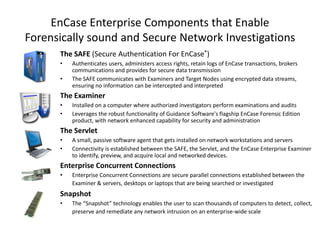
EnCase Enterprise Components that Enable
Forensically sound and Secure Network Investigations
The SAFE (Secure Authentication For EnCase®)
•
•

Authenticates users, administers access rights, retain logs of EnCase transactions, brokers
communications and provides for secure data transmission
The SAFE communicates with Examiners and Target Nodes using encrypted data streams,
ensuring no information can be intercepted and interpreted

The Examiner
•
•

Installed on a computer where authorized investigators perform examinations and audits
Leverages the robust functionality of Guidance Software's flagship EnCase Forensic Edition
product, with network enhanced capability for security and administration

The Servlet
•
•

A small, passive software agent that gets installed on network workstations and servers
Connectivity is established between the SAFE, the Servlet, and the EnCase Enterprise Examiner
to identify, preview, and acquire local and networked devices.

Enterprise Concurrent Connections
•

Enterprise Concurrent Connections are secure parallel connections established between the
Examiner & servers, desktops or laptops that are being searched or investigated

Snapshot
•

The “Snapshot” technology enables the user to scan thousands of computers to detect, collect,
preserve and remediate any network intrusion on an enterprise-wide scale
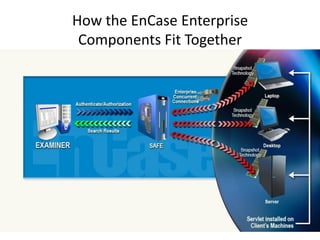
How the EnCase Enterprise
Components Fit Together

Servlets Installed
on Computers
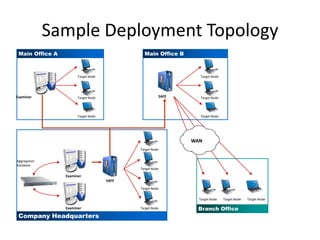
Sample Deployment Topology
Main Office A

Main Office B

Target Node

Examiner

Target Node

SAFE

Target Node

Target Node

Target Node

Target Node

WAN
Target Node
Aggregation
Database

Target Node

Examiner
SAFE
Target Node
Target Node

Examiner

Company Headquarters

Target Node

Target Node

Branch Office

Target Node
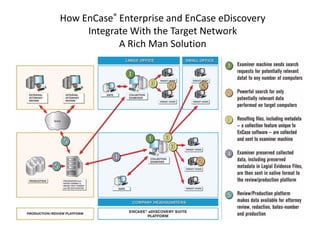
How EnCase® Enterprise and EnCase eDiscovery
Integrate With the Target Network
A Rich Man Solution
What we Need
• EnCase Enterprise v7
– safe, examiner (both on the same machine in
basic setup)

• Requires a lot of hand work and good planning
– task definition, plans etc

• As it is in EnCase Enterprise we need
– open case
– user logged into safe with appropriate rights (role)
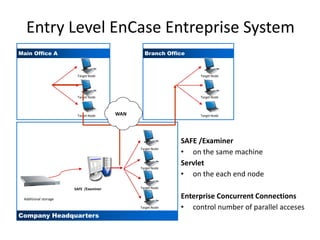
Entry Level EnCase Entreprise System
Main Office A

Branch Office

Target Node

Target Node

Target Node

Target Node

Target Node

WAN

Target Node

Target Node

Target Node

SAFE /Examiner

Target Node

Additional storage
Target Node

Company Headquarters

SAFE /Examiner
• on the same machine
Servlet
• on the each end node
Enterprise Concurrent Connections
• control number of parallel acceses
Task
• Collect all pdf, doc and docx files from two machines
defined by IP address
• Scope
– set of IP addresses

• Collection rule
– if file extension is pdf or doc or docx collect file and its metadata

• Procedure
– if node fails do another try
– create report with list of responsive files
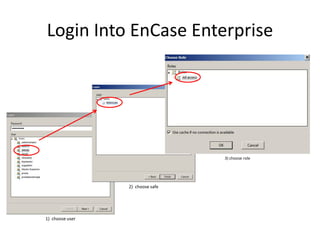
Login Into EnCase Enterprise

3) choose role

2) choose safe

1) choose user
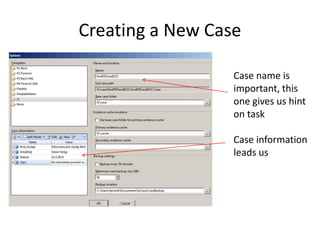
Creating a New Case
Case name is
important, this
one gives us hint
on task

Case information
leads us
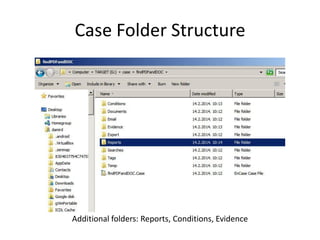
Case Folder Structure

Additional folders: Reports, Conditions, Evidence
Doing Enterprise Sweep
General input
• we need a list of targets

In the EnCase term
list of IP addressee where
we have to install servlets
and do sweep

• we need rules to define
responsive data

conditions, keywords,
hashes

• we need general rules
and guidelines

what to do in the case of
failure, errors, location to
store data, reports, tests,
case name, etc
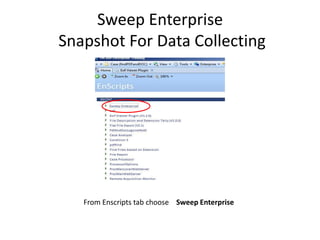
Sweep Enterprise
Snapshot For Data Collecting

From Enscripts tab choose Sweep Enterprise
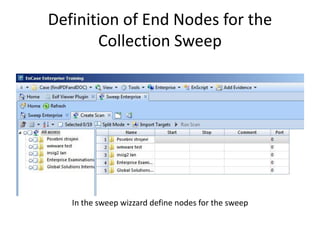
Definition of End Nodes for the
Collection Sweep

In the sweep wizzard define nodes for the sweep
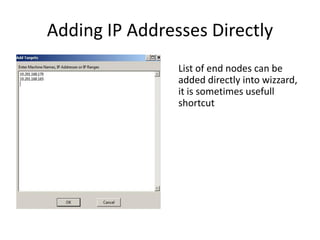
Adding IP Addresses Directly
List of end nodes can be
added directly into wizzard,
it is sometimes usefull
shortcut
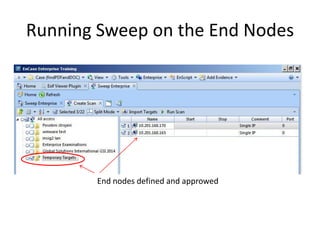
Running Sweep on the End Nodes

End nodes defined and approwed
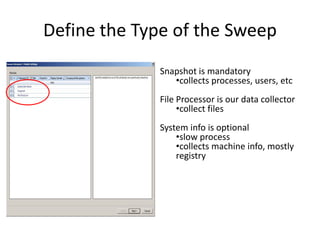
Define the Type of the Sweep
Snapshot is mandatory
•collects processes, users, etc
File Processor is our data collector
•collect files
System info is optional
•slow process
•collects machine info, mostly
registry
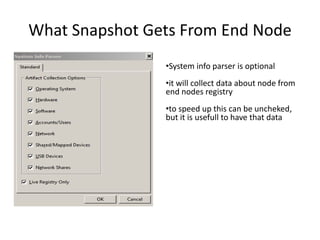
What Snapshot Gets From End Node
•System info parser is optional
•it will collect data about node from
end nodes registry
•to speed up this can be uncheked,
but it is usefull to have that data
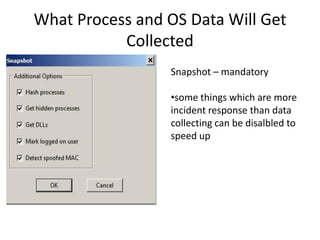
What Process and OS Data Will Get
Collected
Snapshot – mandatory
•some things which are more
incident response than data
collecting can be disalbled to
speed up
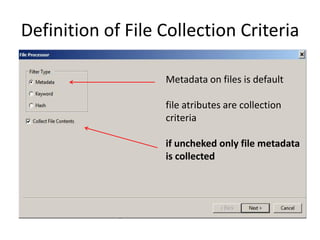
Definition of File Collection Criteria
Metadata on files is default
file atributes are collection
criteria
if uncheked only file metadata
is collected
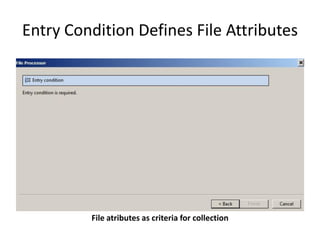
Entry Condition Defines File Attributes

File atributes as criteria for collection
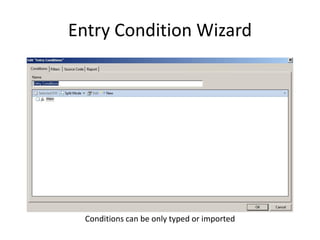
Entry Condition Wizard

Conditions can be only typed or imported
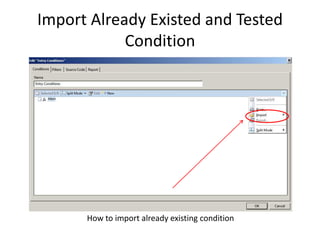
Import Already Existed and Tested
Condition

How to import already existing condition
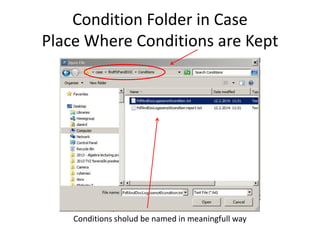
Condition Folder in Case
Place Where Conditions are Kept

Conditions sholud be named in meaningfull way
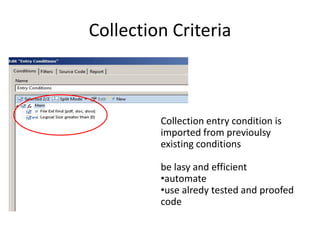
Collection Criteria

Collection entry condition is
imported from previoulsy
existing conditions
be lasy and efficient
•automate
•use alredy tested and proofed
code
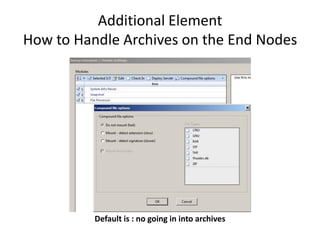
Additional Element
How to Handle Archives on the End Nodes

Default is : no going in into archives
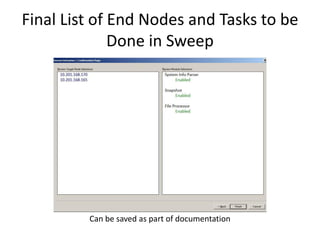
Final List of End Nodes and Tasks to be
Done in Sweep

Can be saved as part of documentation
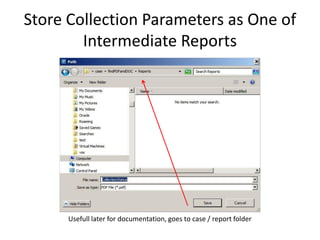
Store Collection Parameters as One of
Intermediate Reports

Usefull later for documentation, goes to case / report folder
Sweep is Running
•
•
•
•

It can take a lot of time
monitor status
keep logs
check the impact on the
network and systems

•
•
•
•

some automated tools
case analyzer
keep eye on console
keep eye on disk sage
and free space
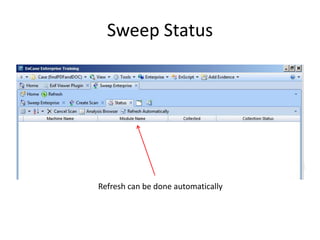
Sweep Status

Refresh can be done automatically
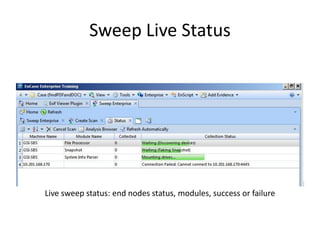
Sweep Live Status

Live sweep status: end nodes status, modules, success or failure
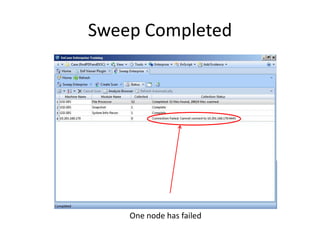
Sweep Completed

One node has failed
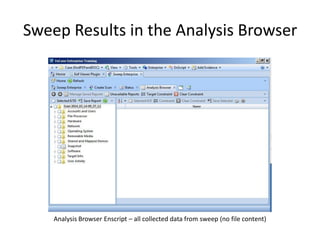
Sweep Results in the Analysis Browser

Analysis Browser Enscript – all collected data from sweep (no file content)
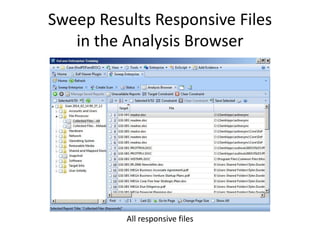
Sweep Results Responsive Files
in the Analysis Browser

All responsive files
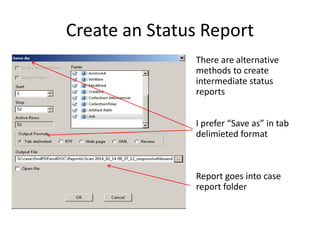
Create an Status Report
There are alternative
methods to create
intermediate status
reports
I prefer “Save as” in tab
delimieted format

Report goes into case
report folder
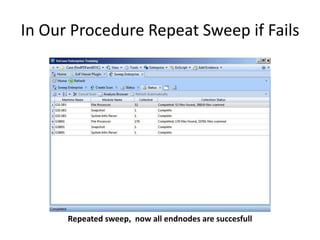
In Our Procedure Repeat Sweep if Fails

Repeated sweep, now all endnodes are succesfull
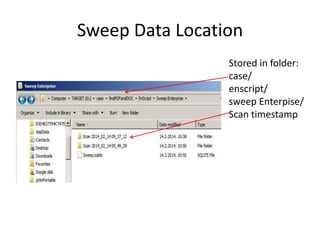
Sweep Data Location
Stored in folder:
case/
enscript/
sweep Enterpise/
Scan timestamp
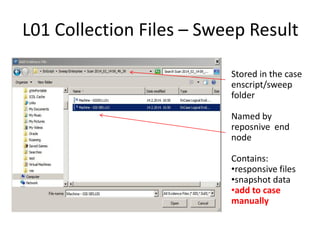
L01 Collection Files – Sweep Result
Stored in the case
enscript/sweep
folder
Named by
reposnive end
node
Contains:
•responsive files
•snapshot data
•add to case
manually
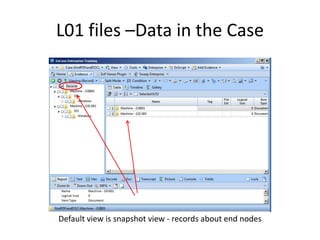
L01 files –Data in the Case

Default view is snapshot view - records about end nodes
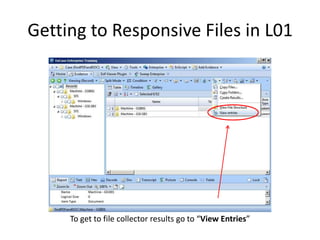
Getting to Responsive Files in L01

To get to file collector results go to “View Entries”
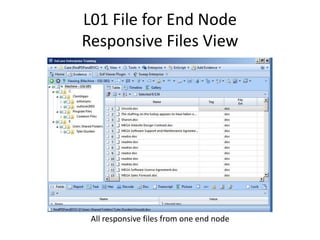
L01 File for End Node
Responsive Files View

All responsive files from one end node
How to Create Cumulative L01 File
• All data are in case in node-name.L01 files
– one for each end node
– to put all that into one file without snapshot data

• Condition will create result view
– again already used condition can be applied

• From cumulative L01 and all necessary reports
can be created
– same data but easier to handle
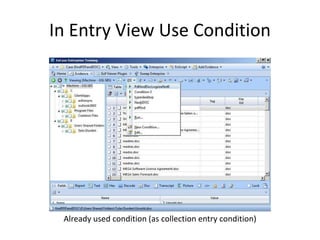
In Entry View Use Condition

Already used condition (as collection entry condition)
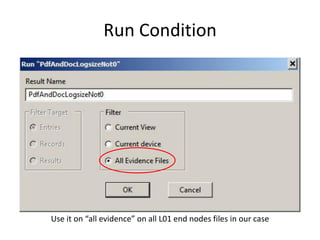
Run Condition

Use it on “all evidence” on all L01 end nodes files in our case
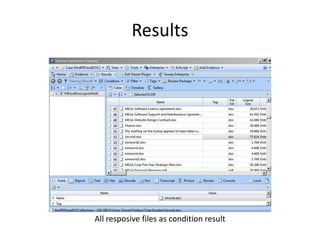
Results

All resposive files as condition result
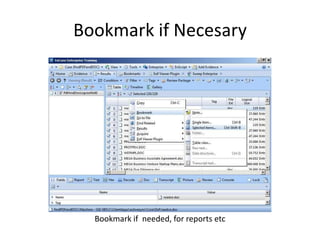
Bookmark if Necesary

Bookmark if needed, for reports etc
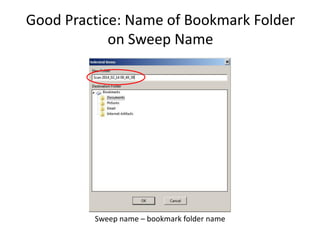
Good Practice: Name of Bookmark Folder
on Sweep Name

Sweep name – bookmark folder name
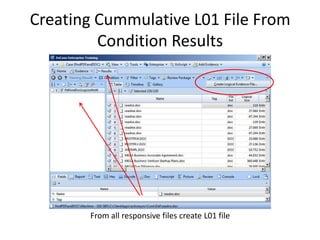
Creating Cummulative L01 File From
Condition Results

From all responsive files create L01 file
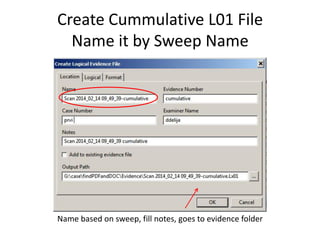
Create Cummulative L01 File
Name it by Sweep Name

Name based on sweep, fill notes, goes to evidence folder
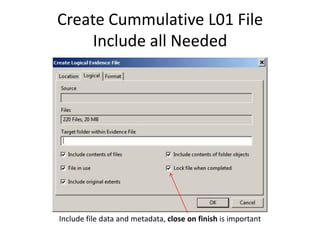
Create Cummulative L01 File
Include all Needed

Include file data and metadata, close on finish is important
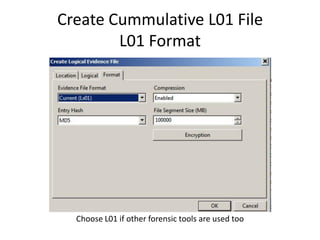
Create Cummulative L01 File
L01 Format

Choose L01 if other forensic tools are used too
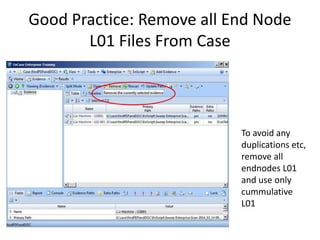
Good Practice: Remove all End Node
L01 Files From Case

To avoid any
duplications etc,
remove all
endnodes L01
and use only
cummulative
L01
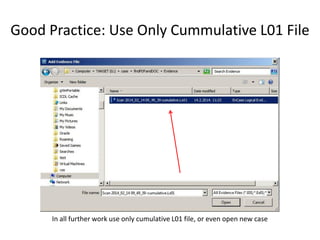
Good Practice: Use Only Cummulative L01 File

In all further work use only cumulative L01 file, or even open new case
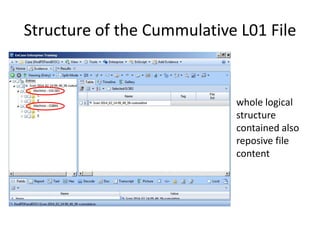
Structure of the Cummulative L01 File

whole logical
structure
contained also
reposive file
content
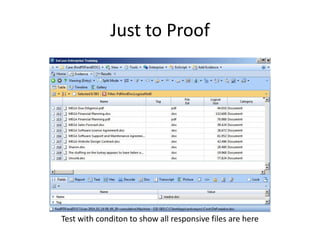
Just to Proof

Test with conditon to show all responsive files are here
Finishing
•
•
•
•
•
•

Document everything
Reports
logs
backup
Store on encrypted media
Remove forensically and wipe forensically all
temporary and unwanted data and media
• Don’t forget to unistall servlets

EnCase Enterprise Basic File Collection

  • 1.
    Basic Ediscovery Stepsin EnCase Enterprise v7 Damir Delija 2014
  • 2.
    Introduction • Data collectioncan be done automatically in the EnCase Enterprise • Requires a lot of hand work and good planning • This presentation is a putting together information from various sources and manuals – Lance Muller blog, – EnCase presentations and manuals, – blogs
  • 3.
    EnCase Enterprise Componentsthat Enable Forensically sound and Secure Network Investigations The SAFE (Secure Authentication For EnCase®) • • Authenticates users, administers access rights, retain logs of EnCase transactions, brokers communications and provides for secure data transmission The SAFE communicates with Examiners and Target Nodes using encrypted data streams, ensuring no information can be intercepted and interpreted The Examiner • • Installed on a computer where authorized investigators perform examinations and audits Leverages the robust functionality of Guidance Software's flagship EnCase Forensic Edition product, with network enhanced capability for security and administration The Servlet • • A small, passive software agent that gets installed on network workstations and servers Connectivity is established between the SAFE, the Servlet, and the EnCase Enterprise Examiner to identify, preview, and acquire local and networked devices. Enterprise Concurrent Connections • Enterprise Concurrent Connections are secure parallel connections established between the Examiner & servers, desktops or laptops that are being searched or investigated Snapshot • The “Snapshot” technology enables the user to scan thousands of computers to detect, collect, preserve and remediate any network intrusion on an enterprise-wide scale
  • 4.
    How the EnCaseEnterprise Components Fit Together Servlets Installed on Computers
  • 5.
    Sample Deployment Topology MainOffice A Main Office B Target Node Examiner Target Node SAFE Target Node Target Node Target Node Target Node WAN Target Node Aggregation Database Target Node Examiner SAFE Target Node Target Node Examiner Company Headquarters Target Node Target Node Branch Office Target Node
  • 6.
    How EnCase® Enterpriseand EnCase eDiscovery Integrate With the Target Network A Rich Man Solution
  • 7.
    What we Need •EnCase Enterprise v7 – safe, examiner (both on the same machine in basic setup) • Requires a lot of hand work and good planning – task definition, plans etc • As it is in EnCase Enterprise we need – open case – user logged into safe with appropriate rights (role)
  • 8.
    Entry Level EnCaseEntreprise System Main Office A Branch Office Target Node Target Node Target Node Target Node Target Node WAN Target Node Target Node Target Node SAFE /Examiner Target Node Additional storage Target Node Company Headquarters SAFE /Examiner • on the same machine Servlet • on the each end node Enterprise Concurrent Connections • control number of parallel acceses
  • 9.
    Task • Collect allpdf, doc and docx files from two machines defined by IP address • Scope – set of IP addresses • Collection rule – if file extension is pdf or doc or docx collect file and its metadata • Procedure – if node fails do another try – create report with list of responsive files
  • 10.
    Login Into EnCaseEnterprise 3) choose role 2) choose safe 1) choose user
  • 11.
    Creating a NewCase Case name is important, this one gives us hint on task Case information leads us
  • 12.
    Case Folder Structure Additionalfolders: Reports, Conditions, Evidence
  • 13.
    Doing Enterprise Sweep Generalinput • we need a list of targets In the EnCase term list of IP addressee where we have to install servlets and do sweep • we need rules to define responsive data conditions, keywords, hashes • we need general rules and guidelines what to do in the case of failure, errors, location to store data, reports, tests, case name, etc
  • 14.
    Sweep Enterprise Snapshot ForData Collecting From Enscripts tab choose Sweep Enterprise
  • 15.
    Definition of EndNodes for the Collection Sweep In the sweep wizzard define nodes for the sweep
  • 16.
    Adding IP AddressesDirectly List of end nodes can be added directly into wizzard, it is sometimes usefull shortcut
  • 17.
    Running Sweep onthe End Nodes End nodes defined and approwed
  • 18.
    Define the Typeof the Sweep Snapshot is mandatory •collects processes, users, etc File Processor is our data collector •collect files System info is optional •slow process •collects machine info, mostly registry
  • 19.
    What Snapshot GetsFrom End Node •System info parser is optional •it will collect data about node from end nodes registry •to speed up this can be uncheked, but it is usefull to have that data
  • 20.
    What Process andOS Data Will Get Collected Snapshot – mandatory •some things which are more incident response than data collecting can be disalbled to speed up
  • 21.
    Definition of FileCollection Criteria Metadata on files is default file atributes are collection criteria if uncheked only file metadata is collected
  • 22.
    Entry Condition DefinesFile Attributes File atributes as criteria for collection
  • 23.
    Entry Condition Wizard Conditionscan be only typed or imported
  • 24.
    Import Already Existedand Tested Condition How to import already existing condition
  • 25.
    Condition Folder inCase Place Where Conditions are Kept Conditions sholud be named in meaningfull way
  • 26.
    Collection Criteria Collection entrycondition is imported from previoulsy existing conditions be lasy and efficient •automate •use alredy tested and proofed code
  • 27.
    Additional Element How toHandle Archives on the End Nodes Default is : no going in into archives
  • 28.
    Final List ofEnd Nodes and Tasks to be Done in Sweep Can be saved as part of documentation
  • 29.
    Store Collection Parametersas One of Intermediate Reports Usefull later for documentation, goes to case / report folder
  • 30.
    Sweep is Running • • • • Itcan take a lot of time monitor status keep logs check the impact on the network and systems • • • • some automated tools case analyzer keep eye on console keep eye on disk sage and free space
  • 31.
    Sweep Status Refresh canbe done automatically
  • 32.
    Sweep Live Status Livesweep status: end nodes status, modules, success or failure
  • 33.
  • 34.
    Sweep Results inthe Analysis Browser Analysis Browser Enscript – all collected data from sweep (no file content)
  • 35.
    Sweep Results ResponsiveFiles in the Analysis Browser All responsive files
  • 36.
    Create an StatusReport There are alternative methods to create intermediate status reports I prefer “Save as” in tab delimieted format Report goes into case report folder
  • 37.
    In Our ProcedureRepeat Sweep if Fails Repeated sweep, now all endnodes are succesfull
  • 38.
    Sweep Data Location Storedin folder: case/ enscript/ sweep Enterpise/ Scan timestamp
  • 39.
    L01 Collection Files– Sweep Result Stored in the case enscript/sweep folder Named by reposnive end node Contains: •responsive files •snapshot data •add to case manually
  • 40.
    L01 files –Datain the Case Default view is snapshot view - records about end nodes
  • 41.
    Getting to ResponsiveFiles in L01 To get to file collector results go to “View Entries”
  • 42.
    L01 File forEnd Node Responsive Files View All responsive files from one end node
  • 43.
    How to CreateCumulative L01 File • All data are in case in node-name.L01 files – one for each end node – to put all that into one file without snapshot data • Condition will create result view – again already used condition can be applied • From cumulative L01 and all necessary reports can be created – same data but easier to handle
  • 44.
    In Entry ViewUse Condition Already used condition (as collection entry condition)
  • 45.
    Run Condition Use iton “all evidence” on all L01 end nodes files in our case
  • 46.
    Results All resposive filesas condition result
  • 47.
    Bookmark if Necesary Bookmarkif needed, for reports etc
  • 48.
    Good Practice: Nameof Bookmark Folder on Sweep Name Sweep name – bookmark folder name
  • 49.
    Creating Cummulative L01File From Condition Results From all responsive files create L01 file
  • 50.
    Create Cummulative L01File Name it by Sweep Name Name based on sweep, fill notes, goes to evidence folder
  • 51.
    Create Cummulative L01File Include all Needed Include file data and metadata, close on finish is important
  • 52.
    Create Cummulative L01File L01 Format Choose L01 if other forensic tools are used too
  • 53.
    Good Practice: Removeall End Node L01 Files From Case To avoid any duplications etc, remove all endnodes L01 and use only cummulative L01
  • 54.
    Good Practice: UseOnly Cummulative L01 File In all further work use only cumulative L01 file, or even open new case
  • 55.
    Structure of theCummulative L01 File whole logical structure contained also reposive file content
  • 56.
    Just to Proof Testwith conditon to show all responsive files are here
  • 57.
    Finishing • • • • • • Document everything Reports logs backup Store onencrypted media Remove forensically and wipe forensically all temporary and unwanted data and media • Don’t forget to unistall servlets