Excel Basics for Everyday Use
By Kevin McLogan
kevinmclogan@yahoo.com
bigkkm@twitter.com
facebook.com/kmclogan
linkedin.com/in/kevinmclogan
Course Objectives:
      After you complete this course to will be able to:
• Analyze data to solve problems
• Manage and make sense of large amounts of data
• Perform and understand calculations and determine
  which functions are appropriate for the task at hand.
• Format the contents of a worksheet
• Create a basic Chart
• Customize your individual Excel experience to make you
  even more productive and awesome than you are now!
 Create spreadsheets that amaze your friends and
    strike fear into the hearts of your enemies

                                                           2
For this class, I am making the
          following assumptions
• That you are just getting started with Excel
• That you are eager to learn about Excel
• That there are things in your life that can be improved
  through spreadsheets
• That you will walk out of here with a better
  understanding of Excel and be able to use it in
  meaningful ways when you leave the class, no matter
  what your current skill level is
• That you will practice the skills you have learned here


                                                            3
In order for us to make this an outstanding
                 experience
 • Ask questions if you are not clear on a concept
 • If you have a problem with a file, let us know so
   that you can reload it.
 • I will talk really fast if you let me-slow me down if
   I get ahead of you.
 • If you need help, please let us know-if you can
   help, please do.
 • This is a hands-on lesson, so you will learn by
   doing-you might want to take some notes.


                                                       4
Different versions
•   There are four versions that you could be using
•   Excel 2003
•   Excel 2007
•   Excel 2010
•   Excel 2013, or Excel 365


                                                  5
2003


       6
And it’s all about being productive!
 What kinds of things are you going to do with
                        Excel?
Utilize your toolbar, design of spreadsheets and
  formats to make Excel a tool with which you
  can solve problems, analyze your data, and
  communicate better.


                                                   7
Why on a Computer?
    Change the Car Payment


       Change the Utilities


8
Basic Spreadsheet
                 Paper Ledger


                 Car loan         $500

                 Utilities        $300


                 Total Payments   $800


9
10
Active Cell

• The active cell is recognized by its black outline.
  Data is always entered into the active cell.
  Different cells can be made active by clicking on
  them with the mouse or by using the arrow
  keys on the keyboard.


                                                   11
File Tab

• The File tab is new to Excel 2010 - Sort of. It is a
  replacement for the Office Button in Excel 2007 which was
  a replacement for the file menu in earlier versions of Excel.

• Like the old file menu, the File tab options are mostly
  related to file management such as opening new or existing
  worksheet files, saving, printing, and a new feature - saving
  and sending Excel files in PDF format.


                                                              12
Formula Bar

• Located above the worksheet, this area
  displays the contents of the active cell. It can
  also be used for entering or editing data and
  formulas.


                                                     13
Name Box

• Located next to the formula bar, the Name
  Box displays the cell reference or the name of
  the active cell.


                                                   14
What is a Row?
• Rows run horizontally in a
  worksheet
• They are identified by a number
  in the row header.
• Together a column letter and a
  row number create a cell
  reference.
• Each cell in the worksheet can be
  identified by this combination of
  letters and numbers such as
  A1, F456, or AA34.

           15
What is a Column?
Columns run vertically on a worksheet and
each one is identified by a letter in the
column header.


       16
Sheet Tabs

• By default there are three worksheets in Excel 2003 . Newer
  versions (thankfully!) abandon that convention.

• The tab at the bottom of a worksheet tells you the name of
  the worksheet - such as Sheet1, Sheet2 etc.

• Switching between worksheets can be done by clicking on
  the tab of the sheet you wish to access.

• Renaming a worksheet or changing the tab color can make it
  easier to keep track of data in large spreadsheet files.


                                                            17
Ribbon

• The Ribbon is the strip of buttons and icons located
  above the work area. The Ribbon is organized into a
  series of tabs - such as File, Home, and Formulas. Each
  tab contains a number of related features and options.
  First introduced in Excel 2007, the Ribbon replaced the
  menus and toolbars found in Excel 2003 and earlier
  versions.


                                                        18
Quick Access Toolbar

• This customizable toolbar allows you to add
  frequently used commands. Click on the down
  arrow at the end of the toolbar to display the
  toolbar's options.
• In later versions it appears below the ribbon


                                               19
Let’s get started
 In order for you to get the most out of
Excel, let’s begin with a couple of concepts
        that will serve all of you well.


                                               20
What is a Cell?


21
All about cells
    What is a cell, you may ask?
    A CELL is defined as the space where a specified row and column intersect. Each CELL is
    assigned a name according to its COLUMN letter and ROW number.


•    How to identify the elements of a cell (Format, Values, Formulas, Links)
•    How to change the format of cells
•    How to use the Format Cells dialogue box
•    How to change the dimensions of the cell
•    How to enter formulas and modify them
•    How to enter dates and times
•    How to enter text
•    How to add comments
•    How to enter numeric values
•    How each of types of data entered have their own traits


                                                                                              22
Elements of a cell
• Value:
  • The number or text that is the result of the actions forced
    upon the cell
• Formula:
  • Entries that have an equation that calculates the value to
    display. We DO NOT type in the numbers we are looking
    for; we type in the equation. This equation will be updated
    upon the change or entry of any data that is referenced in
    the equation.,
• Format:
  • Controlled by user to make the cell look presentable

                                                                  23
What can we enter in a cell?
 In a spreadsheet there are three basic types of
              data that can be entered.
• labels - (text with no numerical value)
• constants - (just a number -- constant value)
• formulas* - (a mathematical equation used to
  calculate)


                                                   24
Types of Data
Data types        Examples                 Descriptions


LABEL             Names or Wages or Days   Any thing that is just text


CONSTANT          5 or 3.45 or –2.9        Any number


FORMULA           = 5+3 or 4-2*9           Math equation


             25
Labels in Excel


26
Constants in Excel


27
Value
• The result of a formula or a manual entry into
  a cell.
• It can be a number of any kind including
  dates, fractions, percentages, etc, or a word or
  other text including phone numbers.
• A picture or other graphic does not exist
  inside a cell.


                                                 28
Formulas in Excel

• Formulas OR Functions MUST BEGIN with an equal sign
(=).


       29
Formulas in Excel


30
Basic Formulas in Excel


      • Equation in B4
      • = B1 * B2
      • = 23 * 5.36


31
Change in Formulas


 Hours have been changed to 34
- Wage is the same
- Total pay would now be = 34 * 5.36
- But would still be = B1 * B2


   32
Change in Formulas
First Equation


                           Changed Equation


            33
Basic Math Functions
                                  A         B
                            1     5         3
                            2     7         4
                            3     8         6
 Operations        Symbol   Constant Data       Referenced Data   Answer

Multiplication       *          =5*6               = A1* B3         30

  Division           /          =8/4               = A3 / B2        2

  Addition           +          =4+7               = B2 + A2        11

 Subtraction         -          =8-3               = A3 - B1        5

              34
Methods of Selecting Cells

     • Type in the cell
     • Click on the cell


35
Methods of Selecting Cells
                                         A    B
                                    1    5    3
                                    2    7    4
                                    3    8     6


    To select        Type in                  Click on
       A1             A1       click on A1
  A 1, A 2, A 3      A1: A3    click on A1, with button down drag
                               to A3
     A1, B 1         A1: B1    click on A1, with button down drag
                               to B1
    A 1, B 3         A1, B3    click on A1, type in comma, click
                               on B3
A 1, A 2, B 1, B 3   A1: B2    click on A1, with button down,
          36                   drag to B2
Sorting
• The standard
  configuration on the
  toolbar is unsuitable!
• Change it or use the
  menu item:
  • Data=>Sort


      Open Big Sort file for the exercise.

                                             37
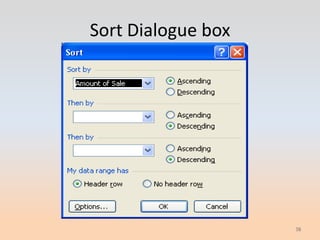
Sort Dialogue box


                    38
Filters
• Another Concept is that of filters
• There are two kinds of filters we will use today
  • Auto Filter: creates a drop-down menu with
    choices
  • Advanced Filter: Helps to identify unique items in
    a long list.
     Open AutoFilter Names file and we will work on
                       some examples


                                                         39
Naming ranges
                    Why is this important:
•   Names make your formulas more understandable
    and easier to use, especially for others.
•   A descriptive name is easier to remember than a
    range of cells
•   Makes it easier to move around in the spreadsheet.
•   Easy to verify-the names appear in the name box.


                                                         40
Define Name Box


                  41
Checking your work
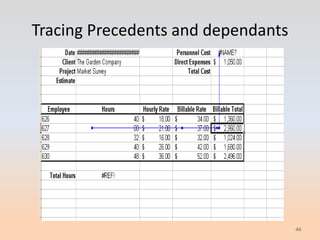
• Tracing errors: when you get a message like:
  • ####, #DIV/0!, #REF!, #NULL!1, #VALUE!,
    #NAME?, #NUM!, #N/A
               Something went wrong!


           Open the Fix and trace errors file


                                                 42
•##### column is too narrow to display the value, or you might
have used a negative number for a date or time.

•#DIV/0! You attempted to divide by zero. What were you
thinking?

•#NAME? Excel does not recognize the text in the cell. A name or
function have been misspelled or used a name that does not exist.
Text in not marked properly.

•#NUM! The formula contains an invalid numeric value or a
number that is too large or too small for Excel to handle.

•#REF! The formula uses an invalid cell reference.

•#VALUE! The wrong type of argument is used in the formula.
                                                                 43
Tracing Precedents and dependants


                                    44
Drop-down menus in cells
            •You can limit the options for
            data entry with a drop-down
            menu in each cell.
            •This keeps the entries
            consistent and limits errors due
            to spelling, or other
            inconsistencies.
            •Let’s try it!


                                             45
Formatting
If your spreadsheet looks good, so do you!


                                             46
Number Formatting

            Open the Format
            Numbers File


                              47
Alignment of the cells


                         48
Font adjustments


                   49
Borders


          50
Patterns


           51
Auto Format


              52
Conditional Formatting
    Open Conditional Formatting file.


If a cell’s value results in a certain condition, the format
      can be changed according to your preference.


                                                               53
Charting for better effect
           Open the Chart Examples file
• Charts and graphs are important because they
  bring visualization to data.
• This is an important key to gaining
  understanding from your message.


                                             54
OTHER STUFF THAT ISN’T AS EASY TO
             CATEGORIZE
• Tabs at the bottom.
  • Name one “History”-I dare ya!
• Freezing panes
• Looking at more than one workbook at a time
• Links to other workbooks


                                                55
Inserting fancy stuff into your spreadsheet

      • Hyperlinks


     Open the more resources file to see how this is inserted.

                                                                 56
More stuff to add
•   Pictures
•   Clip Art
•   Diagrams
•   Organizational charts


                                  57
Stuff that is a little quirky in Excel
• Printing: it takes some adjustments:   Copy the entire sheet by
    •page breaks, page break views       clicking the corner piece
    •Always start from scratch in Page   on the top left. This way
    Setup                                you can get all the
                                         formats and row heights
                                         and column widths.


                                                                 58
Other miscellany
Be careful of linking inadvertently
    to other file that may not be
               present.


     Newer version of Excel may
     generate files with .xlsx file
     extension
                                      59
Customize your Excel Experience

We are going to start out by making Excel work
       for you-not the other way around!


                                             60
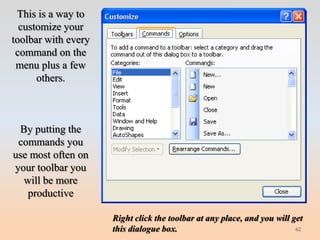
Customize your Toolbar


  This is the Standard toolbar-but you’re not
   standard, so why should your toolbar be?


This is what my toolbar looks like-and so can
                   yours!
                                                61
This is a way to
  customize your
toolbar with every
 command on the
 menu plus a few
      others.


 By putting the
 commands you
use most often on
your toolbar you
  will be more
   productive

                     Right click the toolbar at any place, and you will get
                     this dialogue box.                                  62
Formula/Function
       This is where the heavy lifting is done.
• Formulas contain five elements:
   • Operators (Symbols like +, -, /, *)
   • References: named cells or ranges, in the current
     worksheet or another worksheet, or even another
     workbook.
   • Values: numbers or lists of numbers (sometimes named)
   • Functions and their arguments: include SUM, AVERAGE,
     VLOOKUP and their arguments
   • Parentheses: Control the order in which the work gets
     done.

                                                             63
Formula Lesson
Open the worksheet titled “formula lesson”
• What is the total sales number for January?
• How much did each sales Associate sell in January?
• How do I know that I added up all of the sales figures?
• What day of the month had the most sales?
• The least sales?
• In order to make it worthwhile for me to keep a sales person
  working, they need to generate $6500 in sales per quarter-
  these sales are evaluated at the end of the quarter. Keep this
  in mind as we move forward.
• Work through each month of the first quarter and then we
  will total it up in the last sheet.


                                                               64
Insert a function


                    65
How to make functions work for you
• Use function box or create your own using
  operators (+, -, /, *)
• Start with “=” sign
• Edit formula in cell or in the formula bar
• Copy a formula-if it refers to another cell, then
  it will move its reference point (we noticed
  that in our last example)
     Let's create some of our own formulas!
                                                  66
Popular functions
•   SUM
•   AVERAGE
•   IF
•   COUNT
•   COUNTNUMS
•   MAX &MIN
•   CONCATENATE AND MID
•   SUMIF
•   VLOOKUP
• RANK
• COUNTIF &COUNTA

                          Open Sum file   67
=SUM


       68
=AVERAGE


           69
=COUNT


         70
=COUNTA


          71
=MAX &MIN


            72
Text Functions
• =MID: takes part of a text string apart
• =CONCATENATE: puts several strings of text
  into one text string


                                               73
=SUMIF


         74
PROPER
• This is pretty cool! (But it doesn’t work on me)


                                                 75
=IF
• This can be the most complicated of all
  functions!
• It is definitely the most abused!
• Think about it as “IF condition A occurs, this is
  the result, IF not, then this is the result.”
• There can be multiple conditions, but that’s
  where we can run into trouble.


                                                  76
MORE IF


          77
=RANK (or, how much do you like me?)


                                   78
DATE FUNCTIONS
• =NOW and =TODAY return the current time
  and date (the difference is that NOW includes
  the time)
• REMEMBER: all dates are stored as a number.
  Today is 40,206 (standard date system) and
  38745 in 1904 date system.
• The standard system is based on days from
  1900, but counted it as a leap year.
• Always use the 1904 system if adding or
  subtracting dates!
                                                  79
SUBTOTAL FUNCTION
Returns a subtotal in a list or database. It is
  generally easier to create a list with subtotals
  using the Subtotals command (Data menu).
  Once the subtotal list is created, you can
  modify it by editing the SUBTOTAL function.
1 AVERAGE 6 PRODUCT
2 COUNT             7 STDEV
3 COUNTA 8 STDEVP
4 MAX               9 SUM
5 MIN               10 VAR
                    11 VARP


                                                     80
I leave you with this:

SAVE YOUR WORK!

Thank you for participating, happy
        spread sheeting!


                                     81

Excel basics for everyday use

  • 1.
    Excel Basics forEveryday Use By Kevin McLogan kevinmclogan@yahoo.com bigkkm@twitter.com facebook.com/kmclogan linkedin.com/in/kevinmclogan
  • 2.
    Course Objectives: After you complete this course to will be able to: • Analyze data to solve problems • Manage and make sense of large amounts of data • Perform and understand calculations and determine which functions are appropriate for the task at hand. • Format the contents of a worksheet • Create a basic Chart • Customize your individual Excel experience to make you even more productive and awesome than you are now! Create spreadsheets that amaze your friends and strike fear into the hearts of your enemies 2
  • 3.
    For this class,I am making the following assumptions • That you are just getting started with Excel • That you are eager to learn about Excel • That there are things in your life that can be improved through spreadsheets • That you will walk out of here with a better understanding of Excel and be able to use it in meaningful ways when you leave the class, no matter what your current skill level is • That you will practice the skills you have learned here 3
  • 4.
    In order forus to make this an outstanding experience • Ask questions if you are not clear on a concept • If you have a problem with a file, let us know so that you can reload it. • I will talk really fast if you let me-slow me down if I get ahead of you. • If you need help, please let us know-if you can help, please do. • This is a hands-on lesson, so you will learn by doing-you might want to take some notes. 4
  • 5.
    Different versions • There are four versions that you could be using • Excel 2003 • Excel 2007 • Excel 2010 • Excel 2013, or Excel 365 5
  • 6.
  • 7.
    And it’s allabout being productive! What kinds of things are you going to do with Excel? Utilize your toolbar, design of spreadsheets and formats to make Excel a tool with which you can solve problems, analyze your data, and communicate better. 7
  • 8.
    Why on aComputer? Change the Car Payment Change the Utilities 8
  • 9.
    Basic Spreadsheet Paper Ledger Car loan $500 Utilities $300 Total Payments $800 9
  • 10.
  • 11.
    Active Cell • Theactive cell is recognized by its black outline. Data is always entered into the active cell. Different cells can be made active by clicking on them with the mouse or by using the arrow keys on the keyboard. 11
  • 12.
    File Tab • TheFile tab is new to Excel 2010 - Sort of. It is a replacement for the Office Button in Excel 2007 which was a replacement for the file menu in earlier versions of Excel. • Like the old file menu, the File tab options are mostly related to file management such as opening new or existing worksheet files, saving, printing, and a new feature - saving and sending Excel files in PDF format. 12
  • 13.
    Formula Bar • Locatedabove the worksheet, this area displays the contents of the active cell. It can also be used for entering or editing data and formulas. 13
  • 14.
    Name Box • Locatednext to the formula bar, the Name Box displays the cell reference or the name of the active cell. 14
  • 15.
    What is aRow? • Rows run horizontally in a worksheet • They are identified by a number in the row header. • Together a column letter and a row number create a cell reference. • Each cell in the worksheet can be identified by this combination of letters and numbers such as A1, F456, or AA34. 15
  • 16.
    What is aColumn? Columns run vertically on a worksheet and each one is identified by a letter in the column header. 16
  • 17.
    Sheet Tabs • Bydefault there are three worksheets in Excel 2003 . Newer versions (thankfully!) abandon that convention. • The tab at the bottom of a worksheet tells you the name of the worksheet - such as Sheet1, Sheet2 etc. • Switching between worksheets can be done by clicking on the tab of the sheet you wish to access. • Renaming a worksheet or changing the tab color can make it easier to keep track of data in large spreadsheet files. 17
  • 18.
    Ribbon • The Ribbonis the strip of buttons and icons located above the work area. The Ribbon is organized into a series of tabs - such as File, Home, and Formulas. Each tab contains a number of related features and options. First introduced in Excel 2007, the Ribbon replaced the menus and toolbars found in Excel 2003 and earlier versions. 18
  • 19.
    Quick Access Toolbar •This customizable toolbar allows you to add frequently used commands. Click on the down arrow at the end of the toolbar to display the toolbar's options. • In later versions it appears below the ribbon 19
  • 20.
    Let’s get started In order for you to get the most out of Excel, let’s begin with a couple of concepts that will serve all of you well. 20
  • 21.
    What is aCell? 21
  • 22.
    All about cells What is a cell, you may ask? A CELL is defined as the space where a specified row and column intersect. Each CELL is assigned a name according to its COLUMN letter and ROW number. • How to identify the elements of a cell (Format, Values, Formulas, Links) • How to change the format of cells • How to use the Format Cells dialogue box • How to change the dimensions of the cell • How to enter formulas and modify them • How to enter dates and times • How to enter text • How to add comments • How to enter numeric values • How each of types of data entered have their own traits 22
  • 23.
    Elements of acell • Value: • The number or text that is the result of the actions forced upon the cell • Formula: • Entries that have an equation that calculates the value to display. We DO NOT type in the numbers we are looking for; we type in the equation. This equation will be updated upon the change or entry of any data that is referenced in the equation., • Format: • Controlled by user to make the cell look presentable 23
  • 24.
    What can weenter in a cell? In a spreadsheet there are three basic types of data that can be entered. • labels - (text with no numerical value) • constants - (just a number -- constant value) • formulas* - (a mathematical equation used to calculate) 24
  • 25.
    Types of Data Datatypes Examples Descriptions LABEL Names or Wages or Days Any thing that is just text CONSTANT 5 or 3.45 or –2.9 Any number FORMULA = 5+3 or 4-2*9 Math equation 25
  • 26.
  • 27.
  • 28.
    Value • The resultof a formula or a manual entry into a cell. • It can be a number of any kind including dates, fractions, percentages, etc, or a word or other text including phone numbers. • A picture or other graphic does not exist inside a cell. 28
  • 29.
    Formulas in Excel •Formulas OR Functions MUST BEGIN with an equal sign (=). 29
  • 30.
  • 31.
    Basic Formulas inExcel • Equation in B4 • = B1 * B2 • = 23 * 5.36 31
  • 32.
    Change in Formulas Hours have been changed to 34 - Wage is the same - Total pay would now be = 34 * 5.36 - But would still be = B1 * B2 32
  • 33.
    Change in Formulas FirstEquation Changed Equation 33
  • 34.
    Basic Math Functions A B 1 5 3 2 7 4 3 8 6 Operations Symbol Constant Data Referenced Data Answer Multiplication * =5*6 = A1* B3 30 Division / =8/4 = A3 / B2 2 Addition + =4+7 = B2 + A2 11 Subtraction - =8-3 = A3 - B1 5 34
  • 35.
    Methods of SelectingCells • Type in the cell • Click on the cell 35
  • 36.
    Methods of SelectingCells A B 1 5 3 2 7 4 3 8 6 To select Type in Click on A1 A1 click on A1 A 1, A 2, A 3 A1: A3 click on A1, with button down drag to A3 A1, B 1 A1: B1 click on A1, with button down drag to B1 A 1, B 3 A1, B3 click on A1, type in comma, click on B3 A 1, A 2, B 1, B 3 A1: B2 click on A1, with button down, 36 drag to B2
  • 37.
    Sorting • The standard configuration on the toolbar is unsuitable! • Change it or use the menu item: • Data=>Sort Open Big Sort file for the exercise. 37
  • 38.
  • 39.
    Filters • Another Conceptis that of filters • There are two kinds of filters we will use today • Auto Filter: creates a drop-down menu with choices • Advanced Filter: Helps to identify unique items in a long list. Open AutoFilter Names file and we will work on some examples 39
  • 40.
    Naming ranges Why is this important: • Names make your formulas more understandable and easier to use, especially for others. • A descriptive name is easier to remember than a range of cells • Makes it easier to move around in the spreadsheet. • Easy to verify-the names appear in the name box. 40
  • 41.
  • 42.
    Checking your work •Tracing errors: when you get a message like: • ####, #DIV/0!, #REF!, #NULL!1, #VALUE!, #NAME?, #NUM!, #N/A Something went wrong! Open the Fix and trace errors file 42
  • 43.
    •##### column istoo narrow to display the value, or you might have used a negative number for a date or time. •#DIV/0! You attempted to divide by zero. What were you thinking? •#NAME? Excel does not recognize the text in the cell. A name or function have been misspelled or used a name that does not exist. Text in not marked properly. •#NUM! The formula contains an invalid numeric value or a number that is too large or too small for Excel to handle. •#REF! The formula uses an invalid cell reference. •#VALUE! The wrong type of argument is used in the formula. 43
  • 44.
  • 45.
    Drop-down menus incells •You can limit the options for data entry with a drop-down menu in each cell. •This keeps the entries consistent and limits errors due to spelling, or other inconsistencies. •Let’s try it! 45
  • 46.
    Formatting If your spreadsheetlooks good, so do you! 46
  • 47.
    Number Formatting Open the Format Numbers File 47
  • 48.
  • 49.
  • 50.
  • 51.
  • 52.
  • 53.
    Conditional Formatting Open Conditional Formatting file. If a cell’s value results in a certain condition, the format can be changed according to your preference. 53
  • 54.
    Charting for bettereffect Open the Chart Examples file • Charts and graphs are important because they bring visualization to data. • This is an important key to gaining understanding from your message. 54
  • 55.
    OTHER STUFF THATISN’T AS EASY TO CATEGORIZE • Tabs at the bottom. • Name one “History”-I dare ya! • Freezing panes • Looking at more than one workbook at a time • Links to other workbooks 55
  • 56.
    Inserting fancy stuffinto your spreadsheet • Hyperlinks Open the more resources file to see how this is inserted. 56
  • 57.
    More stuff toadd • Pictures • Clip Art • Diagrams • Organizational charts 57
  • 58.
    Stuff that isa little quirky in Excel • Printing: it takes some adjustments: Copy the entire sheet by •page breaks, page break views clicking the corner piece •Always start from scratch in Page on the top left. This way Setup you can get all the formats and row heights and column widths. 58
  • 59.
    Other miscellany Be carefulof linking inadvertently to other file that may not be present. Newer version of Excel may generate files with .xlsx file extension 59
  • 60.
    Customize your ExcelExperience We are going to start out by making Excel work for you-not the other way around! 60
  • 61.
    Customize your Toolbar This is the Standard toolbar-but you’re not standard, so why should your toolbar be? This is what my toolbar looks like-and so can yours! 61
  • 62.
    This is away to customize your toolbar with every command on the menu plus a few others. By putting the commands you use most often on your toolbar you will be more productive Right click the toolbar at any place, and you will get this dialogue box. 62
  • 63.
    Formula/Function This is where the heavy lifting is done. • Formulas contain five elements: • Operators (Symbols like +, -, /, *) • References: named cells or ranges, in the current worksheet or another worksheet, or even another workbook. • Values: numbers or lists of numbers (sometimes named) • Functions and their arguments: include SUM, AVERAGE, VLOOKUP and their arguments • Parentheses: Control the order in which the work gets done. 63
  • 64.
    Formula Lesson Open theworksheet titled “formula lesson” • What is the total sales number for January? • How much did each sales Associate sell in January? • How do I know that I added up all of the sales figures? • What day of the month had the most sales? • The least sales? • In order to make it worthwhile for me to keep a sales person working, they need to generate $6500 in sales per quarter- these sales are evaluated at the end of the quarter. Keep this in mind as we move forward. • Work through each month of the first quarter and then we will total it up in the last sheet. 64
  • 65.
  • 66.
    How to makefunctions work for you • Use function box or create your own using operators (+, -, /, *) • Start with “=” sign • Edit formula in cell or in the formula bar • Copy a formula-if it refers to another cell, then it will move its reference point (we noticed that in our last example) Let's create some of our own formulas! 66
  • 67.
    Popular functions • SUM • AVERAGE • IF • COUNT • COUNTNUMS • MAX &MIN • CONCATENATE AND MID • SUMIF • VLOOKUP • RANK • COUNTIF &COUNTA Open Sum file 67
  • 68.
  • 69.
  • 70.
  • 71.
  • 72.
  • 73.
    Text Functions • =MID:takes part of a text string apart • =CONCATENATE: puts several strings of text into one text string 73
  • 74.
  • 75.
    PROPER • This ispretty cool! (But it doesn’t work on me) 75
  • 76.
    =IF • This canbe the most complicated of all functions! • It is definitely the most abused! • Think about it as “IF condition A occurs, this is the result, IF not, then this is the result.” • There can be multiple conditions, but that’s where we can run into trouble. 76
  • 77.
  • 78.
    =RANK (or, howmuch do you like me?) 78
  • 79.
    DATE FUNCTIONS • =NOWand =TODAY return the current time and date (the difference is that NOW includes the time) • REMEMBER: all dates are stored as a number. Today is 40,206 (standard date system) and 38745 in 1904 date system. • The standard system is based on days from 1900, but counted it as a leap year. • Always use the 1904 system if adding or subtracting dates! 79
  • 80.
    SUBTOTAL FUNCTION Returns asubtotal in a list or database. It is generally easier to create a list with subtotals using the Subtotals command (Data menu). Once the subtotal list is created, you can modify it by editing the SUBTOTAL function. 1 AVERAGE 6 PRODUCT 2 COUNT 7 STDEV 3 COUNTA 8 STDEVP 4 MAX 9 SUM 5 MIN 10 VAR 11 VARP 80
  • 81.
    I leave youwith this: SAVE YOUR WORK! Thank you for participating, happy spread sheeting! 81