Tutorial
Is a note taking app that
remember everything
work smarter
and bring it all together
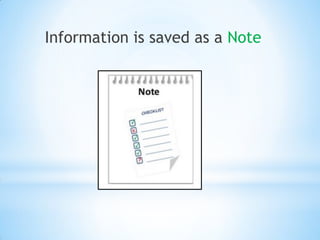
Information is saved as a Note
You can also add tags
To easily search
and retrieve
notes when you
need them.
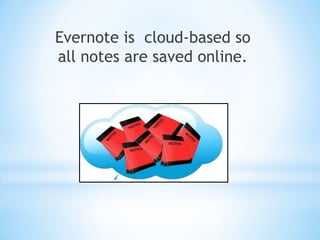
Evernote is cloud-based so
all notes are saved online.
You can easily access anytime.
How to create your Evernote
Account?
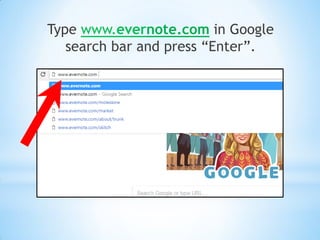
Type www.evernote.com in Google
search bar and press “Enter”.
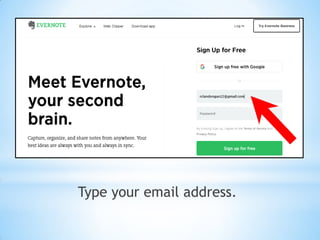
Type your email address.
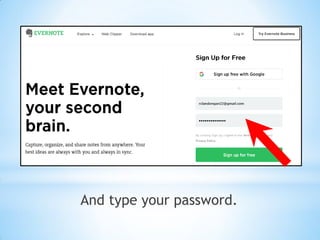
And type your password.
Click “Sign up for free”
Let’s get started!
You can choose below options.
For example: we choose
“be more productive”.
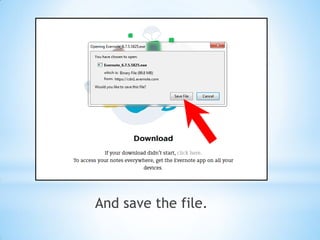
You can now download Evernote.
And save the file.
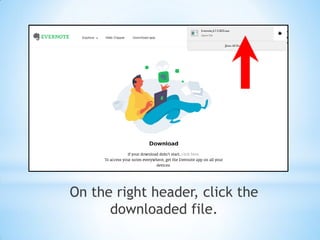
On the right header, click the
downloaded file.
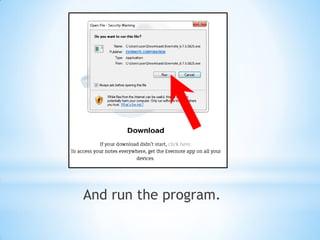
And run the program.
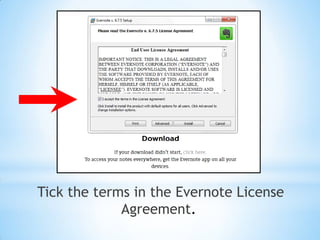
Tick the terms in the Evernote License
Agreement.
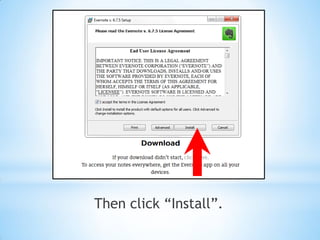
Then click “Install”.
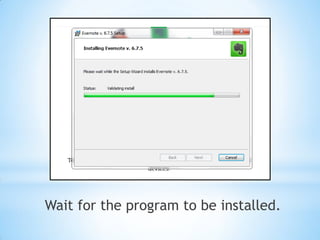
Wait for the program to be installed.
And click “Finish”.
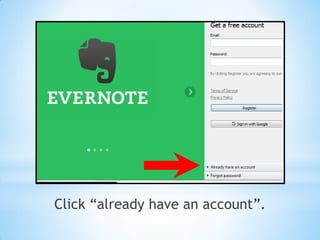
Click “already have an account”.
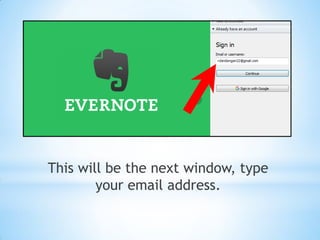
This will be the next window, type
your email address.
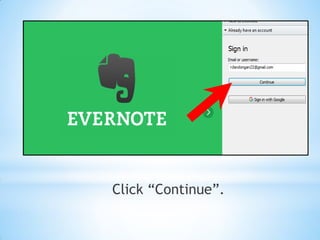
Click “Continue”.
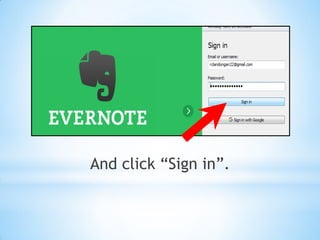
And click “Sign in”.
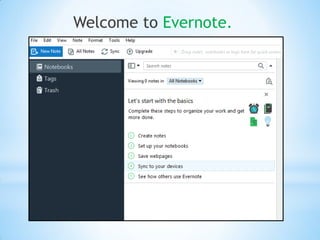
Welcome to Evernote.
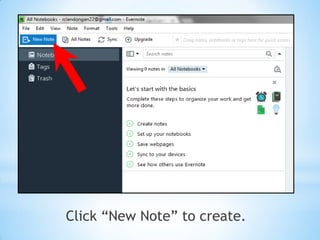
Click “New Note” to create.
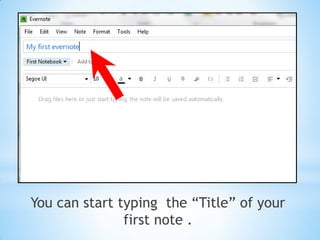
You can start typing the “Title” of your
first note .
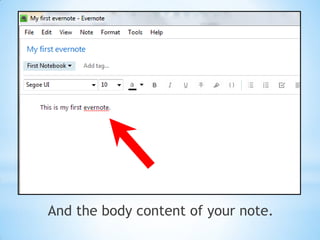
And the body content of your note.
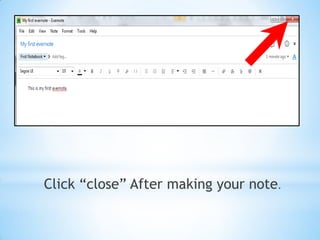
Click “close” After making your note.
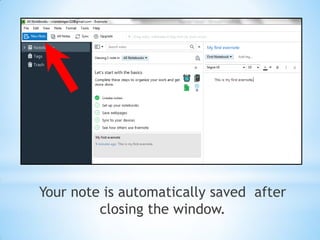
Your note is automatically saved after
closing the window.
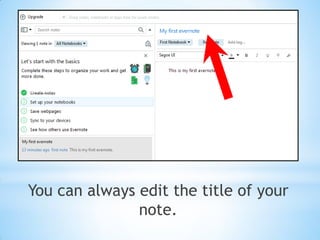
You can always edit the title of your
note.
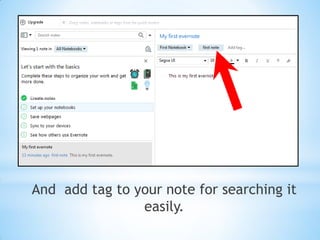
And add tag to your note for searching it
easily.
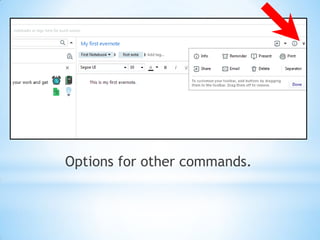
Options for other commands.
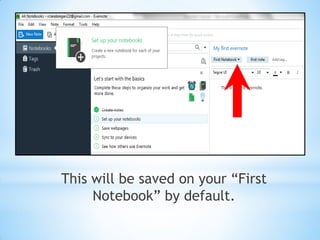
This will be saved on your “First
Notebook” by default.
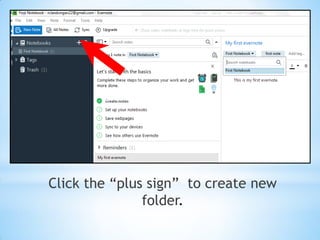
Click the “plus sign” to create new
folder.
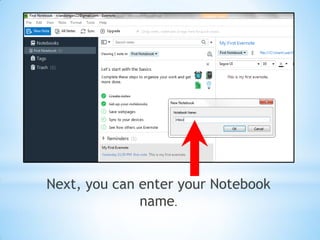
Next, you can enter your Notebook
name.
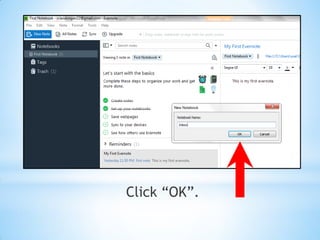
Click “OK”.
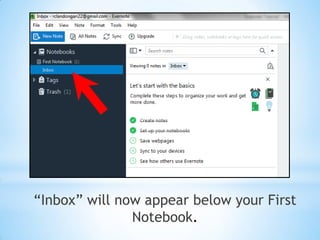
“Inbox” will now appear below your First
Notebook.
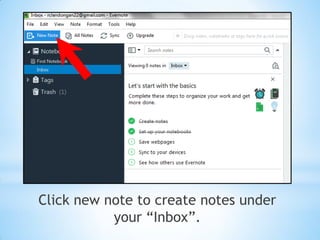
Click new note to create notes under
your “Inbox”.
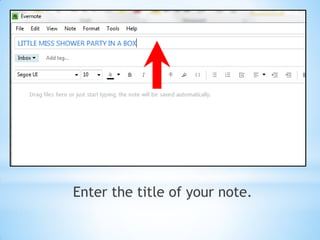
Enter the title of your note.
Type in the body content of your notes.
Click “Close”.
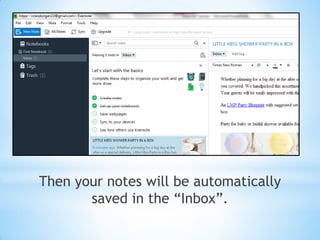
Then your notes will be automatically
saved in the “Inbox”.
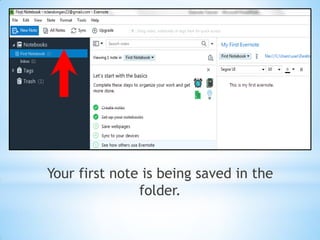
Your first note is being saved in the
folder.
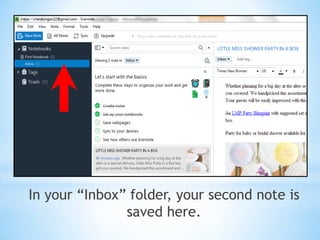
In your “Inbox” folder, your second note is
saved here.
Viola!
That’s all for
Evernote!
Thank you!
Created by: Roumayne C. Landongan
Virtual Assistant-Digital Marketing Project
November 10, 2017

Evernote Tutorial