EPL2
   Programmer’s
      Manual
Programming for Page Mode
          Printing


  Manual No. 980352-001 Rev.D
          ©2003 ZIH Corp.
FOREWORD
This manual provides programming information for printers featuring Zebra’s EPL2 Pro-
gramming and command language, which are manufactured by Zebra Technologies Corpora-
tion, Camarillo, California.


COPYRIGHT NOTICE
This document contains information proprietary to Zebra Technologies Corporation. This docu-
ment and the information contained within is copyrighted by Zebra Technologies Corporation
and may not be duplicated in full or in part by any person without written approval from Zebra.
While every effort has been made to keep the information contained within current and accurate
as of the date of publication, no guarantee is given or implied that the document is error-free or
that it is accurate with regard to any specification. Zebra reserves the right to make changes, for the
purpose of product improvement, at any time.


TRADEMARKS
Zebra and EPL2 are trademarks of Zebra Technologies Corporation. All other marks are
trademarks or registered trademarks of their respective holders.


REVISION HISTORY
Rev. A - This manual version coincides with Zebra printers with EPL2 firmware version 4.04.

Rev. B - This manual version coincides with Zebra printers with EPL2 firmware version 4.18.

Rev.C - This manual adds the 2746e and TR220 printer models and updates the Cash Draw
Kicker command.

Rev. D - This manual coincides with most Zebra printers with EPL2 firmware version 4.28 and is
available from Zebra in electronic form. Most differences in printer programming functionality are
noted within this manual, but some features and command differences may have been omitted,
missed or had an implementation variance or change after this manual was updated and pub-
lished.
Additions and changes include: the 3842 printer model, adds USPS Planet bar code, Data Matrix
bar code, RSS-14 bar code, JC command, OF command, ^default, code commenting (the
semi-colon), RTC defaults and improves PDF-417 data compaction description.


See the Zebra web site for information on Zebra Technologies printers at: www.zebra.com


ii                                                                                980352-001 Rev.D
Table of Contents

Introduction . . . . . . . . . . . . . . . . . . .              . . .    1-1
       Command Conventions . . . . . . . . . . . .             . . . .   1-2
       Basic Command Syntax . . . . . . . . . . . .            . . . .   1-3
       Command Editor . . . . . . . . . . . . . . . .          . . . .   1-3
       Placing Elements in the Print Image . . . . . .         . . . .   1-4
       Text (Fonts) . . . . . . . . . . . . . . . . . .        . . . .   1-5
       Bar Codes . . . . . . . . . . . . . . . . . . .         . . . .   1-7
       Programming Sequences Affect Graphic Results            . . . .   1-8

Printer Configuration . . . . . . . . . . .        .   .   .    . . .    2-1
       Printer AutoSense Feature . . . . . . . .   .   .   .   . . . .   2-1
       Determining Printer Firmware Version . .    .   .   .   . . . .   2-2
       Programming Mode Configuration . . . .      .   .   .   . . . .   2-3
       Media Detection . . . . . . . . . . . . .   .   .   .   . . . .   2-4

Command Reference . . . . . . . . . . . . . . . . . 3-1
   A Command - ASCII Text . . . . . . . . . . . . . . . . . . . 3-4
     Asian Character Font Sets . . . . . . . . . . . . . . . 3-8
   AUTOFR Command - Automatic Form Printing . . . . . . . 3-9
   B Command - Bar Code . . . . . . . . . . . . . . . . . . . 3-11
   B Command - RSS-14 Bar Code Specific Options . . . . . . 3-16
   b Command - 2D Bar Code - Data Matrix Specific Options . 3-20
   b Command - 2D Bar Code - MaxiCode Specific Options . . 3-25
   b Command - 2D Bar Code - PDF417 Specific Options . . . 3-29
   C Command - Counter . . . . . . . . . . . . . . . . . . . . 3-37
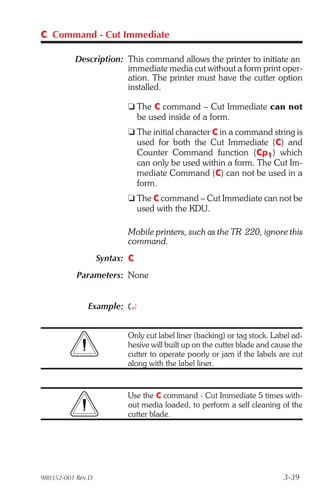
   C Command - Cut Immediate . . . . . . . . . . . . . . . . 3-39
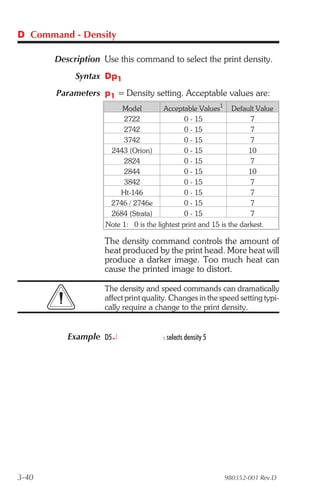
   D Command - Density . . . . . . . . . . . . . . . . . . . . 3-40
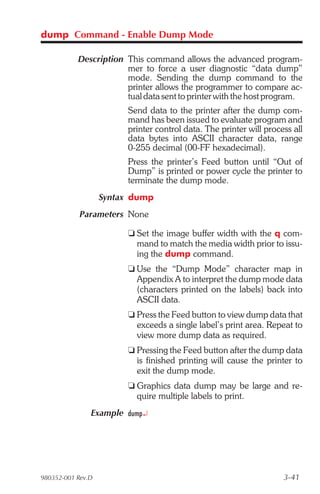
   dump Command - Enable Dump Mode . . . . . . . . . . . 3-41
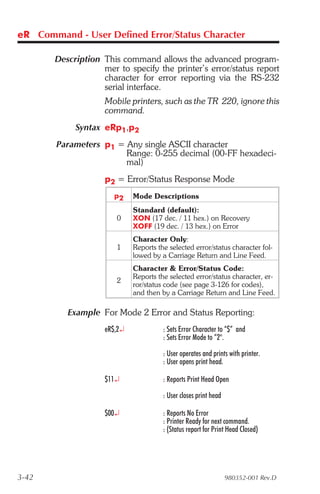
   eR Command - User Defined Error/Status Character . . . . 3-42
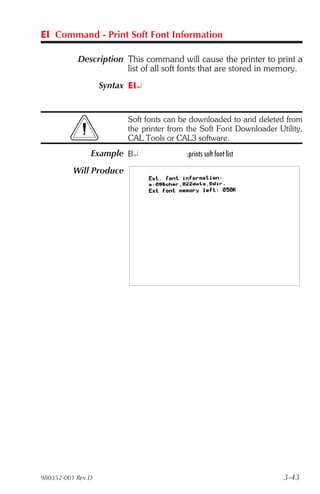
   EI Command - Print Soft Font Information . . . . . . . . . . 3-43
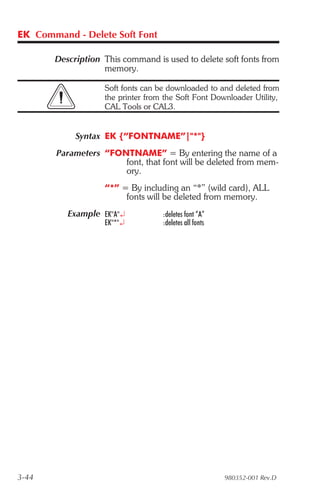
   EK Command - Delete Soft Font . . . . . . . . . . . . . . . 3-44
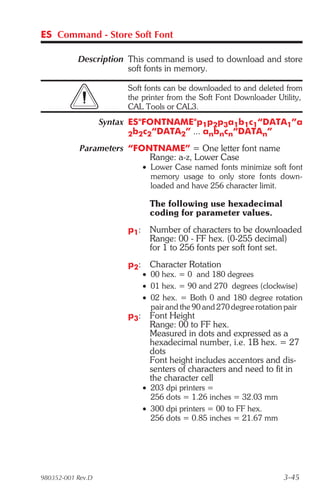
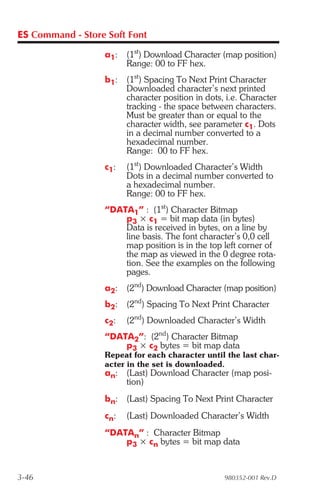
   ES Command - Store Soft Font . . . . . . . . . . . . . . . 3-45
   f Command - Cut Position . . . . . . . . . . . . . . . . . . 3-50
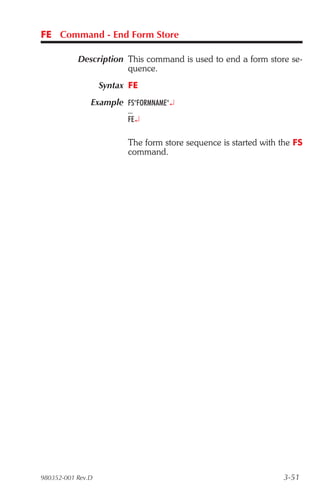
   FE Command - End Form Store . . . . . . . . . . . . . . . 3-51
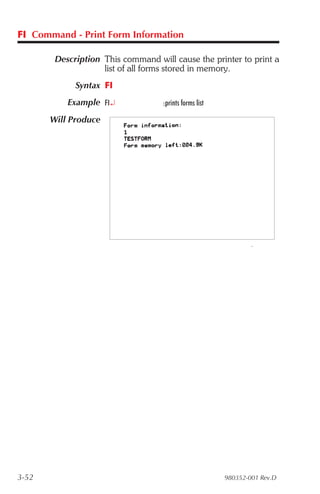
   FI Command - Print Form Information . . . . . . . . . . . . 3-52
   FK Command - Delete Form . . . . . . . . . . . . . . . . . 3-53
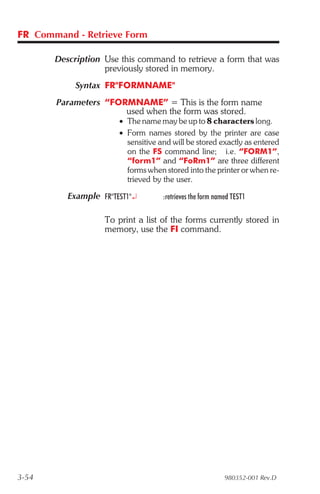
   FR Command - Retrieve Form . . . . . . . . . . . . . . . . 3-54
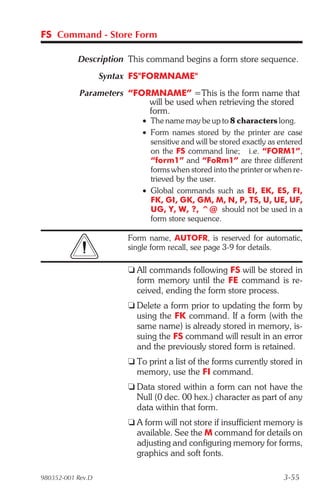
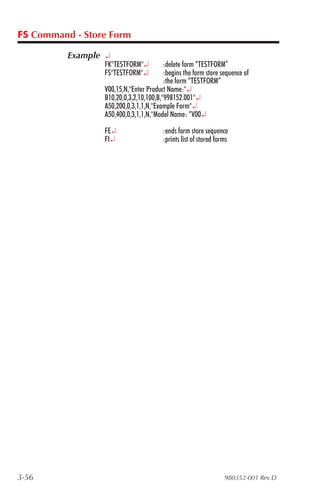
   FS Command - Store Form . . . . . . . . . . . . . . . . . 3-55
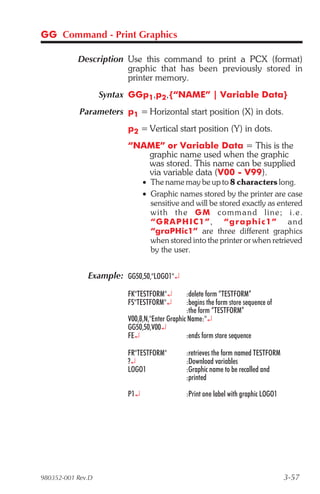
   GG Command - Print Graphics . . . . . . . . . . . . . . . 3-57
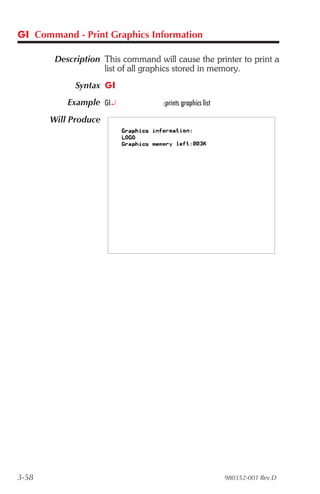
   GI Command - Print Graphics Information . . . . . . . . . 3-58
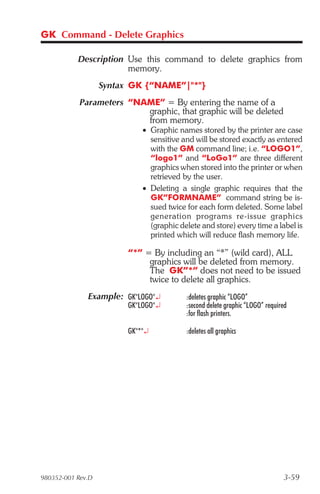
   GK Command - Delete Graphics . . . . . . . . . . . . . . 3-59

980352-001 Rev.D                                                           iii
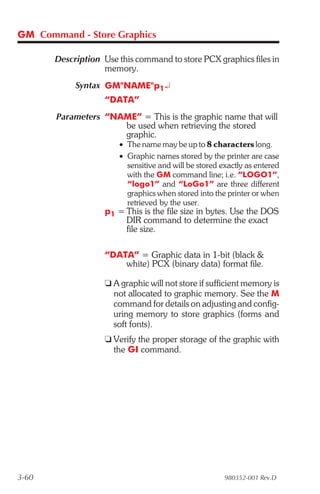
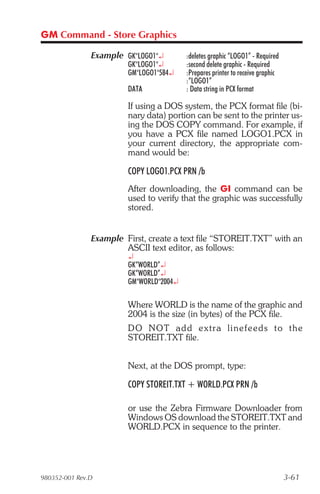
GM Command - Store Graphics . . . . . . . . . . . . . . . . 3-60
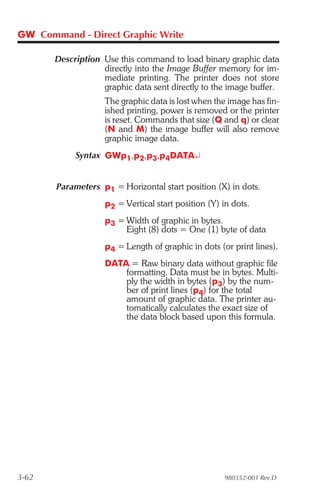
     GW Command - Direct Graphic Write . . . . . . . . . . . . . 3-62
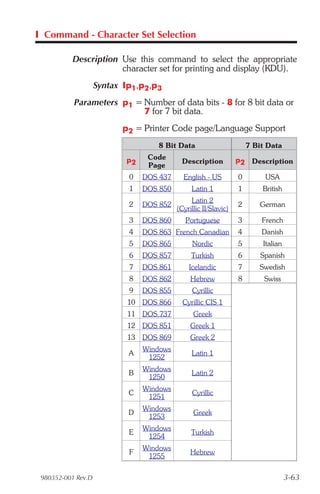
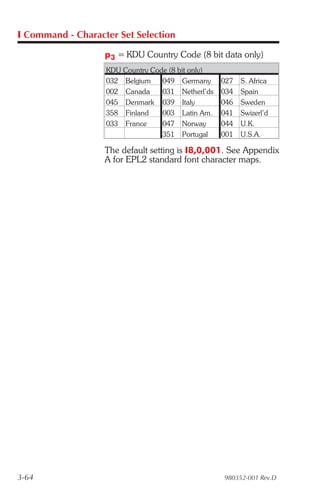
     I Command - Character Set Selection . . . . . . . . . . . . . 3-63
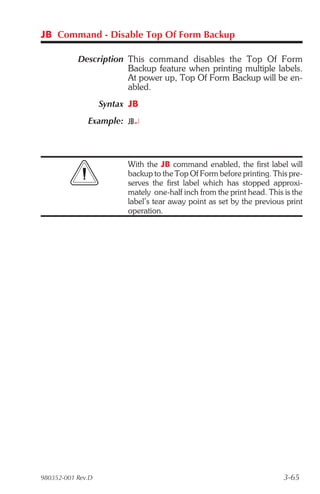
     JB Command - Disable Top Of Form Backup . . . . . . . . . . 3-65
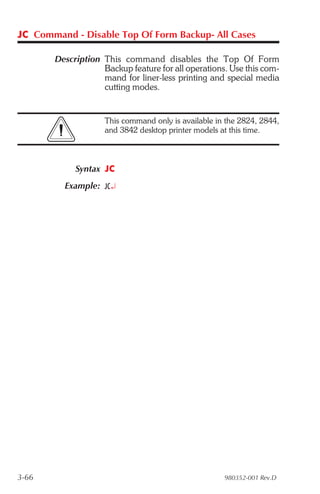
     JC Command - Disable Top Of Form Backup- All Cases . . . . 3-66
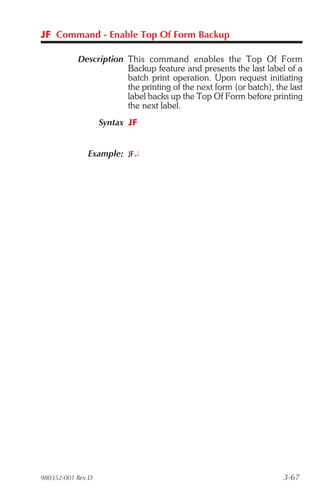
     JF Command - Enable Top Of Form Backup . . . . . . . . . . 3-67
     LE Command - Line Draw Exclusive OR . . . . . . . . . . . . 3-68
     LO Command - Line Draw Black . . . . . . . . . . . . . . . . 3-69
     LS Command - Line Draw Diagonal . . . . . . . . . . . . . . 3-70
     LW Command - Line Draw White . . . . . . . . . . . . . . . . 3-71
     M Command - Memory Allocation . . . . . . . . . . . . . . . 3-72
     N Command - Clear Image Buffer . . . . . . . . . . . . . . . 3-73
     o Command - Cancel Software Options . . . . . . . . . . . . 3-74
     oB Command - Cancel Auto Bar Code Optimization . . . . . . 3-75
     oE Command - Line Mode Font Substitution . . . . . . . . . . 3-76
     oH Command - Macro PDF Offset . . . . . . . . . . . . . . . 3-77
     oM Command - Disable Initial Esc Sequence Feed . . . . . . . 3-79
     oR Command - Character Substitution (Euro) . . . . . . . . . . 3-80
     oW Command - Customize Bar Code Parameters . . . . . . . 3-82
     O Command - Hardware Options . . . . . . . . . . . . . . . 3-84
     OEPL1 Command - Set Line Mode . . . . . . . . . . . . . . 3-86
     P Command - Print . . . . . . . . . . . . . . . . . . . . . . . 3-87
     PA Command - Print Automatic . . . . . . . . . . . . . . . . 3-88
     q Command - Set Label Width . . . . . . . . . . . . . . . . . 3-89
     Q Command - Set Form Length . . . . . . . . . . . . . . . . 3-91
     r Command - Set Double Buffer Mode . . . . . . . . . . . . . 3-95
     R Command - Set Reference Point . . . . . . . . . . . . . . . 3-96
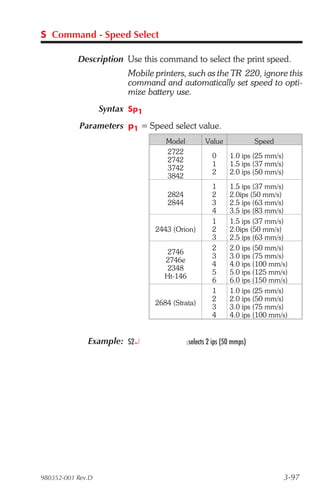
     S Command - Speed Select . . . . . . . . . . . . . . . . . . 3-97
     TD Command - Date Recall & Format Layout . . . . . . . . . 3-98
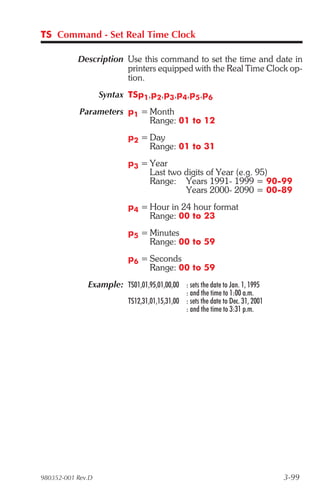
     TS Command - Set Real Time Clock . . . . . . . . . . . . . . 3-99
     TT Command - Time Recall & Format Layout . . . . . . . . 3-100
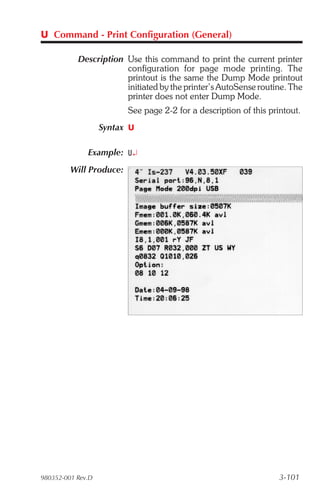
     U Command - Print Configuration (General) . . . . . . . . . 3-101
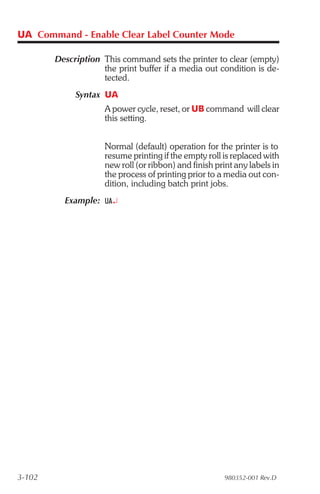
     UA Command - Enable Clear Label Counter Mode . . . . . . 3-102
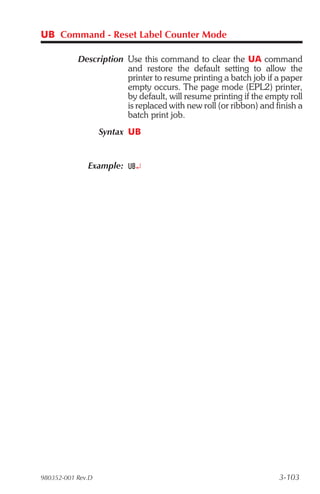
     UB Command - Reset Label Counter Mode . . . . . . . . . . 3-103
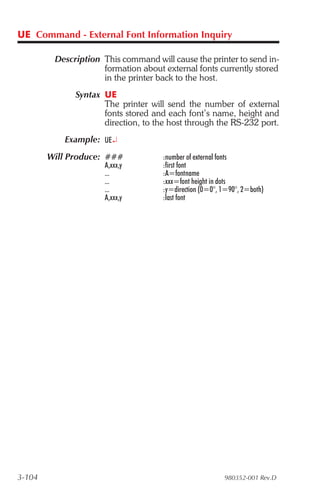
     UE Command - External Font Information Inquiry . . . . . . 3-104
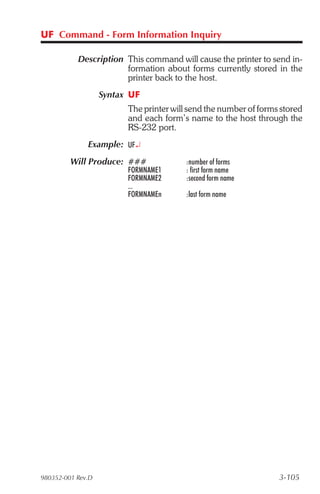
     UF Command - Form Information Inquiry . . . . . . . . . . . 3-105
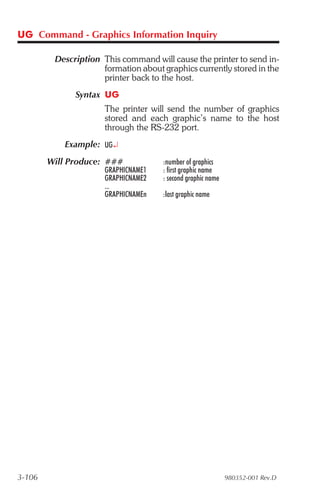
     UG Command - Graphics Information Inquiry . . . . . . . . . 3-106
     UI Command - Host Prompts/Codepage Inquiry . . . . . . . . 3-107
     UM Command - Codepage & Memory Inquiry . . . . . . . . 3-108
     UN Command - Disable Error Reporting . . . . . . . . . . . 3-109
     UP Command - Codepage & Memory Inquiry/Print . . . . . . 3-110
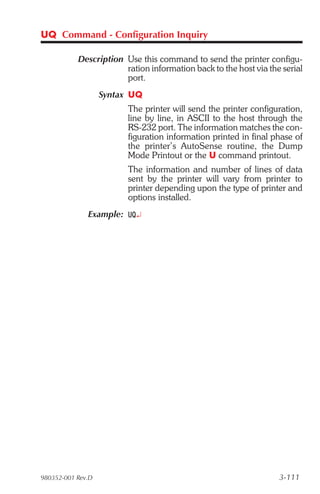
     UQ Command - Configuration Inquiry . . . . . . . . . . . . 3-111
iv                                                         980352-001 Rev.D
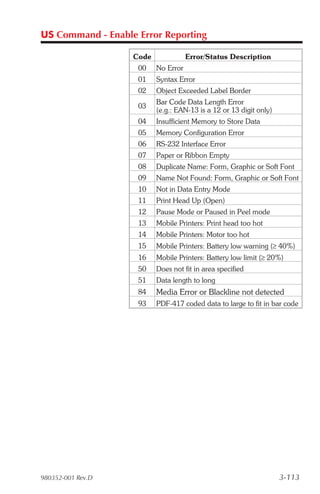
US Command - Enable Error Reporting . . . . . . .         . .   .   3-112
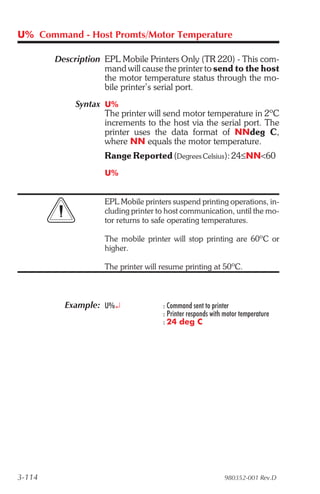
      U% Command - Host Promts/Motor Temperature . .            . .   .   3-114
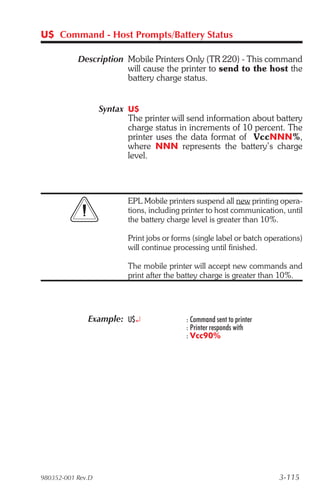
      U$ Command - Host Prompts/Battery Status . . . . .        . .   .   3-115
      V Command - Define Variable . . . . . . . . . . . .       . .   .   3-116
      W Command - Windows Mode . . . . . . . . . . . .          . .   .   3-118
      xa Command - AutoSense . . . . . . . . . . . . . .        . .   .   3-119
      X Command - Box Draw . . . . . . . . . . . . . . .        . .   .   3-120
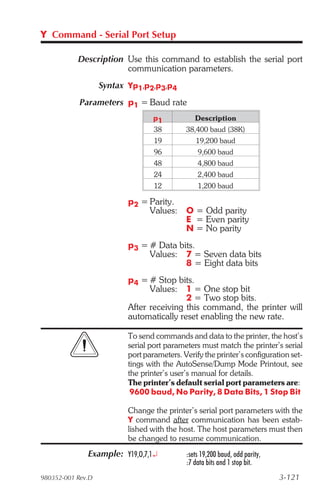
      Y Command - Serial Port Setup . . . . . . . . . . . .     . .   .   3-121
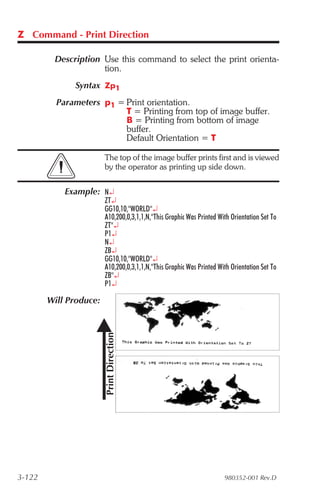
      Z Command - Print Direction . . . . . . . . . . . .       . .   .   3-122
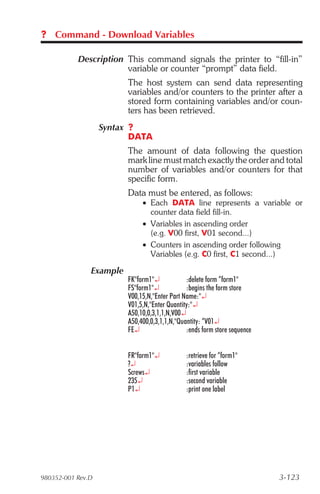
      ? Command - Download Variables . . . . . . . . . .        . .   .   3-123
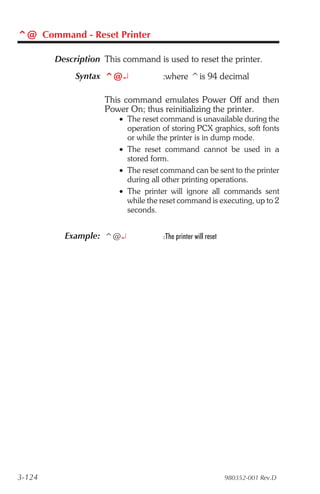
      ^@ Command - Reset Printer . . . . . . . . . . . .        . .   .   3-124
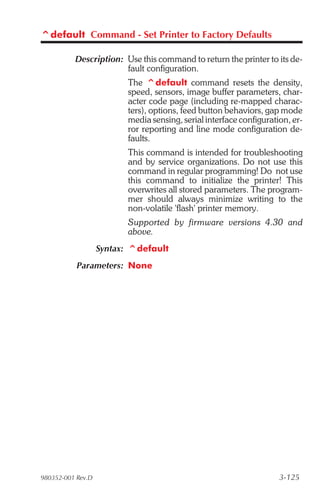
      ^default Command - Set Printer to Factory Defaults          .   .   3-125
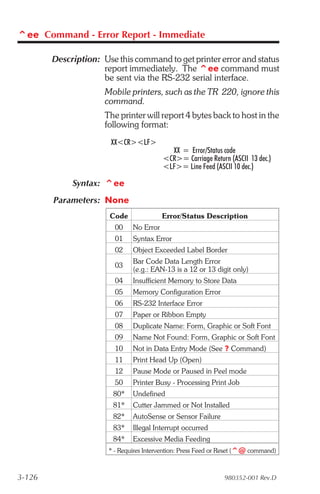
      ^ee Command - Error Report - Immediate . . . . .          . .   .   3-126
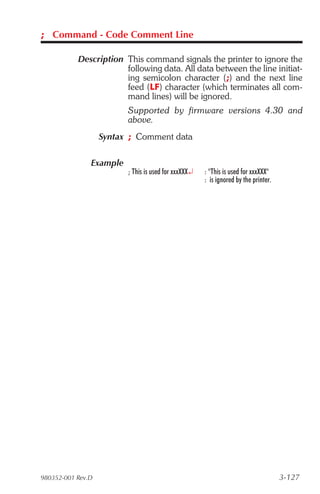
      ; Command - Code Comment Line . . . . . . . . .           . .   .   3-127

Appendix A - Character References . . . .           .   .   .    . . .     A-1
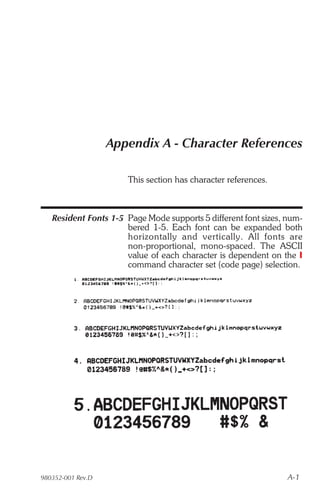
     Resident Fonts 1-5 . . . . . . . . . . . .     .   .   .   . . . .    A-1
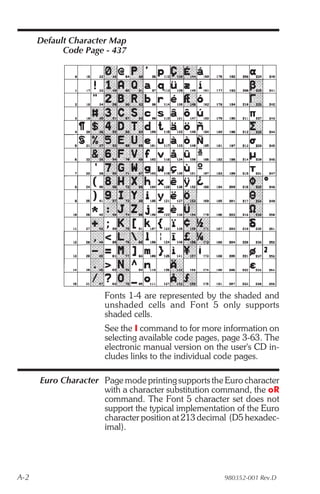
     Default Character Map Code Page - 437 .        .   .   .   . . . .    A-2
     Euro Character . . . . . . . . . . . . . .     .   .   .   . . . .    A-2
     Dump Mode Character Map . . . . . . .          .   .   .   . . . .    A-3

Appendix B - Cash Drawer Kicker Option .            . . . . . . B-1
     Introduction . . . . . . . . . . . . . . .     . . . . . . . B-1
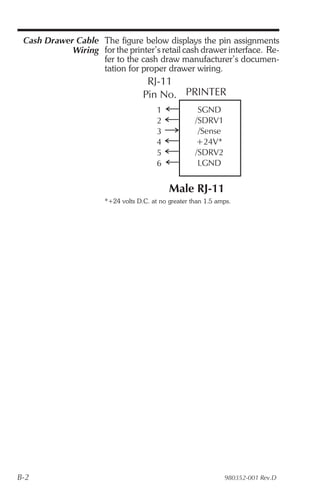
     Cash Drawer Cable Wiring . . . . . . . .       . . . . . . . B-2
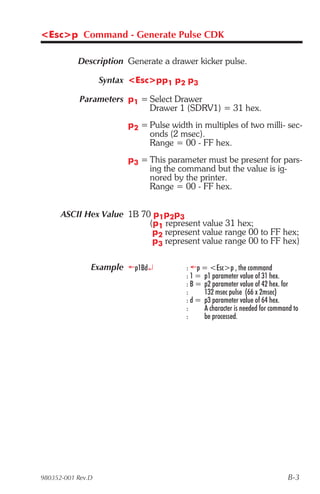
    <Esc>p Command - Generate Pulse CDK . .         . . . . . . . . B-3
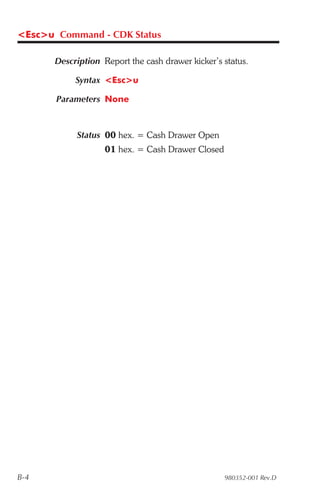
    <Esc>u Command - CDK Status. . . . . . .        . . . . . . . . B-4


980352-001 Rev.D                                                                  v
vi   980352-001 Rev.D
Introduction

                   This section contains information about the ba-
                   sic features, command syntax and terminology
                   of the EPL2 Programming Language for Zebra's
                   desktop printers with flash memory architec-
                   ture. These printers incorporate common pro-
                   gramming code sets and architectural features.
                   The primary operating mode for the printer is
                   EPL2, a page description language. It is de-
                   signed to assemble all the elements of the label
                   prior to printing to speed the printing process.
                   EPL2 is an ideal language for your labeling and
                   bar code requirements. The EPL2 is versatile
                   and is capable of printing a wide range media
                   and bar codes.
                   Some printer models also include a legacy
                   printer compatibility mode, Line Mode. Line
                   Mode supports our early model EPL program-
                   ming language - ELP1. A separate manual is
                   pro vided for Line Mod e print ing
                   (p/n 980353-001). See the printer’s Software
                   and Doc u men ta tion CD with the spe cific
                   model’s Programmer’s Manual button selector
                   or visit our web site at: www.zebra.com


980352-001 Rev.D                                               1-1
Command The manual uses the following typographic
      Conventions conventions to describe commands.


                  Example                 Description
                  A                       Commands (Case Sensitive)
                  p1,p2,p3                Required parameters
                  [p1, p2, p3]            Optional parameters
                  {Choice 1|Choice 2}     Indicates a mandatory choice be-
                                          tween two or more items. You
                                          must include one of the items un-
                                          less all of the items are also en-
                                          closed in square brackets.
                  This text should be ®   The line-continuation character
                  on one line             (®) indicates that code is contin-
                                          ued from one line to the next and
                                          should be typed all on one line.
                  ¿                       Line feed character.
                  “NAME”                  The name of a form or graphic in
                                          double quote marks.
                  “DATA”                  The text or bar code data in dou-
                                          ble quote marks.
                                          The () character designates that
                                          the character following is a literal
                                          and will encode into the data
                                          field. Refer to the following exam-
                                          ples:

                                          To Print    Enter into Data Field
                                          ”           "
                                          “Company”   "Company"
                                                     
                                          code      code

                  “PROMPT”                An ASCII text field that will be
                                          transmitted to the host (via the se-
                                          rial interface) each time this com-
                                          mand is executed.

                 Attention!!
                 All commands and alpha character command
                 parameters are case sensitive!


1-2                                                         980352-001 Rev.D
Basic Command Each command consists of one or two ASCII
              Syntax (case sensitive) alpha characters to identify the
                     specific command desired. Some commands
                     require one or more additional parameters to
                     supply the printer with sufficient information to
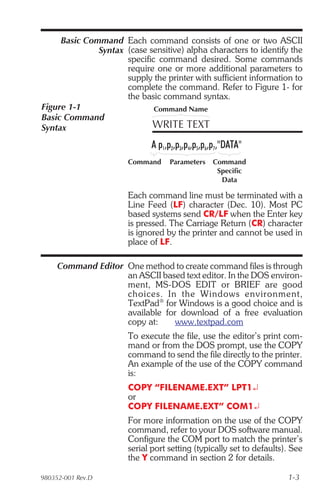
                     complete the command. Refer to Figure 1- for
                     the basic command syntax.
Figure 1-1                   Command Name
Basic Command
Syntax                      WRITE TEXT
                             A p1,p2,p3,p4,p5,p6,p7,"DATA"
                       Command     Parameters   Command
                                                 Specific
                                                  Data

                       Each command line must be terminated with a
                       Line Feed (LF) character (Dec. 10). Most PC
                       based systems send CR/LF when the Enter key
                       is pressed. The Carriage Return (CR) character
                       is ignored by the printer and cannot be used in
                       place of LF.

     Command Editor One method to create command files is through
                    an ASCII based text editor. In the DOS environ-
                    ment, MS-DOS EDIT or BRIEF are good
                    choices. In the Win dows en vi ron ment,
                    TextPad® for Windows is a good choice and is
                    available for download of a free evaluation
                    copy at:     www.textpad.com
                       To execute the file, use the editor’s print com-
                       mand or from the DOS prompt, use the COPY
                       command to send the file directly to the printer.
                       An example of the use of the COPY command
                       is:
                       COPY “FILENAME.EXT” LPT1¿
                       or
                       COPY FILENAME.EXT” COM1¿
                       For more information on the use of the COPY
                       command, refer to your DOS software manual.
                       Configure the COM port to match the printer’s
                       serial port setting (typically set to defaults). See
                       the Y command in section 2 for details.

980352-001 Rev.D                                                      1-3
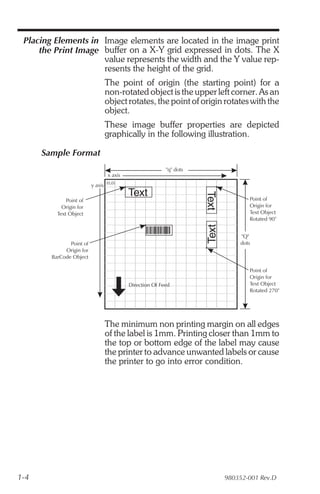
Placing Elements in Image elements are located in the image print
     the Print Image buffer on a X-Y grid expressed in dots. The X
                     value represents the width and the Y value rep-
                     resents the height of the grid.
                                The point of origin (the starting point) for a
                                non-rotated object is the upper left corner. As an
                                object rotates, the point of origin rotates with the
                                object.
                                These image buffer properties are depicted
                                graphically in the following illustration.

      Sample Format
                                                          "q" dots
                                  x axis
                          y axis (0,0)
                                           Text
                                                                     Text
              Point of                                                             Point of
            Origin for                                                             Origin for
          Text Object                                                              Text Object
                                                                                   Rotated 90°
                                                                     Text

                                                                                "Q"
               Point of                                                         dots
             Origin for
        BarCode Object

                                                                                   Point of
                                                                                   Origin for
                                           Direction Of Feed                       Text Object
                                                                                   Rotated 270°


                                The minimum non printing margin on all edges
                                of the label is 1mm. Printing closer than 1mm to
                                the top or bottom edge of the label may cause
                                the printer to advance unwanted labels or cause
                                the printer to go into error condition.


1-4                                                                         980352-001 Rev.D
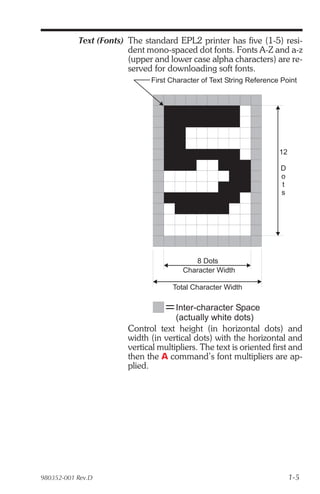
Text (Fonts) The standard EPL2 printer has five (1-5) resi-
                        dent mono-spaced dot fonts. Fonts A-Z and a-z
                        (upper and lower case alpha characters) are re-
                        served for downloading soft fonts.
                              First Character of Text String Reference Point


                                                                      12

                                                                      D
                                                                      o
                                                                      t
                                                                      s


                                           8 Dots
                                        Character Width

                                     Total Character Width

                                      Inter-character Space
                                      (actually white dots)
                        Control text height (in horizontal dots) and
                        width (in vertical dots) with the horizontal and
                        vertical multipliers. The text is oriented first and
                        then the A command’s font multipliers are ap-
                        plied.


980352-001 Rev.D                                                           1-5
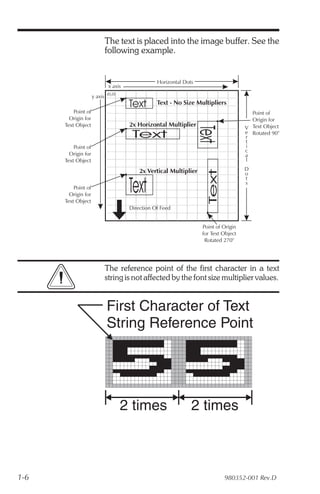
The text is placed into the image buffer. See the
                           following example.


                                                 Horizontal Dots
                             x axis
                     y axis (0,0)
                                      Text       Text - No Size Multipliers
          Point of                                                                      Point of
        Origin for                                                                      Origin for
      Text Object                     2x Horizontal Multiplier                        V Text Object


                                                                   Text
                                       Text                                           e Rotated 90°
                                                                                      r
                                                                                      t
          Point of                                                                    i
                                                                                      c
        Origin for                                                                    a
      Text Object                                                                     l

                                          2x Vertical Multiplier                      D


                                                                      Text
                                                                                      o
                                                                                      t
          Point of
        Origin for
      Text Object
                                      Text                                            s


                                      Direction Of Feed


                                                                    Point of Origin
                                                                    for Text Object
                                                                     Rotated 270°


                           The reference point of the first character in a text
                           string is not affected by the font size multiplier values.


                            First Character of Text
                            String Reference Point


                                    2 times                    2 times


1-6                                                                          980352-001 Rev.D
Bar Codes All bar codes supported by the EPL2 language
                       have associated industry specifications that the
                       programmer should be aware of and adhere to.
                       The programmer needs to consider bar code
                       features and requirements when choosing and
                       using a bar code for different applications.
                       Some of the features and requirements that
                       need consideration are listed below:

                        t Data used by the application are per the bar
                          code specification (numbers only, alphanu-
                          meric, alphanumeric and special characters,
                          etc.).
                        t Minimum and maximum number of charac-
                          ters allowed or required per bar code.
                        t Density or magnification of a given bar code
                          type.
                        t White area required around bar codes (the
                          “Quiet Zone”).
                        t The bar code must print within the image
                          buffer (printable area of the label).

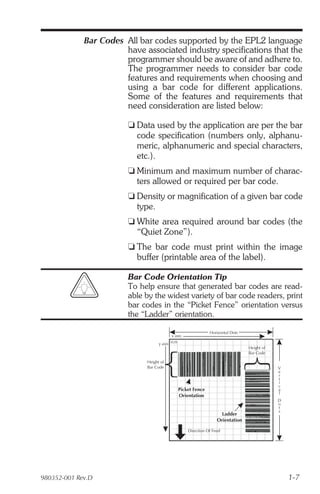
                        Bar Code Orientation Tip
                        To help ensure that generated bar codes are read-
                        able by the widest variety of bar code readers, print
                        bar codes in the “Picket Fence” orientation versus
                        the “Ladder” orientation.

                                                               Horizontal Dots
                                           x axis
                                   y axis (0,0)
                                                                                 Height of
                                                                                 Bar Code

                             Height of
                             Bar Code                                                        V
                                                                                             e
                                                                                             r
                                                                                             t
                                                                                             i
                                                                                             c
                                              Picket Fence                                   a
                                                                                             l
                                              Orientation
                                                                                             D
                                                                                             o
                                                                                             t
                                                                                             s
                                                                     Ladder
                                                                   Orientation

                                                    Direction Of Feed


980352-001 Rev.D                                                                                 1-7
Programming Graphic elements can interact and the resultant
      Sequences Affect image can be affected by other commands.
       Graphic Results Structure command sequences to reduce the
                       chances of unexpected print results. The printer
                       will process lines, text, boxes and most bar
                       codes in command sequence. The printer then
                       processes the printer control processes,
                       counters, variable data, Postnet, and then
                       graphics last.


1-8                                                     980352-001 Rev.D
Printer Configuration

                       This section covers the interpret your printer’s
                       configuration setup and setting basic modes.


    Printer AutoSense Use the printer’s AutoSense feature to deter-
              Feature mine your printer’s configuration and operating
                      mode. The primary functions that AutoSense
                      provides are:

                       t Adjustment of the Media Sensor in the printer
                         to the media in use.
                       t Programming Mode - Page (EPL2) or Line
                         (EPL1 emulation) Mode. Note - Line Mode is
                         not available for all printer models.
                       t The printer’ serial interface settings.
                       t Reports the printer’s configuration status in-
                         cluding printer options.


980352-001 Rev.D                                                   2-1
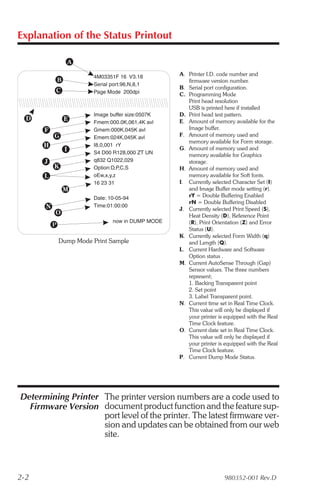
Explanation of the Status Printout


                    4M03351F 16 V3.18         A. Printer I.D. code number and
                                                 firmware version number.
                    Serial port:96,N,8,1
                                              B. Serial port configuration.
                    Page Mode 200dpi          C. Programming Mode
                                                 Print head resolution
                                                 USB is printed here if installed
                    Image buffer size:0507K   D. Print head test pattern.
                    Fmem:000.0K,061.4K avl    E. Amount of memory available for the
                    Gmem:000K,045K avl           Image buffer.
                    Emem:024K,045K avl        F. Amount of memory used and
                                                 memory available for Form storage.
                    I8,0,001 rY
                                              G. Amount of memory used and
                    S4 D00 R128,000 ZT UN        memory available for Graphics
                    q832 Q1022,029               storage.
                    Option:D,P,C,S            H. Amount of memory used and
                    oEw,x,y,z                    memory available for Soft fonts.
                    16 23 31                  I. Currently selected Character Set (I)
                                                 and Image Buffer mode setting (r).
                    Date: 10-05-94               rY = Double Buffering Enabled
                                                 rN = Double Buffering Disabled
                    Time:01:00:00
                                              J. Currently selected Print Speed (S),
                                                 Heat Density (D), Reference Point
                           now in DUMP MODE      (R), Print Orientation (Z) and Error
                                                 Status (U).
                                              K. Currently selected Form Width (q)
          Dump Mode Print Sample                 and Length (Q).
                                              L. Current Hardware and Software
                                                 Option status .
                                              M. Current AutoSense Through (Gap)
                                                 Sensor values. The three numbers
                                                 represent;
                                                 1. Backing Transparent point
                                                 2. Set point
                                                 3. Label Transparent point.
                                              N. Current time set in Real Time Clock.
                                                 This value will only be displayed if
                                                 your printer is equipped with the Real
                                                 Time Clock feature.
                                              O. Current date set in Real Time Clock.
                                                 This value will only be displayed if
                                                 your printer is equipped with the Real
                                                 Time Clock feature.
                                              P. Current Dump Mode Status.


Determining Printer The printer version numbers are a code used to
  Firmware Version document product function and the feature sup-
                    port level of the printer. The latest firmware ver-
                    sion and updates can be obtained from our web
                    site.


2-2                                                             980352-001 Rev.D
Programming Mode Flash based printers are, by default, configured
       Configuration for Page (EPL2) mode operations. The opera-
                     tor must convert the printer to Line Mode prior
                     to the initial use of Line Mode. This is done via a
                     hardware select procedure with the Feed button
                     during printer power-up. See the OEPL1 com-
                     mand (page 3-86) for details on switching be-
                     tween line and page modes via programming.
                       As of January 2001, the following printers sup-
                       port Line Mode (EPL1 emulation):
                           •   LP2443
                           •   LP2722
                           •   LP2824 & TLP2824
                           •   LP2844

                       The Line Mode (and Page Mode) configuration set-
                       ting is retained after reset has been issued or power
                       has been cycled.

     Manually Setting The Line Mode capable printer utilizes the Feed
         Line Mode button during printer power-up to toggle be-
                      tween the printer personality modes, Line and
                      Page (EPL2).
                       1. With printer power off, press and hold the
                       Feed button while turning the printer on, then
                       release the button when the LED starts blinking
                       red.
                       2. When the indicator LED starts flashing green,
                       immediately press and hold Feed button.
                       3. Release the Feed button when the LED turns
                       a steady Amber (orange).
                       4. Verify printer personality with Dump Mode
                       printout:. Line Mode or Page Mode (EPL2).
                       5. Press the Feed button to exit the Dump
                       Mode.


980352-001 Rev.D                                                       2-3
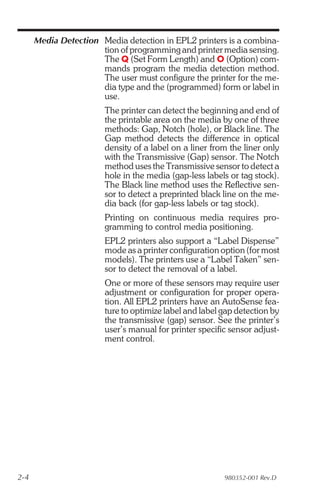
Media Detection Media detection in EPL2 printers is a combina-
                      tion of programming and printer media sensing.
                      The Q (Set Form Length) and O (Option) com-
                      mands program the media detection method.
                      The user must configure the printer for the me-
                      dia type and the (programmed) form or label in
                      use.
                        The printer can detect the beginning and end of
                        the printable area on the media by one of three
                        methods: Gap, Notch (hole), or Black line. The
                        Gap method detects the difference in optical
                        density of a label on a liner from the liner only
                        with the Transmissive (Gap) sensor. The Notch
                        method uses the Transmissive sensor to detect a
                        hole in the media (gap-less labels or tag stock).
                        The Black line method uses the Reflective sen-
                        sor to detect a preprinted black line on the me-
                        dia back (for gap-less labels or tag stock).
                        Printing on continuous media requires pro-
                        gramming to control media positioning.
                        EPL2 printers also support a “Label Dispense”
                        mode as a printer configuration option (for most
                        models). The printers use a “Label Taken” sen-
                        sor to detect the removal of a label.
                        One or more of these sensors may require user
                        adjustment or configuration for proper opera-
                        tion. All EPL2 printers have an AutoSense fea-
                        ture to optimize label and label gap detection by
                        the transmissive (gap) sensor. See the printer’s
                        user’s manual for printer specific sensor adjust-
                        ment control.


2-4                                                      980352-001 Rev.D
Command Reference

                   This section contains a complete listing of all
                   commands in alphabetical order.


980352-001 Rev.D                                              3-1
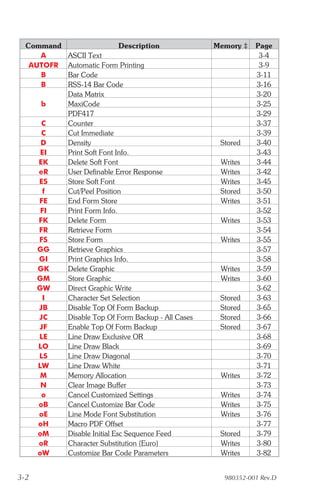
Command                     Description            Memory ‡   Page
     A      ASCII Text                                           3-4
   AUTOFR   Automatic Form Printing                              3-9
     B      Bar Code                                            3-11
     B      RSS-14 Bar Code                                     3-16
            Data Matrix                                         3-20
      b     MaxiCode                                            3-25
            PDF417                                              3-29
       C    Counter                                             3-37
       C    Cut Immediate                                       3-39
       D    Density                                   Stored    3-40
       EI   Print Soft Font Info.                               3-43
      EK    Delete Soft Font                          Writes    3-44
      eR    User Definable Error Response             Writes    3-42
      ES    Store Soft Font                           Writes    3-45
        f   Cut/Peel Position                         Stored    3-50
      FE    End Form Store                            Writes    3-51
       FI   Print Form Info.                                    3-52
      FK    Delete Form                               Writes    3-53
      FR    Retrieve Form                                       3-54
      FS    Store Form                                Writes    3-55
      GG    Retrieve Graphics                                   3-57
      GI    Print Graphics Info.                                3-58
      GK    Delete Graphic                            Writes    3-59
      GM    Store Graphic                             Writes    3-60
      GW    Direct Graphic Write                                3-62
        I   Character Set Selection                   Stored    3-63
      JB    Disable Top Of Form Backup                Stored    3-65
      JC    Disable Top Of Form Backup - All Cases    Stored    3-66
      JF    Enable Top Of Form Backup                 Stored    3-67
      LE    Line Draw Exclusive OR                              3-68
      LO    Line Draw Black                                     3-69
      LS    Line Draw Diagonal                                  3-70
      LW    Line Draw White                                     3-71
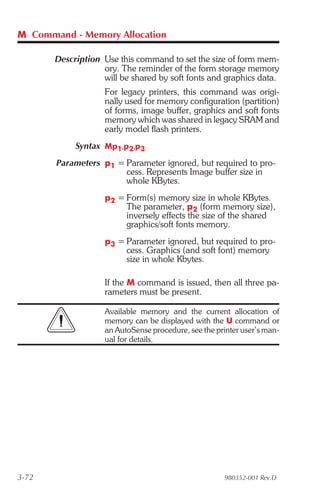
       M    Memory Allocation                         Writes    3-72
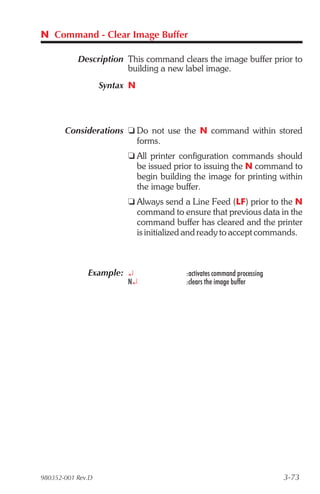
       N    Clear Image Buffer                                  3-73
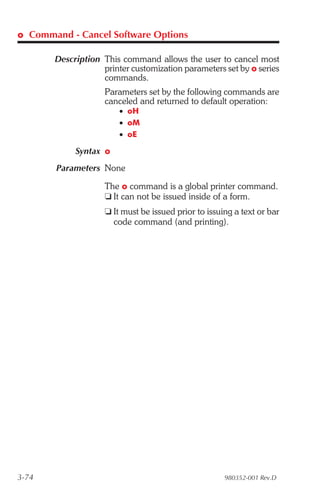
       o    Cancel Customized Settings                Writes    3-74
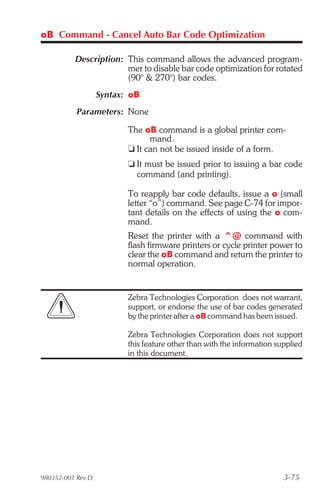
      oB    Cancel Customize Bar Code                 Writes    3-75
      oE    Line Mode Font Substitution               Writes    3-76
      oH    Macro PDF Offset                                    3-77
      oM    Disable Initial Esc Sequence Feed         Stored    3-79
      oR    Character Substitution (Euro)             Writes    3-80
      oW    Customize Bar Code Parameters             Writes    3-82


3-2                                                    980352-001 Rev.D
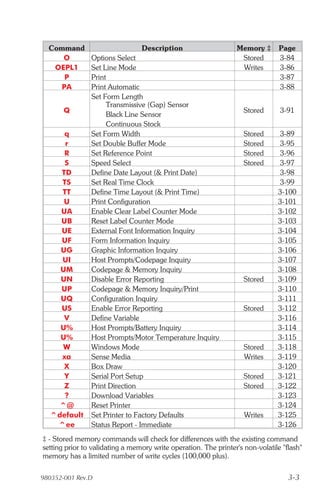
Command                        Description                     Memory ‡       Page
     O          Options Select                                    Stored        3-84
   OEPL1        Set Line Mode                                     Writes        3-86
     P          Print                                                           3-87
    PA          Print Automatic                                                 3-88
                Set Form Length
                     Transmissive (Gap) Sensor
       Q                                                            Stored      3-91
                     Black Line Sensor
                     Continuous Stock
     q          Set Form Width                                      Stored      3-89
     r          Set Double Buffer Mode                              Stored      3-95
     R          Set Reference Point                                 Stored      3-96
     S          Speed Select                                        Stored      3-97
    TD          Define Date Layout (& Print Date)                               3-98
    TS          Set Real Time Clock                                             3-99
    TT          Define Time Layout (& Print Time)                              3-100
     U          Print Configuration                                            3-101
    UA          Enable Clear Label Counter Mode                                3-102
    UB          Reset Label Counter Mode                                       3-103
    UE          External Font Information Inquiry                              3-104
    UF          Form Information Inquiry                                       3-105
    UG          Graphic Information Inquiry                                    3-106
    UI          Host Prompts/Codepage Inquiry                                  3-107
    UM          Codepage & Memory Inquiry                                      3-108
    UN          Disable Error Reporting                             Stored     3-109
    UP          Codepage & Memory Inquiry/Print                                3-110
    UQ          Configuration Inquiry                                          3-111
    US          Enable Error Reporting                              Stored     3-112
     V          Define Variable                                                3-116
    U%          Host Prompts/Battery Inquiry                                   3-114
    U%          Host Prompts/Motor Temperature Inquiry                         3-115
    W           Windows Mode                                        Stored     3-118
    xa          Sense Media                                         Writes     3-119
     X          Box Draw                                                       3-120
     Y          Serial Port Setup                                   Stored     3-121
     Z          Print Direction                                     Stored     3-122
     ?          Download Variables                                             3-123
   ^@           Reset Printer                                                  3-124
  ^default      Set Printer to Factory Defaults                     Writes     3-125
   ^ee          Status Report - Immediate                                      3-126
‡ - Stored memory commands will check for differences with the existing command
setting prior to validating a memory write operation. The printer's non-volatile "flash"
memory has a limited number of write cycles (100,000 plus).

980352-001 Rev.D                                                                   3-3
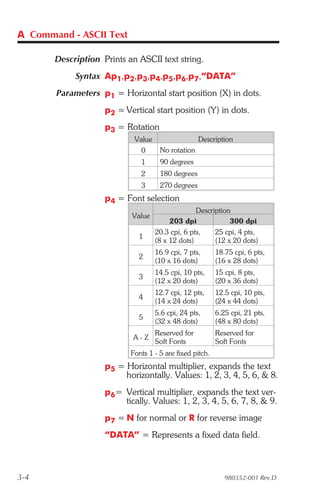
A Command - ASCII Text

       Description Prints an ASCII text string.
            Syntax Ap1,p2,p3,p4,p5,p6,p7,“DATA”
       Parameters p1 = Horizontal start position (X) in dots.
                    p2 = Vertical start position (Y) in dots.
                    p3 = Rotation
                            Value                  Description
                              0      No rotation
                              1      90 degrees
                              2      180 degrees
                              3      270 degrees
                    p4 = Font selection
                                                  Description
                           Value
                                         203 dpi             300 dpi
                                    20.3 cpi, 6 pts,    25 cpi, 4 pts,
                             1
                                    (8 x 12 dots)       (12 x 20 dots)
                                    16.9 cpi, 7 pts,      18.75 cpi, 6 pts,
                             2
                                    (10 x 16 dots)        (16 x 28 dots)
                                    14.5 cpi, 10 pts,     15 cpi, 8 pts,
                             3
                                    (12 x 20 dots)        (20 x 36 dots)
                                    12.7 cpi, 12 pts,     12.5 cpi, 10 pts,
                             4
                                    (14 x 24 dots)        (24 x 44 dots)
                                    5.6 cpi, 24 pts,      6.25 cpi, 21 pts,
                             5
                                    (32 x 48 dots)        (48 x 80 dots)
                                    Reserved for          Reserved for
                            A-Z
                                    Soft Fonts            Soft Fonts
                           Fonts 1 - 5 are fixed pitch.
                    p5 = Horizontal multiplier, expands the text
                         horizontally. Values: 1, 2, 3, 4, 5, 6, & 8.
                    p6= Vertical multiplier, expands the text ver-
                        tically. Values: 1, 2, 3, 4, 5, 6, 7, 8, & 9.
                    p7 = N for normal or R for reverse image
                    “DATA” = Represents a fixed data field.


3-4                                                          980352-001 Rev.D
A Command - ASCII Text

                         The backslash () character designates the fol-
                         lowing character is a literal and will encode into
                         the data field. Refer to the following examples:

                         To Print               Enter into data field
                         “                      ”
                         “Company”              ”Company”
                                               
                         code                  code
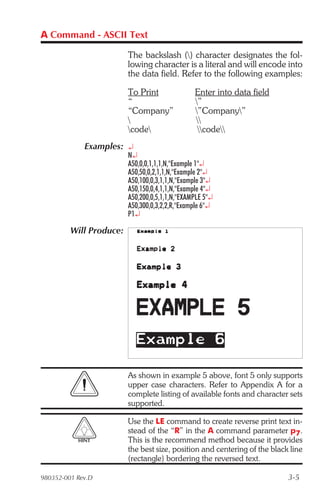
             Examples: ¿
                         N¿
                         A50,0,0,1,1,1,N,"Example 1"¿
                         A50,50,0,2,1,1,N,"Example 2"¿
                         A50,100,0,3,1,1,N,"Example 3"¿
                         A50,150,0,4,1,1,N,"Example 4"¿
                         A50,200,0,5,1,1,N,"EXAMPLE 5"¿
                         A50,300,0,3,2,2,R,"Example 6"¿
                         P1¿

         Will Produce:


                         As shown in example 5 above, font 5 only supports
                         upper case characters. Refer to Appendix A for a
                         complete listing of available fonts and character sets
                         supported.

                         Use the LE command to create reverse print text in-
                         stead of the “R” in the A command parameter p7.
           HINT          This is the recommend method because it provides
                         the best size, position and centering of the black line
                         (rectangle) bordering the reversed text.

980352-001 Rev.D                                                           3-5
A Command - ASCII Text

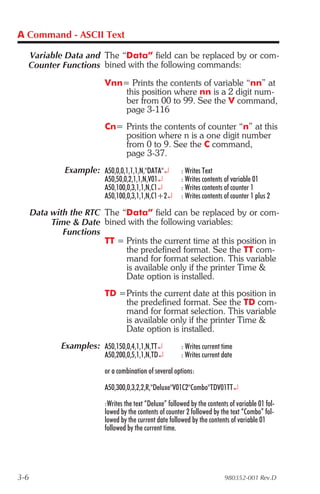
  Variable Data and The “Data” field can be replaced by or com-
  Counter Functions bined with the following commands:
                           Vnn= Prints the contents of variable “nn” at
                               this position where nn is a 2 digit num-
                               ber from 00 to 99. See the V command,
                               page 3-116
                           Cn= Prints the contents of counter “n” at this
                               position where n is a one digit number
                               from 0 to 9. See the C command,
                               page 3-37.
               Example: A50,0,0,1,1,1,N,"DATA"¿           : Writes Text
                           A50,50,0,2,1,1,N,V01¿          : Writes contents of variable 01
                           A50,100,0,3,1,1,N,C1¿          : Writes contents of counter 1
                           A50,100,0,3,1,1,N,C1+2¿        : Writes contents of counter 1 plus 2

      Data with the RTC The “Data” field can be replaced by or com-
           Time & Date bined with the following variables:
              Functions
                        TT = Prints the current time at this position in
                             the predefined format. See the TT com-
                             mand for format selection. This variable
                             is available only if the printer Time &
                             Date option is installed.
                           TD =Prints the current date at this position in
                               the predefined format. See the TD com-
                               mand for format selection. This variable
                               is available only if the printer Time &
                               Date option is installed.
              Examples: A50,150,0,4,1,1,N,TT¿             : Writes current time
                           A50,200,0,5,1,1,N,TD¿          : Writes current date

                           or a combination of several options:

                           A50,300,0,3,2,2,R,"Deluxe"V01C2"Combo"TDV01TT¿

                           :Writes the text “Deluxe” followed by the contents of variable 01 fol-
                           lowed by the contents of counter 2 followed by the text “Combo” fol-
                           lowed by the current date followed by the contents of variable 01
                           followed by the current time.


3-6                                                                         980352-001 Rev.D
A Command - ASCII TEXT

  Simple Expressions An advanced function of the A command al-
      in Data Fields lows addition and subtraction to be performed
                     on constant and variable values in flash printers.
                   Syntax Ap1,p2,p3,p4,p5,p6,p7,“DATA”[p8p9p10…]
            Parameters For the p1 - p7 and “DATA” parameters -
                             See first page of A command, page 3-4.
                         p8 = Required. Must be a variable data field
                              number, e.g. V00, V01 etc.
                         p9 = Required. Operator, + or –
                         p10 = Required. Variable data field number
                              or constant value.
                         Valid Number Ranges:
                              Constant = 0 to 2147483647
                               Variable = 0 to 2147483647
                               Result = -2147483648 to 2147483647

                         t The Expression must start with a variable
                           field.
                         t The character field length defined for the first
                           variable in the expression will be used to for-
                           mat the result. If the result is of a greater
                           length than the defined character length, then
                           the result field will contain ‘X’s.
                         t A syntax error will be generated during form
                           storage if the constant value is too large.
                         t If an error occurs during the evaluation of the
                           expression, the resultant field will be filled
                           with ‘X’s.


980352-001 Rev.D                                                      3-7
A Command - Simple Expressions in Data Fields

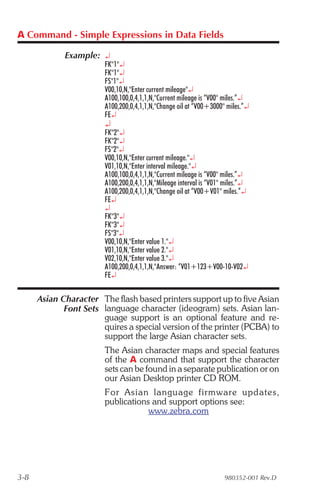
             Example: ¿
                        FK"1"¿
                        FK"1"¿
                        FS"1"¿
                        V00,10,N,"Enter current mileage"¿
                        A100,100,0,4,1,1,N,"Current mileage is “V00" miles.”¿
                        A100,200,0,4,1,1,N,"Change oil at “V00+3000" miles.”¿
                        FE¿
                        ¿
                        FK"2"¿
                        FK"2"¿
                        FS"2"¿
                        V00,10,N,"Enter current mileage."¿
                        V01,10,N,"Enter interval mileage."¿
                        A100,100,0,4,1,1,N,"Current mileage is “V00" miles.”¿
                        A100,200,0,4,1,1,N,"Mileage interval is “V01" miles.”¿
                        A100,200,0,4,1,1,N,"Change oil at “V00+V01" miles.”¿
                        FE¿
                        ¿
                        FK"3"¿
                        FK"3"¿
                        FS"3"¿
                        V00,10,N,"Enter value 1."¿
                        V01,10,N,"Enter value 2."¿
                        V02,10,N,"Enter value 3."¿
                        A100,200,0,4,1,1,N,"Answer: “V01+123+V00-10-V02¿
                        FE¿

      Asian Character The flash based printers support up to five Asian
             Font Sets language character (ideogram) sets. Asian lan-
                       guage support is an optional feature and re-
                       quires a special version of the printer (PCBA) to
                       support the large Asian character sets.
                        The Asian character maps and special features
                        of the A command that support the character
                        sets can be found in a separate publication or on
                        our Asian Desktop printer CD ROM.
                        For Asian lan guage firm ware up dates,
                        publications and support options see:
                                    www.zebra.com


3-8                                                                  980352-001 Rev.D
AUTOFR Command - Automatic Form Printing

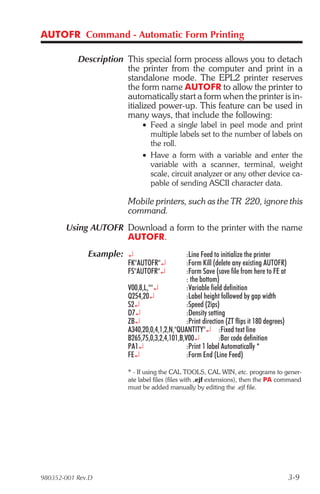
           Description This special form process allows you to detach
                       the printer from the computer and print in a
                       standalone mode. The EPL2 printer reserves
                       the form name AUTOFR to allow the printer to
                       automatically start a form when the printer is in-
                       itialized power-up. This feature can be used in
                       many ways, that include the following:
                             • Feed a single label in peel mode and print
                               multiple labels set to the number of labels on
                               the roll.
                             • Have a form with a variable and enter the
                               variable with a scanner, terminal, weight
                               scale, circuit analyzer or any other device ca-
                               pable of sending ASCII character data.

                        Mobile printers, such as the TR 220, ignore this
                        command.
       Using AUTOFR Download a form to the printer with the name
                    AUTOFR.
              Example: ¿                      :Line Feed to initialize the printer
                        FK"AUTOFR"¿           :Form Kill (delete any existing AUTOFR)
                        FS"AUTOFR"¿           :Form Save (save file from here to FE at
                                              : the bottom)
                        V00,8,L,""¿           :Variable field definition
                        Q254,20¿              :Label height followed by gap width
                        S2¿                   :Speed (2ips)
                        D7¿                   :Density setting
                        ZB¿                   :Print direction (ZT flips it 180 degrees)
                        A340,20,0,4,1,2,N,"QUANTITY"¿ :Fixed text line
                        B265,75,0,3,2,4,101,B,V00¿          :Bar code definition
                        PA1¿                  :Print 1 label Automatically *
                        FE¿                   :Form End (Line Feed)

                        * - If using the CAL TOOLS, CAL WIN, etc. programs to gener-
                        ate label files (files with .ejf extensions), then the PA command
                        must be added manually by editing the .ejf file.


980352-001 Rev.D                                                                           3-9
AUTOFR - Automatic Form Printing Feature

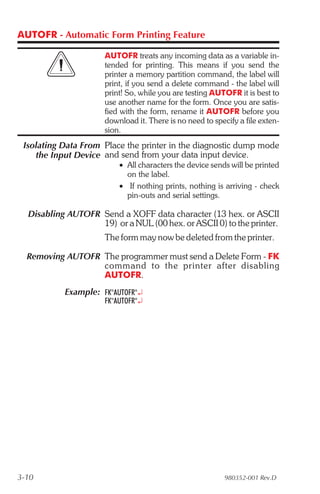
                      AUTOFR treats any incoming data as a variable in-
                      tended for printing. This means if you send the
                      printer a memory partition command, the label will
                      print, if you send a delete command - the label will
                      print! So, while you are testing AUTOFR it is best to
                      use another name for the form. Once you are satis-
                      fied with the form, rename it AUTOFR before you
                      download it. There is no need to specify a file exten-
                      sion.
 Isolating Data From Place the printer in the diagnostic dump mode
    the Input Device and send from your data input device.
                          • All characters the device sends will be printed
                            on the label.
                          • If nothing prints, nothing is arriving - check
                            pin-outs and serial settings.

  Disabling AUTOFR Send a XOFF data character (13 hex. or ASCII
                   19) or a NUL (00 hex. or ASCII 0) to the printer.
                      The form may now be deleted from the printer.

  Removing AUTOFR The programmer must send a Delete Form - FK
                  com mand to the printer af ter dis abling
                  AUTOFR.
           Example: FK"AUTOFR"¿
                      FK"AUTOFR"¿


3-10                                                       980352-001 Rev.D
B Command - Bar Code

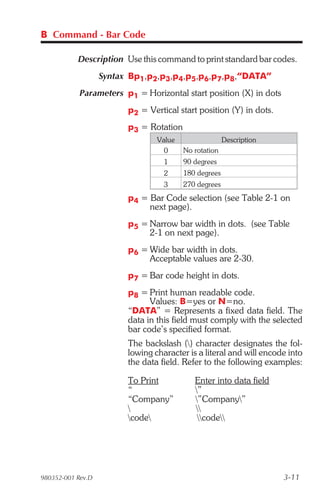
           Description Use this command to print standard bar codes.
                   Syntax Bp1,p2,p3,p4,p5,p6,p7,p8,“DATA”
            Parameters p1 = Horizontal start position (X) in dots
                         p2 = Vertical start position (Y) in dots.
                         p3 = Rotation
                                 Value                 Description
                                   0     No rotation
                                   1     90 degrees
                                   2     180 degrees
                                   3     270 degrees
                         p4 = Bar Code selection (see Table 2-1 on
                              next page).
                         p5 = Narrow bar width in dots. (see Table
                              2-1 on next page).
                         p6 = Wide bar width in dots.
                              Acceptable values are 2-30.
                         p7 = Bar code height in dots.
                         p8 = Print human readable code.
                               Values: B=yes or N=no.
                         “DATA” = Represents a fixed data field. The
                         data in this field must comply with the selected
                         bar code’s specified format.
                         The backslash () character designates the fol-
                         lowing character is a literal and will encode into
                         the data field. Refer to the following examples:

                         To Print           Enter into data field
                         “                  ”
                         “Company”          ”Company”
                                           
                         code              code


980352-001 Rev.D                                                     3-11
B Command - Bar Code
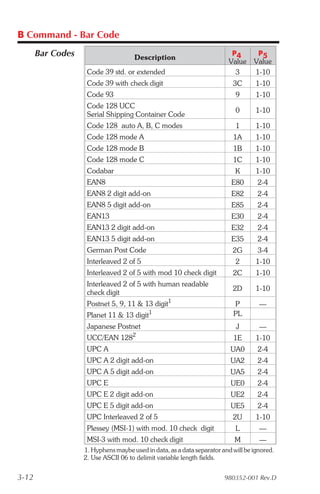
       Bar Codes                     Description
                                                                          P4       P5
                                                                         Value    Value
                    Code 39 std. or extended                               3      1-10
                    Code 39 with check digit                              3C       1-10
                    Code 93                                                9       1-10
                    Code 128 UCC
                                                                           0       1-10
                    Serial Shipping Container Code
                    Code 128 auto A, B, C modes                            1       1-10
                    Code 128 mode A                                       1A       1-10
                    Code 128 mode B                                       1B       1-10
                    Code 128 mode C                                       1C       1-10
                    Codabar                                                K       1-10
                    EAN8                                                  E80      2-4
                    EAN8 2 digit add-on                                   E82      2-4
                    EAN8 5 digit add-on                                   E85      2-4
                    EAN13                                                 E30      2-4
                    EAN13 2 digit add-on                                  E32      2-4
                    EAN13 5 digit add-on                                  E35      2-4
                    German Post Code                                      2G       3-4
                    Interleaved 2 of 5                                     2       1-10
                    Interleaved 2 of 5 with mod 10 check digit            2C       1-10
                    Interleaved 2 of 5 with human readable
                                                                          2D       1-10
                    check digit
                                                  1
                    Postnet 5, 9, 11 & 13 digit                           P         —
                                           1                              PL
                    Planet 11 & 13 digit
                    Japanese Postnet                                       J        —
                                     2
                    UCC/EAN 128                                           1E       1-10
                    UPC A                                                UA0       2-4
                    UPC A 2 digit add-on                                 UA2       2-4
                    UPC A 5 digit add-on                                 UA5       2-4
                    UPC E                                                UE0       2-4
                    UPC E 2 digit add-on                                 UE2       2-4
                    UPC E 5 digit add-on                                 UE5       2-4
                    UPC Interleaved 2 of 5                                2U       1-10
                    Plessey (MSI-1) with mod. 10 check digit               L        —
                    MSI-3 with mod. 10 check digit                         M        —
                   1. Hyphens maybe used in data, as a data separator and will be ignored.
                   2. Use ASCII 06 to delimit variable length fields.


3-12                                                                   980352-001 Rev.D
B Command - Bar Code

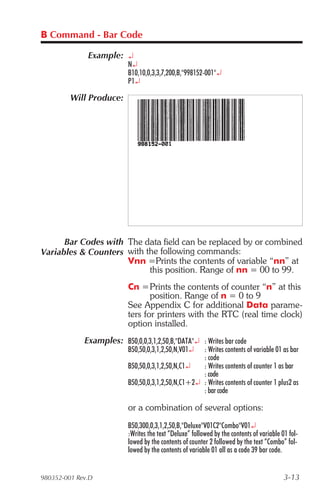
              Example: ¿
                           N¿
                           B10,10,0,3,3,7,200,B,"998152-001"¿
                           P1¿

         Will Produce:


      Bar Codes with The data field can be replaced by or combined
Variables & Counters with the following commands:
                     Vnn =Prints the contents of variable “nn” at
                           this position. Range of nn = 00 to 99.
                           Cn =Prints the contents of counter “n” at this
                                  position. Range of n = 0 to 9
                           See Appendix C for additional Data parame-
                           ters for printers with the RTC (real time clock)
                           option installed.
             Examples: B50,0,0,3,1,2,50,B,"DATA"¿ : Writes bar code
                           B50,50,0,3,1,2,50,N,V01¿  : Writes contents of variable 01 as bar
                                                     : code
                           B50,50,0,3,1,2,50,N,C1¿   : Writes contents of counter 1 as bar
                                                     : code
                           B50,50,0,3,1,2,50,N,C1+2¿ : Writes contents of counter 1 plus2 as
                                                     : bar code

                           or a combination of several options:
                           B50,300,0,3,1,2,50,B,"Deluxe"V01C2"Combo"V01¿
                           :Writes the text “Deluxe” followed by the contents of variable 01 fol-
                           lowed by the contents of counter 2 followed by the text “Combo” fol-
                           lowed by the contents of variable 01 all as a code 39 bar code.


980352-001 Rev.D                                                                           3-13
B Command - Bar Code

   Data with the RTC The “Data” field can be replaced by or com-
        Time & Date bined with the following variables:
           Functions
                     TT = Prints the current time at this position in
                          the predefined format. See the TT com-
                          mand for format selection. This variable
                          is available only if the printer Time &
                          Date option is installed.
                      TD = Prints the current date at this position in
                           the predefined format. See the TD com-
                           mand for format selection. This variable
                           is available only if the printer Time &
                           Date option is installed.

                      Some bar code formats will not support date names
                      or the date or time delimiters used by the printer to
                      separate data parameters.

  Code 128 Bar Code The printer supports code 128 function control
 Function Characters characters (FCN#). Multiple FCN#s, TTs, TDs
                     and “DATA” strings can be concatenated, al-
                     lowing them to be inserted anywhere within the
                     symbol.
                      FCN2, FCN3 and FCN4 are illegal in code
                      128 mode C (p4 = 1C) and will result in a syn-
                      tax error.
                      Please refer to the Code 128 standard for a de-
                      scription of function characters FNC1 through
                      FNC3.
                      “Standard” Code 128 can encode all 128 stan-
                      dard ASCII characters (0-127). Function char-
                      acter FCN4 provides a means of also encoding
                      extended ASCII characters (128-255). It directs
                      the reader to add 128 to the value of each af-
                      fected character before transmitting it.
                      Two consecutive FCN4s toggle between stan-
                      dard and extended ASCII mode for all succeed-
                      ing data characters (until the end of the symbol,
                      or until another pair of s is encountered). This is
                      referred to as latching into extended ASCII
                      mode or latching into standard ASCII mode.

3-14                                                      980352-001 Rev.D
B Command - Bar Code

  Code 128 Bar Code A single FCN4 toggles between standard and
 Function Characters extended ASCII mode for only a single follow-
         (continued) ing data character. This is referred to as shifting
                     into extended ASCII mode or shifting into stan-
                     dard ASCII mode.
                       Both code sets A and B are needed to represent
                       the entire extended ASCII character set, just as
                       both sets are needed to represent the standard
                       ASCII character set.
                       FCN4s can be inserted manually, if necessary
                       or desired, by following the syntax described
                       above. The printer will, however, insert them
                       automatically if extended ASCII characters are
                       encountered in the DATA. It will do so in the
                       most efficient manner possible:
                           • If up to 4 contiguous extended ASCII charac-
                             ters are encountered, it will shift into extended
                             ASCII mode by inserting a single FCN4 be-
                             fore each one;
                           • If 5 or more contiguous extended ASCII char-
                             acters are encountered, it will latch into ex-
                             tended ASCII mode by inserting two FCN4s
                             before them.
                           • While latched into extended ASCII mode, it
                             will apply the same rules if standard ASCII
                             characters are encountered.
                       Thus, the preferred way to encode extended
                       ASCII characters is to simply embed them in the
                       DATA and let the printer manage the encoding
                       task. For best results, the code set should also
                       not be specified (i.e., p4 = 1). FCN4 s should be
                       manually inserted only in systems where ex-
                       tended ASCII characters cannot be transmitted
                       to the printer.

                       It is illegal to mix automatic and manual modes
                       within the data for a single symbol; i.e., an extended
                       ASCII character encountered in the data after an will
                       be considered a syntax error. Likewise, an FCN4 af-
                       ter an extended ASCII character will also be consid-
                       ered a syntax error.


980352-001 Rev.D                                                       3-15
B Command - RSS-14 Bar Code Specific Options

          Description Use this command to print RSS-14 bar code
                      family bar codes for numeric data. The printer
                      supports a subset of the RSS bar code family set.
                      The subset includes basic RSS-14, RSS Lim-
                      ited, RSS Stacked and RSS Truncated. The
                      printer does not support RSS Extended or two
                      dimensional composite bar codes.
       Printer Models: 3842
               Syntax Bp1,p2,p3,p4,p5,p6,p7,p8,“DATA”
          Parameters p1 = Horizontal start position (X) in dots
                       p2 = Vertical start position (Y) in dots.
                       p3 = Rotation
                        Value                Description
                          0   No rotation
                          1   90 degrees
                          2   180 degrees
                          3   270 degrees
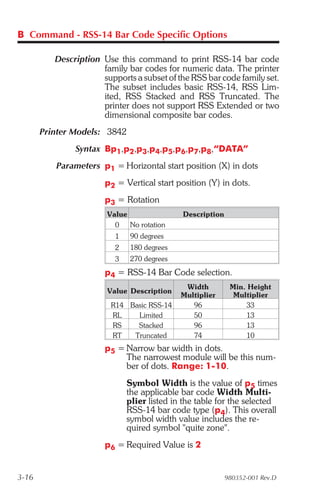
                       p4 = RSS-14 Bar Code selection.
                                              Width         Min. Height
                        Value Description
                                             Multiplier      Multiplier
                         R14 Basic RSS-14       96              33
                         RL    Limited          50              13
                         RS    Stacked          96              13
                         RT   Truncated         74              10
                       p5 = Narrow bar width in dots.
                            The narrowest module will be this num-
                            ber of dots. Range: 1-10.
                              Symbol Width is the value of p5 times
                              the applicable bar code Width Multi-
                              plier listed in the table for the selected
                              RSS-14 bar code type (p4). This overall
                              symbol width value includes the re-
                              quired symbol "quite zone".
                       p6 = Required Value is 2


3-16                                                       980352-001 Rev.D
B Command - RSS-14 Bar Code Specific Options

                      p7 = Bar code height in dots. See the table
                           above for the Minimum Height Multi-
                           plier. The printer will automatically se-
                           lect the larger of of two values: 1) this
                           value and 2) the Selected narrow bar
                           width (p5) times the Min. Height Mul-
                           tiplier listed in the table for the selected
                           RSS-14 bar code type (p4).
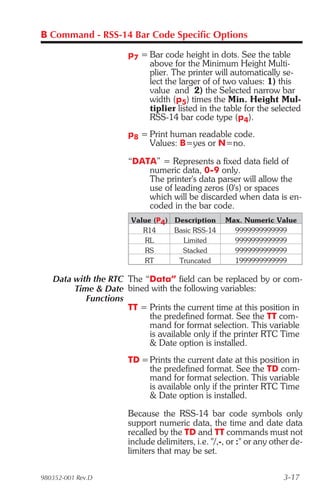
                      p8 = Print human readable code.
                           Values: B=yes or N=no.

                      “DATA” = Represents a fixed data field of
                          numeric data, 0-9 only.
                          The printer's data parser will allow the
                          use of leading zeros (0's) or spaces
                          which will be discarded when data is en-
                          coded in the bar code.
                       Value (P4) Description      Max. Numeric Value
                          R14     Basic RSS-14       9999999999999
                          RL        Limited          9999999999999
                          RS        Stacked          9999999999999
                          RT       Truncated         1999999999999

   Data with the RTC The “Data” field can be replaced by or com-
        Time & Date bined with the following variables:
           Functions
                     TT = Prints the current time at this position in
                          the predefined format. See the TT com-
                          mand for format selection. This variable
                          is available only if the printer RTC Time
                          & Date option is installed.
                      TD = Prints the current date at this position in
                           the predefined format. See the TD com-
                           mand for format selection. This variable
                           is available only if the printer RTC Time
                           & Date option is installed.

                      Because the RSS-14 bar code symbols only
                      support numeric data, the time and date data
                      recalled by the TD and TT commands must not
                      include delimiters, i.e. "/,-, or :" or any other de-
                      limiters that may be set.

980352-001 Rev.D                                                     3-17
B Command - RSS-14 Bar Code Specific Options

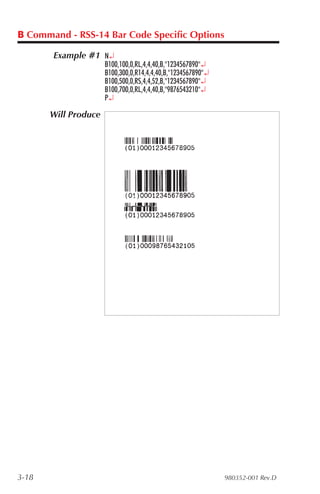
       Example #1 N¿
                      B100,100,0,RL,4,4,40,B,"1234567890"¿
                      B100,300,0,R14,4,4,40,B,"1234567890"¿
                      B100,500,0,RS,4,4,52,B,"1234567890"¿
                      B100,700,0,RL,4,4,40,B,"9876543210"¿
                      P¿

       Will Produce


3-18                                                          980352-001 Rev.D
B Command - RSS-14 Bar Code Specific Options

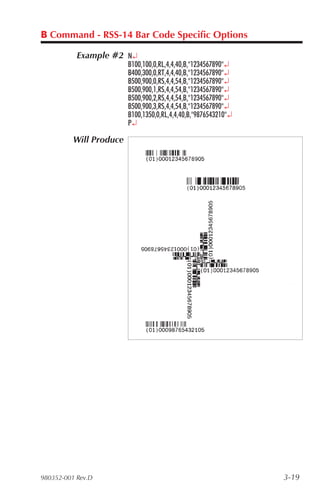
           Example #2 N¿
                         B100,100,0,RL,4,4,40,B,"1234567890"¿
                         B400,300,0,RT,4,4,40,B,"1234567890"¿
                         B500,900,0,RS,4,4,54,B,"1234567890"¿
                         B500,900,1,RS,4,4,54,B,"1234567890"¿
                         B500,900,2,RS,4,4,54,B,"1234567890"¿
                         B500,900,3,RS,4,4,54,B,"1234567890"¿
                         B100,1350,0,RL,4,4,40,B,"9876543210"¿
                         P¿

          Will Produce


980352-001 Rev.D                                                 3-19
b Command - 2D Bar Code - Data Matrix Specific Options

          Description Use this command to print Data Matrix two di-
                      mensional bar code symbols. The printer will
                      automatically interpret and encode data into
                      Data Matrix bar code symbols, using the ECC
                      200 data quality format. Individual module size,
                      columns and rows parameters can be specified
                      or the printer can automatically calculate and
                      set one or all of these parameters.
                       The symbol is made of square modules ar-
                       ranged within a rectangular shape which in-
                       cludes a perimeter scan recognition pattern.
                       The scan recognition pattern produced by the
                       EPL2 printer also includes a "quiet zone" one
                       module wide on all outside edges of the bar
                       code to ensure data integrity.
       Printer Models: 3842
               Syntax bp1,p2,p3,[,p4,][,p5][,p6][,p7],”DATA”
          Parameters The printer will automatically generate the Data
                     Matrix bar code using the following parameters.
                     p1 = Horizontal start position (X) in dots.
                       p2 = Vertical start position (Y) in dots.
                       p3 = D - Selects Data Matrix bar codes
                       Order is not important for parameters p4-p7
                       Include the prefix letter (c,r,h,or v) to select the
                       parameter followed by a valid numeric value.
                       p4 (c) = Number of columns to encode
                             See the Symbol Geometries table for
                             valid column values.
                       p5 (r) = Number of rows to encode
                             See the Symbol Geometries table for
                             valid row values.
                       p6 (h) = Sets the minimum square data
                            module size used for encoding data.
                            Range: 1-40 Default: 5
                       p7 (v) = Selects an inverse image of the bar
                            code (sometimes known as reverse
                            video or a negative image).
3-20                                                      980352-001 Rev.D
b Command - 2D Bar Code - Data Matrix Specific Options

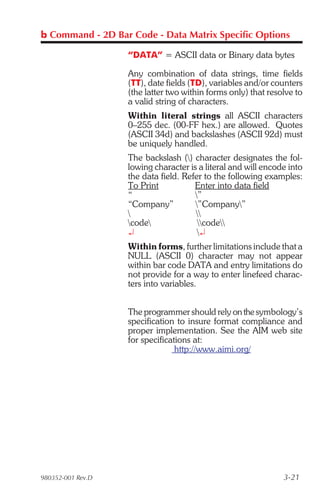
                   “DATA” = ASCII data or Binary data bytes

                   Any combination of data strings, time fields
                   (TT), date fields (TD), variables and/or counters
                   (the latter two within forms only) that resolve to
                   a valid string of characters.
                   Within literal strings all ASCII characters
                   0–255 dec. (00-FF hex.) are allowed. Quotes
                   (ASCII 34d) and backslashes (ASCII 92d) must
                   be uniquely handled.
                   The backslash () character designates the fol-
                   lowing character is a literal and will encode into
                   the data field. Refer to the following examples:
                   To Print           Enter into data field
                   “                  ”
                   “Company”          ”Company”
                                     
                   code              code
                   ¿                   ¿
                   Within forms, further limitations include that a
                   NULL (ASCII 0) character may not appear
                   within bar code DATA and entry limitations do
                   not provide for a way to enter linefeed charac-
                   ters into variables.


                   The programmer should rely on the symbology’s
                   specification to insure format compliance and
                   proper implementation. See the AIM web site
                   for specifications at:
                                 http://www.aimi.org/


980352-001 Rev.D                                               3-21
b Command - 2D Bar Code - Data Matrix Specific Options

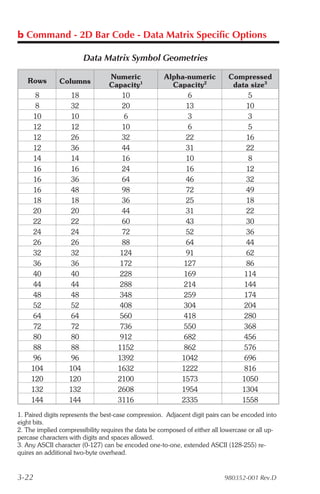
                        Data Matrix Symbol Geometries

                                 Numeric             Alpha-numeric           Compressed
   Rows        Columns           Capacity1             Capacity2              data size3
      8            18               10                     6                      5
      8            32               20                     13                     10
      10           10               6                      3                      3
      12           12               10                     6                      5
      12           26               32                     22                     16
      12           36               44                     31                     22
      14           14               16                     10                     8
      16           16               24                     16                     12
      16           36               64                     46                     32
      16           48               98                     72                     49
      18           18               36                     25                     18
      20           20               44                     31                     22
      22           22               60                     43                     30
      24           24               72                     52                     36
      26           26               88                     64                     44
      32           32              124                     91                     62
      36           36              172                    127                     86
      40           40              228                    169                    114
      44           44              288                    214                    144
      48           48              348                    259                    174
      52           52              408                    304                    204
      64           64              560                    418                    280
      72           72              736                    550                    368
      80           80              912                    682                    456
      88           88              1152                   862                    576
      96           96              1392                  1042                    696
     104          104              1632                  1222                    816
     120          120              2100                  1573                   1050
     132          132              2608                  1954                   1304
     144          144              3116                  2335                   1558
1. Paired digits represents the best-case compression. Adjacent digit pairs can be encoded into
eight bits.
2. The implied compressibility requires the data be composed of either all lowercase or all up-
percase characters with digits and spaces allowed.
3. Any ASCII character (0-127) can be encoded one-to-one, extended ASCII (128-255) re-
quires an additional two-byte overhead.


3-22                                                                       980352-001 Rev.D
b Command - 2D Bar Code - Data Matrix Specific Options

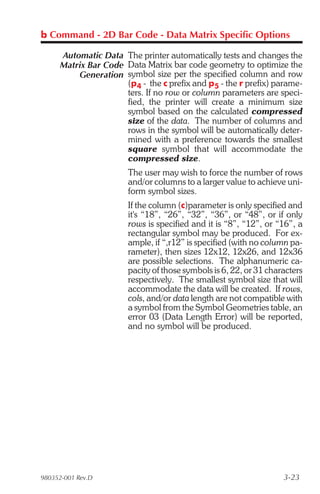
     Automatic Data The printer automatically tests and changes the
     Matrix Bar Code Data Matrix bar code geometry to optimize the
         Generation symbol size per the specified column and row
                     (p4 - the c prefix and p5 - the r prefix) parame-
                     ters. If no row or column parameters are speci-
                     fied, the printer will create a minimum size
                     symbol based on the calculated compressed
                     size of the data. The number of columns and
                     rows in the symbol will be automatically deter-
                     mined with a preference towards the smallest
                     square symbol that will accommodate the
                     compressed size.
                       The user may wish to force the number of rows
                       and/or columns to a larger value to achieve uni-
                       form symbol sizes.
                       If the column (c)parameter is only specified and
                       it's “18”, “26”, “32”, “36”, or “48”, or if only
                       rows is specified and it is “8”, “12”, or “16”, a
                       rectangular symbol may be produced. For ex-
                       ample, if “,r12” is specified (with no column pa-
                       rameter), then sizes 12x12, 12x26, and 12x36
                       are possible selections. The alphanumeric ca-
                       pacity of those symbols is 6, 22, or 31 characters
                       respectively. The smallest symbol size that will
                       accommodate the data will be created. If rows,
                       cols, and/or data length are not compatible with
                       a symbol from the Symbol Geometries table, an
                       error 03 (Data Length Error) will be reported,
                       and no symbol will be produced.


980352-001 Rev.D                                                   3-23
b Command - 2D Bar Code - Data Matrix Specific Options

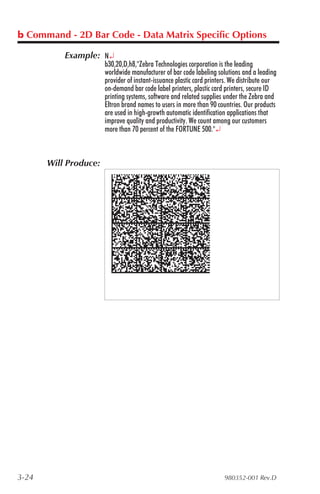
           Example: N¿
                       b30,20,D,h8,"Zebra Technologies corporation is the leading
                       worldwide manufacturer of bar code labeling solutions and a leading
                       provider of instant-issuance plastic card printers. We distribute our
                       on-demand bar code label printers, plastic card printers, secure ID
                       printing systems, software and related supplies under the Zebra and
                       Eltron brand names to users in more than 90 countries. Our products
                       are used in high-growth automatic identification applications that
                       improve quality and productivity. We count among our customers
                       more than 70 percent of the FORTUNE 500."¿


       Will Produce:


3-24                                                                   980352-001 Rev.D
b Command - 2D Bar Code - MaxiCode Specific Options

           Description Use this command to generate MaxiCode bar
                       code symbols with a single command. The
                       printer will automatically interpret and encode
                       data into MaxiCode symbols for data modes 2,
                       3, 4, and 6. Up to eight symbols can be linked.
                   Syntax bp1,p2,p3,[p4,][p5,]“DATA”
            Parameters p1 = Horizontal start position (X) in dots
                         p2 = Vertical start position (Y) in dots
                         p3 = M - Must be “M” for MaxiCode
                         p4 = Mode Selection
                                 Value               Description
                                Not Used   Automatic Selection Mode 2 or 3
                                  M2       Mode 2
                                  M3       Mode 3
                                  m4       Mode 4
                                  m6       Mode 6

                         1. If p4 (Mx) is not used, the printer will use the
                         following rules to automatically format the
                         “DATA” parameter. If the postal code (third
                         parameter, PC) in the “DATA” is:
                             • All numeric characters, the printer will auto-
                               matically select Mode 2.
                             • Alpha only or alpha-numeric character com-
                               binations will set the printer to Mode 3.
                             • Not used, the printer automatically selects
                               Mode 3.
                         2. If p4 value is “M2 or M3”, the printer will use
                         the following rules to format the “Data” param-
                         eter:
                             • In Mode 2 - If a non-numeric character is en-
                               tered in the Postal Code “Data” parameter field,
                               then the MaxiCode bar code will not print.
                             • In Mode 3 – If the Postal Code “Data” field
                               exceed 6 characters, then the additional char-
                               acters will be truncated from the bar code field.


980352-001 Rev.D                                                         3-25
b Command - 2D Bar Code - MaxiCode Specific Options

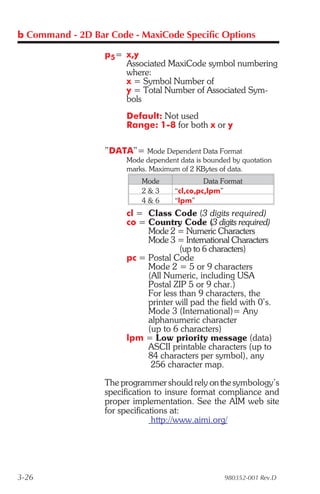
                  p5= x,y
                      Associated MaxiCode symbol numbering
                      where:
                      x = Symbol Number of
                      y = Total Number of Associated Sym-
                      bols
                       Default: Not used
                       Range: 1-8 for both x or y

                  ”DATA”= Mode Dependent Data Format
                       Mode dependent data is bounded by quotation
                       marks. Maximum of 2 KBytes of data.
                           Mode               Data Format
                           2&3       “cl,co,pc,lpm”
                           4&6       “lpm”
                       cl = Class Code (3 digits required)
                       co = Country Code (3 digits required)
                            Mode 2 = Numeric Characters
                            Mode 3 = International Characters
                                     (up to 6 characters)
                       pc = Postal Code
                            Mode 2 = 5 or 9 characters
                            (All Numeric, including USA
                            Postal ZIP 5 or 9 char.)
                            For less than 9 characters, the
                            printer will pad the field with 0’s.
                            Mode 3 (International)= Any
                            alphanumeric character
                            (up to 6 characters)
                       lpm = Low priority message (data)
                            ASCII printable characters (up to
                            84 characters per symbol), any
                             256 character map.

                  The programmer should rely on the symbology’s
                  specification to insure format compliance and
                  proper implementation. See the AIM web site
                  for specifications at:
                                http://www.aimi.org/


3-26                                                980352-001 Rev.D
b Command - 2D Bar Code - MaxiCode Specific Options

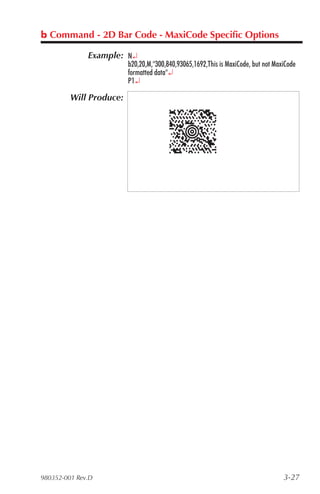
              Example: N¿
                         b20,20,M,"300,840,93065,1692,This is MaxiCode, but not MaxiCode
                         formatted data"¿
                         P1¿

         Will Produce:


980352-001 Rev.D                                                                   3-27
Using AIM Specified The EPL printer can use and automatically de-
    MaxiCode Data code the AIM ITS (International Technical Stan-
        Formatting dards) MaxiCode data format. The printer
                    detects the message/start header ([)>RS), field
                    separator (GS), and the end of message marker
                    (RS EOT) data control strings.
                     The hexadecimal (ASCII) data control strings
                     are in the following table. See the EPL2 dump
                     mode character map in Appendix A.
                       Control String            Hexadecimal Code
                       Message/Start Header
                       [ ) > RS          5B 29 3E 1E
                       Field Separator
                       GS                        1D
                       End Of Message Marker
                       RS EOT           1E 04

              Syntax bp1,p2,M,p4 “[AIM MaxiCode Data]”
            Example b20,400,M,m2”001,840,93065,1692,[)>RS
                     01GS98XXXZZFDAAFGSSHIPGS309GSGS1/1GS10GS
                     NGSGSCAMARILLOGSCAGSRSEOT!!!!!!!!!!!!!!!!!!!!!!!”¿
                     Notes:
                     1) This programming example represents actual data used to
                     format a single AIM compliant MaxiCode symbol as pro-
                     grammed by a major international and domestic shipping com-
                     pany.

                     2) The shipper has explicitly set the MaxiCode symbol for
                     Mode 2. This can be omitted by the programmer and the
                     printer will auto-select the mode per the rules on page 3-25.

                     3) The shipper has used the “!” character to pad the symbol’s
                     data. A scanner reads back all the “Data” within the quotation
                     marks, including the “!” characters following the End Of Mes-
                     sage Marker (EOT).

                     4) All of the data fields in the Low Priority Message are not
                     used in the example. Some are left empty with the field delim-
                     iting GS character used as a format field holder.


3-28                                                             980352-001 Rev.D
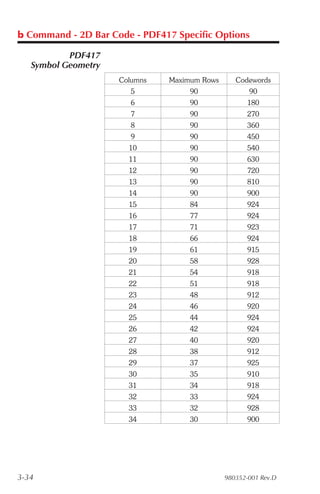
b Command - 2D Bar Code - PDF417 Specific Options

           Description Use this command to print PDF 417 and Macro
                       PDF bar code symbols. The printer will auto-
                       matically change from PDF417 to Macro PDF
                       bar code mode if the data sent to the printer ex-
                       ceeds the maximum amount supported by the
                       PDF417 symbol. The oH command is used to
                       place the addition Macro PDF symbols needed
                       for the continuation data.
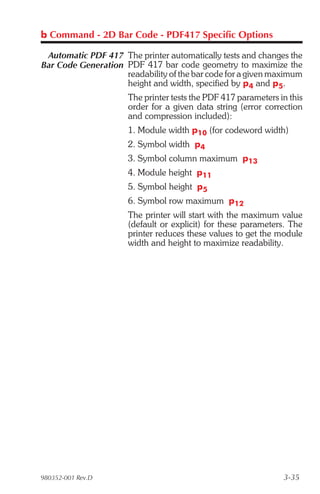
                          The printer will automatically optimize the sym-
                          bol for readability of data (and use the mini-
                          mum number of symbols when using Macro
                          PDF). The symbol’s geometry is adjusted (typi-
                          cally reducing the size of the symbol) per the de-
                          fined parameters. The printer will use the largest
                          module size (bar width and height) and mini-
                          mize the number of rows and columns.
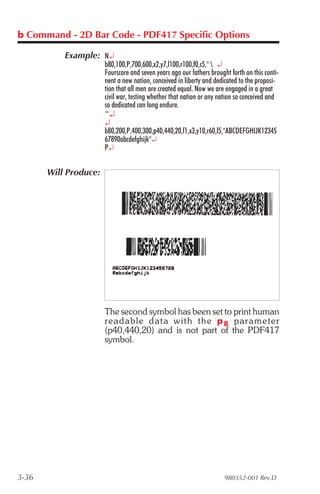
                   Syntax bp1,p2,p3,p4,p5[,p6][,p7][,p8][,p9][,p10]
                            [,p11][,p12][,p13][,p14][,p15],”DATA”
            Parameters The printer will automatically generate the
                       PDF417 bar code using the following parameters.

                          p1 = Horizontal start position (X) in dots

                          p2 = Vertical start position (Y) in dots

                          p3 = P - Must be “P” for PDF 417 bar codes

                          p4 (www) =maximum print width in dots

                          p5 (hhh) = maximum print height in dots

                          The programmer should rely on the symbology’s
                          specification to insure format compliance and
                          proper implementation. See the AIM web site
                          for specifications at:
                                        http://www.aimi.org/


980352-001 Rev.D                                                       3-29
b Command - 2D Bar Code - PDF417 Specific Options

                  The following parameters may be omitted and de-
                  fault values will automatically be inserted. Each pa-
                  rameter value (data string) must be proceeded by its
                  associated command prefix character.
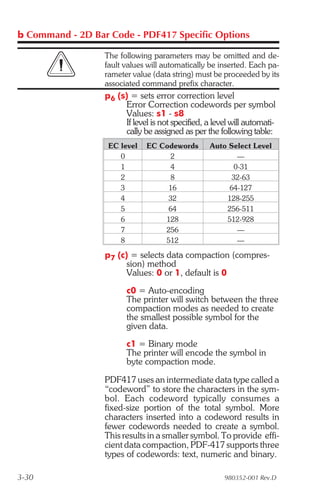
                  p6 (s) = sets error correction level
                       Error Correction codewords per symbol
                       Values: s1 - s8
                       If level is not specified, a level will automati-
                       cally be assigned as per the following table:
                   EC level    EC Codewords        Auto Select Level
                      0              2                    —
                      1              4                   0-31
                      2              8                   32-63
                      3             16                  64-127
                      4             32                 128-255
                      5             64                 256-511
                      6            128                 512-928
                      7            256                    —
                      8            512                    —

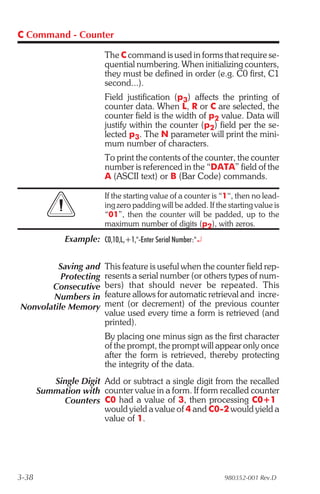
                  p7 (c) = selects data compaction (compres-
                        sion) method
                        Values: 0 or 1, default is 0
                        c0 = Auto-encoding
                        The printer will switch between the three
                        compaction modes as needed to create
                        the smallest possible symbol for the
                        given data.
                        c1 = Binary mode
                        The printer will encode the symbol in
                        byte compaction mode.

                  PDF417 uses an intermediate data type called a
                  “codeword” to store the characters in the sym-
                  bol. Each codeword typically consumes a
                  fixed-size portion of the total symbol. More
                  characters inserted into a codeword results in
                  fewer codewords needed to create a symbol.
                  This results in a smaller symbol. To provide effi-
                  cient data compaction, PDF-417 supports three
                  types of codewords: text, numeric and binary.

3-30                                                   980352-001 Rev.D
b Command - 2D Bar Code - PDF417 Specific Options

                   Auto-Encoding (c0) data compaction method
                   is set by default, and provides the best compac-
                   tion. If Binary data compaction (c1) is selected
                   the symbol will typically be larger. Binary data
                   compaction may help to minimize the amount
                   of time it takes a system to scan and decode the
                   data encoded within the symbol.
                          Data Type     Compaction (Byte by Byte)
                              Text     2 Characters per codeword
                            Numeric    2.93 Characters per codeword
                             Binary    1.2 Bytes per codeword

                      • Text compaction can be used for uppercase,
                        lowercase, numbers, space, carriage return,
                        tab, line feed, and the following characters:

                         &,:#-.$/+%*=^;@[]_’~!"|(){}`

                        With text compaction, up to two characters
                        can be encoded in a single codeword.
                      • Numeric compaction can be used for num-
                        bers only. Up to 2.93 characters can be en-
                        coded in a single codeword.
                      • Byte compaction can be used for any charac-
                        ter. But the flexibility comes at a price; byte
                        compaction encodes only 1.2 characters per
                        codeword.


                   p8 (pxxx,yyy,mm) = print human readable
                        This parameter is a non-standard
                        implementor of the PDF417 and is only
                        recommended for troubleshooting purposes.
                        Additional variables:
                        p ="p“ - parameter identifier
                          xxx = horizontal start location
                          yyy = vertical start location
                          mm = maximum characters per line


980352-001 Rev.D                                                   3-31
b Command - 2D Bar Code - PDF417 Specific Options

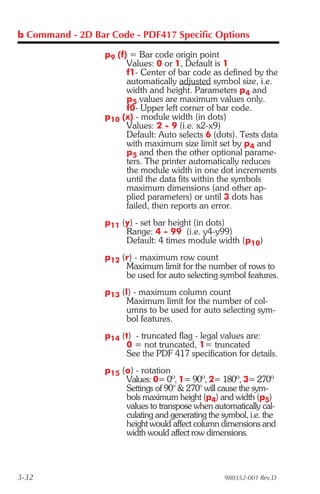
                  p9 (f) = Bar code origin point
                        Values: 0 or 1, Default is 1
                        f1- Center of bar code as defined by the
                        automatically adjusted symbol size, i.e.
                        width and height. Parameters p4 and
                        p5 values are maximum values only.
                        f0- Upper left corner of bar code.
                  p10 (x) - module width (in dots)
                        Values: 2 - 9 (i.e. x2-x9)
                        Default: Auto selects 6 (dots). Tests data
                        with maximum size limit set by p4 and
                        p5 and then the other optional parame-
                        ters. The printer automatically reduces
                        the module width in one dot increments
                        until the data fits within the symbols
                        maximum dimensions (and other ap-
                        plied parameters) or until 3 dots has
                        failed, then reports an error.
                  p11 (y) - set bar height (in dots)
                       Range: 4 - 99 (i.e. y4-y99)
                       Default: 4 times module width (p10)
                  p12 (r) - maximum row count
                       Maximum limit for the number of rows to
                       be used for auto selecting symbol features.
                  p13 (l) - maximum column count
                        Maximum limit for the number of col-
                        umns to be used for auto selecting sym-
                        bol features.
                  p14 (t) - truncated flag - legal values are:
                       0 = not truncated, 1= truncated
                       See the PDF 417 specification for details.
                  p15 (o) - rotation
                       Values: 0= 0º, 1= 90º, 2= 180º, 3= 270º
                       Settings of 90° & 270° will cause the sym-
                       bols maximum height (p4) and width (p5)
                       values to transpose when automatically cal-
                       culating and generating the symbol, i.e. the
                       height would affect column dimensions and
                       width would affect row dimensions.


3-32                                                980352-001 Rev.D
b Command - 2D Bar Code - PDF417 Specific Options

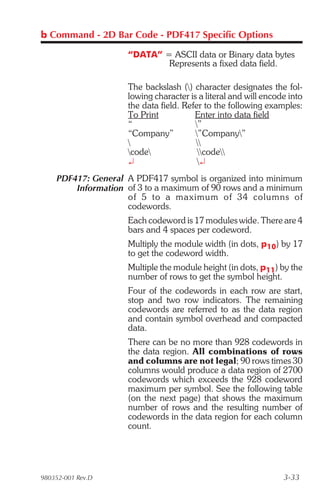
                    “DATA” = ASCII data or Binary data bytes
                            Represents a fixed data field.

                    The backslash () character designates the fol-
                    lowing character is a literal and will encode into
                    the data field. Refer to the following examples:
                    To Print           Enter into data field
                    “                  ”
                    “Company”          ”Company”
                                      
                    code              code
                    ¿                   ¿
    PDF417: General A PDF417 symbol is organized into minimum
        Information of 3 to a maximum of 90 rows and a minimum
                    of 5 to a max i mum of 34 col umns of
                    codewords.
                    Each codeword is 17 modules wide. There are 4
                    bars and 4 spaces per codeword.
                    Multiply the module width (in dots, p10) by 17
                    to get the codeword width.
                    Multiple the module height (in dots, p11) by the
                    number of rows to get the symbol height.
                    Four of the codewords in each row are start,
                    stop and two row indicators. The remaining
                    codewords are referred to as the data region
                    and contain symbol overhead and compacted
                    data.
                    There can be no more than 928 codewords in
                    the data region. All combinations of rows
                    and columns are not legal; 90 rows times 30
                    columns would produce a data region of 2700
                    codewords which exceeds the 928 codeword
                    maximum per symbol. See the following table
                    (on the next page) that shows the maximum
                    number of rows and the resulting number of
                    codewords in the data region for each column
                    count.


980352-001 Rev.D                                                3-33
b Command - 2D Bar Code - PDF417 Specific Options

           PDF417
   Symbol Geometry
                     Columns   Maximum Rows      Codewords
                       5            90               90
                       6            90               180
                       7            90               270
                       8            90               360
                       9            90               450
                       10           90               540
                       11           90               630
                       12           90               720
                       13           90               810
                       14           90               900
                       15           84               924
                       16           77               924
                       17           71               923
                       18           66               924
                       19           61               915
                       20           58               928
                       21           54               918
                       22           51               918
                       23           48               912
                       24           46               920
                       25           44               924
                       26           42               924
                       27           40               920
                       28           38               912
                       29           37               925
                       30           35               910
                       31           34               918
                       32           33               924
                       33           32               928
                       34           30               900


3-34                                          980352-001 Rev.D
b Command - 2D Bar Code - PDF417 Specific Options

 Automatic PDF 417 The printer automatically tests and changes the
Bar Code Generation PDF 417 bar code geometry to maximize the
                    readability of the bar code for a given maximum
                    height and width, specified by p4 and p5.
                      The printer tests the PDF 417 parameters in this
                      order for a given data string (error correction
                      and compression included):
                      1. Module width p10 (for codeword width)
                      2. Symbol width p4
                      3. Symbol column maximum p13
                      4. Module height p11
                      5. Symbol height p5
                      6. Symbol row maximum p12
                      The printer will start with the maximum value
                      (default or explicit) for these parameters. The
                      printer reduces these values to get the module
                      width and height to maximize readability.


980352-001 Rev.D                                                3-35
b Command - 2D Bar Code - PDF417 Specific Options

           Example: N¿
                       b80,100,P,700,600,x2,y7,l100,r100,f0,s5,"  ¿
                       Fourscore and seven years ago our fathers brought forth on this conti-
                       nent a new nation, conceived in liberty and dedicated to the proposi-
                       tion that all men are created equal. Now we are engaged in a great
                       civil war, testing whether that nation or any nation so conceived and
                       so dedicated can long endure.
                       “¿
                       ¿
                       b80,200,P,400,300,p40,440,20,f1,x3,y10,r60,l5,"ABCDEFGHIJK12345
                       67890abcdefghijk"¿
                       P¿


       Will Produce:


                       The second symbol has been set to print human
                       read able data with the p 8 pa ram e ter
                       (p40,440,20) and is not part of the PDF417
                       symbol.


3-36                                                                   980352-001 Rev.D
C Command - Counter

           Description The counter (C) command defines one of 10 au-
                       tomatic counters used in consecutive number-
                       ing applications (i.e. serial numbers). Counters
                       must be defined after variables.

                         For Numeric Serialization Only. The counter
                         function does not support Alpha or Alpha-Numeric
                         Serialization.
                   Syntax Cp1, p2, p3, p4, “[-]PROMPT”
            Parameters p1 = Counter number.         Range: 0 to 9
                         p2 = Maximum number of digits for counter.
                              Range: 1 to 29
                         p3 = Field Justification.
                                L = Left         R = Right
                                C = Center       N = No Justification
                         p4 = Step Value. + or - sign followed by a
                              single digit of 1 - 9. Using a step value
                              of +0 allows the counter to be used as
                              an additional variable data field.
                         “PROMPT”= An ASCII text field that will be
                             transmitted to the KDU or host (via the
                             serial interface) each time the command
                             is executed. Typically used to request
                             the operator to enter a starting counter
                             value.
          KDU Prompt [-] = Having the first character of the prompt
             Options       a single minus sign will cause the
                           prompt to display only once after form
                           retrieval.


980352-001 Rev.D                                                    3-37
C Command - Counter

                          The C command is used in forms that require se-
                          quential numbering. When initializing counters,
                          they must be defined in order (e.g. C0 first, C1
                          second...).
                          Field justification (p3) affects the printing of
                          counter data. When L, R or C are selected, the
                          counter field is the width of p2 value. Data will
                          justify within the counter (p2) field per the se-
                          lected p3. The N parameter will print the mini-
                          mum number of characters.
                          To print the contents of the counter, the counter
                          number is referenced in the “DATA” field of the
                          A (ASCII text) or B (Bar Code) commands.

                          If the starting value of a counter is “1“, then no lead-
                          ing zero padding will be added. If the starting value is
                          “01”, then the counter will be padded, up to the
                          maximum number of digits (p2), with zeros.
              Example: C0,10,L,+1,"-Enter Serial Number:"¿


         Saving and       This feature is useful when the counter field rep-
          Protecting      resents a serial number (or others types of num-
       Consecutive        bers) that should never be repeated. This
       Numbers in         feature allows for automatic retrieval and incre-
Nonvolatile Memory        ment (or decrement) of the previous counter
                          value used every time a form is retrieved (and
                          printed).
                          By placing one minus sign as the first character
                          of the prompt, the prompt will appear only once
                          after the form is retrieved, thereby protecting
                          the integrity of the data.
          Single Digit Add or subtract a single digit from the recalled
       Summation with counter value in a form. If form recalled counter
            Counters C0 had a value of 3, then processing C0+1
                       would yield a value of 4 and C0-2 would yield a
                       value of 1.


3-38                                                            980352-001 Rev.D
C Command - Cut Immediate

          Description: This command allows the printer to initiate an
                       immediate media cut without a form print oper-
                       ation. The printer must have the cutter option
                       installed.

                          t The C command – Cut Immediate can not
                            be used inside of a form.
                          t The initial character C in a command string is
                            used for both the Cut Immediate (C) and
                            Counter Command function (Cp1) which
                            can only be used within a form. The Cut Im-
                            mediate Command (C) can not be used in a
                            form.
                          t The C command – Cut Immediate can not be
                            used with the KDU.

                          Mobile printers, such as the TR 220, ignore this
                          command.
                   Syntax: C
           Parameters: None


              Example: C¿


                          Only cut label liner (backing) or tag stock. Label ad-
                          hesive will built up on the cutter blade and cause the
                          cutter to operate poorly or jam if the labels are cut
                          along with the label liner.


                          Use the C command - Cut Immediate 5 times with-
                          out media loaded, to perform a self cleaning of the
                          cutter blade.


980352-001 Rev.D                                                          3-39
D Command - Density

       Description Use this command to select the print density.
            Syntax Dp1
       Parameters p1 = Density setting. Acceptable values are:
                         Model          Acceptable Values1 Default Value
                         2722                  0 - 15                7
                         2742                  0 - 15                7
                         3742                  0 - 15                7
                     2443 (Orion)              0 - 15               10
                         2824                  0 - 15                7
                         2844                  0 - 15               10
                         3842                  0 - 15                7
                        Ht-146                 0 - 15                7
                     2746 / 2746e              0 - 15                7
                     2684 (Strata)             0 - 15                7
                    Note 1: 0 is the lightest print and 15 is the darkest.

                    The density command controls the amount of
                    heat produced by the print head. More heat will
                    produce a darker image. Too much heat can
                    cause the printed image to distort.

                    The density and speed commands can dramatically
                    affect print quality. Changes in the speed setting typi-
                    cally require a change to the print density.


          Example D5¿                 : selects density 5


3-40                                                        980352-001 Rev.D
dump Command - Enable Dump Mode

           Description This command allows the advanced program-
                       mer to force a user diagnostic “data dump”
                       mode. Sending the dump command to the
                       printer allows the programmer to compare ac-
                       tual data sent to printer with the host program.
                        Send data to the printer after the dump com-
                        mand has been issued to evaluate program and
                        printer control data. The printer will process all
                        data bytes into ASCII character data, range
                        0-255 decimal (00-FF hexadecimal).
                        Press the printer’s Feed button until “Out of
                        Dump” is printed or power cycle the printer to
                        terminate the dump mode.
                   Syntax dump
            Parameters None

                        t Set the image buffer width with the q com-
                          mand to match the media width prior to issu-
                          ing the dump command.
                        t Use the “Dump Mode” character map in
                          Appendix A to interpret the dump mode data
                          (characters printed on the labels) back into
                          ASCII data.
                        t Press the Feed button to view dump data that
                          exceeds a single label’s print area. Repeat to
                          view more dump data as required.
                        t Pressing the Feed button after the dump data
                          is finished printing will cause the printer to
                          exit the dump mode.
                        t Graphics data dump may be large and re-
                          quire multiple labels to print.
               Example dump¿


980352-001 Rev.D                                                    3-41
eR Command - User Defined Error/Status Character

       Description This command allows the advanced program-
                   mer to specify the printer’s error/status report
                   character for error reporting via the RS-232
                   serial interface.
                    Mobile printers, such as the TR 220, ignore this
                    command.
            Syntax eRp1,p2
        Parameters p1 = Any single ASCII character
                        Range: 0-255 decimal (00-FF hexadeci-
                        mal)
                    p2 = Error/Status Response Mode
                      p2     Mode Descriptions
                             Standard (default):
                       0     XON (17 dec. / 11 hex.) on Recovery
                             XOFF (19 dec. / 13 hex.) on Error
                             Character Only:
                       1     Reports the selected error/status character fol-
                             lowed by a Carriage Return and Line Feed.
                             Character & Error/Status Code:
                             Reports the selected error/status character, er-
                       2
                             ror/status code (see page 3-126 for codes),
                             and then by a Carriage Return and Line Feed.

          Example For Mode 2 Error and Status Reporting:
                    eR$,2¿             : Sets Error Character to “$” and
                                       : Sets Error Mode to “2".

                                       : User operates and prints with printer.
                                       : User opens print head.

                    $11¿               : Reports Print Head Open

                                       : User closes print head

                    $00¿               : Reports No Error
                                       : Printer Ready for next command.
                                       : (Status report for Print Head Closed)


3-42                                                              980352-001 Rev.D
EI Command - Print Soft Font Information

           Description This command will cause the printer to print a
                       list of all soft fonts that are stored in memory.
                   Syntax EI¿


                         Soft fonts can be downloaded to and deleted from
                         the printer from the Soft Font Downloader Utility,
                         CAL Tools or CAL3 software.
               Example EI¿               :prints soft font list

          Will Produce


980352-001 Rev.D                                                     3-43
EK Command - Delete Soft Font

       Description This command is used to delete soft fonts from
                   memory.

                    Soft fonts can be downloaded to and deleted from
                    the printer from the Soft Font Downloader Utility,
                    CAL Tools or CAL3.


            Syntax EK {“FONTNAME”|"*"}
        Parameters “FONTNAME” = By entering the name of a
                       font, that font will be deleted from mem-
                       ory.
                    “*” = By including an “*” (wild card), ALL
                         fonts will be deleted from memory.
          Example EK"A"¿            :deletes font “A”
                    EK"*"¿          :deletes all fonts


3-44                                                     980352-001 Rev.D
ES Command - Store Soft Font

           Description This command is used to download and store
                       soft fonts in memory.

                        Soft fonts can be downloaded to and deleted from
                        the printer from the Soft Font Downloader Utility,
                        CAL Tools or CAL3.
                   Syntax ES"FONTNAME"p1p2p3a1b1c1“DATA1”a
                          2b2c2“DATA2” ... anbncn“DATAn”

            Parameters “FONTNAME” = One letter font name
                           Range: a-z, Lower Case
                              • Lower Case named fonts minimize soft font
                                memory usage to only store fonts down-
                                loaded and have 256 character limit.

                                The following use hexadecimal
                                coding for parameter values.
                        p1:     Number of characters to be downloaded
                                Range: 00 - FF hex. (0-255 decimal)
                                for 1 to 256 fonts per soft font set.
                        p2:     Character Rotation
                              • 00 hex. = 0 and 180 degrees
                              • 01 hex. = 90 and 270 degrees (clockwise)
                              • 02 hex. = Both 0 and 180 degree rotation
                                pair and the 90 and 270 degree rotation pair
                        p3:     Font Height
                                Range: 00 to FF hex.
                                Measured in dots and expressed as a
                                hexadecimal number, i.e. 1B hex. = 27
                                dots
                                Font height includes accentors and dis-
                                senters of characters and need to fit in
                                the character cell
                              • 203 dpi printers =
                                256 dots = 1.26 inches = 32.03 mm
                              • 300 dpi printers = 00 to FF hex.
                                256 dots = 0.85 inches = 21.67 mm


980352-001 Rev.D                                                      3-45
ES Command - Store Soft Font

                  a1:   (1st) Download Character (map position)
                        Range: 00 to FF hex.
                  b1:   (1st) Spacing To Next Print Character
                        Downloaded character’s next printed
                        character position in dots, i.e. Character
                        tracking - the space between characters.
                        Must be greater than or equal to the
                        character width, see parameter c1. Dots
                        in a decimal number converted to a
                        hexadecimal number.
                        Range: 00 to FF hex.
                  c1:   (1st) Downloaded Character’s Width
                        Dots in a decimal number converted to
                        a hexadecimal number.
                        Range: 00 to FF hex.
                  “DATA1” : (1st) Character Bitmap
                      p3 × c1 = bit map data (in bytes)
                      Data is received in bytes, on a line by
                      line basis. The font character’s 0,0 cell
                      map position is in the top left corner of
                      the map as viewed in the 0 degree rota-
                      tion. See the examples on the following
                      pages.
                  a2:   (2nd) Download Character (map position)
                  b2:   (2nd) Spacing To Next Print Character
                  c2:   (2nd) Downloaded Character’s Width
                  “DATA2”: (2nd) Character Bitmap
                      p3 × c2 bytes = bit map data
                  Repeat for each character until the last char-
                  acter in the set is downloaded.
                  an: (Last) Download Character (map posi-
                      tion)
                  bn: (Last) Spacing To Next Print Character
                  cn:   (Last) Downloaded Character’s Width
                  “DATAn” : Character Bitmap
                      p3 × cn bytes = bit map data


3-46                                               980352-001 Rev.D
ES Command - Store Soft Font

                       For fonts with the rotation parameter set
                       for “both” (p2 = 02 hex.):
                       Repeat the individual font character download
                       for each 90° rotated character from the start of
                       the character set until the last rotated character
                       in the set is downloaded.
                       a1-90° b1-90° c1-90° “DATA1-90°”
                       a2-90° b2-90° c2-90° “DATA2-90°”
                       a3-90° b3-90° c3-90° “DATA3-90°”
                       an-90° : (Last) Download Character
                       bn-90° : (Last) Spacing To Next Print Charac-
                            ter
                       cn-90° : (Last) Downloaded Character’s Width
                       “DATAn-90°” : Character Bitmap
                                     p3 × cn bytes = bit map data
                           The number of individual character
                           maps downloaded will be double the
                           characters in the font set (p1).
                                     Reference Point
         Example of
 Measuring Soft Font                            10 Dots
                Size

                                12

                                D
                                o
                                t
                                s


                                                          Inter-character Space
                                               8 Dots     (actually white dots)

                        Parameter Dots Data Entered as Hexadecimal
                           p3             12              0C hex.
                            b             10              0A hex.
                            c              8              08 hex.


980352-001 Rev.D                                                                  3-47
ES Command - Store Soft Font

          Soft Fonts The typical soft font download command
  Programming Code strings to the printer. The following example
           Example was generated with the CAL3 software.


00000000   0D 0A 45 4B 22 61 22 0D 0A 45 53 22 61 22 03 00     ..EK"a"..ES"a"..

           CR & LF                       CR & LF     p1   p2

00000010   1A 41 17 03 00 7C 00 00 7C 00 00 7C 00 00 EE 00     .A...|..|..|....

           p3   a1   b1   c1

00000020   00 EE 00 01 EF 00 01 C7 00 01 C7 00 03 83 80 03     ................
00000030   83 80 07 83 C0 07 01 C0 07 01 C0 0E 00 E0 0F FF     ................
00000040   E0 0F FF E0 1F FF F0 1C 00 70 3C 00 78 38 00 38     .........p<.x8.8
00000050   38 00 38 70 00 1C 70 00 1C F0 00 1E E0 00 0E 00     8.8p..p.........
00000060   00 00 42 17 03 1F FF 00 1F FF C0 1F FF E0 1C 01     ..B.............

                     a2   b2   c2

00000070   E0 1C 00 F0 1C 00 70 1C 00 70 1C 00 70 1C 00 E0     ......p..p..p...
00000080   1C 01 E0 1F FF C0 1F FF C0 1F FF E0 1C 00 F0 1C     ................
00000090   00 70 1C 00 38 1C 00 38 1C 00 38 1C 00 38 1C 00     .p..8..8..8..8..
000000A0   38 1C 00 70 1C 00 F0 1F FF E0 1F FF C0 1F FF 00     8..p............
000000B0   00 00 00 43 19 03 00 7F 00 01 FF C0 03 FF E0 07     ...C............

                          a3   b3   c3

000000C0   C1 F0 0F 00 78 1E 00 38 1C 00 3C 1C 00 18 3C 00     ....x..8..<...<.
000000D0   00 38 00 00 38 00 00 38 00 00 38 00 00 38 00 00     .8..8..8..8..8..
000000E0   38 00 00 38 00 00 1C 00 0C 1C 00 0E 1C 00 1C 0E     8..8............
000000F0   00 3C 0F 00 7C 07 C0 F8 03 FF F0 01 FF E0 00 7F     .<..|...........
00000100   80 00 00 00 0D 0A                                   ......

                               CR & LF


3-48                                                           980352-001 Rev.D
ES Command - Store Soft Font

    Font Bitmap Data The black and white bitmap that represents the
              Format font must be converted into ASCII hexadecimal
                     code. The 0° font format has dot converted to
                     data bytes reading from left to right and the last
                     byte in a line is padded with zeros to complete
                     the line and data byte.


                       The 0° and 90° font data is then sent to the
                       printer in line order.


980352-001 Rev.D                                                 3-49
f Command - Cut Position

       Description Use this command on an individual printer to
                   provide precision cut placement to:
                         • Compensate for small sensor to cutter posi-
                           tion differences on a printer by printer basis.
                         • Fine-tune the cut position to compensate for
                           differences in media.

                   Mobile printers, such as the TR 220, ignore this
                   command.
            Syntax fp1
        Parameters p1 = Cut position index measured in dots.
                        Acceptable values: 070 to 130. The de-
                        fault value is 100.

                   When using the label liner cutter option, the
                   printer will advance each printed label to the ap-
                   propriate programmed offset cut position,
                   between labels, before cutting. Due to media
                   differences, the printer may not accurately
                   position the labels before cutting, causing the
                   cutter to cut the label instead of the liner.

                   The printer’s cutter is not designed to cut labels.
                   Labels have adhesive that may interfere with the
                   proper operation of the cutter.

                   Only cut label liner and tag stock and do not exceed
                   the specified media density and thickness of the
                   cutter.


                   If the cut position causes the label just printed to
                   be cut, increase the cut position index value
                   (>100). If the cut position causes the label fol-
                   lowing the one just printed to be cut, decrease
                   the cut position index value (<100).


3-50                                                     980352-001 Rev.D
FE Command - End Form Store

           Description This command is used to end a form store se-
                       quence.
                   Syntax FE
               Example FS"FORMNAME"¿
                         ...
                         FE¿

                         The form store sequence is started with the FS
                         command.


980352-001 Rev.D                                                  3-51
FI Command - Print Form Information

        Description This command will cause the printer to print a
                    list of all forms stored in memory.
             Syntax FI
           Example FI¿             :prints forms list

       Will Produce


3-52                                                    980352-001 Rev.D
FK Command - Delete Form

           Description This command is used to delete forms from
                       memory.
                   Syntax FK [ “FORMNAME” | “*” ]
            Parameters “FORMNAME” = By entering the name of a
                           form, that form will be deleted from
                           memory.
                             • The name may be up to 8 characters long.
                             • Form names stored by the printer are case
                               sensitive and will be stored exactly as entered
                               on the FS command line; i.e. “FORM1”,
                               “form1” and “FoRm1” are three different
                               forms when stored into the printer or when re-
                               trieved by the user.
                             • De leting a sin gle form re quire s the
                               FK”FORMNAME” be issued twice for each
                               form to be deleted. Some label generation
                               programs re-issue forms (form delete and
                               store) every time a label is printed which re-
                               duces flash memory life.

                         “*” = By including an “*” (wild card), ALL
                              forms will be deleted from memory. The
                              FK”*” does not need to be issued twice
                              to delete all forms.
               Example FK"AFORM"¿         :deletes form “AFORM”
                         FK"AFORM"¿       :second delete form “AFORM” required
                                          :for flash printers

                         FK"*"¿           :deletes all forms


980352-001 Rev.D                                                                 3-53
FR Command - Retrieve Form

       Description Use this command to retrieve a form that was
                   previously stored in memory.
            Syntax FR"FORMNAME"
       Parameters “FORMNAME” = This is the form name
                      used when the form was stored.
                       • The name may be up to 8 characters long.
                       • Form names stored by the printer are case
                         sensitive and will be stored exactly as entered
                         on the FS command line; i.e. “FORM1”,
                         “form1” and “FoRm1” are three different
                         forms when stored into the printer or when re-
                         trieved by the user.

          Example FR"TEST1"¿        :retrieves the form named TEST1

                   To print a list of the forms currently stored in
                   memory, use the FI command.


3-54                                                       980352-001 Rev.D
FS Command - Store Form

           Description This command begins a form store sequence.
                   Syntax FS"FORMNAME"
            Parameters “FORMNAME” =This is the form name that
                           will be used when retrieving the stored
                           form.
                            • The name may be up to 8 characters long.
                            • Form names stored by the printer are case
                              sensitive and will be stored exactly as entered
                              on the FS command line; i.e. “FORM1”,
                              “form1” and “FoRm1” are three different
                              forms when stored into the printer or when re-
                              trieved by the user.
                            • Global commands such as EI, EK, ES, FI,
                              FK, GI, GK, GM, M, N, P, TS, U, UE, UF,
                              UG, Y, W, ?, ^@ should not be used in a
                              form store sequence.

                        Form name, AUTOFR, is reserved for automatic,
                        single form recall, see page 3-9 for details.

                        t All commands following FS will be stored in
                          form memory until the FE command is re-
                          ceived, ending the form store process.
                        t Delete a form prior to updating the form by
                          using the FK command. If a form (with the
                          same name) is already stored in memory, is-
                          suing the FS command will result in an error
                          and the previously stored form is retained.
                        t To print a list of the forms currently stored in
                          memory, use the FI command.
                        t Data stored within a form can not have the
                          Null (0 dec. 00 hex.) character as part of any
                          data within that form.
                        t A form will not store if insufficient memory is
                          available. See the M command for details on
                          adjusting and configuring memory for forms,
                          graphics and soft fonts.

980352-001 Rev.D                                                       3-55
FS Command - Store Form

          Example ¿
                 FK"TESTFORM"¿          :delete form “TESTFORM”
                 FS"TESTFORM"¿          :begins the form store sequence of
                                        :the form “TESTFORM”
                 V00,15,N,"Enter Product Name:"¿
                 B10,20,0,3,2,10,100,B,"998152.001"¿
                 A50,200,0,3,1,1,N,"Example Form"¿
                 A50,400,0,3,1,1,N,"Model Name: “V00¿

                 FE¿                    :ends form store sequence
                 FI¿                    :prints list of stored forms


3-56                                                              980352-001 Rev.D
GG Command - Print Graphics

           Description Use this command to print a PCX (format)
                       graphic that has been previously stored in
                       printer memory.
                   Syntax GGp1,p2,{“NAME” | Variable Data}
            Parameters p1 = Horizontal start position (X) in dots.
                         p2 = Vertical start position (Y) in dots.
                         “NAME” or Variable Data = This is the
                            graphic name used when the graphic
                            was stored. This name can be supplied
                            via variable data (V00 - V99).
                               • The name may be up to 8 characters long.
                               • Graphic names stored by the printer are case
                                 sensitive and will be stored exactly as entered
                                 wit h the G M c o m m a n d l i ne ; i . e .
                                 “ G R A P H I C 1 ”, “graphic1” a n d
                                 “graPHic1” are three different graphics
                                 when stored into the printer or when retrieved
                                 by the user.


              Example: GG50,50,"LOGO1"¿

                         FK"TESTFORM"¿         :delete form “TESTFORM”
                         FS"TESTFORM"¿         :begins the form store sequence of
                                               :the form “TESTFORM”
                         V00,8,N,"Enter Graphic Name:"¿
                         GG50,50,V00¿
                         FE¿                   :ends form store sequence

                         FR"TESTFORM"          :retrieves the form named TESTFORM
                         ?¿                    :Download variables
                         LOGO1                 :Graphic name to be recalled and
                                               :printed

                         P1¿                   :Print one label with graphic LOGO1


980352-001 Rev.D                                                                     3-57
GI Command - Print Graphics Information

        Description This command will cause the printer to print a
                    list of all graphics stored in memory.
             Syntax GI
           Example GI¿             :prints graphics list

       Will Produce


3-58                                                       980352-001 Rev.D
GK Command - Delete Graphics

           Description Use this command to delete graphics from
                       memory.
                   Syntax GK {“NAME”|"*"}
            Parameters “NAME” = By entering the name of a
                          graphic, that graphic will be deleted
                          from memory.
                            • Graphic names stored by the printer are case
                              sensitive and will be stored exactly as entered
                              with the GM command line; i.e. “LOGO1”,
                              “logo1” and “LoGo1” are three different
                              graphics when stored into the printer or when
                              retrieved by the user.
                            • Deleting a single graphic requires that the
                              GK”FORMNAME” command string be is-
                              sued twice for each form deleted. Some label
                              gen er a tion pro grams re-is sue graph ics
                              (graphic delete and store) every time a label is
                              printed which will reduce flash memory life.

                        “*” = By including an “*” (wild card), ALL
                             graphics will be deleted from memory.
                             The GK”*” does not need to be issued
                             twice to delete all graphics.
              Example: GK"LOGO"¿         :deletes graphic “LOGO”
                        GK"LOGO"¿        :second delete graphic “LOGO” required
                                         :for flash printers.

                        GK"*"¿           :deletes all graphics


980352-001 Rev.D                                                             3-59
GM Command - Store Graphics

       Description Use this command to store PCX graphics files in
                   memory.
            Syntax GM"NAME"p1¿
                   “DATA”
       Parameters “NAME” = This is the graphic name that will
                     be used when retrieving the stored
                     graphic.
                        • The name may be up to 8 characters long.
                        • Graphic names stored by the printer are case
                          sensitive and will be stored exactly as entered
                          with the GM command line; i.e. “LOGO1”,
                          “logo1” and “LoGo1” are three different
                          graphics when stored into the printer or when
                          retrieved by the user.
                    p1 = This is the file size in bytes. Use the DOS
                         DIR command to determine the exact
                         file size.

                    “DATA” = Graphic data in 1-bit (black &
                        white) PCX (binary data) format file.

                    t A graphic will not store if sufficient memory is
                      not allocated to graphic memory. See the M
                      command for details on adjusting and config-
                      uring memory to store graphics (forms and
                      soft fonts).
                    t Verify the proper storage of the graphic with
                      the GI command.


3-60                                                    980352-001 Rev.D
GM Command - Store Graphics

               Example GK"LOGO1"¿        :deletes graphic “LOGO1” - Required
                        GK"LOGO1"¿       :second delete graphic - Required
                        GM"LOGO1"584¿    :Prepares printer to receive graphic
                                         :“LOGO1”
                        DATA             : Data string in PCX format

                        If using a DOS system, the PCX format file (bi-
                        nary data) portion can be sent to the printer us-
                        ing the DOS COPY command. For example, if
                        you have a PCX file named LOGO1.PCX in
                        your current directory, the appropriate com-
                        mand would be:

                        COPY LOGO1.PCX PRN /b
                        After downloading, the GI command can be
                        used to verify that the graphic was successfully
                        stored.


               Example First, create a text file “STOREIT.TXT” with an
                       ASCII text editor, as follows:
                        ¿
                        GK“WORLD”¿
                        GK“WORLD”¿
                        GM"WORLD"2004¿

                        Where WORLD is the name of the graphic and
                        2004 is the size (in bytes) of the PCX file.
                        D O N O T a d d e x t r a l i ne f e ed s t o t he
                        STOREIT.TXT file.


                        Next, at the DOS prompt, type:

                        COPY STOREIT.TXT + WORLD.PCX PRN /b

                        or use the Zebra Firmware Downloader from
                        Windows OS download the STOREIT.TXT and
                        WORLD.PCX in sequence to the printer.


980352-001 Rev.D                                                                3-61
GW Command - Direct Graphic Write

       Description Use this command to load binary graphic data
                   directly into the Image Buffer memory for im-
                   mediate printing. The printer does not store
                   graphic data sent directly to the image buffer.
                    The graphic data is lost when the image has fin-
                    ished printing, power is removed or the printer
                    is reset. Commands that size (Q and q) or clear
                    (N and M) the image buffer will also remove
                    graphic image data.
            Syntax GWp1,p2,p3,p4DATA¿


       Parameters p1 = Horizontal start position (X) in dots.
                    p2 = Vertical start position (Y) in dots.
                    p3 = Width of graphic in bytes.
                         Eight (8) dots = One (1) byte of data
                    p4 = Length of graphic in dots (or print lines).
                    DATA = Raw binary data without graphic file
                        formatting. Data must be in bytes. Multi-
                        ply the width in bytes (p3) by the num-
                        ber of print lines (p4) for the total
                        amount of graphic data. The printer au-
                        tomatically calculates the exact size of
                        the data block based upon this formula.


3-62                                                 980352-001 Rev.D
I Command - Character Set Selection

          Description Use this command to select the appropriate
                      character set for printing and display (KDU).
                    Syntax Ip1,p2,p3
           Parameters p1 = Number of data bits - 8 for 8 bit data or
                           7 for 7 bit data.
                          p2 = Printer Code page/Language Support
                                     8 Bit Data                    7 Bit Data

                           p2    Code                          p2 Description
                                            Description
                                 Page
                            0   DOS 437      English - US      0        USA
                            1   DOS 850         Latin 1        1       British
                                             Latin 2
                            2   DOS 852                        2      German
                                        (Cyrillic II/Slavic)
                            3   DOS 860       Portuguese       3       French
                            4   DOS 863 French Canadian        4       Danish
                            5   DOS 865         Nordic         5       Italian
                            6   DOS 857         Turkish        6       Spanish
                            7   DOS 861        Icelandic       7      Swedish
                            8   DOS 862        Hebrew          8        Swiss
                            9   DOS 855         Cyrillic
                           10 DOS 866        Cyrillic CIS 1
                           11 DOS 737           Greek
                           12 DOS 851          Greek 1
                           13 DOS 869          Greek 2
                                Windows
                            A                   Latin 1
                                 1252
                                Windows
                            B                   Latin 2
                                 1250
                                Windows
                            C                   Cyrillic
                                 1251
                                Windows
                            D                   Greek
                                 1253
                                Windows
                            E                   Turkish
                                 1254
                                Windows
                            F                  Hebrew
                                 1255

 980352-001 Rev.D                                                                3-63
I Command - Character Set Selection

                   p3 = KDU Country Code (8 bit data only)
                   KDU Country Code (8 bit only)
                   032 Belgium    049 Germany      027   S. Africa
                   002 Canada     031 Netherl’ds   034   Spain
                   045 Denmark 039 Italy           046   Sweden
                   358 Finland    003 Latin Am.    041   Swizerl’d
                   033 France     047 Norway       044   U.K.
                                  351 Portugal     001   U.S.A.

                   The default setting is I8,0,001. See Appendix
                   A for EPL2 standard font character maps.


3-64                                               980352-001 Rev.D
JB Command - Disable Top Of Form Backup

           Description This command disables the Top Of Form
                       Backup feature when printing multiple labels.
                       At power up, Top Of Form Backup will be en-
                       abled.
                   Syntax JB
              Example: JB¿


                         With the JB command enabled, the first label will
                         backup to the Top Of Form before printing. This pre-
                         serves the first label which has stopped approxi-
                         mately one-half inch from the print head. This is the
                         label’s tear away point as set by the previous print
                         operation.


980352-001 Rev.D                                                        3-65
JC Command - Disable Top Of Form Backup- All Cases

       Description This command disables the Top Of Form
                   Backup feature for all operations. Use this com-
                   mand for liner-less printing and special media
                   cutting modes.


                    This command only is available in the 2824, 2844,
                    and 3842 desktop printer models at this time.


            Syntax JC
         Example: JC¿


3-66                                                 980352-001 Rev.D
JF Command - Enable Top Of Form Backup

           Description This command en ables the Top Of Form
                       Backup feature and presents the last label of a
                       batch print operation. Upon request initiating
                       the printing of the next form (or batch), the last
                       label backs up the Top Of Form before printing
                       the next label.
                   Syntax JF


              Example: JF¿


980352-001 Rev.D                                                   3-67
LE Command - Line Draw Exclusive OR

        Description Use this command to draw lines with an “Exclu-
                    sive OR” function. Any area, line, image or field
                    that this line intersects or overlays will have the
                    image reversed or inverted (sometimes known
                    as reverse video or a negative image). In other
                    words, all black will be reversed to white and all
                    white will be reversed to black within the line’s
                    area (width and length).
              Syntax LEp1, p2, p3, p4
         Parameters p1 = Horizontal start position (X) in dots.

                       p2   = Vertical start position (Y) in dots.

                       p3   = Horizontal length in dots.

                       p4   = Vertical length in dots.
           Example: N¿                     :clear image buffer
                       LE50,200,400,20¿:draw a line
                       LE200,50,20,400¿ :draw another line
                       P1¿                 :print one label


       Will Produce:


3-68                                                             980352-001 Rev.D
LO Command - Line Draw Black

           Description Use this command to draw black lines, overwrit-
                       ing previous information.
                   Syntax LOp1,p2,p3,p4
            Parameters p1 = Horizontal start position (X) in dots.
                         p2 = Vertical start position (Y) in dots.
                         p3 = Horizontal length in dots.
                         p4 = Vertical length in dots.
              Example: N¿                   :clear image buffer
                         LO50,200,400,20¿   :draw a line
                         LO200,50,20,400¿   :draw another line
                         P1¿                :print one label


         Will Produce:


980352-001 Rev.D                                                     3-69
LS Command - Line Draw Diagonal

        Description Use this command to draw diagonal black lines,
                    overwriting previous information.
              Syntax LSp1,p2,p3,p4,p5
         Parameters p1 = Horizontal start position (X) in dots.
                       p2 = Vertical start position (Y) in dots.
                       p3 = Line thickness in dots.
                       p4 = Horizontal end position (X) in dots.
                       p5 = Vertical end position (Y) in dots.

           Example: N¿                     :clear image buffer
                       LS10,10,20,200,200¿ :draw a diagonal line
                       P1¿                 :print one label


       Will Produce:


3-70                                                               980352-001 Rev.D
LW Command - Line Draw White

           Description Use this command to draw white lines, effec-
                       tively erasing previous information.
                   Syntax LWp1,p2,p3,p4
            Parameters p1 = Horizontal start position (X) in dots.
                         p2 = Vertical start position (Y) in dots.
                         p3 = Horizontal length in dots.
                         p4 = Vertical length in dots.
              Example: N¿                   :clear image buffer
                         LO50,100,400,20¿   :draw black line
                         LO50,200,400,20¿   :draw another black line
                         LO50,300,400,20¿   :draw another black line
                         LW200,50,20,400¿   :draw a white line over all 3 black lines
                         P1¿                :print 1 label


         Will Produce:


980352-001 Rev.D                                                                    3-71
M Command - Memory Allocation

       Description Use this command to set the size of form mem-
                   ory. The reminder of the form storage memory
                   will be shared by soft fonts and graphics data.
                    For legacy printers, this command was origi-
                    nally used for memory configuration (partition)
                    of forms, image buffer, graphics and soft fonts
                    memory which was shared in legacy SRAM and
                    early model flash printers.
            Syntax Mp1,p2,p3
       Parameters p1 = Parameter ignored, but required to pro-
                       cess. Represents Image buffer size in
                       whole KBytes.
                    p2 = Form(s) memory size in whole KBytes.
                         The parameter, p2 (form memory size),
                         inversely effects the size of the shared
                         graphics/soft fonts memory.
                    p3 = Parameter ignored, but required to pro-
                         cess. Graphics (and soft font) memory
                         size in whole Kbytes.

                    If the M command is issued, then all three pa-
                    rameters must be present.

                    Available memory and the current allocation of
                    memory can be displayed with the U command or
                    an AutoSense procedure, see the printer user’s man-
                    ual for details.


3-72                                                   980352-001 Rev.D
N Command - Clear Image Buffer

           Description This command clears the image buffer prior to
                       building a new label image.
                   Syntax N


       Considerations t Do not use the N command within stored
                        forms.
                         t All printer configuration commands should
                           be issued prior to issuing the N command to
                           begin building the image for printing within
                           the image buffer.
                         t Always send a Line Feed (LF) prior to the N
                           command to ensure that previous data in the
                           command buffer has cleared and the printer
                           is initialized and ready to accept commands.


              Example: ¿                :activates command processing
                         N¿             :clears the image buffer


980352-001 Rev.D                                                        3-73
o Command - Cancel Software Options

       Description This command allows the user to cancel most
                   printer customization parameters set by o series
                   commands.
                    Parameters set by the following commands are
                    canceled and returned to default operation:
                        • oH
                        • oM
                        • oE

            Syntax o
       Parameters None

                    The o command is a global printer command.
                    t It can not be issued inside of a form.
                    t It must be issued prior to issuing a text or bar
                      code command (and printing).


3-74                                                  980352-001 Rev.D
oB Command - Cancel Auto Bar Code Optimization

          Description: This command allows the advanced program-
                       mer to disable bar code optimization for rotated
                       (90° & 270°) bar codes.
                   Syntax: oB
           Parameters: None

                          The oB command is a global printer com-
                                mand.
                          t It can not be issued inside of a form.
                          t It must be issued prior to issuing a bar code
                            command (and printing).

                          To reapply bar code defaults, issue a o (small
                          letter “o”) command. See page C-74 for impor-
                          tant details on the effects of using the o com-
                          mand.
                          Reset the printer with a ^@ command with
                          flash firmware printers or cycle printer power to
                          clear the oB command and return the printer to
                          normal operation.


                          Zebra Technologies Corporation does not warrant,
                          support, or endorse the use of bar codes generated
                          by the printer after a oB command has been issued.

                          Zebra Technologies Corporation does not support
                          this feature other than with the information supplied
                          in this document.


980352-001 Rev.D                                                         3-75
oE Command - Line Mode Font Substitution

       Description: This command is a Page Mode (EPL2) com-
                    mand that allows the printer to set alternate
                    Line Mode font character sets. The fonts are
                    activated by the oE command and are intended
                    for EPL1 emulation.
                    Mobile printers, such as the TR 220, ignore this
                    command.
            Syntax: oEp1,p2,p3,p4,p5

                    p1 = 5 x 7 bitmap font - Normal (CCSET4)
                         Line Mode EPL1 Compatibility Font A0
                         Total character area is 8 x 11 dots
                    p2 = 5 x 7 bitmap font - Bold (CCSET4)
                         Line Mode EPL1 Compatibility Font A0
                         Total character area is 8 x 11 dots
                    p3 = 5 x 7 bitmap font - Doubled (CCSET4)
                        Line Mode EPL1 Compatibility Font A0
                        Total character size is 8 x 11 dots
                    p4 = 14 x 22 bitmap font - (CCSET1)
                         Line Mode EPL1 Compatability Font A
                         Total character area is 16 x 26 dots
                    p5 = 10 x 18 bitmap font - (CCSET3)
                         Line Mode EPL1 Compatability Font A
                         Total character area is 12 x 22 dots

                    t Parameters p1-p5 are preloaded soft fonts.
                    t Parameters p1-p5 must be all belower case
                      alpha soft fonts. See the ES command on
                      page 3-45 for more details on soft fonts.
                    t The EPL2 font sets 2 & 4 can be restored as
                      the default Line Mode fonts by sending the o
                      command without a parameter.


3-76                                                980352-001 Rev.D
oH Command - Macro PDF Offset

           Description Use this command to place addition secondary,
                       associated Macro PDF symbols for the continu-
                       ation of data greater than a single PDF 417 bar
                       code can store.

                         This command must precede any PDF 417 bar code
                         commands in order to print Macro PDF (multiple bar
                         code) symbols from a single b command’s data
                         field.
                   Syntax oHp1, p2
            Parameters p1 = Horizontal offset position (X) in dots of
                            the next Macro PDF bar code symbol.
                         p2 = Vertical offset position (Y) in dots of the
                              next Macro PDF bar code symbol.


                         See the following page for an example.


980352-001 Rev.D                                                     3-77
oH Command - Macro PDF Offset


           Example: N¿
                       q784¿
                       Q1215,24¿
                       R0,0¿
                       oH0,500¿
                       ¿
                       N¿
                       b80,100,P,700,600,x2,y7,l100,r100,f0,s5,"
                       Fourscore and seven years ago our fathers...
                        << the rest of Lincoln’s Gettysburg Address HERE >>
                       ... and that government of the people, by the people, for the people
                       shall not perish from the earth.
                       “¿
                       P¿


       Will Produce:


3-78                                                                   980352-001 Rev.D
oM Command - Disable Initial Esc Sequence Feed

           Description This command disables the automatic label cal-
                       ibration routine executed by the printer upon
                       receiving the first escape command sequence
                       from the Windows printer driver. The printer
                       normally measures a single label and sets the
                       top of form prior to printing the first label after a
                       power-up reset. The Windows™ printer driver
                       issues escape sequences when printing.
                         This com mand’s pri mary use is to save
                         preprinted forms such as serialized labels, tags
                         or tickets.
                         Mobile printers, such as the TR 220, ignore this
                         command.
                   Syntax oM
                         This command must be issued prior to printing
                         with the Windows driver’s or any other Escape
                         (esc) mode printing operation.
                         To reinitialize label calibration, issue a o (111
                         dec. or 6F hex.) command.


980352-001 Rev.D                                                      3-79
oR Command - Character Substitution (Euro)

        Description This command allows the advanced program-
                    mer to substitute the Euro currency character
                    for any ASCII character in printer resident font
                    numbers 1-4.
                     The second function this command supports is
                     the zero character style toggling between a plain
                     zero character and a zero with a slash.
                     Character substitution settings are stored in the
                     printers non-volatile 'flash' memory. The origi-
                     nal character can be restored by sending the oR
                     command without a parameter.
             Syntax oR [p1,p2]
       Parameters: p1 = E
                       If the p2 parameter is not provided,
                       then the Euro character will map to
                       code page position 213 decimal (D5
                       hexadecimal) for all code pages.
                     p1 = 0 (zero)
                         Toggles the zero character:
                         slash — no slash (out of box default)
                     p2 = Decimal number
                          Range: 0 to 255
                          The active code page’s ASCII character
                          map position to be replaced by the Euro
                          character. The Euro character will be ac-
                          tive in this map position for all code
                          pages. See the I command for details
                          on code page selection.
                     None = No Parameters (p1/p2) resets to all
                            code pages to original default character
                            mapping.
                     Optionally, to reapply normal character opera-
                     tions, issue a o (111 dec. or 6F hex.) command.
                     See page 3-74 for important details on the ef-
                     fects of using the o command.

                     The Euro character is not supported in Font 5 char-
                     acter set.


3-80                                                    980352-001 Rev.D
oR Command - Character Substitution (Euro)

                       The oR command is a global printer command.

                       t It can not be issued inside of a form.
                       t It must be issued prior to issuing a text com-
                         mand (and printing).
                       t Effects a single character on a single code
                         page. Changing the character position will re-
                         store the original character.
                       t Flash memory printer parameter data is pre-
                         served until it is changed by the oR command
                         or reprogramming of the printer.
              Example: oRE¿            : Places the Euro character into character
                                       : map position 213 decimal
                                       : (D5 hexadecimal)

                       oRE,128¿        : Places the Euro into character map
                                       : position 128 decimal (80 hexadecimal)

                       oR¿             : Clears Character Substitution,
                                       : Restores default character maps


980352-001 Rev.D                                                               3-81
oW Command - Customize Bar Code Parameters

       Description: This command allows the advanced program-
                    mer to modify specific bar code parameters to
                    exceed the specified bar code’s design toler-
                    ances, i.e. reduce the bar code size.

                    Using the oW command may cause bar codes to be-
                    come unreadable by some or all bar code scanners.


            Syntax: oWp1,p2,p3,p4,p5
       Parameters: p1 = Initial width narrow white bar.
                        Default value is 2
                    p2 = Initial width narrow black bar.
                         Default value is 2
                    p3 = Initial width wide white bar.
                         Default value is 4
                    p4 = Initial width wide black bar.
                         Default value is 4
                    p5 = Initial bar code gap.
                         Default value is 3

                    The oW command is a global printer com-
                    mand.

                    t They can not be issued inside of a form.
                    t They must be issued prior to issuing a bar
                      code command (and printing).
                    t Use only one bar code format. Using more
                      than one bar code may cause unpredictable
                      results or operation.
                    t Issue all 5 command parameters (p1-5 ). Use
                      the default parameter values as place hold-
                      ers.
                    t Bar code printed with this command should
                      be printed in the picket fence orientation (0º
                      & 180º rotations) to maximize scanning.


3-82                                                 980352-001 Rev.D
oW Command - Customize Bar Code Parameters

                   Reset the printer with a ^@ or o commands
                   with flash firmware printers or cycle printer
                   power to clear the oW command and return the
                   printer to normal operation. See page C-74 for
                   important details on the effects of using the o
                   command.
                   The B command parameters p5 & p6 must be
                   set to 0 to use bar codes customized with this
                   command.

                   The oW command has been tested for parameter
                   functionality for Bar Code 39 only. The oW com-
                   mand may also function with Codabar and Inter-
                   leaved 2 of 5 bar code, but they have not been
                   functionally verified for this command.


                   Zebra Technologies Corporation does not warrant,
                   support, or endorse the use of bar codes generated
                   by the printer after a oW command has been issued.

                   Zebra Technologies Corporation does not support
                   this feature other than with the information supplied
                   in this document.


980352-001 Rev.D                                                  3-83
O Command - Hardware Options

       Description Use this command to select various printer op-
                   tions. Options available vary by printer configu-
                   ration.
                    Options selected and enabled in a printer can be
                    verified by checking the printer configuration
                    printout, Dump Mode printer status label. See
                    the U command and the Explanation of the
                    Status Printout on page 2-2.
                    Mobile printers, such as the TR 220, ignore this
                    command.
            Syntax O[C[p1], D, L, S]
       Parameters D = Enable Direct Thermal Mode, use this
                      option when using direct thermal media
                      in a thermal transfer printer.
                    d = Out of box default Direct Thermal
                        Mode setting used in a 2844, 2824 or
                        3842 thermal transfer printer's and is
                        displayed in the Dump Mode status
                        printout. Changing the printer to ther-
                        mal transfer mode or when the printer
                        detects a transfer ribbon will cause this
                        option parameter to permanently be re-
                        moved from the status printout.
                    L = Enable Label Dispense Mode - Tap
                        to Print. The printer will present each
                        label and wait for a tap of the feed
                        switch before printing the next label. Use
                        this mode when printing multiple copies
                        of liner-free labels.
                    Fp1 = Form Feed Setting.
                          p1= Sets the type of operation the feed
                          button .
                                    f = Default, normal operation.
                                        Tap to feed.
                                    r = Reprint last label printed.
                                    i = Ignore the feed button.
3-84                                                 980352-001 Rev.D
O Command - Hardware Options

                       C = Enable optional Label Liner Cutter.
                           The cutter will cut at the end of each
                           form as specified by the Q command.
                       Cp1 = Batch Print Labels and Liner Cut.
                             p1= Sets the number of labels to print
                             prior to cut.
                             If a number between 1 - 255 is specified
                             for p1, the printer will cut after the spec-
                             ified number of labels have been
                             printed.
                             If b is specified for p1, the “batch print
                             & cut” feature is enabled. This feature
                             uses the P command to control cutter
                             operation.


                       S = Reverse the Transmissive (Gap) Sen-
                           sor Operation.

             Examples: O           :disables all options.

                       OC          :enables cutter only, labels are cut after each
                                   :label is printed, disables all other options

                       OD          :enables direct thermal mode on thermal transfer
                                   :printers, disables all other options

                       OCb         :labels are cut after a batch of five has printed,
                       …           :disables all other options
                       P5          :Sets the number of labels to print before the cut


980352-001 Rev.D                                                                     3-85
OEPL1 Command - Set Line Mode

       Description: This command is used to switch the printer op-
                    erating mode from Page Mode (EPL2) to Line
                    Mode (EPL1 emulation).
                     Line Mode configuration setting is retained after
                     reset has been issued or power has been cycled.
                     Mobile printers, such as the TR 220, ignore this
                     command.
             Syntax OEPL1


          Example: OEPL1¿

       Returning to The Line Mode command EPL2 can be sent to
         Page Mode the printer to return the printer to Page (EPL2)
                    Mode operation.
                     The EPL2 command is preceded by an ESCape
                     (27 dec or 1Bh) character and followed by a line
                     feed (LF - 10 dec or 0A hex), a carriage return
                     (CR - 13 dec or 0D hex) or CR/LF.
          Example: ¬EPL2¿


3-86                                                  980352-001 Rev.D
P Command - Print

           Description Use this command to print the contents of the
                       image buffer.
                   Syntax Pp1, [p2]
            Parameters p1 = Number of label sets.
                            Range = 1 to 65535
                          p2 = Number of copies of each label (used in
                               combination with counters to print mul-
                               tiple copies of the same label).
                               Range = 1 to 65535


                          The P command cannot be used inside of a stored
                          form sequence. For automatic printing of stored
                          forms, use the PA command.


             Examples: P1¿               :prints one label set
                          P2,1¿          :prints 2 label sets of one label each
                          P5,2¿          :prints 5 label sets of 2 labels each


980352-001 Rev.D                                                                  3-87
PA Command - Print Automatic

       Description Use this command in a stored form sequence to
                   automatically print the form (as soon as all vari-
                   able data has been supplied).
            Syntax PAp1, [p2]
       Parameters p1 = Number of label sets. Can be variable
                       data.
                       Range: 1 to 9999
                    p2 = Number of copies of the same label.
                         Can be variable data.
                         Range: 1 to 9999
                         Sets the number of copies of each label
                         (used in combination with counters) to
                         print multiple copies of the same label.
                         This value is only set when using coun-
                         ters.
         Example: FK"1"¿                 : delete form named “1"
                    FS"1"¿               : start form store sequence
                    V00,10,N,"prompt:"¿ : define variable 00
                    V01,1,N,"prompt:"¿ : define variable 01
                    V02,4,N,"prompt:"¿ : define variable 02
                    A24,24,0,4,1,1,N,V00¿: write a line of text including variable
                    PAV01,V02¿           : print 1 label automatically
                    FE¿                  : end form store sequence

                    FR"1"¿                 : retrieve form “1"
                    ?¿                     : get variables
                    This Is Text¿          : data for V00
                    3¿                     : data for V01= p1- number of sets
                    2¿                     : data for V02= p2 - number of copies


3-88                                                                980352-001 Rev.D
q Command - Set Label Width

           Description Use this command to set the width of the print-
                       able area of the media.
                   Syntax qp1
            Parameters p1 = The width of the label measured in dots.
                       The q command will cause the image buffer to
                       reformat and position to match the selected la-
                       bel width (p1).

                                         Print Head
Image Buffer
Positioning - Center
Aligned Printers
                            Max.                            Max.
                           Image         Printable         Image
                           Buffer          Area            Buffer


                                            q
                                    Center Alignment
                                         Print Head
Image Buffer
Positioning - Left
Aligned Printers
                                Printable             Image     Q
                                  Area                Buffer


                                     q
                                    Left Alignment Edge


980352-001 Rev.D                                                    3-89
q Command - Set Label Width


                  All Printers
                  (Exceptions - 2746, 2746e & 2348)
                  This command will automatically set the left margin
                  according to the following rules:
                       (print head width - label width) / 2


                  The q value affects the available print width. Mini-
                  mizing the q value will maximize the print length and
                  print speed (double buffering).


                  If the R Command (Reference Point) is sent after this
                  command, the image buffer will be automatically re-
                  formatted to match the width of the print head and is
                  offset by the R command specified image buffer
                  starting point, nullifying the q command.


         Example: q416¿            :sets label width to 416 dots wide


3-90                                                        980352-001 Rev.D
Q Command - Set Form Length

           Description Use this command to set the form and gap length or
                       black line thickness when using the transmissive
                       (gap) sensor, black line sensor, or for setting the
                       printer into the continuous media print mode.
                         The Q command will cause the printer to recal-
                         culate and reformat image buffer.
                   Syntax Qp1,p2[±p3]
            Parameters p1 = Label length measured in dots
                            Default: Set by the AutoSense of media.
                            Maximum Value: 65535 (dots)
                             • Distance between edges of the label or black
                               line marks.
                             • For continuous mode, the p1 parameter sets
                               the feed distance between the end of one
                               form and beginning of the next.

                         p2 = Gap length or thickness of black line
                              Range: 16-240 (dots) for 203 dpi printers
                                     [18-240 (dots) for 300dpi printers]

                               Gap Mode - By default, the printer is in
                               Gap mode and parameters are set with
                               the media AutoSense.

                               Black Line Mode - Set p2 to B plus
                               black line thickness in dots. See the
                               Gap mode range.

                               Continuous Media Mode
                               Set p2 to 0 (zero)
                               The transmissive (gap) sensor will be
                               used to detect the end of media.
                         ±p3 =Offset length measured in dots
                             • Required for black line mode operation.
                             • Optional for Gap detect or continuous media
                               modes. Use only positive offset values.


980352-001 Rev.D                                                     3-91
Q Command - Set Form Length

                 AutoSense routine does not detect black line
                 or continuous media.


                 All EPL2 printers have a transmissive (gap) sen-
                 sor designed to detect the top of each label or
                 tag. It does this in one of two ways:
                     • Sensing through the label liner at the gap be-
                       tween labels.
                     • Looking through a hole (notch) in the tag.

                 Printers equipped with a black line sensor can
                 determine the top of each label or tag by sensing
                 a “black line” preprinted on the media backing.

                 Sensor location is important when selecting the
                 proper of label or tag type for printing. See the
                 printer user’s manual for specific information on
                 align ment, ad just ment, and po si tion of the
                 transmissive (gap) or reflective (black line) sensors.


                 If the label size is not set properly, the printer may
                 print off the edge of the label or tag and onto the
                 backing or platen roller. Repeated printing off the
                 edge of the label can cause excessive print head
                 wear.

                 Maintain a minimum margin of 0.04 inches (1 mm)
                 on all sides of the label.


                 Setting the label size to large can cause the printer to
                 skip labels.


3-92                                                   980352-001 Rev.D
Q Command - Set Form Length

             Examples:
                         Standard Label

                                                          p1

                                                          p2


                             Where:
                             p1 = 20.0 mm (160 dots)
                             p2 = 3.0mm (24 dots)

                             The Q command would be:
                             Q160,24↵


                         Butterfly Label

                                                          p1
                                                          p2
                                                          p3


                             Where:
                             p1 = 12.5 mm (100 dots)
                             p2 = 3.0mm (24 dots)
                             p3 = 3.0mm (24 dots)

                             The Q command would be:
                             Q100,24+24↵


980352-001 Rev.D                                       3-93
Q Command - Set Form Length

                   Black Line On Perforation

                                                                        p1    p1

                                                                        p2    p2
                                                  Perforation

                                                                        p3    p3
                       Where: Where:
                       p1 = 31.0 1mm (248 dots)
                       p2 = 7.0mm (56 dots)
                                 2

                       p3 = 0.5 mm (4 dots)
                                 3


                       The Q command would be:
                       Q248,B56+4↵


                   Black Line Between Perforation

                                                                        p1    p1

                                            Perforation                 p2    p2


                                                                        p3    p3

                       Where: Where:
                       p1 = 31.0 1mm (248 dots)
                       p2 = 7.0mm (56 dots)
                                 2

                       p3 = 17 mm (136 dots)
                                 3


                       The Q command would be:
                       Q248,B56-136↵


3-94                                                       980352-001 Rev.D
r Command - Set Double Buffer Mode

          Description: Use this command to disable or reenable the
                       double buffer image (label) printing. The dou-
                       ble buffer feature is a automatically tested and
                       set by the q and Q commands.
                          Mobile printers, such as the TR 220, ignore this
                          command and automatically set the printer to
                          single buffer mode.


                   Syntax: rp1
           Parameters: p1 = N - Disable Double Buffer Mode
                            Y - Re-enable the Double Buffer Mode if
                            the printer memory supports the image
                            buffer size set by Q and q parameters


                          The rN command must follow the q and Q com-
                          mands in a form (label) program.


                          Verify the image buffer status with the U com-
                          mand(s). See page 2-2, for a sample of the Dump
                          Mode Printout.


980352-001 Rev.D                                                    3-95
R Command - Set Reference Point

       Description Use this command to move the reference point
                   for the X and Y axes. All horizontal and vertical
                   measurements in other commands use the set-
                   ting for R as the origin for measurements. Use
                   the R command as an alternative to sending the
                   q command to position (center) labels that are
                   narrower than the print head.
            Syntax Rp1,p2
        Parameters p1 = Horizontal (left) margin measured in
                        dots.
                    p2 = Vertical (top) margin measured in dots.

                    The R command interacts with image buffer set-
                    ting, as follows:
                        • The R command forces the printer to use the
                          full width of the print head as the width of the
                          image buffer. The R command overrides the
                          q commands print width setting.
                        • Rotate the image buffer with the Z command
                          to establish top and left margins (ZT) or the
                          bottom and right margins (ZB).
                        • When positioned correctly, prevents printing
                          off two (2) edges of the label opposite the 0,0
                          reference point.

                    Use the Q and R commands together for the easiest
                    method of positioning form elements in the print im-
                    age in left aligned printers: 2746, 2746e, TLP2046
                    and 2344 (Eclipse).


                    Repeated printing off the edge of the label can cause
                    excessive print head wear.


3-96                                                    980352-001 Rev.D
S Command - Speed Select

           Description Use this command to select the print speed.
                         Mobile printers, such as the TR 220, ignore this
                         command and automatically set speed to opti-
                         mize battery use.
                   Syntax Sp1
            Parameters p1 = Speed select value.
                                   Model          Value               Speed
                                   2722
                                                     0      1.0 ips (25 mm/s)
                                   2742
                                                     1      1.5 ips (37 mm/s)
                                   3742
                                                     2      2.0 ips (50 mm/s)
                                   3842
                                                     1      1.5 ips (37 mm/s)
                                   2824              2      2.0ips (50 mm/s)
                                   2844              3      2.5 ips (63 mm/s)
                                                     4      3.5 ips (83 mm/s)
                                                     1      1.5 ips (37 mm/s)
                                2443 (Orion)         2      2.0ips (50 mm/s)
                                                     3      2.5 ips (63 mm/s)
                                                     2      2.0 ips (50 mm/s)
                                    2746
                                                     3      3.0 ips (75 mm/s)
                                   2746e
                                                     4      4.0 ips (100 mm/s)
                                    2348
                                                     5      5.0 ips (125 mm/s)
                                   Ht-146
                                                     6      6.0 ips (150 mm/s)
                                                     1      1.0 ips (25 mm/s)
                                                     2      2.0 ips (50 mm/s)
                                2684 (Strata)
                                                     3      3.0 ips (75 mm/s)
                                                     4      4.0 ips (100 mm/s)


              Example: S2¿                 :selects 2 ips (50 mmps)


980352-001 Rev.D                                                              3-97
TD Command - Date Recall & Format Layout

       Description Use this command to define the date format and
                   print date data. The TD variable is inserted
                   within a Text or Bar Code command's DATA
                   parameter to print the date. The TD variable
                   supports offsetting day by up to 253 days (see
                   examples below for usage).

                    This command only works in printers equipped with
                    the Real Time Clock time and date option.


            Syntax TDp1[|p2|p3]
        Parameters p1, p2, p3 = The parameters describe the
                        format of the date display. At lease one
                        parameter must be supplied. Each pa-
                        rameter can be any of the acceptable
                        values listed below.
                              Value                    Description
                                y2      Year displayed as 2 digits (95)
                                y4      Year displayed as 4 digits (1995)
                               me       Month displayed as 3 letters (JAN)
                               mn       Month displayed as 2 digits (01)
                                dd      Day displayed as 2 digits (15)

                    | = Separator character. The separator may
                        be any ASCII character value between
                        032 and 063. The separator character is
                        printed between the results of each of
                        the supplied parameters.

                    Power-Up Default Format - mn-dd-y4
         Examples: If the current date is January 15, 2000:
                    TDy2/me/dd¿         :00/JAN/15
                    TDdd-me-y4¿         :15-JAN-2000
                    TDdd,mn,y4¿         :15,01,2000

                    TDdd/me/y2                              :15/09/00
                    A100,100,0,4,1,2,N,"Today is"TD         :Today is 15/09/00
                    A100,200,0,4,1,2,N,"Next Week-"TD+07    :Next Week-22/09/00
                    A100,300,0,4,1,2,N,"Next Month-"TD+30   :Next Month-15/10/00
                    A100,400,0,4,1,2,N,"Two Months-"TD+61   :Two Months-15/11/00


3-98                                                          980352-001 Rev.D
TS Command - Set Real Time Clock

           Description Use this command to set the time and date in
                       printers equipped with the Real Time Clock op-
                       tion.
                   Syntax TSp1,p2,p3,p4,p5,p6
            Parameters p1 = Month
                            Range: 01 to 12
                           p2 = Day
                                Range: 01 to 31
                           p3 = Year
                                Last two digits of Year (e.g. 95)
                                Range: Years 1991- 1999 = 90-99
                                         Years 2000- 2090 = 00-89
                           p4 = Hour in 24 hour format
                                Range: 00 to 23
                           p5 = Minutes
                                Range: 00 to 59
                           p6 = Seconds
                                Range: 00 to 59
              Example: TS01,01,95,01,00,00 : sets the date to Jan. 1, 1995
                                               : and the time to 1:00 a.m.
                           TS12,31,01,15,31,00 : sets the date to Dec. 31, 2001
                                               : and the time to 3:31 p.m.


980352-001 Rev.D                                                                  3-99
TT Command - Time Recall & Format Layout

        Description Use this command to define the time format and
                    print time data. The TT variable is inserted
                    within a Text or Bar Code command's DATA
                    parameter to print the time.

                    This command works only in printers equipped with
                    the Real Time Clock (RTC) time and date option.


             Syntax TTp1[|p2|p3][+]
        Parameters P1, P2, P3 = h, m, or s
                          These parameters describe the format of
                          the time display.
                        • At lease one parameter must be supplied.
                        • Each parameter can be any of the values h,
                          m, or s and are described below.
                            Value                 Description
                                h   Hours displayed as 2 digits (e.g. 01)
                                m   Minutes displayed as 2 digits (e.g. 15)
                                s   Seconds displayed as 2 digits (e.g. 00)

                    [+] = Enable 12 Hour clock format
                         Appending a + to the end of the com-
                         mand string selects 12 hour clock mode.
                         The times will display with an “AM” or
                         “PM” indicator. Default (no +) = 24
                         hour clock mode
                    | = Separator character
                        The separator may be any ASCII char-
                        acter value between 032 and 063. The
                        separator character is printed between
                        the results of each of the supplied pa-
                        rameters.
                    Power-Up Default Format - h:m:s

         Examples: If the current time is 1:25 p.m.:
                    TTh:m:s+¿        : 01:25:00
                    TTh,m¿           : 13,25
                    TTh+¿            : 01 PM


3-100                                                     980352-001 Rev.D
U Command - Print Configuration (General)

           Description Use this command to print the current printer
                       configuration for page mode printing. The
                       printout is the same the Dump Mode printout
                       initiated by the printer’s AutoSense routine. The
                       printer does not enter Dump Mode.
                         See page 2-2 for a description of this printout.
                   Syntax U

              Example: U¿
         Will Produce:


980352-001 Rev.D                                                   3-101
UA Command - Enable Clear Label Counter Mode

        Description This command sets the printer to clear (empty)
                    the print buffer if a media out condition is de-
                    tected.
             Syntax UA
                     A power cycle, reset, or UB command will clear
                     this setting.


                     Normal (default) operation for the printer is to
                     resume printing if the empty roll is replaced with
                     new roll (or ribbon) and finish print any labels in
                     the process of printing prior to a media out con-
                     dition, including batch print jobs.
          Example: UA¿


3-102                                                   980352-001 Rev.D
UB Command - Reset Label Counter Mode

           Description Use this command to clear the UA command
                       and restore the default setting to allow the
                       printer to resume printing a batch job if a paper
                       empty occurs. The page mode (EPL2) printer,
                       by default, will resume printing if the empty roll
                       is replaced with new roll (or ribbon) and finish a
                       batch print job.
                   Syntax UB


              Example: UB¿


980352-001 Rev.D                                                  3-103
UE Command - External Font Information Inquiry

         Description This command will cause the printer to send in-
                     formation about external fonts currently stored
                     in the printer back to the host.
              Syntax UE
                     The printer will send the number of external
                     fonts stored and each font’s name, height and
                     direction, to the host through the RS-232 port.
           Example: UE¿
        Will Produce: ###            :number of external fonts
                      A,xxx,y        :first font
                      ...            :A=fontname
                      ...            :xxx=font height in dots
                      ...            :y=direction (0=0°, 1=90°, 2=both)
                      A,xxx,y        :last font


3-104                                                    980352-001 Rev.D
UF Command - Form Information Inquiry

           Description This command will cause the printer to send in-
                       formation about forms currently stored in the
                       printer back to the host.
                   Syntax UF
                         The printer will send the number of forms stored
                         and each form’s name to the host through the
                         RS-232 port.
              Example: UF¿
         Will Produce: ###               :number of forms
                         FORMNAME1       : first form name
                         FORMNAME2       :second form name
                         ...
                         FORMNAMEn       :last form name


980352-001 Rev.D                                                  3-105
UG Command - Graphics Information Inquiry

         Description This command will cause the printer to send in-
                     formation about graphics currently stored in the
                     printer back to the host.
              Syntax UG
                      The printer will send the number of graphics
                      stored and each graphic’s name to the host
                      through the RS-232 port.
           Example: UG¿
        Will Produce: ###            :number of graphics
                      GRAPHICNAME1   : first graphic name
                      GRAPHICNAME2   : second graphic name
                      ...
                      GRAPHICNAMEn   :last graphic name


3-106                                                        980352-001 Rev.D
UI Command - Host Prompts/Codepage Inquiry

           Description This command will cause the printer to enable
                       prompts to be sent to the host and it will send the
                       currently selected codepage to the host through
                       the RS-232 port.
                           This command also disables software flow con-
                           trol (XON/XOFF). Hardware flow control is not
                           disabled (DTR/CTS). To restart software flow
                           control a reset (^@ command) or power must
                           be recycled.
                   Syntax UIp1,p2,p3
                          The printer will send information about the cur-
                          rently selected code page back to the host in the
                          following format:
                           p1 = Number of data bits.
                           p2 = Code page.
                           p3 = Country code.


                           The KDU automatically sends this command each
                           time power is applied.


              Example: UI¿
              See Also: I and U commands.


980352-001 Rev.D                                                    3-107
UM Command - Codepage & Memory Inquiry

        Description This command will cause the printer to send to
                    the host the currently selected codepage and
                    memory status through the RS-232 port.
                    This command also disables software flow con-
                    trol (XON/XOFF). Hardware flow control is not
                    disabled (DTR/CTS). To restart software flow
                    control a reset (^@ command) or power must
                    be recycled.
             Syntax UM
                    The printer will send information about the cur-
                    rently selected code page and memory status
                    back to the host in the following format:
                    UMp1,p2,p3,p4,p5,p6,p7,p8

                    p1 = Image buffer size in KBytes.
                    p2 = Form memory allocation size in KBytes.
                    p3 = From memory free in KBytes.
                    p4 = Graphic memory allocation size in
                         KBytes.
                    p5 = Graphic memory free in KBytes.
                    p6 = External font memory allocation size in
                         KBytes.
                    p7 = External font memory free in KBytes.
                    p8 = Appends a response in the UI com-
                         mand data format. See UI command on
                         page 3-107.
          Example: UM¿

          See Also: I, M, U, UI and UP commands.


3-108                                                980352-001 Rev.D
UN Command - Disable Error Reporting

           Description Cancels US command
                   Syntax UN


980352-001 Rev.D                            3-109
UP Command - Codepage & Memory Inquiry/Print

        Description This command will cause the printer to print
                    and send the currently selected codepage and
                    memory status to the host through the
                    RS-232 port.
                     This command also disables software flow con-
                     trol (XON/XOFF). Hardware flow control is not
                     disabled (DTR/CTS). To restart software flow
                     control a reset (^@ command) or power must
                     be recycled.
             Syntax UP
                    The printer will send information about the cur-
                    rently selected code page and memory status
                    back to the host followed by printing the current
                    printer configuration. For an example of the
                    configuration printout, see the U command.
                     The format of data sent to the host is as follows:
                     UPp1,p2,p3,p4,p5,p6,p7,p8,p9

                     p1 = Image buffer size in KBytes.
                     p2 = Form memory allocation size in KBytes.
                     p3 = From memory free in KBytes.
                     p4 = Graphic memory allocation size in
                          KBytes.
                     p5 = Graphic memory free in KBytes.
                     p6 = External font memory allocation size in
                          KBytes.
                     p7 = External font memory free in KBytes.
                     p8 = Appends a response in the UI com-
                          mand data format. See UI command on
                          page 3-107.
          Example: UP¿
           See Also I, M, U, UI and UM commands.


3-110                                                   980352-001 Rev.D
UQ Command - Configuration Inquiry

           Description Use this command to send the printer configu-
                       ration information back to the host via the serial
                       port.
                   Syntax UQ
                         The printer will send the printer configuration,
                         line by line, in ASCII to the host through the
                         RS-232 port. The information matches the con-
                         figuration information printed in final phase of
                         the printer’s AutoSense routine, the Dump
                         Mode Printout or the U command printout.
                         The information and number of lines of data
                         sent by the printer will vary from printer to
                         printer depending upon the type of printer and
                         options installed.
              Example: UQ¿


980352-001 Rev.D                                                  3-111
US Command - Enable Error Reporting

        Description Use this command to enable the printer’s status
                    reporting feature.
                        • Serial Port - If an error occurs, the printer
                          will send a NACK(0x15), followed by the er-
                          ror number, to the computer. If no errors oc-
                          cur, the printer will echo ACK(0x6) after each
                          P command.

                          If paper or ribbon empty occurs, the printer
                          will send, through the serial port, a”-07” and
                          “Pnnn” where nnn is the number of labels re-
                          maining to print.
                        • Parallel Port - If an error occurs, the printer
                          will print the error number and the printer’s
                          indicator(s) LED will indicate an error condi-
                          tion. See the individual printer user’s manual
                          for details.
                        • Mobile Printers Only (TR220) - Addition-
                          ally enables command error reporting via
                          printer’s status indicator. The indicator is
                          turned off by default for this printer only.

             Syntax US[p1]
                    The printer’s default setting is disabled error
                    reporting.
        Parameters p1 = 1 Optional Parameter
                   If no er rors oc cur, the printer will echo
                   ACK(0x6) after each label that is successfully
                   printed.


                     Use the UN command to disable error re-
                     porting.


3-112                                                   980352-001 Rev.D
US Command - Enable Error Reporting

                   Code              Error/Status Description
                    00    No Error
                    01    Syntax Error
                    02    Object Exceeded Label Border
                          Bar Code Data Length Error
                    03
                          (e.g.: EAN-13 is a 12 or 13 digit only)
                    04    Insufficient Memory to Store Data
                    05    Memory Configuration Error
                    06    RS-232 Interface Error
                    07    Paper or Ribbon Empty
                    08    Duplicate Name: Form, Graphic or Soft Font
                    09    Name Not Found: Form, Graphic or Soft Font
                    10    Not in Data Entry Mode
                    11    Print Head Up (Open)
                    12    Pause Mode or Paused in Peel mode
                    13    Mobile Printers: Print head too hot
                    14    Mobile Printers: Motor too hot
                    15    Mobile Printers: Battery low warning (≥ 40%)
                    16    Mobile Printers: Battery low limit (≥ 20%)
                    50    Does not fit in area specified
                    51    Data length to long
                    84    Media Error or Blackline not detected
                    93    PDF-417 coded data to large to fit in bar code


980352-001 Rev.D                                                    3-113
U% Command - Host Promts/Motor Temperature

        Description EPL Mobile Printers Only (TR 220) - This com-
                    mand will cause the printer to send to the host
                    the motor temperature status through the mo-
                    bile printer’s serial port.
             Syntax U%
                    The printer will send motor temperature in 2ºC
                    increments to the host via the serial port. The
                    printer uses the data format of NNdeg C,
                    where NN equals the motor temperature.
                     Range Reported (Degrees Celsius): 24≤NN<60
                     U%


                     EPL Mobile printers suspend printing operations, in-
                     cluding printer to host communication, until the mo-
                     tor returns to safe operating temperatures.

                     The mobile printer will stop printing are 60ºC or
                     higher.

                     The printer will resume printing at 50ºC.


          Example: U%¿                : Command sent to printer
                                      : Printer responds with motor temperature
                                      : 24 deg C


3-114                                                        980352-001 Rev.D
U$ Command - Host Prompts/Battery Status

           Description Mobile Printers Only (TR 220) - This command
                       will cause the printer to send to the host the
                       battery charge status.


                   Syntax U$
                          The printer will send information about battery
                          charge status in increments of 10 percent. The
                          printer uses the data format of VccNNN%,
                          where NNN represents the battery’s charge
                          level.


                          EPL Mobile printers suspend all new printing opera-
                          tions, including printer to host communication, until
                          the battery charge level is greater than 10%.

                          Print jobs or forms (single label or batch operations)
                          will continue processing until finished.

                          The mobile printer will accept new commands and
                          print after the battey charge is greater than 10%.


              Example: U$¿                 : Command sent to printer
                                           : Printer responds with
                                           : Vcc90%


980352-001 Rev.D                                                        3-115
V Command - Define Variable

           Description Use this command to define variable data for
                       the text and bar code data fields in stored forms.
                       Variable data can be combined with fixed data
                       or other data types (counter, date, etc..) in text
                       or bar code data fields.
                 Syntax Vp1,p2,p3,“[-]PROMPT”
           Parameters p1 = Variable number.
                           Range: 00 to 99 .
                           Variable (reference) numbers are se-
                           quential and must be input into a form
                           in ascending order.
                        p2 = Maximum number of characters
                             Range: 1 to 99 .
                             This is the maximum number of charac-
                             ters allowed in the variable field.
                        p3 = Field Justification.
                               L = Left         R = Right
                               C = Center       N = No Justification
                             Note: Right and center justification does
                             not apply to soft fonts.
                        “PROMPT” = An ASCII text field that will be
                            transmitted to the host (via the serial in-
                            terface) each time this command is exe-
                            cuted.
                              Use the prompt to ask for a value to be
                              entered for the variable.
         KDU Options [-] = Having the first character of the prompt
                           a single minus sign will cause the
                           prompt to display only once after form
                           retrieval.
        KDU Character The KDU allows a maximum of 40 characters
         Number Limit for entry into a variable data field and display.
                        KDU Range (p2 ): 1 to 40, but not to exceed a
                        total of 1500 bytes for all variables.


3-116                                                    980352-001 Rev.D
V Command - Define Variable

                          Use this command in forms that require unique
                          data on each label. When initializing variables:
                               • They must be defined in order (e.g. V00 first,
                                 V01 second...)
                               • They must be the next entries after the
                                 FS"FORMNAME" command
                               • They must be located before any counter vari-
                                 ables.
                               • Variables must not contain the NULL charac-
                                 ter (0 dec.;00 hex.). The NULL character is
                                 an illegal text character.

                          To print the contents of the variable, the vari-
                          able number is referenced in the “DATA” field
                          of the A (ASCII text) or B (Bar Code) com-
                          mands.
                          The field justification parameter effects the way
                          the variable will be printed. When L of R are se-
                          lected, the variable value will be printed left or
                          right justified in an area with a width defined by
                          p2 parameter.


                          The maximum amount of data stored as variable
                          data, including counter variables and data reference
                          overhead can not exceed 1500 bytes.


                          KDU Support: Internally stored variable data fields
                          are reset after cycling printer power or sending a re-
                          set command or pressing the Cancel.


              Example: V00,15,N,"Enter Product Name:"¿


980352-001 Rev.D                                                        3-117
W Command - Windows Mode

        Description This command is used to disable/re-enable the
                    Windows command mode.
             Syntax Wp1
        Parameters p1 = Windows Mode Enabled.
                        Values = Y for enabled (default)
                                 N for disabled

                    When enabled, the printer will accept Windows
                    mode escape sequences to print data. When
                    disabled, escape sequences will be ignored.
                    The Windows mode escape sequences are only
                    used by the optional Windows printer driver.
                    When working with a main frame or other
                    non-Windows host, this mode can be disabled
                    to prevent erratic operation.


3-118                                              980352-001 Rev.D
xa Command - AutoSense

           Description This command is used to have the printer detect
                       the label and gap length and set the sensor lev-
                       els. This command will not enter into the Dump
                       mode or print the printer configuration label.
                   Syntax xa¿

              Example: xa¿             :The printer will feed labels and
                                       : measure the labels to set the Q values
                                       : (label & gap length) and the sensor
                                       : levels.
                                       : The printer is at Top of Form (TOF)
                                       : and ready to print .


980352-001 Rev.D                                                            3-119
X Command - Box Draw

         Description Use this command to draw a box shape.
              Syntax Xp1,p2,p3,p4,p5
                     Parameters
                     p1 = Horizontal start position (X) in dots.
                        p2 = Vertical start position (Y) in dots.
                        p3 = Line thickness in dots.
                        p4 = Horizontal end position (X) in dots.
                        p5 = Vertical end position (Y) in dots.
            Example: N¿
                        X50,200,5,400,20¿
                        X200,50,10,20,400¿
                        P1¿


        Will Produce:


3-120                                                    980352-001 Rev.D
Y Command - Serial Port Setup

           Description Use this command to establish the serial port
                       communication parameters.
                   Syntax Yp1,p2,p3,p4
            Parameters p1 = Baud rate
                                  p1           Description
                                  38        38,400 baud (38K)
                                  19           19,200 baud
                                  96            9,600 baud
                                  48            4,800 baud
                                  24            2,400 baud
                                  12            1,200 baud

                          p2 = Parity.
                               Values: O = Odd parity
                                       E = Even parity
                                       N = No parity
                          p3 = # Data bits.
                               Values: 7 = Seven data bits
                                        8 = Eight data bits
                          p4 = # Stop bits.
                                Values: 1 = One stop bit
                                          2 = Two stop bits.
                          After receiving this command, the printer will
                          automatically reset enabling the new rate.

                          To send commands and data to the printer, the host’s
                          serial port parameters must match the printer’s serial
                          port parameters. Verify the printer’s configuration set-
                          tings with the AutoSense/Dump Mode Printout, see
                          the printer’s user’s manual for details.
                          The printer’s default serial port parameters are:
                           9600 baud, No Parity, 8 Data Bits, 1 Stop Bit

                          Change the printer’s serial port parameters with the
                          Y command after communication has been estab-
                          lished with the host. The host parameters must then
                          be changed to resume communication.
              Example: Y19,O,7,1¿           :sets 19,200 baud, odd parity,
                                            :7 data bits and 1 stop bit.
980352-001 Rev.D                                                             3-121
Z Command - Print Direction

         Description Use this command to select the print orienta-
                     tion.
              Syntax Zp1
          Parameters p1 = Print orientation.
                          T = Printing from top of image buffer.
                          B = Printing from bottom of image
                          buffer.
                          Default Orientation = T

                        The top of the image buffer prints first and is viewed
                        by the operator as printing up side down.


            Example: N¿
                        ZT¿
                        GG10,10,"WORLD"¿
                        A10,200,0,3,1,1,N,"This Graphic Was Printed With Orientation Set To
                        ZT"¿
                        P1¿
                        N¿
                        ZB¿
                        GG10,10,"WORLD"¿
                        A10,200,0,3,1,1,N,"This Graphic Was Printed With Orientation Set To
                        ZB"¿
                        P1¿

        Will Produce:


3-122                                                                 980352-001 Rev.D
? Command - Download Variables

           Description This command signals the printer to “fill-in”
                       variable or counter “prompt” data field.
                         The host system can send data representing
                         variables and/or counters to the printer after a
                         stored form containing variables and/or coun-
                         ters has been retrieved.
                   Syntax ?
                          DATA
                         The amount of data following the question
                         mark line must match exactly the order and total
                         number of variables and/or counters for that
                         specific form.
                         Data must be entered, as follows:
                              • Each DATA line represents a variable or
                                counter data field fill-in.
                              • Variables in ascending order
                                (e.g. V00 first, V01 second...)
                              • Counters in ascending order following
                                Variables (e.g. C0 first, C1 second...)

               Example
                         FK"form1"¿            :delete form “form1"
                         FS"form1"¿            :begins the form store
                         V00,15,N,"Enter Part Name:"¿
                         V01,5,N,"Enter Quantity:"¿
                         A50,10,0,3,1,1,N,V00¿
                         A50,400,0,3,1,1,N,"Quantity: “V01¿
                         FE¿                   :ends form store sequence


                         FR"form1"¿            :retrieve for “form1"
                         ?¿                    :variables follow
                         Screws¿               :first variable
                         235¿                  :second variable
                         P1¿                   :print one label


980352-001 Rev.D                                                           3-123
^@ Command - Reset Printer

        Description This command is used to reset the printer.
             Syntax ^@¿             :where ^is 94 decimal

                    This command emulates Power Off and then
                    Power On; thus reinitializing the printer.
                        • The reset command is unavailable during the
                          operation of storing PCX graphics, soft fonts
                          or while the printer is in dump mode.
                        • The reset command cannot be used in a
                          stored form.
                        • The reset command can be sent to the printer
                          during all other printing operations.
                        • The printer will ignore all commands sent
                          while the reset command is executing, up to 2
                          seconds.


          Example: ^@¿              :The printer will reset


3-124                                                         980352-001 Rev.D
^default Command - Set Printer to Factory Defaults

          Description: Use this command to return the printer to its de-
                       fault configuration.
                          The ^default command resets the density,
                          speed, sensors, image buffer parameters, char-
                          acter code page (including re-mapped charac-
                          ters), options, feed button behaviors, gap mode
                          media sensing, serial interface configuration, er-
                          ror reporting and line mode configuration de-
                          faults.
                          This command is intended for troubleshooting
                          and by service organizations. Do not use this
                          command in regular programming! Do not use
                          this command to initialize the printer! This
                          overwrites all stored parameters. The program-
                          mer should always minimize writing to the
                          non-volatile 'flash' printer memory.
                          Supported by firmware versions 4.30 and
                          above.
                   Syntax: ^default
           Parameters: None


980352-001 Rev.D                                                     3-125
^ee Command - Error Report - Immediate

        Description: Use this command to get printer error and status
                     report immediately. The ^ee command must
                     be sent via the RS-232 serial interface.
                      Mobile printers, such as the TR 220, ignore this
                      command.
                      The printer will report 4 bytes back to host in the
                      following format:
                       XX<CR><LF>
                                            XX = Error/Status code
                                          <CR>= Carriage Return (ASCII 13 dec.)
                                          <LF>= Line Feed (ASCII 10 dec.)

             Syntax: ^ee
        Parameters: None
                       Code               Error/Status Description
                         00    No Error
                         01    Syntax Error
                         02    Object Exceeded Label Border
                               Bar Code Data Length Error
                         03
                               (e.g.: EAN-13 is a 12 or 13 digit only)
                         04    Insufficient Memory to Store Data
                         05    Memory Configuration Error
                         06    RS-232 Interface Error
                         07    Paper or Ribbon Empty
                         08    Duplicate Name: Form, Graphic or Soft Font
                         09    Name Not Found: Form, Graphic or Soft Font
                         10    Not in Data Entry Mode (See ? Command)
                         11    Print Head Up (Open)
                         12    Pause Mode or Paused in Peel mode
                         50    Printer Busy - Processing Print Job
                        80*    Undefined
                        81*    Cutter Jammed or Not Installed
                        82*    AutoSense or Sensor Failure
                        83*    Illegal Interrupt occurred
                        84*    Excessive Media Feeding
                       * - Requires Intervention: Press Feed or Reset (^@ command)


3-126                                                          980352-001 Rev.D
; Command - Code Comment Line

           Description This command signals the printer to ignore the
                       following data. All data between the line initiat-
                       ing semicolon character (;) and the next line
                       feed (LF) character (which terminates all com-
                       mand lines) will be ignored.
                         Supported by firmware versions 4.30 and
                         above.
                   Syntax ; Comment data

               Example
                         ; This is used for xxxXXX¿   : "This is used for xxxXXX"
                                                      : is ignored by the printer.


980352-001 Rev.D                                                                     3-127
3-128   980352-001 Rev.D
Appendix A - Character References

                      This section has character references.


   Resident Fonts 1-5 Page Mode supports 5 different font sizes, num-
                      bered 1-5. Each font can be expanded both
                      hor i zon tally and ver ti cally. All fonts are
                      non-proportional, mono-spaced. The ASCII
                      value of each character is dependent on the I
                      command character set (code page) selection.


980352-001 Rev.D                                                 A-1
Default Character Map
            Code Page - 437


                      Fonts 1-4 are represented by the shaded and
                      unshaded cells and Font 5 only supports
                      shaded cells.
                      See the I command to for more information on
                      selecting available code pages, page 3-63. The
                      electronic manual version on the user's CD in-
                      cludes links to the individual code pages.

      Euro Character Page mode printing supports the Euro character
                     with a character substitution command, the oR
                     command. The Font 5 character set does not
                     support the typical implementation of the Euro
                     character position at 213 decimal (D5 hexadec-
                     imal).


A-2                                                  980352-001 Rev.D
Dump Mode The printer’s Dump Mode is used to trouble-
                                            Character Map shoot programming. The printer will print all
                                                          data as sent in Dump Mode Characters, shown
                                                          below.

                                                            Hexidecimal - Most Significant Digit
                                            0 1 2 3 4 5 6 7 8 9 A B C D E F
                                                  „
                                        0   00
                                             0    16   32
                                                             0
                                                             48
                                                                  @
                                                                  64
                                                                       P
                                                                       80
                                                                             `
                                                                            96
                                                                                  p
                                                                                  112
                                                                                        €
                                                                                        128
                                                                                              •
                                                                                              144   160
                                                                                                          °
                                                                                                          176
                                                                                                                À
                                                                                                                192
                                                                                                                      Ð
                                                                                                                      208
                                                                                                                            à
                                                                                                                            224
                                                                                                                                  ð
                                                                                                                                  240

                                            J ƒ
                                        1    1    17
                                                       !
                                                       33
                                                             1
                                                             49
                                                                  A
                                                                  65
                                                                       Q
                                                                       81
                                                                            a
                                                                            97
                                                                                  q
                                                                                  113
                                                                                        •
                                                                                        129
                                                                                               ‘
                                                                                              145
                                                                                                     ¡
                                                                                                    161
                                                                                                          ±
                                                                                                          177
                                                                                                                Á
                                                                                                                193
                                                                                                                      Ñ
                                                                                                                      209
                                                                                                                            á
                                                                                                                            225
                                                                                                                                  ñ
                                                                                                                                  241

                                                  o
                                        2              "     2    B    R    b      r     ‚     ’    ¢      ²    Â     Ò     â     ò
Hexidecimal - Least Significant Digit


                                             2    18   34    50   66   82   98    114   130   146   162   178   194   210   226   242


                                        3   ©
                                             3
                                                  !
                                                  !
                                                  19
                                                       #
                                                       35
                                                             3
                                                             51
                                                                  C
                                                                  67
                                                                       S
                                                                       83
                                                                            c
                                                                            99
                                                                                  s
                                                                                  115
                                                                                        ƒ
                                                                                        131
                                                                                               “
                                                                                              147
                                                                                                    £
                                                                                                    163
                                                                                                           ³
                                                                                                          179
                                                                                                                Ã
                                                                                                                195
                                                                                                                      Ó
                                                                                                                      211
                                                                                                                            ã
                                                                                                                            227
                                                                                                                                  ó
                                                                                                                                  243


                                        4   ¨     ¶    $     4    D    T    d      t     „     ”    ¤      ´    Ä     Ô     ä     ô
                                             4    20   36    52   68   84   100   116   132   148   164   180   196   212   228   244


                                        5   §
                                             5
                                                  §
                                                  21
                                                       %
                                                       37
                                                             5
                                                             53
                                                                  E
                                                                  69
                                                                       U
                                                                       85
                                                                            e
                                                                            101
                                                                                  u
                                                                                  117
                                                                                        …
                                                                                        133
                                                                                              •
                                                                                              149
                                                                                                    ¥
                                                                                                    165
                                                                                                          µ
                                                                                                          181
                                                                                                                Å
                                                                                                                197
                                                                                                                      Õ
                                                                                                                      213
                                                                                                                            å
                                                                                                                            229
                                                                                                                                  õ
                                                                                                                                  245


                                        6   ª
                                             6    22
                                                       &
                                                       38
                                                             6
                                                             54
                                                                  F
                                                                  70
                                                                       V
                                                                       86
                                                                             f
                                                                            102
                                                                                  v
                                                                                  118
                                                                                        †
                                                                                        134
                                                                                              –
                                                                                              150
                                                                                                     ¦
                                                                                                    166
                                                                                                          ¶
                                                                                                          182
                                                                                                                Æ
                                                                                                                198
                                                                                                                      Ö
                                                                                                                      214
                                                                                                                            æ
                                                                                                                            230
                                                                                                                                  ö
                                                                                                                                  246

                                             —    o
                                        7    7    23
                                                       '
                                                       39
                                                             7
                                                             55
                                                                  G W
                                                                  71   87
                                                                            g
                                                                            103
                                                                                  w
                                                                                  119
                                                                                        ‡
                                                                                        135
                                                                                              —
                                                                                              151
                                                                                                    §
                                                                                                    167
                                                                                                           ·
                                                                                                          183
                                                                                                                Ç
                                                                                                                199
                                                                                                                      ×
                                                                                                                      215
                                                                                                                            ç
                                                                                                                            231
                                                                                                                                  ÷
                                                                                                                                  247

                                        8         h    (     8    H    X    h     x      ˆ     ˜     ¨     ¸    È     Ø     è     ø
                                             8    24   40    56   72   88   104   120   136   152   168   184   200   216   232   248

                                        9        i    )     9    I    Y     i    y     ‰ ™ ©              ¹    É     Ù     é     ù
                                             9    25   41    57   73   89   105   121   137   153   169   185   201   217   233   249

                                        A         g    *      :   J    Z     j    z     Š     š     ª     º     Ê     Ú     ê     ú
                                             10   26   42    58   74   90   106   122   138   154   170   186   202   218   234   250

                                        B   G f        +      ;   K    [    k      {    ‹     ›     «     »     Ë     Û     ë     û
                                             11   27   43    59   75   91   107   123   139   155   171   187   203   219   235   251
                                                  ¬
                                        C    E         ,     <    L         l     |    Œ œ         ¬     ¼      Ì    Ü      ì    ü
                                             12   28   44    60   76   92   108   124   140   156   172   188   204   220   236   252

                                        D    e    n    -     =    M    ]    m     }     •     •     -     ½      Í    Ý      í    ý
                                             13   29   45    61   77   93   109   125   141   157   173   189   205   221   237   253

                                        E             .     >    N    ^    n     ~     Ž     ž     ® ¾          Î    Þ      î    þ
                                             14   30   46    62   78   94   110   126   142   158   174   190   206   222   238   254

                                        F   C     ‚    /     ?    O    _    o           •     Ÿ     ¯     ¿      Ï    ß      ï    256
                                             15   31   47    63   79   95   111   127   143   159   175   191   207   223   239   255


980352-001 Rev.D                                                                                                                  A-3
A-4   980352-001 Rev.D
Appendix B - Cash Drawer Kicker Option

                        This section has hardware and programming
                        for the Cash Drawer Kicker.

          Introduction The cash drawer kicker is a factory option only.
                       The printer requires a special PCBA to support
                       this option. At the time of publication, the 2824
                       printer is the only page mode printer model sup-
                       porting the cash drawer kicker option. Check
                       our web site or your dealer for further updates.


980352-001 Rev.D                                                    B-1
Cash Drawer Cable The figure below displays the pin assignments
            Wiring for the printer’s retail cash drawer interface. Re-
                   fer to the cash draw manufacturer’s documen-
                   tation for proper drawer wiring.
                                    RJ-11
                                   Pin No. PRINTER
                                        1             SGND
                                        2            /SDRV1
                                        3             /Sense
                                        4            +24V*
                                        5            /SDRV2
                                        6             LGND


                                            Male RJ-11
                      *+24 volts D.C. at no greater than 1.5 amps.


B-2                                                            980352-001 Rev.D
<Esc>p Command - Generate Pulse CDK

           Description Generate a drawer kicker pulse.

                   Syntax <Esc>pp1 p2 p3

            Parameters p1 = Select Drawer
                            Drawer 1 (SDRV1) = 31 hex.
                         p2 = Pulse width in multiples of two milli- sec-
                              onds (2 msec).
                              Range = 00 - FF hex.
                         p3 = This parameter must be present for pars-
                              ing the command but the value is ig-
                              nored by the printer.
                              Range = 00 - FF hex.


      ASCII Hex Value 1B 70 p1p2p3
                           (p1 represent value 31 hex;
                            p2 represent value range 00 to FF hex;
                            p3 represent value range 00 to FF hex)

               Example ¬p1Bd¿            : ¬p = <Esc>p , the command
                                         : 1 = p1 parameter value of 31 hex.
                                         : B = p2 parameter value of 42 hex. for
                                         :     132 msec pulse (66 x 2msec)
                                         : d = p3 parameter value of 64 hex.
                                         :     A character is needed for command to
                                         :     be processed.


980352-001 Rev.D                                                               B-3
<Esc>u Command - CDK Status

       Description Report the cash drawer kicker’s status.

            Syntax <Esc>u

       Parameters None


            Status 00 hex. = Cash Drawer Open
                    01 hex. = Cash Drawer Closed


B-4                                                980352-001 Rev.D

Epl2 page mode_prog

  • 1.
    EPL2 Programmer’s Manual Programming for Page Mode Printing Manual No. 980352-001 Rev.D ©2003 ZIH Corp.
  • 2.
    FOREWORD This manual providesprogramming information for printers featuring Zebra’s EPL2 Pro- gramming and command language, which are manufactured by Zebra Technologies Corpora- tion, Camarillo, California. COPYRIGHT NOTICE This document contains information proprietary to Zebra Technologies Corporation. This docu- ment and the information contained within is copyrighted by Zebra Technologies Corporation and may not be duplicated in full or in part by any person without written approval from Zebra. While every effort has been made to keep the information contained within current and accurate as of the date of publication, no guarantee is given or implied that the document is error-free or that it is accurate with regard to any specification. Zebra reserves the right to make changes, for the purpose of product improvement, at any time. TRADEMARKS Zebra and EPL2 are trademarks of Zebra Technologies Corporation. All other marks are trademarks or registered trademarks of their respective holders. REVISION HISTORY Rev. A - This manual version coincides with Zebra printers with EPL2 firmware version 4.04. Rev. B - This manual version coincides with Zebra printers with EPL2 firmware version 4.18. Rev.C - This manual adds the 2746e and TR220 printer models and updates the Cash Draw Kicker command. Rev. D - This manual coincides with most Zebra printers with EPL2 firmware version 4.28 and is available from Zebra in electronic form. Most differences in printer programming functionality are noted within this manual, but some features and command differences may have been omitted, missed or had an implementation variance or change after this manual was updated and pub- lished. Additions and changes include: the 3842 printer model, adds USPS Planet bar code, Data Matrix bar code, RSS-14 bar code, JC command, OF command, ^default, code commenting (the semi-colon), RTC defaults and improves PDF-417 data compaction description. See the Zebra web site for information on Zebra Technologies printers at: www.zebra.com ii 980352-001 Rev.D
  • 3.
    Table of Contents Introduction. . . . . . . . . . . . . . . . . . . . . . 1-1 Command Conventions . . . . . . . . . . . . . . . . 1-2 Basic Command Syntax . . . . . . . . . . . . . . . . 1-3 Command Editor . . . . . . . . . . . . . . . . . . . . 1-3 Placing Elements in the Print Image . . . . . . . . . . 1-4 Text (Fonts) . . . . . . . . . . . . . . . . . . . . . . 1-5 Bar Codes . . . . . . . . . . . . . . . . . . . . . . . 1-7 Programming Sequences Affect Graphic Results . . . . 1-8 Printer Configuration . . . . . . . . . . . . . . . . . 2-1 Printer AutoSense Feature . . . . . . . . . . . . . . . 2-1 Determining Printer Firmware Version . . . . . . . . . 2-2 Programming Mode Configuration . . . . . . . . . . . 2-3 Media Detection . . . . . . . . . . . . . . . . . . . . 2-4 Command Reference . . . . . . . . . . . . . . . . . 3-1 A Command - ASCII Text . . . . . . . . . . . . . . . . . . . 3-4 Asian Character Font Sets . . . . . . . . . . . . . . . 3-8 AUTOFR Command - Automatic Form Printing . . . . . . . 3-9 B Command - Bar Code . . . . . . . . . . . . . . . . . . . 3-11 B Command - RSS-14 Bar Code Specific Options . . . . . . 3-16 b Command - 2D Bar Code - Data Matrix Specific Options . 3-20 b Command - 2D Bar Code - MaxiCode Specific Options . . 3-25 b Command - 2D Bar Code - PDF417 Specific Options . . . 3-29 C Command - Counter . . . . . . . . . . . . . . . . . . . . 3-37 C Command - Cut Immediate . . . . . . . . . . . . . . . . 3-39 D Command - Density . . . . . . . . . . . . . . . . . . . . 3-40 dump Command - Enable Dump Mode . . . . . . . . . . . 3-41 eR Command - User Defined Error/Status Character . . . . 3-42 EI Command - Print Soft Font Information . . . . . . . . . . 3-43 EK Command - Delete Soft Font . . . . . . . . . . . . . . . 3-44 ES Command - Store Soft Font . . . . . . . . . . . . . . . 3-45 f Command - Cut Position . . . . . . . . . . . . . . . . . . 3-50 FE Command - End Form Store . . . . . . . . . . . . . . . 3-51 FI Command - Print Form Information . . . . . . . . . . . . 3-52 FK Command - Delete Form . . . . . . . . . . . . . . . . . 3-53 FR Command - Retrieve Form . . . . . . . . . . . . . . . . 3-54 FS Command - Store Form . . . . . . . . . . . . . . . . . 3-55 GG Command - Print Graphics . . . . . . . . . . . . . . . 3-57 GI Command - Print Graphics Information . . . . . . . . . 3-58 GK Command - Delete Graphics . . . . . . . . . . . . . . 3-59 980352-001 Rev.D iii
  • 4.
    GM Command -Store Graphics . . . . . . . . . . . . . . . . 3-60 GW Command - Direct Graphic Write . . . . . . . . . . . . . 3-62 I Command - Character Set Selection . . . . . . . . . . . . . 3-63 JB Command - Disable Top Of Form Backup . . . . . . . . . . 3-65 JC Command - Disable Top Of Form Backup- All Cases . . . . 3-66 JF Command - Enable Top Of Form Backup . . . . . . . . . . 3-67 LE Command - Line Draw Exclusive OR . . . . . . . . . . . . 3-68 LO Command - Line Draw Black . . . . . . . . . . . . . . . . 3-69 LS Command - Line Draw Diagonal . . . . . . . . . . . . . . 3-70 LW Command - Line Draw White . . . . . . . . . . . . . . . . 3-71 M Command - Memory Allocation . . . . . . . . . . . . . . . 3-72 N Command - Clear Image Buffer . . . . . . . . . . . . . . . 3-73 o Command - Cancel Software Options . . . . . . . . . . . . 3-74 oB Command - Cancel Auto Bar Code Optimization . . . . . . 3-75 oE Command - Line Mode Font Substitution . . . . . . . . . . 3-76 oH Command - Macro PDF Offset . . . . . . . . . . . . . . . 3-77 oM Command - Disable Initial Esc Sequence Feed . . . . . . . 3-79 oR Command - Character Substitution (Euro) . . . . . . . . . . 3-80 oW Command - Customize Bar Code Parameters . . . . . . . 3-82 O Command - Hardware Options . . . . . . . . . . . . . . . 3-84 OEPL1 Command - Set Line Mode . . . . . . . . . . . . . . 3-86 P Command - Print . . . . . . . . . . . . . . . . . . . . . . . 3-87 PA Command - Print Automatic . . . . . . . . . . . . . . . . 3-88 q Command - Set Label Width . . . . . . . . . . . . . . . . . 3-89 Q Command - Set Form Length . . . . . . . . . . . . . . . . 3-91 r Command - Set Double Buffer Mode . . . . . . . . . . . . . 3-95 R Command - Set Reference Point . . . . . . . . . . . . . . . 3-96 S Command - Speed Select . . . . . . . . . . . . . . . . . . 3-97 TD Command - Date Recall & Format Layout . . . . . . . . . 3-98 TS Command - Set Real Time Clock . . . . . . . . . . . . . . 3-99 TT Command - Time Recall & Format Layout . . . . . . . . 3-100 U Command - Print Configuration (General) . . . . . . . . . 3-101 UA Command - Enable Clear Label Counter Mode . . . . . . 3-102 UB Command - Reset Label Counter Mode . . . . . . . . . . 3-103 UE Command - External Font Information Inquiry . . . . . . 3-104 UF Command - Form Information Inquiry . . . . . . . . . . . 3-105 UG Command - Graphics Information Inquiry . . . . . . . . . 3-106 UI Command - Host Prompts/Codepage Inquiry . . . . . . . . 3-107 UM Command - Codepage & Memory Inquiry . . . . . . . . 3-108 UN Command - Disable Error Reporting . . . . . . . . . . . 3-109 UP Command - Codepage & Memory Inquiry/Print . . . . . . 3-110 UQ Command - Configuration Inquiry . . . . . . . . . . . . 3-111 iv 980352-001 Rev.D
  • 5.
    US Command -Enable Error Reporting . . . . . . . . . . 3-112 U% Command - Host Promts/Motor Temperature . . . . . 3-114 U$ Command - Host Prompts/Battery Status . . . . . . . . 3-115 V Command - Define Variable . . . . . . . . . . . . . . . 3-116 W Command - Windows Mode . . . . . . . . . . . . . . . 3-118 xa Command - AutoSense . . . . . . . . . . . . . . . . . 3-119 X Command - Box Draw . . . . . . . . . . . . . . . . . . 3-120 Y Command - Serial Port Setup . . . . . . . . . . . . . . . 3-121 Z Command - Print Direction . . . . . . . . . . . . . . . 3-122 ? Command - Download Variables . . . . . . . . . . . . . 3-123 ^@ Command - Reset Printer . . . . . . . . . . . . . . . 3-124 ^default Command - Set Printer to Factory Defaults . . 3-125 ^ee Command - Error Report - Immediate . . . . . . . . 3-126 ; Command - Code Comment Line . . . . . . . . . . . . 3-127 Appendix A - Character References . . . . . . . . . . A-1 Resident Fonts 1-5 . . . . . . . . . . . . . . . . . . . A-1 Default Character Map Code Page - 437 . . . . . . . . A-2 Euro Character . . . . . . . . . . . . . . . . . . . . . A-2 Dump Mode Character Map . . . . . . . . . . . . . . A-3 Appendix B - Cash Drawer Kicker Option . . . . . . . B-1 Introduction . . . . . . . . . . . . . . . . . . . . . . B-1 Cash Drawer Cable Wiring . . . . . . . . . . . . . . . B-2 <Esc>p Command - Generate Pulse CDK . . . . . . . . . . B-3 <Esc>u Command - CDK Status. . . . . . . . . . . . . . . B-4 980352-001 Rev.D v
  • 6.
    vi 980352-001 Rev.D
  • 7.
    Introduction This section contains information about the ba- sic features, command syntax and terminology of the EPL2 Programming Language for Zebra's desktop printers with flash memory architec- ture. These printers incorporate common pro- gramming code sets and architectural features. The primary operating mode for the printer is EPL2, a page description language. It is de- signed to assemble all the elements of the label prior to printing to speed the printing process. EPL2 is an ideal language for your labeling and bar code requirements. The EPL2 is versatile and is capable of printing a wide range media and bar codes. Some printer models also include a legacy printer compatibility mode, Line Mode. Line Mode supports our early model EPL program- ming language - ELP1. A separate manual is pro vided for Line Mod e print ing (p/n 980353-001). See the printer’s Software and Doc u men ta tion CD with the spe cific model’s Programmer’s Manual button selector or visit our web site at: www.zebra.com 980352-001 Rev.D 1-1
  • 8.
    Command The manualuses the following typographic Conventions conventions to describe commands. Example Description A Commands (Case Sensitive) p1,p2,p3 Required parameters [p1, p2, p3] Optional parameters {Choice 1|Choice 2} Indicates a mandatory choice be- tween two or more items. You must include one of the items un- less all of the items are also en- closed in square brackets. This text should be ® The line-continuation character on one line (®) indicates that code is contin- ued from one line to the next and should be typed all on one line. ¿ Line feed character. “NAME” The name of a form or graphic in double quote marks. “DATA” The text or bar code data in dou- ble quote marks. The () character designates that the character following is a literal and will encode into the data field. Refer to the following exam- ples: To Print Enter into Data Field ” " “Company” "Company" code code “PROMPT” An ASCII text field that will be transmitted to the host (via the se- rial interface) each time this com- mand is executed. Attention!! All commands and alpha character command parameters are case sensitive! 1-2 980352-001 Rev.D
  • 9.
    Basic Command Eachcommand consists of one or two ASCII Syntax (case sensitive) alpha characters to identify the specific command desired. Some commands require one or more additional parameters to supply the printer with sufficient information to complete the command. Refer to Figure 1- for the basic command syntax. Figure 1-1 Command Name Basic Command Syntax WRITE TEXT A p1,p2,p3,p4,p5,p6,p7,"DATA" Command Parameters Command Specific Data Each command line must be terminated with a Line Feed (LF) character (Dec. 10). Most PC based systems send CR/LF when the Enter key is pressed. The Carriage Return (CR) character is ignored by the printer and cannot be used in place of LF. Command Editor One method to create command files is through an ASCII based text editor. In the DOS environ- ment, MS-DOS EDIT or BRIEF are good choices. In the Win dows en vi ron ment, TextPad® for Windows is a good choice and is available for download of a free evaluation copy at: www.textpad.com To execute the file, use the editor’s print com- mand or from the DOS prompt, use the COPY command to send the file directly to the printer. An example of the use of the COPY command is: COPY “FILENAME.EXT” LPT1¿ or COPY FILENAME.EXT” COM1¿ For more information on the use of the COPY command, refer to your DOS software manual. Configure the COM port to match the printer’s serial port setting (typically set to defaults). See the Y command in section 2 for details. 980352-001 Rev.D 1-3
  • 10.
    Placing Elements inImage elements are located in the image print the Print Image buffer on a X-Y grid expressed in dots. The X value represents the width and the Y value rep- resents the height of the grid. The point of origin (the starting point) for a non-rotated object is the upper left corner. As an object rotates, the point of origin rotates with the object. These image buffer properties are depicted graphically in the following illustration. Sample Format "q" dots x axis y axis (0,0) Text Text Point of Point of Origin for Origin for Text Object Text Object Rotated 90° Text "Q" Point of dots Origin for BarCode Object Point of Origin for Direction Of Feed Text Object Rotated 270° The minimum non printing margin on all edges of the label is 1mm. Printing closer than 1mm to the top or bottom edge of the label may cause the printer to advance unwanted labels or cause the printer to go into error condition. 1-4 980352-001 Rev.D
  • 11.
    Text (Fonts) Thestandard EPL2 printer has five (1-5) resi- dent mono-spaced dot fonts. Fonts A-Z and a-z (upper and lower case alpha characters) are re- served for downloading soft fonts. First Character of Text String Reference Point 12 D o t s 8 Dots Character Width Total Character Width Inter-character Space (actually white dots) Control text height (in horizontal dots) and width (in vertical dots) with the horizontal and vertical multipliers. The text is oriented first and then the A command’s font multipliers are ap- plied. 980352-001 Rev.D 1-5
  • 12.
    The text isplaced into the image buffer. See the following example. Horizontal Dots x axis y axis (0,0) Text Text - No Size Multipliers Point of Point of Origin for Origin for Text Object 2x Horizontal Multiplier V Text Object Text Text e Rotated 90° r t Point of i c Origin for a Text Object l 2x Vertical Multiplier D Text o t Point of Origin for Text Object Text s Direction Of Feed Point of Origin for Text Object Rotated 270° The reference point of the first character in a text string is not affected by the font size multiplier values. First Character of Text String Reference Point 2 times 2 times 1-6 980352-001 Rev.D
  • 13.
    Bar Codes Allbar codes supported by the EPL2 language have associated industry specifications that the programmer should be aware of and adhere to. The programmer needs to consider bar code features and requirements when choosing and using a bar code for different applications. Some of the features and requirements that need consideration are listed below: t Data used by the application are per the bar code specification (numbers only, alphanu- meric, alphanumeric and special characters, etc.). t Minimum and maximum number of charac- ters allowed or required per bar code. t Density or magnification of a given bar code type. t White area required around bar codes (the “Quiet Zone”). t The bar code must print within the image buffer (printable area of the label). Bar Code Orientation Tip To help ensure that generated bar codes are read- able by the widest variety of bar code readers, print bar codes in the “Picket Fence” orientation versus the “Ladder” orientation. Horizontal Dots x axis y axis (0,0) Height of Bar Code Height of Bar Code V e r t i c Picket Fence a l Orientation D o t s Ladder Orientation Direction Of Feed 980352-001 Rev.D 1-7
  • 14.
    Programming Graphic elementscan interact and the resultant Sequences Affect image can be affected by other commands. Graphic Results Structure command sequences to reduce the chances of unexpected print results. The printer will process lines, text, boxes and most bar codes in command sequence. The printer then processes the printer control processes, counters, variable data, Postnet, and then graphics last. 1-8 980352-001 Rev.D
  • 15.
    Printer Configuration This section covers the interpret your printer’s configuration setup and setting basic modes. Printer AutoSense Use the printer’s AutoSense feature to deter- Feature mine your printer’s configuration and operating mode. The primary functions that AutoSense provides are: t Adjustment of the Media Sensor in the printer to the media in use. t Programming Mode - Page (EPL2) or Line (EPL1 emulation) Mode. Note - Line Mode is not available for all printer models. t The printer’ serial interface settings. t Reports the printer’s configuration status in- cluding printer options. 980352-001 Rev.D 2-1
  • 16.
    Explanation of theStatus Printout 4M03351F 16 V3.18 A. Printer I.D. code number and firmware version number. Serial port:96,N,8,1 B. Serial port configuration. Page Mode 200dpi C. Programming Mode Print head resolution USB is printed here if installed Image buffer size:0507K D. Print head test pattern. Fmem:000.0K,061.4K avl E. Amount of memory available for the Gmem:000K,045K avl Image buffer. Emem:024K,045K avl F. Amount of memory used and memory available for Form storage. I8,0,001 rY G. Amount of memory used and S4 D00 R128,000 ZT UN memory available for Graphics q832 Q1022,029 storage. Option:D,P,C,S H. Amount of memory used and oEw,x,y,z memory available for Soft fonts. 16 23 31 I. Currently selected Character Set (I) and Image Buffer mode setting (r). Date: 10-05-94 rY = Double Buffering Enabled rN = Double Buffering Disabled Time:01:00:00 J. Currently selected Print Speed (S), Heat Density (D), Reference Point now in DUMP MODE (R), Print Orientation (Z) and Error Status (U). K. Currently selected Form Width (q) Dump Mode Print Sample and Length (Q). L. Current Hardware and Software Option status . M. Current AutoSense Through (Gap) Sensor values. The three numbers represent; 1. Backing Transparent point 2. Set point 3. Label Transparent point. N. Current time set in Real Time Clock. This value will only be displayed if your printer is equipped with the Real Time Clock feature. O. Current date set in Real Time Clock. This value will only be displayed if your printer is equipped with the Real Time Clock feature. P. Current Dump Mode Status. Determining Printer The printer version numbers are a code used to Firmware Version document product function and the feature sup- port level of the printer. The latest firmware ver- sion and updates can be obtained from our web site. 2-2 980352-001 Rev.D
  • 17.
    Programming Mode Flashbased printers are, by default, configured Configuration for Page (EPL2) mode operations. The opera- tor must convert the printer to Line Mode prior to the initial use of Line Mode. This is done via a hardware select procedure with the Feed button during printer power-up. See the OEPL1 com- mand (page 3-86) for details on switching be- tween line and page modes via programming. As of January 2001, the following printers sup- port Line Mode (EPL1 emulation): • LP2443 • LP2722 • LP2824 & TLP2824 • LP2844 The Line Mode (and Page Mode) configuration set- ting is retained after reset has been issued or power has been cycled. Manually Setting The Line Mode capable printer utilizes the Feed Line Mode button during printer power-up to toggle be- tween the printer personality modes, Line and Page (EPL2). 1. With printer power off, press and hold the Feed button while turning the printer on, then release the button when the LED starts blinking red. 2. When the indicator LED starts flashing green, immediately press and hold Feed button. 3. Release the Feed button when the LED turns a steady Amber (orange). 4. Verify printer personality with Dump Mode printout:. Line Mode or Page Mode (EPL2). 5. Press the Feed button to exit the Dump Mode. 980352-001 Rev.D 2-3
  • 18.
    Media Detection Mediadetection in EPL2 printers is a combina- tion of programming and printer media sensing. The Q (Set Form Length) and O (Option) com- mands program the media detection method. The user must configure the printer for the me- dia type and the (programmed) form or label in use. The printer can detect the beginning and end of the printable area on the media by one of three methods: Gap, Notch (hole), or Black line. The Gap method detects the difference in optical density of a label on a liner from the liner only with the Transmissive (Gap) sensor. The Notch method uses the Transmissive sensor to detect a hole in the media (gap-less labels or tag stock). The Black line method uses the Reflective sen- sor to detect a preprinted black line on the me- dia back (for gap-less labels or tag stock). Printing on continuous media requires pro- gramming to control media positioning. EPL2 printers also support a “Label Dispense” mode as a printer configuration option (for most models). The printers use a “Label Taken” sen- sor to detect the removal of a label. One or more of these sensors may require user adjustment or configuration for proper opera- tion. All EPL2 printers have an AutoSense fea- ture to optimize label and label gap detection by the transmissive (gap) sensor. See the printer’s user’s manual for printer specific sensor adjust- ment control. 2-4 980352-001 Rev.D
  • 19.
    Command Reference This section contains a complete listing of all commands in alphabetical order. 980352-001 Rev.D 3-1
  • 20.
    Command Description Memory ‡ Page A ASCII Text 3-4 AUTOFR Automatic Form Printing 3-9 B Bar Code 3-11 B RSS-14 Bar Code 3-16 Data Matrix 3-20 b MaxiCode 3-25 PDF417 3-29 C Counter 3-37 C Cut Immediate 3-39 D Density Stored 3-40 EI Print Soft Font Info. 3-43 EK Delete Soft Font Writes 3-44 eR User Definable Error Response Writes 3-42 ES Store Soft Font Writes 3-45 f Cut/Peel Position Stored 3-50 FE End Form Store Writes 3-51 FI Print Form Info. 3-52 FK Delete Form Writes 3-53 FR Retrieve Form 3-54 FS Store Form Writes 3-55 GG Retrieve Graphics 3-57 GI Print Graphics Info. 3-58 GK Delete Graphic Writes 3-59 GM Store Graphic Writes 3-60 GW Direct Graphic Write 3-62 I Character Set Selection Stored 3-63 JB Disable Top Of Form Backup Stored 3-65 JC Disable Top Of Form Backup - All Cases Stored 3-66 JF Enable Top Of Form Backup Stored 3-67 LE Line Draw Exclusive OR 3-68 LO Line Draw Black 3-69 LS Line Draw Diagonal 3-70 LW Line Draw White 3-71 M Memory Allocation Writes 3-72 N Clear Image Buffer 3-73 o Cancel Customized Settings Writes 3-74 oB Cancel Customize Bar Code Writes 3-75 oE Line Mode Font Substitution Writes 3-76 oH Macro PDF Offset 3-77 oM Disable Initial Esc Sequence Feed Stored 3-79 oR Character Substitution (Euro) Writes 3-80 oW Customize Bar Code Parameters Writes 3-82 3-2 980352-001 Rev.D
  • 21.
    Command Description Memory ‡ Page O Options Select Stored 3-84 OEPL1 Set Line Mode Writes 3-86 P Print 3-87 PA Print Automatic 3-88 Set Form Length Transmissive (Gap) Sensor Q Stored 3-91 Black Line Sensor Continuous Stock q Set Form Width Stored 3-89 r Set Double Buffer Mode Stored 3-95 R Set Reference Point Stored 3-96 S Speed Select Stored 3-97 TD Define Date Layout (& Print Date) 3-98 TS Set Real Time Clock 3-99 TT Define Time Layout (& Print Time) 3-100 U Print Configuration 3-101 UA Enable Clear Label Counter Mode 3-102 UB Reset Label Counter Mode 3-103 UE External Font Information Inquiry 3-104 UF Form Information Inquiry 3-105 UG Graphic Information Inquiry 3-106 UI Host Prompts/Codepage Inquiry 3-107 UM Codepage & Memory Inquiry 3-108 UN Disable Error Reporting Stored 3-109 UP Codepage & Memory Inquiry/Print 3-110 UQ Configuration Inquiry 3-111 US Enable Error Reporting Stored 3-112 V Define Variable 3-116 U% Host Prompts/Battery Inquiry 3-114 U% Host Prompts/Motor Temperature Inquiry 3-115 W Windows Mode Stored 3-118 xa Sense Media Writes 3-119 X Box Draw 3-120 Y Serial Port Setup Stored 3-121 Z Print Direction Stored 3-122 ? Download Variables 3-123 ^@ Reset Printer 3-124 ^default Set Printer to Factory Defaults Writes 3-125 ^ee Status Report - Immediate 3-126 ‡ - Stored memory commands will check for differences with the existing command setting prior to validating a memory write operation. The printer's non-volatile "flash" memory has a limited number of write cycles (100,000 plus). 980352-001 Rev.D 3-3
  • 22.
    A Command -ASCII Text Description Prints an ASCII text string. Syntax Ap1,p2,p3,p4,p5,p6,p7,“DATA” Parameters p1 = Horizontal start position (X) in dots. p2 = Vertical start position (Y) in dots. p3 = Rotation Value Description 0 No rotation 1 90 degrees 2 180 degrees 3 270 degrees p4 = Font selection Description Value 203 dpi 300 dpi 20.3 cpi, 6 pts, 25 cpi, 4 pts, 1 (8 x 12 dots) (12 x 20 dots) 16.9 cpi, 7 pts, 18.75 cpi, 6 pts, 2 (10 x 16 dots) (16 x 28 dots) 14.5 cpi, 10 pts, 15 cpi, 8 pts, 3 (12 x 20 dots) (20 x 36 dots) 12.7 cpi, 12 pts, 12.5 cpi, 10 pts, 4 (14 x 24 dots) (24 x 44 dots) 5.6 cpi, 24 pts, 6.25 cpi, 21 pts, 5 (32 x 48 dots) (48 x 80 dots) Reserved for Reserved for A-Z Soft Fonts Soft Fonts Fonts 1 - 5 are fixed pitch. p5 = Horizontal multiplier, expands the text horizontally. Values: 1, 2, 3, 4, 5, 6, & 8. p6= Vertical multiplier, expands the text ver- tically. Values: 1, 2, 3, 4, 5, 6, 7, 8, & 9. p7 = N for normal or R for reverse image “DATA” = Represents a fixed data field. 3-4 980352-001 Rev.D
  • 23.
    A Command -ASCII Text The backslash () character designates the fol- lowing character is a literal and will encode into the data field. Refer to the following examples: To Print Enter into data field “ ” “Company” ”Company” code code Examples: ¿ N¿ A50,0,0,1,1,1,N,"Example 1"¿ A50,50,0,2,1,1,N,"Example 2"¿ A50,100,0,3,1,1,N,"Example 3"¿ A50,150,0,4,1,1,N,"Example 4"¿ A50,200,0,5,1,1,N,"EXAMPLE 5"¿ A50,300,0,3,2,2,R,"Example 6"¿ P1¿ Will Produce: As shown in example 5 above, font 5 only supports upper case characters. Refer to Appendix A for a complete listing of available fonts and character sets supported. Use the LE command to create reverse print text in- stead of the “R” in the A command parameter p7. HINT This is the recommend method because it provides the best size, position and centering of the black line (rectangle) bordering the reversed text. 980352-001 Rev.D 3-5
  • 24.
    A Command -ASCII Text Variable Data and The “Data” field can be replaced by or com- Counter Functions bined with the following commands: Vnn= Prints the contents of variable “nn” at this position where nn is a 2 digit num- ber from 00 to 99. See the V command, page 3-116 Cn= Prints the contents of counter “n” at this position where n is a one digit number from 0 to 9. See the C command, page 3-37. Example: A50,0,0,1,1,1,N,"DATA"¿ : Writes Text A50,50,0,2,1,1,N,V01¿ : Writes contents of variable 01 A50,100,0,3,1,1,N,C1¿ : Writes contents of counter 1 A50,100,0,3,1,1,N,C1+2¿ : Writes contents of counter 1 plus 2 Data with the RTC The “Data” field can be replaced by or com- Time & Date bined with the following variables: Functions TT = Prints the current time at this position in the predefined format. See the TT com- mand for format selection. This variable is available only if the printer Time & Date option is installed. TD =Prints the current date at this position in the predefined format. See the TD com- mand for format selection. This variable is available only if the printer Time & Date option is installed. Examples: A50,150,0,4,1,1,N,TT¿ : Writes current time A50,200,0,5,1,1,N,TD¿ : Writes current date or a combination of several options: A50,300,0,3,2,2,R,"Deluxe"V01C2"Combo"TDV01TT¿ :Writes the text “Deluxe” followed by the contents of variable 01 fol- lowed by the contents of counter 2 followed by the text “Combo” fol- lowed by the current date followed by the contents of variable 01 followed by the current time. 3-6 980352-001 Rev.D
  • 25.
    A Command -ASCII TEXT Simple Expressions An advanced function of the A command al- in Data Fields lows addition and subtraction to be performed on constant and variable values in flash printers. Syntax Ap1,p2,p3,p4,p5,p6,p7,“DATA”[p8p9p10…] Parameters For the p1 - p7 and “DATA” parameters - See first page of A command, page 3-4. p8 = Required. Must be a variable data field number, e.g. V00, V01 etc. p9 = Required. Operator, + or – p10 = Required. Variable data field number or constant value. Valid Number Ranges: Constant = 0 to 2147483647 Variable = 0 to 2147483647 Result = -2147483648 to 2147483647 t The Expression must start with a variable field. t The character field length defined for the first variable in the expression will be used to for- mat the result. If the result is of a greater length than the defined character length, then the result field will contain ‘X’s. t A syntax error will be generated during form storage if the constant value is too large. t If an error occurs during the evaluation of the expression, the resultant field will be filled with ‘X’s. 980352-001 Rev.D 3-7
  • 26.
    A Command -Simple Expressions in Data Fields Example: ¿ FK"1"¿ FK"1"¿ FS"1"¿ V00,10,N,"Enter current mileage"¿ A100,100,0,4,1,1,N,"Current mileage is “V00" miles.”¿ A100,200,0,4,1,1,N,"Change oil at “V00+3000" miles.”¿ FE¿ ¿ FK"2"¿ FK"2"¿ FS"2"¿ V00,10,N,"Enter current mileage."¿ V01,10,N,"Enter interval mileage."¿ A100,100,0,4,1,1,N,"Current mileage is “V00" miles.”¿ A100,200,0,4,1,1,N,"Mileage interval is “V01" miles.”¿ A100,200,0,4,1,1,N,"Change oil at “V00+V01" miles.”¿ FE¿ ¿ FK"3"¿ FK"3"¿ FS"3"¿ V00,10,N,"Enter value 1."¿ V01,10,N,"Enter value 2."¿ V02,10,N,"Enter value 3."¿ A100,200,0,4,1,1,N,"Answer: “V01+123+V00-10-V02¿ FE¿ Asian Character The flash based printers support up to five Asian Font Sets language character (ideogram) sets. Asian lan- guage support is an optional feature and re- quires a special version of the printer (PCBA) to support the large Asian character sets. The Asian character maps and special features of the A command that support the character sets can be found in a separate publication or on our Asian Desktop printer CD ROM. For Asian lan guage firm ware up dates, publications and support options see: www.zebra.com 3-8 980352-001 Rev.D
  • 27.
    AUTOFR Command -Automatic Form Printing Description This special form process allows you to detach the printer from the computer and print in a standalone mode. The EPL2 printer reserves the form name AUTOFR to allow the printer to automatically start a form when the printer is in- itialized power-up. This feature can be used in many ways, that include the following: • Feed a single label in peel mode and print multiple labels set to the number of labels on the roll. • Have a form with a variable and enter the variable with a scanner, terminal, weight scale, circuit analyzer or any other device ca- pable of sending ASCII character data. Mobile printers, such as the TR 220, ignore this command. Using AUTOFR Download a form to the printer with the name AUTOFR. Example: ¿ :Line Feed to initialize the printer FK"AUTOFR"¿ :Form Kill (delete any existing AUTOFR) FS"AUTOFR"¿ :Form Save (save file from here to FE at : the bottom) V00,8,L,""¿ :Variable field definition Q254,20¿ :Label height followed by gap width S2¿ :Speed (2ips) D7¿ :Density setting ZB¿ :Print direction (ZT flips it 180 degrees) A340,20,0,4,1,2,N,"QUANTITY"¿ :Fixed text line B265,75,0,3,2,4,101,B,V00¿ :Bar code definition PA1¿ :Print 1 label Automatically * FE¿ :Form End (Line Feed) * - If using the CAL TOOLS, CAL WIN, etc. programs to gener- ate label files (files with .ejf extensions), then the PA command must be added manually by editing the .ejf file. 980352-001 Rev.D 3-9
  • 28.
    AUTOFR - AutomaticForm Printing Feature AUTOFR treats any incoming data as a variable in- tended for printing. This means if you send the printer a memory partition command, the label will print, if you send a delete command - the label will print! So, while you are testing AUTOFR it is best to use another name for the form. Once you are satis- fied with the form, rename it AUTOFR before you download it. There is no need to specify a file exten- sion. Isolating Data From Place the printer in the diagnostic dump mode the Input Device and send from your data input device. • All characters the device sends will be printed on the label. • If nothing prints, nothing is arriving - check pin-outs and serial settings. Disabling AUTOFR Send a XOFF data character (13 hex. or ASCII 19) or a NUL (00 hex. or ASCII 0) to the printer. The form may now be deleted from the printer. Removing AUTOFR The programmer must send a Delete Form - FK com mand to the printer af ter dis abling AUTOFR. Example: FK"AUTOFR"¿ FK"AUTOFR"¿ 3-10 980352-001 Rev.D
  • 29.
    B Command -Bar Code Description Use this command to print standard bar codes. Syntax Bp1,p2,p3,p4,p5,p6,p7,p8,“DATA” Parameters p1 = Horizontal start position (X) in dots p2 = Vertical start position (Y) in dots. p3 = Rotation Value Description 0 No rotation 1 90 degrees 2 180 degrees 3 270 degrees p4 = Bar Code selection (see Table 2-1 on next page). p5 = Narrow bar width in dots. (see Table 2-1 on next page). p6 = Wide bar width in dots. Acceptable values are 2-30. p7 = Bar code height in dots. p8 = Print human readable code. Values: B=yes or N=no. “DATA” = Represents a fixed data field. The data in this field must comply with the selected bar code’s specified format. The backslash () character designates the fol- lowing character is a literal and will encode into the data field. Refer to the following examples: To Print Enter into data field “ ” “Company” ”Company” code code 980352-001 Rev.D 3-11
  • 30.
    B Command -Bar Code Bar Codes Description P4 P5 Value Value Code 39 std. or extended 3 1-10 Code 39 with check digit 3C 1-10 Code 93 9 1-10 Code 128 UCC 0 1-10 Serial Shipping Container Code Code 128 auto A, B, C modes 1 1-10 Code 128 mode A 1A 1-10 Code 128 mode B 1B 1-10 Code 128 mode C 1C 1-10 Codabar K 1-10 EAN8 E80 2-4 EAN8 2 digit add-on E82 2-4 EAN8 5 digit add-on E85 2-4 EAN13 E30 2-4 EAN13 2 digit add-on E32 2-4 EAN13 5 digit add-on E35 2-4 German Post Code 2G 3-4 Interleaved 2 of 5 2 1-10 Interleaved 2 of 5 with mod 10 check digit 2C 1-10 Interleaved 2 of 5 with human readable 2D 1-10 check digit 1 Postnet 5, 9, 11 & 13 digit P — 1 PL Planet 11 & 13 digit Japanese Postnet J — 2 UCC/EAN 128 1E 1-10 UPC A UA0 2-4 UPC A 2 digit add-on UA2 2-4 UPC A 5 digit add-on UA5 2-4 UPC E UE0 2-4 UPC E 2 digit add-on UE2 2-4 UPC E 5 digit add-on UE5 2-4 UPC Interleaved 2 of 5 2U 1-10 Plessey (MSI-1) with mod. 10 check digit L — MSI-3 with mod. 10 check digit M — 1. Hyphens maybe used in data, as a data separator and will be ignored. 2. Use ASCII 06 to delimit variable length fields. 3-12 980352-001 Rev.D
  • 31.
    B Command -Bar Code Example: ¿ N¿ B10,10,0,3,3,7,200,B,"998152-001"¿ P1¿ Will Produce: Bar Codes with The data field can be replaced by or combined Variables & Counters with the following commands: Vnn =Prints the contents of variable “nn” at this position. Range of nn = 00 to 99. Cn =Prints the contents of counter “n” at this position. Range of n = 0 to 9 See Appendix C for additional Data parame- ters for printers with the RTC (real time clock) option installed. Examples: B50,0,0,3,1,2,50,B,"DATA"¿ : Writes bar code B50,50,0,3,1,2,50,N,V01¿ : Writes contents of variable 01 as bar : code B50,50,0,3,1,2,50,N,C1¿ : Writes contents of counter 1 as bar : code B50,50,0,3,1,2,50,N,C1+2¿ : Writes contents of counter 1 plus2 as : bar code or a combination of several options: B50,300,0,3,1,2,50,B,"Deluxe"V01C2"Combo"V01¿ :Writes the text “Deluxe” followed by the contents of variable 01 fol- lowed by the contents of counter 2 followed by the text “Combo” fol- lowed by the contents of variable 01 all as a code 39 bar code. 980352-001 Rev.D 3-13
  • 32.
    B Command -Bar Code Data with the RTC The “Data” field can be replaced by or com- Time & Date bined with the following variables: Functions TT = Prints the current time at this position in the predefined format. See the TT com- mand for format selection. This variable is available only if the printer Time & Date option is installed. TD = Prints the current date at this position in the predefined format. See the TD com- mand for format selection. This variable is available only if the printer Time & Date option is installed. Some bar code formats will not support date names or the date or time delimiters used by the printer to separate data parameters. Code 128 Bar Code The printer supports code 128 function control Function Characters characters (FCN#). Multiple FCN#s, TTs, TDs and “DATA” strings can be concatenated, al- lowing them to be inserted anywhere within the symbol. FCN2, FCN3 and FCN4 are illegal in code 128 mode C (p4 = 1C) and will result in a syn- tax error. Please refer to the Code 128 standard for a de- scription of function characters FNC1 through FNC3. “Standard” Code 128 can encode all 128 stan- dard ASCII characters (0-127). Function char- acter FCN4 provides a means of also encoding extended ASCII characters (128-255). It directs the reader to add 128 to the value of each af- fected character before transmitting it. Two consecutive FCN4s toggle between stan- dard and extended ASCII mode for all succeed- ing data characters (until the end of the symbol, or until another pair of s is encountered). This is referred to as latching into extended ASCII mode or latching into standard ASCII mode. 3-14 980352-001 Rev.D
  • 33.
    B Command -Bar Code Code 128 Bar Code A single FCN4 toggles between standard and Function Characters extended ASCII mode for only a single follow- (continued) ing data character. This is referred to as shifting into extended ASCII mode or shifting into stan- dard ASCII mode. Both code sets A and B are needed to represent the entire extended ASCII character set, just as both sets are needed to represent the standard ASCII character set. FCN4s can be inserted manually, if necessary or desired, by following the syntax described above. The printer will, however, insert them automatically if extended ASCII characters are encountered in the DATA. It will do so in the most efficient manner possible: • If up to 4 contiguous extended ASCII charac- ters are encountered, it will shift into extended ASCII mode by inserting a single FCN4 be- fore each one; • If 5 or more contiguous extended ASCII char- acters are encountered, it will latch into ex- tended ASCII mode by inserting two FCN4s before them. • While latched into extended ASCII mode, it will apply the same rules if standard ASCII characters are encountered. Thus, the preferred way to encode extended ASCII characters is to simply embed them in the DATA and let the printer manage the encoding task. For best results, the code set should also not be specified (i.e., p4 = 1). FCN4 s should be manually inserted only in systems where ex- tended ASCII characters cannot be transmitted to the printer. It is illegal to mix automatic and manual modes within the data for a single symbol; i.e., an extended ASCII character encountered in the data after an will be considered a syntax error. Likewise, an FCN4 af- ter an extended ASCII character will also be consid- ered a syntax error. 980352-001 Rev.D 3-15
  • 34.
    B Command -RSS-14 Bar Code Specific Options Description Use this command to print RSS-14 bar code family bar codes for numeric data. The printer supports a subset of the RSS bar code family set. The subset includes basic RSS-14, RSS Lim- ited, RSS Stacked and RSS Truncated. The printer does not support RSS Extended or two dimensional composite bar codes. Printer Models: 3842 Syntax Bp1,p2,p3,p4,p5,p6,p7,p8,“DATA” Parameters p1 = Horizontal start position (X) in dots p2 = Vertical start position (Y) in dots. p3 = Rotation Value Description 0 No rotation 1 90 degrees 2 180 degrees 3 270 degrees p4 = RSS-14 Bar Code selection. Width Min. Height Value Description Multiplier Multiplier R14 Basic RSS-14 96 33 RL Limited 50 13 RS Stacked 96 13 RT Truncated 74 10 p5 = Narrow bar width in dots. The narrowest module will be this num- ber of dots. Range: 1-10. Symbol Width is the value of p5 times the applicable bar code Width Multi- plier listed in the table for the selected RSS-14 bar code type (p4). This overall symbol width value includes the re- quired symbol "quite zone". p6 = Required Value is 2 3-16 980352-001 Rev.D
  • 35.
    B Command -RSS-14 Bar Code Specific Options p7 = Bar code height in dots. See the table above for the Minimum Height Multi- plier. The printer will automatically se- lect the larger of of two values: 1) this value and 2) the Selected narrow bar width (p5) times the Min. Height Mul- tiplier listed in the table for the selected RSS-14 bar code type (p4). p8 = Print human readable code. Values: B=yes or N=no. “DATA” = Represents a fixed data field of numeric data, 0-9 only. The printer's data parser will allow the use of leading zeros (0's) or spaces which will be discarded when data is en- coded in the bar code. Value (P4) Description Max. Numeric Value R14 Basic RSS-14 9999999999999 RL Limited 9999999999999 RS Stacked 9999999999999 RT Truncated 1999999999999 Data with the RTC The “Data” field can be replaced by or com- Time & Date bined with the following variables: Functions TT = Prints the current time at this position in the predefined format. See the TT com- mand for format selection. This variable is available only if the printer RTC Time & Date option is installed. TD = Prints the current date at this position in the predefined format. See the TD com- mand for format selection. This variable is available only if the printer RTC Time & Date option is installed. Because the RSS-14 bar code symbols only support numeric data, the time and date data recalled by the TD and TT commands must not include delimiters, i.e. "/,-, or :" or any other de- limiters that may be set. 980352-001 Rev.D 3-17
  • 36.
    B Command -RSS-14 Bar Code Specific Options Example #1 N¿ B100,100,0,RL,4,4,40,B,"1234567890"¿ B100,300,0,R14,4,4,40,B,"1234567890"¿ B100,500,0,RS,4,4,52,B,"1234567890"¿ B100,700,0,RL,4,4,40,B,"9876543210"¿ P¿ Will Produce 3-18 980352-001 Rev.D
  • 37.
    B Command -RSS-14 Bar Code Specific Options Example #2 N¿ B100,100,0,RL,4,4,40,B,"1234567890"¿ B400,300,0,RT,4,4,40,B,"1234567890"¿ B500,900,0,RS,4,4,54,B,"1234567890"¿ B500,900,1,RS,4,4,54,B,"1234567890"¿ B500,900,2,RS,4,4,54,B,"1234567890"¿ B500,900,3,RS,4,4,54,B,"1234567890"¿ B100,1350,0,RL,4,4,40,B,"9876543210"¿ P¿ Will Produce 980352-001 Rev.D 3-19
  • 38.
    b Command -2D Bar Code - Data Matrix Specific Options Description Use this command to print Data Matrix two di- mensional bar code symbols. The printer will automatically interpret and encode data into Data Matrix bar code symbols, using the ECC 200 data quality format. Individual module size, columns and rows parameters can be specified or the printer can automatically calculate and set one or all of these parameters. The symbol is made of square modules ar- ranged within a rectangular shape which in- cludes a perimeter scan recognition pattern. The scan recognition pattern produced by the EPL2 printer also includes a "quiet zone" one module wide on all outside edges of the bar code to ensure data integrity. Printer Models: 3842 Syntax bp1,p2,p3,[,p4,][,p5][,p6][,p7],”DATA” Parameters The printer will automatically generate the Data Matrix bar code using the following parameters. p1 = Horizontal start position (X) in dots. p2 = Vertical start position (Y) in dots. p3 = D - Selects Data Matrix bar codes Order is not important for parameters p4-p7 Include the prefix letter (c,r,h,or v) to select the parameter followed by a valid numeric value. p4 (c) = Number of columns to encode See the Symbol Geometries table for valid column values. p5 (r) = Number of rows to encode See the Symbol Geometries table for valid row values. p6 (h) = Sets the minimum square data module size used for encoding data. Range: 1-40 Default: 5 p7 (v) = Selects an inverse image of the bar code (sometimes known as reverse video or a negative image). 3-20 980352-001 Rev.D
  • 39.
    b Command -2D Bar Code - Data Matrix Specific Options “DATA” = ASCII data or Binary data bytes Any combination of data strings, time fields (TT), date fields (TD), variables and/or counters (the latter two within forms only) that resolve to a valid string of characters. Within literal strings all ASCII characters 0–255 dec. (00-FF hex.) are allowed. Quotes (ASCII 34d) and backslashes (ASCII 92d) must be uniquely handled. The backslash () character designates the fol- lowing character is a literal and will encode into the data field. Refer to the following examples: To Print Enter into data field “ ” “Company” ”Company” code code ¿ ¿ Within forms, further limitations include that a NULL (ASCII 0) character may not appear within bar code DATA and entry limitations do not provide for a way to enter linefeed charac- ters into variables. The programmer should rely on the symbology’s specification to insure format compliance and proper implementation. See the AIM web site for specifications at: http://www.aimi.org/ 980352-001 Rev.D 3-21
  • 40.
    b Command -2D Bar Code - Data Matrix Specific Options Data Matrix Symbol Geometries Numeric Alpha-numeric Compressed Rows Columns Capacity1 Capacity2 data size3 8 18 10 6 5 8 32 20 13 10 10 10 6 3 3 12 12 10 6 5 12 26 32 22 16 12 36 44 31 22 14 14 16 10 8 16 16 24 16 12 16 36 64 46 32 16 48 98 72 49 18 18 36 25 18 20 20 44 31 22 22 22 60 43 30 24 24 72 52 36 26 26 88 64 44 32 32 124 91 62 36 36 172 127 86 40 40 228 169 114 44 44 288 214 144 48 48 348 259 174 52 52 408 304 204 64 64 560 418 280 72 72 736 550 368 80 80 912 682 456 88 88 1152 862 576 96 96 1392 1042 696 104 104 1632 1222 816 120 120 2100 1573 1050 132 132 2608 1954 1304 144 144 3116 2335 1558 1. Paired digits represents the best-case compression. Adjacent digit pairs can be encoded into eight bits. 2. The implied compressibility requires the data be composed of either all lowercase or all up- percase characters with digits and spaces allowed. 3. Any ASCII character (0-127) can be encoded one-to-one, extended ASCII (128-255) re- quires an additional two-byte overhead. 3-22 980352-001 Rev.D
  • 41.
    b Command -2D Bar Code - Data Matrix Specific Options Automatic Data The printer automatically tests and changes the Matrix Bar Code Data Matrix bar code geometry to optimize the Generation symbol size per the specified column and row (p4 - the c prefix and p5 - the r prefix) parame- ters. If no row or column parameters are speci- fied, the printer will create a minimum size symbol based on the calculated compressed size of the data. The number of columns and rows in the symbol will be automatically deter- mined with a preference towards the smallest square symbol that will accommodate the compressed size. The user may wish to force the number of rows and/or columns to a larger value to achieve uni- form symbol sizes. If the column (c)parameter is only specified and it's “18”, “26”, “32”, “36”, or “48”, or if only rows is specified and it is “8”, “12”, or “16”, a rectangular symbol may be produced. For ex- ample, if “,r12” is specified (with no column pa- rameter), then sizes 12x12, 12x26, and 12x36 are possible selections. The alphanumeric ca- pacity of those symbols is 6, 22, or 31 characters respectively. The smallest symbol size that will accommodate the data will be created. If rows, cols, and/or data length are not compatible with a symbol from the Symbol Geometries table, an error 03 (Data Length Error) will be reported, and no symbol will be produced. 980352-001 Rev.D 3-23
  • 42.
    b Command -2D Bar Code - Data Matrix Specific Options Example: N¿ b30,20,D,h8,"Zebra Technologies corporation is the leading worldwide manufacturer of bar code labeling solutions and a leading provider of instant-issuance plastic card printers. We distribute our on-demand bar code label printers, plastic card printers, secure ID printing systems, software and related supplies under the Zebra and Eltron brand names to users in more than 90 countries. Our products are used in high-growth automatic identification applications that improve quality and productivity. We count among our customers more than 70 percent of the FORTUNE 500."¿ Will Produce: 3-24 980352-001 Rev.D
  • 43.
    b Command -2D Bar Code - MaxiCode Specific Options Description Use this command to generate MaxiCode bar code symbols with a single command. The printer will automatically interpret and encode data into MaxiCode symbols for data modes 2, 3, 4, and 6. Up to eight symbols can be linked. Syntax bp1,p2,p3,[p4,][p5,]“DATA” Parameters p1 = Horizontal start position (X) in dots p2 = Vertical start position (Y) in dots p3 = M - Must be “M” for MaxiCode p4 = Mode Selection Value Description Not Used Automatic Selection Mode 2 or 3 M2 Mode 2 M3 Mode 3 m4 Mode 4 m6 Mode 6 1. If p4 (Mx) is not used, the printer will use the following rules to automatically format the “DATA” parameter. If the postal code (third parameter, PC) in the “DATA” is: • All numeric characters, the printer will auto- matically select Mode 2. • Alpha only or alpha-numeric character com- binations will set the printer to Mode 3. • Not used, the printer automatically selects Mode 3. 2. If p4 value is “M2 or M3”, the printer will use the following rules to format the “Data” param- eter: • In Mode 2 - If a non-numeric character is en- tered in the Postal Code “Data” parameter field, then the MaxiCode bar code will not print. • In Mode 3 – If the Postal Code “Data” field exceed 6 characters, then the additional char- acters will be truncated from the bar code field. 980352-001 Rev.D 3-25
  • 44.
    b Command -2D Bar Code - MaxiCode Specific Options p5= x,y Associated MaxiCode symbol numbering where: x = Symbol Number of y = Total Number of Associated Sym- bols Default: Not used Range: 1-8 for both x or y ”DATA”= Mode Dependent Data Format Mode dependent data is bounded by quotation marks. Maximum of 2 KBytes of data. Mode Data Format 2&3 “cl,co,pc,lpm” 4&6 “lpm” cl = Class Code (3 digits required) co = Country Code (3 digits required) Mode 2 = Numeric Characters Mode 3 = International Characters (up to 6 characters) pc = Postal Code Mode 2 = 5 or 9 characters (All Numeric, including USA Postal ZIP 5 or 9 char.) For less than 9 characters, the printer will pad the field with 0’s. Mode 3 (International)= Any alphanumeric character (up to 6 characters) lpm = Low priority message (data) ASCII printable characters (up to 84 characters per symbol), any 256 character map. The programmer should rely on the symbology’s specification to insure format compliance and proper implementation. See the AIM web site for specifications at: http://www.aimi.org/ 3-26 980352-001 Rev.D
  • 45.
    b Command -2D Bar Code - MaxiCode Specific Options Example: N¿ b20,20,M,"300,840,93065,1692,This is MaxiCode, but not MaxiCode formatted data"¿ P1¿ Will Produce: 980352-001 Rev.D 3-27
  • 46.
    Using AIM SpecifiedThe EPL printer can use and automatically de- MaxiCode Data code the AIM ITS (International Technical Stan- Formatting dards) MaxiCode data format. The printer detects the message/start header ([)>RS), field separator (GS), and the end of message marker (RS EOT) data control strings. The hexadecimal (ASCII) data control strings are in the following table. See the EPL2 dump mode character map in Appendix A. Control String Hexadecimal Code Message/Start Header [ ) > RS 5B 29 3E 1E Field Separator GS 1D End Of Message Marker RS EOT 1E 04 Syntax bp1,p2,M,p4 “[AIM MaxiCode Data]” Example b20,400,M,m2”001,840,93065,1692,[)>RS 01GS98XXXZZFDAAFGSSHIPGS309GSGS1/1GS10GS NGSGSCAMARILLOGSCAGSRSEOT!!!!!!!!!!!!!!!!!!!!!!!”¿ Notes: 1) This programming example represents actual data used to format a single AIM compliant MaxiCode symbol as pro- grammed by a major international and domestic shipping com- pany. 2) The shipper has explicitly set the MaxiCode symbol for Mode 2. This can be omitted by the programmer and the printer will auto-select the mode per the rules on page 3-25. 3) The shipper has used the “!” character to pad the symbol’s data. A scanner reads back all the “Data” within the quotation marks, including the “!” characters following the End Of Mes- sage Marker (EOT). 4) All of the data fields in the Low Priority Message are not used in the example. Some are left empty with the field delim- iting GS character used as a format field holder. 3-28 980352-001 Rev.D
  • 47.
    b Command -2D Bar Code - PDF417 Specific Options Description Use this command to print PDF 417 and Macro PDF bar code symbols. The printer will auto- matically change from PDF417 to Macro PDF bar code mode if the data sent to the printer ex- ceeds the maximum amount supported by the PDF417 symbol. The oH command is used to place the addition Macro PDF symbols needed for the continuation data. The printer will automatically optimize the sym- bol for readability of data (and use the mini- mum number of symbols when using Macro PDF). The symbol’s geometry is adjusted (typi- cally reducing the size of the symbol) per the de- fined parameters. The printer will use the largest module size (bar width and height) and mini- mize the number of rows and columns. Syntax bp1,p2,p3,p4,p5[,p6][,p7][,p8][,p9][,p10] [,p11][,p12][,p13][,p14][,p15],”DATA” Parameters The printer will automatically generate the PDF417 bar code using the following parameters. p1 = Horizontal start position (X) in dots p2 = Vertical start position (Y) in dots p3 = P - Must be “P” for PDF 417 bar codes p4 (www) =maximum print width in dots p5 (hhh) = maximum print height in dots The programmer should rely on the symbology’s specification to insure format compliance and proper implementation. See the AIM web site for specifications at: http://www.aimi.org/ 980352-001 Rev.D 3-29
  • 48.
    b Command -2D Bar Code - PDF417 Specific Options The following parameters may be omitted and de- fault values will automatically be inserted. Each pa- rameter value (data string) must be proceeded by its associated command prefix character. p6 (s) = sets error correction level Error Correction codewords per symbol Values: s1 - s8 If level is not specified, a level will automati- cally be assigned as per the following table: EC level EC Codewords Auto Select Level 0 2 — 1 4 0-31 2 8 32-63 3 16 64-127 4 32 128-255 5 64 256-511 6 128 512-928 7 256 — 8 512 — p7 (c) = selects data compaction (compres- sion) method Values: 0 or 1, default is 0 c0 = Auto-encoding The printer will switch between the three compaction modes as needed to create the smallest possible symbol for the given data. c1 = Binary mode The printer will encode the symbol in byte compaction mode. PDF417 uses an intermediate data type called a “codeword” to store the characters in the sym- bol. Each codeword typically consumes a fixed-size portion of the total symbol. More characters inserted into a codeword results in fewer codewords needed to create a symbol. This results in a smaller symbol. To provide effi- cient data compaction, PDF-417 supports three types of codewords: text, numeric and binary. 3-30 980352-001 Rev.D
  • 49.
    b Command -2D Bar Code - PDF417 Specific Options Auto-Encoding (c0) data compaction method is set by default, and provides the best compac- tion. If Binary data compaction (c1) is selected the symbol will typically be larger. Binary data compaction may help to minimize the amount of time it takes a system to scan and decode the data encoded within the symbol. Data Type Compaction (Byte by Byte) Text 2 Characters per codeword Numeric 2.93 Characters per codeword Binary 1.2 Bytes per codeword • Text compaction can be used for uppercase, lowercase, numbers, space, carriage return, tab, line feed, and the following characters: &,:#-.$/+%*=^;@[]_’~!"|(){}` With text compaction, up to two characters can be encoded in a single codeword. • Numeric compaction can be used for num- bers only. Up to 2.93 characters can be en- coded in a single codeword. • Byte compaction can be used for any charac- ter. But the flexibility comes at a price; byte compaction encodes only 1.2 characters per codeword. p8 (pxxx,yyy,mm) = print human readable This parameter is a non-standard implementor of the PDF417 and is only recommended for troubleshooting purposes. Additional variables: p ="p“ - parameter identifier xxx = horizontal start location yyy = vertical start location mm = maximum characters per line 980352-001 Rev.D 3-31
  • 50.
    b Command -2D Bar Code - PDF417 Specific Options p9 (f) = Bar code origin point Values: 0 or 1, Default is 1 f1- Center of bar code as defined by the automatically adjusted symbol size, i.e. width and height. Parameters p4 and p5 values are maximum values only. f0- Upper left corner of bar code. p10 (x) - module width (in dots) Values: 2 - 9 (i.e. x2-x9) Default: Auto selects 6 (dots). Tests data with maximum size limit set by p4 and p5 and then the other optional parame- ters. The printer automatically reduces the module width in one dot increments until the data fits within the symbols maximum dimensions (and other ap- plied parameters) or until 3 dots has failed, then reports an error. p11 (y) - set bar height (in dots) Range: 4 - 99 (i.e. y4-y99) Default: 4 times module width (p10) p12 (r) - maximum row count Maximum limit for the number of rows to be used for auto selecting symbol features. p13 (l) - maximum column count Maximum limit for the number of col- umns to be used for auto selecting sym- bol features. p14 (t) - truncated flag - legal values are: 0 = not truncated, 1= truncated See the PDF 417 specification for details. p15 (o) - rotation Values: 0= 0º, 1= 90º, 2= 180º, 3= 270º Settings of 90° & 270° will cause the sym- bols maximum height (p4) and width (p5) values to transpose when automatically cal- culating and generating the symbol, i.e. the height would affect column dimensions and width would affect row dimensions. 3-32 980352-001 Rev.D
  • 51.
    b Command -2D Bar Code - PDF417 Specific Options “DATA” = ASCII data or Binary data bytes Represents a fixed data field. The backslash () character designates the fol- lowing character is a literal and will encode into the data field. Refer to the following examples: To Print Enter into data field “ ” “Company” ”Company” code code ¿ ¿ PDF417: General A PDF417 symbol is organized into minimum Information of 3 to a maximum of 90 rows and a minimum of 5 to a max i mum of 34 col umns of codewords. Each codeword is 17 modules wide. There are 4 bars and 4 spaces per codeword. Multiply the module width (in dots, p10) by 17 to get the codeword width. Multiple the module height (in dots, p11) by the number of rows to get the symbol height. Four of the codewords in each row are start, stop and two row indicators. The remaining codewords are referred to as the data region and contain symbol overhead and compacted data. There can be no more than 928 codewords in the data region. All combinations of rows and columns are not legal; 90 rows times 30 columns would produce a data region of 2700 codewords which exceeds the 928 codeword maximum per symbol. See the following table (on the next page) that shows the maximum number of rows and the resulting number of codewords in the data region for each column count. 980352-001 Rev.D 3-33
  • 52.
    b Command -2D Bar Code - PDF417 Specific Options PDF417 Symbol Geometry Columns Maximum Rows Codewords 5 90 90 6 90 180 7 90 270 8 90 360 9 90 450 10 90 540 11 90 630 12 90 720 13 90 810 14 90 900 15 84 924 16 77 924 17 71 923 18 66 924 19 61 915 20 58 928 21 54 918 22 51 918 23 48 912 24 46 920 25 44 924 26 42 924 27 40 920 28 38 912 29 37 925 30 35 910 31 34 918 32 33 924 33 32 928 34 30 900 3-34 980352-001 Rev.D
  • 53.
    b Command -2D Bar Code - PDF417 Specific Options Automatic PDF 417 The printer automatically tests and changes the Bar Code Generation PDF 417 bar code geometry to maximize the readability of the bar code for a given maximum height and width, specified by p4 and p5. The printer tests the PDF 417 parameters in this order for a given data string (error correction and compression included): 1. Module width p10 (for codeword width) 2. Symbol width p4 3. Symbol column maximum p13 4. Module height p11 5. Symbol height p5 6. Symbol row maximum p12 The printer will start with the maximum value (default or explicit) for these parameters. The printer reduces these values to get the module width and height to maximize readability. 980352-001 Rev.D 3-35
  • 54.
    b Command -2D Bar Code - PDF417 Specific Options Example: N¿ b80,100,P,700,600,x2,y7,l100,r100,f0,s5," ¿ Fourscore and seven years ago our fathers brought forth on this conti- nent a new nation, conceived in liberty and dedicated to the proposi- tion that all men are created equal. Now we are engaged in a great civil war, testing whether that nation or any nation so conceived and so dedicated can long endure. “¿ ¿ b80,200,P,400,300,p40,440,20,f1,x3,y10,r60,l5,"ABCDEFGHIJK12345 67890abcdefghijk"¿ P¿ Will Produce: The second symbol has been set to print human read able data with the p 8 pa ram e ter (p40,440,20) and is not part of the PDF417 symbol. 3-36 980352-001 Rev.D
  • 55.
    C Command -Counter Description The counter (C) command defines one of 10 au- tomatic counters used in consecutive number- ing applications (i.e. serial numbers). Counters must be defined after variables. For Numeric Serialization Only. The counter function does not support Alpha or Alpha-Numeric Serialization. Syntax Cp1, p2, p3, p4, “[-]PROMPT” Parameters p1 = Counter number. Range: 0 to 9 p2 = Maximum number of digits for counter. Range: 1 to 29 p3 = Field Justification. L = Left R = Right C = Center N = No Justification p4 = Step Value. + or - sign followed by a single digit of 1 - 9. Using a step value of +0 allows the counter to be used as an additional variable data field. “PROMPT”= An ASCII text field that will be transmitted to the KDU or host (via the serial interface) each time the command is executed. Typically used to request the operator to enter a starting counter value. KDU Prompt [-] = Having the first character of the prompt Options a single minus sign will cause the prompt to display only once after form retrieval. 980352-001 Rev.D 3-37
  • 56.
    C Command -Counter The C command is used in forms that require se- quential numbering. When initializing counters, they must be defined in order (e.g. C0 first, C1 second...). Field justification (p3) affects the printing of counter data. When L, R or C are selected, the counter field is the width of p2 value. Data will justify within the counter (p2) field per the se- lected p3. The N parameter will print the mini- mum number of characters. To print the contents of the counter, the counter number is referenced in the “DATA” field of the A (ASCII text) or B (Bar Code) commands. If the starting value of a counter is “1“, then no lead- ing zero padding will be added. If the starting value is “01”, then the counter will be padded, up to the maximum number of digits (p2), with zeros. Example: C0,10,L,+1,"-Enter Serial Number:"¿ Saving and This feature is useful when the counter field rep- Protecting resents a serial number (or others types of num- Consecutive bers) that should never be repeated. This Numbers in feature allows for automatic retrieval and incre- Nonvolatile Memory ment (or decrement) of the previous counter value used every time a form is retrieved (and printed). By placing one minus sign as the first character of the prompt, the prompt will appear only once after the form is retrieved, thereby protecting the integrity of the data. Single Digit Add or subtract a single digit from the recalled Summation with counter value in a form. If form recalled counter Counters C0 had a value of 3, then processing C0+1 would yield a value of 4 and C0-2 would yield a value of 1. 3-38 980352-001 Rev.D
  • 57.
    C Command -Cut Immediate Description: This command allows the printer to initiate an immediate media cut without a form print oper- ation. The printer must have the cutter option installed. t The C command – Cut Immediate can not be used inside of a form. t The initial character C in a command string is used for both the Cut Immediate (C) and Counter Command function (Cp1) which can only be used within a form. The Cut Im- mediate Command (C) can not be used in a form. t The C command – Cut Immediate can not be used with the KDU. Mobile printers, such as the TR 220, ignore this command. Syntax: C Parameters: None Example: C¿ Only cut label liner (backing) or tag stock. Label ad- hesive will built up on the cutter blade and cause the cutter to operate poorly or jam if the labels are cut along with the label liner. Use the C command - Cut Immediate 5 times with- out media loaded, to perform a self cleaning of the cutter blade. 980352-001 Rev.D 3-39
  • 58.
    D Command -Density Description Use this command to select the print density. Syntax Dp1 Parameters p1 = Density setting. Acceptable values are: Model Acceptable Values1 Default Value 2722 0 - 15 7 2742 0 - 15 7 3742 0 - 15 7 2443 (Orion) 0 - 15 10 2824 0 - 15 7 2844 0 - 15 10 3842 0 - 15 7 Ht-146 0 - 15 7 2746 / 2746e 0 - 15 7 2684 (Strata) 0 - 15 7 Note 1: 0 is the lightest print and 15 is the darkest. The density command controls the amount of heat produced by the print head. More heat will produce a darker image. Too much heat can cause the printed image to distort. The density and speed commands can dramatically affect print quality. Changes in the speed setting typi- cally require a change to the print density. Example D5¿ : selects density 5 3-40 980352-001 Rev.D
  • 59.
    dump Command -Enable Dump Mode Description This command allows the advanced program- mer to force a user diagnostic “data dump” mode. Sending the dump command to the printer allows the programmer to compare ac- tual data sent to printer with the host program. Send data to the printer after the dump com- mand has been issued to evaluate program and printer control data. The printer will process all data bytes into ASCII character data, range 0-255 decimal (00-FF hexadecimal). Press the printer’s Feed button until “Out of Dump” is printed or power cycle the printer to terminate the dump mode. Syntax dump Parameters None t Set the image buffer width with the q com- mand to match the media width prior to issu- ing the dump command. t Use the “Dump Mode” character map in Appendix A to interpret the dump mode data (characters printed on the labels) back into ASCII data. t Press the Feed button to view dump data that exceeds a single label’s print area. Repeat to view more dump data as required. t Pressing the Feed button after the dump data is finished printing will cause the printer to exit the dump mode. t Graphics data dump may be large and re- quire multiple labels to print. Example dump¿ 980352-001 Rev.D 3-41
  • 60.
    eR Command -User Defined Error/Status Character Description This command allows the advanced program- mer to specify the printer’s error/status report character for error reporting via the RS-232 serial interface. Mobile printers, such as the TR 220, ignore this command. Syntax eRp1,p2 Parameters p1 = Any single ASCII character Range: 0-255 decimal (00-FF hexadeci- mal) p2 = Error/Status Response Mode p2 Mode Descriptions Standard (default): 0 XON (17 dec. / 11 hex.) on Recovery XOFF (19 dec. / 13 hex.) on Error Character Only: 1 Reports the selected error/status character fol- lowed by a Carriage Return and Line Feed. Character & Error/Status Code: Reports the selected error/status character, er- 2 ror/status code (see page 3-126 for codes), and then by a Carriage Return and Line Feed. Example For Mode 2 Error and Status Reporting: eR$,2¿ : Sets Error Character to “$” and : Sets Error Mode to “2". : User operates and prints with printer. : User opens print head. $11¿ : Reports Print Head Open : User closes print head $00¿ : Reports No Error : Printer Ready for next command. : (Status report for Print Head Closed) 3-42 980352-001 Rev.D
  • 61.
    EI Command -Print Soft Font Information Description This command will cause the printer to print a list of all soft fonts that are stored in memory. Syntax EI¿ Soft fonts can be downloaded to and deleted from the printer from the Soft Font Downloader Utility, CAL Tools or CAL3 software. Example EI¿ :prints soft font list Will Produce 980352-001 Rev.D 3-43
  • 62.
    EK Command -Delete Soft Font Description This command is used to delete soft fonts from memory. Soft fonts can be downloaded to and deleted from the printer from the Soft Font Downloader Utility, CAL Tools or CAL3. Syntax EK {“FONTNAME”|"*"} Parameters “FONTNAME” = By entering the name of a font, that font will be deleted from mem- ory. “*” = By including an “*” (wild card), ALL fonts will be deleted from memory. Example EK"A"¿ :deletes font “A” EK"*"¿ :deletes all fonts 3-44 980352-001 Rev.D
  • 63.
    ES Command -Store Soft Font Description This command is used to download and store soft fonts in memory. Soft fonts can be downloaded to and deleted from the printer from the Soft Font Downloader Utility, CAL Tools or CAL3. Syntax ES"FONTNAME"p1p2p3a1b1c1“DATA1”a 2b2c2“DATA2” ... anbncn“DATAn” Parameters “FONTNAME” = One letter font name Range: a-z, Lower Case • Lower Case named fonts minimize soft font memory usage to only store fonts down- loaded and have 256 character limit. The following use hexadecimal coding for parameter values. p1: Number of characters to be downloaded Range: 00 - FF hex. (0-255 decimal) for 1 to 256 fonts per soft font set. p2: Character Rotation • 00 hex. = 0 and 180 degrees • 01 hex. = 90 and 270 degrees (clockwise) • 02 hex. = Both 0 and 180 degree rotation pair and the 90 and 270 degree rotation pair p3: Font Height Range: 00 to FF hex. Measured in dots and expressed as a hexadecimal number, i.e. 1B hex. = 27 dots Font height includes accentors and dis- senters of characters and need to fit in the character cell • 203 dpi printers = 256 dots = 1.26 inches = 32.03 mm • 300 dpi printers = 00 to FF hex. 256 dots = 0.85 inches = 21.67 mm 980352-001 Rev.D 3-45
  • 64.
    ES Command -Store Soft Font a1: (1st) Download Character (map position) Range: 00 to FF hex. b1: (1st) Spacing To Next Print Character Downloaded character’s next printed character position in dots, i.e. Character tracking - the space between characters. Must be greater than or equal to the character width, see parameter c1. Dots in a decimal number converted to a hexadecimal number. Range: 00 to FF hex. c1: (1st) Downloaded Character’s Width Dots in a decimal number converted to a hexadecimal number. Range: 00 to FF hex. “DATA1” : (1st) Character Bitmap p3 × c1 = bit map data (in bytes) Data is received in bytes, on a line by line basis. The font character’s 0,0 cell map position is in the top left corner of the map as viewed in the 0 degree rota- tion. See the examples on the following pages. a2: (2nd) Download Character (map position) b2: (2nd) Spacing To Next Print Character c2: (2nd) Downloaded Character’s Width “DATA2”: (2nd) Character Bitmap p3 × c2 bytes = bit map data Repeat for each character until the last char- acter in the set is downloaded. an: (Last) Download Character (map posi- tion) bn: (Last) Spacing To Next Print Character cn: (Last) Downloaded Character’s Width “DATAn” : Character Bitmap p3 × cn bytes = bit map data 3-46 980352-001 Rev.D
  • 65.
    ES Command -Store Soft Font For fonts with the rotation parameter set for “both” (p2 = 02 hex.): Repeat the individual font character download for each 90° rotated character from the start of the character set until the last rotated character in the set is downloaded. a1-90° b1-90° c1-90° “DATA1-90°” a2-90° b2-90° c2-90° “DATA2-90°” a3-90° b3-90° c3-90° “DATA3-90°” an-90° : (Last) Download Character bn-90° : (Last) Spacing To Next Print Charac- ter cn-90° : (Last) Downloaded Character’s Width “DATAn-90°” : Character Bitmap p3 × cn bytes = bit map data The number of individual character maps downloaded will be double the characters in the font set (p1). Reference Point Example of Measuring Soft Font 10 Dots Size 12 D o t s Inter-character Space 8 Dots (actually white dots) Parameter Dots Data Entered as Hexadecimal p3 12 0C hex. b 10 0A hex. c 8 08 hex. 980352-001 Rev.D 3-47
  • 66.
    ES Command -Store Soft Font Soft Fonts The typical soft font download command Programming Code strings to the printer. The following example Example was generated with the CAL3 software. 00000000 0D 0A 45 4B 22 61 22 0D 0A 45 53 22 61 22 03 00 ..EK"a"..ES"a".. CR & LF CR & LF p1 p2 00000010 1A 41 17 03 00 7C 00 00 7C 00 00 7C 00 00 EE 00 .A...|..|..|.... p3 a1 b1 c1 00000020 00 EE 00 01 EF 00 01 C7 00 01 C7 00 03 83 80 03 ................ 00000030 83 80 07 83 C0 07 01 C0 07 01 C0 0E 00 E0 0F FF ................ 00000040 E0 0F FF E0 1F FF F0 1C 00 70 3C 00 78 38 00 38 .........p<.x8.8 00000050 38 00 38 70 00 1C 70 00 1C F0 00 1E E0 00 0E 00 8.8p..p......... 00000060 00 00 42 17 03 1F FF 00 1F FF C0 1F FF E0 1C 01 ..B............. a2 b2 c2 00000070 E0 1C 00 F0 1C 00 70 1C 00 70 1C 00 70 1C 00 E0 ......p..p..p... 00000080 1C 01 E0 1F FF C0 1F FF C0 1F FF E0 1C 00 F0 1C ................ 00000090 00 70 1C 00 38 1C 00 38 1C 00 38 1C 00 38 1C 00 .p..8..8..8..8.. 000000A0 38 1C 00 70 1C 00 F0 1F FF E0 1F FF C0 1F FF 00 8..p............ 000000B0 00 00 00 43 19 03 00 7F 00 01 FF C0 03 FF E0 07 ...C............ a3 b3 c3 000000C0 C1 F0 0F 00 78 1E 00 38 1C 00 3C 1C 00 18 3C 00 ....x..8..<...<. 000000D0 00 38 00 00 38 00 00 38 00 00 38 00 00 38 00 00 .8..8..8..8..8.. 000000E0 38 00 00 38 00 00 1C 00 0C 1C 00 0E 1C 00 1C 0E 8..8............ 000000F0 00 3C 0F 00 7C 07 C0 F8 03 FF F0 01 FF E0 00 7F .<..|........... 00000100 80 00 00 00 0D 0A ...... CR & LF 3-48 980352-001 Rev.D
  • 67.
    ES Command -Store Soft Font Font Bitmap Data The black and white bitmap that represents the Format font must be converted into ASCII hexadecimal code. The 0° font format has dot converted to data bytes reading from left to right and the last byte in a line is padded with zeros to complete the line and data byte. The 0° and 90° font data is then sent to the printer in line order. 980352-001 Rev.D 3-49
  • 68.
    f Command -Cut Position Description Use this command on an individual printer to provide precision cut placement to: • Compensate for small sensor to cutter posi- tion differences on a printer by printer basis. • Fine-tune the cut position to compensate for differences in media. Mobile printers, such as the TR 220, ignore this command. Syntax fp1 Parameters p1 = Cut position index measured in dots. Acceptable values: 070 to 130. The de- fault value is 100. When using the label liner cutter option, the printer will advance each printed label to the ap- propriate programmed offset cut position, between labels, before cutting. Due to media differences, the printer may not accurately position the labels before cutting, causing the cutter to cut the label instead of the liner. The printer’s cutter is not designed to cut labels. Labels have adhesive that may interfere with the proper operation of the cutter. Only cut label liner and tag stock and do not exceed the specified media density and thickness of the cutter. If the cut position causes the label just printed to be cut, increase the cut position index value (>100). If the cut position causes the label fol- lowing the one just printed to be cut, decrease the cut position index value (<100). 3-50 980352-001 Rev.D
  • 69.
    FE Command -End Form Store Description This command is used to end a form store se- quence. Syntax FE Example FS"FORMNAME"¿ ... FE¿ The form store sequence is started with the FS command. 980352-001 Rev.D 3-51
  • 70.
    FI Command -Print Form Information Description This command will cause the printer to print a list of all forms stored in memory. Syntax FI Example FI¿ :prints forms list Will Produce 3-52 980352-001 Rev.D
  • 71.
    FK Command -Delete Form Description This command is used to delete forms from memory. Syntax FK [ “FORMNAME” | “*” ] Parameters “FORMNAME” = By entering the name of a form, that form will be deleted from memory. • The name may be up to 8 characters long. • Form names stored by the printer are case sensitive and will be stored exactly as entered on the FS command line; i.e. “FORM1”, “form1” and “FoRm1” are three different forms when stored into the printer or when re- trieved by the user. • De leting a sin gle form re quire s the FK”FORMNAME” be issued twice for each form to be deleted. Some label generation programs re-issue forms (form delete and store) every time a label is printed which re- duces flash memory life. “*” = By including an “*” (wild card), ALL forms will be deleted from memory. The FK”*” does not need to be issued twice to delete all forms. Example FK"AFORM"¿ :deletes form “AFORM” FK"AFORM"¿ :second delete form “AFORM” required :for flash printers FK"*"¿ :deletes all forms 980352-001 Rev.D 3-53
  • 72.
    FR Command -Retrieve Form Description Use this command to retrieve a form that was previously stored in memory. Syntax FR"FORMNAME" Parameters “FORMNAME” = This is the form name used when the form was stored. • The name may be up to 8 characters long. • Form names stored by the printer are case sensitive and will be stored exactly as entered on the FS command line; i.e. “FORM1”, “form1” and “FoRm1” are three different forms when stored into the printer or when re- trieved by the user. Example FR"TEST1"¿ :retrieves the form named TEST1 To print a list of the forms currently stored in memory, use the FI command. 3-54 980352-001 Rev.D
  • 73.
    FS Command -Store Form Description This command begins a form store sequence. Syntax FS"FORMNAME" Parameters “FORMNAME” =This is the form name that will be used when retrieving the stored form. • The name may be up to 8 characters long. • Form names stored by the printer are case sensitive and will be stored exactly as entered on the FS command line; i.e. “FORM1”, “form1” and “FoRm1” are three different forms when stored into the printer or when re- trieved by the user. • Global commands such as EI, EK, ES, FI, FK, GI, GK, GM, M, N, P, TS, U, UE, UF, UG, Y, W, ?, ^@ should not be used in a form store sequence. Form name, AUTOFR, is reserved for automatic, single form recall, see page 3-9 for details. t All commands following FS will be stored in form memory until the FE command is re- ceived, ending the form store process. t Delete a form prior to updating the form by using the FK command. If a form (with the same name) is already stored in memory, is- suing the FS command will result in an error and the previously stored form is retained. t To print a list of the forms currently stored in memory, use the FI command. t Data stored within a form can not have the Null (0 dec. 00 hex.) character as part of any data within that form. t A form will not store if insufficient memory is available. See the M command for details on adjusting and configuring memory for forms, graphics and soft fonts. 980352-001 Rev.D 3-55
  • 74.
    FS Command -Store Form Example ¿ FK"TESTFORM"¿ :delete form “TESTFORM” FS"TESTFORM"¿ :begins the form store sequence of :the form “TESTFORM” V00,15,N,"Enter Product Name:"¿ B10,20,0,3,2,10,100,B,"998152.001"¿ A50,200,0,3,1,1,N,"Example Form"¿ A50,400,0,3,1,1,N,"Model Name: “V00¿ FE¿ :ends form store sequence FI¿ :prints list of stored forms 3-56 980352-001 Rev.D
  • 75.
    GG Command -Print Graphics Description Use this command to print a PCX (format) graphic that has been previously stored in printer memory. Syntax GGp1,p2,{“NAME” | Variable Data} Parameters p1 = Horizontal start position (X) in dots. p2 = Vertical start position (Y) in dots. “NAME” or Variable Data = This is the graphic name used when the graphic was stored. This name can be supplied via variable data (V00 - V99). • The name may be up to 8 characters long. • Graphic names stored by the printer are case sensitive and will be stored exactly as entered wit h the G M c o m m a n d l i ne ; i . e . “ G R A P H I C 1 ”, “graphic1” a n d “graPHic1” are three different graphics when stored into the printer or when retrieved by the user. Example: GG50,50,"LOGO1"¿ FK"TESTFORM"¿ :delete form “TESTFORM” FS"TESTFORM"¿ :begins the form store sequence of :the form “TESTFORM” V00,8,N,"Enter Graphic Name:"¿ GG50,50,V00¿ FE¿ :ends form store sequence FR"TESTFORM" :retrieves the form named TESTFORM ?¿ :Download variables LOGO1 :Graphic name to be recalled and :printed P1¿ :Print one label with graphic LOGO1 980352-001 Rev.D 3-57
  • 76.
    GI Command -Print Graphics Information Description This command will cause the printer to print a list of all graphics stored in memory. Syntax GI Example GI¿ :prints graphics list Will Produce 3-58 980352-001 Rev.D
  • 77.
    GK Command -Delete Graphics Description Use this command to delete graphics from memory. Syntax GK {“NAME”|"*"} Parameters “NAME” = By entering the name of a graphic, that graphic will be deleted from memory. • Graphic names stored by the printer are case sensitive and will be stored exactly as entered with the GM command line; i.e. “LOGO1”, “logo1” and “LoGo1” are three different graphics when stored into the printer or when retrieved by the user. • Deleting a single graphic requires that the GK”FORMNAME” command string be is- sued twice for each form deleted. Some label gen er a tion pro grams re-is sue graph ics (graphic delete and store) every time a label is printed which will reduce flash memory life. “*” = By including an “*” (wild card), ALL graphics will be deleted from memory. The GK”*” does not need to be issued twice to delete all graphics. Example: GK"LOGO"¿ :deletes graphic “LOGO” GK"LOGO"¿ :second delete graphic “LOGO” required :for flash printers. GK"*"¿ :deletes all graphics 980352-001 Rev.D 3-59
  • 78.
    GM Command -Store Graphics Description Use this command to store PCX graphics files in memory. Syntax GM"NAME"p1¿ “DATA” Parameters “NAME” = This is the graphic name that will be used when retrieving the stored graphic. • The name may be up to 8 characters long. • Graphic names stored by the printer are case sensitive and will be stored exactly as entered with the GM command line; i.e. “LOGO1”, “logo1” and “LoGo1” are three different graphics when stored into the printer or when retrieved by the user. p1 = This is the file size in bytes. Use the DOS DIR command to determine the exact file size. “DATA” = Graphic data in 1-bit (black & white) PCX (binary data) format file. t A graphic will not store if sufficient memory is not allocated to graphic memory. See the M command for details on adjusting and config- uring memory to store graphics (forms and soft fonts). t Verify the proper storage of the graphic with the GI command. 3-60 980352-001 Rev.D
  • 79.
    GM Command -Store Graphics Example GK"LOGO1"¿ :deletes graphic “LOGO1” - Required GK"LOGO1"¿ :second delete graphic - Required GM"LOGO1"584¿ :Prepares printer to receive graphic :“LOGO1” DATA : Data string in PCX format If using a DOS system, the PCX format file (bi- nary data) portion can be sent to the printer us- ing the DOS COPY command. For example, if you have a PCX file named LOGO1.PCX in your current directory, the appropriate com- mand would be: COPY LOGO1.PCX PRN /b After downloading, the GI command can be used to verify that the graphic was successfully stored. Example First, create a text file “STOREIT.TXT” with an ASCII text editor, as follows: ¿ GK“WORLD”¿ GK“WORLD”¿ GM"WORLD"2004¿ Where WORLD is the name of the graphic and 2004 is the size (in bytes) of the PCX file. D O N O T a d d e x t r a l i ne f e ed s t o t he STOREIT.TXT file. Next, at the DOS prompt, type: COPY STOREIT.TXT + WORLD.PCX PRN /b or use the Zebra Firmware Downloader from Windows OS download the STOREIT.TXT and WORLD.PCX in sequence to the printer. 980352-001 Rev.D 3-61
  • 80.
    GW Command -Direct Graphic Write Description Use this command to load binary graphic data directly into the Image Buffer memory for im- mediate printing. The printer does not store graphic data sent directly to the image buffer. The graphic data is lost when the image has fin- ished printing, power is removed or the printer is reset. Commands that size (Q and q) or clear (N and M) the image buffer will also remove graphic image data. Syntax GWp1,p2,p3,p4DATA¿ Parameters p1 = Horizontal start position (X) in dots. p2 = Vertical start position (Y) in dots. p3 = Width of graphic in bytes. Eight (8) dots = One (1) byte of data p4 = Length of graphic in dots (or print lines). DATA = Raw binary data without graphic file formatting. Data must be in bytes. Multi- ply the width in bytes (p3) by the num- ber of print lines (p4) for the total amount of graphic data. The printer au- tomatically calculates the exact size of the data block based upon this formula. 3-62 980352-001 Rev.D
  • 81.
    I Command -Character Set Selection Description Use this command to select the appropriate character set for printing and display (KDU). Syntax Ip1,p2,p3 Parameters p1 = Number of data bits - 8 for 8 bit data or 7 for 7 bit data. p2 = Printer Code page/Language Support 8 Bit Data 7 Bit Data p2 Code p2 Description Description Page 0 DOS 437 English - US 0 USA 1 DOS 850 Latin 1 1 British Latin 2 2 DOS 852 2 German (Cyrillic II/Slavic) 3 DOS 860 Portuguese 3 French 4 DOS 863 French Canadian 4 Danish 5 DOS 865 Nordic 5 Italian 6 DOS 857 Turkish 6 Spanish 7 DOS 861 Icelandic 7 Swedish 8 DOS 862 Hebrew 8 Swiss 9 DOS 855 Cyrillic 10 DOS 866 Cyrillic CIS 1 11 DOS 737 Greek 12 DOS 851 Greek 1 13 DOS 869 Greek 2 Windows A Latin 1 1252 Windows B Latin 2 1250 Windows C Cyrillic 1251 Windows D Greek 1253 Windows E Turkish 1254 Windows F Hebrew 1255 980352-001 Rev.D 3-63
  • 82.
    I Command -Character Set Selection p3 = KDU Country Code (8 bit data only) KDU Country Code (8 bit only) 032 Belgium 049 Germany 027 S. Africa 002 Canada 031 Netherl’ds 034 Spain 045 Denmark 039 Italy 046 Sweden 358 Finland 003 Latin Am. 041 Swizerl’d 033 France 047 Norway 044 U.K. 351 Portugal 001 U.S.A. The default setting is I8,0,001. See Appendix A for EPL2 standard font character maps. 3-64 980352-001 Rev.D
  • 83.
    JB Command -Disable Top Of Form Backup Description This command disables the Top Of Form Backup feature when printing multiple labels. At power up, Top Of Form Backup will be en- abled. Syntax JB Example: JB¿ With the JB command enabled, the first label will backup to the Top Of Form before printing. This pre- serves the first label which has stopped approxi- mately one-half inch from the print head. This is the label’s tear away point as set by the previous print operation. 980352-001 Rev.D 3-65
  • 84.
    JC Command -Disable Top Of Form Backup- All Cases Description This command disables the Top Of Form Backup feature for all operations. Use this com- mand for liner-less printing and special media cutting modes. This command only is available in the 2824, 2844, and 3842 desktop printer models at this time. Syntax JC Example: JC¿ 3-66 980352-001 Rev.D
  • 85.
    JF Command -Enable Top Of Form Backup Description This command en ables the Top Of Form Backup feature and presents the last label of a batch print operation. Upon request initiating the printing of the next form (or batch), the last label backs up the Top Of Form before printing the next label. Syntax JF Example: JF¿ 980352-001 Rev.D 3-67
  • 86.
    LE Command -Line Draw Exclusive OR Description Use this command to draw lines with an “Exclu- sive OR” function. Any area, line, image or field that this line intersects or overlays will have the image reversed or inverted (sometimes known as reverse video or a negative image). In other words, all black will be reversed to white and all white will be reversed to black within the line’s area (width and length). Syntax LEp1, p2, p3, p4 Parameters p1 = Horizontal start position (X) in dots. p2 = Vertical start position (Y) in dots. p3 = Horizontal length in dots. p4 = Vertical length in dots. Example: N¿ :clear image buffer LE50,200,400,20¿:draw a line LE200,50,20,400¿ :draw another line P1¿ :print one label Will Produce: 3-68 980352-001 Rev.D
  • 87.
    LO Command -Line Draw Black Description Use this command to draw black lines, overwrit- ing previous information. Syntax LOp1,p2,p3,p4 Parameters p1 = Horizontal start position (X) in dots. p2 = Vertical start position (Y) in dots. p3 = Horizontal length in dots. p4 = Vertical length in dots. Example: N¿ :clear image buffer LO50,200,400,20¿ :draw a line LO200,50,20,400¿ :draw another line P1¿ :print one label Will Produce: 980352-001 Rev.D 3-69
  • 88.
    LS Command -Line Draw Diagonal Description Use this command to draw diagonal black lines, overwriting previous information. Syntax LSp1,p2,p3,p4,p5 Parameters p1 = Horizontal start position (X) in dots. p2 = Vertical start position (Y) in dots. p3 = Line thickness in dots. p4 = Horizontal end position (X) in dots. p5 = Vertical end position (Y) in dots. Example: N¿ :clear image buffer LS10,10,20,200,200¿ :draw a diagonal line P1¿ :print one label Will Produce: 3-70 980352-001 Rev.D
  • 89.
    LW Command -Line Draw White Description Use this command to draw white lines, effec- tively erasing previous information. Syntax LWp1,p2,p3,p4 Parameters p1 = Horizontal start position (X) in dots. p2 = Vertical start position (Y) in dots. p3 = Horizontal length in dots. p4 = Vertical length in dots. Example: N¿ :clear image buffer LO50,100,400,20¿ :draw black line LO50,200,400,20¿ :draw another black line LO50,300,400,20¿ :draw another black line LW200,50,20,400¿ :draw a white line over all 3 black lines P1¿ :print 1 label Will Produce: 980352-001 Rev.D 3-71
  • 90.
    M Command -Memory Allocation Description Use this command to set the size of form mem- ory. The reminder of the form storage memory will be shared by soft fonts and graphics data. For legacy printers, this command was origi- nally used for memory configuration (partition) of forms, image buffer, graphics and soft fonts memory which was shared in legacy SRAM and early model flash printers. Syntax Mp1,p2,p3 Parameters p1 = Parameter ignored, but required to pro- cess. Represents Image buffer size in whole KBytes. p2 = Form(s) memory size in whole KBytes. The parameter, p2 (form memory size), inversely effects the size of the shared graphics/soft fonts memory. p3 = Parameter ignored, but required to pro- cess. Graphics (and soft font) memory size in whole Kbytes. If the M command is issued, then all three pa- rameters must be present. Available memory and the current allocation of memory can be displayed with the U command or an AutoSense procedure, see the printer user’s man- ual for details. 3-72 980352-001 Rev.D
  • 91.
    N Command -Clear Image Buffer Description This command clears the image buffer prior to building a new label image. Syntax N Considerations t Do not use the N command within stored forms. t All printer configuration commands should be issued prior to issuing the N command to begin building the image for printing within the image buffer. t Always send a Line Feed (LF) prior to the N command to ensure that previous data in the command buffer has cleared and the printer is initialized and ready to accept commands. Example: ¿ :activates command processing N¿ :clears the image buffer 980352-001 Rev.D 3-73
  • 92.
    o Command -Cancel Software Options Description This command allows the user to cancel most printer customization parameters set by o series commands. Parameters set by the following commands are canceled and returned to default operation: • oH • oM • oE Syntax o Parameters None The o command is a global printer command. t It can not be issued inside of a form. t It must be issued prior to issuing a text or bar code command (and printing). 3-74 980352-001 Rev.D
  • 93.
    oB Command -Cancel Auto Bar Code Optimization Description: This command allows the advanced program- mer to disable bar code optimization for rotated (90° & 270°) bar codes. Syntax: oB Parameters: None The oB command is a global printer com- mand. t It can not be issued inside of a form. t It must be issued prior to issuing a bar code command (and printing). To reapply bar code defaults, issue a o (small letter “o”) command. See page C-74 for impor- tant details on the effects of using the o com- mand. Reset the printer with a ^@ command with flash firmware printers or cycle printer power to clear the oB command and return the printer to normal operation. Zebra Technologies Corporation does not warrant, support, or endorse the use of bar codes generated by the printer after a oB command has been issued. Zebra Technologies Corporation does not support this feature other than with the information supplied in this document. 980352-001 Rev.D 3-75
  • 94.
    oE Command -Line Mode Font Substitution Description: This command is a Page Mode (EPL2) com- mand that allows the printer to set alternate Line Mode font character sets. The fonts are activated by the oE command and are intended for EPL1 emulation. Mobile printers, such as the TR 220, ignore this command. Syntax: oEp1,p2,p3,p4,p5 p1 = 5 x 7 bitmap font - Normal (CCSET4) Line Mode EPL1 Compatibility Font A0 Total character area is 8 x 11 dots p2 = 5 x 7 bitmap font - Bold (CCSET4) Line Mode EPL1 Compatibility Font A0 Total character area is 8 x 11 dots p3 = 5 x 7 bitmap font - Doubled (CCSET4) Line Mode EPL1 Compatibility Font A0 Total character size is 8 x 11 dots p4 = 14 x 22 bitmap font - (CCSET1) Line Mode EPL1 Compatability Font A Total character area is 16 x 26 dots p5 = 10 x 18 bitmap font - (CCSET3) Line Mode EPL1 Compatability Font A Total character area is 12 x 22 dots t Parameters p1-p5 are preloaded soft fonts. t Parameters p1-p5 must be all belower case alpha soft fonts. See the ES command on page 3-45 for more details on soft fonts. t The EPL2 font sets 2 & 4 can be restored as the default Line Mode fonts by sending the o command without a parameter. 3-76 980352-001 Rev.D
  • 95.
    oH Command -Macro PDF Offset Description Use this command to place addition secondary, associated Macro PDF symbols for the continu- ation of data greater than a single PDF 417 bar code can store. This command must precede any PDF 417 bar code commands in order to print Macro PDF (multiple bar code) symbols from a single b command’s data field. Syntax oHp1, p2 Parameters p1 = Horizontal offset position (X) in dots of the next Macro PDF bar code symbol. p2 = Vertical offset position (Y) in dots of the next Macro PDF bar code symbol. See the following page for an example. 980352-001 Rev.D 3-77
  • 96.
    oH Command -Macro PDF Offset Example: N¿ q784¿ Q1215,24¿ R0,0¿ oH0,500¿ ¿ N¿ b80,100,P,700,600,x2,y7,l100,r100,f0,s5," Fourscore and seven years ago our fathers... << the rest of Lincoln’s Gettysburg Address HERE >> ... and that government of the people, by the people, for the people shall not perish from the earth. “¿ P¿ Will Produce: 3-78 980352-001 Rev.D
  • 97.
    oM Command -Disable Initial Esc Sequence Feed Description This command disables the automatic label cal- ibration routine executed by the printer upon receiving the first escape command sequence from the Windows printer driver. The printer normally measures a single label and sets the top of form prior to printing the first label after a power-up reset. The Windows™ printer driver issues escape sequences when printing. This com mand’s pri mary use is to save preprinted forms such as serialized labels, tags or tickets. Mobile printers, such as the TR 220, ignore this command. Syntax oM This command must be issued prior to printing with the Windows driver’s or any other Escape (esc) mode printing operation. To reinitialize label calibration, issue a o (111 dec. or 6F hex.) command. 980352-001 Rev.D 3-79
  • 98.
    oR Command -Character Substitution (Euro) Description This command allows the advanced program- mer to substitute the Euro currency character for any ASCII character in printer resident font numbers 1-4. The second function this command supports is the zero character style toggling between a plain zero character and a zero with a slash. Character substitution settings are stored in the printers non-volatile 'flash' memory. The origi- nal character can be restored by sending the oR command without a parameter. Syntax oR [p1,p2] Parameters: p1 = E If the p2 parameter is not provided, then the Euro character will map to code page position 213 decimal (D5 hexadecimal) for all code pages. p1 = 0 (zero) Toggles the zero character: slash — no slash (out of box default) p2 = Decimal number Range: 0 to 255 The active code page’s ASCII character map position to be replaced by the Euro character. The Euro character will be ac- tive in this map position for all code pages. See the I command for details on code page selection. None = No Parameters (p1/p2) resets to all code pages to original default character mapping. Optionally, to reapply normal character opera- tions, issue a o (111 dec. or 6F hex.) command. See page 3-74 for important details on the ef- fects of using the o command. The Euro character is not supported in Font 5 char- acter set. 3-80 980352-001 Rev.D
  • 99.
    oR Command -Character Substitution (Euro) The oR command is a global printer command. t It can not be issued inside of a form. t It must be issued prior to issuing a text com- mand (and printing). t Effects a single character on a single code page. Changing the character position will re- store the original character. t Flash memory printer parameter data is pre- served until it is changed by the oR command or reprogramming of the printer. Example: oRE¿ : Places the Euro character into character : map position 213 decimal : (D5 hexadecimal) oRE,128¿ : Places the Euro into character map : position 128 decimal (80 hexadecimal) oR¿ : Clears Character Substitution, : Restores default character maps 980352-001 Rev.D 3-81
  • 100.
    oW Command -Customize Bar Code Parameters Description: This command allows the advanced program- mer to modify specific bar code parameters to exceed the specified bar code’s design toler- ances, i.e. reduce the bar code size. Using the oW command may cause bar codes to be- come unreadable by some or all bar code scanners. Syntax: oWp1,p2,p3,p4,p5 Parameters: p1 = Initial width narrow white bar. Default value is 2 p2 = Initial width narrow black bar. Default value is 2 p3 = Initial width wide white bar. Default value is 4 p4 = Initial width wide black bar. Default value is 4 p5 = Initial bar code gap. Default value is 3 The oW command is a global printer com- mand. t They can not be issued inside of a form. t They must be issued prior to issuing a bar code command (and printing). t Use only one bar code format. Using more than one bar code may cause unpredictable results or operation. t Issue all 5 command parameters (p1-5 ). Use the default parameter values as place hold- ers. t Bar code printed with this command should be printed in the picket fence orientation (0º & 180º rotations) to maximize scanning. 3-82 980352-001 Rev.D
  • 101.
    oW Command -Customize Bar Code Parameters Reset the printer with a ^@ or o commands with flash firmware printers or cycle printer power to clear the oW command and return the printer to normal operation. See page C-74 for important details on the effects of using the o command. The B command parameters p5 & p6 must be set to 0 to use bar codes customized with this command. The oW command has been tested for parameter functionality for Bar Code 39 only. The oW com- mand may also function with Codabar and Inter- leaved 2 of 5 bar code, but they have not been functionally verified for this command. Zebra Technologies Corporation does not warrant, support, or endorse the use of bar codes generated by the printer after a oW command has been issued. Zebra Technologies Corporation does not support this feature other than with the information supplied in this document. 980352-001 Rev.D 3-83
  • 102.
    O Command -Hardware Options Description Use this command to select various printer op- tions. Options available vary by printer configu- ration. Options selected and enabled in a printer can be verified by checking the printer configuration printout, Dump Mode printer status label. See the U command and the Explanation of the Status Printout on page 2-2. Mobile printers, such as the TR 220, ignore this command. Syntax O[C[p1], D, L, S] Parameters D = Enable Direct Thermal Mode, use this option when using direct thermal media in a thermal transfer printer. d = Out of box default Direct Thermal Mode setting used in a 2844, 2824 or 3842 thermal transfer printer's and is displayed in the Dump Mode status printout. Changing the printer to ther- mal transfer mode or when the printer detects a transfer ribbon will cause this option parameter to permanently be re- moved from the status printout. L = Enable Label Dispense Mode - Tap to Print. The printer will present each label and wait for a tap of the feed switch before printing the next label. Use this mode when printing multiple copies of liner-free labels. Fp1 = Form Feed Setting. p1= Sets the type of operation the feed button . f = Default, normal operation. Tap to feed. r = Reprint last label printed. i = Ignore the feed button. 3-84 980352-001 Rev.D
  • 103.
    O Command -Hardware Options C = Enable optional Label Liner Cutter. The cutter will cut at the end of each form as specified by the Q command. Cp1 = Batch Print Labels and Liner Cut. p1= Sets the number of labels to print prior to cut. If a number between 1 - 255 is specified for p1, the printer will cut after the spec- ified number of labels have been printed. If b is specified for p1, the “batch print & cut” feature is enabled. This feature uses the P command to control cutter operation. S = Reverse the Transmissive (Gap) Sen- sor Operation. Examples: O :disables all options. OC :enables cutter only, labels are cut after each :label is printed, disables all other options OD :enables direct thermal mode on thermal transfer :printers, disables all other options OCb :labels are cut after a batch of five has printed, … :disables all other options P5 :Sets the number of labels to print before the cut 980352-001 Rev.D 3-85
  • 104.
    OEPL1 Command -Set Line Mode Description: This command is used to switch the printer op- erating mode from Page Mode (EPL2) to Line Mode (EPL1 emulation). Line Mode configuration setting is retained after reset has been issued or power has been cycled. Mobile printers, such as the TR 220, ignore this command. Syntax OEPL1 Example: OEPL1¿ Returning to The Line Mode command EPL2 can be sent to Page Mode the printer to return the printer to Page (EPL2) Mode operation. The EPL2 command is preceded by an ESCape (27 dec or 1Bh) character and followed by a line feed (LF - 10 dec or 0A hex), a carriage return (CR - 13 dec or 0D hex) or CR/LF. Example: ¬EPL2¿ 3-86 980352-001 Rev.D
  • 105.
    P Command -Print Description Use this command to print the contents of the image buffer. Syntax Pp1, [p2] Parameters p1 = Number of label sets. Range = 1 to 65535 p2 = Number of copies of each label (used in combination with counters to print mul- tiple copies of the same label). Range = 1 to 65535 The P command cannot be used inside of a stored form sequence. For automatic printing of stored forms, use the PA command. Examples: P1¿ :prints one label set P2,1¿ :prints 2 label sets of one label each P5,2¿ :prints 5 label sets of 2 labels each 980352-001 Rev.D 3-87
  • 106.
    PA Command -Print Automatic Description Use this command in a stored form sequence to automatically print the form (as soon as all vari- able data has been supplied). Syntax PAp1, [p2] Parameters p1 = Number of label sets. Can be variable data. Range: 1 to 9999 p2 = Number of copies of the same label. Can be variable data. Range: 1 to 9999 Sets the number of copies of each label (used in combination with counters) to print multiple copies of the same label. This value is only set when using coun- ters. Example: FK"1"¿ : delete form named “1" FS"1"¿ : start form store sequence V00,10,N,"prompt:"¿ : define variable 00 V01,1,N,"prompt:"¿ : define variable 01 V02,4,N,"prompt:"¿ : define variable 02 A24,24,0,4,1,1,N,V00¿: write a line of text including variable PAV01,V02¿ : print 1 label automatically FE¿ : end form store sequence FR"1"¿ : retrieve form “1" ?¿ : get variables This Is Text¿ : data for V00 3¿ : data for V01= p1- number of sets 2¿ : data for V02= p2 - number of copies 3-88 980352-001 Rev.D
  • 107.
    q Command -Set Label Width Description Use this command to set the width of the print- able area of the media. Syntax qp1 Parameters p1 = The width of the label measured in dots. The q command will cause the image buffer to reformat and position to match the selected la- bel width (p1). Print Head Image Buffer Positioning - Center Aligned Printers Max. Max. Image Printable Image Buffer Area Buffer q Center Alignment Print Head Image Buffer Positioning - Left Aligned Printers Printable Image Q Area Buffer q Left Alignment Edge 980352-001 Rev.D 3-89
  • 108.
    q Command -Set Label Width All Printers (Exceptions - 2746, 2746e & 2348) This command will automatically set the left margin according to the following rules: (print head width - label width) / 2 The q value affects the available print width. Mini- mizing the q value will maximize the print length and print speed (double buffering). If the R Command (Reference Point) is sent after this command, the image buffer will be automatically re- formatted to match the width of the print head and is offset by the R command specified image buffer starting point, nullifying the q command. Example: q416¿ :sets label width to 416 dots wide 3-90 980352-001 Rev.D
  • 109.
    Q Command -Set Form Length Description Use this command to set the form and gap length or black line thickness when using the transmissive (gap) sensor, black line sensor, or for setting the printer into the continuous media print mode. The Q command will cause the printer to recal- culate and reformat image buffer. Syntax Qp1,p2[±p3] Parameters p1 = Label length measured in dots Default: Set by the AutoSense of media. Maximum Value: 65535 (dots) • Distance between edges of the label or black line marks. • For continuous mode, the p1 parameter sets the feed distance between the end of one form and beginning of the next. p2 = Gap length or thickness of black line Range: 16-240 (dots) for 203 dpi printers [18-240 (dots) for 300dpi printers] Gap Mode - By default, the printer is in Gap mode and parameters are set with the media AutoSense. Black Line Mode - Set p2 to B plus black line thickness in dots. See the Gap mode range. Continuous Media Mode Set p2 to 0 (zero) The transmissive (gap) sensor will be used to detect the end of media. ±p3 =Offset length measured in dots • Required for black line mode operation. • Optional for Gap detect or continuous media modes. Use only positive offset values. 980352-001 Rev.D 3-91
  • 110.
    Q Command -Set Form Length AutoSense routine does not detect black line or continuous media. All EPL2 printers have a transmissive (gap) sen- sor designed to detect the top of each label or tag. It does this in one of two ways: • Sensing through the label liner at the gap be- tween labels. • Looking through a hole (notch) in the tag. Printers equipped with a black line sensor can determine the top of each label or tag by sensing a “black line” preprinted on the media backing. Sensor location is important when selecting the proper of label or tag type for printing. See the printer user’s manual for specific information on align ment, ad just ment, and po si tion of the transmissive (gap) or reflective (black line) sensors. If the label size is not set properly, the printer may print off the edge of the label or tag and onto the backing or platen roller. Repeated printing off the edge of the label can cause excessive print head wear. Maintain a minimum margin of 0.04 inches (1 mm) on all sides of the label. Setting the label size to large can cause the printer to skip labels. 3-92 980352-001 Rev.D
  • 111.
    Q Command -Set Form Length Examples: Standard Label p1 p2 Where: p1 = 20.0 mm (160 dots) p2 = 3.0mm (24 dots) The Q command would be: Q160,24↵ Butterfly Label p1 p2 p3 Where: p1 = 12.5 mm (100 dots) p2 = 3.0mm (24 dots) p3 = 3.0mm (24 dots) The Q command would be: Q100,24+24↵ 980352-001 Rev.D 3-93
  • 112.
    Q Command -Set Form Length Black Line On Perforation p1 p1 p2 p2 Perforation p3 p3 Where: Where: p1 = 31.0 1mm (248 dots) p2 = 7.0mm (56 dots) 2 p3 = 0.5 mm (4 dots) 3 The Q command would be: Q248,B56+4↵ Black Line Between Perforation p1 p1 Perforation p2 p2 p3 p3 Where: Where: p1 = 31.0 1mm (248 dots) p2 = 7.0mm (56 dots) 2 p3 = 17 mm (136 dots) 3 The Q command would be: Q248,B56-136↵ 3-94 980352-001 Rev.D
  • 113.
    r Command -Set Double Buffer Mode Description: Use this command to disable or reenable the double buffer image (label) printing. The dou- ble buffer feature is a automatically tested and set by the q and Q commands. Mobile printers, such as the TR 220, ignore this command and automatically set the printer to single buffer mode. Syntax: rp1 Parameters: p1 = N - Disable Double Buffer Mode Y - Re-enable the Double Buffer Mode if the printer memory supports the image buffer size set by Q and q parameters The rN command must follow the q and Q com- mands in a form (label) program. Verify the image buffer status with the U com- mand(s). See page 2-2, for a sample of the Dump Mode Printout. 980352-001 Rev.D 3-95
  • 114.
    R Command -Set Reference Point Description Use this command to move the reference point for the X and Y axes. All horizontal and vertical measurements in other commands use the set- ting for R as the origin for measurements. Use the R command as an alternative to sending the q command to position (center) labels that are narrower than the print head. Syntax Rp1,p2 Parameters p1 = Horizontal (left) margin measured in dots. p2 = Vertical (top) margin measured in dots. The R command interacts with image buffer set- ting, as follows: • The R command forces the printer to use the full width of the print head as the width of the image buffer. The R command overrides the q commands print width setting. • Rotate the image buffer with the Z command to establish top and left margins (ZT) or the bottom and right margins (ZB). • When positioned correctly, prevents printing off two (2) edges of the label opposite the 0,0 reference point. Use the Q and R commands together for the easiest method of positioning form elements in the print im- age in left aligned printers: 2746, 2746e, TLP2046 and 2344 (Eclipse). Repeated printing off the edge of the label can cause excessive print head wear. 3-96 980352-001 Rev.D
  • 115.
    S Command -Speed Select Description Use this command to select the print speed. Mobile printers, such as the TR 220, ignore this command and automatically set speed to opti- mize battery use. Syntax Sp1 Parameters p1 = Speed select value. Model Value Speed 2722 0 1.0 ips (25 mm/s) 2742 1 1.5 ips (37 mm/s) 3742 2 2.0 ips (50 mm/s) 3842 1 1.5 ips (37 mm/s) 2824 2 2.0ips (50 mm/s) 2844 3 2.5 ips (63 mm/s) 4 3.5 ips (83 mm/s) 1 1.5 ips (37 mm/s) 2443 (Orion) 2 2.0ips (50 mm/s) 3 2.5 ips (63 mm/s) 2 2.0 ips (50 mm/s) 2746 3 3.0 ips (75 mm/s) 2746e 4 4.0 ips (100 mm/s) 2348 5 5.0 ips (125 mm/s) Ht-146 6 6.0 ips (150 mm/s) 1 1.0 ips (25 mm/s) 2 2.0 ips (50 mm/s) 2684 (Strata) 3 3.0 ips (75 mm/s) 4 4.0 ips (100 mm/s) Example: S2¿ :selects 2 ips (50 mmps) 980352-001 Rev.D 3-97
  • 116.
    TD Command -Date Recall & Format Layout Description Use this command to define the date format and print date data. The TD variable is inserted within a Text or Bar Code command's DATA parameter to print the date. The TD variable supports offsetting day by up to 253 days (see examples below for usage). This command only works in printers equipped with the Real Time Clock time and date option. Syntax TDp1[|p2|p3] Parameters p1, p2, p3 = The parameters describe the format of the date display. At lease one parameter must be supplied. Each pa- rameter can be any of the acceptable values listed below. Value Description y2 Year displayed as 2 digits (95) y4 Year displayed as 4 digits (1995) me Month displayed as 3 letters (JAN) mn Month displayed as 2 digits (01) dd Day displayed as 2 digits (15) | = Separator character. The separator may be any ASCII character value between 032 and 063. The separator character is printed between the results of each of the supplied parameters. Power-Up Default Format - mn-dd-y4 Examples: If the current date is January 15, 2000: TDy2/me/dd¿ :00/JAN/15 TDdd-me-y4¿ :15-JAN-2000 TDdd,mn,y4¿ :15,01,2000 TDdd/me/y2 :15/09/00 A100,100,0,4,1,2,N,"Today is"TD :Today is 15/09/00 A100,200,0,4,1,2,N,"Next Week-"TD+07 :Next Week-22/09/00 A100,300,0,4,1,2,N,"Next Month-"TD+30 :Next Month-15/10/00 A100,400,0,4,1,2,N,"Two Months-"TD+61 :Two Months-15/11/00 3-98 980352-001 Rev.D
  • 117.
    TS Command -Set Real Time Clock Description Use this command to set the time and date in printers equipped with the Real Time Clock op- tion. Syntax TSp1,p2,p3,p4,p5,p6 Parameters p1 = Month Range: 01 to 12 p2 = Day Range: 01 to 31 p3 = Year Last two digits of Year (e.g. 95) Range: Years 1991- 1999 = 90-99 Years 2000- 2090 = 00-89 p4 = Hour in 24 hour format Range: 00 to 23 p5 = Minutes Range: 00 to 59 p6 = Seconds Range: 00 to 59 Example: TS01,01,95,01,00,00 : sets the date to Jan. 1, 1995 : and the time to 1:00 a.m. TS12,31,01,15,31,00 : sets the date to Dec. 31, 2001 : and the time to 3:31 p.m. 980352-001 Rev.D 3-99
  • 118.
    TT Command -Time Recall & Format Layout Description Use this command to define the time format and print time data. The TT variable is inserted within a Text or Bar Code command's DATA parameter to print the time. This command works only in printers equipped with the Real Time Clock (RTC) time and date option. Syntax TTp1[|p2|p3][+] Parameters P1, P2, P3 = h, m, or s These parameters describe the format of the time display. • At lease one parameter must be supplied. • Each parameter can be any of the values h, m, or s and are described below. Value Description h Hours displayed as 2 digits (e.g. 01) m Minutes displayed as 2 digits (e.g. 15) s Seconds displayed as 2 digits (e.g. 00) [+] = Enable 12 Hour clock format Appending a + to the end of the com- mand string selects 12 hour clock mode. The times will display with an “AM” or “PM” indicator. Default (no +) = 24 hour clock mode | = Separator character The separator may be any ASCII char- acter value between 032 and 063. The separator character is printed between the results of each of the supplied pa- rameters. Power-Up Default Format - h:m:s Examples: If the current time is 1:25 p.m.: TTh:m:s+¿ : 01:25:00 TTh,m¿ : 13,25 TTh+¿ : 01 PM 3-100 980352-001 Rev.D
  • 119.
    U Command -Print Configuration (General) Description Use this command to print the current printer configuration for page mode printing. The printout is the same the Dump Mode printout initiated by the printer’s AutoSense routine. The printer does not enter Dump Mode. See page 2-2 for a description of this printout. Syntax U Example: U¿ Will Produce: 980352-001 Rev.D 3-101
  • 120.
    UA Command -Enable Clear Label Counter Mode Description This command sets the printer to clear (empty) the print buffer if a media out condition is de- tected. Syntax UA A power cycle, reset, or UB command will clear this setting. Normal (default) operation for the printer is to resume printing if the empty roll is replaced with new roll (or ribbon) and finish print any labels in the process of printing prior to a media out con- dition, including batch print jobs. Example: UA¿ 3-102 980352-001 Rev.D
  • 121.
    UB Command -Reset Label Counter Mode Description Use this command to clear the UA command and restore the default setting to allow the printer to resume printing a batch job if a paper empty occurs. The page mode (EPL2) printer, by default, will resume printing if the empty roll is replaced with new roll (or ribbon) and finish a batch print job. Syntax UB Example: UB¿ 980352-001 Rev.D 3-103
  • 122.
    UE Command -External Font Information Inquiry Description This command will cause the printer to send in- formation about external fonts currently stored in the printer back to the host. Syntax UE The printer will send the number of external fonts stored and each font’s name, height and direction, to the host through the RS-232 port. Example: UE¿ Will Produce: ### :number of external fonts A,xxx,y :first font ... :A=fontname ... :xxx=font height in dots ... :y=direction (0=0°, 1=90°, 2=both) A,xxx,y :last font 3-104 980352-001 Rev.D
  • 123.
    UF Command -Form Information Inquiry Description This command will cause the printer to send in- formation about forms currently stored in the printer back to the host. Syntax UF The printer will send the number of forms stored and each form’s name to the host through the RS-232 port. Example: UF¿ Will Produce: ### :number of forms FORMNAME1 : first form name FORMNAME2 :second form name ... FORMNAMEn :last form name 980352-001 Rev.D 3-105
  • 124.
    UG Command -Graphics Information Inquiry Description This command will cause the printer to send in- formation about graphics currently stored in the printer back to the host. Syntax UG The printer will send the number of graphics stored and each graphic’s name to the host through the RS-232 port. Example: UG¿ Will Produce: ### :number of graphics GRAPHICNAME1 : first graphic name GRAPHICNAME2 : second graphic name ... GRAPHICNAMEn :last graphic name 3-106 980352-001 Rev.D
  • 125.
    UI Command -Host Prompts/Codepage Inquiry Description This command will cause the printer to enable prompts to be sent to the host and it will send the currently selected codepage to the host through the RS-232 port. This command also disables software flow con- trol (XON/XOFF). Hardware flow control is not disabled (DTR/CTS). To restart software flow control a reset (^@ command) or power must be recycled. Syntax UIp1,p2,p3 The printer will send information about the cur- rently selected code page back to the host in the following format: p1 = Number of data bits. p2 = Code page. p3 = Country code. The KDU automatically sends this command each time power is applied. Example: UI¿ See Also: I and U commands. 980352-001 Rev.D 3-107
  • 126.
    UM Command -Codepage & Memory Inquiry Description This command will cause the printer to send to the host the currently selected codepage and memory status through the RS-232 port. This command also disables software flow con- trol (XON/XOFF). Hardware flow control is not disabled (DTR/CTS). To restart software flow control a reset (^@ command) or power must be recycled. Syntax UM The printer will send information about the cur- rently selected code page and memory status back to the host in the following format: UMp1,p2,p3,p4,p5,p6,p7,p8 p1 = Image buffer size in KBytes. p2 = Form memory allocation size in KBytes. p3 = From memory free in KBytes. p4 = Graphic memory allocation size in KBytes. p5 = Graphic memory free in KBytes. p6 = External font memory allocation size in KBytes. p7 = External font memory free in KBytes. p8 = Appends a response in the UI com- mand data format. See UI command on page 3-107. Example: UM¿ See Also: I, M, U, UI and UP commands. 3-108 980352-001 Rev.D
  • 127.
    UN Command -Disable Error Reporting Description Cancels US command Syntax UN 980352-001 Rev.D 3-109
  • 128.
    UP Command -Codepage & Memory Inquiry/Print Description This command will cause the printer to print and send the currently selected codepage and memory status to the host through the RS-232 port. This command also disables software flow con- trol (XON/XOFF). Hardware flow control is not disabled (DTR/CTS). To restart software flow control a reset (^@ command) or power must be recycled. Syntax UP The printer will send information about the cur- rently selected code page and memory status back to the host followed by printing the current printer configuration. For an example of the configuration printout, see the U command. The format of data sent to the host is as follows: UPp1,p2,p3,p4,p5,p6,p7,p8,p9 p1 = Image buffer size in KBytes. p2 = Form memory allocation size in KBytes. p3 = From memory free in KBytes. p4 = Graphic memory allocation size in KBytes. p5 = Graphic memory free in KBytes. p6 = External font memory allocation size in KBytes. p7 = External font memory free in KBytes. p8 = Appends a response in the UI com- mand data format. See UI command on page 3-107. Example: UP¿ See Also I, M, U, UI and UM commands. 3-110 980352-001 Rev.D
  • 129.
    UQ Command -Configuration Inquiry Description Use this command to send the printer configu- ration information back to the host via the serial port. Syntax UQ The printer will send the printer configuration, line by line, in ASCII to the host through the RS-232 port. The information matches the con- figuration information printed in final phase of the printer’s AutoSense routine, the Dump Mode Printout or the U command printout. The information and number of lines of data sent by the printer will vary from printer to printer depending upon the type of printer and options installed. Example: UQ¿ 980352-001 Rev.D 3-111
  • 130.
    US Command -Enable Error Reporting Description Use this command to enable the printer’s status reporting feature. • Serial Port - If an error occurs, the printer will send a NACK(0x15), followed by the er- ror number, to the computer. If no errors oc- cur, the printer will echo ACK(0x6) after each P command. If paper or ribbon empty occurs, the printer will send, through the serial port, a”-07” and “Pnnn” where nnn is the number of labels re- maining to print. • Parallel Port - If an error occurs, the printer will print the error number and the printer’s indicator(s) LED will indicate an error condi- tion. See the individual printer user’s manual for details. • Mobile Printers Only (TR220) - Addition- ally enables command error reporting via printer’s status indicator. The indicator is turned off by default for this printer only. Syntax US[p1] The printer’s default setting is disabled error reporting. Parameters p1 = 1 Optional Parameter If no er rors oc cur, the printer will echo ACK(0x6) after each label that is successfully printed. Use the UN command to disable error re- porting. 3-112 980352-001 Rev.D
  • 131.
    US Command -Enable Error Reporting Code Error/Status Description 00 No Error 01 Syntax Error 02 Object Exceeded Label Border Bar Code Data Length Error 03 (e.g.: EAN-13 is a 12 or 13 digit only) 04 Insufficient Memory to Store Data 05 Memory Configuration Error 06 RS-232 Interface Error 07 Paper or Ribbon Empty 08 Duplicate Name: Form, Graphic or Soft Font 09 Name Not Found: Form, Graphic or Soft Font 10 Not in Data Entry Mode 11 Print Head Up (Open) 12 Pause Mode or Paused in Peel mode 13 Mobile Printers: Print head too hot 14 Mobile Printers: Motor too hot 15 Mobile Printers: Battery low warning (≥ 40%) 16 Mobile Printers: Battery low limit (≥ 20%) 50 Does not fit in area specified 51 Data length to long 84 Media Error or Blackline not detected 93 PDF-417 coded data to large to fit in bar code 980352-001 Rev.D 3-113
  • 132.
    U% Command -Host Promts/Motor Temperature Description EPL Mobile Printers Only (TR 220) - This com- mand will cause the printer to send to the host the motor temperature status through the mo- bile printer’s serial port. Syntax U% The printer will send motor temperature in 2ºC increments to the host via the serial port. The printer uses the data format of NNdeg C, where NN equals the motor temperature. Range Reported (Degrees Celsius): 24≤NN<60 U% EPL Mobile printers suspend printing operations, in- cluding printer to host communication, until the mo- tor returns to safe operating temperatures. The mobile printer will stop printing are 60ºC or higher. The printer will resume printing at 50ºC. Example: U%¿ : Command sent to printer : Printer responds with motor temperature : 24 deg C 3-114 980352-001 Rev.D
  • 133.
    U$ Command -Host Prompts/Battery Status Description Mobile Printers Only (TR 220) - This command will cause the printer to send to the host the battery charge status. Syntax U$ The printer will send information about battery charge status in increments of 10 percent. The printer uses the data format of VccNNN%, where NNN represents the battery’s charge level. EPL Mobile printers suspend all new printing opera- tions, including printer to host communication, until the battery charge level is greater than 10%. Print jobs or forms (single label or batch operations) will continue processing until finished. The mobile printer will accept new commands and print after the battey charge is greater than 10%. Example: U$¿ : Command sent to printer : Printer responds with : Vcc90% 980352-001 Rev.D 3-115
  • 134.
    V Command -Define Variable Description Use this command to define variable data for the text and bar code data fields in stored forms. Variable data can be combined with fixed data or other data types (counter, date, etc..) in text or bar code data fields. Syntax Vp1,p2,p3,“[-]PROMPT” Parameters p1 = Variable number. Range: 00 to 99 . Variable (reference) numbers are se- quential and must be input into a form in ascending order. p2 = Maximum number of characters Range: 1 to 99 . This is the maximum number of charac- ters allowed in the variable field. p3 = Field Justification. L = Left R = Right C = Center N = No Justification Note: Right and center justification does not apply to soft fonts. “PROMPT” = An ASCII text field that will be transmitted to the host (via the serial in- terface) each time this command is exe- cuted. Use the prompt to ask for a value to be entered for the variable. KDU Options [-] = Having the first character of the prompt a single minus sign will cause the prompt to display only once after form retrieval. KDU Character The KDU allows a maximum of 40 characters Number Limit for entry into a variable data field and display. KDU Range (p2 ): 1 to 40, but not to exceed a total of 1500 bytes for all variables. 3-116 980352-001 Rev.D
  • 135.
    V Command -Define Variable Use this command in forms that require unique data on each label. When initializing variables: • They must be defined in order (e.g. V00 first, V01 second...) • They must be the next entries after the FS"FORMNAME" command • They must be located before any counter vari- ables. • Variables must not contain the NULL charac- ter (0 dec.;00 hex.). The NULL character is an illegal text character. To print the contents of the variable, the vari- able number is referenced in the “DATA” field of the A (ASCII text) or B (Bar Code) com- mands. The field justification parameter effects the way the variable will be printed. When L of R are se- lected, the variable value will be printed left or right justified in an area with a width defined by p2 parameter. The maximum amount of data stored as variable data, including counter variables and data reference overhead can not exceed 1500 bytes. KDU Support: Internally stored variable data fields are reset after cycling printer power or sending a re- set command or pressing the Cancel. Example: V00,15,N,"Enter Product Name:"¿ 980352-001 Rev.D 3-117
  • 136.
    W Command -Windows Mode Description This command is used to disable/re-enable the Windows command mode. Syntax Wp1 Parameters p1 = Windows Mode Enabled. Values = Y for enabled (default) N for disabled When enabled, the printer will accept Windows mode escape sequences to print data. When disabled, escape sequences will be ignored. The Windows mode escape sequences are only used by the optional Windows printer driver. When working with a main frame or other non-Windows host, this mode can be disabled to prevent erratic operation. 3-118 980352-001 Rev.D
  • 137.
    xa Command -AutoSense Description This command is used to have the printer detect the label and gap length and set the sensor lev- els. This command will not enter into the Dump mode or print the printer configuration label. Syntax xa¿ Example: xa¿ :The printer will feed labels and : measure the labels to set the Q values : (label & gap length) and the sensor : levels. : The printer is at Top of Form (TOF) : and ready to print . 980352-001 Rev.D 3-119
  • 138.
    X Command -Box Draw Description Use this command to draw a box shape. Syntax Xp1,p2,p3,p4,p5 Parameters p1 = Horizontal start position (X) in dots. p2 = Vertical start position (Y) in dots. p3 = Line thickness in dots. p4 = Horizontal end position (X) in dots. p5 = Vertical end position (Y) in dots. Example: N¿ X50,200,5,400,20¿ X200,50,10,20,400¿ P1¿ Will Produce: 3-120 980352-001 Rev.D
  • 139.
    Y Command -Serial Port Setup Description Use this command to establish the serial port communication parameters. Syntax Yp1,p2,p3,p4 Parameters p1 = Baud rate p1 Description 38 38,400 baud (38K) 19 19,200 baud 96 9,600 baud 48 4,800 baud 24 2,400 baud 12 1,200 baud p2 = Parity. Values: O = Odd parity E = Even parity N = No parity p3 = # Data bits. Values: 7 = Seven data bits 8 = Eight data bits p4 = # Stop bits. Values: 1 = One stop bit 2 = Two stop bits. After receiving this command, the printer will automatically reset enabling the new rate. To send commands and data to the printer, the host’s serial port parameters must match the printer’s serial port parameters. Verify the printer’s configuration set- tings with the AutoSense/Dump Mode Printout, see the printer’s user’s manual for details. The printer’s default serial port parameters are: 9600 baud, No Parity, 8 Data Bits, 1 Stop Bit Change the printer’s serial port parameters with the Y command after communication has been estab- lished with the host. The host parameters must then be changed to resume communication. Example: Y19,O,7,1¿ :sets 19,200 baud, odd parity, :7 data bits and 1 stop bit. 980352-001 Rev.D 3-121
  • 140.
    Z Command -Print Direction Description Use this command to select the print orienta- tion. Syntax Zp1 Parameters p1 = Print orientation. T = Printing from top of image buffer. B = Printing from bottom of image buffer. Default Orientation = T The top of the image buffer prints first and is viewed by the operator as printing up side down. Example: N¿ ZT¿ GG10,10,"WORLD"¿ A10,200,0,3,1,1,N,"This Graphic Was Printed With Orientation Set To ZT"¿ P1¿ N¿ ZB¿ GG10,10,"WORLD"¿ A10,200,0,3,1,1,N,"This Graphic Was Printed With Orientation Set To ZB"¿ P1¿ Will Produce: 3-122 980352-001 Rev.D
  • 141.
    ? Command -Download Variables Description This command signals the printer to “fill-in” variable or counter “prompt” data field. The host system can send data representing variables and/or counters to the printer after a stored form containing variables and/or coun- ters has been retrieved. Syntax ? DATA The amount of data following the question mark line must match exactly the order and total number of variables and/or counters for that specific form. Data must be entered, as follows: • Each DATA line represents a variable or counter data field fill-in. • Variables in ascending order (e.g. V00 first, V01 second...) • Counters in ascending order following Variables (e.g. C0 first, C1 second...) Example FK"form1"¿ :delete form “form1" FS"form1"¿ :begins the form store V00,15,N,"Enter Part Name:"¿ V01,5,N,"Enter Quantity:"¿ A50,10,0,3,1,1,N,V00¿ A50,400,0,3,1,1,N,"Quantity: “V01¿ FE¿ :ends form store sequence FR"form1"¿ :retrieve for “form1" ?¿ :variables follow Screws¿ :first variable 235¿ :second variable P1¿ :print one label 980352-001 Rev.D 3-123
  • 142.
    ^@ Command -Reset Printer Description This command is used to reset the printer. Syntax ^@¿ :where ^is 94 decimal This command emulates Power Off and then Power On; thus reinitializing the printer. • The reset command is unavailable during the operation of storing PCX graphics, soft fonts or while the printer is in dump mode. • The reset command cannot be used in a stored form. • The reset command can be sent to the printer during all other printing operations. • The printer will ignore all commands sent while the reset command is executing, up to 2 seconds. Example: ^@¿ :The printer will reset 3-124 980352-001 Rev.D
  • 143.
    ^default Command -Set Printer to Factory Defaults Description: Use this command to return the printer to its de- fault configuration. The ^default command resets the density, speed, sensors, image buffer parameters, char- acter code page (including re-mapped charac- ters), options, feed button behaviors, gap mode media sensing, serial interface configuration, er- ror reporting and line mode configuration de- faults. This command is intended for troubleshooting and by service organizations. Do not use this command in regular programming! Do not use this command to initialize the printer! This overwrites all stored parameters. The program- mer should always minimize writing to the non-volatile 'flash' printer memory. Supported by firmware versions 4.30 and above. Syntax: ^default Parameters: None 980352-001 Rev.D 3-125
  • 144.
    ^ee Command -Error Report - Immediate Description: Use this command to get printer error and status report immediately. The ^ee command must be sent via the RS-232 serial interface. Mobile printers, such as the TR 220, ignore this command. The printer will report 4 bytes back to host in the following format: XX<CR><LF> XX = Error/Status code <CR>= Carriage Return (ASCII 13 dec.) <LF>= Line Feed (ASCII 10 dec.) Syntax: ^ee Parameters: None Code Error/Status Description 00 No Error 01 Syntax Error 02 Object Exceeded Label Border Bar Code Data Length Error 03 (e.g.: EAN-13 is a 12 or 13 digit only) 04 Insufficient Memory to Store Data 05 Memory Configuration Error 06 RS-232 Interface Error 07 Paper or Ribbon Empty 08 Duplicate Name: Form, Graphic or Soft Font 09 Name Not Found: Form, Graphic or Soft Font 10 Not in Data Entry Mode (See ? Command) 11 Print Head Up (Open) 12 Pause Mode or Paused in Peel mode 50 Printer Busy - Processing Print Job 80* Undefined 81* Cutter Jammed or Not Installed 82* AutoSense or Sensor Failure 83* Illegal Interrupt occurred 84* Excessive Media Feeding * - Requires Intervention: Press Feed or Reset (^@ command) 3-126 980352-001 Rev.D
  • 145.
    ; Command -Code Comment Line Description This command signals the printer to ignore the following data. All data between the line initiat- ing semicolon character (;) and the next line feed (LF) character (which terminates all com- mand lines) will be ignored. Supported by firmware versions 4.30 and above. Syntax ; Comment data Example ; This is used for xxxXXX¿ : "This is used for xxxXXX" : is ignored by the printer. 980352-001 Rev.D 3-127
  • 146.
    3-128 980352-001 Rev.D
  • 147.
    Appendix A -Character References This section has character references. Resident Fonts 1-5 Page Mode supports 5 different font sizes, num- bered 1-5. Each font can be expanded both hor i zon tally and ver ti cally. All fonts are non-proportional, mono-spaced. The ASCII value of each character is dependent on the I command character set (code page) selection. 980352-001 Rev.D A-1
  • 148.
    Default Character Map Code Page - 437 Fonts 1-4 are represented by the shaded and unshaded cells and Font 5 only supports shaded cells. See the I command to for more information on selecting available code pages, page 3-63. The electronic manual version on the user's CD in- cludes links to the individual code pages. Euro Character Page mode printing supports the Euro character with a character substitution command, the oR command. The Font 5 character set does not support the typical implementation of the Euro character position at 213 decimal (D5 hexadec- imal). A-2 980352-001 Rev.D
  • 149.
    Dump Mode Theprinter’s Dump Mode is used to trouble- Character Map shoot programming. The printer will print all data as sent in Dump Mode Characters, shown below. Hexidecimal - Most Significant Digit 0 1 2 3 4 5 6 7 8 9 A B C D E F „ 0 00 0 16 32 0 48 @ 64 P 80 ` 96 p 112 € 128 • 144 160 ° 176 À 192 Ð 208 à 224 ð 240 J ƒ 1 1 17 ! 33 1 49 A 65 Q 81 a 97 q 113 • 129 ‘ 145 ¡ 161 ± 177 Á 193 Ñ 209 á 225 ñ 241 o 2 " 2 B R b r ‚ ’ ¢ ² Â Ò â ò Hexidecimal - Least Significant Digit 2 18 34 50 66 82 98 114 130 146 162 178 194 210 226 242 3 © 3 ! ! 19 # 35 3 51 C 67 S 83 c 99 s 115 ƒ 131 “ 147 £ 163 ³ 179 à 195 Ó 211 ã 227 ó 243 4 ¨ ¶ $ 4 D T d t „ ” ¤ ´ Ä Ô ä ô 4 20 36 52 68 84 100 116 132 148 164 180 196 212 228 244 5 § 5 § 21 % 37 5 53 E 69 U 85 e 101 u 117 … 133 • 149 ¥ 165 µ 181 Å 197 Õ 213 å 229 õ 245 6 ª 6 22 & 38 6 54 F 70 V 86 f 102 v 118 † 134 – 150 ¦ 166 ¶ 182 Æ 198 Ö 214 æ 230 ö 246 — o 7 7 23 ' 39 7 55 G W 71 87 g 103 w 119 ‡ 135 — 151 § 167 · 183 Ç 199 × 215 ç 231 ÷ 247 8 h ( 8 H X h x ˆ ˜ ¨ ¸ È Ø è ø 8 24 40 56 72 88 104 120 136 152 168 184 200 216 232 248 9  i ) 9 I Y i y ‰ ™ © ¹ É Ù é ù 9 25 41 57 73 89 105 121 137 153 169 185 201 217 233 249 A g * : J Z j z Š š ª º Ê Ú ê ú 10 26 42 58 74 90 106 122 138 154 170 186 202 218 234 250 B G f + ; K [ k { ‹ › « » Ë Û ë û 11 27 43 59 75 91 107 123 139 155 171 187 203 219 235 251 ¬ C E , < L l | Œ œ ¬ ¼ Ì Ü ì ü 12 28 44 60 76 92 108 124 140 156 172 188 204 220 236 252 D e n - = M ] m } • • - ½ Í Ý í ý 13 29 45 61 77 93 109 125 141 157 173 189 205 221 237 253 E  . > N ^ n ~ Ž ž ® ¾ Î Þ î þ 14 30 46 62 78 94 110 126 142 158 174 190 206 222 238 254 F C ‚ / ? O _ o • Ÿ ¯ ¿ Ï ß ï 256 15 31 47 63 79 95 111 127 143 159 175 191 207 223 239 255 980352-001 Rev.D A-3
  • 150.
    A-4 980352-001 Rev.D
  • 151.
    Appendix B -Cash Drawer Kicker Option This section has hardware and programming for the Cash Drawer Kicker. Introduction The cash drawer kicker is a factory option only. The printer requires a special PCBA to support this option. At the time of publication, the 2824 printer is the only page mode printer model sup- porting the cash drawer kicker option. Check our web site or your dealer for further updates. 980352-001 Rev.D B-1
  • 152.
    Cash Drawer CableThe figure below displays the pin assignments Wiring for the printer’s retail cash drawer interface. Re- fer to the cash draw manufacturer’s documen- tation for proper drawer wiring. RJ-11 Pin No. PRINTER 1 SGND 2 /SDRV1 3 /Sense 4 +24V* 5 /SDRV2 6 LGND Male RJ-11 *+24 volts D.C. at no greater than 1.5 amps. B-2 980352-001 Rev.D
  • 153.
    <Esc>p Command -Generate Pulse CDK Description Generate a drawer kicker pulse. Syntax <Esc>pp1 p2 p3 Parameters p1 = Select Drawer Drawer 1 (SDRV1) = 31 hex. p2 = Pulse width in multiples of two milli- sec- onds (2 msec). Range = 00 - FF hex. p3 = This parameter must be present for pars- ing the command but the value is ig- nored by the printer. Range = 00 - FF hex. ASCII Hex Value 1B 70 p1p2p3 (p1 represent value 31 hex; p2 represent value range 00 to FF hex; p3 represent value range 00 to FF hex) Example ¬p1Bd¿ : ¬p = <Esc>p , the command : 1 = p1 parameter value of 31 hex. : B = p2 parameter value of 42 hex. for : 132 msec pulse (66 x 2msec) : d = p3 parameter value of 64 hex. : A character is needed for command to : be processed. 980352-001 Rev.D B-3
  • 154.
    <Esc>u Command -CDK Status Description Report the cash drawer kicker’s status. Syntax <Esc>u Parameters None Status 00 hex. = Cash Drawer Open 01 hex. = Cash Drawer Closed B-4 980352-001 Rev.D