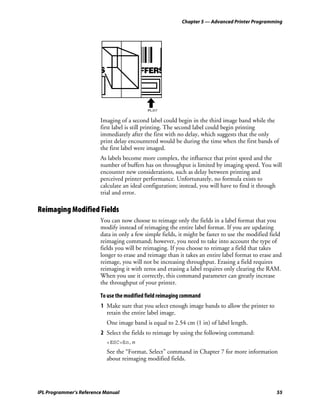
Programmer's
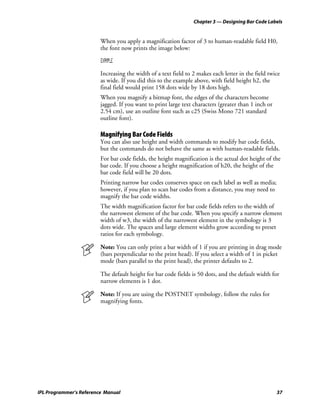
Reference Manual


IPL (Intermec Printer
Language)
Intermec Technologies Corporation
Corporate Headquarters
6001 36th Ave. W.
Everett, WA 98203
U.S.A.
www.intermec.com
The information contained herein is proprietary and is provided solely for the purpose of allowing customers
to operate and service Intermec-manufactured equipment and is not to be released, reproduced, or used for
any other purpose without written permission of Intermec.
Information and specifications contained in this document are subject to change without prior notice and do
not represent a commitment on the part of Intermec Technologies Corporation.
© 2004 by Intermec Technologies Corporation. All rights reserved.
The word Intermec, the Intermec logo, Norand, ArciTech, CrossBar, Data Collection Browser, dcBrowser,
Duratherm, EasyCoder, EasyLAN, Enterprise Wireless LAN, EZBuilder, Fingerprint, i-gistics, INCA (under
license), InterDriver, Intermec Printer Network Manager, IRL, JANUS, LabelShop, Mobile Framework,
MobileLAN, Nor*Ware, Pen*Key, Precision Print, PrintSet, RoutePower, TE 2000, Trakker Antares, UAP,
Universal Access Point, and Virtual Wedge are either trademarks or registered trademarks of Intermec
Technologies Corporation.
Throughout this manual, trademarked names may be used. Rather than put a trademark (™ or ®) symbol in
every occurrence of a trademarked name, we state that we are using the names only in an editorial fashion,
and to the benefit of the trademark owner, with no intention of infringement.
There are U.S. and foreign patents pending.
The name Centronics is wholly owned by GENICOM Corporation.
IBM is a registered trademark of International Business Machines Corporation.
The software contained in the Intermec Printers and the accompanying materials are copyrighted.
Unauthorized copying of the software, including software that has been modified, merged, or included with
other software, or the written materials is expressly forbidden without the prior written consent of Intermec.
All right, title, and interest in all copies of this software are and shall at all times remain the sole and exclusive
property of Intermec. Customer may be held legally responsible for any copyright infringement that is caused
or encouraged by its failure to abide by these terms.


ii                                                                             IPL Programmer’s Reference Manual
Document Change Record

 Revision      Date      Changes
 003           10/00     Revised throughout to include EasyCoder F4 printer information.
 004           04/01     Revised to include 3400e series printer information.
 005           12/01     Revised to include 44X0 printer information.
 006           03/03     Revised to include:
                         • IPL firmware versions 1.4 and 2.0 functionality
                         • Command information for the PF2i, PF4i, and PM4i printers
 007           10/03     Revised to include minor changes. Added new Slash Zero, Enable or Disable command.
 008           06/04     Revised to include:
                         • IPL firmware version 2.30 functionality
                         • Command information for the PX4i and PX6i printers


IPL Programmer’s Reference Manual                                                                             iii
iv   IPL Programmer’s Reference Manual
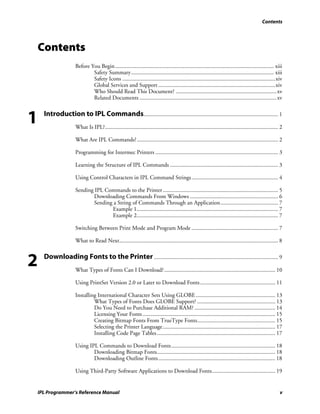
Contents


Contents
                    Before You Begin.............................................................................................................. xiii
                            Safety Summary................................................................................................... xiii
                            Safety Icons ..........................................................................................................xiv
                            Global Services and Support .................................................................................xiv
                            Who Should Read This Document? ......................................................................xv
                            Related Documents ...............................................................................................xv


1   Introduction to IPL Commands ............................................................................................. 1
                    What Is IPL?........................................................................................................................ 2

                    What Are IPL Commands?.................................................................................................. 2

                    Programming for Intermec Printers ..................................................................................... 3

                    Learning the Structure of IPL Commands ........................................................................... 3

                    Using Control Characters in IPL Command Strings ............................................................ 4

                    Sending IPL Commands to the Printer ................................................................................ 5
                           Downloading Commands From Windows ............................................................. 6
                           Sending a String of Commands Through an Application........................................ 7
                                  Example 1.................................................................................................. 7
                                  Example 2.................................................................................................. 7

                    Switching Between Print Mode and Program Mode ............................................................ 7

                    What to Read Next.............................................................................................................. 8


2   Downloading Fonts to the Printer ...................................................................................... 9
                    What Types of Fonts Can I Download?............................................................................. 10

                    Using PrintSet Version 2.0 or Later to Download Fonts .................................................... 11

                    Installing International Character Sets Using GLOBE ....................................................... 13
                             What Types of Fonts Does GLOBE Support? ...................................................... 13
                             Do You Need to Purchase Additional RAM? ........................................................ 14
                             Licensing Your Fonts ............................................................................................ 15
                             Creating Bitmap Fonts From TrueType Fonts...................................................... 15
                             Selecting the Printer Language.............................................................................. 17
                             Installing Code Page Tables .................................................................................. 17

                    Using IPL Commands to Download Fonts ........................................................................ 18
                            Downloading Bitmap Fonts.................................................................................. 18
                            Downloading Outline Fonts ................................................................................. 18

                    Using Third-Party Software Applications to Download Fonts............................................ 19


IPL Programmer’s Reference Manual                                                                                                                       v
Contents


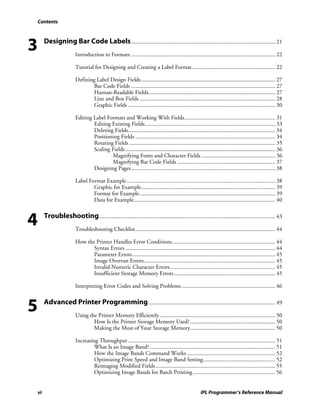
3        Designing Bar Code Labels .................................................................................................... 21
                           Introduction to Formats .................................................................................................... 22

                           Tutorial for Designing and Creating a Label Format.......................................................... 22

                           Defining Label Design Fields ............................................................................................. 27
                                   Bar Code Fields .................................................................................................... 27
                                   Human-Readable Fields........................................................................................ 27
                                   Line and Box Fields .............................................................................................. 28
                                   Graphic Fields ...................................................................................................... 30

                           Editing Label Formats and Working With Fields............................................................... 31
                                   Editing Existing Fields .......................................................................................... 33
                                   Deleting Fields...................................................................................................... 34
                                   Positioning Fields ................................................................................................. 34
                                   Rotating Fields ..................................................................................................... 35
                                   Scaling Fields........................................................................................................ 36
                                           Magnifying Fonts and Character Fields ................................................... 36
                                           Magnifying Bar Code Fields .................................................................... 37
                                   Designing Pages.................................................................................................... 38

                           Label Format Example....................................................................................................... 38
                                   Graphic for Example............................................................................................. 39
                                   Format for Example.............................................................................................. 39
                                   Data for Example.................................................................................................. 40


4        Troubleshooting .......................................................................................................................... 43
                           Troubleshooting Checklist................................................................................................. 44

                           How the Printer Handles Error Conditions ....................................................................... 44
                                  Syntax Errors ........................................................................................................ 44
                                  Parameter Errors................................................................................................... 45
                                  Image Overrun Errors........................................................................................... 45
                                  Invalid Numeric Character Errors......................................................................... 45
                                  Insufficient Storage Memory Errors ...................................................................... 45

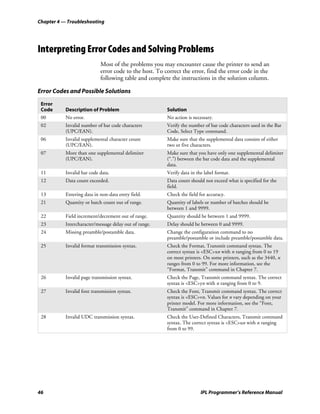
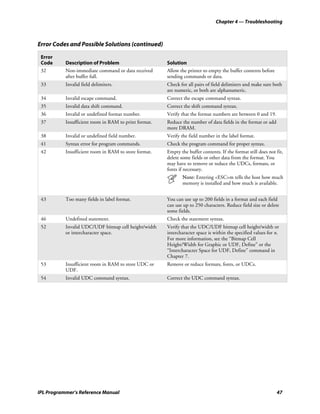
                           Interpreting Error Codes and Solving Problems ................................................................. 46


5        Advanced Printer Programming ........................................................................................ 49
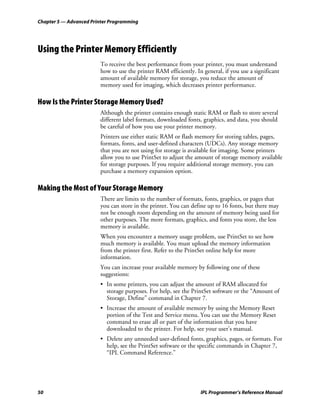
                           Using the Printer Memory Efficiently ................................................................................ 50
                                   How Is the Printer Storage Memory Used? ........................................................... 50
                                   Making the Most of Your Storage Memory........................................................... 50

                           Increasing Throughput ...................................................................................................... 51
                                    What Is an Image Band? ....................................................................................... 51
                                    How the Image Bands Command Works ............................................................. 52
                                    Optimizing Print Speed and Image Band Setting.................................................. 52
                                    Reimaging Modified Fields ................................................................................... 55
                                    Optimizing Image Bands for Batch Printing ......................................................... 56


    vi                                                                                                   IPL Programmer’s Reference Manual
Contents


                       Using Emulation Mode ..................................................................................................... 56


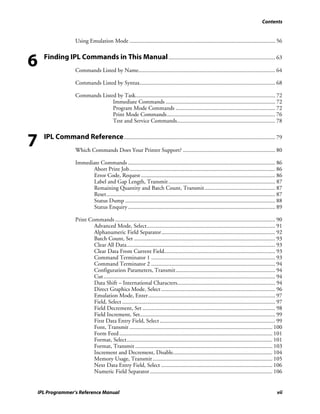
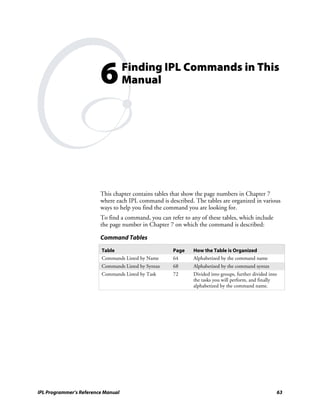
6     Finding IPL Commands in This Manual .......................................................................... 63
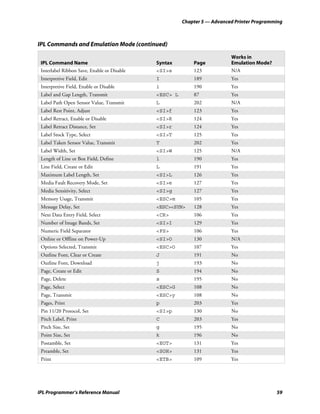
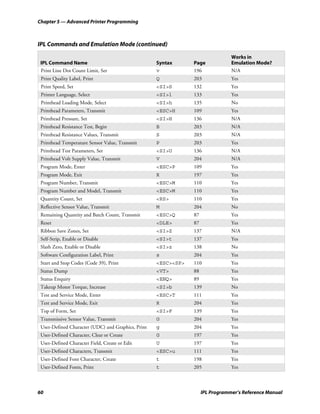
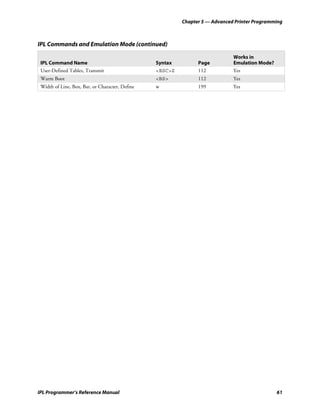
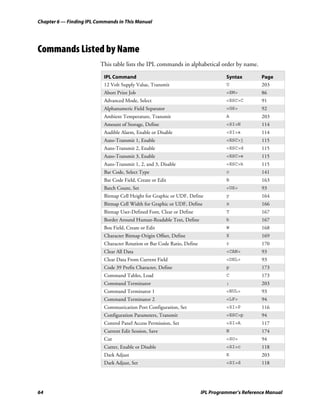
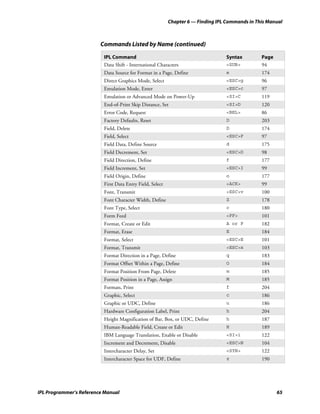
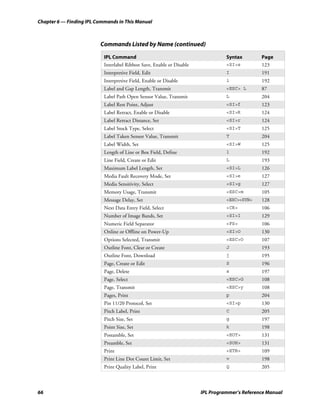
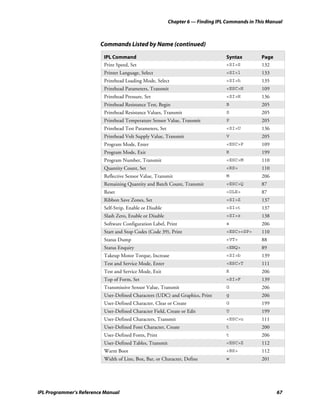
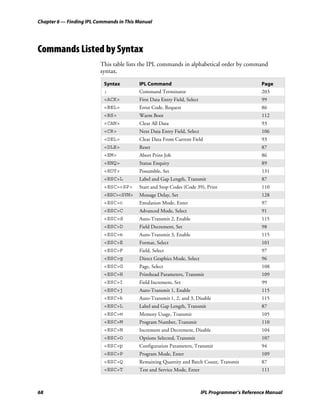
                       Commands Listed by Name............................................................................................... 64

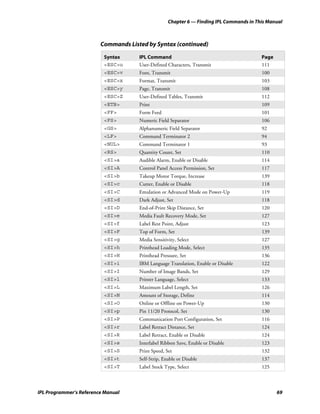
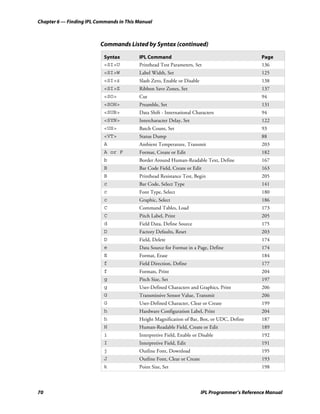
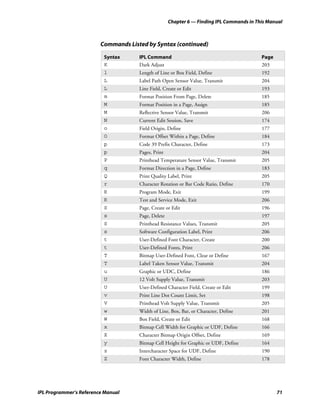
                       Commands Listed by Syntax.............................................................................................. 68

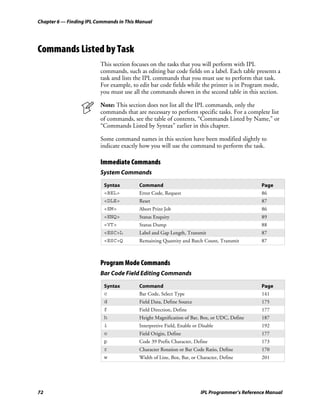
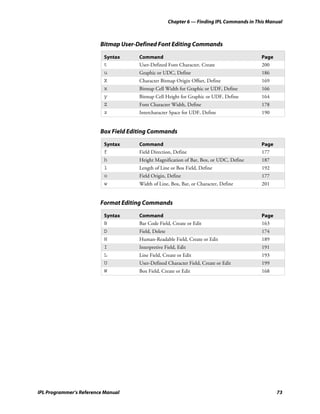
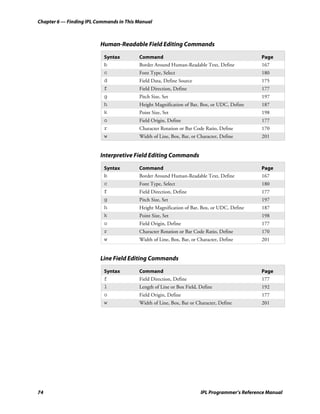
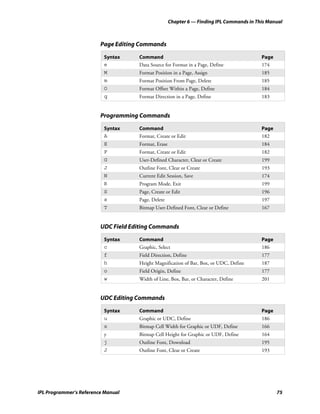
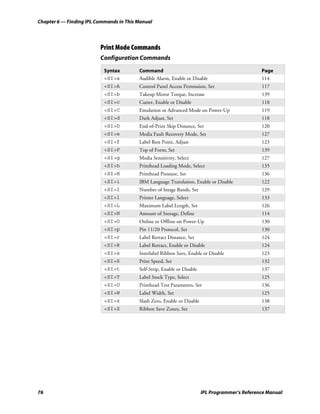
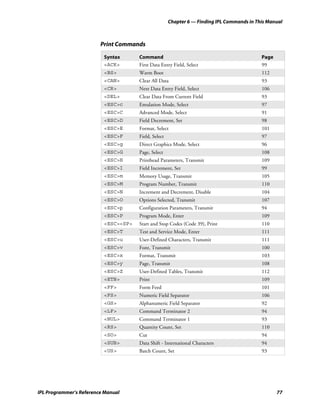
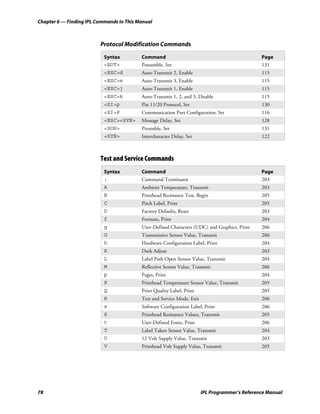
                       Commands Listed by Task................................................................................................. 72
                                     Immediate Commands ............................................................................ 72
                                     Program Mode Commands ..................................................................... 72
                                     Print Mode Commands........................................................................... 76
                                     Test and Service Commands.................................................................... 78


7     IPL Command Reference ......................................................................................................... 79
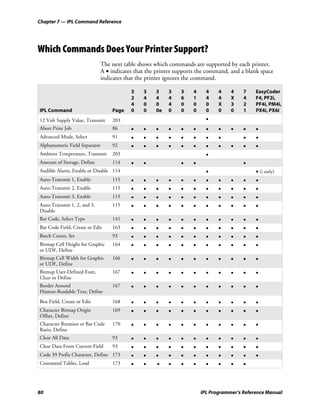
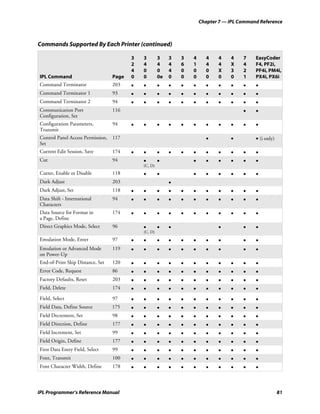
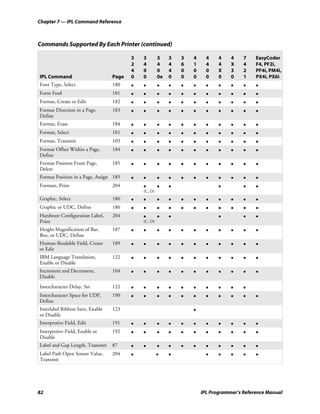
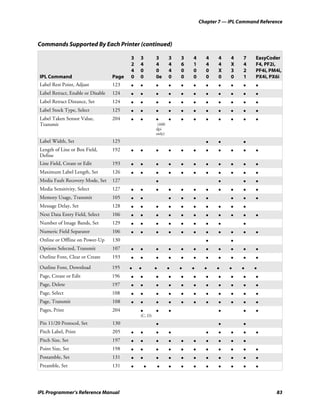
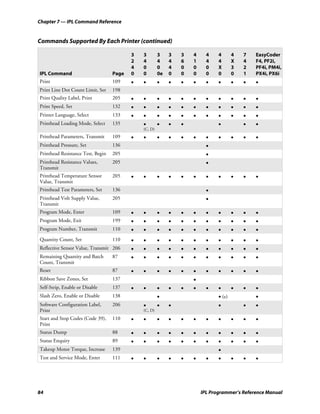
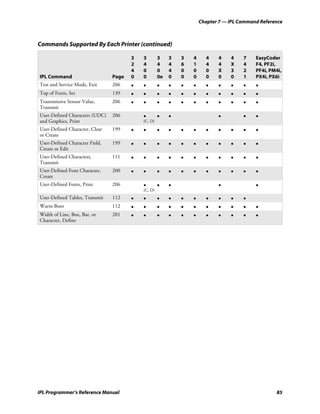
                       Which Commands Does Your Printer Support? ................................................................ 80

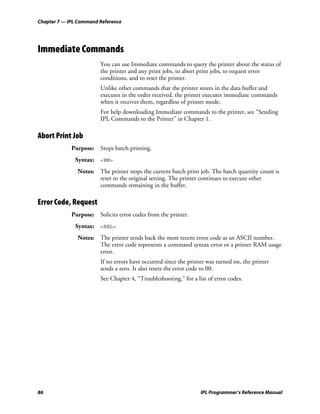
                       Immediate Commands ...................................................................................................... 86
                             Abort Print Job..................................................................................................... 86
                             Error Code, Request ............................................................................................. 86
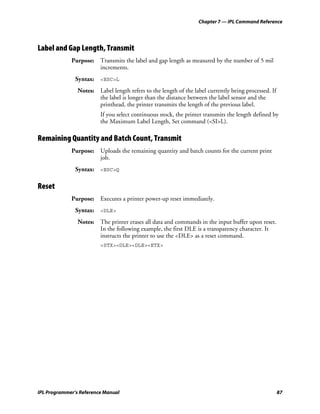
                             Label and Gap Length, Transmit .......................................................................... 87
                             Remaining Quantity and Batch Count, Transmit................................................. 87
                             Reset..................................................................................................................... 87
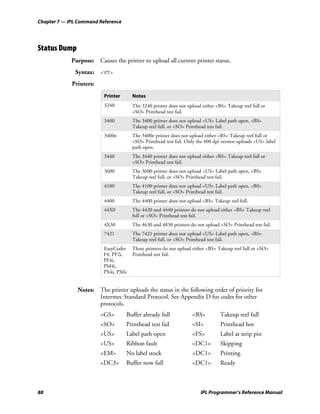
                             Status Dump ........................................................................................................ 88
                             Status Enquiry ...................................................................................................... 89

                       Print Commands ............................................................................................................... 90
                               Advanced Mode, Select......................................................................................... 91
                               Alphanumeric Field Separator............................................................................... 92
                               Batch Count, Set .................................................................................................. 93
                               Clear All Data....................................................................................................... 93
                               Clear Data From Current Field............................................................................. 93
                               Command Terminator 1 ...................................................................................... 93
                               Command Terminator 2 ...................................................................................... 94
                               Configuration Parameters, Transmit..................................................................... 94
                               Cut ....................................................................................................................... 94
                               Data Shift – International Characters.................................................................... 94
                               Direct Graphics Mode, Select ............................................................................... 96
                               Emulation Mode, Enter........................................................................................ 97
                               Field, Select .......................................................................................................... 97
                               Field Decrement, Set ............................................................................................ 98
                               Field Increment, Set.............................................................................................. 99
                               First Data Entry Field, Select ................................................................................ 99
                               Font, Transmit ................................................................................................... 100
                               Form Feed .......................................................................................................... 101
                               Format, Select..................................................................................................... 101
                               Format, Transmit ............................................................................................... 103
                               Increment and Decrement, Disable..................................................................... 104
                               Memory Usage, Transmit ................................................................................... 105
                               Next Data Entry Field, Select ............................................................................. 106
                               Numeric Field Separator..................................................................................... 106


    IPL Programmer’s Reference Manual                                                                                                                    vii
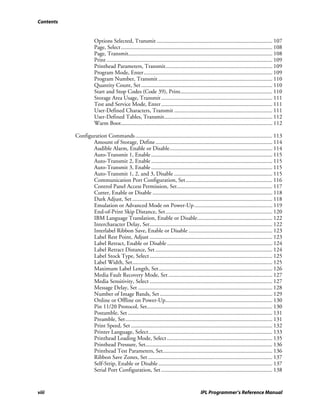
Contents


                      Options Selected, Transmit ................................................................................ 107
                      Page, Select......................................................................................................... 108
                      Page, Transmit.................................................................................................... 108
                      Print ................................................................................................................... 109
                      Printhead Parameters, Transmit.......................................................................... 109
                      Program Mode, Enter ......................................................................................... 109
                      Program Number, Transmit ............................................................................... 110
                      Quantity Count, Set ........................................................................................... 110
                      Start and Stop Codes (Code 39), Print................................................................ 110
                      Storage Area Usage, Transmit ............................................................................. 111
                      Test and Service Mode, Enter ............................................................................. 111
                      User-Defined Characters, Transmit .................................................................... 111
                      User-Defined Tables, Transmit........................................................................... 112
                      Warm Boot......................................................................................................... 112

           Configuration Commands ............................................................................................... 113
                  Amount of Storage, Define ................................................................................. 114
                  Audible Alarm, Enable or Disable....................................................................... 114
                  Auto-Transmit 1, Enable .................................................................................... 115
                  Auto-Transmit 2, Enable .................................................................................... 115
                  Auto-Transmit 3, Enable .................................................................................... 115
                  Auto-Transmit 1, 2, and 3, Disable .................................................................... 115
                  Communication Port Configuration, Set ............................................................ 116
                  Control Panel Access Permission, Set.................................................................. 117
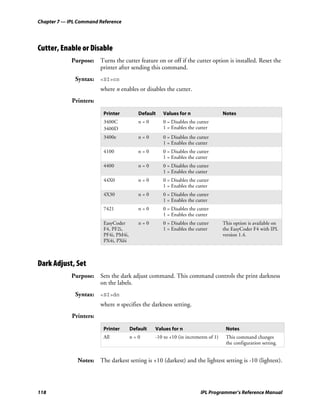
                  Cutter, Enable or Disable ................................................................................... 118
                  Dark Adjust, Set ................................................................................................. 118
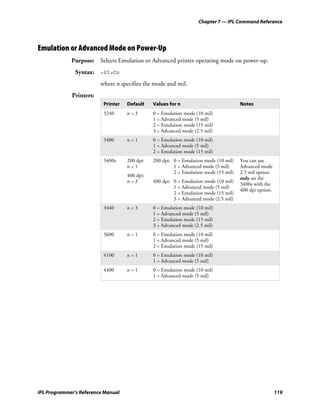
                  Emulation or Advanced Mode on Power-Up ...................................................... 119
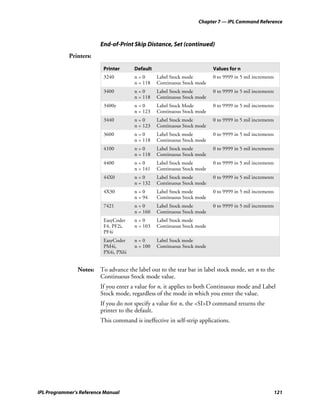
                  End-of-Print Skip Distance, Set.......................................................................... 120
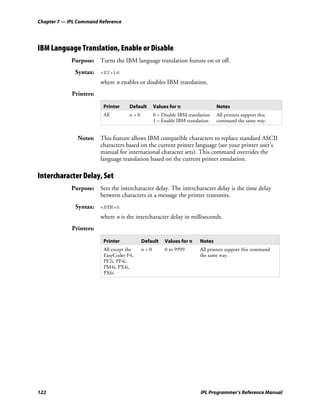
                  IBM Language Translation, Enable or Disable.................................................... 122
                  Intercharacter Delay, Set..................................................................................... 122
                  Interlabel Ribbon Save, Enable or Disable .......................................................... 123
                  Label Rest Point, Adjust ..................................................................................... 123
                  Label Retract, Enable or Disable ......................................................................... 124
                  Label Retract Distance, Set ................................................................................. 124
                  Label Stock Type, Select ..................................................................................... 125
                  Label Width, Set................................................................................................. 125
                  Maximum Label Length, Set............................................................................... 126
                  Media Fault Recovery Mode, Set ........................................................................ 127
                  Media Sensitivity, Select ..................................................................................... 127
                  Message Delay, Set ............................................................................................. 128
                  Number of Image Bands, Set .............................................................................. 129
                  Online or Offline on Power-Up.......................................................................... 130
                  Pin 11/20 Protocol, Set....................................................................................... 130
                  Postamble, Set .................................................................................................... 131
                  Preamble, Set...................................................................................................... 131
                  Print Speed, Set .................................................................................................. 132
                  Printer Language, Select...................................................................................... 133
                  Printhead Loading Mode, Select ......................................................................... 135
                  Printhead Pressure, Set........................................................................................ 136
                  Printhead Test Parameters, Set............................................................................ 136
                  Ribbon Save Zones, Set ...................................................................................... 137
                  Self-Strip, Enable or Disable ............................................................................... 137
                  Serial Port Configuration, Set ............................................................................. 138


viii                                                                                        IPL Programmer’s Reference Manual
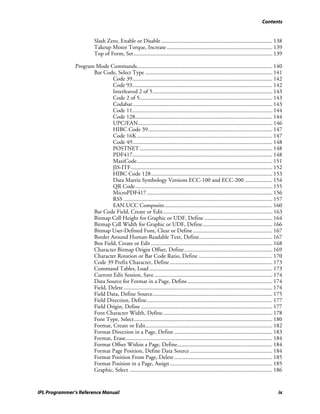
Contents


                          Slash Zero, Enable or Disable ............................................................................. 138
                          Takeup Motor Torque, Increase ......................................................................... 139
                          Top of Form, Set ................................................................................................ 139

               Program Mode Commands.............................................................................................. 140
                      Bar Code, Select Type ........................................................................................ 141
                              Code 39................................................................................................. 142
                              Code 93................................................................................................. 142
                              Interleaved 2 of 5................................................................................... 143
                              Code 2 of 5............................................................................................ 143
                              Codabar................................................................................................. 143
                              Code 11................................................................................................. 144
                              Code 128............................................................................................... 144
                              UPC/EAN............................................................................................. 146
                              HIBC Code 39...................................................................................... 147
                              Code 16K.............................................................................................. 147
                              Code 49................................................................................................. 148
                              POSTNET ............................................................................................ 148
                              PDF417................................................................................................. 148
                              MaxiCode.............................................................................................. 151
                              JIS-ITF.................................................................................................. 152
                              HIBC Code 128.................................................................................... 153
                              Data Matrix Symbology Versions ECC-100 and ECC-200 ................... 154
                              QR Code............................................................................................... 155
                              MicroPDF417 ....................................................................................... 156
                              RSS ....................................................................................................... 157
                              EAN.UCC Composite........................................................................... 160
                      Bar Code Field, Create or Edit............................................................................ 163
                      Bitmap Cell Height for Graphic or UDF, Define ............................................... 164
                      Bitmap Cell Width for Graphic or UDF, Define ................................................ 166
                      Bitmap User-Defined Font, Clear or Define ....................................................... 167
                      Border Around Human-Readable Text, Define................................................... 167
                      Box Field, Create or Edit .................................................................................... 168
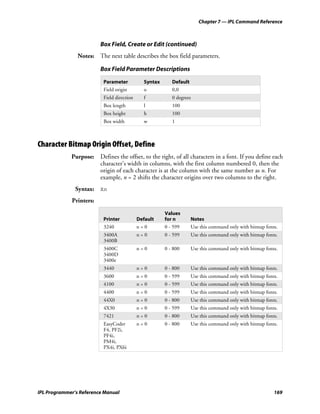
                      Character Bitmap Origin Offset, Define ............................................................. 169
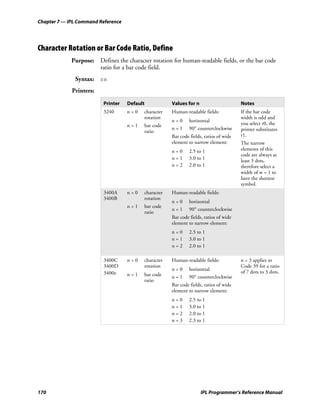
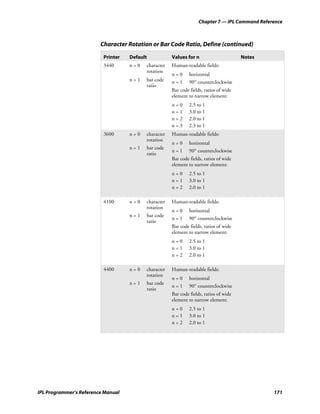
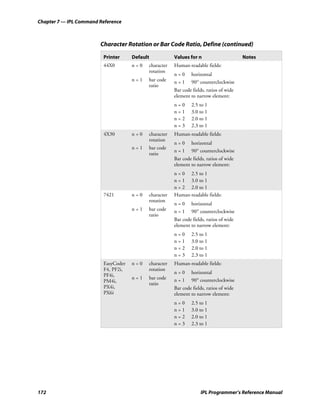
                      Character Rotation or Bar Code Ratio, Define ................................................... 170
                      Code 39 Prefix Character, Define ....................................................................... 173
                      Command Tables, Load ..................................................................................... 173
                      Current Edit Session, Save .................................................................................. 174
                      Data Source for Format in a Page, Define........................................................... 174
                      Field, Delete ....................................................................................................... 174
                      Field Data, Define Source................................................................................... 175
                      Field Direction, Define....................................................................................... 177
                      Field Origin, Define ........................................................................................... 177
                      Font Character Width, Define............................................................................ 178
                      Font Type, Select................................................................................................ 180
                      Format, Create or Edit........................................................................................ 182
                      Format Direction in a Page, Define .................................................................... 183
                      Format, Erase...................................................................................................... 184
                      Format Offset Within a Page, Define.................................................................. 184
                      Format Page Position, Define Data Source ......................................................... 184
                      Format Position From Page, Delete .................................................................... 185
                      Format Position in a Page, Assign ....................................................................... 185
                      Graphic, Select ................................................................................................... 186


IPL Programmer’s Reference Manual                                                                                                           ix
Contents


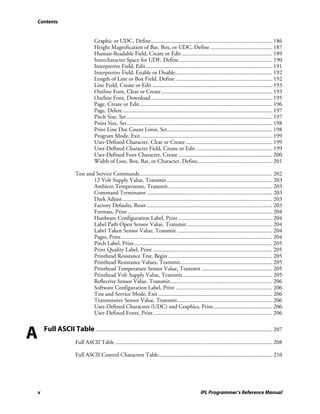
                                      Graphic or UDC, Define.................................................................................... 186
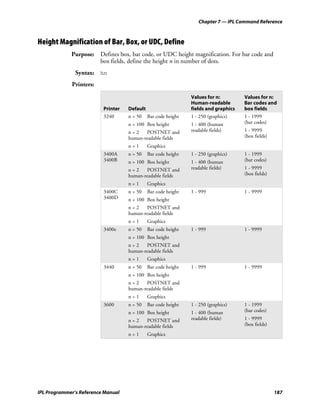
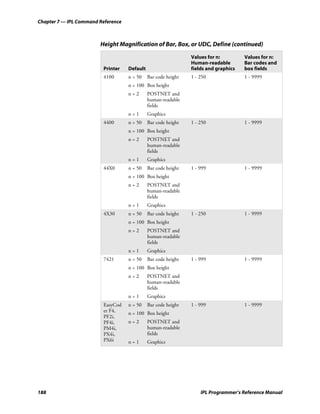
                                      Height Magnification of Bar, Box, or UDC, Define ........................................... 187
                                      Human-Readable Field, Create or Edit ............................................................... 189
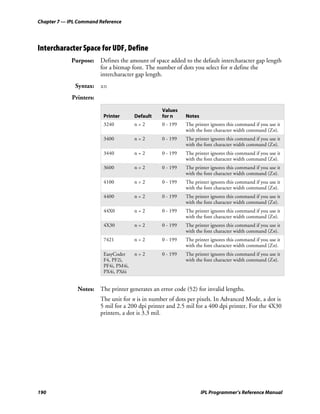
                                      Intercharacter Space for UDF, Define................................................................. 190
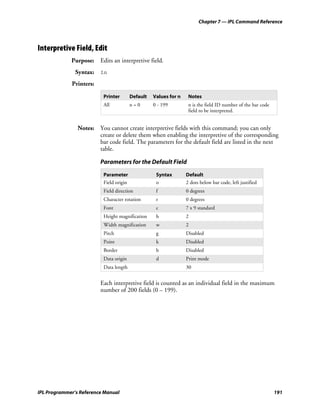
                                      Interpretive Field, Edit........................................................................................ 191
                                      Interpretive Field, Enable or Disable................................................................... 192
                                      Length of Line or Box Field, Define ................................................................... 192
                                      Line Field, Create or Edit ................................................................................... 193
                                      Outline Font, Clear or Create............................................................................. 193
                                      Outline Font, Download .................................................................................... 195
                                      Page, Create or Edit............................................................................................ 196
                                      Page, Delete........................................................................................................ 197
                                      Pitch Size, Set ..................................................................................................... 197
                                      Point Size, Set..................................................................................................... 198
                                      Print Line Dot Count Limit, Set......................................................................... 198
                                      Program Mode, Exit ........................................................................................... 199
                                      User-Defined Character, Clear or Create ............................................................ 199
                                      User-Defined Character Field, Create or Edit ..................................................... 199
                                      User-Defined Font Character, Create ................................................................. 200
                                      Width of Line, Box, Bar, or Character, Define.................................................... 201

                          Test and Service Commands............................................................................................ 202
                                  12 Volt Supply Value, Transmit ......................................................................... 203
                                  Ambient Temperature, Transmit ........................................................................ 203
                                  Command Terminator ....................................................................................... 203
                                  Dark Adjust........................................................................................................ 203
                                  Factory Defaults, Reset ....................................................................................... 203
                                  Formats, Print .................................................................................................... 204
                                  Hardware Configuration Label, Print ................................................................. 204
                                  Label Path Open Sensor Value, Transmit ........................................................... 204
                                  Label Taken Sensor Value, Transmit .................................................................. 204
                                  Pages, Print......................................................................................................... 204
                                  Pitch Label, Print................................................................................................ 205
                                  Print Quality Label, Print ................................................................................... 205
                                  Printhead Resistance Test, Begin ........................................................................ 205
                                  Printhead Resistance Values, Transmit................................................................ 205
                                  Printhead Temperature Sensor Value, Transmit ................................................. 205
                                  Printhead Volt Supply Value, Transmit .............................................................. 205
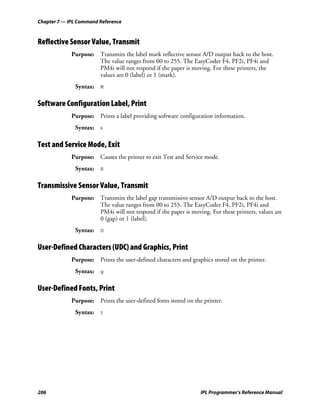
                                  Reflective Sensor Value, Transmit....................................................................... 206
                                  Software Configuration Label, Print ................................................................... 206
                                  Test and Service Mode, Exit ............................................................................... 206
                                  Transmissive Sensor Value, Transmit.................................................................. 206
                                  User-Defined Characters (UDC) and Graphics, Print......................................... 206
                                  User-Defined Fonts, Print .................................................................................. 206


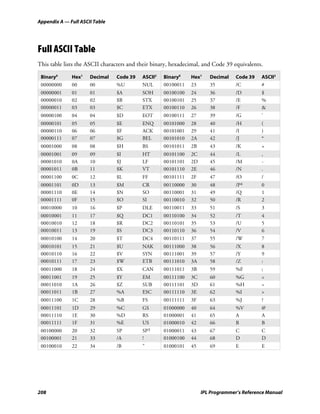
A       Full ASCII Table ........................................................................................................................... 207
                          Full ASCII Table ............................................................................................................. 208

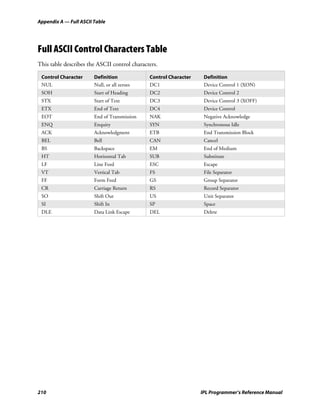
                          Full ASCII Control Characters Table............................................................................... 210


    x                                                                                                     IPL Programmer’s Reference Manual
Contents


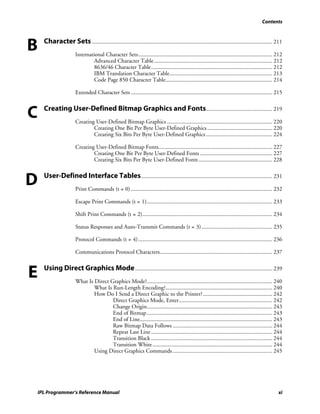
B     Character Sets ............................................................................................................................. 211
                        International Character Sets............................................................................................. 212
                                 Advanced Character Table .................................................................................. 212
                                 8636/46 Character Table.................................................................................... 212
                                 IBM Translation Character Table....................................................................... 213
                                 Code Page 850 Character Table.......................................................................... 214

                        Extended Character Sets .................................................................................................. 215


C     Creating User-Defined Bitmap Graphics and Fonts.............................................. 219
                        Creating User-Defined Bitmap Graphics ......................................................................... 220
                                Creating One Bit Per Byte User-Defined Graphics ............................................. 220
                                Creating Six Bits Per Byte User-Defined Graphics .............................................. 224

                        Creating User-Defined Bitmap Fonts............................................................................... 227
                                Creating One Bit Per Byte User-Defined Fonts .................................................. 227
                                Creating Six Bits Per Byte User-Defined Fonts ................................................... 228


D     User-Defined Interface Tables ........................................................................................... 231
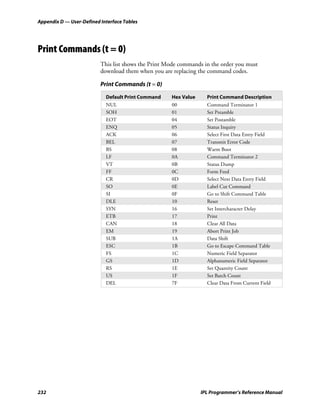
                        Print Commands (t = 0) .................................................................................................. 232

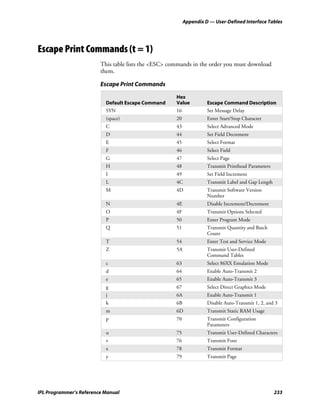
                        Escape Print Commands (t = 1)....................................................................................... 233

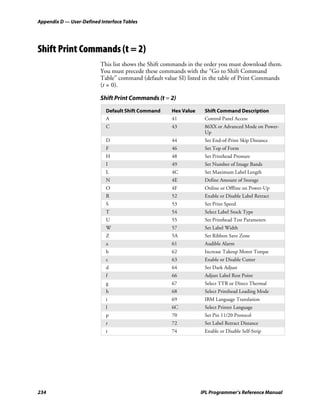
                        Shift Print Commands (t = 2).......................................................................................... 234

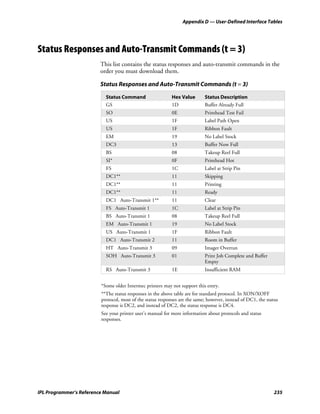
                        Status Responses and Auto-Transmit Commands (t = 3) ................................................. 235

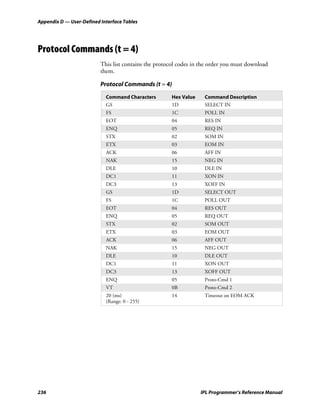
                        Protocol Commands (t = 4)............................................................................................. 236

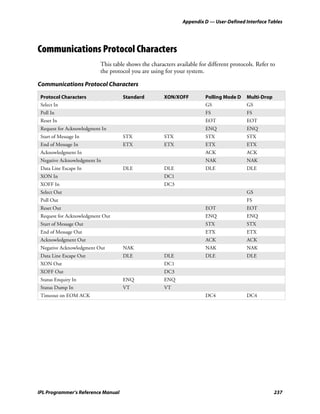
                        Communications Protocol Characters.............................................................................. 237


E     Using Direct Graphics Mode ............................................................................................... 239
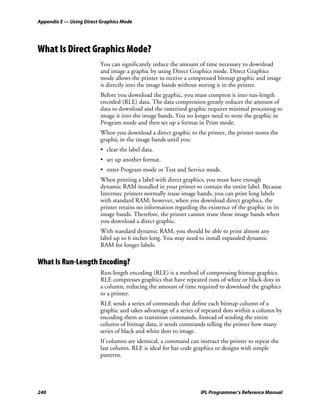
                        What Is Direct Graphics Mode?....................................................................................... 240
                                What Is Run-Length Encoding?.......................................................................... 240
                                How Do I Send a Direct Graphic to the Printer? ................................................ 242
                                        Direct Graphics Mode, Enter................................................................. 242
                                        Change Origin....................................................................................... 243
                                        End of Bitmap ....................................................................................... 243
                                        End of Line............................................................................................ 243
                                        Raw Bitmap Data Follows ..................................................................... 244
                                        Repeat Last Line .................................................................................... 244
                                        Transition Black .................................................................................... 244
                                        Transition White ................................................................................... 244
                                Using Direct Graphics Commands ..................................................................... 245


    IPL Programmer’s Reference Manual                                                                                                              xi
Contents


I         Index ................................................................................................................................................. 247


    xii                                                                                                        IPL Programmer’s Reference Manual
Before You Begin


Before You Begin
                         This section provides you with safety information, technical support
                         information, and sources for additional product information.

Safety Summary
                         Your safety is extremely important. Read and follow all warnings and
                         cautions in this document before handling and operating Intermec
                         equipment. You can be seriously injured, and equipment and data can be
                         damaged if you do not follow the safety warnings and cautions.

                         Do not repair or adjust alone
                         Do not repair or adjust energized equipment alone under any
                         circumstances. Someone capable of providing first aid must always be
                         present for your safety.

                         First aid
                         Always obtain first aid or medical attention immediately after an injury.
                         Never neglect an injury, no matter how slight it seems.

                         Resuscitation
                         Begin resuscitation immediately if someone is injured and stops breathing.
                         Any delay could result in death. To work on or near high voltage, you
                         should be familiar with approved industrial first aid methods.

                         Energized equipment
                         Never work on energized equipment unless authorized by a responsible
                         authority. Energized electrical equipment is dangerous. Electrical shock
                         from energized equipment can cause death. If you must perform
                         authorized emergency work on energized equipment, be sure that you
                         comply strictly with approved safety regulations.


IPL Programmer’s Reference Manual                                                                    xiii
Before You Begin


Safety Icons
                    This section explains how to identify and understand dangers, warnings,
                    cautions, and notes that are in this document. You may also see icons that
                    tell you when to follow ESD procedures and when to take special
                    precautions for handling optical parts.

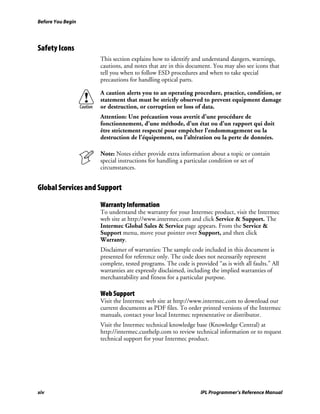
                    A caution alerts you to an operating procedure, practice, condition, or
                    statement that must be strictly observed to prevent equipment damage
                    or destruction, or corruption or loss of data.
                    Attention: Une précaution vous avertit d’une procédure de
                    fonctionnement, d’une méthode, d’un état ou d’un rapport qui doit
                    être strictement respecté pour empêcher l’endommagement ou la
                    destruction de l’équipement, ou l’altération ou la perte de données.

                    Note: Notes either provide extra information about a topic or contain
                    special instructions for handling a particular condition or set of
                    circumstances.


Global Services and Support

                    Warranty Information
                    To understand the warranty for your Intermec product, visit the Intermec
                    web site at http://www.intermec.com and click Service & Support. The
                    Intermec Global Sales & Service page appears. From the Service &
                    Support menu, move your pointer over Support, and then click
                    Warranty.
                    Disclaimer of warranties: The sample code included in this document is
                    presented for reference only. The code does not necessarily represent
                    complete, tested programs. The code is provided “as is with all faults.” All
                    warranties are expressly disclaimed, including the implied warranties of
                    merchantability and fitness for a particular purpose.

                    Web Support
                    Visit the Intermec web site at http://www.intermec.com to download our
                    current documents as PDF files. To order printed versions of the Intermec
                    manuals, contact your local Intermec representative or distributor.
                    Visit the Intermec technical knowledge base (Knowledge Central) at
                    http://intermec.custhelp.com to review technical information or to request
                    technical support for your Intermec product.


xiv                                                           IPL Programmer’s Reference Manual
Before You Begin


                         Telephone Support
                         These services are available from Intermec Technologies Corporation.

                                                                                     In the U.S.A. and Canada
                                                                                     call 1-800-755-5505
                          Service                 Description                        and choose this option
                          Factory Repair and      Request a return authorization     1
                          On-site Repair          number for authorized service
                                                  center repair, or request an on-
                                                  site repair technician.
                          Technical Support       Get technical support on your      2
                                                  Intermec product.
                          Service Contract        Inquire about an existing          3
                          Status                  contract, renew a contract, or
                                                  ask invoicing questions.
                          Schedule Site Surveys   Schedule a site survey, or         4
                          or Installations        request a product or system
                                                  installation.
                          Ordering Products       Talk to sales administration,      5
                                                  place an order, or check the
                                                  status of your order.


                         Outside the U.S.A. and Canada, contact your local Intermec
                         representative. To search for your local representative, from the Intermec
                         web site, click Contact.

Who Should Read This Document?
                         The document explains how to use the Intermec Printer Language (IPL)
                         and provides a chapter on the IPL commands.
                         Before you use IPL, you should be familiar with your network, general
                         networking terms, such as IP address, and your bar code label printers.

Related Documents
                         The Intermec web site at http://www.intermec.com contains our current
                         documents that you can download as PDF files.
                         To order printed versions of the Intermec manuals, contact your local
                         Intermec representative or distributor.


IPL Programmer’s Reference Manual                                                                          xv
Before You Begin


xvi                IPL Programmer’s Reference Manual
1          Introduction to IPL Commands


                         This chapter describes Intermec’s approach to printing labels and
                         introduces the Intermec Printer Language (IPL) command set. The
                         chapter also explains how to switch between Print and Program modes,
                         how to send IPL files to a printer, and how to use ASCII control characters
                         in IPL commands. The chapter concludes with a roadmap to the rest of
                         the manual.
                         In this manual, “printer” can refer to the 3240, 3400, 3440, 3600, 4100,
                         4400, 4420, 4440, 4630, 4830, 7421, EasyCoder PF2i, EasyCoder PF4i,
                         EasyCoder PM4i, EasyCoder F4, EasyCoder PX4i, or EasyCoder PX6i,
                         bar code printer.


IPL Programmer’s Reference Manual                                                                   1
Chapter 1 — Introduction to IPL Commands


What Is IPL?
                         Intermec Printer Language (IPL) is the programming language that has
                         been developed for use with Intermec printers. IPL is an easy-to-use
                         programming language that allows you to:
                         • design formats (templates) for bar code labels.
                         • download bar code label formats to the printer.
                         • modify a bar code label format that is stored in the printer.
                         • download data to fill in a bar code label format and print the label.
                         • enable or disable printer features and options.
                         • query the printer for hardware diagnostic data and the status of print
                           jobs.
                         • abort print jobs and reset the printer.


What Are IPL Commands?
                         There are five types of IPL commands (Print, Program, Test and Service,
                         Configuration, and Immediate) and these types are related to the printer’s
                         three operating modes (Print, Program, and Test and Service). That is, in
                         order to execute an IPL command, the printer must be in the operating
                         mode that corresponds to the IPL command’s type.

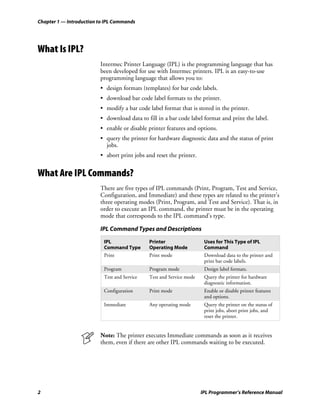
                         IPL Command Types and Descriptions

                           IPL                Printer                  Uses for This Type of IPL
                           Command Type       Operating Mode           Command
                           Print              Print mode               Download data to the printer and
                                                                       print bar code labels.
                           Program            Program mode             Design label formats.
                           Test and Service   Test and Service mode    Query the printer for hardware
                                                                       diagnostic information.
                           Configuration      Print mode               Enable or disable printer features
                                                                       and options.
                           Immediate          Any operating mode       Query the printer on the status of
                                                                       print jobs, abort print jobs, and
                                                                       reset the printer.


                         Note: The printer executes Immediate commands as soon as it receives
                         them, even if there are other IPL commands waiting to be executed.


2                                                                     IPL Programmer’s Reference Manual
Chapter 1 — Introduction to IPL Commands


                         The printer does not execute a command that does not match the current
                         operating mode. For example, if you send a Program command while the
                         printer is in Print mode, the printer ignores the Program command. See
                         “Switching Between Print Mode and Program Mode” later in this chapter,
                         or refer to your printer user’s manual for help changing the mode of your
                         printer.


Programming for Intermec Printers
                         When you program in IPL, you must understand the approach that
                         Intermec uses to print bar code labels. It is a two-step process:
                         1 Design the format (or template) for the bar code label, and then send
                           the format to the printer, where it is stored in memory.
                         2 Send another command to the printer that specifies the data for the
                           fields of the format and prints the label.

                         Note: It is not always necessary to send the format and the data to the
                         printer separately. You can send fixed data formats or even variable data
                         formats that include the data in the same file.

                         If you skip Step 1 and do not specify a format, the printer assumes you
                         want to use the default format, which is stored permanently in the printer.
                         The printer will print the label using that format. The default format is
                         called format 0.
                         You can store multiple formats on your printer. Many Intermec printers
                         can store up to 19 formats, but some printers (such as the 3240 and 3440)
                         can store up to 99. To learn how many formats your printer can store, see
                         the “Format, Create or Edit” command in Chapter 7.


Learning the Structure of IPL Commands
                         This section describes general principles to follow when creating or
                         downloading IPL commands.

                         Note: The syntax of each IPL command is described in detail in
                         Chapter 7, “IPL Command Reference.”

                         • IPL commands are case sensitive. Type them as they appear in this
                           manual. For example, if the command is an uppercase “A,” do not enter
                           it as a lowercase “a.”
                         • Each command string that you download to a printer must begin with
                           the start of text character <STX> and end with the end of text character
                           <ETX>.


IPL Programmer’s Reference Manual                                                                    3
Chapter 1 — Introduction to IPL Commands


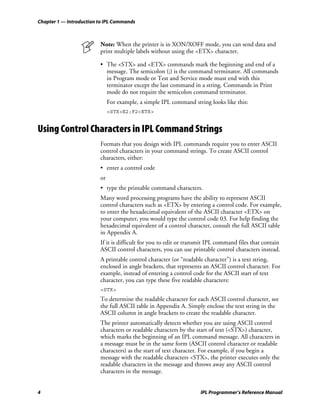
                         Note: When the printer is in XON/XOFF mode, you can send data and
                         print multiple labels without using the <ETX> character.

                         • The <STX> and <ETX> commands mark the beginning and end of a
                           message. The semicolon (;) is the command terminator. All commands
                           in Program mode or Test and Service mode must end with this
                           terminator except the last command in a string. Commands in Print
                           mode do not require the semicolon command terminator.
                              For example, a simple IPL command string looks like this:
                              <STX>E2;F2<ETX>


Using Control Characters in IPL Command Strings
                         Formats that you design with IPL commands require you to enter ASCII
                         control characters in your command strings. To create ASCII control
                         characters, either:
                         • enter a control code
                         or
                         • type the printable command characters.
                         Many word processing programs have the ability to represent ASCII
                         control characters such as <ETX> by entering a control code. For example,
                         to enter the hexadecimal equivalent of the ASCII character <ETX> on
                         your computer, you would type the control code 03. For help finding the
                         hexadecimal equivalent of a control character, consult the full ASCII table
                         in Appendix A.
                         If it is difficult for you to edit or transmit IPL command files that contain
                         ASCII control characters, you can use printable control characters instead.
                         A printable control character (or “readable character”) is a text string,
                         enclosed in angle brackets, that represents an ASCII control character. For
                         example, instead of entering a control code for the ASCII start of text
                         character, you can type these five readable characters:
                         <STX>
                         To determine the readable character for each ASCII control character, see
                         the full ASCII table in Appendix A. Simply enclose the text string in the
                         ASCII column in angle brackets to create the readable character.
                         The printer automatically detects whether you are using ASCII control
                         characters or readable characters by the start of text (<STX>) character,
                         which marks the beginning of an IPL command message. All characters in
                         a message must be in the same form (ASCII control character or readable
                         characters) as the start of text character. For example, if you begin a
                         message with the readable characters <STX>, the printer executes only the
                         readable characters in the message and throws away any ASCII control
                         characters in the message.


4                                                                  IPL Programmer’s Reference Manual
Chapter 1 — Introduction to IPL Commands


                         Using readable characters may consume more space and time, but it has
                         the distinct advantage of displaying everything on the screen in readable
                         characters.
                         Here is an example of using control codes:
                         ^B^Og1,567^C
                         where:
                           ^B   is the control code representation of hex 02 (the <STX> character).
                           ^O   is the control code representation of hex 0F (the <SI> character).
                           ^C   is the control code representation of hex 03 (the <ETX> character).
                         Here is an example of using printable control characters:
                         <STX><SI>g1,567<ETX>


Sending IPL Commands to the Printer
                         Before you can send IPL commands to the printer, you need to:
                         • connect the printer to a PC.
                         • create an ASCII text file of IPL commands.

                         To connect the printer to a PC
                         1 Connect the printer to the serial port on your PC using the correct
                           cable. For help selecting a cable, see your user’s manual.
                         2 Configure the PC for a serial connection to the printer by typing this
                           command at the DOS prompt and pressing Enter. The following
                           example assumes that your serial connection is COM1.
                           MODE COM1 96,E,7,1,N
                           These serial connection characteristics are the default for the printer.
                         3 Make sure the printer is configured for the hardware flow control
                           (XON/XOFF) communications protocol. This protocol is the default.
                           For help, see your printer user’s manual.

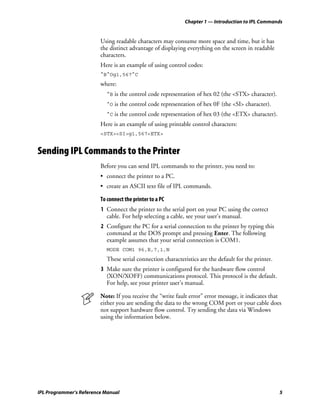
                         Note: If you receive the “write fault error” error message, it indicates that
                         either you are sending the data to the wrong COM port or your cable does
                         not support hardware flow control. Try sending the data via Windows
                         using the information below.


IPL Programmer’s Reference Manual                                                                     5
Chapter 1 — Introduction to IPL Commands


                         To create an ASCII text file of IPL commands
                         1 Create a set of IPL commands. For help, see Chapter 2, “Downloading
                           Fonts to the Printer,” or Chapter 3, “Designing Bar Code Labels.”
                         2 Type the commands into the text file using any text editor or word
                           processor and save the file as an ASCII text file. Your ASCII text file can
                           contain an entire label format or just a single configuration command
                           that you use often. For example, if you need to set the media sensitivity
                           number often, you may want to create a text file that contains the IPL
                           command line:
                            <STX><SI>g1,567<ETX>.
                         You can send IPL commands to the printer in many ways. This section
                         describes two simple methods:
                         • Downloading commands from Windows
                         • Sending a string of commands through an application

Downloading Commands From Windows
                         After you create a text file of IPL commands, you can use Windows
                         HyperTerminal to send the file to the printer.

                         To download commands using HyperTerminal
                         1 Start the HyperTerminal application.
                         2 In the Connection Description dialog box, enter a name for your new
                           connection and click OK.
                         3 In the Phone number dialog box, select a serial port from the Connect
                           using list box and click OK.
                         4 In the COM Properties dialog box, set the port settings to your printer
                           communication settings. If you have not changed the printer default
                           settings, enter the following information and click OK:
                            Bits per second     9600
                            Data bits           7
                            Parity              even
                            Stop bit            1
                            Flow control        XON/XOFF
                         5 From the Main menu bar, select Transfer.
                         6 From the Transfer list box, select Send Text File.
                         7 In the Send Text File dialog box, locate your .TXT file and click Open.
                         HyperTerminal sends the .TXT file to your printer. Your command text
                         file will either change a configuration setting in the printer or print your
                         label format.


6                                                                       IPL Programmer’s Reference Manual
Chapter 1 — Introduction to IPL Commands


Sending a String of Commands Through an Application
                         You can send a string of IPL commands through a PC communications
                         application, a terminal emulation application, or a host terminal. See the
                         application’s documentation for instructions.
                         The disadvantage of sending a string of commands is that you must retype
                         the entire command string if you make an error while entering the
                         commands. It is easier to retype a command if you keep the command
                         strings short; therefore, you should design your label formats as
                         combinations of several short command strings rather than one very long
                         string.
                         To illustrate this idea, consider the next examples, which show two ways to
                         send a bar code label format to the printer. Example 1 uses several short
                         command strings to define the format. Example 2 combines all of the
                         commands into a single string.

                         Example 1
                         <STX><ESC>P<ETX>
                         <STX>E3;F3;<ETX>
                         <STX>H0;o81,100;f0;c0;d0,16;h1;w1;<ETX>
                         <STX>H1;o81,120;f0;c0;d0,16;h1;w1;<ETX>
                         <STX>H2;o81,150;f0;c2;d0,14;h1;w1;<ETX>
                         <STX>H3;o81,190;f0;c2;d0,16;h1;w1;<ETX>
                         <STX>B4;o81,0;f0;c0,1;h50;w1;d0,11;i0;p@;<ETX>
                         <STX>R<ETX>

                         Example 2
                         <STX><ESC>P;E3;F3;H0;o81,100;f0;c0;d0,16;h1;w1;H1;o81,120;
                         f0;c0;d0,16;h1;w1;H2;o81,150;f0;c2;d0,14;h1;w1;H3;o81,190;
                         f0;c2;d0,16;h1;w1;B4;o81,0;f0;c0,1;h50;w1;d0,11;i0;p@;
                         R<ETX>
                         In Example 1, each line begins with the start of text character <STX> and
                         finishes with the end of text character <ETX>. If you make a mistake, you
                         need to retype only the line with the mistake. In Example 2, if you made a
                         mistake anywhere in the string, you must retype the entire format.
                         Example 1 takes slightly longer to download, but is much easier to read
                         and debug.


Switching Between Print Mode and Program Mode
                         Print mode and Program mode are two different operating modes of the
                         printer. Before you download information to the printer, make sure that
                         you are in the correct mode:
                         • Use Program mode to define formats, pages, fonts, and characters.
                         • Use Print mode to print labels, to download data, or to download
                           configuration commands to the printer.


IPL Programmer’s Reference Manual                                                                     7
Chapter 1 — Introduction to IPL Commands


                         To enter Program mode on any printer
                         • Type this command:
                            <STX><ESC>P<ETX>
                            Send this command every time that you download formats, even if you
                            think the printer is already in Program mode. If the printer is already in
                            Program mode, it ignores this command.

                         To enter Print mode on any printer
                         • Type this command:
                            <STX>R<ETX>
                            Send this command before each set of data or as your last format
                            command. If the printer is already in Print mode, it ignores this
                            command.

                         Note: The R command may be treated as data if the data to the printer
                         does not include a <CAN> or field pointer to clear the fields.


What to Read Next
                         Now that you have been introduced to IPL commands, you can use this
                         manual to learn how to perform these tasks:

                           For Help With This Task                                        See
                           To download any font to the printer                            Chapter 2
                           To design and code the formats for bar code labels             Chapter 3
                           To diagnose and solve problems with IPL commands               Chapter 4
                           To learn how to use printer memory efficiently, how to         Chapter 5
                           increase throughput, and when to use Emulation mode
                           To find a specific IPL command                                 Chapter 6
                           To look up the exact syntax and description of any IPL         Chapter 7
                           command
                           To refer to the Full ASCII table                               Appendix A
                           To see the character set tables                                Appendix B
                           To create your own fonts and graphics                          Appendix C
                           To refer to the user-defined interface tables                  Appendix D
                           To download direct graphics                                    Appendix E


8                                                                          IPL Programmer’s Reference Manual
2          Downloading Fonts to the
                                    Printer


                         This chapter explains how to download fonts to your Intermec printer.
                         You can use PrintSet, IPL commands, or third-party software applications.


IPL Programmer’s Reference Manual                                                                9
Chapter 2 — Downloading Fonts to the Printer


What Types of Fonts Can I Download?
                          You can download these types of fonts to most Intermec printers:
                          • Bitmap
                          • Outline (TrueType and Speedo)

                          Note: The 3400, 3400e, 3440, 4420, 4440, PF2i, PF4i, PM4i, F4, PX4i,
                          and PX6i printers support the use of scaleable TrueType fonts. Bitmap
                          fonts can be used on any Intermec printer, including those TrueType fonts
                          you have converted to bitmap using PrintSet. The PF2i, PF4i, PM4i, F4,
                          PX4i, and PX6i do not support Speedo fonts.

                          In addition to the fonts permanently resident in your printer, you can
                          download fonts in the form of user-defined bitmap or outline (scaleable)
                          fonts. Use this section to learn about the differences between bitmap and
                          outline fonts and how to choose the type of font you want to use.
                          Bitmap fonts commonly:
                          • print in one fixed size. (If you magnify the font, they print but are
                            ragged.)
                          • print quickly.
                          • are memory intensive when defined as large characters.
                          Outline fonts commonly:
                          • vary in size. You can print any size character up to 10.16 cm (4 in).
                          • print smooth characters.
                          • image slower than bitmap fonts.
                          Your printer supports two types of outline fonts: TrueType (support
                          available only on the 3400, 3400e, 3440, 4420, 4440, F4, PF2i, PF4i,
                          PM4i, PX4i, and PX6i printers) and Speedo (not supported on the F4,
                          PF21, PF4i, PM4i, PX4i, or PX6i). TrueType fonts are the most popular
                          outline fonts, and several are available through Windows on your PC. For
                          help locating Speedo fonts, contact Intermec Technical Support.


10                                                                  IPL Programmer’s Reference Manual
Chapter 2 — Downloading Fonts to the Printer


                         See the next table to decide which fonts best suit your needs.

                         Font Selection Table

                          Concern          Bitmap         TrueType                       Speedo
                          image speed      fastest        medium                         fast
                          availability     extensive      extensive with Windows         limited
                          storage space    varies         50 - 80K per font usually;     20 - 30K per font
                                                          Japanese, Chinese and Korean
                                                          are considerably larger
                          size             fixed          variable                       variable


                         You can download fonts to the printer and store them in the non-volatile
                         memory. Although the printer reserves 16 font ID numbers (3 to 6, and 8
                         to 19) for you to download fonts, memory constraints may limit the
                         number of fonts you can store.


Using PrintSet Version 2.0 or Later to Download Fonts
                         The easiest way to download fonts to the printer is with the PrintSet
                         printer configuration application. This application is on the CD that
                         shipped with your printer. You can also download the latest release of
                         PrintSet from the Intermec web site at www.intermec.com. You can use
                         PrintSet to select fonts and directly download them to your printer.
                         Bitmap fonts can be memory intensive, so you may decide not to
                         download the entire font to the printer. You can use PrintSet to define a
                         subset of the font (only the numbers, for example). Then you can
                         download the subset, saving storage space on the printer. The printer
                         requires that bitmap fonts be in one of these formats: one bit per byte or
                         six bits per byte. PrintSet automatically converts all bitmap fonts into the
                         six bits per byte format.
                         PrintSet automatically converts scaleable outline fonts into nibblized data
                         that you can download to the printer. PrintSet can also convert fixed
                         outline fonts into bitmap fonts that you can download to the printer.

                         To select a font with PrintSet
                         1 Start PrintSet.
                         2 Make sure that the communications settings are correct.
                         3 From the Configuration menu, select Fonts or on the toolbar, click the
                           Font Setup button.


IPL Programmer’s Reference Manual                                                                            11
Chapter 2 — Downloading Fonts to the Printer


                             The Font Setup dialog box appears.


                          4 To select a font by font name, click the Select Installed Font button.
                            From the list of installed fonts, select your TrueType font name.
                             To select a font by pathname, click the Select Font Path button. Select
                             a drive and a path. From the File name list box, select a TrueType font
                             file (*.TTF).
                          5 In the Storage Option box:
                             • Click the Scaleable option button if you are downloading an outline
                               font. (This option is disabled if your printer does not support
                               TrueType.)
                             • Click the Fixed option button if you are downloading a bitmap font.
                          6 (Bitmap fonts only) Select the size option, point size, and character set
                            as needed.
                          7 In the Location list box, choose the font number you wish to assign to
                            the font. Intermec printers identify each font by its font number.
                             You may select additional fonts to add to local memory. Each font must
                             have a unique location number.
                          8 Click Apply.
                          9 Click the View tab. The Fonts to send box displays the selected fonts
                            and the designated printer locations.
                         10 Click OK to exit the Font Setup dialog box.
                          Now that you have defined your font, you need to either install it in your
                          printer or save it to a file. Follow one of these procedures to complete the
                          process.


12                                                                  IPL Programmer’s Reference Manual
Chapter 2 — Downloading Fonts to the Printer


                         To install fonts in your printer
                         • From the DataXfer menu, select Send to printer or on the toolbar,
                           click the Send Config to Printer button.

                         Note: If you download an incompatible TrueType font, the font type will
                         be 999. If you select the incompatible font for a text field, the printer will
                         print the default font 0.

                         To save a font to a file and copy it to your printer
                         1 From the File menu, select Save as or on the toolbar, click the Save As
                           button. The Save As dialog box appears.
                         2 In the Save As dialog box, enter a path and filename. The file must use a
                           .PCF extension. For example, you could name your file
                           NEWFONT.PCF.
                         3 Click the Save button.
                            When you save the font to file, the IPL commands necessary to install
                            the font are automatically written to the file.
                         4 Use Windows HyperTerminal to download the *.PCF file to your
                           printer.


Installing International Character Sets Using GLOBE
                         Intermec’s goal is to help you easily localize your printer with the font set
                         you choose. To support this goal, Intermec printers now use GLOBE
                         (Global Languages On Bar Code Equipment) technology to download and
                         access single- and double-byte international character sets.

What Types of Fonts Does GLOBE Support?
                         Use GLOBE technology to install international character sets on your
                         printer. GLOBE technology is part of PrintSet, the Windows-based
                         configuration program that came on the CD with your printer. You can
                         use PrintSet to install these types of fonts:
                         • TrueType fonts
                         • Bitmap fonts generated from TrueType fonts using PrintSet
                         TrueType fonts are scaleable fonts that retain smooth contours at any size.
                         Since TrueType fonts may be very complex, they tend to image slower
                         than bitmap fonts. You cannot subset a TrueType font. You must
                         download the entire font to the printer.


IPL Programmer’s Reference Manual                                                                       13
Chapter 2 — Downloading Fonts to the Printer


                          Note: When using TrueType fonts, your printer must be configured to
                          operate in 8 bit mode. Intermec also recommends the following printer
                          configuration: highest supported bits per second (Baud rate), 8 data bits,
                          no parity, 1 stop bit, XON/XOFF flow control.

                          Your TrueType fonts must be compatible with Microsoft Windows. To
                          generate bitmap fonts from TrueType fonts for a particular language, you
                          must run PrintSet under that language version of Microsoft Windows.
                          You can run PrintSet Version 2.0 and later under Windows 95/98/NT
                          4.0/2000/XP. Earlier versions of PrintSet will run under Windows 3.11.
                          PrintSet 2.1 or later is required to install a Chinese, Japanese, or Korean
                          TrueType font. You must locate and install the necessary code page tables
                          to use with these language fonts. For help, see “Installing Code Page
                          Tables” later in this chapter. The EasyCoder F4 does not support bitmap
                          or TrueType Chinese, Japanese, or Korean fonts.

Do You Need to Purchase Additional RAM?
                          If you wish to install a TrueType font in your printer, you must have
                          enough memory available to contain the entire font file. The size of the
                          TrueType font file, in bytes, is the minimum amount of memory you
                          must have available in your printer. Bitmap fonts generated from
                          TrueType files will vary in size, depending on the point size and number
                          of characters you create. The larger the point size you choose, the larger
                          the resulting file size.
                          Chinese, Japanese, and Korean languages contain thousands of characters.
                          If you wish to use these languages, you will need to purchase expanded
                          flash memory to store them in your printer. The amount of memory
                          depends on the size and number of fonts you wish to install.
                          Use the next table to determine the approximate size of some Asian
                          TrueType fonts. The approximate size is shown in dots per inch (dpi).

                          Approximate Sizes – Asian TrueType Fonts

                                                    Point   Approximate Size      Approximate Size
                            TrueType Font           Size    (400 dpi)             (200 dpi)
                            Korean KSC-5601         12 pt   1.6MB                 0.5MB
                                                    16 pt   2.7MB                 0.8MB
                                                    24 pt   5.8MB                 1.5MB
                            Traditional Chinese     12 pt   3.1MB                 0.9MB
                            Big 5                   16 pt   5.25MB                1.6MB
                            Simplified Chinese GB   12 pt   3.5MB                 1MB
                                                    16 pt   6.2MB                 1.8MB
                            Japanese Shift-JIS      12 pt   3.9MB                 1.1MB
                                                    16 pt   6.75MB                2MB


14                                                                   IPL Programmer’s Reference Manual
Chapter 2 — Downloading Fonts to the Printer


                         Some TrueType fonts require large amounts of dynamic RAM to operate.
                         If you receive an error code 37 when printing a label using TrueType
                         fonts, you may need to purchase expanded dynamic RAM.

Licensing Your Fonts
                         Although Intermec provides you with a tool to download international
                         characters sets, you must license the fonts that you purchase and install in
                         your printers. Contact your font vendor for licensing information.
                         These companies resell TrueType fonts that work with Intermec printers:
                         Precision Type                         Galapagos Design Group
                         47 Mall Drive                          256 Great Road
                         Commack, NY 11725                      Suite 15
                         Tel: 1-800-248-3668                    Littleton, MA 01360-1916
                         Fax: 516-543-5721                      Tel: 978-952-6200
                         e-mail: info@precisiontype.com         Fax: 978-952-6260
                                                                e-mail: info@galapagosdesign.com
                         These companies also provide TrueType fonts compatible with Intermec
                         printers:
                         Dynalab Inc.                           Microsoft Corporation
                         2055 Gateway Place                     One Microsoft Way
                         Suite 400                              Redmond, WA 98052-6399
                         San Jose, CA 95110                     Tel: 425-882-8080
                         Tel: 408-490-4224                      www.microsoft.com
                         Fax: 408-490-2233
                         www.dynalab.com

                         Note: Dynalab Inc. provides Chinese, Japanese, and Korean fonts. You
                         can also purchase fonts from their offices in Taiwan and Hong Kong. See
                         the Dynalab web page for the address of these offices.


Creating Bitmap Fonts From TrueType Fonts
                         To create bitmap fonts from TrueType fonts, you must run PrintSet under
                         the correct language version of Windows. For example, to create a
                         Traditional Chinese font, you must run PrintSet under Traditional
                         Chinese Microsoft Windows. In addition, you must install the font using
                         Microsoft Windows in order for PrintSet to correctly convert it to a
                         bitmap font.
                         The advantage of bitmap fonts is that they may require less RAM and the
                         printer can image them faster. When you download bitmap characters to
                         the printer, you must select the size of the characters. Make sure that you
                         select the size you want to use in your formats. If you magnify the
                         character size in the printer, the edges of the characters will be jagged.


IPL Programmer’s Reference Manual                                                                   15
Chapter 2 — Downloading Fonts to the Printer


                          Note: You can create Traditional or Simplified Chinese bitmap fonts up to
                          a size of 16 points at 400 dpi or 32 points at 200 dpi. The EasyCoder F4,
                          PF2i, PF4i, PM4i, PX4i, and PX6i do not support bitmapped Chinese,
                          Japanese, or Korean fonts.

                          To create bitmap fonts from TrueType fonts
                          1 Start PrintSet.
                          2 Make sure that the communications settings are correct.
                          3 From the Configuration menu, select Fonts or on the toolbar, click the
                            Font Setup button. The Font Setup dialog box appears.


                          4 To select a font by font name, click Select Installed Font. Select the
                            TrueType font name from the list of installed fonts.
                             To select a font by pathname, click Select Font Path. Select a drive and
                             a path. From the File name list box, select the TrueType font file
                             (*TTF).
                          5 In the Storage Option box, click the Fixed option button.
                          6 In the Size Option box, click either the Point Size option button or
                            the Height/Width option button.
                          7 If you select Point Size, in the Point Size list box, select the size of the
                            bitmap characters. One point equals 1/72 of an inch.
                             If you select Height/Width, in the Height box and Width box enter the
                             height and width (in inches or centimeters) of the bitmap characters.

                            Note: If you enter 0 for the width, you preserve the aspect ratio of the
                            font.


16                                                                     IPL Programmer’s Reference Manual
Chapter 2 — Downloading Fonts to the Printer


                         8 In the Character Set list box, you may restrict the number of bitmap
                           characters that you want created. Restricting the number of characters
                           will create a smaller font that requires less memory and takes less time to
                           install.
                            If you are creating a Chinese, Japanese, or Korean font, you must select
                            the language you are using. You can choose from these selections:
                            • Japanese (Shift JIS)
                            • Traditional Chinese (BIG 5)
                            • Simplified Chinese (GB 2312)
                            • Korean (KSC 5601)
                         9 In the Location list box, choose the font number you wish to assign to
                           the font. Intermec printers identify fonts by their font number.
                        10 Click the View tab. The selected font and the designated printer
                           location appear in the fonts to send box.
                         You may select additional fonts to add to local memory. Each font must
                         have a unique location number.

Selecting the Printer Language
                         When you install a TrueType font, you must select the correct printer
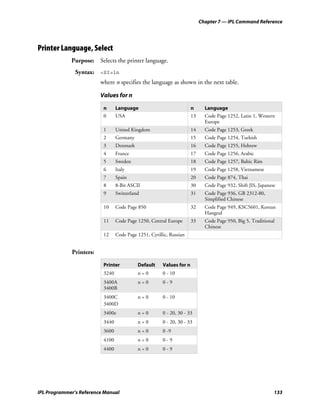
                         language. To choose the correct language, use the IPL command, Printer
                         Language, Select. If the language setting you have chosen does not work,
                         use the default language setting.

Installing Code Page Tables
                         If you install a Japanese, Chinese, or Korean TrueType font, you must also
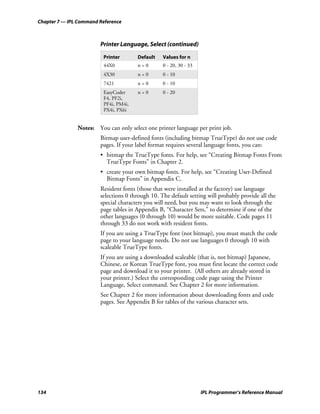
                         install the code page tables. See the “Printer Language, Select” command
                         in Chapter 7 for a list of code pages. You can download code pages from
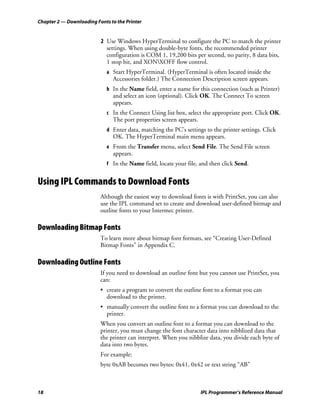
                         Intermec’s web site at www.intermec.com, and then from the Service &
                         Support menu, choose Software Downloads. The files were compressed
                         using Microsoft WinZip application and have the file extension .ZIP.
                         After decompressing the file, install your code page as described in the
                         procedure below.

                         To install the code page tables in your printer
                         1 Copy the tables you wish to use to your PC:
                            SJIS.PCF - Japanese (Shift JIS)
                            BIG5.PCF - Traditional Chinese (Big 5)
                            GB.PCF - Simplified Chinese (GB 2312)
                            KSC.PCF - Korean (KSC5601)


IPL Programmer’s Reference Manual                                                                      17
Chapter 2 — Downloading Fonts to the Printer


                          2 Use Windows HyperTerminal to configure the PC to match the printer
                            settings. When using double-byte fonts, the recommended printer
                            configuration is COM 1, 19,200 bits per second, no parity, 8 data bits,
                            1 stop bit, and XONXOFF flow control.
                             a Start HyperTerminal. (HyperTerminal is often located inside the
                               Accessories folder.) The Connection Description screen appears.
                             b In the Name field, enter a name for this connection (such as Printer)
                               and select an icon (optional). Click OK. The Connect To screen
                               appears.
                             c In the Connect Using list box, select the appropriate port. Click OK.
                               The port properties screen appears.
                             d Enter data, matching the PC’s settings to the printer settings. Click
                               OK. The HyperTerminal main menu appears.
                             e From the Transfer menu, select Send File. The Send File screen
                               appears.
                             f In the Name field, locate your file, and then click Send.


Using IPL Commands to Download Fonts
                          Although the easiest way to download fonts is with PrintSet, you can also
                          use the IPL command set to create and download user-defined bitmap and
                          outline fonts to your Intermec printer.

Downloading Bitmap Fonts
                          To learn more about bitmap font formats, see “Creating User-Defined
                          Bitmap Fonts” in Appendix C.

Downloading Outline Fonts
                          If you need to download an outline font but you cannot use PrintSet, you
                          can:
                          • create a program to convert the outline font to a format you can
                            download to the printer.
                          • manually convert the outline font to a format you can download to the
                            printer.
                          When you convert an outline font to a format you can download to the
                          printer, you must change the font character data into nibblized data that
                          the printer can interpret. When you nibblize data, you divide each byte of
                          data into two bytes.
                          For example:
                          byte 0xAB becomes two bytes: 0x41, 0x42 or text string “AB”


18                                                                   IPL Programmer’s Reference Manual
Chapter 2 — Downloading Fonts to the Printer


                         To manually download an outline font to your printer
                         1 Nibblize the font data.
                           Divide the nibblized data into separate lines preceded by the j
                           command. (See the “Outline Font, Download” command in
                           Chapter 7.) Remember to wrap the entire line in <STX> and ;<ETX>.
                           You need short lines for limited message length protocols and to make
                           modifying easier by using an editor or word processing program.
                         2 Include IPL commands to instruct the printer what to do with the font
                           data. For help, see the following example and Chapter 7, “IPL
                           Command Reference.”
                         3 Send the commands to the printer using one of the methods described
                           in Chapter 1.
                         This is an example of a nibblized outline font file that includes IPL
                         commands to send it directly to a printer.

Nibblized Outline Font File Example

 Command                                                                        Definition
 <STX>R<ESC>C<ESC>P<ETX>                                                        Enter Program mode.
 <STX>J03,Times,1;<ETX>                                                         Create TrueType font 3 and
                                                                                give it the name Times.
 <STX>j0001000000110100000400604c545348efe24cd00000;<ETX>                       TrueType data string.

 <STX>j00ebf468646d78d956f5ab0001135800001508686561;<ETX>                       TrueType data string.

 <STX>j0d2000012f04000006a3706f7374d43c8176000135a8;<ETX>                       TrueType data string.

                               :                                                Several TrueType data
                               :                                                strings not shown due to
                               :                                                space constraints.
 <STX>j00b3008200b0008725ba0000;<ETX>                                           Last TrueType data string.
 <STX>R<ETX>                                                                    Exit Program mode.


Using Third-Party Software Applications to Download Fonts
                         Use your third-party software to download fonts into a user-defined font
                         format that the printer can interpret. Refer to your third-party
                         documentation for more information.


IPL Programmer’s Reference Manual                                                                          19
Chapter 2 — Downloading Fonts to the Printer


20                                             IPL Programmer’s Reference Manual
3          Designing Bar Code Labels


                         This chapter explains how to design and print your own labels using IPL
                         commands. It covers the basic elements of label design and provides
                         examples to guide you in designing your own labels.


IPL Programmer’s Reference Manual                                                                  21
Chapter 3 — Designing Bar Code Labels


Introduction to Formats
                          To print a label on an Intermec printer, you must create a label format,
                          send that format to the printer, send data to fill in the fields in the format,
                          and then print the label.
                          A format is a template that defines how the information prints on a label.
                          For example, if you want to print a number on a label, the format must
                          indicate the location of the number, its font and size, and whether the
                          number has a vertical or horizontal orientation.
                          You can define a format either by downloading IPL commands or by using
                          a label generation program. The printer stores the format in its RAM or
                          flash module. You can use the format at any time. You can call it up to
                          print labels, or call it up in Program mode to modify one or more of its
                          fields on the host.
                          If you intend to regularly reload a format, you can use the temporary
                          format parameter (*) with some printers. The use of format * results is an
                          optimal use of flash-based storage memory because the printer stores it in
                          RAM and deletes it when the printer power is turned off.


Tutorial for Designing and Creating a Label Format
                          Label formats are composed of several different fields that determine where
                          and how different types of data appear in the label design. The fields on a
                          label may differ in size, location, orientation, and data type. You must
                          define information that you plan to print on the label as a field in the label
                          format. Once you define the fields, you can pass data into the fields and
                          print them.
                          This tutorial assumes that you are using IPL commands.

                          To design a basic label format
                          1 Using a label from your roll of media, sketch an example of a format
                            that you want to create. Your format can include any or all of these
                            fields:
                            • Human-readable
                            • Bar code
                            • Line
                            • Box
                            • User-defined characters (UDCs) or graphics
                            In this example, you will design a simple label that includes a human-
                            readable field, a line field, and a bar code field.


22                                                                    IPL Programmer’s Reference Manual
Chapter 3 — Designing Bar Code Labels


                         2 Determine the placement of each field from the label origin. The label
                           origin (oØ,Ø) is the top left corner of the label.
                           • To determine the horizontal or X origin of each field, measure the
                              distance from the left side of the label to the upper left corner of the
                              field.
                           • To determine the vertical or Y origin of each field, measure the
                              distance from the top of the label to the upper left corner of the field.

                              Note: On the 4400 and 7421 printers, be sure to use the label width
                              command to set the actual width of your labels; otherwise, the Y
                              origins will be incorrect.

                           When you combine the two numbers, they form the field origin oX,Y.
                           In the illustration below, the horizontal or X origin of the human-
                           readable field measures 12.7 mm (0.5 in) from the left side of the label
                           and the vertical or Y origin measures 6.35 mm (0.25 in) from the top of
                           the label.

                             field origin = X, Y                              Label motion from printer
                            label origin = oØ,Ø y
                                                       0.25"
                                                   ➤


                                  x           ➤ THIS    IS THE SAMPLE LABEL
                                0.5"


                                                               Code
                                                                 39
                                                               label


                                                                                                IPL.002


                         3 Convert the measurements for the human-readable field from inches to
                           dots. Use this equation:
                           25.4 mm (1 in) = 203 dots
                           1 mm = 16 dots
                           In this example, the human-readable field origin in dots is:
                           12.7 mm (0.5 in) x 203 dots = 102 dots (X dimension)
                           6.35 mm (0.25 in) x 203 dots = 51 dots (Y dimension)
                           The origin for the human-readable field is o102,51 (oX,Y).


IPL Programmer’s Reference Manual                                                                         23
Chapter 3 — Designing Bar Code Labels


                            Note: If you have a 300 dpi or 406 dpi printer, substitute your dpi
                            where you see 203 dots in these equations.

                          4 Convert the measurements for the line field and the bar code field to
                            complete this example.

                          To create or program the label format
                          1 Choose a bar code symbology and a human-readable font that suit your
                            needs.
                            For this example, you are going to use the proportional outline font and
                            the Code 39 symbology. See Chapter 7, “IPL Command Reference,” for
                            information on the different symbologies and fonts available to you.
                          2 Define the parameters for each type of field in the format.
                              Field Type in Label                            Represented By
                              Human-readable                                 H
                              Bar code                                       B
                              Line                                           L
                              Box                                            W
                              User-defined characters (UDCs) or graphics     U


                            See “Commands Listed by Task” in Chapter 6 for a list of the
                            parameters you can define for each type of field. For example, you need
                            to define the following parameters for a human-readable field:

                              Parameter                               Value for this Example
                              Field type                              H0
                              Field origin                            o102,51
                              Font                                    c25 (outline font)
                              Field direction                         f0 (horizontal)
                              Height                                  h20 (multiplied 20 times)
                              Width                                   w20 (multiplied 20 times)
                              Field source and number of characters   d0,30


                          3 Create command strings for each type of field. You must bracket your
                            field information between the start of text character (<STX>) and the
                            end of text character (<ETX>).
                            When you combine the parameters in the previous table into a
                            command string, it should look like this:
                            <STX>H0;o102,51;c25;f0;h20;w20;d0,30;<ETX>


24                                                                         IPL Programmer’s Reference Manual
Chapter 3 — Designing Bar Code Labels


                         4 Combine the command strings you defined into one file and add the
                           following commands bracketed by <STX> and <ETX>:

                            Command         Description
                            <ESC>C          Selects Advanced mode
                            <ESC>P          Enters Program mode
                            E4;F4;          Erases what was in format 4 and creates a new format 4
                            R               Saves the format and exits to Print mode
                            <ESC>E4         Accesses format 4
                            <ETB>           Prints the format


                         5 Create the data lines for the human-readable field and the bar code
                           field. Do this by completing the following tasks:
                           a Type the information that you want to appear in the human-readable
                                field and the bar code field in two separate lines.
                           b Separate the information with a <CR> at the end of the first text
                                string.
                                The <CR> tells the printer to enter the text into different fields. The
                                first line will be the text for the human-readable field and so on.
                           c Preface the data lines with the <CAN> command. It erases all data in
                                the current format.
                                Your command strings should look like this:

                                 Command String                              Definition
                                 <CAN>                                       Erases all data in current format
                                 THIS IS THE SAMPLE LABEL<CR>                Text for the human-readable field
                                 SAMPLE                                      Text for the bar code field


                           d Bracket the command strings between <STX> and <ETX>.
                         6 Combine all of the command strings into one format and it should look
                           like the following example.

                           Note: The difference between the lowercase letter “l” and the numeral
                           “1” is not very noticeable in the Courier font. Make sure that you enter
                           the correct command.


IPL Programmer’s Reference Manual                                                                                25
Chapter 3 — Designing Bar Code Labels


Sample Label Command Strings

 Command                                                        Definition
 <STX><ESC>C<ETX>                                               Select Advanced mode
 <STX><ESC>P<ETX>                                               Enter Program mode
 <STX>E4;F4;<ETX>                                               Erase format 4, create format 4
 <STX>H0;o102,51;f0;c25;h20;w20;d0,30;<ETX>                     Edit/create human-readable field 0
 <STX>L1;o102,102;f0;l575;w5;<ETX>                              Edit/create line field 1
 <STX>B2;o203,153;c0,0;h100;w2;i1;d0,10;<ETX>                   Edit/create Code 39 bar code field 2 with
                                                                interpretive field enabled
 <STX>I2;h1;w1;c20;<ETX>                                        Create interpretive field to go with bar
                                                                code field 2
 <STX>R;<ETX>                                                   Save format and exit to Print mode
 <STX><ESC>E4<ETX>                                              Access format 4
 <STX><CAN><ETX>                                                Erase all data
 <STX>THIS IS THE SAMPLE LABEL<CR><ETX>                         Data for human-readable field 0
 <STX>SAMPLE<ETX>                                               Data for bar code field 2
 <STX><ETB><ETX>                                                Print


                          Note: The line breaks in the preceding example are shown for
                          formatting purposes only and do not necessarily represent carriage
                          returns.

                          This format prints the label shown in the next illustration.


                                  THIS IS THE SAMPLE LABEL


                                        *SAMPLE*


                                                                                       IPL004.eps


26                                                                  IPL Programmer’s Reference Manual
Chapter 3 — Designing Bar Code Labels


Defining Label Design Fields
                         Define each type of field to hold a certain type of data. You can define:
                         • Bar code fields (with or without interpretive fields)
                         • Human-readable fields
                         • Graphic fields
                         • Line fields
                         • Box fields
                         You must define the data you plan to print on your label as a field in the
                         label format. Each field type gives you options for interpreting your data.
                         The fields that contain the most options are bar code fields and human-
                         readable fields.

Bar Code Fields
                         You can print bar codes in any of these symbologies:
                         •   Codabar              •   Code 93                •     MaxiCode
                         •   Code 2 of 5          •   Code 128               •     MicroPDF 417
                         •   Code 11              •   Code One               •     QR Code
                         •   Code 16K             •   Data Matrix            •     PDF 417
                         •   Code 39              •   HIBC                   •     POSTNET
                         •   Code 49              •   Interleaved 2 of 5     •     UPC/EAN

                         See Chapter 7, “IPL Command Reference,” for a complete list of
                         commands to select the appropriate bar code symbology. “Commands
                         Listed by Task” in Chapter 6 lists the command options available for
                         editing bar code fields.

Human-Readable Fields
                         You can print human-readable fields in any one of the printer’s internal
                         fonts or user-defined fonts. The printer contains several resident bitmap
                         fonts in a range of sizes and styles.
                         You can change the size of the font character by using the width and
                         height magnification or by using the pitch or point-size commands. The
                         fonts themselves remain unchanged. The font character charts in Appendix
                         B, “Character Sets,” illustrate the complete character set for each font.


IPL Programmer’s Reference Manual                                                                    27
Chapter 3 — Designing Bar Code Labels


                          The printer supports nine different international character sets for each
                          command set mode. In Emulation mode, the international character
                          substitution is compatible with Intermec 8636/8646 printers. In Advanced
                          mode, the substitution complies with the ISO standards. The printer may
                          also contain character sets for IBM translation and code pages.
                          The internal bitmap fonts of the printer include:
                          • Standard bitmap fonts measured in dots
                          • Bitmap fonts recognized by optical character recognition (OCR)
                            programs
                          • Bitmap fonts measured in point sizes
                          • Outline fonts
                          • Bitmap monospaced fonts

Line and Box Fields
                          Use the command set (see Chapter 7, “IPL Command Reference”) to
                          define line or box fields on a label. You can use the commands to
                          determine whether a box or line appears vertically or horizontally and to
                          set the line length and thickness.
                          The following example uses vertical and horizontal lines to separate fields
                          on a label and uses a box field to make a label border. This format uses
                          bold text to highlight the lines that contain line or box fields. This label
                          format prints the label shown on the next page.


28                                                                   IPL Programmer’s Reference Manual
Chapter 3 — Designing Bar Code Labels


Lines and Boxes Format
<STX><ESC>C0<ETX>
<STX><ESC>P;<ETX>
<STX>E4;F4,DEMO 4;<ETX>
<STX>L1;o11,447;f0;l1207;w4;<ETX>
<STX>L2;o11,285;f0;l1207;w4;<ETX>
<STX>W3;o11,0;f0;l1207;h802;w4;<ETX>
<STX>B4;o658,650;f0;h102;w2;c0,0;i1;r1;d0,11;<ETX>
<STX>I4;o658,752;f0;h1;w1;c20;r0;b0;<ETX>
<STX>B5;o87,650;f0;h102;w2;c0,0;i1;r1;d0,11;<ETX>
<STX>I5;o87,752;f0;h1;w1;c20;r0;b0;<ETX>
<STX>H6;o34,183;f0;h1;w1;c22;r0;b0;d0,17;<ETX>
<STX>H7;o35,143;f0;h1;w1;c21;r0;b0;d3,BASIS WT. 39-4838;<ETX>
<STX>H8;o389,305;f0;h1;w1;c21;r0;b0;d3,ROLLS;<ETX>
<STX>H9;o40,305;f0;h1;w1;c21;r0;b0;d3,ROLL WIDTH;<ETX>
<STX>L10;o11,609;f0;l1207;w4;<ETX>
<STX>H12;o1022,508;f0;h1;w1;c22;r0;b0;d0,7;<ETX>
<STX>H13;o1022,467;f0;h1;w1;c21;r0;b0;d3,WEIGHT;<ETX>
<STX>H14;o539,508;f0;h1;w1;c22;r0;b0;d0,11;<ETX>
<STX>H15;o539,467;f0;h1;w1;c21;r0;b0;d3,LOCATION;<ETX>
<STX>H16;o42,508;f0;h1;w1;c22;r0;b0;d0,15;<ETX>
<STX>H17;o43,467;f0;h1;w1;c21;r0;b0;d3,CUSTOMER ORDER NUMBER;<ETX>
<STX>H18;o840,346;f0;h1;w1;c22;r0;b0;d0,13;<ETX>
<STX>H19;o840,305;f0;h1;w1;c21;r0;b0;d3,ORDER ITEM NUMBER;<ETX>
<STX>H20;o389,346;f0;h1;w1;c22;r0;b0;d0,7;<ETX>
<STX>H21;o34,346;f0;h1;w1;c22;r0;b0;d0,11;<ETX>
<STX>H22;o747,183;f0;h1;w1;c22;r0;b0;d0,15;<ETX>
<STX>H23;o743,143;f0;h1;w1;c21;r0;b0;d3,GRADE DESCRIPTION;<ETX>
<STX>H24;o13,0;f0;h51;w34;c25;r0;b3;d3,        SHIPPING LABEL              ;<ETX>
<STX>R<ETX>
<STX><ESC>E4<CAN><ETX>
<STX><ESC>F4<LF>INTERMEC<ETX>
<STX><ESC>F5<LF>372181192<ETX>
<STX><ESC>F6<LF>38448379237<ETX>
<STX><ESC>F12<LF>230<ETX>
<STX><ESC>F14<LF>3839494<ETX>
<STX><ESC>F16<LF>372181192<ETX>
<STX><ESC>F18<LF>234-LOFT<ETX>
<STX><ESC>F20<LF>12<ETX>
<STX><ESC>F21<LF>338438<ETX>
<STX><ESC>F22<LF>A-PLUS QTY<ETX>
<STX><ETB><FF><ETX>


IPL Programmer’s Reference Manual                                                   29
Chapter 3 — Designing Bar Code Labels


                                          SHIPPING LABEL
                      BASIS WT. 39-4838                                 GRADE DESCRIPTION


                      38448379237                                   A - PLUS QTY
                      ROLL WIDTH                      ROLLS            ORDER ITEM NUMBER


                      338438                          12               234 - LOFT
                      CUSTOMER ORDER NUMBER                 LOCATION                                WEIGHT


                      372181192                             3839494                                 230

                      INTERMEC                                       372181192

                                                                                                          IPL006.eps

                    Sample Label in Lines and Boxes Format: This illustration shows the label printed using the
                    command strings on the previous page.


Graphic Fields
                          You must define a graphic field if you want to print a graphic image on a
                          label. Before you can use this field, you need to download the graphic to
                          the printer. Once you download the graphic, you can use it in any format.
                          Use the PrintSet printer installation software to easily download graphics
                          to the printer. PrintSet automatically converts the graphic into a six bits
                          per byte format that your printer can understand.
                          If you are using third-party label-generation software, it converts your
                          graphic file to a UDC format that the printer can interpret and downloads
                          it to the printer.
                          If you want to design your own graphic, refer to “Creating User-Defined
                          Bitmap Graphics” in Appendix C. You must send graphics as either one
                          bit per byte or six bits per byte bitmap images. The maximum size that
                          you can define a graphic to be is limited by the capacity of your printer.
                          Due to message length constraints, you must design large graphics in the
                          six bits per byte format.
                          You can use Direct Graphics mode to reduce the time it takes to download
                          and print an image. For more information on direct graphics, see
                          Appendix E, “Using Direct Graphics Mode.”


30                                                                       IPL Programmer’s Reference Manual
Chapter 3 — Designing Bar Code Labels


Editing Label Formats and Working With Fields
                         In addition to understanding the different types of printable fields on the
                         printer, you need to know how to arrange them to define or change the
                         format of a label. The following sections use examples to describe the
                         commands that position, size, rotate, and edit label fields. For a complete
                         list of all programming commands, see Chapter 6, “Finding IPL
                         Commands in This Manual.”
                         Whenever you create a format, the printer automatically creates a human-
                         readable field zero (H0) along with it. The printer creates the H0 field
                         with all field parameters set to the default setting. You can only delete field
                         zero after you create one or more other fields. You cannot delete the last
                         field in a format.

                         Defaults for the H0 Field

                          Command       Definition
                          o0,0;         Field origin is 0,0.
                          f0;           Field direction is horizontal with respect to the label motion from printer.
                          h1;           Field height magnification is one.
                          w1;           Field width magnification is one.
                          c2;           Selects the 10 x 14 standard font.
                          b0;           Selects no border around human-readable field.
                          r0;           Selects horizontal orientation of characters.
                          d0,30;        You enter variable data in Print mode. The maximum number of
                                        characters you can enter into this field is 30.


                         When creating a new format field, it is not possible to specify field zero as
                         anything other than human-readable field zero (H0) without creating
                         another field first. For example, you cannot make field zero a bar code
                         field by doing the following:
                         <STX><ESC>P;E1;F1;B0;<ETX>
                         To make field zero a bar code field, you have to delete human-readable
                         field 0 and then define bar code field 0. To do this, you must create a
                         temporary field (L39) before you delete human-readable field zero (H0):
                         <STX><ESC>P;E1;F1;L39;D0;B0;D39;<ETX>


IPL Programmer’s Reference Manual                                                                               31
Chapter 3 — Designing Bar Code Labels


                          The next table describes each command in the string.

                          Label Format Editing Command Examples

                            Command         Definition
                            <ESC>P;         Enters Program mode
                            E1;             Erases format 1
                            F1;             Creates format 1
                            L39;            Creates line field (temporary field)
                            D0;             Deletes field zero
                            B0;             Creates bar code field zero
                            D39;            Deletes the temporary line field


                          When numbering the fields in a format, it is important to remember to
                          give every field a different number. Never use a field number more than
                          once. You can have up to 200 fields numbering from 0 to 199. The
                          importance of field numbering comes into play when you are in Print
                          mode and are entering data into the label format. At this point, you can
                          only identify the fields by a number, not by the type of field.
                          Each bar code field can have an interpretive field associated with it. For
                          example, bar code field B33 would have an interpretive field I33. All
                          interpretive fields use up a field location, starting from the top of the field
                          directory; if B33 is the first bar code field with interpretive text, then field
                          I33 would use location 199. You can see how the printer uses the fields
                          internally by uploading the format and examining where the interpretives
                          appear. For help, see the “Format, Transmit” command in Chapter 7,
                          “IPL Command Reference.” If you need to use more fields than IPL can
                          accommodate in a single format (because of interpretive fields), you can
                          use pages to combine several formats on one label.
                          Also keep in mind that you enter data into fields according to their
                          numeric value if you use a <CR> to separate the data. In other words, the
                          first string of data you enter goes into the lowest numbered field, the
                          second string of data you enter goes into the next lowest numbered field,
                          and so on.


32                                                                        IPL Programmer’s Reference Manual
Chapter 3 — Designing Bar Code Labels


Editing Existing Fields
                         If you make a mistake in a label format, you may not have to download
                         the entire format again depending on the severity of the mistake. You can
                         change a specific field in a format by sending a command in Program
                         mode. You can modify just the incorrect format fields instead of having to
                         download the entire format again.
                         When the printer is in Program mode, it uses a field pointer to point to
                         the field to be modified. The pointer continues to point to the most
                         recently selected field until you select a different format or field.
                         For the next example, assume that you used the following format:

   Sample Format

    Command                                                           Description
    <STX><ESC>C<ETX>                                                  Selects Advanced mode
    <STX><ESC>P<ETX>                                                  Enters Program mode
    <STX>E3;F3;<ETX>                                                  Erases format 3, Creates format 3
    <STX>H0;o80,100;f0;c0;d0,16;h1;w1;<ETX>                           Creates field H0
    <STX>H1;o80,120;f0;c0;d0,16;h1;w1;<ETX>                           Creates field H1
    <STX>H2;o80,150;f0;c2;d0,14;h1;w1;<ETX>                           Creates field H2
    <STX>H3;o80,190;f0;c2;d0,16;h1;w1;<ETX>                           Creates field H3
    <STX>B4;o80,0;f0;c0,1;h50;w1;d0,11;i0;p@;<ETX>                    Creates field B3
    <STX>R;<ETX>                                                      Saves and exits to Print mode


                         To change the height and width of field 3 to 2 dots, download this
                         command string:
                         <STX><ESC>P;F3;H3;h2;w2;R;<ETX>
                         The following table describes each command in this string:

                         Field Editing Commands in the Sample Format

                          Command      Description
                          <ESC>P;      Enters Program mode
                          F3;          Accesses format number 3 from memory
                          H3;          Accesses field 3
                          h2;          Sets the height to 2 dots
                          w2;          Sets the width to 2 dots
                          R;           Returns to Print mode


                         Note: The <STX> and <ETX> commands mark the beginning and end of a
                         message. The semicolon (;) is the command terminator. Except for the last
                         command in a message, all commands in Program mode must end with this
                         terminator.


IPL Programmer’s Reference Manual                                                                         33
Chapter 3 — Designing Bar Code Labels


Deleting Fields
                          It is possible to delete any field from a format except for the last field. Use
                          the following command string to delete field 3 from format 4.
                          <STX><ESC>P;F4;D3;R;<ETX>
                          The following table describes each command in this string:

                          Command String Descriptions

                           Command       Description
                           <ESC>P;       Enters Program mode
                           F4;           Accesses format 4
                           D3;           Deletes field 3
                           R;            Returns to Print mode


Positioning Fields
                          Using the IPL command language to position fields is the trickiest part of
                          designing labels. Since you cannot tell exactly how the field looks until it
                          prints, you may need to make several test prints before you get the field
                          positioned correctly.
                          For all types of fields, determine the print position by defining the
                          coordinates of the upper left corner of the unrotated field.
                          The field origin is the upper left corner of an unrotated field. To define
                          the coordinates of the field origin, use the origin command (oX,Y) where o
                          is the command that specifies origin, X is the distance from the left side of
                          the label, and Y is the distance from the top of the label.

                          Note: On the 4400 and 7421 printers, be sure to use the label width
                          command to set the printer for the correct label width; otherwise, the Y
                          origins will be incorrect.

                          The X and Y coordinates of the field origin use dots as their form of
                          measurement. There are 203 dots per inch or 8 dots per millimeter.

                          Note: The 3400e with 400 dots per inch, 3240, and 3440 printers have
                          406 dots per inch or 16 dots per mm. The 4X30 printers have 300 dots
                          per inch or 12 dots per mm.


34                                                                    IPL Programmer’s Reference Manual
Chapter 3 — Designing Bar Code Labels


                         To position a field to print approximately 0.25 inch from the left side and
                         0.5 inch from the top of your label, the origin command is o51,102.

                                                                      D

                         A
                                    HR Field                     Second HR Field
                         B

                                    *BCFIELD*
                                    *BC FIELD*

                         C

                                A = o51, 102        C = o51, 305
                                B = o51, 203        D = o355, 102                       IPL007.eps

                         Field Positioning: This illustration shows the relative positions of four fields with
                         different origin points.


                         Note: If you are operating your printer in Emulation mode, the dot sizes
                         are doubled (101 dots per inch or 4 dots per mm), so the origin for 1 inch
                         from the top of the label and 0.5 inch from the left side is o25,51.


Rotating Fields
                         You can rotate any type of printable field in increments of 90 degrees
                         counterclockwise around the field origin. To position a rotated field, you
                         should keep in mind that the field origin remains on the corner where it
                         was before you rotated the field. If you rotate a field 90 degrees
                         counterclockwise, the origin that was at the upper left corner is now at the
                         lower left corner. Use the Field Direction command fn to define the field
                         rotation. See Chapter 7, “IPL Command Reference,” for more
                         information.
                         • To rotate a field 90 degrees, you must position the lower left corner of
                           the rotated field.
                         • To rotate a field 180 degrees, you must position the lower right corner
                           of the rotated field.
                         • To rotate a field 270 degrees, you must position the upper right corner
                           of the rotated field.


IPL Programmer’s Reference Manual                                                                                35
Chapter 3 — Designing Bar Code Labels


                                                        f1(rotated 90 degrees)


                                                                ABCDE
                                       ABCDE
                                                                                              Field origin


                                                        ABCDE
                             f2 (rotated 180 degrees)
                                                               ABCDE        f0 (horizontal)


                                                 f3 (rotated 270 degrees)

                                                                                                      IPL.008


                          Field Rotation: This illustration shows the effects of rotating a field by using the Field
                          Direction command.


Scaling Fields
                          You can determine the size of a field by the font or graphic you use and
                          the field magnification factors you apply. The human-readable fonts and
                          bar code symbologies have default sizes, and the user-defined character
                          fields print as large as you design them (up to the maximum), but you can
                          scale each of these fields even further by using magnification commands.

                          Magnifying Fonts and Character Fields
                          The internal fonts in the printer already have sizes associated with them.
                          For example, the letters in font c0 are 7 dots wide by 9 dots high, with a
                          1-dot gap between characters. If you design a field that prints 10 letters in
                          font c0, the field will be 79 dots wide by 9 dots high.
                          By applying magnification factors (h for height and w for width), you can
                          increase a field’s height or width. If you increase the height to 2 (h2) for
                          the field described above, the field height doubles, and the final field prints
                          79 dots long by 18 dots high. If you change the height magnification to
                          h3, the field height triples, and the field prints 79 dots by 27 dots.
                          The default human-readable field H0 prints the 7 x 9 font as follows
                          (assuming you enter the word “example” as data):


36                                                                                 IPL Programmer’s Reference Manual
Chapter 3 — Designing Bar Code Labels


                         When you apply a magnification factor of 3 to human-readable field H0,
                         the font now prints the image below:


                         Increasing the width of a text field to 2 makes each letter in the field twice
                         as wide. If you did this to the example above, with field height h2, the
                         final field would print 158 dots wide by 18 dots high.
                         When you magnify a bitmap font, the edges of the characters become
                         jagged. If you want to print large text characters (greater than 1 inch or
                         2.54 cm), use an outline font such as c25 (Swiss Mono 721 standard
                         outline font).

                         Magnifying Bar Code Fields
                         You can also use height and width commands to modify bar code fields,
                         but the commands do not behave the same as with human-readable fields.
                         For bar code fields, the height magnification is the actual dot height of the
                         bar code. If you choose a height magnification of h20, the height of the
                         bar code field will be 20 dots.
                         Printing narrow bar codes conserves space on each label as well as media;
                         however, if you plan to scan bar codes from a distance, you may need to
                         magnify the bar code widths.
                         The width magnification factor for bar code fields refers to the width of
                         the narrowest element of the bar code. When you specify a narrow element
                         width of w3, the width of the narrowest element in the symbology is 3
                         dots wide. The spaces and large element widths grow according to preset
                         ratios for each symbology.

                         Note: You can only print a bar width of 1 if you are printing in drag mode
                         (bars perpendicular to the print head). If you select a width of 1 in picket
                         mode (bars parallel to the print head), the printer defaults to 2.

                         The default height for bar code fields is 50 dots, and the default width for
                         narrow elements is 1 dot.

                         Note: If you are using the POSTNET symbology, follow the rules for
                         magnifying fonts.


IPL Programmer’s Reference Manual                                                                     37
Chapter 3 — Designing Bar Code Labels


Designing Pages
                          A page is a collection of one or more formats that you combine to print at
                          the same time. This feature is helpful when you need to print several
                          different labels for an application at once. For example, you may need to
                          attach one type of label to a product and a different type of label to its
                          container. With the page printing capability, you can print both labels at
                          the same time. Because you can print pages of several formats at once, you
                          can also print labels on media rolls that have different sizes and shapes of
                          labels already precut.
                          When you group label formats into a page, you assign the formats to
                          positions designated by the letters a through z. You can print the formats
                          used in pages independent of each other. The next example shows how to
                          create a page that contains five different formats.


Label Format Example
                          The format example on this page is a complex label designed to
                          demonstrate the different types of data that you can print with your
                          printer. This example contains human-readable fields, a bar code field, line
                          fields, a box field, and a graphic field (the diamond).


                               Cat.
                               No.                    432-3221                       Std.
                                                                                     Qty.     100
                                                 13
                               S
                               i
                               z
                               e                  4            DUPLEX ANGLE CONNECTOR
                                                      - For Flexible Steel Conduit and .375" - .625"
                                   Lot 23455 262948


                                                        Diameter Armored and Nonmetallic Sheath Cables

                                                      - For Smooth or Interlocking Sheath Metal Clad
                                                        Cables .375" - .675" Dia. (UL only)


                                                       ACE CORP.
                                                       ADDRESS 3010             *30791751*
                                                                                *307 91747*
                                                       FICTION USA


                                                                                                           IPL011.eps

                          Complex Label: This illustration shows a label that includes human-readable, box, bar
                          code, line, and graphic fields.


38                                                                             IPL Programmer’s Reference Manual
Chapter 3 — Designing Bar Code Labels


Graphic for Example
                         Download the six bits per byte diamond graphic explained in “Creating
                         Six Bits Per Byte User-Defined Graphics” in Appendix C.

Format for Example
<STX><ESC>C<ETX>
<STX><ESC>P<ETX>
<STX>E5;F5;<ETX>
<STX>H0;o35,40;c25;d3,Cat.;k12;<ETX>
<STX>H1;o35,70;c25;d3,No.;k12;<ETX>
<STX>H2;o165,0;c25;d3,432-3221;k36;<ETX>
<STX>H3;o785,40;c25;d3,Std.;k12;<ETX>
<STX>H4;o785,70;c25;d3,Qty.;k12;<ETX>
<STX>H5;o915,0;c25;d3,100;k36;<ETX>
<STX>L6;o740,10;f3;l130;w8;<ETX>
<STX>L7;o25,140;l1130;w8;<ETX>
<STX>H8;o30,165;c25;f3;r1;d3,Size;k12;<ETX>
<STX>H9;o80,170;c25;d3,1 ”;k30;<ETX>
<STX>H10;o150,165;f3;r1;c25;d3,3/4;h3;w7;<ETX>
<STX>L11;o300,140;f3;l130;w8;<ETX>
<STX>L12;o25,270;l275;w8;<ETX>
<STX>H13;o60,560;f1;c25;d0,20;h3;w2;<ETX>
<STX>L14;o140,270;f3;l310;w8;<ETX>
<STX>H15;o360,120;c22;d3,DUPLEX ANGLE CONNECTOR;h3;w1;<ETX>
<STX>H16;o170,320;c25;d3,- For Flexible Steel Conduit and .375” -
.625”;k12;<ETX>
<STX>H17;o212,375;c25;d3,Diameter Armored and Nonmetallic Sheath
Cables;k12;<ETX>
<STX>H18;o170,450;c25;d3,- For Smooth or Interlocking Sheath Metal
Clad;k12;<ETX>
<STX>H19;o212,505;c25;d3,Cables .375” - .675” Dia. (UL only);k12;<ETX>
<STX>L20;o25,580;l1130;w8;<ETX>
<STX>U21;o40,610;c2;h9;w9;<ETX>
<STX>H22;o210,600;c25;d3,ACE CORP.;k24;<ETX>
<STX>H23;o210,670;c25;d3,ADDRESS 3010;k12;<ETX>
<STX>H24;o210,710;c25;d3,FICTION USA;k12;<ETX>
<STX>B25;o685,615;c0,0;d0,20;i1;h100;p@;<ETX>
<STX>I25;h2;w2;<ETX>
<STX>L26;o590,580;f3;l185;w8;<ETX>
<STX>W27;o015,000;w10;l1150;h775;<ETX>
<STX>R<ETX>


IPL Programmer’s Reference Manual                                                                39
Chapter 3 — Designing Bar Code Labels


Data for Example
<STX><ESC>E5<CAN><ETX>
<STX>Lot 23455 262948<CR><FS>307 91747<FS><ESC>I2<ETX>
<STX><RS>5<ETB><ETX>

                             Use the <ETX> and <STX> characters to mark the beginning and end of
                             the command strings. The other characters are explained in the following
                             table. Most of the printer command lines explained below contain
                             commands previously not discussed in this chapter. Refer to previous
                             examples for clarification of the lines that are not explained, or see
                             Chapter 7, “IPL Command Reference,” for a further explanation of the
                             command language.

Label Format Example Command Descriptions

 Command        Description
 <ESC>C         Selects Advanced mode.
 <ESC>P         Selects Program mode.
 E5;F5;         Erases anything previously stored as format five and accesses the location for format five.
 H0;            Defines field 0 as a human-readable field.
 o35,40;        Sets the origin of field 0 at coordinates (35,40).
 c25;           Sets the font for field 0 to font 25.z
 d3,Cat.;       Sets the data for field 0 to have the constant value: Cat.
 k12;           Sets the point size to 12.
 L6;            Defines field 6 as a line field.
 o740,10;       Sets the origin for field 6 at (740,10).
 f3;            Rotates field 6 by 270 degrees counterclockwise around the field origin.
 l1300;         Sets the length of the line in field 6 to 130 dots.
 w8;            Sets the width of field 6 to 8 dots.
 H8;            Defines field 8 as a human-readable field.
 o30,165;       Sets the origin of field 8 at (30,165).
 c25;           Defines the font for field 8 as font 25.
 f3;            Rotates field 8 by 270 degrees counterclockwise around the origin.
 r1;            Rotates the characters in field 8 by 90 degrees counterclockwise.
 d3,Size;       Defines the constant data for field 8.
 k12;           Sets the point size to 12.
 H10;           Defines field 10 as a human-readable field.
 o150,165;      Sets the origin for field 10 at (150,165).
 f3;            Rotates field 10 by 270 degrees counterclockwise around the origin.
 r1;            Rotates the characters in field 10 by 90 degrees counterclockwise.
 c25;           Sets the font for field 10 to font 25.
 d3,3/4;        Defines constant data for field 10.
 k12;           Sets the point size to 12.


40                                                                             IPL Programmer’s Reference Manual
Chapter 3 — Designing Bar Code Labels


Label Format Example Command Descriptions (continued)

 Command         Description
 H13;            Defines field 13 as a human-readable field.
 o60,560;        Sets the origin of field 13 at (60,560).
 f1;             Rotates field 13 by 90 degrees around the origin.
 c25;            Determines that field 13 prints in font 25.
 d0,20;          Specifies that data for field 13 will be entered during Print mode and that the data will be a
                 maximum of 20 characters long.
 k10;            Sets the point size to 10.
 U21;            Defines field 21 as a graphic field.
 o40,610;        Sets the origin of field 21 at (40,610).
 c2;             Determines that field 21 prints in font two.
 h9;             Sets the height to nine times the original size.
 w9;             Sets the width to 9 dots.
 B25;            Defines field 25 as a bar code field.
 o685,615;       Sets the origin of field 25 at (685,615).
 c0,0;           Sets the bar code font to Code 39 with no check digit.
 d0,20;          Determines that the data for field 25 is entered during Print mode and its maximum length is 20
                 characters.
 i1;             Determines that an interpretation of the bar code prints with start and stop characters included.
 h100;           Determines that the bar code height is 100 dots.
 p@;             Clears all prefixes from the bar code field.
 I25             Edits the interpretive field for bar code field 25.
 h2              Sets the height of the interpretive field to twice its original height.
 w2              Sets the width of the interpretive field to 2 dots.
 W27;            Defines field 27 as a box field.
 o015,000;       Sets the origin of field 27 at 15,0.
 w10;            Defines the line width of the box as 10 dots.
 l1150;          Defines the length of the box as 1150.
 h775;           Sets the height of the box to 775.
 R               Sets the printer in Print mode.
 <ESC>E5         Accesses format 5 from the printer memory.
 <CAN>           Clears all host-entered data for the current format and sets the field pointer to the lowest
                 numbered data-entry field.
 Lot 23455       This is the data intended for the first data-entry field. <CR> instructs the printer to go to the next
 262948<CR>      data-entry field.
 <FS>            Specifies that the following data is to be incremented.
 307 91747       This is the data intended for the next data-entry field (specified as data to be incremented).
 <FS>            Specifies that the preceding data is to be incremented.
 <ESC>I2         The data surrounded by <FS> commands is to be incremented by a value of 2 after each label is
                 printed.
 <RS>5           Sets the number of labels to print when the print command is executed.
 <ETB>           Tells the printer to print the label.


IPL Programmer’s Reference Manual                                                                                     41
Chapter 3 — Designing Bar Code Labels


42                                      IPL Programmer’s Reference Manual
4          Troubleshooting


                         This chapter describes the problems that may occur as a result of using IPL
                         commands incorrectly. If you do not find your problem listed here, see the
                         troubleshooting information in your printer user’s manual.


IPL Programmer’s Reference Manual                                                                43
Chapter 4 — Troubleshooting


Troubleshooting Checklist
                         Even though Intermec designed your printer to operate under harsh
                         conditions, you may still encounter error messages. You can easily fix most
                         of the errors you encounter and consequently not delay operation of the
                         printer for very long.
                         If you receive an error message or encounter a functional problem with the
                         printer, you should perform these steps:

                         To troubleshoot your printer
                         1 Send a <BEL> command to the printer and see if the printer sends an
                           error message to the host in response.
                         2 If there is an error message, find it in the section called “Interpreting
                           Error Codes and Solving Problems,” later in this chapter. Follow the
                           instructions in the table to correct the problem.
                              Or:
                              If the printer does not send an error message to the host, try to locate
                              the symptom in the “Printer Operation Problems” and “Print Quality
                              Problems” sections of the printer user’s manual. Follow the instructions
                              in the manual to correct the problem.
                         3 Clean the printer components and check all connections. See your user’s
                           manual for instructions.
                         4 If the problem persists, contact Intermec Technical Support (1-800-
                           755-5505) in North America. If you are an international customer,
                           contact your local Intermec representative.


How the Printer Handles Error Conditions
                         This section describes how the printer handles error conditions that may
                         occur while you use IPL commands.

Syntax Errors
                         The printer responds to syntax errors in the messages it receives from the
                         host by attempting to execute the commands. It does not ignore a
                         command with a syntax error; instead, the printer produces output, even if
                         it is wrong. This output helps determine what went wrong and what
                         should be done to correct the problem.


44                                                                  IPL Programmer’s Reference Manual
Chapter 4 — Troubleshooting


Parameter Errors
                         Certain commands require optional parameters. If you do not supply these
                         parameters, the printer substitutes default values. If a parameter is above its
                         maximum range limit, the printer uses the maximum value. If it falls
                         below the minimum range, the printer uses the minimum value. See
                         Chapter 7, “IPL Command Reference,” for the range and default value for
                         each command.

Image Overrun Errors
                         Image overrun occurs when a label is too complex to image for a given
                         print speed. An overrun will cause the printer to abort the label being
                         printed. This error is most common on labels over 12.7 cm (5 in) long.
                         The printer automatically attempts to correct for this error condition by
                         resetting to the lowest print speed and to the highest number of image
                         bands, then repeats printing the label. The printer remains at this setting
                         until you reset it. If an image overrun still occurs, printing for that batch of
                         labels stops and the printer executes any following commands.

                         Note: Installing optional memory expansion may decrease image overrun
                         errors.


Invalid Numeric Character Errors
                         If you include non-numeric characters within a numeric data string in a
                         command, the printer ignores them and continues to process the rest of
                         the valid numeric characters. If a non-numeric character begins the
                         numeric data string, however, the printer uses a default value for the
                         affected command.
                         Here are two examples of valid numeric character strings and one example
                         of an invalid string:
                         12a valid
                         1a2 valid
                         a12 invalid

Insufficient Storage Memory Errors
                         Before storing new formats, graphics, or user-defined fonts in the static
                         RAM or flash, the printer ensures that it has sufficient memory to store
                         them. If there is insufficient memory, the printer ignores the last editing
                         session. The printer preserves the existing data in the storage memory.


IPL Programmer’s Reference Manual                                                                      45
Chapter 4 — Troubleshooting


Interpreting Error Codes and Solving Problems
                            Most of the problems you may encounter cause the printer to send an
                            error code to the host. To correct the error, find the error code in the
                            following table and complete the instructions in the solution column.

Error Codes and Possible Solutions

 Error
 Code      Description of Problem                       Solution
 00        No error.                                    No action is necessary.
 02        Invalid number of bar code characters        Verify the number of bar code characters used in the Bar
           (UPC/EAN).                                   Code, Select Type command.
 06        Invalid supplemental character count         Make sure that the supplemental data consists of either
           (UPC/EAN).                                   two or five characters.
 07        More than one supplemental delimiter         Make sure that you have only one supplemental delimiter
           (UPC/EAN).                                   (“.”) between the bar code data and the supplemental
                                                        data.
 11        Invalid bar code data.                       Verify data in the label format.
 12        Data count exceeded.                         Data count should not exceed what is specified for the
                                                        field.
 13        Entering data in non-data entry field.       Check the field for accuracy.
 21        Quantity or batch count out of range.        Quantity of labels or number of batches should be
                                                        between 1 and 9999.
 22        Field increment/decrement out of range.      Quantity should be between 1 and 9999.
 23        Intercharacter/message delay out of range.   Delay should be between 0 and 9999.
 24        Missing preamble/postamble data.             Change the configuration command to no
                                                        preamble/postamble or include preamble/postamble data.
 25        Invalid format transmission syntax.          Check the Format, Transmit command syntax. The
                                                        correct syntax is <ESC>xn with n ranging from 0 to 19
                                                        on most printers. On some printers, such as the 3440, n
                                                        ranges from 0 to 99. For more information, see the
                                                        “Format, Transmit” command in Chapter 7.
 26        Invalid page transmission syntax.            Check the Page, Transmit command syntax. The correct
                                                        syntax is <ESC>yn with n ranging from 0 to 9.
 27        Invalid font transmission syntax.            Check the Font, Transmit command syntax. The correct
                                                        syntax is <ESC>vn. Values for n vary depending on your
                                                        printer model. For more information, see the “Font,
                                                        Transmit” command in Chapter 7.
 28        Invalid UDC transmission syntax.             Check the User-Defined Characters, Transmit command
                                                        syntax. The correct syntax is <ESC>un with n ranging
                                                        from 0 to 99.


46                                                                       IPL Programmer’s Reference Manual
Chapter 4 — Troubleshooting


Error Codes and Possible Solutions (continued)

 Error
 Code      Description of Problem                      Solution
 32        Non-immediate command or data received      Allow the printer to empty the buffer contents before
           after buffer full.                          sending commands or data.
 33        Invalid field delimiters.                   Check for all pairs of field delimiters and make sure both
                                                       are numeric, or both are alphanumeric.
 34        Invalid escape command.                     Correct the escape command syntax.
 35        Invalid data shift command.                 Correct the shift command syntax.
 36        Invalid or undefined format number.         Verify that the format numbers are between 0 and 19.
 37        Insufficient room in RAM to print format.   Reduce the number of data fields in the format or add
                                                       more DRAM.
 38        Invalid or undefined field number.          Verify the field number in the label format.
 41        Syntax error for program commands.          Check the program command for proper syntax.
 42        Insufficient room in RAM to store format.   Empty the buffer contents. If the format still does not fit,
                                                       delete some fields or other data from the format. You
                                                       may have to remove or reduce the UDCs, formats, or
                                                       fonts if necessary.
                                                              Note: Entering <ESC>m tells the host how much
                                                              memory is installed and how much is available.


 43        Too many fields in label format.            You can use up to 200 fields in a format and each field
                                                       can use up to 250 characters. Reduce field size or delete
                                                       some fields.
 46        Undefined statement.                        Check the statement syntax.
 52        Invalid UDC/UDF bitmap cell height/width    Verify that the UDC/UDF bitmap cell height/width or
           or intercharacter space.                    intercharacter space is within the specified values for n.
                                                       For more information, see the “Bitmap Cell
                                                       Height/Width for Graphic or UDF, Define” or the
                                                       “Intercharacter Space for UDF, Define” command in
                                                       Chapter 7.
 53        Insufficient room in RAM to store UDC or    Remove or reduce formats, fonts, or UDCs.
           UDF.
 54        Invalid UDC command syntax.                 Correct the UDC command syntax.


IPL Programmer’s Reference Manual                                                                              47
Chapter 4 — Troubleshooting


48                            IPL Programmer’s Reference Manual
5          Advanced Printer
                                    Programming


                         This chapter discusses topics for advanced IPL programmers, such as using
                         printer memory efficiently, increasing throughput, and using Emulation
                         mode.


IPL Programmer’s Reference Manual                                                               49
Chapter 5 — Advanced Printer Programming


Using the Printer Memory Efficiently
                        To receive the best performance from your printer, you must understand
                        how to use the printer RAM efficiently. In general, if you use a significant
                        amount of available memory for storage, you reduce the amount of
                        memory used for imaging, which decreases printer performance.

How Is the Printer Storage Memory Used?
                        Although the printer contains enough static RAM or flash to store several
                        different label formats, downloaded fonts, graphics, and data, you should
                        be careful of how you use your printer memory.
                        Printers use either static RAM or flash memory for storing tables, pages,
                        formats, fonts, and user-defined characters (UDCs). Any storage memory
                        that you are not using for storage is available for imaging. Some printers
                        allow you to use PrintSet to adjust the amount of storage memory available
                        for storage purposes. If you require additional storage memory, you can
                        purchase a memory expansion option.

Making the Most of Your Storage Memory
                        There are limits to the number of formats, fonts, graphics, or pages that
                        you can store in the printer. You can define up to 16 fonts, but there may
                        not be enough room depending on the amount of memory being used for
                        other purposes. The more formats, graphics, and fonts you store, the less
                        memory is available.
                        When you encounter a memory usage problem, use PrintSet to see how
                        much memory is available. You must upload the memory information
                        from the printer first. Refer to the PrintSet online help for more
                        information.
                        You can increase your available memory by following one of these
                        suggestions:
                        • In some printers, you can adjust the amount of RAM allocated for
                          storage purposes. For help, see the PrintSet software or the “Amount of
                          Storage, Define” command in Chapter 7.
                        • Increase the amount of available memory by using the Memory Reset
                          portion of the Test and Service menu. You can use the Memory Reset
                          command to erase all or part of the information that you have
                          downloaded to the printer. For help, see your user’s manual.
                        • Delete any unneeded user-defined fonts, graphics, pages, or formats. For
                          help, see the PrintSet software or the specific commands in Chapter 7,
                          “IPL Command Reference.”


50                                                                IPL Programmer’s Reference Manual
Chapter 5 — Advanced Printer Programming


                         • Purchase additional memory. Please contact your Intermec
                           representative for information on purchasing additional memory for
                           your printer model.


Increasing Throughput
                         Note: This section does not apply to the EasyCoder F4, PF2i, PF4i, PM4i,
                         PX4i, or PX6i.

                         To print labels as quickly as possible, you must adjust the print speed in
                         conjunction with the number of image bands (one image band equals 2.54
                         cm (1 in) of label). The print speed and image band settings determine the
                         rate at which the printer processes the images of your labels, which affects
                         the throughput of the entire printing process.
                         When the printer receives the command to select a format, <ESC>E, it
                         immediately begins imaging the label; as a result, the imaging process is
                         better able to keep up with the print speed and throughput improves. If
                         the number of image bands is too low, however, the imaging process is
                         unable to keep up with the print speed, and the printer stops printing and
                         restarts at the lowest print speed with the maximum number of image
                         bands. If the image band command is set too high, the printer spends
                         more time than necessary imaging, and label production is slowed.

What Is an Image Band?
                         An image band is a section of memory where a picture of a label format is
                         drawn. This drawing process is known as imaging. Once the picture is
                         imaged, the printer loads the picture from the image bands to the
                         printhead for printing. Each image band is equal to 2.54 cm (1 in) of
                         length of the label format. The number of image bands you use may be
                         less than the length of the label being printed. The number of image bands
                         (in inches) does not have to equal the length of the label since the printer
                         recycles the image bands. Once the contents of an image band have been
                         printed, it may be reused to image the next section of the label.
                         Keep in mind that the more complex the label, the longer it will take to
                         image each section, thus requiring a slower print speed. To use a higher
                         print speed, use more image bands to allow more of the imaging process to
                         complete before printing begins.
                         It is possible to reduce the amount of time necessary to download and
                         image a graphic by using Direct Graphics mode. In Direct Graphics mode,
                         the printer images a graphic directly into the image bands without storing
                         it in the printer. For help, see Appendix E, “Using Direct Graphics
                         Mode.”


IPL Programmer’s Reference Manual                                                                  51
Chapter 5 — Advanced Printer Programming


How the Image Bands Command Works
                        The Number of Image Bands, Select command controls the amount of
                        memory allotted to the imaging process. When you increase the image
                        band adjustment to a higher number, you are adding more buffers to the
                        imaging memory. As a result, more of the label format is imaged before
                        printing begins.
                        The minimum number of required image bands is dependent upon the
                        print speed and the complexity of the label. Labels that contain numerous
                        fields with different rotations, graphics, or combinations of any number of
                        these formatting options may require a higher number of image bands.
                        To set the number of image bands, use PrintSet or the Number of Image
                        Bands, Set (<SI>I) IPL command. For help, see the PrintSet online help or
                        the “Number of Image Bands, Set” (<SI>I) command in Chapter 7.

Optimizing Print Speed and Image Band Setting
                        The minimum number of image bands available is two. The maximum
                        number of image bands varies between printer models. Use PrintSet to
                        check for the maximum number of image bands available, or see the
                        “Number of Image Bands, Set” (<SI>I) command in Chapter 7.

                        To optimize the number of image bands for your print speed
                         1 Set the image band setting at the lowest number (2).
                         2 Print a label at the desired speed.
                           If the label prints, the image band setting is optimal. You do not need to
                           perform any more adjustments.
                           If the number of image bands is too low, the printer aborts the label
                           before printing is completed and attempts to reprint the label at the
                           slowest speed (2 ips) with the highest number of image bands. Continue
                           with Step 3.
                         3 Return to the original print speed and increase the original number of
                           image bands one at a time.
                           Continue to increase the number of image bands until the printer prints
                           a label correctly.
                        If the printer still aborts and reprints at the highest image band setting,
                        you may be trying to optimize at a print speed that is too high for your
                        label format. Try optimizing the number of image bands at a lower print
                        speed, or add expansion RAM.


52                                                                  IPL Programmer’s Reference Manual
Chapter 5 — Advanced Printer Programming


                         To print very complex labels at high speeds, you must allocate enough
                         image bands to completely image the label before printing. By allocating
                         one band for each 2.54 cm (1 in) of label length, you can print at any
                         speed; however, you may notice considerable delays before each label is
                         printed.

                         Image Band Example
                         This example shows how the printer prints a label format using image
                         bands. The label is 12.7 cm (5 in) long and is divided into five image
                         bands. The printer is configured for three image bands, which means that
                         three bands will be imaged before printing begins.
                         The dashed lines represent the divisions between the five image bands, and
                         the arrow (↑) represents the portion of the image band that is being
                         printed at that time.


                                                           IPL.012


                         The diagram below shows the first 2.54 cm (1 in) of the label imaged into
                         the first image band. The other two image bands are still empty. Printing
                         has not started.


                                            IPL.013


IPL Programmer’s Reference Manual                                                                   53
Chapter 5 — Advanced Printer Programming


                        The second 2.54 cm (1 in) section of the label is imaged into the second
                        image band. Printing still has not started.


                                             IPL.014


                        The third 2.54 cm (1 in) section of the label is imaged into the third image
                        band. Printing begins from the first image band, as indicated by the arrow.
                        At this point, all three available image bands have been filled. The first
                        band will be reused after it has been completely printed.


                                           IPL.015


                        When the first image band is emptied (printed), the fourth band is imaged
                        into it. Printing continues from the second image band. As before, this
                        band must be emptied before the final band can be imaged into it.


                                            IPL.016


                        The final section of the label is imaged into the second image band.
                        Printing continues from the third band. At this point, the label has been
                        completely imaged, but not printed.


54                                                               IPL Programmer’s Reference Manual
Chapter 5 — Advanced Printer Programming


                                             IPL.017


                         Imaging of a second label could begin in the third image band while the
                         first label is still printing. The second label could begin printing
                         immediately after the first with no delay, which suggests that the only
                         print delay encountered would be during the time when the first bands of
                         the first label were imaged.
                         As labels become more complex, the influence that print speed and the
                         number of buffers has on throughput is limited by imaging speed. You will
                         encounter new considerations, such as delay between printing and
                         perceived printer performance. Unfortunately, no formula exists to
                         calculate an ideal configuration; instead, you will have to find it through
                         trial and error.

Reimaging Modified Fields
                         You can now choose to reimage only the fields in a label format that you
                         modify instead of reimaging the entire label format. If you are updating
                         data in only a few simple fields, it might be faster to use the modified field
                         reimaging command; however, you need to take into account the type of
                         fields you will be reimaging. If you choose to reimage a field that takes
                         longer to erase and reimage than it takes an entire label format to erase and
                         reimage, you will not be increasing throughput. Erasing a field requires
                         reimaging it with zeros and erasing a label requires only clearing the RAM.
                         When you use it correctly, this command parameter can greatly increase
                         the throughput of your printer.

                         To use the modified field reimaging command
                         1 Make sure that you select enough image bands to allow the printer to
                           retain the entire label image.
                           One image band is equal to 2.54 cm (1 in) of label length.
                         2 Select the fields to reimage by using the following command:
                           <ESC>En,m
                           See the “Format, Select” command in Chapter 7 for more information
                           about reimaging modified fields.


IPL Programmer’s Reference Manual                                                                   55
Chapter 5 — Advanced Printer Programming


Optimizing Image Bands for Batch Printing
                        If you frequently print batches of identical labels (using the <US>
                        command) or print a quantity of identical labels, you may want to
                        optimize the number of image bands for batch printing. Optimizing the
                        number of image bands for batch printing is especially helpful if you
                        experience delays between the printing of each label.
                        To optimize the number of image bands for batch printing, you must
                        select enough image memory to allow the printer to retain the entire label
                        image. To optimize batch printing, select the number of image bands (1
                        band = 2.54 cm (1 in)) to equal the label size. For example, if the printed
                        image stops at a distance of 10.16 cm (4 in) from the beginning of the
                        label, you must select four image bands to prevent reimaging if the label is
                        12.7 cm (5 in) long.
                        The 3400C, 3400e, 3440, 4420, 4440, and 7421 printers automatically
                        select the optimal number of image bands. If you increase the number of
                        image bands on these printers, you may decrease performance.


Using Emulation Mode
                        Note: The 4630 and 4830 printers do not support Emulation mode.

                        Emulation mode lets you print bar code labels that were designed on an
                        86XX printer in multiples of 10 or 15 mil. (“Emulation mode” is also
                        called “86XX Emulation mode” in some printer manuals.)
                        Here is a summary of the features in Emulation mode:
                        • Pages are not available.
                        • Character size is specified by height and width magnification only.
                        • International characters are preceded by <SUB> or selectable by
                          language.
                        • The bitmaps for user-defined characters (UDC) and user-defined fonts
                          (UDF) are one bit per byte (instead of six bits per byte).
                        • Print resolution is in 10 mil dots.
                        Two IPL commands place the printer in Emulation mode:
                        • Emulation or Advanced Mode on Power-Up.
                        • Emulation Mode, Enter.
                        The following table lists all the IPL commands and specifies if the
                        command works when the printer is in Emulation mode.


56                                                                IPL Programmer’s Reference Manual
Chapter 5 — Advanced Printer Programming


IPL Commands and Emulation Mode

                                                                             Works in
 IPL Command Name                                Syntax       Page           Emulation Mode?
 12 Volt Supply Value, Transmit                  U            201            Yes
 Abort Print Job                                 <EM>         86             Yes
 Advanced Mode, Select                           <ESC>C       91             Yes
 Alphanumeric Field Separator                    <GS>         92             Yes
 Ambient Temperature, Transmit                   A            201            N/A
 Amount of Storage, Define                       <SI>N        114            N/A
 Audible Alarm, Enable or Disable                <SI>a        114            N/A
 Auto-Transmit 1, Enable                         <ESC>j       115            Yes
 Auto-Transmit 2, Enable                         <ESC>d       115            Yes
 Auto-Transmit 3, Enable                         <ESC>e       115            Yes
 Auto-Transmit 1, 2, and 3, Disable              <ESC>k       115            Yes
 Bar Code, Select Type                           c            141            Yes
 Bar Code Field, Create or Edit                  B            161            Yes
 Batch Count, Set                                <US>         93             Yes
 Bitmap Cell Height for Graphic or UDF, Define   y            162            Yes
 Bitmap Cell Width for Graphic or UDF, Define    x            164            Yes
 Bitmap User-Defined Font, Clear or Define       T            165            Yes
 Border Around Human-Readable Text, Define       b            165            Yes
 Box Field, Create or Edit                       W            166            Yes
 Character Bitmap Origin Offset, Define          X            167            Yes
 Character Rotation or Bar Code Ratio, Define    r            168            Yes
 Clear All Data                                  <CAN>        93             Yes
 Clear Data From Current Field                   <DEL>        93             Yes
 Code 39 Prefix Character, Define                p            171            Yes
 Command Tables, Load                            C            171            Yes
 Command Terminator                              ;            201            Yes
 Command Terminator 1                            <NUL>        93             Yes
 Command Terminator 2                            <LF>         94             Yes
 Communication Port Configuration, Set           <SI>P        116            Yes
 Configuration Parameters, Transmit              <ESC>p       94             Yes
 Control Panel Access Permission, Set            <SI>A        117            Yes
 Current Edit Session, Save                      N            172            Yes
 Cut                                             <SO>         94             Yes
 Cutter, Enable or Disable                       <SI>c        118            Yes
 Dark Adjust                                     K            201            Yes
 Dark Adjust, Set                                <SI>d        118            Yes
 Data Shift - International Characters           <SUB>        94             Yes


IPL Programmer’s Reference Manual                                                              57
Chapter 5 — Advanced Printer Programming


IPL Commands and Emulation Mode (continued)

                                                                              Works in
 IPL Command Name                                   Syntax   Page             Emulation Mode?
 Data Source for Format in a Page, Define           e        172              No
 Direct Graphics Mode, Select                       <ESC>g   96               No
 Emulation Mode, Enter                              <ESC>c   97               Yes
 Emulation or Advanced Mode on Power-Up             <SI>C    119              Yes
 End-of-Print Skip Distance, Set                    <SI>D    120              Yes
 Error Code, Request                                <BEL>    86               Yes
 Factory Defaults, Reset                            D        202              Yes
 Field, Delete                                      D        172              Yes
 Field, Select                                      <ESC>F   97               Yes
 Field Data, Define Source                          d        173              Yes
 Field Decrement, Set                               <ESC>D   98               Yes
 Field Direction, Define                            f        175              Yes
 Field Increment, Set                               <ESC>I   99               Yes
 Field Origin, Define                               o        175              Yes
 First Data Entry Field, Select                     <ACK>    99               Yes
 Font, Transmit                                     <ESC>v   100              Yes
 Font Character Width, Define                       Z        176              Yes
 Font Type, Select                                  c        178              Yes
 Form Feed                                          <FF>     101              Yes
 Format, Create or Edit                             A or F   180              Yes
 Format, Erase                                      E        182              Yes
 Format, Select                                     <ESC>E   101              Yes
 Format, Transmit                                   <ESC>x   103              Yes
 Format Direction in a Page, Define                 q        181              No
 Format Offset Within a Page, Define                O        182              No
 Format Position From Page, Delete                  m        183              No
 Format Position in a Page, Assign                  M        183              No
 Formats, Print                                     f        202              Yes
 Graphic, Select                                    c        184              Yes
 Graphic or UDC, Define                             u        184              Yes
 Hardware Configuration Label, Print                h        202              Yes
 Height Magnification of Bar, Box, or UDC, Define   h        185              Yes
 Human-Readable Field, Create or Edit               H        187              Yes
 IBM Language Translation, Enable or Disable        <SI>i    122              Yes
 Increment and Decrement, Disable                   <ESC>N   104              Yes
 Intercharacter Delay, Set                          <SYN>    122              Yes
 Intercharacter Space for UDF, Define               z        188              Yes


58                                                                IPL Programmer’s Reference Manual
Chapter 5 — Advanced Printer Programming


IPL Commands and Emulation Mode (continued)

                                                                          Works in
 IPL Command Name                            Syntax        Page           Emulation Mode?
 Interlabel Ribbon Save, Enable or Disable   <SI>s         123            N/A
 Interpretive Field, Edit                    I             189            Yes
 Interpretive Field, Enable or Disable       i             190            Yes
 Label and Gap Length, Transmit              <ESC> L       87             Yes
 Label Path Open Sensor Value, Transmit      L             202            N/A
 Label Rest Point, Adjust                    <SI>f         123            Yes
 Label Retract, Enable or Disable            <SI>R         124            Yes
 Label Retract Distance, Set                 <SI>r         124            Yes
 Label Stock Type, Select                    <SI>T         125            Yes
 Label Taken Sensor Value, Transmit          T             202            Yes
 Label Width, Set                            <SI>W         125            N/A
 Length of Line or Box Field, Define         l             190            Yes
 Line Field, Create or Edit                  L             191            Yes
 Maximum Label Length, Set                   <SI>L         126            Yes
 Media Fault Recovery Mode, Set              <SI>e         127            Yes
 Media Sensitivity, Select                   <SI>g         127            Yes
 Memory Usage, Transmit                      <ESC>m        105            Yes
 Message Delay, Set                          <ESC><SYN>    128            Yes
 Next Data Entry Field, Select               <CR>          106            Yes
 Number of Image Bands, Set                  <SI>I         129            Yes
 Numeric Field Separator                     <FS>          106            Yes
 Online or Offline on Power-Up               <SI>O         130            N/A
 Options Selected, Transmit                  <ESC>O        107            Yes
 Outline Font, Clear or Create               J             191            No
 Outline Font, Download                      j             193            No
 Page, Create or Edit                        S             194            No
 Page, Delete                                s             195            No
 Page, Select                                <ESC>G        108            No
 Page, Transmit                              <ESC>y        108            No
 Pages, Print                                p             203            Yes
 Pin 11/20 Protocol, Set                     <SI>p         130            No
 Pitch Label, Print                          C             203            Yes
 Pitch Size, Set                             g             195            No
 Point Size, Set                             k             196            No
 Postamble, Set                              <EOT>         131            Yes
 Preamble, Set                               <SOH>         131            Yes
 Print                                       <ETB>         109            Yes


IPL Programmer’s Reference Manual                                                           59
Chapter 5 — Advanced Printer Programming


IPL Commands and Emulation Mode (continued)

                                                                                 Works in
 IPL Command Name                                   Syntax      Page             Emulation Mode?
 Print Line Dot Count Limit, Set                    v           196              N/A
 Print Quality Label, Print                         Q           203              Yes
 Print Speed, Set                                   <SI>S       132              Yes
 Printer Language, Select                           <SI>l       133              Yes
 Printhead Loading Mode, Select                     <SI>h       135              No
 Printhead Parameters, Transmit                     <ESC>H      109              Yes
 Printhead Pressure, Set                            <SI>H       136              N/A
 Printhead Resistance Test, Begin                   B           203              N/A
 Printhead Resistance Values, Transmit              S           203              N/A
 Printhead Temperature Sensor Value, Transmit       P           203              Yes
 Printhead Test Parameters, Set                     <SI>U       136              N/A
 Printhead Volt Supply Value, Transmit              V           204              N/A
 Program Mode, Enter                                <ESC>P      109              Yes
 Program Mode, Exit                                 R           197              Yes
 Program Number, Transmit                           <ESC>M      110              Yes
 Program Number and Model, Transmit                 <ESC>M      110              Yes
 Quantity Count, Set                                <RS>        110              Yes
 Reflective Sensor Value, Transmit                  M           204              No
 Remaining Quantity and Batch Count, Transmit       <ESC>Q      87               Yes
 Reset                                              <DLE>       87               Yes
 Ribbon Save Zones, Set                             <SI>Z       137              N/A
 Self-Strip, Enable or Disable                      <SI>t       137              Yes
 Slash Zero, Enable or Disable                      <SI>z       138              No
 Software Configuration Label, Print                s           204              Yes
 Start and Stop Codes (Code 39), Print              <ESC><SP>   110              Yes
 Status Dump                                        <VT>        88               Yes
 Status Enquiry                                     <ENQ>       89               Yes
 Takeup Motor Torque, Increase                      <SI>b       139              No
 Test and Service Mode, Enter                       <ESC>T      111              Yes
 Test and Service Mode, Exit                        R           204              Yes
 Top of Form, Set                                   <SI>F       139              Yes
 Transmissive Sensor Value, Transmit                G           204              Yes
 User-Defined Character (UDC) and Graphics, Print   g           204              Yes
 User-Defined Character, Clear or Create            G           197              Yes
 User-Defined Character Field, Create or Edit       U           197              Yes
 User-Defined Characters, Transmit                  <ESC>u      111              Yes
 User-Defined Font Character, Create                t           198              Yes
 User-Defined Fonts, Print                          t           205              Yes


60                                                                   IPL Programmer’s Reference Manual
Chapter 5 — Advanced Printer Programming


IPL Commands and Emulation Mode (continued)

                                                                              Works in
 IPL Command Name                                Syntax         Page          Emulation Mode?
 User-Defined Tables, Transmit                   <ESC>Z         112           Yes
 Warm Boot                                       <BS>           112           Yes
 Width of Line, Box, Bar, or Character, Define   w              199           Yes


IPL Programmer’s Reference Manual                                                               61
Chapter 5 — Advanced Printer Programming


62                                         IPL Programmer’s Reference Manual
6          Finding IPL Commands in This
                                    Manual


                         This chapter contains tables that show the page numbers in Chapter 7
                         where each IPL command is described. The tables are organized in various
                         ways to help you find the command you are looking for.
                         To find a command, you can refer to any of these tables, which include
                         the page number in Chapter 7 on which the command is described:

                         Command Tables

                         Table                        Page    How the Table is Organized
                         Commands Listed by Name      64      Alphabetized by the command name
                         Commands Listed by Syntax    68      Alphabetized by the command syntax
                         Commands Listed by Task      72      Divided into groups, further divided into
                                                              the tasks you will perform, and finally
                                                              alphabetized by the command name.


IPL Programmer’s Reference Manual                                                                     63
Chapter 6 — Finding IPL Commands in This Manual


Commands Listed by Name
                         This table lists the IPL commands in alphabetical order by name.

                           IPL Command                                              Syntax        Page
                           12 Volt Supply Value, Transmit                           U             203
                           Abort Print Job                                          <EM>          86
                           Advanced Mode, Select                                    <ESC>C        91
                           Alphanumeric Field Separator                             <GS>          92
                           Ambient Temperature, Transmit                            A             203
                           Amount of Storage, Define                                <SI>N         114
                           Audible Alarm, Enable or Disable                         <SI>a         114
                           Auto-Transmit 1, Enable                                  <ESC>j        115
                           Auto-Transmit 2, Enable                                  <ESC>d        115
                           Auto-Transmit 3, Enable                                  <ESC>e        115
                           Auto-Transmit 1, 2, and 3, Disable                       <ESC>k        115
                           Bar Code, Select Type                                    c             141
                           Bar Code Field, Create or Edit                           B             163
                           Batch Count, Set                                         <US>          93
                           Bitmap Cell Height for Graphic or UDF, Define            y             164
                           Bitmap Cell Width for Graphic or UDF, Define             x             166
                           Bitmap User-Defined Font, Clear or Define                T             167
                           Border Around Human-Readable Text, Define                b             167
                           Box Field, Create or Edit                                W             168
                           Character Bitmap Origin Offset, Define                   X             169
                           Character Rotation or Bar Code Ratio, Define             r             170
                           Clear All Data                                           <CAN>         93
                           Clear Data From Current Field                            <DEL>         93
                           Code 39 Prefix Character, Define                         p             173
                           Command Tables, Load                                     C             173
                           Command Terminator                                       ;             203
                           Command Terminator 1                                     <NUL>         93
                           Command Terminator 2                                     <LF>          94
                           Communication Port Configuration, Set                    <SI>P         116
                           Configuration Parameters, Transmit                       <ESC>p        94
                           Control Panel Access Permission, Set                     <SI>A         117
                           Current Edit Session, Save                               N             174
                           Cut                                                      <SO>          94
                           Cutter, Enable or Disable                                <SI>c         118
                           Dark Adjust                                              K             203
                           Dark Adjust, Set                                         <SI>d         118


64                                                                        IPL Programmer’s Reference Manual
Chapter 6 — Finding IPL Commands in This Manual


                         Commands Listed by Name (continued)

                          IPL Command                                              Syntax        Page
                          Data Shift - International Characters                    <SUB>         94
                          Data Source for Format in a Page, Define                 e             174
                          Direct Graphics Mode, Select                             <ESC>g        96
                          Emulation Mode, Enter                                    <ESC>c        97
                          Emulation or Advanced Mode on Power-Up                   <SI>C         119
                          End-of-Print Skip Distance, Set                          <SI>D         120
                          Error Code, Request                                      <BEL>         86
                          Factory Defaults, Reset                                  D             203
                          Field, Delete                                            D             174
                          Field, Select                                            <ESC>F        97
                          Field Data, Define Source                                d             175
                          Field Decrement, Set                                     <ESC>D        98
                          Field Direction, Define                                  f             177
                          Field Increment, Set                                     <ESC>I        99
                          Field Origin, Define                                     o             177
                          First Data Entry Field, Select                           <ACK>         99
                          Font, Transmit                                           <ESC>v        100
                          Font Character Width, Define                             Z             178
                          Font Type, Select                                        c             180
                          Form Feed                                                <FF>          101
                          Format, Create or Edit                                   A or F        182
                          Format, Erase                                            E             184
                          Format, Select                                           <ESC>E        101
                          Format, Transmit                                         <ESC>x        103
                          Format Direction in a Page, Define                       q             183
                          Format Offset Within a Page, Define                      O             184
                          Format Position From Page, Delete                        m             185
                          Format Position in a Page, Assign                        M             185
                          Formats, Print                                           f             204
                          Graphic, Select                                          c             186
                          Graphic or UDC, Define                                   u             186
                          Hardware Configuration Label, Print                      h             204
                          Height Magnification of Bar, Box, or UDC, Define         h             187
                          Human-Readable Field, Create or Edit                     H             189
                          IBM Language Translation, Enable or Disable              <SI>i         122
                          Increment and Decrement, Disable                         <ESC>N        104
                          Intercharacter Delay, Set                                <SYN>         122
                          Intercharacter Space for UDF, Define                     z             190


IPL Programmer’s Reference Manual                                                                       65
Chapter 6 — Finding IPL Commands in This Manual


                         Commands Listed by Name (continued)

                           IPL Command                                           Syntax        Page
                           Interlabel Ribbon Save, Enable or Disable             <SI>s         123
                           Interpretive Field, Edit                              I             191
                           Interpretive Field, Enable or Disable                 i             192
                           Label and Gap Length, Transmit                        <ESC> L       87
                           Label Path Open Sensor Value, Transmit                L             204
                           Label Rest Point, Adjust                              <SI>f         123
                           Label Retract, Enable or Disable                      <SI>R         124
                           Label Retract Distance, Set                           <SI>r         124
                           Label Stock Type, Select                              <SI>T         125
                           Label Taken Sensor Value, Transmit                    T             204
                           Label Width, Set                                      <SI>W         125
                           Length of Line or Box Field, Define                   l             192
                           Line Field, Create or Edit                            L             193
                           Maximum Label Length, Set                             <SI>L         126
                           Media Fault Recovery Mode, Set                        <SI>e         127
                           Media Sensitivity, Select                             <SI>g         127
                           Memory Usage, Transmit                                <ESC>m        105
                           Message Delay, Set                                    <ESC><SYN>    128
                           Next Data Entry Field, Select                         <CR>          106
                           Number of Image Bands, Set                            <SI>I         129
                           Numeric Field Separator                               <FS>          106
                           Online or Offline on Power-Up                         <SI>O         130
                           Options Selected, Transmit                            <ESC>O        107
                           Outline Font, Clear or Create                         J             193
                           Outline Font, Download                                j             195
                           Page, Create or Edit                                  S             196
                           Page, Delete                                          s             197
                           Page, Select                                          <ESC>G        108
                           Page, Transmit                                        <ESC>y        108
                           Pages, Print                                          p             204
                           Pin 11/20 Protocol, Set                               <SI>p         130
                           Pitch Label, Print                                    C             205
                           Pitch Size, Set                                       g             197
                           Point Size, Set                                       k             198
                           Postamble, Set                                        <EOT>         131
                           Preamble, Set                                         <SOH>         131
                           Print                                                 <ETB>         109
                           Print Line Dot Count Limit, Set                       v             198
                           Print Quality Label, Print                            Q             205


66                                                                     IPL Programmer’s Reference Manual
Chapter 6 — Finding IPL Commands in This Manual


                         Commands Listed by Name (continued)

                          IPL Command                                              Syntax        Page
                          Print Speed, Set                                         <SI>S         132
                          Printer Language, Select                                 <SI>l         133
                          Printhead Loading Mode, Select                           <SI>h         135
                          Printhead Parameters, Transmit                           <ESC>H        109
                          Printhead Pressure, Set                                  <SI>H         136
                          Printhead Resistance Test, Begin                         B             205
                          Printhead Resistance Values, Transmit                    S             205
                          Printhead Temperature Sensor Value, Transmit             P             205
                          Printhead Test Parameters, Set                           <SI>U         136
                          Printhead Volt Supply Value, Transmit                    V             205
                          Program Mode, Enter                                      <ESC>P        109
                          Program Mode, Exit                                       R             199
                          Program Number, Transmit                                 <ESC>M        110
                          Quantity Count, Set                                      <RS>          110
                          Reflective Sensor Value, Transmit                        M             206
                          Remaining Quantity and Batch Count, Transmit             <ESC>Q        87
                          Reset                                                    <DLE>         87
                          Ribbon Save Zones, Set                                   <SI>Z         137
                          Self-Strip, Enable or Disable                            <SI>t         137
                          Slash Zero, Enable or Disable                            <SI>z         138
                          Software Configuration Label, Print                      s             206
                          Start and Stop Codes (Code 39), Print                    <ESC><SP>     110
                          Status Dump                                              <VT>          88
                          Status Enquiry                                           <ENQ>         89
                          Takeup Motor Torque, Increase                            <SI>b         139
                          Test and Service Mode, Enter                             <ESC>T        111
                          Test and Service Mode, Exit                              R             206
                          Top of Form, Set                                         <SI>F         139
                          Transmissive Sensor Value, Transmit                      G             206
                          User-Defined Characters (UDC) and Graphics, Print        g             206
                          User-Defined Character, Clear or Create                  G             199
                          User-Defined Character Field, Create or Edit             U             199
                          User-Defined Characters, Transmit                        <ESC>u        111
                          User-Defined Font Character, Create                      t             200
                          User-Defined Fonts, Print                                t             206
                          User-Defined Tables, Transmit                            <ESC>Z        112
                          Warm Boot                                                <BS>          112
                          Width of Line, Box, Bar, or Character, Define            w             201


IPL Programmer’s Reference Manual                                                                       67
Chapter 6 — Finding IPL Commands in This Manual


Commands Listed by Syntax
                         This table lists the IPL commands in alphabetical order by command
                         syntax.

                           Syntax        IPL Command                                              Page
                           ;             Command Terminator                                       203
                           <ACK>         First Data Entry Field, Select                           99
                           <BEL>         Error Code, Request                                      86
                           <BS>          Warm Boot                                                112
                           <CAN>         Clear All Data                                           93
                           <CR>          Next Data Entry Field, Select                            106
                           <DEL>         Clear Data From Current Field                            93
                           <DLE>         Reset                                                    87
                           <EM>          Abort Print Job                                          86
                           <ENQ>         Status Enquiry                                           89
                           <EOT>         Postamble, Set                                           131
                           <ESC>L        Label and Gap Length, Transmit                           87
                           <ESC><SP>     Start and Stop Codes (Code 39), Print                    110
                           <ESC><SYN>    Message Delay, Set                                       128
                           <ESC>c        Emulation Mode, Enter                                    97
                           <ESC>C        Advanced Mode, Select                                    91
                           <ESC>d        Auto-Transmit 2, Enable                                  115
                           <ESC>D        Field Decrement, Set                                     98
                           <ESC>e        Auto-Transmit 3, Enable                                  115
                           <ESC>E        Format, Select                                           101
                           <ESC>F        Field, Select                                            97
                           <ESC>g        Direct Graphics Mode, Select                             96
                           <ESC>G        Page, Select                                             108
                           <ESC>H        Printhead Parameters, Transmit                           109
                           <ESC>I        Field Increment, Set                                     99
                           <ESC>j        Auto-Transmit 1, Enable                                  115
                           <ESC>k        Auto-Transmit 1, 2, and 3, Disable                       115
                           <ESC>L        Label and Gap Length, Transmit                           87
                           <ESC>m        Memory Usage, Transmit                                   105
                           <ESC>M        Program Number, Transmit                                 110
                           <ESC>N        Increment and Decrement, Disable                         104
                           <ESC>O        Options Selected, Transmit                               107
                           <ESC>p        Configuration Parameters, Transmit                       94
                           <ESC>P        Program Mode, Enter                                      109
                           <ESC>Q        Remaining Quantity and Batch Count, Transmit             87
                           <ESC>T        Test and Service Mode, Enter                             111


68                                                                        IPL Programmer’s Reference Manual
Chapter 6 — Finding IPL Commands in This Manual


                         Commands Listed by Syntax (continued)

                          Syntax      IPL Command                                         Page
                          <ESC>u      User-Defined Characters, Transmit                   111
                          <ESC>v      Font, Transmit                                      100
                          <ESC>x      Format, Transmit                                    103
                          <ESC>y      Page, Transmit                                      108
                          <ESC>Z      User-Defined Tables, Transmit                       112
                          <ETB>       Print                                               109
                          <FF>        Form Feed                                           101
                          <FS>        Numeric Field Separator                             106
                          <GS>        Alphanumeric Field Separator                        92
                          <LF>        Command Terminator 2                                94
                          <NUL>       Command Terminator 1                                93
                          <RS>        Quantity Count, Set                                 110
                          <SI>a       Audible Alarm, Enable or Disable                    114
                          <SI>A       Control Panel Access Permission, Set                117
                          <SI>b       Takeup Motor Torque, Increase                       139
                          <SI>c       Cutter, Enable or Disable                           118
                          <SI>C       Emulation or Advanced Mode on Power-Up              119
                          <SI>d       Dark Adjust, Set                                    118
                          <SI>D       End-of-Print Skip Distance, Set                     120
                          <SI>e       Media Fault Recovery Mode, Set                      127
                          <SI>f       Label Rest Point, Adjust                            123
                          <SI>F       Top of Form, Set                                    139
                          <SI>g       Media Sensitivity, Select                           127
                          <SI>h       Printhead Loading Mode, Select                      135
                          <SI>H       Printhead Pressure, Set                             136
                          <SI>i       IBM Language Translation, Enable or Disable         122
                          <SI>I       Number of Image Bands, Set                          129
                          <SI>l       Printer Language, Select                            133
                          <SI>L       Maximum Label Length, Set                           126
                          <SI>N       Amount of Storage, Define                           114
                          <SI>O       Online or Offline on Power-Up                       130
                          <SI>p       Pin 11/20 Protocol, Set                             130
                          <SI>P       Communication Port Configuration, Set               116
                          <SI>r       Label Retract Distance, Set                         124
                          <SI>R       Label Retract, Enable or Disable                    124
                          <SI>s       Interlabel Ribbon Save, Enable or Disable           123
                          <SI>S       Print Speed, Set                                    132
                          <SI>t       Self-Strip, Enable or Disable                       137
                          <SI>T       Label Stock Type, Select                            125


IPL Programmer’s Reference Manual                                                                69
Chapter 6 — Finding IPL Commands in This Manual


                         Commands Listed by Syntax (continued)

                           Syntax        IPL Command                                             Page
                           <SI>U         Printhead Test Parameters, Set                          136
                           <SI>W         Label Width, Set                                        125
                           <SI>z         Slash Zero, Enable or Disable                           138
                           <SI>Z         Ribbon Save Zones, Set                                  137
                           <SO>          Cut                                                     94
                           <SOH>         Preamble, Set                                           131
                           <SUB>         Data Shift - International Characters                   94
                           <SYN>         Intercharacter Delay, Set                               122
                           <US>          Batch Count, Set                                        93
                           <VT>          Status Dump                                             88
                           A             Ambient Temperature, Transmit                           203
                           A or F        Format, Create or Edit                                  182
                           b             Border Around Human-Readable Text, Define               167
                           B             Bar Code Field, Create or Edit                          163
                           B             Printhead Resistance Test, Begin                        205
                           c             Bar Code, Select Type                                   141
                           c             Font Type, Select                                       180
                           c             Graphic, Select                                         186
                           C             Command Tables, Load                                    173
                           C             Pitch Label, Print                                      205
                           d             Field Data, Define Source                               175
                           D             Factory Defaults, Reset                                 203
                           D             Field, Delete                                           174
                           e             Data Source for Format in a Page, Define                174
                           E             Format, Erase                                           184
                           f             Field Direction, Define                                 177
                           f             Formats, Print                                          204
                           g             Pitch Size, Set                                         197
                           g             User-Defined Characters and Graphics, Print             206
                           G             Transmissive Sensor Value, Transmit                     206
                           G             User-Defined Character, Clear or Create                 199
                           h             Hardware Configuration Label, Print                     204
                           h             Height Magnification of Bar, Box, or UDC, Define        187
                           H             Human-Readable Field, Create or Edit                    189
                           i             Interpretive Field, Enable or Disable                   192
                           I             Interpretive Field, Edit                                191
                           j             Outline Font, Download                                  195
                           J             Outline Font, Clear or Create                           193
                           k             Point Size, Set                                         198


70                                                                       IPL Programmer’s Reference Manual
Chapter 6 — Finding IPL Commands in This Manual


                         Commands Listed by Syntax (continued)

                          Syntax      IPL Command                                          Page
                          K           Dark Adjust                                          203
                          l           Length of Line or Box Field, Define                  192
                          L           Label Path Open Sensor Value, Transmit               204
                          L           Line Field, Create or Edit                           193
                          m           Format Position From Page, Delete                    185
                          M           Format Position in a Page, Assign                    185
                          M           Reflective Sensor Value, Transmit                    206
                          N           Current Edit Session, Save                           174
                          o           Field Origin, Define                                 177
                          O           Format Offset Within a Page, Define                  184
                          p           Code 39 Prefix Character, Define                     173
                          p           Pages, Print                                         204
                          P           Printhead Temperature Sensor Value, Transmit         205
                          q           Format Direction in a Page, Define                   183
                          Q           Print Quality Label, Print                           205
                          r           Character Rotation or Bar Code Ratio, Define         170
                          R           Program Mode, Exit                                   199
                          R           Test and Service Mode, Exit                          206
                          S           Page, Create or Edit                                 196
                          s           Page, Delete                                         197
                          S           Printhead Resistance Values, Transmit                205
                          s           Software Configuration Label, Print                  206
                          t           User-Defined Font Character, Create                  200
                          t           User-Defined Fonts, Print                            206
                          T           Bitmap User-Defined Font, Clear or Define            167
                          T           Label Taken Sensor Value, Transmit                   204
                          u           Graphic or UDC, Define                               186
                          U           12 Volt Supply Value, Transmit                       203
                          U           User-Defined Character Field, Create or Edit         199
                          v           Print Line Dot Count Limit, Set                      198
                          V           Printhead Volt Supply Value, Transmit                205
                          w           Width of Line, Box, Bar, or Character, Define        201
                          W           Box Field, Create or Edit                            168
                          x           Bitmap Cell Width for Graphic or UDF, Define         166
                          X           Character Bitmap Origin Offset, Define               169
                          y           Bitmap Cell Height for Graphic or UDF, Define        164
                          z           Intercharacter Space for UDF, Define                 190
                          Z           Font Character Width, Define                         178


IPL Programmer’s Reference Manual                                                                 71
Chapter 6 — Finding IPL Commands in This Manual


Commands Listed by Task
                         This section focuses on the tasks that you will perform with IPL
                         commands, such as editing bar code fields on a label. Each table presents a
                         task and lists the IPL commands that you must use to perform that task.
                         For example, to edit bar code fields while the printer is in Program mode,
                         you must use all the commands shown in the second table in this section.

                         Note: This section does not list all the IPL commands, only the
                         commands that are necessary to perform specific tasks. For a complete list
                         of commands, see the table of contents, “Commands Listed by Name,” or
                         “Commands Listed by Syntax” earlier in this chapter.

                         Some command names in this section have been modified slightly to
                         indicate exactly how you will use the command to perform the task.

                         Immediate Commands
                         System Commands

                           Syntax        Command                                               Page
                           <BEL>         Error Code, Request                                   86
                           <DLE>         Reset                                                 87
                           <EM>          Abort Print Job                                       86
                           <ENQ>         Status Enquiry                                        89
                           <VT>          Status Dump                                           88
                           <ESC>L        Label and Gap Length, Transmit                        87
                           <ESC>Q        Remaining Quantity and Batch Count, Transmit          87


                         Program Mode Commands
                         Bar Code Field Editing Commands
                           Syntax        Command                                               Page
                           c             Bar Code, Select Type                                 141
                           d             Field Data, Define Source                             175
                           f             Field Direction, Define                               177
                           h             Height Magnification of Bar, Box, or UDC, Define      187
                           i             Interpretive Field, Enable or Disable                 192
                           o             Field Origin, Define                                  177
                           p             Code 39 Prefix Character, Define                      173
                           r             Character Rotation or Bar Code Ratio, Define          170
                           w             Width of Line, Box, Bar, or Character, Define         201


72                                                                     IPL Programmer’s Reference Manual
Chapter 6 — Finding IPL Commands in This Manual


                         Bitmap User-Defined Font Editing Commands

                          Syntax      Command                                               Page
                          t           User-Defined Font Character, Create                   200
                          u           Graphic or UDC, Define                                186
                          X           Character Bitmap Origin Offset, Define                169
                          x           Bitmap Cell Width for Graphic or UDF, Define          166
                          y           Bitmap Cell Height for Graphic or UDF, Define         164
                          Z           Font Character Width, Define                          178
                          z           Intercharacter Space for UDF, Define                  190


                         Box Field Editing Commands

                          Syntax      Command                                               Page
                          f           Field Direction, Define                               177
                          h           Height Magnification of Bar, Box, or UDC, Define      187
                          l           Length of Line or Box Field, Define                   192
                          o           Field Origin, Define                                  177
                          w           Width of Line, Box, Bar, or Character, Define         201


                         Format Editing Commands

                          Syntax      Command                                               Page
                          B           Bar Code Field, Create or Edit                        163
                          D           Field, Delete                                         174
                          H           Human-Readable Field, Create or Edit                  189
                          I           Interpretive Field, Edit                              191
                          L           Line Field, Create or Edit                            193
                          U           User-Defined Character Field, Create or Edit          199
                          W           Box Field, Create or Edit                             168


IPL Programmer’s Reference Manual                                                                  73
Chapter 6 — Finding IPL Commands in This Manual


                         Human-Readable Field Editing Commands

                           Syntax        Command                                              Page
                           b             Border Around Human-Readable Text, Define            167
                           c             Font Type, Select                                    180
                           d             Field Data, Define Source                            175
                           f             Field Direction, Define                              177
                           g             Pitch Size, Set                                      197
                           h             Height Magnification of Bar, Box, or UDC, Define     187
                           k             Point Size, Set                                      198
                           o             Field Origin, Define                                 177
                           r             Character Rotation or Bar Code Ratio, Define         170
                           w             Width of Line, Box, Bar, or Character, Define        201


                         Interpretive Field Editing Commands

                           Syntax        Command                                              Page
                           b             Border Around Human-Readable Text, Define            167
                           c             Font Type, Select                                    180
                           f             Field Direction, Define                              177
                           g             Pitch Size, Set                                      197
                           h             Height Magnification of Bar, Box, or UDC, Define     187
                           k             Point Size, Set                                      198
                           o             Field Origin, Define                                 177
                           r             Character Rotation or Bar Code Ratio, Define         170
                           w             Width of Line, Box, Bar, or Character, Define        201


                         Line Field Editing Commands

                           Syntax        Command                                              Page
                           f             Field Direction, Define                              177
                           l             Length of Line or Box Field, Define                  192
                           o             Field Origin, Define                                 177
                           w             Width of Line, Box, Bar or Character, Define         201


74                                                                    IPL Programmer’s Reference Manual
Chapter 6 — Finding IPL Commands in This Manual


                         Page Editing Commands

                          Syntax     Command                                               Page
                          e          Data Source for Format in a Page, Define              174
                          M          Format Position in a Page, Assign                     185
                          m          Format Position From Page, Delete                     185
                          O          Format Offset Within a Page, Define                   184
                          q          Format Direction in a Page, Define                    183


                         Programming Commands

                          Syntax     Command                                               Page
                          A          Format, Create or Edit                                182
                          E          Format, Erase                                         184
                          F          Format, Create or Edit                                182
                          G          User-Defined Character, Clear or Create               199
                          J          Outline Font, Clear or Create                         193
                          N          Current Edit Session, Save                            174
                          R          Program Mode, Exit                                    199
                          S          Page, Create or Edit                                  196
                          s          Page, Delete                                          197
                          T          Bitmap User-Defined Font, Clear or Define             167


                         UDC Field Editing Commands

                          Syntax     Command                                               Page
                          c          Graphic, Select                                       186
                          f          Field Direction, Define                               177
                          h          Height Magnification of Bar, Box, or UDC, Define      187
                          o          Field Origin, Define                                  177
                          w          Width of Line, Box, Bar, or Character, Define         201


                         UDC Editing Commands

                          Syntax     Command                                               Page
                          u          Graphic or UDC, Define                                186
                          x          Bitmap Cell Width for Graphic or UDF, Define          166
                          y          Bitmap Cell Height for Graphic or UDF, Define         164
                          j          Outline Font, Download                                195
                          J          Outline Font, Clear or Create                         193


IPL Programmer’s Reference Manual                                                                 75
Chapter 6 — Finding IPL Commands in This Manual


                         Print Mode Commands
                         Configuration Commands

                           Syntax        Command                                                 Page
                           <SI>a         Audible Alarm, Enable or Disable                        114
                           <SI>A         Control Panel Access Permission, Set                    117
                           <SI>b         Takeup Motor Torque, Increase                           139
                           <SI>c         Cutter, Enable or Disable                               118
                           <SI>C         Emulation or Advanced Mode on Power-Up                  119
                           <SI>d         Dark Adjust, Set                                        118
                           <SI>D         End-of-Print Skip Distance, Set                         120
                           <SI>e         Media Fault Recovery Mode, Set                          127
                           <SI>f         Label Rest Point, Adjust                                123
                           <SI>F         Top of Form, Set                                        139
                           <SI>g         Media Sensitivity, Select                               127
                           <SI>h         Printhead Loading Mode, Select                          135
                           <SI>H         Printhead Pressure, Set                                 136
                           <SI>i         IBM Language Translation, Enable or Disable             122
                           <SI>I         Number of Image Bands, Set                              129
                           <SI>l         Printer Language, Select                                133
                           <SI>L         Maximum Label Length, Set                               126
                           <SI>N         Amount of Storage, Define                               114
                           <SI>O         Online or Offline on Power-Up                           130
                           <SI>p         Pin 11/20 Protocol, Set                                 130
                           <SI>r         Label Retract Distance, Set                             124
                           <SI>R         Label Retract, Enable or Disable                        124
                           <SI>s         Interlabel Ribbon Save, Enable or Disable               123
                           <SI>S         Print Speed, Set                                        132
                           <SI>t         Self-Strip, Enable or Disable                           137
                           <SI>T         Label Stock Type, Select                                125
                           <SI>U         Printhead Test Parameters, Set                          136
                           <SI>W         Label Width, Set                                        125
                           <SI>z         Slash Zero, Enable or Disable                           138
                           <SI>Z         Ribbon Save Zones, Set                                  137


76                                                                       IPL Programmer’s Reference Manual
Chapter 6 — Finding IPL Commands in This Manual


                         Print Commands

                          Syntax      Command                                               Page
                          <ACK>       First Data Entry Field, Select                        99
                          <BS>        Warm Boot                                             112
                          <CAN>       Clear All Data                                        93
                          <CR>        Next Data Entry Field, Select                         106
                          <DEL>       Clear Data From Current Field                         93
                          <ESC>c      Emulation Mode, Select                                97
                          <ESC>C      Advanced Mode, Select                                 91
                          <ESC>D      Field Decrement, Set                                  98
                          <ESC>E      Format, Select                                        101
                          <ESC>F      Field, Select                                         97
                          <ESC>g      Direct Graphics Mode, Select                          96
                          <ESC>G      Page, Select                                          108
                          <ESC>H      Printhead Parameters, Transmit                        109
                          <ESC>I      Field Increment, Set                                  99
                          <ESC>m      Memory Usage, Transmit                                105
                          <ESC>M      Program Number, Transmit                              110
                          <ESC>N      Increment and Decrement, Disable                      104
                          <ESC>O      Options Selected, Transmit                            107
                          <ESC>p      Configuration Parameters, Transmit                    94
                          <ESC>P      Program Mode, Enter                                   109
                          <ESC><SP>   Start and Stop Codes (Code 39), Print                 110
                          <ESC>T      Test and Service Mode, Enter                          111
                          <ESC>u      User-Defined Characters, Transmit                     111
                          <ESC>v      Font, Transmit                                        100
                          <ESC>x      Format, Transmit                                      103
                          <ESC>y      Page, Transmit                                        108
                          <ESC>Z      User-Defined Tables, Transmit                         112
                          <ETB>       Print                                                 109
                          <FF>        Form Feed                                             101
                          <FS>        Numeric Field Separator                               106
                          <GS>        Alphanumeric Field Separator                          92
                          <LF>        Command Terminator 2                                  94
                          <NUL>       Command Terminator 1                                  93
                          <RS>        Quantity Count, Set                                   110
                          <SO>        Cut                                                   94
                          <SUB>       Data Shift - International Characters                 94
                          <US>        Batch Count, Set                                      93


IPL Programmer’s Reference Manual                                                                  77
Chapter 6 — Finding IPL Commands in This Manual


                         Protocol Modification Commands

                           Syntax         Command                                               Page
                           <EOT>          Postamble, Set                                        131
                           <ESC>d         Auto-Transmit 2, Enable                               115
                           <ESC>e         Auto-Transmit 3, Enable                               115
                           <ESC>j         Auto-Transmit 1, Enable                               115
                           <ESC>k         Auto-Transmit 1, 2, and 3, Disable                    115
                           <SI>p          Pin 11/20 Protocol, Set                               130
                           <SI>P          Communication Port Configuration, Set                 116
                           <ESC><SYN>     Message Delay, Set                                    128
                           <SOH>          Preamble, Set                                         131
                           <SYN>          Intercharacter Delay, Set                             122


                         Test and Service Commands
                           Syntax         Command                                               Page
                           ;              Command Terminator                                    203
                           A              Ambient Temperature, Transmit                         203
                           B              Printhead Resistance Test, Begin                      205
                           C              Pitch Label, Print                                    205
                           D              Factory Defaults, Reset                               203
                           f              Formats, Print                                        204
                           g              User-Defined Characters (UDC) and Graphics, Print     206
                           G              Transmissive Sensor Value, Transmit                   206
                           h              Hardware Configuration Label, Print                   204
                           K              Dark Adjust                                           203
                           L              Label Path Open Sensor Value, Transmit                204
                           M              Reflective Sensor Value, Transmit                     206
                           p              Pages, Print                                          204
                           P              Printhead Temperature Sensor Value, Transmit          205
                           Q              Print Quality Label, Print                            205
                           R              Test and Service Mode, Exit                           206
                           s              Software Configuration Label, Print                   206
                           S              Printhead Resistance Values, Transmit                 205
                           t              User-Defined Fonts, Print                             206
                           T              Label Taken Sensor Value, Transmit                    204
                           U              12 Volt Supply Value, Transmit                        203
                           V              Printhead Volt Supply Value, Transmit                 205


78                                                                      IPL Programmer’s Reference Manual
7          IPL Command Reference


                         This chapter describes all of the IPL commands. The commands are
                         grouped by type (Immediate, Print, Configuration, Program, and Test and
                         Service) and alphabetized within each type.
                         The commands listed in this chapter are used for all Intermec printers.
                         Defaults, ranges of values for the variables, and special notes for specific
                         printers are presented in a chart under the Printers heading.

                          Convention    Description
                          <>            Angle brackets < > enclose mnemonic representations of ASCII control
                                        characters. For example, <ETX> represents the ASCII “End of Text”
                                        control character.
                          data          Italic text represents variable data, which you must replace with a real
                                        value. For example, n signifies a variable for which you must designate a
                                        constant value.
                          [data]        Italic text within brackets represents optional data.
                          Ctrl          Bold text represents a key on your keypad. For example, Ctrl represents
                                        the Ctrl key.
                          Ctrl-Z        When two keys are joined with a dash, press them simultaneously. For
                                        example, if you see the command Ctrl-Z, press the two keys at the same
                                        time.
                          E3;F3         Type all characters that appear in the Courier font by pressing an
                                        individual key on the keypad.


IPL Programmer’s Reference Manual                                                                             79
Chapter 7 — IPL Command Reference


Which Commands Does Your Printer Support?
                               The next table shows which commands are supported by each printer.
                               A • indicates that the printer supports the command, and a blank space
                               indicates that the printer ignores the command.

                                           3    3    3    3    3    4     4    4    4    7    EasyCoder
                                           2    4    4    4    6    1     4    4    X    4    F4, PF2i,
                                           4    0    0    4    0    0     0    X    3    2    PF4i, PM4i,
IPL Command                        Page    0    0    0e   0    0    0     0    0    0    1    PX4i, PX6i
12 Volt Supply Value, Transmit     203                                    •
Abort Print Job                    86      •    •    •    •    •    •     •    •    •    •    •
Advanced Mode, Select              91      •    •    •    •    •    •     •    •         •    •
Alphanumeric Field Separator       92      •    •    •    •    •    •     •    •    •    •    •
Ambient Temperature, Transmit      203                                    •
Amount of Storage, Define          114     •    •              •    •                    •
Audible Alarm, Enable or Disable 114                                      •                   • (i only)
Auto-Transmit 1, Enable            115     •    •    •    •    •    •     •    •    •    •    •
Auto-Transmit 2, Enable            115     •    •    •    •    •    •     •    •    •    •    •
Auto-Transmit 3, Enable            115     •    •    •    •    •    •     •    •    •    •    •
Auto-Transmit 1, 2, and 3,         115     •    •    •    •    •    •     •    •    •    •    •
Disable
Bar Code, Select Type              141     •    •    •    •    •    •     •    •    •    •    •
Bar Code Field, Create or Edit     163     •    •    •    •    •    •     •    •    •    •    •
Batch Count, Set                   93      •    •    •    •    •    •     •    •    •    •    •
Bitmap Cell Height for Graphic     164     •    •    •    •    •    •     •    •    •    •    •
or UDF, Define
Bitmap Cell Width for Graphic      166     •    •    •    •    •    •     •    •    •    •    •
or UDF, Define
Bitmap User-Defined Font,          167     •    •    •    •    •    •     •    •    •    •    •
Clear or Define
Border Around                      167     •    •    •    •    •    •     •    •    •    •    •
Human-Readable Text, Define
Box Field, Create or Edit          168     •    •    •    •    •    •     •    •    •    •    •
Character Bitmap Origin            169     •    •    •    •    •    •     •    •    •    •    •
Offset, Define
Character Rotation or Bar Code     170     •    •    •    •    •    •     •    •    •    •    •
Ratio, Define
Clear All Data                     93      •    •    •    •    •    •     •    •    •    •    •
Clear Data From Current Field      93      •    •    •    •    •    •     •    •    •    •    •
Code 39 Prefix Character, Define 173       •    •    •    •    •    •     •    •    •    •    •
Command Tables, Load               173     •    •    •    •    •    •     •    •    •    •


80                                                                      IPL Programmer’s Reference Manual
Chapter 7 — IPL Command Reference


Commands Supported By Each Printer (continued)

                                         3   3        3    3   3   4     4    4    4    7    EasyCoder
                                         2   4        4    4   6   1     4    4    X    4    F4, PF2i,
                                         4   0        0    4   0   0     0    X    3    2    PF4i, PM4i,
IPL Command                       Page   0   0        0e   0   0   0     0    0    0    1    PX4i, PX6i
Command Terminator                203    •   •        •    •   •   •     •    •    •    •    •
Command Terminator 1              93     •   •        •    •   •   •     •    •    •    •    •
Command Terminator 2              94     •   •        •    •   •   •     •    •    •    •    •
Communication Port                116                                                   •    •
Configuration, Set
Configuration Parameters,         94     •   •        •    •   •   •     •    •    •    •    •
Transmit
Control Panel Access Permission, 117                                     •         •         • (i only)
Set
Current Edit Session, Save        174    •   •        •    •   •   •     •    •    •    •    •
Cut                               94         •        •            •     •    •    •    •    •
                                             (C, D)
Cutter, Enable or Disable         118        •        •            •     •    •    •    •    •
Dark Adjust                       203                      •
Dark Adjust, Set                  118    •   •        •    •   •   •     •    •    •    •    •
Data Shift - International        94     •   •        •    •   •   •     •    •    •    •    •
Characters
Data Source for Format in         174    •   •        •    •   •   •     •    •    •    •    •
a Page, Define
Direct Graphics Mode, Select      96         •        •    •                  •         •    •
                                             (C, D)
Emulation Mode, Enter             97     •   •        •    •   •   •     •    •         •    •
Emulation or Advanced Mode        119    •   •        •    •   •   •     •    •         •    •
on Power-Up
End-of-Print Skip Distance, Set   120    •   •        •    •   •   •     •    •    •    •    •
Error Code, Request               86     •   •        •    •   •   •     •    •    •    •    •
Factory Defaults, Reset           203    •   •        •    •   •   •     •    •    •    •    •
Field, Delete                     174    •   •        •    •   •   •     •    •    •    •    •
Field, Select                     97     •   •        •    •   •   •     •    •    •    •    •
Field Data, Define Source         175    •   •        •    •   •   •     •    •    •    •    •
Field Decrement, Set              98     •   •        •    •   •   •     •    •    •    •    •
Field Direction, Define           177    •   •        •    •   •   •     •    •    •    •    •
Field Increment, Set              99     •   •        •    •   •   •     •    •    •    •    •
Field Origin, Define              177    •   •        •    •   •   •     •    •    •    •    •
First Data Entry Field, Select    99     •   •        •    •   •   •     •    •    •    •    •
Font, Transmit                    100    •   •        •    •   •   •     •    •    •    •    •
Font Character Width, Define      178    •   •        •    •   •   •     •    •    •    •    •


IPL Programmer’s Reference Manual                                                                         81
Chapter 7 — IPL Command Reference


Commands Supported By Each Printer (continued)

                                        3   3        3    3   3   4     4    4    4    7    EasyCoder
                                        2   4        4    4   6   1     4    4    X    4    F4, PF2i,
                                        4   0        0    4   0   0     0    X    3    2    PF4i, PM4i,
IPL Command                      Page   0   0        0e   0   0   0     0    0    0    1    PX4i, PX6i
Font Type, Select                180    •   •        •    •   •   •     •    •    •    •    •
Form Feed                        101    •   •        •    •   •   •     •    •    •    •    •
Format, Create or Edit           182    •   •        •    •   •   •     •    •    •    •    •
Format Direction in a Page,      183    •   •        •    •   •   •     •    •    •    •    •
Define
Format, Erase                    184    •   •        •    •   •   •     •    •    •    •    •
Format, Select                   101    •   •        •    •   •   •     •    •    •    •    •
Format, Transmit                 103    •   •        •    •   •   •     •    •    •    •    •
Format Offset Within a Page,     184    •   •        •    •   •   •     •    •    •    •    •
Define
Format Position From Page,       185    •   •        •    •   •   •     •    •    •    •    •
Delete
Format Position in a Page, Assign 185   •   •        •    •   •   •     •    •    •    •    •
Formats, Print                   204        •        •    •                  •         •    •
                                            (C, D)
Graphic, Select                  186    •   •        •    •   •   •     •    •    •    •    •
Graphic or UDC, Define           186    •   •        •    •   •   •     •    •    •    •    •
Hardware Configuration Label,    204        •        •    •                  •         •    •
Print                                       (C, D)
Height Magnification of Bar,     187    •   •        •    •   •   •     •    •    •    •    •
Box, or UDC, Define
Human-Readable Field, Create     189    •   •        •    •   •   •     •    •    •    •    •
or Edit
IBM Language Translation,        122    •   •        •    •   •   •     •    •    •    •    •
Enable or Disable
Increment and Decrement,         104    •   •        •    •   •   •     •    •    •    •    •
Disable
Intercharacter Delay, Set        122    •   •        •    •   •   •     •    •    •    •
Intercharacter Space for UDF,    190    •   •        •    •   •   •     •    •    •    •    •
Define
Interlabel Ribbon Save, Enable   123                              •
or Disable
Interpretive Field, Edit         191    •   •        •    •   •   •     •    •    •    •    •
Interpretive Field, Enable or    192    •   •        •    •   •   •     •    •    •    •    •
Disable
Label and Gap Length, Transmit   87     •   •        •    •   •   •     •    •    •    •    •
Label Path Open Sensor Value,    204    •            •    •             •    •    •    •    •
Transmit


82                                                                    IPL Programmer’s Reference Manual
Chapter 7 — IPL Command Reference


Commands Supported By Each Printer (continued)

                                          3   3        3       3   3   4     4    4    4    7    EasyCoder
                                          2   4        4       4   6   1     4    4    X    4    F4, PF2i,
                                          4   0        0       4   0   0     0    X    3    2    PF4i, PM4i,
IPL Command                        Page   0   0        0e      0   0   0     0    0    0    1    PX4i, PX6i
Label Rest Point, Adjust           123    •   •        •       •   •   •     •    •    •    •    •
Label Retract, Enable or Disable   124    •   •        •       •   •   •     •    •    •    •    •
Label Retract Distance, Set        124    •   •        •       •   •   •     •    •    •    •    •
Label Stock Type, Select           125    •   •        •       •   •   •     •    •    •    •    •
Label Taken Sensor Value,          204    •   •        •       •   •   •     •    •    •    •    •
Transmit                                                (400
                                                       dpi
                                                       only)
Label Width, Set                   125                                       •    •         •
Length of Line or Box Field,       192    •   •        •       •   •   •     •    •    •    •    •
Define
Line Field, Create or Edit         193    •   •        •       •   •   •     •    •    •    •    •
Maximum Label Length, Set          126    •   •        •       •   •   •     •    •    •    •    •
Media Fault Recovery Mode, Set     127                 •                          •         •    •
Media Sensitivity, Select          127    •   •        •       •   •   •     •    •    •    •    •
Memory Usage, Transmit             105    •   •                •   •   •     •         •    •    •
Message Delay, Set                 128    •   •        •       •   •   •     •    •    •    •
Next Data Entry Field, Select      106    •   •        •       •   •   •     •    •    •    •    •
Number of Image Bands, Set         129    •   •        •       •   •   •     •    •         •
Numeric Field Separator            106    •   •        •       •   •   •     •    •    •    •    •
Online or Offline on Power-Up      130                                       •         •
Options Selected, Transmit         107    •   •        •       •   •   •     •    •    •    •    •
Outline Font, Clear or Create      193    •   •        •       •   •   •     •    •    •    •    •
Outline Font, Download             195    •   •        •       •   •   •     •    •    •    •   •
Page, Create or Edit               196    •   •        •       •   •   •     •    •    •    •    •
Page, Delete                       197    •   •        •       •   •   •     •    •    •    •    •
Page, Select                       108    •   •        •       •   •   •     •    •    •    •    •
Page, Transmit                     108    •   •        •       •   •   •     •    •    •    •    •
Pages, Print                       204        •        •       •                  •         •    •
                                              (C, D)
Pin 11/20 Protocol, Set            130                 •                          •         •
Pitch Label, Print                 205    •   •        •       •             •    •    •    •    •
Pitch Size, Set                    197    •   •        •       •   •   •     •    •    •    •
Point Size, Set                    198    •   •        •       •   •   •     •    •    •    •    •
Postamble, Set                     131    •   •        •       •   •   •     •    •    •    •    •
Preamble, Set                      131    •       •        •   •   •   •     •    •    •    •    •


IPL Programmer’s Reference Manual                                                                        83
Chapter 7 — IPL Command Reference


Commands Supported By Each Printer (continued)

                                          3   3        3    3   3   4     4    4       4   7   EasyCoder
                                          2   4        4    4   6   1     4    4       X   4   F4, PF2i,
                                          4   0        0    4   0   0     0    X       3   2   PF4i, PM4i,
IPL Command                        Page   0   0        0e   0   0   0     0    0       0   1   PX4i, PX6i
Print                              109    •   •        •    •   •   •     •    •       •   •   •
Print Line Dot Count Limit, Set    198
Print Quality Label, Print         205    •   •        •    •   •   •     •    •       •   •   •
Print Speed, Set                   132    •   •        •    •   •   •     •    •       •   •   •
Printer Language, Select           133    •   •        •    •   •   •     •    •       •   •   •
Printhead Loading Mode, Select     135        •        •    •   •              •           •   •
                                              (C, D)
Printhead Parameters, Transmit     109    •   •        •    •   •   •     •    •       •   •   •
Printhead Pressure, Set            136                                    •
Printhead Resistance Test, Begin   205                                    •
Printhead Resistance Values,       205                                    •
Transmit
Printhead Temperature Sensor       205    •   •        •    •   •   •     •    •       •   •   •
Value, Transmit
Printhead Test Parameters, Set     136                                    •
Printhead Volt Supply Value,       205                                    •
Transmit
Program Mode, Enter                109    •   •        •    •   •   •     •    •       •   •   •
Program Mode, Exit                 199    •   •        •    •   •   •     •    •       •   •   •
Program Number, Transmit           110    •   •        •    •   •   •     •    •       •   •   •
Quantity Count, Set                110    •   •        •    •   •   •     •    •       •   •   •
Reflective Sensor Value, Transmit 206     •   •        •    •   •   •     •    •       •   •   •
Remaining Quantity and Batch       87     •   •        •    •   •   •     •    •       •   •   •
Count, Transmit
Reset                              87     •   •        •    •   •   •     •    •       •   •   •
Ribbon Save Zones, Set             137                              •
Self-Strip, Enable or Disable      137    •   •        •    •   •   •     •    •       •   •   •
Slash Zero, Enable or Disable      138                 •                       • (e)           •
Software Configuration Label,      206        •        •    •                  •           •   •
Print                                         (C, D)
Start and Stop Codes (Code 39),    110    •   •        •    •   •   •     •    •       •   •   •
Print
Status Dump                        88     •   •        •    •   •   •     •    •       •   •   •
Status Enquiry                     89     •   •        •    •   •   •     •    •       •   •   •
Takeup Motor Torque, Increase      139                                         •
Test and Service Mode, Enter       111    •   •        •    •   •   •     •    •       •   •   •


84                                                                      IPL Programmer’s Reference Manual
Chapter 7 — IPL Command Reference


Commands Supported By Each Printer (continued)

                                       3   3        3    3   3   4     4    4    4    7    EasyCoder
                                       2   4        4    4   6   1     4    4    X    4    F4, PF2i,
                                       4   0        0    4   0   0     0    X    3    2    PF4i, PM4i,
IPL Command                     Page   0   0        0e   0   0   0     0    0    0    1    PX4i, PX6i
Test and Service Mode, Exit     206    •   •        •    •   •   •     •    •    •    •    •
Top of Form, Set                139    •   •        •    •   •   •     •    •    •    •    •
Transmissive Sensor Value,      206    •   •        •    •   •   •     •    •    •    •    •
Transmit
User-Defined Characters (UDC)   206        •        •    •                  •         •    •
and Graphics, Print                        (C, D)
User-Defined Character, Clear   199    •   •        •    •   •   •     •    •    •    •    •
or Create
User-Defined Character Field,   199    •   •        •    •   •   •     •    •    •    •    •
Create or Edit
User-Defined Characters,        111    •   •        •    •   •   •     •    •    •    •    •
Transmit
User-Defined Font Character,    200    •   •        •    •   •   •     •    •    •    •    •
Create
User-Defined Fonts, Print       206        •        •    •                  •              •
                                           (C, D)
User-Defined Tables, Transmit   112    •   •        •    •   •   •     •    •    •    •
Warm Boot                       112    •   •        •    •   •   •     •    •    •    •    •
Width of Line, Box, Bar, or     201    •   •        •    •   •   •     •    •    •    •    •
Character, Define


IPL Programmer’s Reference Manual                                                                  85
Chapter 7 — IPL Command Reference


Immediate Commands
                        You can use Immediate commands to query the printer about the status of
                        the printer and any print jobs, to abort print jobs, to request error
                        conditions, and to reset the printer.
                        Unlike other commands that the printer stores in the data buffer and
                        executes in the order received, the printer executes immediate commands
                        when it receives them, regardless of printer mode.
                        For help downloading Immediate commands to the printer, see “Sending
                        IPL Commands to the Printer” in Chapter 1.

Abort Print Job
             Purpose: Stops batch printing.
              Syntax: <EM>
               Notes: The printer stops the current batch print job. The batch quantity count is
                      reset to the original setting. The printer continues to execute other
                      commands remaining in the buffer.

Error Code, Request
             Purpose: Solicits error codes from the printer.
              Syntax: <BEL>
               Notes: The printer sends back the most recent error code as an ASCII number.
                      The error code represents a command syntax error or a printer RAM usage
                      error.
                        If no errors have occurred since the printer was turned on, the printer
                        sends a zero. It also resets the error code to 00.
                        See Chapter 4, “Troubleshooting,” for a list of error codes.


86                                                                IPL Programmer’s Reference Manual
Chapter 7 — IPL Command Reference


Label and Gap Length, Transmit
             Purpose: Transmits the label and gap length as measured by the number of 5 mil
                      increments.
               Syntax: <ESC>L
                Notes: Label length refers to the length of the label currently being processed. If
                       the label is longer than the distance between the label sensor and the
                       printhead, the printer transmits the length of the previous label.
                         If you select continuous stock, the printer transmits the length defined by
                         the Maximum Label Length, Set command (<SI>L).

Remaining Quantity and Batch Count, Transmit
             Purpose: Uploads the remaining quantity and batch counts for the current print
                      job.
               Syntax: <ESC>Q

Reset
             Purpose: Executes a printer power-up reset immediately.
               Syntax: <DLE>
                Notes: The printer erases all data and commands in the input buffer upon reset.
                       In the following example, the first DLE is a transparency character. It
                       instructs the printer to use the <DLE> as a reset command.
                         <STX><DLE><DLE><ETX>


IPL Programmer’s Reference Manual                                                                     87
Chapter 7 — IPL Command Reference


Status Dump
             Purpose: Causes the printer to upload all current printer status.
              Syntax: <VT>
             Printers:
                          Printer      Notes
                          3240         The 3240 printer does not upload either <BS> Takeup reel full or
                                       <SO> Printhead test fail.
                          3400         The 3400 printer does not upload <US> Label path open, <BS>
                                       Takeup reel full, or <SO> Printhead test fail.
                          3400e        The 3400e printer does not upload either <BS> Takeup reel full or
                                       <SO> Printhead test fail. Only the 400 dpi version uploads <US> label
                                       path open.
                          3440         The 3440 printer does not upload either <BS> Takeup reel full or
                                       <SO> Printhead test fail.
                          3600         The 3600 printer does not upload <US> Label path open, <BS>
                                       Takeup reel full, or <SO> Printhead test fail.
                          4100         The 4100 printer does not upload <US> Label path open, <BS>
                                       Takeup reel full, or <SO> Printhead test fail.
                          4400         The 4400 printer does not upload <BS> Takeup reel full.
                          44X0         The 4420 and 4440 printers do not upload either <BS> Takeup reel
                                       full or <SO> Printhead test fail.
                          4X30         The 4630 and 4830 printers do not upload <SO> Printhead test fail.
                          7421         The 7421 printer does not upload <US> Label path open, <BS>
                                       Takeup reel full, or <SO> Printhead test fail.
                          EasyCoder    These printers do not upload either <BS> Takeup reel full or <SO>
                          F4, PF2i,    Printhead test fail.
                          PF4i,
                          PM4i,
                          PX4i, PX6i


               Notes: The printer uploads the status in the following order of priority for
                      Intermec Standard Protocol. See Appendix D for codes for other
                      protocols.
                         <GS>       Buffer already full            <BS>          Takeup reel full
                         <SO>       Printhead test fail            <SI>          Printhead hot
                         <US>       Label path open                <FS>          Label at strip pin
                         <US>       Ribbon fault                   <DC1>         Skipping
                         <EM>       No label stock                 <DC1>         Printing
                         <DC3>      Buffer now full                <DC1>         Ready


88                                                                     IPL Programmer’s Reference Manual
Chapter 7 — IPL Command Reference


Status Enquiry
             Purpose: Transmits the current printer status to the host.
               Syntax: <ENQ>
             Printers:

                          Printer       Notes
                          3240          The 3240 printer does not upload either <BS> Takeup reel full or <SO>
                                        Printhead test fail.
                          3400          The 3400 printer does not upload <US> Label path open, <BS> Takeup
                                        reel full, or <SO> Printhead test fail.
                          3400e         The 3400e printer does not upload either <BS> Takeup reel full or
                                        <SO> Printhead test fail. Only the 400 dpi version uploads <US> Label
                                        path open.
                          3440          The 3440 printer does not upload either <BS> Takeup reel full or <SO>
                                        Printhead test fail.
                          3600          The 3600 printer does not upload <US> Label path open, <BS> Takeup
                                        reel full, or <SO> Printhead test fail.
                          4100          The 4100 printer does not upload <US> Label path open, <BS> Takeup
                                        reel full, or <SO> Printhead test fail.
                          4400          The 4400 printer does not upload <BS> Takeup reel full.
                          44X0          The 4420 and 4440 printers do not upload either <BS> Takeup reel full
                                        or <SO> Printhead test fail.
                          4X30          The 4630 and 4830 printers do not upload <SO> Printhead test fail.
                          7421          The 7421 printer does not upload <US> Label path open, <BS> Takeup
                                        reel full, or <SO> Printhead test fail.
                          EasyCoder     These printers do not upload either <BS> Takeup reel full or <SO>
                          F4, PF2i,     Printhead test fail.
                          PF4i, PM4i,
                          PX4i, PX6i


                Notes: The printer uploads the status in the following order of priority for
                       Intermec Standard Protocol. See Appendix D for codes for other
                       protocols.
                         <GS>       Buffer already full           <BS>           Takeup reel full
                         <SO>       Printhead test fail           <SI>            Printhead hot
                         <US>       Label path open               <FS>            Label at strip pin
                         <US>       Ribbon fault                  <DC1>           Skipping
                         <EM>       No label stock                <DC1>           Printing
                         <DC3>      Buffer now full               <DC1>          Ready


IPL Programmer’s Reference Manual                                                                            89
Chapter 7 — IPL Command Reference


Print Commands
                        You can use Print commands to pass data to formats and print labels.
                        When you enter data into a format for printing, the printer uses a field
                        pointer to designate the field in the format where the data should print. If
                        you choose a new format, the field pointer automatically points to the
                        lowest numbered data entry field and continues to point to that field until
                        you select a different field or format. If you select a field by using the
                        <CR> or <ESC>F command, new data entered into the field overwrites
                        any data already existing in the field.
                        Print commands are effective when the printer is in Print mode. You can
                        switch to Print mode with this command:
                        <STX>R<ETX>
                        For help downloading Print commands to the printer, see “Sending IPL
                        Commands to the Printer” in Chapter 1.

                        Note: You must precede each string of commands with the start of
                        message character <STX> and follow it with the end of message character
                        <ETX>. The next command in the message terminates all Print mode
                        commands. The command separator (<NUL> or <LF>) is optional
                        between commands, but is necessary to separate commands from data. For
                        example, to separate the <ESC>F command from data, type:
                         <ESC>F4<NUL>data


90                                                                IPL Programmer’s Reference Manual
Chapter 7 — IPL Command Reference


Advanced Mode, Select
             Purpose: Instructs the printer to operate in Advanced mode. Advanced mode is the
                      default mode; the alternative operating mode is Emulation mode.
               Syntax: <ESC>Cn
                         where n specifies the dot size.
             Printers:

                          Printer   Default          Values for n                         Notes
                          3240      n=1              0 = 5.0 mil (0.005 inch) dot size
                                                     1 = 2.5 mil (0.0025 inch) dot size
                          3400e     200 dpi: N/A     0 = 5.0 mil (0.005 inch) dot size    The n parameter is
                                                     1 = 2.5 mil (0.0025 inch) dot size   not available on
                                    400 dpi: n = 1
                                                                                          the 3400e with the
                                                                                          200 dpi option.
                          3440      n=1              0 = 5.0 mil (0.005 inch) dot size
                                                     1 = 2.5 mil (0.0025 inch) dot size
                          44X0      4420: N/A        0 = 5.0 mil (0.005 inch) dot size    The n parameter is
                                                     1 = 2.5 mil (0.0025 inch) dot size   not available on
                                    4440: n = 1
                                                                                          the 4420.


                Notes: The field pointer designates the first field in format 0. Page 0 is the default
                       page.
                         You will lose all previously host-entered data when you switch operating
                         modes.


IPL Programmer’s Reference Manual                                                                         91
Chapter 7 — IPL Command Reference


Alphanumeric Field Separator
             Purpose: Increments or decrements alphanumeric characters within a field-separated
                      region. You must enclose the data between two sets of <GS> commands:
                        <GS>data<GS>

              Syntax: <GS>
                        Alphanumeric characters are 0 to 9 and A to Z. The order of the characters
                        is 0, 1, 2...8, 9, A, B, C...Y, Z, 0, 1...9, A, B....
               Notes: You may have more than one region in a field as long as they do not
                      overlap. Each region independently increments or decrements according to
                      the increment or decrement value specified for the field. The length of
                      data does not change. Rather, the values increment or decrement as in an
                      odometer. For example, 9 increments to 0, and Z increments to A.
                        This command marks the region of characters to increment or decrement,
                        but it does not actually increment or decrement. The printer ignores any
                        non-alphanumeric characters within this region.
                        The following example illustrates the Alphanumeric Field Separator
                        command:
                        <STX><ESC>C<ETX>
                        <STX><ESC>P<ETX>
                        <STX>E1;F1;<ETX>
                        <STX>H1;o175,10;f3;c2;h2;w2;b10;<ETX>
                        <STX>H2;o75,10;f3;c2;h2;w2;b10;<ETX>
                        <STX>H3;o200,10;f3;c7;h2;w2<ETX>
                        <STX>H4;o100,10;f3;c7;h2;w2<ETX>
                        <STX>R<ETX>
                        <STX><ESC>E1<CAN><ETX>
                        <STX><CR><ESC>I1<GS>A<GS><ETX>
                        <STX><CR><ESC>D1<GS>C<GS><ETX>
                        <STX><CR>Increment Field<ETX>
                        <STX><CR>Decrement Field<ETX>
                        <STX><RS>3<ETB><ETX>


92                                                              IPL Programmer’s Reference Manual
Chapter 7 — IPL Command Reference


Batch Count, Set
             Purpose: Sets the number of labels to be printed in the next batch.
               Syntax: <US>n
                         where n is the number of labels.
             Printers:

                           Printer   Default    Values for n   Notes
                           All       n=1        1 to 9999      All printers support this command the same
                                                               way.


                Notes: This command causes the printer to make n copies of the same label. The
                       total number of labels printed per print command is equal to the quantity
                       in each batch multiplied by the number of batches.
                         The printer generates an error code (21) if n is out of range.
                         See your printer user’s manual for help optimizing image bands for batch
                         printing.

Clear All Data
             Purpose: Clears all host-entered data from the current page or format.
               Syntax: <CAN>
                Notes: If you select a format, the pointer indicates the first data entry field in the
                       format after you clear the data. If you select a page, the pointer designates
                       the first data entry field in the first format.

Clear Data From Current Field
             Purpose: Deletes data from the current field.
               Syntax: <DEL>
                Notes: The field pointer continues to designate the current field even after you
                       clear the data.

Command Terminator 1
             Purpose: Terminates the current command.
               Syntax: <NUL>


IPL Programmer’s Reference Manual                                                                       93
Chapter 7 — IPL Command Reference


Command Terminator 2
             Purpose: Terminates the current command.
              Syntax: <LF>

Configuration Parameters, Transmit
             Purpose: Uploads the current configuration commands from the printer.
              Syntax: <ESC>p
               Notes: The printer transmits only the configuration parameters that you can set
                      from the host.
                        Use this command to view, edit, or copy the current configuration
                        command settings.
                        See your printer user’s manual for a list of the configuration parameters
                        that the printer uploads to the host.

Cut
             Purpose: Advances the label out to the cutter and cuts the label stock.
              Syntax: <SO>
               Notes: This command is executed only if the cutter is installed but not enabled.
                      Use this command only after you have printed a batch of labels.

Data Shift – International Characters
             Purpose: Allows you to enter selected command characters as data.
              Syntax: <SUB> or <DLE>
               Notes: In Emulation mode, this command shifts the next character (if not a
                      control character) into the upper character bank (setting the eighth bit to
                      1) to print international characters.
                        This command lets you enter selected command characters as data instead
                        of commands in both Advanced and Emulation mode. For example, use
                        this command to enter a <GS> or <CR> as data in a bar code or text field.


94                                                                IPL Programmer’s Reference Manual
Chapter 7 — IPL Command Reference


                         Data Shift – International Characters (continued)
                         Use <SUB> to send the following command characters as data:
                         <ACK>     <DC4>        <FF>      <NUL>         <SYN>
                         <BEL>     <EM>         <FS>      <RS>          <US>
                         <BS>      <ENQ>        <GS>      <SI>          <VT>
                         <CAN>     <EOT>        <HT>      <SO>
                         <CR>      <ESC>        <LF>      <SOH>
                         <DC2>     <ETB>        <NAK>     <SUB>
                         Use <DLE> to send these command characters as data:
                         <DC1>     <DC3>        <STX>         <ETX>
                         To send <DLE> as data, preface it with the command <SUB><DLE>.
                         This example illustrates using the Data Shift command to print control or
                         command characters in a data field.
                         <STX<ESC>C<ETX>
                         <STX><ESC>P<ETX>
                         <STX>E1;F1;<ETX>
                         <STX>H0;o750,10;f3;c0;h3;w2;b10;d0,50<ETX>
                         <STX>B1;o300,10;f3;c0;h200;w1;i1;r2<ETX>
                         <STX>B2;o600,10;f3;c0;h200;w1;i1;r2<ETX>
                         <STX>I1;o75,10;f3;c0;h3;w3<ETX>
                         <STX>I2;o375,10;f3;c0;h3;w3<ETX>
                         <STX>R<ETX>
                         <STX><ESC>E1<ETX>
                         <STX><CAN><ETX>
                         <STX>Example for printing control codes<CR><ETX>
                         <STX><SUB><NUL><SUB><SOH><DLE><STX><DLE><ETX><SUB><EOT>
                         <SUB><ENQ><SUB><ACK><SUB><BEL><SUB><BS><SUB><HT><SUB><LF>
                         <SUB><VT><SUB><FF><SUB><CR><SUB><SO><SUB><SI>
                         <SUB><DLE><DLE>
                         <SUB><DC1><SUB><DC2><ETX>
                         <STX><CR><ETX>
                         <STX><SUB><DC3><SUB><DC4><SUB><NAK><SUB><SYN><SUB><ETB>
                         <SUB><CAN><SUB><EM><SUB><SUB><SUB>
                         <ESC><SUB><FS><SUB><GS><SUB><RS><SUB><US><ETX>
                         <STX><US>1<ETX>
                         <STX><RS>1<ETX>
                         <STX><ETB><ETX>


IPL Programmer’s Reference Manual                                                               95
Chapter 7 — IPL Command Reference


Direct Graphics Mode, Select
             Purpose: Allows you to download graphic images directly into image memory
                      without storing them in nonvolatile RAM.
              Syntax: <ESC>gm
                         where m specifies the format of the data to follow.
             Printers:

                          Printer       Default   Values for m               Notes
                          3400C,        m=0       0 = 8 bits per byte        When the printer is in Direct
                          3400e                   1 = 8 bits per byte that   Graphics mode, the printer treats
                                                      have been nibblized    all Immediate commands as Direct
                                                                             Graphics commands.
                          3440          m=0       0 = 8 bits per byte
                                                  1 = 8 bits per byte that
                                                      have been nibblized
                          44X0          m=0       0 = 8 bits per byte
                                                  1 = 8 bits per byte that
                                                      have been nibblized
                          7421          m=0       0 = 8 bits per byte
                                                  1 = 8 bits per byte that
                                                      have been nibblized
                          EasyCoder     m=0       0 = 8 bits per byte        When the printer is in Direct
                          F4, PF2i,               1 = 8 bits per byte that   Graphics mode, the printer treats
                          PF4i, PM4i,                 have been nibblized    all Immediate commands as Direct
                          PX4i, PX6i                                         Graphics commands.


               Notes: For more information on direct graphics, see Appendix E, “Using Direct
                      Graphics Mode.”


96                                                                     IPL Programmer’s Reference Manual
Chapter 7 — IPL Command Reference


Emulation Mode, Enter
             Purpose: Instructs the printer to operate in Emulation mode. The default is
                      Advanced Mode.
                Syntax: <ESC>cn
                         where n specifies the dot size.
             Printers:

                          Printer   Default    Values for n
                          All       n=0        0 = 10 mil (0.010 inch) dot size
                                               1 = 15 mil (0.015 inch) dot size for bar codes only
                                                   (other fields are 10 mil)


                Notes: Emulation mode lets you print bar code labels that were designed on an
                       86XX printer in multiples of 10 or 15 mil.
                         The field pointer designates the first field in format 0.
                         You disable the page select command and lose all previously host-entered
                         data.

Field, Select
             Purpose: Selects a data field for entering or working with data.
                Syntax: <ESC>Fn or <ESC>F”name”
                         where n is the number of the field.
             Printers:

                          Printer    Default     Values for n     Notes
                          All        n=0         0 to 199         All printers support this command the same
                                                                  way.


                Notes: The parameter for this command can either be the field number or the
                       field name, but not both. If neither is present, the printer defaults to 0.
                         If you use the field number, the printer enters all following data into field
                         n. If you use the field name, the printer enters all following data into all
                         fields with the specified name in the current format or page. You must
                         bracket the field name with quotation marks (“ ”).
                         The printer generates an error code (38) if you enter an invalid field
                         number.


IPL Programmer’s Reference Manual                                                                          97
Chapter 7 — IPL Command Reference


                         Field, Select (continued)
                         The following example illustrates employing the Field, Select command to
                         enter data into a field identified by a number:
                         <STX><ESC>C<ETX>
                         <STX><ESC>P<ETX>
                         <STX>E1;F1;<ETX>
                         <STX>H0;o450,50;c0;f3;h3;w2;b10;d0,35<ETX>
                         <STX>H1;o300,50;c0;h2;w2;f3<ETX>
                         <STX>B2;o250,50;c0,3;f3;h200;w2;i1;<ETX>
                         <STX>R<ETX>
                         <STX><ESC>E1<CAN><ETX>
                         <STX><ESC>F0<DEL>Example printing by field number<ETX>
                         <STX><ESC>F1<DEL>This is a test<ETX>
                         <STX><ESC>F2<DEL>Test<ETX>
                         <STX><US>1<ETX>
                         <STX><RS>1<ETX>
                         <STX><ETB><ETX>


                         The following example illustrates employing the Field, Select command to
                         enter data into a field identified by a name:
                         <STX><ESC>C<ETX>
                         <STX><ESC>P<ETX>
                         <STX>E1;F1;<ETX>
                         <STX>H0,Example;o450,50;c0;f3;h3;w2;b10;d0,35<ETX>
                         <STX>H1,Text;o300,50;c0;h2;w2;f3<ETX>
                         <STX>B2,Barcode;o250,50;c0,3;f3;h200;w2;i1;<ETX>
                         <STX>R<ETX>
                         <STX><ESC>E1<CAN><ETX>
                         <STX><ESC>F"Example"<DEL>Example printing by field
                         name<ETX>
                         <STX><ESC>F"Text"<DEL>This is a test<ETX>
                         <STX><ESC>F"Barcode"<DEL>Test<ETX>
                         <STX><US>1<ETX>
                         <STX><RS>1<ETX>
                         <STX><ETB><ETX>

Field Decrement, Set
             Purpose: Sets the field decrement value for the selected field.
              Syntax: <ESC>Dn
                         where n is the field decrement value.
             Printers:

                          Printer    Default   Values for n   Notes
                          All        n=1       0 to 9999      All printers support this command the same
                                                              way.


98                                                                 IPL Programmer’s Reference Manual
Chapter 7 — IPL Command Reference


                         Field Decrement, Set (continued)
                Notes:   In the section of data separated by <FS> or <GS>, the printer decrements
                         the values in data entry fields by n after it prints each batch.
                         The printer generates an error code (22) if the decrement value is out of
                         range.

Field Increment, Set
             Purpose: Sets the increment value for the selected field.
               Syntax: <ESC>In
                         where n is the increment value.
             Printers:

                          Printer    Default   Values for n   Notes
                          All        n=1       1 to 9999      All printers support this command the same
                                                              way.


                Notes: In the section of data separated by <FS> or <GS>, the printer increments
                       the values in data entry fields by n after it prints each batch. You must use
                       this command when you are defining a format in Programming mode.
                       This example shows how to use the field increment command:
                         <STX><ESC>E5<CAN><ETX>
                         <STX>Lot 23455 262948<CR><FS>307 91747<FS><ESC>I2<ETX>
                         <STX><RS>5<ETB><ETX>
                         The printer generates an error code (22) if the increment value is out of
                         range.

First Data Entry Field, Select
             Purpose: Sets the field pointer to the lowest numbered data entry field that can
                      accept Print mode data.

               Syntax: <ACK>
                Notes: This command ensures that data prints in the field with the lowest number
                       if you do not want to specify a data field by its field number.


IPL Programmer’s Reference Manual                                                                      99
Chapter 7 — IPL Command Reference


Font, Transmit
             Purpose: Uploads a font from the printer in the form of commands and data the
                      printer receives to create the font.
              Syntax: <ESC>vn
                         where n is the font ID number.
             Printers:

                          Printer       Default   Values for n
                          3240          None      0 to 28, 30 to 41, and 50 to 56 with the Kanji option
                          3400A         None      0 to 24
                          3400B         None      0 to 25, 30 to 41, and 50 to 56 with the Kanji option
                          3400C
                          3400D
                          3400e         None      0 to 28, 30 to 41 and 50 to 56 with the Kanji option
                          3440          None      0 to 28, 30 to 41, and 50 to 56 with the Kanji option
                          3600          None      0 to 25, 30 to 41, and 50 to 56 with the Kanji option
                          4100          None      0 to 24
                          4400          None      0 to 25
                          44X0          None      0 to 28, 30 to 41, and 50 to 56 with the Kanji option
                          4X30          None      0 to 28, 30 to 41
                          7421          None      0 to 28, 30 to 41
                          EasyCoder     None      0 to 28, 30 to 41
                          F4, PF2i,
                          PF4i, PM4i,
                          PX4i, PX6i


               Notes: You can set n to a number from 0 to 56, depending on the fonts your
                      printer supports. The font names are listed in the “Values for n” table on
                      page 180.


100                                                                   IPL Programmer’s Reference Manual
Chapter 7 — IPL Command Reference


                         Font, Transmit (continued)
                         If you send <ESC>v to the printer without specifying a value for the n
                         parameter, the printer (except for the 3400A, 3400B, 3600, and 4400)
                         uploads the entire user-defined fonts directory. The directory appears in
                         this format:
                         IDnumber, name, type, storage size<CR><LF>
                         where:
                          IDnumber       is the font number that was specified by n in the
                                         command that created the user-defined font.
                          name           is the optional font name that may have been specified by
                                         ,name in the command that created the user-defined font.
                          type           is 200 for Bitmap fonts, 300 for Speedo outline fonts, or
                                         301 for TrueType fonts.
                          storage size   is 0 for resident fonts.


                         Always transmit fonts in Advanced mode.
                         The target printer remains in Advanced mode. The printer generates an
                         error code (27) if you enter an invalid number.

Form Feed
             Purpose: Feeds a label out to the next print point.
               Syntax: <FF>
                Notes: If you use self-strip, the printer feeds out one blank label to the strip pin,
                       skipping an entire label. If you use batch operation with die-cut label
                       stock, the label moves to the tear bar.
                         If you use continuous label stock, the label stock moves the same amount
                         as the end-of-print skip distance.

Format, Select
             Purpose: Selects a format for data entry or printing.
               Syntax: <ESC>En[,m]
                         where n is the numeric format ID and ,m specifies to reimage only
                         changed fields.


IPL Programmer’s Reference Manual                                                                  101
Chapter 7 — IPL Command Reference


Format, Select (continued)
Printers:

                                Values
        Printer       Default   for n        Values for ,m              Notes
        3240          n=0       0 to 99      0 = the printer reimages
                                                 the entire label.
                                             1 = the printer only
                                                 reimages the
                                                 changed fields.
        3400A         n=0       0 to 19      0 = the printer reimages
        3400B                                    the entire label.
                                             1 = the printer only
                                                 reimages the
                                                 changed fields.
        3400C         n=0       *, 0 to 19   Not available              If you use an asterisk (*) for the label
        3400D                                                           format, the printer temporarily stores
                                                                        the label format in RAM.
        3400e         n=0       *, 0 to 99   Not available              If you use an asterisk (*) for the label
                                                                        format, the printer temporarily stores
                                                                        the label format in RAM.
        3440          n=0       *, 0 to 99   Not available              If you use an asterisk (*) for the label
                                                                        format, the printer temporarily stores
                                                                        the label format in RAM.
        3600          n=0       0 to 19      0 = the printer reimages
                                                 the entire label.
                                             1 = the printer only
                                                 reimages the
                                                 changed fields.
        4400          n=0       0 to 19      0 = the printer reimages
                                                 the entire label.
                                             1 = the printer only
                                                 reimages the
                                                 changed fields.
        44X0          n=0       *, 0 to 99   Not available              If you use an asterisk (*) for the label
                                                                        format, the printer temporarily stores
                                                                        the label format in RAM.
        4X30          n=0       0 to 19      Not available              If you use an asterisk (*) for the label
                                                                        format, the printer temporarily stores
                                                                        the label format in RAM.
        7421          n=0       *, 0 to 99   Not available              If you use an asterisk (*) for the label
                                                                        format, the printer temporarily stores
                                                                        the label format in RAM.
        EasyCoder     n=0       *, 0 to 99   Not available              If you use an asterisk (*) for the label
        F4, PF2i,                                                       format, the printer temporarily stores
        PF4i, PM4i,                                                     the label format in RAM.
        PX4i, PX6i


102                                                                      IPL Programmer’s Reference Manual
Chapter 7 — IPL Command Reference


                         Format, Select (continued)
                Notes: If you select a page other than 0, n is an alphabetic format position within
                       the page with a range from a to z.
                         After you select the format, the field pointer points to the lowest
                         numbered data entry field.
                         The printer must be able to completely image a label, within the available
                         number of image bands, for the reimaging command to work and retain
                         the image. The printer starts imaging the label as soon as it receives the
                         command to select a format.
                         The printer clears all host entered/variable data from this format.
                         The printer generates an error code (36) if you enter an invalid format
                         number.

Format, Transmit
             Purpose: Uploads a format from the printer in the form of commands and data the
                      printer uses to create the format.
               Syntax: <ESC>xn
                         where n is the format ID number.
             Printers:

                          Printer       Default   Values for n
                          3240          None      0 to 19
                          3400A         None      0 to 19
                          3400B
                          3400C         None      0 to 99
                          3400D
                          3400e
                          3440          None      0 to 99
                          3600          None      0 to 19
                          4100          None      0 to 19
                          4400          None      0 to 19
                          44X0          None      0 to 99
                          4X30          None      0 to 19
                          7421          None      0 to 99
                          EasyCoder     None      0 to 99
                          F4, PF2i,
                          PF4i, PM4i,
                          PX4i, PX6i


IPL Programmer’s Reference Manual                                                                  103
Chapter 7 — IPL Command Reference


                        Format, Transmit (continued)
               Notes: If you send <ESC>x to the printer without specifying a value for the n
                      parameter, the printer (except for the 3400A, 3400B, 3600, and 4400)
                      uploads the entire format directory. The directory appears in this format:
                        [IDnumber] [name] [type] [storage size]<CR><LF>
                        where:
                         IDnumber    is the format number that was specified by n in the
                                     command that created the format.
                         name        is the optional format name that may have been specified by
                                     ,name in the command that created the format.
                         type        is 0 for formats.
                        storage size is the number of bytes needed to store the format.
                        The target printer remains in Advanced mode.
                        The printer generates an error code (25) if you enter an invalid number.

Increment and Decrement, Disable
             Purpose: Resets any increment or decrement flags for the current field.
              Syntax: <ESC>N


104                                                              IPL Programmer’s Reference Manual
Chapter 7 — IPL Command Reference


Memory Usage, Transmit
             Purpose: Uploads information on the amount of memory installed or allocated and
                      the amount of memory not being used.
               Syntax: <ESC>mn
                         where n specifies the type of the memory.
             Printers:
                          Printer       Default   Values for n
                          3400e         n=0       0 = Transmits the amounts of memory that are available
                                                      and free.
                                                  1 = Transmits the amount of installed SRAM, DRAM, or
                                                      Flash RAM.
                          3440          n=0       0 = Transmits the amounts of memory that are available
                                                      and free.
                                                  1 = Transmits the amount of installed SRAM, DRAM, or
                                                      Flash RAM.
                          44X0          n=0       0 = Transmits the amounts of memory that are available
                                                      and free.
                                                  1 = Transmits the amount of installed SRAM, DRAM, or
                                                      Flash RAM.
                          EasyCoder     n=0       0 = Transmits the amounts of memory that are available
                          F4, PF2i,                   and free.
                          PF4i, PM4i,             1 = Transmits the amount of installed SRAM, DRAM, or
                          PX4i, PX6i                  Flash RAM.


                Notes: The printer uploads the amount of total storage memory available for
                       formats, fonts, and UDCs. The amount of available RAM not being used
                       follows the amount of total RAM. The printer separates the numbers by a
                       comma: 32,10.
                         This command was called Storage Area Usage, Transmit in older versions
                         of the 3240, 3400, and 3600 printer manuals. This command is called
                         Static RAM Usage, Transmit in the 4400 printer manual.


IPL Programmer’s Reference Manual                                                                          105
Chapter 7 — IPL Command Reference


Next Data Entry Field, Select
             Purpose: Moves the field pointer to the next data entry field.
              Syntax: <CR>
               Notes: If you have not selected a page and the pointer is designating the last field,
                      the field pointer moves back to the first data entry field in the format. If
                      you selected a multiformat page and the field pointer is pointing to the last
                      field in a format, it moves to the first field in the next format.

Numeric Field Separator
             Purpose: Specifies which numeric data within a field to increment or decrement.
                      You must enclose the data between two sets of <FS> commands:
                        <FS>data<FS>.

              Syntax: <FS>
               Notes: You can have more than one region per field as long as they do not
                      overlap. The printer independently increments or decrements each region
                      according to the increment or decrement value specified for the field. The
                      length of data does not change. Rather, the values increment or decrement
                      as in an odometer: 9 increments to 0. The printer ignores any non-
                      numeric characters within the region.
                        The following example illustrates the Numeric Field Separator command:
                        <STX><ESC>C<ETX>
                        <STX><ESC>P<ETX>
                        <STX>E1;F1;<ETX>
                        <STX>H1;o175,10;f3;c2;h2;w2;b10;<ETX>
                        <STX>H2;o75,10;f3;c2;h2;w2;b10;<ETX>
                        <STX>H3;o200,10;f3;c7;h2;w2<ETX>
                        <STX>H4;o100,10;f3;c7;h2;w2<ETX>
                        <STX>R<ETX>
                        <STX><ESC>E1<CAN><ETX>
                        <STX><CR><ESC>I1<FS>1<FS><ETX>
                        <STX><CR><ESC>D1<FS>10<FS><ETX>
                        <STX><CR>Increment Field<ETX>
                        <STX><CR>Decrement Field<ETX>
                        <STX><RS>3<ETB><ETX>


106                                                               IPL Programmer’s Reference Manual
Chapter 7 — IPL Command Reference


Options Selected, Transmit
             Purpose: Uploads the list of selected options.
               Syntax: <ESC>O
             Printers:
                          Printer     Values Returned by Printer
                          3240        0 = No options selected
                                      4 = Self-strip
                          3400A       0 = No options selected
                          3400B       4 = Self-strip
                          3400C       0 = No options selected
                          3400D       1 = Cutter
                                      4 = Self-strip
                          3400e       0 = No options selected
                                      1 = Cutter
                                      4 = Self-strip
                          3440        0 = No options selected
                                      4 = Self-strip
                          3600        0 = No options selected
                                      4 = Self-strip
                          4100        0 = No options selected
                                      1 = Cutter
                                      4 = Self-strip
                                      5 = Ribbon save
                          4400        0 = No options selected
                                      1 = Cutter
                                      2 = Batch takeup
                                      3 = Self-strip and applicator
                                      4 = Self-strip
                          44X0        0 = No options selected
                                      1 = Cutter
                                      2 = Batch takeup (if you have the option installed)
                                      4 = Self-strip
                          4X30        0 = No options selected
                                      1 = Cutter
                                      2 = Batch takeup
                                      3 = Self-strip and applicator
                                      4 = Self-strip


IPL Programmer’s Reference Manual                                                                  107
Chapter 7 — IPL Command Reference


                         Options Selected, Transmit (continued)
                          Printer       Values Returned by Printer
                          7421          0 = No options selected
                                        1 = Cutter
                          EasyCoder     0 = No options selected
                          F4, PF2i,     1 = Cutter
                          PF4i, PM4i,   4 = Self-strip
                          PX4i, PX6i


Page, Select
             Purpose: Selects a page for data entry or printing.
               Syntax: <ESC>Gn
                         where n is the page ID number.
             Printers:

                          Printer   Default    Values for n       Notes
                          All       n=0        0 to 9             All printers support this command the same
                                                                  way.


               Notes: After you select the page, the field pointer points to the lowest numbered
                      data entry field of the lowest position format.
                         The printer clears all host-entered data from this page.
                         The printer generates an error code (36) if you enter an invalid page
                         number.

Page, Transmit
             Purpose: Uploads a page from the printer in the form of commands used to create a
                      format. It also uploads all formats in a page.
               Syntax: <ESC>yn
                         where n is the page ID number.
             Printers:

                          Printer   Default    Values for n       Notes
                          All       None       1 to 9             All printers support this command the same
                                                                  way.


108                                                                       IPL Programmer’s Reference Manual
Chapter 7 — IPL Command Reference


                         Page, Transmit (continued)
                Notes: If you send <ESC>y to the printer without specifying a value for the n
                       parameter, the printer uploads the entire page directory. The directory
                       appears in this format:
                         [IDnumber] [name] [type] [storage size]<CR><LF>
                         where:
                         IDnumber     is the page number that was specified by n in the command
                                      that created the page.
                         name         is the optional page name that may have been specified by
                                      ,name in the command that created the page.
                         type         is 1 for pages.
                          storage size is always 0 for a page.
                         The target printer remains in Advanced mode. The printer generates an
                         error code (26) if you enter an invalid number.

Print
             Purpose: Prints the current page or format with previously entered data.
               Syntax: <ETB>

Printhead Parameters, Transmit
             Purpose: Transmits the number and size of dots in the printhead back to the host.
               Syntax: <ESC>H
                Notes: Here is an example of what you can expect to see: 896,5.0.

Program Mode, Enter
             Purpose: Causes the printer to enter Program mode for the purpose of creating or
                      editing pages, formats, fonts, or graphics.
               Syntax: <ESC>P
                Notes: When this command is executed, you lose all previously entered data.


IPL Programmer’s Reference Manual                                                                 109
Chapter 7 — IPL Command Reference


Program Number, Transmit
             Purpose: Transmits both the program number and the version number.
              Syntax: <ESC>Mn
                         n = 0 returns program # and version #
                         n = 1 returns program #, version #, and model #
                         The default for n is 0.
                         <ESC>M1 is supported by 4420, 4440, and 3400e only.
                         Here is an example of what you might see: 059877,1.4.
                         3400e: <ESC>M1 returns program #, version # 3400E2 or E4 (200
                         dpi/400 dpi)
               Notes: This command uploads the program and software version number to the
                      host as an ASCII alphanumeric character string.

Quantity Count, Set
             Purpose: Sets the quantity of label batches to be printed by the next print
                      command.
              Syntax: <RS>n
                         where n is the number of batches.
             Printers:

                          Printer   Default   Values for n   Notes
                          All       n=1       1 to 9999      All printers support this command the same way.


                         Here is an example of how to use this command:
                         <STX><RS>5<ETB><ETX>

               Notes: The printer generates an error code (21) if the quantity is out of range.
                         Data increments or decrements between batches of labels.

Start and Stop Codes (Code 39), Print
             Purpose: Instructs the current Code 39 field to print only the start and stop
                      characters.
              Syntax: <ESC><SP>
                         where <SP> is the space character.
               Notes: The printer clears all previous data from the current field.


110                                                                  IPL Programmer’s Reference Manual
Chapter 7 — IPL Command Reference


Storage Area Usage, Transmit
                         See the “Memory Usage, Transmit” command.

Test and Service Mode, Enter
             Purpose: Enters Test and Service mode.
               Syntax: <ESC>T
                Notes: The printer completes all print jobs before executing this command. When
                       the printer enters Test and Service mode, it erases any host-entered data
                       that was sent prior to the command.

User-Defined Characters, Transmit
             Purpose: Uploads a graphic (user-defined character) from the printer in the form of
                      commands and data the printer receives to create the graphic.
               Syntax: <ESC>un
                         where n is the graphic ID number.
             Printers:

                          Printer   Default   Values for n    Notes
                          All       None      0 to 99         All printers support this command the same
                                                              way.


                Notes: If you send <ESC>u to the printer without specifying a value for the n
                       parameter, the printer (except for the 3400A, 3400B, 3600, and 4400)
                       uploads the entire graphics directory. The directory appears in this format:
                         [IDnumber] [name] [type] [storage size]<CR><LF>
                         where:
                         IDnumber     is the graphic number that was specified by n in the
                                      command that created the graphic.
                         name         is the optional graphic name that may have been specified
                                      by ,name in the command that created the graphic.
                         type         is 100 for a graphic.
                          storage size is the number of bytes to store the graphic.
                         If the printer is in Advanced mode, each data byte represents six bits of the
                         graphic bitmap. If the printer is in Emulation mode, each data byte
                         represents one bit of the graphic image.
                         The printer generates an error code (28) if you enter an invalid number.


IPL Programmer’s Reference Manual                                                                      111
Chapter 7 — IPL Command Reference


User-Defined Tables, Transmit
             Purpose: Causes the printer to upload the user-defined command and protocol
                      tables that the printer receives to download a new command set.
              Syntax: <ESC>Zt
                         where t identifies the table.
             Printers:

                          Printer              Values for t                 Notes
                          All except the       0 = Print mode commands      All printers support this
                          EasyCoder F4,        1 = Escape print commands    command the same way.
                          PF2i, PF4i, PM4i,    2 = Shift print commands
                          PX4i, PX6i, and      3 = Status response
                          7421                 4 = Protocol characters


               Notes: You can find tables listing the default values in Appendix D, “User-
                      Defined Interface Tables.”
                         The printer generates an error code (12) if you enter an invalid number.
                         Use this command to substitute protocol and command characters.

Warm Boot
             Purpose: Resets the printer with a warm boot.
              Syntax: <BS>
               Notes: Unlike the <DLE> command, this command does not take effect
                      immediately. The printer executes all previous commands before the warm
                      boot takes effect.
                         You will lose any data that is sent after this command and before the
                         printer finishes rebooting. Use this command when configuration changes
                         require a printer reset.


112                                                                  IPL Programmer’s Reference Manual
Chapter 7 — IPL Command Reference


Configuration Commands
                         Use Configuration commands to set parameters for configuration features
                         and to enable or disable options.
                         Configuration commands are effective when the printer is in Print mode.
                         You can switch to Print mode with this command:
                         <STX>R<ETX>
                         For help downloading Configuration commands to the printer, see
                         “Sending IPL Commands to the Printer” in Chapter 1.

                         Note: You must precede each string of commands with the start of
                         message character <STX> and follow it with the end of message character
                         <ETX>. The printer terminates a configuration command when it receives
                         the next command in the message.
                         After reconfiguring your printer, you must cycle power or reset the printer
                         for the commands to become effective unless specified otherwise; however,
                         when configuring the 3400e, 4420, and 4440 printers, do not cycle power
                         using the hardware power switch. You must send the Reset command
                         (<BS> character) after issuing the new configuration command or
                         commands.


IPL Programmer’s Reference Manual                                                                113
Chapter 7 — IPL Command Reference


Amount of Storage, Define
             Purpose: Specifies the amount of RAM you have allocated for storage.
              Syntax: <SI>Nn
                         where n is the amount of RAM in kilobytes.
             Printers:

                                        Without expanded RAM            With expanded RAM
                          Printer       Default    Values for n         Default        Values for n
                          3240          n = 60     10K to 120K          n = 200        10K to 504K
                          3400A         n = 20     10K to 32K           n = 120        10K to 128K
                          3400B         n = 60     10K to 120K          n = 200        10K to 504K
                          3400C
                          3400D
                          3600          n = 60     10K to 120K          n = 200        10K to 504K
                          4100          n = 20     10K to 32K           n = 120        10K to 128K


               Notes:    The printer buffers this command until you execute it. When you execute
                         this command, it erases all previously stored format, fonts, or UDCs but
                         does not change the printer configuration. Use this command with
                         printers that share image generation and format/UDC/fonts storage area.

Audible Alarm, Enable or Disable
             Purpose: Turns the audible alarm feature on or off.
              Syntax: <SI>an
             Printers:

                          Printer        Default     Values for n
                          4400           n=0         0 = Disables the audible alarm.
                                                     1 = Enables the audible alarm
                          EasyCoder      n=0         0 = Disables the audible alarm.
                          PF2i, PF4i,                1 = Enables the audible alarm
                          PM4i, PX4i,
                          PX6i


114                                                                     IPL Programmer’s Reference Manual
Chapter 7 — IPL Command Reference


Auto-Transmit 1, Enable
             Purpose: Enables auto-transmit level 1.
               Syntax: <ESC>j
                Notes: The printer uploads the status in the following order of priority for
                       Intermec Standard Protocol. See Appendix D, “User-Defined Interface
                       Tables,” for codes for other protocols.
                         <DC1>      Fault cleared.
                                    (<DC2> transmitted when Flow Control Protocol selected.)
                         <FS>       Label at strip pin
                         <BS>       Takeup reel full
                         <EM>       No label stock
                         <US>       Ribbon fault
                         <US>       Label path open

Auto-Transmit 2, Enable
             Purpose: Enables auto-transmit level 2.
               Syntax: <ESC>d
                Notes: At level 2, the printer automatically transmits the status response code
                       indicating room in input buffer (<DC1> for Standard Protocol and
                       <DC2> for Flow Control Protocol). Without auto-transmit enabled, the
                       host must use the <ENQ> or <VT> command to determine the status.

Auto-Transmit 3, Enable
             Purpose: Enables auto-transmit level 3.
               Syntax: <ESC>e
                Notes: The printer transmits a status response when this condition occurs:
                         <HT>         Imager overrun
                         <SOH>        Printing is complete and the buffer is empty
                         <RS>         Insufficient RAM for printing or storage

Auto-Transmit 1, 2, and 3, Disable
             Purpose: Disables the auto-transmit status responses.
               Syntax: <ESC>k


IPL Programmer’s Reference Manual                                                                 115
Chapter 7 — IPL Command Reference


Communication Port Configuration, Set
               Purpose: Sets the serial and parallel port configuration.
                Syntax: <SI>P[n1][,n2][,n3][,n4][,n5][,n6]
                            where:
                            n1 sets the baud rate, n2 sets the parity, n3 sets the data bits, n4 sets the
                            protocol, and n5 sets the Multi-Drop address (if you are using Multi-
                            Drop).
                            n6 sets the parallel port mode.
               Printers:

                                         n2         n3
 Printer       Defaults    n1 Values     Values     Values       n4 Values      n5 Values      n6 Values
 7421          n1 = 3      0 = 1,200     0 = None   0 = 7 bits   0=             A - Z, 0 - 5   0 = Centronic
               n2 = 0      1 = 2,400     1 = even   1 = 8 bits       XON/XOFF                      Mode
               n3 = 1      2 = 4,800     2 = odd                 1 = Intermec
                                                                                               1 = 1284 Nibble
               n4 = 0      3 = 9,600                                 XON/XOFF                      Mode
               n5 = A      4 = 19,200                            2 = Intermec
               n6 = 0                                                Standard
                                                                 3 = Polling
                                                                     Mode D
 EasyCoder     n1 = 3      0 = 1,200     0 = None   0 = 7 bits   0 = XON/XOFF   N/A            N/A
 F4, PF2i,     n2 = 0      1 = 2,400     1 = even   1 = 8 bits   2 = Intermec
 PF4i, PM4i,   n3 = 1      2 = 4,800     2 = odd                     Standard
 PX4i, PX6i    n4 = 0      3 = 9,600
                           4 = 19,200
                           5 = 38,400
                           6 = 57,600
                           7 = 115,200


116                                                                      IPL Programmer’s Reference Manual
Chapter 7 — IPL Command Reference


Control Panel Access Permission, Set
             Purpose: Sets a security level to restrict access to certain menus.
               Syntax: <SI>An
                         where n specifies the menus that can be accessed.
             Printers:

                          Printer       Default   Values for n
                          4400          n=0       0 = Allows access to all menus (operator, configuration,
                                                      installation, and test and service)
                                                  1 = Allows access to the operator and configuration menus
                                                      only
                                                  2 = Allows access to the operator menu only
                                                  3 = Denies access to all menus
                          4X30          n=0       0 = Allows access to all menus (operator, configuration,
                                                      installation, and test and service)
                                                  1 = Allows access to the operator and configuration menus
                                                      only
                                                  2 = Allows access to the operator menu only
                                                  3 = Denies access to all menus
                          EasyCoder     n=0       0 = Allows access to all Setup menus
                          PF2i, PF4i,             1 = Denies access to all Setup menus
                          PM4i,
                          PX4i, PX6i


IPL Programmer’s Reference Manual                                                                         117
Chapter 7 — IPL Command Reference


Cutter, Enable or Disable
             Purpose: Turns the cutter feature on or off if the cutter option is installed. Reset the
                      printer after sending this command.
              Syntax: <SI>cn
                         where n enables or disables the cutter.
             Printers:

                          Printer          Default   Values for n                   Notes
                          3400C            n=0       0 = Disables the cutter
                          3400D                      1 = Enables the cutter
                          3400e            n=0       0 = Disables the cutter
                                                     1 = Enables the cutter
                          4100             n=0       0 = Disables the cutter
                                                     1 = Enables the cutter
                          4400             n=0       0 = Disables the cutter
                                                     1 = Enables the cutter
                          44X0             n=0       0 = Disables the cutter
                                                     1 = Enables the cutter
                          4X30             n=0       0 = Disables the cutter
                                                     1 = Enables the cutter
                          7421             n=0       0 = Disables the cutter
                                                     1 = Enables the cutter
                          EasyCoder        n=0       0 = Disables the cutter        This option is available on
                          F4, PF2i,                  1 = Enables the cutter         the EasyCoder F4 with IPL
                          PF4i, PM4i,                                               version 1.4.
                          PX4i, PX6i


Dark Adjust, Set
             Purpose: Sets the dark adjust command. This command controls the print darkness
                      on the labels.
              Syntax: <SI>dn
                         where n specifies the darkness setting.
             Printers:

                          Printer       Default   Values for n                       Notes
                          All           n=0       -10 to +10 (in increments of 1)    This command changes
                                                                                     the configuration setting.


               Notes: The darkest setting is +10 (darkest) and the lightest setting is -10 (lightest).


118                                                                     IPL Programmer’s Reference Manual
Chapter 7 — IPL Command Reference


Emulation or Advanced Mode on Power-Up
             Purpose: Selects Emulation or Advanced printer operating mode on power-up.
               Syntax: <SI>Cn
                         where n specifies the mode and mil.
             Printers:
                          Printer   Default    Values for n                           Notes
                          3240      n=3        0 = Emulation mode (10 mil)
                                               1 = Advanced mode (5 mil)
                                               2 = Emulation mode (15 mil)
                                               3 = Advanced mode (2.5 mil)
                          3400      n=1        0 = Emulation mode (10 mil)
                                               1 = Advanced mode (5 mil)
                                               2 = Emulation mode (15 mil)
                          3400e     200 dpi:   200 dpi: 0 = Emulation mode (10 mil)   You can use
                                    n=1                 1 = Advanced mode (5 mil)     Advanced mode
                                                        2 = Emulation mode (15 mil)   2.5 mil option
                                    400 dpi:
                                                                                      only on the
                                    n=3        400 dpi: 0 = Emulation mode (10 mil)
                                                                                      3400e with the
                                                        1 = Advanced mode (5 mil)
                                                                                      400 dpi option.
                                                        2 = Emulation mode (15 mil)
                                                        3 = Advanced mode (2.5 mil)
                          3440      n=3        0 = Emulation mode (10 mil)
                                               1 = Advanced mode (5 mil)
                                               2 = Emulation mode (15 mil)
                                               3 = Advanced mode (2.5 mil)
                          3600      n=1        0 = Emulation mode (10 mil)
                                               1 = Advanced mode (5 mil)
                                               2 = Emulation mode (15 mil)
                          4100      n=1        0 = Emulation mode (10 mil)
                                               1 = Advanced mode (5 mil)
                          4400      n=1        0 = Emulation mode (10 mil)
                                               1 = Advanced mode (5 mil)


IPL Programmer’s Reference Manual                                                                       119
Chapter 7 — IPL Command Reference


                        Emulation or Advanced Mode on Power-Up (continued)
                          Printer       Default   Values for n                        Notes
                          44X0          4420:     4420: 0 = Emulation mode (10 mil)   You can use
                                        n=1             1 = Advanced mode (5 mil)     Advanced mode
                                                        2 = Emulation mode (15 mil)   2.5 mil option
                                        4440:
                                                                                      only on the
                                        n=3       4440: 0 = Emulation mode (10 mil)
                                                                                      4440.
                                                        1 = Advanced mode (5 mil)
                                                        2 = Emulation mode (15 mil)
                                                        3 = Advanced mode (2.5 mil)
                          7421          n=1       0 = Emulation mode (10 mil)
                                                  1 = Advanced mode (5 mil)
                                                  2 = Emulation mode (15 mil)
                          EasyCoder     n=1       0 = Emulation mode (10 mil)
                          F4, PF2i,               1 = Advanced mode (5 mil)
                          PF4i, PM4i,             2 = Emulation mode (15 mil)
                          PX4i, PX6i


               Notes: Emulation mode lets you print labels that were designed on an 86XX
                      printer in multiples of 10 or 15 mil. Advanced mode lets you print bar
                      code labels in multiples of 2.5 or 5 mil.

End-of-Print Skip Distance, Set
             Purpose: Sets the end-of-print skip distance. This distance is a value in 5 mil
                      increments that the label advances after printing or when you pause
                      printing.
              Syntax: <SI>D[n]
                        where n is the distance in 5 mil increments (3.3 mil increments on 4X30
                        printers).


120                                                                  IPL Programmer’s Reference Manual
Chapter 7 — IPL Command Reference


                         End-of-Print Skip Distance, Set (continued)
            Printers:

                          Printer      Default                           Values for n
                          3240         n=0       Label Stock mode        0 to 9999 in 5 mil increments
                                       n = 118   Continuous Stock mode
                          3400         n=0       Label Stock mode        0 to 9999 in 5 mil increments
                                       n = 118   Continuous Stock mode
                          3400e        n=0       Label Stock Mode        0 to 9999 in 5 mil increments
                                       n = 123   Continuous Stock mode
                          3440         n=0       Label Stock mode        0 to 9999 in 5 mil increments
                                       n = 123   Continuous Stock mode
                          3600         n=0       Label Stock mode        0 to 9999 in 5 mil increments
                                       n = 118   Continuous Stock mode
                          4100         n=0       Label Stock mode        0 to 9999 in 5 mil increments
                                       n = 118   Continuous Stock mode
                          4400         n=0       Label Stock mode        0 to 9999 in 5 mil increments
                                       n = 141   Continuous Stock mode
                          44X0         n=0       Label Stock mode        0 to 9999 in 5 mil increments
                                       n = 132   Continuous Stock mode
                          4X30         n=0       Label Stock mode        0 to 9999 in 5 mil increments
                                       n = 94    Continuous Stock mode
                          7421         n=0       Label Stock mode        0 to 9999 in 5 mil increments
                                       n = 160   Continuous Stock mode
                          EasyCoder    n=0       Label Stock mode
                          F4, PF2i,    n = 103   Continuous Stock mode
                          PF4i
                          EasyCoder    n=0       Label Stock mode
                          PM4i,        n = 100   Continuous Stock mode
                          PX4i, PX6i


                Notes: To advance the label out to the tear bar in label stock mode, set n to the
                       Continuous Stock mode value.
                         If you enter a value for n, it applies to both Continuous mode and Label
                         Stock mode, regardless of the mode in which you enter the value.
                         If you do not specify a value for n, the <SI>D command returns the
                         printer to the default.
                         This command is ineffective in self-strip applications.


IPL Programmer’s Reference Manual                                                                        121
Chapter 7 — IPL Command Reference


IBM Language Translation, Enable or Disable
             Purpose: Turns the IBM language translation feature on or off.
              Syntax: <SI>in
                         where n enables or disables IBM translation.
             Printers:

                          Printer     Default     Values for n                  Notes
                          All         n=0         0 = Disable IBM translation   All printers support this
                                                  1 = Enable IBM translation    command the same way.


               Notes: This feature allows IBM compatible characters to replace standard ASCII
                      characters based on the current printer language (see your printer user’s
                      manual for international character sets). This command overrides the
                      language translation based on the current printer emulation.

Intercharacter Delay, Set
             Purpose: Sets the intercharacter delay. The intercharacter delay is the time delay
                      between characters in a message the printer transmits.
              Syntax: <SYN>n
                         where n is the intercharacter delay in milliseconds.
             Printers:

                          Printer           Default    Values for n     Notes
                          All except the    n=0        0 to 9999        All printers support this command
                          EasyCoder F4,                                 the same way.
                          PF2i, PF4i,
                          PM4i, PX4i,
                          PX6i


122                                                                     IPL Programmer’s Reference Manual
Chapter 7 — IPL Command Reference


Interlabel Ribbon Save, Enable or Disable
             Purpose: Enables or disables the interlabel ribbon save feature on the 4100 printer.
               Syntax: <SI>sn
             Printers:

                          Printer      Default   Values for n                         Notes
                          4100         n=0       0 = Disable interlabel ribbon save   If you do not have the
                                                 1 = Enable interlabel ribbon save    ribbon save option installed,
                                                                                      the printer ignores this
                                                                                      command.


Label Rest Point, Adjust
             Purpose: Adjusts the point at which labels stop for removal. Use this command for
                      self-strip and cutter applications.
               Syntax: <SI>fn
                         where n specifies the label stop point.
             Printers:

                          Printer        Default   Values for n
                          3240           n=0       -30 (farthest back) to +30 (farthest forward) in 5 mil increments
                          3400           n=0       -30 (farthest back) to +30 (farthest forward) in 5 mil increments
                          3400e          n=0       -30 (farthest back) to +30 (farthest forward) in 5 mil increments
                          3440           n=0       -30 (farthest back) to +30 (farthest forward) in 5 mil increments
                          3600           n=0       -30 (farthest back) to +30 (farthest forward) in 5 mil increments
                          4100           n=0       -30 (farthest back) to +30 (farthest forward) in 5 mil increments
                          4400           n=0       -30 (farthest back) to +30 (farthest forward) in 5 mil increments
                          44X0           n=0       -30 (farthest back) to +30 (farthest forward) in 5 mil increments
                          4X30           n=0       -20 (farthest back) to +20 (farthest forward)
                          7421           n=0       -30 (farthest back) to +30 (farthest forward) in 5 mil increments
                          EasyCoder      n=0       -30 (farthest back) to +30 (farthest forward) in 5 mil increments
                          F4, PF2i,
                          PF4i,
                          PM4i,
                          PX4i, PX6i


                Notes: You can also set this command by using the control panel or Test and
                       Service DIP switches. For help, see your printer user’s manual.


IPL Programmer’s Reference Manual                                                                              123
Chapter 7 — IPL Command Reference


Label Retract, Enable or Disable
             Purpose: Turns the label retract option on or off.
              Syntax: <SI>Rn
                         where n enables or disables the label retract option.
             Printers:

                          Printer       Default    Values for n                 Notes
                          All           n=1        0 = Disables label retract   All printers support this command
                                                   1 = Enables label retract    the same way.


               Notes: If you select die-cut label stock, the printer determines the retract distance
                      automatically.
                         If you select continuous label stock, the printer uses the retract distance set
                         by the Set Label Retract Distance (Label Retract Distance, Set) command.
                         See also the Select Label Stock Type (“Label Stock Type, Select”)
                         command.

Label Retract Distance, Set
             Purpose: Sets the label retract distance.
              Syntax: <SI>rn
                         where n specifies the label retract distance in 5 mil increments.
             Printers:

                          Printer     Default                        Values for n    Notes
                          4400        n = 284                        0 to 399
                                      n = 216 (6.5 mil printhead)
                          All other   n=0                            0 to 399        All other printers support this
                          printers                                                   command the same way.


               Notes: This command works with continuous label stock only. The label retracts
                      to this distance at the start of a print.


124                                                                       IPL Programmer’s Reference Manual
Chapter 7 — IPL Command Reference


Label Stock Type, Select
             Purpose: Selects the type of label stock.
               Syntax: <SI>Tn
                         where n specifies the type of stock.
             Printers:

                          Printer   Default    Values for n                            Notes
                          All       n=1        0 = Continuous label stock (no          All printers support this
                                                   breaks between labels)              command the same way.
                                               1 = Label stock with gaps between
                                                   labels
                                               2 = Label stock with marks between
                                                   labels (on back of label stock)


                Notes: To make this command effective, reset the printer or turn the power off
                       and on again after issuing the command.

Label Width, Set
             Purpose: Sets the label width to n in dot increments.
               Syntax: <SI>Wn
                       where n is a number between the minimum and maximum number of
                       dots for your printer. Calculations for all printers (except the 4440 printer)
                       use a 5 mil dot.
             Printers:

                          Printer   Default                   Values for n           Notes
                          4400      n = 896                   50 to 896              This command is effective
                                    n = 672                   or                     upon execution.
                                        (6.5 mil printhead)   50 to 672
                          44X0      4420: n = 896             4420: 50 to 896        This command is effective
                                                                                     upon execution. For the
                                    4440: n = 1792            4440: 100 to 1792
                                                                                     4440 printer, n must be
                                                                                     calculated using 2.5 mil
                                                                                     dot.
                          7421      n = 832                   50 to 832              This command is effective
                                                                                     upon execution.


                Notes:   (44X0 only) When you print narrower labels, set this command to reduce
                         torque. You may need to experiment with this command until your labels
                         print properly. In high humidity environments, you may also want to use
                         the Takeup Motor Torque, Increase command.


IPL Programmer’s Reference Manual                                                                           125
Chapter 7 — IPL Command Reference


Maximum Label Length, Set
             Purpose: Defines the maximum label length.
              Syntax: <SI>Ln
                         where n specifies the maximum label length in 5 mil increments.
             Printers:

                          Printer             Default    Values for n
                          3240                n = 1000   100 to 4800
                          3400                n = 1000   100 to 4800
                          3440                n = 1000   100 to 4800
                          3600                n = 1000   100 to 4800
                          4100                n = 1000   100 to 4800
                          4400                n = 1000   200 to 4800
                          44X0                n = 1000   100 to 4800
                          4X30                n = 1000   200 to 4800
                          7421                n = 1000   100 to 4800
                          EasyCoder F4,       n = 1200   100 to 4800
                          PF2i, PF4i, PM4i,
                          PX4i, PX6i


               Notes: The printer uses this number for detecting media faults. It does not use
                      this number to limit the image size of a format on the label.


126                                                                    IPL Programmer’s Reference Manual
Chapter 7 — IPL Command Reference


Media Fault Recovery Mode, Set
             Purpose: Sets the media fault recovery mode.
                 Syntax: <SI>en
             Printers:
                           Printer           Default     Values for n
                           3400e             n=0         0 = reprints interrupted label
                                                         1 = do not reprint interrupted label
                           4420              n=0         0 = reprints interrupted label
                                                         1 = do not reprint interrupted label
                           4440              n=0         0 = reprints interrupted label
                                                         1 = do not reprint interrupted label
                           7421              n=0         0 = reprints interrupted label
                                                         1 = do not reprint interrupted label
                           EasyCoder         n=0         0 = reprints interrupted label
                           F4, PF2i,                     1 = do not reprint interrupted label
                           PF4i, PM4i,
                           PX4i, PX6i


Media Sensitivity, Select
             Purpose: Selects the media sensitivity of the printer.
                 Syntax: <SI>gn[,m]
                         where n specifies direct thermal (DT) stock or thermal transfer (TTR)
                         stock, and ,m specifies the sensitivity.
             Printers:
          Printer    Default      Values for n           Values for ,m                     Notes
          3240       n=0          0 = Direct thermal     420 = Direct thermal              You can only set n by
                                  1 = Thermal transfer   567 = Thermal transfer            using the DIP switches.
          3400A      n=0          0 = Direct thermal     420 = Direct thermal              You can only set n by
          3400B                   1 = Thermal transfer   567 = Thermal transfer            using the DIP switches.
          3400C      n=0          0 = Direct thermal     470 = Direct thermal              You can only set n by
          3400D                   1 = Thermal transfer   567 = Thermal transfer            using the DIP switches.
          3400e      n=0          0 = Direct thermal     470 = Direct thermal (2-5 ips)    You can only set n by
                                  1 = Thermal transfer   720 = Direct thermal (6-8 ips)    using the DIP switches.
                                                         567 = Thermal transfer
          3440       n=0          0 = Direct thermal     470 = Direct thermal              You can only set n by
                                  1 = Thermal transfer   567 = Thermal transfer            using the DIP switches.
          3600       n=0          0 = Direct thermal     420 = Direct thermal              You can only set n by
                                  1 = Thermal transfer   567 = Thermal transfer            using the DIP switches.


IPL Programmer’s Reference Manual                                                                              127
Chapter 7 — IPL Command Reference


        Media Sensitivity, Select (continued)

         Printer         Default     Values for n           Values for ,m                 Notes
         4100            n=0         0 = Direct thermal     420 = Direct thermal          You can only set n by
                                     1 = Thermal transfer   567 = Thermal transfer        using the Transfer On
                                                                                          switch on the front of
                                                                                          the 4100 printer.
         4400            n=0         0 = Direct thermal     420 = Direct thermal          This command is
                                     1 = Thermal transfer   567 = Thermal transfer        effective after you
                                                                                          cycle printer power.
         44X0            n=0         0 = Direct thermal     470 = Direct thermal          You can only set n by
                                     1 = Thermal transfer         (2-5 ips)               using the DIP
                                                            720 = Direct thermal          switches.
                                                                  (6-8 ips)
                                                            567 = Thermal transfer
         4X30            n=0         0 = Direct thermal     N/A                           The ,m parameter is
                                     1 = Thermal transfer                                 not available for the
                                                                                          4630 and 4830
                                                                                          printers.
         7421            n=0         0 = Direct thermal     180 = Direct thermal
                                     1 = Thermal transfer   567 = Thermal transfer
         EasyCoder       n=0         0 = Direct thermal     420 = Direct thermal
         F4, PF2i,                   1 = Thermal transfer   567 = Thermal transfer
         PF4i, PM4i,
         PX4i, PX6i


                Notes: For help setting ,m, see your printer user’s manual.
                          This command was called TTR/Direct Thermal Media Grade, Select in
                          the 4630 and 4830 printers user’s manual.

Message Delay, Set
             Purpose: Sets the message delay to n milliseconds.
                Syntax: <ESC><SYN>n
                          where n is the number of milliseconds to delay the start of a printer
                          transmission.
             Printers:

                           Printer               Default    Values for n     Notes
                           All except            n=0        0 - 9999         All printers support this command
                           EasyCoder F4,                                     the same way.
                           PF2i, PF4i, PM4i,
                           PX4i, PX6i


128                                                                        IPL Programmer’s Reference Manual
Chapter 7 — IPL Command Reference


Number of Image Bands, Set
             Purpose: Selects the number of image bands.
               Syntax: <SI>In
                         where n is the number of image bands.
             Printers:

                          Printer   Default   Values for n                                    Notes
                          3240      n=3       2 to 5 if the printer has 128K of static RAM.   This command
                                              2 to 7 if the printer has expanded RAM.         is effective upon
                                                                                              execution.
                          3400      n=3       2 to 6 if the printer has 32K of static RAM.    This command
                                              2 to 12 if the printer has expanded RAM         is effective upon
                                                                                              execution.
                          3400e     n=3       200 dpi:                                        This command
                                              2 to 20 with the standard 1 MB of DRAM.         is effective upon
                                                                                              execution.
                                              400 dpi:
                                              2 to 9 with the standard 1 MB of DRAM.
                                              2 to 20 if the printer has expanded memory.
                          3440      n=3       2 to 9 if the printer has 1 MB of DRAM.         This command
                                              2 to 20 if the printer has expanded memory.     is effective upon
                                                                                              execution.
                          3600      n=3       2 to 13 if the printer has 128K of static       This command
                                              RAM.                                            is effective upon
                                              2 to 25 if the printer has expanded RAM.        execution.
                          4100      n=3       2 to 6 if the printer has 32K of static RAM.    This command
                                              2 to 12 if the printer has expanded RAM.        is effective upon
                                                                                              execution.
                          4400      n=3       2 to 10 if the printer has 512K of RAM.         This command
                                                                                              is effective upon
                                                                                              execution.
                          44X0      n=3       4420:                                           This command
                                              2 to 20 with the standard 1 MB of DRAM.         is effective upon
                                                                                              execution.
                                              4440:
                                              2 to 9 with the standard 1 MB of DRAM.
                                              2 to 20 if the printer has expanded memory.
                          7421      n=3       2 to 20 if the printer has 512K of DRAM.        This command
                                                                                              is effective upon
                                                                                              execution.


IPL Programmer’s Reference Manual                                                                          129
Chapter 7 — IPL Command Reference


Online or Offline on Power-Up
             Purpose: Selects the printer to be online or offline when it is turned on.
              Syntax: <SI>On
                         where n specifies online or offline.
             Printers:

                          Printer   Default   Values for n
                          4400      n=0       0 = Printer is online on power up
                                              1 = Printer is offline on power up
                          4X30      n=0       0 = Printer is online on power up
                                              1 = Printer is offline on power up


Pin 11/20 Protocol, Set
             Purpose: Sets the protocol for pin 11/20.
              Syntax: <SI>pn[,m]
                         where n sets the protocol for pin 20 (DTR) and ,m sets the protocol for
                         pin 11 (PS).
             Printers:

                          Printer   Default   Values for n and ,m                         Notes
                          3400e     n=0       0 = The pin follows the software protocol
                          44X0      m=0       1 = Always ready (high)
                                              2 = Flow control
                                              3 = Ready/Busy
                          7421      n=0       0 = The pin follows the software protocol   The 7421 uses
                                    m=0       1 = Always ready (high)                     pins 6 and 9
                                              2 = Flow control                            instead of pins
                                              3 = Ready/Busy                              20 and 11.


               Notes: When a pin is set to the default, it uses flow control if the serial port is set
                      for XON/XOFF protocol. The pin uses ready/busy if the serial port is set
                      to Intermec Standard protocol.
                         When you set a pin to always ready (high), the pin is held high as long as
                         the printer receives power.


130                                                                    IPL Programmer’s Reference Manual
Chapter 7 — IPL Command Reference


                         Pin 11/20 Protocol, Set (continued)
                         When a pin is set to flow control, the pin is high when there is room in the
                         data buffer. The pin is held low when the data buffer is full.
                         When a pin is set to ready/busy, the pin is high when the printer status is
                         ready. The pin is held low when the printer is in one of these conditions:
                         • Offline
                         • Buffer full
                         • No label stock
                         • Ribbon fault
                         • Label at strip pin
                         • Printhead hot

Postamble, Set
             Purpose: Sets the postamble character.
               Syntax: <EOT>n
                         where n specifies the postamble character.
             Printers:

                          Printer    Default     Values for n          Notes
                          All        n = <NUL>   Any ASCII character   When n = <NUL>, the printer
                                                                       does not send a postamble
                                                                       character.
                                                                       All printers support this command
                                                                       the same way.


Preamble, Set
             Purpose: Sets the preamble character.
               Syntax: <SOH>n
                         where n specifies the preamble character.
             Printers:

                          Printer    Default     Values for n          Notes
                          All        n = <NUL>   Any ASCII character   When n = <NUL>, the printer does
                                                                       not send a postamble character.
                                                                       All printers support this command
                                                                       the same way.


IPL Programmer’s Reference Manual                                                                    131
Chapter 7 — IPL Command Reference


Print Speed, Set
             Purpose: Sets the print speed.
              Syntax: <SI>Sn
                         where n specifies the print speed.
             Printers:

                          Printer             Default   Values for n
                          3240                n = 30    20, 30, or 40 (corresponding to 2, 3, or 4 ips)
                          3400A               n = 30    20, 30, 40, or 50
                          3400B
                          3400C               n = 30    20, 30, 40, 50, or 60
                          3400D
                          3400e                         200 dpi:
                                                        20, 30, 40, 50, 60, 70, 80 (no self-strip)
                                                        20, 30, 40, 50, 60 (with self-strip)
                                                        400 dpi:
                                                        20, 30, 40, 50, 60, 70, 80 (no self-strip)
                                                        20, 30, 40, 50 (with self-strip)
                          3440                n = 30    20, 30, 40, or 50
                          3600                n = 30    20, 30, 40, or 50
                          4100                n = 30    20, 30, 40, or 50
                          4400                n = 35    5 mil printhead:
                                                        A number from 25 to 100 in multiples of 5.
                                                        6.5 mil printhead:
                                                        A number from 25 to 85 in multiples of 5.
                          44X0                n = 30    20, 30, 40, 50, 60, 70, 80, or 100 (no self-strip)
                                                        20, 30, 40, 50, 60, 70, or 80 (self-strip)
                          4X30                n = 35    20 to 80 in multiples of 5
                          7421                n = 20    20
                          EasyCoder F4,       n = 50    40, 50, 60, 70, 80
                          PF2i, PF4i, PM4i,
                          PX4i, PX6i


132                                                                    IPL Programmer’s Reference Manual
Chapter 7 — IPL Command Reference


Printer Language, Select
             Purpose: Selects the printer language.
               Syntax: <SI>ln
                         where n specifies the language as shown in the next table.

                         Values for n

                          n      Language                             n      Language
                          0      USA                                  13     Code Page 1252, Latin 1, Western
                                                                             Europe
                          1      United Kingdom                       14     Code Page 1253, Greek
                          2      Germany                              15     Code Page 1254, Turkish
                          3      Denmark                              16     Code Page 1255, Hebrew
                          4      France                               17     Code Page 1256, Arabic
                          5      Sweden                               18     Code Page 1257, Baltic Rim
                          6      Italy                                19     Code Page 1258, Vietnamese
                          7      Spain                                20     Code Page 874, Thai
                          8      8-Bit ASCII                          30     Code Page 932, Shift JIS, Japanese
                          9      Switzerland                          31     Code Page 936, GB 2312-80,
                                                                             Simplified Chinese
                          10     Code Page 850                        32     Code Page 949, KSC5601, Korean
                                                                             Hangeul
                          11     Code Page 1250, Central Europe       33     Code Page 950, Big 5, Traditional
                                                                             Chinese
                          12     Code Page 1251, Cyrillic, Russian


             Printers:

                          Printer          Default     Values for n
                          3240             n=0         0 - 10
                          3400A            n=0         0-9
                          3400B
                          3400C            n=0         0 - 10
                          3400D
                          3400e            n=0         0 - 20, 30 - 33
                          3440             n=0         0 - 20, 30 - 33
                          3600             n=0         0 -9
                          4100             n=0         0-9
                          4400             n=0         0-9


IPL Programmer’s Reference Manual                                                                             133
Chapter 7 — IPL Command Reference


                        Printer Language, Select (continued)

                         Printer       Default    Values for n
                         44X0          n=0        0 - 20, 30 - 33
                         4X30          n=0        0 - 10
                         7421          n=0        0 - 10
                         EasyCoder     n=0        0 - 20
                         F4, PF2i,
                         PF4i, PM4i,
                         PX4i, PX6i


               Notes: You can only select one printer language per print job.
                        Bitmap user-defined fonts (including bitmap TrueType) do not use code
                        pages. If your label format requires several language fonts, you can:
                        • bitmap the TrueType fonts. For help, see “Creating Bitmap Fonts From
                          TrueType Fonts” in Chapter 2.
                        • create your own bitmap fonts. For help, see “Creating User-Defined
                          Bitmap Fonts” in Appendix C.
                        Resident fonts (those that were installed at the factory) use language
                        selections 0 through 10. The default setting will probably provide all the
                        special characters you will need, but you may want to look through the
                        page tables in Appendix B, “Character Sets,” to determine if one of the
                        other languages (0 through 10) would be more suitable. Code pages 11
                        through 33 do not work with resident fonts.
                        If you are using a TrueType font (not bitmap), you must match the code
                        page to your language needs. Do not use languages 0 through 10 with
                        scaleable TrueType fonts.
                        If you are using a downloaded scaleable (that is, not bitmap) Japanese,
                        Chinese, or Korean TrueType font, you must first locate the correct code
                        page and download it to your printer. (All others are already stored in
                        your printer.) Select the corresponding code page using the Printer
                        Language, Select command. See Chapter 2 for more information.
                        See Chapter 2 for more information about downloading fonts and code
                        pages. See Appendix B for tables of the various character sets.


134                                                                 IPL Programmer’s Reference Manual
Chapter 7 — IPL Command Reference


Printhead Loading Mode, Select
             Purpose: Selects the printhead loading mode that affects how the whole image prints
                      on the label. Mirror Printing mode reverses the order in which data loads
                      into the printhead. Inverse Printing mode causes all pixels that are white to
                      invert to black and vice versa.
               Syntax: <SI>hn[,m]
             Printers:

                          Printer       Defaults   Values for n                  Values for ,m
                          3400C         n=0        0 = Selects normal            0 = Selects normal printing
                          3400D         ,m = 0         printing                  1 = Selects Inverse Printing
                          3400e                    1 = Selects Mirror Printing       mode
                                                       mode
                          3440          n=0        0 = Selects normal            0 = Selects normal printing
                                        ,m = 0         printing                  1 = Selects Inverse Printing
                                                   1 = Selects Mirror Printing       mode
                                                       mode
                          44X0          n=0        0 = Selects normal            0 = Selects normal printing
                                        ,m = 0         printing                  1 = Selects Inverse Printing
                                                   1 = Selects Mirror Printing       mode
                                                       mode
                          7421          n=0        0 = Selects normal            0 = Selects normal printing
                                        ,m = 0         printing                  1 = Selects Inverse Printing
                                                   1 = Selects Mirror Printing       mode
                                                       mode
                          EasyCoder     n=0        0 = Selects normal            0 = Selects normal printing
                          F4, PF2i,     ,m = 0         printing                  1 = Selects Inverse Printing
                          PF4i, PM4i,              1 = Selects Mirror Printing       mode
                          PX4i, PX6i                   mode


                 Note: The printhead is not under warranty if you use Inverse Printing mode for
                       batch printing. Intermec does not recommend using Inverse Printing
                       mode for batch printing. For best results with Inverse Printing mode, use a
                       maximum print density of 35 percent.


IPL Programmer’s Reference Manual                                                                           135
Chapter 7 — IPL Command Reference


Printhead Pressure, Set
             Purpose: Compensates for variations in the thickness of label stock.
              Syntax: <SI>Hn
             Printers:

                          Printer   Default    Values for n                      Notes
                          4400      n=0        0 = Low printhead pressure        If your labels are slipping, or
                                               1 = High printhead pressure       you notice that the pressure is
                                                                                 too light, try changing the
                                                                                 pressure to the other setting.


Printhead Test Parameters, Set
             Purpose: Sets the printhead test parameters.
              Syntax: <SI>Un[,m][,p][,q]
                         where:
                         n    determines whether printing continues if the printhead test sends a
                              warning.
                         ,m   is the positive threshold of the percentage of the allowable deviation
                              in resistance.
                         ,p   is the negative threshold of the percentage of the allowable deviation
                              in resistance.
                         ,q   specifies how often (in terms of the number of labels printed) to
                              automatically run the printhead resistance test.
             Printers:

                          Printer   Defaults   Values for n ,m ,p and ,q                Notes
                          4400      n=0        n = 0 Printing continues                 This command is
                                    m = 45           when warning occurs                effective upon
                                    p = 45     n = 1 Printing stops                     execution.
                                    q=0              when warning occurs
                                               ,m    A number from 45 to 10
                                               ,p    A number from 45 to 10
                                               ,q    A number from 0 to 9999.
                                                     Setting q = 0 disables the test.


136                                                                    IPL Programmer’s Reference Manual
Chapter 7 — IPL Command Reference


Ribbon Save Zones, Set
             Purpose: Defines the start and stop points of a ribbon save zone within the label.
                      This command does not enable interlabel ribbon save.
               Syntax: <SI>Zn[,m]
                         n and ,m are the zone start and zone stop distances, in dot increments,
                         from the detected front of the label.
                         The difference between m and n depends on the speed (number of ips) at
                         which you are printing. Also, m must be bigger than n by at least 100, or
                         the command will be ignored.
             Printers:

                          Printer   Notes
                          4100      The ribbon save option must be installed or the printer will ignore this
                                    command. Setting a ribbon save zone enables ribbon save. Entering no
                                    ribbon save zones clears all ribbon save zones within this label. If only one
                                    parameter is entered, the command is ignored. The maximum number of
                                    zones possible on one label is 10. This command is buffered up and
                                    becomes effective upon execution.


Self-Strip, Enable or Disable
             Purpose: Turns the self-strip (label taken sensor) option on or off.
               Syntax: <SI>tn
             Printers:

                          Printer   Default     Values for n      Notes
                          3240      n=0         0 = disabled
                                                1 = enabled
                          3400      n=0         0 = disabled
                                                1 = enabled
                          3440      n=0         0 = disabled
                                                1 = enabled
                          3600      n=0         0 = disabled
                                                1 = enabled
                          4100      N/A         N/A               The 4100 printer ignores this command;
                                                                  however, you can enable self-strip by using
                                                                  the DIP switches.
                          4400      n=0         0 = disabled      You must install the self-strip option from the
                                                1 = enabled       control panel before you can enable or disable
                                                                  the label taken sensor.
                          44X0      n=0         0 = disabled
                                                1 = enabled


IPL Programmer’s Reference Manual                                                                               137
Chapter 7 — IPL Command Reference


                         Self-Strip, Enable or Disable (continued)

                          Printer       Default   Values for n   Notes
                          4X30          n=0       0 = disabled
                                                  1 = enabled
                          7421          n=0       0 = disabled
                                                  1 = enabled
                          EasyCoder     n=0       0 = disabled
                          F4, PF2i,               1 = enabled
                          PF4i, PM4i,
                          PX4i, PX6i


Serial Port Configuration, Set
                         See the “Communication Port Configuration, Set” command.

Slash Zero, Enable or Disable
             Purpose: Determines if the regular zero is replaced with a slashed zero.
              Syntax: <SI>zn
             Printers:

                          Printer       Default   Values for n
                          3400e         n=0       0 = disabled
                                                  1 = enabled
                          44X0e         n=0       0 = disabled
                                                  1 = enabled
                          EasyCoder     n=0       0 = disabled
                          PF4i, PM4i,             1 = enabled
                          PX4i, PX6i


               Notes:    This command only works if the Printer Language, Select command <SI>1
                         is set to 0 (USA). Also, it does not apply to OCR fonts 23 and 24.


138                                                               IPL Programmer’s Reference Manual
Chapter 7 — IPL Command Reference


Takeup Motor Torque, Increase
             Purpose: Increases the takeup motor torque from 0 to 50% above the default value.
                      For printers with firmware version 2.5, varies the torque from 75% below
                      to 50% above the default value.
               Syntax: <SI>bn
             Printers:

                          Printer      Default   Values for n
                          44X0         n=0       0 to 50
                                                 -75 to 50 for firmware version 2.5


                Notes: In high humidity environments, you may want to use this command with
                       the Label Width, Set command.

Top of Form, Set
             Purpose: Sets the top of form (left margin or start print point) to n, which is the
                      distance in 5 mil increments from the label origin to its leading edge.
               Syntax: <SI>Fn
             Printers:

                          Printer   Default   Values for n            Notes
                          All       n = 20    -10 to 4000             The negative values for n let you
                                              (in 5 mil increments)   decrease the margin and print closer
                                                                      to the edge of the label.


IPL Programmer’s Reference Manual                                                                            139
Chapter 7 — IPL Command Reference


Program Mode Commands
                        You can use Program mode commands to design label formats and to
                        download user-defined fonts and graphics.
                        When creating or editing formats, the printer uses a field pointer to
                        designate the field you are going to modify when the printer is in Program
                        mode. To download commands in Program mode, you must specify the
                        field you want to change. If you do not select a field, the pointer continues
                        to point to the last selected field until you select a different format or field.
                        New formats contain a default human-readable field numbered H0. New
                        pages do not contain a default format.
                        Program mode commands are effective when the printer is in Program
                        mode. You can switch the printer to Program mode with this command:
                        <STX><ESC>P<ETX>
                        For help downloading Program mode commands to the printer, see
                        “Sending IPL Commands to the Printer” in Chapter 1.

                        Note: You must precede each string of commands with the start of
                        message character <STX> and follow it with the end of message character
                        <ETX>. The semicolon (;) is the command terminator. All commands in
                        Program mode must end with this terminator except the last command in
                        a message. The printer ignores parentheses [( )] and <LF> characters.


140                                                                 IPL Programmer’s Reference Manual
Chapter 7 — IPL Command Reference


Bar Code, Select Type
             Purpose: Selects a symbology for a bar code field.
               Syntax: cn[,m1][,m2][,m3]
                         n is the symbology and m1, m2, and m3 are modifiers for that symbology.
                         For more information on valid m values, see the information for that
                         symbology in the following pages.

                         Values for n

                          n       Symbology            n     Symbology             n    Symbology
                          0       Code 39              7     UPC/EAN Codes         15   JIS-ITF
                          1       Code 93              8     HIBC Code 39          16   HIBC Code 128
                          2       Interleaved 2 of 5   9     Code 16K              17   Data Matrix
                          3       Code 2 of 5          10    Code 49               18   QR Code
                          4       Codabar              11    POSTNET               19   MicroPDF417
                          5       Code 11              12    PDF417                20   RSS
                          6       Code 128             14    MaxiCode              21   EAN.UCC Composite


             Printers:

                          Printer                      Default   Values for n
                          3240                         n=0       0 - 12, 14 - 19
                          3400A                        n=0       0 - 11
                          3400B                        n=0       0 - 12, 14 - 17
                          3400C                        n=0       0 - 12, 14 - 19
                          3400D
                          3400e
                          3440                         n=0       0 - 12, 14 - 19
                          3600                         n=0       0 - 12, 14 - 17
                          4100                         n=0       0 - 11       Standard memory
                                                                 0 - 12, 14   Expanded memory
                          4400                         n=0       0 - 11
                          44X0                         n=0       0 - 12, 14 - 19
                          4X30                         n=0       0 - 12, 14, 16, 17
                          7421                         n=0       0 - 12, 14 - 19
                          EasyCoder F4                 n=0       0 - 12, 14 - 19
                          EasyCoder PF2i, PF4i,        n=0       0 - 12, 14 - 21
                          PM4i, PX4i, PX6i


IPL Programmer’s Reference Manual                                                                       141
Chapter 7 — IPL Command Reference


                        Bar Code, Select Type (continued)

                        Code 39
                        c0[,m]
                        The default for m is 0.

                        Values for m
                         m     Description
                         0     Selects 8646 compatible Code 39. No check digit.
                         1     Selects 8646 compatible Code 39. Printer enters check digit.
                         2     Selects 8646 compatible Code 39. Host enters check digit and printer verifies.
                         3     Selects full ASCII Code 39. No check digit.
                         4     Selects full ASCII Code 39. Printer enters check digit.
                         5     Selects full ASCII Code 39. Host enters check digit and printer verifies.
                         6     Selects 43 character Code 39. No check digit.
                         7     Selects 43 character Code 39. Printer enters check digit.
                         8     Selects 43 character Code 39. Host enters check digit and printer verifies.


                        Intermec printers support three different types of Code 39:
                        • 43 character Code 39
                        • Full ASCII Code 39
                        • 8646 compatible Code 39 (except the EasyCoder F4, PF2i, PF4i and
                          PM4i)
                        The 8646 compatible version only differs from the full ASCII version by
                        four characters. The “$”, “%”, “/”, and “+” are encoded as single characters
                        instead of as “/D”, “/E”, “/O”, and “/K.” The 8646 compatible version
                        allows the printer to be backward compatible with 86XX printers.
                        When you enter <ESC><SPACE> as data, the printer prints the start and
                        stop characters.

                        Code 93
                        c1


142                                                                      IPL Programmer’s Reference Manual
Chapter 7 — IPL Command Reference


                         Bar Code, Select Type (continued)

                         Interleaved 2 of 5
                         c2[,m]
                         The default for m is 0.

                         Values for m
                          m       Description
                          0       Selects Interleaved 2 of 5. No check digit.
                          1       Selects Interleaved 2 of 5. Printer enters check digit.
                          2       Selects Interleaved 2 of 5. Host enters check digit.


                         Note: The printer adds a zero to character strings that are odd in length.


                         Code 2 of 5
                         c3[,m]
                         The default for m is 0.

                         Values for m

                          m       Description
                          0       Selects Code 2 of 5. 3-bar start/stop code.
                          1       Selects Code 2 of 5. 2-bar start/stop code.


                         Codabar
                         c4[,m]
                         The default for m is 0.

                         Values for m

                          m         Description
                          0         Selects Codabar. Host enters start/stop codes and printer
                                    verifies.
                          1,x,y     Selects Codabar. Printer enters start code x and stop code y.
                                    The values for x and y can range from A to D and from a to d.


                         Valid start/stop characters range from A to D and from a to d. You can
                         define them as part of the bar code field, or you can download them as
                         part of the print data. Start/stop characters sent down with printer data
                         override the characters defined by the bar code field.


IPL Programmer’s Reference Manual                                                                         143
Chapter 7 — IPL Command Reference


                        Bar Code, Select Type (continued)

                        Code 11
                        c5[,m]
                        The default for m is 0.

                        Values for m
                         m     Description
                         0     Selects Code 11. Printer enters 2 check digits.
                         1     Selects Code 11. Printer enters 1 check digit.
                         2     Selects Code 11. Host enters 2 check digits and printer verifies.
                         3     Selects Code 11. Host enters 1 check digit and printer verifies.


                        Code 128
                        c6[,m1][,m2][,m3]
                        The default for m1, m2, and m3 = 0.

                        Values for m1 and m2

                         m1,m2      Description
                         0,0        Selects Code 128, keep parentheses and spaces.
                         0,1        Selects Code 128, ignore parentheses and spaces in the bar code but keep
                                    them in the interpretive field.
                         1,0        Selects UCC-128 Serial Shipping Container Code.
                         1,1        Selects UCC-128 Serial Shipping Container Code and keep parentheses and
                                    spaces in interpretive field.


                        In Emulation mode, you can print the Function 1 character by entering
                        <SUB> 1. In Advanced mode, you can print the Function 1 character by
                        entering <SUB><SUB> 1. You can print the characters for Function 2, 3,
                        and 4 in the same way.
                        UCC-128 serial shipping container code automatically starts in subset C
                        with a <FNC1>. It is a fixed length version of Code 128 requiring you to
                        enter 19 numeric characters. The printer forces the first two characters to
                        zero.


144                                                                       IPL Programmer’s Reference Manual
Chapter 7 — IPL Command Reference


                         Bar Code, Select Type (continued)

                         Values for m3

                          m3        Description
                          0         Recommended. Automatically selects start character.
                          1         Starts in subset A.
                          2         Starts in subset B.
                          3         Starts in subset C.


                         Note: Intermec recommends that you set m3 to 0 unless you are familiar
                         with Code 128 subsets. The printer will automatically determine the
                         correct start subset and perform any necessary switching between subsets.

                         ,m3 is valid only in the EasyCoder PF4i and PM4i printers with firmware
                         version 2.10 and higher and ,m1 must equal 0. If you set m3 to a number
                         other than 0, only characters within the chosen subset are valid. If you
                         enter characters from another subset, the printer generates an error code 11
                         (invalid bar code data) and the bar code will not print.

                         To switch to another character subset within the bar code
                         • Enter:
                              <SUB><SUB>n
                              where n is A, B, or C depending on if you want to switch to subset A, B,
                              or C.
                              Or,
                              where n is S and the current subset is A or B. The next one character is
                              shifted from the current subset into the other subset (A or B). Then, the
                              following characters will return to the current subset. If you set n equal
                              to S and the current subset is C, this command is ignored.


IPL Programmer’s Reference Manual                                                                       145
Chapter 7 — IPL Command Reference


                        Bar Code, Select Type (continued)

                        UPC/EAN
                        c7[,m1][,m2]
                        The default for m1 and m2 is 0.

                        Values for m1

                         m1     Description
                         0      Selects UPC/EAN Codes. Printer enters check digit. Flag 1 enabled.
                         1      Selects UPC/EAN Codes. Printer enters check digit. Flag 1 disabled.
                         2      Selects UPC/EAN Codes. Host enters check digit and printer verifies Flag 1
                                enabled.
                         3      Selects UPC/EAN Codes. Host enters check digit and printer verifies. Flag 1
                                disabled.


                        Values for m2

                         m2     Description            m2   Description
                         0      variable length        5    UPC Version D1
                         1      EAN 8                  6    UPC Version D2
                         2      EAN 13                 7    UPC Version D3
                         3      UPC Version A          8    UPC Version D4
                         4      UPC Version E          9    UPC Version D5


                        The variable length option selects the UPC/EAN version by the number of
                        characters in the data field. The number of data characters and check
                        characters allowed for each version are:
                        EAN 8                     7 data + 1 check character
                        EAN 13                    12 data + 1 check character
                        UPC version A             11 data + 1 check character
                        UPC version E             6 data + 1 check character
                        UPC version D1            13 data + 1 check character
                        UPC version D2            18 data + 2 check characters
                        UPC version D3            22 data + 2 check characters
                        UPC version D4            25 data + 3 check characters
                        UPC version D5 29 data + 3 check characters
                        Use a “.” to delimit the bar code data from the supplemental data. Data to
                        the right of the “.” is supplemental data; data to the left is bar code data.
                        You can add the two- or five-digit supplemental to any version of the
                        UPC/EAN code.


146                                                                     IPL Programmer’s Reference Manual
Chapter 7 — IPL Command Reference


                         Bar Code, Select Type (continued)
                         The flag 1 option only applies to EAN 8, EAN 13, and UPC version A.
                         For EAN 13, enabling the flag 1 option prints the first character of the bar
                         code interpretive. For EAN 8 and UPC version A, enabling the flag 1
                         option moves the first and last character of the bar code interpretive
                         outside of the guard bars.
                         UPC Versions D1 - D5 are not supported in the 3400 C/D, 3400e, 4420,
                         4440, EasyCoder F4, PF2i, PF4i and PM4i printers.

                         HIBC Code 39
                         c8[,m1][,m2]
                         The default for m1 is 0.

                         Values for m1 Conforming to the Supplier Standard

                          m1        Description
                          0         Selects HIBC Code 39. Primary format.
                          1         Selects HIBC Code 39. Alternate primary format.
                          2[,m2]    Selects HIBC Code 39. Secondary format. The linkage character comes
                                    from ,m2, which is the field identifier.


                         Values for m1 Conforming to the Provider Standard

                          m1        Description
                          3         Single format.
                          4         First data format.
                          5[,m2]    Selects HIBC Code 39. Second data format. The linkage character comes
                                    from ,m2, which is the field identifier.
                          6         Selects HIBC Code 39. Multiple data format.


                         Code 16K
                         c9
                         In Emulation mode, use a <SUB> 1 to represent the function 1 character.
                         To represent the function 1 character in Advanced mode, enter
                         <SUB><SUB> 1. Represent the characters for functions 2, 3, and 4 in the
                         same way.
                         To produce a square symbol, specify a height magnification of 1 in
                         Advanced mode. To specify a square symbol, use a height magnification of
                         250 in Emulation mode.


IPL Programmer’s Reference Manual                                                                           147
Chapter 7 — IPL Command Reference


                        Bar Code, Select Type (continued)

                        Code 49
                        c10
                        Use a <SUB> 1 to represent the function 1 character in Emulation mode.
                        In Advanced mode, you can represent the function 1 character by entering
                        <SUB><SUB> 1. You can represent the characters for functions 2, 3, and
                        4 in the same way.
                        To produce a square symbol, specify a height magnification of 1 in
                        Advanced mode. To specify a square symbol, use a height magnification of
                        250 in Emulation mode.
                        The printer supports only the alphanumeric (0) and numeric (2) modes.

                        POSTNET
                        c11
                        POSTNET uses the height (“h”) and width (“w”) commands in the same
                        way as a font. Other symbologies use “h” to specify the bar height and “w”
                        to specify the narrow bar width. POSTNET uses “h” and “w” to magnify
                        the base character cell. Each character cell is 13 dots high by 22 dots wide.
                        The default width and height magnification for POSTNET is 2 x 2,
                        resulting in a symbology sized according to the POSTNET specification.

                        PDF417
                        c12[[,m1][,m2][,m3]];
                        PDF417 is a stacked 2D symbology that provides the ability to scan across
                        rows of code. Each row consists of start/stop characters, row identifiers,
                        and symbol characters, which consist of four bars and four spaces each and
                        contain the actual data. This symbology uses error correction symbol
                        characters appended at the end to recover loss of data.

                        Default Parameters for PDF417
                         Parameter     Default    Description
                         ,m1           0          The printer selects the number of columns needed to
                                                  create a symbol that is as close to square as possible.
                         ,m2           9          The printer automatically selects the error correction level
                                                  based on the amount of data.
                         ,m3           0          Truncating disabled.


148                                                                  IPL Programmer’s Reference Manual
Chapter 7 — IPL Command Reference


                         Bar Code, Select Type (continued)

                         Using ,m1 to Select the Number of Columns
                         ,m1 is the number of columns of data characters. The range for ,m1 is 0 to
                         30 and the default is 0. If you select zero, the printer provides the number
                         of columns needed to create a symbol that is as close to a square as
                         possible.

                         Note: When you select zero, the printer selects a height magnification that
                         is three times the width magnification. The specifications of PDF417
                         recommend these magnification values for creating a symbol that you can
                         scan easily.


                         Using ,m2 to Select an Error Correction Level
                         ,m2 determines the level of error correction. Each level provides a certain
                         number of detection characters, which can detect and recover a specific
                         number of faulty characters. The range for ,m2 is 0 to 9. The default is 9
                         and allows the printer to automatically select the appropriate level.
                         The level of error correction that works best for your data depends on the
                         amount of characters in your symbols. If you decide to select your own
                         error correction level, you will need to estimate the number of characters
                         since they are formed by compressing the raw data you send to the printer.
                         In general, 1.8 alphanumeric characters generate one symbol character. If
                         you are using numeric data, 2.9 digits generate one data symbol character.
                         Intermec recommends that you leave the error correction level at the
                         default setting of 9. This setting lets the printer select a level, between level
                         2 and level 5, that provides the most efficient error correction of your data.
                         The printer bases the level selection on the number of symbol characters
                         your data generates.
                         The following table shows the m2 values (error correction levels), the
                         recommended data amount that you should use for each value, and the
                         number of error correction characters that it generates.


IPL Programmer’s Reference Manual                                                                     149
Chapter 7 — IPL Command Reference


                        Bar Code, Select Type (continued)

                        Values for m2

                                 Recommended               Error Detection
                         m2      Amount of Data            Characters
                         0       *                         2 (error detected, no recovery)
                         1       *                         4
                         2       1 - 40                    8
                         3       41 - 160                  16
                         4       161 - 320                 32
                         5       321 - 863                 64
                         6       †                         128
                         7       †                         256
                         8       †                         512
                         9       ‡
                         *    You should only use ,m2 = 0 or 1 if your labels do not have enough space for
                              more error correction characters. Usually, these values are not recommended.
                         †    The printer reserves ,m2 = 6, 7, or 8 for special applications where the
                              symbol is subject to damage and requires a higher level of error correction.
                         ‡    ,m2 = 9 lets the printer set ,m2 to the recommended value for each symbol
                              based on the number of characters. An ,m2 value of 9 is the default setting.

                        Using ,m3 to Set the Truncate Flag
                        ,m3 is a truncate flag that indicates whether to print the symbol in
                        truncated form. If truncated, the symbols print without right row
                        indicators and with only a one-module wide stop character. The values for
                        ,m3 are 0 to disable truncating and 1 to enable truncating. The default is
                        0. To minimize errors and maintain the best reading performance,
                        Intermec recommends that you leave ,m3 equal to 0.
                        This table shows the approximate data capacity (maximum number of
                        characters allowed) for the three character sets.

                        Data Capacity per Character Set
                         Character Set        Data Capacity
                         Full ASCII           1108
                         Alphanumeric         1850
                         Numeric              2725


                        Note: 2D symbols encode data by compressing it in different amounts.
                        Therefore, use these values as guidelines. The exact data capacity varies
                        with the actual data being encoded.


150                                                                       IPL Programmer’s Reference Manual
Chapter 7 — IPL Command Reference


                         Bar Code, Select Type (continued)

                         MaxiCode
                         c14[,m1]
                         MaxiCode is a fixed-size 2D symbology where the printer ignores height
                         and width magnification. This symbology is made up of offset rows of
                         hexagonal elements, each of which is 35 mils wide by 40 mils high,
                         arranged around a bull’s-eye finder pattern. Each hexagon represents one
                         bit of information and is either black or white depending on the state of
                         the encoded data bit. United Parcel Service (UPS) developed MaxiCode
                         for the specific purpose of encoding information about a parcel.
                         This table lists the possible values for ,m1. The default value
                         autodiscriminates between Modes 2, 3, and 4.

                         Note: If you have developed previous applications using Mode 0, your
                         printer will still support your application; however, we recommend using
                         Mode 2 or 3 for new applications.

                         Values for m1

                          m1       Description
                          2        Structured Carrier Message for numeric postal codes up to 9 digits
                          3        Structured Carrier Message for alphanumeric postal codes up to 6 characters
                          4        Standard Symbol
                          5        Full Enhanced Error Correction (EEC)
                          6        Reader Programming


                         When you select MaxiCode, you must format your data to conform to the
                         five fields described in the next table.

                         Note: The header only applies to Structured Carrier Message (Modes 2 and
                         3). The Structured Carrier Message header is optional.

                         MaxiCode Fields

                          Field      Description of Field        Number of Characters       Default
                          1          Header (optional)           Nine                       None
                          2          Postal code                 Six or nine                None
                          3          Country code                Three                      840 (U.S.)
                          4          Service class               Three                      999
                          5          Secondary Message           84                         None


                               1              2        3     4                         5


                                                                         p
                                                                                                  IPL.018


IPL Programmer’s Reference Manual                                                                                151
Chapter 7 — IPL Command Reference


                        Bar Code, Select Type (continued)
               Notes: The NULL character is not supported. If the NULL character appears in
                      the user data, you will lose it along with any following data.
                        All control characters (<RS>, <GS>, <EOT>, etc.) must be preceded by a
                        <SUB> character, as illustrated in the following examples.
                        This example illustrates the command for MaxiCode Mode 2:
                        <STX><ESC>C<ETX>
                        <STX><ESC>P<ETX>
                        <STX>E1;F1<ETX>
                        <STX>H0;o10,10<ETX>
                        <STX>B1;o100,300;f1;c14,2;h6;w6;d0,100<ETX>
                        <STX>R<ETX>
                        <STX><ESC>E1<CAN><ETX>
                        <STX>MaxiCode Sample Mode 2<CR><ETX>
                        <STX>[)><SUB><RS>01<SUB><GS>01982039280<SUB><GS>840<SUB>
                        <GS>001<SUB><GS>1Z94924221455215<SUB><RS>Intermec 6001
                        36th Ave West Everett, WA 98203<SUB><EOT><ETX>
                        <STX><ETB><ETX>


                        This example illustrates the command for MaxiCode Mode 3:
                        <STX><ESC>P<ETX>
                        <STX>E1;F1<ETX>
                        <STX>H0;o10,10<ETX>
                        <STX>B1;o100,300;f1;c14,3;h6;w6;d0,100<ETX>
                        <STX>R<ETX>
                        <STX><ESC>E1<CAN><ETX>
                        <STX>MaxiCode Sample Mode 3<CR><ETX>
                        <STX>[)><SUB><RS>01<SUB><GS>96T51654<SUB><GS>484<SUB>
                        <GS>066<SUB><GS>1Z00000256<SUB><RS><SUB><EOT><ETX>
                        <STX><ETB><ETX>

                        JIS-ITF
                        c15[,m]
                        The default for m is 0.

                        Values for m

                         m        Description
                         0        Selects 5 dot narrow bar width magnification.
                         1        Selects 8 dot narrow bar width magnification.
                         2        Selects 10 dot narrow bar width magnification.


                        The next command defines a data source for the current field and how
                        many characters are in the field.
                        d[n][,m]
                        The default for n,m is 0,14.


152                                                                       IPL Programmer’s Reference Manual
Chapter 7 — IPL Command Reference


                         Bar Code, Select Type (continued)

                         Values for n

                          n         Description
                          d0[,m]    This field receives data from a host. The ,m is the data length, which can be
                                    set to 6 (condensed), 14 (standard), and 16 (extended).
                          d2[,m]    This field acts as a slave field and receives its data from another field (master
                                    slave). The ,m is the master slave field ID.
                          d3[,m]    The printer defines the data during Program mode (fixed). The ,m
                                    determines the JIS-ITF type. If the data length is not exactly 6, 14, or 16, the
                                    printer uses the next highest JIS-ITF type with zero padding in front.


                         The JIS-ITF bar code is the Japanese Industry Standard for Interleaved
                         2 of 5. JIS-ITF bar codes are in a box of solid black that measures 4.75
                         mm (0.19 in) and always include an interpretive field [21 x 14O CR-B
                         (JIS x 9001)] centered beneath the bar code field.
                         Valid narrow bar width magnifications are 5, 8, and 10 dots. Due to
                         printhead dot size limitations, the printer cannot achieve a true 2.5 to 1
                         ratio when using a narrow bar width of 5 dots. The printer uses a wide bar
                         width of 12 dots for a true 2.4 to 1 ratio instead.
                         JIS-ITF bar code fields consist of these three categories: standard,
                         condensed, and enlarged. If you are not using the command to define the
                         source of the field data, the printer automatically chooses a category. If
                         your bar code field contains 14 characters, the printer uses standard JIS-
                         ITF. If your field contains 6, the printer uses the condensed version, and if
                         your field contains 16, the printer uses the enlarged version.

                         HIBC Code 128
                         c16[,m1][,m2]
                         The default for m1 is 0.

                         Values for m1 Conforming to the Supplier Standard
                          m1        Description
                          0         Selects HIBC Code 128. Primary format.
                          1         Selects HIBC Code 128. Alternate primary format.
                          2,m2      Selects HIBC Code 128. Secondary format. The linkage
                                    character comes from ,m2, which is the field identifier.


IPL Programmer’s Reference Manual                                                                                 153
Chapter 7 — IPL Command Reference


                        Bar Code, Select Type (continued)

                        Values for m1 Conforming to the Provider Standard

                         m1         Description
                         3          Single format.
                         4          First data format.
                         5,m2       Selects HIBC Code 128. Second data format. The linkage
                                    character comes from ,m2, which is the field identifier.
                         6          Selects HIBC Code 128. Multiple data format.


                        Data Matrix Symbology Versions ECC-100 and ECC-200
                        c17[,m1][,m2][,m3,m4[,m5,m6]]
                        Data Matrix is a 2D matrix symbology made up of square modules
                        arranged within a perimeter finder pattern. The finder pattern is a
                        perimeter to the data region and is one module wide. Two adjacent sides
                        are solid dark lines. These lines are used to define physical size, orientation,
                        and symbol distortion. Intermec supports these two versions of Data
                        Matrix: ECC-100 and ECC-200. Use ECC-200 for new applications.

                        Data Matrix Default Parameters

                         Parameter      Default      Description
                         ,m1            200          ECC-200
                         ,m2            0            Square
                         ,m3            0            Position of current symbol in group
                         ,m4            ,m3          Total number of symbols in group
                         ,m5            1            File identifier
                         ,m6            1            File identifier


                        ,m1 is a three-digit number that selects the Data Matrix version. Possible
                        values are:
                        • 100 (ECC-100)
                        • 200 (ECC-200)

                             Note: The EasyCoder F4, Pf2i, PF4i, and PM4i printers only support
                             ,m1 = 200.

                        ,m2 is a one-digit value that indicates whether your symbol will be square
                        or rectangular. The amount of data you enter determines the size of the
                        symbol. Possible values are:
                        • 0 = square
                        • 1 = rectangular


154                                                                      IPL Programmer’s Reference Manual
Chapter 7 — IPL Command Reference


                         Bar Code, Select Type (continued)
                         Use ,m3, ,m4, ,m5, and ,m6 when you define Structured Append symbols
                         within ECC-200.

                         Structured Append Parameter Values for Data Matrix

                                                                                           Possible
                          Parameter      Description                                       Values
                          ,m3            The position of the current symbol in the group   0 - 16
                          ,m4            The total number of symbols in the group          0 - 16
                          ,m5            File identifier                                   1 - 254
                          ,m6            File identifier                                   1 - 254


                         For example, setting ,m3,m4,m5,m6 to 2,5,1,43 indicates that the current
                         symbol definition is the second in a group of 5 with the file identifier of
                         1,43.
                         If you do not set ,m3 or you set it to 0, you disable Structured Append
                         mode. If you do not set ,m5 or ,m6, the settings default to 1,1.
                Notes: This table lists how many numeric, alpha, or 8-bit characters you can place
                       in a Data Matrix bar code for each version.

                         Character Capacity for Data Matrix Versions

                           Type of Character       ECC-100     ECC-200
                           All numeric             88          3116
                           All alpha               59          2335
                           All 8-bit               38          1556

                         QR Code
                         c18[,m1][,m2][,m3]
                         QR Code is a matrix 2D symbology that encodes data into patterns
                         consisting of black and white dots or modules. A three position detection
                         pattern enables omni-directional reading and ultra high-speed reading. QR
                         Code can handle a wide range of data, including numerical, alphabetical,
                         Kanji, Hiragana, Katakana, graphics, and control codes. A built-in error
                         correction function enables the QR Code to repair errors in the code.


IPL Programmer’s Reference Manual                                                                     155
Chapter 7 — IPL Command Reference


                        Bar Code, Select Type (continued)

                        Values for m1, m2, m3

                         Parameter   Default   Description         Possible Values
                         ,m1         2         QR model            1 = Model 1
                                                                   2 = Model 2
                         ,m2         M         Error correction    L = 7% correction
                                               level               M = 15% correction
                                                                   Q = 25% correction
                                                                   H = 30% correction
                         ,m3         8         Mask number         0-7 = Mask type
                                                                   8 = Auto-selection of mask by printer


               Notes: You can only create QR symbols up to 3550 characters.

                        MicroPDF417
                        c19[,m1][,m2]
                        MicroPDF417 is a 2D symbology, derived from PDF417. You use
                        MicroPDF417 for applications needing improved area efficiency but
                        without the requirement for PDF417’s maximum data capacity.
                        MicroPDF417 replaces PDF417’s 17-module-wide start/stop patterns and
                        left/right row indicators with a unique set of 10-module-wide Row
                        Address Patterns, which were designed both to reduce overall symbol
                        width and to enable linear scanning at row heights as low as 2X.
                        MicroPDF417, unlike PDF417, may only be printed in certain defined
                        combinations of number of data columns (m1) and number of data rows
                        (m2), up to a maximum of 4 data columns by 44 data rows.

                        Values for m1 and m2

                         Parameter   Default    Description
                         m1          0          Sets the number of data columns in the printed symbol.
                                                The default setting (0) allows the printer to determine
                                                the most efficient size for given data. Possible values are 0
                                                through 4.
                         m2          0          Sets the number of data rows in the printed symbol. The
                                                default setting (0) allows the printer to determine the
                                                most efficient size for given data. Possible values depend
                                                on the setting for m1.


156                                                                  IPL Programmer’s Reference Manual
Chapter 7 — IPL Command Reference


                           Bar Code, Select Type (continued)
                           MicroPDF417 uses the following symbol sizes (data columns x data rows),
                           each with a distinct error correction capacity:
                           1x11                    2x8                      3x6                     4x4
                           1x14                    2x11                     3x8                     4x6
                           1x17                    2x14                     3x10                    4x8
                           1x20                    2x17                     3x12                    4x10
                           1x24                    2x20                     3x15                    4x12
                           1x28                    2x23                     3x20                    4x15
                                                   2x26                     3x26                    4x20
                                                                            3x32                    4x26
                                                                            3x38                    4x32
                                                                            3x44                    4x38
                                                                                                    4x44

                           RSS
                           c20[,m1][,m2][,m3]
                           The Reduced Space Symbology (RSS) family contains seven different
                           linear bar codes that can be used individually (c20) or as Composite
                           Components for the EAN.UCC Composite symbology (c21).

RSS Bar Code Descriptions

RSS Bar Code              Description
RSS-14                    Numeric only linear symbology used to encode the Global Trade Item Numbers
                          (GTINs) for scanning in the supply chain.
                          RSS-14 is smaller than EAN-13 or UPC-A and may include up to 13 digits. The check
                          digit is not included in the data.
RSS-14 Truncated          Reduced height symbology designed to fit on small, narrow items. This bar code may
                          include up to 13 digits. The check digit is not included in the data.
RSS-14 Stacked            A variation that is stacked in two rows, and is suitable for applications with limited
                          width available. This bar code may include up to 13 digits. The check digit is not
                          included in the data.
RSS-14 Stacked            Full height version symbology with omni directional scanning capability so it can be
Omnidirectional           scanned at retail point-of-sale. This bar code may include up to 13 digits. The check
                          digit is not included in the data.
RSS-14 Limited            Numeric only linear symbology used to encode the Global Trade Item Numbers
                          (GTINs) for scanning in the supply chain. This bar code may include up to 13 digits.
                          The check digit is not included in the data.
RSS-14 Expanded           Encodes a maximum of 74 numeric or 41 alphanumeric characters from a subset of ISO
                          646 consisting of the upper and lowercase letters, digits, 20 selected punctuation
                          characters and the FNC1 character. See the “ISO 646 Subset Characters” table on page
                          159.
RSS-14 Expanded Stacked   RSS-14 Expanded symbology that is stacked in 2 to 11 rows.


IPL Programmer’s Reference Manual                                                                                 157
Chapter 7 — IPL Command Reference


                        Bar Code, Select Type (continued)

                        Values for m1, m2, m3

                         Parameter    Default   Description         Possible Values
                         ,m1          2         Select RSS          0 = RSS-14
                                                version             1 = RSS-14 Truncated
                                                                    2 = RSS-14 Stacked
                                                                    3 = RSS-14 Stacked Omnidirectional
                                                                    4 = RSS Limited
                                                                    5 = RSS Expanded
                                                                    6 = RSS Expanded Stacked
                         ,m2          1         Height of the       ,m1 = 2, 3, and 6 only
                                                separator pattern   Minimum is 1X the defined bar
                                                row                 magnification of the barcode (w[n]
                                                                    command). If too low of a value for m2
                                                                    is entered, the height will be changed to
                                                                    the smallest legal value for the selected
                                                                    magnification.
                         ,m3          2         Number of           ,m1 = 6 only
                                                segments per        Even numbers in the range of 2 to 22
                                                row


                        The height of the bar codes or the height of each row in the stacked bar
                        codes is determined by the bar height magnification command (h[n]). For
                        RSS-14 Stacked, the lower row is set using the value specified in the bar
                        height magnification command and the upper row height is calculated
                        from this value. If the bar height magnification command is not sent, the
                        bar code will default to the proper height specified for the selected width:
                        • For m1 = 0 h[n] = 33*w[n]
                        • For m1 = 1 h[n] = 13*w[n]
                        • For m1 = 2 h[n] = 7*w[n]
                        • For m1 = 3 h[n] = 33*w[n]
                        • For m1 = 4 h[n] = 10*w[n]
                        • For m1 = 5 h[n] = 33*w[n]
                        • For m1 = 6 h[n] = 34*w[n]
                        If the amount of data sent to the bar code exceeds the defined limit, an
                        Error Code 11 is generated and the bar code does not print.


158                                                                  IPL Programmer’s Reference Manual
Chapter 7 — IPL Command Reference


                         Bar Code, Select Type (continued)

                         ISO 646 Subset Characters

                          Character       Description
                          0-9
                          FNC1
                          A to Z
                          a to z
                          !               Exclamation mark
                          “               Quotation mark
                          %               Percent sign
                          &               Ampersand
                          ‘               Apostrophe
                          (               Left parenthesis
                          )               Right parenthesis
                          *               Asterisk
                          +               Plus sign
                          ,               Comma
                          -               Minus or hyphen
                          .               Period or full stop
                          /               Slash or solidus
                          :               Colon
                          ;               Semicolon
                          <               Less-than sign
                          =               Equals sign
                          >               Greater-than sign
                          ?               Question mark
                          _               Underline or low line
                                          space


IPL Programmer’s Reference Manual                                                              159
Chapter 7 — IPL Command Reference


                        Bar Code, Select Type (continued)

                        EAN.UCC Composite
                        c21[,m1][,m2][,m3][,m4][,m5][,m6]
                        The EAN.UCC Composite symbology consists of an EAN.UCC linear
                        component associated with an adjacent 2D Composite Component.
                        The linear component encodes the primary identification so that it is
                        readable by all scanning technologies and so that 2D imagers can use the
                        linear component as a finder pattern for the adjacent 2D Composite
                        Component. The linear components include these bar codes:
                        • UCC/EAN-128
                        • UPC-A
                        • EAN-8
                        • EAN-13
                        • RSS family of bar codes
                        The 2D Composite Component encodes supplementary data, such as
                        batch number or expiration date. There are three types of 2D Composite
                        Components that are all based on the PDF417 symbology:
                        • CC-A is a structural variant of MicroPDF417.
                        • CC-B is a MicroPDF417 symbol.
                        • CC-C is a PDF417 symbol.
                        The data for the linear and 2D components is separated by the <HT>
                        command with the data for the linear component sent first. For example,
                        to print a Composite bar code with the linear component encoding
                        112233445566 and the 2D component encoding aabbccddeeff, the data is
                        sent to the printer as 112233445566<HT>aabbccddeeff.
                        For all possible combinations of linear and 2D Composite components,
                        see the next table, “Combinations of Linear and 2D Composite
                        Components and Capacity.”


160                                                              IPL Programmer’s Reference Manual
Chapter 7 — IPL Command Reference


Bar Code, Select Type (continued)

                         Combinations of Linear and 2D Composite Components and
                         Capacity

                                                            2D Composite Component
                          Linear Component                  (Max Data Length)
                                             Data
                          Bar Code Type      Length         CC-A        CC-B         CC-C
                          UCC/EAN-128        1-48 digits    56 digits   338 digits   2361
                                                            31 char     196 char     digits
                          EAN-13             13 digits      56 digits   338 digits   N/A
                                                            31 char     196 char
                          EAN-8              8 digits       47 digits   219 digits   N/A
                                                            26 char     127 char
                          UPC-A              12 digits      56 digits   338 digits   N/A
                                                            31 char     196 char
                          UPC-E              8 digits       47 digits   96 digits    N/A
                                                            26 char     55 char
                          RSS-14             1-13 digits    56 digits   338 digits   N/A
                          RSS-14 Truncated                  31 char     196 char
                          RSS-14 Stacked     1-13 digits    47 digits   96 digits    N/A
                          RSS-14 Stacked                    26 char     55 char
                          Omnidirectional
                          RSS Limited        1-13 digits    47 digits   219 digits   N/A
                                                            26 char     127 char
                          RSS-14 Expanded    1-74 digits*   56 digits   338 digits   N/A
                          RSS-14 Expanded    1-41 char*     31 char     196 char
                          Stacked


                Notes: Data lengths with an asterisk (*) indicate that the actual maximum amount
                       of data depends on data content.
                         UCC/EAN-128 uses the same code set as Code 128, except it does not
                         allow function codes FNC2 through FNC4. FNC1 can be sent to the
                         printer as the data string <SUB><SUB>1.
                         2D Composite Components encode characters from the ISO 646 code set.
                         See the “ISO 646 Subset Characters” table on page 159.


IPL Programmer’s Reference Manual                                                               161
Chapter 7 — IPL Command Reference


Bar Code, Select Type (continued)

Values for m1, m2, m3, m4, m5, m6

Parameter   Default       Description            Possible Values
,m1         0             Select version         0 = UCC/EAN-128 with CC-C
                                                 1=    UCC/EAN-128 with CC-A or CC-B
                                                 2=    EAN-13 with CC-A or CC-B
                                                 3=    EAN-8 with CC-A or CC-B
                                                 4=    UPC-A with CC-A or CC-B
                                                 5=    UPC-E with CC-A or CC-B
                                                 6=    RSS-14 with CC-A or CC-B
                                                 7=    RSS-14 Truncated with CC-A or CC-B
                                                 8=    RSS-14 Stacked with CC-A or CC-B
                                                 9=    RSS-14 Stacked Omnidirectional with CC-A or CC-B
                                                 10 = RSS Limited with CC-A or CC-B
                                                 11 = RSS Expanded with CC-A or CC-B
                                                 12 = RSS Expanded Stacked with CC-A or CC-B
                                                 Note: The printer determines whether CC-A or CC-B wil be
                                                 used based on the amount of data sent to the 2D Composite
                                                 Component.
,m2         1             Height of the          ,m1 = 0, and 6-12 only:
                          separator pattern      Range is between 1X and 2X the defined bar magnification of
                          row                    the bar code (w[n] command). If too low of a value for ,m2 is
                                                 entered, the height is changed to the smallest legal value for the
                                                 selected magnification. If too high a value is entered, an Error
                                                 Code 11”Invalid bar code data” is generated.
                                                 Example: If w[n] is set to 3 the separator height can be 3 to 6.
,m3         0 (m1 = 0)    Number of              ,m1 = 0: ,m3 = 0 selects the largest number of columns for the
            4 (m1 = 12)   segments or            2D bar code to fit within the 1D bar code including its quiet
                          columns per row        zones. Values for ,m3 are from 1 to 30.
                                                 ,m1 = 12: the number of segments per row.
,m4         1             Display space, “(“     ,m4 = 0: the bar code does not include any of the “space”, “(“
                          and “)” characters     and “)” characters in the data, but these characters are displayed
                                                 in the human readable interpretive field.
                                                 ,m4 = 1: the bar code and the human readable interpretive field
                                                 includes exactly the same data.
,m5         0             Height of each row     ,m5 = 0: the height is 3X the magnification (default)
                          in the 2D bar code
,m6         0             Print the linear       ,m6 = 0: do not print the human readable interpretive field for
                          barcode interpretive   the linear bar code
                          field                  ,m6 = 1: print the human readable interpretive field for the
                                                 linear bar code
                                                 Note: The human readable interpretive field for the 2D
                                                 Composite Component is displayed if the i[n] is set to 1.


162                                                                         IPL Programmer’s Reference Manual
Chapter 7 — IPL Command Reference


Bar Code Field, Create or Edit
             Purpose: Edits or creates a bar code field.
               Syntax: Bn[,name]
             Printers:
                          Printer    Default      Values for n   Notes
                          All        n=0          0 - 199        The ,name parameter is optional. The field
                                                                 can be up to eight ASCII characters, but
                                                                 cannot start with a numeric character.


                Notes: When you create a bar code field, you automatically create an interpretive
                       field if you have enabled the Interpretive parameter.

                         Bar Code Field Default Parameters

                          Parameter                  Syntax      Default
                          Field origin               o           0,0
                          Field direction            f           0 degrees
                          Bar code type              c           Code 39
                                   Check digits                  Disabled
                                   Prefix                        None
                                   Data length                   20
                          Ratio                      r           3 to 1
                          Interpretive               i           Disabled
                          Height magnification       h           50
                          Width magnification        w           1


                         The printer generates an error code (38) if the field number is out of
                         range.


IPL Programmer’s Reference Manual                                                                             163
Chapter 7 — IPL Command Reference


Bitmap Cell Height for Graphic or UDF, Define
             Purpose: Defines the height of a graphic or user-defined font.
              Syntax: yn
             Printers:
                                                        Values
                         Printer     Default            for n        Notes
                         3240        n=1    bitmap      1 - 999      n is the number of rows for a graphic
                                            fonts                    or font (bitmap). For outline fonts, n
                                     n = 10 outline                  represents the height of the base
                                            fonts                    character in number of dots.
                                     n = 50 graphics                 The printer generates an error code
                                                                     (52) for an invalid height.
                         3400        n=1    bitmap      1 - 799      n is the number of rows for a graphic
                                            fonts                    or font (bitmap). For outline fonts, n
                                     n = 10 outline                  represents the height of the base
                                            fonts                    character in number of dots.
                                     n = 50 graphics                 The printer generates an error code
                                                                     (52) for an invalid height.
                         3400e       n=1    bitmap      200 dpi:     n is the number of rows for a graphic
                                            fonts       1 - 799      or font (bitmap). For outline fonts, n
                                     n = 10 outline                  represents the height of the base
                                                        400 dpi:
                                            fonts                    character in number of dots.
                                                        1 - 1599
                                     n = 50 graphics                 The printer generates an error code
                                                                     (52) for an invalid height.
                         3440        n=1    bitmap      1 - 1599     n is the number of rows for a graphic
                                            fonts                    or font (bitmap). For outline fonts, n
                                     n = 10 outline                  represents the height of the base
                                            fonts                    character in number of dots.
                                     n = 50 graphics                 The printer generates an error code
                                                                     (52) for an invalid height.
                         3600        n=1    bitmap      1 - 599      n is the number of rows for a graphic
                                            fonts                    or font (bitmap). For outline fonts, n
                                     n = 10 outline                  represents the height of the base
                                            fonts                    character in number of dots.
                                     n = 50 graphics                 The printer generates an error code
                                                                     (52) for an invalid height.


164                                                                IPL Programmer’s Reference Manual
Chapter 7 — IPL Command Reference


                         Bitmap Cell Height for Graphic or UDF, Define (continued)

                          Printer       Default               Values for n     Notes
                          4100          n=1    bitmap fonts   1 - 599          n is the number of rows for a
                                               or graphics                     graphic or font (bitmap). For
                                                              1 - 799
                                                                               outline fonts, n represents the
                                                              (with
                                                                               height of the base character in
                                                              expanded
                                                                               number of dots.
                                                              memory)
                                                                               The printer generates an error
                                                                               code (52) for an invalid height.
                          4400          n=1    bitmap         1 - 599          n is the number of rows for a
                                               fonts                           graphic or font (bitmap). For
                                        n = 10 outline                         outline fonts, n represents the
                                               fonts                           height of the base character in
                                                                               number of dots.
                                        n = 50 graphics
                                                                               The printer generates an error
                                                                               code (52) for an invalid height.
                          44X0          n=1    bitmap         4420:            n is the number of rows for a
                                               fonts          1 - 799          graphic or font (bitmap). For
                                        n = 10 outline        4440:            outline fonts, n represents the
                                               fonts          1 - 1599         height of the base character in
                                                                               number of dots.
                                        n = 50 graphics
                                                                               The printer generates an error
                                                                               code (52) for an invalid height.
                          4X30          n=1    bitmap         1 - 599          n is the number of rows for a
                                               fonts                           graphic or font (bitmap). For
                                        n = 10 outline                         outline fonts, n represents the
                                               fonts                           height of the base character in
                                                                               number of dots.
                                        n = 50 graphics
                                                                               The printer generates an error
                                                                               code (52) for an invalid height.
                          7421          n=1    bitmap         1 - 799          n is the number of rows for a
                                               fonts                           graphic or font (bitmap). For
                                        n = 10 outline                         outline fonts, n represents the
                                               fonts                           height of the base character in
                                                                               number of dots.
                                        n = 50 graphics
                                                                               The printer generates an error
                                                                               code (52) for an invalid height.
                          EasyCoder     n=1    bitmap         1 - 799          n is the number of rows for a
                          F4, PF2i,            fonts                           graphic or font (bitmap). For
                          PF4i, PM4i,   n = 10 outline                         outline fonts, n represents the
                          PX4i, PX6i           fonts                           height of the base character in
                                                                               number of dots.
                                        n = 50 graphics
                                                                               The printer generates an error
                                                                               code (52) for an invalid height.


IPL Programmer’s Reference Manual                                                                          165
Chapter 7 — IPL Command Reference


Bitmap Cell Width for Graphic or UDF, Define
             Purpose: Defines the maximum width for a graphic or any character in a font. Each
                      character has a width within this amount, which should be at least as wide
                      as the widest character in the font. n is the number of columns for the
                      UDC, bitmap, or user-defined font. For outline fonts, n represents the
                      width of the base character in number of dots.
              Syntax: xn
             Printers:

                         Printer    Default                Values for n             Notes
                         3240       n=1     bitmap fonts   1 - 999                  The printer generates
                                            or graphics                             an error code (52) for
                                                           With expanded memory:
                                                                                    an invalid width.
                                    n = 10 outline fonts   1 - 1999
                         3400       n=1     bitmap fonts   1 - 799                  The printer generates
                                            or graphics                             an error code (52) for
                                                                                    an invalid width.
                                    n = 10 outline fonts
                         3400e      n=1     bitmap fonts   200 dpi: 1 - 799         The printer generates
                                            or graphics    400 dpi: 1 - 1599        an error code (52) for
                                                                                    an invalid width.
                                    n = 10 outline fonts
                         3440       n=1     bitmap fonts   1 - 1599                 The printer generates
                                            or graphics                             an error code (52) for
                                                                                    an invalid width.
                                    n = 10 outline fonts
                         3600       n=1     bitmap fonts   1 - 599                  The printer generates
                                            or graphics                             an error code (52) for
                                                                                    an invalid width.
                                    n = 10 outline fonts
                         4100       n=1     bitmap fonts   1 - 599                  The printer generates
                                            or graphics                             an error code (52) for
                                                           With expanded memory:
                                                                                    an invalid width.
                                                           1 - 799
                         44X0       n=1     bitmap fonts   4420: 1 - 799            The printer generates
                                            or graphics    4440: 1 - 1599           an error code (52) for
                                                                                    an invalid width.
                                    n = 10 outline fonts
                         4400       n=1     bitmap fonts   1 - 599                  The printer generates
                                            or graphics                             an error code (52) for
                                                                                    an invalid width.
                                    n = 10 outline fonts
                         4X30       n=1     bitmap fonts   1 - 599                  The printer generates
                                            or graphics                             an error code (52) for
                                                                                    an invalid width.
                                    n = 10 outline fonts


166                                                                   IPL Programmer’s Reference Manual
Chapter 7 — IPL Command Reference


                         Bitmap Cell Width for Graphic or UDF, Define (continued)

                          Printer         Default                       Values for n      Notes
                          7421            n=1      bitmap fonts         1 - 799           The printer generates an
                                                   or graphics                            error code (52) for an
                                                                                          invalid width.
                                          n = 10 outline fonts
                          EasyCoder       n=1      bitmap fonts         1 - 799           The printer generates an
                          F4, PF2i,                or graphics                            error code (52) for an
                          PF4i,                                                           invalid width.
                                          n = 10 outline fonts
                          PM4i,
                          PX4i, PX6i


Bitmap User-Defined Font, Clear or Define
             Purpose: Clears or creates a user-defined bitmap font set. The font ID number is n.
               Syntax: Tn[,name]
             Printers:

                          Printer      Default     Values for n            Notes
                          All          N/A         3 to 6 and 8 to 19      The ,name parameter is an optional field.
                                                                           The field can be up to eight ASCII
                                                                           characters.


                Notes: If you have already defined font set n, the printer erases all previous
                       characters in the font. You can recreate an existing font, but you cannot
                       edit it. To change any characters, you must transmit the entire font set.

Border Around Human-Readable Text, Define
             Purpose: Defines a border around a human-readable field.
               Syntax: bn
             Printers:

                          Printer      Default                      Values for n       Notes
                          3240         n=0                          0 - 199            When n is greater than 0, field
                                       no borders (black letters)                      prints white letters with n dot
                                                                                       size border around the field.
                          3400A        n=0       no borders         0 - 199            When n is greater than 0, field
                          3400B        (black letters)                                 prints white letters with n dot
                                                                                       size border around the field.
                          3400C        n=0       no borders         0 - 999            When n is greater than 0, field
                          3400D        (black letters)                                 prints white letters with n dot
                                                                                       size border around the field.


IPL Programmer’s Reference Manual                                                                                 167
Chapter 7 — IPL Command Reference


                         Border Around Human-Readable Text, Define (continued)

                          Printer       Default              Values for n    Notes
                          3400e         n=0   no borders     0 - 999         When n is greater than 0, field
                                              (black                         prints white letters with n dot
                                              letters)                       size border around the field.
                          3440          n=0   no borders     0 - 999         When n is greater than 0, field
                                              (black                         prints white letters with n dot
                                              letters)                       size border around the field.
                          3600          n=0   no borders     0 - 199         When n is greater than 0, field
                                              (black                         prints white letters with n dot
                                              letters)                       size border around the field.
                          4100          n=0   no borders     0 - 199         When n is greater than 0, field
                                              (black                         prints white letters with n dot
                                              letters)                       size border around the field.
                          4400          n=0   no borders     0 - 199         When n is greater than 0, field
                                              (black                         prints white letters with n dot
                                              letters)                       size border around the field.
                          44X0          n=0   no borders     0 - 999         When n is greater than 0, field
                                              (black                         prints white letters with n dot
                                              letters)                       size border around the field.
                          4X30          n=0   no borders     0 - 199         When n is greater than 0, field
                                              (black                         prints white letters with n dot
                                              letters)                       size border around the field.
                          7421          n=0   no borders     0 -999          When n is greater than 0, field
                                              (black                         prints white letters with n dot
                                              letters)                       size border around the field.
                          EasyCoder     n=0   no borders     0 - 999         When n is greater than 0, field
                          F4, PF2i,           (black                         prints white letters with n dot
                          PF4i, PM4i,         letters)                       size border around the field.
                          PX4i, PX6i


Box Field, Create or Edit
             Purpose: Accesses or creates a box field.
              Syntax: Wn[,name]
             Printers:

                          Printer   Default   Values for n    Notes
                          All       n=0       0 - 199         The ,name parameter is optional. The field can
                                                              be up to eight ASCII characters, but cannot
                                                              start with a numeric character.


168                                                                    IPL Programmer’s Reference Manual
Chapter 7 — IPL Command Reference


                         Box Field, Create or Edit (continued)
                Notes:   The next table describes the box field parameters.

                         Box Field Parameter Descriptions

                          Parameter           Syntax      Default
                          Field origin        o           0,0
                          Field direction     f           0 degrees
                          Box length           l          100
                          Box height          h           100
                          Box width           w           1


Character Bitmap Origin Offset, Define
             Purpose: Defines the offset, to the right, of all characters in a font. If you define each
                      character’s width in columns, with the first column numbered 0, then the
                      origin of each character is at the column with the same number as n. For
                      example, n = 2 shifts the character origins over two columns to the right.
               Syntax: Xn
             Printers:

                                                       Values
                          Printer           Default    for n        Notes
                          3240              n=0        0 - 599      Use this command only with bitmap fonts.
                          3400A             n=0        0 - 599      Use this command only with bitmap fonts.
                          3400B
                          3400C             n=0        0 - 800      Use this command only with bitmap fonts.
                          3400D
                          3400e
                          3440              n=0        0 - 800      Use this command only with bitmap fonts.
                          3600              n=0        0 - 599      Use this command only with bitmap fonts.
                          4100              n=0        0 - 599      Use this command only with bitmap fonts.
                          4400              n=0        0 - 599      Use this command only with bitmap fonts.
                          44X0              n=0        0 - 800      Use this command only with bitmap fonts.
                          4X30              n=0        0 - 599      Use this command only with bitmap fonts.
                          7421              n=0        0 - 800      Use this command only with bitmap fonts.
                          EasyCoder         n=0        0 - 800      Use this command only with bitmap fonts.
                          F4, PF2i,
                          PF4i,
                          PM4i,
                          PX4i, PX6i


IPL Programmer’s Reference Manual                                                                         169
Chapter 7 — IPL Command Reference


Character Rotation or Bar Code Ratio, Define
             Purpose: Defines the character rotation for human-readable fields, or the bar code
                      ratio for a bar code field.
              Syntax: rn
             Printers:

                         Printer    Default           Values for n                      Notes
                         3240       n=0   character   Human-readable fields:            If the bar code
                                          rotation                                      width is odd and
                                                      n=0      horizontal
                                    n=1   bar code                                      you select r0, the
                                                      n=1      90° counterclockwise     printer substitutes
                                          ratio
                                                      Bar code fields, ratios of wide   r1.
                                                      element to narrow element:        The narrow
                                                      n=0      2.5 to 1                 elements of this
                                                                                        code are always at
                                                      n=1      3.0 to 1                 least 3 dots,
                                                      n=2      2.0 to 1                 therefore select a
                                                                                        width of w = 1 to
                                                                                        have the shortest
                                                                                        symbol.
                         3400A      n=0   character   Human-readable fields:
                         3400B            rotation
                                                      n=0      horizontal
                                    n=1   bar code
                                                      n=1      90° counterclockwise
                                          ratio
                                                      Bar code fields, ratios of wide
                                                      element to narrow element:
                                                      n=0      2.5 to 1
                                                      n=1      3.0 to 1
                                                      n=2      2.0 to 1

                         3400C      n=0   character   Human-readable fields:            n = 3 applies to
                         3400D            rotation                                      Code 39 for a ratio
                                                      n=0      horizontal
                         3400e                                                          of 7 dots to 3 dots.
                                    n=1   bar code    n=1      90° counterclockwise
                                          ratio
                                                      Bar code fields, ratios of wide
                                                      element to narrow element:
                                                      n=0      2.5 to 1
                                                      n=1      3.0 to 1
                                                      n=2      2.0 to 1
                                                      n=3      2.3 to 1


170                                                                  IPL Programmer’s Reference Manual
Chapter 7 — IPL Command Reference


                         Character Rotation or Bar Code Ratio, Define (continued)

                          Printer   Default           Values for n                      Notes
                          3440      n=0   character   Human-readable fields:
                                          rotation
                                                      n=0      horizontal
                                    n=1   bar code    n=1      90° counterclockwise
                                          ratio
                                                      Bar code fields, ratios of wide
                                                      element to narrow element:
                                                      n=0      2.5 to 1
                                                      n=1      3.0 to 1
                                                      n=2      2.0 to 1
                                                      n=3      2.3 to 1
                          3600      n=0   character   Human-readable fields:
                                          rotation
                                                      n=0      horizontal
                                    n=1   bar code
                                                      n=1      90° counterclockwise
                                          ratio
                                                      Bar code fields, ratios of wide
                                                      element to narrow element:
                                                      n=0      2.5 to 1
                                                      n=1      3.0 to 1
                                                      n=2      2.0 to 1

                          4100      n=0   character   Human-readable fields:
                                          rotation
                                                      n=0      horizontal
                                    n=1   bar code
                                                      n=1      90° counterclockwise
                                          ratio
                                                      Bar code fields, ratios of wide
                                                      element to narrow element:
                                                      n=0      2.5 to 1
                                                      n=1      3.0 to 1
                                                      n=2      2.0 to 1

                          4400      n=0   character   Human-readable fields:
                                          rotation
                                                      n=0      horizontal
                                    n=1   bar code
                                                      n=1      90° counterclockwise
                                          ratio
                                                      Bar code fields, ratios of wide
                                                      element to narrow element:
                                                      n=0      2.5 to 1
                                                      n=1      3.0 to 1
                                                      n=2      2.0 to 1


IPL Programmer’s Reference Manual                                                               171
Chapter 7 — IPL Command Reference


                        Character Rotation or Bar Code Ratio, Define (continued)

                         Printer     Default           Values for n                      Notes
                         44X0        n=0   character   Human-readable fields:
                                           rotation
                                                       n=0      horizontal
                                     n=1   bar code    n=1      90° counterclockwise
                                           ratio
                                                       Bar code fields, ratios of wide
                                                       element to narrow element:
                                                       n=0      2.5 to 1
                                                       n=1      3.0 to 1
                                                       n=2      2.0 to 1
                                                       n=3      2.3 to 1
                         4X30        n=0   character   Human-readable fields:
                                           rotation
                                                       n=0      horizontal
                                     n=1   bar code
                                                       n=1      90° counterclockwise
                                           ratio
                                                       Bar code fields, ratios of wide
                                                       element to narrow element:
                                                       n = 0 2.5 to 1
                                                       n = 1 3.0 to 1
                                                       n = 2 2.0 to 1
                         7421        n=0   character   Human-readable fields:
                                           rotation
                                                       n=0      horizontal
                                     n=1   bar code    n=1      90° counterclockwise
                                           ratio
                                                       Bar code fields, ratios of wide
                                                       element to narrow element:
                                                       n=0      2.5 to 1
                                                       n=1      3.0 to 1
                                                       n=2      2.0 to 1
                                                       n=3      2.3 to 1
                         EasyCoder   n=0   character   Human-readable fields:
                         F4, PF2i,         rotation
                                                       n=0      horizontal
                         PF4i,
                                     n=1   bar code    n=1      90° counterclockwise
                         PM4i,             ratio
                         PX4i,                         Bar code fields, ratios of wide
                         PX6i                          element to narrow element:
                                                       n=0      2.5 to 1
                                                       n=1      3.0 to 1
                                                       n=2      2.0 to 1
                                                       n=3      2.3 to 1


172                                                                 IPL Programmer’s Reference Manual
Chapter 7 — IPL Command Reference


Code 39 Prefix Character, Define
             Purpose: Defines the prefix for a Code 39 field. The prefix is only valid for Code 39
                      fields.
               Syntax: p[n1][n2][n3][n4];
             Printers:

                          Printer    Default     Values for n   Notes
                          All        No prefix   A to Z         Enter the prefix after you select Code 39. For
                                                 (uppercase     example, enter c0,3;pABC4; rather than
                                                 only) and      pABC4;c0,3;.
                                                 0 to 9         When you enter the @ character as n1, it
                                                                clears all prefixes. Prefix characters do not
                                                                appear in the interpretive field.


Command Tables, Load
             Purpose: Downloads a command table, with t as the command table identifier. This
                      command table identifier is followed by the nibblized command entries
                      (c1-cn) to be loaded into the table. The printer expects two hex digits for
                      every entry in the table.
               Syntax: C[t], [command 1], [command 2], ..., [command n]
                         t is the command table identifier.
             Printers:

                          Printer          Default   Values for t                   Notes
                          All except the   N/A       0 = Print mode commands        Data must be nibblized
                          EasyCoder                  1 = Escape print commands      ASCII characters ranging
                          F4, PF2i,                  2 = Shift print commands       from 0 to 9 and A to F.
                          PF4i, PM4i,                3 = Status response
                          PX4i, PX6i,                4 = Protocol characters
                          and 7421


                Notes: New commands become effective after you reset the printer or turn the
                       power off and back on. For help, see Appendix D, “User-Defined Interface
                       Tables.”
                         To change an entry in the table, you must send the entire table to the
                         printer as a string of ASCII characters in hexadecimal form. Any entry that
                         you do not redefine retains its old value. To modify only a few commands,
                         send the <ESC>Z command, capture the output, modify it, and send it
                         back to the printer.


IPL Programmer’s Reference Manual                                                                               173
Chapter 7 — IPL Command Reference


Current Edit Session, Save
             Purpose: Saves the current page, format, UDC, or UDF being edited. The printer
                      remains in Program mode.
              Syntax: N
                Notes: The printer automatically saves the current page, format, or UDC when
                       you call a new one or when you exit Program mode.


Data Source for Format in a Page, Define
             Purpose: Defines a data source for a format assigned to a page position.
              Syntax: en[,m1][,m2]
             Printers:

                          Printer   Default    Values for n                      Notes
                          All       n=0        0 - format receives its data      The format ID must be the
                          except    m1 = a         during Print mode             same for both the master and
                          4X30      m2 = 0                                       slave formats.
                                               1 - format is a slave of
                                                   another format within         For the 4X30, this command
                                                   this page.                    was called Format Page
                                                                                 Position, Define Data Source.
                                                                                 All values are the same.


                         m1 is the position of the master format within the page.
                         m2 is the data offset to apply to the slave format. You can only offset data
                         that is delimited by numeric field separator <FS> or alphanumeric field
                         separator <GS>.

Field, Delete
             Purpose: Deletes field n from the format.
              Syntax: Dn
             Printers:

                          Printer   Default    Values for n      Notes
                          All       n=0        0 -199.           You cannot delete the last field in a format. If
                                                                 you delete the current field, the field pointer
                                                                 points to the next field. If you delete a master
                                                                 field, you also delete all slave fields of that
                                                                 master field.


174                                                                    IPL Programmer’s Reference Manual
Chapter 7 — IPL Command Reference


Field Data, Define Source
             Purpose: Defines a data source for the current field and how many characters are in
                      the field.
               Syntax: dn[,m1][,m2]
             Printers:

                                                                                              Values for m1
                         Printer    Default                  Values for n                     (d0 or d1)
                         3240       0,20,0 Bar code fields   0 = Data entered in Print mode   0 - 3550
                                    0,30,0 Human-            1 = Data entered in Print mode
                                           readable fields   2 = Data comes from field ,m1
                                                             3 = Fixed data
                         3400       0,20,0 Bar code fields   0 = Data entered in Print mode   0 - 3550
                                    0,30,0 Human-            1 = Data entered in Print mode
                                           readable fields   2 = Data comes from field ,m1
                                                             3 = Fixed data
                         3440       0,20,0 Bar code fields   0 = Data entered in Print mode   0 - 3550 (incl.
                                    0,30,0 Human-            1 = Data entered in Print mode   2D fields)
                                           readable fields   2 = Data comes from field ,m1
                                                             3 = Fixed data
                         3600       0,20,0 Bar code fields   0 = Data entered in Print mode   0 - 3550
                                    0,30,0 Human-            1 = Data entered in Print mode
                                           readable fields   2 = Data comes from field ,m1
                                                             3 = Fixed data
                         4100       0,20,0 Bar code fields   0 = Data entered in Print mode   0 - 250
                                    0,30,0 Human-            1 = Data entered in Print mode
                                           readable fields   2 = Data comes from field ,m1
                                                             3 = Fixed data
                         4400       0,20,0 Bar code fields   0 = Data entered in Print mode   0 - 250
                                    0,30,0 Human-            1 = Data entered in Print mode
                                           readable fields   2 = Data comes from field ,m1
                                                             3 = Fixed data


IPL Programmer’s Reference Manual                                                                        175
Chapter 7 — IPL Command Reference


                       Field Data, Define Source (continued)

                                                                                          Values for m1
                        Printer       Default            Values for n                     (d0 or d1)
                        44X0          0,20,0 Bar code    0 = Data entered in Print mode   0 - 3550
                                             fields      1 = Data entered in Print mode
                                      0,30,0 Human-      2 = Data comes from field ,m1
                                             readable    3 = Fixed data
                                             fields
                        4X30          0,20,0 Bar code    0 = Data entered in Print mode   0 - 3550
                                             fields      1 = Data entered in Print mode
                                      0,30,0 Human-      2 = Data comes from field ,m1
                                             readable    3 = Fixed data
                                             fields
                        7421          0,20,0 Bar code    0 = Data entered in Print mode   0 - 3550
                                             fields      1 = Data entered in Print mode
                                      0,30,0 Human-      2 = Data comes from field ,m1
                                             readable    3 = Fixed data
                                             fields
                        EasyCoder     0,20,0 Bar code    0 = Data entered in Print mode   0 - 3550
                        F4, PF2i,            fields      1 = Data entered in Print mode
                        PF4i, PM4i,   0,30,0 Human-      2 = Data comes from field ,m1
                        PX4i, PX6i
                                             readable    3 = Fixed data
                                             fields


                        The syntax for this command is illustrated in these examples.
                        d0[,m1]
                        d1[,m1];
                        Enter optional data in Print mode. ,m1 is the maximum amount of data
                        that you can enter into this field. The default for ,m1 is 20 characters for
                        bar code fields, and 30 characters for human-readable fields.
                        d2,m1[,m2];
                        Copy data into this field from field ,m1. You must define the field before
                        you can use it. ,m2 is an optional positive integer numeric field offset that
                        can range from 0 to 9999, with 0 as the default. You can only offset data
                        delimited by numeric field separator (FS) or alphanumeric field separator
                        (GS). A bar code field cannot copy data from a human-readable field, but
                        a human-readable field can copy data from a bar code field.
                        d3,m1;
                        Fixed data m1 is stored as part of the format, and you use it every time you
                        print the current field. You cannot change entered data with print
                        commands.


176                                                                 IPL Programmer’s Reference Manual
Chapter 7 — IPL Command Reference


Field Direction, Define
             Purpose: Defines the field rotation.
               Syntax: fn
             Printers:

                          Printer   Default   Values for n
                          All       n=0       0 = Horizontal
                                              1 = Rotated 90° counterclockwise from horizontal
                                              2 = Rotated 180° counterclockwise from horizontal
                                              3 = Rotated 270° counterclockwise from horizontal


Field Origin, Define
             Purpose: Defines the origin for a field. The field origin is the upper left corner of
                      the field. Horizontal n and vertical m locations represent the number of
                      dots from the label’s origin. The origin (0,0) is the upper left square on the
                      label.
               Syntax: on,m
             Printers:

                          Printer   Default   Values for n and m
                          All       n=0       n = 0 to 19999
                                    ,m = 0    ,m = 0 to 19999


IPL Programmer’s Reference Manual                                                                 177
Chapter 7 — IPL Command Reference


Font Character Width, Define
             Purpose: Defines the amount of space from the origin of one letter to the origin of
                      the next. If n is too small, characters may overlap.
              Syntax: Zn
             Printers:

                         Printer     Default                   Values for n      Notes
                         3240        Character’s bitmap        1 - 999           For bitmap characters only.
                                     width, minus the font                       The printer ignores the
                                     character offset (Xn)     With expanded
                                                               memory:           intercharacter space
                                     plus the intercharacter                     command (zn) if you use it
                                     space (zn)                1 - 1999
                                                                                 with this command.
                         3400        Character’s bitmap        1 - 799           For bitmap characters only.
                                     width, minus the font                       The printer ignores the
                                     character offset (Xn)
                                                                                 intercharacter space
                                     plus the intercharacter                     command (zn) if you use it
                                     space (zn)
                                                                                 with this command.
                         3400e       Character’s bitmap        200 dpi:          For bitmap characters only.
                                     width, minus the font     1 - 799           The printer ignores the
                                     character offset (Xn)
                                                               400 dpi:          intercharacter space
                                     plus the intercharacter                     command (zn) if you use it
                                     space (zn)                1 - 1599
                                                                                 with this command.
                         3440        Character’s bitmap        1 - 1599          For bitmap characters only.
                                     width, minus the font                       The printer ignores the
                                     character offset (Xn)
                                                                                 intercharacter space
                                     plus the intercharacter                     command (zn) if you use it
                                     space (zn)
                                                                                 with this command.
                         3600        Character’s bitmap        1 - 599           For bitmap characters only.
                                     width, minus the font                       The printer ignores the
                                     character offset (Xn)
                                                                                 intercharacter space
                                     plus the intercharacter                     command (zn) if you use it
                                     space (zn)
                                                                                 with this command.
                         4100        Character’s bitmap        1 - 599           For bitmap characters only.
                                     width, minus the font                       The printer ignores the
                                     character offset (Xn)     With expanded
                                                               memory:           intercharacter space
                                     plus the intercharacter                     command (zn) if you use it
                                     space (zn)                1 - 799
                                                                                 with this command.
                         4400        Character’s bitmap        1 - 599           For bitmap characters only.
                                     width, minus the font                       The printer ignores the
                                     character offset (Xn)
                                                                                 intercharacter space
                                     plus the intercharacter                     command (zn) if you use it
                                     space (zn)
                                                                                 with this command.


178                                                                      IPL Programmer’s Reference Manual
Chapter 7 — IPL Command Reference


                         Font Character Width, Define (continued)

                          Printer       Default                   Values for n   Notes
                          4420          Character’s bitmap        1 - 799        For bitmap characters only.
                                        width, minus the font                    The printer ignores the
                                        character offset (Xn)
                                                                                 intercharacter space
                                        plus the intercharacter                  command (zn) if you use it
                                        space (zn)
                                                                                 with this command.
                          4440          Character’s bitmap        1 - 1599       For bitmap characters only.
                                        width, minus the font                    The printer ignores the
                                        character offset (Xn)
                                                                                 intercharacter space
                                        plus the intercharacter                  command (zn) if you use it
                                        space (zn)
                                                                                 with this command.
                          4X30          Character’s bitmap        1 - 599        For bitmap characters only.
                                        width, minus the font                    The printer ignores the
                                        character offset (Xn)
                                                                                 intercharacter space
                                        plus the intercharacter                  command (zn) if you use it
                                        space (zn)
                                                                                 with this command.
                          7421          Character’s bitmap        1 - 799        For bitmap characters only.
                                        width, minus the font                    The printer ignores the
                                        character offset (Xn)
                                                                                 intercharacter space
                                        plus the intercharacter                  command (zn) if you use it
                                        space (zn)
                                                                                 with this command.
                          EasyCoder     Character’s bitmap        1 - 799        For bitmap characters only.
                          F4, PF2i,     width, minus the font                    The printer ignores the
                          PF4i, PM4i,   character offset (Xn)
                                                                                 intercharacter space
                          PX4i, PX6i    plus the intercharacter                  command (zn) if you use it
                                        space (zn)
                                                                                 with this command.


IPL Programmer’s Reference Manual                                                                         179
Chapter 7 — IPL Command Reference


Font Type, Select
             Purpose: Selects a font type for human-readable fields.
              Syntax: cn[,m]
                         where:
                         n    is the font ID number.
                         ,m   is the intercharacter gap (the space between characters). If you do not
                              specify ,m, the printer uses the default value of the selected font.
             Printers:

                          Printer       Default   Values for n                       Values for m
                          3240          n=0       0 to 26, 28, 30 to 41              -199 to 199
                                                  50 to 56 with the Kanji option
                          3400A         n=0       0 to 24                            -199 to 199
                          3400B         n=0       0 to 25, 30 to 41,                 -199 to 199
                          3400C                   50 to 56 with the Kanji option
                          3400D
                          3400e         n=0       0 to 26, 28, 30 to 41              -199 to 199
                                                  50 to 56 with the Kanji option
                          3440          n=0       0 to 26, 28, 30 to 41              -199 to 199
                                                  50 to 56 with the Kanji option
                          3600          n=0       0 to 25, 30 to 41                  -199 to 199
                                                  50 to 56 with the Kanji option
                          4100          n=0       0 to 24                            -199 to 199
                          4400          n=0       0 to 25                            -199 to 199
                          44X0          n=0       0 to 26, 28, 30 to 41              -199 to 199
                                                  50 to 56 with the Kanji option
                          4X30          n=0       0 to 26, 28, 30 to 41              -199 to 199
                          7421          n=0       0 to 26, 28, 30 to 41              -199 to 199
                          EasyCoder     n=0       0 to 26, 28, 30 to 41              -199 to 199
                          F4
                          EasyCoder     n=0       0 to 26, 28, 30 to 41, 61 to 70    -199 to 199
                          PF2i, PF4i,
                          PM4i,
                          PX4i, PX6i


180                                                                       IPL Programmer’s Reference Manual
Chapter 7 — IPL Command Reference


                         Font Type, Select (continued)
                Notes:   You can set n to a number from 0 to 56 for human-readable fields,
                         depending on the fonts your printer supports. The next table includes
                         values for n and the font name associated with it.
                         Values for n
                          n         Font Name                      n      Font Name
                          0         7 x 9 Standard (86XX font)     38     24 point monospace standard
                          1         7 x 11 OCR (86XX font)         39     24 point monospace bold
                          2         10 x 14 Standard (86XX font)   40     30 point monospace bold
                          3-6       User-defined fonts             41     36 point monospace bold
                          7         5 x 7 Standard (86XX font)     50     Kanji outline font
                          8 - 19    User-defined fonts             51     Kanji monospace outline font
                          20        8 point monospace              52     Katakana 12 x 16 bitmap
                          21        12 point monospace             53     Katakana 16 x 24 bitmap
                          22        20 point monospace             54     Katakana 24 x 36 bitmap
                          23        OCR A                          55     Kanji 16 x 16 bitmap
                          24        OCR B size 2                   56     Kanji 24 x 24 bitmap
                          25        Swiss Mono 721 standard        61     Swiss 721
                                    outline font
                          26        Swiss Mono 721 bold outline    62     Swiss 721 bold
                                    font
                          28        Dutch Roman 801                63     Swiss 721 bold condensed
                                    proportional outline font
                          30        6 point monospace bold         64     Prestige bold
                          31        8 point monospace bold         65     Zurich extra condensed
                          32        10 point monospace standard    66     Dutch 801 bold
                          33        10 point monospace bold        67     Century Schoolbook
                          34        12 point monospace bold        68     Futura light
                          35        16 point monospace standard    69     Letter Gothic
                          36        16 point monospace bold        70     DingDings
                          37        20 point monospace bold


                         For more information about fonts, see the “Printer Language, Select”
                         command in this chapter. For more information about designing and
                         using fonts, see Chapter 2 and Appendix C.


IPL Programmer’s Reference Manual                                                                        181
Chapter 7 — IPL Command Reference


Format, Create or Edit
             Purpose: Edits or creates a format.
              Syntax: An[,name] or Fn[,name]
             Printers:
                         Printer    Default   Values for n   Notes
                         3240       N/A       1 - 99         n is the format ID number.
                                                             The ,name parameter is an optional field. The
                                                             field can be up to eight ASCII characters, but
                                                             cannot start with a numeric character.
                         3400A      N/A       1 - 19         n is the format ID number.
                         3400B                               The ,name parameter is an optional field. The
                                                             field can be up to eight ASCII characters, but
                                                             cannot start with a numeric character.
                         3400C      N/A       *, 1 - 19      If you use an asterisk (*) for the label format,
                         3400D                               the printer does not store the label format in
                                                             permanent memory. When you turn the
                                                             printer off, the printer loses the label format.
                         3400e      N/A       *, 1 - 99      If you use an asterisk (*) for the label format,
                                                             the printer does not store the label format in
                                                             permanent memory. When you turn the
                                                             printer off, the printer loses the label format.
                         3440       N/A       *, 1 - 99      If you use an asterisk (*) for the label format,
                                                             the printer does not store the label format in
                                                             permanent memory. When you turn the
                                                             printer off, the printer loses the label format.
                         3600       N/A       1 - 19         n is the format ID number.
                                                             The ,name parameter is an optional field. The
                                                             field can be up to eight ASCII characters, but
                                                             cannot start with a numeric character.
                         4100       N/A       1 - 19         n is the format ID number.
                                                             The ,name parameter is an optional field. The
                                                             field can be up to eight ASCII characters, but
                                                             cannot start with a numeric character.
                         4400       N/A       1 - 19         n is the format ID number.
                                                             The ,name parameter is an optional field. The
                                                             field can be up to eight ASCII characters, but
                                                             cannot start with a numeric character.
                         44X0       N/A       *, 1 - 99      If you use an asterisk (*) for the label format,
                                                             the printer does not store the label format in
                                                             permanent memory. When you turn the
                                                             printer off, the printer loses the label format.


182                                                                  IPL Programmer’s Reference Manual
Chapter 7 — IPL Command Reference


                         Format, Create or Edit (continued)
                          Printer       Default   Values for n   Notes
                          4X30          N/A       1 - 19         n is the format ID number.
                                                                 The ,name parameter is an optional field.
                                                                 The field can be up to eight ASCII
                                                                 characters, but cannot start with a numeric
                                                                 character.
                          7421          N/A       *, 1 - 99      If you use an asterisk (*) for the label
                                                                 format, the printer does not store the label
                                                                 format in permanent memory. When you
                                                                 turn the printer off, the printer loses the
                                                                 label format.
                          EasyCoder     N/A       *, 1 - 99      If you use an asterisk (*) for the label
                          F4, PF2i,                              format, the printer does not store the label
                          PF4i, PM4i,                            format in permanent memory. When you
                          PX4i, PX6i                             turn the printer off, the printer loses the
                                                                 label format.


                Notes: The printer generates an error code (36) if the format number is out of
                       range.

Format Direction in a Page, Define
             Purpose: Defines the format directions within a page.
               Syntax: qn
             Printers:

                          Printer   Default   Values for n
                          All       n=0       0 = Horizontal
                                              1 = Rotated 90° counterclockwise from horizontal
                                              2 = Rotated 180° counterclockwise from horizontal
                                              3 = Rotated 270° counterclockwise from horizontal


IPL Programmer’s Reference Manual                                                                         183
Chapter 7 — IPL Command Reference


Format, Erase
             Purpose: Erases format ID number n.
              Syntax: En
             Printers:

                          Printer       Default    Values for n   Notes
                          3240          N/A        1 - 99         You cannot erase format 0.
                          3400          N/A        1 - 19         You cannot erase format 0.
                          3400e         N/A        1 - 99         You cannot erase format 0.
                          3440          N/A        1 - 99         You cannot erase format 0.
                          3600          N/A        1 - 19         You cannot erase format 0.
                          4100          N/A        1 - 19         You cannot erase format 0.
                          4400          N/A        1 - 19         You cannot erase format 0.
                          44X0          N/A        1 - 99         You cannot erase format 0.
                          4X30          N/A        1 - 19         You cannot erase format 0.
                          7421          N/A        1 - 99         You cannot erase format 0.
                          EasyCoder     N/A        1 - 99         You cannot erase format 0.
                          F4, PF2i,
                          PF4i, PM4i,
                          PX4i, PX6i


Format Offset Within a Page, Define
             Purpose: Defines the format offsets within a page and creates new origins for fields
                      within a format by adding the format offsets to the original field offsets. m
                      and n represent increments of dot sizes.
              Syntax: On,m
             Printers:

                          Printer   Default   Values for n   Values for ,m
                          All       n=0       0 - 19999      0 - 19999
                                    ,m = 0


Format Page Position, Define Data Source
                         See the “Data Source for Format in a Page, Define” command.


184                                                                IPL Programmer’s Reference Manual
Chapter 7 — IPL Command Reference


Format Position From Page, Delete
             Purpose: Deletes the format position p from a page. p is the page position.
               Syntax: mp
             Printers:

                          Printer   Default   Values for p
                          All       p=a       a to z


Format Position in a Page, Assign
             Purpose: Assigns the format n to page position p. n is the numeric format ID, and p
                      is the page position.
               Syntax: Mp,n
             Printers:
                          Printer       Default   Values for p   Values for ,n
                          3240          p=a       a to z         0 - 19
                          3400          p=a       a to z         0 - 19
                          3400e         p=a       a to z         0 - 99
                          3440          p=a       a to z         0 - 99
                          3600          p=a       a to z         0 - 19
                          4100          p=a       a to z         0 - 19
                          4400          p=a       a to z         0 - 19
                          44X0          p=a       a to z         0 - 99
                          43X0          p=a       a to z         0 - 19
                          7421          p=a       a to z         0 - 99
                          EasyCoder     p=a       a to z         0 - 99
                          F4, PF2i,
                          PF4i, PM4i,
                          PX4i, PX6i


                Notes: A format may be in multiple positions.
                         The printer generates an error code (36) if the format ID is out of range.


IPL Programmer’s Reference Manual                                                                 185
Chapter 7 — IPL Command Reference


Graphic, Select
             Purpose: Selects a graphic for graphic fields.
              Syntax: cn
             Printers:

                          Printer   Default    Values for n       Notes
                          All       n=0        0 - 99             This applies to a graphic field only.


Graphic or UDC, Define
             Purpose: Maps one column of bitmap for a graphic or a font character. n is the
                      column to be mapped.
              Syntax: un,m...m
             Printers:

                          Printer             Default   Values for n                              Notes
                          3240                N/A       1 - 999
                                                        With expanded memory: 1 - 1999
                          3400                N/A       1 - 799
                          3400e               N/A       200 dpi: 1 - 799
                                                        400 dpi: 1 - 1599
                          3440                N/A       1 - 1599
                          3600                N/A       1 - 599
                          4100                N/A       1 - 599
                                                        With expanded memory: 1 - 799
                          4400                N/A       1 - 599
                          44X0                N/A       4420: 1 - 799
                                                        4440: 1 - 1599
                          4X30                N/A       1 - 599                                   These printers
                                                                                                  do not support
                                                                                                  Emulation
                                                                                                  mode.
                          7421                N/A       1 - 799
                          EasyCoder F4,       N/A       1 - 799
                          PF2i, PF4i,
                          PM4i, PX4i, PX6i

                         In Emulation mode, m...m is a string of 1s and 0s that make up the
                         column and specify whether or not to print in that row element of the
                         column (m = 1 prints, m = 0 does not). Any unmapped columns or row
                         elements default to m = 0. In Advanced mode, each data byte m represents
                         6 bits of the bitmap.


186                                                                       IPL Programmer’s Reference Manual
Chapter 7 — IPL Command Reference


Height Magnification of Bar, Box, or UDC, Define
             Purpose: Defines box, bar code, or UDC height magnification. For bar code and
                      box fields, define the height n in number of dots.
               Syntax: hn
             Printers:

                                                               Values for n:         Values for n:
                                                               Human-readable        Bar codes and
                          Printer   Default                    fields and graphics   box fields
                          3240      n = 50 Bar code height     1 - 250 (graphics)    1 - 1999
                                    n = 100 Box height         1 - 400 (human        (bar codes)
                                    n=2     POSTNET and        readable fields)      1 - 9999
                                    human-readable fields                            (box fields)
                                    n=1      Graphics
                          3400A     n = 50   Bar code height   1 - 250 (graphics)    1 - 1999
                          3400B     n = 100 Box height         1 - 400 (human        (bar codes)
                                    n=2     POSTNET and        readable fields)      1 - 9999
                                    human-readable fields                            (box fields)
                                    n=1      Graphics
                          3400C     n = 50   Bar code height   1 - 999               1 - 9999
                          3400D     n = 100 Box height
                                    n=2     POSTNET and
                                    human-readable fields
                                    n=1      Graphics
                          3400e     n = 50   Bar code height   1 - 999               1 - 9999
                                    n = 100 Box height
                                    n=2     POSTNET and
                                    human-readable fields
                                    n=1      Graphics
                          3440      n = 50   Bar code height   1 - 999               1 - 9999
                                    n = 100 Box height
                                    n=2     POSTNET and
                                    human-readable fields
                                    n=1      Graphics
                          3600      n = 50   Bar code height   1 - 250 (graphics)    1 - 1999
                                    n = 100 Box height         1 - 400 (human        (bar codes)
                                    n=2     POSTNET and        readable fields)      1 - 9999
                                    human-readable fields                            (box fields)
                                    n=1      Graphics


IPL Programmer’s Reference Manual                                                                   187
Chapter 7 — IPL Command Reference


                        Height Magnification of Bar, Box, or UDC, Define (continued)

                                                                Values for n:         Values for n:
                                                                Human-readable        Bar codes and
                         Printer    Default                     fields and graphics   box fields
                         4100       n = 50    Bar code height   1 - 250               1 - 9999
                                    n = 100 Box height
                                    n=2       POSTNET and
                                              human-readable
                                              fields
                                    n=1       Graphics
                         4400       n = 50    Bar code height   1 - 250               1 - 9999
                                    n = 100 Box height
                                    n=2       POSTNET and
                                              human-readable
                                              fields
                                    n=1       Graphics
                         44X0       n = 50    Bar code height   1 - 999               1 - 9999
                                    n = 100 Box height
                                    n=2       POSTNET and
                                              human-readable
                                              fields
                                    n=1       Graphics
                         4X30       n = 50    Bar code height   1 - 250               1 - 9999
                                    n = 100 Box height
                                    n=2       POSTNET and
                                              human-readable
                                              fields
                                    n=1       Graphics
                         7421       n = 50    Bar code height   1 - 999               1 - 9999
                                    n = 100 Box height
                                    n=2       POSTNET and
                                              human-readable
                                              fields
                                    n=1       Graphics
                         EasyCod    n = 50    Bar code height   1 - 999               1 - 9999
                         er F4,     n = 100 Box height
                         PF2i,
                         PF4i,      n=2       POSTNET and
                         PM4i,                human-readable
                         PX4i,                fields
                         PX6i       n=1       Graphics


188                                                                 IPL Programmer’s Reference Manual
Chapter 7 — IPL Command Reference


                         Height Magnification of Bar, Box, or UDC, Define (continued)
                Notes: For human-readable fields, graphics, and the POSTNET symbology, n
                       represents the vertical magnification of the character bitmap.
                         If you set n to a number that is too large, the printer uses the highest value
                         it can support.
                         In Advanced Mode, a dot is 5 mil for a 200 dpi printer and 2.5 mil for a
                         400 dpi printer. For the 4X30 printers, a dot is 3.3 mil.

Human-Readable Field, Create or Edit
             Purpose: Edits or creates a human-readable field.
               Syntax: Hn[,name]
             Printers:

                          Printer       Default   Values for n    Notes
                          All           n=0       0 - 199         The ,name parameter is an optional field.
                                                                  You can use eight ASCII characters (not
                                                                  counting the semicolon) and cannot start
                                                                  with a number.


                Notes: The parameters for the default field are listed in the next table.

                         Parameters for the Default Field

                          Parameter                Syntax        Default
                          Field origin             o             0,0
                          Field direction          f             0 degrees
                          Character rotation       r             0 degrees
                          Font                     c             7 x 9 standard
                          Height magnification     h             2
                          Width magnification      w             2
                          Pitch                    g             Disabled
                          Point                    k             Disabled
                          Border                   b             Disabled
                          Data origin              d             Print mode
                          Data length                            30


IPL Programmer’s Reference Manual                                                                             189
Chapter 7 — IPL Command Reference


Intercharacter Space for UDF, Define
             Purpose: Defines the amount of space added to the default intercharacter gap length
                      for a bitmap font. The number of dots you select for n define the
                      intercharacter gap length.
              Syntax: zn
             Printers:

                                                  Values
                          Printer       Default   for n     Notes
                          3240          n=2       0 - 199   The printer ignores this command if you use it
                                                            with the font character width command (Zn).
                          3400          n=2       0 - 199   The printer ignores this command if you use it
                                                            with the font character width command (Zn).
                          3440          n=2       0 - 199   The printer ignores this command if you use it
                                                            with the font character width command (Zn).
                          3600          n=2       0 - 199   The printer ignores this command if you use it
                                                            with the font character width command (Zn).
                          4100          n=2       0 - 199   The printer ignores this command if you use it
                                                            with the font character width command (Zn).
                          4400          n=2       0 - 199   The printer ignores this command if you use it
                                                            with the font character width command (Zn).
                          44X0          n=2       0 - 199   The printer ignores this command if you use it
                                                            with the font character width command (Zn).
                          4X30          n=2       0 - 199   The printer ignores this command if you use it
                                                            with the font character width command (Zn).
                          7421          n=2       0 - 199   The printer ignores this command if you use it
                                                            with the font character width command (Zn).
                          EasyCoder     n=2       0 - 199   The printer ignores this command if you use it
                          F4, PF2i,                         with the font character width command (Zn).
                          PF4i, PM4i,
                          PX4i, PX6i


               Notes: The printer generates an error code (52) for invalid lengths.
                         The unit for n is in number of dots per pixels. In Advanced Mode, a dot is
                         5 mil for a 200 dpi printer and 2.5 mil for a 400 dpi printer. For the 4X30
                         printers, a dot is 3.3 mil.


190                                                                 IPL Programmer’s Reference Manual
Chapter 7 — IPL Command Reference


Interpretive Field, Edit
             Purpose: Edits an interpretive field.
               Syntax: In
             Printers:

                          Printer        Default   Values for n    Notes
                          All            n=0       0 - 199         n is the field ID number of the bar code
                                                                   field to be interpreted.


                Notes: You cannot create interpretive fields with this command; you can only
                       create or delete them when enabling the interpretive of the corresponding
                       bar code field. The parameters for the default field are listed in the next
                       table.

                         Parameters for the Default Field
                          Parameter                 Syntax        Default
                          Field origin              o             2 dots below bar code, left justified
                          Field direction           f             0 degrees
                          Character rotation        r             0 degrees
                          Font                      c             7 x 9 standard
                          Height magnification      h             2
                          Width magnification       w             2
                          Pitch                     g             Disabled
                          Point                     k             Disabled
                          Border                    b             Disabled
                          Data origin               d             Print mode
                          Data length                             30


                         Each interpretive field is counted as an individual field in the maximum
                         number of 200 fields (0 – 199).


IPL Programmer’s Reference Manual                                                                             191
Chapter 7 — IPL Command Reference


Interpretive Field, Enable or Disable
             Purpose: Determines if the interpretive field of the current bar code field prints.
              Syntax: in
             Printers:

                          Printer   Default   Values for n
                          All       n=0       0 = Disable
                                              1 = Enable with start and stop characters
                                              2 = Enable without start or stop characters


               Notes: When you enable the interpretive field, the human-readable information
                      in the default font (font 0, 7 x 9 standard) prints 2 dots below the bar code
                      field and is left justified.
                         Use the I command to edit an interpretive field.

Length of Line or Box Field, Define
             Purpose: Defines the length of a line or box. You define the length of a line or box
                      field in the number of dots.
              Syntax: ln
             Printers:

                          Printer   Default   Values for n
                          All       n = 100   1 to 9999


               Notes: In Advanced Mode, a dot is 5 mil for a 200 dpi printer and 2.5 mil for a
                      400 dpi printer. For the 4X30 printers, a dot is 3.3 mil.


192                                                                    IPL Programmer’s Reference Manual
Chapter 7 — IPL Command Reference


Line Field, Create or Edit
             Purpose: Accesses or creates a line field.
               Syntax: Ln[,name]
             Printers:

                          Printer       Default   Values for n      Notes
                          All           n=0       0 to 199          The ,name parameter is an optional field. The
                                                                    field can be up to eight ASCII characters.


                Notes: The parameters for the default field are listed in the next table.

                         Parameters for the Default Field
                          Parameter           Syntax    Default
                          Field origin        o         0,0
                          Field direction     f         0 degrees
                          Line length         l         100
                          Line width          w         1


Outline Font, Clear or Create
             Purpose: Clears or creates an outline font or graphic.
               Syntax: Jn[,name][,type][,size]
                         where:
                         n               is the font or graphic ID.
                         ,name           is a string of up to eight ASCII characters (not counting the
                                         semicolon) that provides a name for the font or graphic.
                         ,type           is the type of the font.
                         ,size           defines the size of a TrueType font and is only needed for
                                         double-byte fonts that exceed 512K bytes.


IPL Programmer’s Reference Manual                                                                             193
Chapter 7 — IPL Command Reference


                         Outline Font, Clear or Create (continued)
             Printers:

                          Printer       Values for n      Values for ,type              Notes
                          3240          3 to 6, 8 to 19   0 = Speedo font
                          3400A         3 to 6, 8 to 19   0 = Speedo font
                          3400B
                          3400C         3 to 6, 8 to 19   0 = Speedo font (default)
                                                          2 = Double-byte bitmap font
                          3400e         3 to 6, 8 to 19   0 = Speedo font (default)
                                                          1 = TrueType font
                                                          2 = Double-byte bitmap font
                          3440          3 to 6, 8 to 19   0 = Speedo font (default)
                                                          1 = TrueType font
                                                          2 = Double-byte bitmap font
                          3600          3 to 6, 8 to 19   0 = Speedo font
                          4100          N/A               N/A                           This command is
                                                                                        only available on
                                                                                        the 4100 with the
                                                                                        addition of
                                                                                        expanded RAM.
                          4400          3 to 6, 8 to 19   0 = Speedo font
                          44X0          3 to 6, 8 to 19   0 = Speedo font (default)
                                                          1 = TrueType font
                                                          2 = Double-byte bitmap font
                          4X30          3 to 6, 8 to 19   0 = Speedo font (default)
                          7421          3 to 6, 8 to 19   0 = Speedo font (default)
                                                          2 = Double-byte bitmap font
                          EasyCoder     3 to 6, 8 to 19   1 = TrueType font
                          F4, PF2i,
                          PF4i, PM4i,
                          PX4i, PX6i


               Notes: If you have already defined font set n, the printer erases all previous
                      characters in the font.


194                                                                   IPL Programmer’s Reference Manual
Chapter 7 — IPL Command Reference


Outline Font, Download
             Purpose: Downloads outline font descriptions.
               Syntax: jnn....nn
                         where n is the information that describes all characters within the font.
                         You must send the font information to the printer as a string of ASCII
                         characters in hexadecimal form. The printer expects two hex digit bytes for
                         every 8-bit byte of information. Data must be ASCII characters, ranging
                         from 0 to 9 and A to F. All characters are loaded at once, not individually
                         as with bitmap fonts. The description for the whole font can be thousands
                         of characters long; however, the maximum message length is only 255.
                         Therefore, the font description may have to be split between successive j
                         commands.
                Notes: The printer stores the incoming font description in the font you select
                       with the J command.
                         See Chapter 2 for more information about downloading fonts.


IPL Programmer’s Reference Manual                                                                    195
Chapter 7 — IPL Command Reference


Page, Create or Edit
             Purpose: Edits or creates a page.
              Syntax: Sn
                         where n is the numeric page ID.
             Printers:

                          Printer   Default   Values for n   Notes
                          All       N/A       1 to 9         You cannot edit the default page (page 0).


               Notes: The printer generates an error code (26) if a page number is out of range.
                         The following example illustrates the Page, Create or Edit command:
                         <STX><ESC>C<ETX>
                         <STX><ESC>P<ETX>
                         <STX>E1;F1;<ETX>
                         <STX>H0;o1000,100;f3;b10;c0;h3;w2;d0,35<ETX>
                         <STX>H1;o300,250;c0;f3;h3;w3;<ETX>
                         <STX>B2;o250,100;c0;f3;h200;w2;i1;<ETX>
                         <STX>W3;o25,50;l300;h600;w5;<ETX>
                         <STX>R<ETX>
                         <STX><ESC>P<ETX>
                         <STX>E2;F2;<ETX>
                         <STX>H0;o800,250;c0;f3;h3;w3;<ETX>
                         <STX>B1;o750,100;c0;f3;h200;w2;i1;<ETX>
                         <STX>W2;o525,50;l300;h600;w5;<ETX>
                         <STX>R<ETX>
                         <STX><ESC>P<ETX>
                         <STX>S1;Ma,1;O0,0;Mb,2;O0,0<ETX>
                         <STX>R<ETX>
                         <STX><ESC>G1<CAN><ETX>
                         <STX><ESC>Ea<ETX>
                         <STX>Example using the page command<CR><ETX>
                         <STX>Format 1<CR><ETX>
                         <STX>Format1<STX>
                         <STX><ESC>Eb<ETX>
                         <STX>Format 2<CR><ETX>
                         <STX>Format2<STX>
                         <STX><US>1<ETX>
                         <STX><RS>1<ETX>
                         <STX><ETB><ETX>
                         <STX><ESC>G0<ETX>


196                                                                  IPL Programmer’s Reference Manual
Chapter 7 — IPL Command Reference


Page, Delete
             Purpose: Deletes a page.
               Syntax: sn
                         where n is the numeric page ID.
             Printers:

                          Printer   Default    Values for n   Notes
                          All       N/A        1 to 9         You cannot edit the default page (page 0).


Pitch Size, Set
             Purpose: Sets the pitch size that defines the size of the characters in human-readable
                      fields. You can only use this command in Advanced mode. When you use
                      the pitch size command, you disable the height and width magnification
                      and point.
               Syntax: gn
             Printers:

                          Printer             Default   Values for n     Notes
                          All except the      n = 12    1 to 50          You can use this command for both
                          EasyCoder F4,                                  bitmap and outline fonts. Pitch is
                          PF2i, PF4i, PM4i,                              characters per line. The higher the
                          PX4i, PX6i                                     pitch, the smaller the characters.


                Notes: Use the pitch size command to scale outline fonts smoothly.


IPL Programmer’s Reference Manual                                                                          197
Chapter 7 — IPL Command Reference


Point Size, Set
             Purpose: Sets the point size that defines the size of the characters in human-readable
                      fields. You can only use this command in Advanced mode.
              Syntax: kn
             Printers:

                          Printer       Default   Values for n   Notes
                          3240          n = 12    4 - 180        This command works most effectively
                                                                 on fonts c25, c26, and c27.
                          3400          n = 12    4 - 288        This command works most effectively
                                                                 on outline fonts.
                          3400e         n = 12    200 dpi:       This command works most effectively
                                                  3 - 288        on outline fonts.
                                                  400 dpi:
                                                  3 - 255
                          3440          n = 12    3 - 255        This command works most effectively
                                                                 on fonts c25, c26, and c27.
                          3600          n = 12    4 - 288        This command works most effectively
                                                                 on font c25.
                          4100          n = 12    4 - 212        This command works most effectively
                                                                 on fonts c20, c21, and c22.
                          4400          n = 12    4 - 212        This command works most effectively
                                                                 on fonts c20, c21, c22, and c25.
                          44X0          n = 12    4420:          This command works most effectively
                                                  3 - 288        on outline fonts.
                                                  4440:
                                                  3 - 255
                          4X30          n = 12    4 - 212        This command works most effectively
                                                                 on fonts c20, c21, c22, and c25.
                          7421          n = 12    3 - 288        This command works most effectively
                                                                 on outline fonts.
                          EasyCoder     n = 12    4 - 288        This command works most effectively
                          F4, PF2i,                              on outline fonts.
                          PF4i, PM4i,
                          PX4i, PX6i


               Notes: A point size equals 1/72 inch. A higher point size means larger characters.

Print Line Dot Count Limit, Set
              Syntax: vn
               Notes: This is a null command and the printer ignores it.


198                                                                IPL Programmer’s Reference Manual
Chapter 7 — IPL Command Reference


Program Mode, Exit
             Purpose: Instructs the printer to exit Program mode and enter Print mode. It saves
                      any format or page currently being edited.
               Syntax: R

User-Defined Character, Clear or Create
             Purpose: Clears or creates a graphic bitmap.
               Syntax: Gn[,name]
             Printers:

                           Printer    Default     Values for n   Notes
                           All        N/A         0 to 99        The ,name parameter is an optional field of up
                                                                 to eight ASCII characters (not counting the
                                                                 semicolon) and cannot start with a number.


                Notes: If you have already defined graphic n, the printer erases it and redefines it.

User-Defined Character Field, Create or Edit
             Purpose: Edits or creates a graphic field.
               Syntax: Un[,name]
             Printers:

                           Printer    Default     Values for n   Notes
                           All        n=0         0 to 199       The ,name parameter is an optional field of up
                                                                 to eight ASCII characters (not counting the
                                                                 semicolon) and cannot start with a number.


                Notes: The parameters for the default field are listed in the next table.

                         Parameters for the Default Field

                           Parameter                  Syntax     Default
                           Field origin               o          0,0
                           Field direction            f          0 degrees
                           Character rotation         r          0 degrees
                           Height magnification       h          1
                           Width magnification        w          1


IPL Programmer’s Reference Manual                                                                          199
Chapter 7 — IPL Command Reference


User-Defined Font Character, Create
             Purpose: Specifies which font character you will define next.
              Syntax: tn
             Printers:

                         Printer       Default   Values for n   Notes
                         3240          N/A       0 - 255        n is the decimal representation of the
                                                                ASCII character. The printer erases
                                                                existing characters.
                         3400          N/A       0 - 255        n is the decimal representation of the
                                                                ASCII character. The printer erases
                                                                existing characters.
                         3440          N/A       0 - 255        n is the decimal representation of the
                                                                ASCII character. The printer erases
                                                                existing characters.
                         3600          N/A       0 - 255        n is the decimal representation of the
                                                                ASCII character. The printer erases
                                                                existing characters.
                         4100          N/A       0 - 255        n is the decimal representation of the
                                                                ASCII character. The printer erases
                                                                existing characters.
                         4400          N/A       0 - 255        n is the decimal representation of the
                                                                ASCII character. The printer erases
                                                                existing characters.
                         44X0          N/A       0 - 255        n is the decimal representation of the
                                                                ASCII character. The printer erases
                                                                existing characters.
                         4X30          N/A       0 - 255        n is the decimal representation of the
                                                                ASCII character. The printer erases
                                                                existing characters.
                         7421          N/A       0 - 255        n is the decimal representation of the
                                                                ASCII character. The printer erases
                                                                existing characters.
                         EasyCoder     N/A       0 - 255        n is the decimal representation of the
                         F4, PF2i,                              ASCII character. The printer erases
                         PF4i, PM4i,                            existing characters.
                         PX4i, PX6i


200                                                                 IPL Programmer’s Reference Manual
Chapter 7 — IPL Command Reference


Width of Line, Box, Bar, or Character, Define
             Purpose: Defines the width magnification of a line, box, bar code, or character. You
                      define the width of line, box, or bar code fields by the number of dots that
                      you specify for n. For human-readable fields, graphics and the POSTNET
                      symbology, n is the magnification of the character width.
               Syntax: wn
             Printers:

                          Printer   Default                               Values for n
                          3240      n = 1 Line, box, bar code fields      Line and box fields: 1 – 9999
                                          and graphics                    Bar code fields: 1 – 99
                                    n=2    Human-readable fields          Graphics: 1 – 400
                                           and POSTNET                    HR fields, POSTNET: 1 – 250

                          3400A     n=1    Line, box, bar code fields     Line and box fields: 1 – 9999
                          3400B            and graphics                   Bar code fields: 1 – 99
                                    n=2    Human-readable fields          Graphics: 1 – 400
                                           and POSTNET                    HR fields, POSTNET: 1 – 250

                          3400C     n=1    Line, box, bar code fields     Line and box fields: 1 – 9999
                          3400D            and graphics                   Bar code fields: 1 – 99
                                    n=2    Human-readable fields          Graphics: 1 – 999
                                           and POSTNET                    HR fields, POSTNET: 1 – 999
                          3400e     n=1    Line, box, bar code fields     Line and box fields: 1 – 9999
                                           and graphics                   Bar code fields: 1 – 99
                                    n=2    Human-readable fields          Graphics: 1 – 999
                                           and POSTNET                    HR fields, POSTNET: 1 – 999
                          3440      n=1    Line, box, bar code fields     Line and box fields: 1 – 9999
                                           and graphics                   Bar code fields: 1 – 99
                                    n=2    Human-readable fields          Graphics: 1 – 999
                                           and POSTNET                    HR fields, POSTNET: 1 – 999
                          3600      n=1    Line, box, bar code fields     Line and box fields: 1 – 9999
                                           and graphics                   Bar code fields: 1 – 99
                                    n=2    Human-readable fields          Graphics: 1 – 400
                                           and POSTNET                    HR fields, POSTNET: 1 – 250

                          4100      n=1    Line, box, bar code fields     Line and box fields: 1 – 9999
                                           and graphics                   Bar code fields: 1 – 9999
                                    n=2    Human-readable fields          Graphics: 1 – 250
                                           and POSTNET                    HR fields, POSTNET: 1 – 250


IPL Programmer’s Reference Manual                                                                         201
Chapter 7 — IPL Command Reference


                        Width of Line, Box, Bar, or Character, Define (continued)

                         Printer       Default                          Values for n
                         4400          n = 1 Line, box, bar code        Line and box fields: 1 – 9999
                                             fields and graphics        Bar code fields: 1 – 9999
                                       n=2    Human-readable fields     Graphics: 1 – 250
                                              and POSTNET               HR fields, POSTNET: 1 – 250
                         44X0          n=1    Line, box, bar code       Line and box fields: 1 – 9999
                                              fields and graphics       Bar code fields: 1 – 99
                                       n=2    Human-readable fields     Graphics: 1 – 999
                                              and POSTNET               HR fields, POSTNET: 1 – 999
                         4X30          n=1    Line, box, bar code       Line and box fields: 1 – 9999
                                              fields and graphics       Bar code fields: 1 – 9999
                                       n=2    Human-readable fields     Graphics: 1 – 250
                                              and POSTNET               HR fields, POSTNET: 1 – 250
                         7421          n=1    Line, box, bar code       Line and box fields: 1 – 9999
                                              fields and graphics       Bar code fields: 1 – 99
                                       n=2    Human-readable fields     Graphics: 1 – 999
                                              and POSTNET               HR fields, POSTNET: 1 – 999
                         EasyCoder     n=1    Line, box, bar code       Line and box fields: 1 – 9999
                         F4, PF2i,            fields and graphics       Bar code fields: 1 – 99
                         PF4i, PM4i,   n=2    Human-readable fields     Graphics: 1 – 999
                         PX4i, PX6i           and POSTNET               HR fields, POSTNET: 1 – 999


               Notes: In Advanced Mode, a dot is 5 mil for a 200 dpi printer and 2.5 mil for a
                      400 dpi printer. For the 4x30 printers, a dot is 3.3 mil.


Test and Service Commands
                        You can use Test and Service commands to query the printer for hardware
                        diagnostic information. Test and Service commands are effective when the
                        printer is in Test and Service mode. You can switch the printer to Test and
                        Service mode with this command:
                        <ESC>T
                        For help downloading Test and Service commands to the printer, see
                        “Sending IPL Commands to the Printer” in Chapter 1.

                        Note: All commands in Test and Service mode end with the command
                        terminator (;), except the last command in a message.


202                                                                   IPL Programmer’s Reference Manual
Chapter 7 — IPL Command Reference


12 Volt Supply Value, Transmit
             Purpose: Transmit the 12 volt supply A/D output back to the host. The range of
                      the value is 00 to 255.
               Syntax: U
              Printer:   4400

Ambient Temperature, Transmit
             Purpose: Transmits the ambient temperature sensor A/D output back to the host.
                      The value ranges from 00 to 255.
               Syntax: A
              Printer:   4400

Command Terminator
             Purpose: All commands in Test and Service mode must end with the command
                      terminator except for the last command in a message.
               Syntax: ;

Dark Adjust
             Purpose: This command changes the darkness of the print on your labels. It is for
                      fine-tuning only.
               Syntax: K
             Printers: 3440

Factory Defaults, Reset
             Purpose: Sets the printer configuration to the factory defaults. When you exit Test
                      and Service mode after sending this command, the printer performs a
                      warm boot (it resets).
               Syntax: D
                         Use this example to reset the factory defaults:
                         <STX><ESC>T;D;R;<ETX>


IPL Programmer’s Reference Manual                                                               203
Chapter 7 — IPL Command Reference


Formats, Print
             Purpose: Prints all stored formats.
               Syntax: f

Hardware Configuration Label, Print
             Purpose: Prints a label that provides information about the printer’s hardware
                      configuration.
               Syntax: h

Label Path Open Sensor Value, Transmit
             Purpose: Transmits the paper path open switch value back to the host. A value of 0
                      indicates the paper path is open, and a value of 1 indicates it is closed. On
                      the EasyCoder F4, PF2i, PF4i and PM4i printers, a value of 1 indicates
                      the paper path is open, and a value of 0 indicates it is closed.
               Syntax: L
             Printers:

                           Printer   Notes
                           3400A     This printer ignores this command.
                           3400B
                           3600      This printer ignores this command.


Label Taken Sensor Value, Transmit
             Purpose: Transmits the label taken sensor A/D output back to the host. The value
                      can range from 00 to 255. On the EasyCoder F4, PF2i, PF4i and PM4i
                      printers, a value of 0 indicates the label is removed, and a value of 1
                      indicates the label is at the strip pin.
               Syntax: T

Pages, Print
             Purpose: Prints the pages stored on the printer.
               Syntax: p


204                                                                       IPL Programmer’s Reference Manual
Chapter 7 — IPL Command Reference


Pitch Label, Print
             Purpose: Prints the pitch label.
               Syntax: C

Print Quality Label, Print
             Purpose: Prints the print quality program and model number label.
               Syntax: Q

Printhead Resistance Test, Begin
             Purpose: Starts the printhead resistance test. The printer will respond with the
                      ASCII character string “pass” or “fail.”
               Syntax: B
              Printer:   4400

Printhead Resistance Values, Transmit
             Purpose: Transmits the average, maximum, and minimum printhead dot resistance
                      value back to the host. Each value is a numeric data string separated by a
                      comma.
               Syntax: S
              Printer:   4400

Printhead Temperature Sensor Value, Transmit
             Purpose: This command transmits the printhead thermistor A/D output back to the
                      host. The range of the value is 00 to 255.
               Syntax: P

Printhead Volt Supply Value, Transmit
             Purpose: Transmits the printhead volt supply A/D output back to the host. The
                      range of the value is 00 to 255.
               Syntax: V
              Printer:   4400


IPL Programmer’s Reference Manual                                                               205
Chapter 7 — IPL Command Reference


Reflective Sensor Value, Transmit
             Purpose: Transmits the label mark reflective sensor A/D output back to the host.
                      The value ranges from 00 to 255. The EasyCoder F4, PF2i, PF4i and
                      PM4i will not respond if the paper is moving. For these printers, the
                      values are 0 (label) or 1 (mark).
              Syntax: M

Software Configuration Label, Print
             Purpose: Prints a label providing software configuration information.
              Syntax: s

Test and Service Mode, Exit
             Purpose: Causes the printer to exit Test and Service mode.
              Syntax: R

Transmissive Sensor Value, Transmit
             Purpose: Transmits the label gap transmissive sensor A/D output back to the host.
                      The value ranges from 00 to 255. The EasyCoder F4, PF2i, PF4i and
                      PM4i will not respond if the paper is moving. For these printers, values are
                      0 (gap) or 1 (label).
              Syntax: G

User-Defined Characters (UDC) and Graphics, Print
             Purpose: Prints the user-defined characters and graphics stored on the printer.
              Syntax: g

User-Defined Fonts, Print
             Purpose: Prints the user-defined fonts stored on the printer.
              Syntax: t


206                                                              IPL Programmer’s Reference Manual
A          Full ASCII Table


                         This appendix contains the full ASCII chart and describes each ASCII
                         control character.


IPL Programmer’s Reference Manual                                                               207
Appendix A — Full ASCII Table


Full ASCII Table
This table lists the ASCII characters and their binary, hexadecimal, and Code 39 equivalents.

 Binary0      Hex1    Decimal   Code 39    ASCII2   Binary0    Hex1    Decimal    Code 39   ASCII2
 00000000     00      00        %U         NUL      00100011   23      35         /C        #
 00000001     01      01        $A         SOH      00100100   24      36         /D        $
 00000010     02      02        $B         STX      00100101   25      37         /E        %
 00000011     03      03        $C         ETX      00100110   26      38         /F        &
 00000100     04      04        $D         EOT      00100111   27      39         /G        '
 00000101     05      05        $E         ENQ      00101000   28      40         /H        (
 00000110     06      06        $F         ACK      00101001   29      41         /I        )
 00000111     07      07        $G         BEL      00101010   2A      42         /J        *
 00001000     08      08        $H         BS       00101011   2B      43         /K        +
 00001001     09      09        $I         HT       00101100   2C      44         /L        ,
 00001010     0A      10        $J         LF       00101101   2D      45         /M        -
 00001011     0B      11        $K         VT       00101110   2E      46         /N        .
 00001100     0C      12        $L         FF       00101111   2F      47         /O        /
 00001101     0D      13        $M         CR       00110000   30      48         /P4       0
 00001110     0E      14        $N         SO       00110001   31      49         /Q        1
 00001111     0F      15        $O         SI       00110010   32      50         /R        2
 00010000     10      16        $P         DLE      00110011   33      51         /S        3
 00010001     11      17        $Q         DC1      00110100   34      52         /T        4
 00010010     12      18        $R         DC2      00110101   35      53         /U        5
 00010011     13      19        $S         DC3      00110110   36      54         /V        6
 00010100     14      20        $T         DC4      00110111   37      55         /W        7
 00010101     15      21        $U         NAK      00111000   38      56         /X        8
 00010110     16      22        $V         SYN      00111001   39      57         /Y        9
 00010111     17      23        $W         ETB      00111010   3A      58         /Z        :
 00011000     18      24        $X         CAN      00111011   3B      59         %F        ;
 00011001     19      25        $Y         EM       00111100   3C      60         %G        <
 00011010     1A      26        $Z         SUB      00111101   3D      61         %H        =
 00011011     1B      27        %A         ESC      00111110   3E      62         %I        >
 00011100     1C      28        %B         FS       00111111   3F      63         %J        ?
 00011101     1D      29        %C         GS       01000000   40      64         %V        @
 00011110     1E      30        %D         RS       01000001   41      65         A         A
 00011111     1F      31        %E         US       01000010   42      66         B         B
 00100000     20      32        SP         SP3      01000011   43      67         C         C
 00100001     21      33        /A         !        01000100   44      68         D         D
 00100010     22      34        /B         "        01000101   45      69         E         E


208                                                                 IPL Programmer’s Reference Manual
Appendix A — Full ASCII Table


Full ASCII Table (continued)

 Binary0       Hex1     Decimal     Code 39     ASCII2    Binary0      Hex1     Decimal     Code 39   ASCII2
 01000110      46       70          F           F         01100011     63       99          +C        c
 01000111      47       71          G           G         01100100     64       100         +D        d
 01001000      48       72          H           H         01100101     65       101         +E        e
 01001001      49       73          I           I         01100110     66       102         +F        f
 01001010      4A       74          J           J         01100111     67       103         +G        g
 01001011      4B       75          K           K         01101000     68       104         +H        h
 01001100      4C       76          L           L         01101001     69       105         +I        i
 01001101      4D       77          M           M         01101010     6A       106         +J        j
 01001110      4E       78          N           N         01101011     6B       107         +K        k
 01001111      4F       79          O           O         01101100     6C       108         +L        l
 01010000      50       80          P           P         01101101     6D       109         +M        m
 01010001      51       81          Q           Q         01101110     6E       110         +N        n
 01010010      52       82          R           R         01101111     6F       111         +O        o
 01010011      53       83          S           S         01110000     70       112         +P        p
 01010100      54       84          T           T         01110001     71       113         +Q        q
 01010101      55       85          U           U         01110010     72       114         +R        r
 01010110      56       86          V           V         01110011     73       115         +S        s
 01010111      57       87          W           W         01110100     74       116         +T        t
 01011000      58       88          X           X         01110101     75       117         +U        u
 01011001      59       89          Y           Y         01110110     76       118         +V        v
 01011010      5A       90          Z           Z         01110111     77       119         +W        w
 01011011      5B       91          %K          [         01111000     78       120         +X        x
 01011100      5C       92          %L                   01111001     79       121         +Y        y
 01011101      5D       93          %M          ]         01111010     7A       122         +Z        z
 01011110      5E       94          %N          ^         01111011     7B       123         %P        {
 01011111      5F       95          %O          _         01111100     7C       124         %Q        |
 01100000      60       96          %W          `         01111101     7D       125         %R        }
 01100001      61       97          +A          a         01111110     7E       126         %S        ~
 01100010      62       98          +B          b         01111111     7F       127         %T5       n6


Notes:
0        Bit positions are 76543210.
1        Hexadecimal value
2        ASCII character
3        SP is the SPACE character.
4        The Code 39 characters /P through /Y may be interchanged with the numbers 0 through 9.
5        May be interchanged with %X or %Y or %Z.
6        n is the DELETE character.


IPL Programmer’s Reference Manual                                                                          209
Appendix A — Full ASCII Table


Full ASCII Control Characters Table
This table describes the ASCII control characters.

 Control Character      Definition            Control Character    Definition
 NUL                    Null, or all zeroes   DC1                  Device Control 1 (XON)
 SOH                    Start of Heading      DC2                  Device Control 2
 STX                    Start of Text         DC3                  Device Control 3 (XOFF)
 ETX                    End of Text           DC4                  Device Control
 EOT                    End of Transmission   NAK                  Negative Acknowledge
 ENQ                    Enquiry               SYN                  Synchronous Idle
 ACK                    Acknowledgment        ETB                  End Transmission Block
 BEL                    Bell                  CAN                  Cancel
 BS                     Backspace             EM                   End of Medium
 HT                     Horizontal Tab        SUB                  Substitute
 LF                     Line Feed             ESC                  Escape
 VT                     Vertical Tab          FS                   File Separator
 FF                     Form Feed             GS                   Group Separator
 CR                     Carriage Return       RS                   Record Separator
 SO                     Shift Out             US                   Unit Separator
 SI                     Shift In              SP                   Space
 DLE                    Data Link Escape      DEL                  Delete


210                                                               IPL Programmer’s Reference Manual
B          Character Sets


                         This appendix contains the extended character set substitution tables
                         available on your printer.


IPL Programmer’s Reference Manual                                                                211
Appendix B — Character Sets


International Character Sets
                         The following tables show which hex codes to download for international
                         characters not available in the U.S. character set. To use the tables, find the
                         hex code for the U.S. character that corresponds with the character in your
                         language.

Advanced Character Table
                         If you are running your printer in Advanced mode, use this table to find
                         the right hex codes for the international character sets.
                        23    24      40    5B     5C     5D     5E      60     7B     7C    7D     7E
U.S. ASCII               #     $      @      [            ]      ^       `      {      ¦     }      ~
U.K. ASCII               £     $      @      [            ]      ^       `      {      ¦     }      −
Germany                  #     $      §      Ä     Ö       Ü      ^       `      ä     ö      ü      ß
France                   £     $      à      °      ç      §      ^       `      é     ù      è      ¨
Norway/Denmark           #     $      @      Æ     Ø       Å      ^       `      æ     ø      å      −
Sweden/Finland           #     ¤      É      Ä     Ö       Å      Ü       é      ä     ö      å      ü
Spain                    £     $      §      ¡     Ñ       ¿      ^       `      °     ñ      ç      ~
Switzerland              #     $      à      °      ç      é      ^       ù      ä     ö      ü      è
Italy                    £     $      §      °      ç      é      ^       ù      à     ò      è      ì


8636/46 Character Table
                         This table shows the hex codes for the character sets that print if your
                         printer is running under 86XX emulation mode.
                        23    24     40     5B     5C     5D     5E       60    7B    7C     7D     7E
U.S. ASCII               #     $      @      [            ]      ^       `      {     ¦      }      ~
U.K. ASCII               £     $      @      [            ]      ^       `      {     ¦      }      ~
Germany                  #     $      §      Ä      Ö      Ü      ^       `      ä     ö      ü      ß
France                   £     $      à      °      ç      §      ^       `      é     ù      è      ¨
Norway/Denmark           #     $     @      Æ       Ø      Å      ^       `      æ     ø      å      ~
Sweden/Finland           #     ¤      É      Ä      Ö      Å      Ü       é      ä     ö      å      ü
Spain                   Pt     $     @       ¡      Ñ      ¿      ^       `      ¨     ñ      ç      ~
Switzerland              #     $      à      °      ç      é      ^       ù      ä     ö      ü      è
Italy                    #     $      §      °      ç      é      ^       ù      à     ò      è      ì


212                                                                   IPL Programmer’s Reference Manual
Appendix B — Character Sets


                        IBM Translation Character Table
                          This table shows the hex codes for the international character sets that
                          print if your printer is running with Translation enabled.
                   21      23   24     40     5B    5C     5D     5E     60      7B     7C    7D     7E
U.S. ASCII          ¦      #     $     @      ¢            !     ¬      `        {      ¦     }      ~
U.K. ASCII          ¦      #     £     @      $            !     ¬      `        {      ¦     }      −
Germany             !      #     $      §     Ä      Ö     Ü      ^      `        ä      ö     ü      ß
France              !      £     $      à      °     ç      §     ^      `        é      ù     è      ¨
Norway/Denmark      !      Æ     Å     Ø      #            ¤     ^      `        æ      ø     å      ü
Sweden/Finland      !      Ä     Å     Ö      §      É      ¤     ^      é        ä      ö     å      ü
Spain              ¦       Ñ     Pt    @       [           ]     ¬      `        {      ñ     }      ¨
Switzerland         !      #     $      à      °     ç      é     ^      ù        ä      ö     ü      è
Italy               !      £     $      §      °     ç      é     ^      ù        à      ò     è      ì


IPL Programmer’s Reference Manual                                                                    213
Appendix B — Character Sets


Code Page 850 Character Table
                         This table shows the character set that prints if your printer has Code Page
                         850 selected as the printer language.

                         Note: Some Intermec printers do not support Code Page 850. For more
                         information, see the “Printer Language, Select” command in Chapter 7.


                                             ♥         ♣
                                                            ♥
                                                  ♦
                              00   01   02   03   04   05   06   07   08   09   0A   0B    0C    0D   0E    0F


                                                                 ➝
                                        ➝


                                                                      ➝
                          ▲


                                                                                ➝
                                   ▲
                                                  ¶    §                             ➝           ➝


                                                                 ➝
                                        ➝                                                         ➝    ▲    ▼


                                                                           ➝
                              10   11   12   13   14   15   16   17   18   19   1A   1B    1C    1D   1E    1F
                                                                                 ∗
                                   !         #    $         &    '    (    )         +     ,     -    .
                              20   21
                                        "
                                        22   23   24
                                                       %
                                                       25   26   27   28   29   2A   2B    2C    2D   2E    2F

                              0    1    2    3    4    5    6    7    8    9    :     ;     <    =    >     ?
                              30   31   32   33   34   35   36   37   38   39   3A   3B    3C    3D   3E    3F

                          @ A B C D E F G H I                                   J    K L M N O
                              40   41   42   43   44   45   46   47   48   49   4A   4B    4C    4D   4E    4F

                              P Q R S T U V W X Y                               Z [             ]          -
                              50   51   52   53   54   55   56   57   58   59   5A   5B    5C    5D   5E    5F

                              `    a b
                                     62
                                             c
                                             63
                                                  d e f66 g
                                                  6465    67
                                                                      h
                                                                      68
                                                                           i
                                                                           69
                                                                                 j
                                                                                6A
                                                                                     k
                                                                                     6B
                                                                                           l m n o
                                                                                           6C6D 6E 6F
                              60   61

                          p q           r    s t       u    v w       x y       z     {          }    ˜
                              70   71   72   73   74   75   D6   77   78   79   7A   7B    7C    7D   7E    7F

                          Ç ü é              â ä à          å ç ê ë è                                   Å
                                                                                                      Ä 8F
                              80   81   82   83   84   85   E6   87   88   89   8A   8B    8C    8D   8E

                          É æ Æ ô                 ö ò û ù ÿ Ö Ü ø                          £ Ø X ƒ
                              90   91   92   93   94   95   F6   97   98   99   9A   9B    9C    9D   9E    9F

                              á    í    ó ú ñ          Ñ a o ¿             ® ¬       1/2   1/4   i
                              A0   A1   A2   A3   A4   A5   A6   A7   A8   A9   AA   AB    AC    AD   AE    AF
                                                                      ©
                                                       Á Â Á                                     ¢ ¥ ¬
                              B0   B1   B2   B3   B4   B5 B6 B7       B8   B9   BA   BB    BC    BD   BE    BF

                                                            ã Ã
                              C0   C1   C2   C3   C4   C5   C6   C7   C8   C9   CA   CB    CC    CD   CE    CF

                                   D Ê Ë È
                                     D2 D3 D4          D5
                                                            Í
                                                            D6
                                                                 Î
                                                                 D7
                                                                      Ï
                                                                      D8   D9   DA   DB    DC    DD
                                                                                                   Ì  DE    DF
                              D0   D1

                          Ó ß Ô Ò õ Õ µ                          ρ ρ Ú Û Ù y
                                                                           ´                     Y -
                                                                                                 ´          ´
                              E0   E1   E2   E3   E4   E5   E6   E7   E8   E9   EA   EB    EC    ED   EE    EF
                                             3    ¶    §    ÷
                              -
                              F0   F1   F2
                                              4
                                             F3   F4   F5   F6   F7   F8   F9   FA
                                                                                     1
                                                                                     FB
                                                                                           3
                                                                                           FC
                                                                                                 2
                                                                                                 FD   FE    FF

                                                                                                      IPL019.eps


214                                                                              IPL Programmer’s Reference Manual
Appendix B — Character Sets


Extended Character Sets
                         Each internal font in the printer has a different character set associated
                         with it as shown in the following tables. The hex codes accompany each
                         character. You must set the serial port communication to 8 data bits to use the
                         extended character sets.

                         Characters in Fonts
                         c0     7x9 Standard
                         c1     7x11 OCR
                         c2     10x14 Standard
                         c7     5x7 Standard


                          ØØ    Ø1   Ø2   Ø3     Ø4   Ø5   Ø6   Ø7   Ø8   Ø9   ØA   ØB   ØC   ØD   ØE       ØF


                          1Ø    11   12   13     14   15   16   17   18   19   1A   1B   1C   1D   1E       1F


                          2Ø    21   22   23     24   25   26   27   28   29   2A   2B   2C   2D   2E       2F


                           3Ø   31   32   33     34   35   36   37   38   39   3A   3B   3C   3D   3E       3F


                          4Ø    41   42   43     44   45   46   47   48   49   4A   4B   4C   4D   4E       4F


                          5Ø    51   52   53     54   55   56   57   58   59   5A   5B   5C   5D   5E       5F


                          6Ø    61   62   63     64   65   66   67   68   69   6A   6B   6C   6D   6E       6F


                          7Ø    71   72   73     74   75   76   77   78   79   7A   7B   7C   7D   7E       7F


                          8Ø    81   82   83     84   85   86   87   88   89   8A   8B   8C   8D   8E       8F


                          9Ø    91   92   93     94   95   96   97   98   99   9A   9B   9C   9D   9E       9F


                          AØ    A1   A2   A3     A4   A5   A6   A7   A8   A9   AA   AB   AC   AD   AE       AF


                          BØ    B1   B2   B3     B4   B5   B6   B7   B8   B9   BA   BB   BC   BD   BE       BF


                          CØ    C1   C2   C3     C4   C5   C6   C7   C8   C9   CA   CB   CC   CD   CE       CF


                          DØ    D1   D2   D3     D4   D5   D6   D7   D8   D9   DA   DB   DC   DD   DE       DF


                          EØ    E1   E2   E3     E4   E5   E6   E7   E8   E9   EA   EB   EC   ED   EE       EF


                          FØ    F1   F2   F3     F4   F5   F6   F7   F8   F9   FA   FB   FC   FD   FE       FF
                                                                                                        IPL020.eps


IPL Programmer’s Reference Manual                                                                             215
Appendix B — Character Sets


                         Characters in Fonts
                         c20           8 point
                         c21           12 point
                         c22           20 point


                              ØØ   Ø1     Ø2     Ø3   Ø4   Ø5       Ø6   Ø7   Ø8   Ø9      ØA      ØB   ØC   ØD   ØE    ØE


                              1Ø   11     12     13   14   15       16   17   18   19      1A      1B   1C   1D   1E    1F

                                   !      " # $ % & ’                         (        )   *       +    ,    -    .     /
                              2Ø   21     22     23   24   25       26   27   28   29      2A      2B   2C   2D   2E    2F

                              0    1      2      3    4    5        6    7    8    9       :       ;    <    =    >     ?
                              3Ø   31     32     33   34   35       36   37   38   39      3A      3B   3C   3D   3E    3F

                              @    A      B      C D E              F    G H           I   J       K    L    M N O
                              4Ø   41     42     43   44   45       46   47   48   49      4A      4B   4C   4D   4E    4F

                              P    Q R S              T    U V           W X       Y       Z       [        ]          _
                              5Ø   51     52     53   54   55       56   57   58   59      5A      5B   5C   5D   5E    5F

                              `    a      b      c    d    e        f    g    h        i       j   k    l    m n        o
                              6Ø   61     62     63   64   65       66   67   68   69      6A      6B   6C   6D   6E    6F

                              p    q      r      s    t    u        v    w x       y       z       {         }    ∼
                              7Ø   71     72     73   74   75       76   77   78   79      7A      7B   7C   7D   7E    7F


                              8Ø   81     82     83   84   85       86   87   88   89      8A      8B   8C   8D   8E    8F


                              9Ø   91     92     93   94   95       96   97   98   99      9A      9B   9C   9D   9E    9F

                                   ¡      ¢                     |        §         ©       a                      ®    -
                                                 £    ¤ ¥       |             ¨                    «    ¬    -
                              AØ   A1     A2     A3   A4   A5       A6   A7   A8   A9      AA      AB   AC   AD   AE    AF

                                   ±
                                         2     3
                                                      ´    µ    ¶        .    Ç    1       0
                                                                                                   »    1
                                                                                                         4
                                                                                                             1
                                                                                                              2
                                                                                                                  3
                                                                                                                   4
                                                                                                                        ¿
                              BØ   B1     B2     B3   B4   B5       B6   B7   B8   B9      BA      BB   BC   BD   BE    BF

                              À    Á      Â Ã         Ä    Å Æ Ç È                 É Ê             Ë    Ì     Í    Î       Ï
                              CØ   C1     C2     C3   C4   C5       C6   C7   C8   C9      CA      CB   CC   CD   CE    CF

                              D Ñ        Ò Ó Ô Õ                Ö        ×    Ø Ù          Ú Û            ´
                                                                                                        Ü Y       I     ß
                              DØ   D1     D2     D3   D4   D5       D6   D7   D8   D8      DA      DB   DC   DD   DE    DF

                              à    á      â      ã    ä    å æ           ç    è    é       ê       ë    ì     í    î       ï
                              EØ   E1     E2     E3   E4   E5       E6   E7   E8   E9      EA      EB   EC   ED   EE    EF
                              ~                                                                              y          ÿ
                              o
                              FØ
                                   ñ
                                   F1
                                          ò
                                          F2
                                                 ó
                                                 F3
                                                      ô
                                                      F4
                                                           õ
                                                           F5
                                                                    ö
                                                                    F6
                                                                         ÷
                                                                         F7
                                                                              ø
                                                                              F8
                                                                                   ù
                                                                                   F9
                                                                                           ú
                                                                                           FA
                                                                                                   û
                                                                                                   FB
                                                                                                        ü
                                                                                                        FC
                                                                                                             ´
                                                                                                             FD
                                                                                                                  Io
                                                                                                                  FE    FF
                                                                                                                  IPL022.eps


216                                                                                                IPL Programmer’s Reference Manual
Appendix B — Character Sets


                         Characters in Font
                         c23        OCR A


                        ØØ     Ø1     Ø2    Ø3   Ø4   Ø5   Ø6   Ø7   Ø8   Ø9    ØA   ØB   ØC   ØD   ØE       ØE


                        1Ø     11     12    13   14   15   16   17   18   19    1A   1B   1C   1D   1E       1F


                        2Ø     21     22    23   24   25   26   27   28   29    2A   2B   2C   2D   2E       2F


                        3Ø     31     32    33   34   35   36   37   38   39    3A   3B   3C   3D   3E       3F


                        4Ø     41     42    43   44   45   46   47   48   49    4A   4B   4C   4D   4E       4F


                        5Ø     51     52    53   54   55   56   57   58   59    5A   5B   5C   5D   5E       5F


                        6Ø     61     62    63   64   65   66   67   68   69    6A   6B   6C   6D   6E       6F


                        7Ø     71     72    73   74   75   76   77   78   79    7A   7B   7C   7D   7E       7F


                        8Ø     81     82    83   84   85   86   87   88   89    8A   8B   8C   8D   8E       8F


                        9Ø     91     92    93   94   95   96   97   98   99    9A   9B   9C   9D   9E       9F


                        AØ     A1     A2    A3   A4   A5   A6   A7   A8   A9    AA   AB   AC   AD   AE       AF


                        BØ     B1     B2    B3   B4   B5   B6   B7   B8   B9    BA   BB   BC   BD   BE       BF


                        CØ     C1     C2    C3   C4   C5   C6   C7   C8   C9    CA   CB   CC   CD   CE       CF


                        DØ     D1     D2    D3   D4   D5   D6   D7   D8   D8    DA   DB   DC   DD   DE       DF


                        EØ     E1     E2    E3   E4   E5   E6   E7   E8   E9    EA   EB   EC   ED   EE       EF


                        FØ     F1     F2    F3   F4   F5   F6   F7   F8   F9    FA   FB   FC   FD   FE       FF
                                                                                                         IPL024.eps


IPL Programmer’s Reference Manual                                                                     217
Appendix B — Character Sets


                         Characters in Font
                         c24        OCR B Size 2


                         ØØ    Ø1      Ø2   Ø3     Ø4   Ø5   Ø6   Ø7   Ø8   Ø9   ØA   ØB   ØC   ØD   ØE     ØE


                         1Ø    11      12   13     14   15   16   17   18   19   1A   1B   1C   1D   1E     1F


                         2Ø    21      22   23     24   25   26   27   28   29   2A   2B   2C   2D   2E     2F


                         3Ø    31      32   33     34   35   36   37   38   39   3A   3B   3C   3D   3E     3F


                         4Ø    41      42   43     44   45   46   47   48   49   4A   4B   4C   4D   4E     4F


                         5Ø    51      52   53     54   55   56   57   58   59   5A   5B   5C   5D   5E     5F


                         6Ø    61      62   63     64   65   66   67   68   69   6A   6B   6C   6D   6E     6F


                         7Ø    71      72   73     74   75   76   77   78   79   7A   7B   7C   7D   7E     7F


                         8Ø    81      82   83     84   85   86   87   88   89   8A   8B   8C   8D   8E     8F


                         9Ø    91      92   93     94   95   96   97   98   99   9A   9B   9C   9D   9E     9F


                         AØ    A1      A2   A3     A4   A5   A6   A7   A8   A9   AA   AB   AC   AD   AE     AF


                         BØ    B1      B2   B3     B4   B5   B6   B7   B8   B9   BA   BB   BC   BD   BE     BF


                         CØ    C1      C2   C3     C4   C5   C6   C7   C8   C9   CA   CB   CC   CD   CE     CF


                         DØ    D1      D2   D3     D4   D5   D6   D7   D8   D8   DA   DB   DC   DD   DE     DF


                         EØ    E1      E2   E3     E4   E5   E6   E7   E8   E9   EA   EB   EC   ED   EE     EF


                         FØ    F1      F2   F3     F4   F5   F6   F7   F8   F9   FA   FB   FC   FD   FE     FF
                                                                                                      IPL025.eps


218                                                                     IPL Programmer’s Reference Manual
C          Creating User-Defined Bitmap
                                    Graphics and Fonts


                         This appendix explains how to create user-defined bitmap fonts and
                         graphics.


IPL Programmer’s Reference Manual                                                             219
Appendix C — Creating User-Defined Bitmap Graphics and Fonts


Creating User-Defined Bitmap Graphics
                          You can create user-defined graphics (user-defined characters, or UDCs) in
                          two ways: one bit per byte or six bits per byte. To use the UDC in a
                          format, you must first define a graphic field using the IPL command
                          Un[,name]. For help using the Un[,name] (User-Defined Character Field,
                          Create or Edit) command, see Chapter 7, “IPL Command Reference.”

Creating One Bit Per Byte User-Defined Graphics
                          One bit per byte is the standard graphic format used for downloading to
                          an Intermec 8636/8646 printer. You can download a one bit per byte
                          graphic to the printer when it is in 86XX Emulation mode. A one bit per
                          byte bitmap image is an arrangement of ones and zeros that looks similar
                          to the following example.

                          Example of One-Bit Per Byte Bitmap Image
                           Bitmap Pattern           Row
                           000000010000000          Row 0
                           000000111000000          Row 1
                           000001011100000          Row 2
                           000010011110000          Row 3
                           000100011111000          Row 4
                           001000011111100          Row 5
                           010000011111110          Row 6
                           100000011111111          Row 7
                           010000010000010          Row 8
                           001000010000100          Row 9
                           000100010001000          Row 10
                           000010010010000          Row 11
                           000001010100000          Row 12
                           000000111000000          Row 13
                           000000010000000          Row 14


                          If you look closely at the bitmap pattern above, you can see that it is the
                          outline of a diamond with a line down the middle and the upper right
                          corner blacked in.


220                                                                  IPL Programmer’s Reference Manual
Appendix C — Creating User-Defined Bitmap Graphics and Fonts


                         To create your own graphic
                         1 Draw your design on a piece of graph paper:


                                               IPL.027


                         2 Convert each of the squares to either a one or a zero (the zeros are
                           blanks and the ones are dots), and type it into a text file column by
                           column. When you send the file to the printer, a character in the file
                           represents either a dot or a blank when the image prints.
                           UØ                                   ➤ U14

                            ooooooo             I   ooooooo
                            oooooo I            I   I oooooo
                            ooooo I o           I   I I ooooo
                            oooo I oo           I   I I I oooo
                            ooo I ooo           I   I I I I ooo
                            oo I oooo           I   I I I I I oo
                            o I ooooo           I   I I I I I I o
                            I oooooo            I    I I I I I I I
                            o I ooooo           I   ooooo I o
                            oo I oooo           I   oooo I oo
                            ooo I ooo           I   ooo I ooo
                            oooo I oo           I   oo I oooo
                            ooooo I o           I   o I ooooo
                            oooooo I            I   I oooooo
                            ooooooo             I   ooooooo
                                                             IPL.028


IPL Programmer’s Reference Manual                                                                   221
Appendix C — Creating User-Defined Bitmap Graphics and Fonts


                          3 Read the pattern of ones and zeros down each column starting at the
                            top left corner. The first column on the left becomes the data for the u0
                            command line, the second column becomes the data for the u1
                            command line, and so on. Type this into a text file:
                                   ooooooo                I   ooooooo
                            UØ,
                                   I oooooo               I   oooooo I
                            U1,
                                   o I ooooo              I   ooooo I o
                            U2,
                                   oo I oooo              I   oooo I oo
                            U3,
                                   ooo I ooo              I   ooo I ooo
                            U4,
                                   oooo I oo              I   oo I oooo
                            U5,
                                   ooooo I o              I   o I ooooo
                            U6,
                                   I I I I    I   I   I   I   I oooooo
                            U7,
                                   I I I o    I   I   I   I   o I ooooo
                            U8,
                                   I I oo     I   I   I   I   oo I oooo
                            U9,
                                   I ooo      I   I   I   I   ooo I ooo
                            U10,
                                      oooo    I   I   I   I   oooo I oo
                            U11,
                                     ooooo        I   I   I   ooooo I o
                            U12,
                                    oooooo            I   I   oooooo I
                            U13,
                                   ooooooo                I   ooooooo
                            U14,
                                                                   IPL.029


222                                                                IPL Programmer’s Reference Manual
Appendix C — Creating User-Defined Bitmap Graphics and Fonts


                         4 Ensure that the printer is in 86XX Emulation mode, and then add the
                           protocol characters and define the bitmap as a user-defined graphic. The
                           following example gives the graphic the number 3, the name
                           “diamond,” the dimensions 15 rows by 15 columns, and adds the
                           ASCII characters necessary for the printer to understand the graphic.

                           Example of Defining a Bitmap as a User-Defined Graphic

                              Command Line                               Description
                              <STX><ESC>c<ETX>                           Selects 86XX mode
                              <STX><ESC>P<ETX>                           Enter Program mode
                              <STX>G3,diamond;x15;y15;<ETX>              Create UDC bitmap 3
                                                                         (diamond)
                              <STX>u0,000000010000000;<ETX>              Define column 0
                              <STX>u1,000000101000000;<ETX>              Define column 1
                              <STX>u2,000001000100000;<ETX>              Define column 2
                              <STX>u3,000010000010000;<ETX>              Define column 3
                              <STX>u4,000100000001000;<ETX>              Define column 4
                              <STX>u5,001000000000100;<ETX>              Define column 5
                              <STX>u6,010000000000010;<ETX>              Define column 6
                              <STX>u7,111111111111111;<ETX>              Define column 7
                              <STX>u8,011111110000010;<ETX>              Define column 8
                              <STX>u9,001111110000100;<ETX>              Define column 9
                              <STX>u10,000111110001000;<ETX>             Define column 10
                              <STX>u11,000011110010000;<ETX>             Define column 11
                              <STX>u12,000001110100000;<ETX>             Define column 12
                              <STX>u13,000000111000000;<ETX>             Define column 13
                              <STX>u14,000000010000000;<ETX>             Define column 14
                              <STX>R;<ETX>                               Save and exit to Print mode


IPL Programmer’s Reference Manual                                                                  223
Appendix C — Creating User-Defined Bitmap Graphics and Fonts


Creating Six Bits Per Byte User-Defined Graphics
                          The six bits per byte format is more compact than one bit per byte. When
                          you use six bits per byte, you can download large graphics more quickly.
                          The printer must be in Advanced mode (2.5 mil or 5.0 mil) to use the six
                          bits per byte format. The only difference between 2.5 mil and 5.0 mil
                          mode is the size of the image when it prints.
                          The arrangement of the bits is very important in this format. Eight bits (0
                          through 7) compose every byte, but the printer only uses bits 0 through 5
                          to map the image.
                          You must always set bit 6 (the seventh bit) to 1 so you can download data
                          to the printer. 7-bit hosts reserve bit 7 (the eighth bit) for parity and
                          compatibility, so the range of characters for any given UDC is 40 hex (@)
                          to 127 hex ( delete character).
                          You can download graphics like the previous one bit per byte (diamond)
                          bitmap example in a six bits per byte format by following the procedure
                          below. Please refer to “Creating Six Bits Per Byte User-Defined Fonts”
                          later in this appendix for an illustrated example of creating a six bits per
                          byte format.

                          To download a six bits per byte graphic
                          1 Draw the graphic on graph paper.
                          2 Change the graph paper drawing into a pattern of ones (square is filled
                            in) and zeros (square is empty).
                          3 Starting from the top row, divide each vertical column into groups of six
                            digits. (If the bottom group has less than six digits, add zeros to this
                            group until it also has six.) The six digits in each group are the six bits
                            that you download in a byte of data. The top digit of each group is bit
                            0, the bottom digit is bit 5.
                          4 Add a 1 in the bit 6 position, and then add a 0 in the bit 7 position so
                            that each group now has eight digits. (Eight digits complete the byte.)
                          5 Starting with the first group of 8 bits in the first column, reverse the
                            order of each group so that bit 0 is now last and bit 7 is first. Work
                            from the top of each column to the bottom. Each eight-digit group is
                            now a binary representation of an ASCII character.
                          6 Translate each eight-digit group into an ASCII character according to
                            the full ASCII table in Appendix A.
                          7 Make sure the printer is in Advanced mode and not in 86XX Emulation
                            mode. For help, see the 86XX command or the “Advanced Mode on
                            Power-up” command in Chapter 7, “IPL Command Reference.”
                          8 Download the graphic so that each column is represented by a
                            command string.


224                                                                  IPL Programmer’s Reference Manual
Appendix C — Creating User-Defined Bitmap Graphics and Fonts


                         Here is the same format for the diamond shape graphic shown earlier, but
                         this time it is in six bits per byte format with ASCII characters.

                         Example of Six Bits Per Byte Graphic Image

                           Command                                  Definition
                           <STX><ESC>C<ETX>                         Selects Advanced mode
                           <STX><ESC>P<ETX>                         Enter Program mode
                           <STX>G2,diamond;x15;y15;<ETX>            Create UDC bitmap 2 (diamond),
                                                                    15 rows by 15 columns
                           <STX>u0,@B@;<ETX>                        Define column 0
                           <STX>u1,@E@;<ETX>                        Define column 1
                           <STX>u2,`H@;<ETX>                        Define column 2
                           <STX>u3,PP@;<ETX>                        Define column 3
                           <STX>u4,H`@;<ETX>                        Define column 4
                           <STX>u5,D@A;<ETX>                        Define column 5
                           <STX>u6,B@B;<ETX>                        Define column 6
                           <STX>u7,<DEL><DEL>G;<ETX>                Define column 7
                           <STX>u8,~CB;<ETX>                        Define column 8
                           <STX>u9,|CA;<ETX>                        Define column 9
                           <STX>u10,xc@;<ETX>                       Define column 10
                           <STX>u11,pS@;<ETX>                       Define column 11
                           <STX>u12,`K@;<ETX>                       Define column 12
                           <STX>u13,@G@;<ETX>                       Define column 13
                           <STX>u14,@B@;<ETX>                       Define column 14
                           <STX>R;<ETX>                             Save and exit to Print mode


IPL Programmer’s Reference Manual                                                                 225
Appendix C — Creating User-Defined Bitmap Graphics and Fonts


                          After downloading the graphic to the printer, download the following
                          format to see how the graphic prints. A label similar to the one following
                          the format is printed.

                            Command                                   Definition
                            <STX><ESC>C<ETX>                          Selects Advanced mode
                            <STX><ESC>P<ETX>                          Enter Program mode
                            <STX>E4;F4<STX>                           Create format 4
                            <STX>U1;o1050,650;c2;w20;h20;             Create graphic field 1, origin of
                            <ETX>                                     1050,650, use graphic 2, and
                                                                      magnify it by a factor of 20
                            <STX>R;<ETX>                              Save and exit to Print mode
                            <STX><ESC>E4<ETX>                         Select format 4
                            <STX><ETB><ETX>                           Print


                                                                                                          IPL.030


226                                                                 IPL Programmer’s Reference Manual
Appendix C — Creating User-Defined Bitmap Graphics and Fonts


Creating User-Defined Bitmap Fonts
                         There are two ways to create user-defined fonts: one bit per byte format
                         (86XX Emulation mode) or six bits per byte format (Advanced mode).

Creating One Bit Per Byte User-Defined Fonts
                         In 86XX Emulation mode, the printer receives downloaded fonts in the
                         same manner as the 8636/8646 printers. You create characters column by
                         column, from the top of the column downward. In 86XX Emulation
                         mode, each byte of data represents one bit in the bitmap. The following
                         example lists the commands and data required to define a font with the
                         two characters “$” (t36) and “i” (t105). See “Creating One Bit Per Byte
                         User-Defined Graphics” earlier in this appendix for more information.

                         Example of User-Defined Font, One Bit Per Byte

                          Commands                                 Definition
                          <STX><ESC>c<ETX>                         Selects 86XX Emulation mode
                          <STX><ESC>P<ETX>                         Enter Program mode
                          <STX>T11,FONT11<ETX>                     Create bitmap font 11
                          <STX>x10;y14;<ETX>                       Define cell width and height
                          <STX>t36;Z12;<ETX>                       Create character 36 ($),
                                                                   character width is 12
                          <STX>u0,00111110001100;<ETX>             Define column 0
                          <STX>u1,01111111001110;<ETX>             Define column 1
                          <STX>u2,01100011000110;<ETX>             Define column 2
                          <STX>u3,01100011000110;<ETX>             Define column 3
                          <STX>u4,11111111111111;<ETX>             Define column 4
                          <STX>u5,11111111111111;<ETX>             Define column 5
                          <STX>u6,01100011000110;<ETX>             Define column 6
                          <STX>u7,01100011000110;<ETX>             Define column 7
                          <STX>u8,01110011111110;<ETX>             Define column 8
                          <STX>u9,00110001111100;<ETX>             Define column 9
                          <STX>t105;Z4;<ETX>                       Create character 105 (i),
                                                                   character width is 4
                          <STX>u4,00110011111111;<ETX>             Define column 4
                          <STX>u5,00110011111111;<ETX>             Define column 5
                          <STX>R;<ETX>                             Save and exit to Print mode


IPL Programmer’s Reference Manual                                                                   227
Appendix C — Creating User-Defined Bitmap Graphics and Fonts


Creating Six Bits Per Byte User-Defined Fonts
                          You can also create bitmaps in Advanced mode. In Advanced mode, each
                          data byte represents six bits in the bitmap. See the following example to
                          create a six bits per byte format like the previous one bit per byte (“$” and
                          “i”) bitmap font examples.

                          To download a six bits per byte format
                          1 Draw the character on graph paper.
                          2 Change the graph paper drawing into a pattern of ones and zeros.

                                                                          u0                           u9
                                                                          o o o o I            I o o o o
                                                                           o I I I I           I I I I o
                                                                           I   I   I   I   I   I   I   I   I     I
                                                             6 digits
                                                                           I   I o o I         I o o I I
                                                                           I   I o o I         I o o o o
                                                                           I   I o o I         I o o o o
                                                                           I   I   I   I   I   I I I I o
                                                                           o I I I         I   I   I   I   I     I
                                                                           o o o o         I   I o o I           I
                                                             6 digits
                                                                           o o o o         I   I o o I           I
                                                                           I I o o         I   I o o I           I
                                                                           I I o o         I   I   I   I   I     I
                                                                           o I I I         I   I   I   o
                                                                                                       I   I
                                                             2 digits
                                                           (add zeros)     o o o o         I   I o o o o
                                                                                                       IPL.031


                          3 Starting with the first column, divide each vertical column into groups
                            of six digits. (If the bottom group has less than six digits, add zeros to
                            this group until it also has six.) The six digits in each group are the six
                            bits that you download in a byte of data. The top digit of each group is
                            bit 0, and the bottom digit is bit 5.


228                                                                      IPL Programmer’s Reference Manual
Appendix C — Creating User-Defined Bitmap Graphics and Fonts


                                        u0 u1 u2 u3 u4 u5 u6 u7 u8 u9
                            bit Ø        o o o o I I o o o o
                                         o I I I I I I I I o
                                            I    I   I   I       I           I           I   I    I        I
                                            I    I   o   o       I           I           o   o    I        I
                                            I    I   o   o       I           I           o   o   o        o
                            bit 5           I    I   o   o       I           I           o   o   o        o
                            bit 6           I    I   I   I       I           I           I   I    I        I
                            bit 7           o    o   o   o       o        o              o   o   o        o
                            bit Ø           I    I   I   I       I           I           I   I    I       o
                                            o    I   I   I       I           I           I   I    I        I
                                            o    o   o   o       I           I           o   o    I        I
                                            o    o   o   o       I           I           o   o    I        I
                                            I    I   o   o       I           I           o   o    I        I
                            bit 5           I    I   I   I       I           I           I   I    I        I
                            bit 6           I    I   I   I       I           I           I   I    I        I
                            bit 7           o    o   o   o       o        o              o   o   o        o
                            bit Ø           o    I   I   I       I           I           I   I    I       o
                                            o    o   o   o       I           I           o   o   o        o
                                            o    o   o   o       o        o              o   o   o        o
                                            o    o   o   o       o        o              o   o   o        o
                                            o    o   o   o       o        o              o   o   o        o
                            bit 5           o    o   o   o       o        o              o   o   o        o
                            bit 6           I    I   I   I       I           I           I   I    I        I
                            bit 7           o    o   o   o       o        o              o   o   o        o
                                                                                                 IPL.032

                          Byte Mapping: This illustration shows how to map a character in the six bits per byte
                          format.


                         4 Add a 1 in the bit 6 position, and then add a 0 in the bit 7 position so
                           that each group now has eight digits. Eight digits complete the byte.
                         5 Starting with the first group of eight bits in the first column (u0),
                           reverse the order of each group so that bit 0 is now last and bit 7 is first.
                           Work from the top of each column to the bottom. Each eight-digit
                           group is now a binary representation of an ASCII character.

                           Note: In this illustration, each row now represents a column.
                                    bit 7


                                                         bit Ø

                                                                     bit 7


                                                                                                  bit Ø

                                                                                                               bit 7


                                                                                                                                       bit Ø


                            uØ       o      I   I I I I oo            o          I   I   I ooo I                o      I   oooooo
                            u1       o      I   I I I I I o           o          I   I   I oo I I               o      I   ooooo I
                            u2       o      I   ooo I I o             o          I   I   ooo I I                o      I   ooooo I
                            u3       o      I   ooo I I o             o          I   I   ooo I I                o      I   ooooo I
                            u4       o      I   I I I I I I           o          I   I   I I I I I              o      I   oooo I I
                            u5       o      I   I I I I I I           o          I   I   I I I I I              o      I   oooo I I
                            u6       o      I   ooo I I o             o          I   I   ooo I I                o      I   ooooo I
                            u7       o      I   ooo I I o             o          I   I   ooo I I                o      I   ooooo I
                            u8       o      I   oo I I I o            o          I   I   I I I I I              o      I   ooooo I
                            u9       o      I   oo I I oo             o          I   I   I I I I o              o      I   oooooo

                                                                                                                             IPL.033


IPL Programmer’s Reference Manual                                                                                                              229
Appendix C — Creating User-Defined Bitmap Graphics and Fonts


                          6 Translate each eight-digit group into an ASCII character according to
                            the full ASCII table in Appendix A.
                            u0 = |q@
                            u1 = ~sA
                            u2 = FcA
                            u3 = FcA
                            u4 = <DEL><DEL>C
                            u5 = <DEL><DEL>C
                            u6 = FcA
                            u7 = FcA
                            u8 = N<DEL>A
                            u9 = L~@
                          7 Make sure the printer is in Advanced mode and not in 86XX Emulation
                            mode.
                          8 Download the font so that you represent each column with a command
                            string.
                          Here are the previously defined characters shown in a six bits per byte
                          format with ASCII characters.

                          Example of User-Defined Font, Six Bits Per Byte
                           Commands                              Definitions
                           <STX><ESC>C<ETX>                      Selects Advanced mode
                           <ESC>P;<ETX>                          Enters Program mode
                           <STX>T11,FONT11<ETX>                  Create bitmap font 11
                           <STX>x10;y14;<ETX>                    Define cell width (10) and cell height (14)
                           <STX>t36;Z12;<ETX>                    Create ASCII character 36 ($), define
                                                                 character width as 12
                           <STX>u0,|q@;<ETX>                     Defines column 0
                           <STX>u1,~sA;<ETX>                     Defines column 1
                           <STX>u2,FcA;<ETX>                     Defines column 2
                           <STX>u3,FcA;<ETX>                     Defines column 3
                           <STX>u4,<DEL><DEL>C;<ETX>             Defines column 4
                           <STX>u5,<DEL><DEL>C;<ETX>             Defines column 5
                           <STX>u6,FcA;<ETX>                     Defines column 6
                           <STX>u7,FcA;<ETX>                     Defines column 7
                           <STX>u8,N<DEL>A;<ETX>                 Defines column 8
                           <STX>u9,L~@;<ETX>                     Defines column 9
                           <STX>t105;Z4;<ETX>                    Creates ASCII character 105 (i), define
                                                                 character width as 4
                           <STX>u0,L<DEL>C;<ETX>                 Defines column 0
                           <STX>u1,L<DEL>C;<ETX>                 Defines column 1
                           <STX>R;<ETX>                          Saves and exits to Print mode


230                                                                 IPL Programmer’s Reference Manual
D          User-Defined Interface
                                    Tables


                         This appendix contains the user-defined interface tables, which you may
                         need when programming with IPL. These tables show commands in the
                         order that you must download them when you replace the User-Defined
                         Command/Protocol characters. A table is shown for each type of
                         command specified by a value for “t”.


IPL Programmer’s Reference Manual                                                              231
Appendix D — User-Defined Interface Tables


Print Commands (t = 0)
                          This list shows the Print Mode commands in the order you must
                          download them when you are replacing the command codes.

                          Print Commands (t = 0)

                            Default Print Command    Hex Value     Print Command Description
                            NUL                      00            Command Terminator 1
                            SOH                      01            Set Preamble
                            EOT                      04            Set Postamble
                            ENQ                      05            Status Inquiry
                            ACK                      06            Select First Data Entry Field
                            BEL                      07            Transmit Error Code
                            BS                       08            Warm Boot
                            LF                       0A            Command Terminator 2
                            VT                       0B            Status Dump
                            FF                       0C            Form Feed
                            CR                       0D            Select Next Data Entry Field
                            SO                       0E            Label Cut Command
                            SI                       0F            Go to Shift Command Table
                            DLE                      10            Reset
                            SYN                      16            Set Intercharacter Delay
                            ETB                      17            Print
                            CAN                      18            Clear All Data
                            EM                       19            Abort Print Job
                            SUB                      1A            Data Shift
                            ESC                      1B            Go to Escape Command Table
                            FS                       1C            Numeric Field Separator
                            GS                       1D            Alphanumeric Field Separator
                            RS                       1E            Set Quantity Count
                            US                       1F            Set Batch Count
                            DEL                      7F            Clear Data From Current Field


232                                                              IPL Programmer’s Reference Manual
Appendix D — User-Defined Interface Tables


Escape Print Commands (t = 1)
                         This table lists the <ESC> commands in the order you must download
                         them.

                         Escape Print Commands

                                                      Hex
                           Default Escape Command     Value          Escape Command Description
                           SYN                        16             Set Message Delay
                           (space)                    20             Enter Start/Stop Character
                           C                          43             Select Advanced Mode
                           D                          44             Set Field Decrement
                           E                          45             Select Format
                           F                          46             Select Field
                           G                          47             Select Page
                           H                          48             Transmit Printhead Parameters
                           I                          49             Set Field Increment
                           L                          4C             Transmit Label and Gap Length
                           M                          4D             Transmit Software Version
                                                                     Number
                           N                          4E             Disable Increment/Decrement
                           O                          4F             Transmit Options Selected
                           P                          50             Enter Program Mode
                           Q                          51             Transmit Quantity and Batch
                                                                     Count
                           T                          54             Enter Test and Service Mode
                           Z                          5A             Transmit User-Defined
                                                                     Command Tables
                           c                          63             Select 86XX Emulation Mode
                           d                          64             Enable Auto-Transmit 2
                           e                          65             Enable Auto-Transmit 3
                           g                          67             Select Direct Graphics Mode
                           j                          6A             Enable Auto-Transmit 1
                           k                          6B             Disable Auto-Transmit 1, 2, and 3
                           m                          6D             Transmit Static RAM Usage
                           p                          70             Transmit Configuration
                                                                     Parameters
                           u                          75             Transmit User-Defined Characters
                           v                          76             Transmit Font
                           x                          78             Transmit Format
                           y                          79             Transmit Page


IPL Programmer’s Reference Manual                                                                    233
Appendix D — User-Defined Interface Tables


Shift Print Commands (t = 2)
                          This list shows the Shift commands in the order you must download them.
                          You must precede these commands with the “Go to Shift Command
                          Table” command (default value SI) listed in the table of Print Commands
                          (t = 0).

                          Shift Print Commands (t = 2)

                            Default Shift Command    Hex Value    Shift Command Description
                            A                        41           Control Panel Access
                            C                        43           86XX or Advanced Mode on Power-
                                                                  Up
                            D                        44           Set End-of-Print Skip Distance
                            F                        46           Set Top of Form
                            H                        48           Set Printhead Pressure
                            I                        49           Set Number of Image Bands
                            L                        4C           Set Maximum Label Length
                            N                        4E           Define Amount of Storage
                            O                        4F           Online or Offline on Power-Up
                            R                        52           Enable or Disable Label Retract
                            S                        53           Set Print Speed
                            T                        54           Select Label Stock Type
                            U                        55           Set Printhead Test Parameters
                            W                        57           Set Label Width
                            Z                        5A           Set Ribbon Save Zone
                            a                        61           Audible Alarm
                            b                        62           Increase Takeup Motor Torque
                            c                        63           Enable or Disable Cutter
                            d                        64           Set Dark Adjust
                            f                        66           Adjust Label Rest Point
                            g                        67           Select TTR or Direct Thermal
                            h                        68           Select Printhead Loading Mode
                            i                        69           IBM Language Translation
                            l                        6C           Select Printer Language
                            p                        70           Set Pin 11/20 Protocol
                            r                        72           Set Label Retract Distance
                            t                        74           Enable or Disable Self-Strip


234                                                              IPL Programmer’s Reference Manual
Appendix D — User-Defined Interface Tables


Status Responses and Auto-Transmit Commands (t = 3)
                         This list contains the status responses and auto-transmit commands in the
                         order you must download them.

                         Status Responses and Auto-Transmit Commands (t = 3)

                           Status Command                   Hex Value       Status Description
                           GS                               1D              Buffer Already Full
                           SO                               0E              Printhead Test Fail
                           US                               1F              Label Path Open
                           US                               1F              Ribbon Fault
                           EM                               19              No Label Stock
                           DC3                              13              Buffer Now Full
                           BS                               08              Takeup Reel Full
                           SI*                              0F              Printhead Hot
                           FS                               1C              Label at Strip Pin
                           DC1**                            11              Skipping
                           DC1**                            11              Printing
                           DC1**                            11              Ready
                           DC1 Auto-Transmit 1**            11              Clear
                           FS Auto-Transmit 1               1C              Label at Strip Pin
                           BS Auto-Transmit 1               08              Takeup Reel Full
                           EM Auto-Transmit 1               19              No Label Stock
                           US Auto-Transmit 1               1F              Ribbon Fault
                           DC1 Auto-Transmit 2              11              Room in Buffer
                           HT Auto-Transmit 3               09              Imager Overrun
                           SOH Auto-Transmit 3              01              Print Job Complete and Buffer
                                                                            Empty
                           RS Auto-Transmit 3               1E              Insufficient RAM


                         *Some older Intermec printers may not support this entry.
                         **The status responses in the above table are for standard protocol. In XON/XOFF
                         protocol, most of the status responses are the same; however, instead of DC1, the status
                         response is DC2, and instead of DC2, the status response is DC4.
                         See your printer user’s manual for more information about protocols and status
                         responses.


IPL Programmer’s Reference Manual                                                                              235
Appendix D — User-Defined Interface Tables


Protocol Commands (t = 4)
                          This list contains the protocol codes in the order you must download
                          them.

                          Protocol Commands (t = 4)

                            Command Characters        Hex Value     Command Description
                            GS                        1D            SELECT IN
                            FS                        1C            POLL IN
                            EOT                       04            RES IN
                            ENQ                       05            REQ IN
                            STX                       02            SOM IN
                            ETX                       03            EOM IN
                            ACK                       06            AFF IN
                            NAK                       15            NEG IN
                            DLE                       10            DLE IN
                            DC1                       11            XON IN
                            DC3                       13            XOFF IN
                            GS                        1D            SELECT OUT
                            FS                        1C            POLL OUT
                            EOT                       04            RES OUT
                            ENQ                       05            REQ OUT
                            STX                       02            SOM OUT
                            ETX                       03            EOM OUT
                            ACK                       06            AFF OUT
                            NAK                       15            NEG OUT
                            DLE                       10            DLE OUT
                            DC1                       11            XON OUT
                            DC3                       13            XOFF OUT
                            ENQ                       05            Proto-Cmd 1
                            VT                        0B            Proto-Cmd 2
                            20 (ms)                   14            Timeout on EOM ACK
                            (Range: 0 - 255)


236                                                               IPL Programmer’s Reference Manual
Appendix D — User-Defined Interface Tables


Communications Protocol Characters
                           This table shows the characters available for different protocols. Refer to
                           the protocol you are using for your system.

Communications Protocol Characters

 Protocol Characters                Standard          XON/XOFF          Polling Mode D   Multi-Drop
 Select In                                                              GS               GS
 Poll In                                                                FS               FS
 Reset In                                                               EOT              EOT
 Request for Acknowledgment In                                          ENQ              ENQ
 Start of Message In                STX               STX               STX              STX
 End of Message In                  ETX               ETX               ETX              ETX
 Acknowledgment In                                                      ACK              ACK
 Negative Acknowledgment In                                             NAK              NAK
 Data Line Escape In                DLE               DLE               DLE              DLE
 XON In                                               DC1
 XOFF In                                              DC3
 Select Out                                                                              GS
 Poll Out                                                                                FS
 Reset Out                                                              EOT              EOT
 Request for Acknowledgment Out                                         ENQ              ENQ
 Start of Message Out                                                   STX              STX
 End of Message Out                                                     ETX              ETX
 Acknowledgment Out                                                     ACK              ACK
 Negative Acknowledgment Out        NAK                                 NAK              NAK
 Data Line Escape Out               DLE               DLE               DLE              DLE
 XON Out                                              DC1
 XOFF Out                                             DC3
 Status Enquiry In                  ENQ               ENQ
 Status Dump In                     VT                VT
 Timeout on EOM ACK                                                     DC4              DC4


IPL Programmer’s Reference Manual                                                                     237
Appendix D — User-Defined Interface Tables


238                                          IPL Programmer’s Reference Manual
E          Using Direct Graphics Mode


                         This appendix explains how to use Direct Graphics mode, which can
                         significantly reduce the amount of time needed to download and image a
                         graphic.


IPL Programmer’s Reference Manual                                                            239
Appendix E — Using Direct Graphics Mode


What Is Direct Graphics Mode?
                         You can significantly reduce the amount of time necessary to download
                         and image a graphic by using Direct Graphics mode. Direct Graphics
                         mode allows the printer to receive a compressed bitmap graphic and image
                         it directly into the image bands without storing it in the printer.
                         Before you download the graphic, you must compress it into run-length
                         encoded (RLE) data. The data compression greatly reduces the amount of
                         data to download and the rasterized graphic requires minimal processing to
                         image it into the image bands. You no longer need to store the graphic in
                         Program mode and then set up a format in Print mode.
                         When you download a direct graphic to the printer, the printer stores the
                         graphic in the image bands until you:
                         • clear the label data.
                         • set up another format.
                         • enter Program mode or Test and Service mode.
                         When printing a label with direct graphics, you must have enough
                         dynamic RAM installed in your printer to contain the entire label. Because
                         Intermec printers normally reuse image bands, you can print long labels
                         with standard RAM; however, when you download direct graphics, the
                         printer retains no information regarding the existence of the graphic in its
                         image bands. Therefore, the printer cannot reuse those image bands when
                         you download a direct graphic.
                         With standard dynamic RAM, you should be able to print almost any
                         label up to 6 inches long. You may need to install expanded dynamic
                         RAM for longer labels.

What Is Run-Length Encoding?
                         Run-length encoding (RLE) is a method of compressing bitmap graphics.
                         RLE compresses graphics that have repeated runs of white or black dots in
                         a column, reducing the amount of time required to download the graphics
                         to a printer.
                         RLE sends a series of commands that define each bitmap column of a
                         graphic and takes advantage of a series of repeated dots within a column by
                         encoding them as transition commands. Instead of sending the entire
                         column of bitmap data, it sends commands telling the printer how many
                         series of black and white dots to image.
                         If columns are identical, a command can instruct the printer to repeat the
                         last column. RLE is ideal for bar code graphics or designs with simple
                         patterns.


240                                                                IPL Programmer’s Reference Manual
Appendix E — Using Direct Graphics Mode


                           In cases where patterns do not exist, you can send uncompressed bitmap
                           data to the printer. You can mix raw bitmap data and RLE commands to
                           ensure the most efficient way to download a graphic.
                           The RLE file may contain five types of data, each of which is one byte
                           long:

Data Types in RLE Files

                                                                                  Byte Format, Range, and
 Type          Description                                                        Data Represented
 Immediate     • Recognized and executed as regular IPL commands or               Byte format (7-0): 000xxxx
 commands        protocol commands                                                Range:               0-31
               • Removed from compressed data                                     Data represented:    N/A
 Compression   • Used as part of the compressed graphics file to change or set    Byte format (7-0):   001xxxx
 encodation      data modes, repeat lines, change the origin for the next lines   Range:               32 - 63
 commands        of data, or end the compress graphics file and return to IPL
                 command printing                                                 Data represented:    N/A
                                                                            th
 Low order     • 7 bits long and may be combined with high order data. 8 bit      Byte format (7-0):   1xxxxxx
 data            is always set to 1.                                              Range:               128 - 255
               • Can represent up to 7 bits of data (0-127)                       Data represented:    0 - 127
               • Must be preceded by a command byte so the printer knows
                 how to interpret them
 High order    • 6 bits long and always combined with low order data. 7th bit     Byte format (7-0):   01xxxxx
 data            is always set to 1 and 8th bit is always set to 0.               Range:               64 - 127
               • When combined with low order data, can represent up to 13        Data represented:    0 - 63
                 bits of data (0-8191)
               • Must be preceded by a command byte so the printer knows
                 how to interpret them
               • Printer ignores high order data followed by a command or
                 more high order data
 Bitmap data   • Composed of uncompressed bytes (7 data bits per byte) that       Byte format (7-0):   1xxxxxx
                 represent columns of your graphic. 8th bit is always set to 1.   Range:               128 - 255
                                                                                  Data represented:    Raw data


IPL Programmer’s Reference Manual                                                                                241
Appendix E — Using Direct Graphics Mode


How Do I Send a Direct Graphic to the Printer?
                         Once you have compressed the graphic, use the following commands to
                         send the RLE file to the printer.

Direct Graphics Mode, Enter
             Purpose: Instructs the printer to receive RLE compressed graphics data in nibblized
                      format.
              Default:   m=0
               Syntax: <ESC>gm
                         where m specifies the format of the data to follow.
                         m=0          8 bits per byte.
                         m=1          7 bits per byte of nibblized data.
                         When you select m = 0, the printer parses subsequent data streams as RLE
                         commands. The printer still recognizes immediate IPL commands. Non-
                         immediate commands are not parsed. The printer resumes normal IPL
                         parsing when it receives an end of bitmap RLE command.
                         When you select m = 1, the printer receives the RLE compressed graphics
                         data in nibblized format. The printer converts each pair of bytes from
                         ASCII to their numerical equivalent and combines them to form the
                         original byte. For example:
                         ASCII            Numerical        Original byte
                         1,B              0x1,0xB          0x1B


242                                                                IPL Programmer’s Reference Manual
Appendix E — Using Direct Graphics Mode


Change Origin
              Purpose: Tells the printer the X and Y coordinates of the next RLE data column.
              Default:   0,0
                Syntax: 0x21[x,y]
                         where x and y are the coordinates of the next data column. Values for x
                         and y range from 0 to 8191.
                         The change origin command tells the printer where to place the graphic on
                         the label. If you do not send the command, the printer uses the default
                         setting of 0,0.
                         You can use the command to place different sections of the RLE graphic in
                         different parts of the label.
                Notes: It is not necessary to use this command for every column. Column-to-
                       column transitions are automatic following the end of line command.
                         The default origin of any direct graphic (0,0) is in the lower left corner
                         instead of in the upper left corner. The upper left corner is the label format
                         origin.

End of Bitmap
              Purpose: Marks the end of RLE encoded data.
                Syntax: 0x28
                Notes: The printer parses subsequent characters as IPL commands.
                         On the final column of the RLE encoded data, an end of line command
                         does not need to precede the end of bitmap command.

End of Line
              Purpose: Causes the printer to assign subsequent bitmap data to the next column.
                Syntax: 0x22
                Notes: The printer images the next data stream in the next column position,
                       incrementing the X position. This command causes an action similar in
                       function to a carriage return.


IPL Programmer’s Reference Manual                                                                  243
Appendix E — Using Direct Graphics Mode


Raw Bitmap Data Follows
             Purpose: Indicates raw bitmap data bytes follow.
               Syntax: 0x27[data]
                Notes: The printer only uses the first 7 bits of the data byte. If you set a bit to 1,
                       it prints black. The most significant bit prints farthest to the left. Data
                       order runs from right to left, so the first dot in a column is the least
                       significant bit of the first data byte.

Repeat Last Line
             Purpose: Causes the printer to copy the previously defined column n number of
                      times.
               Syntax: 0x24n
                         Values for n range from 0 - 8191.
                Notes: The printer automatically increments the X origin of each column. This
                       command is only valid when preceded by a column of encoded, raw data
                       or an end of line command.

Transition Black
             Purpose: Transition data follows. The first transition is black.
               Syntax: 0x25[data,data,...data]
                         where data specifies the number of black or white dots. Values for data can
                         range from 0 - 8191.
                Notes: Each transition data specifies the number of dots to draw (either black or
                       white). Each data alternates black and white dot counts.

Transition White
             Purpose: Transition data follows. The first transition is white.
               Syntax: 0x26[data,data,...data]
                         Where data specifies the number of black or white dots. Values for data
                         can range from 0 - 8191.
                Notes: Each transition data specifies the number of dots to draw (either black or
                       white). Each data alternates black and white dot counts.


244                                                                 IPL Programmer’s Reference Manual
Appendix E — Using Direct Graphics Mode


Using Direct Graphics Commands
                         This example consists of two parts: a graphic and a line. The origin of the
                         direct graphic is defined the same as the origin of a normal graphic. In this
                         example, the coordinates for the origin of the complex graphic are
                         X0,Y450; however, once you enter Direct Graphics mode, your printer
                         loads the information in the reverse Y direction. Each column of the
                         graphic loads from the bottom to the top. Y coordinates now start at 0
                         from the bottom left corner and increase in size as the data loads. So, the
                         printer starts loading data for the complex graphic at X0,Y450 and loads
                         up to X0,Y425. Likewise, the data for the line starts loading at X19,Y450
                         and loads up to X19,Y0.

                                                                                                                                    450


                                                                                                    25                              25
                              X0, Y0                                                                24                              24
                                                                                                    23                              23
                                                                                                    22                              22
                                                                                                    21                              21
                                                                                                    20                              20
                                                                                                    19                              19
                                                                                                    18                              18
                                                                                                    17                              17
                                                                                                    16                              16
                                                                                                    15                              15
                                                                                                    14                              14
                                                                                                    13                              13
                                                                                                    12                              12
                                                                                                    11                              11
                                                                                                  Y 10
                                      25
                                      24
                                      23
                                      22
                                      21
                                      20
                                      19
                                                                                                                                    10
                                      18
                                      17
                                      16
                                      15
                                      14
                                      13
                                                                                                    9                                9
                                      12
                                      11
                                    Y 10
                                      9
                                      8
                                      7
                                                                                                    8                                8
                                      6


                                                                                                                                     7
                                      5
                                      4
                                      3
                                      2
                                      1
                                                                                                    7
                                      0


                                                                                                                                     6
                                           0   1 2 3   4   5 6       19
                                                                 X
                                                                                                    6
                                                                                                    5                                5
                                                                                                    4                                4
                        X0,Y450                                      X19,Y450                       3                                3
                                                                                                    2                                2
                                                                                                    1                                1
                                                                                                    0                                0
                                                                                                         0   1 2 3   4   5 6              19
                                                                                                                               X

                                                                                                                                               3440A.001


                         Direct Graphics Commands: This example shows how the printer loads information in
                         Direct Graphics mode.


                         Here is a hex data file for the example above:
                         1B       67                                      30    21   80   43   C2        27          90        A8          D5
                         90       22                                      26    84   96   22   22        26          8C        84          22
                         24       82                                      25    88   22   21   93        43          C2        25          43
                         C2       28

                         The next table explains the hex data file in the example.


IPL Programmer’s Reference Manual                                                                                                              245
Appendix E — Using Direct Graphics Mode


         Hex Data Commands in Example

          Data                       Command   Description
          1B 67 30                   <ESC>g0   Enter Direct Graphics mode

          21 80 43 C2                0x21      Change origin
                                     80        80 - 80 (LO) = 0x00 -> X0
                                     43 C2     43 - 40 (HI) = 0x03
                                               C2 - 80 (LO) = 0x42
                                               (0x03 ∗ 0x80) + 0x42 = 1C2 -> Y450

          27 90 A8 D5 90 22          0x27      Raw bitmap data follows, starts at Y0
                                     90        90 - 80 (LO) = 0x10 -> 1 dot at Y4
                                     A8        A8 - 80 (LO) = 0x28 -> 2 dots at Y10 and Y12
                                     D5        D5 - 80 (LO) = 0x45 -> 3 dots at Y14, Y17, and Y20
                                     90        90 - 80 (LO) = 0x10 -> 1 dot at Y25
                                     0x22      End of line

          26 84 96 22                0x26      Transition white
                                     84        84 - 80 (LO) = 4 white
                                     96        96 - 80 (LO) = 22 black
                                     0x22      End of line

          22                         0x22      End of line

          26 8C 84 22                0x26      Transition white
                                     8D        8D - 80 (LO) = 13 white
                                     84        84 - 80 (LO) = 4 black
                                     0x22      End of line

          24 82                      0x24      Repeat last line
                                     82        82 - 80 (LO) = 2 times

          25 88 22                   0x25      Transition black
                                     88        89 - 80 (LO) = 9 black
                                     0x22      End of line

          21 93 43 C2                0x21      Change origin
                                     93        93 - 80 (LO) = 0x13 -> X19
                                     43 C2     43 - 40 (HI) = 0x03
                                               C2 - 80 (LO) = 0x42
                                               (0x03 ∗ 0x80) + 0x42 = 1C2 -> Y450

          25 43 C2                   0x25      Transition black
                                     43 C2     43 - 40 (HI) = 0x03
                                               C2 - 80 (LO) = 0x42
                                               (0x03 ∗ 0x80) + 0x42 = 1C2 -> Y450

          28                         0x28      End of bitmap


246                                                               IPL Programmer’s Reference Manual
I    Index


IPL Programmer’s Reference Manual     247
Index


                                                        bitmap
Numbers                                                    cell height for graphic or UDF, define
12 volt supply value, transmit command, 80, 203                   command, 80, 164
A                                                          cell width for graphic or UDF, define
                                                                  command, 80, 166
abort print job command, 80, 86
                                                           fonts
Advanced mode
                                                               creating with IPL, 227
   on power up command, 119
                                                               downloading, 10
   select command, 80, 91
                                                           user-defined font, clear or define command, 80, 167
alphanumeric field separator command, 80, 92
                                                        border around human-readable text, define
ambient temperature, transmit command, 80, 203
                                                               command, 80, 167
amount of storage, define command, 80, 114
                                                        box field
ASCII
                                                           create or edit command, 80, 168
   control characters, creating with control codes, 4
                                                           defining, 28
   table of character equivalents, 208
   table of control characters, 210                     C
   text file of IPL commands, creating, 6               change origin command, 243
audible alarm, enable or disable command, 80, 114       character
auto-transmit                                              bitmap origin offset, define command, 80, 169
   1, 2, 3, disable command, 80, 115                       fields, 27
   1, enable command, 80, 115                              fonts, 27
   2, enable command, 80, 115                              rotation or bar code ratio, define command, 80, 170
   3, enable command, 80, 115                              sets
   commands, 235                                               Code Page 850, 214
B                                                              IBM translation, 213
                                                               international, 212
bar code
                                                        clear
   field
                                                           all data command, 80, 93
       create or edit command, 80, 163
                                                           data from current field command, 80, 93
       definition, 27
                                                        Codabar, 143
       sizing, 37
                                                        Code 11, 144
   select type command, 80, 141
                                                        Code 128, 144
       Codabar, 143
                                                        Code 16K, 147
       Code 11, 144
                                                        Code 2 of 5, 143
       Code 128, 144
                                                        Code 39, 142
       Code 16K, 147
                                                           prefix character, define command, 80, 173
       Code 2 of 5, 143
                                                           table of ASCII characters, 208
       Code 39, 142
                                                        Code 49, 148
       Code 49, 148
                                                        Code 93, 142
       DataMatrix, 154
                                                        Code Page 850, character table, 214
       EAN.UCC Composite, 160
                                                        code page, select, 17
       HIBC Code 128, 153
                                                        codes, error, 46
       HIBC Code 39, 147
                                                        command tables, load command, 80, 173
       Interleaved 2 of 5, 143
                                                        command terminator 1 command, 81, 93
       JIS-ITF, 152
                                                        command terminator 2 command, 81, 94
       MaxiCode, 151
                                                        command terminator command, 81, 203
       MicroPDF417, 156
                                                        commands
       PDF417, 148
                                                           how to find in manual, 63
       POSTNET, 148
                                                           identifying those supported by your printer, 80
       QR Code, 155
                                                           immediate, 72
       RSS, 157
                                                           listed by name, 64
       UPC/EAN, 146
                                                           listed by syntax, 68
batch
                                                           Print mode, 76
   count, set command, 80, 93
                                                        communication port configuration, set
   printing, optimizing with image bands, 56
                                                               command, 81, 116


248                                                                    IPL Programmer’s Reference Manual
Index


configuration commands                                  current edit session, save command, 81, 174
   amount of storage, define, 114                       cut command, 81, 94
   audible alarm, enable or disable, 114                cutter, enable or disable command, 81, 118
   auto-transmit
       1, 2, 3, disable, 115                            D
       1, enable, 115                                   dark adjust command, in Test and Service
       2, enable, 115                                          mode, 81, 203
       3, enable, 115                                   dark adjust, set command, 81, 118
   communication port configuration, set, 116           data
   control panel access permission, set, 117               shift - international characters command, 81, 94
   cutter, enable or disable, 118                          source for format in a page, define
   dark adjust, set, 118                                           command, 81, 174
   Emulation or Advanced mode on power up, 119          DataMatrix, 154
   end-of-print skip distance, set, 120                 deleting
   format, create or edit, 182                             fields, 34
   IBM language translation, enable or disable, 122        human-readable field (H0), 31
   intercharacter delay, set, 122                       description of IPL commands, 2
   interlabel ribbon save, enable or disable, 123       designing, formats, 22
   label                                                determining print position of a field, 34
       rest point, adjust, 123                          direct graphics
       retract distance, set, 124                          commands
       retract, enable or disable, 124                         change origin, 243
       stock type, select, 125                                 direct graphics mode, enter, 242
       width, set, 125                                         end of bitmap, 243
   maximum label length, set, 126                              end of line, 243
   media                                                       raw bitmap data follows, 244
       fault recovery mode, set, 127                           repeat last line, 244
       sensitivity number, select, 127                         transition black, 244
   message delay, set, 128                                     using in an example, 245
   number of image bands, set, 129                         list of IPL commands, 242
   online or offline on power up, 130                      mode
   pin 11/20 protocol, set, 130                                defined, 240
   postamble, set, 131                                         enter command, 242
   preamble, set, 131                                          select command, 81, 96
   print speed, set, 132                                   requirements, 240
   printer language, select, 133                           sending to the printer, 242
   printhead                                            downloading
       loading mode, select, 135                           auto-transmit commands, interface table, 235
       pressure, set, 136                                  escape print commands, interface table, 233
       test parameters, set, 136                           fonts
   ribbon save zones, set, 137                                 one bit per byte, 227
   self-strip, enable or disable, 137                          six bits per byte, 228
   slash zero, enable, 138                                     using IPL commands, 18
   takeup motor torque, increase, 139                          using IPL commands, 18
   top of form, set, 139                                       with PrintSet, 11
configuration parameters, transmit command, 81, 94         graphics
connecting the printer to a PC, 5                              one bit per byte, 221
control characters                                             six bits per byte, 224
   creating ASCII with control codes, 4                    Print mode commands, interface table, 232
   table of full ASCII, 210                                protocol commands, interface table, 236
   using printable, 4                                      shift print commands, interface table, 234
control panel access permission, set command, 81, 117      status responses, interface table, 235
creating                                                E
   ASCII text file of IPL commands, 6
                                                        EAN.UCC Composite, 160
   one bit per byte user-defined graphics, 220
                                                        editing
   user-defined bitmap graphics, 220
                                                           fields, 33
   user-defined fonts, 227
                                                           labels, 31


IPL Programmer’s Reference Manual                                                                             249
Index


Emulation mode                                         font
   enter command, 81, 97                                   additional RAM, 14
   summary of commands supported, 57                       bit-mapped, 14
   using, 56                                               character width, define command, 81, 178
Emulation or Advanced mode on power up                     choosing the type to use, 10
       command, 81, 119                                    create and download, 227
end                                                        creating bitmap fonts, 15
   of bitmap command, 243                                  descriptions, 27
   of line command, 243                                    downloadable types, 10
end-of-print skip distance, set command, 81, 120           downloading with PrintSet, 11
entering                                                   install international character sets, 13
   Print mode, 7                                           magnifying, 36
   Program mode, 7                                         one bit per byte, 227
error                                                      resident in printer, 28
   codes, 46                                               six bits per byte, 228
       request command, 81, 86                             sizes, 36
       table, 46, 47                                       transmit command, 81, 103
   conditions, handling, 44                                TrueType, 14
   image overrun, 45                                       type, select command, 82, 180
   insufficient storage RAM, 45                            user-defined, 227
   invalid numeric character, 45                       Font, Transmit command, 100
   parameter, 45                                       form feed command, 82, 101
   syntax, 44                                          format
escape print commands, 233                                 create or edit command, 82, 182
example                                                    creating with IPL, 24
   label format, 38                                        designing a basic, 22
   using direct graphics commands, 245                     direction in a page, define command, 82, 183
                                                           erase command, 82, 184
F                                                          offset within a page, define command, 82, 184
factory defaults, reset command, 81, 203                   position from page, delete command, 82, 185
field                                                      position in a page, assign command, 82, 185
    bar code, 27                                           programming with IPL, 24
    character, 27                                          select command, 82, 101
    data, define source command, 81, 175                   transmit command, 82, 103
    decrement, set command, 81, 98                         using, 22
    delete command, 81, 174                            formats, print command, 82, 204
    deleting, 34                                       full ASCII
    direction, define command, 81, 177                     control characters table, 210
    editing, 31, 33                                        table, 208
    first data entry, select command, 99
    height, change magnification, 36                   G
    human-readable, 27                                 graphic or UDC, define command, 82, 186
    human-readable (H0), 31                            graphic select command, 82, 186
    increment, set command, 81, 99                     graphics
    label design, 27                                      converting to one bit per byte, 221
    line or box, 28                                       creating
    magnifying, 36                                            and downloading, 224
    origin, define command, 81, 177                           one bit per byte, 220
    positioning, 34                                           user-defined bitmap, 220
    reimage only modified fields, See format, select      six bits per byte, 224
           command
    rotating, 35                                       H
    scaling, 36                                        hardware configuration label, print command, 82, 204
    select command, 81, 97                             height magnification of bar, box, or UDC, define
    sizes, 36                                                command, 82, 187
    width, change magnification, 36                    HIBC Code
finding commands in the manual, 63                        128, 153
first data entry field, select command, 81, 99            39, 147


250                                                                   IPL Programmer’s Reference Manual
Index


human-readable field (H0), 27, 31                          retract
  create or edit command, 82, 189                              distance, set command, 83, 124
  deleting, 31                                                 enable or disable command, 83, 124
                                                           stock type, select command, 83, 125
I                                                          storing formats, 22
IBM language translation                                   taken sensor value, transmit command, 83, 204
   character table, 213                                    width, set command, 83, 125
   enable or disable command, 82, 122                   languages, international character sets, 212
image                                                   length of line or box field, define command, 83, 192
   bands                                                line field
       description, 51                                     create or edit command, 83, 193
       example showing how the printer uses, 53            defining, 28
       function, 52
       optimizing with print speed, 52                  M
       using for batch printing, 56                     magnifying
   overrun errors, 45                                     bar code fields, 37
immediate commands                                        in label design, 36
   abort print job, 86                                  manual roadmap, 8
   according to function, 72                            MaxiCode, 151
   error code, request, 86                              maximum label length, set command, 83, 126
   label and gap length, transmit, 87                   media
   remaining quantity and batch count, transmit, 87       fault recovery mode, set command, 83, 127
   status dump, 88                                        sensitivity number, select command, 83, 127
   status enquiry, 89                                   memory
increasing throughput, 51                                 increasing amount available, 50
increment and decrement, disable command, 82, 104         usage
insufficient storage RAM errors, 45                           described, 50
intercharacter                                                limitations, 50
   delay, set command, 82, 122                                problems, 50
   space for UDF, define command, 82, 190                     transmit command, 83, 105
interlabel ribbon save, enable or disable               message delay, set command, 83, 128
       command, 82, 123                                 MicroPDF417, 156
Interleaved 2 of 5, 143
international character sets, 212                       N, O
interpretive field                                      next data entry field, select command, 83, 106
   edit command, 82, 191                                number of image bands, set command, 83, 129
   enable or disable command, 82, 192                   numeric field separator command, 83, 106
invalid numeric character errors, 45                    one bit per byte graphics, creating, 220
IPL commands                                            online or offline on power up command, 83, 130
   description, 2, 3                                    options selected, transmit command, 83, 107
   sending to the printer, 5                            outline font
   using to download fonts, 18                             clear or create command, 83, 193
                                                           download command, 83, 195
J, L                                                       downloading, 10
JIS-ITF, 152
label                                                   P
    and gap length, transmit command, 82, 87            page
    design fields, 27                                      create or edit command, 83, 196
    designing                                              delete command, 83, 197
       formats, 22                                         designing, 38
       pages, 38                                           print command, 83, 204
    editing, 31                                            select command, 83, 108
    format                                                 transmit command, 83, 108
       command description, 40, 41                      parameter, errors, 45
       example, 38                                      PDF417, 148
       using, 22                                        pin 11/20 protocol, set command, 83, 130
    path open sensor value, transmit command, 82, 204   pitch
    rest point, adjust command, 83, 123                    label, print command, 83, 205
                                                           size, set command, 83, 197


IPL Programmer’s Reference Manual                                                                          251
Index


point size, set command, 83, 198                      increasing speed, 51
postamble, set command, 83, 131                       language, select command, 84, 133
POSTNET, 148                                          memory, using efficiently, 50
preamble, set command, 83, 131                        programming, 3
print                                                 RAM, understanding, 50
   IPL command, 84, 109                            printhead
   line dot count limit, set command, 84, 198         loading mode, select command, 84, 135
   quality label, print command, 84, 205              parameters, transmit command, 84, 109
   speed, adjusting for use with image bands, 52      pressure, set command, 84, 136
   speed, set command, 84, 132                        resistance test, begin command, 84, 205
Print mode                                            resistance values, transmit command, 84, 205
   commands                                           temperature sensor value, transmit
      according to function, 76                              command, 84, 205
      Advanced mode, select, 91                       test parameters, set command, 84, 136
      alphanumeric field separator, 92                volt supply value, transmit command, 84, 205
      batch count, set, 93                         PrintSet, using to download fonts, 11
      clear all data, 93                           Program mode
      clear data from current field, 93               commands
      command terminator 1, 93                            bar code field, create or edit, 163
      command terminator 2, 94                            bar code, select type, 141
      configuration parameters, transmit, 94                 Codabar, 143
      cut, 94                                                Code 11, 144
      data shift - international characters, 94              Code 128, 144
      Direct Graphics mode, select, 96                       Code 16K, 147
      download order, 232                                    Code 2 of 5, 143
      Emulation mode, enter, 97                              Code 39, 142
      field decrement, set, 98                               Code 49, 148
      field first data entry, select, 99                     Code 93, 142
      field increment, set, 99                               DataMatrix, 154
      field, select, 97                                      EAN.UCC Composite, 160
      font, transmit, 100                                    HIBC Code 128, 153
      form feed, 101                                         HIBC Code 39, 147
      format, select, 101                                    Interleaved 2 of 5, 143
      format, transmit, 103                                  JIS-ITF, 152
      increment and decrement, disable, 104                  MaxiCode, 151
      memory usage, transmit, 105                            MicroPDF417, 156
      next data entry field, select, 106                     PDF417, 148
      numeric field separator, 106                           POSTNET, 148
      options selected, transmit, 107                        QR Code, 155
      page, select, 108                                      RSS, 157
      page, transmit, 108                                    UPC/EAN, 146
      print, 109                                          bitmap
      printhead parameters, transmit, 109                    cell height for graphic or UDF, define, 164
      Program mode, enter, 109                               cell width for graphic or UDF, define, 166
      program number, transmit, 110                          user-defined font, clear or define, 167
      quantity count, set, 110                            border around human-readable text, define, 167
      start and stop codes (Code 39), print, 110          box field, create or edit, 168
      storage area usage, transmit, 111                   character
      Test and Service mode, enter, 111                      bitmap origin offset, define, 169
      user-defined character, transmit, 111                  rotation or bar code ratio, define, 170
      user-defined tables, transmit, 112                  Code 39 prefix character, define, 173
      warm boot, 112                                      command tables, load, 173
   entering, 7                                            current edit session, save, 174
printable control characters, using, 4                    data source for format in a page, define, 174
printer                                                   enter, 84
   batch printing, optimizing, 56                         enter, 109
   connecting to a PC, 5                                  exit, 84
   error conditions, 44                                   exit, 199


252                                                               IPL Programmer’s Reference Manual
Index


Program mode                                               RSS, 157
   commands (continued)                                    run-length encoded (RLE) data, See RLE data
      field
          data, define source, 175                         S
          delete, 174                                      self-strip, enable or disable command, 84, 137
          direction, define, 177                           sending IPL commands to the printer, 5
          origin, define, 177                                  using an application, 7
      font                                                     using HyperTerminal from Windows, 6
          character width, define, 178                     serial port configuration, set, See Communication Port
          type, select, 180                                        Configuration, Set
      format                                               shift commands, 234
          direction in a page, define, 183                 sizing
          erase, 184                                           bar code fields, 37
          offset within a page, define, 184                    fields, 36
          position from page, delete, 185                  slash zero, enable command, 138
          position in a page, assign, 185                  slash zero, enable or disable command, 84
      graphic                                              software configuration label, print command, 84, 206
          or UDC, define, 186                              start and stop codes (Code 39), print
          type, select, 186                                        command, 84, 110
      height magnification of bar, box, or UDC,            status
             define, 187                                       dump command, 84, 88
      human-readable field, create or edit, 189                enquiry command, 84, 89
      intercharacter space for UDF, define, 190                responses, 235
      interpretive field                                   storage area usage, transmit command, 111
          edit, 191                                        storing label formats, 22
          enable or disable, 192                           switching between Print mode and Program mode, 7
      length of line or box field, define, 192             syntax errors, 44
      line field, create or edit, 193                      T
      outline font, clear or create, 193
                                                           takeup motor torque, increase command, 84, 139
      outline font, download, 195
                                                           Test and Service mode commands
      page, create or edit, 196
                                                              12 volt supply value, transmit, 203
      page, delete, 197
                                                              ambient temperature, transmit, 203
      pitch size, set, 197
                                                              command terminator, 203
      point size, set, 198
                                                              dark adjust, 203
      print line dot count limit, set, 198
                                                              enter, 84, 111
      Program mode, exit, 199
                                                              exit, 85, 206
      user-defined character field, create or edit, 199
                                                              factory defaults, reset, 203
      user-defined character, clear or create, 199
                                                              formats, print, 204
      user-defined font character, create, 200
                                                              hardware configuration label, print, 204
      width of line, box, bar, or character, define, 201
                                                              label path open sensor value, transmit, 204
   entering, 7
                                                              label taken sensor value, transmit, 204
program number, transmit command, 84, 110
                                                              pages, print, 204
programming Intermec printers, described, 3
                                                              pitch label, print, 205
protocol commands, downloading, 236
                                                              print quality label, print, 205
Q, R                                                          printhead
QR Code, 155                                                      resistance test, begin, 205
quantity count, set command, 84, 110                              resistance values, transmit, 205
RAM, using, 50                                                    temperature sensor value, transmit, 205
raw bitmap data follows command, 244                              volt supply value, transmit, 205
reflective sensor value, transmit command, 84, 206            software configuration label, print, 206
reimage, modified fields, 55                                  transmissive sensor value, transmit, 206
remaining quantity and batch count, transmit                  user-defined characters and graphics, print, 206
       command, 84, 87                                        user-defined fonts, print, 206
repeat last line command, 244                              throughput, increasing, 51
reset command, 84, 87                                      top of form, set command, 85, 139
ribbon, save zones, set command, 84, 137                   transition black command, 244
RLE data, 240                                              transmissive sensor value, transmit command, 85, 206
rotating fields, 35                                        troubleshooting checklist, 44


IPL Programmer’s Reference Manual                                                                             253
Index


U, W
UPC/EAN, 146
user-defined
   bitmap graphics, creating, 220
   character
      clear or create command, 85, 199
      field, create or edit command, 85, 199
      transmit command, 85, 111
   characters and graphics, print command, 85, 206
   commands, replacing, 231
   font character, clear or create command, 85, 200
   fonts, creating, 227
   fonts, print command, 85, 206
   tables, transmit command, 85, 112
using Emulation mode, 56
warm boot command, 85, 112
width of line, box, bar, or character, define
      command, 85, 201


254                                                   IPL Programmer’s Reference Manual
Corporate Headquarters
6001 36th Avenue West
Everett, Washington 98203
U.S.A.
tel 425.348.2600
fax 425.355.9551
www.intermec.com


IPL Programmer's Reference Manual


*066396-008*
P/N 066396-008

Ipl

  • 1.
  • 2.
    Intermec Technologies Corporation CorporateHeadquarters 6001 36th Ave. W. Everett, WA 98203 U.S.A. www.intermec.com The information contained herein is proprietary and is provided solely for the purpose of allowing customers to operate and service Intermec-manufactured equipment and is not to be released, reproduced, or used for any other purpose without written permission of Intermec. Information and specifications contained in this document are subject to change without prior notice and do not represent a commitment on the part of Intermec Technologies Corporation. © 2004 by Intermec Technologies Corporation. All rights reserved. The word Intermec, the Intermec logo, Norand, ArciTech, CrossBar, Data Collection Browser, dcBrowser, Duratherm, EasyCoder, EasyLAN, Enterprise Wireless LAN, EZBuilder, Fingerprint, i-gistics, INCA (under license), InterDriver, Intermec Printer Network Manager, IRL, JANUS, LabelShop, Mobile Framework, MobileLAN, Nor*Ware, Pen*Key, Precision Print, PrintSet, RoutePower, TE 2000, Trakker Antares, UAP, Universal Access Point, and Virtual Wedge are either trademarks or registered trademarks of Intermec Technologies Corporation. Throughout this manual, trademarked names may be used. Rather than put a trademark (™ or ®) symbol in every occurrence of a trademarked name, we state that we are using the names only in an editorial fashion, and to the benefit of the trademark owner, with no intention of infringement. There are U.S. and foreign patents pending. The name Centronics is wholly owned by GENICOM Corporation. IBM is a registered trademark of International Business Machines Corporation. The software contained in the Intermec Printers and the accompanying materials are copyrighted. Unauthorized copying of the software, including software that has been modified, merged, or included with other software, or the written materials is expressly forbidden without the prior written consent of Intermec. All right, title, and interest in all copies of this software are and shall at all times remain the sole and exclusive property of Intermec. Customer may be held legally responsible for any copyright infringement that is caused or encouraged by its failure to abide by these terms. ii IPL Programmer’s Reference Manual
  • 3.
    Document Change Record Revision Date Changes 003 10/00 Revised throughout to include EasyCoder F4 printer information. 004 04/01 Revised to include 3400e series printer information. 005 12/01 Revised to include 44X0 printer information. 006 03/03 Revised to include: • IPL firmware versions 1.4 and 2.0 functionality • Command information for the PF2i, PF4i, and PM4i printers 007 10/03 Revised to include minor changes. Added new Slash Zero, Enable or Disable command. 008 06/04 Revised to include: • IPL firmware version 2.30 functionality • Command information for the PX4i and PX6i printers IPL Programmer’s Reference Manual iii
  • 4.
    iv IPL Programmer’s Reference Manual
  • 5.
    Contents Contents Before You Begin.............................................................................................................. xiii Safety Summary................................................................................................... xiii Safety Icons ..........................................................................................................xiv Global Services and Support .................................................................................xiv Who Should Read This Document? ......................................................................xv Related Documents ...............................................................................................xv 1 Introduction to IPL Commands ............................................................................................. 1 What Is IPL?........................................................................................................................ 2 What Are IPL Commands?.................................................................................................. 2 Programming for Intermec Printers ..................................................................................... 3 Learning the Structure of IPL Commands ........................................................................... 3 Using Control Characters in IPL Command Strings ............................................................ 4 Sending IPL Commands to the Printer ................................................................................ 5 Downloading Commands From Windows ............................................................. 6 Sending a String of Commands Through an Application........................................ 7 Example 1.................................................................................................. 7 Example 2.................................................................................................. 7 Switching Between Print Mode and Program Mode ............................................................ 7 What to Read Next.............................................................................................................. 8 2 Downloading Fonts to the Printer ...................................................................................... 9 What Types of Fonts Can I Download?............................................................................. 10 Using PrintSet Version 2.0 or Later to Download Fonts .................................................... 11 Installing International Character Sets Using GLOBE ....................................................... 13 What Types of Fonts Does GLOBE Support? ...................................................... 13 Do You Need to Purchase Additional RAM? ........................................................ 14 Licensing Your Fonts ............................................................................................ 15 Creating Bitmap Fonts From TrueType Fonts...................................................... 15 Selecting the Printer Language.............................................................................. 17 Installing Code Page Tables .................................................................................. 17 Using IPL Commands to Download Fonts ........................................................................ 18 Downloading Bitmap Fonts.................................................................................. 18 Downloading Outline Fonts ................................................................................. 18 Using Third-Party Software Applications to Download Fonts............................................ 19 IPL Programmer’s Reference Manual v
  • 6.
    Contents 3 Designing Bar Code Labels .................................................................................................... 21 Introduction to Formats .................................................................................................... 22 Tutorial for Designing and Creating a Label Format.......................................................... 22 Defining Label Design Fields ............................................................................................. 27 Bar Code Fields .................................................................................................... 27 Human-Readable Fields........................................................................................ 27 Line and Box Fields .............................................................................................. 28 Graphic Fields ...................................................................................................... 30 Editing Label Formats and Working With Fields............................................................... 31 Editing Existing Fields .......................................................................................... 33 Deleting Fields...................................................................................................... 34 Positioning Fields ................................................................................................. 34 Rotating Fields ..................................................................................................... 35 Scaling Fields........................................................................................................ 36 Magnifying Fonts and Character Fields ................................................... 36 Magnifying Bar Code Fields .................................................................... 37 Designing Pages.................................................................................................... 38 Label Format Example....................................................................................................... 38 Graphic for Example............................................................................................. 39 Format for Example.............................................................................................. 39 Data for Example.................................................................................................. 40 4 Troubleshooting .......................................................................................................................... 43 Troubleshooting Checklist................................................................................................. 44 How the Printer Handles Error Conditions ....................................................................... 44 Syntax Errors ........................................................................................................ 44 Parameter Errors................................................................................................... 45 Image Overrun Errors........................................................................................... 45 Invalid Numeric Character Errors......................................................................... 45 Insufficient Storage Memory Errors ...................................................................... 45 Interpreting Error Codes and Solving Problems ................................................................. 46 5 Advanced Printer Programming ........................................................................................ 49 Using the Printer Memory Efficiently ................................................................................ 50 How Is the Printer Storage Memory Used? ........................................................... 50 Making the Most of Your Storage Memory........................................................... 50 Increasing Throughput ...................................................................................................... 51 What Is an Image Band? ....................................................................................... 51 How the Image Bands Command Works ............................................................. 52 Optimizing Print Speed and Image Band Setting.................................................. 52 Reimaging Modified Fields ................................................................................... 55 Optimizing Image Bands for Batch Printing ......................................................... 56 vi IPL Programmer’s Reference Manual
  • 7.
    Contents Using Emulation Mode ..................................................................................................... 56 6 Finding IPL Commands in This Manual .......................................................................... 63 Commands Listed by Name............................................................................................... 64 Commands Listed by Syntax.............................................................................................. 68 Commands Listed by Task................................................................................................. 72 Immediate Commands ............................................................................ 72 Program Mode Commands ..................................................................... 72 Print Mode Commands........................................................................... 76 Test and Service Commands.................................................................... 78 7 IPL Command Reference ......................................................................................................... 79 Which Commands Does Your Printer Support? ................................................................ 80 Immediate Commands ...................................................................................................... 86 Abort Print Job..................................................................................................... 86 Error Code, Request ............................................................................................. 86 Label and Gap Length, Transmit .......................................................................... 87 Remaining Quantity and Batch Count, Transmit................................................. 87 Reset..................................................................................................................... 87 Status Dump ........................................................................................................ 88 Status Enquiry ...................................................................................................... 89 Print Commands ............................................................................................................... 90 Advanced Mode, Select......................................................................................... 91 Alphanumeric Field Separator............................................................................... 92 Batch Count, Set .................................................................................................. 93 Clear All Data....................................................................................................... 93 Clear Data From Current Field............................................................................. 93 Command Terminator 1 ...................................................................................... 93 Command Terminator 2 ...................................................................................... 94 Configuration Parameters, Transmit..................................................................... 94 Cut ....................................................................................................................... 94 Data Shift – International Characters.................................................................... 94 Direct Graphics Mode, Select ............................................................................... 96 Emulation Mode, Enter........................................................................................ 97 Field, Select .......................................................................................................... 97 Field Decrement, Set ............................................................................................ 98 Field Increment, Set.............................................................................................. 99 First Data Entry Field, Select ................................................................................ 99 Font, Transmit ................................................................................................... 100 Form Feed .......................................................................................................... 101 Format, Select..................................................................................................... 101 Format, Transmit ............................................................................................... 103 Increment and Decrement, Disable..................................................................... 104 Memory Usage, Transmit ................................................................................... 105 Next Data Entry Field, Select ............................................................................. 106 Numeric Field Separator..................................................................................... 106 IPL Programmer’s Reference Manual vii
  • 8.
    Contents Options Selected, Transmit ................................................................................ 107 Page, Select......................................................................................................... 108 Page, Transmit.................................................................................................... 108 Print ................................................................................................................... 109 Printhead Parameters, Transmit.......................................................................... 109 Program Mode, Enter ......................................................................................... 109 Program Number, Transmit ............................................................................... 110 Quantity Count, Set ........................................................................................... 110 Start and Stop Codes (Code 39), Print................................................................ 110 Storage Area Usage, Transmit ............................................................................. 111 Test and Service Mode, Enter ............................................................................. 111 User-Defined Characters, Transmit .................................................................... 111 User-Defined Tables, Transmit........................................................................... 112 Warm Boot......................................................................................................... 112 Configuration Commands ............................................................................................... 113 Amount of Storage, Define ................................................................................. 114 Audible Alarm, Enable or Disable....................................................................... 114 Auto-Transmit 1, Enable .................................................................................... 115 Auto-Transmit 2, Enable .................................................................................... 115 Auto-Transmit 3, Enable .................................................................................... 115 Auto-Transmit 1, 2, and 3, Disable .................................................................... 115 Communication Port Configuration, Set ............................................................ 116 Control Panel Access Permission, Set.................................................................. 117 Cutter, Enable or Disable ................................................................................... 118 Dark Adjust, Set ................................................................................................. 118 Emulation or Advanced Mode on Power-Up ...................................................... 119 End-of-Print Skip Distance, Set.......................................................................... 120 IBM Language Translation, Enable or Disable.................................................... 122 Intercharacter Delay, Set..................................................................................... 122 Interlabel Ribbon Save, Enable or Disable .......................................................... 123 Label Rest Point, Adjust ..................................................................................... 123 Label Retract, Enable or Disable ......................................................................... 124 Label Retract Distance, Set ................................................................................. 124 Label Stock Type, Select ..................................................................................... 125 Label Width, Set................................................................................................. 125 Maximum Label Length, Set............................................................................... 126 Media Fault Recovery Mode, Set ........................................................................ 127 Media Sensitivity, Select ..................................................................................... 127 Message Delay, Set ............................................................................................. 128 Number of Image Bands, Set .............................................................................. 129 Online or Offline on Power-Up.......................................................................... 130 Pin 11/20 Protocol, Set....................................................................................... 130 Postamble, Set .................................................................................................... 131 Preamble, Set...................................................................................................... 131 Print Speed, Set .................................................................................................. 132 Printer Language, Select...................................................................................... 133 Printhead Loading Mode, Select ......................................................................... 135 Printhead Pressure, Set........................................................................................ 136 Printhead Test Parameters, Set............................................................................ 136 Ribbon Save Zones, Set ...................................................................................... 137 Self-Strip, Enable or Disable ............................................................................... 137 Serial Port Configuration, Set ............................................................................. 138 viii IPL Programmer’s Reference Manual
  • 9.
    Contents Slash Zero, Enable or Disable ............................................................................. 138 Takeup Motor Torque, Increase ......................................................................... 139 Top of Form, Set ................................................................................................ 139 Program Mode Commands.............................................................................................. 140 Bar Code, Select Type ........................................................................................ 141 Code 39................................................................................................. 142 Code 93................................................................................................. 142 Interleaved 2 of 5................................................................................... 143 Code 2 of 5............................................................................................ 143 Codabar................................................................................................. 143 Code 11................................................................................................. 144 Code 128............................................................................................... 144 UPC/EAN............................................................................................. 146 HIBC Code 39...................................................................................... 147 Code 16K.............................................................................................. 147 Code 49................................................................................................. 148 POSTNET ............................................................................................ 148 PDF417................................................................................................. 148 MaxiCode.............................................................................................. 151 JIS-ITF.................................................................................................. 152 HIBC Code 128.................................................................................... 153 Data Matrix Symbology Versions ECC-100 and ECC-200 ................... 154 QR Code............................................................................................... 155 MicroPDF417 ....................................................................................... 156 RSS ....................................................................................................... 157 EAN.UCC Composite........................................................................... 160 Bar Code Field, Create or Edit............................................................................ 163 Bitmap Cell Height for Graphic or UDF, Define ............................................... 164 Bitmap Cell Width for Graphic or UDF, Define ................................................ 166 Bitmap User-Defined Font, Clear or Define ....................................................... 167 Border Around Human-Readable Text, Define................................................... 167 Box Field, Create or Edit .................................................................................... 168 Character Bitmap Origin Offset, Define ............................................................. 169 Character Rotation or Bar Code Ratio, Define ................................................... 170 Code 39 Prefix Character, Define ....................................................................... 173 Command Tables, Load ..................................................................................... 173 Current Edit Session, Save .................................................................................. 174 Data Source for Format in a Page, Define........................................................... 174 Field, Delete ....................................................................................................... 174 Field Data, Define Source................................................................................... 175 Field Direction, Define....................................................................................... 177 Field Origin, Define ........................................................................................... 177 Font Character Width, Define............................................................................ 178 Font Type, Select................................................................................................ 180 Format, Create or Edit........................................................................................ 182 Format Direction in a Page, Define .................................................................... 183 Format, Erase...................................................................................................... 184 Format Offset Within a Page, Define.................................................................. 184 Format Page Position, Define Data Source ......................................................... 184 Format Position From Page, Delete .................................................................... 185 Format Position in a Page, Assign ....................................................................... 185 Graphic, Select ................................................................................................... 186 IPL Programmer’s Reference Manual ix
  • 10.
    Contents Graphic or UDC, Define.................................................................................... 186 Height Magnification of Bar, Box, or UDC, Define ........................................... 187 Human-Readable Field, Create or Edit ............................................................... 189 Intercharacter Space for UDF, Define................................................................. 190 Interpretive Field, Edit........................................................................................ 191 Interpretive Field, Enable or Disable................................................................... 192 Length of Line or Box Field, Define ................................................................... 192 Line Field, Create or Edit ................................................................................... 193 Outline Font, Clear or Create............................................................................. 193 Outline Font, Download .................................................................................... 195 Page, Create or Edit............................................................................................ 196 Page, Delete........................................................................................................ 197 Pitch Size, Set ..................................................................................................... 197 Point Size, Set..................................................................................................... 198 Print Line Dot Count Limit, Set......................................................................... 198 Program Mode, Exit ........................................................................................... 199 User-Defined Character, Clear or Create ............................................................ 199 User-Defined Character Field, Create or Edit ..................................................... 199 User-Defined Font Character, Create ................................................................. 200 Width of Line, Box, Bar, or Character, Define.................................................... 201 Test and Service Commands............................................................................................ 202 12 Volt Supply Value, Transmit ......................................................................... 203 Ambient Temperature, Transmit ........................................................................ 203 Command Terminator ....................................................................................... 203 Dark Adjust........................................................................................................ 203 Factory Defaults, Reset ....................................................................................... 203 Formats, Print .................................................................................................... 204 Hardware Configuration Label, Print ................................................................. 204 Label Path Open Sensor Value, Transmit ........................................................... 204 Label Taken Sensor Value, Transmit .................................................................. 204 Pages, Print......................................................................................................... 204 Pitch Label, Print................................................................................................ 205 Print Quality Label, Print ................................................................................... 205 Printhead Resistance Test, Begin ........................................................................ 205 Printhead Resistance Values, Transmit................................................................ 205 Printhead Temperature Sensor Value, Transmit ................................................. 205 Printhead Volt Supply Value, Transmit .............................................................. 205 Reflective Sensor Value, Transmit....................................................................... 206 Software Configuration Label, Print ................................................................... 206 Test and Service Mode, Exit ............................................................................... 206 Transmissive Sensor Value, Transmit.................................................................. 206 User-Defined Characters (UDC) and Graphics, Print......................................... 206 User-Defined Fonts, Print .................................................................................. 206 A Full ASCII Table ........................................................................................................................... 207 Full ASCII Table ............................................................................................................. 208 Full ASCII Control Characters Table............................................................................... 210 x IPL Programmer’s Reference Manual
  • 11.
    Contents B Character Sets ............................................................................................................................. 211 International Character Sets............................................................................................. 212 Advanced Character Table .................................................................................. 212 8636/46 Character Table.................................................................................... 212 IBM Translation Character Table....................................................................... 213 Code Page 850 Character Table.......................................................................... 214 Extended Character Sets .................................................................................................. 215 C Creating User-Defined Bitmap Graphics and Fonts.............................................. 219 Creating User-Defined Bitmap Graphics ......................................................................... 220 Creating One Bit Per Byte User-Defined Graphics ............................................. 220 Creating Six Bits Per Byte User-Defined Graphics .............................................. 224 Creating User-Defined Bitmap Fonts............................................................................... 227 Creating One Bit Per Byte User-Defined Fonts .................................................. 227 Creating Six Bits Per Byte User-Defined Fonts ................................................... 228 D User-Defined Interface Tables ........................................................................................... 231 Print Commands (t = 0) .................................................................................................. 232 Escape Print Commands (t = 1)....................................................................................... 233 Shift Print Commands (t = 2).......................................................................................... 234 Status Responses and Auto-Transmit Commands (t = 3) ................................................. 235 Protocol Commands (t = 4)............................................................................................. 236 Communications Protocol Characters.............................................................................. 237 E Using Direct Graphics Mode ............................................................................................... 239 What Is Direct Graphics Mode?....................................................................................... 240 What Is Run-Length Encoding?.......................................................................... 240 How Do I Send a Direct Graphic to the Printer? ................................................ 242 Direct Graphics Mode, Enter................................................................. 242 Change Origin....................................................................................... 243 End of Bitmap ....................................................................................... 243 End of Line............................................................................................ 243 Raw Bitmap Data Follows ..................................................................... 244 Repeat Last Line .................................................................................... 244 Transition Black .................................................................................... 244 Transition White ................................................................................... 244 Using Direct Graphics Commands ..................................................................... 245 IPL Programmer’s Reference Manual xi
  • 12.
    Contents I Index ................................................................................................................................................. 247 xii IPL Programmer’s Reference Manual
  • 13.
    Before You Begin BeforeYou Begin This section provides you with safety information, technical support information, and sources for additional product information. Safety Summary Your safety is extremely important. Read and follow all warnings and cautions in this document before handling and operating Intermec equipment. You can be seriously injured, and equipment and data can be damaged if you do not follow the safety warnings and cautions. Do not repair or adjust alone Do not repair or adjust energized equipment alone under any circumstances. Someone capable of providing first aid must always be present for your safety. First aid Always obtain first aid or medical attention immediately after an injury. Never neglect an injury, no matter how slight it seems. Resuscitation Begin resuscitation immediately if someone is injured and stops breathing. Any delay could result in death. To work on or near high voltage, you should be familiar with approved industrial first aid methods. Energized equipment Never work on energized equipment unless authorized by a responsible authority. Energized electrical equipment is dangerous. Electrical shock from energized equipment can cause death. If you must perform authorized emergency work on energized equipment, be sure that you comply strictly with approved safety regulations. IPL Programmer’s Reference Manual xiii
  • 14.
    Before You Begin SafetyIcons This section explains how to identify and understand dangers, warnings, cautions, and notes that are in this document. You may also see icons that tell you when to follow ESD procedures and when to take special precautions for handling optical parts. A caution alerts you to an operating procedure, practice, condition, or statement that must be strictly observed to prevent equipment damage or destruction, or corruption or loss of data. Attention: Une précaution vous avertit d’une procédure de fonctionnement, d’une méthode, d’un état ou d’un rapport qui doit être strictement respecté pour empêcher l’endommagement ou la destruction de l’équipement, ou l’altération ou la perte de données. Note: Notes either provide extra information about a topic or contain special instructions for handling a particular condition or set of circumstances. Global Services and Support Warranty Information To understand the warranty for your Intermec product, visit the Intermec web site at http://www.intermec.com and click Service & Support. The Intermec Global Sales & Service page appears. From the Service & Support menu, move your pointer over Support, and then click Warranty. Disclaimer of warranties: The sample code included in this document is presented for reference only. The code does not necessarily represent complete, tested programs. The code is provided “as is with all faults.” All warranties are expressly disclaimed, including the implied warranties of merchantability and fitness for a particular purpose. Web Support Visit the Intermec web site at http://www.intermec.com to download our current documents as PDF files. To order printed versions of the Intermec manuals, contact your local Intermec representative or distributor. Visit the Intermec technical knowledge base (Knowledge Central) at http://intermec.custhelp.com to review technical information or to request technical support for your Intermec product. xiv IPL Programmer’s Reference Manual
  • 15.
    Before You Begin Telephone Support These services are available from Intermec Technologies Corporation. In the U.S.A. and Canada call 1-800-755-5505 Service Description and choose this option Factory Repair and Request a return authorization 1 On-site Repair number for authorized service center repair, or request an on- site repair technician. Technical Support Get technical support on your 2 Intermec product. Service Contract Inquire about an existing 3 Status contract, renew a contract, or ask invoicing questions. Schedule Site Surveys Schedule a site survey, or 4 or Installations request a product or system installation. Ordering Products Talk to sales administration, 5 place an order, or check the status of your order. Outside the U.S.A. and Canada, contact your local Intermec representative. To search for your local representative, from the Intermec web site, click Contact. Who Should Read This Document? The document explains how to use the Intermec Printer Language (IPL) and provides a chapter on the IPL commands. Before you use IPL, you should be familiar with your network, general networking terms, such as IP address, and your bar code label printers. Related Documents The Intermec web site at http://www.intermec.com contains our current documents that you can download as PDF files. To order printed versions of the Intermec manuals, contact your local Intermec representative or distributor. IPL Programmer’s Reference Manual xv
  • 16.
    Before You Begin xvi IPL Programmer’s Reference Manual
  • 17.
    1 Introduction to IPL Commands This chapter describes Intermec’s approach to printing labels and introduces the Intermec Printer Language (IPL) command set. The chapter also explains how to switch between Print and Program modes, how to send IPL files to a printer, and how to use ASCII control characters in IPL commands. The chapter concludes with a roadmap to the rest of the manual. In this manual, “printer” can refer to the 3240, 3400, 3440, 3600, 4100, 4400, 4420, 4440, 4630, 4830, 7421, EasyCoder PF2i, EasyCoder PF4i, EasyCoder PM4i, EasyCoder F4, EasyCoder PX4i, or EasyCoder PX6i, bar code printer. IPL Programmer’s Reference Manual 1
  • 18.
    Chapter 1 —Introduction to IPL Commands What Is IPL? Intermec Printer Language (IPL) is the programming language that has been developed for use with Intermec printers. IPL is an easy-to-use programming language that allows you to: • design formats (templates) for bar code labels. • download bar code label formats to the printer. • modify a bar code label format that is stored in the printer. • download data to fill in a bar code label format and print the label. • enable or disable printer features and options. • query the printer for hardware diagnostic data and the status of print jobs. • abort print jobs and reset the printer. What Are IPL Commands? There are five types of IPL commands (Print, Program, Test and Service, Configuration, and Immediate) and these types are related to the printer’s three operating modes (Print, Program, and Test and Service). That is, in order to execute an IPL command, the printer must be in the operating mode that corresponds to the IPL command’s type. IPL Command Types and Descriptions IPL Printer Uses for This Type of IPL Command Type Operating Mode Command Print Print mode Download data to the printer and print bar code labels. Program Program mode Design label formats. Test and Service Test and Service mode Query the printer for hardware diagnostic information. Configuration Print mode Enable or disable printer features and options. Immediate Any operating mode Query the printer on the status of print jobs, abort print jobs, and reset the printer. Note: The printer executes Immediate commands as soon as it receives them, even if there are other IPL commands waiting to be executed. 2 IPL Programmer’s Reference Manual
  • 19.
    Chapter 1 —Introduction to IPL Commands The printer does not execute a command that does not match the current operating mode. For example, if you send a Program command while the printer is in Print mode, the printer ignores the Program command. See “Switching Between Print Mode and Program Mode” later in this chapter, or refer to your printer user’s manual for help changing the mode of your printer. Programming for Intermec Printers When you program in IPL, you must understand the approach that Intermec uses to print bar code labels. It is a two-step process: 1 Design the format (or template) for the bar code label, and then send the format to the printer, where it is stored in memory. 2 Send another command to the printer that specifies the data for the fields of the format and prints the label. Note: It is not always necessary to send the format and the data to the printer separately. You can send fixed data formats or even variable data formats that include the data in the same file. If you skip Step 1 and do not specify a format, the printer assumes you want to use the default format, which is stored permanently in the printer. The printer will print the label using that format. The default format is called format 0. You can store multiple formats on your printer. Many Intermec printers can store up to 19 formats, but some printers (such as the 3240 and 3440) can store up to 99. To learn how many formats your printer can store, see the “Format, Create or Edit” command in Chapter 7. Learning the Structure of IPL Commands This section describes general principles to follow when creating or downloading IPL commands. Note: The syntax of each IPL command is described in detail in Chapter 7, “IPL Command Reference.” • IPL commands are case sensitive. Type them as they appear in this manual. For example, if the command is an uppercase “A,” do not enter it as a lowercase “a.” • Each command string that you download to a printer must begin with the start of text character <STX> and end with the end of text character <ETX>. IPL Programmer’s Reference Manual 3
  • 20.
    Chapter 1 —Introduction to IPL Commands Note: When the printer is in XON/XOFF mode, you can send data and print multiple labels without using the <ETX> character. • The <STX> and <ETX> commands mark the beginning and end of a message. The semicolon (;) is the command terminator. All commands in Program mode or Test and Service mode must end with this terminator except the last command in a string. Commands in Print mode do not require the semicolon command terminator. For example, a simple IPL command string looks like this: <STX>E2;F2<ETX> Using Control Characters in IPL Command Strings Formats that you design with IPL commands require you to enter ASCII control characters in your command strings. To create ASCII control characters, either: • enter a control code or • type the printable command characters. Many word processing programs have the ability to represent ASCII control characters such as <ETX> by entering a control code. For example, to enter the hexadecimal equivalent of the ASCII character <ETX> on your computer, you would type the control code 03. For help finding the hexadecimal equivalent of a control character, consult the full ASCII table in Appendix A. If it is difficult for you to edit or transmit IPL command files that contain ASCII control characters, you can use printable control characters instead. A printable control character (or “readable character”) is a text string, enclosed in angle brackets, that represents an ASCII control character. For example, instead of entering a control code for the ASCII start of text character, you can type these five readable characters: <STX> To determine the readable character for each ASCII control character, see the full ASCII table in Appendix A. Simply enclose the text string in the ASCII column in angle brackets to create the readable character. The printer automatically detects whether you are using ASCII control characters or readable characters by the start of text (<STX>) character, which marks the beginning of an IPL command message. All characters in a message must be in the same form (ASCII control character or readable characters) as the start of text character. For example, if you begin a message with the readable characters <STX>, the printer executes only the readable characters in the message and throws away any ASCII control characters in the message. 4 IPL Programmer’s Reference Manual
  • 21.
    Chapter 1 —Introduction to IPL Commands Using readable characters may consume more space and time, but it has the distinct advantage of displaying everything on the screen in readable characters. Here is an example of using control codes: ^B^Og1,567^C where: ^B is the control code representation of hex 02 (the <STX> character). ^O is the control code representation of hex 0F (the <SI> character). ^C is the control code representation of hex 03 (the <ETX> character). Here is an example of using printable control characters: <STX><SI>g1,567<ETX> Sending IPL Commands to the Printer Before you can send IPL commands to the printer, you need to: • connect the printer to a PC. • create an ASCII text file of IPL commands. To connect the printer to a PC 1 Connect the printer to the serial port on your PC using the correct cable. For help selecting a cable, see your user’s manual. 2 Configure the PC for a serial connection to the printer by typing this command at the DOS prompt and pressing Enter. The following example assumes that your serial connection is COM1. MODE COM1 96,E,7,1,N These serial connection characteristics are the default for the printer. 3 Make sure the printer is configured for the hardware flow control (XON/XOFF) communications protocol. This protocol is the default. For help, see your printer user’s manual. Note: If you receive the “write fault error” error message, it indicates that either you are sending the data to the wrong COM port or your cable does not support hardware flow control. Try sending the data via Windows using the information below. IPL Programmer’s Reference Manual 5
  • 22.
    Chapter 1 —Introduction to IPL Commands To create an ASCII text file of IPL commands 1 Create a set of IPL commands. For help, see Chapter 2, “Downloading Fonts to the Printer,” or Chapter 3, “Designing Bar Code Labels.” 2 Type the commands into the text file using any text editor or word processor and save the file as an ASCII text file. Your ASCII text file can contain an entire label format or just a single configuration command that you use often. For example, if you need to set the media sensitivity number often, you may want to create a text file that contains the IPL command line: <STX><SI>g1,567<ETX>. You can send IPL commands to the printer in many ways. This section describes two simple methods: • Downloading commands from Windows • Sending a string of commands through an application Downloading Commands From Windows After you create a text file of IPL commands, you can use Windows HyperTerminal to send the file to the printer. To download commands using HyperTerminal 1 Start the HyperTerminal application. 2 In the Connection Description dialog box, enter a name for your new connection and click OK. 3 In the Phone number dialog box, select a serial port from the Connect using list box and click OK. 4 In the COM Properties dialog box, set the port settings to your printer communication settings. If you have not changed the printer default settings, enter the following information and click OK: Bits per second 9600 Data bits 7 Parity even Stop bit 1 Flow control XON/XOFF 5 From the Main menu bar, select Transfer. 6 From the Transfer list box, select Send Text File. 7 In the Send Text File dialog box, locate your .TXT file and click Open. HyperTerminal sends the .TXT file to your printer. Your command text file will either change a configuration setting in the printer or print your label format. 6 IPL Programmer’s Reference Manual
  • 23.
    Chapter 1 —Introduction to IPL Commands Sending a String of Commands Through an Application You can send a string of IPL commands through a PC communications application, a terminal emulation application, or a host terminal. See the application’s documentation for instructions. The disadvantage of sending a string of commands is that you must retype the entire command string if you make an error while entering the commands. It is easier to retype a command if you keep the command strings short; therefore, you should design your label formats as combinations of several short command strings rather than one very long string. To illustrate this idea, consider the next examples, which show two ways to send a bar code label format to the printer. Example 1 uses several short command strings to define the format. Example 2 combines all of the commands into a single string. Example 1 <STX><ESC>P<ETX> <STX>E3;F3;<ETX> <STX>H0;o81,100;f0;c0;d0,16;h1;w1;<ETX> <STX>H1;o81,120;f0;c0;d0,16;h1;w1;<ETX> <STX>H2;o81,150;f0;c2;d0,14;h1;w1;<ETX> <STX>H3;o81,190;f0;c2;d0,16;h1;w1;<ETX> <STX>B4;o81,0;f0;c0,1;h50;w1;d0,11;i0;p@;<ETX> <STX>R<ETX> Example 2 <STX><ESC>P;E3;F3;H0;o81,100;f0;c0;d0,16;h1;w1;H1;o81,120; f0;c0;d0,16;h1;w1;H2;o81,150;f0;c2;d0,14;h1;w1;H3;o81,190; f0;c2;d0,16;h1;w1;B4;o81,0;f0;c0,1;h50;w1;d0,11;i0;p@; R<ETX> In Example 1, each line begins with the start of text character <STX> and finishes with the end of text character <ETX>. If you make a mistake, you need to retype only the line with the mistake. In Example 2, if you made a mistake anywhere in the string, you must retype the entire format. Example 1 takes slightly longer to download, but is much easier to read and debug. Switching Between Print Mode and Program Mode Print mode and Program mode are two different operating modes of the printer. Before you download information to the printer, make sure that you are in the correct mode: • Use Program mode to define formats, pages, fonts, and characters. • Use Print mode to print labels, to download data, or to download configuration commands to the printer. IPL Programmer’s Reference Manual 7
  • 24.
    Chapter 1 —Introduction to IPL Commands To enter Program mode on any printer • Type this command: <STX><ESC>P<ETX> Send this command every time that you download formats, even if you think the printer is already in Program mode. If the printer is already in Program mode, it ignores this command. To enter Print mode on any printer • Type this command: <STX>R<ETX> Send this command before each set of data or as your last format command. If the printer is already in Print mode, it ignores this command. Note: The R command may be treated as data if the data to the printer does not include a <CAN> or field pointer to clear the fields. What to Read Next Now that you have been introduced to IPL commands, you can use this manual to learn how to perform these tasks: For Help With This Task See To download any font to the printer Chapter 2 To design and code the formats for bar code labels Chapter 3 To diagnose and solve problems with IPL commands Chapter 4 To learn how to use printer memory efficiently, how to Chapter 5 increase throughput, and when to use Emulation mode To find a specific IPL command Chapter 6 To look up the exact syntax and description of any IPL Chapter 7 command To refer to the Full ASCII table Appendix A To see the character set tables Appendix B To create your own fonts and graphics Appendix C To refer to the user-defined interface tables Appendix D To download direct graphics Appendix E 8 IPL Programmer’s Reference Manual
  • 25.
    2 Downloading Fonts to the Printer This chapter explains how to download fonts to your Intermec printer. You can use PrintSet, IPL commands, or third-party software applications. IPL Programmer’s Reference Manual 9
  • 26.
    Chapter 2 —Downloading Fonts to the Printer What Types of Fonts Can I Download? You can download these types of fonts to most Intermec printers: • Bitmap • Outline (TrueType and Speedo) Note: The 3400, 3400e, 3440, 4420, 4440, PF2i, PF4i, PM4i, F4, PX4i, and PX6i printers support the use of scaleable TrueType fonts. Bitmap fonts can be used on any Intermec printer, including those TrueType fonts you have converted to bitmap using PrintSet. The PF2i, PF4i, PM4i, F4, PX4i, and PX6i do not support Speedo fonts. In addition to the fonts permanently resident in your printer, you can download fonts in the form of user-defined bitmap or outline (scaleable) fonts. Use this section to learn about the differences between bitmap and outline fonts and how to choose the type of font you want to use. Bitmap fonts commonly: • print in one fixed size. (If you magnify the font, they print but are ragged.) • print quickly. • are memory intensive when defined as large characters. Outline fonts commonly: • vary in size. You can print any size character up to 10.16 cm (4 in). • print smooth characters. • image slower than bitmap fonts. Your printer supports two types of outline fonts: TrueType (support available only on the 3400, 3400e, 3440, 4420, 4440, F4, PF2i, PF4i, PM4i, PX4i, and PX6i printers) and Speedo (not supported on the F4, PF21, PF4i, PM4i, PX4i, or PX6i). TrueType fonts are the most popular outline fonts, and several are available through Windows on your PC. For help locating Speedo fonts, contact Intermec Technical Support. 10 IPL Programmer’s Reference Manual
  • 27.
    Chapter 2 —Downloading Fonts to the Printer See the next table to decide which fonts best suit your needs. Font Selection Table Concern Bitmap TrueType Speedo image speed fastest medium fast availability extensive extensive with Windows limited storage space varies 50 - 80K per font usually; 20 - 30K per font Japanese, Chinese and Korean are considerably larger size fixed variable variable You can download fonts to the printer and store them in the non-volatile memory. Although the printer reserves 16 font ID numbers (3 to 6, and 8 to 19) for you to download fonts, memory constraints may limit the number of fonts you can store. Using PrintSet Version 2.0 or Later to Download Fonts The easiest way to download fonts to the printer is with the PrintSet printer configuration application. This application is on the CD that shipped with your printer. You can also download the latest release of PrintSet from the Intermec web site at www.intermec.com. You can use PrintSet to select fonts and directly download them to your printer. Bitmap fonts can be memory intensive, so you may decide not to download the entire font to the printer. You can use PrintSet to define a subset of the font (only the numbers, for example). Then you can download the subset, saving storage space on the printer. The printer requires that bitmap fonts be in one of these formats: one bit per byte or six bits per byte. PrintSet automatically converts all bitmap fonts into the six bits per byte format. PrintSet automatically converts scaleable outline fonts into nibblized data that you can download to the printer. PrintSet can also convert fixed outline fonts into bitmap fonts that you can download to the printer. To select a font with PrintSet 1 Start PrintSet. 2 Make sure that the communications settings are correct. 3 From the Configuration menu, select Fonts or on the toolbar, click the Font Setup button. IPL Programmer’s Reference Manual 11
  • 28.
    Chapter 2 —Downloading Fonts to the Printer The Font Setup dialog box appears. 4 To select a font by font name, click the Select Installed Font button. From the list of installed fonts, select your TrueType font name. To select a font by pathname, click the Select Font Path button. Select a drive and a path. From the File name list box, select a TrueType font file (*.TTF). 5 In the Storage Option box: • Click the Scaleable option button if you are downloading an outline font. (This option is disabled if your printer does not support TrueType.) • Click the Fixed option button if you are downloading a bitmap font. 6 (Bitmap fonts only) Select the size option, point size, and character set as needed. 7 In the Location list box, choose the font number you wish to assign to the font. Intermec printers identify each font by its font number. You may select additional fonts to add to local memory. Each font must have a unique location number. 8 Click Apply. 9 Click the View tab. The Fonts to send box displays the selected fonts and the designated printer locations. 10 Click OK to exit the Font Setup dialog box. Now that you have defined your font, you need to either install it in your printer or save it to a file. Follow one of these procedures to complete the process. 12 IPL Programmer’s Reference Manual
  • 29.
    Chapter 2 —Downloading Fonts to the Printer To install fonts in your printer • From the DataXfer menu, select Send to printer or on the toolbar, click the Send Config to Printer button. Note: If you download an incompatible TrueType font, the font type will be 999. If you select the incompatible font for a text field, the printer will print the default font 0. To save a font to a file and copy it to your printer 1 From the File menu, select Save as or on the toolbar, click the Save As button. The Save As dialog box appears. 2 In the Save As dialog box, enter a path and filename. The file must use a .PCF extension. For example, you could name your file NEWFONT.PCF. 3 Click the Save button. When you save the font to file, the IPL commands necessary to install the font are automatically written to the file. 4 Use Windows HyperTerminal to download the *.PCF file to your printer. Installing International Character Sets Using GLOBE Intermec’s goal is to help you easily localize your printer with the font set you choose. To support this goal, Intermec printers now use GLOBE (Global Languages On Bar Code Equipment) technology to download and access single- and double-byte international character sets. What Types of Fonts Does GLOBE Support? Use GLOBE technology to install international character sets on your printer. GLOBE technology is part of PrintSet, the Windows-based configuration program that came on the CD with your printer. You can use PrintSet to install these types of fonts: • TrueType fonts • Bitmap fonts generated from TrueType fonts using PrintSet TrueType fonts are scaleable fonts that retain smooth contours at any size. Since TrueType fonts may be very complex, they tend to image slower than bitmap fonts. You cannot subset a TrueType font. You must download the entire font to the printer. IPL Programmer’s Reference Manual 13
  • 30.
    Chapter 2 —Downloading Fonts to the Printer Note: When using TrueType fonts, your printer must be configured to operate in 8 bit mode. Intermec also recommends the following printer configuration: highest supported bits per second (Baud rate), 8 data bits, no parity, 1 stop bit, XON/XOFF flow control. Your TrueType fonts must be compatible with Microsoft Windows. To generate bitmap fonts from TrueType fonts for a particular language, you must run PrintSet under that language version of Microsoft Windows. You can run PrintSet Version 2.0 and later under Windows 95/98/NT 4.0/2000/XP. Earlier versions of PrintSet will run under Windows 3.11. PrintSet 2.1 or later is required to install a Chinese, Japanese, or Korean TrueType font. You must locate and install the necessary code page tables to use with these language fonts. For help, see “Installing Code Page Tables” later in this chapter. The EasyCoder F4 does not support bitmap or TrueType Chinese, Japanese, or Korean fonts. Do You Need to Purchase Additional RAM? If you wish to install a TrueType font in your printer, you must have enough memory available to contain the entire font file. The size of the TrueType font file, in bytes, is the minimum amount of memory you must have available in your printer. Bitmap fonts generated from TrueType files will vary in size, depending on the point size and number of characters you create. The larger the point size you choose, the larger the resulting file size. Chinese, Japanese, and Korean languages contain thousands of characters. If you wish to use these languages, you will need to purchase expanded flash memory to store them in your printer. The amount of memory depends on the size and number of fonts you wish to install. Use the next table to determine the approximate size of some Asian TrueType fonts. The approximate size is shown in dots per inch (dpi). Approximate Sizes – Asian TrueType Fonts Point Approximate Size Approximate Size TrueType Font Size (400 dpi) (200 dpi) Korean KSC-5601 12 pt 1.6MB 0.5MB 16 pt 2.7MB 0.8MB 24 pt 5.8MB 1.5MB Traditional Chinese 12 pt 3.1MB 0.9MB Big 5 16 pt 5.25MB 1.6MB Simplified Chinese GB 12 pt 3.5MB 1MB 16 pt 6.2MB 1.8MB Japanese Shift-JIS 12 pt 3.9MB 1.1MB 16 pt 6.75MB 2MB 14 IPL Programmer’s Reference Manual
  • 31.
    Chapter 2 —Downloading Fonts to the Printer Some TrueType fonts require large amounts of dynamic RAM to operate. If you receive an error code 37 when printing a label using TrueType fonts, you may need to purchase expanded dynamic RAM. Licensing Your Fonts Although Intermec provides you with a tool to download international characters sets, you must license the fonts that you purchase and install in your printers. Contact your font vendor for licensing information. These companies resell TrueType fonts that work with Intermec printers: Precision Type Galapagos Design Group 47 Mall Drive 256 Great Road Commack, NY 11725 Suite 15 Tel: 1-800-248-3668 Littleton, MA 01360-1916 Fax: 516-543-5721 Tel: 978-952-6200 e-mail: info@precisiontype.com Fax: 978-952-6260 e-mail: info@galapagosdesign.com These companies also provide TrueType fonts compatible with Intermec printers: Dynalab Inc. Microsoft Corporation 2055 Gateway Place One Microsoft Way Suite 400 Redmond, WA 98052-6399 San Jose, CA 95110 Tel: 425-882-8080 Tel: 408-490-4224 www.microsoft.com Fax: 408-490-2233 www.dynalab.com Note: Dynalab Inc. provides Chinese, Japanese, and Korean fonts. You can also purchase fonts from their offices in Taiwan and Hong Kong. See the Dynalab web page for the address of these offices. Creating Bitmap Fonts From TrueType Fonts To create bitmap fonts from TrueType fonts, you must run PrintSet under the correct language version of Windows. For example, to create a Traditional Chinese font, you must run PrintSet under Traditional Chinese Microsoft Windows. In addition, you must install the font using Microsoft Windows in order for PrintSet to correctly convert it to a bitmap font. The advantage of bitmap fonts is that they may require less RAM and the printer can image them faster. When you download bitmap characters to the printer, you must select the size of the characters. Make sure that you select the size you want to use in your formats. If you magnify the character size in the printer, the edges of the characters will be jagged. IPL Programmer’s Reference Manual 15
  • 32.
    Chapter 2 —Downloading Fonts to the Printer Note: You can create Traditional or Simplified Chinese bitmap fonts up to a size of 16 points at 400 dpi or 32 points at 200 dpi. The EasyCoder F4, PF2i, PF4i, PM4i, PX4i, and PX6i do not support bitmapped Chinese, Japanese, or Korean fonts. To create bitmap fonts from TrueType fonts 1 Start PrintSet. 2 Make sure that the communications settings are correct. 3 From the Configuration menu, select Fonts or on the toolbar, click the Font Setup button. The Font Setup dialog box appears. 4 To select a font by font name, click Select Installed Font. Select the TrueType font name from the list of installed fonts. To select a font by pathname, click Select Font Path. Select a drive and a path. From the File name list box, select the TrueType font file (*TTF). 5 In the Storage Option box, click the Fixed option button. 6 In the Size Option box, click either the Point Size option button or the Height/Width option button. 7 If you select Point Size, in the Point Size list box, select the size of the bitmap characters. One point equals 1/72 of an inch. If you select Height/Width, in the Height box and Width box enter the height and width (in inches or centimeters) of the bitmap characters. Note: If you enter 0 for the width, you preserve the aspect ratio of the font. 16 IPL Programmer’s Reference Manual
  • 33.
    Chapter 2 —Downloading Fonts to the Printer 8 In the Character Set list box, you may restrict the number of bitmap characters that you want created. Restricting the number of characters will create a smaller font that requires less memory and takes less time to install. If you are creating a Chinese, Japanese, or Korean font, you must select the language you are using. You can choose from these selections: • Japanese (Shift JIS) • Traditional Chinese (BIG 5) • Simplified Chinese (GB 2312) • Korean (KSC 5601) 9 In the Location list box, choose the font number you wish to assign to the font. Intermec printers identify fonts by their font number. 10 Click the View tab. The selected font and the designated printer location appear in the fonts to send box. You may select additional fonts to add to local memory. Each font must have a unique location number. Selecting the Printer Language When you install a TrueType font, you must select the correct printer language. To choose the correct language, use the IPL command, Printer Language, Select. If the language setting you have chosen does not work, use the default language setting. Installing Code Page Tables If you install a Japanese, Chinese, or Korean TrueType font, you must also install the code page tables. See the “Printer Language, Select” command in Chapter 7 for a list of code pages. You can download code pages from Intermec’s web site at www.intermec.com, and then from the Service & Support menu, choose Software Downloads. The files were compressed using Microsoft WinZip application and have the file extension .ZIP. After decompressing the file, install your code page as described in the procedure below. To install the code page tables in your printer 1 Copy the tables you wish to use to your PC: SJIS.PCF - Japanese (Shift JIS) BIG5.PCF - Traditional Chinese (Big 5) GB.PCF - Simplified Chinese (GB 2312) KSC.PCF - Korean (KSC5601) IPL Programmer’s Reference Manual 17
  • 34.
    Chapter 2 —Downloading Fonts to the Printer 2 Use Windows HyperTerminal to configure the PC to match the printer settings. When using double-byte fonts, the recommended printer configuration is COM 1, 19,200 bits per second, no parity, 8 data bits, 1 stop bit, and XONXOFF flow control. a Start HyperTerminal. (HyperTerminal is often located inside the Accessories folder.) The Connection Description screen appears. b In the Name field, enter a name for this connection (such as Printer) and select an icon (optional). Click OK. The Connect To screen appears. c In the Connect Using list box, select the appropriate port. Click OK. The port properties screen appears. d Enter data, matching the PC’s settings to the printer settings. Click OK. The HyperTerminal main menu appears. e From the Transfer menu, select Send File. The Send File screen appears. f In the Name field, locate your file, and then click Send. Using IPL Commands to Download Fonts Although the easiest way to download fonts is with PrintSet, you can also use the IPL command set to create and download user-defined bitmap and outline fonts to your Intermec printer. Downloading Bitmap Fonts To learn more about bitmap font formats, see “Creating User-Defined Bitmap Fonts” in Appendix C. Downloading Outline Fonts If you need to download an outline font but you cannot use PrintSet, you can: • create a program to convert the outline font to a format you can download to the printer. • manually convert the outline font to a format you can download to the printer. When you convert an outline font to a format you can download to the printer, you must change the font character data into nibblized data that the printer can interpret. When you nibblize data, you divide each byte of data into two bytes. For example: byte 0xAB becomes two bytes: 0x41, 0x42 or text string “AB” 18 IPL Programmer’s Reference Manual
  • 35.
    Chapter 2 —Downloading Fonts to the Printer To manually download an outline font to your printer 1 Nibblize the font data. Divide the nibblized data into separate lines preceded by the j command. (See the “Outline Font, Download” command in Chapter 7.) Remember to wrap the entire line in <STX> and ;<ETX>. You need short lines for limited message length protocols and to make modifying easier by using an editor or word processing program. 2 Include IPL commands to instruct the printer what to do with the font data. For help, see the following example and Chapter 7, “IPL Command Reference.” 3 Send the commands to the printer using one of the methods described in Chapter 1. This is an example of a nibblized outline font file that includes IPL commands to send it directly to a printer. Nibblized Outline Font File Example Command Definition <STX>R<ESC>C<ESC>P<ETX> Enter Program mode. <STX>J03,Times,1;<ETX> Create TrueType font 3 and give it the name Times. <STX>j0001000000110100000400604c545348efe24cd00000;<ETX> TrueType data string. <STX>j00ebf468646d78d956f5ab0001135800001508686561;<ETX> TrueType data string. <STX>j0d2000012f04000006a3706f7374d43c8176000135a8;<ETX> TrueType data string. : Several TrueType data : strings not shown due to : space constraints. <STX>j00b3008200b0008725ba0000;<ETX> Last TrueType data string. <STX>R<ETX> Exit Program mode. Using Third-Party Software Applications to Download Fonts Use your third-party software to download fonts into a user-defined font format that the printer can interpret. Refer to your third-party documentation for more information. IPL Programmer’s Reference Manual 19
  • 36.
    Chapter 2 —Downloading Fonts to the Printer 20 IPL Programmer’s Reference Manual
  • 37.
    3 Designing Bar Code Labels This chapter explains how to design and print your own labels using IPL commands. It covers the basic elements of label design and provides examples to guide you in designing your own labels. IPL Programmer’s Reference Manual 21
  • 38.
    Chapter 3 —Designing Bar Code Labels Introduction to Formats To print a label on an Intermec printer, you must create a label format, send that format to the printer, send data to fill in the fields in the format, and then print the label. A format is a template that defines how the information prints on a label. For example, if you want to print a number on a label, the format must indicate the location of the number, its font and size, and whether the number has a vertical or horizontal orientation. You can define a format either by downloading IPL commands or by using a label generation program. The printer stores the format in its RAM or flash module. You can use the format at any time. You can call it up to print labels, or call it up in Program mode to modify one or more of its fields on the host. If you intend to regularly reload a format, you can use the temporary format parameter (*) with some printers. The use of format * results is an optimal use of flash-based storage memory because the printer stores it in RAM and deletes it when the printer power is turned off. Tutorial for Designing and Creating a Label Format Label formats are composed of several different fields that determine where and how different types of data appear in the label design. The fields on a label may differ in size, location, orientation, and data type. You must define information that you plan to print on the label as a field in the label format. Once you define the fields, you can pass data into the fields and print them. This tutorial assumes that you are using IPL commands. To design a basic label format 1 Using a label from your roll of media, sketch an example of a format that you want to create. Your format can include any or all of these fields: • Human-readable • Bar code • Line • Box • User-defined characters (UDCs) or graphics In this example, you will design a simple label that includes a human- readable field, a line field, and a bar code field. 22 IPL Programmer’s Reference Manual
  • 39.
    Chapter 3 —Designing Bar Code Labels 2 Determine the placement of each field from the label origin. The label origin (oØ,Ø) is the top left corner of the label. • To determine the horizontal or X origin of each field, measure the distance from the left side of the label to the upper left corner of the field. • To determine the vertical or Y origin of each field, measure the distance from the top of the label to the upper left corner of the field. Note: On the 4400 and 7421 printers, be sure to use the label width command to set the actual width of your labels; otherwise, the Y origins will be incorrect. When you combine the two numbers, they form the field origin oX,Y. In the illustration below, the horizontal or X origin of the human- readable field measures 12.7 mm (0.5 in) from the left side of the label and the vertical or Y origin measures 6.35 mm (0.25 in) from the top of the label. field origin = X, Y Label motion from printer label origin = oØ,Ø y 0.25" ➤ x ➤ THIS IS THE SAMPLE LABEL 0.5" Code 39 label IPL.002 3 Convert the measurements for the human-readable field from inches to dots. Use this equation: 25.4 mm (1 in) = 203 dots 1 mm = 16 dots In this example, the human-readable field origin in dots is: 12.7 mm (0.5 in) x 203 dots = 102 dots (X dimension) 6.35 mm (0.25 in) x 203 dots = 51 dots (Y dimension) The origin for the human-readable field is o102,51 (oX,Y). IPL Programmer’s Reference Manual 23
  • 40.
    Chapter 3 —Designing Bar Code Labels Note: If you have a 300 dpi or 406 dpi printer, substitute your dpi where you see 203 dots in these equations. 4 Convert the measurements for the line field and the bar code field to complete this example. To create or program the label format 1 Choose a bar code symbology and a human-readable font that suit your needs. For this example, you are going to use the proportional outline font and the Code 39 symbology. See Chapter 7, “IPL Command Reference,” for information on the different symbologies and fonts available to you. 2 Define the parameters for each type of field in the format. Field Type in Label Represented By Human-readable H Bar code B Line L Box W User-defined characters (UDCs) or graphics U See “Commands Listed by Task” in Chapter 6 for a list of the parameters you can define for each type of field. For example, you need to define the following parameters for a human-readable field: Parameter Value for this Example Field type H0 Field origin o102,51 Font c25 (outline font) Field direction f0 (horizontal) Height h20 (multiplied 20 times) Width w20 (multiplied 20 times) Field source and number of characters d0,30 3 Create command strings for each type of field. You must bracket your field information between the start of text character (<STX>) and the end of text character (<ETX>). When you combine the parameters in the previous table into a command string, it should look like this: <STX>H0;o102,51;c25;f0;h20;w20;d0,30;<ETX> 24 IPL Programmer’s Reference Manual
  • 41.
    Chapter 3 —Designing Bar Code Labels 4 Combine the command strings you defined into one file and add the following commands bracketed by <STX> and <ETX>: Command Description <ESC>C Selects Advanced mode <ESC>P Enters Program mode E4;F4; Erases what was in format 4 and creates a new format 4 R Saves the format and exits to Print mode <ESC>E4 Accesses format 4 <ETB> Prints the format 5 Create the data lines for the human-readable field and the bar code field. Do this by completing the following tasks: a Type the information that you want to appear in the human-readable field and the bar code field in two separate lines. b Separate the information with a <CR> at the end of the first text string. The <CR> tells the printer to enter the text into different fields. The first line will be the text for the human-readable field and so on. c Preface the data lines with the <CAN> command. It erases all data in the current format. Your command strings should look like this: Command String Definition <CAN> Erases all data in current format THIS IS THE SAMPLE LABEL<CR> Text for the human-readable field SAMPLE Text for the bar code field d Bracket the command strings between <STX> and <ETX>. 6 Combine all of the command strings into one format and it should look like the following example. Note: The difference between the lowercase letter “l” and the numeral “1” is not very noticeable in the Courier font. Make sure that you enter the correct command. IPL Programmer’s Reference Manual 25
  • 42.
    Chapter 3 —Designing Bar Code Labels Sample Label Command Strings Command Definition <STX><ESC>C<ETX> Select Advanced mode <STX><ESC>P<ETX> Enter Program mode <STX>E4;F4;<ETX> Erase format 4, create format 4 <STX>H0;o102,51;f0;c25;h20;w20;d0,30;<ETX> Edit/create human-readable field 0 <STX>L1;o102,102;f0;l575;w5;<ETX> Edit/create line field 1 <STX>B2;o203,153;c0,0;h100;w2;i1;d0,10;<ETX> Edit/create Code 39 bar code field 2 with interpretive field enabled <STX>I2;h1;w1;c20;<ETX> Create interpretive field to go with bar code field 2 <STX>R;<ETX> Save format and exit to Print mode <STX><ESC>E4<ETX> Access format 4 <STX><CAN><ETX> Erase all data <STX>THIS IS THE SAMPLE LABEL<CR><ETX> Data for human-readable field 0 <STX>SAMPLE<ETX> Data for bar code field 2 <STX><ETB><ETX> Print Note: The line breaks in the preceding example are shown for formatting purposes only and do not necessarily represent carriage returns. This format prints the label shown in the next illustration. THIS IS THE SAMPLE LABEL *SAMPLE* IPL004.eps 26 IPL Programmer’s Reference Manual
  • 43.
    Chapter 3 —Designing Bar Code Labels Defining Label Design Fields Define each type of field to hold a certain type of data. You can define: • Bar code fields (with or without interpretive fields) • Human-readable fields • Graphic fields • Line fields • Box fields You must define the data you plan to print on your label as a field in the label format. Each field type gives you options for interpreting your data. The fields that contain the most options are bar code fields and human- readable fields. Bar Code Fields You can print bar codes in any of these symbologies: • Codabar • Code 93 • MaxiCode • Code 2 of 5 • Code 128 • MicroPDF 417 • Code 11 • Code One • QR Code • Code 16K • Data Matrix • PDF 417 • Code 39 • HIBC • POSTNET • Code 49 • Interleaved 2 of 5 • UPC/EAN See Chapter 7, “IPL Command Reference,” for a complete list of commands to select the appropriate bar code symbology. “Commands Listed by Task” in Chapter 6 lists the command options available for editing bar code fields. Human-Readable Fields You can print human-readable fields in any one of the printer’s internal fonts or user-defined fonts. The printer contains several resident bitmap fonts in a range of sizes and styles. You can change the size of the font character by using the width and height magnification or by using the pitch or point-size commands. The fonts themselves remain unchanged. The font character charts in Appendix B, “Character Sets,” illustrate the complete character set for each font. IPL Programmer’s Reference Manual 27
  • 44.
    Chapter 3 —Designing Bar Code Labels The printer supports nine different international character sets for each command set mode. In Emulation mode, the international character substitution is compatible with Intermec 8636/8646 printers. In Advanced mode, the substitution complies with the ISO standards. The printer may also contain character sets for IBM translation and code pages. The internal bitmap fonts of the printer include: • Standard bitmap fonts measured in dots • Bitmap fonts recognized by optical character recognition (OCR) programs • Bitmap fonts measured in point sizes • Outline fonts • Bitmap monospaced fonts Line and Box Fields Use the command set (see Chapter 7, “IPL Command Reference”) to define line or box fields on a label. You can use the commands to determine whether a box or line appears vertically or horizontally and to set the line length and thickness. The following example uses vertical and horizontal lines to separate fields on a label and uses a box field to make a label border. This format uses bold text to highlight the lines that contain line or box fields. This label format prints the label shown on the next page. 28 IPL Programmer’s Reference Manual
  • 45.
    Chapter 3 —Designing Bar Code Labels Lines and Boxes Format <STX><ESC>C0<ETX> <STX><ESC>P;<ETX> <STX>E4;F4,DEMO 4;<ETX> <STX>L1;o11,447;f0;l1207;w4;<ETX> <STX>L2;o11,285;f0;l1207;w4;<ETX> <STX>W3;o11,0;f0;l1207;h802;w4;<ETX> <STX>B4;o658,650;f0;h102;w2;c0,0;i1;r1;d0,11;<ETX> <STX>I4;o658,752;f0;h1;w1;c20;r0;b0;<ETX> <STX>B5;o87,650;f0;h102;w2;c0,0;i1;r1;d0,11;<ETX> <STX>I5;o87,752;f0;h1;w1;c20;r0;b0;<ETX> <STX>H6;o34,183;f0;h1;w1;c22;r0;b0;d0,17;<ETX> <STX>H7;o35,143;f0;h1;w1;c21;r0;b0;d3,BASIS WT. 39-4838;<ETX> <STX>H8;o389,305;f0;h1;w1;c21;r0;b0;d3,ROLLS;<ETX> <STX>H9;o40,305;f0;h1;w1;c21;r0;b0;d3,ROLL WIDTH;<ETX> <STX>L10;o11,609;f0;l1207;w4;<ETX> <STX>H12;o1022,508;f0;h1;w1;c22;r0;b0;d0,7;<ETX> <STX>H13;o1022,467;f0;h1;w1;c21;r0;b0;d3,WEIGHT;<ETX> <STX>H14;o539,508;f0;h1;w1;c22;r0;b0;d0,11;<ETX> <STX>H15;o539,467;f0;h1;w1;c21;r0;b0;d3,LOCATION;<ETX> <STX>H16;o42,508;f0;h1;w1;c22;r0;b0;d0,15;<ETX> <STX>H17;o43,467;f0;h1;w1;c21;r0;b0;d3,CUSTOMER ORDER NUMBER;<ETX> <STX>H18;o840,346;f0;h1;w1;c22;r0;b0;d0,13;<ETX> <STX>H19;o840,305;f0;h1;w1;c21;r0;b0;d3,ORDER ITEM NUMBER;<ETX> <STX>H20;o389,346;f0;h1;w1;c22;r0;b0;d0,7;<ETX> <STX>H21;o34,346;f0;h1;w1;c22;r0;b0;d0,11;<ETX> <STX>H22;o747,183;f0;h1;w1;c22;r0;b0;d0,15;<ETX> <STX>H23;o743,143;f0;h1;w1;c21;r0;b0;d3,GRADE DESCRIPTION;<ETX> <STX>H24;o13,0;f0;h51;w34;c25;r0;b3;d3, SHIPPING LABEL ;<ETX> <STX>R<ETX> <STX><ESC>E4<CAN><ETX> <STX><ESC>F4<LF>INTERMEC<ETX> <STX><ESC>F5<LF>372181192<ETX> <STX><ESC>F6<LF>38448379237<ETX> <STX><ESC>F12<LF>230<ETX> <STX><ESC>F14<LF>3839494<ETX> <STX><ESC>F16<LF>372181192<ETX> <STX><ESC>F18<LF>234-LOFT<ETX> <STX><ESC>F20<LF>12<ETX> <STX><ESC>F21<LF>338438<ETX> <STX><ESC>F22<LF>A-PLUS QTY<ETX> <STX><ETB><FF><ETX> IPL Programmer’s Reference Manual 29
  • 46.
    Chapter 3 —Designing Bar Code Labels SHIPPING LABEL BASIS WT. 39-4838 GRADE DESCRIPTION 38448379237 A - PLUS QTY ROLL WIDTH ROLLS ORDER ITEM NUMBER 338438 12 234 - LOFT CUSTOMER ORDER NUMBER LOCATION WEIGHT 372181192 3839494 230 INTERMEC 372181192 IPL006.eps Sample Label in Lines and Boxes Format: This illustration shows the label printed using the command strings on the previous page. Graphic Fields You must define a graphic field if you want to print a graphic image on a label. Before you can use this field, you need to download the graphic to the printer. Once you download the graphic, you can use it in any format. Use the PrintSet printer installation software to easily download graphics to the printer. PrintSet automatically converts the graphic into a six bits per byte format that your printer can understand. If you are using third-party label-generation software, it converts your graphic file to a UDC format that the printer can interpret and downloads it to the printer. If you want to design your own graphic, refer to “Creating User-Defined Bitmap Graphics” in Appendix C. You must send graphics as either one bit per byte or six bits per byte bitmap images. The maximum size that you can define a graphic to be is limited by the capacity of your printer. Due to message length constraints, you must design large graphics in the six bits per byte format. You can use Direct Graphics mode to reduce the time it takes to download and print an image. For more information on direct graphics, see Appendix E, “Using Direct Graphics Mode.” 30 IPL Programmer’s Reference Manual
  • 47.
    Chapter 3 —Designing Bar Code Labels Editing Label Formats and Working With Fields In addition to understanding the different types of printable fields on the printer, you need to know how to arrange them to define or change the format of a label. The following sections use examples to describe the commands that position, size, rotate, and edit label fields. For a complete list of all programming commands, see Chapter 6, “Finding IPL Commands in This Manual.” Whenever you create a format, the printer automatically creates a human- readable field zero (H0) along with it. The printer creates the H0 field with all field parameters set to the default setting. You can only delete field zero after you create one or more other fields. You cannot delete the last field in a format. Defaults for the H0 Field Command Definition o0,0; Field origin is 0,0. f0; Field direction is horizontal with respect to the label motion from printer. h1; Field height magnification is one. w1; Field width magnification is one. c2; Selects the 10 x 14 standard font. b0; Selects no border around human-readable field. r0; Selects horizontal orientation of characters. d0,30; You enter variable data in Print mode. The maximum number of characters you can enter into this field is 30. When creating a new format field, it is not possible to specify field zero as anything other than human-readable field zero (H0) without creating another field first. For example, you cannot make field zero a bar code field by doing the following: <STX><ESC>P;E1;F1;B0;<ETX> To make field zero a bar code field, you have to delete human-readable field 0 and then define bar code field 0. To do this, you must create a temporary field (L39) before you delete human-readable field zero (H0): <STX><ESC>P;E1;F1;L39;D0;B0;D39;<ETX> IPL Programmer’s Reference Manual 31
  • 48.
    Chapter 3 —Designing Bar Code Labels The next table describes each command in the string. Label Format Editing Command Examples Command Definition <ESC>P; Enters Program mode E1; Erases format 1 F1; Creates format 1 L39; Creates line field (temporary field) D0; Deletes field zero B0; Creates bar code field zero D39; Deletes the temporary line field When numbering the fields in a format, it is important to remember to give every field a different number. Never use a field number more than once. You can have up to 200 fields numbering from 0 to 199. The importance of field numbering comes into play when you are in Print mode and are entering data into the label format. At this point, you can only identify the fields by a number, not by the type of field. Each bar code field can have an interpretive field associated with it. For example, bar code field B33 would have an interpretive field I33. All interpretive fields use up a field location, starting from the top of the field directory; if B33 is the first bar code field with interpretive text, then field I33 would use location 199. You can see how the printer uses the fields internally by uploading the format and examining where the interpretives appear. For help, see the “Format, Transmit” command in Chapter 7, “IPL Command Reference.” If you need to use more fields than IPL can accommodate in a single format (because of interpretive fields), you can use pages to combine several formats on one label. Also keep in mind that you enter data into fields according to their numeric value if you use a <CR> to separate the data. In other words, the first string of data you enter goes into the lowest numbered field, the second string of data you enter goes into the next lowest numbered field, and so on. 32 IPL Programmer’s Reference Manual
  • 49.
    Chapter 3 —Designing Bar Code Labels Editing Existing Fields If you make a mistake in a label format, you may not have to download the entire format again depending on the severity of the mistake. You can change a specific field in a format by sending a command in Program mode. You can modify just the incorrect format fields instead of having to download the entire format again. When the printer is in Program mode, it uses a field pointer to point to the field to be modified. The pointer continues to point to the most recently selected field until you select a different format or field. For the next example, assume that you used the following format: Sample Format Command Description <STX><ESC>C<ETX> Selects Advanced mode <STX><ESC>P<ETX> Enters Program mode <STX>E3;F3;<ETX> Erases format 3, Creates format 3 <STX>H0;o80,100;f0;c0;d0,16;h1;w1;<ETX> Creates field H0 <STX>H1;o80,120;f0;c0;d0,16;h1;w1;<ETX> Creates field H1 <STX>H2;o80,150;f0;c2;d0,14;h1;w1;<ETX> Creates field H2 <STX>H3;o80,190;f0;c2;d0,16;h1;w1;<ETX> Creates field H3 <STX>B4;o80,0;f0;c0,1;h50;w1;d0,11;i0;p@;<ETX> Creates field B3 <STX>R;<ETX> Saves and exits to Print mode To change the height and width of field 3 to 2 dots, download this command string: <STX><ESC>P;F3;H3;h2;w2;R;<ETX> The following table describes each command in this string: Field Editing Commands in the Sample Format Command Description <ESC>P; Enters Program mode F3; Accesses format number 3 from memory H3; Accesses field 3 h2; Sets the height to 2 dots w2; Sets the width to 2 dots R; Returns to Print mode Note: The <STX> and <ETX> commands mark the beginning and end of a message. The semicolon (;) is the command terminator. Except for the last command in a message, all commands in Program mode must end with this terminator. IPL Programmer’s Reference Manual 33
  • 50.
    Chapter 3 —Designing Bar Code Labels Deleting Fields It is possible to delete any field from a format except for the last field. Use the following command string to delete field 3 from format 4. <STX><ESC>P;F4;D3;R;<ETX> The following table describes each command in this string: Command String Descriptions Command Description <ESC>P; Enters Program mode F4; Accesses format 4 D3; Deletes field 3 R; Returns to Print mode Positioning Fields Using the IPL command language to position fields is the trickiest part of designing labels. Since you cannot tell exactly how the field looks until it prints, you may need to make several test prints before you get the field positioned correctly. For all types of fields, determine the print position by defining the coordinates of the upper left corner of the unrotated field. The field origin is the upper left corner of an unrotated field. To define the coordinates of the field origin, use the origin command (oX,Y) where o is the command that specifies origin, X is the distance from the left side of the label, and Y is the distance from the top of the label. Note: On the 4400 and 7421 printers, be sure to use the label width command to set the printer for the correct label width; otherwise, the Y origins will be incorrect. The X and Y coordinates of the field origin use dots as their form of measurement. There are 203 dots per inch or 8 dots per millimeter. Note: The 3400e with 400 dots per inch, 3240, and 3440 printers have 406 dots per inch or 16 dots per mm. The 4X30 printers have 300 dots per inch or 12 dots per mm. 34 IPL Programmer’s Reference Manual
  • 51.
    Chapter 3 —Designing Bar Code Labels To position a field to print approximately 0.25 inch from the left side and 0.5 inch from the top of your label, the origin command is o51,102. D A HR Field Second HR Field B *BCFIELD* *BC FIELD* C A = o51, 102 C = o51, 305 B = o51, 203 D = o355, 102 IPL007.eps Field Positioning: This illustration shows the relative positions of four fields with different origin points. Note: If you are operating your printer in Emulation mode, the dot sizes are doubled (101 dots per inch or 4 dots per mm), so the origin for 1 inch from the top of the label and 0.5 inch from the left side is o25,51. Rotating Fields You can rotate any type of printable field in increments of 90 degrees counterclockwise around the field origin. To position a rotated field, you should keep in mind that the field origin remains on the corner where it was before you rotated the field. If you rotate a field 90 degrees counterclockwise, the origin that was at the upper left corner is now at the lower left corner. Use the Field Direction command fn to define the field rotation. See Chapter 7, “IPL Command Reference,” for more information. • To rotate a field 90 degrees, you must position the lower left corner of the rotated field. • To rotate a field 180 degrees, you must position the lower right corner of the rotated field. • To rotate a field 270 degrees, you must position the upper right corner of the rotated field. IPL Programmer’s Reference Manual 35
  • 52.
    Chapter 3 —Designing Bar Code Labels f1(rotated 90 degrees) ABCDE ABCDE Field origin ABCDE f2 (rotated 180 degrees) ABCDE f0 (horizontal) f3 (rotated 270 degrees) IPL.008 Field Rotation: This illustration shows the effects of rotating a field by using the Field Direction command. Scaling Fields You can determine the size of a field by the font or graphic you use and the field magnification factors you apply. The human-readable fonts and bar code symbologies have default sizes, and the user-defined character fields print as large as you design them (up to the maximum), but you can scale each of these fields even further by using magnification commands. Magnifying Fonts and Character Fields The internal fonts in the printer already have sizes associated with them. For example, the letters in font c0 are 7 dots wide by 9 dots high, with a 1-dot gap between characters. If you design a field that prints 10 letters in font c0, the field will be 79 dots wide by 9 dots high. By applying magnification factors (h for height and w for width), you can increase a field’s height or width. If you increase the height to 2 (h2) for the field described above, the field height doubles, and the final field prints 79 dots long by 18 dots high. If you change the height magnification to h3, the field height triples, and the field prints 79 dots by 27 dots. The default human-readable field H0 prints the 7 x 9 font as follows (assuming you enter the word “example” as data): 36 IPL Programmer’s Reference Manual
  • 53.
    Chapter 3 —Designing Bar Code Labels When you apply a magnification factor of 3 to human-readable field H0, the font now prints the image below: Increasing the width of a text field to 2 makes each letter in the field twice as wide. If you did this to the example above, with field height h2, the final field would print 158 dots wide by 18 dots high. When you magnify a bitmap font, the edges of the characters become jagged. If you want to print large text characters (greater than 1 inch or 2.54 cm), use an outline font such as c25 (Swiss Mono 721 standard outline font). Magnifying Bar Code Fields You can also use height and width commands to modify bar code fields, but the commands do not behave the same as with human-readable fields. For bar code fields, the height magnification is the actual dot height of the bar code. If you choose a height magnification of h20, the height of the bar code field will be 20 dots. Printing narrow bar codes conserves space on each label as well as media; however, if you plan to scan bar codes from a distance, you may need to magnify the bar code widths. The width magnification factor for bar code fields refers to the width of the narrowest element of the bar code. When you specify a narrow element width of w3, the width of the narrowest element in the symbology is 3 dots wide. The spaces and large element widths grow according to preset ratios for each symbology. Note: You can only print a bar width of 1 if you are printing in drag mode (bars perpendicular to the print head). If you select a width of 1 in picket mode (bars parallel to the print head), the printer defaults to 2. The default height for bar code fields is 50 dots, and the default width for narrow elements is 1 dot. Note: If you are using the POSTNET symbology, follow the rules for magnifying fonts. IPL Programmer’s Reference Manual 37
  • 54.
    Chapter 3 —Designing Bar Code Labels Designing Pages A page is a collection of one or more formats that you combine to print at the same time. This feature is helpful when you need to print several different labels for an application at once. For example, you may need to attach one type of label to a product and a different type of label to its container. With the page printing capability, you can print both labels at the same time. Because you can print pages of several formats at once, you can also print labels on media rolls that have different sizes and shapes of labels already precut. When you group label formats into a page, you assign the formats to positions designated by the letters a through z. You can print the formats used in pages independent of each other. The next example shows how to create a page that contains five different formats. Label Format Example The format example on this page is a complex label designed to demonstrate the different types of data that you can print with your printer. This example contains human-readable fields, a bar code field, line fields, a box field, and a graphic field (the diamond). Cat. No. 432-3221 Std. Qty. 100 13 S i z e 4 DUPLEX ANGLE CONNECTOR - For Flexible Steel Conduit and .375" - .625" Lot 23455 262948 Diameter Armored and Nonmetallic Sheath Cables - For Smooth or Interlocking Sheath Metal Clad Cables .375" - .675" Dia. (UL only) ACE CORP. ADDRESS 3010 *30791751* *307 91747* FICTION USA IPL011.eps Complex Label: This illustration shows a label that includes human-readable, box, bar code, line, and graphic fields. 38 IPL Programmer’s Reference Manual
  • 55.
    Chapter 3 —Designing Bar Code Labels Graphic for Example Download the six bits per byte diamond graphic explained in “Creating Six Bits Per Byte User-Defined Graphics” in Appendix C. Format for Example <STX><ESC>C<ETX> <STX><ESC>P<ETX> <STX>E5;F5;<ETX> <STX>H0;o35,40;c25;d3,Cat.;k12;<ETX> <STX>H1;o35,70;c25;d3,No.;k12;<ETX> <STX>H2;o165,0;c25;d3,432-3221;k36;<ETX> <STX>H3;o785,40;c25;d3,Std.;k12;<ETX> <STX>H4;o785,70;c25;d3,Qty.;k12;<ETX> <STX>H5;o915,0;c25;d3,100;k36;<ETX> <STX>L6;o740,10;f3;l130;w8;<ETX> <STX>L7;o25,140;l1130;w8;<ETX> <STX>H8;o30,165;c25;f3;r1;d3,Size;k12;<ETX> <STX>H9;o80,170;c25;d3,1 ”;k30;<ETX> <STX>H10;o150,165;f3;r1;c25;d3,3/4;h3;w7;<ETX> <STX>L11;o300,140;f3;l130;w8;<ETX> <STX>L12;o25,270;l275;w8;<ETX> <STX>H13;o60,560;f1;c25;d0,20;h3;w2;<ETX> <STX>L14;o140,270;f3;l310;w8;<ETX> <STX>H15;o360,120;c22;d3,DUPLEX ANGLE CONNECTOR;h3;w1;<ETX> <STX>H16;o170,320;c25;d3,- For Flexible Steel Conduit and .375” - .625”;k12;<ETX> <STX>H17;o212,375;c25;d3,Diameter Armored and Nonmetallic Sheath Cables;k12;<ETX> <STX>H18;o170,450;c25;d3,- For Smooth or Interlocking Sheath Metal Clad;k12;<ETX> <STX>H19;o212,505;c25;d3,Cables .375” - .675” Dia. (UL only);k12;<ETX> <STX>L20;o25,580;l1130;w8;<ETX> <STX>U21;o40,610;c2;h9;w9;<ETX> <STX>H22;o210,600;c25;d3,ACE CORP.;k24;<ETX> <STX>H23;o210,670;c25;d3,ADDRESS 3010;k12;<ETX> <STX>H24;o210,710;c25;d3,FICTION USA;k12;<ETX> <STX>B25;o685,615;c0,0;d0,20;i1;h100;p@;<ETX> <STX>I25;h2;w2;<ETX> <STX>L26;o590,580;f3;l185;w8;<ETX> <STX>W27;o015,000;w10;l1150;h775;<ETX> <STX>R<ETX> IPL Programmer’s Reference Manual 39
  • 56.
    Chapter 3 —Designing Bar Code Labels Data for Example <STX><ESC>E5<CAN><ETX> <STX>Lot 23455 262948<CR><FS>307 91747<FS><ESC>I2<ETX> <STX><RS>5<ETB><ETX> Use the <ETX> and <STX> characters to mark the beginning and end of the command strings. The other characters are explained in the following table. Most of the printer command lines explained below contain commands previously not discussed in this chapter. Refer to previous examples for clarification of the lines that are not explained, or see Chapter 7, “IPL Command Reference,” for a further explanation of the command language. Label Format Example Command Descriptions Command Description <ESC>C Selects Advanced mode. <ESC>P Selects Program mode. E5;F5; Erases anything previously stored as format five and accesses the location for format five. H0; Defines field 0 as a human-readable field. o35,40; Sets the origin of field 0 at coordinates (35,40). c25; Sets the font for field 0 to font 25.z d3,Cat.; Sets the data for field 0 to have the constant value: Cat. k12; Sets the point size to 12. L6; Defines field 6 as a line field. o740,10; Sets the origin for field 6 at (740,10). f3; Rotates field 6 by 270 degrees counterclockwise around the field origin. l1300; Sets the length of the line in field 6 to 130 dots. w8; Sets the width of field 6 to 8 dots. H8; Defines field 8 as a human-readable field. o30,165; Sets the origin of field 8 at (30,165). c25; Defines the font for field 8 as font 25. f3; Rotates field 8 by 270 degrees counterclockwise around the origin. r1; Rotates the characters in field 8 by 90 degrees counterclockwise. d3,Size; Defines the constant data for field 8. k12; Sets the point size to 12. H10; Defines field 10 as a human-readable field. o150,165; Sets the origin for field 10 at (150,165). f3; Rotates field 10 by 270 degrees counterclockwise around the origin. r1; Rotates the characters in field 10 by 90 degrees counterclockwise. c25; Sets the font for field 10 to font 25. d3,3/4; Defines constant data for field 10. k12; Sets the point size to 12. 40 IPL Programmer’s Reference Manual
  • 57.
    Chapter 3 —Designing Bar Code Labels Label Format Example Command Descriptions (continued) Command Description H13; Defines field 13 as a human-readable field. o60,560; Sets the origin of field 13 at (60,560). f1; Rotates field 13 by 90 degrees around the origin. c25; Determines that field 13 prints in font 25. d0,20; Specifies that data for field 13 will be entered during Print mode and that the data will be a maximum of 20 characters long. k10; Sets the point size to 10. U21; Defines field 21 as a graphic field. o40,610; Sets the origin of field 21 at (40,610). c2; Determines that field 21 prints in font two. h9; Sets the height to nine times the original size. w9; Sets the width to 9 dots. B25; Defines field 25 as a bar code field. o685,615; Sets the origin of field 25 at (685,615). c0,0; Sets the bar code font to Code 39 with no check digit. d0,20; Determines that the data for field 25 is entered during Print mode and its maximum length is 20 characters. i1; Determines that an interpretation of the bar code prints with start and stop characters included. h100; Determines that the bar code height is 100 dots. p@; Clears all prefixes from the bar code field. I25 Edits the interpretive field for bar code field 25. h2 Sets the height of the interpretive field to twice its original height. w2 Sets the width of the interpretive field to 2 dots. W27; Defines field 27 as a box field. o015,000; Sets the origin of field 27 at 15,0. w10; Defines the line width of the box as 10 dots. l1150; Defines the length of the box as 1150. h775; Sets the height of the box to 775. R Sets the printer in Print mode. <ESC>E5 Accesses format 5 from the printer memory. <CAN> Clears all host-entered data for the current format and sets the field pointer to the lowest numbered data-entry field. Lot 23455 This is the data intended for the first data-entry field. <CR> instructs the printer to go to the next 262948<CR> data-entry field. <FS> Specifies that the following data is to be incremented. 307 91747 This is the data intended for the next data-entry field (specified as data to be incremented). <FS> Specifies that the preceding data is to be incremented. <ESC>I2 The data surrounded by <FS> commands is to be incremented by a value of 2 after each label is printed. <RS>5 Sets the number of labels to print when the print command is executed. <ETB> Tells the printer to print the label. IPL Programmer’s Reference Manual 41
  • 58.
    Chapter 3 —Designing Bar Code Labels 42 IPL Programmer’s Reference Manual
  • 59.
    4 Troubleshooting This chapter describes the problems that may occur as a result of using IPL commands incorrectly. If you do not find your problem listed here, see the troubleshooting information in your printer user’s manual. IPL Programmer’s Reference Manual 43
  • 60.
    Chapter 4 —Troubleshooting Troubleshooting Checklist Even though Intermec designed your printer to operate under harsh conditions, you may still encounter error messages. You can easily fix most of the errors you encounter and consequently not delay operation of the printer for very long. If you receive an error message or encounter a functional problem with the printer, you should perform these steps: To troubleshoot your printer 1 Send a <BEL> command to the printer and see if the printer sends an error message to the host in response. 2 If there is an error message, find it in the section called “Interpreting Error Codes and Solving Problems,” later in this chapter. Follow the instructions in the table to correct the problem. Or: If the printer does not send an error message to the host, try to locate the symptom in the “Printer Operation Problems” and “Print Quality Problems” sections of the printer user’s manual. Follow the instructions in the manual to correct the problem. 3 Clean the printer components and check all connections. See your user’s manual for instructions. 4 If the problem persists, contact Intermec Technical Support (1-800- 755-5505) in North America. If you are an international customer, contact your local Intermec representative. How the Printer Handles Error Conditions This section describes how the printer handles error conditions that may occur while you use IPL commands. Syntax Errors The printer responds to syntax errors in the messages it receives from the host by attempting to execute the commands. It does not ignore a command with a syntax error; instead, the printer produces output, even if it is wrong. This output helps determine what went wrong and what should be done to correct the problem. 44 IPL Programmer’s Reference Manual
  • 61.
    Chapter 4 —Troubleshooting Parameter Errors Certain commands require optional parameters. If you do not supply these parameters, the printer substitutes default values. If a parameter is above its maximum range limit, the printer uses the maximum value. If it falls below the minimum range, the printer uses the minimum value. See Chapter 7, “IPL Command Reference,” for the range and default value for each command. Image Overrun Errors Image overrun occurs when a label is too complex to image for a given print speed. An overrun will cause the printer to abort the label being printed. This error is most common on labels over 12.7 cm (5 in) long. The printer automatically attempts to correct for this error condition by resetting to the lowest print speed and to the highest number of image bands, then repeats printing the label. The printer remains at this setting until you reset it. If an image overrun still occurs, printing for that batch of labels stops and the printer executes any following commands. Note: Installing optional memory expansion may decrease image overrun errors. Invalid Numeric Character Errors If you include non-numeric characters within a numeric data string in a command, the printer ignores them and continues to process the rest of the valid numeric characters. If a non-numeric character begins the numeric data string, however, the printer uses a default value for the affected command. Here are two examples of valid numeric character strings and one example of an invalid string: 12a valid 1a2 valid a12 invalid Insufficient Storage Memory Errors Before storing new formats, graphics, or user-defined fonts in the static RAM or flash, the printer ensures that it has sufficient memory to store them. If there is insufficient memory, the printer ignores the last editing session. The printer preserves the existing data in the storage memory. IPL Programmer’s Reference Manual 45
  • 62.
    Chapter 4 —Troubleshooting Interpreting Error Codes and Solving Problems Most of the problems you may encounter cause the printer to send an error code to the host. To correct the error, find the error code in the following table and complete the instructions in the solution column. Error Codes and Possible Solutions Error Code Description of Problem Solution 00 No error. No action is necessary. 02 Invalid number of bar code characters Verify the number of bar code characters used in the Bar (UPC/EAN). Code, Select Type command. 06 Invalid supplemental character count Make sure that the supplemental data consists of either (UPC/EAN). two or five characters. 07 More than one supplemental delimiter Make sure that you have only one supplemental delimiter (UPC/EAN). (“.”) between the bar code data and the supplemental data. 11 Invalid bar code data. Verify data in the label format. 12 Data count exceeded. Data count should not exceed what is specified for the field. 13 Entering data in non-data entry field. Check the field for accuracy. 21 Quantity or batch count out of range. Quantity of labels or number of batches should be between 1 and 9999. 22 Field increment/decrement out of range. Quantity should be between 1 and 9999. 23 Intercharacter/message delay out of range. Delay should be between 0 and 9999. 24 Missing preamble/postamble data. Change the configuration command to no preamble/postamble or include preamble/postamble data. 25 Invalid format transmission syntax. Check the Format, Transmit command syntax. The correct syntax is <ESC>xn with n ranging from 0 to 19 on most printers. On some printers, such as the 3440, n ranges from 0 to 99. For more information, see the “Format, Transmit” command in Chapter 7. 26 Invalid page transmission syntax. Check the Page, Transmit command syntax. The correct syntax is <ESC>yn with n ranging from 0 to 9. 27 Invalid font transmission syntax. Check the Font, Transmit command syntax. The correct syntax is <ESC>vn. Values for n vary depending on your printer model. For more information, see the “Font, Transmit” command in Chapter 7. 28 Invalid UDC transmission syntax. Check the User-Defined Characters, Transmit command syntax. The correct syntax is <ESC>un with n ranging from 0 to 99. 46 IPL Programmer’s Reference Manual
  • 63.
    Chapter 4 —Troubleshooting Error Codes and Possible Solutions (continued) Error Code Description of Problem Solution 32 Non-immediate command or data received Allow the printer to empty the buffer contents before after buffer full. sending commands or data. 33 Invalid field delimiters. Check for all pairs of field delimiters and make sure both are numeric, or both are alphanumeric. 34 Invalid escape command. Correct the escape command syntax. 35 Invalid data shift command. Correct the shift command syntax. 36 Invalid or undefined format number. Verify that the format numbers are between 0 and 19. 37 Insufficient room in RAM to print format. Reduce the number of data fields in the format or add more DRAM. 38 Invalid or undefined field number. Verify the field number in the label format. 41 Syntax error for program commands. Check the program command for proper syntax. 42 Insufficient room in RAM to store format. Empty the buffer contents. If the format still does not fit, delete some fields or other data from the format. You may have to remove or reduce the UDCs, formats, or fonts if necessary. Note: Entering <ESC>m tells the host how much memory is installed and how much is available. 43 Too many fields in label format. You can use up to 200 fields in a format and each field can use up to 250 characters. Reduce field size or delete some fields. 46 Undefined statement. Check the statement syntax. 52 Invalid UDC/UDF bitmap cell height/width Verify that the UDC/UDF bitmap cell height/width or or intercharacter space. intercharacter space is within the specified values for n. For more information, see the “Bitmap Cell Height/Width for Graphic or UDF, Define” or the “Intercharacter Space for UDF, Define” command in Chapter 7. 53 Insufficient room in RAM to store UDC or Remove or reduce formats, fonts, or UDCs. UDF. 54 Invalid UDC command syntax. Correct the UDC command syntax. IPL Programmer’s Reference Manual 47
  • 64.
    Chapter 4 —Troubleshooting 48 IPL Programmer’s Reference Manual
  • 65.
    5 Advanced Printer Programming This chapter discusses topics for advanced IPL programmers, such as using printer memory efficiently, increasing throughput, and using Emulation mode. IPL Programmer’s Reference Manual 49
  • 66.
    Chapter 5 —Advanced Printer Programming Using the Printer Memory Efficiently To receive the best performance from your printer, you must understand how to use the printer RAM efficiently. In general, if you use a significant amount of available memory for storage, you reduce the amount of memory used for imaging, which decreases printer performance. How Is the Printer Storage Memory Used? Although the printer contains enough static RAM or flash to store several different label formats, downloaded fonts, graphics, and data, you should be careful of how you use your printer memory. Printers use either static RAM or flash memory for storing tables, pages, formats, fonts, and user-defined characters (UDCs). Any storage memory that you are not using for storage is available for imaging. Some printers allow you to use PrintSet to adjust the amount of storage memory available for storage purposes. If you require additional storage memory, you can purchase a memory expansion option. Making the Most of Your Storage Memory There are limits to the number of formats, fonts, graphics, or pages that you can store in the printer. You can define up to 16 fonts, but there may not be enough room depending on the amount of memory being used for other purposes. The more formats, graphics, and fonts you store, the less memory is available. When you encounter a memory usage problem, use PrintSet to see how much memory is available. You must upload the memory information from the printer first. Refer to the PrintSet online help for more information. You can increase your available memory by following one of these suggestions: • In some printers, you can adjust the amount of RAM allocated for storage purposes. For help, see the PrintSet software or the “Amount of Storage, Define” command in Chapter 7. • Increase the amount of available memory by using the Memory Reset portion of the Test and Service menu. You can use the Memory Reset command to erase all or part of the information that you have downloaded to the printer. For help, see your user’s manual. • Delete any unneeded user-defined fonts, graphics, pages, or formats. For help, see the PrintSet software or the specific commands in Chapter 7, “IPL Command Reference.” 50 IPL Programmer’s Reference Manual
  • 67.
    Chapter 5 —Advanced Printer Programming • Purchase additional memory. Please contact your Intermec representative for information on purchasing additional memory for your printer model. Increasing Throughput Note: This section does not apply to the EasyCoder F4, PF2i, PF4i, PM4i, PX4i, or PX6i. To print labels as quickly as possible, you must adjust the print speed in conjunction with the number of image bands (one image band equals 2.54 cm (1 in) of label). The print speed and image band settings determine the rate at which the printer processes the images of your labels, which affects the throughput of the entire printing process. When the printer receives the command to select a format, <ESC>E, it immediately begins imaging the label; as a result, the imaging process is better able to keep up with the print speed and throughput improves. If the number of image bands is too low, however, the imaging process is unable to keep up with the print speed, and the printer stops printing and restarts at the lowest print speed with the maximum number of image bands. If the image band command is set too high, the printer spends more time than necessary imaging, and label production is slowed. What Is an Image Band? An image band is a section of memory where a picture of a label format is drawn. This drawing process is known as imaging. Once the picture is imaged, the printer loads the picture from the image bands to the printhead for printing. Each image band is equal to 2.54 cm (1 in) of length of the label format. The number of image bands you use may be less than the length of the label being printed. The number of image bands (in inches) does not have to equal the length of the label since the printer recycles the image bands. Once the contents of an image band have been printed, it may be reused to image the next section of the label. Keep in mind that the more complex the label, the longer it will take to image each section, thus requiring a slower print speed. To use a higher print speed, use more image bands to allow more of the imaging process to complete before printing begins. It is possible to reduce the amount of time necessary to download and image a graphic by using Direct Graphics mode. In Direct Graphics mode, the printer images a graphic directly into the image bands without storing it in the printer. For help, see Appendix E, “Using Direct Graphics Mode.” IPL Programmer’s Reference Manual 51
  • 68.
    Chapter 5 —Advanced Printer Programming How the Image Bands Command Works The Number of Image Bands, Select command controls the amount of memory allotted to the imaging process. When you increase the image band adjustment to a higher number, you are adding more buffers to the imaging memory. As a result, more of the label format is imaged before printing begins. The minimum number of required image bands is dependent upon the print speed and the complexity of the label. Labels that contain numerous fields with different rotations, graphics, or combinations of any number of these formatting options may require a higher number of image bands. To set the number of image bands, use PrintSet or the Number of Image Bands, Set (<SI>I) IPL command. For help, see the PrintSet online help or the “Number of Image Bands, Set” (<SI>I) command in Chapter 7. Optimizing Print Speed and Image Band Setting The minimum number of image bands available is two. The maximum number of image bands varies between printer models. Use PrintSet to check for the maximum number of image bands available, or see the “Number of Image Bands, Set” (<SI>I) command in Chapter 7. To optimize the number of image bands for your print speed 1 Set the image band setting at the lowest number (2). 2 Print a label at the desired speed. If the label prints, the image band setting is optimal. You do not need to perform any more adjustments. If the number of image bands is too low, the printer aborts the label before printing is completed and attempts to reprint the label at the slowest speed (2 ips) with the highest number of image bands. Continue with Step 3. 3 Return to the original print speed and increase the original number of image bands one at a time. Continue to increase the number of image bands until the printer prints a label correctly. If the printer still aborts and reprints at the highest image band setting, you may be trying to optimize at a print speed that is too high for your label format. Try optimizing the number of image bands at a lower print speed, or add expansion RAM. 52 IPL Programmer’s Reference Manual
  • 69.
    Chapter 5 —Advanced Printer Programming To print very complex labels at high speeds, you must allocate enough image bands to completely image the label before printing. By allocating one band for each 2.54 cm (1 in) of label length, you can print at any speed; however, you may notice considerable delays before each label is printed. Image Band Example This example shows how the printer prints a label format using image bands. The label is 12.7 cm (5 in) long and is divided into five image bands. The printer is configured for three image bands, which means that three bands will be imaged before printing begins. The dashed lines represent the divisions between the five image bands, and the arrow (↑) represents the portion of the image band that is being printed at that time. IPL.012 The diagram below shows the first 2.54 cm (1 in) of the label imaged into the first image band. The other two image bands are still empty. Printing has not started. IPL.013 IPL Programmer’s Reference Manual 53
  • 70.
    Chapter 5 —Advanced Printer Programming The second 2.54 cm (1 in) section of the label is imaged into the second image band. Printing still has not started. IPL.014 The third 2.54 cm (1 in) section of the label is imaged into the third image band. Printing begins from the first image band, as indicated by the arrow. At this point, all three available image bands have been filled. The first band will be reused after it has been completely printed. IPL.015 When the first image band is emptied (printed), the fourth band is imaged into it. Printing continues from the second image band. As before, this band must be emptied before the final band can be imaged into it. IPL.016 The final section of the label is imaged into the second image band. Printing continues from the third band. At this point, the label has been completely imaged, but not printed. 54 IPL Programmer’s Reference Manual
  • 71.
    Chapter 5 —Advanced Printer Programming IPL.017 Imaging of a second label could begin in the third image band while the first label is still printing. The second label could begin printing immediately after the first with no delay, which suggests that the only print delay encountered would be during the time when the first bands of the first label were imaged. As labels become more complex, the influence that print speed and the number of buffers has on throughput is limited by imaging speed. You will encounter new considerations, such as delay between printing and perceived printer performance. Unfortunately, no formula exists to calculate an ideal configuration; instead, you will have to find it through trial and error. Reimaging Modified Fields You can now choose to reimage only the fields in a label format that you modify instead of reimaging the entire label format. If you are updating data in only a few simple fields, it might be faster to use the modified field reimaging command; however, you need to take into account the type of fields you will be reimaging. If you choose to reimage a field that takes longer to erase and reimage than it takes an entire label format to erase and reimage, you will not be increasing throughput. Erasing a field requires reimaging it with zeros and erasing a label requires only clearing the RAM. When you use it correctly, this command parameter can greatly increase the throughput of your printer. To use the modified field reimaging command 1 Make sure that you select enough image bands to allow the printer to retain the entire label image. One image band is equal to 2.54 cm (1 in) of label length. 2 Select the fields to reimage by using the following command: <ESC>En,m See the “Format, Select” command in Chapter 7 for more information about reimaging modified fields. IPL Programmer’s Reference Manual 55
  • 72.
    Chapter 5 —Advanced Printer Programming Optimizing Image Bands for Batch Printing If you frequently print batches of identical labels (using the <US> command) or print a quantity of identical labels, you may want to optimize the number of image bands for batch printing. Optimizing the number of image bands for batch printing is especially helpful if you experience delays between the printing of each label. To optimize the number of image bands for batch printing, you must select enough image memory to allow the printer to retain the entire label image. To optimize batch printing, select the number of image bands (1 band = 2.54 cm (1 in)) to equal the label size. For example, if the printed image stops at a distance of 10.16 cm (4 in) from the beginning of the label, you must select four image bands to prevent reimaging if the label is 12.7 cm (5 in) long. The 3400C, 3400e, 3440, 4420, 4440, and 7421 printers automatically select the optimal number of image bands. If you increase the number of image bands on these printers, you may decrease performance. Using Emulation Mode Note: The 4630 and 4830 printers do not support Emulation mode. Emulation mode lets you print bar code labels that were designed on an 86XX printer in multiples of 10 or 15 mil. (“Emulation mode” is also called “86XX Emulation mode” in some printer manuals.) Here is a summary of the features in Emulation mode: • Pages are not available. • Character size is specified by height and width magnification only. • International characters are preceded by <SUB> or selectable by language. • The bitmaps for user-defined characters (UDC) and user-defined fonts (UDF) are one bit per byte (instead of six bits per byte). • Print resolution is in 10 mil dots. Two IPL commands place the printer in Emulation mode: • Emulation or Advanced Mode on Power-Up. • Emulation Mode, Enter. The following table lists all the IPL commands and specifies if the command works when the printer is in Emulation mode. 56 IPL Programmer’s Reference Manual
  • 73.
    Chapter 5 —Advanced Printer Programming IPL Commands and Emulation Mode Works in IPL Command Name Syntax Page Emulation Mode? 12 Volt Supply Value, Transmit U 201 Yes Abort Print Job <EM> 86 Yes Advanced Mode, Select <ESC>C 91 Yes Alphanumeric Field Separator <GS> 92 Yes Ambient Temperature, Transmit A 201 N/A Amount of Storage, Define <SI>N 114 N/A Audible Alarm, Enable or Disable <SI>a 114 N/A Auto-Transmit 1, Enable <ESC>j 115 Yes Auto-Transmit 2, Enable <ESC>d 115 Yes Auto-Transmit 3, Enable <ESC>e 115 Yes Auto-Transmit 1, 2, and 3, Disable <ESC>k 115 Yes Bar Code, Select Type c 141 Yes Bar Code Field, Create or Edit B 161 Yes Batch Count, Set <US> 93 Yes Bitmap Cell Height for Graphic or UDF, Define y 162 Yes Bitmap Cell Width for Graphic or UDF, Define x 164 Yes Bitmap User-Defined Font, Clear or Define T 165 Yes Border Around Human-Readable Text, Define b 165 Yes Box Field, Create or Edit W 166 Yes Character Bitmap Origin Offset, Define X 167 Yes Character Rotation or Bar Code Ratio, Define r 168 Yes Clear All Data <CAN> 93 Yes Clear Data From Current Field <DEL> 93 Yes Code 39 Prefix Character, Define p 171 Yes Command Tables, Load C 171 Yes Command Terminator ; 201 Yes Command Terminator 1 <NUL> 93 Yes Command Terminator 2 <LF> 94 Yes Communication Port Configuration, Set <SI>P 116 Yes Configuration Parameters, Transmit <ESC>p 94 Yes Control Panel Access Permission, Set <SI>A 117 Yes Current Edit Session, Save N 172 Yes Cut <SO> 94 Yes Cutter, Enable or Disable <SI>c 118 Yes Dark Adjust K 201 Yes Dark Adjust, Set <SI>d 118 Yes Data Shift - International Characters <SUB> 94 Yes IPL Programmer’s Reference Manual 57
  • 74.
    Chapter 5 —Advanced Printer Programming IPL Commands and Emulation Mode (continued) Works in IPL Command Name Syntax Page Emulation Mode? Data Source for Format in a Page, Define e 172 No Direct Graphics Mode, Select <ESC>g 96 No Emulation Mode, Enter <ESC>c 97 Yes Emulation or Advanced Mode on Power-Up <SI>C 119 Yes End-of-Print Skip Distance, Set <SI>D 120 Yes Error Code, Request <BEL> 86 Yes Factory Defaults, Reset D 202 Yes Field, Delete D 172 Yes Field, Select <ESC>F 97 Yes Field Data, Define Source d 173 Yes Field Decrement, Set <ESC>D 98 Yes Field Direction, Define f 175 Yes Field Increment, Set <ESC>I 99 Yes Field Origin, Define o 175 Yes First Data Entry Field, Select <ACK> 99 Yes Font, Transmit <ESC>v 100 Yes Font Character Width, Define Z 176 Yes Font Type, Select c 178 Yes Form Feed <FF> 101 Yes Format, Create or Edit A or F 180 Yes Format, Erase E 182 Yes Format, Select <ESC>E 101 Yes Format, Transmit <ESC>x 103 Yes Format Direction in a Page, Define q 181 No Format Offset Within a Page, Define O 182 No Format Position From Page, Delete m 183 No Format Position in a Page, Assign M 183 No Formats, Print f 202 Yes Graphic, Select c 184 Yes Graphic or UDC, Define u 184 Yes Hardware Configuration Label, Print h 202 Yes Height Magnification of Bar, Box, or UDC, Define h 185 Yes Human-Readable Field, Create or Edit H 187 Yes IBM Language Translation, Enable or Disable <SI>i 122 Yes Increment and Decrement, Disable <ESC>N 104 Yes Intercharacter Delay, Set <SYN> 122 Yes Intercharacter Space for UDF, Define z 188 Yes 58 IPL Programmer’s Reference Manual
  • 75.
    Chapter 5 —Advanced Printer Programming IPL Commands and Emulation Mode (continued) Works in IPL Command Name Syntax Page Emulation Mode? Interlabel Ribbon Save, Enable or Disable <SI>s 123 N/A Interpretive Field, Edit I 189 Yes Interpretive Field, Enable or Disable i 190 Yes Label and Gap Length, Transmit <ESC> L 87 Yes Label Path Open Sensor Value, Transmit L 202 N/A Label Rest Point, Adjust <SI>f 123 Yes Label Retract, Enable or Disable <SI>R 124 Yes Label Retract Distance, Set <SI>r 124 Yes Label Stock Type, Select <SI>T 125 Yes Label Taken Sensor Value, Transmit T 202 Yes Label Width, Set <SI>W 125 N/A Length of Line or Box Field, Define l 190 Yes Line Field, Create or Edit L 191 Yes Maximum Label Length, Set <SI>L 126 Yes Media Fault Recovery Mode, Set <SI>e 127 Yes Media Sensitivity, Select <SI>g 127 Yes Memory Usage, Transmit <ESC>m 105 Yes Message Delay, Set <ESC><SYN> 128 Yes Next Data Entry Field, Select <CR> 106 Yes Number of Image Bands, Set <SI>I 129 Yes Numeric Field Separator <FS> 106 Yes Online or Offline on Power-Up <SI>O 130 N/A Options Selected, Transmit <ESC>O 107 Yes Outline Font, Clear or Create J 191 No Outline Font, Download j 193 No Page, Create or Edit S 194 No Page, Delete s 195 No Page, Select <ESC>G 108 No Page, Transmit <ESC>y 108 No Pages, Print p 203 Yes Pin 11/20 Protocol, Set <SI>p 130 No Pitch Label, Print C 203 Yes Pitch Size, Set g 195 No Point Size, Set k 196 No Postamble, Set <EOT> 131 Yes Preamble, Set <SOH> 131 Yes Print <ETB> 109 Yes IPL Programmer’s Reference Manual 59
  • 76.
    Chapter 5 —Advanced Printer Programming IPL Commands and Emulation Mode (continued) Works in IPL Command Name Syntax Page Emulation Mode? Print Line Dot Count Limit, Set v 196 N/A Print Quality Label, Print Q 203 Yes Print Speed, Set <SI>S 132 Yes Printer Language, Select <SI>l 133 Yes Printhead Loading Mode, Select <SI>h 135 No Printhead Parameters, Transmit <ESC>H 109 Yes Printhead Pressure, Set <SI>H 136 N/A Printhead Resistance Test, Begin B 203 N/A Printhead Resistance Values, Transmit S 203 N/A Printhead Temperature Sensor Value, Transmit P 203 Yes Printhead Test Parameters, Set <SI>U 136 N/A Printhead Volt Supply Value, Transmit V 204 N/A Program Mode, Enter <ESC>P 109 Yes Program Mode, Exit R 197 Yes Program Number, Transmit <ESC>M 110 Yes Program Number and Model, Transmit <ESC>M 110 Yes Quantity Count, Set <RS> 110 Yes Reflective Sensor Value, Transmit M 204 No Remaining Quantity and Batch Count, Transmit <ESC>Q 87 Yes Reset <DLE> 87 Yes Ribbon Save Zones, Set <SI>Z 137 N/A Self-Strip, Enable or Disable <SI>t 137 Yes Slash Zero, Enable or Disable <SI>z 138 No Software Configuration Label, Print s 204 Yes Start and Stop Codes (Code 39), Print <ESC><SP> 110 Yes Status Dump <VT> 88 Yes Status Enquiry <ENQ> 89 Yes Takeup Motor Torque, Increase <SI>b 139 No Test and Service Mode, Enter <ESC>T 111 Yes Test and Service Mode, Exit R 204 Yes Top of Form, Set <SI>F 139 Yes Transmissive Sensor Value, Transmit G 204 Yes User-Defined Character (UDC) and Graphics, Print g 204 Yes User-Defined Character, Clear or Create G 197 Yes User-Defined Character Field, Create or Edit U 197 Yes User-Defined Characters, Transmit <ESC>u 111 Yes User-Defined Font Character, Create t 198 Yes User-Defined Fonts, Print t 205 Yes 60 IPL Programmer’s Reference Manual
  • 77.
    Chapter 5 —Advanced Printer Programming IPL Commands and Emulation Mode (continued) Works in IPL Command Name Syntax Page Emulation Mode? User-Defined Tables, Transmit <ESC>Z 112 Yes Warm Boot <BS> 112 Yes Width of Line, Box, Bar, or Character, Define w 199 Yes IPL Programmer’s Reference Manual 61
  • 78.
    Chapter 5 —Advanced Printer Programming 62 IPL Programmer’s Reference Manual
  • 79.
    6 Finding IPL Commands in This Manual This chapter contains tables that show the page numbers in Chapter 7 where each IPL command is described. The tables are organized in various ways to help you find the command you are looking for. To find a command, you can refer to any of these tables, which include the page number in Chapter 7 on which the command is described: Command Tables Table Page How the Table is Organized Commands Listed by Name 64 Alphabetized by the command name Commands Listed by Syntax 68 Alphabetized by the command syntax Commands Listed by Task 72 Divided into groups, further divided into the tasks you will perform, and finally alphabetized by the command name. IPL Programmer’s Reference Manual 63
  • 80.
    Chapter 6 —Finding IPL Commands in This Manual Commands Listed by Name This table lists the IPL commands in alphabetical order by name. IPL Command Syntax Page 12 Volt Supply Value, Transmit U 203 Abort Print Job <EM> 86 Advanced Mode, Select <ESC>C 91 Alphanumeric Field Separator <GS> 92 Ambient Temperature, Transmit A 203 Amount of Storage, Define <SI>N 114 Audible Alarm, Enable or Disable <SI>a 114 Auto-Transmit 1, Enable <ESC>j 115 Auto-Transmit 2, Enable <ESC>d 115 Auto-Transmit 3, Enable <ESC>e 115 Auto-Transmit 1, 2, and 3, Disable <ESC>k 115 Bar Code, Select Type c 141 Bar Code Field, Create or Edit B 163 Batch Count, Set <US> 93 Bitmap Cell Height for Graphic or UDF, Define y 164 Bitmap Cell Width for Graphic or UDF, Define x 166 Bitmap User-Defined Font, Clear or Define T 167 Border Around Human-Readable Text, Define b 167 Box Field, Create or Edit W 168 Character Bitmap Origin Offset, Define X 169 Character Rotation or Bar Code Ratio, Define r 170 Clear All Data <CAN> 93 Clear Data From Current Field <DEL> 93 Code 39 Prefix Character, Define p 173 Command Tables, Load C 173 Command Terminator ; 203 Command Terminator 1 <NUL> 93 Command Terminator 2 <LF> 94 Communication Port Configuration, Set <SI>P 116 Configuration Parameters, Transmit <ESC>p 94 Control Panel Access Permission, Set <SI>A 117 Current Edit Session, Save N 174 Cut <SO> 94 Cutter, Enable or Disable <SI>c 118 Dark Adjust K 203 Dark Adjust, Set <SI>d 118 64 IPL Programmer’s Reference Manual
  • 81.
    Chapter 6 —Finding IPL Commands in This Manual Commands Listed by Name (continued) IPL Command Syntax Page Data Shift - International Characters <SUB> 94 Data Source for Format in a Page, Define e 174 Direct Graphics Mode, Select <ESC>g 96 Emulation Mode, Enter <ESC>c 97 Emulation or Advanced Mode on Power-Up <SI>C 119 End-of-Print Skip Distance, Set <SI>D 120 Error Code, Request <BEL> 86 Factory Defaults, Reset D 203 Field, Delete D 174 Field, Select <ESC>F 97 Field Data, Define Source d 175 Field Decrement, Set <ESC>D 98 Field Direction, Define f 177 Field Increment, Set <ESC>I 99 Field Origin, Define o 177 First Data Entry Field, Select <ACK> 99 Font, Transmit <ESC>v 100 Font Character Width, Define Z 178 Font Type, Select c 180 Form Feed <FF> 101 Format, Create or Edit A or F 182 Format, Erase E 184 Format, Select <ESC>E 101 Format, Transmit <ESC>x 103 Format Direction in a Page, Define q 183 Format Offset Within a Page, Define O 184 Format Position From Page, Delete m 185 Format Position in a Page, Assign M 185 Formats, Print f 204 Graphic, Select c 186 Graphic or UDC, Define u 186 Hardware Configuration Label, Print h 204 Height Magnification of Bar, Box, or UDC, Define h 187 Human-Readable Field, Create or Edit H 189 IBM Language Translation, Enable or Disable <SI>i 122 Increment and Decrement, Disable <ESC>N 104 Intercharacter Delay, Set <SYN> 122 Intercharacter Space for UDF, Define z 190 IPL Programmer’s Reference Manual 65
  • 82.
    Chapter 6 —Finding IPL Commands in This Manual Commands Listed by Name (continued) IPL Command Syntax Page Interlabel Ribbon Save, Enable or Disable <SI>s 123 Interpretive Field, Edit I 191 Interpretive Field, Enable or Disable i 192 Label and Gap Length, Transmit <ESC> L 87 Label Path Open Sensor Value, Transmit L 204 Label Rest Point, Adjust <SI>f 123 Label Retract, Enable or Disable <SI>R 124 Label Retract Distance, Set <SI>r 124 Label Stock Type, Select <SI>T 125 Label Taken Sensor Value, Transmit T 204 Label Width, Set <SI>W 125 Length of Line or Box Field, Define l 192 Line Field, Create or Edit L 193 Maximum Label Length, Set <SI>L 126 Media Fault Recovery Mode, Set <SI>e 127 Media Sensitivity, Select <SI>g 127 Memory Usage, Transmit <ESC>m 105 Message Delay, Set <ESC><SYN> 128 Next Data Entry Field, Select <CR> 106 Number of Image Bands, Set <SI>I 129 Numeric Field Separator <FS> 106 Online or Offline on Power-Up <SI>O 130 Options Selected, Transmit <ESC>O 107 Outline Font, Clear or Create J 193 Outline Font, Download j 195 Page, Create or Edit S 196 Page, Delete s 197 Page, Select <ESC>G 108 Page, Transmit <ESC>y 108 Pages, Print p 204 Pin 11/20 Protocol, Set <SI>p 130 Pitch Label, Print C 205 Pitch Size, Set g 197 Point Size, Set k 198 Postamble, Set <EOT> 131 Preamble, Set <SOH> 131 Print <ETB> 109 Print Line Dot Count Limit, Set v 198 Print Quality Label, Print Q 205 66 IPL Programmer’s Reference Manual
  • 83.
    Chapter 6 —Finding IPL Commands in This Manual Commands Listed by Name (continued) IPL Command Syntax Page Print Speed, Set <SI>S 132 Printer Language, Select <SI>l 133 Printhead Loading Mode, Select <SI>h 135 Printhead Parameters, Transmit <ESC>H 109 Printhead Pressure, Set <SI>H 136 Printhead Resistance Test, Begin B 205 Printhead Resistance Values, Transmit S 205 Printhead Temperature Sensor Value, Transmit P 205 Printhead Test Parameters, Set <SI>U 136 Printhead Volt Supply Value, Transmit V 205 Program Mode, Enter <ESC>P 109 Program Mode, Exit R 199 Program Number, Transmit <ESC>M 110 Quantity Count, Set <RS> 110 Reflective Sensor Value, Transmit M 206 Remaining Quantity and Batch Count, Transmit <ESC>Q 87 Reset <DLE> 87 Ribbon Save Zones, Set <SI>Z 137 Self-Strip, Enable or Disable <SI>t 137 Slash Zero, Enable or Disable <SI>z 138 Software Configuration Label, Print s 206 Start and Stop Codes (Code 39), Print <ESC><SP> 110 Status Dump <VT> 88 Status Enquiry <ENQ> 89 Takeup Motor Torque, Increase <SI>b 139 Test and Service Mode, Enter <ESC>T 111 Test and Service Mode, Exit R 206 Top of Form, Set <SI>F 139 Transmissive Sensor Value, Transmit G 206 User-Defined Characters (UDC) and Graphics, Print g 206 User-Defined Character, Clear or Create G 199 User-Defined Character Field, Create or Edit U 199 User-Defined Characters, Transmit <ESC>u 111 User-Defined Font Character, Create t 200 User-Defined Fonts, Print t 206 User-Defined Tables, Transmit <ESC>Z 112 Warm Boot <BS> 112 Width of Line, Box, Bar, or Character, Define w 201 IPL Programmer’s Reference Manual 67
  • 84.
    Chapter 6 —Finding IPL Commands in This Manual Commands Listed by Syntax This table lists the IPL commands in alphabetical order by command syntax. Syntax IPL Command Page ; Command Terminator 203 <ACK> First Data Entry Field, Select 99 <BEL> Error Code, Request 86 <BS> Warm Boot 112 <CAN> Clear All Data 93 <CR> Next Data Entry Field, Select 106 <DEL> Clear Data From Current Field 93 <DLE> Reset 87 <EM> Abort Print Job 86 <ENQ> Status Enquiry 89 <EOT> Postamble, Set 131 <ESC>L Label and Gap Length, Transmit 87 <ESC><SP> Start and Stop Codes (Code 39), Print 110 <ESC><SYN> Message Delay, Set 128 <ESC>c Emulation Mode, Enter 97 <ESC>C Advanced Mode, Select 91 <ESC>d Auto-Transmit 2, Enable 115 <ESC>D Field Decrement, Set 98 <ESC>e Auto-Transmit 3, Enable 115 <ESC>E Format, Select 101 <ESC>F Field, Select 97 <ESC>g Direct Graphics Mode, Select 96 <ESC>G Page, Select 108 <ESC>H Printhead Parameters, Transmit 109 <ESC>I Field Increment, Set 99 <ESC>j Auto-Transmit 1, Enable 115 <ESC>k Auto-Transmit 1, 2, and 3, Disable 115 <ESC>L Label and Gap Length, Transmit 87 <ESC>m Memory Usage, Transmit 105 <ESC>M Program Number, Transmit 110 <ESC>N Increment and Decrement, Disable 104 <ESC>O Options Selected, Transmit 107 <ESC>p Configuration Parameters, Transmit 94 <ESC>P Program Mode, Enter 109 <ESC>Q Remaining Quantity and Batch Count, Transmit 87 <ESC>T Test and Service Mode, Enter 111 68 IPL Programmer’s Reference Manual
  • 85.
    Chapter 6 —Finding IPL Commands in This Manual Commands Listed by Syntax (continued) Syntax IPL Command Page <ESC>u User-Defined Characters, Transmit 111 <ESC>v Font, Transmit 100 <ESC>x Format, Transmit 103 <ESC>y Page, Transmit 108 <ESC>Z User-Defined Tables, Transmit 112 <ETB> Print 109 <FF> Form Feed 101 <FS> Numeric Field Separator 106 <GS> Alphanumeric Field Separator 92 <LF> Command Terminator 2 94 <NUL> Command Terminator 1 93 <RS> Quantity Count, Set 110 <SI>a Audible Alarm, Enable or Disable 114 <SI>A Control Panel Access Permission, Set 117 <SI>b Takeup Motor Torque, Increase 139 <SI>c Cutter, Enable or Disable 118 <SI>C Emulation or Advanced Mode on Power-Up 119 <SI>d Dark Adjust, Set 118 <SI>D End-of-Print Skip Distance, Set 120 <SI>e Media Fault Recovery Mode, Set 127 <SI>f Label Rest Point, Adjust 123 <SI>F Top of Form, Set 139 <SI>g Media Sensitivity, Select 127 <SI>h Printhead Loading Mode, Select 135 <SI>H Printhead Pressure, Set 136 <SI>i IBM Language Translation, Enable or Disable 122 <SI>I Number of Image Bands, Set 129 <SI>l Printer Language, Select 133 <SI>L Maximum Label Length, Set 126 <SI>N Amount of Storage, Define 114 <SI>O Online or Offline on Power-Up 130 <SI>p Pin 11/20 Protocol, Set 130 <SI>P Communication Port Configuration, Set 116 <SI>r Label Retract Distance, Set 124 <SI>R Label Retract, Enable or Disable 124 <SI>s Interlabel Ribbon Save, Enable or Disable 123 <SI>S Print Speed, Set 132 <SI>t Self-Strip, Enable or Disable 137 <SI>T Label Stock Type, Select 125 IPL Programmer’s Reference Manual 69
  • 86.
    Chapter 6 —Finding IPL Commands in This Manual Commands Listed by Syntax (continued) Syntax IPL Command Page <SI>U Printhead Test Parameters, Set 136 <SI>W Label Width, Set 125 <SI>z Slash Zero, Enable or Disable 138 <SI>Z Ribbon Save Zones, Set 137 <SO> Cut 94 <SOH> Preamble, Set 131 <SUB> Data Shift - International Characters 94 <SYN> Intercharacter Delay, Set 122 <US> Batch Count, Set 93 <VT> Status Dump 88 A Ambient Temperature, Transmit 203 A or F Format, Create or Edit 182 b Border Around Human-Readable Text, Define 167 B Bar Code Field, Create or Edit 163 B Printhead Resistance Test, Begin 205 c Bar Code, Select Type 141 c Font Type, Select 180 c Graphic, Select 186 C Command Tables, Load 173 C Pitch Label, Print 205 d Field Data, Define Source 175 D Factory Defaults, Reset 203 D Field, Delete 174 e Data Source for Format in a Page, Define 174 E Format, Erase 184 f Field Direction, Define 177 f Formats, Print 204 g Pitch Size, Set 197 g User-Defined Characters and Graphics, Print 206 G Transmissive Sensor Value, Transmit 206 G User-Defined Character, Clear or Create 199 h Hardware Configuration Label, Print 204 h Height Magnification of Bar, Box, or UDC, Define 187 H Human-Readable Field, Create or Edit 189 i Interpretive Field, Enable or Disable 192 I Interpretive Field, Edit 191 j Outline Font, Download 195 J Outline Font, Clear or Create 193 k Point Size, Set 198 70 IPL Programmer’s Reference Manual
  • 87.
    Chapter 6 —Finding IPL Commands in This Manual Commands Listed by Syntax (continued) Syntax IPL Command Page K Dark Adjust 203 l Length of Line or Box Field, Define 192 L Label Path Open Sensor Value, Transmit 204 L Line Field, Create or Edit 193 m Format Position From Page, Delete 185 M Format Position in a Page, Assign 185 M Reflective Sensor Value, Transmit 206 N Current Edit Session, Save 174 o Field Origin, Define 177 O Format Offset Within a Page, Define 184 p Code 39 Prefix Character, Define 173 p Pages, Print 204 P Printhead Temperature Sensor Value, Transmit 205 q Format Direction in a Page, Define 183 Q Print Quality Label, Print 205 r Character Rotation or Bar Code Ratio, Define 170 R Program Mode, Exit 199 R Test and Service Mode, Exit 206 S Page, Create or Edit 196 s Page, Delete 197 S Printhead Resistance Values, Transmit 205 s Software Configuration Label, Print 206 t User-Defined Font Character, Create 200 t User-Defined Fonts, Print 206 T Bitmap User-Defined Font, Clear or Define 167 T Label Taken Sensor Value, Transmit 204 u Graphic or UDC, Define 186 U 12 Volt Supply Value, Transmit 203 U User-Defined Character Field, Create or Edit 199 v Print Line Dot Count Limit, Set 198 V Printhead Volt Supply Value, Transmit 205 w Width of Line, Box, Bar, or Character, Define 201 W Box Field, Create or Edit 168 x Bitmap Cell Width for Graphic or UDF, Define 166 X Character Bitmap Origin Offset, Define 169 y Bitmap Cell Height for Graphic or UDF, Define 164 z Intercharacter Space for UDF, Define 190 Z Font Character Width, Define 178 IPL Programmer’s Reference Manual 71
  • 88.
    Chapter 6 —Finding IPL Commands in This Manual Commands Listed by Task This section focuses on the tasks that you will perform with IPL commands, such as editing bar code fields on a label. Each table presents a task and lists the IPL commands that you must use to perform that task. For example, to edit bar code fields while the printer is in Program mode, you must use all the commands shown in the second table in this section. Note: This section does not list all the IPL commands, only the commands that are necessary to perform specific tasks. For a complete list of commands, see the table of contents, “Commands Listed by Name,” or “Commands Listed by Syntax” earlier in this chapter. Some command names in this section have been modified slightly to indicate exactly how you will use the command to perform the task. Immediate Commands System Commands Syntax Command Page <BEL> Error Code, Request 86 <DLE> Reset 87 <EM> Abort Print Job 86 <ENQ> Status Enquiry 89 <VT> Status Dump 88 <ESC>L Label and Gap Length, Transmit 87 <ESC>Q Remaining Quantity and Batch Count, Transmit 87 Program Mode Commands Bar Code Field Editing Commands Syntax Command Page c Bar Code, Select Type 141 d Field Data, Define Source 175 f Field Direction, Define 177 h Height Magnification of Bar, Box, or UDC, Define 187 i Interpretive Field, Enable or Disable 192 o Field Origin, Define 177 p Code 39 Prefix Character, Define 173 r Character Rotation or Bar Code Ratio, Define 170 w Width of Line, Box, Bar, or Character, Define 201 72 IPL Programmer’s Reference Manual
  • 89.
    Chapter 6 —Finding IPL Commands in This Manual Bitmap User-Defined Font Editing Commands Syntax Command Page t User-Defined Font Character, Create 200 u Graphic or UDC, Define 186 X Character Bitmap Origin Offset, Define 169 x Bitmap Cell Width for Graphic or UDF, Define 166 y Bitmap Cell Height for Graphic or UDF, Define 164 Z Font Character Width, Define 178 z Intercharacter Space for UDF, Define 190 Box Field Editing Commands Syntax Command Page f Field Direction, Define 177 h Height Magnification of Bar, Box, or UDC, Define 187 l Length of Line or Box Field, Define 192 o Field Origin, Define 177 w Width of Line, Box, Bar, or Character, Define 201 Format Editing Commands Syntax Command Page B Bar Code Field, Create or Edit 163 D Field, Delete 174 H Human-Readable Field, Create or Edit 189 I Interpretive Field, Edit 191 L Line Field, Create or Edit 193 U User-Defined Character Field, Create or Edit 199 W Box Field, Create or Edit 168 IPL Programmer’s Reference Manual 73
  • 90.
    Chapter 6 —Finding IPL Commands in This Manual Human-Readable Field Editing Commands Syntax Command Page b Border Around Human-Readable Text, Define 167 c Font Type, Select 180 d Field Data, Define Source 175 f Field Direction, Define 177 g Pitch Size, Set 197 h Height Magnification of Bar, Box, or UDC, Define 187 k Point Size, Set 198 o Field Origin, Define 177 r Character Rotation or Bar Code Ratio, Define 170 w Width of Line, Box, Bar, or Character, Define 201 Interpretive Field Editing Commands Syntax Command Page b Border Around Human-Readable Text, Define 167 c Font Type, Select 180 f Field Direction, Define 177 g Pitch Size, Set 197 h Height Magnification of Bar, Box, or UDC, Define 187 k Point Size, Set 198 o Field Origin, Define 177 r Character Rotation or Bar Code Ratio, Define 170 w Width of Line, Box, Bar, or Character, Define 201 Line Field Editing Commands Syntax Command Page f Field Direction, Define 177 l Length of Line or Box Field, Define 192 o Field Origin, Define 177 w Width of Line, Box, Bar or Character, Define 201 74 IPL Programmer’s Reference Manual
  • 91.
    Chapter 6 —Finding IPL Commands in This Manual Page Editing Commands Syntax Command Page e Data Source for Format in a Page, Define 174 M Format Position in a Page, Assign 185 m Format Position From Page, Delete 185 O Format Offset Within a Page, Define 184 q Format Direction in a Page, Define 183 Programming Commands Syntax Command Page A Format, Create or Edit 182 E Format, Erase 184 F Format, Create or Edit 182 G User-Defined Character, Clear or Create 199 J Outline Font, Clear or Create 193 N Current Edit Session, Save 174 R Program Mode, Exit 199 S Page, Create or Edit 196 s Page, Delete 197 T Bitmap User-Defined Font, Clear or Define 167 UDC Field Editing Commands Syntax Command Page c Graphic, Select 186 f Field Direction, Define 177 h Height Magnification of Bar, Box, or UDC, Define 187 o Field Origin, Define 177 w Width of Line, Box, Bar, or Character, Define 201 UDC Editing Commands Syntax Command Page u Graphic or UDC, Define 186 x Bitmap Cell Width for Graphic or UDF, Define 166 y Bitmap Cell Height for Graphic or UDF, Define 164 j Outline Font, Download 195 J Outline Font, Clear or Create 193 IPL Programmer’s Reference Manual 75
  • 92.
    Chapter 6 —Finding IPL Commands in This Manual Print Mode Commands Configuration Commands Syntax Command Page <SI>a Audible Alarm, Enable or Disable 114 <SI>A Control Panel Access Permission, Set 117 <SI>b Takeup Motor Torque, Increase 139 <SI>c Cutter, Enable or Disable 118 <SI>C Emulation or Advanced Mode on Power-Up 119 <SI>d Dark Adjust, Set 118 <SI>D End-of-Print Skip Distance, Set 120 <SI>e Media Fault Recovery Mode, Set 127 <SI>f Label Rest Point, Adjust 123 <SI>F Top of Form, Set 139 <SI>g Media Sensitivity, Select 127 <SI>h Printhead Loading Mode, Select 135 <SI>H Printhead Pressure, Set 136 <SI>i IBM Language Translation, Enable or Disable 122 <SI>I Number of Image Bands, Set 129 <SI>l Printer Language, Select 133 <SI>L Maximum Label Length, Set 126 <SI>N Amount of Storage, Define 114 <SI>O Online or Offline on Power-Up 130 <SI>p Pin 11/20 Protocol, Set 130 <SI>r Label Retract Distance, Set 124 <SI>R Label Retract, Enable or Disable 124 <SI>s Interlabel Ribbon Save, Enable or Disable 123 <SI>S Print Speed, Set 132 <SI>t Self-Strip, Enable or Disable 137 <SI>T Label Stock Type, Select 125 <SI>U Printhead Test Parameters, Set 136 <SI>W Label Width, Set 125 <SI>z Slash Zero, Enable or Disable 138 <SI>Z Ribbon Save Zones, Set 137 76 IPL Programmer’s Reference Manual
  • 93.
    Chapter 6 —Finding IPL Commands in This Manual Print Commands Syntax Command Page <ACK> First Data Entry Field, Select 99 <BS> Warm Boot 112 <CAN> Clear All Data 93 <CR> Next Data Entry Field, Select 106 <DEL> Clear Data From Current Field 93 <ESC>c Emulation Mode, Select 97 <ESC>C Advanced Mode, Select 91 <ESC>D Field Decrement, Set 98 <ESC>E Format, Select 101 <ESC>F Field, Select 97 <ESC>g Direct Graphics Mode, Select 96 <ESC>G Page, Select 108 <ESC>H Printhead Parameters, Transmit 109 <ESC>I Field Increment, Set 99 <ESC>m Memory Usage, Transmit 105 <ESC>M Program Number, Transmit 110 <ESC>N Increment and Decrement, Disable 104 <ESC>O Options Selected, Transmit 107 <ESC>p Configuration Parameters, Transmit 94 <ESC>P Program Mode, Enter 109 <ESC><SP> Start and Stop Codes (Code 39), Print 110 <ESC>T Test and Service Mode, Enter 111 <ESC>u User-Defined Characters, Transmit 111 <ESC>v Font, Transmit 100 <ESC>x Format, Transmit 103 <ESC>y Page, Transmit 108 <ESC>Z User-Defined Tables, Transmit 112 <ETB> Print 109 <FF> Form Feed 101 <FS> Numeric Field Separator 106 <GS> Alphanumeric Field Separator 92 <LF> Command Terminator 2 94 <NUL> Command Terminator 1 93 <RS> Quantity Count, Set 110 <SO> Cut 94 <SUB> Data Shift - International Characters 94 <US> Batch Count, Set 93 IPL Programmer’s Reference Manual 77
  • 94.
    Chapter 6 —Finding IPL Commands in This Manual Protocol Modification Commands Syntax Command Page <EOT> Postamble, Set 131 <ESC>d Auto-Transmit 2, Enable 115 <ESC>e Auto-Transmit 3, Enable 115 <ESC>j Auto-Transmit 1, Enable 115 <ESC>k Auto-Transmit 1, 2, and 3, Disable 115 <SI>p Pin 11/20 Protocol, Set 130 <SI>P Communication Port Configuration, Set 116 <ESC><SYN> Message Delay, Set 128 <SOH> Preamble, Set 131 <SYN> Intercharacter Delay, Set 122 Test and Service Commands Syntax Command Page ; Command Terminator 203 A Ambient Temperature, Transmit 203 B Printhead Resistance Test, Begin 205 C Pitch Label, Print 205 D Factory Defaults, Reset 203 f Formats, Print 204 g User-Defined Characters (UDC) and Graphics, Print 206 G Transmissive Sensor Value, Transmit 206 h Hardware Configuration Label, Print 204 K Dark Adjust 203 L Label Path Open Sensor Value, Transmit 204 M Reflective Sensor Value, Transmit 206 p Pages, Print 204 P Printhead Temperature Sensor Value, Transmit 205 Q Print Quality Label, Print 205 R Test and Service Mode, Exit 206 s Software Configuration Label, Print 206 S Printhead Resistance Values, Transmit 205 t User-Defined Fonts, Print 206 T Label Taken Sensor Value, Transmit 204 U 12 Volt Supply Value, Transmit 203 V Printhead Volt Supply Value, Transmit 205 78 IPL Programmer’s Reference Manual
  • 95.
    7 IPL Command Reference This chapter describes all of the IPL commands. The commands are grouped by type (Immediate, Print, Configuration, Program, and Test and Service) and alphabetized within each type. The commands listed in this chapter are used for all Intermec printers. Defaults, ranges of values for the variables, and special notes for specific printers are presented in a chart under the Printers heading. Convention Description <> Angle brackets < > enclose mnemonic representations of ASCII control characters. For example, <ETX> represents the ASCII “End of Text” control character. data Italic text represents variable data, which you must replace with a real value. For example, n signifies a variable for which you must designate a constant value. [data] Italic text within brackets represents optional data. Ctrl Bold text represents a key on your keypad. For example, Ctrl represents the Ctrl key. Ctrl-Z When two keys are joined with a dash, press them simultaneously. For example, if you see the command Ctrl-Z, press the two keys at the same time. E3;F3 Type all characters that appear in the Courier font by pressing an individual key on the keypad. IPL Programmer’s Reference Manual 79
  • 96.
    Chapter 7 —IPL Command Reference Which Commands Does Your Printer Support? The next table shows which commands are supported by each printer. A • indicates that the printer supports the command, and a blank space indicates that the printer ignores the command. 3 3 3 3 3 4 4 4 4 7 EasyCoder 2 4 4 4 6 1 4 4 X 4 F4, PF2i, 4 0 0 4 0 0 0 X 3 2 PF4i, PM4i, IPL Command Page 0 0 0e 0 0 0 0 0 0 1 PX4i, PX6i 12 Volt Supply Value, Transmit 203 • Abort Print Job 86 • • • • • • • • • • • Advanced Mode, Select 91 • • • • • • • • • • Alphanumeric Field Separator 92 • • • • • • • • • • • Ambient Temperature, Transmit 203 • Amount of Storage, Define 114 • • • • • Audible Alarm, Enable or Disable 114 • • (i only) Auto-Transmit 1, Enable 115 • • • • • • • • • • • Auto-Transmit 2, Enable 115 • • • • • • • • • • • Auto-Transmit 3, Enable 115 • • • • • • • • • • • Auto-Transmit 1, 2, and 3, 115 • • • • • • • • • • • Disable Bar Code, Select Type 141 • • • • • • • • • • • Bar Code Field, Create or Edit 163 • • • • • • • • • • • Batch Count, Set 93 • • • • • • • • • • • Bitmap Cell Height for Graphic 164 • • • • • • • • • • • or UDF, Define Bitmap Cell Width for Graphic 166 • • • • • • • • • • • or UDF, Define Bitmap User-Defined Font, 167 • • • • • • • • • • • Clear or Define Border Around 167 • • • • • • • • • • • Human-Readable Text, Define Box Field, Create or Edit 168 • • • • • • • • • • • Character Bitmap Origin 169 • • • • • • • • • • • Offset, Define Character Rotation or Bar Code 170 • • • • • • • • • • • Ratio, Define Clear All Data 93 • • • • • • • • • • • Clear Data From Current Field 93 • • • • • • • • • • • Code 39 Prefix Character, Define 173 • • • • • • • • • • • Command Tables, Load 173 • • • • • • • • • • 80 IPL Programmer’s Reference Manual
  • 97.
    Chapter 7 —IPL Command Reference Commands Supported By Each Printer (continued) 3 3 3 3 3 4 4 4 4 7 EasyCoder 2 4 4 4 6 1 4 4 X 4 F4, PF2i, 4 0 0 4 0 0 0 X 3 2 PF4i, PM4i, IPL Command Page 0 0 0e 0 0 0 0 0 0 1 PX4i, PX6i Command Terminator 203 • • • • • • • • • • • Command Terminator 1 93 • • • • • • • • • • • Command Terminator 2 94 • • • • • • • • • • • Communication Port 116 • • Configuration, Set Configuration Parameters, 94 • • • • • • • • • • • Transmit Control Panel Access Permission, 117 • • • (i only) Set Current Edit Session, Save 174 • • • • • • • • • • • Cut 94 • • • • • • • • (C, D) Cutter, Enable or Disable 118 • • • • • • • • Dark Adjust 203 • Dark Adjust, Set 118 • • • • • • • • • • • Data Shift - International 94 • • • • • • • • • • • Characters Data Source for Format in 174 • • • • • • • • • • • a Page, Define Direct Graphics Mode, Select 96 • • • • • • (C, D) Emulation Mode, Enter 97 • • • • • • • • • • Emulation or Advanced Mode 119 • • • • • • • • • • on Power-Up End-of-Print Skip Distance, Set 120 • • • • • • • • • • • Error Code, Request 86 • • • • • • • • • • • Factory Defaults, Reset 203 • • • • • • • • • • • Field, Delete 174 • • • • • • • • • • • Field, Select 97 • • • • • • • • • • • Field Data, Define Source 175 • • • • • • • • • • • Field Decrement, Set 98 • • • • • • • • • • • Field Direction, Define 177 • • • • • • • • • • • Field Increment, Set 99 • • • • • • • • • • • Field Origin, Define 177 • • • • • • • • • • • First Data Entry Field, Select 99 • • • • • • • • • • • Font, Transmit 100 • • • • • • • • • • • Font Character Width, Define 178 • • • • • • • • • • • IPL Programmer’s Reference Manual 81
  • 98.
    Chapter 7 —IPL Command Reference Commands Supported By Each Printer (continued) 3 3 3 3 3 4 4 4 4 7 EasyCoder 2 4 4 4 6 1 4 4 X 4 F4, PF2i, 4 0 0 4 0 0 0 X 3 2 PF4i, PM4i, IPL Command Page 0 0 0e 0 0 0 0 0 0 1 PX4i, PX6i Font Type, Select 180 • • • • • • • • • • • Form Feed 101 • • • • • • • • • • • Format, Create or Edit 182 • • • • • • • • • • • Format Direction in a Page, 183 • • • • • • • • • • • Define Format, Erase 184 • • • • • • • • • • • Format, Select 101 • • • • • • • • • • • Format, Transmit 103 • • • • • • • • • • • Format Offset Within a Page, 184 • • • • • • • • • • • Define Format Position From Page, 185 • • • • • • • • • • • Delete Format Position in a Page, Assign 185 • • • • • • • • • • • Formats, Print 204 • • • • • • (C, D) Graphic, Select 186 • • • • • • • • • • • Graphic or UDC, Define 186 • • • • • • • • • • • Hardware Configuration Label, 204 • • • • • • Print (C, D) Height Magnification of Bar, 187 • • • • • • • • • • • Box, or UDC, Define Human-Readable Field, Create 189 • • • • • • • • • • • or Edit IBM Language Translation, 122 • • • • • • • • • • • Enable or Disable Increment and Decrement, 104 • • • • • • • • • • • Disable Intercharacter Delay, Set 122 • • • • • • • • • • Intercharacter Space for UDF, 190 • • • • • • • • • • • Define Interlabel Ribbon Save, Enable 123 • or Disable Interpretive Field, Edit 191 • • • • • • • • • • • Interpretive Field, Enable or 192 • • • • • • • • • • • Disable Label and Gap Length, Transmit 87 • • • • • • • • • • • Label Path Open Sensor Value, 204 • • • • • • • • Transmit 82 IPL Programmer’s Reference Manual
  • 99.
    Chapter 7 —IPL Command Reference Commands Supported By Each Printer (continued) 3 3 3 3 3 4 4 4 4 7 EasyCoder 2 4 4 4 6 1 4 4 X 4 F4, PF2i, 4 0 0 4 0 0 0 X 3 2 PF4i, PM4i, IPL Command Page 0 0 0e 0 0 0 0 0 0 1 PX4i, PX6i Label Rest Point, Adjust 123 • • • • • • • • • • • Label Retract, Enable or Disable 124 • • • • • • • • • • • Label Retract Distance, Set 124 • • • • • • • • • • • Label Stock Type, Select 125 • • • • • • • • • • • Label Taken Sensor Value, 204 • • • • • • • • • • • Transmit (400 dpi only) Label Width, Set 125 • • • Length of Line or Box Field, 192 • • • • • • • • • • • Define Line Field, Create or Edit 193 • • • • • • • • • • • Maximum Label Length, Set 126 • • • • • • • • • • • Media Fault Recovery Mode, Set 127 • • • • Media Sensitivity, Select 127 • • • • • • • • • • • Memory Usage, Transmit 105 • • • • • • • • • Message Delay, Set 128 • • • • • • • • • • Next Data Entry Field, Select 106 • • • • • • • • • • • Number of Image Bands, Set 129 • • • • • • • • • Numeric Field Separator 106 • • • • • • • • • • • Online or Offline on Power-Up 130 • • Options Selected, Transmit 107 • • • • • • • • • • • Outline Font, Clear or Create 193 • • • • • • • • • • • Outline Font, Download 195 • • • • • • • • • • • Page, Create or Edit 196 • • • • • • • • • • • Page, Delete 197 • • • • • • • • • • • Page, Select 108 • • • • • • • • • • • Page, Transmit 108 • • • • • • • • • • • Pages, Print 204 • • • • • • (C, D) Pin 11/20 Protocol, Set 130 • • • Pitch Label, Print 205 • • • • • • • • • Pitch Size, Set 197 • • • • • • • • • • Point Size, Set 198 • • • • • • • • • • • Postamble, Set 131 • • • • • • • • • • • Preamble, Set 131 • • • • • • • • • • • IPL Programmer’s Reference Manual 83
  • 100.
    Chapter 7 —IPL Command Reference Commands Supported By Each Printer (continued) 3 3 3 3 3 4 4 4 4 7 EasyCoder 2 4 4 4 6 1 4 4 X 4 F4, PF2i, 4 0 0 4 0 0 0 X 3 2 PF4i, PM4i, IPL Command Page 0 0 0e 0 0 0 0 0 0 1 PX4i, PX6i Print 109 • • • • • • • • • • • Print Line Dot Count Limit, Set 198 Print Quality Label, Print 205 • • • • • • • • • • • Print Speed, Set 132 • • • • • • • • • • • Printer Language, Select 133 • • • • • • • • • • • Printhead Loading Mode, Select 135 • • • • • • • (C, D) Printhead Parameters, Transmit 109 • • • • • • • • • • • Printhead Pressure, Set 136 • Printhead Resistance Test, Begin 205 • Printhead Resistance Values, 205 • Transmit Printhead Temperature Sensor 205 • • • • • • • • • • • Value, Transmit Printhead Test Parameters, Set 136 • Printhead Volt Supply Value, 205 • Transmit Program Mode, Enter 109 • • • • • • • • • • • Program Mode, Exit 199 • • • • • • • • • • • Program Number, Transmit 110 • • • • • • • • • • • Quantity Count, Set 110 • • • • • • • • • • • Reflective Sensor Value, Transmit 206 • • • • • • • • • • • Remaining Quantity and Batch 87 • • • • • • • • • • • Count, Transmit Reset 87 • • • • • • • • • • • Ribbon Save Zones, Set 137 • Self-Strip, Enable or Disable 137 • • • • • • • • • • • Slash Zero, Enable or Disable 138 • • (e) • Software Configuration Label, 206 • • • • • • Print (C, D) Start and Stop Codes (Code 39), 110 • • • • • • • • • • • Print Status Dump 88 • • • • • • • • • • • Status Enquiry 89 • • • • • • • • • • • Takeup Motor Torque, Increase 139 • Test and Service Mode, Enter 111 • • • • • • • • • • • 84 IPL Programmer’s Reference Manual
  • 101.
    Chapter 7 —IPL Command Reference Commands Supported By Each Printer (continued) 3 3 3 3 3 4 4 4 4 7 EasyCoder 2 4 4 4 6 1 4 4 X 4 F4, PF2i, 4 0 0 4 0 0 0 X 3 2 PF4i, PM4i, IPL Command Page 0 0 0e 0 0 0 0 0 0 1 PX4i, PX6i Test and Service Mode, Exit 206 • • • • • • • • • • • Top of Form, Set 139 • • • • • • • • • • • Transmissive Sensor Value, 206 • • • • • • • • • • • Transmit User-Defined Characters (UDC) 206 • • • • • • and Graphics, Print (C, D) User-Defined Character, Clear 199 • • • • • • • • • • • or Create User-Defined Character Field, 199 • • • • • • • • • • • Create or Edit User-Defined Characters, 111 • • • • • • • • • • • Transmit User-Defined Font Character, 200 • • • • • • • • • • • Create User-Defined Fonts, Print 206 • • • • • (C, D) User-Defined Tables, Transmit 112 • • • • • • • • • • Warm Boot 112 • • • • • • • • • • • Width of Line, Box, Bar, or 201 • • • • • • • • • • • Character, Define IPL Programmer’s Reference Manual 85
  • 102.
    Chapter 7 —IPL Command Reference Immediate Commands You can use Immediate commands to query the printer about the status of the printer and any print jobs, to abort print jobs, to request error conditions, and to reset the printer. Unlike other commands that the printer stores in the data buffer and executes in the order received, the printer executes immediate commands when it receives them, regardless of printer mode. For help downloading Immediate commands to the printer, see “Sending IPL Commands to the Printer” in Chapter 1. Abort Print Job Purpose: Stops batch printing. Syntax: <EM> Notes: The printer stops the current batch print job. The batch quantity count is reset to the original setting. The printer continues to execute other commands remaining in the buffer. Error Code, Request Purpose: Solicits error codes from the printer. Syntax: <BEL> Notes: The printer sends back the most recent error code as an ASCII number. The error code represents a command syntax error or a printer RAM usage error. If no errors have occurred since the printer was turned on, the printer sends a zero. It also resets the error code to 00. See Chapter 4, “Troubleshooting,” for a list of error codes. 86 IPL Programmer’s Reference Manual
  • 103.
    Chapter 7 —IPL Command Reference Label and Gap Length, Transmit Purpose: Transmits the label and gap length as measured by the number of 5 mil increments. Syntax: <ESC>L Notes: Label length refers to the length of the label currently being processed. If the label is longer than the distance between the label sensor and the printhead, the printer transmits the length of the previous label. If you select continuous stock, the printer transmits the length defined by the Maximum Label Length, Set command (<SI>L). Remaining Quantity and Batch Count, Transmit Purpose: Uploads the remaining quantity and batch counts for the current print job. Syntax: <ESC>Q Reset Purpose: Executes a printer power-up reset immediately. Syntax: <DLE> Notes: The printer erases all data and commands in the input buffer upon reset. In the following example, the first DLE is a transparency character. It instructs the printer to use the <DLE> as a reset command. <STX><DLE><DLE><ETX> IPL Programmer’s Reference Manual 87
  • 104.
    Chapter 7 —IPL Command Reference Status Dump Purpose: Causes the printer to upload all current printer status. Syntax: <VT> Printers: Printer Notes 3240 The 3240 printer does not upload either <BS> Takeup reel full or <SO> Printhead test fail. 3400 The 3400 printer does not upload <US> Label path open, <BS> Takeup reel full, or <SO> Printhead test fail. 3400e The 3400e printer does not upload either <BS> Takeup reel full or <SO> Printhead test fail. Only the 400 dpi version uploads <US> label path open. 3440 The 3440 printer does not upload either <BS> Takeup reel full or <SO> Printhead test fail. 3600 The 3600 printer does not upload <US> Label path open, <BS> Takeup reel full, or <SO> Printhead test fail. 4100 The 4100 printer does not upload <US> Label path open, <BS> Takeup reel full, or <SO> Printhead test fail. 4400 The 4400 printer does not upload <BS> Takeup reel full. 44X0 The 4420 and 4440 printers do not upload either <BS> Takeup reel full or <SO> Printhead test fail. 4X30 The 4630 and 4830 printers do not upload <SO> Printhead test fail. 7421 The 7421 printer does not upload <US> Label path open, <BS> Takeup reel full, or <SO> Printhead test fail. EasyCoder These printers do not upload either <BS> Takeup reel full or <SO> F4, PF2i, Printhead test fail. PF4i, PM4i, PX4i, PX6i Notes: The printer uploads the status in the following order of priority for Intermec Standard Protocol. See Appendix D for codes for other protocols. <GS> Buffer already full <BS> Takeup reel full <SO> Printhead test fail <SI> Printhead hot <US> Label path open <FS> Label at strip pin <US> Ribbon fault <DC1> Skipping <EM> No label stock <DC1> Printing <DC3> Buffer now full <DC1> Ready 88 IPL Programmer’s Reference Manual
  • 105.
    Chapter 7 —IPL Command Reference Status Enquiry Purpose: Transmits the current printer status to the host. Syntax: <ENQ> Printers: Printer Notes 3240 The 3240 printer does not upload either <BS> Takeup reel full or <SO> Printhead test fail. 3400 The 3400 printer does not upload <US> Label path open, <BS> Takeup reel full, or <SO> Printhead test fail. 3400e The 3400e printer does not upload either <BS> Takeup reel full or <SO> Printhead test fail. Only the 400 dpi version uploads <US> Label path open. 3440 The 3440 printer does not upload either <BS> Takeup reel full or <SO> Printhead test fail. 3600 The 3600 printer does not upload <US> Label path open, <BS> Takeup reel full, or <SO> Printhead test fail. 4100 The 4100 printer does not upload <US> Label path open, <BS> Takeup reel full, or <SO> Printhead test fail. 4400 The 4400 printer does not upload <BS> Takeup reel full. 44X0 The 4420 and 4440 printers do not upload either <BS> Takeup reel full or <SO> Printhead test fail. 4X30 The 4630 and 4830 printers do not upload <SO> Printhead test fail. 7421 The 7421 printer does not upload <US> Label path open, <BS> Takeup reel full, or <SO> Printhead test fail. EasyCoder These printers do not upload either <BS> Takeup reel full or <SO> F4, PF2i, Printhead test fail. PF4i, PM4i, PX4i, PX6i Notes: The printer uploads the status in the following order of priority for Intermec Standard Protocol. See Appendix D for codes for other protocols. <GS> Buffer already full <BS> Takeup reel full <SO> Printhead test fail <SI> Printhead hot <US> Label path open <FS> Label at strip pin <US> Ribbon fault <DC1> Skipping <EM> No label stock <DC1> Printing <DC3> Buffer now full <DC1> Ready IPL Programmer’s Reference Manual 89
  • 106.
    Chapter 7 —IPL Command Reference Print Commands You can use Print commands to pass data to formats and print labels. When you enter data into a format for printing, the printer uses a field pointer to designate the field in the format where the data should print. If you choose a new format, the field pointer automatically points to the lowest numbered data entry field and continues to point to that field until you select a different field or format. If you select a field by using the <CR> or <ESC>F command, new data entered into the field overwrites any data already existing in the field. Print commands are effective when the printer is in Print mode. You can switch to Print mode with this command: <STX>R<ETX> For help downloading Print commands to the printer, see “Sending IPL Commands to the Printer” in Chapter 1. Note: You must precede each string of commands with the start of message character <STX> and follow it with the end of message character <ETX>. The next command in the message terminates all Print mode commands. The command separator (<NUL> or <LF>) is optional between commands, but is necessary to separate commands from data. For example, to separate the <ESC>F command from data, type: <ESC>F4<NUL>data 90 IPL Programmer’s Reference Manual
  • 107.
    Chapter 7 —IPL Command Reference Advanced Mode, Select Purpose: Instructs the printer to operate in Advanced mode. Advanced mode is the default mode; the alternative operating mode is Emulation mode. Syntax: <ESC>Cn where n specifies the dot size. Printers: Printer Default Values for n Notes 3240 n=1 0 = 5.0 mil (0.005 inch) dot size 1 = 2.5 mil (0.0025 inch) dot size 3400e 200 dpi: N/A 0 = 5.0 mil (0.005 inch) dot size The n parameter is 1 = 2.5 mil (0.0025 inch) dot size not available on 400 dpi: n = 1 the 3400e with the 200 dpi option. 3440 n=1 0 = 5.0 mil (0.005 inch) dot size 1 = 2.5 mil (0.0025 inch) dot size 44X0 4420: N/A 0 = 5.0 mil (0.005 inch) dot size The n parameter is 1 = 2.5 mil (0.0025 inch) dot size not available on 4440: n = 1 the 4420. Notes: The field pointer designates the first field in format 0. Page 0 is the default page. You will lose all previously host-entered data when you switch operating modes. IPL Programmer’s Reference Manual 91
  • 108.
    Chapter 7 —IPL Command Reference Alphanumeric Field Separator Purpose: Increments or decrements alphanumeric characters within a field-separated region. You must enclose the data between two sets of <GS> commands: <GS>data<GS> Syntax: <GS> Alphanumeric characters are 0 to 9 and A to Z. The order of the characters is 0, 1, 2...8, 9, A, B, C...Y, Z, 0, 1...9, A, B.... Notes: You may have more than one region in a field as long as they do not overlap. Each region independently increments or decrements according to the increment or decrement value specified for the field. The length of data does not change. Rather, the values increment or decrement as in an odometer. For example, 9 increments to 0, and Z increments to A. This command marks the region of characters to increment or decrement, but it does not actually increment or decrement. The printer ignores any non-alphanumeric characters within this region. The following example illustrates the Alphanumeric Field Separator command: <STX><ESC>C<ETX> <STX><ESC>P<ETX> <STX>E1;F1;<ETX> <STX>H1;o175,10;f3;c2;h2;w2;b10;<ETX> <STX>H2;o75,10;f3;c2;h2;w2;b10;<ETX> <STX>H3;o200,10;f3;c7;h2;w2<ETX> <STX>H4;o100,10;f3;c7;h2;w2<ETX> <STX>R<ETX> <STX><ESC>E1<CAN><ETX> <STX><CR><ESC>I1<GS>A<GS><ETX> <STX><CR><ESC>D1<GS>C<GS><ETX> <STX><CR>Increment Field<ETX> <STX><CR>Decrement Field<ETX> <STX><RS>3<ETB><ETX> 92 IPL Programmer’s Reference Manual
  • 109.
    Chapter 7 —IPL Command Reference Batch Count, Set Purpose: Sets the number of labels to be printed in the next batch. Syntax: <US>n where n is the number of labels. Printers: Printer Default Values for n Notes All n=1 1 to 9999 All printers support this command the same way. Notes: This command causes the printer to make n copies of the same label. The total number of labels printed per print command is equal to the quantity in each batch multiplied by the number of batches. The printer generates an error code (21) if n is out of range. See your printer user’s manual for help optimizing image bands for batch printing. Clear All Data Purpose: Clears all host-entered data from the current page or format. Syntax: <CAN> Notes: If you select a format, the pointer indicates the first data entry field in the format after you clear the data. If you select a page, the pointer designates the first data entry field in the first format. Clear Data From Current Field Purpose: Deletes data from the current field. Syntax: <DEL> Notes: The field pointer continues to designate the current field even after you clear the data. Command Terminator 1 Purpose: Terminates the current command. Syntax: <NUL> IPL Programmer’s Reference Manual 93
  • 110.
    Chapter 7 —IPL Command Reference Command Terminator 2 Purpose: Terminates the current command. Syntax: <LF> Configuration Parameters, Transmit Purpose: Uploads the current configuration commands from the printer. Syntax: <ESC>p Notes: The printer transmits only the configuration parameters that you can set from the host. Use this command to view, edit, or copy the current configuration command settings. See your printer user’s manual for a list of the configuration parameters that the printer uploads to the host. Cut Purpose: Advances the label out to the cutter and cuts the label stock. Syntax: <SO> Notes: This command is executed only if the cutter is installed but not enabled. Use this command only after you have printed a batch of labels. Data Shift – International Characters Purpose: Allows you to enter selected command characters as data. Syntax: <SUB> or <DLE> Notes: In Emulation mode, this command shifts the next character (if not a control character) into the upper character bank (setting the eighth bit to 1) to print international characters. This command lets you enter selected command characters as data instead of commands in both Advanced and Emulation mode. For example, use this command to enter a <GS> or <CR> as data in a bar code or text field. 94 IPL Programmer’s Reference Manual
  • 111.
    Chapter 7 —IPL Command Reference Data Shift – International Characters (continued) Use <SUB> to send the following command characters as data: <ACK> <DC4> <FF> <NUL> <SYN> <BEL> <EM> <FS> <RS> <US> <BS> <ENQ> <GS> <SI> <VT> <CAN> <EOT> <HT> <SO> <CR> <ESC> <LF> <SOH> <DC2> <ETB> <NAK> <SUB> Use <DLE> to send these command characters as data: <DC1> <DC3> <STX> <ETX> To send <DLE> as data, preface it with the command <SUB><DLE>. This example illustrates using the Data Shift command to print control or command characters in a data field. <STX<ESC>C<ETX> <STX><ESC>P<ETX> <STX>E1;F1;<ETX> <STX>H0;o750,10;f3;c0;h3;w2;b10;d0,50<ETX> <STX>B1;o300,10;f3;c0;h200;w1;i1;r2<ETX> <STX>B2;o600,10;f3;c0;h200;w1;i1;r2<ETX> <STX>I1;o75,10;f3;c0;h3;w3<ETX> <STX>I2;o375,10;f3;c0;h3;w3<ETX> <STX>R<ETX> <STX><ESC>E1<ETX> <STX><CAN><ETX> <STX>Example for printing control codes<CR><ETX> <STX><SUB><NUL><SUB><SOH><DLE><STX><DLE><ETX><SUB><EOT> <SUB><ENQ><SUB><ACK><SUB><BEL><SUB><BS><SUB><HT><SUB><LF> <SUB><VT><SUB><FF><SUB><CR><SUB><SO><SUB><SI> <SUB><DLE><DLE> <SUB><DC1><SUB><DC2><ETX> <STX><CR><ETX> <STX><SUB><DC3><SUB><DC4><SUB><NAK><SUB><SYN><SUB><ETB> <SUB><CAN><SUB><EM><SUB><SUB><SUB> <ESC><SUB><FS><SUB><GS><SUB><RS><SUB><US><ETX> <STX><US>1<ETX> <STX><RS>1<ETX> <STX><ETB><ETX> IPL Programmer’s Reference Manual 95
  • 112.
    Chapter 7 —IPL Command Reference Direct Graphics Mode, Select Purpose: Allows you to download graphic images directly into image memory without storing them in nonvolatile RAM. Syntax: <ESC>gm where m specifies the format of the data to follow. Printers: Printer Default Values for m Notes 3400C, m=0 0 = 8 bits per byte When the printer is in Direct 3400e 1 = 8 bits per byte that Graphics mode, the printer treats have been nibblized all Immediate commands as Direct Graphics commands. 3440 m=0 0 = 8 bits per byte 1 = 8 bits per byte that have been nibblized 44X0 m=0 0 = 8 bits per byte 1 = 8 bits per byte that have been nibblized 7421 m=0 0 = 8 bits per byte 1 = 8 bits per byte that have been nibblized EasyCoder m=0 0 = 8 bits per byte When the printer is in Direct F4, PF2i, 1 = 8 bits per byte that Graphics mode, the printer treats PF4i, PM4i, have been nibblized all Immediate commands as Direct PX4i, PX6i Graphics commands. Notes: For more information on direct graphics, see Appendix E, “Using Direct Graphics Mode.” 96 IPL Programmer’s Reference Manual
  • 113.
    Chapter 7 —IPL Command Reference Emulation Mode, Enter Purpose: Instructs the printer to operate in Emulation mode. The default is Advanced Mode. Syntax: <ESC>cn where n specifies the dot size. Printers: Printer Default Values for n All n=0 0 = 10 mil (0.010 inch) dot size 1 = 15 mil (0.015 inch) dot size for bar codes only (other fields are 10 mil) Notes: Emulation mode lets you print bar code labels that were designed on an 86XX printer in multiples of 10 or 15 mil. The field pointer designates the first field in format 0. You disable the page select command and lose all previously host-entered data. Field, Select Purpose: Selects a data field for entering or working with data. Syntax: <ESC>Fn or <ESC>F”name” where n is the number of the field. Printers: Printer Default Values for n Notes All n=0 0 to 199 All printers support this command the same way. Notes: The parameter for this command can either be the field number or the field name, but not both. If neither is present, the printer defaults to 0. If you use the field number, the printer enters all following data into field n. If you use the field name, the printer enters all following data into all fields with the specified name in the current format or page. You must bracket the field name with quotation marks (“ ”). The printer generates an error code (38) if you enter an invalid field number. IPL Programmer’s Reference Manual 97
  • 114.
    Chapter 7 —IPL Command Reference Field, Select (continued) The following example illustrates employing the Field, Select command to enter data into a field identified by a number: <STX><ESC>C<ETX> <STX><ESC>P<ETX> <STX>E1;F1;<ETX> <STX>H0;o450,50;c0;f3;h3;w2;b10;d0,35<ETX> <STX>H1;o300,50;c0;h2;w2;f3<ETX> <STX>B2;o250,50;c0,3;f3;h200;w2;i1;<ETX> <STX>R<ETX> <STX><ESC>E1<CAN><ETX> <STX><ESC>F0<DEL>Example printing by field number<ETX> <STX><ESC>F1<DEL>This is a test<ETX> <STX><ESC>F2<DEL>Test<ETX> <STX><US>1<ETX> <STX><RS>1<ETX> <STX><ETB><ETX> The following example illustrates employing the Field, Select command to enter data into a field identified by a name: <STX><ESC>C<ETX> <STX><ESC>P<ETX> <STX>E1;F1;<ETX> <STX>H0,Example;o450,50;c0;f3;h3;w2;b10;d0,35<ETX> <STX>H1,Text;o300,50;c0;h2;w2;f3<ETX> <STX>B2,Barcode;o250,50;c0,3;f3;h200;w2;i1;<ETX> <STX>R<ETX> <STX><ESC>E1<CAN><ETX> <STX><ESC>F"Example"<DEL>Example printing by field name<ETX> <STX><ESC>F"Text"<DEL>This is a test<ETX> <STX><ESC>F"Barcode"<DEL>Test<ETX> <STX><US>1<ETX> <STX><RS>1<ETX> <STX><ETB><ETX> Field Decrement, Set Purpose: Sets the field decrement value for the selected field. Syntax: <ESC>Dn where n is the field decrement value. Printers: Printer Default Values for n Notes All n=1 0 to 9999 All printers support this command the same way. 98 IPL Programmer’s Reference Manual
  • 115.
    Chapter 7 —IPL Command Reference Field Decrement, Set (continued) Notes: In the section of data separated by <FS> or <GS>, the printer decrements the values in data entry fields by n after it prints each batch. The printer generates an error code (22) if the decrement value is out of range. Field Increment, Set Purpose: Sets the increment value for the selected field. Syntax: <ESC>In where n is the increment value. Printers: Printer Default Values for n Notes All n=1 1 to 9999 All printers support this command the same way. Notes: In the section of data separated by <FS> or <GS>, the printer increments the values in data entry fields by n after it prints each batch. You must use this command when you are defining a format in Programming mode. This example shows how to use the field increment command: <STX><ESC>E5<CAN><ETX> <STX>Lot 23455 262948<CR><FS>307 91747<FS><ESC>I2<ETX> <STX><RS>5<ETB><ETX> The printer generates an error code (22) if the increment value is out of range. First Data Entry Field, Select Purpose: Sets the field pointer to the lowest numbered data entry field that can accept Print mode data. Syntax: <ACK> Notes: This command ensures that data prints in the field with the lowest number if you do not want to specify a data field by its field number. IPL Programmer’s Reference Manual 99
  • 116.
    Chapter 7 —IPL Command Reference Font, Transmit Purpose: Uploads a font from the printer in the form of commands and data the printer receives to create the font. Syntax: <ESC>vn where n is the font ID number. Printers: Printer Default Values for n 3240 None 0 to 28, 30 to 41, and 50 to 56 with the Kanji option 3400A None 0 to 24 3400B None 0 to 25, 30 to 41, and 50 to 56 with the Kanji option 3400C 3400D 3400e None 0 to 28, 30 to 41 and 50 to 56 with the Kanji option 3440 None 0 to 28, 30 to 41, and 50 to 56 with the Kanji option 3600 None 0 to 25, 30 to 41, and 50 to 56 with the Kanji option 4100 None 0 to 24 4400 None 0 to 25 44X0 None 0 to 28, 30 to 41, and 50 to 56 with the Kanji option 4X30 None 0 to 28, 30 to 41 7421 None 0 to 28, 30 to 41 EasyCoder None 0 to 28, 30 to 41 F4, PF2i, PF4i, PM4i, PX4i, PX6i Notes: You can set n to a number from 0 to 56, depending on the fonts your printer supports. The font names are listed in the “Values for n” table on page 180. 100 IPL Programmer’s Reference Manual
  • 117.
    Chapter 7 —IPL Command Reference Font, Transmit (continued) If you send <ESC>v to the printer without specifying a value for the n parameter, the printer (except for the 3400A, 3400B, 3600, and 4400) uploads the entire user-defined fonts directory. The directory appears in this format: IDnumber, name, type, storage size<CR><LF> where: IDnumber is the font number that was specified by n in the command that created the user-defined font. name is the optional font name that may have been specified by ,name in the command that created the user-defined font. type is 200 for Bitmap fonts, 300 for Speedo outline fonts, or 301 for TrueType fonts. storage size is 0 for resident fonts. Always transmit fonts in Advanced mode. The target printer remains in Advanced mode. The printer generates an error code (27) if you enter an invalid number. Form Feed Purpose: Feeds a label out to the next print point. Syntax: <FF> Notes: If you use self-strip, the printer feeds out one blank label to the strip pin, skipping an entire label. If you use batch operation with die-cut label stock, the label moves to the tear bar. If you use continuous label stock, the label stock moves the same amount as the end-of-print skip distance. Format, Select Purpose: Selects a format for data entry or printing. Syntax: <ESC>En[,m] where n is the numeric format ID and ,m specifies to reimage only changed fields. IPL Programmer’s Reference Manual 101
  • 118.
    Chapter 7 —IPL Command Reference Format, Select (continued) Printers: Values Printer Default for n Values for ,m Notes 3240 n=0 0 to 99 0 = the printer reimages the entire label. 1 = the printer only reimages the changed fields. 3400A n=0 0 to 19 0 = the printer reimages 3400B the entire label. 1 = the printer only reimages the changed fields. 3400C n=0 *, 0 to 19 Not available If you use an asterisk (*) for the label 3400D format, the printer temporarily stores the label format in RAM. 3400e n=0 *, 0 to 99 Not available If you use an asterisk (*) for the label format, the printer temporarily stores the label format in RAM. 3440 n=0 *, 0 to 99 Not available If you use an asterisk (*) for the label format, the printer temporarily stores the label format in RAM. 3600 n=0 0 to 19 0 = the printer reimages the entire label. 1 = the printer only reimages the changed fields. 4400 n=0 0 to 19 0 = the printer reimages the entire label. 1 = the printer only reimages the changed fields. 44X0 n=0 *, 0 to 99 Not available If you use an asterisk (*) for the label format, the printer temporarily stores the label format in RAM. 4X30 n=0 0 to 19 Not available If you use an asterisk (*) for the label format, the printer temporarily stores the label format in RAM. 7421 n=0 *, 0 to 99 Not available If you use an asterisk (*) for the label format, the printer temporarily stores the label format in RAM. EasyCoder n=0 *, 0 to 99 Not available If you use an asterisk (*) for the label F4, PF2i, format, the printer temporarily stores PF4i, PM4i, the label format in RAM. PX4i, PX6i 102 IPL Programmer’s Reference Manual
  • 119.
    Chapter 7 —IPL Command Reference Format, Select (continued) Notes: If you select a page other than 0, n is an alphabetic format position within the page with a range from a to z. After you select the format, the field pointer points to the lowest numbered data entry field. The printer must be able to completely image a label, within the available number of image bands, for the reimaging command to work and retain the image. The printer starts imaging the label as soon as it receives the command to select a format. The printer clears all host entered/variable data from this format. The printer generates an error code (36) if you enter an invalid format number. Format, Transmit Purpose: Uploads a format from the printer in the form of commands and data the printer uses to create the format. Syntax: <ESC>xn where n is the format ID number. Printers: Printer Default Values for n 3240 None 0 to 19 3400A None 0 to 19 3400B 3400C None 0 to 99 3400D 3400e 3440 None 0 to 99 3600 None 0 to 19 4100 None 0 to 19 4400 None 0 to 19 44X0 None 0 to 99 4X30 None 0 to 19 7421 None 0 to 99 EasyCoder None 0 to 99 F4, PF2i, PF4i, PM4i, PX4i, PX6i IPL Programmer’s Reference Manual 103
  • 120.
    Chapter 7 —IPL Command Reference Format, Transmit (continued) Notes: If you send <ESC>x to the printer without specifying a value for the n parameter, the printer (except for the 3400A, 3400B, 3600, and 4400) uploads the entire format directory. The directory appears in this format: [IDnumber] [name] [type] [storage size]<CR><LF> where: IDnumber is the format number that was specified by n in the command that created the format. name is the optional format name that may have been specified by ,name in the command that created the format. type is 0 for formats. storage size is the number of bytes needed to store the format. The target printer remains in Advanced mode. The printer generates an error code (25) if you enter an invalid number. Increment and Decrement, Disable Purpose: Resets any increment or decrement flags for the current field. Syntax: <ESC>N 104 IPL Programmer’s Reference Manual
  • 121.
    Chapter 7 —IPL Command Reference Memory Usage, Transmit Purpose: Uploads information on the amount of memory installed or allocated and the amount of memory not being used. Syntax: <ESC>mn where n specifies the type of the memory. Printers: Printer Default Values for n 3400e n=0 0 = Transmits the amounts of memory that are available and free. 1 = Transmits the amount of installed SRAM, DRAM, or Flash RAM. 3440 n=0 0 = Transmits the amounts of memory that are available and free. 1 = Transmits the amount of installed SRAM, DRAM, or Flash RAM. 44X0 n=0 0 = Transmits the amounts of memory that are available and free. 1 = Transmits the amount of installed SRAM, DRAM, or Flash RAM. EasyCoder n=0 0 = Transmits the amounts of memory that are available F4, PF2i, and free. PF4i, PM4i, 1 = Transmits the amount of installed SRAM, DRAM, or PX4i, PX6i Flash RAM. Notes: The printer uploads the amount of total storage memory available for formats, fonts, and UDCs. The amount of available RAM not being used follows the amount of total RAM. The printer separates the numbers by a comma: 32,10. This command was called Storage Area Usage, Transmit in older versions of the 3240, 3400, and 3600 printer manuals. This command is called Static RAM Usage, Transmit in the 4400 printer manual. IPL Programmer’s Reference Manual 105
  • 122.
    Chapter 7 —IPL Command Reference Next Data Entry Field, Select Purpose: Moves the field pointer to the next data entry field. Syntax: <CR> Notes: If you have not selected a page and the pointer is designating the last field, the field pointer moves back to the first data entry field in the format. If you selected a multiformat page and the field pointer is pointing to the last field in a format, it moves to the first field in the next format. Numeric Field Separator Purpose: Specifies which numeric data within a field to increment or decrement. You must enclose the data between two sets of <FS> commands: <FS>data<FS>. Syntax: <FS> Notes: You can have more than one region per field as long as they do not overlap. The printer independently increments or decrements each region according to the increment or decrement value specified for the field. The length of data does not change. Rather, the values increment or decrement as in an odometer: 9 increments to 0. The printer ignores any non- numeric characters within the region. The following example illustrates the Numeric Field Separator command: <STX><ESC>C<ETX> <STX><ESC>P<ETX> <STX>E1;F1;<ETX> <STX>H1;o175,10;f3;c2;h2;w2;b10;<ETX> <STX>H2;o75,10;f3;c2;h2;w2;b10;<ETX> <STX>H3;o200,10;f3;c7;h2;w2<ETX> <STX>H4;o100,10;f3;c7;h2;w2<ETX> <STX>R<ETX> <STX><ESC>E1<CAN><ETX> <STX><CR><ESC>I1<FS>1<FS><ETX> <STX><CR><ESC>D1<FS>10<FS><ETX> <STX><CR>Increment Field<ETX> <STX><CR>Decrement Field<ETX> <STX><RS>3<ETB><ETX> 106 IPL Programmer’s Reference Manual
  • 123.
    Chapter 7 —IPL Command Reference Options Selected, Transmit Purpose: Uploads the list of selected options. Syntax: <ESC>O Printers: Printer Values Returned by Printer 3240 0 = No options selected 4 = Self-strip 3400A 0 = No options selected 3400B 4 = Self-strip 3400C 0 = No options selected 3400D 1 = Cutter 4 = Self-strip 3400e 0 = No options selected 1 = Cutter 4 = Self-strip 3440 0 = No options selected 4 = Self-strip 3600 0 = No options selected 4 = Self-strip 4100 0 = No options selected 1 = Cutter 4 = Self-strip 5 = Ribbon save 4400 0 = No options selected 1 = Cutter 2 = Batch takeup 3 = Self-strip and applicator 4 = Self-strip 44X0 0 = No options selected 1 = Cutter 2 = Batch takeup (if you have the option installed) 4 = Self-strip 4X30 0 = No options selected 1 = Cutter 2 = Batch takeup 3 = Self-strip and applicator 4 = Self-strip IPL Programmer’s Reference Manual 107
  • 124.
    Chapter 7 —IPL Command Reference Options Selected, Transmit (continued) Printer Values Returned by Printer 7421 0 = No options selected 1 = Cutter EasyCoder 0 = No options selected F4, PF2i, 1 = Cutter PF4i, PM4i, 4 = Self-strip PX4i, PX6i Page, Select Purpose: Selects a page for data entry or printing. Syntax: <ESC>Gn where n is the page ID number. Printers: Printer Default Values for n Notes All n=0 0 to 9 All printers support this command the same way. Notes: After you select the page, the field pointer points to the lowest numbered data entry field of the lowest position format. The printer clears all host-entered data from this page. The printer generates an error code (36) if you enter an invalid page number. Page, Transmit Purpose: Uploads a page from the printer in the form of commands used to create a format. It also uploads all formats in a page. Syntax: <ESC>yn where n is the page ID number. Printers: Printer Default Values for n Notes All None 1 to 9 All printers support this command the same way. 108 IPL Programmer’s Reference Manual
  • 125.
    Chapter 7 —IPL Command Reference Page, Transmit (continued) Notes: If you send <ESC>y to the printer without specifying a value for the n parameter, the printer uploads the entire page directory. The directory appears in this format: [IDnumber] [name] [type] [storage size]<CR><LF> where: IDnumber is the page number that was specified by n in the command that created the page. name is the optional page name that may have been specified by ,name in the command that created the page. type is 1 for pages. storage size is always 0 for a page. The target printer remains in Advanced mode. The printer generates an error code (26) if you enter an invalid number. Print Purpose: Prints the current page or format with previously entered data. Syntax: <ETB> Printhead Parameters, Transmit Purpose: Transmits the number and size of dots in the printhead back to the host. Syntax: <ESC>H Notes: Here is an example of what you can expect to see: 896,5.0. Program Mode, Enter Purpose: Causes the printer to enter Program mode for the purpose of creating or editing pages, formats, fonts, or graphics. Syntax: <ESC>P Notes: When this command is executed, you lose all previously entered data. IPL Programmer’s Reference Manual 109
  • 126.
    Chapter 7 —IPL Command Reference Program Number, Transmit Purpose: Transmits both the program number and the version number. Syntax: <ESC>Mn n = 0 returns program # and version # n = 1 returns program #, version #, and model # The default for n is 0. <ESC>M1 is supported by 4420, 4440, and 3400e only. Here is an example of what you might see: 059877,1.4. 3400e: <ESC>M1 returns program #, version # 3400E2 or E4 (200 dpi/400 dpi) Notes: This command uploads the program and software version number to the host as an ASCII alphanumeric character string. Quantity Count, Set Purpose: Sets the quantity of label batches to be printed by the next print command. Syntax: <RS>n where n is the number of batches. Printers: Printer Default Values for n Notes All n=1 1 to 9999 All printers support this command the same way. Here is an example of how to use this command: <STX><RS>5<ETB><ETX> Notes: The printer generates an error code (21) if the quantity is out of range. Data increments or decrements between batches of labels. Start and Stop Codes (Code 39), Print Purpose: Instructs the current Code 39 field to print only the start and stop characters. Syntax: <ESC><SP> where <SP> is the space character. Notes: The printer clears all previous data from the current field. 110 IPL Programmer’s Reference Manual
  • 127.
    Chapter 7 —IPL Command Reference Storage Area Usage, Transmit See the “Memory Usage, Transmit” command. Test and Service Mode, Enter Purpose: Enters Test and Service mode. Syntax: <ESC>T Notes: The printer completes all print jobs before executing this command. When the printer enters Test and Service mode, it erases any host-entered data that was sent prior to the command. User-Defined Characters, Transmit Purpose: Uploads a graphic (user-defined character) from the printer in the form of commands and data the printer receives to create the graphic. Syntax: <ESC>un where n is the graphic ID number. Printers: Printer Default Values for n Notes All None 0 to 99 All printers support this command the same way. Notes: If you send <ESC>u to the printer without specifying a value for the n parameter, the printer (except for the 3400A, 3400B, 3600, and 4400) uploads the entire graphics directory. The directory appears in this format: [IDnumber] [name] [type] [storage size]<CR><LF> where: IDnumber is the graphic number that was specified by n in the command that created the graphic. name is the optional graphic name that may have been specified by ,name in the command that created the graphic. type is 100 for a graphic. storage size is the number of bytes to store the graphic. If the printer is in Advanced mode, each data byte represents six bits of the graphic bitmap. If the printer is in Emulation mode, each data byte represents one bit of the graphic image. The printer generates an error code (28) if you enter an invalid number. IPL Programmer’s Reference Manual 111
  • 128.
    Chapter 7 —IPL Command Reference User-Defined Tables, Transmit Purpose: Causes the printer to upload the user-defined command and protocol tables that the printer receives to download a new command set. Syntax: <ESC>Zt where t identifies the table. Printers: Printer Values for t Notes All except the 0 = Print mode commands All printers support this EasyCoder F4, 1 = Escape print commands command the same way. PF2i, PF4i, PM4i, 2 = Shift print commands PX4i, PX6i, and 3 = Status response 7421 4 = Protocol characters Notes: You can find tables listing the default values in Appendix D, “User- Defined Interface Tables.” The printer generates an error code (12) if you enter an invalid number. Use this command to substitute protocol and command characters. Warm Boot Purpose: Resets the printer with a warm boot. Syntax: <BS> Notes: Unlike the <DLE> command, this command does not take effect immediately. The printer executes all previous commands before the warm boot takes effect. You will lose any data that is sent after this command and before the printer finishes rebooting. Use this command when configuration changes require a printer reset. 112 IPL Programmer’s Reference Manual
  • 129.
    Chapter 7 —IPL Command Reference Configuration Commands Use Configuration commands to set parameters for configuration features and to enable or disable options. Configuration commands are effective when the printer is in Print mode. You can switch to Print mode with this command: <STX>R<ETX> For help downloading Configuration commands to the printer, see “Sending IPL Commands to the Printer” in Chapter 1. Note: You must precede each string of commands with the start of message character <STX> and follow it with the end of message character <ETX>. The printer terminates a configuration command when it receives the next command in the message. After reconfiguring your printer, you must cycle power or reset the printer for the commands to become effective unless specified otherwise; however, when configuring the 3400e, 4420, and 4440 printers, do not cycle power using the hardware power switch. You must send the Reset command (<BS> character) after issuing the new configuration command or commands. IPL Programmer’s Reference Manual 113
  • 130.
    Chapter 7 —IPL Command Reference Amount of Storage, Define Purpose: Specifies the amount of RAM you have allocated for storage. Syntax: <SI>Nn where n is the amount of RAM in kilobytes. Printers: Without expanded RAM With expanded RAM Printer Default Values for n Default Values for n 3240 n = 60 10K to 120K n = 200 10K to 504K 3400A n = 20 10K to 32K n = 120 10K to 128K 3400B n = 60 10K to 120K n = 200 10K to 504K 3400C 3400D 3600 n = 60 10K to 120K n = 200 10K to 504K 4100 n = 20 10K to 32K n = 120 10K to 128K Notes: The printer buffers this command until you execute it. When you execute this command, it erases all previously stored format, fonts, or UDCs but does not change the printer configuration. Use this command with printers that share image generation and format/UDC/fonts storage area. Audible Alarm, Enable or Disable Purpose: Turns the audible alarm feature on or off. Syntax: <SI>an Printers: Printer Default Values for n 4400 n=0 0 = Disables the audible alarm. 1 = Enables the audible alarm EasyCoder n=0 0 = Disables the audible alarm. PF2i, PF4i, 1 = Enables the audible alarm PM4i, PX4i, PX6i 114 IPL Programmer’s Reference Manual
  • 131.
    Chapter 7 —IPL Command Reference Auto-Transmit 1, Enable Purpose: Enables auto-transmit level 1. Syntax: <ESC>j Notes: The printer uploads the status in the following order of priority for Intermec Standard Protocol. See Appendix D, “User-Defined Interface Tables,” for codes for other protocols. <DC1> Fault cleared. (<DC2> transmitted when Flow Control Protocol selected.) <FS> Label at strip pin <BS> Takeup reel full <EM> No label stock <US> Ribbon fault <US> Label path open Auto-Transmit 2, Enable Purpose: Enables auto-transmit level 2. Syntax: <ESC>d Notes: At level 2, the printer automatically transmits the status response code indicating room in input buffer (<DC1> for Standard Protocol and <DC2> for Flow Control Protocol). Without auto-transmit enabled, the host must use the <ENQ> or <VT> command to determine the status. Auto-Transmit 3, Enable Purpose: Enables auto-transmit level 3. Syntax: <ESC>e Notes: The printer transmits a status response when this condition occurs: <HT> Imager overrun <SOH> Printing is complete and the buffer is empty <RS> Insufficient RAM for printing or storage Auto-Transmit 1, 2, and 3, Disable Purpose: Disables the auto-transmit status responses. Syntax: <ESC>k IPL Programmer’s Reference Manual 115
  • 132.
    Chapter 7 —IPL Command Reference Communication Port Configuration, Set Purpose: Sets the serial and parallel port configuration. Syntax: <SI>P[n1][,n2][,n3][,n4][,n5][,n6] where: n1 sets the baud rate, n2 sets the parity, n3 sets the data bits, n4 sets the protocol, and n5 sets the Multi-Drop address (if you are using Multi- Drop). n6 sets the parallel port mode. Printers: n2 n3 Printer Defaults n1 Values Values Values n4 Values n5 Values n6 Values 7421 n1 = 3 0 = 1,200 0 = None 0 = 7 bits 0= A - Z, 0 - 5 0 = Centronic n2 = 0 1 = 2,400 1 = even 1 = 8 bits XON/XOFF Mode n3 = 1 2 = 4,800 2 = odd 1 = Intermec 1 = 1284 Nibble n4 = 0 3 = 9,600 XON/XOFF Mode n5 = A 4 = 19,200 2 = Intermec n6 = 0 Standard 3 = Polling Mode D EasyCoder n1 = 3 0 = 1,200 0 = None 0 = 7 bits 0 = XON/XOFF N/A N/A F4, PF2i, n2 = 0 1 = 2,400 1 = even 1 = 8 bits 2 = Intermec PF4i, PM4i, n3 = 1 2 = 4,800 2 = odd Standard PX4i, PX6i n4 = 0 3 = 9,600 4 = 19,200 5 = 38,400 6 = 57,600 7 = 115,200 116 IPL Programmer’s Reference Manual
  • 133.
    Chapter 7 —IPL Command Reference Control Panel Access Permission, Set Purpose: Sets a security level to restrict access to certain menus. Syntax: <SI>An where n specifies the menus that can be accessed. Printers: Printer Default Values for n 4400 n=0 0 = Allows access to all menus (operator, configuration, installation, and test and service) 1 = Allows access to the operator and configuration menus only 2 = Allows access to the operator menu only 3 = Denies access to all menus 4X30 n=0 0 = Allows access to all menus (operator, configuration, installation, and test and service) 1 = Allows access to the operator and configuration menus only 2 = Allows access to the operator menu only 3 = Denies access to all menus EasyCoder n=0 0 = Allows access to all Setup menus PF2i, PF4i, 1 = Denies access to all Setup menus PM4i, PX4i, PX6i IPL Programmer’s Reference Manual 117
  • 134.
    Chapter 7 —IPL Command Reference Cutter, Enable or Disable Purpose: Turns the cutter feature on or off if the cutter option is installed. Reset the printer after sending this command. Syntax: <SI>cn where n enables or disables the cutter. Printers: Printer Default Values for n Notes 3400C n=0 0 = Disables the cutter 3400D 1 = Enables the cutter 3400e n=0 0 = Disables the cutter 1 = Enables the cutter 4100 n=0 0 = Disables the cutter 1 = Enables the cutter 4400 n=0 0 = Disables the cutter 1 = Enables the cutter 44X0 n=0 0 = Disables the cutter 1 = Enables the cutter 4X30 n=0 0 = Disables the cutter 1 = Enables the cutter 7421 n=0 0 = Disables the cutter 1 = Enables the cutter EasyCoder n=0 0 = Disables the cutter This option is available on F4, PF2i, 1 = Enables the cutter the EasyCoder F4 with IPL PF4i, PM4i, version 1.4. PX4i, PX6i Dark Adjust, Set Purpose: Sets the dark adjust command. This command controls the print darkness on the labels. Syntax: <SI>dn where n specifies the darkness setting. Printers: Printer Default Values for n Notes All n=0 -10 to +10 (in increments of 1) This command changes the configuration setting. Notes: The darkest setting is +10 (darkest) and the lightest setting is -10 (lightest). 118 IPL Programmer’s Reference Manual
  • 135.
    Chapter 7 —IPL Command Reference Emulation or Advanced Mode on Power-Up Purpose: Selects Emulation or Advanced printer operating mode on power-up. Syntax: <SI>Cn where n specifies the mode and mil. Printers: Printer Default Values for n Notes 3240 n=3 0 = Emulation mode (10 mil) 1 = Advanced mode (5 mil) 2 = Emulation mode (15 mil) 3 = Advanced mode (2.5 mil) 3400 n=1 0 = Emulation mode (10 mil) 1 = Advanced mode (5 mil) 2 = Emulation mode (15 mil) 3400e 200 dpi: 200 dpi: 0 = Emulation mode (10 mil) You can use n=1 1 = Advanced mode (5 mil) Advanced mode 2 = Emulation mode (15 mil) 2.5 mil option 400 dpi: only on the n=3 400 dpi: 0 = Emulation mode (10 mil) 3400e with the 1 = Advanced mode (5 mil) 400 dpi option. 2 = Emulation mode (15 mil) 3 = Advanced mode (2.5 mil) 3440 n=3 0 = Emulation mode (10 mil) 1 = Advanced mode (5 mil) 2 = Emulation mode (15 mil) 3 = Advanced mode (2.5 mil) 3600 n=1 0 = Emulation mode (10 mil) 1 = Advanced mode (5 mil) 2 = Emulation mode (15 mil) 4100 n=1 0 = Emulation mode (10 mil) 1 = Advanced mode (5 mil) 4400 n=1 0 = Emulation mode (10 mil) 1 = Advanced mode (5 mil) IPL Programmer’s Reference Manual 119
  • 136.
    Chapter 7 —IPL Command Reference Emulation or Advanced Mode on Power-Up (continued) Printer Default Values for n Notes 44X0 4420: 4420: 0 = Emulation mode (10 mil) You can use n=1 1 = Advanced mode (5 mil) Advanced mode 2 = Emulation mode (15 mil) 2.5 mil option 4440: only on the n=3 4440: 0 = Emulation mode (10 mil) 4440. 1 = Advanced mode (5 mil) 2 = Emulation mode (15 mil) 3 = Advanced mode (2.5 mil) 7421 n=1 0 = Emulation mode (10 mil) 1 = Advanced mode (5 mil) 2 = Emulation mode (15 mil) EasyCoder n=1 0 = Emulation mode (10 mil) F4, PF2i, 1 = Advanced mode (5 mil) PF4i, PM4i, 2 = Emulation mode (15 mil) PX4i, PX6i Notes: Emulation mode lets you print labels that were designed on an 86XX printer in multiples of 10 or 15 mil. Advanced mode lets you print bar code labels in multiples of 2.5 or 5 mil. End-of-Print Skip Distance, Set Purpose: Sets the end-of-print skip distance. This distance is a value in 5 mil increments that the label advances after printing or when you pause printing. Syntax: <SI>D[n] where n is the distance in 5 mil increments (3.3 mil increments on 4X30 printers). 120 IPL Programmer’s Reference Manual
  • 137.
    Chapter 7 —IPL Command Reference End-of-Print Skip Distance, Set (continued) Printers: Printer Default Values for n 3240 n=0 Label Stock mode 0 to 9999 in 5 mil increments n = 118 Continuous Stock mode 3400 n=0 Label Stock mode 0 to 9999 in 5 mil increments n = 118 Continuous Stock mode 3400e n=0 Label Stock Mode 0 to 9999 in 5 mil increments n = 123 Continuous Stock mode 3440 n=0 Label Stock mode 0 to 9999 in 5 mil increments n = 123 Continuous Stock mode 3600 n=0 Label Stock mode 0 to 9999 in 5 mil increments n = 118 Continuous Stock mode 4100 n=0 Label Stock mode 0 to 9999 in 5 mil increments n = 118 Continuous Stock mode 4400 n=0 Label Stock mode 0 to 9999 in 5 mil increments n = 141 Continuous Stock mode 44X0 n=0 Label Stock mode 0 to 9999 in 5 mil increments n = 132 Continuous Stock mode 4X30 n=0 Label Stock mode 0 to 9999 in 5 mil increments n = 94 Continuous Stock mode 7421 n=0 Label Stock mode 0 to 9999 in 5 mil increments n = 160 Continuous Stock mode EasyCoder n=0 Label Stock mode F4, PF2i, n = 103 Continuous Stock mode PF4i EasyCoder n=0 Label Stock mode PM4i, n = 100 Continuous Stock mode PX4i, PX6i Notes: To advance the label out to the tear bar in label stock mode, set n to the Continuous Stock mode value. If you enter a value for n, it applies to both Continuous mode and Label Stock mode, regardless of the mode in which you enter the value. If you do not specify a value for n, the <SI>D command returns the printer to the default. This command is ineffective in self-strip applications. IPL Programmer’s Reference Manual 121
  • 138.
    Chapter 7 —IPL Command Reference IBM Language Translation, Enable or Disable Purpose: Turns the IBM language translation feature on or off. Syntax: <SI>in where n enables or disables IBM translation. Printers: Printer Default Values for n Notes All n=0 0 = Disable IBM translation All printers support this 1 = Enable IBM translation command the same way. Notes: This feature allows IBM compatible characters to replace standard ASCII characters based on the current printer language (see your printer user’s manual for international character sets). This command overrides the language translation based on the current printer emulation. Intercharacter Delay, Set Purpose: Sets the intercharacter delay. The intercharacter delay is the time delay between characters in a message the printer transmits. Syntax: <SYN>n where n is the intercharacter delay in milliseconds. Printers: Printer Default Values for n Notes All except the n=0 0 to 9999 All printers support this command EasyCoder F4, the same way. PF2i, PF4i, PM4i, PX4i, PX6i 122 IPL Programmer’s Reference Manual
  • 139.
    Chapter 7 —IPL Command Reference Interlabel Ribbon Save, Enable or Disable Purpose: Enables or disables the interlabel ribbon save feature on the 4100 printer. Syntax: <SI>sn Printers: Printer Default Values for n Notes 4100 n=0 0 = Disable interlabel ribbon save If you do not have the 1 = Enable interlabel ribbon save ribbon save option installed, the printer ignores this command. Label Rest Point, Adjust Purpose: Adjusts the point at which labels stop for removal. Use this command for self-strip and cutter applications. Syntax: <SI>fn where n specifies the label stop point. Printers: Printer Default Values for n 3240 n=0 -30 (farthest back) to +30 (farthest forward) in 5 mil increments 3400 n=0 -30 (farthest back) to +30 (farthest forward) in 5 mil increments 3400e n=0 -30 (farthest back) to +30 (farthest forward) in 5 mil increments 3440 n=0 -30 (farthest back) to +30 (farthest forward) in 5 mil increments 3600 n=0 -30 (farthest back) to +30 (farthest forward) in 5 mil increments 4100 n=0 -30 (farthest back) to +30 (farthest forward) in 5 mil increments 4400 n=0 -30 (farthest back) to +30 (farthest forward) in 5 mil increments 44X0 n=0 -30 (farthest back) to +30 (farthest forward) in 5 mil increments 4X30 n=0 -20 (farthest back) to +20 (farthest forward) 7421 n=0 -30 (farthest back) to +30 (farthest forward) in 5 mil increments EasyCoder n=0 -30 (farthest back) to +30 (farthest forward) in 5 mil increments F4, PF2i, PF4i, PM4i, PX4i, PX6i Notes: You can also set this command by using the control panel or Test and Service DIP switches. For help, see your printer user’s manual. IPL Programmer’s Reference Manual 123
  • 140.
    Chapter 7 —IPL Command Reference Label Retract, Enable or Disable Purpose: Turns the label retract option on or off. Syntax: <SI>Rn where n enables or disables the label retract option. Printers: Printer Default Values for n Notes All n=1 0 = Disables label retract All printers support this command 1 = Enables label retract the same way. Notes: If you select die-cut label stock, the printer determines the retract distance automatically. If you select continuous label stock, the printer uses the retract distance set by the Set Label Retract Distance (Label Retract Distance, Set) command. See also the Select Label Stock Type (“Label Stock Type, Select”) command. Label Retract Distance, Set Purpose: Sets the label retract distance. Syntax: <SI>rn where n specifies the label retract distance in 5 mil increments. Printers: Printer Default Values for n Notes 4400 n = 284 0 to 399 n = 216 (6.5 mil printhead) All other n=0 0 to 399 All other printers support this printers command the same way. Notes: This command works with continuous label stock only. The label retracts to this distance at the start of a print. 124 IPL Programmer’s Reference Manual

  • 141.
    Chapter 7 —IPL Command Reference Label Stock Type, Select Purpose: Selects the type of label stock. Syntax: <SI>Tn where n specifies the type of stock. Printers: Printer Default Values for n Notes All n=1 0 = Continuous label stock (no All printers support this breaks between labels) command the same way. 1 = Label stock with gaps between labels 2 = Label stock with marks between labels (on back of label stock) Notes: To make this command effective, reset the printer or turn the power off and on again after issuing the command. Label Width, Set Purpose: Sets the label width to n in dot increments. Syntax: <SI>Wn where n is a number between the minimum and maximum number of dots for your printer. Calculations for all printers (except the 4440 printer) use a 5 mil dot. Printers: Printer Default Values for n Notes 4400 n = 896 50 to 896 This command is effective n = 672 or upon execution. (6.5 mil printhead) 50 to 672 44X0 4420: n = 896 4420: 50 to 896 This command is effective upon execution. For the 4440: n = 1792 4440: 100 to 1792 4440 printer, n must be calculated using 2.5 mil dot. 7421 n = 832 50 to 832 This command is effective upon execution. Notes: (44X0 only) When you print narrower labels, set this command to reduce torque. You may need to experiment with this command until your labels print properly. In high humidity environments, you may also want to use the Takeup Motor Torque, Increase command. IPL Programmer’s Reference Manual 125
  • 142.
    Chapter 7 —IPL Command Reference Maximum Label Length, Set Purpose: Defines the maximum label length. Syntax: <SI>Ln where n specifies the maximum label length in 5 mil increments. Printers: Printer Default Values for n 3240 n = 1000 100 to 4800 3400 n = 1000 100 to 4800 3440 n = 1000 100 to 4800 3600 n = 1000 100 to 4800 4100 n = 1000 100 to 4800 4400 n = 1000 200 to 4800 44X0 n = 1000 100 to 4800 4X30 n = 1000 200 to 4800 7421 n = 1000 100 to 4800 EasyCoder F4, n = 1200 100 to 4800 PF2i, PF4i, PM4i, PX4i, PX6i Notes: The printer uses this number for detecting media faults. It does not use this number to limit the image size of a format on the label. 126 IPL Programmer’s Reference Manual
  • 143.
    Chapter 7 —IPL Command Reference Media Fault Recovery Mode, Set Purpose: Sets the media fault recovery mode. Syntax: <SI>en Printers: Printer Default Values for n 3400e n=0 0 = reprints interrupted label 1 = do not reprint interrupted label 4420 n=0 0 = reprints interrupted label 1 = do not reprint interrupted label 4440 n=0 0 = reprints interrupted label 1 = do not reprint interrupted label 7421 n=0 0 = reprints interrupted label 1 = do not reprint interrupted label EasyCoder n=0 0 = reprints interrupted label F4, PF2i, 1 = do not reprint interrupted label PF4i, PM4i, PX4i, PX6i Media Sensitivity, Select Purpose: Selects the media sensitivity of the printer. Syntax: <SI>gn[,m] where n specifies direct thermal (DT) stock or thermal transfer (TTR) stock, and ,m specifies the sensitivity. Printers: Printer Default Values for n Values for ,m Notes 3240 n=0 0 = Direct thermal 420 = Direct thermal You can only set n by 1 = Thermal transfer 567 = Thermal transfer using the DIP switches. 3400A n=0 0 = Direct thermal 420 = Direct thermal You can only set n by 3400B 1 = Thermal transfer 567 = Thermal transfer using the DIP switches. 3400C n=0 0 = Direct thermal 470 = Direct thermal You can only set n by 3400D 1 = Thermal transfer 567 = Thermal transfer using the DIP switches. 3400e n=0 0 = Direct thermal 470 = Direct thermal (2-5 ips) You can only set n by 1 = Thermal transfer 720 = Direct thermal (6-8 ips) using the DIP switches. 567 = Thermal transfer 3440 n=0 0 = Direct thermal 470 = Direct thermal You can only set n by 1 = Thermal transfer 567 = Thermal transfer using the DIP switches. 3600 n=0 0 = Direct thermal 420 = Direct thermal You can only set n by 1 = Thermal transfer 567 = Thermal transfer using the DIP switches. IPL Programmer’s Reference Manual 127
  • 144.
    Chapter 7 —IPL Command Reference Media Sensitivity, Select (continued) Printer Default Values for n Values for ,m Notes 4100 n=0 0 = Direct thermal 420 = Direct thermal You can only set n by 1 = Thermal transfer 567 = Thermal transfer using the Transfer On switch on the front of the 4100 printer. 4400 n=0 0 = Direct thermal 420 = Direct thermal This command is 1 = Thermal transfer 567 = Thermal transfer effective after you cycle printer power. 44X0 n=0 0 = Direct thermal 470 = Direct thermal You can only set n by 1 = Thermal transfer (2-5 ips) using the DIP 720 = Direct thermal switches. (6-8 ips) 567 = Thermal transfer 4X30 n=0 0 = Direct thermal N/A The ,m parameter is 1 = Thermal transfer not available for the 4630 and 4830 printers. 7421 n=0 0 = Direct thermal 180 = Direct thermal 1 = Thermal transfer 567 = Thermal transfer EasyCoder n=0 0 = Direct thermal 420 = Direct thermal F4, PF2i, 1 = Thermal transfer 567 = Thermal transfer PF4i, PM4i, PX4i, PX6i Notes: For help setting ,m, see your printer user’s manual. This command was called TTR/Direct Thermal Media Grade, Select in the 4630 and 4830 printers user’s manual. Message Delay, Set Purpose: Sets the message delay to n milliseconds. Syntax: <ESC><SYN>n where n is the number of milliseconds to delay the start of a printer transmission. Printers: Printer Default Values for n Notes All except n=0 0 - 9999 All printers support this command EasyCoder F4, the same way. PF2i, PF4i, PM4i, PX4i, PX6i 128 IPL Programmer’s Reference Manual
  • 145.
    Chapter 7 —IPL Command Reference Number of Image Bands, Set Purpose: Selects the number of image bands. Syntax: <SI>In where n is the number of image bands. Printers: Printer Default Values for n Notes 3240 n=3 2 to 5 if the printer has 128K of static RAM. This command 2 to 7 if the printer has expanded RAM. is effective upon execution. 3400 n=3 2 to 6 if the printer has 32K of static RAM. This command 2 to 12 if the printer has expanded RAM is effective upon execution. 3400e n=3 200 dpi: This command 2 to 20 with the standard 1 MB of DRAM. is effective upon execution. 400 dpi: 2 to 9 with the standard 1 MB of DRAM. 2 to 20 if the printer has expanded memory. 3440 n=3 2 to 9 if the printer has 1 MB of DRAM. This command 2 to 20 if the printer has expanded memory. is effective upon execution. 3600 n=3 2 to 13 if the printer has 128K of static This command RAM. is effective upon 2 to 25 if the printer has expanded RAM. execution. 4100 n=3 2 to 6 if the printer has 32K of static RAM. This command 2 to 12 if the printer has expanded RAM. is effective upon execution. 4400 n=3 2 to 10 if the printer has 512K of RAM. This command is effective upon execution. 44X0 n=3 4420: This command 2 to 20 with the standard 1 MB of DRAM. is effective upon execution. 4440: 2 to 9 with the standard 1 MB of DRAM. 2 to 20 if the printer has expanded memory. 7421 n=3 2 to 20 if the printer has 512K of DRAM. This command is effective upon execution. IPL Programmer’s Reference Manual 129
  • 146.
    Chapter 7 —IPL Command Reference Online or Offline on Power-Up Purpose: Selects the printer to be online or offline when it is turned on. Syntax: <SI>On where n specifies online or offline. Printers: Printer Default Values for n 4400 n=0 0 = Printer is online on power up 1 = Printer is offline on power up 4X30 n=0 0 = Printer is online on power up 1 = Printer is offline on power up Pin 11/20 Protocol, Set Purpose: Sets the protocol for pin 11/20. Syntax: <SI>pn[,m] where n sets the protocol for pin 20 (DTR) and ,m sets the protocol for pin 11 (PS). Printers: Printer Default Values for n and ,m Notes 3400e n=0 0 = The pin follows the software protocol 44X0 m=0 1 = Always ready (high) 2 = Flow control 3 = Ready/Busy 7421 n=0 0 = The pin follows the software protocol The 7421 uses m=0 1 = Always ready (high) pins 6 and 9 2 = Flow control instead of pins 3 = Ready/Busy 20 and 11. Notes: When a pin is set to the default, it uses flow control if the serial port is set for XON/XOFF protocol. The pin uses ready/busy if the serial port is set to Intermec Standard protocol. When you set a pin to always ready (high), the pin is held high as long as the printer receives power. 130 IPL Programmer’s Reference Manual
  • 147.
    Chapter 7 —IPL Command Reference Pin 11/20 Protocol, Set (continued) When a pin is set to flow control, the pin is high when there is room in the data buffer. The pin is held low when the data buffer is full. When a pin is set to ready/busy, the pin is high when the printer status is ready. The pin is held low when the printer is in one of these conditions: • Offline • Buffer full • No label stock • Ribbon fault • Label at strip pin • Printhead hot Postamble, Set Purpose: Sets the postamble character. Syntax: <EOT>n where n specifies the postamble character. Printers: Printer Default Values for n Notes All n = <NUL> Any ASCII character When n = <NUL>, the printer does not send a postamble character. All printers support this command the same way. Preamble, Set Purpose: Sets the preamble character. Syntax: <SOH>n where n specifies the preamble character. Printers: Printer Default Values for n Notes All n = <NUL> Any ASCII character When n = <NUL>, the printer does not send a postamble character. All printers support this command the same way. IPL Programmer’s Reference Manual 131
  • 148.
    Chapter 7 —IPL Command Reference Print Speed, Set Purpose: Sets the print speed. Syntax: <SI>Sn where n specifies the print speed. Printers: Printer Default Values for n 3240 n = 30 20, 30, or 40 (corresponding to 2, 3, or 4 ips) 3400A n = 30 20, 30, 40, or 50 3400B 3400C n = 30 20, 30, 40, 50, or 60 3400D 3400e 200 dpi: 20, 30, 40, 50, 60, 70, 80 (no self-strip) 20, 30, 40, 50, 60 (with self-strip) 400 dpi: 20, 30, 40, 50, 60, 70, 80 (no self-strip) 20, 30, 40, 50 (with self-strip) 3440 n = 30 20, 30, 40, or 50 3600 n = 30 20, 30, 40, or 50 4100 n = 30 20, 30, 40, or 50 4400 n = 35 5 mil printhead: A number from 25 to 100 in multiples of 5. 6.5 mil printhead: A number from 25 to 85 in multiples of 5. 44X0 n = 30 20, 30, 40, 50, 60, 70, 80, or 100 (no self-strip) 20, 30, 40, 50, 60, 70, or 80 (self-strip) 4X30 n = 35 20 to 80 in multiples of 5 7421 n = 20 20 EasyCoder F4, n = 50 40, 50, 60, 70, 80 PF2i, PF4i, PM4i, PX4i, PX6i 132 IPL Programmer’s Reference Manual
  • 149.
    Chapter 7 —IPL Command Reference Printer Language, Select Purpose: Selects the printer language. Syntax: <SI>ln where n specifies the language as shown in the next table. Values for n n Language n Language 0 USA 13 Code Page 1252, Latin 1, Western Europe 1 United Kingdom 14 Code Page 1253, Greek 2 Germany 15 Code Page 1254, Turkish 3 Denmark 16 Code Page 1255, Hebrew 4 France 17 Code Page 1256, Arabic 5 Sweden 18 Code Page 1257, Baltic Rim 6 Italy 19 Code Page 1258, Vietnamese 7 Spain 20 Code Page 874, Thai 8 8-Bit ASCII 30 Code Page 932, Shift JIS, Japanese 9 Switzerland 31 Code Page 936, GB 2312-80, Simplified Chinese 10 Code Page 850 32 Code Page 949, KSC5601, Korean Hangeul 11 Code Page 1250, Central Europe 33 Code Page 950, Big 5, Traditional Chinese 12 Code Page 1251, Cyrillic, Russian Printers: Printer Default Values for n 3240 n=0 0 - 10 3400A n=0 0-9 3400B 3400C n=0 0 - 10 3400D 3400e n=0 0 - 20, 30 - 33 3440 n=0 0 - 20, 30 - 33 3600 n=0 0 -9 4100 n=0 0-9 4400 n=0 0-9 IPL Programmer’s Reference Manual 133
  • 150.
    Chapter 7 —IPL Command Reference Printer Language, Select (continued) Printer Default Values for n 44X0 n=0 0 - 20, 30 - 33 4X30 n=0 0 - 10 7421 n=0 0 - 10 EasyCoder n=0 0 - 20 F4, PF2i, PF4i, PM4i, PX4i, PX6i Notes: You can only select one printer language per print job. Bitmap user-defined fonts (including bitmap TrueType) do not use code pages. If your label format requires several language fonts, you can: • bitmap the TrueType fonts. For help, see “Creating Bitmap Fonts From TrueType Fonts” in Chapter 2. • create your own bitmap fonts. For help, see “Creating User-Defined Bitmap Fonts” in Appendix C. Resident fonts (those that were installed at the factory) use language selections 0 through 10. The default setting will probably provide all the special characters you will need, but you may want to look through the page tables in Appendix B, “Character Sets,” to determine if one of the other languages (0 through 10) would be more suitable. Code pages 11 through 33 do not work with resident fonts. If you are using a TrueType font (not bitmap), you must match the code page to your language needs. Do not use languages 0 through 10 with scaleable TrueType fonts. If you are using a downloaded scaleable (that is, not bitmap) Japanese, Chinese, or Korean TrueType font, you must first locate the correct code page and download it to your printer. (All others are already stored in your printer.) Select the corresponding code page using the Printer Language, Select command. See Chapter 2 for more information. See Chapter 2 for more information about downloading fonts and code pages. See Appendix B for tables of the various character sets. 134 IPL Programmer’s Reference Manual
  • 151.
    Chapter 7 —IPL Command Reference Printhead Loading Mode, Select Purpose: Selects the printhead loading mode that affects how the whole image prints on the label. Mirror Printing mode reverses the order in which data loads into the printhead. Inverse Printing mode causes all pixels that are white to invert to black and vice versa. Syntax: <SI>hn[,m] Printers: Printer Defaults Values for n Values for ,m 3400C n=0 0 = Selects normal 0 = Selects normal printing 3400D ,m = 0 printing 1 = Selects Inverse Printing 3400e 1 = Selects Mirror Printing mode mode 3440 n=0 0 = Selects normal 0 = Selects normal printing ,m = 0 printing 1 = Selects Inverse Printing 1 = Selects Mirror Printing mode mode 44X0 n=0 0 = Selects normal 0 = Selects normal printing ,m = 0 printing 1 = Selects Inverse Printing 1 = Selects Mirror Printing mode mode 7421 n=0 0 = Selects normal 0 = Selects normal printing ,m = 0 printing 1 = Selects Inverse Printing 1 = Selects Mirror Printing mode mode EasyCoder n=0 0 = Selects normal 0 = Selects normal printing F4, PF2i, ,m = 0 printing 1 = Selects Inverse Printing PF4i, PM4i, 1 = Selects Mirror Printing mode PX4i, PX6i mode Note: The printhead is not under warranty if you use Inverse Printing mode for batch printing. Intermec does not recommend using Inverse Printing mode for batch printing. For best results with Inverse Printing mode, use a maximum print density of 35 percent. IPL Programmer’s Reference Manual 135
  • 152.
    Chapter 7 —IPL Command Reference Printhead Pressure, Set Purpose: Compensates for variations in the thickness of label stock. Syntax: <SI>Hn Printers: Printer Default Values for n Notes 4400 n=0 0 = Low printhead pressure If your labels are slipping, or 1 = High printhead pressure you notice that the pressure is too light, try changing the pressure to the other setting. Printhead Test Parameters, Set Purpose: Sets the printhead test parameters. Syntax: <SI>Un[,m][,p][,q] where: n determines whether printing continues if the printhead test sends a warning. ,m is the positive threshold of the percentage of the allowable deviation in resistance. ,p is the negative threshold of the percentage of the allowable deviation in resistance. ,q specifies how often (in terms of the number of labels printed) to automatically run the printhead resistance test. Printers: Printer Defaults Values for n ,m ,p and ,q Notes 4400 n=0 n = 0 Printing continues This command is m = 45 when warning occurs effective upon p = 45 n = 1 Printing stops execution. q=0 when warning occurs ,m A number from 45 to 10 ,p A number from 45 to 10 ,q A number from 0 to 9999. Setting q = 0 disables the test. 136 IPL Programmer’s Reference Manual
  • 153.
    Chapter 7 —IPL Command Reference Ribbon Save Zones, Set Purpose: Defines the start and stop points of a ribbon save zone within the label. This command does not enable interlabel ribbon save. Syntax: <SI>Zn[,m] n and ,m are the zone start and zone stop distances, in dot increments, from the detected front of the label. The difference between m and n depends on the speed (number of ips) at which you are printing. Also, m must be bigger than n by at least 100, or the command will be ignored. Printers: Printer Notes 4100 The ribbon save option must be installed or the printer will ignore this command. Setting a ribbon save zone enables ribbon save. Entering no ribbon save zones clears all ribbon save zones within this label. If only one parameter is entered, the command is ignored. The maximum number of zones possible on one label is 10. This command is buffered up and becomes effective upon execution. Self-Strip, Enable or Disable Purpose: Turns the self-strip (label taken sensor) option on or off. Syntax: <SI>tn Printers: Printer Default Values for n Notes 3240 n=0 0 = disabled 1 = enabled 3400 n=0 0 = disabled 1 = enabled 3440 n=0 0 = disabled 1 = enabled 3600 n=0 0 = disabled 1 = enabled 4100 N/A N/A The 4100 printer ignores this command; however, you can enable self-strip by using the DIP switches. 4400 n=0 0 = disabled You must install the self-strip option from the 1 = enabled control panel before you can enable or disable the label taken sensor. 44X0 n=0 0 = disabled 1 = enabled IPL Programmer’s Reference Manual 137
  • 154.
    Chapter 7 —IPL Command Reference Self-Strip, Enable or Disable (continued) Printer Default Values for n Notes 4X30 n=0 0 = disabled 1 = enabled 7421 n=0 0 = disabled 1 = enabled EasyCoder n=0 0 = disabled F4, PF2i, 1 = enabled PF4i, PM4i, PX4i, PX6i Serial Port Configuration, Set See the “Communication Port Configuration, Set” command. Slash Zero, Enable or Disable Purpose: Determines if the regular zero is replaced with a slashed zero. Syntax: <SI>zn Printers: Printer Default Values for n 3400e n=0 0 = disabled 1 = enabled 44X0e n=0 0 = disabled 1 = enabled EasyCoder n=0 0 = disabled PF4i, PM4i, 1 = enabled PX4i, PX6i Notes: This command only works if the Printer Language, Select command <SI>1 is set to 0 (USA). Also, it does not apply to OCR fonts 23 and 24. 138 IPL Programmer’s Reference Manual
  • 155.
    Chapter 7 —IPL Command Reference Takeup Motor Torque, Increase Purpose: Increases the takeup motor torque from 0 to 50% above the default value. For printers with firmware version 2.5, varies the torque from 75% below to 50% above the default value. Syntax: <SI>bn Printers: Printer Default Values for n 44X0 n=0 0 to 50 -75 to 50 for firmware version 2.5 Notes: In high humidity environments, you may want to use this command with the Label Width, Set command. Top of Form, Set Purpose: Sets the top of form (left margin or start print point) to n, which is the distance in 5 mil increments from the label origin to its leading edge. Syntax: <SI>Fn Printers: Printer Default Values for n Notes All n = 20 -10 to 4000 The negative values for n let you (in 5 mil increments) decrease the margin and print closer to the edge of the label. IPL Programmer’s Reference Manual 139
  • 156.
    Chapter 7 —IPL Command Reference Program Mode Commands You can use Program mode commands to design label formats and to download user-defined fonts and graphics. When creating or editing formats, the printer uses a field pointer to designate the field you are going to modify when the printer is in Program mode. To download commands in Program mode, you must specify the field you want to change. If you do not select a field, the pointer continues to point to the last selected field until you select a different format or field. New formats contain a default human-readable field numbered H0. New pages do not contain a default format. Program mode commands are effective when the printer is in Program mode. You can switch the printer to Program mode with this command: <STX><ESC>P<ETX> For help downloading Program mode commands to the printer, see “Sending IPL Commands to the Printer” in Chapter 1. Note: You must precede each string of commands with the start of message character <STX> and follow it with the end of message character <ETX>. The semicolon (;) is the command terminator. All commands in Program mode must end with this terminator except the last command in a message. The printer ignores parentheses [( )] and <LF> characters. 140 IPL Programmer’s Reference Manual
  • 157.
    Chapter 7 —IPL Command Reference Bar Code, Select Type Purpose: Selects a symbology for a bar code field. Syntax: cn[,m1][,m2][,m3] n is the symbology and m1, m2, and m3 are modifiers for that symbology. For more information on valid m values, see the information for that symbology in the following pages. Values for n n Symbology n Symbology n Symbology 0 Code 39 7 UPC/EAN Codes 15 JIS-ITF 1 Code 93 8 HIBC Code 39 16 HIBC Code 128 2 Interleaved 2 of 5 9 Code 16K 17 Data Matrix 3 Code 2 of 5 10 Code 49 18 QR Code 4 Codabar 11 POSTNET 19 MicroPDF417 5 Code 11 12 PDF417 20 RSS 6 Code 128 14 MaxiCode 21 EAN.UCC Composite Printers: Printer Default Values for n 3240 n=0 0 - 12, 14 - 19 3400A n=0 0 - 11 3400B n=0 0 - 12, 14 - 17 3400C n=0 0 - 12, 14 - 19 3400D 3400e 3440 n=0 0 - 12, 14 - 19 3600 n=0 0 - 12, 14 - 17 4100 n=0 0 - 11 Standard memory 0 - 12, 14 Expanded memory 4400 n=0 0 - 11 44X0 n=0 0 - 12, 14 - 19 4X30 n=0 0 - 12, 14, 16, 17 7421 n=0 0 - 12, 14 - 19 EasyCoder F4 n=0 0 - 12, 14 - 19 EasyCoder PF2i, PF4i, n=0 0 - 12, 14 - 21 PM4i, PX4i, PX6i IPL Programmer’s Reference Manual 141
  • 158.
    Chapter 7 —IPL Command Reference Bar Code, Select Type (continued) Code 39 c0[,m] The default for m is 0. Values for m m Description 0 Selects 8646 compatible Code 39. No check digit. 1 Selects 8646 compatible Code 39. Printer enters check digit. 2 Selects 8646 compatible Code 39. Host enters check digit and printer verifies. 3 Selects full ASCII Code 39. No check digit. 4 Selects full ASCII Code 39. Printer enters check digit. 5 Selects full ASCII Code 39. Host enters check digit and printer verifies. 6 Selects 43 character Code 39. No check digit. 7 Selects 43 character Code 39. Printer enters check digit. 8 Selects 43 character Code 39. Host enters check digit and printer verifies. Intermec printers support three different types of Code 39: • 43 character Code 39 • Full ASCII Code 39 • 8646 compatible Code 39 (except the EasyCoder F4, PF2i, PF4i and PM4i) The 8646 compatible version only differs from the full ASCII version by four characters. The “$”, “%”, “/”, and “+” are encoded as single characters instead of as “/D”, “/E”, “/O”, and “/K.” The 8646 compatible version allows the printer to be backward compatible with 86XX printers. When you enter <ESC><SPACE> as data, the printer prints the start and stop characters. Code 93 c1 142 IPL Programmer’s Reference Manual
  • 159.
    Chapter 7 —IPL Command Reference Bar Code, Select Type (continued) Interleaved 2 of 5 c2[,m] The default for m is 0. Values for m m Description 0 Selects Interleaved 2 of 5. No check digit. 1 Selects Interleaved 2 of 5. Printer enters check digit. 2 Selects Interleaved 2 of 5. Host enters check digit. Note: The printer adds a zero to character strings that are odd in length. Code 2 of 5 c3[,m] The default for m is 0. Values for m m Description 0 Selects Code 2 of 5. 3-bar start/stop code. 1 Selects Code 2 of 5. 2-bar start/stop code. Codabar c4[,m] The default for m is 0. Values for m m Description 0 Selects Codabar. Host enters start/stop codes and printer verifies. 1,x,y Selects Codabar. Printer enters start code x and stop code y. The values for x and y can range from A to D and from a to d. Valid start/stop characters range from A to D and from a to d. You can define them as part of the bar code field, or you can download them as part of the print data. Start/stop characters sent down with printer data override the characters defined by the bar code field. IPL Programmer’s Reference Manual 143
  • 160.
    Chapter 7 —IPL Command Reference Bar Code, Select Type (continued) Code 11 c5[,m] The default for m is 0. Values for m m Description 0 Selects Code 11. Printer enters 2 check digits. 1 Selects Code 11. Printer enters 1 check digit. 2 Selects Code 11. Host enters 2 check digits and printer verifies. 3 Selects Code 11. Host enters 1 check digit and printer verifies. Code 128 c6[,m1][,m2][,m3] The default for m1, m2, and m3 = 0. Values for m1 and m2 m1,m2 Description 0,0 Selects Code 128, keep parentheses and spaces. 0,1 Selects Code 128, ignore parentheses and spaces in the bar code but keep them in the interpretive field. 1,0 Selects UCC-128 Serial Shipping Container Code. 1,1 Selects UCC-128 Serial Shipping Container Code and keep parentheses and spaces in interpretive field. In Emulation mode, you can print the Function 1 character by entering <SUB> 1. In Advanced mode, you can print the Function 1 character by entering <SUB><SUB> 1. You can print the characters for Function 2, 3, and 4 in the same way. UCC-128 serial shipping container code automatically starts in subset C with a <FNC1>. It is a fixed length version of Code 128 requiring you to enter 19 numeric characters. The printer forces the first two characters to zero. 144 IPL Programmer’s Reference Manual
  • 161.
    Chapter 7 —IPL Command Reference Bar Code, Select Type (continued) Values for m3 m3 Description 0 Recommended. Automatically selects start character. 1 Starts in subset A. 2 Starts in subset B. 3 Starts in subset C. Note: Intermec recommends that you set m3 to 0 unless you are familiar with Code 128 subsets. The printer will automatically determine the correct start subset and perform any necessary switching between subsets. ,m3 is valid only in the EasyCoder PF4i and PM4i printers with firmware version 2.10 and higher and ,m1 must equal 0. If you set m3 to a number other than 0, only characters within the chosen subset are valid. If you enter characters from another subset, the printer generates an error code 11 (invalid bar code data) and the bar code will not print. To switch to another character subset within the bar code • Enter: <SUB><SUB>n where n is A, B, or C depending on if you want to switch to subset A, B, or C. Or, where n is S and the current subset is A or B. The next one character is shifted from the current subset into the other subset (A or B). Then, the following characters will return to the current subset. If you set n equal to S and the current subset is C, this command is ignored. IPL Programmer’s Reference Manual 145
  • 162.
    Chapter 7 —IPL Command Reference Bar Code, Select Type (continued) UPC/EAN c7[,m1][,m2] The default for m1 and m2 is 0. Values for m1 m1 Description 0 Selects UPC/EAN Codes. Printer enters check digit. Flag 1 enabled. 1 Selects UPC/EAN Codes. Printer enters check digit. Flag 1 disabled. 2 Selects UPC/EAN Codes. Host enters check digit and printer verifies Flag 1 enabled. 3 Selects UPC/EAN Codes. Host enters check digit and printer verifies. Flag 1 disabled. Values for m2 m2 Description m2 Description 0 variable length 5 UPC Version D1 1 EAN 8 6 UPC Version D2 2 EAN 13 7 UPC Version D3 3 UPC Version A 8 UPC Version D4 4 UPC Version E 9 UPC Version D5 The variable length option selects the UPC/EAN version by the number of characters in the data field. The number of data characters and check characters allowed for each version are: EAN 8 7 data + 1 check character EAN 13 12 data + 1 check character UPC version A 11 data + 1 check character UPC version E 6 data + 1 check character UPC version D1 13 data + 1 check character UPC version D2 18 data + 2 check characters UPC version D3 22 data + 2 check characters UPC version D4 25 data + 3 check characters UPC version D5 29 data + 3 check characters Use a “.” to delimit the bar code data from the supplemental data. Data to the right of the “.” is supplemental data; data to the left is bar code data. You can add the two- or five-digit supplemental to any version of the UPC/EAN code. 146 IPL Programmer’s Reference Manual
  • 163.
    Chapter 7 —IPL Command Reference Bar Code, Select Type (continued) The flag 1 option only applies to EAN 8, EAN 13, and UPC version A. For EAN 13, enabling the flag 1 option prints the first character of the bar code interpretive. For EAN 8 and UPC version A, enabling the flag 1 option moves the first and last character of the bar code interpretive outside of the guard bars. UPC Versions D1 - D5 are not supported in the 3400 C/D, 3400e, 4420, 4440, EasyCoder F4, PF2i, PF4i and PM4i printers. HIBC Code 39 c8[,m1][,m2] The default for m1 is 0. Values for m1 Conforming to the Supplier Standard m1 Description 0 Selects HIBC Code 39. Primary format. 1 Selects HIBC Code 39. Alternate primary format. 2[,m2] Selects HIBC Code 39. Secondary format. The linkage character comes from ,m2, which is the field identifier. Values for m1 Conforming to the Provider Standard m1 Description 3 Single format. 4 First data format. 5[,m2] Selects HIBC Code 39. Second data format. The linkage character comes from ,m2, which is the field identifier. 6 Selects HIBC Code 39. Multiple data format. Code 16K c9 In Emulation mode, use a <SUB> 1 to represent the function 1 character. To represent the function 1 character in Advanced mode, enter <SUB><SUB> 1. Represent the characters for functions 2, 3, and 4 in the same way. To produce a square symbol, specify a height magnification of 1 in Advanced mode. To specify a square symbol, use a height magnification of 250 in Emulation mode. IPL Programmer’s Reference Manual 147
  • 164.
    Chapter 7 —IPL Command Reference Bar Code, Select Type (continued) Code 49 c10 Use a <SUB> 1 to represent the function 1 character in Emulation mode. In Advanced mode, you can represent the function 1 character by entering <SUB><SUB> 1. You can represent the characters for functions 2, 3, and 4 in the same way. To produce a square symbol, specify a height magnification of 1 in Advanced mode. To specify a square symbol, use a height magnification of 250 in Emulation mode. The printer supports only the alphanumeric (0) and numeric (2) modes. POSTNET c11 POSTNET uses the height (“h”) and width (“w”) commands in the same way as a font. Other symbologies use “h” to specify the bar height and “w” to specify the narrow bar width. POSTNET uses “h” and “w” to magnify the base character cell. Each character cell is 13 dots high by 22 dots wide. The default width and height magnification for POSTNET is 2 x 2, resulting in a symbology sized according to the POSTNET specification. PDF417 c12[[,m1][,m2][,m3]]; PDF417 is a stacked 2D symbology that provides the ability to scan across rows of code. Each row consists of start/stop characters, row identifiers, and symbol characters, which consist of four bars and four spaces each and contain the actual data. This symbology uses error correction symbol characters appended at the end to recover loss of data. Default Parameters for PDF417 Parameter Default Description ,m1 0 The printer selects the number of columns needed to create a symbol that is as close to square as possible. ,m2 9 The printer automatically selects the error correction level based on the amount of data. ,m3 0 Truncating disabled. 148 IPL Programmer’s Reference Manual
  • 165.
    Chapter 7 —IPL Command Reference Bar Code, Select Type (continued) Using ,m1 to Select the Number of Columns ,m1 is the number of columns of data characters. The range for ,m1 is 0 to 30 and the default is 0. If you select zero, the printer provides the number of columns needed to create a symbol that is as close to a square as possible. Note: When you select zero, the printer selects a height magnification that is three times the width magnification. The specifications of PDF417 recommend these magnification values for creating a symbol that you can scan easily. Using ,m2 to Select an Error Correction Level ,m2 determines the level of error correction. Each level provides a certain number of detection characters, which can detect and recover a specific number of faulty characters. The range for ,m2 is 0 to 9. The default is 9 and allows the printer to automatically select the appropriate level. The level of error correction that works best for your data depends on the amount of characters in your symbols. If you decide to select your own error correction level, you will need to estimate the number of characters since they are formed by compressing the raw data you send to the printer. In general, 1.8 alphanumeric characters generate one symbol character. If you are using numeric data, 2.9 digits generate one data symbol character. Intermec recommends that you leave the error correction level at the default setting of 9. This setting lets the printer select a level, between level 2 and level 5, that provides the most efficient error correction of your data. The printer bases the level selection on the number of symbol characters your data generates. The following table shows the m2 values (error correction levels), the recommended data amount that you should use for each value, and the number of error correction characters that it generates. IPL Programmer’s Reference Manual 149
  • 166.
    Chapter 7 —IPL Command Reference Bar Code, Select Type (continued) Values for m2 Recommended Error Detection m2 Amount of Data Characters 0 * 2 (error detected, no recovery) 1 * 4 2 1 - 40 8 3 41 - 160 16 4 161 - 320 32 5 321 - 863 64 6 † 128 7 † 256 8 † 512 9 ‡ * You should only use ,m2 = 0 or 1 if your labels do not have enough space for more error correction characters. Usually, these values are not recommended. † The printer reserves ,m2 = 6, 7, or 8 for special applications where the symbol is subject to damage and requires a higher level of error correction. ‡ ,m2 = 9 lets the printer set ,m2 to the recommended value for each symbol based on the number of characters. An ,m2 value of 9 is the default setting. Using ,m3 to Set the Truncate Flag ,m3 is a truncate flag that indicates whether to print the symbol in truncated form. If truncated, the symbols print without right row indicators and with only a one-module wide stop character. The values for ,m3 are 0 to disable truncating and 1 to enable truncating. The default is 0. To minimize errors and maintain the best reading performance, Intermec recommends that you leave ,m3 equal to 0. This table shows the approximate data capacity (maximum number of characters allowed) for the three character sets. Data Capacity per Character Set Character Set Data Capacity Full ASCII 1108 Alphanumeric 1850 Numeric 2725 Note: 2D symbols encode data by compressing it in different amounts. Therefore, use these values as guidelines. The exact data capacity varies with the actual data being encoded. 150 IPL Programmer’s Reference Manual
  • 167.
    Chapter 7 —IPL Command Reference Bar Code, Select Type (continued) MaxiCode c14[,m1] MaxiCode is a fixed-size 2D symbology where the printer ignores height and width magnification. This symbology is made up of offset rows of hexagonal elements, each of which is 35 mils wide by 40 mils high, arranged around a bull’s-eye finder pattern. Each hexagon represents one bit of information and is either black or white depending on the state of the encoded data bit. United Parcel Service (UPS) developed MaxiCode for the specific purpose of encoding information about a parcel. This table lists the possible values for ,m1. The default value autodiscriminates between Modes 2, 3, and 4. Note: If you have developed previous applications using Mode 0, your printer will still support your application; however, we recommend using Mode 2 or 3 for new applications. Values for m1 m1 Description 2 Structured Carrier Message for numeric postal codes up to 9 digits 3 Structured Carrier Message for alphanumeric postal codes up to 6 characters 4 Standard Symbol 5 Full Enhanced Error Correction (EEC) 6 Reader Programming When you select MaxiCode, you must format your data to conform to the five fields described in the next table. Note: The header only applies to Structured Carrier Message (Modes 2 and 3). The Structured Carrier Message header is optional. MaxiCode Fields Field Description of Field Number of Characters Default 1 Header (optional) Nine None 2 Postal code Six or nine None 3 Country code Three 840 (U.S.) 4 Service class Three 999 5 Secondary Message 84 None 1 2 3 4 5 p IPL.018 IPL Programmer’s Reference Manual 151
  • 168.
    Chapter 7 —IPL Command Reference Bar Code, Select Type (continued) Notes: The NULL character is not supported. If the NULL character appears in the user data, you will lose it along with any following data. All control characters (<RS>, <GS>, <EOT>, etc.) must be preceded by a <SUB> character, as illustrated in the following examples. This example illustrates the command for MaxiCode Mode 2: <STX><ESC>C<ETX> <STX><ESC>P<ETX> <STX>E1;F1<ETX> <STX>H0;o10,10<ETX> <STX>B1;o100,300;f1;c14,2;h6;w6;d0,100<ETX> <STX>R<ETX> <STX><ESC>E1<CAN><ETX> <STX>MaxiCode Sample Mode 2<CR><ETX> <STX>[)><SUB><RS>01<SUB><GS>01982039280<SUB><GS>840<SUB> <GS>001<SUB><GS>1Z94924221455215<SUB><RS>Intermec 6001 36th Ave West Everett, WA 98203<SUB><EOT><ETX> <STX><ETB><ETX> This example illustrates the command for MaxiCode Mode 3: <STX><ESC>P<ETX> <STX>E1;F1<ETX> <STX>H0;o10,10<ETX> <STX>B1;o100,300;f1;c14,3;h6;w6;d0,100<ETX> <STX>R<ETX> <STX><ESC>E1<CAN><ETX> <STX>MaxiCode Sample Mode 3<CR><ETX> <STX>[)><SUB><RS>01<SUB><GS>96T51654<SUB><GS>484<SUB> <GS>066<SUB><GS>1Z00000256<SUB><RS><SUB><EOT><ETX> <STX><ETB><ETX> JIS-ITF c15[,m] The default for m is 0. Values for m m Description 0 Selects 5 dot narrow bar width magnification. 1 Selects 8 dot narrow bar width magnification. 2 Selects 10 dot narrow bar width magnification. The next command defines a data source for the current field and how many characters are in the field. d[n][,m] The default for n,m is 0,14. 152 IPL Programmer’s Reference Manual
  • 169.
    Chapter 7 —IPL Command Reference Bar Code, Select Type (continued) Values for n n Description d0[,m] This field receives data from a host. The ,m is the data length, which can be set to 6 (condensed), 14 (standard), and 16 (extended). d2[,m] This field acts as a slave field and receives its data from another field (master slave). The ,m is the master slave field ID. d3[,m] The printer defines the data during Program mode (fixed). The ,m determines the JIS-ITF type. If the data length is not exactly 6, 14, or 16, the printer uses the next highest JIS-ITF type with zero padding in front. The JIS-ITF bar code is the Japanese Industry Standard for Interleaved 2 of 5. JIS-ITF bar codes are in a box of solid black that measures 4.75 mm (0.19 in) and always include an interpretive field [21 x 14O CR-B (JIS x 9001)] centered beneath the bar code field. Valid narrow bar width magnifications are 5, 8, and 10 dots. Due to printhead dot size limitations, the printer cannot achieve a true 2.5 to 1 ratio when using a narrow bar width of 5 dots. The printer uses a wide bar width of 12 dots for a true 2.4 to 1 ratio instead. JIS-ITF bar code fields consist of these three categories: standard, condensed, and enlarged. If you are not using the command to define the source of the field data, the printer automatically chooses a category. If your bar code field contains 14 characters, the printer uses standard JIS- ITF. If your field contains 6, the printer uses the condensed version, and if your field contains 16, the printer uses the enlarged version. HIBC Code 128 c16[,m1][,m2] The default for m1 is 0. Values for m1 Conforming to the Supplier Standard m1 Description 0 Selects HIBC Code 128. Primary format. 1 Selects HIBC Code 128. Alternate primary format. 2,m2 Selects HIBC Code 128. Secondary format. The linkage character comes from ,m2, which is the field identifier. IPL Programmer’s Reference Manual 153
  • 170.
    Chapter 7 —IPL Command Reference Bar Code, Select Type (continued) Values for m1 Conforming to the Provider Standard m1 Description 3 Single format. 4 First data format. 5,m2 Selects HIBC Code 128. Second data format. The linkage character comes from ,m2, which is the field identifier. 6 Selects HIBC Code 128. Multiple data format. Data Matrix Symbology Versions ECC-100 and ECC-200 c17[,m1][,m2][,m3,m4[,m5,m6]] Data Matrix is a 2D matrix symbology made up of square modules arranged within a perimeter finder pattern. The finder pattern is a perimeter to the data region and is one module wide. Two adjacent sides are solid dark lines. These lines are used to define physical size, orientation, and symbol distortion. Intermec supports these two versions of Data Matrix: ECC-100 and ECC-200. Use ECC-200 for new applications. Data Matrix Default Parameters Parameter Default Description ,m1 200 ECC-200 ,m2 0 Square ,m3 0 Position of current symbol in group ,m4 ,m3 Total number of symbols in group ,m5 1 File identifier ,m6 1 File identifier ,m1 is a three-digit number that selects the Data Matrix version. Possible values are: • 100 (ECC-100) • 200 (ECC-200) Note: The EasyCoder F4, Pf2i, PF4i, and PM4i printers only support ,m1 = 200. ,m2 is a one-digit value that indicates whether your symbol will be square or rectangular. The amount of data you enter determines the size of the symbol. Possible values are: • 0 = square • 1 = rectangular 154 IPL Programmer’s Reference Manual
  • 171.
    Chapter 7 —IPL Command Reference Bar Code, Select Type (continued) Use ,m3, ,m4, ,m5, and ,m6 when you define Structured Append symbols within ECC-200. Structured Append Parameter Values for Data Matrix Possible Parameter Description Values ,m3 The position of the current symbol in the group 0 - 16 ,m4 The total number of symbols in the group 0 - 16 ,m5 File identifier 1 - 254 ,m6 File identifier 1 - 254 For example, setting ,m3,m4,m5,m6 to 2,5,1,43 indicates that the current symbol definition is the second in a group of 5 with the file identifier of 1,43. If you do not set ,m3 or you set it to 0, you disable Structured Append mode. If you do not set ,m5 or ,m6, the settings default to 1,1. Notes: This table lists how many numeric, alpha, or 8-bit characters you can place in a Data Matrix bar code for each version. Character Capacity for Data Matrix Versions Type of Character ECC-100 ECC-200 All numeric 88 3116 All alpha 59 2335 All 8-bit 38 1556 QR Code c18[,m1][,m2][,m3] QR Code is a matrix 2D symbology that encodes data into patterns consisting of black and white dots or modules. A three position detection pattern enables omni-directional reading and ultra high-speed reading. QR Code can handle a wide range of data, including numerical, alphabetical, Kanji, Hiragana, Katakana, graphics, and control codes. A built-in error correction function enables the QR Code to repair errors in the code. IPL Programmer’s Reference Manual 155
  • 172.
    Chapter 7 —IPL Command Reference Bar Code, Select Type (continued) Values for m1, m2, m3 Parameter Default Description Possible Values ,m1 2 QR model 1 = Model 1 2 = Model 2 ,m2 M Error correction L = 7% correction level M = 15% correction Q = 25% correction H = 30% correction ,m3 8 Mask number 0-7 = Mask type 8 = Auto-selection of mask by printer Notes: You can only create QR symbols up to 3550 characters. MicroPDF417 c19[,m1][,m2] MicroPDF417 is a 2D symbology, derived from PDF417. You use MicroPDF417 for applications needing improved area efficiency but without the requirement for PDF417’s maximum data capacity. MicroPDF417 replaces PDF417’s 17-module-wide start/stop patterns and left/right row indicators with a unique set of 10-module-wide Row Address Patterns, which were designed both to reduce overall symbol width and to enable linear scanning at row heights as low as 2X. MicroPDF417, unlike PDF417, may only be printed in certain defined combinations of number of data columns (m1) and number of data rows (m2), up to a maximum of 4 data columns by 44 data rows. Values for m1 and m2 Parameter Default Description m1 0 Sets the number of data columns in the printed symbol. The default setting (0) allows the printer to determine the most efficient size for given data. Possible values are 0 through 4. m2 0 Sets the number of data rows in the printed symbol. The default setting (0) allows the printer to determine the most efficient size for given data. Possible values depend on the setting for m1. 156 IPL Programmer’s Reference Manual
  • 173.
    Chapter 7 —IPL Command Reference Bar Code, Select Type (continued) MicroPDF417 uses the following symbol sizes (data columns x data rows), each with a distinct error correction capacity: 1x11 2x8 3x6 4x4 1x14 2x11 3x8 4x6 1x17 2x14 3x10 4x8 1x20 2x17 3x12 4x10 1x24 2x20 3x15 4x12 1x28 2x23 3x20 4x15 2x26 3x26 4x20 3x32 4x26 3x38 4x32 3x44 4x38 4x44 RSS c20[,m1][,m2][,m3] The Reduced Space Symbology (RSS) family contains seven different linear bar codes that can be used individually (c20) or as Composite Components for the EAN.UCC Composite symbology (c21). RSS Bar Code Descriptions RSS Bar Code Description RSS-14 Numeric only linear symbology used to encode the Global Trade Item Numbers (GTINs) for scanning in the supply chain. RSS-14 is smaller than EAN-13 or UPC-A and may include up to 13 digits. The check digit is not included in the data. RSS-14 Truncated Reduced height symbology designed to fit on small, narrow items. This bar code may include up to 13 digits. The check digit is not included in the data. RSS-14 Stacked A variation that is stacked in two rows, and is suitable for applications with limited width available. This bar code may include up to 13 digits. The check digit is not included in the data. RSS-14 Stacked Full height version symbology with omni directional scanning capability so it can be Omnidirectional scanned at retail point-of-sale. This bar code may include up to 13 digits. The check digit is not included in the data. RSS-14 Limited Numeric only linear symbology used to encode the Global Trade Item Numbers (GTINs) for scanning in the supply chain. This bar code may include up to 13 digits. The check digit is not included in the data. RSS-14 Expanded Encodes a maximum of 74 numeric or 41 alphanumeric characters from a subset of ISO 646 consisting of the upper and lowercase letters, digits, 20 selected punctuation characters and the FNC1 character. See the “ISO 646 Subset Characters” table on page 159. RSS-14 Expanded Stacked RSS-14 Expanded symbology that is stacked in 2 to 11 rows. IPL Programmer’s Reference Manual 157
  • 174.
    Chapter 7 —IPL Command Reference Bar Code, Select Type (continued) Values for m1, m2, m3 Parameter Default Description Possible Values ,m1 2 Select RSS 0 = RSS-14 version 1 = RSS-14 Truncated 2 = RSS-14 Stacked 3 = RSS-14 Stacked Omnidirectional 4 = RSS Limited 5 = RSS Expanded 6 = RSS Expanded Stacked ,m2 1 Height of the ,m1 = 2, 3, and 6 only separator pattern Minimum is 1X the defined bar row magnification of the barcode (w[n] command). If too low of a value for m2 is entered, the height will be changed to the smallest legal value for the selected magnification. ,m3 2 Number of ,m1 = 6 only segments per Even numbers in the range of 2 to 22 row The height of the bar codes or the height of each row in the stacked bar codes is determined by the bar height magnification command (h[n]). For RSS-14 Stacked, the lower row is set using the value specified in the bar height magnification command and the upper row height is calculated from this value. If the bar height magnification command is not sent, the bar code will default to the proper height specified for the selected width: • For m1 = 0 h[n] = 33*w[n] • For m1 = 1 h[n] = 13*w[n] • For m1 = 2 h[n] = 7*w[n] • For m1 = 3 h[n] = 33*w[n] • For m1 = 4 h[n] = 10*w[n] • For m1 = 5 h[n] = 33*w[n] • For m1 = 6 h[n] = 34*w[n] If the amount of data sent to the bar code exceeds the defined limit, an Error Code 11 is generated and the bar code does not print. 158 IPL Programmer’s Reference Manual
  • 175.
    Chapter 7 —IPL Command Reference Bar Code, Select Type (continued) ISO 646 Subset Characters Character Description 0-9 FNC1 A to Z a to z ! Exclamation mark “ Quotation mark % Percent sign & Ampersand ‘ Apostrophe ( Left parenthesis ) Right parenthesis * Asterisk + Plus sign , Comma - Minus or hyphen . Period or full stop / Slash or solidus : Colon ; Semicolon < Less-than sign = Equals sign > Greater-than sign ? Question mark _ Underline or low line space IPL Programmer’s Reference Manual 159
  • 176.
    Chapter 7 —IPL Command Reference Bar Code, Select Type (continued) EAN.UCC Composite c21[,m1][,m2][,m3][,m4][,m5][,m6] The EAN.UCC Composite symbology consists of an EAN.UCC linear component associated with an adjacent 2D Composite Component. The linear component encodes the primary identification so that it is readable by all scanning technologies and so that 2D imagers can use the linear component as a finder pattern for the adjacent 2D Composite Component. The linear components include these bar codes: • UCC/EAN-128 • UPC-A • EAN-8 • EAN-13 • RSS family of bar codes The 2D Composite Component encodes supplementary data, such as batch number or expiration date. There are three types of 2D Composite Components that are all based on the PDF417 symbology: • CC-A is a structural variant of MicroPDF417. • CC-B is a MicroPDF417 symbol. • CC-C is a PDF417 symbol. The data for the linear and 2D components is separated by the <HT> command with the data for the linear component sent first. For example, to print a Composite bar code with the linear component encoding 112233445566 and the 2D component encoding aabbccddeeff, the data is sent to the printer as 112233445566<HT>aabbccddeeff. For all possible combinations of linear and 2D Composite components, see the next table, “Combinations of Linear and 2D Composite Components and Capacity.” 160 IPL Programmer’s Reference Manual
  • 177.
    Chapter 7 —IPL Command Reference Bar Code, Select Type (continued) Combinations of Linear and 2D Composite Components and Capacity 2D Composite Component Linear Component (Max Data Length) Data Bar Code Type Length CC-A CC-B CC-C UCC/EAN-128 1-48 digits 56 digits 338 digits 2361 31 char 196 char digits EAN-13 13 digits 56 digits 338 digits N/A 31 char 196 char EAN-8 8 digits 47 digits 219 digits N/A 26 char 127 char UPC-A 12 digits 56 digits 338 digits N/A 31 char 196 char UPC-E 8 digits 47 digits 96 digits N/A 26 char 55 char RSS-14 1-13 digits 56 digits 338 digits N/A RSS-14 Truncated 31 char 196 char RSS-14 Stacked 1-13 digits 47 digits 96 digits N/A RSS-14 Stacked 26 char 55 char Omnidirectional RSS Limited 1-13 digits 47 digits 219 digits N/A 26 char 127 char RSS-14 Expanded 1-74 digits* 56 digits 338 digits N/A RSS-14 Expanded 1-41 char* 31 char 196 char Stacked Notes: Data lengths with an asterisk (*) indicate that the actual maximum amount of data depends on data content. UCC/EAN-128 uses the same code set as Code 128, except it does not allow function codes FNC2 through FNC4. FNC1 can be sent to the printer as the data string <SUB><SUB>1. 2D Composite Components encode characters from the ISO 646 code set. See the “ISO 646 Subset Characters” table on page 159. IPL Programmer’s Reference Manual 161
  • 178.
    Chapter 7 —IPL Command Reference Bar Code, Select Type (continued) Values for m1, m2, m3, m4, m5, m6 Parameter Default Description Possible Values ,m1 0 Select version 0 = UCC/EAN-128 with CC-C 1= UCC/EAN-128 with CC-A or CC-B 2= EAN-13 with CC-A or CC-B 3= EAN-8 with CC-A or CC-B 4= UPC-A with CC-A or CC-B 5= UPC-E with CC-A or CC-B 6= RSS-14 with CC-A or CC-B 7= RSS-14 Truncated with CC-A or CC-B 8= RSS-14 Stacked with CC-A or CC-B 9= RSS-14 Stacked Omnidirectional with CC-A or CC-B 10 = RSS Limited with CC-A or CC-B 11 = RSS Expanded with CC-A or CC-B 12 = RSS Expanded Stacked with CC-A or CC-B Note: The printer determines whether CC-A or CC-B wil be used based on the amount of data sent to the 2D Composite Component. ,m2 1 Height of the ,m1 = 0, and 6-12 only: separator pattern Range is between 1X and 2X the defined bar magnification of row the bar code (w[n] command). If too low of a value for ,m2 is entered, the height is changed to the smallest legal value for the selected magnification. If too high a value is entered, an Error Code 11”Invalid bar code data” is generated. Example: If w[n] is set to 3 the separator height can be 3 to 6. ,m3 0 (m1 = 0) Number of ,m1 = 0: ,m3 = 0 selects the largest number of columns for the 4 (m1 = 12) segments or 2D bar code to fit within the 1D bar code including its quiet columns per row zones. Values for ,m3 are from 1 to 30. ,m1 = 12: the number of segments per row. ,m4 1 Display space, “(“ ,m4 = 0: the bar code does not include any of the “space”, “(“ and “)” characters and “)” characters in the data, but these characters are displayed in the human readable interpretive field. ,m4 = 1: the bar code and the human readable interpretive field includes exactly the same data. ,m5 0 Height of each row ,m5 = 0: the height is 3X the magnification (default) in the 2D bar code ,m6 0 Print the linear ,m6 = 0: do not print the human readable interpretive field for barcode interpretive the linear bar code field ,m6 = 1: print the human readable interpretive field for the linear bar code Note: The human readable interpretive field for the 2D Composite Component is displayed if the i[n] is set to 1. 162 IPL Programmer’s Reference Manual
  • 179.
    Chapter 7 —IPL Command Reference Bar Code Field, Create or Edit Purpose: Edits or creates a bar code field. Syntax: Bn[,name] Printers: Printer Default Values for n Notes All n=0 0 - 199 The ,name parameter is optional. The field can be up to eight ASCII characters, but cannot start with a numeric character. Notes: When you create a bar code field, you automatically create an interpretive field if you have enabled the Interpretive parameter. Bar Code Field Default Parameters Parameter Syntax Default Field origin o 0,0 Field direction f 0 degrees Bar code type c Code 39 Check digits Disabled Prefix None Data length 20 Ratio r 3 to 1 Interpretive i Disabled Height magnification h 50 Width magnification w 1 The printer generates an error code (38) if the field number is out of range. IPL Programmer’s Reference Manual 163
  • 180.
    Chapter 7 —IPL Command Reference Bitmap Cell Height for Graphic or UDF, Define Purpose: Defines the height of a graphic or user-defined font. Syntax: yn Printers: Values Printer Default for n Notes 3240 n=1 bitmap 1 - 999 n is the number of rows for a graphic fonts or font (bitmap). For outline fonts, n n = 10 outline represents the height of the base fonts character in number of dots. n = 50 graphics The printer generates an error code (52) for an invalid height. 3400 n=1 bitmap 1 - 799 n is the number of rows for a graphic fonts or font (bitmap). For outline fonts, n n = 10 outline represents the height of the base fonts character in number of dots. n = 50 graphics The printer generates an error code (52) for an invalid height. 3400e n=1 bitmap 200 dpi: n is the number of rows for a graphic fonts 1 - 799 or font (bitmap). For outline fonts, n n = 10 outline represents the height of the base 400 dpi: fonts character in number of dots. 1 - 1599 n = 50 graphics The printer generates an error code (52) for an invalid height. 3440 n=1 bitmap 1 - 1599 n is the number of rows for a graphic fonts or font (bitmap). For outline fonts, n n = 10 outline represents the height of the base fonts character in number of dots. n = 50 graphics The printer generates an error code (52) for an invalid height. 3600 n=1 bitmap 1 - 599 n is the number of rows for a graphic fonts or font (bitmap). For outline fonts, n n = 10 outline represents the height of the base fonts character in number of dots. n = 50 graphics The printer generates an error code (52) for an invalid height. 164 IPL Programmer’s Reference Manual
  • 181.
    Chapter 7 —IPL Command Reference Bitmap Cell Height for Graphic or UDF, Define (continued) Printer Default Values for n Notes 4100 n=1 bitmap fonts 1 - 599 n is the number of rows for a or graphics graphic or font (bitmap). For 1 - 799 outline fonts, n represents the (with height of the base character in expanded number of dots. memory) The printer generates an error code (52) for an invalid height. 4400 n=1 bitmap 1 - 599 n is the number of rows for a fonts graphic or font (bitmap). For n = 10 outline outline fonts, n represents the fonts height of the base character in number of dots. n = 50 graphics The printer generates an error code (52) for an invalid height. 44X0 n=1 bitmap 4420: n is the number of rows for a fonts 1 - 799 graphic or font (bitmap). For n = 10 outline 4440: outline fonts, n represents the fonts 1 - 1599 height of the base character in number of dots. n = 50 graphics The printer generates an error code (52) for an invalid height. 4X30 n=1 bitmap 1 - 599 n is the number of rows for a fonts graphic or font (bitmap). For n = 10 outline outline fonts, n represents the fonts height of the base character in number of dots. n = 50 graphics The printer generates an error code (52) for an invalid height. 7421 n=1 bitmap 1 - 799 n is the number of rows for a fonts graphic or font (bitmap). For n = 10 outline outline fonts, n represents the fonts height of the base character in number of dots. n = 50 graphics The printer generates an error code (52) for an invalid height. EasyCoder n=1 bitmap 1 - 799 n is the number of rows for a F4, PF2i, fonts graphic or font (bitmap). For PF4i, PM4i, n = 10 outline outline fonts, n represents the PX4i, PX6i fonts height of the base character in number of dots. n = 50 graphics The printer generates an error code (52) for an invalid height. IPL Programmer’s Reference Manual 165
  • 182.
    Chapter 7 —IPL Command Reference Bitmap Cell Width for Graphic or UDF, Define Purpose: Defines the maximum width for a graphic or any character in a font. Each character has a width within this amount, which should be at least as wide as the widest character in the font. n is the number of columns for the UDC, bitmap, or user-defined font. For outline fonts, n represents the width of the base character in number of dots. Syntax: xn Printers: Printer Default Values for n Notes 3240 n=1 bitmap fonts 1 - 999 The printer generates or graphics an error code (52) for With expanded memory: an invalid width. n = 10 outline fonts 1 - 1999 3400 n=1 bitmap fonts 1 - 799 The printer generates or graphics an error code (52) for an invalid width. n = 10 outline fonts 3400e n=1 bitmap fonts 200 dpi: 1 - 799 The printer generates or graphics 400 dpi: 1 - 1599 an error code (52) for an invalid width. n = 10 outline fonts 3440 n=1 bitmap fonts 1 - 1599 The printer generates or graphics an error code (52) for an invalid width. n = 10 outline fonts 3600 n=1 bitmap fonts 1 - 599 The printer generates or graphics an error code (52) for an invalid width. n = 10 outline fonts 4100 n=1 bitmap fonts 1 - 599 The printer generates or graphics an error code (52) for With expanded memory: an invalid width. 1 - 799 44X0 n=1 bitmap fonts 4420: 1 - 799 The printer generates or graphics 4440: 1 - 1599 an error code (52) for an invalid width. n = 10 outline fonts 4400 n=1 bitmap fonts 1 - 599 The printer generates or graphics an error code (52) for an invalid width. n = 10 outline fonts 4X30 n=1 bitmap fonts 1 - 599 The printer generates or graphics an error code (52) for an invalid width. n = 10 outline fonts 166 IPL Programmer’s Reference Manual
  • 183.
    Chapter 7 —IPL Command Reference Bitmap Cell Width for Graphic or UDF, Define (continued) Printer Default Values for n Notes 7421 n=1 bitmap fonts 1 - 799 The printer generates an or graphics error code (52) for an invalid width. n = 10 outline fonts EasyCoder n=1 bitmap fonts 1 - 799 The printer generates an F4, PF2i, or graphics error code (52) for an PF4i, invalid width. n = 10 outline fonts PM4i, PX4i, PX6i Bitmap User-Defined Font, Clear or Define Purpose: Clears or creates a user-defined bitmap font set. The font ID number is n. Syntax: Tn[,name] Printers: Printer Default Values for n Notes All N/A 3 to 6 and 8 to 19 The ,name parameter is an optional field. The field can be up to eight ASCII characters. Notes: If you have already defined font set n, the printer erases all previous characters in the font. You can recreate an existing font, but you cannot edit it. To change any characters, you must transmit the entire font set. Border Around Human-Readable Text, Define Purpose: Defines a border around a human-readable field. Syntax: bn Printers: Printer Default Values for n Notes 3240 n=0 0 - 199 When n is greater than 0, field no borders (black letters) prints white letters with n dot size border around the field. 3400A n=0 no borders 0 - 199 When n is greater than 0, field 3400B (black letters) prints white letters with n dot size border around the field. 3400C n=0 no borders 0 - 999 When n is greater than 0, field 3400D (black letters) prints white letters with n dot size border around the field. IPL Programmer’s Reference Manual 167
  • 184.
    Chapter 7 —IPL Command Reference Border Around Human-Readable Text, Define (continued) Printer Default Values for n Notes 3400e n=0 no borders 0 - 999 When n is greater than 0, field (black prints white letters with n dot letters) size border around the field. 3440 n=0 no borders 0 - 999 When n is greater than 0, field (black prints white letters with n dot letters) size border around the field. 3600 n=0 no borders 0 - 199 When n is greater than 0, field (black prints white letters with n dot letters) size border around the field. 4100 n=0 no borders 0 - 199 When n is greater than 0, field (black prints white letters with n dot letters) size border around the field. 4400 n=0 no borders 0 - 199 When n is greater than 0, field (black prints white letters with n dot letters) size border around the field. 44X0 n=0 no borders 0 - 999 When n is greater than 0, field (black prints white letters with n dot letters) size border around the field. 4X30 n=0 no borders 0 - 199 When n is greater than 0, field (black prints white letters with n dot letters) size border around the field. 7421 n=0 no borders 0 -999 When n is greater than 0, field (black prints white letters with n dot letters) size border around the field. EasyCoder n=0 no borders 0 - 999 When n is greater than 0, field F4, PF2i, (black prints white letters with n dot PF4i, PM4i, letters) size border around the field. PX4i, PX6i Box Field, Create or Edit Purpose: Accesses or creates a box field. Syntax: Wn[,name] Printers: Printer Default Values for n Notes All n=0 0 - 199 The ,name parameter is optional. The field can be up to eight ASCII characters, but cannot start with a numeric character. 168 IPL Programmer’s Reference Manual
  • 185.
    Chapter 7 —IPL Command Reference Box Field, Create or Edit (continued) Notes: The next table describes the box field parameters. Box Field Parameter Descriptions Parameter Syntax Default Field origin o 0,0 Field direction f 0 degrees Box length l 100 Box height h 100 Box width w 1 Character Bitmap Origin Offset, Define Purpose: Defines the offset, to the right, of all characters in a font. If you define each character’s width in columns, with the first column numbered 0, then the origin of each character is at the column with the same number as n. For example, n = 2 shifts the character origins over two columns to the right. Syntax: Xn Printers: Values Printer Default for n Notes 3240 n=0 0 - 599 Use this command only with bitmap fonts. 3400A n=0 0 - 599 Use this command only with bitmap fonts. 3400B 3400C n=0 0 - 800 Use this command only with bitmap fonts. 3400D 3400e 3440 n=0 0 - 800 Use this command only with bitmap fonts. 3600 n=0 0 - 599 Use this command only with bitmap fonts. 4100 n=0 0 - 599 Use this command only with bitmap fonts. 4400 n=0 0 - 599 Use this command only with bitmap fonts. 44X0 n=0 0 - 800 Use this command only with bitmap fonts. 4X30 n=0 0 - 599 Use this command only with bitmap fonts. 7421 n=0 0 - 800 Use this command only with bitmap fonts. EasyCoder n=0 0 - 800 Use this command only with bitmap fonts. F4, PF2i, PF4i, PM4i, PX4i, PX6i IPL Programmer’s Reference Manual 169
  • 186.
    Chapter 7 —IPL Command Reference Character Rotation or Bar Code Ratio, Define Purpose: Defines the character rotation for human-readable fields, or the bar code ratio for a bar code field. Syntax: rn Printers: Printer Default Values for n Notes 3240 n=0 character Human-readable fields: If the bar code rotation width is odd and n=0 horizontal n=1 bar code you select r0, the n=1 90° counterclockwise printer substitutes ratio Bar code fields, ratios of wide r1. element to narrow element: The narrow n=0 2.5 to 1 elements of this code are always at n=1 3.0 to 1 least 3 dots, n=2 2.0 to 1 therefore select a width of w = 1 to have the shortest symbol. 3400A n=0 character Human-readable fields: 3400B rotation n=0 horizontal n=1 bar code n=1 90° counterclockwise ratio Bar code fields, ratios of wide element to narrow element: n=0 2.5 to 1 n=1 3.0 to 1 n=2 2.0 to 1 3400C n=0 character Human-readable fields: n = 3 applies to 3400D rotation Code 39 for a ratio n=0 horizontal 3400e of 7 dots to 3 dots. n=1 bar code n=1 90° counterclockwise ratio Bar code fields, ratios of wide element to narrow element: n=0 2.5 to 1 n=1 3.0 to 1 n=2 2.0 to 1 n=3 2.3 to 1 170 IPL Programmer’s Reference Manual
  • 187.
    Chapter 7 —IPL Command Reference Character Rotation or Bar Code Ratio, Define (continued) Printer Default Values for n Notes 3440 n=0 character Human-readable fields: rotation n=0 horizontal n=1 bar code n=1 90° counterclockwise ratio Bar code fields, ratios of wide element to narrow element: n=0 2.5 to 1 n=1 3.0 to 1 n=2 2.0 to 1 n=3 2.3 to 1 3600 n=0 character Human-readable fields: rotation n=0 horizontal n=1 bar code n=1 90° counterclockwise ratio Bar code fields, ratios of wide element to narrow element: n=0 2.5 to 1 n=1 3.0 to 1 n=2 2.0 to 1 4100 n=0 character Human-readable fields: rotation n=0 horizontal n=1 bar code n=1 90° counterclockwise ratio Bar code fields, ratios of wide element to narrow element: n=0 2.5 to 1 n=1 3.0 to 1 n=2 2.0 to 1 4400 n=0 character Human-readable fields: rotation n=0 horizontal n=1 bar code n=1 90° counterclockwise ratio Bar code fields, ratios of wide element to narrow element: n=0 2.5 to 1 n=1 3.0 to 1 n=2 2.0 to 1 IPL Programmer’s Reference Manual 171
  • 188.
    Chapter 7 —IPL Command Reference Character Rotation or Bar Code Ratio, Define (continued) Printer Default Values for n Notes 44X0 n=0 character Human-readable fields: rotation n=0 horizontal n=1 bar code n=1 90° counterclockwise ratio Bar code fields, ratios of wide element to narrow element: n=0 2.5 to 1 n=1 3.0 to 1 n=2 2.0 to 1 n=3 2.3 to 1 4X30 n=0 character Human-readable fields: rotation n=0 horizontal n=1 bar code n=1 90° counterclockwise ratio Bar code fields, ratios of wide element to narrow element: n = 0 2.5 to 1 n = 1 3.0 to 1 n = 2 2.0 to 1 7421 n=0 character Human-readable fields: rotation n=0 horizontal n=1 bar code n=1 90° counterclockwise ratio Bar code fields, ratios of wide element to narrow element: n=0 2.5 to 1 n=1 3.0 to 1 n=2 2.0 to 1 n=3 2.3 to 1 EasyCoder n=0 character Human-readable fields: F4, PF2i, rotation n=0 horizontal PF4i, n=1 bar code n=1 90° counterclockwise PM4i, ratio PX4i, Bar code fields, ratios of wide PX6i element to narrow element: n=0 2.5 to 1 n=1 3.0 to 1 n=2 2.0 to 1 n=3 2.3 to 1 172 IPL Programmer’s Reference Manual
  • 189.
    Chapter 7 —IPL Command Reference Code 39 Prefix Character, Define Purpose: Defines the prefix for a Code 39 field. The prefix is only valid for Code 39 fields. Syntax: p[n1][n2][n3][n4]; Printers: Printer Default Values for n Notes All No prefix A to Z Enter the prefix after you select Code 39. For (uppercase example, enter c0,3;pABC4; rather than only) and pABC4;c0,3;. 0 to 9 When you enter the @ character as n1, it clears all prefixes. Prefix characters do not appear in the interpretive field. Command Tables, Load Purpose: Downloads a command table, with t as the command table identifier. This command table identifier is followed by the nibblized command entries (c1-cn) to be loaded into the table. The printer expects two hex digits for every entry in the table. Syntax: C[t], [command 1], [command 2], ..., [command n] t is the command table identifier. Printers: Printer Default Values for t Notes All except the N/A 0 = Print mode commands Data must be nibblized EasyCoder 1 = Escape print commands ASCII characters ranging F4, PF2i, 2 = Shift print commands from 0 to 9 and A to F. PF4i, PM4i, 3 = Status response PX4i, PX6i, 4 = Protocol characters and 7421 Notes: New commands become effective after you reset the printer or turn the power off and back on. For help, see Appendix D, “User-Defined Interface Tables.” To change an entry in the table, you must send the entire table to the printer as a string of ASCII characters in hexadecimal form. Any entry that you do not redefine retains its old value. To modify only a few commands, send the <ESC>Z command, capture the output, modify it, and send it back to the printer. IPL Programmer’s Reference Manual 173
  • 190.
    Chapter 7 —IPL Command Reference Current Edit Session, Save Purpose: Saves the current page, format, UDC, or UDF being edited. The printer remains in Program mode. Syntax: N Notes: The printer automatically saves the current page, format, or UDC when you call a new one or when you exit Program mode. Data Source for Format in a Page, Define Purpose: Defines a data source for a format assigned to a page position. Syntax: en[,m1][,m2] Printers: Printer Default Values for n Notes All n=0 0 - format receives its data The format ID must be the except m1 = a during Print mode same for both the master and 4X30 m2 = 0 slave formats. 1 - format is a slave of another format within For the 4X30, this command this page. was called Format Page Position, Define Data Source. All values are the same. m1 is the position of the master format within the page. m2 is the data offset to apply to the slave format. You can only offset data that is delimited by numeric field separator <FS> or alphanumeric field separator <GS>. Field, Delete Purpose: Deletes field n from the format. Syntax: Dn Printers: Printer Default Values for n Notes All n=0 0 -199. You cannot delete the last field in a format. If you delete the current field, the field pointer points to the next field. If you delete a master field, you also delete all slave fields of that master field. 174 IPL Programmer’s Reference Manual
  • 191.
    Chapter 7 —IPL Command Reference Field Data, Define Source Purpose: Defines a data source for the current field and how many characters are in the field. Syntax: dn[,m1][,m2] Printers: Values for m1 Printer Default Values for n (d0 or d1) 3240 0,20,0 Bar code fields 0 = Data entered in Print mode 0 - 3550 0,30,0 Human- 1 = Data entered in Print mode readable fields 2 = Data comes from field ,m1 3 = Fixed data 3400 0,20,0 Bar code fields 0 = Data entered in Print mode 0 - 3550 0,30,0 Human- 1 = Data entered in Print mode readable fields 2 = Data comes from field ,m1 3 = Fixed data 3440 0,20,0 Bar code fields 0 = Data entered in Print mode 0 - 3550 (incl. 0,30,0 Human- 1 = Data entered in Print mode 2D fields) readable fields 2 = Data comes from field ,m1 3 = Fixed data 3600 0,20,0 Bar code fields 0 = Data entered in Print mode 0 - 3550 0,30,0 Human- 1 = Data entered in Print mode readable fields 2 = Data comes from field ,m1 3 = Fixed data 4100 0,20,0 Bar code fields 0 = Data entered in Print mode 0 - 250 0,30,0 Human- 1 = Data entered in Print mode readable fields 2 = Data comes from field ,m1 3 = Fixed data 4400 0,20,0 Bar code fields 0 = Data entered in Print mode 0 - 250 0,30,0 Human- 1 = Data entered in Print mode readable fields 2 = Data comes from field ,m1 3 = Fixed data IPL Programmer’s Reference Manual 175
  • 192.
    Chapter 7 —IPL Command Reference Field Data, Define Source (continued) Values for m1 Printer Default Values for n (d0 or d1) 44X0 0,20,0 Bar code 0 = Data entered in Print mode 0 - 3550 fields 1 = Data entered in Print mode 0,30,0 Human- 2 = Data comes from field ,m1 readable 3 = Fixed data fields 4X30 0,20,0 Bar code 0 = Data entered in Print mode 0 - 3550 fields 1 = Data entered in Print mode 0,30,0 Human- 2 = Data comes from field ,m1 readable 3 = Fixed data fields 7421 0,20,0 Bar code 0 = Data entered in Print mode 0 - 3550 fields 1 = Data entered in Print mode 0,30,0 Human- 2 = Data comes from field ,m1 readable 3 = Fixed data fields EasyCoder 0,20,0 Bar code 0 = Data entered in Print mode 0 - 3550 F4, PF2i, fields 1 = Data entered in Print mode PF4i, PM4i, 0,30,0 Human- 2 = Data comes from field ,m1 PX4i, PX6i readable 3 = Fixed data fields The syntax for this command is illustrated in these examples. d0[,m1] d1[,m1]; Enter optional data in Print mode. ,m1 is the maximum amount of data that you can enter into this field. The default for ,m1 is 20 characters for bar code fields, and 30 characters for human-readable fields. d2,m1[,m2]; Copy data into this field from field ,m1. You must define the field before you can use it. ,m2 is an optional positive integer numeric field offset that can range from 0 to 9999, with 0 as the default. You can only offset data delimited by numeric field separator (FS) or alphanumeric field separator (GS). A bar code field cannot copy data from a human-readable field, but a human-readable field can copy data from a bar code field. d3,m1; Fixed data m1 is stored as part of the format, and you use it every time you print the current field. You cannot change entered data with print commands. 176 IPL Programmer’s Reference Manual
  • 193.
    Chapter 7 —IPL Command Reference Field Direction, Define Purpose: Defines the field rotation. Syntax: fn Printers: Printer Default Values for n All n=0 0 = Horizontal 1 = Rotated 90° counterclockwise from horizontal 2 = Rotated 180° counterclockwise from horizontal 3 = Rotated 270° counterclockwise from horizontal Field Origin, Define Purpose: Defines the origin for a field. The field origin is the upper left corner of the field. Horizontal n and vertical m locations represent the number of dots from the label’s origin. The origin (0,0) is the upper left square on the label. Syntax: on,m Printers: Printer Default Values for n and m All n=0 n = 0 to 19999 ,m = 0 ,m = 0 to 19999 IPL Programmer’s Reference Manual 177
  • 194.
    Chapter 7 —IPL Command Reference Font Character Width, Define Purpose: Defines the amount of space from the origin of one letter to the origin of the next. If n is too small, characters may overlap. Syntax: Zn Printers: Printer Default Values for n Notes 3240 Character’s bitmap 1 - 999 For bitmap characters only. width, minus the font The printer ignores the character offset (Xn) With expanded memory: intercharacter space plus the intercharacter command (zn) if you use it space (zn) 1 - 1999 with this command. 3400 Character’s bitmap 1 - 799 For bitmap characters only. width, minus the font The printer ignores the character offset (Xn) intercharacter space plus the intercharacter command (zn) if you use it space (zn) with this command. 3400e Character’s bitmap 200 dpi: For bitmap characters only. width, minus the font 1 - 799 The printer ignores the character offset (Xn) 400 dpi: intercharacter space plus the intercharacter command (zn) if you use it space (zn) 1 - 1599 with this command. 3440 Character’s bitmap 1 - 1599 For bitmap characters only. width, minus the font The printer ignores the character offset (Xn) intercharacter space plus the intercharacter command (zn) if you use it space (zn) with this command. 3600 Character’s bitmap 1 - 599 For bitmap characters only. width, minus the font The printer ignores the character offset (Xn) intercharacter space plus the intercharacter command (zn) if you use it space (zn) with this command. 4100 Character’s bitmap 1 - 599 For bitmap characters only. width, minus the font The printer ignores the character offset (Xn) With expanded memory: intercharacter space plus the intercharacter command (zn) if you use it space (zn) 1 - 799 with this command. 4400 Character’s bitmap 1 - 599 For bitmap characters only. width, minus the font The printer ignores the character offset (Xn) intercharacter space plus the intercharacter command (zn) if you use it space (zn) with this command. 178 IPL Programmer’s Reference Manual
  • 195.
    Chapter 7 —IPL Command Reference Font Character Width, Define (continued) Printer Default Values for n Notes 4420 Character’s bitmap 1 - 799 For bitmap characters only. width, minus the font The printer ignores the character offset (Xn) intercharacter space plus the intercharacter command (zn) if you use it space (zn) with this command. 4440 Character’s bitmap 1 - 1599 For bitmap characters only. width, minus the font The printer ignores the character offset (Xn) intercharacter space plus the intercharacter command (zn) if you use it space (zn) with this command. 4X30 Character’s bitmap 1 - 599 For bitmap characters only. width, minus the font The printer ignores the character offset (Xn) intercharacter space plus the intercharacter command (zn) if you use it space (zn) with this command. 7421 Character’s bitmap 1 - 799 For bitmap characters only. width, minus the font The printer ignores the character offset (Xn) intercharacter space plus the intercharacter command (zn) if you use it space (zn) with this command. EasyCoder Character’s bitmap 1 - 799 For bitmap characters only. F4, PF2i, width, minus the font The printer ignores the PF4i, PM4i, character offset (Xn) intercharacter space PX4i, PX6i plus the intercharacter command (zn) if you use it space (zn) with this command. IPL Programmer’s Reference Manual 179
  • 196.
    Chapter 7 —IPL Command Reference Font Type, Select Purpose: Selects a font type for human-readable fields. Syntax: cn[,m] where: n is the font ID number. ,m is the intercharacter gap (the space between characters). If you do not specify ,m, the printer uses the default value of the selected font. Printers: Printer Default Values for n Values for m 3240 n=0 0 to 26, 28, 30 to 41 -199 to 199 50 to 56 with the Kanji option 3400A n=0 0 to 24 -199 to 199 3400B n=0 0 to 25, 30 to 41, -199 to 199 3400C 50 to 56 with the Kanji option 3400D 3400e n=0 0 to 26, 28, 30 to 41 -199 to 199 50 to 56 with the Kanji option 3440 n=0 0 to 26, 28, 30 to 41 -199 to 199 50 to 56 with the Kanji option 3600 n=0 0 to 25, 30 to 41 -199 to 199 50 to 56 with the Kanji option 4100 n=0 0 to 24 -199 to 199 4400 n=0 0 to 25 -199 to 199 44X0 n=0 0 to 26, 28, 30 to 41 -199 to 199 50 to 56 with the Kanji option 4X30 n=0 0 to 26, 28, 30 to 41 -199 to 199 7421 n=0 0 to 26, 28, 30 to 41 -199 to 199 EasyCoder n=0 0 to 26, 28, 30 to 41 -199 to 199 F4 EasyCoder n=0 0 to 26, 28, 30 to 41, 61 to 70 -199 to 199 PF2i, PF4i, PM4i, PX4i, PX6i 180 IPL Programmer’s Reference Manual
  • 197.
    Chapter 7 —IPL Command Reference Font Type, Select (continued) Notes: You can set n to a number from 0 to 56 for human-readable fields, depending on the fonts your printer supports. The next table includes values for n and the font name associated with it. Values for n n Font Name n Font Name 0 7 x 9 Standard (86XX font) 38 24 point monospace standard 1 7 x 11 OCR (86XX font) 39 24 point monospace bold 2 10 x 14 Standard (86XX font) 40 30 point monospace bold 3-6 User-defined fonts 41 36 point monospace bold 7 5 x 7 Standard (86XX font) 50 Kanji outline font 8 - 19 User-defined fonts 51 Kanji monospace outline font 20 8 point monospace 52 Katakana 12 x 16 bitmap 21 12 point monospace 53 Katakana 16 x 24 bitmap 22 20 point monospace 54 Katakana 24 x 36 bitmap 23 OCR A 55 Kanji 16 x 16 bitmap 24 OCR B size 2 56 Kanji 24 x 24 bitmap 25 Swiss Mono 721 standard 61 Swiss 721 outline font 26 Swiss Mono 721 bold outline 62 Swiss 721 bold font 28 Dutch Roman 801 63 Swiss 721 bold condensed proportional outline font 30 6 point monospace bold 64 Prestige bold 31 8 point monospace bold 65 Zurich extra condensed 32 10 point monospace standard 66 Dutch 801 bold 33 10 point monospace bold 67 Century Schoolbook 34 12 point monospace bold 68 Futura light 35 16 point monospace standard 69 Letter Gothic 36 16 point monospace bold 70 DingDings 37 20 point monospace bold For more information about fonts, see the “Printer Language, Select” command in this chapter. For more information about designing and using fonts, see Chapter 2 and Appendix C. IPL Programmer’s Reference Manual 181
  • 198.
    Chapter 7 —IPL Command Reference Format, Create or Edit Purpose: Edits or creates a format. Syntax: An[,name] or Fn[,name] Printers: Printer Default Values for n Notes 3240 N/A 1 - 99 n is the format ID number. The ,name parameter is an optional field. The field can be up to eight ASCII characters, but cannot start with a numeric character. 3400A N/A 1 - 19 n is the format ID number. 3400B The ,name parameter is an optional field. The field can be up to eight ASCII characters, but cannot start with a numeric character. 3400C N/A *, 1 - 19 If you use an asterisk (*) for the label format, 3400D the printer does not store the label format in permanent memory. When you turn the printer off, the printer loses the label format. 3400e N/A *, 1 - 99 If you use an asterisk (*) for the label format, the printer does not store the label format in permanent memory. When you turn the printer off, the printer loses the label format. 3440 N/A *, 1 - 99 If you use an asterisk (*) for the label format, the printer does not store the label format in permanent memory. When you turn the printer off, the printer loses the label format. 3600 N/A 1 - 19 n is the format ID number. The ,name parameter is an optional field. The field can be up to eight ASCII characters, but cannot start with a numeric character. 4100 N/A 1 - 19 n is the format ID number. The ,name parameter is an optional field. The field can be up to eight ASCII characters, but cannot start with a numeric character. 4400 N/A 1 - 19 n is the format ID number. The ,name parameter is an optional field. The field can be up to eight ASCII characters, but cannot start with a numeric character. 44X0 N/A *, 1 - 99 If you use an asterisk (*) for the label format, the printer does not store the label format in permanent memory. When you turn the printer off, the printer loses the label format. 182 IPL Programmer’s Reference Manual
  • 199.
    Chapter 7 —IPL Command Reference Format, Create or Edit (continued) Printer Default Values for n Notes 4X30 N/A 1 - 19 n is the format ID number. The ,name parameter is an optional field. The field can be up to eight ASCII characters, but cannot start with a numeric character. 7421 N/A *, 1 - 99 If you use an asterisk (*) for the label format, the printer does not store the label format in permanent memory. When you turn the printer off, the printer loses the label format. EasyCoder N/A *, 1 - 99 If you use an asterisk (*) for the label F4, PF2i, format, the printer does not store the label PF4i, PM4i, format in permanent memory. When you PX4i, PX6i turn the printer off, the printer loses the label format. Notes: The printer generates an error code (36) if the format number is out of range. Format Direction in a Page, Define Purpose: Defines the format directions within a page. Syntax: qn Printers: Printer Default Values for n All n=0 0 = Horizontal 1 = Rotated 90° counterclockwise from horizontal 2 = Rotated 180° counterclockwise from horizontal 3 = Rotated 270° counterclockwise from horizontal IPL Programmer’s Reference Manual 183
  • 200.
    Chapter 7 —IPL Command Reference Format, Erase Purpose: Erases format ID number n. Syntax: En Printers: Printer Default Values for n Notes 3240 N/A 1 - 99 You cannot erase format 0. 3400 N/A 1 - 19 You cannot erase format 0. 3400e N/A 1 - 99 You cannot erase format 0. 3440 N/A 1 - 99 You cannot erase format 0. 3600 N/A 1 - 19 You cannot erase format 0. 4100 N/A 1 - 19 You cannot erase format 0. 4400 N/A 1 - 19 You cannot erase format 0. 44X0 N/A 1 - 99 You cannot erase format 0. 4X30 N/A 1 - 19 You cannot erase format 0. 7421 N/A 1 - 99 You cannot erase format 0. EasyCoder N/A 1 - 99 You cannot erase format 0. F4, PF2i, PF4i, PM4i, PX4i, PX6i Format Offset Within a Page, Define Purpose: Defines the format offsets within a page and creates new origins for fields within a format by adding the format offsets to the original field offsets. m and n represent increments of dot sizes. Syntax: On,m Printers: Printer Default Values for n Values for ,m All n=0 0 - 19999 0 - 19999 ,m = 0 Format Page Position, Define Data Source See the “Data Source for Format in a Page, Define” command. 184 IPL Programmer’s Reference Manual
  • 201.
    Chapter 7 —IPL Command Reference Format Position From Page, Delete Purpose: Deletes the format position p from a page. p is the page position. Syntax: mp Printers: Printer Default Values for p All p=a a to z Format Position in a Page, Assign Purpose: Assigns the format n to page position p. n is the numeric format ID, and p is the page position. Syntax: Mp,n Printers: Printer Default Values for p Values for ,n 3240 p=a a to z 0 - 19 3400 p=a a to z 0 - 19 3400e p=a a to z 0 - 99 3440 p=a a to z 0 - 99 3600 p=a a to z 0 - 19 4100 p=a a to z 0 - 19 4400 p=a a to z 0 - 19 44X0 p=a a to z 0 - 99 43X0 p=a a to z 0 - 19 7421 p=a a to z 0 - 99 EasyCoder p=a a to z 0 - 99 F4, PF2i, PF4i, PM4i, PX4i, PX6i Notes: A format may be in multiple positions. The printer generates an error code (36) if the format ID is out of range. IPL Programmer’s Reference Manual 185
  • 202.
    Chapter 7 —IPL Command Reference Graphic, Select Purpose: Selects a graphic for graphic fields. Syntax: cn Printers: Printer Default Values for n Notes All n=0 0 - 99 This applies to a graphic field only. Graphic or UDC, Define Purpose: Maps one column of bitmap for a graphic or a font character. n is the column to be mapped. Syntax: un,m...m Printers: Printer Default Values for n Notes 3240 N/A 1 - 999 With expanded memory: 1 - 1999 3400 N/A 1 - 799 3400e N/A 200 dpi: 1 - 799 400 dpi: 1 - 1599 3440 N/A 1 - 1599 3600 N/A 1 - 599 4100 N/A 1 - 599 With expanded memory: 1 - 799 4400 N/A 1 - 599 44X0 N/A 4420: 1 - 799 4440: 1 - 1599 4X30 N/A 1 - 599 These printers do not support Emulation mode. 7421 N/A 1 - 799 EasyCoder F4, N/A 1 - 799 PF2i, PF4i, PM4i, PX4i, PX6i In Emulation mode, m...m is a string of 1s and 0s that make up the column and specify whether or not to print in that row element of the column (m = 1 prints, m = 0 does not). Any unmapped columns or row elements default to m = 0. In Advanced mode, each data byte m represents 6 bits of the bitmap. 186 IPL Programmer’s Reference Manual
  • 203.
    Chapter 7 —IPL Command Reference Height Magnification of Bar, Box, or UDC, Define Purpose: Defines box, bar code, or UDC height magnification. For bar code and box fields, define the height n in number of dots. Syntax: hn Printers: Values for n: Values for n: Human-readable Bar codes and Printer Default fields and graphics box fields 3240 n = 50 Bar code height 1 - 250 (graphics) 1 - 1999 n = 100 Box height 1 - 400 (human (bar codes) n=2 POSTNET and readable fields) 1 - 9999 human-readable fields (box fields) n=1 Graphics 3400A n = 50 Bar code height 1 - 250 (graphics) 1 - 1999 3400B n = 100 Box height 1 - 400 (human (bar codes) n=2 POSTNET and readable fields) 1 - 9999 human-readable fields (box fields) n=1 Graphics 3400C n = 50 Bar code height 1 - 999 1 - 9999 3400D n = 100 Box height n=2 POSTNET and human-readable fields n=1 Graphics 3400e n = 50 Bar code height 1 - 999 1 - 9999 n = 100 Box height n=2 POSTNET and human-readable fields n=1 Graphics 3440 n = 50 Bar code height 1 - 999 1 - 9999 n = 100 Box height n=2 POSTNET and human-readable fields n=1 Graphics 3600 n = 50 Bar code height 1 - 250 (graphics) 1 - 1999 n = 100 Box height 1 - 400 (human (bar codes) n=2 POSTNET and readable fields) 1 - 9999 human-readable fields (box fields) n=1 Graphics IPL Programmer’s Reference Manual 187
  • 204.
    Chapter 7 —IPL Command Reference Height Magnification of Bar, Box, or UDC, Define (continued) Values for n: Values for n: Human-readable Bar codes and Printer Default fields and graphics box fields 4100 n = 50 Bar code height 1 - 250 1 - 9999 n = 100 Box height n=2 POSTNET and human-readable fields n=1 Graphics 4400 n = 50 Bar code height 1 - 250 1 - 9999 n = 100 Box height n=2 POSTNET and human-readable fields n=1 Graphics 44X0 n = 50 Bar code height 1 - 999 1 - 9999 n = 100 Box height n=2 POSTNET and human-readable fields n=1 Graphics 4X30 n = 50 Bar code height 1 - 250 1 - 9999 n = 100 Box height n=2 POSTNET and human-readable fields n=1 Graphics 7421 n = 50 Bar code height 1 - 999 1 - 9999 n = 100 Box height n=2 POSTNET and human-readable fields n=1 Graphics EasyCod n = 50 Bar code height 1 - 999 1 - 9999 er F4, n = 100 Box height PF2i, PF4i, n=2 POSTNET and PM4i, human-readable PX4i, fields PX6i n=1 Graphics 188 IPL Programmer’s Reference Manual
  • 205.
    Chapter 7 —IPL Command Reference Height Magnification of Bar, Box, or UDC, Define (continued) Notes: For human-readable fields, graphics, and the POSTNET symbology, n represents the vertical magnification of the character bitmap. If you set n to a number that is too large, the printer uses the highest value it can support. In Advanced Mode, a dot is 5 mil for a 200 dpi printer and 2.5 mil for a 400 dpi printer. For the 4X30 printers, a dot is 3.3 mil. Human-Readable Field, Create or Edit Purpose: Edits or creates a human-readable field. Syntax: Hn[,name] Printers: Printer Default Values for n Notes All n=0 0 - 199 The ,name parameter is an optional field. You can use eight ASCII characters (not counting the semicolon) and cannot start with a number. Notes: The parameters for the default field are listed in the next table. Parameters for the Default Field Parameter Syntax Default Field origin o 0,0 Field direction f 0 degrees Character rotation r 0 degrees Font c 7 x 9 standard Height magnification h 2 Width magnification w 2 Pitch g Disabled Point k Disabled Border b Disabled Data origin d Print mode Data length 30 IPL Programmer’s Reference Manual 189
  • 206.
    Chapter 7 —IPL Command Reference Intercharacter Space for UDF, Define Purpose: Defines the amount of space added to the default intercharacter gap length for a bitmap font. The number of dots you select for n define the intercharacter gap length. Syntax: zn Printers: Values Printer Default for n Notes 3240 n=2 0 - 199 The printer ignores this command if you use it with the font character width command (Zn). 3400 n=2 0 - 199 The printer ignores this command if you use it with the font character width command (Zn). 3440 n=2 0 - 199 The printer ignores this command if you use it with the font character width command (Zn). 3600 n=2 0 - 199 The printer ignores this command if you use it with the font character width command (Zn). 4100 n=2 0 - 199 The printer ignores this command if you use it with the font character width command (Zn). 4400 n=2 0 - 199 The printer ignores this command if you use it with the font character width command (Zn). 44X0 n=2 0 - 199 The printer ignores this command if you use it with the font character width command (Zn). 4X30 n=2 0 - 199 The printer ignores this command if you use it with the font character width command (Zn). 7421 n=2 0 - 199 The printer ignores this command if you use it with the font character width command (Zn). EasyCoder n=2 0 - 199 The printer ignores this command if you use it F4, PF2i, with the font character width command (Zn). PF4i, PM4i, PX4i, PX6i Notes: The printer generates an error code (52) for invalid lengths. The unit for n is in number of dots per pixels. In Advanced Mode, a dot is 5 mil for a 200 dpi printer and 2.5 mil for a 400 dpi printer. For the 4X30 printers, a dot is 3.3 mil. 190 IPL Programmer’s Reference Manual
  • 207.
    Chapter 7 —IPL Command Reference Interpretive Field, Edit Purpose: Edits an interpretive field. Syntax: In Printers: Printer Default Values for n Notes All n=0 0 - 199 n is the field ID number of the bar code field to be interpreted. Notes: You cannot create interpretive fields with this command; you can only create or delete them when enabling the interpretive of the corresponding bar code field. The parameters for the default field are listed in the next table. Parameters for the Default Field Parameter Syntax Default Field origin o 2 dots below bar code, left justified Field direction f 0 degrees Character rotation r 0 degrees Font c 7 x 9 standard Height magnification h 2 Width magnification w 2 Pitch g Disabled Point k Disabled Border b Disabled Data origin d Print mode Data length 30 Each interpretive field is counted as an individual field in the maximum number of 200 fields (0 – 199). IPL Programmer’s Reference Manual 191
  • 208.
    Chapter 7 —IPL Command Reference Interpretive Field, Enable or Disable Purpose: Determines if the interpretive field of the current bar code field prints. Syntax: in Printers: Printer Default Values for n All n=0 0 = Disable 1 = Enable with start and stop characters 2 = Enable without start or stop characters Notes: When you enable the interpretive field, the human-readable information in the default font (font 0, 7 x 9 standard) prints 2 dots below the bar code field and is left justified. Use the I command to edit an interpretive field. Length of Line or Box Field, Define Purpose: Defines the length of a line or box. You define the length of a line or box field in the number of dots. Syntax: ln Printers: Printer Default Values for n All n = 100 1 to 9999 Notes: In Advanced Mode, a dot is 5 mil for a 200 dpi printer and 2.5 mil for a 400 dpi printer. For the 4X30 printers, a dot is 3.3 mil. 192 IPL Programmer’s Reference Manual
  • 209.
    Chapter 7 —IPL Command Reference Line Field, Create or Edit Purpose: Accesses or creates a line field. Syntax: Ln[,name] Printers: Printer Default Values for n Notes All n=0 0 to 199 The ,name parameter is an optional field. The field can be up to eight ASCII characters. Notes: The parameters for the default field are listed in the next table. Parameters for the Default Field Parameter Syntax Default Field origin o 0,0 Field direction f 0 degrees Line length l 100 Line width w 1 Outline Font, Clear or Create Purpose: Clears or creates an outline font or graphic. Syntax: Jn[,name][,type][,size] where: n is the font or graphic ID. ,name is a string of up to eight ASCII characters (not counting the semicolon) that provides a name for the font or graphic. ,type is the type of the font. ,size defines the size of a TrueType font and is only needed for double-byte fonts that exceed 512K bytes. IPL Programmer’s Reference Manual 193
  • 210.
    Chapter 7 —IPL Command Reference Outline Font, Clear or Create (continued) Printers: Printer Values for n Values for ,type Notes 3240 3 to 6, 8 to 19 0 = Speedo font 3400A 3 to 6, 8 to 19 0 = Speedo font 3400B 3400C 3 to 6, 8 to 19 0 = Speedo font (default) 2 = Double-byte bitmap font 3400e 3 to 6, 8 to 19 0 = Speedo font (default) 1 = TrueType font 2 = Double-byte bitmap font 3440 3 to 6, 8 to 19 0 = Speedo font (default) 1 = TrueType font 2 = Double-byte bitmap font 3600 3 to 6, 8 to 19 0 = Speedo font 4100 N/A N/A This command is only available on the 4100 with the addition of expanded RAM. 4400 3 to 6, 8 to 19 0 = Speedo font 44X0 3 to 6, 8 to 19 0 = Speedo font (default) 1 = TrueType font 2 = Double-byte bitmap font 4X30 3 to 6, 8 to 19 0 = Speedo font (default) 7421 3 to 6, 8 to 19 0 = Speedo font (default) 2 = Double-byte bitmap font EasyCoder 3 to 6, 8 to 19 1 = TrueType font F4, PF2i, PF4i, PM4i, PX4i, PX6i Notes: If you have already defined font set n, the printer erases all previous characters in the font. 194 IPL Programmer’s Reference Manual
  • 211.
    Chapter 7 —IPL Command Reference Outline Font, Download Purpose: Downloads outline font descriptions. Syntax: jnn....nn where n is the information that describes all characters within the font. You must send the font information to the printer as a string of ASCII characters in hexadecimal form. The printer expects two hex digit bytes for every 8-bit byte of information. Data must be ASCII characters, ranging from 0 to 9 and A to F. All characters are loaded at once, not individually as with bitmap fonts. The description for the whole font can be thousands of characters long; however, the maximum message length is only 255. Therefore, the font description may have to be split between successive j commands. Notes: The printer stores the incoming font description in the font you select with the J command. See Chapter 2 for more information about downloading fonts. IPL Programmer’s Reference Manual 195
  • 212.
    Chapter 7 —IPL Command Reference Page, Create or Edit Purpose: Edits or creates a page. Syntax: Sn where n is the numeric page ID. Printers: Printer Default Values for n Notes All N/A 1 to 9 You cannot edit the default page (page 0). Notes: The printer generates an error code (26) if a page number is out of range. The following example illustrates the Page, Create or Edit command: <STX><ESC>C<ETX> <STX><ESC>P<ETX> <STX>E1;F1;<ETX> <STX>H0;o1000,100;f3;b10;c0;h3;w2;d0,35<ETX> <STX>H1;o300,250;c0;f3;h3;w3;<ETX> <STX>B2;o250,100;c0;f3;h200;w2;i1;<ETX> <STX>W3;o25,50;l300;h600;w5;<ETX> <STX>R<ETX> <STX><ESC>P<ETX> <STX>E2;F2;<ETX> <STX>H0;o800,250;c0;f3;h3;w3;<ETX> <STX>B1;o750,100;c0;f3;h200;w2;i1;<ETX> <STX>W2;o525,50;l300;h600;w5;<ETX> <STX>R<ETX> <STX><ESC>P<ETX> <STX>S1;Ma,1;O0,0;Mb,2;O0,0<ETX> <STX>R<ETX> <STX><ESC>G1<CAN><ETX> <STX><ESC>Ea<ETX> <STX>Example using the page command<CR><ETX> <STX>Format 1<CR><ETX> <STX>Format1<STX> <STX><ESC>Eb<ETX> <STX>Format 2<CR><ETX> <STX>Format2<STX> <STX><US>1<ETX> <STX><RS>1<ETX> <STX><ETB><ETX> <STX><ESC>G0<ETX> 196 IPL Programmer’s Reference Manual
  • 213.
    Chapter 7 —IPL Command Reference Page, Delete Purpose: Deletes a page. Syntax: sn where n is the numeric page ID. Printers: Printer Default Values for n Notes All N/A 1 to 9 You cannot edit the default page (page 0). Pitch Size, Set Purpose: Sets the pitch size that defines the size of the characters in human-readable fields. You can only use this command in Advanced mode. When you use the pitch size command, you disable the height and width magnification and point. Syntax: gn Printers: Printer Default Values for n Notes All except the n = 12 1 to 50 You can use this command for both EasyCoder F4, bitmap and outline fonts. Pitch is PF2i, PF4i, PM4i, characters per line. The higher the PX4i, PX6i pitch, the smaller the characters. Notes: Use the pitch size command to scale outline fonts smoothly. IPL Programmer’s Reference Manual 197
  • 214.
    Chapter 7 —IPL Command Reference Point Size, Set Purpose: Sets the point size that defines the size of the characters in human-readable fields. You can only use this command in Advanced mode. Syntax: kn Printers: Printer Default Values for n Notes 3240 n = 12 4 - 180 This command works most effectively on fonts c25, c26, and c27. 3400 n = 12 4 - 288 This command works most effectively on outline fonts. 3400e n = 12 200 dpi: This command works most effectively 3 - 288 on outline fonts. 400 dpi: 3 - 255 3440 n = 12 3 - 255 This command works most effectively on fonts c25, c26, and c27. 3600 n = 12 4 - 288 This command works most effectively on font c25. 4100 n = 12 4 - 212 This command works most effectively on fonts c20, c21, and c22. 4400 n = 12 4 - 212 This command works most effectively on fonts c20, c21, c22, and c25. 44X0 n = 12 4420: This command works most effectively 3 - 288 on outline fonts. 4440: 3 - 255 4X30 n = 12 4 - 212 This command works most effectively on fonts c20, c21, c22, and c25. 7421 n = 12 3 - 288 This command works most effectively on outline fonts. EasyCoder n = 12 4 - 288 This command works most effectively F4, PF2i, on outline fonts. PF4i, PM4i, PX4i, PX6i Notes: A point size equals 1/72 inch. A higher point size means larger characters. Print Line Dot Count Limit, Set Syntax: vn Notes: This is a null command and the printer ignores it. 198 IPL Programmer’s Reference Manual
  • 215.
    Chapter 7 —IPL Command Reference Program Mode, Exit Purpose: Instructs the printer to exit Program mode and enter Print mode. It saves any format or page currently being edited. Syntax: R User-Defined Character, Clear or Create Purpose: Clears or creates a graphic bitmap. Syntax: Gn[,name] Printers: Printer Default Values for n Notes All N/A 0 to 99 The ,name parameter is an optional field of up to eight ASCII characters (not counting the semicolon) and cannot start with a number. Notes: If you have already defined graphic n, the printer erases it and redefines it. User-Defined Character Field, Create or Edit Purpose: Edits or creates a graphic field. Syntax: Un[,name] Printers: Printer Default Values for n Notes All n=0 0 to 199 The ,name parameter is an optional field of up to eight ASCII characters (not counting the semicolon) and cannot start with a number. Notes: The parameters for the default field are listed in the next table. Parameters for the Default Field Parameter Syntax Default Field origin o 0,0 Field direction f 0 degrees Character rotation r 0 degrees Height magnification h 1 Width magnification w 1 IPL Programmer’s Reference Manual 199
  • 216.
    Chapter 7 —IPL Command Reference User-Defined Font Character, Create Purpose: Specifies which font character you will define next. Syntax: tn Printers: Printer Default Values for n Notes 3240 N/A 0 - 255 n is the decimal representation of the ASCII character. The printer erases existing characters. 3400 N/A 0 - 255 n is the decimal representation of the ASCII character. The printer erases existing characters. 3440 N/A 0 - 255 n is the decimal representation of the ASCII character. The printer erases existing characters. 3600 N/A 0 - 255 n is the decimal representation of the ASCII character. The printer erases existing characters. 4100 N/A 0 - 255 n is the decimal representation of the ASCII character. The printer erases existing characters. 4400 N/A 0 - 255 n is the decimal representation of the ASCII character. The printer erases existing characters. 44X0 N/A 0 - 255 n is the decimal representation of the ASCII character. The printer erases existing characters. 4X30 N/A 0 - 255 n is the decimal representation of the ASCII character. The printer erases existing characters. 7421 N/A 0 - 255 n is the decimal representation of the ASCII character. The printer erases existing characters. EasyCoder N/A 0 - 255 n is the decimal representation of the F4, PF2i, ASCII character. The printer erases PF4i, PM4i, existing characters. PX4i, PX6i 200 IPL Programmer’s Reference Manual
  • 217.
    Chapter 7 —IPL Command Reference Width of Line, Box, Bar, or Character, Define Purpose: Defines the width magnification of a line, box, bar code, or character. You define the width of line, box, or bar code fields by the number of dots that you specify for n. For human-readable fields, graphics and the POSTNET symbology, n is the magnification of the character width. Syntax: wn Printers: Printer Default Values for n 3240 n = 1 Line, box, bar code fields Line and box fields: 1 – 9999 and graphics Bar code fields: 1 – 99 n=2 Human-readable fields Graphics: 1 – 400 and POSTNET HR fields, POSTNET: 1 – 250 3400A n=1 Line, box, bar code fields Line and box fields: 1 – 9999 3400B and graphics Bar code fields: 1 – 99 n=2 Human-readable fields Graphics: 1 – 400 and POSTNET HR fields, POSTNET: 1 – 250 3400C n=1 Line, box, bar code fields Line and box fields: 1 – 9999 3400D and graphics Bar code fields: 1 – 99 n=2 Human-readable fields Graphics: 1 – 999 and POSTNET HR fields, POSTNET: 1 – 999 3400e n=1 Line, box, bar code fields Line and box fields: 1 – 9999 and graphics Bar code fields: 1 – 99 n=2 Human-readable fields Graphics: 1 – 999 and POSTNET HR fields, POSTNET: 1 – 999 3440 n=1 Line, box, bar code fields Line and box fields: 1 – 9999 and graphics Bar code fields: 1 – 99 n=2 Human-readable fields Graphics: 1 – 999 and POSTNET HR fields, POSTNET: 1 – 999 3600 n=1 Line, box, bar code fields Line and box fields: 1 – 9999 and graphics Bar code fields: 1 – 99 n=2 Human-readable fields Graphics: 1 – 400 and POSTNET HR fields, POSTNET: 1 – 250 4100 n=1 Line, box, bar code fields Line and box fields: 1 – 9999 and graphics Bar code fields: 1 – 9999 n=2 Human-readable fields Graphics: 1 – 250 and POSTNET HR fields, POSTNET: 1 – 250 IPL Programmer’s Reference Manual 201
  • 218.
    Chapter 7 —IPL Command Reference Width of Line, Box, Bar, or Character, Define (continued) Printer Default Values for n 4400 n = 1 Line, box, bar code Line and box fields: 1 – 9999 fields and graphics Bar code fields: 1 – 9999 n=2 Human-readable fields Graphics: 1 – 250 and POSTNET HR fields, POSTNET: 1 – 250 44X0 n=1 Line, box, bar code Line and box fields: 1 – 9999 fields and graphics Bar code fields: 1 – 99 n=2 Human-readable fields Graphics: 1 – 999 and POSTNET HR fields, POSTNET: 1 – 999 4X30 n=1 Line, box, bar code Line and box fields: 1 – 9999 fields and graphics Bar code fields: 1 – 9999 n=2 Human-readable fields Graphics: 1 – 250 and POSTNET HR fields, POSTNET: 1 – 250 7421 n=1 Line, box, bar code Line and box fields: 1 – 9999 fields and graphics Bar code fields: 1 – 99 n=2 Human-readable fields Graphics: 1 – 999 and POSTNET HR fields, POSTNET: 1 – 999 EasyCoder n=1 Line, box, bar code Line and box fields: 1 – 9999 F4, PF2i, fields and graphics Bar code fields: 1 – 99 PF4i, PM4i, n=2 Human-readable fields Graphics: 1 – 999 PX4i, PX6i and POSTNET HR fields, POSTNET: 1 – 999 Notes: In Advanced Mode, a dot is 5 mil for a 200 dpi printer and 2.5 mil for a 400 dpi printer. For the 4x30 printers, a dot is 3.3 mil. Test and Service Commands You can use Test and Service commands to query the printer for hardware diagnostic information. Test and Service commands are effective when the printer is in Test and Service mode. You can switch the printer to Test and Service mode with this command: <ESC>T For help downloading Test and Service commands to the printer, see “Sending IPL Commands to the Printer” in Chapter 1. Note: All commands in Test and Service mode end with the command terminator (;), except the last command in a message. 202 IPL Programmer’s Reference Manual
  • 219.
    Chapter 7 —IPL Command Reference 12 Volt Supply Value, Transmit Purpose: Transmit the 12 volt supply A/D output back to the host. The range of the value is 00 to 255. Syntax: U Printer: 4400 Ambient Temperature, Transmit Purpose: Transmits the ambient temperature sensor A/D output back to the host. The value ranges from 00 to 255. Syntax: A Printer: 4400 Command Terminator Purpose: All commands in Test and Service mode must end with the command terminator except for the last command in a message. Syntax: ; Dark Adjust Purpose: This command changes the darkness of the print on your labels. It is for fine-tuning only. Syntax: K Printers: 3440 Factory Defaults, Reset Purpose: Sets the printer configuration to the factory defaults. When you exit Test and Service mode after sending this command, the printer performs a warm boot (it resets). Syntax: D Use this example to reset the factory defaults: <STX><ESC>T;D;R;<ETX> IPL Programmer’s Reference Manual 203
  • 220.
    Chapter 7 —IPL Command Reference Formats, Print Purpose: Prints all stored formats. Syntax: f Hardware Configuration Label, Print Purpose: Prints a label that provides information about the printer’s hardware configuration. Syntax: h Label Path Open Sensor Value, Transmit Purpose: Transmits the paper path open switch value back to the host. A value of 0 indicates the paper path is open, and a value of 1 indicates it is closed. On the EasyCoder F4, PF2i, PF4i and PM4i printers, a value of 1 indicates the paper path is open, and a value of 0 indicates it is closed. Syntax: L Printers: Printer Notes 3400A This printer ignores this command. 3400B 3600 This printer ignores this command. Label Taken Sensor Value, Transmit Purpose: Transmits the label taken sensor A/D output back to the host. The value can range from 00 to 255. On the EasyCoder F4, PF2i, PF4i and PM4i printers, a value of 0 indicates the label is removed, and a value of 1 indicates the label is at the strip pin. Syntax: T Pages, Print Purpose: Prints the pages stored on the printer. Syntax: p 204 IPL Programmer’s Reference Manual
  • 221.
    Chapter 7 —IPL Command Reference Pitch Label, Print Purpose: Prints the pitch label. Syntax: C Print Quality Label, Print Purpose: Prints the print quality program and model number label. Syntax: Q Printhead Resistance Test, Begin Purpose: Starts the printhead resistance test. The printer will respond with the ASCII character string “pass” or “fail.” Syntax: B Printer: 4400 Printhead Resistance Values, Transmit Purpose: Transmits the average, maximum, and minimum printhead dot resistance value back to the host. Each value is a numeric data string separated by a comma. Syntax: S Printer: 4400 Printhead Temperature Sensor Value, Transmit Purpose: This command transmits the printhead thermistor A/D output back to the host. The range of the value is 00 to 255. Syntax: P Printhead Volt Supply Value, Transmit Purpose: Transmits the printhead volt supply A/D output back to the host. The range of the value is 00 to 255. Syntax: V Printer: 4400 IPL Programmer’s Reference Manual 205
  • 222.
    Chapter 7 —IPL Command Reference Reflective Sensor Value, Transmit Purpose: Transmits the label mark reflective sensor A/D output back to the host. The value ranges from 00 to 255. The EasyCoder F4, PF2i, PF4i and PM4i will not respond if the paper is moving. For these printers, the values are 0 (label) or 1 (mark). Syntax: M Software Configuration Label, Print Purpose: Prints a label providing software configuration information. Syntax: s Test and Service Mode, Exit Purpose: Causes the printer to exit Test and Service mode. Syntax: R Transmissive Sensor Value, Transmit Purpose: Transmits the label gap transmissive sensor A/D output back to the host. The value ranges from 00 to 255. The EasyCoder F4, PF2i, PF4i and PM4i will not respond if the paper is moving. For these printers, values are 0 (gap) or 1 (label). Syntax: G User-Defined Characters (UDC) and Graphics, Print Purpose: Prints the user-defined characters and graphics stored on the printer. Syntax: g User-Defined Fonts, Print Purpose: Prints the user-defined fonts stored on the printer. Syntax: t 206 IPL Programmer’s Reference Manual
  • 223.
    A Full ASCII Table This appendix contains the full ASCII chart and describes each ASCII control character. IPL Programmer’s Reference Manual 207
  • 224.
    Appendix A —Full ASCII Table Full ASCII Table This table lists the ASCII characters and their binary, hexadecimal, and Code 39 equivalents. Binary0 Hex1 Decimal Code 39 ASCII2 Binary0 Hex1 Decimal Code 39 ASCII2 00000000 00 00 %U NUL 00100011 23 35 /C # 00000001 01 01 $A SOH 00100100 24 36 /D $ 00000010 02 02 $B STX 00100101 25 37 /E % 00000011 03 03 $C ETX 00100110 26 38 /F & 00000100 04 04 $D EOT 00100111 27 39 /G ' 00000101 05 05 $E ENQ 00101000 28 40 /H ( 00000110 06 06 $F ACK 00101001 29 41 /I ) 00000111 07 07 $G BEL 00101010 2A 42 /J * 00001000 08 08 $H BS 00101011 2B 43 /K + 00001001 09 09 $I HT 00101100 2C 44 /L , 00001010 0A 10 $J LF 00101101 2D 45 /M - 00001011 0B 11 $K VT 00101110 2E 46 /N . 00001100 0C 12 $L FF 00101111 2F 47 /O / 00001101 0D 13 $M CR 00110000 30 48 /P4 0 00001110 0E 14 $N SO 00110001 31 49 /Q 1 00001111 0F 15 $O SI 00110010 32 50 /R 2 00010000 10 16 $P DLE 00110011 33 51 /S 3 00010001 11 17 $Q DC1 00110100 34 52 /T 4 00010010 12 18 $R DC2 00110101 35 53 /U 5 00010011 13 19 $S DC3 00110110 36 54 /V 6 00010100 14 20 $T DC4 00110111 37 55 /W 7 00010101 15 21 $U NAK 00111000 38 56 /X 8 00010110 16 22 $V SYN 00111001 39 57 /Y 9 00010111 17 23 $W ETB 00111010 3A 58 /Z : 00011000 18 24 $X CAN 00111011 3B 59 %F ; 00011001 19 25 $Y EM 00111100 3C 60 %G < 00011010 1A 26 $Z SUB 00111101 3D 61 %H = 00011011 1B 27 %A ESC 00111110 3E 62 %I > 00011100 1C 28 %B FS 00111111 3F 63 %J ? 00011101 1D 29 %C GS 01000000 40 64 %V @ 00011110 1E 30 %D RS 01000001 41 65 A A 00011111 1F 31 %E US 01000010 42 66 B B 00100000 20 32 SP SP3 01000011 43 67 C C 00100001 21 33 /A ! 01000100 44 68 D D 00100010 22 34 /B " 01000101 45 69 E E 208 IPL Programmer’s Reference Manual
  • 225.
    Appendix A —Full ASCII Table Full ASCII Table (continued) Binary0 Hex1 Decimal Code 39 ASCII2 Binary0 Hex1 Decimal Code 39 ASCII2 01000110 46 70 F F 01100011 63 99 +C c 01000111 47 71 G G 01100100 64 100 +D d 01001000 48 72 H H 01100101 65 101 +E e 01001001 49 73 I I 01100110 66 102 +F f 01001010 4A 74 J J 01100111 67 103 +G g 01001011 4B 75 K K 01101000 68 104 +H h 01001100 4C 76 L L 01101001 69 105 +I i 01001101 4D 77 M M 01101010 6A 106 +J j 01001110 4E 78 N N 01101011 6B 107 +K k 01001111 4F 79 O O 01101100 6C 108 +L l 01010000 50 80 P P 01101101 6D 109 +M m 01010001 51 81 Q Q 01101110 6E 110 +N n 01010010 52 82 R R 01101111 6F 111 +O o 01010011 53 83 S S 01110000 70 112 +P p 01010100 54 84 T T 01110001 71 113 +Q q 01010101 55 85 U U 01110010 72 114 +R r 01010110 56 86 V V 01110011 73 115 +S s 01010111 57 87 W W 01110100 74 116 +T t 01011000 58 88 X X 01110101 75 117 +U u 01011001 59 89 Y Y 01110110 76 118 +V v 01011010 5A 90 Z Z 01110111 77 119 +W w 01011011 5B 91 %K [ 01111000 78 120 +X x 01011100 5C 92 %L 01111001 79 121 +Y y 01011101 5D 93 %M ] 01111010 7A 122 +Z z 01011110 5E 94 %N ^ 01111011 7B 123 %P { 01011111 5F 95 %O _ 01111100 7C 124 %Q | 01100000 60 96 %W ` 01111101 7D 125 %R } 01100001 61 97 +A a 01111110 7E 126 %S ~ 01100010 62 98 +B b 01111111 7F 127 %T5 n6 Notes: 0 Bit positions are 76543210. 1 Hexadecimal value 2 ASCII character 3 SP is the SPACE character. 4 The Code 39 characters /P through /Y may be interchanged with the numbers 0 through 9. 5 May be interchanged with %X or %Y or %Z. 6 n is the DELETE character. IPL Programmer’s Reference Manual 209
  • 226.
    Appendix A —Full ASCII Table Full ASCII Control Characters Table This table describes the ASCII control characters. Control Character Definition Control Character Definition NUL Null, or all zeroes DC1 Device Control 1 (XON) SOH Start of Heading DC2 Device Control 2 STX Start of Text DC3 Device Control 3 (XOFF) ETX End of Text DC4 Device Control EOT End of Transmission NAK Negative Acknowledge ENQ Enquiry SYN Synchronous Idle ACK Acknowledgment ETB End Transmission Block BEL Bell CAN Cancel BS Backspace EM End of Medium HT Horizontal Tab SUB Substitute LF Line Feed ESC Escape VT Vertical Tab FS File Separator FF Form Feed GS Group Separator CR Carriage Return RS Record Separator SO Shift Out US Unit Separator SI Shift In SP Space DLE Data Link Escape DEL Delete 210 IPL Programmer’s Reference Manual
  • 227.
    B Character Sets This appendix contains the extended character set substitution tables available on your printer. IPL Programmer’s Reference Manual 211
  • 228.
    Appendix B —Character Sets International Character Sets The following tables show which hex codes to download for international characters not available in the U.S. character set. To use the tables, find the hex code for the U.S. character that corresponds with the character in your language. Advanced Character Table If you are running your printer in Advanced mode, use this table to find the right hex codes for the international character sets. 23 24 40 5B 5C 5D 5E 60 7B 7C 7D 7E U.S. ASCII # $ @ [ ] ^ ` { ¦ } ~ U.K. ASCII £ $ @ [ ] ^ ` { ¦ } − Germany # $ § Ä Ö Ü ^ ` ä ö ü ß France £ $ à ° ç § ^ ` é ù è ¨ Norway/Denmark # $ @ Æ Ø Å ^ ` æ ø å − Sweden/Finland # ¤ É Ä Ö Å Ü é ä ö å ü Spain £ $ § ¡ Ñ ¿ ^ ` ° ñ ç ~ Switzerland # $ à ° ç é ^ ù ä ö ü è Italy £ $ § ° ç é ^ ù à ò è ì 8636/46 Character Table This table shows the hex codes for the character sets that print if your printer is running under 86XX emulation mode. 23 24 40 5B 5C 5D 5E 60 7B 7C 7D 7E U.S. ASCII # $ @ [ ] ^ ` { ¦ } ~ U.K. ASCII £ $ @ [ ] ^ ` { ¦ } ~ Germany # $ § Ä Ö Ü ^ ` ä ö ü ß France £ $ à ° ç § ^ ` é ù è ¨ Norway/Denmark # $ @ Æ Ø Å ^ ` æ ø å ~ Sweden/Finland # ¤ É Ä Ö Å Ü é ä ö å ü Spain Pt $ @ ¡ Ñ ¿ ^ ` ¨ ñ ç ~ Switzerland # $ à ° ç é ^ ù ä ö ü è Italy # $ § ° ç é ^ ù à ò è ì 212 IPL Programmer’s Reference Manual
  • 229.
    Appendix B —Character Sets IBM Translation Character Table This table shows the hex codes for the international character sets that print if your printer is running with Translation enabled. 21 23 24 40 5B 5C 5D 5E 60 7B 7C 7D 7E U.S. ASCII ¦ # $ @ ¢ ! ¬ ` { ¦ } ~ U.K. ASCII ¦ # £ @ $ ! ¬ ` { ¦ } − Germany ! # $ § Ä Ö Ü ^ ` ä ö ü ß France ! £ $ à ° ç § ^ ` é ù è ¨ Norway/Denmark ! Æ Å Ø # ¤ ^ ` æ ø å ü Sweden/Finland ! Ä Å Ö § É ¤ ^ é ä ö å ü Spain ¦ Ñ Pt @ [ ] ¬ ` { ñ } ¨ Switzerland ! # $ à ° ç é ^ ù ä ö ü è Italy ! £ $ § ° ç é ^ ù à ò è ì IPL Programmer’s Reference Manual 213
  • 230.
    Appendix B —Character Sets Code Page 850 Character Table This table shows the character set that prints if your printer has Code Page 850 selected as the printer language. Note: Some Intermec printers do not support Code Page 850. For more information, see the “Printer Language, Select” command in Chapter 7. ♥ ♣ ♥ ♦ 00 01 02 03 04 05 06 07 08 09 0A 0B 0C 0D 0E 0F ➝ ➝ ➝ ▲ ➝ ▲ ¶ § ➝ ➝ ➝ ➝ ➝ ▲ ▼ ➝ 10 11 12 13 14 15 16 17 18 19 1A 1B 1C 1D 1E 1F ∗ ! # $ & ' ( ) + , - . 20 21 " 22 23 24 % 25 26 27 28 29 2A 2B 2C 2D 2E 2F 0 1 2 3 4 5 6 7 8 9 : ; < = > ? 30 31 32 33 34 35 36 37 38 39 3A 3B 3C 3D 3E 3F @ A B C D E F G H I J K L M N O 40 41 42 43 44 45 46 47 48 49 4A 4B 4C 4D 4E 4F P Q R S T U V W X Y Z [ ] - 50 51 52 53 54 55 56 57 58 59 5A 5B 5C 5D 5E 5F ` a b 62 c 63 d e f66 g 6465 67 h 68 i 69 j 6A k 6B l m n o 6C6D 6E 6F 60 61 p q r s t u v w x y z { } ˜ 70 71 72 73 74 75 D6 77 78 79 7A 7B 7C 7D 7E 7F Ç ü é â ä à å ç ê ë è Å Ä 8F 80 81 82 83 84 85 E6 87 88 89 8A 8B 8C 8D 8E É æ Æ ô ö ò û ù ÿ Ö Ü ø £ Ø X ƒ 90 91 92 93 94 95 F6 97 98 99 9A 9B 9C 9D 9E 9F á í ó ú ñ Ñ a o ¿ ® ¬ 1/2 1/4 i A0 A1 A2 A3 A4 A5 A6 A7 A8 A9 AA AB AC AD AE AF © Á Â Á ¢ ¥ ¬ B0 B1 B2 B3 B4 B5 B6 B7 B8 B9 BA BB BC BD BE BF ã Ã C0 C1 C2 C3 C4 C5 C6 C7 C8 C9 CA CB CC CD CE CF D Ê Ë È D2 D3 D4 D5 Í D6 Î D7 Ï D8 D9 DA DB DC DD Ì DE DF D0 D1 Ó ß Ô Ò õ Õ µ ρ ρ Ú Û Ù y ´ Y - ´ ´ E0 E1 E2 E3 E4 E5 E6 E7 E8 E9 EA EB EC ED EE EF 3 ¶ § ÷ - F0 F1 F2 4 F3 F4 F5 F6 F7 F8 F9 FA 1 FB 3 FC 2 FD FE FF IPL019.eps 214 IPL Programmer’s Reference Manual
  • 231.
    Appendix B —Character Sets Extended Character Sets Each internal font in the printer has a different character set associated with it as shown in the following tables. The hex codes accompany each character. You must set the serial port communication to 8 data bits to use the extended character sets. Characters in Fonts c0 7x9 Standard c1 7x11 OCR c2 10x14 Standard c7 5x7 Standard ØØ Ø1 Ø2 Ø3 Ø4 Ø5 Ø6 Ø7 Ø8 Ø9 ØA ØB ØC ØD ØE ØF 1Ø 11 12 13 14 15 16 17 18 19 1A 1B 1C 1D 1E 1F 2Ø 21 22 23 24 25 26 27 28 29 2A 2B 2C 2D 2E 2F 3Ø 31 32 33 34 35 36 37 38 39 3A 3B 3C 3D 3E 3F 4Ø 41 42 43 44 45 46 47 48 49 4A 4B 4C 4D 4E 4F 5Ø 51 52 53 54 55 56 57 58 59 5A 5B 5C 5D 5E 5F 6Ø 61 62 63 64 65 66 67 68 69 6A 6B 6C 6D 6E 6F 7Ø 71 72 73 74 75 76 77 78 79 7A 7B 7C 7D 7E 7F 8Ø 81 82 83 84 85 86 87 88 89 8A 8B 8C 8D 8E 8F 9Ø 91 92 93 94 95 96 97 98 99 9A 9B 9C 9D 9E 9F AØ A1 A2 A3 A4 A5 A6 A7 A8 A9 AA AB AC AD AE AF BØ B1 B2 B3 B4 B5 B6 B7 B8 B9 BA BB BC BD BE BF CØ C1 C2 C3 C4 C5 C6 C7 C8 C9 CA CB CC CD CE CF DØ D1 D2 D3 D4 D5 D6 D7 D8 D9 DA DB DC DD DE DF EØ E1 E2 E3 E4 E5 E6 E7 E8 E9 EA EB EC ED EE EF FØ F1 F2 F3 F4 F5 F6 F7 F8 F9 FA FB FC FD FE FF IPL020.eps IPL Programmer’s Reference Manual 215
  • 232.
    Appendix B —Character Sets Characters in Fonts c20 8 point c21 12 point c22 20 point ØØ Ø1 Ø2 Ø3 Ø4 Ø5 Ø6 Ø7 Ø8 Ø9 ØA ØB ØC ØD ØE ØE 1Ø 11 12 13 14 15 16 17 18 19 1A 1B 1C 1D 1E 1F ! " # $ % & ’ ( ) * + , - . / 2Ø 21 22 23 24 25 26 27 28 29 2A 2B 2C 2D 2E 2F 0 1 2 3 4 5 6 7 8 9 : ; < = > ? 3Ø 31 32 33 34 35 36 37 38 39 3A 3B 3C 3D 3E 3F @ A B C D E F G H I J K L M N O 4Ø 41 42 43 44 45 46 47 48 49 4A 4B 4C 4D 4E 4F P Q R S T U V W X Y Z [ ] _ 5Ø 51 52 53 54 55 56 57 58 59 5A 5B 5C 5D 5E 5F ` a b c d e f g h i j k l m n o 6Ø 61 62 63 64 65 66 67 68 69 6A 6B 6C 6D 6E 6F p q r s t u v w x y z { } ∼ 7Ø 71 72 73 74 75 76 77 78 79 7A 7B 7C 7D 7E 7F 8Ø 81 82 83 84 85 86 87 88 89 8A 8B 8C 8D 8E 8F 9Ø 91 92 93 94 95 96 97 98 99 9A 9B 9C 9D 9E 9F ¡ ¢ | § © a ® - £ ¤ ¥ | ¨ « ¬ - AØ A1 A2 A3 A4 A5 A6 A7 A8 A9 AA AB AC AD AE AF ± 2 3 ´ µ ¶ . Ç 1 0 » 1 4 1 2 3 4 ¿ BØ B1 B2 B3 B4 B5 B6 B7 B8 B9 BA BB BC BD BE BF À Á Â Ã Ä Å Æ Ç È É Ê Ë Ì Í Î Ï CØ C1 C2 C3 C4 C5 C6 C7 C8 C9 CA CB CC CD CE CF D Ñ Ò Ó Ô Õ Ö × Ø Ù Ú Û ´ Ü Y I ß DØ D1 D2 D3 D4 D5 D6 D7 D8 D8 DA DB DC DD DE DF à á â ã ä å æ ç è é ê ë ì í î ï EØ E1 E2 E3 E4 E5 E6 E7 E8 E9 EA EB EC ED EE EF ~ y ÿ o FØ ñ F1 ò F2 ó F3 ô F4 õ F5 ö F6 ÷ F7 ø F8 ù F9 ú FA û FB ü FC ´ FD Io FE FF IPL022.eps 216 IPL Programmer’s Reference Manual
  • 233.
    Appendix B —Character Sets Characters in Font c23 OCR A ØØ Ø1 Ø2 Ø3 Ø4 Ø5 Ø6 Ø7 Ø8 Ø9 ØA ØB ØC ØD ØE ØE 1Ø 11 12 13 14 15 16 17 18 19 1A 1B 1C 1D 1E 1F 2Ø 21 22 23 24 25 26 27 28 29 2A 2B 2C 2D 2E 2F 3Ø 31 32 33 34 35 36 37 38 39 3A 3B 3C 3D 3E 3F 4Ø 41 42 43 44 45 46 47 48 49 4A 4B 4C 4D 4E 4F 5Ø 51 52 53 54 55 56 57 58 59 5A 5B 5C 5D 5E 5F 6Ø 61 62 63 64 65 66 67 68 69 6A 6B 6C 6D 6E 6F 7Ø 71 72 73 74 75 76 77 78 79 7A 7B 7C 7D 7E 7F 8Ø 81 82 83 84 85 86 87 88 89 8A 8B 8C 8D 8E 8F 9Ø 91 92 93 94 95 96 97 98 99 9A 9B 9C 9D 9E 9F AØ A1 A2 A3 A4 A5 A6 A7 A8 A9 AA AB AC AD AE AF BØ B1 B2 B3 B4 B5 B6 B7 B8 B9 BA BB BC BD BE BF CØ C1 C2 C3 C4 C5 C6 C7 C8 C9 CA CB CC CD CE CF DØ D1 D2 D3 D4 D5 D6 D7 D8 D8 DA DB DC DD DE DF EØ E1 E2 E3 E4 E5 E6 E7 E8 E9 EA EB EC ED EE EF FØ F1 F2 F3 F4 F5 F6 F7 F8 F9 FA FB FC FD FE FF IPL024.eps IPL Programmer’s Reference Manual 217
  • 234.
    Appendix B —Character Sets Characters in Font c24 OCR B Size 2 ØØ Ø1 Ø2 Ø3 Ø4 Ø5 Ø6 Ø7 Ø8 Ø9 ØA ØB ØC ØD ØE ØE 1Ø 11 12 13 14 15 16 17 18 19 1A 1B 1C 1D 1E 1F 2Ø 21 22 23 24 25 26 27 28 29 2A 2B 2C 2D 2E 2F 3Ø 31 32 33 34 35 36 37 38 39 3A 3B 3C 3D 3E 3F 4Ø 41 42 43 44 45 46 47 48 49 4A 4B 4C 4D 4E 4F 5Ø 51 52 53 54 55 56 57 58 59 5A 5B 5C 5D 5E 5F 6Ø 61 62 63 64 65 66 67 68 69 6A 6B 6C 6D 6E 6F 7Ø 71 72 73 74 75 76 77 78 79 7A 7B 7C 7D 7E 7F 8Ø 81 82 83 84 85 86 87 88 89 8A 8B 8C 8D 8E 8F 9Ø 91 92 93 94 95 96 97 98 99 9A 9B 9C 9D 9E 9F AØ A1 A2 A3 A4 A5 A6 A7 A8 A9 AA AB AC AD AE AF BØ B1 B2 B3 B4 B5 B6 B7 B8 B9 BA BB BC BD BE BF CØ C1 C2 C3 C4 C5 C6 C7 C8 C9 CA CB CC CD CE CF DØ D1 D2 D3 D4 D5 D6 D7 D8 D8 DA DB DC DD DE DF EØ E1 E2 E3 E4 E5 E6 E7 E8 E9 EA EB EC ED EE EF FØ F1 F2 F3 F4 F5 F6 F7 F8 F9 FA FB FC FD FE FF IPL025.eps 218 IPL Programmer’s Reference Manual
  • 235.
    C Creating User-Defined Bitmap Graphics and Fonts This appendix explains how to create user-defined bitmap fonts and graphics. IPL Programmer’s Reference Manual 219
  • 236.
    Appendix C —Creating User-Defined Bitmap Graphics and Fonts Creating User-Defined Bitmap Graphics You can create user-defined graphics (user-defined characters, or UDCs) in two ways: one bit per byte or six bits per byte. To use the UDC in a format, you must first define a graphic field using the IPL command Un[,name]. For help using the Un[,name] (User-Defined Character Field, Create or Edit) command, see Chapter 7, “IPL Command Reference.” Creating One Bit Per Byte User-Defined Graphics One bit per byte is the standard graphic format used for downloading to an Intermec 8636/8646 printer. You can download a one bit per byte graphic to the printer when it is in 86XX Emulation mode. A one bit per byte bitmap image is an arrangement of ones and zeros that looks similar to the following example. Example of One-Bit Per Byte Bitmap Image Bitmap Pattern Row 000000010000000 Row 0 000000111000000 Row 1 000001011100000 Row 2 000010011110000 Row 3 000100011111000 Row 4 001000011111100 Row 5 010000011111110 Row 6 100000011111111 Row 7 010000010000010 Row 8 001000010000100 Row 9 000100010001000 Row 10 000010010010000 Row 11 000001010100000 Row 12 000000111000000 Row 13 000000010000000 Row 14 If you look closely at the bitmap pattern above, you can see that it is the outline of a diamond with a line down the middle and the upper right corner blacked in. 220 IPL Programmer’s Reference Manual
  • 237.
    Appendix C —Creating User-Defined Bitmap Graphics and Fonts To create your own graphic 1 Draw your design on a piece of graph paper: IPL.027 2 Convert each of the squares to either a one or a zero (the zeros are blanks and the ones are dots), and type it into a text file column by column. When you send the file to the printer, a character in the file represents either a dot or a blank when the image prints. UØ ➤ U14 ooooooo I ooooooo oooooo I I I oooooo ooooo I o I I I ooooo oooo I oo I I I I oooo ooo I ooo I I I I I ooo oo I oooo I I I I I I oo o I ooooo I I I I I I I o I oooooo I I I I I I I I o I ooooo I ooooo I o oo I oooo I oooo I oo ooo I ooo I ooo I ooo oooo I oo I oo I oooo ooooo I o I o I ooooo oooooo I I I oooooo ooooooo I ooooooo IPL.028 IPL Programmer’s Reference Manual 221
  • 238.
    Appendix C —Creating User-Defined Bitmap Graphics and Fonts 3 Read the pattern of ones and zeros down each column starting at the top left corner. The first column on the left becomes the data for the u0 command line, the second column becomes the data for the u1 command line, and so on. Type this into a text file: ooooooo I ooooooo UØ, I oooooo I oooooo I U1, o I ooooo I ooooo I o U2, oo I oooo I oooo I oo U3, ooo I ooo I ooo I ooo U4, oooo I oo I oo I oooo U5, ooooo I o I o I ooooo U6, I I I I I I I I I oooooo U7, I I I o I I I I o I ooooo U8, I I oo I I I I oo I oooo U9, I ooo I I I I ooo I ooo U10, oooo I I I I oooo I oo U11, ooooo I I I ooooo I o U12, oooooo I I oooooo I U13, ooooooo I ooooooo U14, IPL.029 222 IPL Programmer’s Reference Manual
  • 239.
    Appendix C —Creating User-Defined Bitmap Graphics and Fonts 4 Ensure that the printer is in 86XX Emulation mode, and then add the protocol characters and define the bitmap as a user-defined graphic. The following example gives the graphic the number 3, the name “diamond,” the dimensions 15 rows by 15 columns, and adds the ASCII characters necessary for the printer to understand the graphic. Example of Defining a Bitmap as a User-Defined Graphic Command Line Description <STX><ESC>c<ETX> Selects 86XX mode <STX><ESC>P<ETX> Enter Program mode <STX>G3,diamond;x15;y15;<ETX> Create UDC bitmap 3 (diamond) <STX>u0,000000010000000;<ETX> Define column 0 <STX>u1,000000101000000;<ETX> Define column 1 <STX>u2,000001000100000;<ETX> Define column 2 <STX>u3,000010000010000;<ETX> Define column 3 <STX>u4,000100000001000;<ETX> Define column 4 <STX>u5,001000000000100;<ETX> Define column 5 <STX>u6,010000000000010;<ETX> Define column 6 <STX>u7,111111111111111;<ETX> Define column 7 <STX>u8,011111110000010;<ETX> Define column 8 <STX>u9,001111110000100;<ETX> Define column 9 <STX>u10,000111110001000;<ETX> Define column 10 <STX>u11,000011110010000;<ETX> Define column 11 <STX>u12,000001110100000;<ETX> Define column 12 <STX>u13,000000111000000;<ETX> Define column 13 <STX>u14,000000010000000;<ETX> Define column 14 <STX>R;<ETX> Save and exit to Print mode IPL Programmer’s Reference Manual 223
  • 240.
    Appendix C —Creating User-Defined Bitmap Graphics and Fonts Creating Six Bits Per Byte User-Defined Graphics The six bits per byte format is more compact than one bit per byte. When you use six bits per byte, you can download large graphics more quickly. The printer must be in Advanced mode (2.5 mil or 5.0 mil) to use the six bits per byte format. The only difference between 2.5 mil and 5.0 mil mode is the size of the image when it prints. The arrangement of the bits is very important in this format. Eight bits (0 through 7) compose every byte, but the printer only uses bits 0 through 5 to map the image. You must always set bit 6 (the seventh bit) to 1 so you can download data to the printer. 7-bit hosts reserve bit 7 (the eighth bit) for parity and compatibility, so the range of characters for any given UDC is 40 hex (@) to 127 hex ( delete character). You can download graphics like the previous one bit per byte (diamond) bitmap example in a six bits per byte format by following the procedure below. Please refer to “Creating Six Bits Per Byte User-Defined Fonts” later in this appendix for an illustrated example of creating a six bits per byte format. To download a six bits per byte graphic 1 Draw the graphic on graph paper. 2 Change the graph paper drawing into a pattern of ones (square is filled in) and zeros (square is empty). 3 Starting from the top row, divide each vertical column into groups of six digits. (If the bottom group has less than six digits, add zeros to this group until it also has six.) The six digits in each group are the six bits that you download in a byte of data. The top digit of each group is bit 0, the bottom digit is bit 5. 4 Add a 1 in the bit 6 position, and then add a 0 in the bit 7 position so that each group now has eight digits. (Eight digits complete the byte.) 5 Starting with the first group of 8 bits in the first column, reverse the order of each group so that bit 0 is now last and bit 7 is first. Work from the top of each column to the bottom. Each eight-digit group is now a binary representation of an ASCII character. 6 Translate each eight-digit group into an ASCII character according to the full ASCII table in Appendix A. 7 Make sure the printer is in Advanced mode and not in 86XX Emulation mode. For help, see the 86XX command or the “Advanced Mode on Power-up” command in Chapter 7, “IPL Command Reference.” 8 Download the graphic so that each column is represented by a command string. 224 IPL Programmer’s Reference Manual
  • 241.
    Appendix C —Creating User-Defined Bitmap Graphics and Fonts Here is the same format for the diamond shape graphic shown earlier, but this time it is in six bits per byte format with ASCII characters. Example of Six Bits Per Byte Graphic Image Command Definition <STX><ESC>C<ETX> Selects Advanced mode <STX><ESC>P<ETX> Enter Program mode <STX>G2,diamond;x15;y15;<ETX> Create UDC bitmap 2 (diamond), 15 rows by 15 columns <STX>u0,@B@;<ETX> Define column 0 <STX>u1,@E@;<ETX> Define column 1 <STX>u2,`H@;<ETX> Define column 2 <STX>u3,PP@;<ETX> Define column 3 <STX>u4,H`@;<ETX> Define column 4 <STX>u5,D@A;<ETX> Define column 5 <STX>u6,B@B;<ETX> Define column 6 <STX>u7,<DEL><DEL>G;<ETX> Define column 7 <STX>u8,~CB;<ETX> Define column 8 <STX>u9,|CA;<ETX> Define column 9 <STX>u10,xc@;<ETX> Define column 10 <STX>u11,pS@;<ETX> Define column 11 <STX>u12,`K@;<ETX> Define column 12 <STX>u13,@G@;<ETX> Define column 13 <STX>u14,@B@;<ETX> Define column 14 <STX>R;<ETX> Save and exit to Print mode IPL Programmer’s Reference Manual 225
  • 242.
    Appendix C —Creating User-Defined Bitmap Graphics and Fonts After downloading the graphic to the printer, download the following format to see how the graphic prints. A label similar to the one following the format is printed. Command Definition <STX><ESC>C<ETX> Selects Advanced mode <STX><ESC>P<ETX> Enter Program mode <STX>E4;F4<STX> Create format 4 <STX>U1;o1050,650;c2;w20;h20; Create graphic field 1, origin of <ETX> 1050,650, use graphic 2, and magnify it by a factor of 20 <STX>R;<ETX> Save and exit to Print mode <STX><ESC>E4<ETX> Select format 4 <STX><ETB><ETX> Print IPL.030 226 IPL Programmer’s Reference Manual
  • 243.
    Appendix C —Creating User-Defined Bitmap Graphics and Fonts Creating User-Defined Bitmap Fonts There are two ways to create user-defined fonts: one bit per byte format (86XX Emulation mode) or six bits per byte format (Advanced mode). Creating One Bit Per Byte User-Defined Fonts In 86XX Emulation mode, the printer receives downloaded fonts in the same manner as the 8636/8646 printers. You create characters column by column, from the top of the column downward. In 86XX Emulation mode, each byte of data represents one bit in the bitmap. The following example lists the commands and data required to define a font with the two characters “$” (t36) and “i” (t105). See “Creating One Bit Per Byte User-Defined Graphics” earlier in this appendix for more information. Example of User-Defined Font, One Bit Per Byte Commands Definition <STX><ESC>c<ETX> Selects 86XX Emulation mode <STX><ESC>P<ETX> Enter Program mode <STX>T11,FONT11<ETX> Create bitmap font 11 <STX>x10;y14;<ETX> Define cell width and height <STX>t36;Z12;<ETX> Create character 36 ($), character width is 12 <STX>u0,00111110001100;<ETX> Define column 0 <STX>u1,01111111001110;<ETX> Define column 1 <STX>u2,01100011000110;<ETX> Define column 2 <STX>u3,01100011000110;<ETX> Define column 3 <STX>u4,11111111111111;<ETX> Define column 4 <STX>u5,11111111111111;<ETX> Define column 5 <STX>u6,01100011000110;<ETX> Define column 6 <STX>u7,01100011000110;<ETX> Define column 7 <STX>u8,01110011111110;<ETX> Define column 8 <STX>u9,00110001111100;<ETX> Define column 9 <STX>t105;Z4;<ETX> Create character 105 (i), character width is 4 <STX>u4,00110011111111;<ETX> Define column 4 <STX>u5,00110011111111;<ETX> Define column 5 <STX>R;<ETX> Save and exit to Print mode IPL Programmer’s Reference Manual 227
  • 244.
    Appendix C —Creating User-Defined Bitmap Graphics and Fonts Creating Six Bits Per Byte User-Defined Fonts You can also create bitmaps in Advanced mode. In Advanced mode, each data byte represents six bits in the bitmap. See the following example to create a six bits per byte format like the previous one bit per byte (“$” and “i”) bitmap font examples. To download a six bits per byte format 1 Draw the character on graph paper. 2 Change the graph paper drawing into a pattern of ones and zeros. u0 u9 o o o o I I o o o o o I I I I I I I I o I I I I I I I I I I 6 digits I I o o I I o o I I I I o o I I o o o o I I o o I I o o o o I I I I I I I I I o o I I I I I I I I I o o o o I I o o I I 6 digits o o o o I I o o I I I I o o I I o o I I I I o o I I I I I I o I I I I I I o I I 2 digits (add zeros) o o o o I I o o o o IPL.031 3 Starting with the first column, divide each vertical column into groups of six digits. (If the bottom group has less than six digits, add zeros to this group until it also has six.) The six digits in each group are the six bits that you download in a byte of data. The top digit of each group is bit 0, and the bottom digit is bit 5. 228 IPL Programmer’s Reference Manual
  • 245.
    Appendix C —Creating User-Defined Bitmap Graphics and Fonts u0 u1 u2 u3 u4 u5 u6 u7 u8 u9 bit Ø o o o o I I o o o o o I I I I I I I I o I I I I I I I I I I I I o o I I o o I I I I o o I I o o o o bit 5 I I o o I I o o o o bit 6 I I I I I I I I I I bit 7 o o o o o o o o o o bit Ø I I I I I I I I I o o I I I I I I I I I o o o o I I o o I I o o o o I I o o I I I I o o I I o o I I bit 5 I I I I I I I I I I bit 6 I I I I I I I I I I bit 7 o o o o o o o o o o bit Ø o I I I I I I I I o o o o o I I o o o o o o o o o o o o o o o o o o o o o o o o o o o o o o o o o o bit 5 o o o o o o o o o o bit 6 I I I I I I I I I I bit 7 o o o o o o o o o o IPL.032 Byte Mapping: This illustration shows how to map a character in the six bits per byte format. 4 Add a 1 in the bit 6 position, and then add a 0 in the bit 7 position so that each group now has eight digits. Eight digits complete the byte. 5 Starting with the first group of eight bits in the first column (u0), reverse the order of each group so that bit 0 is now last and bit 7 is first. Work from the top of each column to the bottom. Each eight-digit group is now a binary representation of an ASCII character. Note: In this illustration, each row now represents a column. bit 7 bit Ø bit 7 bit Ø bit 7 bit Ø uØ o I I I I I oo o I I I ooo I o I oooooo u1 o I I I I I I o o I I I oo I I o I ooooo I u2 o I ooo I I o o I I ooo I I o I ooooo I u3 o I ooo I I o o I I ooo I I o I ooooo I u4 o I I I I I I I o I I I I I I I o I oooo I I u5 o I I I I I I I o I I I I I I I o I oooo I I u6 o I ooo I I o o I I ooo I I o I ooooo I u7 o I ooo I I o o I I ooo I I o I ooooo I u8 o I oo I I I o o I I I I I I I o I ooooo I u9 o I oo I I oo o I I I I I I o o I oooooo IPL.033 IPL Programmer’s Reference Manual 229
  • 246.
    Appendix C —Creating User-Defined Bitmap Graphics and Fonts 6 Translate each eight-digit group into an ASCII character according to the full ASCII table in Appendix A. u0 = |q@ u1 = ~sA u2 = FcA u3 = FcA u4 = <DEL><DEL>C u5 = <DEL><DEL>C u6 = FcA u7 = FcA u8 = N<DEL>A u9 = L~@ 7 Make sure the printer is in Advanced mode and not in 86XX Emulation mode. 8 Download the font so that you represent each column with a command string. Here are the previously defined characters shown in a six bits per byte format with ASCII characters. Example of User-Defined Font, Six Bits Per Byte Commands Definitions <STX><ESC>C<ETX> Selects Advanced mode <ESC>P;<ETX> Enters Program mode <STX>T11,FONT11<ETX> Create bitmap font 11 <STX>x10;y14;<ETX> Define cell width (10) and cell height (14) <STX>t36;Z12;<ETX> Create ASCII character 36 ($), define character width as 12 <STX>u0,|q@;<ETX> Defines column 0 <STX>u1,~sA;<ETX> Defines column 1 <STX>u2,FcA;<ETX> Defines column 2 <STX>u3,FcA;<ETX> Defines column 3 <STX>u4,<DEL><DEL>C;<ETX> Defines column 4 <STX>u5,<DEL><DEL>C;<ETX> Defines column 5 <STX>u6,FcA;<ETX> Defines column 6 <STX>u7,FcA;<ETX> Defines column 7 <STX>u8,N<DEL>A;<ETX> Defines column 8 <STX>u9,L~@;<ETX> Defines column 9 <STX>t105;Z4;<ETX> Creates ASCII character 105 (i), define character width as 4 <STX>u0,L<DEL>C;<ETX> Defines column 0 <STX>u1,L<DEL>C;<ETX> Defines column 1 <STX>R;<ETX> Saves and exits to Print mode 230 IPL Programmer’s Reference Manual
  • 247.
    D User-Defined Interface Tables This appendix contains the user-defined interface tables, which you may need when programming with IPL. These tables show commands in the order that you must download them when you replace the User-Defined Command/Protocol characters. A table is shown for each type of command specified by a value for “t”. IPL Programmer’s Reference Manual 231
  • 248.
    Appendix D —User-Defined Interface Tables Print Commands (t = 0) This list shows the Print Mode commands in the order you must download them when you are replacing the command codes. Print Commands (t = 0) Default Print Command Hex Value Print Command Description NUL 00 Command Terminator 1 SOH 01 Set Preamble EOT 04 Set Postamble ENQ 05 Status Inquiry ACK 06 Select First Data Entry Field BEL 07 Transmit Error Code BS 08 Warm Boot LF 0A Command Terminator 2 VT 0B Status Dump FF 0C Form Feed CR 0D Select Next Data Entry Field SO 0E Label Cut Command SI 0F Go to Shift Command Table DLE 10 Reset SYN 16 Set Intercharacter Delay ETB 17 Print CAN 18 Clear All Data EM 19 Abort Print Job SUB 1A Data Shift ESC 1B Go to Escape Command Table FS 1C Numeric Field Separator GS 1D Alphanumeric Field Separator RS 1E Set Quantity Count US 1F Set Batch Count DEL 7F Clear Data From Current Field 232 IPL Programmer’s Reference Manual
  • 249.
    Appendix D —User-Defined Interface Tables Escape Print Commands (t = 1) This table lists the <ESC> commands in the order you must download them. Escape Print Commands Hex Default Escape Command Value Escape Command Description SYN 16 Set Message Delay (space) 20 Enter Start/Stop Character C 43 Select Advanced Mode D 44 Set Field Decrement E 45 Select Format F 46 Select Field G 47 Select Page H 48 Transmit Printhead Parameters I 49 Set Field Increment L 4C Transmit Label and Gap Length M 4D Transmit Software Version Number N 4E Disable Increment/Decrement O 4F Transmit Options Selected P 50 Enter Program Mode Q 51 Transmit Quantity and Batch Count T 54 Enter Test and Service Mode Z 5A Transmit User-Defined Command Tables c 63 Select 86XX Emulation Mode d 64 Enable Auto-Transmit 2 e 65 Enable Auto-Transmit 3 g 67 Select Direct Graphics Mode j 6A Enable Auto-Transmit 1 k 6B Disable Auto-Transmit 1, 2, and 3 m 6D Transmit Static RAM Usage p 70 Transmit Configuration Parameters u 75 Transmit User-Defined Characters v 76 Transmit Font x 78 Transmit Format y 79 Transmit Page IPL Programmer’s Reference Manual 233
  • 250.
    Appendix D —User-Defined Interface Tables Shift Print Commands (t = 2) This list shows the Shift commands in the order you must download them. You must precede these commands with the “Go to Shift Command Table” command (default value SI) listed in the table of Print Commands (t = 0). Shift Print Commands (t = 2) Default Shift Command Hex Value Shift Command Description A 41 Control Panel Access C 43 86XX or Advanced Mode on Power- Up D 44 Set End-of-Print Skip Distance F 46 Set Top of Form H 48 Set Printhead Pressure I 49 Set Number of Image Bands L 4C Set Maximum Label Length N 4E Define Amount of Storage O 4F Online or Offline on Power-Up R 52 Enable or Disable Label Retract S 53 Set Print Speed T 54 Select Label Stock Type U 55 Set Printhead Test Parameters W 57 Set Label Width Z 5A Set Ribbon Save Zone a 61 Audible Alarm b 62 Increase Takeup Motor Torque c 63 Enable or Disable Cutter d 64 Set Dark Adjust f 66 Adjust Label Rest Point g 67 Select TTR or Direct Thermal h 68 Select Printhead Loading Mode i 69 IBM Language Translation l 6C Select Printer Language p 70 Set Pin 11/20 Protocol r 72 Set Label Retract Distance t 74 Enable or Disable Self-Strip 234 IPL Programmer’s Reference Manual
  • 251.
    Appendix D —User-Defined Interface Tables Status Responses and Auto-Transmit Commands (t = 3) This list contains the status responses and auto-transmit commands in the order you must download them. Status Responses and Auto-Transmit Commands (t = 3) Status Command Hex Value Status Description GS 1D Buffer Already Full SO 0E Printhead Test Fail US 1F Label Path Open US 1F Ribbon Fault EM 19 No Label Stock DC3 13 Buffer Now Full BS 08 Takeup Reel Full SI* 0F Printhead Hot FS 1C Label at Strip Pin DC1** 11 Skipping DC1** 11 Printing DC1** 11 Ready DC1 Auto-Transmit 1** 11 Clear FS Auto-Transmit 1 1C Label at Strip Pin BS Auto-Transmit 1 08 Takeup Reel Full EM Auto-Transmit 1 19 No Label Stock US Auto-Transmit 1 1F Ribbon Fault DC1 Auto-Transmit 2 11 Room in Buffer HT Auto-Transmit 3 09 Imager Overrun SOH Auto-Transmit 3 01 Print Job Complete and Buffer Empty RS Auto-Transmit 3 1E Insufficient RAM *Some older Intermec printers may not support this entry. **The status responses in the above table are for standard protocol. In XON/XOFF protocol, most of the status responses are the same; however, instead of DC1, the status response is DC2, and instead of DC2, the status response is DC4. See your printer user’s manual for more information about protocols and status responses. IPL Programmer’s Reference Manual 235
  • 252.
    Appendix D —User-Defined Interface Tables Protocol Commands (t = 4) This list contains the protocol codes in the order you must download them. Protocol Commands (t = 4) Command Characters Hex Value Command Description GS 1D SELECT IN FS 1C POLL IN EOT 04 RES IN ENQ 05 REQ IN STX 02 SOM IN ETX 03 EOM IN ACK 06 AFF IN NAK 15 NEG IN DLE 10 DLE IN DC1 11 XON IN DC3 13 XOFF IN GS 1D SELECT OUT FS 1C POLL OUT EOT 04 RES OUT ENQ 05 REQ OUT STX 02 SOM OUT ETX 03 EOM OUT ACK 06 AFF OUT NAK 15 NEG OUT DLE 10 DLE OUT DC1 11 XON OUT DC3 13 XOFF OUT ENQ 05 Proto-Cmd 1 VT 0B Proto-Cmd 2 20 (ms) 14 Timeout on EOM ACK (Range: 0 - 255) 236 IPL Programmer’s Reference Manual
  • 253.
    Appendix D —User-Defined Interface Tables Communications Protocol Characters This table shows the characters available for different protocols. Refer to the protocol you are using for your system. Communications Protocol Characters Protocol Characters Standard XON/XOFF Polling Mode D Multi-Drop Select In GS GS Poll In FS FS Reset In EOT EOT Request for Acknowledgment In ENQ ENQ Start of Message In STX STX STX STX End of Message In ETX ETX ETX ETX Acknowledgment In ACK ACK Negative Acknowledgment In NAK NAK Data Line Escape In DLE DLE DLE DLE XON In DC1 XOFF In DC3 Select Out GS Poll Out FS Reset Out EOT EOT Request for Acknowledgment Out ENQ ENQ Start of Message Out STX STX End of Message Out ETX ETX Acknowledgment Out ACK ACK Negative Acknowledgment Out NAK NAK NAK Data Line Escape Out DLE DLE DLE DLE XON Out DC1 XOFF Out DC3 Status Enquiry In ENQ ENQ Status Dump In VT VT Timeout on EOM ACK DC4 DC4 IPL Programmer’s Reference Manual 237
  • 254.
    Appendix D —User-Defined Interface Tables 238 IPL Programmer’s Reference Manual
  • 255.
    E Using Direct Graphics Mode This appendix explains how to use Direct Graphics mode, which can significantly reduce the amount of time needed to download and image a graphic. IPL Programmer’s Reference Manual 239
  • 256.
    Appendix E —Using Direct Graphics Mode What Is Direct Graphics Mode? You can significantly reduce the amount of time necessary to download and image a graphic by using Direct Graphics mode. Direct Graphics mode allows the printer to receive a compressed bitmap graphic and image it directly into the image bands without storing it in the printer. Before you download the graphic, you must compress it into run-length encoded (RLE) data. The data compression greatly reduces the amount of data to download and the rasterized graphic requires minimal processing to image it into the image bands. You no longer need to store the graphic in Program mode and then set up a format in Print mode. When you download a direct graphic to the printer, the printer stores the graphic in the image bands until you: • clear the label data. • set up another format. • enter Program mode or Test and Service mode. When printing a label with direct graphics, you must have enough dynamic RAM installed in your printer to contain the entire label. Because Intermec printers normally reuse image bands, you can print long labels with standard RAM; however, when you download direct graphics, the printer retains no information regarding the existence of the graphic in its image bands. Therefore, the printer cannot reuse those image bands when you download a direct graphic. With standard dynamic RAM, you should be able to print almost any label up to 6 inches long. You may need to install expanded dynamic RAM for longer labels. What Is Run-Length Encoding? Run-length encoding (RLE) is a method of compressing bitmap graphics. RLE compresses graphics that have repeated runs of white or black dots in a column, reducing the amount of time required to download the graphics to a printer. RLE sends a series of commands that define each bitmap column of a graphic and takes advantage of a series of repeated dots within a column by encoding them as transition commands. Instead of sending the entire column of bitmap data, it sends commands telling the printer how many series of black and white dots to image. If columns are identical, a command can instruct the printer to repeat the last column. RLE is ideal for bar code graphics or designs with simple patterns. 240 IPL Programmer’s Reference Manual
  • 257.
    Appendix E —Using Direct Graphics Mode In cases where patterns do not exist, you can send uncompressed bitmap data to the printer. You can mix raw bitmap data and RLE commands to ensure the most efficient way to download a graphic. The RLE file may contain five types of data, each of which is one byte long: Data Types in RLE Files Byte Format, Range, and Type Description Data Represented Immediate • Recognized and executed as regular IPL commands or Byte format (7-0): 000xxxx commands protocol commands Range: 0-31 • Removed from compressed data Data represented: N/A Compression • Used as part of the compressed graphics file to change or set Byte format (7-0): 001xxxx encodation data modes, repeat lines, change the origin for the next lines Range: 32 - 63 commands of data, or end the compress graphics file and return to IPL command printing Data represented: N/A th Low order • 7 bits long and may be combined with high order data. 8 bit Byte format (7-0): 1xxxxxx data is always set to 1. Range: 128 - 255 • Can represent up to 7 bits of data (0-127) Data represented: 0 - 127 • Must be preceded by a command byte so the printer knows how to interpret them High order • 6 bits long and always combined with low order data. 7th bit Byte format (7-0): 01xxxxx data is always set to 1 and 8th bit is always set to 0. Range: 64 - 127 • When combined with low order data, can represent up to 13 Data represented: 0 - 63 bits of data (0-8191) • Must be preceded by a command byte so the printer knows how to interpret them • Printer ignores high order data followed by a command or more high order data Bitmap data • Composed of uncompressed bytes (7 data bits per byte) that Byte format (7-0): 1xxxxxx represent columns of your graphic. 8th bit is always set to 1. Range: 128 - 255 Data represented: Raw data IPL Programmer’s Reference Manual 241
  • 258.
    Appendix E —Using Direct Graphics Mode How Do I Send a Direct Graphic to the Printer? Once you have compressed the graphic, use the following commands to send the RLE file to the printer. Direct Graphics Mode, Enter Purpose: Instructs the printer to receive RLE compressed graphics data in nibblized format. Default: m=0 Syntax: <ESC>gm where m specifies the format of the data to follow. m=0 8 bits per byte. m=1 7 bits per byte of nibblized data. When you select m = 0, the printer parses subsequent data streams as RLE commands. The printer still recognizes immediate IPL commands. Non- immediate commands are not parsed. The printer resumes normal IPL parsing when it receives an end of bitmap RLE command. When you select m = 1, the printer receives the RLE compressed graphics data in nibblized format. The printer converts each pair of bytes from ASCII to their numerical equivalent and combines them to form the original byte. For example: ASCII Numerical Original byte 1,B 0x1,0xB 0x1B 242 IPL Programmer’s Reference Manual
  • 259.
    Appendix E —Using Direct Graphics Mode Change Origin Purpose: Tells the printer the X and Y coordinates of the next RLE data column. Default: 0,0 Syntax: 0x21[x,y] where x and y are the coordinates of the next data column. Values for x and y range from 0 to 8191. The change origin command tells the printer where to place the graphic on the label. If you do not send the command, the printer uses the default setting of 0,0. You can use the command to place different sections of the RLE graphic in different parts of the label. Notes: It is not necessary to use this command for every column. Column-to- column transitions are automatic following the end of line command. The default origin of any direct graphic (0,0) is in the lower left corner instead of in the upper left corner. The upper left corner is the label format origin. End of Bitmap Purpose: Marks the end of RLE encoded data. Syntax: 0x28 Notes: The printer parses subsequent characters as IPL commands. On the final column of the RLE encoded data, an end of line command does not need to precede the end of bitmap command. End of Line Purpose: Causes the printer to assign subsequent bitmap data to the next column. Syntax: 0x22 Notes: The printer images the next data stream in the next column position, incrementing the X position. This command causes an action similar in function to a carriage return. IPL Programmer’s Reference Manual 243
  • 260.
    Appendix E —Using Direct Graphics Mode Raw Bitmap Data Follows Purpose: Indicates raw bitmap data bytes follow. Syntax: 0x27[data] Notes: The printer only uses the first 7 bits of the data byte. If you set a bit to 1, it prints black. The most significant bit prints farthest to the left. Data order runs from right to left, so the first dot in a column is the least significant bit of the first data byte. Repeat Last Line Purpose: Causes the printer to copy the previously defined column n number of times. Syntax: 0x24n Values for n range from 0 - 8191. Notes: The printer automatically increments the X origin of each column. This command is only valid when preceded by a column of encoded, raw data or an end of line command. Transition Black Purpose: Transition data follows. The first transition is black. Syntax: 0x25[data,data,...data] where data specifies the number of black or white dots. Values for data can range from 0 - 8191. Notes: Each transition data specifies the number of dots to draw (either black or white). Each data alternates black and white dot counts. Transition White Purpose: Transition data follows. The first transition is white. Syntax: 0x26[data,data,...data] Where data specifies the number of black or white dots. Values for data can range from 0 - 8191. Notes: Each transition data specifies the number of dots to draw (either black or white). Each data alternates black and white dot counts. 244 IPL Programmer’s Reference Manual
  • 261.
    Appendix E —Using Direct Graphics Mode Using Direct Graphics Commands This example consists of two parts: a graphic and a line. The origin of the direct graphic is defined the same as the origin of a normal graphic. In this example, the coordinates for the origin of the complex graphic are X0,Y450; however, once you enter Direct Graphics mode, your printer loads the information in the reverse Y direction. Each column of the graphic loads from the bottom to the top. Y coordinates now start at 0 from the bottom left corner and increase in size as the data loads. So, the printer starts loading data for the complex graphic at X0,Y450 and loads up to X0,Y425. Likewise, the data for the line starts loading at X19,Y450 and loads up to X19,Y0. 450 25 25 X0, Y0 24 24 23 23 22 22 21 21 20 20 19 19 18 18 17 17 16 16 15 15 14 14 13 13 12 12 11 11 Y 10 25 24 23 22 21 20 19 10 18 17 16 15 14 13 9 9 12 11 Y 10 9 8 7 8 8 6 7 5 4 3 2 1 7 0 6 0 1 2 3 4 5 6 19 X 6 5 5 4 4 X0,Y450 X19,Y450 3 3 2 2 1 1 0 0 0 1 2 3 4 5 6 19 X 3440A.001 Direct Graphics Commands: This example shows how the printer loads information in Direct Graphics mode. Here is a hex data file for the example above: 1B 67 30 21 80 43 C2 27 90 A8 D5 90 22 26 84 96 22 22 26 8C 84 22 24 82 25 88 22 21 93 43 C2 25 43 C2 28 The next table explains the hex data file in the example. IPL Programmer’s Reference Manual 245
  • 262.
    Appendix E —Using Direct Graphics Mode Hex Data Commands in Example Data Command Description 1B 67 30 <ESC>g0 Enter Direct Graphics mode 21 80 43 C2 0x21 Change origin 80 80 - 80 (LO) = 0x00 -> X0 43 C2 43 - 40 (HI) = 0x03 C2 - 80 (LO) = 0x42 (0x03 ∗ 0x80) + 0x42 = 1C2 -> Y450 27 90 A8 D5 90 22 0x27 Raw bitmap data follows, starts at Y0 90 90 - 80 (LO) = 0x10 -> 1 dot at Y4 A8 A8 - 80 (LO) = 0x28 -> 2 dots at Y10 and Y12 D5 D5 - 80 (LO) = 0x45 -> 3 dots at Y14, Y17, and Y20 90 90 - 80 (LO) = 0x10 -> 1 dot at Y25 0x22 End of line 26 84 96 22 0x26 Transition white 84 84 - 80 (LO) = 4 white 96 96 - 80 (LO) = 22 black 0x22 End of line 22 0x22 End of line 26 8C 84 22 0x26 Transition white 8D 8D - 80 (LO) = 13 white 84 84 - 80 (LO) = 4 black 0x22 End of line 24 82 0x24 Repeat last line 82 82 - 80 (LO) = 2 times 25 88 22 0x25 Transition black 88 89 - 80 (LO) = 9 black 0x22 End of line 21 93 43 C2 0x21 Change origin 93 93 - 80 (LO) = 0x13 -> X19 43 C2 43 - 40 (HI) = 0x03 C2 - 80 (LO) = 0x42 (0x03 ∗ 0x80) + 0x42 = 1C2 -> Y450 25 43 C2 0x25 Transition black 43 C2 43 - 40 (HI) = 0x03 C2 - 80 (LO) = 0x42 (0x03 ∗ 0x80) + 0x42 = 1C2 -> Y450 28 0x28 End of bitmap 246 IPL Programmer’s Reference Manual
  • 263.
    I Index IPL Programmer’s Reference Manual 247
  • 264.
    Index bitmap Numbers cell height for graphic or UDF, define 12 volt supply value, transmit command, 80, 203 command, 80, 164 A cell width for graphic or UDF, define command, 80, 166 abort print job command, 80, 86 fonts Advanced mode creating with IPL, 227 on power up command, 119 downloading, 10 select command, 80, 91 user-defined font, clear or define command, 80, 167 alphanumeric field separator command, 80, 92 border around human-readable text, define ambient temperature, transmit command, 80, 203 command, 80, 167 amount of storage, define command, 80, 114 box field ASCII create or edit command, 80, 168 control characters, creating with control codes, 4 defining, 28 table of character equivalents, 208 table of control characters, 210 C text file of IPL commands, creating, 6 change origin command, 243 audible alarm, enable or disable command, 80, 114 character auto-transmit bitmap origin offset, define command, 80, 169 1, 2, 3, disable command, 80, 115 fields, 27 1, enable command, 80, 115 fonts, 27 2, enable command, 80, 115 rotation or bar code ratio, define command, 80, 170 3, enable command, 80, 115 sets commands, 235 Code Page 850, 214 B IBM translation, 213 international, 212 bar code clear field all data command, 80, 93 create or edit command, 80, 163 data from current field command, 80, 93 definition, 27 Codabar, 143 sizing, 37 Code 11, 144 select type command, 80, 141 Code 128, 144 Codabar, 143 Code 16K, 147 Code 11, 144 Code 2 of 5, 143 Code 128, 144 Code 39, 142 Code 16K, 147 prefix character, define command, 80, 173 Code 2 of 5, 143 table of ASCII characters, 208 Code 39, 142 Code 49, 148 Code 49, 148 Code 93, 142 DataMatrix, 154 Code Page 850, character table, 214 EAN.UCC Composite, 160 code page, select, 17 HIBC Code 128, 153 codes, error, 46 HIBC Code 39, 147 command tables, load command, 80, 173 Interleaved 2 of 5, 143 command terminator 1 command, 81, 93 JIS-ITF, 152 command terminator 2 command, 81, 94 MaxiCode, 151 command terminator command, 81, 203 MicroPDF417, 156 commands PDF417, 148 how to find in manual, 63 POSTNET, 148 identifying those supported by your printer, 80 QR Code, 155 immediate, 72 RSS, 157 listed by name, 64 UPC/EAN, 146 listed by syntax, 68 batch Print mode, 76 count, set command, 80, 93 communication port configuration, set printing, optimizing with image bands, 56 command, 81, 116 248 IPL Programmer’s Reference Manual
  • 265.
    Index configuration commands current edit session, save command, 81, 174 amount of storage, define, 114 cut command, 81, 94 audible alarm, enable or disable, 114 cutter, enable or disable command, 81, 118 auto-transmit 1, 2, 3, disable, 115 D 1, enable, 115 dark adjust command, in Test and Service 2, enable, 115 mode, 81, 203 3, enable, 115 dark adjust, set command, 81, 118 communication port configuration, set, 116 data control panel access permission, set, 117 shift - international characters command, 81, 94 cutter, enable or disable, 118 source for format in a page, define dark adjust, set, 118 command, 81, 174 Emulation or Advanced mode on power up, 119 DataMatrix, 154 end-of-print skip distance, set, 120 deleting format, create or edit, 182 fields, 34 IBM language translation, enable or disable, 122 human-readable field (H0), 31 intercharacter delay, set, 122 description of IPL commands, 2 interlabel ribbon save, enable or disable, 123 designing, formats, 22 label determining print position of a field, 34 rest point, adjust, 123 direct graphics retract distance, set, 124 commands retract, enable or disable, 124 change origin, 243 stock type, select, 125 direct graphics mode, enter, 242 width, set, 125 end of bitmap, 243 maximum label length, set, 126 end of line, 243 media raw bitmap data follows, 244 fault recovery mode, set, 127 repeat last line, 244 sensitivity number, select, 127 transition black, 244 message delay, set, 128 using in an example, 245 number of image bands, set, 129 list of IPL commands, 242 online or offline on power up, 130 mode pin 11/20 protocol, set, 130 defined, 240 postamble, set, 131 enter command, 242 preamble, set, 131 select command, 81, 96 print speed, set, 132 requirements, 240 printer language, select, 133 sending to the printer, 242 printhead downloading loading mode, select, 135 auto-transmit commands, interface table, 235 pressure, set, 136 escape print commands, interface table, 233 test parameters, set, 136 fonts ribbon save zones, set, 137 one bit per byte, 227 self-strip, enable or disable, 137 six bits per byte, 228 slash zero, enable, 138 using IPL commands, 18 takeup motor torque, increase, 139 using IPL commands, 18 top of form, set, 139 with PrintSet, 11 configuration parameters, transmit command, 81, 94 graphics connecting the printer to a PC, 5 one bit per byte, 221 control characters six bits per byte, 224 creating ASCII with control codes, 4 Print mode commands, interface table, 232 table of full ASCII, 210 protocol commands, interface table, 236 using printable, 4 shift print commands, interface table, 234 control panel access permission, set command, 81, 117 status responses, interface table, 235 creating E ASCII text file of IPL commands, 6 EAN.UCC Composite, 160 one bit per byte user-defined graphics, 220 editing user-defined bitmap graphics, 220 fields, 33 user-defined fonts, 227 labels, 31 IPL Programmer’s Reference Manual 249
  • 266.
    Index Emulation mode font enter command, 81, 97 additional RAM, 14 summary of commands supported, 57 bit-mapped, 14 using, 56 character width, define command, 81, 178 Emulation or Advanced mode on power up choosing the type to use, 10 command, 81, 119 create and download, 227 end creating bitmap fonts, 15 of bitmap command, 243 descriptions, 27 of line command, 243 downloadable types, 10 end-of-print skip distance, set command, 81, 120 downloading with PrintSet, 11 entering install international character sets, 13 Print mode, 7 magnifying, 36 Program mode, 7 one bit per byte, 227 error resident in printer, 28 codes, 46 six bits per byte, 228 request command, 81, 86 sizes, 36 table, 46, 47 transmit command, 81, 103 conditions, handling, 44 TrueType, 14 image overrun, 45 type, select command, 82, 180 insufficient storage RAM, 45 user-defined, 227 invalid numeric character, 45 Font, Transmit command, 100 parameter, 45 form feed command, 82, 101 syntax, 44 format escape print commands, 233 create or edit command, 82, 182 example creating with IPL, 24 label format, 38 designing a basic, 22 using direct graphics commands, 245 direction in a page, define command, 82, 183 erase command, 82, 184 F offset within a page, define command, 82, 184 factory defaults, reset command, 81, 203 position from page, delete command, 82, 185 field position in a page, assign command, 82, 185 bar code, 27 programming with IPL, 24 character, 27 select command, 82, 101 data, define source command, 81, 175 transmit command, 82, 103 decrement, set command, 81, 98 using, 22 delete command, 81, 174 formats, print command, 82, 204 deleting, 34 full ASCII direction, define command, 81, 177 control characters table, 210 editing, 31, 33 table, 208 first data entry, select command, 99 height, change magnification, 36 G human-readable, 27 graphic or UDC, define command, 82, 186 human-readable (H0), 31 graphic select command, 82, 186 increment, set command, 81, 99 graphics label design, 27 converting to one bit per byte, 221 line or box, 28 creating magnifying, 36 and downloading, 224 origin, define command, 81, 177 one bit per byte, 220 positioning, 34 user-defined bitmap, 220 reimage only modified fields, See format, select six bits per byte, 224 command rotating, 35 H scaling, 36 hardware configuration label, print command, 82, 204 select command, 81, 97 height magnification of bar, box, or UDC, define sizes, 36 command, 82, 187 width, change magnification, 36 HIBC Code finding commands in the manual, 63 128, 153 first data entry field, select command, 81, 99 39, 147 250 IPL Programmer’s Reference Manual
  • 267.
    Index human-readable field (H0),27, 31 retract create or edit command, 82, 189 distance, set command, 83, 124 deleting, 31 enable or disable command, 83, 124 stock type, select command, 83, 125 I storing formats, 22 IBM language translation taken sensor value, transmit command, 83, 204 character table, 213 width, set command, 83, 125 enable or disable command, 82, 122 languages, international character sets, 212 image length of line or box field, define command, 83, 192 bands line field description, 51 create or edit command, 83, 193 example showing how the printer uses, 53 defining, 28 function, 52 optimizing with print speed, 52 M using for batch printing, 56 magnifying overrun errors, 45 bar code fields, 37 immediate commands in label design, 36 abort print job, 86 manual roadmap, 8 according to function, 72 MaxiCode, 151 error code, request, 86 maximum label length, set command, 83, 126 label and gap length, transmit, 87 media remaining quantity and batch count, transmit, 87 fault recovery mode, set command, 83, 127 status dump, 88 sensitivity number, select command, 83, 127 status enquiry, 89 memory increasing throughput, 51 increasing amount available, 50 increment and decrement, disable command, 82, 104 usage insufficient storage RAM errors, 45 described, 50 intercharacter limitations, 50 delay, set command, 82, 122 problems, 50 space for UDF, define command, 82, 190 transmit command, 83, 105 interlabel ribbon save, enable or disable message delay, set command, 83, 128 command, 82, 123 MicroPDF417, 156 Interleaved 2 of 5, 143 international character sets, 212 N, O interpretive field next data entry field, select command, 83, 106 edit command, 82, 191 number of image bands, set command, 83, 129 enable or disable command, 82, 192 numeric field separator command, 83, 106 invalid numeric character errors, 45 one bit per byte graphics, creating, 220 IPL commands online or offline on power up command, 83, 130 description, 2, 3 options selected, transmit command, 83, 107 sending to the printer, 5 outline font using to download fonts, 18 clear or create command, 83, 193 download command, 83, 195 J, L downloading, 10 JIS-ITF, 152 label P and gap length, transmit command, 82, 87 page design fields, 27 create or edit command, 83, 196 designing delete command, 83, 197 formats, 22 designing, 38 pages, 38 print command, 83, 204 editing, 31 select command, 83, 108 format transmit command, 83, 108 command description, 40, 41 parameter, errors, 45 example, 38 PDF417, 148 using, 22 pin 11/20 protocol, set command, 83, 130 path open sensor value, transmit command, 82, 204 pitch rest point, adjust command, 83, 123 label, print command, 83, 205 size, set command, 83, 197 IPL Programmer’s Reference Manual 251
  • 268.
    Index point size, setcommand, 83, 198 increasing speed, 51 postamble, set command, 83, 131 language, select command, 84, 133 POSTNET, 148 memory, using efficiently, 50 preamble, set command, 83, 131 programming, 3 print RAM, understanding, 50 IPL command, 84, 109 printhead line dot count limit, set command, 84, 198 loading mode, select command, 84, 135 quality label, print command, 84, 205 parameters, transmit command, 84, 109 speed, adjusting for use with image bands, 52 pressure, set command, 84, 136 speed, set command, 84, 132 resistance test, begin command, 84, 205 Print mode resistance values, transmit command, 84, 205 commands temperature sensor value, transmit according to function, 76 command, 84, 205 Advanced mode, select, 91 test parameters, set command, 84, 136 alphanumeric field separator, 92 volt supply value, transmit command, 84, 205 batch count, set, 93 PrintSet, using to download fonts, 11 clear all data, 93 Program mode clear data from current field, 93 commands command terminator 1, 93 bar code field, create or edit, 163 command terminator 2, 94 bar code, select type, 141 configuration parameters, transmit, 94 Codabar, 143 cut, 94 Code 11, 144 data shift - international characters, 94 Code 128, 144 Direct Graphics mode, select, 96 Code 16K, 147 download order, 232 Code 2 of 5, 143 Emulation mode, enter, 97 Code 39, 142 field decrement, set, 98 Code 49, 148 field first data entry, select, 99 Code 93, 142 field increment, set, 99 DataMatrix, 154 field, select, 97 EAN.UCC Composite, 160 font, transmit, 100 HIBC Code 128, 153 form feed, 101 HIBC Code 39, 147 format, select, 101 Interleaved 2 of 5, 143 format, transmit, 103 JIS-ITF, 152 increment and decrement, disable, 104 MaxiCode, 151 memory usage, transmit, 105 MicroPDF417, 156 next data entry field, select, 106 PDF417, 148 numeric field separator, 106 POSTNET, 148 options selected, transmit, 107 QR Code, 155 page, select, 108 RSS, 157 page, transmit, 108 UPC/EAN, 146 print, 109 bitmap printhead parameters, transmit, 109 cell height for graphic or UDF, define, 164 Program mode, enter, 109 cell width for graphic or UDF, define, 166 program number, transmit, 110 user-defined font, clear or define, 167 quantity count, set, 110 border around human-readable text, define, 167 start and stop codes (Code 39), print, 110 box field, create or edit, 168 storage area usage, transmit, 111 character Test and Service mode, enter, 111 bitmap origin offset, define, 169 user-defined character, transmit, 111 rotation or bar code ratio, define, 170 user-defined tables, transmit, 112 Code 39 prefix character, define, 173 warm boot, 112 command tables, load, 173 entering, 7 current edit session, save, 174 printable control characters, using, 4 data source for format in a page, define, 174 printer enter, 84 batch printing, optimizing, 56 enter, 109 connecting to a PC, 5 exit, 84 error conditions, 44 exit, 199 252 IPL Programmer’s Reference Manual
  • 269.
    Index Program mode RSS, 157 commands (continued) run-length encoded (RLE) data, See RLE data field data, define source, 175 S delete, 174 self-strip, enable or disable command, 84, 137 direction, define, 177 sending IPL commands to the printer, 5 origin, define, 177 using an application, 7 font using HyperTerminal from Windows, 6 character width, define, 178 serial port configuration, set, See Communication Port type, select, 180 Configuration, Set format shift commands, 234 direction in a page, define, 183 sizing erase, 184 bar code fields, 37 offset within a page, define, 184 fields, 36 position from page, delete, 185 slash zero, enable command, 138 position in a page, assign, 185 slash zero, enable or disable command, 84 graphic software configuration label, print command, 84, 206 or UDC, define, 186 start and stop codes (Code 39), print type, select, 186 command, 84, 110 height magnification of bar, box, or UDC, status define, 187 dump command, 84, 88 human-readable field, create or edit, 189 enquiry command, 84, 89 intercharacter space for UDF, define, 190 responses, 235 interpretive field storage area usage, transmit command, 111 edit, 191 storing label formats, 22 enable or disable, 192 switching between Print mode and Program mode, 7 length of line or box field, define, 192 syntax errors, 44 line field, create or edit, 193 T outline font, clear or create, 193 takeup motor torque, increase command, 84, 139 outline font, download, 195 Test and Service mode commands page, create or edit, 196 12 volt supply value, transmit, 203 page, delete, 197 ambient temperature, transmit, 203 pitch size, set, 197 command terminator, 203 point size, set, 198 dark adjust, 203 print line dot count limit, set, 198 enter, 84, 111 Program mode, exit, 199 exit, 85, 206 user-defined character field, create or edit, 199 factory defaults, reset, 203 user-defined character, clear or create, 199 formats, print, 204 user-defined font character, create, 200 hardware configuration label, print, 204 width of line, box, bar, or character, define, 201 label path open sensor value, transmit, 204 entering, 7 label taken sensor value, transmit, 204 program number, transmit command, 84, 110 pages, print, 204 programming Intermec printers, described, 3 pitch label, print, 205 protocol commands, downloading, 236 print quality label, print, 205 Q, R printhead QR Code, 155 resistance test, begin, 205 quantity count, set command, 84, 110 resistance values, transmit, 205 RAM, using, 50 temperature sensor value, transmit, 205 raw bitmap data follows command, 244 volt supply value, transmit, 205 reflective sensor value, transmit command, 84, 206 software configuration label, print, 206 reimage, modified fields, 55 transmissive sensor value, transmit, 206 remaining quantity and batch count, transmit user-defined characters and graphics, print, 206 command, 84, 87 user-defined fonts, print, 206 repeat last line command, 244 throughput, increasing, 51 reset command, 84, 87 top of form, set command, 85, 139 ribbon, save zones, set command, 84, 137 transition black command, 244 RLE data, 240 transmissive sensor value, transmit command, 85, 206 rotating fields, 35 troubleshooting checklist, 44 IPL Programmer’s Reference Manual 253
  • 270.
    Index U, W UPC/EAN, 146 user-defined bitmap graphics, creating, 220 character clear or create command, 85, 199 field, create or edit command, 85, 199 transmit command, 85, 111 characters and graphics, print command, 85, 206 commands, replacing, 231 font character, clear or create command, 85, 200 fonts, creating, 227 fonts, print command, 85, 206 tables, transmit command, 85, 112 using Emulation mode, 56 warm boot command, 85, 112 width of line, box, bar, or character, define command, 85, 201 254 IPL Programmer’s Reference Manual
  • 272.
    Corporate Headquarters 6001 36thAvenue West Everett, Washington 98203 U.S.A. tel 425.348.2600 fax 425.355.9551 www.intermec.com IPL Programmer's Reference Manual *066396-008* P/N 066396-008